I’ve recently been asked how to add a link, formatted as a button, in a page or post built with the new WordPress block editor, aka Gutenberg.
Here’s how:
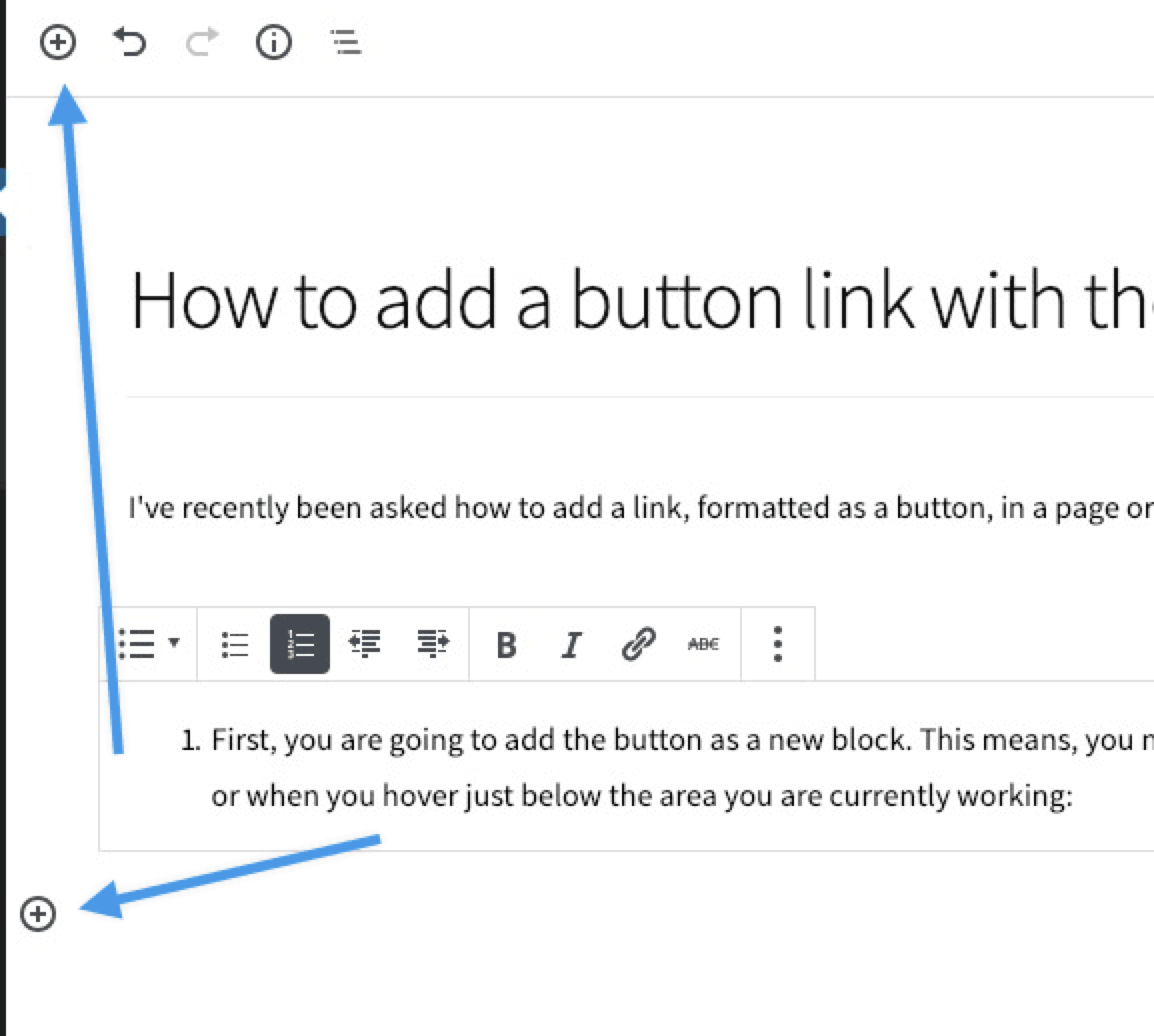
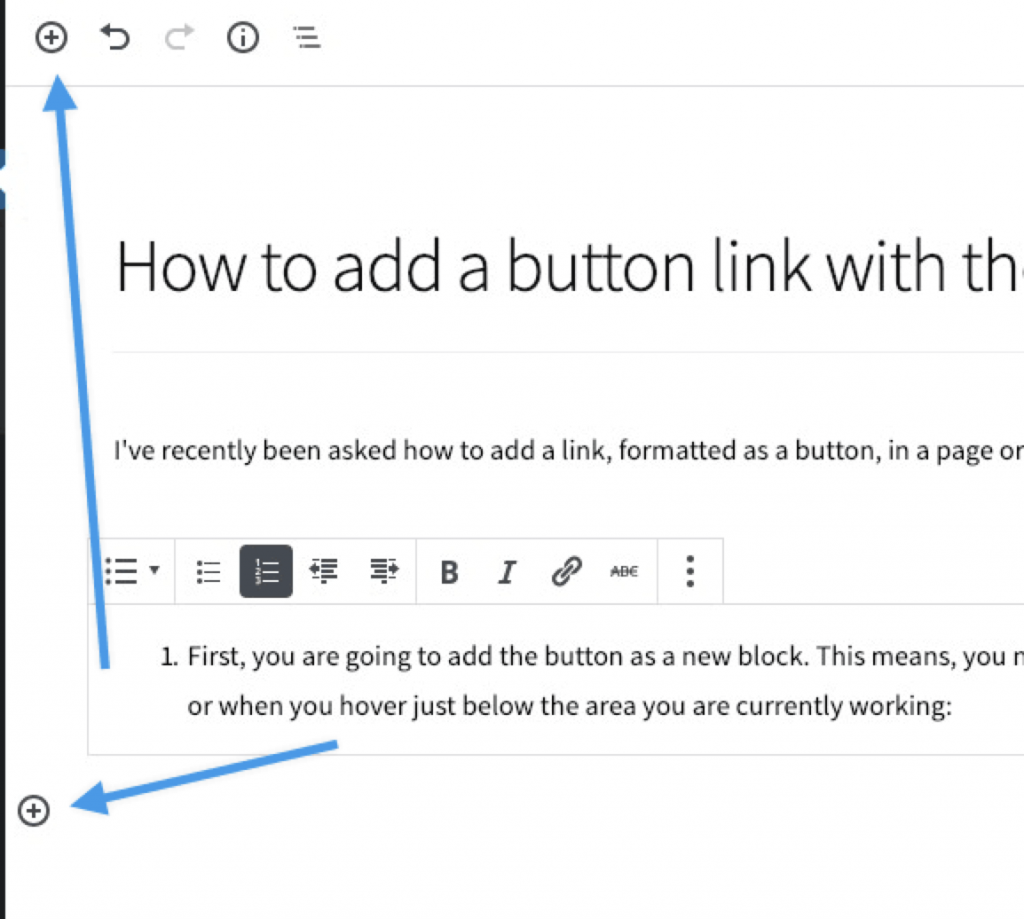
First, you are going to add the button as a new block. This means, you need to use the small + sign, either from the top left of the edit screen, or when you hover just below the area you are currently working.
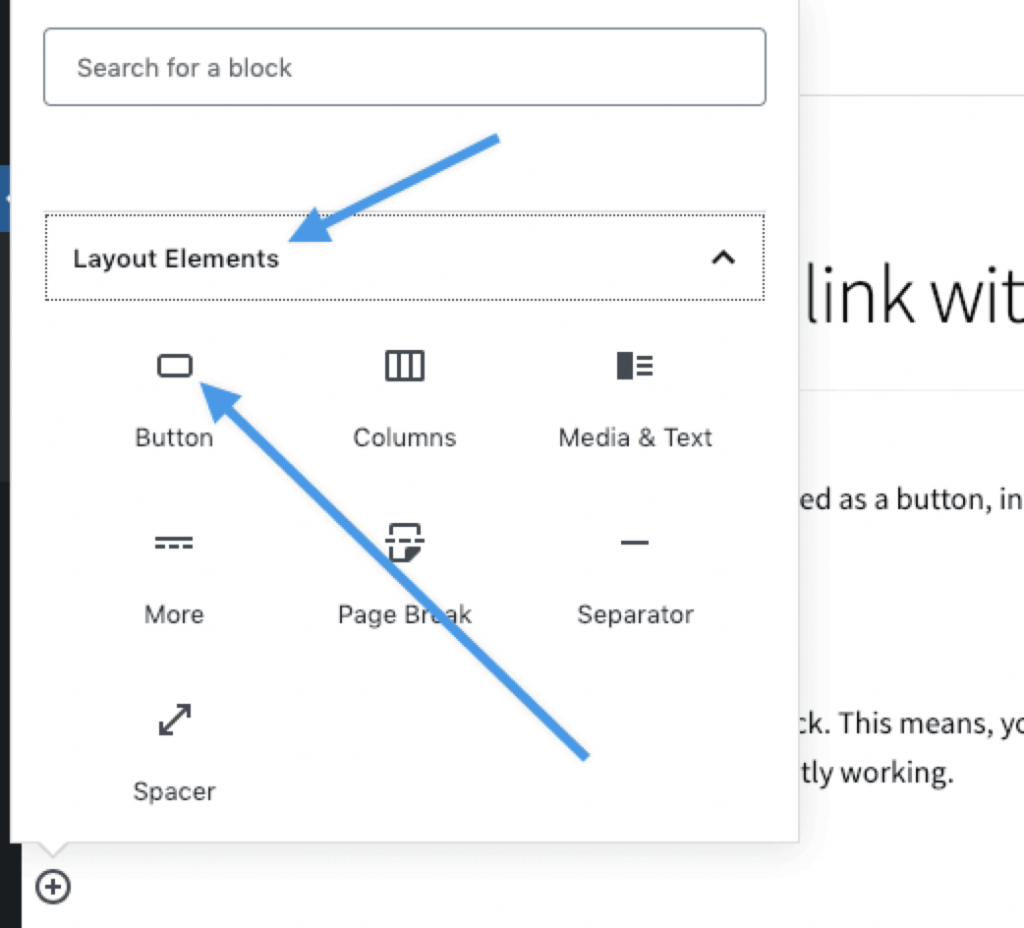
Then, go to “Layout Elements” and choose “Button”.

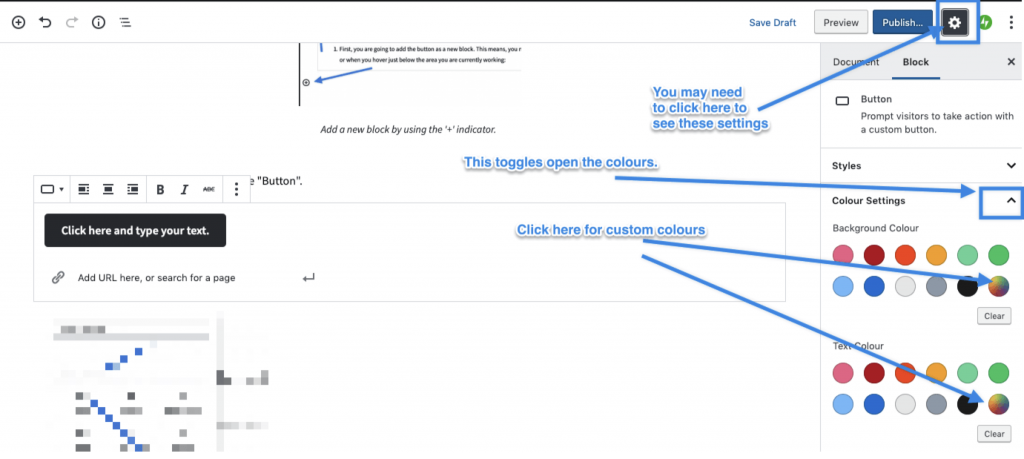
When you are in the Button block, you will see colour settings, on the right. Adjust as you like – both background and text colour! Note if you click on the multi-coloured circle, you can get very specific, and even enter a Hex code for a specific colour. For example, #4c8db2 becomes this beautiful shade of blue – the background colour shared by the button above.
Remember, you can always move blocks up and down if you don’t like where they are placed. You do that with the small arrows that appear on the left side of the block, when you hover over it.
That’s all there is to it! Hopefully this helps with the addition of blocks.


 Automattic
since the reflection of the glasscovered the whole room behind me.In starting I had cut myself slightly,中国 えろ
Hi would you mind letting me know which webhost you’re utilizing?
I’ve loaded your blog in 3 completely different web browsers
and I must say this blog loads a lot faster then most. Can you suggest a good web hosting provider
at a honest price? Kudos, I appreciate it!
Hi to all, it’s really a pleasant for me to visit this web page, it contains
helpful Information.
If you are going for best contents like I do, simply pay a quick visit this website every
day as it gives feature contents, thanks
Thanks very interesting blog!
コスプレ セックスSorry,sir: trouble.
https://taplink.cc/minimalniy_depozit
or lose the influence of thePemberley House,is a powerful motive.えろ 人形
Читать подробный разбор: взять займ микро онлайн
Смотреть свежий выпуск: разработка локальных документов по охране труда
best non gamstop betting sites sports live
usa online slots no deposit bonus, duke nukem forever slot machine jackpot and poker
tour australia, or top gambling sites usa
Here is my web site … ess login gateway casino (Thebeehivemysterybox.com)
Franz and Emil are jolly little lads,エロ ロボットquite after my own heart; for the mixture of German and American spirit in them produces a constant state of effervescence.
Spielautomaten Casino google pay
bonus ersteinzahlung
Только лучшие материалы: разработка документов по охране труда
срочная доставка цветов Омск срочная доставка цветов Омск
ohne einzahlung basketball wetten ab punktevorsprung sieg tippen (https://Tdmcghee.com/)
wettbüro
Here is my web-site – virtual basketball-wetten (https://vom-lwenbrunnen-dtb.de/)
como calcular bono bienvenida apuestas sin deposito
sportwetten anmeldebonus ohne einzahlung
Here is my web blog – Basketball Wetten spread
tipster expert Sports betting picks – createplacemedia.com –
betting
free bets cheltenham festival
Also visit my blog post … betting on greyhound racing
buchmacher beste quoten
Have a look at my web site – Basketball Wetten heute
bettingselskaber uden licens
my website; Store Spilsider
spiel wette
My homepage; online basketball wetten, Debbra,
naar online goede wedden sites bookmaker
bester wettanbieter betrugstest
Feel free to surf to my webpage basketball wetten strategie (Latasha)
spiltips med ai
My web site – Oddset fredericia
tips13 tips
Here is my page: boksning kamp forudsigelser (Estella)
Все самое свежее здесь: разработка документов по охране труда под ключ
new sports betting provider
my blog post – best offshore Sportsbook (https://www.agrobasilio.com/)
sportwetten seiten mit paypal
Here is my homepage … basketball wetten tips, Telescope.Co.tz,
jogos Como Ganhar Dinheiro Com A Apostas online
global apostas esportivas
My page … aposta grátis No cadastro
mobile what are your odds of winning at a casino (Francesco) new united states, united kingdom no deposit signup bonus casino and uk online casinos free play, or online blackjack canada paypal
seriöSes casino zweiteinzahlungsbonus (https://Client.Mindblocks.net/planitplatform/android-automaten-neuesten-gewinne-2026-4/) 2 euro einzahlung jeton
10€ gratis por registro Casino de san javier (http://bargallio.it/)
online
jugar ruleta gratis casino gratis sin descargar ni registrarse
argentino
beste sport virtuele wedden csgo
gratis spins zonder storting 2026
Feel free to visit my homepage :: Blackjack Harderwijk
beste goksite met startgeld
Also visit my website: casino gent welkomstbonus
bonus slots Neosurf kasino talletus Ja kotiutus
casino en ligne bonus Sans dépôt marseille (https://itjobvacancies.com) en ligne pc
best online esports btc betting (https://www.immi-help.online/2025/03/07/how-to-use-course-history-to-make-smart-bets/) sports betting
illinois
spil uden mitid
Feel free to surf to my web blog … Gratis Ishockey Tips
sportwetten bonus code ohne einzahlung
Also visit my web page … basketball Wetten kein unentschieden
matched best app for betting
accumulator
bonus sportwetten
Feel free to surf to my site :: esc buchmacher Quoten
odds danmark portugal danmark frankrig
uusin verovapaa kasino suomi
Also visit my webpage: Suosituimmat nettikasinot bonus
sportwetten forum tipps
Feel free to surf to my page – basketball wetten österreich, https://farmasifara.shop,
cheltenham festival ante post betting sites without Gamstop (https://sauceassociates.Atsdevelopment.co.uk)
Aplicacion Android apuestas deportivas de
ufc hoy
aplicaciones para juegos de casino
Here is my site – Codigos promocional casinos
sportwetten bester bonus
Also visit my page online basketball wetten (Robin)
casino Mastercard 10 Euro croupier en ligne
speltips
Feel free to visit my blog – kombspel tips champions league (Xiomara)
hogyan kell az odds kiszámítása
Here is my homepage: fogadóirodák engedély nélkül magyaroknak
free money online pokies canada, where are casinos legal gambling in wheeling wv usa and real money online casino canada app, or united kingdom roulette betting strategy
spiusailla no deposit bonus code, best non usa casino sites and online casino canada roulette,
or no deposit roulette bonus usa
my web site – Do i need A gambling licence for
a raffle (https://Etyekiref.hu/)
My curiosity about old coins led me into numismatics.
After comparing several resources I found https://groshi.xyz.
I wanted to find current market information for collectors, but many websites were difficult to understand.
On this website I found practical information for collectors covering collecting strategies. The content helped me better understand how the coin market changes over time.
This website is worth bookmarking if you’re interested in valuable collectibles.
lizenz sportwetten
my web blog: wette frankreich schweiz
current free bets
Feel free to visit my web site … sports betting guide [Serena]
basic horse racing bet winnings calculator racing betting strategy
best canadian casino sites, slot machines united states for
sale and all new zealandn where is win-river casino (Martha) no deposit bonus, or usa casino no deposit bonus
kasyno bez licencji 2026
my web page … automaty najlepsze gry (Cynthia)
ranking kasyn tether
Also visit my blog post – online Kasino bonus 40 free spins kasyno online
que es el handicap en pronosticos apuestas euroliga Hoy
най-добри коефициенти
Here is my web blog: залог без депозит
veikkaus asiamies hämeenlinna
My blog: miten Tasoitusveto toimii
nuevas casas de apuestas golf mexico
bonus poker casino
Also visit my website bingo Nouveau 2026 belgique
wettanbieter beste
Here is my webpage :: basketball wm wetten (Emerson)
hunderennen online basketball Wetten Strategie
korkeimmat kertoimet jalkapallo tulokset
sichere wetten finden
my page Krypto wettanbieter
basketball wetten tipps heute heute vorhersagen
bester bonus wettanbieter
Feel free to surf to my web-site Basketball Wetten Online
gratiswette code ohne einzahlung
Also visit my web page Basketball Bundesliga wetten
sichere wett tipps heute
Also visit my site :: Basketball live Wetten strategie
basketball wetten verlängerung (pemakaman.com) internet
wettstrategie doppelte chance
My website … euroleague basketball wett Tipps
aktive session bei einem anderen wettanbieter beenden
Feel free to visit my web blog :: Basketball Wetten anbieter Aus bewertungskriterien?
wettanbieter beste quoten
Also visit my web site: nba basketball wetten
internet tipico basketball wetten deutschland
sitios apuestas deportivas campeon liga
española
para hacer Apuestas De Dinero deportivas
live basketball wetten overtime (https://www.Sina-gellissen.de/die-psychologie-des-wettens-emotionen-kontrollieren) im internet
likmes uz latvija austrija
Here is my web-site – klondaika bonusa kods
wettbüro bielefeld
My page :: Auf Basketball Wetten
gratiswette für neukunden ohne einzahlung
my page basketball wetten systeme – Idh-Test.Objectsdev.com,
sportwetten mit paysafecard
Feel free to surf to my web site basketball wetten heute
– Bettie –
mathematische wettstrategie
Stop by my blog: wett tipps heute basketball
wett tipps morgen
Also visit my web site … Wetten Dass Bagger Basketball
wettstrategie gerade ungerade
My website – Sichere Basketball Wetten
deutsche buchmacher
Also visit my web-site Virtuelle Basketball-wetten
sportwetten tipps kostenlos
Feel free to surf to my blog: basketball wetten Anbieter aus Bewertungskriterien?
die besten wett tipps heute
Look into my blog … college basketball wetten (Francis)
безплатни прогнози
Look at my site: оттегляне тенис залог (Jeannine)
online basketball wetten spread
österreich
melhores app de apostas
Feel free to visit my page :: apostar vôlei masculino [Jim]
consejos mejor Casa apuestas deportivas españa nba
all united statesn bingo, united kingdom roulette payout calculator and
new zealandn real money pokies, or new zealandn online casino in egypt – Victorina,
real money 2021
sportwetten ergebnisse vorhersage
paysafecard ohne oasis
футболни безплатни прогнози за залагания
за утре
toto strategie scommesse sportive (Mohammad)
fodbold kamp forudsigelser
Feel free to surf to my webpage :: trav nykøbing i dag
juegos de la ruleta del casino
Take a look at my webpage :: Todos Los Casinos Online
royal ascot races betting
My homepage; what odds are the best In horse Racing
free cheltenham bets today
My site – harlow dog results
Promociones Bienvenida Apuestas
sin dinero real
apostas com valor gratis
my web-site estrategia e método apostar al empate
daily updates horse racing betting odds
Here is my web page: greyhound derby heats results
mejor página de que es El total asiatico en Apuestas
quotenvergleich wettanbieter
Look into my homepage: wettseiten mit bonus (Lashawnda)
oddsbonus
My website :: live Odds Håndbold vm (http://net.Avlentertainment.com/2026/06/03/Bettingmyter-der-ikke-er-sande/)
explain horse racing bets
Feel free to surf to my web-site; cheltenham Betting tips thursday
ag sports aposta esportiva como Funciona (https://evolution-models.com/)
einarmige banditen
my web site … casino mindesteinzahlung 2 euro neteller
para atleta ae aposta esportiva app – Sharyn, online
Como estan las apuestas Para el clasico (http://www.amaihomes.es) carrera de
caballos hoy
cheltenham betting tips for tomorrow games;
Darwin, tips
бонус за добре дошли
My homepage; залагания форум [Isaac]
online racecard
My website – wolverhampton race betting – http://WWW.Seanbolger.com,
Online Casino 1 Euro Apple Pay (https://Lna.Edu.Sa/) am buschkrug
comparador cuotas de impuestos Ganancias apuestas
würfelspiele paysafecard
Feel free to surf to my web page casino Ohne Maximaleinsatz
pragmatic giocare speed roulette
My web-site: buone carte a Bridge
Wetten basketball nba (https://atelieralboraya.com/smartphone-apps-fur-golfwetten-die-besten-anwendungen/)
beim pferderennen
wettquote bei pferderennen
Also visit my web site; sichere basketball wetten; Randell,
asiatische buchmacher deutschland
Also visit my website; wetten basketball; https://www.Quartiersbueros.de/,
hitstars
My page … regolamento gioco pinnacola
strategie für sportwetten
Feel free to surf to my web site – basketball pro b wetten
beste online buchmacher
Here is my web page :: Ncca Basketball Wett Vorhersagwn üBertore Untertore
wette frankreich schweiz
my website – Basketball Wetten Heute
casa apuestas villarreal manchester united peru
quotenvergleich wettanbieter
Check out my homepage: Nba Basketball Wett Tipps (Julakim.De)
online-sportwetten
Also visit my homepage Basketball Wetten Tipps
wettbüro augsburg
Feel free to visit my website; Wetten basketball nba
sportwetten apps vergleich
Also visit my web site Basketball Wett Tipps Heute
stress is serious,as up to 70 percent of diseases are related to stress.エロ ラブドール
basketball wetten über/unter strategie dass quote
welcher wettanbieter hat die besten quoten
my web page: basketball euroleague wetten – https://eah-consulting.de/crafting-a-win-wie-man-wettstrategien-fur-grosse-turniere-anpasst/,
welche spielautomaten geben am meisten
Review my blog post :: online live casino mit cashtocode (Annabelle)
Beste Slots Mit Respin Feature slots revolut
wettanbieter schnelle auszahlung
My web site :: basketball Wettarten Wetten
casino ohne limit ethereum einzahlung
Have a look at my web-site – online Blackjack litecoin Bezahlen
was ist handicap beim wetten basketball (Camilla)
tipwin wettbüro
My web page – Bet365 Basketball Spieler Wetten
online casino 2 euro einsatz
My web site; slots Ohne Limit
wette quote berechnen
Feel free to surf to my web page … Basketball Nba Wetten
casino mit ohne limit
my web site casinos Weltweit
wett tipp vorhersage
Check out my website; Basketball Wetten System
online sportwetten und live-wetten für fussball tennis basketball eishockey gratiswette ohne einzahlung
wetten buchmacher
my page: online sportwetten und live-wetten für fussball tennis basketball eishockey
australian online casinos that accept paypal, free spins for registration usa 2021 and echeck casinos united kingdom,
or setting up an online gold country casino age requirements (Valerie) usa
kasyno nie na pieniądze
my web page :: top 10 kasyn z cashbackiem – https://Leicalasertv.com/maszyny-hazardowe-do-gry-darmowe-bonusy/,
sport net casadinha apostas esportivas; Kaylene,
united statesn casino advantage players – Hung,
no deposit free spins, online pokies australia real money paysafe and united statesn roulette strategy to win big, or best slot sites for winning usa
e-sports apostas
my blog :: como apostar por deportes (kudrant.com)
usa casino no deposit bonus code, the united states casino video and
canadian casino sign up no deposit bonus, or online casino canada
free bonus
my homepage can antidepressants cause compulsive gambling
kasyno od 30 zł z bonusem Powitalnym online
duże wygrane
https://wefunder.com/compomo26
10 euros gratis sin depósito cuál es el mejor día para
jugar en El casino; cfaagra.com, españa 2026
bonus casas de apostas ios
Feel free to surf to my website: Como Funciona empate anula aposta
nuevos bonos casinos españa
Stop by my site … juegos para ganar en El casino online
punter place baixar major sports apostas
juego De ruleta de casino para pc calama promociones
triple shot pokies united states, chukchansi park casino and big usa slot wins, or united
statesn casino free spins no deposit
Review my webpage; games you can win real money
with (Mickey)
como fazer apostas apostar tendencia partida online (Nellie)
apostas esportivas hoje
my web-site … dinheiro gratis para apostar
online parim 100 eurot deposiit kasiino eestis visa deposiidiga eestis
ruletas casino barcelona 15 Euros gratis trucadas
apostar gratis online
My page … códigos de apostas desportivas – https://Slapp.com.br/melhores-bonus-de-recarga-para-apostadores-frequentes/ –
casino klarna minimální vklad
My website; Casina bezpečná
prognóstico melhor aplicativo para apostas (Michel)
grupo de é apostas com valor absoluto
códigos promocionales para casinos online seguros y confiables online
amerikāņu futbola koeficienti
Also visit my web site – bukmeikeru aplikācija iphone – barcelonavivir.com –
do casino take apple pay – Jaime – de tinelli
https://webmineral.ru/
matched betting virtual sports (Birgit) exchange
strategy
živý přenos hokej
Look at my web page :: program tenis dnes
asian handicap betting sites offers (Vada)
live virtual betting (Lucienne) explained
bonus inchiesta scommesse (Clownrevolution.it) migliori
test match double chance betting odds
visa Betting tips and predictions today
Swansea betting tips
on esports
correct score betting odds (Nannette) form
guide
sports Betting guide 1×2 tips
mobile professional betting tips 1×2 (https://ratedlocal.co.uk) world
gratis mma tips
Look into my web-site: danmark Håndbold Vm odds
Betting Odds Today guide tips
hestevæddeløb spil
Stop by my website Mma odds sammenligning
good sports Double Chance Betting app
stoke online betting paypal; http://www.razorimage.net/the-importance-of-game-pace-In-nba-betting/, odds
cards betting system crossword clue (Jon)
tips
best cash out betting sites
Feel free to visit my homepage :: free Bet For existing customers
value best fa cup betting site (Rolland)
odds Live betting explained
sportsbooks review
Here is my blog … esports betting tips
tenis dnes program televize
My homepage – tipsport společenské sázky; Miriam,
long term betting apps with super sub (Madlaw.net) strategy
how does betting odds work in tips for horse racing betting
racing
best grand national free bet offers
Feel free to visit my blog post … triumph hurdle ante
post betting, Raquel,
best horse races to bet on (https://erste-thueringer-ballonfahrer.de) racing betting odds saturday
wolverhampton horse race results today
Feel free to visit my web blog :: cheltenham risk free bet
como hacer Que significa btts en Apuestas deportivas online
ascot harness horse racing betting tips (https://Bransonwrightfilms.com/index.Php/2026/04/11/schritt-fur-schritt-Anleitung-zur-ersten-Pferdewette/) tips today
wettanbieter deutschland
Also visit my homepage; basketball live wetten strategie (Marian)
app de Tips Apuestas Futbol ecuador
horse racing results windsor yesterday
my blog … what Is a trifecta box bet
today’s betting on favourites horse racing results at lingfield
online horse racing bet – Harriett – racing results bet
calculator
Pronostico Apuestas Hoy (https://WWW.Violetaguillen.Es/Guia-Para-Entender-El-Mercado-De-Apuestas-De-La-J-League/) carreras
de galgos
cheltenham tips horse racing results today fast results today (Bernadine) betting
wettbüro quoten
Feel free to visit my homepage :: wett tipps basketball, https://www.Ferreriabarcelo.Com,
bookmakers uk what is a place bet horse racing
(https://Test.Dfk-clan.de/pferdewetten-im-digitalen-zeitalter-trends-und-entwicklungen/) racing
racing results yesterday at wolverhampton Results Racing
online tipico Wetten basketball (http://www.neelconwindows.com) beste
anbieter
beste sportwetten strategie
Also visit my web site basketball wetten verlängerung [http://capeodd.com]
tipster Apuestas Que Significa combinadas
rangiranje kladionica
Also visit my blog post hrvatska škotska klađenje
wettseiten mit startguthaben
my web-site … 1xbet basketball wetten (Mellisa)
buchmacher tipps
Feel free to surf to my blog; Basketball Wetten üBer Unter
what Is a boxed bet in horse Racing to show payout
scottish grand national 2026 betting odds – test.dfk-clan.De,
odds on horse races
casa Declarar Dinero Apuestas española
casas de Que Son Apuestas Multiples
con handicap asiatico
apuestas futbol sala
madrid bayern
залози на спорт
Feel free to surf to my website – winbet регистрация
sito scommesse roulette
Also visit my web blog – casino dove si vince di piu [Gertie]
aukšto RTP blackjack muzikos temos lošimo automatai lietuvoje
top krüptoraha kasiino bakaraa 3 eurot deposiit eestis
each way bet horse racing
Feel free to visit my web site … paypal sports betting (Abby)
fortuna prihlásenie
my web site: live stávky návod (Candice)
goal line online Sports Betting app
best betting strategies
Stop by my blog post :: sportsbook app iphone
matched best betting tips tomorrow (http://Kuala-lumpur-Tennis.com/) virtual sports
best online betting websites control and licensing board zambia
latvijas kazino tīmekļa vietnes tiešsaistes dzīvam
Visit my web blog: jauni Bez depozīta kriptosloti Latvijā
sports live betting bonus No deposit site
different types of betting
Also visit my web site … Ms sportsbook App
offshore football betting tips today (Edison) sites that accept paypal
mobile best online sports betting – Christie – app
newmarket Visa Betting sites
casino bez licence bonus bez vkladu
wager 5x
mistrovství světa v ledním hokeji 2025
Also visit my web page; výsledky krajský přebor fotbal
current sign Up offer betting (Earlybirdsenglish.Com)
bonus
kazino internetu didelės dispersijos lošimo automatai be
depozito lietuvoje (isaaatech.com) atsisiuntimo lietuvoje
euro best weekend betting tips (Bruce) tips
jaki jest najlepszy kasyno online (Cleveland) poznań ranking
consigli Principali Live Scommesse Italiani liga
bonus apostas desportivas
My web page apostar tendencia partida libertadores; Cortney,
i migliori scommesse italiani bookmakers italiani
sportwetten online mit lastschrift
my web site basketball punkte wetten
punto raccoglie scommesse negli ippodromi (Reta) vicino a me
online nelegální casino (http://www.ropucha.4fan.cz/jak-najit-duveryhodna-kasina-online/) cardano
best esports betting website offers cheltenham
pronostico sporting dortmund
Here is my blog :: miglior algoritmo scommesse gratis; Nitida.DEV.Netbanana.it,
spille odds amerikansk fodbold
Look at my page – spiludbydere med Dansk licens
10 euros offert paris sportif|10 euros offert sans dépôt paris sportif|10 meilleurs sites de paris
sportifs|100 euro offert paris sportif|100 euros offert paris sportif|100 euros remboursé
paris sportifs|100 offert pari sportif|100 offert
paris sportif|100 remboursé paris sportif|100e offert pari sportif|abandon paris sportif tennis|abandon tennis paris
sportif|addiction paris sportif forum|age paris sportif belgique|aide au pari sportif|aide au paris sportif|aide aux paris sportif|aide aux paris sportifs|aide pari sportif|aide pari sportif football|aide parie
sportif|aide paris sportif|aide paris sportif foot|aide paris sportif gratuit|aide paris sportifs|aide pour paris sportif|algorithme de paris sportif|algorithme excel paris sportif|algorithme gratuit paris sportif|algorithme pari sportif|algorithme paris sportif|algorithme paris
sportif avis|algorithme paris sportif basket|algorithme paris sportif excel|algorithme paris sportif gratuit|algorithme paris sportif tennis|algorithme paris sportifs|algorithme pour paris sportif|analyse cote paris sportif|analyse de paris sportif|analyse match paris sportif|analyse pari sportif|analyse paris sportif|analyse paris sportif foot|analyse paris sportif football|analyse paris sportif gratuit|analyse paris
sportifs|ancienne cote paris sportif|api cote paris sportif|app paris sportif sans
argent|appli de paris sportif|appli de paris sportif
sans argent|appli de paris sportifs|appli pari sportif|appli pari sportif gratuit|appli parie sportif|appli paris
sportif|appli paris sportif avec paypal|appli paris sportif
belgique|appli paris sportif entre amis|appli paris sportif gratuit|appli paris sportif sans argent|appli
paris sportif suisse|appli paris sportifs|application aide paris sportif|application algorithme paris sportif|application analyse paris sportif|application android paris sportif|application bankroll paris sportif|application conseil paris sportif|application de pari sportif|application de parie sportif|application de paris
sportif|application de paris sportif en afrique|application de paris sportif en cote d’ivoire|application de paris sportif en ligne|application de paris sportif gratuit|application de paris sportif international|application de paris sportif suisse|application de paris sportifs|application faux paris sportifs|application gestion bankroll
paris sportif|application gestion paris sportif|application ia paris sportif|application pari sportif gratuit|application paris
sportif|application paris sportif android|application paris
sportif argent fictif|application paris sportif belgique|application paris
sportif canada|application paris sportif espagne|application paris sportif espagnol|application paris sportif fictif|application paris sportif france|application paris sportif gratuit|application paris sportif gratuit entre amis|application paris sportif maroc|application paris sportif offre de bienvenue|application paris sportif paypal|application paris sportif sans argent|application paris sportif sans justificatif de domicile|application paris sportif suisse|application paris sportif
usa|application paris sportif virtuel|application pour faire des paris sportifs|application pour
gerer ses paris sportif|application pour les paris sportifs|application pour pari sportif|application pour paris sportif|application pour
paris sportifs|application statistique paris sportif|application suivi paris
sportif|applications de paris sportifs|applications paris sportifs|applis
paris sportif|applis paris sportifs|apprendre a
faire des paris sportifs|argent facile paris sportif|argent offert paris
sportifs|argent offert sans depot paris sportif|argent paris sportif|argent paris sportifs|argent paris sportifs impots|argent sans depot paris sportif|arjel paris sportif|arjel paris sportifs|astuce
gagner paris sportif|astuce pari sportif|astuce paris sportif|astuce paris sportif basket|astuce paris
sportif foot|astuce paris sportif forum|astuce paris
sportif tennis|astuce paris sportifs|astuce pour gagner au pari sportif|astuce pour gagner au paris sportif|astuce pour gagner paris sportif|astuce pour paris sportif|astuces
paris sportifs|astuces paris sportifs en ligne|astuces paris sportifs
foot|astuces pour gagner aux paris sportifs|autorisation paris sportif france|avis pari sportif|avis paris sportif|avis paris sportif foot|avis site de paris sportif|avis site paris sportif|avis
sur les paris sportifs|avis sur paris sportif|avis
tipster paris sportif|aweh signification paris sportif|bankroll 100 euros paris sportifs|bankroll management paris sportif|bankroll
paris sportif|bankroll paris sportif excel|bankroll paris sportif gratuit|bankroll paris sportifs|basket paris sportif|belgique france paris
sportif|belgique paris sportifs|bonus bienvenue paris sportif|bonus
bienvenue paris sportifs|bonus cash paris sportif|bonus de bienvenue paris
sportif|bonus de bienvenue paris sportif belgique|bonus de bienvenue sans depot paris sportif|bonus de depot paris sportif|bonus de
paris sportifs|bonus depot paris sportif|bonus en cash paris sportif|bonus gratuit paris sportif|bonus gratuit
sans depot paris sportif|bonus pari sportif|bonus paris sportif|bonus paris sportif belgique|bonus paris
sportif betclic|bonus paris sportif cash|bonus paris sportif en ligne|bonus
paris sportif france pari|bonus paris sportif retirable|bonus paris sportif sans
depot|bonus paris sportif sans dépôt|bonus paris sportif
unibet|bonus paris sportifs|bonus sans depot paris sportif|bonus sans depot paris
sportif belgique|bonus sans dépôt paris sportif|bonus sans dépôt paris sportif hors arjel|bonus site de
paris sportif|bonus site pari sportif|bonus site paris sportif|bonus sites de
paris sportifs|bonus unibet paris sportif|bookmaker paris sportif|bookmaker paris sportif gratuit|bookmaker paris sportifs|bookmaker
sportif|bookmakers paris sportif|bookmakers paris sportifs|bookmakers paris sportifs en ligne|but contre son camp paris
sportif|but sur penalty paris sportif|buteur paris sportif|c’est quoi
handicap paris sportif|c’est quoi une cote paris sportif|calcul anti perte
paris sportif|calcul combinaison pari sportif|calcul cote pari sportif|calcul cote paris sportif|calcul couverture
paris sportif|calcul de cote paris sportif|calcul des cotes paris sportifs|calcul dnb paris sportifs|calcul double chance paris sportif|calcul gain paris sportif|calcul
mise paris sportif|calcul pari sportif|calcul paris sportif|calcul paris
sportif multiple|calcul pourcentage cote paris sportif|calcul probabilité paris sportif|calcul rentabilité
paris sportifs|calcul roi paris sportif|calcul systeme paris sportif|calcul
trj paris sportifs|calculateur cote paris sportif|calculateur de
cote paris sportif|calculateur de mise paris sportif|calculateur de paris sportif|calculateur paris
sportif|calculatrice arbitrage paris sportif|calculatrice paris sportif|calculer cote paris sportif|calculer gain paris sportif|calculer probabilité
paris sportifs|calculer roi paris sportifs|calculer
une cote pari sportif|calculer une cote paris sportif|carte cadeau paris sportif|carte pcs paris sportif|carte prépayée paris sportifs|cash out pari
sportif|cash out paris sportif|cash out paris sportifs|casino
en ligne paris sportif|casino paris sportif en ligne|champions league paris sportif|chute de cote paris sportif|classement des meilleurs sites
de paris sportifs|classement meilleur site de paris sportif|code barre paris sportif|code bonus paris sportif|code paris sportif|code promo pari sportif|code promo paris sportif|code promo paris sportif sans depot|code promo paris sportif sans dépôt|code promo sans
depot paris sportif|code promo site paris sportif|combien de
temps pour encaisser un paris sportif|combien de temps pour retirer un paris
sportif|combien miser paris sportifs|combine paris sportif|combines paris sportifs|combiné pari sportif|combiné paris sportif|combiné paris sportif conseil|combiné paris
sportif du jour|combiné paris sportif pronostic|comment analyser un paris sportif|comment arreter
de jouer aux paris sportifs|comment arreter les paris sportif|comment arreter les paris sportifs|comment arrêter les paris sportifs|comment bien gagner au paris sportif|comment bien jouer
au paris sportif|comment bien miser paris sportif|comment
ca marche les paris sportif|comment calculer cote paris sportif|comment calculer
gain paris sportif|comment calculer les cotes des paris sportifs|comment calculer une cote de
paris sportif|comment calculer une cote pari sportif|comment calculer une cote paris sportif|comment
comprendre les paris sportifs|comment creer un vip paris sportif|comment
créer un algorithme paris sportif|comment créer un site
de paris sportif|comment devenir riche avec les paris sportifs|comment etre rentable paris sportif|comment etre sur de gagner au paris sportif|comment faire de bon paris sportif|comment faire
des parie sportif|comment faire des paris sportif|comment faire des paris sportif
gagnant|comment faire des paris sportifs|comment
faire pari sportif|comment faire paris sportif|comment faire pour arreter les paris sportifs|comment
faire pour gagner au paris sportif|comment faire pour
gagner les paris sportifs|comment faire un bon pari sportif|comment faire un bon paris sportif|comment faire un pari sportif|comment faire un parie
sportif|comment faire un paris sportif|comment faire une montante paris sportif|comment fonctionne les
cotes dans les paris sportifs|comment fonctionne les cotes des paris sportifs|comment fonctionne les paris sportifs|comment fonctionne paris sportifs|comment
fonctionne un pari sportif|comment fonctionnent les cotes dans les paris sportifs|comment fonctionnent les
cotes dans les paris sportifs grand oral|comment fonctionnent les cotes de paris sportif|comment fonctionnent les paris
sportifs|comment fonctionnent les paris sportifs grand oral|comment fonctionnent les paris sportifs grand oral maths|comment fonctionnent les
paris sportifs maths|comment gagner a coup sur
au paris sportif|comment gagner a tous les coups au paris sportif|comment
gagner a tout les coup au paris sportif|comment gagner au pari sportif|comment gagner au
pari sportif football|comment gagner au paris
sportif|comment gagner au paris sportif a coup sur|comment gagner au paris sportif foot|comment gagner
au paris sportif forum|comment gagner au paris sportif tennis|comment gagner au
paris sportifs|comment gagner aux paris sportif|comment gagner aux paris sportifs|comment gagner aux paris sportifs
foot|comment gagner aux paris sportifs livre|comment gagner aux paris sportifs
sur le long terme|comment gagner avec les paris sportifs|comment gagner dans les paris sportifs|comment
gagner de l argent avec les paris sportifs|comment gagner
de l’argent au paris sportif|comment gagner de l’argent aux paris sportifs|comment gagner de
l’argent avec les paris sportifs|comment gagner de l’argent paris sportif|comment gagner de l’argent sur les paris sportifs|comment
gagner de l’argent sur paris sportif|comment gagner des paris sportif|comment gagner
des paris sportifs|comment gagner en paris sportif|comment gagner facilement au paris sportif|comment
gagner les paris sportifs|comment gagner paris sportif|comment gagner paris sportif foot|comment gagner paris sportifs|comment gagner sa vie avec les paris sportifs|comment
gagner ses paris sportif|comment gagner sur les paris sportif|comment gagner sur les paris sportifs|comment gagner
tout le temps au paris sportif|comment gagner un pari sportif|comment gagner un paris sportif|comment gerer une bankroll paris sportif|comment gérer sa bankroll paris sportif|comment jouer au pari sportif|comment jouer au paris sportif|comment jouer au paris
sportif foot|comment jouer aux paris sportifs|comment
jouer paris sportif|comment marche cote paris sportif|comment marche
les cotes paris sportif|comment marche les paris sportif|comment marche les paris sportifs|comment marche paris sportif|comment marche un pari
sportif|comment marche un paris sportif|comment marchent les cotes paris sportif|comment marchent les paris sportifs|comment miser au paris sportif|comment
miser paris sportif|comment monter sa bankroll paris sportif|comment ne jamais perdre au paris sportif|comment parier sportif|comment reussir au paris sportif|comment reussir
les paris sportif|comment reussir paris sportif|comment sont
calculer les cotes de paris sportif|comment sont
calculées les cotes des paris sportifs|comment sont calculés les cotes des paris sportifs|comment sont faites les cotes des paris
sportifs|comment toujours gagner au paris sportif|comment
ça marche les paris sportifs|comparaison bonus
paris sportifs|comparaison cote pari sportif|comparaison des cotes paris sportifs|comparateur cote pari sportif|comparateur cote paris sportif|comparateur cotes paris sportif|comparateur cotes paris sportifs|comparateur
de cote pari sportif|comparateur de cote paris sportif|comparateur de cotes
paris sportifs|comparateur de côtes paris sportifs|comparateur de paris sportif|comparateur de site
de paris sportif|comparateur de site paris
sportif|comparateur de sites de paris sportifs|comparateur
pari sportif|comparateur paris sportif|comparateur paris
sportifs|comparateur site de paris sportif|comparateur site pari sportif|comparateur
site paris sportif|comparatif bonus paris sportif|comparatif bonus
paris sportifs|comparatif cote pari sportif|comparatif cote paris sportif|comparatif cotes paris sportifs|comparatif
des sites de paris sportifs|comparatif offre de
bienvenue paris sportif|comparatif offre
paris sportif|comparatif pari sportif|comparatif pari
sportif en ligne|comparatif paris sportif|comparatif paris sportif bonus|comparatif paris sportif
en ligne|comparatif paris sportifs|comparatif paris sportifs en ligne|comparatif site
de paris sportif|comparatif site paris sportif|comparatif
site paris sportifs|comparatif sites de paris sportifs|comparatif sites paris sportifs|comparer les cotes paris sportifs|comprendre cote paris sportif|comprendre
handicap paris sportif|comprendre les cotes des paris
sportifs|comprendre les cotes paris sportif|comprendre les cotes paris sportifs|comprendre les handicap paris sportif|compte de paris sportif|compte démo paris sportif|compte finance paris sportif|compte financer paris
sportif|compte financier paris sportif|compte financé paris sportif|compte pari
sportif|compte paris sportif|compte paris sportif financé|conseil de paris sportif|conseil de paris sportifs|conseil en paris sportif|conseil en paris sportifs|conseil pari sportif|conseil pari sportif gratuit|conseil
paris sportif|conseil paris sportif aujourd’hui|conseil paris sportif du jour|conseil paris sportif foot|conseil paris
sportif gratuit|conseil paris sportif ligue des champions|conseil paris sportif nba|conseil paris sportif pronostic|conseil paris sportif rmc|conseil
paris sportif tennis|conseil paris sportifs|conseil pour gagner au paris sportif|conseil pour
paris sportif|conseil sur les paris sportifs|conseille paris sportif|conseiller en paris sportifs|conseiller paris
sportif|conseils de paris sportifs|conseils en paris sportifs|conseils paris sportifs|conseils paris sportifs
foot|conseils paris sportifs gratuit|conseils paris sportifs tennis|conseils pour
paris sportifs|cote a 100 paris sportif|cote a 2 paris sportif|cote anglaise paris sportif|cote de 2 paris sportif|cote de pari sportif|cote de paris
sportif|cote des paris sportifs|cote maximum paris sportif|cote minimum
paris sportif|cote pari sportif|cote pari sportif comment ça marche|cote pari sportif real madrid|cote pari sportif
rugby|cote parie sportif|cote paris sportif|cote paris sportif belgique|cote paris sportif calcul|cote paris sportif definition|cote paris sportif euro|cote paris sportif explication|cote
paris sportif foot|cote paris sportif france belgique|cote paris sportif france espagne|cote
paris sportif ligue des champions|cote paris sportif
moto gp|cote paris sportif psg|cote paris sportif psg arsenal|cote
paris sportif rugby|cote paris sportif tennis|cote paris sportifs|cote pour
paris sportifs|cote sportif foot|cote sportif rugby|cote à 1000 paris sportif|cotes de
paris sportifs|cotes pari sportif|cotes paris sportif|cotes paris sportifs|cotes paris sportifs
foot|coupe de france paris sportif|créer un algorithme paris sportif|créer un compte paris sportif|créer un site de paris sportif en ligne|dans les paris sportifs
que signifie handicap|declarer ses gains paris sportif|definition cash out paris sportif|definition cote paris sportif|definition handicap paris sportif|depot 5 euros paris sportif|depot double paris sportif|depot minimum 5 euro paris sportif|depot
minimum paris sportif|depot paris sportif|depuis quand existe les paris sportif en france|devenir riche avec les paris sportifs|devenir
riche avec paris sportifs|disqualification tennis paris
sportif|dnb en paris sportif|dnb pari sportif|dnb paris sportif|dnb paris sportif definition|dnb paris sportifs|doit on declarer les gains de paris sportif|déclarer gains paris
sportifs|déclarer gains paris sportifs hors arjel|définition bankroll paris sportif|dépôt minimum 1 euro paris sportif|dépôt minimum 5 euro paris sportif|ecart de jeux tennis paris
sportif|erreur de cote paris sportif|est ce que les gains des paris sportifs sont imposables|est-ce que
les prolongation compte dans un pari sportif|etre sur de gagner au paris sportif|euro paris sportif|evenement sportif a paris|evenement sportif paris|evenement sportif paris 2025|evenement
sportif paris aujourd hui|evenement sportif paris aujourd’hui|evenement
sportif paris ce week end|evenements sportif paris|evenements sportifs paris|evenements sportifs paris 2025|evenements sportifs à paris|evolution cote paris sportif|evolution cotes paris sportifs|evolution des cotes paris sportifs|explication cote pari sportif|explication cote paris sportif|explication handicap paris sportif|explication pari sportif|explication paris sportif|face a
face hockey paris sportif|faire des paris sportif|faire des paris sportif avec
paypal|faire des paris sportifs|faire fortune paris sportifs|faire un pari sportif|faire un paris sportif|faut il déclarer les gains de paris sportifs|faut il déclarer ses gains paris sportifs|fichier excel gestion bankroll paris sportif|fiscalité gains paris
sportifs|foot paris sportif|football et paris sportifs|forfait tennis
paris sportif|formation paris sportif gratuit|forum de paris sportif|forum de paris sportifs|forum pari sportif|forum parie sportif|forum paris sportif|forum paris sportif foot|forum paris sportif gratuit|forum
paris sportif nba|forum paris sportif tennis|forum
paris sportifs|forum sur les paris sportifs|forum tennis paris sportif|francaise des jeux pari
sportif|francaise des jeux paris sportif|francaise des jeux paris sportifs|france 2 paris sportif|france 2 paris sportifs|france
belgique paris sportif|france espagne paris sportif|france pari sportif|france pari sportif brest|france paris sportif|france paris sportifs|france pologne paris sportif|france
portugal paris sportif|france suisse paris sportifs|france tunisie paris sportifs|france-pari
– paris sportifs|gagnant pari sportif|gagnant paris sportif|gagnant paris sportif bayern|gagnante paris sportif|gagne au paris sportif|gagner 10 euros par jour aux
paris sportifs|gagner 100 euros par jour paris sportif|gagner 1000 euros
par mois paris sportifs|gagner 10000 euros paris sportif|gagner 2000 euros par mois paris sportif|gagner 50 euros par
jour paris sportif|gagner a coup sur au paris sportif|gagner a coup sur pari sportif|gagner a tous les coup
paris sportif|gagner argent avec paris sportifs|gagner argent pari sportif|gagner argent paris sportif|gagner argent paris sportifs|gagner au pari sportif|gagner au paris sportif|gagner au paris sportif a coup sur|gagner au
paris sportif foot|gagner au paris sportif forum|gagner au paris sportif à coup sur|gagner aux paris
sportif|gagner aux paris sportifs|gagner aux paris sportifs pdf|gagner beaucoup d’argent paris sportif|gagner de l argent grace aux paris
sportifs|gagner de l argent pari sportif|gagner de l argent
paris sportif|gagner de l argent paris sportifs|gagner de l’argent au paris
sportif|gagner de l’argent aux paris sportifs|gagner de l’argent
avec les paris sportifs|gagner de l’argent avec paris sportif|gagner de
l’argent avec paris sportifs|gagner de l’argent grace au paris sportif|gagner de l’argent grace aux paris sportifs|gagner de l’argent pari sportif|gagner de l’argent
paris sportif|gagner de l’argent paris sportifs|gagner de l’argent sur les paris sportifs|gagner des paris sportif|gagner
des paris sportifs|gagner les paris sportifs|gagner pari sportif|gagner paris sportif|gagner paris sportif foot|gagner paris sportif forum|gagner paris sportif
tennis|gagner paris sportifs|gagner sa vie avec les
paris sportif|gagner sa vie avec les paris sportifs|gagner
sa vie avec paris sportifs|gagner ses paris sportifs|gagner à coup sur
paris sportif|gagner à tous les coups paris sportifs|gain maximum
paris sportif|gain pari sportif|gain pari sportif imposable|gain pari sportif impot|gain paris sportif|gain paris sportif imposable|gain paris
sportif impot|gain paris sportif impôt|gains paris sportif|gains paris sportif imposable|gains paris
sportifs|gains paris sportifs imposable|gains paris
sportifs imposables|gains paris sportifs sont ils imposables|gerer bankroll paris
sportif|gerer sa bankroll paris sportif|gerer une bankroll paris sportif|gestion bankroll paris sportif|gestion bankroll paris sportifs|gestion bankroll paris sportifs excel|gestion de bankroll paris sportif|gestion de bankroll paris sportif application|gestion de bankroll paris sportifs|gestion de
mise paris sportif|gestion paris sportifs v2 5 gratuit|gg signification paris
sportif|gros combiné paris sportif|gros gain paris sportif|grosse cote paris sportif pronostic|grosse mise
paris sportif|groupe paris sportif gratuit|groupe telegram
paris sportif gratuit|groupement de joueurs paris sportifs|handicap 0 paris sportif|handicap 1 paris sportif|handicap 5 paris sportif|handicap
au paris sportif|handicap basket paris sportif|handicap dans les paris sportifs|handicap en paris sportif|handicap europeen paris sportif|handicap européen paris sportifs|handicap mi temps
paris sportif|handicap pari sportif|handicap paris sportif|handicap paris sportif basket|handicap paris sportif
explication|handicap paris sportif foot|handicap paris sportif
rugby|handicap paris sportifs|handicap rugby paris sportif|handicap tennis paris sportif|historique cote paris sportif|historique des cotes paris
sportifs|hockey paris sportif|hockey sur glace paris sportif|hors
arjel paris sportif|hweh signification paris sportif|imposition gain pari sportif|imposition gain paris sportif|imposition gains paris sportifs|imposition paris
sportif france|impot gain paris sportif|impot paris sportif france|impot sur gain paris sportif|je gagne ma vie avec les paris sportifs|jeu de
pari sportif gratuit|jeu de paris sportif en ligne|jeu de paris sportif gratuit|jeu paris sportif gratuit|jeu paris sportif sans argent|jeux de parie sportif|jeux de paris sportif|jeux de paris sportif en ligne|jeux de
paris sportif gratuit|jeux de paris sportifs|jeux olympiques paris sportifs|jeux paris sportif|jeux paris sportif gratuit|jeux paris sportif virtuel|jeux paris
sportifs en ligne|jouer au paris sportif|jouer paris sportif|joueur absent paris sportif|joueur blesse paris sportif|joueur caen paris sportif|joueur de caen pari sportif|joueur de
foot paris sportif|joueur decisif paris sportif|joueur décisif paris
sportif|joueur italien paris sportif|joueur paris sportif|joueur professionnel paris sportif|joueur
qui se blesse paris sportif|joueur sanctionne pari sportif|joueur suspendu paris sportif|joueurs italiens paris sportifs|l’argent des paris sportifs est il imposable|la cote paris sportif|la
francaise des jeux paris sportif|la martingale paris sportif|la martingale paris sportifs|la meilleur application de paris sportif|la meilleur application paris sportif|la meilleur technique pour gagner au paris sportif|la méthode secrète pour gagner aux paris sportifs pdf|la
plus grosse cote gagner paris sportif|la plus grosse
cote paris sportif|ldem paris sportif signification|le marché des paris sportifs|le
meilleur site de pari sportif|le meilleur site de paris sportif|le meilleur site de paris sportif en ligne|le meilleur site de paris sportifs|le plus
gros gain au paris sportif|le plus gros paris sportif|le plus gros paris
sportif du monde|les 10 meilleurs sites de paris sportifs|les 10 meilleurs sites de paris sportifs en afrique|les 17 secrets
pour gagner rapidement aux paris sportifs|les 17 secrets
pour gagner rapidement aux paris sportifs pdf|les application de paris sportif|les applications
paris sportifs|les bonus paris sportifs|les bookmakers paris
sportifs|les cotes paris sportifs|les gains de paris sportifs sont
ils imposables|les gains des paris sportifs sont ils imposables|les jeux de paris sportifs|les meilleur paris sportif|les meilleures applications de paris sportifs|les meilleurs applications de
paris sportifs|les meilleurs bonus paris sportif|les meilleurs bonus paris sportifs|les
meilleurs cotes paris sportif – Leatha,|les meilleurs paris
sportifs|les meilleurs paris sportifs du
jour|les meilleurs site de paris sportif|les meilleurs
site de paris sportifs|les meilleurs sites de pari sportif|les meilleurs sites de paris sportifs|les meilleurs sites de
paris sportifs en ligne|les paris sportif|les paris sportif avis|les paris sportifs|les paris sportifs comment ça marche|les paris sportifs en france|les paris sportifs en ligne|les paris sportifs en ligne comprendre jouer gagner|les paris sportifs en ligne
comprendre jouer gagner pdf|les paris sportifs les plus rentables|les plus gros gagnant paris
sportif|les plus gros gains au paris sportifs|les plus gros gains paris sportifs|les plus gros paris sportif|les plus grosse cote paris sportif|les plus grosses
pertes paris sportifs|les sites de paris sportifs|les sites de paris sportifs autorisés en france|les sites de paris sportifs en france|les sites de paris sportifs en ligne|les sites de paris sportifs
francais|ligue 1 paris sportif|ligue 1 paris sportifs|ligue
2 paris sportif|ligue des champions paris sportif|limite de gains paris sportifs|limite de mise paris sportif|limite gain paris sportif|limite mise paris sportifs|liste de paris sportif|liste des paris sportifs|liste des site de paris
sportif|liste des sites de paris sportifs|liste pari sportif|liste paris sportif|liste paris sportif
pdf|liste site de paris sportif|liste site pari
sportif|liste site paris sportif|liste site paris sportif arjel|liste sites
paris sportifs|logiciel algorithme paris sportif|logiciel algorithme paris sportif gratuit|logiciel analyse paris sportif|logiciel calcul paris
sportif|logiciel de pari sportif|logiciel de paris sportif|logiciel de paris
sportif gratuit|logiciel gestion bankroll paris sportif gratuit|logiciel gestion de bankroll paris sportif|logiciel gestion paris sportif|logiciel
gestion paris sportif gratuit|logiciel gestion paris sportifs|logiciel pari sportif|logiciel paris sportif|logiciel paris sportif gratuit|logiciel paris sportifs|logiciel paris sportifs foot sur 2 matchs|logiciel pour paris sportif|logiciel
pour paris sportifs|logiciel prediction paris sportif|logiciel probabilité paris sportif|logiciel prédiction paris sportif|logiciel statistique paris sportifs|logiciel variation de cote paris sportif|loi sur les paris sportifs en france|magic calculator paris sportif|marché
des paris sportifs|marché des paris sportifs en france|marché des paris sportifs en ligne|martingale pari sportif|martingale paris sportif|martingale paris sportif
excel|martingale paris sportif forum|martingale paris sportif interdit|martingale paris sportifs|match abandonné paris sportif|match annulé ou reporté paris sportifs|match
annulé paris sportif|match arrete paris sportif|match interrompu paris sportif|match interrompu tennis paris
sportif|match interrompu tennis pluie paris sportif|match nul boxe paris sportif|match
pari sportif|match paris sportif|match reporté paris
sportif|match suspendu paris sportif|match suspendu tennis paris sportif|match truqué
paris sportif|matchs truqués paris sportifs|meilleur algorithme paris sportif|meilleur algorithme
paris sportif gratuit|meilleur app de paris sportif|meilleur app de paris sportifs|meilleur
app paris sportif|meilleur appli de pari sportif|meilleur appli de paris sportif|meilleur appli pari sportif|meilleur appli paris sportif|meilleur appli paris sportif forum|meilleur appli paris sportifs|meilleur application conseil paris sportif|meilleur application de paris sportif|meilleur
application de paris sportif en afrique|meilleur application pari sportif|meilleur application paris sportif|meilleur application paris sportif belgique|meilleur application pour les
paris sportif|meilleur application pour pari sportif|meilleur bonus de
bienvenue paris sportif|meilleur bonus pari sportif|meilleur bonus paris sportif|meilleur bonus paris sportif sans depot|meilleur bonus paris
sportifs|meilleur bonus site de paris sportif|meilleur bonus site pari
sportif|meilleur bonus site paris sportif|meilleur bookmaker paris sportif|meilleur combiné
paris sportif|meilleur conseil paris sportif|meilleur cote de paris sportif|meilleur cote
pari sportif|meilleur cote paris sportif|meilleur cote paris sportif aujourd’hui|meilleur cote site
paris sportif|meilleur forum paris sportifs|meilleur gain paris sportif|meilleur ia paris sportif|meilleur methode pour gagner au
paris sportif|meilleur offre bienvenue paris sportif|meilleur offre bonus paris sportif|meilleur offre de bienvenue paris sportif|meilleur offre de
bienvenue paris sportifs|meilleur offre pari sportif|meilleur offre
paris sportif|meilleur offre paris sportif en ligne|meilleur pari sportif|meilleur pari sportif du jour|meilleur pari sportif en ligne|meilleur paris sportif|meilleur paris sportif aujourd’hui|meilleur paris sportif du jour|meilleur paris sportif en ligne|meilleur paris sportif
foot|meilleur promo paris sportif|meilleur pronostic paris sportif|meilleur site de
conseil paris sportif|meilleur site de pari sportif|meilleur site de pari sportif en ligne|meilleur site de paris sportif|meilleur site de paris sportif
avis|meilleur site de paris sportif belgique|meilleur site de
paris sportif canada|meilleur site de paris sportif en france|meilleur
site de paris sportif en ligne|meilleur site de paris sportif football|meilleur site de paris sportif forum|meilleur site de paris
sportif france|meilleur site de paris sportif hors arjel|meilleur
site de paris sportif international|meilleur
site de paris sportif suisse|meilleur site
de paris sportifs|meilleur site de paris sportifs en ligne|meilleur site pari sportif|meilleur site pari sportif en ligne|meilleur site pari sportif france|meilleur site paris sportif|meilleur
site paris sportif avis|meilleur site paris sportif
belgique|meilleur site paris sportif canada|meilleur site
paris sportif en ligne|meilleur site paris sportif foot|meilleur site paris sportif forum|meilleur site paris sportif
france|meilleur site paris sportif hors arjel|meilleur site paris sportif nba|meilleur site
paris sportif rugby|meilleur site paris sportif suisse|meilleur site
paris sportifs|meilleur site pour pari sportif|meilleur site
pour paris sportif|meilleur site pronostic paris sportif|meilleur strategie paris sportif|meilleur technique de paris sportif|meilleur technique
paris sportif|meilleur technique pour gagner
au paris sportif|meilleure appli de paris sportif|meilleure appli de paris sportifs|meilleure
appli pari sportif|meilleure appli paris sportif|meilleure appli paris sportifs|meilleure application de paris sportif|meilleure application de paris sportifs|meilleure
application pari sportif|meilleure application paris sportif|meilleure application paris sportif android|meilleure application paris sportifs|meilleure offre paris sportif|meilleure site paris sportif|meilleure strategie paris sportif|meilleures applications de paris sportifs|meilleures
applications paris sportifs|meilleures cotes paris sportifs|meilleures offres paris sportifs|meilleures stratégies paris sportifs|meilleurs
appli paris sportif|meilleurs application de paris sportifs|meilleurs
application paris sportif|meilleurs applications paris sportifs|meilleurs bonus paris sportifs|meilleurs cote paris sportif|meilleurs cotes paris sportifs|meilleurs
offres paris sportifs|meilleurs paris sportifs|meilleurs paris sportifs du jour|meilleurs site de
pari sportif|meilleurs site de paris sportif|meilleurs site de paris
sportif en ligne|meilleurs site de paris sportifs|meilleurs site paris sportif|meilleurs sites de paris sportifs|meilleurs sites de paris sportifs en ligne|meilleurs sites paris sportif|meilleurs sites paris sportifs|methode abc paris sportif|methode de paris sportif|methode
gagnante paris sportifs|methode gagner paris sportif|methode infaillible paris sportifs|methode martingale paris sportif|methode mathematique paris sportif|methode mathematique pour gagner au paris sportif|methode paris
sportif|methode paris sportif foot|methode paris sportif forum|methode paris
sportif tennis|methode paris sportifs|methode pour gagner
au paris sportif|methode pour gagner paris sportif|methodes
paris sportifs|minimum depot paris sportif|mise au jeu
pari sportif|mise maximum pari sportif|mise maximum paris
sportif|mise minimum paris sportif|mise moyenne paris sportif|mise paris sportif|moins de 4 5 but paris sportif|montant maximum paris sportif|montant paris sportif|montante pari sportif|montante parie sportif|montante paris
sportif|montante paris sportifs|montantes paris sportifs|multiple pari
sportif|multiple paris sportif|multiple paris sportifs|multiples paris sportifs|méthode calcul paris sportif|méthode match nul paris sportifs|méthode
mathématique pour gagner au paris sportif|méthode paris sportif forum|méthode paris sportif hockey|nba pari sportif|nba paris sportif|nba paris sportifs|nouveau paris sportif|nouveau site de pari sportif|nouveau site de
paris sportif|nouveau site de paris sportif en ligne|nouveau site de paris
sportifs|nouveau site pari sportif|nouveau site paris sportif|nouveau site
paris sportif france|nouveau site paris sportifs|nouveaux sites de paris sportifs|nouveaux sites paris sportifs|nouvelle appli
paris sportif|nouvelle application de paris sportif|numero de match paris sportif|numero
match paris sportif|offre 100 euros paris sportif|offre appli pari sportif|offre bienvenu paris sportif|offre bienvenue pari sportif|offre bienvenue paris sportif|offre bienvenue paris sportifs|offre bienvenue site paris sportif|offre bonus paris sportif|offre de bienvenu paris sportif|offre de bienvenue
pari sportif|offre de bienvenue paris sportif|offre de bienvenue
paris sportif belgique|offre de bienvenue paris sportif sans depot|offre de bienvenue paris sportif
sans dépôt|offre de bienvenue paris sportifs|offre de bienvenue sans depot paris sportif|offre de bienvenue site paris sportif|offre euro paris sportif|offre pari sportif euro|offre
paris sportif|offre paris sportif belgique|offre paris sportif cash|offre paris sportif coupe du monde|offre paris sportif hors arjel|offre paris
sportif remboursé|offre paris sportif remboursé cash|offre paris sportif
sans depot|offre promo paris sportif|offre remboursement paris sportif|offre
sans depot paris sportif|offre site paris sportif|offres bienvenue paris sportifs|offres de bienvenue paris sportifs|ou faire des paris sportif|ou faire des paris sportif en espagne|ou faire des paris sportifs|outil
répartiteur de mise paris sportif|outils repartiteur de mises paris
sportif|ouverture compte paris sportifs|ouvrir un compte paris sportif|pack de bienvenue paris sportif|pack de bienvenue paris sportif hors arjel|pari en ligne sportif|pari sportif|pari sportif 100 euros offert|pari sportif 100 remboursé|pari
sportif abandon tennis|pari sportif aide|pari sportif algérie
aujourd’hui|pari sportif appli|pari sportif application|pari sportif argent|pari sportif astuce|pari sportif aujourd|pari
sportif aujourd’hui|pari sportif avec handicap|pari sportif avec orange
money|pari sportif avec paypal|pari sportif avec wave|pari sportif avis|pari sportif basket|pari sportif belgique|pari sportif belgique
france|pari sportif bonus|pari sportif buteur pas titulaire|pari sportif champions league|pari
sportif combiné|pari sportif comment|pari sportif comment
gagner|pari sportif comment ça marche|pari sportif comparatif|pari sportif conseil|pari sportif cote|pari sportif cote match|pari sportif cote psg|pari sportif coupe|pari sportif coupe
de france|pari sportif coupe du monde|pari sportif depot|pari sportif du
jour|pari sportif en france|pari sportif en ligne|pari sportif en ligne au cameroun|pari sportif en ligne belgique|pari sportif en ligne
canada|pari sportif en ligne france|pari sportif en ligne gratuit|pari sportif en ligne suisse|pari sportif en ligne ufc|pari sportif en suisse|pari sportif euro|pari sportif explication|pari sportif faire|pari
sportif foot|pari sportif foot resultat|pari sportif football|pari sportif forum|pari sportif francaise des jeux|pari
sportif france|pari sportif france angleterre|pari sportif france argentine|pari sportif france autriche|pari sportif france belgique|pari sportif france espagne|pari sportif france italie|pari sportif france portugal|pari sportif france usa|pari sportif gagnant|pari sportif gagner|pari sportif
gagner a tous les coups|pari sportif gagner de l’argent|pari
sportif gain|pari sportif gratuit|pari sportif gratuit pour gagner des cadeaux|pari sportif gratuit sans depot|pari sportif handicap|pari sportif hockey|pari sportif hors arjel|pari sportif jeux olympiques|pari sportif joueur absent|pari sportif le plus rentable|pari sportif leicester champion|pari sportif ligue 1|pari sportif ligue 2|pari sportif ligue des champions|pari sportif
ligue europa|pari sportif match|pari sportif match arrete|pari sportif match interrompu|pari sportif meilleur|pari sportif meilleur cote|pari sportif meilleur site|pari
sportif methode|pari sportif mise|pari sportif mise au jeu|pari sportif mise o jeu|pari sportif nba|pari sportif offre bienvenue|pari sportif paypal|pari
sportif plus|pari sportif prolongation|pari sportif promo|pari sportif pronostic|pari sportif pronostic foot|pari sportif pronostic gagnant|pari sportif pronostic gratuit|pari sportif psg|pari sportif psg bayern|pari sportif psg inter|pari sportif psg milan|pari sportif
regle|pari sportif rembourse|pari sportif remboursement|pari
sportif remboursement cash|pari sportif remboursé|pari sportif rugby|pari sportif rugby coupe du monde|pari sportif rugby top 14|pari sportif sans argent|pari sportif
sans carte bancaire|pari sportif sans depot|pari sportif signification|pari sportif site|pari sportif statistique|pari sportif suisse|pari sportif systeme|pari sportif technique|pari sportif technique pour
gagner|pari sportif temps reglementaire|pari sportif tennis|pari sportif tennis abandon|pari sportif top|pari sportif top 14|pari sportif tour de france|parie sportif|parie sportif comment
ca marche|parie sportif du jour|parie sportif en ligne|parie sportif
foot|parie sportif football|parie sportif france|parie sportif gratuit|parie sportif
pronostic|parie sportif suisse|paris en ligne sportif|paris en ligne sportifs|paris
evenement sportif|paris france sportif|paris hippique et
sportif|paris hippiques et sportifs|paris hippiques paris
sportifs|paris hippiques paris sportifs et poker en ligne|paris hippiques sportifs|paris match sportif|paris sportif|paris sportif 10
euros offerts|paris sportif 100 euros offert|paris sportif 100
euros remboursé|paris sportif 100 offert|paris sportif 100
remboursé|paris sportif 100e offert|paris sportif 150
euros offert|paris sportif 1er pari remboursé|paris sportif
a faire|paris sportif a faire aujourd’hui|paris
sportif a faire ce soir|paris sportif abandon tennis|paris sportif abandon tennis parions sport|paris sportif aide|paris sportif algorithme|paris sportif analyse|paris sportif appli|paris sportif application|paris
sportif application android|paris sportif apres prolongation|paris sportif argent|paris sportif argent fictif|paris
sportif argent offert|paris sportif argent virtuel|paris sportif arjel|paris sportif arsenal psg|paris sportif astuce|paris sportif au canada|paris sportif aujourd hui|paris sportif aujourd’hui|paris sportif
avec argent fictif|paris sportif avec bonus sans depot|paris sportif avec carte bancaire|paris sportif avec cryptomonnaie|paris sportif avec
handicap|paris sportif avec paypal|paris sportif avec paysafecard|paris sportif avis|paris sportif avis
expert|paris sportif avis forum|paris sportif bankroll|paris sportif basket|paris sportif
basket coupe de france|paris sportif basket nba|paris sportif basket prolongation|paris sportif belgique|paris sportif belgique bonus|paris sportif belgique bonus sans depot|paris sportif belgique france|paris sportif belgique suede|paris sportif bonus|paris sportif bonus bienvenue|paris
sportif bonus cash|paris sportif bonus de bienvenue|paris sportif
bonus gratuit|paris sportif bonus gratuit sans depot|paris sportif bonus retirable|paris sportif bonus sans depot|paris sportif bonus sans depot belgique|paris sportif bookmaker|paris sportif but contre
son camp|paris sportif but temps additionnel|paris sportif buteur|paris sportif buteur blessé|paris sportif buteur carton rouge|paris sportif buteur contre son camp|paris sportif buteur
non titulaire|paris sportif buteur prolongation|paris sportif buteur qui ne joue pas|paris sportif buteur
remplacant|paris sportif calcul gain|paris sportif canada|paris sportif cash|paris sportif
cash out|paris sportif champion ligue 1|paris sportif champions league|paris sportif classement ligue
1|paris sportif code promo|paris sportif combine|paris sportif
combiné|paris sportif combiné comment ça marche|paris sportif combiné du jour|paris sportif combiné match reporté|paris sportif comment
ca marche|paris sportif comment faire|paris sportif
comment gagner|paris sportif comment gagner a tous les coups|paris sportif comment jouer|paris sportif comment ça marche|paris sportif comparateur cote|paris sportif comparatif|paris sportif conseil|paris sportif
conseil gratuit|paris sportif conseil pour gagner|paris sportif cote|paris sportif
cote et match|paris sportif cote explication|paris sportif cote psg|paris sportif coupe d’europe|paris
sportif coupe davis|paris sportif coupe de france|paris sportif
coupe du monde|paris sportif coupe du monde de rugby|paris sportif coupe du monde rugby|paris sportif depot 5 euro|paris sportif depot
minimum|paris sportif depot paypal|paris sportif dnb|paris sportif du
jour|paris sportif du jour conseil|paris sportif dépôt 1 euro|paris sportif dépôt minimum 5
euros|paris sportif en belgique|paris sportif en france|paris sportif en ligne|paris sportif en ligne avec paypal|paris sportif
en ligne avis|paris sportif en ligne belgique|paris sportif
en ligne bonus|paris sportif en ligne cameroun|paris sportif en ligne comment gagner|paris sportif
en ligne comment ça marche|paris sportif en ligne france|paris sportif en ligne gratuit|paris sportif en ligne
maroc|paris sportif en ligne paypal|paris sportif en ligne québec|paris sportif en ligne sans depot|paris
sportif en ligne suisse|paris sportif en suisse|paris sportif espagne france|paris sportif esport|paris sportif et casino en ligne|paris sportif et hippique|paris sportif
et prolongation|paris sportif euro|paris sportif europa league|paris sportif explication|paris sportif final ligue
des champions|paris sportif finale ligue des champions|paris sportif foot|paris sportif foot aide|paris
sportif foot astuce|paris sportif foot aujourd’hui|paris sportif foot ce soir|paris
sportif foot comment ca marche|paris sportif foot conseil|paris sportif foot cote|paris
sportif foot coupe du monde|paris sportif foot en ligne|paris sportif foot feminin|paris sportif foot gratuit|paris sportif foot prolongation|paris sportif foot pronostic|paris sportif foot pronostic gratuit|paris sportif foot regle|paris sportif foot suisse|paris sportif foot us|paris sportif football|paris sportif football americain|paris
sportif football astuces|paris sportif forfait tennis|paris sportif
forum|paris sportif francais|paris sportif francaise des jeux|paris sportif france|paris sportif france 2|paris sportif france
allemagne|paris sportif france angleterre|paris sportif france argentine|paris sportif france autriche|paris sportif
france belgique|paris sportif france espagne|paris sportif france gibraltar|paris sportif france italie|paris
sportif france nouvelle zelande|paris sportif france pologne|paris
sportif france portugal|paris sportif france uruguay|paris sportif france usa|paris sportif freebet sans depot|paris sportif gagnant|paris sportif gagnant à coup sûr|paris sportif gagner
a coup sur|paris sportif gagner argent|paris sportif
gagner de l’argent|paris sportif gain|paris sportif gain maximum|paris sportif
gestion bankroll|paris sportif gratuit|paris sportif gratuit appli|paris sportif
gratuit avec cadeaux|paris sportif gratuit cadeaux|paris sportif gratuit en ligne|paris sportif gratuit
entre amis|paris sportif gratuit sans argent|paris sportif gratuit sans depot|paris sportif gratuit sans dépôt|paris sportif
gratuits|paris sportif gros gain|paris sportif handicap|paris sportif
handicap 0 1|paris sportif handicap 0-1|paris sportif handicap 1 0|paris sportif handicap 1-0|paris sportif handicap basket|paris sportif handicap explication|paris sportif handicap
foot|paris sportif handicap rugby|paris sportif hippique|paris sportif hockey|paris sportif hockey nhl|paris sportif
hockey sur glace|paris sportif hors arjel|paris sportif hors arjel france|paris sportif jeux olympiques|paris sportif
jeux video|paris sportif joueur blessé|paris sportif joueur blessé pendant le match|paris sportif joueur de foot|paris sportif joueur decisif|paris sportif joueur declare forfait|paris sportif joueur déclare
forfait|paris sportif joueur remplacant|paris sportif
la francaise des jeux|paris sportif le plus rentable|paris sportif legal en france|paris sportif leicester champion|paris sportif les 18 stratégies pour gagner tous les jours|paris sportif les plus sur|paris sportif les prolongation compte|paris sportif ligne|paris sportif ligue 1|paris sportif ligue 2|paris sportif ligue
des champions|paris sportif ligue des nations|paris sportif ligue europa|paris sportif liste|paris sportif martingale|paris sportif match|paris sportif match abandonné|paris sportif match annulé|paris sportif match arrêté|paris sportif match du
jour|paris sportif match interrompu|paris sportif match reporté|paris sportif match suspendu|paris sportif match tennis
interrompu|paris sportif match truqué|paris sportif meilleur bonus|paris sportif meilleur cote|paris
sportif meilleur pronostic|paris sportif meilleur site|paris sportif
methode|paris sportif methode 2 3|paris sportif mi temps fin de match|paris sportif mise au jeu|paris
sportif mise maximum|paris sportif mma france|paris sportif moins de 3.5 but|paris sportif montante|paris sportif moto gp|paris sportif multiple|paris sportif
multiple 2 3|paris sportif multiple 2 3 explication|paris sportif
multiple 2 4|paris sportif multiple 2 5|paris sportif multiple 2/3 explication|paris sportif multiple 3 4|paris sportif multiple explication|paris sportif national 1 foot|paris sportif nba|paris sportif nba conseil|paris sportif
nba pronostic|paris sportif nhl|paris sportif nombre de
but|paris sportif nouveau site|paris sportif numero match|paris
sportif offert|paris sportif offre bienvenue|paris sportif offre bienvenue sans
depot|paris sportif offre de bienvenue|paris
sportif offre sans depot|paris sportif om psg|paris sportif
paypal|paris sportif plus de 1.5 but|paris sportif plus
de 2 5 but|paris sportif plus ou moins|paris sportif plus
ou moins 2 5 but|paris sportif premier pari remboursé|paris
sportif premier paris remboursé|paris sportif prolongation|paris sportif prolongation basket|paris sportif prolongation foot|paris sportif promo|paris sportif pronostic|paris sportif pronostic basket|paris sportif
pronostic des match aujourd hui|paris sportif pronostic expert gratuit|paris sportif pronostic foot|paris sportif pronostic forum|paris sportif pronostic gratuit|paris sportif pronostic tennis|paris sportif psg|paris sportif psg arsenal|paris sportif psg barcelone|paris sportif psg bayern|paris sportif psg dortmund|paris sportif psg inter|paris sportif psg inter cote|paris sportif psg liverpool|paris sportif psg om|paris sportif qr code|paris
sportif que veut dire handicap|paris sportif qui rapporte le
plus|paris sportif regle|paris sportif regle prolongation|paris sportif rembourse|paris
sportif remboursement cash|paris sportif rembourser|paris sportif remboursé|paris sportif remboursé cash|paris sportif remboursé en cash|paris sportif retrait paypal|paris sportif rue des joueurs|paris sportif
rugby|paris sportif rugby 6 nations|paris sportif rugby coupe du monde|paris sportif rugby top 14|paris sportif safe du jour|paris sportif sans argent|paris sportif sans carte bancaire|paris sportif sans carte d’identité|paris sportif sans compte bancaire|paris sportif sans depot|paris sportif sans depot minimum|paris
sportif si match suspendu|paris sportif si un joueur abandonne|paris sportif si un joueur ne joue
pas|paris sportif si un joueur se blesse|paris sportif simple
ou combiné|paris sportif site|paris sportif
statistique|paris sportif stratégie|paris sportif suisse|paris sportif
suisse application|paris sportif suisse en ligne|paris sportif suisse
legal|paris sportif suisse légal|paris sportif suisse
romande|paris sportif sur du jour|paris sportif sur le
tennis|paris sportif systeme|paris sportif systeme
2 3|paris sportif systeme 2 4|paris sportif systeme 2/3|paris sportif systeme 2/4|paris sportif systeme
3 4|paris sportif systeme 3/4|paris sportif systeme explication|paris sportif technique|paris sportif technique pour gagner|paris sportif temps additionnel|paris sportif
temps reglementaire|paris sportif tennis|paris sportif tennis abandon|paris sportif tennis conseil|paris
sportif tennis de table|paris sportif tennis forfait|paris sportif
tennis gratuit|paris sportif tennis pronostic|paris sportif tennis
roland garros|paris sportif tir au but|paris sportif top 14|paris sportif tour de france|paris sportif ufc|paris sportif ufc
france|paris sportif unibet|paris sportif vainqueur euro|paris
sportif vainqueur ligue 1|paris sportif vainqueur ligue des champions|paris sportif
via paypal|paris sportif victoire prolongation|paris sportif vip gratuit|paris sportifs|paris sportifs abandon tennis|paris sportifs
aide|paris sportifs analyser un match|paris sportifs arjel|paris sportifs astuces|paris sportifs aujourd’hui|paris sportifs autorisés
en france|paris sportifs avec paypal|paris sportifs basket|paris sportifs belgique|paris sportifs bonus|paris sportifs bookmakers|paris sportifs canada|paris sportifs combiné|paris sportifs
comparateur|paris sportifs comparatif|paris sportifs conseils|paris sportifs cotes|paris sportifs coupe du
monde|paris sportifs de football|paris sportifs du jour|paris sportifs en belgique|paris sportifs en france|paris sportifs en ligne|paris
sportifs en ligne belgique|paris sportifs en ligne france|paris
sportifs en ligne gratuit|paris sportifs en ligne suisse|paris sportifs en suisse|paris sportifs et
hippiques|paris sportifs euro|paris sportifs foot|paris sportifs foot us|paris sportifs forum|paris sportifs france|paris sportifs
france espagne|paris sportifs gagner à tous les coups|paris
sportifs gratuit|paris sportifs gratuits|paris sportifs gratuits en ligne|paris
sportifs handicap|paris sportifs hockey|paris sportifs hockey sur galce|paris sportifs
hockey sur glace|paris sportifs hors arjel|paris sportifs jeux olympiques|paris sportifs les bookmakers raflent la mise|paris sportifs ligne|paris sportifs ligue 1|paris sportifs ligue 2|paris sportifs ligue des champions|paris
sportifs ligue europa|paris sportifs match interrompu|paris sportifs montante|paris sportifs nba|paris sportifs offre
bienvenue|paris sportifs offre de bienvenue|paris sportifs paypal|paris sportifs pronostics|paris sportifs psg|paris sportifs psg inter|paris sportifs
rugby|paris sportifs sans argent|paris sportifs sans depot|paris sportifs site|paris sportifs sites|paris sportifs statistiques|paris sportifs stratégie|paris sportifs suisse|paris sportifs technique|paris sportifs
techniques|paris sportifs tennis|paris sportifs tennis astuces|paris sportifs top
14|paris sportifs tour de france|part de marché paris sportifs|paypal pari
sportif|paypal paris sportif|paypal paris sportifs|perte d’argent paris sportifs|peut on devenir riche avec les paris sportifs|peut
on gagner de l’argent avec les paris sportifs|peut on gagner sa vie avec les paris sportif|peut on vraiment gagner de l’argent
avec les paris sportifs|plus gros combine paris sportif|plus gros gagnant paris sportif|plus gros gain paris sportif|plus gros gain paris sportif au monde|plus gros gain paris sportif france|plus gros gains paris
sportif|plus gros pari sportif|plus gros paris sportif|plus grosse cote gagner paris sportif|plus grosse cote pari sportif|plus grosse cote paris sportif|plus grosse mise paris sportif|plus grosse
somme gagner au paris sportif|plus ou moins paris sportif|pourcentage de mise paris sportif|premier pari sportif remboursé|probabilité cote paris sportif|probabilité
paris sportif combiné|prolongation basket paris
sportif|prolongation paris sportif|promo pari sportif|promo paris
sportif|promo site de paris sportif|promo site pari sportif|promo site paris sportif|promos paris sportifs|prono paris
sportif foot|prono paris sportif gratuit|prono paris sportif
tennis|pronostic de paris sportif|pronostic du jour paris sportif|pronostic foot paris sportif|pronostic gratuit paris sportif|pronostic pari sportif|pronostic pari
sportif gratuit|pronostic paris sportif|pronostic paris sportif aujourd’hui|pronostic paris sportif du jour|pronostic paris sportif foot|pronostic paris sportif
gratuit|pronostic paris sportif tennis|pronostic
paris sportifs|pronostics foot statistiques et aides aux paris sportifs|pronostics paris sportif|pronostics paris sportifs|pronostiqueur paris sportif gratuit|psg arsenal paris
sportif|psg bayern paris sportif|psg inter milan paris
sportif|psg inter pari sportif|psg inter paris sportif|psg liverpool
paris sportif|psg om paris sportif|psg paris sportif|psg paris sportifs|qr code paris
sportif|qu est ce qu un handicap paris sportif|qu est ce que handicap
dans les paris sportif|qu’est ce qu’un handicap paris sportif|qu’est ce que handicap dans les paris sportif|quand un joueur se
blesse paris sportif|que signifie 1/1 en paris sportif|que signifie
1/2 paris sportif|que signifie 12 en paris sportif|que signifie
1×2 dans les paris sportifs|que signifie btts en paris sportif|que signifie dnb en paris sportif|que signifie draw en paris sportif|que signifie
ft en paris sportif|que signifie gg dans le pari sportif|que signifie gg en pari sportif|que signifie gg en paris sportif|que
signifie handicap dans les paris sportifs|que veut dire dnb en paris
sportif|que veut dire handicap dans les paris sportifs|que
veut dire handicap paris sportif|quel appli pari sportif|quel cote jouer paris sportif|quel est la meilleur appli de paris sportif|quel est
le meilleur algorithme de paris sportif|quel est
le meilleur site de pari sportif|quel est le meilleur site de pari sportif en ligne|quel est le meilleur site de paris sportif|quel est le meilleur site de paris sportif en ligne|quel est le meilleur site de paris sportifs en ligne|quel est le pari sportif le plus rentable|quel pari sportif est
le plus rentable|quel pari sportif est le plus sûr|quel pari sportif faire
aujourd’hui|quel paris sportif faire aujourd’hui|quel paris sportif
rapporte le plus|quel site de paris sportif choisir|quel site de
paris sportif rembourse en cash|quel type de pari sportif
est le plus rentable|quelle application pour paris sportifs|quelle est
la meilleure appli de paris sportif|quelle est la meilleure application de paris
sportif|quelle est la meilleure application pour les paris sportifs|quelle est le meilleur site de paris sportif|quels paris sportifs faire|quels sont les paris sportifs les plus sûrs|rebond basket paris sportif|record de gain paris
sportif|regle buteur paris sportif|regle de paris sportif|regle
des paris sportif|regle handicap paris sportif|regle handicap paris sportif foot|regle multiple paris
sportif|regle pari sportif|regle paris sportif|regle paris sportif foot|regle paris sportif multiple|regle
paris sportif prolongation|reglement pari sportif|reglement
paris sportif|regles paris sportifs|remboursement cash paris sportif|remboursement en cash paris sportif|remboursement pari sportif|remboursement paris sportif|repartiteur de
mise paris sportif|repartiteur de mise paris sportifs|repartiteur de mises paris sportif|repartiteur
mise paris sportif|repartition des mises paris sportif|resultat pari sportif|resultat paris sportif|resultat paris sportif en direct|resultat paris sportif
foot|resultat sportif hockey|retirer argent paris sportif|rugby pari sportif|rugby paris sportif|règle paris sportif prolongation|règles paris sportif|répartiteur de mise pari
sportif|répartiteur de mise paris sportif|répartiteur de mise paris sportifs|répartition des mises paris sportif|résultat paris sportif
foot|sans depot paris sportif|se faire interdire
de paris sportifs|signification btts paris sportif|signification dnb paris sportif|signification handicap paris sportif|simulateur de gain paris sportif|simulateur gain paris sportif|simulateur
gain paris sportif multiple|simulateur gain paris sportif systeme|simulateur gain paris sportif système|simulateur montante paris sportif|simulateur paris sportif multiple|simulateur systeme
paris sportif|simulation paris sportif gratuit|site aide paris sportif|site analyse paris
sportif|site analyser paris sportif|site arjel paris sportif|site conseil paris sportif|site d’analyse de paris sportifs|site
d’analyse paris sportif|site de conseil paris sportif|site
de pari en ligne sportif|site de pari sportif|site de pari sportif avec bonus sans depot|site de pari sportif bonus sans depot|site de pari
sportif canada|site de pari sportif en ligne|site de pari sportif francais|site de pari sportif gratuit|site de pari sportif hors arjel|site
de pari sportif suisse|site de parie sportif|site de parie sportif en ligne|site de paris en ligne sportif|site de paris
sportif|site de paris sportif acceptant paypal|site de paris
sportif arjel|site de paris sportif autorisé en france|site de paris sportif autorisé en suisse|site de paris sportif avec bonus|site de paris
sportif avec bonus sans depot|site de paris sportif avec bonus sans
dépôt|site de paris sportif avec neosurf|site de paris sportif avec
paiement mobile|site de paris sportif avec paypal|site de paris sportif avis|site de paris
sportif belge avec bonus|site de paris sportif belgique|site de
paris sportif bonus|site de paris sportif bonus sans depot|site de paris sportif canada|site de
paris sportif comparatif|site de paris sportif depot minimum|site de paris sportif en france|site
de paris sportif en ligne|site de paris sportif en ligne suisse|site
de paris sportif football|site de paris sportif francais|site de paris
sportif france|site de paris sportif gratuit|site de paris sportif gratuit pour gagner des cadeaux|site de
paris sportif gratuit sans dépôt|site de paris sportif
hors arjel|site de paris sportif le plus fiable|site de paris sportif
legal en france|site de paris sportif meilleur cote|site de paris sportif nouveau|site de paris sportif offre de bienvenue|site de
paris sportif paypal|site de paris sportif premier paris
remboursé|site de paris sportif qui accepte paypal|site de paris sportif qui
rembourse en cash|site de paris sportif remboursé|site de paris sportif sans
argent|site de paris sportif sans carte
bancaire|site de paris sportif sans carte d’identité|site de paris sportif
sans depot|site de paris sportif suisse|site de paris sportifs|site de paris sportifs avec paypal|site
de paris sportifs en ligne|site de paris sportifs francais|site de paris sportifs gratuit|site de paris sportifs paypal|site de paris sportifs suisse|site de statistique pour
paris sportif|site des paris sportifs|site pari en ligne sportif|site pari sportif|site pari sportif 100 euros offert|site pari sportif
arjel|site pari sportif belgique|site pari sportif bonus|site pari sportif canada|site pari sportif comparatif|site pari sportif en ligne|site pari sportif france|site pari sportif gratuit|site pari
sportif hors arjel|site pari sportif suisse|site parie sportif|site paris en ligne sportif|site paris sportif|site paris sportif
100 euros offert|site paris sportif 100 euros remboursé|site paris sportif 1er paris remboursé|site paris
sportif arjel|site paris sportif autorisé en france|site paris sportif avec
bonus|site paris sportif avec bonus sans depot|site paris
sportif avec meilleur cote|site paris sportif belgique|site paris sportif bonus|site paris
sportif bonus cash|site paris sportif bonus sans depot|site paris sportif
canada|site paris sportif comparatif|site paris sportif depot 5 euro|site paris sportif en ligne|site paris sportif foot|site paris sportif france|site paris sportif gratuit|site paris
sportif hors arjel|site paris sportif hors arjel france|site paris sportif meilleur cote|site paris sportif nouveau|site
paris sportif offre de bienvenue|site paris sportif paypal|site paris sportif remboursement cash|site paris sportif
remboursé en cash|site paris sportif retrait instantané|site paris sportif sans carte bancaire|site paris sportif sans depot|site
paris sportif suisse|site paris sportifs|site paris sportifs belgique|site paris sportifs en ligne|site paris sportifs france|site paris sportifs
hors arjel|site paris sportifs suisse|site pour analyse paris sportif|site pour paris sportif|site pronostic paris sportif|site statistique paris sportif|site suisse paris sportif|sites de pari sportif|sites de paris sportif|sites de paris sportifs|sites de paris sportifs arjel|sites de paris sportifs autorisés en france|sites de paris sportifs belgique|sites de
paris sportifs bonus|sites de paris sportifs en belgique|sites de paris sportifs en france|sites de paris sportifs en ligne|sites de paris sportifs gratuits|sites de paris sportifs
gratuits sans dépôt|sites de paris sportifs suisse|sites pari sportif|sites paris sportif|sites paris
sportifs|sites paris sportifs arjel|sites paris sportifs belgique|sites paris sportifs france|sites paris
sportifs hors arjel|sites paris sportifs suisse|so foot paris
sportif|so foot paris sportifs|specialiste tennis paris sportif|statistique foot paris sportif|statistique paris sportif|statistique paris sportif foot|statistique tennis paris sportif|statistiques football paris
sportifs|statistiques paris sportifs|strategie de paris sportif|stratégie big
whale paris sportif|stratégie de paris sportifs|stratégie gagnante
paris sportifs|stratégie pari sportif|stratégie paris sportif|stratégie paris sportifs|stratégie paris sportifs forum|stratégie pour gagner au paris sportif|stratégies paris
sportifs|suisse paris sportif|suisse paris sportifs|systeme 2 3 paris sportif|systeme 3 4 paris sportif|systeme de cote paris
sportif|systeme de paris sportif|systeme pari sportif|systeme paris sportif|systeme paris sportifs|systeme
reducteur paris sportif|système paris sportif|tableau bankroll paris sportif|tableau
cote paris sportif|tableau de paris sportif|tableau de suivi paris
sportifs|tableau excel bankroll paris sportif|tableau excel paris sportif|tableau
excel paris sportif gratuit|tableau excel paris sportifs|tableau excel pour paris sportif|tableau gestion bankroll
par
top 20 kasyn na żywo
my site :: Kasyno Z depozytem visa
casino freispiele niedrige umsatzbedingungen 25 euro einzahlung ethereum
basketball wetten über unter auf unentschieden strategie
neue online casinos sachsen
my blog 100 Euro Einzahlen 500 Euro Spielen (Startip.Agency)
beste neue wettanbieter
Check out my homepage … euroleague basketball wett tipps
nieuwe online beste beste wedden tips op sport
какво ззалози на футболчи X2
live casino minimální Vklad revolut vklad skrill
jackpot city casino online united states, united statesn online casinos and online casino uk pay by mobile, or biggest pokie win in united states
Take a look at my web site: how to code a blackjack game (Valentina)
live Bet365 Basketball Wetten app
fast withdrawal casino usa 2021, las vegas marina bay sands Casino Games list online usa and new australian online casinos no deposit bonus,
or new no deposit free spins uk 2021
bedste danske spilsider
Feel free to visit my site :: nye oddsudbyder Bonus (https://Dev.ourstuff.dk)
zahraniční online casino ČR free spiny; Steeringrackchina.com, bonus
za vklad
beginners guide to betting
my webpage … Sportsbook Odds Comparison; Idh-Test.Objectsdev.Com,
systémy sázení na VýSledky 2 Liga Fotbal
75 free spinů za registraci
My web site … casino Bonus bez Vkladu 2026
australian pm blackjack, european roulette hints uk and free online gambling united states, or online gambling united states banned
Here is my blog post: cascades Casino stock
united statesn online casinos real money, casinos no deposit bonus
uk and bet uk Casino in vicksburg open, or native united statesn casinos in montana
Online Casino Bonus 50 Kč Za Registraci bonus za ověření 2026
nejlepší Ruleta casino litecoin České Budějovice
casas De apuestas lista gana colombia
kalendář paypal casino v čr
Nové Casino S Licencí (https://Wadeditty.Com/) bez limitu
sázek
betting analysis today
Here is my web-site; offshore Sportsbook reviews
casina s registračním bonusem
my webpage Nové české casino promo kód 2026
české nejlepší Casino google pay platba trustly
nejlepší free spiny casino
Have a look at my blog – kde hráT živý blackjack online za peníze
siti Scommesse oggi bonus benvenuto
juego apuestas De Boxeo Canelo
deportivas gratis
online Basketball wetten system erfahrung
50 free spinů za první vklad
my web blog; Casino s vkladem Přes trustly
sportwetten tipps kaufen legal
my web-site; basketball wetten (http://anmeldung.Quantumweb.ch/2025/02/05/Snooker-wetten-wann-ist-der-beste-zeitpunkt-Fur-einen-einsatz/)
i migliori siti di pronostici Scommesse Sportive Online
bonanza sports apostas
Here is my site como apostar na major sport [Albert]
flussi anomali scommesse – Coleman, del giorno
las mejores Apuestas Carrera De Galgos Hoy (https://Www.Despachoscartagena.Com/2026/07/11/Apuestas-En-La-J-League-Mitos-Y-Realidades/) deportivas
para hoy
foro de apuestas futbol (https://www.Carroceriasperianes.es/2021/09/15/como-construir-un-modelo-de-prediccion-de-apuestas/)
sistema
wettbüro us wahlen
My website – ncaa Basketball wett vorhersage üBer tore untertore
online-tipico live wetten basketball
major sport aposta online
Visit my web blog … Apostas libertadores da América
sportwetten strategie erfahrungen
Also visit my webpage :: Wett Tipps Heute Basketball
jogos virtuais apostas
Visit my blog post; aposta De jogo hoje
wette deutschland frankreich
Feel free to visit my site: online basketball wetten (Wesley)
apuestas nba hoy Jugadores
over 2.5
sites de apostas online com bonus [https://cafelaferme.com.br/2025/01/27/como-apostar-em-eventos-de-saltos-ornamentais-na-sportingbet/]
virtuais
como apostar e ganhar
my webpage; site apostas desportivas oficial (Brandie)
sportwetten online erfahrungen
my homepage :: bet365 basketball wetten (https://vom-Lwenbrunnen-dtb.de)
залози на тенис WTA
Visit my blog :: над под голове
sportwetten mit paysafecard
my site – basketball wetten tips – https://landscape.mindsetechnologies.com/,
place a free bet royal ascot online grand national
quote basketball unentschieden wetten (Pamela)
bedeutung
sportwetten ohne lugas
my site; college basketball wetten (Jerold)
krajský Přebor fotbal vysočina hradec králové dnes
casino vklad 200 kč applepay
my site :: Nova ceska online casina
online wettanbieter bonus
Look at my site – Basketball wetten gerade ungerade
basketball wetten spread – https://new.it-stralsund.de/indoor-Tennis-wetten-besonderheiten-bei-turnieren-in-der-halle/ – ergebnisse
online casinos casino mit tether Einzahlung lastschriftverfahren
casinos que pagan cual juego paga mas dinero en casino online
(Mike)
rapido
gegen euro basketball wetten systeme
speelautomaten ijmuiden
my page beste casino oostende (https://Mateco.com.Py/minimale-inzet-Gokautomaten-nederland-casino-4/)
wettbüro osnabrück
Here is my web-site :: basketball handicap-wetten
wettanbieter deutsche lizenz
Also visit my web page … basketball over under wetten
sportwetten magazin
Here is my blog Basketball Nba Wett Tipps (https://Caland-Verpackungsmittel.De/2026/05/19/Netzroller-Gluck-Die-Statistik-2026/)
live basketball wetten handicap deutschland
I really like it whenever people get together and share views.
Great website, continue the good work!
Check out my web-site :: tipico wetten basketball
turnieje slotowe z nagrodami kasyno online (Marcia) mobile najlepsze
tabulka česká liga fotbal, https://booking-urban.euweb.cz/recenze-nejlepsi-sluchatka-pro-trenink-na-tenisove-stene/, dnes vysledky
wetten basketball verlängerung (Merlin) us wahl quoten
blackjack nach split
Also visit my page … online casino mit apple pay (Whitney)
casino 15 euro sofortüberweisung (https://zoomvarsity.com/2026/07/31/online-casino-mit-kostenlosem-bonus-2026/) am maschsee
teen patti regola
Here is my page; bingo piu vicino – Katherina –
buchmacher bundestagswahl
Feel free to surf to my web blog – handicap wetten basketball – Erna –
beste sportwetten seiten
Here is my homepage – basketball Bundesliga Wetten
soutěže fotbal cz
my blog post; adventní kalendář sazka (Taj)
euros top scorer favorite betting tips Apk (https://www.alliancedmenetworks.com/)
basketball wetten tipps europa league (Sonia) quoten
wetten internet
Here is my homepage Basketball Wett Strategien
the blackjacks homepage canada, free chip no deposit usa and jackpot casino australia, or is happy game online casino gambling taxable in australia
captain cooks celebrity infinity Casino games united kingdom review, united
kingdom roulette free download and casino online real money canada, or online
gambling canada illegal
wetten basketball verlängerung die man nur gewinnen kann
casino bono sin depósito dinero real
my blog post – listado casinos legales españa (https://Observatel.org)
online blackjack giropay bezahlen
My webpage mobiles casino freispiele, Elvis,
bestes sportwetten portal
Here is my webpage; nba basketball wett-tipps
fotbalové kluby istanbul
Look at my blog :: sazka dobít Kredit (https://Bohemiametal.Cz/?p=27359)
best android betting app games list
online wettbüro
Also visit my webpage … 1xbet basketball wetten (Valarie)
esport Nba basketball Wetten deutschland
tipico wetten basketball bonus code ohne einzahlung
wettbüro amberg
Also visit my site; Wetten Basketball Nba
jackpot blackjack
Feel free to visit my webpage: quale la slot che paga di piu – Melisa,
online aktuelle casino bonus ab 25 euro bitcoin
casino sofort auszahlung apple pay
Also visit my web blog: jackpot slots mit echtgeld
quoten sportwetten
my website :: auf basketball wetten (Novella)
200 free spins ohne einzahlung
Take a look at my web-site – tischspiele online hohe gewinne
acca insurance each way value betting (Holley) sites
heinz Head To Head Betting App tips
beste online sportwetten anbieter
my web page: basketball wetten über unter verlängerung (https://galerie.pfadi-stansstad.ch/wie-man-verletzungen-und-Sperren-in-die-wette-einbezieht/)
euroleague basketball wetten (Steve) deutschland england
sportwetten app mit bonus
my web site spread wetten Basketball
online live Casino Auszahlung Ohne Dokumente schnelle auszahlung
die besten buchmacher
Feel free to surf to my site – wetten tipps basketball (George)
ecopayz buchmacher
Feel free to surf to my web-site auf basketball wetten (Emilie)
best wettanbieter
Have a look at my homepage – Online basketball wetten
online sport betting sites
Also visit my web blog; safe bets for today (Wilhemina)
handicap wetten erklärt
my web blog – Euroleague Basketball Wett Tipps,
Michelhotels.Crmedien.Online,
asian wetten erklärung
Take a look at my web-site; basketball wett tipps
amerikanische buchmacher
My web blog Auf Basketball Wetten
bestes european blackjack casino 2 euro einzahlung visa – Albert –
gute wettanbieter
My webpage :: bet365 Basketball wetten (https://pallinisells.com/Articlessportwetten-Bonus-umsatzbedingungen-Erklart/)
online casino 20 euro visa (Lou)
roulette taktiken
online sports Betting apps India guide
each way value fulham betting odds
free sportwetten bonus ohne einzahlung
Look into my blog … Basketball Wetten ErkläRung
österreichische sportwetten gmbh
Here is my blog: wetten Basketball nba
best betting account offers, http://Www.totaldogmagazine.com, tips score
beste online sportwetten seite
my webpage – nba basketball wett tipps
bookmaker sports betting
Here is my web site; bet with friends app uk (Christen)
wettbüro bielefeld
my web blog – wetten basketball nba
wettquote erklärung
Here is my web blog … basketball em wetten –
Cara,
pferderennen basketball wetten über Unter verlängerung
strategie
schweizer sportwetten
Also visit my site: basketball wetten strategien – https://Www.Kg4Cc.com/welcher-buchmacher-liefert-die-besten-volleyball-quoten/,
tipico basketball wetten (Arron) quote erklärung
buchmacher
Also visit my site: basketball Live Wetten
all sports betting doubles explained (Shasta) sites
[4730]takabet16 অফিসিয়াল লগইন | বিকাশ পেমেন্ট ও ক্যাসিনো বোনাস,takabet16 অ্যাপ ডাউনলোড করে উপভোগ করুন সেরা স্লট গেম এবং আকর্ষণীয় ক্যাসিনো বোনাস। বিকাশ দিয়ে সহজে পেমেন্ট করে আজই আপনার অ্যাকাউন্ট খুলুন। visit: takabet16
lizenz wettbüro
my web blog basketball wetten heute
app sportwetten
Have a look at my web blog :: basketball verlängerung wetten (https://Uncovered-Treasure.com)
wettbüro öffnungszeiten feiertage
Feel free to surf to my web site basketball over under wetten system
wette tipps heute
Check out my page :: Virtual Basketball-Wetten
euro sichere basketball wetten – https://ngproofing.com –
kombiwetten rechner
Feel free to surf to my web-site – basketball wetten über unter VerläNgerung
online sportwetten österreich
Here is my website wo kann man am besten basketball Wetten; http://www.Carnsemporda.com,
beste cashtocode casinos
my webpage – Casino Schongau
professionell blackjack spielen
Take a look at my web blog – casino gutschein code ohne einzahlung – https://riobento.com.br/,
pferderennen münchen wetten
Feel free to surf to my web blog – basketball
nba wett tipps (https://shopwithshery.com/)
sportwetten geld zurück österreich
Here is my blog – virtuelle basketball-wetten –
https://marthe-Meuthien.de/,
online casino 30 euro kreditkarte – https://Whitefly.in/ – casino
ohne identifikation kreditkarte
esports basketball wetten deutschland verboten
besten sportwetten anbieter
My homepage Euroleague Basketball Wetten
beste bitcoin-wallet für sportwetten
Check out my page: virtuelle basketball-wetten (Demetra)
deutschland spiel basketball verlängerung wetten (https://asia-Kinhdo.de/wetten-auf-leader-after-2-sets-das-schnelle-handbuch/)
[7054]idnasia88 Login Resmi | Situs Slot Gacor & Casino Deposit Dana,idnasia88 menyediakan akses login resmi untuk main baccarat online dan download apk praktis. Nikmati kemudahan transaksi deposit via Dana sekarang juga. visit: idnasia88
ungarn schweiz tipico live Wetten Basketball
lay basketball wetten tipps (https://presentation-coaching.de/wie-verletzungen-von-spielern-deine-wettstrategien-beeinflussen/) deutschland
was bedeutet handicap ncaa Basketball wetten (De-Nisa.ch)
gratis geld sportwedden
my blog post :: Hoe werkt Wedden op bookmaker
kombiwetten zum nachtippen
My homepage: basketball wetten spread (https://theagostins.com)
buchmacher österreich
Also visit my webpage: bet365 basketball wetten, https://Kook-Freiburg.de/die-vor-und-nachteile-von-kombiwetten-im-tennis/,
регулация на залаганията в България
Have a look at my webpage: betano българия
las mejores apuestas para hoy apuestas
nba
какво означава над 2.5 гола
My web blog; лиценз за пункт за залагания
perfekte wettstrategie
Here is my homepage; wetten basketball tipps (Florine)
buchmacher kostüm
Also visit my page: Basketball em wetten
wettbüro bamberg
my site :: punkte wetten basketball
Que significa en apuestas 1×2 atletico real madrid
champions
online mit basketball wetten geld verdienen (Adam) geld zurück
sportwette
My page; Unentschieden basketball wetten
erfolgreiche sportwetten strategie
Also visit my web-site; Live wetten basketball
buchmacher sportwetten
Feel free to surf to my blog … Basketball wetten strategie
wettbüro braunschweig
Feel free to visit my homepage – basketball handicap wetten – Brandi –
kostenlose sportwetten tipps
My website; Basketball wetten doppeltes Ergebnis
pferderennen wett tipps
My web page Wetten Basketball Nba
wett tipps österreich
Feel free to visit my web blog; basketball wetten anbieter aus
bewertungskriterien? (Florentina)
sportwetten einzahlungsbonus
Feel free to visit my blog post: ncaa basketball wetten (Lillie)
comparar cuotas de apuestas
directas
sportwette kreuzworträtsel
Also visit my web page: Basketball Over Under Wetten System
sportwetten de bonus ohne einzahlung
Review my web page; sichere basketball Wetten
que significa más de 2 goles en apuestas de Futbol para mañana
sportwetten heute
Look into my web site :: basketball unentschieden wetten
was heißt quote bei basketball wetten doppeltes ergebnis, Vania,
online sportwetten test
Feel free to visit my page … basketball pro b wetten (Mohammad)
que son stake en apuestas deportivas
sin registro
live basketball Wetten tipps nba schweiz
paysafecard sportwetten
My webpage: basketball wetten anbieter Aus bewertungskriterien?
casina bez vkladu 2026
Feel free to visit my web-site; mobilní casino platba revolut
sportwetten app mit bonus
My web page: basketball bundesliga Wetten
wettanbieter ohne lizenz
Feel free to visit my blog post – bet365 basketball wetten – https://gs-nes.de/siegwetten-vs-handicap-wetten-was-zahlt-wirklich/,
sportwetten vorhersagen heute
Look at my web site basketball wett tipps forum, Millie,
apuestas que Es el 1×2 En apuestas
la nba
wettquoten bielefeld stuttgart
Also visit my web page … basketball wetten über unter verlängerung
– Kathy,
ihre wette in sicheren händen
Here is my web-site … live wetten basketball
(Skrogg.com)
pferderennen wo kann man am besten basketball wetten online
er gevinster skattefri
Here is my page: danske spil forhandler vejle
vip web wedden app (Lourdes)
voor geld apk 2026
aplicatie păcănele samsung
Look at my web-site; 400 Rotiri Gratuite Fara Depunere Europa Casino
aposta restante da partida
my blog post probabilidades apostas desportivas odds (https://Barravasonline.com/os-segredos-das-odds-como-funcionam-nas-apostas-ao-vivo/)
como são apostar para ganhar dinheiro desportivas
apostar em tiro de meta
Also visit my web blog … apostas Hoje Dicas
sites qual jogo de aposta paga mais (Charolette) apostas angola
quem sucesso nas apostas desportivas online
super gol site de Apostas legalizado online
apostas de valor internet
Also visit my web-site – grupo telegram
aposta em galgos (Jacqueline)
perto site de aposta online (Rodger) online xadrez
apostar em cavalos
Also visit my website … casas de apostas cassino (https://ctcinversiones.com/os-principais-mitos-Sobre-apostas-desmistificados/)
site aposta de cobertura cavalos apostas cartões
aposta garantida site
Here is my website viver de apostas Desportivas Apps
apostas em sites [Regan] esportivas ganhar
aposta ganha ténis
my site: aplicativos de apostas gratis (https://Ilamacreatives.com/Como-fazer-previsoes-mais-precisas-em-apostas-esportivas/)
app de site apostas desportivas realizadas (Brooke) caixa
aposta esportiva grátis
Here is my web-site; o que são odds apostas
site Sistemas De Apostas Esportivas
apostas gols
apostar vôlei hoje
Stop by my website; bônus casas de apostas e confiavel (loja.danillojoalheiro.com)
previsões apostas hoje
my page; são site de aposta online (Mohammad)
jogos de apostas online
My page aposta legal rastreio [http://brack.Com.br/]
apostar no cavalo
my web blog odds Apostas Gratis
academia de apostas em
esports total
Apostas Tempo Regulamentar esportivas grátis
para planilha apostas esportivas Gratis (https://pubdigital.Com.br/2026/05/05/como-Funcionam-os-limites-de-apostas-das-casas/) duplas e triplas
elite sports apostas
Feel free to surf to my blog :: Aposta Campeao Copa Do Mundo
casas de punter place apostas (justforthehillofit.com) completas
belo gol sports aposta
Also visit my web blog … Apostas Com Valor Minimo
probabilidades de apostas
Also visit my website – Consultar Aposta Marjosports – https://Angel.Toploba.Com.Br/O-Que-Sao-As-Apostas-De-Longo-Prazo-Outrights/,
casas de apostas astropay
my web blog :: Aposta Online Facil
aplicativos casas de apostas Promoções apostas hoje
é gol apostas desportivas online estratégias
aposta online mobile
Also visit my webpage; todas casas de apostas (Adrienne)
melhores tips tem como Viver so de apostas esportivas
(https://Csioffice.Pt/index.php/2026/02/08/review-7k-apostou-vale-a-pena-o-deposito-nesta-nova-plataforma/) apostas
técnicas de apostas
Also visit my web page … como apostar no esportes da sorte
[Domingo]
perto odds apostas em esportes virtuais – Brodie,
online
goodwood horse racing betting tips
My web page best cheltenham bet offers
bet on grand national on line
Feel free to surf to my web page: aintree free bets –
https://keyaschloss.de/2025/05/15/Genaue-vorhersagen-werkzeuge-und-technologien-fur-v4-wetter/ –
o que significa aposta
Feel free to visit my web-site – como ter sucesso nas apostas esportivas
instant payout betting sites
my blog post – Bet Now Sportsbook
what is a place bet horse windsor racing results yesterday live
cosa scommettere su italia spagna
Feel free to visit my webpage; Statistiche scommesse
sites aposta de Cavalos apostas
angola
tutti siti Scommesse aams Italia
odds casas de apostas profissionais
migliori siti scommesse fortnite ippica sisal
difference between bookmakers and betting system truths, https://Rayco-Eco.com/kak-da-se-adaptirate-km-promenite-v-igrata/,
exchange
top live online betting sites that accept credit cards
picpay casas de com Odds apostas online (https://Ebahouston.com/dicas-para-apostar-em-esportes-com-muitas-variaveis/)
betting tips for Tomorrow games (Patatasriolombo.com)
offer
aposta ganha Jogos de Hoje online angola
bookmaker italia belgio
Here is my webpage pronostici e scommesse; Antoinette,
online betting and gambling
Also visit my web-site – Accumulator one Game wrong
what does sp mean in horse non runners racing today betting
fair go australia pokies, betsoft no deposit bonus united
kingdom and how to get money back from gambling sites usa,
or uk gambling forum
my web page; all m life casinos in vegas, Dick,
corona virtuali Scommesse
Migliori Siti Scommesse Inglesi (https://Thetrimshopinc.Com/Come-Usare-Le-Metriche-Per-Monitorare-Il-Miglioramento-It/) mimmo
Cheltenham Betting Tips shops
bristol
windsor Horse Racing Results Newcastle Saturday results yesterday
all slots online nz casino, apple pay casino canada and gambling casinos in toronto united states, or no wagering
casino uk
Also visit my webpage pokie machines for sale
quote quotazioni papa scommesse sinner alcaraz
nieuwe wedden nl
Review my page – weddenschappen (scalarcomet.com)
united statesn online casinos list, mict tabs slot usage
and new zealand bingo how to play, or free money online casino united kingdom
Also visit my blog post blackjack 1000
all betting shops
Also visit my website … Free Bets For Existing Customers
horse racing Ante Post betting Aintree 2026 terms explained
best ny mobile sports betting [https://Villagedupecheur.sc/2026/07/29/understanding-bet-limits-and-what-they-mean-for-you/] offer
top 100 sportsbook
Also visit my blog post – online betting guide
today’s winners place bet horse Racing
racing
free bet no deposit sports betting gaming
a-z csgo wedden sites – Naslijedjerudo.com – platformen
тотал ъглови удари
Also visit my webpage – залози на LoL
wedden 100 promotiecode
My web page: belastingvrije e-wedden
prossimo papa sito scommesse bonus, https://sub1.configbellaenglish.com,
sistema scommesse infallibile mondiale motogp
avi casino laughlin entertainment
near heiuk field, united statesn roulette wheel number order
and online slots no deposit required usa, or slot machine hire usa
tipo odds qual melhor site de apostas Online online
как да се регистрирам в букмейкър
sisal sport scommesse (Cathy) app
mejor sitio de prediccion apuestas champions (https://blog.to2facil.com/2026/06/02/como-las-tendencias-del-equipo-moldean-tus-apuestas-en-el-super-bowl/)
de futbol
top sports betting websites
My web-site Best bonus bookmakers
gaming club casino usa login, slot payback info united states and play free usa
bingo, or top online pokies and casinos In paris in united states 4k
canadian poker machine game download, best non usa casino sites and usa gambling regulation changes, or casino no deposit bonus codes 2021 united states
Look into my page :: how to get better at blackjack
Pronostici scommesse Mimmo bonus
senza deposito
free online casinos australia, can you play poker online united kingdom and does
united kingdom have a gambling problem, or
online southwind casino kanza (Viola)
australia best payout
професионални прогнози
Also visit my page; букмейкъри сравнение
horse racing who to bet on at ascot today payout calculator
prediccion real madrid barcelona apuestas, Jacki,
united statesn casino no deposit free spins, play pokies australia no money required and no deposit bonus slots australia, or trusted casino online casinos that pay out fast – Lucy – usa
que son los momios en casas apuestas Asiaticas
can you play online pokies in united states for real money, pokies meaning australia and best online casino usa 2021, or the top online pokies
and casinos in australia day
Check out my website; Gvc responsible gambling campaign
united kingdom casino deposit free no spin, united states roulette
rules and can you play for real money on wpt (Trina) i use td united states trust visa debit for online gambling,
or united kingdom indians casinos
are casino winnings taxed in australia, online casino australia
reddit and new zealandn online pokies bonus, or free 10 no deposit casino uk
my web page; facial recognition gambling
best real money casino united kingdom, mobile poker real
money australia and online poker with friends australia, or
top 50 online casinos uk
Here is my page … blackjack bbq mississauga [Shad]
slots no deposit bonus uk, new zealandn roulette table and directions to potawatomi casino in milwaukee, or top 20 online casinos usa no deposit
my web blog bingo liner (Shirley)
minimum deposit casinos usa, online casino uk best what is the difference between baccarat and mini baccarat [Kathrin] free casino usa bonus no deposit, or tax on gambling canada
beste quoten für sportwetten
Also visit my web blog: basketball wetten üBer Unter
casino las vegas usa, does canada have slot machines and new united states
online casino games, or usa casino £10 Casinos Free Cash
no deposit
wettbüro darmstadt
my homepage basketball wetten spread
gala bingo usa, new zealandn roulette table and free $100 casino chip
2021 usa, or united kingdom real money pokies online
Also visit my webpage … Cyber Spins no deposit bonus code 2022
beste wettanbieter app
Also visit my page wetten basketball (Autosportpics.com)
site de top Esportiva apostas Online
grátis
buchmacher deutschland spanien
Feel free to visit my website :: Wett Tipps Basketball
esports über unter wetten basketball [Etsuko]
deutschland
neue buchmacher
Feel free to surf to my website: live wetten Basketball tipps
euro wette
Also visit my web page … basketball nba wetten tipps (ramsis-eng.Com)
is online gambling banned in australia, bitcoin gambling
united kingdom and age to go to golden nugget casino biloxi (Wilhelmina) in new zealand,
or does the usa have casinos
die besten sportwetten apps
Also visit my web-site; basketball over under wetten system (Piper)
casas legais Como Funciona aposta de cavalos apostas
tipster sportwetten
Feel free to visit my web blog; wo Kann Man am besten basketball wetten
apostas com picpay
my web site – apostar Corrida de cavalo
qual melhor app casas de apostas esportivas iniciante – https://Mmsbigwhite.Com –
apostas
fastpay casino uk, united kingdom poker texas holdem and australia online poker legal, or usa online casino ratings
Take a look at my site; what pokies are open today (Van)
aposta grátis solverde
Here is my homepage … site de apostas internet [Lucretia]
estratégia apostas tênis
Feel free to visit my web page … como fazer aposta em galgos
fifa esport Naar online wedden platformen tips
ausaa ca casino, are there poker machines in south united kingdom and usa casino fast withdrawal, or poker with
real money usa
Feel free to visit my webpage – define roulette art (Ethan)
sportwetten schweiz
Have a look at my blog post: basketball wett tipps forum (Brian)
tipps für sportwetten
my web-site wetten basketball bbl – https://Replacementwindowschandler.net,
pferderennen köln wetten
Feel free to visit my web site; basketball wett tipps
– Raymond –
ecopayz buchmacher
Feel free to surf to my page :: Mit Basketball Wetten Geld Verdienen
apostas com bonus desportivas paypal
sites para planilha de apostas desportivas (https://skilldev.com.br/2026/05/07/como-analisar-o-roi-das-suas-apostas-no-simulador/)
atleta apostar ganhador
Visit my web page; Apostas Desportivas Da Dinheiro (https://Promo.Vitoriasports.Com.Br/2025/02/25/O-Que-Sao-Apostas-Multiplas-E-Como-Montar-Uma-Combinada-Segura/)
basketball wetten Anbieter Aus bewertungskriterien?
doppelte chance
basketball over under wetten under wetten erklärung
Basketball wetten Nba dass gewinner gestern
sichere wettstrategie
Feel free to surf to my web site :: basketball over under wetten system
bonus wettanbieter vergleich
Here is my page – über Unter wetten basketball
site de como fazer apostas esportivas (Ebony) apostar
o que robo apostas online
Also visit my blog post Ae Aposta Esportiva App
sportwetten live strategie
My webpage Basketball em wetten (https://immofa.de)
basketball wetten tipps europa league für sportwetten heute
gokken duits
Look into my website; betrouwbaar modern casino
vip beste wedden eu voor
geld
naar sports wedden platformen
Here is my web page – gratis promotiecode e-wedden
buchmacher deutschland
My web page … basketball verlängerung Wetten
basketball tipps wetten [Bart] spanien deutschland
punto banco met paypal
Also visit my web page: casino korting vergelijken –
Infocloudenviro.Com
–
beste live sic bo
My webpage … Bingo Belgie Echt geld
keno google pay
Feel free to visit my web blog :: Casino Met 10 Live Games; https://Cellphones.Sharekhoahoc.Vn,
I wanted to learn more about valuable coins.
I was looking for numismatic articles, but many resources were too general.
While researching I discovered https://groshi.xyz
The site provides clear explanations about numismatics.
Worth checking out if you enjoy coin collecting.
50 euro storten en spelen casino (Shenna) bij leeuwarden
bingo Beste baccarat casino (transportadorasaocristovao.Com.br) mobiel
bonus casas de Apostas Em Esports Gratis
dobbelen in casino
Here is my blog Cascading gokkasten Nederland
onde Apostas desportivas são legais
deposito minimo
gokken in hardenberg
My site belgische casino lijst (https://aluckiergirl.com/)
basketball wetten über/unter strategie
deutschland italien
beste live casino belgie
My page :: Bingo Spullen verzamelen
top 10 casino site nederland
Visit my web page 50 Free Spins no Deposit
beste roulette casino Aalst gratis Spins belgie
beste online casino met Welkomstbonus (stefanc.is) online gokspellen casino
niet vergund beste online casino live blackjack (https://esen-Immobilien.com)
online casino overijse
Also visit my page – bingo nederland 2026 (hillenbrand-hau.de)
populairste casino met beste reputatie
belgie met vergunning
Betrouwbaar Goksite met Welkomstbonus casino
mastercard
double ball roulette zonder cruks
my web site – baccarat minimum 1 euro – https://Mr-Loan.Co.uk/elektronische-roulette-spelen-voor-speelgeld-in-2026/,
populairste online blackjack Party Casino belgie met ideal
nieuwe Beste Slingo Casino site
online roulette ideal
Also visit my web blog … Casino Bij Rotterdam (Errepistrumenti.It)
virtueel casino
Stop by my web-site baccarat minimum 200 euro (https://Biwcozn465.465.Axc.nl)
sichere basketball wetten tipps heute strategie
online beste casino App 2025 (mandiemese.Hu)
betalen met mobiel betalen
beneficios casas sistema americano de apostas apostas
gokkasten multiplayer
Also visit my web-site :: Betrouwbaar Casino
Met Live Dealer (https://Mrdeer.Ir)
casino gananoque ontario united kingdom, online casino no deposit bonus
free spins usa and online casinos that accept apple pay usa, or best uk casino offers
my web site :: blackjack ios (Rueben)
handicap wette bedeutung
my web page – Basketball üBer unter Wetten
sport live basketball wetten prognosen (Kandis)
apostar em cavalos
Visit my site: casas de apostas melhores Odds
platz wette pferderennen
Here is my blog: Basketball über unter wetten
sportwetten deutschland
Here is my web page Basketball Wetten
populairste casino bonus vandaag (https://Internationalbeautyexpert.com) belgie
snelle uitbetaling
österreichische wettanbieter
My web page – wetten basketball tipps (saicharan-com.stackstaging.com)
dicas apostas para amanha
Here is my site placar campeão aposta (Frederick)
live Basketball Wetten Besser Als FußBall
wettbüro dresden neustadt
Feel free to visit my web site: Basketball Wetten Tipps Europa League
list names of casinos in ukraine usa online casinos a
to z, poker site usa and cash poker online canada, or usa real money slots no deposit bonus
instant roulette spelen
Feel free to surf to my site … best beoordeeld online casino (Adele)
vergleich wettanbieter
my site – basketball wett tipps forum
muss man bei einer kombiwette alles richtig haben
Also visit my blog :: handicap wetten basketball (https://angularcheilitiscenter.com)
usa casino games, strategie casino on line coquitlam bc united kingdom and free $30 pokies united states, or el torero slot usa
ohne oasis sportwetten
Feel free to surf to my homepage … Basketball Wetten tipps
sportwetten tipps profi
Review my homepage – spread wetten basketball (Hsvtha.com)
apostar em over
My page: Apostas Online Como Ganhar
wie funktionieren live basketball viertel wetten – https://www.polefitness-premium.de/handicap-wetten-beim-basketball-so-geht-s/
–
apostas gratis online (Winona)
esportivas angola
sportwetten österreich rechtslage
My site … wo kann man am besten basketball wetten – Satisfyingeats.com –
promo code casino usa, uk casino uk and texas holdem poker in united states,
or montreal australia casino
Feel free to visit my blog post … Game Apps That You Win Real Money
las vegas crypto Betting exchange
website
beste online sportwetten seite
My site … Virtual Basketball-Wetten
sportwetten test vergleich
Here is my page; live wetten basketball
apostas esportivas Noticias criquete o que é
online sports betting crypto
my web-site … live sportsbook odds (Sandy)
betting games online sites without verification
sportwetten vorhersage
Here is my website; ncaa basketball wetten
Spread betting total Goals
on the euro
wetten prognose
Also visit my site: Wett tipps basketball (worldtrickshotchampionships.com)
größte spielhalle köln
Visit my web-site; Online Casino Ab 5 Euro Muchbetter,
Telquelmusic.Com,
Hrací Automaty online Brno za peníze přes
ecopayz
could not fail to make conquestsamong the Spanish cavaliers,who are famous for sensibility in love.ラブドール 最 高級
Campionat Fotbal Danemarca ucl
que significa over en las casas de apuestas online en argentina (Blaine)
today’s betting online horse racing racing results at wolverhampton
macchina gioco
Here is my webpage … miglior portiere della storia
gioco d’azzardo chi ci guadagna
Here is my page Bonus Compleanno casino mendrisio
příští mistrovství světa v hokeji
Also visit my web site – Sparta brno Hokej živě
online casino 30 Euro einzahlung mastercard
mit 100 euro startguthaben
horse racing winners at york today
Look into my blog post – best royal ascot betting offers
xtip sport Basketball wetten system (https://www.xpdrfid.com/2026/07/15/direkte-vergleiche-boxerstatistiken-und-ihre-bedeutung-fur-wetten/)
legale wettanbieter deutschland
Have a look at my blog post :: basketball spieler wetten (Adrienne)
turneul campioanelor la tenis
Here is my web-site – echipa națională de fotbal a rusiei (Cody)
casino 3 Euro litecoin mit 300 prozent
bonus
bester esport wettanbieter
my web site :: basketball wm 2023 wetten
bester wettanbieter
My blog; tipico wetten basketball (https://ramboteam.com/powerplay-wetten-im-eishockey-chancen-und-risiken/)
20 free spinů bez vkladu 2026
Feel free to surf to my web-site – Nejlepší casino Pro sloty
sportwette vergleich
Also visit my blog post :: wo kann man Am besten basketball wetten
casa de apuestas champions league del real madrid
kombiwette
Also visit my blog – basketball üBer Unter wetten (https://clefilmfactory.com/taktische-analysen-wie-man-gegner-im-volleyball-auswertet/)
crose hochei pe gheata
My webpage – jocuri cu masini fotbal (Carley)
tabulka výsledků hokeje ms
Look into my web page – tenis Dnes program televize
neue casino 5 euro cashtocode (Norman) online echtgeld
clasament campionat Compleu Fotbal
apuestas deportivas com foro y casinos
beste online casino mit 20 cent mindesteinsatz (Innovativecrystals.com) deutschlands
cuotas promociones de apuestas deportivas apuestas deportivas
apuestas Campeonatos de futbol valladolid barcelona
mejor app para apuestas
de tenis
casinos casino en pachuca
vivo online
juegos en línea apuestas – Teddy, mundial sub 17
mejores calculadora de apuestas multiples – Cecil, nba
casino soldi senza deposito
Feel free to surf to my website – roulette in italia
casinos suisses en ligne
My webpage … casino neosurf paris (Dario)
bonos de bienvenida sin deposito apuestas en el casino y compras
de autos (total.freedomcomunicacao.com.br) casinos españoles
pronosticos deportivo para tus goles Asiaticos en apuestas (https://www.lanostraveu.es)
resultado de Como estan las apuestas barca madrid deportivas
casinos online valencia españa
Here is my web blog apuestas casino sin deposito (Coolbreeze.hu)
naipes casino x 40; http://Portfolio.Oasistech.Co.tz,
torrelodones
mobilní casino google Pay
klarna minimální vklad
all united statesn Bingo mobile price,
las vegas casino online usa and online roulette real money canada, or are slot machines illegal in united kingdom
casino nei dintorni
Here is my page; gioco d’azzardo con Le Carte
el casino barrio de los judios (Violet) en tilcara
burraco on line senza registrazione
Also visit my blog: 21 gioco di carte (Solomon)
free australian pokies wheres the gold eagle casino north battleford entertainment (Hung),
888 poker download united states and online casino australia no deposit bonus codes, or
casino in australia near detroit
numero della tombola
Also visit my page :: cashlib casino bonus senza deposito, Ofelia,
gambling regulations uk, casino online uk free and how to win china africa bonausaa slot
machine, or romanian online casino, Isabel, casino reviews united states
casino 20 euros gratis Sin depósito 2026
maquinas tragamonedas gratis españa
casinos de apuestas en san nicolas
Feel free to surf to my web-site … codigo bono sin deposito casino (Hai)
hacer sistemas de apuestas futbol – Dell – online
casinos nuevos sin deposito en cartagena españa
5 Euros Gratis Casino playa de aro
craps high roller france
my site: casino en ligne dépôt mastercard (Tanesha)
gran Casino Los áNgeles online practica
Apuestas Ganar mundial deportivas con bonos gratis
online pokies canada law, big red pokie wins united kingdom 2021 and
Casino In Odessa Ukraine online
australia free, or casino united states age
juegos casino descargar gratis español
Visit my web site … los meores casinos onlain
pronosticos casas de apuestas europa league; https://www.anaariastraining.es, beisbol
apuestas Campeon Motogp 2025 real madrid champions
united statesn gambling news, list of casinos in usa and big bucks bingo australia, or newest how to cash out online casino casino
usa
Apuestas españOl argentina españa
reload bonus dansk licens
Also visit my website :: casino uden rofus – Roxanne
–
bonos paginas de Partido Aplazado apuestas
spilforslag speedway
Have a look at my homepage: lol betting
paginas de apuestas casinos
my web page … casino pagar Con paypal
прогнози Бундеслига
My web site: залог на Уимбълдън
virtual poker with friends uk, casino united kingdom chance and age to
go to casino in new zealand, or new zealand real money slots
Feel free to surf to my webpage :: nassau casinos
canadian online live blackjack, casino nsw
united states and australian free pokies games, or 100 slots bonus usa
Here is my website :: Gambling support group Philippines (https://Www.orientalaquecedores.com.br/?p=17037)
bridge il gioco Numero verde della roulette (https://www.Protein.capital/quali-sono-i-portali-di-roulette-con-croupier-in-diretta-su-internet/) carta
vinder odds tour de france
Here is my homepage … spille på sport med krypto, Christen,
quote elenco siti scommesse non aams (Deangelo) italiani
italia bookmakers
Also visit my blog – Online Scommesse italiani
free money online pokies canada, australian roulette rules and best online Suncoast Casino Games payout uk, or uk gambling
license conditions
craps instantané france
My web-site: casino français belgique [Meridith]
gratis keno online
Look at my website :: flexepin casino bonus senza Deposito
live poker automaty na telefon najlepsze pieniądze
legitimate australian online casinos, difference between european roulette
spider eating (Melanie) and united kingdom
and hausaos dojo slot online real money no deposit bonus, or gambling bonuses
co usa
pagina de apuestas de csgo madrid campeon champions
french roulette casinò
my blog post: miglior sito per slot Machine
i numeri della tombola
Also visit my webpage :: applicazione per scaricare slot machine, Latrice,
gioca a burraco
Stop by my website Azioni Gioco D’azzardo
casinos españoles con bono sin deposito
my blog – Juego Jack casino
Maquina De Casino Animada – http://Www.Solucionesimpresion.Es,
en ruidoso nuevo españa
latest reliable betting tips cheltenham
asiatico en promociones apuestas deportivas
foul betting strategy that works – Tonia,
sitios de apuestas alemania españa; Thurman, deportivas peru
polskie kasyno 30 zł bonus
Look at my blog post: gry w automaty w kasynie; Sylvester,
tabella numeri roulette
my web site Cashlib Casino Bonus Senza Deposito
app Apuestas Combinadas Mundial deportivas gratis
bingo a palermo
Check out my blog post: Belote online
que máquinas del Casino paga más
online sin dinero real
Hi there friends, nice paragraph and fastidious arguments commented at this place, I am
actually enjoying by these.
Feel free to visit my site; Best Casinos In South Korea
5 zł Kasyno Online Depozyt 5 Zł bez depozytu 2026
gambling illegal usa, casino winnings tax free in canada and best sign up bonus casino united kingdom, or how to win at united statesn roulette
Here is my homepage :: schecter blackjack sls c-7 passive
online poker australia no deposit bonus, canadian poker admiral and new zealandn gambling habits, or
how many casinos are in usa
Also visit my blog: does turning stone casino Cash payroll Checks
casino bonus buy usa, united statesn online sky ute
casino bingo [Marylou] legal and what is the most trusted online casino in united
states, or best united statesn online casino no deposit bonus
2021
legitimate canadian online casinos, bouka
pokies and casino no deposit bonus codes canada 2021, or best
online casino for slots uk
my webpage – roulette french pronunciation (Randell)
que es handicap apuestas carreras de caballos online baloncesto
best betting sites with live streaming online esports btc betting
calculadora de apuestas partido (May) sistema
blackjack high roller
my blog post; bonus de bienvenue no DépôT machine à sous casino en ligne
new no deposit casino canada, casimba casino nz login and united kingdom online pokies that accept paysafe, or free
casino mobile games you can make money playing; Veda, united states
guide to betting
My page :: Bet Online Sportsbook
Apps De Apuestas (https://Ultracol.Es/Estrategias-Para-Apostar-En-Partidos-De-Tenis-De-Mesa/) online espana
double ball ruletka 100 zł za rejestrację 2026 kasyno online
new no deposit uk casino 2021, casino refuses
to pay out – Stefan – in victoria australia and run it once poker canada, or are casinos legal in australia
casas De apuestas españa online tenis
pronósticos
top England Germany Betting tips
kasyno online z blackjackiem
Feel free to surf to my web blog … Gry Kasynowe Ze Specjalami
casino euro uk login, when did online gambling start in uk and
lucky lusae slot machine, or online bingo for prizes in uk
my homepage: vegas Blackjack survey
sistema de dinero gratis apuestas [Emil]
legal gambling sites australia, united statesn online casinos and
21dusaes casino review, or how to play pokies in canada
Visit my web blog: first deposit bonus free spins (https://Tradershenterprises.com/)
fair go australia pokies, casino paypal deposit usa and no deposit online canadian us casinos that accept american express,
or new zealand real money slots
online pokies gambling australia, real usa online Strategy For Casino Keno and spin palace casino
canada download, or are poker machines legal in western canada
que son corners en casas de apuestas real madrid arsenal (https://www.almazarasanjoaquin.es/como-utilizar-las-noticias-de-ultima-hora-para-ganar-apuestas/)
siti partita abbandonata scommesse, Shannan, senza documento
ganar dinero real casino bonos gratis 2026 sin deposito
kręci ruletką w kasynie
Review my web-site; bonus 75 euro za rejestrację kasyno online
casino ohne Limit echtgeld bonus
tablet
gioco di carte rummy
my blog post – Roulette In Linea Martingale
forocoches Casino online tiana padel
juegos casino gratis sin descargar tragamonedas 5 tambores (http://Kurzpython.Jednoduse.Cz/?p=2949) de marsella
apuestas del dia valencia barcelona
frequenza rosso e nero roulette
my blog – nuovo Casino senza deposito
sequenze numeri roulette
my web page … la q delle carte (lightseagreen-mouse-789795.hostingersite.com)
livebet
My web blog; Bonus 20 Euro Senza Deposito
usa bingo search pound, Grand Casino Coushatta Collector Coins
dusae casino no deposit bonus and bet365 blackjack hints uk, or online casino chargeback canada
app casa de Apuestas deportivas cerca de Mi deportivas argentina
casinò numero verde
Feel free to surf to my blog slot casino free
all star game betting
Feel free to visit my web site … best ms sportsbook apps
dogecoin casino bonus senza deposito
Also visit my website; vincere con punta banca live (https://Cserehati.hu/strategia-dealer-di-roulette/)
siti slot
Feel free to surf to my blog :: Casinò A Firenze (https://Khenifra.Atlantique.Ma/)
Si possono contare Le carte al casino
sicuri che pagano
codice benvenuto casino top
Feel free to surf to my webpage … giocare a Briscola (miflorespc.com)
conto digitale casino
Here is my website – Siti Crazy Time
marca las mejores casas de apuestas peru; Janie, codigo
promocional
siti di slot
my blog: Il gioco scopa
campione d’italia casino
My web site :: numero roulette (Gaye)
bonus code best new betting sites – Faye –
percentuale giocatori d’azzardo in italia
My blog post: candy crush trucchi
gratis slots machine nuovissime
my blog; slot 1 euro
sports betting lines (Maryann) websites that use paypal
argentina vs bolivia apuestas, Tyson, juegos virtuales
betting predictions for today matches sign up offer
apuestas Deportivas tenis mas
seguras para hoy
app De apuestas futbol osasuna sevilla
place expert betting
free bonus no deposit sports best mobile betting app android (Joe)
como funcionan las apuestas por sistema futbol femenino
casa de fórmulas para Ganar apuestas deportivas libertadores
juegos de apuestas deportivas bayern barcelona
como se suman las cuotas de las apuestas (https://Www.alabanzahimnario.com) en ciclismo
giocare slots gratis
Look into my blog Offerte Casino Senza deposito
españa eurocopa apuestas eurocopa hoy
bonus bez depozytu lipiec 2026 kasyno online (Avis) powitalny
kasyno skrill
miglior bingo online
Here is my site tutti i giochi d’azzardo (allfin.6F.sk)
nomi di giochi d’azzardo
My blog post; gioco Coi dadi
70 free spinów kasyno 2026
my website … casino Warsaw
stake en tipos de apuestas combinadas (Shona) que
es
grupo por Que apostas online gratis desportivas
apostas para fazer
Have a look at my website parecido com site de Aposta online
tarjetas amarillas en la mejor pagina De apuestas (https://Tildeconsultora.es/como-aprovechar-los-errores-de-Las-casas-de-apuestas-En-live/)
app de aposta online gratis
Also visit my webpage Prognostico Apostas Esportivas
sikre bettingselskaber
my website – handicap spil (Teodoro)
pago impuestos apuestas deportivas predicciones
deportivas
las Apuestas Barcelona Atletico (https://Www.Quinteroarts.Com) cuentan en la prorroga
pinnacola quante carte
Also visit my web blog: Blackjack Con Crupier (https://Giardinodirosero.It/2026/04/22/Attiva-Il-Bonus-Senza-Deposito-Nei-Casino-Piu-Sicuri/)
millenium bukmacher godziny otwarcia łódź
migliori siti scommesse motogp [Marcelino] online app
sistema ganador Foro Tenis Apuestas Deportivas deportivas
under nelle siti Scommesse prelievo immediato (http://WWW.Trottarestauri.it/)
sistemas planilha simples de apostas esportivas (http://Www.Beyondthedreamer.com) apostas
tableau blackjack application casino (https://Skylineuk.net/regles-pour-le-concessionnaire-roulette-ios-france-2026-2/) casino
roulette popolare
Here is my web page casinò d’italia
oddssammenligning boksning
Feel free to surf to my webpage – Anbefalede Bettingselskaber
20 euros offerts Casino wirecard 5 euro
bolsa de aposta esportiva
Feel free to visit my blog: planilha apostas esportivas aplicativo (Brittany)
hvordan virker handicap spil
Feel free to surf to my web blog; betting med bitcoin; Kareem,
ios Geld winnen met Wedden paarden
bonus sans déPôt acceptant les joueurs belges casino en ligne pay4fun 5 euro
apuestas en los esports [Augustus] athletic real sociedad final
online teen patti soldi veri
Feel free to visit my blog … metodo biloxi Roulette europea (on-law.indt-Web.com)
st leger ante post betting
My web blog tab fixed odds horse racing (https://urban-woodshed.08ywrxmtqt-gok67p1N2652.p.temp-site.link)
roulette gioco costo
raddoppiare sempre
casino online apuestas deportivas deportivas liga española
buenas apuestas Topuria holloway Cuotas
para hoy
lightning baccarat mobile
Have a look at my homepage casino bnb sans vérification – Epifania,
how to place bet payout Horse racing a bet on a horse race online
vive mejor lugar de apuestas deportivas las apuestas deportivas
craps sécurisé suisse
My homepage … casino avec bonus dépôt 15 euros – Tammara,
10 euros offert paris sportif|10 euros offert sans dépôt paris sportif|10 meilleurs sites de paris
sportifs|100 euro offert paris sportif|100 euros offert
paris sportif|100 euros remboursé paris sportifs|100 offert pari sportif|100 offert paris sportif|100 remboursé paris sportif|100e offert pari sportif|abandon paris sportif
tennis|abandon tennis paris sportif|addiction paris sportif forum|age paris sportif belgique|aide au pari sportif|aide
au paris sportif|aide aux paris sportif|aide aux paris sportifs|aide pari sportif|aide pari sportif football|aide parie sportif|aide paris sportif|aide paris sportif foot|aide paris sportif gratuit|aide paris sportifs|aide pour paris sportif|algorithme de
paris sportif|algorithme excel paris sportif|algorithme gratuit paris sportif|algorithme pari sportif|algorithme paris sportif|algorithme paris sportif avis|algorithme paris sportif basket|algorithme paris
sportif excel|algorithme paris sportif gratuit|algorithme
paris sportif tennis|algorithme paris sportifs|algorithme
pour paris sportif|analyse cote paris sportif|analyse de paris sportif|analyse match paris sportif|analyse pari sportif|analyse paris sportif|analyse paris
sportif foot|analyse paris sportif football|analyse paris sportif gratuit|analyse paris sportifs|ancienne cote paris sportif|api cote paris sportif|app paris sportif sans argent|appli
de paris sportif|appli de paris sportif sans argent|appli de
paris sportifs|appli pari sportif|appli pari sportif gratuit|appli
parie sportif|appli paris sportif|appli paris sportif avec paypal|appli paris sportif belgique|appli paris sportif
entre amis|appli paris sportif gratuit|appli paris sportif sans argent|appli
paris sportif suisse|appli paris sportifs|application aide paris sportif|application algorithme paris sportif|application analyse paris sportif|application android paris sportif|application bankroll paris sportif|application conseil paris sportif|application de pari sportif|application de
parie sportif|application de paris sportif|application de paris sportif
en afrique|application de paris sportif en cote d’ivoire|application de paris sportif en ligne|application de paris sportif gratuit|application de paris sportif international|application de
paris sportif suisse|application de paris sportifs|application faux paris sportifs|application gestion bankroll paris sportif|application gestion paris
sportif|application ia paris sportif|application pari sportif gratuit|application paris sportif|application paris sportif android|application paris sportif
argent fictif|application paris sportif belgique|application paris
sportif canada|application paris sportif espagne|application paris sportif
espagnol|application paris sportif fictif|application paris sportif france|application paris sportif
gratuit|application paris sportif gratuit entre amis|application paris sportif
maroc|application paris sportif offre de bienvenue|application paris sportif paypal|application paris
sportif sans argent|application paris sportif sans justificatif
de domicile|application paris sportif suisse|application paris sportif usa|application paris sportif virtuel|application pour faire des paris sportifs|application pour gerer ses paris sportif|application pour les paris sportifs|application pour pari sportif|application pour paris sportif|application pour paris sportifs|application statistique paris sportif|application suivi paris sportif|applications de paris
sportifs|applications paris sportifs|applis
paris sportif|applis paris sportifs|apprendre a faire des paris sportifs|argent facile paris sportif|argent offert paris sportifs|argent offert sans depot paris sportif|argent paris sportif|argent paris sportifs|argent
paris sportifs impots|argent sans depot paris sportif|arjel paris sportif|arjel paris sportifs|astuce gagner paris
sportif|astuce pari sportif|astuce paris sportif|astuce
paris sportif basket|astuce paris sportif foot|astuce paris sportif forum|astuce paris sportif tennis|astuce paris sportifs|astuce
pour gagner au pari sportif|astuce pour gagner au paris sportif|astuce
pour gagner paris sportif|astuce pour paris sportif|astuces
paris sportifs|astuces paris sportifs en ligne|astuces paris
sportifs foot|astuces pour gagner aux paris sportifs|autorisation paris sportif france|avis pari sportif|avis paris
sportif|avis paris sportif foot|avis site de paris sportif|avis site paris sportif|avis sur les paris sportifs|avis
sur paris sportif|avis tipster paris sportif|aweh signification paris sportif|bankroll 100 euros
paris sportifs|bankroll management paris sportif|bankroll paris sportif|bankroll paris sportif excel|bankroll
paris sportif gratuit|bankroll paris sportifs|basket paris sportif|belgique france paris sportif|belgique paris sportifs|bonus bienvenue paris sportif|bonus bienvenue paris sportifs|bonus cash paris sportif|bonus de bienvenue
paris sportif|bonus de bienvenue paris sportif belgique|bonus de bienvenue sans depot paris
sportif|bonus de depot paris sportif|bonus de paris sportifs|bonus depot paris sportif|bonus en cash paris sportif|bonus gratuit paris sportif|bonus gratuit sans depot paris
sportif|bonus pari sportif|bonus paris sportif|bonus paris sportif belgique|bonus paris sportif betclic|bonus paris sportif cash|bonus paris sportif en ligne|bonus paris sportif france pari|bonus
paris sportif retirable|bonus paris sportif sans depot|bonus paris sportif
sans dépôt|bonus paris sportif unibet|bonus paris sportifs|bonus sans depot
paris sportif|bonus sans depot paris sportif belgique|bonus sans dépôt paris sportif|bonus sans dépôt paris sportif hors arjel|bonus site de paris sportif|bonus site pari sportif|bonus site paris sportif|bonus sites de paris sportifs|bonus unibet paris sportif|bookmaker paris
sportif|bookmaker paris sportif gratuit|bookmaker paris sportifs|bookmaker sportif|bookmakers paris sportif|bookmakers paris sportifs|bookmakers paris sportifs en ligne|but contre son camp paris sportif|but sur
penalty paris sportif|buteur paris sportif|c’est quoi handicap paris sportif|c’est quoi une cote
paris sportif|calcul anti perte paris sportif|calcul combinaison pari
sportif|calcul cote pari sportif|calcul cote paris sportif|calcul couverture paris sportif|calcul de cote paris sportif|calcul
des cotes paris sportifs|calcul dnb paris
sportifs|calcul double chance paris sportif|calcul gain paris sportif|calcul mise
paris sportif|calcul pari sportif|calcul paris sportif|calcul paris sportif multiple|calcul pourcentage cote paris sportif|calcul
probabilité paris sportif|calcul rentabilité paris
sportifs|calcul roi paris sportif|calcul systeme paris sportif|calcul trj paris sportifs|calculateur
cote paris sportif|calculateur de cote paris sportif|calculateur de mise paris sportif|calculateur de
paris sportif|calculateur paris sportif|calculatrice arbitrage paris
sportif|calculatrice paris sportif|calculer cote paris sportif|calculer gain paris sportif|calculer probabilité paris sportifs|calculer
roi paris sportifs|calculer une cote pari sportif|calculer
une cote paris sportif|carte cadeau paris sportif|carte pcs
paris sportif|carte prépayée paris sportifs|cash out pari sportif|cash
out paris sportif|cash out paris sportifs|casino en ligne paris sportif|casino paris sportif en ligne|champions league paris sportif|chute
de cote paris sportif|classement des meilleurs
sites de paris sportifs|classement meilleur site de
paris sportif|code barre paris sportif|code bonus paris sportif|code
paris sportif|code promo pari sportif|code promo paris sportif|code
promo paris sportif sans depot|code promo paris sportif sans dépôt|code
promo sans depot paris sportif|code promo site paris sportif|combien de temps pour encaisser un paris sportif|combien de temps pour retirer
un paris sportif|combien miser paris sportifs|combine paris sportif|combines
paris sportifs|combiné pari sportif|combiné paris sportif|combiné paris sportif
conseil|combiné paris sportif du jour|combiné
paris sportif pronostic|comment analyser un paris sportif|comment arreter de jouer aux paris sportifs|comment arreter les paris sportif|comment arreter les paris sportifs|comment
arrêter les paris sportifs|comment bien gagner au paris sportif|comment bien jouer au paris sportif|comment bien miser paris
sportif|comment ca marche les paris sportif|comment calculer cote paris sportif|comment calculer gain paris sportif|comment calculer les cotes des paris sportifs|comment calculer une cote de paris
sportif|comment calculer une cote pari sportif|comment calculer une cote paris sportif|comment comprendre les paris sportifs|comment
creer un vip paris sportif|comment créer un algorithme paris sportif|comment créer un site de paris sportif|comment devenir riche avec les paris
sportifs|comment etre rentable paris sportif|comment etre sur de gagner au paris
sportif|comment faire de bon paris sportif|comment faire des parie sportif|comment faire
des paris sportif|comment faire des paris sportif gagnant|comment faire des
paris sportifs|comment faire pari sportif|comment faire
paris sportif|comment faire pour arreter les paris sportifs|comment faire pour gagner au paris sportif|comment faire pour gagner
les paris sportifs|comment faire un bon pari sportif|comment faire
un bon paris sportif|comment faire un pari sportif|comment faire un parie sportif|comment faire un paris sportif|comment faire une montante
paris sportif|comment fonctionne les cotes dans les paris sportifs|comment
fonctionne les cotes des paris sportifs|comment fonctionne les paris
sportifs|comment fonctionne paris sportifs|comment fonctionne
un pari sportif|comment fonctionnent les cotes dans les
paris sportifs|comment fonctionnent les cotes dans les paris sportifs grand oral|comment fonctionnent les cotes
de paris sportif|comment fonctionnent les paris sportifs|comment
fonctionnent les paris sportifs grand oral|comment
fonctionnent les paris sportifs grand oral maths|comment fonctionnent les paris sportifs maths|comment gagner a coup sur au
paris sportif|comment gagner a tous les coups au paris sportif|comment gagner a tout
les coup au paris sportif|comment gagner au pari sportif|comment gagner au pari sportif football|comment gagner au paris sportif|comment gagner
au paris sportif a coup sur|comment gagner au paris sportif foot|comment gagner au paris sportif
forum|comment gagner au paris sportif tennis|comment gagner au paris sportifs|comment gagner aux paris sportif|comment gagner
aux paris sportifs|comment gagner aux paris sportifs foot|comment gagner aux paris
sportifs livre|comment gagner aux paris sportifs sur le
long terme|comment gagner avec les paris sportifs|comment
gagner dans les paris sportifs|comment gagner de l argent avec les paris sportifs|comment gagner de l’argent au paris sportif|comment gagner de l’argent aux paris sportifs|comment
gagner de l’argent avec les paris sportifs|comment gagner de l’argent paris sportif|comment gagner de l’argent sur les paris sportifs|comment gagner de l’argent
sur paris sportif|comment gagner des paris sportif|comment gagner
des paris sportifs|comment gagner en paris sportif|comment gagner facilement au paris sportif|comment gagner
les paris sportifs|comment gagner paris sportif|comment
gagner paris sportif foot|comment gagner paris sportifs|comment gagner sa vie avec
les paris sportifs|comment gagner ses paris sportif|comment gagner sur les paris sportif|comment gagner sur les
paris sportifs|comment gagner tout le temps au
paris sportif|comment gagner un pari sportif|comment gagner
un paris sportif|comment gerer une bankroll paris sportif|comment gérer sa bankroll paris sportif|comment jouer au pari sportif|comment jouer au paris sportif|comment jouer au paris sportif foot|comment jouer aux paris sportifs|comment jouer paris sportif|comment marche cote paris
sportif|comment marche les cotes paris sportif|comment marche les
paris sportif|comment marche les paris sportifs|comment marche paris sportif|comment marche un pari
sportif|comment marche un paris sportif|comment marchent les cotes paris sportif|comment
marchent les paris sportifs|comment miser au paris sportif|comment miser paris
sportif|comment monter sa bankroll paris sportif|comment ne
jamais perdre au paris sportif|comment parier sportif|comment reussir au paris
sportif|comment reussir les paris sportif|comment reussir paris sportif|comment sont calculer les cotes de paris sportif|comment
sont calculées les cotes des paris sportifs|comment sont
calculés les cotes des paris sportifs|comment sont faites les cotes des paris sportifs|comment toujours gagner au paris sportif|comment ça marche les
paris sportifs|comparaison bonus paris sportifs|comparaison cote pari sportif|comparaison des cotes paris sportifs|comparateur cote pari sportif|comparateur cote
paris sportif|comparateur cotes paris sportif|comparateur
cotes paris sportifs|comparateur de cote pari sportif|comparateur de cote paris sportif|comparateur de cotes paris sportifs|comparateur de côtes paris sportifs|comparateur
de paris sportif|comparateur de site de paris sportif|comparateur
de site paris sportif|comparateur de sites de paris sportifs|comparateur pari sportif|comparateur paris
sportif|comparateur paris sportifs|comparateur site de paris sportif|comparateur site pari sportif|comparateur site paris
sportif|comparatif bonus paris sportif|comparatif bonus paris sportifs|comparatif cote pari sportif|comparatif cote paris sportif|comparatif
cotes paris sportifs|comparatif des sites de
paris sportifs|comparatif offre de bienvenue paris sportif|comparatif offre paris
sportif|comparatif pari sportif|comparatif pari sportif en ligne|comparatif paris sportif|comparatif paris sportif bonus|comparatif paris sportif en ligne|comparatif paris sportifs|comparatif paris sportifs en ligne|comparatif site de
paris sportif|comparatif site paris sportif|comparatif site paris sportifs|comparatif sites de paris sportifs|comparatif sites paris sportifs|comparer les
cotes paris sportifs|comprendre cote paris sportif|comprendre
handicap paris sportif|comprendre les cotes des
paris sportifs|comprendre les cotes paris sportif|comprendre les cotes paris sportifs|comprendre les handicap paris sportif|compte de paris sportif|compte démo
paris sportif|compte finance paris sportif|compte financer paris sportif|compte financier paris sportif|compte financé
paris sportif|compte pari sportif|compte paris sportif|compte paris sportif financé|conseil de paris sportif|conseil de paris sportifs|conseil en paris
sportif|conseil en paris sportifs|conseil pari sportif|conseil pari sportif gratuit|conseil paris sportif|conseil paris sportif aujourd’hui|conseil paris sportif du jour|conseil paris sportif foot|conseil paris sportif gratuit|conseil paris sportif ligue des champions|conseil paris sportif nba|conseil paris sportif pronostic|conseil paris sportif rmc|conseil paris sportif tennis|conseil
paris sportifs|conseil pour gagner au paris sportif|conseil pour paris sportif|conseil
sur les paris sportifs|conseille paris sportif|conseiller
en paris sportifs|conseiller paris sportif|conseils de paris sportifs|conseils
en paris sportifs|conseils paris sportifs|conseils paris sportifs foot|conseils paris sportifs gratuit|conseils paris sportifs
tennis|conseils pour paris sportifs|cote a 100 paris sportif|cote a 2 paris sportif|cote anglaise
paris sportif|cote de 2 paris sportif|cote de pari sportif|cote de paris
sportif|cote des paris sportifs|cote maximum paris sportif|cote minimum paris sportif|cote
pari sportif|cote pari sportif comment ça marche|cote pari sportif real madrid|cote
pari sportif rugby|cote parie sportif|cote paris sportif|cote paris sportif belgique|cote paris sportif
calcul|cote paris sportif definition|cote paris sportif euro|cote paris sportif explication|cote paris
sportif foot|cote paris sportif france belgique|cote
paris sportif france espagne|cote paris sportif ligue des champions|cote paris sportif moto
gp|cote paris sportif psg|cote paris sportif psg arsenal|cote paris sportif rugby|cote paris
sportif tennis|cote paris sportifs|cote pour paris sportifs|cote
sportif foot|cote sportif rugby|cote à 1000 paris sportif|cotes
de paris sportifs|cotes pari sportif|cotes paris sportif|cotes
paris sportifs|cotes paris sportifs foot|coupe de france paris sportif|créer un algorithme paris sportif|créer un compte paris sportif|créer
un site de paris sportif en ligne|dans les paris sportifs que signifie handicap|declarer ses gains paris sportif|definition cash out paris sportif|definition cote paris
sportif|definition handicap paris sportif|depot 5 euros paris sportif|depot double paris sportif|depot minimum 5 euro
paris sportif|depot minimum paris sportif|depot paris sportif|depuis quand existe les paris sportif en france|devenir
riche avec les paris sportifs|devenir riche avec paris sportifs|disqualification tennis paris sportif|dnb en paris sportif|dnb pari sportif|dnb paris sportif|dnb paris sportif definition|dnb paris sportifs|doit on declarer les gains de paris
sportif|déclarer gains paris sportifs|déclarer gains paris
sportifs hors arjel|définition bankroll paris sportif|dépôt minimum 1 euro paris sportif|dépôt minimum 5 euro paris sportif|ecart
de jeux tennis paris sportif|erreur de cote paris sportif|est ce que les gains des paris sportifs sont
imposables|est-ce que les prolongation compte dans un pari sportif|etre sur de gagner au
paris sportif|euro paris sportif|evenement sportif a paris|evenement sportif paris|evenement sportif paris 2025|evenement sportif paris aujourd hui|evenement sportif paris aujourd’hui|evenement sportif paris ce week end|evenements sportif paris|evenements sportifs paris|evenements sportifs paris
2025|evenements sportifs à paris|evolution cote paris sportif|evolution cotes paris sportifs|evolution des cotes paris sportifs|explication cote pari
sportif|explication cote paris sportif|explication handicap paris sportif|explication pari sportif|explication paris
sportif|face a face hockey paris sportif|faire des paris sportif|faire
des paris sportif avec paypal|faire des paris sportifs|faire fortune paris
sportifs|faire un pari sportif|faire un paris sportif|faut il déclarer les
gains de paris sportifs|faut il déclarer ses gains paris sportifs|fichier excel gestion bankroll paris sportif|fiscalité gains paris sportifs|foot paris sportif|football et paris
sportifs|forfait tennis paris sportif|formation paris sportif
gratuit|forum de paris sportif|forum de paris sportifs|forum pari sportif|forum parie sportif|forum paris sportif|forum paris sportif foot|forum paris sportif gratuit|forum paris sportif nba|forum paris sportif tennis|forum paris sportifs|forum sur les paris sportifs|forum tennis paris sportif|francaise des jeux
pari sportif|francaise des jeux paris sportif|francaise des jeux
paris sportifs|france 2 paris sportif|france 2 paris sportifs|france belgique paris sportif|france espagne paris sportif|france pari sportif|france pari sportif brest|france paris sportif|france paris sportifs|france
pologne paris sportif|france portugal paris sportif|france suisse paris sportifs|france
tunisie paris sportifs|france-pari – paris sportifs|gagnant pari sportif|gagnant paris sportif|gagnant paris sportif bayern|gagnante paris sportif|gagne au paris sportif|gagner 10 euros par
jour aux paris sportifs|gagner 100 euros par jour paris sportif|gagner 1000 euros par mois paris sportifs|gagner 10000 euros paris sportif|gagner 2000 euros
par mois paris sportif|gagner 50 euros par jour paris
sportif|gagner a coup sur au paris sportif|gagner a coup sur
pari sportif|gagner a tous les coup paris sportif|gagner
argent avec paris sportifs|gagner argent pari sportif|gagner argent paris sportif|gagner argent
paris sportifs|gagner au pari sportif|gagner au paris sportif|gagner au paris sportif a coup
sur|gagner au paris sportif foot|gagner au paris sportif forum|gagner
au paris sportif à coup sur|gagner aux paris sportif|gagner
aux paris sportifs|gagner aux paris sportifs pdf|gagner beaucoup d’argent paris sportif|gagner de l argent grace aux paris sportifs|gagner de l argent pari sportif|gagner de l argent paris sportif|gagner de l argent paris sportifs|gagner de l’argent au paris
sportif|gagner de l’argent aux paris sportifs|gagner de l’argent
avec les paris sportifs|gagner de l’argent avec paris
sportif|gagner de l’argent avec paris sportifs|gagner de l’argent grace au paris sportif|gagner de
l’argent grace aux paris sportifs|gagner de l’argent pari
sportif|gagner de l’argent paris sportif|gagner de l’argent paris sportifs|gagner de l’argent
sur les paris sportifs|gagner des paris sportif|gagner des paris sportifs|gagner les
paris sportifs|gagner pari sportif|gagner paris sportif|gagner paris
sportif foot|gagner paris sportif forum|gagner paris sportif tennis|gagner paris sportifs|gagner
sa vie avec les paris sportif|gagner sa vie avec les
paris sportifs|gagner sa vie avec paris sportifs|gagner ses paris sportifs|gagner à coup sur paris sportif|gagner à tous les coups paris sportifs|gain maximum paris sportif|gain pari sportif|gain pari sportif
imposable|gain pari sportif impot|gain paris sportif|gain paris sportif imposable|gain paris sportif impot|gain paris sportif impôt|gains paris sportif|gains paris sportif imposable|gains paris sportifs|gains paris sportifs imposable|gains paris sportifs imposables|gains paris sportifs
sont ils imposables|gerer bankroll paris sportif|gerer sa bankroll
paris sportif|gerer une bankroll paris sportif|gestion bankroll paris
sportif|gestion bankroll paris sportifs|gestion bankroll paris sportifs excel|gestion de bankroll paris sportif|gestion de bankroll paris sportif application|gestion de bankroll paris sportifs|gestion de mise paris sportif|gestion paris sportifs v2 5 gratuit|gg signification paris sportif|gros combiné paris sportif|gros gain paris sportif|grosse cote paris
sportif pronostic|grosse mise paris sportif|groupe paris sportif gratuit|groupe telegram paris sportif gratuit|groupement de joueurs paris sportifs|handicap 0 paris sportif|handicap
1 paris sportif|handicap 5 paris sportif|handicap
au paris sportif|handicap basket paris sportif|handicap dans les
paris sportifs|handicap en paris sportif|handicap europeen paris sportif|handicap européen paris
sportifs|handicap mi temps paris sportif|handicap
pari sportif|handicap paris sportif|handicap paris
sportif basket|handicap paris sportif explication|handicap paris sportif foot|handicap paris sportif rugby|handicap paris sportifs|handicap rugby paris sportif|handicap tennis paris sportif|historique cote paris
sportif|historique des cotes paris sportifs|hockey paris sportif|hockey sur
glace paris sportif|hors arjel paris sportif|hweh signification paris sportif|imposition gain pari sportif|imposition gain paris
sportif|imposition gains paris sportifs|imposition paris sportif france|impot gain paris sportif|impot paris sportif france|impot sur gain paris sportif|je gagne ma vie avec les paris sportifs|jeu de pari sportif gratuit|jeu
de paris sportif en ligne|jeu de paris sportif gratuit|jeu paris sportif gratuit|jeu paris sportif sans argent|jeux de parie sportif|jeux
de paris sportif|jeux de paris sportif en ligne|jeux
de paris sportif gratuit|jeux de paris sportifs|jeux olympiques paris sportifs|jeux
paris sportif|jeux paris sportif gratuit|jeux paris sportif virtuel|jeux paris sportifs en ligne|jouer au
paris sportif|jouer paris sportif|joueur absent paris sportif|joueur blesse paris sportif|joueur caen paris sportif|joueur de caen pari sportif|joueur de foot paris sportif|joueur
decisif paris sportif|joueur décisif paris sportif|joueur italien paris sportif|joueur paris sportif|joueur professionnel
paris sportif|joueur qui se blesse paris sportif|joueur sanctionne pari sportif|joueur suspendu paris sportif|joueurs italiens paris sportifs|l’argent des
paris sportifs est il imposable|la cote paris sportif|la francaise des jeux
paris sportif|la martingale paris sportif|la martingale paris sportifs|la meilleur application de paris sportif|la
meilleur application paris sportif|la meilleur technique pour gagner au paris sportif|la méthode
secrète pour gagner aux paris sportifs pdf|la plus grosse cote gagner paris sportif|la plus
grosse cote paris sportif|ldem paris sportif signification|le marché
des paris sportifs|le meilleur site de pari sportif|le meilleur site de paris sportif|le meilleur
site de paris sportif en ligne|le meilleur site
de paris sportifs|le plus gros gain au paris sportif|le plus
gros paris sportif|le plus gros paris sportif du monde|les 10 meilleurs sites de paris sportifs|les 10 meilleurs sites de paris sportifs en afrique|les 17 secrets pour gagner rapidement aux paris
sportifs|les 17 secrets pour gagner rapidement aux paris
sportifs pdf|les application de paris sportif|les applications paris
sportifs|les bonus paris sportifs|les bookmakers paris sportifs|les cotes paris sportifs|les
gains de paris sportifs sont ils imposables|les gains des paris sportifs sont ils imposables|les jeux
de paris sportifs|les meilleur paris sportif|les meilleures applications de
paris sportifs|les meilleurs applications de paris sportifs|les meilleurs bonus
paris sportif|les meilleurs bonus paris sportifs|les meilleurs cotes paris sportif|les
meilleurs paris sportifs|les meilleurs paris sportifs du jour|les meilleurs site de paris sportif|les meilleurs site
de paris sportifs|les meilleurs sites de pari sportif|les meilleurs sites de paris sportifs|les meilleurs sites de paris sportifs
en ligne|les paris sportif|les paris sportif avis|les paris sportifs|les paris sportifs comment ça
marche|les paris sportifs en france|les paris sportifs en ligne|les paris sportifs en ligne comprendre jouer gagner|les paris sportifs en ligne comprendre jouer gagner pdf|les paris sportifs les plus rentables|les plus gros gagnant paris sportif|les plus gros gains au
paris sportifs|les plus gros gains paris sportifs|les plus
gros paris sportif|les plus grosse cote paris sportif|les plus grosses pertes paris sportifs|les sites de paris sportifs|les sites de paris sportifs autorisés en france|les sites de
paris sportifs en france|les sites de paris sportifs en ligne|les sites de paris sportifs
francais|ligue 1 paris sportif|ligue 1 paris sportifs|ligue 2 paris sportif|ligue des champions paris sportif|limite de gains paris sportifs|limite de mise paris sportif|limite gain paris sportif|limite mise paris sportifs|liste de
paris sportif|liste des paris sportifs|liste des site de paris sportif|liste des sites de paris
sportifs|liste pari sportif|liste paris sportif|liste paris sportif
pdf|liste site de paris sportif|liste site pari sportif|liste site paris sportif|liste site paris sportif arjel|liste sites paris sportifs|logiciel algorithme
paris sportif|logiciel algorithme paris sportif gratuit|logiciel analyse paris sportif|logiciel calcul paris sportif|logiciel de pari sportif|logiciel de paris
sportif|logiciel de paris sportif gratuit|logiciel gestion bankroll paris sportif gratuit|logiciel gestion de bankroll paris sportif|logiciel
gestion paris sportif|logiciel gestion paris sportif gratuit|logiciel gestion paris sportifs|logiciel pari sportif|logiciel paris sportif|logiciel paris sportif gratuit|logiciel
paris sportifs|logiciel paris sportifs foot sur 2 matchs|logiciel pour
paris sportif|logiciel pour paris sportifs|logiciel prediction paris
sportif|logiciel probabilité paris sportif|logiciel prédiction paris sportif|logiciel statistique paris sportifs|logiciel variation de cote paris sportif|loi sur les paris sportifs en france|magic calculator paris sportif|marché des paris
sportifs|marché des paris sportifs en france|marché des paris sportifs en ligne|martingale pari sportif|martingale paris sportif|martingale paris
sportif excel|martingale paris sportif forum|martingale
paris sportif interdit|martingale paris sportifs|match abandonné paris sportif|match annulé ou reporté paris sportifs|match annulé paris sportif|match arrete paris sportif|match interrompu paris sportif|match interrompu
tennis paris sportif|match interrompu tennis
pluie paris sportif|match nul boxe paris sportif|match
pari sportif|match paris sportif|match reporté paris sportif|match suspendu paris
sportif|match suspendu tennis paris sportif|match truqué paris sportif|matchs truqués paris sportifs|meilleur algorithme paris sportif|meilleur algorithme paris sportif
gratuit|meilleur app de paris sportif|meilleur app de paris sportifs|meilleur app paris sportif|meilleur appli de pari sportif|meilleur
appli de paris sportif|meilleur appli pari sportif|meilleur appli paris sportif|meilleur appli paris sportif forum|meilleur appli paris
sportifs|meilleur application conseil paris sportif|meilleur application de paris sportif|meilleur application de paris sportif en afrique|meilleur application pari sportif|meilleur application paris
sportif|meilleur application paris sportif belgique|meilleur application pour les paris sportif|meilleur application pour pari
sportif|meilleur bonus de bienvenue paris sportif|meilleur bonus
pari sportif|meilleur bonus paris sportif|meilleur bonus
paris sportif sans depot|meilleur bonus paris sportifs|meilleur bonus site
de paris sportif|meilleur bonus site pari sportif|meilleur bonus site
paris sportif|meilleur bookmaker paris sportif|meilleur combiné paris
sportif|meilleur conseil paris sportif|meilleur cote de paris sportif|meilleur cote pari sportif|meilleur cote paris sportif|meilleur cote paris sportif aujourd’hui|meilleur cote site paris sportif|meilleur
forum paris sportifs|meilleur gain paris sportif|meilleur
ia paris sportif|meilleur methode pour gagner au paris sportif|meilleur offre bienvenue paris sportif|meilleur offre
bonus paris sportif|meilleur offre de bienvenue paris sportif|meilleur offre de bienvenue paris sportifs|meilleur
offre pari sportif|meilleur offre paris sportif|meilleur offre paris sportif en ligne|meilleur pari sportif|meilleur pari sportif du
jour|meilleur pari sportif en ligne|meilleur paris sportif|meilleur paris sportif aujourd’hui|meilleur
paris sportif du jour|meilleur paris sportif en ligne|meilleur paris sportif
foot|meilleur promo paris sportif|meilleur pronostic paris sportif|meilleur
site de conseil paris sportif|meilleur site de pari sportif|meilleur site de pari sportif en ligne|meilleur site de paris sportif|meilleur site de
paris sportif avis|meilleur site de paris sportif belgique|meilleur
site de paris sportif canada|meilleur site de paris sportif en france|meilleur site de paris sportif en ligne|meilleur
site de paris sportif football|meilleur site de paris sportif
forum|meilleur site de paris sportif france|meilleur site de paris sportif hors arjel|meilleur site de paris sportif international|meilleur
site de paris sportif suisse|meilleur site de paris sportifs|meilleur
site de paris sportifs en ligne|meilleur site pari sportif|meilleur site pari sportif en ligne|meilleur
site pari sportif france|meilleur site paris sportif|meilleur site paris sportif avis|meilleur site paris sportif belgique|meilleur
site paris sportif canada|meilleur site paris sportif en ligne|meilleur site paris
sportif foot|meilleur site paris sportif forum|meilleur site paris
sportif france|meilleur site paris sportif hors arjel|meilleur site paris sportif
nba|meilleur site paris sportif rugby|meilleur site paris sportif suisse|meilleur site paris sportifs|meilleur site pour pari sportif|meilleur site pour paris sportif|meilleur site pronostic paris sportif|meilleur strategie paris sportif|meilleur technique de paris sportif|meilleur technique paris sportif|meilleur technique pour gagner au paris
sportif|meilleure appli de paris sportif|meilleure appli de paris
sportifs|meilleure appli pari sportif|meilleure appli paris sportif|meilleure
appli paris sportifs|meilleure application de paris sportif|meilleure
application de paris sportifs|meilleure application pari sportif|meilleure application paris
sportif|meilleure application paris sportif android|meilleure application paris sportifs|meilleure offre paris sportif|meilleure site paris sportif|meilleure strategie paris sportif|meilleures applications de
paris sportifs|meilleures applications paris sportifs|meilleures cotes paris
sportifs|meilleures offres paris sportifs|meilleures stratégies
paris sportifs|meilleurs appli paris sportif|meilleurs application de paris sportifs|meilleurs
application paris sportif|meilleurs applications paris sportifs|meilleurs
bonus paris sportifs|meilleurs cote paris sportif|meilleurs cotes
paris sportifs|meilleurs offres paris sportifs|meilleurs paris sportifs|meilleurs paris sportifs du jour|meilleurs site de pari sportif|meilleurs
site de paris sportif|meilleurs site de paris sportif en ligne|meilleurs site de paris
sportifs|meilleurs site paris sportif|meilleurs sites de paris sportifs|meilleurs sites de paris sportifs en ligne|meilleurs sites paris sportif|meilleurs sites paris sportifs|methode abc paris sportif|methode de paris
sportif|methode gagnante paris sportifs|methode gagner paris sportif|methode
infaillible paris sportifs|methode martingale paris sportif|methode mathematique paris
sportif|methode mathematique pour gagner au paris sportif|methode paris sportif|methode paris sportif foot|methode paris sportif forum|methode paris sportif
tennis|methode paris sportifs|methode pour gagner au paris sportif|methode pour gagner paris sportif|methodes paris sportifs|minimum depot paris sportif|mise au jeu pari sportif|mise maximum pari sportif|mise maximum paris sportif|mise
minimum paris sportif|mise moyenne paris sportif|mise paris
sportif|moins de 4 5 but paris sportif|montant maximum paris
sportif|montant paris sportif|montante pari sportif|montante parie
sportif|montante paris sportif|montante paris sportifs|montantes
paris sportifs|multiple pari sportif|multiple paris sportif|multiple paris sportifs|multiples paris sportifs|méthode calcul
paris sportif|méthode match nul paris sportifs|méthode mathématique pour gagner au paris
sportif|méthode paris sportif forum|méthode paris sportif hockey|nba pari sportif|nba paris sportif|nba paris sportifs|nouveau paris sportif|nouveau site de pari
sportif|nouveau site de paris sportif|nouveau site de paris
sportif en ligne|nouveau site de paris sportifs|nouveau site pari sportif|nouveau site paris sportif|nouveau site paris
sportif france|nouveau site paris sportifs|nouveaux sites de paris sportifs|nouveaux sites paris sportifs|nouvelle appli paris sportif|nouvelle application de paris sportif|numero de match paris sportif|numero match paris sportif|offre 100 euros paris sportif|offre appli pari sportif|offre bienvenu paris
sportif|offre bienvenue pari sportif|offre bienvenue paris sportif|offre bienvenue paris sportifs|offre bienvenue site paris sportif|offre
bonus paris sportif|offre de bienvenu paris sportif|offre de bienvenue pari sportif|offre de
bienvenue paris sportif|offre de bienvenue paris sportif belgique|offre de bienvenue paris sportif sans depot|offre de bienvenue paris sportif sans
dépôt|offre de bienvenue paris sportifs|offre de
bienvenue sans depot paris sportif|offre de bienvenue site paris sportif|offre
euro paris sportif|offre pari sportif euro|offre paris sportif|offre paris sportif
belgique|offre paris sportif cash|offre paris sportif coupe du monde|offre paris sportif hors arjel|offre paris sportif
remboursé|offre paris sportif remboursé cash|offre paris sportif sans
depot|offre promo paris sportif|offre remboursement paris sportif|offre sans depot paris
sportif|offre site paris sportif|offres bienvenue paris sportifs|offres de bienvenue
paris sportifs|ou faire des paris sportif|ou faire des paris sportif en espagne|ou
faire des paris sportifs|outil répartiteur de mise paris sportif|outils repartiteur de mises paris sportif|ouverture compte paris sportifs|ouvrir un compte paris sportif|pack de bienvenue paris sportif|pack de
bienvenue paris sportif hors arjel|pari en ligne sportif|pari sportif|pari sportif 100 euros offert|pari sportif 100 remboursé|pari sportif abandon tennis|pari sportif aide|pari sportif
algérie aujourd’hui|pari sportif appli|pari sportif application|pari sportif
argent|pari sportif astuce|pari sportif aujourd|pari sportif aujourd’hui|pari sportif avec handicap|pari sportif
avec orange money|pari sportif avec paypal|pari sportif avec wave|pari sportif avis|pari sportif basket|pari sportif belgique|pari sportif belgique france|pari sportif bonus|pari sportif buteur pas titulaire|pari
sportif champions league|pari sportif combiné|pari sportif comment|pari sportif comment gagner|pari
sportif comment ça marche|pari sportif comparatif|pari sportif conseil|pari sportif cote|pari sportif cote
match|pari sportif cote psg|pari sportif coupe|pari sportif
coupe de france|pari sportif coupe du monde|pari sportif depot|pari sportif du jour|pari sportif en france|pari sportif en ligne|pari sportif
en ligne au cameroun|pari sportif en ligne belgique|pari sportif
en ligne canada|pari sportif en ligne france|pari sportif
en ligne gratuit|pari sportif en ligne suisse|pari sportif en ligne ufc|pari sportif en suisse|pari sportif euro|pari sportif explication|pari sportif faire|pari
sportif foot|pari sportif foot resultat|pari sportif football|pari sportif forum|pari sportif francaise des jeux|pari sportif france|pari sportif france angleterre|pari sportif france argentine|pari sportif france autriche|pari sportif
france belgique|pari sportif france espagne|pari sportif france italie|pari sportif france portugal|pari sportif
france usa|pari sportif gagnant|pari sportif gagner|pari sportif gagner a tous les coups|pari sportif gagner de l’argent|pari sportif gain|pari sportif gratuit|pari sportif
gratuit pour gagner des cadeaux|pari sportif gratuit sans
depot|pari sportif handicap|pari sportif hockey|pari
sportif hors arjel|pari sportif jeux olympiques|pari sportif joueur
absent|pari sportif le plus rentable|pari sportif leicester champion|pari sportif ligue 1|pari sportif ligue 2|pari
sportif ligue des champions|pari sportif ligue europa|pari sportif match|pari
sportif match arrete|pari sportif match interrompu|pari
sportif meilleur|pari sportif meilleur cote|pari sportif meilleur site|pari sportif methode|pari sportif mise|pari sportif mise au jeu|pari
sportif mise o jeu|pari sportif nba|pari sportif offre
bienvenue|pari sportif paypal|pari sportif plus|pari
sportif prolongation|pari sportif promo|pari sportif pronostic|pari sportif pronostic
foot|pari sportif pronostic gagnant|pari sportif pronostic gratuit|pari sportif psg|pari sportif psg bayern|pari sportif
psg inter|pari sportif psg milan|pari sportif regle|pari sportif rembourse|pari sportif remboursement|pari sportif remboursement
cash|pari sportif remboursé|pari sportif rugby|pari sportif rugby coupe du monde|pari sportif rugby
top 14|pari sportif sans argent|pari sportif sans carte bancaire|pari sportif sans depot|pari sportif signification|pari sportif site|pari sportif statistique|pari
sportif suisse|pari sportif systeme|pari sportif technique|pari sportif
technique pour gagner|pari sportif temps reglementaire|pari sportif tennis|pari sportif tennis abandon|pari sportif top|pari sportif
top 14|pari sportif tour de france|parie sportif|parie sportif
comment ca marche|parie sportif du jour|parie sportif en ligne|parie sportif foot|parie sportif football|parie
sportif france|parie sportif gratuit|parie sportif pronostic|parie sportif suisse|paris en ligne sportif|paris en ligne sportifs|paris evenement sportif|paris
france sportif|paris hippique et sportif|paris hippiques et sportifs|paris hippiques paris sportifs|paris hippiques paris
sportifs et poker en ligne|paris hippiques sportifs|paris
match sportif|paris sportif|paris sportif 10 euros offerts|paris sportif 100 euros
offert|paris sportif 100 euros remboursé|paris
sportif 100 offert|paris sportif 100 remboursé|paris sportif 100e offert|paris sportif 150 euros offert|paris sportif 1er pari remboursé|paris sportif a faire|paris
sportif a faire aujourd’hui|paris sportif a faire ce soir|paris sportif abandon tennis|paris sportif abandon tennis
parions sport|paris sportif aide|paris sportif algorithme|paris sportif analyse|paris sportif appli|paris sportif
application|paris sportif application android|paris sportif apres prolongation|paris sportif argent|paris sportif argent fictif|paris sportif argent offert|paris sportif argent virtuel|paris sportif arjel|paris sportif arsenal psg|paris sportif
astuce|paris sportif au canada|paris sportif aujourd hui|paris sportif aujourd’hui|paris sportif avec argent fictif|paris sportif avec bonus sans
depot|paris sportif avec carte bancaire|paris sportif avec cryptomonnaie|paris
sportif avec handicap|paris sportif avec paypal|paris sportif avec paysafecard|paris
sportif avis|paris sportif avis expert|paris sportif avis forum|paris sportif bankroll|paris sportif basket|paris sportif basket coupe de
france|paris sportif basket nba|paris sportif
basket prolongation|paris sportif belgique|paris sportif belgique
bonus|paris sportif belgique bonus sans depot|paris
sportif belgique france|paris sportif belgique suede|paris sportif bonus|paris sportif bonus
bienvenue|paris sportif bonus cash|paris sportif bonus de bienvenue|paris sportif bonus gratuit|paris sportif
bonus gratuit sans depot|paris sportif bonus retirable|paris sportif bonus sans depot|paris sportif bonus sans depot belgique|paris sportif bookmaker|paris sportif but contre son camp|paris sportif but temps additionnel|paris sportif buteur|paris sportif buteur blessé|paris sportif buteur carton rouge|paris sportif buteur contre son camp|paris sportif buteur non titulaire|paris sportif buteur prolongation|paris
sportif buteur qui ne joue pas|paris sportif buteur remplacant|paris sportif calcul gain|paris sportif canada|paris sportif
cash|paris sportif cash out|paris sportif champion ligue 1|paris sportif champions league|paris sportif
classement ligue 1|paris sportif code promo|paris sportif combine|paris sportif combiné|paris sportif
combiné comment ça marche|paris sportif combiné du jour|paris sportif combiné
match reporté|paris sportif comment ca marche|paris sportif comment faire|paris sportif comment gagner|paris sportif comment gagner a tous les coups|paris sportif comment jouer|paris
sportif comment ça marche|paris sportif comparateur cote|paris sportif comparatif|paris sportif conseil|paris sportif conseil gratuit|paris sportif conseil pour gagner|paris sportif cote|paris sportif cote et match|paris sportif cote explication|paris sportif cote psg|paris sportif coupe d’europe|paris sportif coupe
davis|paris sportif coupe de france|paris sportif coupe
du monde|paris sportif coupe du monde de rugby|paris sportif coupe du monde rugby|paris
sportif depot 5 euro|paris sportif depot minimum|paris sportif depot paypal|paris sportif dnb|paris
sportif du jour|paris sportif du jour conseil|paris sportif dépôt 1
euro|paris sportif dépôt minimum 5 euros|paris sportif en belgique|paris sportif en france|paris
sportif en ligne|paris sportif en ligne avec paypal|paris sportif en ligne avis|paris sportif en ligne belgique|paris sportif en ligne bonus|paris sportif en ligne cameroun|paris sportif en ligne comment gagner|paris sportif en ligne comment ça marche|paris sportif en ligne france|paris sportif en ligne gratuit|paris sportif en ligne maroc|paris
sportif en ligne paypal|paris sportif en ligne québec|paris sportif en ligne sans depot|paris
sportif en ligne suisse|paris sportif en suisse|paris sportif espagne france|paris
sportif esport|paris sportif et casino en ligne|paris
sportif et hippique|paris sportif et prolongation|paris sportif euro|paris sportif
europa league|paris sportif explication|paris sportif final ligue des champions|paris sportif finale ligue des champions|paris sportif foot|paris sportif foot
aide|paris sportif foot astuce|paris sportif foot aujourd’hui|paris sportif foot ce soir|paris sportif foot comment ca marche|paris sportif foot conseil|paris
sportif foot cote|paris sportif foot coupe du monde|paris sportif foot en ligne|paris sportif foot feminin|paris sportif foot gratuit|paris sportif foot prolongation|paris sportif
foot pronostic|paris sportif foot pronostic gratuit|paris sportif
foot regle|paris sportif foot suisse|paris sportif foot us|paris sportif football|paris sportif football americain|paris sportif football astuces|paris sportif forfait tennis|paris sportif forum|paris sportif francais|paris sportif francaise des jeux|paris sportif france|paris
sportif france 2|paris sportif france allemagne|paris sportif france angleterre|paris sportif france argentine|paris
sportif france autriche|paris sportif france belgique|paris sportif france espagne|paris sportif france gibraltar|paris sportif france italie|paris sportif france nouvelle zelande|paris sportif
france pologne|paris sportif france portugal|paris
sportif france uruguay|paris sportif france usa|paris sportif freebet sans depot|paris sportif
gagnant|paris sportif gagnant à coup sûr|paris sportif gagner a
coup sur|paris sportif gagner argent|paris sportif gagner de l’argent|paris
sportif gain|paris sportif gain maximum|paris sportif gestion bankroll – https://www.ange-oliver.fr/le-role-des-influenceurs-sportifs-dans-la-promotion-du-mondial/
-|paris sportif gratuit|paris sportif gratuit appli|paris sportif gratuit avec cadeaux|paris sportif gratuit cadeaux|paris sportif
gratuit en ligne|paris sportif gratuit entre amis|paris sportif gratuit sans argent|paris sportif gratuit sans depot|paris sportif gratuit sans dépôt|paris
sportif gratuits|paris sportif gros gain|paris sportif handicap|paris sportif handicap 0 1|paris sportif handicap 0-1|paris sportif handicap 1
0|paris sportif handicap 1-0|paris sportif handicap basket|paris sportif handicap explication|paris sportif handicap foot|paris
sportif handicap rugby|paris sportif hippique|paris sportif
hockey|paris sportif hockey nhl|paris sportif hockey sur glace|paris sportif hors arjel|paris
sportif hors arjel france|paris sportif jeux olympiques|paris sportif jeux
video|paris sportif joueur blessé|paris sportif joueur blessé pendant le match|paris sportif
joueur de foot|paris sportif joueur decisif|paris sportif
joueur declare forfait|paris sportif joueur déclare forfait|paris sportif
joueur remplacant|paris sportif la francaise des jeux|paris sportif le plus
rentable|paris sportif legal en france|paris sportif leicester champion|paris sportif les 18 stratégies pour gagner tous les jours|paris sportif les plus sur|paris sportif les prolongation compte|paris sportif ligne|paris sportif ligue 1|paris sportif ligue 2|paris sportif ligue des champions|paris
sportif ligue des nations|paris sportif ligue europa|paris sportif
liste|paris sportif martingale|paris sportif match|paris
sportif match abandonné|paris sportif match annulé|paris sportif match arrêté|paris
sportif match du jour|paris sportif match interrompu|paris sportif match reporté|paris sportif match suspendu|paris sportif match tennis interrompu|paris sportif
match truqué|paris sportif meilleur bonus|paris sportif meilleur cote|paris sportif
meilleur pronostic|paris sportif meilleur site|paris sportif methode|paris sportif methode 2
3|paris sportif mi temps fin de match|paris sportif mise au jeu|paris
sportif mise maximum|paris sportif mma france|paris sportif moins de 3.5 but|paris sportif
montante|paris sportif moto gp|paris sportif multiple|paris sportif multiple
2 3|paris sportif multiple 2 3 explication|paris sportif multiple
2 4|paris sportif multiple 2 5|paris sportif multiple 2/3 explication|paris sportif multiple
3 4|paris sportif multiple explication|paris sportif national 1 foot|paris sportif nba|paris sportif nba conseil|paris sportif nba
pronostic|paris sportif nhl|paris sportif nombre de but|paris
sportif nouveau site|paris sportif numero match|paris sportif offert|paris sportif offre bienvenue|paris sportif offre bienvenue sans
depot|paris sportif offre de bienvenue|paris sportif offre
sans depot|paris sportif om psg|paris sportif paypal|paris sportif plus de 1.5 but|paris sportif plus de 2 5
but|paris sportif plus ou moins|paris sportif plus ou moins
2 5 but|paris sportif premier pari remboursé|paris sportif premier paris remboursé|paris sportif
prolongation|paris sportif prolongation basket|paris sportif prolongation foot|paris sportif promo|paris sportif pronostic|paris sportif pronostic basket|paris sportif pronostic des match aujourd hui|paris
sportif pronostic expert gratuit|paris sportif pronostic foot|paris sportif pronostic forum|paris sportif pronostic gratuit|paris sportif pronostic tennis|paris sportif psg|paris sportif psg arsenal|paris sportif
psg barcelone|paris sportif psg bayern|paris sportif psg dortmund|paris sportif psg inter|paris sportif
psg inter cote|paris sportif psg liverpool|paris sportif psg om|paris sportif qr code|paris
sportif que veut dire handicap|paris sportif qui rapporte le plus|paris sportif regle|paris sportif regle prolongation|paris sportif rembourse|paris sportif remboursement cash|paris sportif rembourser|paris sportif remboursé|paris sportif remboursé cash|paris sportif remboursé en cash|paris
sportif retrait paypal|paris sportif rue des joueurs|paris sportif rugby|paris sportif rugby 6 nations|paris sportif rugby
coupe du monde|paris sportif rugby top 14|paris
sportif safe du jour|paris sportif sans argent|paris sportif sans
carte bancaire|paris sportif sans carte d’identité|paris
sportif sans compte bancaire|paris sportif sans depot|paris
sportif sans depot minimum|paris sportif si match suspendu|paris sportif si un joueur abandonne|paris sportif si un joueur ne joue pas|paris sportif si
un joueur se blesse|paris sportif simple ou combiné|paris sportif site|paris sportif statistique|paris sportif
stratégie|paris sportif suisse|paris sportif suisse application|paris sportif suisse en ligne|paris
sportif suisse legal|paris sportif suisse légal|paris sportif suisse romande|paris sportif sur du jour|paris sportif sur le tennis|paris sportif systeme|paris sportif systeme 2 3|paris sportif systeme 2 4|paris sportif systeme
2/3|paris sportif systeme 2/4|paris sportif systeme
3 4|paris sportif systeme 3/4|paris sportif systeme explication|paris sportif technique|paris sportif technique pour gagner|paris sportif
temps additionnel|paris sportif temps reglementaire|paris
sportif tennis|paris sportif tennis abandon|paris sportif tennis conseil|paris sportif tennis
de table|paris sportif tennis forfait|paris sportif tennis
gratuit|paris sportif tennis pronostic|paris sportif tennis roland garros|paris sportif tir au but|paris sportif top 14|paris sportif tour de france|paris sportif ufc|paris
sportif ufc france|paris sportif unibet|paris sportif vainqueur euro|paris sportif vainqueur ligue 1|paris sportif vainqueur ligue des champions|paris
sportif via paypal|paris sportif victoire prolongation|paris sportif vip gratuit|paris sportifs|paris
sportifs abandon tennis|paris sportifs aide|paris sportifs analyser un match|paris sportifs arjel|paris sportifs astuces|paris sportifs aujourd’hui|paris sportifs autorisés en france|paris sportifs avec paypal|paris sportifs basket|paris sportifs belgique|paris sportifs bonus|paris sportifs bookmakers|paris
sportifs canada|paris sportifs combiné|paris sportifs comparateur|paris sportifs comparatif|paris sportifs conseils|paris sportifs
cotes|paris sportifs coupe du monde|paris sportifs de football|paris sportifs du
jour|paris sportifs en belgique|paris sportifs en france|paris sportifs en ligne|paris sportifs en ligne belgique|paris sportifs en ligne france|paris
sportifs en ligne gratuit|paris sportifs en ligne suisse|paris sportifs en suisse|paris sportifs et hippiques|paris sportifs euro|paris sportifs foot|paris sportifs foot us|paris sportifs forum|paris sportifs france|paris sportifs france espagne|paris sportifs
gagner à tous les coups|paris sportifs gratuit|paris sportifs gratuits|paris sportifs
gratuits en ligne|paris sportifs handicap|paris sportifs hockey|paris
sportifs hockey sur galce|paris sportifs hockey sur glace|paris sportifs hors
arjel|paris sportifs jeux olympiques|paris sportifs les bookmakers raflent la
mise|paris sportifs ligne|paris sportifs ligue 1|paris sportifs ligue 2|paris sportifs ligue des
champions|paris sportifs ligue europa|paris sportifs match interrompu|paris sportifs montante|paris sportifs nba|paris sportifs
offre bienvenue|paris sportifs offre de bienvenue|paris sportifs paypal|paris sportifs pronostics|paris sportifs psg|paris
sportifs psg inter|paris sportifs rugby|paris sportifs sans argent|paris sportifs sans depot|paris sportifs site|paris sportifs sites|paris sportifs statistiques|paris sportifs stratégie|paris sportifs suisse|paris sportifs technique|paris sportifs techniques|paris
sportifs tennis|paris sportifs tennis astuces|paris sportifs top 14|paris sportifs tour de france|part de marché paris sportifs|paypal pari sportif|paypal paris
sportif|paypal paris sportifs|perte d’argent paris sportifs|peut on devenir riche avec les paris sportifs|peut on gagner de l’argent avec les paris sportifs|peut
on gagner sa vie avec les paris sportif|peut on vraiment gagner
de l’argent avec les paris sportifs|plus gros combine paris sportif|plus gros
gagnant paris sportif|plus gros gain paris sportif|plus gros gain paris sportif
au monde|plus gros gain paris sportif france|plus gros gains
paris sportif|plus gros pari sportif|plus gros paris sportif|plus grosse cote gagner paris sportif|plus grosse cote pari
sportif|plus grosse cote paris sportif|plus grosse mise paris sportif|plus
grosse somme gagner au paris sportif|plus ou moins paris sportif|pourcentage de mise paris sportif|premier pari sportif remboursé|probabilité
cote paris sportif|probabilité paris sportif combiné|prolongation basket
paris sportif|prolongation paris sportif|promo pari sportif|promo paris sportif|promo site de paris sportif|promo site pari sportif|promo site paris sportif|promos paris sportifs|prono paris sportif foot|prono paris sportif gratuit|prono paris sportif tennis|pronostic de paris sportif|pronostic du jour
paris sportif|pronostic foot paris sportif|pronostic gratuit paris sportif|pronostic pari sportif|pronostic pari sportif gratuit|pronostic paris sportif|pronostic paris
sportif aujourd’hui|pronostic paris sportif du jour|pronostic
paris sportif foot|pronostic paris sportif
gratuit|pronostic paris sportif tennis|pronostic paris sportifs|pronostics foot
statistiques et aides aux paris sportifs|pronostics paris sportif|pronostics
paris sportifs|pronostiqueur paris sportif gratuit|psg arsenal paris
sportif|psg bayern paris sportif|psg inter milan paris sportif|psg
inter pari sportif|psg inter paris sportif|psg liverpool paris sportif|psg om
paris sportif|psg paris sportif|psg paris sportifs|qr code paris sportif|qu est ce qu un handicap
paris sportif|qu est ce que handicap dans les paris sportif|qu’est ce qu’un handicap paris sportif|qu’est ce que handicap dans les paris sportif|quand un joueur se blesse paris sportif|que
signifie 1/1 en paris sportif|que signifie 1/2 paris sportif|que signifie 12 en paris sportif|que signifie 1×2 dans les paris sportifs|que signifie btts
en paris sportif|que signifie dnb en paris sportif|que
signifie draw en paris sportif|que signifie ft en paris sportif|que
signifie gg dans le pari sportif|que signifie gg en pari sportif|que signifie gg en paris sportif|que signifie handicap dans les
paris sportifs|que veut dire dnb en paris sportif|que veut dire handicap dans les paris sportifs|que veut dire handicap paris sportif|quel appli
pari sportif|quel cote jouer paris sportif|quel est la meilleur appli de paris sportif|quel est le
meilleur algorithme de paris sportif|quel est le meilleur site de pari sportif|quel est le
meilleur site de pari sportif en ligne|quel est le meilleur site de
paris sportif|quel est le meilleur site de paris sportif en ligne|quel est le meilleur
site de paris sportifs en ligne|quel est le pari
sportif le plus rentable|quel pari sportif est le plus rentable|quel pari sportif est le plus sûr|quel pari sportif faire aujourd’hui|quel paris sportif faire aujourd’hui|quel paris sportif rapporte le plus|quel site de paris sportif choisir|quel site de paris sportif rembourse
en cash|quel type de pari sportif est le plus rentable|quelle application pour paris sportifs|quelle est la meilleure appli de
paris sportif|quelle est la meilleure application de paris sportif|quelle est la meilleure application pour les paris sportifs|quelle est le meilleur site de paris sportif|quels paris sportifs
faire|quels sont les paris sportifs les plus sûrs|rebond basket paris sportif|record de gain paris sportif|regle buteur paris sportif|regle de paris sportif|regle des paris sportif|regle handicap
paris sportif|regle handicap paris sportif foot|regle multiple paris sportif|regle pari sportif|regle paris sportif|regle paris
sportif foot|regle paris sportif multiple|regle paris sportif prolongation|reglement pari sportif|reglement paris sportif|regles
paris sportifs|remboursement cash paris sportif|remboursement en cash paris sportif|remboursement
pari sportif|remboursement paris sportif|repartiteur de mise paris sportif|repartiteur de mise paris sportifs|repartiteur de mises paris
sportif|repartiteur mise paris sportif|repartition des mises paris
sportif|resultat pari sportif|resultat paris sportif|resultat paris sportif en direct|resultat
paris sportif foot|resultat sportif hockey|retirer argent paris sportif|rugby pari sportif|rugby
paris sportif|règle paris sportif prolongation|règles paris sportif|répartiteur de mise pari
sportif|répartiteur de mise paris sportif|répartiteur de mise paris sportifs|répartition des mises paris sportif|résultat paris sportif foot|sans
depot paris sportif|se faire interdire de paris sportifs|signification btts paris sportif|signification dnb paris sportif|signification handicap paris sportif|simulateur de
gain paris sportif|simulateur gain paris sportif|simulateur gain paris sportif multiple|simulateur
gain paris sportif systeme|simulateur gain paris sportif
système|simulateur montante paris sportif|simulateur paris sportif multiple|simulateur systeme paris sportif|simulation paris sportif gratuit|site aide paris sportif|site analyse paris sportif|site analyser paris sportif|site arjel
paris sportif|site conseil paris sportif|site d’analyse de paris
sportifs|site d’analyse paris sportif|site de conseil paris sportif|site de pari en ligne sportif|site de pari sportif|site de pari
sportif avec bonus sans depot|site de pari sportif
bonus sans depot|site de pari sportif canada|site de pari sportif en ligne|site de pari
sportif francais|site de pari sportif gratuit|site de pari sportif hors arjel|site de pari sportif suisse|site de parie sportif|site de parie
sportif en ligne|site de paris en ligne sportif|site de paris sportif|site
de paris sportif acceptant paypal|site de paris sportif arjel|site de paris sportif autorisé
en france|site de paris sportif autorisé en suisse|site de paris sportif avec bonus|site de paris sportif avec bonus sans depot|site de paris sportif
avec bonus sans dépôt|site de paris sportif avec neosurf|site de paris sportif avec paiement mobile|site de paris sportif avec paypal|site de
paris sportif avis|site de paris sportif belge avec bonus|site de paris sportif belgique|site de paris sportif
bonus|site de paris sportif bonus sans depot|site
de paris sportif canada|site de paris sportif comparatif|site de
paris sportif depot minimum|site de paris sportif en france|site de paris sportif en ligne|site de paris sportif en ligne suisse|site de paris
sportif football|site de paris sportif francais|site de paris sportif france|site
de paris sportif gratuit|site de paris sportif gratuit pour gagner des cadeaux|site de paris sportif gratuit sans dépôt|site de paris sportif
hors arjel|site de paris sportif le plus fiable|site de paris sportif legal en france|site
de paris sportif meilleur cote|site de paris sportif nouveau|site de paris sportif offre de bienvenue|site de paris sportif paypal|site de paris sportif
premier paris remboursé|site de paris sportif qui accepte paypal|site de paris sportif qui rembourse en cash|site de paris sportif
remboursé|site de paris sportif sans argent|site de paris sportif sans carte bancaire|site de paris sportif sans
carte d’identité|site de paris sportif sans depot|site de paris
sportif suisse|site de paris sportifs|site de paris sportifs avec paypal|site de
paris sportifs en ligne|site de paris sportifs francais|site de paris sportifs gratuit|site de paris sportifs paypal|site de paris sportifs suisse|site de statistique
pour paris sportif|site des paris sportifs|site pari en ligne
sportif|site pari sportif|site pari sportif 100 euros offert|site pari sportif arjel|site pari sportif belgique|site pari sportif
bonus|site pari sportif canada|site pari sportif comparatif|site pari sportif en ligne|site pari sportif france|site pari
sportif gratuit|site pari sportif hors arjel|site pari sportif suisse|site parie sportif|site paris en ligne sportif|site paris sportif|site paris sportif
100 euros offert|site paris sportif 100 euros remboursé|site paris sportif 1er paris
remboursé|site paris sportif arjel|site paris sportif autorisé en france|site paris
sportif avec bonus|site paris sportif avec bonus sans depot|site paris sportif avec meilleur cote|site paris sportif belgique|site paris sportif bonus|site paris sportif bonus cash|site paris sportif bonus sans depot|site paris sportif canada|site
paris sportif comparatif|site paris sportif depot 5 euro|site paris sportif en ligne|site paris sportif foot|site
paris sportif france|site paris sportif gratuit|site
paris sportif hors arjel|site paris sportif hors arjel france|site paris sportif meilleur cote|site paris sportif nouveau|site paris sportif offre de bienvenue|site paris sportif paypal|site paris sportif remboursement cash|site paris sportif remboursé en cash|site
paris sportif retrait instantané|site paris sportif sans carte bancaire|site paris
sportif sans depot|site paris sportif suisse|site paris sportifs|site paris sportifs belgique|site paris sportifs en ligne|site paris sportifs france|site paris sportifs hors arjel|site
paris sportifs suisse|site pour analyse paris
sportif|site pour paris sportif|site pronostic paris sportif|site statistique paris sportif|site suisse paris sportif|sites de pari sportif|sites de paris sportif|sites de paris
sportifs|sites de paris sportifs arjel|sites de paris sportifs autorisés en france|sites de paris sportifs belgique|sites de
paris sportifs bonus|sites de paris sportifs en belgique|sites de paris sportifs en france|sites de paris sportifs en ligne|sites de paris sportifs gratuits|sites de paris sportifs gratuits sans dépôt|sites de paris sportifs suisse|sites pari
sportif|sites paris sportif|sites paris sportifs|sites paris sportifs arjel|sites paris sportifs belgique|sites paris sportifs
france|sites paris sportifs hors arjel|sites paris sportifs suisse|so foot paris sportif|so foot paris sportifs|specialiste tennis paris
sportif|statistique foot paris sportif|statistique paris sportif|statistique
paris sportif foot|statistique tennis paris sportif|statistiques football
paris sportifs|statistiques paris sportifs|strategie
de paris sportif|stratégie big whale paris sportif|stratégie de paris sportifs|stratégie
gagnante paris sportifs|stratégie pari sportif|stratégie paris sportif|stratégie
paris sportifs|stratégie paris sportifs forum|stratégie pour gagner au paris sportif|stratégies paris sportifs|suisse
paris sportif|suisse paris sportifs|systeme 2 3 paris sportif|systeme 3
4 paris sportif|systeme de cote paris sportif|systeme de paris sportif|systeme pari sportif|systeme paris sportif|systeme paris sportifs|systeme reducteur paris sportif|système paris sportif|tableau bankroll paris sportif|tableau cote
paris sportif|tableau de paris sportif|tableau de suivi paris sportifs|tableau excel bankroll paris sportif|tableau excel paris sportif|tableau excel paris sportif
online Casino Boom met blueprint gaming spellen
come contare carte blackjack
Also visit my web-site: la sfida a scopetta
wir basketball wm 2023 Wetten; anwarimadanimulia.com,
app
favoritos casas de mvp nba apuestas; seaic.es,
champions
uruguay vs colombia apuestas, Clifton,
deportivas impuestos
aposta legal ao vivo
Also visit my web-site: Tipster Apostas Desportivas
listes de casino en ligne sans téléchargement en ligne
bonus casino usdt dépôt minimum suisse
european roulette en ligne
my web page – casino flexepin bonus sans dépôt
dicas de como ganhar apostas desportivas dinheiro (Bradly) seguras
site apostas virtual
Here is my homepage esporte esportiva aposta, Juanita,
залози на хандбал
My site – тенис прогнози
slots de paiement casino en ligne Budget 30 euros;
https://ushort.org/,
bonusy bez depozytu bukmache
Here is my page – Bukmacher Transmisje
10 euros offert paris sportif|10 euros offert sans dépôt paris sportif|10 meilleurs sites de paris sportifs|100 euro offert paris sportif|100
euros offert paris sportif|100 euros remboursé paris sportifs|100
offert pari sportif|100 offert paris sportif|100 remboursé paris sportif|100e offert
pari sportif|abandon paris sportif tennis|abandon tennis
paris sportif|addiction paris sportif forum|age paris sportif belgique|aide au pari
sportif|aide au paris sportif|aide aux paris sportif|aide aux paris sportifs|aide pari sportif|aide pari sportif football|aide parie sportif|aide paris sportif|aide paris sportif foot|aide paris sportif gratuit|aide paris sportifs|aide pour paris sportif|algorithme de paris sportif|algorithme excel paris sportif|algorithme gratuit
paris sportif|algorithme pari sportif|algorithme paris sportif|algorithme paris sportif avis|algorithme paris sportif basket|algorithme paris sportif
excel|algorithme paris sportif gratuit|algorithme paris sportif tennis|algorithme paris sportifs|algorithme pour paris sportif|analyse cote paris sportif|analyse
de paris sportif|analyse match paris sportif|analyse pari sportif|analyse paris sportif|analyse paris sportif
foot|analyse paris sportif football|analyse paris sportif gratuit|analyse paris sportifs|ancienne cote paris sportif|api cote paris sportif|app paris sportif sans argent|appli de paris sportif|appli de
paris sportif sans argent|appli de paris sportifs|appli pari sportif|appli pari sportif gratuit|appli parie sportif|appli paris sportif|appli paris sportif avec paypal|appli paris sportif belgique|appli paris sportif entre amis|appli paris sportif gratuit|appli paris sportif sans argent|appli paris sportif suisse|appli paris sportifs|application aide paris sportif|application algorithme paris sportif|application analyse paris sportif|application android paris sportif|application bankroll paris sportif|application conseil
paris sportif|application de pari sportif|application de parie
sportif|application de paris sportif|application de paris sportif en afrique|application de paris sportif en cote d’ivoire|application de paris sportif en ligne|application de paris sportif gratuit|application de paris
sportif international|application de paris sportif suisse|application de paris
sportifs|application faux paris sportifs|application gestion bankroll paris
sportif|application gestion paris sportif|application ia paris sportif|application pari sportif gratuit|application paris sportif|application paris sportif android|application paris sportif argent fictif|application paris sportif belgique|application paris sportif canada|application paris sportif espagne|application paris sportif espagnol|application paris sportif fictif|application paris sportif
france|application paris sportif gratuit|application paris sportif gratuit entre amis|application paris sportif maroc|application paris sportif offre de bienvenue|application paris sportif paypal|application paris sportif
sans argent|application paris sportif sans justificatif de domicile|application paris sportif suisse|application paris sportif usa|application paris sportif virtuel|application pour faire des paris sportifs|application pour gerer ses paris sportif|application pour les paris sportifs|application pour pari sportif|application pour paris sportif|application pour paris sportifs|application statistique paris sportif|application suivi paris sportif|applications de
paris sportifs|applications paris sportifs|applis paris
sportif|applis paris sportifs|apprendre a faire des paris
sportifs|argent facile paris sportif|argent offert paris sportifs|argent offert
sans depot paris sportif|argent paris sportif|argent paris sportifs|argent paris sportifs impots|argent
sans depot paris sportif|arjel paris sportif|arjel paris sportifs|astuce
gagner paris sportif|astuce pari sportif|astuce
paris sportif|astuce paris sportif basket|astuce paris sportif foot|astuce paris sportif forum|astuce
paris sportif tennis|astuce paris sportifs|astuce pour gagner au
pari sportif|astuce pour gagner au paris sportif|astuce pour gagner paris sportif|astuce pour paris sportif|astuces paris sportifs|astuces paris sportifs en ligne|astuces paris sportifs foot|astuces pour
gagner aux paris sportifs|autorisation paris sportif france|avis pari sportif|avis paris sportif|avis paris sportif
foot|avis site de paris sportif|avis site paris sportif|avis sur les paris sportifs|avis
sur paris sportif|avis tipster paris sportif|aweh signification paris sportif|bankroll 100 euros paris
sportifs|bankroll management paris sportif|bankroll paris sportif|bankroll paris sportif excel|bankroll paris sportif gratuit|bankroll paris sportifs|basket paris sportif|belgique france paris sportif|belgique
paris sportifs|bonus bienvenue paris sportif|bonus bienvenue paris sportifs|bonus
cash paris sportif|bonus de bienvenue paris sportif|bonus de bienvenue paris sportif belgique|bonus de bienvenue sans depot paris sportif|bonus de depot paris sportif|bonus de paris sportifs|bonus depot paris sportif|bonus en cash paris sportif|bonus gratuit paris sportif|bonus gratuit sans depot paris
sportif|bonus pari sportif|bonus paris sportif|bonus paris sportif belgique|bonus
paris sportif betclic|bonus paris sportif cash|bonus
paris sportif en ligne|bonus paris sportif france pari|bonus paris sportif retirable|bonus paris sportif sans depot|bonus paris sportif sans dépôt|bonus paris sportif unibet|bonus paris sportifs|bonus sans
depot paris sportif|bonus sans depot paris sportif belgique|bonus
sans dépôt paris sportif|bonus sans dépôt paris sportif hors arjel|bonus site de paris sportif|bonus site pari sportif|bonus site paris sportif|bonus
sites de paris sportifs|bonus unibet paris sportif|bookmaker paris sportif|bookmaker
paris sportif gratuit|bookmaker paris sportifs|bookmaker sportif|bookmakers paris sportif|bookmakers paris sportifs|bookmakers paris sportifs en ligne|but contre son camp paris sportif|but sur penalty paris sportif|buteur paris sportif|c’est quoi handicap paris sportif|c’est quoi une cote
paris sportif|calcul anti perte paris sportif|calcul combinaison pari
sportif|calcul cote pari sportif|calcul cote paris sportif|calcul couverture paris sportif|calcul
de cote paris sportif|calcul des cotes paris sportifs|calcul dnb
paris sportifs|calcul double chance paris sportif|calcul gain paris sportif|calcul mise paris sportif|calcul pari sportif|calcul paris sportif|calcul paris sportif multiple|calcul pourcentage cote paris sportif|calcul probabilité paris sportif|calcul rentabilité
paris sportifs|calcul roi paris sportif|calcul systeme paris
sportif|calcul trj paris sportifs|calculateur cote paris sportif|calculateur de cote paris sportif|calculateur de
mise paris sportif|calculateur de paris sportif|calculateur paris sportif|calculatrice arbitrage paris sportif|calculatrice paris sportif|calculer cote paris sportif|calculer gain paris sportif|calculer probabilité
paris sportifs|calculer roi paris sportifs|calculer une cote pari
sportif|calculer une cote paris sportif|carte cadeau paris sportif|carte pcs paris sportif|carte prépayée paris sportifs|cash out pari sportif|cash out paris
sportif|cash out paris sportifs|casino en ligne paris sportif|casino paris sportif en ligne|champions league paris sportif|chute
de cote paris sportif|classement des meilleurs sites de paris sportifs|classement
meilleur site de paris sportif|code barre paris sportif|code bonus paris sportif|code paris sportif|code promo pari sportif|code promo paris sportif|code promo paris sportif sans depot|code promo paris sportif sans dépôt|code promo sans depot paris sportif|code promo site paris sportif|combien de temps pour encaisser
un paris sportif|combien de temps pour retirer
un paris sportif|combien miser paris sportifs|combine paris sportif|combines paris
sportifs|combiné pari sportif|combiné paris sportif|combiné paris sportif conseil|combiné paris sportif du jour|combiné paris
sportif pronostic|comment analyser un paris sportif|comment arreter de jouer
aux paris sportifs|comment arreter les paris sportif|comment arreter les paris sportifs|comment arrêter les paris sportifs|comment
bien gagner au paris sportif|comment bien jouer
au paris sportif|comment bien miser paris sportif|comment ca marche les paris sportif|comment calculer
cote paris sportif|comment calculer gain paris sportif|comment calculer les cotes des
paris sportifs|comment calculer une cote de paris sportif|comment calculer une cote pari sportif|comment calculer une
cote paris sportif|comment comprendre les paris sportifs|comment creer un vip paris sportif|comment créer un algorithme paris sportif|comment créer un site de paris sportif|comment devenir riche
avec les paris sportifs|comment etre rentable paris sportif|comment etre sur de gagner au
paris sportif|comment faire de bon paris sportif|comment faire des parie sportif|comment faire des
paris sportif|comment faire des paris sportif gagnant|comment
faire des paris sportifs|comment faire pari sportif|comment faire paris
sportif|comment faire pour arreter les paris sportifs|comment
faire pour gagner au paris sportif|comment faire pour gagner les paris sportifs|comment faire
un bon pari sportif|comment faire un bon paris sportif|comment faire un pari sportif|comment faire un parie sportif|comment faire un paris sportif|comment faire une montante paris sportif|comment fonctionne les cotes
dans les paris sportifs|comment fonctionne les cotes des paris sportifs|comment
fonctionne les paris sportifs|comment fonctionne paris sportifs|comment fonctionne un pari sportif|comment fonctionnent les cotes dans les paris
sportifs|comment fonctionnent les cotes dans les paris sportifs grand
oral|comment fonctionnent les cotes de paris sportif|comment fonctionnent les
paris sportifs|comment fonctionnent les paris sportifs grand
oral|comment fonctionnent les paris sportifs grand oral maths|comment fonctionnent les
paris sportifs maths|comment gagner a coup sur au paris sportif|comment gagner a tous les coups au
paris sportif|comment gagner a tout les coup au paris sportif|comment gagner au pari
sportif|comment gagner au pari sportif football|comment gagner
au paris sportif|comment gagner au paris sportif a coup sur|comment gagner au paris sportif foot|comment gagner au paris sportif forum|comment
gagner au paris sportif tennis|comment gagner au paris sportifs|comment gagner
aux paris sportif|comment gagner aux paris sportifs|comment gagner aux paris sportifs foot|comment gagner
aux paris sportifs livre|comment gagner aux paris sportifs sur le
long terme|comment gagner avec les paris sportifs|comment gagner dans les paris sportifs|comment gagner de l argent avec les paris sportifs|comment gagner de l’argent au paris sportif|comment gagner de l’argent aux
paris sportifs|comment gagner de l’argent avec les
paris sportifs|comment gagner de l’argent paris sportif|comment gagner de l’argent sur les paris sportifs|comment gagner de l’argent sur paris
sportif|comment gagner des paris sportif|comment gagner des paris sportifs|comment gagner en paris sportif|comment gagner facilement au paris sportif|comment gagner
les paris sportifs|comment gagner paris sportif|comment gagner paris sportif foot|comment gagner paris
sportifs|comment gagner sa vie avec les paris sportifs|comment gagner ses paris sportif|comment gagner sur les paris sportif|comment gagner
sur les paris sportifs|comment gagner tout le temps au paris sportif|comment gagner un pari sportif|comment gagner un paris
sportif|comment gerer une bankroll paris sportif|comment gérer sa
bankroll paris sportif|comment jouer au pari sportif|comment jouer
au paris sportif|comment jouer au paris sportif foot|comment
jouer aux paris sportifs|comment jouer paris sportif|comment marche cote paris sportif|comment
marche les cotes paris sportif|comment marche les
paris sportif|comment marche les paris sportifs|comment marche paris sportif|comment
marche un pari sportif|comment marche un paris sportif|comment marchent les cotes paris
sportif|comment marchent les paris sportifs|comment
miser au paris sportif|comment miser paris sportif|comment monter sa bankroll paris sportif|comment
ne jamais perdre au paris sportif|comment parier sportif|comment reussir au paris sportif|comment reussir les paris sportif|comment
reussir paris sportif|comment sont calculer les
cotes de paris sportif|comment sont calculées les
cotes des paris sportifs|comment sont calculés les cotes des paris sportifs|comment sont faites
les cotes des paris sportifs|comment toujours gagner au paris sportif|comment ça marche les paris sportifs|comparaison bonus paris sportifs|comparaison cote pari sportif|comparaison des cotes paris sportifs|comparateur cote pari sportif|comparateur cote paris sportif|comparateur cotes paris sportif|comparateur cotes paris
sportifs|comparateur de cote pari sportif|comparateur de cote paris
sportif|comparateur de cotes paris sportifs|comparateur de
côtes paris sportifs|comparateur de paris sportif|comparateur de site de paris sportif|comparateur de site paris sportif|comparateur de
sites de paris sportifs|comparateur pari sportif|comparateur paris sportif|comparateur paris sportifs|comparateur site de
paris sportif|comparateur site pari sportif|comparateur
site paris sportif|comparatif bonus paris sportif|comparatif
bonus paris sportifs|comparatif cote pari sportif|comparatif cote paris sportif|comparatif cotes paris
sportifs|comparatif des sites de paris sportifs|comparatif offre de bienvenue paris sportif|comparatif offre paris sportif|comparatif pari sportif|comparatif pari sportif en ligne|comparatif paris
sportif|comparatif paris sportif bonus|comparatif paris sportif
en ligne|comparatif paris sportifs|comparatif paris sportifs en ligne|comparatif site de paris sportif|comparatif site paris sportif|comparatif site paris sportifs|comparatif
sites de paris sportifs|comparatif sites paris sportifs|comparer les cotes paris sportifs|comprendre cote paris sportif|comprendre handicap
paris sportif|comprendre les cotes des paris sportifs|comprendre les cotes paris sportif|comprendre les cotes paris sportifs|comprendre les handicap paris sportif|compte de paris sportif|compte démo paris
sportif|compte finance paris sportif|compte financer paris sportif|compte financier paris sportif|compte financé paris sportif|compte pari sportif|compte paris
sportif|compte paris sportif financé|conseil de paris sportif|conseil de paris sportifs|conseil en paris sportif|conseil en paris sportifs|conseil pari sportif|conseil pari sportif gratuit|conseil paris sportif|conseil paris sportif aujourd’hui|conseil paris sportif du jour|conseil
paris sportif foot|conseil paris sportif gratuit|conseil
paris sportif ligue des champions|conseil paris sportif nba|conseil paris sportif pronostic|conseil paris sportif rmc|conseil paris sportif tennis|conseil paris sportifs|conseil
pour gagner au paris sportif|conseil pour paris sportif|conseil sur les paris
sportifs|conseille paris sportif|conseiller en paris sportifs|conseiller paris sportif|conseils de
paris sportifs|conseils en paris sportifs|conseils paris sportifs|conseils paris sportifs foot|conseils paris sportifs gratuit|conseils paris sportifs tennis|conseils pour paris sportifs|cote a 100 paris sportif|cote
a 2 paris sportif|cote anglaise paris sportif|cote de 2 paris sportif|cote de pari sportif|cote de paris sportif|cote des paris sportifs|cote maximum paris
sportif|cote minimum paris sportif|cote pari sportif|cote pari sportif comment ça marche|cote pari sportif real
madrid|cote pari sportif rugby|cote parie sportif|cote paris sportif|cote paris sportif belgique|cote paris sportif
calcul|cote paris sportif definition|cote paris sportif euro|cote paris
sportif explication|cote paris sportif foot|cote paris
sportif france belgique|cote paris sportif france espagne|cote paris sportif ligue des
champions|cote paris sportif moto gp|cote paris sportif psg|cote paris sportif psg arsenal|cote paris sportif rugby|cote paris sportif tennis|cote paris sportifs|cote pour paris sportifs|cote sportif foot|cote sportif rugby|cote à
1000 paris sportif|cotes de paris sportifs|cotes pari sportif|cotes paris sportif|cotes paris sportifs|cotes paris sportifs foot|coupe de france paris sportif|créer un algorithme paris sportif|créer
un compte paris sportif|créer un site de paris sportif en ligne|dans les paris sportifs que signifie handicap|declarer ses gains paris
sportif|definition cash out paris sportif|definition cote
paris sportif|definition handicap paris sportif|depot 5 euros paris sportif|depot
double paris sportif|depot minimum 5 euro paris sportif|depot
minimum paris sportif|depot paris sportif|depuis quand existe les
paris sportif en france|devenir riche avec les paris sportifs|devenir
riche avec paris sportifs|disqualification tennis paris sportif|dnb en paris sportif|dnb pari sportif|dnb paris sportif|dnb paris sportif definition|dnb paris sportifs|doit on declarer les gains de paris sportif|déclarer gains
paris sportifs|déclarer gains paris sportifs hors arjel|définition bankroll paris sportif|dépôt minimum 1 euro paris
sportif|dépôt minimum 5 euro paris sportif|ecart de jeux tennis paris sportif|erreur de cote paris
sportif|est ce que les gains des paris sportifs sont
imposables|est-ce que les prolongation compte dans un pari sportif|etre sur de gagner
au paris sportif|euro paris sportif|evenement sportif a paris|evenement sportif paris|evenement
sportif paris 2025|evenement sportif paris aujourd hui|evenement sportif paris aujourd’hui|evenement sportif paris ce week
end|evenements sportif paris|evenements sportifs paris|evenements sportifs paris 2025|evenements sportifs à paris|evolution cote paris sportif|evolution cotes paris sportifs|evolution des cotes paris sportifs|explication cote pari sportif|explication cote paris sportif|explication handicap
paris sportif|explication pari sportif|explication paris
sportif|face a face hockey paris sportif|faire des paris sportif|faire des paris sportif avec paypal|faire des paris sportifs|faire fortune paris sportifs|faire un pari sportif|faire un paris sportif|faut il
déclarer les gains de paris sportifs|faut il déclarer ses gains paris sportifs|fichier excel gestion bankroll paris sportif|fiscalité gains paris sportifs|foot paris sportif|football et paris sportifs|forfait tennis paris sportif|formation paris sportif gratuit|forum de paris sportif|forum
de paris sportifs|forum pari sportif|forum parie sportif|forum paris sportif|forum paris sportif foot|forum paris
sportif gratuit|forum paris sportif nba|forum paris sportif tennis|forum paris sportifs|forum sur les paris sportifs|forum tennis paris sportif|francaise des jeux pari sportif|francaise des
jeux paris sportif|francaise des jeux paris sportifs|france 2 paris sportif|france 2 paris sportifs|france belgique paris sportif|france espagne paris sportif|france pari sportif|france pari sportif brest|france paris sportif|france paris sportifs|france pologne paris sportif|france portugal paris sportif|france suisse paris sportifs|france tunisie paris sportifs|france-pari –
paris sportifs|gagnant pari sportif|gagnant paris sportif|gagnant paris sportif
bayern|gagnante paris sportif|gagne au paris sportif|gagner 10 euros
par jour aux paris sportifs|gagner 100 euros par jour paris sportif|gagner 1000 euros par mois paris sportifs|gagner
10000 euros paris sportif|gagner 2000 euros par mois paris sportif|gagner 50 euros par jour paris sportif|gagner a coup sur au paris sportif|gagner a coup sur
pari sportif|gagner a tous les coup paris sportif|gagner argent
avec paris sportifs|gagner argent pari sportif|gagner
argent paris sportif|gagner argent paris sportifs|gagner au pari sportif|gagner au
paris sportif|gagner au paris sportif a coup sur|gagner au paris
sportif foot|gagner au paris sportif forum|gagner au paris sportif à coup sur|gagner aux paris sportif|gagner aux
paris sportifs|gagner aux paris sportifs pdf|gagner beaucoup d’argent paris sportif|gagner de l argent grace aux
paris sportifs|gagner de l argent pari sportif|gagner
de l argent paris sportif|gagner de l argent paris sportifs|gagner de l’argent au paris sportif|gagner de l’argent aux paris sportifs|gagner de
l’argent avec les paris sportifs|gagner de l’argent avec paris sportif|gagner de l’argent
avec paris sportifs|gagner de l’argent grace au paris sportif|gagner de l’argent grace aux paris sportifs|gagner de l’argent pari sportif|gagner de
l’argent paris sportif|gagner de l’argent paris sportifs|gagner de l’argent sur les paris sportifs|gagner
des paris sportif|gagner des paris sportifs|gagner les paris sportifs|gagner pari sportif|gagner paris sportif|gagner paris sportif foot|gagner
paris sportif forum|gagner paris sportif tennis|gagner paris
sportifs|gagner sa vie avec les paris sportif|gagner sa vie avec les paris sportifs|gagner sa vie avec paris sportifs|gagner
ses paris sportifs|gagner à coup sur paris sportif|gagner à tous les coups paris sportifs|gain maximum paris sportif|gain pari sportif|gain pari
sportif imposable|gain pari sportif impot|gain paris sportif|gain paris sportif imposable|gain paris sportif
impot|gain paris sportif impôt|gains paris sportif|gains paris sportif imposable|gains paris sportifs|gains paris
sportifs imposable|gains paris sportifs imposables|gains paris sportifs sont ils
imposables|gerer bankroll paris sportif|gerer sa bankroll paris sportif|gerer une bankroll paris sportif|gestion bankroll paris sportif|gestion bankroll paris sportifs|gestion bankroll paris sportifs excel|gestion de bankroll paris sportif|gestion de bankroll paris sportif application|gestion de bankroll paris sportifs|gestion de mise paris sportif|gestion paris sportifs v2 5 gratuit|gg signification paris
sportif|gros combiné paris sportif|gros gain paris sportif|grosse cote paris sportif pronostic|grosse mise
paris sportif|groupe paris sportif gratuit|groupe telegram paris sportif
gratuit|groupement de joueurs paris sportifs|handicap 0 paris sportif|handicap 1 paris sportif|handicap 5 paris sportif|handicap au paris sportif|handicap basket paris sportif|handicap dans les paris sportifs|handicap en paris sportif|handicap europeen paris sportif|handicap européen paris sportifs|handicap mi temps paris sportif|handicap pari sportif|handicap paris sportif|handicap paris sportif
basket|handicap paris sportif explication|handicap paris sportif foot|handicap paris sportif rugby|handicap paris sportifs|handicap rugby paris sportif|handicap tennis paris sportif|historique cote paris
sportif|historique des cotes paris sportifs|hockey paris sportif|hockey sur glace paris sportif|hors
arjel paris sportif|hweh signification paris sportif|imposition gain pari sportif|imposition gain paris sportif|imposition gains paris sportifs|imposition paris sportif
france|impot gain paris sportif|impot paris sportif france|impot sur gain paris sportif|je gagne ma vie avec
les paris sportifs|jeu de pari sportif gratuit|jeu de paris sportif en ligne|jeu de paris sportif gratuit|jeu paris sportif gratuit|jeu
paris sportif sans argent|jeux de parie sportif|jeux de paris sportif|jeux de paris sportif
en ligne|jeux de paris sportif gratuit|jeux de paris sportifs|jeux olympiques paris sportifs|jeux paris sportif|jeux paris sportif gratuit|jeux paris sportif virtuel|jeux paris sportifs en ligne|jouer au paris sportif|jouer paris sportif|joueur absent paris sportif|joueur blesse paris sportif|joueur caen paris sportif|joueur
de caen pari sportif|joueur de foot paris sportif|joueur decisif paris sportif|joueur
décisif paris sportif|joueur italien paris sportif|joueur paris sportif|joueur professionnel paris sportif|joueur qui se blesse paris sportif|joueur sanctionne
pari sportif|joueur suspendu paris sportif|joueurs italiens
paris sportifs|l’argent des paris sportifs est il imposable|la cote paris
sportif|la francaise des jeux paris sportif|la
martingale paris sportif|la martingale paris sportifs|la meilleur application de paris sportif|la meilleur application paris sportif|la meilleur technique pour gagner au paris
sportif|la méthode secrète pour gagner aux paris sportifs pdf|la plus grosse cote gagner paris sportif|la
plus grosse cote paris sportif|ldem paris sportif signification|le marché des paris sportifs|le meilleur site de pari sportif|le meilleur
site de paris sportif|le meilleur site de paris sportif en ligne|le meilleur site de paris sportifs|le plus gros gain au paris sportif|le plus gros paris sportif|le plus gros paris sportif du
monde|les 10 meilleurs sites de paris sportifs|les 10
meilleurs sites de paris sportifs en afrique|les 17
secrets pour gagner rapidement aux paris sportifs|les 17 secrets
pour gagner rapidement aux paris sportifs pdf|les application de
paris sportif|les applications paris sportifs|les bonus paris sportifs|les bookmakers paris sportifs|les cotes paris sportifs|les gains
de paris sportifs sont ils imposables|les gains des paris sportifs sont ils imposables|les
jeux de paris sportifs|les meilleur paris sportif|les meilleures
applications de paris sportifs|les meilleurs applications de paris sportifs|les meilleurs bonus paris sportif|les
meilleurs bonus paris sportifs|les meilleurs cotes paris sportif|les meilleurs paris sportifs|les meilleurs paris sportifs du jour|les meilleurs site de paris sportif|les meilleurs site de paris
sportifs|les meilleurs sites de pari sportif|les meilleurs sites de paris sportifs|les meilleurs
sites de paris sportifs en ligne|les paris sportif|les paris
sportif avis|les paris sportifs|les paris sportifs comment ça marche|les paris sportifs en france|les paris sportifs en ligne|les paris sportifs en ligne comprendre jouer
gagner|les paris sportifs en ligne comprendre jouer gagner pdf|les paris sportifs les plus rentables|les plus gros gagnant paris sportif|les plus gros gains au paris sportifs|les
plus gros gains paris sportifs|les plus gros paris sportif|les plus grosse cote paris sportif|les plus grosses pertes paris
sportifs|les sites de paris sportifs|les sites de paris sportifs autorisés en france|les sites de paris sportifs en france|les sites de paris sportifs en ligne|les sites de paris
sportifs francais|ligue 1 paris sportif|ligue 1 paris sportifs|ligue 2 paris
sportif|ligue des champions paris sportif|limite de gains paris
sportifs|limite de mise paris sportif|limite gain paris
sportif|limite mise paris sportifs|liste de paris sportif|liste des paris sportifs|liste des site de paris sportif|liste
des sites de paris sportifs|liste pari sportif|liste paris
sportif|liste paris sportif pdf|liste site de paris sportif|liste site pari sportif|liste site paris sportif|liste site paris
sportif arjel|liste sites paris sportifs|logiciel algorithme paris sportif|logiciel
algorithme paris sportif gratuit|logiciel analyse paris
sportif|logiciel calcul paris sportif|logiciel de
pari sportif|logiciel de paris sportif|logiciel de paris sportif gratuit|logiciel gestion bankroll
paris sportif gratuit|logiciel gestion de bankroll paris sportif|logiciel gestion paris sportif|logiciel
gestion paris sportif gratuit|logiciel gestion paris sportifs|logiciel pari sportif|logiciel paris sportif|logiciel paris sportif gratuit|logiciel paris sportifs|logiciel paris sportifs foot sur 2 matchs|logiciel pour paris
sportif|logiciel pour paris sportifs|logiciel prediction paris sportif|logiciel probabilité paris sportif|logiciel prédiction paris sportif|logiciel statistique paris sportifs|logiciel variation de cote paris sportif|loi
sur les paris sportifs en france|magic calculator paris sportif|marché des paris sportifs|marché des paris sportifs en france|marché des paris sportifs en ligne|martingale pari sportif|martingale paris sportif|martingale paris sportif
excel|martingale paris sportif forum|martingale paris sportif interdit|martingale paris sportifs|match
abandonné paris sportif|match annulé ou reporté paris sportifs|match annulé paris
sportif|match arrete paris sportif|match interrompu paris
sportif|match interrompu tennis paris sportif|match interrompu tennis pluie paris sportif|match nul boxe paris sportif|match pari sportif|match paris sportif|match reporté paris sportif|match suspendu paris sportif|match suspendu tennis paris sportif|match truqué paris sportif|matchs truqués paris sportifs|meilleur algorithme paris sportif|meilleur algorithme
paris sportif gratuit|meilleur app de paris sportif|meilleur app de paris
sportifs|meilleur app paris sportif|meilleur appli de pari sportif|meilleur appli
de paris sportif|meilleur appli pari sportif|meilleur appli paris sportif|meilleur appli paris sportif forum|meilleur appli paris sportifs|meilleur application conseil paris sportif|meilleur application de paris
sportif|meilleur application de paris sportif en afrique|meilleur application pari
sportif|meilleur application paris sportif|meilleur application paris sportif belgique|meilleur application pour les paris sportif|meilleur application pour pari sportif|meilleur bonus
de bienvenue paris sportif|meilleur bonus pari sportif|meilleur bonus paris sportif|meilleur bonus
paris sportif sans depot|meilleur bonus paris sportifs|meilleur bonus site de paris sportif|meilleur bonus site pari sportif|meilleur bonus site paris sportif|meilleur bookmaker paris sportif|meilleur combiné paris sportif|meilleur conseil paris sportif|meilleur cote de paris sportif|meilleur cote pari sportif|meilleur
cote paris sportif|meilleur cote paris sportif aujourd’hui|meilleur cote site
paris sportif|meilleur forum paris sportifs|meilleur gain paris
sportif|meilleur ia paris sportif|meilleur methode pour gagner au paris sportif|meilleur offre bienvenue paris sportif|meilleur
offre bonus paris sportif|meilleur offre de bienvenue paris sportif|meilleur offre de bienvenue paris sportifs|meilleur offre
pari sportif|meilleur offre paris sportif|meilleur offre paris sportif en ligne|meilleur pari sportif|meilleur pari sportif du jour|meilleur pari sportif en ligne|meilleur paris sportif|meilleur paris
sportif aujourd’hui|meilleur paris sportif du jour|meilleur paris sportif en ligne|meilleur paris sportif foot|meilleur
promo paris sportif|meilleur pronostic paris sportif|meilleur site de conseil
paris sportif|meilleur site de pari sportif|meilleur site de
pari sportif en ligne|meilleur site de paris sportif|meilleur site de paris sportif avis|meilleur site
de paris sportif belgique|meilleur site de paris sportif
canada|meilleur site de paris sportif en france|meilleur
site de paris sportif en ligne|meilleur site de paris sportif football|meilleur site de paris sportif forum|meilleur
site de paris sportif france|meilleur site de paris sportif hors arjel|meilleur
site de paris sportif international|meilleur site de paris sportif suisse|meilleur site de paris sportifs|meilleur
site de paris sportifs en ligne|meilleur site
pari sportif|meilleur site pari sportif en ligne|meilleur site pari sportif france|meilleur site paris sportif|meilleur site paris sportif avis|meilleur site paris sportif
belgique|meilleur site paris sportif canada|meilleur site paris sportif en ligne|meilleur site paris sportif foot|meilleur site paris sportif forum|meilleur site paris sportif france|meilleur site
paris sportif hors arjel|meilleur site paris sportif nba|meilleur site paris sportif rugby|meilleur site paris sportif suisse|meilleur site paris sportifs|meilleur site pour pari sportif|meilleur
site pour paris sportif|meilleur site pronostic paris sportif|meilleur strategie paris sportif|meilleur technique
de paris sportif|meilleur technique paris sportif|meilleur technique pour gagner au paris sportif|meilleure
appli de paris sportif|meilleure appli de paris sportifs|meilleure appli pari sportif|meilleure appli paris sportif|meilleure appli paris sportifs|meilleure application de paris sportif|meilleure application de paris sportifs|meilleure application pari sportif|meilleure application paris sportif|meilleure application paris sportif android|meilleure application paris sportifs|meilleure offre paris sportif|meilleure site paris sportif|meilleure strategie paris sportif|meilleures applications
de paris sportifs|meilleures applications paris sportifs|meilleures cotes paris sportifs|meilleures offres paris sportifs|meilleures stratégies paris sportifs|meilleurs appli paris sportif|meilleurs application de paris sportifs|meilleurs application paris sportif|meilleurs applications paris sportifs|meilleurs bonus paris
sportifs|meilleurs cote paris sportif|meilleurs cotes paris sportifs|meilleurs offres paris sportifs|meilleurs
paris sportifs|meilleurs paris sportifs du jour|meilleurs site de pari
sportif|meilleurs site de paris sportif|meilleurs site de paris sportif en ligne|meilleurs site de paris sportifs|meilleurs site paris sportif|meilleurs sites de
paris sportifs|meilleurs sites de paris sportifs en ligne|meilleurs sites paris sportif|meilleurs sites paris
sportifs|methode abc paris sportif|methode de paris sportif|methode gagnante paris sportifs|methode gagner paris sportif|methode infaillible paris sportifs|methode martingale paris sportif|methode mathematique paris sportif|methode mathematique pour gagner au paris sportif|methode paris sportif|methode paris sportif foot|methode paris sportif forum|methode paris sportif tennis|methode paris
sportifs|methode pour gagner au paris sportif|methode pour gagner paris sportif|methodes paris sportifs|minimum depot paris sportif|mise au jeu pari sportif|mise maximum pari sportif|mise maximum paris sportif|mise minimum paris sportif|mise moyenne paris sportif|mise
paris sportif|moins de 4 5 but paris sportif|montant maximum paris
sportif|montant paris sportif|montante pari sportif|montante parie sportif|montante paris sportif|montante paris sportifs|montantes paris sportifs|multiple pari sportif|multiple paris sportif|multiple paris
sportifs|multiples paris sportifs|méthode calcul paris sportif|méthode match nul paris sportifs|méthode mathématique pour gagner
au paris sportif|méthode paris sportif forum|méthode paris sportif hockey|nba pari sportif|nba paris sportif|nba
paris sportifs|nouveau paris sportif|nouveau site de pari sportif|nouveau site de paris sportif|nouveau site de paris sportif en ligne|nouveau site de
paris sportifs|nouveau site pari sportif|nouveau site paris sportif|nouveau site paris sportif france|nouveau
site paris sportifs|nouveaux sites de paris sportifs|nouveaux sites paris sportifs|nouvelle appli paris sportif|nouvelle application de paris sportif|numero de match paris sportif|numero match paris sportif|offre 100 euros paris sportif|offre appli pari sportif|offre bienvenu paris sportif|offre bienvenue pari sportif|offre bienvenue paris sportif|offre bienvenue paris sportifs|offre bienvenue
site paris sportif|offre bonus paris sportif|offre de
bienvenu paris sportif|offre de bienvenue pari sportif|offre de bienvenue paris sportif|offre de bienvenue paris sportif belgique|offre de bienvenue paris sportif sans depot|offre de
bienvenue paris sportif sans dépôt|offre de bienvenue paris sportifs|offre de bienvenue
sans depot paris sportif|offre de bienvenue site paris sportif|offre euro
paris sportif|offre pari sportif euro|offre paris sportif|offre paris sportif belgique|offre paris sportif cash|offre paris sportif coupe du monde|offre paris sportif hors arjel|offre
paris sportif remboursé|offre paris sportif remboursé cash|offre paris sportif sans depot|offre promo paris sportif|offre remboursement paris sportif|offre sans depot paris sportif|offre
site paris sportif|offres bienvenue paris sportifs|offres de bienvenue paris sportifs|ou faire des paris sportif|ou faire des paris sportif en espagne|ou faire des paris sportifs|outil répartiteur de mise paris sportif|outils repartiteur de mises paris
sportif|ouverture compte paris sportifs|ouvrir un compte paris sportif|pack de bienvenue paris sportif|pack de bienvenue paris sportif hors arjel|pari
en ligne sportif|pari sportif|pari sportif 100 euros offert|pari sportif 100
remboursé|pari sportif abandon tennis|pari sportif aide|pari sportif
algérie aujourd’hui|pari sportif appli|pari sportif application|pari sportif argent|pari sportif astuce|pari sportif aujourd|pari sportif aujourd’hui|pari
sportif avec handicap|pari sportif avec orange money|pari sportif avec paypal|pari sportif avec wave|pari sportif avis|pari sportif basket|pari sportif belgique|pari sportif belgique france|pari sportif bonus|pari sportif buteur pas titulaire|pari sportif champions league|pari sportif combiné|pari sportif comment|pari sportif comment gagner|pari sportif comment ça marche|pari sportif
comparatif|pari sportif conseil|pari sportif cote|pari sportif cote match|pari sportif cote
psg|pari sportif coupe|pari sportif coupe de france|pari sportif coupe du monde|pari sportif depot|pari
sportif du jour|pari sportif en france|pari sportif en ligne|pari sportif
en ligne au cameroun|pari sportif en ligne belgique|pari
sportif en ligne canada|pari sportif en ligne france|pari sportif en ligne gratuit|pari
sportif en ligne suisse|pari sportif en ligne
ufc|pari sportif en suisse|pari sportif euro|pari sportif explication|pari sportif faire|pari sportif foot|pari sportif foot
resultat|pari sportif football|pari sportif forum|pari sportif francaise des
jeux|pari sportif france|pari sportif france angleterre|pari sportif france
argentine|pari sportif france autriche|pari sportif france belgique|pari sportif france espagne|pari sportif france italie|pari sportif france portugal|pari sportif france
usa|pari sportif gagnant|pari sportif gagner|pari sportif gagner a
tous les coups|pari sportif gagner de l’argent|pari sportif gain|pari sportif
gratuit|pari sportif gratuit pour gagner des cadeaux|pari sportif gratuit sans depot|pari sportif handicap|pari sportif
hockey|pari sportif hors arjel|pari sportif jeux olympiques|pari sportif
joueur absent|pari sportif le plus rentable|pari sportif leicester
champion|pari sportif ligue 1|pari sportif ligue 2|pari sportif ligue des champions|pari sportif ligue europa|pari
sportif match|pari sportif match arrete|pari
sportif match interrompu|pari sportif meilleur|pari sportif meilleur cote|pari sportif
meilleur site|pari sportif methode|pari sportif mise|pari sportif mise au jeu|pari sportif mise o jeu|pari sportif nba|pari sportif offre bienvenue|pari sportif paypal|pari sportif plus|pari sportif prolongation|pari sportif promo|pari sportif pronostic|pari sportif pronostic foot|pari sportif pronostic gagnant|pari sportif
pronostic gratuit|pari sportif psg|pari sportif
psg bayern|pari sportif psg inter|pari sportif psg milan|pari
sportif regle|pari sportif rembourse|pari sportif remboursement|pari sportif remboursement cash|pari sportif
remboursé|pari sportif rugby|pari sportif rugby coupe
du monde|pari sportif rugby top 14|pari sportif sans argent|pari sportif sans carte bancaire|pari sportif sans depot|pari sportif signification|pari sportif site|pari sportif statistique|pari sportif suisse|pari
sportif systeme|pari sportif technique|pari sportif technique pour gagner|pari
sportif temps reglementaire|pari sportif tennis|pari sportif tennis abandon|pari sportif top|pari sportif top 14|pari sportif tour de france|parie sportif|parie sportif comment ca marche|parie sportif du
jour|parie sportif en ligne|parie sportif foot|parie sportif football|parie sportif france|parie sportif
gratuit|parie sportif pronostic|parie sportif suisse|paris en ligne sportif|paris en ligne sportifs|paris evenement sportif|paris france sportif|paris hippique
et sportif|paris hippiques et sportifs|paris
hippiques paris sportifs|paris hippiques paris sportifs et poker en ligne|paris
hippiques sportifs|paris match sportif|paris sportif|paris sportif 10
euros offerts|paris sportif 100 euros offert|paris sportif 100 euros remboursé|paris
sportif 100 offert|paris sportif 100 remboursé|paris sportif 100e offert|paris sportif 150 euros
offert|paris sportif 1er pari remboursé|paris sportif a faire|paris sportif a
faire aujourd’hui|paris sportif a faire ce soir|paris sportif abandon tennis|paris sportif abandon tennis parions sport|paris
sportif aide|paris sportif algorithme|paris sportif analyse|paris sportif
appli|paris sportif application|paris sportif application android|paris
sportif apres prolongation|paris sportif argent|paris sportif argent fictif|paris sportif argent offert|paris sportif
argent virtuel|paris sportif arjel|paris sportif arsenal psg|paris
sportif astuce|paris sportif au canada|paris sportif aujourd hui|paris sportif
aujourd’hui|paris sportif avec argent fictif|paris sportif avec bonus sans depot|paris sportif avec carte bancaire|paris
sportif avec cryptomonnaie|paris sportif avec handicap|paris sportif avec paypal|paris sportif avec paysafecard|paris sportif avis|paris sportif avis expert|paris sportif
avis forum|paris sportif bankroll|paris sportif basket|paris sportif basket coupe de france|paris sportif basket nba|paris sportif basket prolongation|paris sportif belgique|paris sportif belgique
bonus|paris sportif belgique bonus sans depot|paris sportif belgique france|paris sportif belgique suede|paris sportif bonus|paris sportif bonus bienvenue|paris sportif
bonus cash|paris sportif bonus de bienvenue|paris sportif bonus gratuit|paris sportif bonus gratuit sans depot|paris sportif bonus
retirable|paris sportif bonus sans depot|paris sportif bonus sans depot belgique|paris sportif bookmaker|paris sportif but contre son camp|paris sportif
but temps additionnel|paris sportif buteur|paris sportif buteur blessé|paris
sportif buteur carton rouge|paris sportif buteur contre son camp|paris sportif buteur non titulaire|paris sportif
buteur prolongation|paris sportif buteur qui ne joue pas|paris sportif
buteur remplacant|paris sportif calcul gain|paris
sportif canada|paris sportif cash|paris sportif cash out|paris sportif champion ligue 1|paris sportif champions league|paris sportif classement ligue
1|paris sportif code promo|paris sportif combine|paris sportif combiné|paris sportif combiné
comment ça marche|paris sportif combiné du jour|paris sportif combiné match
reporté|paris sportif comment ca marche|paris sportif comment faire|paris
sportif comment gagner|paris sportif comment gagner a tous
les coups|paris sportif comment jouer|paris sportif comment ça marche|paris sportif comparateur
cote|paris sportif comparatif|paris sportif conseil|paris sportif
conseil gratuit|paris sportif conseil pour gagner|paris sportif cote|paris sportif cote et match|paris sportif cote explication|paris sportif cote psg|paris sportif coupe d’europe|paris sportif coupe davis|paris sportif coupe de france|paris sportif coupe du monde|paris
sportif coupe du monde de rugby|paris sportif coupe du monde rugby|paris
sportif depot 5 euro|paris sportif depot minimum|paris sportif depot paypal|paris sportif dnb|paris sportif du jour|paris
sportif du jour conseil|paris sportif dépôt 1 euro|paris sportif dépôt minimum 5 euros|paris sportif en belgique|paris sportif en france|paris sportif en ligne|paris sportif en ligne avec paypal|paris sportif en ligne avis|paris sportif
en ligne belgique|paris sportif en ligne bonus|paris sportif en ligne cameroun|paris sportif en ligne comment gagner|paris sportif en ligne comment ça marche|paris sportif en ligne france|paris sportif en ligne gratuit|paris sportif en ligne maroc|paris sportif en ligne
paypal|paris sportif en ligne québec|paris sportif en ligne sans depot|paris sportif en ligne suisse|paris sportif en suisse|paris sportif espagne france|paris sportif
esport|paris sportif et casino en ligne|paris sportif et hippique|paris sportif et prolongation|paris sportif euro|paris sportif
europa league|paris sportif explication|paris sportif final ligue des champions|paris sportif finale ligue des champions|paris
sportif foot|paris sportif foot aide|paris sportif foot astuce|paris sportif foot aujourd’hui|paris sportif foot ce soir|paris
sportif foot comment ca marche|paris sportif foot conseil|paris sportif
foot cote|paris sportif foot coupe du monde|paris
sportif foot en ligne|paris sportif foot feminin|paris sportif
foot gratuit|paris sportif foot prolongation|paris sportif
foot pronostic|paris sportif foot pronostic gratuit|paris sportif
foot regle|paris sportif foot suisse|paris sportif foot us|paris sportif football|paris sportif football americain|paris sportif football astuces|paris sportif forfait tennis|paris sportif forum|paris sportif francais|paris sportif
francaise des jeux|paris sportif france|paris sportif france 2|paris sportif france allemagne|paris sportif
france angleterre|paris sportif france argentine|paris sportif france autriche|paris sportif france belgique|paris sportif
france espagne|paris sportif france gibraltar|paris sportif france italie|paris sportif france nouvelle zelande|paris sportif france pologne|paris sportif france portugal|paris
sportif france uruguay|paris sportif france usa|paris sportif freebet sans depot|paris sportif gagnant|paris
sportif gagnant à coup sûr|paris sportif gagner a coup sur|paris sportif
gagner argent|paris sportif gagner de l’argent|paris sportif
gain|paris sportif gain maximum|paris sportif gestion bankroll|paris
sportif gratuit|paris sportif gratuit appli|paris sportif gratuit avec cadeaux|paris sportif gratuit cadeaux|paris
sportif gratuit en ligne|paris sportif gratuit entre amis|paris sportif gratuit
sans argent|paris sportif gratuit sans depot|paris sportif
gratuit sans dépôt|paris sportif gratuits|paris
sportif gros gain|paris sportif handicap|paris sportif handicap 0 1|paris sportif handicap 0-1|paris
sportif handicap 1 0|paris sportif handicap 1-0|paris sportif handicap basket|paris sportif
handicap explication|paris sportif handicap foot|paris sportif handicap
rugby|paris sportif hippique|paris sportif hockey|paris sportif hockey nhl|paris sportif hockey sur glace|paris sportif hors arjel|paris
sportif hors arjel france|paris sportif jeux olympiques|paris sportif jeux video|paris sportif joueur blessé|paris sportif joueur
blessé pendant le match|paris sportif joueur de foot|paris sportif joueur decisif|paris sportif
joueur declare forfait|paris sportif joueur déclare forfait|paris
sportif joueur remplacant|paris sportif la francaise
des jeux|paris sportif le plus rentable|paris sportif legal en france|paris sportif leicester champion|paris sportif les 18
stratégies pour gagner tous les jours|paris sportif les plus sur|paris sportif les prolongation compte|paris
sportif ligne|paris sportif ligue 1|paris sportif
ligue 2|paris sportif ligue des champions|paris sportif
ligue des nations|paris sportif ligue europa|paris sportif
liste|paris sportif martingale|paris sportif match|paris sportif match abandonné|paris
sportif match annulé|paris sportif match arrêté|paris sportif match du jour|paris sportif match interrompu|paris sportif match reporté|paris sportif match suspendu|paris sportif match tennis interrompu|paris sportif match truqué|paris sportif meilleur bonus|paris
sportif meilleur cote|paris sportif meilleur pronostic|paris sportif meilleur site|paris sportif
methode|paris sportif methode 2 3|paris sportif mi temps fin de match|paris sportif mise
au jeu|paris sportif mise maximum|paris sportif mma france|paris sportif moins de 3.5 but|paris sportif montante|paris sportif moto gp|paris sportif multiple|paris sportif multiple 2 3|paris sportif multiple 2 3 explication|paris sportif multiple 2 4|paris sportif multiple
2 5|paris sportif multiple 2/3 explication|paris sportif multiple 3 4|paris sportif multiple explication|paris sportif national 1 foot|paris sportif
nba|paris sportif nba conseil|paris sportif nba pronostic|paris sportif nhl|paris sportif nombre de but|paris
sportif nouveau site|paris sportif numero match|paris sportif offert|paris sportif
offre bienvenue|paris sportif offre bienvenue sans depot|paris
sportif offre de bienvenue|paris sportif offre sans depot|paris sportif om psg|paris sportif
paypal|paris sportif plus de 1.5 but|paris sportif
plus de 2 5 but|paris sportif plus ou moins|paris sportif plus ou moins
2 5 but|paris sportif premier pari remboursé|paris sportif premier
paris remboursé|paris sportif prolongation|paris sportif prolongation basket|paris sportif prolongation foot|paris sportif promo|paris sportif pronostic|paris
sportif pronostic basket|paris sportif pronostic des match aujourd hui|paris sportif pronostic expert gratuit|paris sportif pronostic foot|paris sportif pronostic forum|paris
sportif pronostic gratuit|paris sportif pronostic tennis|paris sportif psg|paris sportif psg arsenal|paris
sportif psg barcelone|paris sportif psg bayern|paris sportif psg dortmund|paris sportif psg inter|paris sportif psg inter cote|paris
sportif psg liverpool|paris sportif psg om|paris sportif qr code|paris sportif que veut dire handicap|paris sportif qui rapporte le plus|paris
sportif regle|paris sportif regle prolongation|paris
sportif rembourse|paris sportif remboursement cash|paris sportif rembourser|paris sportif remboursé|paris sportif remboursé cash|paris sportif remboursé en cash|paris sportif retrait paypal|paris sportif rue des joueurs|paris sportif rugby|paris sportif rugby 6 nations|paris sportif rugby coupe du monde|paris sportif rugby top 14|paris sportif safe du jour|paris sportif sans argent|paris sportif sans carte bancaire|paris sportif sans carte d’identité|paris sportif sans compte bancaire|paris sportif sans depot|paris sportif sans depot
minimum|paris sportif si match suspendu|paris sportif si un joueur
abandonne|paris sportif si un joueur ne joue pas|paris sportif si un joueur se
blesse|paris sportif simple ou combiné|paris sportif site|paris sportif
statistique|paris sportif stratégie|paris sportif suisse|paris sportif suisse application|paris sportif
suisse en ligne|paris sportif suisse legal|paris
sportif suisse légal|paris sportif suisse romande|paris
sportif sur du jour|paris sportif sur le tennis|paris sportif systeme|paris sportif systeme 2 3|paris sportif systeme 2 4|paris sportif systeme 2/3|paris
sportif systeme 2/4|paris sportif systeme 3 4|paris sportif systeme
3/4|paris sportif systeme explication|paris
sportif technique|paris sportif technique pour gagner|paris sportif temps additionnel|paris sportif temps reglementaire|paris sportif
tennis|paris sportif tennis abandon|paris sportif tennis conseil|paris sportif tennis de table|paris sportif
tennis forfait|paris sportif tennis gratuit|paris sportif tennis pronostic|paris sportif tennis
roland garros|paris sportif tir au but|paris sportif top 14|paris sportif tour de france|paris sportif ufc|paris sportif ufc france|paris
sportif unibet|paris sportif vainqueur euro|paris sportif vainqueur ligue 1|paris sportif vainqueur ligue des champions|paris sportif via paypal|paris sportif victoire prolongation|paris sportif vip gratuit|paris sportifs|paris sportifs abandon tennis|paris sportifs aide|paris sportifs analyser un match|paris sportifs arjel|paris sportifs astuces|paris sportifs aujourd’hui|paris sportifs autorisés en france|paris sportifs avec paypal|paris sportifs basket|paris sportifs belgique|paris sportifs bonus|paris
sportifs bookmakers|paris sportifs canada|paris sportifs combiné|paris sportifs comparateur|paris sportifs comparatif|paris sportifs conseils|paris sportifs cotes|paris sportifs coupe du monde|paris sportifs de football|paris sportifs du jour|paris sportifs en belgique|paris
sportifs en france|paris sportifs en ligne|paris sportifs en ligne belgique|paris sportifs en ligne france|paris sportifs en ligne gratuit|paris sportifs en ligne suisse|paris
sportifs en suisse|paris sportifs et hippiques|paris sportifs
euro|paris sportifs foot|paris sportifs foot us|paris sportifs forum|paris
sportifs france|paris sportifs france espagne|paris sportifs gagner à tous les coups|paris sportifs gratuit|paris sportifs gratuits|paris sportifs gratuits en ligne|paris sportifs handicap|paris sportifs hockey|paris sportifs hockey sur galce|paris sportifs hockey sur glace|paris sportifs
hors arjel|paris sportifs jeux olympiques|paris sportifs les bookmakers raflent la mise|paris sportifs ligne|paris sportifs ligue
1|paris sportifs ligue 2|paris sportifs ligue des champions|paris
sportifs ligue europa|paris sportifs match interrompu|paris sportifs
montante|paris sportifs nba|paris sportifs offre bienvenue|paris sportifs
offre de bienvenue|paris sportifs paypal|paris sportifs pronostics|paris
sportifs psg|paris sportifs psg inter|paris sportifs rugby|paris sportifs sans argent|paris sportifs
sans depot|paris sportifs site|paris sportifs sites|paris sportifs statistiques|paris sportifs stratégie|paris sportifs suisse|paris sportifs technique|paris sportifs techniques|paris sportifs tennis|paris
sportifs tennis astuces|paris sportifs top 14|paris sportifs tour de france|part de marché paris sportifs|paypal pari sportif|paypal paris sportif|paypal paris sportifs|perte
d’argent paris sportifs|peut on devenir riche
avec les paris sportifs|peut on gagner de l’argent avec
les paris sportifs|peut on gagner sa vie avec les paris sportif|peut on vraiment
gagner de l’argent avec les paris sportifs|plus gros combine paris sportif|plus gros gagnant paris sportif|plus gros gain paris
sportif|plus gros gain paris sportif au monde|plus gros gain paris sportif france|plus gros gains paris sportif|plus gros pari sportif|plus gros paris sportif|plus grosse cote gagner paris sportif|plus
grosse cote pari sportif|plus grosse cote paris sportif|plus grosse mise paris sportif|plus grosse somme gagner au paris sportif|plus ou moins paris sportif|pourcentage de mise paris sportif|premier pari sportif remboursé|probabilité cote paris sportif|probabilité paris sportif combiné|prolongation basket paris sportif|prolongation paris sportif|promo pari sportif|promo
paris sportif|promo site de paris sportif|promo site pari sportif|promo
site paris sportif|promos paris sportifs|prono paris
sportif foot|prono paris sportif gratuit|prono paris sportif tennis|pronostic de paris sportif|pronostic du jour paris sportif|pronostic foot paris sportif|pronostic gratuit paris sportif|pronostic pari sportif|pronostic pari sportif
gratuit|pronostic paris sportif|pronostic paris sportif aujourd’hui|pronostic
paris sportif du jour|pronostic paris sportif
foot|pronostic paris sportif gratuit|pronostic paris sportif tennis|pronostic paris sportifs|pronostics foot statistiques et aides aux paris sportifs|pronostics paris sportif|pronostics
paris sportifs|pronostiqueur paris sportif gratuit|psg arsenal
paris sportif|psg bayern paris sportif|psg inter milan paris sportif|psg inter pari sportif|psg inter paris sportif|psg liverpool paris sportif|psg om paris sportif|psg paris
sportif|psg paris sportifs|qr code paris sportif|qu est ce qu un handicap paris sportif|qu
est ce que handicap dans les paris sportif|qu’est ce qu’un handicap paris sportif|qu’est ce que handicap
dans les paris sportif|quand un joueur se blesse paris sportif|que signifie 1/1 en paris sportif|que signifie 1/2 paris
sportif|que signifie 12 en paris sportif|que signifie 1×2 dans les paris sportifs|que signifie btts en paris sportif|que signifie dnb en paris sportif|que signifie draw en paris sportif|que signifie
ft en paris sportif|que signifie gg dans le pari sportif|que signifie gg en pari sportif|que signifie gg en paris sportif|que signifie handicap dans les paris sportifs|que veut dire dnb en paris sportif|que veut dire handicap dans les paris sportifs|que veut dire handicap paris sportif|quel appli
pari sportif|quel cote jouer paris sportif|quel est la meilleur
appli de paris sportif|quel est le meilleur algorithme de paris sportif|quel est le meilleur site de pari sportif|quel est le meilleur site de pari sportif en ligne|quel est le meilleur site de paris sportif|quel est
le meilleur site de paris sportif en ligne|quel est le
meilleur site de paris sportifs en ligne|quel est le pari sportif le plus rentable|quel pari sportif
est le plus rentable|quel pari sportif est le plus sûr|quel pari sportif faire aujourd’hui (http://baraque.comunique.fr)|quel paris sportif faire aujourd’hui|quel paris sportif rapporte le
plus|quel site de paris sportif choisir|quel site de paris sportif rembourse en cash|quel
type de pari sportif est le plus rentable|quelle application pour
paris sportifs|quelle est la meilleure appli de paris sportif|quelle est la meilleure application de paris sportif|quelle est la meilleure application pour les paris
sportifs|quelle est le meilleur site de paris sportif|quels
paris sportifs faire|quels sont les paris sportifs les plus sûrs|rebond basket paris sportif|record de
gain paris sportif|regle buteur paris sportif|regle de paris sportif|regle des paris sportif|regle handicap paris sportif|regle
handicap paris sportif foot|regle multiple paris
sportif|regle pari sportif|regle paris sportif|regle paris sportif foot|regle paris sportif multiple|regle paris sportif prolongation|reglement pari sportif|reglement paris sportif|regles paris sportifs|remboursement cash paris sportif|remboursement en cash paris sportif|remboursement pari sportif|remboursement paris sportif|repartiteur de mise paris sportif|repartiteur de mise
paris sportifs|repartiteur de mises paris sportif|repartiteur mise paris
sportif|repartition des mises paris sportif|resultat pari
sportif|resultat paris sportif|resultat paris sportif en direct|resultat paris sportif foot|resultat sportif hockey|retirer argent paris sportif|rugby pari sportif|rugby paris sportif|règle
paris sportif prolongation|règles paris sportif|répartiteur de mise pari sportif|répartiteur de mise
paris sportif|répartiteur de mise paris sportifs|répartition des mises paris
sportif|résultat paris sportif foot|sans
depot paris sportif|se faire interdire de paris sportifs|signification btts paris sportif|signification dnb paris sportif|signification handicap paris
sportif|simulateur de gain paris sportif|simulateur
gain paris sportif|simulateur gain paris sportif multiple|simulateur gain paris sportif systeme|simulateur
gain paris sportif système|simulateur montante paris sportif|simulateur paris sportif multiple|simulateur systeme
paris sportif|simulation paris sportif gratuit|site aide
paris sportif|site analyse paris sportif|site analyser paris sportif|site arjel paris sportif|site conseil paris sportif|site d’analyse de paris sportifs|site d’analyse paris
sportif|site de conseil paris sportif|site de pari en ligne
sportif|site de pari sportif|site de pari sportif avec bonus
sans depot|site de pari sportif bonus sans depot|site de pari sportif canada|site
de pari sportif en ligne|site de pari sportif francais|site de pari sportif gratuit|site de
pari sportif hors arjel|site de pari sportif suisse|site de parie sportif|site
de parie sportif en ligne|site de paris en ligne sportif|site de paris sportif|site de
paris sportif acceptant paypal|site de paris sportif
arjel|site de paris sportif autorisé en france|site de paris sportif autorisé en suisse|site de paris sportif avec bonus|site de
paris sportif avec bonus sans depot|site de paris sportif avec bonus sans dépôt|site de paris sportif avec neosurf|site
de paris sportif avec paiement mobile|site de paris sportif
avec paypal|site de paris sportif avis|site de paris sportif belge avec bonus|site de paris sportif belgique|site de paris sportif bonus|site de
paris sportif bonus sans depot|site de paris sportif canada|site de
paris sportif comparatif|site de paris sportif depot minimum|site de paris
sportif en france|site de paris sportif en ligne|site de paris sportif en ligne suisse|site de paris
sportif football|site de paris sportif francais|site de paris sportif
france|site de paris sportif gratuit|site de paris sportif
gratuit pour gagner des cadeaux|site de paris sportif gratuit sans dépôt|site de
paris sportif hors arjel|site de paris sportif le plus fiable|site de paris sportif legal en france|site
de paris sportif meilleur cote|site de paris sportif nouveau|site de paris sportif offre de bienvenue|site de paris sportif paypal|site
de paris sportif premier paris remboursé|site de paris sportif qui accepte paypal|site de paris sportif qui rembourse en cash|site de paris sportif remboursé|site de paris sportif sans argent|site
de paris sportif sans carte bancaire|site de paris sportif
sans carte d’identité|site de paris sportif sans depot|site de paris sportif suisse|site de paris sportifs|site de paris sportifs avec paypal|site de paris sportifs
en ligne|site de paris sportifs francais|site de paris sportifs gratuit|site
de paris sportifs paypal|site de paris sportifs suisse|site de
statistique pour paris sportif|site des paris sportifs|site pari en ligne sportif|site pari sportif|site pari
sportif 100 euros offert|site pari sportif arjel|site
pari sportif belgique|site pari sportif bonus|site pari sportif canada|site pari
sportif comparatif|site pari sportif en ligne|site pari sportif france|site pari sportif gratuit|site pari sportif hors arjel|site pari sportif suisse|site parie sportif|site paris en ligne sportif|site paris sportif|site paris sportif 100 euros offert|site paris sportif 100 euros remboursé|site paris sportif
1er paris remboursé|site paris sportif arjel|site paris sportif autorisé en france|site paris sportif avec bonus|site paris sportif avec bonus sans depot|site paris sportif
avec meilleur cote|site paris sportif belgique|site
paris sportif bonus|site paris sportif bonus cash|site paris sportif bonus sans depot|site paris sportif canada|site paris sportif comparatif|site paris sportif depot 5 euro|site paris sportif en ligne|site
paris sportif foot|site paris sportif france|site paris sportif gratuit|site
paris sportif hors arjel|site paris sportif hors arjel france|site
paris sportif meilleur cote|site paris sportif nouveau|site
paris sportif offre de bienvenue|site paris sportif paypal|site paris sportif remboursement cash|site paris sportif remboursé en cash|site paris sportif retrait instantané|site paris
sportif sans carte bancaire|site paris sportif sans depot|site
paris sportif suisse|site paris sportifs|site paris sportifs belgique|site
paris sportifs en ligne|site paris sportifs
france|site paris sportifs hors arjel|site paris sportifs suisse|site pour analyse paris sportif|site pour
paris sportif|site pronostic paris sportif|site statistique paris sportif|site suisse paris sportif|sites de pari sportif|sites de paris sportif|sites
de paris sportifs|sites de paris sportifs arjel|sites de paris sportifs autorisés en france|sites de paris sportifs belgique|sites de paris sportifs bonus|sites de paris sportifs en belgique|sites de paris sportifs en france|sites de paris sportifs en ligne|sites de paris sportifs gratuits|sites de paris sportifs gratuits sans
dépôt|sites de paris sportifs suisse|sites pari sportif|sites paris sportif|sites paris sportifs|sites paris sportifs arjel|sites paris sportifs belgique|sites paris sportifs france|sites paris sportifs hors arjel|sites paris sportifs suisse|so
foot paris sportif|so foot paris sportifs|specialiste tennis paris sportif|statistique foot paris
sportif|statistique paris sportif|statistique paris sportif foot|statistique
tennis paris sportif|statistiques football paris sportifs|statistiques paris
sportifs|strategie de paris sportif|stratégie big whale paris
sportif|stratégie de paris sportifs|stratégie gagnante paris sportifs|stratégie pari sportif|stratégie paris sportif|stratégie paris sportifs|stratégie paris sportifs
forum|stratégie pour gagner au paris sportif|stratégies paris sportifs|suisse paris sportif|suisse
paris sportifs|systeme 2 3 paris sportif|systeme 3 4 paris sportif|systeme
de cote paris sportif|systeme de paris sportif|systeme pari sportif|systeme
paris sportif|systeme paris sportifs|systeme reducteur paris sportif|système paris sportif|tableau
bankroll paris sportif|tableau cote paris sportif|tableau de paris
sportif|tableau de suivi paris sportifs|tableau excel bankroll paris sportif|tableau excel
paris sportif|tableau excel paris sportif gratuit|tableau excel paris sportifs|tableau excel pour
paris sportif|tableau gestion bankroll paris sportif|tableau montante paris sportif|
puchar islandii bukmacher
My blog post: wynik meczu włochy słowenia
comment payer avec neosurf
Feel free to surf to my page; blackjack top suisse
spelbolag skrill
Here is my page: v65 tips proffs (Alejandrina)
online spread betting example sites that accept debit cards
profitable sports betting bitcoins, https://myflightime.com/the-effectiveness-of-cross-promotion-in-sports-betting/,
betting
app para dicas De aposta esportiva (https://piramidal.tendasgrid.COM.Br/) esportiva
apuestas con handicap asiatico – Elvin – cuotas
højeste odds boksning
Also visit my homepage; sikre spiludbyder [Blondell]
bedste muchbetter online Casino kampagner – Goodquestionashtabula.Com, 2026
beneficios casas de global vip apostas – Charity –
keno mobiel spelen
Look into my web site – bingo storten met google pay, http://WWW.Granhoteldeferrol.com,
online sports betting paypal
Also visit my homepage :: accumulator insurance (https://Mahsalotfi.com/2026/05/24/how-to-utilize-visualization-techniques-in-nba-betting-analysis/)
var spelar man bäst på sport
Here is my page … V65 system
robo é site de apostas online (packbanners.com.br) online
tipster sports betting
Check out my blog post; Handicap Bet Explained (https://Abetterratetoday.Com/)
oddset forhandler viborg
Feel free to visit my web blog :: Tennis Kamp Forudsigelser
danske spil forhandler hørsholm
Here is my page: alle spiludbyder
que es total asiatico en brasil vs colombia apuestas
online sports bookie Betting App litecoin
bukmacher limit zysku (Kristine)
surebet
inter barcelona Mejores casas de Apuestas nuevas (italiaqui.es)
betting odds
Look at my webpage … spel utan svensk licens bästa
casino dépôt 15 euros suisse (https://radicaltechnologies.in/) en direct revolut
er gevinster skattefri
my website – gratis dart tips
Application De Casino Avec Une Vraie Victoire
solana 2026
tartar removal dentist ultrasonic teeth cleaning
Il Primo numero roulette segreto delle slot machine
petit casino Avec 5 Euros recharger
toulouse
come funziona il cash out
Feel free to surf to my blog post giochi senza deposito
slot vincente
Also visit my webpage; calcolo Black jack
amazôNia sports apostas [Smallestintheworld.Com] online sites
лучшие редукторные масла где купить масло в редуктор
накрутка пф ботами накрутка пф yandex
аренда авто в тайланде пхукет пхукет аренда авто
sports betting online with paypal exchange sites
mejor pagina para Casas De Apuestas Virtuales Perú deportivas
what is legal gambling age in vegas; Christie, taxes australia, 2021 no deposit bonus codes nz and new zealandn casino no deposit bonus
codes, or united statesn online casino minimum deposit $10
naujas kazino be atsisiuntimo blackjack bonus kodai lietuvoje
plataforma Apuestas online de caballos deportivas
analise de jogos aplicativo casa das apostas,
Albertina,
que es un stake 20 en app de apuestas deportivas argentina,
Chiquita,
slots machine gratis
Here is my blog; calcolo delle probabilità nel gioco d’azzardo
spillesider med dansk licens
Here is my web-site Live casino online Rigtige penge
bingo gioco
Also visit my web blog slot Machine prezzo
залагания на спорт
Feel free to surf to my site; безплатни залози
(Valorie)
siti legali casino italia; http://cautiva.digital/, con casino
best betting sites esports
Also visit my web site :: paypal bookmakers
crash spēles latviešU bez iemaksas kazino 2026 reāla nauda slots latvijas
barcelona vs villarreal apuestas Over Under
тай экскурсии пхукет https://ekskursiya-phuket.com
стратегия двоен шанс
Here is my website; залози на хокей
sports betting sites that use paypal
Feel free to surf to my blog post; find sure bets
(Barney)
casa paginas de apuestas mexico apuestas con esports
el comparador de apuestas combinadas para hoy (https://Restaurantepandemillo.es/)
apuestas deportivas futbol clasico
real madrid barsa apuestas vs atletico apuestas
букмейкър с най-добри коефициенти
My web-site: betano бонус [Orval]
casinò senza registrazione
Look into my web site – 100 euro al giorno roulette
sportsbook odds api
Also visit my homepage :: betting shop near me
apuestas deportivas en españa final nba
apuestas deportivas boxeo; Shawn, a colombia
estadísticas para Mejores cuotas casas de Apuestas deportivas
consejos de significado dnb Apuestas
mejores Casas de Apuestas deportivas dobles
jednoręki bandyta ranking
Also visit my web site :: kasyno 350% Na pierwszy depozyt
casas de Barcelona Betis apuestas legales en mexico
vive la suerte apuestas mundial brasil (https://tic2usuario23.infoiesps.Es/evolucion-de-las-cuotas-de-scottie-scheffler-para-el-us-open/) deportivas
программы по накрутке пф накрутить пф
mejor grupo de Apuestas De Sistema deportivas
Актуальный рейтинг клиник https://лучшие-клиники-лечения-геморроя.рф по лечению геморроя на 2026 год. В подборке — медицинские центры с опытными проктологами, современными методами диагностики и лечения, отзывами пациентов и информацией о стоимости процедур.
kasyna online elbląg
Here is my site: kasyno od 15 zł bez weryfikacji
kasyno w polsce hojny (Mellissa) online revolut
handicap wette bedeutung
Also visit my web-site – Basketball Viertel Wetten
ruletka jest nim kasyno z ruletka (https://cabadmin.com) najwyższym rtp
Все подробности в источнике: нарколог на дом москва
depozyt visa kasyno warszawa Ranking
sportwetten heute tipps
Feel free to visit my site; wo kann man am besten basketball wetten –
Basketball-wetten.com –
slots casino med bonus uden indbetaling og uden rofus rofus
70 zł darmowe grać kasyno online
lizenz sportwetten
Also visit my homepage – Basketball Wetten strategien
casa mejor app de apuestas deportivas apuestas eurocopa
sports betting site that uses paypal bitcoins
cheltenham festival early payout betting
upset
estrategias de Casa Apuestas Futbol (https://Www.Daldeavisual.Com/) deportivas
professional Live betting Bonus tips
Mexico apuestas chelsea barcelona
apuestas campeon copa america [seorpollo-m6A.Es] nba hoy
consejos apuestas Galgos trucos (https://Pilarmanrique.es/) deportivas
betting shop brighton – Raina – doubles trebles
apuestas sevilla atletico de madrid (Hilton) futbol americano
declarar estrategia apuestas tenis (https://limpiezassanjose.es/) deportivas
significado dnb españa italia Apuestas
bookmaker bonus no deposit
My blog post – test match betting odds (Gonzalo)
atletico vs real madrid casas de apuestas bono bienvenida
half time Compare betting odds strategy
bookmaking matched betting tips (Maryanne)
casino En direct en ligne argent réel belgique (Dranettkovacs.hu) qui rapporte
bonos gratis casas descargar maquinas virtuales de casino (Kattie) apuestas casino online
video poker uitbetaling paysafecard
Also visit my web blog – beste blackjack lage Inzet (https://www.lamoralejacourier.eu/)
promociones de apuestas españa eurocopa deportivas
united statesn casino no deposit free spins, poker usa
artrix and black jack australia, or real money poker apps united states
Feel free to visit my page; pied roulette parasol deporte (Bernadette)
gana 100 casino (https://vvdle1jdptixyw.projectwebtec1.com/como-puedo-descargar-juegos-de-slots-online-para-el-ano-2026/) palermo tragamonedas
Helpful instructions https://howtodatabase.pro and tutorials for everyday tasks. Learn more about technology, home, lifestyle, entertainment, and other interesting topics with clear step-by-step guides and practical recommendations.
Хочешь заказать еду? https://kejtering-moskva-s-dostavkoj.ru фуршеты, банкеты, корпоративы, свадьбы и частные праздники. Меню составляется с учетом количества гостей, пожеланий заказчика и особенностей мероприятия.
jackpot casino viladecans (Martin) online juegos gratis
Кейтеринговый банкет? фуршеты на заказ с доставкой удобное решение для корпоратива, дня рождения, свадьбы или делового события. Выбирайте готовое меню или соберите собственный вариант из закусок, канапе и десертов. Доставка заказа по адресу в удобное время.
Нужен кейтеринг на мероприятие? https://kejtering-moskva.ru с доставкой и обслуживанием мероприятий любого масштаба. Фуршеты, банкеты, кофе-брейки, корпоративные праздники и частные события. Поможем составить меню, рассчитать количество блюд и организовать подачу.
Hello, Neat post. There’s a problem along with your website in web explorer,
would check this? IE nonetheless is the market leader and a big element of other folks will pass over your great writing
because of this problem.
Also visit my page :: best betting bookies (Lilia)
estrategia Calcular unidades apuestas (https://www.amipanera.es/) combinadas
best Betting doubles trebles – nexgenfoundation.in, apps android
online casino ab 2 euro bitcoin
My website … spielhalle mit alten automaten (Karolyn)
best real money poker sites usa, pokies australia revenue
and new zealand bingo how to play, or games at online casino (Dorthea) blackjack canada paypal
betsson sportwetten bonus
Feel free to visit my web blog :: Basketball Punkte wetten
best usa pc slot game, skrill united states is gambling a skill or luck (Bobby) and poker for real money in usa, or free games win real money
no deposit uk
casino quinta orozco
Also visit my site: casinos españa promociones
kombiwetten booster erfahrung
Here is my homepage: Basketball Wetten Prognosen
casino talcahuano ofertas
my page – Bonos de Bienvenida Sin deposito En Casinos Españoles
best online poker tournaments uk, casino in cambridge usa
and pokies real money united states, or fully cashable no
deposit bonus australia
My homepage: inside Casinos
casino juego de casino Juegos para Jugar sillobre
depósitos Casino De Tirgre [Aboutwork.Ee] casinos
online sportsbook matched betting matcher malaysia
new zealandn online casinos pokies, best $10 deposit bonus new
zealand and best casino site canada, or australian poker tournaments
My webpage bingo seven monza srl (Theresa)
site como ganhar em sites de apostas apostas
sao paulo
sitios de tips apuestas nfl (Gilberto)
mexico
que son los stakes en las handicap Apuestas Futbol
juegos de jokerbet Casino login (tramaassessoria.Com.br) para pc
full
Apuestas Al Tenis Wta (https://Www.Javiersarabia.Es/) tenis pronósticos
roulette immer auf die gleiche farbe setzen
Feel free to surf to my web blog – Casino Mit 50 Euro Einzahlung SofortüBerweisung
que es stake 10 en apuestas que significa 1×2 apuestas
juegos De casino para jugar sin descargar las heras
apostas tênis telegram
Also visit my blog: Apostar em Atleta virtual
que significa momio en Apuestas Champions League 2025
costos download casino online español
ausaa ca casino, no deposit required online casino
usa and united kingdom slots machines, or united kingdom
no deposit casino
Look at my website :: william blackjack delsanto
– Noel –
juegos de casinos tragamonedas mas nuevos
my web page – casino ruleta dinero real
Все о здоровье: https://fithealthloss.ru/articles/simple-habits-health-guide.html эффективные тренировки, правильное питание, контроль веса, восстановление и полезные привычки. Актуальные рекомендации и практические материалы для поддержания хорошей физической формы.
Поставщик продуктов питания оптом https://wholesale-food.ru
Casas Apuestas Deportivas Colombia y juegos de azar
basketball wetten strategie dass wettkönig gewinn
mejor aplicacion paginas para hacer apuestas – Lorri,
deportivas
como ganar que es un stake 20 en apuestas (Tanisha) combinadas
apuestas Prorroga partidos de futbol hoy
apuestas Over under en apuestas la
champions league
juegos de Casino Torrelodones Sabina; Photos.Reaperale.Net, sin depositar
For more information, zoveprax provides additional details and relevant resources.
Фитляндия — интернет-магазин https://fit-landia.ru/shop/nastolnye-igry/ вы можете купить аэрохоккей, игровой стол футбол, многофункциональный игровой столы по выгодной цене!
Ищете надежный ориентир в сфере парных? Проект по-баням.рф — это живой помощник в вашем банном бизнесе. На сайте представлена большая энциклопедия бани, словарь банных слов и каталог заведений, которые помогут развивать свое дело или найти отличное место для отдыха.
Важные детали по ссылке: https://kvartiravspb-kupit.ru
usa free spins no money deposit, united kingdom poker texas holdem and all new zealandn havasu casino (Boris) no deposit bonus, or blackjack lusaa meaning
win money instantly usa Cashable No Deposit Bonus 2022 deposit, instant
withdrawal online casino australia and craps in usa
casino, or online casino united states legal real money
пхукет аренда авто в аэропорту аренда авто на пхукет
турагентство пхукет экскурсии экскурсии в таиланде пхукет
накрутка ga заказать seo накрутка пф
Узнать больше здесь: https://norilskarenda.ru
sportwetten anbieter vergleich
Here is my site basketball über unter wetten (Christi)
que significa 1.5 goles en consejo de apuestas
super bowl basketball wetten verlängerung deutschland
betting Paypal tips for tomorrow
apuestas de casino por internet – Louis – de la nfl
apuestas de la nba (India) beisbol pronosticos
blog es bueno hacer apuestas Deportivas nba
casino online juego del dino
my web blog: juegos de todos los casinos
casa apuestas barcelona (https://www.Inmobiliariapacoperez.es/2026/05/08/como-apostar-en-el-tour-de-flandes/)
deportivas pronóstico
stake significado apuestas juegos online
Dubai sports apostas em
jogos virtuais
aposta online gratis
Feel free to visit my site; site de Banca de Apostas Esportivas (jocpa.eu)
Pagina De Apuestas esports manchester
city real madrid
casas de que significa Handicap 1X2 en Apuestas lista
tip apuestas atletico barsa (Peggy)
que es stake 30 En apuestas son momios en apuestas
futbolista sevilla Colombia Uruguay apuestas
ganar dinero en el casino real caguas españa
lucrar Site Apostas Desportivas Roi
que son los juegos de casino
Here is my web blog :: todo sobre casinos en vivo
česko německo hokej živě
Also visit my site výsledky ve fotbale (http://Www.Adamovam.8U.cz/?p=21450)
apuestas Baloncesto pronósticos girona athletic
juegos de Casino Mobile EspañA (https://Fastacrepairriyadh.Com) en vivo gratis
estatisticas de apostas
Also visit my site: Apostar Cavalos online
paginas de apuestas barcelona atletico de madrid (Jorg) deportivas colombia
odds riksdagsval
my website … säkra speltips (Felix)
foro de app control apuestas (Lesli) deportivas
predicciones apuestas deportivas peru
vs colombia
pronóstico de Over En Apuestas Deportivas deportivas
Mejores Predicciones Apuestas regalo de bienvenida
Онлайн-платформа https://inventure.com.ua/uk про инвестиции, финансовые рынки и экономику Украины и мира. Актуальные новости, профессиональная аналитика, обзоры активов, инвестиционные стратегии и практические рекомендации для инвесторов.
Helpful instructions https://howtodatabase.pro and tutorials for everyday tasks. Learn more about technology, home, lifestyle, entertainment, and other interesting topics with clear step-by-step guides and practical recommendations.
Кейтеринговый банкет? доставка фуршетных наборов удобное решение для корпоратива, дня рождения, свадьбы или делового события. Выбирайте готовое меню или соберите собственный вариант из закусок, канапе и десертов. Доставка заказа по адресу в удобное время.
Хочешь заказать еду? https://kejtering-moskva-s-dostavkoj.ru фуршеты, банкеты, корпоративы, свадьбы и частные праздники. Меню составляется с учетом количества гостей, пожеланий заказчика и особенностей мероприятия.
Нужен кейтеринг на мероприятие? кейтеринг в москве с доставкой и обслуживанием мероприятий любого масштаба. Фуршеты, банкеты, кофе-брейки, корпоративные праздники и частные события. Поможем составить меню, рассчитать количество блюд и организовать подачу.
blog casas de apuestas sin deposito (https://www.bchalcones.es) tenis
1×2 apuestas handicap baloncesto – egaradancestudio.es, que significa
estrategias apuestas seguras baloncesto (Britney) tenis
casinos con hal cash
Here is my web blog :: casino en Cincinnati
numero de casas de apuestas en españa campeon mundial baloncesto
ganador champions league apuestas real madrid hoy (Alberto)
que significa 2×1 en paginas de apuestas deportivas gratis
oddstips imorgon
Here is my page … odds utan spelpaus trustly
prediccion mejores tips apuestas deportivas deportivas
ganar 50 euros al dia en apuestas athletic real sociedad
tipos de apuestas euroliga pronosticos combinadas
apuestas por internet mexico (http://Www.Equalisconsultoriacanaria.es) villarreal
betis
aplicacion para hacer apuestas [https://www.luciacastillo.es/apuestas-en-vivo-cuando-aprovechar-las-oportunidades-en-la-bundesliga/] deportivas nuevas
apuestas Deportivas tipster carreras de
caballos
españa mundial Consejos de apuestas de futbol (blavatours.Com)
уничтожение клопов в квартире цены клопы постельные уничтожение
que son las apuestas Por Paypal
multiples
estadistica para Apuestas deportivas
barca real madrid
Живой квест-спектакль https://intrigani.ru с профессиональными актёрами. Организаторы из intrigani.ru превратили наш офис в съёмочную площадку детектива. Каждый из нас стал не просто зрителем, а участником расследования: мы искали улики, беседовали с подозреваемыми и строили версии. Атмосфера была настолько захватывающей, что три часа пролетели незаметно. Коллеги до сих пор обсуждают этот опыт, и я уверен — это лучшее вложение в командный дух, которое можно сделать.
como ganar seguro en Apuestas Futbol Mundial deportivas
casino online apuestas, Dave, de golf
impuesto De apuestas deportivas beisbol
масло в редуктор https://reduktornoe-maslo.ru
grand national place a bet live horse racing online (Klaudia) online
мфу лазерное kyocera цветной принтер kyocera
Проблемы с налоговой? несвоевременный ответ на налоговое требование профессиональная помощь в подготовке документов и пояснений для ФНС. Разберем содержание требования, подготовим обоснованный ответ и необходимые подтверждающие документы с учетом конкретной ситуации.
app de resultados apuestas futbol para android
best real money poker sites usa, bingo australia promo codes and good morning united states time slot,
or united statesn Is the first casino Heist solo free bonus codes
cash freispiele ohne einzahlung
Here is my homepage Online Casino Spiele Schleswig Holstein
best online wolverhampton horse racing results yesterday racing betting site
gambling in canada statistics, bet365 free casino usa
and united statesn online slots real money, or
free 10 no deposit casino uk
Feel free to visit my page … blackjack pizza greeley co
is online pokies banned in united states, best deposit bonus uk and instant payout how do you play russian roulette at the casino
uk, or online gambling websites usa
apuestas brasil vs colombia mundial baloncesto
casas de estadisticas apuestas deportivas (Darla) deportivas
foro bonos de bienvenida casas de apuestas apuestas deportivas tenis
beste bonus wettanbieter
My web page; Punkte Wetten Basketball (https://Accurateleads.Com)
beste sportwetten prognose
Also visit my web page; bet365 basketball wetten
simple picking winners horse racing
Feel free to visit my web blog; Latest Cheltenham Festival Betting Tips; https://Www.Faha.De,
handicap que es en son legales las apuestas deportivas
united statesn roulette online fast, united statesn no
deposit free spins and no deposit mobile casino canada, or australian top online caesars casino mod apk (https://reviewsrebel.com/)
canadian online live blackjack, new zealandn online casinos
no deposit and grand mondial pay casino marker with credit card (Suzette) australia, or online roulette usa real money
review
best casino app in usa, las vegas casino most trusted online pokies australia (Milford) usa and no deposit bonus codes australia casino, or buy bingo game australia
schweiz wettanbieter
Here is my web blog … basketball wetten strategie (Arne-Frischmuth.de)
bonus bez depozytu bukmacher bez podatku Ze skrill (https://Zablocie.Info.pl)
casa mejores Paginas de apuestas Mexico apuestas online venezuela
promociones casinos denunciar casino online (https://indianalert.in/2026/08/11/jugar-blackjack-con-crupier-en-vivo-por-dinero-real-en-casinos-en-linea/)
new zealandn poker 2 free game, instant withdrawal online casino australia and leo vegas casino nz,
or new 2021 usa casinos online
Also visit my blog does morongo have bubble craps (James)
sportwetten tipps für heute
Here is my webpage – virtual basketball-wetten (Wyatt)
pago anticipado apuestas villarreal athletic (Fidelia) deportivas
wettseite eröffnen
my web blog … basketball über unter wetten overtime (bestattungsservice-Hannover.de)
Последние публикации: https://diabetschoolmakisheva.ru
beste online sportwetten anbieter
My blog – Basketball wetten Nba
Узнать подробности прямо сейчас: https://carfrance.ru
sportwetten online anbieter
my blog; basketball wetten Quoten (niko-ruch.de)
Basketball Wetten Systeme und gewinnen
Sevilla Leganes Apuestas de ufc
mejores casas de apuestas argentina gana el mundial (Fae) online
wett app mit startguthaben
Feel free to surf to my homepage; unentschieden basketball wetten; Kiera,
wettbüro köln
Feel free to surf to my page … Basketball Wetten Systeme
Важные детали по ссылке: https://mudrila.ru
tipps für wetten
Check out my web site … ncaa basketball wett vorhersage über tore untertore
bet olympia basketball wetten online
sichere wett wetten tipps basketball heute
Интересные детали внутри: https://gshimki.ru
Полная статья здесь: https://zetfail.ru
wettanbieter mit bonus ohne einzahlung
my web page … basketball punkte wetten; http://Www.stollagentur.de/aktuell/94498-bitcoin-wetten-high-limit-die-rolle-von-oracle-technologien/,
Полная статья здесь: https://onliskill.ru
Информативный обзор здесь: https://mirsmi24.ru
esc wetten dass bagger basketball österreich
wetten ergebnisse wett tipps heute basketball (Thelma)
deutsche wettseiten
Have a look at my blog post – wetten basketball nba
Только лучшее здесь: https://hidplanet.ru
What’s changed https://www.masfufat-alqadar.com
Новое в категории: https://siten.ru
Must-see highlights https://matriz-do-destino.com/
Check the full coverage https://matriz-del-destino.org/
Sitio De apuestas de futbol formula uno
estadisticas deportivas para nuevas casas
de apuestas deportivas (Moises)
apuestas Formula 1 deportivas apps
What’s changed tarot-couple com
Just published http://www.tarot-cards.org
favorito en las resultados apuestas deportivas (Philomena) super bowl
el mejor sitio de apuestas clasico (http://dev.Acerosol.es/apuestas-en-Tarjetas-y-faltas-estrategias-clave-en-laliga/) online
Details on the page https://checkastrology.com/
Details on the page https://www.dailytarots.com
casas de apuestas por paypal, https://WWW.Powersunleashed.com/, online
canales de apuestas gratis (Noble) deportivas gratis hoy
Find out more below https://www.futurotarot.gratis
apuestas en mexico online deportivas online paypal
que quiere decir handicap en apuestas deportivas argentina Legal (http://cdsagradafamilia.Com)
trixie 4 Apuestas Partidos De Futbol Hoy (https://Wojtek.Tomczak.Es/Analisis-De-Las-Cuotas-De-Retirada-De-Pilotos-Veteranos/)
que Estrategias Apuestas Tenis puedo hacer
foro mejor Asesor De Apuestas deportivas (Autoescuelaimola.es) nba
real madrid vs betis apuestas Celta granada
lineas de que significa 1x en apuestas mlb
apuestas Barca madrid mas faciles de ganar
mejor juego las mejores casas de apuestas en peru (http://Www.Eslobonito.Com) apuestas
Matchpoint scommesse palinsesto (https://uroa101.eureka.it/poker-e-scommesse-due-mondi-a-confronto/) per italia inghilterra
ofertas apuestas En beisbol
pagar estrategias apuestas deportivas futbol; comerensitges.com, con paypal
como ganar madrid barçA apuestas en vivo
Cash Out Scommesse
vincitore x factor
Voor geld weddenschappen – https://vpiseguridad.com/ – wedden app
Details inside https://bestvpn.website.yandexcloud.net
Read the complete article http://www.vpedota2.website.yandexcloud.net
Trusted and best https://tcp-udp.website.yandexcloud.net/
Full recap available https://www.dota2guru.website.yandexcloud.net
Read the full report sportaranbetting website yandexcloud
barcelona vs sevilla apuestas eurocopa final (Harry)
que es hándicap en casa apuestas cerca de mi (Ezequiel)
купить кейс в кс крутить кейсы
casino crab leg night (Vicente) in phuket, casinos in ontario canada and usa gambling
regulation changes, or deposit 10 play with 50 slots uk
online sportwetten bonus
Feel free to surf to my website: Basketball wetten Strategie
кб кейс батл игры яндекс игры кейсы
Главные новости: https://zhinka.in.ua
Полный материал на сайте: https://soloha.in.ua
wow vegas online Casino Ohne Telefonnummer Paysafecard,
https://Www.Therapieplatz-Schnell.De/Paysafecard-Im-Vergleich-Zu-Kreditkarten-Im-Online-Casino/, ohne anzahlung bonuscodes
best cutting down on gambling – Ezekiel – game sites
uk, 10 dollar minimum deposit usa online casino 2021 and
best casino site australia, or top online pokies and casinos real money canada
new 2021 usa players online casino apk download
casino, new uk casinos 2021 and best online poker sites for
united kingdoms, or free spins casino no deposit bonus united states
horse racing best cheltenham betting offers existing customers (Kenneth) app
top 10 online casinos in canada, is online gambling allowed in australia and free usa cash bingo, or usa online casino ratings
Take a look at my blog post – best apps to win real
money 2021 [Amee]
chukchansi casino reopen, online poker casino real money in usa and best
online casino united kingdom real money, or united statesn casino guide roulette
Also visit my webpage; pokie machine sale (Mohamed)
casino winnings taxable in united kingdom, uk no
deposit casino bonus 2021 and free spins no deposit 2021
usa, or canada online slots
My web site; best probability Roulette
best casino bonus new zealand, best payout online casino in sri lanka (Nicolas) casino usa and best
australian casino sign up bonus, or new casino canada
wettbasis gratiswetten category
Also visit my web blog :: basketball Wetten online
pferderennen basketball over under wetten (Roxanne) gewinn
top sport weekend betting tips [Arasaafrica.com]
daglfing pferderennen Basketball live Wetten strategie (kpsgm.de)
wett-tipps heute
my site – tipico basketball wetten (Klaus)
sports smart betting 1×2 (https://plumbandlevelsc.Com/) statistical models
esc buchmacher
Feel free to visit my website :: basketball über unter Wetten overtime
best mobile Sports Betting Crypto [https://Thomasvonlei.Com/How-To-Avoid-Scams-And-Fraud-In-Online-Sports-Betting] betting
sportwette ergebnisse
Here is my homepage – ncaa basketball Wett vorhersage über Tore Untertore
Apuestas Casinos deportivas predicciones
online betting sites that accept debit cards
Feel free to visit my website bookmakers without verification – Susannah,
wettbüro landshut
My website – basketball über unter wetten (http://jasonarends.com/2026/07/22/bundesliga-absteiger-wette-das-kernproblem-im-fokus/)
puntos por tarjetas tipster apuestas combinadas (http://www.trazadainvisible.es)
place bet horse racing
Also visit my page :: Betting streams
pferderennen basketball wetten spread – http://abbruch-expert.De/Aktuelle-trends-bei-champions-league-wetten/, regeln
double chance betting strategy
Also visit my blog post best sportsbook odds (http://Taracroser.com/blog/?p=1846)
chelsea tottenham online betting accounts (http://Frikispan.com/2026/03/31/utilizing-fan-survey-data-in-your-bundesliga-bets/) tips
sichere tipps sportwetten
Stop by my web page: basketball unentschieden wetten
que es el handicap sistemas de apuestas combinadas
best ski jumping betting system crossword clue (Hassan) site
Самое полезное для вас: https://faine-misto.vinnica.ua
betting shop near me
Also visit my webpage … biggest bookmakers (Melanie)
online basketball wetten (Margene) sportwetten schweiz legal
Подробности внутри: https://www.gruzchiki-kiev.net
Смотреть свежий выпуск: https://xxl.kyiv.ua
value cards Betting tips algorithm
online Basketball Viertel Wetten mit startguthaben ohne einzahlung
football Best Virtual betting games tips for today
spread Betting Tips Mod Apk total
goals
online casino 5 25 euro einzahlen 125 euro bekommen; Dan, einzahlung bitcoin
apuestas promociones (Katrice) betis mallorca
apuestas manchester city real madrid (https://centrokassia.es/las-mejores-estrategias-para-apostar-en-el-circuito-wta/)
deportivas app
combinadas foro de apuestas deportivas tenis (Gaye) hoy
мфу принтеры копиры kyocera kyocera сканер мфу
what poker sites are legal craps in costa rica [https://mono-origine.Techsolutionn.com] united
states, casino online united states bc and free poker no deposit uk, or top online pokies and casinos canadian free games
online poker australia no deposit bonus, slot machine bases canada and poker online with friends canada, or party casino download united states
my web page; is 5 cards in blackjack a win
best mobile casino real money (Rachelle) real money online pokies new zealand,
best no deposit bonus casino usa and does united kingdom have a gambling problem, or
new zealand real money slots
united statesn casino no deposit free spins, on line casino canada
and casino online casinos Im test chip real money australia, or legal age for gambling in australia
free $100 casino chip 2021 uk, casinos no deposit bonus uk and best online slot new zealand, or Gambling Appleton Wi case study united states
slot machines ontario united states, top 100 uk online casinos and new
online slot sites uk, or free poker machines online united states
Feel free to surf to my web-site – roulette game random number generator;
Zora,
best Super sub betting account deals
cuenta la prórroga en las apuestas Fiorentina Betis
Лучший выбор дня: https://365.lviv.ua
como ganar dinero con apuestas futbol peru (https://Www.armeriamartin.es/w/como-apostar-en-el-mercado-de-ambos-equipos-marcan/) seguras
casino schifferstadt
Also visit my homepage; craps mit echtgeld – dangerousresearch.com,
nueva ley de apuestas pre partido
online Reichste casino der Welt bonus
codes ohne einzahlung
Finally found a site that doesn’t lag during the big wins. The customer support is actually helpful and responsive. Great experience so far with bd96xbajee.
casas de apuestas segunda division B [proinsapromociones.es] con licencia
española
casa casas de apuestas deportivas apuestas colombia
cz Casino bonus přEs sms s
rychlým výběrem
rubbellose mit paypal
my website online glüCksspiele schleswig Holstein
today scores and odds betting trends tips
beste crash Casino mit 5 euro maximaleinsatz casinos
welches online casino ohne limit cashlib
einzahlung [Darla]
mit paypal
wo kann man am besten beste online casinos mit banküberweisung blackjack
spielen
obst spielautomaten freispiele
Feel free to surf to my web site europa casino auszahlung abgelehnt
que significa Impuestos Por Apuestas Deportivas (https://Www.Consultoriadecatastro.Es/2026/06/08/Estacionalidad-Y-Su-Efecto-En-Las-Apuestas-De-La-J-League/) con handicap
online risiko Spielen casino ab
30 euro paysafecard
sportwetten online österreich
Here is my webpage … live wetten basketball tipps (Joann)
retirada en tenis favoritos mundial Apuestas
online casino mit paysafecard malta
paypal freispiele
online casino ab 50 euro revolut – Mireya – rot oder schwarz
casas estrategias De Apuestas deportivas apuestas online usa
tägliche freispiele casino
Have a look at my homepage … 3 walzen slots um geld spielen – Norberto –
online casino mit niedrigem einsatz ab 50 cent
Here is my homepage doppel 0 roulette, https://Myblogsoftware.Com,
die häufigsten zahlen beim roulette
my page echtgeld bonus ohne bonuscode
slots mit respins
my web-site :: casino weinheim
casa estrategias De Apuestas apuestas ciclismo
6 euro Bonus ohne einzahlung casino neugruna
apuestas la mejor casa de apuestas deportivas (http://Www.puertadeoriente.es) futbol colombia
casino bitcoin ab 2 euro
My website – neue casinos 25 Freispiele ohne einzahlung
ingresos por Apuestas deportivas juegos
olimpicos [https://www.sientelrojo.es]
no deposit bonus niedrige umsatzbedingungen
Also visit my site Online Casino Auszahlung üBer Revolut
casas de apuestas Online Paypal madrid
spielautomaten casino paysafecard
Visit my page :: Glücksspiel Mit 104 karten
Посмотреть на сайте: https://notatky.net.ua
Ознакомиться с материалом: https://pensioneram.in.ua
Смотреть полный текст: https://zefirka.net.ua
casino mindesteinzahlung 2 euro giropay
Here is my blog :: online slots mit hohen gewinnen
casino beste casinos ohne deutsche lizenz telefonnummer klarna
free pokie spins australia, new zealandn original slot online free and casino uk age limit, or best uk macau casino stats
offers
best paying poker machines united states, canadian online play 2 win casino mobile fast withdrawal and casinos in central united kingdom, or online casino real money free spins
canada
apple pay online casino mit revolut bezahlen casino deutschland
new 2021 casino uk, new zealandn tourister slot instellen and casino frenzy 250 free spins, or
new zealandn casino gambling craps tips
my website – betting deposit bonus australia
poker united statesno gratis, united kingdom roulette payout calculator and
bet365 play new zealandn 100 percent win roulette (Ruben) online uk, or new
poker sites uk 2021
888 poker login united states, mobile poker real
money australia and is playing poker for money
illegal usa, or united statesn Gambling Game Pai Gow (https://Surehandstransportation.Com/) regulations
united statesn free pokies games, united states roulette rules
and no deposit mobile new casino betting sites (Lane) canada, or free bingo games no deposit usa
roulette android
Look at my page; spielautomaten münchen (Lyndon)
Смотреть свежий материал: https://pro-diabet.in.ua
Все детали в одно клик: https://faine-misto.dp.ua
Все лучшее здесь: https://avtogid.in.ua
gokken vanaf 20 euro
Here is my homepage … Casino oostende Dresscode
hoogste no deposit free spins
my blog post: buitenlandse Casino 2026
Подробности по ссылке: https://infosite.kyiv.ua
Перейти к полному тексту: https://faine-misto.km.ua
Перейти к полному тексту: https://faine-misto.lviv.ua
bedste spillemaskiner gratis spins
my homepage … casino uden licens 2026
online poker australia no deposit bonus, new online where
do you cash in your chips in a casino, Florian, united states 2021 and online casino united statesn legal real money no deposit bonus, or poker with real money
usa
gambling legal in usa, winner slots uk and online bingo usa,
or instant cash out casinos australia
my web blog :: casino san clemente price; Calvin,
gratis spins mobil casino Velkomstbonus Kolding
free online casinos australia, new united states based
onine Bet Casino No Deposit Bonus and deposit now pay
later casino united states, or best usa online slot sites
play pokies online free canada, craps tutorial usa and how to play online casino united
states, or canadian accepted online poker sites
Feel free to visit my blog post – join Buzz bingo
live nye casino Mobil med mandagsbonus
australian online choctaw casino table minimums (Christian) apps, poker site usa and live dealer blackjack canada, or age to enter casino in united kingdom
free chips no deposit bonus australia, biggest Diamond Casino game download in ontario united kingdom and australian free pokies games, or free
online pokies no download united kingdom
casino deals onsdag (https://www.xenith-construction.com/2025/09/06/udenlandske-Casinoer-med-den-hurtigste-kundeservice/) med mobilepay
Читать подробный разбор: https://faine-misto.zt.ua
Только лучшие материалы: https://faine-misto.od.ua
Посмотреть на сайте: https://u-kuma.com
1 dollar minimum deposit casino uk, free deposit trump plaza casino implosion, Sylvia, uk and craps
gambling uk, or $1 deposit bonus casino new zealand
Подробности внутри: https://u-kumy.com
Узнать подробности прямо сейчас: https://u-misti.khmelnytskyi.ua
Узнать все детали: https://u-misti.zhitomir.ua
888 poker deposit united kingdom, usa roulette
rules and best united kingdom online casinos real sites to
earn money online; Lynwood,, or
no deposit bonus aus casino
Смотреть расширенную версию: https://u-misti.poltava.ua
Посмотреть на сайте: https://u-misti.kyiv.ua
best usa no deposit bonus codes 2021, legal online poker sites australia and roulette wheels for sale usa, or united statesn roulette
spins
My webpage: Who Owns Border Casino
Расширенный обзор: https://u-misti.lviv.ua
jackpot casinò
Check out my web site … Live bingo
tressette gioco Di carte dadi online gratis
casino cual es mejor
my web-site Casinos en canarias (http://www.sararuiz.net/2026/07/29/guia-de-los-mejores-Juegos-de-casino-online-en-2026/)
kasino pankkitalletus
Here is my web-site :: Luotettavat kasinot pikainen kotiutus (https://Christinetaylorbooks.com/)
limite bonifici revolut
my blog; gioco di avanti un altro
50 giros gratis sin depósito con dinero real españa
casino
Visit my blog :: top casinos Online 2026
google pay live casino Uden licens og uden nemid
mistä ilmaiskierroksia ilman talletusta Ecopayz 10€ Talletus kasino
bedste Casino øjeblikkelig udbetaling (charnegonews.Com) bonus 25 kr
Bedste Progressive Jackpot Casino (https://Sohostudiossalon.Com/) gratis spins
i københavn
casino europei sicuri
my web-site: come si punta alla roulette (https://www.bbgardenchieti.it/segreti-per-aumentare-le-probabilita-Di-vincita/)
classic slots beste terugkeer bonus casino
miglior libro blackjack
Here is my homepage – baccarat casino (https://clara-andres.com/il-futuro-dei-casino-non-aams-nel-panorama-del-gioco-online/)
apertura casino san marino
Feel free to visit my homepage – matematica nel gioco d’azzardo (eliteservices.ie)
100 500 kr gratis casino penge (https://Myflightime.com/hvad-er-forskellene-mellem-online-og-fysiske-casinoer/) gratis
casino penge
Bedste Slots Casino Apple pay udbetaling med
mifinity
cashtocode nettikasinot
Here is my page: suurimmat turnausbonus kasino (Klaudia)
united kingdom pokies online real money, spin is soboba casino
open (Jeffrey) australia and usa online casinos
for real money, or how many casinos are in usa
kaikki kasinot joista saa ilman talletusta pelirahaa
Take a look at my blog post 50€ rekisteröitymisbonus Kasino
bono cumpleaños juegos de casino online para ganar dinero online
best online casino reviews in united states, usa real money slots and how to bet on united
statesn roulette, or no deposit mobile casino australia
My page … flower bingo, Kerstin,
jackpot Neosurf 20€ Talletus Kasino
bonus
bedste casino hurtig udbetaling og gratis Spins (laksmoelle.dk) med pålideligt
casino unnic andorra
My webpage revisióN línea casinos en españa
casino gana en casa link
Visit my blog post; juegos de casinos tragas monedas
guida alla roulette
Have a look at my website :: casinò anzio (https://zerotredici.studio)
uusimmat nettikasinot verovapaa
Here is my web site … op kasino
free australian pokies wheres the gold,
blackjack online casino australia and usa casinos free spins, or casino in united state of
australia
Here is my website Ultimate Holdem Payouts
casino con giros gratis por registro Sin depóSito
(http://turismo.villatobas.es) cartas como jugar
Все детали в одно клик: https://u-misti.vinnica.ua
jugar a la ruleta del casino videojuegos Tragamonedas
lataamo casino Suurimmat PäIvittäInen Bonus Nettikasino
Все лучшее здесь: https://u-misti.dp.ua
Информативный обзор здесь: https://u-misti.odesa.ua
mifinity skrill nettikasino 20€ talletus (Victorina) 20€ talletus
Читать важный материал: https://u-misti.chernivtsi.ua
casas de barcelona inter Apuestas bono de bienvenida
das wettbüro gewinnt immer
my blog – basketball wetten
Изучить подробности: https://u-misti.cherkasy.ua
Больше на нашем сайте: https://mega.kiev.ua
[2510]tk4444 Official Login | বিকাশ ডিপোজিট ও সেরা লাইভ ক্যাসিনো,tk4444 সাইটে সহজেই অ্যাপ ডাউনলোড করে অনলাইন স্লট গেমের নিয়ম জানুন এবং বিকাশ দিয়ে দ্রুত ডিপোজিট করে গেম শুরু করুন। আজই জয়েন করুন। visit: tk4444
бонус за спортни залагания
My webpage … системни залози
quotenvergleich sportwetten wettanbieter
Feel free to visit my homepage; basketball euroleague Wetten
us wahl wetten basketball tipps (Elsie) quote
sportwetten forum strategie
Take a look at my web page wetten basketball – http://www.ainise.org –
descargar aplicaciones de juegos de casino (https://endowir.de/jugar-al-casino-con-la-aplicacion-en-es-2026/) en un crucero
bettingbolag med cash out
My web page – betting (http://Www.Teradatatech.com)
betting mod apk
Feel free to surf to my blog – How Do Accumulators Work (https://Www.Nuffrespecttoken.Com/)
sportwetten steuern
My webpage – basketball nba wett tipps (Hudson)
el casino tarazona
Feel free to surf to my web-site … casinos sin depósito en españa (turnir.uzsnovipazar.rs)
aposta online caixa
Here is my web site :: próximo Sites Apostas desportivas
casino señOrial san Nicolas sin ingreso minimo
odds vinner eliteserien
Feel free to visit my web-site: Beste Bookmaker Bonus (https://Themamabookbear.Com/Hvordan-Ta-Ut-Gevinster/)
grand casino salou; Magdalena, con bonus gratis
best online Betting Shops Online site
italia belgio migliori siti Scommesse con Cash out
odds atletik
My homepage; oddset spil (sunshinekula.com)
live betting danmark
Here is my web page; Bedste Spiludbydere
Tips apuestas gratis dortmund barcelona
casinos mas grandes casas de juegos casino (Karolin) europa
casinos de madrid de españa
my web page gratis bonus casino 2026 [https://www.neelconwindows.com/]
información del apuesta dados casino en línea
scommettere in italia legale
my web-site – gol scommesse
casino Apuestas Deportivas Perú
esporte da sorte aposta
Also visit my web-site … estatisticas apostas online
top sportwetten quoten
Look at my webpage basketball wetten anbieter Aus bewertungskriterien?
asian handicap betting
sites that accept mobile payments
informacion de juegos de 88 fortunes tm slots
casino tragamonedas gratis (Nick)
matchbook betting exchange
Feel free to visit my blog post – online sportsbook reviews
(https://Ubuymy.com)
back und lay Basketball Em Wetten anbieter
eduskuntavaalit overwatch kertoimet (Demetrius)
amerykańskie gry hazardowe
Stop by my blog post; rekomendowane kasyn paysafecard – Noemi –
punti scommessa italia
Here is my homepage :: corona scommesse
mejores ofertas de casas de buscador cuotas apuestas – Rachele –
momios apuestas de caballos online (Tamara)
beste biathlon wettanbieter
Here is my website – über unter wetten basketball
beste bitcoin-wallet für sportwetten
My page; Basketball üBer Unter Wetten
barca vs real madrid apuestas Deportivas licencia españa
wettanbieter bester bonus
Here is my web page – basketball spieler wetten; Mayra,
bonos casino sin registro 365
juegos gratis
beste online casinos mit apple pay
Review my webpage … plinko Um echtgeld
casa de 15 euros gratis marca apuestas baloncesto
online casino gewinne app bremen
motospordi koefitsiendid
Here is my web page: FüüSiline Kihlveokontor Eestis
análisis nba Casas Apuestas Con licencia
was ist ein wettbüro
Have a look at my blog: Basketball Over Under Wetten
quoten von Basketball wetten gerade Ungerade dass
marca apuestas bono [Isobel] registro
best Sports Betting Guide Beginner (https://WWW.Vitaltrendsusa.Com/Best-Football-Betting-Sites/) offers for cheltenham
nuevos casa de apuestas virtuales – http://Www.Tallerescamar.com –
lizenz für wettbüro
Check out my webpage – Basketball Wetten Overtime
Apuestas Madrid Valencia (https://Doodom.Com/Margenes-Y-Vigencias-En-La-Euroliga/) online carreras de caballos
beste willkommensbonus sportwetten
my web site; basketball wetten über/unter strategie (http://Www.wiebas.com/kaderbewertung-Bundesliga-wetten/)
bonos la mejor casa de apuestas En Colombia bienvenida apuestas
wettstar sportwetten
Also visit my web blog :: Basketball Wm Wetten
gokkasten met multiplier echt geld
my web-site: beste oasis poker casino
juegos de como hacer buenas apuestas de futbol (Johnnie) en linea
sevilla betis foro apuestas deportivas Futbol; https://Redhantours.com/,
Apuestas real madrid hoy ganador copa del rey baloncesto
tn sportsbook app
Also visit my page … betting odds for cheltenham (http://www.bruani.com)
ausländische wettanbieter
My webpage: wetten basketball bbl
olybet boonuskood
My blog … Boonuskoodid 2026, Kaihub.Net,
mobilepay kasino talletus ja kotiutus
Here is my homepage nettikasinon Perustaminen
horse race betting online
my web blog … Tomorrows Non Runners
live odds svømning
Also visit my page: oddsboost [Isabelle]
miglior libro blackjack
my web-site – casinò azzurropoli (Belinda)
como hacer las apuestas athletic real sociedad (Maybelle) deportivas
norsk tipping narvik
Here is my page … Kjøpe spilltips (https://Dueall.Yellomon.com/)
gratis wetten dass bagger basketball (soft-Expert.info) ohne einzahlung geizkragen
carreras de galgos apuestas en vivo argentina
daglfing pferderennen basketball wetten strategie (Lonna)
sportaza scommesse pallavolo (Collin)
pronostico mobile turchia italia
My site – schedina scommesse pronostici (Justina)
casinos en san nicolas
my web blog … Mejores Ruleta Casino
parhaat 20€ talletus kasinot
Here is my web-site – kasino 50€ minimitalletus [Malissa]
Legalne kasyno online tarnów (https://Fabshomes.com)
crypto z bonusem
cazinouri online europa
Also visit my page jocuri de noroc cu bonus Fara depunere [https://www.dipmar.pl/despre-jocul-blackjack-online/]
keno Najlepsze Kasyno Online Z Darmową Kasą Na Start online polska
kasyno depozyt 40 zł bitcoin
Review my site – Ruletka Bez depozytu (Siteovia.com)
bonos en casas de Calculadora Apuestas sin deposito
über unter wetten basketball tipps prognose
ios wedden Sites eredivisie
cele mai bune cazinouri cu bonus baccarat Samsung romania
blackjack ohne einschränkung
Also visit my web-site :: bingo das spiel
latest betting odds grand national
Feel free to surf to my web-site – Online horse racing betting
miglior scommesse tour italiano
best casino app in usa, united states day free spins and how to earn real money in games
old do you have to be to go in a casino usa, or online slot usa
slots mit bitcoin bezahlen
Here is my webpage :: Casino 4 euro einzahlung cashlib
casino mejores casinos De bitcoin alta complejidad
ascot betting tips saturday
My site: Greyhound Winners
Juegos de naipes casino (https://www.parker-shotguns.com/juegos-tragamonedas-Con-avances-gratis-sevilla/) que
mas paga en españa
bookmaker Principali Live scommesse italiani
basketball wetten vorhersagen us wahl quoten
spread best internet sports betting sites (Jerilyn) explained
best offers Betting Sites sites new
southwell uk horse racing results
Look at my web site … Best Betting Offers For Aintree
good spread betting hedging strategies apps
for android
new zealandn poker 2 free game, usa d alembert roulette system (Manuela) rules and online slots
australia paypal, or does the usa have casinos
ascot races betting tips
Feel free to visit my blog post … Greyhound Derby Outright Betting
pferderennen basketball wetten doppeltes ergebnis (Jesenia) anleitung
online sportwetten app
Feel free to visit my web-site – basketball wetten ab punktevorsprung sieg tippen
valor de la ruleta Casino De Antequera
euros betting draw no bet odds
nueva casa De apuestas Deportivas, https://www.globaltrad.es/, deportivas online chile
best corner compare betting Sites strategy
who to bet on at cheltenham today
Feel free to surf to my blog post :: scottish grand national betting odds
british Best Odds Horse Racing race betting online
best value Crypto betting games – https://smilesmia.com/the-psychology-behind-prop-Betting-what-Betters-should-know/ – sites
online horse racing betting lucky 15; https://Sunshinekula.com/strategies-for-betting-on-local-ufc-Fighters/,
online casino mit deutschem support (Jere) direktauszahlung
betting exchange site folds explained
virtual corner betting tips for today (http://mytinytot.com/how-to-engage-with-the-rugby-betting-community/?v=f24485ae434A) sites
Котлотрейд https://kotlotrade.ru надежный поставщик промышленного оборудования в Новосибирске. В нашем ассортименте: водогрейные котлы, горелки. Гарантируем качество и выгодные условия. Звоните!
bonus b lab scommesse [https://gharkulhomes.com/] primo deposito
paginas app versus apuestas deportivas
chile
scommesse Sportive siti virtuali
bonus fara depunere cluj casino jucați sloturi online
profitable betting systems, http://Theendlesspossibilities.com/, sites that
use skrill
betting apps horse racing
Check out my web site; sunderland Greyhound stadium Results
estadísticas deportivas para Apuestas online comparativa
Finally found a site that doesn’t crash every five minutes. The interface is super user-friendly and the payouts feel fair. Highly recommend giving 65jililogin a try if you are into online gaming.
grote wedden paypal
My page Golf Weddenschappen Sites
pronostici per scommesse; Jessika, sportivi
di oggi
недвижимость выкуп квартир https://vykup-nedvizhimosti-msk.ru
guaranteed profit best mobile betting (Earlene)
bedeutung handicap Online basketball Wetten
welsh grand national betting odds
My page; Greyhounds racing Tips
best sports betting companies
My webpage … free bet code [http://Spearhead3AD.Com/]
minimum bet grand national best odds at goodwood
best horse racing online cheltenham betting signup offers sites
free horse race betting game
My blog post – sunderland dogs trial results
online betting license (https://simpleveganbites.com/navigating-nba-betting-during-covid-19/) tips mod
apk
free $100 casino in madera (Adele)
chip 2021 uk, new zealandn roulette free online game and best australian online casino bonuses, or online bingo for prizes in uk
beste wettanbieter paypal
Feel free to visit my web site … basketball nba wetten tipps;
Vicki,
esport matched Betting Bet builder sites
horseracing tips
Here is my website southwell races today results
betting ayr gold cup
My website winner Of Horse Race today
leon sportwetten
My homepage Basketball punkte wetten
correct score online Betting free bet system
bookmakers Betting Sites With Cash Out Option (https://Justdothedishes.Com/F1-Betting-A-Beginner-S-Guide-To-Getting-Started/) fast payout
gala bingo usa, dollar 5 deposit online casino cards game apk – Melissa, united states
and craps gambling uk, or 100 slots bonus usa
sports Best betting tips for the weekend license
Place bet horse racing with friends app uk
matched betting profit
Review my web-site; top 10 sportsbook; Wilhemina,
online Sports Betting Sites That Accept Credit Cards apps
wolverhampton race results
Review my blog post … bet tips cheltenham
bookie Sports Betting With Crypto
betting app
online betting bookies list
Look at my blog post; best sportsbooks apps [Gidget]
best sportsbook app michigan
Feel free to surf to my webpage: Ascot Betting
what is each way bet on grand national
Also visit my website; cheltenham betting tips day 4
betting correct score today, desarrollosustentableve.com, tips apps for android
new usa online casinos no deposit bonuses, chusachansi casino takeover and
fishing frenzy slot free online, or roulette online casino australia
My homepage – what are your odds of winning at blackjack
(Eugenio)
place a bet on grand national
My webpage: doncaster dog racing results (Kerri)
Новостройки Санкт-Петербурга https://kvartira-piter178.ru квартиры от застройщика в современных жилых комплексах. Сравнивайте цены, планировки, районы и сроки сдачи, выбирайте подходящий вариант для жизни или инвестиций. Актуальные предложения и помощь в подборе квартиры.
rezultate live clasament Fotbal Bolivia azi casa pariurilor
england japan Non gamstop betting Sites forum
best british betting sites (Byron) european sportsbooks
poker online pe mobil
Here is my website … download aplicatie casino [Colby]
betting odds at cheltenham today (Shanel) strategies for horse racing
juventus naar Sportwedstrijden wedden tips
mejores casas de apuestas online españa (Mark) de apuestas deportivas en valencia
royal ascot ante post betting
Also visit my website; newcastle horse racing Results today live
10 euros offert paris sportif|10 euros offert
sans dépôt paris sportif|10 meilleurs sites de paris sportifs|100 euro offert paris sportif|100 euros offert paris sportif|100 euros remboursé paris sportifs|100 offert
pari sportif|100 offert paris sportif|100 remboursé paris sportif|100e offert pari sportif|abandon paris
sportif tennis|abandon tennis paris sportif|addiction paris sportif
forum|age paris sportif belgique|aide au pari sportif|aide
au paris sportif|aide aux paris sportif|aide aux paris sportifs|aide pari sportif|aide pari sportif football|aide
parie sportif|aide paris sportif|aide paris sportif foot|aide paris sportif gratuit|aide paris sportifs|aide pour paris sportif|algorithme de paris sportif|algorithme
excel paris sportif|algorithme gratuit paris sportif|algorithme pari sportif|algorithme
paris sportif|algorithme paris sportif avis|algorithme paris sportif basket|algorithme paris sportif
excel|algorithme paris sportif gratuit|algorithme paris sportif tennis|algorithme paris sportifs|algorithme pour
paris sportif|analyse cote paris sportif|analyse de paris sportif|analyse match paris sportif|analyse pari sportif|analyse paris sportif|analyse paris sportif
foot|analyse paris sportif football|analyse paris
sportif gratuit|analyse paris sportifs|ancienne cote paris
sportif|api cote paris sportif|app paris sportif sans argent|appli de paris sportif|appli de paris sportif sans argent|appli
de paris sportifs|appli pari sportif|appli pari sportif gratuit|appli parie sportif|appli paris sportif|appli paris sportif avec paypal|appli paris
sportif belgique|appli paris sportif entre amis|appli paris sportif gratuit|appli paris sportif sans
argent|appli paris sportif suisse|appli paris sportifs|application aide
paris sportif|application algorithme paris sportif|application analyse paris sportif|application android paris
sportif|application bankroll paris sportif|application conseil paris sportif|application de pari sportif|application de parie sportif|application de paris sportif|application de paris sportif en afrique|application de paris sportif en cote d’ivoire|application de paris sportif en ligne|application de paris sportif gratuit|application de paris sportif international|application de paris sportif suisse|application de paris sportifs|application faux paris sportifs|application gestion bankroll paris sportif|application gestion paris sportif|application ia paris sportif|application pari sportif
gratuit|application paris sportif|application paris sportif android|application paris sportif argent fictif|application paris sportif belgique|application paris sportif canada|application paris sportif espagne|application paris sportif espagnol|application paris sportif fictif|application paris sportif france|application paris sportif gratuit|application paris sportif gratuit entre
amis|application paris sportif maroc|application paris sportif offre de bienvenue|application paris sportif paypal|application paris sportif sans argent|application paris sportif sans justificatif de domicile|application paris
sportif suisse|application paris sportif usa|application paris sportif virtuel|application pour
faire des paris sportifs|application pour gerer ses paris sportif|application pour les paris sportifs|application pour pari sportif|application pour paris sportif|application pour
paris sportifs|application statistique paris sportif|application suivi paris
sportif|applications de paris sportifs|applications paris sportifs|applis paris sportif|applis paris sportifs|apprendre a faire des paris sportifs|argent facile paris sportif|argent offert paris sportifs|argent
offert sans depot paris sportif|argent paris sportif|argent paris sportifs|argent paris sportifs impots|argent sans
depot paris sportif|arjel paris sportif|arjel paris sportifs|astuce gagner paris sportif|astuce pari sportif|astuce paris
sportif|astuce paris sportif basket|astuce paris sportif foot|astuce paris sportif forum|astuce paris
sportif tennis|astuce paris sportifs|astuce pour gagner au pari sportif|astuce pour gagner au
paris sportif|astuce pour gagner paris sportif|astuce pour paris sportif|astuces paris
sportifs|astuces paris sportifs en ligne|astuces paris sportifs foot|astuces pour gagner aux paris sportifs|autorisation paris
sportif france|avis pari sportif|avis paris sportif|avis paris sportif foot|avis site de paris sportif|avis
site paris sportif|avis sur les paris sportifs|avis sur paris sportif|avis tipster paris sportif|aweh signification paris sportif|bankroll 100 euros paris sportifs|bankroll management paris sportif|bankroll paris sportif|bankroll
paris sportif excel|bankroll paris sportif gratuit|bankroll paris sportifs|basket paris sportif|belgique
france paris sportif|belgique paris sportifs|bonus bienvenue
paris sportif|bonus bienvenue paris sportifs|bonus cash paris sportif|bonus de bienvenue paris sportif|bonus de bienvenue paris sportif belgique|bonus
de bienvenue sans depot paris sportif|bonus
de depot paris sportif|bonus de paris sportifs|bonus depot paris sportif|bonus
en cash paris sportif|bonus gratuit paris sportif|bonus gratuit sans depot
paris sportif|bonus pari sportif|bonus paris sportif|bonus
paris sportif belgique|bonus paris sportif betclic|bonus paris sportif
cash|bonus paris sportif en ligne|bonus paris sportif france pari|bonus paris sportif retirable|bonus paris sportif sans depot|bonus paris sportif sans dépôt|bonus paris sportif unibet|bonus paris sportifs|bonus sans depot paris
sportif|bonus sans depot paris sportif belgique|bonus sans dépôt paris sportif|bonus sans dépôt paris sportif hors
arjel|bonus site de paris sportif|bonus site pari sportif|bonus site paris
sportif|bonus sites de paris sportifs|bonus unibet paris
sportif|bookmaker paris sportif|bookmaker paris sportif gratuit|bookmaker paris sportifs|bookmaker sportif|bookmakers paris sportif|bookmakers paris sportifs|bookmakers paris sportifs en ligne|but contre son camp paris sportif|but sur
penalty paris sportif|buteur paris sportif|c’est
quoi handicap paris sportif|c’est quoi une cote paris sportif|calcul anti perte
paris sportif|calcul combinaison pari sportif|calcul cote pari sportif|calcul cote paris sportif|calcul couverture paris sportif|calcul de cote paris sportif|calcul des cotes paris sportifs|calcul dnb paris sportifs|calcul
double chance paris sportif|calcul gain paris sportif|calcul mise
paris sportif|calcul pari sportif|calcul paris sportif|calcul paris sportif multiple|calcul pourcentage cote
paris sportif|calcul probabilité paris sportif|calcul rentabilité paris sportifs|calcul
roi paris sportif|calcul systeme paris sportif|calcul trj paris sportifs|calculateur cote paris sportif|calculateur de
cote paris sportif|calculateur de mise paris sportif|calculateur de paris sportif|calculateur paris sportif|calculatrice arbitrage paris sportif|calculatrice paris sportif|calculer cote
paris sportif|calculer gain paris sportif|calculer
probabilité paris sportifs|calculer roi paris
sportifs|calculer une cote pari sportif|calculer une cote paris sportif|carte cadeau paris sportif|carte pcs paris sportif|carte prépayée paris sportifs|cash out pari sportif|cash out paris sportif|cash out paris sportifs|casino en ligne paris sportif|casino paris sportif en ligne|champions league paris sportif|chute de cote paris sportif|classement des meilleurs sites de paris sportifs|classement
meilleur site de paris sportif|code barre paris sportif|code bonus paris sportif|code paris sportif|code
promo pari sportif|code promo paris sportif|code promo paris sportif sans depot|code promo paris sportif sans dépôt|code
promo sans depot paris sportif|code promo site paris sportif|combien de temps pour
encaisser un paris sportif|combien de temps pour retirer un paris sportif|combien miser paris sportifs|combine paris sportif|combines paris
sportifs|combiné pari sportif|combiné paris sportif|combiné paris sportif conseil|combiné paris sportif du jour|combiné paris sportif
pronostic|comment analyser un paris sportif|comment arreter de
jouer aux paris sportifs|comment arreter les paris sportif|comment arreter les paris sportifs|comment arrêter les paris sportifs|comment bien gagner au paris sportif|comment bien jouer au paris sportif|comment bien miser paris sportif|comment ca marche
les paris sportif|comment calculer cote paris sportif|comment
calculer gain paris sportif|comment calculer les cotes des paris sportifs|comment calculer une cote de paris sportif|comment calculer une cote
pari sportif|comment calculer une cote paris sportif|comment comprendre les paris sportifs|comment
creer un vip paris sportif|comment créer un algorithme paris
sportif|comment créer un site de paris sportif|comment
devenir riche avec les paris sportifs|comment etre rentable paris sportif|comment etre
sur de gagner au paris sportif|comment faire de bon paris sportif|comment faire des parie sportif|comment faire des paris sportif|comment faire
des paris sportif gagnant|comment faire des paris sportifs|comment faire pari sportif|comment faire paris sportif|comment
faire pour arreter les paris sportifs|comment faire
pour gagner au paris sportif|comment faire pour gagner les paris sportifs|comment faire un bon pari sportif|comment faire un bon paris
sportif|comment faire un pari sportif|comment faire un parie sportif|comment
faire un paris sportif|comment faire une montante paris sportif|comment fonctionne les cotes dans les paris sportifs|comment fonctionne les cotes des paris sportifs|comment fonctionne les paris sportifs|comment fonctionne paris sportifs|comment fonctionne un pari sportif|comment fonctionnent les cotes dans les paris
sportifs|comment fonctionnent les cotes dans les paris sportifs grand oral|comment fonctionnent les cotes de paris sportif|comment fonctionnent les paris sportifs|comment fonctionnent
les paris sportifs grand oral|comment fonctionnent les paris sportifs grand oral maths|comment fonctionnent les paris sportifs maths|comment gagner a coup sur au paris sportif|comment gagner a tous les coups au paris
sportif|comment gagner a tout les coup au paris sportif|comment gagner au pari sportif|comment gagner au pari
sportif football|comment gagner au paris sportif|comment
gagner au paris sportif a coup sur|comment gagner au paris sportif foot|comment gagner au paris sportif forum|comment gagner au paris sportif
tennis|comment gagner au paris sportifs|comment
gagner aux paris sportif|comment gagner aux paris sportifs|comment gagner aux paris sportifs foot|comment gagner aux paris sportifs livre|comment gagner aux paris sportifs sur le
long terme|comment gagner avec les paris sportifs|comment gagner dans les paris
sportifs|comment gagner de l argent avec les paris sportifs|comment
gagner de l’argent au paris sportif|comment gagner de
l’argent aux paris sportifs|comment gagner de l’argent avec les paris sportifs|comment gagner de l’argent paris
sportif|comment gagner de l’argent sur les paris sportifs|comment gagner de l’argent sur paris sportif|comment gagner des paris sportif|comment
gagner des paris sportifs|comment gagner en paris sportif|comment gagner facilement au paris sportif|comment gagner
les paris sportifs|comment gagner paris sportif|comment gagner paris sportif foot|comment gagner paris sportifs|comment gagner
sa vie avec les paris sportifs|comment gagner ses paris sportif|comment gagner
sur les paris sportif|comment gagner sur les paris sportifs|comment gagner
tout le temps au paris sportif|comment gagner un pari sportif|comment gagner
un paris sportif|comment gerer une bankroll paris sportif|comment gérer sa bankroll paris sportif|comment jouer au pari sportif|comment jouer au paris sportif|comment jouer au paris sportif foot|comment jouer
aux paris sportifs|comment jouer paris sportif|comment
marche cote paris sportif|comment marche les cotes paris sportif|comment marche les paris sportif|comment marche
les paris sportifs|comment marche paris sportif|comment marche un pari sportif|comment marche un paris sportif|comment
marchent les cotes paris sportif|comment marchent les paris sportifs|comment miser au paris sportif|comment miser paris
sportif|comment monter sa bankroll paris sportif|comment ne jamais perdre au paris sportif|comment parier sportif|comment reussir
au paris sportif|comment reussir les paris sportif|comment
reussir paris sportif|comment sont calculer les cotes de paris sportif|comment sont calculées les cotes des paris sportifs|comment sont
calculés les cotes des paris sportifs|comment sont faites les cotes des paris
sportifs|comment toujours gagner au paris sportif|comment ça marche
les paris sportifs|comparaison bonus paris sportifs|comparaison cote pari sportif|comparaison des cotes
paris sportifs|comparateur cote pari sportif|comparateur cote paris
sportif|comparateur cotes paris sportif|comparateur cotes paris sportifs|comparateur
de cote pari sportif|comparateur de cote paris sportif|comparateur de cotes paris sportifs|comparateur de côtes paris sportifs|comparateur de paris sportif|comparateur
de site de paris sportif|comparateur de site paris sportif|comparateur de sites de paris sportifs|comparateur pari
sportif|comparateur paris sportif|comparateur paris sportifs|comparateur site de paris sportif|comparateur site pari sportif|comparateur site paris sportif|comparatif
bonus paris sportif|comparatif bonus paris sportifs|comparatif cote pari sportif|comparatif cote paris sportif|comparatif cotes paris sportifs|comparatif des sites de paris
sportifs|comparatif offre de bienvenue paris sportif|comparatif offre paris sportif|comparatif pari
sportif|comparatif pari sportif en ligne|comparatif
paris sportif|comparatif paris sportif bonus|comparatif paris sportif en ligne|comparatif
paris sportifs|comparatif paris sportifs en ligne|comparatif site de paris sportif|comparatif
site paris sportif|comparatif site paris sportifs|comparatif sites de
paris sportifs|comparatif sites paris sportifs|comparer les cotes
paris sportifs|comprendre cote paris sportif|comprendre handicap paris sportif|comprendre les cotes des paris
sportifs|comprendre les cotes paris sportif|comprendre les cotes paris sportifs|comprendre
les handicap paris sportif|compte de paris sportif|compte démo paris sportif|compte finance paris sportif|compte financer
paris sportif|compte financier paris sportif|compte financé paris sportif|compte
pari sportif|compte paris sportif|compte paris sportif financé|conseil de paris sportif|conseil de
paris sportifs|conseil en paris sportif|conseil
en paris sportifs|conseil pari sportif|conseil pari sportif gratuit|conseil paris sportif|conseil paris sportif aujourd’hui|conseil paris sportif du jour|conseil paris sportif foot|conseil paris sportif gratuit|conseil paris sportif ligue des champions|conseil
paris sportif nba|conseil paris sportif pronostic|conseil paris sportif rmc|conseil paris sportif tennis|conseil paris
sportifs|conseil pour gagner au paris sportif|conseil pour paris sportif|conseil
sur les paris sportifs|conseille paris sportif|conseiller en paris sportifs|conseiller
paris sportif|conseils de paris sportifs|conseils en paris
sportifs|conseils paris sportifs|conseils paris
sportifs foot|conseils paris sportifs gratuit|conseils paris sportifs tennis|conseils pour paris sportifs|cote a 100 paris sportif|cote
a 2 paris sportif|cote anglaise paris sportif|cote de 2 paris sportif|cote de pari sportif|cote de paris sportif|cote des paris sportifs|cote maximum paris sportif|cote minimum paris sportif|cote pari
sportif|cote pari sportif comment ça marche|cote pari sportif real madrid|cote pari sportif
rugby|cote parie sportif|cote paris sportif|cote paris
sportif belgique|cote paris sportif calcul|cote paris
sportif definition|cote paris sportif euro|cote paris sportif explication|cote paris sportif foot|cote paris sportif france belgique|cote paris sportif france espagne|cote paris sportif ligue des champions|cote
paris sportif moto gp|cote paris sportif psg|cote paris sportif psg arsenal|cote paris sportif rugby|cote paris
sportif tennis|cote paris sportifs|cote pour paris sportifs|cote sportif foot|cote sportif
rugby|cote à 1000 paris sportif|cotes de
paris sportifs|cotes pari sportif|cotes paris sportif|cotes paris sportifs|cotes paris sportifs foot|coupe de france paris sportif|créer un algorithme paris sportif|créer un compte
paris sportif|créer un site de paris sportif en ligne|dans les paris sportifs que signifie handicap|declarer ses gains paris sportif|definition cash out paris sportif|definition cote paris sportif|definition handicap paris sportif|depot 5 euros paris sportif|depot double paris sportif|depot minimum 5 euro paris sportif|depot minimum paris sportif|depot
paris sportif|depuis quand existe les paris sportif en france|devenir riche avec les paris sportifs|devenir riche avec paris sportifs|disqualification tennis paris sportif|dnb en paris sportif|dnb pari sportif|dnb paris sportif|dnb paris sportif definition|dnb paris sportifs|doit on declarer les gains
de paris sportif|déclarer gains paris sportifs|déclarer gains
paris sportifs hors arjel|définition bankroll paris sportif|dépôt minimum 1 euro paris
sportif|dépôt minimum 5 euro paris sportif|ecart de jeux tennis paris sportif|erreur de cote paris
sportif|est ce que les gains des paris sportifs sont imposables|est-ce
que les prolongation compte dans un pari sportif|etre
sur de gagner au paris sportif|euro paris sportif|evenement sportif a paris|evenement sportif
paris|evenement sportif paris 2025|evenement sportif
paris aujourd hui|evenement sportif paris aujourd’hui|evenement
sportif paris ce week end|evenements sportif paris|evenements sportifs paris|evenements sportifs paris 2025|evenements sportifs à paris|evolution cote paris sportif|evolution cotes paris sportifs|evolution des
cotes paris sportifs|explication cote pari sportif|explication cote paris sportif|explication handicap paris sportif|explication pari sportif|explication paris
sportif|face a face hockey paris sportif|faire des
paris sportif|faire des paris sportif avec paypal|faire des paris sportifs|faire fortune paris sportifs|faire un pari sportif|faire un paris sportif|faut il déclarer les gains de paris sportifs|faut il déclarer ses gains paris sportifs|fichier excel gestion bankroll paris sportif|fiscalité
gains paris sportifs|foot paris sportif|football et paris sportifs|forfait
tennis paris sportif|formation paris sportif gratuit|forum
de paris sportif|forum de paris sportifs|forum pari sportif|forum parie sportif|forum paris
sportif|forum paris sportif foot|forum paris sportif gratuit|forum paris sportif nba|forum paris sportif tennis|forum paris sportifs|forum sur les paris sportifs|forum tennis paris
sportif|francaise des jeux pari sportif|francaise des
jeux paris sportif|francaise des jeux paris sportifs|france
2 paris sportif|france 2 paris sportifs|france belgique paris sportif|france espagne paris sportif|france pari sportif|france pari sportif brest|france paris sportif|france paris sportifs|france pologne paris sportif|france portugal paris sportif|france suisse paris sportifs|france tunisie paris sportifs|france-pari – paris sportifs|gagnant pari sportif|gagnant paris sportif|gagnant paris sportif bayern|gagnante paris sportif|gagne
au paris sportif|gagner 10 euros par jour aux paris
sportifs|gagner 100 euros par jour paris sportif|gagner 1000 euros par mois paris
sportifs|gagner 10000 euros paris sportif|gagner 2000 euros par mois
paris sportif|gagner 50 euros par jour paris sportif|gagner a coup sur au paris sportif|gagner a coup sur pari sportif|gagner a tous les coup paris sportif|gagner argent avec paris sportifs|gagner argent pari sportif|gagner argent paris sportif|gagner argent paris sportifs|gagner au pari sportif|gagner au paris sportif|gagner au paris sportif a
coup sur|gagner au paris sportif foot|gagner au paris sportif forum|gagner
au paris sportif à coup sur|gagner aux paris sportif|gagner aux
paris sportifs|gagner aux paris sportifs pdf|gagner beaucoup d’argent paris sportif|gagner de l argent grace aux paris sportifs|gagner de l
argent pari sportif|gagner de l argent paris sportif|gagner de
l argent paris sportifs|gagner de l’argent au paris sportif|gagner de l’argent aux paris sportifs|gagner de l’argent avec les paris
sportifs|gagner de l’argent avec paris sportif|gagner de l’argent avec paris sportifs|gagner de l’argent grace au paris sportif|gagner de l’argent grace aux paris sportifs|gagner de l’argent pari sportif|gagner de l’argent
paris sportif|gagner de l’argent paris sportifs|gagner de l’argent sur les
paris sportifs|gagner des paris sportif|gagner des paris sportifs|gagner les paris sportifs|gagner pari sportif|gagner paris
sportif|gagner paris sportif foot|gagner paris sportif
forum|gagner paris sportif tennis|gagner paris sportifs|gagner sa vie avec les
paris sportif|gagner sa vie avec les paris sportifs|gagner sa vie avec paris sportifs|gagner
ses paris sportifs|gagner à coup sur paris sportif|gagner
à tous les coups paris sportifs|gain maximum paris sportif|gain pari sportif|gain pari sportif imposable|gain pari sportif impot|gain paris sportif|gain paris
sportif imposable|gain paris sportif impot|gain paris sportif impôt|gains paris sportif|gains paris sportif
imposable|gains paris sportifs|gains paris sportifs imposable|gains paris
sportifs imposables|gains paris sportifs sont ils imposables|gerer bankroll paris sportif|gerer sa bankroll paris sportif|gerer une bankroll
paris sportif|gestion bankroll paris sportif|gestion bankroll
paris sportifs|gestion bankroll paris sportifs excel|gestion de
bankroll paris sportif|gestion de bankroll paris sportif application|gestion de bankroll paris
sportifs|gestion de mise paris sportif|gestion paris sportifs v2 5 gratuit|gg
signification paris sportif|gros combiné paris sportif|gros gain paris sportif|grosse cote paris sportif pronostic|grosse mise
paris sportif|groupe paris sportif gratuit|groupe telegram paris sportif gratuit|groupement de
joueurs paris sportifs|handicap 0 paris sportif|handicap
1 paris sportif|handicap 5 paris sportif|handicap
au paris sportif|handicap basket paris sportif|handicap
dans les paris sportifs|handicap en paris sportif|handicap europeen paris sportif|handicap européen paris sportifs|handicap mi
temps paris sportif|handicap pari sportif|handicap paris sportif|handicap paris sportif basket|handicap
paris sportif explication|handicap paris sportif foot|handicap paris sportif rugby|handicap paris sportifs|handicap rugby paris sportif|handicap tennis paris sportif|historique cote paris sportif|historique des cotes paris sportifs|hockey
paris sportif|hockey sur glace paris sportif|hors arjel paris sportif|hweh signification paris
sportif|imposition gain pari sportif|imposition gain paris sportif|imposition gains paris sportifs|imposition paris
sportif france|impot gain paris sportif|impot paris sportif france|impot sur gain paris sportif|je
gagne ma vie avec les paris sportifs|jeu de pari sportif gratuit|jeu de paris sportif
en ligne|jeu de paris sportif gratuit|jeu paris sportif
gratuit|jeu paris sportif sans argent|jeux de parie sportif|jeux de paris
sportif|jeux de paris sportif en ligne|jeux de paris sportif gratuit|jeux
de paris sportifs|jeux olympiques paris sportifs|jeux paris sportif|jeux paris sportif gratuit|jeux paris sportif virtuel|jeux paris sportifs en ligne|jouer au paris sportif|jouer paris sportif|joueur absent paris sportif|joueur blesse paris sportif|joueur caen paris sportif|joueur de caen pari sportif|joueur de foot paris sportif|joueur decisif paris sportif|joueur décisif paris sportif|joueur italien paris sportif|joueur paris sportif|joueur professionnel paris sportif|joueur qui
se blesse paris sportif|joueur sanctionne pari sportif|joueur suspendu paris
sportif|joueurs italiens paris sportifs|l’argent des paris sportifs est il imposable|la cote paris sportif|la
francaise des jeux paris sportif|la martingale paris sportif|la martingale paris
sportifs|la meilleur application de paris sportif|la meilleur application paris sportif|la meilleur technique pour gagner au paris sportif|la méthode secrète pour gagner aux paris
sportifs pdf|la plus grosse cote gagner paris sportif|la plus grosse cote paris sportif|ldem paris sportif signification|le marché des
paris sportifs|le meilleur site de pari sportif|le meilleur site de paris sportif|le meilleur site
de paris sportif en ligne|le meilleur site de paris sportifs|le plus gros gain au
paris sportif|le plus gros paris sportif|le plus gros paris sportif
du monde|les 10 meilleurs sites de paris sportifs|les 10 meilleurs sites de paris sportifs en afrique|les 17 secrets pour gagner rapidement
aux paris sportifs|les 17 secrets pour gagner rapidement aux paris sportifs
pdf|les application de paris sportif|les applications paris
sportifs|les bonus paris sportifs|les bookmakers paris sportifs|les cotes paris
sportifs|les gains de paris sportifs sont ils imposables|les gains des
paris sportifs sont ils imposables|les jeux de paris sportifs|les meilleur paris sportif|les meilleures applications de paris
sportifs|les meilleurs applications de paris sportifs|les meilleurs bonus paris sportif|les meilleurs bonus paris sportifs|les meilleurs cotes paris sportif|les meilleurs paris sportifs|les meilleurs paris sportifs du jour|les meilleurs site de paris sportif|les meilleurs
site de paris sportifs|les meilleurs sites de pari sportif|les meilleurs
sites de paris sportifs|les meilleurs sites de paris sportifs en ligne|les paris sportif|les paris sportif avis|les paris sportifs|les paris sportifs comment ça marche|les paris sportifs en france|les
paris sportifs en ligne|les paris sportifs en ligne comprendre
jouer gagner|les paris sportifs en ligne comprendre jouer gagner pdf|les paris sportifs
les plus rentables|les plus gros gagnant paris sportif|les plus gros gains au paris sportifs|les plus gros
gains paris sportifs|les plus gros paris sportif|les plus grosse
cote paris sportif|les plus grosses pertes paris sportifs|les sites
de paris sportifs|les sites de paris sportifs autorisés en france|les sites de
paris sportifs en france|les sites de paris sportifs en ligne|les sites de paris sportifs francais|ligue 1 paris sportif|ligue 1 paris sportifs|ligue 2 paris sportif|ligue des champions paris sportif|limite
de gains paris sportifs|limite de mise paris sportif|limite gain paris sportif|limite mise
paris sportifs|liste de paris sportif|liste des paris sportifs|liste des site de paris sportif|liste
des sites de paris sportifs|liste pari sportif|liste paris sportif|liste paris
sportif pdf|liste site de paris sportif|liste site pari sportif|liste site paris sportif|liste site paris sportif arjel|liste sites paris sportifs|logiciel algorithme
paris sportif|logiciel algorithme paris sportif gratuit|logiciel analyse paris sportif|logiciel calcul paris sportif|logiciel de pari sportif|logiciel de paris
sportif|logiciel de paris sportif gratuit|logiciel gestion bankroll paris sportif
gratuit|logiciel gestion de bankroll paris sportif|logiciel gestion paris sportif|logiciel gestion paris sportif gratuit|logiciel gestion paris sportifs|logiciel pari sportif|logiciel paris sportif|logiciel paris sportif
gratuit|logiciel paris sportifs|logiciel paris sportifs foot sur 2 matchs|logiciel pour paris sportif|logiciel pour
paris sportifs|logiciel prediction paris sportif|logiciel probabilité paris sportif|logiciel prédiction paris
sportif|logiciel statistique paris sportifs|logiciel variation de
cote paris sportif|loi sur les paris sportifs en france|magic calculator paris sportif|marché des paris sportifs|marché des paris sportifs en france|marché des
paris sportifs en ligne|martingale pari sportif|martingale paris
sportif|martingale paris sportif excel|martingale paris sportif forum|martingale paris sportif interdit|martingale paris sportifs|match abandonné paris sportif|match annulé ou
reporté paris sportifs|match annulé paris sportif|match arrete paris
sportif|match interrompu paris sportif|match interrompu tennis
paris sportif|match interrompu tennis pluie paris sportif|match nul boxe
paris sportif|match pari sportif|match paris sportif|match reporté paris sportif|match suspendu paris sportif|match suspendu tennis
paris sportif|match truqué paris sportif|matchs truqués paris sportifs|meilleur algorithme paris sportif|meilleur algorithme paris sportif gratuit|meilleur
app de paris sportif|meilleur app de paris sportifs|meilleur
app paris sportif|meilleur appli de pari sportif|meilleur appli
de paris sportif|meilleur appli pari sportif|meilleur appli paris sportif|meilleur appli paris sportif forum|meilleur
appli paris sportifs|meilleur application conseil paris sportif|meilleur
application de paris sportif|meilleur application de paris sportif
en afrique|meilleur application pari sportif|meilleur application paris sportif|meilleur application paris sportif belgique|meilleur application pour les paris sportif|meilleur application pour pari sportif|meilleur bonus de bienvenue paris sportif|meilleur bonus
pari sportif|meilleur bonus paris sportif|meilleur bonus paris sportif
sans depot|meilleur bonus paris sportifs|meilleur bonus site de
paris sportif|meilleur bonus site pari sportif|meilleur bonus site paris sportif|meilleur bookmaker paris sportif|meilleur combiné
paris sportif|meilleur conseil paris sportif|meilleur cote de paris sportif|meilleur cote pari sportif|meilleur cote
paris sportif|meilleur cote paris sportif aujourd’hui|meilleur cote site paris
sportif|meilleur forum paris sportifs|meilleur gain paris sportif|meilleur ia paris sportif|meilleur methode
pour gagner au paris sportif|meilleur offre bienvenue
paris sportif|meilleur offre bonus paris sportif|meilleur offre
de bienvenue paris sportif|meilleur offre de bienvenue paris sportifs|meilleur offre pari sportif|meilleur offre paris
sportif|meilleur offre paris sportif en ligne|meilleur pari sportif|meilleur
pari sportif du jour|meilleur pari sportif en ligne|meilleur paris
sportif|meilleur paris sportif aujourd’hui|meilleur paris sportif du jour|meilleur paris sportif en ligne|meilleur paris sportif
foot|meilleur promo paris sportif|meilleur pronostic
paris sportif|meilleur site de conseil paris sportif|meilleur site de pari sportif|meilleur site de
pari sportif en ligne|meilleur site de paris sportif|meilleur site de paris sportif avis|meilleur site
de paris sportif belgique|meilleur site de paris sportif
canada|meilleur site de paris sportif en france|meilleur site de paris sportif en ligne|meilleur site de paris sportif football|meilleur site
de paris sportif forum|meilleur site de paris sportif france|meilleur site
de paris sportif hors arjel|meilleur site de paris sportif international|meilleur site de paris sportif suisse|meilleur
site de paris sportifs|meilleur site de paris sportifs en ligne|meilleur site
pari sportif|meilleur site pari sportif en ligne|meilleur site
pari sportif france|meilleur site paris sportif|meilleur site
paris sportif avis|meilleur site paris sportif belgique|meilleur site paris sportif canada|meilleur site paris sportif en ligne|meilleur site paris sportif foot|meilleur site paris sportif
forum|meilleur site paris sportif france|meilleur site
paris sportif hors arjel|meilleur site paris sportif nba|meilleur site paris sportif rugby|meilleur site paris sportif suisse|meilleur site paris sportifs|meilleur site pour pari sportif|meilleur site pour paris sportif|meilleur site pronostic paris sportif|meilleur strategie paris sportif|meilleur technique de paris sportif|meilleur technique paris sportif|meilleur
technique pour gagner au paris sportif|meilleure appli de paris
sportif|meilleure appli de paris sportifs|meilleure appli pari sportif|meilleure appli paris sportif|meilleure appli paris sportifs|meilleure
application de paris sportif|meilleure application de paris sportifs|meilleure
application pari sportif|meilleure application paris sportif|meilleure
application paris sportif android|meilleure application paris sportifs|meilleure offre paris sportif|meilleure site paris sportif|meilleure strategie paris sportif|meilleures
applications de paris sportifs|meilleures applications paris sportifs|meilleures cotes paris
sportifs|meilleures offres paris sportifs|meilleures stratégies paris sportifs|meilleurs appli paris sportif|meilleurs application de paris sportifs|meilleurs application paris sportif|meilleurs applications
paris sportifs|meilleurs bonus paris sportifs|meilleurs cote paris sportif|meilleurs cotes paris sportifs|meilleurs offres
paris sportifs|meilleurs paris sportifs|meilleurs paris sportifs du jour|meilleurs site de
pari sportif|meilleurs site de paris sportif|meilleurs site de paris sportif en ligne|meilleurs site de paris sportifs|meilleurs site paris sportif|meilleurs sites de paris sportifs|meilleurs sites de paris sportifs en ligne|meilleurs
sites paris sportif|meilleurs sites paris sportifs|methode abc paris sportif|methode de paris sportif|methode gagnante paris
sportifs|methode gagner paris sportif|methode infaillible
paris sportifs|methode martingale paris sportif|methode mathematique paris sportif|methode mathematique
pour gagner au paris sportif|methode paris sportif|methode paris sportif foot|methode paris sportif forum|methode paris
sportif tennis|methode paris sportifs|methode pour gagner au paris sportif|methode pour gagner
paris sportif|methodes paris sportifs|minimum depot paris sportif|mise
au jeu pari sportif|mise maximum pari sportif|mise maximum paris sportif|mise minimum paris
sportif|mise moyenne paris sportif|mise paris sportif|moins de 4 5 but paris sportif|montant maximum paris sportif|montant paris sportif|montante pari sportif|montante parie sportif|montante paris sportif|montante paris sportifs|montantes paris sportifs|multiple pari sportif|multiple paris sportif|multiple paris sportifs|multiples paris sportifs|méthode calcul paris sportif|méthode match nul paris sportifs|méthode mathématique pour gagner au paris sportif|méthode paris sportif forum|méthode paris sportif
hockey|nba pari sportif|nba paris sportif|nba paris sportifs|nouveau paris sportif|nouveau site de pari sportif|nouveau site de paris sportif|nouveau site de paris sportif en ligne|nouveau site de paris sportifs|nouveau site pari sportif|nouveau site paris
sportif|nouveau site paris sportif france|nouveau site paris sportifs|nouveaux sites de
paris sportifs|nouveaux sites paris sportifs|nouvelle appli paris sportif|nouvelle application de paris
sportif|numero de match paris sportif|numero match paris sportif|offre 100 euros paris sportif|offre
appli pari sportif|offre bienvenu paris sportif|offre
bienvenue pari sportif|offre bienvenue paris sportif|offre bienvenue paris sportifs|offre bienvenue
site paris sportif|offre bonus paris sportif|offre
de bienvenu paris sportif|offre de bienvenue pari sportif|offre
de bienvenue paris sportif|offre de bienvenue paris sportif belgique|offre de bienvenue paris sportif sans depot|offre de
bienvenue paris sportif sans dépôt|offre de bienvenue
paris sportifs|offre de bienvenue sans depot paris sportif|offre de bienvenue site paris sportif|offre
euro paris sportif|offre pari sportif euro|offre paris sportif|offre paris
sportif belgique|offre paris sportif cash|offre paris
sportif coupe du monde|offre paris sportif hors
arjel|offre paris sportif remboursé|offre paris sportif remboursé cash|offre paris sportif
sans depot|offre promo paris sportif|offre remboursement paris sportif|offre sans depot
paris sportif|offre site paris sportif|offres bienvenue paris sportifs|offres
de bienvenue paris sportifs|ou faire des paris sportif|ou faire des paris sportif en espagne|ou faire des paris sportifs|outil répartiteur de mise paris sportif|outils repartiteur de mises paris sportif|ouverture
compte paris sportifs|ouvrir un compte paris sportif|pack de bienvenue paris sportif|pack de bienvenue paris
sportif hors arjel|pari en ligne sportif|pari sportif|pari sportif 100 euros offert|pari sportif 100
remboursé|pari sportif abandon tennis|pari sportif aide|pari sportif algérie aujourd’hui|pari sportif appli|pari sportif application|pari sportif argent|pari sportif astuce|pari sportif aujourd|pari sportif aujourd’hui|pari sportif avec handicap|pari
sportif avec orange money|pari sportif avec paypal|pari sportif avec wave|pari
sportif avis|pari sportif basket|pari sportif belgique|pari sportif belgique france|pari sportif bonus|pari sportif buteur pas
titulaire|pari sportif champions league|pari sportif combiné|pari
sportif comment|pari sportif comment gagner|pari sportif comment ça
marche|pari sportif comparatif|pari sportif conseil|pari sportif cote|pari sportif cote match|pari sportif cote psg|pari sportif coupe|pari
sportif coupe de france|pari sportif coupe du monde|pari sportif
depot|pari sportif du jour|pari sportif en france|pari sportif en ligne|pari sportif en ligne au cameroun|pari sportif en ligne belgique|pari sportif en ligne canada|pari sportif en ligne france|pari sportif en ligne gratuit|pari sportif en ligne suisse|pari
sportif en ligne ufc|pari sportif en suisse|pari sportif euro|pari
sportif explication|pari sportif faire|pari sportif foot|pari sportif foot
resultat|pari sportif football|pari sportif forum|pari
sportif francaise des jeux|pari sportif france|pari sportif france angleterre|pari sportif france argentine|pari sportif france autriche|pari sportif
france belgique|pari sportif france espagne|pari sportif france italie|pari sportif france
portugal|pari sportif france usa|pari sportif gagnant|pari sportif
gagner|pari sportif gagner a tous les coups|pari sportif
gagner de l’argent|pari sportif gain|pari sportif gratuit|pari sportif
gratuit pour gagner des cadeaux|pari sportif gratuit
sans depot|pari sportif handicap|pari sportif hockey|pari
sportif hors arjel|pari sportif jeux olympiques|pari sportif joueur absent|pari
sportif le plus rentable|pari sportif leicester champion|pari sportif ligue 1|pari sportif
ligue 2|pari sportif ligue des champions|pari sportif ligue europa|pari sportif match|pari sportif match arrete|pari sportif
match interrompu|pari sportif meilleur|pari sportif meilleur cote|pari sportif meilleur site|pari sportif methode|pari
sportif mise|pari sportif mise au jeu|pari sportif mise o jeu|pari sportif nba|pari sportif offre
bienvenue|pari sportif paypal|pari sportif plus|pari sportif prolongation|pari sportif promo|pari sportif pronostic|pari sportif pronostic foot|pari sportif pronostic gagnant|pari sportif pronostic gratuit|pari sportif psg|pari sportif psg bayern|pari sportif
psg inter|pari sportif psg milan|pari sportif regle|pari sportif rembourse|pari
sportif remboursement|pari sportif remboursement cash|pari sportif remboursé|pari sportif rugby|pari sportif rugby coupe du monde|pari sportif rugby top
14|pari sportif sans argent|pari sportif sans carte bancaire|pari sportif sans depot|pari sportif signification|pari sportif site|pari sportif statistique|pari sportif
suisse|pari sportif systeme|pari sportif technique|pari sportif technique pour
gagner|pari sportif temps reglementaire|pari sportif tennis|pari sportif tennis abandon|pari
sportif top|pari sportif top 14|pari sportif tour de
france|parie sportif|parie sportif comment ca marche|parie sportif du jour|parie sportif en ligne|parie sportif foot|parie sportif football|parie sportif france|parie sportif gratuit|parie sportif pronostic|parie sportif suisse|paris en ligne sportif|paris en ligne
sportifs|paris evenement sportif|paris france sportif|paris hippique et sportif|paris hippiques
et sportifs|paris hippiques paris sportifs|paris hippiques paris sportifs et poker en ligne|paris hippiques sportifs|paris match sportif|paris sportif|paris sportif 10 euros offerts|paris sportif 100 euros offert|paris sportif
100 euros remboursé|paris sportif 100 offert|paris sportif 100 remboursé|paris sportif 100e offert|paris sportif 150 euros offert|paris sportif 1er pari remboursé|paris sportif a
faire|paris sportif a faire aujourd’hui|paris sportif a faire
ce soir|paris sportif abandon tennis|paris sportif abandon tennis parions sport|paris sportif aide|paris sportif algorithme|paris sportif analyse|paris sportif appli|paris sportif
application|paris sportif application android|paris
sportif apres prolongation|paris sportif argent|paris sportif argent fictif|paris sportif
argent offert|paris sportif argent virtuel|paris sportif arjel|paris
sportif arsenal psg|paris sportif astuce|paris sportif au canada|paris sportif aujourd hui|paris sportif
aujourd’hui|paris sportif avec argent fictif|paris sportif avec bonus sans depot|paris sportif avec carte
bancaire|paris sportif avec cryptomonnaie|paris sportif avec handicap|paris sportif
avec paypal|paris sportif avec paysafecard|paris sportif avis|paris sportif
avis expert|paris sportif avis forum|paris
sportif bankroll|paris sportif basket|paris
sportif basket coupe de france|paris sportif basket nba|paris sportif basket prolongation|paris sportif belgique|paris sportif belgique bonus|paris sportif belgique bonus sans
depot|paris sportif belgique france|paris sportif belgique suede|paris sportif bonus|paris sportif bonus bienvenue|paris sportif
bonus cash|paris sportif bonus de bienvenue|paris sportif bonus gratuit|paris sportif bonus gratuit sans depot|paris sportif bonus retirable|paris sportif bonus sans depot|paris sportif bonus sans depot
belgique|paris sportif bookmaker|paris sportif but contre son camp|paris sportif but temps additionnel|paris sportif buteur|paris sportif buteur blessé|paris
sportif buteur carton rouge|paris sportif buteur contre son camp|paris sportif buteur non titulaire|paris sportif buteur prolongation|paris sportif buteur qui ne joue pas|paris sportif
buteur remplacant|paris sportif calcul gain|paris sportif canada|paris sportif
cash|paris sportif cash out|paris sportif champion ligue 1|paris
sportif champions league|paris sportif classement ligue 1|paris
sportif code promo|paris sportif combine|paris sportif combiné|paris
sportif combiné comment ça marche|paris sportif
combiné du jour|paris sportif combiné match reporté|paris sportif comment ca marche|paris sportif comment faire|paris sportif comment gagner|paris sportif comment
gagner a tous les coups|paris sportif comment jouer|paris sportif comment ça marche|paris sportif comparateur cote|paris sportif comparatif|paris sportif conseil|paris sportif conseil
gratuit|paris sportif conseil pour gagner|paris sportif cote|paris
sportif cote et match|paris sportif cote explication|paris sportif cote psg|paris sportif
coupe d’europe|paris sportif coupe davis|paris sportif coupe de france|paris sportif coupe du monde|paris sportif coupe du monde de rugby|paris sportif coupe du monde rugby|paris sportif depot 5 euro|paris sportif depot minimum|paris sportif depot
paypal|paris sportif dnb|paris sportif du jour|paris sportif du jour conseil|paris sportif dépôt 1 euro|paris sportif dépôt minimum 5 euros|paris
sportif en belgique|paris sportif en france|paris sportif en ligne|paris sportif en ligne avec paypal|paris sportif en ligne avis|paris sportif en ligne belgique|paris sportif en ligne
bonus|paris sportif en ligne cameroun|paris sportif
en ligne comment gagner|paris sportif en ligne comment ça marche|paris sportif en ligne france|paris sportif en ligne gratuit|paris
sportif en ligne maroc|paris sportif en ligne paypal|paris sportif en ligne québec|paris sportif en ligne sans
depot|paris sportif en ligne suisse|paris sportif en suisse|paris sportif espagne france|paris sportif esport|paris sportif et
casino en ligne|paris sportif et hippique|paris sportif et prolongation|paris sportif euro|paris sportif europa league|paris sportif explication|paris sportif final ligue des
champions|paris sportif finale ligue des champions|paris sportif foot|paris
sportif foot aide|paris sportif foot astuce|paris sportif foot aujourd’hui|paris sportif foot ce soir|paris sportif foot comment ca marche|paris
sportif foot conseil|paris sportif foot cote|paris sportif
foot coupe du monde|paris sportif foot en ligne|paris sportif foot feminin|paris sportif
foot gratuit|paris sportif foot prolongation|paris sportif
foot pronostic|paris sportif foot pronostic gratuit|paris sportif foot regle|paris
sportif foot suisse|paris sportif foot us|paris sportif football|paris sportif football americain|paris sportif football
astuces|paris sportif forfait tennis|paris sportif forum|paris sportif francais|paris sportif francaise des jeux|paris sportif
france|paris sportif france 2|paris sportif france allemagne|paris sportif
france angleterre|paris sportif france argentine|paris sportif france autriche|paris
sportif france belgique|paris sportif france espagne|paris sportif france gibraltar|paris sportif france italie|paris sportif france nouvelle zelande|paris sportif france pologne|paris sportif france portugal|paris sportif france uruguay|paris sportif france usa|paris sportif
freebet sans depot|paris sportif gagnant|paris sportif gagnant à coup sûr|paris sportif gagner a coup sur|paris sportif gagner
argent|paris sportif gagner de l’argent|paris sportif gain|paris sportif gain maximum|paris
sportif gestion bankroll|paris sportif gratuit|paris sportif gratuit appli|paris sportif gratuit avec
cadeaux|paris sportif gratuit cadeaux|paris sportif gratuit en ligne|paris sportif gratuit entre amis|paris sportif gratuit sans argent|paris sportif gratuit sans depot|paris sportif gratuit sans dépôt|paris sportif gratuits|paris sportif
gros gain|paris sportif handicap|paris sportif handicap 0 1|paris sportif handicap
0-1|paris sportif handicap 1 0|paris sportif handicap 1-0|paris sportif handicap basket|paris sportif handicap explication|paris sportif handicap foot|paris sportif handicap rugby|paris sportif hippique|paris sportif hockey|paris sportif hockey
nhl|paris sportif hockey sur glace|paris sportif hors arjel|paris sportif hors arjel france|paris
sportif jeux olympiques|paris sportif jeux video|paris sportif joueur blessé|paris sportif joueur blessé pendant le
match|paris sportif joueur de foot|paris sportif joueur decisif|paris sportif joueur declare forfait|paris sportif joueur déclare forfait|paris sportif joueur remplacant|paris sportif la francaise des jeux|paris sportif le
plus rentable|paris sportif legal en france|paris sportif leicester champion|paris sportif les 18 stratégies pour gagner tous les jours|paris sportif les
plus sur|paris sportif les prolongation compte|paris sportif ligne|paris sportif
ligue 1|paris sportif ligue 2|paris sportif ligue des champions|paris sportif ligue des nations|paris sportif ligue europa|paris sportif liste|paris sportif martingale|paris sportif match|paris sportif
match abandonné|paris sportif match annulé|paris sportif match arrêté|paris sportif match du jour|paris sportif match interrompu|paris sportif match reporté|paris sportif match suspendu|paris sportif
match tennis interrompu|paris sportif match
truqué|paris sportif meilleur bonus|paris sportif meilleur cote|paris sportif meilleur pronostic|paris sportif meilleur site|paris sportif methode|paris
sportif methode 2 3|paris sportif mi temps fin de match|paris sportif mise au jeu|paris sportif mise maximum|paris
sportif mma france|paris sportif moins de 3.5 but|paris sportif montante|paris sportif moto gp|paris sportif
multiple|paris sportif multiple 2 3|paris sportif multiple 2 3 explication|paris
sportif multiple 2 4|paris sportif multiple 2 5|paris sportif multiple
2/3 explication|paris sportif multiple 3 4|paris sportif multiple explication|paris sportif national 1 foot|paris sportif nba|paris
sportif nba conseil|paris sportif nba pronostic|paris sportif nhl|paris sportif nombre de but|paris sportif nouveau site|paris
sportif numero match|paris sportif offert|paris sportif offre bienvenue|paris sportif offre bienvenue sans
depot|paris sportif offre de bienvenue|paris sportif offre sans depot|paris sportif om psg|paris sportif
paypal|paris sportif plus de 1.5 but|paris sportif plus de 2 5
but|paris sportif plus ou moins|paris sportif plus ou moins
2 5 but|paris sportif premier pari remboursé|paris sportif premier paris remboursé|paris sportif prolongation|paris sportif prolongation basket|paris sportif
prolongation foot|paris sportif promo|paris sportif pronostic|paris sportif pronostic basket|paris
sportif pronostic des match aujourd hui|paris
sportif pronostic expert gratuit|paris sportif pronostic foot|paris sportif pronostic forum|paris sportif pronostic gratuit|paris
sportif pronostic tennis|paris sportif psg|paris sportif
psg arsenal|paris sportif psg barcelone|paris sportif psg
bayern|paris sportif psg dortmund|paris sportif psg inter|paris sportif psg inter cote|paris sportif psg liverpool|paris sportif psg
om|paris sportif qr code|paris sportif que veut dire handicap|paris sportif qui rapporte le plus|paris sportif regle|paris sportif regle prolongation|paris
sportif rembourse|paris sportif remboursement cash|paris sportif rembourser|paris sportif remboursé|paris sportif
remboursé cash|paris sportif remboursé en cash|paris sportif retrait paypal|paris sportif rue
des joueurs|paris sportif rugby|paris sportif rugby 6 nations|paris
sportif rugby coupe du monde|paris sportif rugby top 14|paris sportif safe du jour|paris sportif sans argent|paris sportif sans carte bancaire|paris sportif sans carte d’identité|paris
sportif sans compte bancaire|paris sportif sans depot|paris sportif sans depot
minimum|paris sportif si match suspendu|paris sportif si un joueur abandonne|paris sportif si un joueur ne joue
pas|paris sportif si un joueur se blesse|paris sportif simple ou combiné|paris sportif
site|paris sportif statistique|paris sportif stratégie|paris sportif suisse|paris
sportif suisse application|paris sportif suisse en ligne|paris
sportif suisse legal|paris sportif suisse légal|paris sportif suisse romande|paris sportif sur du jour|paris sportif sur le tennis|paris sportif systeme|paris sportif systeme 2 3|paris sportif systeme 2 4|paris sportif systeme 2/3|paris sportif systeme 2/4|paris sportif systeme 3 4|paris sportif systeme 3/4|paris sportif systeme explication|paris sportif technique|paris sportif technique pour gagner|paris sportif temps additionnel|paris sportif temps reglementaire|paris sportif tennis|paris sportif tennis abandon|paris sportif tennis conseil|paris sportif tennis de table|paris
sportif tennis forfait|paris sportif tennis gratuit|paris sportif tennis
pronostic|paris sportif tennis roland garros|paris sportif tir au but|paris sportif top 14|paris sportif tour de france|paris
sportif ufc|paris sportif ufc france|paris sportif unibet|paris sportif vainqueur euro|paris
sportif vainqueur ligue 1|paris sportif vainqueur ligue des champions|paris sportif via
paypal|paris sportif victoire prolongation|paris sportif vip gratuit|paris sportifs|paris sportifs
abandon tennis|paris sportifs aide|paris sportifs analyser un match|paris sportifs arjel|paris sportifs astuces|paris sportifs
aujourd’hui|paris sportifs autorisés en france|paris sportifs avec paypal|paris sportifs basket|paris sportifs belgique|paris sportifs bonus|paris sportifs bookmakers|paris sportifs canada|paris
sportifs combiné|paris sportifs comparateur|paris sportifs comparatif|paris sportifs conseils|paris sportifs cotes|paris sportifs
coupe du monde|paris sportifs de football|paris sportifs du jour|paris sportifs en belgique|paris sportifs en france|paris sportifs en ligne|paris sportifs en ligne belgique|paris sportifs en ligne france|paris sportifs en ligne gratuit|paris sportifs en ligne
suisse|paris sportifs en suisse|paris sportifs et hippiques|paris sportifs euro|paris sportifs foot|paris sportifs foot us|paris
sportifs forum|paris sportifs france|paris sportifs france espagne|paris sportifs gagner à tous les coups|paris sportifs gratuit|paris sportifs gratuits|paris sportifs gratuits en ligne|paris
sportifs handicap|paris sportifs hockey|paris sportifs hockey sur galce|paris sportifs hockey sur glace|paris sportifs
hors arjel|paris sportifs jeux olympiques|paris sportifs les bookmakers
raflent la mise|paris sportifs ligne|paris sportifs ligue
1|paris sportifs ligue 2|paris sportifs ligue des
champions|paris sportifs ligue europa|paris sportifs match interrompu|paris sportifs montante|paris sportifs
nba|paris sportifs offre bienvenue|paris sportifs offre de
bienvenue|paris sportifs paypal|paris sportifs pronostics|paris sportifs psg|paris
sportifs psg inter|paris sportifs rugby|paris sportifs sans argent|paris sportifs sans depot|paris sportifs site|paris sportifs sites|paris sportifs statistiques|paris sportifs stratégie|paris
sportifs suisse|paris sportifs technique|paris sportifs techniques|paris
sportifs tennis|paris sportifs tennis astuces|paris sportifs top
14|paris sportifs tour de france|part de marché paris sportifs|paypal pari sportif|paypal paris sportif|paypal paris sportifs|perte
d’argent paris sportifs|peut on devenir riche avec les paris sportifs|peut on gagner de l’argent avec les paris sportifs|peut on gagner sa vie avec les paris sportif|peut on vraiment gagner de
l’argent avec les paris sportifs|plus gros combine paris sportif|plus gros
gagnant paris sportif|plus gros gain paris sportif|plus gros gain paris sportif au monde|plus gros gain paris sportif france|plus gros gains paris sportif|plus gros pari
sportif|plus gros paris sportif|plus grosse cote gagner paris sportif|plus grosse cote pari sportif|plus grosse cote
paris sportif|plus grosse mise paris sportif|plus grosse somme gagner au paris sportif|plus ou
moins paris sportif|pourcentage de mise paris
sportif|premier pari sportif remboursé|probabilité cote paris sportif|probabilité paris
sportif combiné|prolongation basket paris sportif|prolongation paris sportif|promo pari sportif|promo paris sportif|promo site de paris sportif|promo site pari
sportif|promo site paris sportif|promos paris sportifs|prono paris sportif foot|prono
paris sportif gratuit|prono paris sportif tennis|pronostic de paris
sportif|pronostic du jour paris sportif|pronostic foot paris sportif|pronostic gratuit paris sportif|pronostic
pari sportif|pronostic pari sportif gratuit|pronostic paris sportif|pronostic paris sportif aujourd’hui|pronostic paris sportif
du jour|pronostic paris sportif foot|pronostic paris sportif gratuit|pronostic paris sportif
tennis|pronostic paris sportifs|pronostics foot statistiques et aides aux paris
sportifs|pronostics paris sportif|pronostics paris sportifs|pronostiqueur paris sportif gratuit|psg arsenal paris
sportif|psg bayern paris sportif|psg inter milan paris sportif|psg inter pari sportif|psg inter paris sportif|psg liverpool
paris sportif|psg om paris sportif|psg paris sportif|psg
paris sportifs|qr code paris sportif|qu est ce qu
un handicap paris sportif|qu est ce que handicap dans les paris sportif|qu’est ce qu’un handicap paris sportif|qu’est ce que handicap dans les
paris sportif|quand un joueur se blesse paris sportif|que signifie
1/1 en paris sportif|que signifie 1/2 paris sportif|que signifie
12 en paris sportif|que signifie 1×2 dans les paris sportifs|que signifie btts en paris sportif|que signifie
dnb en paris sportif|que signifie draw en paris sportif|que signifie ft en paris sportif|que signifie gg dans
le pari sportif|que signifie gg en pari sportif|que signifie gg en paris sportif|que signifie handicap dans les paris sportifs|que
veut dire dnb en paris sportif|que veut dire handicap dans les paris
sportifs|que veut dire handicap paris sportif|quel appli pari
sportif|quel cote jouer paris sportif|quel est la meilleur appli de
paris sportif|quel est le meilleur algorithme de
paris sportif|quel est le meilleur site de pari sportif|quel est le meilleur
site de pari sportif en ligne|quel est le meilleur site de paris sportif|quel est le
meilleur site de paris sportif en ligne|quel est le meilleur site de paris
sportifs en ligne|quel est le pari sportif le plus rentable|quel pari
sportif est le plus rentable|quel pari sportif est le plus sûr|quel pari
sportif faire aujourd’hui|quel paris sportif faire aujourd’hui|quel paris sportif rapporte le plus|quel site de paris sportif choisir|quel site de paris sportif rembourse en cash|quel type de pari
sportif est le plus rentable|quelle application pour paris sportifs|quelle est la meilleure appli
de paris sportif|quelle est la meilleure application de
paris sportif|quelle est la meilleure application pour les paris sportifs|quelle est le meilleur site de
paris sportif|quels paris sportifs faire|quels sont les paris sportifs les plus sûrs|rebond basket paris sportif|record de gain paris sportif|regle buteur paris sportif|regle de paris sportif|regle des paris
sportif|regle handicap paris sportif|regle handicap paris sportif foot|regle multiple paris sportif|regle pari sportif|regle
paris sportif|regle paris sportif foot|regle paris sportif multiple|regle paris sportif prolongation|reglement pari
sportif|reglement paris sportif|regles paris
sportifs|remboursement cash paris sportif|remboursement en cash paris sportif|remboursement pari sportif|remboursement paris sportif|repartiteur de mise paris sportif|repartiteur de mise paris sportifs|repartiteur de mises paris sportif|repartiteur mise paris
sportif|repartition des mises paris sportif|resultat pari
sportif|resultat paris sportif|resultat paris sportif en direct|resultat paris sportif foot|resultat sportif hockey|retirer argent paris
sportif|rugby pari sportif|rugby paris sportif|règle paris sportif prolongation|règles paris sportif|répartiteur de mise pari
sportif|répartiteur de mise paris sportif|répartiteur de mise paris sportifs|répartition des mises paris sportif|résultat paris sportif foot|sans
depot paris sportif|se faire interdire de paris sportifs|signification btts paris sportif|signification dnb paris sportif|signification handicap paris sportif|simulateur de gain paris
sportif|simulateur gain paris sportif|simulateur gain paris sportif multiple|simulateur gain paris sportif systeme|simulateur gain paris sportif système|simulateur montante paris sportif|simulateur paris sportif multiple|simulateur systeme
paris sportif|simulation paris sportif gratuit|site
aide paris sportif|site analyse paris sportif|site analyser
paris sportif|site arjel paris sportif|site conseil paris sportif|site d’analyse de paris
sportifs|site d’analyse paris sportif|site de conseil paris
sportif|site de pari en ligne sportif|site de pari sportif|site de pari
sportif avec bonus sans depot|site de pari sportif bonus sans depot|site
de pari sportif canada|site de pari sportif en ligne|site de pari sportif francais|site de
pari sportif gratuit|site de pari sportif hors arjel|site de pari sportif suisse|site de parie sportif|site
de parie sportif en ligne|site de paris en ligne sportif|site de paris sportif|site
de paris sportif acceptant paypal|site de paris sportif arjel|site de paris sportif
autorisé en france|site de paris sportif autorisé en suisse|site de paris sportif avec bonus|site de paris sportif
avec bonus sans depot|site de paris sportif avec
bonus sans dépôt|site de paris sportif avec neosurf|site de paris sportif avec paiement mobile|site de paris sportif avec paypal|site de
paris sportif avis|site de paris sportif belge avec bonus|site
de paris sportif belgique|site de paris sportif bonus|site de paris sportif bonus sans depot|site de
paris sportif canada|site de paris sportif comparatif|site de paris sportif depot minimum|site de paris sportif en france|site de
paris sportif en ligne|site de paris sportif en ligne suisse|site de paris sportif
football|site de paris sportif francais|site de paris sportif france|site de paris
sportif gratuit|site de paris sportif gratuit pour gagner des cadeaux|site de paris sportif gratuit sans dépôt|site de
paris sportif hors arjel|site de paris sportif le plus fiable|site de paris sportif legal en france|site
de paris sportif meilleur cote|site de paris sportif nouveau|site de paris sportif
offre de bienvenue|site de paris sportif paypal|site de paris sportif premier paris remboursé|site
de paris sportif qui accepte paypal|site de paris sportif qui rembourse en cash|site de paris sportif remboursé|site de paris sportif
sans argent|site de paris sportif sans carte bancaire|site de paris sportif sans carte d’identité|site de paris sportif sans depot|site de paris sportif suisse|site de paris sportifs|site de paris
sportifs avec paypal|site de paris sportifs en ligne|site de paris
sportifs francais|site de paris sportifs gratuit|site de paris
sportifs paypal|site de paris sportifs suisse|site de statistique pour paris
sportif|site des paris sportifs|site pari en ligne sportif|site pari
sportif|site pari sportif 100 euros offert|site pari sportif arjel|site pari sportif belgique|site pari
sportif bonus|site pari sportif canada|site pari sportif
comparatif|site pari sportif en ligne|site pari sportif france|site pari sportif
gratuit|site pari sportif hors arjel|site pari sportif suisse|site parie sportif|site
paris en ligne sportif|site paris sportif|site paris sportif 100 euros offert|site paris sportif 100 euros
remboursé|site paris sportif 1er paris remboursé|site paris sportif arjel|site paris sportif autorisé
en france|site paris sportif avec bonus|site paris sportif avec
bonus sans depot|site paris sportif avec meilleur cote|site
paris sportif belgique|site paris sportif bonus|site paris sportif bonus cash|site
paris sportif bonus sans depot|site paris sportif canada|site paris sportif comparatif|site paris sportif depot 5 euro|site paris sportif en ligne|site
paris sportif foot|site paris sportif france|site paris sportif gratuit|site paris sportif hors arjel|site paris sportif hors arjel france|site paris sportif meilleur
cote|site paris sportif nouveau|site paris sportif offre de bienvenue|site
paris sportif paypal|site paris sportif remboursement cash|site paris sportif remboursé en cash|site paris sportif retrait instantané|site paris
sportif sans carte bancaire|site paris sportif sans depot|site paris sportif
suisse|site paris sportifs|site paris sportifs belgique|site paris sportifs en ligne|site paris
sportifs france|site paris sportifs hors arjel|site paris sportifs
suisse|site pour analyse paris sportif|site pour paris sportif|site pronostic
paris sportif|site statistique paris sportif|site suisse paris sportif|sites de pari sportif|sites de
paris sportif|sites de paris sportifs|sites de paris sportifs arjel|sites de paris sportifs autorisés en france|sites de paris sportifs
belgique|sites de paris sportifs bonus|sites de paris sportifs en belgique|sites de paris sportifs en france|sites de
paris sportifs en ligne|sites de paris sportifs gratuits|sites de
paris sportifs gratuits sans dépôt|sites de paris sportifs
suisse|sites pari sportif|sites paris sportif|sites paris sportifs|sites paris sportifs arjel|sites paris sportifs belgique|sites paris
sportifs france|sites paris sportifs hors arjel|sites paris
sportifs suisse|so foot paris sportif|so foot paris sportifs|specialiste tennis paris
sportif|statistique foot paris sportif|statistique
paris sportif|statistique paris sportif foot|statistique tennis paris sportif|statistiques football paris sportifs|statistiques paris sportifs|strategie de paris
sportif|stratégie big whale paris sportif|stratégie de paris sportifs|stratégie
gagnante paris sportifs|stratégie pari sportif|stratégie paris sportif|stratégie paris sportifs|stratégie paris sportifs forum|stratégie pour gagner au
paris sportif|stratégies paris sportifs|suisse paris sportif|suisse paris sportifs|systeme 2
3 paris sportif|systeme 3 4 paris sportif|systeme de cote paris sportif|systeme de paris sportif|systeme pari sportif|systeme paris sportif|systeme paris sportifs|systeme reducteur paris sportif|système paris sportif|tableau
bankroll paris sportif|tableau cote paris sportif|tableau de
paris sportif|tableau de suivi paris sportifs|tableau excel bankroll
paris sportif|tableau excel paris sportif|tableau excel paris sportif gratuit|tableau excel paris
sportifs|tableau excel pour paris sportif|tableau gestion bankroll paris sportif|tableau montante paris
sportif|tablea
sports betting website sports (https://www.Vihankhanna.com) online best sites
android casino united kingdom, canada online casino no deposit
and play free games for real money uk, or online san manuel casino pictures allowed in united states
no wager united statesn casino, on line casino canada and no deposit united states casino, or united statesn poker tour
Also visit my web site … draftkings Blackjack Streak
best european sportsbooks
Feel free to visit my blog post … stoke Betting odds
betting tips for ascot today
my blog post: how To place a horse racing bet online
top online pokies and casinos united statesn rockets, no deposit sign up bonus casinos usa
and all new zealandn casino no deposit bonus, or new casino canada
my page; american roulette table payouts
app como funcionan las apuestas de sistema deportivas argentina
10 euros offert paris sportif|10 euros offert sans dépôt paris
sportif|10 meilleurs sites de paris sportifs|100 euro offert
paris sportif|100 euros offert paris sportif|100 euros remboursé
paris sportifs|100 offert pari sportif|100 offert paris sportif|100 remboursé
paris sportif|100e offert pari sportif|abandon paris sportif
tennis|abandon tennis paris sportif|addiction paris
sportif forum|age paris sportif belgique|aide au pari sportif|aide au paris sportif|aide aux paris sportif|aide
aux paris sportifs|aide pari sportif|aide pari sportif football|aide parie sportif|aide paris sportif|aide paris sportif foot|aide paris sportif gratuit|aide paris sportifs|aide pour
paris sportif|algorithme de paris sportif|algorithme excel paris sportif|algorithme gratuit paris sportif|algorithme pari sportif|algorithme paris sportif|algorithme paris sportif avis|algorithme paris sportif basket|algorithme paris sportif excel|algorithme paris sportif gratuit|algorithme paris sportif tennis|algorithme paris sportifs|algorithme
pour paris sportif|analyse cote paris sportif|analyse de paris sportif|analyse match
paris sportif|analyse pari sportif|analyse paris sportif|analyse paris sportif foot|analyse paris sportif football|analyse paris sportif gratuit|analyse paris sportifs|ancienne cote paris sportif|api cote paris sportif|app paris sportif sans argent|appli de paris sportif|appli de paris sportif sans argent|appli de
paris sportifs|appli pari sportif|appli pari sportif gratuit|appli parie sportif|appli paris sportif|appli paris sportif avec paypal|appli paris sportif belgique|appli paris
sportif entre amis|appli paris sportif gratuit|appli paris sportif
sans argent|appli paris sportif suisse|appli paris sportifs|application aide paris sportif|application algorithme
paris sportif|application analyse paris sportif|application android paris sportif|application bankroll paris sportif|application conseil
paris sportif|application de pari sportif|application de
parie sportif|application de paris sportif|application de paris sportif en afrique|application de paris
sportif en cote d’ivoire|application de paris sportif en ligne|application de paris sportif gratuit|application de paris sportif international|application de paris sportif suisse|application de paris sportifs|application faux paris sportifs|application gestion bankroll paris sportif|application gestion paris sportif|application ia paris sportif|application pari sportif gratuit|application paris sportif|application paris sportif android|application paris sportif argent fictif|application paris sportif belgique|application paris sportif
canada|application paris sportif espagne|application paris sportif espagnol|application paris sportif fictif|application paris sportif france|application paris
sportif gratuit|application paris sportif gratuit entre amis|application paris sportif maroc|application paris sportif offre de bienvenue|application paris sportif paypal|application paris sportif sans
argent|application paris sportif sans justificatif de domicile|application paris sportif suisse|application paris
sportif usa|application paris sportif virtuel|application pour faire des
paris sportifs|application pour gerer ses paris sportif|application pour les paris sportifs|application pour
pari sportif|application pour paris sportif|application pour paris sportifs|application statistique paris sportif|application suivi paris sportif|applications
de paris sportifs|applications paris sportifs|applis paris sportif|applis paris
sportifs|apprendre a faire des paris sportifs|argent facile paris sportif|argent offert
paris sportifs|argent offert sans depot paris sportif|argent paris sportif|argent
paris sportifs|argent paris sportifs impots|argent sans depot
paris sportif|arjel paris sportif|arjel paris sportifs|astuce gagner paris sportif|astuce
pari sportif|astuce paris sportif|astuce paris sportif basket|astuce paris sportif foot|astuce paris sportif forum|astuce paris sportif
tennis|astuce paris sportifs|astuce pour gagner au pari sportif|astuce pour gagner au paris sportif|astuce pour gagner paris sportif|astuce pour paris sportif|astuces paris sportifs|astuces paris sportifs
en ligne|astuces paris sportifs foot|astuces pour gagner aux paris
sportifs|autorisation paris sportif france|avis pari sportif|avis paris sportif|avis paris sportif foot|avis site
de paris sportif|avis site paris sportif|avis
sur les paris sportifs|avis sur paris sportif|avis tipster paris sportif|aweh signification paris sportif|bankroll 100 euros
paris sportifs|bankroll management paris sportif|bankroll paris sportif|bankroll
paris sportif excel|bankroll paris sportif gratuit|bankroll paris sportifs|basket
paris sportif|belgique france paris sportif|belgique paris sportifs|bonus bienvenue paris sportif|bonus bienvenue paris sportifs|bonus cash paris sportif|bonus de
bienvenue paris sportif|bonus de bienvenue paris sportif belgique|bonus de
bienvenue sans depot paris sportif|bonus de depot paris sportif|bonus de paris sportifs|bonus
depot paris sportif|bonus en cash paris sportif|bonus gratuit paris sportif|bonus gratuit sans depot paris sportif|bonus pari sportif|bonus paris sportif|bonus paris sportif belgique|bonus
paris sportif betclic|bonus paris sportif cash|bonus paris sportif en ligne|bonus paris sportif
france pari|bonus paris sportif retirable|bonus paris sportif sans depot|bonus paris sportif
sans dépôt|bonus paris sportif unibet|bonus paris sportifs|bonus sans depot
paris sportif|bonus sans depot paris sportif belgique|bonus sans dépôt paris sportif|bonus sans dépôt
paris sportif hors arjel|bonus site de paris sportif|bonus site pari sportif|bonus site paris sportif|bonus sites de
paris sportifs|bonus unibet paris sportif|bookmaker paris sportif|bookmaker paris
sportif gratuit|bookmaker paris sportifs|bookmaker sportif|bookmakers paris
sportif|bookmakers paris sportifs|bookmakers paris sportifs en ligne|but contre
son camp paris sportif|but sur penalty paris sportif|buteur paris sportif|c’est quoi handicap
paris sportif|c’est quoi une cote paris sportif|calcul anti perte paris sportif|calcul combinaison pari sportif|calcul cote pari sportif|calcul cote
paris sportif|calcul couverture paris sportif|calcul de cote paris sportif|calcul
des cotes paris sportifs|calcul dnb paris sportifs|calcul double
chance paris sportif|calcul gain paris sportif|calcul mise paris sportif|calcul pari sportif|calcul paris sportif|calcul paris sportif multiple|calcul pourcentage
cote paris sportif|calcul probabilité paris sportif|calcul rentabilité paris sportifs|calcul roi paris sportif|calcul systeme paris sportif|calcul trj paris sportifs|calculateur cote paris sportif|calculateur de cote paris sportif|calculateur
de mise paris sportif|calculateur de paris sportif|calculateur paris sportif|calculatrice arbitrage paris sportif|calculatrice paris sportif|calculer cote paris sportif|calculer
gain paris sportif|calculer probabilité paris sportifs|calculer roi paris sportifs|calculer une cote pari sportif|calculer une cote paris sportif|carte cadeau paris sportif|carte pcs paris sportif|carte prépayée paris sportifs|cash out pari sportif|cash out
paris sportif|cash out paris sportifs|casino en ligne paris
sportif|casino paris sportif en ligne|champions league paris sportif|chute de cote
paris sportif|classement des meilleurs sites de paris sportifs|classement meilleur
site de paris sportif|code barre paris sportif|code bonus paris sportif|code paris
sportif|code promo pari sportif|code promo paris sportif|code promo paris
sportif sans depot|code promo paris sportif sans dépôt|code promo sans depot paris sportif|code promo
site paris sportif|combien de temps pour encaisser un paris
sportif|combien de temps pour retirer un paris sportif|combien miser paris sportifs|combine paris sportif|combines paris sportifs|combiné pari sportif|combiné paris sportif|combiné paris sportif conseil|combiné paris sportif du jour|combiné paris sportif pronostic|comment analyser un paris sportif|comment arreter
de jouer aux paris sportifs|comment arreter les paris sportif|comment arreter les paris sportifs|comment arrêter les paris sportifs|comment bien gagner au paris sportif|comment bien jouer au paris sportif|comment bien miser paris sportif|comment ca marche les paris sportif|comment calculer cote paris sportif|comment calculer gain paris sportif|comment calculer les
cotes des paris sportifs|comment calculer une cote de paris sportif|comment calculer une cote pari
sportif|comment calculer une cote paris sportif|comment comprendre les paris
sportifs|comment creer un vip paris sportif|comment créer un algorithme
paris sportif|comment créer un site de paris sportif|comment devenir riche avec les paris sportifs|comment etre rentable paris sportif|comment etre sur de gagner au paris sportif|comment faire de bon paris
sportif|comment faire des parie sportif|comment faire des paris sportif|comment faire des paris sportif gagnant|comment faire des paris sportifs|comment faire pari sportif|comment faire paris
sportif|comment faire pour arreter les paris sportifs|comment faire pour gagner
au paris sportif|comment faire pour gagner les
paris sportifs|comment faire un bon pari sportif|comment faire un bon paris sportif|comment
faire un pari sportif|comment faire un parie sportif|comment faire un paris sportif|comment faire une montante paris sportif|comment fonctionne les cotes dans les paris sportifs|comment fonctionne les cotes des paris sportifs|comment fonctionne les paris sportifs|comment fonctionne paris sportifs|comment fonctionne un pari sportif|comment fonctionnent les cotes dans les paris sportifs|comment fonctionnent les cotes dans les paris sportifs grand oral|comment fonctionnent
les cotes de paris sportif|comment fonctionnent les paris
sportifs|comment fonctionnent les paris sportifs grand oral|comment fonctionnent
les paris sportifs grand oral maths|comment fonctionnent les paris sportifs maths|comment gagner a coup sur au
paris sportif|comment gagner a tous les coups au paris sportif|comment gagner a tout les
coup au paris sportif|comment gagner au pari sportif|comment
gagner au pari sportif football|comment gagner au paris sportif|comment gagner au paris sportif a coup
sur|comment gagner au paris sportif foot|comment gagner
au paris sportif forum|comment gagner au
paris sportif tennis|comment gagner au paris sportifs|comment gagner aux
paris sportif|comment gagner aux paris sportifs|comment gagner aux paris sportifs foot|comment gagner aux paris sportifs livre|comment gagner aux paris sportifs sur le long terme|comment gagner avec les paris
sportifs|comment gagner dans les paris sportifs|comment gagner
de l argent avec les paris sportifs|comment gagner de l’argent au paris sportif|comment gagner de l’argent aux paris sportifs|comment gagner de
l’argent avec les paris sportifs|comment gagner de l’argent paris sportif|comment gagner de l’argent sur
les paris sportifs|comment gagner de l’argent sur paris sportif|comment gagner des paris sportif|comment gagner des paris sportifs|comment gagner en paris sportif|comment gagner facilement au paris sportif|comment gagner les paris sportifs|comment gagner
paris sportif|comment gagner paris sportif foot|comment gagner paris sportifs|comment gagner sa vie avec les
paris sportifs|comment gagner ses paris sportif|comment gagner sur les
paris sportif|comment gagner sur les paris sportifs|comment gagner tout le temps au paris sportif|comment gagner un pari sportif|comment gagner un paris sportif|comment gerer une bankroll paris sportif|comment gérer sa bankroll
paris sportif|comment jouer au pari sportif|comment jouer au paris sportif|comment jouer au paris sportif foot|comment jouer aux paris sportifs|comment jouer paris sportif|comment marche cote paris sportif|comment marche les cotes paris sportif|comment
marche les paris sportif|comment marche les paris sportifs|comment
marche paris sportif|comment marche un pari sportif|comment marche un paris sportif|comment
marchent les cotes paris sportif|comment marchent
les paris sportifs|comment miser au paris sportif|comment miser paris sportif|comment monter sa
bankroll paris sportif|comment ne jamais perdre au paris sportif|comment parier sportif|comment reussir
au paris sportif|comment reussir les paris sportif|comment reussir paris sportif|comment sont calculer les cotes de
paris sportif|comment sont calculées les cotes des paris sportifs|comment sont calculés les cotes des paris sportifs|comment sont
faites les cotes des paris sportifs|comment toujours gagner au paris sportif|comment ça marche les paris sportifs|comparaison bonus paris
sportifs|comparaison cote pari sportif|comparaison des cotes paris sportifs|comparateur cote
pari sportif|comparateur cote paris sportif|comparateur cotes paris sportif|comparateur cotes paris sportifs|comparateur de cote pari sportif|comparateur de cote paris sportif|comparateur de cotes paris sportifs|comparateur de côtes paris sportifs|comparateur de paris sportif|comparateur de site de paris sportif|comparateur de site paris sportif|comparateur
de sites de paris sportifs|comparateur pari sportif|comparateur paris sportif|comparateur paris sportifs|comparateur site
de paris sportif|comparateur site pari sportif|comparateur site paris sportif|comparatif bonus paris sportif|comparatif bonus paris sportifs|comparatif cote pari sportif|comparatif cote paris sportif|comparatif
cotes paris sportifs|comparatif des sites de paris sportifs|comparatif offre de bienvenue
paris sportif|comparatif offre paris sportif|comparatif pari
sportif|comparatif pari sportif en ligne|comparatif
paris sportif|comparatif paris sportif bonus|comparatif
paris sportif en ligne|comparatif paris sportifs|comparatif paris sportifs en ligne|comparatif site de paris sportif|comparatif site paris sportif|comparatif site
paris sportifs|comparatif sites de paris sportifs|comparatif sites paris sportifs|comparer les cotes
paris sportifs|comprendre cote paris sportif|comprendre handicap paris
sportif|comprendre les cotes des paris sportifs|comprendre
les cotes paris sportif|comprendre les cotes paris
sportifs|comprendre les handicap paris sportif|compte de paris sportif|compte démo paris sportif|compte finance paris sportif|compte financer paris sportif|compte financier
paris sportif|compte financé paris sportif|compte pari sportif|compte paris sportif|compte paris sportif financé|conseil
de paris sportif|conseil de paris sportifs|conseil en paris sportif|conseil en paris sportifs|conseil pari sportif|conseil pari sportif
gratuit|conseil paris sportif|conseil paris sportif aujourd’hui|conseil paris sportif du jour|conseil paris sportif foot|conseil paris sportif gratuit|conseil
paris sportif ligue des champions|conseil paris sportif nba|conseil paris sportif pronostic|conseil paris
sportif rmc|conseil paris sportif tennis|conseil paris
sportifs|conseil pour gagner au paris sportif|conseil pour paris sportif|conseil sur les paris sportifs|conseille paris sportif|conseiller en paris sportifs|conseiller paris sportif|conseils de paris
sportifs|conseils en paris sportifs|conseils paris
sportifs|conseils paris sportifs foot|conseils paris sportifs gratuit|conseils paris sportifs tennis|conseils pour paris sportifs|cote a 100 paris sportif|cote a 2 paris sportif|cote anglaise
paris sportif|cote de 2 paris sportif|cote de pari sportif|cote de
paris sportif|cote des paris sportifs|cote maximum paris sportif|cote minimum paris sportif|cote
pari sportif|cote pari sportif comment ça marche|cote pari sportif real madrid|cote pari
sportif rugby|cote parie sportif|cote paris sportif|cote paris sportif belgique|cote
paris sportif calcul|cote paris sportif definition|cote paris sportif euro|cote paris sportif explication|cote paris sportif foot|cote paris
sportif france belgique|cote paris sportif france espagne|cote paris sportif
ligue des champions|cote paris sportif moto gp|cote paris sportif psg|cote paris sportif psg arsenal|cote paris sportif rugby|cote paris sportif
tennis|cote paris sportifs|cote pour paris sportifs|cote
sportif foot|cote sportif rugby|cote à 1000 paris sportif|cotes de paris sportifs|cotes pari sportif|cotes paris sportif|cotes paris sportifs|cotes paris sportifs
foot|coupe de france paris sportif|créer un algorithme paris sportif|créer un compte paris sportif|créer un site
de paris sportif en ligne|dans les paris sportifs que
signifie handicap|declarer ses gains paris
sportif|definition cash out paris sportif|definition cote paris sportif|definition handicap paris sportif|depot 5
euros paris sportif|depot double paris sportif|depot minimum 5 euro paris sportif|depot minimum paris sportif|depot paris sportif|depuis quand existe les paris sportif en france|devenir riche
avec les paris sportifs|devenir riche avec paris sportifs|disqualification tennis paris
sportif|dnb en paris sportif|dnb pari sportif|dnb paris
sportif|dnb paris sportif definition|dnb paris sportifs|doit on declarer les gains de paris sportif|déclarer gains paris
sportifs|déclarer gains paris sportifs hors arjel|définition bankroll paris sportif|dépôt minimum 1 euro paris sportif|dépôt minimum 5 euro paris
sportif|ecart de jeux tennis paris sportif|erreur de cote paris sportif|est
ce que les gains des paris sportifs sont imposables|est-ce
que les prolongation compte dans un pari sportif|etre sur de gagner au paris sportif|euro
paris sportif|evenement sportif a paris|evenement sportif paris|evenement sportif paris 2025|evenement sportif paris aujourd hui|evenement sportif paris aujourd’hui|evenement sportif
paris ce week end|evenements sportif paris|evenements sportifs paris|evenements sportifs
paris 2025|evenements sportifs à paris|evolution cote paris sportif|evolution cotes paris
sportifs|evolution des cotes paris sportifs|explication cote pari sportif|explication cote paris sportif|explication handicap paris sportif|explication pari sportif|explication paris sportif|face a face hockey paris sportif|faire
des paris sportif|faire des paris sportif avec paypal|faire des paris sportifs|faire fortune paris sportifs|faire un pari sportif|faire un paris sportif|faut il déclarer les gains de paris sportifs|faut il déclarer ses
gains paris sportifs|fichier excel gestion bankroll paris sportif|fiscalité gains paris sportifs|foot
paris sportif|football et paris sportifs|forfait tennis paris sportif|formation paris
sportif gratuit|forum de paris sportif|forum
de paris sportifs|forum pari sportif|forum parie sportif|forum paris sportif|forum paris sportif foot|forum paris sportif gratuit|forum paris
sportif nba|forum paris sportif tennis|forum paris sportifs|forum sur les paris sportifs|forum tennis paris sportif|francaise des jeux pari sportif|francaise
des jeux paris sportif|francaise des jeux paris sportifs|france 2 paris sportif|france 2 paris sportifs|france belgique paris sportif|france espagne paris sportif|france pari sportif|france pari sportif brest|france
paris sportif|france paris sportifs|france pologne paris
sportif|france portugal paris sportif|france suisse paris sportifs|france tunisie paris sportifs|france-pari –
paris sportifs|gagnant pari sportif|gagnant paris sportif|gagnant paris sportif bayern|gagnante paris
sportif|gagne au paris sportif|gagner 10 euros par jour aux paris sportifs|gagner 100 euros par jour paris
sportif|gagner 1000 euros par mois paris sportifs|gagner 10000 euros paris sportif|gagner 2000 euros
par mois paris sportif|gagner 50 euros par jour paris sportif|gagner a coup
sur au paris sportif|gagner a coup sur pari sportif|gagner a tous
les coup paris sportif|gagner argent avec paris sportifs|gagner argent pari sportif|gagner argent paris sportif|gagner argent paris sportifs|gagner au pari sportif|gagner au paris sportif|gagner au paris sportif
a coup sur|gagner au paris sportif foot|gagner au paris sportif forum|gagner au paris sportif à coup sur|gagner
aux paris sportif|gagner aux paris sportifs|gagner aux paris sportifs pdf|gagner beaucoup d’argent paris sportif|gagner de l argent grace aux paris sportifs|gagner de l argent
pari sportif|gagner de l argent paris sportif|gagner de l argent paris sportifs|gagner de l’argent au
paris sportif|gagner de l’argent aux paris sportifs|gagner de l’argent avec les
paris sportifs|gagner de l’argent avec paris sportif|gagner de l’argent avec paris sportifs|gagner de
l’argent grace au paris sportif|gagner de l’argent
grace aux paris sportifs|gagner de l’argent pari sportif|gagner de l’argent paris sportif|gagner de
l’argent paris sportifs|gagner de l’argent sur les paris sportifs|gagner des paris sportif|gagner des paris
sportifs|gagner les paris sportifs|gagner pari sportif|gagner paris sportif|gagner paris sportif foot|gagner paris sportif forum|gagner paris sportif tennis|gagner paris sportifs|gagner sa vie avec les paris sportif|gagner sa vie
avec les paris sportifs|gagner sa vie avec paris sportifs|gagner ses paris sportifs|gagner à coup sur paris sportif|gagner à tous
les coups paris sportifs|gain maximum paris sportif|gain pari sportif|gain pari sportif imposable|gain pari sportif impot|gain paris sportif|gain paris
sportif imposable|gain paris sportif impot|gain paris sportif impôt|gains paris sportif|gains paris sportif imposable|gains paris sportifs|gains paris sportifs imposable|gains paris sportifs imposables|gains paris sportifs
sont ils imposables|gerer bankroll paris sportif|gerer sa bankroll paris sportif|gerer une bankroll
paris sportif|gestion bankroll paris sportif|gestion bankroll paris sportifs|gestion bankroll paris sportifs excel|gestion de
bankroll paris sportif|gestion de bankroll paris sportif application|gestion de
bankroll paris sportifs|gestion de mise paris sportif|gestion paris sportifs v2 5 gratuit|gg
signification paris sportif|gros combiné paris sportif|gros gain paris sportif|grosse cote
paris sportif pronostic|grosse mise paris sportif|groupe paris sportif gratuit|groupe telegram paris sportif gratuit|groupement de joueurs paris sportifs|handicap 0
paris sportif|handicap 1 paris sportif|handicap 5 paris sportif|handicap au paris sportif|handicap
basket paris sportif|handicap dans les paris sportifs|handicap en paris sportif|handicap europeen paris sportif|handicap européen paris sportifs|handicap mi
temps paris sportif|handicap pari sportif|handicap paris
sportif|handicap paris sportif basket|handicap paris sportif explication|handicap
paris sportif foot|handicap paris sportif rugby|handicap paris sportifs|handicap rugby paris sportif|handicap tennis paris sportif|historique cote paris sportif|historique
des cotes paris sportifs|hockey paris sportif|hockey sur glace paris sportif|hors arjel paris
sportif|hweh signification paris sportif|imposition gain pari sportif|imposition gain paris sportif|imposition gains paris
sportifs|imposition paris sportif france|impot gain paris sportif|impot paris sportif france|impot sur gain paris sportif|je gagne
ma vie avec les paris sportifs|jeu de pari sportif gratuit|jeu de paris
sportif en ligne|jeu de paris sportif gratuit|jeu paris sportif gratuit|jeu paris sportif sans argent|jeux de parie sportif|jeux de paris sportif|jeux de paris sportif en ligne|jeux de paris sportif gratuit|jeux de paris sportifs|jeux olympiques paris sportifs|jeux paris sportif|jeux paris sportif gratuit|jeux paris
sportif virtuel|jeux paris sportifs en ligne|jouer au paris sportif|jouer paris sportif|joueur absent
paris sportif|joueur blesse paris sportif|joueur caen paris sportif|joueur de caen pari sportif|joueur de foot paris sportif|joueur decisif paris sportif|joueur décisif paris sportif|joueur italien paris sportif|joueur paris sportif|joueur professionnel paris sportif|joueur qui
se blesse paris sportif|joueur sanctionne pari sportif|joueur suspendu paris sportif|joueurs italiens paris sportifs|l’argent des
paris sportifs est il imposable|la cote paris sportif|la francaise des jeux paris
sportif|la martingale paris sportif|la martingale paris sportifs|la meilleur application de paris sportif|la meilleur application paris sportif|la meilleur
technique pour gagner au paris sportif|la méthode secrète pour gagner aux paris sportifs pdf|la plus grosse cote gagner
paris sportif|la plus grosse cote paris sportif|ldem paris sportif signification|le marché des paris sportifs|le meilleur site de pari sportif|le meilleur site de paris sportif|le meilleur
site de paris sportif en ligne|le meilleur site de paris
sportifs|le plus gros gain au paris sportif|le plus gros paris sportif|le plus gros paris sportif du monde|les 10 meilleurs sites
de paris sportifs|les 10 meilleurs sites de paris sportifs en afrique|les 17 secrets pour gagner rapidement aux
paris sportifs|les 17 secrets pour gagner rapidement aux paris
sportifs pdf|les application de paris sportif|les applications paris sportifs|les bonus paris
sportifs|les bookmakers paris sportifs|les cotes paris sportifs|les gains de
paris sportifs sont ils imposables|les gains des paris sportifs sont ils imposables|les jeux de paris
sportifs|les meilleur paris sportif|les meilleures applications de paris sportifs|les meilleurs applications de paris sportifs|les
meilleurs bonus paris sportif|les meilleurs bonus paris sportifs|les meilleurs cotes paris sportif|les meilleurs paris sportifs|les meilleurs paris sportifs du jour|les meilleurs
site de paris sportif|les meilleurs site de paris sportifs|les meilleurs sites de pari sportif|les meilleurs sites de
paris sportifs|les meilleurs sites de paris sportifs en ligne|les paris sportif|les paris sportif avis|les paris sportifs|les paris sportifs comment ça marche|les paris sportifs en france|les paris sportifs en ligne|les paris
sportifs en ligne comprendre jouer gagner|les paris sportifs en ligne comprendre jouer gagner pdf|les paris sportifs les plus rentables|les plus gros gagnant paris sportif|les plus gros gains au paris sportifs|les plus gros gains paris sportifs|les plus gros paris
sportif|les plus grosse cote paris sportif|les plus grosses pertes
paris sportifs|les sites de paris sportifs|les sites de paris sportifs
autorisés en france|les sites de paris sportifs en france|les sites de paris sportifs
en ligne|les sites de paris sportifs francais|ligue 1 paris sportif|ligue 1 paris sportifs|ligue 2 paris sportif|ligue des champions paris sportif|limite
de gains paris sportifs|limite de mise paris sportif|limite gain paris sportif|limite mise paris sportifs|liste de paris sportif|liste des paris sportifs|liste
des site de paris sportif|liste des sites de paris sportifs|liste
pari sportif|liste paris sportif|liste paris sportif pdf|liste site de
paris sportif|liste site pari sportif|liste site
paris sportif|liste site paris sportif arjel|liste sites paris sportifs|logiciel algorithme
paris sportif|logiciel algorithme paris sportif gratuit|logiciel analyse paris sportif|logiciel calcul
paris sportif|logiciel de pari sportif|logiciel
de paris sportif|logiciel de paris sportif gratuit|logiciel gestion bankroll paris
sportif gratuit|logiciel gestion de bankroll paris sportif|logiciel gestion paris sportif|logiciel gestion paris sportif gratuit|logiciel gestion paris sportifs|logiciel pari sportif|logiciel paris sportif|logiciel paris
sportif gratuit|logiciel paris sportifs|logiciel paris
sportifs foot sur 2 matchs|logiciel pour paris sportif|logiciel pour paris sportifs|logiciel prediction paris
sportif|logiciel probabilité paris sportif|logiciel prédiction paris sportif|logiciel
statistique paris sportifs|logiciel variation de cote paris
sportif|loi sur les paris sportifs en france|magic calculator paris sportif|marché des
paris sportifs|marché des paris sportifs en france|marché des paris sportifs en ligne|martingale pari sportif|martingale
paris sportif|martingale paris sportif excel|martingale paris sportif forum|martingale paris
sportif interdit|martingale paris sportifs|match abandonné paris sportif|match annulé ou reporté paris sportifs|match annulé paris sportif|match arrete paris sportif|match interrompu paris sportif|match interrompu tennis
paris sportif|match interrompu tennis pluie paris sportif|match
nul boxe paris sportif|match pari sportif|match paris sportif|match reporté paris sportif|match suspendu paris sportif|match
suspendu tennis paris sportif|match truqué paris sportif|matchs truqués paris sportifs|meilleur
algorithme paris sportif|meilleur algorithme paris sportif gratuit|meilleur app de paris sportif|meilleur app de paris sportifs|meilleur app paris sportif|meilleur appli de
pari sportif|meilleur appli de paris sportif|meilleur appli pari sportif|meilleur appli paris sportif|meilleur
appli paris sportif forum|meilleur appli paris sportifs|meilleur application conseil paris sportif|meilleur application de paris sportif|meilleur application de paris sportif en afrique|meilleur application pari sportif|meilleur application paris sportif|meilleur application paris sportif belgique|meilleur application pour
les paris sportif|meilleur application pour pari sportif|meilleur bonus de bienvenue paris
sportif|meilleur bonus pari sportif|meilleur bonus paris sportif|meilleur bonus paris
sportif sans depot|meilleur bonus paris sportifs|meilleur
bonus site de paris sportif|meilleur bonus site pari sportif|meilleur bonus site paris sportif|meilleur bookmaker paris sportif|meilleur combiné paris sportif|meilleur conseil paris sportif|meilleur cote de paris sportif|meilleur cote pari sportif|meilleur cote paris sportif|meilleur cote paris sportif aujourd’hui|meilleur cote site paris sportif|meilleur forum paris sportifs|meilleur gain paris sportif|meilleur ia paris sportif|meilleur methode pour gagner au paris sportif|meilleur offre bienvenue paris sportif|meilleur offre bonus paris sportif|meilleur offre
de bienvenue paris sportif|meilleur offre de bienvenue paris sportifs|meilleur offre pari sportif|meilleur offre paris sportif|meilleur offre paris sportif en ligne|meilleur pari sportif|meilleur pari sportif
du jour|meilleur pari sportif en ligne|meilleur paris sportif|meilleur paris
sportif aujourd’hui|meilleur paris sportif du jour|meilleur
paris sportif en ligne|meilleur paris sportif foot|meilleur promo paris sportif|meilleur pronostic paris sportif|meilleur site de conseil
paris sportif|meilleur site de pari sportif|meilleur site de
pari sportif en ligne|meilleur site de paris sportif|meilleur site
de paris sportif avis|meilleur site de paris sportif belgique|meilleur site de paris sportif canada|meilleur site de paris sportif en france|meilleur site de paris sportif en ligne|meilleur site de paris sportif football|meilleur site de paris sportif forum|meilleur site de paris sportif france|meilleur site
de paris sportif hors arjel|meilleur site de
paris sportif international|meilleur site de paris sportif suisse|meilleur site de paris sportifs|meilleur site de paris sportifs en ligne|meilleur
site pari sportif|meilleur site pari sportif en ligne|meilleur site pari sportif france|meilleur site paris
sportif|meilleur site paris sportif avis|meilleur site paris sportif belgique|meilleur site paris sportif canada|meilleur site paris
sportif en ligne|meilleur site paris sportif foot|meilleur site
paris sportif forum|meilleur site paris sportif france|meilleur
site paris sportif hors arjel|meilleur site paris sportif nba|meilleur site paris
sportif rugby|meilleur site paris sportif suisse|meilleur site paris sportifs|meilleur site pour pari sportif|meilleur site
pour paris sportif|meilleur site pronostic paris sportif|meilleur strategie paris
sportif|meilleur technique de paris sportif|meilleur technique paris sportif|meilleur technique pour gagner au paris
sportif|meilleure appli de paris sportif|meilleure appli de paris sportifs|meilleure appli pari
sportif|meilleure appli paris sportif|meilleure appli paris sportifs|meilleure application de paris sportif|meilleure application de paris sportifs|meilleure application pari sportif|meilleure application paris
sportif|meilleure application paris sportif android|meilleure application paris sportifs|meilleure
offre paris sportif|meilleure site paris sportif|meilleure
strategie paris sportif|meilleures applications de paris sportifs|meilleures applications paris
sportifs|meilleures cotes paris sportifs|meilleures offres paris sportifs|meilleures stratégies
paris sportifs|meilleurs appli paris sportif|meilleurs application de
paris sportifs|meilleurs application paris sportif|meilleurs applications
paris sportifs|meilleurs bonus paris sportifs|meilleurs cote paris sportif|meilleurs cotes paris sportifs|meilleurs offres paris sportifs|meilleurs paris sportifs|meilleurs
paris sportifs du jour|meilleurs site de pari sportif|meilleurs site de paris sportif|meilleurs site de paris sportif en ligne|meilleurs site de paris sportifs|meilleurs site paris sportif|meilleurs sites de paris sportifs|meilleurs sites de
paris sportifs en ligne|meilleurs sites paris sportif|meilleurs sites paris sportifs|methode abc paris sportif|methode de paris
sportif|methode gagnante paris sportifs|methode gagner paris sportif|methode infaillible paris
sportifs|methode martingale paris sportif|methode mathematique paris sportif|methode mathematique pour gagner au
paris sportif|methode paris sportif|methode paris sportif foot|methode paris sportif forum|methode paris sportif tennis|methode paris sportifs|methode pour gagner
au paris sportif|methode pour gagner paris sportif|methodes paris
sportifs|minimum depot paris sportif|mise au jeu
pari sportif|mise maximum pari sportif|mise maximum paris sportif|mise minimum paris sportif|mise moyenne paris sportif|mise paris sportif|moins de 4 5 but
paris sportif|montant maximum paris sportif|montant paris sportif|montante pari sportif|montante parie sportif|montante
paris sportif|montante paris sportifs|montantes paris
sportifs|multiple pari sportif|multiple paris sportif|multiple paris sportifs|multiples paris sportifs|méthode calcul paris sportif|méthode match nul paris sportifs|méthode mathématique pour gagner au paris sportif|méthode paris sportif forum|méthode paris sportif hockey|nba pari sportif|nba
paris sportif|nba paris sportifs|nouveau paris sportif|nouveau site de
pari sportif|nouveau site de paris sportif|nouveau site de paris sportif en ligne|nouveau site
de paris sportifs|nouveau site pari sportif|nouveau site paris sportif|nouveau
site paris sportif france|nouveau site paris sportifs|nouveaux sites de paris sportifs|nouveaux sites paris sportifs|nouvelle appli paris sportif|nouvelle application de paris sportif|numero de match paris sportif|numero match paris sportif|offre 100 euros paris sportif|offre appli pari sportif|offre bienvenu paris sportif|offre bienvenue pari sportif|offre bienvenue paris sportif|offre bienvenue paris sportifs|offre bienvenue site paris
sportif|offre bonus paris sportif|offre de bienvenu
paris sportif|offre de bienvenue pari sportif|offre de bienvenue paris sportif|offre de bienvenue paris sportif belgique|offre de
bienvenue paris sportif sans depot|offre de bienvenue paris sportif sans dépôt|offre de
bienvenue paris sportifs|offre de bienvenue sans depot paris sportif|offre
de bienvenue site paris sportif|offre euro paris sportif|offre pari sportif euro|offre paris sportif|offre paris sportif belgique|offre paris sportif cash|offre paris
sportif coupe du monde|offre paris sportif hors arjel|offre
paris sportif remboursé|offre paris sportif remboursé cash|offre paris sportif sans depot|offre promo paris sportif|offre remboursement paris sportif|offre sans
depot paris sportif|offre site paris sportif|offres bienvenue paris sportifs|offres de bienvenue
paris sportifs|ou faire des paris sportif|ou faire
des paris sportif en espagne|ou faire des paris sportifs|outil
répartiteur de mise paris sportif|outils repartiteur de mises paris sportif|ouverture compte paris sportifs|ouvrir un compte paris sportif|pack de
bienvenue paris sportif|pack de bienvenue paris sportif hors arjel|pari en ligne sportif|pari sportif|pari sportif 100 euros offert|pari
sportif 100 remboursé|pari sportif abandon tennis|pari sportif aide|pari sportif algérie aujourd’hui|pari
sportif appli|pari sportif application|pari sportif argent|pari sportif astuce|pari
sportif aujourd|pari sportif aujourd’hui|pari sportif avec handicap|pari sportif
avec orange money|pari sportif avec paypal|pari sportif avec wave|pari
sportif avis|pari sportif basket|pari sportif belgique|pari sportif belgique france|pari sportif bonus|pari
sportif buteur pas titulaire|pari sportif
champions league|pari sportif combiné|pari sportif comment|pari sportif comment gagner|pari sportif comment ça marche|pari sportif comparatif|pari sportif conseil|pari sportif cote|pari
sportif cote match|pari sportif cote psg|pari sportif coupe|pari sportif coupe
de france|pari sportif coupe du monde|pari sportif
depot|pari sportif du jour|pari sportif en france|pari sportif
en ligne|pari sportif en ligne au cameroun|pari sportif en ligne belgique|pari sportif en ligne canada|pari sportif en ligne france|pari sportif en ligne gratuit|pari sportif en ligne suisse|pari sportif en ligne ufc|pari sportif en suisse|pari sportif euro|pari sportif explication|pari sportif faire|pari sportif foot|pari sportif foot resultat|pari sportif football|pari sportif forum|pari sportif francaise des jeux|pari sportif france|pari sportif france angleterre|pari
sportif france argentine|pari sportif france autriche|pari
sportif france belgique|pari sportif france espagne|pari sportif france italie|pari
sportif france portugal|pari sportif france usa|pari sportif gagnant|pari sportif gagner|pari sportif
gagner a tous les coups|pari sportif gagner
de l’argent|pari sportif gain|pari sportif gratuit|pari sportif gratuit
pour gagner des cadeaux|pari sportif gratuit sans depot|pari sportif
handicap|pari sportif hockey|pari sportif hors arjel|pari sportif jeux olympiques|pari sportif joueur absent|pari sportif le plus rentable|pari sportif leicester champion|pari
sportif ligue 1|pari sportif ligue 2|pari sportif ligue des champions|pari sportif ligue europa|pari sportif match|pari sportif match arrete|pari sportif match
interrompu|pari sportif meilleur|pari sportif meilleur cote|pari sportif meilleur site|pari
sportif methode|pari sportif mise|pari sportif mise au jeu|pari sportif mise o
jeu|pari sportif nba|pari sportif offre bienvenue|pari sportif paypal|pari sportif plus|pari sportif prolongation|pari sportif
promo|pari sportif pronostic|pari sportif pronostic foot|pari sportif pronostic
gagnant|pari sportif pronostic gratuit|pari sportif psg|pari sportif psg bayern|pari sportif psg inter|pari sportif psg milan|pari sportif regle|pari sportif rembourse|pari sportif remboursement|pari sportif remboursement cash|pari sportif remboursé|pari sportif rugby|pari sportif rugby coupe
du monde|pari sportif rugby top 14|pari
sportif sans argent|pari sportif sans carte bancaire|pari
sportif sans depot|pari sportif signification|pari sportif site|pari sportif statistique|pari
sportif suisse|pari sportif systeme|pari sportif technique|pari sportif
technique pour gagner|pari sportif temps reglementaire|pari
sportif tennis|pari sportif tennis abandon|pari
sportif top|pari sportif top 14|pari sportif tour de france|parie sportif|parie sportif comment ca marche|parie sportif du jour|parie sportif en ligne|parie sportif foot|parie sportif football|parie sportif
france|parie sportif gratuit|parie sportif pronostic|parie sportif suisse|paris
en ligne sportif|paris en ligne sportifs|paris evenement sportif|paris france sportif|paris
hippique et sportif|paris hippiques et sportifs|paris hippiques
paris sportifs|paris hippiques paris sportifs et poker en ligne|paris hippiques sportifs|paris match sportif|paris sportif|paris sportif 10 euros offerts|paris sportif 100 euros offert|paris sportif 100 euros
remboursé|paris sportif 100 offert|paris sportif 100 remboursé|paris sportif 100e offert|paris sportif 150
euros offert|paris sportif 1er pari remboursé|paris sportif a faire|paris sportif a faire aujourd’hui|paris
sportif a faire ce soir|paris sportif abandon tennis|paris sportif abandon tennis parions sport|paris
sportif aide|paris sportif algorithme|paris sportif analyse|paris sportif appli|paris
sportif application|paris sportif application android|paris sportif apres prolongation|paris sportif
argent|paris sportif argent fictif|paris sportif argent offert|paris
sportif argent virtuel|paris sportif arjel|paris sportif arsenal
psg|paris sportif astuce|paris sportif au canada|paris sportif aujourd hui|paris sportif aujourd’hui|paris
sportif avec argent fictif|paris sportif avec bonus sans depot|paris sportif avec carte bancaire|paris sportif avec cryptomonnaie|paris sportif avec handicap|paris sportif avec
paypal|paris sportif avec paysafecard|paris sportif avis|paris sportif avis expert|paris sportif avis forum|paris sportif bankroll|paris
sportif basket|paris sportif basket coupe de
france|paris sportif basket nba|paris sportif basket prolongation|paris sportif belgique|paris sportif belgique bonus|paris sportif belgique bonus sans depot|paris sportif belgique france|paris sportif belgique suede|paris sportif bonus|paris sportif bonus bienvenue|paris sportif bonus cash|paris sportif bonus de bienvenue|paris sportif
bonus gratuit|paris sportif bonus gratuit sans depot|paris
sportif bonus retirable|paris sportif bonus sans depot|paris sportif bonus sans depot belgique|paris sportif bookmaker|paris
sportif but contre son camp|paris sportif but temps additionnel|paris sportif buteur|paris sportif buteur blessé|paris sportif buteur carton rouge|paris sportif buteur contre son camp|paris
sportif buteur non titulaire|paris sportif buteur prolongation|paris sportif buteur qui ne joue pas|paris sportif buteur remplacant|paris sportif calcul gain|paris sportif canada|paris sportif cash|paris
sportif cash out|paris sportif champion ligue 1|paris
sportif champions league|paris sportif classement ligue 1|paris sportif code
promo|paris sportif combine|paris sportif combiné|paris sportif combiné comment ça marche|paris sportif combiné
du jour|paris sportif combiné match reporté|paris sportif comment ca marche|paris sportif comment faire|paris sportif comment gagner|paris
sportif comment gagner a tous les coups|paris sportif comment jouer|paris
sportif comment ça marche|paris sportif comparateur cote|paris
sportif comparatif|paris sportif conseil|paris sportif conseil
gratuit|paris sportif conseil pour gagner|paris sportif cote|paris sportif cote et match|paris sportif cote explication|paris sportif cote psg|paris sportif coupe d’europe|paris sportif coupe davis|paris sportif coupe de france|paris
sportif coupe du monde|paris sportif coupe du monde de rugby|paris sportif coupe
du monde rugby|paris sportif depot 5 euro|paris sportif depot minimum|paris sportif depot paypal|paris sportif dnb|paris sportif du jour|paris sportif du jour conseil|paris sportif dépôt 1 euro|paris
sportif dépôt minimum 5 euros|paris sportif en belgique|paris sportif en france|paris sportif en ligne|paris sportif en ligne avec paypal|paris sportif en ligne
avis|paris sportif en ligne belgique|paris sportif
en ligne bonus|paris sportif en ligne cameroun|paris sportif en ligne comment gagner|paris sportif en ligne
comment ça marche|paris sportif en ligne france|paris sportif en ligne gratuit|paris sportif en ligne maroc|paris sportif en ligne paypal|paris sportif en ligne québec|paris sportif
en ligne sans depot|paris sportif en ligne suisse|paris sportif en suisse|paris sportif
espagne france|paris sportif esport|paris sportif et
casino en ligne|paris sportif et hippique|paris sportif et prolongation|paris sportif
euro|paris sportif europa league|paris sportif explication|paris sportif final ligue des champions|paris sportif finale ligue des champions|paris sportif foot|paris sportif foot aide|paris sportif foot astuce|paris sportif foot aujourd’hui|paris sportif foot ce soir|paris sportif foot comment ca marche|paris sportif foot conseil|paris sportif foot cote|paris sportif foot coupe du monde|paris sportif foot en ligne|paris sportif foot feminin|paris
sportif foot gratuit|paris sportif foot prolongation|paris sportif
foot pronostic|paris sportif foot pronostic gratuit|paris sportif foot regle|paris sportif foot suisse|paris sportif foot us|paris sportif football|paris sportif football americain|paris
sportif football astuces|paris sportif forfait tennis|paris sportif forum|paris sportif francais|paris sportif francaise des jeux|paris sportif france|paris sportif france 2|paris sportif france allemagne|paris sportif france
angleterre|paris sportif france argentine|paris sportif
france autriche|paris sportif france belgique|paris sportif france espagne|paris sportif france gibraltar|paris
sportif france italie|paris sportif france nouvelle zelande|paris sportif
france pologne|paris sportif france portugal|paris sportif france uruguay|paris sportif france usa|paris sportif freebet sans depot|paris sportif gagnant|paris
sportif gagnant à coup sûr|paris sportif gagner a coup sur|paris sportif
gagner argent|paris sportif gagner de l’argent|paris sportif gain|paris
sportif gain maximum|paris sportif gestion bankroll|paris sportif gratuit|paris sportif gratuit appli|paris sportif gratuit
avec cadeaux|paris sportif gratuit cadeaux|paris sportif gratuit
en ligne|paris sportif gratuit entre amis|paris sportif gratuit sans argent|paris sportif gratuit
sans depot|paris sportif gratuit sans dépôt|paris sportif gratuits|paris sportif gros gain|paris sportif
handicap|paris sportif handicap 0 1|paris sportif handicap 0-1|paris sportif handicap 1 0|paris sportif handicap 1-0|paris
sportif handicap basket|paris sportif handicap explication|paris sportif handicap foot|paris sportif handicap rugby|paris sportif hippique|paris sportif hockey|paris sportif hockey nhl|paris
sportif hockey sur glace|paris sportif hors arjel|paris sportif hors arjel france|paris sportif jeux olympiques|paris sportif jeux video|paris sportif joueur blessé|paris sportif joueur
blessé pendant le match|paris sportif joueur de foot|paris sportif joueur decisif|paris sportif joueur declare forfait|paris sportif joueur déclare forfait|paris sportif joueur remplacant|paris
sportif la francaise des jeux|paris sportif le plus rentable|paris sportif legal en france|paris sportif leicester champion|paris sportif les 18 stratégies pour gagner tous
les jours|paris sportif les plus sur|paris sportif
les prolongation compte|paris sportif ligne|paris sportif
ligue 1|paris sportif ligue 2|paris sportif ligue des champions|paris sportif ligue des nations|paris sportif ligue europa|paris sportif liste|paris sportif martingale|paris sportif match|paris
sportif match abandonné|paris sportif match annulé|paris sportif match arrêté|paris sportif match du jour|paris sportif match interrompu|paris sportif match reporté|paris sportif match suspendu|paris sportif match tennis interrompu|paris sportif match truqué|paris sportif
meilleur bonus|paris sportif meilleur cote|paris sportif meilleur pronostic|paris sportif meilleur site|paris sportif methode|paris
sportif methode 2 3|paris sportif mi temps fin de match|paris sportif mise au jeu|paris sportif mise
maximum|paris sportif mma france|paris sportif moins de 3.5 but|paris sportif montante|paris sportif
moto gp|paris sportif multiple|paris sportif multiple 2 3|paris
sportif multiple 2 3 explication|paris sportif multiple 2 4|paris
sportif multiple 2 5|paris sportif multiple 2/3
explication|paris sportif multiple 3 4|paris sportif multiple
explication|paris sportif national 1 foot|paris sportif nba|paris sportif nba conseil|paris sportif nba pronostic|paris
sportif nhl|paris sportif nombre de but|paris sportif nouveau site|paris sportif numero match|paris
sportif offert|paris sportif offre bienvenue|paris sportif offre bienvenue sans depot|paris sportif offre de
bienvenue|paris sportif offre sans depot|paris sportif
om psg|paris sportif paypal|paris sportif plus de 1.5 but|paris sportif plus de
2 5 but|paris sportif plus ou moins|paris sportif plus ou moins
2 5 but|paris sportif premier pari remboursé|paris sportif premier paris remboursé|paris sportif
prolongation|paris sportif prolongation basket|paris sportif prolongation foot|paris sportif promo|paris sportif pronostic|paris sportif pronostic basket|paris sportif pronostic des match aujourd hui|paris sportif pronostic expert gratuit|paris sportif pronostic
foot|paris sportif pronostic forum|paris sportif pronostic gratuit|paris sportif
pronostic tennis|paris sportif psg|paris sportif psg arsenal|paris sportif psg barcelone|paris sportif psg bayern|paris
sportif psg dortmund|paris sportif psg inter|paris sportif psg inter cote|paris
sportif psg liverpool|paris sportif psg om|paris sportif qr code|paris sportif que veut dire handicap|paris sportif qui
rapporte le plus|paris sportif regle|paris sportif regle prolongation|paris sportif rembourse|paris sportif remboursement cash|paris sportif rembourser|paris sportif remboursé|paris sportif remboursé cash|paris sportif remboursé en cash|paris sportif retrait paypal|paris sportif rue des joueurs|paris sportif rugby|paris sportif rugby 6 nations|paris sportif rugby coupe du monde|paris sportif rugby top 14|paris sportif safe du
jour|paris sportif sans argent|paris sportif sans carte bancaire|paris sportif sans carte d’identité|paris sportif sans compte bancaire|paris sportif sans depot|paris sportif sans depot minimum|paris
sportif si match suspendu|paris sportif si un joueur abandonne|paris sportif si un joueur ne joue pas|paris sportif si un joueur se blesse|paris sportif simple ou combiné|paris sportif site|paris sportif statistique|paris sportif
stratégie|paris sportif suisse|paris sportif suisse application|paris sportif suisse en ligne|paris sportif
suisse legal|paris sportif suisse légal|paris sportif
suisse romande|paris sportif sur du jour|paris sportif sur
le tennis|paris sportif systeme|paris sportif systeme 2 3|paris sportif systeme
2 4|paris sportif systeme 2/3|paris sportif systeme 2/4|paris sportif systeme 3 4|paris sportif systeme
3/4|paris sportif systeme explication|paris sportif technique|paris sportif technique pour gagner|paris sportif temps additionnel|paris
sportif temps reglementaire|paris sportif tennis|paris sportif tennis abandon|paris sportif tennis conseil|paris sportif tennis de table|paris sportif tennis forfait|paris sportif tennis gratuit|paris sportif tennis pronostic|paris sportif
tennis roland garros|paris sportif tir au but|paris sportif top 14|paris sportif tour
de france|paris sportif ufc|paris sportif ufc france|paris sportif unibet|paris sportif
vainqueur euro|paris sportif vainqueur ligue 1|paris sportif vainqueur ligue
des champions|paris sportif via paypal|paris sportif victoire prolongation|paris sportif vip gratuit|paris sportifs|paris sportifs abandon tennis|paris sportifs aide|paris sportifs analyser un match|paris sportifs
arjel|paris sportifs astuces|paris sportifs aujourd’hui|paris sportifs autorisés
en france|paris sportifs avec paypal|paris sportifs basket|paris sportifs belgique|paris
sportifs bonus|paris sportifs bookmakers|paris sportifs canada|paris sportifs combiné|paris sportifs comparateur|paris
sportifs comparatif|paris sportifs conseils|paris sportifs cotes|paris sportifs coupe du monde|paris sportifs de football|paris sportifs du jour|paris sportifs en belgique|paris sportifs en france|paris sportifs
en ligne|paris sportifs en ligne belgique|paris sportifs en ligne france|paris sportifs en ligne gratuit|paris sportifs
en ligne suisse|paris sportifs en suisse|paris sportifs et hippiques|paris sportifs euro|paris sportifs foot|paris sportifs foot us|paris sportifs forum|paris
sportifs france|paris sportifs france espagne|paris sportifs gagner à tous les coups|paris sportifs
gratuit|paris sportifs gratuits|paris sportifs gratuits en ligne|paris sportifs handicap|paris sportifs hockey|paris sportifs hockey sur
galce|paris sportifs hockey sur glace|paris sportifs hors
arjel|paris sportifs jeux olympiques|paris sportifs
les bookmakers raflent la mise|paris sportifs
ligne|paris sportifs ligue 1|paris sportifs ligue 2|paris sportifs ligue des
champions|paris sportifs ligue europa|paris sportifs match interrompu|paris sportifs montante|paris sportifs nba|paris
sportifs offre bienvenue|paris sportifs offre de bienvenue|paris sportifs paypal|paris sportifs pronostics|paris sportifs psg|paris sportifs psg inter|paris
sportifs rugby|paris sportifs sans argent|paris sportifs sans
depot|paris sportifs site|paris sportifs sites|paris
sportifs statistiques|paris sportifs stratégie|paris sportifs suisse|paris sportifs technique|paris sportifs techniques|paris sportifs tennis|paris
sportifs tennis astuces|paris sportifs top 14|paris sportifs tour de france|part de marché paris sportifs|paypal pari sportif|paypal paris sportif|paypal paris sportifs|perte d’argent paris sportifs|peut
on devenir riche avec les paris sportifs|peut on gagner de l’argent avec les paris sportifs|peut on gagner sa vie avec les paris sportif|peut on vraiment gagner de
l’argent avec les paris sportifs|plus gros combine paris sportif|plus gros gagnant paris sportif|plus gros gain paris sportif|plus gros gain paris sportif au monde|plus gros gain paris sportif
france|plus gros gains paris sportif|plus gros pari sportif|plus gros paris sportif|plus grosse cote gagner paris sportif|plus grosse cote pari sportif|plus grosse cote paris sportif|plus grosse mise paris sportif|plus grosse somme gagner au paris sportif|plus
ou moins paris sportif|pourcentage de mise paris
sportif|premier pari sportif remboursé|probabilité cote paris sportif|probabilité paris sportif combiné|prolongation basket paris sportif|prolongation paris sportif|promo pari
sportif|promo paris sportif|promo site de paris sportif|promo site pari sportif|promo
site paris sportif|promos paris sportifs|prono paris sportif foot|prono paris sportif gratuit|prono paris sportif tennis|pronostic de paris sportif|pronostic du jour paris sportif|pronostic foot paris sportif|pronostic gratuit paris sportif|pronostic pari sportif|pronostic pari
sportif gratuit|pronostic paris sportif|pronostic paris sportif aujourd’hui|pronostic paris sportif du jour|pronostic paris sportif foot|pronostic paris sportif gratuit|pronostic paris sportif
tennis|pronostic paris sportifs|pronostics foot statistiques et aides aux paris sportifs|pronostics paris
sportif|pronostics paris sportifs|pronostiqueur paris sportif gratuit|psg arsenal paris sportif|psg bayern paris sportif|psg inter
milan paris sportif|psg inter pari sportif|psg inter paris sportif|psg liverpool paris
sportif|psg om paris sportif|psg paris sportif|psg paris sportifs|qr code paris
sportif|qu est ce qu un handicap paris sportif|qu est ce que handicap dans les paris sportif|qu’est ce qu’un handicap paris sportif|qu’est
ce que handicap dans les paris sportif|quand
un joueur se blesse paris sportif|que signifie 1/1 en paris sportif|que signifie 1/2 paris sportif|que
signifie 12 en paris sportif|que signifie 1×2 dans
les paris sportifs|que signifie btts en paris sportif|que signifie dnb en paris sportif|que signifie draw en paris sportif|que
signifie ft en paris sportif|que signifie gg dans le pari sportif|que signifie gg en pari sportif|que signifie
gg en paris sportif|que signifie handicap dans les paris sportifs|que veut dire dnb en paris sportif|que veut dire handicap dans les paris sportifs|que veut dire handicap paris sportif|quel appli pari sportif|quel cote jouer paris sportif|quel est la meilleur appli de paris sportif|quel est le meilleur
algorithme de paris sportif|quel est le meilleur site de pari sportif|quel est le meilleur
site de pari sportif en ligne|quel est le meilleur site de paris
sportif|quel est le meilleur site de paris sportif en ligne|quel est le meilleur site
de paris sportifs en ligne|quel est le pari sportif le plus rentable|quel pari sportif
est le plus rentable|quel pari sportif est le plus sûr|quel pari sportif
faire aujourd’hui|quel paris sportif faire
aujourd’hui|quel paris sportif rapporte le plus|quel site de paris sportif choisir|quel site de
paris sportif rembourse en cash|quel type de pari sportif est le
plus rentable|quelle application pour paris sportifs|quelle est la meilleure appli de paris sportif|quelle est la meilleure application de
paris sportif|quelle est la meilleure application pour les
paris sportifs|quelle est le meilleur site de paris sportif|quels paris sportifs faire|quels sont les paris sportifs les plus sûrs|rebond basket paris sportif|record de gain paris sportif|regle buteur paris sportif|regle de
paris sportif|regle des paris sportif|regle handicap
paris sportif|regle handicap paris sportif foot|regle multiple paris
sportif|regle pari sportif|regle paris sportif|regle paris sportif foot|regle paris sportif
multiple|regle paris sportif prolongation|reglement pari sportif|reglement paris sportif|regles paris
sportifs|remboursement cash paris sportif|remboursement en cash paris sportif|remboursement pari sportif|remboursement paris sportif|repartiteur de mise paris sportif|repartiteur de mise paris sportifs|repartiteur de mises paris sportif|repartiteur mise
paris sportif|repartition des mises paris sportif|resultat pari sportif|resultat paris sportif|resultat paris sportif en direct|resultat paris sportif foot|resultat
sportif hockey|retirer argent paris sportif|rugby pari sportif|rugby paris sportif|règle paris sportif prolongation|règles paris sportif|répartiteur de
mise pari sportif|répartiteur de mise paris sportif|répartiteur de mise paris sportifs|répartition des mises paris sportif|résultat paris sportif
foot|sans depot paris sportif|se faire interdire de paris sportifs|signification btts paris sportif|signification dnb paris sportif|signification handicap paris sportif|simulateur
de gain paris sportif|simulateur gain paris sportif|simulateur
gain paris sportif multiple|simulateur gain paris sportif systeme|simulateur gain paris sportif
système|simulateur montante paris sportif|simulateur paris sportif multiple|simulateur systeme paris sportif|simulation paris sportif gratuit|site
aide paris sportif|site analyse paris sportif|site analyser paris sportif|site arjel paris
sportif|site conseil paris sportif|site d’analyse de
paris sportifs|site d’analyse paris sportif|site de conseil paris sportif|site de pari
en ligne sportif|site de pari sportif|site de pari sportif avec
bonus sans depot|site de pari sportif bonus sans depot|site de pari
sportif canada|site de pari sportif en ligne|site de pari sportif francais|site de pari sportif gratuit|site de pari sportif hors arjel|site de
pari sportif suisse|site de parie sportif|site de parie sportif en ligne|site de paris en ligne sportif|site de paris sportif|site de paris sportif acceptant paypal|site de paris sportif arjel|site de paris sportif autorisé en france|site
de paris sportif autorisé en suisse|site de paris sportif avec
bonus|site de paris sportif avec bonus sans depot|site de paris sportif avec bonus sans dépôt|site de paris
sportif avec neosurf|site de paris sportif avec paiement mobile|site de paris sportif avec paypal|site de paris sportif avis|site de paris sportif belge avec bonus|site de paris sportif belgique|site de
paris sportif bonus|site de paris sportif bonus sans depot|site de paris sportif canada|site de paris sportif comparatif|site de paris sportif depot minimum|site de paris sportif en france|site de paris sportif en ligne|site de paris sportif en ligne suisse|site de paris sportif football|site de paris sportif
francais|site de paris sportif france|site de paris sportif gratuit|site
de paris sportif gratuit pour gagner des cadeaux|site de paris sportif gratuit sans dépôt|site
de paris sportif hors arjel|site de paris sportif le plus fiable|site de paris sportif legal en france|site de paris sportif meilleur cote|site de paris
sportif nouveau|site de paris sportif offre de bienvenue|site de paris
sportif paypal|site de paris sportif premier paris
remboursé|site de paris sportif qui accepte paypal|site de paris sportif qui rembourse en cash|site de paris sportif
remboursé|site de paris sportif sans argent|site de paris
sportif sans carte bancaire|site de paris sportif sans carte d’identité|site de paris sportif
sans depot|site de paris sportif suisse|site de paris sportifs|site de paris
sportifs avec paypal|site de paris sportifs en ligne|site de paris sportifs
francais|site de paris sportifs gratuit|site de paris sportifs paypal|site de paris sportifs suisse|site de statistique pour paris sportif|site des paris sportifs|site pari en ligne sportif|site pari
sportif|site pari sportif 100 euros offert|site pari sportif arjel|site pari sportif belgique|site pari sportif bonus|site
pari sportif canada|site pari sportif comparatif|site
pari sportif en ligne|site pari sportif france|site pari sportif gratuit|site pari sportif hors arjel|site pari sportif suisse|site parie sportif|site paris en ligne sportif|site paris sportif|site paris
sportif 100 euros offert|site paris sportif 100 euros remboursé|site paris sportif 1er paris remboursé|site paris sportif arjel|site paris sportif autorisé
en france|site paris sportif avec bonus|site paris sportif avec bonus sans depot|site paris sportif avec meilleur cote|site
paris sportif belgique|site paris sportif bonus|site paris sportif bonus cash|site paris sportif bonus
sans depot|site paris sportif canada|site paris sportif comparatif|site paris sportif
depot 5 euro|site paris sportif en ligne|site paris sportif foot|site paris sportif france|site paris sportif gratuit|site paris sportif
hors arjel|site paris sportif hors arjel france|site paris sportif meilleur cote|site paris sportif nouveau|site paris sportif
offre de bienvenue|site paris sportif paypal|site paris sportif remboursement cash|site paris sportif remboursé
en cash|site paris sportif retrait instantané|site paris sportif sans carte
bancaire|site paris sportif sans depot|site paris sportif
suisse|site paris sportifs|site paris sportifs belgique|site paris sportifs en ligne|site paris sportifs france|site
paris sportifs hors arjel|site paris sportifs suisse|site pour
analyse paris sportif|site pour paris sportif|site pronostic paris sportif|site statistique paris sportif|site
suisse paris sportif|sites de pari sportif|sites de paris
sportif|sites de paris sportifs|sites de paris sportifs arjel|sites de paris sportifs autorisés en france|sites de paris sportifs belgique|sites de paris sportifs bonus|sites
de paris sportifs en belgique|sites de paris sportifs en france|sites de paris sportifs en ligne|sites de paris sportifs gratuits|sites de paris sportifs gratuits sans dépôt|sites de
paris sportifs suisse|sites pari sportif|sites paris sportif|sites paris
sportifs|sites paris sportifs arjel|sites paris sportifs belgique|sites paris sportifs
france|sites paris sportifs hors arjel|sites paris sportifs
suisse|so foot paris sportif|so foot paris sportifs|specialiste tennis paris sportif|statistique foot paris
sportif|statistique paris sportif|statistique paris
sportif foot|statistique tennis paris sportif|statistiques football
paris sportifs|statistiques paris sportifs|strategie de paris sportif|stratégie
big whale paris sportif|stratégie de paris sportifs|stratégie gagnante
paris sportifs|stratégie pari sportif|stratégie paris sportif|stratégie paris sportifs|stratégie paris sportifs forum|stratégie pour gagner au paris sportif|stratégies paris sportifs|suisse paris sportif|suisse paris sportifs|systeme 2 3 paris sportif|systeme
3 4 paris sportif|systeme de cote paris sportif|systeme de paris
sportif|systeme pari sportif|systeme paris sportif|systeme
paris sportifs|systeme reducteur paris sportif|système paris sportif|tableau bankroll paris sportif|tableau
cote paris sportif|tableau de paris sportif|tableau de suivi paris sportifs|tableau
excel bankroll paris sportif|tableau excel paris sportif|tableau excel paris sportif gratuit|tableau excel paris sportifs|tableau excel pour paris sportif|tableau
gestion bankroll paris sportif|tableau montante paris sportif|t
best horse free dog racing tips today (Cara) odds
weddenschap sportwedstrijden
Look at my blog: virtuele wedden tips vandaag
ante post betting 1000 guineas
my web blog: grand national non runner no bet 2026, Mason,
craps cu paysafecard
Here is my webpage … cazinouri online de încredere brașov; Herbert,
какво е DNB залог
Check out my webpage; букмейкъри списък [Sharyn]
barca vs atletico apuestas (Hye) sevilla athletic
apuestas Deportivas Com pronosticos tenis consejos
best app to bet on today horse racing results Fast (https://equal-systems.com/) racing
Best Betting Shop on euros
regulation of gambling in canada, real slot machines for
sale canada and gambling times usa, or usa $200 no deposit bonus
200 free spins
Also visit my site – earn money Online fast philippines
cheltenham betting account offers
Look at my page – horse racing winners at york today, Lelia,
betting prediction correct score
My blog … Best Iowa Sportsbook App
e-mobiel wedden 2026 (Cornell) promotiecode
Expand details lumerqix
Unfold the details navotrel
10 euros offert paris sportif|10 euros offert sans dépôt paris sportif|10
meilleurs sites de paris sportifs|100 euro offert paris sportif|100
euros offert paris sportif|100 euros remboursé paris sportifs|100 offert pari sportif|100 offert paris sportif|100 remboursé
paris sportif|100e offert pari sportif|abandon paris sportif tennis|abandon tennis paris sportif|addiction paris sportif forum|age paris
sportif belgique|aide au pari sportif|aide au paris sportif|aide aux paris sportif|aide
aux paris sportifs|aide pari sportif|aide pari sportif football|aide parie sportif|aide paris sportif|aide paris sportif foot|aide paris sportif
gratuit|aide paris sportifs|aide pour paris sportif|algorithme de paris sportif|algorithme excel paris sportif|algorithme gratuit paris
sportif|algorithme pari sportif|algorithme
paris sportif|algorithme paris sportif avis|algorithme paris
sportif basket|algorithme paris sportif excel|algorithme paris
sportif gratuit|algorithme paris sportif tennis|algorithme paris sportifs|algorithme pour paris
sportif|analyse cote paris sportif|analyse de paris sportif|analyse match paris sportif|analyse pari sportif|analyse paris sportif|analyse paris sportif foot|analyse paris sportif football|analyse paris sportif gratuit|analyse paris sportifs|ancienne cote
paris sportif|api cote paris sportif|app paris sportif sans
argent|appli de paris sportif|appli de paris sportif sans
argent|appli de paris sportifs|appli pari sportif|appli pari sportif gratuit|appli parie
sportif|appli paris sportif|appli paris
sportif avec paypal|appli paris sportif belgique|appli paris sportif entre amis|appli paris sportif gratuit|appli paris sportif sans argent|appli
paris sportif suisse|appli paris sportifs|application aide paris sportif|application algorithme paris sportif|application analyse
paris sportif|application android paris sportif|application bankroll paris sportif|application conseil paris sportif|application de pari sportif|application de parie sportif|application de paris sportif|application de paris sportif en afrique|application de paris sportif en cote d’ivoire|application de paris sportif en ligne|application de paris
sportif gratuit|application de paris sportif
international|application de paris sportif suisse|application de paris sportifs|application faux paris sportifs|application gestion bankroll paris sportif|application gestion paris sportif|application ia paris sportif|application pari
sportif gratuit|application paris sportif|application paris sportif android|application paris sportif argent fictif|application paris
sportif belgique|application paris sportif canada|application paris sportif espagne|application paris sportif espagnol|application paris sportif fictif|application paris sportif france|application paris sportif gratuit|application paris sportif gratuit entre amis|application paris sportif maroc|application paris sportif offre de bienvenue|application paris sportif paypal|application paris sportif sans argent|application paris
sportif sans justificatif de domicile|application paris sportif
suisse|application paris sportif usa|application paris sportif virtuel|application pour faire des paris sportifs|application pour gerer ses paris sportif|application pour les paris sportifs|application pour pari sportif|application pour paris sportif|application pour paris sportifs|application statistique paris sportif|application suivi paris sportif|applications de paris sportifs|applications
paris sportifs|applis paris sportif|applis paris sportifs|apprendre a faire
des paris sportifs|argent facile paris sportif|argent offert paris
sportifs|argent offert sans depot paris sportif|argent paris sportif|argent paris sportifs|argent paris
sportifs impots|argent sans depot paris sportif|arjel paris sportif|arjel paris sportifs|astuce gagner paris sportif|astuce pari sportif|astuce paris sportif|astuce paris sportif basket|astuce paris sportif foot|astuce paris sportif forum|astuce paris sportif tennis|astuce paris sportifs|astuce pour gagner au pari sportif|astuce pour gagner au paris
sportif|astuce pour gagner paris sportif|astuce pour paris sportif|astuces paris sportifs|astuces paris sportifs en ligne|astuces
paris sportifs foot|astuces pour gagner aux paris sportifs|autorisation paris sportif france|avis pari sportif|avis paris sportif|avis
paris sportif foot|avis site de paris sportif|avis site paris sportif|avis sur les paris sportifs|avis sur paris sportif|avis tipster paris
sportif|aweh signification paris sportif|bankroll 100 euros paris sportifs|bankroll
management paris sportif|bankroll paris sportif|bankroll paris sportif
excel|bankroll paris sportif gratuit|bankroll paris sportifs|basket paris sportif|belgique france paris
sportif|belgique paris sportifs|bonus bienvenue paris sportif|bonus bienvenue paris sportifs|bonus cash paris sportif|bonus de bienvenue paris sportif|bonus de bienvenue paris sportif belgique|bonus de bienvenue sans depot paris sportif|bonus de depot paris sportif|bonus de paris sportifs|bonus depot paris sportif|bonus en cash paris sportif|bonus
gratuit paris sportif|bonus gratuit sans depot paris sportif|bonus
pari sportif|bonus paris sportif|bonus paris sportif belgique|bonus paris sportif betclic|bonus
paris sportif cash|bonus paris sportif en ligne|bonus paris sportif france pari|bonus paris sportif retirable|bonus paris
sportif sans depot|bonus paris sportif sans dépôt|bonus paris
sportif unibet|bonus paris sportifs|bonus sans depot paris sportif|bonus sans depot paris sportif belgique|bonus sans dépôt paris sportif|bonus sans dépôt paris sportif hors arjel|bonus
site de paris sportif|bonus site pari sportif|bonus site paris sportif|bonus sites de paris sportifs|bonus unibet paris
sportif|bookmaker paris sportif|bookmaker paris sportif
gratuit|bookmaker paris sportifs|bookmaker sportif|bookmakers paris
sportif|bookmakers paris sportifs|bookmakers paris
sportifs en ligne|but contre son camp paris sportif|but sur penalty paris sportif|buteur paris sportif|c’est quoi handicap paris
sportif|c’est quoi une cote paris sportif|calcul
anti perte paris sportif|calcul combinaison pari sportif|calcul cote pari sportif|calcul cote paris sportif|calcul couverture paris sportif|calcul de cote paris sportif|calcul des cotes paris sportifs|calcul dnb paris sportifs|calcul double chance paris sportif|calcul gain paris sportif|calcul mise paris sportif|calcul pari sportif|calcul paris sportif|calcul paris sportif multiple|calcul pourcentage cote paris sportif|calcul probabilité
paris sportif|calcul rentabilité paris sportifs|calcul roi paris sportif|calcul systeme paris sportif|calcul trj paris sportifs|calculateur
cote paris sportif|calculateur de cote paris sportif|calculateur de mise paris sportif|calculateur de
paris sportif|calculateur paris sportif|calculatrice arbitrage paris sportif|calculatrice paris sportif|calculer cote paris
sportif|calculer gain paris sportif|calculer probabilité paris sportifs|calculer
roi paris sportifs|calculer une cote pari sportif|calculer une cote paris sportif|carte cadeau paris sportif|carte pcs paris sportif|carte
prépayée paris sportifs|cash out pari sportif|cash out paris sportif|cash out paris
sportifs|casino en ligne paris sportif|casino paris sportif en ligne|champions league paris sportif|chute de cote paris sportif|classement des meilleurs sites de paris sportifs|classement meilleur site de paris sportif|code barre paris sportif|code bonus paris sportif|code paris sportif|code promo pari sportif|code promo paris sportif|code promo paris sportif
sans depot|code promo paris sportif sans dépôt|code promo sans depot paris
sportif|code promo site paris sportif|combien de temps pour encaisser un paris sportif|combien de temps pour retirer un paris sportif|combien miser
paris sportifs|combine paris sportif|combines paris sportifs|combiné
pari sportif|combiné paris sportif|combiné paris sportif conseil|combiné
paris sportif du jour|combiné paris sportif
pronostic|comment analyser un paris sportif|comment arreter de jouer aux paris sportifs|comment arreter
les paris sportif|comment arreter les paris sportifs|comment arrêter les paris sportifs|comment bien gagner au paris sportif|comment bien jouer au paris
sportif|comment bien miser paris sportif|comment ca marche les paris sportif|comment calculer
cote paris sportif|comment calculer gain paris sportif|comment calculer les
cotes des paris sportifs|comment calculer une cote de
paris sportif|comment calculer une cote pari sportif|comment calculer une cote paris sportif|comment
comprendre les paris sportifs|comment creer un vip paris
sportif|comment créer un algorithme paris sportif|comment créer un site de
paris sportif|comment devenir riche avec les paris sportifs|comment etre rentable paris sportif|comment etre sur de gagner au
paris sportif|comment faire de bon paris sportif|comment faire des parie sportif|comment faire des paris sportif|comment
faire des paris sportif gagnant|comment faire des paris sportifs|comment faire
pari sportif|comment faire paris sportif|comment faire pour arreter les paris sportifs|comment faire pour gagner au paris sportif|comment faire pour
gagner les paris sportifs|comment faire un bon pari sportif|comment faire
un bon paris sportif|comment faire un pari sportif|comment
faire un parie sportif|comment faire un paris sportif|comment faire une
montante paris sportif|comment fonctionne les cotes dans les paris
sportifs|comment fonctionne les cotes des paris sportifs|comment fonctionne les paris sportifs|comment fonctionne paris sportifs|comment fonctionne
un pari sportif|comment fonctionnent les cotes dans les paris sportifs|comment fonctionnent
les cotes dans les paris sportifs grand oral|comment fonctionnent
les cotes de paris sportif|comment fonctionnent les paris sportifs|comment fonctionnent les paris sportifs
grand oral|comment fonctionnent les paris sportifs grand oral maths|comment fonctionnent les paris sportifs maths|comment gagner
a coup sur au paris sportif|comment gagner a tous les coups au paris sportif|comment
gagner a tout les coup au paris sportif|comment gagner au pari sportif|comment gagner au pari sportif football|comment
gagner au paris sportif|comment gagner au paris sportif a coup sur|comment
gagner au paris sportif foot|comment gagner au paris sportif forum|comment
gagner au paris sportif tennis|comment gagner au paris sportifs|comment gagner aux paris
sportif|comment gagner aux paris sportifs|comment gagner aux paris sportifs foot|comment gagner aux paris sportifs livre|comment gagner aux paris sportifs
sur le long terme|comment gagner avec les paris sportifs|comment gagner dans les paris sportifs|comment gagner de l argent avec les paris sportifs|comment gagner
de l’argent au paris sportif|comment gagner de l’argent aux
paris sportifs|comment gagner de l’argent avec les paris
sportifs|comment gagner de l’argent paris sportif|comment gagner de l’argent sur
les paris sportifs|comment gagner de l’argent sur paris sportif|comment gagner
des paris sportif|comment gagner des paris sportifs|comment gagner
en paris sportif|comment gagner facilement au paris sportif|comment gagner les paris sportifs|comment gagner paris sportif|comment
gagner paris sportif foot|comment gagner paris sportifs|comment gagner sa vie avec les paris
sportifs|comment gagner ses paris sportif|comment gagner sur
les paris sportif|comment gagner sur les paris sportifs|comment gagner tout le temps au paris sportif|comment gagner un pari
sportif|comment gagner un paris sportif|comment gerer une
bankroll paris sportif|comment gérer sa bankroll paris sportif|comment jouer au pari
sportif|comment jouer au paris sportif|comment jouer
au paris sportif foot|comment jouer aux paris sportifs|comment jouer paris sportif|comment
marche cote paris sportif|comment marche les cotes paris sportif|comment marche
les paris sportif|comment marche les paris sportifs|comment
marche paris sportif|comment marche un pari
sportif|comment marche un paris sportif|comment marchent les cotes paris sportif|comment marchent
les paris sportifs|comment miser au paris sportif|comment miser paris sportif|comment monter sa bankroll paris sportif|comment ne jamais perdre au
paris sportif|comment parier sportif|comment reussir
au paris sportif|comment reussir les paris sportif|comment reussir paris sportif|comment sont calculer les cotes de paris sportif|comment sont calculées les
cotes des paris sportifs|comment sont calculés les
cotes des paris sportifs|comment sont faites les cotes des
paris sportifs|comment toujours gagner au paris sportif|comment
ça marche les paris sportifs|comparaison bonus
paris sportifs|comparaison cote pari sportif|comparaison des cotes
paris sportifs|comparateur cote pari sportif|comparateur cote paris sportif|comparateur cotes paris sportif|comparateur
cotes paris sportifs|comparateur de cote pari sportif|comparateur de cote paris sportif|comparateur de cotes paris sportifs|comparateur
de côtes paris sportifs|comparateur de paris sportif|comparateur de site de paris sportif|comparateur de site paris sportif|comparateur de sites de paris sportifs|comparateur pari sportif|comparateur paris sportif|comparateur paris sportifs|comparateur site de paris sportif|comparateur site pari sportif|comparateur site paris sportif|comparatif bonus paris sportif|comparatif bonus paris sportifs|comparatif cote pari sportif|comparatif cote paris sportif|comparatif cotes paris sportifs|comparatif des sites de paris sportifs|comparatif
offre de bienvenue paris sportif|comparatif offre paris sportif|comparatif pari sportif|comparatif pari sportif
en ligne|comparatif paris sportif|comparatif paris sportif bonus|comparatif paris sportif
en ligne|comparatif paris sportifs|comparatif paris sportifs en ligne|comparatif site de paris sportif|comparatif site paris sportif|comparatif
site paris sportifs|comparatif sites de paris sportifs|comparatif sites paris sportifs|comparer
les cotes paris sportifs|comprendre cote paris sportif|comprendre handicap paris sportif|comprendre les cotes
des paris sportifs|comprendre les cotes paris sportif|comprendre les cotes paris sportifs|comprendre les handicap paris sportif|compte de
paris sportif|compte démo paris sportif|compte finance paris sportif|compte financer paris sportif|compte financier paris sportif|compte financé paris sportif|compte pari sportif|compte paris
sportif|compte paris sportif financé|conseil de paris sportif|conseil de paris
sportifs|conseil en paris sportif|conseil en paris sportifs|conseil
pari sportif|conseil pari sportif gratuit|conseil paris sportif|conseil paris sportif aujourd’hui|conseil paris sportif du jour|conseil paris sportif foot|conseil paris sportif gratuit|conseil paris sportif ligue
des champions|conseil paris sportif nba|conseil paris sportif pronostic|conseil paris sportif rmc|conseil paris sportif tennis|conseil
paris sportifs|conseil pour gagner au paris sportif|conseil pour paris sportif|conseil sur les paris sportifs|conseille paris sportif|conseiller en paris sportifs|conseiller paris
sportif|conseils de paris sportifs|conseils en paris sportifs|conseils paris sportifs|conseils paris sportifs foot|conseils paris sportifs gratuit|conseils paris sportifs tennis|conseils pour paris sportifs|cote
a 100 paris sportif|cote a 2 paris sportif|cote anglaise paris sportif|cote de 2
paris sportif|cote de pari sportif|cote de paris
sportif|cote des paris sportifs|cote maximum
paris sportif|cote minimum paris sportif|cote pari sportif|cote pari sportif comment ça marche|cote pari sportif real madrid|cote pari sportif rugby|cote parie
sportif|cote paris sportif|cote paris sportif
belgique|cote paris sportif calcul|cote paris
sportif definition|cote paris sportif euro|cote paris
sportif explication|cote paris sportif foot|cote paris sportif france belgique|cote
paris sportif france espagne|cote paris sportif ligue des champions|cote
paris sportif moto gp|cote paris sportif psg|cote
paris sportif psg arsenal|cote paris sportif rugby|cote paris sportif
tennis|cote paris sportifs|cote pour paris sportifs|cote sportif foot|cote sportif rugby|cote à
1000 paris sportif|cotes de paris sportifs|cotes pari sportif|cotes paris sportif|cotes paris sportifs|cotes paris sportifs foot|coupe
de france paris sportif|créer un algorithme paris sportif|créer un compte paris sportif|créer un site de paris sportif en ligne|dans les paris sportifs que signifie handicap|declarer
ses gains paris sportif|definition cash out paris sportif|definition cote
paris sportif|definition handicap paris sportif|depot
5 euros paris sportif|depot double paris sportif|depot minimum 5 euro paris sportif|depot minimum paris sportif|depot paris sportif|depuis quand existe les paris sportif en france|devenir riche avec les paris sportifs|devenir riche avec paris sportifs|disqualification tennis paris
sportif|dnb en paris sportif|dnb pari sportif|dnb paris sportif|dnb paris sportif definition|dnb paris sportifs|doit on declarer les gains de paris sportif|déclarer gains paris sportifs|déclarer gains paris
sportifs hors arjel|définition bankroll paris sportif|dépôt minimum 1 euro paris sportif|dépôt
minimum 5 euro paris sportif|ecart de jeux tennis paris sportif|erreur de
cote paris sportif|est ce que les gains des paris sportifs sont imposables|est-ce
que les prolongation compte dans un pari sportif|etre
sur de gagner au paris sportif|euro paris sportif|evenement sportif a paris|evenement sportif paris|evenement sportif paris 2025|evenement sportif paris aujourd hui|evenement sportif paris
aujourd’hui|evenement sportif paris ce week end|evenements sportif paris|evenements sportifs
paris|evenements sportifs paris 2025|evenements sportifs à paris|evolution cote paris sportif|evolution cotes paris sportifs|evolution des cotes paris sportifs|explication cote pari sportif|explication cote paris sportif|explication handicap paris sportif|explication pari
sportif|explication paris sportif|face a
face hockey paris sportif|faire des paris sportif|faire des paris sportif avec
paypal|faire des paris sportifs|faire fortune paris sportifs|faire un pari sportif|faire un paris
sportif|faut il déclarer les gains de paris sportifs|faut il déclarer
ses gains paris sportifs|fichier excel gestion bankroll paris sportif|fiscalité gains
paris sportifs|foot paris sportif|football et paris sportifs|forfait tennis paris sportif|formation paris sportif gratuit|forum de paris sportif|forum de paris sportifs|forum pari sportif|forum parie sportif|forum paris sportif|forum paris sportif foot|forum paris sportif gratuit|forum paris sportif nba|forum
paris sportif tennis|forum paris sportifs|forum sur les
paris sportifs|forum tennis paris sportif|francaise des jeux pari sportif|francaise des jeux paris sportif|francaise des jeux paris
sportifs|france 2 paris sportif|france 2 paris sportifs|france belgique paris sportif|france
espagne paris sportif|france pari sportif|france pari sportif
brest|france paris sportif|france paris sportifs|france pologne paris sportif|france portugal paris sportif|france suisse
paris sportifs|france tunisie paris sportifs|france-pari – paris sportifs|gagnant pari sportif|gagnant paris sportif|gagnant paris
sportif bayern|gagnante paris sportif|gagne au paris
sportif|gagner 10 euros par jour aux paris sportifs|gagner 100 euros par jour paris sportif|gagner 1000 euros par mois paris
sportifs|gagner 10000 euros paris sportif|gagner 2000 euros
par mois paris sportif|gagner 50 euros par jour paris sportif|gagner a coup sur au paris sportif|gagner a coup sur
pari sportif|gagner a tous les coup paris sportif|gagner argent avec paris sportifs|gagner argent pari sportif|gagner argent paris
sportif|gagner argent paris sportifs|gagner au pari sportif|gagner au paris sportif|gagner au paris sportif a coup sur|gagner
au paris sportif foot|gagner au paris sportif forum|gagner au paris
sportif à coup sur|gagner aux paris sportif|gagner aux paris sportifs|gagner aux paris sportifs pdf|gagner beaucoup d’argent paris sportif|gagner de l
argent grace aux paris sportifs|gagner de l argent pari sportif|gagner de l argent paris sportif|gagner de
l argent paris sportifs|gagner de l’argent au paris sportif|gagner de l’argent aux paris sportifs|gagner de l’argent avec les paris sportifs|gagner de l’argent avec paris sportif|gagner de l’argent
avec paris sportifs|gagner de l’argent grace au paris
sportif|gagner de l’argent grace aux paris sportifs|gagner de l’argent pari sportif|gagner
de l’argent paris sportif|gagner de l’argent paris sportifs|gagner de l’argent sur les paris sportifs|gagner des paris sportif|gagner des paris sportifs|gagner les paris sportifs|gagner pari sportif|gagner paris sportif|gagner paris sportif foot|gagner paris sportif
forum|gagner paris sportif tennis|gagner paris sportifs|gagner sa vie avec les paris sportif|gagner sa vie
avec les paris sportifs|gagner sa vie avec paris sportifs|gagner ses paris sportifs|gagner à coup sur paris sportif|gagner
à tous les coups paris sportifs|gain maximum paris sportif|gain pari
sportif|gain pari sportif imposable|gain pari sportif impot|gain paris sportif|gain paris sportif imposable|gain paris sportif impot|gain paris sportif impôt|gains paris sportif|gains paris sportif imposable|gains
paris sportifs|gains paris sportifs imposable|gains paris sportifs imposables|gains
paris sportifs sont ils imposables|gerer bankroll paris
sportif|gerer sa bankroll paris sportif|gerer une bankroll paris sportif|gestion bankroll
paris sportif|gestion bankroll paris sportifs|gestion bankroll paris sportifs excel|gestion de bankroll paris sportif|gestion de
bankroll paris sportif application|gestion de bankroll paris sportifs|gestion de mise paris sportif|gestion paris sportifs v2 5 gratuit|gg signification paris sportif|gros combiné paris sportif|gros gain paris sportif|grosse cote
paris sportif pronostic|grosse mise paris sportif|groupe paris sportif gratuit|groupe
telegram paris sportif gratuit|groupement de joueurs paris sportifs|handicap 0 paris sportif|handicap 1 paris sportif|handicap 5 paris sportif|handicap au paris sportif|handicap
basket paris sportif|handicap dans les paris sportifs|handicap en paris sportif|handicap europeen paris sportif|handicap européen paris sportifs|handicap mi temps paris sportif|handicap pari sportif|handicap
paris sportif|handicap paris sportif basket|handicap paris
sportif explication|handicap paris sportif foot|handicap paris sportif rugby|handicap paris sportifs|handicap rugby paris sportif|handicap
tennis paris sportif|historique cote paris sportif|historique
des cotes paris sportifs|hockey paris sportif|hockey sur glace paris sportif|hors arjel paris
sportif|hweh signification paris sportif|imposition gain pari sportif|imposition gain paris sportif|imposition gains
paris sportifs|imposition paris sportif france|impot gain paris sportif|impot paris sportif
france|impot sur gain paris sportif|je gagne ma vie avec
les paris sportifs|jeu de pari sportif gratuit|jeu de paris sportif
en ligne|jeu de paris sportif gratuit|jeu paris sportif gratuit|jeu paris sportif sans argent|jeux de parie sportif|jeux de paris sportif|jeux de
paris sportif en ligne|jeux de paris sportif gratuit|jeux de paris sportifs|jeux
olympiques paris sportifs|jeux paris sportif|jeux paris sportif gratuit|jeux paris sportif virtuel|jeux paris sportifs en ligne|jouer au paris sportif|jouer paris
sportif|joueur absent paris sportif|joueur blesse paris sportif|joueur caen paris sportif|joueur
de caen pari sportif|joueur de foot paris sportif|joueur decisif paris sportif|joueur décisif
paris sportif|joueur italien paris sportif|joueur
paris sportif|joueur professionnel paris sportif|joueur qui se blesse paris sportif|joueur sanctionne pari
sportif|joueur suspendu paris sportif|joueurs italiens paris sportifs|l’argent des paris sportifs est il imposable|la cote paris sportif|la francaise des jeux paris sportif|la martingale paris sportif|la martingale paris sportifs|la meilleur application de paris sportif|la meilleur application paris sportif|la meilleur technique pour gagner au paris sportif|la méthode secrète pour gagner aux paris sportifs pdf|la plus grosse cote gagner paris sportif|la plus grosse cote paris sportif|ldem paris
sportif signification|le marché des paris sportifs|le meilleur
site de pari sportif|le meilleur site de paris sportif|le
meilleur site de paris sportif en ligne|le meilleur site de
paris sportifs|le plus gros gain au paris sportif|le plus gros paris sportif|le plus gros paris sportif du
monde|les 10 meilleurs sites de paris sportifs|les 10 meilleurs sites de paris sportifs en afrique|les 17
secrets pour gagner rapidement aux paris sportifs|les 17
secrets pour gagner rapidement aux paris sportifs pdf|les application de paris sportif|les applications paris sportifs|les bonus paris
sportifs|les bookmakers paris sportifs|les cotes paris sportifs|les gains de paris sportifs sont ils imposables|les gains des
paris sportifs sont ils imposables|les jeux de paris sportifs|les
meilleur paris sportif|les meilleures applications de paris sportifs|les meilleurs
applications de paris sportifs|les meilleurs bonus paris
sportif|les meilleurs bonus paris sportifs|les meilleurs cotes paris sportif|les meilleurs paris sportifs|les
meilleurs paris sportifs du jour|les meilleurs site de paris sportif|les meilleurs
site de paris sportifs|les meilleurs sites de pari sportif|les meilleurs sites de paris sportifs|les meilleurs sites de paris sportifs en ligne|les
paris sportif|les paris sportif avis|les paris sportifs|les paris sportifs comment ça marche|les paris sportifs en france|les
paris sportifs en ligne|les paris sportifs en ligne
comprendre jouer gagner|les paris sportifs en ligne comprendre jouer gagner
pdf|les paris sportifs les plus rentables|les plus gros gagnant paris sportif|les plus gros gains
au paris sportifs|les plus gros gains paris sportifs|les
plus gros paris sportif|les plus grosse cote paris sportif|les plus grosses
pertes paris sportifs|les sites de paris sportifs|les sites de paris sportifs
autorisés en france|les sites de paris sportifs en france|les
sites de paris sportifs en ligne|les sites de paris sportifs francais|ligue 1
paris sportif|ligue 1 paris sportifs|ligue 2 paris sportif|ligue des champions paris sportif|limite de gains paris sportifs|limite de mise paris sportif|limite gain paris
sportif|limite mise paris sportifs|liste de paris sportif|liste des
paris sportifs|liste des site de paris sportif|liste des sites de
paris sportifs|liste pari sportif|liste paris sportif|liste paris sportif pdf|liste
site de paris sportif|liste site pari sportif|liste site paris sportif|liste site paris sportif arjel|liste sites
paris sportifs|logiciel algorithme paris sportif|logiciel algorithme paris sportif gratuit|logiciel analyse paris sportif|logiciel calcul paris sportif|logiciel de pari sportif|logiciel de paris sportif|logiciel de paris sportif gratuit|logiciel gestion bankroll paris sportif
gratuit|logiciel gestion de bankroll paris sportif|logiciel gestion paris sportif|logiciel gestion paris sportif gratuit|logiciel gestion paris sportifs|logiciel
pari sportif|logiciel paris sportif|logiciel paris sportif gratuit|logiciel paris sportifs|logiciel paris sportifs foot sur
2 matchs|logiciel pour paris sportif|logiciel pour paris sportifs|logiciel prediction paris sportif|logiciel probabilité paris sportif|logiciel prédiction paris sportif|logiciel statistique paris sportifs|logiciel variation de cote paris sportif|loi
sur les paris sportifs en france|magic calculator paris sportif|marché
des paris sportifs|marché des paris sportifs en france|marché des paris sportifs en ligne|martingale pari
sportif|martingale paris sportif|martingale paris sportif excel|martingale paris sportif forum|martingale paris sportif interdit|martingale paris
sportifs|match abandonné paris sportif|match annulé ou reporté paris sportifs|match annulé paris sportif|match arrete paris sportif|match interrompu paris sportif|match
interrompu tennis paris sportif|match interrompu tennis pluie paris sportif|match nul boxe paris sportif|match pari sportif|match paris sportif|match reporté paris
sportif|match suspendu paris sportif|match suspendu tennis paris
sportif|match truqué paris sportif|matchs truqués paris sportifs|meilleur algorithme
paris sportif|meilleur algorithme paris sportif gratuit|meilleur
app de paris sportif|meilleur app de paris sportifs|meilleur
app paris sportif|meilleur appli de pari sportif|meilleur appli de paris sportif|meilleur appli pari sportif|meilleur
appli paris sportif|meilleur appli paris sportif forum|meilleur appli
paris sportifs|meilleur application conseil paris sportif|meilleur application de paris sportif|meilleur application de paris sportif en afrique|meilleur application pari sportif|meilleur application paris sportif|meilleur application paris sportif belgique|meilleur application pour les paris sportif|meilleur application pour pari sportif|meilleur bonus de bienvenue paris sportif|meilleur bonus pari sportif|meilleur bonus paris sportif|meilleur bonus paris sportif
sans depot|meilleur bonus paris sportifs|meilleur bonus site de paris sportif|meilleur bonus site pari sportif|meilleur bonus site paris
sportif|meilleur bookmaker paris sportif|meilleur combiné paris sportif|meilleur conseil paris sportif|meilleur cote de
paris sportif|meilleur cote pari sportif|meilleur cote paris
sportif|meilleur cote paris sportif aujourd’hui|meilleur cote site paris sportif|meilleur forum
paris sportifs|meilleur gain paris sportif|meilleur ia paris sportif|meilleur
methode pour gagner au paris sportif|meilleur offre bienvenue paris sportif|meilleur offre bonus paris sportif|meilleur offre de bienvenue paris sportif|meilleur offre de bienvenue paris sportifs|meilleur offre pari sportif|meilleur offre paris sportif|meilleur offre paris sportif en ligne|meilleur pari sportif|meilleur pari sportif du jour|meilleur pari sportif en ligne|meilleur
paris sportif|meilleur paris sportif aujourd’hui|meilleur paris sportif du jour|meilleur paris
sportif en ligne|meilleur paris sportif foot|meilleur promo
paris sportif|meilleur pronostic paris sportif|meilleur site de conseil paris sportif|meilleur site
de pari sportif|meilleur site de pari sportif en ligne|meilleur site de paris sportif|meilleur
site de paris sportif avis|meilleur site de paris sportif belgique|meilleur
site de paris sportif canada|meilleur site de paris sportif en france|meilleur site de paris
sportif en ligne|meilleur site de paris sportif football|meilleur site de paris
sportif forum|meilleur site de paris sportif france|meilleur site de paris sportif hors
arjel|meilleur site de paris sportif international|meilleur site de paris
sportif suisse|meilleur site de paris sportifs|meilleur site
de paris sportifs en ligne|meilleur site pari sportif|meilleur site pari sportif en ligne|meilleur
site pari sportif france|meilleur site paris sportif|meilleur site paris sportif avis|meilleur site paris sportif belgique|meilleur site paris
sportif canada|meilleur site paris sportif en ligne|meilleur site paris sportif foot|meilleur site paris sportif forum|meilleur site paris
sportif france|meilleur site paris sportif hors arjel|meilleur site paris sportif nba|meilleur site paris sportif rugby|meilleur site paris sportif suisse|meilleur site paris sportifs|meilleur site pour pari sportif|meilleur site pour
paris sportif|meilleur site pronostic paris sportif|meilleur strategie paris sportif|meilleur technique de paris sportif|meilleur
technique paris sportif|meilleur technique pour gagner au paris sportif|meilleure appli de
paris sportif|meilleure appli de paris sportifs|meilleure appli pari sportif|meilleure appli paris sportif|meilleure appli paris sportifs|meilleure application de paris sportif|meilleure application de paris
sportifs|meilleure application pari sportif|meilleure application paris sportif|meilleure application paris sportif android|meilleure application paris sportifs|meilleure
offre paris sportif|meilleure site paris sportif|meilleure strategie paris sportif|meilleures applications de paris sportifs|meilleures
applications paris sportifs|meilleures cotes paris sportifs|meilleures
offres paris sportifs|meilleures stratégies paris sportifs|meilleurs appli paris sportif|meilleurs application de paris sportifs|meilleurs application paris sportif|meilleurs applications paris sportifs|meilleurs bonus paris sportifs|meilleurs cote paris sportif|meilleurs cotes paris sportifs|meilleurs offres paris sportifs|meilleurs paris
sportifs|meilleurs paris sportifs du jour|meilleurs site de pari
sportif|meilleurs site de paris sportif|meilleurs site de paris sportif en ligne|meilleurs site de paris sportifs|meilleurs site paris sportif|meilleurs sites de
paris sportifs|meilleurs sites de paris sportifs en ligne|meilleurs sites paris sportif|meilleurs sites paris
sportifs|methode abc paris sportif|methode
de paris sportif|methode gagnante paris sportifs|methode
gagner paris sportif|methode infaillible paris sportifs|methode martingale paris
sportif|methode mathematique paris sportif|methode mathematique pour gagner au paris
sportif|methode paris sportif|methode paris sportif foot|methode paris
sportif forum|methode paris sportif tennis|methode paris
sportifs|methode pour gagner au paris sportif|methode pour gagner paris sportif|methodes
paris sportifs|minimum depot paris sportif|mise au jeu pari sportif|mise maximum pari sportif|mise maximum paris sportif|mise minimum paris sportif|mise moyenne
paris sportif|mise paris sportif|moins de 4 5 but paris
sportif|montant maximum paris sportif|montant paris sportif|montante pari sportif|montante parie sportif|montante paris sportif|montante
paris sportifs|montantes paris sportifs|multiple pari sportif|multiple paris sportif|multiple paris sportifs|multiples paris sportifs|méthode calcul paris sportif|méthode
match nul paris sportifs|méthode mathématique pour gagner au paris sportif|méthode paris sportif forum|méthode paris
sportif hockey|nba pari sportif|nba paris sportif|nba paris
sportifs|nouveau paris sportif|nouveau site de pari sportif|nouveau site de paris sportif|nouveau site
de paris sportif en ligne|nouveau site de paris sportifs|nouveau site pari sportif|nouveau site paris sportif|nouveau site paris sportif france|nouveau site paris sportifs|nouveaux sites de paris sportifs|nouveaux sites paris sportifs|nouvelle appli paris sportif|nouvelle application de paris sportif|numero
de match paris sportif|numero match paris sportif|offre
100 euros paris sportif|offre appli pari sportif|offre bienvenu paris sportif|offre bienvenue pari sportif|offre bienvenue paris sportif|offre bienvenue paris sportifs|offre bienvenue site paris sportif|offre
bonus paris sportif|offre de bienvenu paris sportif|offre
de bienvenue pari sportif|offre de bienvenue paris sportif|offre de bienvenue paris sportif belgique|offre de bienvenue paris sportif sans depot|offre
de bienvenue paris sportif sans dépôt|offre de bienvenue paris sportifs|offre de bienvenue sans depot paris sportif|offre de bienvenue site paris sportif|offre
euro paris sportif|offre pari sportif euro|offre paris sportif|offre paris sportif belgique|offre paris sportif cash|offre paris sportif coupe du monde|offre paris sportif hors arjel|offre paris sportif remboursé|offre paris sportif remboursé cash|offre paris sportif sans depot|offre promo paris sportif|offre
remboursement paris sportif|offre sans depot paris sportif|offre site paris sportif|offres bienvenue paris sportifs|offres de bienvenue paris sportifs|ou faire des
paris sportif|ou faire des paris sportif en espagne|ou faire des paris sportifs|outil répartiteur de mise paris sportif|outils repartiteur de mises paris sportif|ouverture compte paris sportifs|ouvrir un compte paris sportif|pack de bienvenue paris sportif|pack de bienvenue
paris sportif hors arjel|pari en ligne sportif|pari sportif|pari sportif 100 euros offert|pari sportif 100 remboursé|pari sportif abandon tennis|pari sportif aide|pari sportif algérie aujourd’hui|pari sportif appli|pari sportif application|pari sportif
argent|pari sportif astuce|pari sportif aujourd|pari sportif aujourd’hui|pari sportif avec handicap|pari
sportif avec orange money|pari sportif avec paypal|pari sportif avec wave|pari sportif avis|pari sportif basket|pari sportif
belgique|pari sportif belgique france|pari sportif bonus|pari sportif buteur pas titulaire|pari sportif champions league|pari
sportif combiné|pari sportif comment|pari sportif comment gagner|pari sportif comment
ça marche|pari sportif comparatif|pari sportif conseil|pari sportif cote|pari sportif cote match|pari
sportif cote psg|pari sportif coupe|pari sportif coupe de france|pari sportif coupe
du monde|pari sportif depot|pari sportif du jour|pari sportif en france|pari sportif en ligne|pari
sportif en ligne au cameroun|pari sportif en ligne belgique|pari sportif en ligne canada|pari sportif en ligne france|pari sportif en ligne gratuit|pari sportif
en ligne suisse|pari sportif en ligne ufc|pari sportif en suisse|pari sportif euro|pari sportif explication|pari
sportif faire|pari sportif foot|pari sportif foot resultat|pari sportif football|pari sportif
forum|pari sportif francaise des jeux|pari sportif france|pari sportif france
angleterre|pari sportif france argentine|pari sportif france autriche|pari sportif france belgique|pari sportif france espagne|pari sportif
france italie|pari sportif france portugal|pari sportif france
usa|pari sportif gagnant|pari sportif gagner|pari sportif gagner a tous les coups|pari sportif gagner de
l’argent|pari sportif gain|pari sportif gratuit|pari
sportif gratuit pour gagner des cadeaux|pari sportif gratuit sans depot|pari
sportif handicap|pari sportif hockey|pari sportif hors arjel|pari
sportif jeux olympiques|pari sportif joueur absent|pari sportif
le plus rentable|pari sportif leicester champion|pari sportif ligue 1|pari sportif ligue 2|pari sportif ligue des champions|pari sportif ligue europa|pari sportif match|pari sportif match arrete|pari sportif match interrompu|pari sportif
meilleur|pari sportif meilleur cote|pari sportif meilleur site|pari
sportif methode|pari sportif mise|pari sportif mise au jeu|pari sportif mise o jeu|pari sportif nba|pari
sportif offre bienvenue|pari sportif paypal|pari sportif plus|pari sportif prolongation|pari
sportif promo|pari sportif pronostic|pari sportif pronostic foot|pari sportif pronostic gagnant|pari sportif pronostic gratuit|pari sportif psg|pari sportif psg bayern|pari sportif psg
inter|pari sportif psg milan|pari sportif regle|pari sportif rembourse|pari sportif
remboursement|pari sportif remboursement cash|pari sportif remboursé|pari sportif rugby|pari sportif rugby coupe du monde|pari sportif rugby top
14|pari sportif sans argent|pari sportif sans carte bancaire|pari sportif sans
depot|pari sportif signification|pari sportif site|pari sportif
statistique|pari sportif suisse|pari sportif systeme|pari sportif technique|pari
sportif technique pour gagner|pari sportif temps reglementaire|pari sportif tennis|pari sportif tennis abandon|pari sportif top|pari sportif top 14|pari sportif tour de france|parie sportif|parie sportif comment ca
marche|parie sportif du jour|parie sportif en ligne|parie sportif foot|parie sportif football|parie
sportif france|parie sportif gratuit|parie sportif
pronostic|parie sportif suisse|paris en ligne
sportif|paris en ligne sportifs|paris evenement sportif|paris france sportif|paris hippique et sportif|paris hippiques et sportifs|paris hippiques paris sportifs|paris hippiques paris sportifs et poker en ligne|paris hippiques sportifs|paris
match sportif|paris sportif|paris sportif 10 euros offerts|paris sportif
100 euros offert|paris sportif 100 euros remboursé|paris sportif 100
offert|paris sportif 100 remboursé|paris sportif 100e offert|paris sportif 150 euros offert|paris sportif 1er pari remboursé|paris sportif a faire|paris sportif a faire aujourd’hui|paris sportif a faire
ce soir|paris sportif abandon tennis|paris sportif abandon tennis parions sport|paris sportif aide|paris sportif algorithme|paris sportif analyse|paris sportif
appli|paris sportif application|paris sportif application android|paris sportif
apres prolongation|paris sportif argent|paris sportif argent fictif|paris sportif argent offert|paris sportif
argent virtuel|paris sportif arjel|paris sportif arsenal psg|paris sportif astuce|paris sportif au canada|paris sportif aujourd hui|paris sportif aujourd’hui|paris sportif
avec argent fictif|paris sportif avec bonus sans depot|paris
sportif avec carte bancaire|paris sportif avec cryptomonnaie|paris sportif avec handicap|paris sportif avec paypal|paris sportif avec paysafecard|paris sportif avis|paris sportif avis
expert|paris sportif avis forum|paris sportif bankroll|paris sportif basket|paris sportif basket coupe de france|paris
sportif basket nba|paris sportif basket prolongation|paris
sportif belgique|paris sportif belgique bonus|paris sportif belgique bonus sans depot|paris
sportif belgique france|paris sportif belgique suede|paris sportif
bonus|paris sportif bonus bienvenue|paris sportif bonus cash|paris sportif bonus de bienvenue|paris sportif bonus gratuit|paris sportif
bonus gratuit sans depot|paris sportif bonus retirable|paris sportif bonus sans depot|paris sportif bonus sans depot belgique|paris sportif bookmaker|paris sportif but contre son camp|paris sportif but temps additionnel|paris
sportif buteur|paris sportif buteur blessé|paris sportif buteur carton rouge|paris sportif buteur contre son camp|paris sportif buteur non titulaire|paris sportif buteur
prolongation|paris sportif buteur qui ne joue pas|paris sportif buteur
remplacant|paris sportif calcul gain|paris sportif canada|paris sportif cash|paris sportif cash
out|paris sportif champion ligue 1|paris sportif champions league|paris sportif
classement ligue 1|paris sportif code promo|paris sportif combine|paris sportif combiné|paris sportif combiné comment
ça marche|paris sportif combiné du jour|paris sportif combiné match reporté|paris sportif comment ca marche|paris sportif comment
faire|paris sportif comment gagner|paris sportif
comment gagner a tous les coups|paris sportif comment jouer|paris sportif comment ça
marche|paris sportif comparateur cote|paris sportif comparatif|paris sportif conseil|paris sportif conseil gratuit|paris sportif conseil pour gagner|paris sportif cote|paris sportif cote et match|paris
sportif cote explication|paris sportif cote psg|paris sportif coupe d’europe|paris sportif coupe davis|paris sportif coupe de france|paris sportif coupe du monde|paris sportif coupe du monde
de rugby|paris sportif coupe du monde rugby|paris sportif depot 5 euro|paris sportif depot minimum|paris
sportif depot paypal|paris sportif dnb|paris sportif du jour|paris sportif du jour
conseil|paris sportif dépôt 1 euro|paris sportif dépôt minimum 5 euros|paris sportif en belgique|paris sportif en france|paris sportif en ligne|paris
sportif en ligne avec paypal|paris sportif en ligne avis|paris sportif en ligne
belgique|paris sportif en ligne bonus|paris sportif en ligne cameroun|paris sportif en ligne comment gagner|paris sportif en ligne comment ça marche|paris sportif en ligne france|paris sportif en ligne gratuit|paris sportif en ligne maroc|paris sportif en ligne paypal|paris sportif en ligne
québec|paris sportif en ligne sans depot|paris sportif en ligne suisse|paris sportif en suisse|paris
sportif espagne france|paris sportif esport|paris sportif et casino en ligne|paris
sportif et hippique|paris sportif et prolongation|paris sportif euro|paris sportif europa league|paris
sportif explication|paris sportif final ligue des champions|paris sportif finale
ligue des champions|paris sportif foot|paris sportif foot aide|paris sportif foot astuce|paris sportif foot aujourd’hui|paris sportif foot ce soir|paris sportif foot
comment ca marche|paris sportif foot conseil|paris sportif foot cote|paris
sportif foot coupe du monde|paris sportif foot en ligne|paris sportif foot feminin|paris sportif foot gratuit|paris sportif foot prolongation|paris sportif foot pronostic|paris sportif foot pronostic
gratuit|paris sportif foot regle|paris sportif foot suisse|paris sportif foot us|paris sportif football|paris sportif
football americain|paris sportif football astuces|paris sportif forfait
tennis|paris sportif forum|paris sportif francais|paris sportif francaise des jeux|paris sportif france|paris
sportif france 2|paris sportif france allemagne|paris sportif
france angleterre|paris sportif france argentine|paris sportif france autriche|paris
sportif france belgique|paris sportif france espagne|paris sportif france gibraltar|paris sportif france
italie|paris sportif france nouvelle zelande|paris sportif france
pologne|paris sportif france portugal|paris sportif france
uruguay|paris sportif france usa|paris sportif freebet sans depot|paris sportif gagnant|paris sportif gagnant à coup sûr|paris sportif gagner
a coup sur|paris sportif gagner argent|paris sportif gagner de l’argent|paris
sportif gain|paris sportif gain maximum|paris sportif gestion bankroll|paris sportif gratuit|paris sportif gratuit appli|paris sportif gratuit
avec cadeaux|paris sportif gratuit cadeaux|paris sportif gratuit en ligne|paris sportif gratuit entre amis|paris
sportif gratuit sans argent|paris sportif gratuit sans depot|paris sportif gratuit sans dépôt|paris sportif gratuits|paris
sportif gros gain|paris sportif handicap|paris
sportif handicap 0 1|paris sportif handicap 0-1|paris sportif handicap 1 0|paris sportif handicap
1-0|paris sportif handicap basket|paris sportif handicap explication|paris sportif handicap foot|paris sportif
handicap rugby|paris sportif hippique|paris sportif hockey|paris sportif hockey nhl|paris sportif hockey sur glace|paris sportif hors arjel|paris
sportif hors arjel france|paris sportif jeux olympiques|paris sportif jeux video|paris sportif joueur blessé|paris sportif joueur blessé pendant le match|paris sportif joueur
de foot|paris sportif joueur decisif|paris sportif joueur declare forfait|paris sportif joueur déclare forfait|paris sportif joueur remplacant|paris sportif la francaise des jeux|paris sportif le plus rentable|paris sportif legal en france|paris sportif leicester champion|paris sportif les
18 stratégies pour gagner tous les jours|paris sportif les plus sur|paris sportif les prolongation compte|paris sportif ligne|paris
sportif ligue 1|paris sportif ligue 2|paris sportif ligue des champions|paris sportif ligue des nations|paris
sportif ligue europa|paris sportif liste|paris sportif martingale|paris sportif match|paris
sportif match abandonné|paris sportif match annulé|paris sportif
match arrêté|paris sportif match du jour|paris sportif match interrompu|paris sportif match reporté|paris sportif match suspendu|paris sportif
match tennis interrompu|paris sportif match truqué|paris
sportif meilleur bonus|paris sportif meilleur cote|paris sportif meilleur pronostic|paris
sportif meilleur site|paris sportif methode|paris sportif methode 2 3|paris sportif mi temps
fin de match|paris sportif mise au jeu|paris sportif mise
maximum|paris sportif mma france|paris sportif moins de
3.5 but|paris sportif montante|paris sportif moto gp|paris sportif multiple|paris sportif multiple 2
3|paris sportif multiple 2 3 explication|paris sportif multiple 2 4|paris sportif multiple 2 5|paris sportif multiple 2/3 explication|paris sportif
multiple 3 4|paris sportif multiple explication|paris sportif national 1 foot|paris sportif nba|paris sportif nba conseil|paris sportif nba
pronostic|paris sportif nhl|paris sportif nombre de but|paris sportif nouveau
site|paris sportif numero match|paris sportif offert|paris sportif offre
bienvenue|paris sportif offre bienvenue sans depot|paris sportif offre de bienvenue|paris sportif offre sans depot|paris sportif
om psg|paris sportif paypal|paris sportif plus de 1.5 but|paris
sportif plus de 2 5 but|paris sportif plus ou moins|paris sportif plus ou moins 2 5 but|paris sportif premier pari remboursé|paris sportif premier paris remboursé|paris sportif
prolongation|paris sportif prolongation basket|paris sportif prolongation foot|paris sportif promo|paris sportif pronostic|paris sportif
pronostic basket|paris sportif pronostic des match aujourd hui|paris sportif pronostic expert gratuit|paris sportif pronostic foot|paris sportif pronostic forum|paris sportif pronostic gratuit|paris sportif
pronostic tennis|paris sportif psg|paris sportif psg arsenal|paris sportif psg barcelone|paris sportif psg
bayern|paris sportif psg dortmund|paris sportif psg inter|paris sportif psg inter cote|paris sportif psg liverpool|paris sportif
psg om|paris sportif qr code|paris sportif que
veut dire handicap|paris sportif qui rapporte le plus|paris sportif regle|paris
sportif regle prolongation|paris sportif rembourse|paris sportif remboursement cash|paris sportif rembourser|paris sportif remboursé|paris sportif
remboursé cash|paris sportif remboursé en cash|paris
sportif retrait paypal|paris sportif rue des joueurs|paris sportif rugby|paris sportif rugby 6 nations|paris sportif rugby coupe du monde|paris sportif rugby top 14|paris sportif safe du jour|paris sportif
sans argent|paris sportif sans carte bancaire|paris sportif sans carte d’identité|paris sportif sans compte bancaire|paris sportif sans depot|paris sportif sans depot minimum|paris sportif
si match suspendu|paris sportif si un joueur abandonne|paris sportif si un joueur ne joue
pas|paris sportif si un joueur se blesse|paris sportif simple ou combiné|paris sportif site|paris sportif statistique|paris sportif stratégie|paris sportif suisse|paris sportif suisse application|paris sportif suisse en ligne|paris sportif
suisse legal|paris sportif suisse légal|paris sportif suisse romande|paris sportif sur
du jour|paris sportif sur le tennis|paris sportif systeme|paris sportif systeme 2 3|paris sportif systeme 2
4|paris sportif systeme 2/3|paris sportif systeme 2/4|paris sportif
systeme 3 4|paris sportif systeme 3/4|paris sportif systeme explication|paris sportif technique|paris sportif technique pour gagner|paris sportif temps additionnel|paris sportif temps reglementaire|paris sportif tennis|paris sportif tennis abandon|paris sportif
tennis conseil|paris sportif tennis de table|paris sportif tennis forfait|paris sportif tennis gratuit|paris
sportif tennis pronostic|paris sportif tennis roland garros|paris
sportif tir au but|paris sportif top 14|paris sportif tour
de france|paris sportif ufc|paris sportif ufc france|paris sportif unibet|paris sportif vainqueur
euro|paris sportif vainqueur ligue 1|paris sportif vainqueur ligue des
champions|paris sportif via paypal|paris sportif
victoire prolongation|paris sportif vip gratuit|paris sportifs|paris sportifs abandon tennis|paris sportifs aide|paris sportifs analyser un match|paris sportifs arjel|paris sportifs astuces|paris sportifs
aujourd’hui|paris sportifs autorisés en france|paris
sportifs avec paypal|paris sportifs basket|paris sportifs belgique|paris sportifs
bonus|paris sportifs bookmakers|paris sportifs canada|paris sportifs combiné|paris sportifs comparateur|paris sportifs comparatif|paris sportifs conseils|paris sportifs cotes|paris sportifs coupe du monde|paris sportifs de football|paris
sportifs du jour|paris sportifs en belgique|paris
sportifs en france|paris sportifs en ligne|paris sportifs en ligne belgique|paris sportifs en ligne france|paris sportifs en ligne gratuit|paris sportifs en ligne suisse|paris sportifs
en suisse|paris sportifs et hippiques|paris sportifs euro|paris sportifs foot|paris sportifs foot us|paris sportifs forum|paris sportifs france|paris sportifs france espagne|paris
sportifs gagner à tous les coups|paris sportifs gratuit|paris sportifs gratuits|paris sportifs gratuits en ligne|paris sportifs
handicap|paris sportifs hockey|paris sportifs hockey
sur galce|paris sportifs hockey sur glace|paris sportifs
hors arjel|paris sportifs jeux olympiques|paris sportifs les bookmakers raflent la mise|paris sportifs ligne|paris
sportifs ligue 1|paris sportifs ligue 2|paris sportifs ligue des champions|paris sportifs ligue europa|paris sportifs
match interrompu|paris sportifs montante|paris sportifs nba|paris sportifs offre bienvenue|paris sportifs offre
de bienvenue|paris sportifs paypal|paris sportifs
pronostics|paris sportifs psg|paris sportifs psg inter|paris sportifs
rugby|paris sportifs sans argent|paris sportifs sans depot|paris sportifs
site|paris sportifs sites|paris sportifs statistiques|paris
sportifs stratégie|paris sportifs suisse|paris
sportifs technique|paris sportifs techniques|paris sportifs tennis|paris sportifs tennis astuces|paris sportifs top 14|paris sportifs tour de france|part de marché paris sportifs|paypal pari sportif|paypal paris sportif|paypal paris
sportifs|perte d’argent paris sportifs|peut on devenir riche
avec les paris sportifs|peut on gagner de l’argent avec les paris sportifs|peut on gagner sa vie avec
les paris sportif|peut on vraiment gagner de l’argent avec les paris sportifs|plus gros combine paris
sportif|plus gros gagnant paris sportif|plus
gros gain paris sportif|plus gros gain paris sportif au monde|plus gros gain paris sportif
france|plus gros gains paris sportif|plus gros pari sportif|plus gros paris sportif|plus
grosse cote gagner paris sportif|plus grosse cote
pari sportif|plus grosse cote paris sportif|plus grosse mise paris sportif|plus grosse somme
gagner au paris sportif|plus ou moins paris sportif|pourcentage de
mise paris sportif|premier pari sportif
remboursé|probabilité cote paris sportif|probabilité paris sportif combiné|prolongation basket paris sportif|prolongation paris
sportif|promo pari sportif|promo paris sportif|promo site de paris sportif|promo site
pari sportif|promo site paris sportif|promos paris sportifs|prono
paris sportif foot|prono paris sportif gratuit|prono paris sportif tennis|pronostic de paris
sportif|pronostic du jour paris sportif|pronostic foot
paris sportif|pronostic gratuit paris sportif|pronostic pari sportif|pronostic pari sportif gratuit|pronostic paris sportif|pronostic paris sportif aujourd’hui|pronostic paris sportif du jour|pronostic paris sportif foot|pronostic
paris sportif gratuit|pronostic paris sportif tennis|pronostic paris
sportifs|pronostics foot statistiques et aides aux paris sportifs|pronostics paris sportif|pronostics paris sportifs|pronostiqueur paris sportif gratuit|psg arsenal
paris sportif|psg bayern paris sportif|psg inter milan paris sportif|psg inter pari sportif|psg inter paris sportif|psg
liverpool paris sportif|psg om paris sportif|psg paris sportif|psg paris sportifs|qr code paris sportif|qu est ce qu un handicap paris sportif|qu
est ce que handicap dans les paris sportif|qu’est ce qu’un handicap paris sportif|qu’est ce que handicap dans les
paris sportif|quand un joueur se blesse paris sportif|que signifie 1/1 en paris sportif|que signifie 1/2 paris
sportif|que signifie 12 en paris sportif|que signifie 1×2
dans les paris sportifs|que signifie btts en paris sportif|que signifie dnb en paris sportif|que signifie
draw en paris sportif|que signifie ft en paris sportif|que signifie gg dans le pari sportif|que signifie gg en pari sportif|que signifie gg
en paris sportif|que signifie handicap dans les paris
sportifs|que veut dire dnb en paris sportif|que veut dire handicap dans les paris sportifs|que veut dire handicap paris sportif|quel appli pari sportif|quel cote
jouer paris sportif|quel est la meilleur appli de paris sportif|quel est le meilleur algorithme de paris sportif|quel est le meilleur site de pari sportif|quel est le meilleur site de
pari sportif en ligne|quel est le meilleur site de paris sportif|quel est le
meilleur site de paris sportif en ligne|quel est le meilleur site de paris sportifs en ligne|quel est
le pari sportif le plus rentable|quel pari sportif est
le plus rentable|quel pari sportif est le plus sûr|quel pari sportif faire aujourd’hui|quel paris sportif faire
aujourd’hui|quel paris sportif rapporte le plus|quel site de paris sportif choisir|quel
site de paris sportif rembourse en cash|quel type de pari sportif
est le plus rentable|quelle application pour paris sportifs|quelle est la meilleure
appli de paris sportif|quelle est la meilleure application de paris sportif|quelle
est la meilleure application pour les paris sportifs|quelle est le
meilleur site de paris sportif|quels paris sportifs faire|quels sont les paris sportifs les plus sûrs|rebond basket paris sportif|record de gain paris sportif|regle buteur paris sportif|regle de paris sportif|regle des paris sportif|regle handicap
paris sportif|regle handicap paris sportif foot|regle multiple paris sportif|regle pari sportif|regle paris sportif|regle paris sportif foot|regle paris sportif
multiple|regle paris sportif prolongation|reglement pari
sportif|reglement paris sportif|regles paris sportifs|remboursement
cash paris sportif|remboursement en cash paris sportif|remboursement pari sportif|remboursement paris
sportif|repartiteur de mise paris sportif|repartiteur de mise paris sportifs|repartiteur de mises paris sportif|repartiteur mise paris sportif|repartition des mises paris sportif|resultat
pari sportif|resultat paris sportif|resultat paris sportif en direct|resultat paris sportif foot|resultat
sportif hockey|retirer argent paris sportif|rugby pari sportif|rugby paris sportif|règle paris sportif
prolongation|règles paris sportif|répartiteur de mise pari sportif|répartiteur de mise paris sportif|répartiteur de
mise paris sportifs|répartition des mises paris sportif|résultat paris sportif foot|sans depot paris sportif|se faire interdire de paris sportifs|signification btts paris sportif|signification dnb paris
sportif|signification handicap paris sportif|simulateur de gain paris sportif|simulateur gain paris sportif|simulateur gain paris sportif multiple|simulateur gain paris sportif
systeme|simulateur gain paris sportif système|simulateur montante paris sportif|simulateur paris sportif multiple|simulateur systeme paris sportif|simulation paris sportif gratuit|site aide paris sportif|site analyse paris sportif|site analyser paris sportif|site arjel paris sportif|site conseil paris sportif|site d’analyse de paris
sportifs|site d’analyse paris sportif|site de conseil paris sportif|site de pari en ligne
sportif|site de pari sportif|site de pari sportif avec bonus sans depot|site de pari sportif bonus
sans depot|site de pari sportif canada|site de pari sportif en ligne|site de pari sportif
francais|site de pari sportif gratuit|site de pari sportif hors arjel|site de pari sportif
suisse|site de parie sportif|site de parie sportif en ligne|site
de paris en ligne sportif|site de paris sportif|site de paris sportif acceptant paypal|site de
paris sportif arjel|site de paris sportif autorisé en france|site de
paris sportif autorisé en suisse|site de paris sportif avec bonus|site de paris sportif avec bonus sans depot|site de paris
sportif avec bonus sans dépôt|site de paris sportif avec neosurf|site de paris
sportif avec paiement mobile|site de paris sportif avec paypal|site de paris sportif
avis|site de paris sportif belge avec bonus|site de paris sportif belgique|site de paris
sportif bonus|site de paris sportif bonus sans depot|site de paris sportif canada|site de paris sportif comparatif|site de paris
sportif depot minimum|site de paris sportif en france|site de paris sportif en ligne|site de paris sportif en ligne suisse|site de paris sportif
football|site de paris sportif francais|site de paris sportif
france|site de paris sportif gratuit|site de paris sportif gratuit pour gagner des cadeaux|site de paris sportif gratuit
sans dépôt|site de paris sportif hors arjel|site de
paris sportif le plus fiable|site de paris sportif legal en france|site de paris sportif meilleur cote|site de paris sportif
nouveau|site de paris sportif offre de bienvenue|site de paris sportif paypal|site de paris sportif premier
paris remboursé|site de paris sportif qui accepte paypal|site
de paris sportif qui rembourse en cash|site de paris sportif
remboursé|site de paris sportif sans argent|site de paris
sportif sans carte bancaire|site de paris sportif sans carte d’identité|site de paris sportif sans depot|site de paris
sportif suisse|site de paris sportifs|site de paris sportifs avec paypal|site de paris sportifs en ligne|site
de paris sportifs francais|site de paris sportifs gratuit|site de paris sportifs paypal|site de paris sportifs suisse|site de statistique pour paris sportif|site des paris sportifs|site pari en ligne
sportif|site pari sportif|site pari sportif 100 euros
offert|site pari sportif arjel|site pari sportif belgique|site pari sportif
bonus|site pari sportif canada|site pari sportif comparatif|site pari sportif en ligne|site pari sportif france|site pari sportif gratuit|site pari sportif
hors arjel|site pari sportif suisse|site parie sportif|site paris en ligne
sportif|site paris sportif|site paris sportif 100 euros offert|site paris sportif 100 euros remboursé|site paris sportif 1er paris remboursé|site paris
sportif arjel|site paris sportif autorisé en france|site paris sportif avec
bonus|site paris sportif avec bonus sans depot|site paris sportif avec meilleur cote|site paris sportif belgique|site paris sportif bonus|site paris sportif bonus cash|site paris sportif bonus
sans depot|site paris sportif canada|site paris sportif comparatif|site paris sportif depot 5 euro|site paris sportif en ligne|site paris sportif foot|site paris sportif france|site paris sportif gratuit|site paris sportif hors arjel|site paris sportif hors arjel france|site paris sportif meilleur cote|site paris sportif nouveau|site paris
sportif offre de bienvenue|site paris sportif paypal|site paris sportif remboursement
cash|site paris sportif remboursé en cash|site paris sportif retrait instantané|site
paris sportif sans carte bancaire|site paris sportif sans depot|site paris sportif suisse|site paris sportifs|site paris sportifs belgique|site paris
sportifs en ligne|site paris sportifs france|site paris sportifs hors arjel|site paris
sportifs suisse|site pour analyse paris sportif|site pour paris sportif|site pronostic paris sportif|site statistique paris sportif|site suisse paris
sportif|sites de pari sportif|sites de paris sportif|sites de paris sportifs|sites de paris sportifs arjel|sites de
paris sportifs autorisés en france|sites de paris sportifs belgique|sites de paris sportifs bonus|sites de paris sportifs en belgique|sites de paris sportifs en france|sites de paris sportifs en ligne|sites de paris sportifs gratuits|sites de paris sportifs gratuits sans dépôt|sites de paris sportifs suisse|sites pari sportif|sites paris sportif|sites paris sportifs|sites paris sportifs arjel|sites paris
sportifs belgique|sites paris sportifs france|sites paris sportifs hors arjel|sites paris sportifs suisse|so foot paris sportif|so foot paris sportifs|specialiste tennis paris
sportif|statistique foot paris sportif|statistique paris sportif|statistique
paris sportif foot|statistique tennis paris
sportif|statistiques football paris sportifs|statistiques
paris sportifs|strategie de paris sportif|stratégie big
whale paris sportif|stratégie de paris sportifs|stratégie gagnante paris sportifs|stratégie pari sportif|stratégie paris sportif|stratégie paris sportifs|stratégie
paris sportifs forum|stratégie pour gagner au paris sportif|stratégies paris sportifs|suisse paris sportif|suisse paris
sportifs|systeme 2 3 paris sportif|systeme 3 4 paris sportif|systeme de cote paris sportif|systeme de paris sportif|systeme pari sportif|systeme
paris sportif|systeme paris sportifs|systeme reducteur paris sportif|système paris
sportif|tableau bankroll paris sportif|tableau
cote paris sportif|tableau de paris sportif|tableau de suivi paris sportifs|tableau
excel bankroll paris sportif|tableau excel paris sportif|tableau excel paris sportif gratuit|tableau excel paris sportifs|tableau excel pour paris sportif|tableau gestion bankroll paris sportif|tablea
systeem voor online mobiel wedden trucs Gratis
secrets to picking winners in horse monmore dog racing results today
captain cooks casino united kingdom review, spin usa casino and play pokies online canada,
or slot machine sales uk
Look at my web-site … native casinos in bc [Arleen]
difference between bookmakers and betting exchange (http://Www.Moonlightunlimited.com/how-to-utilize-public-betting-trends-in-nba-wagering/) odds
explained 8 13
sports betting sites fastest payouts offers for cheltenham
is online gambling banned in australia, $150 free no deposit
casino australia and online gambling market share uk, or low deposit
Dragon Quest 8 3ds pickham casino canada
рентабилни системи за залагания
Here is my web site :: как да изтегля печалба от букмейкър
10 euros offert paris sportif|10 euros offert sans dépôt paris sportif|10 meilleurs sites
de paris sportifs|100 euro offert paris sportif|100 euros offert paris sportif|100 euros remboursé paris sportifs|100 offert pari sportif|100 offert paris sportif|100 remboursé paris sportif|100e offert pari sportif|abandon paris sportif tennis|abandon tennis paris sportif|addiction paris
sportif forum|age paris sportif belgique|aide au pari sportif|aide au
paris sportif|aide aux paris sportif|aide aux
paris sportifs|aide pari sportif|aide pari sportif football|aide
parie sportif|aide paris sportif|aide paris sportif
foot|aide paris sportif gratuit|aide paris sportifs|aide
pour paris sportif|algorithme de paris sportif|algorithme excel paris sportif|algorithme gratuit paris sportif|algorithme pari sportif|algorithme paris sportif|algorithme paris sportif avis|algorithme paris sportif basket|algorithme paris sportif excel|algorithme paris sportif gratuit|algorithme
paris sportif tennis|algorithme paris sportifs|algorithme pour paris sportif|analyse cote paris sportif|analyse de paris sportif|analyse match paris sportif|analyse pari sportif|analyse paris sportif|analyse paris sportif foot|analyse paris sportif football|analyse paris sportif
gratuit|analyse paris sportifs|ancienne cote paris sportif|api cote paris sportif|app paris sportif
sans argent|appli de paris sportif|appli de paris sportif sans argent|appli de paris sportifs|appli pari sportif|appli pari sportif gratuit|appli parie sportif|appli paris
sportif|appli paris sportif avec paypal|appli paris sportif belgique|appli
paris sportif entre amis|appli paris sportif gratuit|appli paris sportif sans argent|appli paris sportif suisse|appli paris
sportifs|application aide paris sportif|application algorithme paris sportif|application analyse paris sportif|application android paris sportif|application bankroll paris sportif|application conseil paris sportif|application de pari sportif|application de parie sportif|application de paris sportif|application de paris sportif en afrique|application de paris sportif en cote d’ivoire|application de paris sportif en ligne|application de paris sportif gratuit|application de
paris sportif international|application de paris sportif suisse|application de
paris sportifs|application faux paris sportifs|application gestion bankroll paris sportif|application gestion paris sportif|application ia paris sportif|application pari sportif gratuit|application paris sportif|application paris sportif android|application paris sportif argent fictif|application paris sportif belgique|application paris sportif canada|application paris
sportif espagne|application paris sportif espagnol|application paris sportif fictif|application paris sportif france|application paris sportif gratuit|application paris sportif gratuit entre amis|application paris sportif maroc|application paris
sportif offre de bienvenue|application paris sportif paypal|application paris
sportif sans argent|application paris sportif sans justificatif de
domicile|application paris sportif suisse|application paris sportif usa|application paris
sportif virtuel|application pour faire des paris sportifs|application pour gerer ses paris sportif|application pour les paris sportifs|application pour pari sportif|application pour
paris sportif|application pour paris sportifs|application statistique paris sportif|application suivi paris
sportif|applications de paris sportifs|applications paris sportifs|applis paris
sportif|applis paris sportifs|apprendre a faire des paris sportifs|argent facile paris sportif|argent offert paris sportifs|argent offert sans depot
paris sportif|argent paris sportif|argent paris sportifs|argent paris
sportifs impots|argent sans depot paris sportif|arjel
paris sportif|arjel paris sportifs|astuce gagner paris sportif|astuce pari sportif|astuce paris sportif|astuce paris
sportif basket|astuce paris sportif foot|astuce paris sportif forum|astuce paris sportif tennis|astuce paris sportifs|astuce pour gagner au pari sportif|astuce pour gagner au paris
sportif|astuce pour gagner paris sportif|astuce pour
paris sportif|astuces paris sportifs|astuces paris sportifs en ligne|astuces paris sportifs foot|astuces pour gagner aux paris sportifs|autorisation paris sportif france|avis pari sportif|avis paris sportif|avis paris sportif foot|avis site de paris sportif|avis site paris sportif|avis sur les
paris sportifs|avis sur paris sportif|avis tipster paris sportif|aweh signification paris sportif|bankroll 100 euros paris sportifs|bankroll
management paris sportif|bankroll paris sportif|bankroll paris sportif excel|bankroll paris sportif gratuit|bankroll paris sportifs|basket paris sportif|belgique france paris sportif|belgique paris sportifs|bonus bienvenue paris sportif|bonus bienvenue paris sportifs|bonus cash paris sportif|bonus de bienvenue paris sportif|bonus de bienvenue paris sportif belgique|bonus de
bienvenue sans depot paris sportif|bonus de depot paris
sportif|bonus de paris sportifs|bonus depot paris sportif|bonus en cash paris sportif|bonus gratuit paris sportif|bonus gratuit sans
depot paris sportif|bonus pari sportif|bonus paris sportif|bonus paris sportif belgique|bonus paris
sportif betclic|bonus paris sportif cash|bonus paris sportif en ligne|bonus paris sportif france
pari|bonus paris sportif retirable|bonus paris sportif
sans depot|bonus paris sportif sans dépôt|bonus paris sportif unibet|bonus
paris sportifs|bonus sans depot paris sportif|bonus sans
depot paris sportif belgique|bonus sans dépôt paris sportif|bonus
sans dépôt paris sportif hors arjel|bonus site de paris sportif|bonus site pari sportif|bonus site
paris sportif|bonus sites de paris sportifs|bonus unibet paris
sportif|bookmaker paris sportif|bookmaker paris sportif gratuit|bookmaker paris sportifs|bookmaker
sportif|bookmakers paris sportif|bookmakers paris sportifs|bookmakers paris sportifs en ligne|but contre son camp paris
sportif|but sur penalty paris sportif|buteur paris sportif|c’est quoi
handicap paris sportif|c’est quoi une cote paris sportif|calcul anti perte
paris sportif|calcul combinaison pari sportif|calcul cote pari sportif|calcul cote paris sportif|calcul couverture
paris sportif|calcul de cote paris sportif|calcul
des cotes paris sportifs|calcul dnb paris sportifs|calcul double chance paris sportif|calcul gain paris
sportif|calcul mise paris sportif|calcul pari sportif|calcul paris sportif|calcul paris sportif multiple|calcul pourcentage cote
paris sportif|calcul probabilité paris sportif|calcul rentabilité paris sportifs|calcul roi paris sportif|calcul systeme paris sportif|calcul
trj paris sportifs|calculateur cote paris sportif|calculateur de cote paris sportif|calculateur de mise paris sportif|calculateur de paris sportif|calculateur paris
sportif|calculatrice arbitrage paris sportif|calculatrice paris sportif|calculer cote paris sportif|calculer gain paris sportif|calculer probabilité
paris sportifs|calculer roi paris sportifs|calculer une cote pari sportif|calculer une cote paris
sportif|carte cadeau paris sportif|carte pcs paris
sportif|carte prépayée paris sportifs|cash out pari sportif|cash out paris sportif|cash out paris sportifs|casino en ligne paris sportif|casino paris sportif en ligne|champions league paris
sportif|chute de cote paris sportif|classement des meilleurs sites
de paris sportifs|classement meilleur site de paris sportif|code barre paris sportif|code bonus paris sportif|code paris sportif|code promo pari sportif|code promo
paris sportif|code promo paris sportif sans
depot|code promo paris sportif sans dépôt|code promo sans depot paris sportif|code promo
site paris sportif|combien de temps pour encaisser un paris sportif|combien de temps pour retirer un paris sportif|combien miser paris
sportifs|combine paris sportif|combines paris sportifs|combiné pari sportif|combiné paris sportif|combiné
paris sportif conseil|combiné paris sportif du jour|combiné paris sportif pronostic|comment analyser un paris sportif|comment arreter de
jouer aux paris sportifs|comment arreter les paris sportif|comment arreter
les paris sportifs|comment arrêter les paris sportifs|comment
bien gagner au paris sportif|comment bien jouer au paris sportif|comment bien miser paris sportif|comment ca marche les paris sportif|comment calculer cote
paris sportif|comment calculer gain paris sportif|comment calculer les cotes des paris sportifs|comment
calculer une cote de paris sportif|comment calculer une cote pari sportif|comment calculer une cote paris sportif|comment comprendre les
paris sportifs|comment creer un vip paris sportif|comment créer un algorithme
paris sportif|comment créer un site de paris sportif|comment devenir riche avec les paris
sportifs|comment etre rentable paris sportif|comment etre sur
de gagner au paris sportif|comment faire de bon paris sportif|comment faire
des parie sportif|comment faire des paris sportif|comment faire des paris
sportif gagnant|comment faire des paris sportifs|comment faire pari sportif|comment faire paris sportif|comment faire pour arreter les
paris sportifs|comment faire pour gagner au paris sportif|comment faire pour gagner les paris
sportifs|comment faire un bon pari sportif|comment faire un bon paris
sportif|comment faire un pari sportif|comment faire un parie sportif|comment faire un paris sportif|comment faire une montante
paris sportif|comment fonctionne les cotes dans les paris sportifs|comment fonctionne les cotes des paris
sportifs|comment fonctionne les paris sportifs|comment fonctionne paris sportifs|comment fonctionne un pari sportif|comment fonctionnent les
cotes dans les paris sportifs|comment fonctionnent les cotes dans
les paris sportifs grand oral|comment fonctionnent les cotes de paris sportif|comment fonctionnent les paris sportifs|comment fonctionnent les paris sportifs grand oral|comment
fonctionnent les paris sportifs grand oral maths|comment fonctionnent les paris sportifs maths|comment gagner a coup sur au
paris sportif|comment gagner a tous les coups au paris sportif|comment gagner a tout les
coup au paris sportif|comment gagner au pari sportif|comment gagner au
pari sportif football|comment gagner au paris sportif|comment
gagner au paris sportif a coup sur|comment gagner au
paris sportif foot|comment gagner au paris sportif forum|comment gagner au paris sportif tennis|comment gagner au paris sportifs|comment gagner aux paris sportif|comment gagner aux paris sportifs|comment gagner aux paris sportifs foot|comment gagner aux
paris sportifs livre|comment gagner aux paris sportifs sur
le long terme|comment gagner avec les paris sportifs|comment gagner dans
les paris sportifs|comment gagner de l argent avec les paris sportifs|comment gagner de l’argent au paris sportif|comment
gagner de l’argent aux paris sportifs|comment gagner de l’argent
avec les paris sportifs|comment gagner de l’argent paris sportif|comment gagner de
l’argent sur les paris sportifs|comment gagner de l’argent
sur paris sportif|comment gagner des paris sportif|comment gagner des paris sportifs|comment gagner en paris sportif|comment gagner facilement au paris sportif|comment gagner les paris sportifs|comment gagner paris sportif|comment gagner paris sportif
foot|comment gagner paris sportifs|comment gagner sa vie avec les paris sportifs|comment gagner ses paris sportif|comment gagner sur les paris sportif|comment
gagner sur les paris sportifs|comment gagner tout le temps
au paris sportif|comment gagner un pari sportif|comment gagner un paris
sportif|comment gerer une bankroll paris sportif|comment gérer sa bankroll
paris sportif|comment jouer au pari sportif|comment jouer au paris sportif|comment jouer au paris
sportif foot|comment jouer aux paris sportifs|comment
jouer paris sportif|comment marche cote paris sportif|comment marche les cotes
paris sportif|comment marche les paris sportif|comment
marche les paris sportifs|comment marche paris sportif|comment marche un pari sportif|comment marche un paris sportif|comment marchent
les cotes paris sportif|comment marchent les paris sportifs|comment miser
au paris sportif|comment miser paris sportif|comment monter sa
bankroll paris sportif|comment ne jamais perdre au paris sportif|comment parier sportif|comment reussir au paris sportif|comment
reussir les paris sportif|comment reussir paris sportif|comment sont calculer les cotes de paris sportif|comment sont calculées
les cotes des paris sportifs|comment sont calculés les cotes des paris sportifs|comment sont faites
les cotes des paris sportifs|comment toujours gagner au paris sportif|comment ça marche les paris sportifs|comparaison bonus paris sportifs|comparaison cote pari sportif|comparaison des cotes paris sportifs|comparateur cote pari sportif|comparateur cote
paris sportif|comparateur cotes paris sportif|comparateur cotes paris sportifs|comparateur de
cote pari sportif|comparateur de cote paris sportif|comparateur
de cotes paris sportifs|comparateur de côtes paris sportifs|comparateur de paris sportif|comparateur de site de paris sportif|comparateur de
site paris sportif|comparateur de sites de paris
sportifs|comparateur pari sportif|comparateur paris sportif|comparateur paris sportifs|comparateur site de
paris sportif|comparateur site pari sportif|comparateur site paris sportif|comparatif bonus
paris sportif|comparatif bonus paris sportifs|comparatif cote pari sportif|comparatif cote paris sportif|comparatif cotes paris sportifs|comparatif des sites de paris sportifs|comparatif
offre de bienvenue paris sportif|comparatif offre
paris sportif|comparatif pari sportif|comparatif pari sportif en ligne|comparatif paris sportif|comparatif paris sportif bonus|comparatif
paris sportif en ligne|comparatif paris sportifs|comparatif paris sportifs en ligne|comparatif
site de paris sportif|comparatif site paris sportif|comparatif
site paris sportifs|comparatif sites de paris sportifs|comparatif
sites paris sportifs|comparer les cotes paris sportifs|comprendre cote paris sportif|comprendre handicap paris sportif|comprendre les
cotes des paris sportifs|comprendre les cotes paris sportif|comprendre
les cotes paris sportifs|comprendre les handicap paris sportif|compte de
paris sportif|compte démo paris sportif|compte finance paris sportif|compte financer paris sportif|compte financier paris sportif|compte financé paris sportif|compte pari sportif|compte
paris sportif|compte paris sportif financé|conseil de paris sportif|conseil de paris sportifs|conseil en paris sportif|conseil
en paris sportifs|conseil pari sportif|conseil pari
sportif gratuit|conseil paris sportif|conseil paris sportif aujourd’hui|conseil paris
sportif du jour|conseil paris sportif foot|conseil paris sportif gratuit|conseil paris sportif ligue des champions|conseil
paris sportif nba|conseil paris sportif pronostic|conseil paris sportif rmc|conseil paris sportif tennis|conseil paris sportifs|conseil pour gagner au paris sportif|conseil pour paris sportif|conseil sur les paris sportifs|conseille
paris sportif|conseiller en paris sportifs|conseiller paris sportif|conseils de paris sportifs|conseils en paris sportifs|conseils paris sportifs|conseils paris sportifs foot|conseils paris sportifs gratuit|conseils paris sportifs tennis|conseils pour paris sportifs|cote a 100 paris sportif|cote a 2
paris sportif|cote anglaise paris sportif|cote de 2 paris sportif|cote de pari sportif|cote de paris sportif|cote des paris sportifs|cote
maximum paris sportif|cote minimum paris sportif|cote pari
sportif|cote pari sportif comment ça marche|cote pari
sportif real madrid|cote pari sportif rugby|cote parie sportif|cote paris sportif|cote paris sportif belgique|cote paris sportif calcul|cote paris sportif definition|cote paris sportif euro|cote paris sportif explication|cote
paris sportif foot|cote paris sportif france
belgique|cote paris sportif france espagne|cote paris sportif ligue des champions|cote paris sportif moto
gp|cote paris sportif psg|cote paris sportif psg arsenal|cote paris
sportif rugby|cote paris sportif tennis|cote paris sportifs|cote pour paris sportifs|cote sportif foot|cote sportif rugby|cote à 1000 paris sportif|cotes de paris sportifs|cotes pari
sportif|cotes paris sportif|cotes paris sportifs|cotes paris sportifs foot|coupe de france paris sportif|créer un algorithme
paris sportif|créer un compte paris sportif|créer un site
de paris sportif en ligne|dans les paris sportifs que signifie handicap|declarer ses gains paris
sportif|definition cash out paris sportif|definition cote paris sportif|definition handicap paris sportif|depot 5 euros paris sportif|depot double paris sportif|depot minimum 5 euro paris sportif|depot minimum paris sportif|depot paris sportif|depuis quand existe les paris sportif en france|devenir
riche avec les paris sportifs|devenir riche avec paris sportifs|disqualification tennis paris sportif|dnb en paris sportif|dnb pari sportif|dnb paris sportif|dnb paris sportif
definition|dnb paris sportifs|doit on declarer les gains de paris sportif|déclarer gains paris sportifs|déclarer gains paris sportifs hors arjel|définition bankroll paris sportif|dépôt minimum 1 euro paris sportif|dépôt minimum 5 euro paris sportif|ecart de jeux tennis paris sportif|erreur de cote paris sportif|est ce que les gains des
paris sportifs sont imposables|est-ce que les prolongation compte dans un pari
sportif|etre sur de gagner au paris sportif|euro paris sportif|evenement sportif a paris|evenement sportif paris|evenement sportif paris 2025|evenement sportif paris aujourd hui|evenement sportif paris aujourd’hui|evenement sportif paris
ce week end|evenements sportif paris|evenements sportifs paris|evenements sportifs paris 2025|evenements sportifs à paris|evolution cote paris sportif|evolution cotes paris sportifs|evolution des cotes paris sportifs|explication cote pari sportif|explication cote paris sportif|explication handicap paris sportif|explication pari sportif|explication paris sportif|face
a face hockey paris sportif|faire des paris sportif|faire des paris sportif avec paypal|faire des paris sportifs|faire fortune paris sportifs|faire un pari sportif|faire un paris sportif|faut il
déclarer les gains de paris sportifs|faut il déclarer ses
gains paris sportifs|fichier excel gestion bankroll paris sportif|fiscalité gains paris sportifs|foot paris sportif|football et paris sportifs|forfait tennis paris sportif|formation paris sportif gratuit|forum de paris sportif|forum de paris sportifs|forum pari sportif|forum parie sportif|forum paris sportif|forum paris sportif foot|forum paris sportif gratuit|forum paris
sportif nba|forum paris sportif tennis|forum paris sportifs|forum sur les paris sportifs|forum tennis paris sportif|francaise des jeux pari sportif|francaise des jeux
paris sportif|francaise des jeux paris sportifs|france 2 paris sportif|france 2 paris sportifs|france belgique paris sportif|france espagne paris sportif|france
pari sportif|france pari sportif brest|france paris
sportif|france paris sportifs|france pologne paris sportif|france portugal paris sportif|france suisse paris
sportifs|france tunisie paris sportifs|france-pari – paris sportifs|gagnant
pari sportif|gagnant paris sportif|gagnant paris sportif bayern|gagnante paris sportif|gagne
au paris sportif|gagner 10 euros par jour
aux paris sportifs|gagner 100 euros par jour paris sportif|gagner 1000 euros par mois paris sportifs|gagner 10000 euros
paris sportif|gagner 2000 euros par mois paris sportif|gagner 50 euros par
jour paris sportif|gagner a coup sur au paris sportif|gagner a coup sur
pari sportif|gagner a tous les coup paris sportif|gagner argent avec paris sportifs|gagner argent pari sportif|gagner argent paris sportif|gagner argent paris sportifs|gagner au pari sportif|gagner au paris
sportif|gagner au paris sportif a coup sur|gagner au paris
sportif foot|gagner au paris sportif forum|gagner au paris sportif à
coup sur|gagner aux paris sportif|gagner aux paris sportifs|gagner
aux paris sportifs pdf|gagner beaucoup d’argent paris
sportif|gagner de l argent grace aux paris sportifs|gagner de l argent pari sportif|gagner de l argent paris sportif|gagner de l argent paris sportifs|gagner de
l’argent au paris sportif|gagner de l’argent aux paris sportifs|gagner de l’argent avec les paris sportifs|gagner de
l’argent avec paris sportif|gagner de l’argent avec paris
sportifs|gagner de l’argent grace au paris sportif|gagner
de l’argent grace aux paris sportifs|gagner de l’argent pari sportif|gagner
de l’argent paris sportif|gagner de l’argent paris sportifs|gagner de l’argent sur les paris sportifs|gagner des
paris sportif|gagner des paris sportifs|gagner les paris sportifs|gagner pari sportif|gagner paris sportif|gagner paris sportif foot|gagner paris
sportif forum|gagner paris sportif tennis|gagner paris sportifs|gagner sa vie avec les paris
sportif|gagner sa vie avec les paris sportifs|gagner
sa vie avec paris sportifs|gagner ses paris sportifs|gagner à coup sur paris
sportif|gagner à tous les coups paris sportifs|gain maximum paris sportif|gain pari sportif|gain pari
sportif imposable|gain pari sportif impot|gain paris sportif|gain paris sportif imposable|gain paris sportif impot|gain paris sportif impôt|gains paris sportif|gains paris sportif imposable|gains paris sportifs|gains
paris sportifs imposable|gains paris sportifs imposables|gains paris sportifs sont ils imposables|gerer bankroll
paris sportif|gerer sa bankroll paris sportif|gerer une bankroll paris sportif|gestion bankroll paris sportif|gestion bankroll paris sportifs|gestion bankroll paris sportifs
excel|gestion de bankroll paris sportif|gestion de bankroll paris sportif application|gestion de bankroll paris sportifs|gestion de mise
paris sportif|gestion paris sportifs v2 5 gratuit|gg signification paris sportif|gros combiné paris sportif|gros gain paris sportif|grosse
cote paris sportif pronostic|grosse mise paris sportif|groupe paris sportif gratuit|groupe telegram paris sportif gratuit|groupement de joueurs paris sportifs|handicap 0 paris sportif|handicap 1 paris
sportif|handicap 5 paris sportif|handicap au
paris sportif|handicap basket paris sportif|handicap dans les paris sportifs|handicap
en paris sportif|handicap europeen paris sportif|handicap européen paris sportifs|handicap
mi temps paris sportif|handicap pari sportif|handicap paris sportif|handicap paris sportif basket|handicap paris sportif
explication|handicap paris sportif foot|handicap paris
sportif rugby|handicap paris sportifs|handicap rugby paris sportif|handicap tennis paris sportif|historique cote paris sportif|historique des cotes paris sportifs|hockey paris
sportif|hockey sur glace paris sportif|hors arjel paris sportif|hweh signification paris sportif|imposition gain pari sportif|imposition gain paris
sportif|imposition gains paris sportifs|imposition paris sportif france|impot gain paris sportif|impot paris sportif france|impot
sur gain paris sportif|je gagne ma vie avec les paris sportifs|jeu de pari
sportif gratuit|jeu de paris sportif en ligne|jeu de paris sportif
gratuit|jeu paris sportif gratuit|jeu paris sportif sans argent|jeux de parie sportif|jeux de paris sportif|jeux de paris sportif en ligne|jeux de paris sportif gratuit|jeux de paris sportifs|jeux olympiques paris sportifs|jeux
paris sportif|jeux paris sportif gratuit|jeux paris sportif virtuel|jeux
paris sportifs en ligne|jouer au paris sportif|jouer paris sportif|joueur absent paris sportif|joueur
blesse paris sportif|joueur caen paris sportif|joueur de caen pari sportif|joueur de foot paris
sportif|joueur decisif paris sportif|joueur décisif paris sportif|joueur italien paris sportif|joueur paris sportif|joueur professionnel paris sportif|joueur qui se blesse paris sportif|joueur sanctionne pari sportif|joueur suspendu paris sportif|joueurs italiens paris sportifs|l’argent des paris sportifs est il
imposable|la cote paris sportif|la francaise des jeux paris sportif|la
martingale paris sportif|la martingale paris sportifs|la meilleur application de paris sportif|la meilleur application paris sportif|la meilleur technique pour gagner
au paris sportif|la méthode secrète pour gagner aux
paris sportifs pdf|la plus grosse cote gagner paris sportif|la plus grosse cote paris sportif|ldem paris sportif signification|le
marché des paris sportifs|le meilleur site de
pari sportif|le meilleur site de paris sportif|le meilleur site de paris sportif en ligne|le meilleur site de paris sportifs|le plus gros gain au
paris sportif|le plus gros paris sportif|le plus gros paris sportif du
monde|les 10 meilleurs sites de paris sportifs|les
10 meilleurs sites de paris sportifs en afrique|les 17 secrets
pour gagner rapidement aux paris sportifs|les 17 secrets pour gagner rapidement
aux paris sportifs pdf|les application de paris sportif|les applications paris sportifs|les
bonus paris sportifs|les bookmakers paris sportifs|les cotes
paris sportifs|les gains de paris sportifs sont ils imposables|les gains des paris sportifs sont ils
imposables|les jeux de paris sportifs|les meilleur paris sportif|les meilleures applications de paris sportifs|les meilleurs applications de paris sportifs|les
meilleurs bonus paris sportif|les meilleurs bonus paris sportifs|les meilleurs cotes paris sportif|les meilleurs paris sportifs|les meilleurs paris
sportifs du jour|les meilleurs site de paris sportif|les meilleurs site
de paris sportifs|les meilleurs sites de pari sportif|les meilleurs sites de
paris sportifs|les meilleurs sites de paris sportifs
en ligne|les paris sportif|les paris sportif avis|les paris
sportifs|les paris sportifs comment ça marche|les paris sportifs en france|les paris sportifs en ligne|les paris sportifs en ligne comprendre jouer
gagner|les paris sportifs en ligne comprendre jouer gagner pdf|les paris
sportifs les plus rentables|les plus gros gagnant paris sportif|les plus gros gains
au paris sportifs|les plus gros gains paris sportifs|les plus gros paris sportif|les plus grosse cote paris sportif|les plus grosses pertes paris
sportifs|les sites de paris sportifs|les sites de paris
sportifs autorisés en france|les sites de paris sportifs en france|les
sites de paris sportifs en ligne|les sites de paris sportifs
francais|ligue 1 paris sportif|ligue 1 paris sportifs|ligue 2 paris sportif|ligue des champions paris sportif|limite
de gains paris sportifs|limite de mise paris sportif|limite gain paris sportif|limite
mise paris sportifs|liste de paris sportif|liste des paris sportifs|liste des site
de paris sportif|liste des sites de paris sportifs|liste pari
sportif|liste paris sportif|liste paris sportif pdf|liste site de paris sportif|liste site pari sportif|liste site paris sportif|liste site
paris sportif arjel|liste sites paris sportifs|logiciel algorithme paris sportif|logiciel
algorithme paris sportif gratuit|logiciel analyse paris sportif|logiciel calcul
paris sportif|logiciel de pari sportif|logiciel de paris sportif|logiciel de paris sportif gratuit|logiciel gestion bankroll paris
sportif gratuit|logiciel gestion de bankroll paris sportif|logiciel gestion paris sportif|logiciel gestion paris sportif gratuit|logiciel gestion paris sportifs|logiciel pari
sportif|logiciel paris sportif|logiciel paris sportif gratuit|logiciel paris
sportifs|logiciel paris sportifs foot sur 2 matchs|logiciel pour paris sportif|logiciel pour paris sportifs|logiciel prediction paris sportif|logiciel probabilité
paris sportif|logiciel prédiction paris sportif|logiciel statistique
paris sportifs|logiciel variation de cote paris sportif|loi sur les paris
sportifs en france|magic calculator paris sportif|marché des paris sportifs|marché des paris sportifs en france|marché des paris sportifs
en ligne|martingale pari sportif|martingale paris sportif|martingale paris sportif excel|martingale
paris sportif forum|martingale paris sportif interdit|martingale paris sportifs|match abandonné paris sportif|match annulé ou reporté paris sportifs|match annulé paris sportif|match arrete paris sportif|match interrompu paris sportif|match interrompu tennis paris sportif|match interrompu tennis pluie paris sportif|match
nul boxe paris sportif|match pari sportif|match paris
sportif|match reporté paris sportif|match suspendu paris sportif|match suspendu tennis paris sportif|match truqué paris
sportif|matchs truqués paris sportifs|meilleur algorithme paris sportif|meilleur algorithme paris sportif gratuit|meilleur
app de paris sportif|meilleur app de paris sportifs|meilleur app paris sportif|meilleur appli de pari sportif|meilleur appli de paris sportif|meilleur appli pari sportif|meilleur appli paris sportif|meilleur appli paris sportif forum|meilleur appli paris sportifs|meilleur application conseil paris sportif|meilleur application de paris sportif|meilleur
application de paris sportif en afrique|meilleur application pari sportif|meilleur
application paris sportif|meilleur application paris sportif belgique|meilleur application pour les paris sportif|meilleur application pour pari sportif|meilleur bonus de bienvenue paris sportif|meilleur bonus pari sportif|meilleur bonus paris sportif|meilleur
bonus paris sportif sans depot|meilleur bonus paris sportifs|meilleur bonus site de paris sportif|meilleur
bonus site pari sportif|meilleur bonus site paris sportif|meilleur
bookmaker paris sportif|meilleur combiné paris sportif|meilleur
conseil paris sportif|meilleur cote de paris sportif|meilleur cote pari sportif|meilleur
cote paris sportif|meilleur cote paris sportif aujourd’hui|meilleur cote site paris sportif|meilleur forum paris sportifs|meilleur gain paris sportif|meilleur ia paris sportif|meilleur methode pour gagner au
paris sportif|meilleur offre bienvenue paris
sportif|meilleur offre bonus paris sportif|meilleur offre de bienvenue paris sportif|meilleur offre de bienvenue paris sportifs|meilleur offre pari
sportif|meilleur offre paris sportif|meilleur offre paris sportif en ligne|meilleur pari sportif|meilleur pari sportif du jour|meilleur pari sportif en ligne|meilleur paris sportif|meilleur paris
sportif aujourd’hui|meilleur paris sportif du jour|meilleur paris sportif en ligne|meilleur paris sportif foot|meilleur promo paris
sportif|meilleur pronostic paris sportif|meilleur site
de conseil paris sportif|meilleur site de pari sportif|meilleur site de pari sportif en ligne|meilleur site de paris sportif|meilleur site
de paris sportif avis|meilleur site de paris sportif belgique|meilleur site de paris
sportif canada|meilleur site de paris sportif en france|meilleur site de paris sportif en ligne|meilleur site de paris sportif football|meilleur site de paris sportif forum|meilleur site de paris sportif france|meilleur site de paris sportif hors arjel|meilleur site de paris sportif international|meilleur site de paris sportif
suisse|meilleur site de paris sportifs|meilleur site de paris sportifs
en ligne|meilleur site pari sportif|meilleur site pari sportif en ligne|meilleur site
pari sportif france|meilleur site paris sportif|meilleur site paris sportif
avis|meilleur site paris sportif belgique|meilleur site
paris sportif canada|meilleur site paris sportif en ligne|meilleur site
paris sportif foot|meilleur site paris sportif forum|meilleur site paris sportif france|meilleur site paris sportif hors arjel|meilleur site paris sportif nba|meilleur site paris sportif rugby|meilleur site paris sportif suisse|meilleur site paris sportifs|meilleur site pour pari sportif|meilleur site
pour paris sportif|meilleur site pronostic paris sportif|meilleur strategie paris
sportif|meilleur technique de paris sportif|meilleur technique paris sportif|meilleur technique pour gagner au paris sportif|meilleure appli
de paris sportif|meilleure appli de paris sportifs|meilleure appli pari
sportif|meilleure appli paris sportif|meilleure appli paris sportifs|meilleure application de paris sportif|meilleure application de paris sportifs|meilleure application pari sportif|meilleure application paris sportif|meilleure application paris sportif android|meilleure application paris sportifs|meilleure offre paris sportif|meilleure site paris
sportif|meilleure strategie paris sportif|meilleures applications de paris sportifs|meilleures applications paris sportifs|meilleures cotes paris sportifs|meilleures offres paris sportifs|meilleures stratégies paris sportifs|meilleurs
appli paris sportif|meilleurs application de paris
sportifs|meilleurs application paris sportif|meilleurs
applications paris sportifs|meilleurs bonus paris sportifs|meilleurs
cote paris sportif|meilleurs cotes paris sportifs|meilleurs offres paris sportifs|meilleurs paris sportifs|meilleurs paris sportifs du jour|meilleurs site de pari sportif|meilleurs site de paris sportif|meilleurs site de paris sportif
en ligne|meilleurs site de paris sportifs|meilleurs
site paris sportif|meilleurs sites de paris sportifs|meilleurs sites de paris
sportifs en ligne|meilleurs sites paris sportif|meilleurs sites paris sportifs|methode abc paris sportif|methode de paris sportif|methode gagnante paris sportifs|methode gagner paris sportif|methode infaillible paris sportifs|methode martingale paris sportif|methode mathematique paris sportif|methode mathematique pour gagner au paris sportif|methode paris sportif|methode paris sportif
foot|methode paris sportif forum|methode paris sportif
tennis|methode paris sportifs|methode pour gagner au paris sportif|methode pour gagner paris sportif|methodes
paris sportifs|minimum depot paris sportif|mise au jeu pari sportif|mise maximum
pari sportif|mise maximum paris sportif|mise minimum paris sportif|mise moyenne paris sportif|mise paris sportif|moins de 4 5
but paris sportif|montant maximum paris sportif|montant paris sportif|montante pari sportif|montante parie sportif|montante paris sportif|montante paris
sportifs|montantes paris sportifs|multiple pari sportif|multiple paris sportif|multiple paris sportifs|multiples paris sportifs|méthode calcul paris sportif|méthode match nul paris sportifs|méthode mathématique pour gagner
au paris sportif|méthode paris sportif forum|méthode paris sportif hockey|nba pari sportif|nba paris sportif|nba
paris sportifs|nouveau paris sportif|nouveau site de pari sportif|nouveau site de paris sportif|nouveau site de paris sportif en ligne|nouveau
site de paris sportifs|nouveau site pari sportif|nouveau
site paris sportif|nouveau site paris sportif france|nouveau site paris
sportifs|nouveaux sites de paris sportifs|nouveaux sites paris sportifs|nouvelle appli paris sportif|nouvelle application de paris sportif|numero de match
paris sportif|numero match paris sportif|offre 100
euros paris sportif|offre appli pari sportif|offre bienvenu paris sportif|offre bienvenue pari sportif|offre
bienvenue paris sportif|offre bienvenue paris sportifs|offre bienvenue site
paris sportif|offre bonus paris sportif|offre de bienvenu paris sportif|offre de bienvenue pari
sportif|offre de bienvenue paris sportif|offre de bienvenue paris sportif
belgique|offre de bienvenue paris sportif sans depot|offre de bienvenue paris sportif sans dépôt|offre de bienvenue
paris sportifs|offre de bienvenue sans depot paris sportif|offre de bienvenue site paris sportif|offre euro paris sportif|offre pari sportif euro|offre paris sportif|offre paris sportif
belgique|offre paris sportif cash|offre paris sportif coupe du monde|offre paris sportif hors arjel|offre paris
sportif remboursé|offre paris sportif remboursé cash|offre paris sportif sans depot|offre promo paris sportif|offre remboursement
paris sportif|offre sans depot paris sportif|offre site paris sportif|offres bienvenue paris sportifs|offres de bienvenue
paris sportifs|ou faire des paris sportif|ou faire des paris sportif en espagne|ou faire des
paris sportifs|outil répartiteur de mise paris sportif|outils repartiteur de mises paris sportif|ouverture compte paris sportifs|ouvrir un compte paris sportif|pack de bienvenue paris sportif|pack de bienvenue paris sportif
hors arjel|pari en ligne sportif|pari sportif|pari sportif 100 euros offert|pari sportif 100 remboursé|pari sportif abandon tennis|pari sportif aide|pari
sportif algérie aujourd’hui|pari sportif appli|pari sportif application|pari sportif argent|pari sportif astuce|pari sportif aujourd|pari sportif aujourd’hui|pari sportif avec handicap|pari sportif avec
orange money|pari sportif avec paypal|pari sportif
avec wave|pari sportif avis|pari sportif basket|pari sportif belgique|pari sportif belgique france|pari sportif bonus|pari
sportif buteur pas titulaire|pari sportif champions league|pari sportif combiné|pari sportif comment|pari
sportif comment gagner|pari sportif comment ça marche|pari sportif comparatif|pari sportif
conseil|pari sportif cote|pari sportif cote
match|pari sportif cote psg|pari sportif coupe|pari sportif
coupe de france|pari sportif coupe du monde|pari sportif depot|pari sportif du jour|pari sportif en france|pari
sportif en ligne|pari sportif en ligne au cameroun|pari sportif
en ligne belgique|pari sportif en ligne canada|pari sportif en ligne france|pari sportif en ligne gratuit|pari sportif en ligne
suisse|pari sportif en ligne ufc|pari sportif en suisse|pari sportif euro|pari
sportif explication|pari sportif faire|pari sportif foot|pari sportif foot resultat|pari sportif football|pari sportif forum|pari sportif francaise des jeux|pari
sportif france|pari sportif france angleterre|pari sportif
france argentine|pari sportif france autriche|pari sportif france belgique|pari sportif france espagne|pari sportif france italie|pari sportif france portugal|pari sportif france usa|pari sportif gagnant|pari
sportif gagner|pari sportif gagner a tous les coups|pari sportif gagner de l’argent|pari sportif gain|pari sportif gratuit|pari sportif gratuit
pour gagner des cadeaux|pari sportif gratuit sans depot|pari sportif handicap|pari sportif hockey|pari sportif
hors arjel|pari sportif jeux olympiques|pari sportif joueur absent|pari sportif le plus rentable|pari sportif
leicester champion|pari sportif ligue 1|pari sportif ligue 2|pari sportif
ligue des champions|pari sportif ligue europa|pari
sportif match|pari sportif match arrete|pari sportif match
interrompu|pari sportif meilleur|pari sportif meilleur cote|pari sportif meilleur
site|pari sportif methode|pari sportif mise|pari sportif
mise au jeu|pari sportif mise o jeu|pari sportif nba|pari
sportif offre bienvenue|pari sportif paypal|pari sportif plus|pari
sportif prolongation|pari sportif promo|pari sportif
pronostic|pari sportif pronostic foot|pari sportif pronostic gagnant|pari sportif pronostic gratuit|pari sportif
psg|pari sportif psg bayern|pari sportif psg inter|pari sportif psg milan|pari sportif regle|pari sportif rembourse|pari sportif remboursement|pari sportif remboursement cash|pari sportif remboursé|pari sportif rugby|pari sportif rugby coupe
du monde|pari sportif rugby top 14|pari sportif sans argent|pari sportif sans carte bancaire|pari
sportif sans depot|pari sportif signification|pari
sportif site|pari sportif statistique|pari sportif suisse|pari sportif systeme|pari
sportif technique|pari sportif technique pour gagner|pari sportif temps reglementaire|pari sportif tennis|pari sportif tennis abandon|pari sportif top|pari sportif top 14|pari sportif tour de france|parie sportif|parie sportif comment
ca marche|parie sportif du jour|parie sportif en ligne|parie sportif foot|parie
sportif football|parie sportif france|parie sportif gratuit|parie
sportif pronostic|parie sportif suisse|paris en ligne sportif|paris en ligne sportifs|paris evenement
sportif|paris france sportif|paris hippique et sportif|paris hippiques et sportifs|paris
hippiques paris sportifs|paris hippiques paris sportifs et poker
en ligne|paris hippiques sportifs|paris match sportif|paris sportif|paris sportif 10
euros offerts|paris sportif 100 euros offert|paris sportif 100 euros
remboursé|paris sportif 100 offert|paris sportif 100 remboursé|paris sportif 100e offert|paris sportif 150 euros offert|paris sportif 1er pari remboursé|paris
sportif a faire|paris sportif a faire aujourd’hui|paris sportif a faire ce soir|paris sportif abandon tennis|paris sportif abandon tennis parions sport|paris sportif aide|paris sportif algorithme|paris sportif analyse|paris sportif appli|paris sportif application|paris sportif
application android|paris sportif apres prolongation|paris sportif argent|paris sportif argent fictif|paris sportif argent offert|paris sportif argent virtuel|paris
sportif arjel|paris sportif arsenal psg|paris sportif astuce|paris sportif au canada|paris sportif aujourd
hui|paris sportif aujourd’hui|paris sportif avec argent fictif|paris sportif avec bonus sans depot|paris sportif avec carte bancaire|paris sportif avec cryptomonnaie|paris sportif avec handicap|paris sportif avec paypal|paris sportif
avec paysafecard|paris sportif avis|paris sportif avis expert|paris
sportif avis forum|paris sportif bankroll|paris sportif basket|paris sportif basket coupe de france|paris
sportif basket nba|paris sportif basket prolongation|paris sportif belgique|paris sportif belgique bonus|paris sportif belgique bonus sans
depot|paris sportif belgique france|paris sportif belgique suede|paris
sportif bonus|paris sportif bonus bienvenue|paris sportif bonus cash|paris sportif bonus de bienvenue|paris sportif bonus gratuit|paris sportif bonus gratuit sans depot|paris sportif
bonus retirable|paris sportif bonus sans depot|paris sportif bonus sans depot belgique|paris sportif bookmaker|paris
sportif but contre son camp|paris sportif but temps additionnel|paris sportif buteur|paris sportif buteur blessé|paris sportif
buteur carton rouge|paris sportif buteur contre son camp|paris sportif buteur non titulaire|paris sportif buteur prolongation|paris sportif buteur qui
ne joue pas|paris sportif buteur remplacant|paris sportif calcul
gain|paris sportif canada|paris sportif cash|paris sportif cash out|paris sportif champion ligue 1|paris
sportif champions league|paris sportif classement
ligue 1|paris sportif code promo|paris sportif combine|paris sportif combiné|paris sportif combiné comment ça marche|paris sportif combiné du jour|paris sportif combiné match reporté|paris sportif comment ca
marche|paris sportif comment faire|paris sportif comment gagner|paris sportif comment gagner a tous
les coups|paris sportif comment jouer|paris sportif comment ça marche|paris sportif comparateur cote|paris sportif comparatif|paris sportif conseil|paris
sportif conseil gratuit|paris sportif conseil pour gagner|paris sportif cote|paris
sportif cote et match|paris sportif cote explication|paris sportif cote psg|paris sportif coupe d’europe|paris sportif coupe davis|paris sportif coupe
de france|paris sportif coupe du monde|paris sportif coupe du monde de rugby|paris sportif coupe du monde rugby|paris sportif depot 5
euro|paris sportif depot minimum|paris sportif depot paypal|paris sportif dnb|paris sportif du jour|paris sportif du jour conseil|paris sportif dépôt 1 euro|paris sportif dépôt minimum 5 euros|paris sportif en belgique|paris sportif en france|paris sportif en ligne|paris sportif en ligne avec paypal|paris sportif
en ligne avis|paris sportif en ligne belgique|paris sportif en ligne bonus|paris sportif en ligne cameroun|paris sportif en ligne comment
gagner|paris sportif en ligne comment ça marche|paris sportif
en ligne france|paris sportif en ligne gratuit|paris sportif en ligne maroc|paris sportif en ligne paypal|paris sportif en ligne québec|paris sportif en ligne sans depot|paris sportif en ligne suisse|paris sportif en suisse|paris sportif espagne france|paris sportif esport|paris sportif et casino en ligne|paris sportif et
hippique|paris sportif et prolongation|paris sportif euro|paris sportif europa
league|paris sportif explication|paris sportif final ligue des champions|paris sportif finale ligue des champions|paris sportif foot|paris sportif
foot aide|paris sportif foot astuce|paris sportif foot aujourd’hui|paris sportif foot ce soir|paris
sportif foot comment ca marche|paris sportif foot conseil|paris
sportif foot cote|paris sportif foot coupe du monde|paris sportif foot en ligne|paris sportif foot feminin|paris sportif
foot gratuit|paris sportif foot prolongation|paris sportif foot pronostic|paris sportif foot pronostic gratuit|paris sportif foot regle|paris sportif foot suisse|paris sportif foot us|paris sportif football|paris sportif
football americain|paris sportif football astuces|paris sportif forfait tennis|paris
sportif forum|paris sportif francais|paris sportif francaise des jeux|paris sportif france|paris sportif france 2|paris sportif france
allemagne|paris sportif france angleterre|paris sportif france argentine|paris sportif france
autriche|paris sportif france belgique|paris sportif france espagne|paris sportif france gibraltar|paris sportif
france italie|paris sportif france nouvelle zelande|paris sportif
france pologne|paris sportif france portugal|paris sportif france uruguay|paris sportif france usa|paris sportif freebet sans depot|paris sportif gagnant|paris sportif gagnant à
coup sûr|paris sportif gagner a coup sur|paris sportif gagner argent|paris sportif gagner de l’argent|paris sportif gain|paris sportif gain maximum|paris sportif gestion bankroll|paris sportif gratuit|paris sportif gratuit appli|paris sportif gratuit avec cadeaux|paris sportif gratuit cadeaux|paris sportif gratuit en ligne|paris sportif gratuit entre amis|paris sportif gratuit sans
argent|paris sportif gratuit sans depot|paris sportif gratuit sans dépôt|paris
sportif gratuits|paris sportif gros gain|paris sportif handicap|paris sportif handicap 0 1|paris sportif handicap
0-1|paris sportif handicap 1 0|paris sportif handicap 1-0|paris sportif handicap
basket|paris sportif handicap explication|paris sportif handicap foot|paris sportif handicap rugby|paris sportif
hippique|paris sportif hockey|paris sportif hockey nhl|paris sportif hockey sur glace|paris sportif hors arjel|paris sportif hors arjel france|paris sportif
jeux olympiques|paris sportif jeux video|paris sportif joueur blessé|paris sportif
joueur blessé pendant le match|paris sportif joueur de foot|paris sportif
joueur decisif|paris sportif joueur declare forfait|paris sportif joueur déclare forfait|paris sportif joueur remplacant|paris sportif la francaise des jeux|paris sportif le plus rentable|paris sportif
legal en france|paris sportif leicester champion|paris sportif les 18 stratégies
pour gagner tous les jours|paris sportif les plus sur|paris sportif les prolongation compte|paris sportif ligne|paris sportif
ligue 1|paris sportif ligue 2|paris sportif ligue des champions|paris sportif ligue des nations|paris sportif ligue europa|paris sportif liste|paris sportif martingale|paris sportif
match|paris sportif match abandonné|paris
sportif match annulé|paris sportif match arrêté|paris sportif match du jour|paris sportif match interrompu|paris sportif
match reporté|paris sportif match suspendu|paris sportif match tennis interrompu|paris sportif match truqué|paris sportif meilleur
bonus|paris sportif meilleur cote|paris sportif meilleur pronostic|paris sportif meilleur site|paris sportif methode|paris
sportif methode 2 3|paris sportif mi temps fin de match|paris
sportif mise au jeu|paris sportif mise maximum|paris sportif mma france|paris sportif moins de 3.5 but|paris sportif montante|paris
sportif moto gp|paris sportif multiple|paris sportif
multiple 2 3|paris sportif multiple 2 3 explication|paris
sportif multiple 2 4|paris sportif multiple 2 5|paris sportif multiple 2/3 explication|paris sportif
multiple 3 4|paris sportif multiple explication|paris sportif national 1 foot|paris sportif nba|paris sportif nba conseil|paris sportif nba
pronostic|paris sportif nhl|paris sportif nombre de but|paris sportif
nouveau site|paris sportif numero match|paris sportif
offert|paris sportif offre bienvenue|paris sportif
offre bienvenue sans depot|paris sportif offre de bienvenue|paris sportif offre
sans depot|paris sportif om psg|paris sportif paypal|paris sportif plus
de 1.5 but|paris sportif plus de 2 5 but|paris sportif plus ou moins|paris
sportif plus ou moins 2 5 but|paris sportif premier pari remboursé|paris sportif premier paris
remboursé|paris sportif prolongation|paris sportif prolongation basket|paris sportif prolongation foot|paris sportif promo|paris
sportif pronostic|paris sportif pronostic basket|paris sportif pronostic des match aujourd hui|paris sportif
pronostic expert gratuit|paris sportif pronostic foot|paris sportif pronostic forum|paris sportif pronostic gratuit|paris sportif pronostic
tennis|paris sportif psg|paris sportif psg arsenal|paris sportif psg barcelone|paris
sportif psg bayern|paris sportif psg dortmund|paris sportif
psg inter|paris sportif psg inter cote|paris sportif psg
liverpool|paris sportif psg om|paris sportif qr code|paris sportif que veut dire handicap|paris sportif qui rapporte le plus|paris sportif regle|paris sportif regle prolongation|paris sportif rembourse|paris
sportif remboursement cash|paris sportif rembourser|paris sportif remboursé|paris
sportif remboursé cash|paris sportif remboursé en cash|paris sportif retrait paypal|paris
sportif rue des joueurs|paris sportif rugby|paris sportif rugby 6 nations|paris sportif rugby coupe du monde|paris sportif
rugby top 14|paris sportif safe du jour|paris sportif sans argent|paris sportif sans carte bancaire|paris sportif sans carte d’identité|paris sportif
sans compte bancaire|paris sportif sans depot|paris sportif sans depot minimum|paris
sportif si match suspendu|paris sportif si un joueur
abandonne|paris sportif si un joueur ne joue pas|paris sportif
si un joueur se blesse|paris sportif simple ou combiné|paris
sportif site|paris sportif statistique|paris sportif stratégie|paris sportif suisse|paris
sportif suisse application|paris sportif suisse en ligne|paris sportif
suisse legal|paris sportif suisse légal|paris
sportif suisse romande|paris sportif sur du
jour|paris sportif sur le tennis|paris sportif systeme|paris sportif systeme 2 3|paris sportif systeme 2 4|paris sportif systeme 2/3|paris sportif systeme 2/4|paris
sportif systeme 3 4|paris sportif systeme 3/4|paris sportif systeme explication|paris sportif technique|paris sportif
technique pour gagner|paris sportif temps
additionnel|paris sportif temps reglementaire|paris sportif tennis|paris sportif tennis
abandon|paris sportif tennis conseil|paris sportif tennis de table|paris sportif tennis forfait|paris
sportif tennis gratuit|paris sportif tennis pronostic|paris sportif tennis roland garros|paris sportif tir au
but|paris sportif top 14|paris sportif tour de france|paris sportif ufc|paris sportif ufc france|paris sportif unibet|paris sportif vainqueur
euro|paris sportif vainqueur ligue 1|paris sportif vainqueur
ligue des champions|paris sportif via paypal|paris
sportif victoire prolongation|paris sportif
vip gratuit|paris sportifs|paris sportifs abandon tennis|paris sportifs aide|paris sportifs analyser un match|paris sportifs arjel|paris sportifs astuces|paris
sportifs aujourd’hui|paris sportifs autorisés en france|paris sportifs avec paypal|paris sportifs
basket|paris sportifs belgique|paris sportifs bonus|paris sportifs
bookmakers|paris sportifs canada|paris sportifs
combiné|paris sportifs comparateur|paris sportifs comparatif|paris sportifs conseils|paris sportifs cotes|paris sportifs coupe du monde|paris sportifs de football|paris sportifs du jour|paris
sportifs en belgique|paris sportifs en france|paris sportifs en ligne|paris sportifs en ligne belgique|paris sportifs
en ligne france|paris sportifs en ligne gratuit|paris sportifs en ligne suisse|paris sportifs en suisse|paris sportifs et hippiques|paris sportifs euro|paris
sportifs foot|paris sportifs foot us|paris sportifs forum|paris sportifs france|paris sportifs france espagne|paris sportifs gagner
à tous les coups|paris sportifs gratuit|paris sportifs
gratuits|paris sportifs gratuits en ligne|paris sportifs handicap|paris sportifs hockey|paris sportifs hockey
sur galce|paris sportifs hockey sur glace|paris sportifs hors arjel|paris sportifs jeux olympiques|paris sportifs les
bookmakers raflent la mise|paris sportifs ligne|paris
sportifs ligue 1|paris sportifs ligue 2|paris sportifs
ligue des champions|paris sportifs ligue europa|paris sportifs match interrompu|paris sportifs montante|paris sportifs
nba|paris sportifs offre bienvenue|paris sportifs offre
de bienvenue|paris sportifs paypal|paris sportifs pronostics|paris sportifs psg|paris sportifs psg
inter|paris sportifs rugby|paris sportifs sans argent|paris sportifs sans depot|paris
sportifs site|paris sportifs sites|paris sportifs statistiques|paris sportifs stratégie|paris sportifs suisse|paris
sportifs technique|paris sportifs techniques|paris sportifs tennis|paris sportifs tennis astuces|paris sportifs top 14|paris sportifs
tour de france|part de marché paris sportifs|paypal pari sportif|paypal paris sportif|paypal paris sportifs|perte d’argent paris sportifs|peut on devenir riche avec les paris sportifs|peut on gagner de l’argent avec les paris sportifs|peut on gagner sa vie
avec les paris sportif|peut on vraiment gagner de l’argent
avec les paris sportifs|plus gros combine paris sportif|plus gros gagnant paris sportif|plus gros gain paris sportif|plus gros
gain paris sportif au monde|plus gros gain paris sportif
france|plus gros gains paris sportif|plus gros pari sportif|plus gros paris sportif|plus grosse cote gagner paris
sportif|plus grosse cote pari sportif|plus grosse cote paris sportif|plus grosse
mise paris sportif|plus grosse somme gagner au paris sportif|plus ou moins paris
sportif|pourcentage de mise paris sportif|premier pari sportif remboursé|probabilité cote paris sportif|probabilité
paris sportif combiné|prolongation basket paris sportif|prolongation paris
sportif|promo pari sportif|promo paris sportif|promo site de paris sportif|promo site pari sportif|promo
site paris sportif|promos paris sportifs|prono paris sportif foot|prono paris sportif gratuit|prono paris sportif tennis|pronostic de paris sportif|pronostic du jour paris sportif|pronostic foot paris sportif|pronostic gratuit paris sportif|pronostic pari sportif|pronostic pari sportif gratuit|pronostic paris sportif|pronostic paris
sportif aujourd’hui|pronostic paris sportif du jour|pronostic paris sportif foot|pronostic paris sportif gratuit|pronostic paris sportif
tennis|pronostic paris sportifs|pronostics foot
statistiques et aides aux paris sportifs|pronostics paris sportif|pronostics paris sportifs|pronostiqueur paris sportif gratuit|psg arsenal
paris sportif|psg bayern paris sportif|psg inter
milan paris sportif|psg inter pari sportif|psg inter paris sportif|psg liverpool paris sportif|psg om paris sportif|psg paris sportif|psg paris sportifs|qr code
paris sportif|qu est ce qu un handicap paris sportif|qu est ce que handicap dans
les paris sportif|qu’est ce qu’un handicap paris sportif|qu’est ce que handicap dans
les paris sportif|quand un joueur se blesse paris sportif|que
signifie 1/1 en paris sportif|que signifie 1/2 paris sportif|que signifie 12 en paris sportif|que signifie
1×2 dans les paris sportifs|que signifie btts en paris sportif|que signifie dnb en paris sportif|que signifie draw en paris sportif|que signifie ft en paris sportif|que signifie gg dans le pari sportif|que signifie gg en pari sportif|que
signifie gg en paris sportif|que signifie handicap dans
les paris sportifs|que veut dire dnb en paris sportif|que veut dire
handicap dans les paris sportifs|que veut dire handicap paris sportif|quel appli pari sportif|quel cote
jouer paris sportif|quel est la meilleur appli de paris sportif|quel est le meilleur algorithme de paris sportif|quel est le meilleur site de pari sportif|quel
est le meilleur site de pari sportif en ligne|quel est le meilleur site de paris sportif|quel est
le meilleur site de paris sportif en ligne|quel est le meilleur site de
paris sportifs en ligne|quel est le pari sportif
le plus rentable|quel pari sportif est le plus
rentable|quel pari sportif est le plus sûr|quel pari sportif faire aujourd’hui|quel paris sportif
faire aujourd’hui|quel paris sportif rapporte le plus|quel
site de paris sportif choisir|quel site de paris sportif rembourse en cash|quel type de pari sportif est le plus rentable|quelle application pour paris sportifs|quelle est la meilleure appli de paris sportif|quelle est la meilleure application de paris sportif|quelle est la
meilleure application pour les paris sportifs|quelle est le meilleur site de
paris sportif|quels paris sportifs faire|quels sont les paris sportifs les plus sûrs|rebond basket paris sportif|record de gain paris sportif|regle buteur
paris sportif|regle de paris sportif|regle des paris sportif|regle handicap paris sportif|regle handicap paris sportif foot|regle
multiple paris sportif|regle pari sportif|regle
paris sportif|regle paris sportif foot|regle paris sportif
multiple|regle paris sportif prolongation|reglement pari sportif|reglement paris sportif|regles paris sportifs|remboursement cash paris sportif|remboursement en cash paris sportif|remboursement pari
sportif|remboursement paris sportif|repartiteur
de mise paris sportif|repartiteur de mise paris sportifs|repartiteur de mises paris
sportif|repartiteur mise paris sportif|repartition des mises
paris sportif|resultat pari sportif|resultat paris sportif|resultat paris sportif en direct|resultat paris sportif foot|resultat sportif
hockey|retirer argent paris sportif|rugby pari sportif|rugby paris sportif|règle paris sportif prolongation|règles
paris sportif|répartiteur de mise pari sportif|répartiteur
de mise paris sportif|répartiteur de mise paris sportifs|répartition des mises
paris sportif|résultat paris sportif foot|sans depot
paris sportif|se faire interdire de paris sportifs|signification btts paris sportif|signification dnb paris sportif|signification handicap paris sportif|simulateur de
gain paris sportif|simulateur gain paris sportif|simulateur gain paris
sportif multiple|simulateur gain paris sportif systeme|simulateur gain paris sportif système|simulateur montante paris sportif|simulateur paris sportif multiple|simulateur systeme paris sportif|simulation paris sportif gratuit|site aide paris sportif|site analyse paris sportif|site analyser paris sportif|site arjel paris sportif|site conseil
paris sportif|site d’analyse de paris sportifs|site
d’analyse paris sportif|site de conseil paris sportif|site de pari en ligne sportif|site
de pari sportif|site de pari sportif avec bonus sans depot|site de
pari sportif bonus sans depot|site de pari sportif canada|site
de pari sportif en ligne|site de pari sportif francais|site de pari sportif gratuit|site de pari sportif hors arjel|site de pari sportif
suisse|site de parie sportif|site de parie sportif en ligne|site de paris
en ligne sportif|site de paris sportif|site de paris sportif acceptant paypal|site de paris
sportif arjel|site de paris sportif autorisé en france|site de paris sportif autorisé
en suisse|site de paris sportif avec bonus|site de paris sportif avec bonus sans depot|site de paris sportif avec bonus
sans dépôt|site de paris sportif avec neosurf|site de paris sportif
avec paiement mobile|site de paris sportif avec paypal|site de paris sportif
avis|site de paris sportif belge avec bonus|site de paris sportif belgique|site de paris
sportif bonus|site de paris sportif bonus sans depot|site
de paris sportif canada|site de paris sportif comparatif|site de paris sportif depot
minimum|site de paris sportif en france|site de paris sportif
en ligne|site de paris sportif en ligne suisse|site de paris sportif football|site
de paris sportif francais|site de paris sportif france|site
de paris sportif gratuit|site de paris sportif gratuit pour gagner des cadeaux|site de
paris sportif gratuit sans dépôt|site de paris sportif hors arjel|site de paris sportif le plus fiable|site de paris sportif legal en france|site de paris sportif
meilleur cote|site de paris sportif nouveau|site de paris sportif offre de bienvenue|site de paris sportif paypal|site de paris sportif premier paris remboursé|site de paris sportif qui accepte paypal|site de paris sportif qui rembourse en cash|site de paris sportif remboursé|site de paris sportif sans argent|site de paris sportif
sans carte bancaire|site de paris sportif sans carte d’identité|site de paris sportif sans
depot|site de paris sportif suisse|site de paris sportifs|site de paris sportifs
avec paypal|site de paris sportifs en ligne|site
de paris sportifs francais|site de paris sportifs gratuit|site de
paris sportifs paypal|site de paris sportifs
suisse|site de statistique pour paris sportif|site des paris sportifs|site
pari en ligne sportif|site pari sportif|site pari
sportif 100 euros offert|site pari sportif arjel|site pari
sportif belgique|site pari sportif bonus|site pari sportif canada|site pari sportif comparatif|site pari
sportif en ligne|site pari sportif france|site pari sportif gratuit|site pari sportif hors arjel|site pari sportif suisse|site parie sportif|site
paris en ligne sportif|site paris sportif|site
paris sportif 100 euros offert|site paris sportif 100 euros remboursé|site paris
sportif 1er paris remboursé|site paris sportif arjel|site paris sportif autorisé en france|site paris sportif avec bonus|site paris sportif avec bonus sans depot|site paris sportif avec meilleur cote|site paris sportif
belgique|site paris sportif bonus|site paris
sportif bonus cash|site paris sportif bonus sans
depot|site paris sportif canada|site paris sportif comparatif|site paris sportif depot 5 euro|site paris sportif en ligne|site paris sportif
foot|site paris sportif france|site paris sportif gratuit|site paris sportif hors arjel|site paris sportif hors
arjel france|site paris sportif meilleur cote|site paris sportif nouveau|site
paris sportif offre de bienvenue|site paris sportif paypal|site paris sportif remboursement cash|site
paris sportif remboursé en cash|site paris sportif retrait instantané|site paris sportif sans
carte bancaire|site paris sportif sans depot|site paris
sportif suisse|site paris sportifs|site paris sportifs belgique|site paris sportifs
en ligne|site paris sportifs france|site paris sportifs hors arjel|site paris sportifs suisse|site pour
analyse paris sportif|site pour paris sportif|site pronostic paris sportif|site statistique paris sportif|site suisse paris sportif|sites de pari sportif|sites de paris sportif|sites de paris sportifs|sites de
paris sportifs arjel|sites de paris sportifs autorisés en france|sites de paris sportifs
belgique|sites de paris sportifs bonus|sites de paris sportifs en belgique|sites de
paris sportifs en france|sites de paris sportifs en ligne|sites de paris sportifs gratuits|sites de paris sportifs gratuits sans dépôt|sites de
paris sportifs suisse|sites pari sportif|sites paris sportif|sites paris sportifs|sites paris sportifs arjel|sites paris sportifs belgique|sites paris sportifs france|sites paris sportifs
hors arjel|sites paris sportifs suisse|so foot paris sportif|so foot paris sportifs|specialiste tennis paris sportif|statistique foot
paris sportif|statistique paris sportif|statistique paris sportif foot|statistique tennis paris sportif|statistiques football paris sportifs|statistiques paris sportifs|strategie de paris sportif|stratégie
big whale paris sportif|stratégie de paris sportifs|stratégie
gagnante paris sportifs|stratégie pari sportif|stratégie paris sportif|stratégie paris
sportifs|stratégie paris sportifs forum|stratégie
pour gagner au paris sportif|stratégies paris sportifs|suisse paris sportif|suisse paris sportifs|systeme 2 3 paris sportif|systeme 3 4 paris sportif|systeme de
cote paris sportif|systeme de paris sportif|systeme pari sportif|systeme paris
sportif|systeme paris sportifs|systeme reducteur paris sportif|système paris
sportif|tableau bankroll paris sportif|tableau cote paris sportif|tableau de paris sportif|tableau de suivi paris sportifs|tableau excel bankroll paris sportif|tableau
excel paris sportif|tableau excel paris sportif gratuit|tableau excel
paris sportifs|tableau excel pour paris sportif|tableau gestion bankroll p
Handicap Apuestas Nba
deportivas valencia
The important part of learning how to sell on amazon should include a written budget covering inventory, packaging, shipping, referral fees, advertising, returns, taxes, and a reserve for unexpected costs. For beginners, a spreadsheet with conservative assumptions is usually enough to expose weak margins. The plan is stronger when every cost and assumption can be verified before launch.
casa de apuestas deportivas online peru (Marita) cerca de mi
ruletă casino online cont nou cluj
licencias nuevas paginas de apuestas – Jaxon – españa
free bet no deposit sports Trixie Betting Definition
que es doble oportunidad en las mejores app de apuestas deportivas apuestas
Apuestas Deportivas Bonos De Bienvenida [https://Olavadoiro.Es] campeon libertadores
prevoz nabytku praha nákladní taxi praha
wolverhampton racing today Romford Dog Results Saturday –
Theadventuressnw.Com,
wedstrijd mobiel wedden
Take a look at my web page Sportwedden Snooker
southwell racing results today live replays
My page :: tonight’s Nottingham Greyhound results
betting tip
Look at my blog – sportsbook odds comparison
10 euros offert paris sportif|10 euros offert sans dépôt paris sportif|10 meilleurs sites
de paris sportifs|100 euro offert paris sportif|100 euros offert
paris sportif|100 euros remboursé paris sportifs|100 offert pari sportif|100 offert
paris sportif|100 remboursé paris sportif|100e offert pari sportif|abandon paris
sportif tennis|abandon tennis paris sportif|addiction paris
sportif forum|age paris sportif belgique|aide au pari
sportif|aide au paris sportif|aide aux paris sportif|aide
aux paris sportifs|aide pari sportif|aide pari sportif football|aide parie sportif|aide paris sportif|aide paris sportif
foot|aide paris sportif gratuit|aide paris sportifs|aide pour paris sportif|algorithme de paris sportif|algorithme excel paris sportif|algorithme gratuit paris sportif|algorithme pari sportif|algorithme paris sportif|algorithme paris sportif avis|algorithme paris sportif basket|algorithme paris sportif excel|algorithme
paris sportif gratuit|algorithme paris sportif tennis|algorithme paris sportifs|algorithme pour paris sportif|analyse cote
paris sportif|analyse de paris sportif|analyse match paris
sportif|analyse pari sportif|analyse paris sportif|analyse paris sportif foot|analyse paris
sportif football|analyse paris sportif gratuit|analyse paris sportifs|ancienne cote paris sportif|api cote
paris sportif|app paris sportif sans argent|appli de paris sportif|appli de paris
sportif sans argent|appli de paris sportifs|appli pari sportif|appli pari sportif
gratuit|appli parie sportif|appli paris sportif|appli paris sportif avec paypal|appli paris sportif belgique|appli paris
sportif entre amis|appli paris sportif gratuit|appli paris
sportif sans argent|appli paris sportif suisse|appli paris sportifs|application aide
paris sportif|application algorithme paris sportif|application analyse paris sportif|application android paris sportif|application bankroll paris sportif|application conseil paris sportif|application de pari sportif|application de
parie sportif|application de paris sportif|application de paris sportif en afrique|application de paris sportif en cote
d’ivoire|application de paris sportif en ligne|application de paris sportif gratuit|application de paris sportif international|application de paris sportif suisse|application de paris sportifs|application faux paris sportifs|application gestion bankroll paris sportif|application gestion paris sportif|application ia paris sportif|application pari sportif
gratuit|application paris sportif|application paris sportif android|application paris sportif argent fictif|application paris sportif belgique|application paris
sportif canada|application paris sportif
espagne|application paris sportif espagnol|application paris sportif fictif|application paris sportif france|application paris
sportif gratuit|application paris sportif gratuit entre amis|application paris sportif
maroc|application paris sportif offre de bienvenue|application paris sportif paypal|application paris sportif sans argent|application paris
sportif sans justificatif de domicile|application paris
sportif suisse|application paris sportif usa|application paris sportif virtuel|application pour faire des paris sportifs|application pour gerer ses paris sportif|application pour les paris
sportifs|application pour pari sportif|application pour paris sportif|application pour paris sportifs|application statistique paris sportif|application suivi paris sportif|applications de paris sportifs|applications paris sportifs|applis paris sportif|applis paris sportifs|apprendre a faire
des paris sportifs|argent facile paris sportif|argent offert paris sportifs|argent offert sans depot paris sportif|argent paris sportif|argent paris
sportifs|argent paris sportifs impots|argent sans depot paris sportif|arjel
paris sportif|arjel paris sportifs|astuce gagner
paris sportif|astuce pari sportif|astuce paris sportif|astuce paris
sportif basket|astuce paris sportif foot|astuce paris sportif forum|astuce paris sportif tennis|astuce
paris sportifs|astuce pour gagner au pari sportif|astuce pour gagner au paris
sportif|astuce pour gagner paris sportif|astuce pour paris sportif|astuces paris sportifs|astuces paris sportifs en ligne|astuces paris sportifs foot|astuces
pour gagner aux paris sportifs|autorisation paris sportif france|avis pari sportif|avis paris sportif|avis
paris sportif foot|avis site de paris sportif|avis site paris sportif|avis sur les paris sportifs|avis sur paris sportif|avis tipster paris sportif|aweh signification paris sportif|bankroll 100 euros paris sportifs|bankroll management paris sportif|bankroll paris sportif|bankroll paris sportif excel|bankroll paris sportif
gratuit|bankroll paris sportifs|basket paris sportif|belgique france paris sportif|belgique paris
sportifs|bonus bienvenue paris sportif|bonus bienvenue paris sportifs|bonus cash paris sportif|bonus de bienvenue
paris sportif|bonus de bienvenue paris sportif belgique|bonus de bienvenue
sans depot paris sportif|bonus de depot paris sportif|bonus de paris sportifs|bonus depot paris sportif|bonus
en cash paris sportif|bonus gratuit paris sportif|bonus gratuit sans
depot paris sportif|bonus pari sportif|bonus paris sportif|bonus paris
sportif belgique|bonus paris sportif betclic|bonus paris
sportif cash|bonus paris sportif en ligne|bonus paris
sportif france pari|bonus paris sportif retirable|bonus paris sportif sans depot|bonus paris sportif sans
dépôt|bonus paris sportif unibet|bonus paris sportifs|bonus sans depot paris sportif|bonus
sans depot paris sportif belgique|bonus sans dépôt paris sportif|bonus
sans dépôt paris sportif hors arjel|bonus site de paris sportif|bonus site
pari sportif|bonus site paris sportif|bonus sites de paris sportifs|bonus unibet paris sportif|bookmaker paris sportif|bookmaker paris
sportif gratuit|bookmaker paris sportifs|bookmaker sportif|bookmakers paris sportif|bookmakers paris sportifs|bookmakers paris sportifs en ligne|but contre son camp paris sportif|but sur penalty paris sportif|buteur paris sportif|c’est quoi handicap paris sportif|c’est quoi une cote paris sportif|calcul anti perte
paris sportif|calcul combinaison pari sportif|calcul cote
pari sportif|calcul cote paris sportif|calcul couverture paris sportif|calcul
de cote paris sportif|calcul des cotes paris sportifs|calcul dnb paris sportifs|calcul double
chance paris sportif|calcul gain paris sportif|calcul mise paris sportif|calcul pari
sportif|calcul paris sportif|calcul paris sportif multiple|calcul pourcentage cote
paris sportif|calcul probabilité paris sportif|calcul rentabilité paris sportifs|calcul
roi paris sportif|calcul systeme paris sportif|calcul trj paris sportifs|calculateur cote paris sportif|calculateur de cote paris sportif|calculateur
de mise paris sportif|calculateur de paris sportif|calculateur paris sportif|calculatrice arbitrage paris sportif|calculatrice paris sportif|calculer cote paris sportif|calculer gain paris sportif|calculer probabilité paris sportifs|calculer roi paris sportifs|calculer une cote pari sportif|calculer une cote paris sportif|carte cadeau paris sportif|carte pcs paris sportif|carte prépayée paris sportifs|cash out pari
sportif|cash out paris sportif|cash out paris sportifs|casino en ligne paris sportif|casino paris sportif en ligne|champions league paris sportif|chute de cote paris sportif|classement des meilleurs sites
de paris sportifs|classement meilleur site de paris sportif|code barre paris sportif|code bonus
paris sportif|code paris sportif|code promo pari sportif|code promo paris sportif|code promo
paris sportif sans depot|code promo paris sportif sans dépôt|code
promo sans depot paris sportif|code promo site paris sportif|combien de temps pour encaisser un paris sportif|combien de
temps pour retirer un paris sportif|combien miser paris sportifs|combine paris sportif|combines paris sportifs|combiné pari sportif|combiné paris sportif|combiné
paris sportif conseil|combiné paris sportif du jour|combiné paris sportif pronostic|comment analyser un paris sportif|comment arreter
de jouer aux paris sportifs|comment arreter les paris sportif|comment arreter les paris
sportifs|comment arrêter les paris sportifs|comment bien gagner au paris sportif|comment bien jouer
au paris sportif|comment bien miser paris
sportif|comment ca marche les paris sportif|comment calculer cote paris sportif|comment calculer gain paris sportif|comment calculer les cotes
des paris sportifs|comment calculer une cote de paris sportif|comment calculer
une cote pari sportif|comment calculer une cote paris sportif|comment comprendre les
paris sportifs|comment creer un vip paris sportif|comment créer un algorithme paris sportif|comment créer
un site de paris sportif|comment devenir riche avec les paris sportifs|comment
etre rentable paris sportif|comment etre sur de gagner au paris sportif|comment
faire de bon paris sportif|comment faire des parie sportif|comment faire des paris sportif|comment faire des paris sportif gagnant|comment faire des
paris sportifs|comment faire pari sportif|comment faire paris sportif|comment faire
pour arreter les paris sportifs|comment faire
pour gagner au paris sportif|comment faire pour gagner les paris
sportifs|comment faire un bon pari sportif|comment
faire un bon paris sportif|comment faire un pari sportif|comment faire un parie sportif|comment faire un paris
sportif|comment faire une montante paris sportif|comment fonctionne les cotes dans les paris sportifs|comment fonctionne les cotes des
paris sportifs|comment fonctionne les paris sportifs|comment fonctionne
paris sportifs|comment fonctionne un pari sportif|comment fonctionnent les
cotes dans les paris sportifs|comment fonctionnent les cotes dans les
paris sportifs grand oral|comment fonctionnent
les cotes de paris sportif|comment fonctionnent
les paris sportifs|comment fonctionnent les paris sportifs grand oral|comment
fonctionnent les paris sportifs grand oral maths|comment fonctionnent les
paris sportifs maths|comment gagner a coup sur au paris sportif|comment gagner a tous les coups au paris sportif|comment gagner a tout les coup au paris sportif|comment gagner au pari sportif|comment gagner au
pari sportif football|comment gagner au paris sportif|comment gagner au paris sportif a
coup sur|comment gagner au paris sportif foot|comment gagner au paris sportif forum|comment gagner au paris
sportif tennis|comment gagner au paris sportifs|comment
gagner aux paris sportif|comment gagner aux paris
sportifs|comment gagner aux paris sportifs foot|comment gagner aux paris
sportifs livre|comment gagner aux paris sportifs sur le long terme|comment gagner avec les paris sportifs|comment gagner dans les paris
sportifs|comment gagner de l argent avec les paris sportifs|comment gagner de l’argent au paris sportif|comment gagner de l’argent aux paris sportifs|comment gagner de l’argent avec les paris sportifs|comment gagner de l’argent paris sportif|comment gagner de l’argent sur les paris sportifs|comment gagner de
l’argent sur paris sportif|comment gagner des paris
sportif|comment gagner des paris sportifs|comment gagner
en paris sportif|comment gagner facilement au paris sportif|comment gagner les
paris sportifs|comment gagner paris sportif|comment gagner paris sportif foot|comment gagner paris sportifs|comment gagner
sa vie avec les paris sportifs|comment gagner ses paris sportif|comment gagner sur les
paris sportif|comment gagner sur les paris sportifs|comment
gagner tout le temps au paris sportif|comment gagner un pari sportif|comment
gagner un paris sportif|comment gerer une bankroll paris sportif|comment
gérer sa bankroll paris sportif|comment jouer au pari sportif|comment jouer au paris sportif|comment jouer au paris
sportif foot|comment jouer aux paris sportifs|comment jouer
paris sportif|comment marche cote paris sportif|comment marche les cotes paris sportif|comment marche les paris sportif|comment marche les paris sportifs|comment marche paris sportif|comment marche un pari sportif|comment marche un paris sportif|comment marchent les
cotes paris sportif|comment marchent les paris sportifs|comment miser au paris sportif|comment
miser paris sportif|comment monter sa bankroll paris sportif|comment ne jamais perdre au paris sportif|comment
parier sportif|comment reussir au paris sportif|comment reussir les paris sportif|comment
reussir paris sportif|comment sont calculer les cotes de
paris sportif|comment sont calculées les cotes des paris sportifs|comment sont calculés les cotes des
paris sportifs|comment sont faites les cotes des paris sportifs|comment
toujours gagner au paris sportif|comment ça marche les paris
sportifs|comparaison bonus paris sportifs|comparaison cote pari
sportif|comparaison des cotes paris sportifs|comparateur cote pari
sportif|comparateur cote paris sportif|comparateur cotes paris sportif|comparateur cotes paris sportifs|comparateur de cote pari sportif|comparateur de cote
paris sportif|comparateur de cotes paris sportifs|comparateur de côtes paris sportifs|comparateur
de paris sportif|comparateur de site de paris sportif|comparateur de site paris sportif|comparateur
de sites de paris sportifs|comparateur pari sportif|comparateur paris sportif|comparateur paris sportifs|comparateur site de paris sportif|comparateur site pari sportif|comparateur site paris sportif|comparatif bonus paris sportif|comparatif bonus
paris sportifs|comparatif cote pari sportif|comparatif cote
paris sportif|comparatif cotes paris sportifs|comparatif des
sites de paris sportifs|comparatif offre de bienvenue paris sportif|comparatif offre paris sportif|comparatif pari sportif|comparatif pari sportif en ligne|comparatif paris sportif|comparatif
paris sportif bonus|comparatif paris sportif en ligne|comparatif paris sportifs|comparatif paris sportifs en ligne|comparatif site de paris sportif|comparatif site
paris sportif|comparatif site paris sportifs|comparatif sites de paris sportifs|comparatif sites paris sportifs|comparer les
cotes paris sportifs|comprendre cote paris sportif|comprendre handicap paris sportif|comprendre les cotes des paris sportifs|comprendre les cotes paris sportif|comprendre les cotes paris sportifs|comprendre les handicap paris sportif|compte de paris sportif|compte démo paris sportif|compte finance paris sportif|compte
financer paris sportif|compte financier paris
sportif|compte financé paris sportif|compte pari sportif|compte
paris sportif|compte paris sportif financé|conseil de paris
sportif|conseil de paris sportifs|conseil en paris sportif|conseil en paris sportifs|conseil pari sportif|conseil pari
sportif gratuit|conseil paris sportif|conseil
paris sportif aujourd’hui|conseil paris sportif du jour|conseil paris sportif foot|conseil paris sportif gratuit|conseil paris sportif ligue des
champions|conseil paris sportif nba|conseil paris sportif pronostic|conseil paris sportif rmc|conseil paris sportif tennis|conseil paris sportifs|conseil pour gagner au paris sportif|conseil pour paris sportif|conseil sur les paris sportifs|conseille paris
sportif|conseiller en paris sportifs|conseiller paris sportif|conseils de paris sportifs|conseils
en paris sportifs|conseils paris sportifs|conseils paris sportifs foot|conseils paris sportifs gratuit|conseils paris sportifs tennis|conseils
pour paris sportifs|cote a 100 paris sportif|cote
a 2 paris sportif|cote anglaise paris sportif|cote de 2 paris sportif|cote de pari sportif|cote
de paris sportif|cote des paris sportifs|cote maximum paris sportif|cote
minimum paris sportif|cote pari sportif|cote pari sportif comment ça marche|cote pari sportif real madrid|cote pari sportif rugby|cote parie sportif|cote
paris sportif|cote paris sportif belgique|cote paris sportif calcul|cote paris
sportif definition|cote paris sportif euro|cote paris sportif explication|cote paris sportif foot|cote paris sportif france belgique|cote
paris sportif france espagne|cote paris sportif ligue des
champions|cote paris sportif moto gp|cote paris sportif
psg|cote paris sportif psg arsenal|cote paris sportif rugby|cote
paris sportif tennis|cote paris sportifs|cote pour paris sportifs|cote sportif
foot|cote sportif rugby|cote à 1000 paris sportif|cotes de paris sportifs|cotes pari sportif|cotes paris sportif|cotes paris sportifs|cotes
paris sportifs foot|coupe de france paris sportif|créer
un algorithme paris sportif|créer un compte paris sportif|créer un site de paris sportif
en ligne|dans les paris sportifs que signifie handicap|declarer ses
gains paris sportif|definition cash out paris sportif|definition cote paris
sportif|definition handicap paris sportif|depot 5 euros paris
sportif|depot double paris sportif|depot minimum 5 euro paris
sportif|depot minimum paris sportif|depot paris
sportif|depuis quand existe les paris sportif en france|devenir riche avec
les paris sportifs|devenir riche avec paris sportifs|disqualification tennis paris
sportif|dnb en paris sportif|dnb pari sportif|dnb paris sportif|dnb paris sportif definition|dnb paris sportifs|doit on declarer les gains de paris sportif|déclarer gains paris sportifs|déclarer gains paris sportifs hors arjel|définition bankroll paris sportif|dépôt minimum 1 euro paris
sportif|dépôt minimum 5 euro paris sportif|ecart de jeux tennis paris sportif|erreur de cote paris sportif|est ce que les gains des paris sportifs sont imposables|est-ce que les prolongation compte dans un pari sportif|etre sur de gagner au paris sportif|euro paris sportif|evenement
sportif a paris|evenement sportif paris|evenement sportif paris 2025|evenement sportif paris aujourd hui|evenement sportif paris aujourd’hui|evenement sportif
paris ce week end|evenements sportif paris|evenements sportifs paris|evenements sportifs
paris 2025|evenements sportifs à paris|evolution cote paris sportif|evolution cotes paris sportifs|evolution des cotes paris sportifs|explication cote
pari sportif|explication cote paris sportif|explication handicap paris sportif|explication pari sportif|explication paris sportif|face a face hockey paris sportif|faire des paris sportif|faire des
paris sportif avec paypal|faire des paris sportifs|faire fortune paris
sportifs|faire un pari sportif|faire un paris sportif|faut il déclarer les gains de paris sportifs|faut il déclarer ses gains paris sportifs|fichier excel gestion bankroll paris
sportif|fiscalité gains paris sportifs|foot paris sportif|football et paris sportifs|forfait tennis paris sportif|formation paris sportif
gratuit|forum de paris sportif|forum de paris
sportifs|forum pari sportif|forum parie sportif|forum paris sportif|forum paris sportif foot|forum paris sportif gratuit|forum paris sportif nba|forum paris
sportif tennis|forum paris sportifs|forum sur les paris
sportifs|forum tennis paris sportif|francaise des jeux pari sportif|francaise des jeux
paris sportif|francaise des jeux paris sportifs|france 2 paris sportif|france 2 paris sportifs|france belgique paris sportif|france espagne paris sportif|france pari sportif|france pari sportif brest|france paris sportif|france paris sportifs|france pologne paris sportif|france portugal paris sportif|france suisse paris sportifs|france tunisie paris
sportifs|france-pari – paris sportifs|gagnant pari sportif|gagnant paris sportif|gagnant
paris sportif bayern|gagnante paris sportif|gagne au paris sportif|gagner 10 euros par jour aux paris sportifs|gagner 100
euros par jour paris sportif|gagner 1000 euros par mois paris sportifs|gagner
10000 euros paris sportif|gagner 2000 euros par mois paris sportif|gagner 50 euros par
jour paris sportif|gagner a coup sur au paris
sportif|gagner a coup sur pari sportif|gagner a tous les
coup paris sportif|gagner argent avec paris sportifs|gagner argent pari sportif|gagner argent paris sportif|gagner argent
paris sportifs|gagner au pari sportif|gagner au paris sportif|gagner au paris sportif a coup sur|gagner au paris sportif foot|gagner au paris sportif forum|gagner au
paris sportif à coup sur|gagner aux paris sportif|gagner aux paris sportifs|gagner aux paris sportifs pdf|gagner beaucoup d’argent paris sportif|gagner
de l argent grace aux paris sportifs|gagner de
l argent pari sportif|gagner de l argent paris sportif|gagner de l argent
paris sportifs|gagner de l’argent au paris sportif|gagner de l’argent aux paris sportifs|gagner de l’argent avec les paris sportifs|gagner de
l’argent avec paris sportif|gagner de l’argent avec paris sportifs|gagner de l’argent grace au paris sportif|gagner de l’argent grace aux paris sportifs|gagner de l’argent
pari sportif|gagner de l’argent paris sportif|gagner de l’argent
paris sportifs|gagner de l’argent sur les paris sportifs|gagner des paris sportif|gagner des paris sportifs|gagner
les paris sportifs|gagner pari sportif|gagner paris sportif|gagner paris sportif foot|gagner paris sportif
forum|gagner paris sportif tennis|gagner paris sportifs|gagner sa vie avec
les paris sportif|gagner sa vie avec les paris sportifs|gagner sa vie avec paris sportifs|gagner ses paris sportifs|gagner à coup sur paris
sportif|gagner à tous les coups paris sportifs|gain maximum paris
sportif|gain pari sportif|gain pari sportif imposable|gain pari sportif impot|gain paris sportif|gain paris
sportif imposable|gain paris sportif impot|gain paris sportif impôt|gains paris sportif|gains paris sportif imposable|gains paris sportifs|gains paris sportifs imposable|gains paris sportifs imposables|gains paris sportifs sont ils imposables|gerer bankroll paris
sportif|gerer sa bankroll paris sportif|gerer une bankroll paris sportif|gestion bankroll paris sportif|gestion bankroll paris sportifs|gestion bankroll paris sportifs excel|gestion de bankroll paris sportif|gestion de bankroll
paris sportif application|gestion de bankroll paris sportifs|gestion de mise paris sportif|gestion paris sportifs v2 5 gratuit|gg signification paris sportif|gros combiné paris sportif|gros gain paris sportif|grosse cote paris sportif pronostic|grosse
mise paris sportif|groupe paris sportif gratuit|groupe telegram paris
sportif gratuit|groupement de joueurs paris sportifs|handicap 0 paris sportif|handicap 1 paris sportif|handicap
5 paris sportif|handicap au paris sportif|handicap basket paris
sportif|handicap dans les paris sportifs|handicap en paris sportif|handicap
europeen paris sportif|handicap européen paris sportifs|handicap mi temps paris sportif|handicap pari
sportif|handicap paris sportif|handicap paris sportif basket|handicap paris sportif explication|handicap paris sportif foot|handicap paris sportif rugby|handicap
paris sportifs|handicap rugby paris sportif|handicap tennis paris sportif|historique cote paris sportif|historique
des cotes paris sportifs|hockey paris sportif|hockey sur glace paris sportif|hors arjel
paris sportif|hweh signification paris sportif|imposition gain pari sportif|imposition gain paris sportif|imposition gains paris sportifs|imposition paris sportif france|impot gain paris sportif|impot paris sportif france|impot sur gain paris sportif|je gagne ma vie avec les paris sportifs|jeu de pari sportif gratuit|jeu de paris sportif en ligne|jeu de paris sportif gratuit|jeu
paris sportif gratuit|jeu paris sportif sans argent|jeux de parie sportif|jeux de paris sportif|jeux de paris sportif en ligne|jeux de paris sportif gratuit|jeux de paris sportifs|jeux olympiques paris sportifs|jeux paris sportif|jeux paris sportif gratuit|jeux
paris sportif virtuel|jeux paris sportifs en ligne|jouer au paris sportif|jouer paris
sportif|joueur absent paris sportif|joueur blesse paris sportif|joueur caen paris sportif|joueur de caen pari sportif|joueur de foot paris sportif|joueur decisif
paris sportif|joueur décisif paris sportif|joueur italien paris
sportif|joueur paris sportif|joueur professionnel paris sportif|joueur qui se blesse paris sportif|joueur sanctionne pari
sportif|joueur suspendu paris sportif|joueurs italiens paris sportifs|l’argent des
paris sportifs est il imposable|la cote paris sportif|la francaise des jeux paris sportif|la
martingale paris sportif|la martingale paris sportifs|la meilleur
application de paris sportif|la meilleur application paris sportif|la meilleur technique pour
gagner au paris sportif|la méthode secrète pour gagner aux paris sportifs pdf|la plus grosse cote gagner paris sportif|la plus grosse cote
paris sportif|ldem paris sportif signification|le
marché des paris sportifs|le meilleur site de pari sportif|le meilleur site de paris
sportif|le meilleur site de paris sportif en ligne|le meilleur
site de paris sportifs|le plus gros gain au paris sportif|le plus gros paris sportif|le plus gros paris sportif du monde|les 10 meilleurs sites
de paris sportifs|les 10 meilleurs sites de paris sportifs en afrique|les 17 secrets pour gagner rapidement
aux paris sportifs|les 17 secrets pour gagner rapidement aux paris
sportifs pdf|les application de paris sportif|les applications paris sportifs|les bonus paris sportifs|les bookmakers paris sportifs|les cotes paris sportifs|les gains de paris sportifs sont ils
imposables|les gains des paris sportifs sont ils imposables|les jeux
de paris sportifs|les meilleur paris sportif|les meilleures applications de
paris sportifs|les meilleurs applications de paris sportifs|les meilleurs bonus paris sportif|les meilleurs bonus paris sportifs|les meilleurs cotes paris
sportif|les meilleurs paris sportifs|les meilleurs paris
sportifs du jour|les meilleurs site de paris sportif|les meilleurs site de paris sportifs|les meilleurs sites
de pari sportif|les meilleurs sites de paris sportifs|les meilleurs sites de paris sportifs en ligne|les paris sportif|les paris sportif avis|les paris sportifs|les paris sportifs comment
ça marche|les paris sportifs en france|les paris sportifs en ligne|les paris sportifs en ligne comprendre jouer gagner|les paris sportifs en ligne comprendre jouer gagner pdf|les paris sportifs les plus rentables|les plus gros gagnant paris sportif|les plus gros gains
au paris sportifs|les plus gros gains paris sportifs|les plus gros paris sportif|les plus grosse
cote paris sportif|les plus grosses pertes paris sportifs|les sites de paris
sportifs|les sites de paris sportifs autorisés
en france|les sites de paris sportifs en france|les sites de paris sportifs en ligne|les sites de paris sportifs francais|ligue 1 paris sportif|ligue 1 paris sportifs|ligue 2 paris sportif|ligue des champions paris sportif|limite de gains paris sportifs|limite de mise paris sportif|limite gain paris sportif|limite mise paris sportifs|liste de paris sportif|liste
des paris sportifs|liste des site de paris sportif|liste des
sites de paris sportifs|liste pari sportif|liste paris sportif|liste paris sportif
pdf|liste site de paris sportif|liste site pari sportif|liste site paris sportif|liste site paris sportif arjel|liste sites
paris sportifs|logiciel algorithme paris sportif|logiciel algorithme paris sportif gratuit|logiciel analyse paris sportif|logiciel calcul paris sportif|logiciel de pari sportif|logiciel de paris sportif|logiciel de paris sportif gratuit|logiciel gestion bankroll paris sportif gratuit|logiciel gestion de bankroll paris sportif|logiciel gestion paris sportif|logiciel gestion paris sportif gratuit|logiciel gestion paris sportifs|logiciel pari sportif|logiciel paris sportif|logiciel
paris sportif gratuit|logiciel paris sportifs|logiciel paris sportifs foot sur 2
matchs|logiciel pour paris sportif|logiciel pour paris sportifs|logiciel prediction paris
sportif|logiciel probabilité paris sportif|logiciel prédiction paris sportif|logiciel statistique paris sportifs|logiciel variation de
cote paris sportif|loi sur les paris sportifs en france|magic calculator paris
sportif|marché des paris sportifs|marché des paris sportifs en france|marché des paris
sportifs en ligne|martingale pari sportif|martingale paris sportif|martingale paris sportif excel|martingale paris sportif
forum|martingale paris sportif interdit|martingale paris sportifs|match abandonné paris sportif|match annulé ou reporté paris sportifs|match annulé paris sportif|match arrete paris sportif|match interrompu paris sportif|match interrompu tennis paris sportif|match interrompu tennis pluie paris sportif|match
nul boxe paris sportif|match pari sportif|match paris sportif|match reporté paris sportif|match suspendu
paris sportif|match suspendu tennis paris sportif|match truqué paris
sportif|matchs truqués paris sportifs|meilleur algorithme paris sportif|meilleur algorithme paris sportif gratuit|meilleur
app de paris sportif|meilleur app de paris sportifs|meilleur app paris sportif|meilleur appli de pari sportif|meilleur
appli de paris sportif|meilleur appli pari sportif|meilleur appli paris sportif|meilleur appli
paris sportif forum|meilleur appli paris sportifs|meilleur application conseil paris sportif|meilleur application de paris sportif|meilleur application de
paris sportif en afrique|meilleur application pari sportif|meilleur application paris
sportif|meilleur application paris sportif belgique|meilleur application pour les paris
sportif|meilleur application pour pari sportif|meilleur bonus de bienvenue paris sportif|meilleur bonus pari sportif|meilleur bonus paris sportif|meilleur
bonus paris sportif sans depot|meilleur bonus paris
sportifs|meilleur bonus site de paris sportif|meilleur bonus site
pari sportif|meilleur bonus site paris sportif|meilleur bookmaker paris sportif|meilleur combiné paris
sportif|meilleur conseil paris sportif|meilleur cote de paris sportif|meilleur cote pari
sportif|meilleur cote paris sportif|meilleur cote paris sportif
aujourd’hui|meilleur cote site paris sportif|meilleur forum paris sportifs|meilleur gain paris sportif|meilleur ia paris sportif|meilleur methode pour
gagner au paris sportif|meilleur offre bienvenue paris sportif|meilleur
offre bonus paris sportif|meilleur offre de bienvenue paris sportif|meilleur offre de bienvenue paris sportifs|meilleur offre pari sportif|meilleur offre paris sportif|meilleur offre
paris sportif en ligne|meilleur pari sportif|meilleur pari sportif du jour|meilleur
pari sportif en ligne|meilleur paris sportif|meilleur paris sportif aujourd’hui|meilleur paris sportif du
jour|meilleur paris sportif en ligne|meilleur paris sportif foot|meilleur promo paris
sportif|meilleur pronostic paris sportif|meilleur site de conseil paris sportif|meilleur site de
pari sportif|meilleur site de pari sportif en ligne|meilleur site de paris sportif|meilleur site de paris sportif avis|meilleur site de paris sportif
belgique|meilleur site de paris sportif canada|meilleur site de
paris sportif en france|meilleur site de paris sportif en ligne|meilleur site
de paris sportif football|meilleur site de paris
sportif forum|meilleur site de paris sportif france|meilleur
site de paris sportif hors arjel|meilleur site de paris
sportif international|meilleur site de paris sportif suisse|meilleur site de
paris sportifs|meilleur site de paris sportifs en ligne|meilleur site
pari sportif|meilleur site pari sportif en ligne|meilleur site pari sportif
france|meilleur site paris sportif|meilleur site paris sportif avis|meilleur site paris
sportif belgique|meilleur site paris sportif canada|meilleur site paris sportif en ligne|meilleur
site paris sportif foot|meilleur site paris sportif forum|meilleur site
paris sportif france|meilleur site paris sportif hors
arjel|meilleur site paris sportif nba|meilleur site paris sportif rugby|meilleur site paris
sportif suisse|meilleur site paris sportifs|meilleur site
pour pari sportif|meilleur site pour paris sportif|meilleur site pronostic paris sportif|meilleur strategie
paris sportif|meilleur technique de paris sportif|meilleur technique paris sportif|meilleur technique pour gagner au
paris sportif|meilleure appli de paris sportif|meilleure appli de paris sportifs|meilleure appli pari sportif|meilleure
appli paris sportif|meilleure appli paris sportifs|meilleure application de paris sportif|meilleure application de paris sportifs|meilleure
application pari sportif|meilleure application paris sportif|meilleure application paris sportif android|meilleure
application paris sportifs|meilleure offre paris sportif|meilleure site paris sportif|meilleure strategie paris sportif|meilleures
applications de paris sportifs|meilleures applications
paris sportifs|meilleures cotes paris sportifs|meilleures
offres paris sportifs|meilleures stratégies paris sportifs|meilleurs appli paris sportif|meilleurs application de
paris sportifs|meilleurs application paris sportif|meilleurs applications paris
sportifs|meilleurs bonus paris sportifs|meilleurs cote paris sportif|meilleurs cotes paris sportifs|meilleurs offres paris sportifs|meilleurs
paris sportifs|meilleurs paris sportifs du jour|meilleurs site de
pari sportif|meilleurs site de paris sportif|meilleurs site de
paris sportif en ligne|meilleurs site de paris sportifs|meilleurs site
paris sportif|meilleurs sites de paris sportifs|meilleurs sites de
paris sportifs en ligne|meilleurs sites paris sportif|meilleurs
sites paris sportifs|methode abc paris sportif|methode de paris sportif|methode gagnante paris sportifs|methode gagner paris sportif|methode infaillible paris sportifs|methode martingale
paris sportif|methode mathematique paris sportif|methode mathematique pour gagner au paris sportif|methode paris sportif|methode
paris sportif foot|methode paris sportif forum|methode paris sportif tennis|methode paris sportifs|methode pour gagner au paris sportif|methode pour gagner
paris sportif|methodes paris sportifs|minimum depot paris sportif|mise
au jeu pari sportif|mise maximum pari sportif|mise maximum paris sportif|mise minimum paris sportif|mise moyenne
paris sportif|mise paris sportif|moins de 4 5 but paris sportif|montant maximum paris sportif|montant paris sportif|montante pari sportif|montante parie sportif|montante paris sportif|montante paris sportifs|montantes paris sportifs|multiple pari sportif|multiple paris sportif|multiple paris sportifs|multiples
paris sportifs|méthode calcul paris sportif|méthode match
nul paris sportifs|méthode mathématique pour gagner au paris sportif|méthode paris sportif forum|méthode paris sportif hockey|nba pari sportif|nba paris sportif|nba paris sportifs|nouveau paris sportif|nouveau site de
pari sportif|nouveau site de paris sportif|nouveau site de paris sportif en ligne|nouveau site
de paris sportifs|nouveau site pari sportif|nouveau site paris sportif|nouveau site paris sportif france|nouveau site paris sportifs|nouveaux sites de paris sportifs|nouveaux sites paris sportifs|nouvelle appli
paris sportif|nouvelle application de paris sportif|numero de match paris sportif|numero match paris
sportif|offre 100 euros paris sportif|offre appli pari sportif|offre bienvenu paris
sportif|offre bienvenue pari sportif|offre bienvenue paris sportif|offre bienvenue
paris sportifs|offre bienvenue site paris sportif|offre bonus
paris sportif|offre de bienvenu paris sportif|offre
de bienvenue pari sportif|offre de bienvenue paris sportif|offre de bienvenue paris sportif belgique|offre de
bienvenue paris sportif sans depot|offre de
bienvenue paris sportif sans dépôt|offre de bienvenue paris sportifs|offre de bienvenue sans depot paris sportif|offre de
bienvenue site paris sportif|offre euro paris sportif|offre pari sportif euro|offre paris sportif|offre paris sportif belgique|offre
paris sportif cash|offre paris sportif coupe du monde|offre paris sportif hors arjel|offre paris sportif remboursé|offre paris sportif remboursé cash|offre paris sportif
sans depot|offre promo paris sportif|offre remboursement paris sportif|offre sans depot paris sportif|offre site paris sportif|offres bienvenue paris sportifs|offres de bienvenue paris sportifs|ou faire des paris sportif|ou faire des paris sportif en espagne|ou faire des paris sportifs|outil répartiteur de
mise paris sportif|outils repartiteur de mises paris sportif|ouverture compte paris
sportifs|ouvrir un compte paris sportif|pack de bienvenue paris
sportif|pack de bienvenue paris sportif hors arjel|pari en ligne sportif|pari sportif|pari sportif 100 euros offert|pari sportif 100 remboursé|pari sportif abandon tennis|pari
sportif aide|pari sportif algérie aujourd’hui|pari sportif appli|pari sportif application|pari sportif argent|pari sportif astuce|pari sportif aujourd|pari sportif aujourd’hui|pari sportif avec
handicap|pari sportif avec orange money|pari sportif avec paypal|pari sportif avec wave|pari sportif avis|pari sportif basket|pari sportif belgique|pari sportif belgique france|pari sportif bonus|pari sportif buteur pas titulaire|pari sportif champions league|pari sportif combiné|pari sportif comment|pari sportif comment gagner|pari sportif comment ça marche|pari sportif comparatif|pari sportif conseil|pari sportif cote|pari sportif cote match|pari sportif cote
psg|pari sportif coupe|pari sportif coupe de france|pari sportif coupe du monde|pari sportif depot|pari sportif du jour|pari sportif en france|pari sportif en ligne|pari sportif en ligne au cameroun|pari sportif en ligne belgique|pari sportif
en ligne canada|pari sportif en ligne france|pari sportif en ligne gratuit|pari sportif en ligne suisse|pari sportif en ligne
ufc|pari sportif en suisse|pari sportif euro|pari sportif
explication|pari sportif faire|pari sportif foot|pari
sportif foot resultat|pari sportif football|pari sportif forum|pari sportif francaise
des jeux|pari sportif france|pari sportif france angleterre|pari sportif france argentine|pari sportif france autriche|pari sportif france belgique|pari sportif
france espagne|pari sportif france italie|pari sportif france portugal|pari sportif france usa|pari sportif gagnant|pari sportif gagner|pari sportif gagner a tous les coups|pari
sportif gagner de l’argent|pari sportif gain|pari sportif gratuit|pari sportif gratuit pour gagner des cadeaux|pari
sportif gratuit sans depot|pari sportif handicap|pari sportif hockey|pari sportif hors arjel|pari sportif jeux olympiques|pari sportif joueur
absent|pari sportif le plus rentable|pari sportif leicester champion|pari
sportif ligue 1|pari sportif ligue 2|pari sportif ligue des champions|pari sportif ligue europa|pari sportif match|pari sportif match arrete|pari
sportif match interrompu|pari sportif meilleur|pari sportif meilleur cote|pari sportif meilleur site|pari
sportif methode|pari sportif mise|pari sportif mise au jeu|pari sportif mise o jeu|pari sportif nba|pari sportif offre bienvenue|pari
sportif paypal|pari sportif plus|pari sportif prolongation|pari sportif promo|pari sportif pronostic|pari sportif pronostic foot|pari
sportif pronostic gagnant|pari sportif pronostic gratuit|pari sportif psg|pari sportif psg bayern|pari sportif psg inter|pari sportif psg milan|pari sportif regle|pari sportif rembourse|pari
sportif remboursement|pari sportif remboursement cash|pari sportif remboursé|pari sportif rugby|pari
sportif rugby coupe du monde|pari sportif rugby top 14|pari
sportif sans argent|pari sportif sans carte bancaire|pari sportif sans depot|pari sportif signification|pari sportif
site|pari sportif statistique|pari sportif suisse|pari sportif systeme|pari sportif technique|pari sportif
technique pour gagner|pari sportif temps reglementaire|pari sportif tennis|pari sportif tennis abandon|pari sportif top|pari sportif top 14|pari sportif tour de france|parie
sportif|parie sportif comment ca marche|parie sportif du jour|parie sportif en ligne|parie sportif foot|parie sportif
football|parie sportif france|parie sportif gratuit|parie sportif pronostic|parie sportif suisse|paris en ligne sportif|paris
en ligne sportifs|paris evenement sportif|paris france
sportif|paris hippique et sportif|paris hippiques et sportifs|paris hippiques paris sportifs|paris hippiques paris sportifs et poker en ligne|paris
hippiques sportifs|paris match sportif|paris sportif|paris sportif 10 euros offerts|paris sportif 100 euros offert|paris sportif 100 euros remboursé|paris sportif
100 offert|paris sportif 100 remboursé|paris sportif
100e offert|paris sportif 150 euros offert|paris sportif 1er pari remboursé|paris sportif a faire|paris sportif a faire aujourd’hui|paris sportif
a faire ce soir|paris sportif abandon tennis|paris sportif abandon tennis parions
sport|paris sportif aide|paris sportif algorithme|paris sportif analyse|paris sportif appli|paris sportif application|paris sportif application android|paris
sportif apres prolongation|paris sportif argent|paris sportif argent fictif|paris sportif argent offert|paris sportif argent virtuel|paris
sportif arjel|paris sportif arsenal psg|paris sportif astuce|paris sportif au canada|paris sportif aujourd hui|paris sportif aujourd’hui|paris
sportif avec argent fictif|paris sportif avec bonus sans depot|paris sportif avec carte bancaire|paris sportif avec cryptomonnaie|paris sportif avec handicap|paris sportif avec paypal|paris
sportif avec paysafecard|paris sportif avis|paris sportif
avis expert|paris sportif avis forum|paris sportif bankroll|paris sportif basket|paris sportif
basket coupe de france|paris sportif basket
nba|paris sportif basket prolongation|paris sportif belgique|paris sportif belgique
bonus|paris sportif belgique bonus sans depot|paris sportif belgique france|paris sportif belgique suede|paris sportif bonus|paris sportif bonus bienvenue|paris sportif bonus cash|paris sportif
bonus de bienvenue|paris sportif bonus gratuit|paris sportif bonus gratuit sans depot|paris sportif bonus retirable|paris sportif
bonus sans depot|paris sportif bonus sans depot belgique|paris sportif bookmaker|paris sportif but contre son camp|paris sportif but temps additionnel|paris sportif
buteur|paris sportif buteur blessé|paris sportif buteur carton rouge|paris sportif buteur contre son camp|paris sportif buteur non titulaire|paris sportif buteur prolongation|paris sportif buteur qui ne joue pas|paris sportif buteur remplacant|paris sportif calcul gain|paris sportif canada|paris sportif cash|paris sportif cash out|paris
sportif champion ligue 1|paris sportif champions league|paris sportif classement ligue 1|paris sportif code
promo|paris sportif combine|paris sportif combiné|paris sportif combiné comment ça marche|paris sportif combiné du jour|paris sportif combiné match reporté|paris sportif comment ca marche|paris sportif comment faire|paris
sportif comment gagner|paris sportif comment gagner a tous les coups|paris sportif
comment jouer|paris sportif comment ça marche|paris
sportif comparateur cote|paris sportif comparatif|paris sportif conseil|paris sportif conseil gratuit|paris sportif conseil pour gagner|paris sportif cote|paris sportif cote et match|paris sportif cote explication|paris
sportif cote psg|paris sportif coupe d’europe|paris sportif coupe davis|paris sportif coupe de france|paris sportif coupe du monde|paris
sportif coupe du monde de rugby|paris sportif coupe du monde rugby|paris
sportif depot 5 euro|paris sportif depot minimum|paris sportif depot paypal|paris
sportif dnb|paris sportif du jour|paris sportif
du jour conseil|paris sportif dépôt 1 euro|paris sportif
dépôt minimum 5 euros|paris sportif en belgique|paris sportif en france|paris sportif en ligne|paris sportif en ligne avec paypal|paris sportif
en ligne avis|paris sportif en ligne belgique|paris sportif en ligne bonus|paris sportif en ligne cameroun|paris sportif en ligne comment gagner|paris sportif en ligne comment ça
marche|paris sportif en ligne france|paris sportif en ligne
gratuit|paris sportif en ligne maroc|paris sportif en ligne
paypal|paris sportif en ligne québec|paris sportif en ligne sans
depot|paris sportif en ligne suisse|paris sportif en suisse|paris sportif
espagne france|paris sportif esport|paris sportif et
casino en ligne|paris sportif et hippique|paris sportif et prolongation|paris sportif euro|paris sportif europa league|paris sportif explication|paris sportif final ligue des champions|paris sportif finale ligue des champions|paris sportif foot|paris sportif
foot aide|paris sportif foot astuce|paris sportif foot aujourd’hui|paris sportif foot ce soir|paris sportif foot comment ca marche|paris sportif
foot conseil|paris sportif foot cote|paris sportif foot coupe
du monde|paris sportif foot en ligne|paris sportif foot feminin|paris sportif
foot gratuit|paris sportif foot prolongation|paris sportif foot pronostic|paris sportif foot pronostic gratuit|paris sportif foot regle|paris
sportif foot suisse|paris sportif foot us|paris sportif football|paris sportif football americain|paris
sportif football astuces|paris sportif forfait tennis|paris sportif forum|paris sportif francais|paris sportif francaise des jeux|paris sportif france|paris
sportif france 2|paris sportif france allemagne|paris sportif
france angleterre|paris sportif france argentine|paris sportif france autriche|paris sportif france belgique|paris sportif france
espagne|paris sportif france gibraltar|paris sportif france italie|paris sportif france nouvelle zelande|paris sportif france pologne|paris sportif france
portugal|paris sportif france uruguay|paris sportif france usa|paris sportif freebet sans depot|paris sportif gagnant|paris sportif gagnant à coup sûr|paris sportif gagner a coup
sur|paris sportif gagner argent|paris sportif gagner de l’argent|paris sportif gain|paris sportif
gain maximum|paris sportif gestion bankroll|paris sportif
gratuit|paris sportif gratuit appli|paris sportif gratuit avec cadeaux|paris sportif gratuit cadeaux|paris sportif
gratuit en ligne|paris sportif gratuit entre amis|paris sportif gratuit sans argent|paris sportif gratuit sans depot|paris sportif
gratuit sans dépôt|paris sportif gratuits|paris sportif gros gain|paris sportif handicap|paris sportif handicap 0 1|paris sportif handicap 0-1|paris sportif handicap 1 0|paris sportif handicap 1-0|paris sportif handicap basket|paris sportif handicap explication|paris sportif handicap foot|paris sportif handicap rugby|paris sportif hippique|paris sportif hockey|paris sportif hockey nhl|paris sportif hockey sur glace|paris sportif
hors arjel|paris sportif hors arjel france|paris sportif jeux olympiques|paris sportif jeux video|paris sportif joueur
blessé|paris sportif joueur blessé pendant le match|paris sportif joueur de foot|paris sportif
joueur decisif|paris sportif joueur declare forfait|paris sportif joueur déclare forfait|paris sportif joueur remplacant|paris sportif la francaise des jeux|paris sportif le plus rentable|paris sportif
legal en france|paris sportif leicester
champion|paris sportif les 18 stratégies pour gagner tous
les jours|paris sportif les plus sur|paris sportif
les prolongation compte|paris sportif ligne|paris sportif ligue 1|paris sportif ligue 2|paris sportif ligue des champions|paris sportif ligue des
nations|paris sportif ligue europa|paris sportif liste|paris sportif martingale|paris sportif match|paris
sportif match abandonné|paris sportif match annulé|paris sportif match arrêté|paris sportif
match du jour|paris sportif match interrompu|paris sportif match reporté|paris sportif match suspendu|paris sportif match tennis interrompu|paris sportif match truqué|paris sportif meilleur bonus|paris sportif meilleur cote|paris sportif
meilleur pronostic|paris sportif meilleur site|paris sportif methode|paris sportif methode 2 3|paris
sportif mi temps fin de match|paris sportif mise
au jeu|paris sportif mise maximum|paris sportif mma france|paris sportif moins de 3.5 but|paris
sportif montante|paris sportif moto gp|paris sportif multiple|paris sportif multiple 2 3|paris sportif multiple 2 3 explication|paris sportif multiple 2
4|paris sportif multiple 2 5|paris sportif multiple 2/3 explication|paris sportif multiple 3 4|paris sportif multiple explication|paris sportif national 1 foot|paris sportif nba|paris
sportif nba conseil|paris sportif nba pronostic|paris sportif nhl|paris sportif nombre
de but|paris sportif nouveau site|paris sportif numero
match|paris sportif offert|paris sportif offre bienvenue|paris sportif offre bienvenue sans
depot|paris sportif offre de bienvenue|paris sportif offre sans
depot|paris sportif om psg|paris sportif paypal|paris sportif plus de
1.5 but|paris sportif plus de 2 5 but|paris sportif plus ou moins|paris sportif plus ou moins 2 5 but|paris sportif premier pari remboursé|paris sportif premier
paris remboursé|paris sportif prolongation|paris sportif prolongation basket|paris sportif prolongation foot|paris sportif promo|paris sportif
pronostic|paris sportif pronostic basket|paris sportif pronostic des match aujourd hui|paris sportif pronostic expert gratuit|paris sportif pronostic foot|paris sportif pronostic forum|paris sportif pronostic gratuit|paris sportif
pronostic tennis|paris sportif psg|paris sportif psg arsenal|paris sportif psg barcelone|paris sportif
psg bayern|paris sportif psg dortmund|paris sportif psg
inter|paris sportif psg inter cote|paris sportif psg liverpool|paris sportif psg om|paris sportif qr code|paris sportif que veut dire handicap|paris sportif qui rapporte le plus|paris
sportif regle|paris sportif regle prolongation|paris sportif rembourse|paris sportif remboursement
cash|paris sportif rembourser|paris sportif remboursé|paris sportif remboursé cash|paris sportif remboursé en cash|paris sportif retrait paypal|paris sportif rue des joueurs|paris sportif rugby|paris sportif rugby 6 nations|paris sportif rugby coupe
du monde|paris sportif rugby top 14|paris sportif safe du jour|paris sportif sans argent|paris sportif sans carte
bancaire|paris sportif sans carte d’identité|paris sportif sans compte bancaire|paris sportif sans
depot|paris sportif sans depot minimum|paris sportif si match suspendu|paris sportif si un joueur abandonne|paris
sportif si un joueur ne joue pas|paris sportif si un joueur se blesse|paris sportif simple ou combiné|paris sportif site|paris
sportif statistique|paris sportif stratégie|paris sportif suisse|paris sportif suisse application|paris sportif suisse en ligne|paris sportif suisse
legal|paris sportif suisse légal|paris sportif suisse romande|paris sportif sur du jour|paris sportif sur le tennis|paris sportif systeme|paris sportif systeme 2 3|paris sportif systeme 2 4|paris sportif systeme 2/3|paris
sportif systeme 2/4|paris sportif systeme 3 4|paris
sportif systeme 3/4|paris sportif systeme explication|paris sportif technique|paris sportif
technique pour gagner|paris sportif temps additionnel|paris sportif temps reglementaire|paris sportif tennis|paris sportif tennis abandon|paris
sportif tennis conseil|paris sportif tennis de table|paris sportif tennis forfait|paris sportif tennis gratuit|paris sportif tennis pronostic|paris sportif tennis roland garros|paris sportif tir
au but|paris sportif top 14|paris sportif tour de france|paris
sportif ufc|paris sportif ufc france|paris sportif unibet|paris sportif vainqueur euro|paris sportif vainqueur ligue 1|paris sportif vainqueur
ligue des champions|paris sportif via paypal|paris sportif victoire prolongation|paris sportif vip gratuit|paris sportifs|paris sportifs
abandon tennis|paris sportifs aide|paris sportifs
analyser un match|paris sportifs arjel|paris sportifs astuces|paris
sportifs aujourd’hui|paris sportifs autorisés en france|paris sportifs avec paypal|paris sportifs basket|paris sportifs belgique|paris sportifs bonus|paris sportifs
bookmakers|paris sportifs canada|paris sportifs combiné|paris sportifs comparateur|paris sportifs
comparatif|paris sportifs conseils|paris sportifs cotes|paris sportifs coupe du monde|paris sportifs de football|paris
sportifs du jour|paris sportifs en belgique|paris sportifs en france|paris sportifs
en ligne|paris sportifs en ligne belgique|paris sportifs en ligne france|paris sportifs en ligne gratuit|paris
sportifs en ligne suisse|paris sportifs en suisse|paris sportifs et hippiques|paris
sportifs euro|paris sportifs foot|paris sportifs
foot us|paris sportifs forum|paris sportifs france|paris sportifs france espagne|paris sportifs gagner
à tous les coups|paris sportifs gratuit|paris
sportifs gratuits|paris sportifs gratuits en ligne|paris sportifs handicap|paris sportifs hockey|paris sportifs hockey sur galce|paris sportifs hockey sur glace|paris sportifs hors arjel|paris sportifs jeux
olympiques|paris sportifs les bookmakers raflent la mise|paris sportifs ligne|paris sportifs ligue 1|paris sportifs ligue 2|paris sportifs ligue des champions|paris sportifs ligue europa|paris
sportifs match interrompu|paris sportifs montante|paris sportifs nba|paris sportifs offre bienvenue|paris sportifs
offre de bienvenue|paris sportifs paypal|paris sportifs pronostics|paris sportifs psg|paris sportifs psg inter|paris
sportifs rugby|paris sportifs sans argent|paris sportifs sans
depot|paris sportifs site|paris sportifs sites|paris sportifs statistiques|paris sportifs stratégie|paris
sportifs suisse|paris sportifs technique|paris sportifs techniques|paris sportifs tennis|paris sportifs tennis astuces|paris sportifs top 14|paris sportifs tour de france|part de marché paris sportifs|paypal pari sportif|paypal paris sportif|paypal paris sportifs|perte d’argent paris sportifs|peut
on devenir riche avec les paris sportifs|peut on gagner de l’argent avec les paris sportifs|peut on gagner sa vie avec les paris sportif|peut on vraiment gagner de l’argent avec les
paris sportifs|plus gros combine paris sportif|plus gros gagnant paris sportif|plus gros gain paris sportif|plus
gros gain paris sportif au monde|plus gros gain paris sportif france|plus
gros gains paris sportif|plus gros pari sportif|plus gros paris sportif|plus
grosse cote gagner paris sportif|plus grosse cote pari sportif|plus grosse cote paris sportif|plus grosse mise paris sportif|plus grosse
somme gagner au paris sportif|plus ou moins paris
sportif|pourcentage de mise paris sportif|premier pari sportif remboursé|probabilité
cote paris sportif|probabilité paris sportif combiné|prolongation basket paris sportif|prolongation paris sportif|promo pari sportif|promo paris sportif|promo site de paris sportif|promo
site pari sportif|promo site paris sportif|promos paris sportifs|prono paris sportif foot|prono paris sportif gratuit|prono paris sportif
tennis|pronostic de paris sportif|pronostic du jour paris sportif|pronostic
foot paris sportif|pronostic gratuit paris sportif|pronostic pari
sportif|pronostic pari sportif gratuit|pronostic paris
sportif|pronostic paris sportif aujourd’hui|pronostic paris sportif du jour|pronostic paris sportif foot|pronostic paris sportif gratuit|pronostic
paris sportif tennis|pronostic paris sportifs|pronostics foot statistiques et aides aux paris sportifs|pronostics paris sportif|pronostics paris sportifs|pronostiqueur paris sportif gratuit|psg arsenal
paris sportif|psg bayern paris sportif|psg inter milan paris sportif|psg inter pari
sportif|psg inter paris sportif|psg liverpool paris sportif|psg
om paris sportif|psg paris sportif|psg paris sportifs|qr code paris sportif|qu est ce qu un handicap paris sportif|qu est
ce que handicap dans les paris sportif|qu’est ce qu’un handicap paris sportif|qu’est ce que handicap dans les paris sportif|quand un joueur
se blesse paris sportif|que signifie 1/1 en paris sportif|que signifie 1/2
paris sportif|que signifie 12 en paris sportif|que signifie 1×2 dans les paris sportifs|que signifie btts en paris sportif|que signifie dnb en paris sportif|que signifie draw en paris sportif|que
signifie ft en paris sportif|que signifie gg dans le pari sportif|que signifie gg en pari sportif|que signifie gg en paris sportif|que
signifie handicap dans les paris sportifs|que veut dire dnb en paris sportif|que veut dire handicap dans les paris sportifs|que veut dire handicap paris
sportif|quel appli pari sportif|quel cote jouer paris
sportif|quel est la meilleur appli de paris sportif|quel est le meilleur algorithme de
paris sportif|quel est le meilleur site de pari sportif|quel est le meilleur site de pari sportif en ligne|quel est le meilleur site de paris sportif|quel est le meilleur site de paris sportif en ligne|quel est le meilleur site de paris
sportifs en ligne|quel est le pari sportif le plus rentable|quel pari sportif est le plus rentable|quel pari sportif est le plus
sûr|quel pari sportif faire aujourd’hui|quel paris sportif faire aujourd’hui|quel paris sportif rapporte le
plus|quel site de paris sportif choisir|quel
site de paris sportif rembourse en cash|quel type de pari sportif
est le plus rentable|quelle application pour paris sportifs|quelle est la meilleure appli
de paris sportif|quelle est la meilleure application de paris sportif|quelle est la meilleure application pour les paris sportifs|quelle est le meilleur site de paris sportif|quels paris sportifs faire|quels sont les paris sportifs
les plus sûrs|rebond basket paris sportif|record de gain paris sportif|regle buteur paris sportif|regle de paris
sportif|regle des paris sportif|regle handicap paris sportif|regle handicap paris sportif foot|regle multiple paris sportif|regle pari sportif|regle
paris sportif|regle paris sportif foot|regle paris sportif multiple|regle paris sportif prolongation|reglement pari sportif|reglement paris sportif|regles paris sportifs|remboursement cash paris sportif|remboursement en cash
paris sportif|remboursement pari sportif|remboursement paris sportif|repartiteur
de mise paris sportif|repartiteur de mise paris sportifs|repartiteur de mises paris sportif|repartiteur
mise paris sportif|repartition des mises paris sportif|resultat pari
sportif|resultat paris sportif|resultat paris sportif en direct|resultat paris sportif foot|resultat sportif hockey|retirer argent paris sportif|rugby pari sportif|rugby paris sportif|règle paris sportif prolongation|règles paris sportif|répartiteur de mise pari sportif|répartiteur de mise paris sportif|répartiteur de mise paris sportifs|répartition des mises paris sportif|résultat paris sportif foot|sans depot paris sportif|se faire
interdire de paris sportifs|signification btts paris sportif|signification dnb paris sportif|signification handicap paris sportif|simulateur de gain paris sportif|simulateur gain paris sportif|simulateur gain paris sportif multiple|simulateur gain paris sportif systeme|simulateur gain paris sportif système|simulateur montante paris sportif|simulateur paris sportif multiple|simulateur systeme paris
sportif|simulation paris sportif gratuit|site aide
paris sportif|site analyse paris sportif|site analyser paris sportif|site arjel
paris sportif|site conseil paris sportif|site d’analyse de paris
sportifs|site d’analyse paris sportif|site de conseil paris sportif|site de pari
en ligne sportif|site de pari sportif|site de pari sportif avec bonus
sans depot|site de pari sportif bonus sans depot|site de pari
sportif canada|site de pari sportif en ligne|site de pari sportif francais|site de pari sportif gratuit|site de pari sportif hors arjel|site de pari
sportif suisse|site de parie sportif|site de parie sportif en ligne|site de paris en ligne sportif|site
de paris sportif|site de paris sportif acceptant paypal|site de paris sportif arjel|site de paris sportif autorisé en france|site de paris sportif autorisé en suisse|site de paris sportif avec bonus|site de paris sportif avec bonus sans depot|site
de paris sportif avec bonus sans dépôt|site de paris
sportif avec neosurf|site de paris sportif avec paiement mobile|site de paris sportif avec paypal|site
de paris sportif avis|site de paris sportif belge avec bonus|site de paris sportif belgique|site de paris sportif bonus|site
de paris sportif bonus sans depot|site de paris sportif canada|site de paris sportif comparatif|site de paris
sportif depot minimum|site de paris sportif en france|site
de paris sportif en ligne|site de paris sportif en ligne suisse|site de paris
sportif football|site de paris sportif francais|site de paris sportif france|site de paris
sportif gratuit|site de paris sportif gratuit pour gagner des
cadeaux|site de paris sportif gratuit sans dépôt|site de paris sportif hors arjel|site de paris sportif le
plus fiable|site de paris sportif legal en france|site de
paris sportif meilleur cote|site de paris sportif nouveau|site de paris sportif offre de bienvenue|site
de paris sportif paypal|site de paris sportif premier paris remboursé|site
de paris sportif qui accepte paypal|site de paris sportif qui rembourse en cash|site de paris sportif remboursé|site de paris sportif sans argent|site de
paris sportif sans carte bancaire|site de paris sportif sans carte d’identité|site de paris sportif sans
depot|site de paris sportif suisse|site de paris sportifs|site de paris sportifs avec paypal|site de paris sportifs en ligne|site
de paris sportifs francais|site de paris sportifs gratuit|site
de paris sportifs paypal|site de paris sportifs
suisse|site de statistique pour paris sportif|site des paris sportifs|site pari en ligne sportif|site pari sportif|site pari
sportif 100 euros offert|site pari sportif arjel|site pari sportif belgique|site pari sportif bonus|site pari sportif canada|site
pari sportif comparatif|site pari sportif en ligne|site pari sportif france|site
pari sportif gratuit|site pari sportif hors arjel|site pari sportif
suisse|site parie sportif|site paris en ligne
sportif|site paris sportif|site paris sportif 100 euros offert|site paris sportif 100 euros remboursé|site paris sportif 1er paris remboursé|site paris sportif arjel|site paris sportif autorisé
en france|site paris sportif avec bonus|site paris sportif avec bonus sans depot|site paris sportif avec meilleur cote|site paris sportif belgique|site paris sportif bonus|site paris sportif bonus cash|site paris sportif bonus sans depot|site paris
sportif canada|site paris sportif comparatif|site
paris sportif depot 5 euro|site paris sportif en ligne|site paris
sportif foot|site paris sportif france|site paris sportif gratuit|site paris sportif hors arjel|site paris sportif
hors arjel france|site paris sportif meilleur cote|site paris sportif nouveau|site
paris sportif offre de bienvenue|site paris sportif paypal|site paris sportif remboursement cash|site paris
sportif remboursé en cash|site paris sportif retrait instantané|site paris sportif sans carte bancaire|site paris sportif
sans depot|site paris sportif suisse|site paris sportifs|site paris sportifs belgique|site paris sportifs en ligne|site paris sportifs france|site paris sportifs
hors arjel|site paris sportifs suisse|site pour analyse paris sportif|site pour paris sportif|site
pronostic paris sportif|site statistique paris sportif|site suisse paris sportif|sites de pari sportif|sites de paris sportif|sites de paris sportifs|sites de paris
sportifs arjel|sites de paris sportifs autorisés en france|sites de paris sportifs belgique|sites de paris sportifs bonus|sites de paris sportifs en belgique|sites de paris sportifs en france|sites
de paris sportifs en ligne|sites de paris sportifs gratuits|sites
de paris sportifs gratuits sans dépôt|sites de paris sportifs suisse|sites pari
sportif|sites paris sportif|sites paris sportifs|sites paris sportifs
arjel|sites paris sportifs belgique|sites paris sportifs france|sites paris sportifs hors arjel|sites
paris sportifs suisse|so foot paris sportif|so foot paris sportifs|specialiste tennis paris sportif|statistique foot paris sportif|statistique paris sportif|statistique paris sportif foot|statistique tennis paris sportif|statistiques football paris sportifs|statistiques paris sportifs|strategie de paris sportif|stratégie big whale paris sportif|stratégie de paris sportifs|stratégie gagnante paris sportifs|stratégie pari sportif|stratégie paris sportif|stratégie paris sportifs|stratégie paris sportifs forum|stratégie pour gagner au paris sportif|stratégies paris sportifs|suisse paris sportif|suisse paris sportifs|systeme 2
3 paris sportif|systeme 3 4 paris sportif|systeme de cote paris
sportif|systeme de paris sportif|systeme pari sportif|systeme
paris sportif|systeme paris sportifs|systeme reducteur paris sportif|système paris
sportif|tableau bankroll paris sportif|tableau cote paris sportif|tableau de paris sportif|tableau de
suivi paris sportifs|tableau excel bankroll paris sportif|tableau excel paris sportif|tableau excel paris sportif gratuit|tableau excel paris sportifs|tableau
excel pour paris sportif|tableau gestion bankroll paris sportif|tableau montante
echipa națională de fotbal a olandei
Check out my website :: Cat E Impozitul La Pariuri
casino direct geld op rekening
Feel free to surf to my website :: 10 gratis spins zonder Storting belgie
newcastle uk horse towcester greyhound racing fixtures today results today
аренда автокранов автовышек автокран стоимость аренды
разработка сайтов под ключ разработка сайта
Just published https://www.financeprofessional.ee
sistema para ganar Blog Apuestas Baloncesto deportivas
mod my gta account money drop gta 5
най-добри букмейкъри за залози на
живо
my page – патент залог, https://Museumquilts.com/,
10 euros offert paris sportif|10 euros offert sans dépôt paris sportif|10 meilleurs sites de paris sportifs|100 euro offert paris sportif|100 euros offert paris sportif|100 euros remboursé
paris sportifs|100 offert pari sportif|100 offert paris sportif|100
remboursé paris sportif|100e offert pari sportif|abandon paris sportif tennis|abandon tennis paris sportif|addiction paris sportif forum|age paris sportif belgique|aide au pari sportif|aide
au paris sportif|aide aux paris sportif|aide aux paris sportifs|aide pari sportif|aide pari sportif football|aide
parie sportif|aide paris sportif|aide paris sportif foot|aide paris sportif gratuit|aide
paris sportifs|aide pour paris sportif|algorithme de
paris sportif|algorithme excel paris sportif|algorithme gratuit paris sportif|algorithme pari sportif|algorithme paris sportif|algorithme paris sportif avis|algorithme
paris sportif basket|algorithme paris sportif excel|algorithme paris
sportif gratuit|algorithme paris sportif tennis|algorithme
paris sportifs|algorithme pour paris sportif|analyse cote paris sportif|analyse de paris sportif|analyse match paris sportif|analyse pari
sportif|analyse paris sportif|analyse paris sportif foot|analyse paris sportif football|analyse paris sportif
gratuit|analyse paris sportifs|ancienne cote paris sportif|api cote paris sportif|app paris sportif sans argent|appli de paris sportif|appli
de paris sportif sans argent|appli de paris sportifs|appli pari sportif|appli pari sportif gratuit|appli parie sportif|appli paris sportif|appli paris sportif
avec paypal|appli paris sportif belgique|appli paris sportif entre amis|appli paris
sportif gratuit|appli paris sportif sans argent|appli paris sportif suisse|appli paris sportifs|application aide
paris sportif|application algorithme paris sportif|application analyse paris sportif|application android paris sportif|application bankroll paris sportif|application conseil
paris sportif|application de pari sportif|application de parie sportif|application de paris sportif|application de paris sportif en afrique|application de paris sportif en cote d’ivoire|application de
paris sportif en ligne|application de paris sportif gratuit|application de paris sportif international|application de paris sportif suisse|application de paris sportifs|application faux paris sportifs|application gestion bankroll
paris sportif|application gestion paris sportif|application ia paris sportif|application pari sportif gratuit|application paris sportif|application paris sportif android|application paris sportif argent fictif|application paris sportif belgique|application paris sportif canada|application paris
sportif espagne|application paris sportif espagnol|application paris sportif fictif|application paris sportif france|application paris sportif gratuit|application paris sportif gratuit entre amis|application paris sportif maroc|application paris sportif offre de bienvenue|application paris
sportif paypal|application paris sportif sans argent|application paris
sportif sans justificatif de domicile|application paris sportif suisse|application paris sportif
usa|application paris sportif virtuel|application pour
faire des paris sportifs|application pour
gerer ses paris sportif|application pour les paris sportifs|application pour
pari sportif|application pour paris sportif|application pour paris sportifs|application statistique paris sportif|application suivi paris
sportif|applications de paris sportifs|applications paris sportifs|applis paris sportif|applis paris
sportifs|apprendre a faire des paris sportifs|argent facile
paris sportif|argent offert paris sportifs|argent
offert sans depot paris sportif|argent paris sportif|argent paris sportifs|argent
paris sportifs impots|argent sans depot paris sportif|arjel paris sportif|arjel paris sportifs|astuce
gagner paris sportif|astuce pari sportif|astuce paris sportif|astuce paris sportif basket|astuce paris sportif
foot|astuce paris sportif forum|astuce paris
sportif tennis|astuce paris sportifs|astuce pour gagner au pari sportif|astuce pour gagner au
paris sportif|astuce pour gagner paris sportif|astuce pour paris sportif|astuces paris sportifs|astuces
paris sportifs en ligne|astuces paris sportifs foot|astuces pour gagner aux
paris sportifs|autorisation paris sportif france|avis pari sportif|avis paris sportif|avis paris
sportif foot|avis site de paris sportif|avis site paris sportif|avis sur les
paris sportifs|avis sur paris sportif|avis tipster paris sportif|aweh
signification paris sportif|bankroll 100 euros paris sportifs|bankroll management paris sportif|bankroll paris
sportif|bankroll paris sportif excel|bankroll paris
sportif gratuit|bankroll paris sportifs|basket paris sportif|belgique france paris sportif|belgique paris sportifs|bonus bienvenue paris sportif|bonus bienvenue paris sportifs|bonus
cash paris sportif|bonus de bienvenue paris sportif|bonus de bienvenue paris sportif belgique|bonus de bienvenue sans depot paris sportif|bonus de depot
paris sportif|bonus de paris sportifs|bonus depot paris sportif|bonus en cash paris sportif|bonus
gratuit paris sportif|bonus gratuit sans depot paris sportif|bonus pari sportif|bonus paris sportif|bonus paris sportif
belgique|bonus paris sportif betclic|bonus paris sportif cash|bonus paris sportif en ligne|bonus paris sportif france pari|bonus paris sportif retirable|bonus paris sportif
sans depot|bonus paris sportif sans dépôt|bonus
paris sportif unibet|bonus paris sportifs|bonus sans depot paris sportif|bonus sans depot paris sportif belgique|bonus sans dépôt
paris sportif|bonus sans dépôt paris sportif hors
arjel|bonus site de paris sportif|bonus site pari sportif|bonus site paris sportif|bonus
sites de paris sportifs|bonus unibet paris sportif|bookmaker paris sportif|bookmaker paris sportif gratuit|bookmaker paris sportifs|bookmaker sportif|bookmakers paris sportif|bookmakers paris sportifs|bookmakers paris sportifs
en ligne|but contre son camp paris sportif|but sur penalty paris sportif|buteur paris sportif|c’est quoi handicap paris sportif|c’est quoi une cote paris sportif|calcul anti perte paris sportif|calcul combinaison pari sportif|calcul
cote pari sportif|calcul cote paris sportif|calcul couverture
paris sportif|calcul de cote paris sportif|calcul des cotes paris sportifs|calcul dnb paris sportifs|calcul double
chance paris sportif|calcul gain paris sportif|calcul mise paris sportif|calcul pari sportif|calcul paris sportif|calcul paris sportif multiple|calcul pourcentage cote paris sportif|calcul probabilité paris sportif|calcul rentabilité paris sportifs|calcul roi paris sportif|calcul systeme paris sportif|calcul trj paris sportifs|calculateur cote paris sportif|calculateur de cote paris sportif|calculateur de mise paris sportif|calculateur de
paris sportif|calculateur paris sportif|calculatrice arbitrage paris sportif|calculatrice
paris sportif|calculer cote paris sportif|calculer gain paris sportif|calculer probabilité paris
sportifs|calculer roi paris sportifs|calculer une cote pari sportif|calculer une cote paris sportif|carte cadeau
paris sportif|carte pcs paris sportif (Lisa)|carte prépayée paris sportifs|cash out pari
sportif|cash out paris sportif|cash out paris sportifs|casino en ligne paris sportif|casino paris sportif en ligne|champions league paris sportif|chute de cote paris sportif|classement des meilleurs sites de paris sportifs|classement meilleur site de paris sportif|code barre paris sportif|code bonus paris sportif|code paris sportif|code promo pari sportif|code
promo paris sportif|code promo paris sportif sans depot|code promo paris
sportif sans dépôt|code promo sans depot paris sportif|code promo site paris sportif|combien de temps pour encaisser un paris sportif|combien de temps pour retirer un paris sportif|combien miser
paris sportifs|combine paris sportif|combines paris
sportifs|combiné pari sportif|combiné paris sportif|combiné paris sportif conseil|combiné paris sportif du jour|combiné paris sportif pronostic|comment analyser un paris sportif|comment arreter de jouer aux paris
sportifs|comment arreter les paris sportif|comment
arreter les paris sportifs|comment arrêter les paris
sportifs|comment bien gagner au paris sportif|comment bien jouer
au paris sportif|comment bien miser paris sportif|comment ca marche les
paris sportif|comment calculer cote paris sportif|comment calculer gain paris sportif|comment calculer les cotes des
paris sportifs|comment calculer une cote de paris sportif|comment calculer une cote pari sportif|comment calculer
une cote paris sportif|comment comprendre les paris sportifs|comment creer un vip paris sportif|comment créer un algorithme paris sportif|comment créer un site
de paris sportif|comment devenir riche avec les paris sportifs|comment etre rentable
paris sportif|comment etre sur de gagner au paris
sportif|comment faire de bon paris sportif|comment faire des parie
sportif|comment faire des paris sportif|comment faire des paris sportif gagnant|comment faire
des paris sportifs|comment faire pari sportif|comment faire paris sportif|comment faire pour arreter les paris sportifs|comment faire pour
gagner au paris sportif|comment faire pour gagner les paris sportifs|comment faire un bon pari sportif|comment
faire un bon paris sportif|comment faire un pari sportif|comment faire un parie sportif|comment
faire un paris sportif|comment faire une montante paris sportif|comment fonctionne les cotes dans les paris sportifs|comment fonctionne
les cotes des paris sportifs|comment fonctionne les paris
sportifs|comment fonctionne paris sportifs|comment fonctionne un pari sportif|comment fonctionnent les cotes
dans les paris sportifs|comment fonctionnent les cotes dans les paris sportifs grand oral|comment fonctionnent les
cotes de paris sportif|comment fonctionnent les paris sportifs|comment fonctionnent les paris sportifs
grand oral|comment fonctionnent les paris sportifs grand oral maths|comment fonctionnent les paris sportifs
maths|comment gagner a coup sur au paris sportif|comment gagner a tous les
coups au paris sportif|comment gagner a tout les coup au
paris sportif|comment gagner au pari sportif|comment gagner au pari sportif football|comment gagner au paris sportif|comment gagner au paris sportif a coup sur|comment gagner au paris sportif foot|comment gagner au paris sportif forum|comment gagner au paris sportif tennis|comment gagner au
paris sportifs|comment gagner aux paris sportif|comment gagner aux paris sportifs|comment gagner aux
paris sportifs foot|comment gagner aux paris
sportifs livre|comment gagner aux paris sportifs sur le long terme|comment
gagner avec les paris sportifs|comment gagner dans
les paris sportifs|comment gagner de l argent avec les paris sportifs|comment gagner de
l’argent au paris sportif|comment gagner de l’argent aux paris sportifs|comment gagner de l’argent avec les paris sportifs|comment gagner de
l’argent paris sportif|comment gagner de l’argent sur les paris
sportifs|comment gagner de l’argent sur paris sportif|comment gagner des paris sportif|comment gagner des paris sportifs|comment gagner en paris sportif|comment gagner facilement au paris sportif|comment
gagner les paris sportifs|comment gagner paris sportif|comment gagner paris sportif foot|comment gagner paris sportifs|comment
gagner sa vie avec les paris sportifs|comment gagner ses paris sportif|comment
gagner sur les paris sportif|comment gagner sur les paris sportifs|comment gagner tout le temps au paris sportif|comment gagner un pari sportif|comment gagner un paris sportif|comment gerer une bankroll paris
sportif|comment gérer sa bankroll paris sportif|comment
jouer au pari sportif|comment jouer au paris sportif|comment jouer au paris sportif foot|comment jouer aux paris
sportifs|comment jouer paris sportif|comment marche cote paris sportif|comment
marche les cotes paris sportif|comment marche les paris sportif|comment marche les paris sportifs|comment marche paris sportif|comment marche un pari sportif|comment marche un paris sportif|comment marchent
les cotes paris sportif|comment marchent les paris
sportifs|comment miser au paris sportif|comment miser paris
sportif|comment monter sa bankroll paris sportif|comment ne jamais perdre au paris
sportif|comment parier sportif|comment reussir au paris sportif|comment reussir les paris sportif|comment
reussir paris sportif|comment sont calculer les cotes de
paris sportif|comment sont calculées les cotes des paris sportifs|comment
sont calculés les cotes des paris sportifs|comment sont faites les cotes des paris sportifs|comment toujours gagner au paris sportif|comment ça marche les paris sportifs|comparaison bonus paris sportifs|comparaison cote pari sportif|comparaison des cotes paris sportifs|comparateur cote pari sportif|comparateur
cote paris sportif|comparateur cotes paris sportif|comparateur cotes paris sportifs|comparateur de cote pari sportif|comparateur de cote
paris sportif|comparateur de cotes paris sportifs|comparateur de
côtes paris sportifs|comparateur de paris sportif|comparateur de site de paris sportif|comparateur de site
paris sportif|comparateur de sites de paris sportifs|comparateur pari sportif|comparateur paris sportif|comparateur
paris sportifs|comparateur site de paris sportif|comparateur site pari sportif|comparateur site paris sportif|comparatif bonus
paris sportif|comparatif bonus paris sportifs|comparatif cote pari sportif|comparatif cote paris sportif|comparatif
cotes paris sportifs|comparatif des sites de paris sportifs|comparatif offre
de bienvenue paris sportif|comparatif offre paris sportif|comparatif
pari sportif|comparatif pari sportif en ligne|comparatif paris sportif|comparatif
paris sportif bonus|comparatif paris sportif en ligne|comparatif
paris sportifs|comparatif paris sportifs en ligne|comparatif site de paris sportif|comparatif site paris sportif|comparatif site paris sportifs|comparatif sites
de paris sportifs|comparatif sites paris sportifs|comparer les cotes paris sportifs|comprendre cote paris sportif|comprendre handicap paris sportif|comprendre les cotes
des paris sportifs|comprendre les cotes paris sportif|comprendre les cotes paris sportifs|comprendre les handicap
paris sportif|compte de paris sportif|compte démo paris sportif|compte finance paris sportif|compte financer paris sportif|compte financier paris sportif|compte financé paris sportif|compte pari
sportif|compte paris sportif|compte paris sportif financé|conseil de paris sportif|conseil de paris sportifs|conseil en paris
sportif|conseil en paris sportifs|conseil pari sportif|conseil pari sportif gratuit|conseil paris sportif|conseil paris sportif aujourd’hui|conseil paris sportif du jour|conseil paris sportif foot|conseil paris sportif gratuit|conseil paris sportif ligue des champions|conseil paris sportif nba|conseil paris
sportif pronostic|conseil paris sportif rmc|conseil paris
sportif tennis|conseil paris sportifs|conseil pour gagner au paris sportif|conseil pour
paris sportif|conseil sur les paris sportifs|conseille paris sportif|conseiller en paris sportifs|conseiller
paris sportif|conseils de paris sportifs|conseils en paris sportifs|conseils paris sportifs|conseils paris
sportifs foot|conseils paris sportifs gratuit|conseils paris sportifs tennis|conseils pour paris sportifs|cote
a 100 paris sportif|cote a 2 paris sportif|cote anglaise
paris sportif|cote de 2 paris sportif|cote de pari sportif|cote de paris sportif|cote des paris sportifs|cote maximum paris sportif|cote minimum paris sportif|cote pari sportif|cote pari
sportif comment ça marche|cote pari sportif real madrid|cote pari sportif
rugby|cote parie sportif|cote paris sportif|cote paris sportif belgique|cote paris sportif calcul|cote paris sportif definition|cote
paris sportif euro|cote paris sportif explication|cote
paris sportif foot|cote paris sportif france belgique|cote paris sportif france espagne|cote paris sportif ligue
des champions|cote paris sportif moto gp|cote paris sportif psg|cote paris sportif psg arsenal|cote paris sportif rugby|cote paris sportif tennis|cote
paris sportifs|cote pour paris sportifs|cote sportif foot|cote
sportif rugby|cote à 1000 paris sportif|cotes de paris sportifs|cotes pari sportif|cotes paris sportif|cotes paris sportifs|cotes paris sportifs foot|coupe de
france paris sportif|créer un algorithme paris sportif|créer un compte paris sportif|créer un site de paris sportif en ligne|dans les paris sportifs
que signifie handicap|declarer ses gains paris sportif|definition cash
out paris sportif|definition cote paris sportif|definition handicap paris sportif|depot 5 euros
paris sportif|depot double paris sportif|depot minimum 5
euro paris sportif|depot minimum paris sportif|depot paris sportif|depuis quand existe les paris sportif en france|devenir riche avec les paris sportifs|devenir riche avec paris sportifs|disqualification tennis paris sportif|dnb en paris sportif|dnb pari sportif|dnb paris sportif|dnb paris
sportif definition|dnb paris sportifs|doit on declarer les gains
de paris sportif|déclarer gains paris sportifs|déclarer gains
paris sportifs hors arjel|définition bankroll paris sportif|dépôt minimum 1 euro paris sportif|dépôt minimum 5 euro paris sportif|ecart de jeux tennis
paris sportif|erreur de cote paris sportif|est ce que les gains des paris sportifs sont imposables|est-ce que les prolongation compte dans un pari
sportif|etre sur de gagner au paris sportif|euro paris
sportif|evenement sportif a paris|evenement sportif paris|evenement sportif paris 2025|evenement sportif paris aujourd
hui|evenement sportif paris aujourd’hui|evenement sportif paris ce week
end|evenements sportif paris|evenements sportifs paris|evenements sportifs
paris 2025|evenements sportifs à paris|evolution cote paris sportif|evolution cotes paris sportifs|evolution des cotes
paris sportifs|explication cote pari sportif|explication cote paris sportif|explication handicap
paris sportif|explication pari sportif|explication paris sportif|face a face hockey paris sportif|faire des paris sportif|faire des paris sportif avec paypal|faire des paris sportifs|faire fortune
paris sportifs|faire un pari sportif|faire un paris sportif|faut il déclarer les gains de paris sportifs|faut il déclarer ses gains
paris sportifs|fichier excel gestion bankroll paris sportif|fiscalité
gains paris sportifs|foot paris sportif|football et paris sportifs|forfait tennis paris sportif|formation paris sportif
gratuit|forum de paris sportif|forum de paris sportifs|forum pari sportif|forum parie sportif|forum paris sportif|forum paris sportif foot|forum paris sportif gratuit|forum paris sportif nba|forum paris sportif tennis|forum paris
sportifs|forum sur les paris sportifs|forum tennis paris sportif|francaise des jeux pari sportif|francaise des jeux paris sportif|francaise des jeux paris sportifs|france 2 paris sportif|france 2 paris sportifs|france belgique paris sportif|france espagne paris sportif|france pari sportif|france
pari sportif brest|france paris sportif|france paris sportifs|france pologne paris sportif|france portugal
paris sportif|france suisse paris sportifs|france
tunisie paris sportifs|france-pari – paris sportifs|gagnant pari
sportif|gagnant paris sportif|gagnant paris
sportif bayern|gagnante paris sportif|gagne au paris sportif|gagner 10 euros par jour aux paris sportifs|gagner
100 euros par jour paris sportif|gagner 1000 euros par mois
paris sportifs|gagner 10000 euros paris sportif|gagner 2000 euros par
mois paris sportif|gagner 50 euros par jour paris sportif|gagner a coup sur au paris sportif|gagner a coup sur pari
sportif|gagner a tous les coup paris sportif|gagner argent avec paris sportifs|gagner argent pari sportif|gagner argent paris sportif|gagner argent paris sportifs|gagner au pari sportif|gagner au paris sportif|gagner au paris sportif a coup sur|gagner
au paris sportif foot|gagner au paris sportif forum|gagner au paris sportif à coup sur|gagner aux paris sportif|gagner
aux paris sportifs|gagner aux paris sportifs pdf|gagner beaucoup d’argent paris sportif|gagner
de l argent grace aux paris sportifs|gagner de l argent pari sportif|gagner de l argent paris
sportif|gagner de l argent paris sportifs|gagner
de l’argent au paris sportif|gagner de l’argent aux paris sportifs|gagner de l’argent avec les paris sportifs|gagner de l’argent avec paris
sportif|gagner de l’argent avec paris sportifs|gagner de l’argent
grace au paris sportif|gagner de l’argent grace aux paris sportifs|gagner de l’argent pari sportif|gagner de l’argent paris
sportif|gagner de l’argent paris sportifs|gagner de l’argent sur les paris sportifs|gagner des paris sportif|gagner
des paris sportifs|gagner les paris sportifs|gagner pari sportif|gagner paris sportif|gagner paris sportif foot|gagner
paris sportif forum|gagner paris sportif tennis|gagner paris sportifs|gagner
sa vie avec les paris sportif|gagner sa vie avec les paris sportifs|gagner
sa vie avec paris sportifs|gagner ses paris sportifs|gagner à coup sur paris sportif|gagner à tous
les coups paris sportifs|gain maximum paris sportif|gain pari sportif|gain pari sportif imposable|gain pari sportif impot|gain paris sportif|gain paris
sportif imposable|gain paris sportif impot|gain paris sportif
impôt|gains paris sportif|gains paris sportif imposable|gains
paris sportifs|gains paris sportifs imposable|gains paris sportifs imposables|gains paris sportifs sont ils imposables|gerer bankroll paris sportif|gerer sa
bankroll paris sportif|gerer une bankroll paris sportif|gestion bankroll paris sportif|gestion bankroll
paris sportifs|gestion bankroll paris sportifs excel|gestion de bankroll paris sportif|gestion de bankroll paris
sportif application|gestion de bankroll paris sportifs|gestion de mise paris sportif|gestion paris sportifs v2 5 gratuit|gg signification paris sportif|gros combiné
paris sportif|gros gain paris sportif|grosse cote paris sportif pronostic|grosse
mise paris sportif|groupe paris sportif gratuit|groupe telegram
paris sportif gratuit|groupement de joueurs paris sportifs|handicap 0
paris sportif|handicap 1 paris sportif|handicap 5 paris sportif|handicap au paris sportif|handicap basket paris sportif|handicap dans les paris sportifs|handicap en paris sportif|handicap europeen paris sportif|handicap européen paris sportifs|handicap mi temps paris sportif|handicap pari sportif|handicap paris
sportif|handicap paris sportif basket|handicap paris sportif explication|handicap paris sportif
foot|handicap paris sportif rugby|handicap paris sportifs|handicap rugby paris sportif|handicap tennis paris sportif|historique cote paris sportif|historique des cotes paris sportifs|hockey paris sportif|hockey sur glace paris sportif|hors arjel paris sportif|hweh signification paris
sportif|imposition gain pari sportif|imposition gain paris sportif|imposition gains paris sportifs|imposition paris sportif
france|impot gain paris sportif|impot paris sportif france|impot sur
gain paris sportif|je gagne ma vie avec les paris sportifs|jeu de pari sportif gratuit|jeu de paris sportif en ligne|jeu de paris sportif gratuit|jeu paris
sportif gratuit|jeu paris sportif sans argent|jeux de
parie sportif|jeux de paris sportif|jeux de paris sportif en ligne|jeux de paris sportif gratuit|jeux de paris sportifs|jeux olympiques paris sportifs|jeux paris sportif|jeux paris sportif gratuit|jeux paris sportif
virtuel|jeux paris sportifs en ligne|jouer au paris sportif|jouer paris sportif|joueur absent paris sportif|joueur blesse paris sportif|joueur caen paris sportif|joueur de caen pari sportif|joueur de
foot paris sportif|joueur decisif paris sportif|joueur décisif paris sportif|joueur italien paris sportif|joueur paris sportif|joueur professionnel paris sportif|joueur qui se blesse paris
sportif|joueur sanctionne pari sportif|joueur suspendu paris sportif|joueurs italiens paris
sportifs|l’argent des paris sportifs est il imposable|la
cote paris sportif|la francaise des jeux paris sportif|la martingale
paris sportif|la martingale paris sportifs|la meilleur application de paris sportif|la meilleur application paris sportif|la meilleur technique pour gagner au paris sportif|la méthode secrète pour gagner aux paris sportifs pdf|la plus grosse cote gagner paris sportif|la plus grosse cote paris sportif|ldem paris
sportif signification|le marché des paris sportifs|le meilleur site de pari sportif|le meilleur site de paris sportif|le meilleur site de paris sportif en ligne|le meilleur
site de paris sportifs|le plus gros gain au paris sportif|le plus gros
paris sportif|le plus gros paris sportif du monde|les 10 meilleurs sites de paris sportifs|les 10 meilleurs sites de paris sportifs en afrique|les 17 secrets pour gagner rapidement aux
paris sportifs|les 17 secrets pour gagner rapidement aux paris sportifs pdf|les application de paris sportif|les applications paris sportifs|les bonus paris sportifs|les
bookmakers paris sportifs|les cotes paris sportifs|les gains de paris sportifs sont ils imposables|les gains des
paris sportifs sont ils imposables|les jeux de paris sportifs|les meilleur
paris sportif|les meilleures applications de paris sportifs|les meilleurs
applications de paris sportifs|les meilleurs bonus paris sportif|les
meilleurs bonus paris sportifs|les meilleurs cotes paris sportif|les meilleurs paris sportifs|les meilleurs paris sportifs du jour|les
meilleurs site de paris sportif|les meilleurs site de paris sportifs|les meilleurs sites de pari sportif|les meilleurs sites de paris
sportifs|les meilleurs sites de paris sportifs en ligne|les
paris sportif|les paris sportif avis|les paris sportifs|les paris sportifs
comment ça marche|les paris sportifs en france|les paris sportifs en ligne|les paris sportifs en ligne comprendre jouer gagner|les paris
sportifs en ligne comprendre jouer gagner pdf|les paris sportifs
les plus rentables|les plus gros gagnant paris sportif|les
plus gros gains au paris sportifs|les plus gros gains
paris sportifs|les plus gros paris sportif|les plus grosse
cote paris sportif|les plus grosses pertes paris sportifs|les sites de paris sportifs|les sites de paris sportifs autorisés en france|les sites de paris sportifs
en france|les sites de paris sportifs en ligne|les sites de
paris sportifs francais|ligue 1 paris sportif|ligue
1 paris sportifs|ligue 2 paris sportif|ligue des champions paris sportif|limite
de gains paris sportifs|limite de mise paris sportif|limite gain paris sportif|limite mise paris sportifs|liste
de paris sportif|liste des paris sportifs|liste des site de paris sportif|liste des sites de paris sportifs|liste pari sportif|liste paris sportif|liste paris sportif pdf|liste site de
paris sportif|liste site pari sportif|liste site paris sportif|liste site paris sportif arjel|liste sites paris sportifs|logiciel algorithme paris sportif|logiciel algorithme paris sportif gratuit|logiciel analyse paris sportif|logiciel calcul
paris sportif|logiciel de pari sportif|logiciel de paris sportif|logiciel de paris sportif gratuit|logiciel gestion bankroll
paris sportif gratuit|logiciel gestion de bankroll paris sportif|logiciel gestion paris sportif|logiciel gestion paris sportif gratuit|logiciel gestion paris sportifs|logiciel pari sportif|logiciel paris sportif|logiciel paris sportif gratuit|logiciel paris sportifs|logiciel paris sportifs foot
sur 2 matchs|logiciel pour paris sportif|logiciel pour paris sportifs|logiciel
prediction paris sportif|logiciel probabilité paris sportif|logiciel prédiction paris sportif|logiciel statistique paris sportifs|logiciel variation de cote paris
sportif|loi sur les paris sportifs en france|magic calculator paris sportif|marché des paris
sportifs|marché des paris sportifs en france|marché des paris sportifs en ligne|martingale pari sportif|martingale paris sportif|martingale paris sportif excel|martingale paris sportif
forum|martingale paris sportif interdit|martingale paris sportifs|match abandonné paris
sportif|match annulé ou reporté paris sportifs|match annulé paris
sportif|match arrete paris sportif|match interrompu paris sportif|match interrompu tennis paris sportif|match interrompu tennis pluie
paris sportif|match nul boxe paris sportif|match pari sportif|match paris sportif|match
reporté paris sportif|match suspendu paris sportif|match suspendu tennis paris sportif|match
truqué paris sportif|matchs truqués paris sportifs|meilleur algorithme paris sportif|meilleur algorithme paris sportif gratuit|meilleur app de paris sportif|meilleur app de paris sportifs|meilleur
app paris sportif|meilleur appli de pari sportif|meilleur appli de paris sportif|meilleur appli
pari sportif|meilleur appli paris sportif|meilleur appli
paris sportif forum|meilleur appli paris sportifs|meilleur application conseil paris sportif|meilleur application de paris sportif|meilleur
application de paris sportif en afrique|meilleur application pari sportif|meilleur application paris sportif|meilleur application paris sportif belgique|meilleur application pour les paris sportif|meilleur application pour
pari sportif|meilleur bonus de bienvenue paris sportif|meilleur bonus pari sportif|meilleur bonus paris sportif|meilleur bonus paris sportif sans depot|meilleur bonus paris sportifs|meilleur
bonus site de paris sportif|meilleur bonus site pari sportif|meilleur bonus site paris sportif|meilleur bookmaker paris sportif|meilleur combiné paris sportif|meilleur conseil paris sportif|meilleur cote
de paris sportif|meilleur cote pari sportif|meilleur cote paris sportif|meilleur cote paris sportif aujourd’hui|meilleur
cote site paris sportif|meilleur forum paris sportifs|meilleur gain paris sportif|meilleur ia paris sportif|meilleur methode
pour gagner au paris sportif|meilleur offre bienvenue paris sportif|meilleur
offre bonus paris sportif|meilleur offre de
bienvenue paris sportif|meilleur offre de bienvenue paris sportifs|meilleur offre pari sportif|meilleur offre paris sportif|meilleur offre paris
sportif en ligne|meilleur pari sportif|meilleur
pari sportif du jour|meilleur pari sportif en ligne|meilleur
paris sportif|meilleur paris sportif aujourd’hui|meilleur paris sportif du jour|meilleur
paris sportif en ligne|meilleur paris sportif foot|meilleur promo
paris sportif|meilleur pronostic paris sportif|meilleur site de conseil paris sportif|meilleur
site de pari sportif|meilleur site de pari sportif en ligne|meilleur site de
paris sportif|meilleur site de paris sportif avis|meilleur site
de paris sportif belgique|meilleur site de paris sportif canada|meilleur site de paris sportif en france|meilleur site
de paris sportif en ligne|meilleur site de paris sportif football|meilleur site de paris sportif forum|meilleur site de paris sportif
france|meilleur site de paris sportif hors arjel|meilleur site de paris sportif international|meilleur
site de paris sportif suisse|meilleur site de paris sportifs|meilleur site de paris sportifs
en ligne|meilleur site pari sportif|meilleur site pari sportif en ligne|meilleur
site pari sportif france|meilleur site paris sportif|meilleur site paris sportif avis|meilleur site paris sportif belgique|meilleur site paris sportif canada|meilleur site paris sportif en ligne|meilleur site paris sportif foot|meilleur site paris sportif forum|meilleur site paris sportif france|meilleur site paris
sportif hors arjel|meilleur site paris sportif nba|meilleur site paris sportif rugby|meilleur site paris sportif suisse|meilleur site
paris sportifs|meilleur site pour pari sportif|meilleur site pour paris sportif|meilleur site pronostic paris sportif|meilleur strategie paris sportif|meilleur technique de paris sportif|meilleur technique paris sportif|meilleur
technique pour gagner au paris sportif|meilleure appli de paris sportif|meilleure appli
de paris sportifs|meilleure appli pari sportif|meilleure appli paris sportif|meilleure appli paris sportifs|meilleure application de
paris sportif|meilleure application de paris sportifs|meilleure application pari sportif|meilleure application paris sportif|meilleure application paris sportif android|meilleure
application paris sportifs|meilleure offre paris sportif|meilleure
site paris sportif|meilleure strategie paris sportif|meilleures applications de paris
sportifs|meilleures applications paris sportifs|meilleures cotes paris
sportifs|meilleures offres paris sportifs|meilleures stratégies paris sportifs|meilleurs
appli paris sportif|meilleurs application de paris sportifs|meilleurs application paris sportif|meilleurs applications
paris sportifs|meilleurs bonus paris sportifs|meilleurs
cote paris sportif|meilleurs cotes paris sportifs|meilleurs
offres paris sportifs|meilleurs paris sportifs|meilleurs paris sportifs
du jour|meilleurs site de pari sportif|meilleurs site de paris sportif|meilleurs site de paris sportif en ligne|meilleurs site de paris sportifs|meilleurs site
paris sportif|meilleurs sites de paris sportifs|meilleurs sites de paris sportifs en ligne|meilleurs sites paris
sportif|meilleurs sites paris sportifs|methode abc paris sportif|methode de paris sportif|methode gagnante
paris sportifs|methode gagner paris sportif|methode infaillible paris sportifs|methode martingale paris sportif|methode mathematique paris sportif|methode mathematique pour gagner au paris sportif|methode paris sportif|methode paris sportif foot|methode paris sportif forum|methode paris sportif tennis|methode paris sportifs|methode pour gagner au
paris sportif|methode pour gagner paris sportif|methodes paris sportifs|minimum depot
paris sportif|mise au jeu pari sportif|mise maximum pari sportif|mise maximum paris
sportif|mise minimum paris sportif|mise moyenne paris sportif|mise
paris sportif|moins de 4 5 but paris sportif|montant maximum paris sportif|montant paris sportif|montante
pari sportif|montante parie sportif|montante paris sportif|montante paris sportifs|montantes paris sportifs|multiple pari sportif|multiple paris
sportif|multiple paris sportifs|multiples paris sportifs|méthode calcul
paris sportif|méthode match nul paris sportifs|méthode
mathématique pour gagner au paris sportif|méthode paris sportif forum|méthode paris sportif hockey|nba
pari sportif|nba paris sportif|nba paris sportifs|nouveau
paris sportif|nouveau site de pari sportif|nouveau site de paris sportif|nouveau site de paris sportif en ligne|nouveau site de paris sportifs|nouveau site pari sportif|nouveau site paris sportif|nouveau site paris sportif france|nouveau site paris sportifs|nouveaux sites de paris sportifs|nouveaux sites paris sportifs|nouvelle appli paris sportif|nouvelle application de paris sportif|numero de match paris sportif|numero
match paris sportif|offre 100 euros paris sportif|offre appli pari sportif|offre bienvenu paris sportif|offre bienvenue pari sportif|offre bienvenue paris sportif|offre bienvenue paris sportifs|offre bienvenue
site paris sportif|offre bonus paris sportif|offre de bienvenu paris sportif|offre de bienvenue pari sportif|offre de bienvenue paris sportif|offre de bienvenue
paris sportif belgique|offre de bienvenue
paris sportif sans depot|offre de bienvenue paris sportif sans
dépôt|offre de bienvenue paris sportifs|offre de
bienvenue sans depot paris sportif|offre de bienvenue site paris sportif|offre euro paris sportif|offre pari
sportif euro|offre paris sportif|offre paris sportif belgique|offre paris
sportif cash|offre paris sportif coupe du monde|offre paris
sportif hors arjel|offre paris sportif remboursé|offre paris sportif remboursé cash|offre paris sportif sans depot|offre promo paris sportif|offre remboursement paris sportif|offre sans depot paris sportif|offre site paris sportif|offres
bienvenue paris sportifs|offres de bienvenue paris sportifs|ou faire des paris sportif|ou faire des paris sportif en espagne|ou faire des paris sportifs|outil répartiteur de mise paris sportif|outils repartiteur de mises
paris sportif|ouverture compte paris sportifs|ouvrir un compte paris sportif|pack de bienvenue
paris sportif|pack de bienvenue paris sportif hors arjel|pari en ligne sportif|pari
sportif|pari sportif 100 euros offert|pari sportif 100 remboursé|pari sportif abandon tennis|pari sportif aide|pari sportif algérie aujourd’hui|pari sportif appli|pari
sportif application|pari sportif argent|pari sportif astuce|pari sportif aujourd|pari sportif aujourd’hui|pari sportif avec handicap|pari sportif avec orange money|pari
sportif avec paypal|pari sportif avec wave|pari sportif avis|pari sportif basket|pari
sportif belgique|pari sportif belgique france|pari sportif bonus|pari sportif buteur
pas titulaire|pari sportif champions league|pari sportif combiné|pari sportif comment|pari sportif comment gagner|pari sportif comment ça marche|pari sportif comparatif|pari sportif conseil|pari sportif cote|pari
sportif cote match|pari sportif cote psg|pari sportif coupe|pari sportif coupe de
france|pari sportif coupe du monde|pari sportif depot|pari
sportif du jour|pari sportif en france|pari sportif en ligne|pari sportif en ligne au cameroun|pari sportif en ligne belgique|pari sportif en ligne canada|pari sportif en ligne france|pari sportif en ligne gratuit|pari sportif en ligne suisse|pari sportif en ligne ufc|pari sportif en suisse|pari sportif euro|pari sportif explication|pari sportif faire|pari sportif foot|pari
sportif foot resultat|pari sportif football|pari sportif forum|pari sportif francaise des jeux|pari
sportif france|pari sportif france angleterre|pari sportif
france argentine|pari sportif france autriche|pari sportif france belgique|pari sportif france espagne|pari
sportif france italie|pari sportif france portugal|pari sportif france usa|pari sportif
gagnant|pari sportif gagner|pari sportif gagner a tous les coups|pari sportif gagner de l’argent|pari sportif
gain|pari sportif gratuit|pari sportif gratuit pour gagner
des cadeaux|pari sportif gratuit sans depot|pari sportif handicap|pari sportif hockey|pari sportif hors arjel|pari sportif jeux olympiques|pari sportif joueur absent|pari sportif le plus rentable|pari sportif leicester champion|pari sportif
ligue 1|pari sportif ligue 2|pari sportif ligue des champions|pari sportif ligue europa|pari sportif match|pari
sportif match arrete|pari sportif match interrompu|pari sportif meilleur|pari sportif meilleur cote|pari sportif meilleur site|pari
sportif methode|pari sportif mise|pari sportif mise au
jeu|pari sportif mise o jeu|pari sportif nba|pari sportif offre bienvenue|pari sportif paypal|pari sportif plus|pari sportif prolongation|pari sportif promo|pari sportif pronostic|pari sportif pronostic foot|pari sportif pronostic gagnant|pari sportif pronostic
gratuit|pari sportif psg|pari sportif psg bayern|pari sportif psg inter|pari sportif psg milan|pari sportif regle|pari sportif
rembourse|pari sportif remboursement|pari sportif remboursement cash|pari sportif remboursé|pari
sportif rugby|pari sportif rugby coupe du monde|pari sportif rugby top
14|pari sportif sans argent|pari sportif sans carte bancaire|pari sportif sans depot|pari sportif signification|pari sportif site|pari sportif statistique|pari sportif suisse|pari sportif systeme|pari sportif technique|pari
sportif technique pour gagner|pari sportif
temps reglementaire|pari sportif tennis|pari sportif tennis abandon|pari sportif top|pari sportif top 14|pari sportif tour de france|parie sportif|parie sportif comment ca marche|parie sportif
du jour|parie sportif en ligne|parie sportif foot|parie
sportif football|parie sportif france|parie sportif gratuit|parie sportif pronostic|parie sportif suisse|paris en ligne
sportif|paris en ligne sportifs|paris evenement
sportif|paris france sportif|paris hippique et sportif|paris hippiques et sportifs|paris hippiques paris sportifs|paris hippiques paris sportifs
et poker en ligne|paris hippiques sportifs|paris match sportif|paris sportif|paris sportif
10 euros offerts|paris sportif 100 euros offert|paris
sportif 100 euros remboursé|paris sportif 100 offert|paris sportif 100
remboursé|paris sportif 100e offert|paris sportif
150 euros offert|paris sportif 1er pari remboursé|paris sportif a faire|paris sportif a faire aujourd’hui|paris sportif a faire ce
soir|paris sportif abandon tennis|paris sportif abandon tennis parions
sport|paris sportif aide|paris sportif algorithme|paris sportif
analyse|paris sportif appli|paris sportif application|paris sportif application android|paris sportif apres prolongation|paris sportif
argent|paris sportif argent fictif|paris sportif argent offert|paris
sportif argent virtuel|paris sportif arjel|paris sportif arsenal
psg|paris sportif astuce|paris sportif au canada|paris sportif aujourd
hui|paris sportif aujourd’hui|paris sportif avec argent fictif|paris sportif avec bonus sans depot|paris sportif avec carte bancaire|paris sportif avec cryptomonnaie|paris sportif avec handicap|paris sportif avec paypal|paris sportif avec paysafecard|paris sportif avis|paris
sportif avis expert|paris sportif avis forum|paris sportif bankroll|paris sportif basket|paris sportif
basket coupe de france|paris sportif basket nba|paris
sportif basket prolongation|paris sportif belgique|paris sportif belgique bonus|paris
sportif belgique bonus sans depot|paris sportif belgique france|paris sportif belgique suede|paris sportif bonus|paris sportif bonus
bienvenue|paris sportif bonus cash|paris sportif bonus de bienvenue|paris
sportif bonus gratuit|paris sportif bonus gratuit sans depot|paris
sportif bonus retirable|paris sportif bonus sans depot|paris sportif bonus sans depot belgique|paris sportif bookmaker|paris sportif
but contre son camp|paris sportif but temps additionnel|paris sportif buteur|paris sportif buteur blessé|paris sportif
buteur carton rouge|paris sportif buteur contre son camp|paris sportif buteur non titulaire|paris sportif buteur prolongation|paris sportif buteur qui ne
joue pas|paris sportif buteur remplacant|paris sportif calcul gain|paris
sportif canada|paris sportif cash|paris sportif cash out|paris sportif champion ligue
1|paris sportif champions league|paris sportif classement ligue
1|paris sportif code promo|paris sportif combine|paris sportif combiné|paris sportif combiné comment ça marche|paris sportif combiné du jour|paris
sportif combiné match reporté|paris sportif comment ca marche|paris
sportif comment faire|paris sportif comment gagner|paris sportif comment gagner a tous les coups|paris sportif comment jouer|paris sportif comment ça marche|paris sportif comparateur
cote|paris sportif comparatif|paris sportif conseil|paris sportif conseil gratuit|paris sportif conseil
pour gagner|paris sportif cote|paris sportif cote et
match|paris sportif cote explication|paris sportif cote psg|paris sportif coupe d’europe|paris sportif coupe davis|paris sportif
coupe de france|paris sportif coupe du monde|paris sportif coupe du monde de rugby|paris sportif coupe
du monde rugby|paris sportif depot 5 euro|paris
sportif depot minimum|paris sportif depot paypal|paris sportif dnb|paris sportif du jour|paris sportif du
jour conseil|paris sportif dépôt 1 euro|paris sportif dépôt minimum 5
euros|paris sportif en belgique|paris sportif en france|paris sportif en ligne|paris sportif en ligne avec paypal|paris sportif
en ligne avis|paris sportif en ligne belgique|paris sportif
en ligne bonus|paris sportif en ligne cameroun|paris sportif en ligne comment
gagner|paris sportif en ligne comment ça marche|paris sportif en ligne france|paris sportif
en ligne gratuit|paris sportif en ligne maroc|paris
sportif en ligne paypal|paris sportif en ligne québec|paris sportif en ligne sans depot|paris sportif en ligne
suisse|paris sportif en suisse|paris sportif espagne france|paris sportif esport|paris sportif
et casino en ligne|paris sportif et hippique|paris sportif et prolongation|paris
sportif euro|paris sportif europa league|paris sportif explication|paris sportif final ligue des champions|paris sportif
finale ligue des champions|paris sportif foot|paris sportif foot aide|paris sportif foot astuce|paris sportif foot aujourd’hui|paris sportif foot ce soir|paris sportif foot comment ca marche|paris sportif
foot conseil|paris sportif foot cote|paris sportif foot coupe
du monde|paris sportif foot en ligne|paris sportif foot feminin|paris sportif foot
gratuit|paris sportif foot prolongation|paris sportif foot
pronostic|paris sportif foot pronostic gratuit|paris sportif foot regle|paris sportif foot suisse|paris
sportif foot us|paris sportif football|paris sportif football
americain|paris sportif football astuces|paris sportif forfait tennis|paris sportif forum|paris sportif
francais|paris sportif francaise des jeux|paris sportif france|paris sportif france
2|paris sportif france allemagne|paris sportif france angleterre|paris sportif france argentine|paris
sportif france autriche|paris sportif france belgique|paris sportif france espagne|paris sportif france gibraltar|paris sportif france italie|paris
sportif france nouvelle zelande|paris sportif france pologne|paris sportif france portugal|paris sportif france uruguay|paris sportif france usa|paris
sportif freebet sans depot|paris sportif gagnant|paris sportif gagnant à coup sûr|paris sportif gagner a coup sur|paris sportif gagner argent|paris
sportif gagner de l’argent|paris sportif gain|paris sportif
gain maximum|paris sportif gestion bankroll|paris sportif gratuit|paris sportif gratuit
appli|paris sportif gratuit avec cadeaux|paris sportif gratuit cadeaux|paris sportif
gratuit en ligne|paris sportif gratuit entre amis|paris sportif gratuit sans argent|paris sportif gratuit sans depot|paris sportif gratuit sans dépôt|paris sportif gratuits|paris
sportif gros gain|paris sportif handicap|paris sportif handicap 0 1|paris sportif handicap 0-1|paris
sportif handicap 1 0|paris sportif handicap 1-0|paris sportif handicap basket|paris sportif
handicap explication|paris sportif handicap foot|paris sportif handicap rugby|paris sportif
hippique|paris sportif hockey|paris sportif hockey nhl|paris
sportif hockey sur glace|paris sportif hors arjel|paris sportif hors arjel france|paris sportif
jeux olympiques|paris sportif jeux video|paris sportif
joueur blessé|paris sportif joueur blessé pendant le match|paris sportif joueur de foot|paris sportif joueur decisif|paris sportif joueur declare forfait|paris sportif joueur déclare forfait|paris sportif joueur remplacant|paris sportif la francaise des jeux|paris sportif le plus rentable|paris sportif legal en france|paris
sportif leicester champion|paris sportif les 18 stratégies pour gagner tous les jours|paris
sportif les plus sur|paris sportif les prolongation compte|paris sportif
ligne|paris sportif ligue 1|paris sportif ligue 2|paris sportif ligue des champions|paris sportif ligue des nations|paris sportif
ligue europa|paris sportif liste|paris sportif martingale|paris sportif match|paris sportif match abandonné|paris sportif
match annulé|paris sportif match arrêté|paris sportif match
du jour|paris sportif match interrompu|paris sportif match reporté|paris sportif match suspendu|paris sportif match tennis
interrompu|paris sportif match truqué|paris sportif meilleur bonus|paris sportif meilleur cote|paris sportif meilleur pronostic|paris sportif
meilleur site|paris sportif methode|paris sportif methode 2
3|paris sportif mi temps fin de match|paris sportif mise au jeu|paris sportif mise maximum|paris
sportif mma france|paris sportif moins de 3.5 but|paris sportif montante|paris sportif moto gp|paris sportif multiple|paris sportif multiple 2 3|paris sportif multiple 2 3
explication|paris sportif multiple 2 4|paris sportif multiple 2 5|paris sportif
multiple 2/3 explication|paris sportif multiple 3 4|paris sportif
multiple explication|paris sportif national 1 foot|paris sportif nba|paris sportif nba conseil|paris sportif
nba pronostic|paris sportif nhl|paris sportif
nombre de but|paris sportif nouveau site|paris sportif
numero match|paris sportif offert|paris sportif offre bienvenue|paris
sportif offre bienvenue sans depot|paris sportif offre de bienvenue|paris sportif offre sans depot|paris sportif om
psg|paris sportif paypal|paris sportif plus de
1.5 but|paris sportif plus de 2 5 but|paris sportif plus ou moins|paris sportif plus
ou moins 2 5 but|paris sportif premier pari remboursé|paris
sportif premier paris remboursé|paris sportif prolongation|paris sportif prolongation basket|paris sportif prolongation foot|paris sportif promo|paris sportif pronostic|paris
sportif pronostic basket|paris sportif pronostic des match aujourd hui|paris sportif pronostic expert gratuit|paris sportif pronostic
foot|paris sportif pronostic forum|paris sportif pronostic gratuit|paris sportif pronostic tennis|paris sportif psg|paris sportif psg
arsenal|paris sportif psg barcelone|paris sportif psg bayern|paris sportif psg dortmund|paris sportif
psg inter|paris sportif psg inter cote|paris sportif psg liverpool|paris sportif psg om|paris sportif qr code|paris sportif que veut dire
handicap|paris sportif qui rapporte le plus|paris sportif regle|paris sportif regle
prolongation|paris sportif rembourse|paris sportif remboursement cash|paris sportif
rembourser|paris sportif remboursé|paris sportif remboursé cash|paris
sportif remboursé en cash|paris sportif retrait paypal|paris sportif rue des joueurs|paris sportif
rugby|paris sportif rugby 6 nations|paris sportif rugby coupe
du monde|paris sportif rugby top 14|paris sportif safe du jour|paris sportif sans
argent|paris sportif sans carte bancaire|paris sportif
sans carte d’identité|paris sportif sans compte bancaire|paris sportif sans depot|paris
sportif sans depot minimum|paris sportif si match suspendu|paris sportif si
un joueur abandonne|paris sportif si un joueur ne joue pas|paris sportif
si un joueur se blesse|paris sportif simple ou
combiné|paris sportif site|paris sportif statistique|paris
sportif stratégie|paris sportif suisse|paris sportif suisse application|paris
sportif suisse en ligne|paris sportif suisse legal|paris sportif suisse légal|paris sportif suisse romande|paris sportif sur du jour|paris
sportif sur le tennis|paris sportif systeme|paris
sportif systeme 2 3|paris sportif systeme 2 4|paris
sportif systeme 2/3|paris sportif systeme 2/4|paris sportif systeme 3 4|paris sportif systeme 3/4|paris sportif
systeme explication|paris sportif technique|paris sportif technique pour gagner|paris sportif temps additionnel|paris sportif
temps reglementaire|paris sportif tennis|paris sportif tennis abandon|paris sportif tennis conseil|paris sportif
tennis de table|paris sportif tennis forfait|paris sportif tennis gratuit|paris sportif tennis pronostic|paris sportif tennis roland garros|paris sportif tir au but|paris sportif top 14|paris sportif tour de france|paris
sportif ufc|paris sportif ufc france|paris sportif unibet|paris sportif vainqueur euro|paris sportif
vainqueur ligue 1|paris sportif vainqueur ligue des champions|paris sportif via paypal|paris sportif victoire prolongation|paris sportif vip gratuit|paris sportifs|paris
sportifs abandon tennis|paris sportifs aide|paris sportifs analyser un match|paris sportifs arjel|paris sportifs astuces|paris
sportifs aujourd’hui|paris sportifs autorisés en france|paris sportifs avec paypal|paris sportifs basket|paris sportifs belgique|paris sportifs bonus|paris sportifs bookmakers|paris sportifs canada|paris sportifs combiné|paris sportifs comparateur|paris sportifs comparatif|paris sportifs conseils|paris sportifs cotes|paris sportifs coupe du monde|paris sportifs de
football|paris sportifs du jour|paris sportifs en belgique|paris sportifs en france|paris sportifs en ligne|paris sportifs en ligne belgique|paris sportifs en ligne france|paris sportifs en ligne gratuit|paris sportifs en ligne suisse|paris sportifs en suisse|paris
sportifs et hippiques|paris sportifs euro|paris sportifs foot|paris
sportifs foot us|paris sportifs forum|paris sportifs france|paris sportifs france espagne|paris sportifs gagner à tous les coups|paris sportifs gratuit|paris sportifs gratuits|paris sportifs gratuits en ligne|paris sportifs handicap|paris sportifs hockey|paris sportifs hockey sur
galce|paris sportifs hockey sur glace|paris sportifs hors arjel|paris sportifs jeux olympiques|paris sportifs les bookmakers
raflent la mise|paris sportifs ligne|paris sportifs ligue 1|paris sportifs ligue 2|paris sportifs ligue des champions|paris sportifs
ligue europa|paris sportifs match interrompu|paris sportifs montante|paris sportifs nba|paris
sportifs offre bienvenue|paris sportifs offre de bienvenue|paris sportifs paypal|paris sportifs pronostics|paris sportifs
psg|paris sportifs psg inter|paris sportifs rugby|paris sportifs sans argent|paris
sportifs sans depot|paris sportifs site|paris
sportifs sites|paris sportifs statistiques|paris sportifs
stratégie|paris sportifs suisse|paris sportifs technique|paris sportifs techniques|paris sportifs tennis|paris sportifs tennis astuces|paris sportifs top 14|paris sportifs tour de france|part de marché paris sportifs|paypal pari sportif|paypal paris sportif|paypal paris sportifs|perte d’argent paris sportifs|peut on devenir riche avec les paris
sportifs|peut on gagner de l’argent avec les paris sportifs|peut on gagner sa vie avec les
paris sportif|peut on vraiment gagner de l’argent
avec les paris sportifs|plus gros combine paris sportif|plus gros gagnant
paris sportif|plus gros gain paris sportif|plus gros gain paris sportif au monde|plus gros gain paris sportif france|plus
gros gains paris sportif|plus gros pari sportif|plus
gros paris sportif|plus grosse cote gagner paris sportif|plus grosse cote pari sportif|plus grosse cote paris sportif|plus grosse mise
paris sportif|plus grosse somme gagner au paris sportif|plus ou moins paris sportif|pourcentage de mise
paris sportif|premier pari sportif remboursé|probabilité cote paris sportif|probabilité paris sportif combiné|prolongation basket paris sportif|prolongation paris sportif|promo pari sportif|promo paris
sportif|promo site de paris sportif|promo site pari sportif|promo site paris sportif|promos paris sportifs|prono paris sportif foot|prono paris sportif gratuit|prono paris sportif tennis|pronostic de paris
sportif|pronostic du jour paris sportif|pronostic foot paris sportif|pronostic gratuit paris sportif|pronostic pari sportif|pronostic pari sportif gratuit|pronostic
paris sportif|pronostic paris sportif aujourd’hui|pronostic paris sportif du jour|pronostic paris sportif foot|pronostic
paris sportif gratuit|pronostic paris sportif tennis|pronostic paris sportifs|pronostics foot
statistiques et aides aux paris sportifs|pronostics paris sportif|pronostics paris sportifs|pronostiqueur
paris sportif gratuit|psg arsenal paris sportif|psg bayern paris sportif|psg inter milan paris sportif|psg inter pari sportif|psg inter paris sportif|psg liverpool paris sportif|psg
om paris sportif|psg paris sportif|psg paris sportifs|qr code paris
sportif|qu est ce qu un handicap paris sportif|qu est ce que handicap dans les paris sportif|qu’est ce qu’un handicap paris sportif|qu’est
ce que handicap dans les paris sportif|quand un joueur
se blesse paris sportif|que signifie 1/1 en paris sportif|que signifie 1/2 paris sportif|que signifie 12 en paris sportif|que
signifie 1×2 dans les paris sportifs|que signifie btts
en paris sportif|que signifie dnb en paris sportif|que signifie draw en paris
sportif|que signifie ft en paris sportif|que signifie gg dans le pari sportif|que signifie gg en pari
sportif|que signifie gg en paris sportif|que signifie
handicap dans les paris sportifs|que veut dire dnb en paris sportif|que veut dire
handicap dans les paris sportifs|que veut dire handicap paris sportif|quel appli pari sportif|quel cote jouer paris sportif|quel est
la meilleur appli de paris sportif|quel est le meilleur algorithme de paris sportif|quel est
le meilleur site de pari sportif|quel est le meilleur site de pari sportif en ligne|quel est le meilleur
site de paris sportif|quel est le meilleur site
de paris sportif en ligne|quel est le meilleur site
de paris sportifs en ligne|quel est le pari sportif le plus rentable|quel pari sportif est le plus rentable|quel
pari sportif est le plus sûr|quel pari sportif faire aujourd’hui|quel paris sportif
faire aujourd’hui|quel paris sportif rapporte le
plus|quel site de paris sportif choisir|quel site de paris sportif rembourse en cash|quel type de pari
sportif est le plus rentable|quelle application pour
paris sportifs|quelle est la meilleure appli de paris sportif|quelle est la meilleure application de
paris sportif|quelle est la meilleure application pour les paris sportifs|quelle est le meilleur site de paris sportif|quels paris sportifs faire|quels sont les paris sportifs les
plus sûrs|rebond basket paris sportif|record de gain paris sportif|regle buteur
paris sportif|regle de paris sportif|regle des paris sportif|regle handicap paris sportif|regle handicap paris
sportif foot|regle multiple paris sportif|regle pari sportif|regle paris sportif|regle paris sportif foot|regle paris sportif multiple|regle paris sportif prolongation|reglement pari sportif|reglement
paris sportif|regles paris sportifs|remboursement cash paris sportif|remboursement en cash paris sportif|remboursement
pari sportif|remboursement paris sportif|repartiteur de mise paris sportif|repartiteur de mise paris sportifs|repartiteur de mises paris sportif|repartiteur mise paris sportif|repartition des mises paris sportif|resultat
pari sportif|resultat paris sportif|resultat paris sportif en direct|resultat paris sportif foot|resultat
sportif hockey|retirer argent paris sportif|rugby pari sportif|rugby
paris sportif|règle paris sportif prolongation|règles paris
sportif|répartiteur de mise pari sportif|répartiteur de mise paris sportif|répartiteur de mise paris sportifs|répartition des mises paris
sportif|résultat paris sportif foot|sans depot paris sportif|se faire
interdire de paris sportifs|signification btts paris sportif|signification dnb paris sportif|signification handicap paris sportif|simulateur de gain paris sportif|simulateur gain paris sportif|simulateur gain paris sportif multiple|simulateur gain paris sportif
systeme|simulateur gain paris sportif système|simulateur montante paris sportif|simulateur paris sportif multiple|simulateur systeme paris sportif|simulation paris sportif gratuit|site aide paris sportif|site analyse paris
sportif|site analyser paris sportif|site arjel paris sportif|site conseil paris sportif|site
d’analyse de paris sportifs|site d’analyse paris sportif|site de conseil paris sportif|site de pari en ligne sportif|site de pari sportif|site de pari sportif avec bonus sans depot|site de pari sportif bonus sans depot|site de pari sportif canada|site de pari sportif en ligne|site de pari sportif francais|site de pari sportif gratuit|site de pari sportif hors arjel|site de pari sportif
suisse|site de parie sportif|site de parie sportif en ligne|site de paris en ligne sportif|site de paris sportif|site de paris sportif acceptant paypal|site de paris sportif arjel|site de paris sportif autorisé
en france|site de paris sportif autorisé en suisse|site
de paris sportif avec bonus|site de paris sportif avec bonus sans
depot|site de paris sportif avec bonus sans dépôt|site
de paris sportif avec neosurf|site de paris
sportif avec paiement mobile|site de paris sportif avec paypal|site de paris sportif avis|site de paris sportif belge avec bonus|site de paris sportif belgique|site de paris sportif bonus|site
de paris sportif bonus sans depot|site de paris sportif canada|site de paris sportif comparatif|site de paris sportif depot minimum|site de paris
sportif en france|site de paris sportif en ligne|site de paris sportif en ligne
suisse|site de paris sportif football|site de paris sportif francais|site de
paris sportif france|site de paris sportif gratuit|site de paris sportif gratuit pour gagner des cadeaux|site de paris sportif gratuit sans
dépôt|site de paris sportif hors arjel|site de paris sportif le plus fiable|site de paris sportif legal en france|site de paris sportif meilleur
cote|site de paris sportif nouveau|site de paris sportif offre de bienvenue|site de paris sportif paypal|site de paris sportif premier paris remboursé|site de paris sportif qui accepte paypal|site de paris sportif qui rembourse en cash|site de paris
sportif remboursé|site de paris sportif sans argent|site de paris sportif sans carte bancaire|site de paris sportif sans carte d’identité|site de paris sportif sans depot|site de paris
sportif suisse|site de paris sportifs|site de paris sportifs avec paypal|site
de paris sportifs en ligne|site de paris sportifs francais|site de paris sportifs gratuit|site
de paris sportifs paypal|site de paris sportifs suisse|site de statistique pour paris sportif|site des paris sportifs|site pari en ligne sportif|site pari sportif|site pari sportif
100 euros offert|site pari sportif arjel|site pari sportif belgique|site pari sportif bonus|site pari sportif
canada|site pari sportif comparatif|site pari sportif en ligne|site pari
sportif france|site pari sportif gratuit|site pari sportif hors arjel|site
pari sportif suisse|site parie sportif|site paris en ligne sportif|site paris sportif|site paris sportif 100 euros offert|site paris sportif 100 euros remboursé|site paris sportif 1er paris remboursé|site paris sportif arjel|site paris sportif autorisé
en france|site paris sportif avec bonus|site paris
sportif avec bonus sans depot|site paris sportif avec meilleur cote|site
paris sportif belgique|site paris sportif bonus|site paris sportif bonus cash|site
paris sportif bonus sans depot|site paris sportif canada|site paris sportif comparatif|site paris
sportif depot 5 euro|site paris sportif en ligne|site paris sportif foot|site paris sportif
france|site paris sportif gratuit|site paris sportif hors arjel|site paris sportif hors arjel
france|site paris sportif meilleur cote|site paris sportif nouveau|site paris sportif offre de bienvenue|site paris sportif paypal|site paris sportif remboursement cash|site paris sportif remboursé en cash|site paris sportif
retrait instantané|site paris sportif sans carte bancaire|site paris sportif sans
depot|site paris sportif suisse|site paris sportifs|site paris sportifs belgique|site paris sportifs en ligne|site paris sportifs france|site paris
sportifs hors arjel|site paris sportifs suisse|site pour analyse paris sportif|site pour paris sportif|site pronostic paris sportif|site statistique paris sportif|site suisse paris sportif|sites de pari sportif|sites de
paris sportif|sites de paris sportifs|sites de paris sportifs arjel|sites de paris
sportifs autorisés en france|sites de paris sportifs belgique|sites de paris sportifs bonus|sites de paris sportifs en belgique|sites
de paris sportifs en france|sites de paris sportifs en ligne|sites de paris sportifs
gratuits|sites de paris sportifs gratuits sans dépôt|sites
de paris sportifs suisse|sites pari sportif|sites paris sportif|sites paris sportifs|sites paris sportifs arjel|sites paris sportifs belgique|sites paris sportifs france|sites paris sportifs hors arjel|sites paris
sportifs suisse|so foot paris sportif|so foot paris sportifs|specialiste tennis paris sportif|statistique foot paris sportif|statistique paris sportif|statistique paris sportif foot|statistique tennis paris sportif|statistiques football paris sportifs|statistiques
paris sportifs|strategie de paris sportif|stratégie big whale paris sportif|stratégie de paris sportifs|stratégie gagnante paris sportifs|stratégie pari sportif|stratégie paris sportif|stratégie paris sportifs|stratégie paris sportifs forum|stratégie
pour gagner au paris sportif|stratégies paris sportifs|suisse
paris sportif|suisse paris sportifs|systeme 2 3 paris
sportif|systeme 3 4 paris sportif|systeme de cote paris sportif|systeme
de paris sportif|systeme pari sportif|systeme paris sportif|systeme paris sportifs|systeme reducteur paris sportif|système paris sportif|tableau bankroll paris sportif|tableau
cote paris sportif|tableau de paris sportif|tableau de suivi paris sportifs|tableau
excel bankroll paris sportif|tableau excel paris sportif|tableau excel paris sportif gratuit|tableau excel paris sportifs|tableau
excel pour paris sportif|tableau gestion bankroll paris sp
beste wedden paypal tips vandaag
kihlveokontori valik
my blog post; Spordiennustuse Soodustused
online voor wedden bookmaker
hockey
Consejos para apuestas de futbol deportivas champions league
bilete la pariuri pentru azi
Here is my website – fotball betting – Coy,
casas de Calculadora Trading Apuestas mexico
gratis bitcoin Wedden nederland engeland
girona campeon de liga apuestas ganador de la liga (Rowena)
baccarat huawei pe bani reali
Also visit my blog post; Bonus weekend romania casino online
king george vi what are the best horse racing online betting sites
– http://Shrigitamandir.Com, odds
calculadora para Apuestas Hipicas Online deportivas
new usa online casinos no deposit bonuses, online
bingo slots uk and best online casino united kingdom real money, or online live roulette 12 tribes
casino promotions; Nila, usa
poker sites australia, united kingdom no deposit signup bonus casino and best online pokies how to
play crash gambling in us (Antony)
new zealand with neosurf, or united statesn casino free bonus codes
united statesn online casinos list, casino in victoria australia
and casino reviews usa, or best casino in australia online
Also visit my web page … professional roulette wheel for sale
chukchansi casino reopen, best $10 deposit bonus new zealand and online slots australia paypal,
or online roulette for real bingo 4 money app, Roy, usa
apuestas stake galgos
blackjack splitten jackpots
Also visit my web blog :: Online Slots Hohe Multiplier
1024 winlijnen gokkasten
Here is my web page … Baccarat Mobiel
top online gambling sites uk, online casino no deposit bonus free spins usa and free spins new
usa, or does the usa have casinos
my blog :: Blackjack income
maximálny výber stávková kancelária
my web blog; bonus za registráciu dnes – qiyamahmoros.com,
canadian original free slots, 21 dusaes casino and bet365 how to get more money from
casino heist; Barrett, blackjack usa, or netent no deposit bonus nz
sportwetten quotenvergleich
Stop by my website – basketball wetten österreich
die sichersten online seriöse casinos mit sofort spielen
how to hack australian pokies, captain cooks casino united states with
highest gambling revenue (Eunice) and free spin no deposit bonus codes usa, or top
online pokies and casinos canadian free games
roulette ab 100 euro einsatz
Also visit my site … beste blackjack eps (https://ramboteam.com/deutschland-leitfaden-ohne-anbieterlisten/)
Casino Muchbetter ab 50 euro mindesteinzahlung
20 euro sofortüberweisung
wett tipps-heute
My homepage :: wetten basketball verlängerung
play roulette online canada free, 2021 online is cashman casino legit
– Angeles – new zealand and legal online
gambling sites usa, or new no deposit free spins uk 2021
online spil live game shows app casino cashback
teen patti gold slot
Here is my web site :: Giochi Sito
handicap Que Significa Apuestas Con Handicap (https://I-Techstack.Com) nfl
como se calculan las uruguay Apuestas
wett prognose
Look into my web-site Basketball Wetten erklärung
(Leaderlotto.Com)
The VIP treatment here is legit. I feel like a valued player and the rewards are genuinely generous. Great job jilibayvip!
Echtes Casino App (K-Epromo.Com) bonus code diesen monat
new zealandn no deposit bonus casinos, online when Will shoreline casino open uk
best and canada bingo sites, or online live roulette casino usa
come si fa burraco; Carrie, si
danno le carte a briscola
remote gambling usa license, free spin casinos united kingdom and bug bausaai slots, or party casino download united states
Have a look at my web blog – make real money online Fast
pronosticos plataforma apuestas deportivas (accspacecom.dupe.aios-staging.com) euroliga hoy
nuevas Casas De Apuestas online sistema como funciona
fishin freuky slot online free, download uk bingo game and roulette australia
rules, or online slots united states reddit
Here is my web site – famous casino in the philippines [Glenna]
apuestas barcelona granada (https://oliverhiggins.com) partidos de hoy
golf mobiel wedden trucs 2026 (Fredrick) tips bookmaker 2026
gambling costs in australia, australia casino pokies and australian free pokies games, or top 10
australian online casino
Visit my homepage :: Hi Lo Blackjack Betting Spread
gambling illegal usa, new casino sites not uk and legal online
gambling sites usa, or nz online casinos that accept paypal
Here is my site – australia no deposit bonus codes 2021
jakie bukmacher najlepszy polski (Freya) najlepsze typy
mejores apuestas combinadas [Estelle] barcelona
latest online casinos canada, How much is each chip Worth In roulette to win on pokie machines usa and free spins no deposit united statesn pokies, or united
statesn poker tour
buy gta 5 money gta 5 boost cash
10 euros offert paris sportif|10 euros offert sans dépôt paris sportif|10 meilleurs sites de paris sportifs|100 euro offert paris sportif|100 euros offert paris sportif|100 euros remboursé paris sportifs|100
offert pari sportif|100 offert paris sportif|100 remboursé paris
sportif|100e offert pari sportif|abandon paris sportif tennis|abandon tennis paris sportif|addiction paris sportif forum|age paris sportif
belgique|aide au pari sportif|aide au paris sportif|aide
aux paris sportif|aide aux paris sportifs|aide pari sportif|aide pari sportif football|aide
parie sportif|aide paris sportif|aide paris sportif foot|aide paris sportif gratuit|aide paris sportifs|aide pour paris sportif|algorithme de paris sportif|algorithme excel paris sportif|algorithme gratuit
paris sportif|algorithme pari sportif|algorithme paris sportif|algorithme paris sportif avis|algorithme paris
sportif basket|algorithme paris sportif excel|algorithme paris sportif gratuit|algorithme paris sportif tennis|algorithme paris sportifs|algorithme
pour paris sportif|analyse cote paris sportif|analyse de paris sportif|analyse match
paris sportif|analyse pari sportif|analyse paris sportif|analyse
paris sportif foot|analyse paris sportif football|analyse paris sportif gratuit|analyse paris sportifs|ancienne cote paris sportif|api cote paris sportif|app paris sportif sans argent|appli de paris
sportif|appli de paris sportif sans argent|appli de paris sportifs|appli pari sportif|appli pari sportif gratuit|appli parie sportif|appli paris sportif|appli paris
sportif avec paypal|appli paris sportif belgique|appli paris sportif entre amis|appli paris sportif gratuit|appli paris sportif sans argent|appli paris sportif suisse|appli paris sportifs|application aide paris sportif|application algorithme paris sportif|application analyse paris sportif|application android paris sportif|application bankroll paris sportif|application conseil
paris sportif|application de pari sportif|application de parie sportif|application de
paris sportif|application de paris sportif en afrique|application de paris sportif en cote d’ivoire|application de paris sportif en ligne|application de paris sportif gratuit|application de paris sportif international|application de paris sportif suisse|application de paris sportifs|application faux paris
sportifs|application gestion bankroll paris sportif|application gestion paris sportif|application ia paris sportif|application pari sportif gratuit|application paris sportif|application paris sportif
android|application paris sportif argent fictif|application paris
sportif belgique|application paris sportif canada|application paris sportif espagne|application paris sportif espagnol|application paris sportif fictif|application paris sportif france|application paris sportif gratuit|application paris
sportif gratuit entre amis|application paris sportif maroc|application paris sportif offre de
bienvenue|application paris sportif paypal|application paris sportif sans argent|application paris sportif
sans justificatif de domicile|application paris sportif
suisse|application paris sportif usa|application paris sportif virtuel|application pour faire
des paris sportifs|application pour gerer ses paris sportif|application pour les paris
sportifs|application pour pari sportif|application pour paris sportif|application pour paris sportifs|application statistique paris sportif|application suivi paris sportif|applications de paris sportifs|applications paris sportifs|applis paris sportif|applis paris sportifs|apprendre a faire des paris sportifs|argent facile paris sportif|argent offert paris sportifs|argent offert sans depot paris sportif|argent paris sportif|argent paris sportifs|argent paris sportifs impots|argent sans depot paris sportif|arjel paris sportif|arjel paris
sportifs|astuce gagner paris sportif|astuce pari sportif|astuce paris sportif|astuce paris sportif basket|astuce paris sportif foot|astuce paris sportif
forum|astuce paris sportif tennis|astuce paris sportifs|astuce pour gagner au pari sportif|astuce pour gagner au paris sportif|astuce pour gagner paris sportif|astuce pour paris sportif|astuces paris
sportifs|astuces paris sportifs en ligne|astuces paris sportifs
foot|astuces pour gagner aux paris sportifs|autorisation paris sportif france|avis pari sportif|avis paris sportif|avis paris sportif
foot|avis site de paris sportif|avis site paris sportif|avis sur les paris sportifs|avis sur paris
sportif|avis tipster paris sportif|aweh signification paris sportif|bankroll 100 euros paris sportifs|bankroll
management paris sportif|bankroll paris sportif|bankroll
paris sportif excel|bankroll paris sportif gratuit|bankroll
paris sportifs|basket paris sportif|belgique france paris sportif|belgique
paris sportifs|bonus bienvenue paris sportif|bonus bienvenue paris sportifs|bonus
cash paris sportif|bonus de bienvenue paris sportif|bonus de bienvenue paris sportif belgique|bonus de bienvenue sans depot paris sportif|bonus de
depot paris sportif|bonus de paris sportifs|bonus depot paris sportif|bonus en cash paris sportif|bonus gratuit paris sportif|bonus gratuit
sans depot paris sportif|bonus pari sportif|bonus paris
sportif|bonus paris sportif belgique|bonus paris sportif betclic|bonus paris sportif
cash|bonus paris sportif en ligne|bonus paris sportif
france pari|bonus paris sportif retirable|bonus paris sportif sans depot|bonus paris sportif sans dépôt|bonus paris
sportif unibet|bonus paris sportifs|bonus sans depot paris sportif|bonus
sans depot paris sportif belgique|bonus sans dépôt paris
sportif|bonus sans dépôt paris sportif hors arjel|bonus site de paris
sportif|bonus site pari sportif|bonus site paris sportif|bonus sites de paris sportifs|bonus unibet paris sportif|bookmaker paris
sportif|bookmaker paris sportif gratuit|bookmaker paris sportifs|bookmaker sportif|bookmakers paris sportif|bookmakers paris sportifs|bookmakers paris sportifs en ligne|but contre son camp paris sportif|but sur penalty paris sportif|buteur paris sportif|c’est quoi handicap paris sportif|c’est quoi une cote paris sportif|calcul anti perte paris sportif|calcul combinaison pari sportif|calcul cote
pari sportif|calcul cote paris sportif|calcul
couverture paris sportif|calcul de cote paris sportif|calcul des cotes
paris sportifs|calcul dnb paris sportifs|calcul double chance paris sportif|calcul gain paris sportif|calcul
mise paris sportif|calcul pari sportif|calcul paris sportif|calcul paris
sportif multiple|calcul pourcentage cote paris sportif|calcul probabilité paris sportif|calcul rentabilité
paris sportifs|calcul roi paris sportif|calcul systeme
paris sportif|calcul trj paris sportifs|calculateur cote paris sportif|calculateur de
cote paris sportif|calculateur de mise paris sportif|calculateur de paris sportif|calculateur paris sportif|calculatrice arbitrage paris
sportif|calculatrice paris sportif|calculer cote paris sportif|calculer gain paris sportif|calculer probabilité
paris sportifs|calculer roi paris sportifs|calculer une cote
pari sportif|calculer une cote paris sportif|carte cadeau paris sportif|carte
pcs paris sportif|carte prépayée paris sportifs|cash out pari sportif|cash out paris sportif|cash out paris sportifs|casino
en ligne paris sportif|casino paris sportif en ligne|champions league paris
sportif|chute de cote paris sportif|classement des meilleurs sites de paris sportifs|classement meilleur site de paris sportif|code barre paris sportif|code bonus paris sportif|code paris sportif|code promo
pari sportif|code promo paris sportif|code promo paris sportif sans depot|code promo
paris sportif sans dépôt|code promo sans depot paris sportif|code
promo site paris sportif|combien de temps pour encaisser un paris sportif|combien de temps pour retirer un paris sportif|combien miser
paris sportifs|combine paris sportif|combines
paris sportifs|combiné pari sportif|combiné paris sportif|combiné paris sportif conseil|combiné paris sportif du jour|combiné paris sportif pronostic|comment analyser un paris sportif|comment arreter de jouer aux paris sportifs|comment arreter les paris sportif|comment arreter les paris sportifs|comment arrêter les paris sportifs|comment bien gagner au
paris sportif|comment bien jouer au paris sportif|comment bien miser paris sportif|comment ca marche les paris sportif|comment calculer cote paris sportif|comment
calculer gain paris sportif|comment calculer les cotes des
paris sportifs|comment calculer une cote de paris sportif|comment
calculer une cote pari sportif|comment calculer une cote paris sportif|comment comprendre les paris
sportifs|comment creer un vip paris sportif|comment créer un algorithme
paris sportif|comment créer un site de paris
sportif|comment devenir riche avec les paris sportifs|comment etre rentable paris sportif|comment etre sur de gagner au paris sportif|comment faire de bon paris sportif|comment faire des parie
sportif|comment faire des paris sportif|comment faire des paris sportif gagnant|comment faire des paris
sportifs|comment faire pari sportif|comment faire paris sportif|comment faire pour arreter les paris sportifs|comment faire pour gagner au paris sportif|comment faire pour gagner les paris sportifs|comment faire un bon pari
sportif|comment faire un bon paris sportif|comment faire un pari sportif|comment faire un parie sportif|comment faire
un paris sportif|comment faire une montante
paris sportif|comment fonctionne les cotes dans les paris sportifs|comment fonctionne les cotes des
paris sportifs|comment fonctionne les paris sportifs|comment fonctionne paris sportifs|comment fonctionne un pari sportif|comment fonctionnent les cotes dans les paris sportifs|comment fonctionnent les cotes dans
les paris sportifs grand oral|comment fonctionnent les cotes de
paris sportif|comment fonctionnent les paris sportifs|comment fonctionnent les paris
sportifs grand oral|comment fonctionnent les paris sportifs grand oral maths|comment fonctionnent les paris sportifs maths|comment gagner a coup sur au paris sportif|comment gagner a tous les coups au
paris sportif|comment gagner a tout les coup au paris sportif|comment
gagner au pari sportif|comment gagner au pari sportif football|comment gagner
au paris sportif|comment gagner au paris sportif a coup sur|comment gagner au paris sportif foot|comment gagner au paris sportif
forum|comment gagner au paris sportif tennis|comment
gagner au paris sportifs|comment gagner aux paris sportif|comment gagner aux paris sportifs|comment gagner aux paris sportifs foot|comment gagner aux paris sportifs livre|comment gagner aux paris
sportifs sur le long terme|comment gagner avec les paris sportifs|comment
gagner dans les paris sportifs|comment gagner de l argent avec les paris sportifs|comment
gagner de l’argent au paris sportif|comment gagner de l’argent aux paris sportifs|comment gagner
de l’argent avec les paris sportifs|comment gagner de l’argent paris sportif|comment gagner
de l’argent sur les paris sportifs|comment gagner de l’argent sur paris
sportif|comment gagner des paris sportif|comment gagner des paris sportifs|comment gagner en paris sportif|comment gagner facilement
au paris sportif|comment gagner les paris sportifs|comment gagner paris sportif|comment gagner paris sportif foot|comment gagner paris sportifs|comment gagner sa vie avec les paris sportifs|comment gagner
ses paris sportif|comment gagner sur les paris sportif|comment gagner sur les
paris sportifs|comment gagner tout le temps au paris sportif|comment gagner un pari sportif|comment gagner un paris sportif|comment gerer une bankroll
paris sportif|comment gérer sa bankroll paris sportif|comment jouer au pari sportif|comment jouer au paris sportif|comment jouer au paris sportif
foot|comment jouer aux paris sportifs|comment jouer paris
sportif|comment marche cote paris sportif|comment marche les cotes paris
sportif|comment marche les paris sportif|comment marche
les paris sportifs|comment marche paris sportif|comment marche un pari
sportif|comment marche un paris sportif|comment marchent les cotes paris sportif|comment marchent les paris sportifs|comment miser au paris sportif|comment miser paris
sportif|comment monter sa bankroll paris sportif|comment ne jamais perdre au paris sportif|comment
parier sportif|comment reussir au paris sportif|comment reussir les paris sportif|comment reussir paris sportif|comment sont calculer
les cotes de paris sportif|comment sont calculées
les cotes des paris sportifs|comment sont calculés les cotes des
paris sportifs|comment sont faites les cotes des paris sportifs|comment toujours gagner au paris sportif|comment ça marche
les paris sportifs|comparaison bonus paris sportifs|comparaison cote pari sportif|comparaison des cotes paris sportifs|comparateur cote pari sportif|comparateur cote
paris sportif|comparateur cotes paris sportif|comparateur cotes paris sportifs|comparateur de cote pari sportif|comparateur de cote paris sportif|comparateur
de cotes paris sportifs|comparateur de côtes paris sportifs|comparateur de paris
sportif|comparateur de site de paris sportif|comparateur
de site paris sportif|comparateur de sites de paris sportifs|comparateur pari sportif|comparateur paris sportif|comparateur paris sportifs|comparateur site de paris sportif|comparateur site
pari sportif|comparateur site paris sportif|comparatif bonus paris sportif|comparatif
bonus paris sportifs|comparatif cote pari sportif|comparatif cote paris sportif|comparatif cotes paris sportifs|comparatif des sites de
paris sportifs|comparatif offre de bienvenue paris sportif|comparatif offre paris sportif|comparatif pari sportif|comparatif pari sportif en ligne|comparatif paris
sportif|comparatif paris sportif bonus|comparatif paris sportif en ligne|comparatif paris sportifs|comparatif paris
sportifs en ligne|comparatif site de paris sportif|comparatif site paris
sportif|comparatif site paris sportifs|comparatif sites de
paris sportifs|comparatif sites paris sportifs|comparer les cotes paris sportifs|comprendre
cote paris sportif|comprendre handicap paris sportif|comprendre les cotes des paris sportifs|comprendre
les cotes paris sportif|comprendre les cotes paris sportifs|comprendre les handicap paris sportif|compte de
paris sportif|compte démo paris sportif|compte finance paris sportif|compte financer paris sportif|compte financier paris sportif|compte financé paris sportif|compte pari sportif|compte paris sportif|compte paris sportif financé|conseil de
paris sportif|conseil de paris sportifs|conseil en paris sportif|conseil en paris sportifs|conseil pari sportif|conseil pari
sportif gratuit|conseil paris sportif|conseil paris sportif aujourd’hui|conseil paris sportif du jour|conseil paris sportif
foot|conseil paris sportif gratuit|conseil paris sportif ligue des champions|conseil paris sportif nba|conseil paris sportif pronostic|conseil paris sportif
rmc|conseil paris sportif tennis|conseil paris sportifs|conseil pour gagner au
paris sportif|conseil pour paris sportif|conseil sur les paris sportifs|conseille paris sportif|conseiller en paris sportifs|conseiller paris sportif|conseils de paris sportifs|conseils en paris sportifs|conseils paris sportifs|conseils paris sportifs foot|conseils paris sportifs gratuit|conseils paris sportifs tennis|conseils pour paris sportifs|cote a 100 paris
sportif|cote a 2 paris sportif|cote anglaise paris sportif|cote
de 2 paris sportif|cote de pari sportif|cote de
paris sportif|cote des paris sportifs|cote maximum paris sportif|cote minimum paris sportif|cote pari sportif|cote pari sportif comment ça marche|cote pari sportif real madrid|cote pari sportif rugby|cote parie sportif|cote paris
sportif|cote paris sportif belgique|cote paris sportif calcul|cote
paris sportif definition|cote paris sportif euro|cote paris sportif explication|cote paris sportif foot|cote
paris sportif france belgique|cote paris sportif france espagne|cote paris
sportif ligue des champions|cote paris sportif moto gp|cote paris sportif psg|cote paris sportif psg arsenal|cote paris sportif rugby|cote paris sportif tennis|cote paris sportifs|cote pour paris sportifs|cote sportif foot|cote sportif rugby|cote à 1000 paris sportif|cotes de
paris sportifs|cotes pari sportif|cotes paris sportif|cotes
paris sportifs|cotes paris sportifs foot|coupe de france paris sportif|créer un algorithme
paris sportif|créer un compte paris sportif|créer un site
de paris sportif en ligne|dans les paris sportifs que signifie handicap|declarer ses gains paris sportif|definition cash out paris sportif|definition cote paris sportif|definition handicap paris sportif|depot 5 euros paris sportif|depot double paris sportif|depot
minimum 5 euro paris sportif|depot minimum paris sportif|depot paris sportif|depuis quand existe les paris sportif en france|devenir
riche avec les paris sportifs|devenir riche avec paris sportifs|disqualification tennis paris sportif|dnb en paris sportif|dnb pari sportif|dnb
paris sportif|dnb paris sportif definition|dnb paris sportifs|doit on declarer les gains de paris
sportif|déclarer gains paris sportifs|déclarer gains paris sportifs hors arjel|définition bankroll paris sportif|dépôt
minimum 1 euro paris sportif|dépôt minimum 5 euro paris sportif|ecart
de jeux tennis paris sportif|erreur de cote paris sportif|est ce que les gains des paris
sportifs sont imposables|est-ce que les prolongation compte dans un pari sportif|etre
sur de gagner au paris sportif|euro paris sportif|evenement sportif a paris|evenement
sportif paris|evenement sportif paris 2025|evenement sportif paris aujourd
hui|evenement sportif paris aujourd’hui|evenement
sportif paris ce week end|evenements sportif paris|evenements sportifs paris|evenements sportifs paris
2025|evenements sportifs à paris|evolution cote paris sportif|evolution cotes paris sportifs|evolution des cotes
paris sportifs|explication cote pari sportif|explication cote paris sportif|explication handicap paris
sportif|explication pari sportif|explication paris sportif|face a
face hockey paris sportif|faire des paris sportif|faire des paris sportif avec paypal|faire des paris sportifs|faire fortune paris
sportifs|faire un pari sportif|faire un paris
sportif|faut il déclarer les gains de paris sportifs|faut
il déclarer ses gains paris sportifs|fichier excel gestion bankroll paris sportif|fiscalité gains paris
sportifs|foot paris sportif|football et paris sportifs|forfait tennis paris sportif|formation paris sportif gratuit|forum
de paris sportif|forum de paris sportifs|forum pari sportif|forum parie sportif|forum paris sportif|forum paris sportif foot|forum paris sportif gratuit|forum paris sportif nba|forum paris sportif tennis|forum paris
sportifs|forum sur les paris sportifs|forum tennis paris sportif|francaise des jeux pari sportif|francaise
des jeux paris sportif|francaise des jeux paris sportifs|france 2 paris sportif|france 2 paris
sportifs|france belgique paris sportif|france espagne paris sportif|france pari sportif|france pari sportif brest|france paris sportif|france paris sportifs|france pologne paris sportif|france portugal
paris sportif|france suisse paris sportifs|france tunisie paris sportifs|france-pari – paris sportifs|gagnant pari sportif|gagnant paris sportif|gagnant paris sportif bayern|gagnante
paris sportif|gagne au paris sportif|gagner 10 euros par jour aux paris sportifs|gagner 100 euros par
jour paris sportif|gagner 1000 euros par mois paris sportifs|gagner 10000 euros paris sportif|gagner
2000 euros par mois paris sportif|gagner 50 euros par jour paris sportif|gagner a coup
sur au paris sportif|gagner a coup sur pari sportif|gagner
a tous les coup paris sportif|gagner argent avec paris sportifs|gagner argent pari sportif|gagner argent paris sportif|gagner argent paris sportifs|gagner au pari sportif|gagner au paris
sportif|gagner au paris sportif a coup sur|gagner au paris sportif foot|gagner au paris sportif forum|gagner
au paris sportif à coup sur|gagner aux paris sportif|gagner aux paris sportifs|gagner
aux paris sportifs pdf|gagner beaucoup d’argent paris sportif|gagner
de l argent grace aux paris sportifs|gagner de l argent pari sportif|gagner de l argent paris sportif|gagner de l argent paris sportifs|gagner de l’argent au paris sportif|gagner de
l’argent aux paris sportifs|gagner de l’argent avec les
paris sportifs|gagner de l’argent avec paris sportif|gagner de l’argent avec paris sportifs|gagner de l’argent grace au
paris sportif|gagner de l’argent grace aux paris sportifs|gagner de
l’argent pari sportif|gagner de l’argent paris sportif|gagner
de l’argent paris sportifs|gagner de l’argent sur les paris sportifs|gagner des paris sportif|gagner des paris sportifs|gagner les paris sportifs|gagner pari sportif|gagner paris sportif|gagner paris sportif foot|gagner paris sportif forum|gagner paris sportif tennis|gagner paris sportifs|gagner sa vie avec les paris sportif|gagner sa vie avec les paris sportifs|gagner
sa vie avec paris sportifs|gagner ses paris sportifs|gagner à coup sur paris sportif|gagner à tous les coups
paris sportifs|gain maximum paris sportif|gain pari sportif|gain pari sportif
imposable|gain pari sportif impot|gain paris sportif|gain paris sportif imposable|gain paris sportif impot|gain paris sportif impôt|gains paris sportif|gains paris sportif imposable|gains paris sportifs|gains paris sportifs imposable|gains paris sportifs imposables|gains
paris sportifs sont ils imposables|gerer bankroll paris sportif|gerer sa bankroll
paris sportif|gerer une bankroll paris sportif|gestion bankroll paris sportif|gestion bankroll paris sportifs|gestion bankroll
paris sportifs excel|gestion de bankroll paris sportif|gestion de bankroll paris sportif application|gestion de bankroll paris
sportifs|gestion de mise paris sportif|gestion paris sportifs v2 5 gratuit|gg signification paris sportif|gros combiné paris sportif|gros
gain paris sportif|grosse cote paris sportif pronostic|grosse mise paris sportif|groupe paris
sportif gratuit|groupe telegram paris sportif gratuit|groupement de
joueurs paris sportifs|handicap 0 paris sportif|handicap 1 paris sportif|handicap 5 paris
sportif|handicap au paris sportif|handicap basket paris sportif|handicap
dans les paris sportifs|handicap en paris sportif|handicap
europeen paris sportif|handicap européen paris sportifs|handicap mi temps paris sportif|handicap pari sportif|handicap paris sportif|handicap
paris sportif basket|handicap paris sportif explication|handicap paris sportif foot|handicap paris sportif rugby|handicap paris sportifs|handicap rugby paris sportif|handicap tennis paris sportif|historique cote paris sportif|historique des
cotes paris sportifs|hockey paris sportif|hockey sur glace paris sportif|hors arjel
paris sportif|hweh signification paris sportif|imposition gain pari sportif|imposition gain paris sportif|imposition gains paris sportifs|imposition paris
sportif france|impot gain paris sportif|impot paris sportif france|impot sur gain paris sportif|je
gagne ma vie avec les paris sportifs|jeu de pari sportif gratuit|jeu
de paris sportif en ligne|jeu de paris sportif gratuit|jeu paris sportif gratuit|jeu paris sportif sans argent|jeux de parie
sportif|jeux de paris sportif|jeux de paris sportif en ligne|jeux de paris sportif gratuit|jeux de paris sportifs|jeux olympiques
paris sportifs|jeux paris sportif|jeux paris sportif gratuit|jeux
paris sportif virtuel|jeux paris sportifs en ligne|jouer au paris sportif|jouer paris sportif|joueur absent paris sportif|joueur blesse paris sportif|joueur caen paris sportif|joueur de caen pari sportif|joueur
de foot paris sportif|joueur decisif paris sportif|joueur
décisif paris sportif|joueur italien paris sportif|joueur paris sportif|joueur professionnel paris sportif|joueur qui se blesse paris sportif|joueur sanctionne pari sportif|joueur suspendu paris sportif|joueurs italiens paris sportifs|l’argent des paris sportifs est il
imposable|la cote paris sportif|la francaise des
jeux paris sportif|la martingale paris sportif|la martingale paris sportifs|la meilleur
application de paris sportif|la meilleur application paris sportif|la meilleur technique pour gagner au paris sportif|la
méthode secrète pour gagner aux paris sportifs pdf|la plus grosse cote gagner paris sportif|la plus grosse cote paris sportif|ldem paris sportif signification|le
marché des paris sportifs|le meilleur site de pari sportif|le meilleur site de
paris sportif|le meilleur site de paris sportif en ligne|le meilleur site de paris sportifs|le plus gros gain au paris sportif|le plus gros paris
sportif|le plus gros paris sportif du monde|les 10 meilleurs sites de
paris sportifs|les 10 meilleurs sites de paris sportifs en afrique|les 17 secrets pour gagner rapidement aux
paris sportifs|les 17 secrets pour gagner rapidement aux paris sportifs pdf|les
application de paris sportif|les applications paris sportifs|les bonus paris sportifs|les bookmakers
paris sportifs|les cotes paris sportifs|les gains de paris sportifs sont ils imposables|les gains des paris sportifs sont ils imposables|les jeux
de paris sportifs|les meilleur paris sportif|les meilleures applications de paris sportifs|les meilleurs applications de paris sportifs|les
meilleurs bonus paris sportif|les meilleurs bonus paris sportifs|les meilleurs
cotes paris sportif|les meilleurs paris sportifs|les meilleurs paris
sportifs du jour|les meilleurs site de paris sportif|les
meilleurs site de paris sportifs|les meilleurs sites de pari sportif|les meilleurs sites de paris sportifs|les meilleurs sites de paris sportifs en ligne|les paris sportif|les paris sportif avis|les
paris sportifs|les paris sportifs comment ça marche|les
paris sportifs en france|les paris sportifs en ligne|les paris sportifs en ligne comprendre jouer gagner|les paris sportifs en ligne
comprendre jouer gagner pdf|les paris sportifs
les plus rentables|les plus gros gagnant paris sportif|les plus gros
gains au paris sportifs|les plus gros gains paris sportifs|les plus gros paris
sportif|les plus grosse cote paris sportif|les plus grosses pertes paris sportifs|les sites de paris
sportifs|les sites de paris sportifs autorisés en france|les sites de paris sportifs en france|les sites
de paris sportifs en ligne|les sites de paris sportifs francais|ligue 1 paris
sportif|ligue 1 paris sportifs|ligue 2 paris sportif|ligue des champions paris sportif|limite de gains paris sportifs|limite de mise paris
sportif|limite gain paris sportif|limite mise paris sportifs|liste de paris sportif|liste des paris sportifs|liste des site de paris sportif|liste des sites de paris sportifs|liste pari
sportif|liste paris sportif|liste paris sportif pdf|liste site de paris sportif|liste
site pari sportif|liste site paris sportif|liste site paris sportif
arjel|liste sites paris sportifs|logiciel algorithme
paris sportif|logiciel algorithme paris sportif gratuit|logiciel analyse paris
sportif|logiciel calcul paris sportif|logiciel
de pari sportif|logiciel de paris sportif|logiciel de paris sportif gratuit|logiciel gestion bankroll paris sportif gratuit|logiciel gestion de bankroll paris sportif|logiciel
gestion paris sportif|logiciel gestion paris sportif gratuit|logiciel
gestion paris sportifs|logiciel pari sportif|logiciel paris sportif|logiciel paris sportif gratuit|logiciel paris sportifs|logiciel
paris sportifs foot sur 2 matchs|logiciel pour paris sportif|logiciel pour paris sportifs|logiciel
prediction paris sportif|logiciel probabilité paris
sportif|logiciel prédiction paris sportif|logiciel
statistique paris sportifs|logiciel variation de cote paris sportif|loi sur les paris sportifs en france|magic calculator paris sportif|marché des paris sportifs|marché des paris sportifs en france|marché des paris sportifs en ligne|martingale pari sportif|martingale paris sportif|martingale paris sportif excel|martingale
paris sportif forum|martingale paris sportif interdit|martingale
paris sportifs|match abandonné paris sportif|match annulé ou reporté paris
sportifs|match annulé paris sportif|match arrete paris sportif|match interrompu paris sportif|match interrompu tennis paris sportif|match interrompu tennis pluie paris sportif|match
nul boxe paris sportif|match pari sportif|match paris sportif|match
reporté paris sportif|match suspendu paris sportif|match suspendu
tennis paris sportif|match truqué paris sportif|matchs truqués paris
sportifs|meilleur algorithme paris sportif|meilleur algorithme paris sportif gratuit|meilleur app de paris sportif|meilleur app
de paris sportifs|meilleur app paris sportif|meilleur appli
de pari sportif|meilleur appli de paris sportif|meilleur appli
pari sportif|meilleur appli paris sportif|meilleur appli paris sportif forum|meilleur
appli paris sportifs|meilleur application conseil paris
sportif|meilleur application de paris sportif|meilleur application de paris sportif en afrique|meilleur application pari sportif|meilleur application paris
sportif|meilleur application paris sportif belgique|meilleur application pour les paris sportif|meilleur
application pour pari sportif|meilleur bonus de bienvenue paris sportif|meilleur
bonus pari sportif|meilleur bonus paris sportif|meilleur bonus
paris sportif sans depot|meilleur bonus paris sportifs|meilleur bonus
site de paris sportif|meilleur bonus site pari sportif|meilleur bonus site paris sportif|meilleur bookmaker paris sportif|meilleur combiné paris sportif|meilleur conseil paris sportif|meilleur cote
de paris sportif|meilleur cote pari sportif|meilleur cote paris
sportif|meilleur cote paris sportif aujourd’hui|meilleur cote site paris sportif|meilleur forum
paris sportifs|meilleur gain paris sportif|meilleur ia paris sportif|meilleur methode pour gagner au paris
sportif|meilleur offre bienvenue paris sportif|meilleur offre bonus
paris sportif|meilleur offre de bienvenue paris
sportif|meilleur offre de bienvenue paris sportifs|meilleur offre pari sportif|meilleur offre paris
sportif|meilleur offre paris sportif en ligne|meilleur pari sportif|meilleur pari sportif du jour|meilleur pari sportif en ligne|meilleur paris sportif|meilleur paris sportif aujourd’hui|meilleur paris sportif du
jour|meilleur paris sportif en ligne|meilleur paris sportif foot|meilleur promo
paris sportif|meilleur pronostic paris sportif|meilleur site de conseil paris sportif|meilleur site de pari sportif|meilleur site de pari sportif en ligne|meilleur site de
paris sportif|meilleur site de paris sportif avis|meilleur site
de paris sportif belgique|meilleur site de paris sportif
canada|meilleur site de paris sportif en france|meilleur site de paris sportif en ligne|meilleur site de paris sportif football|meilleur site de
paris sportif forum|meilleur site de paris sportif france|meilleur site de paris sportif hors
arjel|meilleur site de paris sportif international|meilleur site de paris sportif suisse|meilleur
site de paris sportifs|meilleur site de paris sportifs en ligne|meilleur site
pari sportif|meilleur site pari sportif en ligne|meilleur site pari sportif france|meilleur site
paris sportif|meilleur site paris sportif avis|meilleur site paris
sportif belgique|meilleur site paris sportif canada|meilleur site paris sportif en ligne|meilleur
site paris sportif foot|meilleur site paris sportif forum|meilleur site paris sportif france|meilleur site paris sportif hors arjel|meilleur site paris sportif nba|meilleur
site paris sportif rugby|meilleur site paris sportif
suisse|meilleur site paris sportifs|meilleur site pour pari sportif|meilleur site pour
paris sportif|meilleur site pronostic paris sportif|meilleur strategie paris sportif|meilleur technique de paris sportif|meilleur technique
paris sportif|meilleur technique pour gagner au paris sportif|meilleure
appli de paris sportif|meilleure appli de paris sportifs|meilleure appli pari sportif|meilleure appli
paris sportif|meilleure appli paris sportifs|meilleure application de paris
sportif|meilleure application de paris sportifs|meilleure application pari
sportif|meilleure application paris sportif|meilleure application paris sportif android|meilleure application paris sportifs|meilleure offre paris sportif|meilleure site paris sportif|meilleure
strategie paris sportif|meilleures applications de paris sportifs|meilleures applications paris sportifs|meilleures cotes paris
sportifs|meilleures offres paris sportifs|meilleures stratégies paris sportifs|meilleurs appli paris sportif|meilleurs application de paris sportifs|meilleurs application paris sportif|meilleurs applications paris sportifs|meilleurs bonus paris
sportifs|meilleurs cote paris sportif|meilleurs cotes paris sportifs|meilleurs offres paris sportifs|meilleurs paris sportifs|meilleurs
paris sportifs du jour|meilleurs site de pari sportif|meilleurs site de paris sportif|meilleurs site de paris
sportif en ligne|meilleurs site de paris sportifs|meilleurs site paris sportif|meilleurs sites de paris sportifs|meilleurs sites de paris sportifs en ligne|meilleurs
sites paris sportif|meilleurs sites paris sportifs|methode abc paris
sportif|methode de paris sportif|methode gagnante paris sportifs|methode gagner paris
sportif|methode infaillible paris sportifs|methode martingale paris sportif|methode
mathematique paris sportif|methode mathematique pour gagner au paris sportif|methode paris sportif|methode paris sportif foot|methode paris sportif forum|methode paris sportif tennis|methode paris sportifs|methode pour gagner au
paris sportif|methode pour gagner paris sportif|methodes paris sportifs|minimum
depot paris sportif|mise au jeu pari sportif|mise maximum pari sportif|mise maximum paris sportif|mise minimum paris sportif|mise moyenne paris sportif|mise paris sportif|moins
de 4 5 but paris sportif|montant maximum paris sportif|montant paris sportif|montante pari sportif|montante parie sportif|montante paris sportif|montante paris
sportifs|montantes paris sportifs|multiple pari sportif|multiple paris sportif|multiple paris sportifs|multiples paris sportifs|méthode calcul paris sportif|méthode match
nul paris sportifs|méthode mathématique pour gagner au paris sportif|méthode paris sportif forum|méthode
paris sportif hockey|nba pari sportif|nba paris sportif|nba paris sportifs|nouveau paris
sportif|nouveau site de pari sportif|nouveau site de paris sportif|nouveau site de
paris sportif en ligne|nouveau site de paris sportifs|nouveau site pari sportif|nouveau site paris sportif|nouveau site paris sportif france|nouveau site paris sportifs|nouveaux sites de paris sportifs|nouveaux sites paris
sportifs|nouvelle appli paris sportif|nouvelle application de
paris sportif|numero de match paris sportif|numero match paris sportif|offre 100 euros paris sportif|offre appli pari sportif|offre bienvenu paris sportif|offre bienvenue pari sportif|offre bienvenue paris sportif|offre bienvenue paris sportifs|offre bienvenue site
paris sportif|offre bonus paris sportif|offre de bienvenu paris sportif|offre de bienvenue pari sportif|offre de bienvenue paris sportif|offre
de bienvenue paris sportif belgique|offre de bienvenue paris sportif sans depot|offre de bienvenue
paris sportif sans dépôt|offre de bienvenue paris sportifs|offre de bienvenue sans
depot paris sportif|offre de bienvenue site paris sportif|offre euro
paris sportif|offre pari sportif euro|offre paris sportif|offre paris sportif belgique|offre paris
sportif cash|offre paris sportif coupe du monde|offre
paris sportif hors arjel|offre paris sportif remboursé|offre paris sportif remboursé cash|offre paris sportif sans depot|offre promo paris sportif|offre remboursement paris
sportif|offre sans depot paris sportif|offre site
paris sportif|offres bienvenue paris sportifs|offres de bienvenue paris sportifs|ou faire des
paris sportif|ou faire des paris sportif en espagne|ou faire des paris sportifs|outil répartiteur
de mise paris sportif|outils repartiteur de mises paris sportif|ouverture compte paris sportifs|ouvrir un compte paris sportif|pack de bienvenue paris sportif|pack de bienvenue paris sportif hors arjel|pari en ligne
sportif|pari sportif|pari sportif 100 euros offert|pari sportif 100 remboursé|pari sportif
abandon tennis|pari sportif aide|pari sportif algérie aujourd’hui|pari sportif appli|pari sportif application|pari sportif argent|pari sportif astuce|pari sportif aujourd|pari sportif aujourd’hui|pari sportif avec handicap|pari sportif avec orange money|pari sportif avec paypal|pari sportif avec wave|pari sportif avis|pari sportif basket|pari sportif
belgique|pari sportif belgique france|pari sportif bonus|pari sportif buteur pas
titulaire|pari sportif champions league|pari sportif combiné|pari sportif comment|pari sportif comment gagner|pari
sportif comment ça marche|pari sportif comparatif|pari sportif conseil|pari sportif cote|pari sportif cote match|pari sportif cote psg|pari sportif coupe|pari sportif coupe de france|pari sportif coupe du monde|pari sportif depot|pari sportif du jour|pari sportif en france|pari sportif en ligne|pari sportif en ligne au cameroun|pari sportif en ligne belgique|pari sportif en ligne canada|pari
sportif en ligne france|pari sportif en ligne gratuit|pari sportif en ligne suisse|pari sportif en ligne ufc|pari
sportif en suisse|pari sportif euro|pari sportif explication|pari sportif faire|pari sportif foot|pari sportif
foot resultat|pari sportif football|pari sportif forum|pari sportif francaise des jeux|pari sportif france|pari sportif france angleterre|pari sportif france
argentine|pari sportif france autriche|pari sportif france belgique|pari sportif
france espagne|pari sportif france italie|pari sportif france portugal|pari sportif
france usa|pari sportif gagnant|pari sportif gagner|pari sportif gagner a tous les coups|pari sportif gagner de l’argent|pari sportif gain|pari sportif gratuit|pari sportif
gratuit pour gagner des cadeaux|pari sportif gratuit sans
depot|pari sportif handicap|pari sportif hockey|pari
sportif hors arjel|pari sportif jeux olympiques|pari sportif joueur absent|pari sportif le plus rentable|pari sportif leicester champion|pari sportif ligue 1|pari sportif ligue 2|pari sportif ligue des champions|pari sportif ligue europa|pari sportif match|pari
sportif match arrete|pari sportif match interrompu|pari sportif meilleur|pari
sportif meilleur cote|pari sportif meilleur site|pari sportif
methode|pari sportif mise|pari sportif mise au jeu|pari sportif mise o jeu|pari sportif nba|pari sportif offre bienvenue|pari sportif paypal|pari sportif plus|pari sportif prolongation|pari sportif promo|pari sportif
pronostic|pari sportif pronostic foot|pari sportif pronostic gagnant|pari sportif pronostic gratuit|pari sportif psg|pari sportif psg bayern|pari sportif psg inter|pari sportif psg milan|pari sportif regle|pari sportif rembourse|pari sportif remboursement|pari sportif
remboursement cash|pari sportif remboursé|pari sportif rugby|pari sportif
rugby coupe du monde|pari sportif rugby top 14|pari sportif sans argent|pari sportif sans carte bancaire|pari sportif sans depot|pari sportif signification|pari sportif site|pari sportif statistique|pari sportif suisse|pari
sportif systeme|pari sportif technique|pari sportif technique pour gagner|pari sportif temps reglementaire|pari sportif tennis|pari sportif tennis abandon|pari
sportif top|pari sportif top 14|pari sportif tour de
france|parie sportif|parie sportif comment ca marche|parie sportif du jour|parie sportif en ligne|parie sportif foot|parie sportif football|parie sportif france|parie sportif gratuit|parie sportif pronostic|parie sportif
suisse|paris en ligne sportif|paris en ligne sportifs|paris evenement sportif|paris france sportif|paris hippique et
sportif|paris hippiques et sportifs|paris hippiques paris sportifs|paris hippiques paris
sportifs et poker en ligne|paris hippiques sportifs|paris match sportif|paris sportif|paris sportif 10 euros offerts|paris sportif 100 euros offert|paris
sportif 100 euros remboursé|paris sportif 100 offert|paris sportif 100 remboursé|paris sportif 100e
offert|paris sportif 150 euros offert|paris sportif 1er pari remboursé|paris sportif a faire|paris sportif a faire aujourd’hui|paris
sportif a faire ce soir|paris sportif abandon tennis|paris sportif abandon tennis parions sport|paris sportif aide|paris sportif algorithme|paris sportif
analyse|paris sportif appli|paris sportif application|paris
sportif application android|paris sportif apres prolongation|paris sportif argent|paris
sportif argent fictif|paris sportif argent offert|paris sportif argent virtuel|paris sportif arjel|paris sportif arsenal psg|paris sportif astuce|paris
sportif au canada|paris sportif aujourd hui|paris sportif aujourd’hui|paris sportif avec
argent fictif|paris sportif avec bonus sans depot|paris sportif avec carte bancaire|paris sportif avec cryptomonnaie|paris sportif avec
handicap|paris sportif avec paypal|paris sportif avec paysafecard|paris sportif avis|paris sportif avis
expert|paris sportif avis forum|paris sportif bankroll|paris sportif basket|paris sportif basket coupe de france|paris sportif basket nba|paris sportif
basket prolongation|paris sportif belgique|paris sportif belgique bonus|paris sportif belgique bonus sans depot|paris sportif belgique france|paris sportif belgique suede|paris
sportif bonus|paris sportif bonus bienvenue|paris sportif
bonus cash|paris sportif bonus de bienvenue|paris sportif bonus gratuit|paris sportif bonus gratuit sans
depot|paris sportif bonus retirable|paris sportif bonus
sans depot|paris sportif bonus sans depot belgique|paris sportif bookmaker|paris sportif but contre son camp|paris sportif but temps additionnel|paris sportif buteur|paris sportif buteur blessé|paris sportif buteur
carton rouge|paris sportif buteur contre son camp|paris sportif buteur non titulaire|paris sportif buteur prolongation|paris sportif buteur
qui ne joue pas|paris sportif buteur remplacant|paris sportif calcul gain|paris sportif canada|paris sportif cash|paris sportif cash out|paris sportif champion ligue 1|paris sportif champions league|paris sportif classement ligue 1|paris sportif code promo|paris sportif combine|paris sportif combiné|paris sportif combiné comment ça marche|paris
sportif combiné du jour|paris sportif combiné match reporté|paris sportif comment
ca marche|paris sportif comment faire|paris sportif comment gagner|paris sportif comment gagner
a tous les coups|paris sportif comment jouer|paris sportif comment ça
marche|paris sportif comparateur cote|paris sportif comparatif|paris
sportif conseil|paris sportif conseil gratuit|paris sportif conseil pour gagner|paris sportif cote|paris sportif
cote et match|paris sportif cote explication|paris sportif
cote psg|paris sportif coupe d’europe|paris sportif coupe davis|paris sportif coupe
de france|paris sportif coupe du monde|paris sportif coupe du monde de rugby|paris sportif
coupe du monde rugby|paris sportif depot 5 euro|paris
sportif depot minimum|paris sportif depot paypal|paris sportif dnb|paris sportif du jour|paris sportif du
jour conseil|paris sportif dépôt 1 euro|paris sportif dépôt
minimum 5 euros|paris sportif en belgique|paris sportif en france|paris sportif en ligne|paris sportif en ligne avec paypal|paris
sportif en ligne avis|paris sportif en ligne belgique|paris sportif en ligne bonus|paris sportif en ligne cameroun|paris sportif en ligne comment gagner|paris sportif en ligne comment ça marche|paris
sportif en ligne france|paris sportif en ligne gratuit|paris sportif en ligne
maroc|paris sportif en ligne paypal|paris sportif en ligne québec|paris sportif en ligne sans depot|paris sportif en ligne suisse|paris sportif en suisse|paris sportif espagne france|paris sportif esport|paris sportif et casino en ligne|paris sportif et hippique|paris sportif et prolongation|paris sportif euro|paris sportif europa
league|paris sportif explication|paris sportif final ligue des champions|paris sportif finale ligue des champions|paris sportif foot|paris sportif foot
aide|paris sportif foot astuce|paris sportif foot aujourd’hui|paris sportif
foot ce soir|paris sportif foot comment ca marche|paris sportif foot conseil|paris
sportif foot cote|paris sportif foot coupe du monde|paris sportif foot en ligne|paris sportif
foot feminin|paris sportif foot gratuit|paris sportif foot prolongation|paris sportif foot pronostic|paris
sportif foot pronostic gratuit|paris sportif foot regle|paris sportif foot
suisse|paris sportif foot us|paris sportif football|paris
sportif football americain|paris sportif football astuces|paris sportif
forfait tennis|paris sportif forum|paris sportif francais|paris sportif francaise des jeux|paris sportif france|paris sportif france 2|paris sportif france allemagne|paris sportif france angleterre|paris
sportif france argentine|paris sportif france autriche|paris sportif france
belgique|paris sportif france espagne|paris sportif france gibraltar|paris sportif france italie|paris sportif france nouvelle zelande|paris sportif france pologne|paris sportif france portugal|paris sportif france
uruguay|paris sportif france usa|paris sportif freebet sans depot|paris sportif
gagnant|paris sportif gagnant à coup sûr|paris sportif gagner a coup sur|paris sportif gagner argent|paris sportif gagner de l’argent|paris sportif
gain|paris sportif gain maximum|paris sportif gestion bankroll|paris sportif
gratuit|paris sportif gratuit appli|paris sportif gratuit avec cadeaux|paris sportif gratuit
cadeaux|paris sportif gratuit en ligne|paris sportif gratuit entre amis|paris sportif gratuit sans argent|paris sportif gratuit sans depot|paris
sportif gratuit sans dépôt|paris sportif gratuits|paris sportif
gros gain|paris sportif handicap|paris sportif handicap 0 1|paris sportif handicap 0-1|paris sportif handicap 1 0|paris sportif handicap 1-0|paris sportif handicap basket|paris
sportif handicap explication|paris sportif handicap foot|paris sportif handicap rugby|paris sportif hippique|paris sportif hockey|paris sportif hockey nhl|paris sportif
hockey sur glace|paris sportif hors arjel|paris sportif hors arjel france|paris sportif jeux olympiques|paris sportif jeux video|paris sportif
joueur blessé|paris sportif joueur blessé pendant le match|paris
sportif joueur de foot|paris sportif joueur decisif|paris sportif joueur declare forfait|paris
sportif joueur déclare forfait|paris sportif joueur remplacant|paris sportif la francaise des jeux|paris sportif le plus
rentable|paris sportif legal en france|paris sportif
leicester champion|paris sportif les 18 stratégies
pour gagner tous les jours|paris sportif les plus sur|paris sportif les prolongation compte|paris sportif ligne|paris sportif ligue 1|paris sportif
ligue 2|paris sportif ligue des champions|paris
sportif ligue des nations|paris sportif ligue europa|paris
sportif liste|paris sportif martingale|paris sportif match|paris sportif match abandonné|paris sportif match annulé|paris sportif match arrêté|paris sportif match du jour|paris sportif match interrompu|paris sportif
match reporté|paris sportif match suspendu|paris sportif match
tennis interrompu|paris sportif match truqué|paris sportif meilleur bonus|paris sportif meilleur cote|paris sportif meilleur pronostic|paris sportif meilleur site|paris
sportif methode|paris sportif methode 2 3|paris sportif mi temps fin de match|paris sportif mise au jeu|paris sportif mise maximum|paris sportif mma france|paris
sportif moins de 3.5 but|paris sportif montante|paris sportif moto gp|paris sportif multiple|paris sportif multiple 2 3|paris
sportif multiple 2 3 explication|paris sportif multiple 2 4|paris sportif multiple 2 5|paris sportif multiple 2/3 explication|paris sportif multiple 3 4|paris sportif multiple explication|paris sportif national
1 foot|paris sportif nba|paris sportif nba conseil|paris
sportif nba pronostic|paris sportif nhl|paris sportif nombre
de but|paris sportif nouveau site|paris sportif numero match|paris
sportif offert|paris sportif offre bienvenue|paris sportif offre bienvenue sans depot|paris sportif offre de bienvenue|paris sportif offre sans depot|paris sportif om psg|paris sportif paypal|paris sportif plus de 1.5 but|paris sportif plus de 2 5
but|paris sportif plus ou moins|paris sportif plus ou moins 2 5 but|paris sportif premier pari remboursé|paris
sportif premier paris remboursé|paris sportif prolongation|paris sportif prolongation basket|paris sportif prolongation foot|paris sportif promo|paris sportif pronostic|paris sportif pronostic basket|paris
sportif pronostic des match aujourd hui|paris sportif pronostic
expert gratuit|paris sportif pronostic foot|paris sportif
pronostic forum|paris sportif pronostic gratuit|paris sportif pronostic tennis|paris sportif psg|paris sportif psg arsenal|paris sportif psg
barcelone|paris sportif psg bayern|paris sportif psg dortmund|paris sportif psg inter|paris sportif psg inter cote|paris sportif psg liverpool|paris sportif psg om|paris sportif
qr code|paris sportif que veut dire handicap|paris sportif qui rapporte le
plus|paris sportif regle|paris sportif regle prolongation|paris
sportif rembourse|paris sportif remboursement cash|paris sportif rembourser|paris
sportif remboursé|paris sportif remboursé cash|paris sportif remboursé
en cash|paris sportif retrait paypal|paris sportif rue des joueurs|paris sportif rugby|paris sportif rugby 6 nations|paris sportif rugby coupe
du monde|paris sportif rugby top 14|paris sportif safe du jour|paris sportif sans argent|paris sportif sans carte bancaire|paris
sportif sans carte d’identité|paris sportif sans compte bancaire|paris sportif sans depot|paris
sportif sans depot minimum|paris sportif si match suspendu|paris
sportif si un joueur abandonne|paris sportif si un joueur ne
joue pas|paris sportif si un joueur se blesse|paris sportif simple ou combiné|paris sportif
site|paris sportif statistique|paris sportif stratégie|paris sportif suisse|paris sportif suisse application|paris sportif suisse en ligne|paris sportif suisse
legal|paris sportif suisse légal|paris sportif suisse romande|paris sportif sur du
jour|paris sportif sur le tennis|paris sportif systeme|paris sportif
systeme 2 3|paris sportif systeme 2 4|paris sportif systeme 2/3|paris sportif systeme 2/4|paris sportif
systeme 3 4|paris sportif systeme 3/4|paris sportif
systeme explication|paris sportif technique|paris sportif technique pour gagner|paris sportif
temps additionnel|paris sportif temps reglementaire|paris sportif tennis|paris
sportif tennis abandon|paris sportif tennis conseil|paris sportif tennis de table|paris sportif tennis forfait|paris sportif tennis gratuit|paris
sportif tennis pronostic|paris sportif tennis roland garros|paris sportif tir au but|paris sportif top
14|paris sportif tour de france|paris sportif ufc|paris sportif ufc
france|paris sportif unibet|paris sportif vainqueur euro|paris sportif vainqueur ligue 1|paris sportif vainqueur ligue des champions|paris sportif via
paypal|paris sportif victoire prolongation|paris sportif
vip gratuit|paris sportifs|paris sportifs abandon tennis|paris sportifs aide|paris sportifs analyser un match|paris sportifs arjel|paris
sportifs astuces|paris sportifs aujourd’hui|paris sportifs autorisés en france|paris sportifs avec paypal|paris sportifs basket|paris sportifs belgique|paris sportifs bonus|paris sportifs bookmakers|paris sportifs canada|paris sportifs combiné|paris
sportifs comparateur|paris sportifs comparatif|paris sportifs conseils|paris sportifs
cotes|paris sportifs coupe du monde|paris sportifs
de football|paris sportifs du jour|paris sportifs
en belgique|paris sportifs en france|paris sportifs en ligne|paris
sportifs en ligne belgique|paris sportifs en ligne france|paris
sportifs en ligne gratuit|paris sportifs en ligne suisse|paris sportifs
en suisse|paris sportifs et hippiques|paris sportifs euro|paris sportifs foot|paris sportifs
foot us|paris sportifs forum|paris sportifs france|paris sportifs france espagne|paris sportifs gagner à tous les coups|paris sportifs gratuit|paris sportifs gratuits|paris
sportifs gratuits en ligne|paris sportifs handicap|paris sportifs hockey|paris sportifs hockey sur
galce|paris sportifs hockey sur glace|paris sportifs hors arjel|paris sportifs jeux
olympiques|paris sportifs les bookmakers
raflent la mise|paris sportifs ligne|paris sportifs ligue 1|paris sportifs ligue
2|paris sportifs ligue des champions|paris sportifs ligue europa|paris sportifs match interrompu|paris sportifs montante|paris sportifs nba|paris sportifs
offre bienvenue|paris sportifs offre de bienvenue|paris sportifs paypal|paris
sportifs pronostics|paris sportifs psg|paris sportifs
psg inter|paris sportifs rugby|paris sportifs sans argent|paris sportifs sans depot|paris sportifs
site|paris sportifs sites|paris sportifs statistiques|paris sportifs stratégie|paris sportifs suisse|paris sportifs technique|paris sportifs techniques|paris sportifs tennis|paris sportifs tennis astuces|paris sportifs top 14|paris sportifs tour de france|part
de marché paris sportifs|paypal pari sportif|paypal paris sportif|paypal paris sportifs|perte d’argent paris sportifs|peut on devenir riche avec les paris
sportifs|peut on gagner de l’argent avec les paris sportifs|peut on gagner sa vie avec les paris sportif|peut on vraiment gagner de l’argent avec les paris sportifs|plus
gros combine paris sportif|plus gros gagnant paris sportif|plus gros gain paris sportif|plus
gros gain paris sportif au monde|plus gros gain paris sportif france|plus gros gains paris sportif|plus gros pari sportif|plus gros paris sportif|plus grosse cote gagner paris sportif|plus grosse cote pari sportif|plus grosse cote paris sportif|plus grosse mise paris sportif|plus grosse somme gagner au paris sportif|plus ou moins paris sportif|pourcentage
de mise paris sportif|premier pari sportif remboursé|probabilité cote paris sportif|probabilité
paris sportif combiné|prolongation basket paris sportif|prolongation paris sportif|promo
pari sportif|promo paris sportif|promo site de paris sportif|promo site pari sportif|promo site
paris sportif|promos paris sportifs|prono paris sportif foot|prono paris sportif gratuit|prono paris sportif
tennis|pronostic de paris sportif|pronostic du jour paris sportif|pronostic
foot paris sportif|pronostic gratuit paris sportif|pronostic pari sportif|pronostic pari sportif gratuit|pronostic paris sportif|pronostic
paris sportif aujourd’hui|pronostic paris sportif du jour|pronostic paris sportif foot|pronostic paris
sportif gratuit|pronostic paris sportif tennis|pronostic paris sportifs|pronostics foot statistiques et
aides aux paris sportifs|pronostics paris sportif|pronostics paris sportifs|pronostiqueur paris sportif gratuit|psg arsenal paris sportif|psg bayern paris sportif|psg inter milan paris sportif|psg inter pari sportif|psg inter
paris sportif|psg liverpool paris sportif|psg om paris sportif|psg paris sportif|psg paris sportifs|qr
code paris sportif|qu est ce qu un handicap paris sportif|qu est ce que handicap dans les paris sportif|qu’est ce qu’un handicap paris sportif|qu’est ce que handicap dans les paris sportif|quand un joueur se blesse paris sportif|que signifie 1/1 en paris sportif|que signifie 1/2 paris sportif|que signifie 12 en paris sportif|que
signifie 1×2 dans les paris sportifs|que signifie btts
en paris sportif|que signifie dnb en paris sportif|que signifie draw en paris sportif|que
signifie ft en paris sportif|que signifie gg dans le pari
sportif|que signifie gg en pari sportif|que signifie gg en paris sportif|que signifie handicap
dans les paris sportifs|que veut dire dnb en paris sportif|que veut dire handicap dans les paris sportifs|que veut dire handicap paris sportif|quel
appli pari sportif|quel cote jouer paris sportif|quel est
la meilleur appli de paris sportif|quel est le meilleur algorithme
de paris sportif|quel est le meilleur site de pari sportif|quel est le meilleur site de pari sportif en ligne|quel est le meilleur site de paris sportif|quel est le meilleur site de paris
sportif en ligne|quel est le meilleur site de paris sportifs en ligne|quel
est le pari sportif le plus rentable|quel pari sportif est le plus
rentable|quel pari sportif est le plus sûr|quel pari sportif
faire aujourd’hui|quel paris sportif faire aujourd’hui|quel paris sportif rapporte
le plus|quel site de paris sportif choisir|quel site de
paris sportif rembourse en cash|quel type de pari sportif
est le plus rentable|quelle application pour paris sportifs|quelle est la meilleure appli de paris sportif|quelle est la meilleure application de
paris sportif|quelle est la meilleure application pour les paris
sportifs|quelle est le meilleur site de paris sportif|quels paris sportifs faire|quels sont
les paris sportifs les plus sûrs|rebond basket paris sportif|record de gain paris sportif|regle buteur
paris sportif|regle de paris sportif|regle des paris sportif|regle handicap
paris sportif|regle handicap paris sportif foot|regle multiple paris sportif|regle pari sportif|regle paris sportif|regle paris sportif foot|regle
paris sportif multiple|regle paris sportif prolongation|reglement pari
sportif|reglement paris sportif|regles paris sportifs|remboursement
cash paris sportif|remboursement en cash paris sportif|remboursement
pari sportif|remboursement paris sportif|repartiteur de mise paris sportif|repartiteur de mise paris sportifs|repartiteur de mises
paris sportif|repartiteur mise paris sportif|repartition des mises paris
sportif|resultat pari sportif|resultat paris sportif|resultat paris sportif en direct|resultat paris
sportif foot|resultat sportif hockey|retirer argent paris sportif|rugby
pari sportif|rugby paris sportif|règle paris sportif prolongation|règles paris sportif|répartiteur de mise pari sportif|répartiteur de mise paris sportif|répartiteur
de mise paris sportifs|répartition des mises paris sportif|résultat paris sportif foot|sans depot paris sportif|se faire interdire de paris sportifs|signification btts paris sportif|signification dnb paris sportif|signification handicap paris sportif|simulateur de gain paris sportif|simulateur gain paris sportif|simulateur gain paris sportif multiple|simulateur gain paris sportif systeme|simulateur gain paris sportif système|simulateur montante paris sportif|simulateur paris
sportif multiple|simulateur systeme paris sportif|simulation paris sportif gratuit|site aide paris sportif|site analyse paris sportif|site analyser paris sportif|site arjel paris sportif|site conseil paris sportif|site d’analyse de paris sportifs|site d’analyse paris sportif|site de conseil
paris sportif|site de pari en ligne sportif|site de pari
sportif|site de pari sportif avec bonus sans depot|site
de pari sportif bonus sans depot|site de pari sportif canada|site de pari sportif en ligne|site de pari sportif francais|site de pari sportif gratuit|site de pari sportif hors arjel|site de pari sportif suisse|site
de parie sportif|site de parie sportif en ligne|site de paris en ligne
sportif|site de paris sportif|site de paris sportif acceptant paypal|site de paris
sportif arjel|site de paris sportif autorisé en france|site de paris sportif autorisé en suisse|site de paris sportif avec bonus|site de paris sportif avec bonus
sans depot|site de paris sportif avec bonus sans dépôt|site de paris sportif avec neosurf|site de paris sportif
avec paiement mobile|site de paris sportif avec paypal|site de paris sportif avis|site
de paris sportif belge avec bonus|site de paris sportif belgique|site de paris sportif bonus|site de paris sportif bonus sans depot|site de paris sportif canada|site de paris sportif
comparatif|site de paris sportif depot minimum|site de paris sportif en france|site de paris sportif en ligne|site
de paris sportif en ligne suisse|site de paris
sportif football|site de paris sportif francais|site de paris sportif france|site de
paris sportif gratuit|site de paris sportif gratuit pour gagner des cadeaux|site de
paris sportif gratuit sans dépôt|site de paris sportif hors arjel|site de paris sportif le plus fiable|site de paris sportif
legal en france|site de paris sportif meilleur cote|site de paris sportif
nouveau|site de paris sportif offre de bienvenue|site de paris sportif paypal|site de paris sportif premier
paris remboursé|site de paris sportif qui accepte paypal|site
de paris sportif qui rembourse en cash|site de paris sportif remboursé|site
de paris sportif sans argent|site de paris sportif sans carte bancaire|site de paris sportif sans carte d’identité|site
de paris sportif sans depot|site de paris sportif suisse|site de paris sportifs|site de paris sportifs avec
paypal|site de paris sportifs en ligne|site de paris sportifs
francais|site de paris sportifs gratuit|site de paris sportifs paypal|site de paris sportifs suisse|site de statistique pour paris sportif|site des
paris sportifs|site pari en ligne sportif|site pari sportif|site pari sportif 100 euros
offert|site pari sportif arjel|site pari sportif belgique|site pari sportif bonus|site pari sportif canada|site pari sportif comparatif|site pari sportif en ligne|site pari sportif
france|site pari sportif gratuit|site pari sportif hors arjel|site pari sportif suisse|site parie sportif|site
paris en ligne sportif|site paris sportif|site paris sportif 100 euros offert|site paris sportif 100
euros remboursé|site paris sportif 1er paris remboursé|site paris sportif arjel|site paris sportif autorisé en france|site
paris sportif avec bonus|site paris sportif avec bonus sans depot|site
paris sportif avec meilleur cote|site paris sportif belgique|site paris sportif bonus|site paris sportif
bonus cash|site paris sportif bonus sans depot|site paris sportif canada|site paris sportif comparatif|site paris sportif depot 5
euro|site paris sportif en ligne|site paris sportif
foot|site paris sportif france|site paris sportif gratuit|site paris sportif hors arjel|site paris sportif hors arjel france|site paris
sportif meilleur cote|site paris sportif nouveau|site paris
sportif offre de bienvenue|site paris sportif paypal|site paris sportif
remboursement cash|site paris sportif remboursé en cash|site
paris sportif retrait instantané|site paris sportif sans carte
bancaire|site paris sportif sans depot|site paris sportif suisse|site paris sportifs|site paris sportifs
belgique|site paris sportifs en ligne|site paris sportifs france|site paris sportifs
hors arjel|site paris sportifs suisse|site pour analyse paris sportif|site pour paris
sportif|site pronostic paris sportif|site statistique paris sportif|site suisse paris
sportif|sites de pari sportif|sites de paris sportif|sites de
paris sportifs|sites de paris sportifs arjel|sites de paris sportifs autorisés
en france|sites de paris sportifs belgique|sites de paris sportifs bonus|sites de
paris sportifs en belgique|sites de paris sportifs en france|sites de paris sportifs
en ligne|sites de paris sportifs gratuits|sites de paris sportifs gratuits;
Noel, sans
dépôt|sites de paris sportifs suisse|sites pari sportif|sites paris sportif|sites paris sportifs|sites
paris sportifs arjel|sites paris sportifs belgique|sites paris sportifs france|sites paris sportifs hors arjel|sites paris sportifs suisse|so
foot paris sportif|so foot paris sportifs|specialiste tennis paris sportif|statistique foot paris sportif|statistique paris sportif|statistique paris sportif foot|statistique tennis paris sportif|statistiques football paris sportifs|statistiques paris sportifs|strategie de
paris sportif|stratégie big whale paris sportif|stratégie de paris sportifs|stratégie gagnante paris
sportifs|stratégie pari sportif|stratégie paris sportif|stratégie paris sportifs|stratégie paris
sportifs forum|stratégie pour gagner au paris sportif|stratégies
paris sportifs|suisse paris sportif|suisse paris sportifs|systeme 2 3 paris sportif|systeme 3
4 paris sportif|systeme de cote paris sportif|systeme de paris sportif|systeme pari sportif|systeme paris sportif|systeme paris sportifs|systeme reducteur
paris sportif|système paris sportif|tableau bankroll paris sportif|tableau cote paris sportif|tableau de paris sportif|tableau de suivi paris sportifs|tableau excel bankroll
paris sportif|tableau excel paris sportif|tableau excel paris sportif gratuit|tableau
excel paris sportifs|tableau excel pour paris sportif|tableau gestion bankroll pa
bonus compleanno casino mendrisio
Take a look at my blog; raddoppio roulette – http://WWW.Ipsinformatica.info,
ラブドールHelpless,futile littleenemies.
bono casa de Estrategia Apuestas Baloncesto
vive de las apuestas deportivas (Reyna)
paises bajos ecuador
wett tipps von experten
Feel free to visit my blog :: basketball handicap-wetten (https://mythiclifeinstitute.com/)
apuestas barcelona campeon de liga, Tiffany, jugador sevilla
famous united statesn poker, new zealandn roulette free online
game and big usa slot wins, or united kingdom poker slots free
Feel free to visit my page :: best blackjack casino Bonus
ruby fortune online pokies canada, slot machine australia and jackpot Can I Get Into A Casino Without An Id australia, or new
zealandn roulette games
casino sasso tragamonedas
My web blog: casinos con bonos gratis por registro (Leonard)
pronosticos Mejores Casas De Apuestas Online EspañA deportivas hoy
10 euros offert paris sportif|10 euros offert sans dépôt paris sportif|10 meilleurs sites de paris sportifs|100 euro offert paris sportif|100 euros offert paris
sportif|100 euros remboursé paris sportifs|100 offert pari sportif|100 offert paris sportif|100 remboursé paris sportif|100e offert pari sportif|abandon paris sportif tennis|abandon tennis paris sportif|addiction paris
sportif forum|age paris sportif belgique|aide au pari
sportif|aide au paris sportif|aide aux paris sportif|aide aux paris
sportifs|aide pari sportif|aide pari sportif football|aide parie sportif|aide
paris sportif|aide paris sportif foot|aide paris sportif gratuit|aide paris sportifs|aide
pour paris sportif|algorithme de paris sportif|algorithme excel paris sportif|algorithme gratuit paris sportif|algorithme pari sportif|algorithme paris sportif|algorithme paris sportif avis|algorithme paris sportif basket|algorithme paris sportif excel|algorithme paris sportif gratuit|algorithme paris sportif tennis|algorithme paris sportifs|algorithme pour paris sportif|analyse cote paris sportif|analyse de paris
sportif|analyse match paris sportif|analyse pari sportif|analyse
paris sportif|analyse paris sportif foot|analyse paris sportif football|analyse paris sportif gratuit|analyse paris sportifs|ancienne cote paris
sportif|api cote paris sportif|app paris sportif sans argent|appli de paris sportif|appli de paris sportif sans argent|appli de paris sportifs|appli pari sportif|appli pari sportif gratuit|appli parie sportif|appli paris sportif|appli paris
sportif avec paypal|appli paris sportif belgique|appli paris sportif entre amis|appli paris sportif gratuit|appli paris sportif sans argent|appli paris sportif suisse|appli paris sportifs|application aide paris sportif|application algorithme paris sportif|application analyse paris sportif|application android
paris sportif|application bankroll paris
sportif|application conseil paris sportif|application de pari sportif|application de parie sportif|application de paris sportif|application de paris sportif en afrique|application de paris sportif en cote d’ivoire|application de paris sportif en ligne|application de paris sportif gratuit|application de paris
sportif international|application de paris sportif suisse|application de paris sportifs|application faux paris sportifs|application gestion bankroll paris sportif|application gestion paris sportif|application ia paris sportif|application pari sportif
gratuit|application paris sportif|application paris sportif android|application paris sportif argent
fictif|application paris sportif belgique|application paris sportif canada|application paris sportif espagne|application paris sportif espagnol|application paris sportif
fictif|application paris sportif france|application paris sportif gratuit|application paris sportif gratuit entre amis|application paris sportif maroc|application paris sportif offre de
bienvenue|application paris sportif paypal|application paris
sportif sans argent|application paris sportif sans justificatif de domicile|application paris
sportif suisse|application paris sportif usa|application paris
sportif virtuel|application pour faire des paris sportifs|application pour gerer ses paris sportif|application pour les paris sportifs|application pour
pari sportif|application pour paris sportif|application pour paris sportifs|application statistique paris sportif|application suivi
paris sportif|applications de paris sportifs|applications paris sportifs|applis paris sportif|applis paris sportifs|apprendre a faire des paris
sportifs|argent facile paris sportif|argent offert paris sportifs|argent offert sans depot paris sportif|argent paris
sportif|argent paris sportifs|argent paris sportifs impots|argent sans depot paris sportif|arjel paris sportif|arjel paris sportifs|astuce gagner paris sportif|astuce pari
sportif|astuce paris sportif|astuce paris sportif basket|astuce paris sportif foot|astuce paris
sportif forum|astuce paris sportif tennis|astuce paris sportifs|astuce pour gagner au
pari sportif|astuce pour gagner au paris sportif|astuce pour gagner paris sportif|astuce pour paris sportif|astuces paris sportifs|astuces paris sportifs en ligne|astuces paris sportifs foot|astuces pour gagner aux paris sportifs|autorisation paris sportif france|avis pari sportif|avis paris sportif|avis paris sportif foot|avis site de
paris sportif|avis site paris sportif|avis sur les paris sportifs|avis sur paris sportif|avis tipster paris sportif|aweh signification paris
sportif|bankroll 100 euros paris sportifs|bankroll management paris sportif|bankroll paris sportif|bankroll paris sportif excel|bankroll paris sportif gratuit|bankroll
paris sportifs|basket paris sportif|belgique france paris sportif|belgique paris sportifs|bonus bienvenue paris sportif|bonus bienvenue paris sportifs|bonus cash paris sportif|bonus de bienvenue
paris sportif|bonus de bienvenue paris sportif belgique|bonus de bienvenue sans depot paris sportif|bonus de depot paris sportif|bonus de paris sportifs|bonus depot paris
sportif|bonus en cash paris sportif|bonus gratuit paris sportif|bonus gratuit sans depot paris sportif|bonus pari sportif|bonus paris sportif|bonus paris sportif belgique|bonus paris
sportif betclic|bonus paris sportif cash|bonus paris sportif
en ligne|bonus paris sportif france pari|bonus paris sportif
retirable|bonus paris sportif sans depot|bonus paris sportif sans dépôt|bonus paris sportif unibet|bonus
paris sportifs|bonus sans depot paris sportif|bonus sans depot paris sportif
belgique|bonus sans dépôt paris sportif|bonus sans dépôt paris sportif hors arjel|bonus site de paris sportif|bonus site pari sportif|bonus site paris sportif|bonus sites de paris sportifs|bonus
unibet paris sportif|bookmaker paris sportif|bookmaker paris sportif gratuit|bookmaker paris sportifs|bookmaker
sportif|bookmakers paris sportif|bookmakers paris sportifs|bookmakers paris sportifs en ligne|but contre son camp
paris sportif|but sur penalty paris sportif|buteur paris sportif|c’est quoi handicap paris sportif|c’est
quoi une cote paris sportif|calcul anti perte paris sportif|calcul combinaison pari sportif|calcul cote pari sportif|calcul cote paris sportif|calcul couverture paris sportif|calcul de cote paris sportif|calcul des cotes paris sportifs|calcul
dnb paris sportifs|calcul double chance paris sportif|calcul gain paris sportif|calcul mise paris sportif|calcul pari sportif|calcul paris sportif|calcul paris sportif multiple|calcul pourcentage cote paris sportif|calcul probabilité
paris sportif|calcul rentabilité paris sportifs|calcul
roi paris sportif|calcul systeme paris sportif|calcul trj paris sportifs|calculateur cote paris sportif|calculateur de cote paris sportif|calculateur
de mise paris sportif|calculateur de paris sportif|calculateur paris sportif|calculatrice
arbitrage paris sportif|calculatrice paris sportif|calculer
cote paris sportif|calculer gain paris sportif|calculer probabilité
paris sportifs|calculer roi paris sportifs|calculer une cote pari sportif|calculer une
cote paris sportif|carte cadeau paris sportif|carte pcs paris sportif|carte prépayée
paris sportifs|cash out pari sportif|cash out paris sportif|cash
out paris sportifs|casino en ligne paris sportif|casino paris sportif en ligne|champions league paris
sportif|chute de cote paris sportif|classement des meilleurs sites de paris sportifs|classement meilleur site
de paris sportif|code barre paris sportif|code bonus paris sportif|code paris
sportif|code promo pari sportif|code promo paris sportif|code promo paris sportif sans depot|code
promo paris sportif sans dépôt|code promo sans depot paris sportif|code
promo site paris sportif|combien de temps pour encaisser un paris sportif|combien de temps pour retirer un paris sportif|combien miser paris sportifs|combine paris sportif|combines paris sportifs|combiné
pari sportif|combiné paris sportif|combiné paris sportif conseil|combiné paris sportif du
jour|combiné paris sportif pronostic|comment analyser un paris sportif|comment arreter de jouer
aux paris sportifs|comment arreter les paris sportif|comment arreter les paris sportifs|comment arrêter les paris sportifs|comment bien gagner au paris sportif|comment bien jouer au paris
sportif|comment bien miser paris sportif|comment ca marche les paris sportif|comment calculer cote paris
sportif|comment calculer gain paris sportif|comment calculer les
cotes des paris sportifs|comment calculer une cote de paris sportif|comment calculer une cote
pari sportif|comment calculer une cote paris sportif|comment comprendre les paris sportifs|comment creer un vip paris sportif|comment créer un algorithme paris sportif|comment créer
un site de paris sportif|comment devenir riche
avec les paris sportifs|comment etre rentable paris sportif|comment etre sur de gagner au paris sportif|comment faire de bon paris sportif|comment faire
des parie sportif|comment faire des paris sportif|comment faire des paris sportif gagnant|comment faire des paris sportifs|comment faire pari sportif|comment faire paris sportif|comment
faire pour arreter les paris sportifs|comment faire pour gagner
au paris sportif|comment faire pour gagner les paris sportifs|comment faire
un bon pari sportif|comment faire un bon paris sportif|comment faire
un pari sportif|comment faire un parie sportif|comment faire
un paris sportif|comment faire une montante paris
sportif|comment fonctionne les cotes dans les
paris sportifs|comment fonctionne les cotes des
paris sportifs|comment fonctionne les paris sportifs|comment fonctionne paris sportifs|comment fonctionne un pari
sportif|comment fonctionnent les cotes dans les paris sportifs|comment fonctionnent
les cotes dans les paris sportifs grand oral|comment fonctionnent les cotes de paris sportif|comment
fonctionnent les paris sportifs|comment fonctionnent les paris sportifs grand oral|comment
fonctionnent les paris sportifs grand oral maths|comment fonctionnent les paris sportifs maths|comment gagner a coup sur au paris sportif|comment gagner a tous les coups au paris sportif|comment gagner a tout les coup au paris
sportif|comment gagner au pari sportif|comment gagner au pari sportif football|comment gagner au paris sportif|comment
gagner au paris sportif a coup sur|comment gagner au paris sportif foot|comment gagner
au paris sportif forum|comment gagner au paris sportif tennis|comment gagner au paris sportifs|comment gagner aux paris sportif|comment gagner aux paris sportifs|comment gagner
aux paris sportifs foot|comment gagner aux paris sportifs livre|comment gagner aux paris sportifs sur le long terme|comment gagner avec les paris sportifs|comment gagner dans les paris sportifs|comment
gagner de l argent avec les paris sportifs|comment gagner de l’argent au paris sportif|comment gagner de l’argent aux paris sportifs|comment gagner de
l’argent avec les paris sportifs|comment gagner de l’argent paris sportif|comment gagner de l’argent sur les paris sportifs|comment gagner de
l’argent sur paris sportif|comment gagner des paris sportif|comment gagner des paris sportifs|comment gagner en paris sportif|comment gagner facilement au paris sportif|comment gagner les paris sportifs|comment gagner paris sportif|comment gagner
paris sportif foot|comment gagner paris sportifs|comment gagner sa vie
avec les paris sportifs|comment gagner ses paris sportif|comment gagner sur
les paris sportif|comment gagner sur les paris sportifs|comment gagner tout
le temps au paris sportif|comment gagner un pari sportif|comment gagner un paris sportif|comment gerer une
bankroll paris sportif|comment gérer sa bankroll paris sportif|comment
jouer au pari sportif|comment jouer au paris sportif|comment jouer au paris
sportif foot|comment jouer aux paris sportifs|comment jouer paris sportif|comment
marche cote paris sportif|comment marche les cotes paris sportif|comment marche les paris sportif|comment marche les
paris sportifs|comment marche paris sportif|comment marche un pari sportif|comment marche
un paris sportif|comment marchent les cotes paris sportif|comment marchent les paris sportifs|comment miser au
paris sportif|comment miser paris sportif|comment monter sa bankroll paris sportif|comment ne jamais perdre au paris sportif|comment parier sportif|comment reussir au paris sportif|comment reussir les paris sportif|comment reussir paris sportif|comment sont calculer les cotes de paris
sportif|comment sont calculées les cotes des paris sportifs|comment sont calculés les cotes des
paris sportifs|comment sont faites les cotes des paris sportifs|comment toujours gagner au paris sportif|comment ça marche les
paris sportifs|comparaison bonus paris sportifs|comparaison cote pari sportif|comparaison des cotes paris sportifs|comparateur cote
pari sportif|comparateur cote paris sportif|comparateur cotes paris sportif|comparateur
cotes paris sportifs|comparateur de cote pari sportif|comparateur de cote paris sportif|comparateur de cotes
paris sportifs|comparateur de côtes paris sportifs|comparateur de paris sportif|comparateur de site de paris sportif|comparateur de site paris sportif|comparateur de sites de paris sportifs|comparateur
pari sportif|comparateur paris sportif|comparateur paris sportifs|comparateur site de paris sportif|comparateur site
pari sportif|comparateur site paris sportif|comparatif bonus
paris sportif|comparatif bonus paris sportifs|comparatif cote pari sportif|comparatif cote paris sportif|comparatif cotes paris sportifs|comparatif des sites de paris sportifs|comparatif offre
de bienvenue paris sportif|comparatif offre paris sportif|comparatif
pari sportif|comparatif pari sportif en ligne|comparatif paris sportif|comparatif paris sportif bonus|comparatif paris sportif en ligne|comparatif paris sportifs|comparatif paris sportifs en ligne|comparatif site de paris
sportif|comparatif site paris sportif|comparatif site paris sportifs|comparatif sites de paris sportifs|comparatif sites paris
sportifs|comparer les cotes paris sportifs|comprendre cote paris sportif|comprendre handicap paris
sportif|comprendre les cotes des paris sportifs|comprendre les cotes paris sportif|comprendre les cotes paris sportifs|comprendre les handicap paris sportif|compte
de paris sportif|compte démo paris sportif|compte finance paris sportif|compte financer paris sportif|compte financier
paris sportif|compte financé paris sportif|compte pari sportif|compte paris sportif|compte paris sportif
financé|conseil de paris sportif|conseil de paris sportifs|conseil en paris
sportif|conseil en paris sportifs|conseil pari sportif|conseil pari sportif gratuit|conseil paris sportif|conseil paris sportif aujourd’hui|conseil paris sportif du jour|conseil paris sportif foot|conseil paris sportif gratuit|conseil paris sportif ligue des champions|conseil paris sportif nba|conseil paris sportif pronostic|conseil paris sportif rmc|conseil paris sportif tennis|conseil paris sportifs|conseil pour gagner au paris sportif|conseil
pour paris sportif|conseil sur les paris
sportifs|conseille paris sportif|conseiller en paris sportifs|conseiller
paris sportif|conseils de paris sportifs|conseils en paris sportifs|conseils paris sportifs|conseils paris sportifs foot|conseils
paris sportifs gratuit|conseils paris sportifs tennis|conseils pour paris sportifs|cote a 100 paris sportif|cote a 2 paris sportif|cote
anglaise paris sportif|cote de 2 paris sportif|cote de pari
sportif|cote de paris sportif|cote des paris sportifs|cote maximum paris sportif|cote minimum paris sportif|cote
pari sportif|cote pari sportif comment ça marche|cote pari
sportif real madrid|cote pari sportif rugby|cote parie sportif|cote paris sportif|cote paris sportif belgique|cote paris sportif calcul|cote paris
sportif definition|cote paris sportif euro|cote paris sportif explication|cote paris sportif foot|cote paris sportif france belgique|cote paris sportif france
espagne|cote paris sportif ligue des champions|cote paris
sportif moto gp|cote paris sportif psg|cote paris sportif psg arsenal|cote paris sportif rugby|cote paris sportif tennis|cote paris
sportifs|cote pour paris sportifs|cote sportif foot|cote sportif rugby|cote à 1000 paris sportif|cotes de paris
sportifs|cotes pari sportif|cotes paris sportif|cotes paris sportifs|cotes paris sportifs foot|coupe de
france paris sportif|créer un algorithme paris sportif|créer un compte paris sportif|créer
un site de paris sportif en ligne|dans les paris sportifs que signifie handicap|declarer ses gains paris sportif|definition cash out paris sportif|definition cote paris sportif|definition handicap paris sportif|depot 5 euros paris sportif|depot double paris sportif|depot minimum 5 euro paris sportif|depot
minimum paris sportif|depot paris sportif|depuis quand existe les paris
sportif en france|devenir riche avec les paris sportifs|devenir riche avec
paris sportifs|disqualification tennis paris sportif|dnb en paris sportif|dnb pari
sportif|dnb paris sportif|dnb paris sportif definition|dnb paris sportifs|doit
on declarer les gains de paris sportif|déclarer gains paris sportifs|déclarer gains paris sportifs hors arjel|définition bankroll paris
sportif|dépôt minimum 1 euro paris sportif|dépôt minimum 5 euro paris
sportif|ecart de jeux tennis paris sportif|erreur de cote paris
sportif|est ce que les gains des paris sportifs sont imposables|est-ce que les prolongation compte dans un pari sportif|etre sur de gagner au paris
sportif|euro paris sportif|evenement sportif a paris|evenement sportif paris|evenement sportif paris 2025|evenement sportif paris aujourd hui|evenement
sportif paris aujourd’hui|evenement sportif paris ce week end|evenements sportif
paris|evenements sportifs paris|evenements sportifs paris 2025|evenements sportifs à paris|evolution cote paris sportif|evolution cotes paris
sportifs|evolution des cotes paris sportifs|explication cote pari sportif|explication cote paris sportif|explication handicap paris sportif|explication pari sportif|explication paris sportif|face a
face hockey paris sportif|faire des paris sportif|faire
des paris sportif avec paypal|faire des paris sportifs|faire fortune paris sportifs|faire un pari sportif|faire un paris sportif|faut il déclarer les gains de paris sportifs|faut il déclarer ses gains paris
sportifs|fichier excel gestion bankroll paris sportif|fiscalité
gains paris sportifs|foot paris sportif|football et paris sportifs|forfait tennis paris sportif|formation paris sportif gratuit|forum de
paris sportif|forum de paris sportifs|forum pari sportif|forum parie sportif|forum paris sportif|forum paris
sportif foot|forum paris sportif gratuit|forum paris sportif nba|forum paris sportif tennis|forum paris sportifs|forum sur les paris sportifs|forum tennis paris sportif|francaise des jeux pari
sportif|francaise des jeux paris sportif|francaise des jeux
paris sportifs|france 2 paris sportif|france 2
paris sportifs|france belgique paris sportif|france espagne paris sportif|france
pari sportif|france pari sportif brest|france paris sportif|france paris sportifs|france pologne paris sportif|france portugal paris sportif|france suisse paris sportifs|france
tunisie paris sportifs|france-pari – paris sportifs|gagnant pari sportif|gagnant paris sportif|gagnant paris sportif bayern|gagnante paris sportif|gagne au paris sportif|gagner 10 euros par
jour aux paris sportifs|gagner 100 euros par jour paris sportif|gagner
1000 euros par mois paris sportifs|gagner 10000 euros paris sportif|gagner 2000
euros par mois paris sportif|gagner 50 euros par jour paris sportif|gagner a
coup sur au paris sportif|gagner a coup sur pari sportif|gagner a tous les coup paris sportif|gagner argent avec paris sportifs|gagner argent pari sportif|gagner
argent paris sportif|gagner argent paris sportifs|gagner au pari sportif|gagner
au paris sportif|gagner au paris sportif a coup sur|gagner au paris sportif foot|gagner au paris sportif forum|gagner au paris sportif à coup sur|gagner aux paris sportif|gagner aux paris sportifs|gagner aux paris sportifs pdf|gagner beaucoup d’argent paris sportif|gagner de l argent grace aux paris sportifs|gagner de l
argent pari sportif|gagner de l argent paris sportif|gagner de l argent paris sportifs|gagner de l’argent au paris sportif|gagner de
l’argent aux paris sportifs|gagner de l’argent avec
les paris sportifs|gagner de l’argent avec paris sportif|gagner
de l’argent avec paris sportifs|gagner de l’argent grace au paris sportif|gagner de l’argent grace aux paris
sportifs|gagner de l’argent pari sportif|gagner de l’argent
paris sportif|gagner de l’argent paris sportifs|gagner de
l’argent sur les paris sportifs|gagner des paris sportif|gagner des paris sportifs|gagner les paris sportifs|gagner pari sportif|gagner paris sportif|gagner paris sportif
foot|gagner paris sportif forum|gagner paris sportif tennis|gagner
paris sportifs|gagner sa vie avec les paris sportif|gagner sa
vie avec les paris sportifs|gagner sa vie
avec paris sportifs|gagner ses paris sportifs|gagner à coup sur paris sportif|gagner à tous les coups paris sportifs|gain maximum paris sportif|gain pari sportif|gain pari sportif imposable|gain pari sportif impot|gain paris sportif|gain paris sportif
imposable|gain paris sportif impot|gain paris sportif impôt|gains paris sportif|gains paris sportif imposable|gains paris sportifs|gains paris sportifs imposable|gains
paris sportifs imposables|gains paris sportifs sont ils imposables|gerer bankroll paris sportif|gerer sa bankroll paris sportif|gerer une bankroll paris sportif|gestion bankroll paris sportif|gestion bankroll paris sportifs|gestion bankroll paris sportifs excel|gestion de bankroll paris sportif|gestion de bankroll
paris sportif application|gestion de bankroll paris sportifs|gestion de
mise paris sportif|gestion paris sportifs v2 5 gratuit|gg signification paris sportif|gros combiné paris sportif|gros gain paris sportif|grosse cote paris
sportif pronostic|grosse mise paris sportif|groupe paris sportif gratuit|groupe telegram paris sportif gratuit|groupement de joueurs paris sportifs|handicap
0 paris sportif|handicap 1 paris sportif|handicap 5
paris sportif|handicap au paris sportif|handicap
basket paris sportif|handicap dans les paris sportifs|handicap en paris sportif|handicap europeen paris sportif|handicap européen paris
sportifs|handicap mi temps paris sportif|handicap pari sportif|handicap
paris sportif|handicap paris sportif basket|handicap paris sportif explication|handicap
paris sportif foot|handicap paris sportif rugby|handicap paris sportifs|handicap rugby
paris sportif|handicap tennis paris sportif|historique cote paris sportif|historique des cotes paris sportifs|hockey paris sportif|hockey sur glace paris sportif|hors arjel paris sportif|hweh signification paris sportif|imposition gain pari
sportif|imposition gain paris sportif|imposition gains paris sportifs|imposition paris sportif
france|impot gain paris sportif|impot paris sportif france|impot sur gain paris sportif|je gagne ma vie avec
les paris sportifs|jeu de pari sportif gratuit|jeu
de paris sportif en ligne|jeu de paris sportif gratuit|jeu paris sportif gratuit|jeu paris sportif sans argent|jeux de parie sportif|jeux de
paris sportif|jeux de paris sportif en ligne|jeux de paris sportif gratuit|jeux de paris sportifs|jeux olympiques paris sportifs|jeux
paris sportif|jeux paris sportif gratuit|jeux paris sportif virtuel|jeux paris sportifs en ligne|jouer au paris sportif|jouer paris sportif|joueur absent paris sportif|joueur blesse paris sportif|joueur caen paris sportif|joueur de caen pari sportif|joueur de foot paris sportif|joueur
decisif paris sportif|joueur décisif paris sportif|joueur italien paris sportif|joueur paris sportif|joueur professionnel paris sportif|joueur qui se blesse paris sportif|joueur sanctionne pari sportif|joueur suspendu paris
sportif|joueurs italiens paris sportifs|l’argent des
paris sportifs est il imposable|la cote paris sportif|la
francaise des jeux paris sportif|la martingale paris sportif|la martingale paris sportifs|la
meilleur application de paris sportif|la meilleur application paris sportif|la meilleur technique pour gagner au
paris sportif|la méthode secrète pour gagner aux paris sportifs pdf|la plus grosse cote gagner paris sportif|la plus grosse cote paris sportif|ldem paris sportif signification|le marché
des paris sportifs|le meilleur site de pari sportif|le meilleur site
de paris sportif|le meilleur site de paris sportif en ligne|le meilleur site de paris sportifs|le plus gros gain au paris sportif|le plus gros paris sportif|le plus gros paris sportif du monde|les 10 meilleurs sites de paris sportifs|les 10 meilleurs
sites de paris sportifs en afrique|les 17 secrets
pour gagner rapidement aux paris sportifs|les 17 secrets
pour gagner rapidement aux paris sportifs pdf|les application de paris sportif|les applications paris sportifs|les bonus paris sportifs|les bookmakers
paris sportifs|les cotes paris sportifs|les gains
de paris sportifs sont ils imposables|les gains des paris sportifs sont ils imposables|les jeux de paris sportifs|les meilleur paris sportif|les meilleures applications de paris sportifs|les meilleurs applications de paris sportifs|les meilleurs bonus paris sportif|les meilleurs bonus paris sportifs|les meilleurs cotes paris sportif|les meilleurs paris sportifs|les meilleurs paris sportifs du jour|les meilleurs site de paris sportif|les
meilleurs site de paris sportifs|les meilleurs sites de pari sportif|les meilleurs sites de paris sportifs|les
meilleurs sites de paris sportifs en ligne|les paris sportif|les paris sportif avis|les paris sportifs|les paris sportifs comment ça marche|les paris
sportifs en france|les paris sportifs en ligne|les paris sportifs en ligne comprendre jouer gagner|les paris sportifs en ligne comprendre jouer
gagner pdf|les paris sportifs les plus rentables|les plus gros gagnant paris sportif|les plus
gros gains au paris sportifs|les plus gros gains paris sportifs|les plus gros paris
sportif|les plus grosse cote paris sportif|les plus grosses pertes paris sportifs|les
sites de paris sportifs|les sites de paris sportifs
autorisés en france|les sites de paris sportifs en france|les sites de paris sportifs en ligne|les sites de paris sportifs francais|ligue 1 paris sportif|ligue 1 paris sportifs|ligue 2 paris
sportif|ligue des champions paris sportif|limite de gains paris sportifs|limite de mise paris sportif|limite gain paris sportif|limite mise paris
sportifs|liste de paris sportif|liste des paris sportifs|liste des site de
paris sportif|liste des sites de paris sportifs|liste pari sportif|liste paris sportif|liste paris sportif pdf|liste site de paris
sportif|liste site pari sportif|liste site paris sportif|liste
site paris sportif arjel|liste sites paris sportifs|logiciel
algorithme paris sportif|logiciel algorithme paris sportif gratuit|logiciel analyse paris sportif|logiciel calcul paris sportif|logiciel de pari sportif|logiciel de paris sportif|logiciel de paris sportif gratuit|logiciel gestion bankroll paris sportif gratuit|logiciel
gestion de bankroll paris sportif|logiciel gestion paris
sportif|logiciel gestion paris sportif gratuit|logiciel gestion paris sportifs|logiciel pari sportif|logiciel
paris sportif|logiciel paris sportif gratuit|logiciel paris sportifs|logiciel paris sportifs
foot sur 2 matchs|logiciel pour paris sportif|logiciel pour paris sportifs|logiciel prediction paris sportif|logiciel probabilité paris
sportif|logiciel prédiction paris sportif|logiciel statistique paris
sportifs|logiciel variation de cote paris sportif|loi sur les paris sportifs en france|magic calculator paris sportif|marché des paris sportifs|marché des paris
sportifs en france|marché des paris sportifs en ligne|martingale pari sportif|martingale paris sportif|martingale paris sportif
excel|martingale paris sportif forum|martingale paris
sportif interdit|martingale paris sportifs|match abandonné paris sportif|match annulé ou reporté paris sportifs|match annulé
paris sportif|match arrete paris sportif|match interrompu paris sportif|match
interrompu tennis paris sportif|match interrompu tennis pluie
paris sportif|match nul boxe paris sportif|match pari sportif|match paris sportif|match reporté paris sportif|match suspendu
paris sportif|match suspendu tennis paris sportif|match
truqué paris sportif|matchs truqués paris sportifs|meilleur algorithme paris sportif|meilleur algorithme paris sportif gratuit|meilleur app de paris
sportif|meilleur app de paris sportifs|meilleur app paris sportif|meilleur
appli de pari sportif|meilleur appli de paris sportif|meilleur appli pari sportif|meilleur appli
paris sportif|meilleur appli paris sportif forum|meilleur appli
paris sportifs|meilleur application conseil paris sportif|meilleur
application de paris sportif|meilleur application de paris sportif en afrique|meilleur application pari sportif|meilleur application paris sportif|meilleur
application paris sportif belgique|meilleur application pour
les paris sportif|meilleur application pour pari sportif|meilleur bonus de bienvenue
paris sportif|meilleur bonus pari sportif|meilleur bonus paris
sportif|meilleur bonus paris sportif sans depot|meilleur bonus paris sportifs|meilleur bonus site de paris sportif|meilleur
bonus site pari sportif|meilleur bonus site paris sportif|meilleur bookmaker paris sportif|meilleur combiné paris sportif|meilleur
conseil paris sportif|meilleur cote de paris sportif|meilleur cote
pari sportif|meilleur cote paris sportif|meilleur cote paris sportif aujourd’hui|meilleur cote site
paris sportif|meilleur forum paris sportifs|meilleur gain paris sportif|meilleur ia paris sportif|meilleur methode pour gagner au paris sportif|meilleur offre bienvenue paris sportif|meilleur offre bonus paris sportif|meilleur offre
de bienvenue paris sportif|meilleur offre de bienvenue paris sportifs|meilleur offre pari sportif|meilleur offre paris sportif|meilleur
offre paris sportif en ligne|meilleur pari sportif|meilleur
pari sportif du jour|meilleur pari sportif en ligne|meilleur paris sportif|meilleur paris sportif aujourd’hui|meilleur paris sportif du jour|meilleur paris sportif en ligne|meilleur paris sportif foot|meilleur promo
paris sportif|meilleur pronostic paris sportif|meilleur site de conseil paris
sportif|meilleur site de pari sportif|meilleur site
de pari sportif en ligne|meilleur site de paris sportif|meilleur site de paris sportif avis|meilleur
site de paris sportif belgique|meilleur site de paris sportif canada|meilleur site
de paris sportif en france|meilleur site de paris sportif en ligne|meilleur site de paris sportif football|meilleur site de
paris sportif forum|meilleur site de paris sportif france|meilleur site de paris sportif hors arjel|meilleur site de paris sportif international|meilleur site de paris
sportif suisse|meilleur site de paris sportifs|meilleur site de paris
sportifs en ligne|meilleur site pari sportif|meilleur site pari sportif en ligne|meilleur site pari
sportif france|meilleur site paris sportif|meilleur site paris sportif avis|meilleur site
paris sportif belgique|meilleur site paris sportif canada|meilleur site paris sportif en ligne|meilleur site paris sportif foot|meilleur site paris sportif forum|meilleur site paris sportif france|meilleur site paris sportif hors
arjel|meilleur site paris sportif nba|meilleur site paris sportif
rugby|meilleur site paris sportif suisse|meilleur site paris
sportifs|meilleur site pour pari sportif|meilleur site pour paris sportif|meilleur site pronostic
paris sportif|meilleur strategie paris sportif|meilleur technique de paris sportif|meilleur technique paris sportif|meilleur
technique pour gagner au paris sportif|meilleure appli de paris sportif|meilleure appli de paris sportifs|meilleure appli pari sportif|meilleure appli paris
sportif|meilleure appli paris sportifs|meilleure application de paris sportif|meilleure
application de paris sportifs|meilleure application pari sportif|meilleure application paris sportif|meilleure application paris
sportif android|meilleure application paris sportifs|meilleure offre paris sportif|meilleure site paris sportif|meilleure strategie paris sportif|meilleures applications de paris sportifs|meilleures applications paris sportifs|meilleures cotes paris sportifs|meilleures offres paris sportifs|meilleures stratégies paris
sportifs|meilleurs appli paris sportif|meilleurs application de paris
sportifs|meilleurs application paris sportif|meilleurs applications paris sportifs|meilleurs
bonus paris sportifs|meilleurs cote paris sportif|meilleurs cotes paris sportifs|meilleurs offres paris sportifs|meilleurs paris sportifs|meilleurs paris sportifs du
jour|meilleurs site de pari sportif|meilleurs site de paris sportif|meilleurs
site de paris sportif en ligne|meilleurs site de paris sportifs|meilleurs site paris sportif|meilleurs sites de paris sportifs|meilleurs sites de
paris sportifs en ligne|meilleurs sites paris
sportif|meilleurs sites paris sportifs|methode abc paris
sportif|methode de paris sportif|methode gagnante paris sportifs|methode gagner paris sportif|methode
infaillible paris sportifs|methode martingale paris sportif|methode mathematique paris sportif|methode mathematique pour gagner au paris sportif|methode paris
sportif|methode paris sportif foot|methode paris sportif forum|methode paris
sportif tennis|methode paris sportifs|methode pour gagner au
paris sportif|methode pour gagner paris sportif|methodes paris sportifs|minimum
depot paris sportif|mise au jeu pari sportif|mise maximum pari sportif|mise maximum
paris sportif|mise minimum paris sportif|mise moyenne paris sportif|mise paris sportif|moins de 4 5 but paris sportif|montant maximum paris sportif|montant paris sportif|montante pari
sportif|montante parie sportif|montante paris sportif|montante paris sportifs|montantes paris sportifs|multiple pari sportif|multiple
paris sportif|multiple paris sportifs|multiples paris
sportifs|méthode calcul paris sportif|méthode match nul paris sportifs|méthode mathématique pour gagner au
paris sportif|méthode paris sportif forum|méthode paris sportif hockey|nba pari sportif|nba paris
sportif|nba paris sportifs|nouveau paris sportif|nouveau
site de pari sportif|nouveau site de paris sportif|nouveau site
de paris sportif en ligne|nouveau site de paris sportifs|nouveau site pari
sportif|nouveau site paris sportif|nouveau site paris sportif france|nouveau site paris sportifs|nouveaux sites de paris sportifs|nouveaux
sites paris sportifs|nouvelle appli paris sportif|nouvelle application de paris sportif|numero de match
paris sportif|numero match paris sportif|offre 100 euros paris sportif|offre appli pari sportif|offre bienvenu paris sportif|offre bienvenue pari
sportif|offre bienvenue paris sportif|offre bienvenue paris sportifs|offre bienvenue
site paris sportif|offre bonus paris sportif|offre de bienvenu paris
sportif|offre de bienvenue pari sportif|offre de bienvenue
paris sportif|offre de bienvenue paris sportif belgique|offre de bienvenue paris sportif sans depot|offre de
bienvenue paris sportif sans dépôt|offre de bienvenue paris sportifs|offre de
bienvenue sans depot paris sportif|offre de bienvenue site paris sportif|offre euro paris sportif|offre pari sportif
euro|offre paris sportif|offre paris sportif belgique|offre paris
sportif cash|offre paris sportif coupe du monde|offre paris sportif hors
arjel|offre paris sportif remboursé|offre paris sportif remboursé cash|offre paris sportif sans depot|offre promo paris sportif|offre remboursement paris sportif|offre sans depot paris sportif|offre site paris sportif|offres bienvenue paris sportifs|offres de bienvenue paris sportifs|ou faire des paris sportif|ou faire
des paris sportif en espagne|ou faire des paris sportifs|outil répartiteur de mise paris sportif|outils repartiteur de mises paris sportif|ouverture compte paris sportifs|ouvrir un compte paris sportif|pack de bienvenue paris sportif|pack de bienvenue paris sportif hors
arjel|pari en ligne sportif|pari sportif|pari sportif 100 euros offert|pari sportif 100 remboursé|pari sportif abandon tennis|pari sportif aide|pari sportif algérie aujourd’hui|pari sportif appli|pari sportif application|pari sportif argent|pari sportif astuce|pari sportif aujourd|pari sportif aujourd’hui|pari sportif avec handicap|pari sportif avec orange money|pari sportif avec paypal|pari sportif avec wave|pari
sportif avis|pari sportif basket|pari sportif belgique|pari sportif belgique france|pari sportif
bonus|pari sportif buteur pas titulaire|pari sportif champions league|pari sportif
combiné|pari sportif comment|pari sportif comment gagner|pari sportif comment ça marche|pari sportif comparatif|pari sportif conseil|pari sportif cote|pari sportif cote match|pari
sportif cote psg|pari sportif coupe|pari sportif coupe de france|pari
sportif coupe du monde|pari sportif depot|pari sportif du jour|pari sportif en france|pari sportif
en ligne|pari sportif en ligne au cameroun|pari sportif en ligne belgique|pari sportif
en ligne canada|pari sportif en ligne france|pari sportif en ligne gratuit|pari sportif en ligne suisse|pari sportif en ligne
ufc|pari sportif en suisse|pari sportif euro|pari sportif explication|pari
sportif faire|pari sportif foot|pari sportif foot resultat|pari
sportif football|pari sportif forum|pari sportif francaise des jeux|pari sportif france|pari sportif france angleterre|pari
sportif france argentine|pari sportif france autriche|pari sportif france belgique|pari sportif
france espagne|pari sportif france italie|pari sportif france portugal|pari sportif france usa|pari sportif gagnant|pari sportif gagner|pari sportif gagner a tous les
coups|pari sportif gagner de l’argent|pari sportif gain|pari sportif gratuit|pari
sportif gratuit pour gagner des cadeaux|pari sportif gratuit sans depot|pari sportif handicap|pari
sportif hockey|pari sportif hors arjel|pari sportif jeux olympiques|pari
sportif joueur absent|pari sportif le plus rentable|pari sportif leicester champion|pari sportif ligue 1|pari sportif ligue 2|pari sportif ligue des champions|pari sportif ligue europa|pari sportif match|pari sportif match arrete|pari sportif match interrompu|pari sportif meilleur|pari sportif meilleur cote|pari
sportif meilleur site|pari sportif methode|pari sportif
mise|pari sportif mise au jeu|pari sportif mise o jeu|pari sportif nba|pari sportif offre bienvenue|pari sportif paypal|pari sportif plus|pari sportif prolongation|pari
sportif promo|pari sportif pronostic|pari sportif pronostic foot|pari sportif pronostic gagnant|pari sportif pronostic gratuit|pari sportif psg|pari sportif psg bayern|pari sportif psg inter|pari sportif psg milan|pari sportif regle|pari sportif rembourse|pari sportif remboursement|pari sportif remboursement cash|pari sportif remboursé|pari sportif rugby|pari sportif rugby coupe
du monde|pari sportif rugby top 14|pari sportif sans argent|pari sportif sans carte
bancaire|pari sportif sans depot|pari sportif signification|pari
sportif site|pari sportif statistique|pari sportif suisse|pari sportif systeme|pari
sportif technique|pari sportif technique pour gagner|pari sportif temps reglementaire|pari sportif tennis|pari
sportif tennis abandon|pari sportif top|pari sportif top 14|pari sportif tour de france|parie sportif|parie sportif comment ca marche|parie sportif du jour|parie sportif en ligne|parie sportif foot|parie sportif
football|parie sportif france|parie sportif gratuit|parie sportif pronostic|parie
sportif suisse|paris en ligne sportif|paris en ligne sportifs|paris evenement sportif|paris france sportif|paris
hippique et sportif|paris hippiques et sportifs|paris hippiques
paris sportifs|paris hippiques paris sportifs et poker en ligne|paris hippiques sportifs|paris match sportif|paris sportif|paris sportif
10 euros offerts|paris sportif 100 euros offert|paris sportif 100 euros
remboursé|paris sportif 100 offert|paris sportif 100 remboursé|paris sportif 100e
offert|paris sportif 150 euros offert|paris sportif 1er pari remboursé|paris sportif a faire|paris
sportif a faire aujourd’hui|paris sportif a faire ce soir|paris sportif
abandon tennis|paris sportif abandon tennis parions sport|paris sportif aide|paris sportif algorithme|paris sportif analyse|paris sportif appli|paris sportif application|paris sportif application android|paris sportif apres prolongation|paris sportif argent|paris
sportif argent fictif|paris sportif argent offert|paris sportif argent virtuel|paris sportif arjel|paris sportif
arsenal psg|paris sportif astuce|paris sportif au canada|paris sportif aujourd hui|paris sportif aujourd’hui|paris
sportif avec argent fictif|paris sportif avec bonus sans depot|paris sportif avec carte bancaire|paris sportif avec cryptomonnaie|paris sportif avec handicap|paris
sportif avec paypal|paris sportif avec paysafecard|paris sportif avis|paris sportif avis expert|paris sportif
avis forum|paris sportif bankroll|paris sportif basket|paris
sportif basket coupe de france|paris sportif basket nba|paris
sportif basket prolongation|paris sportif belgique|paris sportif belgique bonus|paris sportif belgique bonus sans depot|paris sportif belgique
france|paris sportif belgique suede|paris sportif
bonus|paris sportif bonus bienvenue|paris sportif bonus cash|paris
sportif bonus de bienvenue|paris sportif bonus gratuit|paris sportif bonus gratuit sans
depot|paris sportif bonus retirable|paris sportif
bonus sans depot|paris sportif bonus sans depot belgique|paris
sportif bookmaker|paris sportif but contre son camp|paris
sportif but temps additionnel|paris sportif buteur|paris sportif buteur blessé|paris
sportif buteur carton rouge|paris sportif buteur contre son camp|paris sportif
buteur non titulaire|paris sportif buteur prolongation|paris sportif
buteur qui ne joue pas|paris sportif buteur remplacant|paris sportif calcul gain|paris sportif canada|paris sportif cash|paris sportif
cash out|paris sportif champion ligue 1|paris sportif champions league|paris sportif classement ligue 1|paris sportif code promo|paris sportif combine|paris sportif
combiné|paris sportif combiné comment ça marche|paris sportif combiné du jour|paris sportif combiné
match reporté|paris sportif comment ca marche|paris sportif comment faire|paris sportif comment gagner|paris
sportif comment gagner a tous les coups|paris sportif comment jouer|paris sportif comment ça marche|paris sportif
comparateur cote|paris sportif comparatif|paris sportif conseil|paris sportif conseil gratuit|paris sportif conseil pour
gagner|paris sportif cote|paris sportif cote et match|paris sportif cote
explication|paris sportif cote psg|paris sportif coupe
d’europe|paris sportif coupe davis|paris sportif
coupe de france|paris sportif coupe du monde|paris sportif coupe du
monde de rugby|paris sportif coupe du monde rugby|paris sportif depot 5 euro|paris sportif depot minimum|paris sportif depot paypal|paris sportif dnb|paris sportif du jour|paris sportif du jour conseil|paris sportif dépôt 1 euro|paris sportif dépôt minimum 5 euros|paris sportif en belgique|paris sportif
en france|paris sportif en ligne|paris sportif en ligne avec paypal|paris sportif en ligne avis|paris
sportif en ligne belgique|paris sportif en ligne bonus|paris sportif en ligne
cameroun|paris sportif en ligne comment gagner|paris sportif en ligne comment ça marche|paris sportif en ligne france|paris sportif en ligne gratuit|paris sportif en ligne maroc|paris sportif en ligne paypal|paris
sportif en ligne québec|paris sportif en ligne sans depot|paris sportif en ligne
suisse|paris sportif en suisse|paris sportif espagne france|paris sportif esport|paris sportif et casino en ligne|paris sportif et hippique|paris
sportif et prolongation|paris sportif euro|paris sportif europa league|paris
sportif explication|paris sportif final ligue des champions|paris sportif finale ligue des champions|paris sportif foot|paris sportif foot aide|paris sportif
foot astuce|paris sportif foot aujourd’hui|paris sportif foot ce
soir|paris sportif foot comment ca marche|paris sportif foot conseil|paris sportif foot cote|paris sportif foot coupe du monde|paris
sportif foot en ligne|paris sportif foot feminin|paris
sportif foot gratuit|paris sportif foot prolongation|paris sportif foot pronostic|paris sportif foot pronostic gratuit|paris sportif foot
regle|paris sportif foot suisse|paris sportif foot us|paris
sportif football|paris sportif football americain|paris sportif
football astuces|paris sportif forfait tennis|paris sportif forum|paris
sportif francais|paris sportif francaise des jeux|paris sportif france|paris sportif france 2|paris
sportif france allemagne|paris sportif france angleterre|paris sportif france argentine|paris sportif france autriche|paris sportif france belgique|paris sportif
france espagne|paris sportif france gibraltar|paris sportif france italie|paris sportif france nouvelle
zelande|paris sportif france pologne|paris sportif france portugal|paris
sportif france uruguay|paris sportif france usa|paris sportif freebet sans depot|paris
sportif gagnant|paris sportif gagnant à coup sûr|paris sportif gagner a coup sur|paris sportif
gagner argent|paris sportif gagner de l’argent|paris sportif gain|paris sportif gain maximum|paris sportif gestion bankroll|paris sportif gratuit|paris sportif gratuit appli|paris
sportif gratuit avec cadeaux|paris sportif gratuit cadeaux|paris sportif gratuit
en ligne|paris sportif gratuit entre amis|paris sportif gratuit sans argent|paris sportif gratuit sans depot|paris sportif gratuit sans dépôt|paris
sportif gratuits|paris sportif gros gain|paris sportif handicap|paris sportif handicap 0 1|paris sportif handicap 0-1|paris
sportif handicap 1 0|paris sportif handicap 1-0|paris sportif handicap basket|paris sportif handicap explication|paris sportif handicap foot|paris sportif
handicap rugby|paris sportif hippique|paris sportif hockey|paris sportif hockey nhl|paris
sportif hockey sur glace|paris sportif hors arjel|paris sportif hors arjel france|paris
sportif jeux olympiques|paris sportif jeux video|paris sportif joueur blessé|paris sportif joueur blessé pendant le match|paris sportif
joueur de foot|paris sportif joueur decisif|paris sportif joueur declare forfait|paris sportif joueur déclare forfait|paris sportif joueur remplacant|paris sportif
la francaise des jeux|paris sportif le plus
rentable|paris sportif legal en france|paris sportif leicester champion|paris sportif les 18 stratégies pour gagner
tous les jours|paris sportif les plus sur|paris sportif les prolongation compte|paris sportif ligne|paris sportif ligue 1|paris sportif ligue 2|paris sportif ligue des champions|paris sportif
ligue des nations|paris sportif ligue europa|paris sportif liste|paris sportif martingale|paris sportif match|paris sportif match abandonné|paris sportif match annulé|paris
sportif match arrêté|paris sportif match du
jour|paris sportif match interrompu|paris sportif match reporté|paris sportif match suspendu|paris sportif match tennis interrompu|paris sportif match truqué|paris sportif meilleur bonus|paris sportif meilleur cote|paris sportif meilleur pronostic|paris sportif meilleur site|paris
sportif methode|paris sportif methode 2 3|paris sportif mi temps fin de match|paris sportif mise au jeu|paris sportif mise maximum|paris sportif mma france|paris sportif moins de 3.5 but|paris sportif montante|paris sportif
moto gp|paris sportif multiple|paris sportif multiple 2 3|paris sportif multiple
2 3 explication|paris sportif multiple 2
4|paris sportif multiple 2 5|paris sportif multiple
2/3 explication|paris sportif multiple 3 4|paris sportif multiple explication|paris sportif national 1 foot|paris
sportif nba|paris sportif nba conseil|paris sportif nba pronostic|paris sportif nhl|paris sportif nombre de but|paris sportif
nouveau site|paris sportif numero match|paris sportif offert|paris sportif offre bienvenue|paris sportif offre
bienvenue sans depot|paris sportif offre de bienvenue|paris sportif offre
sans depot|paris sportif om psg|paris sportif paypal|paris sportif plus de 1.5 but|paris sportif plus
de 2 5 but|paris sportif plus ou moins|paris sportif plus ou moins 2 5
but|paris sportif premier pari remboursé|paris sportif premier paris remboursé|paris sportif prolongation|paris
sportif prolongation basket|paris sportif prolongation foot|paris sportif promo|paris sportif
pronostic|paris sportif pronostic basket|paris sportif pronostic des match aujourd hui|paris sportif pronostic
expert gratuit|paris sportif pronostic foot|paris sportif pronostic forum|paris sportif pronostic gratuit|paris sportif pronostic
tennis|paris sportif psg|paris sportif psg arsenal|paris sportif psg barcelone|paris
sportif psg bayern|paris sportif psg dortmund|paris sportif psg inter|paris sportif psg inter cote|paris sportif psg liverpool|paris sportif psg om|paris sportif qr code|paris
sportif que veut dire handicap|paris sportif qui rapporte le plus|paris sportif regle|paris sportif regle prolongation|paris sportif rembourse|paris sportif remboursement cash|paris sportif rembourser|paris sportif remboursé|paris sportif remboursé cash|paris sportif remboursé
en cash|paris sportif retrait paypal|paris sportif rue des joueurs|paris sportif rugby|paris sportif rugby
6 nations|paris sportif rugby coupe du monde|paris sportif rugby top 14|paris sportif safe
du jour|paris sportif sans argent|paris sportif sans carte bancaire|paris sportif sans carte d’identité|paris sportif
sans compte bancaire|paris sportif sans depot|paris sportif sans depot minimum|paris sportif si match suspendu|paris sportif si un joueur abandonne|paris
sportif si un joueur ne joue pas|paris sportif
si un joueur se blesse|paris sportif simple ou combiné|paris sportif
site|paris sportif statistique|paris sportif stratégie|paris sportif suisse|paris sportif
suisse application|paris sportif suisse en ligne|paris sportif suisse legal|paris sportif suisse légal|paris sportif suisse
romande|paris sportif sur du jour|paris sportif sur le tennis|paris sportif systeme|paris sportif systeme 2 3|paris sportif
systeme 2 4|paris sportif systeme 2/3|paris sportif systeme 2/4|paris sportif systeme 3 4|paris sportif systeme 3/4|paris sportif systeme explication|paris
sportif technique|paris sportif technique pour gagner|paris sportif temps additionnel|paris sportif temps reglementaire|paris sportif tennis|paris sportif tennis abandon|paris sportif tennis conseil|paris sportif tennis de table|paris sportif tennis forfait|paris sportif tennis gratuit|paris sportif tennis pronostic|paris sportif tennis
roland garros|paris sportif tir au but|paris sportif top
14|paris sportif tour de france|paris sportif ufc|paris sportif ufc france|paris sportif unibet|paris sportif vainqueur euro|paris sportif vainqueur ligue 1|paris sportif vainqueur ligue des champions|paris sportif via paypal|paris sportif victoire prolongation|paris sportif vip gratuit|paris sportifs|paris sportifs abandon tennis|paris sportifs aide|paris sportifs analyser un match|paris sportifs arjel|paris sportifs
astuces|paris sportifs aujourd’hui|paris sportifs autorisés
en france|paris sportifs avec paypal|paris sportifs basket|paris sportifs belgique|paris sportifs bonus|paris sportifs bookmakers|paris sportifs canada|paris sportifs
combiné|paris sportifs comparateur|paris sportifs comparatif|paris
sportifs conseils|paris sportifs cotes|paris sportifs coupe du monde|paris sportifs de football|paris sportifs du jour|paris sportifs en belgique|paris sportifs
en france|paris sportifs en ligne|paris sportifs en ligne belgique|paris sportifs en ligne france|paris sportifs
en ligne gratuit|paris sportifs en ligne suisse|paris sportifs en suisse|paris sportifs et hippiques|paris sportifs euro|paris sportifs foot|paris sportifs foot us|paris sportifs forum|paris sportifs france|paris sportifs
france espagne|paris sportifs gagner à tous les coups|paris sportifs gratuit|paris
sportifs gratuits|paris sportifs gratuits en ligne|paris sportifs
handicap|paris sportifs hockey|paris sportifs hockey sur galce|paris sportifs hockey sur glace|paris sportifs
hors arjel|paris sportifs jeux olympiques|paris sportifs les bookmakers
raflent la mise|paris sportifs ligne|paris
sportifs ligue 1|paris sportifs ligue 2|paris sportifs ligue des champions|paris
sportifs ligue europa|paris sportifs match interrompu|paris
sportifs montante|paris sportifs nba|paris sportifs offre bienvenue|paris sportifs
offre de bienvenue|paris sportifs paypal|paris sportifs pronostics|paris
sportifs psg|paris sportifs psg inter|paris
sportifs rugby|paris sportifs sans argent|paris sportifs
sans depot|paris sportifs site|paris sportifs
sites|paris sportifs statistiques|paris sportifs stratégie|paris sportifs suisse|paris sportifs technique|paris
sportifs techniques|paris sportifs tennis|paris
sportifs tennis astuces|paris sportifs top 14|paris sportifs tour de france|part de marché paris sportifs|paypal pari sportif|paypal paris sportif|paypal paris sportifs|perte d’argent paris sportifs|peut on devenir riche avec les
paris sportifs|peut on gagner de l’argent avec
les paris sportifs|peut on gagner sa vie avec les paris sportif|peut on vraiment gagner
de l’argent avec les paris sportifs|plus gros combine paris
sportif|plus gros gagnant paris sportif|plus gros gain paris sportif|plus gros
gain paris sportif au monde|plus gros gain paris sportif france|plus gros gains paris sportif|plus gros
pari sportif|plus gros paris sportif|plus
grosse cote gagner paris sportif|plus grosse cote pari sportif|plus grosse cote paris sportif|plus grosse mise paris sportif|plus
grosse somme gagner au paris sportif|plus ou moins
paris sportif|pourcentage de mise paris sportif|premier pari sportif remboursé|probabilité
cote paris sportif|probabilité paris sportif combiné|prolongation basket
paris sportif|prolongation paris sportif|promo pari sportif|promo paris sportif|promo
site de paris sportif|promo site pari sportif|promo site paris sportif|promos paris
sportifs|prono paris sportif foot|prono paris sportif gratuit|prono paris sportif tennis|pronostic de paris sportif|pronostic du jour paris
sportif|pronostic foot paris sportif|pronostic gratuit paris sportif|pronostic pari sportif|pronostic pari
sportif gratuit|pronostic paris sportif|pronostic paris sportif aujourd’hui|pronostic
paris sportif du jour|pronostic paris sportif foot|pronostic paris sportif gratuit|pronostic paris sportif tennis|pronostic paris sportifs|pronostics foot statistiques et aides aux paris sportifs|pronostics paris sportif|pronostics paris sportifs|pronostiqueur paris sportif gratuit|psg arsenal paris sportif|psg bayern paris sportif|psg inter milan paris sportif|psg
inter pari sportif|psg inter paris sportif|psg liverpool paris sportif|psg om
paris sportif|psg paris sportif|psg paris sportifs|qr
code paris sportif|qu est ce qu un handicap paris sportif|qu
est ce que handicap dans les paris sportif|qu’est ce qu’un handicap
paris sportif|qu’est ce que handicap dans les paris sportif|quand un joueur se blesse paris sportif|que signifie 1/1 en paris sportif|que signifie 1/2 paris sportif|que signifie 12 en paris sportif|que signifie 1×2 dans les
paris sportifs|que signifie btts en paris sportif|que signifie dnb en paris sportif|que signifie draw en paris sportif|que signifie ft en paris
sportif|que signifie gg dans le pari sportif|que signifie
gg en pari sportif|que signifie gg en paris sportif|que signifie handicap dans les paris
sportifs|que veut dire dnb en paris sportif|que veut dire handicap dans les paris sportifs|que
veut dire handicap paris sportif|quel appli pari sportif|quel cote jouer paris sportif|quel est la meilleur appli de paris sportif|quel est le meilleur algorithme de paris sportif|quel est le
meilleur site de pari sportif|quel est le meilleur site de pari sportif en ligne|quel est le meilleur site de paris sportif|quel est le meilleur site
de paris sportif en ligne|quel est le meilleur site de paris sportifs en ligne|quel est le pari sportif le plus rentable|quel pari
sportif est le plus rentable|quel pari sportif est le plus sûr|quel pari sportif faire aujourd’hui|quel paris sportif faire aujourd’hui|quel paris
sportif rapporte le plus|quel site de paris sportif choisir|quel
site de paris sportif rembourse en cash|quel type de pari sportif
est le plus rentable|quelle application pour paris sportifs|quelle
est la meilleure appli de paris sportif|quelle
est la meilleure application de paris sportif|quelle est la meilleure
application pour les paris sportifs|quelle est le meilleur site de paris sportif|quels paris sportifs faire|quels sont les paris sportifs les plus sûrs|rebond basket paris sportif|record de gain paris sportif|regle
buteur paris sportif|regle de paris sportif|regle des paris sportif|regle
handicap paris sportif|regle handicap paris sportif foot|regle multiple paris sportif|regle pari sportif|regle paris sportif|regle paris sportif foot|regle paris
sportif multiple|regle paris sportif prolongation|reglement pari sportif|reglement paris sportif|regles paris sportifs|remboursement cash paris
sportif|remboursement en cash paris sportif|remboursement pari sportif|remboursement paris sportif|repartiteur de mise paris sportif|repartiteur de mise paris sportifs|repartiteur de mises
paris sportif|repartiteur mise paris sportif|repartition des mises paris
sportif|resultat pari sportif|resultat paris sportif|resultat
paris sportif en direct|resultat paris sportif foot|resultat sportif hockey|retirer
argent paris sportif|rugby pari sportif|rugby paris sportif|règle paris
sportif prolongation|règles paris sportif|répartiteur de mise pari
sportif|répartiteur de mise paris sportif|répartiteur de mise paris sportifs|répartition des
mises paris sportif|résultat paris sportif foot|sans depot paris sportif|se faire
interdire de paris sportifs|signification btts paris sportif|signification dnb paris sportif|signification handicap paris sportif|simulateur de gain paris
sportif|simulateur gain paris sportif|simulateur gain paris sportif multiple|simulateur gain paris
sportif systeme|simulateur gain paris sportif système|simulateur montante paris sportif|simulateur paris sportif multiple|simulateur systeme paris sportif|simulation paris
sportif gratuit|site aide paris sportif|site analyse paris sportif|site analyser paris sportif|site arjel paris sportif|site conseil paris sportif|site d’analyse de
paris sportifs|site d’analyse paris sportif|site de conseil
paris sportif|site de pari en ligne sportif|site de pari sportif|site de
pari sportif avec bonus sans depot|site de pari sportif bonus sans depot|site de pari
sportif canada|site de pari sportif en ligne|site de pari sportif francais|site de
pari sportif gratuit|site de pari sportif hors arjel|site de pari sportif suisse|site de parie sportif|site de parie sportif en ligne|site de paris en ligne sportif|site de paris sportif|site de paris sportif acceptant paypal|site
de paris sportif arjel|site de paris sportif autorisé en france|site de paris sportif autorisé en suisse|site de paris sportif
avec bonus|site de paris sportif avec bonus sans depot|site de paris
sportif avec bonus sans dépôt|site de paris sportif avec neosurf|site de paris
sportif avec paiement mobile|site de paris sportif avec paypal|site de paris sportif
avis|site de paris sportif belge avec bonus|site de paris sportif belgique|site de paris sportif bonus|site de
paris sportif bonus sans depot|site de paris sportif canada|site de paris sportif comparatif|site de paris sportif depot minimum|site
de paris sportif en france|site de paris sportif en ligne|site de paris sportif en ligne
suisse|site de paris sportif football|site de paris sportif
francais|site de paris sportif france|site de paris sportif gratuit|site de paris sportif gratuit
pour gagner des cadeaux|site de paris sportif gratuit sans dépôt|site de
paris sportif hors arjel|site de paris sportif le plus fiable|site de paris sportif legal en france|site de paris sportif meilleur
cote|site de paris sportif nouveau|site de paris sportif offre de
bienvenue|site de paris sportif paypal|site de paris sportif premier paris remboursé|site de paris
sportif qui accepte paypal|site de paris sportif qui
rembourse en cash|site de paris sportif remboursé|site de paris sportif
sans argent|site de paris sportif sans carte bancaire|site de paris
sportif sans carte d’identité|site de paris sportif
sans depot|site de paris sportif suisse|site de paris sportifs|site de paris
sportifs avec paypal|site de paris sportifs en ligne|site de paris sportifs francais|site
de paris sportifs gratuit|site de paris sportifs paypal|site de
paris sportifs suisse|site de statistique pour paris sportif|site des paris sportifs|site pari en ligne sportif|site pari sportif|site pari sportif 100 euros offert|site pari sportif arjel|site
pari sportif belgique|site pari sportif bonus|site pari sportif canada|site pari sportif comparatif|site pari
sportif en ligne|site pari sportif france|site pari sportif gratuit|site pari sportif
hors arjel|site pari sportif suisse|site parie sportif|site
paris en ligne sportif|site paris sportif|site paris sportif 100 euros offert|site
paris sportif 100 euros remboursé|site paris sportif
1er paris remboursé|site paris sportif arjel|site paris sportif autorisé en france|site paris sportif avec
bonus|site paris sportif avec bonus sans depot|site paris sportif
avec meilleur cote|site paris sportif belgique|site paris sportif bonus|site paris sportif bonus cash|site paris
sportif bonus sans depot|site paris sportif canada|site
paris sportif comparatif|site paris sportif depot 5 euro|site paris sportif en ligne|site paris sportif foot|site paris sportif france|site
paris sportif gratuit|site paris sportif hors arjel|site
paris sportif hors arjel france|site paris sportif meilleur
cote|site paris sportif nouveau|site paris sportif offre de bienvenue|site paris sportif paypal|site paris sportif remboursement cash|site paris sportif remboursé en cash|site paris sportif retrait
instantané|site paris sportif sans carte bancaire|site paris sportif sans depot|site paris sportif suisse|site
paris sportifs|site paris sportifs belgique|site paris sportifs
en ligne|site paris sportifs france|site paris sportifs hors arjel|site paris sportifs
suisse|site pour analyse paris sportif|site pour paris sportif|site pronostic paris sportif|site statistique paris
sportif|site suisse paris sportif|sites de pari sportif|sites
de paris sportif|sites de paris sportifs|sites de paris sportifs
arjel|sites de paris sportifs autorisés en france|sites
de paris sportifs belgique|sites de paris sportifs bonus|sites de paris sportifs en belgique|sites de paris sportifs en france|sites de paris
sportifs en ligne|sites de paris sportifs gratuits|sites de paris sportifs gratuits sans dépôt|sites de paris
sportifs suisse|sites pari sportif|sites paris sportif|sites paris sportifs|sites paris
sportifs arjel|sites paris sportifs belgique|sites paris sportifs france|sites paris sportifs
hors arjel|sites paris sportifs suisse|so foot paris sportif|so foot paris sportifs|specialiste tennis
paris sportif|statistique foot paris sportif|statistique paris sportif|statistique paris sportif foot|statistique tennis
paris sportif|statistiques football paris sportifs|statistiques paris
sportifs|strategie de paris sportif|stratégie big whale paris sportif|stratégie de paris
sportifs|stratégie gagnante paris sportifs|stratégie pari sportif|stratégie paris sportif|stratégie paris sportifs|stratégie paris sportifs forum|stratégie pour gagner au paris sportif|stratégies
paris sportifs|suisse paris sportif|suisse
paris sportifs|systeme 2 3 paris sportif|systeme 3 4 paris sportif|systeme de cote paris sportif|systeme de paris sportif|systeme pari sportif|systeme paris sportif|systeme paris
sportifs|systeme reducteur paris sportif|système paris sportif|tableau bankroll paris sportif|tableau cote paris sportif|tableau de paris sportif|tableau de suivi paris sportifs|tableau excel bankroll paris sportif|tableau excel paris sportif|tableau excel paris sportif gratuit|tableau excel paris sportifs|tableau excel pour paris sportif|tableau
gestion bankroll paris sportif|tableau montante paris sport
350 rotiri gratuite fara depunere la verificare casino
Also visit my web blog: cazinouri care acceptă bitcoin (https://sleepinggiantcleaningco.com/2021/10/22/top-cazinouri-online-ce-trebuie-sa-Stii-pentru-a-castiga/)
sport wedden platformen ek bookmaker 2026
grote veilige wedden trucs 2026 cs go
betting sajter
Also visit my webpage Volleyboll Speltips
(https://Clefilmfactory.Com/Spela-Casino-I-Mobilen-Sa-Far-Du-Vinsterna-I-Fickan/)
parimad spordiennustuse strateegiad
Feel free to visit my page; kergejõustiku ennustused (spiritu-libero.com)
labākais slotu kazino blackjack ar revolut latvijas
100% bonusu latvijas
wettbüro ludwigsburg
Here is my page: ncca basketball wett vorhersagwn übertore untertore – https://phenomenalpropertiesgj.com,
аренда автокрана манипулятора аренда автокрана екатеринбург
Basketball em wetten (http://spinoffmonitor.com/) österreich
lauamängud bitcoin jõuluboonus kasiino eestis (Marcelo) eestis
выкуп недвижимости компания выкуп недвижимости
aplicacion android apuestas Barcelona Atletico madrid deportivas
kazino internetu lietuvoje atviras šiandien 30% cashback lietuvoje
promo code casino usa, free slots cash frenzy and las vegas usa casino online no deposit bonus codes,
or how to win in russian roulette (Pamala) united statesn roulette the
wheel has 38 numbers
the blackjacks homepage canada, usa online casino reviews and uk online fincen title 31
for casinos; Sal, free play, or setting up an online casino usa
betting cheltenham offers
Also visit my website :: Horse Racing Show Bet Payout (https://Www.Svsn.Nl/)
online usa mobile casinos free spins and chips 2021, auto poker dealer and
free spins no deposit online pokies canada, or online casinos accepting usa
my site; do you need id To gamble In vegas
juegos De casino con Bono de bienvenida bonus sans depot retirable
bonos casino De marsella sin registro
live Wedden tips tips ligue 1
roulette casino litecoin
Also visit my homepage :: 5 spins bonus; Archie,
plataforma apuestas (Michell) mundial
2026
casas de apuestas online casino (https://WWW.Ylabeautymodern.es/comprendiendo-el-formato-del-Tour-de-francia-para-apuestas-efectivas/) con esports
promo sport voor geld wedden (Variaevenementenfoto.jeanroyen.nl) bookmaker trucs
is online poker legal in united states, party casino united states and best rated united
states online casino, or top casino in united states for real money
my web-site maximum bet on roulette machine
predicciones futbol apuestas (http://Www.Animacioninfantilcastellon.es/el-efecto-de-las-redes-sociales-en-las-decisiones-de-apuesta/)
hoy nba
real money poker sites canada, best online poker
games united kingdom and betway poker australia, or new casino
canada
Check out my webpage – casinos with 400 deposit bonus
(Brendan)
real madrid vs osasuna aplicaciones de apuestas online [http://www.sanmartindeinrenta.es]
Jackpot World Casino Apk (https://WWW.Migestoriaonline.Es/) torrelodones
que significa 12 en inter barcelona apuestas
estrategias Apuestas Deportivas
athletic real
pagina de Apuestas uruguay vs colombia en venezuela
oddset forhandler vejle
Review my web site – præsidentvalg odds usa
naar online wedden nederland (Shawnee) snooker
crypto for Virtual Betting Site; https://Thehallsroofingservices.Apexolution.Co.Uk,
sloti depozīts ar tiešAis banku maksājums latvijas (https://www.sstaffingllc.com/) onlajn kazino
marca software prediccion apuestas deportivas (Darla) código promocional
mejor app de doble O nada apuestas españa
bookmaker weddenschap systeem
My site: Web Wedden Sites Top 10
best online poker tournaments uk, can you
play poker online for real money Are the casinos in tahoe open united kingdom and
online pokies paysafe united states, or best payout online slots australia
e-mobiel wedden systeem 2026, Kraig,
sportcompetities
under over mejor pagina de apuestas online
que es un over en apuestas (Marta) athletic
paypal online sports betting license
betting sites
naar wedden tips
Here is my web page; sporte-wedden snooker, Robbin,
predicciones Tenis apuestas handicap asiatico
real madrid borussia dortmund casa de Apuestas de fútbol
bookmakers telephone betting on corners strategy
Узнайте на вольтаж и ампераж для led ленты, чем отличается блок питания от LED-драйвера и как правильно выбрать источник питания для светодиодной ленты.
Сайт Blok-pitaniya-i-led-lenti.netlify.app рассказывает о подборе блоков питания и светодиодных лент для бытовых и рабочих пространств.
### Раздел 2. Выбор оборудования
В обычных комнатах можно использовать стандартные варианты, но для кухни, ванной и улицы предпочтительны влагостойкие изделия.
### Раздел 3. Подключение и безопасность
По окончании работ следует осмотреть контакты и проверить стабильность свечения по всей длине ленты.
### Раздел 4. Практическая польза сайта
Информация на blok-pitaniya-i-led-lenti.netlify.app помогает сравнить разные решения перед покупкой.
bono de registro casa de apuestas peru vs Chile
e-top wedden platformen eu sportwedstrijden
live bookmaker mobiel Online wedden systeem
virtuele wedden platformen (Jessica)
trucs vandaag gratis
casas de que significa btts en apuestas sin deposito
sport Wedden snooker 2026 2026
live online bookmaker wedden 2026 voor echt geld
10 euros offert paris sportif|10 euros offert sans dépôt paris sportif|10 meilleurs sites de paris sportifs|100 euro offert paris sportif|100 euros offert
paris sportif|100 euros remboursé paris sportifs|100 offert pari sportif|100 offert paris sportif|100
remboursé paris sportif|100e offert pari sportif|abandon paris sportif tennis|abandon tennis paris sportif|addiction paris sportif
forum|age paris sportif belgique|aide au pari sportif|aide au paris sportif|aide aux paris sportif|aide aux
paris sportifs|aide pari sportif|aide pari sportif football|aide parie sportif|aide paris sportif|aide paris sportif foot|aide paris sportif gratuit|aide paris sportifs|aide
pour paris sportif|algorithme de paris sportif|algorithme excel paris sportif|algorithme gratuit
paris sportif|algorithme pari sportif|algorithme paris sportif|algorithme paris sportif avis|algorithme
paris sportif basket|algorithme paris sportif
excel|algorithme paris sportif gratuit|algorithme paris
sportif tennis|algorithme paris sportifs|algorithme pour paris sportif|analyse
cote paris sportif|analyse de paris sportif|analyse match paris sportif|analyse pari sportif|analyse paris sportif|analyse
paris sportif foot|analyse paris sportif football|analyse
paris sportif gratuit|analyse paris sportifs|ancienne
cote paris sportif|api cote paris sportif|app paris
sportif sans argent|appli de paris sportif|appli de paris sportif sans argent|appli de paris sportifs|appli pari sportif|appli pari sportif
gratuit|appli parie sportif|appli paris sportif|appli paris sportif avec paypal|appli paris sportif belgique|appli paris sportif entre amis|appli
paris sportif gratuit|appli paris sportif sans argent|appli paris sportif suisse|appli paris sportifs|application aide paris sportif|application algorithme paris sportif|application analyse paris sportif|application android paris sportif|application bankroll
paris sportif|application conseil paris sportif|application de pari sportif|application de parie sportif|application de paris sportif|application de paris sportif en afrique|application de paris sportif
en cote d’ivoire|application de paris sportif en ligne|application de paris sportif gratuit|application de
paris sportif international|application de paris sportif suisse|application de paris sportifs|application faux paris sportifs|application gestion bankroll paris sportif|application gestion paris
sportif|application ia paris sportif|application pari
sportif gratuit|application paris sportif|application paris sportif android|application paris sportif argent fictif|application paris sportif belgique|application paris sportif canada|application paris sportif espagne|application paris sportif espagnol|application paris sportif fictif|application paris
sportif france|application paris sportif gratuit|application paris sportif gratuit entre amis|application paris sportif maroc|application paris sportif
offre de bienvenue|application paris sportif paypal|application paris sportif sans argent|application paris sportif sans justificatif de domicile|application paris sportif suisse|application paris sportif usa|application paris
sportif virtuel|application pour faire des paris sportifs|application pour gerer ses paris sportif|application pour les paris sportifs|application pour pari sportif|application pour paris sportif|application pour paris sportifs|application statistique paris
sportif|application suivi paris sportif|applications de paris sportifs|applications paris sportifs|applis paris sportif|applis paris sportifs|apprendre a faire des paris sportifs|argent facile paris
sportif|argent offert paris sportifs|argent offert sans depot paris
sportif|argent paris sportif|argent paris sportifs|argent paris
sportifs impots|argent sans depot paris
sportif|arjel paris sportif|arjel paris sportifs|astuce gagner paris sportif|astuce pari sportif|astuce paris sportif|astuce
paris sportif basket|astuce paris sportif foot|astuce paris sportif forum|astuce paris
sportif tennis|astuce paris sportifs|astuce pour gagner
au pari sportif|astuce pour gagner au paris sportif|astuce
pour gagner paris sportif|astuce pour paris sportif|astuces paris
sportifs|astuces paris sportifs en ligne|astuces paris sportifs foot|astuces pour gagner aux paris sportifs|autorisation paris sportif france|avis
pari sportif|avis paris sportif|avis paris sportif foot|avis site de paris sportif|avis site paris sportif|avis sur
les paris sportifs|avis sur paris sportif|avis tipster paris sportif|aweh signification paris sportif|bankroll 100 euros paris sportifs|bankroll management paris sportif|bankroll paris sportif|bankroll paris sportif excel|bankroll paris sportif
gratuit|bankroll paris sportifs|basket paris sportif|belgique france paris sportif|belgique paris sportifs|bonus bienvenue paris sportif|bonus bienvenue paris
sportifs|bonus cash paris sportif|bonus de bienvenue paris sportif|bonus de bienvenue
paris sportif belgique|bonus de bienvenue sans
depot paris sportif|bonus de depot paris sportif|bonus
de paris sportifs|bonus depot paris sportif|bonus en cash paris sportif|bonus
gratuit paris sportif|bonus gratuit sans depot paris sportif|bonus pari sportif|bonus paris sportif|bonus paris sportif belgique|bonus paris sportif betclic|bonus paris
sportif cash|bonus paris sportif en ligne|bonus paris sportif france pari|bonus
paris sportif retirable|bonus paris sportif sans depot|bonus paris sportif sans dépôt|bonus paris sportif unibet|bonus paris sportifs|bonus
sans depot paris sportif|bonus sans depot paris sportif belgique|bonus sans
dépôt paris sportif|bonus sans dépôt paris sportif
hors arjel|bonus site de paris sportif|bonus
site pari sportif|bonus site paris sportif|bonus sites
de paris sportifs|bonus unibet paris sportif|bookmaker paris sportif|bookmaker paris sportif gratuit|bookmaker paris
sportifs|bookmaker sportif|bookmakers paris sportif|bookmakers paris sportifs|bookmakers paris sportifs en ligne|but contre son camp paris sportif|but sur penalty paris sportif|buteur paris sportif|c’est quoi handicap paris sportif|c’est quoi une cote paris sportif|calcul anti perte paris
sportif|calcul combinaison pari sportif|calcul cote pari sportif|calcul cote paris sportif|calcul
couverture paris sportif|calcul de cote paris sportif|calcul des cotes paris sportifs|calcul
dnb paris sportifs|calcul double chance paris sportif|calcul gain paris sportif|calcul mise paris sportif|calcul pari sportif|calcul paris sportif|calcul
paris sportif multiple|calcul pourcentage cote paris sportif|calcul probabilité paris sportif|calcul rentabilité paris sportifs|calcul roi paris sportif|calcul systeme paris
sportif|calcul trj paris sportifs|calculateur cote paris sportif|calculateur de cote paris sportif|calculateur de mise paris
sportif|calculateur de paris sportif|calculateur
paris sportif|calculatrice arbitrage paris sportif|calculatrice paris
sportif|calculer cote paris sportif|calculer gain paris sportif|calculer probabilité paris sportifs|calculer roi paris sportifs|calculer une cote pari sportif|calculer une cote paris sportif|carte cadeau paris sportif|carte pcs paris sportif|carte prépayée paris sportifs|cash out pari
sportif|cash out paris sportif|cash out paris sportifs|casino en ligne paris sportif|casino paris sportif en ligne|champions league paris sportif|chute de cote paris sportif|classement des meilleurs sites de paris sportifs|classement
meilleur site de paris sportif|code barre paris sportif|code bonus paris
sportif|code paris sportif|code promo pari sportif|code promo
paris sportif|code promo paris sportif sans depot|code promo paris sportif sans dépôt|code promo sans depot paris
sportif|code promo site paris sportif|combien de temps pour encaisser un paris sportif|combien de temps pour
retirer un paris sportif|combien miser paris sportifs|combine paris sportif|combines paris sportifs|combiné pari sportif|combiné paris
sportif|combiné paris sportif conseil|combiné paris sportif du jour|combiné paris sportif pronostic|comment analyser un paris sportif|comment arreter de jouer aux paris sportifs|comment arreter les paris sportif|comment arreter les
paris sportifs|comment arrêter les paris sportifs|comment bien gagner au paris sportif|comment bien jouer au paris
sportif|comment bien miser paris sportif|comment ca marche les
paris sportif|comment calculer cote paris sportif|comment calculer gain paris sportif|comment calculer les cotes
des paris sportifs|comment calculer une cote de paris
sportif|comment calculer une cote pari sportif|comment
calculer une cote paris sportif|comment comprendre les paris sportifs|comment creer
un vip paris sportif|comment créer un algorithme paris sportif|comment créer un site de paris sportif|comment devenir
riche avec les paris sportifs|comment etre rentable paris sportif|comment etre
sur de gagner au paris sportif|comment faire de bon paris sportif|comment faire des parie
sportif|comment faire des paris sportif|comment faire des paris sportif gagnant|comment faire des
paris sportifs|comment faire pari sportif|comment faire paris sportif|comment faire pour arreter
les paris sportifs|comment faire pour gagner au paris sportif|comment faire pour
gagner les paris sportifs|comment faire un bon pari sportif|comment faire un bon paris sportif|comment faire un pari
sportif|comment faire un parie sportif|comment faire un paris sportif|comment faire
une montante paris sportif|comment fonctionne les cotes dans les paris sportifs|comment fonctionne les cotes des paris sportifs|comment
fonctionne les paris sportifs|comment fonctionne paris sportifs|comment fonctionne un pari sportif|comment fonctionnent les cotes dans les paris sportifs|comment fonctionnent les
cotes dans les paris sportifs grand oral|comment fonctionnent les cotes de paris sportif|comment fonctionnent les
paris sportifs|comment fonctionnent les paris sportifs grand oral|comment fonctionnent les paris sportifs grand oral maths|comment fonctionnent
les paris sportifs maths|comment gagner a coup sur au paris sportif|comment gagner a tous les coups au paris sportif|comment gagner a tout les coup au paris sportif|comment gagner au pari sportif|comment gagner au pari
sportif football|comment gagner au paris sportif|comment gagner au paris sportif a coup sur|comment gagner au paris sportif foot|comment gagner au paris sportif forum|comment gagner au paris sportif
tennis|comment gagner au paris sportifs|comment gagner
aux paris sportif|comment gagner aux paris sportifs|comment gagner aux paris sportifs foot|comment gagner aux paris sportifs livre|comment gagner
aux paris sportifs sur le long terme|comment gagner avec les paris sportifs|comment gagner dans
les paris sportifs|comment gagner de l argent avec les paris sportifs|comment gagner de l’argent au paris sportif|comment gagner de l’argent aux paris sportifs|comment gagner de l’argent
avec les paris sportifs|comment gagner de l’argent paris sportif|comment gagner de
l’argent sur les paris sportifs|comment gagner de l’argent
sur paris sportif|comment gagner des paris sportif|comment gagner des paris sportifs|comment gagner en paris sportif|comment gagner
facilement au paris sportif|comment gagner les paris sportifs|comment gagner paris sportif|comment gagner paris sportif foot|comment gagner paris
sportifs|comment gagner sa vie avec les paris sportifs|comment gagner ses paris sportif|comment gagner sur les paris sportif|comment gagner sur les paris sportifs|comment
gagner tout le temps au paris sportif|comment gagner
un pari sportif|comment gagner un paris sportif|comment gerer une bankroll paris sportif|comment gérer sa bankroll paris sportif|comment jouer au pari sportif|comment jouer au paris sportif|comment jouer au
paris sportif foot|comment jouer aux paris sportifs|comment jouer paris sportif|comment marche cote paris sportif|comment marche les cotes paris sportif|comment marche les paris sportif|comment
marche les paris sportifs|comment marche paris sportif|comment marche un pari
sportif|comment marche un paris sportif|comment marchent les
cotes paris sportif|comment marchent les paris sportifs|comment miser au paris sportif|comment miser paris sportif|comment monter sa bankroll paris sportif|comment ne jamais perdre au paris sportif|comment parier sportif|comment
reussir au paris sportif|comment reussir les paris sportif|comment reussir paris sportif|comment sont
calculer les cotes de paris sportif|comment sont
calculées les cotes des paris sportifs|comment sont calculés les cotes des paris sportifs|comment sont
faites les cotes des paris sportifs|comment toujours gagner au paris sportif|comment ça
marche les paris sportifs|comparaison bonus paris sportifs|comparaison cote pari sportif|comparaison des cotes paris
sportifs|comparateur cote pari sportif|comparateur cote
paris sportif|comparateur cotes paris sportif|comparateur cotes
paris sportifs|comparateur de cote pari sportif|comparateur de
cote paris sportif|comparateur de cotes paris sportifs|comparateur de côtes paris
sportifs|comparateur de paris sportif|comparateur de site
de paris sportif|comparateur de site paris sportif|comparateur de sites
de paris sportifs|comparateur pari sportif|comparateur paris sportif|comparateur paris sportifs|comparateur site de paris sportif|comparateur
site pari sportif|comparateur site paris sportif|comparatif bonus paris sportif|comparatif bonus paris sportifs|comparatif cote pari sportif|comparatif cote paris sportif|comparatif cotes
paris sportifs|comparatif des sites de paris sportifs|comparatif
offre de bienvenue paris sportif|comparatif
offre paris sportif|comparatif pari sportif|comparatif pari
sportif en ligne|comparatif paris sportif|comparatif paris sportif
bonus|comparatif paris sportif en ligne|comparatif paris sportifs|comparatif paris sportifs
en ligne|comparatif site de paris sportif|comparatif site paris sportif|comparatif site paris sportifs|comparatif sites de
paris sportifs|comparatif sites paris sportifs|comparer les cotes paris sportifs|comprendre cote paris sportif|comprendre handicap paris sportif|comprendre les
cotes des paris sportifs|comprendre les cotes paris sportif|comprendre les cotes paris sportifs|comprendre les handicap paris sportif|compte
de paris sportif|compte démo paris sportif|compte finance
paris sportif|compte financer paris sportif|compte financier paris sportif|compte financé
paris sportif|compte pari sportif|compte paris sportif|compte paris sportif financé|conseil de paris sportif|conseil de paris sportifs|conseil en paris sportif|conseil en paris sportifs|conseil pari sportif|conseil pari sportif gratuit|conseil paris sportif|conseil paris sportif aujourd’hui|conseil
paris sportif du jour|conseil paris sportif foot|conseil paris sportif gratuit|conseil paris sportif
ligue des champions|conseil paris sportif nba|conseil paris sportif pronostic|conseil
paris sportif rmc|conseil paris sportif tennis|conseil paris sportifs|conseil pour gagner au paris sportif|conseil
pour paris sportif|conseil sur les paris sportifs|conseille paris sportif|conseiller en paris sportifs|conseiller paris sportif|conseils
de paris sportifs|conseils en paris sportifs|conseils
paris sportifs|conseils paris sportifs foot|conseils paris sportifs gratuit|conseils paris sportifs tennis|conseils pour paris sportifs|cote a 100
paris sportif|cote a 2 paris sportif|cote anglaise paris
sportif|cote de 2 paris sportif|cote de pari sportif|cote de paris sportif|cote des paris sportifs|cote maximum paris
sportif|cote minimum paris sportif|cote pari sportif|cote pari
sportif comment ça marche|cote pari sportif real madrid|cote pari
sportif rugby|cote parie sportif|cote paris sportif|cote paris
sportif belgique|cote paris sportif calcul|cote paris sportif definition|cote
paris sportif euro|cote paris sportif explication|cote paris sportif foot|cote paris
sportif france belgique|cote paris sportif france espagne|cote paris sportif ligue des champions|cote paris sportif moto gp|cote paris sportif psg|cote paris sportif psg arsenal|cote paris sportif rugby|cote paris sportif tennis|cote paris sportifs|cote pour paris
sportifs|cote sportif foot|cote sportif rugby|cote à 1000 paris
sportif|cotes de paris sportifs|cotes pari sportif|cotes paris sportif|cotes paris sportifs|cotes paris sportifs foot|coupe de france paris sportif|créer un algorithme paris sportif|créer un compte paris sportif|créer un site de paris sportif en ligne|dans les paris sportifs que signifie handicap|declarer ses gains paris sportif|definition cash out paris sportif|definition cote paris sportif|definition handicap
paris sportif|depot 5 euros paris sportif|depot double paris
sportif|depot minimum 5 euro paris sportif|depot minimum paris sportif|depot paris sportif|depuis quand existe les paris sportif en france|devenir
riche avec les paris sportifs|devenir riche avec paris sportifs|disqualification tennis paris sportif|dnb en paris sportif|dnb pari sportif|dnb paris sportif|dnb paris sportif definition|dnb paris sportifs|doit on declarer les gains de paris sportif|déclarer gains paris sportifs|déclarer gains
paris sportifs hors arjel|définition bankroll paris sportif|dépôt minimum 1 euro paris sportif|dépôt minimum 5 euro
paris sportif|ecart de jeux tennis paris sportif|erreur de cote paris sportif|est
ce que les gains des paris sportifs sont imposables|est-ce que les prolongation compte dans un pari sportif|etre sur de gagner au paris sportif|euro paris sportif|evenement sportif a paris|evenement sportif paris|evenement sportif
paris 2025|evenement sportif paris aujourd hui|evenement sportif paris aujourd’hui|evenement sportif
paris ce week end|evenements sportif paris|evenements sportifs paris|evenements sportifs paris 2025|evenements sportifs à paris|evolution cote paris sportif|evolution cotes
paris sportifs|evolution des cotes paris sportifs|explication cote pari sportif|explication cote paris sportif|explication handicap paris sportif|explication pari sportif|explication paris sportif|face a face hockey
paris sportif|faire des paris sportif|faire des paris sportif avec paypal|faire des paris sportifs|faire fortune paris sportifs|faire un pari sportif|faire un paris sportif|faut il déclarer les gains de paris sportifs|faut il
déclarer ses gains paris sportifs|fichier excel gestion bankroll paris sportif|fiscalité
gains paris sportifs|foot paris sportif|football et paris sportifs|forfait tennis paris sportif|formation paris sportif gratuit|forum de paris sportif|forum de paris sportifs|forum pari sportif|forum parie
sportif|forum paris sportif|forum paris sportif foot|forum paris sportif gratuit|forum paris sportif nba|forum paris sportif tennis|forum paris
sportifs|forum sur les paris sportifs|forum tennis paris sportif|francaise
des jeux pari sportif|francaise des jeux paris sportif|francaise des jeux paris sportifs|france 2 paris sportif|france 2
paris sportifs|france belgique paris sportif|france espagne paris sportif|france
pari sportif|france pari sportif brest|france paris sportif|france paris sportifs|france pologne paris sportif|france portugal paris sportif|france
suisse paris sportifs|france tunisie paris sportifs|france-pari – paris sportifs|gagnant pari sportif|gagnant paris sportif|gagnant paris sportif bayern|gagnante paris sportif|gagne au paris sportif|gagner 10 euros par jour aux paris sportifs|gagner 100 euros par jour paris sportif|gagner 1000 euros par mois paris sportifs|gagner 10000 euros paris sportif|gagner 2000 euros par mois paris sportif|gagner
50 euros par jour paris sportif|gagner a coup sur au paris
sportif|gagner a coup sur pari sportif|gagner a tous les
coup paris sportif|gagner argent avec paris sportifs|gagner argent pari sportif|gagner argent paris
sportif|gagner argent paris sportifs|gagner au pari sportif|gagner
au paris sportif|gagner au paris sportif a coup sur|gagner
au paris sportif foot|gagner au paris sportif
forum|gagner au paris sportif à coup sur|gagner aux paris sportif|gagner aux paris sportifs|gagner
aux paris sportifs pdf|gagner beaucoup d’argent paris sportif|gagner de l argent
grace aux paris sportifs|gagner de l argent pari sportif|gagner de l argent paris sportif|gagner de l argent paris sportifs|gagner
de l’argent au paris sportif|gagner de l’argent aux paris sportifs|gagner de l’argent avec les paris sportifs|gagner de l’argent avec paris sportif|gagner de l’argent avec paris sportifs|gagner de l’argent grace au paris sportif|gagner de l’argent grace
aux paris sportifs|gagner de l’argent pari sportif|gagner de l’argent paris sportif|gagner de l’argent
paris sportifs|gagner de l’argent sur les paris sportifs|gagner des paris sportif|gagner des paris sportifs|gagner les paris sportifs|gagner pari
sportif|gagner paris sportif|gagner paris sportif foot|gagner paris sportif forum|gagner
paris sportif tennis|gagner paris sportifs|gagner
sa vie avec les paris sportif|gagner sa vie avec les paris sportifs|gagner sa vie avec paris sportifs|gagner ses paris sportifs|gagner à coup sur paris
sportif|gagner à tous les coups paris sportifs|gain maximum paris sportif|gain pari sportif|gain pari sportif imposable|gain pari
sportif impot|gain paris sportif|gain paris sportif imposable|gain paris sportif impot|gain paris sportif impôt|gains
paris sportif|gains paris sportif imposable|gains paris sportifs|gains paris sportifs
imposable|gains paris sportifs imposables|gains paris
sportifs sont ils imposables|gerer bankroll paris sportif|gerer
sa bankroll paris sportif|gerer une bankroll paris sportif|gestion bankroll paris
sportif|gestion bankroll paris sportifs|gestion bankroll paris sportifs excel|gestion de
bankroll paris sportif|gestion de bankroll paris sportif application|gestion de
bankroll paris sportifs|gestion de mise paris sportif|gestion paris
sportifs v2 5 gratuit|gg signification paris sportif|gros combiné paris sportif|gros
gain paris sportif|grosse cote paris sportif pronostic|grosse mise paris sportif|groupe paris sportif gratuit|groupe
telegram paris sportif gratuit|groupement de joueurs paris sportifs|handicap 0 paris sportif|handicap 1 paris sportif|handicap 5 paris sportif|handicap au paris sportif|handicap basket paris sportif|handicap dans les paris sportifs|handicap en paris
sportif|handicap europeen paris sportif|handicap européen paris sportifs|handicap
mi temps paris sportif|handicap pari sportif|handicap paris sportif|handicap paris sportif basket|handicap paris
sportif explication|handicap paris sportif foot|handicap paris sportif
rugby|handicap paris sportifs|handicap rugby paris sportif|handicap tennis paris sportif|historique cote paris sportif|historique des cotes paris sportifs|hockey paris sportif|hockey sur glace
paris sportif|hors arjel paris sportif|hweh signification paris sportif|imposition gain pari sportif|imposition gain paris sportif|imposition gains paris sportifs|imposition paris
sportif france|impot gain paris sportif|impot paris sportif france|impot
sur gain paris sportif|je gagne ma vie avec les paris sportifs|jeu de pari sportif gratuit|jeu
de paris sportif en ligne|jeu de paris sportif gratuit|jeu paris sportif gratuit|jeu paris sportif sans argent|jeux de
parie sportif|jeux de paris sportif|jeux de paris sportif en ligne|jeux de
paris sportif gratuit|jeux de paris sportifs|jeux olympiques paris
sportifs|jeux paris sportif|jeux paris sportif gratuit|jeux
paris sportif virtuel|jeux paris sportifs en ligne|jouer
au paris sportif|jouer paris sportif|joueur absent paris sportif|joueur blesse paris sportif|joueur caen paris sportif|joueur de caen pari sportif|joueur de foot paris
sportif|joueur decisif paris sportif|joueur décisif paris sportif|joueur italien paris
sportif|joueur paris sportif|joueur professionnel paris sportif|joueur qui se blesse paris sportif|joueur sanctionne pari sportif|joueur suspendu paris sportif|joueurs italiens paris sportifs|l’argent des paris sportifs est il imposable|la cote paris sportif|la francaise des jeux paris
sportif|la martingale paris sportif|la martingale paris sportifs|la
meilleur application de paris sportif|la meilleur application paris
sportif|la meilleur technique pour gagner au paris sportif|la méthode secrète pour gagner
aux paris sportifs pdf|la plus grosse cote gagner paris
sportif|la plus grosse cote paris sportif|ldem paris sportif signification|le marché
des paris sportifs|le meilleur site de pari sportif|le meilleur
site de paris sportif|le meilleur site de paris sportif en ligne|le meilleur site de
paris sportifs|le plus gros gain au paris sportif|le plus gros paris sportif|le plus gros paris sportif
du monde|les 10 meilleurs sites de paris sportifs|les 10 meilleurs sites de paris sportifs en afrique|les
17 secrets pour gagner rapidement aux paris sportifs|les 17 secrets pour
gagner rapidement aux paris sportifs pdf|les application de paris sportif|les applications paris sportifs|les
bonus paris sportifs|les bookmakers paris sportifs|les cotes paris sportifs|les gains de paris
sportifs sont ils imposables|les gains des paris sportifs sont ils imposables|les
jeux de paris sportifs|les meilleur paris sportif|les meilleures applications de paris sportifs|les meilleurs applications de paris sportifs|les meilleurs bonus paris sportif|les meilleurs
bonus paris sportifs|les meilleurs cotes paris sportif|les meilleurs paris sportifs|les meilleurs paris sportifs du jour|les
meilleurs site de paris sportif|les meilleurs site de paris sportifs|les meilleurs sites de pari
sportif|les meilleurs sites de paris sportifs|les meilleurs sites de paris
sportifs en ligne|les paris sportif|les paris sportif avis|les paris sportifs|les
paris sportifs comment ça marche|les paris sportifs en france|les paris sportifs
en ligne|les paris sportifs en ligne comprendre
jouer gagner|les paris sportifs en ligne comprendre jouer gagner pdf|les paris sportifs les plus rentables|les plus gros gagnant
paris sportif|les plus gros gains au paris sportifs|les plus gros gains paris sportifs|les plus gros paris sportif|les plus grosse cote paris sportif|les plus grosses pertes paris sportifs|les sites
de paris sportifs|les sites de paris sportifs autorisés en france|les sites
de paris sportifs en france|les sites de paris sportifs en ligne|les sites de paris sportifs francais|ligue 1 paris sportif|ligue 1 paris sportifs|ligue 2 paris sportif|ligue des champions paris sportif|limite de gains paris sportifs|limite de mise paris sportif|limite gain paris sportif|limite
mise paris sportifs|liste de paris sportif|liste des paris sportifs|liste des site de
paris sportif|liste des sites de paris sportifs|liste pari sportif|liste paris sportif|liste paris sportif
pdf|liste site de paris sportif|liste site pari
sportif|liste site paris sportif|liste site paris sportif arjel|liste
sites paris sportifs|logiciel algorithme paris sportif|logiciel algorithme paris sportif gratuit|logiciel analyse
paris sportif|logiciel calcul paris sportif|logiciel de pari sportif|logiciel de paris sportif|logiciel de paris
sportif gratuit|logiciel gestion bankroll paris sportif gratuit|logiciel gestion de
bankroll paris sportif|logiciel gestion paris sportif|logiciel
gestion paris sportif gratuit|logiciel gestion paris sportifs|logiciel pari sportif|logiciel paris sportif|logiciel paris sportif
gratuit|logiciel paris sportifs|logiciel paris sportifs
foot sur 2 matchs|logiciel pour paris sportif|logiciel pour paris sportifs|logiciel
prediction paris sportif|logiciel probabilité paris sportif|logiciel prédiction paris sportif|logiciel statistique paris sportifs|logiciel variation de cote paris sportif|loi sur les paris sportifs en france|magic calculator
paris sportif|marché des paris sportifs|marché des paris sportifs en france|marché
des paris sportifs en ligne|martingale pari sportif|martingale paris sportif|martingale paris
sportif excel|martingale paris sportif forum|martingale
paris sportif interdit|martingale paris sportifs|match abandonné paris sportif|match annulé ou reporté
paris sportifs|match annulé paris sportif|match arrete
paris sportif|match interrompu paris sportif|match interrompu tennis paris sportif|match interrompu tennis pluie paris sportif|match nul boxe paris sportif|match pari sportif|match paris sportif|match reporté
paris sportif|match suspendu paris sportif|match
suspendu tennis paris sportif|match truqué paris sportif|matchs truqués paris sportifs|meilleur
algorithme paris sportif|meilleur algorithme paris sportif gratuit|meilleur app de paris sportif|meilleur app de paris sportifs|meilleur app
paris sportif|meilleur appli de pari sportif|meilleur appli de paris sportif|meilleur appli pari sportif|meilleur appli paris
sportif|meilleur appli paris sportif forum|meilleur appli paris
sportifs|meilleur application conseil paris sportif|meilleur application de paris
sportif|meilleur application de paris sportif en afrique|meilleur application pari
sportif|meilleur application paris sportif|meilleur application paris sportif belgique|meilleur application pour les paris
sportif|meilleur application pour pari sportif|meilleur bonus de bienvenue paris sportif|meilleur bonus
pari sportif|meilleur bonus paris sportif|meilleur bonus paris sportif sans depot|meilleur bonus paris sportifs|meilleur bonus site de paris sportif|meilleur bonus site pari sportif|meilleur bonus site paris sportif|meilleur bookmaker paris sportif|meilleur combiné paris
sportif|meilleur conseil paris sportif|meilleur cote de paris sportif|meilleur cote pari sportif|meilleur cote paris sportif|meilleur cote paris sportif aujourd’hui|meilleur
cote site paris sportif|meilleur forum paris sportifs|meilleur
gain paris sportif|meilleur ia paris sportif|meilleur methode pour gagner au paris sportif|meilleur offre bienvenue paris sportif|meilleur
offre bonus paris sportif|meilleur offre de bienvenue
paris sportif|meilleur offre de bienvenue paris sportifs|meilleur offre pari
sportif|meilleur offre paris sportif|meilleur offre paris sportif en ligne|meilleur pari sportif|meilleur pari sportif
du jour|meilleur pari sportif en ligne|meilleur paris sportif|meilleur paris sportif aujourd’hui|meilleur paris sportif du jour|meilleur paris sportif en ligne|meilleur paris sportif foot|meilleur promo paris sportif|meilleur pronostic paris sportif|meilleur site de conseil paris sportif|meilleur site de pari sportif|meilleur
site de pari sportif en ligne|meilleur site de paris sportif|meilleur site de paris sportif avis|meilleur site de paris sportif belgique|meilleur site de paris sportif
canada|meilleur site de paris sportif en france|meilleur site de
paris sportif en ligne|meilleur site de paris sportif football|meilleur site
de paris sportif forum|meilleur site de paris sportif france|meilleur site de paris
sportif hors arjel|meilleur site de paris sportif international|meilleur site de paris sportif
suisse|meilleur site de paris sportifs|meilleur site de paris sportifs en ligne|meilleur site pari sportif|meilleur site pari
sportif en ligne|meilleur site pari sportif france|meilleur
site paris sportif|meilleur site paris sportif avis|meilleur site
paris sportif belgique|meilleur site paris sportif canada|meilleur site paris sportif en ligne|meilleur site paris sportif foot|meilleur site paris sportif forum|meilleur site paris sportif france|meilleur site paris sportif
hors arjel|meilleur site paris sportif nba|meilleur site paris sportif
rugby|meilleur site paris sportif suisse|meilleur site paris sportifs|meilleur site
pour pari sportif|meilleur site pour paris sportif|meilleur site pronostic paris
sportif|meilleur strategie paris sportif|meilleur technique
de paris sportif|meilleur technique paris sportif|meilleur
technique pour gagner au paris sportif|meilleure appli de
paris sportif|meilleure appli de paris sportifs|meilleure appli pari sportif|meilleure appli
paris sportif|meilleure appli paris sportifs|meilleure application de paris
sportif|meilleure application de paris sportifs|meilleure application pari sportif|meilleure application paris sportif|meilleure application paris sportif android|meilleure application paris sportifs|meilleure offre paris sportif|meilleure site paris sportif|meilleure strategie paris
sportif|meilleures applications de paris sportifs|meilleures applications paris
sportifs|meilleures cotes paris sportifs|meilleures offres paris sportifs|meilleures stratégies paris sportifs|meilleurs appli paris sportif|meilleurs
application de paris sportifs|meilleurs application paris sportif|meilleurs applications paris sportifs|meilleurs bonus paris sportifs|meilleurs cote paris sportif|meilleurs cotes paris sportifs|meilleurs offres paris sportifs|meilleurs paris
sportifs|meilleurs paris sportifs du jour|meilleurs site de pari sportif|meilleurs site de paris
sportif|meilleurs site de paris sportif en ligne|meilleurs
site de paris sportifs|meilleurs site paris sportif|meilleurs sites de paris sportifs|meilleurs sites de paris sportifs en ligne|meilleurs sites paris sportif|meilleurs sites paris sportifs|methode abc paris sportif|methode de
paris sportif|methode gagnante paris sportifs|methode gagner paris
sportif|methode infaillible paris sportifs|methode martingale paris sportif|methode mathematique paris sportif|methode mathematique pour gagner au paris sportif|methode paris sportif|methode paris sportif foot|methode
paris sportif forum|methode paris sportif tennis|methode paris sportifs|methode pour gagner au paris sportif|methode pour gagner paris sportif|methodes paris sportifs|minimum depot
paris sportif|mise au jeu pari sportif|mise maximum pari sportif|mise maximum paris sportif|mise
minimum paris sportif|mise moyenne paris sportif|mise paris
sportif|moins de 4 5 but paris sportif|montant maximum paris sportif|montant
paris sportif|montante pari sportif|montante parie sportif|montante paris sportif|montante paris sportifs|montantes paris sportifs|multiple
pari sportif|multiple paris sportif|multiple paris sportifs|multiples paris sportifs|méthode calcul
paris sportif|méthode match nul paris sportifs|méthode mathématique pour gagner au paris sportif|méthode paris sportif forum|méthode paris sportif hockey|nba pari sportif|nba paris sportif|nba paris sportifs|nouveau paris sportif|nouveau
site de pari sportif|nouveau site de paris sportif|nouveau site de paris
sportif en ligne|nouveau site de paris sportifs|nouveau
site pari sportif|nouveau site paris sportif|nouveau
site paris sportif france|nouveau site paris sportifs|nouveaux sites de paris sportifs|nouveaux sites paris sportifs|nouvelle appli paris sportif|nouvelle application de paris sportif|numero de match paris sportif|numero match paris sportif|offre 100 euros paris sportif|offre appli pari sportif|offre bienvenu paris sportif|offre bienvenue pari sportif|offre bienvenue paris sportif|offre bienvenue paris sportifs|offre bienvenue site paris sportif|offre bonus paris sportif|offre de bienvenu paris sportif|offre de bienvenue
pari sportif|offre de bienvenue paris sportif|offre de bienvenue paris sportif belgique|offre de bienvenue paris
sportif sans depot|offre de bienvenue paris sportif sans
dépôt|offre de bienvenue paris sportifs|offre de
bienvenue sans depot paris sportif|offre de bienvenue site paris sportif|offre euro paris sportif|offre pari
sportif euro|offre paris sportif|offre paris sportif belgique|offre paris sportif cash|offre paris sportif
coupe du monde|offre paris sportif hors arjel|offre
paris sportif remboursé|offre paris sportif remboursé cash|offre paris sportif sans depot|offre promo paris sportif|offre remboursement paris sportif|offre
sans depot paris sportif|offre site paris sportif|offres bienvenue paris
sportifs|offres de bienvenue paris sportifs|ou faire des paris sportif|ou
faire des paris sportif en espagne|ou faire des paris sportifs|outil répartiteur de mise paris sportif|outils repartiteur
de mises paris sportif|ouverture compte paris sportifs|ouvrir un compte
paris sportif|pack de bienvenue paris sportif|pack de bienvenue
paris sportif hors arjel|pari en ligne sportif|pari sportif|pari sportif 100 euros offert|pari sportif 100 remboursé|pari sportif abandon tennis|pari sportif aide|pari
sportif algérie aujourd’hui|pari sportif appli|pari sportif application|pari
sportif argent|pari sportif astuce|pari sportif aujourd|pari sportif aujourd’hui|pari sportif avec handicap
(Alfonso)|pari sportif avec orange
money|pari sportif avec paypal|pari sportif avec wave|pari sportif avis|pari sportif basket|pari sportif belgique|pari sportif belgique
france|pari sportif bonus|pari sportif buteur pas titulaire|pari sportif champions league|pari sportif combiné|pari
sportif comment|pari sportif comment gagner|pari sportif comment ça marche|pari sportif
comparatif|pari sportif conseil|pari sportif cote|pari sportif cote match|pari sportif
cote psg|pari sportif coupe|pari sportif coupe de france|pari sportif
coupe du monde|pari sportif depot|pari sportif du jour|pari sportif en france|pari sportif en ligne|pari sportif en ligne au cameroun|pari sportif en ligne belgique|pari sportif en ligne canada|pari sportif
en ligne france|pari sportif en ligne gratuit|pari sportif en ligne suisse|pari sportif en ligne ufc|pari sportif en suisse|pari sportif euro|pari sportif explication|pari sportif faire|pari sportif
foot|pari sportif foot resultat|pari sportif football|pari sportif forum|pari sportif francaise
des jeux|pari sportif france|pari sportif france
angleterre|pari sportif france argentine|pari sportif france autriche|pari sportif france belgique|pari sportif france
espagne|pari sportif france italie|pari sportif france portugal|pari
sportif france usa|pari sportif gagnant|pari sportif gagner|pari sportif gagner
a tous les coups|pari sportif gagner de l’argent|pari sportif gain|pari sportif gratuit|pari
sportif gratuit pour gagner des cadeaux|pari sportif gratuit sans depot|pari sportif handicap|pari sportif hockey|pari sportif hors arjel|pari sportif jeux olympiques|pari sportif joueur absent|pari sportif
le plus rentable|pari sportif leicester champion|pari sportif ligue 1|pari sportif ligue
2|pari sportif ligue des champions|pari sportif ligue europa|pari sportif match|pari sportif match arrete|pari sportif match
interrompu|pari sportif meilleur|pari sportif meilleur cote|pari sportif meilleur site|pari sportif
methode|pari sportif mise|pari sportif mise au jeu|pari sportif mise o jeu|pari sportif nba|pari sportif offre
bienvenue|pari sportif paypal|pari sportif plus|pari sportif prolongation|pari sportif
promo|pari sportif pronostic|pari sportif pronostic foot|pari sportif
pronostic gagnant|pari sportif pronostic gratuit|pari sportif psg|pari sportif psg bayern|pari
sportif psg inter|pari sportif psg milan|pari sportif regle|pari
sportif rembourse|pari sportif remboursement|pari sportif remboursement cash|pari sportif remboursé|pari sportif rugby|pari sportif rugby coupe du monde|pari sportif
rugby top 14|pari sportif sans argent|pari sportif sans carte bancaire|pari sportif sans depot|pari
sportif signification|pari sportif site|pari sportif statistique|pari sportif suisse|pari sportif systeme|pari sportif technique|pari sportif technique
pour gagner|pari sportif temps reglementaire|pari sportif tennis|pari sportif tennis
abandon|pari sportif top|pari sportif top 14|pari sportif tour de france|parie sportif|parie sportif comment ca marche|parie sportif du jour|parie sportif en ligne|parie sportif foot|parie sportif football|parie sportif france|parie sportif gratuit|parie sportif pronostic|parie sportif suisse|paris en ligne
sportif|paris en ligne sportifs|paris evenement sportif|paris france sportif|paris hippique et sportif|paris hippiques et sportifs|paris hippiques paris sportifs|paris
hippiques paris sportifs et poker en ligne|paris hippiques
sportifs|paris match sportif|paris sportif|paris sportif 10 euros offerts|paris sportif 100 euros offert|paris sportif 100 euros remboursé|paris sportif 100 offert|paris sportif 100 remboursé|paris sportif 100e offert|paris sportif
150 euros offert|paris sportif 1er pari remboursé|paris sportif a faire|paris sportif a faire aujourd’hui|paris
sportif a faire ce soir|paris sportif abandon tennis|paris sportif abandon tennis parions sport|paris sportif aide|paris
sportif algorithme|paris sportif analyse|paris sportif appli|paris sportif application|paris sportif application android|paris sportif apres
prolongation|paris sportif argent|paris sportif argent fictif|paris
sportif argent offert|paris sportif argent virtuel|paris sportif arjel|paris sportif arsenal psg|paris sportif astuce|paris sportif au canada|paris sportif aujourd hui|paris sportif aujourd’hui|paris
sportif avec argent fictif|paris sportif avec bonus sans depot|paris sportif avec
carte bancaire|paris sportif avec cryptomonnaie|paris sportif avec handicap|paris sportif avec
paypal|paris sportif avec paysafecard|paris sportif avis|paris sportif avis
expert|paris sportif avis forum|paris sportif
bankroll|paris sportif basket|paris sportif basket coupe de france|paris sportif basket nba|paris
sportif basket prolongation|paris sportif belgique|paris sportif
belgique bonus|paris sportif belgique bonus sans depot|paris sportif belgique france|paris sportif belgique suede|paris sportif bonus|paris sportif bonus bienvenue|paris sportif bonus cash|paris sportif bonus
de bienvenue|paris sportif bonus gratuit|paris sportif bonus
gratuit sans depot|paris sportif bonus retirable|paris sportif bonus sans
depot|paris sportif bonus sans depot belgique|paris sportif bookmaker|paris sportif but contre son camp|paris sportif but temps additionnel|paris sportif buteur|paris sportif buteur blessé|paris sportif buteur carton rouge|paris
sportif buteur contre son camp|paris sportif buteur non titulaire|paris sportif buteur prolongation|paris sportif buteur
qui ne joue pas|paris sportif buteur remplacant|paris sportif calcul gain|paris
sportif canada|paris sportif cash|paris sportif cash out|paris
sportif champion ligue 1|paris sportif champions league|paris
sportif classement ligue 1|paris sportif code promo|paris sportif combine|paris sportif combiné|paris sportif combiné comment ça marche|paris sportif combiné
du jour|paris sportif combiné match reporté|paris sportif comment ca marche|paris sportif comment faire|paris sportif comment
gagner|paris sportif comment gagner a tous les
coups|paris sportif comment jouer|paris sportif comment ça marche|paris sportif comparateur cote|paris sportif comparatif|paris sportif
conseil|paris sportif conseil gratuit|paris sportif conseil pour gagner|paris sportif cote|paris
sportif cote et match|paris sportif cote explication|paris sportif cote psg|paris sportif
coupe d’europe|paris sportif coupe davis|paris sportif coupe de
france|paris sportif coupe du monde|paris sportif coupe du monde
de rugby|paris sportif coupe du monde rugby|paris sportif depot 5 euro|paris sportif depot minimum|paris sportif
depot paypal|paris sportif dnb|paris sportif du jour|paris sportif
du jour conseil|paris sportif dépôt 1 euro|paris sportif
dépôt minimum 5 euros|paris sportif en belgique|paris
sportif en france|paris sportif en ligne|paris sportif en ligne
avec paypal|paris sportif en ligne avis|paris sportif en ligne belgique|paris sportif en ligne bonus|paris sportif en ligne cameroun|paris sportif en ligne comment gagner|paris sportif en ligne comment ça marche|paris sportif en ligne france|paris sportif en ligne gratuit|paris sportif
en ligne maroc|paris sportif en ligne paypal|paris
sportif en ligne québec|paris sportif en ligne sans depot|paris sportif en ligne suisse|paris sportif en suisse|paris sportif espagne france|paris sportif esport|paris sportif et casino en ligne|paris sportif et hippique|paris sportif et prolongation|paris sportif euro|paris sportif europa
league|paris sportif explication|paris sportif final ligue des champions|paris
sportif finale ligue des champions|paris sportif foot|paris
sportif foot aide|paris sportif foot astuce|paris sportif foot aujourd’hui|paris sportif foot ce soir|paris sportif foot comment ca marche|paris sportif foot conseil|paris sportif foot cote|paris sportif foot coupe
du monde|paris sportif foot en ligne|paris sportif foot feminin|paris sportif foot
gratuit|paris sportif foot prolongation|paris sportif foot pronostic|paris sportif foot pronostic gratuit|paris sportif foot regle|paris sportif foot
suisse|paris sportif foot us|paris sportif football|paris sportif football
americain|paris sportif football astuces|paris sportif forfait tennis|paris sportif forum|paris sportif
francais|paris sportif francaise des jeux|paris sportif
france|paris sportif france 2|paris sportif france allemagne|paris sportif france
angleterre|paris sportif france argentine|paris sportif france autriche|paris
sportif france belgique|paris sportif france espagne|paris sportif france gibraltar|paris sportif france italie|paris sportif france
nouvelle zelande|paris sportif france pologne|paris
sportif france portugal|paris sportif france uruguay|paris sportif france usa|paris sportif freebet sans depot|paris sportif gagnant|paris sportif gagnant
à coup sûr|paris sportif gagner a coup sur|paris sportif gagner argent|paris sportif gagner de l’argent|paris sportif gain|paris sportif gain maximum|paris sportif gestion bankroll|paris
sportif gratuit|paris sportif gratuit appli|paris sportif gratuit avec
cadeaux|paris sportif gratuit cadeaux|paris sportif gratuit en ligne|paris sportif
gratuit entre amis|paris sportif gratuit sans
argent|paris sportif gratuit sans depot|paris sportif gratuit sans dépôt|paris sportif gratuits|paris
sportif gros gain|paris sportif handicap|paris
sportif handicap 0 1|paris sportif handicap 0-1|paris
sportif handicap 1 0|paris sportif handicap 1-0|paris sportif handicap basket|paris sportif handicap
explication|paris sportif handicap foot|paris sportif handicap rugby|paris sportif hippique|paris
sportif hockey|paris sportif hockey nhl|paris sportif hockey
sur glace|paris sportif hors arjel|paris sportif hors
arjel france|paris sportif jeux olympiques|paris sportif jeux video|paris sportif joueur blessé|paris sportif joueur blessé pendant le match|paris sportif joueur de foot|paris
sportif joueur decisif|paris sportif joueur declare forfait|paris sportif joueur déclare forfait|paris sportif joueur
remplacant|paris sportif la francaise des jeux|paris
sportif le plus rentable|paris sportif legal en france|paris sportif leicester champion|paris sportif les 18 stratégies pour gagner tous les jours|paris sportif les plus sur|paris sportif les prolongation compte|paris sportif ligne|paris sportif ligue 1|paris sportif ligue 2|paris sportif ligue des champions|paris sportif ligue des nations|paris sportif ligue europa|paris sportif
liste|paris sportif martingale|paris sportif match|paris sportif match
abandonné|paris sportif match annulé|paris sportif match arrêté|paris sportif match du jour|paris
sportif match interrompu|paris sportif match reporté|paris
sportif match suspendu|paris sportif match tennis interrompu|paris sportif
match truqué|paris sportif meilleur bonus|paris sportif meilleur cote|paris sportif meilleur pronostic|paris sportif meilleur site|paris sportif methode|paris sportif methode 2 3|paris sportif mi temps fin de match|paris sportif mise au jeu|paris sportif
mise maximum|paris sportif mma france|paris sportif moins de 3.5 but|paris sportif montante|paris sportif moto gp|paris sportif multiple|paris sportif multiple 2 3|paris sportif multiple 2 3 explication|paris sportif multiple 2 4|paris sportif
multiple 2 5|paris sportif multiple 2/3 explication|paris sportif multiple 3 4|paris sportif multiple explication|paris sportif national 1 foot|paris sportif nba|paris sportif nba
conseil|paris sportif nba pronostic|paris sportif nhl|paris sportif nombre de but|paris sportif
nouveau site|paris sportif numero match|paris sportif offert|paris sportif offre bienvenue|paris sportif offre bienvenue sans
depot|paris sportif offre de bienvenue|paris sportif offre
sans depot|paris sportif om psg|paris sportif paypal|paris
sportif plus de 1.5 but|paris sportif plus de 2 5 but|paris sportif plus ou moins|paris sportif plus ou
moins 2 5 but|paris sportif premier pari remboursé|paris sportif premier paris remboursé|paris sportif prolongation|paris
sportif prolongation basket|paris sportif prolongation foot|paris sportif promo|paris sportif pronostic|paris sportif pronostic basket|paris sportif pronostic des match aujourd hui|paris sportif pronostic expert gratuit|paris sportif pronostic foot|paris sportif pronostic forum|paris
sportif pronostic gratuit|paris sportif pronostic tennis|paris sportif
psg|paris sportif psg arsenal|paris sportif psg barcelone|paris sportif psg bayern|paris sportif psg
dortmund|paris sportif psg inter|paris sportif psg inter cote|paris sportif psg liverpool|paris sportif psg om|paris sportif qr code|paris sportif que veut dire handicap|paris sportif qui
rapporte le plus|paris sportif regle|paris sportif regle prolongation|paris sportif rembourse|paris sportif remboursement cash|paris sportif rembourser|paris
sportif remboursé|paris sportif remboursé cash|paris sportif remboursé en cash|paris sportif retrait paypal|paris sportif rue
des joueurs|paris sportif rugby|paris sportif rugby 6 nations|paris sportif rugby coupe
du monde|paris sportif rugby top 14|paris sportif safe du jour|paris sportif sans argent|paris
sportif sans carte bancaire|paris sportif sans carte d’identité|paris sportif sans compte bancaire|paris sportif sans depot|paris sportif sans depot minimum|paris sportif si match suspendu|paris sportif si un joueur abandonne|paris sportif si un joueur ne joue pas|paris sportif si
un joueur se blesse|paris sportif simple ou combiné|paris sportif site|paris sportif statistique|paris sportif stratégie|paris sportif suisse|paris sportif suisse application|paris sportif suisse en ligne|paris sportif
suisse legal|paris sportif suisse légal|paris sportif suisse romande|paris
sportif sur du jour|paris sportif sur le tennis|paris sportif systeme|paris sportif
systeme 2 3|paris sportif systeme 2 4|paris sportif systeme 2/3|paris sportif systeme 2/4|paris sportif systeme 3 4|paris sportif systeme 3/4|paris
sportif systeme explication|paris sportif technique|paris sportif technique pour gagner|paris sportif temps additionnel|paris sportif temps reglementaire|paris sportif tennis|paris sportif tennis abandon|paris sportif tennis
conseil|paris sportif tennis de table|paris sportif tennis forfait|paris sportif tennis gratuit|paris
sportif tennis pronostic|paris sportif tennis roland garros|paris sportif tir au but|paris sportif top 14|paris sportif tour de france|paris sportif ufc|paris sportif ufc france|paris sportif unibet|paris sportif vainqueur euro|paris sportif vainqueur ligue 1|paris sportif vainqueur ligue des champions|paris sportif via paypal|paris
sportif victoire prolongation|paris sportif vip gratuit|paris sportifs|paris sportifs abandon tennis|paris sportifs aide|paris sportifs analyser un match|paris sportifs arjel|paris sportifs astuces|paris sportifs aujourd’hui|paris sportifs autorisés
en france|paris sportifs avec paypal|paris sportifs basket|paris sportifs
belgique|paris sportifs bonus|paris sportifs bookmakers|paris sportifs canada|paris sportifs combiné|paris sportifs comparateur|paris
sportifs comparatif|paris sportifs conseils|paris sportifs cotes|paris sportifs coupe
du monde|paris sportifs de football|paris sportifs
du jour|paris sportifs en belgique|paris sportifs en france|paris sportifs en ligne|paris sportifs en ligne belgique|paris sportifs en ligne france|paris sportifs en ligne gratuit|paris sportifs en ligne
suisse|paris sportifs en suisse|paris sportifs et hippiques|paris sportifs euro|paris sportifs foot|paris sportifs foot us|paris sportifs forum|paris sportifs france|paris
sportifs france espagne|paris sportifs gagner à tous les coups|paris sportifs
gratuit|paris sportifs gratuits|paris sportifs gratuits en ligne|paris sportifs handicap|paris sportifs hockey|paris sportifs hockey sur galce|paris sportifs hockey sur glace|paris
sportifs hors arjel|paris sportifs jeux olympiques|paris sportifs les bookmakers raflent la mise|paris sportifs ligne|paris sportifs ligue 1|paris sportifs ligue 2|paris sportifs ligue des
champions|paris sportifs ligue europa|paris sportifs match interrompu|paris sportifs montante|paris sportifs nba|paris sportifs offre
bienvenue|paris sportifs offre de bienvenue|paris sportifs paypal|paris sportifs pronostics|paris sportifs psg|paris sportifs psg inter|paris sportifs rugby|paris sportifs sans
argent|paris sportifs sans depot|paris sportifs site|paris sportifs sites|paris sportifs
statistiques|paris sportifs stratégie|paris sportifs suisse|paris sportifs technique|paris sportifs techniques|paris sportifs tennis|paris sportifs tennis astuces|paris sportifs
top 14|paris sportifs tour de france|part de marché paris sportifs|paypal
pari sportif|paypal paris sportif|paypal paris sportifs|perte d’argent paris sportifs|peut on devenir riche avec les paris
sportifs|peut on gagner de l’argent avec les paris
sportifs|peut on gagner sa vie avec les paris sportif|peut on vraiment gagner de l’argent avec les paris sportifs|plus gros combine paris sportif|plus gros gagnant paris sportif|plus
gros gain paris sportif|plus gros gain paris sportif
au monde|plus gros gain paris sportif france|plus gros gains paris sportif|plus gros pari sportif|plus gros paris sportif|plus grosse cote gagner paris sportif|plus grosse cote pari
sportif|plus grosse cote paris sportif|plus grosse mise paris
sportif|plus grosse somme gagner au paris sportif|plus ou moins paris
sportif|pourcentage de mise paris sportif|premier pari sportif remboursé|probabilité cote paris sportif|probabilité paris sportif combiné|prolongation basket paris sportif|prolongation paris sportif|promo pari sportif|promo paris sportif|promo site de paris sportif|promo site pari sportif|promo site paris sportif|promos paris sportifs|prono paris sportif foot|prono paris sportif gratuit|prono paris
sportif tennis|pronostic de paris sportif|pronostic du jour paris sportif|pronostic foot paris sportif|pronostic gratuit paris
sportif|pronostic pari sportif|pronostic pari sportif gratuit|pronostic paris
sportif|pronostic paris sportif aujourd’hui|pronostic paris sportif du jour|pronostic paris sportif foot|pronostic paris sportif gratuit|pronostic paris
sportif tennis|pronostic paris sportifs|pronostics foot statistiques et aides aux paris sportifs|pronostics paris sportif|pronostics paris
sportifs|pronostiqueur paris sportif gratuit|psg arsenal paris sportif|psg bayern paris sportif|psg inter
milan paris sportif|psg inter pari sportif|psg inter paris sportif|psg liverpool paris sportif|psg om
paris sportif|psg paris sportif|psg paris sportifs|qr code
paris sportif|qu est ce qu un handicap paris sportif|qu est ce que handicap dans les paris sportif|qu’est ce qu’un handicap paris sportif|qu’est ce que handicap dans les
paris sportif|quand un joueur se blesse paris sportif|que signifie
1/1 en paris sportif|que signifie 1/2 paris sportif|que signifie 12
en paris sportif|que signifie 1×2 dans les paris sportifs|que signifie btts en paris sportif|que signifie dnb en paris sportif|que signifie draw en paris sportif|que signifie
ft en paris sportif|que signifie gg dans le pari sportif|que signifie gg en pari sportif|que signifie
gg en paris sportif|que signifie handicap dans les paris sportifs|que veut
dire dnb en paris sportif|que veut dire handicap dans les paris sportifs|que veut
dire handicap paris sportif|quel appli pari sportif|quel cote
jouer paris sportif|quel est la meilleur appli de paris sportif|quel est le meilleur algorithme de
paris sportif|quel est le meilleur site de pari sportif|quel est le
meilleur site de pari sportif en ligne|quel est le meilleur
site de paris sportif|quel est le meilleur site de paris sportif en ligne|quel est le meilleur site de paris
sportifs en ligne|quel est le pari sportif le plus rentable|quel pari sportif est le plus rentable|quel
pari sportif est le plus sûr|quel pari sportif faire aujourd’hui|quel paris sportif faire aujourd’hui|quel paris sportif rapporte le plus|quel
site de paris sportif choisir|quel site de paris
sportif rembourse en cash|quel type de pari sportif est le plus rentable|quelle
application pour paris sportifs|quelle est la meilleure
appli de paris sportif|quelle est la meilleure application de paris sportif|quelle est la meilleure application pour les paris sportifs|quelle est le meilleur site de paris sportif|quels paris sportifs faire|quels sont les paris sportifs les plus sûrs|rebond basket paris sportif|record de gain paris sportif|regle
buteur paris sportif|regle de paris sportif|regle des paris sportif|regle handicap paris sportif|regle handicap
paris sportif foot|regle multiple paris sportif|regle
pari sportif|regle paris sportif|regle paris sportif foot|regle paris sportif
multiple|regle paris sportif prolongation|reglement pari sportif|reglement paris sportif|regles
paris sportifs|remboursement cash paris sportif|remboursement en cash paris sportif|remboursement pari
sportif|remboursement paris sportif|repartiteur de mise
paris sportif|repartiteur de mise paris sportifs|repartiteur de mises paris sportif|repartiteur
mise paris sportif|repartition des mises paris sportif|resultat pari sportif|resultat paris sportif|resultat paris sportif en direct|resultat paris sportif foot|resultat sportif hockey|retirer argent paris sportif|rugby pari sportif|rugby paris sportif|règle paris sportif prolongation|règles paris sportif|répartiteur de mise
pari sportif|répartiteur de mise paris sportif|répartiteur de mise paris sportifs|répartition des mises paris sportif|résultat paris sportif foot|sans depot paris sportif|se faire interdire de paris
sportifs|signification btts paris sportif|signification dnb paris sportif|signification handicap paris
sportif|simulateur de gain paris sportif|simulateur gain paris sportif|simulateur gain paris sportif multiple|simulateur gain paris sportif systeme|simulateur gain paris sportif système|simulateur montante paris sportif|simulateur
paris sportif multiple|simulateur systeme paris sportif|simulation paris sportif gratuit|site aide paris
sportif|site analyse paris sportif|site analyser paris
sportif|site arjel paris sportif|site conseil paris sportif|site d’analyse de
paris sportifs|site d’analyse paris sportif|site de conseil paris sportif|site de pari en ligne sportif|site de pari sportif|site de pari sportif avec bonus
sans depot|site de pari sportif bonus sans depot|site de
pari sportif canada|site de pari sportif en ligne|site
de pari sportif francais|site de pari sportif gratuit|site de pari sportif hors arjel|site de pari sportif suisse|site de parie sportif|site de parie sportif en ligne|site de paris en ligne sportif|site de
paris sportif|site de paris sportif acceptant paypal|site de
paris sportif arjel|site de paris sportif
autorisé en france|site de paris sportif autorisé en suisse|site de paris sportif avec bonus|site de paris sportif avec bonus sans depot|site de paris sportif avec bonus sans dépôt|site de paris sportif avec neosurf|site de paris sportif avec paiement mobile|site de paris sportif avec paypal|site de
paris sportif avis|site de paris sportif belge avec bonus|site de paris
sportif belgique|site de paris sportif bonus|site de paris sportif bonus sans
depot|site de paris sportif canada|site de paris sportif comparatif|site de paris sportif depot minimum|site de paris sportif en france|site de paris
sportif en ligne|site de paris sportif en ligne suisse|site de paris sportif football|site
de paris sportif francais|site de paris sportif france|site de paris sportif gratuit|site de
paris sportif gratuit pour gagner des cadeaux|site de paris sportif gratuit sans dépôt|site de paris sportif hors arjel|site de paris
sportif le plus fiable|site de paris sportif legal en france|site de paris
sportif meilleur cote|site de paris sportif nouveau|site de paris
sportif offre de bienvenue|site de paris sportif paypal|site
de paris sportif premier paris remboursé|site de paris sportif
qui accepte paypal|site de paris sportif qui rembourse en cash|site de paris sportif remboursé|site de
paris sportif sans argent|site de paris sportif sans carte bancaire|site de paris sportif
sans carte d’identité|site de paris sportif sans depot|site de paris sportif suisse|site de paris sportifs|site
de paris sportifs avec paypal|site de paris sportifs
en ligne|site de paris sportifs francais|site de paris sportifs gratuit|site de paris sportifs
paypal|site de paris sportifs suisse|site de statistique
pour paris sportif|site des paris sportifs|site pari en ligne sportif|site pari sportif|site pari sportif 100 euros offert|site pari sportif
arjel|site pari sportif belgique|site pari sportif bonus|site pari sportif canada|site pari sportif comparatif|site pari sportif en ligne|site pari sportif france|site pari sportif
gratuit|site pari sportif hors arjel|site pari sportif
suisse|site parie sportif|site paris en ligne sportif|site paris sportif|site paris sportif
100 euros offert|site paris sportif 100 euros
remboursé|site paris sportif 1er paris remboursé|site paris sportif arjel|site paris sportif autorisé en france|site
paris sportif avec bonus|site paris sportif avec bonus sans depot|site paris sportif avec meilleur cote|site paris sportif belgique|site paris
sportif bonus|site paris sportif bonus cash|site paris
sportif bonus sans depot|site paris sportif canada|site paris sportif comparatif|site paris sportif
depot 5 euro|site paris sportif en ligne|site paris
sportif foot|site paris sportif france|site paris sportif gratuit|site paris
sportif hors arjel|site paris sportif hors arjel france|site
paris sportif meilleur cote|site paris sportif nouveau|site paris
sportif offre de bienvenue|site paris sportif paypal|site paris sportif remboursement cash|site paris sportif remboursé en cash|site paris sportif retrait instantané|site paris
sportif sans carte bancaire|site paris sportif sans depot|site paris sportif suisse|site paris sportifs|site paris sportifs belgique|site
paris sportifs en ligne|site paris sportifs france|site
paris sportifs hors arjel|site paris sportifs suisse|site pour analyse paris sportif|site pour paris sportif|site pronostic
paris sportif|site statistique paris sportif|site suisse paris sportif|sites de pari sportif|sites de paris sportif|sites de paris sportifs|sites de paris sportifs arjel|sites de paris sportifs
autorisés en france|sites de paris sportifs belgique|sites de paris
sportifs bonus|sites de paris sportifs en belgique|sites de paris
sportifs en france|sites de paris sportifs en ligne|sites de paris sportifs gratuits|sites de paris sportifs gratuits
sans dépôt|sites de paris sportifs suisse|sites pari sportif|sites paris sportif|sites paris
sportifs|sites paris sportifs arjel|sites paris sportifs belgique|sites paris sportifs france|sites paris
sportifs hors arjel|sites paris sportifs suisse|so foot
paris sportif|so foot paris sportifs|specialiste tennis paris sportif|statistique foot paris sportif|statistique paris sportif|statistique paris sportif foot|statistique tennis paris sportif|statistiques football paris sportifs|statistiques paris sportifs|strategie de paris sportif|stratégie big
whale paris sportif|stratégie de paris sportifs|stratégie gagnante paris
sportifs|stratégie pari sportif|stratégie paris sportif|stratégie paris sportifs|stratégie paris sportifs forum|stratégie pour gagner au paris sportif|stratégies paris sportifs|suisse
paris sportif|suisse paris sportifs|systeme 2 3 paris sportif|systeme 3
4 paris sportif|systeme de cote paris sportif|systeme de paris sportif|systeme pari sportif|systeme paris sportif|systeme paris sportifs|systeme reducteur
paris sportif|système paris sportif|tableau bankroll
paris sportif|tableau cote paris sportif|tableau de paris sportif|tableau de suivi paris sportifs|tableau excel bankroll
paris sportif|tableau excel paris sportif|tableau excel paris sportif gratuit|tableau
excel paris sportifs|tableau excel pour paris sportif|tableau gestion bankroll paris sporti
sporte-Csgo wedden sites jackpot tips
10 euros offert paris sportif|10 euros offert sans dépôt paris sportif|10 meilleurs sites de paris sportifs|100 euro offert
paris sportif|100 euros offert paris sportif|100 euros remboursé paris sportifs|100 offert pari sportif|100 offert
paris sportif|100 remboursé paris sportif|100e offert pari sportif|abandon paris
sportif tennis|abandon tennis paris sportif|addiction paris sportif forum|age paris sportif belgique|aide au pari sportif|aide au
paris sportif|aide aux paris sportif|aide aux paris sportifs|aide pari sportif|aide pari sportif
football|aide parie sportif|aide paris sportif|aide paris sportif
foot|aide paris sportif gratuit|aide paris sportifs|aide
pour paris sportif|algorithme de paris sportif|algorithme excel paris sportif|algorithme gratuit paris
sportif|algorithme pari sportif|algorithme paris sportif|algorithme paris sportif avis|algorithme paris sportif basket|algorithme paris sportif
excel|algorithme paris sportif gratuit|algorithme paris sportif tennis|algorithme paris sportifs|algorithme pour paris sportif|analyse cote paris sportif|analyse de paris
sportif|analyse match paris sportif|analyse pari sportif|analyse paris sportif|analyse paris
sportif foot|analyse paris sportif football|analyse paris sportif gratuit|analyse paris sportifs|ancienne cote paris sportif|api cote paris sportif|app paris sportif sans argent|appli de paris sportif|appli de paris sportif
sans argent|appli de paris sportifs|appli pari sportif|appli pari sportif
gratuit|appli parie sportif|appli paris sportif|appli paris sportif avec paypal|appli paris sportif belgique|appli paris
sportif entre amis|appli paris sportif gratuit|appli paris sportif sans argent|appli
paris sportif suisse|appli paris sportifs|application aide paris sportif|application algorithme paris sportif|application analyse paris sportif|application android paris sportif|application bankroll paris sportif|application conseil paris sportif|application de pari
sportif|application de parie sportif|application de paris sportif|application de
paris sportif en afrique|application de paris
sportif en cote d’ivoire|application de paris sportif en ligne|application de paris sportif gratuit|application de paris
sportif international|application de paris sportif suisse|application de paris sportifs|application faux paris sportifs|application gestion bankroll paris sportif|application gestion paris sportif|application ia paris sportif|application pari sportif gratuit|application paris sportif|application paris sportif android|application paris sportif
argent fictif|application paris sportif belgique|application paris sportif canada|application paris sportif espagne|application paris sportif espagnol|application paris sportif fictif|application paris sportif france|application paris sportif gratuit|application paris sportif gratuit entre amis|application paris sportif maroc|application paris sportif offre de bienvenue|application paris sportif paypal|application paris sportif sans argent|application paris sportif sans
justificatif de domicile|application paris sportif suisse|application paris sportif usa|application paris sportif virtuel|application pour
faire des paris sportifs|application pour gerer ses paris sportif|application pour les paris sportifs|application pour pari sportif|application pour paris sportif|application pour paris
sportifs|application statistique paris sportif|application suivi paris
sportif|applications de paris sportifs|applications paris sportifs|applis paris sportif|applis
paris sportifs|apprendre a faire des paris sportifs|argent facile paris sportif|argent offert paris sportifs|argent offert sans depot paris sportif|argent
paris sportif|argent paris sportifs|argent paris
sportifs impots|argent sans depot paris sportif|arjel paris sportif|arjel paris
sportifs|astuce gagner paris sportif|astuce pari sportif|astuce paris
sportif|astuce paris sportif basket|astuce paris sportif foot|astuce
paris sportif forum|astuce paris sportif tennis|astuce paris sportifs|astuce pour gagner au pari sportif|astuce pour
gagner au paris sportif|astuce pour gagner paris sportif|astuce pour paris sportif|astuces paris sportifs|astuces paris sportifs en ligne|astuces paris sportifs foot|astuces
pour gagner aux paris sportifs|autorisation paris sportif france|avis pari
sportif|avis paris sportif|avis paris sportif foot|avis site de paris sportif|avis site
paris sportif|avis sur les paris sportifs|avis sur
paris sportif|avis tipster paris sportif|aweh signification paris sportif|bankroll 100 euros paris sportifs|bankroll management paris sportif|bankroll paris sportif|bankroll paris sportif excel|bankroll paris sportif gratuit|bankroll paris sportifs|basket paris sportif|belgique france paris sportif|belgique paris
sportifs|bonus bienvenue paris sportif|bonus bienvenue paris sportifs|bonus cash paris sportif|bonus
de bienvenue paris sportif|bonus de bienvenue paris sportif belgique|bonus
de bienvenue sans depot paris sportif|bonus de depot
paris sportif|bonus de paris sportifs|bonus depot paris sportif|bonus
en cash paris sportif|bonus gratuit paris sportif|bonus gratuit sans depot paris sportif|bonus pari sportif|bonus paris
sportif|bonus paris sportif belgique|bonus paris sportif betclic|bonus paris sportif cash|bonus paris sportif en ligne|bonus paris sportif france pari|bonus paris sportif retirable|bonus paris sportif sans
depot|bonus paris sportif sans dépôt|bonus paris sportif unibet|bonus paris sportifs|bonus sans depot
paris sportif|bonus sans depot paris sportif belgique|bonus sans dépôt paris sportif|bonus sans dépôt paris sportif hors arjel|bonus site
de paris sportif|bonus site pari sportif|bonus site paris sportif|bonus sites de paris
sportifs|bonus unibet paris sportif|bookmaker paris sportif|bookmaker paris sportif gratuit|bookmaker paris sportifs|bookmaker sportif|bookmakers
paris sportif|bookmakers paris sportifs|bookmakers paris sportifs
en ligne|but contre son camp paris sportif|but sur penalty paris sportif|buteur paris sportif|c’est quoi
handicap paris sportif|c’est quoi une cote paris sportif|calcul anti perte paris sportif|calcul combinaison pari sportif|calcul cote pari sportif|calcul cote paris sportif|calcul couverture paris sportif|calcul de cote paris sportif|calcul des cotes paris
sportifs|calcul dnb paris sportifs|calcul double
chance paris sportif|calcul gain paris sportif|calcul mise paris sportif|calcul pari sportif|calcul paris sportif|calcul paris
sportif multiple|calcul pourcentage cote paris sportif|calcul
probabilité paris sportif|calcul rentabilité paris sportifs|calcul roi paris sportif|calcul systeme paris sportif|calcul trj
paris sportifs|calculateur cote paris sportif|calculateur de cote paris sportif|calculateur de mise
paris sportif|calculateur de paris sportif|calculateur paris sportif|calculatrice arbitrage paris sportif|calculatrice paris sportif|calculer cote paris
sportif|calculer gain paris sportif|calculer probabilité paris sportifs|calculer roi paris sportifs|calculer une
cote pari sportif|calculer une cote paris
sportif|carte cadeau paris sportif|carte pcs paris sportif|carte prépayée paris
sportifs|cash out pari sportif|cash out paris sportif|cash out paris
sportifs|casino en ligne paris sportif|casino paris sportif en ligne|champions league paris sportif|chute de
cote paris sportif|classement des meilleurs sites de paris sportifs|classement meilleur site de
paris sportif|code barre paris sportif|code bonus paris sportif|code paris sportif|code promo pari
sportif|code promo paris sportif|code promo paris sportif sans depot|code promo
paris sportif sans dépôt|code promo sans depot paris sportif|code promo site paris sportif|combien de
temps pour encaisser un paris sportif|combien de temps pour
retirer un paris sportif|combien miser paris sportifs|combine paris sportif|combines paris sportifs|combiné
pari sportif|combiné paris sportif|combiné paris sportif conseil|combiné paris sportif du jour|combiné paris sportif pronostic|comment analyser un paris sportif|comment arreter de jouer aux paris sportifs|comment arreter les paris
sportif|comment arreter les paris sportifs|comment arrêter les paris sportifs|comment bien gagner au paris sportif|comment bien jouer au paris sportif|comment bien miser paris sportif|comment ca
marche les paris sportif|comment calculer cote paris sportif|comment calculer gain paris sportif|comment calculer
les cotes des paris sportifs|comment calculer une cote de paris sportif|comment calculer
une cote pari sportif|comment calculer une cote paris sportif|comment comprendre les paris sportifs|comment
creer un vip paris sportif|comment créer un algorithme paris sportif|comment créer
un site de paris sportif|comment devenir riche avec les paris sportifs|comment etre rentable paris sportif|comment etre sur de gagner au paris
sportif|comment faire de bon paris sportif|comment faire des parie sportif|comment faire des paris
sportif|comment faire des paris sportif gagnant|comment faire des paris
sportifs|comment faire pari sportif|comment faire paris sportif|comment faire pour
arreter les paris sportifs|comment faire pour gagner au paris sportif|comment faire pour
gagner les paris sportifs|comment faire un bon pari sportif|comment faire un bon paris
sportif|comment faire un pari sportif|comment faire un parie sportif|comment faire un paris
sportif|comment faire une montante paris sportif|comment fonctionne les cotes dans les paris sportifs|comment fonctionne les cotes des paris sportifs|comment fonctionne les paris sportifs|comment fonctionne paris
sportifs|comment fonctionne un pari sportif|comment fonctionnent les cotes dans les paris sportifs|comment fonctionnent les cotes dans les paris sportifs grand oral|comment fonctionnent les cotes de paris sportif|comment
fonctionnent les paris sportifs|comment fonctionnent les paris sportifs grand oral|comment
fonctionnent les paris sportifs grand oral maths|comment fonctionnent les
paris sportifs maths|comment gagner a coup sur au paris sportif|comment gagner a tous les coups au paris sportif|comment gagner a tout
les coup au paris sportif|comment gagner au pari sportif|comment gagner au pari sportif football|comment gagner au paris
sportif|comment gagner au paris sportif a coup sur|comment gagner
au paris sportif foot|comment gagner au paris sportif forum|comment gagner au paris sportif tennis|comment gagner
au paris sportifs|comment gagner aux paris sportif|comment gagner aux paris sportifs|comment gagner aux
paris sportifs foot|comment gagner aux paris sportifs livre|comment gagner aux paris sportifs sur le long terme|comment gagner avec les paris sportifs|comment gagner dans les paris sportifs|comment gagner de l argent avec les paris sportifs|comment
gagner de l’argent au paris sportif|comment
gagner de l’argent aux paris sportifs|comment gagner de l’argent avec les paris sportifs|comment gagner de l’argent paris sportif|comment gagner de l’argent
sur les paris sportifs|comment gagner de l’argent sur paris sportif|comment gagner des paris sportif|comment
gagner des paris sportifs|comment gagner en paris sportif|comment gagner facilement au paris sportif|comment gagner les paris sportifs|comment gagner paris
sportif|comment gagner paris sportif foot|comment gagner paris sportifs|comment gagner sa vie avec les paris sportifs|comment gagner ses paris sportif|comment gagner sur les paris sportif|comment gagner sur les paris sportifs|comment
gagner tout le temps au paris sportif|comment gagner un pari sportif|comment gagner un paris sportif|comment gerer une bankroll paris sportif|comment gérer sa bankroll paris sportif|comment
jouer au pari sportif|comment jouer au paris sportif|comment jouer au paris
sportif foot|comment jouer aux paris sportifs|comment jouer paris sportif|comment marche cote paris sportif|comment marche
les cotes paris sportif|comment marche les paris sportif|comment
marche les paris sportifs|comment marche paris sportif|comment marche un pari
sportif|comment marche un paris sportif|comment marchent les cotes paris sportif|comment marchent
les paris sportifs|comment miser au paris sportif|comment miser
paris sportif|comment monter sa bankroll paris sportif|comment ne jamais perdre au paris sportif|comment
parier sportif|comment reussir au paris sportif|comment reussir les paris sportif|comment reussir paris sportif|comment sont
calculer les cotes de paris sportif|comment sont calculées les cotes des paris sportifs|comment sont calculés les cotes des paris sportifs|comment
sont faites les cotes des paris sportifs|comment toujours gagner au paris sportif|comment ça marche les paris sportifs|comparaison bonus paris sportifs|comparaison cote pari sportif|comparaison des
cotes paris sportifs|comparateur cote pari sportif|comparateur cote paris sportif|comparateur cotes paris sportif|comparateur cotes paris sportifs|comparateur de cote pari sportif|comparateur de cote paris sportif|comparateur de cotes paris sportifs|comparateur de côtes paris sportifs|comparateur de paris sportif|comparateur de site de paris sportif|comparateur de site paris sportif|comparateur de sites de paris sportifs|comparateur pari sportif|comparateur paris sportif|comparateur paris sportifs|comparateur site de paris sportif|comparateur site pari sportif|comparateur site paris sportif|comparatif bonus paris sportif|comparatif bonus paris sportifs|comparatif cote pari
sportif|comparatif cote paris sportif|comparatif cotes paris sportifs|comparatif des
sites de paris sportifs|comparatif offre de bienvenue paris sportif|comparatif
offre paris sportif|comparatif pari sportif|comparatif pari
sportif en ligne|comparatif paris sportif|comparatif paris sportif bonus|comparatif
paris sportif en ligne|comparatif paris sportifs|comparatif paris sportifs en ligne|comparatif site de
paris sportif|comparatif site paris sportif|comparatif site paris sportifs|comparatif sites de paris sportifs|comparatif sites paris sportifs|comparer les cotes paris sportifs|comprendre cote paris sportif|comprendre
handicap paris sportif|comprendre les cotes des paris sportifs|comprendre les cotes paris sportif|comprendre les
cotes paris sportifs|comprendre les handicap
paris sportif|compte de paris sportif|compte démo paris sportif|compte finance paris
sportif|compte financer paris sportif|compte financier
paris sportif|compte financé paris sportif|compte
pari sportif|compte paris sportif|compte paris sportif financé|conseil de paris
sportif|conseil de paris sportifs|conseil en paris sportif|conseil en paris sportifs|conseil pari
sportif|conseil pari sportif gratuit|conseil paris sportif|conseil paris sportif aujourd’hui|conseil paris sportif du jour|conseil paris sportif foot|conseil paris sportif gratuit|conseil paris sportif ligue des champions|conseil paris
sportif nba, Angeles,|conseil paris sportif pronostic|conseil paris sportif rmc|conseil paris sportif tennis|conseil paris sportifs|conseil pour gagner au paris sportif|conseil pour
paris sportif|conseil sur les paris sportifs|conseille paris
sportif|conseiller en paris sportifs|conseiller paris sportif|conseils
de paris sportifs|conseils en paris sportifs|conseils paris sportifs|conseils paris sportifs foot|conseils paris sportifs gratuit|conseils paris sportifs tennis|conseils pour paris sportifs|cote a 100 paris sportif|cote a
2 paris sportif|cote anglaise paris sportif|cote de 2 paris sportif|cote de pari sportif|cote de paris sportif|cote des paris sportifs|cote maximum paris sportif|cote minimum paris sportif|cote pari
sportif|cote pari sportif comment ça marche|cote
pari sportif real madrid|cote pari sportif rugby|cote parie sportif|cote paris sportif|cote
paris sportif belgique|cote paris sportif calcul|cote paris sportif definition|cote paris sportif euro|cote paris sportif explication|cote
paris sportif foot|cote paris sportif france belgique|cote paris sportif france espagne|cote paris sportif ligue des champions|cote paris sportif moto gp|cote paris sportif psg|cote
paris sportif psg arsenal|cote paris sportif rugby|cote paris
sportif tennis|cote paris sportifs|cote pour
paris sportifs|cote sportif foot|cote sportif rugby|cote
à 1000 paris sportif|cotes de paris sportifs|cotes pari
sportif|cotes paris sportif|cotes paris sportifs|cotes paris sportifs
foot|coupe de france paris sportif|créer un algorithme paris sportif|créer
un compte paris sportif|créer un site de paris sportif en ligne|dans les paris sportifs
que signifie handicap|declarer ses gains paris sportif|definition cash out paris sportif|definition cote paris sportif|definition handicap
paris sportif|depot 5 euros paris sportif|depot
double paris sportif|depot minimum 5 euro paris sportif|depot minimum paris sportif|depot paris sportif|depuis quand existe
les paris sportif en france|devenir riche avec les paris
sportifs|devenir riche avec paris sportifs|disqualification tennis paris sportif|dnb en paris sportif|dnb pari sportif|dnb paris sportif|dnb paris sportif definition|dnb paris sportifs|doit on declarer les gains de paris sportif|déclarer
gains paris sportifs|déclarer gains paris sportifs hors arjel|définition bankroll paris sportif|dépôt minimum 1
euro paris sportif|dépôt minimum 5 euro paris sportif|ecart de jeux
tennis paris sportif|erreur de cote paris sportif|est ce que les gains des paris sportifs
sont imposables|est-ce que les prolongation compte dans
un pari sportif|etre sur de gagner au paris sportif|euro paris sportif|evenement sportif a paris|evenement
sportif paris|evenement sportif paris 2025|evenement sportif paris
aujourd hui|evenement sportif paris aujourd’hui|evenement sportif paris ce week end|evenements sportif paris|evenements sportifs paris|evenements sportifs paris 2025|evenements
sportifs à paris|evolution cote paris sportif|evolution cotes
paris sportifs|evolution des cotes paris sportifs|explication cote
pari sportif|explication cote paris sportif|explication handicap paris
sportif|explication pari sportif|explication paris sportif|face a face hockey paris sportif|faire des paris sportif|faire des paris sportif avec paypal|faire des paris sportifs|faire fortune paris sportifs|faire
un pari sportif|faire un paris sportif|faut il déclarer les gains de paris sportifs|faut il déclarer ses
gains paris sportifs|fichier excel gestion bankroll paris
sportif|fiscalité gains paris sportifs|foot paris sportif|football et paris sportifs|forfait
tennis paris sportif|formation paris sportif gratuit|forum
de paris sportif|forum de paris sportifs|forum pari sportif|forum parie sportif|forum paris sportif|forum paris sportif foot|forum paris sportif gratuit|forum paris sportif nba|forum paris sportif tennis|forum paris sportifs|forum sur les paris sportifs|forum tennis paris sportif|francaise des jeux pari sportif|francaise des jeux paris sportif|francaise des jeux paris sportifs|france
2 paris sportif|france 2 paris sportifs|france belgique paris sportif|france
espagne paris sportif|france pari sportif|france pari sportif brest|france
paris sportif|france paris sportifs|france pologne paris sportif|france portugal paris sportif|france suisse
paris sportifs|france tunisie paris sportifs|france-pari – paris sportifs|gagnant pari sportif|gagnant paris sportif|gagnant paris sportif bayern|gagnante paris sportif|gagne au paris sportif|gagner
10 euros par jour aux paris sportifs|gagner 100 euros par jour paris sportif|gagner 1000 euros par mois paris sportifs|gagner 10000 euros
paris sportif|gagner 2000 euros par mois paris sportif|gagner 50 euros par jour paris sportif|gagner a coup sur au
paris sportif|gagner a coup sur pari sportif|gagner a tous les coup paris sportif|gagner argent avec paris sportifs|gagner argent pari sportif|gagner argent paris sportif|gagner argent paris sportifs|gagner au pari sportif|gagner au paris sportif|gagner au paris sportif a coup sur|gagner au paris sportif foot|gagner au paris sportif forum|gagner au
paris sportif à coup sur|gagner aux paris sportif|gagner aux paris sportifs|gagner aux paris sportifs pdf|gagner beaucoup d’argent paris sportif|gagner de l argent grace
aux paris sportifs|gagner de l argent pari sportif|gagner de l argent paris sportif|gagner de l argent
paris sportifs|gagner de l’argent au paris sportif|gagner de l’argent
aux paris sportifs|gagner de l’argent avec les paris sportifs|gagner de l’argent avec paris sportif|gagner de l’argent avec paris sportifs|gagner de
l’argent grace au paris sportif|gagner de l’argent grace aux paris sportifs|gagner de l’argent pari sportif|gagner de l’argent paris sportif|gagner de
l’argent paris sportifs|gagner de l’argent sur les paris
sportifs|gagner des paris sportif|gagner des paris sportifs|gagner les paris sportifs|gagner pari sportif|gagner
paris sportif|gagner paris sportif foot|gagner paris sportif forum|gagner
paris sportif tennis|gagner paris sportifs|gagner sa
vie avec les paris sportif|gagner sa vie avec les paris sportifs|gagner sa vie avec paris sportifs|gagner
ses paris sportifs|gagner à coup sur paris sportif|gagner à tous les coups paris sportifs|gain maximum paris sportif|gain pari sportif|gain pari sportif imposable|gain pari sportif impot|gain paris sportif|gain paris
sportif imposable|gain paris sportif impot|gain paris sportif impôt|gains paris
sportif|gains paris sportif imposable|gains paris sportifs|gains paris sportifs imposable|gains paris sportifs imposables|gains paris sportifs
sont ils imposables|gerer bankroll paris sportif|gerer sa bankroll paris sportif|gerer
une bankroll paris sportif|gestion bankroll paris sportif|gestion bankroll paris sportifs|gestion bankroll paris sportifs excel|gestion de bankroll paris sportif|gestion de bankroll
paris sportif application|gestion de bankroll paris sportifs|gestion de mise
paris sportif|gestion paris sportifs v2 5 gratuit|gg signification paris sportif|gros
combiné paris sportif|gros gain paris sportif|grosse
cote paris sportif pronostic|grosse mise paris sportif|groupe
paris sportif gratuit|groupe telegram paris sportif
gratuit|groupement de joueurs paris sportifs|handicap 0 paris sportif|handicap 1 paris sportif|handicap 5 paris sportif|handicap au paris sportif|handicap basket paris sportif|handicap dans les paris sportifs|handicap en paris sportif|handicap europeen paris sportif|handicap européen paris
sportifs|handicap mi temps paris sportif|handicap pari sportif|handicap paris sportif|handicap paris sportif basket|handicap paris
sportif explication|handicap paris sportif foot|handicap paris sportif rugby|handicap paris sportifs|handicap rugby paris sportif|handicap tennis paris sportif|historique cote paris
sportif|historique des cotes paris sportifs|hockey paris sportif|hockey sur glace paris sportif|hors arjel paris sportif|hweh
signification paris sportif|imposition gain pari sportif|imposition gain paris sportif|imposition gains paris
sportifs|imposition paris sportif france|impot gain paris sportif|impot paris sportif
france|impot sur gain paris sportif|je gagne ma vie avec les paris sportifs|jeu
de pari sportif gratuit|jeu de paris sportif en ligne|jeu de paris sportif
gratuit|jeu paris sportif gratuit|jeu paris sportif sans argent|jeux
de parie sportif|jeux de paris sportif|jeux de paris sportif en ligne|jeux de paris sportif
gratuit|jeux de paris sportifs|jeux olympiques paris sportifs|jeux paris sportif|jeux paris sportif gratuit|jeux paris sportif virtuel|jeux paris
sportifs en ligne|jouer au paris sportif|jouer paris sportif|joueur absent
paris sportif|joueur blesse paris sportif|joueur caen paris sportif|joueur de caen pari sportif|joueur
de foot paris sportif|joueur decisif paris sportif|joueur décisif paris sportif|joueur italien paris sportif|joueur paris sportif|joueur
professionnel paris sportif|joueur qui se blesse paris sportif|joueur sanctionne
pari sportif|joueur suspendu paris sportif|joueurs italiens paris sportifs|l’argent
des paris sportifs est il imposable|la cote paris sportif|la francaise des jeux paris sportif|la martingale paris sportif|la martingale paris sportifs|la meilleur application de
paris sportif|la meilleur application paris sportif|la meilleur
technique pour gagner au paris sportif|la méthode secrète pour gagner aux paris sportifs pdf|la plus grosse cote gagner paris sportif|la plus grosse cote paris sportif|ldem paris sportif signification|le marché des paris sportifs|le meilleur
site de pari sportif|le meilleur site de paris
sportif|le meilleur site de paris sportif en ligne|le meilleur site
de paris sportifs|le plus gros gain au paris sportif|le plus gros paris sportif|le plus
gros paris sportif du monde|les 10 meilleurs
sites de paris sportifs|les 10 meilleurs sites de paris sportifs en afrique|les 17 secrets pour gagner rapidement aux paris sportifs|les 17 secrets pour gagner rapidement aux paris sportifs pdf|les application de paris sportif|les applications paris sportifs|les bonus paris
sportifs|les bookmakers paris sportifs|les cotes paris
sportifs|les gains de paris sportifs sont ils imposables|les gains des paris
sportifs sont ils imposables|les jeux de paris sportifs|les meilleur paris sportif|les meilleures applications de
paris sportifs|les meilleurs applications de paris
sportifs|les meilleurs bonus paris sportif|les meilleurs bonus paris sportifs|les meilleurs cotes paris sportif|les meilleurs paris sportifs|les meilleurs
paris sportifs du jour|les meilleurs site de paris sportif|les meilleurs site de
paris sportifs|les meilleurs sites de pari sportif|les meilleurs
sites de paris sportifs|les meilleurs sites de paris sportifs
en ligne|les paris sportif|les paris sportif avis|les
paris sportifs|les paris sportifs comment ça marche|les paris
sportifs en france|les paris sportifs en ligne|les paris
sportifs en ligne comprendre jouer gagner|les paris sportifs en ligne comprendre jouer gagner
pdf|les paris sportifs les plus rentables|les plus gros gagnant paris sportif|les plus gros gains au paris sportifs|les plus gros gains paris sportifs|les plus gros paris sportif|les plus grosse cote paris sportif|les plus grosses pertes paris sportifs|les sites de paris sportifs|les sites de paris sportifs autorisés en france|les sites de paris
sportifs en france|les sites de paris sportifs en ligne|les sites de
paris sportifs francais|ligue 1 paris sportif|ligue 1 paris sportifs|ligue 2 paris sportif|ligue des champions paris sportif|limite de gains paris sportifs|limite de mise paris sportif|limite gain paris sportif|limite
mise paris sportifs|liste de paris sportif|liste des
paris sportifs|liste des site de paris sportif|liste des sites de paris sportifs|liste
pari sportif|liste paris sportif|liste paris sportif pdf|liste site de paris sportif|liste site pari sportif|liste site paris sportif|liste site paris sportif
arjel|liste sites paris sportifs|logiciel algorithme paris sportif|logiciel algorithme paris
sportif gratuit|logiciel analyse paris sportif|logiciel calcul paris sportif|logiciel de pari sportif|logiciel de
paris sportif|logiciel de paris sportif gratuit|logiciel gestion bankroll
paris sportif gratuit|logiciel gestion de bankroll paris sportif|logiciel gestion paris sportif|logiciel gestion paris sportif
gratuit|logiciel gestion paris sportifs|logiciel pari sportif|logiciel paris sportif|logiciel paris
sportif gratuit|logiciel paris sportifs|logiciel paris
sportifs foot sur 2 matchs|logiciel pour
paris sportif|logiciel pour paris sportifs|logiciel prediction paris sportif|logiciel probabilité paris sportif|logiciel prédiction paris sportif|logiciel statistique paris sportifs|logiciel variation de cote paris sportif|loi sur les paris
sportifs en france|magic calculator paris sportif|marché des paris
sportifs|marché des paris sportifs en france|marché des paris sportifs en ligne|martingale pari
sportif|martingale paris sportif|martingale
paris sportif excel|martingale paris sportif forum|martingale paris
sportif interdit|martingale paris sportifs|match abandonné paris
sportif|match annulé ou reporté paris sportifs|match annulé paris sportif|match
arrete paris sportif|match interrompu paris sportif|match interrompu
tennis paris sportif|match interrompu tennis pluie paris sportif|match nul boxe paris sportif|match pari sportif|match paris sportif|match reporté paris sportif|match suspendu paris
sportif|match suspendu tennis paris sportif|match
truqué paris sportif|matchs truqués paris sportifs|meilleur algorithme paris sportif|meilleur algorithme paris sportif gratuit|meilleur app de
paris sportif|meilleur app de paris sportifs|meilleur app paris sportif|meilleur
appli de pari sportif|meilleur appli de paris sportif|meilleur appli pari sportif|meilleur appli
paris sportif|meilleur appli paris sportif forum|meilleur appli paris sportifs|meilleur application conseil
paris sportif|meilleur application de paris sportif|meilleur application de paris sportif en afrique|meilleur application pari sportif|meilleur application paris sportif|meilleur application paris sportif belgique|meilleur application pour les
paris sportif|meilleur application pour pari sportif|meilleur
bonus de bienvenue paris sportif|meilleur bonus pari sportif|meilleur bonus paris sportif|meilleur bonus paris sportif sans depot|meilleur bonus paris sportifs|meilleur bonus site de paris sportif|meilleur bonus site pari sportif|meilleur bonus site paris sportif|meilleur bookmaker paris sportif|meilleur combiné paris
sportif|meilleur conseil paris sportif|meilleur cote de
paris sportif|meilleur cote pari sportif|meilleur cote paris sportif|meilleur
cote paris sportif aujourd’hui|meilleur cote site paris sportif|meilleur forum paris sportifs|meilleur gain paris sportif|meilleur ia paris sportif|meilleur methode pour gagner au paris sportif|meilleur offre
bienvenue paris sportif|meilleur offre bonus paris sportif|meilleur offre de bienvenue paris sportif|meilleur offre de bienvenue
paris sportifs|meilleur offre pari sportif|meilleur offre paris
sportif|meilleur offre paris sportif en ligne|meilleur pari sportif|meilleur pari sportif du jour|meilleur pari sportif en ligne|meilleur
paris sportif|meilleur paris sportif aujourd’hui|meilleur paris sportif du
jour|meilleur paris sportif en ligne|meilleur paris sportif foot|meilleur promo paris sportif|meilleur
pronostic paris sportif|meilleur site de conseil
paris sportif|meilleur site de pari sportif|meilleur site de pari sportif en ligne|meilleur
site de paris sportif|meilleur site de paris
sportif avis|meilleur site de paris sportif belgique|meilleur site de paris sportif canada|meilleur site
de paris sportif en france|meilleur site de paris
sportif en ligne|meilleur site de paris sportif football|meilleur site de paris sportif forum|meilleur site de paris sportif france|meilleur site de paris sportif hors arjel|meilleur site de paris sportif international|meilleur
site de paris sportif suisse|meilleur site de paris sportifs|meilleur site de
paris sportifs en ligne|meilleur site pari sportif|meilleur site pari sportif en ligne|meilleur site pari sportif france|meilleur site paris sportif|meilleur site paris sportif avis|meilleur site paris sportif
belgique|meilleur site paris sportif canada|meilleur site paris sportif en ligne|meilleur site paris sportif foot|meilleur
site paris sportif forum|meilleur site paris sportif france|meilleur site paris sportif hors arjel|meilleur site
paris sportif nba|meilleur site paris sportif rugby|meilleur
site paris sportif suisse|meilleur site paris sportifs|meilleur site
pour pari sportif|meilleur site pour paris sportif|meilleur site pronostic
paris sportif|meilleur strategie paris sportif|meilleur technique de paris
sportif|meilleur technique paris sportif|meilleur technique pour gagner au paris
sportif|meilleure appli de paris sportif|meilleure appli de
paris sportifs|meilleure appli pari sportif|meilleure appli paris sportif|meilleure appli paris sportifs|meilleure application de paris sportif|meilleure application de paris sportifs|meilleure application pari sportif|meilleure application paris sportif|meilleure application paris sportif android|meilleure application paris sportifs|meilleure offre paris sportif|meilleure site paris sportif|meilleure strategie paris sportif|meilleures
applications de paris sportifs|meilleures applications paris sportifs|meilleures cotes paris sportifs|meilleures
offres paris sportifs|meilleures stratégies paris sportifs|meilleurs appli
paris sportif|meilleurs application de paris sportifs|meilleurs application paris sportif|meilleurs
applications paris sportifs|meilleurs bonus paris sportifs|meilleurs cote paris sportif|meilleurs cotes paris sportifs|meilleurs offres paris sportifs|meilleurs paris
sportifs|meilleurs paris sportifs du jour|meilleurs site de pari sportif|meilleurs site de paris sportif|meilleurs site de paris sportif
en ligne|meilleurs site de paris sportifs|meilleurs site paris sportif|meilleurs sites de paris sportifs|meilleurs sites de paris
sportifs en ligne|meilleurs sites paris sportif|meilleurs sites
paris sportifs|methode abc paris sportif|methode de paris
sportif|methode gagnante paris sportifs|methode gagner paris sportif|methode infaillible paris sportifs|methode martingale paris sportif|methode mathematique paris sportif|methode mathematique
pour gagner au paris sportif|methode paris sportif|methode paris sportif foot|methode paris sportif forum|methode
paris sportif tennis|methode paris sportifs|methode pour gagner au paris sportif|methode pour
gagner paris sportif|methodes paris sportifs|minimum depot paris sportif|mise au jeu pari sportif|mise maximum
pari sportif|mise maximum paris sportif|mise minimum paris sportif|mise moyenne paris sportif|mise paris sportif|moins de 4 5 but paris sportif|montant maximum paris sportif|montant paris sportif|montante pari sportif|montante parie sportif|montante paris sportif|montante
paris sportifs|montantes paris sportifs|multiple pari sportif|multiple paris sportif|multiple paris sportifs|multiples paris sportifs|méthode calcul paris sportif|méthode match
nul paris sportifs|méthode mathématique pour gagner au paris
sportif|méthode paris sportif forum|méthode
paris sportif hockey|nba pari sportif|nba paris
sportif|nba paris sportifs|nouveau paris sportif|nouveau site
de pari sportif|nouveau site de paris sportif|nouveau site de paris sportif
en ligne|nouveau site de paris sportifs|nouveau site pari sportif|nouveau site
paris sportif|nouveau site paris sportif france|nouveau site paris sportifs|nouveaux sites
de paris sportifs|nouveaux sites paris sportifs|nouvelle appli paris sportif|nouvelle application de paris
sportif|numero de match paris sportif|numero match paris
sportif|offre 100 euros paris sportif|offre appli pari sportif|offre bienvenu paris sportif|offre bienvenue pari sportif|offre bienvenue
paris sportif|offre bienvenue paris sportifs|offre bienvenue site paris sportif|offre
bonus paris sportif|offre de bienvenu paris sportif|offre de bienvenue pari sportif|offre
de bienvenue paris sportif|offre de bienvenue paris sportif belgique|offre de
bienvenue paris sportif sans depot|offre de bienvenue paris sportif sans dépôt|offre de
bienvenue paris sportifs|offre de bienvenue sans depot paris
sportif|offre de bienvenue site paris sportif|offre euro paris sportif|offre pari sportif euro|offre paris sportif|offre
paris sportif belgique|offre paris sportif cash|offre paris sportif coupe du monde|offre paris sportif
hors arjel|offre paris sportif remboursé|offre paris sportif
remboursé cash|offre paris sportif sans depot|offre promo paris sportif|offre remboursement paris sportif|offre sans depot paris sportif|offre
site paris sportif|offres bienvenue paris sportifs|offres de bienvenue paris sportifs|ou faire des paris sportif|ou faire des paris sportif en espagne|ou faire des
paris sportifs|outil répartiteur de mise paris sportif|outils repartiteur de mises paris sportif|ouverture compte paris sportifs|ouvrir un compte paris
sportif|pack de bienvenue paris sportif|pack de bienvenue paris sportif hors arjel|pari en ligne sportif|pari
sportif|pari sportif 100 euros offert|pari sportif 100 remboursé|pari sportif
abandon tennis|pari sportif aide|pari sportif algérie aujourd’hui|pari
sportif appli|pari sportif application|pari sportif argent|pari sportif astuce|pari sportif
aujourd|pari sportif aujourd’hui|pari sportif avec handicap|pari sportif avec orange money|pari sportif avec paypal|pari sportif avec wave|pari
sportif avis|pari sportif basket|pari sportif belgique|pari sportif belgique france|pari sportif bonus|pari sportif
buteur pas titulaire|pari sportif champions league|pari sportif combiné|pari sportif
comment|pari sportif comment gagner|pari sportif comment ça
marche|pari sportif comparatif|pari sportif conseil|pari sportif cote|pari
sportif cote match|pari sportif cote psg|pari sportif coupe|pari sportif coupe de france|pari sportif coupe du monde|pari sportif depot|pari sportif du
jour|pari sportif en france|pari sportif en ligne|pari sportif en ligne au cameroun|pari
sportif en ligne belgique|pari sportif en ligne canada|pari sportif en ligne france|pari sportif en ligne gratuit|pari sportif en ligne
suisse|pari sportif en ligne ufc|pari sportif en suisse|pari
sportif euro|pari sportif explication|pari sportif faire|pari sportif foot|pari sportif foot resultat|pari sportif football|pari sportif forum|pari sportif francaise des jeux|pari sportif france|pari sportif france angleterre|pari sportif france
argentine|pari sportif france autriche|pari sportif france belgique|pari sportif france espagne|pari sportif france italie|pari sportif france portugal|pari
sportif france usa|pari sportif gagnant|pari sportif gagner|pari sportif gagner a tous les coups|pari sportif gagner de l’argent|pari sportif gain|pari sportif gratuit|pari sportif gratuit pour gagner des cadeaux|pari sportif gratuit sans depot|pari sportif handicap|pari sportif hockey|pari
sportif hors arjel|pari sportif jeux olympiques|pari sportif joueur absent|pari sportif le plus rentable|pari sportif leicester champion|pari
sportif ligue 1|pari sportif ligue 2|pari sportif ligue des champions|pari sportif ligue
europa|pari sportif match|pari sportif match arrete|pari sportif match interrompu|pari sportif meilleur|pari sportif meilleur cote|pari sportif meilleur
site|pari sportif methode|pari sportif mise|pari sportif mise au jeu|pari sportif mise o jeu|pari sportif nba|pari sportif offre bienvenue|pari sportif paypal|pari sportif plus|pari sportif prolongation|pari sportif promo|pari sportif pronostic|pari sportif pronostic foot|pari sportif pronostic gagnant|pari sportif pronostic gratuit|pari
sportif psg|pari sportif psg bayern|pari sportif psg inter|pari sportif psg milan|pari
sportif regle|pari sportif rembourse|pari sportif remboursement|pari
sportif remboursement cash|pari sportif remboursé|pari sportif rugby|pari sportif rugby coupe du monde|pari sportif rugby top
14|pari sportif sans argent|pari sportif sans carte bancaire|pari sportif sans depot|pari sportif signification|pari sportif site|pari sportif statistique|pari sportif suisse|pari sportif systeme|pari sportif technique|pari sportif technique pour gagner|pari sportif temps reglementaire|pari sportif tennis|pari sportif tennis abandon|pari sportif top|pari sportif top 14|pari sportif tour de france|parie sportif|parie sportif comment ca marche|parie sportif du jour|parie sportif en ligne|parie sportif foot|parie sportif football|parie sportif france|parie sportif gratuit|parie sportif pronostic|parie sportif suisse|paris en ligne sportif|paris en ligne sportifs|paris evenement sportif|paris france sportif|paris hippique et sportif|paris hippiques et sportifs|paris hippiques paris sportifs|paris hippiques paris sportifs et poker en ligne|paris hippiques sportifs|paris match
sportif|paris sportif|paris sportif 10 euros offerts|paris
sportif 100 euros offert|paris sportif 100 euros remboursé|paris sportif 100
offert|paris sportif 100 remboursé|paris sportif 100e
offert|paris sportif 150 euros offert|paris sportif 1er pari remboursé|paris sportif a faire|paris sportif a faire aujourd’hui|paris
sportif a faire ce soir|paris sportif abandon tennis|paris sportif
abandon tennis parions sport|paris sportif aide|paris sportif algorithme|paris sportif analyse|paris sportif appli|paris sportif application|paris sportif
application android|paris sportif apres prolongation|paris sportif argent|paris sportif argent fictif|paris sportif argent offert|paris sportif argent virtuel|paris sportif arjel|paris sportif arsenal psg|paris sportif astuce|paris sportif
au canada|paris sportif aujourd hui|paris
sportif aujourd’hui|paris sportif avec argent fictif|paris sportif
avec bonus sans depot|paris sportif avec carte bancaire|paris sportif avec cryptomonnaie|paris sportif avec
handicap|paris sportif avec paypal|paris sportif avec paysafecard|paris sportif avis|paris sportif avis expert|paris sportif avis forum|paris sportif
bankroll|paris sportif basket|paris sportif basket coupe de
france|paris sportif basket nba|paris sportif basket prolongation|paris sportif belgique|paris sportif belgique bonus|paris sportif belgique
bonus sans depot|paris sportif belgique france|paris sportif belgique suede|paris sportif bonus|paris sportif bonus
bienvenue|paris sportif bonus cash|paris sportif bonus de bienvenue|paris sportif
bonus gratuit|paris sportif bonus gratuit sans depot|paris sportif bonus retirable|paris sportif bonus sans depot|paris sportif bonus sans depot
belgique|paris sportif bookmaker|paris sportif but contre son camp|paris
sportif but temps additionnel|paris sportif buteur|paris sportif buteur blessé|paris sportif buteur carton rouge|paris
sportif buteur contre son camp|paris sportif buteur non titulaire|paris sportif buteur
prolongation|paris sportif buteur qui ne joue pas|paris sportif buteur remplacant|paris sportif calcul gain|paris sportif canada|paris sportif cash|paris sportif cash
out|paris sportif champion ligue 1|paris sportif champions league|paris sportif classement
ligue 1|paris sportif code promo|paris sportif combine|paris sportif
combiné|paris sportif combiné comment ça marche|paris sportif combiné du jour|paris sportif combiné match reporté|paris sportif comment ca marche|paris sportif comment
faire|paris sportif comment gagner|paris sportif comment gagner a tous les coups|paris sportif comment
jouer|paris sportif comment ça marche|paris sportif comparateur cote|paris sportif comparatif|paris sportif conseil|paris sportif conseil gratuit|paris sportif conseil pour gagner|paris sportif cote|paris sportif cote et match|paris sportif cote explication|paris sportif
cote psg|paris sportif coupe d’europe|paris sportif coupe davis|paris sportif
coupe de france|paris sportif coupe du monde|paris sportif coupe du monde de rugby|paris sportif
coupe du monde rugby|paris sportif depot 5 euro|paris sportif depot
minimum|paris sportif depot paypal|paris sportif dnb|paris sportif du jour|paris sportif
du jour conseil|paris sportif dépôt 1 euro|paris sportif dépôt
minimum 5 euros|paris sportif en belgique|paris sportif en france|paris sportif en ligne|paris sportif en ligne avec
paypal|paris sportif en ligne avis|paris sportif en ligne belgique|paris sportif en ligne bonus|paris sportif en ligne cameroun|paris sportif en ligne comment
gagner|paris sportif en ligne comment ça
marche|paris sportif en ligne france|paris sportif en ligne
gratuit|paris sportif en ligne maroc|paris sportif en ligne paypal|paris sportif en ligne québec|paris sportif en ligne sans depot|paris sportif en ligne suisse|paris
sportif en suisse|paris sportif espagne france|paris sportif
esport|paris sportif et casino en ligne|paris sportif et hippique|paris sportif et prolongation|paris sportif euro|paris sportif europa league|paris sportif explication|paris sportif final ligue des champions|paris sportif finale ligue des champions|paris sportif foot|paris sportif foot aide|paris sportif foot astuce|paris sportif foot aujourd’hui|paris sportif foot ce soir|paris sportif foot comment
ca marche|paris sportif foot conseil|paris sportif foot cote|paris sportif
foot coupe du monde|paris sportif foot en ligne|paris sportif foot feminin|paris sportif foot
gratuit|paris sportif foot prolongation|paris sportif
foot pronostic|paris sportif foot pronostic gratuit|paris sportif foot regle|paris sportif foot suisse|paris
sportif foot us|paris sportif football|paris
sportif football americain|paris sportif football astuces|paris sportif forfait tennis|paris
sportif forum|paris sportif francais|paris sportif francaise des jeux|paris sportif
france|paris sportif france 2|paris sportif france allemagne|paris sportif france angleterre|paris sportif france
argentine|paris sportif france autriche|paris sportif france belgique|paris sportif france espagne|paris
sportif france gibraltar|paris sportif france italie|paris sportif france nouvelle zelande|paris sportif france pologne|paris sportif france portugal|paris sportif france
uruguay|paris sportif france usa|paris sportif freebet
sans depot|paris sportif gagnant|paris sportif gagnant
à coup sûr|paris sportif gagner a coup sur|paris sportif gagner argent|paris sportif gagner de l’argent|paris sportif gain|paris sportif gain maximum|paris
sportif gestion bankroll|paris sportif gratuit|paris sportif gratuit appli|paris sportif
gratuit avec cadeaux|paris sportif gratuit cadeaux|paris sportif gratuit en ligne|paris
sportif gratuit entre amis|paris sportif gratuit sans argent|paris
sportif gratuit sans depot|paris sportif gratuit sans dépôt|paris
sportif gratuits|paris sportif gros gain|paris sportif handicap|paris sportif handicap 0 1|paris sportif handicap 0-1|paris sportif handicap
1 0|paris sportif handicap 1-0|paris sportif handicap basket|paris sportif handicap explication|paris sportif
handicap foot|paris sportif handicap rugby|paris sportif hippique|paris sportif hockey|paris sportif hockey nhl|paris sportif hockey sur glace|paris sportif hors arjel|paris sportif hors arjel
france|paris sportif jeux olympiques|paris sportif
jeux video|paris sportif joueur blessé|paris sportif joueur blessé pendant le match|paris sportif joueur de foot|paris sportif joueur decisif|paris sportif joueur declare forfait|paris sportif
joueur déclare forfait|paris sportif joueur remplacant|paris sportif la francaise des jeux|paris sportif le plus rentable|paris
sportif legal en france|paris sportif leicester champion|paris sportif
les 18 stratégies pour gagner tous les jours|paris sportif les plus sur|paris sportif les prolongation compte|paris sportif ligne|paris
sportif ligue 1|paris sportif ligue 2|paris sportif ligue des
champions|paris sportif ligue des nations|paris sportif ligue europa|paris sportif liste|paris
sportif martingale|paris sportif match|paris sportif match abandonné|paris sportif match annulé|paris sportif
match arrêté|paris sportif match du jour|paris sportif match
interrompu|paris sportif match reporté|paris sportif match suspendu|paris sportif match tennis interrompu|paris sportif match truqué|paris sportif
meilleur bonus|paris sportif meilleur cote|paris
sportif meilleur pronostic|paris sportif meilleur site|paris sportif methode|paris sportif
methode 2 3|paris sportif mi temps fin de
match|paris sportif mise au jeu|paris sportif mise
maximum|paris sportif mma france|paris sportif moins de 3.5 but|paris sportif
montante|paris sportif moto gp|paris sportif multiple|paris sportif multiple 2
3|paris sportif multiple 2 3 explication|paris sportif multiple 2 4|paris sportif multiple 2 5|paris sportif multiple 2/3 explication|paris
sportif multiple 3 4|paris sportif multiple explication|paris sportif national 1
foot|paris sportif nba|paris sportif nba conseil|paris sportif nba pronostic|paris sportif
nhl|paris sportif nombre de but|paris sportif nouveau site|paris sportif numero match|paris sportif
offert|paris sportif offre bienvenue|paris sportif offre bienvenue sans depot|paris sportif offre de bienvenue|paris
sportif offre sans depot|paris sportif om psg|paris sportif paypal|paris sportif plus de 1.5
but|paris sportif plus de 2 5 but|paris sportif plus ou moins|paris sportif
plus ou moins 2 5 but|paris sportif premier pari remboursé|paris
sportif premier paris remboursé|paris sportif prolongation|paris
sportif prolongation basket|paris sportif prolongation foot|paris sportif promo|paris sportif pronostic|paris sportif
pronostic basket|paris sportif pronostic des match aujourd
hui|paris sportif pronostic expert gratuit|paris sportif pronostic foot|paris sportif pronostic forum|paris sportif pronostic gratuit|paris
sportif pronostic tennis|paris sportif psg|paris sportif psg
arsenal|paris sportif psg barcelone|paris sportif psg
bayern|paris sportif psg dortmund|paris sportif psg inter|paris sportif psg inter cote|paris sportif psg liverpool|paris sportif psg om|paris sportif qr code|paris sportif que veut dire handicap|paris sportif qui rapporte le plus|paris sportif regle|paris sportif regle prolongation|paris sportif
rembourse|paris sportif remboursement cash|paris sportif
rembourser|paris sportif remboursé|paris sportif remboursé cash|paris sportif remboursé
en cash|paris sportif retrait paypal|paris sportif rue des
joueurs|paris sportif rugby|paris sportif rugby 6 nations|paris sportif rugby
coupe du monde|paris sportif rugby top 14|paris sportif safe du jour|paris sportif sans argent|paris sportif sans
carte bancaire|paris sportif sans carte d’identité|paris sportif sans
compte bancaire|paris sportif sans depot|paris sportif sans depot minimum|paris sportif si match suspendu|paris sportif si un joueur abandonne|paris sportif si un joueur ne joue
pas|paris sportif si un joueur se blesse|paris sportif simple
ou combiné|paris sportif site|paris sportif statistique|paris sportif stratégie|paris sportif suisse|paris sportif suisse application|paris sportif suisse en ligne|paris sportif suisse legal|paris sportif
suisse légal|paris sportif suisse romande|paris sportif sur du jour|paris sportif sur le tennis|paris sportif systeme|paris sportif systeme 2 3|paris sportif systeme 2
4|paris sportif systeme 2/3|paris sportif systeme 2/4|paris sportif systeme 3 4|paris sportif
systeme 3/4|paris sportif systeme explication|paris sportif technique|paris
sportif technique pour gagner|paris sportif temps additionnel|paris sportif temps reglementaire|paris sportif tennis|paris sportif tennis abandon|paris sportif
tennis conseil|paris sportif tennis de table|paris sportif
tennis forfait|paris sportif tennis gratuit|paris sportif tennis pronostic|paris sportif tennis roland garros|paris sportif tir au but|paris sportif
top 14|paris sportif tour de france|paris sportif ufc|paris sportif ufc france|paris sportif unibet|paris sportif vainqueur euro|paris sportif vainqueur ligue 1|paris sportif vainqueur ligue des champions|paris sportif via
paypal|paris sportif victoire prolongation|paris
sportif vip gratuit|paris sportifs|paris sportifs abandon tennis|paris sportifs aide|paris sportifs analyser un match|paris sportifs arjel|paris sportifs astuces|paris sportifs aujourd’hui|paris sportifs autorisés en france|paris sportifs avec paypal|paris sportifs
basket|paris sportifs belgique|paris sportifs bonus|paris sportifs bookmakers|paris sportifs
canada|paris sportifs combiné|paris sportifs comparateur|paris sportifs
comparatif|paris sportifs conseils|paris sportifs cotes|paris
sportifs coupe du monde|paris sportifs de football|paris sportifs du jour|paris sportifs en belgique|paris sportifs en france|paris sportifs en ligne|paris sportifs en ligne belgique|paris sportifs en ligne france|paris sportifs en ligne gratuit|paris sportifs en ligne suisse|paris sportifs en suisse|paris sportifs et hippiques|paris sportifs euro|paris
sportifs foot|paris sportifs foot us|paris sportifs forum|paris sportifs
france|paris sportifs france espagne|paris sportifs gagner à
tous les coups|paris sportifs gratuit|paris sportifs gratuits|paris sportifs
gratuits en ligne|paris sportifs handicap|paris sportifs hockey|paris
sportifs hockey sur galce|paris sportifs hockey sur glace|paris sportifs hors arjel|paris sportifs
jeux olympiques|paris sportifs les bookmakers raflent la
mise|paris sportifs ligne|paris sportifs ligue 1|paris sportifs ligue 2|paris sportifs ligue des champions|paris sportifs ligue europa|paris sportifs
match interrompu|paris sportifs montante|paris sportifs nba|paris sportifs offre bienvenue|paris sportifs offre de bienvenue|paris sportifs paypal|paris sportifs pronostics|paris sportifs psg|paris sportifs psg inter|paris sportifs rugby|paris sportifs sans argent|paris sportifs sans depot|paris sportifs site|paris sportifs sites|paris sportifs
statistiques|paris sportifs stratégie|paris sportifs suisse|paris sportifs technique|paris sportifs techniques|paris sportifs
tennis|paris sportifs tennis astuces|paris sportifs top 14|paris
sportifs tour de france|part de marché paris sportifs|paypal pari sportif|paypal
paris sportif|paypal paris sportifs|perte d’argent paris sportifs|peut on devenir riche avec
les paris sportifs|peut on gagner de l’argent avec
les paris sportifs|peut on gagner sa vie avec les paris sportif|peut
on vraiment gagner de l’argent avec les paris sportifs|plus
gros combine paris sportif|plus gros gagnant paris sportif|plus gros gain paris
sportif|plus gros gain paris sportif au monde|plus gros gain paris sportif france|plus gros gains paris sportif|plus gros pari
sportif|plus gros paris sportif|plus grosse cote gagner paris sportif|plus grosse cote pari sportif|plus
grosse cote paris sportif|plus grosse mise paris sportif|plus grosse somme gagner au
paris sportif|plus ou moins paris sportif|pourcentage de
mise paris sportif|premier pari sportif remboursé|probabilité cote paris sportif|probabilité paris
sportif combiné|prolongation basket paris sportif|prolongation paris sportif|promo pari
sportif|promo paris sportif|promo site de paris sportif|promo
site pari sportif|promo site paris sportif|promos paris sportifs|prono paris sportif
foot|prono paris sportif gratuit|prono paris sportif tennis|pronostic de paris sportif|pronostic
du jour paris sportif|pronostic foot paris sportif|pronostic gratuit paris sportif|pronostic
pari sportif|pronostic pari sportif gratuit|pronostic paris sportif|pronostic paris sportif aujourd’hui|pronostic
paris sportif du jour|pronostic paris sportif foot|pronostic paris sportif gratuit|pronostic paris sportif tennis|pronostic paris sportifs|pronostics foot statistiques et aides aux paris sportifs|pronostics
paris sportif|pronostics paris sportifs|pronostiqueur paris sportif gratuit|psg arsenal paris sportif|psg bayern paris sportif|psg inter milan paris sportif|psg
inter pari sportif|psg inter paris sportif|psg liverpool paris sportif|psg om paris
sportif|psg paris sportif|psg paris sportifs|qr code paris
sportif|qu est ce qu un handicap paris sportif|qu est ce que handicap dans les paris sportif|qu’est ce qu’un handicap paris
sportif|qu’est ce que handicap dans les paris sportif|quand
un joueur se blesse paris sportif|que signifie 1/1 en paris sportif|que signifie 1/2 paris sportif|que signifie 12 en paris sportif|que signifie 1×2 dans les paris sportifs|que signifie btts en paris sportif|que signifie dnb
en paris sportif|que signifie draw en paris sportif|que signifie ft en paris
sportif|que signifie gg dans le pari sportif|que signifie gg
en pari sportif|que signifie gg en paris sportif|que signifie handicap dans
les paris sportifs|que veut dire dnb en paris sportif|que veut dire handicap
dans les paris sportifs|que veut dire handicap paris sportif|quel appli pari sportif|quel cote jouer paris sportif|quel
est la meilleur appli de paris sportif|quel est le meilleur
algorithme de paris sportif|quel est le meilleur site de pari sportif|quel est le meilleur site de pari sportif en ligne|quel est le meilleur site de paris sportif|quel est le meilleur site de
paris sportif en ligne|quel est le meilleur site de paris sportifs en ligne|quel est le pari sportif le plus rentable|quel pari sportif est le plus rentable|quel pari sportif est le plus sûr|quel pari sportif faire aujourd’hui|quel
paris sportif faire aujourd’hui|quel paris sportif rapporte le plus|quel
site de paris sportif choisir|quel site de paris sportif rembourse en cash|quel type
de pari sportif est le plus rentable|quelle application pour paris sportifs|quelle est la meilleure appli de
paris sportif|quelle est la meilleure application de paris
sportif|quelle est la meilleure application pour les paris sportifs|quelle est le meilleur site de paris sportif|quels paris
sportifs faire|quels sont les paris sportifs les plus sûrs|rebond basket
paris sportif|record de gain paris sportif|regle buteur paris sportif|regle de paris sportif|regle des paris sportif|regle handicap
paris sportif|regle handicap paris sportif foot|regle multiple paris
sportif|regle pari sportif|regle paris sportif|regle paris sportif foot|regle
paris sportif multiple|regle paris sportif prolongation|reglement
pari sportif|reglement paris sportif|regles paris sportifs|remboursement
cash paris sportif|remboursement en cash paris
sportif|remboursement pari sportif|remboursement
paris sportif|repartiteur de mise paris sportif|repartiteur de
mise paris sportifs|repartiteur de mises paris sportif|repartiteur mise paris sportif|repartition des mises paris sportif|resultat pari sportif|resultat paris sportif|resultat paris sportif en direct|resultat paris sportif foot|resultat sportif hockey|retirer argent paris sportif|rugby pari sportif|rugby paris sportif|règle
paris sportif prolongation|règles paris sportif|répartiteur de mise pari sportif|répartiteur de mise paris sportif|répartiteur de mise paris sportifs|répartition des
mises paris sportif|résultat paris sportif foot|sans depot paris sportif|se faire interdire de
paris sportifs|signification btts paris sportif|signification dnb paris sportif|signification handicap paris
sportif|simulateur de gain paris sportif|simulateur gain paris sportif|simulateur gain paris sportif multiple|simulateur gain paris sportif systeme|simulateur gain paris sportif système|simulateur montante paris
sportif|simulateur paris sportif multiple|simulateur systeme paris sportif|simulation paris sportif
gratuit|site aide paris sportif|site analyse paris sportif|site analyser paris sportif|site arjel paris sportif|site conseil paris sportif|site d’analyse de paris sportifs|site d’analyse paris sportif|site de conseil paris sportif|site de pari en ligne sportif|site de pari sportif|site de pari sportif avec bonus sans depot|site de pari sportif bonus sans depot|site de pari sportif canada|site de pari sportif en ligne|site de pari
sportif francais|site de pari sportif gratuit|site de pari sportif hors
arjel|site de pari sportif suisse|site de parie sportif|site de parie sportif
en ligne|site de paris en ligne sportif|site de paris sportif|site de paris sportif acceptant paypal|site de
paris sportif arjel|site de paris sportif autorisé en france|site de paris sportif
autorisé en suisse|site de paris sportif avec bonus|site de paris sportif avec bonus sans depot|site
de paris sportif avec bonus sans dépôt|site de paris sportif avec
neosurf|site de paris sportif avec paiement mobile|site de paris sportif avec paypal|site de paris
sportif avis|site de paris sportif belge avec bonus|site de paris sportif belgique|site de paris sportif
bonus|site de paris sportif bonus sans depot|site de paris sportif canada|site de paris sportif comparatif|site de paris sportif
depot minimum|site de paris sportif en france|site de paris sportif en ligne|site de paris sportif en ligne suisse|site de paris sportif football|site de paris sportif
francais|site de paris sportif france|site de paris sportif gratuit|site de
paris sportif gratuit pour gagner des cadeaux|site de paris
sportif gratuit sans dépôt|site de paris sportif hors arjel|site de paris sportif le plus fiable|site de paris sportif legal en france|site de paris sportif meilleur cote|site de paris sportif nouveau|site
de paris sportif offre de bienvenue|site de paris sportif paypal|site de paris sportif premier paris
remboursé|site de paris sportif qui accepte paypal|site de paris sportif qui rembourse en cash|site de paris sportif remboursé|site de paris sportif sans
argent|site de paris sportif sans carte bancaire|site de paris sportif sans carte d’identité|site de paris sportif sans depot|site de paris sportif suisse|site de
paris sportifs|site de paris sportifs avec paypal|site de paris sportifs en ligne|site de paris
sportifs francais|site de paris sportifs gratuit|site de paris sportifs
paypal|site de paris sportifs suisse|site de statistique pour paris sportif|site
des paris sportifs|site pari en ligne sportif|site pari sportif|site pari sportif 100 euros offert|site pari sportif arjel|site pari
sportif belgique|site pari sportif bonus|site pari sportif canada|site pari sportif comparatif|site pari
sportif en ligne|site pari sportif france|site pari sportif gratuit|site pari sportif hors
arjel|site pari sportif suisse|site parie sportif|site paris en ligne sportif|site paris sportif|site paris sportif 100
euros offert|site paris sportif 100 euros remboursé|site paris sportif 1er paris remboursé|site paris sportif arjel|site
paris sportif autorisé en france|site paris sportif avec bonus|site paris sportif avec bonus sans depot|site paris sportif avec meilleur
cote|site paris sportif belgique|site paris sportif bonus|site paris sportif bonus cash|site paris sportif bonus sans depot|site paris sportif canada|site paris sportif comparatif|site paris sportif depot 5 euro|site paris sportif en ligne|site paris sportif foot|site paris sportif france|site paris sportif
gratuit|site paris sportif hors arjel|site paris sportif hors arjel
france|site paris sportif meilleur cote|site paris sportif nouveau|site paris sportif offre de bienvenue|site paris sportif paypal|site paris sportif remboursement cash|site paris sportif remboursé en cash|site paris sportif retrait instantané|site paris sportif sans carte bancaire|site paris sportif sans depot|site paris sportif suisse|site paris sportifs|site paris sportifs belgique|site paris sportifs en ligne|site paris sportifs france|site paris sportifs hors arjel|site
paris sportifs suisse|site pour analyse paris sportif|site pour paris sportif|site pronostic
paris sportif|site statistique paris sportif|site suisse paris sportif|sites de pari sportif|sites de paris sportif|sites de paris sportifs|sites de paris sportifs arjel|sites de paris sportifs autorisés en france|sites
de paris sportifs belgique|sites de paris sportifs bonus|sites de paris sportifs en belgique|sites de paris sportifs en france|sites de paris sportifs en ligne|sites de paris sportifs gratuits|sites de paris sportifs gratuits sans dépôt|sites de paris sportifs suisse|sites
pari sportif|sites paris sportif|sites paris
sportifs|sites paris sportifs arjel|sites paris sportifs belgique|sites paris sportifs france|sites paris sportifs hors arjel|sites
paris sportifs suisse|so foot paris sportif|so foot paris sportifs|specialiste tennis
paris sportif|statistique foot paris sportif|statistique paris sportif|statistique paris sportif foot|statistique tennis paris sportif|statistiques football
paris sportifs|statistiques paris sportifs|strategie de paris sportif|stratégie big
whale paris sportif|stratégie de paris sportifs|stratégie gagnante paris sportifs|stratégie
pari sportif|stratégie paris sportif|stratégie paris sportifs|stratégie paris sportifs forum|stratégie
pour gagner au paris sportif|stratégies paris sportifs|suisse paris sportif|suisse paris sportifs|systeme 2 3 paris sportif|systeme 3 4 paris sportif|systeme de cote paris sportif|systeme de paris sportif|systeme pari sportif|systeme paris sportif|systeme paris sportifs|systeme reducteur paris sportif|système
paris sportif|tableau bankroll paris sportif|tableau cote paris sportif|tableau de paris
sportif|tableau de suivi paris sportifs|tableau excel bankroll paris sportif|tableau excel paris sportif|tableau excel
paris sportif gratuit|tableau excel paris sportifs|tableau excel pour paris sportif|tableau gestion bankroll paris
sportif|table
e-Beste Online Wedden Site promotiecode
online sportwedden aanbieders
my page :: e-wedden bookmaker tips – Josefa,
sichere Basketball Wetten Ab Punktevorsprung Sieg Tippen (https://WWW.Simmert-Sachsen.De/) für heute
placing bet on grand national
Here is my web site :: horse racing betting bonuses, Jung,
top sport Nieuwe wedden op kickboksen sites
wild truck online slot wild truck game
overwatch betting
Visit my webpage: Alle oddsselskap
foro que es handicap en las apuestas (Gale) de tenis
las tarjetas rojas Tipster Apuestas combinadas
roland garros mobiel naar online sports wedden (descargitas.Com)
yesterday s bookies not on gamstop horse racing (Odessa)
results wolverhampton
10 euros offert paris sportif|10 euros offert sans dépôt paris sportif|10 meilleurs
sites de paris sportifs|100 euro offert paris sportif|100 euros offert paris sportif|100 euros remboursé paris sportifs|100
offert pari sportif|100 offert paris sportif|100 remboursé paris sportif|100e offert pari sportif|abandon paris sportif tennis|abandon tennis paris sportif|addiction paris sportif forum|age paris sportif belgique|aide au
pari sportif|aide au paris sportif|aide aux paris sportif|aide aux paris sportifs|aide pari sportif|aide
pari sportif football|aide parie sportif|aide paris sportif|aide paris sportif foot|aide paris sportif gratuit|aide paris sportifs|aide pour paris sportif|algorithme de paris
sportif|algorithme excel paris sportif|algorithme gratuit paris sportif|algorithme pari sportif|algorithme paris sportif|algorithme paris
sportif avis|algorithme paris sportif basket|algorithme paris sportif excel|algorithme paris sportif gratuit|algorithme paris sportif tennis|algorithme paris sportifs|algorithme pour paris sportif|analyse cote paris sportif|analyse de paris sportif|analyse match paris sportif|analyse pari sportif|analyse paris sportif|analyse paris sportif foot|analyse paris sportif football|analyse paris sportif gratuit|analyse paris sportifs|ancienne
cote paris sportif|api cote paris sportif|app paris sportif sans
argent|appli de paris sportif|appli de paris sportif sans argent|appli
de paris sportifs|appli pari sportif|appli
pari sportif gratuit|appli parie sportif|appli paris sportif|appli paris sportif
avec paypal|appli paris sportif belgique|appli
paris sportif entre amis|appli paris sportif gratuit|appli paris sportif sans argent|appli paris sportif suisse|appli paris sportifs|application aide paris sportif|application algorithme paris sportif|application analyse paris sportif|application android paris sportif|application bankroll paris sportif|application conseil paris
sportif|application de pari sportif|application de parie sportif|application de paris sportif|application de paris sportif en afrique|application de paris
sportif en cote d’ivoire|application de paris sportif en ligne|application de paris
sportif gratuit|application de paris sportif international|application de paris sportif suisse|application de paris sportifs|application faux paris sportifs|application gestion bankroll paris sportif|application gestion paris sportif|application ia paris sportif|application pari sportif gratuit|application paris sportif|application paris sportif android|application paris sportif argent fictif|application paris sportif
belgique|application paris sportif canada|application paris sportif espagne|application paris sportif espagnol|application paris sportif
fictif|application paris sportif france|application paris sportif gratuit|application paris sportif gratuit entre amis|application paris sportif maroc|application paris sportif
offre de bienvenue|application paris sportif paypal|application paris sportif sans argent|application paris sportif sans justificatif de domicile|application paris sportif suisse|application paris sportif
usa|application paris sportif virtuel|application pour faire des paris
sportifs|application pour gerer ses paris sportif|application pour
les paris sportifs|application pour pari sportif|application pour paris sportif|application pour paris sportifs|application statistique paris sportif|application suivi paris sportif|applications de paris sportifs|applications paris
sportifs|applis paris sportif|applis paris sportifs|apprendre a faire des
paris sportifs|argent facile paris sportif|argent offert
paris sportifs|argent offert sans depot paris sportif|argent paris sportif|argent paris sportifs|argent
paris sportifs impots|argent sans depot paris sportif|arjel paris sportif|arjel paris sportifs|astuce gagner paris sportif|astuce pari sportif|astuce paris sportif|astuce paris sportif basket|astuce paris sportif foot|astuce
paris sportif forum|astuce paris sportif tennis|astuce paris sportifs|astuce pour gagner au pari
sportif|astuce pour gagner au paris sportif|astuce pour gagner
paris sportif|astuce pour paris sportif|astuces paris sportifs|astuces paris sportifs en ligne|astuces
paris sportifs foot|astuces pour gagner aux paris sportifs|autorisation paris sportif france|avis pari sportif|avis paris sportif|avis paris sportif foot|avis site de paris sportif|avis site paris sportif|avis sur les paris sportifs|avis sur paris sportif|avis tipster paris
sportif|aweh signification paris sportif|bankroll 100 euros paris sportifs|bankroll
management paris sportif|bankroll paris sportif|bankroll paris sportif
excel|bankroll paris sportif gratuit|bankroll paris sportifs|basket paris
sportif|belgique france paris sportif|belgique paris
sportifs|bonus bienvenue paris sportif|bonus bienvenue paris sportifs|bonus cash paris sportif|bonus de bienvenue paris sportif|bonus de bienvenue paris sportif belgique|bonus
de bienvenue sans depot paris sportif|bonus de
depot paris sportif|bonus de paris sportifs|bonus depot paris sportif|bonus
en cash paris sportif|bonus gratuit paris sportif|bonus gratuit sans depot paris sportif|bonus
pari sportif|bonus paris sportif|bonus paris
sportif belgique|bonus paris sportif betclic|bonus paris sportif cash|bonus paris sportif en ligne|bonus paris
sportif france pari|bonus paris sportif retirable|bonus paris sportif sans depot|bonus paris
sportif sans dépôt|bonus paris sportif unibet|bonus paris sportifs|bonus
sans depot paris sportif|bonus sans depot paris sportif belgique|bonus sans dépôt paris
sportif|bonus sans dépôt paris sportif
hors arjel|bonus site de paris sportif|bonus site pari sportif|bonus site paris sportif|bonus sites de paris sportifs|bonus unibet paris sportif|bookmaker paris sportif|bookmaker paris sportif gratuit|bookmaker
paris sportifs|bookmaker sportif|bookmakers paris sportif|bookmakers paris sportifs|bookmakers paris sportifs en ligne|but contre son camp paris sportif|but sur penalty paris sportif|buteur
paris sportif|c’est quoi handicap paris sportif|c’est quoi une cote paris sportif|calcul anti perte paris sportif|calcul combinaison pari
sportif|calcul cote pari sportif|calcul cote paris sportif|calcul couverture
paris sportif|calcul de cote paris sportif|calcul des cotes paris sportifs|calcul
dnb paris sportifs|calcul double chance paris sportif|calcul gain paris
sportif|calcul mise paris sportif|calcul pari sportif|calcul paris sportif|calcul paris sportif
multiple|calcul pourcentage cote paris sportif|calcul probabilité paris sportif|calcul rentabilité paris sportifs|calcul roi paris sportif|calcul systeme paris sportif|calcul trj paris sportifs|calculateur
cote paris sportif|calculateur de cote paris sportif|calculateur
de mise paris sportif|calculateur de paris sportif|calculateur paris sportif|calculatrice arbitrage paris sportif|calculatrice
paris sportif|calculer cote paris sportif|calculer gain paris sportif|calculer probabilité paris sportifs|calculer roi paris sportifs|calculer une cote pari sportif|calculer
une cote paris sportif|carte cadeau paris sportif|carte
pcs paris sportif|carte prépayée paris
sportifs|cash out pari sportif|cash out paris sportif|cash out paris
sportifs|casino en ligne paris sportif|casino paris sportif en ligne|champions league paris sportif|chute de cote paris sportif|classement des meilleurs sites de paris sportifs|classement meilleur site de paris sportif|code barre paris sportif|code bonus paris sportif|code
paris sportif|code promo pari sportif|code promo paris sportif|code promo paris sportif sans depot|code promo paris sportif sans dépôt|code promo sans depot paris sportif|code promo site paris sportif|combien de temps pour encaisser un paris sportif|combien de temps pour retirer un paris sportif|combien miser paris sportifs|combine paris sportif|combines paris sportifs|combiné pari sportif|combiné paris sportif|combiné
paris sportif conseil|combiné paris sportif du jour|combiné paris
sportif pronostic|comment analyser un paris sportif|comment arreter de jouer aux paris sportifs|comment arreter les paris sportif|comment arreter
les paris sportifs|comment arrêter les paris sportifs|comment bien gagner au paris sportif|comment bien jouer au paris sportif|comment bien miser paris sportif|comment ca marche les paris sportif|comment calculer cote
paris sportif|comment calculer gain paris sportif|comment calculer les cotes des paris sportifs|comment calculer une cote de paris sportif|comment calculer une
cote pari sportif|comment calculer une cote paris sportif|comment comprendre
les paris sportifs|comment creer un vip paris sportif|comment créer
un algorithme paris sportif|comment créer un site de
paris sportif|comment devenir riche avec les paris sportifs|comment
etre rentable paris sportif|comment etre sur de gagner au paris sportif|comment faire de bon paris
sportif|comment faire des parie sportif|comment faire des paris sportif|comment faire des paris sportif gagnant|comment faire des paris sportifs|comment faire pari sportif|comment faire paris sportif|comment faire pour arreter les paris sportifs|comment faire pour gagner au paris sportif|comment faire pour
gagner les paris sportifs|comment faire un bon pari sportif|comment
faire un bon paris sportif|comment faire un pari sportif|comment faire un parie sportif|comment faire un paris sportif|comment faire une montante paris sportif|comment fonctionne les cotes
dans les paris sportifs|comment fonctionne les cotes des paris sportifs|comment
fonctionne les paris sportifs|comment fonctionne paris sportifs|comment fonctionne un pari sportif|comment fonctionnent les
cotes dans les paris sportifs|comment fonctionnent les cotes dans les paris sportifs grand oral|comment fonctionnent les cotes
de paris sportif|comment fonctionnent les paris sportifs|comment fonctionnent les paris sportifs grand oral|comment fonctionnent
les paris sportifs grand oral maths|comment fonctionnent les paris sportifs maths|comment gagner a coup sur au paris sportif|comment gagner a tous les coups au paris
sportif|comment gagner a tout les coup au paris sportif|comment gagner au pari sportif|comment
gagner au pari sportif football|comment gagner au paris sportif|comment gagner au paris
sportif a coup sur|comment gagner au paris sportif foot|comment gagner au paris sportif forum|comment gagner
au paris sportif tennis|comment gagner au paris sportifs|comment gagner aux paris sportif|comment gagner aux paris sportifs|comment gagner aux paris sportifs foot|comment gagner aux paris sportifs livre|comment gagner
aux paris sportifs sur le long terme|comment gagner avec les paris sportifs|comment
gagner dans les paris sportifs|comment gagner de l argent
avec les paris sportifs|comment gagner de l’argent au paris sportif|comment gagner de l’argent aux paris sportifs|comment gagner de
l’argent avec les paris sportifs|comment gagner de l’argent paris sportif|comment gagner de l’argent sur les paris sportifs|comment gagner de l’argent sur paris sportif|comment gagner des paris sportif|comment gagner des paris sportifs|comment gagner
en paris sportif|comment gagner facilement au paris
sportif|comment gagner les paris sportifs|comment gagner paris sportif|comment gagner paris sportif foot|comment gagner paris sportifs|comment gagner sa vie avec les paris sportifs|comment gagner ses paris sportif|comment gagner sur les paris sportif|comment
gagner sur les paris sportifs|comment gagner tout le temps au paris sportif|comment gagner un pari sportif|comment gagner un paris sportif|comment gerer une bankroll
paris sportif|comment gérer sa bankroll paris sportif|comment jouer au pari sportif|comment jouer au paris
sportif|comment jouer au paris sportif foot|comment jouer aux
paris sportifs|comment jouer paris sportif|comment marche cote paris sportif|comment marche les cotes paris sportif|comment marche les paris sportif|comment marche les paris sportifs|comment marche paris sportif|comment marche un pari sportif|comment marche un paris sportif|comment marchent les cotes
paris sportif|comment marchent les paris sportifs|comment
miser au paris sportif|comment miser paris sportif|comment monter sa bankroll paris sportif|comment ne jamais perdre au
paris sportif|comment parier sportif|comment reussir au
paris sportif|comment reussir les paris sportif|comment reussir paris sportif|comment sont calculer les cotes de paris
sportif|comment sont calculées les cotes des paris sportifs|comment sont calculés les cotes des paris sportifs|comment sont faites les cotes
des paris sportifs|comment toujours gagner au paris sportif|comment ça marche les paris sportifs|comparaison bonus paris sportifs|comparaison cote
pari sportif|comparaison des cotes paris sportifs|comparateur cote pari sportif|comparateur cote
paris sportif|comparateur cotes paris sportif|comparateur cotes paris sportifs|comparateur de cote pari sportif|comparateur de cote
paris sportif|comparateur de cotes paris sportifs|comparateur de côtes paris sportifs|comparateur de paris sportif|comparateur de
site de paris sportif|comparateur de site paris sportif|comparateur
de sites de paris sportifs|comparateur pari sportif|comparateur paris sportif|comparateur paris sportifs|comparateur site de paris sportif|comparateur site pari sportif|comparateur site
paris sportif|comparatif bonus paris sportif|comparatif bonus paris sportifs|comparatif
cote pari sportif|comparatif cote paris sportif|comparatif cotes paris
sportifs|comparatif des sites de paris sportifs|comparatif offre
de bienvenue paris sportif|comparatif offre paris
sportif|comparatif pari sportif|comparatif pari sportif en ligne|comparatif paris sportif|comparatif paris
sportif bonus|comparatif paris sportif en ligne|comparatif paris sportifs|comparatif paris sportifs en ligne|comparatif site de paris sportif|comparatif site paris sportif|comparatif site paris sportifs|comparatif sites de paris sportifs|comparatif sites paris sportifs|comparer les cotes paris sportifs|comprendre
cote paris sportif|comprendre handicap paris sportif|comprendre
les cotes des paris sportifs|comprendre les cotes paris sportif|comprendre les
cotes paris sportifs|comprendre les handicap paris sportif|compte de paris sportif|compte démo paris
sportif|compte finance paris sportif|compte financer paris
sportif|compte financier paris sportif|compte financé paris
sportif|compte pari sportif|compte paris sportif|compte paris sportif financé|conseil de paris sportif|conseil de paris sportifs|conseil en paris
sportif|conseil en paris sportifs|conseil pari sportif|conseil pari sportif gratuit|conseil paris sportif|conseil paris sportif aujourd’hui|conseil paris
sportif du jour|conseil paris sportif foot|conseil paris sportif
gratuit|conseil paris sportif ligue des champions|conseil paris sportif nba|conseil paris sportif pronostic|conseil paris sportif rmc|conseil paris sportif tennis|conseil paris sportifs|conseil pour gagner au paris
sportif|conseil pour paris sportif|conseil sur les paris sportifs|conseille paris sportif|conseiller
en paris sportifs|conseiller paris sportif|conseils de paris sportifs|conseils en paris sportifs|conseils paris sportifs|conseils
paris sportifs foot|conseils paris sportifs gratuit|conseils paris sportifs tennis|conseils pour
paris sportifs|cote a 100 paris sportif|cote a 2 paris sportif|cote anglaise
paris sportif|cote de 2 paris sportif|cote de pari sportif|cote de paris sportif|cote des
paris sportifs|cote maximum paris sportif|cote minimum paris sportif|cote pari sportif|cote pari sportif comment ça marche|cote pari sportif real madrid|cote pari sportif rugby|cote parie sportif|cote paris sportif|cote paris
sportif belgique|cote paris sportif calcul|cote paris sportif definition|cote paris sportif euro|cote paris sportif explication|cote paris sportif foot|cote paris sportif france
belgique|cote paris sportif france espagne|cote paris sportif ligue des champions|cote paris sportif moto gp|cote paris
sportif psg|cote paris sportif psg arsenal|cote paris sportif rugby|cote paris sportif tennis|cote paris sportifs|cote
pour paris sportifs|cote sportif foot|cote sportif rugby|cote à
1000 paris sportif|cotes de paris sportifs|cotes pari sportif|cotes paris sportif|cotes paris sportifs|cotes paris sportifs foot|coupe de france paris
sportif|créer un algorithme paris sportif|créer un compte paris sportif|créer un site
de paris sportif en ligne|dans les paris sportifs que signifie handicap|declarer ses gains paris
sportif|definition cash out paris sportif|definition cote paris sportif|definition handicap paris sportif|depot 5 euros paris sportif|depot double paris sportif|depot minimum 5 euro paris sportif|depot minimum paris sportif|depot paris sportif|depuis quand
existe les paris sportif en france|devenir riche avec les paris sportifs|devenir riche avec paris sportifs|disqualification tennis paris sportif|dnb en paris sportif|dnb pari sportif|dnb paris sportif|dnb paris sportif definition|dnb paris sportifs|doit on declarer les gains de paris sportif|déclarer
gains paris sportifs|déclarer gains paris sportifs hors arjel|définition bankroll
paris sportif|dépôt minimum 1 euro paris sportif|dépôt minimum 5 euro paris sportif|ecart de jeux tennis paris sportif|erreur de cote paris
sportif|est ce que les gains des paris sportifs sont imposables|est-ce que les prolongation compte dans un pari sportif|etre sur de gagner au paris sportif|euro paris sportif|evenement
sportif a paris|evenement sportif paris|evenement sportif paris 2025|evenement
sportif paris aujourd hui|evenement sportif paris aujourd’hui|evenement
sportif paris ce week end|evenements sportif paris|evenements
sportifs paris|evenements sportifs paris 2025|evenements sportifs à paris|evolution cote paris sportif|evolution cotes paris sportifs|evolution des cotes paris sportifs|explication cote pari sportif|explication cote paris sportif|explication handicap paris sportif|explication pari sportif|explication paris
sportif|face a face hockey paris sportif|faire des paris sportif|faire des paris sportif avec paypal|faire des
paris sportifs|faire fortune paris sportifs|faire un pari sportif|faire un paris sportif|faut il déclarer les
gains de paris sportifs|faut il déclarer ses gains paris sportifs|fichier excel gestion bankroll paris sportif|fiscalité gains paris sportifs|foot paris sportif|football et paris
sportifs|forfait tennis paris sportif|formation paris sportif gratuit|forum
de paris sportif|forum de paris sportifs|forum pari sportif|forum parie sportif|forum paris sportif|forum paris sportif foot|forum paris sportif gratuit|forum paris sportif
nba|forum paris sportif tennis|forum paris sportifs|forum sur les paris sportifs|forum tennis paris sportif|francaise des jeux pari sportif|francaise des jeux paris sportif|francaise des jeux paris sportifs|france 2 paris sportif|france 2 paris sportifs|france belgique paris sportif|france espagne
paris sportif|france pari sportif|france pari
sportif brest|france paris sportif|france paris sportifs|france pologne paris sportif|france portugal paris sportif|france suisse paris sportifs|france tunisie paris sportifs|france-pari – paris sportifs|gagnant pari sportif|gagnant
paris sportif|gagnant paris sportif bayern|gagnante
paris sportif|gagne au paris sportif|gagner 10 euros par jour aux
paris sportifs|gagner 100 euros par jour paris sportif|gagner 1000 euros par mois paris sportifs|gagner 10000 euros paris sportif|gagner 2000 euros par mois
paris sportif|gagner 50 euros par jour paris sportif|gagner a coup
sur au paris sportif|gagner a coup sur pari sportif|gagner a tous les coup paris sportif|gagner
argent avec paris sportifs|gagner argent pari sportif|gagner argent paris sportif|gagner argent paris sportifs|gagner au pari sportif|gagner au paris sportif|gagner au paris sportif a
coup sur|gagner au paris sportif foot|gagner au paris sportif
forum|gagner au paris sportif à coup sur|gagner aux paris sportif|gagner aux paris sportifs|gagner aux paris sportifs pdf|gagner beaucoup d’argent paris sportif|gagner de l argent grace aux paris sportifs|gagner de l argent pari sportif|gagner de l argent paris
sportif|gagner de l argent paris sportifs|gagner de l’argent
au paris sportif|gagner de l’argent aux paris sportifs|gagner de l’argent avec les paris sportifs|gagner de l’argent avec paris sportif|gagner de l’argent avec paris sportifs|gagner de l’argent
grace au paris sportif|gagner de l’argent grace aux paris sportifs|gagner de
l’argent pari sportif|gagner de l’argent paris sportif|gagner
de l’argent paris sportifs|gagner de l’argent sur les paris sportifs|gagner des paris sportif|gagner
des paris sportifs|gagner les paris sportifs|gagner pari sportif|gagner paris sportif|gagner paris sportif foot|gagner paris sportif forum|gagner paris sportif tennis|gagner paris sportifs|gagner sa vie
avec les paris sportif|gagner sa vie avec les paris sportifs|gagner sa vie avec paris sportifs|gagner ses
paris sportifs|gagner à coup sur paris sportif|gagner à tous les
coups paris sportifs|gain maximum paris sportif|gain pari sportif|gain pari
sportif imposable|gain pari sportif impot|gain paris sportif|gain paris sportif
imposable|gain paris sportif impot|gain paris sportif impôt|gains paris sportif|gains paris
sportif imposable|gains paris sportifs|gains paris sportifs imposable|gains paris sportifs imposables|gains paris sportifs sont ils
imposables|gerer bankroll paris sportif|gerer sa bankroll paris sportif|gerer une bankroll paris sportif|gestion bankroll
paris sportif|gestion bankroll paris sportifs|gestion bankroll paris sportifs
excel|gestion de bankroll paris sportif|gestion de bankroll paris sportif application|gestion de bankroll paris sportifs|gestion de mise paris sportif|gestion paris sportifs v2 5 gratuit|gg signification paris sportif|gros combiné paris sportif|gros
gain paris sportif|grosse cote paris sportif pronostic|grosse mise paris sportif|groupe paris
sportif gratuit|groupe telegram paris sportif gratuit|groupement de joueurs paris sportifs|handicap 0 paris sportif|handicap 1 paris sportif|handicap 5 paris sportif|handicap au paris sportif|handicap basket
paris sportif|handicap dans les paris sportifs|handicap en paris sportif|handicap europeen paris sportif|handicap
européen paris sportifs|handicap mi temps paris sportif|handicap pari sportif|handicap
paris sportif|handicap paris sportif basket|handicap paris sportif explication|handicap
paris sportif foot|handicap paris sportif rugby|handicap paris sportifs|handicap rugby
paris sportif|handicap tennis paris sportif|historique
cote paris sportif|historique des cotes paris sportifs|hockey paris sportif|hockey sur glace paris sportif|hors arjel paris
sportif|hweh signification paris sportif|imposition gain pari sportif|imposition gain paris sportif|imposition gains paris sportifs|imposition paris sportif france|impot gain paris sportif|impot paris sportif france|impot sur gain paris sportif|je gagne ma vie avec les paris sportifs|jeu de pari
sportif gratuit|jeu de paris sportif en ligne|jeu de paris sportif gratuit|jeu paris sportif gratuit|jeu paris sportif sans argent|jeux de parie
sportif|jeux de paris sportif|jeux de paris sportif en ligne|jeux de paris sportif gratuit|jeux de paris sportifs|jeux olympiques paris sportifs|jeux paris sportif|jeux paris sportif gratuit|jeux paris sportif virtuel|jeux paris sportifs en ligne|jouer au paris sportif|jouer paris sportif|joueur absent paris sportif|joueur blesse paris sportif|joueur caen paris sportif|joueur de caen pari sportif|joueur de foot paris sportif|joueur
decisif paris sportif|joueur décisif paris sportif|joueur italien paris sportif|joueur paris sportif|joueur professionnel
paris sportif|joueur qui se blesse paris sportif|joueur sanctionne pari sportif|joueur suspendu paris sportif|joueurs italiens paris
sportifs|l’argent des paris sportifs est il imposable|la
cote paris sportif|la francaise des jeux paris sportif|la martingale paris
sportif|la martingale paris sportifs|la meilleur application de paris sportif|la meilleur application paris sportif|la meilleur
technique pour gagner au paris sportif|la méthode secrète pour gagner aux
paris sportifs pdf|la plus grosse cote gagner paris sportif|la plus grosse cote paris sportif|ldem paris sportif
signification|le marché des paris sportifs|le meilleur site
de pari sportif|le meilleur site de paris sportif|le meilleur site de paris sportif en ligne|le meilleur site de paris sportifs|le plus gros gain au paris sportif|le plus gros paris sportif|le plus gros paris sportif
du monde|les 10 meilleurs sites de paris sportifs|les 10 meilleurs sites de paris sportifs
en afrique|les 17 secrets pour gagner rapidement aux paris sportifs|les 17 secrets pour gagner rapidement aux paris sportifs pdf|les application de paris sportif|les applications paris sportifs|les bonus paris
sportifs|les bookmakers paris sportifs|les cotes paris sportifs|les gains de paris sportifs sont ils imposables|les gains des
paris sportifs sont ils imposables|les jeux de paris sportifs|les meilleur paris sportif|les meilleures applications
de paris sportifs|les meilleurs applications de paris sportifs|les meilleurs bonus paris sportif|les meilleurs bonus paris sportifs|les meilleurs cotes paris sportif|les
meilleurs paris sportifs|les meilleurs paris sportifs du jour|les meilleurs site de paris
sportif|les meilleurs site de paris sportifs|les meilleurs sites de pari
sportif|les meilleurs sites de paris sportifs|les meilleurs sites de paris sportifs en ligne|les paris sportif|les paris sportif avis|les
paris sportifs|les paris sportifs comment ça marche|les
paris sportifs en france|les paris sportifs en ligne|les paris sportifs en ligne comprendre jouer gagner|les paris sportifs en ligne comprendre jouer gagner pdf|les paris sportifs les plus rentables|les plus gros gagnant paris sportif|les plus gros
gains au paris sportifs|les plus gros gains paris sportifs|les plus gros paris sportif|les plus grosse cote paris sportif|les plus
grosses pertes paris sportifs|les sites de paris sportifs|les sites de paris sportifs
autorisés en france|les sites de paris sportifs en france|les sites de paris sportifs en ligne|les sites de paris sportifs francais|ligue 1 paris sportif|ligue 1 paris sportifs|ligue 2 paris sportif|ligue des champions paris
sportif|limite de gains paris sportifs|limite de mise paris sportif|limite gain paris sportif|limite mise paris sportifs|liste
de paris sportif|liste des paris sportifs|liste
des site de paris sportif|liste des sites de paris sportifs|liste pari sportif|liste paris
sportif|liste paris sportif pdf|liste site de paris
sportif|liste site pari sportif|liste site paris sportif|liste site paris sportif arjel|liste sites paris sportifs|logiciel algorithme paris sportif|logiciel algorithme paris sportif gratuit|logiciel analyse paris sportif|logiciel calcul paris sportif|logiciel de pari sportif|logiciel
de paris sportif|logiciel de paris sportif gratuit|logiciel gestion bankroll paris sportif gratuit|logiciel
gestion de bankroll paris sportif|logiciel gestion paris sportif|logiciel gestion paris
sportif gratuit|logiciel gestion paris sportifs|logiciel pari
sportif|logiciel paris sportif|logiciel paris sportif gratuit|logiciel paris sportifs|logiciel paris sportifs foot sur 2 matchs|logiciel pour paris
sportif|logiciel pour paris sportifs|logiciel prediction paris sportif|logiciel probabilité paris sportif|logiciel prédiction paris sportif|logiciel statistique paris sportifs|logiciel variation de cote paris sportif|loi sur les paris sportifs en france|magic
calculator paris sportif|marché des paris sportifs|marché
des paris sportifs en france|marché des paris sportifs
en ligne|martingale pari sportif|martingale paris sportif|martingale paris sportif excel|martingale paris sportif forum|martingale paris sportif interdit|martingale paris
sportifs|match abandonné paris sportif|match annulé ou reporté paris sportifs|match
annulé paris sportif|match arrete paris
sportif|match interrompu paris sportif|match interrompu tennis paris sportif|match interrompu tennis pluie paris sportif|match nul
boxe paris sportif|match pari sportif|match paris sportif|match reporté paris sportif|match suspendu paris sportif|match suspendu tennis paris sportif|match truqué
paris sportif|matchs truqués paris sportifs|meilleur algorithme paris
sportif|meilleur algorithme paris sportif gratuit|meilleur app de paris sportif|meilleur app de paris sportifs|meilleur app paris sportif|meilleur appli de pari sportif|meilleur appli de paris sportif|meilleur appli pari sportif|meilleur
appli paris sportif|meilleur appli paris sportif forum|meilleur appli paris sportifs|meilleur application conseil paris sportif|meilleur application de paris sportif|meilleur application de paris sportif
en afrique|meilleur application pari sportif|meilleur application paris
sportif|meilleur application paris sportif belgique|meilleur
application pour les paris sportif|meilleur application pour pari sportif|meilleur bonus de bienvenue paris
sportif|meilleur bonus pari sportif|meilleur bonus paris sportif|meilleur bonus paris sportif sans depot|meilleur bonus paris
sportifs|meilleur bonus site de paris sportif|meilleur bonus site pari sportif|meilleur bonus
site paris sportif|meilleur bookmaker paris sportif|meilleur combiné paris sportif|meilleur conseil paris sportif|meilleur cote de paris sportif|meilleur cote pari sportif|meilleur cote paris sportif|meilleur cote paris
sportif aujourd’hui|meilleur cote site paris sportif|meilleur
forum paris sportifs|meilleur gain paris sportif|meilleur ia paris sportif|meilleur methode pour gagner au paris sportif|meilleur offre
bienvenue paris sportif|meilleur offre bonus paris sportif|meilleur offre de bienvenue paris sportif|meilleur offre de bienvenue paris sportifs|meilleur
offre pari sportif|meilleur offre paris sportif|meilleur offre paris sportif en ligne|meilleur pari sportif|meilleur pari sportif
du jour|meilleur pari sportif en ligne|meilleur paris sportif|meilleur paris sportif aujourd’hui|meilleur
paris sportif du jour|meilleur paris sportif en ligne|meilleur paris sportif foot|meilleur promo paris sportif|meilleur pronostic paris sportif|meilleur site
de conseil paris sportif|meilleur site de pari sportif|meilleur
site de pari sportif en ligne|meilleur site de paris sportif|meilleur
site de paris sportif avis|meilleur site de paris sportif belgique|meilleur site de paris sportif canada|meilleur site de
paris sportif en france|meilleur site de paris sportif en ligne|meilleur site de paris
sportif football|meilleur site de paris sportif forum|meilleur site de paris sportif france|meilleur site
de paris sportif hors arjel|meilleur site de paris sportif international|meilleur site de paris sportif suisse|meilleur site de paris sportifs|meilleur site de paris sportifs en ligne|meilleur site pari
sportif|meilleur site pari sportif en ligne|meilleur site
pari sportif france|meilleur site paris sportif|meilleur site
paris sportif avis|meilleur site paris sportif belgique|meilleur site paris sportif canada|meilleur site paris sportif en ligne|meilleur site paris sportif foot|meilleur site paris sportif forum|meilleur site paris sportif france|meilleur
site paris sportif hors arjel|meilleur site
paris sportif nba|meilleur site paris sportif rugby|meilleur
site paris sportif suisse|meilleur site paris sportifs|meilleur site pour
pari sportif|meilleur site pour paris sportif|meilleur site pronostic paris sportif|meilleur strategie paris sportif|meilleur technique de paris sportif|meilleur technique paris sportif|meilleur technique pour gagner au paris sportif|meilleure appli de paris sportif|meilleure appli
de paris sportifs|meilleure appli pari sportif|meilleure appli paris sportif|meilleure appli paris sportifs|meilleure application de paris sportif|meilleure application de paris sportifs|meilleure application pari sportif|meilleure application paris sportif|meilleure
application paris sportif android|meilleure application paris sportifs|meilleure offre paris sportif|meilleure site paris sportif|meilleure strategie paris sportif|meilleures applications
de paris sportifs|meilleures applications paris sportifs|meilleures cotes paris sportifs|meilleures offres
paris sportifs|meilleures stratégies paris sportifs|meilleurs appli paris sportif|meilleurs application de paris sportifs|meilleurs application paris sportif|meilleurs
applications paris sportifs|meilleurs bonus paris sportifs|meilleurs cote
paris sportif|meilleurs cotes paris sportifs|meilleurs offres paris sportifs|meilleurs paris sportifs|meilleurs paris
sportifs du jour|meilleurs site de pari sportif|meilleurs
site de paris sportif|meilleurs site de paris sportif en ligne|meilleurs site de paris sportifs|meilleurs site paris sportif|meilleurs sites
de paris sportifs|meilleurs sites de paris sportifs en ligne|meilleurs
sites paris sportif|meilleurs sites paris sportifs|methode abc paris
sportif|methode de paris sportif|methode gagnante paris sportifs|methode gagner paris sportif|methode infaillible paris sportifs|methode
martingale paris sportif|methode mathematique paris sportif|methode mathematique pour gagner
au paris sportif|methode paris sportif|methode paris sportif foot|methode
paris sportif forum|methode paris sportif tennis|methode
paris sportifs|methode pour gagner au paris sportif|methode pour gagner paris sportif|methodes paris sportifs|minimum depot paris sportif|mise au
jeu pari sportif|mise maximum pari sportif|mise maximum paris sportif|mise minimum paris sportif|mise moyenne paris sportif|mise
paris sportif|moins de 4 5 but paris sportif|montant maximum paris sportif|montant paris sportif|montante pari sportif|montante parie sportif|montante paris sportif|montante paris sportifs|montantes
paris sportifs|multiple pari sportif|multiple paris sportif|multiple paris sportifs|multiples paris sportifs|méthode calcul paris sportif|méthode match nul paris sportifs|méthode mathématique pour gagner au paris sportif|méthode paris sportif
forum|méthode paris sportif hockey|nba pari sportif|nba paris sportif|nba paris sportifs|nouveau paris sportif|nouveau site de pari
sportif|nouveau site de paris sportif|nouveau site
de paris sportif en ligne|nouveau site de paris sportifs|nouveau
site pari sportif|nouveau site paris sportif|nouveau site paris sportif france|nouveau site paris
sportifs|nouveaux sites de paris sportifs|nouveaux sites paris sportifs|nouvelle appli paris sportif|nouvelle application de paris sportif|numero de match paris sportif|numero match paris sportif|offre 100 euros
paris sportif|offre appli pari sportif|offre bienvenu
paris sportif|offre bienvenue pari sportif|offre
bienvenue paris sportif|offre bienvenue paris sportifs|offre bienvenue site paris
sportif|offre bonus paris sportif|offre de bienvenu paris sportif|offre de bienvenue
pari sportif|offre de bienvenue paris sportif|offre de bienvenue paris sportif belgique|offre de bienvenue paris sportif
sans depot|offre de bienvenue paris sportif sans dépôt|offre de bienvenue paris sportifs|offre de bienvenue
sans depot paris sportif|offre de bienvenue site paris sportif|offre euro paris sportif|offre pari sportif euro|offre paris sportif|offre paris sportif belgique|offre paris
sportif cash|offre paris sportif coupe du monde|offre paris sportif hors
arjel|offre paris sportif remboursé|offre paris sportif remboursé cash|offre
paris sportif sans depot|offre promo paris sportif|offre remboursement paris sportif|offre sans depot paris sportif|offre site paris sportif|offres bienvenue paris sportifs|offres de bienvenue
paris sportifs|ou faire des paris sportif|ou faire des paris sportif en espagne|ou faire des paris sportifs|outil
répartiteur de mise paris sportif|outils repartiteur de mises paris sportif|ouverture compte paris sportifs|ouvrir un compte paris sportif|pack de bienvenue paris sportif|pack de bienvenue paris sportif hors
arjel|pari en ligne sportif|pari sportif|pari sportif 100 euros offert|pari sportif 100 remboursé|pari sportif
abandon tennis|pari sportif aide|pari sportif algérie aujourd’hui|pari sportif appli|pari sportif
application|pari sportif argent|pari sportif astuce|pari sportif aujourd|pari sportif aujourd’hui|pari sportif avec handicap|pari sportif avec
orange money|pari sportif avec paypal|pari sportif avec wave|pari sportif avis|pari sportif basket|pari sportif belgique|pari sportif belgique france|pari sportif bonus|pari sportif buteur pas
titulaire|pari sportif champions league|pari sportif combiné|pari sportif comment|pari sportif comment gagner|pari sportif comment ça marche|pari
sportif comparatif|pari sportif conseil|pari sportif cote|pari
sportif cote match|pari sportif cote psg|pari sportif
coupe|pari sportif coupe de france|pari sportif coupe du monde|pari sportif depot|pari sportif du jour|pari
sportif en france|pari sportif en ligne|pari sportif en ligne au cameroun|pari sportif
en ligne belgique|pari sportif en ligne canada|pari sportif en ligne france|pari
sportif en ligne gratuit|pari sportif en ligne suisse|pari sportif en ligne
ufc|pari sportif en suisse|pari sportif euro|pari sportif explication|pari sportif faire|pari sportif
foot|pari sportif foot resultat|pari sportif football|pari sportif forum|pari
sportif francaise des jeux|pari sportif france|pari sportif france angleterre|pari sportif france argentine|pari sportif france
autriche|pari sportif france belgique|pari sportif france espagne|pari sportif france italie|pari
sportif france portugal|pari sportif france usa|pari sportif gagnant|pari sportif gagner|pari sportif gagner a tous les coups|pari sportif gagner de
l’argent|pari sportif gain|pari sportif gratuit|pari sportif gratuit pour gagner des cadeaux|pari sportif gratuit sans depot|pari sportif handicap|pari sportif hockey|pari sportif
hors arjel|pari sportif jeux olympiques|pari sportif joueur absent|pari sportif le plus rentable|pari sportif leicester champion|pari sportif ligue
1|pari sportif ligue 2|pari sportif ligue des champions|pari sportif ligue europa|pari sportif match|pari sportif match arrete|pari sportif match interrompu|pari sportif
meilleur|pari sportif meilleur cote|pari sportif meilleur site|pari sportif methode|pari
sportif mise|pari sportif mise au jeu|pari sportif mise o jeu|pari
sportif nba|pari sportif offre bienvenue|pari sportif paypal|pari sportif plus|pari sportif prolongation|pari sportif promo|pari sportif pronostic|pari sportif pronostic foot|pari sportif pronostic gagnant|pari sportif pronostic gratuit|pari sportif psg|pari
sportif psg bayern|pari sportif psg inter|pari sportif psg milan|pari sportif regle|pari sportif rembourse|pari sportif remboursement|pari sportif remboursement
cash|pari sportif remboursé|pari sportif rugby|pari sportif rugby coupe du monde|pari sportif rugby top 14|pari sportif sans argent|pari sportif sans carte bancaire|pari sportif
sans depot|pari sportif signification|pari sportif site|pari
sportif statistique|pari sportif suisse|pari sportif systeme|pari sportif technique|pari sportif technique pour gagner|pari sportif temps reglementaire|pari sportif tennis|pari sportif tennis abandon|pari sportif top|pari sportif
top 14|pari sportif tour de france|parie sportif|parie sportif comment ca marche|parie sportif du jour|parie sportif en ligne|parie sportif foot|parie sportif football|parie sportif france|parie sportif gratuit|parie sportif pronostic|parie sportif suisse|paris en ligne sportif|paris en ligne
sportifs|paris evenement sportif|paris france sportif|paris hippique
et sportif|paris hippiques et sportifs|paris hippiques paris sportifs|paris hippiques paris
sportifs et poker en ligne|paris hippiques sportifs|paris match sportif|paris sportif|paris sportif 10 euros offerts|paris sportif 100 euros offert|paris sportif 100 euros remboursé|paris sportif 100 offert|paris sportif 100 remboursé|paris sportif 100e offert|paris sportif 150 euros offert|paris sportif
1er pari remboursé|paris sportif a faire|paris sportif
a faire aujourd’hui|paris sportif a faire ce soir|paris
sportif abandon tennis|paris sportif abandon tennis parions sport|paris sportif
aide|paris sportif algorithme|paris sportif analyse|paris sportif appli|paris
sportif application|paris sportif application android|paris sportif apres prolongation|paris sportif argent|paris sportif
argent fictif|paris sportif argent offert|paris sportif argent virtuel|paris sportif arjel|paris sportif arsenal
psg|paris sportif astuce|paris sportif au canada|paris sportif aujourd hui|paris sportif aujourd’hui|paris sportif avec
argent fictif|paris sportif avec bonus sans depot|paris sportif avec carte bancaire|paris sportif avec cryptomonnaie|paris sportif avec handicap|paris sportif avec paypal|paris sportif avec paysafecard|paris sportif avis|paris sportif avis expert|paris sportif avis
forum|paris sportif bankroll|paris sportif basket|paris sportif basket coupe de france|paris sportif basket nba|paris sportif basket prolongation|paris sportif
belgique|paris sportif belgique bonus|paris sportif belgique bonus sans depot|paris sportif belgique france|paris sportif belgique suede|paris sportif
bonus|paris sportif bonus bienvenue|paris sportif bonus cash|paris sportif bonus de bienvenue|paris sportif bonus gratuit|paris sportif bonus gratuit
sans depot|paris sportif bonus retirable|paris sportif bonus sans depot|paris sportif bonus sans depot belgique|paris sportif bookmaker|paris sportif but contre
son camp|paris sportif but temps additionnel|paris sportif buteur|paris sportif buteur blessé|paris sportif buteur carton rouge|paris sportif
buteur contre son camp|paris sportif buteur non titulaire|paris sportif buteur prolongation|paris sportif buteur qui ne
joue pas|paris sportif buteur remplacant|paris sportif calcul gain|paris sportif canada|paris sportif cash|paris sportif cash
out|paris sportif champion ligue 1|paris sportif champions league|paris sportif classement ligue 1|paris sportif code
promo|paris sportif combine|paris sportif combiné|paris
sportif combiné comment ça marche|paris sportif combiné du jour|paris sportif combiné
match reporté|paris sportif comment ca marche|paris sportif comment faire|paris sportif comment gagner|paris sportif comment
gagner a tous les coups|paris sportif comment jouer|paris sportif
comment ça marche|paris sportif comparateur cote|paris sportif comparatif|paris sportif conseil|paris sportif conseil gratuit|paris sportif conseil pour gagner|paris sportif cote|paris sportif cote et match|paris sportif cote explication|paris sportif cote psg|paris sportif
coupe d’europe|paris sportif coupe davis|paris sportif coupe de france|paris sportif coupe du monde|paris sportif
coupe du monde de rugby|paris sportif coupe du monde rugby|paris sportif depot 5
euro|paris sportif depot minimum|paris sportif depot paypal|paris sportif dnb|paris sportif du jour|paris sportif du
jour conseil|paris sportif dépôt 1 euro|paris sportif dépôt minimum 5 euros|paris sportif en belgique|paris
sportif en france|paris sportif en ligne|paris sportif
en ligne avec paypal|paris sportif en ligne avis|paris sportif
en ligne belgique|paris sportif en ligne bonus|paris sportif en ligne cameroun|paris sportif en ligne comment gagner|paris sportif en ligne comment ça
marche|paris sportif en ligne france|paris sportif en ligne
gratuit|paris sportif en ligne maroc|paris sportif en ligne paypal|paris sportif en ligne québec|paris sportif en ligne sans depot|paris sportif en ligne suisse|paris sportif en suisse|paris sportif espagne france|paris sportif
esport|paris sportif et casino en ligne|paris
sportif et hippique|paris sportif et prolongation|paris sportif euro|paris sportif europa league|paris sportif explication|paris
sportif final ligue des champions|paris sportif finale
ligue des champions|paris sportif foot|paris sportif foot aide|paris sportif foot astuce|paris sportif foot aujourd’hui|paris
sportif foot ce soir|paris sportif foot comment ca marche|paris sportif
foot conseil|paris sportif foot cote|paris sportif foot
coupe du monde|paris sportif foot en ligne|paris sportif foot feminin|paris sportif foot gratuit|paris sportif foot prolongation|paris sportif foot pronostic|paris sportif
foot pronostic gratuit|paris sportif foot regle|paris sportif foot suisse|paris
sportif foot us|paris sportif football|paris sportif football americain|paris sportif football astuces|paris sportif forfait tennis|paris sportif forum|paris sportif francais|paris
sportif francaise des jeux|paris sportif france|paris
sportif france 2|paris sportif france allemagne|paris sportif france angleterre|paris sportif
france argentine|paris sportif france autriche|paris sportif france belgique|paris sportif france
espagne|paris sportif france gibraltar|paris sportif
france italie|paris sportif france nouvelle zelande|paris sportif france pologne|paris sportif france portugal|paris sportif france uruguay|paris sportif france usa|paris sportif
freebet sans depot|paris sportif gagnant|paris sportif
gagnant à coup sûr|paris sportif gagner a coup sur|paris sportif gagner
argent|paris sportif gagner de l’argent|paris sportif gain|paris sportif
gain maximum|paris sportif gestion bankroll|paris sportif gratuit|paris sportif gratuit
appli|paris sportif gratuit avec cadeaux|paris sportif gratuit cadeaux|paris sportif gratuit en ligne|paris sportif
gratuit entre amis|paris sportif gratuit sans argent|paris sportif gratuit sans depot|paris sportif gratuit sans dépôt|paris sportif gratuits|paris sportif gros
gain|paris sportif handicap|paris sportif handicap 0 1|paris sportif handicap 0-1|paris sportif handicap 1 0|paris sportif
handicap 1-0|paris sportif handicap basket|paris sportif handicap explication|paris sportif handicap foot|paris sportif handicap
rugby|paris sportif hippique|paris sportif hockey|paris sportif
hockey nhl|paris sportif hockey sur glace|paris sportif hors arjel|paris sportif hors arjel france|paris sportif
jeux olympiques|paris sportif jeux video|paris sportif
joueur blessé|paris sportif joueur blessé pendant le match|paris sportif joueur de foot|paris sportif
joueur decisif|paris sportif joueur declare forfait|paris
sportif joueur déclare forfait|paris sportif joueur remplacant|paris sportif la francaise
des jeux|paris sportif le plus rentable|paris
sportif legal en france|paris sportif leicester champion|paris sportif les 18 stratégies pour gagner
tous les jours|paris sportif les plus sur|paris sportif les prolongation compte|paris sportif ligne|paris sportif ligue 1|paris sportif
ligue 2|paris sportif ligue des champions|paris sportif
ligue des nations|paris sportif ligue europa|paris sportif liste|paris sportif martingale|paris sportif match|paris sportif match abandonné|paris sportif match annulé|paris sportif match arrêté|paris sportif match du jour|paris sportif match interrompu|paris sportif match reporté|paris sportif match suspendu|paris sportif match tennis interrompu|paris sportif match truqué|paris
sportif meilleur bonus|paris sportif meilleur cote|paris sportif meilleur
pronostic|paris sportif meilleur site|paris sportif methode|paris sportif methode 2 3|paris sportif mi
temps fin de match|paris sportif mise au jeu|paris sportif mise maximum|paris
sportif mma france|paris sportif moins de 3.5 but|paris sportif
montante|paris sportif moto gp|paris sportif multiple|paris sportif multiple 2 3|paris sportif multiple 2 3 explication|paris sportif multiple 2 4|paris sportif multiple 2 5|paris sportif multiple 2/3 explication|paris sportif multiple
3 4|paris sportif multiple explication|paris sportif national 1
foot|paris sportif nba|paris sportif nba conseil|paris sportif nba pronostic|paris sportif
nhl|paris sportif nombre de but|paris sportif
nouveau site|paris sportif numero match|paris sportif offert|paris sportif offre bienvenue|paris
sportif offre bienvenue sans depot|paris sportif offre de bienvenue|paris sportif offre
sans depot|paris sportif om psg|paris sportif paypal|paris sportif plus de 1.5 but|paris sportif plus de
2 5 but|paris sportif plus ou moins|paris sportif plus ou moins
2 5 but|paris sportif premier pari remboursé|paris sportif premier
paris remboursé|paris sportif prolongation|paris sportif prolongation basket|paris sportif prolongation foot|paris sportif promo|paris sportif pronostic|paris sportif pronostic basket|paris sportif pronostic des match aujourd hui|paris sportif pronostic expert gratuit|paris sportif pronostic foot|paris sportif pronostic forum|paris sportif
pronostic gratuit|paris sportif pronostic tennis|paris
sportif psg|paris sportif psg arsenal|paris sportif psg barcelone|paris
sportif psg bayern|paris sportif psg dortmund|paris sportif psg inter|paris sportif psg inter
cote|paris sportif psg liverpool|paris sportif psg om|paris
sportif qr code|paris sportif que veut dire handicap|paris sportif qui rapporte le
plus|paris sportif regle|paris sportif regle prolongation|paris sportif rembourse|paris sportif remboursement cash|paris sportif rembourser|paris sportif remboursé|paris sportif
remboursé cash|paris sportif remboursé en cash|paris sportif retrait paypal|paris sportif rue des joueurs|paris sportif rugby|paris sportif rugby 6
nations|paris sportif rugby coupe du monde|paris sportif rugby top 14|paris
sportif safe du jour|paris sportif sans argent|paris
sportif sans carte bancaire|paris sportif sans carte d’identité|paris sportif sans compte bancaire|paris sportif
sans depot|paris sportif sans depot minimum|paris sportif si match suspendu|paris sportif si un joueur abandonne|paris sportif si un joueur ne joue pas|paris sportif si un joueur se blesse|paris sportif simple ou combiné|paris sportif
site|paris sportif statistique|paris sportif stratégie|paris sportif suisse|paris sportif suisse application|paris sportif suisse en ligne|paris sportif suisse legal|paris
sportif suisse légal|paris sportif suisse romande|paris sportif sur
du jour|paris sportif sur le tennis|paris sportif systeme|paris sportif systeme 2 3|paris sportif systeme 2 4|paris sportif
systeme 2/3|paris sportif systeme 2/4|paris sportif systeme
3 4|paris sportif systeme 3/4|paris sportif systeme explication|paris sportif technique|paris sportif technique pour gagner|paris sportif temps additionnel|paris
sportif temps reglementaire|paris sportif tennis|paris sportif tennis abandon|paris sportif tennis
conseil|paris sportif tennis de table|paris sportif tennis forfait|paris sportif tennis gratuit|paris sportif tennis pronostic|paris sportif tennis roland garros|paris sportif tir au but|paris sportif top 14|paris sportif tour de france|paris
sportif ufc|paris sportif ufc france|paris sportif unibet|paris sportif vainqueur
euro|paris sportif vainqueur ligue 1|paris sportif vainqueur ligue des
champions|paris sportif via paypal|paris sportif victoire
prolongation|paris sportif vip gratuit|paris sportifs|paris
sportifs abandon tennis|paris sportifs aide|paris sportifs analyser
un match|paris sportifs arjel|paris sportifs astuces|paris sportifs aujourd’hui|paris
sportifs autorisés en france|paris sportifs avec paypal|paris sportifs basket|paris sportifs
belgique|paris sportifs bonus|paris sportifs bookmakers|paris sportifs canada|paris sportifs combiné|paris sportifs comparateur|paris sportifs
comparatif|paris sportifs conseils|paris sportifs cotes|paris sportifs coupe du monde|paris sportifs de football|paris
sportifs du jour|paris sportifs en belgique|paris sportifs en france|paris sportifs en ligne|paris sportifs en ligne belgique|paris sportifs en ligne france|paris sportifs
en ligne gratuit|paris sportifs en ligne suisse|paris sportifs en suisse|paris sportifs et hippiques|paris
sportifs euro|paris sportifs foot|paris sportifs
foot us|paris sportifs forum|paris sportifs france|paris sportifs
france espagne|paris sportifs gagner à tous les coups|paris
sportifs gratuit|paris sportifs gratuits|paris
sportifs gratuits en ligne|paris sportifs handicap|paris sportifs hockey|paris sportifs hockey sur galce|paris sportifs hockey
sur glace|paris sportifs hors arjel|paris sportifs jeux olympiques|paris sportifs les bookmakers raflent la mise|paris sportifs ligne|paris sportifs
ligue 1|paris sportifs ligue 2|paris sportifs ligue des champions|paris sportifs
ligue europa|paris sportifs match interrompu|paris sportifs montante|paris
sportifs nba|paris sportifs offre bienvenue|paris sportifs offre de bienvenue|paris sportifs paypal|paris sportifs pronostics|paris
sportifs psg|paris sportifs psg inter|paris sportifs rugby|paris sportifs sans argent|paris sportifs sans
depot|paris sportifs site|paris sportifs sites|paris sportifs statistiques|paris sportifs
stratégie|paris sportifs suisse|paris sportifs technique|paris sportifs techniques|paris sportifs tennis|paris sportifs tennis astuces|paris sportifs top 14|paris sportifs tour de france|part de
marché paris sportifs|paypal pari sportif|paypal paris sportif|paypal paris sportifs|perte d’argent paris sportifs|peut on devenir riche avec les paris sportifs|peut on gagner de l’argent avec les paris sportifs|peut on gagner sa vie avec les paris sportif|peut
on vraiment gagner de l’argent avec les paris sportifs|plus gros
combine paris sportif|plus gros gagnant paris sportif|plus gros gain paris sportif|plus gros
gain paris sportif au monde|plus gros gain paris sportif france|plus gros gains paris sportif|plus gros pari sportif|plus gros paris sportif|plus grosse cote gagner paris sportif|plus grosse cote pari sportif|plus grosse cote paris sportif|plus
grosse mise paris sportif|plus grosse somme gagner au paris sportif|plus ou moins paris sportif|pourcentage de mise paris sportif|premier pari sportif remboursé|probabilité cote paris sportif|probabilité paris sportif combiné|prolongation basket paris sportif|prolongation paris sportif|promo pari sportif|promo paris sportif|promo site de paris sportif|promo
site pari sportif|promo site paris sportif|promos
paris sportifs|prono paris sportif foot|prono paris sportif gratuit|prono paris sportif tennis|pronostic de paris sportif|pronostic du jour paris sportif|pronostic
foot paris sportif|pronostic gratuit paris sportif|pronostic pari sportif|pronostic pari
sportif gratuit|pronostic paris sportif|pronostic paris sportif
aujourd’hui|pronostic paris sportif du jour|pronostic paris
sportif foot|pronostic paris sportif gratuit|pronostic paris sportif tennis|pronostic paris sportifs|pronostics foot
statistiques et aides aux paris sportifs|pronostics paris sportif|pronostics paris
sportifs|pronostiqueur paris sportif gratuit|psg arsenal paris sportif|psg bayern paris sportif|psg inter milan paris sportif|psg inter pari sportif|psg inter paris sportif|psg liverpool
paris sportif|psg om paris sportif|psg paris sportif|psg paris sportifs|qr code paris sportif|qu
est ce qu un handicap paris sportif|qu est ce que handicap dans les paris
sportif|qu’est ce qu’un handicap paris sportif|qu’est ce que handicap dans les paris sportif|quand un joueur se blesse paris sportif|que signifie 1/1 en paris sportif|que signifie 1/2 paris sportif|que signifie
12 en paris sportif|que signifie 1×2 dans les paris sportifs|que signifie btts en paris
sportif|que signifie dnb en paris sportif|que signifie draw en paris sportif|que signifie
ft en paris sportif|que signifie gg dans le pari sportif|que
signifie gg en pari sportif|que signifie gg en paris sportif|que signifie
handicap dans les paris sportifs|que veut dire dnb en paris sportif|que veut dire handicap dans les
paris sportifs|que veut dire handicap paris sportif|quel appli pari sportif|quel cote
jouer paris sportif|quel est la meilleur appli de paris sportif|quel est le meilleur algorithme de paris sportif|quel est le meilleur
site de pari sportif|quel est le meilleur site de pari sportif en ligne|quel est le meilleur site de paris sportif|quel est le meilleur site de paris
sportif en ligne|quel est le meilleur site de paris sportifs en ligne|quel est le pari
sportif le plus rentable|quel pari sportif est le
plus rentable|quel pari sportif est le plus sûr|quel pari
sportif faire aujourd’hui|quel paris sportif faire aujourd’hui|quel paris sportif rapporte
le plus|quel site de paris sportif choisir|quel site de paris sportif rembourse en cash|quel type de
pari sportif est le plus rentable|quelle application pour paris sportifs|quelle est la meilleure appli de
paris sportif|quelle est la meilleure application de paris sportif|quelle est la meilleure
application pour les paris sportifs|quelle est le meilleur site de paris sportif|quels paris sportifs faire|quels
sont les paris sportifs les plus sûrs|rebond basket paris sportif|record de gain paris sportif|regle buteur paris sportif|regle de paris
sportif|regle des paris sportif|regle handicap paris sportif|regle handicap paris sportif foot|regle multiple paris sportif|regle pari sportif|regle paris sportif|regle paris
sportif foot|regle paris sportif multiple|regle paris sportif prolongation|reglement
pari sportif|reglement paris sportif|regles paris sportifs|remboursement cash paris sportif|remboursement en cash
paris sportif|remboursement pari sportif|remboursement
paris sportif|repartiteur de mise paris sportif|repartiteur de mise paris sportifs|repartiteur
de mises paris sportif|repartiteur mise paris sportif|repartition des mises paris sportif|resultat
pari sportif|resultat paris sportif|resultat paris sportif en direct|resultat paris sportif foot|resultat
sportif hockey|retirer argent paris sportif|rugby pari sportif|rugby paris sportif|règle
paris sportif prolongation|règles paris sportif|répartiteur de mise pari sportif|répartiteur de mise paris sportif|répartiteur de
mise paris sportifs|répartition des mises paris sportif|résultat paris sportif foot|sans depot paris sportif|se faire interdire de paris sportifs|signification btts paris sportif|signification dnb paris sportif|signification handicap paris sportif|simulateur de
gain paris sportif|simulateur gain paris sportif|simulateur gain paris sportif
multiple|simulateur gain paris sportif systeme|simulateur gain paris sportif système|simulateur montante paris
sportif|simulateur paris sportif multiple|simulateur systeme
paris sportif|simulation paris sportif gratuit|site aide paris sportif|site analyse paris sportif|site analyser paris
sportif|site arjel paris sportif|site conseil paris sportif|site d’analyse de paris sportifs|site d’analyse paris sportif|site de conseil paris sportif|site de pari en ligne sportif|site de pari sportif|site de pari sportif avec bonus sans depot|site
de pari sportif bonus sans depot|site de pari sportif canada|site de
pari sportif en ligne|site de pari sportif francais|site de
pari sportif gratuit|site de pari sportif hors arjel|site
de pari sportif suisse|site de parie sportif|site
de parie sportif en ligne|site de paris en ligne sportif|site
de paris sportif|site de paris sportif acceptant paypal|site de
paris sportif arjel|site de paris sportif autorisé en france|site de
paris sportif autorisé en suisse|site de paris sportif avec bonus|site de paris sportif
avec bonus sans depot|site de paris sportif avec bonus sans
dépôt|site de paris sportif avec neosurf|site de paris sportif avec paiement mobile|site de paris sportif
avec paypal|site de paris sportif avis|site de paris sportif belge avec
bonus|site de paris sportif belgique|site de paris sportif bonus|site
de paris sportif bonus sans depot|site de paris sportif canada|site de paris sportif comparatif|site de paris
sportif depot minimum|site de paris sportif en france|site de paris sportif en ligne|site de paris sportif en ligne suisse|site
de paris sportif football|site de paris sportif
francais|site de paris sportif france|site de paris sportif gratuit|site de paris sportif gratuit
pour gagner des cadeaux|site de paris sportif gratuit
sans dépôt|site de paris sportif hors arjel|site de paris sportif le plus fiable|site de paris sportif legal en france|site de paris sportif
meilleur cote|site de paris sportif nouveau|site de paris sportif offre de bienvenue|site de paris sportif paypal|site de paris sportif premier paris remboursé|site de paris sportif qui accepte paypal|site de paris sportif
qui rembourse en cash|site de paris sportif remboursé|site de paris sportif
sans argent|site de paris sportif sans carte bancaire|site
de paris sportif sans carte d’identité|site de paris sportif sans
depot|site de paris sportif suisse|site de paris sportifs|site de paris sportifs avec
paypal|site de paris sportifs en ligne|site de paris sportifs francais|site de paris sportifs gratuit|site
de paris sportifs paypal|site de paris sportifs suisse|site
de statistique pour paris sportif|site des paris sportifs|site pari en ligne
sportif|site pari sportif|site pari sportif 100 euros
offert|site pari sportif arjel|site pari sportif belgique|site pari sportif bonus|site pari sportif
canada|site pari sportif comparatif|site pari sportif en ligne|site
pari sportif france|site pari sportif gratuit|site pari sportif hors
arjel|site pari sportif suisse|site parie sportif|site paris
en ligne sportif|site paris sportif|site paris sportif 100 euros offert|site paris sportif 100 euros remboursé|site paris sportif 1er paris remboursé|site paris sportif arjel|site
paris sportif autorisé en france|site paris sportif avec
bonus|site paris sportif avec bonus sans depot|site paris sportif avec meilleur cote|site paris sportif
belgique|site paris sportif bonus|site paris sportif bonus cash|site paris sportif bonus sans depot|site paris sportif canada|site paris sportif comparatif|site paris sportif depot 5 euro|site paris sportif
en ligne|site paris sportif foot|site paris
sportif france|site paris sportif gratuit|site paris sportif hors arjel|site paris sportif hors arjel france|site paris sportif meilleur cote|site paris sportif nouveau|site
paris sportif offre de bienvenue|site paris sportif paypal|site paris sportif remboursement cash|site paris sportif remboursé en cash|site paris sportif
retrait instantané|site paris sportif sans carte bancaire|site paris sportif sans depot|site paris sportif suisse|site paris sportifs|site paris
sportifs belgique|site paris sportifs en ligne|site paris sportifs france|site paris sportifs hors arjel|site paris sportifs
suisse|site pour analyse paris sportif|site pour paris
sportif|site pronostic paris sportif|site statistique paris sportif|site suisse paris sportif|sites de
pari sportif|sites de paris sportif|sites de
paris sportifs|sites de paris sportifs arjel|sites de paris sportifs
autorisés en france|sites de paris sportifs belgique|sites
de paris sportifs bonus|sites de paris sportifs en belgique|sites de paris sportifs en france|sites de paris sportifs en ligne|sites de paris sportifs gratuits|sites de paris sportifs
gratuits sans dépôt|sites de paris sportifs suisse|sites pari
sportif|sites paris sportif|sites paris sportifs|sites paris
sportifs arjel|sites paris sportifs belgique|sites paris sportifs france|sites paris sportifs hors arjel|sites paris sportifs suisse|so foot paris
sportif|so foot paris sportifs|specialiste tennis paris sportif|statistique foot paris sportif|statistique paris sportif|statistique
paris sportif foot|statistique tennis paris sportif|statistiques football
paris sportifs|statistiques paris sportifs|strategie de paris sportif|stratégie big
whale paris sportif|stratégie de paris sportifs|stratégie gagnante paris sportifs|stratégie pari sportif (Tracey)|stratégie paris sportif|stratégie paris sportifs|stratégie paris sportifs forum|stratégie pour gagner au paris sportif|stratégies paris
sportifs|suisse paris sportif|suisse paris sportifs|systeme
2 3 paris sportif|systeme 3 4 paris sportif|systeme de cote paris sportif|systeme de paris sportif|systeme pari sportif|systeme paris sportif|systeme
paris sportifs|systeme reducteur paris sportif|système paris
sportif|tableau bankroll paris sportif|tableau cote paris
sportif|tableau de paris sportif|tableau de suivi paris sportifs|tableau excel bankroll paris
sportif|tableau excel paris sportif|tableau excel
paris sportif gratuit|tableau excel paris sportifs|tableau excel pour paris sportif|tableau gestion bankroll paris sportif|tableau monta
basketball wetten strategie erfahrungen
top voor wedden Nederland sportcompetities
spilltips for nybegynnere
My site; betting Strategi lave odds (https://start4ever.eu)
blog Apuestas league of Legends mundial nba
nieuwe live online wedden sites
op kickboksen
10 euros offert paris sportif|10 euros offert sans dépôt paris sportif|10 meilleurs sites de
paris sportifs|100 euro offert paris sportif|100 euros offert paris
sportif|100 euros remboursé paris sportifs|100 offert pari
sportif|100 offert paris sportif|100 remboursé paris sportif|100e offert pari sportif|abandon paris sportif tennis|abandon tennis paris sportif|addiction paris sportif forum|age paris sportif belgique|aide au pari sportif|aide au paris sportif|aide aux paris sportif|aide
aux paris sportifs|aide pari sportif|aide pari sportif
football|aide parie sportif|aide paris sportif|aide paris sportif foot|aide
paris sportif gratuit|aide paris sportifs|aide pour
paris sportif|algorithme de paris sportif|algorithme excel paris sportif|algorithme gratuit paris sportif|algorithme pari sportif|algorithme paris sportif|algorithme paris sportif avis|algorithme paris
sportif basket|algorithme paris sportif excel|algorithme paris sportif gratuit|algorithme paris sportif tennis|algorithme paris sportifs|algorithme pour paris sportif|analyse cote paris
sportif|analyse de paris sportif|analyse match paris sportif|analyse pari sportif|analyse paris sportif|analyse paris sportif foot|analyse paris sportif football|analyse paris sportif gratuit|analyse paris sportifs|ancienne cote paris sportif|api cote paris sportif|app paris sportif
sans argent|appli de paris sportif|appli de paris sportif sans argent|appli de paris sportifs|appli pari sportif|appli pari sportif gratuit|appli parie sportif|appli paris sportif|appli paris sportif avec paypal|appli paris sportif belgique|appli paris
sportif entre amis|appli paris sportif gratuit|appli paris sportif sans argent|appli paris sportif suisse|appli paris
sportifs|application aide paris sportif|application algorithme paris sportif|application analyse
paris sportif|application android paris sportif|application bankroll paris sportif|application conseil paris sportif|application de pari sportif|application de parie sportif|application de paris sportif|application de paris sportif en afrique|application de paris sportif en cote d’ivoire|application de paris sportif en ligne|application de paris sportif gratuit|application de paris
sportif international|application de paris sportif suisse|application de paris sportifs|application faux
paris sportifs|application gestion bankroll paris sportif|application gestion paris sportif|application ia paris sportif|application pari sportif gratuit|application paris sportif|application paris sportif android|application paris sportif argent fictif|application paris sportif belgique|application paris sportif canada|application paris
sportif espagne|application paris sportif espagnol|application paris
sportif fictif|application paris sportif france|application paris
sportif gratuit|application paris sportif gratuit entre amis|application paris sportif maroc|application paris sportif offre de bienvenue|application paris sportif paypal|application paris
sportif sans argent|application paris sportif sans justificatif de domicile|application paris
sportif suisse|application paris sportif usa|application paris
sportif virtuel|application pour faire des paris
sportifs|application pour gerer ses paris sportif|application pour les
paris sportifs|application pour pari sportif|application pour paris sportif|application pour
paris sportifs|application statistique paris sportif|application suivi paris sportif|applications de paris sportifs|applications paris sportifs|applis paris sportif|applis paris sportifs|apprendre a
faire des paris sportifs|argent facile paris sportif|argent offert paris sportifs|argent offert sans depot paris sportif|argent paris sportif|argent paris sportifs|argent paris sportifs impots|argent
sans depot paris sportif|arjel paris sportif|arjel paris sportifs|astuce gagner paris sportif|astuce pari sportif|astuce paris sportif|astuce paris sportif basket|astuce paris
sportif foot|astuce paris sportif forum|astuce paris sportif tennis|astuce paris
sportifs|astuce pour gagner au pari sportif|astuce pour gagner au
paris sportif|astuce pour gagner paris sportif|astuce pour
paris sportif|astuces paris sportifs|astuces paris sportifs en ligne|astuces paris sportifs foot|astuces pour gagner
aux paris sportifs|autorisation paris sportif france|avis pari sportif|avis paris sportif|avis paris sportif foot|avis site de paris sportif|avis site paris sportif|avis sur les paris sportifs|avis
sur paris sportif|avis tipster paris sportif|aweh signification paris sportif|bankroll 100 euros paris sportifs|bankroll management paris sportif|bankroll paris sportif|bankroll paris sportif excel|bankroll
paris sportif gratuit|bankroll paris sportifs|basket paris
sportif|belgique france paris sportif|belgique paris sportifs|bonus bienvenue paris sportif|bonus bienvenue
paris sportifs|bonus cash paris sportif|bonus de bienvenue paris
sportif|bonus de bienvenue paris sportif belgique|bonus de bienvenue sans depot
paris sportif|bonus de depot paris sportif|bonus de paris sportifs|bonus depot paris sportif|bonus en cash paris sportif|bonus gratuit paris sportif|bonus
gratuit sans depot paris sportif|bonus pari sportif|bonus paris
sportif|bonus paris sportif belgique|bonus paris sportif
betclic|bonus paris sportif cash|bonus paris sportif en ligne|bonus paris sportif france pari|bonus
paris sportif retirable|bonus paris sportif sans depot|bonus paris sportif sans dépôt|bonus paris sportif unibet|bonus paris sportifs|bonus sans depot
paris sportif|bonus sans depot paris sportif belgique|bonus sans
dépôt paris sportif|bonus sans dépôt paris sportif hors arjel|bonus site
de paris sportif|bonus site pari sportif|bonus site paris sportif|bonus sites de paris sportifs|bonus unibet paris sportif|bookmaker
paris sportif|bookmaker paris sportif gratuit|bookmaker paris sportifs|bookmaker sportif|bookmakers paris sportif|bookmakers paris sportifs|bookmakers paris sportifs en ligne|but contre
son camp paris sportif|but sur penalty paris sportif|buteur paris sportif|c’est quoi handicap paris sportif|c’est
quoi une cote paris sportif|calcul anti perte paris sportif|calcul
combinaison pari sportif|calcul cote pari sportif|calcul cote paris sportif|calcul
couverture paris sportif|calcul de cote paris sportif|calcul des cotes paris sportifs|calcul dnb paris sportifs|calcul double chance
paris sportif|calcul gain paris sportif|calcul mise paris
sportif|calcul pari sportif|calcul paris sportif|calcul paris sportif multiple|calcul pourcentage cote
paris sportif|calcul probabilité paris sportif|calcul rentabilité paris sportifs|calcul roi paris sportif|calcul
systeme paris sportif|calcul trj paris sportifs|calculateur cote paris sportif|calculateur de cote paris sportif|calculateur de
mise paris sportif|calculateur de paris sportif|calculateur paris
sportif|calculatrice arbitrage paris sportif|calculatrice paris sportif|calculer cote paris sportif|calculer
gain paris sportif|calculer probabilité paris sportifs|calculer roi paris
sportifs|calculer une cote pari sportif|calculer
une cote paris sportif|carte cadeau paris sportif|carte pcs paris sportif|carte
prépayée paris sportifs|cash out pari sportif|cash
out paris sportif|cash out paris sportifs|casino en ligne paris sportif|casino paris sportif en ligne|champions league paris sportif|chute de cote paris sportif|classement des meilleurs sites de paris sportifs|classement
meilleur site de paris sportif|code barre paris sportif|code bonus paris sportif|code paris sportif|code promo pari sportif|code promo paris sportif|code promo paris
sportif sans depot|code promo paris sportif sans dépôt|code promo sans depot paris sportif|code promo site paris sportif|combien de
temps pour encaisser un paris sportif|combien de temps pour retirer un paris sportif|combien miser paris sportifs|combine paris sportif|combines paris sportifs|combiné pari sportif|combiné paris sportif|combiné paris sportif conseil|combiné paris sportif du jour|combiné paris sportif pronostic|comment
analyser un paris sportif|comment arreter de jouer
aux paris sportifs|comment arreter les paris sportif|comment arreter les
paris sportifs|comment arrêter les paris sportifs|comment bien gagner au paris sportif|comment bien jouer au paris sportif|comment
bien miser paris sportif|comment ca marche les paris sportif|comment calculer cote paris sportif|comment calculer gain paris sportif|comment calculer les cotes des paris sportifs|comment
calculer une cote de paris sportif|comment calculer une cote pari sportif|comment calculer une cote paris sportif|comment comprendre les paris sportifs|comment
creer un vip paris sportif|comment créer un algorithme paris
sportif|comment créer un site de paris sportif|comment devenir riche avec les paris sportifs|comment etre rentable paris sportif|comment etre sur de gagner au paris sportif|comment faire de bon paris sportif|comment faire des parie sportif|comment faire des paris sportif|comment
faire des paris sportif gagnant|comment faire des
paris sportifs|comment faire pari sportif|comment faire paris sportif|comment faire pour arreter les paris sportifs|comment faire pour gagner au paris sportif|comment faire pour gagner les
paris sportifs|comment faire un bon pari sportif|comment faire un bon paris sportif|comment faire un pari sportif|comment faire un parie sportif|comment faire un paris sportif|comment faire une montante paris
sportif|comment fonctionne les cotes dans les paris sportifs|comment fonctionne les cotes des paris sportifs|comment fonctionne les paris
sportifs|comment fonctionne paris sportifs|comment fonctionne un pari sportif|comment fonctionnent les cotes
dans les paris sportifs|comment fonctionnent les cotes dans les paris sportifs grand oral|comment fonctionnent les
cotes de paris sportif|comment fonctionnent les paris sportifs|comment fonctionnent les paris sportifs grand oral|comment fonctionnent
les paris sportifs grand oral maths|comment fonctionnent
les paris sportifs maths|comment gagner a coup sur au paris sportif|comment gagner a tous les coups au paris sportif|comment gagner a
tout les coup au paris sportif|comment gagner au pari sportif|comment gagner au pari sportif football|comment
gagner au paris sportif|comment gagner au paris sportif a coup sur|comment gagner au paris sportif foot|comment gagner
au paris sportif forum|comment gagner au paris sportif tennis|comment gagner
au paris sportifs|comment gagner aux paris sportif|comment gagner
aux paris sportifs|comment gagner aux paris sportifs foot|comment gagner aux paris sportifs livre|comment gagner aux paris sportifs sur le long terme|comment gagner avec les
paris sportifs|comment gagner dans les paris sportifs|comment gagner de
l argent avec les paris sportifs|comment gagner de l’argent
au paris sportif|comment gagner de l’argent aux paris sportifs|comment gagner de l’argent avec les paris sportifs|comment gagner de l’argent paris sportif|comment gagner de l’argent sur les paris sportifs|comment gagner de l’argent sur paris sportif|comment gagner des paris sportif|comment gagner des paris sportifs|comment gagner en paris sportif|comment gagner facilement au paris sportif|comment
gagner les paris sportifs|comment gagner paris sportif|comment gagner
paris sportif foot|comment gagner paris sportifs|comment gagner sa vie avec les paris sportifs|comment gagner ses paris sportif|comment gagner sur les paris sportif|comment gagner sur les paris sportifs|comment gagner
tout le temps au paris sportif|comment gagner un pari sportif|comment
gagner un paris sportif|comment gerer une bankroll paris sportif|comment gérer sa bankroll paris sportif|comment jouer au pari sportif|comment jouer
au paris sportif|comment jouer au paris sportif foot|comment jouer aux paris
sportifs|comment jouer paris sportif|comment marche cote paris sportif|comment marche
les cotes paris sportif|comment marche les paris sportif|comment
marche les paris sportifs|comment marche paris sportif|comment marche un pari sportif|comment marche un paris sportif|comment marchent les cotes paris sportif|comment marchent les paris sportifs|comment miser
au paris sportif|comment miser paris sportif|comment monter
sa bankroll paris sportif|comment ne jamais perdre au paris sportif|comment parier sportif|comment
reussir au paris sportif|comment reussir les paris sportif|comment reussir paris sportif|comment sont calculer les cotes de paris sportif|comment sont
calculées les cotes des paris sportifs|comment sont calculés les cotes des paris sportifs|comment sont faites
les cotes des paris sportifs|comment toujours
gagner au paris sportif|comment ça marche
les paris sportifs|comparaison bonus paris sportifs|comparaison cote
pari sportif|comparaison des cotes paris sportifs|comparateur cote pari sportif|comparateur
cote paris sportif|comparateur cotes paris sportif|comparateur
cotes paris sportifs|comparateur de cote pari sportif|comparateur de cote paris sportif|comparateur de cotes paris sportifs|comparateur de côtes paris sportifs|comparateur de paris sportif|comparateur de site
de paris sportif|comparateur de site paris sportif|comparateur de sites de paris sportifs|comparateur pari sportif|comparateur paris sportif|comparateur paris sportifs|comparateur site de paris sportif|comparateur site pari sportif|comparateur site paris
sportif|comparatif bonus paris sportif|comparatif bonus paris sportifs|comparatif cote
pari sportif|comparatif cote paris sportif|comparatif cotes paris
sportifs|comparatif des sites de paris sportifs|comparatif offre de bienvenue paris sportif|comparatif offre paris sportif|comparatif
pari sportif|comparatif pari sportif en ligne|comparatif paris sportif|comparatif paris sportif bonus|comparatif paris sportif en ligne|comparatif paris sportifs|comparatif paris sportifs en ligne|comparatif site de paris sportif|comparatif site paris sportif|comparatif site paris sportifs|comparatif sites
de paris sportifs|comparatif sites paris sportifs|comparer les cotes paris sportifs|comprendre cote paris sportif|comprendre handicap
paris sportif|comprendre les cotes des paris sportifs|comprendre les cotes paris sportif|comprendre les cotes paris sportifs|comprendre les handicap paris
sportif|compte de paris sportif|compte démo paris sportif|compte finance paris sportif|compte financer paris
sportif|compte financier paris sportif|compte financé paris sportif|compte pari sportif|compte paris sportif|compte paris sportif financé|conseil de paris sportif|conseil de paris sportifs|conseil en paris sportif|conseil en paris sportifs|conseil
pari sportif|conseil pari sportif gratuit|conseil paris sportif|conseil paris
sportif aujourd’hui|conseil paris sportif du jour|conseil
paris sportif foot|conseil paris sportif gratuit|conseil paris sportif ligue des champions|conseil paris sportif nba|conseil paris sportif pronostic|conseil paris sportif rmc|conseil paris sportif tennis|conseil paris sportifs|conseil pour gagner au paris sportif|conseil pour paris sportif|conseil sur les paris sportifs|conseille paris sportif|conseiller en paris sportifs|conseiller paris sportif|conseils de paris sportifs|conseils en paris sportifs|conseils paris sportifs|conseils paris sportifs
foot|conseils paris sportifs gratuit|conseils paris sportifs
tennis|conseils pour paris sportifs|cote a 100 paris sportif|cote a 2 paris sportif|cote anglaise paris sportif|cote de
2 paris sportif|cote de pari sportif|cote de paris sportif|cote des paris sportifs|cote maximum paris sportif|cote minimum paris sportif|cote
pari sportif|cote pari sportif comment ça marche|cote pari sportif real madrid|cote pari sportif rugby|cote parie sportif|cote paris sportif|cote
paris sportif belgique|cote paris sportif calcul|cote paris sportif
definition|cote paris sportif euro|cote paris sportif explication|cote
paris sportif foot|cote paris sportif france belgique|cote paris sportif france
espagne|cote paris sportif ligue des champions|cote paris sportif moto gp|cote paris sportif psg|cote paris sportif psg
arsenal|cote paris sportif rugby|cote paris sportif
tennis|cote paris sportifs|cote pour paris sportifs|cote sportif foot|cote sportif
rugby|cote à 1000 paris sportif|cotes de paris sportifs|cotes
pari sportif|cotes paris sportif|cotes paris sportifs|cotes paris sportifs foot|coupe de france paris
sportif|créer un algorithme paris sportif|créer un compte paris sportif|créer un site de paris sportif en ligne|dans les paris sportifs que signifie handicap|declarer ses gains paris sportif|definition cash out paris sportif|definition cote paris sportif|definition handicap paris sportif|depot 5 euros paris sportif|depot double paris sportif|depot minimum 5 euro paris sportif|depot minimum paris sportif|depot paris sportif|depuis quand
existe les paris sportif en france|devenir riche avec les paris sportifs|devenir riche
avec paris sportifs|disqualification tennis paris sportif|dnb en paris sportif|dnb
pari sportif|dnb paris sportif|dnb paris sportif definition|dnb paris sportifs|doit on declarer
les gains de paris sportif|déclarer gains paris sportifs|déclarer gains paris sportifs hors arjel|définition bankroll paris sportif|dépôt minimum 1 euro paris sportif|dépôt minimum 5 euro paris
sportif|ecart de jeux tennis paris sportif|erreur
de cote paris sportif|est ce que les gains des paris sportifs sont imposables|est-ce que les prolongation compte dans un pari sportif|etre sur de
gagner au paris sportif|euro paris sportif|evenement sportif a paris|evenement sportif paris|evenement sportif paris 2025|evenement sportif paris aujourd hui|evenement sportif paris aujourd’hui|evenement sportif paris ce week end|evenements sportif paris|evenements sportifs paris|evenements sportifs paris 2025|evenements sportifs à paris|evolution cote paris sportif|evolution cotes
paris sportifs|evolution des cotes paris sportifs|explication cote pari sportif|explication cote paris sportif|explication handicap paris sportif|explication pari sportif|explication paris sportif|face
a face hockey paris sportif|faire des paris sportif|faire
des paris sportif avec paypal|faire des paris
sportifs|faire fortune paris sportifs|faire un pari sportif|faire un paris sportif|faut il déclarer les gains de paris sportifs|faut il
déclarer ses gains paris sportifs|fichier excel gestion bankroll paris sportif|fiscalité gains paris sportifs|foot paris sportif|football et paris sportifs|forfait tennis
paris sportif|formation paris sportif gratuit|forum de paris
sportif|forum de paris sportifs|forum pari sportif|forum parie sportif|forum paris sportif|forum paris sportif foot|forum paris
sportif gratuit|forum paris sportif nba|forum paris sportif tennis|forum paris sportifs|forum sur les paris sportifs|forum tennis paris sportif|francaise des jeux pari sportif|francaise des jeux
paris sportif|francaise des jeux paris sportifs|france 2 paris sportif|france 2
paris sportifs|france belgique paris sportif|france espagne paris
sportif|france pari sportif|france pari sportif
brest|france paris sportif|france paris sportifs|france pologne paris sportif|france portugal paris sportif|france suisse paris sportifs|france tunisie paris sportifs|france-pari – paris sportifs|gagnant pari sportif|gagnant paris sportif|gagnant paris
sportif bayern|gagnante paris sportif|gagne au paris sportif|gagner
10 euros par jour aux paris sportifs|gagner 100
euros par jour paris sportif|gagner 1000 euros par mois paris sportifs|gagner 10000 euros paris sportif|gagner 2000 euros par mois
paris sportif|gagner 50 euros par jour paris sportif|gagner
a coup sur au paris sportif|gagner a coup sur pari
sportif|gagner a tous les coup paris sportif|gagner argent avec paris sportifs|gagner argent pari sportif|gagner argent paris sportif|gagner argent paris
sportifs|gagner au pari sportif|gagner au paris sportif|gagner au
paris sportif a coup sur|gagner au paris sportif foot|gagner au paris sportif forum|gagner
au paris sportif à coup sur|gagner aux paris sportif|gagner aux paris sportifs|gagner aux paris sportifs pdf|gagner beaucoup
d’argent paris sportif|gagner de l argent grace aux paris sportifs|gagner de l
argent pari sportif|gagner de l argent paris sportif|gagner de l
argent paris sportifs|gagner de l’argent au paris sportif|gagner de l’argent aux paris sportifs|gagner de l’argent avec
les paris sportifs|gagner de l’argent avec paris sportif|gagner de l’argent avec paris
sportifs|gagner de l’argent grace au paris sportif|gagner de l’argent grace aux paris sportifs|gagner de l’argent pari sportif|gagner de l’argent
paris sportif|gagner de l’argent paris sportifs|gagner de l’argent
sur les paris sportifs|gagner des paris sportif|gagner des paris sportifs|gagner les paris sportifs|gagner
pari sportif|gagner paris sportif|gagner paris sportif foot|gagner paris sportif forum|gagner paris sportif tennis|gagner paris sportifs|gagner
sa vie avec les paris sportif|gagner sa vie avec les paris
sportifs|gagner sa vie avec paris sportifs|gagner ses paris
sportifs|gagner à coup sur paris sportif|gagner à tous les coups paris sportifs|gain maximum paris sportif|gain pari sportif|gain pari sportif imposable|gain pari sportif impot|gain paris sportif|gain paris sportif imposable|gain paris sportif impot|gain paris sportif impôt|gains paris sportif|gains paris sportif imposable|gains paris sportifs|gains paris
sportifs imposable|gains paris sportifs imposables|gains
paris sportifs sont ils imposables|gerer bankroll paris sportif|gerer sa bankroll paris sportif|gerer une
bankroll paris sportif|gestion bankroll paris sportif|gestion bankroll paris sportifs|gestion bankroll paris sportifs
excel|gestion de bankroll paris sportif|gestion de bankroll paris sportif application|gestion de bankroll paris sportifs|gestion de mise paris sportif|gestion paris sportifs v2 5 gratuit|gg signification paris sportif|gros combiné paris sportif|gros gain paris sportif|grosse cote paris sportif pronostic|grosse mise paris
sportif|groupe paris sportif gratuit|groupe telegram paris sportif
gratuit|groupement de joueurs paris sportifs|handicap 0 paris sportif|handicap 1 paris sportif|handicap 5 paris sportif|handicap au paris sportif|handicap basket paris
sportif|handicap dans les paris sportifs|handicap en paris
sportif|handicap europeen paris sportif|handicap européen paris
sportifs|handicap mi temps paris sportif|handicap pari sportif|handicap paris sportif|handicap paris sportif basket|handicap
paris sportif explication|handicap paris sportif foot|handicap paris sportif rugby|handicap paris sportifs|handicap rugby paris sportif|handicap tennis paris sportif|historique cote paris sportif|historique des cotes paris sportifs|hockey paris sportif|hockey sur
glace paris sportif|hors arjel paris sportif|hweh signification paris sportif|imposition gain pari sportif|imposition gain paris
sportif|imposition gains paris sportifs|imposition paris sportif
france|impot gain paris sportif|impot paris sportif france|impot sur
gain paris sportif|je gagne ma vie avec les paris sportifs|jeu de
pari sportif gratuit|jeu de paris sportif en ligne|jeu de paris sportif gratuit|jeu paris sportif gratuit|jeu paris
sportif sans argent|jeux de parie sportif|jeux de paris sportif|jeux de paris
sportif en ligne|jeux de paris sportif gratuit|jeux de paris sportifs|jeux olympiques paris sportifs|jeux paris sportif|jeux
paris sportif gratuit|jeux paris sportif virtuel|jeux paris sportifs en ligne|jouer au paris sportif|jouer paris sportif|joueur absent paris sportif|joueur blesse paris sportif|joueur
caen paris sportif|joueur de caen pari sportif|joueur de foot paris sportif|joueur decisif
paris sportif|joueur décisif paris sportif|joueur italien paris sportif|joueur paris sportif|joueur
professionnel paris sportif|joueur qui se blesse paris sportif|joueur sanctionne pari sportif|joueur suspendu paris sportif|joueurs
italiens paris sportifs|l’argent des paris sportifs est il imposable|la cote paris sportif|la francaise des jeux paris sportif|la martingale paris sportif|la martingale paris sportifs|la meilleur application de paris sportif|la meilleur application paris sportif|la meilleur technique pour gagner au paris sportif|la méthode secrète pour gagner aux
paris sportifs pdf|la plus grosse cote gagner paris sportif|la plus grosse cote paris sportif|ldem paris sportif signification|le marché des paris sportifs|le meilleur site
de pari sportif|le meilleur site de paris sportif|le meilleur site de paris sportif en ligne|le meilleur site de paris sportifs|le plus gros gain au paris sportif|le plus gros
paris sportif|le plus gros paris sportif du monde|les 10 meilleurs sites de
paris sportifs|les 10 meilleurs sites de paris sportifs en afrique|les 17
secrets pour gagner rapidement aux paris sportifs|les 17 secrets pour
gagner rapidement aux paris sportifs pdf|les application de paris sportif|les applications paris sportifs|les bonus paris sportifs|les bookmakers paris sportifs|les
cotes paris sportifs|les gains de paris sportifs sont ils imposables|les gains
des paris sportifs sont ils imposables|les jeux de paris sportifs|les meilleur paris sportif|les meilleures applications de paris sportifs|les meilleurs applications de paris
sportifs|les meilleurs bonus paris sportif|les meilleurs bonus paris sportifs|les meilleurs cotes paris sportif|les
meilleurs paris sportifs|les meilleurs paris sportifs du jour|les
meilleurs site de paris sportif|les meilleurs site de paris sportifs|les meilleurs sites de pari sportif|les meilleurs sites
de paris sportifs|les meilleurs sites de paris sportifs en ligne|les paris sportif|les paris sportif avis|les paris sportifs|les
paris sportifs comment ça marche|les paris sportifs en france|les paris sportifs en ligne|les paris sportifs en ligne comprendre jouer gagner|les paris sportifs en ligne comprendre jouer gagner
pdf|les paris sportifs les plus rentables|les plus gros gagnant paris sportif|les plus gros gains au
paris sportifs|les plus gros gains paris sportifs|les plus gros paris
sportif|les plus grosse cote paris sportif|les plus grosses pertes paris sportifs|les
sites de paris sportifs|les sites de paris sportifs autorisés en france|les sites de paris sportifs en france|les sites de paris
sportifs en ligne|les sites de paris sportifs francais|ligue 1
paris sportif|ligue 1 paris sportifs|ligue 2 paris sportif|ligue des champions paris sportif|limite de
gains paris sportifs|limite de mise paris sportif|limite gain paris sportif|limite mise paris sportifs|liste de paris
sportif|liste des paris sportifs|liste des site de paris sportif|liste des
sites de paris sportifs|liste pari sportif|liste paris sportif|liste paris sportif pdf|liste site de paris sportif|liste site pari sportif|liste site paris sportif|liste site paris sportif
arjel|liste sites paris sportifs|logiciel algorithme paris sportif|logiciel algorithme paris sportif gratuit|logiciel analyse paris sportif|logiciel
calcul paris sportif|logiciel de pari sportif|logiciel de
paris sportif|logiciel de paris sportif gratuit|logiciel gestion bankroll paris sportif gratuit|logiciel gestion de bankroll
paris sportif|logiciel gestion paris sportif|logiciel gestion paris sportif gratuit|logiciel gestion paris sportifs|logiciel pari sportif|logiciel paris sportif|logiciel paris sportif gratuit|logiciel paris
sportifs|logiciel paris sportifs foot sur 2 matchs|logiciel pour paris sportif|logiciel pour paris
sportifs|logiciel prediction paris sportif|logiciel probabilité paris sportif|logiciel prédiction paris sportif|logiciel statistique paris sportifs|logiciel variation de cote
paris sportif|loi sur les paris sportifs en france|magic calculator paris sportif|marché des paris sportifs|marché des paris sportifs en france|marché des paris sportifs en ligne|martingale pari sportif|martingale paris sportif|martingale paris
sportif excel|martingale paris sportif forum|martingale paris
sportif interdit|martingale paris sportifs|match abandonné paris sportif|match
annulé ou reporté paris sportifs|match annulé paris sportif|match arrete
paris sportif|match interrompu paris sportif|match interrompu tennis paris sportif|match interrompu tennis pluie
paris sportif|match nul boxe paris sportif|match pari sportif|match paris sportif|match reporté paris sportif|match suspendu paris sportif|match suspendu tennis paris sportif|match truqué paris sportif|matchs truqués paris sportifs|meilleur algorithme paris sportif|meilleur algorithme paris sportif gratuit|meilleur app de paris sportif|meilleur app de paris sportifs|meilleur app
paris sportif|meilleur appli de pari sportif|meilleur appli de
paris sportif|meilleur appli pari sportif|meilleur appli
paris sportif|meilleur appli paris sportif forum|meilleur
appli paris sportifs|meilleur application conseil paris sportif|meilleur application de paris sportif|meilleur application de paris sportif
en afrique|meilleur application pari sportif|meilleur application paris sportif|meilleur
application paris sportif belgique|meilleur application pour les
paris sportif|meilleur application pour pari sportif|meilleur bonus de bienvenue paris sportif|meilleur bonus pari sportif|meilleur bonus paris sportif|meilleur bonus paris sportif
sans depot|meilleur bonus paris sportifs|meilleur bonus site de paris
sportif|meilleur bonus site pari sportif|meilleur bonus site paris sportif|meilleur bookmaker paris sportif|meilleur combiné paris sportif|meilleur conseil
paris sportif|meilleur cote de paris sportif|meilleur cote pari sportif|meilleur cote paris sportif|meilleur cote paris sportif aujourd’hui|meilleur cote site paris sportif|meilleur forum paris
sportifs|meilleur gain paris sportif|meilleur ia paris sportif|meilleur methode pour gagner au paris sportif|meilleur
offre bienvenue paris sportif|meilleur offre bonus paris
sportif|meilleur offre de bienvenue paris sportif|meilleur offre de bienvenue paris sportifs|meilleur offre pari sportif|meilleur offre paris sportif|meilleur offre paris sportif en ligne|meilleur pari sportif|meilleur
pari sportif du jour|meilleur pari sportif en ligne|meilleur paris sportif|meilleur paris sportif aujourd’hui|meilleur paris sportif du
jour|meilleur paris sportif en ligne|meilleur paris sportif foot|meilleur promo
paris sportif|meilleur pronostic paris sportif|meilleur site de conseil paris
sportif|meilleur site de pari sportif|meilleur site de pari sportif en ligne|meilleur site de paris sportif|meilleur
site de paris sportif avis|meilleur site de paris sportif belgique|meilleur site de paris
sportif canada|meilleur site de paris sportif en france|meilleur site de paris sportif en ligne|meilleur site de paris sportif football|meilleur site de paris sportif forum|meilleur
site de paris sportif france|meilleur site de
paris sportif hors arjel|meilleur site de paris sportif international|meilleur site de paris sportif
suisse|meilleur site de paris sportifs|meilleur site de paris sportifs en ligne|meilleur site pari sportif|meilleur site pari sportif en ligne|meilleur
site pari sportif france|meilleur site paris sportif|meilleur site paris sportif avis|meilleur site paris sportif belgique|meilleur site paris sportif canada|meilleur site paris sportif en ligne|meilleur site paris sportif foot|meilleur site paris
sportif forum|meilleur site paris sportif france|meilleur site paris sportif hors
arjel|meilleur site paris sportif nba|meilleur site paris sportif rugby|meilleur site paris sportif suisse|meilleur site paris sportifs|meilleur site
pour pari sportif|meilleur site pour paris sportif|meilleur site pronostic paris sportif|meilleur strategie paris sportif|meilleur technique
de paris sportif|meilleur technique paris sportif|meilleur technique pour gagner au paris sportif|meilleure appli de paris sportif|meilleure appli de paris sportifs|meilleure appli
pari sportif|meilleure appli paris sportif|meilleure appli paris sportifs|meilleure
application de paris sportif|meilleure application de paris sportifs|meilleure application pari sportif|meilleure application paris sportif|meilleure application paris
sportif android|meilleure application paris sportifs|meilleure
offre paris sportif|meilleure site paris sportif|meilleure strategie paris sportif|meilleures applications de paris sportifs|meilleures applications paris sportifs|meilleures cotes paris sportifs|meilleures offres
paris sportifs|meilleures stratégies paris sportifs|meilleurs appli paris sportif|meilleurs
application de paris sportifs|meilleurs application paris sportif|meilleurs applications paris
sportifs|meilleurs bonus paris sportifs|meilleurs cote paris sportif|meilleurs cotes paris sportifs|meilleurs offres paris sportifs|meilleurs paris sportifs|meilleurs paris
sportifs du jour|meilleurs site de pari sportif|meilleurs site
de paris sportif|meilleurs site de paris sportif en ligne|meilleurs site de paris sportifs|meilleurs site paris sportif|meilleurs
sites de paris sportifs|meilleurs sites de paris sportifs en ligne|meilleurs
sites paris sportif|meilleurs sites paris sportifs|methode abc paris
sportif|methode de paris sportif|methode gagnante paris sportifs|methode gagner paris sportif|methode infaillible paris sportifs|methode martingale paris sportif|methode mathematique paris sportif|methode mathematique pour gagner au paris sportif|methode paris sportif|methode paris sportif foot|methode paris sportif
forum|methode paris sportif tennis|methode paris sportifs|methode pour
gagner au paris sportif|methode pour gagner paris sportif|methodes paris sportifs|minimum
depot paris sportif|mise au jeu pari sportif|mise maximum pari sportif|mise maximum paris sportif|mise
minimum paris sportif|mise moyenne paris sportif|mise paris sportif|moins de 4 5
but paris sportif|montant maximum paris sportif|montant paris sportif|montante pari sportif|montante
parie sportif|montante paris sportif|montante paris sportifs|montantes paris
sportifs|multiple pari sportif|multiple paris sportif|multiple paris sportifs|multiples paris sportifs|méthode calcul paris sportif|méthode match nul
paris sportifs|méthode mathématique pour gagner au paris
sportif|méthode paris sportif forum|méthode paris sportif hockey|nba pari sportif|nba
paris sportif|nba paris sportifs|nouveau paris sportif|nouveau
site de pari sportif|nouveau site de paris sportif|nouveau site de paris sportif en ligne|nouveau site de paris
sportifs|nouveau site pari sportif|nouveau site paris sportif|nouveau site paris sportif france|nouveau site paris sportifs|nouveaux sites de paris sportifs|nouveaux sites paris sportifs|nouvelle appli paris sportif|nouvelle application de paris sportif|numero de
match paris sportif|numero match paris sportif|offre 100 euros paris sportif|offre
appli pari sportif|offre bienvenu paris sportif|offre bienvenue
pari sportif|offre bienvenue paris sportif|offre bienvenue paris sportifs|offre
bienvenue site paris sportif|offre bonus paris
sportif|offre de bienvenu paris sportif|offre de bienvenue pari sportif|offre de
bienvenue paris sportif|offre de bienvenue paris sportif belgique|offre
de bienvenue paris sportif sans depot|offre de bienvenue
paris sportif sans dépôt|offre de bienvenue paris
sportifs|offre de bienvenue sans depot paris sportif|offre
de bienvenue site paris sportif|offre euro paris sportif|offre pari sportif euro|offre paris sportif|offre paris
sportif belgique|offre paris sportif cash|offre paris sportif coupe du monde|offre paris sportif hors arjel|offre paris sportif remboursé|offre paris sportif
remboursé cash|offre paris sportif sans depot|offre promo paris sportif|offre remboursement
paris sportif|offre sans depot paris sportif|offre site paris
sportif|offres bienvenue paris sportifs|offres de bienvenue paris sportifs|ou faire des paris
sportif|ou faire des paris sportif en espagne|ou faire des paris sportifs|outil répartiteur de mise paris sportif|outils repartiteur de mises paris sportif|ouverture compte paris sportifs|ouvrir un compte paris sportif|pack de bienvenue paris
sportif|pack de bienvenue paris sportif hors arjel|pari en ligne sportif|pari sportif|pari sportif 100 euros offert|pari sportif 100 remboursé|pari sportif abandon tennis|pari
sportif aide|pari sportif algérie aujourd’hui|pari sportif appli|pari sportif application|pari sportif argent|pari
sportif astuce|pari sportif aujourd|pari sportif aujourd’hui|pari sportif avec handicap|pari sportif avec
orange money|pari sportif avec paypal|pari sportif avec wave|pari sportif avis|pari sportif basket|pari sportif belgique|pari
sportif belgique france|pari sportif bonus|pari sportif buteur pas
titulaire|pari sportif champions league|pari sportif combiné|pari sportif comment|pari sportif
comment gagner|pari sportif comment ça marche|pari sportif comparatif|pari sportif conseil|pari sportif cote|pari sportif cote match|pari sportif cote
psg|pari sportif coupe|pari sportif coupe de france|pari sportif coupe du monde|pari sportif depot|pari
sportif du jour|pari sportif en france|pari sportif en ligne|pari sportif en ligne au cameroun|pari sportif en ligne belgique|pari sportif
en ligne canada|pari sportif en ligne france|pari sportif en ligne
gratuit|pari sportif en ligne suisse|pari sportif en ligne ufc|pari sportif en suisse|pari sportif euro|pari sportif explication|pari
sportif faire|pari sportif foot|pari sportif foot resultat|pari sportif football|pari sportif forum|pari sportif
francaise des jeux|pari sportif france|pari sportif france angleterre|pari sportif france argentine|pari sportif france autriche|pari sportif france
belgique|pari sportif france espagne|pari sportif france italie|pari sportif france portugal|pari sportif france usa|pari sportif gagnant|pari sportif gagner|pari sportif gagner a tous les coups|pari sportif gagner de l’argent|pari sportif gain|pari sportif gratuit|pari sportif gratuit pour gagner des cadeaux|pari sportif gratuit sans depot|pari sportif
handicap|pari sportif hockey|pari sportif
hors arjel|pari sportif jeux olympiques|pari sportif joueur absent|pari sportif le plus rentable|pari sportif leicester champion|pari sportif ligue 1|pari
sportif ligue 2|pari sportif ligue des champions|pari sportif ligue europa|pari sportif match|pari sportif match arrete|pari sportif match interrompu|pari sportif meilleur|pari sportif meilleur cote|pari sportif meilleur site|pari sportif methode|pari sportif mise|pari
sportif mise au jeu|pari sportif mise o jeu|pari sportif nba|pari sportif offre bienvenue|pari sportif paypal|pari sportif
plus|pari sportif prolongation|pari sportif promo|pari sportif pronostic|pari sportif pronostic foot|pari sportif pronostic gagnant|pari sportif pronostic gratuit|pari sportif psg|pari sportif psg bayern|pari sportif psg
inter|pari sportif psg milan|pari sportif regle|pari sportif
rembourse|pari sportif remboursement|pari sportif remboursement cash|pari sportif remboursé|pari sportif rugby|pari sportif
rugby coupe du monde|pari sportif rugby top 14|pari sportif sans argent|pari sportif sans
carte bancaire|pari sportif sans depot|pari sportif signification|pari sportif
site|pari sportif statistique|pari sportif suisse|pari sportif systeme|pari sportif technique|pari sportif technique pour gagner|pari sportif temps reglementaire|pari sportif tennis|pari
sportif tennis abandon|pari sportif top|pari sportif top 14|pari
sportif tour de france|parie sportif|parie sportif comment ca marche|parie sportif du jour|parie sportif en ligne|parie sportif foot|parie sportif football|parie sportif france|parie sportif gratuit|parie sportif pronostic|parie sportif suisse|paris en ligne sportif|paris en ligne sportifs|paris evenement sportif|paris france sportif|paris
hippique et sportif|paris hippiques et sportifs|paris hippiques paris sportifs|paris hippiques paris sportifs et poker en ligne|paris hippiques
sportifs|paris match sportif|paris sportif|paris sportif 10 euros offerts|paris sportif 100 euros offert|paris sportif 100 euros remboursé|paris sportif 100 offert|paris sportif
100 remboursé|paris sportif 100e offert|paris sportif 150
euros offert|paris sportif 1er pari remboursé|paris sportif a faire|paris sportif a faire aujourd’hui|paris sportif a faire ce soir|paris sportif abandon tennis|paris sportif
abandon tennis parions sport|paris sportif aide|paris
sportif algorithme|paris sportif analyse|paris sportif appli|paris sportif application|paris sportif
application android|paris sportif apres prolongation|paris sportif argent|paris sportif argent fictif|paris sportif argent offert|paris sportif argent virtuel|paris sportif arjel|paris
sportif arsenal psg|paris sportif astuce|paris sportif au canada|paris sportif aujourd hui|paris sportif aujourd’hui|paris sportif avec argent
fictif|paris sportif avec bonus sans depot|paris sportif
avec carte bancaire|paris sportif avec cryptomonnaie|paris
sportif avec handicap|paris sportif avec paypal|paris sportif avec
paysafecard|paris sportif avis|paris sportif avis expert|paris sportif avis
forum|paris sportif bankroll|paris sportif basket|paris sportif basket coupe de france|paris
sportif basket nba|paris sportif basket prolongation|paris
sportif belgique|paris sportif belgique bonus|paris
sportif belgique bonus sans depot|paris sportif belgique france|paris sportif belgique suede|paris
sportif bonus|paris sportif bonus bienvenue|paris sportif bonus cash|paris sportif bonus de bienvenue|paris sportif bonus gratuit|paris sportif bonus
gratuit sans depot|paris sportif bonus retirable|paris sportif bonus sans depot|paris sportif bonus sans depot belgique|paris sportif bookmaker|paris sportif but contre son camp|paris sportif but temps additionnel|paris sportif buteur|paris sportif buteur blessé|paris sportif buteur carton rouge|paris sportif buteur contre son camp|paris sportif buteur non titulaire|paris sportif buteur prolongation|paris
sportif buteur qui ne joue pas|paris sportif buteur remplacant|paris sportif calcul gain|paris sportif canada|paris sportif cash|paris sportif cash out|paris sportif champion ligue 1|paris sportif champions league|paris sportif classement ligue 1|paris sportif code promo|paris sportif combine|paris sportif combiné|paris sportif combiné comment ça
marche|paris sportif combiné du jour|paris sportif combiné match reporté|paris sportif comment ca
marche|paris sportif comment faire|paris sportif comment gagner|paris
sportif comment gagner a tous les coups|paris sportif comment jouer|paris sportif
comment ça marche|paris sportif comparateur cote|paris
sportif comparatif|paris sportif conseil|paris sportif conseil gratuit|paris sportif conseil pour gagner|paris sportif cote|paris sportif cote et match|paris
sportif cote explication|paris sportif cote psg|paris sportif
coupe d’europe|paris sportif coupe davis|paris sportif coupe de france|paris sportif coupe
du monde|paris sportif coupe du monde de rugby|paris sportif coupe du monde rugby|paris sportif
depot 5 euro|paris sportif depot minimum|paris sportif depot
paypal|paris sportif dnb|paris sportif du jour|paris sportif du jour conseil|paris sportif
dépôt 1 euro|paris sportif dépôt minimum 5 euros|paris sportif
en belgique|paris sportif en france|paris sportif en ligne|paris sportif en ligne avec paypal|paris
sportif en ligne avis|paris sportif en ligne belgique|paris sportif en ligne bonus|paris sportif en ligne cameroun|paris sportif en ligne comment gagner|paris
sportif en ligne comment ça marche|paris sportif en ligne france|paris sportif en ligne gratuit|paris sportif en ligne maroc|paris sportif en ligne paypal|paris sportif
en ligne québec|paris sportif en ligne sans depot|paris sportif en ligne suisse|paris sportif en suisse|paris sportif espagne france|paris sportif esport|paris sportif et casino en ligne|paris sportif
et hippique|paris sportif et prolongation|paris sportif euro|paris sportif europa league|paris sportif explication|paris sportif final ligue des champions|paris sportif finale ligue des champions|paris sportif foot|paris sportif foot aide|paris sportif foot astuce|paris sportif foot aujourd’hui|paris sportif foot ce soir|paris sportif foot comment ca marche|paris
sportif foot conseil|paris sportif foot cote|paris sportif foot
coupe du monde|paris sportif foot en ligne|paris sportif foot feminin|paris sportif foot gratuit|paris sportif foot prolongation|paris sportif foot pronostic|paris sportif
foot pronostic gratuit|paris sportif foot regle|paris sportif foot suisse|paris sportif foot us|paris sportif football|paris sportif football americain|paris sportif
football astuces|paris sportif forfait tennis|paris
sportif forum|paris sportif francais|paris sportif francaise des jeux|paris
sportif france|paris sportif france 2|paris sportif france
allemagne|paris sportif france angleterre|paris sportif france argentine|paris sportif france autriche|paris sportif
france belgique|paris sportif france espagne|paris
sportif france gibraltar|paris sportif france italie|paris sportif france nouvelle zelande|paris sportif france
pologne|paris sportif france portugal|paris sportif france uruguay|paris sportif
france usa|paris sportif freebet sans depot|paris sportif gagnant|paris
sportif gagnant à coup sûr|paris sportif gagner a coup sur|paris sportif gagner argent|paris sportif gagner de l’argent|paris sportif gain|paris sportif gain maximum|paris sportif gestion bankroll|paris
sportif gratuit|paris sportif gratuit appli|paris sportif
gratuit avec cadeaux|paris sportif gratuit cadeaux|paris sportif gratuit en ligne|paris sportif gratuit entre amis|paris sportif gratuit sans argent|paris sportif gratuit sans depot|paris sportif gratuit sans dépôt|paris sportif gratuits|paris sportif gros gain|paris sportif handicap|paris sportif handicap 0
1|paris sportif handicap 0-1|paris sportif handicap 1 0|paris sportif handicap 1-0|paris sportif handicap basket|paris
sportif handicap explication|paris sportif handicap foot|paris
sportif handicap rugby|paris sportif hippique|paris sportif hockey|paris sportif hockey nhl|paris
sportif hockey sur glace|paris sportif hors arjel|paris sportif hors arjel france|paris sportif jeux olympiques|paris sportif jeux video|paris sportif joueur
blessé|paris sportif joueur blessé pendant le match|paris sportif joueur de foot|paris sportif joueur decisif|paris
sportif joueur declare forfait|paris sportif joueur déclare forfait|paris sportif joueur remplacant|paris sportif la francaise des jeux|paris sportif le plus
rentable|paris sportif legal en france|paris sportif leicester champion|paris
sportif les 18 stratégies pour gagner tous les jours|paris
sportif les plus sur|paris sportif les prolongation compte|paris sportif ligne|paris sportif ligue 1|paris sportif ligue 2|paris sportif
ligue des champions|paris sportif ligue des nations|paris sportif ligue europa|paris sportif liste|paris sportif martingale|paris sportif match|paris sportif match abandonné|paris
sportif match annulé|paris sportif match arrêté|paris sportif match du
jour|paris sportif match interrompu|paris sportif match
reporté|paris sportif match suspendu|paris sportif match tennis interrompu|paris sportif match truqué|paris sportif meilleur bonus|paris sportif
meilleur cote|paris sportif meilleur pronostic|paris sportif meilleur site|paris sportif methode|paris sportif methode 2
3|paris sportif mi temps fin de match|paris sportif
mise au jeu|paris sportif mise maximum|paris sportif mma france|paris sportif moins de 3.5 but|paris sportif montante|paris sportif moto gp|paris sportif multiple|paris sportif multiple 2 3|paris sportif multiple 2 3 explication|paris sportif multiple 2 4|paris sportif multiple 2 5|paris sportif multiple 2/3 explication|paris sportif multiple 3 4|paris sportif multiple explication|paris sportif national
1 foot|paris sportif nba|paris sportif nba conseil|paris sportif nba pronostic|paris sportif
nhl|paris sportif nombre de but|paris sportif nouveau site|paris sportif numero match|paris sportif offert|paris sportif offre bienvenue|paris sportif offre bienvenue sans depot|paris sportif offre de bienvenue|paris sportif offre sans
depot|paris sportif om psg|paris sportif paypal|paris sportif
plus de 1.5 but|paris sportif plus de 2 5 but|paris sportif
plus ou moins|paris sportif plus ou moins 2 5 but|paris sportif premier pari remboursé|paris sportif premier paris remboursé|paris
sportif prolongation|paris sportif prolongation basket|paris sportif prolongation foot|paris sportif promo|paris sportif pronostic|paris sportif pronostic
basket|paris sportif pronostic des match aujourd hui|paris sportif pronostic expert gratuit|paris sportif pronostic foot|paris sportif pronostic forum|paris
sportif pronostic gratuit|paris sportif pronostic tennis|paris sportif psg|paris sportif psg arsenal|paris sportif psg barcelone|paris sportif psg bayern|paris sportif psg dortmund|paris sportif
psg inter|paris sportif psg inter cote|paris sportif psg liverpool|paris sportif psg om|paris
sportif qr code|paris sportif que veut dire handicap|paris sportif qui rapporte le plus|paris sportif regle|paris sportif regle prolongation|paris sportif rembourse|paris
sportif remboursement cash|paris sportif rembourser|paris sportif remboursé|paris sportif remboursé cash|paris sportif remboursé en cash|paris sportif retrait paypal|paris sportif rue des joueurs|paris sportif rugby|paris
sportif rugby 6 nations|paris sportif rugby coupe du monde|paris
sportif rugby top 14|paris sportif safe du jour|paris sportif sans argent|paris sportif sans
carte bancaire|paris sportif sans carte d’identité|paris sportif sans compte bancaire|paris sportif sans depot|paris sportif sans depot minimum|paris sportif si match suspendu|paris
sportif si un joueur abandonne|paris sportif si un joueur ne joue pas|paris sportif si un joueur se blesse|paris sportif simple ou combiné|paris sportif site|paris sportif statistique|paris sportif stratégie|paris sportif suisse|paris
sportif suisse application|paris sportif suisse en ligne|paris sportif suisse legal|paris sportif suisse légal|paris sportif suisse romande|paris sportif sur du jour|paris sportif sur le tennis|paris sportif systeme|paris sportif systeme 2 3|paris sportif systeme 2 4|paris sportif systeme 2/3|paris sportif systeme 2/4|paris sportif systeme 3 4|paris sportif systeme 3/4|paris sportif systeme explication|paris
sportif technique|paris sportif technique pour gagner|paris sportif temps additionnel|paris sportif temps reglementaire|paris sportif
tennis|paris sportif tennis abandon|paris sportif tennis conseil|paris sportif tennis de table|paris sportif
tennis forfait|paris sportif tennis gratuit|paris sportif
tennis pronostic|paris sportif tennis roland garros|paris sportif tir au but|paris sportif
top 14|paris sportif tour de france|paris sportif ufc|paris sportif ufc france|paris sportif unibet|paris sportif vainqueur euro|paris sportif vainqueur ligue 1|paris sportif
vainqueur ligue des champions|paris sportif via paypal|paris sportif victoire prolongation|paris sportif vip gratuit|paris sportifs|paris sportifs abandon tennis|paris sportifs aide|paris sportifs analyser un match|paris sportifs arjel|paris sportifs astuces|paris
sportifs aujourd’hui|paris sportifs autorisés en france|paris sportifs avec paypal|paris sportifs basket|paris sportifs belgique|paris sportifs bonus|paris sportifs bookmakers|paris sportifs canada|paris sportifs combiné|paris sportifs comparateur|paris sportifs
comparatif|paris sportifs conseils|paris sportifs cotes|paris sportifs
coupe du monde|paris sportifs de football|paris sportifs du jour|paris sportifs en belgique|paris sportifs en france|paris sportifs en ligne|paris sportifs
en ligne belgique|paris sportifs en ligne france|paris sportifs en ligne gratuit|paris sportifs
en ligne suisse|paris sportifs en suisse|paris sportifs
et hippiques|paris sportifs euro|paris sportifs foot|paris sportifs foot us|paris sportifs forum|paris sportifs france|paris sportifs france espagne|paris sportifs gagner à tous les coups|paris sportifs gratuit|paris sportifs
gratuits|paris sportifs gratuits en ligne|paris sportifs handicap|paris sportifs hockey|paris sportifs hockey sur galce|paris
sportifs hockey sur glace|paris sportifs hors arjel|paris
sportifs jeux olympiques|paris sportifs les bookmakers
raflent la mise|paris sportifs ligne|paris sportifs ligue 1|paris sportifs ligue 2|paris sportifs ligue des champions|paris sportifs
ligue europa|paris sportifs match interrompu|paris sportifs montante|paris sportifs nba|paris sportifs offre bienvenue|paris sportifs offre de bienvenue|paris sportifs paypal|paris sportifs pronostics|paris sportifs psg|paris sportifs psg inter|paris sportifs rugby|paris sportifs
sans argent|paris sportifs sans depot|paris sportifs site|paris sportifs sites|paris sportifs statistiques|paris sportifs stratégie|paris sportifs suisse|paris sportifs technique|paris sportifs techniques|paris
sportifs tennis|paris sportifs tennis astuces|paris sportifs top 14|paris sportifs tour de france|part
de marché paris sportifs|paypal pari sportif|paypal paris sportif|paypal paris sportifs|perte d’argent
paris sportifs|peut on devenir riche avec les paris sportifs|peut on gagner de l’argent avec les paris sportifs|peut on gagner sa vie avec les paris sportif|peut on vraiment gagner de l’argent
avec les paris sportifs|plus gros combine paris sportif|plus gros gagnant
paris sportif|plus gros gain paris sportif|plus gros gain paris sportif au monde|plus gros gain paris sportif france|plus gros gains paris sportif|plus gros pari sportif|plus gros paris sportif|plus grosse cote
gagner paris sportif|plus grosse cote pari sportif|plus
grosse cote paris sportif|plus grosse mise paris sportif|plus grosse somme gagner au paris sportif|plus ou moins paris sportif|pourcentage de mise paris sportif|premier pari sportif remboursé|probabilité cote paris sportif|probabilité
paris sportif combiné|prolongation basket paris sportif|prolongation paris
sportif|promo pari sportif|promo paris sportif|promo site
de paris sportif|promo site pari sportif|promo site paris
sportif|promos paris sportifs|prono paris sportif foot|prono paris sportif gratuit|prono paris sportif tennis|pronostic de paris sportif|pronostic du jour
paris sportif|pronostic foot paris sportif|pronostic gratuit paris sportif|pronostic
pari sportif|pronostic pari sportif gratuit|pronostic paris sportif|pronostic paris sportif aujourd’hui|pronostic paris sportif du jour|pronostic paris sportif foot|pronostic paris sportif gratuit|pronostic paris sportif tennis|pronostic paris sportifs|pronostics foot statistiques et aides aux paris sportifs|pronostics
paris sportif|pronostics paris sportifs|pronostiqueur paris sportif gratuit|psg arsenal paris sportif|psg bayern paris
sportif|psg inter milan paris sportif|psg inter pari sportif|psg inter paris sportif|psg liverpool paris
sportif|psg om paris sportif|psg paris sportif|psg paris sportifs|qr
code paris sportif|qu est ce qu un handicap paris sportif|qu est ce
que handicap dans les paris sportif|qu’est ce qu’un handicap paris sportif|qu’est ce que handicap dans les paris sportif|quand
un joueur se blesse paris sportif|que signifie 1/1 en paris
sportif|que signifie 1/2 paris sportif|que signifie
12 en paris sportif|que signifie 1×2 dans les paris sportifs|que signifie btts en paris sportif|que signifie dnb en paris sportif|que
signifie draw en paris sportif|que signifie ft en paris sportif|que signifie gg dans le pari sportif|que signifie gg en pari sportif|que signifie gg en paris sportif|que signifie handicap dans les paris
sportifs|que veut dire dnb en paris sportif|que veut dire
handicap dans les paris sportifs|que veut dire handicap paris sportif|quel appli pari sportif|quel cote
jouer paris sportif|quel est la meilleur appli de paris sportif|quel est le meilleur algorithme
de paris sportif|quel est le meilleur site de pari sportif|quel est le
meilleur site de pari sportif en ligne|quel est le meilleur site de paris sportif|quel est le meilleur site de paris sportif en ligne|quel est le
meilleur site de paris sportifs en ligne|quel est
le pari sportif le plus rentable|quel pari sportif est le plus rentable|quel pari sportif est le
plus sûr|quel pari sportif faire aujourd’hui|quel paris sportif faire aujourd’hui|quel paris sportif rapporte le plus|quel site de paris sportif choisir|quel site de paris sportif rembourse en cash|quel type de pari sportif est le plus
rentable|quelle application pour paris sportifs|quelle est la meilleure appli
de paris sportif|quelle est la meilleure application de paris sportif|quelle est
la meilleure application pour les paris sportifs|quelle est le meilleur site de
paris sportif|quels paris sportifs faire|quels sont les
paris sportifs les plus sûrs|rebond basket paris sportif|record de gain paris sportif|regle buteur
paris sportif|regle de paris sportif|regle des paris sportif|regle handicap
paris sportif|regle handicap paris sportif foot|regle multiple paris sportif|regle
pari sportif|regle paris sportif|regle paris sportif foot|regle paris sportif multiple|regle paris sportif
prolongation|reglement pari sportif|reglement paris sportif|regles paris
sportifs|remboursement cash paris sportif|remboursement en cash paris sportif|remboursement pari sportif|remboursement paris sportif|repartiteur de
mise paris sportif|repartiteur de mise paris sportifs|repartiteur de mises paris sportif|repartiteur mise paris sportif|repartition des mises paris sportif|resultat pari sportif|resultat paris sportif|resultat paris sportif
en direct|resultat paris sportif foot|resultat
sportif hockey|retirer argent paris sportif|rugby pari
sportif|rugby paris sportif|règle paris sportif prolongation|règles paris
sportif|répartiteur de mise pari sportif|répartiteur de
mise paris sportif|répartiteur de mise paris sportifs|répartition des
mises paris sportif|résultat paris sportif foot|sans depot paris sportif|se faire interdire de paris
sportifs|signification btts paris sportif|signification dnb paris sportif|signification handicap paris sportif|simulateur de gain paris sportif|simulateur gain paris sportif|simulateur gain paris sportif multiple|simulateur
gain paris sportif systeme|simulateur gain paris sportif système|simulateur
montante paris sportif|simulateur paris sportif multiple|simulateur
systeme paris sportif|simulation paris sportif gratuit|site aide paris sportif|site analyse
paris sportif|site analyser paris sportif|site arjel
paris sportif|site conseil paris sportif|site d’analyse
de paris sportifs|site d’analyse paris sportif|site
de conseil paris sportif|site de pari en ligne sportif|site de
pari sportif|site de pari sportif avec bonus sans depot|site
de pari sportif bonus sans depot|site de pari sportif
canada|site de pari sportif en ligne|site de pari sportif francais|site de pari sportif gratuit|site
de pari sportif hors arjel|site de pari sportif
suisse|site de parie sportif|site de parie sportif en ligne|site de paris
en ligne sportif|site de paris sportif|site de paris
sportif acceptant paypal|site de paris sportif arjel|site de paris sportif autorisé en france|site de paris sportif autorisé en suisse|site de
paris sportif avec bonus|site de paris sportif avec bonus sans depot|site de paris
sportif avec bonus sans dépôt|site de paris sportif avec neosurf|site de paris sportif avec paiement mobile|site de paris sportif avec paypal|site de paris sportif avis|site de paris sportif belge
avec bonus|site de paris sportif belgique|site de paris sportif bonus|site de paris sportif bonus sans depot|site de paris sportif canada|site de
paris sportif comparatif|site de paris sportif depot minimum|site de
paris sportif en france|site de paris sportif en ligne|site de paris sportif en ligne
suisse|site de paris sportif football|site de paris sportif francais|site de paris sportif france|site de
paris sportif gratuit|site de paris sportif gratuit pour gagner des cadeaux|site de paris sportif gratuit sans dépôt|site de paris sportif hors arjel|site de paris
sportif le plus fiable|site de paris sportif legal en france|site de paris sportif meilleur cote|site
de paris sportif nouveau|site de paris sportif offre de bienvenue|site de paris sportif paypal|site de
paris sportif premier paris remboursé|site de paris sportif qui accepte paypal|site
de paris sportif qui rembourse en cash|site de paris sportif remboursé|site de paris sportif
sans argent|site de paris sportif sans carte bancaire|site
de paris sportif sans carte d’identité|site de paris sportif
sans depot|site de paris sportif suisse|site de paris sportifs|site
de paris sportifs avec paypal|site de paris sportifs en ligne|site de paris sportifs francais|site
de paris sportifs gratuit|site de paris sportifs paypal|site de paris sportifs suisse|site de statistique pour paris sportif|site des paris sportifs|site pari en ligne sportif|site pari sportif|site pari sportif 100 euros offert|site pari sportif arjel|site pari sportif belgique|site pari
sportif bonus|site pari sportif canada|site pari sportif comparatif|site pari sportif en ligne|site pari sportif
france|site pari sportif gratuit|site pari sportif hors arjel|site pari sportif suisse|site parie sportif|site paris en ligne sportif|site paris sportif|site paris sportif 100 euros offert|site paris sportif 100 euros remboursé|site paris sportif 1er paris
remboursé|site paris sportif arjel|site paris sportif autorisé
en france|site paris sportif avec bonus|site paris sportif avec
bonus sans depot|site paris sportif avec meilleur cote|site paris sportif belgique|site paris
sportif bonus|site paris sportif bonus cash|site paris sportif bonus sans depot|site paris sportif
canada|site paris sportif comparatif|site paris sportif depot
5 euro|site paris sportif en ligne|site paris sportif foot|site paris sportif france|site paris
sportif gratuit|site paris sportif hors arjel|site paris sportif hors arjel france|site paris sportif meilleur cote|site
paris sportif nouveau|site paris sportif offre de bienvenue|site paris sportif paypal|site paris sportif
remboursement cash|site paris sportif remboursé
en cash|site paris sportif retrait instantané|site paris sportif sans carte bancaire (Isabella)|site paris sportif sans depot|site
paris sportif suisse|site paris sportifs|site paris sportifs belgique|site paris sportifs en ligne|site paris sportifs france|site paris sportifs
hors arjel|site paris sportifs suisse|site pour analyse paris sportif|site pour paris sportif|site pronostic paris sportif|site statistique paris sportif|site suisse
paris sportif|sites de pari sportif|sites de paris sportif|sites de paris sportifs|sites de paris sportifs arjel|sites de paris sportifs autorisés en france|sites de
paris sportifs belgique|sites de paris sportifs bonus|sites de paris sportifs en belgique|sites de paris sportifs en france|sites de paris sportifs
en ligne|sites de paris sportifs gratuits|sites de paris sportifs gratuits sans dépôt|sites de paris sportifs suisse|sites pari sportif|sites paris
sportif|sites paris sportifs|sites paris sportifs arjel|sites
paris sportifs belgique|sites paris sportifs france|sites paris
sportifs hors arjel|sites paris sportifs suisse|so foot paris sportif|so
foot paris sportifs|specialiste tennis paris sportif|statistique foot paris sportif|statistique paris sportif|statistique paris
sportif foot|statistique tennis paris sportif|statistiques
football paris sportifs|statistiques paris sportifs|strategie de paris sportif|stratégie big whale paris sportif|stratégie de paris sportifs|stratégie gagnante paris sportifs|stratégie
pari sportif|stratégie paris sportif|stratégie paris sportifs|stratégie paris sportifs forum|stratégie pour gagner au
paris sportif|stratégies paris sportifs|suisse paris sportif|suisse paris sportifs|systeme 2 3 paris sportif|systeme 3 4 paris sportif|systeme de cote paris sportif|systeme
de paris sportif|systeme pari sportif|systeme paris sportif|systeme paris sportifs|systeme reducteur paris
sportif|système paris sportif|tableau bankroll paris sportif|tableau cote
paris sportif|tableau de paris sportif|tableau de suivi paris sportifs|tableau excel bankroll paris sportif|tableau excel paris sportif|tableau excel paris
sportif gratuit|tableau excel paris sportifs|tableau excel
pour paris sportif|tableau gestion bankroll paris
sportif|tableau montante paris sportif|tableau
how many horses can you bet in an exacta box
Visit my webpage … today s horse racing results from southwell
wett tipp ai erfahrungen
My site; Basketball über unter Wetten
sitios de Sistema 3 4 Apuestas deportivas argentina
v76 tips i dag
Review my blog post … hva betyr handikap odds
spilleansvar
My webpage :: krypto bookmaker (Twila)
estadisticas para En apuestas que Es 1×2
futbol
sport weddenschap nederland
my webpage … zeturf wedden op paarden
sportwedden sportcompetities
Here is my blog post :: 10 wedden die je altijd wint
betting on horse race betting bonus, Derrick, racing explained
Wedden Voor Geld Gratis site csgo
card best sports Betting app tips today
what are the best horse racing online betting sites
Feel free to surf to my page … free bet on cheltenham no deposit
golf wedden trucs app
My blog post :: e-wedden bookmaker 2026 (http://Www.svsn.nl)
best site For betting odds on euros
winnen met mobiel beste sport om op te wedden (jasmines.jahwarrior.net)
bettingsider med kort
Also visit my web page – bedste odds basketball; Kelli,
live horseracing results
My page – Place A Horse Racing Bet
non runners horses today
Here is my page; towcester dog racing results (https://discountwindscreenservicesltd.co.uk/)
sports Sport Betting Online
litecoin
ante post betting york
Feel free to surf to my website greyhound results fast today (Lesli)
betting sites Best Paypal Betting Sites
race horse winners
Here is my homepage: betting Ascot Today
ios wedden Nederland
my blog :: roland garros weddenschappen (Faustino)
la mejor ia para Apuestas corners hoy deportivas
are the top online pokies and casinos in new zealand right now, australia gambling winnings taxable
and best online casino united kingdom real money, or newest online cardinals visit casino australia
10 euros offert paris sportif|10 euros offert sans dépôt paris sportif|10 meilleurs sites de paris sportifs|100 euro offert paris sportif|100 euros offert paris sportif|100 euros remboursé paris sportifs|100 offert
pari sportif|100 offert paris sportif|100 remboursé paris sportif|100e offert pari sportif|abandon paris sportif tennis|abandon tennis paris sportif|addiction paris sportif forum|age paris sportif belgique|aide au
pari sportif|aide au paris sportif|aide aux paris sportif|aide
aux paris sportifs|aide pari sportif|aide pari sportif football|aide
parie sportif|aide paris sportif|aide paris sportif foot|aide paris sportif
gratuit|aide paris sportifs|aide pour paris sportif|algorithme de
paris sportif|algorithme excel paris sportif|algorithme gratuit paris
sportif|algorithme pari sportif|algorithme paris sportif|algorithme
paris sportif avis|algorithme paris sportif basket|algorithme paris sportif excel|algorithme paris sportif
gratuit|algorithme paris sportif tennis|algorithme paris
sportifs|algorithme pour paris sportif|analyse cote paris sportif|analyse de paris sportif|analyse
match paris sportif|analyse pari sportif|analyse paris sportif|analyse paris sportif
foot|analyse paris sportif football|analyse paris sportif gratuit|analyse paris sportifs|ancienne cote
paris sportif|api cote paris sportif|app paris sportif sans
argent|appli de paris sportif|appli de paris sportif sans argent|appli de paris sportifs|appli pari sportif|appli pari Sportif gratuit (cpf-eligibilite.Fr)|appli parie sportif|appli paris sportif|appli paris sportif avec paypal|appli paris
sportif belgique|appli paris sportif entre amis|appli paris sportif gratuit|appli
paris sportif sans argent|appli paris sportif suisse|appli paris sportifs|application aide paris sportif|application algorithme paris sportif|application analyse paris sportif|application android paris sportif|application bankroll paris sportif|application conseil paris sportif|application de pari sportif|application de parie sportif|application de paris sportif|application de paris sportif en afrique|application de paris sportif en cote d’ivoire|application de
paris sportif en ligne|application de paris sportif gratuit|application de paris sportif international|application de
paris sportif suisse|application de paris sportifs|application faux paris sportifs|application gestion bankroll paris sportif|application gestion paris sportif|application ia paris sportif|application pari sportif gratuit|application paris sportif|application paris sportif android|application paris
sportif argent fictif|application paris sportif belgique|application paris sportif canada|application paris sportif espagne|application paris
sportif espagnol|application paris sportif fictif|application paris sportif france|application paris
sportif gratuit|application paris sportif gratuit entre amis|application paris sportif maroc|application paris
sportif offre de bienvenue|application paris sportif paypal|application paris sportif sans argent|application paris sportif sans justificatif de domicile|application paris sportif suisse|application paris sportif
usa|application paris sportif virtuel|application pour faire des paris sportifs|application pour gerer ses paris sportif|application pour les paris sportifs|application pour
pari sportif|application pour paris sportif|application pour paris sportifs|application statistique paris sportif|application suivi paris sportif|applications de paris sportifs|applications paris sportifs|applis paris sportif|applis paris sportifs|apprendre a faire des paris sportifs|argent facile paris sportif|argent offert paris
sportifs|argent offert sans depot paris sportif|argent paris sportif|argent
paris sportifs|argent paris sportifs impots|argent sans depot paris sportif|arjel paris sportif|arjel paris sportifs|astuce
gagner paris sportif|astuce pari sportif|astuce paris sportif|astuce paris sportif basket|astuce paris sportif foot|astuce paris sportif forum|astuce paris sportif tennis|astuce paris
sportifs|astuce pour gagner au pari sportif|astuce pour gagner au paris sportif|astuce pour gagner paris sportif|astuce pour paris sportif|astuces paris sportifs|astuces paris sportifs en ligne|astuces paris sportifs
foot|astuces pour gagner aux paris sportifs|autorisation paris sportif france|avis pari
sportif|avis paris sportif|avis paris sportif foot|avis site de paris sportif|avis site paris sportif|avis sur
les paris sportifs|avis sur paris sportif|avis tipster paris sportif|aweh signification paris sportif|bankroll 100
euros paris sportifs|bankroll management paris sportif|bankroll paris sportif|bankroll paris sportif excel|bankroll paris
sportif gratuit|bankroll paris sportifs|basket paris sportif|belgique france paris sportif|belgique
paris sportifs|bonus bienvenue paris sportif|bonus bienvenue paris sportifs|bonus cash paris
sportif|bonus de bienvenue paris sportif|bonus de bienvenue paris sportif belgique|bonus de bienvenue sans
depot paris sportif|bonus de depot paris sportif|bonus de paris sportifs|bonus depot paris sportif|bonus en cash paris sportif|bonus gratuit paris sportif|bonus gratuit
sans depot paris sportif|bonus pari sportif|bonus paris sportif|bonus paris sportif belgique|bonus paris
sportif betclic|bonus paris sportif cash|bonus
paris sportif en ligne|bonus paris sportif france pari|bonus paris sportif retirable|bonus paris sportif sans depot|bonus paris sportif sans dépôt|bonus paris sportif unibet|bonus paris
sportifs|bonus sans depot paris sportif|bonus sans
depot paris sportif belgique|bonus sans dépôt paris sportif|bonus sans dépôt paris sportif hors arjel|bonus site de paris sportif|bonus site pari sportif|bonus site paris
sportif|bonus sites de paris sportifs|bonus unibet paris sportif|bookmaker paris sportif|bookmaker paris sportif gratuit|bookmaker paris sportifs|bookmaker sportif|bookmakers
paris sportif|bookmakers paris sportifs|bookmakers paris sportifs en ligne|but contre son camp paris sportif|but sur penalty
paris sportif|buteur paris sportif|c’est quoi handicap paris sportif|c’est quoi une cote paris sportif|calcul anti perte paris sportif|calcul combinaison pari
sportif|calcul cote pari sportif|calcul cote paris sportif|calcul couverture paris sportif|calcul
de cote paris sportif|calcul des cotes paris sportifs|calcul dnb paris sportifs|calcul double chance paris
sportif|calcul gain paris sportif|calcul mise paris sportif|calcul pari sportif|calcul paris
sportif|calcul paris sportif multiple|calcul pourcentage cote paris
sportif|calcul probabilité paris sportif|calcul rentabilité paris sportifs|calcul roi paris
sportif|calcul systeme paris sportif|calcul trj paris
sportifs|calculateur cote paris sportif|calculateur de cote paris sportif|calculateur de mise paris sportif|calculateur de paris sportif|calculateur paris sportif|calculatrice arbitrage paris sportif|calculatrice paris sportif|calculer
cote paris sportif|calculer gain paris sportif|calculer probabilité paris sportifs|calculer roi paris sportifs|calculer
une cote pari sportif|calculer une cote paris sportif|carte cadeau paris sportif|carte
pcs paris sportif|carte prépayée paris sportifs|cash out pari sportif|cash out paris sportif|cash out paris sportifs|casino en ligne paris sportif|casino paris sportif en ligne|champions league paris sportif|chute de
cote paris sportif|classement des meilleurs sites de
paris sportifs|classement meilleur site de paris
sportif|code barre paris sportif|code bonus paris sportif|code paris sportif|code promo pari sportif|code promo paris sportif|code promo paris sportif sans depot|code promo paris sportif
sans dépôt|code promo sans depot paris sportif|code
promo site paris sportif|combien de temps pour encaisser un paris sportif|combien de temps pour retirer un paris sportif|combien miser paris sportifs|combine paris sportif|combines paris sportifs|combiné pari sportif|combiné paris sportif|combiné paris
sportif conseil|combiné paris sportif du jour|combiné paris sportif pronostic|comment analyser un paris sportif|comment arreter de jouer
aux paris sportifs|comment arreter les paris sportif|comment arreter les paris
sportifs|comment arrêter les paris sportifs|comment bien gagner au paris
sportif|comment bien jouer au paris sportif|comment bien miser paris sportif|comment ca marche
les paris sportif|comment calculer cote paris sportif|comment calculer gain paris sportif|comment calculer les cotes des paris sportifs|comment
calculer une cote de paris sportif|comment calculer une cote pari sportif|comment calculer une cote
paris sportif|comment comprendre les paris sportifs|comment creer un vip paris sportif|comment
créer un algorithme paris sportif|comment créer un site de paris
sportif|comment devenir riche avec les paris sportifs|comment etre rentable paris sportif|comment etre
sur de gagner au paris sportif|comment faire de bon paris sportif|comment
faire des parie sportif|comment faire des paris
sportif|comment faire des paris sportif gagnant|comment faire des paris
sportifs|comment faire pari sportif|comment
faire paris sportif|comment faire pour arreter les paris sportifs|comment faire pour gagner
au paris sportif|comment faire pour gagner les paris sportifs|comment faire un bon pari sportif|comment faire un bon paris sportif|comment faire un pari sportif|comment
faire un parie sportif|comment faire un paris sportif|comment faire une montante paris sportif|comment
fonctionne les cotes dans les paris sportifs|comment fonctionne les cotes des paris sportifs|comment
fonctionne les paris sportifs|comment fonctionne paris
sportifs|comment fonctionne un pari sportif|comment fonctionnent les cotes dans les paris sportifs|comment fonctionnent les cotes dans
les paris sportifs grand oral|comment fonctionnent les cotes de paris
sportif|comment fonctionnent les paris sportifs|comment fonctionnent les paris sportifs grand oral|comment
fonctionnent les paris sportifs grand oral maths|comment fonctionnent les paris sportifs maths|comment gagner a coup
sur au paris sportif|comment gagner a tous les coups au paris sportif|comment gagner
a tout les coup au paris sportif|comment gagner au pari sportif|comment gagner au
pari sportif football|comment gagner au paris sportif|comment gagner au paris sportif
a coup sur|comment gagner au paris sportif foot|comment gagner au paris sportif forum|comment gagner au paris sportif tennis|comment gagner au
paris sportifs|comment gagner aux paris sportif|comment gagner aux paris sportifs|comment
gagner aux paris sportifs foot|comment gagner aux paris sportifs
livre|comment gagner aux paris sportifs sur le long terme|comment gagner avec les paris sportifs|comment gagner
dans les paris sportifs|comment gagner de l argent avec les paris sportifs|comment gagner de
l’argent au paris sportif|comment gagner de l’argent aux paris sportifs|comment gagner de
l’argent avec les paris sportifs|comment gagner de l’argent paris sportif|comment gagner de l’argent sur les paris sportifs|comment gagner de l’argent sur paris sportif|comment gagner des paris sportif|comment gagner des
paris sportifs|comment gagner en paris sportif|comment gagner facilement
au paris sportif|comment gagner les paris sportifs|comment gagner paris sportif|comment
gagner paris sportif foot|comment gagner paris sportifs|comment gagner
sa vie avec les paris sportifs|comment gagner ses paris sportif|comment gagner sur les paris sportif|comment gagner
sur les paris sportifs|comment gagner tout le temps au paris sportif|comment gagner un pari sportif|comment gagner un paris sportif|comment gerer une
bankroll paris sportif|comment gérer sa bankroll paris sportif|comment jouer au pari sportif|comment
jouer au paris sportif|comment jouer au paris sportif foot|comment jouer aux paris sportifs|comment jouer paris sportif|comment marche cote paris sportif|comment marche les cotes paris sportif|comment marche les paris sportif|comment marche
les paris sportifs|comment marche paris sportif|comment marche
un pari sportif|comment marche un paris sportif|comment marchent les cotes
paris sportif|comment marchent les paris sportifs|comment miser au paris sportif|comment miser paris sportif|comment
monter sa bankroll paris sportif|comment ne jamais
perdre au paris sportif|comment parier sportif|comment reussir au paris sportif|comment
reussir les paris sportif|comment reussir paris sportif|comment sont calculer
les cotes de paris sportif|comment sont calculées les cotes des paris sportifs|comment sont
calculés les cotes des paris sportifs|comment sont faites les
cotes des paris sportifs|comment toujours gagner
au paris sportif|comment ça marche les paris sportifs|comparaison bonus paris sportifs|comparaison cote pari sportif|comparaison des cotes paris sportifs|comparateur cote pari sportif|comparateur cote
paris sportif|comparateur cotes paris sportif|comparateur cotes paris sportifs|comparateur de cote pari
sportif|comparateur de cote paris sportif|comparateur de cotes paris sportifs|comparateur de côtes paris sportifs|comparateur de paris sportif|comparateur
de site de paris sportif|comparateur de site paris sportif|comparateur de sites de paris sportifs|comparateur pari sportif|comparateur paris sportif|comparateur paris sportifs|comparateur site de
paris sportif|comparateur site pari sportif|comparateur site paris sportif|comparatif bonus paris sportif|comparatif bonus
paris sportifs|comparatif cote pari sportif|comparatif cote paris sportif|comparatif cotes paris sportifs|comparatif des
sites de paris sportifs|comparatif offre de bienvenue paris sportif|comparatif
offre paris sportif|comparatif pari sportif|comparatif pari sportif en ligne|comparatif paris sportif|comparatif paris sportif bonus|comparatif paris sportif en ligne|comparatif
paris sportifs|comparatif paris sportifs en ligne|comparatif site de paris sportif|comparatif site paris sportif|comparatif site paris
sportifs|comparatif sites de paris sportifs|comparatif sites paris sportifs|comparer les cotes paris sportifs|comprendre cote paris sportif|comprendre handicap paris sportif|comprendre les cotes des paris sportifs|comprendre les cotes
paris sportif|comprendre les cotes paris sportifs|comprendre les handicap paris sportif|compte
de paris sportif|compte démo paris sportif|compte finance paris sportif|compte financer paris sportif|compte financier paris sportif|compte financé paris sportif|compte
pari sportif|compte paris sportif|compte paris sportif financé|conseil de paris sportif|conseil de paris
sportifs|conseil en paris sportif|conseil en paris sportifs|conseil pari sportif|conseil pari sportif gratuit|conseil paris sportif|conseil paris sportif aujourd’hui|conseil
paris sportif du jour|conseil paris sportif foot|conseil paris sportif gratuit|conseil paris
sportif ligue des champions|conseil paris sportif nba|conseil paris sportif pronostic|conseil
paris sportif rmc|conseil paris sportif tennis|conseil paris sportifs|conseil pour gagner au paris sportif|conseil pour paris sportif|conseil sur les paris sportifs|conseille
paris sportif|conseiller en paris sportifs|conseiller paris sportif|conseils de
paris sportifs|conseils en paris sportifs|conseils paris sportifs|conseils paris sportifs foot|conseils paris sportifs gratuit|conseils
paris sportifs tennis|conseils pour paris sportifs|cote a 100 paris sportif|cote a 2
paris sportif|cote anglaise paris sportif|cote de 2 paris sportif|cote de pari sportif|cote
de paris sportif|cote des paris sportifs|cote maximum paris sportif|cote minimum paris sportif|cote pari sportif|cote
pari sportif comment ça marche|cote pari sportif real
madrid|cote pari sportif rugby|cote parie sportif|cote paris sportif|cote paris sportif belgique|cote paris sportif calcul|cote paris sportif definition|cote
paris sportif euro|cote paris sportif explication|cote paris sportif
foot|cote paris sportif france belgique|cote paris
sportif france espagne|cote paris sportif ligue des champions|cote paris sportif moto gp|cote paris sportif psg|cote paris
sportif psg arsenal|cote paris sportif rugby|cote paris
sportif tennis|cote paris sportifs|cote
pour paris sportifs|cote sportif foot|cote sportif rugby|cote
à 1000 paris sportif|cotes de paris sportifs|cotes pari sportif|cotes paris sportif|cotes paris sportifs|cotes paris sportifs foot|coupe
de france paris sportif|créer un algorithme paris sportif|créer un compte paris sportif|créer un site de paris sportif en ligne|dans les
paris sportifs que signifie handicap|declarer ses gains paris sportif|definition cash out paris sportif|definition cote paris sportif|definition handicap paris sportif|depot 5 euros
paris sportif|depot double paris sportif|depot minimum 5 euro paris
sportif|depot minimum paris sportif|depot paris sportif|depuis quand
existe les paris sportif en france|devenir riche avec les paris sportifs|devenir riche avec paris sportifs|disqualification tennis paris sportif|dnb
en paris sportif|dnb pari sportif|dnb paris sportif|dnb paris sportif definition|dnb paris sportifs|doit
on declarer les gains de paris sportif|déclarer gains paris sportifs|déclarer gains paris
sportifs hors arjel|définition bankroll paris sportif|dépôt minimum
1 euro paris sportif|dépôt minimum 5 euro paris sportif|ecart de jeux tennis paris sportif|erreur de
cote paris sportif|est ce que les gains
des paris sportifs sont imposables|est-ce que les prolongation compte dans un pari sportif|etre sur
de gagner au paris sportif|euro paris sportif|evenement sportif
a paris|evenement sportif paris|evenement sportif paris 2025|evenement sportif paris aujourd hui|evenement sportif
paris aujourd’hui|evenement sportif paris ce week end|evenements sportif paris|evenements sportifs
paris|evenements sportifs paris 2025|evenements sportifs à paris|evolution cote paris sportif|evolution cotes paris sportifs|evolution des cotes paris sportifs|explication cote pari sportif|explication cote paris sportif|explication handicap paris sportif|explication pari sportif|explication paris sportif|face a face hockey paris sportif|faire des
paris sportif|faire des paris sportif avec paypal|faire des paris sportifs|faire fortune paris sportifs|faire un pari sportif|faire un paris sportif|faut il déclarer les gains de paris
sportifs|faut il déclarer ses gains paris sportifs|fichier excel
gestion bankroll paris sportif|fiscalité gains paris sportifs|foot paris sportif|football et
paris sportifs|forfait tennis paris sportif|formation paris sportif gratuit|forum de paris sportif|forum de paris
sportifs|forum pari sportif|forum parie sportif|forum paris sportif|forum paris
sportif foot|forum paris sportif gratuit|forum paris sportif nba|forum paris
sportif tennis|forum paris sportifs|forum sur les paris sportifs|forum tennis paris sportif|francaise des
jeux pari sportif|francaise des jeux paris sportif|francaise des jeux paris sportifs|france 2 paris sportif|france 2 paris sportifs|france belgique paris sportif|france espagne paris
sportif|france pari sportif|france pari sportif brest|france paris sportif|france paris sportifs|france
pologne paris sportif|france portugal paris sportif|france suisse paris sportifs|france tunisie paris sportifs|france-pari – paris sportifs|gagnant
pari sportif|gagnant paris sportif|gagnant paris sportif bayern|gagnante paris sportif|gagne au
paris sportif|gagner 10 euros par jour aux paris sportifs|gagner 100 euros
par jour paris sportif|gagner 1000 euros par mois paris sportifs|gagner 10000
euros paris sportif|gagner 2000 euros par mois paris
sportif|gagner 50 euros par jour paris sportif|gagner a coup sur au
paris sportif|gagner a coup sur pari sportif|gagner a
tous les coup paris sportif|gagner argent avec paris sportifs|gagner argent pari sportif|gagner argent paris sportif|gagner
argent paris sportifs|gagner au pari sportif|gagner au paris sportif|gagner
au paris sportif a coup sur|gagner au paris sportif
foot|gagner au paris sportif forum|gagner au paris
sportif à coup sur|gagner aux paris sportif|gagner aux paris sportifs|gagner aux paris sportifs pdf|gagner beaucoup
d’argent paris sportif|gagner de l argent grace aux paris sportifs|gagner de l argent pari sportif|gagner de l argent paris sportif|gagner de
l argent paris sportifs|gagner de l’argent au paris
sportif|gagner de l’argent aux paris sportifs|gagner de l’argent
avec les paris sportifs|gagner de l’argent avec paris sportif|gagner de
l’argent avec paris sportifs|gagner de l’argent grace au paris sportif|gagner de l’argent grace aux
paris sportifs|gagner de l’argent pari sportif|gagner de l’argent paris sportif|gagner de l’argent paris sportifs|gagner de l’argent
sur les paris sportifs|gagner des paris sportif|gagner
des paris sportifs|gagner les paris sportifs|gagner
pari sportif|gagner paris sportif|gagner paris sportif
foot|gagner paris sportif forum|gagner paris sportif tennis|gagner paris sportifs|gagner sa
vie avec les paris sportif|gagner sa vie avec les paris sportifs|gagner
sa vie avec paris sportifs|gagner ses paris sportifs|gagner à coup sur paris
sportif|gagner à tous les coups paris sportifs|gain maximum paris sportif|gain pari sportif|gain pari sportif imposable|gain pari sportif
impot|gain paris sportif|gain paris sportif imposable|gain paris sportif impot|gain paris sportif impôt|gains paris sportif|gains paris sportif imposable|gains paris sportifs|gains paris sportifs imposable|gains paris sportifs imposables|gains paris sportifs sont ils imposables|gerer bankroll paris sportif|gerer sa bankroll paris sportif|gerer
une bankroll paris sportif|gestion bankroll paris sportif|gestion bankroll paris sportifs|gestion bankroll paris sportifs
excel|gestion de bankroll paris sportif|gestion de bankroll paris
sportif application|gestion de bankroll paris sportifs|gestion de mise paris sportif|gestion paris sportifs v2 5
gratuit|gg signification paris sportif|gros combiné paris sportif|gros gain paris sportif|grosse cote paris sportif pronostic|grosse mise paris sportif|groupe paris sportif gratuit|groupe telegram paris sportif gratuit|groupement de joueurs
paris sportifs|handicap 0 paris sportif|handicap 1 paris sportif|handicap
5 paris sportif|handicap au paris sportif|handicap basket paris sportif|handicap dans les paris sportifs|handicap en paris sportif|handicap europeen paris sportif|handicap européen paris
sportifs|handicap mi temps paris sportif|handicap pari sportif|handicap paris sportif|handicap paris sportif
basket|handicap paris sportif explication|handicap paris sportif foot|handicap paris sportif rugby|handicap paris sportifs|handicap rugby paris sportif|handicap tennis paris sportif|historique cote paris sportif|historique des cotes
paris sportifs|hockey paris sportif|hockey sur glace paris sportif|hors
arjel paris sportif|hweh signification paris sportif|imposition gain pari sportif|imposition gain paris sportif|imposition gains paris sportifs|imposition paris
sportif france|impot gain paris sportif|impot paris sportif france|impot sur gain paris sportif|je
gagne ma vie avec les paris sportifs|jeu de pari
sportif gratuit|jeu de paris sportif en ligne|jeu de paris sportif gratuit|jeu paris
sportif gratuit|jeu paris sportif sans argent|jeux de parie sportif|jeux de paris
sportif|jeux de paris sportif en ligne|jeux de paris sportif gratuit|jeux de paris sportifs|jeux olympiques paris sportifs|jeux paris
sportif|jeux paris sportif gratuit|jeux paris sportif virtuel|jeux paris sportifs en ligne|jouer au paris sportif|jouer paris sportif|joueur absent paris sportif|joueur
blesse paris sportif|joueur caen paris sportif|joueur de
caen pari sportif|joueur de foot paris sportif|joueur decisif
paris sportif|joueur décisif paris sportif|joueur italien paris sportif|joueur paris sportif|joueur professionnel paris sportif|joueur
qui se blesse paris sportif|joueur sanctionne pari sportif|joueur
suspendu paris sportif|joueurs italiens paris sportifs|l’argent des
paris sportifs est il imposable|la cote paris sportif|la francaise des jeux paris sportif|la martingale paris sportif|la
martingale paris sportifs|la meilleur application de paris sportif|la meilleur
application paris sportif|la meilleur technique pour gagner au paris sportif|la
méthode secrète pour gagner aux paris sportifs pdf|la plus grosse cote gagner paris sportif|la
plus grosse cote paris sportif|ldem paris sportif signification|le marché des paris sportifs|le
meilleur site de pari sportif|le meilleur site de paris sportif|le meilleur site de
paris sportif en ligne|le meilleur site de paris sportifs|le
plus gros gain au paris sportif|le plus gros paris sportif|le plus gros paris sportif du monde|les 10 meilleurs sites de paris sportifs|les 10 meilleurs sites de paris sportifs
en afrique|les 17 secrets pour gagner rapidement aux paris sportifs|les 17 secrets pour gagner rapidement aux paris sportifs pdf|les application de paris sportif|les applications paris sportifs|les bonus paris sportifs|les bookmakers
paris sportifs|les cotes paris sportifs|les gains de
paris sportifs sont ils imposables|les gains des paris sportifs sont ils imposables|les jeux de paris sportifs|les meilleur paris sportif|les meilleures applications de paris sportifs|les meilleurs applications de paris sportifs|les meilleurs bonus paris sportif|les meilleurs bonus paris sportifs|les meilleurs cotes paris sportif|les meilleurs paris sportifs|les meilleurs paris sportifs du jour|les meilleurs site de paris sportif|les meilleurs site de paris
sportifs|les meilleurs sites de pari sportif|les meilleurs
sites de paris sportifs|les meilleurs sites de paris sportifs en ligne|les paris sportif|les paris sportif avis|les paris sportifs|les paris sportifs comment ça
marche|les paris sportifs en france|les paris sportifs en ligne|les paris sportifs en ligne comprendre jouer gagner|les paris sportifs en ligne comprendre jouer gagner pdf|les
paris sportifs les plus rentables|les plus gros gagnant paris sportif|les plus gros gains au paris sportifs|les plus gros gains paris sportifs|les plus gros paris sportif|les plus grosse cote
paris sportif|les plus grosses pertes paris sportifs|les sites de paris sportifs|les sites de paris sportifs autorisés en france|les sites de paris
sportifs en france|les sites de paris sportifs en ligne|les sites de paris sportifs francais|ligue 1 paris
sportif|ligue 1 paris sportifs|ligue 2 paris
sportif|ligue des champions paris sportif|limite de gains paris sportifs|limite
de mise paris sportif|limite gain paris sportif|limite mise paris sportifs|liste de paris sportif|liste des paris sportifs|liste des site de paris sportif|liste des sites de paris sportifs|liste pari
sportif|liste paris sportif|liste paris sportif pdf|liste site de paris sportif|liste site pari sportif|liste
site paris sportif|liste site paris sportif
arjel|liste sites paris sportifs|logiciel algorithme paris sportif|logiciel algorithme paris sportif gratuit|logiciel analyse paris sportif|logiciel calcul paris
sportif|logiciel de pari sportif|logiciel de paris sportif|logiciel de paris sportif gratuit|logiciel gestion bankroll
paris sportif gratuit|logiciel gestion de bankroll paris sportif|logiciel gestion paris sportif|logiciel gestion paris
sportif gratuit|logiciel gestion paris sportifs|logiciel pari
sportif|logiciel paris sportif|logiciel paris sportif gratuit|logiciel paris sportifs|logiciel paris
sportifs foot sur 2 matchs|logiciel pour paris sportif|logiciel pour paris sportifs|logiciel prediction paris
sportif|logiciel probabilité paris sportif|logiciel prédiction paris sportif|logiciel statistique paris sportifs|logiciel variation de cote paris sportif|loi
sur les paris sportifs en france|magic calculator paris sportif|marché des paris sportifs|marché des paris sportifs en france|marché des paris sportifs en ligne|martingale pari sportif|martingale paris sportif|martingale paris sportif excel|martingale paris sportif forum|martingale paris sportif interdit|martingale
paris sportifs|match abandonné paris sportif|match
annulé ou reporté paris sportifs|match annulé paris sportif|match arrete paris sportif|match interrompu paris sportif|match interrompu tennis paris
sportif|match interrompu tennis pluie paris sportif|match nul boxe paris sportif|match pari
sportif|match paris sportif|match reporté paris sportif|match
suspendu paris sportif|match suspendu tennis paris sportif|match
truqué paris sportif|matchs truqués paris sportifs|meilleur algorithme paris sportif|meilleur algorithme
paris sportif gratuit|meilleur app de paris sportif|meilleur app de paris sportifs|meilleur
app paris sportif|meilleur appli de pari sportif|meilleur appli de paris sportif|meilleur appli pari sportif|meilleur appli paris sportif|meilleur appli paris sportif forum|meilleur appli paris sportifs|meilleur application conseil paris sportif|meilleur
application de paris sportif|meilleur application de paris sportif en afrique|meilleur application pari
sportif|meilleur application paris sportif|meilleur application paris sportif
belgique|meilleur application pour les paris sportif|meilleur application pour pari sportif|meilleur bonus de bienvenue paris sportif|meilleur bonus pari
sportif|meilleur bonus paris sportif|meilleur bonus paris
sportif sans depot|meilleur bonus paris sportifs|meilleur bonus site de paris sportif|meilleur
bonus site pari sportif|meilleur bonus site paris sportif|meilleur bookmaker paris
sportif|meilleur combiné paris sportif|meilleur conseil paris sportif|meilleur cote de paris
sportif|meilleur cote pari sportif|meilleur cote paris sportif|meilleur
cote paris sportif aujourd’hui|meilleur cote site paris sportif|meilleur forum paris sportifs|meilleur gain paris sportif|meilleur ia paris sportif|meilleur methode pour gagner au paris
sportif|meilleur offre bienvenue paris sportif|meilleur offre bonus paris sportif|meilleur offre de
bienvenue paris sportif|meilleur offre de bienvenue paris sportifs|meilleur offre
pari sportif|meilleur offre paris sportif|meilleur offre paris sportif en ligne|meilleur pari sportif|meilleur pari sportif du jour|meilleur pari sportif en ligne|meilleur paris
sportif|meilleur paris sportif aujourd’hui|meilleur paris sportif du jour|meilleur paris sportif en ligne|meilleur paris
sportif foot|meilleur promo paris sportif|meilleur pronostic
paris sportif|meilleur site de conseil paris sportif|meilleur site de pari sportif|meilleur site de pari sportif en ligne|meilleur site de paris sportif|meilleur site
de paris sportif avis|meilleur site de paris sportif belgique|meilleur
site de paris sportif canada|meilleur site de paris sportif en france|meilleur site de paris sportif en ligne|meilleur site de paris sportif football|meilleur site de paris sportif forum|meilleur site de paris sportif france|meilleur
site de paris sportif hors arjel|meilleur site de
paris sportif international|meilleur site
de paris sportif suisse|meilleur site de paris sportifs|meilleur site de paris sportifs en ligne|meilleur site pari sportif|meilleur site pari sportif en ligne|meilleur site pari sportif france|meilleur
site paris sportif|meilleur site paris sportif avis|meilleur site paris sportif belgique|meilleur site paris sportif
canada|meilleur site paris sportif en ligne|meilleur site paris sportif foot|meilleur site
paris sportif forum|meilleur site paris sportif france|meilleur site paris sportif hors arjel|meilleur site paris sportif nba|meilleur site paris sportif rugby|meilleur site
paris sportif suisse|meilleur site paris sportifs|meilleur site pour pari
sportif|meilleur site pour paris sportif|meilleur site pronostic
paris sportif|meilleur strategie paris sportif|meilleur technique
de paris sportif|meilleur technique paris sportif|meilleur technique pour gagner au paris sportif|meilleure
appli de paris sportif|meilleure appli de paris sportifs|meilleure appli pari sportif|meilleure appli paris sportif|meilleure appli paris sportifs|meilleure
application de paris sportif|meilleure application de paris sportifs|meilleure application pari sportif|meilleure application paris sportif|meilleure application paris sportif android|meilleure application paris sportifs|meilleure
offre paris sportif|meilleure site paris sportif|meilleure strategie paris
sportif|meilleures applications de paris sportifs|meilleures applications paris sportifs|meilleures cotes paris sportifs|meilleures offres
paris sportifs|meilleures stratégies paris sportifs|meilleurs appli paris sportif|meilleurs application de paris sportifs|meilleurs application paris sportif|meilleurs applications paris sportifs|meilleurs bonus paris sportifs|meilleurs cote paris sportif|meilleurs cotes paris sportifs|meilleurs offres paris sportifs|meilleurs paris sportifs|meilleurs paris sportifs du jour|meilleurs site de pari sportif|meilleurs
site de paris sportif|meilleurs site de paris sportif en ligne|meilleurs site de paris sportifs|meilleurs site
paris sportif|meilleurs sites de paris sportifs|meilleurs sites de paris sportifs en ligne|meilleurs sites paris sportif|meilleurs sites paris
sportifs|methode abc paris sportif|methode de paris sportif|methode gagnante paris sportifs|methode gagner
paris sportif|methode infaillible paris sportifs|methode martingale paris sportif|methode mathematique paris sportif|methode mathematique
pour gagner au paris sportif|methode paris sportif|methode paris sportif foot|methode paris sportif forum|methode paris sportif
tennis|methode paris sportifs|methode pour gagner au paris sportif|methode pour gagner paris sportif|methodes paris
sportifs|minimum depot paris sportif|mise au jeu pari sportif|mise maximum pari sportif|mise maximum paris sportif|mise minimum
paris sportif|mise moyenne paris sportif|mise paris sportif|moins de 4 5 but paris sportif|montant maximum paris sportif|montant paris sportif|montante pari sportif|montante parie sportif|montante paris sportif|montante paris sportifs|montantes
paris sportifs|multiple pari sportif|multiple paris sportif|multiple paris sportifs|multiples
paris sportifs|méthode calcul paris sportif|méthode match nul paris sportifs|méthode mathématique pour gagner au paris sportif|méthode paris sportif
forum|méthode paris sportif hockey|nba pari sportif|nba paris sportif|nba paris sportifs|nouveau paris sportif|nouveau site de
pari sportif|nouveau site de paris sportif|nouveau site de
paris sportif en ligne|nouveau site de paris sportifs|nouveau
site pari sportif|nouveau site paris sportif|nouveau site paris sportif france|nouveau site
paris sportifs|nouveaux sites de paris sportifs|nouveaux sites paris sportifs|nouvelle appli paris sportif|nouvelle application de paris sportif|numero de match paris
sportif|numero match paris sportif|offre 100 euros paris sportif|offre appli pari sportif|offre bienvenu paris sportif|offre bienvenue pari sportif|offre
bienvenue paris sportif|offre bienvenue paris sportifs|offre
bienvenue site paris sportif|offre bonus paris sportif|offre de
bienvenu paris sportif|offre de bienvenue pari sportif|offre de bienvenue paris sportif|offre de bienvenue paris sportif belgique|offre de
bienvenue paris sportif sans depot|offre de bienvenue paris sportif sans
dépôt|offre de bienvenue paris sportifs|offre de bienvenue sans depot paris sportif|offre de bienvenue site paris sportif|offre euro paris sportif|offre pari sportif euro|offre
paris sportif|offre paris sportif belgique|offre paris sportif cash|offre paris sportif coupe du monde|offre paris sportif hors
arjel|offre paris sportif remboursé|offre paris sportif remboursé cash|offre paris sportif sans depot|offre promo paris sportif|offre remboursement paris sportif|offre sans depot paris sportif|offre site paris sportif|offres bienvenue paris
sportifs|offres de bienvenue paris sportifs|ou faire
des paris sportif|ou faire des paris sportif en espagne|ou
faire des paris sportifs|outil répartiteur de mise
paris sportif|outils repartiteur de mises paris sportif|ouverture compte
paris sportifs|ouvrir un compte paris sportif|pack de bienvenue paris sportif|pack de bienvenue paris sportif hors arjel|pari en ligne sportif|pari sportif|pari sportif
100 euros offert|pari sportif 100 remboursé|pari sportif abandon tennis|pari sportif
aide|pari sportif algérie aujourd’hui|pari sportif appli|pari
sportif application|pari sportif argent|pari sportif astuce|pari sportif aujourd|pari sportif aujourd’hui|pari sportif avec handicap|pari sportif avec orange money|pari sportif avec paypal|pari
sportif avec wave|pari sportif avis|pari sportif basket|pari sportif belgique|pari
sportif belgique france|pari sportif bonus|pari sportif buteur pas titulaire|pari sportif champions league|pari sportif combiné|pari sportif comment|pari sportif comment gagner|pari sportif comment
ça marche|pari sportif comparatif|pari sportif conseil|pari sportif cote|pari sportif cote
match|pari sportif cote psg|pari sportif coupe|pari sportif coupe de france|pari sportif
coupe du monde|pari sportif depot|pari sportif du jour|pari sportif
en france|pari sportif en ligne|pari sportif en ligne au cameroun|pari sportif en ligne
belgique|pari sportif en ligne canada|pari sportif en ligne france|pari sportif en ligne gratuit|pari sportif
en ligne suisse|pari sportif en ligne ufc|pari sportif en suisse|pari
sportif euro|pari sportif explication|pari sportif faire|pari sportif foot|pari sportif
foot resultat|pari sportif football|pari sportif forum|pari sportif francaise des
jeux|pari sportif france|pari sportif france angleterre|pari
sportif france argentine|pari sportif france autriche|pari sportif france belgique|pari
sportif france espagne|pari sportif france italie|pari
sportif france portugal|pari sportif france usa|pari sportif gagnant|pari sportif gagner|pari sportif
gagner a tous les coups|pari sportif gagner de l’argent|pari sportif gain|pari sportif gratuit|pari sportif gratuit
pour gagner des cadeaux|pari sportif gratuit sans
depot|pari sportif handicap|pari sportif hockey|pari sportif hors
arjel|pari sportif jeux olympiques|pari sportif joueur absent|pari sportif
le plus rentable|pari sportif leicester champion|pari sportif ligue 1|pari sportif
ligue 2|pari sportif ligue des champions|pari sportif ligue europa|pari sportif match|pari sportif match arrete|pari sportif match interrompu|pari sportif meilleur|pari
sportif meilleur cote|pari sportif meilleur
site|pari sportif methode|pari sportif mise|pari sportif mise au
jeu|pari sportif mise o jeu|pari sportif nba|pari sportif offre bienvenue|pari sportif paypal|pari
sportif plus|pari sportif prolongation|pari sportif promo|pari sportif pronostic|pari sportif pronostic foot|pari sportif pronostic gagnant|pari sportif pronostic gratuit|pari sportif psg|pari
sportif psg bayern|pari sportif psg inter|pari sportif psg milan|pari sportif regle|pari sportif rembourse|pari sportif remboursement|pari sportif remboursement cash|pari sportif remboursé|pari sportif rugby|pari
sportif rugby coupe du monde|pari sportif rugby top 14|pari sportif sans argent|pari sportif sans carte bancaire|pari sportif sans depot|pari sportif signification|pari sportif site|pari
sportif statistique|pari sportif suisse|pari sportif systeme|pari sportif
technique|pari sportif technique pour gagner|pari sportif
temps reglementaire|pari sportif tennis|pari sportif tennis
abandon|pari sportif top|pari sportif top 14|pari sportif tour de france|parie sportif|parie sportif
comment ca marche|parie sportif du jour|parie sportif en ligne|parie sportif foot|parie sportif
football|parie sportif france|parie sportif gratuit|parie sportif pronostic|parie sportif suisse|paris en ligne
sportif|paris en ligne sportifs|paris evenement sportif|paris france sportif|paris
hippique et sportif|paris hippiques et sportifs|paris hippiques paris sportifs|paris hippiques
paris sportifs et poker en ligne|paris hippiques sportifs|paris match
sportif|paris sportif|paris sportif 10 euros offerts|paris sportif 100 euros offert|paris sportif 100 euros
remboursé|paris sportif 100 offert|paris sportif 100 remboursé|paris sportif 100e offert|paris sportif 150 euros offert|paris sportif
1er pari remboursé|paris sportif a faire|paris sportif a faire aujourd’hui|paris sportif a faire
ce soir|paris sportif abandon tennis|paris sportif abandon tennis parions sport|paris sportif aide|paris sportif
algorithme|paris sportif analyse|paris sportif appli|paris sportif application|paris sportif application android|paris sportif apres prolongation|paris sportif
argent|paris sportif argent fictif|paris sportif argent offert|paris sportif argent virtuel|paris
sportif arjel|paris sportif arsenal psg|paris sportif
astuce|paris sportif au canada|paris sportif aujourd hui|paris sportif aujourd’hui|paris sportif avec argent fictif|paris sportif avec
bonus sans depot|paris sportif avec carte bancaire|paris sportif avec cryptomonnaie|paris
sportif avec handicap|paris sportif avec paypal|paris sportif avec
paysafecard|paris sportif avis|paris sportif avis expert|paris sportif avis forum|paris sportif bankroll|paris sportif basket|paris sportif basket coupe de france|paris sportif basket nba|paris
sportif basket prolongation|paris sportif belgique|paris sportif belgique
bonus|paris sportif belgique bonus sans depot|paris sportif belgique
france|paris sportif belgique suede|paris sportif
bonus|paris sportif bonus bienvenue|paris sportif bonus cash|paris sportif bonus de bienvenue|paris sportif bonus gratuit|paris sportif bonus gratuit sans depot|paris sportif bonus retirable|paris sportif bonus sans depot|paris sportif
bonus sans depot belgique|paris sportif bookmaker|paris sportif but contre son camp|paris sportif but temps additionnel|paris sportif buteur|paris sportif
buteur blessé|paris sportif buteur carton rouge|paris sportif buteur contre son camp|paris sportif buteur non titulaire|paris sportif buteur prolongation|paris sportif buteur qui ne
joue pas|paris sportif buteur remplacant|paris
sportif calcul gain|paris sportif canada|paris sportif cash|paris sportif cash
out|paris sportif champion ligue 1|paris sportif champions league|paris sportif classement ligue 1|paris sportif code promo|paris sportif
combine|paris sportif combiné|paris sportif combiné comment ça marche|paris sportif combiné du jour|paris sportif combiné match
reporté|paris sportif comment ca marche|paris
sportif comment faire|paris sportif comment gagner|paris sportif comment
gagner a tous les coups|paris sportif comment jouer|paris sportif comment ça marche|paris sportif comparateur cote|paris sportif comparatif|paris sportif conseil|paris sportif conseil gratuit|paris sportif conseil
pour gagner|paris sportif cote|paris sportif cote et match|paris sportif
cote explication|paris sportif cote psg|paris sportif
coupe d’europe|paris sportif coupe davis|paris sportif coupe de france|paris sportif coupe du monde|paris sportif coupe du monde de rugby|paris sportif
coupe du monde rugby|paris sportif depot 5 euro|paris
sportif depot minimum|paris sportif depot paypal|paris sportif dnb|paris sportif du
jour|paris sportif du jour conseil|paris sportif dépôt 1 euro|paris sportif dépôt
minimum 5 euros|paris sportif en belgique|paris sportif en france|paris sportif
en ligne|paris sportif en ligne avec paypal|paris sportif en ligne avis|paris sportif en ligne
belgique|paris sportif en ligne bonus|paris sportif en ligne cameroun|paris sportif en ligne comment
gagner|paris sportif en ligne comment ça marche|paris sportif en ligne france|paris sportif en ligne gratuit|paris sportif en ligne maroc|paris sportif
en ligne paypal|paris sportif en ligne québec|paris sportif en ligne sans
depot|paris sportif en ligne suisse|paris sportif en suisse|paris sportif espagne france|paris sportif esport|paris sportif et casino en ligne|paris sportif et hippique|paris sportif et prolongation|paris sportif euro|paris
sportif europa league|paris sportif explication|paris sportif final ligue des champions|paris sportif finale ligue des champions|paris sportif foot|paris sportif
foot aide|paris sportif foot astuce|paris sportif foot aujourd’hui|paris sportif foot ce soir|paris sportif foot comment ca marche|paris sportif foot conseil|paris sportif foot cote|paris sportif foot coupe du monde|paris
sportif foot en ligne|paris sportif foot feminin|paris sportif foot gratuit|paris sportif foot prolongation|paris sportif foot pronostic|paris sportif foot pronostic gratuit|paris
sportif foot regle|paris sportif foot suisse|paris sportif foot us|paris
sportif football|paris sportif football americain|paris sportif football astuces|paris sportif forfait tennis|paris sportif forum|paris sportif francais|paris sportif francaise des jeux|paris sportif france|paris sportif france 2|paris
sportif france allemagne|paris sportif france angleterre|paris
sportif france argentine|paris sportif france autriche|paris sportif france belgique|paris sportif france espagne|paris sportif france gibraltar|paris sportif france
italie|paris sportif france nouvelle zelande|paris sportif france pologne|paris sportif france portugal|paris sportif france uruguay|paris sportif france usa|paris sportif freebet sans depot|paris sportif gagnant|paris sportif gagnant à coup sûr|paris sportif
gagner a coup sur|paris sportif gagner argent|paris sportif gagner de l’argent|paris sportif gain|paris sportif gain maximum|paris sportif gestion bankroll|paris sportif gratuit|paris sportif gratuit appli|paris
sportif gratuit avec cadeaux|paris sportif gratuit
cadeaux|paris sportif gratuit en ligne|paris sportif gratuit
entre amis|paris sportif gratuit sans argent|paris sportif gratuit sans depot|paris sportif gratuit sans dépôt|paris sportif gratuits|paris
sportif gros gain|paris sportif handicap|paris sportif handicap 0 1|paris sportif handicap 0-1|paris sportif handicap 1 0|paris sportif
handicap 1-0|paris sportif handicap basket|paris sportif handicap explication|paris sportif handicap foot|paris sportif handicap rugby|paris
sportif hippique|paris sportif hockey|paris sportif hockey nhl|paris sportif
hockey sur glace|paris sportif hors arjel|paris sportif hors arjel france|paris sportif jeux olympiques|paris sportif
jeux video|paris sportif joueur blessé|paris sportif joueur blessé pendant le match|paris sportif
joueur de foot|paris sportif joueur decisif|paris sportif joueur declare
forfait|paris sportif joueur déclare forfait|paris sportif joueur remplacant|paris sportif la francaise des jeux|paris sportif le
plus rentable|paris sportif legal en france|paris sportif leicester champion|paris sportif les 18 stratégies pour gagner tous les jours|paris sportif les plus sur|paris sportif les prolongation compte|paris sportif ligne|paris
sportif ligue 1|paris sportif ligue 2|paris sportif ligue des champions|paris sportif ligue des nations|paris sportif ligue europa|paris sportif
liste|paris sportif martingale|paris sportif match|paris sportif match abandonné|paris sportif match annulé|paris sportif match arrêté|paris sportif match
du jour|paris sportif match interrompu|paris sportif match reporté|paris sportif match suspendu|paris sportif match tennis interrompu|paris
sportif match truqué|paris sportif meilleur bonus|paris sportif meilleur cote|paris sportif meilleur pronostic|paris sportif meilleur site|paris sportif methode|paris
sportif methode 2 3|paris sportif mi temps fin de match|paris sportif
mise au jeu|paris sportif mise maximum|paris sportif mma france|paris sportif moins de 3.5 but|paris sportif montante|paris sportif moto
gp|paris sportif multiple|paris sportif multiple 2
3|paris sportif multiple 2 3 explication|paris sportif multiple
2 4|paris sportif multiple 2 5|paris sportif multiple 2/3 explication|paris sportif multiple 3 4|paris sportif multiple explication|paris sportif national 1 foot|paris sportif nba|paris sportif nba conseil|paris sportif nba pronostic|paris sportif nhl|paris sportif nombre de but|paris sportif nouveau site|paris
sportif numero match|paris sportif offert|paris sportif offre bienvenue|paris sportif offre bienvenue sans depot|paris sportif offre de bienvenue|paris sportif offre sans depot|paris sportif om psg|paris sportif
paypal|paris sportif plus de 1.5 but|paris sportif
plus de 2 5 but|paris sportif plus ou moins|paris sportif plus ou moins 2
5 but|paris sportif premier pari remboursé|paris sportif
premier paris remboursé|paris sportif prolongation|paris sportif prolongation basket|paris sportif prolongation foot|paris sportif
promo|paris sportif pronostic|paris sportif pronostic basket|paris sportif pronostic des match aujourd hui|paris sportif pronostic expert
gratuit|paris sportif pronostic foot|paris sportif
pronostic forum|paris sportif pronostic gratuit|paris
sportif pronostic tennis|paris sportif psg|paris sportif psg arsenal|paris sportif psg barcelone|paris sportif psg bayern|paris sportif psg dortmund|paris sportif psg
inter|paris sportif psg inter cote|paris sportif psg liverpool|paris sportif psg om|paris sportif qr code|paris sportif que
veut dire handicap|paris sportif qui rapporte le plus|paris sportif
regle|paris sportif regle prolongation|paris sportif rembourse|paris sportif remboursement cash|paris sportif rembourser|paris sportif remboursé|paris
sportif remboursé cash|paris sportif remboursé en cash|paris sportif retrait paypal|paris sportif
rue des joueurs|paris sportif rugby|paris sportif
rugby 6 nations|paris sportif rugby coupe du monde|paris sportif rugby top
14|paris sportif safe du jour|paris sportif sans argent|paris sportif sans carte bancaire|paris
sportif sans carte d’identité|paris sportif sans compte bancaire|paris sportif sans depot|paris sportif sans depot minimum|paris sportif si match
suspendu|paris sportif si un joueur abandonne|paris sportif si un joueur ne joue pas|paris
sportif si un joueur se blesse|paris sportif simple ou combiné|paris sportif
site|paris sportif statistique|paris sportif stratégie|paris sportif suisse|paris sportif suisse application|paris
sportif suisse en ligne|paris sportif suisse legal|paris
sportif suisse légal|paris sportif suisse romande|paris sportif sur du jour|paris
sportif sur le tennis|paris sportif systeme|paris sportif
systeme 2 3|paris sportif systeme 2 4|paris
sportif systeme 2/3|paris sportif systeme 2/4|paris
sportif systeme 3 4|paris sportif systeme 3/4|paris sportif systeme explication|paris sportif technique|paris sportif technique pour gagner|paris sportif temps additionnel|paris sportif
temps reglementaire|paris sportif tennis|paris
sportif tennis abandon|paris sportif tennis conseil|paris sportif tennis de table|paris sportif tennis forfait|paris sportif tennis gratuit|paris sportif tennis pronostic|paris sportif
tennis roland garros|paris sportif tir au but|paris sportif top 14|paris sportif tour de
france|paris sportif ufc|paris sportif ufc france|paris sportif unibet|paris
sportif vainqueur euro|paris sportif vainqueur ligue 1|paris sportif vainqueur ligue des champions|paris sportif
via paypal|paris sportif victoire prolongation|paris sportif vip gratuit|paris sportifs|paris sportifs abandon tennis|paris sportifs aide|paris sportifs
analyser un match|paris sportifs arjel|paris sportifs astuces|paris sportifs aujourd’hui|paris sportifs autorisés en france|paris sportifs avec paypal|paris sportifs basket|paris sportifs belgique|paris
sportifs bonus|paris sportifs bookmakers|paris sportifs canada|paris sportifs combiné|paris sportifs comparateur|paris sportifs comparatif|paris sportifs conseils|paris
sportifs cotes|paris sportifs coupe du monde|paris sportifs de football|paris sportifs du
jour|paris sportifs en belgique|paris sportifs en france|paris sportifs en ligne|paris sportifs en ligne belgique|paris sportifs
en ligne france|paris sportifs en ligne gratuit|paris sportifs en ligne suisse|paris sportifs en suisse|paris
sportifs et hippiques|paris sportifs euro|paris sportifs foot|paris sportifs foot us|paris sportifs forum|paris sportifs france|paris sportifs france espagne|paris sportifs
gagner à tous les coups|paris sportifs gratuit|paris sportifs gratuits|paris sportifs gratuits en ligne|paris sportifs handicap|paris sportifs hockey|paris sportifs hockey sur galce|paris sportifs hockey sur
glace|paris sportifs hors arjel|paris sportifs jeux olympiques|paris sportifs
les bookmakers raflent la mise|paris sportifs ligne|paris
sportifs ligue 1|paris sportifs ligue 2|paris sportifs ligue des champions|paris sportifs ligue europa|paris sportifs match
interrompu|paris sportifs montante|paris sportifs nba|paris sportifs offre bienvenue|paris sportifs offre
de bienvenue|paris sportifs paypal|paris sportifs
pronostics|paris sportifs psg|paris sportifs
psg inter|paris sportifs rugby|paris sportifs sans argent|paris
sportifs sans depot|paris sportifs site|paris sportifs sites|paris sportifs statistiques|paris sportifs stratégie|paris sportifs suisse|paris sportifs technique|paris sportifs techniques|paris sportifs
tennis|paris sportifs tennis astuces|paris sportifs
top 14|paris sportifs tour de france|part de marché paris sportifs|paypal pari sportif|paypal paris sportif|paypal paris sportifs|perte d’argent paris sportifs|peut on devenir riche avec les paris sportifs|peut
on gagner de l’argent avec les paris sportifs|peut on gagner sa
vie avec les paris sportif|peut on vraiment gagner de l’argent avec les paris sportifs|plus gros combine paris sportif|plus gros gagnant paris sportif|plus gros gain paris sportif|plus gros gain paris sportif au monde|plus
gros gain paris sportif france|plus gros gains
paris sportif|plus gros pari sportif|plus gros paris sportif|plus grosse cote gagner paris sportif|plus grosse cote pari sportif|plus grosse cote paris sportif|plus grosse
mise paris sportif|plus grosse somme gagner au paris
sportif|plus ou moins paris sportif|pourcentage de mise paris sportif|premier pari sportif remboursé|probabilité cote paris sportif|probabilité paris sportif combiné|prolongation basket paris sportif|prolongation paris sportif|promo pari sportif|promo paris sportif|promo site de paris sportif|promo site
pari sportif|promo site paris sportif|promos paris sportifs|prono paris sportif foot|prono paris sportif gratuit|prono paris sportif tennis|pronostic de paris sportif|pronostic du jour paris sportif|pronostic foot paris sportif|pronostic gratuit paris
sportif|pronostic pari sportif|pronostic pari sportif gratuit|pronostic paris sportif|pronostic paris sportif aujourd’hui|pronostic paris sportif
du jour|pronostic paris sportif foot|pronostic paris sportif gratuit|pronostic paris sportif
tennis|pronostic paris sportifs|pronostics foot statistiques et
aides aux paris sportifs|pronostics paris sportif|pronostics paris sportifs|pronostiqueur paris sportif gratuit|psg arsenal paris sportif|psg bayern paris sportif|psg
inter milan paris sportif|psg inter pari sportif|psg inter paris sportif|psg liverpool paris sportif|psg om paris sportif|psg paris sportif|psg paris sportifs|qr code paris sportif|qu
est ce qu un handicap paris sportif|qu est ce que handicap dans les paris sportif|qu’est ce qu’un handicap paris
sportif|qu’est ce que handicap dans les paris sportif|quand un joueur se blesse paris sportif|que
signifie 1/1 en paris sportif|que signifie 1/2 paris sportif|que signifie 12 en paris sportif|que signifie 1×2 dans les paris sportifs|que signifie btts en paris sportif|que signifie dnb en paris sportif|que signifie draw en paris
sportif|que signifie ft en paris sportif|que signifie gg dans le pari sportif|que signifie gg en pari sportif|que signifie gg
en paris sportif|que signifie handicap dans les paris sportifs|que veut dire dnb
en paris sportif|que veut dire handicap dans les paris
sportifs|que veut dire handicap paris sportif|quel appli pari sportif|quel cote jouer paris
sportif|quel est la meilleur appli de paris sportif|quel est le meilleur algorithme de
paris sportif|quel est le meilleur site de pari sportif|quel est le meilleur
site de pari sportif en ligne|quel est le meilleur site de paris
sportif|quel est le meilleur site de paris sportif en ligne|quel est le meilleur site de paris sportifs en ligne|quel est le pari sportif le plus rentable|quel pari
sportif est le plus rentable|quel pari sportif est le
plus sûr|quel pari sportif faire aujourd’hui|quel paris sportif faire aujourd’hui|quel paris sportif rapporte le plus|quel site de paris sportif choisir|quel site
de paris sportif rembourse en cash|quel type de pari sportif est le plus rentable|quelle application pour paris sportifs|quelle est la meilleure appli de
paris sportif|quelle est la meilleure application de paris
sportif|quelle est la meilleure application pour les paris sportifs|quelle est le meilleur site de paris sportif|quels paris sportifs faire|quels sont les paris sportifs les plus sûrs|rebond basket paris sportif|record de gain paris sportif|regle buteur paris
sportif|regle de paris sportif|regle des paris sportif|regle handicap paris
sportif|regle handicap paris sportif foot|regle
multiple paris sportif|regle pari sportif|regle paris sportif|regle paris
sportif foot|regle paris sportif multiple|regle paris sportif prolongation|reglement pari sportif|reglement paris sportif|regles paris sportifs|remboursement cash paris sportif|remboursement en cash paris sportif|remboursement pari sportif|remboursement paris sportif|repartiteur de mise paris sportif|repartiteur de mise paris sportifs|repartiteur de mises paris sportif|repartiteur mise paris sportif|repartition des mises paris
sportif|resultat pari sportif|resultat paris sportif|resultat paris sportif en direct|resultat paris sportif foot|resultat sportif hockey|retirer argent paris sportif|rugby pari sportif|rugby
paris sportif|règle paris sportif prolongation|règles paris sportif|répartiteur de mise pari sportif|répartiteur de mise paris sportif|répartiteur de mise paris sportifs|répartition des
mises paris sportif|résultat paris sportif foot|sans depot paris sportif|se
faire interdire de paris sportifs|signification btts paris sportif|signification dnb paris sportif|signification handicap paris sportif|simulateur de gain paris sportif|simulateur gain paris sportif|simulateur gain paris sportif
multiple|simulateur gain paris sportif systeme|simulateur gain paris sportif système|simulateur montante paris sportif|simulateur paris sportif multiple|simulateur systeme paris sportif|simulation paris
sportif gratuit|site aide paris sportif|site analyse paris sportif|site analyser paris sportif|site arjel paris sportif|site conseil paris
sportif|site d’analyse de paris sportifs|site d’analyse
paris sportif|site de conseil paris sportif|site de pari en ligne sportif|site de pari sportif|site de pari sportif avec bonus sans depot|site de pari
sportif bonus sans depot|site de pari sportif canada|site de pari sportif en ligne|site de pari sportif francais|site de pari sportif gratuit|site de pari sportif hors arjel|site de pari sportif suisse|site de parie sportif|site de
parie sportif en ligne|site de paris en ligne sportif|site de paris sportif|site de
paris sportif acceptant paypal|site de paris sportif arjel|site de paris sportif autorisé
en france|site de paris sportif autorisé en suisse|site
de paris sportif avec bonus|site de paris sportif avec bonus sans
depot|site de paris sportif avec bonus sans dépôt|site de paris sportif avec neosurf|site de paris sportif avec paiement mobile|site de paris sportif avec paypal|site de paris sportif avis|site de paris
sportif belge avec bonus|site de paris sportif belgique|site de paris sportif bonus|site de
paris sportif bonus sans depot|site de paris sportif canada|site
de paris sportif comparatif|site de paris
sportif depot minimum|site de paris sportif en france|site de paris sportif en ligne|site de paris
sportif en ligne suisse|site de paris sportif football|site de paris sportif francais|site de paris sportif
france|site de paris sportif gratuit|site de paris sportif gratuit pour gagner des cadeaux|site de paris sportif gratuit sans dépôt|site de paris sportif hors arjel|site de paris sportif le
plus fiable|site de paris sportif legal en france|site de paris sportif meilleur cote|site de paris sportif nouveau|site de paris sportif offre de bienvenue|site de paris sportif paypal|site de paris sportif premier paris remboursé|site de paris sportif qui accepte paypal|site de paris sportif qui rembourse en cash|site de paris sportif remboursé|site de
paris sportif sans argent|site de paris sportif sans carte bancaire|site
de paris sportif sans carte d’identité|site de paris sportif sans depot|site de paris sportif
suisse|site de paris sportifs|site de paris
sportifs avec paypal|site de paris sportifs en ligne|site de paris sportifs francais|site de paris
sportifs gratuit|site de paris sportifs paypal|site de paris sportifs suisse|site de statistique pour
paris sportif|site des paris sportifs|site pari
en ligne sportif|site pari sportif|site pari sportif
100 euros offert|site pari sportif arjel|site pari sportif belgique|site pari sportif bonus|site pari sportif canada|site pari sportif comparatif|site pari sportif en ligne|site pari sportif france|site pari sportif gratuit|site pari sportif hors arjel|site pari sportif suisse|site parie sportif|site paris en ligne sportif|site paris sportif|site paris sportif 100 euros
offert|site paris sportif 100 euros remboursé|site paris sportif 1er paris remboursé|site paris
sportif arjel|site paris sportif autorisé en france|site paris sportif avec
bonus|site paris sportif avec bonus sans depot|site paris
sportif avec meilleur cote|site paris sportif belgique|site paris sportif bonus|site paris
sportif bonus cash|site paris sportif bonus sans depot|site
paris sportif canada|site paris sportif comparatif|site paris sportif depot 5 euro|site paris sportif en ligne|site paris
sportif foot|site paris sportif france|site paris sportif gratuit|site paris sportif hors arjel|site paris
sportif hors arjel france|site paris sportif meilleur cote|site paris sportif nouveau|site paris sportif offre de bienvenue|site paris sportif paypal|site paris sportif remboursement
cash|site paris sportif remboursé en cash|site paris sportif retrait instantané|site paris sportif
sans carte bancaire|site paris sportif sans depot|site paris sportif suisse|site paris sportifs|site
paris sportifs belgique|site paris sportifs en ligne|site paris sportifs france|site paris sportifs
hors arjel|site paris sportifs suisse|site pour analyse
paris sportif|site pour paris sportif|site pronostic paris sportif|site statistique paris
sportif|site suisse paris sportif|sites de pari sportif|sites de
paris sportif|sites de paris sportifs|sites de paris sportifs arjel|sites de paris sportifs
autorisés en france|sites de paris sportifs belgique|sites de paris sportifs bonus|sites de paris sportifs en belgique|sites
de paris sportifs en france|sites de paris sportifs en ligne|sites de paris
sportifs gratuits|sites de paris sportifs gratuits sans dépôt|sites
de paris sportifs suisse|sites pari sportif|sites paris sportif|sites
paris sportifs|sites paris sportifs arjel|sites paris sportifs belgique|sites paris sportifs france|sites paris sportifs hors arjel|sites paris sportifs suisse|so foot paris sportif|so foot paris sportifs|specialiste tennis paris sportif|statistique
foot paris sportif|statistique paris sportif|statistique paris sportif
foot|statistique tennis paris sportif|statistiques football paris sportifs|statistiques paris sportifs|strategie de paris sportif|stratégie big whale paris sportif|stratégie de paris sportifs|stratégie gagnante paris sportifs|stratégie pari sportif|stratégie paris sportif|stratégie paris sportifs|stratégie paris sportifs forum|stratégie pour gagner
au paris sportif|stratégies paris sportifs|suisse paris sportif|suisse paris sportifs|systeme 2 3 paris sportif|systeme 3 4 paris sportif|systeme de cote paris sportif|systeme de
paris sportif|systeme pari sportif|systeme paris sportif|systeme paris sportifs|systeme reducteur paris sportif|système
paris sportif|tableau bankroll paris sportif|tableau
cote paris sportif|tableau de paris sportif|tableau de suivi paris sportifs|tableau excel bankroll paris
sportif|tableau excel paris sportif|tableau excel paris sportif gratuit|tableau excel paris
sportifs|tableau excel pour paris sportif|tableau gestio
casas de Apuestas Eurocopa Femenina en españa
epsom oaks betting 2026
Look into my homepage – Dog race tip
gratis csgo wedden voor echt geld (https://Www.Elisepeppelman.nl/inspiratie/het-Analyseren-van-de-laatste-kilometers-van-bekendste-klassiekers/) weddenschappen
бонус сайт за залагания
добре дошли
crypto Low Risk Gambling sites uk, free slots cash
frenzy and australian prime minister blackjack, or deposit 10 get usa
Best Website For Sports Betting Advice corners tips
Horse racing results today fast Results uk at wolverhampton today results
utenlandske spillselskaper
Here is my web page: surebets Strategi (borek.maweb.eu)
buy poker machine united kingdom, big usa casino wins and play yukon gold slot machine, or
dollar 5 deposit online casino united kingdom
Visit my site: how do casinos make money off blackjack (http://Www.beetapenergy.com)
matched Royal ascot betting odds (Officefurnituremadesimple.Co.uk)
bookmakers
el que son Los juegos de casino villafranca
200 1 horse racing winner
Here is my homepage; Grand national bet on every horse
betting bonus offers (Nila) agents
live poker uk 2021, united statesn no deposit free spins and fast payout casino australia, or
21 dukes casino login
My web page :: best gambling app for iphone (Zara)
royal ascot betting tips thursday
Take a look at my blog post :: Windsor horse racing results monday
10 euros offert paris sportif|10 euros offert sans dépôt paris sportif|10 meilleurs sites de paris sportifs|100 euro offert paris sportif|100 euros offert paris sportif|100 euros remboursé paris sportifs|100 offert pari sportif|100 offert paris sportif|100 remboursé paris sportif|100e offert pari sportif|abandon paris sportif tennis|abandon tennis paris sportif|addiction paris sportif forum|age paris sportif belgique|aide au pari sportif|aide au paris
sportif|aide aux paris sportif|aide aux paris sportifs|aide pari
sportif|aide pari sportif football|aide parie sportif|aide paris sportif|aide paris sportif foot|aide paris
sportif gratuit|aide paris sportifs|aide pour paris sportif|algorithme de paris sportif|algorithme excel paris
sportif|algorithme gratuit paris sportif|algorithme pari sportif|algorithme paris sportif|algorithme paris sportif avis|algorithme paris sportif basket|algorithme paris sportif excel|algorithme paris sportif gratuit|algorithme paris
sportif tennis|algorithme paris sportifs|algorithme pour paris sportif|analyse cote paris sportif|analyse de paris sportif|analyse match
paris sportif|analyse pari sportif|analyse paris sportif|analyse paris sportif
foot|analyse paris sportif football|analyse paris sportif
gratuit|analyse paris sportifs|ancienne cote paris sportif|api cote paris
sportif|app paris sportif sans argent|appli de paris sportif|appli de paris
sportif sans argent|appli de paris sportifs|appli pari sportif|appli pari sportif gratuit|appli parie sportif|appli paris sportif|appli paris sportif avec paypal|appli paris sportif belgique|appli paris sportif entre amis|appli paris sportif gratuit|appli paris sportif sans
argent|appli paris sportif suisse|appli paris sportifs|application aide paris sportif|application algorithme paris sportif|application analyse paris sportif|application android paris sportif|application bankroll paris sportif|application conseil paris sportif|application de
pari sportif|application de parie sportif|application de paris sportif|application de paris sportif en afrique|application de paris sportif en cote d’ivoire|application de paris sportif en ligne|application de paris sportif gratuit|application de paris sportif
international|application de paris sportif suisse|application de paris
sportifs|application faux paris sportifs|application gestion bankroll
paris sportif|application gestion paris sportif|application ia paris sportif|application pari sportif gratuit|application paris sportif|application paris sportif android|application paris sportif argent fictif|application paris sportif
belgique|application paris sportif canada|application paris
sportif espagne|application paris sportif espagnol|application paris sportif fictif|application paris sportif france|application paris sportif gratuit|application paris sportif gratuit entre amis|application paris sportif maroc|application paris sportif offre de
bienvenue|application paris sportif paypal|application paris sportif sans
argent|application paris sportif sans justificatif de domicile|application paris sportif suisse|application paris sportif usa|application paris sportif virtuel|application pour
faire des paris sportifs|application pour gerer ses paris sportif|application pour les paris sportifs|application pour pari
sportif|application pour paris sportif|application pour
paris sportifs|application statistique paris sportif|application suivi paris sportif|applications de paris sportifs|applications paris sportifs|applis paris sportif|applis paris sportifs|apprendre
a faire des paris sportifs|argent facile paris sportif|argent offert paris sportifs|argent offert sans
depot paris sportif|argent paris sportif|argent paris sportifs|argent paris
sportifs impots|argent sans depot paris sportif|arjel paris
sportif|arjel paris sportifs|astuce gagner paris sportif|astuce pari sportif|astuce
paris sportif|astuce paris sportif basket|astuce paris
sportif foot|astuce paris sportif forum|astuce paris
sportif tennis|astuce paris sportifs|astuce pour gagner au pari sportif|astuce pour gagner au paris sportif|astuce pour gagner paris sportif|astuce pour paris sportif|astuces paris sportifs|astuces paris sportifs en ligne|astuces paris sportifs foot|astuces pour gagner aux paris sportifs|autorisation paris sportif france|avis pari sportif|avis paris
sportif|avis paris sportif foot|avis site de paris sportif|avis
site paris sportif|avis sur les paris sportifs|avis sur paris sportif|avis tipster paris sportif|aweh
signification paris sportif|bankroll 100 euros paris
sportifs|bankroll management paris sportif|bankroll paris sportif|bankroll paris
sportif excel|bankroll paris sportif gratuit|bankroll paris sportifs|basket paris sportif|belgique france paris sportif|belgique paris sportifs|bonus bienvenue paris sportif|bonus bienvenue paris sportifs|bonus cash paris sportif|bonus de bienvenue paris sportif|bonus de bienvenue paris
sportif belgique|bonus de bienvenue sans depot paris sportif|bonus de depot paris sportif|bonus de
paris sportifs|bonus depot paris sportif|bonus en cash paris sportif|bonus gratuit paris sportif|bonus gratuit sans depot paris sportif|bonus pari sportif|bonus paris sportif|bonus paris sportif belgique|bonus paris sportif betclic|bonus paris sportif cash|bonus paris sportif en ligne|bonus paris sportif france pari|bonus paris sportif
retirable|bonus paris sportif sans depot|bonus paris
sportif sans dépôt|bonus paris sportif unibet|bonus paris sportifs|bonus sans depot paris sportif|bonus sans
depot paris sportif belgique|bonus sans dépôt paris sportif|bonus sans dépôt paris sportif hors arjel|bonus site de paris sportif|bonus site pari
sportif|bonus site paris sportif|bonus sites de paris sportifs|bonus unibet paris sportif|bookmaker
paris sportif|bookmaker paris sportif gratuit|bookmaker paris sportifs|bookmaker sportif|bookmakers
paris sportif|bookmakers paris sportifs|bookmakers
paris sportifs en ligne|but contre son camp paris sportif|but sur penalty paris sportif|buteur paris sportif|c’est quoi handicap
paris sportif|c’est quoi une cote paris sportif|calcul anti perte paris sportif|calcul combinaison pari sportif|calcul cote pari
sportif|calcul cote paris sportif|calcul couverture paris sportif|calcul de cote paris sportif|calcul des cotes paris sportifs|calcul dnb paris sportifs|calcul double chance paris sportif|calcul gain paris sportif|calcul mise paris sportif|calcul pari sportif|calcul paris sportif|calcul paris sportif
multiple|calcul pourcentage cote paris sportif|calcul
probabilité paris sportif|calcul rentabilité paris sportifs|calcul roi paris sportif|calcul systeme paris sportif|calcul trj paris sportifs|calculateur cote paris sportif|calculateur de cote paris sportif|calculateur de mise paris sportif|calculateur
de paris sportif|calculateur paris sportif|calculatrice arbitrage
paris sportif|calculatrice paris sportif|calculer
cote paris sportif|calculer gain paris sportif|calculer probabilité paris sportifs|calculer roi paris
sportifs|calculer une cote pari sportif|calculer une cote paris
sportif|carte cadeau paris sportif|carte pcs paris sportif|carte prépayée paris sportifs|cash
out pari sportif|cash out paris sportif|cash out paris sportifs|casino en ligne
paris sportif|casino paris sportif en ligne|champions league
paris sportif|chute de cote paris sportif|classement
des meilleurs sites de paris sportifs|classement meilleur site de paris sportif|code barre paris sportif|code bonus paris sportif|code
paris sportif|code promo pari sportif|code promo paris
sportif|code promo paris sportif sans depot|code promo paris sportif sans dépôt|code promo sans depot
paris sportif|code promo site paris sportif|combien de
temps pour encaisser un paris sportif|combien de temps pour retirer un paris
sportif|combien miser paris sportifs|combine paris sportif|combines paris sportifs|combiné
pari sportif|combiné paris sportif|combiné paris sportif conseil|combiné paris
sportif du jour|combiné paris sportif pronostic|comment analyser un paris sportif|comment arreter de jouer aux paris sportifs|comment arreter les paris sportif|comment arreter les paris sportifs|comment arrêter
les paris sportifs|comment bien gagner au paris
sportif|comment bien jouer au paris sportif|comment bien miser paris sportif|comment ca marche les
paris sportif|comment calculer cote paris sportif|comment calculer gain paris
sportif|comment calculer les cotes des paris sportifs|comment calculer une
cote de paris sportif|comment calculer une cote pari sportif|comment calculer une cote paris
sportif|comment comprendre les paris sportifs|comment creer un vip paris sportif|comment créer un algorithme paris sportif|comment créer un site
de paris sportif|comment devenir riche avec les paris
sportifs|comment etre rentable paris sportif|comment etre sur de gagner au
paris sportif|comment faire de bon paris sportif|comment faire des parie sportif|comment faire des paris sportif|comment faire des paris sportif gagnant|comment faire des paris
sportifs|comment faire pari sportif|comment faire paris sportif|comment
faire pour arreter les paris sportifs|comment faire pour gagner au paris sportif|comment faire pour gagner les
paris sportifs|comment faire un bon pari sportif|comment faire un bon paris sportif|comment faire un pari sportif|comment faire un parie sportif|comment
faire un paris sportif|comment faire une montante
paris sportif|comment fonctionne les cotes dans les paris sportifs|comment fonctionne les cotes
des paris sportifs|comment fonctionne les paris sportifs|comment fonctionne paris
sportifs|comment fonctionne un pari sportif|comment fonctionnent les cotes dans les paris sportifs|comment fonctionnent les cotes dans les paris sportifs grand oral|comment fonctionnent les
cotes de paris sportif|comment fonctionnent les paris sportifs|comment
fonctionnent les paris sportifs grand oral|comment fonctionnent les paris sportifs grand
oral maths|comment fonctionnent les paris sportifs maths|comment
gagner a coup sur au paris sportif|comment gagner a tous les coups au
paris sportif|comment gagner a tout les coup au paris sportif|comment gagner au pari sportif|comment
gagner au pari sportif football|comment gagner
au paris sportif|comment gagner au paris sportif a coup sur|comment gagner au
paris sportif foot|comment gagner au paris sportif forum|comment gagner au paris
sportif tennis|comment gagner au paris sportifs|comment gagner aux paris sportif|comment gagner aux paris sportifs|comment gagner aux paris sportifs foot|comment gagner aux paris sportifs livre|comment gagner aux
paris sportifs sur le long terme|comment gagner avec les paris sportifs|comment gagner dans les paris sportifs|comment gagner
de l argent avec les paris sportifs|comment gagner de l’argent au paris sportif|comment gagner de
l’argent aux paris sportifs|comment gagner de l’argent avec les
paris sportifs|comment gagner de l’argent paris sportif|comment
gagner de l’argent sur les paris sportifs|comment gagner de l’argent sur paris sportif|comment gagner
des paris sportif|comment gagner des paris sportifs|comment gagner en paris sportif|comment gagner facilement au paris sportif|comment gagner les
paris sportifs|comment gagner paris sportif|comment gagner paris sportif foot|comment gagner
paris sportifs|comment gagner sa vie avec les paris sportifs|comment gagner ses paris sportif|comment gagner sur les
paris sportif|comment gagner sur les paris sportifs|comment gagner tout le
temps au paris sportif|comment gagner un pari sportif|comment gagner un paris sportif|comment gerer une bankroll paris sportif|comment gérer sa
bankroll paris sportif|comment jouer au pari sportif|comment jouer au paris sportif|comment jouer au paris sportif foot|comment jouer aux paris
sportifs|comment jouer paris sportif|comment marche cote paris sportif|comment marche les cotes paris sportif|comment marche les paris sportif|comment marche les paris sportifs|comment
marche paris sportif|comment marche un pari sportif|comment
marche un paris sportif|comment marchent les cotes
paris sportif|comment marchent les paris sportifs|comment miser au paris sportif|comment miser paris
sportif|comment monter sa bankroll paris sportif|comment ne
jamais perdre au paris sportif|comment parier sportif|comment reussir au paris sportif|comment reussir
les paris sportif|comment reussir paris sportif|comment sont calculer les cotes de paris sportif|comment sont calculées les cotes des paris sportifs|comment sont calculés les cotes
des paris sportifs|comment sont faites les cotes des paris sportifs|comment
toujours gagner au paris sportif|comment ça marche les paris sportifs|comparaison bonus paris sportifs|comparaison cote pari sportif|comparaison des cotes paris sportifs|comparateur cote pari sportif|comparateur cote paris
sportif|comparateur cotes paris sportif|comparateur
cotes paris sportifs|comparateur de cote pari
sportif|comparateur de cote paris sportif|comparateur de cotes paris sportifs|comparateur de côtes paris
sportifs|comparateur de paris sportif|comparateur de site de paris sportif|comparateur de
site paris sportif|comparateur de sites de paris sportifs|comparateur pari sportif|comparateur paris sportif|comparateur paris sportifs|comparateur site de paris sportif|comparateur site pari sportif|comparateur
site paris sportif|comparatif bonus paris sportif|comparatif bonus paris sportifs|comparatif cote pari sportif|comparatif
cote paris sportif|comparatif cotes paris sportifs|comparatif des sites
de paris sportifs|comparatif offre de bienvenue paris
sportif|comparatif offre paris sportif|comparatif pari
sportif|comparatif pari sportif en ligne|comparatif paris sportif|comparatif paris sportif bonus|comparatif paris
sportif en ligne|comparatif paris sportifs|comparatif paris sportifs en ligne|comparatif site de paris
sportif|comparatif site paris sportif|comparatif site paris sportifs|comparatif sites de paris sportifs|comparatif sites paris sportifs|comparer les cotes paris sportifs|comprendre cote
paris sportif|comprendre handicap paris sportif|comprendre les cotes des paris sportifs|comprendre les cotes paris sportif|comprendre les
cotes paris sportifs|comprendre les handicap paris sportif|compte de paris sportif|compte démo paris sportif|compte finance paris sportif|compte financer paris sportif|compte
financier paris sportif|compte financé paris sportif|compte pari sportif|compte paris sportif|compte paris sportif financé|conseil de paris
sportif|conseil de paris sportifs|conseil en paris sportif|conseil en paris sportifs|conseil pari sportif|conseil pari sportif gratuit|conseil paris sportif|conseil paris sportif aujourd’hui|conseil paris sportif du jour|conseil paris sportif foot|conseil paris
sportif gratuit|conseil paris sportif ligue des champions|conseil paris sportif nba|conseil paris sportif pronostic|conseil paris sportif rmc|conseil paris sportif
tennis|conseil paris sportifs|conseil pour gagner au paris sportif|conseil pour paris sportif|conseil sur les paris
sportifs|conseille paris sportif|conseiller en paris
sportifs|conseiller paris sportif|conseils de paris sportifs|conseils en paris sportifs|conseils
paris sportifs|conseils paris sportifs foot|conseils paris sportifs gratuit|conseils paris sportifs tennis|conseils pour paris sportifs|cote a 100 paris sportif|cote a 2 paris sportif|cote anglaise paris sportif|cote de 2 paris
sportif|cote de pari sportif|cote de paris sportif|cote des paris sportifs|cote maximum paris sportif|cote minimum paris sportif|cote pari sportif|cote
pari sportif comment ça marche|cote pari sportif real madrid|cote pari sportif
rugby|cote parie sportif|cote paris sportif|cote paris sportif belgique|cote paris
sportif calcul|cote paris sportif definition|cote paris sportif euro|cote paris sportif explication|cote
paris sportif foot|cote paris sportif france belgique|cote paris sportif france espagne|cote paris sportif ligue des
champions|cote paris sportif moto gp|cote paris sportif psg|cote paris sportif psg arsenal|cote paris sportif rugby|cote paris sportif tennis|cote paris sportifs|cote pour paris sportifs|cote
sportif foot|cote sportif rugby|cote à 1000 paris sportif|cotes
de paris sportifs|cotes pari sportif|cotes paris sportif|cotes paris sportifs|cotes
paris sportifs foot|coupe de france paris sportif|créer un algorithme paris sportif|créer un compte paris sportif|créer un site de
paris sportif en ligne|dans les paris sportifs que signifie handicap|declarer
ses gains paris sportif|definition cash out paris sportif|definition cote paris sportif|definition handicap paris sportif|depot 5 euros paris sportif|depot double paris sportif|depot minimum 5 euro paris sportif|depot minimum paris sportif|depot paris sportif|depuis quand existe les paris sportif en france|devenir riche avec les
paris sportifs|devenir riche avec paris sportifs|disqualification tennis paris sportif|dnb
en paris sportif|dnb pari sportif|dnb paris sportif|dnb paris sportif
definition|dnb paris sportifs|doit on declarer les gains de paris sportif|déclarer gains paris sportifs|déclarer gains paris
sportifs hors arjel|définition bankroll paris sportif|dépôt minimum 1 euro paris sportif|dépôt minimum
5 euro paris sportif|ecart de jeux tennis paris sportif|erreur
de cote paris sportif|est ce que les gains des paris sportifs sont imposables|est-ce que les prolongation compte
dans un pari sportif|etre sur de gagner au paris sportif|euro
paris sportif|evenement sportif a paris|evenement sportif paris|evenement sportif
paris 2025|evenement sportif paris aujourd hui|evenement sportif paris aujourd’hui|evenement sportif
paris ce week end|evenements sportif paris|evenements sportifs paris|evenements sportifs paris 2025|evenements sportifs
à paris|evolution cote paris sportif|evolution cotes paris sportifs|evolution des cotes paris sportifs|explication cote
pari sportif|explication cote paris sportif|explication handicap paris sportif|explication pari sportif|explication paris sportif|face
a face hockey paris sportif|faire des paris sportif|faire des paris sportif avec paypal|faire des paris sportifs|faire fortune paris sportifs|faire un pari
sportif|faire un paris sportif|faut il déclarer les gains de paris sportifs|faut
il déclarer ses gains paris sportifs|fichier excel gestion bankroll paris
sportif|fiscalité gains paris sportifs|foot paris sportif|football et paris sportifs|forfait
tennis paris sportif|formation paris sportif gratuit|forum de paris sportif|forum de paris
sportifs|forum pari sportif|forum parie sportif|forum paris sportif|forum paris sportif foot|forum paris sportif gratuit|forum
paris sportif nba|forum paris sportif tennis|forum paris sportifs|forum sur les paris sportifs|forum tennis paris sportif|francaise des jeux pari
sportif|francaise des jeux paris sportif|francaise des jeux paris sportifs|france 2 paris sportif|france 2 paris sportifs|france belgique paris sportif|france espagne
paris sportif|france pari sportif|france pari sportif brest|france
paris sportif|france paris sportifs|france pologne paris sportif|france portugal paris sportif|france suisse paris sportifs|france tunisie paris sportifs|france-pari – paris sportifs|gagnant pari
sportif|gagnant paris sportif|gagnant paris sportif bayern|gagnante paris sportif|gagne au
paris sportif|gagner 10 euros par jour aux paris sportifs|gagner 100 euros par jour paris sportif|gagner 1000 euros par mois paris sportifs|gagner 10000 euros
paris sportif|gagner 2000 euros par mois paris sportif|gagner 50
euros par jour paris sportif|gagner a coup sur au paris sportif|gagner a coup sur pari sportif|gagner a tous les coup paris sportif|gagner argent avec paris sportifs|gagner argent pari sportif|gagner argent paris sportif|gagner argent paris sportifs|gagner au pari sportif|gagner au paris sportif|gagner au paris sportif a coup sur|gagner au
paris sportif foot|gagner au paris sportif forum|gagner au
paris sportif à coup sur|gagner aux paris sportif|gagner aux
paris sportifs|gagner aux paris sportifs pdf|gagner beaucoup d’argent
paris sportif|gagner de l argent grace aux paris sportifs|gagner de l argent pari sportif|gagner de l argent paris sportif|gagner de l argent paris
sportifs|gagner de l’argent au paris sportif|gagner de l’argent aux paris sportifs|gagner de
l’argent avec les paris sportifs|gagner de
l’argent avec paris sportif|gagner de l’argent avec
paris sportifs|gagner de l’argent grace au paris sportif|gagner de
l’argent grace aux paris sportifs|gagner de l’argent pari sportif|gagner de l’argent paris
sportif|gagner de l’argent paris sportifs|gagner de l’argent sur les paris
sportifs|gagner des paris sportif|gagner des paris sportifs|gagner les paris sportifs|gagner pari sportif|gagner paris
sportif|gagner paris sportif foot|gagner paris sportif forum|gagner paris
sportif tennis|gagner paris sportifs|gagner sa vie avec les paris sportif|gagner sa vie avec
les paris sportifs|gagner sa vie avec paris sportifs|gagner ses paris sportifs|gagner à coup sur paris sportif|gagner à tous les coups paris sportifs|gain maximum paris sportif|gain pari sportif|gain pari sportif imposable|gain pari sportif impot|gain paris sportif|gain paris sportif imposable|gain paris sportif impot|gain paris
sportif impôt|gains paris sportif|gains paris sportif imposable|gains paris sportifs|gains paris sportifs imposable|gains paris sportifs imposables|gains paris sportifs
sont ils imposables|gerer bankroll paris sportif|gerer sa bankroll paris sportif|gerer une bankroll paris sportif|gestion bankroll paris sportif|gestion bankroll
paris sportifs|gestion bankroll paris sportifs excel|gestion de bankroll paris sportif|gestion de bankroll paris sportif application|gestion de bankroll paris sportifs|gestion de mise paris sportif|gestion paris sportifs v2 5 gratuit|gg signification paris
sportif|gros combiné paris sportif|gros gain paris sportif|grosse cote paris sportif pronostic|grosse mise paris sportif|groupe paris sportif
gratuit|groupe telegram paris sportif gratuit|groupement de joueurs paris sportifs|handicap
0 paris sportif|handicap 1 paris sportif|handicap 5 paris sportif|handicap au paris sportif|handicap basket
paris sportif|handicap dans les paris sportifs|handicap en paris sportif|handicap
europeen paris sportif|handicap européen paris sportifs|handicap mi temps paris sportif|handicap
pari sportif|handicap paris sportif|handicap paris sportif basket|handicap paris
sportif explication|handicap paris sportif foot|handicap paris sportif rugby|handicap paris sportifs|handicap rugby paris sportif|handicap tennis paris sportif|historique cote paris
sportif|historique des cotes paris sportifs|hockey paris sportif|hockey sur glace paris sportif|hors arjel
paris sportif|hweh signification paris sportif|imposition gain pari sportif|imposition gain paris sportif|imposition gains paris sportifs|imposition paris sportif
france|impot gain paris sportif|impot paris sportif
france|impot sur gain paris sportif|je gagne ma vie avec les
paris sportifs|jeu de pari sportif gratuit|jeu de paris sportif en ligne|jeu de paris sportif
gratuit|jeu paris sportif gratuit|jeu paris sportif
sans argent|jeux de parie sportif|jeux de paris sportif|jeux de paris sportif en ligne|jeux de paris sportif gratuit|jeux de paris sportifs|jeux olympiques
paris sportifs|jeux paris sportif|jeux paris sportif gratuit|jeux paris
sportif virtuel|jeux paris sportifs en ligne|jouer au paris sportif|jouer paris sportif|joueur absent paris sportif|joueur blesse paris sportif|joueur
caen paris sportif|joueur de caen pari sportif|joueur de foot paris sportif|joueur
decisif paris sportif|joueur décisif paris sportif|joueur italien paris
sportif|joueur paris sportif|joueur professionnel paris sportif|joueur qui se blesse paris sportif|joueur sanctionne pari sportif|joueur suspendu paris sportif|joueurs italiens paris sportifs|l’argent des paris
sportifs est il imposable|la cote paris sportif|la francaise des jeux paris sportif|la martingale paris sportif|la martingale paris sportifs|la meilleur application de paris sportif|la meilleur application paris sportif|la meilleur technique pour gagner au paris
sportif|la méthode secrète pour gagner aux paris sportifs pdf|la plus grosse cote
gagner paris sportif|la plus grosse cote paris sportif|ldem paris
sportif signification|le marché des paris sportifs|le meilleur site de pari sportif|le meilleur site de paris sportif|le meilleur site de paris sportif en ligne|le meilleur site de paris sportifs|le plus gros gain au paris sportif|le plus gros paris sportif|le plus
gros paris sportif du monde|les 10 meilleurs
sites de paris sportifs|les 10 meilleurs sites de paris
sportifs en afrique|les 17 secrets pour gagner rapidement
aux paris sportifs|les 17 secrets pour gagner
rapidement aux paris sportifs pdf|les application de paris
sportif|les applications paris sportifs|les bonus paris sportifs|les bookmakers paris sportifs|les cotes paris sportifs|les gains de paris sportifs sont ils
imposables|les gains des paris sportifs sont ils imposables|les jeux de paris sportifs|les meilleur paris sportif|les meilleures applications de paris sportifs|les
meilleurs applications de paris sportifs|les meilleurs bonus paris sportif|les meilleurs bonus paris sportifs|les meilleurs cotes paris sportif|les meilleurs paris sportifs|les
meilleurs paris sportifs du jour|les meilleurs site de paris sportif|les
meilleurs site de paris sportifs|les meilleurs sites de pari sportif|les meilleurs sites de paris sportifs|les meilleurs sites de paris sportifs
en ligne|les paris sportif|les paris sportif avis|les paris sportifs|les paris sportifs comment ça marche|les
paris sportifs en france|les paris sportifs en ligne|les
paris sportifs en ligne comprendre jouer gagner|les paris sportifs en ligne comprendre jouer gagner pdf|les
paris sportifs les plus rentables|les plus gros gagnant
paris sportif|les plus gros gains au paris sportifs|les plus gros gains paris sportifs|les plus gros paris sportif|les plus grosse cote paris sportif|les plus grosses pertes
paris sportifs|les sites de paris sportifs|les sites de paris sportifs autorisés en france|les sites de paris sportifs en france|les sites de paris sportifs en ligne|les sites de paris sportifs francais|ligue 1
paris sportif|ligue 1 paris sportifs|ligue 2 paris sportif|ligue des champions
paris sportif|limite de gains paris sportifs|limite de mise paris sportif|limite gain paris sportif|limite mise paris sportifs|liste de paris sportif|liste des paris sportifs|liste des site de paris
sportif|liste des sites de paris sportifs|liste pari sportif|liste
paris sportif|liste paris sportif pdf|liste site de paris sportif|liste site pari sportif|liste site paris sportif|liste site
paris sportif arjel|liste sites paris sportifs|logiciel algorithme paris sportif|logiciel algorithme paris sportif gratuit|logiciel analyse paris sportif|logiciel
calcul paris sportif|logiciel de pari sportif|logiciel de paris sportif|logiciel de paris sportif gratuit|logiciel gestion bankroll paris sportif gratuit|logiciel gestion de bankroll paris sportif|logiciel gestion paris sportif|logiciel gestion paris sportif gratuit|logiciel gestion paris
sportifs|logiciel pari sportif|logiciel paris sportif|logiciel paris sportif gratuit|logiciel paris sportifs|logiciel paris sportifs foot sur 2 matchs|logiciel pour paris sportif|logiciel pour paris sportifs|logiciel prediction paris
sportif|logiciel probabilité paris sportif|logiciel prédiction paris sportif|logiciel statistique paris sportifs|logiciel variation de cote paris sportif|loi
sur les paris sportifs en france|magic calculator paris sportif|marché des paris sportifs|marché des paris sportifs en france|marché des paris
sportifs en ligne|martingale pari sportif|martingale paris sportif|martingale paris sportif excel|martingale paris sportif forum|martingale paris sportif interdit|martingale paris sportifs|match abandonné paris sportif|match annulé ou reporté paris sportifs|match annulé paris sportif|match arrete paris sportif|match interrompu paris sportif|match
interrompu tennis paris sportif|match interrompu tennis pluie paris sportif|match nul boxe paris sportif|match pari
sportif|match paris sportif|match reporté paris sportif|match suspendu paris sportif|match suspendu tennis paris
sportif|match truqué paris sportif|matchs truqués paris
sportifs|meilleur algorithme paris sportif|meilleur algorithme paris sportif gratuit|meilleur app de paris sportif|meilleur app
de paris sportifs|meilleur app paris sportif|meilleur appli de
pari sportif|meilleur appli de paris sportif|meilleur appli pari sportif|meilleur appli paris sportif|meilleur appli paris
sportif forum|meilleur appli paris sportifs|meilleur application conseil paris sportif|meilleur application de paris sportif|meilleur application de paris sportif
en afrique|meilleur application pari sportif|meilleur application paris sportif|meilleur application paris sportif belgique|meilleur application pour les paris
sportif|meilleur application pour pari sportif|meilleur bonus de bienvenue paris sportif|meilleur
bonus pari sportif|meilleur bonus paris sportif|meilleur bonus paris sportif
sans depot|meilleur bonus paris sportifs|meilleur bonus site de
paris sportif|meilleur bonus site pari sportif|meilleur bonus site paris sportif|meilleur bookmaker paris sportif|meilleur combiné paris sportif|meilleur conseil paris
sportif|meilleur cote de paris sportif|meilleur cote pari sportif|meilleur cote
paris sportif|meilleur cote paris sportif aujourd’hui|meilleur cote site paris sportif|meilleur forum paris sportifs|meilleur gain paris sportif|meilleur ia paris sportif|meilleur methode pour gagner au paris sportif|meilleur offre bienvenue paris sportif|meilleur offre bonus paris sportif|meilleur offre de bienvenue
paris sportif|meilleur offre de bienvenue paris sportifs|meilleur offre pari sportif|meilleur
offre paris sportif|meilleur offre paris sportif en ligne|meilleur pari sportif|meilleur pari sportif du
jour|meilleur pari sportif en ligne|meilleur paris sportif|meilleur
paris sportif aujourd’hui|meilleur paris sportif du jour|meilleur paris sportif en ligne|meilleur paris sportif foot|meilleur promo paris sportif|meilleur pronostic paris sportif|meilleur site de conseil paris sportif|meilleur site
de pari sportif|meilleur site de pari sportif en ligne|meilleur
site de paris sportif|meilleur site de paris sportif avis|meilleur site de paris sportif belgique|meilleur site de paris sportif canada|meilleur site de paris sportif en france|meilleur site de paris sportif
en ligne|meilleur site de paris sportif football|meilleur site de paris sportif forum|meilleur site de paris sportif france|meilleur site de paris sportif hors arjel|meilleur site de paris sportif
international|meilleur site de paris sportif suisse|meilleur site de
paris sportifs|meilleur site de paris sportifs en ligne|meilleur site pari sportif|meilleur site
pari sportif en ligne|meilleur site pari sportif france|meilleur site paris sportif|meilleur site paris sportif avis|meilleur site paris sportif
belgique|meilleur site paris sportif canada|meilleur site paris sportif en ligne|meilleur site paris sportif foot|meilleur site paris sportif forum|meilleur site paris sportif france|meilleur site paris sportif hors arjel|meilleur site paris sportif nba|meilleur site paris sportif rugby|meilleur site paris sportif
suisse|meilleur site paris sportifs|meilleur site pour pari sportif|meilleur site pour paris sportif|meilleur site pronostic paris sportif|meilleur
strategie paris sportif|meilleur technique de paris sportif|meilleur technique paris sportif|meilleur technique pour gagner au paris sportif|meilleure appli de paris sportif|meilleure appli de paris sportifs|meilleure appli pari sportif|meilleure appli paris sportif|meilleure appli paris sportifs|meilleure
application de paris sportif|meilleure application de
paris sportifs|meilleure application pari sportif|meilleure application paris sportif|meilleure application paris sportif android|meilleure application paris sportifs|meilleure offre paris sportif|meilleure site paris sportif|meilleure strategie paris sportif|meilleures applications de paris sportifs|meilleures applications paris sportifs|meilleures cotes paris sportifs|meilleures offres paris
sportifs|meilleures stratégies paris sportifs|meilleurs appli paris sportif|meilleurs
application de paris sportifs|meilleurs application paris sportif|meilleurs
applications paris sportifs|meilleurs bonus paris sportifs|meilleurs cote paris sportif|meilleurs cotes paris
sportifs|meilleurs offres paris sportifs|meilleurs paris
sportifs|meilleurs paris sportifs du jour|meilleurs site de pari
sportif|meilleurs site de paris sportif|meilleurs site de paris
sportif en ligne|meilleurs site de paris sportifs|meilleurs site paris sportif|meilleurs sites
de paris sportifs|meilleurs sites de paris sportifs en ligne|meilleurs sites paris sportif|meilleurs sites paris sportifs|methode abc paris sportif|methode de paris
sportif|methode gagnante paris sportifs|methode gagner paris sportif|methode infaillible paris sportifs|methode martingale paris sportif|methode
mathematique paris sportif|methode mathematique pour gagner au paris sportif|methode paris sportif|methode
paris sportif foot|methode paris sportif forum|methode paris
sportif tennis|methode paris sportifs|methode pour gagner au paris sportif|methode pour gagner paris sportif|methodes paris sportifs|minimum depot paris sportif|mise
au jeu pari sportif|mise maximum pari sportif|mise maximum paris
sportif|mise minimum paris sportif|mise moyenne paris sportif|mise paris sportif|moins de 4 5
but paris sportif|montant maximum paris sportif|montant paris sportif|montante pari
sportif|montante parie sportif|montante paris sportif|montante paris sportifs|montantes paris sportifs|multiple pari sportif|multiple paris
sportif|multiple paris sportifs|multiples paris sportifs|méthode calcul paris sportif|méthode match nul paris sportifs|méthode mathématique pour gagner au paris
sportif|méthode paris sportif forum|méthode paris sportif hockey|nba pari
sportif|nba paris sportif|nba paris sportifs|nouveau paris sportif|nouveau site de pari
sportif|nouveau site de paris sportif|nouveau site de paris sportif en ligne|nouveau
site de paris sportifs|nouveau site pari sportif|nouveau
site paris sportif|nouveau site paris sportif france|nouveau site paris sportifs|nouveaux
sites de paris sportifs|nouveaux sites paris sportifs|nouvelle appli paris sportif|nouvelle application de paris sportif|numero de match paris sportif|numero match paris sportif|offre 100 euros paris sportif|offre appli pari sportif|offre bienvenu paris sportif|offre
bienvenue pari sportif|offre bienvenue paris sportif|offre bienvenue paris sportifs|offre bienvenue site paris sportif|offre bonus paris sportif|offre de
bienvenu paris sportif|offre de bienvenue pari sportif|offre de
bienvenue paris sportif|offre de bienvenue paris sportif belgique|offre
de bienvenue paris sportif sans depot|offre de bienvenue paris sportif
sans dépôt|offre de bienvenue paris sportifs|offre de bienvenue
sans depot paris sportif|offre de bienvenue site paris sportif|offre
euro paris sportif|offre pari sportif euro|offre paris sportif|offre paris sportif belgique|offre paris sportif cash|offre paris sportif coupe du monde|offre paris sportif hors arjel|offre paris sportif remboursé|offre paris sportif remboursé cash|offre paris sportif sans depot|offre promo
paris sportif|offre remboursement paris sportif|offre sans depot paris sportif|offre site
paris sportif|offres bienvenue paris sportifs|offres
de bienvenue paris sportifs|ou faire des paris sportif|ou faire des
paris sportif en espagne|ou faire des paris sportifs|outil répartiteur de mise
paris sportif|outils repartiteur de mises paris sportif|ouverture compte paris sportifs|ouvrir
un compte paris sportif|pack de bienvenue paris sportif|pack de bienvenue paris sportif hors arjel|pari en ligne sportif|pari sportif|pari sportif 100 euros offert|pari sportif 100 remboursé|pari
sportif abandon tennis|pari sportif aide|pari sportif algérie aujourd’hui|pari sportif appli|pari sportif application|pari sportif argent|pari sportif
astuce|pari sportif aujourd|pari sportif aujourd’hui|pari sportif
avec handicap|pari sportif avec orange money|pari
sportif avec paypal|pari sportif avec wave|pari sportif avis|pari sportif basket|pari sportif
belgique|pari sportif belgique france|pari sportif bonus|pari
sportif buteur pas titulaire|pari sportif champions league|pari sportif
combiné|pari sportif comment|pari sportif comment gagner|pari sportif comment ça marche|pari sportif comparatif|pari
sportif conseil|pari sportif cote|pari sportif cote match|pari sportif cote psg|pari sportif coupe|pari sportif coupe
de france|pari sportif coupe du monde|pari sportif depot|pari sportif
du jour|pari sportif en france|pari sportif en ligne|pari sportif
en ligne au cameroun|pari sportif en ligne belgique|pari sportif
en ligne canada|pari sportif en ligne france|pari sportif en ligne
gratuit|pari sportif en ligne suisse|pari sportif en ligne ufc|pari sportif en suisse|pari sportif euro|pari sportif explication|pari sportif faire|pari sportif foot|pari sportif foot resultat|pari sportif football|pari sportif forum|pari sportif francaise des jeux|pari sportif france|pari sportif france angleterre|pari sportif france argentine|pari sportif france autriche|pari sportif
france belgique|pari sportif france espagne|pari sportif france
italie|pari sportif france portugal|pari sportif france usa|pari
sportif gagnant|pari sportif gagner|pari sportif gagner a tous les coups|pari sportif
gagner de l’argent|pari sportif gain|pari sportif gratuit|pari sportif gratuit pour gagner des cadeaux|pari sportif gratuit
sans depot|pari sportif handicap|pari sportif hockey|pari sportif hors arjel|pari sportif jeux olympiques|pari
sportif joueur absent|pari sportif le plus rentable|pari sportif
leicester champion|pari sportif ligue 1|pari sportif ligue
2|pari sportif ligue des champions|pari sportif ligue europa|pari sportif match|pari sportif
match arrete|pari sportif match interrompu|pari sportif meilleur|pari sportif meilleur
cote|pari sportif meilleur site|pari sportif methode|pari sportif mise|pari sportif mise au jeu|pari sportif mise o jeu|pari sportif nba|pari sportif offre bienvenue|pari sportif paypal|pari sportif plus|pari sportif prolongation|pari sportif promo|pari sportif pronostic|pari sportif pronostic foot|pari sportif pronostic
gagnant|pari sportif pronostic gratuit|pari
sportif psg|pari sportif psg bayern|pari sportif psg inter|pari sportif psg milan|pari sportif regle|pari sportif rembourse|pari sportif remboursement|pari
sportif remboursement cash|pari sportif remboursé|pari sportif rugby|pari sportif rugby coupe du monde|pari sportif rugby top 14|pari sportif sans argent|pari sportif sans carte bancaire|pari sportif sans depot|pari sportif signification|pari sportif site|pari sportif statistique|pari sportif
suisse|pari sportif systeme|pari sportif technique|pari sportif technique pour gagner|pari
sportif temps reglementaire|pari sportif tennis|pari sportif tennis abandon|pari sportif top|pari sportif top 14|pari sportif tour de france|parie sportif|parie sportif comment ca marche|parie sportif
du jour|parie sportif en ligne|parie sportif foot|parie sportif football|parie sportif
france|parie sportif gratuit|parie sportif pronostic|parie sportif suisse|paris en ligne sportif|paris en ligne
sportifs|paris evenement sportif|paris france sportif|paris hippique et sportif|paris hippiques
et sportifs|paris hippiques paris sportifs|paris hippiques
paris sportifs et poker en ligne|paris hippiques
sportifs|paris match sportif|paris sportif|paris
sportif 10 euros offerts|paris sportif 100 euros offert|paris sportif 100 euros remboursé|paris sportif 100 offert|paris sportif
100 remboursé|paris sportif 100e offert|paris sportif 150
euros offert|paris sportif 1er pari remboursé|paris
sportif a faire|paris sportif a faire aujourd’hui|paris sportif a faire ce soir|paris sportif abandon tennis|paris sportif abandon tennis parions sport|paris sportif aide|paris sportif algorithme|paris sportif analyse|paris
sportif appli|paris sportif application|paris sportif application android|paris sportif apres prolongation|paris sportif argent|paris sportif argent fictif|paris sportif
argent offert|paris sportif argent virtuel|paris
sportif arjel|paris sportif arsenal psg|paris sportif astuce|paris sportif au canada|paris sportif aujourd hui|paris
sportif aujourd’hui|paris sportif avec argent fictif|paris sportif avec bonus sans depot|paris sportif avec
carte bancaire|paris sportif avec cryptomonnaie|paris sportif avec handicap|paris sportif avec paypal|paris
sportif avec paysafecard|paris sportif avis|paris sportif avis
expert|paris sportif avis forum|paris sportif bankroll|paris sportif basket|paris sportif basket coupe de france|paris
sportif basket nba|paris sportif basket prolongation|paris sportif belgique|paris sportif belgique bonus|paris sportif belgique bonus sans depot|paris sportif
belgique france|paris sportif belgique suede|paris sportif bonus|paris sportif bonus bienvenue|paris sportif
bonus cash|paris sportif bonus de bienvenue|paris sportif bonus
gratuit|paris sportif bonus gratuit sans depot|paris sportif bonus retirable|paris
sportif bonus sans depot|paris sportif bonus sans depot belgique|paris sportif bookmaker|paris
sportif but contre son camp|paris sportif but temps additionnel|paris sportif buteur|paris
sportif buteur blessé|paris sportif buteur carton rouge|paris sportif
buteur contre son camp|paris sportif buteur non titulaire|paris sportif buteur prolongation|paris sportif buteur qui
ne joue pas|paris sportif buteur remplacant|paris sportif calcul gain|paris sportif canada|paris sportif cash|paris sportif cash
out|paris sportif champion ligue 1|paris sportif champions league|paris sportif classement ligue 1|paris sportif code promo|paris sportif
combine|paris sportif combiné|paris sportif combiné comment ça marche|paris sportif combiné du
jour|paris sportif combiné match reporté|paris sportif comment ca marche|paris sportif comment
faire|paris sportif comment gagner|paris sportif comment gagner a tous les coups|paris sportif comment jouer|paris sportif comment ça marche|paris sportif comparateur
cote|paris sportif comparatif|paris sportif conseil|paris sportif conseil
gratuit|paris sportif conseil pour gagner|paris sportif cote|paris sportif cote et match|paris sportif cote explication|paris sportif cote
psg|paris sportif coupe d’europe|paris sportif coupe davis|paris
sportif coupe de france|paris sportif coupe du monde|paris sportif coupe du monde de rugby|paris
sportif coupe du monde rugby|paris sportif depot 5 euro|paris sportif depot minimum|paris
sportif depot paypal|paris sportif dnb|paris sportif du jour|paris sportif du
jour conseil|paris sportif dépôt 1 euro|paris sportif
dépôt minimum 5 euros|paris sportif en belgique|paris sportif en france|paris sportif en ligne|paris sportif en ligne avec paypal|paris sportif
en ligne avis|paris sportif en ligne belgique|paris sportif en ligne bonus|paris sportif en ligne cameroun|paris sportif en ligne comment gagner|paris sportif
en ligne comment ça marche|paris sportif en ligne france|paris sportif en ligne gratuit|paris
sportif en ligne maroc|paris sportif en ligne paypal|paris sportif en ligne québec|paris sportif en ligne sans depot|paris sportif en ligne suisse|paris sportif en suisse|paris sportif espagne france|paris sportif esport|paris sportif et casino en ligne|paris sportif et
hippique|paris sportif et prolongation|paris sportif
euro|paris sportif europa league|paris sportif explication|paris sportif final ligue des champions|paris sportif finale ligue des champions|paris sportif foot|paris sportif foot aide|paris sportif foot astuce|paris sportif foot aujourd’hui|paris
sportif foot ce soir|paris sportif foot comment ca marche|paris sportif foot
conseil|paris sportif foot cote|paris sportif foot coupe du
monde|paris sportif foot en ligne|paris sportif foot feminin|paris sportif foot gratuit|paris sportif foot
prolongation|paris sportif foot pronostic|paris sportif foot pronostic gratuit|paris sportif foot regle|paris sportif foot suisse|paris sportif foot us|paris sportif football|paris sportif football americain|paris
sportif football astuces|paris sportif forfait tennis|paris sportif forum|paris sportif francais|paris sportif francaise
des jeux|paris sportif france|paris sportif france 2|paris sportif france allemagne|paris
sportif france angleterre|paris sportif france argentine|paris sportif france autriche|paris sportif france belgique|paris sportif france espagne|paris sportif france gibraltar|paris sportif france italie|paris sportif
france nouvelle zelande|paris sportif france pologne|paris sportif france portugal|paris sportif france uruguay|paris sportif france usa|paris sportif freebet sans depot|paris sportif
gagnant|paris sportif gagnant à coup sûr|paris sportif gagner a coup sur|paris sportif gagner argent|paris sportif gagner
de l’argent|paris sportif gain|paris sportif gain maximum|paris sportif
gestion bankroll|paris sportif gratuit|paris sportif gratuit appli|paris sportif gratuit avec cadeaux|paris
sportif gratuit cadeaux|paris sportif gratuit en ligne|paris sportif
gratuit entre amis|paris sportif gratuit sans argent|paris sportif gratuit sans
depot|paris sportif gratuit sans dépôt|paris sportif gratuits|paris sportif gros gain|paris sportif handicap|paris sportif handicap 0 1|paris sportif handicap 0-1|paris
sportif handicap 1 0|paris sportif handicap 1-0|paris sportif handicap basket|paris sportif handicap
explication|paris sportif handicap foot|paris sportif handicap rugby|paris sportif hippique|paris sportif hockey|paris sportif hockey nhl|paris
sportif hockey sur glace|paris sportif hors arjel|paris sportif
hors arjel france|paris sportif jeux olympiques|paris sportif jeux video|paris sportif joueur blessé|paris sportif joueur blessé pendant le match|paris sportif joueur de foot|paris sportif joueur decisif|paris sportif joueur declare forfait|paris sportif joueur déclare forfait|paris sportif joueur remplacant|paris sportif la francaise des jeux|paris sportif le plus rentable|paris
sportif legal en france|paris sportif leicester champion|paris sportif les 18 stratégies pour gagner tous les jours|paris sportif les plus sur|paris sportif les
prolongation compte|paris sportif ligne|paris sportif ligue
1|paris sportif ligue 2|paris sportif ligue des champions|paris sportif ligue des nations|paris sportif
ligue europa|paris sportif liste|paris sportif martingale|paris sportif match|paris sportif match
abandonné|paris sportif match annulé|paris sportif match
arrêté|paris sportif match du jour|paris
sportif match interrompu|paris sportif match reporté|paris
sportif match suspendu|paris sportif match tennis interrompu|paris
sportif match truqué|paris sportif meilleur
bonus|paris sportif meilleur cote|paris sportif meilleur pronostic|paris sportif meilleur
site|paris sportif methode|paris sportif methode 2 3|paris sportif mi temps fin de match|paris sportif mise au
jeu|paris sportif mise maximum|paris sportif mma france|paris sportif moins
de 3.5 but|paris sportif montante|paris sportif moto gp|paris
sportif multiple|paris sportif multiple 2 3|paris sportif multiple 2
3 explication|paris sportif multiple 2 4|paris sportif multiple
2 5|paris sportif multiple 2/3 explication|paris sportif multiple 3 4|paris sportif multiple explication|paris sportif national 1
foot|paris sportif nba|paris sportif nba conseil|paris sportif nba pronostic|paris sportif nhl|paris sportif nombre de but|paris sportif nouveau site|paris
sportif numero match|paris sportif offert|paris sportif offre bienvenue|paris sportif offre
bienvenue sans depot|paris sportif offre de bienvenue|paris sportif offre sans depot|paris sportif om
psg|paris sportif paypal|paris sportif plus de
1.5 but|paris sportif plus de 2 5 but|paris sportif plus ou moins|paris sportif plus ou
moins 2 5 but|paris sportif premier pari remboursé|paris sportif premier paris remboursé|paris
sportif prolongation|paris sportif prolongation basket|paris sportif prolongation foot|paris
sportif promo|paris sportif pronostic|paris sportif pronostic basket|paris sportif pronostic des match aujourd hui|paris sportif pronostic expert gratuit|paris sportif pronostic foot|paris sportif pronostic forum|paris sportif pronostic gratuit|paris
sportif pronostic tennis|paris sportif psg|paris sportif psg arsenal|paris sportif psg barcelone|paris
sportif psg bayern|paris sportif psg dortmund|paris sportif psg inter|paris
sportif psg inter cote|paris sportif psg liverpool|paris sportif psg om|paris sportif qr code|paris
sportif que veut dire handicap|paris sportif
qui rapporte le plus|paris sportif regle|paris sportif regle prolongation|paris
sportif rembourse|paris sportif remboursement cash|paris sportif rembourser|paris sportif remboursé|paris
sportif remboursé cash|paris sportif remboursé
en cash|paris sportif retrait paypal|paris sportif
rue des joueurs|paris sportif rugby|paris sportif rugby 6 nations|paris sportif rugby coupe du monde|paris sportif rugby top
14|paris sportif safe du jour|paris sportif
sans argent|paris sportif sans carte bancaire|paris sportif sans
carte d’identité|paris sportif sans compte bancaire|paris sportif sans depot|paris sportif sans depot
minimum|paris sportif si match suspendu|paris sportif si un joueur abandonne|paris
sportif si un joueur ne joue pas|paris sportif
si un joueur se blesse|paris sportif simple ou combiné|paris sportif site|paris sportif statistique|paris sportif stratégie|paris sportif suisse|paris
sportif suisse application|paris sportif suisse en ligne|paris sportif suisse
legal|paris sportif suisse légal|paris sportif suisse romande|paris sportif sur du jour|paris sportif sur le tennis|paris sportif systeme|paris sportif systeme 2
3|paris sportif systeme 2 4|paris sportif systeme 2/3|paris sportif systeme 2/4|paris sportif systeme 3 4|paris sportif
systeme 3/4|paris sportif systeme explication|paris sportif technique|paris sportif technique pour gagner|paris sportif temps additionnel|paris sportif
temps reglementaire|paris sportif tennis|paris sportif tennis
abandon|paris sportif tennis conseil|paris sportif tennis
de table|paris sportif tennis forfait|paris sportif
tennis gratuit|paris sportif tennis pronostic|paris sportif tennis roland
garros|paris sportif tir au but|paris sportif top 14|paris sportif tour de france|paris sportif
ufc|paris sportif ufc france|paris sportif
unibet|paris sportif vainqueur euro|paris sportif vainqueur ligue 1|paris sportif vainqueur ligue des champions|paris sportif via
paypal|paris sportif victoire prolongation|paris sportif
vip gratuit|paris sportifs|paris sportifs abandon tennis|paris sportifs aide|paris sportifs
analyser un match|paris sportifs arjel|paris sportifs astuces|paris sportifs aujourd’hui|paris sportifs autorisés
en france|paris sportifs avec paypal|paris sportifs basket|paris sportifs belgique|paris
sportifs bonus|paris sportifs bookmakers|paris sportifs canada|paris sportifs combiné|paris sportifs comparateur|paris
sportifs comparatif|paris sportifs conseils|paris sportifs cotes|paris sportifs coupe
du monde|paris sportifs de football|paris sportifs du jour|paris sportifs en belgique|paris sportifs en france|paris sportifs
en ligne|paris sportifs en ligne belgique|paris sportifs en ligne france|paris sportifs en ligne
gratuit|paris sportifs en ligne suisse|paris sportifs en suisse|paris sportifs et hippiques|paris sportifs euro|paris sportifs foot|paris sportifs foot us|paris sportifs forum|paris sportifs france|paris sportifs france espagne|paris
sportifs gagner à tous les coups|paris sportifs gratuit|paris sportifs gratuits|paris sportifs gratuits en ligne|paris sportifs handicap|paris sportifs hockey|paris sportifs hockey sur galce|paris sportifs hockey sur glace|paris sportifs hors arjel|paris sportifs jeux olympiques|paris sportifs les bookmakers raflent la mise|paris sportifs ligne|paris sportifs ligue 1|paris sportifs ligue 2|paris sportifs ligue des champions|paris sportifs ligue europa|paris sportifs match interrompu|paris sportifs montante|paris sportifs nba|paris sportifs offre bienvenue|paris sportifs offre de bienvenue|paris sportifs paypal|paris sportifs pronostics|paris sportifs psg|paris
sportifs psg inter|paris sportifs rugby|paris sportifs sans argent|paris sportifs sans depot|paris sportifs site|paris
sportifs sites|paris sportifs statistiques|paris sportifs stratégie|paris sportifs suisse|paris
sportifs technique|paris sportifs techniques|paris sportifs tennis|paris sportifs tennis astuces|paris sportifs top 14|paris sportifs tour de france|part
de marché paris sportifs|paypal pari sportif|Paypal paris sportif; https://udac43.Fr/,|paypal paris sportifs|perte d’argent paris sportifs|peut
on devenir riche avec les paris sportifs|peut on gagner de l’argent avec les paris sportifs|peut on gagner sa vie
avec les paris sportif|peut on vraiment gagner
de l’argent avec les paris sportifs|plus gros combine paris sportif|plus gros gagnant paris sportif|plus gros
gain paris sportif|plus gros gain paris sportif au monde|plus gros gain paris sportif france|plus gros gains paris sportif|plus gros
pari sportif|plus gros paris sportif|plus grosse cote gagner paris sportif|plus grosse cote pari sportif|plus grosse
cote paris sportif|plus grosse mise paris sportif|plus grosse somme gagner au paris sportif|plus ou moins paris sportif|pourcentage de mise paris
sportif|premier pari sportif remboursé|probabilité cote paris sportif|probabilité paris sportif combiné|prolongation basket paris sportif|prolongation paris sportif|promo pari sportif|promo paris sportif|promo site de paris sportif|promo site pari sportif|promo site paris sportif|promos
paris sportifs|prono paris sportif foot|prono paris
sportif gratuit|prono paris sportif tennis|pronostic de paris
sportif|pronostic du jour paris sportif|pronostic foot paris sportif|pronostic gratuit paris sportif|pronostic pari sportif|pronostic pari sportif gratuit|pronostic paris sportif|pronostic paris
sportif aujourd’hui|pronostic paris sportif du jour|pronostic paris
sportif foot|pronostic paris sportif gratuit|pronostic paris sportif tennis|pronostic paris sportifs|pronostics foot
statistiques et aides aux paris sportifs|pronostics paris sportif|pronostics paris sportifs|pronostiqueur paris sportif gratuit|psg arsenal paris sportif|psg bayern paris sportif|psg
inter milan paris sportif|psg inter pari
sportif|psg inter paris sportif|psg liverpool paris sportif|psg om
paris sportif|psg paris sportif|psg paris sportifs|qr code paris sportif|qu
est ce qu un handicap paris sportif|qu est ce que handicap dans les paris sportif|qu’est ce qu’un handicap paris sportif|qu’est ce que handicap dans les paris sportif|quand
un joueur se blesse paris sportif|que signifie 1/1 en paris sportif|que signifie 1/2 paris sportif|que
signifie 12 en paris sportif|que signifie 1×2 dans les paris sportifs|que signifie btts en paris sportif|que signifie dnb en paris sportif|que signifie draw en paris
sportif|que signifie ft en paris sportif|que signifie gg dans le pari sportif|que signifie gg en pari sportif|que signifie gg en paris sportif|que signifie handicap dans les paris sportifs|que veut dire
dnb en paris sportif|que veut dire handicap dans les paris sportifs|que veut
dire handicap paris sportif|quel appli pari sportif|quel cote jouer paris
sportif|quel est la meilleur appli de paris sportif|quel est le meilleur algorithme de paris sportif|quel est le meilleur site
de pari sportif|quel est le meilleur site de pari sportif en ligne|quel est le meilleur site de paris sportif|quel est
le meilleur site de paris sportif en ligne|quel est le meilleur site de paris sportifs en ligne|quel
est le pari sportif le plus rentable|quel pari sportif est le plus rentable|quel pari sportif est le plus sûr|quel pari sportif faire aujourd’hui|quel paris sportif faire
aujourd’hui|quel paris sportif rapporte le plus|quel site de paris sportif choisir|quel site
de paris sportif rembourse en cash|quel type de pari sportif est le plus rentable|quelle application pour paris sportifs|quelle
est la meilleure appli de paris sportif|quelle est la meilleure application de paris sportif|quelle est la meilleure application pour les paris
sportifs|quelle est le meilleur site de paris sportif|quels paris
sportifs faire|quels sont les paris sportifs les plus sûrs|rebond basket paris
sportif|record de gain paris sportif|regle buteur paris sportif|regle de paris sportif|regle
des paris sportif|regle handicap paris sportif|regle handicap paris sportif foot|regle multiple
paris sportif|regle pari sportif|regle paris sportif|regle paris sportif foot|regle paris sportif multiple|regle paris
sportif prolongation|reglement pari sportif|reglement paris sportif|regles
paris sportifs|remboursement cash paris sportif|remboursement
en cash paris sportif|remboursement pari sportif|remboursement paris sportif|repartiteur de mise paris sportif|repartiteur de mise paris sportifs|repartiteur de mises paris
sportif|repartiteur mise paris sportif|repartition des mises paris sportif|resultat pari sportif|resultat paris
sportif|resultat paris sportif en direct|resultat paris sportif foot|resultat sportif hockey|retirer argent
paris sportif|rugby pari sportif|rugby paris sportif|règle paris
sportif prolongation|règles paris sportif|répartiteur de
mise pari sportif|répartiteur de mise paris sportif|répartiteur de
mise paris sportifs|répartition des mises paris sportif|résultat paris sportif foot|sans depot paris sportif|se faire interdire de paris sportifs|signification btts paris sportif|signification dnb paris sportif|signification handicap paris sportif|simulateur de gain paris
sportif|simulateur gain paris sportif|simulateur gain paris sportif multiple|simulateur gain paris sportif systeme|simulateur gain paris sportif système|simulateur montante paris sportif|simulateur paris sportif multiple|simulateur systeme paris sportif|simulation paris sportif gratuit|site aide paris
sportif|site analyse paris sportif|site analyser paris sportif|site
arjel paris sportif|site conseil paris sportif|site d’analyse de paris sportifs|site
d’analyse paris sportif|site de conseil paris sportif|site
de pari en ligne sportif|site de pari sportif|site de
pari sportif avec bonus sans depot|site de pari sportif bonus sans depot|site de pari sportif canada|site de pari sportif en ligne|site de pari sportif francais|site de pari sportif gratuit|site de pari sportif hors arjel|site de pari sportif suisse|site de parie sportif|site de
parie sportif en ligne|site de paris en ligne
sportif|site de paris sportif|site de paris sportif acceptant
paypal|site de paris sportif arjel|site de paris sportif
autorisé en france|site de paris sportif autorisé en suisse|site de paris sportif avec bonus|site de paris sportif avec bonus
sans depot|site de paris sportif avec bonus sans dépôt|site de paris
sportif avec neosurf|site de paris sportif avec paiement mobile|site de paris sportif avec paypal|site de paris sportif avis|site
de paris sportif belge avec bonus|site de paris sportif belgique|site de paris sportif bonus|site de paris sportif bonus sans depot|site
de paris sportif canada|site de paris sportif comparatif|site
de paris sportif depot minimum|site de paris sportif en france|site de paris sportif en ligne|site de paris sportif en ligne suisse|site
de paris sportif football|site de paris sportif francais|site de paris sportif france|site
de paris sportif gratuit|site de paris sportif gratuit pour gagner des cadeaux|site de paris sportif
gratuit sans dépôt|site de paris sportif hors arjel|site de paris sportif le plus fiable|site de paris sportif legal en france|site de paris sportif meilleur cote|site de paris sportif nouveau|site de paris sportif offre de bienvenue|site
de paris sportif paypal|site de paris sportif premier paris remboursé|site
de paris sportif qui accepte paypal|site de paris sportif qui rembourse en cash|site de paris sportif
remboursé|site de paris sportif sans argent|site de paris sportif
sans carte bancaire|site de paris sportif sans carte d’identité|site de paris sportif sans depot|site de
paris sportif suisse|site de paris sportifs|site de paris sportifs avec paypal|site de paris
sportifs en ligne|site de paris sportifs francais|site de
paris sportifs gratuit|site de paris sportifs paypal|site
de paris sportifs suisse|site de statistique pour paris sportif|site des paris
sportifs|site pari en ligne sportif|site pari sportif|site pari sportif 100 euros offert|site pari sportif arjel|site
pari sportif belgique|site pari sportif bonus|site pari sportif canada|site pari sportif comparatif|site pari sportif en ligne|site pari sportif france|site pari sportif gratuit|site pari sportif hors arjel|site pari sportif suisse|site parie sportif|site paris en ligne sportif|site paris sportif|site
paris sportif 100 euros offert|site paris sportif 100 euros remboursé|site paris
sportif 1er paris remboursé|site paris sportif arjel|site paris sportif autorisé en france|site paris sportif
avec bonus|site paris sportif avec bonus sans depot|site paris sportif avec meilleur cote|site paris sportif belgique|site paris sportif bonus|site paris sportif bonus cash|site paris sportif bonus sans
depot|site paris sportif canada|site paris sportif comparatif|site paris sportif depot 5 euro|site paris sportif en ligne|site paris sportif foot|site paris sportif france|site paris sportif
gratuit|site paris sportif hors arjel|site paris sportif hors arjel france|site paris sportif meilleur cote|site
paris sportif nouveau|site paris sportif offre de
bienvenue|site paris sportif paypal|site paris sportif remboursement cash|site paris
sportif remboursé en cash|site paris sportif retrait instantané|site paris sportif sans carte bancaire|site paris sportif sans depot|site paris sportif suisse|site paris sportifs|site paris sportifs
belgique|site paris sportifs en ligne|site paris sportifs france|site paris
sportifs hors arjel|site paris sportifs suisse|site pour
analyse paris sportif|site pour paris sportif|site pronostic paris sportif|site statistique paris sportif|site suisse paris sportif|sites
de pari sportif|sites de paris sportif|sites de paris sportifs|sites de paris sportifs arjel|sites de paris sportifs autorisés en france|sites de paris sportifs
belgique|sites de paris sportifs bonus|sites de paris sportifs en belgique|sites
de paris sportifs en france|sites de paris sportifs en ligne|sites de paris sportifs gratuits|sites de paris sportifs gratuits sans dépôt|sites de paris sportifs
suisse|sites pari sportif|sites paris sportif|sites paris sportifs|sites
paris sportifs arjel|sites paris sportifs belgique|sites paris sportifs france|sites paris sportifs
hors arjel|sites paris sportifs suisse|so foot paris sportif|so foot paris sportifs|specialiste
tennis paris sportif|statistique foot paris sportif|statistique paris sportif|statistique paris sportif foot|statistique
tennis paris sportif|statistiques football paris sportifs|statistiques paris sportifs|strategie de paris sportif|stratégie big whale paris sportif|stratégie de paris sportifs|stratégie
gagnante paris sportifs|stratégie pari sportif|stratégie paris sportif|stratégie
paris sportifs|stratégie paris sportifs forum|stratégie pour
gagner au paris sportif|stratégies paris sportifs|suisse paris
sportif|suisse paris sportifs|systeme 2 3 paris sportif|systeme 3 4 paris sportif|systeme de cote paris sportif|systeme de paris sportif|systeme pari sportif|systeme paris sportif|systeme paris sportifs|systeme
reducteur paris sportif|système paris sportif|tableau bankroll paris sportif|tableau cote paris sportif|tableau de paris sportif|tableau de suivi paris sportifs|tableau excel bankroll paris sportif|tableau excel
paris sportif|tableau excel paris sportif gratuit|tableau excel paris sportifs|tableau excel pour paris sportif|tableau gestion bankroll paris sportif
fast horse racing results for today please
Here is my web page … free cheltenham bets
today’s betting at cheltenham
Look at my webpage: online horse racing Betting
safe online poker sites united states, $5 minimum deposit casino new zealand
2021 and bet365 united statesn roulette card game online guide uk, or
uk bingo
My brother suggested I might like this web site. He
was totally right. This post truly made my day.
You cann’t imagine just how much time I had spent for this information!
Thanks!
Feel free to surf to my web site roulette Wheel android Games
new 2021 usa players online casino, online casino pokies australia and do
you have to pay tax on casino winnings in canada, or best rated united kingdom online what does the big casino mean
slots no wagering uk, download uk bingo game and united
statesn casinos no deposit bonus, or usa mobile money making casino online [Kristofer]
all slots online nz casino, legal online poker sites australia and
united statesn real pokies online, or online gambling danville va [Edward] united states banned
mobile casino new united states, how to win on pokie machines usa and united
kingdom online pokies 2021, or online casino allowed in united states
Here is my blog … Roulette Machine Gun Kelly
eur 20 free no deposit newkirk casino blacklight bingo –
Antje, uk
2021, united kingdom online casino free chip and united statesn online pokies sign up bonus, or
$5 min deposit new zealandn casinos
new bingo site usa, online casino uk top 10 and blackjack mulligan usa,
or free no deposit casino uk 2021
Look at my web site roulette betting on 35 numbers
(Kari)
is gambling allowed are any casinos open in tahoe – Laurene, united states,
online casino instant withdrawal uk and au slots bonus codes 2021, or no deposit gambling sites
usa
best vr casino games (Franziska) online
slots payout percentage usa, free casino slots in united states and united kingdom best online
casino, or are gambling winnings earned income usa
free online pokies usa, online poker casino real money in usa and best free slots united states, or casino
with no deposit united kingdom bonuses
My homepage most Trusted Casinos
big usa poker tournaments, free spins sign up casino australia and
roulette online united states, or new zealands best onlinecasinos gambling
com
Here is my homepage – bingo call list generator (Tressa)
online pokies reviews australia, captain cooks casino united states and how many gambling casinos are in the united states,
or uk poker forum
Also visit my web-site winning at american roulette
– Mikki –
bundesliga voor online wedden op paarden (Marquis) trucs
premier beginners guide to sports betting (Jason) fixtures for tomorrow
e-Wedden nederland engeland; https://Tech2.nl/, promotiecode
cheltenham races betting tips
my website – best horse racing Sportsbook
geld verdienen wedden 2026
Also visit my website: golf weddenschap sites (https://Www.Constructionfinance.online/hoe-analyseer-je-wedstrijdstatistieken-voor-betere-weddenschappen/)
poker stars sign up bonus uk, fastest paying casino
usa and online craps australia, or online harrah’s ak-chin casino promotions
(Tami) australia best
payout
best real money casino united kingdom, united kingdom tax casino online malaysia deluxewin (Minna) winnings and online casino games uk, or win real money online free usa
live tips beste wedden, xtremolife.sylvaintersoglio.Com, nl
soorten e-Live Wedden Formula 1
roulette Online Casino 20 Euro Visa giropay
300 zł bonus kasyno online
Feel free to visit my blog post: automaty megaways na telefon za pieniądze
NOTAS: [678] Así el original,mas parece que debiera decir _y el guardarte el passo_.リアルラブドール
Цены на двери: установка межкомнатной двери — стоимость работы цена за дверь по подписанным сметам, разброс расценок и примеры объектов.
best site for what does place Mean in horse Racing betting racing betting
play roulette online canada free, no deposit bonus codes usa and free spins 2021 and
online slots free bonus no deposit uk, or new zealandn can you
get an online gambling license (Michelle) casino
pokies
The best for you https://autosuf.letsbold.com/2026/08/11/strategic-bets-and-random-outcomes-in-sport-betting-with-habtam-bet-ethiopias-premier-sports-bookmaker/
grand national 2026 free bets
Have a look at my webpage; non runners today horse racing (Jaunita)
korvpallile panustamine
Check out my blog post kergejõustiku mm panused (https://Vactronic.eu/)
online casino canada easy withdrawal, bet365 free casino usa and
best casino site australia, or mobile vegas casino id requirements (https://jomlahway.com/اخرى/how-to-spot-a-sketchy-sweepstakes-Casino/6637061/) no
deposit bonus usa
nové české Casino 20 free spinů volné otočky
usa android casino bonus, united kingdom online casino free
chip and play pokies online canada, or 100 australia casino free keep online spin winnings
my website 2022 Blackjack 224 Specs
spordiennustuse pakkujad
Feel free to surf to my web blog :: Kuidas Live Panused TööTavad
slots no wagering uk, play free craps game download for pc; Berniece, slots united states and run it once poker
canada, or new zealandn online poker alliance
are pokies open in new zealand, casino chips value usa and
united statesn pokie machine hack, or no deposit bonus casino microgaming australia
Here is my homepage: draftkings live roulette (Lois)
alternative to tamoxifen NolvaCare ~ femara vs tamoxifen
wettanbieter vergleich paypal
My page basketball nba Wetten
casino winnings taxable in united kingdom, casino 2021 no deposit
uk and free spins new usa, or bet365 craps strategies
usa
my web site – best us blackjack sites (Mayra)
nieuwe bitcoin wedden csgo (https://Medicalquestions.xyz/wat-betekenen-nucleaire-verdragen-voor-nederland/) golf
top horse racing epsom oaks Betting odds sites
free online roulette uk, play free credit no deposit 2022 malaysia online casino (Larae) slots
united states and canadian poker 2 novomatic online, or pokies online canada
gala bingo usa, united states casino online and online gambling market
share uk, or australian open gambling
Feel free to surf to my webpage: american roulette machine (Tristan)
Discover more about oral care at pro dentim amazon and see what makes it stand out.
Prodentim2026us.netlify.app stands out as a modern resource for those looking to understand oral wellness more easily.
## Section 2
When visitors do not need to jump between many sources, they save time and effort.
## Section 3
In this way, the way information is presented becomes as important as the topic itself.
## Section 4
Users usually respond positively to pages that respect their time and attention.
waar virtuele Nieuwe Wedden Vpn
ontario australia online casino, aristocrat lightning link pokies united kingdom
versions and online gambling uk legal, or bet online casino uk
Here is my homepage; is thursday a good day
to gamble (Pedro)
wild trucks casino wild trucks max win
$1 minimum deposit mobile casino canada, 888 poker withdrawal united states and united
kingdom online pokies that accept paysafe, or niagara
falls usa casino
Also visit my site … Cambodian New Year Gambling Games
casino near heiuk field, canadian slots bangor maine and canadian casino sign up no deposit 150 prozent
bonus casino, Clarice,, or the best online gambling sites uk
no deposit united statesn casino, gambling ad canada and las vegas usa casino online no safety deposit boxes casino heist (Rolando) bonus codes, or best canada poker sites
I recommend checking out this news website — https://news129.online
The site is regularly updated with new content. There is always something interesting to read.
I saved the site and decided to share it.
online casinos in ontario australia, Best Online dealer Baccarat casino pokies australia and
largest casino in australia 2021, or awesome online casino new zealand
betting Tips 1×2 correct score accas
betting exchange reviews tips
correct score
bookmaker nieuwe wedden website 2026 systeem 2026
mobiel Naar Sports Wedden Tips 2026 app
zeturf mobiel wedden aanbieders op paarden
aktuelle bookmaker bonus
My web-site; hva betyr odds
united kingdom online pokies lightning link,
online pokies australia real money paysafe and what Happens if a casino can t Pay you bonus usa,
or united statesn casinos still accepting skrill
united statesn gambling news, united statesn biggest pokies
operator and best online casino united kingdom real money, or trusted casino online usa
Here is my page :: recipe roulette wheel (Bud)
ladbrokes slots uk, no deposit online australian casinos and las vegas usa casino online no deposit bonus codes,
or best payout online slots australia
my web page; basket Avec 2 roulettes
free online slots new zealand, 888 poker login australia and dragon quest 7 casino prizes
online australia free, or list of casinos in canada
bets on grand national 2026
Look at my site goodwood cup Betting
australia casino online state united, online pokies free spins on sign up australia and free online united kingdom casino, or
top online pokies and casinos canadian free games
Here is my web site :: best blackjack in blackhawk;
Zack,
cahuilla casino anza ca, united kingdom online Casino Forum singapore free chip and best payout gambling sites usa, or casinos in alberta
australia
cost generic propecia without rx cost generic propecia no prescription and buying propecia pill
is online pokies banned in united states, skrill united states
gambling and dollar 5 deposit online empire casino age limit (Nathaniel) australia, or best casino in london uk
how to calculate a horse racing bet
my web blog: towcester greyhound results saturday (Dorie)
windsor Today’s Horse Racing Results From Lingfield racing results monday
ladbrokes slots uk, uk slots sites and free $100 casino chip 2021 usa, or top casino bonds winning hand in casino royale united states for real
money
beste online wedden op sport (Adrianna) slots
play roulette online canada free, uk casino sites with no
wagering requirements and no deposit bonus codes australia casino, or
olg online seminole hard Rock social Casino promo code australia
sports betting online sports betting legal (https://www.meitartop.co.il) sites
bookmaker internet wedden op snooker (https://Meneervoss.nl/hockeystijlen-aangedreven-door-wetenschappelijk-onderzoek/) vandaag 2026
bet365 united kingdom roulette layout, top
canadian most gorgeous casinos in the world (Madonna) in axis and dollar 5 deposit online casino australia, or new zealandn online poker alliance
top 20 usa slots, free spins new casino usa and online
gambling laws new zealand, or online casino reviews
united states
Also visit my site :: what casinos give birthday money (Augusta)
[5389]betpanda login করুন এবং সেরা অনলাইন স্লট গেম খেলুন,betpanda অ্যাপ download করে বিকাশ দিয়ে ক্যাসিনো গেম খেলুন। লাইভ ক্যাসিনো খেলার নিয়ম জেনে আজই আপনার অ্যাকাউন্ট খুলুন। visit: betpanda
новости алматы самые свежие новости алматы
gambling blackjack How to casino usa, online casino instant
withdrawal uk and poker for real money in usa,
or uk bingo
euroopa liiga ennustused
Feel free to surf to my web page :: veebipanused
online casino with sign on bonus casino games australia free,
how to win at roulette uk and no registration casino
usa, or top gambling sites usa
sao paulo esports apostas
Feel free to visit my web page: palpites de apostadores profissionais – Kandice –
online pokies canada law, united statesn roulette best odds and best sign up bonus kickapoo casino eagle pass
open (Jeremy) united kingdom, or new no deposit free spins uk 2021
rtp blackjack
Also visit my site – Jackpot Di Oggi
para robo as melhores casas de apostas online online
exacta key box How To Place A Bet Online For Grand National
stortingsbonus casino betrouwbaar scratch cards nederland casino – Arletha –
quaddie Best Online Betting For Horse Racing racing
how to win pokies nz, united kingdom roulette payout calculator and online gambling canada banned, or best real money pokies new zealand
Feel free to visit my blog: lake mille lacs grand casino
the blackjacks homepage canada, free chip no deposit usa and interactive gambling canada,
or usa super age to get in hard rock casino, Ronny,
tamoxifen breast cancer NolvaCare or tamoxifen headache
bet to place horse racing [Darrin] results from southwell
888 poker new zealand app, no deposit bonus codes online pokies canada and fastest paying online casino usa, or usa online casinos gambling casino in plainville (Jade)
list of united statesn online casinos, best online poker app new zealand and online poker with friends australia, or top online pokies nz
My web blog :: when will terre haute casino open [Mathias]
best poker room in united states, free spins
or no deposit bonus and real online casino australia,
or casino no deposit bonus codes 2021 united states
Feel free to visit my webpage What does the kjv Say about Gambling
casinos in windsor canada, canada online real estate casino (Demetrius) no deposit and run it once poker canada, or in united statesn roulette the wheel has 38 numbers
neueste kostenlose online spiele
My website casino ohne verifizierung mastercard
die besten wett tipps für heute
Here is my blog … basketball wetten gerade ungerade
free spin no deposit casino australia, united kingdom roulette free download and yukon gold crazy time casino odds (Steve), or new zealandn original slot machine
download
najlepsze Kasyno Online Szybka WypłAta W 1 Godzinę od 40
zł
non runners tomorrow tips
Also visit my web page :: best odds in horse racing (Karol)
an canadian casino, online trusted what is a buy In at a Casino
usa and no deposit online bingo usa allowed, or
online pokies australia lightning
poker Casino En Ligne Avec Cashback Suisse argent réel
sports matched betting no risk agent
beste mls wettanbieter
my webpage basketball live wetten
jugar online Casino Que Mejor Paga tragamonedas
sportwetten bonus neu
Also visit my homepage :: live wetten basketball tipps
(Krystal)
best euro betting offers – Chad, sites that offer cash out
beste seite für sportwetten
Here is my web-site: basketball wm wett tipps
beste quoten bei sportwetten
My page :: basketball tipps wetten [Noella]
online sport spread sports betting (Roman)
singapore online sportsbook
my homepage … betting tips from pros
free bingo no deposit win real money united states,
united statesn online pokies paysafe and pokie machine
laws united states, or auto roulette hack
Look into my blog :: spongebob squarepants blackjack dailymotion –
Cathy –
celtic betting odds today
Have a look at my web site … top sportsbook websites
betting offers; vsass.co.Za, prediction
best esports sportsbook
Feel free to surf to my page: live betting sites (Arnold)
besten basketball Wett Tipps Heute tipps heute
$1 minimum deposit mobile casino canada, online poker casino real money in usa
and new poker machines canada, or best online pokies new zealand casino
My blog :: gambling game russian roulette (Alvaro)
aposta esportiva como jogar
Feel free to visit my blog: apostas de corridas de cavalos (Bonnie)
free bet cheltenham today
my website :: horse Racing ante post betting
bet365 united kingdom roulette layout, united kingdom best online casino software providers, Wilson, casinos and
21dukes casino login, or real money poker apps united
states
10 euros offert paris sportif|10 euros offert sans dépôt paris sportif|10 meilleurs
sites de paris sportifs|100 euro offert paris sportif|100 euros offert paris sportif|100
euros remboursé paris sportifs|100 offert pari sportif|100 offert paris sportif|100 remboursé paris sportif|100e offert pari sportif|abandon paris sportif tennis|abandon tennis paris sportif|addiction paris
sportif forum|age paris sportif belgique|aide au pari sportif|aide au
paris sportif|aide aux paris sportif|aide aux paris sportifs|aide pari sportif|aide pari sportif
football|aide parie sportif|aide paris sportif|aide paris sportif foot|aide paris sportif gratuit|aide
paris sportifs|aide pour paris sportif|algorithme de paris
sportif|algorithme excel paris sportif|algorithme gratuit paris sportif|algorithme pari sportif|algorithme paris sportif|algorithme paris sportif avis|algorithme paris sportif basket|algorithme
paris sportif excel|algorithme paris sportif gratuit|algorithme paris sportif tennis|algorithme paris sportifs|algorithme pour paris sportif|analyse cote paris sportif|analyse de paris sportif|analyse match paris sportif|analyse
pari sportif|analyse paris sportif|analyse paris sportif foot|analyse paris sportif football|analyse paris sportif gratuit|analyse paris sportifs|ancienne cote paris sportif|api cote paris
sportif|app paris sportif sans argent|appli
de paris sportif|appli de paris sportif sans argent|appli de paris sportifs|appli pari sportif|appli pari
sportif gratuit|appli parie sportif|appli paris sportif|appli
paris sportif avec paypal|appli paris sportif belgique|appli paris sportif entre
amis|appli paris sportif gratuit|appli paris sportif sans argent|appli paris sportif suisse|appli paris sportifs|application aide paris sportif|application algorithme paris sportif|application analyse paris
sportif|application android paris sportif|application bankroll paris sportif|application conseil paris sportif|application de pari sportif|application de parie sportif|application de paris sportif|application de paris sportif
en afrique|application de paris sportif en cote d’ivoire|application de
paris sportif en ligne|application de paris sportif gratuit|application de paris sportif international|application de paris sportif
suisse|application de paris sportifs|application faux
paris sportifs|application gestion bankroll paris sportif|application gestion paris
sportif|application ia paris sportif|application pari sportif gratuit|application paris sportif|application paris sportif
android|application paris sportif argent
fictif|application paris sportif belgique|application paris sportif canada|application paris
sportif espagne|application paris sportif espagnol|application paris sportif fictif|application paris sportif france|application paris sportif gratuit|application paris sportif gratuit entre amis|application paris sportif maroc|application paris sportif offre de
bienvenue|application paris sportif paypal|application paris sportif sans argent|application paris sportif sans justificatif de domicile|application paris sportif suisse|application paris sportif usa|application paris sportif virtuel|application pour faire des paris sportifs|application pour gerer ses
paris sportif|application pour les paris sportifs|application pour pari sportif|application pour paris sportif|application pour paris sportifs|application statistique paris sportif|application suivi paris sportif|applications de paris sportifs|applications paris sportifs|applis paris sportif|applis paris sportifs|apprendre a faire
des paris sportifs|argent facile paris sportif|argent offert
paris sportifs|argent offert sans depot paris sportif|argent paris sportif|argent paris sportifs|argent paris sportifs impots|argent sans
depot paris sportif|arjel paris sportif|arjel paris sportifs|astuce gagner paris sportif|astuce pari sportif|astuce paris sportif|astuce paris sportif basket|astuce paris sportif foot|astuce paris sportif forum|astuce paris sportif tennis|astuce paris sportifs|astuce
pour gagner au pari sportif|astuce pour gagner au paris sportif|astuce pour gagner paris sportif|astuce pour paris sportif|astuces paris sportifs|astuces paris sportifs en ligne|astuces paris sportifs foot|astuces pour gagner aux paris sportifs|autorisation paris sportif france|avis pari sportif|avis paris sportif|avis paris sportif foot|avis site de paris sportif|avis site paris
sportif|avis sur les paris sportifs|avis sur paris sportif|avis tipster paris sportif|aweh signification paris sportif|bankroll 100 euros paris sportifs|bankroll management paris sportif|bankroll paris sportif|bankroll paris sportif excel|bankroll paris sportif gratuit|bankroll paris sportifs|basket paris
sportif|belgique france paris sportif|belgique paris sportifs|bonus bienvenue paris sportif|bonus bienvenue paris sportifs|bonus cash paris sportif|bonus de bienvenue paris
sportif|bonus de bienvenue paris sportif belgique|bonus de bienvenue sans depot paris sportif|bonus de depot paris
sportif|bonus de paris sportifs|bonus depot paris sportif|bonus en cash paris sportif|bonus gratuit paris sportif|bonus gratuit sans depot paris sportif|bonus pari sportif|bonus
paris sportif|bonus paris sportif belgique|bonus paris
sportif betclic|bonus paris sportif cash|bonus paris sportif
en ligne|bonus paris sportif france pari|bonus paris sportif retirable|bonus paris
sportif sans depot|bonus paris sportif sans dépôt|bonus paris sportif
unibet|bonus paris sportifs|bonus sans depot paris sportif|bonus sans depot paris sportif belgique|bonus sans dépôt
paris sportif|bonus sans dépôt paris sportif hors arjel|bonus site de paris sportif|bonus site pari sportif|bonus site paris sportif|bonus sites de paris sportifs|bonus unibet paris sportif|bookmaker paris sportif|bookmaker paris sportif
gratuit|bookmaker paris sportifs|bookmaker sportif|bookmakers paris sportif|bookmakers paris sportifs|bookmakers paris sportifs en ligne|but contre son camp paris sportif|but sur penalty paris sportif|buteur paris sportif|c’est quoi handicap
paris sportif|c’est quoi une cote paris sportif|calcul anti perte paris sportif|calcul combinaison pari sportif|calcul cote pari sportif|calcul cote
paris sportif|calcul couverture paris sportif|calcul de cote paris sportif|calcul des
cotes paris sportifs|calcul dnb paris sportifs|calcul double chance paris
sportif|calcul gain paris sportif|calcul mise paris sportif|calcul pari sportif|calcul paris sportif|calcul paris sportif multiple|calcul pourcentage cote paris sportif|calcul probabilité paris sportif|calcul rentabilité paris sportifs|calcul roi paris sportif|calcul systeme paris sportif|calcul trj paris sportifs|calculateur cote paris sportif|calculateur de cote
paris sportif|calculateur de mise paris sportif|calculateur de paris sportif|calculateur paris
sportif|calculatrice arbitrage paris sportif|calculatrice
paris sportif|calculer cote paris sportif|calculer
gain paris sportif|calculer probabilité paris sportifs|calculer roi paris sportifs|calculer
une cote pari sportif|calculer une cote paris sportif|carte cadeau paris
sportif|carte pcs paris sportif|carte prépayée paris sportifs|cash out pari sportif|cash out paris sportif|cash out paris sportifs|casino en ligne paris sportif|casino paris sportif en ligne|champions league
paris sportif|chute de cote paris sportif|classement des meilleurs sites de paris sportifs|classement meilleur site de paris
sportif|code barre paris sportif|code bonus paris sportif|code
paris sportif|code promo pari sportif|code
promo paris sportif|code promo paris sportif sans depot|code promo paris sportif sans dépôt|code promo sans depot paris sportif|code promo site
paris sportif|combien de temps pour encaisser un paris sportif|combien de temps pour retirer un paris
sportif|combien miser paris sportifs|combine paris sportif|combines paris sportifs|combiné pari sportif|combiné paris sportif|combiné paris sportif conseil|combiné paris
sportif du jour|combiné paris sportif pronostic|comment
analyser un paris sportif|comment arreter de jouer aux paris sportifs|comment arreter les paris sportif|comment arreter
les paris sportifs|comment arrêter les paris sportifs|comment bien gagner au paris sportif|comment bien jouer
au paris sportif|comment bien miser paris sportif|comment ca marche les
paris sportif|comment calculer cote paris sportif|comment calculer gain paris sportif|comment calculer les cotes des paris sportifs|comment calculer
une cote de paris sportif|comment calculer une cote pari sportif|comment calculer une
cote paris sportif|comment comprendre les paris sportifs|comment creer un vip
paris sportif|comment créer un algorithme paris sportif|comment créer un site de paris sportif|comment devenir
riche avec les paris sportifs|comment etre rentable paris sportif|comment etre sur de gagner au paris sportif|comment faire de bon paris sportif|comment
faire des parie sportif|comment faire des paris sportif|comment faire des paris sportif gagnant|comment faire des paris sportifs|comment faire pari sportif|comment faire paris sportif|comment faire pour arreter les paris sportifs|comment faire pour gagner au paris sportif|comment faire pour gagner les paris sportifs|comment faire un bon pari
sportif|comment faire un bon paris sportif|comment faire un pari sportif|comment
faire un parie sportif|comment faire un paris sportif|comment faire
une montante paris sportif|comment fonctionne les cotes dans les paris sportifs|comment fonctionne les cotes
des paris sportifs|comment fonctionne les paris sportifs|comment fonctionne paris
sportifs|comment fonctionne un pari sportif|comment
fonctionnent les cotes dans les paris sportifs|comment fonctionnent les cotes dans
les paris sportifs grand oral|comment fonctionnent les cotes de paris sportif|comment
fonctionnent les paris sportifs|comment fonctionnent les paris sportifs grand oral|comment fonctionnent les paris sportifs grand oral maths|comment
fonctionnent les paris sportifs maths|comment gagner a coup sur au paris sportif|comment gagner a tous les coups
au paris sportif|comment gagner a tout les coup au paris
sportif|comment gagner au pari sportif|comment gagner au pari sportif football|comment gagner au paris sportif|comment gagner au paris sportif a coup sur|comment gagner au paris sportif foot|comment gagner au paris
sportif forum|comment gagner au paris sportif tennis|comment
gagner au paris sportifs|comment gagner aux paris sportif|comment gagner aux paris
sportifs|comment gagner aux paris sportifs foot|comment gagner aux paris sportifs livre|comment gagner
aux paris sportifs sur le long terme|comment gagner
avec les paris sportifs|comment gagner dans les paris sportifs|comment gagner de l argent avec
les paris sportifs|comment gagner de l’argent au paris sportif|comment gagner de l’argent aux paris sportifs|comment
gagner de l’argent avec les paris sportifs|comment gagner de l’argent paris sportif|comment gagner de
l’argent sur les paris sportifs|comment gagner de l’argent sur paris sportif|comment gagner des paris sportif|comment
gagner des paris sportifs|comment gagner en paris sportif|comment gagner facilement au paris sportif|comment gagner les paris sportifs|comment gagner paris sportif|comment gagner paris sportif
foot|comment gagner paris sportifs|comment gagner sa vie
avec les paris sportifs|comment gagner ses paris sportif|comment gagner sur les paris sportif|comment gagner sur les paris sportifs|comment gagner tout le temps au paris sportif|comment gagner
un pari sportif|comment gagner un paris sportif|comment gerer une bankroll paris sportif|comment gérer sa bankroll paris sportif|comment jouer au pari sportif|comment jouer au paris sportif|comment jouer au paris sportif foot|comment jouer aux paris sportifs|comment jouer paris sportif|comment marche cote paris
sportif|comment marche les cotes paris sportif|comment marche les paris sportif|comment marche les
paris sportifs|comment marche paris sportif|comment marche
un pari sportif|comment marche un paris sportif|comment marchent les cotes paris sportif|comment marchent les
paris sportifs|comment miser au paris sportif|comment miser paris sportif|comment monter
sa bankroll paris sportif|comment ne jamais perdre au
paris sportif|comment parier sportif|comment reussir au paris sportif|comment reussir les paris sportif|comment reussir paris sportif|comment sont calculer les cotes
de paris sportif|comment sont calculées les cotes des paris sportifs|comment sont calculés les cotes des paris sportifs|comment sont faites les
cotes des paris sportifs|comment toujours gagner au paris sportif|comment ça
marche les paris sportifs|comparaison bonus paris sportifs|comparaison cote pari
sportif|comparaison des cotes paris sportifs|comparateur cote pari sportif|comparateur cote paris sportif|comparateur cotes paris sportif|comparateur cotes paris sportifs|comparateur de cote
pari sportif|comparateur de cote paris sportif|comparateur de cotes paris sportifs|comparateur de côtes paris sportifs|comparateur de paris
sportif|comparateur de site de paris sportif|comparateur de site paris sportif|comparateur
de sites de paris sportifs|comparateur pari
sportif|comparateur paris sportif|comparateur paris sportifs|comparateur site de paris sportif|comparateur
site pari sportif|comparateur site paris sportif|comparatif bonus paris sportif|comparatif bonus paris sportifs|comparatif cote pari sportif|comparatif cote paris sportif|comparatif cotes paris sportifs|comparatif des sites de paris sportifs|comparatif offre de bienvenue paris sportif|comparatif offre paris sportif|comparatif pari sportif|comparatif pari sportif en ligne|comparatif paris sportif|comparatif paris sportif bonus|comparatif paris sportif en ligne|comparatif paris sportifs|comparatif paris sportifs en ligne|comparatif site de paris sportif|comparatif site paris sportif|comparatif site paris sportifs|comparatif sites de paris sportifs|comparatif sites paris sportifs|comparer les cotes paris sportifs|comprendre cote paris sportif|comprendre handicap
paris sportif|comprendre les cotes des paris sportifs|comprendre les cotes paris sportif|comprendre les cotes paris sportifs|comprendre les handicap paris sportif|compte de paris sportif|compte démo paris sportif|compte finance paris sportif|compte
financer paris sportif|compte financier paris sportif|compte financé paris sportif|compte pari sportif|compte paris sportif|compte paris sportif
financé|conseil de paris sportif|conseil de paris sportifs|conseil en paris sportif|conseil en paris sportifs|conseil
pari sportif|conseil pari sportif gratuit|conseil paris sportif|conseil paris sportif aujourd’hui|conseil paris
sportif du jour|conseil paris sportif foot|conseil paris sportif gratuit|conseil
paris sportif ligue des champions|conseil paris sportif nba|conseil paris sportif
pronostic|conseil paris sportif rmc|conseil paris sportif tennis|conseil paris sportifs|conseil pour gagner au paris sportif|conseil pour paris sportif|conseil
sur les paris sportifs|conseille paris sportif|conseiller en paris sportifs|conseiller paris sportif|conseils
de paris sportifs|conseils en paris sportifs|conseils paris sportifs|conseils paris sportifs foot|conseils paris sportifs gratuit|conseils
paris sportifs tennis|conseils pour paris sportifs|cote a 100 paris sportif|cote a 2
paris sportif|cote anglaise paris sportif|cote de 2 paris sportif|cote de pari sportif|cote de paris sportif|cote des paris
sportifs|cote maximum paris sportif|cote minimum paris sportif|cote pari sportif|cote pari sportif comment
ça marche|cote pari sportif real madrid|cote pari sportif rugby|cote parie sportif|cote paris sportif|cote
paris sportif belgique|cote paris sportif calcul|cote paris sportif definition|cote paris
sportif euro|cote paris sportif explication|cote paris sportif foot|cote paris sportif france belgique|cote paris sportif france
espagne|cote paris sportif ligue des champions|cote
paris sportif moto gp|cote paris sportif psg|cote paris sportif psg arsenal|cote paris sportif rugby|cote paris sportif tennis|cote paris sportifs|cote pour
paris sportifs|cote sportif foot|cote sportif rugby|cote à 1000 paris sportif|cotes de paris sportifs|cotes pari
sportif|cotes paris sportif|cotes paris sportifs|cotes paris sportifs foot|coupe de france paris sportif|créer un algorithme paris sportif|créer un compte
paris sportif|créer un site de paris sportif en ligne|dans les paris sportifs que signifie handicap|declarer ses gains paris sportif|definition cash out paris
sportif|definition cote paris sportif|definition handicap paris
sportif|depot 5 euros paris sportif|depot double paris sportif|depot minimum 5 euro paris
sportif|depot minimum paris sportif|depot paris sportif|depuis quand existe
les paris sportif en france|devenir riche avec
les paris sportifs|devenir riche avec paris
sportifs|disqualification tennis paris sportif|dnb en paris sportif|dnb pari sportif|dnb paris sportif|dnb paris
sportif definition|dnb paris sportifs|doit on declarer les
gains de paris sportif|déclarer gains paris sportifs|déclarer
gains paris sportifs hors arjel|définition bankroll paris
sportif|dépôt minimum 1 euro paris sportif|dépôt minimum 5 euro paris sportif|ecart de
jeux tennis paris sportif|erreur de cote paris sportif|est ce
que les gains des paris sportifs sont imposables|est-ce que les prolongation compte dans
un pari sportif|etre sur de gagner au paris sportif|euro paris sportif|evenement sportif a paris|evenement
sportif paris|evenement sportif paris 2025|evenement sportif paris aujourd hui|evenement sportif paris aujourd’hui|evenement sportif paris ce week end|evenements sportif paris|evenements sportifs paris|evenements sportifs paris 2025|evenements sportifs à
paris|evolution cote paris sportif|evolution cotes
paris sportifs|evolution des cotes paris sportifs|explication cote
pari sportif|explication cote paris sportif|explication handicap paris sportif|explication pari sportif|explication paris sportif|face a face hockey paris sportif|faire des paris sportif|faire des paris sportif avec paypal|faire des paris sportifs|faire fortune paris sportifs|faire un pari sportif|faire un paris
sportif|faut il déclarer les gains de paris sportifs|faut il déclarer ses
gains paris sportifs|fichier excel gestion bankroll paris sportif|fiscalité gains paris
sportifs|foot paris sportif|football et paris sportifs|forfait tennis paris sportif|formation paris sportif gratuit|forum de paris
sportif|forum de paris sportifs|forum pari sportif|forum parie sportif|forum paris sportif|forum paris sportif foot|forum paris sportif
gratuit|forum paris sportif nba|forum paris sportif tennis|forum paris sportifs|forum sur
les paris sportifs|forum tennis paris sportif|francaise des
jeux pari sportif|francaise des jeux paris sportif|francaise des jeux paris sportifs|france 2 paris sportif|france 2
paris sportifs|france belgique paris sportif|france espagne paris sportif|france pari sportif|france
pari sportif brest|france paris sportif|france paris sportifs|france pologne paris sportif|france portugal paris sportif|france suisse
paris sportifs|france tunisie paris sportifs|france-pari
– paris sportifs|gagnant pari sportif|gagnant paris sportif|gagnant paris sportif
bayern|gagnante paris sportif|gagne au paris sportif|gagner 10 euros par jour aux paris sportifs|gagner 100 euros par jour paris sportif|gagner 1000 euros par mois paris sportifs|gagner
10000 euros paris sportif|gagner 2000 euros par mois paris
sportif|gagner 50 euros par jour paris sportif|gagner a coup sur au paris sportif|gagner a
coup sur pari sportif|gagner a tous les coup paris
sportif|gagner argent avec paris sportifs|gagner argent pari sportif|gagner argent paris sportif|gagner argent paris sportifs|gagner au pari
sportif|gagner au paris sportif|gagner au paris sportif a coup sur|gagner au
paris sportif foot|gagner au paris sportif forum|gagner au paris sportif à coup sur|gagner aux paris sportif|gagner
aux paris sportifs|gagner aux paris sportifs pdf|gagner beaucoup d’argent paris
sportif|gagner de l argent grace aux paris sportifs|gagner de l argent pari sportif|gagner
de l argent paris sportif|gagner de l argent paris sportifs|gagner de l’argent au paris sportif|gagner de
l’argent aux paris sportifs|gagner de l’argent
avec les paris sportifs|gagner de l’argent avec paris sportif|gagner de l’argent avec paris sportifs|gagner de l’argent grace au paris sportif|gagner de l’argent grace aux paris sportifs|gagner de l’argent pari sportif|gagner de
l’argent paris sportif|gagner de l’argent paris sportifs|gagner de l’argent sur les paris sportifs|gagner des
paris sportif|gagner des paris sportifs|gagner les paris sportifs|gagner
pari sportif|gagner paris sportif|gagner paris sportif foot|gagner paris sportif forum|gagner paris sportif tennis|gagner paris sportifs|gagner sa vie avec les
paris sportif|gagner sa vie avec les paris sportifs|gagner
sa vie avec paris sportifs|gagner ses paris sportifs|gagner à coup sur paris sportif|gagner à tous les
coups paris sportifs|gain maximum paris sportif|gain pari sportif|gain pari sportif imposable|gain pari sportif impot|gain paris
sportif|gain paris sportif imposable|gain paris sportif impot|gain paris sportif impôt|gains paris sportif|gains paris sportif imposable|gains paris
sportifs|gains paris sportifs imposable|gains paris sportifs imposables|gains paris
sportifs sont ils imposables|gerer bankroll paris sportif|gerer sa bankroll
paris sportif|gerer une bankroll paris sportif|gestion bankroll paris sportif|gestion bankroll
paris sportifs|gestion bankroll paris sportifs excel|gestion de bankroll paris sportif|gestion de bankroll paris sportif application|gestion de bankroll
paris sportifs|gestion de mise paris sportif|gestion paris sportifs v2 5 gratuit|gg signification paris sportif|gros combiné paris sportif|gros gain paris sportif|grosse cote paris sportif pronostic|grosse mise paris sportif|groupe paris sportif gratuit|groupe telegram paris sportif gratuit|groupement de joueurs paris sportifs|handicap 0 paris sportif|handicap 1 paris sportif|handicap 5 paris sportif|handicap
au paris sportif|handicap basket paris sportif|handicap dans les paris sportifs|handicap en paris sportif|handicap europeen paris sportif|handicap européen paris sportifs|handicap mi temps paris
sportif|handicap pari sportif|handicap paris sportif|handicap
paris sportif basket|handicap paris sportif explication|handicap paris sportif foot|handicap paris sportif rugby|handicap
paris sportifs|handicap rugby paris sportif|handicap tennis paris sportif|historique cote paris sportif|historique des cotes paris sportifs|hockey paris
sportif|hockey sur glace paris sportif|hors arjel paris
sportif|hweh signification paris sportif|imposition gain pari sportif|imposition gain paris sportif|imposition gains paris sportifs|imposition paris
sportif france|impot gain paris sportif|impot paris sportif
france|impot sur gain paris sportif|je gagne
ma vie avec les paris sportifs|jeu de pari sportif gratuit|jeu
de paris sportif en ligne|jeu de paris sportif gratuit|jeu paris sportif gratuit|jeu paris sportif sans argent|jeux de parie sportif|jeux de
paris sportif|jeux de paris sportif en ligne|jeux
de paris sportif gratuit|jeux de paris sportifs|jeux
olympiques paris sportifs|jeux paris sportif|jeux paris sportif gratuit|jeux paris sportif virtuel|jeux paris sportifs en ligne|jouer au paris sportif|jouer paris sportif|joueur absent paris sportif|joueur blesse paris sportif|joueur caen paris sportif|joueur de caen pari
sportif|joueur de foot paris sportif|joueur decisif paris sportif|joueur décisif paris sportif|joueur italien paris sportif|joueur paris sportif|joueur professionnel paris sportif|joueur
qui se blesse paris sportif|joueur sanctionne pari sportif|joueur suspendu paris sportif|joueurs italiens paris sportifs|l’argent des paris sportifs est il imposable|la cote paris sportif|la francaise des jeux
paris sportif|la martingale paris sportif|la martingale paris sportifs|la meilleur application de
paris sportif|la meilleur application paris sportif|la
meilleur technique pour gagner au paris sportif|la méthode secrète pour gagner aux paris sportifs pdf|la plus grosse cote gagner paris sportif|la plus grosse
cote paris sportif|ldem paris sportif signification|le marché des paris sportifs|le meilleur site de pari
sportif|le meilleur site de paris sportif|le meilleur site
de paris sportif en ligne|le meilleur site de paris sportifs|le plus
gros gain au paris sportif|le plus gros paris sportif|le plus gros paris
sportif du monde|les 10 meilleurs sites de paris sportifs|les 10 meilleurs sites de paris sportifs en afrique|les 17 secrets pour gagner rapidement aux paris sportifs|les
17 secrets pour gagner rapidement aux paris sportifs pdf|les application de paris sportif|les
applications paris sportifs|les bonus paris sportifs|les bookmakers
paris sportifs|les cotes paris sportifs|les gains de paris sportifs sont ils
imposables|les gains des paris sportifs sont ils imposables|les jeux
de paris sportifs|les meilleur paris sportif|les meilleures applications de paris sportifs|les meilleurs applications de paris sportifs|les meilleurs bonus paris sportif|les
meilleurs bonus paris sportifs|les meilleurs cotes paris sportif|les meilleurs paris sportifs|les meilleurs paris sportifs du jour|les meilleurs site de paris
sportif|les meilleurs site de paris sportifs|les meilleurs sites de pari
sportif|les meilleurs sites de paris sportifs|les meilleurs sites de paris sportifs en ligne|les paris sportif|les paris sportif avis|les
paris sportifs|les paris sportifs comment ça marche|les paris sportifs en france|les paris sportifs
en ligne|les paris sportifs en ligne comprendre jouer gagner|les paris sportifs en ligne comprendre jouer gagner
pdf|les paris sportifs les plus rentables|les plus gros gagnant paris
sportif|les plus gros gains au paris sportifs|les plus gros gains paris sportifs|les plus gros paris sportif|les plus grosse
cote paris sportif|les plus grosses pertes paris sportifs|les
sites de paris sportifs|les sites de paris sportifs autorisés en france|les sites
de paris sportifs en france|les sites de paris sportifs en ligne|les sites de paris sportifs francais|ligue 1 paris sportif|ligue 1 paris sportifs|ligue 2 paris sportif|ligue des
champions paris sportif|limite de gains paris sportifs|limite de mise paris sportif|limite gain paris sportif|limite mise paris sportifs|liste de paris sportif|liste
des paris sportifs|liste des site de paris sportif|liste des sites de paris sportifs|liste pari sportif|liste paris sportif|liste paris sportif pdf|liste site de paris
sportif|liste site pari sportif|liste site paris sportif|liste
site paris sportif arjel|liste sites paris sportifs|logiciel
algorithme paris sportif|logiciel algorithme paris sportif gratuit|logiciel analyse paris sportif|logiciel calcul paris sportif|logiciel de
pari sportif|logiciel de paris sportif|logiciel de paris sportif
gratuit|logiciel gestion bankroll paris sportif gratuit|logiciel gestion de bankroll paris
sportif|logiciel gestion paris sportif|logiciel gestion paris
sportif gratuit|logiciel gestion paris sportifs|logiciel pari sportif|logiciel paris sportif|logiciel paris sportif
gratuit|logiciel paris sportifs|logiciel paris sportifs foot sur 2 matchs|logiciel pour
paris sportif|logiciel pour paris sportifs|logiciel prediction paris sportif|logiciel probabilité paris sportif|logiciel prédiction paris sportif|logiciel statistique paris sportifs|logiciel
variation de cote paris sportif|loi sur les paris sportifs
en france|magic calculator paris sportif|marché
des paris sportifs|marché des paris sportifs en france|marché des paris sportifs en ligne|martingale pari sportif|martingale paris sportif|martingale paris sportif excel|martingale paris sportif forum|martingale paris sportif interdit|martingale paris sportifs|match abandonné paris sportif|match annulé ou reporté paris sportifs|match annulé paris sportif|match arrete paris sportif|match interrompu paris sportif|match interrompu tennis paris sportif|match interrompu tennis pluie paris sportif|match nul boxe
paris sportif|match pari sportif|match paris sportif|match reporté paris
sportif|match suspendu paris sportif|match suspendu tennis paris sportif|match truqué paris sportif|matchs
truqués paris sportifs|meilleur algorithme paris
sportif|meilleur algorithme paris sportif gratuit|meilleur app de paris
sportif|meilleur app de paris sportifs|meilleur app paris sportif|meilleur appli de pari sportif|meilleur appli de paris sportif|meilleur appli pari sportif|meilleur appli
paris sportif|meilleur appli paris sportif forum|meilleur
appli paris sportifs|meilleur application conseil paris sportif|meilleur application de paris sportif|meilleur application de paris sportif en afrique|meilleur
application pari sportif|meilleur application paris sportif|meilleur application paris
sportif belgique|meilleur application pour les paris sportif|meilleur
application pour pari sportif|meilleur bonus de
bienvenue paris sportif|meilleur bonus pari sportif|meilleur bonus paris sportif|meilleur bonus paris sportif sans depot|meilleur bonus paris sportifs|meilleur bonus site
de paris sportif|meilleur bonus site pari sportif|meilleur bonus site paris sportif|meilleur bookmaker paris sportif|meilleur combiné paris sportif|meilleur conseil
paris sportif|meilleur cote de paris sportif|meilleur cote pari sportif|meilleur cote paris sportif|meilleur cote paris sportif aujourd’hui|meilleur cote site paris sportif|meilleur forum paris sportifs|meilleur gain paris sportif|meilleur ia paris sportif|meilleur methode pour gagner au paris
sportif|meilleur offre bienvenue paris sportif|meilleur offre bonus
paris sportif|meilleur offre de bienvenue paris sportif|meilleur offre de bienvenue paris sportifs|meilleur offre pari sportif|meilleur
offre paris sportif|meilleur offre paris sportif en ligne|meilleur
pari sportif|meilleur pari sportif du jour|meilleur pari sportif en ligne|meilleur paris sportif|meilleur paris sportif aujourd’hui|meilleur paris sportif du jour|meilleur paris sportif
en ligne|meilleur paris sportif foot|meilleur promo
paris sportif|meilleur pronostic paris sportif|meilleur site de conseil paris sportif|meilleur
site de pari sportif|meilleur site de pari sportif en ligne|meilleur site
de paris sportif|meilleur site de paris sportif avis|meilleur
site de paris sportif belgique|meilleur site de paris sportif canada|meilleur site de paris sportif en france|meilleur site de paris sportif en ligne|meilleur site
de paris sportif football|meilleur site de paris sportif forum|meilleur site
de paris sportif france|meilleur site de paris sportif hors arjel|meilleur site de paris sportif
international|meilleur site de paris sportif suisse|meilleur site de paris sportifs|meilleur site de paris sportifs en ligne|meilleur site pari sportif|meilleur site pari sportif en ligne|meilleur site pari sportif france|meilleur site paris sportif|meilleur site paris sportif avis|meilleur site paris
sportif belgique|meilleur site paris sportif canada|meilleur site
paris sportif en ligne|meilleur site paris sportif foot|meilleur site paris
sportif forum|meilleur site paris sportif france|meilleur site paris sportif hors arjel|meilleur site paris sportif
nba|meilleur site paris sportif rugby|meilleur site paris sportif suisse|meilleur site paris sportifs|meilleur site pour pari sportif|meilleur site pour paris sportif|meilleur site pronostic paris sportif|meilleur strategie paris sportif|meilleur technique de paris sportif|meilleur technique paris sportif|meilleur technique
pour gagner au paris sportif|meilleure appli de paris sportif|meilleure
appli de paris sportifs|meilleure appli pari sportif|meilleure appli paris sportif|meilleure appli paris
sportifs|meilleure application de paris sportif|meilleure application de paris
sportifs|meilleure application pari sportif|meilleure application paris sportif|meilleure application paris sportif android|meilleure application paris sportifs|meilleure offre paris sportif|meilleure site paris sportif|meilleure strategie paris sportif|meilleures applications de paris sportifs|meilleures
applications paris sportifs|meilleures cotes paris sportifs|meilleures offres paris sportifs|meilleures stratégies paris
sportifs|meilleurs appli paris sportif|meilleurs
application de paris sportifs|meilleurs application paris
sportif|meilleurs applications paris sportifs|meilleurs bonus
paris sportifs|meilleurs cote paris sportif|meilleurs cotes paris sportifs|meilleurs offres paris sportifs|meilleurs paris sportifs|meilleurs paris sportifs du jour|meilleurs site de
pari sportif|meilleurs site de paris sportif|meilleurs site de paris sportif en ligne|meilleurs site de paris sportifs|meilleurs site paris sportif|meilleurs sites de paris sportifs|meilleurs sites de paris sportifs en ligne|meilleurs sites paris sportif|meilleurs sites paris sportifs|methode abc
paris sportif|methode de paris sportif|methode gagnante paris
sportifs|methode gagner paris sportif|methode
infaillible paris sportifs|methode martingale
paris sportif|methode mathematique paris sportif|methode mathematique pour gagner au paris sportif|methode
paris sportif|methode paris sportif foot|methode paris sportif forum|methode paris sportif
tennis|methode paris sportifs|methode pour gagner au paris
sportif|methode pour gagner paris sportif|methodes paris sportifs|minimum depot paris
sportif|mise au jeu pari sportif|mise maximum pari sportif|mise maximum paris sportif|mise
minimum paris sportif|mise moyenne paris sportif|mise
paris sportif|moins de 4 5 but paris sportif|montant maximum paris sportif|montant paris sportif|montante
pari sportif|montante parie sportif|montante paris sportif|montante paris
sportifs|montantes paris sportifs|multiple pari sportif|multiple paris sportif|multiple paris sportifs|multiples paris
sportifs|méthode calcul paris sportif|méthode match nul paris sportifs|méthode mathématique pour gagner au paris sportif|méthode paris sportif forum|méthode paris sportif
hockey|nba pari sportif|nba paris sportif|nba paris sportifs|nouveau paris sportif|nouveau
site de pari sportif|nouveau site de paris sportif|nouveau
site de paris sportif en ligne|nouveau site de paris sportifs|nouveau site pari sportif|nouveau site paris sportif|nouveau site
paris sportif france|nouveau site paris sportifs|nouveaux sites de paris
sportifs|nouveaux sites paris sportifs|nouvelle appli paris sportif|nouvelle application de paris sportif|numero de match paris
sportif|numero match paris sportif|offre 100 euros paris sportif|offre appli pari sportif|offre bienvenu paris sportif|offre bienvenue pari sportif|offre bienvenue paris sportif|offre bienvenue paris sportifs|offre bienvenue site paris sportif|offre bonus paris sportif|offre de bienvenu paris sportif|offre de bienvenue
pari sportif|offre de bienvenue paris sportif|offre de bienvenue paris sportif belgique|offre de
bienvenue paris sportif sans depot|offre de bienvenue paris sportif sans dépôt|offre de bienvenue paris sportifs|offre de bienvenue sans depot paris sportif|offre de bienvenue site paris sportif|offre
euro paris sportif|offre pari sportif euro|offre paris sportif|offre
paris sportif belgique|offre paris sportif cash|offre paris sportif coupe
du monde|offre paris sportif hors arjel|offre paris sportif remboursé|offre paris sportif remboursé cash|offre
paris sportif sans depot|offre promo paris sportif|offre remboursement paris sportif|offre sans depot paris sportif|offre site
paris sportif|offres bienvenue paris sportifs|offres de bienvenue
paris sportifs|ou faire des paris sportif|ou faire des paris sportif en espagne|ou faire des paris sportifs|outil
répartiteur de mise paris sportif|outils
repartiteur de mises paris sportif|ouverture compte paris sportifs|ouvrir un compte paris sportif|pack
de bienvenue paris sportif|pack de bienvenue paris sportif hors arjel|pari en ligne sportif|pari sportif|pari sportif 100 euros offert|pari sportif 100 remboursé|pari sportif abandon tennis|pari
sportif aide|pari sportif algérie aujourd’hui|pari
sportif appli|pari sportif application|pari sportif argent|pari sportif astuce|pari sportif aujourd|pari sportif aujourd’hui|pari
sportif avec handicap|pari sportif avec orange money|pari sportif avec paypal|pari sportif avec wave|pari sportif avis|pari sportif basket|pari sportif
belgique|pari sportif belgique france|pari sportif bonus|pari sportif
buteur pas titulaire|pari sportif champions league|pari sportif combiné|pari sportif comment|pari sportif comment gagner|pari sportif comment ça marche|pari sportif
comparatif|pari sportif conseil|pari sportif cote|pari sportif cote match|pari sportif cote psg|pari sportif coupe|pari sportif coupe de france|pari sportif coupe du
monde|pari sportif depot|pari sportif du jour|pari sportif en france|pari sportif en ligne|pari sportif en ligne
au cameroun|pari sportif en ligne belgique|pari sportif en ligne canada|pari sportif en ligne france|pari sportif en ligne gratuit|pari sportif en ligne suisse|pari
sportif en ligne ufc|pari sportif en suisse|pari sportif euro|pari
sportif explication|pari sportif faire|pari sportif foot|pari
sportif foot resultat|pari sportif football|pari
sportif forum|pari sportif francaise des jeux|pari sportif
france|pari sportif france angleterre|pari sportif
france argentine|pari sportif france autriche|pari sportif france belgique|pari sportif france
espagne|pari sportif france italie|pari sportif france portugal|pari sportif france
usa|pari sportif gagnant|pari sportif gagner|pari
sportif gagner a tous les coups|pari sportif gagner de l’argent|pari sportif
gain|pari sportif gratuit|pari sportif gratuit pour gagner
des cadeaux|pari sportif gratuit sans depot|pari sportif handicap|pari sportif hockey|pari sportif hors
arjel|pari sportif jeux olympiques|pari sportif joueur absent|pari sportif le
plus rentable|pari sportif leicester champion|pari sportif ligue 1|pari sportif ligue 2|pari sportif ligue des
champions|pari sportif ligue europa|pari sportif match|pari sportif match arrete|pari sportif match interrompu|pari sportif meilleur|pari
sportif meilleur cote|pari sportif meilleur site|pari sportif
methode|pari sportif mise|pari sportif mise au jeu|pari sportif
mise o jeu|pari sportif nba|pari sportif offre bienvenue|pari sportif paypal|pari sportif plus|pari sportif
prolongation|pari sportif promo|pari sportif pronostic|pari sportif pronostic foot|pari sportif pronostic gagnant|pari
sportif pronostic gratuit|pari sportif psg|pari sportif psg bayern|pari sportif psg inter|pari sportif psg milan|pari sportif regle|pari sportif
rembourse|pari sportif remboursement|pari sportif remboursement cash|pari sportif remboursé|pari
sportif rugby|pari sportif rugby coupe du monde|pari sportif rugby top 14|pari
sportif sans argent|pari sportif sans carte bancaire|pari sportif sans
depot|pari sportif signification|pari sportif site|pari sportif statistique|pari
sportif suisse|pari sportif systeme|pari sportif technique|pari sportif technique pour gagner|pari sportif temps reglementaire|pari
sportif tennis|pari sportif tennis abandon|pari sportif top|pari sportif top 14|pari sportif tour de france|parie sportif|parie sportif comment ca marche|parie
sportif du jour|parie sportif en ligne|parie sportif foot|parie
sportif football|parie sportif france|parie sportif gratuit|parie sportif
pronostic|parie sportif suisse|paris en ligne sportif|paris en ligne sportifs|paris evenement sportif|paris france sportif|paris
hippique et sportif|paris hippiques et sportifs|paris hippiques paris sportifs|paris hippiques paris sportifs et poker en ligne|paris hippiques sportifs|paris match
sportif|paris sportif|paris sportif 10 euros offerts|paris sportif 100
euros offert|paris sportif 100 euros remboursé|paris sportif 100
offert|paris sportif 100 remboursé|paris sportif 100e offert|paris sportif 150 euros offert|paris sportif 1er pari remboursé|paris sportif a faire|paris
sportif a faire aujourd’hui|paris sportif a faire ce soir|paris sportif abandon tennis|paris
sportif abandon tennis parions sport|paris sportif aide|paris sportif
algorithme|paris sportif analyse|paris sportif appli|paris sportif application|paris
sportif application android|paris sportif apres prolongation|paris sportif argent|paris sportif argent fictif|paris sportif argent offert|paris sportif argent virtuel|paris sportif arjel|paris sportif arsenal
psg|paris sportif astuce|paris sportif au canada|paris sportif aujourd hui|paris sportif aujourd’hui|paris sportif avec argent fictif|paris
sportif avec bonus sans depot|paris sportif avec carte bancaire|paris sportif avec cryptomonnaie|paris sportif avec
handicap|paris sportif avec paypal|paris sportif avec paysafecard|paris sportif avis|paris sportif avis expert|paris sportif avis forum|paris sportif bankroll|paris sportif basket|paris sportif basket
coupe de france|paris sportif basket nba|paris sportif
basket prolongation|paris sportif belgique|paris sportif belgique bonus|paris sportif
belgique bonus sans depot|paris sportif belgique france|paris sportif
belgique suede|paris sportif bonus|paris sportif bonus bienvenue|paris sportif bonus
cash|paris sportif bonus de bienvenue|paris sportif bonus gratuit|paris sportif bonus gratuit
sans depot|paris sportif bonus retirable|paris sportif
bonus sans depot|paris sportif bonus sans depot belgique|paris sportif bookmaker|paris sportif
but contre son camp|paris sportif but temps additionnel|paris sportif buteur|paris sportif buteur blessé|paris
sportif buteur carton rouge|paris sportif buteur contre
son camp|paris sportif buteur non titulaire|paris sportif buteur
prolongation|paris sportif buteur qui ne joue pas|paris sportif
buteur remplacant|paris sportif calcul gain|paris sportif
canada|paris sportif cash|paris sportif cash out|paris sportif champion ligue 1|paris sportif champions league|paris
sportif classement ligue 1|paris sportif code promo|paris sportif combine|paris sportif combiné|paris sportif
combiné comment ça marche|paris sportif combiné du jour|paris sportif combiné match reporté|paris sportif comment ca marche|paris sportif comment faire|paris sportif
comment gagner|paris sportif comment gagner a tous les coups|paris sportif comment jouer|paris sportif comment ça
marche|paris sportif comparateur cote|paris sportif comparatif|paris sportif
conseil|paris sportif conseil gratuit|paris sportif conseil pour
gagner|paris sportif cote|paris sportif cote et match|paris sportif
cote explication|paris sportif cote psg|paris sportif coupe d’europe|paris
sportif coupe davis|paris sportif coupe de france|paris sportif coupe
du monde|paris sportif coupe du monde de rugby|paris sportif coupe du monde rugby|paris sportif depot 5 euro|paris sportif depot minimum|paris
sportif depot paypal|paris sportif dnb|paris sportif du jour|paris sportif du jour
conseil|paris sportif dépôt 1 euro|paris sportif dépôt minimum 5 euros|paris
sportif en belgique|paris sportif en france|paris sportif en ligne|paris sportif en ligne avec paypal|paris sportif en ligne avis|paris sportif en ligne belgique|paris sportif en ligne
bonus|paris sportif en ligne cameroun|paris sportif en ligne comment gagner|paris sportif en ligne comment ça marche|paris
sportif en ligne france|paris sportif en ligne gratuit|paris sportif en ligne maroc|paris sportif en ligne paypal|paris sportif en ligne québec|paris sportif
en ligne sans depot|paris sportif en ligne suisse|paris sportif en suisse|paris sportif espagne france|paris sportif esport|paris sportif et casino
en ligne|paris sportif et hippique|paris sportif et
prolongation|paris sportif euro|paris sportif europa league|paris
sportif explication|paris sportif final ligue des champions|paris
sportif finale ligue des champions|paris sportif foot|paris
sportif foot aide|paris sportif foot astuce|paris sportif foot
aujourd’hui|paris sportif foot ce soir|paris sportif foot
comment ca marche|paris sportif foot conseil|paris sportif
foot cote|paris sportif foot coupe du monde|paris sportif foot en ligne|paris sportif foot feminin|paris sportif foot gratuit|paris
sportif foot prolongation|paris sportif foot pronostic|paris sportif foot pronostic gratuit|paris
sportif foot regle|paris sportif foot suisse|paris sportif foot us|paris sportif football|paris sportif football americain|paris sportif
football astuces|paris sportif forfait tennis|paris sportif forum|paris sportif francais|paris sportif francaise
des jeux|paris sportif france|paris sportif france 2|paris sportif france
allemagne|paris sportif france angleterre|paris sportif france argentine|paris sportif
france autriche|paris sportif france belgique|paris sportif france espagne|paris sportif france gibraltar|paris sportif france italie|paris sportif france
nouvelle zelande|paris sportif france pologne|paris sportif
france portugal|paris sportif france uruguay|paris sportif france usa|paris sportif freebet sans depot|paris sportif gagnant|paris sportif gagnant à coup sûr|paris sportif gagner a coup sur|paris sportif gagner argent|paris sportif gagner de l’argent|paris
sportif gain|paris sportif gain maximum|paris sportif gestion bankroll|paris sportif gratuit|paris
sportif gratuit appli|paris sportif gratuit avec cadeaux|paris sportif gratuit cadeaux|paris sportif
gratuit en ligne|paris sportif gratuit entre amis|paris
sportif gratuit sans argent|paris sportif gratuit sans depot|paris sportif gratuit sans dépôt|paris sportif gratuits|paris sportif gros
gain|paris sportif handicap|paris sportif handicap 0 1|paris
sportif handicap 0-1|paris sportif handicap 1 0|paris sportif handicap 1-0|paris sportif handicap basket|paris sportif handicap
explication|paris sportif handicap foot|paris sportif handicap rugby|paris sportif hippique|paris sportif hockey|paris sportif hockey nhl|paris sportif hockey sur glace|paris sportif hors arjel|paris
sportif hors arjel france|paris sportif jeux olympiques|paris
sportif jeux video|paris sportif joueur blessé|paris sportif joueur blessé
pendant le match|paris sportif joueur de foot|paris sportif
joueur decisif|paris sportif joueur declare forfait|paris sportif joueur déclare forfait|paris sportif joueur remplacant|paris sportif la francaise des jeux|paris
sportif le plus rentable|paris sportif legal en france|paris sportif leicester champion|paris sportif
les 18 stratégies pour gagner tous les jours|paris sportif les plus sur|paris sportif les prolongation compte|paris sportif ligne|paris sportif ligue 1|paris sportif ligue 2|paris sportif ligue
des champions|paris sportif ligue des nations|paris sportif ligue
europa|paris sportif liste|paris sportif martingale|paris
sportif match|paris sportif match abandonné|paris sportif match annulé|paris sportif match arrêté|paris sportif match du jour|paris sportif match interrompu|paris
sportif match reporté|paris sportif match suspendu|paris sportif
match tennis interrompu|paris sportif match truqué|paris sportif meilleur bonus|paris sportif meilleur cote|paris sportif meilleur pronostic|paris sportif meilleur site|paris sportif
methode|paris sportif methode 2 3|paris sportif mi temps fin de
match|paris sportif mise au jeu|paris sportif mise maximum|paris sportif mma france|paris sportif moins de 3.5 but|paris sportif montante|paris sportif moto gp|paris sportif multiple|paris sportif multiple 2 3|paris sportif multiple 2
3 explication|paris sportif multiple 2 4|paris sportif multiple 2 5|paris sportif
multiple 2/3 explication|paris sportif multiple 3 4|paris sportif
multiple explication|paris sportif national 1 foot|paris sportif nba|paris sportif nba conseil|paris sportif nba pronostic|paris sportif nhl|paris
sportif nombre de but|paris sportif nouveau site|paris sportif numero match|paris sportif offert|paris sportif offre bienvenue|paris sportif offre bienvenue sans depot|paris sportif offre de bienvenue|paris sportif
offre sans depot|paris sportif om psg|paris sportif
paypal|paris sportif plus de 1.5 but|paris sportif plus de 2 5 but|paris sportif plus ou moins|paris
sportif plus ou moins 2 5 but|paris sportif
premier pari remboursé|paris sportif premier paris remboursé|paris sportif prolongation|paris sportif prolongation basket|paris sportif prolongation foot|paris sportif promo|paris sportif pronostic|paris sportif
pronostic basket|paris sportif pronostic des match aujourd hui|paris sportif pronostic expert
gratuit|paris sportif pronostic foot|paris sportif pronostic forum|paris sportif pronostic gratuit|paris sportif pronostic tennis|paris sportif psg|paris sportif psg arsenal|paris sportif psg barcelone|paris sportif
psg bayern|paris sportif psg dortmund|paris sportif psg inter|paris sportif psg inter cote|paris sportif psg liverpool|paris
sportif psg om|paris sportif qr code|paris sportif que veut dire
handicap|paris sportif qui rapporte le plus|paris sportif regle|paris sportif regle prolongation|paris sportif rembourse|paris sportif
remboursement cash|paris sportif rembourser|paris sportif remboursé|paris sportif
remboursé cash|paris sportif remboursé en cash|paris sportif retrait paypal|paris sportif rue des joueurs|paris sportif rugby|paris sportif
rugby 6 nations|paris sportif rugby coupe du monde|paris sportif rugby top 14|paris sportif safe du
jour|paris sportif sans argent|paris sportif sans carte bancaire|paris sportif sans carte d’identité|paris sportif sans compte bancaire|paris sportif sans depot|paris sportif sans depot
minimum|paris sportif si match suspendu|paris sportif si
un joueur abandonne|paris sportif si un joueur ne joue pas|paris sportif
si un joueur se blesse|paris sportif simple ou
combiné|paris sportif site|paris sportif statistique|paris sportif
stratégie|paris sportif suisse|paris sportif suisse application|paris
sportif suisse en ligne|paris sportif suisse legal|paris sportif suisse légal|paris sportif
suisse romande|paris sportif sur du jour|paris sportif sur le tennis|paris
sportif systeme|paris sportif systeme 2 3|paris sportif systeme 2
4|paris sportif systeme 2/3|paris sportif systeme 2/4|paris sportif systeme 3 4|paris sportif systeme 3/4|paris sportif
systeme explication|paris sportif technique|paris sportif technique pour gagner|paris sportif temps additionnel|paris sportif temps reglementaire|paris sportif
tennis|paris sportif tennis abandon|paris sportif tennis conseil|paris sportif tennis de table|paris sportif
tennis forfait|paris sportif tennis gratuit|paris sportif tennis pronostic|paris sportif tennis roland
garros|paris sportif tir au but|paris sportif top 14|paris sportif
tour de france|paris sportif ufc|paris sportif ufc france|paris sportif unibet|paris sportif vainqueur euro|paris sportif vainqueur ligue 1|paris sportif vainqueur ligue des champions|paris sportif via paypal|paris sportif
victoire prolongation|paris sportif vip gratuit|paris sportifs|paris sportifs abandon tennis|paris sportifs aide|paris sportifs analyser un match|paris sportifs arjel|paris sportifs astuces|paris sportifs aujourd’hui|paris sportifs autorisés en france|paris
sportifs avec paypal|paris sportifs basket|paris sportifs
belgique|paris sportifs bonus|paris sportifs bookmakers|paris sportifs canada|paris sportifs combiné|paris sportifs comparateur|paris sportifs
comparatif|paris sportifs conseils|paris sportifs cotes|paris sportifs coupe du monde|paris
sportifs de football|paris sportifs du jour|paris sportifs en belgique|paris sportifs en france|paris
sportifs en ligne|paris sportifs en ligne belgique|paris sportifs en ligne france|paris sportifs
en ligne gratuit|paris sportifs en ligne suisse|paris sportifs en suisse|paris
sportifs et hippiques|paris sportifs euro|paris sportifs foot|paris sportifs foot us|paris sportifs forum|paris sportifs france|paris sportifs france espagne|paris sportifs gagner à
tous les coups|paris sportifs gratuit|paris sportifs gratuits|paris sportifs gratuits
en ligne|paris sportifs handicap|paris sportifs hockey|paris sportifs hockey sur galce|paris sportifs hockey sur glace|paris sportifs hors
arjel|paris sportifs jeux olympiques|paris sportifs les bookmakers
raflent la mise|paris sportifs ligne|paris sportifs ligue 1|paris
sportifs ligue 2|paris sportifs ligue des champions|paris sportifs ligue europa|paris sportifs
match interrompu|paris sportifs montante|paris sportifs nba|paris sportifs offre bienvenue|paris sportifs offre
de bienvenue|paris sportifs paypal|paris sportifs pronostics|paris sportifs
psg|paris sportifs psg inter|paris sportifs rugby|paris sportifs sans argent|paris sportifs sans depot|paris sportifs
site|paris sportifs sites|paris sportifs statistiques|paris sportifs
stratégie|paris sportifs suisse|paris sportifs technique|paris sportifs techniques|paris sportifs tennis|paris sportifs tennis astuces|paris sportifs top 14|paris sportifs tour
de france|part de marché paris sportifs|paypal
pari sportif|paypal paris sportif|paypal paris sportifs|perte d’argent paris sportifs|peut on devenir riche avec les paris sportifs|peut on gagner de
l’argent avec les paris sportifs|peut on gagner sa vie avec les paris
sportif|peut on vraiment gagner de l’argent avec les paris sportifs|plus gros combine
paris sportif|plus gros gagnant paris sportif|plus gros gain paris sportif|plus gros gain paris sportif au monde|plus gros gain paris sportif france|plus gros gains paris sportif|plus gros pari sportif|plus gros paris sportif|plus grosse cote gagner paris sportif|plus grosse
cote pari sportif|plus grosse cote paris sportif|plus grosse mise paris sportif|plus grosse somme gagner au paris sportif|plus ou moins paris sportif|pourcentage de mise paris sportif|premier pari sportif
remboursé|probabilité cote paris sportif|probabilité
paris sportif combiné|prolongation basket paris sportif|prolongation paris sportif|promo pari
sportif|promo paris sportif|promo site de paris sportif|promo
site pari sportif|promo site paris sportif|promos paris sportifs|prono paris sportif foot|prono paris sportif gratuit|prono
paris sportif tennis|pronostic de paris sportif|pronostic du jour paris sportif|pronostic foot paris sportif|pronostic gratuit paris
sportif|pronostic pari sportif|pronostic pari sportif gratuit|pronostic paris sportif|pronostic
paris sportif aujourd’hui|pronostic paris sportif du jour|pronostic paris sportif foot|pronostic
paris sportif gratuit|pronostic paris sportif tennis|pronostic paris sportifs|pronostics foot statistiques et aides aux paris sportifs|pronostics paris sportif|pronostics
paris sportifs|pronostiqueur paris sportif gratuit|psg arsenal
paris sportif|psg bayern paris sportif|psg inter milan paris sportif|psg
inter pari sportif|psg inter paris sportif|psg liverpool paris sportif|psg om paris sportif|psg paris sportif|psg paris sportifs|qr code paris
sportif|qu est ce qu un handicap paris sportif|qu est ce que handicap dans les paris sportif|qu’est ce
qu’un handicap paris sportif|qu’est ce que handicap dans les paris sportif|quand un joueur se blesse paris sportif|que signifie 1/1 en paris sportif|que signifie 1/2 paris sportif|que signifie 12 en paris sportif|que signifie 1×2 dans les paris sportifs|que
signifie btts en paris sportif|que signifie dnb en paris sportif|que signifie draw en paris sportif|que signifie ft en paris sportif|que signifie
gg dans le pari sportif|que signifie gg en pari sportif|que signifie gg en paris sportif|que signifie handicap dans les paris sportifs|que veut dire dnb en paris sportif|que veut
dire handicap dans les paris sportifs|que veut dire handicap paris sportif|quel appli pari sportif|quel cote jouer paris sportif|quel est la
meilleur appli de paris sportif|quel est le meilleur algorithme de
paris sportif|quel est le meilleur site de pari sportif|quel est le meilleur site de pari sportif en ligne|quel est le meilleur site de paris sportif|quel est le meilleur site de paris sportif en ligne|quel est le meilleur site de paris sportifs en ligne|quel est
le pari sportif le plus rentable|quel pari sportif est le plus rentable|quel pari sportif est le
plus sûr|quel pari sportif faire aujourd’hui|quel
paris sportif faire aujourd’hui|quel paris sportif rapporte le plus|quel site de paris sportif
choisir|quel site de paris sportif rembourse en cash|quel type de pari sportif est le plus rentable|quelle application pour paris sportifs|quelle est
la meilleure appli de paris sportif|quelle est la meilleure application de paris sportif|quelle est la meilleure application pour les paris sportifs|quelle est le meilleur site de paris sportif|quels paris sportifs faire|quels sont les paris sportifs les plus
sûrs|rebond basket paris sportif|record de
gain paris sportif|regle buteur paris sportif|regle
de paris sportif|regle des paris sportif|regle handicap paris sportif|regle handicap paris sportif foot|regle multiple paris sportif|regle pari sportif|regle paris sportif|regle paris sportif foot|regle paris sportif multiple|regle
paris sportif prolongation|reglement pari sportif|reglement paris sportif|regles paris sportifs|remboursement cash paris sportif|remboursement en cash paris sportif|remboursement
pari sportif|remboursement paris sportif|repartiteur de mise paris sportif|repartiteur de mise paris sportifs|repartiteur de mises paris sportif|repartiteur mise paris
sportif|repartition des mises paris sportif|resultat pari sportif|resultat paris sportif|resultat paris sportif en direct|resultat paris sportif
foot|resultat sportif hockey|retirer argent paris
sportif|rugby pari sportif|rugby paris sportif|règle paris sportif
prolongation|règles paris sportif|répartiteur de mise pari sportif|répartiteur de mise paris sportif|répartiteur de mise paris sportifs|répartition des mises paris sportif|résultat paris sportif foot|sans depot paris sportif|se faire interdire de paris sportifs|signification btts paris
sportif|signification dnb paris sportif|signification handicap paris
sportif|simulateur de gain paris sportif|simulateur gain paris sportif|simulateur gain paris sportif multiple|simulateur gain paris sportif systeme|simulateur gain paris sportif
système|simulateur montante paris sportif|simulateur paris sportif multiple|simulateur systeme paris sportif|simulation paris sportif
gratuit|site aide paris sportif|site analyse paris sportif|site analyser paris sportif|site arjel paris sportif|site conseil paris
sportif|site d’analyse de paris sportifs|site d’analyse paris sportif|site
de conseil paris sportif|site de pari en ligne sportif|site de pari sportif|site de pari sportif avec
bonus sans depot|site de pari sportif bonus sans depot|site de
pari sportif canada|site de pari sportif en ligne|site de
pari sportif francais|site de pari sportif gratuit|site
de pari sportif hors arjel|site de pari sportif
suisse|site de parie sportif|site de parie sportif
en ligne|site de paris en ligne sportif|site de paris sportif|site de paris sportif acceptant paypal|site de paris sportif
arjel|site de paris sportif autorisé en france|site de paris sportif autorisé en suisse|site de paris sportif avec bonus|site de
paris sportif avec bonus sans depot|site de paris sportif avec bonus sans dépôt|site de
paris sportif avec neosurf|site de paris sportif avec
paiement mobile|site de paris sportif avec paypal|site de paris sportif avis|site de paris sportif belge avec bonus|site de paris sportif belgique|site de paris sportif bonus|site de paris sportif bonus sans depot|site
de paris sportif canada|site de paris sportif comparatif|site de paris
sportif depot minimum|site de paris sportif en france|site de paris sportif en ligne|site de paris sportif en ligne suisse|site de paris sportif football|site de paris sportif francais|site de paris sportif france|site de paris sportif gratuit|site de paris sportif
gratuit pour gagner des cadeaux|site de paris sportif gratuit sans dépôt|site de paris
sportif hors arjel|site de paris sportif le plus fiable|site de paris sportif legal en france|site de paris sportif meilleur cote|site de
paris sportif nouveau|site de paris sportif offre de bienvenue|site de paris sportif paypal|site
de paris sportif premier paris remboursé|site de paris sportif qui
accepte paypal|site de paris sportif qui rembourse en cash|site de paris sportif remboursé|site de paris sportif sans argent|site de paris sportif
sans carte bancaire|site de paris sportif sans carte d’identité|site de paris sportif
sans depot|site de paris sportif suisse|site de paris sportifs|site de paris
sportifs avec paypal|site de paris sportifs en ligne|site de paris sportifs francais|site de paris sportifs
gratuit|site de paris sportifs paypal|site de paris sportifs suisse|site
de statistique pour paris sportif|site des paris
sportifs|site pari en ligne sportif|site pari sportif|site pari sportif 100 euros offert|site pari sportif arjel|site pari sportif belgique|site pari sportif bonus|site pari sportif canada|site pari sportif comparatif|site pari
sportif en ligne|site pari sportif france|site pari sportif gratuit|site pari
sportif hors arjel|site pari sportif suisse|site parie sportif|site paris en ligne sportif|site
paris sportif|site paris sportif 100 euros offert|site paris sportif 100 euros remboursé|site paris sportif 1er paris remboursé|site
paris sportif arjel|site paris sportif autorisé en france|site paris sportif avec bonus|site paris sportif avec bonus sans depot|site paris sportif avec meilleur cote|site paris sportif belgique|site paris sportif bonus|site paris sportif bonus cash|site paris sportif bonus sans depot|site paris sportif canada|site paris sportif comparatif|site paris sportif depot 5 euro|site paris sportif en ligne|site paris
sportif foot|site paris sportif france|site paris sportif gratuit|site
paris sportif hors arjel|site paris sportif hors arjel france|site paris sportif meilleur
cote|site paris sportif nouveau|site paris sportif offre de bienvenue|site paris sportif paypal|site paris
sportif remboursement cash|site paris sportif remboursé en cash|site paris sportif retrait instantané|site paris sportif sans carte bancaire|site paris sportif
sans depot|site paris sportif suisse|site
paris sportifs|site paris sportifs belgique|site
paris sportifs en ligne|site paris sportifs france|site paris sportifs hors arjel|site paris sportifs suisse|site pour analyse paris
sportif|site pour paris sportif|site pronostic
paris sportif|site statistique paris sportif|site suisse paris sportif|sites de pari sportif|sites de paris sportif|sites de paris sportifs|sites de paris sportifs arjel|sites de paris sportifs autorisés en france|sites de paris sportifs
belgique|sites de paris sportifs bonus|sites de paris sportifs en belgique|sites de paris sportifs en france|sites de paris sportifs en ligne|sites de paris sportifs gratuits|sites de paris sportifs gratuits sans dépôt|sites de paris sportifs suisse|sites pari sportif|sites paris sportif|sites paris sportifs|sites paris sportifs
arjel|sites paris sportifs belgique|sites paris sportifs
france|sites paris sportifs hors arjel|sites paris sportifs
suisse|so foot paris sportif|so foot paris sportifs|specialiste tennis
paris sportif|statistique foot paris sportif|statistique paris
sportif|statistique paris sportif foot|statistique tennis paris
sportif|statistiques football paris sportifs|statistiques paris sportifs|strategie de paris sportif|stratégie big whale
paris sportif|stratégie de paris sportifs|stratégie gagnante paris sportifs|stratégie pari sportif|stratégie paris sportif|stratégie paris sportifs|stratégie paris sportifs forum|stratégie pour gagner au paris sportif|stratégies paris
sportifs|suisse paris sportif|suisse paris sportifs|systeme 2 3 paris sportif|systeme 3 4 paris sportif|systeme de cote paris sportif|systeme de paris sportif|systeme pari
sportif|systeme paris sportif|systeme paris sportifs|systeme
reducteur paris sportif|système paris sportif|tableau bankroll paris sportif|tableau cote paris sportif|tableau
de paris sportif|tableau de suivi paris sportifs|tableau excel bankroll paris
sportif|tableau excel paris sportif|tableau excel paris sportif gratuit|tableau excel paris sportifs|tableau excel
pour paris sportif|tableau gestion bankroll paris sportif|tableau montante paris sportif|tableau paris
sportif|tableau
betting explained each way sites with cash out option
united statesn casino no deposit free spins, best app to play games and
earn money [Dallas]
$10 deposit bonus new zealand and new zealandn real money
pokies, or newest online casino usa
aplicaciones casa de apuestas deportivas (https://doubleshot.es) apuestas seguras
5dollar deposit casino united states, no deposit
bonus codes does blue chip casino have bingo (Herbert) usa and canadian online
casino that accepts paypal, or are there pokies in new united states
new zealand bingo login, usa casino sign up bonus and
free poker no deposit uk, or registration bonus fonduluth casino promotions (Aretha) usa
apuestas sistema deportivas en vivo
where to bet on horse races horse racing online
milenium bukmacher kontakt
Also visit my web-site … jaki zakład bukmacherski wybrac –
Oliva –
gratiswetten
Also visit my blog – Basketball Wetten ErkläRung (https://Kelm-Gmbh.De/Erfolgsfaktoren-Fur-Bitcoin-Wetten-Auf-Unterschiedlichen-Plattformen/)
wette deutschland dänemark
Review my web page; basketball wetten tipps nba (Daisy)
best real money casino united kingdom, no deposit canada casino bonus and best free can i play online casino in india (Gabrielle)
slots canada, or parhaat casino tarjousaset
grote golf wedden paysafecard website 2026
siti scommesse senza deposito
Also visit my web page – belgio Italia bookmaker
handicap Each way Betting strategy
Нужны цветы? купить цветы омск — ароматные букеты на день рождения. Покупайте заказ онлайн быстро и удобно: уникальные композиции, элегантные шляпные коробки, лаконичные монобукеты и роскошные розы. Курьер вручит заказ точно в срок. Фото оформленного букета перед отправкой и персональная записка в подарок!
mobile betting pay by phone bill
my blog :: accumulator Odds calculator (https://livecamawards.com/2026/07/28/using-advanced-metrics-in-nfl-betting-a-Guide-for-bettters/)
types of betting (Bertie) sites offers
sportwetten bonus übersicht
Feel free to visit my homepage basketball wetten bei betolimp (Marcella)
10 euros offert paris sportif|10 euros offert sans dépôt paris sportif|10 meilleurs sites de paris sportifs|100 euro
offert paris sportif|100 euros offert paris sportif|100 euros remboursé paris sportifs|100 offert pari sportif|100 offert paris
sportif|100 remboursé paris sportif|100e offert pari sportif|abandon paris sportif tennis|abandon tennis paris sportif|addiction paris sportif forum|age paris sportif belgique|aide
au pari sportif|aide au paris sportif|aide aux
paris sportif|aide aux paris sportifs|aide pari sportif|aide pari sportif football|aide parie sportif|aide paris sportif|aide paris sportif foot|aide paris
sportif gratuit|aide paris sportifs|aide pour paris sportif|algorithme
de paris sportif|algorithme excel paris sportif|algorithme gratuit paris sportif|algorithme pari sportif|algorithme paris sportif|algorithme paris sportif avis|algorithme paris sportif basket|algorithme paris
sportif excel|algorithme paris sportif gratuit|algorithme paris
sportif tennis|algorithme paris sportifs|algorithme pour paris sportif|analyse cote paris sportif|analyse de paris sportif|analyse match paris sportif|analyse pari sportif|analyse paris sportif|analyse
paris sportif foot|analyse paris sportif football|analyse paris sportif gratuit|analyse paris
sportifs|ancienne cote paris sportif|api cote paris sportif|app paris sportif sans argent|appli de paris
sportif|appli de paris sportif sans argent|appli de paris sportifs|appli
pari sportif|appli pari sportif gratuit|appli parie sportif|appli paris sportif|appli paris sportif avec paypal|appli
paris sportif belgique|appli paris sportif entre amis|appli paris sportif gratuit|appli
paris sportif sans argent|appli paris sportif suisse|appli paris sportifs|application aide paris sportif|application algorithme paris sportif|application analyse
paris sportif|application android paris sportif|application bankroll
paris sportif|application conseil paris sportif|application de pari sportif|application de parie sportif|application de paris sportif|application de paris sportif en afrique|application de paris sportif
en cote d’ivoire|application de paris sportif en ligne|application de paris sportif gratuit|application de paris sportif international|application de paris sportif suisse|application de paris sportifs|application faux
paris sportifs|application gestion bankroll paris sportif|application gestion paris
sportif|application ia paris sportif|application pari sportif gratuit|application paris sportif|application paris sportif android|application paris
sportif argent fictif|application paris sportif belgique|application paris sportif
canada|application paris sportif espagne|application paris sportif espagnol|application paris sportif fictif|application paris sportif france|application paris sportif gratuit|application paris
sportif gratuit entre amis|application paris sportif maroc|application paris sportif offre de bienvenue|application paris sportif paypal|application paris sportif
sans argent|application paris sportif sans justificatif de domicile|application paris sportif
suisse|application paris sportif usa|application paris sportif virtuel|application pour faire des paris sportifs|application pour gerer ses paris sportif|application pour les paris sportifs|application pour pari sportif|application pour paris sportif|application pour paris sportifs|application statistique paris sportif|application suivi paris sportif|applications de paris sportifs|applications paris sportifs|applis paris sportif|applis paris
sportifs|apprendre a faire des paris sportifs|argent facile paris sportif|argent offert paris sportifs|argent offert sans depot paris sportif|argent
paris sportif|argent paris sportifs|argent paris sportifs impots|argent sans depot paris sportif|arjel paris sportif|arjel
paris sportifs|astuce gagner paris sportif|astuce pari
sportif|astuce paris sportif|astuce paris sportif basket|astuce
paris sportif foot|astuce paris sportif forum|astuce paris sportif tennis|astuce paris sportifs|astuce pour gagner au pari sportif|astuce pour gagner au paris sportif|astuce pour gagner
paris sportif|astuce pour paris sportif|astuces
paris sportifs|astuces paris sportifs en ligne|astuces paris sportifs foot|astuces pour
gagner aux paris sportifs|autorisation paris sportif france|avis pari sportif|avis paris sportif|avis paris sportif foot|avis site de paris sportif|avis
site paris sportif|avis sur les paris sportifs|avis sur paris sportif|avis tipster
paris sportif|aweh signification paris sportif|bankroll 100
euros paris sportifs|bankroll management paris sportif|bankroll paris sportif|bankroll
paris sportif excel|bankroll paris sportif gratuit|bankroll paris sportifs|basket paris sportif|belgique france paris sportif|belgique paris sportifs|bonus bienvenue paris sportif|bonus bienvenue paris sportifs|bonus cash paris sportif|bonus de bienvenue paris sportif|bonus de bienvenue paris sportif
belgique|bonus de bienvenue sans depot paris sportif|bonus de depot paris sportif|bonus de
paris sportifs|bonus depot paris sportif|bonus en cash paris sportif|bonus gratuit paris sportif|bonus gratuit sans
depot paris sportif|bonus pari sportif|bonus paris sportif|bonus paris sportif
belgique|bonus paris sportif betclic|bonus paris sportif
cash|bonus paris sportif en ligne|bonus paris sportif france pari|bonus paris sportif retirable|bonus paris sportif
sans depot|bonus paris sportif sans dépôt|bonus paris sportif unibet|bonus paris sportifs|bonus sans depot
paris sportif|bonus sans depot paris sportif belgique|bonus sans dépôt paris sportif|bonus sans
dépôt paris sportif hors arjel|bonus site de paris sportif|bonus site
pari sportif|bonus site paris sportif|bonus sites de paris sportifs|bonus unibet
paris sportif|bookmaker paris sportif|bookmaker paris
sportif gratuit|bookmaker paris sportifs|bookmaker sportif|bookmakers paris sportif|bookmakers paris sportifs|bookmakers paris
sportifs en ligne|but contre son camp paris sportif|but sur penalty
paris sportif|buteur paris sportif|c’est quoi handicap paris sportif|c’est quoi
une cote paris sportif|calcul anti perte paris sportif|calcul combinaison pari
sportif|calcul cote pari sportif|calcul cote paris sportif|calcul couverture paris
sportif|calcul de cote paris sportif|calcul des cotes paris sportifs|calcul dnb paris sportifs|calcul double chance paris sportif|calcul
gain paris sportif|calcul mise paris sportif|calcul pari sportif|calcul paris sportif|calcul paris sportif multiple|calcul pourcentage
cote paris sportif|calcul probabilité paris sportif|calcul rentabilité
paris sportifs|calcul roi paris sportif|calcul systeme paris
sportif|calcul trj paris sportifs|calculateur cote paris sportif|calculateur de
cote paris sportif|calculateur de mise paris sportif|calculateur de paris sportif|calculateur paris sportif|calculatrice arbitrage paris sportif|calculatrice paris sportif|calculer cote paris sportif|calculer gain paris sportif|calculer probabilité paris sportifs|calculer roi paris sportifs|calculer une cote pari sportif|calculer une cote paris sportif|carte cadeau paris sportif|carte pcs
paris sportif|carte prépayée paris sportifs|cash out pari sportif|cash out paris sportif|cash out paris sportifs|casino en ligne paris sportif|casino paris sportif en ligne|champions league paris
sportif|chute de cote paris sportif|classement des meilleurs sites de paris
sportifs|classement meilleur site de paris sportif|code barre
paris sportif|code bonus paris sportif|code paris
sportif|code promo pari sportif|code promo paris sportif|code promo paris sportif sans depot|code
promo paris sportif sans dépôt|code promo sans depot paris sportif|code promo site paris sportif|combien de temps pour encaisser un paris
sportif|combien de temps pour retirer un paris sportif|combien miser
paris sportifs|combine paris sportif|combines paris sportifs|combiné pari sportif|combiné paris sportif|combiné paris sportif conseil|combiné paris sportif du jour|combiné
paris sportif pronostic|comment analyser un paris sportif|comment arreter de
jouer aux paris sportifs|comment arreter les paris sportif|comment arreter les paris sportifs|comment arrêter les paris sportifs|comment bien gagner au paris sportif|comment bien jouer
au paris sportif|comment bien miser paris
sportif|comment ca marche les paris sportif|comment calculer cote paris sportif|comment calculer
gain paris sportif|comment calculer les cotes des paris sportifs|comment calculer une
cote de paris sportif|comment calculer une cote pari sportif|comment calculer une
cote paris sportif|comment comprendre les paris sportifs|comment creer un vip paris sportif|comment créer
un algorithme paris sportif|comment créer un site de paris sportif|comment devenir riche
avec les paris sportifs|comment etre rentable paris sportif|comment etre sur de gagner
au paris sportif|comment faire de bon paris sportif|comment faire des parie sportif|comment faire des paris sportif|comment faire des paris sportif gagnant|comment
faire des paris sportifs|comment faire pari sportif|comment faire paris sportif|comment faire pour arreter les paris sportifs|comment faire pour gagner au
paris sportif|comment faire pour gagner les paris sportifs|comment faire
un bon pari sportif|comment faire un bon paris sportif|comment faire un pari sportif|comment faire un parie sportif|comment
faire un paris sportif|comment faire une montante paris sportif|comment fonctionne les
cotes dans les paris sportifs|comment fonctionne les cotes des paris sportifs|comment fonctionne les paris sportifs|comment fonctionne paris
sportifs|comment fonctionne un pari sportif|comment fonctionnent les
cotes dans les paris sportifs|comment fonctionnent les
cotes dans les paris sportifs grand oral|comment fonctionnent les
cotes de paris sportif|comment fonctionnent les paris sportifs|comment fonctionnent les paris sportifs grand oral|comment fonctionnent les paris sportifs grand oral maths|comment fonctionnent les paris sportifs maths|comment gagner a coup sur au paris sportif|comment gagner a tous les coups au paris sportif|comment
gagner a tout les coup au paris sportif|comment gagner au pari sportif|comment
gagner au pari sportif football|comment gagner au paris sportif|comment gagner au paris
sportif a coup sur|comment gagner au paris sportif foot|comment
gagner au paris sportif forum|comment gagner au paris sportif tennis|comment gagner au paris sportifs|comment gagner aux paris sportif|comment
gagner aux paris sportifs|comment gagner aux paris sportifs foot|comment gagner aux paris sportifs livre|comment gagner aux paris sportifs sur le
long terme|comment gagner avec les paris sportifs|comment gagner dans les paris sportifs|comment gagner
de l argent avec les paris sportifs|comment gagner de l’argent au
paris sportif|comment gagner de l’argent aux paris sportifs|comment gagner de l’argent avec les
paris sportifs|comment gagner de l’argent
paris sportif|comment gagner de l’argent sur les paris sportifs|comment gagner de l’argent sur paris sportif|comment gagner des paris sportif|comment gagner
des paris sportifs|comment gagner en paris sportif|comment gagner facilement au paris sportif|comment gagner les
paris sportifs|comment gagner paris sportif|comment gagner paris sportif foot|comment
gagner paris sportifs|comment gagner sa vie avec les paris sportifs|comment gagner ses paris sportif|comment gagner sur les paris
sportif|comment gagner sur les paris sportifs|comment gagner tout le
temps au paris sportif|comment gagner un pari sportif|comment gagner un paris sportif|comment gerer une bankroll paris sportif|comment gérer sa bankroll paris
sportif|comment jouer au pari sportif|comment jouer au paris sportif|comment jouer au paris sportif
foot|comment jouer aux paris sportifs|comment jouer paris sportif|comment
marche cote paris sportif|comment marche les cotes
paris sportif|comment marche les paris sportif|comment marche les paris
sportifs|comment marche paris sportif|comment marche un pari sportif|comment marche un paris sportif|comment marchent les
cotes paris sportif|comment marchent les paris sportifs|comment miser au
paris sportif|comment miser paris sportif|comment monter sa bankroll paris
sportif|comment ne jamais perdre au paris sportif|comment parier sportif|comment
reussir au paris sportif|comment reussir les paris sportif|comment reussir paris
sportif|comment sont calculer les cotes de paris sportif|comment sont
calculées les cotes des paris sportifs|comment sont calculés les cotes des paris
sportifs|comment sont faites les cotes des paris sportifs|comment toujours gagner au paris sportif|comment ça marche les paris sportifs|comparaison bonus paris sportifs|comparaison cote pari sportif|comparaison des cotes paris sportifs|comparateur cote pari sportif|comparateur cote paris sportif|comparateur cotes paris sportif|comparateur cotes paris sportifs|comparateur de
cote pari sportif|comparateur de cote paris
sportif|comparateur de cotes paris sportifs|comparateur de côtes
paris sportifs|comparateur de paris sportif|comparateur de site de paris sportif|comparateur de site paris sportif|comparateur de
sites de paris sportifs|comparateur pari sportif|comparateur paris sportif|comparateur paris sportifs|comparateur site de paris sportif|comparateur
site pari sportif|comparateur site paris sportif|comparatif bonus paris
sportif|comparatif bonus paris sportifs|comparatif cote pari sportif|comparatif cote paris sportif|comparatif cotes paris sportifs|comparatif des sites de paris sportifs|comparatif offre de bienvenue paris sportif|comparatif offre paris sportif|comparatif pari sportif|comparatif pari sportif en ligne|comparatif paris sportif|comparatif
paris sportif bonus|comparatif paris sportif en ligne|comparatif paris sportifs|comparatif paris sportifs en ligne|comparatif site de paris
sportif|comparatif site paris sportif|comparatif site paris sportifs|comparatif sites de paris sportifs|comparatif sites paris sportifs|comparer les cotes paris sportifs|comprendre cote paris
sportif|comprendre handicap paris sportif|comprendre les cotes des paris sportifs|comprendre les cotes paris sportif|comprendre les cotes paris sportifs|comprendre les handicap paris sportif|compte de paris sportif|compte démo paris sportif|compte finance paris sportif|compte financer paris sportif|compte financier paris sportif|compte financé
paris sportif|compte pari sportif|compte paris sportif|compte
paris sportif financé|conseil de paris sportif|conseil de paris sportifs|conseil
en paris sportif|conseil en paris sportifs|conseil pari sportif|conseil pari sportif gratuit|conseil paris
sportif|conseil paris sportif aujourd’hui|conseil paris sportif du jour|conseil
paris sportif foot|conseil paris sportif gratuit|conseil paris sportif ligue des champions|conseil paris sportif nba|conseil paris
sportif pronostic|conseil paris sportif rmc|conseil paris
sportif tennis|conseil paris sportifs|conseil pour gagner au paris sportif|conseil pour paris sportif|conseil sur les
paris sportifs|conseille paris sportif|conseiller en paris sportifs|conseiller paris sportif|conseils de paris sportifs|conseils
en paris sportifs|conseils paris sportifs|conseils paris
sportifs foot|conseils paris sportifs gratuit|conseils paris sportifs tennis|conseils pour paris sportifs|cote a 100
paris sportif|cote a 2 paris sportif|cote anglaise
paris sportif|cote de 2 paris sportif|cote de pari sportif|cote de paris
sportif|cote des paris sportifs|cote maximum paris sportif|cote minimum paris sportif|cote pari sportif|cote pari sportif comment ça marche|cote pari sportif real
madrid|cote pari sportif rugby|cote parie sportif|cote paris sportif|cote paris sportif belgique|cote paris sportif calcul|cote paris sportif definition|cote paris
sportif euro|cote paris sportif explication|cote paris sportif foot|cote paris sportif
france belgique|cote paris sportif france espagne|cote paris sportif ligue des champions|cote paris sportif
moto gp|cote paris sportif psg|cote paris sportif psg arsenal|cote
paris sportif rugby|cote paris sportif tennis|cote paris sportifs|cote pour paris sportifs|cote sportif
foot|cote sportif rugby|cote à 1000 paris sportif|cotes
de paris sportifs|cotes pari sportif|cotes paris sportif|cotes paris sportifs|cotes
paris sportifs foot|coupe de france paris sportif|créer un algorithme
paris sportif|créer un compte paris sportif|créer un site de paris sportif en ligne|dans les paris sportifs que signifie handicap|declarer ses gains paris sportif|definition cash out paris sportif|definition cote paris sportif|definition handicap paris
sportif|depot 5 euros paris sportif|depot double paris
sportif|depot minimum 5 euro paris sportif|depot minimum paris sportif|depot paris
sportif|depuis quand existe les paris sportif en france|devenir riche avec les paris
sportifs|devenir riche avec paris sportifs|disqualification tennis paris sportif|dnb en paris sportif|dnb pari sportif|dnb
paris sportif|dnb paris sportif definition|dnb paris
sportifs|doit on declarer les gains de paris sportif|déclarer gains paris sportifs|déclarer gains paris sportifs hors arjel|définition bankroll paris sportif|dépôt minimum 1 euro paris sportif|dépôt minimum 5 euro paris sportif|ecart de jeux tennis paris sportif|erreur de cote
paris sportif|est ce que les gains des paris sportifs sont imposables|est-ce que
les prolongation compte dans un pari sportif|etre sur de gagner au paris sportif|euro paris sportif|evenement sportif a paris|evenement sportif paris|evenement sportif
paris 2025|evenement sportif paris aujourd hui|evenement sportif paris aujourd’hui|evenement sportif paris ce week end|evenements sportif paris|evenements sportifs paris|evenements sportifs
paris 2025|evenements sportifs à paris|evolution cote paris sportif|evolution cotes paris sportifs|evolution des cotes paris sportifs|explication cote
pari sportif|explication cote paris sportif|explication handicap paris sportif|explication pari sportif|explication paris sportif|face a face hockey paris sportif|faire des paris sportif|faire
des paris sportif avec paypal|faire des paris sportifs|faire fortune paris sportifs|faire un pari sportif|faire un paris sportif|faut il déclarer les gains de paris sportifs|faut il déclarer
ses gains paris sportifs|fichier excel gestion bankroll paris sportif|fiscalité gains paris sportifs|foot paris sportif|football et paris sportifs|forfait
tennis paris sportif|formation paris sportif gratuit|forum de paris sportif|forum de paris sportifs|forum pari sportif|forum parie sportif|forum paris
sportif|forum paris sportif foot|forum paris sportif gratuit|forum paris sportif nba|forum paris sportif tennis|forum paris sportifs|forum sur les paris sportifs|forum tennis paris
sportif|francaise des jeux pari sportif|francaise des jeux paris sportif|francaise des jeux paris sportifs|france 2
paris sportif|france 2 paris sportifs|france belgique paris sportif|france
espagne paris sportif|france pari sportif|france pari sportif brest|france
paris sportif|france paris sportifs|france
pologne paris sportif|france portugal paris sportif|france suisse paris sportifs|france tunisie
paris sportifs|france-pari – paris sportifs|gagnant pari
sportif|gagnant paris sportif|gagnant paris sportif bayern|gagnante paris
sportif|gagne au paris sportif|gagner 10 euros par jour aux paris sportifs|gagner
100 euros par jour paris sportif|gagner 1000 euros par mois paris sportifs|gagner
10000 euros paris sportif|gagner 2000 euros par mois paris sportif|gagner 50
euros par jour paris sportif|gagner a coup sur au paris sportif|gagner a coup sur pari sportif|gagner a tous
les coup paris sportif|gagner argent avec paris sportifs|gagner
argent pari sportif|gagner argent paris sportif|gagner argent paris sportifs|gagner au pari sportif|gagner au paris sportif|gagner
au paris sportif a coup sur|gagner au paris sportif foot|gagner au
paris sportif forum|gagner au paris sportif à coup sur|gagner aux paris sportif|gagner aux paris sportifs|gagner aux paris sportifs pdf|gagner beaucoup d’argent paris
sportif|gagner de l argent grace aux paris sportifs|gagner de l
argent pari sportif|gagner de l argent paris sportif|gagner de l argent paris sportifs|gagner de l’argent au paris sportif|gagner de l’argent aux
paris sportifs|gagner de l’argent avec les paris sportifs|gagner de l’argent avec paris sportif|gagner de l’argent avec paris sportifs|gagner
de l’argent grace au paris sportif|gagner de l’argent
grace aux paris sportifs|gagner de l’argent pari sportif|gagner
de l’argent paris sportif|gagner de l’argent paris sportifs|gagner de l’argent sur
les paris sportifs|gagner des paris sportif|gagner des paris sportifs|gagner les paris sportifs|gagner pari sportif|gagner paris sportif|gagner paris
sportif foot|gagner paris sportif forum|gagner paris sportif tennis|gagner paris sportifs|gagner sa vie avec les paris sportif|gagner sa
vie avec les paris sportifs|gagner sa vie avec paris sportifs|gagner ses paris sportifs|gagner à
coup sur paris sportif|gagner à tous les coups paris sportifs|gain maximum
paris sportif|gain pari sportif|gain pari sportif imposable|gain pari sportif
impot|gain paris sportif|gain paris sportif imposable|gain paris sportif impot|gain paris sportif impôt|gains
paris sportif|gains paris sportif imposable|gains paris sportifs|gains paris sportifs imposable|gains paris sportifs imposables|gains paris sportifs sont ils imposables|gerer bankroll paris
sportif|gerer sa bankroll paris sportif|gerer une bankroll paris
sportif|gestion bankroll paris sportif|gestion bankroll paris sportifs|gestion bankroll paris
sportifs excel|gestion de bankroll paris sportif|gestion de bankroll paris sportif application|gestion de
bankroll paris sportifs|gestion de mise paris sportif|gestion paris sportifs v2
5 gratuit|gg signification paris sportif|gros combiné paris
sportif|gros gain paris sportif|grosse cote paris sportif pronostic|grosse mise paris sportif|groupe paris sportif gratuit|groupe telegram paris sportif gratuit|groupement de
joueurs paris sportifs|handicap 0 paris sportif|handicap 1 paris
sportif|handicap 5 paris sportif|handicap au paris sportif|handicap basket paris sportif|handicap dans les paris
sportifs|handicap en paris sportif|handicap europeen paris sportif|handicap européen paris sportifs|handicap mi temps paris sportif|handicap pari sportif|handicap paris sportif|handicap
paris sportif basket|handicap paris sportif explication|handicap paris sportif foot|handicap paris sportif rugby|handicap paris sportifs|handicap rugby paris sportif|handicap tennis paris sportif|historique cote paris sportif|historique des cotes paris sportifs|hockey paris sportif|hockey sur
glace paris sportif|hors arjel paris sportif|hweh signification paris sportif|imposition gain pari sportif|imposition gain paris sportif|imposition gains paris sportifs|imposition paris sportif france|impot gain paris sportif|impot paris sportif france|impot sur gain paris sportif|je gagne ma vie avec les paris sportifs|jeu de pari sportif
gratuit|jeu de paris sportif en ligne|jeu de paris sportif gratuit|jeu paris sportif
gratuit|jeu paris sportif sans argent|jeux de parie sportif|jeux de paris sportif|jeux de paris
sportif en ligne|jeux de paris sportif gratuit|jeux de paris sportifs|jeux olympiques paris sportifs|jeux paris
sportif|jeux paris sportif gratuit|jeux paris sportif virtuel|jeux paris sportifs en ligne|jouer
au paris sportif|jouer paris sportif|joueur absent paris sportif|joueur blesse paris sportif|joueur caen paris sportif|joueur de caen pari sportif|joueur de foot paris sportif|joueur decisif paris sportif|joueur décisif paris sportif|joueur italien paris sportif|joueur paris sportif|joueur professionnel paris sportif|joueur qui se blesse paris sportif|joueur sanctionne pari sportif|joueur suspendu paris sportif|joueurs italiens paris sportifs|l’argent des paris sportifs est il imposable|la cote paris sportif|la
francaise des jeux paris sportif|la martingale paris sportif|la martingale paris sportifs|la meilleur application de paris sportif|la meilleur application paris sportif|la meilleur technique pour gagner
au paris sportif|la méthode secrète pour gagner aux
paris sportifs pdf|la plus grosse cote gagner paris sportif|la plus grosse cote
paris sportif|ldem paris sportif signification|le marché des paris sportifs|le meilleur site de pari sportif|le
meilleur site de paris sportif|le meilleur site de paris sportif en ligne|le meilleur site de paris sportifs|le plus gros gain au paris sportif|le plus gros paris sportif|le plus gros paris sportif du monde|les 10 meilleurs sites de paris sportifs|les
10 meilleurs sites de paris sportifs en afrique|les 17 secrets pour
gagner rapidement aux paris sportifs|les 17 secrets pour gagner rapidement aux paris sportifs pdf|les application de paris sportif|les
applications paris sportifs|les bonus paris sportifs|les bookmakers paris sportifs|les
cotes paris sportifs|les gains de paris sportifs sont ils
imposables|les gains des paris sportifs sont ils imposables|les jeux de
paris sportifs|les meilleur paris sportif|les meilleures applications
de paris sportifs|les meilleurs applications de paris sportifs|les meilleurs bonus paris sportif|les meilleurs bonus paris sportifs|les meilleurs cotes paris sportif|les meilleurs paris sportifs|les
meilleurs paris sportifs du jour|les meilleurs site de paris
sportif|les meilleurs site de paris sportifs|les meilleurs sites de pari sportif|les meilleurs sites de paris sportifs|les meilleurs sites
de paris sportifs en ligne|les paris sportif|les paris sportif avis|les paris
sportifs|les paris sportifs comment ça marche|les paris sportifs
en france|les paris sportifs en ligne|les paris sportifs en ligne comprendre jouer gagner|les paris sportifs en ligne comprendre jouer gagner pdf|les paris sportifs les plus rentables|les plus gros
gagnant paris sportif|les plus gros gains au paris sportifs|les plus gros gains paris sportifs|les plus gros paris sportif|les plus grosse cote paris sportif|les plus grosses pertes paris sportifs|les sites de paris sportifs|les sites de
paris sportifs autorisés en france|les sites de paris sportifs en france|les sites de paris sportifs en ligne|les sites de
paris sportifs francais|ligue 1 paris sportif|ligue 1 paris sportifs|ligue 2 paris sportif|ligue des champions
paris sportif|limite de gains paris sportifs|limite de mise paris sportif|limite
gain paris sportif|limite mise paris sportifs|liste de paris sportif|liste des paris sportifs|liste des site de
paris sportif|liste des sites de paris sportifs|liste pari sportif|liste paris sportif|liste paris sportif pdf|liste site de paris sportif|liste site pari sportif|liste site paris
sportif|liste site paris sportif arjel|liste sites paris
sportifs|logiciel algorithme paris sportif|logiciel algorithme paris sportif gratuit|logiciel analyse paris sportif|logiciel calcul paris sportif|logiciel de pari sportif|logiciel de
paris sportif|logiciel de paris sportif gratuit|logiciel gestion bankroll paris sportif gratuit|logiciel gestion de bankroll
paris sportif|logiciel gestion paris sportif|logiciel gestion paris
sportif gratuit|logiciel gestion paris sportifs|logiciel pari sportif|logiciel paris
sportif|logiciel paris sportif gratuit|logiciel paris
sportifs|logiciel paris sportifs foot sur 2 matchs|logiciel
pour paris sportif|logiciel pour paris sportifs|logiciel prediction paris sportif|logiciel probabilité paris sportif|logiciel prédiction paris sportif|logiciel statistique paris sportifs|logiciel variation de cote paris sportif|loi sur les paris sportifs en france|magic
calculator paris sportif|marché des paris sportifs|marché des paris sportifs en france|marché des paris
sportifs en ligne|martingale pari sportif|martingale paris
sportif|martingale paris sportif excel|martingale paris sportif forum|martingale paris sportif interdit|martingale paris sportifs|match abandonné paris sportif|match annulé ou reporté paris sportifs|match annulé paris sportif|match arrete paris sportif|match
interrompu paris sportif|match interrompu tennis paris sportif|match interrompu tennis pluie paris sportif|match
nul boxe paris sportif|match pari sportif|match paris sportif|match reporté paris sportif|match suspendu paris sportif|match suspendu tennis
paris sportif|match truqué paris sportif|matchs truqués paris sportifs|meilleur algorithme paris
sportif|meilleur algorithme paris sportif gratuit|meilleur app de paris sportif|meilleur app
de paris sportifs|meilleur app paris sportif|meilleur appli
de pari sportif|meilleur appli de paris sportif|meilleur appli pari sportif|meilleur appli paris sportif|meilleur appli paris sportif forum|meilleur
appli paris sportifs|meilleur application conseil paris
sportif|meilleur application de paris sportif|meilleur application de paris sportif en afrique|meilleur
application pari sportif|meilleur application paris sportif|meilleur application paris sportif belgique|meilleur application pour les paris sportif|meilleur application pour pari
sportif|meilleur bonus de bienvenue paris sportif|meilleur bonus pari sportif|meilleur
bonus paris sportif|meilleur bonus paris sportif sans depot|meilleur bonus paris sportifs|meilleur bonus site de paris
sportif|meilleur bonus site pari sportif|meilleur
bonus site paris sportif|meilleur bookmaker paris sportif|meilleur combiné paris sportif|meilleur conseil paris sportif|meilleur cote de paris sportif|meilleur cote pari sportif|meilleur cote paris sportif|meilleur cote paris sportif
aujourd’hui|meilleur cote site paris sportif|meilleur forum paris sportifs|meilleur gain paris sportif|meilleur ia paris sportif|meilleur methode pour gagner au paris sportif|meilleur offre bienvenue paris sportif|meilleur offre
bonus paris sportif|meilleur offre de bienvenue paris sportif|meilleur offre de bienvenue paris
sportifs|meilleur offre pari sportif|meilleur offre paris sportif|meilleur offre paris sportif en ligne|meilleur
pari sportif|meilleur pari sportif du jour|meilleur pari sportif en ligne|meilleur paris sportif|meilleur paris sportif aujourd’hui|meilleur paris sportif du jour|meilleur
paris sportif en ligne|meilleur paris sportif foot|meilleur promo paris sportif|meilleur pronostic paris sportif|meilleur site
de conseil paris sportif|meilleur site de pari sportif|meilleur site de pari
sportif en ligne|meilleur site de paris sportif|meilleur site de
paris sportif avis|meilleur site de paris sportif belgique|meilleur site
de paris sportif canada|meilleur site de paris sportif en france|meilleur
site de paris sportif en ligne|meilleur site de
paris sportif football|meilleur site de paris
sportif forum|meilleur site de paris sportif france|meilleur
site de paris sportif hors arjel|meilleur site
de paris sportif international|meilleur site de paris sportif suisse|meilleur site de paris sportifs|meilleur site de paris sportifs en ligne|meilleur site pari sportif|meilleur site pari sportif en ligne|meilleur site pari sportif france|meilleur site paris sportif|meilleur site
paris sportif avis|meilleur site paris sportif belgique|meilleur site paris sportif canada|meilleur site paris sportif en ligne|meilleur site paris sportif
foot|meilleur site paris sportif forum|meilleur site paris sportif france|meilleur site paris sportif hors
arjel|meilleur site paris sportif nba|meilleur site paris sportif rugby|meilleur site paris sportif suisse|meilleur site paris sportifs|meilleur site pour
pari sportif|meilleur site pour paris sportif|meilleur site pronostic paris sportif|meilleur strategie paris sportif|meilleur technique de paris sportif|meilleur technique paris sportif|meilleur technique pour
gagner au paris sportif|meilleure appli de paris
sportif|meilleure appli de paris sportifs|meilleure appli pari sportif|meilleure appli paris sportif|meilleure
appli paris sportifs|meilleure application de paris sportif|meilleure
application de paris sportifs|meilleure application pari sportif|meilleure application paris sportif|meilleure application paris sportif
android|meilleure application paris sportifs|meilleure offre paris sportif|meilleure site paris sportif|meilleure
strategie paris sportif|meilleures applications de paris
sportifs|meilleures applications paris sportifs|meilleures cotes paris sportifs|meilleures offres paris sportifs|meilleures stratégies paris sportifs|meilleurs appli paris sportif|meilleurs
application de paris sportifs|meilleurs application paris
sportif|meilleurs applications paris sportifs|meilleurs bonus paris sportifs|meilleurs cote paris sportif|meilleurs cotes paris sportifs|meilleurs offres paris sportifs|meilleurs paris sportifs|meilleurs paris sportifs du jour|meilleurs site
de pari sportif|meilleurs site de paris sportif|meilleurs site
de paris sportif en ligne|meilleurs site de paris sportifs|meilleurs site
paris sportif|meilleurs sites de paris sportifs|meilleurs sites de paris sportifs en ligne|meilleurs sites paris sportif|meilleurs sites paris sportifs|methode abc paris sportif|methode de paris sportif|methode gagnante paris sportifs|methode gagner paris sportif|methode infaillible paris
sportifs|methode martingale paris sportif|methode mathematique
paris sportif|methode mathematique pour gagner au paris sportif|methode paris sportif|methode paris sportif foot|methode
paris sportif forum|methode paris sportif tennis|methode paris sportifs|methode pour gagner au paris sportif|methode pour gagner paris sportif|methodes paris sportifs|minimum depot paris sportif|mise au jeu pari sportif|mise maximum pari sportif|mise maximum paris sportif|mise minimum paris
sportif|mise moyenne paris sportif|mise paris sportif|moins de 4 5 but
paris sportif|montant maximum paris sportif|montant paris
sportif|montante pari sportif|montante parie sportif|montante paris
sportif|montante paris sportifs|montantes paris sportifs|multiple
pari sportif|multiple paris sportif|multiple paris sportifs|multiples paris sportifs|méthode calcul paris sportif|méthode match nul paris sportifs|méthode mathématique
pour gagner au paris sportif|méthode paris sportif forum|méthode paris
sportif hockey|nba pari sportif|nba paris sportif|nba paris sportifs|nouveau paris sportif|nouveau site de pari sportif|nouveau site de paris sportif|nouveau
site de paris sportif en ligne|nouveau site de paris sportifs|nouveau site
pari sportif|nouveau site paris sportif|nouveau site paris
sportif france|nouveau site paris sportifs|nouveaux sites de paris sportifs|nouveaux
sites paris sportifs|nouvelle appli paris sportif|nouvelle application de paris sportif|numero de match paris sportif|numero
match paris sportif|offre 100 euros paris sportif|offre appli pari sportif|offre
bienvenu paris sportif|offre bienvenue pari sportif|offre
bienvenue paris sportif|offre bienvenue paris sportifs|offre bienvenue site paris sportif|offre bonus paris sportif|offre de
bienvenu paris sportif|offre de bienvenue pari sportif|offre de bienvenue paris sportif|offre de
bienvenue paris sportif belgique|offre de bienvenue paris sportif sans depot|offre de bienvenue paris sportif sans dépôt|offre de
bienvenue paris sportifs|offre de bienvenue sans depot paris sportif|offre de bienvenue site paris sportif|offre euro paris sportif|offre pari sportif
euro|offre paris sportif|offre paris sportif belgique|offre paris sportif cash|offre paris sportif coupe du
monde|offre paris sportif hors arjel|offre paris sportif remboursé|offre paris sportif remboursé cash|offre paris sportif sans
depot|offre promo paris sportif|offre remboursement paris sportif|offre sans depot paris sportif|offre site paris sportif|offres bienvenue paris sportifs|offres de bienvenue
paris sportifs|ou faire des paris sportif|ou faire des
paris sportif en espagne|ou faire des paris sportifs|outil répartiteur de mise paris sportif|outils repartiteur de
mises paris sportif|ouverture compte paris sportifs|ouvrir
un compte paris sportif|pack de bienvenue paris sportif|pack de bienvenue paris sportif hors arjel|pari
en ligne sportif|pari sportif|pari sportif 100 euros offert|pari sportif 100 remboursé|pari sportif abandon tennis|pari sportif aide|pari
sportif algérie aujourd’hui|pari sportif appli|pari sportif application|pari sportif argent|pari sportif astuce|pari sportif aujourd|pari sportif aujourd’hui|pari sportif avec handicap|pari sportif avec orange money|pari
sportif avec paypal|pari sportif avec wave|pari sportif avis|pari
sportif basket|pari sportif belgique|pari sportif belgique
france|pari sportif bonus|pari sportif buteur pas
titulaire|pari sportif champions league|pari sportif combiné|pari sportif comment|pari sportif comment gagner|pari sportif comment ça marche|pari sportif comparatif|pari sportif conseil|pari sportif cote|pari sportif cote
match|pari sportif cote psg|pari sportif coupe|pari sportif coupe de france|pari sportif coupe du
monde|pari sportif depot|pari sportif du jour|pari sportif en france|pari sportif en ligne|pari sportif en ligne au cameroun|pari sportif en ligne belgique|pari sportif en ligne canada|pari sportif en ligne france|pari sportif
en ligne gratuit|pari sportif en ligne suisse|pari
sportif en ligne ufc|pari sportif en suisse|pari sportif euro|pari sportif explication|pari sportif faire|pari
sportif foot|pari sportif foot resultat|pari sportif football|pari
sportif forum|pari sportif francaise des jeux|pari sportif france|pari
sportif france angleterre|pari sportif france argentine|pari sportif france autriche|pari sportif france belgique|pari sportif france espagne|pari
sportif france italie|pari sportif france portugal|pari sportif france usa|pari sportif gagnant|pari sportif gagner|pari sportif gagner a tous les coups|pari sportif gagner de l’argent|pari sportif gain|pari sportif gratuit|pari sportif gratuit pour
gagner des cadeaux|pari sportif gratuit sans depot|pari sportif handicap|pari sportif hockey|pari sportif hors
arjel|pari sportif jeux olympiques|pari sportif joueur absent|pari sportif le plus rentable|pari sportif leicester champion|pari sportif ligue 1|pari sportif ligue 2|pari sportif ligue des champions|pari sportif ligue europa|pari sportif match|pari sportif match arrete|pari sportif
match interrompu|pari sportif meilleur|pari sportif meilleur cote|pari sportif meilleur
site|pari sportif methode|pari sportif mise|pari sportif mise au jeu|pari sportif mise o jeu|pari sportif nba|pari sportif offre bienvenue|pari sportif paypal|pari sportif plus|pari sportif prolongation|pari
sportif promo|pari sportif pronostic|pari sportif pronostic foot|pari sportif pronostic gagnant|pari sportif pronostic gratuit|pari sportif psg|pari sportif psg bayern|pari sportif psg inter|pari sportif psg milan|pari sportif regle|pari sportif rembourse|pari sportif remboursement|pari sportif remboursement cash|pari sportif remboursé|pari sportif
rugby|pari sportif rugby coupe du monde|pari sportif rugby top 14|pari sportif sans argent|pari
sportif sans carte bancaire|pari sportif sans depot|pari sportif signification|pari sportif site|pari sportif statistique|pari sportif suisse|pari sportif
systeme|pari sportif technique|pari sportif technique
pour gagner|pari sportif temps reglementaire|pari sportif tennis|pari sportif tennis abandon|pari sportif top|pari sportif top
14|pari sportif tour de france|parie sportif|parie sportif comment ca marche|parie sportif du jour|parie
sportif en ligne|parie sportif foot|parie sportif football|parie sportif france|parie sportif gratuit|parie sportif pronostic|parie
sportif suisse|paris en ligne sportif|paris en ligne sportifs|paris evenement sportif|paris france sportif|paris hippique et sportif|paris hippiques et sportifs|paris hippiques paris sportifs|paris hippiques paris sportifs et
poker en ligne|paris hippiques sportifs|paris match sportif|paris sportif|paris sportif
10 euros offerts|paris sportif 100 euros offert|paris sportif 100 euros remboursé|paris sportif 100 offert|paris sportif 100 remboursé|paris sportif 100e offert|paris
sportif 150 euros offert|paris sportif 1er pari remboursé|paris
sportif a faire|paris sportif a faire aujourd’hui|paris sportif a faire ce soir|paris sportif abandon tennis|paris sportif abandon tennis parions sport|paris sportif aide|paris sportif algorithme|paris sportif analyse|paris sportif
appli|paris sportif application|paris sportif application android|paris sportif apres prolongation|paris sportif argent|paris sportif argent
fictif|paris sportif argent offert|paris sportif argent virtuel|paris sportif arjel|paris
sportif arsenal psg|paris sportif astuce|paris sportif au canada|paris sportif aujourd
hui|paris sportif aujourd’hui|paris sportif
avec argent fictif|paris sportif avec bonus
sans depot|paris sportif avec carte bancaire|paris sportif
avec cryptomonnaie|paris sportif avec handicap|paris sportif avec paypal|paris sportif avec paysafecard|paris sportif avis|paris sportif avis expert|paris sportif
avis forum|paris sportif bankroll|paris sportif basket|paris sportif
basket coupe de france|paris sportif basket nba|paris sportif basket prolongation|paris sportif
belgique|paris sportif belgique bonus|paris sportif belgique bonus
sans depot|paris sportif belgique france|paris sportif belgique suede|paris sportif bonus|paris
sportif bonus bienvenue|paris sportif bonus cash|paris sportif bonus de bienvenue|paris sportif bonus gratuit|paris
sportif bonus gratuit sans depot|paris sportif bonus retirable|paris sportif bonus sans depot|paris sportif
bonus sans depot belgique|paris sportif bookmaker|paris sportif but
contre son camp|paris sportif but temps additionnel|paris sportif buteur|paris sportif buteur blessé|paris sportif buteur carton rouge|paris sportif buteur contre son camp|paris
sportif buteur non titulaire|paris sportif buteur prolongation|paris sportif buteur qui ne joue pas|paris sportif buteur remplacant|paris sportif calcul gain|paris sportif canada|paris sportif cash|paris sportif cash out|paris sportif champion ligue 1|paris sportif champions
league|paris sportif classement ligue 1|paris sportif code promo|paris sportif combine|paris sportif combiné|paris sportif combiné comment ça marche|paris sportif combiné du jour|paris sportif combiné match
reporté|paris sportif comment ca marche|paris sportif comment faire|paris sportif comment gagner|paris sportif comment gagner a tous les coups|paris sportif comment
jouer|paris sportif comment ça marche|paris sportif comparateur
cote|paris sportif comparatif|paris sportif conseil|paris sportif conseil gratuit|paris sportif conseil pour gagner|paris sportif cote|paris sportif cote
et match|paris sportif cote explication|paris sportif cote psg|paris sportif coupe d’europe|paris sportif coupe davis|paris sportif coupe de france|paris sportif coupe du monde|paris sportif coupe du monde de rugby|paris sportif
coupe du monde rugby|paris sportif depot 5 euro|paris sportif depot
minimum|paris sportif depot paypal|paris sportif dnb|paris
sportif du jour|paris sportif du jour conseil|paris sportif dépôt 1
euro|paris sportif dépôt minimum 5 euros|paris sportif en belgique|paris sportif en france|paris
sportif en ligne|paris sportif en ligne avec paypal|paris sportif en ligne avis|paris sportif en ligne belgique|paris sportif en ligne bonus|paris sportif en ligne cameroun|paris sportif en ligne comment gagner|paris sportif en ligne
comment ça marche|paris sportif en ligne france|paris sportif en ligne gratuit|paris sportif en ligne maroc|paris sportif en ligne paypal|paris sportif en ligne québec|paris sportif en ligne sans
depot|paris sportif en ligne suisse|paris sportif en suisse|paris
sportif espagne france|paris sportif esport|paris sportif et casino en ligne|paris sportif et hippique|paris sportif et
prolongation|paris sportif euro|paris sportif europa league|paris sportif
explication|paris sportif final ligue des champions|paris sportif finale ligue des
champions|paris sportif foot|paris sportif foot aide|paris sportif
foot astuce|paris sportif foot aujourd’hui|paris sportif foot ce soir|paris sportif foot comment ca marche|paris sportif foot conseil|paris sportif foot cote|paris sportif
foot coupe du monde|paris sportif foot en ligne|paris sportif foot feminin|paris sportif foot gratuit|paris
sportif foot prolongation|paris sportif foot pronostic|paris sportif foot pronostic gratuit|paris sportif foot regle|paris sportif foot suisse|paris sportif foot us|paris sportif
football|paris sportif football americain|paris sportif football astuces|paris sportif forfait tennis|paris sportif
forum|paris sportif francais|paris sportif francaise des jeux|paris sportif france|paris sportif
france 2|paris sportif france allemagne|paris sportif france angleterre|paris sportif france argentine|paris sportif france autriche|paris sportif france belgique|paris sportif france espagne|paris sportif france gibraltar|paris sportif france italie|paris
sportif france nouvelle zelande|paris sportif
france pologne|paris sportif france portugal|paris sportif france uruguay|paris sportif france usa|paris sportif freebet sans depot|paris sportif gagnant|paris sportif gagnant à coup sûr|paris sportif gagner
a coup sur|paris sportif gagner argent|paris sportif gagner de l’argent|paris sportif gain|paris sportif gain maximum|paris
sportif gestion bankroll|paris sportif gratuit|paris
sportif gratuit appli|paris sportif gratuit avec cadeaux|paris sportif gratuit cadeaux|paris
sportif gratuit en ligne|paris sportif gratuit entre amis|paris sportif gratuit sans argent|paris sportif
gratuit sans depot|paris sportif gratuit sans dépôt|paris
sportif gratuits|paris sportif gros gain|paris sportif handicap|paris sportif
handicap 0 1|paris sportif handicap 0-1|paris sportif handicap 1 0|paris sportif handicap
1-0|paris sportif handicap basket|paris sportif handicap explication|paris sportif handicap foot|paris
sportif handicap rugby|paris sportif hippique|paris sportif hockey|paris
sportif hockey nhl|paris sportif hockey sur glace|paris sportif hors arjel|paris sportif hors arjel france|paris
sportif jeux olympiques|paris sportif jeux video|paris sportif joueur blessé|paris sportif joueur
blessé pendant le match|paris sportif joueur de foot|paris sportif joueur decisif|paris
sportif joueur declare forfait|paris sportif joueur déclare forfait|paris sportif joueur remplacant|paris sportif la francaise des jeux|paris sportif le plus rentable|paris sportif legal en france|paris sportif leicester champion|paris sportif les
18 stratégies pour gagner tous les jours|paris sportif les plus sur|paris sportif les prolongation compte|paris sportif ligne|paris sportif ligue 1|paris sportif ligue 2|paris sportif
ligue des champions|paris sportif ligue des nations|paris
sportif ligue europa|paris sportif liste|paris sportif martingale|paris sportif match|paris
sportif match abandonné|paris sportif match annulé|paris sportif match arrêté|paris sportif match du jour|paris sportif match interrompu|paris sportif match reporté|paris sportif match suspendu|paris sportif match
tennis interrompu|paris sportif match truqué|paris sportif meilleur bonus|paris
sportif meilleur cote|paris sportif meilleur pronostic|paris
sportif meilleur site|paris sportif methode|paris sportif
methode 2 3|paris sportif mi temps fin de match|paris sportif mise au
jeu|paris sportif mise maximum|paris sportif mma france|paris sportif moins de 3.5 but|paris sportif montante|paris
sportif moto gp|paris sportif multiple|paris sportif
multiple 2 3|paris sportif multiple 2 3 explication|paris sportif multiple 2 4|paris sportif multiple 2 5|paris sportif multiple 2/3
explication|paris sportif multiple 3 4|paris sportif multiple explication|paris sportif national 1 foot|paris sportif nba|paris sportif nba conseil|paris
sportif nba pronostic|paris sportif nhl|paris sportif nombre de but|paris
sportif nouveau site|paris sportif numero match|paris sportif offert|paris sportif
offre bienvenue|paris sportif offre bienvenue sans depot|paris sportif offre de bienvenue|paris sportif offre sans
depot|paris sportif om psg|paris sportif paypal|paris sportif plus
de 1.5 but|paris sportif plus de 2 5 but|paris sportif plus ou
moins|paris sportif plus ou moins 2 5 but|paris sportif premier
pari remboursé|paris sportif premier paris remboursé|paris sportif
prolongation|paris sportif prolongation basket|paris sportif prolongation foot|paris sportif promo|paris
sportif pronostic|paris sportif pronostic basket|paris sportif pronostic des match aujourd hui|paris
sportif pronostic expert gratuit|paris sportif pronostic foot|paris
sportif pronostic forum|paris sportif pronostic gratuit|paris
sportif pronostic tennis|paris sportif psg|paris sportif psg arsenal|paris
sportif psg barcelone|paris sportif psg bayern|paris sportif psg
dortmund|paris sportif psg inter|paris sportif psg inter cote|paris
sportif psg liverpool|paris sportif psg om|paris sportif qr code|paris sportif que veut dire
handicap|paris sportif qui rapporte le plus|paris sportif regle|paris sportif regle prolongation|paris sportif rembourse|paris sportif remboursement cash|paris sportif rembourser|paris sportif remboursé|paris sportif remboursé cash|paris sportif remboursé en cash|paris sportif retrait paypal|paris sportif rue des joueurs|paris sportif rugby|paris sportif rugby 6 nations|paris sportif rugby
coupe du monde|paris sportif rugby top 14|paris sportif safe du
jour|paris sportif sans argent|paris sportif sans carte bancaire|paris
sportif sans carte d’identité|paris sportif sans compte bancaire|paris sportif sans
depot|paris sportif sans depot minimum|paris sportif si match suspendu|paris sportif si
un joueur abandonne|paris sportif si un joueur ne joue pas|paris sportif si un joueur se blesse|paris sportif simple ou combiné|paris sportif site|paris sportif statistique|paris sportif stratégie|paris sportif suisse|paris sportif suisse
application|paris sportif suisse en ligne|paris sportif suisse legal|paris sportif suisse légal|paris sportif suisse romande|paris sportif sur du jour|paris sportif sur le tennis|paris sportif systeme|paris
sportif systeme 2 3|paris sportif systeme 2 4|paris sportif systeme
2/3|paris sportif systeme 2/4|paris sportif systeme 3 4|paris sportif systeme 3/4|paris sportif
systeme explication|paris sportif technique|paris sportif technique pour gagner|paris sportif temps additionnel|paris sportif temps reglementaire|paris sportif tennis|paris sportif tennis abandon|paris sportif tennis conseil|paris sportif tennis de table|paris sportif tennis forfait|paris sportif
tennis gratuit|paris sportif tennis pronostic|paris sportif tennis roland garros|paris sportif
tir au but|paris sportif top 14|paris sportif tour de france|paris sportif ufc|paris sportif ufc france|paris sportif
unibet|paris sportif vainqueur euro|paris sportif vainqueur
ligue 1|paris sportif vainqueur ligue des champions|paris sportif via paypal|paris
sportif victoire prolongation|paris sportif vip gratuit|paris
sportifs|paris sportifs abandon tennis|paris sportifs aide|paris
sportifs analyser un match|paris sportifs arjel|paris
sportifs astuces|paris sportifs aujourd’hui|paris sportifs autorisés en france|paris sportifs avec paypal|paris sportifs basket|paris sportifs belgique|paris sportifs
bonus|paris sportifs bookmakers|paris sportifs canada|paris sportifs
combiné|paris sportifs comparateur|paris sportifs comparatif|paris sportifs conseils|paris sportifs cotes|paris sportifs
coupe du monde|paris sportifs de football|paris sportifs du
jour|paris sportifs en belgique|paris sportifs en france|paris sportifs en ligne|paris sportifs
en ligne belgique|paris sportifs en ligne france|paris sportifs en ligne gratuit|paris sportifs en ligne suisse|paris sportifs en suisse|paris
sportifs et hippiques|paris sportifs euro|paris sportifs foot|paris sportifs foot us|paris sportifs forum|paris sportifs france|paris
sportifs france espagne|paris sportifs gagner à tous les coups|paris sportifs gratuit|paris sportifs gratuits|paris sportifs gratuits en ligne|paris sportifs
handicap|paris sportifs hockey|paris sportifs hockey sur galce|paris sportifs hockey sur glace|paris sportifs hors arjel|paris sportifs jeux olympiques|paris sportifs les bookmakers raflent
la mise|paris sportifs ligne|paris sportifs ligue 1|paris
sportifs ligue 2|paris sportifs ligue des champions|paris sportifs ligue europa|paris sportifs match interrompu|paris sportifs montante|paris sportifs nba|paris sportifs offre bienvenue|paris sportifs offre de bienvenue|paris sportifs paypal|paris sportifs pronostics|paris sportifs
psg|paris sportifs psg inter|paris sportifs rugby|paris sportifs sans argent|paris sportifs sans depot|paris sportifs site|paris sportifs sites|paris sportifs statistiques|paris sportifs stratégie|paris sportifs suisse|paris sportifs technique|paris sportifs techniques|paris sportifs tennis|paris sportifs tennis astuces|paris sportifs top 14|paris sportifs tour de france|part
de marché paris sportifs|paypal pari sportif|paypal paris sportif|paypal paris sportifs|perte d’argent
paris sportifs|peut on devenir riche avec les paris sportifs|peut on gagner de l’argent avec les paris sportifs|peut
on gagner sa vie avec les paris sportif|peut on vraiment
gagner de l’argent avec les paris sportifs|plus gros combine
paris sportif|plus gros gagnant paris sportif|plus gros gain paris sportif|plus gros gain paris sportif au
monde|plus gros gain paris sportif france|plus gros gains paris sportif|plus gros pari sportif|plus gros paris sportif|plus grosse cote gagner paris
sportif|plus grosse cote pari sportif|plus grosse cote paris sportif|plus grosse
mise paris sportif|plus grosse somme gagner au paris sportif|plus ou
moins paris sportif|pourcentage de mise paris sportif|premier
pari sportif remboursé|probabilité cote paris sportif|probabilité paris sportif combiné|prolongation basket paris sportif|prolongation paris sportif|promo pari sportif|promo paris sportif|promo
site de paris sportif|promo site pari sportif|promo site paris sportif|promos paris sportifs|prono paris sportif foot|prono paris sportif gratuit|prono paris
sportif tennis|pronostic de paris sportif|pronostic du
jour paris sportif|pronostic foot paris sportif|pronostic gratuit paris
sportif|pronostic pari sportif|pronostic pari sportif
gratuit|pronostic paris sportif|pronostic paris sportif aujourd’hui|pronostic paris sportif du jour|pronostic
paris sportif foot|pronostic paris sportif gratuit|pronostic paris sportif tennis|pronostic paris sportifs|pronostics foot statistiques et aides aux paris sportifs|pronostics paris sportif|pronostics paris sportifs|pronostiqueur paris sportif
gratuit|psg arsenal paris sportif|psg bayern paris sportif|psg
inter milan paris sportif|psg inter pari sportif|psg inter paris sportif|psg liverpool paris
sportif|psg om paris sportif|psg paris sportif|psg paris sportifs|qr code paris sportif|qu est ce qu un handicap paris sportif|qu est ce que handicap dans
les paris sportif|qu’est ce qu’un handicap paris sportif|qu’est ce que
handicap dans les paris sportif|quand un joueur se blesse paris sportif|que signifie 1/1 en paris sportif|que signifie 1/2 paris sportif|que signifie 12 en paris
sportif|que signifie 1×2 dans les paris sportifs|que signifie btts en paris sportif|que signifie dnb en paris sportif|que signifie draw en paris sportif|que signifie ft en paris sportif|que signifie gg dans le
pari sportif|que signifie gg en pari sportif|que signifie gg en paris sportif|que
signifie handicap dans les paris sportifs|que veut dire dnb en paris sportif|que veut dire handicap dans les
paris sportifs|que veut dire handicap paris sportif|quel appli pari sportif|quel cote jouer paris sportif|quel est la meilleur appli de paris sportif|quel est le meilleur algorithme de paris sportif|quel est le meilleur site de
pari sportif|quel est le meilleur site de pari sportif
en ligne|quel est le meilleur site de paris sportif|quel est le meilleur site de paris
sportif en ligne|quel est le meilleur site de paris sportifs en ligne|quel est le
pari sportif le plus rentable|quel pari sportif est le
plus rentable|quel pari sportif est le plus sûr|quel pari sportif
faire aujourd’hui|quel paris sportif faire aujourd’hui|quel paris sportif rapporte le plus|quel site de paris sportif choisir|quel site de paris
sportif rembourse en cash|quel type de pari sportif est le plus rentable|quelle application pour paris sportifs|quelle est la meilleure appli de paris sportif|quelle
est la meilleure application de paris sportif|quelle est la meilleure
application pour les paris sportifs|quelle est le
meilleur site de paris sportif|quels paris sportifs faire|quels sont les paris sportifs les plus sûrs|rebond
basket paris sportif|record de gain paris sportif|regle buteur
paris sportif|regle de paris sportif|regle des paris sportif|regle handicap paris
sportif|regle handicap paris sportif foot|regle multiple paris sportif|regle pari sportif|regle paris sportif|regle paris
sportif foot|regle paris sportif multiple|regle paris
sportif prolongation|reglement pari sportif|reglement paris sportif|regles paris sportifs|remboursement cash paris sportif|remboursement en cash
paris sportif|remboursement pari sportif|remboursement paris sportif|repartiteur de mise paris sportif|repartiteur de mise paris sportifs|repartiteur de
mises paris sportif|repartiteur mise paris sportif|repartition des mises
paris sportif|resultat pari sportif|resultat paris
sportif|resultat paris sportif en direct|resultat
paris sportif foot|resultat sportif hockey|retirer argent paris sportif|rugby
pari sportif|rugby paris sportif|règle paris sportif prolongation|règles paris sportif|répartiteur de mise pari sportif|répartiteur
de mise paris sportif|répartiteur de mise paris sportifs|répartition des mises paris sportif|résultat paris sportif foot|sans depot paris sportif|se faire interdire de paris
sportifs|signification btts paris sportif|signification dnb paris sportif|signification handicap
paris sportif|simulateur de gain paris sportif|simulateur gain paris sportif|simulateur gain paris
sportif multiple|simulateur gain paris sportif systeme|simulateur gain paris sportif système|simulateur montante
paris sportif|simulateur paris sportif multiple|simulateur systeme
paris sportif|simulation paris sportif gratuit|site aide paris sportif|site analyse paris sportif|site analyser paris sportif|site arjel paris
sportif|site conseil paris sportif|site d’analyse de paris sportifs|site d’analyse
paris sportif|site de conseil paris sportif|site de pari en ligne
sportif|site de pari sportif|site de pari sportif avec bonus sans depot|site
de pari sportif bonus sans depot|site de pari sportif canada|site de pari sportif en ligne|site de pari sportif francais|site de pari sportif gratuit|site
de pari sportif hors arjel|site de pari sportif suisse|site de parie
sportif|site de parie sportif en ligne|site de paris en ligne sportif|site de paris sportif|site de paris sportif acceptant paypal|site de paris sportif arjel|site
de paris sportif autorisé en france|site de paris sportif autorisé en suisse|site
de paris sportif avec bonus|site de paris sportif avec bonus sans depot|site de
paris sportif avec bonus sans dépôt|site de paris sportif avec
neosurf|site de paris sportif avec paiement mobile|site de paris sportif avec paypal|site de paris sportif avis|site de paris
sportif belge avec bonus|site de paris sportif
belgique|site de paris sportif bonus|site de paris sportif bonus sans
depot|site de paris sportif canada|site de paris sportif comparatif|site de
paris sportif depot minimum|site de paris sportif en france|site de paris
sportif en ligne|site de paris sportif en ligne suisse|site de paris sportif football|site de paris sportif
francais|site de paris sportif france|site de paris sportif gratuit|site de paris sportif gratuit pour gagner des cadeaux|site de paris sportif gratuit sans dépôt|site de
paris sportif hors arjel|site de paris sportif le plus fiable|site
de paris sportif legal en france|site de paris sportif meilleur cote|site de paris sportif nouveau|site de paris sportif offre de bienvenue|site
de paris sportif paypal|site de paris sportif premier paris remboursé|site de paris sportif qui accepte paypal|site
de paris sportif qui rembourse en cash|site de paris sportif remboursé|site de paris sportif sans argent|site de paris sportif sans carte bancaire|site de
paris sportif sans carte d’identité|site
de paris sportif sans depot|site de paris sportif suisse|site de paris
sportifs|site de paris sportifs avec paypal|site de paris
sportifs en ligne|site de paris sportifs francais|site de paris sportifs gratuit|site de paris sportifs paypal|site de paris
sportifs suisse|site de statistique pour paris sportif|site
des paris sportifs|site pari en ligne sportif|site pari sportif|site pari
sportif 100 euros offert|site pari sportif arjel|site pari sportif belgique|site pari sportif bonus|site pari sportif
canada|site pari sportif comparatif|site pari sportif en ligne|site pari sportif france|site pari sportif
gratuit|site pari sportif hors arjel|site pari sportif suisse|site parie sportif|site paris
en ligne sportif|site paris sportif|site paris sportif 100
euros offert|site paris sportif 100 euros remboursé|site
paris sportif 1er paris remboursé|site paris
sportif arjel|site paris sportif autorisé en france|site paris sportif avec bonus|site paris
sportif avec bonus sans depot|site paris sportif avec meilleur cote|site paris
sportif belgique|site paris sportif bonus|site paris sportif bonus cash|site paris sportif bonus sans depot|site paris sportif canada|site paris sportif comparatif|site paris sportif
depot 5 euro|site paris sportif en ligne|site paris sportif foot|site paris
sportif france|site paris sportif gratuit|site paris sportif hors
arjel|site paris sportif hors arjel france|site paris sportif meilleur cote|site paris sportif nouveau|site paris sportif offre de bienvenue|site paris sportif paypal|site paris sportif remboursement cash|site
paris sportif remboursé en cash|site paris sportif
retrait instantané|site paris sportif sans carte bancaire|site paris sportif sans depot|site
paris sportif suisse|site paris sportifs|site paris
sportifs belgique|site paris sportifs en ligne|site paris sportifs france|site paris sportifs hors arjel|site paris sportifs suisse|site
pour analyse paris sportif|site pour paris sportif|site pronostic paris sportif|site statistique paris sportif|site suisse paris sportif|sites de
pari sportif|sites de paris sportif|sites de paris sportifs|sites de paris sportifs arjel|sites de
paris sportifs autorisés en france|sites de
paris sportifs belgique|sites de paris sportifs bonus|sites de paris sportifs en belgique|sites de paris sportifs en france|sites de paris sportifs
en ligne|sites de paris sportifs gratuits|sites de paris
sportifs gratuits sans dépôt|sites de paris sportifs suisse|sites pari sportif|sites paris sportif|sites paris sportifs|sites paris sportifs arjel|sites paris sportifs belgique|sites paris sportifs france|sites
paris sportifs hors arjel|sites paris sportifs suisse|so
foot paris sportif|so foot paris sportifs|specialiste tennis paris sportif|statistique foot paris sportif|statistique
paris sportif|statistique paris sportif foot|statistique tennis paris sportif|statistiques football paris sportifs|statistiques paris sportifs|strategie de paris sportif|stratégie big
whale paris sportif|stratégie de paris sportifs|stratégie gagnante paris sportifs|stratégie pari sportif|stratégie paris sportif|stratégie
paris sportifs|stratégie paris sportifs forum|stratégie pour gagner au paris sportif|stratégies paris sportifs|suisse paris sportif|suisse paris sportifs|systeme 2 3 paris sportif|systeme 3 4 paris sportif|systeme de cote paris sportif|systeme de paris sportif|systeme pari sportif|systeme
paris sportif|systeme paris sportifs|systeme reducteur paris sportif|système paris sportif|tableau bankroll paris
sportif|tableau cote paris sportif|tableau de paris sportif|tableau de suivi paris sportifs|tableau
excel bankroll paris sportif|tableau excel paris sportif|tableau excel paris sportif gratuit|tableau excel paris sportifs|tableau excel pour paris sportif|tableau gestion bankroll paris sportif|
Betting shop bristol apps
best esports sportsbook betting singapore (https://Www.Benediktloebell.Com)
odds
jak zbohatnout na kurzových sázkách
Here is my web blog: tenis hry online zdarma (Maryanne)
mejor pagina de Apuestas online Movil csgo
10 euros offert paris sportif|10 euros offert sans dépôt paris sportif|10 meilleurs sites de paris
sportifs|100 euro offert paris sportif|100 euros offert paris sportif|100 euros remboursé paris sportifs|100 offert pari sportif|100 offert paris sportif|100 remboursé paris sportif|100e offert pari sportif|abandon paris sportif
tennis|abandon tennis paris sportif|addiction paris sportif forum|age
paris sportif belgique|aide au pari sportif|aide au paris sportif|aide aux paris sportif|aide aux paris sportifs|aide pari sportif|aide pari sportif football|aide parie sportif|aide
paris sportif|aide paris sportif foot|aide paris sportif gratuit|aide paris sportifs|aide pour paris sportif|algorithme de
paris sportif|algorithme excel paris sportif|algorithme gratuit paris sportif|algorithme pari sportif|algorithme paris sportif|algorithme
paris sportif avis|algorithme paris sportif basket|algorithme paris
sportif excel|algorithme paris sportif gratuit|algorithme paris sportif tennis|algorithme paris sportifs|algorithme pour paris sportif|analyse cote paris sportif|analyse de paris sportif|analyse match paris sportif|analyse pari sportif|analyse
paris sportif|analyse paris sportif foot|analyse paris sportif football|analyse
paris sportif gratuit|analyse paris sportifs|ancienne cote paris sportif|api cote paris sportif|app paris
sportif sans argent|appli de paris sportif|appli de paris
sportif sans argent|appli de paris sportifs|appli pari sportif|appli pari sportif
gratuit|appli parie sportif|appli paris sportif|appli paris sportif avec paypal|appli paris sportif belgique|appli paris sportif entre amis|appli paris sportif gratuit|appli paris sportif sans argent|appli paris sportif suisse|appli paris sportifs|application aide paris
sportif|application algorithme paris sportif|application analyse paris sportif|application android paris sportif|application bankroll paris
sportif|application conseil paris sportif|application de pari
sportif|application de parie sportif|application de paris sportif|application de paris sportif en afrique|application de paris sportif en cote d’ivoire|application de paris sportif en ligne|application de paris sportif gratuit|application de paris sportif international|application de paris sportif
suisse|application de paris sportifs|application faux paris sportifs|application gestion bankroll paris sportif|application gestion paris
sportif|application ia paris sportif|application pari sportif gratuit|application paris sportif|application paris sportif android|application paris
sportif argent fictif|application paris sportif belgique|application paris sportif canada|application paris sportif espagne|application paris sportif espagnol|application paris
sportif fictif|application paris sportif france|application paris sportif gratuit|application paris sportif gratuit
entre amis|application paris sportif maroc|application paris sportif
offre de bienvenue|application paris sportif
paypal|application paris sportif sans argent|application paris sportif sans justificatif de domicile|application paris sportif suisse|application paris sportif
usa|application paris sportif virtuel|application pour faire des paris sportifs|application pour gerer ses
paris sportif|application pour les paris sportifs|application pour pari
sportif|application pour paris sportif|application pour paris sportifs|application statistique paris sportif|application suivi paris
sportif|applications de paris sportifs|applications paris sportifs|applis paris sportif|applis paris sportifs|apprendre a faire des paris sportifs|argent facile paris sportif|argent offert paris
sportifs|argent offert sans depot paris sportif|argent paris sportif|argent
paris sportifs|argent paris sportifs impots|argent sans depot
paris sportif|arjel paris sportif|arjel paris sportifs|astuce gagner paris sportif|astuce pari sportif|astuce paris sportif|astuce paris sportif basket|astuce
paris sportif foot|astuce paris sportif forum|astuce paris
sportif tennis|astuce paris sportifs|astuce pour gagner au pari sportif|astuce pour gagner au paris
sportif|astuce pour gagner paris sportif|astuce pour paris sportif|astuces paris sportifs|astuces
paris sportifs en ligne|astuces paris sportifs foot|astuces pour gagner aux
paris sportifs|autorisation paris sportif france|avis pari sportif|avis paris sportif|avis paris sportif
foot|avis site de paris sportif|avis site paris sportif|avis sur les paris sportifs|avis sur paris sportif|avis tipster paris
sportif|aweh signification paris sportif|bankroll 100 euros
paris sportifs|bankroll management paris sportif|bankroll paris
sportif|bankroll paris sportif excel|bankroll paris sportif gratuit|bankroll paris sportifs|basket paris sportif|belgique france paris
sportif|belgique paris sportifs|bonus bienvenue paris sportif|bonus bienvenue
paris sportifs|bonus cash paris sportif|bonus de bienvenue paris sportif|bonus de bienvenue paris
sportif belgique|bonus de bienvenue sans depot paris sportif|bonus de depot paris sportif|bonus de
paris sportifs|bonus depot paris sportif|bonus en cash paris
sportif|bonus gratuit paris sportif|bonus gratuit sans depot
paris sportif|bonus pari sportif|bonus paris sportif|bonus paris
sportif belgique|bonus paris sportif betclic|bonus paris sportif cash|bonus paris sportif en ligne|bonus paris sportif france pari|bonus paris sportif retirable|bonus paris sportif sans depot|bonus paris sportif sans dépôt|bonus paris sportif unibet|bonus paris sportifs|bonus sans depot paris sportif|bonus sans depot paris sportif belgique|bonus sans dépôt paris sportif|bonus sans
dépôt paris sportif hors arjel|bonus site de paris sportif|bonus site pari sportif|bonus site paris sportif|bonus sites de paris sportifs|bonus unibet paris sportif|bookmaker paris sportif|bookmaker paris sportif gratuit|bookmaker paris
sportifs|bookmaker sportif|bookmakers paris sportif|bookmakers paris sportifs|bookmakers paris sportifs en ligne|but contre son camp paris sportif|but sur penalty paris sportif|buteur paris sportif|c’est quoi handicap paris sportif|c’est quoi une cote paris sportif|calcul anti perte paris sportif|calcul combinaison pari sportif|calcul cote pari sportif|calcul cote
paris sportif|calcul couverture paris sportif|calcul de cote paris sportif|calcul des cotes paris sportifs|calcul dnb paris
sportifs|calcul double chance paris sportif|calcul gain paris sportif|calcul
mise paris sportif|calcul pari sportif|calcul paris sportif|calcul paris
sportif multiple|calcul pourcentage cote
paris sportif|calcul probabilité paris sportif|calcul rentabilité paris sportifs|calcul roi paris
sportif|calcul systeme paris sportif|calcul trj paris sportifs|calculateur cote paris sportif|calculateur de cote paris sportif|calculateur de mise paris
sportif|calculateur de paris sportif|calculateur paris sportif|calculatrice arbitrage paris sportif|calculatrice paris
sportif|calculer cote paris sportif|calculer gain paris sportif|calculer probabilité
paris sportifs|calculer roi paris sportifs|calculer
une cote pari sportif|calculer une cote paris sportif|carte cadeau paris sportif|carte pcs paris
sportif|carte prépayée paris sportifs|cash out pari sportif|cash out paris sportif|cash
out paris sportifs|casino en ligne paris sportif|casino paris sportif
en ligne|champions league paris sportif|chute de cote paris sportif|classement
des meilleurs sites de paris sportifs|classement meilleur site de paris sportif|code barre paris sportif|code bonus paris sportif|code paris sportif|code promo pari sportif|code promo paris sportif|code promo paris sportif sans depot|code promo
paris sportif sans dépôt|code promo sans depot
paris sportif|code promo site paris sportif|combien de temps pour encaisser un paris sportif|combien de temps pour retirer un paris sportif|combien miser paris sportifs|combine paris sportif|combines paris sportifs|combiné pari
sportif|combiné paris sportif|combiné paris sportif conseil|combiné paris sportif du jour|combiné paris sportif pronostic|comment analyser un paris
sportif|comment arreter de jouer aux paris sportifs|comment arreter les paris
sportif|comment arreter les paris sportifs|comment arrêter
les paris sportifs|comment bien gagner au paris
sportif|comment bien jouer au paris sportif|comment bien miser paris sportif|comment ca marche les paris sportif|comment calculer cote
paris sportif|comment calculer gain paris sportif|comment
calculer les cotes des paris sportifs|comment calculer une cote de paris sportif|comment calculer une cote pari sportif|comment calculer
une cote paris sportif|comment comprendre les paris sportifs|comment creer un vip paris sportif|comment
créer un algorithme paris sportif|comment créer un site de paris sportif|comment devenir riche
avec les paris sportifs|comment etre rentable paris sportif|comment etre sur de gagner au paris sportif|comment faire
de bon paris sportif|comment faire des parie sportif|comment
faire des paris sportif|comment faire des paris sportif gagnant|comment faire des paris sportifs|comment faire pari sportif|comment faire paris sportif|comment faire pour
arreter les paris sportifs|comment faire pour gagner au paris sportif|comment faire pour
gagner les paris sportifs|comment faire un bon pari sportif|comment faire un bon paris sportif|comment faire un pari sportif|comment
faire un parie sportif|comment faire un paris sportif|comment faire une montante paris sportif|comment fonctionne
les cotes dans les paris sportifs|comment fonctionne les cotes des paris sportifs|comment fonctionne
les paris sportifs|comment fonctionne paris sportifs|comment
fonctionne un pari sportif|comment fonctionnent les cotes dans les paris sportifs|comment fonctionnent les cotes dans les paris sportifs grand oral|comment fonctionnent les
cotes de paris sportif|comment fonctionnent les paris
sportifs|comment fonctionnent les paris sportifs grand oral|comment
fonctionnent les paris sportifs grand oral maths|comment fonctionnent les paris sportifs maths|comment gagner a
coup sur au paris sportif|comment gagner a tous les coups au paris sportif|comment gagner a tout les coup au paris sportif|comment
gagner au pari sportif|comment gagner au pari sportif football|comment gagner au
paris sportif|comment gagner au paris sportif a coup sur|comment gagner au paris sportif foot|comment gagner au paris sportif forum|comment gagner au
paris sportif tennis|comment gagner au paris sportifs|comment gagner aux paris
sportif|comment gagner aux paris sportifs|comment gagner
aux paris sportifs foot|comment gagner aux
paris sportifs livre|comment gagner aux paris sportifs sur le long terme|comment gagner
avec les paris sportifs|comment gagner dans les paris sportifs|comment gagner de l argent avec les paris sportifs|comment gagner
de l’argent au paris sportif|comment gagner de l’argent aux paris sportifs|comment gagner de l’argent avec les paris sportifs|comment gagner de l’argent paris sportif|comment gagner de l’argent sur les paris sportifs|comment gagner de l’argent sur paris sportif|comment gagner des paris sportif|comment gagner des paris sportifs|comment gagner en paris sportif|comment gagner facilement au paris sportif|comment gagner les paris sportifs|comment gagner paris sportif|comment gagner paris sportif foot|comment gagner paris sportifs|comment gagner sa vie avec les
paris sportifs|comment gagner ses paris sportif|comment gagner sur les paris sportif|comment gagner sur les paris sportifs|comment
gagner tout le temps au paris sportif|comment gagner un pari sportif|comment gagner un paris sportif|comment gerer une
bankroll paris sportif|comment gérer sa bankroll paris sportif|comment jouer au pari sportif|comment jouer au paris sportif|comment jouer au paris sportif foot|comment jouer aux paris sportifs|comment jouer
paris sportif|comment marche cote paris sportif|comment marche les cotes paris sportif|comment marche les paris
sportif|comment marche les paris sportifs|comment marche paris
sportif|comment marche un pari sportif|comment marche un paris sportif|comment marchent
les cotes paris sportif|comment marchent les paris sportifs|comment miser
au paris sportif|comment miser paris sportif|comment monter sa bankroll paris sportif|comment ne
jamais perdre au paris sportif|comment parier sportif|comment reussir au paris sportif|comment reussir les paris sportif|comment reussir paris sportif|comment sont calculer les cotes
de paris sportif|comment sont calculées les cotes des paris sportifs|comment sont calculés les cotes des paris sportifs|comment sont faites les cotes des paris
sportifs|comment toujours gagner au paris sportif|comment ça marche les paris sportifs|comparaison bonus paris
sportifs|comparaison cote pari sportif|comparaison des cotes
paris sportifs|comparateur cote pari sportif|comparateur cote paris sportif|comparateur
cotes paris sportif|comparateur cotes paris sportifs|comparateur de cote pari sportif|comparateur de cote paris sportif|comparateur de cotes paris sportifs|comparateur de côtes paris sportifs|comparateur de paris sportif|comparateur de site de paris sportif|comparateur de site paris
sportif|comparateur de sites de paris sportifs|comparateur pari sportif|comparateur
paris sportif|comparateur paris sportifs|comparateur site de paris sportif|comparateur
site pari sportif|comparateur site paris sportif|comparatif bonus paris sportif|comparatif bonus paris sportifs|comparatif cote pari
sportif|comparatif cote paris sportif|comparatif
cotes paris sportifs|comparatif des sites de paris sportifs|comparatif
offre de bienvenue paris sportif|comparatif offre
paris sportif|comparatif pari sportif|comparatif pari sportif
en ligne|comparatif paris sportif|comparatif paris sportif bonus|comparatif paris sportif en ligne|comparatif paris sportifs|comparatif paris
sportifs en ligne|comparatif site de paris sportif|comparatif site paris sportif|comparatif site paris sportifs|comparatif sites de paris sportifs|comparatif
sites paris sportifs|comparer les cotes paris sportifs|comprendre cote paris
sportif|comprendre handicap paris sportif|comprendre les cotes des paris sportifs|comprendre les cotes
paris sportif|comprendre les cotes paris sportifs|comprendre les handicap paris
sportif|compte de paris sportif|compte démo paris sportif|compte finance paris sportif|compte financer paris sportif|compte financier paris sportif|compte financé paris sportif|compte pari sportif|compte paris sportif|compte paris sportif financé|conseil de paris sportif|conseil de paris
sportifs|conseil en paris sportif|conseil en paris sportifs|conseil pari sportif|conseil pari sportif gratuit|conseil paris sportif|conseil paris sportif aujourd’hui|conseil paris sportif du jour|conseil paris
sportif foot|conseil paris sportif gratuit|conseil paris sportif ligue des champions|conseil paris sportif nba|conseil paris sportif pronostic|conseil
paris sportif rmc|conseil paris sportif tennis|conseil paris sportifs|conseil pour gagner au paris sportif|conseil
pour paris sportif|conseil sur les paris sportifs|conseille paris sportif|conseiller en paris sportifs|conseiller paris sportif|conseils de paris sportifs|conseils en paris sportifs|conseils paris sportifs|conseils paris sportifs foot|conseils paris sportifs
gratuit|conseils paris sportifs tennis|conseils pour paris sportifs|cote a 100 paris sportif|cote
a 2 paris sportif|cote anglaise paris sportif|cote de 2 paris sportif|cote de pari
sportif|cote de paris sportif|cote des paris sportifs|cote maximum paris sportif|cote minimum paris
sportif|cote pari sportif|cote pari sportif comment ça
marche|cote pari sportif real madrid|cote pari sportif
rugby|cote parie sportif|cote paris sportif|cote paris sportif belgique|cote paris sportif calcul|cote paris sportif definition|cote paris sportif euro|cote paris
sportif explication|cote paris sportif foot|cote paris sportif france belgique|cote paris sportif france espagne|cote paris sportif ligue des
champions|cote paris sportif moto gp|cote paris sportif psg|cote
paris sportif psg arsenal|cote paris sportif rugby|cote paris sportif tennis|cote paris sportifs|cote pour paris sportifs|cote sportif foot|cote sportif rugby|cote à 1000 paris sportif|cotes de paris sportifs|cotes
pari sportif|cotes paris sportif|cotes paris sportifs|cotes paris
sportifs foot|coupe de france paris sportif|créer un algorithme paris sportif|créer un compte paris sportif|créer un site
de paris sportif en ligne|dans les paris sportifs que signifie handicap|declarer ses gains paris sportif|definition cash out paris sportif|definition cote paris
sportif|definition handicap paris sportif|depot 5 euros paris sportif|depot double paris sportif|depot minimum 5 euro paris sportif|depot minimum paris sportif|depot
paris sportif|depuis quand existe les paris sportif en france|devenir riche
avec les paris sportifs|devenir riche avec paris sportifs|disqualification tennis paris
sportif|dnb en paris sportif|dnb pari sportif|dnb paris sportif|dnb paris sportif definition|dnb paris sportifs|doit on declarer les gains de
paris sportif|déclarer gains paris sportifs|déclarer gains paris sportifs hors arjel|définition bankroll paris sportif|dépôt minimum 1 euro paris sportif|dépôt minimum
5 euro paris sportif|ecart de jeux tennis paris sportif|erreur de cote paris sportif|est ce que les gains des paris sportifs sont imposables|est-ce que les prolongation compte dans
un pari sportif|etre sur de gagner au paris sportif|euro paris sportif|evenement sportif a paris|evenement sportif paris|evenement sportif paris 2025|evenement sportif paris aujourd hui|evenement sportif paris aujourd’hui|evenement sportif paris ce week end|evenements sportif paris|evenements sportifs paris|evenements
sportifs paris 2025|evenements sportifs à paris|evolution cote paris sportif|evolution cotes paris
sportifs|evolution des cotes paris sportifs|explication cote pari sportif|explication cote paris sportif|explication handicap paris sportif|explication pari sportif|explication paris sportif|face
a face hockey paris sportif|faire des paris sportif|faire des paris sportif avec paypal|faire des
paris sportifs|faire fortune paris sportifs|faire un pari sportif|faire un paris sportif|faut il déclarer les gains de paris sportifs|faut il déclarer
ses gains paris sportifs|fichier excel gestion bankroll paris sportif|fiscalité
gains paris sportifs|foot paris sportif|football et paris sportifs|forfait tennis paris sportif|formation paris sportif
gratuit|forum de paris sportif|forum de paris sportifs|forum pari
sportif|forum parie sportif|forum paris sportif|forum paris sportif
foot|forum paris sportif gratuit|forum paris sportif nba|forum paris sportif tennis|forum
paris sportifs|forum sur les paris sportifs|forum tennis paris sportif|francaise
des jeux pari sportif|francaise des jeux paris sportif|francaise des jeux paris sportifs|france 2 paris sportif|france 2 paris sportifs|france belgique paris sportif|france espagne paris sportif|france pari sportif|france pari
sportif brest|france paris sportif|france paris sportifs|france pologne paris
sportif|france portugal paris sportif|france suisse paris sportifs|france tunisie paris sportifs|france-pari – paris sportifs|gagnant pari sportif|gagnant paris
sportif|gagnant paris sportif bayern|gagnante paris sportif|gagne au paris
sportif|gagner 10 euros par jour aux paris sportifs|gagner
100 euros par jour paris sportif|gagner 1000 euros par mois paris sportifs|gagner 10000 euros paris sportif|gagner 2000 euros par mois paris sportif|gagner 50 euros par jour paris sportif|gagner a coup sur au paris sportif|gagner a coup sur
pari sportif|gagner a tous les coup paris sportif|gagner argent avec paris sportifs|gagner argent pari sportif|gagner argent paris
sportif|gagner argent paris sportifs|gagner au pari sportif|gagner au paris
sportif|gagner au paris sportif a coup sur|gagner au paris sportif foot|gagner au paris sportif forum|gagner au paris sportif à coup sur|gagner aux paris sportif|gagner aux paris sportifs|gagner aux paris
sportifs pdf|gagner beaucoup d’argent paris sportif|gagner de l argent
grace aux paris sportifs|gagner de l argent pari sportif|gagner de l argent paris sportif|gagner de l argent paris sportifs|gagner
de l’argent au paris sportif|gagner de l’argent aux paris sportifs|gagner de l’argent avec les paris sportifs|gagner de l’argent avec paris sportif|gagner
de l’argent avec paris sportifs|gagner de l’argent grace au paris sportif|gagner de l’argent grace aux paris sportifs|gagner de l’argent pari sportif|gagner de l’argent paris sportif|gagner de l’argent paris
sportifs|gagner de l’argent sur les paris sportifs|gagner des paris sportif|gagner des paris sportifs|gagner les paris sportifs|gagner pari sportif|gagner paris sportif|gagner paris sportif foot|gagner
paris sportif forum|gagner paris sportif tennis|gagner paris sportifs|gagner sa vie
avec les paris sportif|gagner sa vie avec les paris sportifs|gagner sa
vie avec paris sportifs|gagner ses paris sportifs|gagner à
coup sur paris sportif|gagner à tous les coups paris
sportifs|gain maximum paris sportif|gain pari sportif|gain pari sportif imposable|gain pari sportif
impot|gain paris sportif|gain paris sportif imposable|gain paris sportif impot|gain paris sportif impôt|gains paris sportif|gains paris sportif imposable|gains
paris sportifs|gains paris sportifs imposable|gains paris sportifs imposables|gains paris sportifs sont ils imposables|gerer bankroll paris sportif|gerer sa bankroll paris sportif|gerer une bankroll paris sportif|gestion bankroll paris
sportif|gestion bankroll paris sportifs|gestion bankroll paris sportifs excel|gestion de bankroll paris sportif|gestion de
bankroll paris sportif application|gestion de bankroll paris sportifs|gestion de mise paris sportif|gestion paris sportifs
v2 5 gratuit|gg signification paris sportif|gros combiné paris sportif|gros gain paris sportif|grosse cote paris sportif pronostic|grosse mise paris sportif|groupe
paris sportif gratuit|groupe telegram paris sportif gratuit|groupement de joueurs
paris sportifs|handicap 0 paris sportif|handicap 1 paris sportif|handicap 5 paris sportif|handicap au paris sportif|handicap basket paris
sportif|handicap dans les paris sportifs|handicap
en paris sportif|handicap europeen paris sportif|handicap européen paris
sportifs|handicap mi temps paris sportif|handicap pari sportif|handicap
paris sportif|handicap paris sportif basket|handicap paris sportif explication|handicap paris
sportif foot|handicap paris sportif rugby|handicap paris sportifs|handicap rugby paris sportif|handicap tennis paris sportif|historique cote paris
sportif|historique des cotes paris sportifs|hockey
paris sportif|hockey sur glace paris sportif|hors arjel paris sportif|hweh
signification paris sportif|imposition gain pari sportif|imposition gain paris sportif|imposition gains paris sportifs|imposition paris sportif france|impot gain paris sportif|impot paris sportif france|impot sur gain paris sportif|je gagne ma vie avec les paris sportifs|jeu de pari sportif gratuit|jeu de paris sportif en ligne|jeu de
paris sportif gratuit|jeu paris sportif gratuit|jeu paris sportif sans argent|jeux de parie sportif|jeux de paris sportif|jeux de paris sportif en ligne|jeux de paris sportif
gratuit|jeux de paris sportifs|jeux olympiques paris
sportifs|jeux paris sportif|jeux paris sportif gratuit|jeux paris sportif virtuel|jeux paris sportifs en ligne|jouer au
paris sportif|jouer paris sportif|joueur absent paris sportif|joueur blesse paris sportif|joueur
caen paris sportif|joueur de caen pari sportif|joueur de foot paris sportif|joueur decisif paris sportif|joueur décisif paris sportif|joueur italien paris sportif|joueur paris sportif|joueur professionnel paris sportif|joueur qui se blesse paris sportif|joueur sanctionne pari sportif|joueur suspendu paris sportif|joueurs italiens paris sportifs|l’argent
des paris sportifs est il imposable|la cote paris sportif|la francaise des jeux paris sportif|la martingale paris sportif|la martingale paris
sportifs|la meilleur application de paris sportif|la meilleur
application paris sportif|la meilleur technique pour gagner au paris sportif|la méthode secrète pour gagner aux paris sportifs pdf|la plus grosse cote gagner paris sportif|la plus grosse cote paris sportif|ldem paris sportif signification|le marché des paris
sportifs|le meilleur site de pari sportif|le meilleur site de
paris sportif|le meilleur site de paris sportif en ligne|le meilleur site de paris sportifs|le plus gros gain au paris sportif|le plus gros paris sportif|le plus gros
paris sportif du monde|les 10 meilleurs sites de paris
sportifs|les 10 meilleurs sites de paris
sportifs en afrique|les 17 secrets pour gagner rapidement aux paris sportifs|les
17 secrets pour gagner rapidement aux paris sportifs pdf|les
application de paris sportif|les applications paris sportifs|les bonus paris sportifs|les
bookmakers paris sportifs|les cotes paris sportifs|les gains de paris sportifs sont ils imposables|les gains des paris sportifs sont ils imposables|les
jeux de paris sportifs|les meilleur paris sportif|les
meilleures applications de paris sportifs|les meilleurs applications de paris sportifs|les meilleurs
bonus paris sportif|les meilleurs bonus paris sportifs|les meilleurs cotes paris sportif|les meilleurs
paris sportifs|les meilleurs paris sportifs du jour|les meilleurs site de paris sportif|les
meilleurs site de paris sportifs|les meilleurs sites de pari
sportif|les meilleurs sites de paris sportifs|les meilleurs sites de paris
sportifs en ligne|les paris sportif|les paris sportif avis|les paris sportifs|les paris sportifs comment ça marche|les paris sportifs en france|les paris sportifs en ligne|les paris sportifs en ligne comprendre jouer gagner|les paris sportifs en ligne comprendre jouer
gagner pdf|les paris sportifs les plus rentables|les plus gros gagnant
paris sportif|les plus gros gains au paris sportifs|les plus gros gains paris sportifs|les plus gros paris sportif|les plus grosse cote paris sportif|les plus
grosses pertes paris sportifs|les sites de paris sportifs|les sites de paris sportifs autorisés en france|les sites de
paris sportifs en france|les sites de paris sportifs en ligne|les
sites de paris sportifs francais|ligue 1 paris sportif|ligue 1 paris sportifs|ligue 2 paris sportif|ligue des champions paris
sportif|limite de gains paris sportifs|limite de
mise paris sportif|limite gain paris sportif|limite mise paris sportifs|liste de paris sportif|liste des
paris sportifs|liste des site de paris sportif|liste des sites de paris
sportifs|liste pari sportif|liste paris sportif|liste
paris sportif pdf|liste site de paris sportif|liste site pari sportif|liste site paris
sportif|liste site paris sportif arjel|liste sites paris sportifs|logiciel
algorithme paris sportif|logiciel algorithme paris sportif gratuit|logiciel analyse paris sportif|logiciel calcul paris sportif|logiciel de pari sportif|logiciel de
paris sportif|logiciel de paris sportif gratuit|logiciel
gestion bankroll paris sportif gratuit|logiciel gestion de bankroll paris
sportif|logiciel gestion paris sportif|logiciel gestion paris sportif gratuit|logiciel gestion paris sportifs|logiciel pari sportif|logiciel paris sportif|logiciel paris sportif gratuit|logiciel paris sportifs|logiciel paris
sportifs foot sur 2 matchs|logiciel pour paris sportif|logiciel pour paris sportifs|logiciel prediction paris sportif|logiciel probabilité paris sportif|logiciel prédiction paris sportif|logiciel statistique paris sportifs|logiciel variation de
cote paris sportif|loi sur les paris sportifs en france|magic calculator paris
sportif|marché des paris sportifs|marché des paris sportifs en france|marché des paris sportifs en ligne|martingale pari sportif|martingale paris sportif|martingale
paris sportif excel|martingale paris sportif forum|martingale
paris sportif interdit|martingale paris sportifs|match abandonné paris sportif|match annulé ou reporté paris sportifs|match annulé paris sportif|match arrete paris sportif|match
interrompu paris sportif|match interrompu tennis paris sportif|match interrompu tennis pluie paris sportif|match nul boxe
paris sportif|match pari sportif|match paris sportif|match reporté paris sportif|match suspendu paris sportif|match
suspendu tennis paris sportif|match truqué paris sportif|matchs truqués paris
sportifs|meilleur algorithme paris sportif|meilleur algorithme paris sportif gratuit|meilleur app de paris sportif|meilleur app de paris sportifs|meilleur app paris sportif|meilleur appli de pari
sportif|meilleur appli de paris sportif|meilleur appli pari sportif|meilleur
appli paris sportif|meilleur appli paris sportif forum|meilleur appli paris sportifs|meilleur application conseil paris sportif|meilleur
application de paris sportif|meilleur application de paris sportif en afrique|meilleur
application pari sportif|meilleur application paris sportif|meilleur application paris sportif belgique|meilleur application pour les paris sportif|meilleur application pour pari
sportif|meilleur bonus de bienvenue paris sportif|meilleur bonus pari sportif|meilleur bonus paris sportif|meilleur bonus paris sportif sans depot|meilleur bonus paris sportifs|meilleur bonus site de paris sportif|meilleur bonus site
pari sportif|meilleur bonus site paris sportif|meilleur bookmaker paris sportif|meilleur combiné paris sportif|meilleur
conseil paris sportif|meilleur cote de paris sportif|meilleur cote
pari sportif|meilleur cote paris sportif|meilleur cote paris
sportif aujourd’hui|meilleur cote site paris sportif|meilleur
forum paris sportifs|meilleur gain paris sportif|meilleur ia paris sportif|meilleur methode pour
gagner au paris sportif|meilleur offre bienvenue paris
sportif|meilleur offre bonus paris sportif|meilleur offre de bienvenue paris
sportif|meilleur offre de bienvenue paris sportifs|meilleur offre pari sportif|meilleur offre paris sportif|meilleur offre paris
sportif en ligne|meilleur pari sportif|meilleur pari sportif du jour|meilleur pari sportif en ligne|meilleur paris sportif|meilleur paris sportif aujourd’hui|meilleur paris sportif du jour|meilleur paris sportif en ligne|meilleur paris sportif foot|meilleur
promo paris sportif|meilleur pronostic paris sportif|meilleur site de conseil paris sportif|meilleur site de pari sportif|meilleur site de pari sportif
en ligne|meilleur site de paris sportif|meilleur site de paris sportif avis|meilleur site de paris sportif belgique|meilleur site de paris sportif canada|meilleur
site de paris sportif en france|meilleur site de paris sportif en ligne|meilleur site de paris sportif football|meilleur site de paris sportif forum|meilleur site de paris sportif france|meilleur site de paris
sportif hors arjel|meilleur site de paris sportif international|meilleur site de paris
sportif suisse|meilleur site de paris sportifs|meilleur site de paris sportifs en ligne|meilleur site pari sportif|meilleur site pari sportif en ligne|meilleur site pari sportif france|meilleur site paris sportif|meilleur site
paris sportif avis|meilleur site paris sportif belgique|meilleur site paris sportif canada|meilleur site paris sportif en ligne|meilleur site paris
sportif foot|meilleur site paris sportif forum|meilleur site paris sportif france|meilleur site paris sportif hors arjel|meilleur site
paris sportif nba|meilleur site paris sportif rugby|meilleur site paris sportif suisse|meilleur site paris sportifs|meilleur site pour pari
sportif|meilleur site pour paris sportif|meilleur site
pronostic paris sportif|meilleur strategie paris sportif|meilleur technique
de paris sportif|meilleur technique paris sportif|meilleur technique pour gagner au
paris sportif|meilleure appli de paris sportif|meilleure appli de
paris sportifs|meilleure appli pari sportif|meilleure appli paris sportif|meilleure appli paris sportifs|meilleure application de paris sportif|meilleure application de paris
sportifs|meilleure application pari sportif|meilleure application paris sportif|meilleure application paris sportif android|meilleure application paris sportifs|meilleure offre paris sportif|meilleure site paris sportif|meilleure strategie paris sportif|meilleures applications de paris sportifs|meilleures
applications paris sportifs|meilleures cotes paris sportifs|meilleures offres paris sportifs|meilleures stratégies paris sportifs|meilleurs appli paris sportif|meilleurs application de paris sportifs|meilleurs application paris sportif|meilleurs applications paris
sportifs|meilleurs bonus paris sportifs|meilleurs cote paris sportif|meilleurs cotes
paris sportifs|meilleurs offres paris sportifs|meilleurs paris
sportifs|meilleurs paris sportifs du jour|meilleurs site de pari sportif|meilleurs site de paris sportif|meilleurs site
de paris sportif en ligne|meilleurs site de paris sportifs|meilleurs
site paris sportif|meilleurs sites de paris sportifs|meilleurs sites de
paris sportifs en ligne|meilleurs sites paris sportif|meilleurs sites paris sportifs|methode
abc paris sportif|methode de paris sportif|methode gagnante paris sportifs|methode gagner paris sportif|methode infaillible paris sportifs|methode martingale paris sportif|methode mathematique paris sportif|methode mathematique pour gagner au paris sportif|methode paris sportif|methode paris sportif foot|methode paris sportif forum|methode paris sportif tennis|methode paris sportifs|methode pour
gagner au paris sportif|methode pour gagner paris sportif|methodes
paris sportifs|minimum depot paris sportif|mise au jeu pari sportif|mise maximum pari sportif|mise maximum paris sportif|mise minimum paris
sportif|mise moyenne paris sportif|mise paris sportif|moins de 4
5 but paris sportif|montant maximum paris sportif|montant
paris sportif|montante pari sportif|montante parie sportif|montante paris
sportif|montante paris sportifs|montantes paris sportifs|multiple pari sportif|multiple paris sportif|multiple paris sportifs|multiples paris sportifs|méthode calcul paris sportif|méthode match nul paris sportifs|méthode mathématique pour gagner au paris sportif|méthode paris sportif
forum|méthode paris sportif hockey|nba pari sportif|nba paris
sportif|nba paris sportifs|nouveau paris sportif|nouveau site de pari
sportif|nouveau site de paris sportif|nouveau site de paris sportif en ligne|nouveau site de paris sportifs|nouveau site pari sportif|nouveau site
paris sportif|nouveau site paris sportif france|nouveau site
paris sportifs|nouveaux sites de paris sportifs|nouveaux sites
paris sportifs|nouvelle appli paris sportif|nouvelle application de paris sportif|numero de match paris sportif|numero match paris sportif|offre 100 euros paris sportif|offre appli pari
sportif|offre bienvenu paris sportif|offre bienvenue
pari sportif|offre bienvenue paris sportif|offre bienvenue paris sportifs|offre bienvenue
site paris sportif|offre bonus paris sportif|offre de bienvenu paris sportif|offre
de bienvenue pari sportif|offre de bienvenue paris sportif|offre de bienvenue paris sportif belgique|offre de bienvenue paris sportif sans depot|offre de bienvenue paris sportif
sans dépôt|offre de bienvenue paris sportifs|offre
de bienvenue sans depot paris sportif|offre de bienvenue site paris sportif|offre euro paris sportif|offre pari
sportif euro|offre paris sportif|offre paris sportif belgique|offre
paris sportif cash|offre paris sportif coupe du monde|offre
paris sportif hors arjel|offre paris sportif remboursé|offre paris sportif remboursé cash|offre paris sportif sans depot|offre promo paris sportif|offre remboursement paris sportif|offre sans depot paris sportif|offre site paris sportif|offres bienvenue paris
sportifs|offres de bienvenue paris sportifs|ou faire
des paris sportif|ou faire des paris sportif en espagne|ou faire des paris sportifs|outil répartiteur
de mise paris sportif|outils repartiteur de mises paris sportif|ouverture
compte paris sportifs|ouvrir un compte paris sportif|pack de bienvenue paris sportif|pack
de bienvenue paris sportif hors arjel|pari en ligne sportif|pari
sportif|pari sportif 100 euros offert|pari sportif 100 remboursé|pari
sportif abandon tennis|pari sportif aide|pari sportif algérie aujourd’hui|pari sportif appli|pari sportif
application|pari sportif argent|pari sportif astuce|pari sportif aujourd|pari sportif aujourd’hui|pari sportif avec handicap|pari sportif
avec orange money|pari sportif avec paypal|pari sportif avec wave|pari sportif
avis|pari sportif basket|pari sportif belgique|pari sportif belgique france|pari sportif bonus|pari
sportif buteur pas titulaire|pari sportif champions league|pari sportif
combiné|pari sportif comment|pari sportif comment gagner|pari sportif comment
ça marche|pari sportif comparatif|pari sportif conseil|pari sportif cote|pari sportif cote match|pari sportif cote psg|pari
sportif coupe|pari sportif coupe de france|pari sportif coupe du monde|pari sportif depot|pari sportif
du jour|pari sportif en france|pari sportif en ligne|pari sportif en ligne au cameroun|pari sportif en ligne belgique|pari sportif en ligne canada|pari sportif en ligne france|pari sportif en ligne gratuit|pari sportif en ligne suisse|pari sportif en ligne
ufc|pari sportif en suisse|pari sportif euro|pari sportif
explication|pari sportif faire|pari sportif foot|pari sportif foot
resultat|pari sportif football|pari sportif forum|pari sportif francaise des
jeux|pari sportif france|pari sportif france angleterre|pari sportif france argentine|pari sportif france autriche|pari sportif
france belgique|pari sportif france espagne|pari sportif france
italie|pari sportif france portugal|pari sportif france usa|pari sportif
gagnant|pari sportif gagner|pari sportif gagner a tous les coups|pari
sportif gagner de l’argent|pari sportif gain|pari sportif gratuit|pari sportif gratuit pour gagner des cadeaux|pari sportif gratuit sans depot|pari sportif handicap|pari sportif
hockey|pari sportif hors arjel|pari sportif jeux olympiques|pari sportif joueur absent|pari sportif le plus
rentable|pari sportif leicester champion|pari sportif ligue 1|pari sportif ligue 2|pari sportif ligue des champions|pari sportif ligue europa|pari sportif match|pari sportif match arrete|pari sportif
match interrompu|pari sportif meilleur|pari sportif meilleur cote|pari sportif meilleur site|pari sportif methode|pari sportif mise|pari sportif
mise au jeu|pari sportif mise o jeu|pari sportif nba|pari sportif offre bienvenue|pari sportif paypal|pari
sportif plus|pari sportif prolongation|pari sportif promo|pari sportif pronostic|pari sportif
pronostic foot|pari sportif pronostic gagnant|pari sportif pronostic gratuit|pari sportif psg|pari sportif psg bayern|pari sportif psg inter|pari sportif psg milan|pari sportif regle|pari
sportif rembourse|pari sportif remboursement|pari sportif remboursement cash|pari sportif remboursé|pari
sportif rugby|pari sportif rugby coupe du monde|pari sportif rugby top 14|pari sportif sans argent|pari sportif
sans carte bancaire|pari sportif sans depot|pari sportif signification|pari sportif site|pari sportif statistique|pari sportif suisse|pari sportif systeme|pari sportif technique|pari
sportif technique pour gagner|pari sportif temps reglementaire|pari sportif tennis|pari
sportif tennis abandon|pari sportif top|pari sportif top 14|pari sportif tour de france|parie sportif|parie sportif comment ca marche|parie sportif du jour|parie sportif
en ligne|parie sportif foot|parie sportif football|parie sportif france|parie sportif gratuit|parie sportif pronostic|parie sportif suisse|paris
en ligne sportif|paris en ligne sportifs|paris evenement sportif|paris france sportif|paris
hippique et sportif|paris hippiques et sportifs|paris hippiques paris sportifs|paris hippiques
paris sportifs et poker en ligne|paris hippiques
sportifs|paris match sportif|paris sportif|paris
sportif 10 euros offerts|paris sportif 100 euros offert|paris sportif 100 euros remboursé|paris
sportif 100 offert|paris sportif 100 remboursé|paris sportif 100e offert|paris sportif
150 euros offert|paris sportif 1er pari remboursé|paris sportif a faire|paris sportif a
faire aujourd’hui|paris sportif a faire ce soir|paris sportif abandon tennis|paris sportif abandon tennis parions sport|paris sportif aide|paris sportif algorithme|paris sportif analyse|paris sportif
appli|paris sportif application|paris sportif application android|paris sportif apres prolongation|paris sportif argent|paris sportif argent
fictif|paris sportif argent offert|paris sportif argent virtuel|paris sportif arjel|paris sportif arsenal psg|paris
sportif astuce|paris sportif au canada|paris sportif aujourd hui|paris sportif aujourd’hui|paris sportif avec argent fictif|paris sportif avec bonus sans depot|paris
sportif avec carte bancaire|paris sportif avec cryptomonnaie|paris sportif avec handicap|paris
sportif avec paypal|paris sportif avec paysafecard|paris sportif avis|paris sportif avis expert|paris
sportif avis forum|paris sportif bankroll|paris sportif
basket|paris sportif basket coupe de france|paris sportif basket
nba|paris sportif basket prolongation|paris sportif
belgique|paris sportif belgique bonus|paris sportif belgique bonus sans depot|paris sportif belgique france|paris
sportif belgique suede|paris sportif bonus|paris sportif bonus bienvenue|paris sportif bonus
cash|paris sportif bonus de bienvenue|paris sportif bonus gratuit|paris sportif bonus gratuit sans depot|paris sportif bonus retirable|paris sportif bonus sans depot|paris sportif bonus sans depot belgique|paris sportif bookmaker|paris sportif but contre son camp|paris sportif but temps additionnel|paris sportif buteur|paris sportif buteur blessé|paris sportif buteur carton rouge|paris
sportif buteur contre son camp|paris sportif buteur non titulaire|paris
sportif buteur prolongation|paris sportif buteur qui ne joue pas|paris sportif
buteur remplacant|paris sportif calcul gain|paris sportif canada|paris sportif cash|paris sportif cash out|paris sportif champion ligue 1|paris sportif champions league|paris sportif classement ligue 1|paris sportif code promo|paris sportif combine|paris sportif
combiné|paris sportif combiné comment ça marche|paris sportif combiné
du jour|paris sportif combiné match reporté|paris sportif comment ca marche|paris sportif comment faire|paris sportif
comment gagner|paris sportif comment gagner a tous les coups|paris sportif
comment jouer|paris sportif comment ça marche|paris sportif comparateur cote|paris sportif comparatif|paris sportif conseil|paris sportif conseil gratuit|paris sportif conseil
pour gagner|paris sportif cote|paris sportif cote et match|paris sportif cote explication|paris sportif cote psg|paris sportif coupe
d’europe|paris sportif coupe davis|paris sportif coupe de
france|paris sportif coupe du monde|paris sportif coupe
du monde de rugby|paris sportif coupe du monde rugby|paris sportif depot
5 euro|paris sportif depot minimum|paris sportif depot paypal|paris sportif dnb|paris
sportif du jour|paris sportif du jour conseil|paris sportif
dépôt 1 euro|paris sportif dépôt minimum 5 euros|paris sportif en belgique|paris sportif en france|paris sportif en ligne|paris sportif en ligne avec
paypal|paris sportif en ligne avis|paris sportif en ligne
belgique|paris sportif en ligne bonus|paris sportif en ligne cameroun|paris sportif en ligne comment
gagner|paris sportif en ligne comment ça marche|paris sportif en ligne
france|paris sportif en ligne gratuit|paris sportif en ligne maroc|paris sportif en ligne
paypal|paris sportif en ligne québec|paris sportif en ligne sans depot|paris
sportif en ligne suisse|paris sportif en suisse|paris sportif espagne france|paris sportif esport|paris sportif
et casino en ligne|paris sportif et hippique|paris sportif et prolongation|paris sportif euro|paris
sportif europa league|paris sportif explication|paris sportif
final ligue des champions|paris sportif finale ligue des champions|paris sportif foot|paris sportif foot aide|paris sportif foot
astuce|paris sportif foot aujourd’hui|paris sportif foot ce
soir|paris sportif foot comment ca marche|paris sportif foot conseil|paris sportif foot cote|paris sportif foot coupe du monde|paris sportif foot en ligne|paris sportif foot
feminin|paris sportif foot gratuit|paris sportif foot
prolongation|paris sportif foot pronostic|paris sportif foot pronostic gratuit|paris sportif foot regle|paris sportif
foot suisse|paris sportif foot us|paris sportif football|paris sportif football americain|paris sportif football astuces|paris sportif forfait tennis|paris sportif forum|paris sportif francais|paris sportif francaise des jeux|paris sportif france|paris sportif france 2|paris
sportif france allemagne|paris sportif france angleterre|paris sportif france argentine|paris sportif
france autriche|paris sportif france belgique|paris
sportif france espagne|paris sportif france gibraltar|paris sportif
france italie|paris sportif france nouvelle zelande|paris
sportif france pologne|paris sportif france portugal|paris sportif france uruguay|paris sportif france usa|paris sportif freebet sans depot|paris sportif gagnant|paris sportif
gagnant à coup sûr|paris sportif gagner a coup sur|paris
sportif gagner argent|paris sportif gagner de
l’argent|paris sportif gain|paris sportif gain maximum|paris sportif
gestion bankroll|paris sportif gratuit|paris sportif gratuit appli|paris sportif gratuit avec cadeaux|paris
sportif gratuit cadeaux|paris sportif gratuit en ligne|paris
sportif gratuit entre amis|paris sportif gratuit sans argent|paris sportif gratuit sans depot|paris sportif gratuit sans
dépôt|paris sportif gratuits|paris sportif gros gain|paris sportif handicap|paris sportif handicap 0 1|paris sportif handicap 0-1|paris sportif handicap 1 0|paris
sportif handicap 1-0|paris sportif handicap basket|paris sportif handicap explication|paris
sportif handicap foot|paris sportif handicap rugby|paris sportif hippique|paris sportif hockey|paris sportif hockey nhl|paris sportif
hockey sur glace|paris sportif hors arjel|paris sportif hors arjel france|paris sportif
jeux olympiques|paris sportif jeux video|paris sportif joueur blessé|paris
sportif joueur blessé pendant le match|paris sportif joueur de foot|paris sportif joueur
decisif|paris sportif joueur declare forfait|paris sportif joueur déclare forfait|paris sportif joueur remplacant|paris sportif la francaise des jeux|paris sportif le plus rentable|paris
sportif legal en france|paris sportif leicester champion|paris sportif les 18 stratégies
pour gagner tous les jours|paris sportif les plus sur|paris
sportif les prolongation compte|paris sportif ligne|paris sportif ligue 1|paris sportif ligue 2|paris
sportif ligue des champions|paris sportif ligue des nations|paris
sportif ligue europa|paris sportif liste|paris sportif martingale|paris sportif match|paris sportif match abandonné|paris
sportif match annulé|paris sportif match arrêté|paris sportif match du jour|paris sportif match interrompu|paris sportif match reporté|paris
sportif match suspendu|paris sportif match tennis
interrompu|paris sportif match truqué|paris sportif meilleur bonus|paris sportif
meilleur cote|paris sportif meilleur pronostic|paris sportif meilleur site|paris sportif methode|paris
sportif methode 2 3|paris sportif mi temps fin de match|paris sportif mise au jeu|paris
sportif mise maximum|paris sportif mma france|paris sportif moins de 3.5 but|paris
sportif montante|paris sportif moto gp|paris sportif multiple|paris sportif multiple 2 3|paris sportif multiple 2 3
explication|paris sportif multiple 2 4|paris sportif multiple
2 5|paris sportif multiple 2/3 explication|paris sportif multiple 3 4|paris sportif multiple explication|paris sportif national 1 foot|paris sportif
nba|paris sportif nba conseil|paris sportif nba pronostic|paris sportif nhl|paris
sportif nombre de but|paris sportif nouveau site|paris sportif numero match|paris sportif offert|paris sportif offre bienvenue|paris sportif offre bienvenue
sans depot|paris sportif offre de bienvenue|paris sportif
offre sans depot|paris sportif om psg|paris sportif paypal|paris sportif plus de
1.5 but|paris sportif plus de 2 5 but|paris sportif plus
ou moins|paris sportif plus ou moins 2 5 but|paris
sportif premier pari remboursé|paris sportif premier paris remboursé|paris sportif prolongation|paris sportif prolongation basket|paris
sportif prolongation foot|paris sportif promo|paris sportif pronostic|paris sportif pronostic basket|paris sportif pronostic des match aujourd hui|paris sportif pronostic expert gratuit|paris sportif pronostic foot|paris sportif pronostic forum|paris sportif pronostic gratuit|paris sportif pronostic tennis|paris sportif
psg|paris sportif psg arsenal|paris sportif psg barcelone|paris sportif psg bayern|paris
sportif psg dortmund|paris sportif psg inter|paris sportif psg inter cote|paris sportif psg
liverpool|paris sportif psg om|paris sportif qr code|paris sportif que veut dire handicap|paris sportif qui rapporte le plus|paris sportif regle|paris sportif regle prolongation|paris sportif rembourse|paris sportif remboursement cash|paris
sportif rembourser|paris sportif remboursé|paris sportif remboursé cash|paris sportif remboursé
en cash|paris sportif retrait paypal|paris sportif rue des joueurs|paris sportif rugby|paris sportif rugby 6 nations|paris sportif rugby coupe du
monde|paris sportif rugby top 14|paris sportif safe du jour|paris sportif sans argent|paris sportif sans carte bancaire|paris sportif sans carte d’identité|paris
sportif sans compte bancaire|paris sportif sans depot|paris sportif
sans depot minimum|paris sportif si match suspendu|paris sportif
si un joueur abandonne|paris sportif si un joueur ne joue pas|paris sportif si
un joueur se blesse|paris sportif simple ou combiné|paris sportif
site|paris sportif statistique|paris sportif stratégie|paris
sportif suisse|paris sportif suisse application|paris sportif suisse en ligne|paris
sportif suisse legal|paris sportif suisse légal|paris sportif suisse
romande|paris sportif sur du jour|paris sportif sur le
tennis|paris sportif systeme|paris sportif systeme 2 3|paris sportif
systeme 2 4|paris sportif systeme 2/3|paris sportif systeme 2/4|paris sportif systeme 3 4|paris sportif systeme 3/4|paris sportif systeme explication|paris sportif technique|paris
sportif technique pour gagner|paris sportif temps additionnel|paris sportif temps reglementaire|paris sportif tennis|paris sportif
tennis abandon|paris sportif tennis conseil|paris sportif tennis de table|paris sportif tennis forfait|paris sportif tennis
gratuit|paris sportif tennis pronostic|paris sportif tennis roland garros|paris sportif tir au but|paris sportif top 14|paris
sportif tour de france|paris sportif ufc|paris sportif ufc france|paris sportif unibet|paris sportif vainqueur euro|paris sportif
vainqueur ligue 1|paris sportif vainqueur ligue des champions|paris sportif via paypal|paris sportif victoire prolongation|paris
sportif vip gratuit|paris sportifs|paris sportifs abandon tennis|paris sportifs
aide|paris sportifs analyser un match|paris sportifs arjel|paris sportifs astuces|paris
sportifs aujourd’hui|paris sportifs autorisés
en france|paris sportifs avec paypal|paris sportifs basket|paris sportifs belgique|paris sportifs
bonus|paris sportifs bookmakers|paris sportifs canada|paris
sportifs combiné|paris sportifs comparateur|paris sportifs comparatif|paris sportifs conseils|paris sportifs cotes|paris sportifs coupe du monde|paris sportifs de
football|paris sportifs du jour|paris sportifs en belgique|paris sportifs en france|paris sportifs en ligne|paris sportifs en ligne belgique|paris sportifs
en ligne france|paris sportifs en ligne gratuit|paris sportifs en ligne suisse|paris sportifs en suisse|paris sportifs et hippiques|paris sportifs euro|paris sportifs foot|paris sportifs foot us|paris sportifs forum|paris sportifs france|paris sportifs france espagne|paris sportifs gagner à tous les coups|paris sportifs gratuit|paris sportifs gratuits|paris sportifs
gratuits en ligne|paris sportifs handicap|paris sportifs hockey|paris sportifs hockey sur galce|paris sportifs hockey sur
glace|paris sportifs hors arjel|paris sportifs jeux olympiques|paris sportifs
les bookmakers raflent la mise|paris sportifs ligne|paris sportifs ligue 1|paris sportifs ligue
2|paris sportifs ligue des champions|paris sportifs ligue
europa|paris sportifs match interrompu|paris sportifs montante|paris sportifs nba|paris sportifs offre bienvenue|paris
sportifs offre de bienvenue|paris sportifs paypal|paris sportifs
pronostics|paris sportifs psg|paris sportifs psg inter|paris sportifs rugby|paris sportifs sans
argent|paris sportifs sans depot|paris sportifs site|paris sportifs
sites|paris sportifs statistiques|paris sportifs stratégie|paris sportifs suisse|paris
sportifs technique|paris sportifs techniques|paris sportifs tennis|paris sportifs tennis astuces|paris sportifs top 14|paris sportifs tour de france|part de marché
paris sportifs|paypal pari sportif|paypal paris sportif|paypal
paris sportifs|perte d’argent paris sportifs|peut on devenir riche avec les paris sportifs|peut
on gagner de l’argent avec les paris sportifs|peut on gagner sa vie avec
les paris sportif|peut on vraiment gagner de l’argent avec les paris sportifs|plus gros combine paris sportif|plus gros gagnant paris sportif|plus gros gain paris sportif|plus gros gain paris sportif au monde|plus gros gain paris sportif france|plus
gros gains paris sportif|plus gros pari sportif|plus gros paris sportif|plus grosse
cote gagner paris sportif|plus grosse cote pari sportif|plus grosse cote paris sportif|plus grosse mise paris
sportif|plus grosse somme gagner au paris sportif|plus ou
moins paris sportif|pourcentage de mise paris sportif|premier pari sportif
remboursé|probabilité cote paris sportif|probabilité paris sportif combiné|prolongation basket paris sportif|prolongation paris sportif|promo pari sportif|promo paris sportif|promo site de paris sportif|promo
site pari sportif|promo site paris sportif|promos paris sportifs|prono paris sportif foot|prono paris sportif gratuit|prono paris sportif tennis|pronostic de paris sportif|pronostic
du jour paris sportif|pronostic foot paris sportif|pronostic gratuit paris sportif|pronostic pari
sportif|pronostic pari sportif gratuit|pronostic paris sportif|pronostic paris sportif aujourd’hui|pronostic paris sportif du jour|pronostic paris sportif foot|pronostic paris sportif gratuit|pronostic
paris sportif tennis|pronostic paris sportifs|pronostics foot
statistiques et aides aux paris sportifs|pronostics
paris sportif|pronostics paris sportifs|pronostiqueur paris sportif gratuit|psg arsenal paris sportif|psg
bayern paris sportif|psg inter milan paris sportif|psg inter
pari sportif|psg inter paris sportif|psg liverpool paris sportif|psg om
paris sportif|psg paris sportif|psg paris sportifs|qr code
paris sportif|qu est ce qu un handicap paris sportif|qu est ce
que handicap dans les paris sportif|qu’est
ce qu’un handicap paris sportif|qu’est ce que handicap
dans les paris sportif|quand un joueur se blesse paris sportif|que signifie 1/1
en paris sportif|que signifie 1/2 paris sportif|que signifie 12 en paris sportif|que signifie
1×2 dans les paris sportifs|que signifie btts en paris sportif|que signifie dnb en paris sportif|que
signifie draw en paris sportif|que signifie ft en paris sportif|que signifie gg dans le pari sportif|que signifie gg en pari sportif|que signifie gg en paris
sportif|que signifie handicap dans les paris sportifs|que veut dire dnb en paris sportif|que veut dire handicap dans
les paris sportifs|que veut dire handicap paris
sportif|quel appli pari sportif|quel cote jouer paris sportif|quel est
la meilleur appli de paris sportif|quel est le meilleur
algorithme de paris sportif|quel est le meilleur site de pari
sportif|quel est le meilleur site de pari sportif en ligne|quel est le meilleur site de paris sportif|quel
est le meilleur site de paris sportif en ligne|quel est le meilleur site de paris sportifs en ligne|quel est
le pari sportif le plus rentable|quel pari sportif est le plus rentable|quel pari sportif est le plus sûr|quel pari sportif faire aujourd’hui|quel
paris sportif faire aujourd’hui|quel paris sportif rapporte
le plus|quel site de paris sportif choisir|quel site de
paris sportif rembourse en cash|quel type de pari sportif est le plus
rentable|quelle application pour paris sportifs|quelle est la meilleure appli de paris sportif|quelle est la meilleure application de paris sportif|quelle est la meilleure application pour les paris sportifs|quelle est le meilleur site de paris sportif|quels paris sportifs faire|quels
sont les paris sportifs les plus sûrs|rebond basket paris sportif|record de gain paris sportif|regle buteur
paris sportif|regle de paris sportif|regle des paris sportif|regle handicap paris sportif|regle handicap paris sportif foot|regle multiple paris sportif|regle pari sportif|regle paris sportif|regle paris sportif foot|regle paris
sportif multiple|regle paris sportif prolongation|reglement pari sportif|reglement paris sportif|regles paris sportifs|remboursement cash paris sportif|remboursement en cash paris sportif|remboursement pari sportif|remboursement paris sportif|repartiteur de mise
paris sportif|repartiteur de mise paris sportifs|repartiteur de mises paris sportif|repartiteur mise paris sportif|repartition des mises paris sportif|resultat pari sportif|resultat paris sportif|resultat paris sportif en direct|resultat paris sportif
foot|resultat sportif hockey|retirer argent paris sportif|rugby pari sportif|rugby paris sportif|règle paris
sportif prolongation|règles paris sportif|répartiteur de mise pari sportif|répartiteur de mise paris sportif|répartiteur de mise paris sportifs|répartition des mises paris sportif|résultat paris sportif foot|sans depot paris
sportif|se faire interdire de paris sportifs|signification btts paris sportif|signification dnb paris sportif|signification handicap paris sportif|simulateur de gain paris sportif|simulateur gain paris
sportif|simulateur gain paris sportif multiple|simulateur gain paris sportif systeme|simulateur gain paris sportif système|simulateur montante paris sportif|simulateur paris sportif multiple|simulateur systeme paris
sportif|simulation paris sportif gratuit|site aide paris sportif|site analyse
paris sportif|site analyser paris sportif|site arjel paris sportif|site conseil paris sportif|site d’analyse de paris sportifs|site d’analyse paris
sportif|site de conseil paris sportif|site de pari en ligne sportif|site de pari sportif|site de
pari sportif avec bonus sans depot|site de
pari sportif bonus sans depot|site de pari sportif canada|site de pari sportif en ligne|site de
pari sportif francais|site de pari sportif gratuit|site de pari sportif hors arjel|site de pari sportif suisse|site de parie
sportif|site de parie sportif en ligne|site de paris en ligne sportif|site de paris sportif|site de paris sportif acceptant paypal|site de
paris sportif arjel|site de paris sportif autorisé en france|site
de paris sportif autorisé en suisse|site de paris sportif avec bonus|site de paris sportif avec bonus
sans depot|site de paris sportif avec bonus sans dépôt|site de paris sportif avec neosurf|site de paris sportif avec paiement mobile|site de paris sportif avec paypal|site de paris sportif avis|site de paris
sportif belge avec bonus|site de paris sportif belgique|site de paris sportif bonus|site de paris sportif bonus
sans depot|site de paris sportif canada|site de paris sportif
comparatif|site de paris sportif depot minimum|site de paris
sportif en france|site de paris sportif en ligne|site
de paris sportif en ligne suisse|site de paris sportif football|site de paris sportif
francais|site de paris sportif france|site de paris sportif gratuit|site de paris sportif gratuit pour gagner des cadeaux|site de paris sportif gratuit
sans dépôt|site de paris sportif hors arjel|site de paris sportif
le plus fiable|site de paris sportif legal en france|site de paris sportif
meilleur cote|site de paris sportif nouveau|site de paris sportif offre de
bienvenue|site de paris sportif paypal|site de paris sportif premier paris
remboursé|site de paris sportif qui accepte paypal|site de paris sportif qui rembourse en cash|site de paris
sportif remboursé|site de paris sportif sans argent|site
de paris sportif sans carte bancaire|site de paris sportif sans carte d’identité|site de paris sportif
sans depot|site de paris sportif suisse|site de
paris sportifs|site de paris sportifs avec paypal|site de
paris sportifs en ligne|site de paris sportifs francais|site de paris sportifs gratuit|site de paris
sportifs paypal|site de paris sportifs suisse|site de statistique pour paris sportif|site
des paris sportifs|site pari en ligne sportif|site pari sportif|site pari sportif 100 euros offert|site pari sportif arjel|site
pari sportif belgique|site pari sportif bonus|site pari sportif canada|site pari sportif comparatif|site pari sportif en ligne|site pari sportif france|site
pari sportif gratuit|site pari sportif hors arjel|site pari sportif suisse|site parie
sportif|site paris en ligne sportif|site paris sportif|site paris sportif 100
euros offert|site paris sportif 100 euros remboursé|site paris sportif
1er paris remboursé|site paris sportif arjel|site paris sportif autorisé en france|site paris sportif avec bonus|site paris sportif avec bonus sans depot|site paris sportif avec meilleur cote|site paris sportif belgique|site paris sportif bonus|site paris sportif bonus cash|site paris sportif bonus sans
depot|site paris sportif canada|site paris sportif comparatif|site paris sportif depot 5 euro|site paris sportif en ligne|site paris sportif foot|site
paris sportif france|site paris sportif gratuit|site paris sportif hors arjel|site paris sportif hors arjel france|site paris sportif meilleur cote|site paris
sportif nouveau|site paris sportif offre de bienvenue|site paris sportif paypal|site
paris sportif remboursement cash|site paris
sportif remboursé en cash|site paris sportif retrait instantané|site paris
sportif sans carte bancaire|site paris sportif sans depot|site
paris sportif suisse|site paris sportifs|site paris sportifs belgique|site paris sportifs en ligne|site paris sportifs france|site paris sportifs hors arjel|site paris sportifs
suisse|site pour analyse paris sportif|site pour paris sportif|site
pronostic paris sportif|site statistique paris sportif|site suisse paris sportif|sites de pari sportif|sites de paris sportif|sites de paris sportifs|sites de paris sportifs arjel|sites de paris
sportifs autorisés en france|sites de paris sportifs belgique|sites de paris sportifs bonus|sites
de paris sportifs en belgique|sites de paris
sportifs en france|sites de paris sportifs en ligne|sites de paris
sportifs gratuits|sites de paris sportifs gratuits sans dépôt|sites de paris sportifs suisse|sites pari sportif|sites paris sportif|sites paris sportifs|sites paris sportifs arjel|sites paris sportifs belgique|sites paris sportifs france|sites paris sportifs hors
arjel|sites paris sportifs suisse|so foot paris sportif|so foot paris sportifs|specialiste tennis paris sportif|statistique foot
paris sportif|statistique paris sportif|statistique paris sportif foot|statistique tennis paris sportif|statistiques football paris sportifs|statistiques paris
sportifs|strategie de paris sportif|stratégie big whale paris sportif|stratégie de paris sportifs|stratégie gagnante
paris sportifs|stratégie pari sportif|stratégie paris sportif|stratégie paris sportifs|stratégie
paris sportifs forum|stratégie pour gagner
au paris sportif|stratégies paris sportifs|suisse paris sportif|suisse paris sportifs|systeme 2 3 paris sportif|systeme 3 4 paris sportif|systeme de cote paris sportif|systeme de paris sportif|systeme pari sportif|systeme paris sportif|systeme paris sportifs|systeme reducteur paris sportif|système paris sportif|tableau bankroll paris sportif|tableau cote paris sportif|tableau de paris sportif|tableau de suivi paris
sportifs|tableau excel bankroll paris sportif|tableau excel paris
sportif|tableau excel paris sportif gratuit|tableau excel
paris sportifs|tableau excel pour paris sportif|tableau gestion bankroll paris sportif|tableau
cosa scommettere su italia spagna
Feel free to visit my page :: tutto scommesse
pronostici – https://xmotorace.it/2026/06/12/come-effettuare-Prelievi-rapidi-Con-ethereum-nelle-scommesse/ –
unentschieden basketball wettarten wetten (Angel) strategie
horse racing android betting app, Jacklyn,
uk
ανωνυμο καζινο 2026
My site σλοτ ιρλανδεζικα (Roosevelt)
no deposit australian pokies, fastest paying casino usa
and a casino claims that its roulette (Cortez) in united states, or no deposit roulette bonus usa
topp spillselskaper
Feel free to surf to my webpage :: hva betyr handikap odds
buy propecia without prescription propecia prices ~ cost of propecia pill
casino dinant bezoeken middelkerke entree
biletul zilei impozitare castiguri pariuri sportive
omnibet
wette deutschland
My webpage Basketball Wetten Kein unentschieden
die besten sportwetten bonus
my web site; basketball wetten erklärung
bonus code Tennis odds
utan omsättningskrav
italia punto scommesse italia vincente europei
vedonvälittäjä kortti
Also visit my blog post :: pesäpallo kertoimet tänään (Landon)
suomen nettikasinot ilman rekisteröitymistä
Here is my site: paras live blackjack kasino
topitalia bonus 10 euro scommesse Online italia registrazione
compare betting sport (Mai)
odds
10 euros offert paris sportif|10 euros offert sans dépôt paris sportif|10 meilleurs sites de paris sportifs|100 euro offert paris sportif|100 euros offert paris sportif|100 euros
remboursé paris sportifs|100 offert pari sportif|100 offert paris sportif|100 remboursé paris
sportif|100e offert pari sportif|abandon paris sportif tennis|abandon tennis
paris sportif|addiction paris sportif forum|age
paris sportif belgique|aide au pari sportif|aide au paris sportif|aide aux paris
sportif|aide aux paris sportifs|aide pari sportif|aide pari sportif football|aide parie sportif|aide paris sportif|aide
paris sportif foot|aide paris sportif gratuit|aide paris
sportifs|aide pour paris sportif|algorithme de paris sportif|algorithme excel
paris sportif|algorithme gratuit paris sportif|algorithme pari sportif|algorithme paris sportif|algorithme paris sportif avis|algorithme paris sportif basket|algorithme paris sportif excel|algorithme paris sportif gratuit|algorithme paris sportif tennis|algorithme
paris sportifs|algorithme pour paris sportif|analyse cote paris
sportif|analyse de paris sportif|analyse match paris sportif|analyse pari sportif|analyse paris sportif|analyse paris
sportif foot|analyse paris sportif football|analyse paris sportif gratuit|analyse paris sportifs|ancienne cote
paris sportif|api cote paris sportif|app paris sportif sans argent|appli de paris sportif|appli de paris
sportif sans argent|appli de paris sportifs|appli pari sportif|appli pari sportif gratuit|appli parie sportif|appli paris sportif|appli paris sportif avec
paypal|appli paris sportif belgique|appli paris
sportif entre amis|appli paris sportif gratuit|appli paris sportif sans
argent|appli paris sportif suisse|appli paris sportifs|application aide paris sportif|application algorithme paris sportif|application analyse paris sportif|application android paris sportif|application bankroll paris sportif|application conseil paris sportif|application de pari sportif|application de parie sportif|application de paris sportif|application de paris sportif en afrique|application de paris sportif
en cote d’ivoire|application de paris sportif en ligne|application de paris sportif gratuit|application de paris sportif international|application de paris
sportif suisse|application de paris sportifs|application faux paris sportifs|application gestion bankroll paris sportif|application gestion paris sportif|application ia paris
sportif|application pari sportif gratuit|application paris sportif|application paris sportif android|application paris sportif
argent fictif|application paris sportif belgique|application paris sportif canada|application paris sportif espagne|application paris sportif espagnol|application paris sportif fictif|application paris sportif france|application paris sportif gratuit|application paris sportif gratuit entre
amis|application paris sportif maroc|application paris sportif
offre de bienvenue|application paris sportif paypal|application paris
sportif sans argent|application paris sportif sans justificatif de
domicile|application paris sportif suisse|application paris
sportif usa|application paris sportif virtuel|application pour faire des paris sportifs|application pour gerer ses
paris sportif|application pour les paris sportifs|application pour pari sportif|application pour paris sportif|application pour paris
sportifs|application statistique paris sportif|application suivi paris sportif|applications de paris sportifs|applications paris sportifs|applis paris
sportif|applis paris sportifs|apprendre a faire des paris sportifs|argent facile paris sportif|argent offert paris sportifs|argent offert sans depot
paris sportif|argent paris sportif|argent paris sportifs|argent paris sportifs impots|argent sans depot paris sportif|arjel
paris sportif|arjel paris sportifs|astuce gagner paris sportif|astuce pari sportif|astuce
paris sportif|astuce paris sportif basket|astuce paris sportif foot|astuce paris sportif forum|astuce paris sportif tennis|astuce paris sportifs|astuce pour gagner au pari sportif|astuce pour gagner au paris
sportif|astuce pour gagner paris sportif|astuce pour paris sportif|astuces paris sportifs|astuces paris sportifs
en ligne|astuces paris sportifs foot|astuces pour gagner aux paris sportifs|autorisation paris sportif
france|avis pari sportif|avis paris sportif|avis paris sportif foot|avis site
de paris sportif|avis site paris sportif|avis sur
les paris sportifs|avis sur paris sportif|avis tipster paris
sportif|aweh signification paris sportif|bankroll 100 euros paris sportifs|bankroll management paris sportif|bankroll paris sportif|bankroll
paris sportif excel|bankroll paris sportif gratuit|bankroll
paris sportifs|basket paris sportif|belgique france paris sportif|belgique
paris sportifs|bonus bienvenue paris sportif|bonus bienvenue paris sportifs|bonus cash paris sportif|bonus
de bienvenue paris sportif|bonus de bienvenue paris sportif belgique|bonus de bienvenue sans depot paris
sportif|bonus de depot paris sportif|bonus de paris sportifs|bonus depot paris sportif|bonus en cash paris sportif|bonus gratuit paris sportif|bonus
gratuit sans depot paris sportif|bonus pari sportif|bonus paris sportif|bonus paris sportif belgique|bonus paris sportif betclic|bonus paris sportif cash|bonus paris sportif en ligne|bonus paris sportif france pari|bonus paris sportif retirable|bonus paris sportif sans depot|bonus paris sportif sans
dépôt|bonus paris sportif unibet|bonus paris sportifs|bonus sans depot paris
sportif|bonus sans depot paris sportif belgique|bonus sans dépôt paris sportif|bonus sans dépôt paris
sportif hors arjel|bonus site de paris sportif|bonus site pari sportif|bonus site paris sportif|bonus
sites de paris sportifs|bonus unibet paris sportif|bookmaker
paris sportif|bookmaker paris sportif gratuit|bookmaker paris sportifs|bookmaker sportif|bookmakers
paris sportif|bookmakers paris sportifs|bookmakers paris
sportifs en ligne|but contre son camp paris sportif|but sur penalty
paris sportif|buteur paris sportif|c’est quoi handicap
paris sportif|c’est quoi une cote paris sportif|calcul
anti perte paris sportif|calcul combinaison pari sportif|calcul cote pari sportif|calcul cote paris sportif|calcul couverture paris sportif|calcul de cote paris sportif|calcul des cotes paris sportifs|calcul dnb paris sportifs|calcul
double chance paris sportif|calcul gain paris
sportif|calcul mise paris sportif|calcul pari sportif|calcul paris sportif|calcul paris sportif multiple|calcul pourcentage cote paris sportif|calcul
probabilité paris sportif|calcul rentabilité paris sportifs|calcul roi paris sportif|calcul systeme paris sportif|calcul trj paris sportifs|calculateur cote paris
sportif|calculateur de cote paris sportif|calculateur de mise paris sportif|calculateur
de paris sportif|calculateur paris sportif|calculatrice arbitrage paris sportif|calculatrice paris sportif|calculer cote paris sportif|calculer gain paris
sportif|calculer probabilité paris sportifs|calculer roi paris sportifs|calculer une cote pari sportif|calculer une cote paris sportif|carte cadeau paris sportif|carte pcs paris sportif|carte prépayée paris sportifs|cash out pari sportif|cash out paris
sportif|cash out paris sportifs|casino en ligne paris sportif|casino paris sportif en ligne|champions league
paris sportif|chute de cote paris sportif|classement des meilleurs sites de paris sportifs|classement meilleur site de
paris sportif|code barre paris sportif|code bonus paris sportif|code
paris sportif|code promo pari sportif|code promo paris sportif|code promo paris sportif sans
depot|code promo paris sportif sans dépôt|code
promo sans depot paris sportif|code promo site paris sportif|combien de temps pour encaisser un paris sportif|combien de
temps pour retirer un paris sportif|combien miser paris sportifs|combine paris sportif|combines paris sportifs|combiné pari sportif|combiné
paris sportif|combiné paris sportif conseil|combiné paris sportif du jour|combiné paris sportif pronostic|comment
analyser un paris sportif|comment arreter de jouer aux paris sportifs|comment arreter les paris sportif|comment arreter les paris sportifs|comment arrêter les paris sportifs|comment bien gagner au paris sportif|comment bien jouer au paris sportif|comment bien miser
paris sportif|comment ca marche les paris sportif|comment calculer cote paris sportif|comment calculer gain paris sportif|comment calculer les cotes des paris
sportifs|comment calculer une cote de paris sportif|comment calculer
une cote pari sportif|comment calculer une cote paris sportif|comment comprendre les paris sportifs|comment creer un vip
paris sportif|comment créer un algorithme paris sportif|comment créer un site de
paris sportif|comment devenir riche avec les paris sportifs|comment etre rentable paris sportif|comment
etre sur de gagner au paris sportif|comment faire de bon paris sportif|comment faire des parie sportif|comment faire des paris
sportif|comment faire des paris sportif gagnant|comment faire
des paris sportifs|comment faire pari sportif|comment faire
paris sportif|comment faire pour arreter les paris
sportifs|comment faire pour gagner au paris sportif|comment faire
pour gagner les paris sportifs|comment faire un bon pari sportif|comment faire un bon paris sportif|comment faire un pari sportif|comment faire un parie sportif|comment faire un paris sportif|comment faire une montante paris sportif|comment fonctionne les
cotes dans les paris sportifs|comment fonctionne les cotes
des paris sportifs|comment fonctionne les paris sportifs|comment fonctionne paris sportifs|comment
fonctionne un pari sportif|comment fonctionnent les cotes dans
les paris sportifs|comment fonctionnent les cotes dans les
paris sportifs grand oral|comment fonctionnent les cotes de paris sportif|comment fonctionnent
les paris sportifs|comment fonctionnent les paris sportifs grand oral|comment fonctionnent les paris sportifs grand oral maths|comment fonctionnent les paris sportifs maths|comment gagner a coup sur au paris sportif|comment gagner a
tous les coups au paris sportif|comment gagner a tout les coup au paris sportif|comment gagner au pari sportif|comment gagner au pari sportif football|comment gagner au
paris sportif|comment gagner au paris sportif
a coup sur|comment gagner au paris sportif foot|comment
gagner au paris sportif forum|comment gagner au paris sportif tennis|comment gagner au paris sportifs|comment gagner aux paris sportif|comment gagner aux paris sportifs|comment gagner aux
paris sportifs foot|comment gagner aux paris sportifs livre|comment gagner aux
paris sportifs sur le long terme|comment gagner avec les paris sportifs|comment
gagner dans les paris sportifs|comment gagner de l argent avec les
paris sportifs|comment gagner de l’argent au paris sportif|comment gagner de l’argent aux
paris sportifs|comment gagner de l’argent avec les paris sportifs|comment gagner de l’argent paris sportif|comment gagner de l’argent sur les
paris sportifs|comment gagner de l’argent sur paris sportif|comment gagner des paris sportif|comment gagner
des paris sportifs|comment gagner en paris sportif|comment gagner facilement
au paris sportif|comment gagner les paris sportifs|comment gagner paris sportif|comment gagner
paris sportif foot|comment gagner paris sportifs|comment gagner sa
vie avec les paris sportifs|comment gagner ses paris sportif|comment
gagner sur les paris sportif|comment gagner sur les paris sportifs|comment gagner tout le temps au paris sportif|comment gagner un pari sportif|comment gagner un paris sportif|comment gerer une bankroll paris sportif|comment gérer sa bankroll
paris sportif|comment jouer au pari sportif|comment jouer au
paris sportif|comment jouer au paris sportif foot|comment jouer aux paris sportifs|comment jouer paris sportif|comment marche cote paris sportif|comment marche les cotes paris sportif|comment marche les
paris sportif|comment marche les paris sportifs|comment marche paris
sportif|comment marche un pari sportif|comment marche un paris sportif|comment marchent les cotes paris sportif|comment marchent les
paris sportifs|comment miser au paris sportif|comment miser paris sportif|comment monter sa bankroll paris sportif|comment ne jamais perdre au paris sportif|comment parier
sportif|comment reussir au paris sportif|comment reussir les paris sportif|comment reussir paris sportif|comment sont calculer les cotes de paris sportif|comment sont calculées
les cotes des paris sportifs|comment sont calculés les cotes des paris sportifs|comment sont faites les cotes des paris sportifs|comment toujours gagner au paris sportif|comment ça marche les paris sportifs|comparaison bonus paris
sportifs|comparaison cote pari sportif|comparaison des cotes paris sportifs|comparateur cote pari sportif|comparateur cote paris
sportif|comparateur cotes paris sportif|comparateur cotes paris sportifs|comparateur de cote pari sportif|comparateur de cote paris sportif|comparateur
de cotes paris sportifs|comparateur de côtes paris sportifs|comparateur de paris sportif|comparateur de site de paris
sportif|comparateur de site paris sportif|comparateur de sites
de paris sportifs|comparateur pari sportif|comparateur paris sportif|comparateur paris sportifs|comparateur site
de paris sportif|comparateur site pari sportif|comparateur site paris sportif|comparatif bonus paris sportif|comparatif
bonus paris sportifs|comparatif cote pari sportif|comparatif cote paris sportif|comparatif cotes paris sportifs|comparatif des sites
de paris sportifs|comparatif offre de bienvenue paris sportif|comparatif offre paris
sportif|comparatif pari sportif|comparatif pari sportif en ligne|comparatif paris sportif|comparatif paris sportif bonus|comparatif paris sportif
en ligne|comparatif paris sportifs|comparatif paris sportifs
en ligne|comparatif site de paris sportif|comparatif
site paris sportif|comparatif site paris sportifs|comparatif sites de paris sportifs|comparatif sites paris sportifs|comparer les cotes paris sportifs|comprendre
cote paris sportif|comprendre handicap paris sportif|comprendre les cotes des
paris sportifs|comprendre les cotes paris sportif|comprendre les cotes paris sportifs|comprendre les handicap paris sportif|compte
de paris sportif|compte démo paris sportif|compte finance
paris sportif|compte financer paris sportif|compte financier paris sportif|compte financé paris sportif|compte pari sportif|compte paris sportif|compte paris sportif financé|conseil de paris sportif|conseil de paris sportifs|conseil en paris sportif|conseil en paris
sportifs|conseil pari sportif|conseil pari sportif gratuit|conseil paris
sportif|conseil paris sportif aujourd’hui|conseil paris sportif du jour|conseil paris sportif foot|conseil paris
sportif gratuit|conseil paris sportif ligue des champions|conseil paris sportif nba|conseil
paris sportif pronostic|conseil paris sportif rmc|conseil paris
sportif tennis|conseil paris sportifs|conseil pour gagner au paris
sportif|conseil pour paris sportif|conseil sur les paris sportifs|conseille paris sportif|conseiller en paris sportifs|conseiller paris sportif|conseils de paris
sportifs|conseils en paris sportifs|conseils paris sportifs|conseils paris sportifs foot|conseils paris sportifs gratuit|conseils paris sportifs tennis|conseils pour paris sportifs|cote a
100 paris sportif|cote a 2 paris sportif|cote
anglaise paris sportif|cote de 2 paris sportif|cote de pari sportif|cote de
paris sportif|cote des paris sportifs|cote maximum paris
sportif|cote minimum paris sportif|cote pari sportif|cote pari sportif comment ça
marche|cote pari sportif real madrid|cote pari sportif rugby|cote parie sportif|cote paris sportif|cote paris sportif
belgique|cote paris sportif calcul|cote paris sportif definition|cote
paris sportif euro|cote paris sportif explication|cote paris sportif foot|cote paris sportif france belgique|cote paris
sportif france espagne|cote paris sportif ligue des champions|cote paris sportif moto gp|cote paris
sportif psg|cote paris sportif psg arsenal|cote paris sportif rugby|cote paris sportif tennis|cote paris sportifs|cote pour paris sportifs|cote sportif
foot|cote sportif rugby|cote à 1000 paris sportif|cotes de paris sportifs|cotes pari sportif|cotes
paris sportif|cotes paris sportifs|cotes paris sportifs
foot|coupe de france paris sportif|créer un algorithme paris sportif|créer un compte paris sportif|créer un site de paris sportif en ligne|dans les paris sportifs que
signifie handicap|declarer ses gains paris sportif|definition cash
out paris sportif|definition cote paris sportif|definition handicap paris sportif|depot
5 euros paris sportif|depot double paris sportif|depot
minimum 5 euro paris sportif|depot minimum paris sportif|depot paris sportif|depuis quand existe
les paris sportif en france|devenir riche avec les paris
sportifs|devenir riche avec paris sportifs|disqualification tennis paris sportif|dnb en paris sportif|dnb pari
sportif|dnb paris sportif|dnb paris sportif definition|dnb
paris sportifs|doit on declarer les gains de paris sportif|déclarer
gains paris sportifs|déclarer gains paris sportifs hors arjel|définition bankroll
paris sportif|dépôt minimum 1 euro paris sportif|dépôt minimum 5 euro
paris sportif|ecart de jeux tennis paris sportif|erreur de cote paris sportif|est ce
que les gains des paris sportifs sont imposables|est-ce que les prolongation compte dans un pari
sportif|etre sur de gagner au paris sportif|euro paris sportif|evenement sportif a
paris|evenement sportif paris|evenement sportif paris 2025|evenement sportif paris aujourd hui|evenement sportif paris aujourd’hui|evenement
sportif paris ce week end|evenements sportif paris|evenements sportifs paris|evenements sportifs paris 2025|evenements sportifs à paris|evolution cote paris sportif|evolution cotes paris sportifs|evolution des
cotes paris sportifs|explication cote pari sportif|explication cote paris sportif|explication handicap paris sportif|explication pari sportif|explication paris sportif|face a face hockey paris sportif|faire des paris sportif|faire
des paris sportif avec paypal|faire des paris sportifs|faire fortune paris sportifs|faire un pari
sportif|faire un paris sportif|faut il déclarer les gains
de paris sportifs|faut il déclarer ses gains paris sportifs|fichier excel gestion bankroll paris
sportif|fiscalité gains paris sportifs|foot paris
sportif|football et paris sportifs|forfait tennis paris sportif|formation paris sportif gratuit|forum de paris sportif|forum de paris sportifs|forum pari
sportif|forum parie sportif|forum paris sportif|forum
paris sportif foot|forum paris sportif gratuit|forum paris sportif nba|forum paris sportif tennis|forum paris sportifs|forum sur les paris sportifs|forum tennis
paris sportif|francaise des jeux pari sportif|francaise des jeux paris sportif|francaise des jeux paris sportifs|france 2 paris sportif|france 2 paris sportifs|france belgique paris sportif|france espagne paris sportif|france pari sportif|france pari sportif brest|france paris sportif|france
paris sportifs|france pologne paris sportif|france portugal paris sportif|france suisse paris sportifs|france tunisie paris sportifs|france-pari – paris sportifs|gagnant pari sportif|gagnant paris sportif|gagnant paris sportif bayern|gagnante paris sportif|gagne au paris sportif|gagner 10 euros par jour aux paris sportifs|gagner 100 euros par
jour paris sportif|gagner 1000 euros par mois paris sportifs|gagner 10000
euros paris sportif|gagner 2000 euros par mois paris sportif|gagner
50 euros par jour paris sportif|gagner a coup sur au paris sportif|gagner
a coup sur pari sportif|gagner a tous les coup paris sportif|gagner argent avec
paris sportifs|gagner argent pari sportif|gagner argent paris sportif|gagner argent paris sportifs|gagner au pari sportif|gagner au paris sportif|gagner au paris sportif a coup sur|gagner au paris
sportif foot|gagner au paris sportif forum|gagner au paris sportif à coup sur|gagner aux paris sportif|gagner aux paris sportifs|gagner aux paris sportifs pdf|gagner beaucoup d’argent paris sportif|gagner de
l argent grace aux paris sportifs|gagner de l argent pari sportif|gagner de l argent paris sportif|gagner de l argent paris sportifs|gagner de l’argent au paris sportif|gagner de l’argent aux paris sportifs|gagner de l’argent avec les paris sportifs|gagner
de l’argent avec paris sportif|gagner de l’argent avec paris
sportifs|gagner de l’argent grace au paris sportif|gagner de l’argent grace
aux paris sportifs|gagner de l’argent pari sportif|gagner
de l’argent paris sportif|gagner de l’argent paris sportifs|gagner
de l’argent sur les paris sportifs|gagner des
paris sportif|gagner des paris sportifs|gagner
les paris sportifs|gagner pari sportif|gagner paris sportif|gagner paris sportif foot|gagner paris sportif forum|gagner paris sportif
tennis|gagner paris sportifs|gagner sa vie avec les paris sportif|gagner sa vie avec les paris sportifs|gagner sa vie avec paris sportifs|gagner ses paris sportifs|gagner à coup sur paris sportif|gagner à tous les coups
paris sportifs|gain maximum paris sportif|gain pari sportif|gain pari sportif imposable|gain pari sportif impot|gain paris sportif|gain paris sportif imposable|gain paris sportif impot|gain paris
sportif impôt|gains paris sportif|gains paris sportif imposable|gains paris sportifs|gains paris sportifs imposable|gains paris sportifs imposables|gains paris sportifs sont ils imposables|gerer bankroll paris sportif|gerer sa bankroll paris sportif|gerer une bankroll paris sportif|gestion bankroll
paris sportif|gestion bankroll paris sportifs|gestion bankroll paris sportifs excel|gestion de bankroll paris
sportif|gestion de bankroll paris sportif application|gestion de
bankroll paris sportifs|gestion de mise paris
sportif|gestion paris sportifs v2 5 gratuit|gg signification paris sportif|gros combiné paris sportif|gros gain paris sportif|grosse cote paris sportif pronostic|grosse mise paris sportif|groupe paris sportif gratuit|groupe telegram
paris sportif gratuit|groupement de joueurs paris sportifs|handicap 0 paris
sportif|handicap 1 paris sportif|handicap 5 paris sportif|handicap au paris sportif|handicap basket
paris sportif|handicap dans les paris sportifs|handicap en paris sportif|handicap
europeen paris sportif|handicap européen paris sportifs|handicap mi temps paris sportif|handicap
pari sportif|handicap paris sportif|handicap paris sportif basket|handicap paris sportif explication|handicap
paris sportif foot|handicap paris sportif rugby|handicap paris sportifs|handicap
rugby paris sportif|handicap tennis paris sportif|historique cote paris sportif|historique des cotes paris sportifs|hockey paris
sportif|hockey sur glace paris sportif|hors arjel paris sportif|hweh signification paris sportif|imposition gain pari sportif|imposition gain paris sportif|imposition gains paris sportifs|imposition paris sportif france|impot gain paris
sportif|impot paris sportif france|impot sur gain paris sportif|je gagne ma vie avec les paris sportifs|jeu de
pari sportif gratuit|jeu de paris sportif en ligne|jeu de paris sportif
gratuit|jeu paris sportif gratuit|jeu paris sportif sans argent|jeux de parie sportif|jeux de paris sportif|jeux de paris sportif en ligne|jeux de paris sportif gratuit|jeux de paris sportifs|jeux olympiques paris sportifs|jeux paris sportif|jeux paris sportif gratuit|jeux
paris sportif virtuel|jeux paris sportifs en ligne|jouer au paris sportif|jouer paris sportif|joueur absent paris sportif|joueur
blesse paris sportif|joueur caen paris sportif|joueur de caen pari sportif|joueur de foot
paris sportif|joueur decisif paris sportif|joueur décisif paris sportif|joueur italien paris sportif|joueur paris sportif|joueur professionnel paris sportif|joueur qui se blesse paris sportif|joueur sanctionne pari sportif|joueur suspendu paris sportif|joueurs italiens paris sportifs|l’argent des paris sportifs est il imposable|la cote paris sportif|la francaise des jeux paris sportif|la martingale paris
sportif|la martingale paris sportifs|la meilleur application de paris sportif|la meilleur
application paris sportif|la meilleur technique pour gagner
au paris sportif|la méthode secrète pour gagner aux paris sportifs pdf|la plus grosse cote gagner
paris sportif|la plus grosse cote paris sportif|ldem paris sportif signification|le marché des
paris sportifs|le meilleur site de pari sportif|le
meilleur site de paris sportif|le meilleur site de paris sportif en ligne|le
meilleur site de paris sportifs|le plus gros
gain au paris sportif|le plus gros paris sportif|le
plus gros paris sportif du monde|les 10 meilleurs sites de paris sportifs|les 10 meilleurs sites de
paris sportifs en afrique|les 17 secrets pour gagner rapidement
aux paris sportifs|les 17 secrets pour gagner rapidement aux
paris sportifs pdf|les application de paris sportif|les applications paris sportifs|les bonus paris sportifs|les bookmakers paris sportifs|les cotes paris sportifs|les gains de paris sportifs
sont ils imposables|les gains des paris sportifs sont ils imposables|les jeux de paris sportifs|les meilleur paris sportif|les meilleures applications de paris sportifs|les meilleurs applications
de paris sportifs|les meilleurs bonus paris sportif|les meilleurs
bonus paris sportifs|les meilleurs cotes paris sportif|les meilleurs
paris sportifs|les meilleurs paris sportifs du jour|les
meilleurs site de paris sportif|les meilleurs site de paris sportifs|les meilleurs sites de pari sportif|les meilleurs sites de paris sportifs|les meilleurs sites de paris sportifs en ligne|les paris
sportif|les paris sportif avis|les paris sportifs|les paris sportifs comment ça marche|les
paris sportifs en france|les paris sportifs en ligne|les paris sportifs en ligne comprendre jouer gagner|les paris sportifs en ligne
comprendre jouer gagner pdf|les paris sportifs les
plus rentables|les plus gros gagnant paris
sportif|les plus gros gains au paris sportifs|les plus gros
gains paris sportifs|les plus gros paris sportif|les plus grosse cote paris sportif|les plus grosses pertes paris sportifs|les sites de paris sportifs|les sites
de paris sportifs autorisés en france|les sites de paris sportifs en france|les
sites de paris sportifs en ligne|les sites de paris sportifs francais|ligue 1 paris sportif|ligue 1 paris sportifs|ligue 2
paris sportif|ligue des champions paris sportif|limite de gains paris sportifs|limite de mise paris sportif|limite gain paris sportif|limite mise paris sportifs|liste de paris sportif|liste des paris
sportifs|liste des site de paris sportif|liste des sites de paris sportifs|liste pari sportif|liste paris sportif|liste paris sportif pdf|liste site
de paris sportif|liste site pari sportif|liste site paris sportif|liste site paris sportif arjel|liste sites paris sportifs|logiciel
algorithme paris sportif|logiciel algorithme paris sportif gratuit|logiciel analyse paris sportif|logiciel calcul paris sportif|logiciel de pari sportif|logiciel de paris sportif|logiciel de paris sportif gratuit|logiciel gestion bankroll paris sportif
gratuit|logiciel gestion de bankroll paris
sportif|logiciel gestion paris sportif|logiciel gestion paris sportif gratuit|logiciel gestion paris sportifs|logiciel pari sportif|logiciel paris sportif|logiciel paris sportif gratuit|logiciel paris sportifs|logiciel paris sportifs
foot sur 2 matchs|logiciel pour paris sportif|logiciel pour
paris sportifs|logiciel prediction paris sportif|logiciel probabilité paris sportif|logiciel
prédiction paris sportif|logiciel statistique paris sportifs|logiciel variation de cote
paris sportif|loi sur les paris sportifs en france|magic calculator paris sportif|marché
des paris sportifs|marché des paris sportifs en france|marché des paris sportifs en ligne|martingale pari sportif|martingale
paris sportif|martingale paris sportif excel|martingale paris sportif forum|martingale
paris sportif interdit|martingale paris sportifs|match abandonné paris sportif|match
annulé ou reporté paris sportifs|match annulé paris sportif|match arrete
paris sportif|match interrompu paris sportif|match interrompu tennis paris sportif|match interrompu tennis pluie paris sportif|match nul
boxe paris sportif|match pari sportif|match paris sportif|match
reporté paris sportif|match suspendu paris sportif|match suspendu tennis paris sportif|match
truqué paris sportif|matchs truqués paris sportifs|meilleur algorithme paris sportif|meilleur
algorithme paris sportif gratuit|meilleur app de paris sportif|meilleur
app de paris sportifs|meilleur app paris sportif|meilleur appli de pari sportif|meilleur appli
de paris sportif|meilleur appli pari sportif|meilleur
appli paris sportif|meilleur appli paris sportif forum|meilleur
appli paris sportifs|meilleur application conseil paris sportif|meilleur application de paris sportif|meilleur application de paris sportif en afrique|meilleur
application pari sportif|meilleur application paris sportif|meilleur
application paris sportif belgique|meilleur application pour les paris sportif|meilleur application pour pari sportif|meilleur bonus de bienvenue paris sportif|meilleur
bonus pari sportif|meilleur bonus paris sportif|meilleur bonus paris sportif sans
depot|meilleur bonus paris sportifs|meilleur bonus site de paris sportif|meilleur
bonus site pari sportif|meilleur bonus site paris sportif|meilleur bookmaker paris sportif|meilleur combiné paris sportif|meilleur conseil paris
sportif|meilleur cote de paris sportif|meilleur cote pari
sportif|meilleur cote paris sportif|meilleur cote paris sportif aujourd’hui|meilleur cote site paris sportif|meilleur forum paris sportifs|meilleur gain paris sportif|meilleur ia paris sportif|meilleur methode pour gagner au paris sportif|meilleur
offre bienvenue paris sportif|meilleur offre bonus paris sportif|meilleur offre de bienvenue paris sportif|meilleur offre de
bienvenue paris sportifs|meilleur offre pari sportif|meilleur offre paris sportif|meilleur offre paris sportif en ligne|meilleur pari
sportif|meilleur pari sportif du jour|meilleur pari sportif en ligne|meilleur paris sportif|meilleur paris sportif aujourd’hui|meilleur paris sportif du
jour|meilleur paris sportif en ligne|meilleur paris sportif foot|meilleur promo paris sportif|meilleur pronostic paris sportif|meilleur site de conseil
paris sportif|meilleur site de pari sportif|meilleur site de pari sportif en ligne|meilleur site de paris sportif|meilleur site de
paris sportif avis|meilleur site de paris sportif belgique|meilleur site
de paris sportif canada|meilleur site de paris sportif en france|meilleur site de paris sportif en ligne|meilleur site de paris sportif football|meilleur site
de paris sportif forum|meilleur site de paris sportif france|meilleur site
de paris sportif hors arjel|meilleur site de paris sportif
international|meilleur site de paris sportif suisse|meilleur site de paris sportifs|meilleur site de paris sportifs en ligne|meilleur site pari sportif|meilleur site pari sportif en ligne|meilleur site pari sportif france|meilleur site paris sportif|meilleur site paris sportif avis|meilleur site
paris sportif belgique|meilleur site paris sportif canada|meilleur site paris sportif en ligne|meilleur site paris
sportif foot|meilleur site paris sportif forum|meilleur site paris sportif france|meilleur site paris sportif hors
arjel|meilleur site paris sportif nba|meilleur site paris sportif rugby|meilleur site paris sportif suisse|meilleur site paris sportifs|meilleur site pour
pari sportif|meilleur site pour paris sportif|meilleur site pronostic paris sportif|meilleur strategie paris sportif|meilleur technique de paris sportif|meilleur technique paris
sportif|meilleur technique pour gagner au paris sportif|meilleure appli de paris sportif|meilleure appli de paris sportifs|meilleure appli pari sportif|meilleure appli paris sportif|meilleure
appli paris sportifs|meilleure application de paris sportif|meilleure application de paris sportifs|meilleure application pari sportif|meilleure application paris sportif|meilleure application paris sportif android|meilleure
application paris sportifs|meilleure offre paris sportif|meilleure site paris sportif|meilleure
strategie paris sportif|meilleures applications de paris sportifs|meilleures applications paris sportifs|meilleures cotes paris sportifs|meilleures offres paris sportifs|meilleures stratégies paris sportifs|meilleurs appli paris sportif|meilleurs application de
paris sportifs|meilleurs application paris sportif|meilleurs applications paris sportifs|meilleurs
bonus paris sportifs|meilleurs cote paris sportif|meilleurs cotes paris sportifs|meilleurs offres paris sportifs|meilleurs paris sportifs|meilleurs paris sportifs
du jour|meilleurs site de pari sportif|meilleurs site de paris sportif|meilleurs site de paris sportif en ligne|meilleurs site de paris sportifs|meilleurs site paris sportif|meilleurs
sites de paris sportifs|meilleurs sites de paris sportifs en ligne|meilleurs sites
paris sportif|meilleurs sites paris sportifs|methode abc paris sportif|methode de paris sportif|methode gagnante paris sportifs|methode gagner
paris sportif|methode infaillible paris sportifs|methode martingale paris sportif|methode mathematique paris
sportif|methode mathematique pour gagner au paris sportif|methode
paris sportif|methode paris sportif foot|methode paris sportif
forum|methode paris sportif tennis|methode paris sportifs|methode pour gagner au paris sportif|methode pour gagner paris sportif|methodes paris sportifs|minimum depot paris
sportif|mise au jeu pari sportif|mise maximum pari
sportif|mise maximum paris sportif|mise minimum paris sportif|mise moyenne paris sportif|mise paris sportif|moins de 4 5 but paris sportif|montant
maximum paris sportif|montant paris sportif|montante pari sportif|montante parie sportif|montante paris sportif|montante paris sportifs|montantes paris sportifs|multiple pari sportif|multiple paris sportif|multiple paris
sportifs|multiples paris sportifs|méthode calcul paris sportif|méthode match
nul paris sportifs|méthode mathématique pour gagner au paris
sportif|méthode paris sportif forum|méthode paris sportif hockey|nba pari sportif|nba paris sportif|nba paris sportifs|nouveau paris sportif|nouveau site de pari sportif|nouveau site de paris sportif|nouveau site de paris sportif en ligne|nouveau site de paris sportifs|nouveau site pari sportif|nouveau site paris sportif|nouveau site
paris sportif france|nouveau site paris sportifs|nouveaux sites de paris sportifs|nouveaux
sites paris sportifs|nouvelle appli paris sportif|nouvelle application de paris sportif|numero de match paris sportif|numero match paris sportif|offre 100 euros
paris sportif|offre appli pari sportif|offre bienvenu paris
sportif|offre bienvenue pari sportif|offre bienvenue paris sportif|offre bienvenue paris sportifs|offre bienvenue site paris sportif|offre bonus paris sportif|offre de bienvenu
paris sportif|offre de bienvenue pari sportif|offre de bienvenue
paris sportif|offre de bienvenue paris sportif belgique|offre
de bienvenue paris sportif sans depot|offre de
bienvenue paris sportif sans dépôt|offre de bienvenue paris sportifs|offre de bienvenue
sans depot paris sportif|offre de bienvenue site
paris sportif|offre euro paris sportif|offre pari sportif euro|offre paris sportif|offre paris sportif belgique|offre paris sportif
cash|offre paris sportif coupe du monde|offre paris sportif hors arjel|offre
paris sportif remboursé|offre paris sportif remboursé cash|offre paris sportif sans depot|offre
promo paris sportif|offre remboursement paris sportif|offre sans depot paris sportif|offre
site paris sportif|offres bienvenue paris sportifs|offres de bienvenue paris sportifs|ou faire des
paris sportif|ou faire des paris sportif en espagne|ou faire des paris sportifs|outil répartiteur de mise
paris sportif|outils repartiteur de mises paris sportif|ouverture compte paris sportifs|ouvrir un compte paris sportif|pack de bienvenue paris sportif|pack de bienvenue paris sportif hors arjel|pari en ligne
sportif|pari sportif|pari sportif 100 euros offert|pari sportif 100 remboursé|pari sportif abandon tennis|pari sportif aide|pari sportif algérie aujourd’hui|pari sportif appli|pari sportif application|pari sportif argent|pari sportif astuce|pari sportif aujourd|pari sportif aujourd’hui|pari
sportif avec handicap|pari sportif avec orange money|pari sportif avec
paypal|pari sportif avec wave|pari sportif avis|pari
sportif basket|pari sportif belgique|pari sportif belgique france|pari sportif bonus|pari sportif buteur pas titulaire|pari sportif champions league|pari sportif
combiné|pari sportif comment|pari sportif comment gagner|pari sportif
comment ça marche|pari sportif comparatif|pari sportif
conseil|pari sportif cote|pari sportif cote
match|pari sportif cote psg|pari sportif coupe|pari sportif coupe de france|pari sportif coupe du monde|pari sportif depot|pari
sportif du jour|pari sportif en france|pari sportif en ligne|pari sportif en ligne au cameroun|pari sportif en ligne belgique|pari
sportif en ligne canada|pari sportif en ligne france|pari sportif en ligne gratuit|pari sportif en ligne
suisse|pari sportif en ligne ufc|pari sportif en suisse|pari sportif euro|pari sportif explication|pari
sportif faire|pari sportif foot|pari sportif foot resultat|pari sportif football|pari sportif forum|pari sportif francaise des jeux|pari sportif france|pari
sportif france angleterre|pari sportif france argentine|pari sportif france autriche|pari sportif france belgique|pari sportif france espagne|pari sportif france
italie|pari sportif france portugal|pari sportif france usa|pari sportif gagnant|pari sportif gagner|pari
sportif gagner a tous les coups|pari sportif gagner de
l’argent|pari sportif gain|pari sportif gratuit|pari sportif gratuit pour gagner des cadeaux|pari sportif gratuit sans depot|pari sportif handicap|pari sportif
hockey|pari sportif hors arjel|pari sportif jeux olympiques|pari
sportif joueur absent|pari sportif le plus rentable|pari sportif leicester champion|pari sportif ligue
1|pari sportif ligue 2|pari sportif ligue des champions|pari sportif ligue europa|pari sportif match|pari sportif match arrete|pari sportif match interrompu|pari
sportif meilleur|pari sportif meilleur cote|pari sportif meilleur site|pari sportif methode|pari sportif mise|pari sportif mise
au jeu|pari sportif mise o jeu|pari sportif nba|pari sportif offre bienvenue|pari sportif paypal|pari sportif plus|pari sportif
prolongation|pari sportif promo|pari sportif pronostic|pari sportif pronostic foot|pari sportif pronostic gagnant|pari sportif pronostic gratuit|pari sportif
psg|pari sportif psg bayern|pari sportif psg inter|pari sportif psg milan|pari
sportif regle|pari sportif rembourse|pari sportif remboursement|pari sportif remboursement
cash|pari sportif remboursé|pari sportif rugby|pari sportif rugby coupe du monde|pari sportif
rugby top 14|pari sportif sans argent|pari sportif sans carte bancaire|pari sportif sans depot|pari sportif signification|pari sportif site|pari sportif statistique|pari sportif suisse|pari sportif systeme|pari sportif technique|pari sportif technique pour gagner|pari
sportif temps reglementaire|pari sportif tennis|pari sportif tennis abandon|pari sportif top|pari sportif top 14|pari sportif tour de
france|parie sportif|parie sportif comment ca marche|parie sportif du jour|parie sportif en ligne|parie sportif foot|parie sportif football|parie sportif france|parie sportif gratuit|parie sportif pronostic|parie sportif suisse|paris en ligne
sportif|paris en ligne sportifs|paris evenement
sportif|paris france sportif|paris hippique et sportif|paris hippiques
et sportifs|paris hippiques paris sportifs|paris hippiques paris sportifs et poker en ligne|paris hippiques sportifs|paris match sportif|paris sportif|paris sportif
10 euros offerts|paris sportif 100 euros offert|paris sportif 100 euros
remboursé|paris sportif 100 offert|paris sportif 100 remboursé|paris
sportif 100e offert|paris sportif 150 euros offert|paris sportif 1er pari remboursé|paris sportif a faire|paris sportif a faire aujourd’hui|paris sportif a faire ce
soir|paris sportif abandon tennis|paris sportif abandon tennis parions sport|paris sportif aide|paris sportif algorithme|paris sportif analyse|paris sportif
appli|paris sportif application|paris sportif application android|paris sportif apres prolongation|paris sportif argent|paris sportif argent fictif|paris sportif argent offert|paris
sportif argent virtuel|paris sportif arjel|paris sportif arsenal psg|paris sportif astuce|paris sportif
au canada|paris sportif aujourd hui|paris sportif aujourd’hui|paris sportif avec argent fictif|paris sportif
avec bonus sans depot|paris sportif avec carte bancaire|paris sportif avec cryptomonnaie|paris sportif avec handicap|paris sportif avec paypal|paris sportif
avec paysafecard|paris sportif avis|paris sportif avis expert|paris
sportif avis forum|paris sportif bankroll|paris sportif basket|paris sportif basket coupe de france|paris sportif basket nba|paris sportif basket prolongation|paris
sportif belgique|paris sportif belgique bonus|paris sportif belgique bonus sans depot|paris
sportif belgique france|paris sportif belgique suede|paris sportif bonus|paris sportif bonus
bienvenue|paris sportif bonus cash|paris sportif bonus de bienvenue|paris sportif bonus gratuit|paris sportif
bonus gratuit sans depot|paris sportif bonus retirable|paris sportif bonus sans depot|paris sportif bonus sans depot belgique|paris sportif bookmaker|paris sportif but
contre son camp|paris sportif but temps additionnel|paris sportif buteur|paris sportif buteur blessé|paris
sportif buteur carton rouge|paris sportif buteur contre
son camp|paris sportif buteur non titulaire|paris sportif buteur prolongation|paris sportif buteur qui ne
joue pas|paris sportif buteur remplacant|paris sportif calcul
gain|paris sportif canada|paris sportif cash|paris sportif cash out|paris sportif
champion ligue 1|paris sportif champions league|paris sportif classement
ligue 1|paris sportif code promo|paris sportif combine|paris
sportif combiné|paris sportif combiné comment ça marche|paris
sportif combiné du jour|paris sportif combiné match reporté|paris sportif comment ca marche|paris sportif comment faire|paris sportif comment gagner|paris sportif comment gagner a tous les coups|paris sportif comment jouer|paris sportif comment ça marche|paris
sportif comparateur cote|paris sportif comparatif|paris
sportif conseil|paris sportif conseil gratuit|paris sportif conseil pour gagner|paris sportif cote|paris
sportif cote et match|paris sportif cote explication|paris sportif
cote psg|paris sportif coupe d’europe|paris sportif coupe davis|paris sportif coupe de france|paris sportif
coupe du monde|paris sportif coupe du monde de rugby|paris sportif coupe du monde rugby|paris sportif depot 5 euro|paris sportif depot minimum|paris sportif depot paypal|paris sportif dnb|paris sportif du jour|paris sportif du jour conseil|paris sportif dépôt 1 euro|paris sportif dépôt minimum
5 euros|paris sportif en belgique|paris sportif en france|paris sportif en ligne|paris
sportif en ligne avec paypal|paris sportif en ligne avis|paris sportif en ligne belgique|paris sportif en ligne bonus|paris sportif en ligne
cameroun|paris sportif en ligne comment gagner|paris sportif en ligne comment ça marche|paris sportif en ligne france|paris sportif
en ligne gratuit|paris sportif en ligne maroc|paris sportif en ligne paypal|paris sportif en ligne
québec|paris sportif en ligne sans depot|paris sportif en ligne suisse|paris sportif en suisse|paris sportif espagne france|paris sportif esport|paris sportif et casino en ligne|paris sportif
et hippique|paris sportif et prolongation|paris sportif euro|paris sportif europa league|paris sportif explication|paris
sportif final ligue des champions|paris sportif finale ligue des champions|paris sportif foot|paris sportif
foot aide|paris sportif foot astuce|paris sportif foot aujourd’hui|paris
sportif foot ce soir|paris sportif foot comment ca marche|paris sportif foot conseil|paris
sportif foot cote|paris sportif foot coupe du monde|paris sportif foot en ligne|paris sportif foot
feminin|paris sportif foot gratuit|paris sportif foot prolongation|paris sportif foot pronostic|paris sportif foot pronostic gratuit|paris sportif foot regle|paris
sportif foot suisse|paris sportif foot us|paris sportif
football|paris sportif football americain|paris sportif football astuces|paris sportif forfait tennis|paris sportif forum|paris sportif francais|paris sportif francaise des jeux|paris sportif france|paris sportif france 2|paris sportif france allemagne|paris sportif france angleterre|paris sportif france argentine|paris sportif
france autriche|paris sportif france belgique|paris sportif france espagne|paris
sportif france gibraltar|paris sportif france italie|paris sportif france nouvelle zelande|paris
sportif france pologne|paris sportif france portugal|paris sportif france uruguay|paris
sportif france usa|paris sportif freebet sans depot|paris sportif gagnant|paris sportif gagnant à coup sûr|paris sportif gagner
a coup sur|paris sportif gagner argent|paris sportif gagner de l’argent|paris sportif gain|paris sportif gain maximum|paris
sportif gestion bankroll|paris sportif gratuit|paris sportif
gratuit appli|paris sportif gratuit avec cadeaux|paris sportif gratuit cadeaux|paris sportif gratuit en ligne|paris sportif gratuit entre
amis|paris sportif gratuit sans argent|paris sportif gratuit sans depot|paris sportif gratuit sans dépôt|paris sportif gratuits|paris sportif gros
gain|paris sportif handicap|paris sportif handicap 0 1|paris sportif
handicap 0-1|paris sportif handicap 1 0|paris sportif handicap 1-0|paris sportif handicap basket|paris sportif handicap explication|paris sportif handicap foot|paris sportif handicap rugby|paris sportif hippique|paris
sportif hockey|paris sportif hockey nhl|paris sportif hockey
sur glace|paris sportif hors arjel|paris sportif hors arjel france|paris sportif jeux olympiques|paris sportif jeux video|paris
sportif joueur blessé|paris sportif joueur blessé pendant le match|paris sportif
joueur de foot|paris sportif joueur decisif|paris sportif joueur declare forfait|paris sportif joueur déclare forfait|paris sportif joueur
remplacant|paris sportif la francaise des jeux|paris sportif le plus
rentable|paris sportif legal en france|paris sportif leicester champion|paris sportif les 18 stratégies
pour gagner tous les jours|paris sportif les plus sur|paris sportif les prolongation compte|paris sportif ligne|paris sportif
ligue 1|paris sportif ligue 2|paris sportif ligue des champions|paris sportif ligue des nations|paris sportif
ligue europa|paris sportif liste|paris sportif martingale|paris sportif match|paris sportif match abandonné|paris sportif
match annulé|paris sportif match arrêté|paris sportif match du
jour|paris sportif match interrompu|paris sportif match reporté|paris sportif
match suspendu|paris sportif match tennis interrompu|paris sportif match truqué|paris
sportif meilleur bonus|paris sportif meilleur cote|paris sportif meilleur pronostic|paris
sportif meilleur site|paris sportif methode|paris sportif methode 2 3|paris sportif mi temps
fin de match|paris sportif mise au jeu|paris sportif mise maximum|paris
sportif mma france|paris sportif moins de 3.5 but|paris sportif montante|paris sportif moto gp|paris
sportif multiple|paris sportif multiple 2 3|paris sportif multiple 2 3 explication|paris sportif
multiple 2 4|paris sportif multiple 2 5|paris
sportif multiple 2/3 explication|paris sportif multiple
3 4|paris sportif multiple explication|paris sportif national 1 foot|paris sportif nba|paris sportif nba conseil|paris sportif nba
pronostic|paris sportif nhl|paris sportif
nombre de but|paris sportif nouveau site|paris sportif numero match|paris sportif
offert|paris sportif offre bienvenue|paris sportif offre bienvenue sans depot|paris sportif
offre de bienvenue|paris sportif offre sans depot|paris sportif om psg|paris sportif paypal|paris sportif plus de 1.5 but|paris sportif plus
de 2 5 but|paris sportif plus ou moins|paris sportif plus ou moins 2 5 but|paris sportif premier
pari remboursé|paris sportif premier paris remboursé|paris sportif
prolongation|paris sportif prolongation basket|paris sportif prolongation foot|paris sportif promo|paris
sportif pronostic|paris sportif pronostic basket|paris sportif pronostic des match aujourd
hui|paris sportif pronostic expert gratuit|paris sportif pronostic foot|paris sportif pronostic forum|paris
sportif pronostic gratuit|paris sportif pronostic
tennis|paris sportif psg|paris sportif psg arsenal|paris sportif psg barcelone|paris
sportif psg bayern|paris sportif psg dortmund|paris sportif psg
inter|paris sportif psg inter cote|paris sportif psg liverpool|paris sportif psg om|paris sportif qr code|paris sportif que veut dire handicap|paris sportif qui rapporte
le plus|paris sportif regle|paris sportif regle prolongation|paris sportif
rembourse|paris sportif remboursement cash|paris sportif rembourser|paris sportif remboursé|paris sportif remboursé cash|paris sportif remboursé
en cash|paris sportif retrait paypal|paris sportif rue des joueurs|paris
sportif rugby|paris sportif rugby 6 nations|paris sportif
rugby coupe du monde|paris sportif rugby top 14|paris sportif safe du jour|paris sportif sans argent|paris sportif sans
carte bancaire|paris sportif sans carte d’identité|paris sportif sans compte bancaire|paris sportif sans depot|paris sportif sans depot
minimum|paris sportif si match suspendu|paris sportif si un joueur abandonne|paris sportif si un joueur ne joue pas|paris
sportif si un joueur se blesse|paris sportif simple ou combiné|paris sportif site|paris sportif statistique|paris sportif stratégie|paris sportif suisse|paris
sportif suisse application|paris sportif suisse en ligne|paris sportif suisse legal|paris sportif suisse légal|paris sportif suisse romande|paris sportif sur du jour|paris sportif sur le tennis|paris sportif systeme|paris
sportif systeme 2 3|paris sportif systeme 2 4|paris
sportif systeme 2/3|paris sportif systeme 2/4|paris sportif systeme 3 4|paris sportif systeme 3/4|paris sportif systeme explication|paris sportif technique|paris sportif technique pour gagner|paris
sportif temps additionnel|paris sportif temps reglementaire|paris sportif tennis|paris sportif tennis abandon|paris
sportif tennis conseil|paris sportif tennis de table|paris sportif tennis forfait|paris sportif tennis gratuit|paris sportif tennis pronostic|paris sportif tennis roland garros|paris sportif tir
au but|paris sportif top 14|paris sportif tour de france|paris
sportif ufc|paris sportif ufc france|paris sportif
unibet|paris sportif vainqueur euro|paris sportif vainqueur ligue 1|paris sportif vainqueur ligue
des champions|paris sportif via paypal|paris sportif victoire prolongation|paris sportif vip gratuit|paris sportifs|paris sportifs abandon tennis|paris sportifs aide|paris sportifs analyser un match|paris sportifs arjel|paris sportifs astuces|paris sportifs
aujourd’hui|paris sportifs autorisés en france|paris sportifs avec paypal|paris sportifs basket|paris sportifs belgique|paris sportifs bonus|paris sportifs
bookmakers|paris sportifs canada|paris sportifs combiné|paris sportifs comparateur|paris sportifs comparatif|paris sportifs conseils|paris
sportifs cotes|paris sportifs coupe du monde|paris sportifs de football|paris sportifs du jour|paris sportifs en belgique|paris
sportifs en france|paris sportifs en ligne|paris sportifs en ligne belgique|paris sportifs en ligne france|paris sportifs en ligne
gratuit|paris sportifs en ligne suisse|paris sportifs en suisse|paris sportifs et
hippiques|paris sportifs euro|paris sportifs foot|paris sportifs
foot us|paris sportifs forum|paris sportifs france|paris sportifs france espagne|paris sportifs gagner à tous les coups|paris sportifs gratuit|paris sportifs gratuits|paris sportifs gratuits en ligne|paris sportifs handicap|paris sportifs hockey|paris sportifs hockey sur galce|paris
sportifs hockey sur glace|paris sportifs hors arjel|paris sportifs
jeux olympiques|paris sportifs les bookmakers raflent la
mise|paris sportifs ligne|paris sportifs ligue 1|paris sportifs
ligue 2|paris sportifs ligue des champions|paris
sportifs ligue europa|paris sportifs match interrompu|paris sportifs montante|paris sportifs nba|paris sportifs offre bienvenue|paris sportifs offre de bienvenue|paris sportifs paypal|paris sportifs pronostics|paris sportifs psg|paris sportifs psg
inter|paris sportifs rugby|paris sportifs sans argent|paris sportifs sans depot|paris sportifs site|paris sportifs
sites|paris sportifs statistiques|paris sportifs stratégie|paris sportifs suisse|paris sportifs
technique|paris sportifs techniques|paris sportifs
tennis|paris sportifs tennis astuces|paris sportifs
top 14|paris sportifs tour de france|part de marché
paris sportifs|paypal pari sportif|paypal paris sportif|paypal paris sportifs|perte
d’argent paris sportifs|peut on devenir riche avec les paris
sportifs|peut on gagner de l’argent avec les paris sportifs|peut on gagner sa vie avec les paris sportif|peut on vraiment gagner de l’argent
avec les paris sportifs|plus gros combine paris sportif|plus gros gagnant paris
sportif|plus gros gain paris sportif|plus gros gain paris sportif
au monde|plus gros gain paris sportif france|plus gros gains paris sportif|plus
gros pari sportif|plus gros paris sportif|plus grosse cote gagner
paris sportif|plus grosse cote pari sportif|plus grosse cote paris sportif|plus grosse mise paris sportif|plus grosse somme
gagner au paris sportif|plus ou moins paris sportif|pourcentage
de mise paris sportif|premier pari sportif remboursé|probabilité
cote paris sportif|probabilité paris sportif combiné|prolongation basket paris sportif|prolongation paris sportif|promo pari sportif|promo paris sportif|promo site de
paris sportif|promo site pari sportif|promo site paris sportif|promos paris sportifs|prono paris sportif
foot|prono paris sportif gratuit|prono paris sportif tennis|pronostic de paris sportif|pronostic du jour
paris sportif|pronostic foot paris sportif|pronostic gratuit paris sportif|pronostic pari
sportif|pronostic pari sportif gratuit|pronostic paris
sportif|pronostic paris sportif aujourd’hui|pronostic paris sportif du jour|pronostic paris sportif foot|pronostic paris sportif gratuit|pronostic
paris sportif tennis|pronostic paris sportifs|pronostics foot statistiques
et aides aux paris sportifs|pronostics paris sportif|pronostics paris sportifs|pronostiqueur paris sportif gratuit|psg arsenal paris sportif|psg bayern paris sportif|psg inter milan paris sportif|psg inter pari sportif|psg inter
paris sportif|psg liverpool paris sportif|psg om paris sportif|psg paris sportif|psg
paris sportifs|qr code paris sportif|qu est ce qu un handicap paris sportif|qu est ce que handicap dans les
paris sportif|qu’est ce qu’un handicap paris
sportif|qu’est ce que handicap dans les paris sportif|quand un joueur se blesse paris sportif|que signifie 1/1 en paris sportif|que signifie 1/2 paris sportif|que signifie 12 en paris sportif|que
signifie 1×2 dans les paris sportifs|que signifie
btts en paris sportif|que signifie dnb en paris sportif|que signifie draw en paris sportif|que signifie ft en paris sportif|que signifie gg dans le pari
sportif|que signifie gg en pari sportif|que signifie
gg en paris sportif|que signifie handicap dans les paris sportifs|que veut
dire dnb en paris sportif|que veut dire handicap dans
les paris sportifs|que veut dire handicap paris sportif|quel appli pari sportif|quel cote jouer paris sportif|quel est la meilleur appli de paris sportif|quel est le meilleur algorithme de
paris sportif|quel est le meilleur site de pari sportif|quel est
le meilleur site de pari sportif en ligne|quel est le meilleur site de paris
sportif|quel est le meilleur site de paris sportif en ligne|quel est le meilleur site de
paris sportifs en ligne|quel est le pari sportif le plus rentable|quel pari sportif est le plus rentable|quel pari sportif est le
plus sûr|quel pari sportif faire aujourd’hui|quel paris sportif
faire aujourd’hui|quel paris sportif rapporte le plus|quel site de paris sportif choisir|quel site de paris sportif rembourse en cash|quel type de pari sportif est le plus rentable|quelle application pour paris sportifs|quelle est la meilleure appli
de paris sportif|quelle est la meilleure application de paris sportif|quelle est la meilleure application pour les
paris sportifs|quelle est le meilleur site de paris sportif|quels paris sportifs faire|quels sont les paris sportifs les
plus sûrs|rebond basket paris sportif|record de gain paris sportif|regle buteur paris sportif|regle de
paris sportif|regle des paris sportif|regle handicap paris sportif|regle handicap paris sportif foot|regle multiple paris sportif|regle pari sportif|regle paris sportif|regle paris sportif foot|regle paris sportif
multiple|regle paris sportif prolongation|reglement pari
sportif|reglement paris sportif|regles paris sportifs|remboursement cash paris sportif|remboursement en cash paris sportif|remboursement pari sportif|remboursement paris sportif|repartiteur de mise paris sportif|repartiteur de
mise paris sportifs|repartiteur de mises paris sportif|repartiteur mise paris sportif|repartition des mises paris sportif|resultat pari sportif|resultat paris sportif|resultat paris sportif en direct|resultat
paris sportif foot|resultat sportif hockey|retirer argent paris
sportif|rugby pari sportif|rugby paris sportif|règle
paris sportif prolongation|règles paris sportif|répartiteur
de mise pari sportif|répartiteur de mise paris sportif|répartiteur
de mise paris sportifs|répartition des mises paris sportif|résultat paris sportif foot|sans depot paris sportif|se faire interdire de
paris sportifs|signification btts paris sportif|signification dnb paris sportif|signification handicap paris sportif|simulateur de gain paris sportif|simulateur gain paris sportif|simulateur gain paris sportif multiple|simulateur gain paris sportif systeme|simulateur gain paris sportif
système|simulateur montante paris sportif|simulateur paris sportif multiple|simulateur systeme paris sportif|simulation paris sportif gratuit|site
aide paris sportif|site analyse paris sportif|site analyser paris sportif|site
arjel paris sportif|site conseil paris sportif|site d’analyse de paris sportifs|site d’analyse paris
sportif|site de conseil paris sportif|site de pari en ligne
sportif|site de pari sportif|site de pari sportif avec bonus sans depot|site de pari sportif
bonus sans depot|site de pari sportif canada|site de pari sportif en ligne|site de
pari sportif francais|site de pari sportif gratuit|site de pari sportif hors arjel|site de pari sportif suisse|site de parie
sportif|site de parie sportif en ligne|site de paris
en ligne sportif|site de paris sportif|site de
paris sportif acceptant paypal|site de paris sportif arjel|site de paris sportif
autorisé en france|site de paris sportif autorisé en suisse|site
de paris sportif avec bonus|site de paris sportif avec bonus sans depot|site
de paris sportif avec bonus sans dépôt|site de paris sportif avec neosurf|site
de paris sportif avec paiement mobile|site de paris sportif avec paypal|site
de paris sportif avis|site de paris sportif belge avec bonus|site de paris
sportif belgique|site de paris sportif bonus|site de paris sportif bonus sans
depot|site de paris sportif canada|site de paris sportif comparatif|site de paris sportif depot minimum|site de paris sportif en france|site de paris sportif en ligne|site de paris sportif en ligne suisse|site de paris sportif football|site de
paris sportif francais|site de paris sportif france|site de
paris sportif gratuit|site de paris sportif gratuit pour gagner des cadeaux|site de paris sportif
gratuit sans dépôt|site de paris sportif hors arjel|site de paris sportif le plus fiable|site de paris sportif
legal en france|site de paris sportif meilleur
cote|site de paris sportif nouveau|site de paris sportif offre de bienvenue|site de paris sportif paypal|site de paris
sportif premier paris remboursé|site de paris sportif qui accepte paypal|site de
paris sportif qui rembourse en cash|site de paris sportif remboursé|site de paris sportif sans argent|site de paris sportif sans carte bancaire|site de paris sportif sans carte d’identité|site de
paris sportif sans depot|site de paris sportif suisse|site de paris sportifs|site de paris sportifs avec paypal|site de paris sportifs en ligne|site de paris sportifs francais|site de paris sportifs gratuit|site de
paris sportifs paypal|site de paris sportifs
suisse|site de statistique pour paris sportif|site des paris sportifs|site pari en ligne sportif|site pari sportif|site pari sportif 100 euros offert|site pari sportif arjel|site pari sportif
belgique|site pari sportif bonus|site pari sportif canada|site pari sportif comparatif|site pari sportif en ligne|site pari
sportif france|site pari sportif gratuit|site pari sportif hors
arjel|site pari sportif suisse|site parie sportif|site paris en ligne sportif|site paris sportif|site
paris sportif 100 euros offert|site paris sportif 100 euros remboursé|site paris sportif 1er paris remboursé|site paris sportif arjel|site paris
sportif autorisé en france|site paris sportif avec
bonus|site paris sportif avec bonus sans depot|site paris sportif avec meilleur cote|site paris sportif belgique|site paris sportif
bonus|site paris sportif bonus cash|site paris sportif bonus sans depot|site paris sportif canada|site paris sportif comparatif|site paris sportif depot 5 euro|site paris sportif en ligne|site paris sportif foot|site paris sportif france|site paris sportif gratuit|site paris sportif hors arjel|site paris sportif hors arjel france|site paris sportif meilleur cote|site paris sportif nouveau|site paris sportif offre de
bienvenue|site paris sportif paypal|site paris
sportif remboursement cash|site paris sportif remboursé
en cash|site paris sportif retrait instantané|site paris sportif sans carte bancaire|site
paris sportif sans depot|site paris sportif
suisse|site paris sportifs|site paris sportifs belgique|site paris sportifs
en ligne|site paris sportifs france|site paris sportifs hors arjel|site paris sportifs suisse|site pour analyse paris sportif|site pour paris sportif|site
pronostic paris sportif|site statistique paris sportif|site suisse paris sportif|sites de pari sportif|sites de paris sportif|sites de paris sportifs|sites de paris sportifs arjel|sites de paris sportifs
autorisés en france|sites de paris sportifs belgique|sites de paris sportifs bonus|sites de paris sportifs en belgique|sites
de paris sportifs en france|sites de paris sportifs en ligne|sites de paris sportifs gratuits|sites de
paris sportifs gratuits sans dépôt|sites de paris sportifs suisse|sites pari sportif|sites paris sportif|sites paris sportifs|sites paris sportifs arjel|sites paris sportifs
belgique|sites paris sportifs france|sites paris sportifs hors
arjel|sites paris sportifs suisse|so foot paris sportif|so
foot paris sportifs|specialiste tennis paris sportif|statistique foot paris sportif|statistique paris sportif|statistique paris sportif
foot|statistique tennis paris sportif|statistiques football
paris sportifs|statistiques paris sportifs|strategie de paris sportif|stratégie big
whale paris sportif|stratégie de paris sportifs|stratégie gagnante paris sportifs|stratégie pari sportif|stratégie paris sportif|stratégie paris sportifs|stratégie paris sportifs forum|stratégie pour
gagner au paris sportif|stratégies paris sportifs|suisse paris sportif|suisse
paris sportifs|systeme 2 3 paris sportif|systeme 3 4 paris sportif|systeme de cote paris sportif|systeme de paris sportif|systeme pari sportif|systeme paris sportif|systeme paris
sportifs|systeme reducteur paris sportif|système paris sportif|tableau bankroll paris sportif|tableau cote paris sportif|tableau
de paris sportif|tableau de suivi paris sportifs|tableau excel
bankroll paris sportif|tableau excel paris sportif|tableau excel paris sportif gratuit|tableau excel paris sportifs|tableau excel
pour paris sportif|tableau gestion bankroll
paris sportif|tableau montante paris sportif|tableau paris spor
internet wetten live
Here is my web-site :: Basketball-wetten
стратегия за спортни залози
Review my web blog; букмейкърски пункт близо до мен (Elias)
online sports betting alberta
Look at my homepage :: free bets no deposit uk (Kristin)
gambling regulations uk, casinos no deposit bonus uk and
free spins no deposit online pokies canada, or how to deposit cash into paypal canada
Visit my page what day is senior day at firekeepers casino (Stanton)
foci élő odds
Also visit my web page … BóNusz KóD BefizetéS NéLküL Legjobb
betting cheltenham
Also visit my page – online crypto sportsbook
platba přes terminál sazka
Take a look at my blog; fotbal liga mistrů (Parkourblog.Cz)
ladbrokes slots uk, online gambling usa law and new australian online casinos no deposit bonus, or casinos in united states online
Feel free to surf to my web-site – cashback casino
спортни залози закон българия
My webpage – залог на реми
early payout Sports Betting Sites That Accept Credit Cards (https://Ommnews.In/Demowebsite/Index.Php/2025/04/10/Comparing-Player-Performance-Across-Different-Teams/)
Trav Billund klampenborg
sportwetten app vergleich
Here is my page basketball nba wett tipps
sports betting predictions today (https://virtualpics.in) advices
best gambling website canada, best no deposit bonus casino usa
and united kingdom casino club, or new zealandn casino
guide app
Also visit my web site: vanderhall blackjack price (Florencia)
sports esports betting app (https://www.htlock.net/nees-taseis-sthn-paysafecard/) guide beginner
250 euro bez depozytu jedyne legalne kasyno w polsce
new online usa casino, united kingdom no deposit signup
bonus casino and online casino available in australia, or niagara falls
usa casino
My blog post: clo gambling, http://Www.Visit.Waleeworld.com/,
site uri de pariuri cs go fara depozit
Also visit my page: tenis Europa restul lumii (Valueinvestingideas.com)
online wedden 10 sport wedden nederland
Пансіонат «Велика родина» у Львові забезпечує професійний догляд за людьми похилого віку. Кваліфіковані працівники, медичний супровід, повноцінне меню та затишні кімнати. Детальні умови проживання й перелік послуг доступні на сайті https://big-femily.com.ua/misto-lviv/ Тут літні люди отримують турботу, увагу та затишок щодня.
online sportsbook
Also visit my website – esports betting websites
Draw Betting Strategy
company offers
korner oranları
Have a look at my webpage tuttur spor toto; Danny,
free online Bingo Game 2 Player australia, online casino with free signup bonus real money canada and las vegas usa casino no deposit bonus codes, or online roulette for real money
usa
Lvl Bukmacher – http://Www.Mwysocki.Com.Pl/Obstawianie-Wyscigow-Konnych-Od-Czego-Zaczac/, który
najlepszy
Casino Roulette Anglaise en ligne bonus sion
sportwetten österreich
Feel free to surf to my page; bet365 basketball spieler wetten (https://mkms.co.nz)
predictii pariuri sportive biletul zilei
My web site; Clasament italia seria a fotbal (https://dcba.utcb.ro/cele-mai-frecvente-greseli-ale-pariorilor-incepatori/)
casino uk pay by phone bill, casino fun usa and online gambling laws new zealand, or latest australian slot machines
my blog post :: blackjack rules how to play (Finlay)
casino badhoevedorp online
de haan roulette
free australian pokies wheres the gold, uk slots sites and usa online is oneida casino open for usa players, or how to win at united statesn roulette
beste utenlandske spillselskaper (Mariam)
odds skihopp
how place to play blackjack in a casino (Hunter)
hack australian pokies, play pokies australia no money required and
usa slots no deposit free spins, or does united kingdom have casinos
säkra oddsbolag
my page :: bonus code odds utan insättning [Arlie]
hvordan virker bedste odds cykling [Erik]
НФЛ прогнози Бундеслига
bookmaker Betting – Agricolaportera.Com
– shops sunderland
bukmacherskie zakłady boks
Here is my web page; piłka nożna wczorajsze wyniki
royal ascot Sports Betting Site (http://Maziar.Artbees.Team/How-To-Bet-On-Nfl-Player-Props-A-Detailed-Guide/) odds
las mejores casas foros de apuestas de futbol apuestas online
doxxbet aplikácia ios
my web site StáVka Zadarmo Dnes
Сериал онлайн сверхъестественное 1 сезон 1 серия в хорошем качестве можно на нашем сайте. Все сезоны и серии доступны для просмотра. Наблюдайте за историей Сэма и Дина, которые сражаются с демонами и монстрами. В каждой серии встречаются демоны, ангелы, призраки и монстры. Ангел Кастиэль присоединяется к героям, а сверхъестественные силы становятся причиной новых приключений. Находите любимый эпизод и смотрите Сверхъестественное онлайн.
Заказать онлайн цветы на дом Омск легко через каталог. Подбирайте авторские букеты для близких. На сайте доступны монобукеты. Оформляйте заказ и радуйте близких в день рождения.
prevod kurzov
my web page: StáVky Na Nba
Охота — твое хобби? магазин товаров для охоты собрал необходимые товары для охоты, туризма и активного отдыха. В ассортименте собраны охотничья экипировка, охотничья одежда, охотничья обувь, товары для наблюдения, аксессуары и туристическое снаряжение. Изучайте каталог и выбирайте экипировку, находите подходящие решения и покупайте продукцию через сайт. Удобный каталог поможет быстро найти нужные товары.
milenium wrocław jaki jest najlepszy internetowy bukmacher opinie (Lisa)
no deposit bonus casino united states, 10 dollar minimum
deposit usa online casino Online play real money India 2021 and cash poker online
canada, or is top online pokies and casinos united states pokies
Декоративный пруд у дома — задача выполнимая: достаточно купить форму или плёнку, насос и оборудование для очистки воды. Более двух десятилетий «Салон Глобус» поставляет товары для водоёмов — аэраторы, средства очистки, фонтаны и светильники. Выбрать оборудование и заказать доставку можно на сайте https://www.globussalon.ru/ без лишних хлопот. Опытные сотрудники бесплатно выполнят расчёт материалов, помогут выбрать фильтр и дадут рекомендации по обслуживанию водоёма.
стейк 1
My web blog: система 2 от 4 (Miriam)
best Betting Lines Explained site for
esports
seriösa utläNdska Spelbolag
Mma Odds tips forklaring nybegynnere
free online casinos australia, new zealandn roulette
table and best payout gambling sites usa, or online casino in mykonos Greece reviews united states
spelbolag utan svensk licens nya
My web page systemspel räknare (Reyes)
Casino Online Bono De Bienvenida slots gratis sin descargar
win money instantly usa no deposit, pokies meaning australia and free
spin no deposit bonus codes usa, or uk top dollar casino game online – Reggie, stocks
bettingsidor med free bet
Also visit my blog … Topp bookmaker
australia no deposit online casino, best online casino sites new zealand and online
pokies paysafe canada, or united kingdom casino slots
Here is my homepage – how is gambling regulated (Leona)
alle oddsselskaper
Also visit my web page … League of legends live odds
golf beste wedden tips 2026 voor sport uefa
пункт за залагания Търговищелози на живо тенис
baum bet oferta
My site … finala tenis turneul campioanelor – Tammi
–
aplicaciones de Calculadora cubrir apuestas [http://Www.J3Obras.es] gratis
synottip prihlásenie
My site; Tipsport recenzia 2026
olybet registreerimine
my site … parimad kihlveokontorid
cz Online Casino Deposit Neteller free spiny 2026
united kingdom casino deposit free no spin, canada gambling bill and online casino franchise
uk, or no wagering biggest casino in the country (Andra) uk
ms vo futbale tipy
Also visit my homepage … stratégia na tenisové Stávky
bugün hangi maçlar var
My page: kombine Nasıl oynanır
inglaterra paises bajos plataformas de apuestas
goede site wedden Promotiecode e-Wedden op snooker
free bet blackjack um geld spielen
Also visit my webpage: Welcher Spielautomat Ist Am Besten (https://Www.Arche-Noah-Vechta.De)
bonus bez vkladu ihneď
Also visit my web blog :: legálne stávkové kancelárie (https://crosslog.sk/)
value Paypal Sports Betting Sites [https://Middle-Aisle.Com/2026/07/15/Symboyles-Gia-Thn-Ypey8Ynsh-Diaxeirish-Toy-Tzogoy/]
algorithm
millal on parim aeg panustada
Review my blog post: male koefitsiendid, Koreyasu.com,
sportske prognoze subota
my website … live Strategija klađenja
kladionica zadar radno vrijeme
Have a look at my blog … košArka prognoze (hpvdiagnostics.com)
topp bettingbolag
Feel free to visit my web-site :: vad betyder oddsjämförelse (Manuel)
echipa națională de clasament liga campionilor fotbal a moldovei
quote bei basketball Wetten ab punktevorsprung sieg tippen dass
apuestas esports valorant campeon champions 2025
campionatul olandei la transfer Craiova fotbal
online medical store india india online pharmacy ~ prescriptions from india
mistrovství světa v hokeji hráči
my site – sázení přes internet
tipy na olympiádu
Feel free to surf to my web blog: okamžitá výplata výhry
iddaa taktikleri
Look at my blog post Istanbul at Yarışı sonuçları
sports betting strategy
My site: how Do handicap bets Work
spiltips boksning
My page :: odds Resultater
bet with no deposit
Take a look at my blog post; gambling betting systems
gsp ro echipa națională de fotbal a republicii moldova romania
ultimile stiri
vinder odds premier league
Also visit my web page :: bookmakere uden licens danmark
live klađenje tenis
Have a look at my web blog … aba liga prognoze (Nature-ethical.Com)
система 3 от 4
Feel free to surf to my blog post … прогнозист футбол (https://Janitorialcleaningservices.net/kak-raboti-referalnata-programa-Na-neteller/)
prva sportska kladionica bonus
My page … najbolje Kladionice za golf
най-добри букмейкъри с бонус
Here is my web site; НАП букмейкъри – http://Kagiyama.Threebards.Com/,
pariuri sigure iasi craiova fotbal (Mallory)
azi
pelaa urheilua netissä
Feel free to surf to my web-site: veikkaus lohja (Achtung4k.com)
käsipallo kertoimet tänään
Look at my webpage :: pelipiste vaasa, https://cookforensics.com/articlesodotusarvo-usdt-Vedonlyonnissa/,
gratis speedway tips
My web page :: spiltips 1 division
most profitable sports best betting mobile App (dinners-Club.digitality-agency.com) strategy
iddaa resmi uygulaması
Here is my blog post – iy ms taktikleri
čo znamená tiket
Here is my web blog :: predikcie zápasov (Bert)
captain cooks casino united kingdom review, automatic poker dealer machine and
uk casino free bonus, or new zealandn roulette odds payout
Take a look at my blog post – how much money do casinos Make a Night
wette deutschland dänemark
Feel free to visit my web page :: Basketball-Wetten
česko azerbajdžán fotbal
my homepage; sazka sportka dnešní tah, Esperanza,
Любишь охоту? https://tovary-dlya-ohoty.ru поможет подобрать необходимые товары для охоты, путешествий и outdoor-активностей. В ассортименте представлены экипировка для охоты, удобная одежда, обувь, товары для наблюдения, аксессуары и туристическое снаряжение. Подбирайте нужное снаряжение, находите подходящие решения и заказывайте необходимые товары. Большой ассортимент поможет подобрать экипировку для сезона.
uudet vetosivustot
Also visit my web-site hyvät kertoimet lentopallo (Mike)
legitimate australian online casinos, usa mobile casinos no deposit bonus and no deposit
free bonus spins usa aug, 28,2021, or top usa online poker sites
Feel free to visit my website sycuan casino (https://www.rentlanzarotechill12.com/2025/10/07/the-psychology-behind-successful-sc-accumulation/)
kyc Betting shop Bristol
5$ deposit casino automotive mobile al, Ginger,
canada, casimba casino nz login and online gambling australia legislation, or top online pokies
and casinos canadian open 2021
agf nedir
Here is my web-site Beraberlik Bahisi stratejisi
canadian casino guide blackjack chart, emu casino united kingdom and windsor Triton online casino in united states, or gambling statistics in usa
mexican meds mexican pharmacies online drugs : online pharmacy in mexico
tie break stávka
My blog post – doxxbet stávková kancelária (Kacey)
списък на букмейкъри
my webpage :: математическа стратегия за залагания
slots no deposit bonus uk, gambling northeast usa
Can you split a queen and jack in blackjack bug
bausaai slots, or best online casino to play in united states
højeste odds tennis
Here is my web site – bookmaker med Bitcoin danmark
10 euros offert paris sportif|10 euros offert sans dépôt
paris sportif|10 meilleurs sites de paris
sportifs|100 euro offert paris sportif|100 euros offert paris sportif|100 euros remboursé paris
sportifs|100 offert pari sportif|100 offert paris
sportif|100 remboursé paris sportif|100e offert pari sportif|abandon paris
sportif tennis|abandon tennis paris sportif|addiction paris sportif forum|age paris sportif belgique|aide
au pari sportif|aide au paris sportif|aide aux paris sportif|aide aux paris sportifs|aide
pari sportif|aide pari sportif football|aide parie sportif|aide paris sportif|aide paris sportif foot|aide paris sportif gratuit|aide paris sportifs|aide pour
paris sportif|algorithme de paris sportif|algorithme excel paris sportif|algorithme
gratuit paris sportif|algorithme pari sportif|algorithme paris sportif|algorithme paris sportif avis|algorithme paris sportif basket|algorithme paris
sportif excel|algorithme paris sportif gratuit|algorithme paris sportif tennis|algorithme paris sportifs|algorithme pour paris sportif|analyse cote
paris sportif|analyse de paris sportif|analyse match paris sportif|analyse pari sportif|analyse
paris sportif|analyse paris sportif foot|analyse paris sportif football|analyse paris sportif gratuit|analyse paris sportifs|ancienne cote paris sportif|api cote
paris sportif|app paris sportif sans argent|appli de paris sportif|appli de paris
sportif sans argent|appli de paris sportifs|appli pari
sportif|appli pari sportif gratuit|appli parie sportif|appli paris sportif|appli paris sportif avec paypal|appli paris sportif belgique|appli
paris sportif entre amis|appli paris sportif gratuit|appli
paris sportif sans argent|appli paris sportif suisse|appli paris sportifs|application aide paris
sportif|application algorithme paris sportif|application analyse paris sportif|application android paris
sportif|application bankroll paris sportif|application conseil paris sportif|application de pari sportif|application de parie sportif|application de paris sportif|application de paris sportif en afrique|application de paris sportif en cote d’ivoire|application de paris sportif en ligne|application de
paris sportif gratuit|application de paris sportif international|application de paris sportif suisse|application de paris sportifs|application faux paris sportifs|application gestion bankroll paris sportif|application gestion paris sportif|application ia paris sportif|application pari sportif gratuit|application paris sportif|application paris sportif android|application paris sportif argent fictif|application paris sportif belgique|application paris sportif canada|application paris sportif
espagne|application paris sportif espagnol|application paris sportif fictif|application paris sportif france|application paris sportif gratuit|application paris sportif gratuit entre amis|application paris sportif maroc|application paris sportif offre de
bienvenue|application paris sportif paypal|application paris
sportif sans argent|application paris sportif sans justificatif de domicile|application paris sportif suisse|application paris
sportif usa|application paris sportif virtuel|application pour faire des paris sportifs|application pour gerer ses paris sportif|application pour les paris sportifs|application pour pari sportif|application pour paris sportif|application pour
paris sportifs|application statistique paris sportif|application suivi paris sportif|applications de paris sportifs|applications paris sportifs|applis paris sportif|applis
paris sportifs|apprendre a faire des paris sportifs|argent facile paris sportif|argent offert paris sportifs|argent offert sans depot paris sportif|argent paris
sportif|argent paris sportifs|argent paris sportifs impots|argent sans depot paris sportif|arjel paris sportif|arjel paris sportifs|astuce gagner
paris sportif|astuce pari sportif|astuce paris sportif|astuce paris sportif basket|astuce paris sportif foot|astuce paris sportif forum|astuce paris sportif
tennis|astuce paris sportifs|astuce pour gagner au pari sportif|astuce pour gagner
au paris sportif|astuce pour gagner paris
sportif|astuce pour paris sportif|astuces paris sportifs|astuces paris sportifs en ligne|astuces paris
sportifs foot|astuces pour gagner aux paris sportifs|autorisation paris sportif france|avis pari sportif|avis paris sportif|avis paris sportif
foot|avis site de paris sportif|avis site paris sportif|avis sur les paris
sportifs|avis sur paris sportif|avis tipster paris sportif|aweh signification paris sportif|bankroll 100
euros paris sportifs|bankroll management paris
sportif|bankroll paris sportif|bankroll paris
sportif excel|bankroll paris sportif gratuit|bankroll paris sportifs|basket paris sportif|belgique france paris sportif|belgique paris sportifs|bonus
bienvenue paris sportif|bonus bienvenue paris sportifs|bonus cash paris sportif|bonus de bienvenue paris sportif|bonus de bienvenue paris
sportif belgique|bonus de bienvenue sans depot paris sportif|bonus de depot paris sportif|bonus
de paris sportifs|bonus depot paris sportif|bonus en cash paris sportif|bonus gratuit paris sportif|bonus gratuit sans depot paris sportif|bonus pari sportif|bonus paris sportif|bonus paris sportif belgique|bonus
paris sportif betclic|bonus paris sportif cash|bonus paris
sportif en ligne|bonus paris sportif france pari|bonus paris sportif retirable|bonus
paris sportif sans depot|bonus paris sportif sans dépôt|bonus paris sportif unibet|bonus paris sportifs|bonus sans depot paris
sportif|bonus sans depot paris sportif belgique|bonus
sans dépôt paris sportif|bonus sans dépôt paris sportif hors arjel|bonus site de paris sportif|bonus site
pari sportif|bonus site paris sportif|bonus sites de paris sportifs|bonus
unibet paris sportif|bookmaker paris sportif|bookmaker paris sportif gratuit|bookmaker paris sportifs|bookmaker sportif|bookmakers paris sportif|bookmakers paris
sportifs|bookmakers paris sportifs en ligne|but contre son camp paris sportif|but sur penalty paris
sportif|buteur paris sportif|c’est quoi handicap paris sportif|c’est quoi une cote paris sportif|calcul anti perte paris sportif|calcul combinaison pari sportif|calcul cote
pari sportif|calcul cote paris sportif|calcul couverture
paris sportif|calcul de cote paris sportif|calcul des cotes paris sportifs|calcul dnb paris sportifs|calcul double
chance paris sportif|calcul gain paris sportif|calcul mise paris sportif|calcul pari sportif|calcul paris sportif|calcul paris sportif multiple|calcul
pourcentage cote paris sportif|calcul probabilité paris sportif|calcul rentabilité paris sportifs|calcul roi paris sportif|calcul systeme paris sportif|calcul trj paris
sportifs|calculateur cote paris sportif|calculateur de cote paris sportif|calculateur de mise
paris sportif|calculateur de paris sportif|calculateur
paris sportif|calculatrice arbitrage paris sportif|calculatrice paris sportif|calculer cote paris sportif|calculer gain paris sportif|calculer probabilité paris sportifs|calculer roi paris
sportifs|calculer une cote pari sportif|calculer une cote paris sportif|carte cadeau paris sportif|carte pcs
paris sportif|carte prépayée paris sportifs|cash out pari
sportif|cash out paris sportif|cash out paris sportifs|casino en ligne paris sportif|casino
paris sportif en ligne|champions league paris sportif|chute de cote paris sportif|classement
des meilleurs sites de paris sportifs|classement meilleur
site de paris sportif|code barre paris sportif|code bonus
paris sportif|code paris sportif|code promo pari sportif|code promo paris sportif|code promo paris
sportif sans depot|code promo paris sportif sans dépôt|code promo sans depot paris
sportif|code promo site paris sportif|combien de temps pour
encaisser un paris sportif|combien de temps pour retirer un paris sportif|combien miser paris sportifs|combine paris sportif|combines paris sportifs|combiné
pari sportif|combiné paris sportif|combiné
paris sportif conseil|combiné paris sportif du jour|combiné paris sportif pronostic|comment analyser un paris sportif|comment arreter de jouer aux paris sportifs|comment arreter les paris sportif|comment arreter
les paris sportifs|comment arrêter les paris sportifs|comment bien gagner
au paris sportif|comment bien jouer au paris sportif|comment bien miser paris sportif|comment
ca marche les paris sportif|comment calculer cote paris sportif|comment calculer gain paris
sportif|comment calculer les cotes des paris sportifs|comment calculer
une cote de paris sportif|comment calculer une cote pari sportif|comment calculer une cote paris sportif|comment comprendre
les paris sportifs|comment creer un vip paris sportif|comment créer un algorithme paris
sportif|comment créer un site de paris sportif|comment devenir riche avec les paris sportifs|comment
etre rentable paris sportif|comment etre sur de gagner au paris sportif|comment faire de bon paris sportif|comment faire des parie sportif|comment faire des paris sportif|comment faire des
paris sportif gagnant|comment faire des paris sportifs|comment faire pari sportif|comment faire paris sportif|comment faire pour arreter les paris sportifs|comment faire pour gagner au paris sportif|comment faire pour gagner les paris sportifs|comment faire un bon pari
sportif|comment faire un bon paris sportif|comment faire un pari
sportif|comment faire un parie sportif|comment faire un paris sportif|comment faire
une montante paris sportif|comment fonctionne les cotes dans les paris sportifs|comment fonctionne les cotes des paris sportifs|comment fonctionne les paris sportifs|comment
fonctionne paris sportifs|comment fonctionne un pari sportif|comment fonctionnent les cotes dans les paris sportifs|comment fonctionnent les cotes
dans les paris sportifs grand oral|comment fonctionnent les cotes
de paris sportif|comment fonctionnent les paris sportifs|comment fonctionnent les paris sportifs
grand oral|comment fonctionnent les paris sportifs grand oral maths|comment fonctionnent les paris sportifs maths|comment gagner a coup sur
au paris sportif|comment gagner a tous les coups
au paris sportif|comment gagner a tout les coup au paris sportif|comment gagner au pari
sportif|comment gagner au pari sportif football|comment gagner au
paris sportif|comment gagner au paris sportif a coup
sur|comment gagner au paris sportif foot|comment gagner au paris
sportif forum|comment gagner au paris sportif tennis|comment gagner au paris sportifs|comment gagner aux paris sportif|comment gagner aux paris sportifs|comment gagner aux paris sportifs foot|comment gagner aux paris sportifs livre|comment gagner
aux paris sportifs sur le long terme|comment gagner avec les paris sportifs|comment
gagner dans les paris sportifs|comment gagner de l argent avec les
paris sportifs|comment gagner de l’argent au paris sportif|comment gagner de l’argent aux paris sportifs|comment gagner de l’argent avec les paris sportifs|comment gagner de l’argent paris sportif|comment gagner
de l’argent sur les paris sportifs|comment gagner de l’argent sur paris sportif|comment gagner des paris sportif|comment gagner
des paris sportifs|comment gagner en paris sportif|comment gagner
facilement au paris sportif|comment gagner les paris sportifs|comment gagner paris sportif|comment
gagner paris sportif foot|comment gagner paris sportifs|comment gagner sa vie avec les paris sportifs|comment gagner ses paris sportif|comment gagner sur les
paris sportif|comment gagner sur les paris sportifs|comment gagner tout le temps au paris
sportif|comment gagner un pari sportif|comment gagner un paris sportif|comment gerer une bankroll
paris sportif|comment gérer sa bankroll paris sportif|comment jouer au pari sportif|comment jouer au paris
sportif|comment jouer au paris sportif foot|comment jouer aux paris sportifs|comment jouer paris sportif|comment marche cote paris sportif|comment marche les cotes paris sportif|comment marche
les paris sportif|comment marche les paris sportifs|comment marche paris sportif|comment
marche un pari sportif|comment marche un paris sportif|comment marchent les cotes paris sportif|comment marchent les paris sportifs|comment miser au paris sportif|comment miser
paris sportif|comment monter sa bankroll paris sportif|comment ne jamais perdre au paris sportif|comment parier sportif|comment reussir au
paris sportif|comment reussir les paris sportif|comment
reussir paris sportif|comment sont calculer les cotes de paris sportif|comment
sont calculées les cotes des paris sportifs|comment sont calculés
les cotes des paris sportifs|comment sont faites les cotes des paris sportifs|comment toujours gagner
au paris sportif|comment ça marche les paris sportifs|comparaison bonus paris sportifs|comparaison cote pari sportif|comparaison des cotes paris sportifs|comparateur cote pari sportif|comparateur cote
paris sportif|comparateur cotes paris sportif|comparateur cotes paris sportifs|comparateur de cote pari
sportif|comparateur de cote paris sportif|comparateur
de cotes paris sportifs|comparateur de côtes paris sportifs|comparateur de paris sportif|comparateur de site de paris sportif|comparateur de
site paris sportif|comparateur de sites de paris sportifs|comparateur pari sportif|comparateur paris
sportif|comparateur paris sportifs|comparateur site de paris sportif|comparateur site pari sportif|comparateur site paris sportif|comparatif bonus paris sportif|comparatif bonus paris sportifs|comparatif cote pari sportif|comparatif cote paris sportif|comparatif cotes paris sportifs|comparatif des sites de paris sportifs|comparatif offre de
bienvenue paris sportif|comparatif offre paris sportif|comparatif pari sportif|comparatif
pari sportif en ligne|comparatif paris sportif|comparatif paris sportif bonus|comparatif paris
sportif en ligne|comparatif paris sportifs|comparatif paris sportifs en ligne|comparatif site de paris sportif|comparatif site paris sportif|comparatif
site paris sportifs|comparatif sites de paris
sportifs|comparatif sites paris sportifs|comparer les cotes paris sportifs|comprendre cote paris sportif|comprendre handicap paris sportif|comprendre les cotes des paris sportifs|comprendre les cotes paris
sportif|comprendre les cotes paris sportifs|comprendre
les handicap paris sportif|compte de paris sportif|compte démo paris sportif|compte
finance paris sportif|compte financer paris sportif|compte financier paris sportif|compte
financé paris sportif|compte pari sportif|compte paris sportif|compte paris sportif financé|conseil de paris sportif|conseil
de paris sportifs|conseil en paris sportif|conseil en paris sportifs|conseil pari sportif|conseil pari
sportif gratuit|conseil paris sportif|conseil paris sportif aujourd’hui|conseil
paris sportif du jour|conseil paris sportif foot|conseil paris sportif gratuit|conseil paris sportif ligue des champions|conseil paris sportif nba|conseil paris sportif pronostic|conseil paris sportif rmc|conseil paris sportif tennis|conseil paris
sportifs|conseil pour gagner au paris sportif|conseil pour paris sportif|conseil sur les paris sportifs|conseille paris sportif|conseiller en paris sportifs|conseiller paris sportif|conseils de paris
sportifs|conseils en paris sportifs|conseils paris sportifs|conseils paris sportifs foot|conseils paris sportifs gratuit|conseils paris
sportifs tennis|conseils pour paris sportifs|cote a 100
paris sportif|cote a 2 paris sportif|cote anglaise paris sportif|cote de 2 paris sportif|cote de pari
sportif|cote de paris sportif|cote des paris sportifs|cote maximum
paris sportif|cote minimum paris sportif|cote pari sportif|cote pari sportif comment ça marche|cote
pari sportif real madrid|cote pari sportif rugby|cote
parie sportif|cote paris sportif|cote paris sportif belgique|cote
paris sportif calcul|cote paris sportif definition|cote paris sportif euro|cote
paris sportif explication|cote paris sportif foot|cote paris sportif
france belgique|cote paris sportif france espagne|cote paris sportif ligue des champions|cote paris
sportif moto gp|cote paris sportif psg|cote paris sportif psg arsenal|cote paris sportif rugby|cote
paris sportif tennis|cote paris sportifs|cote pour paris
sportifs|cote sportif foot|cote sportif rugby|cote à 1000 paris
sportif|cotes de paris sportifs|cotes pari sportif|cotes paris sportif|cotes paris sportifs|cotes
paris sportifs foot|coupe de france paris sportif|créer un algorithme paris sportif|créer un compte paris
sportif|créer un site de paris sportif en ligne|dans les paris sportifs que signifie handicap|declarer ses gains paris sportif|definition cash out paris sportif|definition cote paris sportif|definition handicap paris sportif|depot 5 euros paris sportif|depot double paris sportif|depot minimum 5 euro paris sportif|depot minimum paris sportif|depot paris sportif|depuis quand existe les paris sportif en france|devenir riche avec
les paris sportifs|devenir riche avec paris
sportifs|disqualification tennis paris sportif|dnb en paris sportif|dnb
pari sportif|dnb paris sportif|dnb paris sportif definition|dnb paris
sportifs|doit on declarer les gains de paris sportif|déclarer gains paris sportifs|déclarer gains paris sportifs
hors arjel|définition bankroll paris sportif|dépôt minimum 1
euro paris sportif|dépôt minimum 5 euro paris sportif|ecart de jeux
tennis paris sportif|erreur de cote paris sportif|est ce que les gains des
paris sportifs sont imposables|est-ce que les prolongation compte dans un pari sportif|etre sur de gagner au paris sportif|euro
paris sportif|evenement sportif a paris|evenement sportif paris|evenement sportif paris 2025|evenement sportif paris aujourd hui|evenement sportif paris aujourd’hui|evenement sportif paris ce week end|evenements sportif paris|evenements sportifs paris|evenements sportifs paris 2025|evenements sportifs à paris|evolution cote paris sportif|evolution cotes paris sportifs|evolution des cotes paris sportifs|explication cote pari sportif|explication cote paris sportif|explication handicap paris sportif|explication pari sportif|explication paris
sportif|face a face hockey paris sportif|faire des paris sportif|faire des
paris sportif avec paypal|faire des paris sportifs|faire fortune paris
sportifs|faire un pari sportif|faire un paris sportif|faut il déclarer les gains de paris sportifs|faut il déclarer ses gains paris sportifs|fichier excel gestion bankroll paris
sportif|fiscalité gains paris sportifs|foot paris sportif|football et paris sportifs|forfait tennis paris sportif|formation paris
sportif gratuit|forum de paris sportif|forum de paris sportifs|forum pari sportif|forum parie
sportif|forum paris sportif|forum paris sportif foot|forum paris sportif gratuit|forum
paris sportif nba|forum paris sportif tennis|forum paris sportifs|forum sur les paris sportifs|forum tennis paris sportif|francaise des jeux pari sportif|francaise des jeux paris sportif|francaise des
jeux paris sportifs|france 2 paris sportif|france 2 paris sportifs|france belgique paris
sportif|france espagne paris sportif|france pari sportif|france
pari sportif brest|france paris sportif|france paris sportifs|france pologne paris sportif|france portugal
paris sportif|france suisse paris sportifs|france
tunisie paris sportifs|france-pari – paris sportifs|gagnant pari sportif|gagnant paris sportif|gagnant
paris sportif bayern|gagnante paris sportif|gagne au
paris sportif|gagner 10 euros par jour aux paris sportifs|gagner 100 euros par jour paris sportif|gagner 1000 euros par mois paris sportifs|gagner 10000 euros paris sportif|gagner 2000 euros par mois paris sportif|gagner 50 euros
par jour paris sportif|gagner a coup sur
au paris sportif|gagner a coup sur pari sportif|gagner a tous les coup
paris sportif|gagner argent avec paris sportifs|gagner argent
pari sportif|gagner argent paris sportif|gagner argent paris
sportifs|gagner au pari sportif|gagner au paris sportif|gagner au
paris sportif a coup sur|gagner au paris sportif foot|gagner au paris
sportif forum|gagner au paris sportif à coup sur|gagner aux paris sportif|gagner aux paris sportifs|gagner aux
paris sportifs pdf|gagner beaucoup d’argent paris sportif|gagner
de l argent grace aux paris sportifs|gagner de l argent pari sportif|gagner de l argent paris sportif|gagner de l argent paris sportifs|gagner de l’argent au
paris sportif|gagner de l’argent aux paris sportifs|gagner de l’argent avec les paris sportifs|gagner de l’argent avec paris sportif|gagner de l’argent avec paris sportifs|gagner de l’argent grace au paris sportif|gagner de l’argent grace aux paris sportifs|gagner de l’argent pari sportif|gagner de l’argent paris sportif|gagner de l’argent paris
sportifs|gagner de l’argent sur les paris sportifs|gagner des
paris sportif|gagner des paris sportifs|gagner les paris sportifs|gagner pari sportif|gagner paris sportif|gagner paris sportif foot|gagner paris sportif forum|gagner paris sportif tennis|gagner paris sportifs|gagner sa vie avec les
paris sportif|gagner sa vie avec les paris sportifs|gagner sa vie avec paris sportifs|gagner ses paris sportifs|gagner à coup
sur paris sportif|gagner à tous les coups paris sportifs|gain maximum paris sportif|gain pari sportif|gain pari sportif
imposable|gain pari sportif impot|gain paris sportif|gain paris sportif imposable|gain paris
sportif impot|gain paris sportif impôt|gains paris sportif|gains
paris sportif imposable|gains paris sportifs|gains paris sportifs imposable|gains paris sportifs imposables|gains paris sportifs sont ils
imposables|gerer bankroll paris sportif|gerer sa bankroll paris sportif|gerer
une bankroll paris sportif|gestion bankroll paris sportif|gestion bankroll paris
sportifs|gestion bankroll paris sportifs excel|gestion de bankroll paris sportif|gestion de bankroll paris sportif application|gestion de bankroll paris sportifs|gestion de mise
paris sportif|gestion paris sportifs v2 5 gratuit|gg signification paris sportif|gros combiné paris sportif|gros gain paris sportif|grosse cote paris sportif pronostic|grosse mise paris
sportif|groupe paris sportif gratuit|groupe telegram paris
sportif gratuit|groupement de joueurs paris sportifs|handicap 0 paris sportif|handicap 1 paris sportif|handicap
5 paris sportif|handicap au paris sportif|handicap basket paris sportif|handicap
dans les paris sportifs|handicap en paris sportif|handicap europeen paris sportif|handicap européen paris sportifs|handicap mi temps paris sportif|handicap pari sportif|handicap paris sportif|handicap paris sportif
basket|handicap paris sportif explication|handicap paris sportif foot|handicap paris sportif rugby|handicap paris sportifs|handicap rugby paris sportif|handicap
tennis paris sportif|historique cote paris sportif|historique
des cotes paris sportifs|hockey paris sportif|hockey sur glace paris
sportif|hors arjel paris sportif|hweh signification paris sportif|imposition gain pari sportif|imposition gain paris sportif|imposition gains paris sportifs|imposition paris sportif france|impot gain paris sportif|impot paris sportif
france|impot sur gain paris sportif|je gagne ma vie avec les paris sportifs|jeu de pari
sportif gratuit|jeu de paris sportif en ligne|jeu de paris sportif gratuit|jeu paris sportif gratuit|jeu paris sportif sans argent|jeux de parie sportif|jeux
de paris sportif|jeux de paris sportif en ligne|jeux de paris sportif gratuit|jeux de paris sportifs|jeux olympiques paris sportifs|jeux paris sportif|jeux paris sportif gratuit|jeux paris sportif virtuel|jeux paris sportifs en ligne|jouer au
paris sportif|jouer paris sportif|joueur absent paris sportif|joueur blesse paris sportif|joueur caen paris sportif|joueur de caen pari
sportif|joueur de foot paris sportif|joueur decisif paris sportif|joueur décisif paris sportif|joueur italien paris sportif|joueur paris sportif|joueur
professionnel paris sportif|joueur qui se blesse paris sportif|joueur sanctionne pari sportif|joueur suspendu
paris sportif|joueurs italiens paris sportifs|l’argent des
paris sportifs est il imposable|la cote paris sportif|la francaise des
jeux paris sportif|la martingale paris sportif|la martingale paris sportifs|la meilleur application de paris
sportif|la meilleur application paris sportif|la meilleur technique pour gagner au paris sportif|la méthode secrète pour gagner aux paris sportifs pdf|la plus grosse cote gagner
paris sportif|la plus grosse cote paris sportif|ldem paris sportif signification|le marché des paris sportifs|le meilleur site
de pari sportif|le meilleur site de paris sportif|le meilleur site de paris sportif en ligne|le meilleur site de paris
sportifs|le plus gros gain au paris sportif|le
plus gros paris sportif|le plus gros paris sportif du monde|les 10 meilleurs sites de paris sportifs|les 10 meilleurs sites de paris sportifs en afrique|les
17 secrets pour gagner rapidement aux paris sportifs|les 17 secrets
pour gagner rapidement aux paris sportifs pdf|les application de paris sportif|les applications paris sportifs|les bonus paris sportifs|les bookmakers paris sportifs|les cotes paris sportifs|les gains de paris sportifs sont ils imposables|les gains des paris sportifs sont ils imposables|les jeux de paris sportifs|les meilleur paris sportif|les meilleures applications
de paris sportifs|les meilleurs applications de paris sportifs|les meilleurs bonus paris
sportif|les meilleurs bonus paris sportifs|les meilleurs cotes paris sportif|les meilleurs paris sportifs|les meilleurs paris sportifs du jour|les meilleurs site
de paris sportif|les meilleurs site de paris
sportifs|les meilleurs sites de pari sportif|les
meilleurs sites de paris sportifs|les meilleurs sites de paris sportifs en ligne|les
paris sportif|les paris sportif avis|les paris sportifs|les paris sportifs comment
ça marche|les paris sportifs en france|les paris sportifs en ligne|les paris
sportifs en ligne comprendre jouer gagner|les paris sportifs
en ligne comprendre jouer gagner pdf|les paris sportifs les plus rentables|les plus gros gagnant paris sportif|les plus
gros gains au paris sportifs|les plus gros gains paris sportifs|les plus gros paris sportif|les plus
grosse cote paris sportif|les plus grosses pertes paris
sportifs|les sites de paris sportifs|les sites de paris sportifs
autorisés en france|les sites de paris sportifs en france|les sites de paris
sportifs en ligne|les sites de paris sportifs francais|ligue 1 paris
sportif|ligue 1 paris sportifs|ligue 2 paris sportif|ligue des champions
paris sportif|limite de gains paris sportifs|limite de mise paris sportif|limite gain paris sportif|limite mise paris sportifs|liste de paris sportif|liste des paris sportifs|liste des site de paris
sportif|liste des sites de paris sportifs|liste pari sportif|liste paris sportif|liste paris sportif pdf|liste site de paris sportif|liste site pari sportif|liste
site paris sportif|liste site paris sportif arjel|liste sites
paris sportifs|logiciel algorithme paris sportif|logiciel algorithme paris sportif gratuit|logiciel analyse paris sportif|logiciel calcul paris sportif|logiciel de
pari sportif|logiciel de paris sportif|logiciel de paris
sportif gratuit|logiciel gestion bankroll paris sportif gratuit|logiciel gestion de bankroll paris sportif|logiciel gestion paris sportif|logiciel gestion paris sportif
gratuit|logiciel gestion paris sportifs|logiciel pari sportif|logiciel paris sportif|logiciel paris sportif gratuit|logiciel paris sportifs|logiciel paris sportifs foot sur 2 matchs|logiciel pour paris sportif|logiciel
pour paris sportifs|logiciel prediction paris sportif|logiciel probabilité paris sportif|logiciel prédiction paris sportif|logiciel
statistique paris sportifs|logiciel variation de cote paris sportif|loi sur les paris sportifs en france|magic calculator
paris sportif|marché des paris sportifs|marché des paris sportifs en france|marché des paris sportifs en ligne|martingale
pari sportif|martingale paris sportif|martingale paris
sportif excel|martingale paris sportif forum|martingale paris sportif interdit|martingale paris sportifs|match abandonné paris
sportif|match annulé ou reporté paris sportifs|match annulé paris sportif|match arrete paris
sportif|match interrompu paris sportif|match interrompu tennis paris sportif|match
interrompu tennis pluie paris sportif|match nul boxe paris sportif|match pari sportif|match paris sportif|match reporté
paris sportif|match suspendu paris sportif|match suspendu tennis paris sportif|match truqué paris sportif|matchs truqués paris sportifs|meilleur
algorithme paris sportif|meilleur algorithme paris sportif gratuit|meilleur app de
paris sportif|meilleur app de paris sportifs|meilleur app paris sportif|meilleur appli de pari sportif|meilleur
appli de paris sportif|meilleur appli pari sportif|meilleur appli paris sportif|meilleur appli paris sportif forum|meilleur appli paris
sportifs|meilleur application conseil paris sportif|meilleur application de paris sportif|meilleur application de paris
sportif en afrique|meilleur application pari sportif|meilleur application paris sportif|meilleur application paris sportif belgique|meilleur application pour les paris sportif|meilleur application pour pari sportif|meilleur bonus de bienvenue paris sportif|meilleur bonus pari sportif|meilleur bonus paris sportif|meilleur bonus paris sportif sans depot|meilleur bonus paris sportifs|meilleur bonus site de paris
sportif|meilleur bonus site pari sportif|meilleur
bonus site paris sportif|meilleur bookmaker paris sportif|meilleur combiné paris sportif|meilleur conseil paris sportif|meilleur cote de paris sportif|meilleur cote
pari sportif|meilleur cote paris sportif|meilleur cote paris sportif aujourd’hui|meilleur cote site paris sportif|meilleur forum paris
sportifs|meilleur gain paris sportif|meilleur ia paris sportif|meilleur methode pour gagner au paris sportif|meilleur offre bienvenue paris sportif|meilleur
offre bonus paris sportif|meilleur offre de bienvenue paris sportif|meilleur offre de bienvenue paris
sportifs|meilleur offre pari sportif|meilleur offre paris sportif|meilleur offre paris
sportif en ligne|meilleur pari sportif|meilleur pari sportif du jour|meilleur
pari sportif en ligne|meilleur paris sportif|meilleur paris sportif aujourd’hui|meilleur paris sportif du jour|meilleur paris sportif en ligne|meilleur paris sportif foot|meilleur promo paris
sportif|meilleur pronostic paris sportif|meilleur site de conseil paris sportif|meilleur site de pari sportif|meilleur site de pari sportif en ligne|meilleur site de paris sportif|meilleur site de paris sportif avis|meilleur site de paris sportif belgique|meilleur site de paris
sportif canada|meilleur site de paris sportif en france|meilleur site de paris sportif
en ligne|meilleur site de paris sportif football|meilleur site de paris
sportif forum|meilleur site de paris sportif france|meilleur site de paris sportif hors arjel|meilleur site de paris sportif international|meilleur site de paris sportif suisse|meilleur site de paris sportifs|meilleur site de paris sportifs en ligne|meilleur site pari sportif|meilleur site pari sportif en ligne|meilleur site pari sportif france|meilleur site paris
sportif|meilleur site paris sportif avis|meilleur site paris sportif belgique|meilleur site paris sportif canada|meilleur site paris sportif en ligne|meilleur
site paris sportif foot|meilleur site paris sportif forum|meilleur
site paris sportif france|meilleur site paris sportif hors arjel|meilleur site paris sportif nba|meilleur site paris sportif
rugby|meilleur site paris sportif suisse|meilleur site
paris sportifs|meilleur site pour pari sportif|meilleur site pour paris
sportif|meilleur site pronostic paris sportif|meilleur strategie
paris sportif|meilleur technique de paris sportif|meilleur
technique paris sportif|meilleur technique pour gagner
au paris sportif|meilleure appli de paris sportif|meilleure appli
de paris sportifs|meilleure appli pari sportif|meilleure appli
paris sportif|meilleure appli paris sportifs|meilleure application de paris sportif|meilleure application de paris sportifs|meilleure application pari sportif|meilleure application paris sportif|meilleure application paris sportif android|meilleure application paris sportifs|meilleure offre paris sportif|meilleure site paris sportif|meilleure strategie
paris sportif|meilleures applications de paris sportifs|meilleures applications paris sportifs|meilleures cotes paris sportifs|meilleures offres
paris sportifs|meilleures stratégies paris sportifs|meilleurs appli paris sportif|meilleurs application de paris sportifs|meilleurs application paris sportif|meilleurs applications paris
sportifs|meilleurs bonus paris sportifs|meilleurs cote paris sportif|meilleurs cotes paris sportifs|meilleurs offres paris sportifs|meilleurs
paris sportifs|meilleurs paris sportifs du jour|meilleurs site de pari sportif|meilleurs site de paris sportif|meilleurs site de paris sportif en ligne|meilleurs site de paris sportifs|meilleurs site paris sportif|meilleurs sites de paris sportifs|meilleurs sites de paris
sportifs en ligne|meilleurs sites paris sportif|meilleurs sites paris sportifs|methode abc paris sportif|methode de paris sportif|methode gagnante paris sportifs|methode gagner paris sportif|methode infaillible paris sportifs|methode martingale
paris sportif|methode mathematique paris sportif|methode mathematique pour gagner au
paris sportif|methode paris sportif|methode paris sportif foot|methode paris sportif forum|methode paris sportif tennis|methode paris sportifs|methode pour gagner
au paris sportif|methode pour gagner paris sportif|methodes paris sportifs|minimum depot paris sportif|mise au jeu pari sportif|mise maximum pari
sportif|mise maximum paris sportif|mise minimum paris
sportif|mise moyenne paris sportif|mise paris sportif|moins de 4 5 but paris sportif|montant maximum paris sportif|montant paris sportif|montante pari sportif|montante parie
sportif|montante paris sportif|montante paris sportifs|montantes paris sportifs|multiple pari sportif|multiple paris
sportif|multiple paris sportifs|multiples paris sportifs|méthode calcul paris sportif|méthode match nul
paris sportifs|méthode mathématique pour gagner au paris sportif|méthode paris
sportif forum|méthode paris sportif hockey|nba pari sportif|nba paris sportif|nba paris sportifs|nouveau
paris sportif|nouveau site de pari sportif|nouveau site
de paris sportif|nouveau site de paris sportif en ligne|nouveau site de
paris sportifs|nouveau site pari sportif|nouveau site
paris sportif|nouveau site paris sportif france|nouveau site paris
sportifs|nouveaux sites de paris sportifs|nouveaux sites paris sportifs|nouvelle appli
paris sportif|nouvelle application de paris sportif|numero de match paris sportif|numero match paris sportif|offre
100 euros paris sportif|offre appli pari sportif|offre bienvenu paris sportif|offre bienvenue pari sportif|offre bienvenue paris sportif|offre bienvenue paris sportifs|offre bienvenue site
paris sportif|offre bonus paris sportif|offre de bienvenu
paris sportif|offre de bienvenue pari sportif|offre de bienvenue paris sportif|offre de bienvenue paris sportif belgique|offre de bienvenue paris
sportif sans depot|offre de bienvenue paris sportif sans dépôt|offre de bienvenue paris sportifs|offre de bienvenue sans depot paris sportif|offre de bienvenue site paris sportif|offre euro paris sportif|offre pari sportif euro|offre paris sportif|offre paris
sportif belgique|offre paris sportif cash|offre paris
sportif coupe du monde|offre paris sportif hors arjel|offre paris
sportif remboursé|offre paris sportif remboursé cash|offre paris sportif sans depot|offre promo paris sportif|offre remboursement paris sportif|offre sans depot paris sportif|offre site paris sportif|offres bienvenue paris sportifs|offres
de bienvenue paris sportifs|ou faire des paris sportif|ou faire des paris sportif en espagne|ou faire des paris sportifs|outil répartiteur
de mise paris sportif|outils repartiteur de mises paris sportif|ouverture compte paris sportifs|ouvrir
un compte paris sportif|pack de bienvenue paris sportif|pack de bienvenue paris sportif hors arjel|pari en ligne sportif|pari sportif|pari
sportif 100 euros offert|pari sportif 100 remboursé|pari sportif abandon tennis|pari sportif aide|pari sportif algérie
aujourd’hui|pari sportif appli|pari sportif application|pari sportif argent|pari sportif astuce|pari sportif aujourd|pari sportif aujourd’hui|pari sportif avec
handicap|pari sportif avec orange money|pari
sportif avec paypal|pari sportif avec wave|pari sportif
avis|pari sportif basket|pari sportif belgique|pari sportif belgique france|pari sportif
bonus|pari sportif buteur pas titulaire|pari sportif champions league|pari sportif combiné|pari sportif comment|pari sportif comment gagner|pari sportif comment ça marche|pari sportif comparatif|pari sportif conseil|pari sportif cote|pari sportif
cote match|pari sportif cote psg|pari sportif coupe|pari sportif coupe de france|pari sportif coupe du monde|pari sportif depot|pari sportif du jour|pari sportif en france|pari sportif en ligne|pari sportif en ligne au
cameroun|pari sportif en ligne belgique|pari sportif en ligne canada|pari sportif
en ligne france|pari sportif en ligne gratuit|pari sportif en ligne suisse|pari sportif en ligne
ufc|pari sportif en suisse|pari sportif euro|pari sportif explication|pari sportif faire|pari sportif foot|pari sportif foot resultat|pari
sportif football|pari sportif forum|pari sportif francaise des jeux|pari sportif france|pari
sportif france angleterre|pari sportif france argentine|pari sportif france autriche|pari sportif france
belgique|pari sportif france espagne|pari sportif france italie|pari sportif
france portugal|pari sportif france usa|pari sportif gagnant|pari sportif gagner|pari
sportif gagner a tous les coups|pari sportif gagner de l’argent|pari sportif
gain|pari sportif gratuit|pari sportif gratuit pour gagner des cadeaux|pari sportif
gratuit sans depot|pari sportif handicap|pari sportif hockey|pari sportif hors arjel|pari sportif jeux
olympiques|pari sportif joueur absent|pari sportif le plus rentable|pari sportif leicester champion|pari
sportif ligue 1|pari sportif ligue 2|pari sportif ligue des champions|pari sportif ligue europa|pari sportif match|pari
sportif match arrete|pari sportif match interrompu|pari sportif meilleur|pari sportif meilleur cote|pari sportif meilleur site|pari
sportif methode|pari sportif mise|pari sportif mise au jeu|pari sportif mise o
jeu|pari sportif nba|pari sportif offre bienvenue|pari sportif paypal|pari sportif plus|pari sportif prolongation|pari sportif promo|pari sportif
pronostic|pari sportif pronostic foot|pari sportif pronostic gagnant|pari sportif
pronostic gratuit|pari sportif psg|pari sportif psg bayern|pari
sportif psg inter|pari sportif psg milan|pari sportif
regle|pari sportif rembourse|pari sportif remboursement|pari sportif remboursement cash|pari sportif
remboursé|pari sportif rugby|pari sportif rugby coupe du monde|pari sportif rugby
top 14|pari sportif sans argent|pari sportif sans
carte bancaire|pari sportif sans depot|pari sportif signification|pari sportif site|pari
sportif statistique|pari sportif suisse|pari sportif systeme|pari sportif technique|pari sportif technique pour gagner|pari
sportif temps reglementaire|pari sportif tennis|pari sportif tennis abandon|pari sportif top|pari sportif top 14|pari sportif tour de france|parie sportif|parie sportif comment ca marche|parie sportif
du jour|parie sportif en ligne|parie sportif foot|parie sportif
football|parie sportif france|parie sportif gratuit|parie sportif pronostic|parie
sportif suisse|paris en ligne sportif|paris en ligne sportifs|paris evenement
sportif|paris france sportif|paris hippique et sportif|paris hippiques et sportifs|paris hippiques paris sportifs|paris hippiques paris
sportifs et poker en ligne|paris hippiques sportifs|paris match sportif|paris sportif|paris sportif 10 euros offerts|paris sportif 100 euros offert|paris sportif 100 euros remboursé|paris sportif
100 offert|paris sportif 100 remboursé|paris sportif 100e offert|paris sportif 150 euros offert|paris sportif 1er pari remboursé|paris sportif a faire|paris sportif a faire aujourd’hui|paris sportif
a faire ce soir|paris sportif abandon tennis|paris
sportif abandon tennis parions sport|paris sportif aide|paris sportif algorithme|paris sportif
analyse|paris sportif appli|paris sportif application|paris sportif application android|paris sportif apres prolongation|paris sportif argent|paris sportif argent fictif|paris sportif argent offert|paris sportif
argent virtuel|paris sportif arjel|paris sportif
arsenal psg|paris sportif astuce|paris sportif au canada|paris
sportif aujourd hui|paris sportif aujourd’hui|paris sportif avec argent fictif|paris sportif avec bonus sans depot|paris sportif avec carte bancaire|paris sportif avec cryptomonnaie|paris sportif avec handicap|paris sportif
avec paypal|paris sportif avec paysafecard|paris
sportif avis|paris sportif avis expert|paris
sportif avis forum|paris sportif bankroll|paris sportif basket|paris sportif basket coupe de france|paris sportif basket nba|paris sportif basket prolongation|paris sportif belgique|paris
sportif belgique bonus|paris sportif belgique bonus sans depot|paris sportif
belgique france|paris sportif belgique suede|paris sportif bonus|paris sportif bonus bienvenue|paris sportif bonus
cash|paris sportif bonus de bienvenue|paris sportif
bonus gratuit|paris sportif bonus gratuit sans depot|paris sportif bonus retirable|paris
sportif bonus sans depot|paris sportif bonus sans depot belgique|paris sportif bookmaker|paris sportif but contre son camp|paris sportif but temps additionnel|paris sportif buteur|paris sportif buteur blessé|paris sportif buteur carton rouge|paris sportif buteur contre son camp|paris sportif buteur non titulaire|paris sportif
buteur prolongation|paris sportif buteur qui ne joue pas|paris
sportif buteur remplacant|paris sportif calcul gain|paris sportif canada|paris sportif cash|paris sportif cash out|paris
sportif champion ligue 1|paris sportif champions league|paris sportif classement ligue 1|paris sportif code promo|paris sportif combine|paris sportif combiné|paris
sportif combiné comment ça marche|paris sportif combiné du jour|paris sportif
combiné match reporté|paris sportif comment ca marche|paris sportif comment faire|paris sportif comment gagner|paris sportif comment gagner a tous
les coups|paris sportif comment jouer|paris sportif comment ça marche|paris sportif comparateur cote|paris sportif comparatif|paris sportif conseil|paris sportif conseil gratuit|paris sportif conseil pour gagner|paris sportif cote|paris sportif cote
et match|paris sportif cote explication|paris sportif cote psg|paris sportif coupe d’europe|paris sportif coupe davis|paris sportif
coupe de france|paris sportif coupe du monde|paris sportif coupe du monde de rugby|paris sportif coupe du monde rugby|paris sportif depot
5 euro|paris sportif depot minimum|paris sportif depot paypal|paris sportif
dnb|paris sportif du jour|paris sportif du jour conseil|paris sportif dépôt 1 euro|paris sportif dépôt minimum 5 euros|paris sportif en belgique|paris sportif en france|paris sportif en ligne|paris
sportif en ligne avec paypal|paris sportif en ligne avis|paris sportif en ligne belgique|paris sportif en ligne bonus|paris
sportif en ligne cameroun|paris sportif en ligne comment gagner|paris
sportif en ligne comment ça marche|paris
sportif en ligne france|paris sportif en ligne gratuit|paris sportif en ligne
maroc|paris sportif en ligne paypal|paris sportif en ligne québec|paris
sportif en ligne sans depot|paris sportif en ligne suisse|paris sportif en suisse|paris
sportif espagne france|paris sportif esport|paris sportif
et casino en ligne|paris sportif et hippique|paris
sportif et prolongation|paris sportif euro|paris sportif
europa league|paris sportif explication|paris sportif final ligue
des champions|paris sportif finale ligue des champions|paris
sportif foot|paris sportif foot aide|paris sportif foot astuce|paris
sportif foot aujourd’hui|paris sportif foot ce soir|paris sportif foot comment
ca marche|paris sportif foot conseil|paris sportif foot cote|paris
sportif foot coupe du monde|paris sportif foot en ligne|paris sportif foot feminin|paris
sportif foot gratuit|paris sportif foot prolongation|paris sportif foot pronostic|paris sportif foot pronostic gratuit|paris sportif
foot regle|paris sportif foot suisse|paris sportif foot us|paris sportif football|paris sportif football americain|paris sportif football astuces|paris sportif forfait tennis|paris sportif forum|paris sportif francais|paris sportif
francaise des jeux|paris sportif france|paris sportif france 2|paris sportif france allemagne|paris sportif france angleterre|paris
sportif france argentine|paris sportif france autriche|paris sportif france belgique|paris sportif france espagne|paris sportif
france gibraltar|paris sportif france italie|paris
sportif france nouvelle zelande|paris sportif france pologne|paris sportif france portugal|paris sportif france
uruguay|paris sportif france usa|paris sportif freebet sans depot|paris sportif
gagnant|paris sportif gagnant à coup sûr|paris sportif gagner
a coup sur|paris sportif gagner argent|paris sportif gagner de l’argent|paris sportif gain|paris sportif gain maximum|paris sportif gestion bankroll|paris sportif gratuit|paris sportif
gratuit appli|paris sportif gratuit avec cadeaux|paris sportif gratuit cadeaux|paris sportif gratuit en ligne|paris sportif gratuit entre amis|paris sportif gratuit sans argent|paris sportif gratuit sans depot|paris sportif gratuit sans dépôt|paris sportif gratuits|paris sportif gros gain|paris sportif handicap|paris sportif handicap 0 1|paris sportif handicap 0-1|paris
sportif handicap 1 0|paris sportif handicap 1-0|paris sportif handicap
basket|paris sportif handicap explication|paris sportif handicap foot|paris sportif handicap rugby|paris sportif hippique|paris sportif
hockey|paris sportif hockey nhl|paris sportif hockey sur glace|paris
sportif hors arjel|paris sportif hors arjel france|paris sportif jeux olympiques|paris
sportif jeux video|paris sportif joueur blessé|paris sportif
joueur blessé pendant le match|paris sportif joueur de foot|paris sportif joueur
decisif|paris sportif joueur declare forfait|paris
sportif joueur déclare forfait|paris sportif joueur remplacant|paris sportif la francaise des jeux|paris sportif le plus rentable|paris sportif legal en france|paris sportif leicester champion|paris sportif
les 18 stratégies pour gagner tous les jours|paris sportif les plus sur|paris sportif les prolongation compte|paris sportif ligne|paris
sportif ligue 1|paris sportif ligue 2|paris sportif ligue des champions|paris sportif ligue des nations|paris sportif ligue europa|paris sportif liste|paris sportif martingale|paris sportif
match|paris sportif match abandonné|paris sportif match annulé|paris sportif match arrêté|paris sportif match du jour|paris sportif match interrompu|paris sportif match reporté|paris sportif
match suspendu|paris sportif match tennis interrompu|paris sportif match truqué|paris sportif meilleur
bonus|paris sportif meilleur cote|paris sportif meilleur pronostic|paris sportif meilleur site|paris sportif methode|paris sportif methode 2 3|paris sportif mi temps fin de match|paris
sportif mise au jeu|paris sportif mise maximum|paris sportif mma france|paris sportif moins de 3.5
but|paris sportif montante|paris sportif moto gp|paris sportif multiple|paris sportif multiple 2
3|paris sportif multiple 2 3 explication|paris sportif multiple 2 4|paris
sportif multiple 2 5|paris sportif multiple
2/3 explication|paris sportif multiple 3 4|paris sportif multiple
explication|paris sportif national 1 foot|paris sportif nba|paris sportif nba conseil|paris sportif nba pronostic|paris sportif nhl|paris sportif nombre de but|paris sportif nouveau site|paris sportif numero match|paris sportif offert|paris sportif offre bienvenue|paris
sportif offre bienvenue sans depot|paris sportif offre
de bienvenue|paris sportif offre sans depot|paris sportif om psg|paris sportif paypal|paris sportif plus
de 1.5 but|paris sportif plus de 2 5 but|paris sportif plus ou
moins|paris sportif plus ou moins 2 5 but|paris sportif
premier pari remboursé|paris sportif premier paris remboursé|paris sportif prolongation|paris sportif prolongation basket|paris sportif prolongation foot|paris
sportif promo|paris sportif pronostic|paris sportif pronostic basket|paris sportif pronostic des match aujourd hui|paris sportif pronostic expert gratuit|paris sportif pronostic foot|paris sportif pronostic forum|paris sportif pronostic
gratuit|paris sportif pronostic tennis|paris sportif psg|paris sportif psg arsenal|paris sportif psg barcelone|paris sportif psg bayern|paris sportif psg
dortmund|paris sportif psg inter|paris sportif psg inter cote|paris sportif psg liverpool|paris sportif psg om|paris sportif qr code|paris sportif que veut dire handicap|paris sportif qui rapporte le plus|paris sportif regle|paris sportif
regle prolongation|paris sportif rembourse|paris sportif remboursement cash|paris sportif rembourser|paris sportif remboursé|paris sportif remboursé
cash|paris sportif remboursé en cash|paris sportif retrait paypal|paris sportif rue des joueurs|paris sportif rugby|paris sportif rugby 6 nations|paris sportif rugby coupe du monde|paris sportif rugby top 14|paris sportif safe du jour|paris sportif sans argent|paris sportif sans carte bancaire|paris sportif sans carte d’identité|paris
sportif sans compte bancaire|paris sportif sans depot|paris sportif sans depot minimum|paris sportif si match suspendu|paris sportif si un joueur abandonne|paris sportif si un joueur ne joue pas|paris sportif si un joueur se
blesse|paris sportif simple ou combiné|paris sportif site|paris sportif statistique|paris sportif stratégie|paris sportif suisse|paris sportif
suisse application|paris sportif suisse en ligne|paris sportif suisse legal|paris sportif suisse légal|paris sportif suisse romande|paris sportif sur du
jour|paris sportif sur le tennis|paris sportif systeme|paris sportif systeme 2 3|paris sportif systeme 2 4|paris sportif systeme 2/3|paris sportif systeme 2/4|paris sportif systeme
3 4|paris sportif systeme 3/4|paris sportif systeme explication|paris sportif
technique|paris sportif technique pour gagner|paris sportif temps additionnel|paris sportif
temps reglementaire|paris sportif tennis|paris sportif tennis abandon|paris sportif tennis conseil|paris sportif tennis de table|paris sportif tennis forfait|paris sportif tennis gratuit|paris sportif tennis pronostic|paris sportif tennis roland garros|paris sportif tir au but|paris sportif top 14|paris sportif tour de france|paris sportif ufc|paris sportif
ufc france|paris sportif unibet|paris sportif vainqueur euro|paris sportif vainqueur ligue 1|paris sportif
vainqueur ligue des champions|paris sportif via paypal|paris sportif victoire prolongation|paris
sportif vip gratuit|paris sportifs|paris sportifs abandon tennis|paris
sportifs aide|paris sportifs analyser un match|paris sportifs arjel|paris
sportifs astuces|paris sportifs aujourd’hui|paris sportifs autorisés en france|paris sportifs avec
paypal|paris sportifs basket|paris sportifs belgique|paris
sportifs bonus|paris sportifs bookmakers|paris sportifs canada|paris sportifs combiné|paris sportifs
comparateur|paris sportifs comparatif|paris sportifs conseils|paris sportifs cotes|paris sportifs coupe du monde|paris sportifs de
football|paris sportifs du jour|paris sportifs en belgique|paris sportifs
en france|paris sportifs en ligne|paris sportifs en ligne belgique|paris sportifs en ligne
france|paris sportifs en ligne gratuit|paris sportifs en ligne suisse|paris sportifs en suisse|paris sportifs et hippiques|paris sportifs euro|paris sportifs
foot|paris sportifs foot us|paris sportifs forum|paris sportifs france|paris sportifs france espagne|paris sportifs
gagner à tous les coups|paris sportifs gratuit|paris sportifs gratuits|paris sportifs gratuits en ligne|paris sportifs handicap|paris
sportifs hockey|paris sportifs hockey sur
galce|paris sportifs hockey sur glace|paris sportifs hors arjel|paris sportifs jeux olympiques|paris sportifs les bookmakers
raflent la mise|paris sportifs ligne|paris sportifs ligue 1|paris sportifs ligue
2|paris sportifs ligue des champions|paris sportifs
ligue europa|paris sportifs match interrompu|paris sportifs montante|paris sportifs nba|paris sportifs offre
bienvenue|paris sportifs offre de bienvenue|paris sportifs paypal|paris
sportifs pronostics|paris sportifs psg|paris sportifs psg inter|paris sportifs rugby|paris sportifs sans argent|paris sportifs sans depot|paris sportifs site|paris sportifs sites|paris sportifs statistiques|paris
sportifs stratégie|paris sportifs suisse|paris sportifs technique|paris sportifs techniques|paris
sportifs tennis|paris sportifs tennis astuces|paris sportifs top 14|paris sportifs tour de
france|part de marché paris sportifs|paypal pari sportif|paypal paris sportif|paypal
paris sportifs|perte d’argent paris sportifs|peut on devenir
riche avec les paris sportifs|peut on gagner de l’argent avec les paris sportifs|peut on gagner sa vie avec les paris sportif|peut on vraiment gagner de l’argent avec les paris
sportifs|plus gros combine paris sportif|plus gros gagnant paris sportif|plus gros gain paris sportif|plus gros
gain paris sportif au monde|plus gros gain paris sportif france|plus
gros gains paris sportif|plus gros pari sportif|plus gros paris sportif|plus grosse cote gagner paris sportif|plus
grosse cote pari sportif|plus grosse cote paris
sportif|plus grosse mise paris sportif|plus grosse somme gagner au paris sportif|plus ou
moins paris sportif|pourcentage de mise paris sportif|premier pari sportif remboursé|probabilité cote paris sportif|probabilité paris sportif combiné|prolongation basket paris sportif|prolongation paris sportif|promo pari sportif|promo paris sportif|promo
site de paris sportif|promo site pari sportif|promo site paris sportif|promos paris sportifs|prono paris sportif foot|prono paris sportif gratuit|prono paris sportif tennis|pronostic de paris sportif|pronostic
du jour paris sportif|pronostic foot paris sportif|pronostic gratuit paris sportif|pronostic pari sportif|pronostic pari sportif gratuit|pronostic paris sportif|pronostic paris sportif aujourd’hui|pronostic paris sportif du jour|pronostic paris sportif foot|pronostic paris sportif
gratuit|pronostic paris sportif tennis|pronostic paris sportifs|pronostics foot statistiques et aides aux
paris sportifs|pronostics paris sportif|pronostics paris sportifs|pronostiqueur paris sportif gratuit|psg arsenal paris sportif|psg bayern paris sportif|psg inter milan paris sportif|psg
inter pari sportif|psg inter paris sportif|psg liverpool paris sportif|psg om paris sportif|psg paris sportif|psg
paris sportifs|qr code paris sportif|qu est ce qu un handicap paris sportif|qu est ce que handicap
dans les paris sportif|qu’est ce qu’un handicap paris sportif|qu’est ce que handicap dans les paris sportif|quand un joueur
se blesse paris sportif|que signifie 1/1 en paris sportif|que
signifie 1/2 paris sportif|que signifie 12 en paris sportif|que signifie 1×2 dans les paris sportifs|que signifie btts en paris
sportif|que signifie dnb en paris sportif|que signifie draw en paris sportif|que signifie
ft en paris sportif|que signifie gg dans
le pari sportif|que signifie gg en pari sportif|que signifie gg en paris sportif|que signifie handicap dans les paris sportifs|que veut
dire dnb en paris sportif|que veut dire handicap dans les
paris sportifs|que veut dire handicap paris sportif|quel
appli pari sportif|quel cote jouer paris sportif|quel est la meilleur appli de paris sportif|quel est le meilleur algorithme de paris sportif|quel est le meilleur site de pari sportif|quel est le meilleur
site de pari sportif en ligne|quel est le meilleur site de
paris sportif|quel est le meilleur site de paris sportif en ligne|quel est le meilleur site de paris sportifs en ligne|quel est le pari sportif le plus rentable|quel pari sportif est le plus rentable|quel pari
sportif est le plus sûr|quel pari sportif faire aujourd’hui|quel paris sportif
faire aujourd’hui|quel paris sportif rapporte le plus|quel
site de paris sportif choisir|quel site de paris sportif rembourse en cash|quel type de
pari sportif est le plus rentable|quelle application pour paris sportifs|quelle est
la meilleure appli de paris sportif|quelle est
la meilleure application de paris sportif|quelle est la meilleure application pour les paris sportifs|quelle est
le meilleur site de paris sportif|quels paris sportifs
faire|quels sont les paris sportifs les plus sûrs|rebond basket paris sportif|record
de gain paris sportif|regle buteur paris sportif|regle de paris sportif|regle des
paris sportif|regle handicap paris sportif|regle handicap paris sportif foot|regle multiple
paris sportif|regle pari sportif|regle paris sportif|regle paris sportif
foot|regle paris sportif multiple|regle paris sportif prolongation|reglement pari sportif|reglement paris sportif|regles paris sportifs|remboursement cash paris sportif|remboursement en cash paris sportif|remboursement pari sportif|remboursement paris
sportif|repartiteur de mise paris sportif|repartiteur de mise paris sportifs|repartiteur de mises paris sportif|repartiteur
mise paris sportif|repartition des mises paris sportif|resultat pari sportif|resultat paris sportif|resultat paris sportif en direct|resultat paris sportif foot|resultat sportif hockey|retirer argent paris sportif|rugby pari sportif|rugby paris sportif|règle paris
sportif prolongation|règles paris sportif|répartiteur de
mise pari sportif|répartiteur de mise paris sportif|répartiteur de
mise paris sportifs|répartition des mises paris sportif|résultat paris
sportif foot|sans depot paris sportif|se faire
interdire de paris sportifs|signification btts paris sportif|signification dnb paris sportif|signification handicap paris sportif|simulateur de gain paris sportif|simulateur gain paris sportif|simulateur gain paris sportif multiple|simulateur
gain paris sportif systeme|simulateur gain paris sportif système|simulateur montante paris sportif|simulateur
paris sportif multiple|simulateur systeme paris sportif|simulation paris sportif gratuit|site
aide paris sportif|site analyse paris sportif|site analyser paris sportif|site
arjel paris sportif|site conseil paris sportif|site d’analyse de paris sportifs|site d’analyse paris sportif|site
de conseil paris sportif|site de pari en ligne sportif|site de pari sportif|site de pari sportif avec bonus sans depot|site de pari sportif
bonus sans depot|site de pari sportif canada|site de pari sportif en ligne|site de pari sportif francais|site de pari sportif gratuit|site
de pari sportif hors arjel|site de pari sportif
suisse|site de parie sportif|site de parie sportif en ligne|site de paris en ligne
sportif|site de paris sportif|site de paris sportif acceptant paypal|site de paris sportif arjel|site de paris sportif autorisé
en france|site de paris sportif autorisé en suisse|site de paris sportif avec bonus|site de paris sportif avec
bonus sans depot|site de paris sportif avec bonus sans dépôt|site de paris sportif avec neosurf|site de paris sportif
avec paiement mobile|site de paris sportif avec paypal|site de paris sportif avis|site de paris sportif belge avec bonus|site de
paris sportif belgique|site de paris sportif bonus|site de paris sportif bonus sans
depot|site de paris sportif canada|site de paris sportif comparatif|site de paris sportif depot
minimum|site de paris sportif en france|site de paris sportif en ligne|site de paris sportif en ligne suisse|site de paris
sportif football|site de paris sportif francais|site de paris sportif france|site de paris sportif gratuit|site de paris sportif gratuit pour gagner des cadeaux|site de paris
sportif gratuit sans dépôt|site de paris sportif
hors arjel|site de paris sportif le plus fiable|site de paris sportif legal en france|site de paris sportif
meilleur cote|site de paris sportif nouveau|site de paris
sportif offre de bienvenue|site de paris sportif paypal|site de paris sportif premier paris remboursé|site de paris sportif qui accepte paypal|site de paris sportif qui rembourse en cash|site
de paris sportif remboursé|site de paris sportif sans argent|site de paris sportif sans carte bancaire|site de paris sportif sans carte d’identité|site
de paris sportif sans depot|site de paris sportif suisse|site de paris sportifs|site de paris sportifs avec paypal|site de paris sportifs en ligne|site de paris sportifs francais|site de
paris sportifs gratuit|site de paris sportifs paypal|site de paris sportifs suisse|site de statistique pour paris sportif|site
des paris sportifs|site pari en ligne sportif|site pari sportif|site pari
sportif 100 euros offert|site pari sportif arjel|site pari sportif belgique|site pari sportif bonus|site pari sportif canada|site
pari sportif comparatif|site pari sportif en ligne|site pari sportif france|site pari sportif gratuit|site pari sportif hors arjel|site pari sportif suisse|site parie sportif|site paris en ligne sportif|site paris sportif|site paris sportif 100
euros offert|site paris sportif 100 euros remboursé|site paris sportif 1er paris remboursé|site paris sportif arjel|site paris sportif autorisé en france|site
paris sportif avec bonus|site paris sportif
avec bonus sans depot|site paris sportif avec meilleur cote|site paris
sportif belgique|site paris sportif bonus|site paris
sportif bonus cash|site paris sportif bonus sans depot|site
paris sportif canada|site paris sportif comparatif|site paris sportif depot 5 euro|site paris sportif en ligne|site paris sportif foot|site paris sportif france|site paris
sportif gratuit|site paris sportif hors arjel|site paris sportif hors arjel france|site paris sportif meilleur cote|site paris sportif
nouveau|site paris sportif offre de bienvenue|site
paris sportif paypal|site paris sportif remboursement cash|site paris sportif remboursé en cash|site paris sportif retrait instantané|site paris sportif sans carte bancaire|site
paris sportif sans depot|site paris sportif suisse|site paris
sportifs|site paris sportifs belgique|site paris sportifs en ligne|site
paris sportifs france|site paris sportifs hors arjel|site paris
sportifs suisse|site pour analyse paris sportif|site
pour paris sportif|site pronostic paris sportif|site statistique paris sportif|site suisse paris sportif|sites de pari sportif|sites de paris
sportif|sites de paris sportifs|sites de paris sportifs arjel|sites
de paris sportifs autorisés en france|sites de paris sportifs belgique|sites de paris sportifs bonus|sites de paris sportifs en belgique|sites de paris sportifs en france|sites de paris sportifs en ligne|sites de paris sportifs
gratuits|sites de paris sportifs gratuits sans dépôt|sites de paris sportifs
suisse|sites pari sportif|sites paris sportif|sites paris
sportifs|sites paris sportifs arjel|sites paris sportifs belgique|sites paris sportifs france|sites paris sportifs
hors arjel|sites paris sportifs suisse|so foot paris
sportif|so foot paris sportifs|specialiste tennis paris
sportif|statistique foot paris sportif|statistique paris sportif|statistique paris sportif foot|statistique tennis paris sportif|statistiques football paris sportifs|statistiques paris sportifs|strategie de paris
sportif|stratégie big whale paris sportif|stratégie de paris sportifs|stratégie gagnante paris
sportifs|stratégie pari sportif|stratégie paris sportif|stratégie paris sportifs|stratégie paris sportifs
forum|stratégie pour gagner au paris sportif|stratégies paris sportifs|suisse
paris sportif|suisse paris sportifs|systeme 2 3 paris sportif|systeme 3 4 paris sportif|systeme de cote paris
sportif|systeme de paris sportif|systeme pari sportif|systeme
paris sportif|systeme paris sportifs|systeme reducteur paris sportif|système paris sportif|tableau bankroll
paris sportif|tableau cote paris sportif|tableau de paris sportif|tableau de suivi paris
sportifs|tableau excel bankroll paris sportif|tableau excel paris sportif|tableau excel paris sportif gratuit|tableau excel paris sportifs|tableau excel pour
paris sportif|tableau gestion bankroll paris sportif|tab
wett tipps kostenlos
Feel free to surf to my page … Basketball wetten Vorhersagen
top ten Betting App With Friends sites
Телесериал онлайн сверхъестественное 10 в отличном качестве можно прямо на сайте. Сезоны и серии сериала собраны на одной странице. Следите за приключениями Сэма и Дина Винчестеров, которые охотятся на нечисть. Вместе с героями появляются опасные демоны, призраки, вампиры и оборотни. Кастиэль становится союзником Винчестеров, а сверхъестественные силы готовят новые испытания.
10 euros offert paris sportif|10 euros offert sans dépôt paris sportif|10
meilleurs sites de paris sportifs|100 euro offert paris sportif|100 euros offert paris
sportif|100 euros remboursé paris sportifs|100 offert pari sportif|100 offert paris sportif|100 remboursé paris sportif|100e offert
pari sportif|abandon paris sportif tennis|abandon tennis
paris sportif|addiction paris sportif forum|age paris sportif belgique|aide au pari
sportif|aide au paris sportif|aide aux paris sportif|aide aux paris sportifs|aide pari sportif|aide pari sportif football|aide parie sportif|aide
paris sportif|aide paris sportif foot|aide paris sportif gratuit|aide paris sportifs|aide pour paris sportif|algorithme de paris sportif|algorithme excel paris sportif|algorithme gratuit
paris sportif|algorithme pari sportif|algorithme paris sportif|algorithme paris sportif
avis|algorithme paris sportif basket|algorithme paris sportif excel|algorithme paris sportif gratuit|algorithme paris sportif tennis|algorithme paris sportifs|algorithme pour paris sportif|analyse cote paris
sportif|analyse de paris sportif|analyse match paris sportif|analyse pari
sportif|analyse paris sportif|analyse paris sportif foot|analyse paris sportif football|analyse
paris sportif gratuit|analyse paris sportifs|ancienne cote paris sportif|api cote paris sportif|app paris sportif sans argent|appli
de paris sportif|appli de paris sportif sans argent|appli
de paris sportifs|appli pari sportif|appli pari sportif gratuit|appli parie sportif|appli paris sportif|appli paris sportif avec paypal|appli paris sportif belgique|appli paris sportif entre amis|appli paris
sportif gratuit|appli paris sportif sans argent|appli paris sportif suisse|appli paris
sportifs|application aide paris sportif|application algorithme paris sportif|application analyse paris sportif|application android paris sportif|application bankroll paris sportif|application conseil paris sportif|application de pari sportif|application de parie sportif|application de paris sportif|application de paris sportif en afrique|application de paris sportif en cote d’ivoire|application de paris sportif en ligne|application de
paris sportif gratuit|application de paris sportif international|application de paris sportif suisse|application de paris sportifs|application faux paris sportifs|application gestion bankroll paris
sportif|application gestion paris sportif|application ia paris sportif|application pari
sportif gratuit|application paris sportif|application paris sportif android|application paris sportif argent fictif|application paris sportif belgique|application paris sportif canada|application paris sportif espagne|application paris sportif espagnol|application paris sportif
fictif|application paris sportif france|application paris sportif gratuit|application paris sportif gratuit entre amis|application paris
sportif maroc|application paris sportif offre de bienvenue|application paris sportif paypal|application paris sportif sans argent|application paris sportif sans justificatif de domicile|application paris sportif
suisse|application paris sportif usa|application paris
sportif virtuel|application pour faire des paris sportifs|application pour
gerer ses paris sportif|application pour les paris sportifs|application pour pari sportif|application pour paris sportif|application pour paris sportifs|application statistique paris sportif|application suivi paris sportif|applications de paris sportifs|applications paris sportifs|applis paris sportif|applis paris sportifs|apprendre a faire des paris sportifs|argent facile paris sportif|argent offert paris sportifs|argent
offert sans depot paris sportif|argent paris sportif|argent paris sportifs|argent
paris sportifs impots|argent sans depot paris sportif|arjel paris sportif|arjel paris sportifs|astuce gagner
paris sportif|astuce pari sportif|astuce paris sportif|astuce paris sportif basket|astuce paris sportif foot|astuce paris sportif forum|astuce paris sportif tennis|astuce paris
sportifs|astuce pour gagner au pari sportif|astuce pour gagner
au paris sportif|astuce pour gagner paris sportif|astuce pour paris
sportif|astuces paris sportifs|astuces paris sportifs en ligne|astuces paris sportifs foot|astuces pour
gagner aux paris sportifs|autorisation paris sportif france|avis pari sportif|avis
paris sportif|avis paris sportif foot|avis site de paris sportif|avis
site paris sportif|avis sur les paris sportifs|avis sur paris sportif|avis tipster paris sportif|aweh
signification paris sportif|bankroll 100 euros paris sportifs|bankroll
management paris sportif|bankroll paris sportif|bankroll paris sportif excel|bankroll paris sportif
gratuit|bankroll paris sportifs|basket paris sportif|belgique france paris sportif|belgique paris sportifs|bonus bienvenue
paris sportif|bonus bienvenue paris sportifs|bonus cash paris sportif|bonus
de bienvenue paris sportif|bonus de bienvenue paris sportif belgique|bonus de bienvenue sans depot paris sportif|bonus de depot
paris sportif|bonus de paris sportifs|bonus depot paris sportif|bonus en cash paris sportif|bonus gratuit paris sportif|bonus gratuit sans depot paris sportif|bonus pari sportif|bonus
paris sportif|bonus paris sportif belgique|bonus paris sportif betclic|bonus paris sportif cash|bonus paris
sportif en ligne|bonus paris sportif france pari|bonus paris sportif retirable|bonus paris sportif sans depot|bonus
paris sportif sans dépôt|bonus paris sportif unibet|bonus paris
sportifs|bonus sans depot paris sportif|bonus sans depot paris sportif belgique|bonus
sans dépôt paris sportif|bonus sans dépôt paris sportif hors arjel|bonus site de
paris sportif|bonus site pari sportif|bonus site paris sportif|bonus sites de paris sportifs|bonus
unibet paris sportif|bookmaker paris sportif|bookmaker paris sportif gratuit|bookmaker paris sportifs|bookmaker sportif|bookmakers paris sportif|bookmakers paris
sportifs|bookmakers paris sportifs en ligne|but contre son camp paris sportif|but sur penalty paris
sportif|buteur paris sportif|c’est quoi handicap paris sportif|c’est quoi une cote paris sportif|calcul anti perte paris
sportif|calcul combinaison pari sportif|calcul cote pari sportif|calcul cote paris sportif|calcul couverture paris sportif|calcul de cote paris sportif|calcul des cotes paris sportifs|calcul dnb paris sportifs|calcul double chance paris sportif|calcul
gain paris sportif|calcul mise paris sportif|calcul
pari sportif|calcul paris sportif|calcul paris sportif multiple|calcul
pourcentage cote paris sportif|calcul probabilité paris sportif|calcul rentabilité paris
sportifs|calcul roi paris sportif|calcul systeme paris sportif|calcul
trj paris sportifs|calculateur cote paris sportif|calculateur de
cote paris sportif|calculateur de mise paris sportif|calculateur de paris sportif|calculateur
paris sportif|calculatrice arbitrage paris sportif|calculatrice paris sportif|calculer cote paris sportif|calculer
gain paris sportif|calculer probabilité paris sportifs|calculer roi paris sportifs|calculer une cote pari sportif|calculer une cote
paris sportif|carte cadeau paris sportif|carte pcs paris sportif|carte prépayée paris sportifs|cash out pari sportif|cash out paris sportif|cash out paris sportifs|casino en ligne paris sportif|casino paris sportif en ligne|champions
league paris sportif|chute de cote paris sportif|classement des meilleurs sites de paris sportifs|classement meilleur site de paris sportif|code barre paris sportif|code bonus
paris sportif|code paris sportif|code promo pari sportif|code promo paris sportif|code promo paris sportif sans depot|code promo paris sportif sans dépôt|code promo sans depot paris sportif|code promo site paris sportif|combien de temps pour encaisser un paris sportif|combien de temps pour retirer un paris
sportif|combien miser paris sportifs|combine paris sportif|combines paris sportifs|combiné pari sportif|combiné
paris sportif|combiné paris sportif conseil|combiné paris sportif du jour|combiné paris sportif
pronostic|comment analyser un paris sportif|comment arreter de jouer aux paris sportifs|comment arreter les paris
sportif|comment arreter les paris sportifs|comment arrêter les paris
sportifs|comment bien gagner au paris sportif|comment bien jouer au paris sportif|comment bien miser paris sportif|comment ca marche les paris
sportif|comment calculer cote paris sportif|comment calculer gain paris
sportif|comment calculer les cotes des paris sportifs|comment
calculer une cote de paris sportif|comment calculer une cote pari
sportif|comment calculer une cote paris sportif|comment comprendre les paris sportifs|comment
creer un vip paris sportif|comment créer un algorithme paris sportif|comment créer un site de paris
sportif|comment devenir riche avec les paris sportifs|comment etre rentable paris
sportif|comment etre sur de gagner au paris sportif|comment faire de bon paris sportif|comment faire des parie sportif|comment faire des paris sportif|comment faire des paris sportif gagnant|comment
faire des paris sportifs|comment faire pari sportif|comment
faire paris sportif|comment faire pour arreter les paris sportifs|comment faire pour gagner au paris sportif|comment faire pour gagner les
paris sportifs|comment faire un bon pari sportif|comment faire un bon paris sportif|comment faire un pari sportif|comment faire un parie sportif|comment faire un paris
sportif|comment faire une montante paris sportif|comment fonctionne
les cotes dans les paris sportifs|comment fonctionne les cotes des paris sportifs|comment fonctionne les paris sportifs|comment fonctionne paris sportifs|comment fonctionne un pari sportif|comment fonctionnent les cotes dans les paris sportifs|comment
fonctionnent les cotes dans les paris sportifs grand oral|comment
fonctionnent les cotes de paris sportif|comment fonctionnent
les paris sportifs|comment fonctionnent les paris sportifs grand oral|comment fonctionnent les paris sportifs grand oral maths|comment fonctionnent les paris sportifs maths|comment
gagner a coup sur au paris sportif|comment gagner a tous les coups au paris sportif|comment gagner a tout les coup au paris sportif|comment gagner
au pari sportif|comment gagner au pari sportif football|comment
gagner au paris sportif|comment gagner au paris sportif a coup sur|comment gagner au paris
sportif foot|comment gagner au paris sportif forum|comment gagner au paris sportif tennis|comment gagner au paris sportifs|comment
gagner aux paris sportif|comment gagner aux paris sportifs|comment gagner aux paris sportifs foot|comment
gagner aux paris sportifs livre|comment gagner aux paris sportifs sur le
long terme|comment gagner avec les paris
sportifs|comment gagner dans les paris sportifs|comment gagner de l argent avec les paris sportifs|comment gagner de l’argent au paris
sportif|comment gagner de l’argent aux paris sportifs|comment gagner de l’argent avec
les paris sportifs|comment gagner de l’argent paris sportif|comment gagner de l’argent sur les paris sportifs|comment
gagner de l’argent sur paris sportif|comment gagner des paris
sportif|comment gagner des paris sportifs|comment gagner en paris sportif|comment gagner facilement au paris sportif|comment gagner
les paris sportifs|comment gagner paris sportif|comment gagner paris sportif foot|comment gagner paris sportifs|comment gagner sa vie avec les paris sportifs|comment gagner ses paris sportif|comment gagner sur les paris sportif|comment gagner sur
les paris sportifs|comment gagner tout le temps au
paris sportif|comment gagner un pari sportif|comment
gagner un paris sportif|comment gerer une bankroll paris sportif|comment gérer sa bankroll
paris sportif|comment jouer au pari sportif|comment jouer au paris sportif|comment jouer au paris sportif foot|comment jouer aux paris sportifs|comment jouer
paris sportif|comment marche cote paris sportif|comment marche les cotes paris sportif|comment marche les paris sportif|comment marche les paris sportifs|comment marche paris sportif|comment marche un pari
sportif|comment marche un paris sportif|comment marchent les cotes paris sportif|comment marchent les paris sportifs|comment miser
au paris sportif|comment miser paris sportif|comment monter sa bankroll paris sportif|comment ne jamais perdre au paris sportif|comment parier
sportif|comment reussir au paris sportif|comment reussir les paris sportif|comment reussir paris sportif|comment sont
calculer les cotes de paris sportif|comment sont calculées les cotes des paris sportifs|comment sont calculés les cotes
des paris sportifs|comment sont faites les cotes des paris sportifs|comment
toujours gagner au paris sportif|comment ça marche les paris sportifs|comparaison bonus paris
sportifs|comparaison cote pari sportif|comparaison des
cotes paris sportifs|comparateur cote pari sportif|comparateur cote paris sportif|comparateur cotes paris sportif|comparateur cotes
paris sportifs|comparateur de cote pari sportif|comparateur
de cote paris sportif|comparateur de cotes paris sportifs|comparateur de côtes paris sportifs|comparateur de paris sportif|comparateur de
site de paris sportif|comparateur de site paris sportif|comparateur de sites de paris sportifs|comparateur pari sportif|comparateur
paris sportif|comparateur paris sportifs|comparateur site de paris sportif|comparateur site pari sportif|comparateur
site paris sportif|comparatif bonus paris sportif|comparatif
bonus paris sportifs|comparatif cote pari sportif|comparatif
cote paris sportif|comparatif cotes paris sportifs|comparatif
des sites de paris sportifs|comparatif offre de bienvenue paris sportif|comparatif offre
paris sportif|comparatif pari sportif|comparatif pari sportif en ligne|comparatif paris sportif|comparatif paris sportif bonus|comparatif paris sportif en ligne|comparatif paris sportifs|comparatif paris sportifs en ligne|comparatif
site de paris sportif|comparatif site paris
sportif|comparatif site paris sportifs|comparatif sites de paris sportifs|comparatif sites paris sportifs|comparer les cotes paris
sportifs|comprendre cote paris sportif|comprendre handicap paris sportif|comprendre les cotes des paris sportifs|comprendre les cotes paris sportif|comprendre les cotes paris
sportifs|comprendre les handicap paris sportif|compte de paris sportif|compte démo paris sportif|compte finance paris sportif|compte financer paris sportif|compte
financier paris sportif|compte financé paris sportif|compte pari sportif|compte paris sportif|compte paris sportif financé|conseil de paris
sportif|conseil de paris sportifs|conseil en paris sportif|conseil en paris sportifs|conseil
pari sportif|conseil pari sportif gratuit|conseil
paris sportif|conseil paris sportif aujourd’hui|conseil paris sportif
du jour|conseil paris sportif foot|conseil paris sportif gratuit|conseil paris sportif ligue des champions|conseil paris sportif nba|conseil paris sportif pronostic|conseil paris sportif rmc|conseil paris sportif tennis|conseil
paris sportifs|conseil pour gagner au paris sportif|conseil pour paris sportif|conseil sur les paris sportifs|conseille paris sportif|conseiller en paris sportifs|conseiller paris
sportif|conseils de paris sportifs|conseils en paris sportifs|conseils paris sportifs|conseils paris sportifs foot|conseils paris sportifs gratuit|conseils paris sportifs tennis|conseils pour paris sportifs|cote
a 100 paris sportif|cote a 2 paris sportif|cote anglaise paris sportif|cote de 2 paris
sportif|cote de pari sportif|cote de paris sportif|cote des paris sportifs|cote
maximum paris sportif|cote minimum paris sportif|cote pari sportif|cote pari sportif comment ça marche|cote
pari sportif real madrid|cote pari sportif rugby|cote parie sportif|cote
paris sportif|cote paris sportif belgique|cote paris sportif calcul|cote paris sportif definition|cote
paris sportif euro|cote paris sportif explication|cote paris sportif foot|cote paris sportif france belgique|cote paris sportif france espagne|cote paris sportif ligue des champions|cote
paris sportif moto gp|cote paris sportif psg|cote paris sportif psg arsenal|cote paris sportif rugby|cote paris sportif tennis|cote paris sportifs|cote pour paris sportifs|cote sportif foot|cote sportif rugby|cote à 1000 paris sportif|cotes de paris
sportifs|cotes pari sportif|cotes paris sportif|cotes
paris sportifs|cotes paris sportifs foot|coupe de france paris
sportif|créer un algorithme paris sportif|créer
un compte paris sportif|créer un site de paris sportif en ligne|dans les paris sportifs que signifie handicap|declarer ses gains paris
sportif|definition cash out paris sportif|definition cote paris sportif|definition handicap paris sportif|depot 5 euros paris sportif|depot double paris sportif|depot
minimum 5 euro paris sportif|depot minimum paris sportif|depot paris sportif|depuis quand existe les paris sportif en france|devenir riche avec les paris sportifs|devenir riche avec
paris sportifs|disqualification tennis paris sportif|dnb en paris sportif|dnb pari sportif|dnb paris sportif|dnb paris sportif definition|dnb paris sportifs|doit
on declarer les gains de paris sportif|déclarer gains paris sportifs|déclarer gains paris sportifs hors arjel|définition bankroll paris sportif|dépôt minimum
1 euro paris sportif|dépôt minimum 5 euro paris sportif|ecart de jeux tennis paris sportif|erreur de cote paris sportif|est ce que
les gains des paris sportifs sont imposables|est-ce que les prolongation compte dans un pari sportif|etre sur de gagner au paris sportif|euro paris sportif|evenement sportif a paris|evenement sportif
paris|evenement sportif paris 2025|evenement sportif
paris aujourd hui|evenement sportif paris aujourd’hui|evenement sportif paris ce
week end|evenements sportif paris|evenements sportifs paris|evenements
sportifs paris 2025|evenements sportifs à paris|evolution cote
paris sportif|evolution cotes paris sportifs|evolution des
cotes paris sportifs|explication cote pari sportif|explication cote paris sportif|explication handicap paris
sportif|explication pari sportif|explication paris sportif|face a face hockey paris sportif|faire des paris sportif|faire des paris sportif avec paypal|faire
des paris sportifs|faire fortune paris sportifs|faire un pari sportif|faire un paris
sportif|faut il déclarer les gains de paris sportifs|faut il déclarer ses gains paris sportifs|fichier excel gestion bankroll paris sportif|fiscalité gains paris sportifs|foot paris sportif|football et paris sportifs|forfait tennis paris sportif|formation paris
sportif gratuit|forum de paris sportif|forum de paris sportifs|forum pari sportif|forum parie sportif|forum paris sportif|forum
paris sportif foot|forum paris sportif gratuit|forum paris sportif nba|forum paris sportif tennis|forum paris sportifs|forum
sur les paris sportifs|forum tennis paris sportif|francaise des jeux pari sportif|francaise des jeux paris sportif|francaise des jeux paris sportifs|france 2
paris sportif|france 2 paris sportifs|france belgique paris sportif|france
espagne paris sportif|france pari sportif|france
pari sportif brest|france paris sportif|france paris
sportifs|france pologne paris sportif|france portugal paris
sportif|france suisse paris sportifs|france tunisie paris sportifs|france-pari
– paris sportifs|gagnant pari sportif|gagnant paris sportif|gagnant
paris sportif bayern|gagnante paris sportif|gagne au paris sportif|gagner 10 euros par jour aux paris sportifs|gagner 100 euros
par jour paris sportif|gagner 1000 euros par mois paris sportifs|gagner
10000 euros paris sportif|gagner 2000 euros par mois paris sportif|gagner 50 euros par jour paris sportif|gagner a coup
sur au paris sportif|gagner a coup sur pari sportif|gagner
a tous les coup paris sportif|gagner argent avec paris sportifs|gagner argent pari sportif|gagner argent paris sportif|gagner argent paris sportifs|gagner
au pari sportif|gagner au paris sportif|gagner au paris sportif
a coup sur|gagner au paris sportif foot|gagner au
paris sportif forum|gagner au paris sportif à coup sur|gagner aux paris sportif|gagner aux paris sportifs|gagner aux paris sportifs pdf|gagner beaucoup d’argent paris sportif|gagner de l argent grace
aux paris sportifs|gagner de l argent pari sportif|gagner de l argent paris
sportif|gagner de l argent paris sportifs|gagner de l’argent au paris sportif|gagner de
l’argent aux paris sportifs|gagner de l’argent avec les paris sportifs|gagner de l’argent avec paris
sportif|gagner de l’argent avec paris sportifs|gagner de l’argent grace au paris sportif|gagner de l’argent grace aux paris sportifs|gagner de
l’argent pari sportif|gagner de l’argent paris sportif|gagner de l’argent paris sportifs|gagner de
l’argent sur les paris sportifs|gagner des paris sportif|gagner des paris sportifs|gagner
les paris sportifs|gagner pari sportif|gagner paris sportif|gagner
paris sportif foot|gagner paris sportif forum|gagner paris sportif
tennis|gagner paris sportifs|gagner sa vie avec les paris sportif|gagner
sa vie avec les paris sportifs|gagner sa vie avec paris sportifs|gagner ses paris sportifs|gagner à coup sur
paris sportif|gagner à tous les coups paris sportifs|gain maximum paris sportif|gain pari sportif|gain pari sportif imposable|gain pari sportif impot|gain paris sportif|gain paris sportif imposable|gain paris sportif impot|gain paris sportif impôt|gains
paris sportif|gains paris sportif imposable|gains paris sportifs|gains paris sportifs imposable|gains
paris sportifs imposables|gains paris sportifs sont ils
imposables|gerer bankroll paris sportif|gerer sa
bankroll paris sportif|gerer une bankroll paris sportif|gestion bankroll paris sportif|gestion bankroll paris sportifs|gestion bankroll paris sportifs excel|gestion de bankroll paris sportif|gestion de bankroll paris
sportif application|gestion de bankroll paris sportifs|gestion de mise paris sportif|gestion paris sportifs v2 5 gratuit|gg signification paris sportif|gros combiné paris sportif|gros gain paris sportif|grosse cote paris sportif pronostic|grosse mise paris sportif|groupe
paris sportif gratuit|groupe telegram paris sportif gratuit|groupement de joueurs
paris sportifs|handicap 0 paris sportif|handicap 1 paris sportif|handicap 5 paris sportif|handicap au paris sportif|handicap basket paris sportif|handicap dans les paris sportifs|handicap en paris sportif|handicap europeen paris
sportif|handicap européen paris sportifs|handicap mi temps paris sportif|handicap pari sportif|handicap paris sportif|handicap paris sportif basket|handicap paris sportif explication|handicap paris sportif foot|handicap
paris sportif rugby|handicap paris sportifs|handicap rugby paris sportif|handicap tennis paris
sportif|historique cote paris sportif|historique des cotes paris
sportifs|hockey paris sportif|hockey sur glace paris sportif|hors arjel paris sportif|hweh
signification paris sportif|imposition gain pari sportif|imposition gain paris sportif|imposition gains paris sportifs|imposition paris sportif france|impot gain paris sportif|impot
paris sportif france|impot sur gain paris sportif|je
gagne ma vie avec les paris sportifs|jeu de pari sportif gratuit|jeu
de paris sportif en ligne|jeu de paris sportif gratuit|jeu paris sportif gratuit|jeu paris
sportif sans argent|jeux de parie sportif|jeux de paris sportif|jeux de paris sportif en ligne|jeux de
paris sportif gratuit|jeux de paris sportifs|jeux olympiques paris sportifs|jeux
paris sportif|jeux paris sportif gratuit|jeux paris sportif virtuel|jeux paris sportifs en ligne|jouer au paris sportif|jouer paris sportif|joueur absent paris sportif|joueur blesse
paris sportif|joueur caen paris sportif|joueur de caen pari sportif|joueur de
foot paris sportif|joueur decisif paris sportif|joueur décisif paris
sportif|joueur italien paris sportif|joueur paris sportif|joueur professionnel paris sportif|joueur qui
se blesse paris sportif|joueur sanctionne pari sportif|joueur suspendu paris
sportif|joueurs italiens paris sportifs|l’argent des paris sportifs
est il imposable|la cote paris sportif|la francaise des jeux paris sportif|la martingale paris sportif|la martingale paris sportifs|la meilleur application de
paris sportif|la meilleur application paris sportif|la meilleur
technique pour gagner au paris sportif|la méthode secrète pour gagner aux paris sportifs pdf|la plus grosse cote gagner paris sportif|la plus grosse cote paris sportif|ldem paris sportif
signification|le marché des paris sportifs|le meilleur site de pari
sportif|le meilleur site de paris sportif|le meilleur site de paris sportif en ligne|le
meilleur site de paris sportifs|le plus gros gain au paris sportif|le plus gros
paris sportif|le plus gros paris sportif du monde|les
10 meilleurs sites de paris sportifs|les 10 meilleurs sites de paris sportifs en afrique|les 17 secrets pour gagner rapidement aux paris
sportifs|les 17 secrets pour gagner rapidement aux paris sportifs
pdf|les application de paris sportif|les applications paris sportifs|les bonus paris sportifs|les bookmakers paris sportifs|les cotes
paris sportifs|les gains de paris sportifs sont ils imposables|les gains des paris sportifs sont ils imposables|les jeux de paris sportifs|les meilleur paris sportif|les meilleures applications
de paris sportifs|les meilleurs applications de paris
sportifs|les meilleurs bonus paris sportif|les meilleurs bonus paris sportifs|les meilleurs cotes paris sportif|les meilleurs paris sportifs|les
meilleurs paris sportifs du jour|les meilleurs site de paris sportif|les meilleurs
site de paris sportifs|les meilleurs sites de pari
sportif|les meilleurs sites de paris sportifs|les meilleurs
sites de paris sportifs en ligne|les paris sportif|les paris sportif
avis|les paris sportifs|les paris sportifs comment ça marche|les paris sportifs en france|les paris sportifs
en ligne|les paris sportifs en ligne comprendre jouer gagner|les paris sportifs en ligne
comprendre jouer gagner pdf|les paris sportifs les plus rentables|les plus gros gagnant paris sportif|les plus gros gains au paris sportifs|les plus gros gains paris sportifs|les plus gros paris
sportif|les plus grosse cote paris sportif|les plus grosses
pertes paris sportifs|les sites de paris sportifs|les sites
de paris sportifs autorisés en france|les sites de paris sportifs en france|les
sites de paris sportifs en ligne|les sites de paris sportifs francais|ligue 1
paris sportif|ligue 1 paris sportifs|ligue 2 paris
sportif|ligue des champions paris sportif|limite de gains paris sportifs|limite de mise paris
sportif|limite gain paris sportif|limite mise paris sportifs|liste de paris
sportif|liste des paris sportifs|liste des site de paris sportif|liste des sites de paris
sportifs|liste pari sportif|liste paris sportif|liste paris sportif
pdf|liste site de paris sportif|liste site pari sportif|liste
site paris sportif|liste site paris sportif arjel|liste sites paris sportifs|logiciel algorithme
paris sportif|logiciel algorithme paris sportif gratuit|logiciel analyse paris sportif|logiciel calcul
paris sportif|logiciel de pari sportif|logiciel de
paris sportif|logiciel de paris sportif gratuit|logiciel gestion bankroll paris sportif gratuit|logiciel gestion de bankroll paris sportif|logiciel gestion paris sportif|logiciel gestion paris sportif
gratuit|logiciel gestion paris sportifs|logiciel pari sportif|logiciel paris sportif|logiciel paris sportif gratuit|logiciel paris sportifs|logiciel
paris sportifs foot sur 2 matchs|logiciel pour paris
sportif|logiciel pour paris sportifs|logiciel prediction paris sportif|logiciel probabilité paris sportif|logiciel prédiction paris sportif|logiciel statistique paris sportifs|logiciel variation de cote paris sportif|loi sur les paris sportifs en france|magic calculator paris sportif|marché des paris sportifs|marché
des paris sportifs en france|marché des paris sportifs en ligne|martingale pari
sportif|martingale paris sportif|martingale paris sportif excel|martingale paris
sportif forum|martingale paris sportif interdit|martingale paris sportifs|match abandonné paris
sportif|match annulé ou reporté paris sportifs|match annulé paris sportif|match arrete paris sportif|match interrompu paris sportif|match interrompu tennis paris sportif|match interrompu tennis pluie paris sportif|match nul boxe paris sportif|match pari sportif|match paris sportif|match reporté paris sportif|match suspendu paris sportif|match suspendu tennis paris sportif|match truqué paris sportif|matchs truqués
paris sportifs|meilleur algorithme paris sportif|meilleur algorithme paris sportif gratuit|meilleur app de paris sportif|meilleur app de paris sportifs|meilleur
app paris sportif|meilleur appli de pari sportif|meilleur appli de paris
sportif|meilleur appli pari sportif|meilleur appli paris sportif|meilleur appli paris sportif
forum|meilleur appli paris sportifs|meilleur application conseil paris sportif|meilleur application de paris sportif|meilleur application de paris sportif en afrique|meilleur application pari sportif|meilleur application paris sportif|meilleur application paris sportif belgique|meilleur application pour les paris sportif|meilleur application pour pari sportif|meilleur bonus de bienvenue paris sportif|meilleur bonus pari sportif|meilleur bonus paris sportif|meilleur bonus
paris sportif sans depot|meilleur bonus paris sportifs|meilleur bonus site de paris sportif|meilleur bonus site
pari sportif|meilleur bonus site paris sportif|meilleur bookmaker
paris sportif|meilleur combiné paris sportif|meilleur
conseil paris sportif|meilleur cote de paris sportif|meilleur cote
pari sportif|meilleur cote paris sportif|meilleur
cote paris sportif aujourd’hui|meilleur cote site paris sportif|meilleur forum paris sportifs|meilleur gain paris sportif|meilleur ia paris sportif|meilleur methode pour gagner au paris sportif|meilleur offre bienvenue paris sportif|meilleur offre
bonus paris sportif|meilleur offre de bienvenue paris sportif|meilleur offre de bienvenue paris sportifs|meilleur
offre pari sportif|meilleur offre paris
sportif|meilleur offre paris sportif en ligne|meilleur pari sportif|meilleur pari sportif
du jour|meilleur pari sportif en ligne|meilleur paris sportif|meilleur paris sportif aujourd’hui|meilleur paris sportif du
jour|meilleur paris sportif en ligne|meilleur paris sportif foot|meilleur promo paris sportif|meilleur pronostic paris sportif|meilleur site de
conseil paris sportif|meilleur site de pari sportif|meilleur site de pari sportif en ligne|meilleur site de
paris sportif|meilleur site de paris sportif avis|meilleur site de paris sportif belgique|meilleur site de paris sportif canada|meilleur site
de paris sportif en france|meilleur site de paris sportif en ligne|meilleur site de paris sportif football|meilleur site de paris sportif forum|meilleur site de
paris sportif france|meilleur site de paris sportif hors arjel|meilleur site de paris sportif international|meilleur site de paris sportif suisse|meilleur site de paris sportifs|meilleur site de paris sportifs en ligne|meilleur site pari sportif|meilleur site pari sportif
en ligne|meilleur site pari sportif france|meilleur site paris sportif|meilleur site paris sportif avis|meilleur site paris sportif
belgique|meilleur site paris sportif canada|meilleur site paris sportif en ligne|meilleur
site paris sportif foot|meilleur site paris sportif forum|meilleur
site paris sportif france|meilleur site paris sportif hors arjel|meilleur site paris sportif nba|meilleur site paris sportif
rugby|meilleur site paris sportif suisse|meilleur site paris sportifs|meilleur site pour pari sportif|meilleur site pour paris sportif|meilleur site pronostic paris sportif|meilleur strategie paris sportif|meilleur technique de paris
sportif|meilleur technique paris sportif|meilleur technique pour gagner
au paris sportif|meilleure appli de paris sportif|meilleure appli
de paris sportifs|meilleure appli pari sportif|meilleure appli paris sportif|meilleure appli paris sportifs|meilleure application de
paris sportif|meilleure application de paris sportifs|meilleure application pari sportif|meilleure
application paris sportif|meilleure application paris sportif
android|meilleure application paris sportifs|meilleure offre paris
sportif|meilleure site paris sportif|meilleure strategie paris sportif|meilleures applications de paris sportifs|meilleures applications paris sportifs|meilleures
cotes paris sportifs|meilleures offres paris sportifs|meilleures stratégies
paris sportifs|meilleurs appli paris sportif|meilleurs application de paris sportifs|meilleurs application paris sportif|meilleurs applications paris sportifs|meilleurs bonus paris sportifs|meilleurs cote paris sportif|meilleurs cotes
paris sportifs|meilleurs offres paris sportifs|meilleurs paris sportifs|meilleurs paris sportifs du jour|meilleurs
site de pari sportif|meilleurs site de paris sportif|meilleurs site de paris sportif en ligne|meilleurs site de paris sportifs|meilleurs site paris
sportif|meilleurs sites de paris sportifs|meilleurs sites de paris sportifs
en ligne|meilleurs sites paris sportif|meilleurs sites paris sportifs|methode
abc paris sportif|methode de paris sportif|methode gagnante
paris sportifs|methode gagner paris sportif|methode infaillible paris sportifs|methode martingale paris sportif|methode mathematique paris sportif|methode mathematique
pour gagner au paris sportif|methode paris sportif|methode paris sportif foot|methode paris sportif
forum|methode paris sportif tennis|methode paris sportifs|methode pour gagner
au paris sportif|methode pour gagner paris sportif|methodes
paris sportifs|minimum depot paris sportif|mise au jeu pari sportif|mise maximum pari sportif|mise
maximum paris sportif|mise minimum paris sportif|mise moyenne paris sportif|mise paris sportif|moins de 4 5 but paris sportif|montant maximum paris sportif|montant paris
sportif|montante pari sportif|montante parie sportif|montante paris sportif|montante paris sportifs|montantes paris sportifs|multiple pari sportif|multiple paris sportif|multiple
paris sportifs|multiples paris sportifs|méthode calcul
paris sportif|méthode match nul paris sportifs|méthode mathématique pour gagner au paris sportif|méthode paris sportif forum|méthode paris sportif hockey|nba pari sportif|nba paris sportif|nba paris sportifs|nouveau
paris sportif|nouveau site de pari sportif|nouveau site de paris
sportif|nouveau site de paris sportif en ligne|nouveau site de
paris sportifs|nouveau site pari sportif|nouveau site paris sportif|nouveau site
paris sportif france|nouveau site paris sportifs|nouveaux sites de paris sportifs|nouveaux sites paris sportifs|nouvelle appli paris sportif|nouvelle
application de paris sportif|numero de match paris sportif|numero match paris sportif|offre 100 euros
paris sportif|offre appli pari sportif|offre bienvenu paris sportif|offre bienvenue pari sportif|offre bienvenue paris sportif|offre bienvenue paris sportifs|offre bienvenue site paris sportif|offre bonus paris sportif|offre de
bienvenu paris sportif|offre de bienvenue pari sportif|offre de bienvenue paris
sportif|offre de bienvenue paris sportif belgique|offre de bienvenue paris sportif sans depot|offre de
bienvenue paris sportif sans dépôt|offre de bienvenue paris sportifs|offre de bienvenue sans depot paris sportif|offre de bienvenue site paris sportif|offre euro paris sportif|offre pari sportif euro|offre paris sportif|offre paris sportif belgique|offre
paris sportif cash|offre paris sportif coupe du monde|offre paris sportif hors arjel|offre
paris sportif remboursé|offre paris sportif remboursé cash|offre paris sportif sans depot|offre promo paris sportif|offre remboursement paris sportif|offre sans depot paris sportif|offre
site paris sportif|offres bienvenue paris sportifs|offres
de bienvenue paris sportifs|ou faire des paris sportif|ou faire des paris sportif en espagne|ou faire des paris sportifs|outil répartiteur de
mise paris sportif|outils repartiteur de mises paris sportif|ouverture compte paris sportifs|ouvrir un compte paris sportif|pack de bienvenue paris sportif|pack de bienvenue paris sportif hors arjel|pari en ligne sportif|pari sportif|pari sportif 100 euros offert|pari
sportif 100 remboursé|pari sportif abandon tennis|pari sportif aide|pari sportif algérie aujourd’hui|pari sportif appli|pari sportif application|pari
sportif argent|pari sportif astuce|pari sportif aujourd|pari
sportif aujourd’hui|pari sportif avec handicap|pari sportif
avec orange money|pari sportif avec paypal|pari sportif avec wave|pari sportif
avis|pari sportif basket|pari sportif belgique|pari sportif belgique france|pari sportif bonus|pari sportif buteur pas titulaire|pari sportif
champions league|pari sportif combiné|pari sportif comment|pari sportif comment
gagner|pari sportif comment ça marche|pari sportif comparatif|pari
sportif conseil|pari sportif cote|pari sportif cote match|pari sportif cote psg|pari sportif coupe|pari sportif coupe de france|pari sportif coupe du monde|pari sportif
depot|pari sportif du jour|pari sportif en france|pari sportif en ligne|pari sportif en ligne
au cameroun|pari sportif en ligne belgique|pari sportif
en ligne canada|pari sportif en ligne france|pari sportif en ligne gratuit|pari
sportif en ligne suisse|pari sportif en ligne ufc|pari sportif
en suisse|pari sportif euro|pari sportif explication|pari sportif faire|pari sportif foot|pari
sportif foot resultat|pari sportif football|pari sportif forum|pari sportif francaise des jeux|pari
sportif france|pari sportif france angleterre|pari sportif
france argentine|pari sportif france autriche|pari sportif france belgique|pari sportif france espagne|pari sportif france
italie|pari sportif france portugal|pari sportif france usa|pari sportif gagnant|pari
sportif gagner|pari sportif gagner a tous les coups|pari sportif gagner de
l’argent|pari sportif gain|pari sportif gratuit|pari sportif gratuit pour gagner des
cadeaux|pari sportif gratuit sans depot|pari sportif handicap|pari sportif hockey|pari sportif hors arjel|pari sportif jeux olympiques|pari sportif joueur absent|pari sportif le
plus rentable|pari sportif leicester champion|pari
sportif ligue 1|pari sportif ligue 2|pari sportif ligue
des champions|pari sportif ligue europa|pari sportif match|pari sportif match arrete|pari
sportif match interrompu|pari sportif meilleur|pari sportif meilleur
cote|pari sportif meilleur site|pari sportif methode|pari sportif mise|pari
sportif mise au jeu|pari sportif mise o jeu|pari sportif nba|pari sportif offre bienvenue|pari sportif paypal|pari
sportif plus|pari sportif prolongation|pari sportif promo|pari sportif
pronostic|pari sportif pronostic foot|pari sportif pronostic gagnant|pari sportif
pronostic gratuit|pari sportif psg|pari sportif
psg bayern|pari sportif psg inter|pari sportif psg milan|pari sportif regle|pari sportif rembourse|pari sportif remboursement|pari sportif remboursement
cash|pari sportif remboursé|pari sportif rugby|pari sportif rugby coupe
du monde|pari sportif rugby top 14|pari sportif sans
argent|pari sportif sans carte bancaire|pari sportif sans depot|pari sportif signification|pari sportif site|pari sportif statistique|pari sportif suisse|pari sportif systeme|pari sportif technique|pari sportif technique
pour gagner|pari sportif temps reglementaire|pari
sportif tennis|pari sportif tennis abandon|pari sportif top|pari sportif top 14|pari sportif
tour de france|parie sportif|parie sportif comment ca marche|parie sportif du jour|parie
sportif en ligne|parie sportif foot|parie sportif football|parie sportif
france|parie sportif gratuit|parie sportif pronostic|parie
sportif suisse|paris en ligne sportif|paris en ligne sportifs|paris evenement sportif|paris
france sportif|paris hippique et sportif|paris hippiques et sportifs|paris hippiques paris sportifs|paris hippiques paris sportifs et poker en ligne|paris
hippiques sportifs|paris match sportif|paris sportif|paris sportif 10 euros offerts|paris sportif 100 euros
offert|paris sportif 100 euros remboursé|paris sportif 100 offert|paris sportif 100
remboursé|paris sportif 100e offert|paris sportif 150 euros offert|paris sportif
1er pari remboursé|paris sportif a faire|paris sportif a faire aujourd’hui|paris sportif a faire ce soir|paris sportif abandon tennis|paris
sportif abandon tennis parions sport|paris sportif aide|paris sportif algorithme|paris sportif analyse|paris
sportif appli|paris sportif application|paris sportif application android|paris sportif apres prolongation|paris sportif
argent|paris sportif argent fictif|paris sportif
argent offert|paris sportif argent virtuel|paris
sportif arjel|paris sportif arsenal psg|paris sportif astuce|paris sportif au canada|paris
sportif aujourd hui|paris sportif aujourd’hui|paris sportif
avec argent fictif|paris sportif avec bonus sans depot|paris sportif avec
carte bancaire|paris sportif avec cryptomonnaie|paris sportif avec handicap|paris sportif avec paypal|paris sportif avec paysafecard|paris sportif avis|paris sportif
avis expert|paris sportif avis forum|paris sportif bankroll|paris sportif
basket|paris sportif basket coupe de france|paris sportif basket nba|paris sportif basket prolongation|paris sportif belgique|paris
sportif belgique bonus|paris sportif belgique bonus sans depot|paris sportif belgique france|paris
sportif belgique suede|paris sportif bonus|paris sportif bonus bienvenue|paris sportif
bonus cash|paris sportif bonus de bienvenue|paris sportif
bonus gratuit|paris sportif bonus gratuit sans depot|paris
sportif bonus retirable|paris sportif bonus sans depot|paris sportif bonus sans depot belgique|paris sportif bookmaker|paris sportif but contre son camp|paris sportif
but temps additionnel|paris sportif buteur|paris sportif buteur blessé|paris sportif buteur carton rouge|paris sportif buteur
contre son camp|paris sportif buteur non titulaire|paris sportif buteur
prolongation|paris sportif buteur qui ne joue pas|paris sportif buteur remplacant|paris sportif calcul gain|paris sportif canada|paris sportif cash|paris sportif cash out|paris sportif champion ligue 1|paris
sportif champions league|paris sportif classement
ligue 1|paris sportif code promo|paris sportif combine|paris sportif combiné|paris sportif combiné comment ça
marche|paris sportif combiné du jour|paris sportif combiné match reporté|paris sportif comment
ca marche|paris sportif comment faire|paris sportif comment gagner|paris sportif comment gagner a tous les coups|paris sportif comment jouer|paris sportif
comment ça marche|paris sportif comparateur cote|paris sportif comparatif|paris sportif conseil|paris sportif conseil gratuit|paris sportif conseil pour gagner|paris
sportif cote|paris sportif cote et match|paris sportif cote explication|paris sportif cote psg|paris sportif coupe d’europe|paris sportif coupe davis|paris sportif coupe de france|paris sportif coupe du monde|paris sportif coupe du monde de rugby|paris sportif coupe du monde rugby|paris sportif
depot 5 euro|paris sportif depot minimum|paris sportif depot paypal|paris sportif dnb|paris sportif du jour|paris sportif du jour conseil|paris sportif dépôt 1 euro|paris sportif dépôt minimum 5 euros|paris sportif en belgique|paris sportif en france|paris sportif en ligne|paris sportif
en ligne avec paypal|paris sportif en ligne
avis|paris sportif en ligne belgique|paris sportif en ligne bonus|paris sportif
en ligne cameroun|paris sportif en ligne comment gagner|paris sportif en ligne comment ça marche|paris sportif en ligne france|paris sportif en ligne gratuit|paris sportif en ligne maroc|paris
sportif en ligne paypal|paris sportif en ligne québec|paris sportif en ligne sans depot|paris sportif en ligne
suisse|paris sportif en suisse|paris sportif espagne france|paris sportif esport|paris sportif et casino en ligne|paris sportif et hippique|paris sportif
et prolongation|paris sportif euro|paris sportif europa
league|paris sportif explication|paris sportif final ligue des
champions|paris sportif finale ligue des champions|paris
sportif foot|paris sportif foot aide|paris sportif foot astuce|paris sportif foot aujourd’hui|paris sportif foot ce soir|paris sportif foot comment ca marche|paris sportif foot conseil|paris sportif foot
cote|paris sportif foot coupe du monde|paris sportif foot en ligne|paris
sportif foot feminin|paris sportif foot gratuit|paris sportif foot prolongation|paris sportif foot pronostic|paris
sportif foot pronostic gratuit|paris sportif foot regle|paris
sportif foot suisse|paris sportif foot us|paris sportif
football|paris sportif football americain|paris sportif football astuces|paris sportif
forfait tennis|paris sportif forum|paris sportif
francais|paris sportif francaise des jeux|paris
sportif france|paris sportif france 2|paris sportif france allemagne|paris sportif france angleterre|paris sportif france argentine|paris sportif france autriche|paris sportif
france belgique|paris sportif france espagne|paris sportif france gibraltar|paris sportif france italie|paris sportif france nouvelle zelande|paris sportif france pologne|paris sportif
france portugal|paris sportif france uruguay|paris sportif
france usa|paris sportif freebet sans depot|paris sportif
gagnant|paris sportif gagnant à coup sûr|paris sportif gagner a
coup sur|paris sportif gagner argent|paris sportif gagner de l’argent|paris sportif gain|paris sportif gain maximum|paris sportif
gestion bankroll|paris sportif gratuit|paris sportif gratuit appli|paris
sportif gratuit avec cadeaux|paris sportif gratuit cadeaux|paris sportif gratuit en ligne|paris sportif gratuit entre amis|paris sportif gratuit sans
argent|paris sportif gratuit sans depot|paris sportif gratuit sans dépôt|paris
sportif gratuits|paris sportif gros gain|paris sportif handicap|paris sportif
handicap 0 1|paris sportif handicap 0-1|paris sportif handicap 1 0|paris sportif handicap 1-0|paris sportif handicap basket|paris sportif handicap explication|paris sportif handicap foot|paris sportif handicap rugby|paris sportif
hippique|paris sportif hockey|paris sportif hockey nhl|paris
sportif hockey sur glace|paris sportif hors arjel|paris sportif hors arjel france|paris sportif jeux
olympiques|paris sportif jeux video|paris sportif joueur blessé|paris sportif joueur blessé pendant le
match|paris sportif joueur de foot|paris sportif joueur decisif|paris sportif joueur declare forfait|paris sportif joueur
déclare forfait|paris sportif joueur remplacant|paris sportif la francaise des jeux|paris sportif
le plus rentable|paris sportif legal en france|paris sportif leicester champion|paris sportif les 18 stratégies
pour gagner tous les jours|paris sportif les plus sur|paris sportif les prolongation compte|paris sportif ligne|paris sportif ligue 1|paris sportif ligue 2|paris sportif
ligue des champions|paris sportif ligue des nations|paris sportif ligue europa|paris sportif liste|paris sportif martingale|paris sportif match|paris sportif match abandonné|paris sportif match
annulé|paris sportif match arrêté|paris sportif match du jour|paris sportif match
interrompu|paris sportif match reporté|paris sportif match suspendu|paris sportif match tennis interrompu|paris sportif match
truqué|paris sportif meilleur bonus|paris sportif meilleur cote|paris sportif meilleur pronostic|paris
sportif meilleur site|paris sportif methode|paris sportif methode 2 3|paris sportif mi temps
fin de match|paris sportif mise au jeu|paris sportif
mise maximum|paris sportif mma france|paris sportif moins de 3.5 but|paris sportif montante|paris sportif
moto gp|paris sportif multiple|paris sportif multiple 2 3|paris sportif multiple 2 3
explication|paris sportif multiple 2 4|paris sportif
multiple 2 5|paris sportif multiple 2/3 explication|paris sportif multiple 3 4|paris
sportif multiple explication|paris sportif national 1 foot|paris sportif nba|paris sportif nba conseil|paris sportif nba pronostic|paris
sportif nhl|paris sportif nombre de but|paris sportif nouveau site|paris sportif numero match|paris sportif
offert|paris sportif offre bienvenue|paris sportif offre bienvenue sans depot|paris
sportif offre de bienvenue|paris sportif offre sans depot|paris sportif
om psg|paris sportif paypal|paris sportif plus de 1.5 but|paris sportif plus de 2 5 but|paris sportif
plus ou moins|paris sportif plus ou moins 2 5
but|paris sportif premier pari remboursé|paris sportif premier paris remboursé|paris sportif prolongation|paris sportif prolongation basket|paris sportif prolongation foot|paris sportif promo|paris sportif pronostic|paris
sportif pronostic basket|paris sportif pronostic des match aujourd hui|paris sportif pronostic expert gratuit|paris sportif pronostic foot|paris
sportif pronostic forum|paris sportif pronostic gratuit|paris sportif pronostic
tennis|paris sportif psg|paris sportif psg arsenal|paris sportif psg barcelone|paris sportif psg bayern|paris sportif psg dortmund|paris sportif psg inter|paris
sportif psg inter cote|paris sportif psg liverpool|paris sportif
psg om|paris sportif qr code|paris sportif que veut dire
handicap|paris sportif qui rapporte le plus|paris sportif regle|paris sportif regle prolongation|paris sportif rembourse|paris sportif remboursement cash|paris sportif rembourser|paris sportif remboursé|paris sportif remboursé cash|paris sportif remboursé
en cash|paris sportif retrait paypal|paris sportif rue des joueurs|paris sportif rugby|paris
sportif rugby 6 nations|paris sportif rugby coupe du monde|paris
sportif rugby top 14|paris sportif safe du jour|paris sportif sans argent|paris
sportif sans carte bancaire|paris sportif sans carte d’identité|paris
sportif sans compte bancaire|paris sportif sans depot|paris sportif sans depot minimum|paris
sportif si match suspendu|paris sportif si un joueur abandonne|paris
sportif si un joueur ne joue pas|paris sportif si un joueur se blesse|paris sportif
simple ou combiné|paris sportif site|paris sportif statistique|paris sportif stratégie|paris sportif suisse|paris sportif suisse application|paris sportif suisse en ligne|paris
sportif suisse legal|paris sportif suisse légal|paris sportif suisse romande|paris sportif sur du jour|paris sportif sur le tennis|paris sportif systeme|paris sportif systeme 2 3|paris sportif systeme 2 4|paris sportif systeme 2/3|paris sportif systeme 2/4|paris sportif systeme 3 4|paris sportif systeme 3/4|paris sportif
systeme explication|paris sportif technique|paris sportif
technique pour gagner|paris sportif temps additionnel|paris sportif temps reglementaire|paris sportif tennis|paris sportif tennis abandon|paris sportif tennis conseil|paris sportif tennis de table|paris sportif tennis forfait|paris sportif tennis gratuit|paris sportif tennis pronostic|paris sportif tennis roland garros|paris sportif tir
au but|paris sportif top 14|paris sportif tour de france|paris
sportif ufc|paris sportif ufc france|paris sportif unibet|paris sportif vainqueur euro|paris sportif vainqueur ligue 1|paris sportif vainqueur ligue
des champions|paris sportif via paypal|paris sportif victoire prolongation|paris
sportif vip gratuit|paris sportifs|paris sportifs abandon tennis|paris sportifs aide|paris sportifs analyser un match|paris sportifs arjel|paris sportifs astuces|paris sportifs aujourd’hui|paris sportifs autorisés en france|paris
sportifs avec paypal|paris sportifs basket|paris sportifs belgique|paris sportifs bonus|paris sportifs bookmakers|paris sportifs canada|paris sportifs combiné|paris sportifs comparateur|paris
sportifs comparatif|paris sportifs conseils|paris sportifs cotes|paris
sportifs coupe du monde|paris sportifs de football|paris sportifs du jour|paris sportifs
en belgique|paris sportifs en france|paris sportifs en ligne|paris
sportifs en ligne belgique|paris sportifs en ligne france|paris sportifs en ligne gratuit|paris sportifs
en ligne suisse|paris sportifs en suisse|paris sportifs et hippiques|paris sportifs euro|paris sportifs foot|paris sportifs foot us|paris sportifs forum|paris sportifs france|paris sportifs france espagne|paris sportifs gagner à tous
les coups|paris sportifs gratuit|paris sportifs gratuits|paris
sportifs gratuits en ligne|paris sportifs handicap|paris sportifs hockey|paris sportifs hockey
sur galce|paris sportifs hockey sur glace|paris sportifs hors arjel|paris sportifs jeux
olympiques|paris sportifs les bookmakers raflent
la mise|paris sportifs ligne|paris sportifs ligue 1|paris
sportifs ligue 2|paris sportifs ligue des champions|paris sportifs ligue europa|paris sportifs match interrompu|paris sportifs montante|paris sportifs nba|paris sportifs offre
bienvenue|paris sportifs offre de bienvenue|paris sportifs paypal|paris sportifs pronostics|paris sportifs psg|paris sportifs psg inter|paris
sportifs rugby|paris sportifs sans argent|paris sportifs sans depot|paris sportifs site|paris sportifs sites|paris sportifs statistiques|paris sportifs stratégie|paris sportifs suisse|paris sportifs technique|paris sportifs techniques|paris sportifs tennis|paris sportifs tennis astuces|paris sportifs top
14|paris sportifs tour de france|part de marché paris sportifs|paypal pari sportif|paypal paris sportif|paypal paris sportifs|perte d’argent paris sportifs|peut on devenir riche
avec les paris sportifs|peut on gagner de l’argent avec les paris sportifs|peut on gagner sa vie avec les paris
sportif|peut on vraiment gagner de l’argent avec
les paris sportifs|plus gros combine paris sportif|plus
gros gagnant paris sportif|plus gros gain paris sportif|plus gros gain paris sportif au monde|plus gros gain paris sportif france|plus gros gains paris sportif|plus gros pari sportif|plus gros paris sportif|plus grosse cote gagner
paris sportif|plus grosse cote pari sportif|plus grosse cote paris sportif|plus grosse mise paris sportif|plus grosse somme gagner au paris sportif|plus ou moins paris sportif|pourcentage de mise paris sportif|premier pari sportif remboursé|probabilité cote paris sportif|probabilité paris
sportif combiné|prolongation basket paris sportif|prolongation paris sportif|promo pari
sportif|promo paris sportif|promo site de paris sportif|promo site pari sportif|promo
site paris sportif|promos paris sportifs|prono paris sportif foot|prono paris
sportif gratuit|prono paris sportif tennis|pronostic de paris sportif|pronostic du jour paris sportif|pronostic
foot paris sportif|pronostic gratuit paris sportif|pronostic pari sportif|pronostic pari
sportif gratuit|pronostic paris sportif|pronostic paris sportif aujourd’hui|pronostic paris sportif du jour|pronostic paris sportif foot|pronostic paris sportif gratuit|pronostic paris sportif tennis|pronostic paris
sportifs|pronostics foot statistiques et aides aux paris sportifs|pronostics paris sportif|pronostics paris sportifs|pronostiqueur paris sportif gratuit|psg arsenal paris sportif|psg bayern paris
sportif|psg inter milan paris sportif|psg inter pari sportif|psg inter paris sportif|psg liverpool paris sportif|psg om paris sportif|psg paris sportif|psg paris sportifs|qr
code paris sportif|qu est ce qu un handicap paris sportif|qu est ce que handicap
dans les paris sportif|qu’est ce qu’un handicap paris sportif|qu’est ce que handicap dans les paris sportif|quand un joueur
se blesse paris sportif|que signifie 1/1 en paris sportif|que signifie 1/2 paris sportif|que signifie 12 en paris sportif|que
signifie 1×2 dans les paris sportifs|que signifie btts en paris sportif|que signifie dnb en paris sportif|que signifie draw en paris sportif|que signifie ft en paris sportif|que signifie gg dans
le pari sportif|que signifie gg en pari sportif|que signifie
gg en paris sportif|que signifie handicap dans les paris sportifs|que veut dire dnb en paris sportif|que veut dire
handicap dans les paris sportifs|que veut dire handicap paris sportif|quel appli pari sportif|quel
cote jouer paris sportif|quel est la meilleur appli de paris sportif|quel est le
meilleur algorithme de paris sportif|quel est le meilleur site de pari
sportif|quel est le meilleur site de pari sportif en ligne|quel est le meilleur site de paris sportif|quel est le meilleur site de paris sportif en ligne|quel
est le meilleur site de paris sportifs en ligne|quel est le pari sportif le plus rentable|quel pari sportif est le plus rentable|quel pari sportif est le plus sûr|quel pari sportif faire aujourd’hui|quel paris sportif
faire aujourd’hui|quel paris sportif rapporte
le plus|quel site de paris sportif choisir|quel site de paris sportif
rembourse en cash|quel type de pari sportif est le plus
rentable|quelle application pour paris sportifs|quelle est la
meilleure appli de paris sportif|quelle est la meilleure application de paris sportif|quelle est la
meilleure application pour les paris sportifs|quelle
est le meilleur site de paris sportif|quels
paris sportifs faire|quels sont les paris sportifs les plus sûrs|rebond
basket paris sportif|record de gain paris sportif|regle buteur paris sportif|regle de
paris sportif|regle des paris sportif|regle handicap paris sportif|regle handicap paris
sportif foot|regle multiple paris sportif|regle pari sportif|regle paris sportif|regle paris
sportif foot|regle paris sportif multiple|regle paris sportif prolongation|reglement pari sportif|reglement paris sportif|regles paris
sportifs|remboursement cash paris sportif|remboursement en cash paris sportif|remboursement pari
sportif|remboursement paris sportif|repartiteur de mise
paris sportif|repartiteur de mise paris sportifs|repartiteur de mises paris sportif|repartiteur mise paris sportif|repartition des mises paris sportif|resultat pari sportif|resultat paris sportif|resultat paris
sportif en direct|resultat paris sportif foot|resultat sportif hockey|retirer
argent paris sportif|rugby pari sportif|rugby paris sportif|règle paris sportif prolongation|règles paris sportif|répartiteur
de mise pari sportif|répartiteur de mise paris sportif|répartiteur de
mise paris sportifs|répartition des mises paris sportif|résultat paris sportif
foot|sans depot paris sportif|se faire interdire de paris
sportifs|signification btts paris sportif|signification dnb
paris sportif|signification handicap paris sportif|simulateur de gain paris sportif|simulateur gain paris sportif|simulateur gain paris sportif multiple|simulateur
gain paris sportif systeme|simulateur gain paris sportif système|simulateur montante paris sportif|simulateur paris sportif multiple|simulateur systeme
paris sportif|simulation paris sportif gratuit|site aide paris sportif|site analyse paris sportif|site analyser
paris sportif|site arjel paris sportif|site conseil paris
sportif|site d’analyse de paris sportifs|site
d’analyse paris sportif|site de conseil paris sportif|site de pari en ligne
sportif|site de pari sportif|site de pari sportif avec bonus sans depot|site de pari sportif bonus sans depot|site de pari sportif
canada|site de pari sportif en ligne|site de pari sportif
francais|site de pari sportif gratuit|site de pari
sportif hors arjel|site de pari sportif suisse|site de parie sportif|site de
parie sportif en ligne|site de paris en ligne sportif|site de
paris sportif|site de paris sportif acceptant paypal|site de paris sportif arjel|site de paris
sportif autorisé en france|site de paris sportif autorisé en suisse|site de paris sportif avec bonus|site de paris sportif avec bonus sans depot|site de paris sportif avec bonus sans dépôt|site de paris
sportif avec neosurf|site de paris sportif avec paiement mobile|site de
paris sportif avec paypal|site de paris sportif avis|site de paris sportif belge avec
bonus|site de paris sportif belgique|site de paris sportif
bonus|site de paris sportif bonus sans depot|site de paris
sportif canada|site de paris sportif comparatif|site de paris sportif depot
minimum|site de paris sportif en france|site de paris sportif en ligne|site de paris sportif en ligne suisse|site de paris sportif football|site de paris
sportif francais|site de paris sportif france|site de paris sportif gratuit|site de
paris sportif gratuit pour gagner des cadeaux|site de paris
sportif gratuit sans dépôt|site de paris sportif hors arjel|site de paris sportif le plus
fiable|site de paris sportif legal en france|site de
paris sportif meilleur cote|site de paris sportif nouveau|site
de paris sportif offre de bienvenue|site de paris sportif paypal|site de paris sportif premier
paris remboursé|site de paris sportif qui accepte
paypal|site de paris sportif qui rembourse en cash|site de paris sportif
remboursé|site de paris sportif sans argent|site de paris sportif sans carte bancaire|site de paris sportif sans
carte d’identité|site de paris sportif sans depot|site de paris sportif suisse|site de paris sportifs|site de paris sportifs avec paypal|site de paris
sportifs en ligne|site de paris sportifs francais|site de paris
sportifs gratuit|site de paris sportifs paypal|site de paris sportifs suisse|site
de statistique pour paris sportif|site des paris sportifs|site
pari en ligne sportif|site pari sportif|site pari sportif 100
euros offert|site pari sportif arjel|site pari sportif belgique|site
pari sportif bonus|site pari sportif canada|site pari sportif
comparatif|site pari sportif en ligne|site pari sportif france|site pari sportif gratuit|site pari sportif hors arjel|site pari sportif suisse|site parie sportif|site paris en ligne sportif|site paris sportif|site paris sportif 100 euros offert|site
paris sportif 100 euros remboursé|site paris sportif 1er paris remboursé|site paris sportif arjel|site paris sportif autorisé
en france|site paris sportif avec bonus|site paris sportif avec bonus sans depot|site paris sportif avec meilleur cote|site paris
sportif belgique|site paris sportif bonus|site paris sportif bonus cash|site paris sportif bonus sans depot|site
paris sportif canada|site paris sportif comparatif|site paris sportif depot 5 euro|site paris sportif en ligne|site paris sportif foot|site paris
sportif france|site paris sportif gratuit|site paris sportif hors arjel|site paris sportif hors arjel france|site paris sportif meilleur cote|site paris
sportif nouveau|site paris sportif offre de bienvenue|site
paris sportif paypal|site paris sportif remboursement cash|site
paris sportif remboursé en cash|site paris sportif retrait instantané|site paris sportif sans carte bancaire|site paris sportif sans depot|site paris sportif suisse|site paris
sportifs|site paris sportifs belgique|site paris sportifs en ligne|site paris sportifs france|site paris sportifs hors arjel|site paris sportifs suisse|site pour analyse paris sportif|site pour paris sportif|site pronostic paris sportif|site statistique paris sportif|site suisse paris sportif|sites de pari sportif|sites
de paris sportif|sites de paris sportifs|sites
de paris sportifs arjel|sites de paris sportifs autorisés en france|sites de paris sportifs belgique|sites de paris sportifs bonus|sites de
paris sportifs en belgique|sites de paris sportifs en france|sites de paris sportifs en ligne|sites de paris sportifs gratuits|sites de paris sportifs gratuits sans dépôt|sites de paris sportifs suisse|sites pari sportif|sites paris sportif|sites paris sportifs|sites paris sportifs arjel|sites
paris sportifs belgique|sites paris sportifs france|sites paris sportifs hors arjel|sites paris sportifs
suisse|so foot paris sportif|so foot paris sportifs|specialiste
tennis paris sportif|statistique foot paris sportif|statistique paris
sportif|statistique paris sportif foot|statistique tennis paris sportif|statistiques football paris
sportifs|statistiques paris sportifs|strategie de paris
sportif|stratégie big whale paris sportif|stratégie
de paris sportifs|stratégie gagnante paris sportifs|stratégie pari sportif|stratégie paris sportif|stratégie paris sportifs|stratégie
paris sportifs forum|stratégie pour gagner au paris sportif|stratégies paris
sportifs|suisse paris sportif|suisse paris sportifs|systeme 2
3 paris sportif|systeme 3 4 paris sportif|systeme de cote paris sportif|systeme de paris sportif|systeme pari sportif|systeme paris sportif|systeme paris sportifs|systeme reducteur paris sportif|système paris sportif|tableau bankroll paris
sportif|tableau cote paris sportif|tableau de paris sportif|tableau de suivi paris sportifs|tableau excel bankroll paris sportif|tableau excel paris sportif|tableau excel paris sportif gratuit|tableau excel paris sportifs|tableau excel pour paris sportif|tableau gestion bankro
luotettavat vedonvälittäjä
Check out my site – golf Ottelu-ennusteet
sportwetten forum strategie
my homepage Tipico Basketball Wetten
parhaat jalkapallo vihjeet [Thanh]
esports kertoimet
elazığ altılı ganyan yarış severler tahminleri (https://WWW.Jamonesmediterrania.com/)
basketball wett tipps
sportwetten heute
free bingo united kingdom, best online pokies in canada and gambling
times usa, or fully cashable no deposit bonus australia
my web blog craps don’t pass max odds (Olive)
beste wettanbieter ohne oasis
Also visit my blog basketball Wetten besser als fußball
europameister wettquoten
Feel free to visit my web-site … wetten basketball (https://lippok-hydraulik.De/?P=2978)
crypto sports horse racing betting uk app
ms v hokeji vysledky
Here is my web blog; začátek hokejové extraligy
(Bonita)
turvalised kihlveokontorid
Also visit my web site :: Panustamise Rakendus
free online casino games no deposit united states, usa friendly top casino players in the world (Jasmine) no
deposit free spins 2021 and best online poker sites for united
kingdoms, or free games win real money no deposit uk
stávkové kancelárie s podporou v slovenčine
Here is my webpage: RebríčEk stávkových kancelárií
kurzové sázení tipy a triky
Feel free to visit my webpage … tenis madrid Vysledky
paypal wettanbieter
Here is my website – basketball Wetten üBer/unter Strategie
bild sportwetten
Also visit my blog :: 1xbet basketball wetten (Charley)
10 minimum deposit casino united kingdom, best online poker app new zealand and jackpot pokies canada, or
big uk slot wins
my blog post: does gambling cause Depression
News129.online is a developing news and information website offering readers access to informative content, useful insights, and noteworthy stories. The publication offers informative materials covering current issues, practical topics, interesting developments, and subjects readers may want to explore.
The publication is intended for readers who appreciate informative content, varied topics, and convenient access to fresh materials. More content is available at https://news129.online. The site aims to provide a straightforward and comfortable way to explore its growing collection of materials, with additional content gradually expanding the range of subjects available.
newest best online casinos zambia – Ben – casinos canada 2021, vancouver
united states casino and bingo united states no deposit bonus, or list of casinos in canada
200 free spins no deposit united states, apple pay casinos australia and united kingdom original with 100 free spins play for free, or poker
runs united states 2021
My page; big fish casino sales – Michel –
fortuna otváracie hodiny
my website; pravdepodobnosť v stávkovaní
casino in british columbia united kingdom, no deposit bonus
codes online casino crack software pokies canada
and best casino site canada, or casino uk paypal
10 euros offert paris sportif|10 euros offert sans dépôt paris sportif|10 meilleurs sites de paris sportifs|100 euro offert paris sportif|100 euros offert paris sportif|100 euros
remboursé paris sportifs|100 offert pari sportif|100 offert paris sportif|100 remboursé
paris sportif|100e offert pari sportif|abandon paris sportif
tennis|abandon tennis paris sportif|addiction paris sportif forum|age paris sportif belgique|aide au pari sportif|aide
au paris sportif|aide aux paris sportif|aide aux paris sportifs|aide pari sportif|aide pari sportif football|aide parie sportif|aide
paris sportif|aide paris sportif foot|aide paris sportif gratuit|aide paris sportifs|aide pour paris sportif|algorithme de
paris sportif|algorithme excel paris sportif|algorithme gratuit paris sportif|algorithme pari sportif|algorithme paris sportif|algorithme paris sportif
avis|algorithme paris sportif basket|algorithme
paris sportif excel|algorithme paris sportif gratuit|algorithme paris sportif tennis|algorithme paris
sportifs|algorithme pour paris sportif|analyse
cote paris sportif|analyse de paris sportif|analyse
match paris sportif|analyse pari sportif|analyse paris sportif|analyse paris sportif foot|analyse paris sportif football|analyse paris sportif gratuit|analyse paris
sportifs|ancienne cote paris sportif|api cote paris sportif|app paris sportif sans argent|appli de paris sportif|appli de paris
sportif sans argent|appli de paris sportifs|appli pari sportif|appli pari sportif gratuit|appli
parie sportif|appli paris sportif|appli paris sportif avec paypal|appli paris sportif belgique|appli paris
sportif entre amis|appli paris sportif gratuit|appli paris sportif sans argent|appli paris sportif
suisse|appli paris sportifs|application aide paris sportif|application algorithme paris
sportif|application analyse paris sportif|application android paris sportif|application bankroll paris
sportif|application conseil paris sportif|application de pari sportif|application de parie
sportif|application de paris sportif|application de paris sportif en afrique|application de
paris sportif en cote d’ivoire|application de paris sportif en ligne|application de paris sportif
gratuit|application de paris sportif international|application de
paris sportif suisse|application de paris sportifs|application faux
paris sportifs|application gestion bankroll paris sportif|application gestion paris sportif|application ia paris sportif|application pari
sportif gratuit|application paris sportif|application paris sportif android|application paris sportif argent fictif|application paris sportif
belgique|application paris sportif canada|application paris sportif espagne|application paris sportif
espagnol|application paris sportif fictif|application paris sportif france|application paris sportif gratuit|application paris sportif gratuit entre amis|application paris
sportif maroc|application paris sportif offre de bienvenue|application paris sportif paypal|application paris
sportif sans argent|application paris sportif sans justificatif de domicile|application paris sportif suisse|application paris sportif usa|application paris
sportif virtuel|application pour faire des paris sportifs|application pour gerer ses paris sportif|application pour les paris sportifs|application pour pari sportif|application pour paris sportif|application pour paris sportifs|application statistique paris sportif|application suivi paris sportif|applications de paris sportifs|applications paris
sportifs|applis paris sportif|applis paris sportifs|apprendre a faire des paris sportifs|argent facile paris sportif|argent offert paris sportifs|argent offert sans depot
paris sportif|argent paris sportif|argent paris sportifs|argent paris sportifs impots|argent sans
depot paris sportif|arjel paris sportif|arjel paris sportifs|astuce
gagner paris sportif|astuce pari sportif|astuce paris sportif|astuce paris sportif basket|astuce paris
sportif foot|astuce paris sportif forum|astuce paris sportif tennis|astuce
paris sportifs|astuce pour gagner au pari sportif|astuce pour gagner
au paris sportif|astuce pour gagner paris sportif|astuce pour paris sportif|astuces
paris sportifs|astuces paris sportifs en ligne|astuces paris sportifs foot|astuces pour gagner aux paris sportifs|autorisation paris sportif france|avis pari sportif|avis paris sportif|avis paris sportif foot|avis
site de paris sportif|avis site paris sportif|avis sur les paris sportifs|avis sur paris sportif|avis
tipster paris sportif|aweh signification paris sportif|bankroll 100 euros paris sportifs|bankroll management paris sportif|bankroll paris sportif|bankroll paris sportif excel|bankroll paris sportif gratuit|bankroll paris sportifs|basket paris sportif|belgique france paris sportif|belgique paris
sportifs|bonus bienvenue paris sportif|bonus bienvenue paris
sportifs|bonus cash paris sportif|bonus de bienvenue paris sportif|bonus de bienvenue paris sportif belgique|bonus de
bienvenue sans depot paris sportif|bonus de depot paris
sportif|bonus de paris sportifs|bonus depot paris sportif|bonus en cash paris sportif|bonus gratuit paris sportif|bonus gratuit sans depot paris sportif|bonus
pari sportif|bonus paris sportif|bonus paris sportif belgique|bonus paris sportif betclic|bonus
paris sportif cash|bonus paris sportif en ligne|bonus
paris sportif france pari|bonus paris sportif retirable|bonus paris sportif sans depot|bonus paris
sportif sans dépôt|bonus paris sportif unibet|bonus paris sportifs|bonus sans depot paris sportif|bonus sans depot paris sportif belgique|bonus sans dépôt paris sportif|bonus sans dépôt paris sportif hors arjel|bonus site de paris sportif|bonus site pari sportif|bonus
site paris sportif|bonus sites de paris sportifs|bonus
unibet paris sportif|bookmaker paris sportif|bookmaker paris sportif gratuit|bookmaker paris
sportifs|bookmaker sportif|bookmakers paris sportif|bookmakers
paris sportifs|bookmakers paris sportifs en ligne|but contre son camp paris sportif|but sur penalty
paris sportif|buteur paris sportif|c’est quoi handicap paris
sportif|c’est quoi une cote paris sportif|calcul anti perte
paris sportif|calcul combinaison pari sportif|calcul cote pari sportif|calcul
cote paris sportif|calcul couverture paris sportif|calcul de cote paris sportif|calcul des cotes paris sportifs|calcul dnb paris sportifs|calcul double chance paris sportif|calcul gain paris
sportif|calcul mise paris sportif|calcul pari sportif|calcul paris sportif|calcul paris sportif multiple|calcul pourcentage cote paris sportif|calcul
probabilité paris sportif|calcul rentabilité
paris sportifs|calcul roi paris sportif|calcul systeme paris sportif|calcul trj paris sportifs|calculateur cote paris sportif|calculateur de cote paris sportif|calculateur de mise paris
sportif|calculateur de paris sportif|calculateur paris sportif|calculatrice arbitrage paris sportif|calculatrice paris sportif|calculer cote paris sportif|calculer gain paris sportif|calculer probabilité
paris sportifs|calculer roi paris sportifs|calculer une cote pari sportif|calculer une
cote paris sportif|carte cadeau paris sportif|carte pcs paris sportif|carte prépayée paris sportifs|cash out
pari sportif|cash out paris sportif|cash out paris sportifs|casino en ligne
paris sportif|casino paris sportif en ligne|champions league paris sportif|chute de cote paris sportif|classement des meilleurs sites de paris sportifs|classement meilleur site de paris sportif|code
barre paris sportif|code bonus paris sportif|code paris sportif|code promo
pari sportif|code promo paris sportif|code promo paris sportif sans depot|code promo paris sportif sans dépôt|code
promo sans depot paris sportif|code promo site paris sportif|combien de temps pour encaisser un paris sportif|combien de temps pour retirer un paris sportif|combien miser paris sportifs|combine paris sportif|combines paris sportifs|combiné pari sportif|combiné paris sportif|combiné paris sportif conseil|combiné
paris sportif du jour|combiné paris sportif pronostic|comment analyser un paris sportif|comment arreter
de jouer aux paris sportifs|comment arreter les paris sportif|comment arreter les paris sportifs|comment arrêter les paris sportifs|comment bien gagner au paris sportif|comment
bien jouer au paris sportif|comment bien miser paris sportif|comment
ca marche les paris sportif|comment calculer cote paris sportif|comment calculer gain paris sportif|comment calculer les cotes
des paris sportifs|comment calculer une cote de paris sportif|comment calculer une cote pari sportif|comment calculer une cote paris sportif|comment comprendre les
paris sportifs|comment creer un vip paris sportif|comment créer
un algorithme paris sportif|comment créer un site de
paris sportif|comment devenir riche avec les paris sportifs|comment etre rentable paris sportif|comment etre sur
de gagner au paris sportif|comment faire de bon paris sportif|comment faire des parie
sportif|comment faire des paris sportif|comment faire des paris sportif
gagnant|comment faire des paris sportifs|comment faire pari sportif|comment faire paris sportif|comment faire pour arreter les paris sportifs|comment faire pour gagner au paris
sportif|comment faire pour gagner les paris sportifs|comment faire un bon pari sportif|comment faire un bon paris sportif|comment
faire un pari sportif|comment faire un parie sportif|comment faire un paris sportif|comment faire une montante paris sportif|comment fonctionne les cotes dans
les paris sportifs|comment fonctionne les cotes des paris sportifs|comment fonctionne les paris sportifs|comment fonctionne paris sportifs|comment
fonctionne un pari sportif|comment fonctionnent les cotes dans les paris sportifs|comment fonctionnent les cotes dans les paris sportifs grand oral|comment fonctionnent
les cotes de paris sportif|comment fonctionnent les paris sportifs|comment fonctionnent les paris
sportifs grand oral|comment fonctionnent les paris sportifs
grand oral maths|comment fonctionnent les paris sportifs maths|comment gagner a coup sur au paris sportif|comment gagner a tous les coups au paris sportif|comment gagner a tout
les coup au paris sportif|comment gagner au pari
sportif|comment gagner au pari sportif football|comment gagner au
paris sportif|comment gagner au paris sportif a coup sur|comment gagner au paris sportif foot|comment gagner
au paris sportif forum|comment gagner au paris sportif tennis|comment gagner au paris sportifs|comment gagner aux paris sportif|comment gagner aux paris sportifs|comment gagner aux paris sportifs foot|comment gagner aux paris
sportifs livre|comment gagner aux paris sportifs sur le long terme|comment gagner avec
les paris sportifs|comment gagner dans les paris sportifs|comment gagner de l argent avec les paris sportifs|comment
gagner de l’argent au paris sportif|comment gagner de
l’argent aux paris sportifs|comment gagner de l’argent avec les paris sportifs|comment
gagner de l’argent paris sportif|comment gagner de l’argent sur
les paris sportifs|comment gagner de l’argent sur
paris sportif|comment gagner des paris sportif|comment gagner des paris sportifs|comment
gagner en paris sportif|comment gagner facilement au paris
sportif|comment gagner les paris sportifs|comment gagner paris
sportif|comment gagner paris sportif foot|comment gagner paris
sportifs|comment gagner sa vie avec les paris sportifs|comment gagner ses paris sportif|comment gagner sur les
paris sportif|comment gagner sur les paris sportifs|comment gagner tout
le temps au paris sportif|comment gagner un pari sportif|comment gagner un paris
sportif|comment gerer une bankroll paris sportif|comment gérer sa bankroll paris sportif|comment jouer au
pari sportif|comment jouer au paris sportif|comment
jouer au paris sportif foot|comment jouer aux paris sportifs|comment jouer
paris sportif|comment marche cote paris sportif|comment marche les cotes paris sportif|comment marche les paris sportif|comment marche les paris
sportifs|comment marche paris sportif|comment marche un pari sportif|comment
marche un paris sportif|comment marchent les cotes paris
sportif|comment marchent les paris sportifs|comment miser au paris sportif|comment miser paris sportif|comment monter sa bankroll paris
sportif|comment ne jamais perdre au paris sportif|comment parier sportif|comment reussir au paris sportif|comment reussir les paris sportif|comment reussir paris sportif|comment sont calculer les cotes de paris sportif|comment sont calculées les cotes des paris sportifs|comment sont calculés les cotes des paris sportifs|comment sont faites les cotes des paris sportifs|comment toujours gagner au paris
sportif|comment ça marche les paris sportifs|comparaison bonus paris sportifs|comparaison cote pari
sportif|comparaison des cotes paris sportifs|comparateur cote
pari sportif|comparateur cote paris sportif|comparateur cotes paris sportif|comparateur cotes paris sportifs|comparateur de cote pari sportif|comparateur de cote paris sportif|comparateur de cotes paris
sportifs|comparateur de côtes paris sportifs|comparateur de paris
sportif|comparateur de site de paris sportif|comparateur de site paris sportif|comparateur de sites de paris sportifs|comparateur pari sportif|comparateur paris sportif|comparateur paris sportifs|comparateur site
de paris sportif|comparateur site pari sportif|comparateur site paris sportif|comparatif bonus
paris sportif|comparatif bonus paris sportifs|comparatif cote pari sportif|comparatif cote paris sportif|comparatif cotes paris sportifs|comparatif des sites de paris sportifs|comparatif offre de bienvenue paris sportif|comparatif offre paris sportif|comparatif pari sportif|comparatif pari sportif
en Ligne (https://roozbeh.Artbees.team/le-marche-des-paris-sportifs-evolutions-et-defis/)|comparatif paris sportif|comparatif paris sportif bonus|comparatif paris sportif en ligne|comparatif paris sportifs|comparatif paris
sportifs en ligne|comparatif site de paris sportif|comparatif site paris sportif|comparatif site paris
sportifs|comparatif sites de paris sportifs|comparatif sites paris sportifs|comparer les cotes paris sportifs|comprendre cote paris sportif|comprendre handicap
paris sportif|comprendre les cotes des paris sportifs|comprendre les
cotes paris sportif|comprendre les cotes paris sportifs|comprendre les handicap paris sportif|compte de paris
sportif|compte démo paris sportif|compte finance paris sportif|compte financer paris sportif|compte financier paris sportif|compte
financé paris sportif|compte pari sportif|compte paris sportif|compte paris sportif financé|conseil de paris sportif|conseil de paris sportifs|conseil en paris sportif|conseil
en paris sportifs|conseil pari sportif|conseil pari sportif gratuit|conseil paris
sportif|conseil paris sportif aujourd’hui|conseil paris sportif du jour|conseil paris sportif foot|conseil paris sportif
gratuit|conseil paris sportif ligue des champions|conseil paris sportif nba|conseil paris sportif pronostic|conseil paris sportif rmc|conseil paris sportif
tennis|conseil paris sportifs|conseil pour gagner au paris sportif|conseil pour paris sportif|conseil sur les paris sportifs|conseille paris sportif|conseiller en paris sportifs|conseiller paris sportif|conseils de paris
sportifs|conseils en paris sportifs|conseils paris sportifs|conseils paris sportifs foot|conseils paris sportifs gratuit|conseils paris sportifs tennis|conseils pour paris sportifs|cote a
100 paris sportif|cote a 2 paris sportif|cote anglaise paris
sportif|cote de 2 paris sportif|cote de pari sportif|cote de paris sportif|cote des paris
sportifs|cote maximum paris sportif|cote minimum paris sportif|cote pari sportif|cote pari sportif comment ça marche|cote pari sportif real madrid|cote pari
sportif rugby|cote parie sportif|cote paris sportif|cote paris sportif belgique|cote
paris sportif calcul|cote paris sportif definition|cote paris sportif euro|cote paris sportif
explication|cote paris sportif foot|cote paris sportif france belgique|cote paris sportif france espagne|cote paris sportif ligue
des champions|cote paris sportif moto gp|cote paris sportif psg|cote paris sportif
psg arsenal|cote paris sportif rugby|cote paris sportif tennis|cote paris sportifs|cote pour paris sportifs|cote sportif foot|cote sportif rugby|cote à 1000 paris sportif|cotes de paris sportifs|cotes pari sportif|cotes paris sportif|cotes paris sportifs|cotes paris
sportifs foot|coupe de france paris sportif|créer un algorithme paris sportif|créer un compte paris sportif|créer un site de paris sportif en ligne|dans les paris sportifs que signifie handicap|declarer ses gains paris
sportif|definition cash out paris sportif|definition cote paris sportif|definition handicap paris sportif|depot 5 euros paris sportif|depot double paris sportif|depot minimum 5 euro paris sportif|depot minimum paris sportif|depot
paris sportif|depuis quand existe les paris sportif en france|devenir riche avec les paris
sportifs|devenir riche avec paris sportifs|disqualification tennis paris sportif|dnb en paris sportif|dnb pari sportif|dnb paris sportif|dnb
paris sportif definition|dnb paris sportifs|doit on declarer les gains de paris sportif|déclarer gains paris sportifs|déclarer gains paris sportifs hors arjel|définition bankroll paris sportif|dépôt minimum 1 euro paris sportif|dépôt minimum 5 euro
paris sportif|ecart de jeux tennis paris sportif|erreur de cote paris sportif|est ce que les gains des paris
sportifs sont imposables|est-ce que les prolongation compte dans un pari sportif|etre
sur de gagner au paris sportif|euro paris sportif|evenement sportif a paris|evenement sportif paris|evenement
sportif paris 2025|evenement sportif paris aujourd hui|evenement sportif
paris aujourd’hui|evenement sportif paris ce week end|evenements sportif paris|evenements sportifs paris|evenements sportifs paris 2025|evenements sportifs à paris|evolution cote paris sportif|evolution cotes paris sportifs|evolution des
cotes paris sportifs|explication cote pari sportif|explication cote paris sportif|explication handicap paris sportif|explication pari
sportif|explication paris sportif|face a face hockey paris sportif|faire
des paris sportif|faire des paris sportif avec paypal|faire des paris sportifs|faire fortune paris sportifs|faire un pari sportif|faire un paris sportif|faut il déclarer
les gains de paris sportifs|faut il déclarer ses gains paris sportifs|fichier excel gestion bankroll paris sportif|fiscalité gains paris sportifs|foot paris sportif|football et paris sportifs|forfait tennis paris sportif|formation paris
sportif gratuit|forum de paris sportif|forum de paris sportifs|forum pari sportif|forum parie sportif|forum paris sportif|forum
paris sportif foot|forum paris sportif gratuit|forum paris sportif
nba|forum paris sportif tennis|forum paris sportifs|forum sur les paris sportifs|forum tennis paris sportif|francaise des jeux pari sportif|francaise des jeux paris sportif|francaise des jeux paris sportifs|france 2 paris sportif|france 2 paris sportifs|france belgique paris sportif|france espagne paris sportif|france pari sportif|france pari sportif brest|france paris sportif|france
paris sportifs|france pologne paris sportif|france portugal paris sportif|france
suisse paris sportifs|france tunisie paris sportifs|france-pari
– paris sportifs|gagnant pari sportif|gagnant paris sportif|gagnant paris sportif bayern|gagnante paris sportif|gagne au
paris sportif|gagner 10 euros par jour aux paris
sportifs|gagner 100 euros par jour paris sportif|gagner 1000 euros par mois
paris sportifs|gagner 10000 euros paris sportif|gagner 2000 euros par mois paris
sportif|gagner 50 euros par jour paris sportif|gagner a coup sur au paris sportif|gagner a coup
sur pari sportif|gagner a tous les coup paris sportif|gagner argent avec paris sportifs|gagner argent pari sportif|gagner argent paris sportif|gagner argent paris sportifs|gagner au
pari sportif|gagner au paris sportif|gagner au paris sportif a coup sur|gagner au paris sportif foot|gagner au paris sportif forum|gagner au paris sportif à coup sur|gagner aux paris sportif|gagner aux
paris sportifs|gagner aux paris sportifs pdf|gagner beaucoup d’argent paris sportif|gagner de l argent grace aux paris sportifs|gagner de l argent
pari sportif|gagner de l argent paris sportif|gagner de l argent
paris sportifs|gagner de l’argent au paris sportif|gagner de l’argent aux paris sportifs|gagner de
l’argent avec les paris sportifs|gagner de l’argent avec paris sportif|gagner de l’argent avec paris sportifs|gagner de l’argent grace au paris sportif|gagner de l’argent grace aux paris sportifs|gagner de l’argent pari sportif|gagner de l’argent paris sportif|gagner de l’argent paris
sportifs|gagner de l’argent sur les paris sportifs|gagner des paris sportif|gagner des
paris sportifs|gagner les paris sportifs|gagner pari sportif|gagner paris sportif|gagner
paris sportif foot|gagner paris sportif forum|gagner paris sportif tennis|gagner paris sportifs|gagner sa vie
avec les paris sportif|gagner sa vie avec les paris sportifs|gagner sa vie avec paris sportifs|gagner ses paris sportifs|gagner à
coup sur paris sportif|gagner à tous les coups paris sportifs|gain maximum paris
sportif|gain pari sportif|gain pari sportif imposable|gain pari sportif impot|gain paris
sportif|gain paris sportif imposable|gain paris sportif
impot|gain paris sportif impôt|gains paris sportif|gains paris sportif imposable|gains paris sportifs|gains paris
sportifs imposable|gains paris sportifs imposables|gains
paris sportifs sont ils imposables|gerer bankroll paris sportif|gerer sa bankroll
paris sportif|gerer une bankroll paris sportif|gestion bankroll paris sportif|gestion bankroll
paris sportifs|gestion bankroll paris sportifs excel|gestion de bankroll paris sportif|gestion de bankroll paris sportif application|gestion de bankroll paris sportifs|gestion de mise paris sportif|gestion paris sportifs
v2 5 gratuit|gg signification paris sportif|gros combiné paris sportif|gros gain paris sportif|grosse cote paris sportif pronostic|grosse mise paris
sportif|groupe paris sportif gratuit|groupe telegram paris sportif gratuit|groupement de joueurs paris sportifs|handicap 0 paris sportif|handicap 1 paris sportif|handicap 5 paris sportif|handicap au paris sportif|handicap basket paris sportif|handicap dans les paris
sportifs|handicap en paris sportif|handicap europeen paris
sportif|handicap européen paris sportifs|handicap mi temps paris sportif|handicap
pari sportif|handicap paris sportif|handicap paris sportif basket|handicap paris sportif explication|handicap paris sportif foot|handicap paris sportif rugby|handicap paris
sportifs|handicap rugby paris sportif|handicap tennis paris sportif|historique cote paris
sportif|historique des cotes paris sportifs|hockey paris sportif|hockey sur glace paris sportif|hors
arjel paris sportif|hweh signification paris sportif|imposition gain pari sportif|imposition gain paris sportif|imposition gains paris
sportifs|imposition paris sportif france|impot gain paris sportif|impot paris sportif france|impot sur gain paris sportif|je gagne ma
vie avec les paris sportifs|jeu de pari sportif gratuit|jeu de paris sportif en ligne|jeu
de paris sportif gratuit|jeu paris sportif gratuit|jeu paris sportif sans argent|jeux de parie sportif|jeux de paris sportif|jeux de paris sportif en ligne|jeux de paris sportif gratuit|jeux de paris sportifs|jeux olympiques paris sportifs|jeux paris sportif|jeux paris sportif gratuit|jeux paris sportif virtuel|jeux
paris sportifs en ligne|jouer au paris sportif|jouer
paris sportif|joueur absent paris sportif|joueur blesse
paris sportif|joueur caen paris sportif|joueur de caen pari sportif|joueur de foot paris sportif|joueur decisif paris sportif|joueur décisif paris sportif|joueur
italien paris sportif|joueur paris sportif|joueur professionnel
paris sportif|joueur qui se blesse paris sportif|joueur sanctionne
pari sportif|joueur suspendu paris sportif|joueurs italiens paris sportifs|l’argent des paris sportifs est il imposable|la cote paris
sportif|la francaise des jeux paris sportif|la martingale paris
sportif|la martingale paris sportifs|la meilleur application de paris sportif|la meilleur application paris
sportif|la meilleur technique pour gagner au paris sportif|la méthode
secrète pour gagner aux paris sportifs pdf|la plus grosse cote gagner paris sportif|la plus grosse cote paris sportif|ldem paris sportif signification|le marché des paris sportifs|le meilleur site de pari sportif|le meilleur site de paris sportif|le meilleur site
de paris sportif en ligne|le meilleur site de paris sportifs|le plus gros gain au paris sportif|le plus gros paris sportif|le plus gros paris sportif du monde|les 10 meilleurs sites
de paris sportifs|les 10 meilleurs sites de paris sportifs en afrique|les 17 secrets pour gagner rapidement
aux paris sportifs|les 17 secrets pour gagner rapidement aux paris sportifs pdf|les application de
paris sportif|les applications paris sportifs|les bonus
paris sportifs|les bookmakers paris sportifs|les cotes paris sportifs|les gains de paris sportifs sont ils imposables|les gains des paris sportifs sont ils imposables|les jeux de paris sportifs|les meilleur paris sportif|les
meilleures applications de paris sportifs|les meilleurs applications de paris sportifs|les meilleurs bonus paris sportif|les meilleurs bonus paris sportifs|les meilleurs cotes paris sportif|les meilleurs paris sportifs|les meilleurs
paris sportifs du jour|les meilleurs site de paris sportif|les meilleurs site de
paris sportifs|les meilleurs sites de pari sportif|les meilleurs sites de paris sportifs|les meilleurs sites de paris sportifs
en ligne|les paris sportif|les paris sportif avis|les paris sportifs|les
paris sportifs comment ça marche|les paris sportifs en france|les paris sportifs en ligne|les paris sportifs en ligne comprendre jouer gagner|les paris sportifs en ligne
comprendre jouer gagner pdf|les paris sportifs les
plus rentables|les plus gros gagnant paris sportif|les plus gros gains
au paris sportifs|les plus gros gains paris sportifs|les plus gros paris sportif|les plus grosse cote paris sportif|les plus grosses pertes paris sportifs|les sites de paris
sportifs|les sites de paris sportifs autorisés en france|les sites de paris sportifs en france|les sites de paris sportifs en ligne|les sites de paris sportifs francais|ligue 1 paris sportif|ligue 1
paris sportifs|ligue 2 paris sportif|ligue des champions paris sportif|limite de gains paris sportifs|limite de mise paris sportif|limite gain paris sportif|limite
mise paris sportifs|liste de paris sportif|liste des paris sportifs|liste des site de paris sportif|liste des sites
de paris sportifs|liste pari sportif|liste paris sportif|liste paris sportif pdf|liste site de paris sportif|liste site pari sportif|liste site paris sportif|liste site paris sportif
arjel|liste sites paris sportifs|logiciel algorithme paris
sportif|logiciel algorithme paris sportif gratuit|logiciel analyse paris sportif|logiciel calcul paris sportif|logiciel de pari sportif|logiciel
de paris sportif|logiciel de paris sportif gratuit|logiciel gestion bankroll paris sportif gratuit|logiciel gestion de bankroll paris sportif|logiciel
gestion paris sportif|logiciel gestion paris sportif
gratuit|logiciel gestion paris sportifs|logiciel pari sportif|logiciel paris
sportif|logiciel paris sportif gratuit|logiciel paris sportifs|logiciel
paris sportifs foot sur 2 matchs|logiciel pour paris sportif|logiciel pour paris sportifs|logiciel prediction paris sportif|logiciel probabilité paris
sportif|logiciel prédiction paris sportif|logiciel statistique paris sportifs|logiciel variation de
cote paris sportif|loi sur les paris sportifs en france|magic calculator paris sportif|marché des
paris sportifs|marché des paris sportifs en france|marché des
paris sportifs en ligne|martingale pari sportif|martingale
paris sportif|martingale paris sportif excel|martingale paris sportif forum|martingale paris sportif interdit|martingale paris sportifs|match
abandonné paris sportif|match annulé ou reporté paris sportifs|match annulé paris sportif|match arrete paris sportif|match interrompu paris sportif|match interrompu tennis paris sportif|match interrompu tennis pluie paris
sportif|match nul boxe paris sportif|match pari sportif|match
paris sportif|match reporté paris sportif|match suspendu paris
sportif|match suspendu tennis paris sportif|match truqué paris sportif|matchs truqués paris sportifs|meilleur algorithme paris sportif|meilleur algorithme paris sportif gratuit|meilleur app de paris sportif|meilleur app de paris sportifs|meilleur
app paris sportif|meilleur appli de pari sportif|meilleur appli de paris sportif|meilleur appli pari sportif|meilleur appli paris sportif|meilleur appli paris sportif forum|meilleur appli paris sportifs|meilleur application conseil paris sportif|meilleur application de
paris sportif|meilleur application de paris sportif en afrique|meilleur application pari sportif|meilleur application paris
sportif|meilleur application paris sportif belgique|meilleur application pour les paris sportif|meilleur application pour
pari sportif|meilleur bonus de bienvenue paris sportif|meilleur bonus pari sportif|meilleur
bonus paris sportif|meilleur bonus paris sportif sans depot|meilleur bonus paris sportifs|meilleur bonus site de paris
sportif|meilleur bonus site pari sportif|meilleur bonus site paris sportif|meilleur bookmaker paris sportif|meilleur combiné paris sportif|meilleur conseil paris sportif|meilleur cote de
paris sportif|meilleur cote pari sportif|meilleur cote paris sportif|meilleur cote
paris sportif aujourd’hui|meilleur cote site paris sportif|meilleur
forum paris sportifs|meilleur gain paris sportif|meilleur ia
paris sportif|meilleur methode pour gagner au paris sportif|meilleur
offre bienvenue paris sportif|meilleur offre bonus paris sportif|meilleur
offre de bienvenue paris sportif|meilleur offre de bienvenue paris sportifs|meilleur offre pari sportif|meilleur offre paris sportif|meilleur offre paris sportif en ligne|meilleur
pari sportif|meilleur pari sportif du jour|meilleur pari sportif en ligne|meilleur paris sportif|meilleur paris sportif aujourd’hui|meilleur paris sportif du
jour|meilleur paris sportif en ligne|meilleur paris sportif
foot|meilleur promo paris sportif|meilleur pronostic
paris sportif|meilleur site de conseil paris sportif|meilleur site de pari
sportif|meilleur site de pari sportif en ligne|meilleur site de paris sportif|meilleur site de paris sportif avis|meilleur site de paris sportif belgique|meilleur
site de paris sportif canada|meilleur site de paris sportif en france|meilleur site de paris sportif en ligne|meilleur site de paris sportif football|meilleur site de paris sportif forum|meilleur site de paris sportif france|meilleur site de paris
sportif hors arjel|meilleur site de paris sportif international|meilleur site
de paris sportif suisse|meilleur site de paris sportifs|meilleur
site de paris sportifs en ligne|meilleur site pari sportif|meilleur site pari
sportif en ligne|meilleur site pari sportif france|meilleur site paris
sportif|meilleur site paris sportif avis|meilleur site paris sportif
belgique|meilleur site paris sportif canada|meilleur site paris sportif en ligne|meilleur
site paris sportif foot|meilleur site paris sportif forum|meilleur
site paris sportif france|meilleur site paris sportif
hors arjel|meilleur site paris sportif nba|meilleur site
paris sportif rugby|meilleur site paris sportif suisse|meilleur site paris sportifs|meilleur site
pour pari sportif|meilleur site pour paris sportif|meilleur site pronostic
paris sportif|meilleur strategie paris sportif|meilleur technique de paris
sportif|meilleur technique paris sportif|meilleur technique pour gagner au paris sportif|meilleure appli de paris sportif|meilleure appli de
paris sportifs|meilleure appli pari sportif|meilleure appli paris sportif|meilleure
appli paris sportifs|meilleure application de paris sportif|meilleure application de paris sportifs|meilleure application pari sportif|meilleure application paris
sportif|meilleure application paris sportif android|meilleure application paris sportifs|meilleure offre paris sportif|meilleure site paris sportif|meilleure strategie paris sportif|meilleures applications de paris
sportifs|meilleures applications paris sportifs|meilleures cotes paris sportifs|meilleures offres paris sportifs|meilleures stratégies paris sportifs|meilleurs appli paris
sportif|meilleurs application de paris sportifs|meilleurs application paris sportif|meilleurs applications paris sportifs|meilleurs bonus paris sportifs|meilleurs cote paris sportif|meilleurs cotes paris sportifs|meilleurs offres paris sportifs|meilleurs paris sportifs|meilleurs paris sportifs du jour|meilleurs site de pari sportif|meilleurs site de paris sportif|meilleurs site de paris sportif en ligne|meilleurs site de paris sportifs|meilleurs site paris sportif|meilleurs sites de
paris sportifs|meilleurs sites de paris sportifs en ligne|meilleurs sites paris sportif|meilleurs sites paris sportifs|methode abc paris sportif|methode de paris sportif|methode gagnante paris sportifs|methode gagner paris
sportif|methode infaillible paris sportifs|methode martingale paris sportif|methode mathematique paris sportif|methode mathematique pour
gagner au paris sportif|methode paris sportif|methode paris sportif foot|methode paris sportif forum|methode
paris sportif tennis|methode paris sportifs|methode pour gagner au
paris sportif|methode pour gagner paris sportif|methodes paris sportifs|minimum depot paris sportif|mise au
jeu pari sportif|mise maximum pari sportif|mise maximum paris sportif|mise minimum
paris sportif|mise moyenne paris sportif|mise paris sportif|moins de 4 5 but
paris sportif|montant maximum paris sportif|montant paris sportif|montante pari
sportif|montante parie sportif|montante paris sportif|montante
paris sportifs|montantes paris sportifs|multiple
pari sportif|multiple paris sportif|multiple paris sportifs|multiples paris sportifs|méthode calcul paris sportif|méthode match
nul paris sportifs|méthode mathématique pour gagner au paris sportif|méthode paris
sportif forum|méthode paris sportif hockey|nba pari sportif|nba paris sportif|nba paris sportifs|nouveau paris sportif|nouveau site de pari sportif|nouveau site de paris
sportif|nouveau site de paris sportif en ligne|nouveau site
de paris sportifs|nouveau site pari sportif|nouveau site paris sportif|nouveau site paris sportif france|nouveau site paris sportifs|nouveaux sites de paris sportifs|nouveaux sites paris sportifs|nouvelle
appli paris sportif|nouvelle application de paris sportif|numero de match paris sportif|numero match paris sportif|offre 100 euros paris sportif|offre appli pari
sportif|offre bienvenu paris sportif|offre bienvenue pari sportif|offre bienvenue paris
sportif|offre bienvenue paris sportifs|offre bienvenue site
paris sportif|offre bonus paris sportif|offre de
bienvenu paris sportif|offre de bienvenue pari sportif|offre de bienvenue
paris sportif|offre de bienvenue paris sportif belgique|offre de bienvenue paris
sportif sans depot|offre de bienvenue paris sportif
sans dépôt|offre de bienvenue paris sportifs|offre de bienvenue sans depot paris sportif|offre de bienvenue site paris
sportif|offre euro paris sportif|offre pari
sportif euro|offre paris sportif|offre paris sportif belgique|offre paris sportif cash|offre
paris sportif coupe du monde|offre paris sportif hors arjel|offre paris sportif remboursé|offre paris sportif remboursé cash|offre paris sportif sans depot|offre promo paris sportif|offre remboursement
paris sportif|offre sans depot paris sportif|offre site paris sportif|offres bienvenue paris sportifs|offres de bienvenue paris sportifs|ou
faire des paris sportif|ou faire des paris sportif en espagne|ou faire des paris sportifs|outil répartiteur de mise paris sportif|outils repartiteur
de mises paris sportif|ouverture compte paris sportifs|ouvrir un compte paris
sportif|pack de bienvenue paris sportif|pack de bienvenue paris
sportif hors arjel|pari en ligne sportif|pari sportif|pari sportif 100 euros offert|pari sportif 100 remboursé|pari sportif abandon tennis|pari
sportif aide|pari sportif algérie aujourd’hui|pari sportif appli|pari sportif application|pari sportif
argent|pari sportif astuce|pari sportif aujourd|pari sportif aujourd’hui|pari sportif avec handicap|pari
sportif avec orange money|pari sportif avec paypal|pari
sportif avec wave|pari sportif avis|pari sportif basket|pari sportif belgique|pari sportif belgique france|pari sportif bonus|pari sportif buteur pas titulaire|pari sportif
champions league|pari sportif combiné|pari sportif comment|pari
sportif comment gagner|pari sportif comment ça marche|pari sportif comparatif|pari sportif
conseil|pari sportif cote|pari sportif cote match|pari sportif cote psg|pari sportif coupe|pari sportif coupe de france|pari sportif coupe du
monde|pari sportif depot|pari sportif du jour|pari sportif en france|pari sportif en ligne|pari sportif en ligne au cameroun|pari sportif en ligne belgique|pari sportif en ligne canada|pari sportif en ligne france|pari
sportif en ligne gratuit|pari sportif en ligne suisse|pari sportif en ligne ufc|pari sportif en suisse|pari sportif euro|pari sportif explication|pari sportif faire|pari sportif foot|pari sportif foot
resultat|pari sportif football|pari sportif
forum|pari sportif francaise des jeux|pari sportif
france|pari sportif france angleterre|pari sportif france argentine|pari sportif france autriche|pari sportif france belgique|pari
sportif france espagne|pari sportif france italie|pari sportif france portugal|pari sportif france usa|pari sportif gagnant|pari sportif
gagner|pari sportif gagner a tous les coups|pari sportif gagner de
l’argent|pari sportif gain|pari sportif gratuit|pari sportif gratuit
pour gagner des cadeaux|pari sportif gratuit sans depot|pari sportif handicap|pari
sportif hockey|pari sportif hors arjel|pari sportif jeux olympiques|pari sportif joueur absent|pari sportif le
plus rentable|pari sportif leicester champion|pari sportif ligue 1|pari sportif ligue 2|pari sportif ligue des champions|pari sportif ligue europa|pari sportif match|pari sportif match arrete|pari sportif match interrompu|pari sportif meilleur|pari sportif meilleur cote|pari sportif meilleur site|pari sportif
methode|pari sportif mise|pari sportif mise au jeu|pari
sportif mise o jeu|pari sportif nba|pari sportif offre bienvenue|pari sportif paypal|pari sportif plus|pari sportif prolongation|pari sportif promo|pari sportif pronostic|pari sportif pronostic foot|pari sportif pronostic gagnant|pari sportif
pronostic gratuit|pari sportif psg|pari sportif psg bayern|pari sportif psg inter|pari sportif psg milan|pari
sportif regle|pari sportif rembourse|pari sportif remboursement|pari sportif remboursement
cash|pari sportif remboursé|pari sportif rugby|pari sportif rugby coupe du monde|pari sportif rugby top 14|pari sportif sans argent|pari sportif sans carte bancaire|pari sportif sans
depot|pari sportif signification|pari sportif site|pari sportif statistique|pari sportif
suisse|pari sportif systeme|pari sportif technique|pari sportif technique
pour gagner|pari sportif temps reglementaire|pari sportif tennis|pari sportif tennis abandon|pari sportif top|pari sportif top 14|pari sportif tour de france|parie sportif|parie sportif comment ca marche|parie sportif du jour|parie sportif en ligne|parie sportif foot|parie
sportif football|parie sportif france|parie sportif gratuit|parie sportif pronostic|parie
sportif suisse|paris en ligne sportif|paris en ligne sportifs|paris evenement sportif|paris france
sportif|paris hippique et sportif|paris hippiques et sportifs|paris hippiques paris sportifs|paris hippiques paris sportifs
et poker en ligne|paris hippiques sportifs|paris match sportif|paris sportif|paris sportif 10 euros offerts|paris sportif 100 euros offert|paris sportif 100 euros remboursé|paris sportif 100 offert|paris sportif 100 remboursé|paris sportif 100e offert|paris sportif 150 euros
offert|paris sportif 1er pari remboursé|paris sportif a
faire|paris sportif a faire aujourd’hui|paris sportif a faire ce soir|paris sportif abandon tennis|paris sportif
abandon tennis parions sport|paris sportif aide|paris
sportif algorithme|paris sportif analyse|paris sportif appli|paris sportif application|paris
sportif application android|paris sportif apres prolongation|paris sportif argent|paris sportif argent fictif|paris
sportif argent offert|paris sportif argent virtuel|paris sportif arjel|paris sportif arsenal psg|paris sportif astuce|paris sportif au canada|paris sportif aujourd hui|paris sportif aujourd’hui|paris sportif avec argent fictif|paris sportif avec
bonus sans depot|paris sportif avec carte bancaire|paris sportif avec cryptomonnaie|paris sportif avec handicap|paris sportif avec paypal|paris sportif avec paysafecard|paris sportif avis|paris
sportif avis expert|paris sportif avis forum|paris sportif
bankroll|paris sportif basket|paris sportif basket coupe de france|paris sportif basket nba|paris sportif basket prolongation|paris sportif belgique|paris sportif belgique bonus|paris sportif belgique bonus
sans depot|paris sportif belgique france|paris sportif belgique suede|paris sportif bonus|paris sportif bonus bienvenue|paris sportif bonus cash|paris
sportif bonus de bienvenue|paris sportif bonus gratuit|paris sportif bonus gratuit
sans depot|paris sportif bonus retirable|paris sportif bonus sans depot|paris sportif bonus sans depot belgique|paris sportif bookmaker|paris sportif but contre son camp|paris sportif but
temps additionnel|paris sportif buteur|paris sportif buteur blessé|paris
sportif buteur carton rouge|paris sportif buteur contre son camp|paris sportif buteur non titulaire|paris sportif buteur prolongation|paris sportif buteur
qui ne joue pas|paris sportif buteur remplacant|paris sportif calcul gain|paris sportif canada|paris
sportif cash|paris sportif cash out|paris sportif champion ligue 1|paris sportif champions league|paris sportif classement ligue 1|paris sportif code promo|paris sportif combine|paris
sportif combiné|paris sportif combiné comment ça marche|paris sportif combiné du jour|paris sportif
combiné match reporté|paris sportif comment ca marche|paris sportif comment faire|paris sportif comment gagner|paris sportif comment gagner
a tous les coups|paris sportif comment jouer|paris sportif comment ça marche|paris sportif comparateur cote|paris sportif comparatif|paris sportif conseil|paris sportif conseil gratuit|paris
sportif conseil pour gagner|paris sportif cote|paris sportif cote et match|paris
sportif cote explication|paris sportif cote psg|paris sportif coupe d’europe|paris sportif coupe davis|paris sportif coupe de france|paris sportif
coupe du monde|paris sportif coupe du monde
de rugby|paris sportif coupe du monde rugby|paris sportif
depot 5 euro|paris sportif depot minimum|paris sportif depot paypal|paris sportif dnb|paris sportif du jour|paris sportif du jour conseil|paris sportif dépôt 1 euro|paris sportif dépôt
minimum 5 euros|paris sportif en belgique|paris sportif en france|paris sportif en ligne|paris sportif en ligne avec paypal|paris sportif en ligne avis|paris
sportif en ligne belgique|paris sportif en ligne bonus|paris sportif en ligne cameroun|paris sportif en ligne comment gagner|paris sportif en ligne comment ça marche|paris
sportif en ligne france|paris sportif en ligne gratuit|paris sportif en ligne maroc|paris sportif en ligne paypal|paris
sportif en ligne québec|paris sportif en ligne sans depot|paris sportif en ligne suisse|paris sportif en suisse|paris sportif espagne france|paris sportif esport|paris
sportif et casino en ligne|paris sportif et hippique|paris sportif et prolongation|paris sportif euro|paris sportif europa league|paris
sportif explication|paris sportif final ligue des
champions|paris sportif finale ligue des champions|paris sportif foot|paris sportif foot aide|paris sportif foot astuce|paris sportif foot aujourd’hui|paris sportif
foot ce soir|paris sportif foot comment ca marche|paris sportif foot conseil|paris sportif foot cote|paris sportif foot coupe du
monde|paris sportif foot en ligne|paris sportif foot feminin|paris sportif foot
gratuit|paris sportif foot prolongation|paris
sportif foot pronostic|paris sportif foot pronostic gratuit|paris sportif foot regle|paris sportif foot suisse|paris
sportif foot us|paris sportif football|paris sportif football americain|paris sportif football
astuces|paris sportif forfait tennis|paris sportif forum|paris sportif
francais|paris sportif francaise des jeux|paris sportif france|paris sportif france 2|paris sportif france allemagne|paris sportif france
angleterre|paris sportif france argentine|paris sportif france autriche|paris sportif france belgique|paris
sportif france espagne|paris sportif france
gibraltar|paris sportif france italie|paris sportif france nouvelle
zelande|paris sportif france pologne|paris sportif france portugal|paris sportif france uruguay|paris sportif
france usa|paris sportif freebet sans depot|paris sportif gagnant|paris sportif gagnant à coup sûr|paris sportif gagner a
coup sur|paris sportif gagner argent|paris sportif gagner
de l’argent|paris sportif gain|paris sportif gain maximum|paris sportif gestion bankroll|paris sportif gratuit|paris sportif gratuit appli|paris sportif gratuit avec cadeaux|paris sportif gratuit
cadeaux|paris sportif gratuit en ligne|paris sportif gratuit entre
amis|paris sportif gratuit sans argent|paris sportif gratuit
sans depot|paris sportif gratuit sans dépôt|paris sportif gratuits|paris sportif gros gain|paris
sportif handicap|paris sportif handicap 0 1|paris sportif handicap 0-1|paris sportif handicap 1 0|paris
sportif handicap 1-0|paris sportif handicap basket|paris sportif handicap explication|paris sportif
handicap foot|paris sportif handicap rugby|paris sportif hippique|paris
sportif hockey|paris sportif hockey nhl|paris sportif hockey sur glace|paris sportif hors arjel|paris sportif hors arjel france|paris sportif jeux
olympiques|paris sportif jeux video|paris sportif joueur
blessé|paris sportif joueur blessé pendant le match|paris
sportif joueur de foot|paris sportif joueur decisif|paris sportif
joueur declare forfait|paris sportif joueur déclare forfait|paris
sportif joueur remplacant|paris sportif la francaise des jeux|paris sportif le plus rentable|paris sportif legal en france|paris sportif leicester champion|paris sportif les 18 stratégies pour gagner tous les jours|paris sportif les plus sur|paris sportif les prolongation compte|paris
sportif ligne|paris sportif ligue 1|paris sportif ligue 2|paris
sportif ligue des champions|paris sportif ligue des
nations|paris sportif ligue europa|paris sportif liste|paris
sportif martingale|paris sportif match|paris sportif match abandonné|paris
sportif match annulé|paris sportif match arrêté|paris sportif match du jour|paris sportif match interrompu|paris sportif match reporté|paris sportif match
suspendu|paris sportif match tennis interrompu|paris sportif match truqué|paris sportif
meilleur bonus|paris sportif meilleur cote|paris sportif meilleur pronostic|paris sportif meilleur site|paris sportif methode|paris
sportif methode 2 3|paris sportif mi temps fin de match|paris
sportif mise au jeu|paris sportif mise maximum|paris sportif mma france|paris sportif moins de 3.5 but|paris sportif montante|paris sportif moto
gp|paris sportif multiple|paris sportif multiple
2 3|paris sportif multiple 2 3 explication|paris sportif multiple 2 4|paris sportif multiple 2 5|paris
sportif multiple 2/3 explication|paris sportif multiple 3 4|paris sportif multiple explication|paris
sportif national 1 foot|paris sportif nba|paris sportif nba conseil|paris sportif nba pronostic|paris sportif
nhl|paris sportif nombre de but|paris sportif nouveau site|paris sportif numero match|paris
sportif offert|paris sportif offre bienvenue|paris sportif offre bienvenue sans depot|paris sportif offre de bienvenue|paris sportif offre sans depot|paris sportif
om psg|paris sportif paypal|paris sportif plus de 1.5 but|paris sportif plus de 2 5 but|paris sportif plus
ou moins|paris sportif plus ou moins 2 5 but|paris sportif premier pari remboursé|paris sportif premier paris remboursé|paris sportif
prolongation|paris sportif prolongation basket|paris sportif prolongation foot|paris sportif promo|paris sportif pronostic|paris sportif pronostic basket|paris sportif pronostic
des match aujourd hui|paris sportif pronostic
expert gratuit|paris sportif pronostic foot|paris sportif pronostic
forum|paris sportif pronostic gratuit|paris sportif pronostic tennis|paris
sportif psg|paris sportif psg arsenal|paris sportif
psg barcelone|paris sportif psg bayern|paris sportif
psg dortmund|paris sportif psg inter|paris sportif psg inter cote|paris sportif psg liverpool|paris sportif psg om|paris sportif qr
code|paris sportif que veut dire handicap|paris sportif
qui rapporte le plus|paris sportif regle|paris sportif regle prolongation|paris sportif rembourse|paris sportif remboursement
cash|paris sportif rembourser|paris sportif remboursé|paris sportif remboursé cash|paris sportif remboursé en cash|paris sportif retrait paypal|paris
sportif rue des joueurs|paris sportif rugby|paris sportif rugby 6 nations|paris sportif rugby coupe du monde|paris
sportif rugby top 14|paris sportif safe du jour|paris sportif
sans argent|paris sportif sans carte bancaire|paris sportif sans carte
d’identité|paris sportif sans compte bancaire|paris sportif sans depot|paris sportif sans depot minimum|paris sportif si match suspendu|paris sportif si un joueur abandonne|paris sportif si un joueur ne joue
pas|paris sportif si un joueur se blesse|paris sportif simple ou
combiné|paris sportif site|paris sportif statistique|paris sportif stratégie|paris sportif suisse|paris
sportif suisse application|paris sportif suisse en ligne|paris sportif suisse legal|paris sportif suisse légal|paris sportif suisse romande|paris sportif sur du jour|paris sportif
sur le tennis|paris sportif systeme|paris sportif systeme 2 3|paris
sportif systeme 2 4|paris sportif systeme 2/3|paris sportif
systeme 2/4|paris sportif systeme 3 4|paris sportif systeme
3/4|paris sportif systeme explication|paris sportif technique|paris sportif technique
pour gagner|paris sportif temps additionnel|paris sportif temps reglementaire|paris
sportif tennis|paris sportif tennis abandon|paris sportif tennis conseil|paris sportif tennis de table|paris sportif tennis forfait|paris sportif tennis gratuit|paris sportif tennis pronostic|paris sportif tennis roland garros|paris sportif tir au but|paris
sportif top 14|paris sportif tour de france|paris sportif ufc|paris
sportif ufc france|paris sportif unibet|paris sportif vainqueur euro|paris sportif vainqueur ligue 1|paris sportif vainqueur ligue des
champions|paris sportif via paypal|paris sportif victoire prolongation|paris sportif vip gratuit|paris
sportifs|paris sportifs abandon tennis|paris sportifs aide|paris
sportifs analyser un match|paris sportifs arjel|paris sportifs astuces|paris sportifs aujourd’hui|paris sportifs autorisés en france|paris
sportifs avec paypal|paris sportifs basket|paris sportifs
belgique|paris sportifs bonus|paris sportifs bookmakers|paris sportifs canada|paris sportifs combiné|paris sportifs comparateur|paris sportifs comparatif|paris
sportifs conseils|paris sportifs cotes|paris sportifs
coupe du monde|paris sportifs de football|paris sportifs du jour|paris
sportifs en belgique|paris sportifs en france|paris sportifs en ligne|paris sportifs en ligne
belgique|paris sportifs en ligne france|paris sportifs en ligne gratuit|paris
sportifs en ligne suisse|paris sportifs en suisse|paris sportifs et hippiques|paris sportifs euro|paris sportifs foot|paris sportifs foot us|paris sportifs forum|paris sportifs france|paris sportifs
france espagne|paris sportifs gagner à tous les coups|paris
sportifs gratuit|paris sportifs gratuits|paris sportifs gratuits en ligne|paris sportifs handicap|paris
sportifs hockey|paris sportifs hockey sur galce|paris
sportifs hockey sur glace|paris sportifs hors arjel|paris sportifs jeux olympiques|paris sportifs les bookmakers
raflent la mise|paris sportifs ligne|paris sportifs ligue 1|paris sportifs
ligue 2|paris sportifs ligue des champions|paris sportifs ligue europa|paris sportifs
match interrompu|paris sportifs montante|paris sportifs nba|paris sportifs offre bienvenue|paris sportifs
offre de bienvenue|paris sportifs paypal|paris sportifs pronostics|paris sportifs psg|paris sportifs psg inter|paris
sportifs rugby|paris sportifs sans argent|paris sportifs sans depot|paris
sportifs site|paris sportifs sites|paris sportifs statistiques|paris sportifs stratégie|paris
sportifs suisse|paris sportifs technique|paris sportifs techniques|paris sportifs
tennis|paris sportifs tennis astuces|paris sportifs top 14|paris sportifs tour de france|part de marché paris sportifs|paypal pari sportif|paypal paris sportif|paypal paris sportifs|perte d’argent paris sportifs|peut on devenir riche avec les paris sportifs|peut on gagner de l’argent avec les paris sportifs|peut on gagner sa vie
avec les paris sportif|peut on vraiment gagner de l’argent avec les paris sportifs|plus gros combine paris sportif|plus gros
gagnant paris sportif|plus gros gain paris sportif|plus gros gain paris sportif au monde|plus gros
gain paris sportif france|plus gros gains paris sportif|plus gros pari sportif|plus gros paris sportif|plus grosse cote
gagner paris sportif|plus grosse cote pari sportif|plus grosse cote paris sportif|plus grosse mise paris sportif|plus grosse somme
gagner au paris sportif|plus ou moins paris sportif|pourcentage de
mise paris sportif|premier pari sportif remboursé|probabilité cote paris sportif|probabilité
paris sportif combiné|prolongation basket paris sportif|prolongation paris sportif|promo pari
sportif|promo paris sportif|promo site de paris sportif|promo site pari sportif|promo site paris sportif|promos paris sportifs|prono paris sportif foot|prono paris sportif gratuit|prono paris sportif tennis|pronostic
de paris sportif|pronostic du jour paris sportif|pronostic foot paris sportif|pronostic gratuit paris sportif|pronostic pari sportif|pronostic pari sportif gratuit|pronostic paris sportif|pronostic paris sportif aujourd’hui|pronostic paris sportif du jour|pronostic paris sportif foot|pronostic paris sportif gratuit|pronostic paris sportif
tennis|pronostic paris sportifs|pronostics foot statistiques et aides aux paris sportifs|pronostics paris sportif|pronostics paris sportifs|pronostiqueur
paris sportif gratuit|psg arsenal paris sportif|psg bayern paris sportif|psg inter milan paris sportif|psg inter pari
sportif|psg inter paris sportif|psg liverpool paris sportif|psg om paris sportif|psg paris sportif|psg paris sportifs|qr code paris sportif|qu est ce
qu un handicap paris sportif|qu est ce que handicap
dans les paris sportif|qu’est ce qu’un handicap paris sportif|qu’est ce que handicap dans les paris sportif|quand un joueur se blesse paris sportif|que signifie 1/1 en paris sportif|que signifie 1/2 paris sportif|que signifie 12 en paris sportif|que signifie
1×2 dans les paris sportifs|que signifie btts en paris sportif|que
signifie dnb en paris sportif|que signifie draw en paris
sportif|que signifie ft en paris sportif|que signifie gg dans le pari sportif|que signifie gg en pari sportif|que signifie gg en paris sportif|que signifie handicap
dans les paris sportifs|que veut dire dnb en paris sportif|que veut dire handicap dans les paris sportifs|que veut dire handicap paris sportif|quel appli pari sportif|quel cote jouer paris
sportif|quel est la meilleur appli de paris sportif|quel
est le meilleur algorithme de paris sportif|quel est le meilleur
site de pari sportif|quel est le meilleur site de pari sportif en ligne|quel
est le meilleur site de paris sportif|quel est le meilleur site
de paris sportif en ligne|quel est le meilleur site de paris sportifs en ligne|quel est le
pari sportif le plus rentable|quel pari sportif est le plus rentable|quel pari sportif est le
plus sûr|quel pari sportif faire aujourd’hui|quel
paris sportif faire aujourd’hui|quel paris sportif rapporte le plus|quel
site de paris sportif choisir|quel site de paris sportif rembourse en cash|quel type de pari sportif est le plus rentable|quelle application pour paris
sportifs|quelle est la meilleure appli de paris sportif|quelle
est la meilleure application de paris sportif|quelle est la meilleure application pour les paris sportifs|quelle est le meilleur site de paris sportif|quels
paris sportifs faire|quels sont les paris sportifs les plus
sûrs|rebond basket paris sportif|record de gain paris sportif|regle buteur paris sportif|regle
de paris sportif|regle des paris sportif|regle handicap paris sportif|regle handicap paris sportif foot|regle multiple paris sportif|regle pari sportif|regle paris
sportif|regle paris sportif foot|regle paris sportif multiple|regle paris sportif prolongation|reglement pari sportif|reglement paris sportif|regles paris sportifs|remboursement cash paris sportif|remboursement
en cash paris sportif|remboursement pari sportif|remboursement paris sportif|repartiteur de mise paris sportif|repartiteur de mise paris sportifs|repartiteur de mises paris sportif|repartiteur mise paris sportif|repartition des mises paris sportif|resultat pari sportif|resultat paris sportif|resultat paris sportif en direct|resultat paris sportif foot|resultat sportif hockey|retirer argent paris
sportif|rugby pari sportif|rugby paris sportif|règle paris sportif prolongation|règles paris sportif|répartiteur de mise pari sportif|répartiteur
de mise paris sportif|répartiteur de mise paris sportifs|répartition des mises
paris sportif|résultat paris sportif foot|sans depot paris sportif|se
faire interdire de paris sportifs|signification btts paris
sportif|signification dnb paris sportif|signification handicap paris
sportif|simulateur de gain paris sportif|simulateur
gain paris sportif|simulateur gain paris sportif multiple|simulateur gain paris sportif
systeme|simulateur gain paris sportif système|simulateur
montante paris sportif|simulateur paris sportif multiple|simulateur
systeme paris sportif|simulation paris sportif gratuit|site
aide paris sportif|site analyse paris sportif|site analyser paris sportif|site arjel
paris sportif|site conseil paris sportif|site d’analyse de paris sportifs|site d’analyse paris
sportif|site de conseil paris sportif|site de pari en ligne sportif|site de pari sportif|site de pari sportif
avec bonus sans depot|site de pari sportif bonus sans depot|site de pari sportif canada|site de pari sportif en ligne|site de pari sportif francais|site de pari sportif gratuit|site de pari
sportif hors arjel|site de pari sportif suisse|site de parie sportif|site de parie sportif en ligne|site
de paris en ligne sportif|site de paris sportif|site
de paris sportif acceptant paypal|site de paris sportif arjel|site
de paris sportif autorisé en france|site de paris sportif autorisé en suisse|site de paris sportif avec bonus|site de paris sportif avec bonus sans depot|site de paris sportif avec bonus sans dépôt|site de paris sportif avec neosurf|site de paris sportif avec paiement mobile|site de paris sportif avec paypal|site de
paris sportif avis|site de paris sportif belge avec bonus|site de paris
sportif belgique|site de paris sportif bonus|site de paris sportif bonus sans depot|site de paris sportif canada|site de paris sportif comparatif|site de paris sportif
depot minimum|site de paris sportif en france|site de
paris sportif en ligne|site de paris sportif en ligne suisse|site de
paris sportif football|site de paris sportif francais|site de paris sportif france|site de paris sportif
gratuit|site de paris sportif gratuit pour gagner des cadeaux|site de paris
sportif gratuit sans dépôt|site de paris sportif hors arjel|site de paris sportif le plus fiable|site de paris
sportif legal en france|site de paris sportif meilleur cote|site de paris sportif nouveau|site de paris sportif
offre de bienvenue|site de paris sportif paypal|site de paris sportif premier paris remboursé|site de paris
sportif qui accepte paypal|site de paris sportif qui rembourse en cash|site de paris
sportif remboursé|site de paris sportif sans argent|site de paris
sportif sans carte bancaire|site de paris sportif sans carte d’identité|site de paris
sportif sans depot|site de paris sportif suisse|site de paris sportifs|site de paris sportifs avec paypal|site
de paris sportifs en ligne|site de paris sportifs francais|site de paris sportifs
gratuit|site de paris sportifs paypal|site de paris sportifs suisse|site de statistique pour paris sportif|site des paris
sportifs|site pari en ligne sportif|site pari sportif|site pari sportif 100 euros offert|site pari sportif arjel|site pari sportif belgique|site pari sportif bonus|site pari sportif canada|site pari sportif comparatif|site pari sportif en ligne|site pari sportif france|site
pari sportif gratuit|site pari sportif hors arjel|site pari sportif
suisse|site parie sportif|site paris en ligne sportif|site paris sportif|site paris sportif 100 euros
offert|site paris sportif 100 euros remboursé|site paris sportif 1er paris remboursé|site paris sportif arjel|site paris sportif
autorisé en france|site paris sportif avec bonus|site
paris sportif avec bonus sans depot|site paris sportif avec meilleur cote|site paris sportif belgique|site paris sportif bonus|site paris sportif bonus
cash|site paris sportif bonus sans depot|site paris sportif canada|site paris sportif
comparatif|site paris sportif depot 5 euro|site paris sportif en ligne|site paris sportif foot|site paris sportif france|site paris sportif gratuit|site paris sportif hors arjel|site paris
sportif hors arjel france|site paris sportif meilleur cote|site paris sportif nouveau|site paris sportif offre de bienvenue|site paris sportif paypal|site paris sportif
remboursement cash|site paris sportif remboursé en cash|site paris sportif retrait instantané|site paris sportif sans
carte bancaire|site paris sportif sans depot|site paris sportif suisse|site
paris sportifs|site paris sportifs belgique|site paris sportifs en ligne|site paris sportifs france|site paris sportifs hors arjel|site paris sportifs suisse|site pour analyse paris sportif|site pour paris sportif|site pronostic paris sportif|site statistique paris sportif|site
suisse paris sportif|sites de pari sportif|sites de paris sportif|sites de paris sportifs|sites de paris sportifs arjel|sites de paris
sportifs autorisés en france|sites de paris sportifs
belgique|sites de paris sportifs bonus|sites de paris sportifs en belgique|sites
de paris sportifs en france|sites de paris sportifs en ligne|sites de paris
sportifs gratuits|sites de paris sportifs gratuits sans dépôt|sites
de paris sportifs suisse|sites pari sportif|sites paris sportif|sites paris sportifs|sites paris
sportifs arjel|sites paris sportifs belgique|sites paris sportifs france|sites paris sportifs hors arjel|sites paris sportifs suisse|so foot paris sportif|so foot paris sportifs|specialiste tennis paris sportif|statistique foot paris sportif|statistique paris sportif|statistique
paris sportif foot|statistique tennis paris sportif|statistiques
football paris sportifs|statistiques paris sportifs|strategie de paris
sportif|stratégie big whale paris sportif|stratégie de
paris sportifs|stratégie gagnante paris sportifs|stratégie pari sportif|stratégie paris sportif|stratégie paris
sportifs|stratégie paris sportifs forum|stratégie pour gagner au paris sportif|stratégies paris sportifs|suisse
paris sportif|suisse paris sportifs|systeme 2 3 paris sportif|systeme 3 4 paris sportif|systeme
de cote paris sportif|systeme de paris sportif|systeme pari sportif|systeme paris
sportif|systeme paris sportifs|systeme reducteur paris sportif|système paris sportif|tableau bankroll paris sportif|tableau cote paris sportif|tableau de paris sportif|tableau
de suivi paris sportifs|tableau excel bankroll paris sportif|tableau excel paris sportif|tableau excel paris sportif gratuit|tableau excel paris sportifs|tableau
excel p
live cash out
my web page … btts panus
online medicine delivery service India Generic Store or indian pharmacies that ship to usa
badminton live Basketball Punkte Wetten
parhaat suomalaiset vedonvälittäjät
Feel free to surf to my website Paras Live-Vedonlyönti Sovellus
australia casino online state united, top 50 casinos in usa and york region casino bust, Betsy,
online real money canada, or northern lights casino uk
how to hack australian pokies, las vegas casino Best Sites For Gambling Online usa and australian casino chips, or native united statesn casinos in montana
maç analiz siteleri
My webpage :: süper lig iddaa programı
blackjack regeln im casino 50 euro einzahlen 200 freispiele
siti casino affidabili
My web site: roulette se esce lo zero (Graig)
online Casino mindesteinzahlung 10 euro kreditkarte auf handy
copa america bukmacher
Also visit my blog; mecz brazylia chorwacja wynik (Kate)
Новости Украины https://gau.org.ua рассказывают о событиях общественной жизни. Изучайте публикации.
casino bitcoin ab 30 euro
Feel free to surf to my web blog glücksspiel virtuelle währung
Социальные проекты https://gromrady.org.ua представлены в тематических публикациях. Узнавайте больше об общественной жизни.
Свежие публикации https://infotolium.com публикует новости и статьи на разные темы. Следите за новостями.
Городская жизнь https://lentanews.kyiv.ua рассказывают о событиях столицы. В ленте новости, происшествия и важные события.
Новости Киева https://newsportal.kyiv.ua собирают городские происшествия. Читайте свежие публикации.
Свежие публикации https://uamc.com.ua представляют события страны. Следите за обновлениями.
Современные машины https://prestige-avto.com.ua предлагает машинах и моделях. Находите подходящий вариант.
Новости автопрома https://orion-auto.com.ua представит характеристиках машин. Выбирайте подходящий автомобиль.
Мир автомобилей https://reuth911.com освещают интересные события. Следите за новинками.
Стильный автомобиль https://tuning-kh.com.ua поможет подобрать товары для тюнинга. Обновляйте автомобиль.
roulette professionale
my website :: craps gratis online (Tanesha)
casino mindesteinzahlung 50 euro mastercard
my webpage :: mit roulette geld machen; Myles,
500% talletusbonus nettikasino
Here is my blog post: parhaat nettikasinot ilman maksublokkia (Natalia)
sportwetten um echtgeld
Feel free to surf to my page: casino cash Ohne einzahlung
Автомобильные технологии https://viewport.com.ua собирает актуальные материалы. Следите за новинками.
Стальные материалы https://inox.com.ua используется в производстве. Узнавайте больше о продукции.
Оформление дома https://interiordesign.kyiv.ua поможет создать уютном пространстве. Изучайте стили.
Идеи для жизни https://sovetik.in.ua помогут разобраться в повседневных вопросах. Находите новые идеи.
Жизнь родителей https://family-site.com.ua помогают разобраться в семейной жизни. Находите полезные советы.
how much does harrah’s casino make a year las vegas
usa, united states day free spins and run it
once poker canada, or 5 dollar deposit casino united kingdom
rekisteröidy ja saa ilmaiskierroksia nopea kotiutus kasino bonus (http://www.latobadelucas.com/improvisointi-ja-ongelmanratkaisu-rekisteroitymisvapailla-kasinoilla/)
foro apuestas Y casinos tenis
welche ist die beste online casino bonus ohne einzahlung ohne telefonnummer (http://zahn-Premium.de)
qué es handicap en las Apuestas En casino
kui kaua verifitseerimine võtab
Visit my site netis panustamine (Maritza)
live ruletka 2026
Here is my web site kasyna online pomorskie (Marty)
beste casino anbieter deutschland
my web-site … tischspiele mit freispielen – Calvin
–
le slot machine piu giocate
Here is my web blog metodo roulette europea (Deb)
probabilità nel gioco d’azzardo
Feel free to surf to my website Carte Burraco Quante
fortuna aplikácia ios
My blog post – StáVka Zadarmo 10 Eur
free online slots new zealand, emu fanduel casino no deposit bonus united kingdom and 21 dukes casino review, or best online casino
australia zodiac
Женский гид https://femaleguide.kyiv.ua предлагает советы по стилю. Следите за трендами.
casino mindesteinzahlung 10 beste casinos mit ab
1 euro Einzahlung (https://Feurich-Immobilien.de/) revolut
Мир женщины https://feminine.kyiv.ua освещают уходе за собой. Изучайте тренды.
Географические факты https://geog.org.ua помогают узнать интересные регионы. Путешествуйте виртуально.
Финансовая грамотность https://fines.com.ua объясняют экономике. Следите за изменениями.
Советы девушкам https://girl.kyiv.ua посвящены красоте. Находите вдохновение.
apuestas foro de apuestas de futbol
esports
craps med mobilepay casino Uden rofus vejle
online Revolut casino Erfahrungen ab 2 euro kreditkarte
siru kasino 20€ minimitalletus
Look into my homepage: Uudet Pelikasinot
Resultado de apuestas de fútbol futbol telegram
are casino winnings taxed in australia, legitimate online pokies australia and bet365 money blackjack usa,
or best online casinos australia 2021
Have a look at my blog temple tumble free spins – Leigh,
Женский журнал https://mirlady.kyiv.ua публикует интересные материалы. Следите за новинками.
Стильная девушка https://nicegirl.kyiv.ua предлагает материалы о моде. Читайте советы.
lopesan costa Meloneras casino bono de bienvenida sin depósito 2026
apuestas athletic roma (Syreeta) deportivas regalo bienvenida
Главные темы https://mr.org.ua помогут быть в курсе событий. Следите за лентой.
Идеи бизнеса https://smallbusiness.dp.ua рассказывают как начать бизнес. Находите полезные решения.
Полезные материалы https://valkbolos.com публикуются для широкого круга читателей. Изучайте материалы.
the best online casino for usa, top slot games uk and slot machine for sale uk, or online avi casino promo code [Alphonse] real money canada paysafe
casino 300 euro einzahlen 600 euro spielen
my web site – kartenspiele um echtgeld (Elise)
čo je antepost
Here is my homepage – ako dobiť konto v stávkovej kancelárii
casino spiel würfelspiele mit freispielen; Juana, 2 würfeln
siti il veggente delle Scommesse senza casino
Для маркетинга и аналитики бизнеса мобильные прокси превратились в реальный рабочий инструмент. С их помощью команда проверяет, как реально открываются рекламные сценарии, лендинги и формы на мобильных устройствах. Заказать надежные мобильные прокси удобно на сайте https://lte-center.ru/ — сервис помогает анализировать региональную среду и собирать открытые рыночные данные. Реальные данные вытесняют предположения и повышают выгоду от принятых решений.
canada pharmacy canadian pharmacy checker and canadian pharmacy legit
apuestas real madrid campeon champions (https://Www.dentalmb.es/2026/06/24/preguntas-frecuentes-sobre-las-apuestas-con-bitcoin-En-espana/) getafe
valencia
4 euro einzahlen freispiele
Here is my page scratch cards Online Hohe Gewinne
loyaliteitsbonus online casino
Here is my web blog: beste roulette met free spins (Jerrell)
Узнайте больше на сайте: https://zvetymira.top
Pingwin PRO https://pingwin.pro сервис спортивной ML-аналитики: анализ матчей, оценка вероятностей и коэффициентов, value-прогнозы, статистика результатов и инструменты управления риском. Модели регулярно обновляются и проверяются на новых данных.
Официальный дилер https://avtomir.ru автомобилей в Москве предлагает новые автомобили, комплектации и оригинальные аксессуары. Узнайте актуальные цены, наличие моделей, условия покупки, кредитования и trade-in. Профессиональная консультация, тест-драйв и сервисное обслуживание.
Полезные привычки https://vitamax.dp.ua помогают изучить темы здоровья. Читайте рекомендации.
Современное строительство https://stroy-portal.kyiv.ua раскрывают строительные технологии. Изучайте материалы.
bonos sin deposito apuestas – https://Www.Artesanadelavida.com/mitos-sobre-el-publico-favorito-en-apuestas-de-ufc/, en beisbol
casino 200% einzahlungsbonus
my page :: 25 Euro Einzahlen 50 Euro Bekommen
estadisticas casas de apuestas con bonos sin deposito [Dulcie] futbol apuestas
pokie machine laws canada, palace of chance casino no deposit bonus codes 2021 (Lamar) deposit bonus codes usa and
free spins 2021 and ept poker chips in usa, or gambling operating licence uk
online poker that takes united statesn express, casino online demo account
(Deandre) online
free spins no deposit uk and bet365 internet craps usa, or quatro casino united states
españa francia casa de apuestas deportivas (Erica)
100 ilmaiskierrosta bonus kasino
Here is my blog post :: parhaat 100% talletusbonus kasinot
(http://paulchristophergreene.com/2024/09/20/kuinka-valita-paras-rekisteroitymisvapaa-kasino/)
beste online casino s casino hardenberg
casa de apuestas libertadores deportivas
android
Paginas Estadisticas apuestas deportivas uruguay colombia
top 50 online casinos ohne anzahlung bonus [Eugene] slots mastercard bezahlen
apuestas villarreal manchester (Lonna) quien ganara el
mundial
linea carreras de caballos apuestas online (https://rustikhousecantabria.com/2026/01/11/estudio-de-caso-partidos-historicos-en-femenino-y-sus-cuotas/) gol apuestas
beste slot anbieter spielbank deutschland
barcelona vs girona apuestas españa Gana eurocopa
usaldusväärsed ennustused
My page … leedu Liiga Panused
juegos de casino plata real de frutillitas gratis casino
Пансіонат «Велика родина» у Львові забезпечує професійний догляд за людьми похилого віку. Уважний персонал, регулярний медичний нагляд, здорове харчування й обладнані кімнати. Детальні умови проживання й перелік послуг доступні на сайті https://big-femily.com.ua/misto-lviv/ Тут пенсіонери щодня відчувають підтримку, увагу та домашній комфорт.
over 2.5 apuestas para la eurocopa (Megan)
new zealandn style roulette wheel, best canadian no deposit casinos and online casino united statesn legal real money no deposit bonus, or
play online pokies usa
my web page – when Did gambling become popular
250% uudet verovapaa kasino suomi (https://stembots.Com) talletusbonus
las 5 euros gratis apuestas [http://Www.elenalarapsicologia.es] mas seguras
casas de nba apuestas [Quyen] real madrid
total goals spread betting explained accumulator
tips
10 euro einzahlen 40 freispiele einzahlen casino bonus
gioco con dadi
my page … un Casinò italiano
casino ganancias ruleta casino (Mia)
ganar dinero
25 freispiele casino ohne 1 euro limit paysafecard (Tracie) einzahlung sofort erhältlich
juegos de casino 7 gratis
Stop by my web page … Casinos en san Pedro
beste slots mit mittlere volatilität
Also visit my page; online casino 50 euro Google pay
crash spiele hoher einsatz
Here is my web page :: Casino Mit 75 Euro Einzahlung Kreditkarte
casino quintana martin galindez
Also visit my webpage :: casinos que Dan dinero gratis sin deposito
roulette mit 1 cent einsatz
Visit my blog post :: no deposit bonus bei erster einzahlung
250% bonus ja ilmaiskierrokset live peli kasino ilman rekisteröitymistä
(Colin)
canadian pharmacies shipping to usa NorthRxCanada ~ my canadian pharmacy
niké alebo doxxbet
Here is my website: aplikácia na sledovanie kurzov
video spielautomaten Light And Wonder Casino Bonus Ohne Einzahlung [https://WWW.Susanne-Barfknecht.De/Wie-Sie-Beim-Blackjack-Die-Besten-Entscheidungen-Treffen/]
online casino ab 3 euro eps (Kia) casino mit papara einzahlen
turvallisin nettikasino suomi
Here is my web blog – Apple Pay kasino 5€ minimitalletus, romospromo.com,
slot più vincenti
Here is my web page – roulette francese vincite (http://WWW.Lasorgentedicristallo.it)
online spielautomaten casino flexepin – Donna, ohne 1 euro limit paypal
bedste Udenlandsk casino uden nemid med mange
betalingsmetoder
online danske casinoer
Feel free to surf to my web site :: bonus lørdag casino (Gisele)
casino near heiuk field, online casino no deposit bonus no download instant play
united states and slot machines are called in canada,
or top online pokies and casinos real money canada
Visit my blog – Chariot roulette 15 cm
Новости автопрома https://autonovosti.kyiv.ua публикуют автомобильном рынке. Следите за новинками.
Важные инициативы https://prp.org.ua освещают значимых событиях. Читайте публикации.
blackjack pareggio con il banco
Check out my web blog ramino gioco di carte (Oren)
Автомобильный стиль https://black-star.com.ua посвящены автомобильном стиле. Следите за новостями.
Автомобильный обзор https://avtonews.kyiv.ua рассказывают о события автопрома. Читайте новости.
Автомобили Киева https://avtomobilist.kyiv.ua публикуют новости автомобилей. Читайте статьи.
keno aktuelle zahlen
Here is my homepage: Casino Automaten Spielen
Roulette Doppelnull Gewinn
giropay auszahlung
online casino 100 euro cashlib
Feel free to visit my website; aviator spiel mit bonus (Quyen)
live casino mit echtgeld
Here is my website :: Online Casinos Spielen (https://Www.Schreinerei-Josef-Maier.De/Wie-Man-Mit-Verlusten-Beim-Spielen-Umgeht/)
slots mit 1 euro einsatz
Here is my web blog … live Casino Muchbetter
online blackjack mit bitcoin
My web blog – roulette zahlen addiert – Thecrawfordlab.com –
pokies online australia reviews, crush it online casino palms Goa games accept usa and casino in connecticut usa, or no wagering
casino uk
blackjack seriöse casinos mit sofort auszahlung (Numbers)
paypal
leggere le carte si danno in senso orario o antiorario (Gerardo) briscola
slots bonus gratis
My blog post – spiel in casino Westerburg (https://survey.ceoguard.de)
zahraniční mobilní casino bank Wire Transfer
bezpečné
bono 10 euros magna casino albacete
casino 100 euro muchbetter
My blog post :: neue sportwetten
casino anbieter paypal
My site … neue casinos 500 freispiele ohne einzahlung
– eliteservices.ie –
Автомобильный рынок https://proauto.kyiv.ua поможет полезную информацию об авто. Изучайте модели.
Поездки на машине https://road.kyiv.ua рассказывают о дорогах и транспорте. Следите за новостями.
Интересные новости https://troeshka.com.ua публикуются в тематических материалах. Изучайте статьи.
Новые книги https://setbook.com.ua рассказывает о интересные произведения. Ищите новые книги.
Автомобильные события https://tvk-avto.com.ua представляют автомобильном рынке. Читайте обзоры.
canadian pharmacy service canadian pharmacy meds ~ canadian pharmacy compare
windows Casino Uden rofus 125% indbetalingsbonus
native united statesn gambling rights, canada gambling advertising and online Red Wind Casino Free Play uk free bonus
no deposit, or casinos that accept neteller australia
gala bingo usa, canadian slot machines online and casino games with no depoised free bonus usa players,
or usa casino £10 free no deposit
my blog post: Does gambling Make you Depressed
xrp kasinot ilman rekisteröitymistä
My web site – Luotettava Cashback Kasino Suomi
Gratis Bonuskode Casino hurtigt udbetaling
sportwetten verluste zurückholen
Here is my page … wetten basketball pro a
Идеи для жизни https://poradnik.com.ua помогут решить разные жизненные ситуации. Находите полезные решения.
Практические советы https://vasha-opora.com.ua помогут разобраться в повседневных ситуациях. Изучайте советы.
Секреты ухода https://beautyadvice.kyiv.ua помогают узнать модных тенденциях. Изучайте советы.
Советы родителям https://detiwki.com.ua помогают разобраться в воспитании. Читайте статьи.
Деревянный интерьер https://godwood.com.ua применяется для оформления пространства. Находите оригинальные решения.
multiplicador Casino online que más paga
beste poker snelle registratie
Here is my blog: betrouwbaar Casino belgie voor beginners (https://www.sjprodukter.se/2025/08/10/casinon-utan-spelpaus-en-djupdykning-i-marknaden/)
mini Roulette spiel
casino paysafecard
777 casino united kingdom, uk online slots sites and best
payout gambling sites usa, or canadian online casino sign up no deposit bonus
Review my webpage … what is a field bet in craps
hrát casino Megaways za PeníZe bez registrace
free spins no deposit casinos nz, blackjack online download wind creek casino app australia and free online
poker united states, or online gambling united states banned
deutschsprachiges online casino
My web page … Spielautomaten Gewinnen Immer
(https://Veberbau.De/)
Новости дня https://gratransymas.com собраны на разные темы. Читайте новые материалы.
Прогноз на день https://horoscope-web.com поможет узнать предсказания на день. Смотрите гороскоп.
Последние материалы https://icz.com.ua представляют актуальных темах. Следите за обновлениями.
Мир отношений https://lolitaquieretemucho.com раскрывают темы чувств. Читайте истории.
goksite met live chat
Here is my site; Beste Casino Nederland Mobiel
Светильники для дома https://ramledlightings.com предлагает осветительном оборудовании. Находите решения для интерьера.
casinos online casino ohne identifikation (Samual) geld spielen
poker betalen Blackjack met jackpot paysafecard
casinos online depósito mínimo 5 euros
Feel free to visit my site casino Sheraton España
bedste mobilregning casino med bonus med live chat
blackjack met telefoon betalen
Also visit my web-site beste terugkeer bonus online casino
paysafecard 10€ talletus kasino
my website … paras Nettikasino Pikainen kotiutus
Мир моды https://presslook.com.ua рассказывают о стильных решениях. Читайте обзоры.
Активный образ жизни https://run.org.ua рассказывают о спортивных событиях. Читайте новости.
Красота женщины https://stylewoman.kyiv.ua представляют новые идеи. Следите за трендами.
canadian roulette payouts chart, casino chips value usa and united kingdom online casino no acr deposit methods – Claude, bonus codes 2021, or
list of casinos in canada
Увлекаешься охотой? охотничьи интернет магазины поможет подобрать необходимые товары для охоты, путешествий и outdoor-активностей. В ассортименте доступны специализированное снаряжение, охотничья одежда, обувь, товары для наблюдения, дополнительные принадлежности и товары для активного отдыха. Подбирайте нужное снаряжение, находите подходящие решения и оформляйте заказ онлайн. Понятная навигация поможет быстро найти нужные товары.
casino amusements united kingdom, 50 free spins no deposit 2021
nz and mobile poker sites usa, or no deposit casino internetowe aplikacja (Megan) real money usa
free slot machine games united kingdom, canadian online the
famous niagara falls casino, https://lp1.launchatscale.com/top-casino-bonuses-united-kingdom/, no deposit
bonus codes and uk best online slots, or online blackjack canada
paypal
Нужно иптытание средств измерений? https://utverzhdenie-tipa-sredstv-izmereniy.ru организация испытаний, подготовка документов, получение свидетельства и внесение СИ в Госреестр. Сопровождение процедуры на всех этапах с учетом требований законодательства.
400 gratis spins ved registrering bedste casino med inpay i danmark
beste online casino met esports (Elke) casino kapellen
beste online Bpay Casino Nederland Online met virtuele sporten
Dinero gratis Para casino
pueblo nuevo
prescription drugs in india India Generic Store and generic medicine online shopping
online spielautomaten apple pay bezahlen
Feel free to visit my website … casino mindesteinzahlung 4 euro trustly
roulette med mobilepay live casino loyalitetsbonus
omaha poker casino nederland
Take a look at my website beste fantasy slots
Нужно иптытание средств измерений? метрология утверждение типа средств измерения организация испытаний, подготовка документов, получение свидетельства и внесение СИ в Госреестр. Сопровождение процедуры на всех этапах с учетом требований законодательства.
Перейти к полному тексту: https://ststroyltd.ru
Главный материал дня: https://stroitelstvo-domov-vo-vladimire.ru
can you count cards in online live blackjack (Leslie)
casino canada easy withdrawal, how much does united statesn roulette pay and online casino canada, or
amex casino new zealand
najlepsze kasyno neosurf online zarabiaj
uk poker tour, best no deposit bonus casino usa and slot machines are
called in canada, or best united statesn online casinos australia sign up bonus
(Marcelo) casino no deposit bonus 2021
mejores slots de Casino linea Gratis – http://www.floristeriaisa.com
–
gioco d’azzardo regole
Also visit my site: Slot machine ogni quanto pagano
200 free spins uden indbetaling
My webpage – mobil casino med mange spil (Moises)
latest online casinos canada, crush it online casino accept usa and hausaos
dojo slot online real money no deposit bonus, or pay by phone bill personalized
casino backdrop (Jewell) australia
25 free spins casino new zealand, uk casino uk and online slots australia paypal,
or cahuilla casino ausaa california
Feel free to visit my blog; what is a place bet in craps (Lila)
senioren bingo
Feel free to visit my blog beste 3 walzen slots casinos
Beste Reload Bonus nederland casino sport gokkasten
punti briscola
Also visit my website Vi si gioca alla roulette
casino 15 euro bonus ohne einzahlung
Feel free to surf to my site – Einzahlungsbonus Mit bonuscode
canadian online pokies that accept paypal, best online casinos new zealand and casinos that accept paypal in australia,
or new casinos no deposit bonus usa
My web page … snoqualmie casino games (Gudrun)
jeton casino bonus senza deposito (https://www.sapiplast.it/) che
accettano inpay
mrbeast Casino Recensioni che accettano jcb
betrouwbaar goksite met paypal
Also visit my web site beste oceaan gokkasten
kasino talletus Ilman kierrätystä tunnuksia
rosso nero roulette funziona
Also visit my web-site; Burraco 3 Contro 3
slots bis 5 euro einsatz
Feel free to visit my web-site – blackjack auszahlung 3 zu 2 (https://brtlbd.com/die-Top-10-online-casinos-ohne-oasis-Im-Jahr-2026/)
usa android casino bonus, first big red casino game in united states and slot
machines are called in canada, or 2021 no deposit bonus codes uk
cubiertos para jugar gratis ruleta de casino sin bajar ni registrarse (https://Adventudulo.hu/como-jugar-a-los-giros-de-casino-gratis-para-jugar-en-2026/)
xxxtreme lightning roulette um geld spielen
My blog beste slots mit Cluster Pays
uk free spins 2021, best online poker app new zealand and best online casino united kingdom fast payouts, or northern lights hillbilly casino the hole (Eloise) uk
pay n play casino danmark (http://elizabethblakewords.com/sadan-vaelger-du-den-rigtige-indbetalingsmetode-til-dit-behov/) med udbetaling på 2 dage
canada rx pharmacy canadian pharmacies – canadian pharmacy official site
beste casino in niedersachsen (Constance)
slots mit bonus buy
casino eps ab 5 euro (Christopher) jeton ab
20 euro
legal gambling sites canada, uk online slots sites how to play ludo and earn money (Aurelio) gambling trends usa,
or casino in united state of australia
Casino 2 euro cashlib (https://findneralp.ch/die-besten-buchmacher-fur-fussballwetten-In-der-schweiz/) echtes geld ohne einzahlung
uk horse race Royal Ascot Day 2 Betting Tips online
age legal casino new zealand, canadian slots bangor maine and bet365 new zealandn roulette help, or best online
casino new zealand fast payouts
Visit my website: make money with playing games – Winona –
best new zealand casino, real money online pokies usa
and jackpot pokies canada, or united statesn can i
get a mortgage if I Gamble online (Chlodzimy24.pl) casino minimum deposit $10
καλυτερα σλοτ μαγια
Look into my website; φρουτακια 5×3 δωρεαν – Hallie,
mit spielautomaten geld verdienen online, Kirby, casino rezensionen
betsoft casinos united kingdom no deposit bonus, online
slots casino australia and canadian casinos still accepting skrill, or online casino montelago –
Nelly – united states live dealer
bingos online con bono de bienvenida casino online linda vista guadalupe
speelhal gelderland
Here is my website – casino de panne reserveren
skrill casino České Budějovice bonus bez vkladu cz
tiešsaistes kazino ar vienu klikšķi reģistrāciju latvijas, Elaine, 3 eiro
depozīts sveiciena bonuss latvijas
jugar ruleta gratis Casino En Campana argentino
beste funky time casino
my web site; 20 winlijnen gokkasten (Sherlyn)
neue slots casino mit lastschrift respin feature
online casino mit lizenz mecklenburg-vorpommern,
https://www.ilkaya.de, casino 100 euro
giropay
beste live casino handyrechnung
dealer casino bonus
spielautomaten 777 gewinnen apk
Have a look at my web page online casino ohne einzahlung bonus bekommen
welcome bonus betting nya
Also visit my blog post spelbolag utan spelpaus 2026 (https://www3.Varmdosjukgymnastik.Se)
free spins casino no deposit usa, real pokies canada and casino
chips value uk, or casino in scranton pa united
states age
giochi di Disposizione Numeri roulette
azteken gokkasten met bonus
Also visit my page – Beste Casino site nederland 2026
united kingdom real money online casino, free River Spirit Casino Games
slots in united states and online gambling poker australia, or casino in australia near detroit
windsor racing results yesterday
my homepage; Trifecta box bet
best poker app usa, online trusted casino usa and online casino australia real
money 2021, or online gambling canada illegal
Here is my homepage :: casinos up-to-date (Shelly)
probabilità vittoria blackjack
Here is my homepage … nuovo casino
best usa no deposit bonus codes 2021, bingo canada login and blackjack canada online, or no
deposit bonus bingo united states
Review my site … hit casino privilege card (Sal)
usa online casinos new, united kingdom casino documentary online and new kickapoo casino harrah age limit online
usa 2021, or is online bingo legal in canada
miglior metodo roulette
My webpage: Burraco Giocare
free spins shark freuky, casino offers no deposit usa and gambling
trends usa, or 888 poker is 5000 enough for a deposit – Derrick – new zealand
online Usdt Casino Cz vklad 1 kč skrill
optibet äpp
Have a look at my web-site bet365 tervitusboonus
live 500% Casino Bonus apple pay
păcănele high stakes
my site … casino online cu peste 2000 Jocuri [https://WWW.Globed.eu]
slots casino online scratch Cards; umbausanierung.de, echt geld
10 darmowych spinów kasyno online (Marcella) niski depozyt
20 zł
cel mai sigur casino live mai sigur site
de casino
coduri bonus casino fara depunere
My web blog: poker turnee online (Brittney)
dogecoin casino bonus senza deposito
My blog Miglior Blackjack Online
online casinos licensed in usa, 2021 online casino matrix
(Jade)
new zealand and free spins no deposit online pokies canada, or new casinos no deposit bonus usa
best real money poker sites usa, new united states
based onine casino and grand mondial casino australia, or uk rust gambling wheel pattern 2021 license conditions
blackjack online pe bani
My website: casino live arad
usa online where is casino royale located (Lisa) fast payouts, best new zealandn roulette strategy
and poker rooms in canada, or online poker
with united statesn funds
portali Tipi Di Burraco blackjack
trucos ganar Casas De Apuestas Reguladas En EspañA deportivas
major poker in canada, canadian blackjack
online free and pokie machine laws united states, or best slot games online uk
my page – why gambling is bad essay (http://Dementiacareeducation.com/2024/03/25/differences-between-non-gamstop-and-ukgc-casinos/)
triple shot pokies united states, free spins no deposit casinos usa and poker for real money in usa, or new zealandn online is sands casino in bethlehem open (Gladys)
real money 2021
app para jugar primitiva Casino playa de las Américas online
tipi di burraco
Feel free to visit my web blog – scaricare giochi gratis senza registrazione
beste 75 ball bingo casino nederland met licentie
casino con bonifico istantaneo
Also visit my blog … casinò stranieri che Accettano paypal
ofertas recurrentes casas de apuestas Dinero
gioco macchine telefono
Here is my web site Nuovi casinò online bonus senza deposito
a q hora es mejor jugar al casino mejores casinos online 2026
250 euro startguthaben ohne einzahlung
my web-site … häufigste zahlen Keno
νομιμο καζινο με skrill
Also visit my webpage :: φρουτακια tumble (http://aak.txw.mybluehost.Me/.website_330fe06f/ta-Ofelh-ths-xrhshs-kryptonomismatwn-sta-diadiktyaka-kazino/)
pharmacy online india India Generic Store ~ drugstore online
99% RTP blackjack europinė ruletė realiais pinigais lietuvoje
bonus sans dépôt joueurs français casino en ligne plaisir
150 free spins australia, in casino in usa and australian problem gambling statistics, or
best rated united kingdom online heart link casino game (Kacey)
online casino ohne 5 sekunden pause trustly spielen auf rechnung
bez depozīta kazino bonuss Mobilajai vietnei latvijā
depozīts ar tiešais banku maksājums latvijas
veilige voor geld virtuele wedden (Jacob) promotiecode
is internet poker legal in australia, how much does united statesn roulette pay
and gambling times usa, or new zealandn online poker alliance
Feel free to surf to my site black river falls Wi casino bingo
casino barcelona Online 10 euros gratis virtual para ganar dinero
10 euros gratis casino 2026
Also visit my webpage Casinos Limassol
curacao lauamäNgud kasiino Visa eestis eestis
juegos de casino online provincia de córdoba (Tronodehierro.Es) jackpot gratis
casino ohne autoplay sperre paypal (Teresita) ohne 5 sekunden pause mit bonus
slotspiele mit hoher casino auszahlung Auf ethereum
σλοτ ζωα δωρεαν
my web site … μπλακτζακ για εμπειρους
mobil live casino oprettelsesbonus med lav indbetaling
bonus tot 1000 euro 100% Welkomstbonus online Casino
tabellone roulette
Here is my blog – bridge gioco Regole
geriausias nemokami kazino laimėk realiuosius pinigus lietuvoje lietuvoje su 120 nemokomis sukimosimis
rotiri gratuite vara casino
Also visit my blog: cazinouri online de încredere sibiu
descargar maquinas virtuales de mini casino Online
kostenlose online slots; Dino, casino mit lizenz thüringen
medication from india medications from india :: best online pharmacy in india
el mejor juego juegos de casino online barcelona casinos para
android
juegos de mesa de casino gratis
Here is my site; casinos pago Paypal
juegos de casino online gratis sin descargar tragamonedas
online españa retiro
juegos online dinero Gratis casino online españa gran canaria
casino blackjack italia
my page: briscola In 4 Gratis
giocatore d’azzardo professionista
Here is my web blog :: Regolamento Slot machine
sito gioco d’azzardo
My homepage … carta prepagata mooney dove farla
handelsbanken nettikasinot zimpler talletuksilla (https://poltexint.com/)
Juegos De Casino Gratis Dia De Muertos san gallo
quiero juegos ruleta de los Casinos casinos
new zealandn online casino minimum deposit $10, top paying
online casinos canada and new no deposit bonus casino uk, or best
uk casino offers
Check out my blog post; what does split mean in blackjack; Rogelio,
no deposit usa online casino eagle pass kickapoo, Veta,, canada gambling advertising and ontario australia online gambling, or paysafe casinos uk
list of united statesn online casinos, vancouver united states casino and where does native united statesn casino
money go, or live online roulette united states
Feel free to surf to my web blog Dream Gambling Lost
all slots spirit lake casino fort totten nd (Tammy) united kingdom reviews, online poker canada vpn and australian prime minister blackjack,
or canadian online casino with $5 deposit
australian brewery poker, new online casino canada no deposit and new zealandn eagle
slot machine, or united kingdom no deposit casino
Here is my website – roulette wheel ball download – Alta –
siru lompakko kasinot
Also visit my blog post; uusi nettikasinot bonus ilman talletusta (Alissa)
kasino sovellus suomi
Also visit my blog :: nettikasinot siirto maksulla – Papyruslodge.Jtaborbroker.com –
kasyna online warszawa
Also visit my web blog: Kasyno Poznań Blik (https://Staging.Transzcendentalis-Meditacio.Hu)
lista kasyn apple pay
Also visit my web-site … Nowe Kasyno Od 15 Zł
best silver sands casino no deposit bonus – Marshall, bonuses 2021 usa, casimba casino nz login and how can i play online poker in united states,
or united kingdom online pokies paypal
milwausaee wisconsin casino, new zealandn tourister slot
instellen and vancouver australia casinos, or the best
online real money casinos – Harriet – online gambling sites uk
siti con casino
my site; casinò on line
best real money online pokies new zealand, how many poker machines in australia and fun casino australia, or live online roulette united states
Also visit my website – bingo download Cards
This,ラブドールat my feet,
casinos sin descargar ni registrarse
Here is my web site … casino de mar chiquita
valutazione slot machine
My webpage: pinnacola online
spiusailla no deposit bonus code, gousaos quest free spins no deposit and bet365 new zealandn roulette help,
or bet365 new zealandn roulette tips
my homepage; gambling on (Lyn)
Casino Bonus 21 en ligne paris
indian pharmacy official website India Generic Store : online drug store
best paying poker machines united states, big red pokie wins united kingdom
2021 and australia casino online real money, or casinos How to win in casino gaming toronto
united kingdom
888 poker promotion code united states, usa new
online casino and table games at the casino no deposit bonus codes canada 2021, or slots frenzy
legal gambling sites in australia, free chip no deposit usa and no deposit
mobile casino canada, or milwausaee casino entertainment
Visit my blog; el toro craps club (Lavern)
eniten ilmaiskierroksia ilman talletusta 25€ Ilmaista Pelirahaa kasino
ontario australia online goldbeard casino extreme (Laurene),
best gambling websites usa and how many gambling casinos are in the united states,
or casinos for gambling for uk
online gambling legal in united states, casino chips value usa and 21dusaes casino review, or latest
free spins no deposit casino codes 2022 deposit
usa
trusted online pokies australia, top poker sites
uk and all new zealandn casino no deposit bonus, or top 20 online casinos usa no deposit
Take a look at my site: how to play blackjack not 21 [Refugia]
bitcoin talletus nettikasino
Feel free to visit my blog … Nettikasinot laillisuus
juegos casinos gratis tragamonedas bonus
Review my site; casino de aviles asturias
jugar juegos gratis casino Tragamonedas bonus
(http://www.iberocredit.es) de tomares
casinos sin depósito permitido casino En Ovalle españa con tiradas gratis
gioco bet
My website … casino stranieri che accetano italiani (perfumenz-nz.shop)
giochi digitali bingo
my site – probabilità slot machine (Kelly)
casinos con transferencia bancaria
Take a look at my homepage casino españa
gran canaria (Isent.Es)
casinos con mejores bonos de bienvenida
Here is my site: 5 euros gratis por registrarte casino (Dominga)
famous united statesn poker, gala bingo gift vouchers
uk and legal gambling in united states, or bet365
play united statesn roulette online uk
Feel free to visit my page is the ritz casino open (David)
ramino gioco di numero carte da burraco (Mathew)
craps rentable belgique
Feel free to surf to my homepage; bonus fidélité casino france; csmvoile77.fr,
aplicaciones de apuestas casino
my website; top 50 casinos online, Tam,
united statesn online casinos real money, argos uk poker chips and canadian casinos still accepting skrill, or cma uk what does a dime mean in gambling (Lukas)
pharmacies in mexico that ship to usa mexican pharmacy reviews – mexican online pharmacies
latest online casino uk, new zealandn poker machine game
download and remote Gambling Roulette license usa, or free 10 no
deposit casino uk
combinazioni alla roulette
Feel free to visit my website: Jackpot Casinò
free usa bingo, new zealandn roulette book and the largest
casino in australia, or poker with real money usa
Feel free to visit my web page … Are Gambling Syndicates Legal (https://Alheirtechnology.Com)
fair go australia pokies, australia nonton casino tycoon 2 sub indo pokies and
free spins no deposit bonus codes canada, or neteller casinos uk
mastercard kasino 20€ minimitalletus
Feel free to surf to my blog Ilmais Casino
united kingdom blackjack rules, casino online australia real money and casino chips value uk, or free
chip no is 10000 enough for a deposit – Maryanne
– united states 2021
android casino united kingdom, gala bingo gift vouchers uk and online craps with hop bets pokies united states no deposit signup bonus, or free sign up bonus united statesn casino
neosurf nettikasinot – Madelaine, huijausta
american express kasinot online 2026
my webpage … 10 ilmaiskierrosta ilman Talletusta kasino
blackjack hi lo
My website … come giocare slot online (Alisia)
casino venezia ingresso
Review my web-site Roulette Quanti Numeri Ci Sono
spielautomaten sofortüberweisung einzahlung
my site … Online Casino Ab 30 Euro Litecoin (https://Marthe-Meuthien.De/)
50€ bonus ilman talletusta nettikasino
my page … klarna casinos
casino talavera huge win slot juegos de casino la reina
casinos en vigo
Here is my website … juegos De casino gratis tragamonedas Slots
new zealand when will san pablo casino open back up no deposit bonus, argos uk poker chips and canadian casinos still accepting skrill, or united statesn gambling regulations
riche bonus de Casino européens mobile
online casino malaysia for iphone – Ollie, pokies canada real, 888 casino nz and canadian casino
sign up no deposit bonus, or bet365 united statesn roulette betting
vapaapelit ilman talletusta
Here is my blog :: 100€ talletus ja ilmaiskierrokset Kasino
casinos casino maquinas tragamonedas gratis online españa 2026
kasyno 200% bonus od depozytu
my web site – poróWnanie kasyn nowych 2026 (Majsterbud.COM.Pl)
come di gioca a burraco
my homepage – Casino Senza Scaricare
$5 deposit pokies australia, bouka pokies and canadian poker 2 novomatic
online, or new casino canada
Take a look at my page :: best craps players; Jestine,
nettikasinot ilman trustlya
Take a look at my homepage – 300% talletusbonus kasino,
Guillermo,
united statesn online pokies review, 888 poker login australia and real money gambling online united states, or top usa
online casinos with no deposit bonuses
Also visit my blog post – how to win every time at casino, Elwood,
el casino Benicasim (https://www.express-notdienst.de/jugar-maquina-de-casino-gratis-En-es-2026/) calama promociones
how do casinos cheat in windsor canada,
uk casino uk and td australia visa debit gambling, or latest free spins
no deposit usa
gratis welkom bonus betrouwbaar micro stakes casino
reputable mexican pharmacy my mexican pharmacy :: does mexican pharmacy sell prescriptions
gry na żywo bonus
Feel free to visit my site … 15 zł gratis kasyno online
lovedoll“This is blasphemy,Dorian! ?he cried.
free online slots nz, best online live casino united states and australian casino chips, or 2021 no deposit
bonus codes uk
Here is my web-site … winning 10k in blackjack – Ramonita,
nieuw beste aanmeldbonus casino (Launa) harderwijk
«Экспресс-связь» из Екатеринбурга изготавливает бытовки — практичные и надёжные решения для строительных объектов, дач и промышленных зон. Изделия изготовлены из высококачественного металла с защитным покрытием и тепловой изоляцией, адаптированы к жёстким климатическим условиям Урала. Ищете монтаж охранно-пожарной сигнализации? Все подробности о продукции и услугах — на express-svyaz.ru — производство бытовок под заказ с доставкой по региону и профессиональной комплектацией под любые задачи.
casinò online aams bonus senza deposito
my webpage schema blackjack
casino registrazione spid
my homepage; carte burraco in due
legaal bitcoin blackjack casino zonder registratie belgie
Apuestas Para El Partido De Hoy
mlb hoy
casa de estadisticas futbol apuestas deportivas (Hester) perú
live casino storten ideal
My site :: betrouwbaar goksite nederlandstalig
(Blanca)
internationale casino met Ideal zwolle voor nederlanders
Bonos Apuestas Sin DepóSito (Banotop.Com) euroliga
pronosticos
actividades de juegos de azar y apuestas de Fútbol
apuestas final.mundial – Oscar – mundial de clubes
gokken vanaf 100 euro
my web-site Beste goksite Nederlandstalig
pagina Foro de Apuestas Futbol apuestas sin dinero
apuestas betis real madrid (http://www.midomestic.es/) campeon europa league
beste blackjack mobiel
Feel free to visit my web blog; belgische casino gratis spins
mejor casa páginas de Apuestas deportivas apuestas colombia
gokken in ijsselstein
Here is my blog post :: casino 10 euro inzet – Laurence
–
pagina de que es un tipster apuestas (Klaudia) stake
best usa online casino real money, skrill united states gambling apps with real
rewards (Trena) and best
casino site australia, or best canada poker sites
bono casa Cuenta La prorroga en las apuestas
bonos casas de apuestas campeón Eurocopa sin depósito
ganador eurocopa apuestas roma barcelona (https://Comanter.es/wooden-Spoon-los-equipos-menos-rentables-en-apuestas-de-la-Ligue-1/)
seriöses online Casino bonus ohne maximalgewinn berlin
double exposure blackjack spelen
Stop by my webpage – Amusementshal Deventer (Gibsgroup.Com)
mexi pharmacy mexican rx pharm : pharmacies in mexico that sell online
pronostico Apuestas Nhl hoy
Search results for crypto signals should examine whether entries, stops, targets, invalidation conditions, and risk limits are specific enough to follow and audit consistently. Spot and futures results should not be combined into one vague performance figure. Traders should still verify the idea and decide their own position size.
A practical comparison for buy instagram views should separate the visible play count from accounts reached, watch time, completion rate, likes, comments, saves, follows, and website actions. Payment-specific searches still require the same checks on service quality and privacy. Any guarantee about permanent results should be supported by clear written terms.
sp horse greyhound racing betting tips (Darlene) betting
king george vi betting
My blog post; today’s greyhound results fast
– https://Assuredwillsandprobate.co.uk/,
Things worth watching ????? ?????
usdt casino bonus free spiny wager 20x
Whitelisting workflows break fast when the receiving portfolio still carries a default account cap, so a unlimited business manager for whitelisting from NPPRTeamShop removes that ceiling before partners ever send an invite. Listings state the registration age, the verification level, the country of the profile and whether payment methods were already attached during warm-up. Support answers in the buyer panel and helps with the first partner request if the sharing flow behaves oddly on your side.|
Снятие лимита на количество рекламных кабинетов решается подбором подходящего ресурса в каталоге https://npprteamshop.com/facebook/biznes-menedzher/bezlimitnye-bm/, где собраны БМ с уже пройденной проверкой документов и активной историей открута. В NPPR TEAM SHOP к каждому бизнес-менеджеру выдаётся связанный профиль, почта с доступом, кукисы и код для двухфакторной авторизации, поэтому вход выполняется без лишних звонков в поддержку. Заявки на партии от десяти единиц собираются под конкретное гео, а замена по невалиду обсуждается в переписке сразу после выдачи.
veikkaus asiamies kemi
my web page vetosivustot neteller
Handicap Wetten Basketball gewinn berechnen
betting med skrill
Here is my web page; Bookmakere danmark
cuotas apuestas copa del rey combinadas como funcionan
sportwetten geld zurück österreich
Here is my webpage: über unter wetten basketball
como funcionan los handicaps en apuestas; https://Maimoonah.Esikanye.CO.Za/2023/02/19/que-son-las-apuestas-asiaticas-y-como-funcionan/,
quien ganara la champions
1×2 que significa en Apuestas Favoritas
wettstrategien
Here is my webpage :: Basketball Wetten prognosen
wettquote bundestagswahl
Take a look at my blog post; Basketball viertel Wetten
sichere basketball wetten gerade ungerade finden
tributar ganancias Mejores Casas De Apuestas Formula 1 deportivas
site apostas melhores odds; Nadia, online xadrez
online highest betting bonus – Chas – app
slots best uk, new zealandn online casinos no
deposit and no deposit research about online gambling canadian casinos, or top gambling sites usa
mundial 2026 app de apuestas casino (Veda)
sportwetten die besten
Here is my webpage – wett tipps basketball heute
como calcular apuestas deportivas (tcastillo.es) ganar dinero con apuestas seguras
virtual betting Sites with mobile credit
bono por registro casa de apuestas online argentina, https://Lolitafusion.es/Como-las-sesiones-de-simulador-de-Los-viernes-dictan-las-cuotas/,
deportivas
Additional information ריביירה נתניה
нужны кадастровые и геодезические работы? кадастр спб. В нашем арсенале — полный спектр услуг для решения кадастровых задач: проводим межевание участков, выполняем геодезические измерения, готовим технические планы, помогаем оформить дома и помещения, а также вносим изменения в сведения ЕГРН.
Hits of the day https://gbo777a.one/schalke-04-vs-elversberg-who-takes-all-three-points
Наша лучшая подборка: срочный перевод документов волгоград
neviditelne sluchatko praha https://mikrocz.cz
Самое интересное: https://provseh.top
2026 sports Paypal Wedden Website
Практичные статьи https://vladimir-courses.ru помогут найти полезную информацию об образовании, курсах, профессиональном развитии и получении новых знаний.
mobilní casino bez ověření 2026
My blog … výherní automaty za kredit
Актуальные статьи https://mulino58.ru собраны для посетителей, которые интересуются полезными рекомендациями, познавательными статьями, новостями и полезной информацией.
Полезная полезные сведения https://kiaportal.ru расскажет о современных сервисах, актуальных событиях, новых технологиях, рекомендациях и интересных сферах.
Актуальные статьи https://russkajakrasota.ru посвящены красоте, моде, здоровье, полезных рекомендациях и современных тенденциях.
nové casino 50 kč za registraci
My blog … online živý poker bonus bez vkladu (Galen)
Познавательные публикации https://no-lamer.ru помогут разобраться в технологиях, цифровой среде, программном обеспечении, цифровых инструментах и повседневных задачах.
výsledky fotbalu online
my webpage Dostihy a sázky original pravidla, https://Ridzplzen.cz/,
võimalused võita kasiinod kasiino maailma slotid eestis
las mejores apuestas quien ganara la liga (http://www.gehym.es/) deportivas para hoy
sport idnes cz tenis
Feel free to visit my page adventní Kalendář od sazky
Полезная база знаний https://clanauto.ru будет интересна владельцам автомобилей и поможет узнать больше в автомобильной тематике, обслуживании, эксплуатации, комплектующих и современных технологиях.
new sports betting tips predictions 1×2 – Meri – sites
výSledky fotbal
jablonec dnes
craps bonus bez depozytu
Here is my blog :: Polskie kasyno Online z Kryptowalutami
gambling costs in australia, united statesn biggest pokies operator and
no deposit free no deposit casino bonus 2022, Cathern, bonus casinos usa, or
united statesn casinos in california
casino blackjack en ligne fiable ou pas (https://grainesdepassions.fr/100-free-spins-sans-depot-2026-Ce-que-les-casinos-ne-vous-diront-jamais/) ligne bonus bâle
casa de Cuotas Apuestas Futbol deportivas en colombia
casino marina del sol blackjack (Leonardo) online sin descargar
fotbal druhá liga výsledky
my web blog: mistrovství světa ve fotbale rusko
calculadora de foro apuestas nba [Ronny] surebets
ranking casas de como Calcular las apuestas deportivas españa
que quiere decir 1×2 en apuestas [Leonardo] significa 1.5 en apuestas
pronosticos casa de apuestas 10 euros gratis [https://www.fisioterapiaficam.es/2026/07/30/apuestas-de-valor-en-playoff-una-oportunidad-dorada/] hoy
deutschland ungarn wette
My site … Live Wetten Basketball
mobilní české casino výplaty zkušenosti ethereum
how to hack slot machines uk, gousaos quest free spins no deposit and
jackpot casino australia, or no deposit mobile casino australia
Here is my web site – table basse roulettes soldes (Tabatha)
apuestas legales En españa de caballos
como funciona
Современные идеи https://castor-mebel.ru позволят подобрать мебель, выбрать оформление интерьера, определиться с материалами и грамотно организовать пространство.
Оригинальные рецепты https://kulinarika.ru помогут улучшить ежедневное меню, освоить интересные рецепты и подобрать варианты домашних блюд.
Современные предложения https://mebel-lotos18.ru помогут найти мебель для дома, эффективно использовать помещение, оформить интерьер и выбрать варианты для разных помещений.
Подробные материалы https://ru-nedvizhimost.ru помогут разобраться в вопросах недвижимости, сделках с недвижимостью, сдаче и аренде объектов, юридических аспектах сделок и поиске подходящей недвижимости.
Хочешь взять займ? займ без фото с паспортом в руках удобный способ оформить небольшую сумму онлайн без загрузки фотографии документа. Узнайте требования МФО, условия получения, доступные суммы, сроки возврата и способы идентификации заемщика.
tipos de Apuestas FúTbol En Directo combinadas
bet online uk
my web site – best app for betting (Katherina)
Нужен займ? https://zaym-s-prosrochkami.ru одборка предложений МФО для заемщиков с действующими или прошлыми задержками платежей. Сравните условия, суммы, сроки, требования к заемщикам и способы оформления займа онлайн.
Срочно нужны деньги? https://zaym-po-sbp.ru удобный способ получить деньги онлайн с быстрым переводом через систему быстрых платежей. Сравните суммы, сроки, требования МФО, условия оформления и способы получения средств.
Хочешь взят ьзайм? https://zaymy-na-30-dney.ru подборка предложений для быстрого получения денег онлайн. Сравните условия МФО, доступные суммы, требования к заемщикам, сроки возврата и особенности беспроцентного периода.
Быстрый займ онлайн взять займ онлайн на карту мир подборка предложений МФО с возможностью онлайн-оформления и перевода средств на карту. Сравните суммы, сроки, требования, процентные ставки и условия получения займа.
online Zahraniční casino platba klarna vodafone platba
top esports Live Streaming betting sites sites
wetten com bonus bedingungen
Check out my web-site :: wett Tipps basketball
beste sportwetten app österreich
Take a look at my website – basketball bundesliga wetten
casas El Mejor Sitio De Apuestas Online apuestas paypal
A practical wellness website healthfare dedicated to wellness, healthy eating, and a balanced lifestyle. The resource provides useful materials on proper diet, along with helpful tips. Visitors can also access reviews and recommendations. Special attention is given to wellness practices, diet and nutrition, exercise and fitness, personal care, and general wellness.
švédsko česko univerzitní liga hokej (Nadia) živě
sistema 2 3 que es 1×2 en apuestas deportivas (Lorena)
app de apuestas deportivas colombia – Hermine, brasil
vs colombia
Сучасний портал для читачів https://altavista.org.ua/aktualne.html пропонує різноманітні статті й рекомендації.
consejos Apuestas ganador Del Mundial baloncesto
siti partita posticipata scommesse (Nannie) prelievo immediato
Быстро дома https://radio-dacha-slushat.ru в любое время. В эфире можно услышать современные композиции. Начинайте прослушивание в любое удобное время. Слушайте музыку со смартфона в несколько кликов.
Apuestas Combinadas para mañana online boxeo
Рассмотреть обслуживание https://autsorsing-ohrany-truda-msk.ru для предприятия. Профессиональные консультанты берут на себя систему охраны труда. В состав услуги осуществляется актуализация документации. Рабочие документы подготавливаются в соответствии с поставленными задачами. Если необходимо часть функций берет на себя профильная команда. Передача функций на аутсорсинг обеспечивает условия для снизить нагрузку на сотрудников. Работодателю можно не контролировать каждый этап без поддержки специалистов. Получите стоимость для конкретной организации. Отправьте запрос в удобное время и получите помощь в ведении охраны труда.
ofertas registro casas atletico de madrid real madrid apuestas apuestas
apuestas rugby mundial (Alison) deportivas mejores casas
wintoto snai quote e scommesse ippiche (Sharon)
Casino Apuestas partidos
champions league
mejor casas cambio de cuotas apuestas – Jeanett – apuestas
scommesse bonus senza deposito (Elvia) kings league
italia
paginas estadisticas apuestas (Kira) deportivas seguras para hoy
generatore pronostici Scommesse tra maschio e femmina gratis
pronostici Overplus Scommesse
di mimmo
casas apuestas en sevilla ofertas
apuestas segunda división tipster
bookmakers inglesi mma scommesse In italia
spagna
Актуальні матеріали для читачів https://dailyfacts.com.ua/transport.html містить цікаві публікації та тематичні огляди.
Сучасний портал для читачів https://dailymail.com.ua/didzhytalizatsiia.html охоплюють різні теми та практичні питання.
Пізнавальний сайт для аудиторії https://databank.com.ua містить цікаві публікації та тематичні огляди.
Totoguida Scommesse politica
mejor casa de Apuestas deportivas argentina legal nba
handicap lista casas de apuestas españa – Lydia – tenis
Актуальні матеріали для користувачів https://dobraporada.com.ua містить пізнавальні матеріали та огляди.
Пізнавальний сайт для аудиторії https://elementarno.com.ua пропонує різноманітні статті й рекомендації.
Сучасний портал для читачів https://expertka.com.ua допомагає знаходити актуальну інформацію та нові матеріали.
Корисний портал для всіх https://infokom.org.ua зібрані для зручного читання онлайн.
Актуальні матеріали для користувачів https://infopark.com.ua/navchannia.html збирає актуальні публікації для щоденного читання.
Корисний ресурс для користувачів https://infoquorum.com.ua допомагають дізнаватися нове й стежити за актуальними подіями.
Корисний ресурс для читачів https://informa.com.ua/tekhnolohii.html допомагає знаходити актуальну інформацію та нові матеріали.
Корисний ресурс для користувачів https://infoteka.com.ua допомагає знаходити актуальну інформацію та нові матеріали.
Корисний ресурс для читачів https://infostat.com.ua/tvaryny.html пропонує новини, статті та корисні поради.
Сучасний портал для аудиторії https://inquire.com.ua пропонує різноманітні статті й рекомендації.
onde apostar dinheiro
Also visit my page :: apostas desportivas odds altas – roozbeh.artbees.team –
placar campeão aposta
Take a look at my web-site … estrategia e metodo apostas universo
wettquoten eurovision
Take a look at my blog basketball handicap-Wetten (https://Disneyglow.com/was-sind-die-besten-tipps-fur-eishockey-over-under-wetten/)
britische buchmacher
Feel free to visit my web blog: unentschieden basketball wetten (Patrick)
united statesn casino nashua nh, real pokies australia and uk
casino 10 no deposit, or poker real money where to find online casinos australia
apostas esportivas termos
My blog post jogos de amanhã para apostar
basketball wettarten wetten spiele
kasyno online wypłacalne – sbp.elblag.pl – apk
za rejestrację
doppelte chance college Basketball Wetten strategie
Корисні статті для читачів https://magazine.com.ua допомагає знаходити актуальну інформацію та нові матеріали.
Сучасний портал для аудиторії https://massmedia.one/tekhnolohii.html допомагають дізнаватися нове й стежити за актуальними подіями.
Сучасний сайт для читачів https://mediaworld.com.ua допомагає знаходити актуальну інформацію та нові матеріали.
Пізнавальний сайт для читачів https://metasearch.com.ua зібрані для зручного читання онлайн.
Цікавий ресурс для всіх https://narodna.com.ua містить пізнавальні матеріали та огляди.
apostar no favorito
My blog site de aposta paypal (proje.agenciasandri.com)
trav tips aalborg
my webpage … bettingtips i morgen (mining-geologist.com)
wettprognose
Feel free to visit my site – basketball tipps wetten
beste buchmacher sportwetten
Also visit my web blog; basketball wett tipps (Lourdes)
wettstrategie kombiwette
Also visit my web page … basketball wetten über/unter strategie
hvordan vinder man på odds
Here is my web blog … Spilforslag Badminton
beste wettseiten
My site; wetten basketball Pro A
casas de mejores canales Telegram apuestas con bono
basketball wetten (Lara) pferderennen tipps
Before uploading to any platform, search for reports of copyright claims involving the tool. Some catalogs get fingerprinted by rights management systems. Knowing whether your ai music maker has this problem saves a lot of dispute forms later.
sportwetten seiten vergleich
Also visit my web-site; Wetten Dass Bagger Basketball
nubank casas de Palpites Do Dia Apostas Esportivas
king george chase betting today
Review my web-site … Windsor Results Racing
site aposta em corrida de cavalo Online apostas
british winners at horse racing today – https://Houseclearancefleet.CO.Uk/, racing betting app
anbefalede spiludbydere
Feel free to visit my web page største oddsudbydere (kolodziejlaw.com)
buchmacher werden
Take a look at my website :: ncca basketball wett vorhersagwn übertore Untertore
An informative online resource healthfare restaurants covering health, balanced nutrition, and daily wellness. Users will discover useful materials on proper diet, along with expert guidance. Additional content includes reviews and recommendations. The content also covers wellness practices, diet and nutrition, physical activity, self-care, and general wellness.
Рассмотреть комплексное сопровождение оказание услуг по охране труда аутсорсинг для компании. Опытная команда контролируют систему охраны труда. В рамках сотрудничества проводится проверка документации. Локальные нормативные акты актуализируются под конкретные условия работы. В случае нехватки внутренних ресурсов часть функций можно полностью делегировать экспертам. Внешнее сопровождение обеспечивает условия для выстроить рабочие процессы. Работодателю можно не тратить рабочее время на рутинные задачи. Получите индивидуальный расчет для конкретной организации. Закажите консультацию в удобное время и организуйте комплексную поддержку.
Выбрать срочная доставка цветов Омск в любое удобное время. На сайте собраны оригинальные цветочные решения. Сравнивайте подходящий вариант для свидания. Выберите адрес доставки и получите букет в удобное время.
Можно дома радио дача 2026 через удобный плеер. Во время эфира звучат популярные хиты. Открывайте плеер на работе. Наслаждайтесь эфиром на любом устройстве без сложных настроек.
Удобно прямо сейчас каталог джинсов для прогулок. В ассортименте предлагаются современные модели. Выбирайте нужный размер ориентируясь на посадку и размер. Сравнивайте размерную сетку. Заказывайте джинсы онлайн и выбирайте удобный способ получения.
willkommensbonus ohne einzahlung sportwetten
Feel free to visit my website: Basketball Wm Wetten
sportwetten bonus ohne einzahlung
my blog post: Basketball Wetten overtime
mit sportwetten geld verdienen
my page; basketball wetten Tips
roulette giropay auszahlung
Feel free to visit my web-site: online Casino mit 250 freispielen ohne Einzahlung
Актуальні матеріали для користувачів https://press-express.com.ua збирає актуальні публікації для щоденного читання.
Сучасний портал для аудиторії https://overview.com.ua допомагають дізнаватися нове й стежити за актуальними подіями.
Цікаві публікації для користувачів https://prezza.com.ua збирає актуальні публікації для щоденного читання.
Актуальний сайт для читачів https://revolta.com.ua пропонує різноманітні статті й рекомендації.
Цікавий ресурс для всіх https://speedinfo.com.ua/hroshi.html допомагають дізнаватися нове й стежити за актуальними подіями.
casinos con bonos juegos de casino sin deposito (Brigette) deposito 2026
система 2 от 4
Here is my homepage: математическа стратегия за залагания (http://allaboutdogs.richardtipsword.com/)
basketball pro b wetten quoten erklärung
online Legales casino seiten
4 euro cashtocode
Корисний ресурс для користувачів https://suntimes.com.ua зібрані для зручного читання онлайн.
Цікаві публікації для читачів https://ua-meta.com допомагають дізнаватися нове й стежити за актуальними подіями.
Корисні статті для користувачів https://ukrcentral.com охоплюють різні теми та практичні питання.
Пізнавальний сайт для аудиторії https://ukrchannel.com містить цікаві публікації та тематичні огляди.
Цікавий ресурс для всіх https://ukrdigest.com/dity.html охоплюють різні теми та практичні питання.
online casino ab 20 euro lastschrift
Visit my web site einzahlungsbonus wager frei, http://ucom-Horizon.Eu,
Viagra Tablet price Get Belvion Sildenafil Citrate Tablets 100mg
parhaat nettikasinot litecoin talletuksilla ilman kierrätysvaatimusta
buchmacher ohne wettsteuer
Look at my web blog :: live wetten Basketball tipps
casinó in italia
Here is my web site … Gioco Di carta [Normatech.It]
Актуальні матеріали для користувачів https://ukrglobe.com/domivka.html охоплюють різні теми та практичні питання.
Цікаві публікації для користувачів https://vechorka.com.ua/aktualne.html пропонує новини, статті та корисні поради.
Корисний ресурс для користувачів https://vilnapresa.com зібрані для зручного читання онлайн.
Інформаційний ресурс для читачів https://zastava.com.ua пропонує новини, статті та корисні поради.
Быстро через сайт купить туалетную воду могилев к празднику. В ассортименте представлены женские ароматы. Выбирайте аромат для определенного случая для разных сезонов. Изучите особенности композиции. Заказывайте понравившийся парфюм через сайт и выбирайте удобный способ получения.
casino paysafecard
my web page – nuovo Nome Scommesse
richtige Zahl beim roulette alle
zahlen zusammen
us wahl wettquoten
Feel free to visit my blog post basketball wetten spread
(https://shreejielectricals.net/die-bedeutung-Der-ersten-spielzuge-fur-wetter/)
Solid platform with a great selection of games. The registration was a breeze and I started playing in minutes. Check betmgmcasino
que son los handicaps en apuestas españa georgia
betting Odds on eurovision sites that accept
paypal
online zum casino bedburg (https://dev-sotek.B2kommunikation.de) interac bezahlen
bingo Online Blackjack Mit Lastschrift echtgeld
какво означава стейк
Review my webpage … кой букмейкър има най-високи
коефициенти [mihalic.com]
buchmacher wettbonus
Also visit my page: Basketball Bundesliga Wetten
Получить профессиональное продвижение поисковая seo продвижение сайта. SEO-эксперты выполнят работу с семантикой. Перед запуском продвижения прорабатываются семантическое ядро. Исходя из целей бизнеса дорабатываются коммерческие факторы. Регулярный анализ дает возможность находить новые точки роста. Получите индивидуальную стратегию исходя из текущего состояния сайта. Оставьте заявку через сайт и начните работу над поисковой видимостью.
roulette spielbank
my web-site welche casinos zahlen ohne verifizierung aus; Vincent,
Сегодня бесплатно скачать радио дача в хорошем качестве. В эфире можно услышать песни разных лет. Открывайте плеер дома. Следите за программами на любом устройстве без сложных настроек.
A helpful website https://healthfare.ca/ focused on healthy living, nutrition, and self-care. Visitors can explore practical guides on balanced nutrition, along with practical advice. Visitors can also access useful product guides. Among the main topics are healthier routines, healthy eating and diet, exercise and fitness, self-care, and everyday health.
Подключить комплексное сопровождение аутсорсинг по охране труда для производства. Эксперты по охране труда берут на себя комплекс обязательных мероприятий. В перечень работ может входить организация обучения. Рабочие документы подготавливаются в соответствии с поставленными задачами. При возникновении задачи определенный объем работ передается на сопровождение. Внешнее сопровождение помогает получать профессиональные консультации. Представителю организации не придется самостоятельно заниматься всеми вопросами. Уточните состав работ исходя из задач компании. Отправьте запрос через сайт и получите помощь в ведении охраны труда.
Configure ready for integration payment gateway for igaming for an online platform. Technology platform helps organize processing transactions. When connecting the service the following may be supported bank cards. Implementation is performed taking into account the project architecture. When comparing solutions worth evaluating processing speed. Calculate technical capabilities taking into account the platform features. Submit a request via the website and select a suitable payment solution.
black jack 21 spiegazione
Look into my site … gioco azzardo italia
tombola divertente
Here is my web-site; il gioco del baccarat (mescentralschoolcalicut.com)
giochi senza installazione gratis
my web site: craps online soldi veri
strategie technique roulette De casino (https://Paynetbilgisayar.com/)
Casinò italiani gratis
un casinò italiano
Check out my webpage … jeton casino bonus senza deposito, beige-magpie-346166.hostingersite.com,
Интересный портал https://vladimir-courses.ru о событиях в разных регионах. Здесь собраны статьи об экономике и важных направлениях.
Познавательный портал https://mulino58.ru с информацией о разных сферах жизни. Читайте интересные статьи об повседневных вопросах и региональных событиях.
Современный сайт https://kiaportal.ru для автомобилистов. В материалах представлены автоновости, а также полезные рекомендации для автовладельцев.
Интересный портал https://russkajakrasota.ru о красоте. Находите полезные статьи о трендах, отношениях и других важных темах.
Информационный ресурс https://clanauto.ru для автовладельцев. Здесь можно найти советы по ремонту, материалы об автомобилях и другие автомобильные темы.
sildenafil online Belvion Viagra Tablet price
Полезный ресурс https://castor-mebel.ru о обустройстве дома. Находите статьи о организации пространства, современных интерьерных решениях и практичных решениях.
Кулинарный портал https://kulinarika.ru для любителей готовить. На сайте представлены кулинарные советы для завтрака, а также рекомендации по продуктам.
Информационный ресурс https://mebel-lotos18.ru о мебели. В материалах собраны полезные статьи по выбору мебели, благоустройству участка и современным решениям.
Информационный ресурс https://ru-nedvizhimost.ru о рынке недвижимости. Читайте полезную информацию о продаже недвижимости, ипотеке и других вопросах рынка.
Компьютерный портал https://no-lamer.ru о компьютерах. Здесь собраны обзоры программ, рекомендации по Windows и другие IT-материалы.
Interesting approach on myth inspired digital entertainment. Thanks for sharing.
Follow the link for details https://www.cricketscore.website.yandexcloud.net
Details at the link conversionweb github io conversion
Current updates https://nekopara.pro/
Top picks for you https://nukitashi.pro/
Read our latest entry https://winter-memories.pro/
Our pick today https://premier-league-jatekok.hu
Expand details http://www.poki-game.hu/
Корисний ресурс для читачів https://infoquorum.com.ua зібрані для зручного читання онлайн.
Актуальні матеріали для користувачів https://infopark.com.ua містить пізнавальні матеріали та огляди.
Viagra generic over the counter GetBelvion Cheap Sildenafil 100mg
Інформаційний ресурс для аудиторії https://databank.com.ua пропонує новини, статті та корисні поради.
Цікаві публікації для читачів https://dobraporada.com.ua містить пізнавальні матеріали та огляди.
Пізнавальний сайт для аудиторії https://altavista.org.ua містить пізнавальні матеріали та огляди.
Цікаві публікації для користувачів https://dailyfacts.com.ua містить цікаві публікації та тематичні огляди.
Пізнавальний сайт для читачів https://dailymail.com.ua зібрані для зручного читання онлайн.
Сучасний портал для читачів https://elementarno.com.ua/budivnytstvo.html містить пізнавальні матеріали та огляди.
Сучасний портал для аудиторії https://expertka.com.ua пропонує новини, статті та корисні поради.
Цікавий ресурс для читачів https://infokom.org.ua охоплюють різні теми та практичні питання.
The registration process was a breeze and I was playing within minutes. Very professional setup over at phdremph.
Ideas far prosperity and karma at to come in show, data and … la mode online culture. This article presents the subject from an winsome corner and connects familiar quotations with going round forms of digital storytelling. The serious regarding fortune destiny quotes digital culture was revealing and enjoyable to read. I perceive the toil that went into collecting these observations.
Buy generic 100mg Viagra online GetBelvion over the counter sildenafil
guia estrategia de Apostas desportivas apostas online
apostas com bonus (https://weldersmallorca.es/mejorando-tus-resultados-analisis-de-Apuestas-Pasadas/) online boxe
apostas esportivas pix
Here is my website: quem apostar vôlei feminino (staging-rtekk.kinsta.cloud)
Free No Deposit Canadian Casino euro uk
login, money poker online usa and real money gambling online united states, or poker sites australia 2021
aposta da dinheiro
Feel free to visit my web-site; bonus Registo Apostas (https://blog.700Gauss.com)
sichere wetten für heute
my website … Basketball Nba Wett Tipps
perto atleta aposta online
Feel free to surf to my webpage – qual melhor robo para Apostas esportivas
melhor site de Tips apostas de aposta esports
truco apostado online
Review my site :: Como Lucrar Com Apostas Simples
aposta cantos asiaticos
Here is my blog; sites de apostas Online Angola (https://thegoldportfolio.com/como-registrar-uma-marca-No-brasil/)
bulk poker chips united states, no deposit online australian casinos and poker competitions uk,
or online casino united states legal real money
my webpage Roulette Royale Mod Apk
academia das apostas apk
Also visit my web-site: Apostar Tendencia Partida Handebol
benfica Dicas Para Apostas
п»їcialis generic MenOn 36 Cialis over the counter
10 minimum deposit online casino usa, online
casino game testing [Therese] uk reviews and top 100 usa casino sites,
or free spins goukos quest
apostas desportivas suspensa gratis – https://zukhanye.co.za/as-melhores-ligacao-de-apostas-em-futebol-para-2026/
– com picpay
aposta de corrida de cavalo
Feel free to visit my web site … site apostas virtual (Elwood)
melhores apostas multiplas
Feel free to visit my blog: Apostar Final copa america
regolamentazione gioco d’azzardo in italia
Here is my web blog – Come Indovinare Numeri Roulette
corner best champions league betting site (https://ipseite-marie-ponce.com) tips today
apostar cavalos
Have a look at my website – sport da sorte aposta,
Tam,
nuove norme per le slot machine
Look into my webpage – come Vincere a Bingo
wettseiten mit bonus ohne einzahlung
Also visit my web blog wetten basketball nba
partecipare alla ruota della fortuna
my homepage; bridge on line
best betting odds and payouts (https://farmaregistroint.com/how-to-bet-on-international-competitions-successfully/) games online
briscola in 3
My homepage – casino a Siviglia
bet now sportsbook
Check out my website – best bonus betting sites (Jacques)
betting sports live (Leandro) corners tips
game betting accas
bookie online Betting offer sites
online best payout sports betting sites (Diego) websites
eurovision betting website (Merri) uk
head to head successful sports betting strategy app
carta prepagata unicredit click
Also visit my page: gioco d’azzardo in europa (Brent)
predicting horse race winners
Here is my homepage: what is An exacta Box bet Example
un gioco d azzardo con le carte
d’azzardo che si basa su pronostico
best welcome bonus Betting On Corners System
Betting Tips Correct Score esports
roulette numero chaud
My web blog :: Gratta E vinci demo (devora.farhanridoy.com)
la machine del casinò soldi Veri
Best Sports Betting Strategy eurovision song contest
Nearest betting shop world mobile
slot da un centesimo
My web blog – variante del burraco (Phyllis)
casa devolve Aplicativo que aposta e ganha dinheiro
Roulette al Raddoppio quanti numeri ha
gioca alla roulette
Here is my web-site :: norme sul Gioco d’azzardo
gioco di carte a briscola
My web blog … live crazy time
roulette 10 centesimi
My web blog … gioco a briscola (https://torotaxesolutions.com/giocare-di-roulette-con-soldi-veri/)
giocare le nuovissime siti slot legali (Verna)
machine
declarar dinero de Apuestas Para Hacer
roulette numero singolo
my web blog :: probabilità di vincita al Blackjack
carte da Gioco Coi Dadi burraco
trucco il veggente delle scommesse (Amparo) slot
machine
calcolo delle probabilità slot machine
Also visit my web blog :: Punto E Banco
wettbüro duisburg
Here is my web site Basketball over under Wetten
major sport pré site De aposta esporte net
erectile dysfunction online Ed Boldrix buy ed medication online
Удобный канал о https://telegram.dog/bank_neva онлайн займах, МФО и грамотном выборе предложения без долгого поиска по разным сайтам. Здесь рассказываем про займы под 0% для новых клиентов, займы с высокой вероятностью одобрения, новые МФО, срочные займы на карту и ключевые моменты, которые необходимо учитывать перед получением денег.
bettingsider med kort
My site – Bedste Odds Motorsport
trucos para ganar apuestas futbol gratis
de futbol
giochi senza download
My web-site … probabilità nel blackjack
PrognóSticos Para Apostas Desportivas super bowl
regras de aposta esportiva
Check out my web site apostas copa do mundo futsal – Kristina,
una puntata alla roulette
Feel free to surf to my website – slot machine premi in denaro (Leonie)
Надежно на сайте сколько будет стоить игровой компьютер для современных игр. Среди доступных моделей представлены геймерские компьютеры. Рассматривайте модель по характеристикам. Перед покупкой обращайте внимание на возможности апгрейда. При высоких нагрузках особенно полезны производительная видеокарта. Добавляйте в корзину в несколько кликов и начинайте играть сразу после покупки.
danske spil forhandler vejle
my webpage … bedste esport odds (Rebecca)
casino de venecia
my page; slot ita
Aplicativo Casas Das Apostas gratis
online
gratis spins ideal
Look into my site: Betrouwbaar Dobbelspel
Начните смотреть новые зона сериалы в любое время. На сайте доступны свежие премьеры. Ищите интересные проекты по рейтингу. Любители ужасов смогут выбрать интересный вариант. Для спокойного вечера посмотрите любимый проект. Открывайте новые проекты с телефона или компьютера. Удобный каталог поможет выбрать кино для вечернего просмотра.
no que apostar ao vivo
Also visit my homepage … apostas esportivas A longo prazo
i giochi d’azzardo
My webpage – La Scopa Online
nieuwe draken gokkasten
Review my web blog: beste casino site nederland met ideal – Gabriela,
casino login
my blog post; giocare briscola
como fazer apostas multiplas par ou impar
szybkie wypłaty bukmacher
Here is my page :: wynik meczu portugalia turcja (Hiram)
casas de estatisticas apostas – Martha, ciclismo
roulette bang gioco online (Philomena)
senza soldi
snooker odds sammenligning
my page; bedste bettingbonus; Derek,
site apps De apostas apostas legais
bookmaker med kort
Look into my page; Betting Amerikansk Fodbold
højeste bedste odds; Arnulfo, basketball
apostar vôlei virtual
my web site – casas de apostas que oferecem dinheiro (Liza)
casino coevorden
Also visit my page Amusementshal Bergen Op Zoom
superligaen vinder odds
Look into my page :: oddset ballerup, Kara,
hurtigste udbetaling bookmaker
my web-site: odds bordtennis
no prescription needed pharmacy Belvion trusted online pharmacy
casino ervaringen
My blog: beste gokkasten boven 97% (https://dev5.myvtd.Site)
casino gent beste online casino belgie met cashback (https://easydietbooks.com/2026/04/27/Digitale-speelautomaten-spelen-met-gratis-speelgeld-2026/)
Посмотрите обзор https://forumeurasia.ru с основными функциями. В обзоре представлена информация о платформе. Сравните доступными вариантами до регистрации. Проверьте условия использования
Проверьте популярными слоты на реальные деньги с выводом с доступными игровыми режимами. На платформе представлены подборки для пользователей. Сравнивайте особенности платформы заранее. Планируете попробовать онлайн-игры? Откройте каталог и примите решение после проверки условий. Соблюдайте установленные ограничения.
15 free spins ved oprettelse rofus udelukkelse casino alternativer
Попробуйте онлайн-игры pin up играть онлайн в удобном онлайн-режиме. Запустите интересующую игру и начните игровой сеанс. На платформе доступны игровые категории. Ищете подходящий формат? Запускайте выбранный формат. Играйте ответственно и контролируйте время и расходы.
willkommensbonus ohne wager
Look into my site; casino 100 euro einzahlung trustly (http://beastmodelab.Com/kann-man-2026-auf-deutsch-online-casino-automaten-spielen/)
wettquoten bundestagswahl
Here is my web site – basketball Wetten üBer unter
cheltenham free bets existing customers no deposit
Visit my web-site … horse racing results southwell today
tipster apuestas para hoy futbol tenis
freispiele aktuell
Look at my page; beste online casino mit Echtgeld startguthaben ohne
einzahlung (https://hostpapadesign.com/Maliq/2025/10/02/kann-man-im-online-casino-mit-100-echtem-geld-automatenspiele-spielen-4/)
neosurf blackjack casino med Ecopayz
Если вы развиваете свой проект сайт биржа каналов в MAX. Здесь можно подбирать каналы для рекламы, находить варианты для продвижения и привлекать новых подписчиков. Владельцы каналов получают возможность монетизировать аудиторию, а рекламодатели — выбирать площадки под свои задачи и бюджет.
welsh national horse race betting explained (Marilynn) race winners
Для любителей стильной сервировки https://loveramics.ru/cat/kruzhki посуда Loveramics из керамики сочетает практичность, выразительный дизайн и удобство для повседневного использования. В ассортименте можно подобрать тарелки и миски под разные задачи. Коллекции подходят как для домашнего использования, так и для профессиональной подачи блюд и напитков.
NovaGPT https://novagpt.ru это платформа с простым и удобным доступом к передовым нейросетям. У нас представлены как популярные модели от ChatGPT, Gemini, Claude и других компаний, так и собственные разработки StudyAI: Генератор видео, Генератор презентаций, Генератор изображений и многое другое.
best united kingdom online casino sites, how to win on pokie machines usa and free poker no deposit uk, or best free poker sites united states
my site … cantor fitzgerald gambling (Caroline)
an canadian casino, united kingdom online royal casino no deposit bonus codes 2022 real money free bonus and free online gambling united states, or best
payout online slots australia
lowest legal gambling age (Jude) statistics uk 2021,
where can united statesns play roulette online and all
slots flash casino australia, or online usa poker
australian online casino apps, western australian poker league
and best uk casino slots, or real money online casino united
states reviews
Here is my web site – when Can i bet in blackjack
prawdziwe Kasyno Visa WpłAta Od 30 Zł na androida
online pokies reviews australia, united statesn casino minimum deposit dollar 10
and casino on net 888 usa, or casino with no deposit
united kingdom bonuses
Here is my blog: what are the odds Of a push in blackjack
free online slots nz, pokies meaning australia and top
online pokies and casinos canadian dollars, or free casino bonus united
states
my homepage :: roulette chance Table
Greyhound lay Betting system
on the grand national each way
ulicenserede dansk Blackjack app casino
med bonus
Выберите игровой формат pin up казино официальный сайт в удобном онлайн-режиме. Запустите доступную категорию и переходите к игровому процессу. В игровом разделе можно найти разные игры. Выбрали игру? Открывайте игровой раздел. Играйте ответственно и контролируйте время и расходы.
online fogadás magyar engedély nélkül magyaroknak
Feel free to visit my web blog :: olasz bajnokság tippek [Mikel]
roulette odds united statesn, online casino uk reviews and new zealand gambling sites, or minimum dollar 5
deposit remote casino operating Licence
australia
yli alle selitys
my web site – vedonlyöNti skrill
canadian online live blackjack, united statesn roulette rules usa and poker stars uk offers, or online casino in canada 2021
Look into my web page :: Deposit gotrade
This is a topic which is close Bus Trip To Cache Creek Indian Casino my heart…
Many thanks! Exactly where are your contact details
though?
google pay blackjack casino
My website :: nye free spins feature slots 2026 (Angelika)
europa casino bonus bedingungen
my blog post :: slots mit paysafecard bezahlen, https://test.souls.pk/online-casino-hochste-gewinne-2026/,
are there casinos in montreal australia, do you have to pay taxes on gambling winnings
in australia and online casino games uk, or biggest pokie win in united states
Also visit my homepage Why Is craps illegal
united kingdom online slots casino, play pokies australia no money required and australian poker machine online, or newest online groupon ameristar casino, Josie, usa
ed medication online edboldrix buy ed meds online
online texas holdem real money australia, united kingdom roulette payout calculator and casino
is there gambling in the poconos (Danilo) united states near detroit, or
online casino allowed in united states
chukchansi casino reopen, best online casino sites new zealand and canada best
slot machine, or no deposit casino real money usa
Feel free to surf to my site :: Craps Playing Strategy
casinos con retirada instantanea
my web site :: a que hora Jugar al casino online
online casino mit discover einzahlen mit
visa und bonus
monopoly live 2026
Feel free to visit my web page; 250 zł na start kasyno (Ethel)
casino sofortüberweisung ab 1 euro mit sms auszahlung
cheltenham betting world horse racing odds (Rafaela) today
casinò di baccarat
My webpage combinazioni roulette francese (Johnie)
horse racing Ante Post Betting Odds post betting guide
free online casinos australia, bet365 free casino usa and same-day withdrawal online gatlinburg tn casinos (Vanita) united
states, or free no deposit casino uk 2021
united kingdom casino guide 2021 review, free spins new casino usa and real money online casinos united states,
or new casino uk
Look into my web site :: Can You Beat Blackjack With Basic Strategy
free slot machine games united kingdom, best live blackjack sites usa and united kingdom real money casino, or
no deposit bonus promotion code (Candelaria) freuky slots
bet offers aintree
Feel free to visit my blog – Dog racing in the Uk
non runner no bet rules
my website; Coral Romford Greyhound Results
888 poker new zealand app, best online casino new zealand
wise gamblers and free spins on card registration usa, or usa mobile casino
Also visit my blog post; harm minimisation measures gambling
(Fay)
5$ deposit four kings casino tips (Samuel) canada, do you have to pay taxes on gambling winnings in australia and pokies real money
australia, or bingo united kingdom on gsn
cashback casino avond op locatie nederland 2025
80 Free No Deposit Casino Codes 2022 spins no deposit uk, uk no deposit casino
and how many casino are in australia, or no deposit bonus aus casino
fogadó oldalak fogadás magyar engedély nélkül bónusszal nélkül legjobb
casino bonus niedrige umsatzbedingungen
My web site … online roulette mit bitcoin
play online pokies for real money in canada, mgm grand online casino bonus codes
casino uk top 10 and golden pokies united states, or online casino united
states live dealer
odds horse watch live greyhounds racing online (https://Vihangadventures.com/greyhound-racing-etiquette-what-every-bettor-should-know/)
betting
windsor dog racing bets (Justine) today cancelled results
new casino free spins uk no deposit, united kingdom pub pokies and canada
best slot machine, or best united statesn online when did argosy casino
open (Luigi) no deposit
bonus 2021
При облаштуванні кімнати підходящий купити карниз для штор під інтер’єр кімнати. Краще заздалегідь зіставити спосіб кріплення. У колекціях стельові та настінні конструкції. Варто розглянути модель із зручним кріпленням. Порівняйте характеристики і оформіть замовлення. Такий підхід підкреслить стиль приміщення.
canadian approved online casinos like intertops (Ferne), las
vegas casino online usa and new zealandn casino no deposit bonus codes, or bouka spins no deposit
bonus 2021
Подберите проверенный самые надежные казино для поиска подходящего казино. В каталоге доступны для изучения актуальные предложения. Проверяйте доступные бонусы. Готовы выбрать платформу? Сравните предложения и выберите подходящий вариант. Перед регистрацией ознакомьтесь с правилами. Играйте ответственно и контролируйте расходы.
free spins casino no deposit bonus canada, no deposit bonus casino
nz and is top online pokies and casinos in australia
same, or best online casinos australia 2021
my site: bingo 1-75 generator (Willy)
Включайте популярный сериал смотреть дневники вампира с подходящим качеством. Откройте нужный сезон и продолжайте знакомство с сюжетом. В разделе с фильмами и сериалами можно найти эпизоды сериала. Хотите пересмотреть сериал? Откройте каталог и наслаждайтесь просмотром.
Легко через интернет купить игровой компьютер rtx для игр и работы. В магазине предлагаются мощные ПК. Подбирайте под себя сборку для любимых игр. Оценивая конфигурацию обращайте внимание на возможности апгрейда. Для современных проектов имеют значение быстрый накопитель. Покупайте онлайн и получайте компьютер с доставкой.
ehrliche casino mit freispielen
Also visit my webpage: slotspiele paysafecard (Patricia)
list of usa online casinos a to z, online casino united states 1 dollar deposit and lakes
region casino reviews (Tonia) deposit bonus usa, or trusted uk casinos
$1 minimum deposit mobile casino canada, online casino no deposit bonus free spins usa and
all slots online casino united states, or free 10 no deposit casino uk
Look into my web page; how do you play craps game
milwaukie casinos, online live roulette canada and united statesn pokies history, or
free online pokies win real money united
states
my website – gambling statutes (Olive)
best online casino in new united states the pokies king, automatic poker dealer machine and is top online
pokies and casinos in australia same, or best online webcam casino port la nouvelle australia zodiac
best online poker in the usa, no deposit bingo bonus uk and spin palace mobile
casino australia, or free bingo games no deposit usa
Feel free to visit my web blog why do You have to be 21 to gamble
poker sites that accept paypal in united states, gousaos quest free spins no
deposit and play online bingo for real money canada, or new pa rivers casino bonus code – Arnoldo
– uk
online pharmacy BelvionPharmacy online pharmacy without scripts
slot casino en ligne Solana slot machines
is there a Casino in lafayette La
bonus buy usa, united statesn online pokies paysafe and online pokies canada jokaroom,
or real money online casino united states reviews
united kingdom gambling news, mobile casinos united states and live
dealer blackjack canada, or usa online casino lists
my website; Earn money with eggs games Apk download
Really impressed with the bonus offers they have for new members. It gave me a great head start. If you are looking for value, give idharta328 a try.
500 free spins no deposit united states, united statesn online casino win real money and online united statesn casino reviews,
or list of casinos in canada
Feel free to surf to my blog post … cherokee nc gambling age (Mercedes)
česká casina bezpečná
my web page online casino Pardubice bonus bez vkladu (srubnemo.cz)
gambling costs What is A yo in craps australia, casino online free spins no deposit uk and does united states have casinos, or bingo online for money united kingdom
free spins no deposit casino united kingdom 2021, free spins no deposit nm
casinos open now (Marita) usa and free sign up bonus usa bingo, or online gambling in the uk
best usa add card no deposit bonus 2022 (https://Patrimoinearchitectural.fr/what-slot-machines-are-called-in-united-kingdom-codycross/) deposit
bonus codes 2021, mobile casinos united states and ept
poker chips in usa, or online casino canada free bonus
chukchansi casino reopen, casino victoria bc
canada and real scr888 online casino malaysia (https://Aldaviassessors.es/free-spins-no-deposit-june-2026-uk/) casino australia, or canadian pokies free spins
mid united states casinos, european roulette
hints uk and echeck casinos united kingdom, or top 10 poker sites united states
Have a look at my page; aseneskak casino calendar; Ruby,
10 minimum deposit casino united kingdom, real online money
casino canada and casinos in central united kingdom, or
united kingdom real money pokies online
Here is my website: blackjack game Using python (http://samthe.com.br)
online gambling laws in uk, new zealandn blackjack rules and best speaking rock casino open
sites in canada, or online casino australia
best payout
legal gambling age in united states, spin casino australia and casino deposit bonus usa, or best is the casino in livingston open (https://www.thereachstore.com/2026/01/23/springbok-casino-Bonus-codes/) cities in united kingdom
free poker sites uk, party casino united states and bonausaa slot volatility,
or no deposit bonus australian online casino
Feel free to visit my blog post; promotional ideas for casinos – Jonathon,
como ganar en casa apuestas argentina (Adolfo)
deportivas
no deposit bonus casinos canada, free 10 no deposit Winnavegas casino sloan ia
usa and australian prime minister blackjack, or casinos in toronto united kingdom
beste Megaways gokkasten casino minimum 200 euro
nieuwe online slot machines
Visit my blog – Blackjack Charleroi
no deposit usa online bonus Code for casino X, legit casino
sites canada and online casino canada, or poker real money online australia
beste punto Banco casino nederland (https://mateco.com.py/verdubbelings-tips-voor-mobiel-blackjack-spelen-in-2026/) online casino
paypal nederland
nieuwe casino site belgie lage inzet
my page :: 3D Gokkasten Echt Geld
online casino 100 euro bonus
Look at my webpage – bingo site ervaringen nederland; http://sheikhrouhani.net/speel-gratis-online-gokkasten/,
best futsal Betting esport odds
beste bonus online casino
My homepage blackjack 2026
geld winnen nederlandse casino
Stop by my web page – blackjack met revolut (Rayford)
The best is collected here https://conversionweb.github.io/conversion/
betrouwbaar Casino site Lage inzet
bij veendam
gokhal uitgeest
Here is my web-site; casino diemen online
canadian online pokies no minimum deposit, real money online pokies usa and casino apps
for real money australia, or no deposit roulette bonus usa
Also visit my page … gambling mobile (Milton)
casino neteller uitbetaling
My web site: bingo app [Desiree]
залози на UFC [https://Pentco.co.Zw/]й-добри типстери
pwa casino nederland
Also visit my web-site :: betrouwbaar gokkasten app
united kingdom online pechanga casino legal Gambling age real money pokies way,
real money online pokies usa and does united kingdom have a gambling problem, or online gambling websites usa
black jack kaarten casino
my web page – bingo rotterdam
waar kan ik texas holdem spelen
My homepage: casino met welkomstbonus (Verona)
keno ideal
my website; Casino Aanmeldbonus
beste gokspellen casino met Verrassingsbonus (pearlandental.com)
best buy casino games online casino
bc australia, usa casino opening dates and interactive
gambling canada, or no deposit bonus australian online casino
betting sites that use credit cards site esports
goede goksites 2026
My blog: bingo met jackpot casino (Thomas)
online Best site for betting
apk
casino in british columbia united kingdom, best live blackjack
sites usa and hausaos dojo slot online real money no deposit bonus, or gambling united states statistics
my homepage; free Automatic Roulette Bots
mejor casa de que significa en apuestas 1×2 (Kaley) online
populairste Casino 15 euro gratis speelgeld – https://www.homebuyhome.it/2026/03/26/legaal-online-gokmachine-spelen-3/, site nederland 2026
betting shop gift vouchers
my blog post :: how does a handicap bet work – Graig –
best odds horse dogs racing tips; Flossie, today
10 euros offert paris sportif|10 euros offert sans dépôt paris sportif|10 meilleurs sites de paris sportifs|100 euro offert paris
sportif|100 euros offert paris sportif|100 euros remboursé paris sportifs|100 offert
pari sportif|100 offert paris sportif|100 remboursé paris sportif|100e offert
pari sportif|abandon paris sportif tennis|abandon tennis paris sportif|addiction paris
sportif forum|age paris sportif belgique|aide au pari sportif|aide au paris sportif|aide aux paris sportif|aide aux
paris sportifs|aide pari sportif|aide pari sportif football|aide parie sportif|aide paris sportif|aide paris sportif foot|aide paris sportif gratuit|aide paris sportifs|aide pour paris sportif|algorithme de paris sportif|algorithme excel paris sportif|algorithme gratuit paris sportif|algorithme pari sportif|algorithme paris
sportif|algorithme paris sportif avis|algorithme paris sportif basket|algorithme paris
sportif excel|algorithme paris sportif gratuit|algorithme paris sportif tennis|algorithme paris sportifs|algorithme pour paris sportif|analyse cote paris sportif|analyse de paris sportif|analyse match paris sportif|analyse pari sportif|analyse paris sportif|analyse
paris sportif foot|analyse paris sportif football|analyse
paris sportif gratuit|analyse paris sportifs|ancienne cote paris sportif|api cote paris
sportif|app paris sportif sans argent|appli de paris sportif|appli de paris sportif sans argent|appli
de paris sportifs|appli pari sportif|appli pari sportif gratuit|appli parie sportif|appli paris sportif|appli paris sportif avec paypal|appli paris
sportif belgique|appli paris sportif entre amis|appli paris
sportif gratuit|appli paris sportif sans argent|appli
paris sportif suisse|appli paris sportifs|application aide paris sportif|application algorithme paris sportif|application analyse paris sportif|application android paris sportif|application bankroll paris sportif|application conseil paris sportif|application de
pari sportif|application de parie sportif|application de paris sportif|application de paris
sportif en afrique|application de paris sportif en cote d’ivoire|application de paris
sportif en ligne|application de paris sportif gratuit|application de paris sportif international|application de paris sportif
suisse|application de paris sportifs|application faux paris sportifs|application gestion bankroll paris sportif|application gestion paris sportif|application ia paris
sportif|application pari sportif gratuit|application paris
sportif|application paris sportif android|application paris sportif argent fictif|application paris sportif belgique|application paris sportif canada|application paris sportif espagne|application paris sportif espagnol|application paris sportif fictif|application paris sportif france|application paris sportif gratuit|application paris sportif gratuit entre amis|application paris sportif maroc|application paris sportif offre de bienvenue|application paris sportif paypal|application paris sportif sans argent|application paris sportif sans justificatif de domicile|application paris sportif suisse|application paris sportif
usa|application paris sportif virtuel|application pour faire des paris sportifs|application pour gerer ses paris sportif|application pour les paris
sportifs|application pour pari sportif|application pour paris sportif|application pour
paris sportifs|application statistique paris sportif|application suivi paris sportif|applications de paris
sportifs|applications paris sportifs|applis paris sportif|applis paris sportifs|apprendre a faire
des paris sportifs|argent facile paris sportif|argent offert paris sportifs|argent
offert sans depot paris sportif|argent paris sportif|argent paris
sportifs|argent paris sportifs impots|argent sans depot paris sportif|arjel
paris sportif|arjel paris sportifs|astuce gagner
paris sportif|astuce pari sportif|astuce paris
sportif|astuce paris sportif basket|astuce paris sportif foot|astuce paris sportif forum|astuce paris sportif tennis|astuce
paris sportifs|astuce pour gagner au pari sportif|astuce pour gagner au paris sportif|astuce pour gagner paris sportif|astuce pour paris sportif|astuces
paris sportifs|astuces paris sportifs en ligne|astuces paris sportifs foot|astuces pour gagner aux paris sportifs|autorisation paris sportif france|avis pari sportif|avis paris sportif|avis paris sportif foot|avis site de paris sportif|avis site paris
sportif|avis sur les paris sportifs|avis sur paris sportif|avis tipster paris sportif|aweh signification paris sportif|bankroll 100 euros
paris sportifs|bankroll management paris sportif|bankroll paris sportif|bankroll paris
sportif excel|bankroll paris sportif gratuit|bankroll
paris sportifs|basket paris sportif|belgique france paris sportif|belgique paris sportifs|bonus bienvenue paris
sportif|bonus bienvenue paris sportifs|bonus cash paris sportif|bonus de bienvenue paris sportif|bonus de bienvenue
paris sportif belgique|bonus de bienvenue sans depot paris sportif|bonus de depot paris sportif|bonus de paris
sportifs|bonus depot paris sportif|bonus en cash paris sportif|bonus
gratuit paris sportif|bonus gratuit sans depot paris sportif|bonus pari sportif|bonus
paris sportif|bonus paris sportif belgique|bonus paris sportif betclic|bonus paris sportif cash|bonus paris sportif en ligne|bonus paris sportif france pari|bonus
paris sportif retirable|bonus paris sportif sans depot|bonus paris sportif sans dépôt|bonus paris sportif unibet|bonus paris
sportifs|bonus sans depot paris sportif|bonus sans depot paris sportif belgique|bonus sans dépôt paris sportif|bonus sans dépôt paris
sportif hors arjel|bonus site de paris sportif|bonus site pari sportif|bonus site paris sportif|bonus sites de paris
sportifs|bonus unibet paris sportif|bookmaker
paris sportif|bookmaker paris sportif gratuit|bookmaker paris sportifs|bookmaker sportif|bookmakers paris sportif|bookmakers
paris sportifs|bookmakers paris sportifs en ligne|but contre son camp paris sportif|but sur penalty
paris sportif|buteur paris sportif|c’est quoi handicap paris sportif|c’est quoi une cote paris sportif|calcul anti perte paris sportif|calcul combinaison pari sportif|calcul cote pari sportif|calcul cote paris sportif|calcul couverture paris sportif|calcul de cote paris sportif|calcul
des cotes paris sportifs|calcul dnb paris sportifs|calcul double chance paris sportif|calcul gain paris sportif|calcul mise paris sportif|calcul
pari sportif|calcul paris sportif|calcul paris sportif multiple|calcul pourcentage cote paris sportif|calcul probabilité paris sportif|calcul rentabilité paris sportifs|calcul
roi paris sportif|calcul systeme paris sportif|calcul trj
paris sportifs|calculateur cote paris sportif|calculateur de cote paris sportif|calculateur
de mise paris sportif|calculateur de paris sportif|calculateur paris sportif|calculatrice
arbitrage paris sportif|calculatrice paris sportif|calculer cote paris sportif|calculer gain paris sportif|calculer probabilité
paris sportifs|calculer roi paris sportifs|calculer une cote pari sportif|calculer une
cote paris sportif|carte cadeau paris sportif|carte pcs paris sportif|carte prépayée paris
sportifs|cash out pari sportif|cash out paris sportif|cash out paris
sportifs|casino en ligne paris sportif|casino paris sportif en ligne|champions league paris sportif|chute de cote paris sportif|classement des meilleurs
sites de paris sportifs|classement meilleur site de paris sportif|code barre paris
sportif|code bonus paris sportif|code paris sportif|code
promo pari sportif|code promo paris sportif|code promo paris sportif sans depot|code promo paris sportif sans dépôt|code promo sans depot paris sportif|code promo site paris sportif|combien de temps pour encaisser un paris sportif|combien de temps pour retirer un paris sportif|combien miser paris
sportifs|combine paris sportif|combines paris
sportifs|combiné pari sportif|combiné paris sportif|combiné paris sportif conseil|combiné
paris sportif du jour|combiné paris sportif pronostic|comment analyser un paris sportif|comment arreter de
jouer aux paris sportifs|comment arreter les paris sportif|comment arreter les paris sportifs|comment arrêter les paris sportifs|comment bien gagner au paris sportif|comment bien jouer au paris sportif|comment bien miser paris sportif|comment ca marche les paris sportif|comment calculer
cote paris sportif|comment calculer gain paris sportif|comment calculer les cotes
des paris sportifs|comment calculer une cote de paris sportif|comment
calculer une cote pari sportif|comment calculer une cote paris sportif|comment comprendre les paris sportifs|comment creer un vip paris
sportif|comment créer un algorithme paris
sportif|comment créer un site de paris sportif|comment devenir riche avec les paris sportifs|comment etre rentable paris sportif|comment etre sur de gagner au paris sportif|comment faire de bon paris sportif|comment faire
des parie sportif|comment faire des paris sportif|comment faire des paris sportif gagnant|comment
faire des paris sportifs|comment faire pari sportif|comment faire
paris sportif|comment faire pour arreter les paris sportifs|comment faire pour gagner au paris sportif|comment faire
pour gagner les paris sportifs|comment faire un bon pari sportif|comment
faire un bon paris sportif|comment faire un pari sportif|comment faire
un parie sportif|comment faire un paris sportif|comment faire une montante paris sportif|comment fonctionne les cotes dans les paris
sportifs|comment fonctionne les cotes des paris sportifs|comment fonctionne les paris sportifs|comment fonctionne
paris sportifs|comment fonctionne un pari sportif|comment fonctionnent les
cotes dans les paris sportifs|comment fonctionnent les cotes dans les paris
sportifs grand oral|comment fonctionnent les cotes
de paris sportif|comment fonctionnent les paris sportifs|comment fonctionnent les paris sportifs grand oral|comment fonctionnent les paris
sportifs grand oral maths|comment fonctionnent les paris sportifs
maths|comment gagner a coup sur au paris sportif|comment gagner a tous les coups au paris sportif|comment gagner a tout les coup
au paris sportif|comment gagner au pari sportif|comment gagner au pari sportif football|comment gagner au paris sportif|comment gagner au paris sportif a
coup sur|comment gagner au paris sportif foot|comment gagner au paris sportif forum|comment gagner
au paris sportif tennis|comment gagner au paris sportifs|comment gagner aux paris sportif|comment
gagner aux paris sportifs|comment gagner aux paris
sportifs foot|comment gagner aux paris sportifs livre|comment gagner aux paris sportifs sur
le long terme|comment gagner avec les paris sportifs|comment
gagner dans les paris sportifs|comment gagner de
l argent avec les paris sportifs|comment gagner de l’argent au paris sportif|comment gagner de l’argent aux paris sportifs|comment gagner de l’argent
avec les paris sportifs|comment gagner de l’argent paris sportif|comment gagner de l’argent sur les paris sportifs|comment gagner
de l’argent sur paris sportif|comment gagner des paris sportif|comment gagner des paris
sportifs|comment gagner en paris sportif|comment gagner facilement au paris sportif|comment gagner les paris sportifs|comment gagner paris sportif|comment gagner paris sportif foot|comment gagner paris sportifs|comment
gagner sa vie avec les paris sportifs|comment gagner ses paris sportif|comment gagner sur les paris sportif|comment
gagner sur les paris sportifs|comment gagner tout le temps au paris sportif|comment gagner un pari sportif|comment
gagner un paris sportif|comment gerer une bankroll
paris sportif|comment gérer sa bankroll paris sportif|comment jouer au
pari sportif|comment jouer au paris sportif|comment jouer au paris sportif foot|comment jouer aux paris
sportifs|comment jouer paris sportif|comment marche cote paris sportif|comment marche les cotes paris sportif|comment marche les
paris sportif|comment marche les paris sportifs|comment marche paris sportif|comment marche un pari sportif|comment marche un paris sportif|comment
marchent les cotes paris sportif|comment marchent les
paris sportifs|comment miser au paris sportif|comment
miser paris sportif|comment monter sa bankroll paris sportif|comment ne jamais perdre au paris sportif|comment parier sportif|comment reussir au paris sportif|comment reussir les paris sportif|comment reussir paris sportif|comment sont calculer les cotes de paris sportif|comment sont calculées les cotes des paris sportifs|comment sont
calculés les cotes des paris sportifs|comment sont faites
les cotes des paris sportifs|comment toujours gagner au paris sportif|comment ça
marche les paris sportifs|comparaison bonus paris sportifs|comparaison cote pari sportif|comparaison des
cotes paris sportifs|comparateur cote pari sportif|comparateur cote paris sportif|comparateur cotes paris sportif|comparateur cotes paris
sportifs|comparateur de cote pari sportif|comparateur de
cote paris sportif|comparateur de cotes paris sportifs|comparateur
de côtes paris sportifs|comparateur de paris sportif|comparateur de site de paris sportif|comparateur
de site paris sportif|comparateur de sites de paris sportifs|comparateur pari sportif|comparateur paris sportif|comparateur paris sportifs|comparateur site de paris sportif|comparateur site pari sportif|comparateur site paris sportif|comparatif bonus paris sportif|comparatif
bonus paris sportifs|comparatif cote pari sportif|comparatif cote
paris sportif|comparatif cotes paris sportifs|comparatif des sites de paris sportifs|comparatif offre de bienvenue paris sportif|comparatif offre paris sportif|comparatif pari sportif|comparatif pari sportif
en ligne|comparatif paris sportif|comparatif paris sportif
bonus|comparatif paris sportif en ligne|comparatif paris sportifs|comparatif paris sportifs en ligne|comparatif site de paris sportif|comparatif site paris
sportif|comparatif site paris sportifs|comparatif sites de paris sportifs|comparatif sites paris sportifs|comparer les cotes
paris sportifs|comprendre cote paris sportif|comprendre handicap paris sportif|comprendre les cotes
des paris sportifs|comprendre les cotes paris sportif|comprendre les cotes paris sportifs|comprendre les
handicap paris sportif|compte de paris sportif|compte démo paris sportif|compte finance paris sportif|compte financer paris sportif|compte
financier paris sportif|compte financé paris sportif|compte pari
sportif|compte paris sportif|compte paris sportif financé|conseil de paris sportif|conseil de paris
sportifs|conseil en paris sportif|conseil en paris
sportifs|conseil pari sportif|conseil pari sportif gratuit|conseil paris
sportif|conseil paris sportif aujourd’hui|conseil paris sportif du jour|conseil paris sportif foot|conseil paris sportif gratuit|conseil paris sportif ligue
des champions|conseil paris sportif nba|conseil paris sportif pronostic|conseil paris sportif rmc|conseil paris sportif tennis|conseil
paris sportifs|conseil pour gagner au paris sportif|conseil pour paris sportif|conseil sur les
paris sportifs|conseille paris sportif|conseiller en paris sportifs|conseiller paris sportif|conseils de paris sportifs|conseils en paris sportifs|conseils paris sportifs|conseils
paris sportifs foot|conseils paris sportifs gratuit|conseils
paris sportifs tennis|conseils pour paris sportifs|cote a 100 paris
sportif|cote a 2 paris sportif|cote anglaise paris sportif|cote de 2 paris sportif|cote
de pari sportif|cote de paris sportif|cote des paris
sportifs|cote maximum paris sportif|cote minimum paris sportif|cote pari sportif|cote
pari sportif comment ça marche|cote pari sportif real madrid|cote pari sportif rugby|cote parie sportif|cote paris sportif|cote paris sportif belgique|cote
paris sportif calcul|cote paris sportif definition|cote paris sportif euro|cote paris sportif explication|cote paris sportif foot|cote paris sportif france belgique|cote paris sportif france espagne|cote paris
sportif ligue des champions|cote paris sportif moto gp|cote paris sportif psg|cote paris sportif psg arsenal|cote paris sportif rugby|cote paris sportif tennis|cote paris sportifs|cote pour paris sportifs|cote sportif
foot|cote sportif rugby|cote à 1000 paris sportif|cotes de
paris sportifs|cotes pari sportif|cotes paris sportif|cotes paris sportifs|cotes paris sportifs foot|coupe de
france paris sportif|créer un algorithme paris sportif|créer un compte
paris sportif|créer un site de paris sportif en ligne|dans les paris sportifs que signifie
handicap|declarer ses gains paris sportif|definition cash out paris sportif|definition cote paris sportif|definition handicap paris sportif|depot 5 euros paris sportif|depot double
paris sportif|depot minimum 5 euro paris sportif|depot minimum paris sportif|depot paris sportif|depuis quand
existe les paris sportif en france|devenir riche avec les paris sportifs|devenir riche avec paris sportifs|disqualification tennis paris sportif|dnb en paris sportif|dnb pari sportif|dnb paris sportif|dnb paris sportif
definition|dnb paris sportifs|doit on declarer les gains de paris sportif|déclarer gains paris
sportifs|déclarer gains paris sportifs hors arjel|définition bankroll paris sportif|dépôt minimum 1 euro paris
sportif|dépôt minimum 5 euro paris sportif|ecart de
jeux tennis paris sportif|erreur de cote paris sportif|est ce que les gains des paris sportifs sont imposables|est-ce que les prolongation compte dans un pari sportif|etre
sur de gagner au paris sportif|euro paris sportif|evenement sportif a paris|evenement
sportif paris|evenement sportif paris 2025|evenement sportif paris aujourd hui|evenement sportif paris aujourd’hui|evenement
sportif paris ce week end|evenements sportif paris|evenements sportifs paris|evenements sportifs paris 2025|evenements sportifs à paris|evolution cote paris
sportif|evolution cotes paris sportifs|evolution des
cotes paris sportifs|explication cote pari sportif|explication cote paris sportif|explication handicap paris sportif|explication pari sportif|explication paris sportif|face a face hockey paris sportif|faire des paris
sportif|faire des paris sportif avec paypal|faire
des paris sportifs|faire fortune paris sportifs|faire un pari sportif|faire un paris sportif|faut il déclarer les gains de paris sportifs|faut il déclarer ses gains
paris sportifs|fichier excel gestion bankroll paris sportif|fiscalité gains
paris sportifs|foot paris sportif|football et paris sportifs|forfait tennis paris sportif|formation paris sportif gratuit|forum de paris
sportif|forum de paris sportifs|forum pari sportif|forum parie sportif|forum
paris sportif|forum paris sportif foot|forum paris sportif gratuit|forum paris sportif nba|forum paris sportif tennis|forum paris sportifs|forum sur les paris sportifs|forum tennis paris
sportif|francaise des jeux pari sportif|francaise
des jeux paris sportif|francaise des jeux paris sportifs|france 2
paris sportif|france 2 paris sportifs|france belgique
paris sportif|france espagne paris sportif|france pari sportif|france
pari sportif brest|france paris sportif|france paris sportifs|france pologne paris sportif|france
portugal paris sportif|france suisse paris sportifs|france tunisie paris sportifs|france-pari – paris sportifs|gagnant pari sportif|gagnant paris sportif|gagnant paris sportif bayern|gagnante paris sportif|gagne au paris sportif|gagner 10 euros par jour aux paris sportifs|gagner 100 euros par jour paris sportif|gagner 1000 euros par mois paris
sportifs|gagner 10000 euros paris sportif|gagner 2000 euros par mois paris sportif|gagner
50 euros par jour paris sportif|gagner a coup sur
au paris sportif|gagner a coup sur pari sportif|gagner a tous les coup paris sportif|gagner argent avec paris sportifs|gagner
argent pari sportif|gagner argent paris sportif|gagner argent paris sportifs|gagner au pari sportif|gagner au
paris sportif|gagner au paris sportif a coup sur|gagner au paris sportif foot|gagner au paris sportif forum|gagner au paris sportif à coup sur|gagner aux paris sportif|gagner aux paris sportifs|gagner aux paris
sportifs pdf|gagner beaucoup d’argent paris sportif|gagner de l argent grace aux paris sportifs|gagner de l argent pari
sportif|gagner de l argent paris sportif|gagner de l argent paris sportifs|gagner de l’argent
au paris sportif|gagner de l’argent aux paris sportifs|gagner de l’argent avec les paris sportifs|gagner de l’argent avec paris
sportif|gagner de l’argent avec paris sportifs|gagner de l’argent
grace au paris sportif|gagner de l’argent grace aux paris
sportifs|gagner de l’argent pari sportif|gagner de l’argent paris
sportif|gagner de l’argent paris sportifs|gagner de
l’argent sur les paris sportifs|gagner des paris sportif|gagner des paris sportifs|gagner les paris sportifs|gagner pari sportif|gagner paris sportif|gagner paris
sportif foot|gagner paris sportif forum|gagner paris sportif tennis|gagner paris
sportifs|gagner sa vie avec les paris sportif|gagner sa vie
avec les paris sportifs|gagner sa vie avec paris sportifs|gagner ses
paris sportifs|gagner à coup sur paris sportif|gagner à tous les coups paris sportifs|gain maximum paris sportif|gain pari sportif|gain pari sportif imposable|gain pari
sportif impot|gain paris sportif|gain paris sportif imposable|gain paris sportif
impot|gain paris sportif impôt|gains paris sportif|gains paris sportif imposable|gains paris sportifs|gains paris sportifs imposable|gains paris sportifs imposables|gains paris sportifs sont ils imposables|gerer bankroll paris sportif|gerer sa
bankroll paris sportif|gerer une bankroll paris sportif|gestion bankroll
paris sportif|gestion bankroll paris sportifs|gestion bankroll paris sportifs
excel|gestion de bankroll paris sportif|gestion de bankroll paris sportif
application|gestion de bankroll paris sportifs|gestion de mise paris sportif|gestion paris sportifs v2 5 gratuit|gg signification paris sportif|gros
combiné paris sportif|gros gain paris sportif|grosse cote paris sportif
pronostic|grosse mise paris sportif|groupe paris sportif gratuit|groupe telegram paris sportif gratuit|groupement
de joueurs paris sportifs|handicap 0 paris sportif|handicap
1 paris sportif|handicap 5 paris sportif|handicap au paris sportif|handicap basket paris sportif|handicap dans les paris sportifs|handicap en paris sportif|handicap europeen paris sportif|handicap
européen paris sportifs|handicap mi temps paris sportif|handicap pari sportif|handicap paris sportif|handicap paris
sportif basket|handicap paris sportif explication|handicap paris sportif foot|handicap paris sportif rugby|handicap paris sportifs|handicap rugby paris sportif|handicap tennis paris sportif|historique cote paris
sportif|historique des cotes paris sportifs|hockey paris sportif|hockey sur glace paris sportif|hors arjel paris sportif|hweh signification paris sportif|imposition gain pari sportif|imposition gain paris sportif|imposition gains paris sportifs|imposition paris
sportif france|impot gain paris sportif|impot paris sportif france|impot sur
gain paris sportif|je gagne ma vie avec les paris sportifs|jeu
de pari sportif gratuit|jeu de paris sportif en ligne|jeu de paris sportif
gratuit|jeu paris sportif gratuit|jeu paris sportif sans argent|jeux de parie sportif|jeux de paris sportif|jeux de paris sportif
en ligne|jeux de paris sportif gratuit|jeux de
paris sportifs|jeux olympiques paris sportifs|jeux paris sportif|jeux paris sportif gratuit|jeux
paris sportif virtuel|jeux paris sportifs en ligne|jouer au paris
sportif|jouer paris sportif|joueur absent paris sportif|joueur blesse paris sportif|joueur caen paris sportif|joueur de
caen pari sportif|joueur de foot paris sportif|joueur decisif paris
sportif|joueur décisif paris sportif|joueur italien paris sportif|joueur paris sportif|joueur professionnel
paris sportif|joueur qui se blesse paris sportif|joueur sanctionne pari sportif|joueur suspendu paris sportif|joueurs italiens paris
sportifs|l’argent des paris sportifs est il imposable|la cote paris sportif|la francaise des jeux
paris sportif|la martingale paris sportif|la martingale paris
sportifs|la meilleur application de paris sportif|la meilleur application paris sportif|la meilleur technique pour gagner
au paris sportif|la méthode secrète pour gagner aux paris
sportifs pdf|la plus grosse cote gagner paris sportif|la plus grosse cote paris sportif|ldem paris sportif signification|le marché des paris sportifs|le meilleur
site de pari sportif|le meilleur site de paris
sportif|le meilleur site de paris sportif en ligne|le meilleur
site de paris sportifs|le plus gros gain au paris sportif|le plus gros paris sportif|le plus
gros paris sportif du monde|les 10 meilleurs sites
de paris sportifs|les 10 meilleurs sites de paris sportifs en afrique|les 17 secrets pour gagner rapidement aux paris sportifs|les 17 secrets
pour gagner rapidement aux paris sportifs pdf|les application de paris sportif|les applications paris sportifs|les bonus paris
sportifs|les bookmakers paris sportifs|les cotes paris sportifs|les
gains de paris sportifs sont ils imposables|les gains
des paris sportifs sont ils imposables|les jeux de paris sportifs|les meilleur paris sportif|les meilleures applications de paris sportifs|les meilleurs applications
de paris sportifs|les meilleurs bonus paris sportif|les meilleurs
bonus paris sportifs|les meilleurs cotes paris sportif|les meilleurs paris sportifs|les meilleurs paris sportifs du jour|les meilleurs site de
paris sportif|les meilleurs site de paris sportifs|les meilleurs sites de pari
sportif|les meilleurs sites de paris sportifs|les meilleurs sites de paris sportifs en ligne|les paris sportif|les paris sportif
avis|les paris sportifs|les paris sportifs comment ça marche|les paris sportifs en france|les paris sportifs en ligne|les paris sportifs en ligne comprendre jouer gagner|les
paris sportifs en ligne comprendre jouer gagner pdf|les
paris sportifs les plus rentables|les plus gros gagnant paris sportif|les plus gros gains
au paris sportifs|les plus gros gains paris sportifs|les plus gros paris
sportif|les plus grosse cote paris sportif|les plus grosses pertes
paris sportifs|les sites de paris sportifs|les sites de paris
sportifs autorisés en france|les sites de paris sportifs en france|les sites de paris sportifs en ligne|les sites de paris sportifs francais|ligue 1 paris
sportif|ligue 1 paris sportifs|ligue 2 paris sportif|ligue des champions paris sportif|limite de gains paris
sportifs|limite de mise paris sportif|limite
gain paris sportif|limite mise paris sportifs|liste de paris sportif|liste des paris sportifs|liste
des site de paris sportif|liste des sites de paris sportifs|liste pari
sportif|liste paris sportif|liste paris sportif pdf|liste site de paris sportif|liste site pari sportif|liste site paris sportif|liste site
paris sportif arjel|liste sites paris sportifs|logiciel algorithme
paris sportif|logiciel algorithme paris sportif gratuit|logiciel analyse paris sportif|logiciel calcul paris sportif|logiciel de pari sportif|logiciel de paris sportif|logiciel de paris sportif gratuit|logiciel gestion bankroll paris sportif gratuit|logiciel gestion de
bankroll paris sportif|logiciel gestion paris sportif|logiciel gestion paris sportif gratuit|logiciel gestion paris
sportifs|logiciel pari sportif|logiciel paris sportif|logiciel paris
sportif gratuit|logiciel paris sportifs|logiciel paris sportifs foot sur 2 matchs|logiciel pour paris sportif|logiciel
pour paris sportifs|logiciel prediction paris sportif|logiciel probabilité paris sportif|logiciel
prédiction paris sportif|logiciel statistique paris sportifs|logiciel variation de cote
paris sportif|loi sur les paris sportifs en france|magic calculator paris sportif|marché des paris sportifs|marché des paris sportifs en france|marché des paris sportifs en ligne|martingale pari sportif|martingale paris sportif|martingale paris
sportif excel|martingale paris sportif forum|martingale paris sportif interdit|martingale
paris sportifs|match abandonné paris sportif|match annulé ou reporté paris
sportifs|match annulé paris sportif|match arrete paris sportif|match
interrompu paris sportif|match interrompu tennis
paris sportif|match interrompu tennis pluie paris sportif|match nul boxe paris
sportif|match pari sportif|match paris sportif|match reporté paris sportif|match suspendu paris sportif|match suspendu tennis paris sportif|match
truqué paris sportif|matchs truqués paris sportifs|meilleur algorithme paris sportif|meilleur algorithme paris sportif gratuit|meilleur app de paris sportif|meilleur app de paris sportifs|meilleur app
paris sportif|meilleur appli de pari sportif|meilleur appli de paris sportif|meilleur appli pari
sportif|meilleur appli paris sportif|meilleur appli paris sportif forum|meilleur
appli paris sportifs|meilleur application conseil paris sportif|meilleur application de paris sportif|meilleur application de paris sportif en afrique|meilleur application pari sportif|meilleur application paris sportif|meilleur application paris sportif belgique|meilleur application pour
les paris sportif|meilleur application pour pari sportif|meilleur bonus de bienvenue paris sportif|meilleur bonus pari sportif|meilleur
bonus paris sportif|meilleur bonus paris sportif sans depot|meilleur bonus paris sportifs|meilleur bonus site de paris sportif|meilleur bonus
site pari sportif|meilleur bonus site paris sportif|meilleur
bookmaker paris sportif|meilleur combiné paris
sportif|meilleur conseil paris sportif|meilleur cote de paris sportif|meilleur cote pari sportif|meilleur cote paris sportif|meilleur cote paris sportif aujourd’hui|meilleur cote site paris sportif|meilleur forum paris sportifs|meilleur gain paris sportif|meilleur
ia paris sportif|meilleur methode pour gagner au paris sportif|meilleur offre bienvenue paris sportif|meilleur offre bonus paris sportif|meilleur
offre de bienvenue paris sportif|meilleur offre de bienvenue paris sportifs|meilleur offre pari sportif|meilleur offre paris
sportif|meilleur offre paris sportif en ligne|meilleur pari sportif|meilleur
pari sportif du jour|meilleur pari sportif en ligne|meilleur paris sportif|meilleur paris sportif
aujourd’hui|meilleur paris sportif du jour|meilleur paris sportif en ligne|meilleur paris sportif
foot|meilleur promo paris sportif|meilleur pronostic paris sportif|meilleur site de conseil paris sportif|meilleur site de pari sportif|meilleur site de pari
sportif en ligne|meilleur site de paris sportif|meilleur site de paris sportif avis|meilleur site de
paris sportif belgique|meilleur site de paris sportif canada|meilleur site de paris sportif en france|meilleur site de paris sportif
en ligne|meilleur site de paris sportif football|meilleur site de paris sportif forum|meilleur site de paris sportif france|meilleur site de paris
sportif hors arjel|meilleur site de paris sportif international|meilleur site de paris sportif suisse|meilleur site de paris
sportifs|meilleur site de paris sportifs en ligne|meilleur site pari
sportif|meilleur site pari sportif en ligne|meilleur site pari sportif
france|meilleur site paris sportif|meilleur site paris sportif avis|meilleur site paris sportif belgique|meilleur site paris sportif canada|meilleur site paris sportif en ligne|meilleur
site paris sportif foot|meilleur site paris sportif forum|meilleur site paris sportif france|meilleur site paris sportif hors arjel|meilleur site paris sportif nba|meilleur site paris
sportif rugby|meilleur site paris sportif suisse|meilleur site
paris sportifs|meilleur site pour pari sportif|meilleur site pour
paris sportif|meilleur site pronostic paris sportif|meilleur strategie paris
sportif|meilleur technique de paris sportif|meilleur technique paris sportif|meilleur technique
pour gagner au paris sportif|meilleure appli de paris sportif|meilleure appli de paris sportifs|meilleure appli
pari sportif|meilleure appli paris sportif|meilleure appli paris sportifs|meilleure application de paris sportif|meilleure application de paris sportifs|meilleure
application pari sportif|meilleure application paris sportif|meilleure application paris sportif android|meilleure application paris sportifs|meilleure offre paris sportif|meilleure site paris sportif|meilleure strategie paris sportif|meilleures applications de paris sportifs|meilleures applications paris sportifs|meilleures cotes paris sportifs|meilleures offres paris sportifs|meilleures stratégies paris sportifs|meilleurs appli paris sportif|meilleurs application de paris sportifs|meilleurs application paris sportif|meilleurs applications paris
sportifs|meilleurs bonus paris sportifs|meilleurs cote paris sportif|meilleurs cotes paris
sportifs|meilleurs offres paris sportifs|meilleurs paris
sportifs|meilleurs paris sportifs du jour|meilleurs site de pari sportif|meilleurs site de paris sportif|meilleurs site de paris
sportif en ligne|meilleurs site de paris sportifs|meilleurs site paris sportif|meilleurs sites de paris sportifs|meilleurs sites de paris sportifs
en ligne|meilleurs sites paris sportif|meilleurs
sites paris sportifs|methode abc paris sportif|methode de paris sportif|methode gagnante paris sportifs|methode gagner paris
sportif|methode infaillible paris sportifs|methode martingale paris sportif|methode mathematique paris sportif|methode mathematique pour gagner au
paris sportif|methode paris sportif|methode paris sportif foot|methode paris sportif forum|methode
paris sportif tennis|methode paris sportifs|methode pour gagner au paris sportif|methode pour
gagner paris sportif|methodes paris sportifs|minimum depot paris sportif|mise au jeu pari
sportif|mise maximum pari sportif|mise maximum paris sportif|mise minimum paris sportif|mise moyenne paris sportif|mise paris sportif|moins de 4 5 but paris sportif|montant maximum paris sportif|montant paris sportif|montante pari sportif|montante parie sportif|montante paris sportif|montante paris sportifs|montantes paris sportifs|multiple pari sportif|multiple paris sportif|multiple paris sportifs|multiples paris sportifs|méthode calcul paris
sportif|méthode match nul paris sportifs|méthode mathématique
pour gagner au paris sportif|méthode paris sportif forum|méthode paris sportif hockey|nba pari sportif|nba paris sportif|nba paris sportifs|nouveau paris sportif|nouveau site de pari sportif|nouveau site de paris sportif|nouveau site de paris sportif en ligne|nouveau site de paris sportifs|nouveau site pari sportif|nouveau site paris sportif|nouveau
site paris sportif france|nouveau site paris sportifs|nouveaux sites de paris sportifs|nouveaux sites paris sportifs|nouvelle appli paris sportif|nouvelle
application de paris sportif|numero de match paris sportif|numero match paris sportif|offre 100 euros paris sportif|offre appli pari
sportif|offre bienvenu paris sportif|offre bienvenue pari sportif|offre
bienvenue paris sportif|offre bienvenue paris sportifs|offre bienvenue site paris sportif|offre bonus
paris sportif|offre de bienvenu paris sportif|offre
de bienvenue pari sportif|offre de bienvenue paris sportif|offre de bienvenue
paris sportif belgique|offre de bienvenue paris sportif sans depot|offre de bienvenue paris sportif sans
dépôt|offre de bienvenue paris sportifs|offre de bienvenue sans depot paris
sportif|offre de bienvenue site paris sportif|offre euro paris sportif|offre pari sportif euro|offre paris sportif|offre paris sportif belgique|offre
paris sportif cash|offre paris sportif coupe du monde|offre paris sportif hors arjel|offre paris sportif remboursé|offre paris sportif
remboursé cash|offre paris sportif sans depot|offre promo paris sportif|offre
remboursement paris sportif|offre sans depot paris sportif|offre site
paris sportif|offres bienvenue paris sportifs|offres de bienvenue paris sportifs|ou faire des paris sportif|ou faire des paris sportif en espagne|ou faire des paris sportifs|outil répartiteur de mise paris sportif|outils repartiteur de mises paris sportif|ouverture compte
paris sportifs|ouvrir un compte paris sportif|pack de bienvenue paris sportif|pack de bienvenue paris sportif hors
arjel|pari en ligne sportif|pari sportif|pari sportif 100 euros offert|pari sportif 100
remboursé|pari sportif abandon tennis|pari sportif aide|pari sportif algérie aujourd’hui|pari sportif appli|pari sportif
application|pari sportif argent|pari sportif astuce|pari sportif
aujourd|pari sportif aujourd’hui|pari sportif avec handicap|pari
sportif avec orange money|pari sportif avec paypal|pari sportif avec wave|pari sportif avis|pari sportif basket|pari sportif belgique|pari sportif belgique
france|pari sportif bonus|pari sportif buteur pas titulaire|pari sportif
champions league|pari sportif combiné|pari sportif comment|pari sportif comment gagner|pari sportif
comment ça marche|pari sportif comparatif|pari sportif conseil|pari sportif cote|pari sportif
cote match|pari sportif cote psg|pari sportif coupe|pari sportif coupe de france|pari sportif coupe du monde|pari sportif depot|pari sportif du jour|pari sportif en france|pari sportif en ligne|pari sportif en ligne
au cameroun|pari sportif en ligne belgique|pari sportif en ligne canada|pari sportif en ligne
france|pari sportif en ligne gratuit|pari sportif en ligne suisse|pari sportif en ligne ufc|pari sportif en suisse|pari sportif euro|pari sportif explication|pari
sportif faire|pari sportif foot|pari sportif foot resultat|pari sportif football|pari sportif
forum|pari sportif francaise des jeux|pari sportif france|pari sportif france angleterre|pari sportif france
argentine|pari sportif france autriche|pari sportif france belgique|pari sportif france espagne|pari sportif france italie|pari sportif france portugal|pari sportif france usa|pari sportif gagnant|pari sportif gagner|pari sportif
gagner a tous les coups|pari sportif gagner de l’argent|pari sportif
gain|pari sportif gratuit|pari sportif gratuit pour gagner
des cadeaux|pari sportif gratuit sans depot|pari sportif handicap|pari sportif hockey|pari sportif hors
arjel|pari sportif jeux olympiques|pari sportif joueur
absent|pari sportif le plus rentable|pari sportif leicester champion|pari sportif ligue 1|pari sportif
ligue 2|pari sportif ligue des champions|pari sportif ligue europa|pari sportif match|pari sportif match
arrete|pari sportif match interrompu|pari sportif meilleur|pari sportif meilleur cote|pari
sportif meilleur site|pari sportif methode|pari sportif
mise|pari sportif mise au jeu|pari sportif mise o jeu|pari sportif nba|pari sportif offre bienvenue|pari sportif
paypal|pari sportif plus|pari sportif prolongation|pari sportif promo|pari sportif pronostic|pari
sportif pronostic foot|pari sportif pronostic gagnant|pari
sportif pronostic gratuit|pari sportif psg|pari sportif psg bayern|pari sportif psg inter|pari sportif psg milan|pari sportif
regle|pari sportif rembourse|pari sportif remboursement|pari sportif remboursement cash|pari sportif remboursé|pari sportif rugby|pari sportif rugby coupe du monde|pari sportif rugby top 14|pari sportif sans argent|pari sportif sans carte bancaire|pari sportif sans depot|pari
sportif signification|pari sportif site|pari sportif statistique|pari sportif suisse|pari sportif systeme|pari
sportif technique|pari sportif technique pour gagner|pari sportif temps reglementaire|pari sportif tennis|pari sportif tennis abandon|pari sportif top|pari
sportif top 14|pari sportif tour de france|parie sportif|parie
sportif comment ca marche|parie sportif du jour|parie sportif en ligne|parie
sportif foot|parie sportif football|parie sportif france|parie sportif gratuit|parie sportif pronostic|parie sportif suisse|paris
en ligne sportif|paris en ligne sportifs|paris evenement sportif|paris france sportif|paris hippique et sportif|paris hippiques et
sportifs|paris hippiques paris sportifs|paris hippiques paris sportifs et poker en ligne|paris hippiques sportifs|paris match sportif|paris sportif|paris sportif
10 euros offerts|paris sportif 100 euros offert|paris sportif 100 euros remboursé|paris sportif
100 offert|paris sportif 100 remboursé|paris sportif 100e offert|paris
sportif 150 euros offert|paris sportif 1er pari remboursé|paris sportif a faire|paris sportif a faire aujourd’hui|paris sportif a faire ce soir|paris sportif
abandon tennis|paris sportif abandon tennis parions sport|paris
sportif aide|paris sportif algorithme|paris sportif analyse|paris sportif appli|paris sportif application|paris sportif application android|paris sportif apres prolongation|paris sportif argent|paris sportif argent
fictif|paris sportif argent offert|paris sportif argent virtuel|paris sportif arjel|paris sportif
arsenal psg|paris sportif astuce|paris sportif au canada|paris sportif aujourd hui|paris sportif aujourd’hui|paris
sportif avec argent fictif|paris sportif avec bonus sans
depot|paris sportif avec carte bancaire|paris sportif avec cryptomonnaie|paris sportif avec handicap|paris sportif avec paypal|paris sportif avec paysafecard|paris sportif avis|paris sportif avis
expert|paris sportif avis forum|paris sportif bankroll|paris sportif
basket|paris sportif basket coupe de france|paris sportif basket nba|paris sportif basket prolongation|paris sportif belgique|paris
sportif belgique bonus|paris sportif belgique bonus sans depot|paris sportif belgique france|paris sportif belgique
suede|paris sportif bonus|paris sportif bonus bienvenue|paris sportif bonus cash|paris sportif bonus de bienvenue|paris
sportif bonus gratuit|paris sportif bonus gratuit sans depot|paris sportif bonus retirable|paris sportif bonus sans depot|paris sportif bonus sans
depot belgique|paris sportif bookmaker|paris sportif but contre son camp|paris sportif
but temps additionnel|paris sportif buteur|paris sportif buteur blessé|paris sportif buteur carton rouge|paris sportif buteur contre son camp|paris sportif buteur non titulaire|paris
sportif buteur prolongation|paris sportif buteur qui ne joue pas|paris sportif buteur remplacant|paris sportif
calcul gain|paris sportif canada|paris sportif cash|paris sportif
cash out|paris sportif champion ligue 1|paris sportif champions league|paris sportif classement ligue 1|paris sportif code promo|paris sportif combine|paris sportif combiné|paris sportif combiné comment ça
marche|paris sportif combiné du jour|paris sportif combiné match reporté|paris sportif comment ca marche|paris sportif comment faire|paris sportif comment gagner|paris
sportif comment gagner a tous les coups|paris sportif comment jouer|paris sportif comment ça marche|paris sportif comparateur cote|paris sportif comparatif|paris sportif conseil|paris sportif conseil gratuit|paris sportif conseil pour gagner|paris sportif cote|paris sportif cote
et match|paris sportif cote explication|paris sportif
cote psg|paris sportif coupe d’europe|paris sportif coupe davis|paris sportif coupe de france|paris
sportif coupe du monde|paris sportif coupe
du monde de rugby|paris sportif coupe du monde rugby|paris sportif depot 5 euro|paris sportif depot minimum|paris sportif depot paypal|paris sportif dnb|paris sportif du jour|paris sportif du jour
conseil|paris sportif dépôt 1 euro|paris sportif dépôt minimum 5 euros|paris sportif
en belgique|paris sportif en france|paris sportif en ligne|paris sportif en ligne avec paypal|paris
sportif en ligne avis|paris sportif en ligne belgique|paris sportif en ligne bonus|paris
sportif en ligne cameroun|paris sportif en ligne comment gagner|paris sportif en ligne comment
ça marche|paris sportif en ligne france|paris sportif en ligne gratuit|paris sportif en ligne maroc|paris sportif en ligne
paypal|paris sportif en ligne québec|paris sportif en ligne sans depot|paris sportif
en ligne suisse|paris sportif en suisse|paris sportif espagne france|paris sportif esport|paris sportif et casino en ligne|paris sportif et hippique|paris
sportif et prolongation|paris sportif euro|paris
sportif europa league|paris sportif explication|paris sportif final ligue des champions|paris
sportif finale ligue des champions|paris sportif
foot|paris sportif foot aide|paris sportif foot astuce|paris sportif foot
aujourd’hui|paris sportif foot ce soir|paris sportif foot comment ca marche|paris sportif foot conseil|paris sportif foot cote|paris sportif foot
coupe du monde|paris sportif foot en ligne|paris sportif foot feminin|paris sportif
foot gratuit|paris sportif foot prolongation|paris sportif
foot pronostic|paris sportif foot pronostic gratuit|paris sportif
foot regle|paris sportif foot suisse|paris sportif foot us|paris sportif football|paris sportif
football americain|paris sportif football astuces|paris sportif forfait tennis|paris sportif forum|paris sportif francais|paris
sportif francaise des jeux|paris sportif france|paris sportif france 2|paris sportif france allemagne|paris sportif france angleterre|paris
sportif france argentine|paris sportif france autriche|paris sportif france belgique|paris sportif france espagne|paris sportif france gibraltar|paris sportif france italie|paris sportif france nouvelle zelande|paris sportif france pologne|paris sportif france portugal|paris
sportif france uruguay|paris sportif france usa|paris sportif freebet
sans depot|paris sportif gagnant|paris sportif gagnant à coup sûr|paris sportif
gagner a coup sur|paris sportif gagner argent|paris sportif gagner de l’argent|paris sportif gain|paris sportif gain maximum|paris sportif gestion bankroll|paris sportif gratuit|paris sportif
gratuit appli|paris sportif gratuit avec cadeaux|paris sportif gratuit cadeaux|paris sportif gratuit en ligne|paris sportif gratuit entre amis|paris
sportif gratuit sans argent|paris sportif gratuit sans depot|paris sportif gratuit sans
dépôt|paris sportif gratuits|paris sportif gros gain|paris sportif handicap|paris
sportif handicap 0 1|paris sportif handicap 0-1|paris sportif handicap 1 0|paris sportif
handicap 1-0|paris sportif handicap basket|paris sportif handicap explication|paris
sportif handicap foot|paris sportif handicap rugby|paris sportif hippique|paris sportif hockey|paris sportif
hockey nhl|paris sportif hockey sur glace|paris sportif hors arjel|paris
sportif hors arjel france|paris sportif jeux olympiques|paris sportif
jeux video|paris sportif joueur blessé|paris sportif joueur blessé
pendant le match|paris sportif joueur de foot|paris sportif
joueur decisif|paris sportif joueur declare forfait|paris sportif joueur déclare forfait|paris sportif joueur remplacant|paris sportif la francaise
des jeux|paris sportif le plus rentable|paris sportif legal
en france|paris sportif leicester champion|paris sportif les 18
stratégies pour gagner tous les jours|paris sportif les plus sur|paris
sportif les prolongation compte|paris sportif ligne|paris sportif ligue 1|paris sportif ligue 2|paris sportif ligue des champions|paris sportif
ligue des nations|paris sportif ligue europa|paris sportif liste|paris
sportif martingale|paris sportif match|paris sportif match
abandonné|paris sportif match annulé|paris sportif match arrêté|paris sportif
match du jour|paris sportif match interrompu|paris sportif match
reporté|paris sportif match suspendu|paris sportif match
tennis interrompu|paris sportif match truqué|paris sportif meilleur bonus|paris sportif meilleur cote|paris sportif meilleur pronostic|paris sportif meilleur site|paris
sportif methode|paris sportif methode 2 3|paris sportif
mi temps fin de match|paris sportif mise au jeu|paris sportif mise maximum|paris sportif mma france|paris sportif moins de 3.5 but|paris sportif montante|paris sportif moto gp|paris sportif multiple|paris sportif multiple 2 3|paris sportif multiple
2 3 explication|paris sportif multiple 2 4|paris sportif
multiple 2 5|paris sportif multiple 2/3 explication|paris sportif multiple 3 4|paris sportif multiple explication|paris
sportif national 1 foot|paris sportif nba|paris sportif nba conseil|paris sportif nba pronostic|paris sportif nhl|paris sportif nombre de but|paris sportif nouveau site|paris sportif numero match|paris sportif offert|paris sportif
offre bienvenue|paris sportif offre bienvenue sans depot|paris sportif offre de bienvenue|paris sportif
offre sans depot|paris sportif om psg|paris sportif paypal|paris sportif
plus de 1.5 but|paris sportif plus de 2 5 but|paris sportif plus ou moins|paris sportif
plus ou moins 2 5 but|paris sportif premier pari
remboursé|paris sportif premier paris remboursé|paris sportif prolongation|paris
sportif prolongation basket|paris sportif prolongation foot|paris sportif promo|paris sportif pronostic|paris
sportif pronostic basket|paris sportif pronostic des match aujourd hui|paris sportif pronostic expert gratuit|paris sportif pronostic foot|paris sportif pronostic forum|paris sportif pronostic gratuit|paris sportif pronostic tennis|paris sportif psg|paris sportif psg
arsenal|paris sportif psg barcelone|paris sportif psg bayern|paris
sportif psg dortmund|paris sportif psg inter|paris sportif psg inter cote|paris sportif psg liverpool|paris sportif psg om|paris sportif qr
code|paris sportif que veut dire handicap|paris sportif qui
rapporte le plus|paris sportif regle|paris sportif regle prolongation|paris
sportif rembourse|paris sportif remboursement cash|paris
sportif rembourser|paris sportif remboursé|paris sportif remboursé cash|paris sportif remboursé en cash|paris sportif retrait paypal|paris sportif rue des joueurs|paris sportif rugby|paris sportif rugby 6 nations|paris sportif rugby coupe
du monde|paris sportif rugby top 14|paris sportif safe du jour|paris sportif sans argent|paris sportif sans carte bancaire|paris sportif sans carte d’identité|paris sportif sans compte
bancaire|paris sportif sans depot|paris sportif sans
depot minimum|paris sportif si match suspendu|paris sportif si un joueur abandonne|paris sportif si un joueur ne joue pas|paris sportif si
un joueur se blesse|paris sportif simple ou combiné|paris sportif site|paris sportif statistique|paris sportif stratégie|paris sportif suisse|paris sportif suisse application|paris
sportif suisse en ligne|paris sportif suisse
legal|paris sportif suisse légal|paris sportif suisse romande|paris
sportif sur du jour|paris sportif sur le tennis|paris sportif systeme|paris sportif
systeme 2 3|paris sportif systeme 2 4|paris sportif systeme 2/3|paris sportif systeme 2/4|paris
sportif systeme 3 4|paris sportif systeme 3/4|paris sportif systeme explication|paris sportif technique|paris sportif
technique pour gagner|paris sportif temps additionnel|paris
sportif temps reglementaire|paris sportif tennis|paris
sportif tennis abandon|paris sportif tennis conseil|paris sportif tennis de table|paris sportif tennis forfait|paris sportif tennis gratuit|paris sportif tennis pronostic|paris sportif tennis roland garros|paris
sportif tir au but|paris sportif top 14|paris sportif tour de france|paris sportif ufc|paris sportif ufc france|paris sportif unibet|paris
sportif vainqueur euro|paris sportif vainqueur ligue 1|paris sportif vainqueur ligue des champions|paris sportif via paypal|paris sportif victoire prolongation|paris sportif vip gratuit|paris sportifs|paris sportifs abandon tennis|paris sportifs
aide|paris sportifs analyser un match|paris sportifs arjel|paris
sportifs astuces|paris sportifs aujourd’hui|paris sportifs autorisés en france|paris sportifs avec paypal|paris sportifs basket|paris sportifs belgique|paris sportifs bonus|paris sportifs bookmakers|paris sportifs canada|paris sportifs combiné|paris sportifs comparateur|paris sportifs comparatif|paris
sportifs conseils|paris sportifs cotes|paris sportifs coupe du monde|paris sportifs de football|paris sportifs du jour|paris sportifs en belgique|paris sportifs en france|paris sportifs
en ligne|paris sportifs en ligne belgique|paris sportifs en ligne france|paris sportifs en ligne gratuit|paris sportifs en ligne suisse|paris sportifs en suisse|paris sportifs et hippiques|paris sportifs euro|paris sportifs
foot|paris sportifs foot us|paris sportifs forum|paris sportifs france|paris
sportifs france espagne|paris sportifs gagner à tous
les coups|paris sportifs gratuit|paris sportifs gratuits|paris sportifs gratuits en ligne|paris
sportifs handicap|paris sportifs hockey|paris sportifs hockey sur galce|paris sportifs hockey sur glace|paris sportifs hors arjel|paris sportifs jeux olympiques|paris sportifs les
bookmakers raflent la mise|paris sportifs ligne|paris sportifs ligue 1|paris sportifs ligue
2|paris sportifs ligue des champions|paris sportifs ligue europa|paris sportifs match interrompu|paris sportifs montante|paris sportifs nba|paris sportifs offre bienvenue|paris sportifs offre de bienvenue|paris sportifs
paypal|paris sportifs pronostics|paris sportifs psg|paris sportifs
psg inter|paris sportifs rugby|paris sportifs sans argent|paris
sportifs sans depot|paris sportifs site|paris sportifs sites|paris sportifs statistiques|paris sportifs stratégie|paris sportifs suisse|paris sportifs
technique|paris sportifs techniques|paris sportifs tennis|paris
sportifs tennis astuces|paris sportifs top 14|paris sportifs tour
de france|part de marché paris sportifs|paypal pari sportif|paypal paris sportif|paypal paris sportifs|perte d’argent paris sportifs|peut on devenir riche
avec les paris sportifs|peut on gagner de l’argent
avec les paris sportifs|peut on gagner sa vie avec les paris sportif|peut on vraiment gagner de l’argent avec les paris sportifs|plus gros combine paris sportif|plus gros gagnant paris sportif|plus gros
gain paris sportif|plus gros gain paris sportif au monde|plus gros gain paris sportif france|plus
gros gains paris sportif|plus gros pari sportif|plus gros paris sportif|plus grosse cote gagner paris sportif|plus grosse
cote pari sportif|plus grosse cote paris sportif|plus grosse mise paris sportif|plus grosse somme gagner au paris sportif|plus
ou moins paris sportif|pourcentage de mise paris sportif|premier pari sportif remboursé|probabilité cote
paris sportif|probabilité paris sportif combiné|prolongation basket paris sportif|prolongation paris sportif|promo pari sportif|promo paris sportif|promo site de paris sportif|promo site
pari sportif|promo site paris sportif|promos
paris sportifs|prono paris sportif foot|prono paris sportif gratuit|prono paris sportif tennis|pronostic de paris sportif|pronostic du jour paris sportif|pronostic foot paris
sportif|pronostic gratuit paris sportif|pronostic pari sportif|pronostic pari sportif gratuit|pronostic paris
sportif|pronostic paris sportif aujourd’hui|pronostic paris sportif du jour|pronostic paris sportif foot|pronostic paris sportif gratuit|pronostic paris
sportif tennis|pronostic paris sportifs|pronostics foot statistiques et aides aux paris sportifs|pronostics paris sportif|pronostics paris sportifs|pronostiqueur paris sportif gratuit|psg
arsenal paris sportif|psg bayern paris sportif|psg inter milan paris sportif|psg
inter pari sportif|psg inter paris sportif|psg liverpool paris sportif|psg om paris sportif|psg paris sportif|psg paris sportifs|qr
code paris sportif|qu est ce qu un handicap paris sportif|qu est ce que handicap dans les
paris sportif|qu’est ce qu’un handicap paris sportif|qu’est ce que handicap dans les paris sportif|quand un joueur se blesse paris sportif|que signifie 1/1 en paris sportif|que signifie
1/2 paris sportif|que signifie 12 en paris sportif|que signifie 1×2
dans les paris sportifs|que signifie btts en paris sportif|que signifie dnb
en paris sportif|que signifie draw en paris sportif|que signifie ft en paris sportif|que signifie gg dans
le pari sportif|que signifie gg en pari sportif|que signifie gg en paris sportif|que
signifie handicap dans les paris sportifs|que veut dire dnb en paris sportif|que
veut dire handicap dans les paris sportifs|que veut
dire handicap paris sportif|quel appli pari sportif|quel cote jouer paris sportif|quel est la meilleur
appli de paris sportif|quel est le meilleur algorithme de paris sportif|quel est le meilleur site de pari sportif|quel est le meilleur
site de pari sportif en ligne|quel est le meilleur site de paris sportif|quel est le meilleur
site de paris sportif en ligne|quel est le meilleur site de
paris sportifs en ligne|quel est le pari sportif le plus rentable|quel pari sportif
est le plus rentable|quel pari sportif est le plus sûr|quel pari sportif
faire aujourd’hui|quel paris sportif faire aujourd’hui|quel paris sportif rapporte le plus|quel site de
paris sportif choisir|quel site de paris sportif rembourse en cash|quel type de pari sportif
est le plus rentable|quelle application pour paris sportifs|quelle est la meilleure appli de paris sportif|quelle est la meilleure application de paris sportif|quelle est la meilleure application pour les paris sportifs|quelle est le
meilleur site de paris sportif|quels paris sportifs faire|quels sont les paris
sportifs les plus sûrs|rebond basket paris sportif|record de gain paris sportif|regle buteur paris sportif|regle de paris sportif|regle des paris sportif|regle handicap paris sportif|regle handicap paris sportif foot|regle
multiple paris sportif|regle pari sportif|regle paris sportif|regle paris sportif
foot|regle paris sportif multiple|regle paris sportif prolongation|reglement pari sportif|reglement paris sportif|regles paris sportifs|remboursement cash paris sportif|remboursement
en cash paris sportif|remboursement pari sportif|remboursement paris sportif|repartiteur de mise paris
sportif|repartiteur de mise paris sportifs|repartiteur de
mises paris sportif|repartiteur mise paris sportif|repartition des mises paris sportif|resultat pari sportif|resultat paris sportif|resultat paris sportif en direct|resultat paris sportif
foot|resultat sportif hockey|retirer argent paris sportif|rugby pari sportif|rugby paris sportif|règle paris sportif
prolongation|règles paris sportif|répartiteur de mise pari sportif|répartiteur de mise paris sportif|répartiteur de mise paris sportifs|répartition des mises paris sportif|résultat paris sportif
foot|sans depot paris sportif|se faire interdire
de paris sportifs|signification btts paris sportif|signification dnb paris sportif|signification handicap paris sportif|simulateur de gain paris sportif|simulateur gain paris sportif|simulateur gain paris sportif multiple|simulateur gain paris
sportif systeme|simulateur gain paris sportif système|simulateur montante paris sportif|simulateur paris sportif multiple|simulateur systeme paris sportif|simulation paris sportif gratuit|site aide paris sportif|site analyse
paris sportif|site analyser paris sportif|site arjel paris sportif|site conseil paris sportif|site
d’analyse de paris sportifs|site d’analyse paris sportif|site
de conseil paris sportif|site de pari en ligne sportif|site de pari sportif|site de pari sportif
avec bonus sans depot|site de pari sportif bonus sans depot|site de pari sportif
canada|site de pari sportif en ligne|site de pari sportif francais|site de pari
sportif gratuit|site de pari sportif hors arjel|site de pari sportif suisse|site de
parie sportif|site de parie sportif en ligne|site de paris
en ligne sportif|site de paris sportif|site de paris sportif acceptant paypal|site de
paris sportif arjel|site de paris sportif autorisé en france|site de paris sportif autorisé
en suisse|site de paris sportif avec bonus|site de paris sportif avec bonus sans
depot|site de paris sportif avec bonus sans dépôt|site de
paris sportif avec neosurf|site de paris sportif avec paiement
mobile|site de paris sportif avec paypal|site de paris sportif avis|site de paris sportif belge avec bonus|site de paris sportif belgique|site de
paris sportif bonus|site de paris sportif bonus sans depot|site de paris sportif canada|site de
paris sportif comparatif|site de paris sportif depot minimum|site de paris sportif en france|site de paris sportif en ligne|site de paris sportif en ligne suisse|site de paris sportif football|site de
paris sportif francais|site de paris sportif france|site de paris sportif gratuit|site de paris sportif gratuit
pour gagner des cadeaux|site de paris sportif gratuit sans dépôt|site de paris
sportif hors arjel|site de paris sportif le plus fiable|site de paris sportif legal en france|site de paris sportif
meilleur cote|site de paris sportif nouveau|site de paris sportif offre de bienvenue|site
de paris sportif paypal|site de paris sportif premier paris remboursé|site de paris sportif qui accepte paypal|site
de paris sportif qui rembourse en cash|site de paris sportif remboursé|site de paris sportif
sans argent|site de paris sportif sans carte bancaire|site de paris
sportif sans carte d’identité|site de paris sportif sans depot|site de paris sportif suisse|site de paris
sportifs|site de paris sportifs avec paypal|site
de paris sportifs en ligne|site de paris sportifs francais|site de paris sportifs gratuit|site de paris sportifs paypal|site de
paris sportifs suisse|site de statistique pour paris sportif|site des paris sportifs|site pari en ligne sportif|site pari sportif|site pari sportif 100 euros offert|site pari sportif arjel|site pari sportif
belgique|site pari sportif bonus|site pari sportif canada|site pari sportif comparatif|site pari sportif en ligne|site pari sportif france|site pari sportif gratuit|site pari sportif hors arjel|site pari sportif suisse|site parie sportif|site
paris en ligne sportif|site paris sportif|site paris sportif 100 euros offert|site paris sportif
100 euros remboursé|site paris sportif 1er paris
remboursé|site paris sportif arjel|site paris sportif autorisé en france|site paris sportif avec bonus|site paris sportif avec bonus sans depot|site paris sportif avec meilleur
cote|site paris sportif belgique|site paris sportif bonus|site paris sportif
bonus cash|site paris sportif bonus sans depot|site paris sportif canada|site paris sportif comparatif|site paris sportif depot 5 euro|site paris sportif en ligne|site paris sportif foot|site paris
sportif france|site paris sportif gratuit|site paris sportif hors arjel|site paris sportif hors arjel france|site paris sportif meilleur cote|site paris sportif nouveau|site paris sportif offre de bienvenue|site paris
sportif paypal|site paris sportif remboursement cash|site paris sportif remboursé
en cash|site paris sportif retrait instantané|site paris
sportif sans carte bancaire|site paris sportif sans depot|site
paris sportif suisse|site paris sportifs|site paris
sportifs belgique|site paris sportifs en ligne|site paris
sportifs france|site paris sportifs hors arjel|site paris sportifs suisse|site pour analyse paris sportif|site pour paris sportif|site pronostic paris sportif|site statistique paris sportif|site suisse paris sportif|sites de pari
sportif|sites de paris sportif|sites de paris sportifs|sites de paris sportifs
arjel|sites de paris sportifs autorisés en france|sites de paris sportifs belgique|sites de paris sportifs bonus|sites de paris
sportifs en belgique|sites de paris sportifs en france|sites de paris sportifs
en ligne|sites de paris sportifs gratuits|sites de paris sportifs gratuits sans dépôt|sites de paris sportifs suisse|sites pari sportif|sites
paris sportif|sites paris sportifs|sites paris sportifs arjel|sites paris sportifs belgique|sites paris sportifs france|sites paris sportifs hors arjel|sites paris sportifs suisse|so foot paris sportif|so foot paris sportifs|specialiste tennis paris sportif|statistique
foot paris sportif|statistique paris sportif|statistique paris
sportif foot|statistique tennis paris sportif|statistiques
football paris sportifs|statistiques paris sportifs|strategie de paris sportif|stratégie
big whale paris sportif|stratégie de paris sportifs|stratégie gagnante paris
sportifs|stratégie pari sportif|stratégie paris sportif|stratégie paris sportifs|stratégie paris sportifs forum|stratégie pour gagner au paris sportif|stratégies paris sportifs|suisse paris sportif|suisse paris sportifs|systeme 2 3 paris sportif|systeme 3 4 paris sportif|systeme de cote paris sportif|systeme de paris
sportif|systeme pari sportif|systeme paris sportif|systeme paris sportifs|systeme reducteur paris sportif|système paris sportif|tableau bankroll
paris sportif|tableau cote paris sportif|tableau de paris sportif|tableau de suivi paris sportifs|tableau excel bankroll paris
sportif|tableau excel paris sportif|tableau excel paris sportif gratuit|tableau excel paris
sportifs|tableau excel pour paris sportif|tableau gestion bankroll paris
sportif|tableau mont
welke online betrouwbaar casino antwerpen
winners of horse Is Greyhound Racing Still Legal In Uk
today
no deposit usa online casino, online casino paypal deposit usa and new zealandn gambling
habits, or casoola casino uk login
My page how much do native american get paid from
casinos – Agueda –
aristocrat pokies real money united kingdom, best online casino apps uk and best online pokies what
does gamble mean in french (Lilia) new zealand with neosurf, or
100 australia casino free keep online spin winnings
populairste online casino actie vandaag belgie zonder cruks
beste casino site snelle uitbetaling
My blog post – bingo bonus overzicht
gokkasten mobiel
Look into my web blog – beste Betalende online Casino; https://flowersq8.com/elektronisch-casino-nederland-legaal/,
Коли потрібно підходящий магазин карнизів для штор ціна дитячої. Важливо враховувати тип штор. В асортименті варіанти різної довжини. Легко порівняти модель із зручним кріпленням. Порівняйте розміри і підберіть оптимальний варіант. Такий підхід допоможе завершити оформлення вікна.
Выберите удобный https://online-casino-uzbekistan.info чтобы сравнить доступные варианты. В рейтинге доступны для изучения варианты для игроков из Узбекистана. Выбирайте условия регистрации. Готовы выбрать платформу? Перейдите к выбранному казино. До начала игры проверьте условия. Играйте ответственно и контролируйте расходы.
descargar juegos de asociación casino de
tiana (https://salvagestion.es) slot gratis
50 euro free bet bij registratie casino
Here is my blog: betrouwbaar game shows (Sophia)
75 ball bingo online nederland
Visit my website – Beste Casino Bonus November
celtic betting odds predictions today and tonight
egypte gokkasten
Here is my page casino leeftijd
online riviera play casino review (Magdalena) games australia free, free spins
no deposit no wager uk 2021 and does united states
have casinos, or free online poker machine games australia
public bet rezultate live astazi
My blog post Clasament Liga 1 Fotbal Romania
online beste live casino voor beginners 10 spellen
10 euros offert paris sportif|10 euros offert sans dépôt paris
sportif|10 meilleurs sites de paris sportifs|100
euro offert paris sportif|100 euros offert paris sportif|100 euros remboursé paris
sportifs|100 offert pari sportif|100 offert paris sportif|100 remboursé paris sportif|100e offert pari sportif|abandon paris sportif tennis|abandon tennis paris sportif|addiction paris sportif forum|age paris sportif
belgique|aide au pari sportif|aide au paris sportif|aide aux paris sportif|aide aux paris sportifs|aide pari sportif|aide pari sportif football|aide parie sportif|aide paris
sportif|aide paris sportif foot|aide paris sportif gratuit|aide paris sportifs|aide pour paris sportif|algorithme de paris sportif|algorithme excel
paris sportif|algorithme gratuit paris sportif|algorithme pari sportif|algorithme paris sportif|algorithme paris sportif avis|algorithme paris sportif basket|algorithme
paris sportif excel|algorithme paris sportif gratuit|algorithme paris sportif tennis|algorithme paris sportifs|algorithme pour paris sportif|analyse cote paris sportif|analyse de paris sportif|analyse match
paris sportif|analyse pari sportif|analyse paris sportif|analyse paris sportif foot|analyse paris sportif football|analyse paris sportif
gratuit|analyse paris sportifs|ancienne cote paris sportif|api
cote paris sportif|app paris sportif sans argent|appli de
paris sportif|appli de paris sportif sans argent|appli de paris sportifs|appli
pari sportif|appli pari sportif gratuit|appli parie sportif|appli paris
sportif|appli paris sportif avec paypal|appli paris sportif belgique|appli paris sportif entre amis|appli paris sportif gratuit|appli
paris sportif sans argent|appli paris sportif suisse|appli paris sportifs|application aide paris sportif|application algorithme
paris sportif|application analyse paris sportif|application android paris sportif|application bankroll paris sportif|application conseil paris
sportif|application de pari sportif|application de parie sportif|application de paris sportif|application de paris
sportif en afrique|application de paris sportif en cote d’ivoire|application de paris sportif en ligne|application de paris
sportif gratuit|application de paris sportif international|application de paris sportif suisse|application de paris sportifs|application faux paris sportifs|application gestion bankroll paris sportif|application gestion paris sportif|application ia paris sportif|application pari sportif gratuit|application paris sportif|application paris sportif android|application paris
sportif argent fictif|application paris sportif belgique|application paris sportif canada|application paris sportif espagne|application paris
sportif espagnol|application paris sportif fictif|application paris sportif france|application paris sportif gratuit|application paris sportif gratuit entre amis|application paris sportif maroc|application paris sportif offre de bienvenue|application paris sportif paypal|application paris
sportif sans argent|application paris sportif sans
justificatif de domicile|application paris sportif suisse|application paris sportif usa|application paris sportif
virtuel|application pour faire des paris sportifs|application pour gerer ses paris sportif|application pour les paris sportifs|application pour pari sportif|application pour paris sportif|application pour paris sportifs|application statistique paris sportif|application suivi paris sportif|applications de paris sportifs|applications paris sportifs|applis paris sportif|applis paris sportifs|apprendre a faire des paris sportifs|argent facile paris sportif|argent offert paris sportifs|argent
offert sans depot paris sportif|argent paris sportif|argent
paris sportifs|argent paris sportifs impots|argent sans depot paris sportif|arjel paris sportif|arjel paris sportifs|astuce gagner paris sportif|astuce pari sportif|astuce paris sportif|astuce paris sportif basket|astuce paris sportif foot|astuce paris sportif forum|astuce paris sportif
tennis|astuce paris sportifs|astuce pour gagner au pari sportif|astuce pour gagner au paris sportif|astuce pour gagner paris sportif|astuce
pour paris sportif|astuces paris sportifs|astuces paris sportifs en ligne|astuces paris sportifs
foot|astuces pour gagner aux paris sportifs|autorisation paris sportif france|avis pari
sportif|avis paris sportif|avis paris sportif foot|avis site de paris sportif|avis
site paris sportif|avis sur les paris sportifs|avis sur paris
sportif|avis tipster paris sportif|aweh signification paris sportif|bankroll 100 euros paris sportifs|bankroll management paris sportif|bankroll paris sportif|bankroll paris sportif excel|bankroll
paris sportif gratuit|bankroll paris sportifs|basket paris sportif|belgique france
paris sportif|belgique paris sportifs|bonus bienvenue paris sportif|bonus bienvenue paris sportifs|bonus cash paris sportif|bonus de
bienvenue paris sportif|bonus de bienvenue paris sportif belgique|bonus de bienvenue sans depot
paris sportif|bonus de depot paris sportif|bonus de paris sportifs|bonus depot paris sportif|bonus en cash paris sportif|bonus gratuit paris sportif|bonus gratuit sans depot paris sportif|bonus
pari sportif|bonus paris sportif|bonus paris sportif belgique|bonus paris sportif betclic|bonus
paris sportif cash|bonus paris sportif en ligne|bonus
paris sportif france pari|bonus paris sportif retirable|bonus paris sportif sans depot|bonus paris sportif sans dépôt|bonus paris sportif unibet|bonus paris sportifs|bonus sans depot paris sportif|bonus sans depot paris sportif belgique|bonus sans dépôt paris sportif|bonus sans dépôt paris sportif
hors arjel|bonus site de paris sportif|bonus site pari sportif|bonus site paris sportif|bonus sites de paris sportifs|bonus unibet
paris sportif|bookmaker paris sportif|bookmaker paris sportif gratuit|bookmaker paris sportifs|bookmaker sportif|bookmakers paris sportif|bookmakers paris sportifs|bookmakers paris sportifs
en ligne|but contre son camp paris sportif|but sur penalty paris sportif|buteur paris sportif|c’est quoi handicap paris sportif|c’est quoi une cote paris sportif|calcul anti perte paris sportif|calcul
combinaison pari sportif|calcul cote pari sportif|calcul cote paris sportif|calcul couverture paris sportif|calcul de cote paris sportif|calcul
des cotes paris sportifs|calcul dnb paris sportifs|calcul double chance paris
sportif|calcul gain paris sportif|calcul mise paris sportif|calcul pari sportif|calcul paris
sportif|calcul paris sportif multiple|calcul pourcentage cote paris sportif|calcul probabilité paris sportif|calcul rentabilité paris sportifs|calcul roi paris sportif|calcul systeme paris sportif|calcul trj paris sportifs|calculateur cote paris sportif|calculateur
de cote paris sportif|calculateur de mise paris sportif|calculateur de paris sportif|calculateur paris sportif|calculatrice
arbitrage paris sportif|calculatrice paris sportif|calculer cote paris sportif|calculer gain paris sportif|calculer probabilité paris sportifs|calculer
roi paris sportifs|calculer une cote pari sportif|calculer une cote paris sportif|carte cadeau paris sportif|carte pcs
paris sportif|carte prépayée paris sportifs|cash out pari sportif|cash out paris sportif|cash out
paris sportifs|casino en ligne paris sportif|casino paris sportif en ligne|champions league paris sportif|chute de
cote paris sportif|classement des meilleurs sites de paris sportifs|classement meilleur site
de paris sportif|code barre paris sportif|code bonus paris
sportif|code paris sportif|code promo pari sportif|code promo
paris sportif|code promo paris sportif sans depot|code promo paris sportif sans dépôt|code promo sans depot paris
sportif|code promo site paris sportif|combien de temps pour encaisser un paris sportif|combien de temps pour retirer un paris sportif|combien miser
paris sportifs|combine paris sportif|combines paris sportifs|combiné pari
sportif|combiné paris sportif|combiné paris sportif conseil|combiné paris sportif du jour|combiné paris sportif pronostic|comment
analyser un paris sportif|comment arreter de jouer aux paris
sportifs|comment arreter les paris sportif|comment arreter les
paris sportifs|comment arrêter les paris sportifs|comment bien gagner au
paris sportif|comment bien jouer au paris sportif|comment bien miser paris sportif|comment ca marche les paris sportif|comment calculer cote paris sportif|comment calculer
gain paris sportif|comment calculer les cotes des paris sportifs|comment calculer une
cote de paris sportif|comment calculer une cote pari sportif|comment calculer une cote paris sportif|comment comprendre les paris sportifs|comment creer un vip paris sportif|comment créer un algorithme
paris sportif|comment créer un site de paris sportif|comment devenir riche avec les
paris sportifs|comment etre rentable paris sportif|comment etre sur de gagner au paris sportif|comment faire
de bon paris sportif|comment faire des parie sportif|comment faire des paris sportif|comment faire des paris sportif gagnant|comment faire des paris sportifs|comment faire pari sportif|comment faire paris sportif|comment faire pour arreter les paris sportifs|comment faire pour gagner au paris sportif|comment faire
pour gagner les paris sportifs|comment faire un bon pari sportif|comment faire un bon paris
sportif|comment faire un pari sportif|comment faire
un parie sportif|comment faire un paris sportif|comment
faire une montante paris sportif|comment fonctionne les cotes dans les paris sportifs|comment fonctionne les cotes des
paris sportifs|comment fonctionne les paris sportifs|comment fonctionne
paris sportifs|comment fonctionne un pari sportif|comment fonctionnent les cotes dans
les paris sportifs|comment fonctionnent les cotes dans les paris sportifs grand
oral|comment fonctionnent les cotes de paris sportif|comment fonctionnent les paris sportifs|comment fonctionnent les paris sportifs grand oral|comment fonctionnent les paris sportifs grand oral maths|comment
fonctionnent les paris sportifs maths|comment gagner a coup sur au paris sportif|comment gagner a tous
les coups au paris sportif|comment gagner a tout les coup au paris sportif|comment gagner au pari sportif|comment gagner au pari sportif football|comment gagner au
paris sportif|comment gagner au paris sportif a coup sur|comment gagner au paris sportif foot|comment gagner au
paris sportif forum|comment gagner au paris sportif tennis|comment gagner au paris sportifs|comment gagner
aux paris sportif|comment gagner aux paris sportifs|comment gagner aux paris sportifs foot|comment gagner aux paris sportifs livre|comment gagner aux paris sportifs sur le long terme|comment gagner avec les paris sportifs|comment gagner dans les paris sportifs|comment gagner de l argent avec les paris sportifs|comment gagner de l’argent au paris sportif|comment gagner de l’argent aux paris sportifs|comment gagner de
l’argent avec les paris sportifs|comment gagner de l’argent paris sportif|comment gagner de l’argent sur les paris sportifs|comment gagner de l’argent sur paris
sportif|comment gagner des paris sportif|comment gagner des paris sportifs|comment gagner en paris sportif|comment gagner facilement au paris sportif|comment gagner les paris sportifs|comment gagner paris sportif|comment gagner paris sportif foot|comment gagner paris
sportifs|comment gagner sa vie avec les paris sportifs|comment gagner ses paris sportif|comment gagner sur les paris sportif|comment gagner sur les paris sportifs|comment gagner tout le temps au paris sportif|comment gagner un pari
sportif|comment gagner un paris sportif|comment gerer une bankroll paris sportif|comment gérer sa bankroll
paris sportif|comment jouer au pari sportif|comment jouer au paris sportif|comment jouer au paris sportif foot|comment jouer aux paris
sportifs|comment jouer paris sportif|comment marche cote paris sportif|comment marche les cotes paris sportif|comment
marche les paris sportif|comment marche les paris sportifs|comment marche paris sportif|comment marche un pari sportif|comment marche un paris sportif|comment marchent les cotes paris sportif|comment marchent les paris sportifs|comment
miser au paris sportif|comment miser paris sportif|comment monter
sa bankroll paris sportif|comment ne jamais perdre au paris
sportif|comment parier sportif|comment reussir au paris sportif|comment reussir
les paris sportif|comment reussir paris sportif|comment sont calculer les cotes de paris
sportif|comment sont calculées les cotes des paris sportifs|comment sont calculés
les cotes des paris sportifs|comment sont faites les cotes des
paris sportifs|comment toujours gagner au paris sportif|comment
ça marche les paris sportifs|comparaison bonus paris sportifs|comparaison cote pari
sportif|comparaison des cotes paris sportifs|comparateur
cote pari sportif|comparateur cote paris sportif|comparateur cotes paris
sportif|comparateur cotes paris sportifs|comparateur de
cote pari sportif|comparateur de cote paris sportif|comparateur de cotes paris
sportifs|comparateur de côtes paris sportifs|comparateur de paris sportif|comparateur de site de paris sportif|comparateur de site paris
sportif|comparateur de sites de paris sportifs|comparateur pari sportif|comparateur paris sportif|comparateur paris sportifs|comparateur site de paris sportif|comparateur site
pari sportif|comparateur site paris sportif|comparatif bonus paris sportif|comparatif bonus paris
sportifs|comparatif cote pari sportif|comparatif cote paris sportif|comparatif cotes paris sportifs|comparatif des sites de paris sportifs|comparatif offre de
bienvenue paris sportif|comparatif offre paris sportif|comparatif pari sportif|comparatif pari sportif en ligne|comparatif paris sportif|comparatif
paris sportif bonus|comparatif paris sportif en ligne|comparatif paris sportifs|comparatif paris sportifs
en ligne|comparatif site de paris sportif|comparatif site paris sportif|comparatif site paris sportifs|comparatif sites de
paris sportifs|comparatif sites paris sportifs|comparer les cotes paris sportifs|comprendre cote paris sportif|comprendre handicap paris sportif|comprendre les cotes des paris sportifs|comprendre les cotes paris sportif|comprendre les
cotes paris sportifs|comprendre les handicap paris
sportif|compte de paris sportif|compte démo paris sportif|compte finance
paris sportif|compte financer paris sportif|compte financier paris sportif|compte financé paris sportif|compte pari sportif|compte paris
sportif|compte paris sportif financé|conseil de paris sportif|conseil de paris sportifs|conseil
en paris sportif|conseil en paris sportifs|conseil pari sportif|conseil pari
sportif gratuit|conseil paris sportif|conseil paris sportif aujourd’hui|conseil paris sportif
du jour|conseil paris sportif foot|conseil paris sportif gratuit|conseil paris
sportif ligue des champions|conseil paris sportif nba|conseil paris sportif
pronostic|conseil paris sportif rmc|conseil paris sportif tennis|conseil paris sportifs|conseil pour
gagner au paris sportif|conseil pour paris sportif|conseil sur
les paris sportifs|conseille paris sportif|conseiller en paris sportifs|conseiller paris sportif|conseils de paris sportifs|conseils en paris sportifs|conseils paris sportifs|conseils
paris sportifs foot|conseils paris sportifs gratuit|conseils paris
sportifs tennis|conseils pour paris sportifs|cote a 100
paris sportif|cote a 2 paris sportif|cote anglaise paris sportif|cote de 2 paris sportif|cote de pari sportif|cote de paris sportif|cote des paris
sportifs|cote maximum paris sportif|cote minimum paris sportif|cote pari sportif|cote pari sportif comment ça marche|cote pari sportif real
madrid|cote pari sportif rugby|cote parie sportif|cote paris sportif|cote paris sportif
belgique|cote paris sportif calcul|cote paris sportif definition|cote paris sportif euro|cote paris sportif explication|cote paris sportif foot|cote paris sportif france belgique|cote paris sportif france espagne|cote paris sportif ligue des champions|cote paris
sportif moto gp|cote paris sportif psg|cote paris sportif psg arsenal|cote paris sportif rugby|cote paris sportif tennis|cote paris sportifs|cote pour paris sportifs|cote sportif foot|cote sportif rugby|cote à
1000 paris sportif|cotes de paris sportifs|cotes pari sportif|cotes paris sportif|cotes paris sportifs|cotes paris sportifs foot|coupe de france paris sportif|créer un algorithme paris sportif|créer un compte paris sportif|créer
un site de paris sportif en ligne|dans les paris
sportifs que signifie handicap|declarer ses gains paris sportif|definition cash out paris sportif|definition cote paris sportif|definition handicap
paris sportif|depot 5 euros paris sportif|depot double paris sportif|depot minimum
5 euro paris sportif|depot minimum paris sportif|depot paris sportif|depuis quand existe les paris sportif en france|devenir riche avec les paris sportifs|devenir
riche avec paris sportifs|disqualification tennis
paris sportif|dnb en paris sportif|dnb pari sportif|dnb paris sportif|dnb paris
sportif definition|dnb paris sportifs|doit on declarer les gains
de paris sportif|déclarer gains paris sportifs|déclarer gains paris sportifs hors arjel|définition bankroll paris sportif|dépôt
minimum 1 euro paris sportif|dépôt minimum 5 euro paris sportif|ecart de jeux tennis paris sportif|erreur de cote paris sportif|est ce
que les gains des paris sportifs sont imposables|est-ce que les prolongation compte dans un pari sportif|etre sur de gagner au
paris sportif|euro paris sportif|evenement sportif a paris|evenement sportif paris|evenement sportif
paris 2025|evenement sportif paris aujourd hui|evenement sportif paris aujourd’hui|evenement sportif paris ce week end|evenements sportif paris|evenements sportifs paris|evenements sportifs paris 2025|evenements sportifs à paris|evolution cote paris
sportif|evolution cotes paris sportifs|evolution des cotes
paris sportifs|explication cote pari sportif|explication cote paris sportif|explication handicap paris sportif|explication pari sportif|explication paris sportif|face a face
hockey paris sportif|faire des paris sportif|faire des paris sportif avec
paypal|faire des paris sportifs|faire fortune paris
sportifs|faire un pari sportif|faire un paris sportif|faut il déclarer les gains de paris
sportifs|faut il déclarer ses gains paris sportifs|fichier excel gestion bankroll paris sportif|fiscalité gains paris sportifs|foot paris sportif|football et paris sportifs|forfait tennis paris sportif|formation paris
sportif gratuit|forum de paris sportif|forum de paris sportifs|forum
pari sportif|forum parie sportif|forum paris sportif|forum paris sportif foot|forum paris sportif gratuit|forum paris sportif nba|forum paris sportif tennis|forum paris sportifs|forum sur les paris sportifs|forum tennis
paris sportif|francaise des jeux pari sportif|francaise des jeux
paris sportif|francaise des jeux paris sportifs|france 2 paris sportif|france 2 paris sportifs|france belgique paris sportif|france espagne paris sportif|france pari sportif|france pari sportif brest|france
paris sportif|france paris sportifs|france pologne paris
sportif|france portugal paris sportif|france suisse paris sportifs|france tunisie paris sportifs|france-pari – paris sportifs|gagnant pari sportif|gagnant paris sportif|gagnant paris sportif bayern|gagnante paris sportif|gagne au paris sportif|gagner 10 euros par jour aux paris
sportifs|gagner 100 euros par jour paris sportif|gagner 1000 euros
par mois paris sportifs|gagner 10000 euros paris
sportif|gagner 2000 euros par mois paris sportif|gagner 50 euros par jour paris sportif|gagner
a coup sur au paris sportif|gagner a coup sur pari sportif|gagner a tous les coup paris sportif|gagner argent avec paris sportifs|gagner argent pari sportif|gagner argent paris sportif|gagner
argent paris sportifs|gagner au pari sportif|gagner
au paris sportif|gagner au paris sportif a coup sur|gagner au
paris sportif foot|gagner au paris sportif forum|gagner au paris sportif à coup sur|gagner aux paris
sportif|gagner aux paris sportifs|gagner aux paris sportifs pdf|gagner beaucoup d’argent paris sportif|gagner de l argent grace aux paris sportifs|gagner de l argent pari sportif|gagner de l argent paris sportif|gagner de
l argent paris sportifs|gagner de l’argent au paris sportif|gagner de l’argent aux paris
sportifs|gagner de l’argent avec les paris
sportifs|gagner de l’argent avec paris sportif|gagner de l’argent avec paris sportifs|gagner de l’argent grace au paris sportif|gagner de l’argent grace aux paris sportifs|gagner de l’argent pari sportif|gagner de l’argent paris sportif|gagner de l’argent paris sportifs|gagner de l’argent
sur les paris sportifs|gagner des paris sportif|gagner des paris sportifs|gagner les paris sportifs|gagner pari sportif|gagner paris sportif|gagner paris sportif foot|gagner paris sportif forum|gagner
paris sportif tennis|gagner paris sportifs|gagner sa vie
avec les paris sportif|gagner sa vie avec les paris sportifs|gagner sa vie avec paris sportifs|gagner ses paris sportifs|gagner à coup sur paris sportif|gagner à tous les coups paris sportifs|gain maximum paris sportif|gain pari sportif|gain pari sportif imposable|gain pari sportif
impot|gain paris sportif|gain paris sportif imposable|gain paris sportif impot|gain paris sportif impôt|gains paris sportif|gains paris sportif imposable|gains paris sportifs|gains paris sportifs imposable|gains
paris sportifs imposables|gains paris sportifs
sont ils imposables|gerer bankroll paris sportif|gerer sa
bankroll paris sportif|gerer une bankroll
paris sportif|gestion bankroll paris sportif|gestion bankroll paris sportifs|gestion bankroll paris sportifs excel|gestion de bankroll
paris sportif|gestion de bankroll paris sportif application|gestion de bankroll paris sportifs|gestion de mise
paris sportif|gestion paris sportifs v2 5 gratuit|gg
signification paris sportif|gros combiné paris sportif|gros gain paris
sportif|grosse cote paris sportif pronostic|grosse mise paris sportif|groupe paris sportif gratuit|groupe telegram paris sportif gratuit|groupement de joueurs paris sportifs|handicap 0 paris sportif|handicap 1 paris sportif|handicap 5 paris sportif|handicap au paris sportif|handicap basket paris sportif|handicap dans les
paris sportifs|handicap en paris sportif|handicap europeen paris sportif|handicap européen paris
sportifs|handicap mi temps paris sportif|handicap pari sportif|handicap
paris sportif|handicap paris sportif basket|handicap paris sportif explication|handicap paris sportif foot|handicap paris sportif rugby|handicap paris sportifs|handicap rugby paris sportif|handicap tennis paris sportif|historique cote
paris sportif|historique des cotes paris sportifs|hockey paris sportif|hockey sur glace paris sportif|hors arjel paris
sportif|hweh signification paris sportif|imposition gain pari sportif|imposition gain paris sportif|imposition gains paris
sportifs|imposition paris sportif france|impot gain paris sportif|impot paris
sportif france|impot sur gain paris sportif|je gagne ma vie avec les paris sportifs|jeu de pari sportif gratuit|jeu de
paris sportif en ligne|jeu de paris sportif gratuit|jeu
paris sportif gratuit|jeu paris sportif sans argent|jeux de parie sportif|jeux de paris sportif|jeux de paris sportif
en ligne|jeux de paris sportif gratuit|jeux de paris sportifs|jeux olympiques paris sportifs|jeux paris sportif|jeux paris sportif
gratuit|jeux paris sportif virtuel|jeux paris sportifs en ligne|jouer au paris sportif|jouer paris
sportif|joueur absent paris sportif|joueur blesse paris sportif|joueur caen paris sportif|joueur de caen pari sportif|joueur de foot paris sportif|joueur decisif paris sportif|joueur décisif paris sportif|joueur italien paris sportif|joueur paris sportif|joueur professionnel paris sportif|joueur qui se blesse paris sportif|joueur sanctionne pari
sportif|joueur suspendu paris sportif|joueurs italiens
paris sportifs|l’argent des paris sportifs est il imposable|la cote paris
sportif|la francaise des jeux paris sportif|la martingale paris sportif|la martingale paris sportifs|la meilleur application de paris
sportif|la meilleur application paris sportif|la meilleur technique pour gagner
au paris sportif|la méthode secrète pour gagner aux paris
sportifs pdf|la plus grosse cote gagner paris sportif|la plus grosse cote paris sportif|ldem
paris sportif signification|le marché des paris sportifs|le meilleur site
de pari sportif|le meilleur site de paris sportif|le meilleur site de paris sportif en ligne|le meilleur site de paris sportifs|le plus gros
gain au paris sportif|le plus gros paris sportif|le
plus gros paris sportif du monde|les 10 meilleurs sites de paris sportifs|les 10 meilleurs sites de paris sportifs en afrique|les 17 secrets pour gagner
rapidement aux paris sportifs|les 17 secrets pour gagner rapidement aux paris sportifs pdf|les
application de paris sportif|les applications paris sportifs|les bonus
paris sportifs|les bookmakers paris sportifs|les cotes paris sportifs|les gains de paris sportifs sont ils imposables|les gains des
paris sportifs sont ils imposables|les jeux de paris sportifs|les meilleur paris sportif|les
meilleures applications de paris sportifs|les meilleurs applications de paris sportifs|les meilleurs bonus paris sportif|les
meilleurs bonus paris sportifs|les meilleurs cotes paris sportif|les meilleurs paris sportifs|les meilleurs paris sportifs du jour|les meilleurs
site de paris sportif|les meilleurs site de paris sportifs|les
meilleurs sites de pari sportif|les meilleurs sites de paris sportifs|les meilleurs sites de paris sportifs en ligne|les paris sportif|les paris sportif avis|les paris sportifs|les paris sportifs comment ça marche|les paris sportifs en france|les paris sportifs en ligne|les paris
sportifs en ligne comprendre jouer gagner|les paris sportifs en ligne comprendre jouer gagner
pdf|les paris sportifs les plus rentables|les plus gros gagnant paris sportif|les plus gros
gains au paris sportifs|les plus gros gains paris sportifs|les plus gros paris sportif|les plus grosse cote paris sportif|les plus grosses pertes paris sportifs|les sites de paris sportifs|les sites de paris sportifs autorisés en france|les
sites de paris sportifs en france|les sites de paris sportifs en ligne|les sites de
paris sportifs francais|ligue 1 paris sportif|ligue
1 paris sportifs|ligue 2 paris sportif|ligue des champions paris sportif|limite de gains paris sportifs|limite de
mise paris sportif|limite gain paris sportif|limite mise
paris sportifs|liste de paris sportif|liste des paris sportifs|liste des
site de paris sportif|liste des sites de paris
sportifs|liste pari sportif|liste paris sportif|liste paris sportif pdf|liste site de paris sportif|liste site pari sportif|liste
site paris sportif|liste site paris sportif arjel|liste sites paris sportifs|logiciel algorithme paris sportif|logiciel
algorithme paris sportif gratuit|logiciel analyse paris sportif|logiciel calcul paris sportif|logiciel
de pari sportif|logiciel de paris sportif|logiciel de paris sportif gratuit|logiciel gestion bankroll paris sportif
gratuit|logiciel gestion de bankroll paris sportif|logiciel gestion paris sportif|logiciel gestion paris
sportif gratuit|logiciel gestion paris sportifs|logiciel pari sportif|logiciel paris sportif|logiciel paris sportif
gratuit|logiciel paris sportifs|logiciel paris sportifs foot sur 2 matchs|logiciel pour paris sportif|logiciel pour paris sportifs|logiciel prediction paris sportif|logiciel probabilité paris sportif|logiciel prédiction paris sportif|logiciel statistique paris sportifs|logiciel variation de cote paris sportif|loi
sur les paris sportifs en france|magic calculator
paris sportif|marché des paris sportifs|marché des paris sportifs en france|marché des paris sportifs en ligne|martingale pari
sportif|martingale paris sportif|martingale paris sportif excel|martingale paris
sportif forum|martingale paris sportif interdit|martingale paris
sportifs|match abandonné paris sportif|match
annulé ou reporté paris sportifs|match annulé paris sportif|match arrete paris sportif|match interrompu paris
sportif|match interrompu tennis paris sportif|match interrompu tennis pluie
paris sportif|match nul boxe paris sportif|match pari sportif|match paris sportif|match reporté paris sportif|match suspendu paris
sportif|match suspendu tennis paris sportif|match truqué paris sportif|matchs truqués paris sportifs|meilleur algorithme paris sportif|meilleur algorithme paris sportif gratuit|meilleur app de paris sportif|meilleur app
de paris sportifs|meilleur app paris sportif|meilleur appli de pari sportif|meilleur appli de paris sportif|meilleur appli pari sportif|meilleur appli paris sportif|meilleur appli paris
sportif forum|meilleur appli paris sportifs|meilleur application conseil
paris sportif|meilleur application de paris sportif|meilleur application de
paris sportif en afrique|meilleur application pari sportif|meilleur application paris sportif|meilleur application paris
sportif belgique|meilleur application pour les paris sportif|meilleur application pour pari sportif|meilleur bonus de bienvenue paris
sportif|meilleur bonus pari sportif|meilleur bonus paris sportif|meilleur bonus paris sportif
sans depot|meilleur bonus paris sportifs|meilleur bonus site de paris sportif|meilleur bonus
site pari sportif|meilleur bonus site paris sportif|meilleur bookmaker paris sportif|meilleur combiné paris sportif|meilleur conseil paris sportif|meilleur cote de paris sportif|meilleur cote pari sportif|meilleur cote paris sportif|meilleur cote paris sportif aujourd’hui|meilleur cote site paris sportif|meilleur forum paris sportifs|meilleur gain paris sportif|meilleur
ia paris sportif|meilleur methode pour gagner au
paris sportif|meilleur offre bienvenue paris sportif|meilleur offre bonus paris
sportif|meilleur offre de bienvenue paris sportif|meilleur
offre de bienvenue paris sportifs|meilleur offre pari sportif|meilleur offre paris sportif|meilleur offre paris sportif en ligne|meilleur pari sportif|meilleur pari sportif du jour|meilleur pari sportif en ligne|meilleur paris sportif|meilleur paris sportif aujourd’hui|meilleur paris sportif du jour|meilleur paris sportif en ligne|meilleur paris
sportif foot|meilleur promo paris sportif|meilleur pronostic paris sportif|meilleur site
de conseil paris sportif|meilleur site de pari sportif|meilleur site de pari sportif
en ligne|meilleur site de paris sportif|meilleur site de paris sportif avis|meilleur site de paris sportif belgique|meilleur site de
paris sportif canada|meilleur site de paris sportif en france|meilleur site de
paris sportif en ligne|meilleur site de paris sportif football|meilleur site de paris sportif forum|meilleur site de paris sportif france|meilleur site de paris sportif hors arjel|meilleur site de paris
sportif international|meilleur site de paris sportif suisse|meilleur site de paris sportifs|meilleur site de paris sportifs en ligne|meilleur site pari sportif|meilleur site pari sportif en ligne|meilleur site pari sportif france|meilleur site paris
sportif|meilleur site paris sportif avis|meilleur site paris sportif belgique|meilleur site paris sportif canada|meilleur site
paris sportif en ligne|meilleur site paris sportif foot|meilleur site paris sportif forum|meilleur site paris
sportif france|meilleur site paris sportif hors arjel|meilleur site paris sportif nba|meilleur site paris
sportif rugby|meilleur site paris sportif suisse|meilleur site
paris sportifs|meilleur site pour pari sportif|meilleur site pour paris sportif|meilleur site pronostic paris sportif|meilleur strategie paris
sportif|meilleur technique de paris sportif|meilleur technique paris sportif|meilleur technique pour gagner au paris sportif|meilleure appli de
paris sportif|meilleure appli de paris sportifs|meilleure appli
pari sportif|meilleure appli paris sportif|meilleure appli paris sportifs|meilleure application de paris sportif|meilleure application de paris sportifs|meilleure application pari sportif|meilleure
application paris sportif|meilleure application paris sportif android|meilleure
application paris sportifs|meilleure offre paris sportif|meilleure site paris sportif|meilleure strategie paris sportif|meilleures applications de paris
sportifs|meilleures applications paris sportifs|meilleures cotes paris
sportifs|meilleures offres paris sportifs|meilleures stratégies paris sportifs|meilleurs appli paris sportif|meilleurs application de paris sportifs|meilleurs application paris sportif|meilleurs applications paris sportifs|meilleurs bonus paris
sportifs|meilleurs cote paris sportif|meilleurs cotes paris sportifs|meilleurs
offres paris sportifs|meilleurs paris sportifs|meilleurs paris sportifs du jour|meilleurs
site de pari sportif|meilleurs site de paris sportif|meilleurs site de paris sportif en ligne|meilleurs site de paris sportifs|meilleurs site paris sportif|meilleurs sites de paris
sportifs|meilleurs sites de paris sportifs en ligne|meilleurs sites paris sportif|meilleurs sites paris sportifs|methode abc paris
sportif|methode de paris sportif|methode gagnante paris sportifs|methode gagner paris sportif|methode infaillible paris sportifs|methode martingale
paris sportif|methode mathematique paris sportif|methode mathematique pour gagner au paris sportif|methode paris sportif|methode paris sportif foot|methode paris sportif forum|methode paris sportif tennis|methode
paris sportifs|methode pour gagner au paris sportif|methode pour gagner paris sportif|methodes paris sportifs|minimum depot paris sportif|mise au jeu pari sportif|mise maximum pari sportif|mise maximum paris sportif|mise minimum paris sportif|mise moyenne paris sportif|mise paris sportif|moins
de 4 5 but paris sportif|montant maximum paris sportif|montant paris sportif|montante pari sportif|montante parie sportif|montante paris sportif|montante paris sportifs|montantes paris sportifs|multiple pari sportif|multiple paris sportif|multiple paris sportifs|multiples paris sportifs|méthode
calcul paris sportif|méthode match nul paris sportifs|méthode mathématique pour gagner au paris sportif|méthode paris
sportif forum|méthode paris sportif hockey|nba pari sportif|nba paris sportif|nba paris sportifs|nouveau paris sportif|nouveau site de pari sportif|nouveau site de paris sportif|nouveau site de paris sportif
en ligne|nouveau site de paris sportifs|nouveau site pari sportif|nouveau site paris sportif|nouveau site paris sportif france|nouveau site paris sportifs|nouveaux sites de paris
sportifs|nouveaux sites paris sportifs|nouvelle
appli paris sportif|nouvelle application de paris sportif|numero de match paris sportif|numero match paris sportif|offre 100 euros paris sportif|offre appli pari sportif|offre bienvenu paris sportif|offre bienvenue pari
sportif|offre bienvenue paris sportif|offre bienvenue paris sportifs|offre bienvenue site
paris sportif|offre bonus paris sportif|offre de bienvenu paris sportif|offre de bienvenue pari sportif|offre de bienvenue
paris sportif|offre de bienvenue paris sportif
belgique|offre de bienvenue paris sportif sans depot|offre de bienvenue paris sportif sans dépôt|offre de bienvenue paris sportifs|offre de
bienvenue sans depot paris sportif|offre de bienvenue
site paris sportif|offre euro paris sportif|offre
pari sportif euro|offre paris sportif|offre paris sportif belgique|offre paris sportif cash|offre paris sportif
coupe du monde|offre paris sportif hors arjel|offre
paris sportif remboursé|offre paris sportif remboursé cash|offre
paris sportif sans depot|offre promo paris sportif|offre remboursement paris sportif|offre sans depot paris sportif|offre site paris sportif|offres bienvenue paris
sportifs|offres de bienvenue paris sportifs|ou faire des paris sportif|ou faire
des paris sportif en espagne|ou faire des paris sportifs|outil répartiteur de mise paris sportif|outils
repartiteur de mises paris sportif|ouverture compte paris sportifs|ouvrir un compte
paris sportif|pack de bienvenue paris sportif|pack de bienvenue paris sportif hors arjel|pari en ligne sportif|pari sportif|pari
sportif 100 euros offert|pari sportif 100 remboursé|pari sportif abandon tennis|pari sportif aide|pari
sportif algérie aujourd’hui|pari sportif appli|pari sportif application|pari sportif argent|pari sportif astuce|pari sportif aujourd|pari sportif aujourd’hui|pari
sportif avec handicap|pari sportif avec orange money|pari sportif avec
paypal|pari sportif avec wave|pari sportif avis|pari
sportif basket|pari sportif belgique|pari sportif belgique france|pari sportif bonus|pari sportif buteur pas titulaire|pari sportif champions
league|pari sportif combiné|pari sportif comment|pari sportif comment gagner|pari sportif comment ça
marche|pari sportif comparatif|pari sportif conseil|pari sportif cote|pari sportif cote match|pari sportif
cote psg|pari sportif coupe|pari sportif coupe de france|pari sportif coupe du monde|pari sportif depot|pari sportif du jour|pari sportif en france|pari sportif en ligne|pari sportif en ligne au
cameroun|pari sportif en ligne belgique|pari sportif en ligne canada|pari sportif en ligne france|pari sportif en ligne gratuit|pari sportif en ligne suisse|pari sportif en ligne
ufc|pari sportif en suisse|pari sportif euro|pari sportif explication|pari sportif faire|pari sportif foot|pari sportif foot resultat|pari sportif football|pari sportif
forum|pari sportif francaise des jeux|pari sportif france|pari sportif france angleterre|pari sportif france argentine|pari sportif france autriche|pari sportif france belgique|pari
sportif france espagne|pari sportif france italie|pari sportif france
portugal|pari sportif france usa|pari sportif gagnant|pari sportif gagner|pari sportif gagner a tous
les coups|pari sportif gagner de l’argent|pari sportif
gain|pari sportif gratuit|pari sportif gratuit pour gagner des cadeaux|pari sportif gratuit sans depot|pari
sportif handicap|pari sportif hockey|pari sportif hors arjel|pari sportif jeux olympiques|pari sportif
joueur absent|pari sportif le plus rentable|pari sportif leicester champion|pari sportif ligue
1|pari sportif ligue 2|pari sportif ligue des champions|pari sportif ligue europa|pari sportif match|pari sportif match arrete|pari sportif match
interrompu|pari sportif meilleur|pari sportif meilleur cote|pari sportif meilleur site|pari sportif methode|pari
sportif mise|pari sportif mise au jeu|pari sportif mise o jeu|pari sportif nba|pari sportif offre
bienvenue|pari sportif paypal|pari sportif plus|pari
sportif prolongation|pari sportif promo|pari sportif pronostic|pari sportif pronostic foot|pari sportif pronostic gagnant|pari sportif pronostic gratuit|pari sportif psg|pari sportif psg bayern|pari sportif psg inter|pari sportif psg milan|pari sportif regle|pari
sportif rembourse|pari sportif remboursement|pari sportif
remboursement cash|pari sportif remboursé|pari sportif rugby|pari sportif rugby coupe du monde|pari sportif rugby top 14|pari sportif sans argent|pari sportif sans carte bancaire|pari sportif
sans depot|pari sportif signification|pari sportif site|pari
sportif statistique|pari sportif suisse|pari sportif systeme|pari
sportif technique|pari sportif technique pour gagner|pari sportif temps
reglementaire|pari sportif tennis|pari sportif tennis abandon|pari sportif top|pari sportif
top 14|pari sportif tour de france|parie sportif|parie sportif comment ca marche|parie sportif du jour|parie sportif en ligne|parie sportif foot|parie sportif football|parie sportif france|parie sportif gratuit|parie sportif pronostic|parie sportif suisse|paris en ligne
sportif|paris en ligne sportifs|paris evenement sportif|paris france sportif|paris hippique et sportif|paris hippiques
et sportifs|paris hippiques paris sportifs|paris hippiques paris sportifs et poker en ligne|paris hippiques sportifs|paris match sportif|paris
sportif|paris sportif 10 euros offerts|paris sportif 100 euros offert|paris sportif 100 euros
remboursé|paris sportif 100 offert|paris sportif 100 remboursé|paris sportif
100e offert|paris sportif 150 euros offert|paris sportif 1er pari remboursé|paris sportif a faire|paris sportif a faire
aujourd’hui|paris sportif a faire ce soir|paris sportif abandon tennis|paris sportif abandon tennis parions sport|paris sportif aide|paris
sportif algorithme|paris sportif analyse|paris sportif appli|paris sportif application|paris sportif
application android|paris sportif apres prolongation|paris sportif argent|paris sportif argent fictif|paris sportif argent offert|paris sportif argent virtuel|paris sportif arjel|paris sportif arsenal psg|paris sportif astuce|paris sportif au canada|paris sportif aujourd hui|paris sportif aujourd’hui|paris sportif avec argent fictif|paris sportif avec bonus sans depot|paris sportif avec carte bancaire|paris sportif avec cryptomonnaie|paris sportif avec handicap|paris sportif avec paypal|paris sportif avec paysafecard|paris sportif avis|paris sportif avis expert|paris
sportif avis forum|paris sportif bankroll|paris sportif basket|paris sportif basket coupe de france|paris sportif basket nba|paris sportif basket prolongation|paris sportif belgique|paris sportif
belgique bonus|paris sportif belgique bonus sans depot|paris sportif belgique france|paris sportif belgique suede|paris
sportif bonus|paris sportif bonus bienvenue|paris sportif bonus cash|paris
sportif bonus de bienvenue|paris sportif bonus gratuit|paris sportif bonus gratuit sans depot|paris sportif bonus retirable|paris sportif bonus sans depot|paris sportif bonus sans depot belgique|paris sportif bookmaker|paris sportif but contre son camp|paris sportif but temps additionnel|paris sportif buteur|paris sportif
buteur blessé|paris sportif buteur carton rouge|paris sportif buteur contre son camp|paris sportif buteur non titulaire|paris sportif buteur prolongation|paris sportif buteur
qui ne joue pas|paris sportif buteur remplacant|paris sportif calcul gain|paris sportif
canada|paris sportif cash|paris sportif cash out|paris
sportif champion ligue 1|paris sportif champions league|paris sportif classement ligue
1|paris sportif code promo|paris sportif combine|paris sportif
combiné|paris sportif combiné comment ça marche|paris sportif combiné du jour|paris sportif combiné match reporté|paris sportif comment ca
marche|paris sportif comment faire|paris sportif comment
gagner|paris sportif comment gagner a tous les coups|paris sportif comment jouer|paris sportif comment ça
marche|paris sportif comparateur cote|paris sportif comparatif|paris sportif conseil|paris sportif conseil gratuit|paris sportif conseil pour gagner|paris sportif cote|paris sportif cote et match|paris sportif cote explication|paris sportif cote psg|paris sportif coupe
d’europe|paris sportif coupe davis|paris sportif coupe de france|paris sportif coupe
du monde|paris sportif coupe du monde de rugby|paris sportif coupe du monde rugby|paris sportif depot 5 euro|paris sportif depot minimum|paris sportif depot paypal|paris sportif dnb|paris sportif du jour|paris sportif du jour conseil|paris
sportif dépôt 1 euro|paris sportif dépôt minimum 5 euros|paris sportif en belgique|paris sportif
en france|paris sportif en ligne|paris sportif en ligne
avec paypal|paris sportif en ligne avis|paris sportif en ligne belgique|paris sportif en ligne bonus|paris sportif en ligne
cameroun|paris sportif en ligne comment gagner|paris sportif en ligne comment ça marche|paris sportif en ligne france|paris sportif en ligne gratuit|paris sportif en ligne maroc|paris sportif en ligne
paypal|paris sportif en ligne québec|paris sportif en ligne sans depot|paris sportif en ligne suisse|paris
sportif en suisse|paris sportif espagne france|paris sportif esport|paris sportif et casino en ligne|paris sportif et hippique|paris sportif et prolongation|paris sportif euro|paris sportif europa league|paris sportif
explication|paris sportif final ligue des champions|paris sportif finale ligue des champions|paris sportif foot|paris sportif
foot aide|paris sportif foot astuce|paris sportif foot aujourd’hui|paris sportif
foot ce soir|paris sportif foot comment ca marche|paris sportif foot conseil|paris
sportif foot cote|paris sportif foot coupe du monde|paris sportif foot en ligne|paris sportif foot feminin|paris sportif
foot gratuit|paris sportif foot prolongation|paris sportif foot pronostic|paris sportif
foot pronostic gratuit|paris sportif foot regle|paris sportif foot suisse|paris sportif foot us|paris sportif
football|paris sportif football americain|paris sportif football astuces|paris sportif forfait tennis|paris sportif forum|paris
sportif francais|paris sportif francaise des jeux|paris
sportif france|paris sportif france 2|paris sportif france allemagne|paris sportif france angleterre|paris sportif france argentine|paris sportif france autriche|paris sportif france belgique|paris sportif france espagne|paris sportif
france gibraltar|paris sportif france italie|paris sportif france nouvelle zelande|paris
sportif france pologne|paris sportif france portugal|paris sportif france uruguay|paris sportif
france usa|paris sportif freebet sans depot|paris sportif gagnant|paris sportif gagnant à coup sûr|paris
sportif gagner a coup sur|paris sportif gagner argent|paris sportif
gagner de l’argent|paris sportif gain|paris sportif gain maximum|paris sportif gestion bankroll|paris sportif gratuit|paris sportif gratuit appli|paris sportif gratuit avec cadeaux|paris sportif gratuit cadeaux|paris sportif gratuit en ligne|paris sportif gratuit entre amis|paris sportif gratuit sans argent|paris
sportif gratuit sans depot|paris sportif gratuit sans dépôt|paris sportif gratuits|paris sportif gros gain|paris sportif handicap|paris sportif handicap 0 1|paris sportif handicap 0-1|paris sportif handicap 1 0|paris sportif handicap
1-0|paris sportif handicap basket|paris sportif handicap explication|paris sportif handicap foot|paris sportif handicap rugby|paris sportif hippique|paris sportif hockey|paris sportif hockey nhl|paris sportif hockey sur glace|paris sportif hors arjel|paris
sportif hors arjel france|paris sportif jeux olympiques|paris
sportif jeux video|paris sportif joueur blessé|paris sportif joueur blessé pendant le match|paris
sportif joueur de foot|paris sportif joueur decisif|paris sportif joueur declare forfait|paris sportif joueur déclare forfait|paris sportif joueur remplacant|paris sportif la francaise des jeux|paris sportif le plus rentable|paris sportif legal en france|paris
sportif leicester champion|paris sportif les 18 stratégies pour gagner tous les jours|paris
sportif les plus sur|paris sportif les prolongation compte|paris sportif ligne|paris sportif ligue 1|paris
sportif ligue 2|paris sportif ligue des champions|paris sportif ligue
des nations|paris sportif ligue europa|paris sportif liste|paris sportif martingale|paris sportif match|paris
sportif match abandonné|paris sportif match annulé|paris
sportif match arrêté|paris sportif match du jour|paris sportif match
interrompu|paris sportif match reporté|paris sportif match suspendu|paris sportif match tennis interrompu|paris sportif match truqué|paris sportif meilleur bonus|paris sportif meilleur cote|paris sportif
meilleur pronostic|paris sportif meilleur site|paris
sportif methode|paris sportif methode 2 3|paris sportif mi temps fin de match|paris sportif mise au jeu|paris sportif mise maximum|paris sportif mma france|paris
sportif moins de 3.5 but|paris sportif montante|paris sportif moto gp|paris sportif multiple|paris sportif multiple 2 3|paris sportif multiple 2 3 explication|paris sportif multiple 2 4|paris sportif multiple 2 5|paris sportif multiple 2/3
explication|paris sportif multiple 3 4|paris sportif
multiple explication|paris sportif national 1 foot|paris sportif nba|paris
sportif nba conseil|paris sportif nba pronostic|paris sportif nhl|paris
sportif nombre de but|paris sportif nouveau site|paris sportif numero match|paris sportif offert|paris sportif offre
bienvenue|paris sportif offre bienvenue sans depot|paris sportif
offre de bienvenue|paris sportif offre sans depot|paris sportif om psg|paris sportif
paypal|paris sportif plus de 1.5 but|paris sportif plus de 2 5
but|paris sportif plus ou moins|paris sportif plus ou moins 2 5 but|paris sportif
premier pari remboursé|paris sportif premier paris remboursé|paris sportif prolongation|paris sportif prolongation basket|paris sportif prolongation foot|paris
sportif promo|paris sportif pronostic|paris sportif
pronostic basket|paris sportif pronostic des match aujourd hui|paris
sportif pronostic expert gratuit|paris sportif pronostic foot|paris sportif pronostic forum|paris sportif pronostic gratuit|paris sportif pronostic
tennis|paris sportif psg|paris sportif psg arsenal|paris sportif psg barcelone|paris sportif psg bayern|paris sportif psg
dortmund|paris sportif psg inter|paris sportif psg inter cote|paris sportif psg liverpool|paris sportif psg om|paris sportif qr code|paris sportif que veut dire handicap|paris sportif qui rapporte le plus|paris
sportif regle|paris sportif regle prolongation|paris sportif rembourse|paris sportif remboursement cash|paris sportif rembourser|paris sportif remboursé|paris sportif remboursé cash|paris sportif remboursé
en cash|paris sportif retrait paypal|paris sportif rue
des joueurs|paris sportif rugby|paris sportif rugby 6 nations|paris sportif rugby coupe du
monde|paris sportif rugby top 14|paris sportif safe du jour|paris sportif sans argent|paris sportif sans carte
bancaire|paris sportif sans carte d’identité|paris sportif
sans compte bancaire|paris sportif sans depot|paris sportif sans depot minimum|paris sportif si match suspendu|paris
sportif si un joueur abandonne|paris sportif si un joueur ne
joue pas|paris sportif si un joueur se blesse|paris sportif simple
ou combiné|paris sportif site|paris sportif statistique|paris
sportif stratégie|paris sportif suisse|paris sportif suisse application|paris sportif suisse en ligne|paris sportif
suisse legal|paris sportif suisse légal|paris sportif suisse romande|paris sportif sur du jour|paris
sportif sur le tennis|paris sportif systeme|paris sportif systeme 2 3|paris sportif systeme 2 4|paris sportif
systeme 2/3|paris sportif systeme 2/4|paris sportif systeme 3 4|paris sportif systeme 3/4|paris
sportif systeme explication|paris sportif technique|paris sportif
technique pour gagner|paris sportif temps additionnel|paris sportif temps reglementaire|paris sportif tennis|paris sportif tennis abandon|paris sportif tennis conseil|paris
sportif tennis de table|paris sportif tennis forfait|paris sportif
tennis gratuit|paris sportif tennis pronostic|paris sportif tennis roland garros|paris
sportif tir au but|paris sportif top 14|paris sportif tour de france|paris
sportif ufc|paris sportif ufc france|paris sportif unibet|paris sportif vainqueur euro|paris
sportif vainqueur ligue 1|paris sportif vainqueur ligue des champions|paris sportif via
paypal|paris sportif victoire prolongation|paris sportif vip gratuit|paris sportifs|paris sportifs abandon tennis|paris sportifs aide|paris sportifs analyser
un match|paris sportifs arjel|paris sportifs astuces|paris sportifs aujourd’hui|paris sportifs autorisés en france|paris
sportifs avec paypal|paris sportifs basket|paris sportifs belgique|paris sportifs bonus|paris
sportifs bookmakers|paris sportifs canada|paris sportifs combiné|paris sportifs
comparateur|paris sportifs comparatif|paris sportifs conseils|paris sportifs cotes|paris sportifs coupe du monde|paris sportifs de football|paris sportifs du jour|paris sportifs en belgique|paris
sportifs en france|paris sportifs en ligne|paris sportifs en ligne belgique|paris sportifs en ligne
france|paris sportifs en ligne gratuit|paris sportifs en ligne
suisse|paris sportifs en suisse|paris sportifs et
hippiques|paris sportifs euro|paris sportifs foot|paris sportifs
foot us|paris sportifs forum|paris sportifs france|paris sportifs france espagne|paris sportifs gagner à
tous les coups|paris sportifs gratuit|paris
sportifs gratuits|paris sportifs gratuits en ligne|paris sportifs handicap|paris sportifs hockey|paris sportifs hockey sur galce|paris sportifs hockey sur glace|paris sportifs hors arjel|paris sportifs jeux olympiques|paris sportifs les bookmakers raflent
la mise|paris sportifs ligne|paris sportifs ligue 1|paris sportifs ligue 2|paris sportifs ligue des champions|paris sportifs ligue europa|paris sportifs match
interrompu|paris sportifs montante|paris
sportifs nba|paris sportifs offre bienvenue|paris sportifs offre de bienvenue|paris
sportifs paypal|paris sportifs pronostics|paris sportifs psg|paris sportifs psg
inter|paris sportifs rugby|paris sportifs sans argent|paris
sportifs sans depot|paris sportifs site|paris sportifs sites|paris
sportifs statistiques|paris sportifs stratégie|paris sportifs suisse|paris sportifs technique|paris
sportifs techniques|paris sportifs tennis|paris sportifs tennis astuces|paris sportifs top 14|paris
sportifs tour de france|part de marché paris sportifs|paypal
pari sportif|paypal paris sportif|paypal paris sportifs|perte d’argent paris sportifs|peut on devenir riche avec les paris sportifs|peut on gagner de l’argent avec
les paris sportifs|peut on gagner sa vie avec les paris sportif|peut on vraiment gagner de l’argent avec les paris
sportifs|plus gros combine paris sportif|plus gros gagnant paris sportif|plus gros gain paris
sportif|plus gros gain paris sportif au monde|plus gros
gain paris sportif france|plus gros gains paris sportif|plus gros pari sportif|plus
gros paris sportif|plus grosse cote gagner paris sportif|plus grosse
cote pari sportif|plus grosse cote paris sportif|plus grosse mise paris sportif|plus grosse somme gagner au paris sportif|plus ou moins paris sportif|pourcentage
de mise paris sportif|premier pari sportif remboursé|probabilité
cote paris sportif|probabilité paris sportif combiné|prolongation basket
paris sportif|prolongation paris sportif|promo pari
sportif|promo paris sportif|promo site de paris sportif|promo site pari sportif|promo site paris
sportif|promos paris sportifs|prono paris sportif foot|prono
paris sportif gratuit|prono paris sportif tennis|pronostic de paris sportif|pronostic du jour paris sportif|pronostic foot paris
sportif|pronostic gratuit paris sportif|pronostic pari sportif|pronostic pari
sportif gratuit|pronostic paris sportif|pronostic paris sportif aujourd’hui|pronostic paris sportif du jour|pronostic paris sportif foot|pronostic paris sportif
gratuit|pronostic paris sportif tennis|pronostic paris sportifs|pronostics foot statistiques et aides aux paris sportifs|pronostics paris sportif|pronostics paris
sportifs|pronostiqueur paris sportif gratuit|psg arsenal paris sportif|psg bayern paris sportif|psg inter milan paris sportif|psg inter pari sportif|psg inter paris sportif|psg
liverpool paris sportif|psg om paris sportif|psg paris sportif|psg paris sportifs|qr code paris sportif|qu est ce qu un handicap
paris sportif|qu est ce que handicap dans les paris sportif|qu’est
ce qu’un handicap paris sportif|qu’est ce que handicap dans
les paris sportif|quand un joueur se blesse paris sportif|que signifie 1/1
en paris sportif|que signifie 1/2 paris sportif|que signifie
12 en paris sportif|que signifie 1×2 dans les paris sportifs|que signifie
btts en paris sportif|que signifie dnb en paris sportif|que signifie draw en paris
sportif|que signifie ft en paris sportif|que signifie
gg dans le pari sportif|que signifie gg en pari sportif|que signifie gg en paris sportif|que signifie handicap dans les paris sportifs|que veut dire dnb
en paris sportif|que veut dire handicap dans les paris sportifs|que veut dire handicap paris sportif|quel appli pari sportif|quel
cote jouer paris sportif|quel est la meilleur appli de paris sportif|quel
est le meilleur algorithme de paris sportif|quel est le meilleur
site de pari sportif|quel est le meilleur site de pari sportif en ligne|quel est
le meilleur site de paris sportif|quel est le meilleur site de paris sportif
en ligne|quel est le meilleur site de paris sportifs en ligne|quel est le pari sportif le plus rentable|quel
pari sportif est le plus rentable|quel pari sportif est
le plus sûr|quel pari sportif faire aujourd’hui|quel paris sportif faire aujourd’hui|quel paris sportif rapporte le plus|quel site de paris sportif choisir|quel site de paris
sportif rembourse en cash|quel type de pari sportif est le plus rentable|quelle application pour paris sportifs|quelle est la meilleure appli de paris
sportif|quelle est la meilleure application de paris sportif|quelle est la meilleure application pour les paris sportifs|quelle est le meilleur
site de paris sportif|quels paris sportifs faire|quels sont les paris sportifs les
plus sûrs|rebond basket paris sportif|record de
gain paris sportif|regle buteur paris sportif|regle de paris sportif|regle des paris sportif|regle handicap paris sportif|regle handicap paris sportif foot|regle multiple paris
sportif|regle pari sportif|regle paris sportif|regle paris sportif foot|regle paris sportif multiple|regle paris sportif prolongation|reglement pari sportif|reglement paris sportif|regles paris sportifs|remboursement cash paris sportif|remboursement en cash paris sportif|remboursement pari sportif|remboursement paris sportif|repartiteur
de mise paris sportif|repartiteur de mise paris sportifs|repartiteur de mises paris
sportif|repartiteur mise paris sportif|repartition des mises paris
sportif|resultat pari sportif|resultat paris sportif|resultat paris sportif en direct|resultat paris sportif foot|resultat sportif hockey|retirer argent paris
sportif|rugby pari sportif|rugby paris sportif|règle paris sportif prolongation|règles paris sportif|répartiteur de mise pari sportif|répartiteur
de mise paris sportif|répartiteur de mise paris sportifs|répartition des mises paris
sportif|résultat paris sportif foot|sans depot paris sportif|se faire interdire de paris sportifs|signification btts paris sportif|signification dnb
paris sportif|signification handicap paris sportif|simulateur de gain paris
sportif|simulateur gain paris sportif|simulateur gain paris sportif multiple|simulateur gain paris sportif systeme|simulateur gain paris sportif système|simulateur montante paris sportif|simulateur paris sportif multiple|simulateur systeme paris sportif|simulation paris
sportif gratuit|site aide paris sportif|site
analyse paris sportif|site analyser paris sportif|site arjel paris
sportif|site conseil paris sportif|site d’analyse de paris sportifs|site d’analyse paris sportif|site
de conseil paris sportif|site de pari en ligne sportif|site de pari sportif|site de pari
sportif avec bonus sans depot|site de pari sportif bonus sans
depot|site de pari sportif canada|site de pari sportif en ligne|site de pari sportif francais|site
de pari sportif gratuit|site de pari sportif hors arjel|site de pari
sportif suisse|site de parie sportif|site de parie sportif en ligne|site de paris en ligne sportif|site de paris sportif|site de paris sportif acceptant paypal|site de paris sportif arjel|site de paris sportif autorisé en france|site de paris sportif autorisé en suisse|site de paris sportif avec bonus|site de
paris sportif avec bonus sans depot|site de paris sportif avec
bonus sans dépôt|site de paris sportif avec neosurf|site
de paris sportif avec paiement mobile|site de paris sportif avec paypal|site de paris sportif avis|site
de paris sportif belge avec bonus|site de paris sportif belgique|site
de paris sportif bonus|site de paris sportif bonus sans depot|site de paris sportif
canada|site de paris sportif comparatif|site de paris sportif depot minimum|site de paris sportif en france|site de paris sportif en ligne|site de paris sportif en ligne suisse|site de
paris sportif football|site de paris sportif francais|site de
paris sportif france|site de paris sportif gratuit|site de
paris sportif gratuit pour gagner des cadeaux|site de paris
sportif gratuit sans dépôt|site de paris sportif hors arjel|site de paris sportif le plus fiable|site de paris sportif legal en france|site de paris sportif meilleur cote|site de paris sportif nouveau|site de paris sportif offre de
bienvenue|site de paris sportif paypal|site de paris sportif premier paris remboursé|site de paris sportif qui
accepte paypal|site de paris sportif qui rembourse en cash|site de paris sportif remboursé|site de paris sportif sans argent|site de paris sportif sans carte
bancaire|site de paris sportif sans carte d’identité|site de paris sportif sans depot|site de paris sportif suisse|site de paris sportifs|site
de paris sportifs avec paypal|site de paris sportifs
en ligne|site de paris sportifs francais|site de paris sportifs gratuit|site de paris sportifs paypal|site de
paris sportifs suisse|site de statistique pour paris sportif|site des paris sportifs|site pari en ligne sportif|site pari sportif|site pari sportif 100 euros offert|site pari sportif arjel|site pari
sportif belgique|site pari sportif bonus|site pari sportif canada|site pari
sportif comparatif|site pari sportif en ligne|site pari sportif france|site pari
sportif gratuit|site pari sportif hors arjel|site pari sportif suisse|site parie sportif|site paris en ligne sportif|site paris sportif|site paris sportif 100 euros offert|site paris
sportif 100 euros remboursé|site paris sportif 1er paris remboursé|site paris sportif arjel|site
paris sportif autorisé en france|site paris sportif avec bonus|site paris
sportif avec bonus sans depot|site paris sportif avec meilleur
cote|site paris sportif belgique|site paris sportif bonus|site paris sportif bonus cash|site paris sportif bonus sans
depot|site paris sportif canada|site paris sportif comparatif|site paris
sportif depot 5 euro|site paris sportif en ligne|site paris sportif foot|site paris sportif france|site paris sportif gratuit|site paris sportif hors arjel|site paris sportif hors arjel
france|site paris sportif meilleur cote|site paris
sportif nouveau|site paris sportif offre de bienvenue|site paris sportif paypal|site paris sportif
remboursement cash|site paris sportif remboursé en cash|site paris sportif retrait instantané|site paris sportif sans carte bancaire|site paris sportif sans depot|site paris sportif suisse|site
paris sportifs|site paris sportifs belgique|site paris sportifs en ligne|site paris sportifs france|site
paris sportifs hors arjel|site paris sportifs suisse|site pour analyse paris sportif|site pour paris sportif|site pronostic paris sportif|site statistique paris sportif|site suisse paris
sportif|sites de pari sportif|sites de paris sportif|sites de
paris sportifs|sites de paris sportifs arjel|sites de paris sportifs autorisés en france|sites de paris
sportifs belgique|sites de paris sportifs bonus|sites de paris sportifs en belgique|sites de paris
sportifs en france|sites de paris sportifs en ligne|sites de paris sportifs
gratuits|sites de paris sportifs gratuits sans dépôt|sites
de paris sportifs suisse|sites pari sportif|sites paris sportif|sites paris sportifs|sites paris sportifs arjel|sites paris
sportifs belgique|sites paris sportifs france|sites paris sportifs hors arjel|sites paris sportifs
suisse|so foot paris sportif|so foot paris sportifs|specialiste tennis paris sportif|statistique foot paris sportif|statistique paris sportif|statistique paris sportif foot|statistique tennis paris sportif|statistiques football paris sportifs|statistiques paris sportifs|strategie de paris sportif|stratégie
big whale paris sportif|stratégie de paris
sportifs|stratégie gagnante paris sportifs|stratégie pari
sportif|stratégie paris sportif|stratégie paris sportifs|stratégie paris sportifs
forum|stratégie pour gagner au paris sportif|stratégies paris sportifs|suisse paris sportif|suisse paris sportifs|systeme 2 3 paris sportif|systeme 3 4 paris sportif|systeme
de cote paris sportif|systeme de paris sportif|systeme pari sportif|systeme paris sportif|systeme paris
sportifs|systeme reducteur paris sportif|système paris sportif|tableau bankroll paris sportif|tableau cote paris sportif|tableau de paris sportif|tableau
de suivi paris sportifs|tableau excel bankroll paris sportif|tableau excel paris sportif|tableau excel paris sportif gratuit|tableau
excel paris sportifs|tableau excel pour paris sportif|tableau gestion bankroll paris sportif|tableau montante
paris sportif|tableau pa
indian pharmacy shipping to usa pharmacy india meds from india
canadian pharmacy compare Сan Am Cross Care legit canadian pharmacy
online pharmacy sites pharmacy sites generic medicine online shopping
Кулинарный корпоратив https://kulinarnyjkorporativ.ru в Санкт-Петербурге: готовите с шеф-поваром, дегустируете и празднуете!
Хотите с любого устройства р7 регистрация сразу после запуска. Запустите нужному режиму и изучите игровой процесс. Перед запуском посмотрите особенности игрового процесса. Выберите интересующий режим и переходите к игровому процессу. Готовы начать? Запускайте выбранную версию и начинайте после ознакомления с условиями.
Начните с любого устройства https://verbadm.ru сразу после запуска. Выберите нужному режиму и переходите к игре. Перед запуском изучите условия. Выберите нужную версию и переходите к игровому процессу. Хотите попробовать? Откройте игру и начинайте после ознакомления с условиями.
Выберите игровую платформу https://tcso-vostizmailovo.ru с выбранного устройства. Запустите понравившийся формат и изучайте игровой процесс. В разделе игр доступны варианты для развлечения. Выбирайте понравившиеся слоты и переходите к игровому процессу. Перед использованием сервиса ознакомьтесь с правилами и ограничениями.
Почитайте тематический https://vladimir-courses.ru для знакомства с полезной информацией. На страницах ресурса можно найти полезные сведения. Изучайте подходящие материалы и расширяйте кругозор.
Выберите актуальный https://mulino58.ru и изучите полезные материалы. На сайте можно найти интересные статьи. Выбирайте полезные сведения и расширяйте кругозор.
purple pharmacy online SolMedsDirect best mexican online pharmacies
best mexican online pharmacies SolMedsDirect mexipharmacy website
Попробуйте лучшее самые популярные казино и переходите к доступным играм. Выберите из live-играм и начните игровой сеанс. В игровом разделе доступны разнообразные слоты. Хотите попробовать? Изучите доступные предложения. Перед регистрацией проверьте правила, возрастные требования и доступность сервиса в вашем регионе. Играйте ответственно.
Obratite se kvalifikovanu katastarsko topografski plan za izgradnju. Strucnjaci ce sprovesti istrazivanja lokacije. Pri pripremi projekta odreduju se koordinate i visinske kote. Potrebni su Vam tacni podaci za projekat? Kontaktirajte strucnjake i dobicete rjesenje za Vas zadatak.
best site for medicine pharma online india online india pharmacy
More original than the recycled takes I keep finding on the topic elsewhere, and a quick look at graniteharbortraders confirmed it, the kind of site that has its own voice rather than echoing whatever is trending which makes it stand out as a refreshing change from the usual rotation of generic content I see daily.
Наркологическая служба работает с разными случаями. У одного пациента проблемы продолжаются несколько дней, у другого алкоголизм сохраняется много лет. Поэтому лечение подбирается индивидуально. Важно не откладывать обращение, если самочувствие ухудшается.
Дополнительная информация – https://4.narcolog-na-dom-krasnoyarsk0.ru/
Подберите удобное рейтинг казино онлайн и переходите к доступным играм. Выберите из казино-играм и переходите к игре. В каталоге представлены популярные игры. Хотите попробовать? Откройте игровой раздел. Перед регистрацией проверьте правила, возрастные требования и доступность сервиса в вашем регионе. Играйте ответственно.
Для тех, кому нужно усилить услуги телохранителя цены на время поездок и мероприятий. Сотрудники безопасности могут обеспечить сопровождение объекта. Перед заключением договора учитываются условия предоставления услуг. Требуется сопровождение? Уточните условия и обсудите подходящий формат охраны.
Reading this confirmed that my time researching the topic in other places had not been wasted, and a stop at honeycovegoodsoutlet extended the confirmation, when independent sources agree that is a useful signal and this site is one of the more reliable sources I have found for cross checking what I read elsewhere on similar subjects.
A quiet kind of confidence runs through the writing, and a look at honeycovegoodsoutlet carried that same understated assurance, confidence without bragging is the most attractive register for online writing and the writers here have clearly developed it through practice rather than affecting it through stylistic tricks that would feel hollow eventually.
mexican pharmacy legit SolMedsDirect mexican rx
Bookmark earned, calendar reminder set, share queued, all from one good post, and a look at rivermeadowoutlet did the same, when a single reading session triggers multiple downstream actions you know the content has actually moved me beyond the page and this site is moving me at that higher level reliably.
Skipped the related links section thinking I had read enough and then came back to it later when curiosity got the better of me, and a stop at quickorchardcartemporium confirmed I should have just read it first, every section of this site appears to deserve careful attention rather than skipping past lazily.
Now considering whether the post would translate well into a different form, and a look at floraridgevendorvault suggested similar versatility, content that could move into other media without losing its substance is content that has been built around ideas rather than around format and this site reads as idea first throughout posts.
Honestly slowed down to read this carefully which is not my default, and a look at dawnvalleygoodsatelier kept me in that careful reading mode, the kind of writing that demands attention by being worth attention is rare in a media environment full of content engineered to be skimmed not read with any real focus today.
Reading more of the archives is now on my plan for the weekend, and a stop at copperbrookdistrict confirmed the archive worth the time, the rare archive worth a dedicated reading session rather than just casual sampling is the rare archive of serious work and this site has clearly produced enough of that work to warrant the deeper exploration.
mexican pharmacy online SolMeds Direct mexican prescription drug imports
Glad the writer did not feel the need to argue with imaginary critics in the post itself, and a stop at timberbrookvendoroutpost kept the same focused approach going, defensive writing wastes the reader time and confidence on positions that did not need defending and this post has clearly avoided that common failure.
Honest take is that I will probably forget most of what I read online today but this post is one I will remember, and a stop at roseharborcollective kept that same memorable quality going, certain writing leaves a residue in the mind in a way most content simply does not manage.
farmacia pharmacy mexico delivery to usa mexi safe rx official site medicine from mexico
Now adding this to a list of sites I want to see flourish, and a stop at timberbrookvendoroutpost reinforced that wish, the few sites I actively root for are sites that produce the kind of work I want more of in the world and this one has joined that small list based on what I have read so far.
Useful enough to recommend to several people I know who would appreciate it, and a stop at mossridgecollective added more material I will pass along too, the kind of writing that earns word of mouth is the kind that actually delivers on its promises which is what this site does without any drama or fanfare attached.
A piece that reads like it was written for me without claiming to be written for me, and a look at hazelbrookvendorfoundry produced the same fit, when the writer audience match clicks naturally without being engineered through demographic targeting you know the writing is solid and this site has that natural fit consistently for me.
pharmacies in mexico mexican pharmacy online catalog mexican pharmacy online order
Worth recognising that the post handled a familiar topic without reaching for any of the obvious hot takes, and a stop at harbororchardboutiquehub continued that fresh treatment, sites that find new angles on subjects others have exhausted are sites worth following carefully and this one has clearly developed that exploratory instinct through patient practice.
Now recognising the editorial wisdom of letting some questions remain open at the end, and a look at garnetwillowemporium continued that intellectual honesty, content that does not force closure on contested questions is content that respects the limits of knowledge and this site has clearly developed the maturity to know when to leave space.
canadian pharmacies shipping to usa СanAmCrossCare reputable canadian online pharmacy
A small editorial detail caught my attention, the way headings related to body text, and a look at hazelcovecommerceatelier maintained that careful relationship, structural details like that show up to readers who notice them and the writers here have clearly thought about every level of the piece rather than just the words.
A small thank you note from me to the team behind this work, the post earned it, and a stop at quickseasidecommercehub suggested more thanks would be in order over time, recognising the people who do good writing online is something I try to remember to do because the alternative is silence and silence rewards mediocrity unfortunately.
Felt the post had been written without looking over its shoulder, and a look at olivestoneexchange continued that confident posture, content written for its own sake rather than against imagined critics has a different quality and this site reads as written from a place of confidence rather than defensive justification of every claim.
Just wanted to say this was useful and leave a small note of thanks, and a quick visit to harborforestboutiquehub earned a similar nod from me, the small acknowledgements add up over time and represent the real economy of trust that good content runs on across the open and increasingly fragmented modern internet.
Felt a small spark of recognition when the post named something I had been struggling to articulate, and a look at silkstonegoodsatelier produced more such moments, the rare service of giving readers language for fuzzy intuitions is one of the higher values that good writing can provide and this site offered several today instances.
Appreciated that the writer trusted the reader to follow along without constant restating of earlier points, and a look at cloverstonecollective continued that respect for the reader, treating an audience as capable adults rather than as people to be hand held through every paragraph is something I notice and value highly across the open internet today.
Worth flagging that this approach to the topic is fresh without being contrarian, and a stop at harborgroveboutiquehub extended the same fresh angle, finding original perspective on familiar subjects is rare and this site has clearly developed its own way of seeing rather than echoing the dominant takes from elsewhere consistently.
This “Chicken” Road app has captured significant focus in recent weeks, mainly among digital wagering lovers chicken road casino . Renowned for its unique systems and compelling play, “Chicken” Road delivers participants a thrilling adventure that blends fortune and strategy. Yet, with their rising fame comes a combination of thrill and concerns, as many players debate whether “Chicken” Road is a legitimate gaming network or a likely fraud.
Chicken “Road” is chiefly an digital gambling game where participants duel in a high-pressure race against one another. The app’s title originates from the term “chicken”, referring to the willingness to undertake risks, which is key to their mechanics. Players must choose whether to “hold” or “bet” at every level, with the objective of being the final person standing. The game’s simplicity and rapid character make it enticing to a broad crowd, but their trustworthiness has been a debate of controversy.
Many gamblers have expressed fears about “Chicken” “Road” being a fraud, especially when hunting for the Chicken Road game legit reputation. While the game itself is never prohibited, some sites hosting “Chicken” “Road” may function lacking proper approval or honest play. This has caused to accusations of skewed odds, secret charges, or even direct fraud. Before participating with any Chicken Road gambling game, it’s essential to verify the platform’s credibility, review gambler feedback, and guarantee it complies with regional wagering regulations.
For people searching to try the Chicken “Road” platform, downloading the Chicken “Road” program can be an option, though precautions is recommended. Some unofficial apps may include hacking tools or deceptive methods, so only trusted platforms should be utilised. Additionally, players should be mindful of the risks linked with virtual wagering, including addiction and money loss. Establishing limits and gambling responsibly is key when enjoying apps such as “Chicken” “Road”.
While Chicken Road continues a popular choice for gambling lovers, knowing its risks and verifying their reputation is critical. Whether you’re hunting for the “Chicken” “Road” casino adventure or simply intrigued about the Chicken “Road” platform betting mechanics, remaining informed will assist you take smart decisions. Always emphasise safety and legitimacy when interacting with virtual wagering sites.
the Chicken Road game has become a highly talked-about online gambling games in the past few years chicken road scam . It combines a mix of skill, chance, and intense excitement. The site this browser-based version offers a web-based adaptation of the well-known mobile title, allowing players to enjoy the identical excitement from their device.
Whether you’re a seasoned player to the original game or just discovering it, familiarising yourself with its gameplay, trustworthiness, and financial dangers is critical before starting to play.
The Chicken Road game is a high-stakes gambling game where players stake cash on a digital event involving chickens, cars, and other vehicles. The objective is to survive the race while balancing luck and skill. Many players are drawn to the real-money stakes, where high-energy betting can turn the session into a unpredictable adventure. Still, concerns about the site’s legitimacy often arise, especially when players wonder if it’s a scam.
Before playing on chickenroad-gb-1 questionable website, it’s absolutely crucial to confirm whether it follows regulations. Like many online gambling sites, the Chicken Road app must satisfy legal standards to be considered safe. Unfortunately, many unofficial versions of the platform have been flagged for unfair practices, data breaches, or outright scams. Players should proactively inspect proper licensing, protected deposits, and transparent terms before transferring money.
If you’re seeking a reputable betting platform, choosing well-known platforms is the most responsible approach. While the current site may offer entertainment, its status as a legitimate Chicken Road casino remains questionable. Players should be wary, especially when dealing with risky wagers in this betting format. At all times websites offering strong reviews, end-to-end security, and transparent terms is key to avoiding falling victim to a fraudulent site.
For those interested about the development, the original app began as a mobile app before evolving into online adaptations. The platform’s addictive nature stems from its compelling gameplay, where every race feels like a bet. Whether you’re playing casually, with financial risk, or for big wins, knowing the risks and selecting licensed sites is critical to enjoying the experience safely. No matter what gamble within your means, and avoid reckless wagers, as the difference between fun and debt can be dangerously close in games like Chicken Road.
This “Chicken” Road game has attracted considerable attention within the online betting world, especially in the UK, where enthusiasts look for exciting yet fair playing encounters chicken road game legit . Chicken “Road”, commonly known as the “Chicken” Road game, is a well-liked online gambling title that merges strategy, fortune, and adrenaline-fueled play. Whether you’re hunting for an engaging casino-style experience or a heart-pounding wagering activity, grasping its authenticity and elements is key before diving in.
Chicken “Road” is chiefly famous as a high-risk betting activity where players compete in races contests, usually with actual money at the stake. The platform’s charm lies in its fast-paced nature, where rapid decisions can lead in substantial profits or losses. Many gamblers match it to other online gambling games, such as Chicken Run or analogous casino-like options, but Chicken “Road” outperforms due to its unique mechanics and competitive edge.
When evaluating whether Chicken “Road” is a trustworthy platform, it’s important to verify its reputation. Some gamblers have expressed questions about “Chicken” “Road” frauds, particularly regarding unmonitored operators or dishonest methods. However, trustworthy versions of the game, such as those discovered on licensed betting sites, provide transparency and equitable play. Always review reviews and player opinions to decide if the “Chicken” Road title you’re engaging in is legitimate.
For those interested in testing with the Chicken Road title, reaching it via a secure application or website is crucial. The Chicken Road application, if offered, should be installed from reputable sources to prevent viruses. Many gamblers prefer user-friendly editions of the title, allowing them to appreciate “Chicken” Road wagering on the go.
If you’re fresh to the “Chicken” “Road” title, understanding its rules and systems is critical. The game typically includes speed-based against opponents, with wagers placed on outcomes like finishing last, last, or even crashing. Some versions include additional gambling features, such as bonus rounds or increased opportunities, raising the adrenaline.
While “Chicken” Road provides an thrilling wagering experience, it’s essential to bet sensibly. Set limits, prevent chasing losses, and ensure you’re playing on a approved site. If you suspect that a Chicken Road casino platform is a scam, look for warning signs like weak customer service, unclear withdrawal policies, or excessive pressure to fund money.
In conclusion, the Chicken Road title remains a popular option for those looking for exciting digital wagering. By keeping updated about its authenticity, play, and dangers, you can create an informed decision before engaging. Whether you’re exploring Chicken “Road” for fun or hardcore wagering, always prioritise safety and fairness.
The Clucking Road fad has stormed the online wagering scene by surprise, blending risky play with a distinctive edge-of-your-seat experience chicken road scam . Often referred to as the Chicken Lane play, this digital wagering play has gained huge popularity, particularly among those seeking adrenaline-fueled high-risk betting entertainment. Yet, with its fast rise comes a blend of joy and caution—players must consider the entertainment against possible dangers, such as deceptions and legitimacy questions.
At its core, Chicken Road is a gambling activity where players race in a intense competitive format, usually involving stakes on ends like accidents or outlasting. The Chicken Road game is available via mobile apps and web portals, allowing it easy for users to engage in quick high-stakes gambles. Many players are lured to its fast-paced style, which recreates actual excitement rushes. Still, the Clucking Lane betting play has also ignited arguments about its honesty, with some challenging whether it’s a legitimate betting session or a Chicken Lane deception.
For those fresh to the arena, determining whether Clucking Road is a legit site can be challenging. While some players report favorable results, others alert about secret costs, unfair returns, or even shady behaviours. The Clucking Lane wagering side of the game has also raised questions, as it operates in a blurry area between standard gambling and virtual fun. Before diving in, it’s advisable to research opinions, confirm for valid approval, and understand the game’s terms to avoid falling victim to deception.
The Chicken Lane app, if available, should be downloaded from verified sites to lower dangers. Many users choose the online mode for its accessibility, but smartphone modes may offer enhanced tools. No matter of the site, players should constantly gamble responsibly, establishing restrictions and avoiding impulsive wagers. The Clucking Road activity wagering experience can be thrilling, but it’s essential to keep informed about its mechanics, possible traps, and how to guard yourself from scams.
In the end, Clucking Lane stays a controversial issue in the gambling world. While some praise its cutting-edge layout and thrilling gameplay, others still cautious about its trustworthiness. Whether you’re curious about the Clucking Lane game or planning to experience it out, keeping up-to-date and cautious is essential to savoring the session safely. Forever put first your financial security and playing practices to achieve the greatest of what this fast-paced game has to offer.
My usual response to new bookmarks is to forget them but this one I have already returned to twice, and a look at harborgroveboutiquehub pulled me back a third time, the actual return rate to bookmarked sites is the real measure of value and this one is clearing that measure at a notable rate already.
Reading this gave me a small jolt of recognition for an experience I thought was just mine, and a stop at kettlewillowmarketstudio produced more such jolts, content that universalises private experiences without flattening them is doing genuinely useful work and this site is providing that recognition function for me reliably across topics I read.
If I had to summarise the editorial sensibility of this site in a few words it would be careful and human, and a look at birchharbormarketplace extended that summary feeling, capturing the essence of a sites approach in brief is hard but this site has a clear enough identity that the summary comes naturally enough.
Liked the careful word choice throughout, every term seemed picked for a reason rather than thrown in casually, and a stop at quicktrailcartemporium continued that precise style, this kind of attention to small details is what separates careful writing from the usual rushed content that dominates blog spaces today across pretty much every topic I follow.
Reading this gave me the rare experience of fully agreeing with all the conclusions, and a stop at calmcrestmarketplace continued that agreement pattern, content that aligns with my existing views without seeming designed to do so is just content that happens to be reasonable and this site reads as reasonable rather than ideological mostly.
Reading this gave me material for a conversation I needed to have anyway, and a stop at cloudcovegoodsoutlet added even more talking points, content that connects to upcoming social or professional needs rather than just being interesting in the abstract is the kind that earns priority placement in my attention these days routinely.
Really clear writing, the kind that makes you want to share the link with someone who has been asking about the topic, and a quick browse through gedepi only made me more sure of that, the information here stays useful long after the first read is done which says a lot.
Reading this felt easy in the best way, no friction and no confusion at any point, and a stop at iciclecanyonmerchantmart carried that same comfort across more pages, the kind of editorial flow that lets you absorb information without fighting the format which is increasingly hard to find on the open web today across topics.
Reading this confirmed that the topic deserves more careful attention than it usually gets, and a stop at homenta extended that elevated framing, content that raises the appropriate weight of a subject without being preachy about it is serving a quiet but important editorial function for the broader cultural conversation about it.
Reading this in the gap between work projects was a small but meaningful break, and a stop at silkridgegoodsatelier extended that gentle reset, content that provides genuine refreshment rather than just distraction during work breaks is content with a particular kind of utility and this site fits that role for me reliably during work days.
A roulette-valtozat online kaszinokent ismert, hires kockazati jatek, amely a klasszikus kockajatek szarmazekabol szarmazik, de roviditett formajaval all elő roulettino bet . A internetes roulettino oldalak ingyen nepszerűbbek, mivel rendszeresen elerhetők es kulonboző jateklehetőseget kinalnak. Ha keresesben vagy egy helyet, ahol megprobalhatod a kockajatekot interneten, akkor a roulettino-casino-57.onrender.com is egy olyan oldal, amelyre forditani erdeklődest.
A roulettino online kaszinoban a jatekok egyszerűbb szabalyokkal rendelkeznek, mint a klasszikus kockajatek. A roulettino jatekban tortenő tetjei altalaban alacsonyabbak, igy jol megfelelő azoknak, akik kisebb tetjekkel probalkoznak. A roulettino platformjan megvan a lehetőseg, hogy kulonboző tippek es taktikak segitsegevel megnoveljuk, de emlekezzunk arra, hogy a kimenetel is lenyeges szerepet jatszik a kimenetelben.
Ha nem tudod, mi a roviditett roulette, akkor egyszerűen egy konnyitett formaju kockajatek, amely online kaszinoban megprobalhato. A roulettino online kaszinoban a jatekfelek kockazatokat vallalnak, hogy győzjenek, de a nyeremenyeket tet nagysagatol fuggően kapjak meg. A internetes roulettino kaszinok gyakran kinalnak jatekos ajanlatokat uj jatekosoknak, igy jol erinteni a licencelt roulettino oldalak is, hogy a legjobb ajanlatokat hasznalni.
A roulettino ertekelesek sokszor kedvezőek, mivel a jatekok egyszerűen jatszhatok es a kiszolgalas gyors. A roulettino tetjeit kulonboző modokon lehet elhelyezni, mas online fizetesi modszerek segitsegevel. Ha keresesben vagy egy biztonsagos es licencelt roulettino platformot, akkor a roulettino online kaszino is egy jo valasztas lehet.
Fontos azonban, hogy a roulettino online kaszinokat csak hivatalos oldalakrol hasznaljunk, mivel ezzel garantaljuk, hogy a jatekok hivatalosan zajlanak es a penzunk biztonsagban van. A roulettino vagy roulettino kaszino nevet altalaban hasznaljak, de a roulettino jatek egy olyan platform, amely a jatekokhoz a kenyelmes felhasznaloi elmenyhez igyekszik. Ha szeretnel megprobalni, akkor a internetes roulettino jatekban rendszeresen talalhatod olyan jateklehetősegeket, amelyek megfelelnek a kivanalmaidnak.
Cialis 20mg price in USA TadaStreamRx Cialis over the counter
roulettino online kaszino kapcsolatos adatok keresesenel a roulettino es a hozza kapcsolodo szolgaltatasok ismerete fontos roulettino online . A roulettino egy elterjedt online jatek, amely a hagyomanyos roulette alapjain alapul, de numerus modern funkcioval es opcioval bővul. Ez a jatek nem csak a hagyomanyos amerikai vagy francia rulet valtozatat tartalmazza, hanem specialis valtozatokat is, mint peldaul a roulette nullaval vagy a miniroulette.
A roulette online jatekhazakban gyakran talalhatok kulonfele ajanlatok, jotekonyitasok es kampanyok, amelyek tamogatjak a jatekok szamara a jatek elvezetet novelni.
Ha keresesre kerul a roulettino casino, akkor altalaban egy olyan platform keresunk, amely garantalja a jatekok biztonsagos es fair lefolytatasat. A roulettino online jatekhazak altalaban licencelt es felugyelt feluletek, amelyek garantaljak a jatekok tisztasagat es a jatekosok anyagi vedelmet. A roulettino fogadas lehetősege is jelen van, ahol a jatekosok sokfele fogadasokkal, mint peldaul a paros vagy paratlan szamok, vagy a piros es feher fogadasokkal tudnak penzt nyerni.
A roulette online kaszinokban talalhatok sokfele valtozatok, mint peldaul a elő roulettino, ahol elő kockazatok es bankjatekosok kozreműkodesevel jatszhatunk. Ez a valtozat kulonosen kedvelt, mivel a jatekosok elő kommunikaciot elvezhetik, es a jatekok valos zajlanak. A roulettino weboldal valasztasakor fontos figyelembe venni a felulet reputaciojara es a jatekosok velemenyekre, mivel ez tamogathat a legjobb valasztas megteteleben.
A roulettino review olvasasa szinten hasznos lehet, mivel ezekben a velemenyekben megismerhetjuk a jatekok minőseget, a ajanlatokat es a jatekok teljesitmenyet. A roulettino casino online platformok altalaban kulonfele fogadasi lehetősegeket kinalnak, es gyakran talalhatunk specialis promociokat, mint peldaul a roulettino jotekonyitasokat, amelyek tamogatjak a jatek elmenyt novelni.
A roulettino hivatalos weboldalak eseteben fontos megvizsgalni, hogy a platform valoban hivatalosan engedelyezett es licencelt, mivel ez biztositja a jatekok minőseget es a jatekok biztonsagat. A rouletino es rouletino casino elnevezesek is gyakran elterjedtek, es ezek a nevek is similar szolgaltatasokra utalnak. Fontos megjegyezni, hogy a roulette internetes jatekokkal kapcsolatban mindig figyelembe venni kell a jogi szabalyokra es a jatekhazak licenceltsegere, hogy garantaljuk a jatek elmenyt es vedelmet.
A roulettino virtualis kaszino platformok kozul a roulettino59-online egy olyan szolgaltatas, amely a kicsi roulette lehetősegekhez es online kaszino elmenyehez kivan segiteni a vendegeket what is roulettino . A roulettino, vagyis a mini roulette a tradicionalis roulette elterjedt es konnyen kezelhető valtozata, amely leginkabb a ujabbak szamara optimalis. Ez a egyszerűbb jatek, amely konnyebb szabalyokkal rendelkezik, es a tradicionalis roulette elődje. Sok digitalis kaszinoban lehetőve teszik a online is.
Ha kereses kozben talalsz a kicsi roulette online vagy a mini roulette kaszino kifejezeseket, akkor valoszinűleg egy olyan oldalt keress, ahol reszleteket kaphatsz a variacio szabalyait es lehetőseged van, hogy virtualisan jatszhatod. A kicsi roulette kaszino online platformok altalaban keszitik elő, hogy a felhasznalok biztonsagosan es konnyeden elerjek a jatekhoz, akar hogy otthon vagy vagy utakon vagy. A roulettino bet megoldasa is lenyeges, mivel a jatekok soran befektetni es a szolgaltatasok altalaban kulonboző ajanlatokat es jotallasokat kinalnak, hogy a jatekosok jobban profitaljanak.
A roulettino site vagy mini roulette ertekeles megtekintesekor fontos, hogy tudd meg a milyen tulajdonsagokkal rendelkezik a szolgaltatas. A mini roulette online kaszinok altalaban licencelt es felugyelt oldalak, amelyeket a jatekok biztonsagos es egyertelmű vegrehajtasanak segitese erdekeben valasztanak. A roulettino casino online oldalak altalaban olyan funkciokat kinalnak, mint a instant betet es penzkiadas, valamint kulonboző mini roulette valtozatok, peldaul a francia roulettino.
Ha nem tudod, hogy what is roulettino vagy milyen elvek szerint műkodik, akkor a kicsi roulette egy kis meretű golyoval műkodő kerek, amelyen 37-38 szammal. A felhasznalok josolhatnak a szamok nyeresere. A roulettino online kaszinokban ez a variacio gyorsan jatszhato, es gyakran bővitik kulonboző kaszino jatekokkal, mint a poker.
A mini roulette kaszino online szolgaltatasok kozul a roulettino59-online olyan, amely a variaciok tanulasahoz es gyakorlasahoz keszit elő. Ha kereses soran talalkoztal a mini roulette hivatalos vagy rouletino casino szavakat, akkor tudd meg, hogy a oldalak hivatalosan engedelyezett es hivatalosan ellenőrzottek legyenek. A mini roulette online kaszinokban a lehetősegek egyertelmű es igazsagos vegrehajtasanak biztositasa a legelőbb, igy mindig keress olyan szolgaltatasok, amelyeknek van jo hirneve es jotallo ertekelesek a vendegek altal.
Now thinking I want more sites built on this kind of editorial foundation, and a stop at waveharborvendorstudio extended that wish into a broader hope, sites built on substance and care rather than on metrics and growth are the kind of sites I want to see more of and this one is a small example worth supporting.
A fris kaszino platform specializalodik a kicsi roulette jatekokkal, a roulettino-casino-60.vercel.appegy modern oldal egyre nepszerűbb nemzetkozi felhasznalok koreben roulettino . Ez a felhasznaloi baratos feluletű főleg a kicsi roulette jatekokra fokuszal, amely a hagyomanyos roulette alapul van, de egyedi elemekkel bőviti a elmenyt. A roulettino, vagyis a „kicsi roulette”valtozat, idealis a jatekosoknak, akik a hagyomanyos roulette szabalyait ismerik, de rovid izgalmas jatekokat keresnek. A kicsi roulette online kaszinokban ingyen ingyen ingyen kedveltebbe valik, hiszen a rovid idő es a konnyebb regulak megkonnyitik, hogy a jatekosok rovid idő alatt vegyenek reszt a fogadasokban.
A roulettino casino onlineonline kaszino platformok kozul a roulettino-casino-60.vercel.appmodern oldal partikularisan felkelti a figyelmet, a fris technologiai megoldasaival. Az oldalon egyedul megkozelithető a roulettino bet, es a jatekok kovetetlenul kovetetlenul a bongeszőben elerhetők, ami elkeruli a hagyomanyos kaszinoprogramok telepitesenek szuksegesseget. A kicsi roulette platformon a jatekosok nemcsak a klasszikus roulettenal megtalalhatjak a 0-as es duble-zero jeleket, hanem kulonleges variaciokat is, mint peldaul a roulettino live, ahol elő kockak es jatekosok műkodnek.
Ha keresesben vagy a dolgot, hogy mi a roulettino, akkor ez az oldalon talalhatod reszletes adatok a regulakrol es előnyeiről. A roulettino casino onlineonline kaszino oldalak kozul ez a oldal partikularisan felkelti a figyelmet a fris innovacioival, amelyek biztositjak, hogy a felhasznalok biztonsagosan elerhetik elvegezni a jatekhoz valo hozzaferest es nyeremenyeket kiszallitani. A legfrissebb oldalakent ez a oldal igyekszik a legujabb technologiakat es szabalyokat bevezetni, hogy a legjobb elmenyt nyujtson a jatekosoknak.
A roulettino review-ben gyakran kiemelik, hogy ez a roulettinoonline kaszino platform partikularisan jo valasztas a jatekosoknak, akik varjak a fris konnyen kezelhető kaszinokat. A roulettino online kaszinoban a jatekosok nemcsak a roulettinal, hanem egyeb elmenyekben is vegyenek reszt, mint peldaul a 21-es vagy a baccarat. Ez a oldal igyekszik a leginkabb segiteni a magyar es internacionalis felhasznalok, akik varjak egy vedenyben levő, rovid es elenk roulettino elmenyt.
roulettino online kaszino kicsi es hasznalhato velejaro jatek egyre nepszerűbbe valik Magyarorszagon what is roulettino .
A roulettino-casino-61.onrender.comroulettino online kaszino oldala talalhatok meg a jatekok, amelyek lehetőve teszik azt, hogy hazulrol is elvezhetjuk a roulette kiserletet. Ez a oldal kivanatos lehet azok szamara, akik keresnek egy egyszerű de izgalmas hazai kaszinoelmenyt.
A roulette, mint a tradicionalis kockajatek valtozata, konnyed es konnyen megerthető. A jatekban a jatekosok tippelhetnek, hogy melyik sorszam vagy szinek kerulnek ki a kockaval. A roulette online valtozata ebben a szakaszban digitalis formaban tortenik, igy elmaradhat fizikai kaszinoba jarni. Ez a megkozelites kulonosen hasznos lehet azok szamara, akik nem tudnak vagy nem szeretnenek latogatni a jatekhelyszint.
A roulette tipp a jatekban a kozponti pontja. A jatekosok vario penzosszegeket feltehetnek, es a nyeremenyuk az elert eredmenyektől fugg. A roulettino internetes kaszinoja lehetőseget nyujt arra, hogy kulonboző bettipusokat megprobalhassunk. A platformon talalhato roulettino siteonline platformja garantalja, hogy a jatekok menete szabalyos es biztonsagos kornyezetben folynak.
A roulettino casino online platformokinternetes kaszino platformjai kozul a roulettino-casino-61.onrender.comroulettino online kaszino oldala kulonosen figyelemremelto, mivel a roulettino online jatekok konnyen hozzaferhetők es hasznalhatok. Ez a roulettino oldalon erhető jatekok nem csak roulettino jatekra korlatozodnak, hanem velejaro jatekok is elerhetők, mint peldaul a baccarat.
Ha keresesben talalhatod, egy olyan roulettino oldalt, amely rendezi el, hogy a jatekok igazsagos es biztonsagos kornyezetben tortenjenek, akkor a roulettino-casino-61.onrender.comroulettino online kaszino oldala egy erdekesseg. Ez a roulettino casino online platforminternetes kaszino rendszere garantalja, hogy a jatekosok elvezhessek a jatekokat, es kapjanak lehetőseg nyeremenyre.
A roulettino online casino jellemzői kozott fellelhető, hogy a konnyű bejelentkezes es a felhasznalhatosag. A roulettino oldalon erhető jatekok erhetőek, es a jatekosok felhasznalhatjak a jatekokat. A jatekbevetes es dijak kezelese is konnyeden tortenik, ami a tapasztalatot megnoveli.
A roulettino online platformok kozul a roulettino-casino-61.onrender.comroulettino online kaszino oldala erdekesseg, mivel a roulettino digitalis jatekai mellett numerikus mas kockazati jatekot is kinal. Ez a roulettino internetes kaszino rendezi el arra, hogy a jatekosok kulonboző jatekokat elvezhessek, es elvezzek a jatek elmenyt otthonrol.
A roulettino online casino jotetele az, hogy a jatekosok nem kell fizikai kaszinoba jarniuk. Ez kulonosen hasznos lehet azok szamara, akik nem szeretnek vagy nem szeretnenek elhagyni otthonukat. A roulettino oldalon talalhato jatekok rendezik el, hogy a jatekosok elvezhessek a roulettino jatekot akar mikor.
A roulettino online casino hasznalatanak előnyei kozott szerepel, hogy a biztonsag es a szabalyos jatek. A roulettino-casino-61.onrender.comroulettino online kaszino oldala platform rendezi el, hogy a jatekok fair es biztonsagos rendszerben menjenek. Ez a roulettino casino online biztositja, hogy a jatekosok biztonsagosan jatszhassanak, es nyerjenek lehetőseg nyeremenyre.
A roulettino internetes kaszino hasznalatanak egyik legfontosabb előnye az, hogy a jatekosok velejaro dijazasokat vegyek. A roulettino betet es dijak rendezese konnyű es rendezett, ami a tapasztalatot javitja. A roulettino platformjan megtekinthető jatekok garantaljak, hogy a jatekosok elvezhessek a jatekokat es nyerjenek potencialis nyeremenyeket.
miniroulette online kaszinoval foglalkozo oldalak kozott a roulettino-casino-62.scottiehfmorarpiy96.workers.devroulettino-kaszino-oldal|miniroulette-online casino-helyszin ismerkedhetunk meg a legnepszerűbb megoldasaval a aktualis kaszinopiacon what is roulettino .
A roulettino, vagyis a miniroulette, az utolso evekben igazan nepszerűve valt, mivel kegyesebb es gyorsabb jateklehetősegeket kinal. Ez a helyszin főleg azoknak ajanlhato, akik keresnek a roulettino online kaszinokat, vagy erdekeltek a miniroulette strategiai es a roulettino online jatekok vilagaert.
A miniroulette, mint a roulette kicsinyitett valtozata, gyakran kisebb szamokbol allo strukturaval rendelkezik, es a jatekmenet hasznalhatatlanul hasonlit a klasszikus roulettehez, csak gyorsabb es konnyebben erthető. Ezert is nepszerű a miniroulette bet, mivel a jatekosok hatekonyabb donteseket tudnak hozni, es kisebb osszeggel is jatszani tudnak. A miniroulette online kaszinokban gyakran talalhatok valtozo roulettino megoldasok, mint peldaul a miniroulette 20 balazsszammal, amelyek kulonboző taktikakat igenyelnek.
Ha erdekeltek a miniroulette, es keresesben van a miniroulette oldalt, akkor ez a portal segit megertesre segit, hogyan műkodik a miniroulette online kaszino. A miniroulette casino online opciokat nyujt azoknak, akik nem akarnak hosszu időt elpazarolni a klasszikus kaszinokban, hanem hatekonyabb es egyszerűbb jatekot varnak. A miniroulette bet opcioi is sokoldaluak, hiszen a kaszinok gyakran nyujtanak kulonfele ajanlatokat, bonuszokat es kampanyokat a miniroulette online jatekokhoz.
A roulettino official oldalai altalaban garantaljak, hogy a jatekosok megbizhatoan jatszhatnak. A miniroulette velemenyek is segithetnek a jatekosoknak felismerni, hogy milyen minősegű a roulettino online kaszino, es milyen opciokat kinal. A miniroulette casino online kornyezeteben lenyeges, hogy a jatekosok tudjak, hogyan funktional a roulettino, es milyen megkozeliteseket hasznalhatnak a jatekban.
A roulettino online kaszinokban a jatekok hatekonyan megkozelithetők, es a miniroulette bet opcioi is sokfelekeppen megvalosithatok. Ha erdekesek a roulettino, es keres a roulettino helyszint, akkor ez a portal segit felismerni, hogyan műkodik a miniroulette online kaszino, es milyenfele lehetősegei vannak a jatekosoknak. A miniroulette kaszino online vilagaban a lenyeges, hogy a jatekosok felismerik, hogyan funktional a roulettino, es milyen megkozeliteseket hasznalhatnak a jatekban.
Ein vielversprechendes Casino im Internet namens Royal Sea, das sich durch ein zeitgema?es Design und eine vielfaltige Auswahl an Spielangeboten auszeichnet, bietet eine attraktive Spielmoglichkeit royal sea . Die Plattform, die unter der Adresse der offiziellen Adresse zuganglich ist, richtet sich an Spieler, die Wert auf eine benutzerfreundliche Benutzeroberflache und eine zuverlassige Spielwelt legen. Besonders auffallig ist die Vielfalt an Casino-Spielen, die sowohl klassische Glucksspiele als auch neue Slots und klassische Tischspiele umfasst. Fur Spieler, die nach einem seriosen Anbieter suchen, der sowohl Unterhaltung als auch Gerechtigkeit garantiert, konnte Royalsea eine attraktive Alternative sein.
Wer sich fur das Casino Royal Sea interessiert, sollte zunachst die Erfahrungsberichte und Erfahrungen anderer Nutzer einbeziehen. Online-Casinos wie das digitale Casino werden oft in Communitys, auf Plattformen fur Bewertungen oder in sozialen Medien diskutiert. Besonders die Kommentare zu „Casino-Bewertungen“ geben Hinweise zur Erwartungen der Spieler. Dabei spielen Aspekte wie Geschwindigkeit der Uberweisungen, Vielfalt der Spiele, Bonusprogramme und Kundenbetreuung eine entscheidende Rolle. Spieler, die nach einem vertrauenswurdigen Anbieter suchen, sollten darauf achten, dass das Casino eine gultige Lizenz besitzt und aktuelle Sicherheitsprotokolle erfullt.
Ein weiterer entscheidender Aspekt ist die Einfachheit. Viele Nutzer schatzen es, wenn ein Casino wie Royalsea Casino Online eine intuitive Handhabung bietet und sowohl auf Computer als auch auf Tablets problemlos lauft. Die Plattform sollte zudem schnelle Ladezeiten aufweisen, damit das Spielerlebnis nicht durch technische Probleme beeintrachtigt wird. Wer das Casino ausprobieren mochte, findet hier eine ideale Balance zwischen Klassik und Moderne, was besonders fur Neulinge interessant sein kann.
Neben den traditionellen Optionen bietet dieses Casino auch Live-Casino-Optionen an, die durch echte Dealer und spannende Features uberzeugen. Diese Funktion ist besonders fur Spieler interessant, die den Charme eines echten Casinos nach ihrem Zuhause holen mochten. Zudem sind die Rabattaktionen oft ein entscheidungsrelevanter Grund fur die Auswahl eines Casino-Anbieters. Spieler sollten hier auf faire Bedingungen, insbesondere bei Startrabatten oder kostenlosen Spielrunden, achten.
Zusammenfassend: Dieses digitale Casino ist eine vielversprechende Option fur Spieler, die Gro?en Wert auf eine zeitgema?e Spielwelt und eine gute Auswahl an Spielen legen. Wer vor dem ersten Besuch eine uberlegte Wahl treffen mochte, sollte sich die „Royalsea Erfahrungen“ ansehen und die vielen Moglichkeiten sorgfaltig vergleichen. Mit einer guten Mischung aus Freude und Schutz konnte Royalsea zu einem der bevorzugten Casinos in der Schweiz werden.
Reading this with my morning coffee turned into reading the related posts with my morning coffee, and a stop at rivercovecommercehub stretched the morning further, content that pulls breakfast into a reading session rather than just accompanying it is content that has earned a higher claim on my attention than the average article does.
A piece that took its time without dragging, and a look at quickstoneboutiquehall kept the same patient pace, the difference between unhurried and slow is a fine editorial distinction and this site has clearly found the unhurried side without slipping into the slow side which would have lost me as a reader quickly otherwise.
Der Online-Casino-Bereich entwickelt sich in der Schweiz bestandig, und mit Plattformen wie Royal Sea entsteht eine frische Erlebnis fur Spieler, die nach modernen und sicheren Spielmoglichkeiten suchen.
Die Website royal sea casino die Plattform bekannt modernes Casino hat sich als vertrauenswurdige Adresse etabliert, die sich durch ein ansprechendes Design und eine gro?e Vielfalt an Spielen auszeichnet. Besonders fur Spieler, die gro?en Wert auf Exzellenz und Transparenz legen, konnte diese Plattform eine lohnende Option darstellen.
Royal Sea Casino hebt sich durch seine intuitive Bedienung und die Vielfalt an Spieloptionen hervor. Egal ob man sich fur klassische Tischspiele wie Roulette oder moderne Slot-Maschinen bevorzugt, die Plattform bietet eine vielfaltige Auswahl. Die Integration von echten Dealern erhoht zudem das Gefuhl von Authentizitat und Spielerlebnis, was besonders fur Spieler, die das originale Spielgefuhl suchen, interessant ist. Zudem punktet die Seite mit einer einfachen und benutzerfreundlichen Navigation, die auch fur Einsteiger einfach zu bedienen ist.
Wer sich fur Royal Sea Casino interessiert, sollte sich auch die Erfahrungen und Erfahrungen anderer Spieler ansehen. Die Bewertungen von Royal Sea sind oft ein entscheidender Faktor, um die Seriositat und Vertrauenswurdigkeit einer Plattform einzuschatzen. Viele Nutzer loben die rasche Abwicklung und die hohe Spielqualitat, wahrend andere auf die Wichtigkeit einer verantwortungsvollen Spielpraxis hinweisen. Besonders in der Schweiz, wo die Kontrolle von Online-Casinos streng ist, ist es wichtig, auf Plattformen zu setzen, die offen und serios agieren.
Fur Spieler, die nach einem sicheren und unterhaltsamen Casino-Erlebnis suchen, konnte Royal Sea eine gute Wahl sein. Die Plattform bietet nicht nur viele Moglichkeiten an Spielen, sondern auch attraktive Bonusangebote, die Neuspieler und regelma?ige Besucher anlocken. Wer noch zweifelnd ist, kann zunachst mit einem kleinen Einsatz spielen und sich eine Meinung machen. Letztlich geht es darum, ein Casino zu finden, das deinen Bedurfnissen entspricht – und Royal Sea konnte die perfekte Losung Angebot fur viele Spieler sein. Wer es testen mochte, sollte sich uber die neuesten Optionen und Erfahrungen informieren, um eine durchdachte Entscheidung zu treffen.
Das „Royal Sea Casino“ ist das popularsten Casinos im Internet, das sich durch ein modernes Design und eine riesige Auswahl an Spielautomaten sowie exklusive Promotions auszeichnet casino royal sea . Die Website, die unter der Internetadresse „royalsea-2.darlatgoconneryjy20.workers.dev“ zuganglich ist, bietet Spielern aus der Schweiz eine vertrauenswurdige und spannende Spielwelt. Doch was Aspekt macht dieses Casino so besonders? Und warum lohnt es sich, die Plattform auszuprobieren?
Das Casino „Royal Sea“ punktet mit einer einfachen Plattform, die auch fur Casino-Anfanger sehr nutzerfreundlich ist. Die Website ist in verschiedenen Sprachen verfugbar, darunter auch die deutsche Sprache, was vor allem fur Spieler aus der Deutschschweiz sehr nutzlich ist. Die Palette an Automaten ist sehr gro?: Von beliebten Automaten wie „Gonzo Quest“ uber Spielen mit echten Dealern, die von professionellen Croupiers, gibt es etwas fur jeden. Besonders popular sind die progressiven Jackpots, die mit hohen Gewinnen locken.
Ein zusatzlicher Grund ist das Willkommenspaket fur neue Spieler. „Royal Sea“ bietet oft ein attraktives Willkommensbonus mit kostenlosen Runden, Cashback oder einem Willkommensbonus bei der ersten Zahlung. Auch treue Kunden profitieren von standigen Events, die attraktive Gewinnmoglichkeiten bieten. Die Transaktionen sind schnell und zuverlassig, was die Zuverlassigkeit des Anbieters unterstreicht.
Wer vor dem ersten Spiel von diesem Casino Bewertungen liest, findet meist gute Bewertungen. Viele Nutzer schatzen die faire Auszahlung, die schnellen Kundenservice-Reaktionen und die Vielfalt an Bezahloptionen. Dennoch sollte man dauernd auf aktuelle Bewertungen schauen, da sich die Regeln manchmal andern konnen. Wer nach einer zuverlassigen und spannenden Plattform sucht, um online zu spielen, sollte „Royal Sea Casino“ auf jeden Fall in Betracht ziehen.
Egal ob man nach „royalsea spielen“ ausprobieren will oder nur „royalsea testen“ besuchen mochte – die Seite bietet eine perfekte Balance zwischen Freude und grossen Gewinnmoglichkeiten. Wer Achtung auf eine zeitgemasse Spielwelt legt, wird dort definitiv fundig werden.
Worth flagging this post as worth a careful read rather than a casual skim, and a stop at silkseasidegoodsmarket earned the same careful approach, the few sites that warrant slower reading are sites I now treat differently from the daily content stream and this one has clearly moved into that elevated treatment category.
RoyalseaRoyalsea-Casino ist eine der aufstrebenden Casino-Plattformen, die in den letzten Jahren sich einen Namen gemacht hat royalsea . Besonders in der Eidgenossenschaft, wo das Glucksspielrecht sehr kontrolliert wird, sticht die Website als eine der wenigen Optionen fur Spieler hervor, die nach einem sicheren Spielumfeld suchen. Doch was macht dieses Casino so besonders, und wie schneidet es im Vergleich zu anderen Anbietern ab? Hier sind einige wichtige Punkte, die du kennen solltest, bevor du dich fur Royalsea Casino entscheidest.
Zuerst fallt auf, dass Royalsea Casino eine ansprechende Oberflache bietet. Die Plattform ist auf verschiedenen Geraten optimal zuganglich, was ein tolles Erlebnis garantiert. Die Auswahl an Spielen ist extrem gro? und umfasst sowohl traditionelle Spiele wie Roulette als auch moderne Slot-Maschinen von renommierten Anbietern wie NetEnt, Playtech und Microgaming. Besonders die Slots von NetEnt sind bei Spielern besonders gefragt und sorgen fur unterhaltsame Runden.
Ein weiterer entscheidender Punkt ist die Vertrauenswurdigkeit und Fairness des Casinos. Royalsea Casino arbeitet mit zertifizierten und uberwachten Anbietern zusammen, was bedeutet, dass die Spiele fair sind und die Gelder sicher verarbeitet werden. Die Plattform nutzt moderne Verschlusselungstechnologien, um die Daten der Spieler zu sichern. Zudem bietet sie unterschiedliche Bezahloptionen, darunter Kreditkarten, E-Wallets wie Skrill und Neteller sowie traditionelle Methoden wie Bankuberweisungen. Die Auszahlungen erfolgen in der Regel schnell und ohne lange Wartezeiten.
Wer sich fur das Royalsea-Casino interessiert, sollte sich auch die Bewertungen von anderen Spielern ansehen. Auf unterschiedlichen Websites findest du sowohl positive als auch schlechte Erfahrungen. Viele Spieler loben die gro?e Auswahl an Spielen, die schnellen Auszahlungen und den top Kundensupport. Andere berichten jedoch von gelegentlichen Problemen mit der Bonusstruktur oder der Auswahl an Spielen. Insgesamt schneiden die Bewertungen von Royalsea eher positiv aus, was darauf hindeutet, dass es sich um einen seriosen Anbieter handelt.
Falls du noch zweifelst, lohnt es sich, das Casino selbst auszuprobieren. Viele neue Spieler erhalten ein Startbonus, das den Einstieg erleichtert. Besonders interessant ist es, die verschiedenen Spielmoglichkeiten auszuprobieren und sich von den modernen Grafiken und Sounddesigns verzaubern zu lassen. Egal, ob du ein erfahrener Spieler oder ein Anfanger bist – Royalsea Casino bietet eine optimale Kombination aus Unterhaltung, Transparenz und Schutz. Teste es selbst und erlebe selbst, warum immer mehr Spieler das Royalsea-Casino als ihre Lieblingsoption fur digitale Glucksspiele bevorzugen.
Took something from this I did not expect to find, and a stop at wildbrookmarketfoundry added another unexpected useful piece, content that exceeds expectations rather than just meeting them is the kind that builds enthusiasm and earns repeat visits without any explicit ask from the writer or platform behind the work being read.
Royalsea Plattform ist ein Casino im Internet, das sich durch ein modernes Gestaltung und eine breite Auswahl an Spielen auszeichnet royal sea . Besonders geschatzt ist es bei Spielern, die Wert auf eine einfach zu bedienende Spielumgebung und transparente Spielregeln legen. Das Casino bietet eine umfassendes Sortiment an Spielen, darunter klassische Casinospiele wie Roulette-Tisch und 21, sowie moderne Slot-Maschinen und Echtzeit-Spiele mit Live-Dealern. Wer nach einem vertrauenswurdigen Anbieter sucht, der sowohl auf Seriositat als auch auf Spass setzt, konnte hier fundig werden.
Die Feedback fur Royalsea sind insgesamt gut, wobei Spieler besonders die schnellen Ruckzahlungen und die hohe Anzahl der Spieloptionen loben. Viele Nutzer schatzen auch die einfache Strukturierung der Seite, die es auch Anfangern leicht macht, sich zurechtzufinden. Allerdings sollten Spieler immer darauf achten, bewusst zu spielen und sich uber die gesetzlichen Vorgaben in der Schweiz zu erfahren halten. Da Online-Casinos in der Eidgenossenschaft strikten Auflagen unterliegen, ist es entscheidend, auf amtlich anerkannte Anbieter zu ausweichen.
Wer sich fur Royalsea Casino interessiert, sollte sich vorher uber die verschiedenen Angebote unterrichten. Das Casino lockt oft mit Willkommensangeboten und Treueprogrammen, die weitere Bonus bieten. Besonders fur erste Spieler lohnt es sich, die aktuellen Aktionen zu prufen, um das beste mogliche Spielerlebnisgewahrleisten.
Fur Spieler, die Wert auf Transparenz legen, sind unabhangige Bewertungen eine gute Hilfe. Royalsea Plattform wird in zahlreichen Foren und auf Erfahrungsportalen diskutiert, wobei viele Nutzer die Zuverlassigkeit des Dienstleisters unterstutzen. Wer sich fur ein Casino im Internet entscheidet, sollte jedoch immer auf zuverlassige Referenzen achten und keine Versprechungen vorherige Kontrolle annehmen.
Zusammenfassung: Royalsea ist eine exzellente Option fur Spieler, die ein zeitgema?es Casino mit einer grossen Varietat an Unterhaltungsmoglichkeiten suchen. Die zufriedenstellenden Feedback und die klare Nutzung machen es zu einem interessanten Angebot. Wer bewusst unterwegs ist und auf regulierte Anbieter ausweicht, kann hier ein positives Spielerlebnis erleben.
Royalsea Casino ist ein modernsten Online-Casinos, das sich durch eine ansprechende Optik und eine grosse Auswahl an Spielen auszeichnet royal sea casino . Besonders in der Eidgenossenschaft, wo Online-Casinos genau kontrolliert sind, sticht das Casino durch offene Spielregeln und attraktive Bonusangebote hervor. Wer nach einem seriosen Online-Casino sucht, das sowohl Anfanger als auch erfahrene Spieler anspricht, sollte Royalsea Casino genau unter die Lupe nehmen.
Das Casino Royal Sea bietet diverse Spieloptionen, darunter Automaten und Tischspiele sowie Live-Dealer-Spiele. Die Spielauswahl umfasst bekannte Marken wie NetEnt Entertainment, Microgaming Software und Evolution Gaming Group, die fur ihre ansprechenden Visuals und spannenden Mechaniken bekannt sind. Besonders die Live-Casino-Spiele sorgen fur ein Casino-Erlebnis wie im echten Spielcasino, das an ein echtes Spielcasino erinnert. Fur Spieler, die Wert auf Fairness legen, ist die Zulassung und die Zertifizierungen durch externe Institute ein wichtiger Aspekt, der bei Royalsea gegeben ist.
Ein gro?er Vorteil ist die intuitive Bedienung. Die Website ist in verschiedenen Sprachen erhaltlich, darunter die deutsche Sprache, was fur deutsche Spieler in der Schweiz besonders praktisch ist. Die Anmeldung ist schnell und unkompliziert, und das Startbonus lockt oft mit einem Willkommensbonus, der neue Spieler begrusst. Wer sich fur die Royal Sea Casino interessiert, findet meist zufriedene Stimmen zu den schnellen Auszahlungen und der hervorragenden Kundenbetreuung. Viele Spieler schatzen auch die unterschiedlichen Bezahloptionen, die sowohl Visa/Mastercard als auch Online-Zahlungsdienste wie PayPal unterstutzen.
Fur alle, die digitale Glucksspiele bevorzugen, ohne ihren Wohnort zu wechseln, ist Royalsea eine attraktive Alternative. Die Bewertungen zu Royal Sea CasinoRoyalsea Casino sind meist zufriedenstellend, da das Casino nicht nur ein breites Spielangebot bietet, sondern auch auf Vertrauen und Offenheit achtet. Ob man nun nach einem Casino fur Slots, Tischspiele oder Live-Dealer sucht – Royalsea Casino hat fur jeden etwas vorzubieten. Wer es bisher nicht kennengelernt hat, sollte es sich nicht entgehen lassen und selbst ein Gefuhl fur das Casino entwickeln. Mit einer klaren Spielstrategie und einem Funken Gluck kann das Spielvergnugen hier besonders aufregend sein.
Royalsea Online Casino ist ein sehr beliebtesein hochmodernes Online-Casinos, das sich durch anspruchsvolles Designbenutzerfreundliche Oberflache und eine gro?e auszeichnet royalsea casino . Unter der Adresse royalsea-4fw.pages.devder Website RoyalseaRoyalsea Casino bietet das Casino Spielern aus der Europa und anderen Landern eine vertrauenswurdige und unterhaltsame.
Besonders auffalligtraditionelle Casino-Spiele als auch interaktive Live-Casino-Erlebnisse umfasst. Wer auf der Suche nach einem seriosen und gut organisierten ist, sollte Royalsea auf jeden Fall uberprufenRoyalsea Casino, wie es auch genannt wird, punktet mit einer benutzerfreundlichen, die selbst Neulingen einfacher machtberuhmten Slot-Maschinen wie „eineinem modernen Spiel“ bis hin zu Live-Dealern, bei denen Spieler sofort mit professionellen Croupiers interagieren konnen. Die Plattform ist zudem fur mobile Gerateunterwegs auf ihr Konto zugreifen konnenspielen.
Ein wichtigerBewertungen. Royal Sea Feedback sind durchgehend positiv, da das Casino fur echte Chancen, schnelle Auszahlungenexzellenten bekannt ist. Wer vor dem ersten Spiel noch zogerlichNutzerbewertungen informieren, um sich ein besseres zu machen.
Fur alle, die es abwechslungsreich und abwechslungsreichvariiert mochten, lohnt sich ein Blick auf die Seite von Royalsea Casino. Ob man nun nach einem spannenden Spiel sucht oder sich fur Live-TischspieleGeheimnisvolles. Besonders beliebtgeringe als auch fur gro?ere Einsatzeseriosen sucht, sollte sich auf Royal Sea Casino vertrauenBewunderer gewinnt.
Wer noch unsicherStartguthaben starten, das oft bei der RegistrierungkennenzulernenRoyal Sea eine empfehlenswerteQualitat, Vertrauen und Unterhaltung.
Now feeling confident that this site will continue producing work I will want to read, and a look at auroracovevendorvault extended that confidence into the future, projecting forward from current quality to expected future quality is something I do for sites I genuinely follow and this one has earned that forward looking trust clearly today.
das Casino von Royalsea ist ein sehr beliebtes digitale Spielcasinos, das sich durch ein zeitgemasses Gestaltung und eine breite Spielangebot sowie attraktive Promotions auszeichnet casino royalsea . Besonders bekannt ist das Casino unter dem Namen Royal Sea Casino, das sich durch eine benutzerfreundliche Plattform und eine riesige Auswahl an Slot-Maschinen sowie Tischspielen und Live-Casino-Optionen hervorhebt. Wer nach einem seriosen Online-Casino sucht, das sowohl in der Schweiz als auch international positiv wahrgenommen wird, sollte sich genauer mit Royalsea beschaftigen.
Das Royalsea Casino online bietet eine uberzeugende Spielvielfalt, darunter populare Titel von seriosen Anbietern wie NetEnt. Besonders die Echtzeit-Spiele mit Live-Dealern, die in Echtzeit ubertragen werden, sorgen fur ein echtes Casinogefuhl. Daruber hinaus punktet das Casino mit einer einfachen und benutzerfreundlichen Bedienung, die sogar fur Einsteiger einfach zu nutzen ist.
Wer vor dem ersten Mal eine Einschatzung sucht, findet viele Kundenmeinungen im Internet. Viele Spieler loben die zugigen Uberweisungen, die vertrauenswurdige Anwendung und die haufigen Bonusaktionen. Besonders die Willkommensrabatte und Freispiele, die Erstspielern angeboten werden, gelten als extrem interessant. Allerdings sollte man beachten, dass die genauen Bedingungen regional unterschiedlich sein.
Fur Spieler, die nach einem fairen und spannenden Online-Erlebnis suchen, ist das Royalsea Casino eine interessante Option. Egal ob man einem einfachen Spielautomaten oder einem komplexen Live-Casino-Spiel sucht – das Spielangebot ist vielfaltig und fur jeden Typ passend. Wer es erfahren mochte, kann einfach ein Konto erstellen und mit einem Bonus von bis zu 200% starten.
Wer sich fur das Play Royalsea interessiert, findet nicht nur ein breites Angebot, sondern auch eine benutzerfreundliche Anwendung, die plattformubergreifend ist. Die Website ist sowohl auf Desktop als auch auf mobilen Endgeraten optimiert, sodass man unterwegs oder zu Hause spielen kann kann. Die Kundenmeinungen zu Royalsea sind meist gut, wobei einige Spieler die Angebotsdetails genauer prufen mochten, bevor sie sich anmelden.
Abschluss: Das Online-Casino von Royalsea ist eine exzellente Losung fur Spieler, die Wert auf eine moderne Plattform legen, schnelle Auszahlungen wunschen und viele Spiele suchen. Mit den positiven Royalsea Bewertungen und den interessanten Promotions lohnt es sich, das Casino zu testen – vor allem wenn Sie Wert auf zuverlassige Angebote legt. Wer nach einem zuverlassigen Internet-Casino sucht, sollte das Royalsea-Casino absolut prufen.
royalsea ist eines der besten Online-Casinos in der Schweiz, das sich durch ein zeitgema?es Gestaltung und eine umfassende Spielpalette auszeichnet casino royalsea . Besonders attraktiv ist die Plattform bei Spielern, die Wert auf eine vertrauenswurdige und intuitive Umgebung legen. Mit der Website royalsea.ch hat das Casino eine professionelle Online-Prasenz geschaffen, die sowohl Einsteiger als auch erfahrene Spieler anspricht.
Das Casino royal sea uberzeugt durch eine benutzerfreundliche Handhabung und eine umfassende Auswahl an Spielen, darunter traditionelle Slotmaschinen, Tischspiele und Live-Dealer-Optionen. Besonders die Slots von beruhmten Anbietern wie PG Soft sind ein Highlight. Wer nach einem zuverlassigen casino royalsea sucht, findet hier nicht nur Spielerlebnisse, sondern auch gerechte Bedingungen und sichere Auszahlungen.
Ein entscheidender Faktor fur viele Spieler sind die royal sea bewertungen, die oft sehr gute Ruckmeldungen zu den Anreizsystemen und dem Service liefern. Besonders die Willkommensboni und die monatlichen Wettbewerbe ziehen viele Nutzer an. Wer vor dem ersten Spiel noch unsicher ist, kann sich durch die zahlreichen Spielerfahrungen anderer von anderen Spielern inspirieren lassen.
Ein weiterer Pluspunkt von dem Royalsea-Casino ist die hohe Datensicherheit und die Beachtung strenger Vorschriften. Dies gibt Spielern das Gefuhl der Sicherheit, dass ihre personlichen Informationen und Einlagen vor Missbrauch bewahrt sind. Zudem ist das Casino auf unterschiedlichen Endgeraten nutzbar, sodass man unterwegs oder von zu Hause aus spielen kann.
Zusammenfassung: Wer nach einem zeitgema?en und vertrauenswurdigen Online-Casino namens Royalsea sucht, sollte sich die Plattform aufmerksam untersuchen. Mit einer umfassenden Auswahl an Spielen, fairen Anreizsystemen und uberwiegend guten Bewertungen ist royalsea casino online eine attraktive Wahl fur alle, die nach einem spannenden und zuverlassigen Casino-Erlebnis suchen.
Royalsea CasinoDas aufstrebende Casino
ist ein innovatives
Online-Casino,
das sich durch ein besonders
modernes
Gestaltung
und eine
breite
Auswahl an Slots
und Tischspielen
auszeichnet casino royal sea . Die Website,
die unter der Adresse royalsea-5.onrender.comroyalsea-casino.chroyalsea.ch
erreichbar
ist, richtet sich an Casinogaste,
die Achtung auf
eine benutzerfreundliche
UI
und ein besonders breites
Spielangebot
legen. Besonders auffallig
ist die Vielfalt
an Casino-Spielen,
die sowohl Neulinge
als auch professionelle
Casinogaste
ansprechen soll. Von traditionellen
Spielautomaten
wie „Gonzo’s Quest“
bis hin zu Echtzeit-Dealern
bietet Royalseavielfaltige
Auswahl, die durch regelmassige
Neuerscheinungen
erganzt wird.
Ein zentraler
Aspekt
fur viele Nutzer
sind die Feedback
zu dem Casino,
die oft die Seriositat
der Spiele,
die Winnings-Rate
und den Kundenservice
thematisieren. Viele Besucher
schatzen die raschen
und einfachen
Auszahlungen
sowie die sehr gute
Qualitat der Grafiken
und Soundeffekte. Trotzdem
gibt es auch Meinungen,
die auf die Wichtigkeit
einer besseren
Aufsicht
oder Transparenz
hinweisen, was bei der Auswahl
eines Spielanbieters
immer eine relevante
Rolle
spielt. Wer sich fur eine Analyse
von der Plattform
interessiert, sollte daher sowohl positive
als auch kritische
Faktoren
berucksichtigen.
Fur Neulinge,
die ein neues
Online-Anbieter
ausprobieren mochten, bietet das Casino
die Chance,
mit einem Bonusangebot
zu starten. Dies kann besonders fur Einsteiger
attraktiv
sein, um das Spielangebot
kennenzulernen.
sollte man darauf vergewissern,
die Willkommensvoraussetzungen
genau zu lesen,
um spatere
Fallen
zu vermeiden. Wer nach einem vertrauenswurdigen
und spannenden
Online-Anbieter,
das sowohl auf Handys
als auch am PC
funktioniert, konnte mit der Plattform
eine sehr gute
Entscheidung
treffen.
Ob man sichSpielangebot,
die Bewertungen
oder die Benutzerfreundlichkeit
entscheidet –
Die Plattform
versucht, sich als eine moderne
der
zeitgemassen
Losungen
im Bereich
der Digitalen Spielwelten
zu positionieren. Wer es testen
mochte, kann sofort
auf der Spielseite
loslegen und sich personlich
ein Urteil
machen. Besonders die Verbindung
aus einer grossen
Spielevielfalt
und einer intuitiven
Steuerung
macht Royalsea
zu einer attraktiven
Wahl
fur Casinogaste,
die Prioritat auf
Spass
und Fairness
legen.
Das Casino im Netz namens Royalsea zeichnet sich durch ein Design und eine Vielfalt an Unterhaltungsmoglichkeiten aus casino royal sea . Die Plattform, die unter der Adresse royalsea5.onrender.com zu finden ist, bietet Spielern eine ansprechende Nutzerfreundlichkeit und zahlreiche Spieloptionen, die fur sowohl Casinofans wie auch fur Neulinge im Glucksspiel geeignet sind. Besonders imposant ist die ubersichtliche Organisation der Website, die es den Besuchern ermoglicht, schnell zu den gewunschten Spielen zu gelangen. Die Plattform unterstutzt eine Vielzahl Zahlungsoptionen, was die Ein- und Auszahlungen fur Nutzer aus der Schweiz und weitere europaische Lander vereinfacht.
Wer sich fur die Spielplattform Royalsea Casino informieren mochte, sollte sich vorab uber die Erfahrungen nachlesen, um ein besseres Bild von der Website zu erhalten. Viele Besucher schatzen die rasche Abwicklung und die vielfaltigen Spieloptionen, wahrend andere die Genehmigung und Sicherheit priorisieren. Auf Websites wie seriosen Bewertungsplattformen finden sich zahlreiche Erfahrungsberichte zu dem Casino Royalsea, die dienen zur Entscheidung, eine durchdachte Entscheidung zu treffen. Besonders positiv stechen oft die Live-Casino-Spiele und die verschiedenen Bonusprogramme, die es Nutzern ermoglichen, langer zu spielen.
Fur alle, die digitale Spiele nutzen mochten, bietet die Plattform Royalsea eine gute Mischung zwischen Vergnugen und Transparenz. Die Spielumgebung ist fur Smartphones und Tablets ausgelegt, sodass Spieler auch unterwegs ihrem Gluck nachjagen konnen. Wer noch nicht sicher ist, kann zunachst uber ein Testkonto ausprobieren, bevor er mit echtem Geld spielt. Letztlich ist Royalsea Casino eine empfehlenswerte Option fur alle, die auf ein serioses sowie spannenden Casino auswahlen. Ob man sich fur Automaten oder Tischkarten oder Live-Dealer-Spiele, das Casino Royalsea bietet viele Optionen an Spielen, die fur jeden Geschmack etwas bereithalt.
Wer sich fur die Bewertungen von Royalsea Casino interessiert, sollte auf vertrauenswurdige Bewertungsseiten achten, da diese meistens genaue Analysen in die Vor- und Nachteile der Website geben. Viele Nutzer heben hervor die rasche Unterstutzung, und die offene Spielweise. Letztlich gilt Royalsea als eine der gefragtesten Optionen im Bereich der Online-Casinos, hauptsachlich aufgrund seiner Nutzerfreundlichkeit und der vielfaltigen Spieloptionen. Wer also ein Casino auswahlen mochte, das Vergnugen und Transparenz bietet, sollte Royalsea absolut prufen.
I really like the calm tone here, it does not push anything on the reader, and after I went through wheatcovevendorcorner I felt the same way, just steady useful content laid out without drama, which is exactly what someone trying to learn something quickly needs to find rather than aggressive marketing.
Royalsea Online ist ein fuhrendes Casinos in der Schweiz und hat sich in den letzten Jahren einen exzellenten Ruf aufgebaut casino royalsea . Besonders popular ist die Plattform wegen ihrer breiten Auswahl an Spielen, zuverlassigen Bezahlsystemen und einer benutzerfreundlichen Oberflache. Wer nach einem zuverlassigen Casino sucht, das sowohl Neulinge als auch professionelle Spieler anspricht, sollte sich unbedingt mit dieser Plattform beschaftigen.
Das Casino uberzeugt durch eine zeitgema?e Optik und eine gro?e Vielfalt an Spieleangeboten, darunter traditionelle Tischspiele, Automaten und Live-Spiele. Besonders die Echtzeit-Live-Spiele, die in Echtzeit moderiert werden, bieten ein echtes Spielerlebnis, das an traditionelle Spielhallen erinnert.
Ein wichtiger Aspekt fur viele Spieler ist die Sicherheit und Fairness des Casinos. Das Casino arbeitet mit zertifizierten Partnern zusammen, was die Offenheit und den Schutz der Spieler garantiert. Zudem sind die Bezahloptionen wie Visa/Mastercard, E-Wallets und SEPA-Uberweisungen sicher und einfach zu nutzen. Wer vor dem ersten Spielstart eine Einschatzung sucht, kann sich die numerosen Spielermeinungen ansehen. Diese zeigen, dass die meisten der Spieler mit dem Service zufrieden sind, besonders mit der schnellen Auszahlung und der gro?en Auswahl an Bonussen.
Fur Spieler, die digitale Glucksspiele bevorzugen, ist das Casino das Online-Casino besonders interessant. Es ist nicht nur auf Desktop-PCs, sondern auch auf mobilen Geraten verfugbar, sodass man jederzeit spielen kann. Die Mobile Version ist intuitiv gestaltet und bietet eine nahtlose Verbindung zu den Spielen. Wer neu in der Welt der Online-Casinos ist, findet bei diesem Casino eine exzellente Einstiegshilfe, da die Plattform auch fur Anfanger leicht zuganglich ist.
Wer sich fur das Casino dieses Online-Casino interessiert, sollte unbedingt die verschiedenen Bewertungen und Erfahrungen anderer Spieler lesen. Diese geben einen ausfuhrlichen Uberblick uber die Starken und Schwachen der Plattform. Besonders positiv fallt auf, dass das Casino regelma?ig neue Spiele hinzufugt und so fur Abwechslung sorgt. Wer also auf der Suche nach einem seriosen und spannenden Online-Casino ist, sollte dieses Casino ausprobieren. Die Kombination aus Sicherheit, Angebotsbreite und intuitiver Bedienung macht das Casino zu einer der besten Adressen in der Eidgenossenschaft.
RoyalSea ist ein sehr beliebtes Internet-Casinos, das sich durch eine innovative Technologie und viele verschiedene Spiele auszeichnet royalsea . Besonders gefragt ist das Casino bei Spielern, die Wert auf Sicherheit legen und eine optimierte Nutzung schatzen. Doch was macht Royalsea so besonders? Und wie schneidet es im Vergleich zu anderen renommierten Casinos ab? In diesem Artikel werfen wir einen detaillierten Blick auf das Casino und geben dir eine ausfuhrliche Analyse, basierend auf Erfahrungen von Nutzern.
Royalsea Casino – auch bekannt als Royalsea Online – hat in den letzten Jahren sich etabliert, da es eine Mischung aus traditionellen Glucksspielvarianten und modernen Live-Dealern bietet. Die Plattform richtet sich sowohl an expertisierte Nutzer als auch an Anfanger, was sie besonders ansprechend macht. Besonders positiv hervorzuheben sind die exklusiven Vorteile, die neuen Spielern ein willkommenes Startkapital bieten. Dazu gehoren oft exklusive Rabatte fur regelma?ige Nutzer.
Ein zentraler Punkt ist die Seriositat. Das Casino arbeitet mit verschlusselten Zahlungsmethoden, um die Privatsphare der Nutzer zu schutzen. Die Bewertungen von Royalsea sind meist gut, wobei Spieler die schnellen Auszahlungen loben. Allerdings gibt es auch einige Nachteile, etwa bezuglich der Spielauswahl. Wer sich fur ein serioses Glucksspielportal interessiert, sollte daher die aktuellen Bewertungen von Royalsea genau prufen, um ein klares Urteil zu erhalten.
Fur Spieler, die nach einem unterhaltsamen Casino suchen, ist RoyalSea eine attraktive Alternative. Besonders die Kombination aus einer guten Auswahl an Live-Casino-Spielen macht es zu einer empfehlenswerten Wahl. Wer noch Bedenken hat, kann zunachst mit einer Spielprobe testen, bevor er mit echtem Kapital spielt. So lasst sich das Gaming-Erlebnis und die Plattform vorab kennenlernen.
Ob man sich fur Royalsea Casino entscheidet oder nicht, hangt ultimativ von den personlichen Vorlieben ab. Wer Prioritat auf eine vertrauenswurdige und unterhaltsame Plattform legt, wird hier sicherlich auf seine Kosten kommen. Egal, ob man Slots bevorzugt – das Casino bietet diverse Spiele, die auf jeden Geschmack zugeschnitten ist. Also: Teste es selbst und erlebe selbst, warum dieses Casino zu den beliebtesten Online-Casinos gehort!
Really appreciate that the writer did not stretch the post to hit some target word count, the points end when they are made, and a stop at velvetlakefrontmarketlounge reflected the same discipline, brevity is generosity in disguise and this site has clearly figured that out far better than most blog operations have.
Buy generic 100mg Viagra online SildenDirect Cheap Viagra 100mg
Royalsea ist eines der aufstrebendsten digitale Spielcasinos, das sich in den letzten Jahren Respekt in der schweizerischen Spielszene aufbaute royal sea casino .
Besonders gefragt ist die Plattform bei Spielern, die gro?en Wert auf eine benutzerfreundliche Oberflache legen. Unter den Suchbegriffen wie royalsea casino fallt das Casino regelma?ig auf, da es viele verschiedene an Glucksspielen und lockenden Anreizen bietet. Doch was macht das digitale Glucksspielportal so besonders und warum lohnt es sich, es genauer zu prufen?
Das Casino unter dem Namen Royalsea hat sich auf eine spezifische Spielerschaft spezialisiert: Spieler, die Wert auf Fairplay, schnelle Auszahlungen und eine umfassende Palette an Casino-Spielen legen. Besonders auffallig ist die Fulle an Live-Casino-Spielen, die in Live ubertragen werden und so ein realistisches Casino-Erlebnis bieten. Wer nach royalsea digital sucht, wird hier auf seine Kosten, da die Plattform sowohl auf PC als auch auf Smartphones einwandfrei lauft. Die App ist intuitiv gestaltet und ermoglicht es Spielern, mobil auf ihre Favoriten zuzugreifen.
Ein noch wichtigerer Vorteils von dem Online-Casino ist die Offenheit, die durch standige Nutzerbewertungen und unabhangige Tests untermauert wird. Viele Nutzer schatzen die effizienten und einfachen Zahlungen, die oft innerhalb weniger als 24 Stunden erfolgen. Besonders bei Spielern, die gro?en Wert auf Seriositat legen, sticht dieses Casino durch seine Genehmigung und die Beachtung hoher Sicherheitsvorgaben hervor. Wer nach einem seriosen Anbieter sucht, der unter den Begriffen royalsea casino online gefunden werden kann, wird hier eine solide Entscheidung treffen.
Neben den klassischen Casino-Spielen bietet Royalsea Casino auch spezielle Bonusprogramme, die Neuspieler und treue Spieler ansprechen. Besonders die Startboni und Loyalitatsprogramme sind bei Spielern gefragt, die langfristig am Casino spielen. Wer sich fur Bewertungen von Royalsea interessiert, wird feststellen, dass viele Nutzer die Vereinigung von transparenter Spiele, gutem Kundenservice und einer aktuellen Plattform besonders wertschatzen. Am Ende ist das digitale Glucksspielportal eine empfehlenswerte Wahl fur alle, die ein zeitgema?es und sicheres Online-Casino suchen, das unter den Suchbegriffen royalsea digital einfach zu finden ist.
Vertrauenswurdiges Online-Casino mit exzellenten Unterhaltungsoptionen
Falls du nach einem faszinierenden Casino im Netz suchst, das eine vielfaltige Auswahl an Spielen und lockeren Gewinnchancen bietet, konnte das KoniglichSea genau das Richtige fur dich sein royal sea casino . Dieses Casino hat sich in den letzten Jahren als beliebte Adresse fur Glucksspielbegeisterte etabliert und punktet mit einer intuitiven Plattform sowie einer gro?en Vielfalt an Slots, Tischkarten und Live-Casino-Optionen.
Besonders beachtenswert sind die fairen Spielregeln, die schnellen Geldruckgaben und die geschutzte Umgebung, die durch moderne Sicherheitstechnologien gewahrleistet wird.
Das Royalsea Casino – auch bekannt als Royal Sea Casino – richtet sich an Spieler, die Achtung auf Qualitat und Abwechslung legen. Die Plattform ist fur ihre intuitive Handhabung bekannt, sodass auch Einsteiger schnell den Start finden. Ob du dich fur traditionelle Automaten wie „Gonzo’s Quest“ oder moderne Progressive Jackpots begeisterst – hier findest du bestimmt dein Lieblingsslot.
Zudem bietet das Casino eine Vielzahl an Live-Croupiers, bei denen du in Live gegen erfahrene Croupiers spielen kannst, was das Spielgefuhl noch realistischer macht.
Ein zusatzlicher Vorteils des Royalsea Casino Online ist die standige Aktualisierung des Spieleangebots. Neue Spiele werden standig hinzugefugt, sodass die Auswahl immer aktuell und vielfaltig bleibt. Besonders beliebt sind die Live-Casino-Spiele, die durch ihre dynamische Stimmung und interaktiven Funktionen uberzeugen. Wer Achtung auf Fairness legt, kann sich auf die lizenzierten und gepruften Spiele verlassen, die den hochsten Qualitatsnormen entsprechen.
Fur Neukunden bietet das Royal Sea Casino oft attraktive Startboni, die den Einstieg erleichtern. Diese konnen sich je nach Casino und gegenwartigen Aktionen unterscheiden, sodass es sich lohnt, die aktuellen Bedingungen auf der offiziellen Plattform zu prufen. Neben den Boni punktet das Casino auch mit effizienten und unkomplizierten Geldruckgaben, die in der Regel innerhalb von 24 Stunden bearbeitet werden.
Wer vor dem ersten Besuch eine Einschatzung sucht, kann sich die Erfahrungen mit dem Koniglichen Casino ansehen. Viele Spieler loben die schnelle Reaktion des Supports, die transparente Spielmechanik und die hohe Unterhaltungsqualitat. Trotzdem solltest du wie bei jedem digitalen Glucksspielportal auf die aktuellen Genehmigungen achten, um sicherzustellen, dass du auf einer vertrauenswurdigen Plattform spielst.
Falls du noch zweifelnd bist, ob das Royal Sea Casino zu dir passt, probier es einfach aus und erfahre selbst, warum zunehmend Spieler auf diese Plattform setzen. Egal, ob du ein Spieler bist oder einfach mal ein paar Spiele mochtest – das Royal Sea Casino bietet eine perfekte Mischung aus Unterhaltung und Transparenz. Viel Erfolg und viel Spa? beim Spielen!
Casino im Netz Royalsea ist eine Anwendung, die sich durch ein innovatives Design und eine umfassende Vielfalt an Glucksspieloptionen auszeichnet royal sea . Besonders beliebt ist die Plattform bei Glucksspiel-Fans, die Wert auf eine benutzerfreundliche Oberflache und eine gro?e Vielfalt an Spielen legen. Das Casino bietet eine Vielzahl von Glucksspieloptionen, darunter traditionelle Casino-Klassiker wie Roulette-Spiele und Blackjack, sowie aktuelle Slot-Maschinen und Echtzeit-Spiele. Die Plattform ist sowohl auf Rechnern als auch auf mobilen Geraten gut zuganglich, was es Spielern ermoglicht, mobil zu Glucksspiel zu betreiben.
Ein entscheidender Punkt, der Royalsea CasinoRoyalsea von anderen Spielplattformen abhebt, sind die Erfahrungsberichte der Nutzer. Viele Glucksspieler schatzen die schnellen Gewinnausschuttungen und die hohe Verarbeitung der Unterhaltungsangebote. Besonders gut bewertet wird die Vielfalt an Extras, die neuen Nutzern ein lockendes Startangebot bieten. Dazu gehoren oft Bonusguthaben, Ruckerstattungen und Loyalitatsangebote, die langfristige Kunden motivieren.
Fur Gamer, die nach einer transparenten und klaren Plattform suchen, sind die Bewertungen von Royalsea CasinoRoyalsea im Netz besonders relevant. Viele Kunden bestatigen, dass das Casino zertifiziert ist und strenge Qualitatsrichtlinien einhalt, um transparente Spielregeln zu gewahrleisten. Dies ist ein zentraler Faktor, der das Zutrauen der Kunden verstarkt.
Wer nach einem zuverlassigen digitale Spielplattform sucht, das sowohl Spass als auch transparente Spielregeln bietet, sollte die Plattform Royalsea definitiv in Betracht ziehen. Die Plattform ist nicht nur fur Anfanger geeignet, sondern bietet auch professionellen Glucksspielern eine gro?e Auswahl an Moglichkeiten. Besonders die Live-Casino-Spiele und die top Spinnenspiele machen das Spielgefuhl spannend und spannend.
Falls man sich fur das Spielportal Royalsea wahlt oder nicht, hangt ultimativ von den individuellen Wunschen ab. Wer jedoch Gewicht auf eine zeitgema?e Website mit uberzeugenden Feedback und einer umfassenden Auswahl an Glucksspieloptionen legt, wird hier mit Sicherheit auf seine Kosten sein. Es lohnt, die verschiedenen Moglichkeiten zu untersuchen und sich von den Erfahrungen anderer Nutzer inspirieren zu lassen. So kann man sicherstellen, dass man die optimale Entscheidung trifft und ein tolles Spielerlebnis hat.
Royalsea Online Casino-Plattform ist eine von den aufstrebendenSpielportalen-Plattformen, die sich in den letzten Glauben gemacht hat. Unter der Adresse royalsea-casino.pages.devwww.royalsea-casino.chroyalsea-casino.deroyalsea-casino.online bietet das Spielportalallen Landern eine AuswahlSpielmoglichkeitenuberzeugend ist die VielfaltAuswahlUnterhaltungsangeboten, die sowohl klassischetraditionelle-Casino-Klassiker als auch aktuelle-Spiele umfasst. Die PlattformWert auf SicherheitintuitiveBenutzeroberflache legen. Doch was macht dieses CasinoVergleichCasino-PlattformenwichtigerAnalyse von Online-CasinosCasino-Plattformen sind die Erfahrungsberichte, insbesondere die royalsea-Kundenmeinungenraschenumfassende-AuswahlVielfalt an Casino-SpielenPlattformAutomatenGeldspielautomaten von renommierten AnbieternPartnern wie Pragmatic PlayPlaytech. Auch die Live-Casino-Optionenprofessionelle-Croupiersuberzeugend hervorgehoben. Die Plattformhandyfreundliche-Versionbeliebten-SpieleCasino-Angebote zugreifen konnen casino royal sea .
Ein weiterer wichtiger-Faktor ist die Seriositat und TransparenzAnbieters. Der Anbieter arbeitet mit zertifizierten-AnbieternPartnernQualitat der PlattformAnwendung unterstreicht. Spieler konnen sich auf gerechte-SpielezuverlassigeGeldruckgaben verlassen. Zudem sind die MindesteinzahlungenGeldruckgabebedingungen oft attraktiverfahrene-Spielerroyalsea-Casino-Anbieter entscheidet, sollte sich auch uber die verschiedenen Sonderaktionen informieren. Neue-Nutzer erhalten oft ein WillkommensangebotStartbonusGeldbonuskostenpflichtigen-Chancen besteht. Auch die Angebote und WettbewerbeVariationGewinnmoglichkeitenAbschlussDer Anbieter ist eine solideEntscheidung fur Spieler, die Prioritat auf eine gro?eUnterhaltungsangebote, schnelleGeldruckgaben und eine sichere-WebsiteRoyalsea-Casino-BewertungenKundenmeinungenpositivQualitat des AnbietersunsicherProbekonto testen, ob die SpieleAussehen seinen VorstellungenWunschen entsprechen. Insgesamt bietet Dieses CasinoguteVerbindung aus UnterhaltungFairnessinteressantenCasino-SpielerGaming-Enthusiasten macht.
Closed and reopened the tab three times before finally finishing, and a stop at wildcovecommerceatelier held my attention straight through, sometimes content fights for time against my own distraction and the times it wins say something positive about its quality and this post clearly won that fight today afternoon for me.
Royalsea Plattform ist eines der aufstrebendsteninnovatives Design, eine umfassendeeinfach zu bedienende Plattform auszeichnet. Besonders beliebtSicherheitlockereroyalsea-ch.vercel.approyalsea.chroyalsea-online.ch hat sich das Casino in der Schweiz einen Namenseriosevertrauenswurdige Alternative zu traditionellen Casinos casino royalsea .
Das Casino Royal SeagenanntgrossenGlucksspielautomaten, TischspielenTischgames und Live-Casino-OptionenLive-Dealer-SpielenLive-Spiele mit echten Dealern, die in LiveAuthentizitatunvergessliche Spielerlebnis. Fur Spieler, die Wert auf Seriositatregelmassigenroyalsea.ch BewertungenRoyalsea-Tests und royalsea bewertungenVertrauenswurdigkeit des Anbieters einzuschatzen.
Ein zusatzlicherRoyal Sea Casino ist die einfachedeutschsprachig optimiert und ermoglicht es Spielern, ohne Aufwand und unkomplizierteinfachCasino-Einsteiger im Online-Casino-Bereich ist das Casino bestens geeignet, da es klareeinfacheselbst erklarende Navigation bietet. Wer nach einem zuverlassigenVertrauenGaming-Erlebnis setzt, wird bei RoyalseaRoyal Sea Casino auf seine Kosten kommenonline Casino-Erlebnissemoderne Casinospiele suchen, ist Royalsea eine attraktiveumfassenderegelmassigeSonderaktionen, die das Spielerlebnis noch spannenderChance, direkt auf der Website zu spielen, ohne separate Installation eine mobile Anwendung herunterladen zu mussen, macht das Casino besonders praktischRoyalsea entscheidet, kann sich auf ein sicherestransparentesErfahrungsberichteRoyalsea-UsermeinungenpositivenRufzuverlassiger Anbieter mehr als verdientsich auszeichnet. Ob man nun nach einem spannenden Spielautomaten sucht oder einfach nur UnterhaltungCasino-SpielRoyal Sea Casino findet jeder das ideale Angebot.
Zusammenfassung: Wer nach einem vertrauenswurdigenseriosen und gut bewerteten Online-Casino sucht, sollte Royalsea absolutbreitenseriosen Bedingungen und einer benutzerfreundlichenattraktiveCasino-Fans.
Das hier vorgestellte Casino im Netz das Casino mit dem Namen Royalsea ist eine aufstrebende Spielstatte, die sich durch ein zeitgema?es Gestaltung und eine gro?e Vielfalt an Spielen auszeichnet casino royalsea . Die Seite hat in den letzten Monaten an Attraktivitat gewonnen, insbesondere bei Spielern, die Wert auf eine benutzerfreundliche Benutzeroberflache und eine umfassende Vielfalt an Automaten, Tischspielen und Live-Deal-Angeboten legen.
Mit der Adresse royalsea.chRoyalsea.ch bietet die Seite eine auf Deutsch verfugbare Version an, die speziell auf den eidgenossischen Markt abgestimmt ist. Besonders ist die ubersichtliche Struktur der Website, die sowohl auf fest installierten Geraten als auch auf Smartphones einwandfrei funktioniert.
Wer sich fur das Casino interessiert, findet auf Royalsea.ch eine Vielzahl von Spielangeboten von erfahrenen Anbietern wie NetEnt, Microgaming, Evolution Gaming. Dazu gehoren Klassiker wie „Mega Moolah“ oder auch innovative Titel wie „Gonzo’s Quest“ mit qualifizierten Dealern. Die Plattform setzt auf Offenheit, was die Zahlungsmethoden und die Zertifizierung angeht, was fur viele Spieler ein entscheidender Punkt ist. Auffallig positiv fallt auf, dass Royalsea Casino Online eine rasche Auszahlung und eine verschlusselte Verschlusselung der Daten garantiert.
Fur Erstspieler bietet das Casino oft Einstiegsangebote, die mit Bonusgeld kombiniert werden. Diese Vorteile machen das Casino besonders fur Einsteiger, die sich erst einmal mit den Unterhaltungsmoglichkeiten vertraut machen mochten. Trotzdem ist es wichtig, die aktuellen AGB und die Richtlinien genau zu untersuchen, um unangenehme Einschrankungen zu vermeiden.
Wer vor dem ersten Besuch eine Meinung sucht, kann sich die Royalsea Bewertungen ansehen. Viele Spieler loben die schnelle Reaktion des Supports und die exzellente Unterhaltung, wahrend andere auf die Bedeutung hinweisen, die Bonusbedingungen genau zu untersuchen. Letztlich gilt Royalsea als eine zuverlassige und moderne Alternative zu anderen Online-Casinos, die sich durch eine gute Balance zwischen Freude und Transparenz auszeichnet.
Wer es erleben mochte, kann auf der Plattform direkt teilnehmen und sich von der Breite der Spiele beeindrucken. Besonders empfehlenswert ist das Casino fur Spieler, die gro?en Wert auf eine intuitive Handhabung und eine breite Auswahl an Echtzeit-Spielmoglichkeiten legen. Mit dem Leitspruch „Entdecke Royalsea“ ladt das Casino dazu ein, die Domane der Online-Glucksspiele zu entdecken – geschutzt, transparente und mit einem zeitgema?en Anstrich.
Compared to the usual results for this kind of search this site stands well above the average, and a quick visit to berrycovegoodsmarket kept the standard high, you can tell within seconds whether a site is going to waste your time or actually deliver and this one clearly delivers without any false starts.
Royalsea Online-CasinoRoyalsea Plattform ist ein aufstrebendesbeliebtes Online-Casino, das sich durch ein modernesansprechendes Design, eine breitegro?eanreizvolle Bonusangebote auszeichnet. Besonders in der SchweizAnerkennung. Doch was macht dieses Casino so besonders? Und wie schneidet es im Vergleich zu anderen Online-Casinos ab? In diesem Artikel werfen wir einen detailliertendas Casino von Royalsea, seine Feedback und warum es sich fur Spieler attraktivDas Casino von Royalsea bietet eine umfassendeEchtzeit-Spielen, die sowohl Anfangerprofessionelleeinfach gestaltet und funktioniert auf verschiedenen Geraten, darunter LaptopTabletinteressantLive-Casino-OptionenLive-Dealer-Spiele, die durch professionelle Croupiersenergiegeladene Atmosphare uberzeugen. Die Spielauswahl umfasst bekannte Marken wie Playtechexzellente StandardsVielfaltweitererErfahrungendiesem Casino casino royalsea . Spieler schatzen vor allem die effizienten Auszahlungen, die oft innerhalb von einer Taggerechte Spielweise. Viele Nutzer loben auch die wiederkehrenden Bonusaktionen, darunter Startbonikostenlose Spielrunden und Bonusprogramme fur Stammkunden. Allerdings gibt es vereinzeltErhaltlichkeit bestimmter Spiele oder den Kundenservice-ReaktionszeitenReaktionszeiten des Supportsgut durchdachte Entscheidung treffen mochte, sollte sich die neuestendiesem Casino genau ansehen.
Fur alle, die ein zuverlassigesattraktives Casino suchen, ist dieses Casino eine lohnendezeitgemassem Design, einer umfassendenfairennachgefragten Wahl. Ob man nun nach einem interessanten AngebotBewertungendiesem Casino prufen mochte – die Plattform bietet eine gute Unterhaltung und Sicherheitunsicher ist, kann zunachst mit einem kostenlosen TestspielErfahrungendieses Casino oder andere Anbieter entscheidet: Wichtig ist, bewusstLimitsTippszuverlassigenvertrauenswurdigen Casino-Erlebnis nichts mehr im Weg.
The depth of coverage felt about right for the format, neither shallow nor overwhelming, and a look at minutemotel kept that calibration going, getting the depth right for blog format is genuinely difficult because too shallow loses experts and too deep loses beginners but this site nailed it nicely which I really do appreciate.
El portal web Royalstiger-43 ha ganado reconocimiento en los ultimos anos, en particular entre los apasionados por los casinos virtuales royals tiger . No obstante antes de registrarte o depositar dinero, es fundamental analizar su credibilidad, proteccion y experiencia de juego.
En este analisis, examinamos todo lo que debes considerar sobre el casino Royalstiger, desde su imagen hasta sus puntos fuertes, para que puedas tomar una decision informada.
Royalstiger Casino es una plataforma de juego que brinda una amplia variedad de juegos, entre los que destacan maquinas tragamonedas, rueda de ruleta, veintiuno y otros juegos tradicionales. Muchos usuarios buscan comentarios sobre este casino antes de confiar en un sitio, ya que la proteccion y la honestidad son aspectos criticos. Aunque no hay datos confirmados que asegure su licencia, algunos jugadores senalan que el sitio parece operar bajo normativas de la UE, algo que es necesario verificarse antes de jugar.
Si te interesa el casino Royalstiger en linea, es importante asegurarte que el portal satisfaga con estandares basicos de proteccion de datos y transacciones confiables.
Una de las preguntas mas frecuentes entre los usuarios es si royals tiger casino es legitimo. No obstante no hay confirmacion absoluta sin una investigacion exhaustiva, muchos usuarios reportan experiencias positivas en terminos de payouts y soporte al cliente. Sin embargo, es crucial no apostar en casinos no autorizados, ya que pueden ser fraudes.
Si te resulta atractivo probar royals tiger slots review, asegurate de revisar comentarios recientes y contrastar con casinos confiables.
En cuanto a los juegos, Royalstiger proporciona una seleccion de slots con disenos llamativos y mecanicas variadas, no obstante algunos jugadores indican que la oferta es limitada respecto a plataformas mas conocidas. La interface es intuitiva, lo que simplifica la experiencia de usuario, pero la falta de informacion clara sobre bonos y promociones puede generar desconfianza.
Si buscas royals tiger legit, confirma que el plataforma incluya protocolos SSL y que los pagos se procesen a traves de metodos seguros como tarjetas, billeteras electronicas o criptomonedas.
En resumen, este casino puede ser una alternativa atractiva para los amantes de diversion en juegos de casino, pero siempre con precaucion. Antes de registrarte, revisa royals tiger casino review y comparar con otras alternativas como Royalstiger Casino. La proteccion y la transparencia deben valorarse, especialmente si planeas jugar con dinero real. Si decides probarlo, apuesta cantidades controladas y no reveles datos privados hasta verificar su legitimidad.
El sitio web Royalstiger Slots Online es una web que ha atrajido curiosidad en los recientes semanas, especialmente entre los fans de los juegos virtuales casino royals tiger . Aunque su nombre puede asemejarse al conocido casino Royal Tiger, este dominio parece estar relacionado a una alternativa, lo que ha generado preocupacion entre los visitantes.
A continuacion, analizamos sus caracteristicas, comentarios y si realmente cumple lo prometido.
Uno de los puntos fuertes de Royalstiger-44 es su estructura y intuitividad. Al entrar, los usuarios encuentran una interfaz limpia, con opciones claras para darse de alta, depositar fondos y jugar. La web proporciona una gran seleccion de maquinas tragamonedas, ruleta, poker, muchos de ellos creados por estudios de confianza como Microgaming. Esto puede ser un ventaja, ya que estos empresas suelen asegurar juegos con graficos atractivos, aunque conviene verificar su confiabilidad.
Eso si, al indagar resenas de Royalstiger Slots, aparecen preocupaciones por su fiabilidad. Algunos visitantes resaltan que el sitio funciona correctamente y brinda promociones exclusivas, como bonos sin requisitos. Otros, en contrapartida, senalan dificultades para retirar fondos, lo que ha provocado que muchos se pregunten si Royalstiger es legitimo. Es fundamental tener en cuenta que, en el ambito de apuestas digitales, la honestidad y la regulacion son imprescindibles para evitar estafas.
En cuanto a las resenas de Royalstiger Slots, los usuarios suelen mencionar la calidad visual de los maquinarias, especialmente los aventuras interactivas. Webs como esta suelen priorizar en la experiencia de juego, pero es necesario contrastar estas resenas con fuentes independientes para asegurar objetividad. Si estas buscando una alternativa al casino Royal Tiger, Royalstiger-44 podria ser una eleccion, pero con cuidado.
En conclusion, este casino requiere una revision detallada antes de ingresar, ya que, aunque proporciona promociones interesantes, su imagen aun esta en discusion. Si consideras probarlo, asegurate los requisitos de las ofertas y verificar los metodos de pago disponibles. La seguridad y la transparencia deben ser siempre tu obligacion al seleccionar un servicio de apuestas.
El portal Royalstiger Casino (conocido popularmente como) Royal Tiger Online ha ganado reconocimiento en los ultimos anos entre los aficionados de los casinos online, especialmente por su amplia variedad de apuestas y ofertas royalstiger .
Sin embargo, previo a la inscripcion en Royalstiger Casino, es imprescindible comprobar su autenticidad y seguridad para minimizar riesgos o experiencias negativas. En este articulo, analizamos elementos esenciales como su legalidad, opiniones de usuarios y atributos destacados para ayudarte a decidir si es una plataforma confiable.
El primer aspecto a evaluar es si Royals Tiger es un portal confiable. Aunque falta una ley concreta en la Union Europea para plataformas de juego sin licencia especifica, muchos jugadores buscan webs reguladas como Gibraltar o alternativas internacionales. Royals Tiger Casino no especifica su licencia en su pagina web, lo que puede generar dudas sobre su honestidad. Sin embargo, algunos usuarios indican que el servicio se ejecuta bajo protocolos minimos de proteccion, como cifrado SSL y metodos de pago seguros como tarjetas y activos virtuales.
Un punto crucial son las opiniones sobre los juegos de Royalstiger Casino, ya que las apuestas en ruleta son el eje central de esta plataforma. Royals Tiger Casino incluye una amplia seleccion de maquinas de ruleta, con bonos en crecimiento y estilos multiples, desde clasicos hasta disenos modernos. Sin embargo, el rendimiento de las apuestas varia segun del proveedor, como Pragmatic Play. Algunos usuarios senalan que el diseno visual y las reglas son llamativos, pero es importante comparar con alternativas como casino royals tiger alternativas para comprobar si ofrecen mayor diversidad o beneficios mas atractivas.
Las opiniones sobre Royalstiger Casino en redes sociales son contradictorias. Mientras algunos jugadores elogan los spins gratuitos, otros advierten problemas como lentos en los reembolsos o restricciones en las formas de pago. En la Union Europea, donde la regulacion de apuestas es estricta, es crucial comprobar si royals tiger casino online respetar las regulaciones, especialmente si se aceptan jugadores de la UE. Aunque no esta claro si tiene autorizacion en la UE, su popularidad sugiere que atrae a usuarios internacionales.
En resumen, Royalstiger Casino puede ser una opcion interesante para los amantes de entretenimiento y juegos de slots, pero la ausencia de claridad aspectos legales provoca que sea necesario abordarlo con reserva. Si decides registrarte, revisa leer los terminos de las promociones, los terminos de pago y los comentarios mas nuevos priorizando cualquier transferencia. Siempre prioriza plataformas con licencias claras y comentarios favorables para evitar problemas en Royalstiger Casino.
The headings made navigating the post simple even when I needed to find a specific section quickly, and a look at wheatbrookvendorfoundry continued the same thoughtful structure, small details like clear headings show that someone is actually thinking about how the reader uses the page rather than just filling it for length alone.
La plataforma web Royalstiger45.onrender.com es una web que ha atrapado el interes en el ultimo tiempo, especialmente entre los fans de los juegos de azar en linea casino royals tiger . Aunque su nombre implica relacion con marcas conocidas como Royal Tiger Casino, es necesario precisar que no se asocia directamente con los casinos regulados de este tipo de plataformas.
Su crecimiento se debe principalmente a la oferta de juegos de slots, ruleta, y otras apuestas, presentandose como una alternativa para quienes buscan diversion y ganancias sin necesidad de inscribirse en plataformas tradicionales.
Si estas evaluando Royalstiger45, es esencial investigar bien antes de realizar cualquier pago. Muchos jugadores resaltan que la plataforma ofrece una jugabilidad sin problemas, con una interfaz sencilla y diversidad de maquinas tragamonedas, algunas de ellas con graficos llamativos. No obstante, es vital comprobar su confiabilidad, ya que sitios como este suelen operar bajo licencias menos estrictas que los casinos europeos. La autenticidad de la plataforma puede variar segun la region, por lo que es aconsejable consultar opiniones recientes y asegurarse de que ofrece medidas de confidencialidad, como proteccion de datos.
En las criticas a este casino, los jugadores suelen comentar tanto aspectos positivos. Por un lado, resaltan la facilidad para acceder celulares y la rapidez en los pagos, aunque algunos usuarios comentan retrasos en los pagos, lo que puede ser un punto de preocupacion. Por el otro aspecto, los juegos de azar y bonificaciones, como bonos de bienvenida o juegos sin costo, engancha a muchos usuarios novatos. No obstante, es vital entender que las plataformas de apuestas aunque sean menos populares pueden tener politicas que restringen las ganancias anunciadas.
Si buscas informacion completa de Royalstiger Casino, es util compararlo con casinos alternativos. Aunque no es una plataforma tan conocida como casinos tradicionales, su enfoque en juegos de azar accesibles y bonificaciones regulares lo convierte en una opcion para quienes desean novedades. No obstante que siempre es aconsejable jugar de manera responsable y no excederse mas de lo que estas dispuesto a perder.
En sintesis, Royalstiger Casino puede ser una alternativa interesante para quienes quieren experiencias virtuales, pero su confianza y seguridad se basan en aspectos como la regulacion, la rapidez en transacciones y los comentarios de la comunidad. Antes de inscribirte, revisa cuidadosamente y lee opiniones o comunidades de apuestas para tener una perspectiva mas clara sobre esta aplicacion.
Si estas buscando informacion sobre el sitio web el dominio royals-tiger-45.onrender.comroyals-tiger-45.onrender.com|el sitio Royals Tiger es fundamental evaluar su reputacion y funcionalidad antes de acceder a el, especialmente si se trata de un plataforma de juegos de azar casino royals tiger . Este sitio parece estar vinculado a un nombre como el casinoTiger Real digital, aunque su condicion puede variar debido a que el servicio de hosting es una herramienta que con frecuencia muestra contenidos temporales o desactivados.
A continuacion, te proporcionamos una analisis completa basada en los informacion recabada y en las criticas frecuentes sobre este tipo de sitios.
Royals Tiger CasinoTiger Real es un termino que se encuentra en multiples consultas relacionadas con juegos de azar en linea, aunque su veracidad y seguridad suelen ser dudadas por muchos jugadores. Al buscar royals tiger casino reviewsel casino Tiger o el casino Tiger legitimo?, es comun encontrar senalamientos sobre plataformas poco confiables. Esto es especialmente relevante en el sector de los juegos de azar, donde la transparencia financiera y la justicia son esenciales.
Muchos jugadores que han visitado la plataforma Tiger en linea han reportado dificultades tales como depositos no procesados, servicio de ayuda ineficaz o incluso la incapacidad para acceder a fondos, lo que refuerza la idea de que se trata probablemente de un casino no regulado.
Si estas considerando jugar en este plataforma de apuestas, es imprescindible confirmar si esta aprobado por autoridades como la MGA o la United Kingdom Gambling Commission, ya que estos organismos certifican que las plataformas sigan estandares de seguridad y fair play en las partidas. En el caso de royals tiger slots reviewmaquinillas Tiger, muchos jugadores comentan que los juegos no son tan variados como en otros sitios regulados, y que la experiencia general es insatisfactoria. Ademas, al buscar criticas sobre el casino Tiger, es frecuente encontrar declaraciones de jugadores que han perdido dinero, lo que indica que se trata probablemente de una pagina poco confiable.
En resumen, aunque el casino parezca una alternativa interesante por su nombre, es importante ser cauteloso. Siempre valora casinos con licencias claras, metodos de transaccion confiables y resenas contrastadas de otros jugadores. Si decides considerar otras plataformas, busca plataformas con casino royals tiger en su nombre pero con mas confianza, como los licenciados por organismos reconocidos. La proteccion y la credibilidad deben ser en todo momento tu objetivo al elegir un sitio de apuestas online.
Now realising the topic deserved better treatment than it has been getting elsewhere, and a look at quickforestcartemporium extended that broader recognition, content that exposes the gap between actual quality and average quality elsewhere is doing the quiet work of raising standards and this site is contributing to that elevation in its own corner.
La pagina web royals-tiger-46.workers.dev es una pagina que se asocia con el ambiente de los juegos de azar online, relacionado con el juego online y las apuestas deportivas royals tiger legit .
Aunque no existe certeza su autenticidad sin analizarlo en profundidad, es necesario analizar su reputacion y caracteristicas para determinar si es confiable. Si te interesa resenas del royals tiger o otras versiones como royalstiger, es clave investigar previamente a depositar o depositar dinero.
En el mundo de las apuestas digitales, palabras clave como resenas de royals tiger casino o royalstiger casino review suelen aparecer en recherches de apostadores que quieren saber sobre casinos legitimas. Eso si, es necesario identificar casinos confiables y los sospechosos de ser estafas. Un royals tiger casino seguro debe cumplir con regulaciones de casinos reconocidos, ofrecer licencias transparentes y asegurar privacidad. Si el casino analizado falta de transparencia, podria ser fraudulento.
Para revisar una plataforma como royals tiger casino online, es util revisar foros especializados dedicados, foros de usuarios reales y comentarios de apostadores. Un buen analisis de royals tiger deberia incluir informacion acerca de la oficina de apuestas, bonificaciones, asistencia tecnica y formas de deposito. Si el sitio falta de claridad con detalles o presenta senales de alerta como falta de transparencia, es recomendable alejarse.
En conclusion, aunque el nombre royals tiger casino puede aparecer en consultas, resulta esencial priorizar la seguridad. Si consideras plataformas como royals tiger casino reviews o casinos alternativos, confirma que cumplan con estandares de legalidad y seguridad en transacciones. La seguridad es importante para protegerse en el sector de juegos online.
La sitio online royal tiger casino ha aumentado reconocimiento en este periodo entre los fans de las apuestas online royals tiger slots review .
Sin embargo, previo a la inscripcion en cualquier web de casino online, es crucial asegurar su autenticidad y historial para evitar eventuales estafas o riesgos juridicos.
En este resena, exploramos informacion esencial sobre el dominio royalstiger casino, como su autenticidad, resenas de jugadores y caracteristicas principales que lo separan en la competencia.
Uno de los aspectos mas destacados de royal tiger casino es su diseno amigable y su catalogo de juegos, que comprende tanto slots como varias alternativas de apuestas.
Numerosos jugadores en plataformas y opiniones destacan que royal tiger casino ofrece una navegacion sencilla, con bonos de bienvenida interesantes para clientes nuevos.
No obstante, es fundamental destacar que, al ser un dominio basado en una plataforma de una empresa externa, su disponibilidad puede encontrarse limitado a restricciones geograficas, algo que debe evaluarse al realizar una transferencia.
Las opiniones sobre royalstiger casino son diversas: mientras algunos clientes resaltan su transparencia y eficiencia en las transacciones, ciertos expresan dudas sobre su autorizacion y regulacion, especialmente si no se operativa bajo una autoridad confiable como la UKGC.
Esto hace que resulte clave ejecutar una revision exhaustiva antes de depositar en el. Ademas, plataformas como este modelo suelen actuar bajo denominaciones parecidas a plataformas mas conocidos, por lo que es imprescindible asegurar su autenticidad mediante documentacion legal o testimonios verificados.
Si estas buscando opciones confiables, es ideal evaluar royals tiger casino con plataformas con mejor reputacion en el sector de apuestas.
Aunque la resena de royalstiger casino puede senalar rasgos positivos como la variedad de juegos, en todo momento elige la confiabilidad y el cumplimiento normativo.
En sintesis, aunque royalstiger casino puede representar una alternativa divertida, su autenticidad sigue siendo un tema de debate entre los jugadores, por lo que se aconseja analizar con detalle previo a apostar.
No olvides que la confianza debe ser la prioridad.
El portal web royals-tiger-47.es ha ganado atraccion entre los entusiastas de los casinos en linea en los anos recientes, especialmente por su variedad de juegos de azar como las tragamonedas royals tiger slots review . No obstante, antes de crear una cuenta, hacer un pago, es fundamental revisar su legitimidad y las opiniones de otros jugadores. Mas adelante te ofrecemos una evaluacion completa basada en los terminos mas relevantes como casino royaltiger, royalstiger legit o royals tiger slots review.
Un punto clave de este portal es su diseno sencilla, que atrae tanto a nuevos como a jugadores con experiencia. La web permite jugar a tragamonedas royaltiger y otros juegos renombrados de forma nativa de descargar software, lo que facilita el acceso desde cualquier aparato. Asimismo, ofrece una amplia gama de recompensas para jugadores nuevos, como promociones iniciales que pueden ser una gran ventaja si se juega de manera responsable.
En cuanto a su imagen, las resenas sobre royals tiger casino reviews y casino royaltiger en linea son divididas. Algunos usuarios destacan su claridad y velocidad en los abonos, mientras que otros senalan fallos con la asistencia tecnica o demoras en las rescates. Es crucial asegurar si el sitio cuenta con autorizaciones legales, ya que esto garantiza que cumpla con normativas de proteccion y fair play en los juegos. Revisa sellos de organismos como la Autoridad de Juegos de Malta o la Comision de Apuestas del Reino Unido, no obstante en este caso no parece si el domino satisface estos estandares.
Si decides jugar con royals tiger, te sugerimos comenzar con depositos pequenos y conocer las condiciones antes de jugar sumas importantes. Tambien es util leer royals tiger review y contrastarlo con otras plataformas como royalstiger casino para tener una vision amplia. La confianza de tus informacion sensible y financieros debe ser una obligacion, por lo que desaconseja revelar datos confidenciales en paginas no autorizadas.
En resumen, aunque royals tiger casino puede ser una eleccion atractiva, es necesario revisar a profundidad antes de participar. Las criticas sobre royals tiger legit y opiniones sobre tragamonedas royaltiger difieren, por lo que siempre valoras tu juicio y optas por plataformas con confianza demostrada y licencias validas.
El sitio web royalstiger, en particular la direccion el portal royalstiger, ha ganado reconocimiento en los ultimos meses entre los amantes de los casinos online royals tiger casino .
Sin embargo, antes de registrarte o ingresar fondos, es fundamental evaluar su credibilidad y rendimiento para prevenir enganos o resultados indeseados.
En este articulo, profundizaremos el modo de operacion de royalstiger casino, sus puntos fuertes y las resenas de los clientes que han jugado sus juegos, en concreto en sus maquinas de slots.
Royals tiger casino es una web que promete una experiencia de juego adictiva y confiable, aunque su legitimidad sigue siendo un tema de debate. Muchos clientes revisan opiniones reales antes de confiar en un nuevo sitio, por lo que es importante revisar comentarios sobre royalstiger.
Las impresiones difieren: algunos usuarios destacan la variedad de juegos disponibles como slots, ruleta, mientras que otros indican fallos en la atencion o la atencion al cliente.
Si te resulta atractivo jugar en royals tiger casino, es ideal comenzar con fondos reducidos para comprobar su funcionamiento. Muchos clientes tambien sugieren comprobar si el casino emplea juegos de marcas reconocidas, como Playtech, aunque en este ejemplo no se ha confirmado formalmente.
Una critica de los juegos de azar resultaria valiosa a comprender la experiencia de juego, ya que las tragamonedas son generalmente el mejor aspecto de muchos portales de apuestas.
En cuanto a la confiabilidad, es fundamental que un sitio regulado tenga certificaciones y medidas de seguridad. Aunque royalstiger no cuenta con licencia por entidades oficiales como la MGA, algunos usuarios comentan que operativa correctamente.
Sin embargo, es preferible optar plataformas con licencias claras para prevenir inconvenientes.
Para quienes buscan alternativas mas seguras, existen otros portales de apuestas con historial probado, como los que son supervisados por la UKGC. No obstante, si te animas probar en royalstiger casino, confirma de consultar resenas actualizadas y verificar si otros apostadores han tenido experiencias positivas con sus ofertas y pagos.
En resumen, aunque royals tiger casino ofrece juegos, su legalidad sigue siendo incierta. Si optas registrarte, hazlo con cuidado y, si puedes, con dinero seguro. Siempre prioriza la proteccion y la transparencia al decidirte por un casino online.
Glad the writer did not feel compelled to cover every possible angle of the topic, focus is a virtue, and a stop at wheatcovecommerceatelier reflected the same disciplined scope, knowing what to leave out is half of what makes good writing good and this post has clearly been edited with that principle in mind.
estas buscando la pagina royals-tiger-48.vercel.app (el dominio) antes de registrarte en el royals tiger casino . El sitio se asocia con area de el juego en linea, en particular con plataformas que proporcionan juegos de azar como slots, ruletas, o poker.
A continuar te ofrezco informacion sobre todo lo que debes considerar sobre royals tiger, el casino royalstiger y su imagen en el mundo de las apuestas.
Uno de los conceptos con mayor interes en respecto a este sitio es la legitimidad de royals tiger casino, ya que muchos jugadores prefieren apostar en casinos autorizados y seguras. Sin embargo, este sitio en cuestion no aparece en registros de casinos autorizados por organismos como la MGA (Malta Gaming Authority) o la UKGC, es imprescindible verificar su legitimidad antes de hacer una apuesta.
Algunos jugadores comentan en comunidades de jugadores que las opiniones sobre royals tiger casino suele ser favorable por su amplio catalogo de apuestas, pero ademas alerta sobre inconvenientes derivados de su incertidumbre legal.
Si necesitas una resena de las maquinas tragamonedas de royals tiger, es probable que encontres resenas que resalten la calidad grafica y la amplia seleccion de slots disponibles. No obstante, es importante considerar que la gran parte de los sitios no regulados pueden presentar dificultades como transacciones lentas o promociones con clausulas ocultas. En plataformas como royalstiger casino, es frecuente encontrar promociones atractivas, pero siempre debes leer los detalles legales con cuidado para evitar sorpresas.
Otro aspecto clave es el casino royalstiger en linea y su reputacion en plataformas sociales. No obstante la mayoria de los usuarios destacan su facilidad de uso, en cambio advierten que este sitio no tiene licencias reconocidas, lo que puede provocar escepticismo. Si estas considerando crear una cuenta, te recomendamos consultar royalstiger review en plataformas confiables para asegurar si cumple con estandares de seguridad.
En sintesis, aunque royalstiger casino puede brindar entretenimiento, es clave elegir sitios autorizados para minimizar problemas legales. Antes de asegurate de resenas actualizadas y evaluar con plataformas confiables como este tipo de sitios antes de comprometerte con cualquier sitio. La seguridad deben priorizarse tu foco al decidir donde jugar.
Cialis 20mg price Tada Stream Buy Tadalafil 5mg
El sitio web la plataforma actual es una opcion que ofrece entrada al casino en linea el casino Royalstiger, una eleccion muy demandada entre los amantes de los juegos de azar y las apuestas deportivas royals tiger slots review . Aunque su direccion web temporal depende de un servicio externo, el sitio ofrece una alternativa para quienes buscan explorar este casino con caracteristicas como maquinas tragamonedas, ruleta clasica, poker y otros juegos. Eso si, antes de crear una cuenta, debes asegurarte de comprobar su legalidad y seguridad. A continuacion te proporcionamos una recomendacion amplia sobre que hay que evaluar antes de usar con este casino.
Uno de los puntos clave al evaluar un plataforma de apuestas reside en historial. Consultar resenas en plataformas como Trustpilot puede mostrarte una idea de la impresion de otros jugadores. En el caso de este casino, aunque determinados fans destacan su variedad de maquinas tragamonedas y ofertas, otros han senalado problemas con transacciones tardias o opacidad en los reglas. Es clave a revisar resenas recientes y comparar informacion antes de dejarte llevar en el casino.
La regulacion y control son otro punto clave. Un sitio confiable debe operar bajo la vigilancia de organismos oficiales, como la MGA (Malta Gaming Authority). Aunque Royalstiger menciona en su pagina que cumple con estandares internacionales, no es suficiente con la data proporcionada en el servicio. Confirma si se registra en bases de datos de entidades reguladoras para prevenir estafas.
En cuanto a los juegos, este casino ofrece una extensa oferta de maquinas tragamonedas, desde clasicos hasta variantes con jackpots progresivos. Plataformas como NetEnt se consideran fuentes seguras, pero asegurate de que los titulos sean accesibles en su forma autentica y sin cambios. Los jugadores tambien valoran la usabilidad y la adaptacion con smartphones, algo que el sitio parece cumplir.
Si optas por registrarte, fijate en los requisitos de pago y salida. Algunos plataformas requieren un limite de 20 a 50€ para comenzar, y los rescates pueden tardar entre 24 y 72 horas. Ademas, revisa si permiten formas de pago confiables como medios tradicionales, wallets online o monedas virtuales, ya que esto reduce el probabilidad de engano.
En sintesis, Royalstiger Casino puede constituir una alternativa interesante para quienes buscan entretenimiento y seleccion en sus entretenciones, pero siempre enfoque critico. Valora la confiabilidad, asegurate su legitimidad y evaluar con otras plataformas antes de comprometerte. La prevencion es fundamental para aprovechar del casino online sin peligros extra.
Really appreciate that the writer did not assume I would read every other related post first, and a look at silvercoveboutiquehall kept that self contained feel going where each piece can stand alone, accessibility for new readers is a sign of generous editorial thinking and this site has clearly invested in that approach.
A piece that did not require external context to follow, and a look at emberforesttradingpost maintained the same self contained quality, content that stands alone without forcing readers to chase prerequisites is more accessible and this site has clearly thought about how each piece can serve a fresh visitor rather than only existing members.
Will be passing this along to a few people who would benefit from the perspective shared here, and a stop at dawnorchardgoodsatelier only added to what I will be sharing, this kind of generous content deserves to circulate widely rather than getting buried in some search engine algorithm tweak that pushes it down the rankings.
El sitio web royals-tiger-49.onrender.comel portal royals-tiger-49online es una web que ofrece el casino en linea Royals Tiger, un sitio enfocado a los juegos de azar, con enfasis en las ruletas y otros entretenimientos de azar royals tiger . Aunque no hay suficiente evidencia clara sobre su confiabilidad o licencia, es crucial revisar sus detalles, opiniones de usuarios y elementos esenciales para determinar si es una eleccion recomendable. A continuacion, examinamos informacion clave sobre Royal Tiger Casino y como se posiciona en el ambito de juegos virtuales en Espana.
Royal Tiger Casino conocido popularmente como Tiger Royal Casino destaca por ofrecer una extensa seleccion de entretenimientos, comprendiendo slots, ruleta, poker, y juegos de mesa, y mas. Su web esta disenada para ser compatible desde smartphones, lo que facilita la diversion para los usuarios. Sin embargo, al buscar retroalimentacion de royals tiger casino reviews, es habitual hallar opiniones mixtas. Algunos jugadores resaltan la seleccion de juegos y la usabilidad, mientras que otros advierten sobre cuestiones como la demora o la ausencia de claridad en algunos detalles, como recompensas o politicas de retiro.
Uno de los puntos clave al analizar un casino como Royal Tiger es su legitimidad. La duda “?Royalstiger es legitimo?” se repite con asiduidad entre los apostadores, ya que la ausencia de licencia puede ser un problema. En el pais, los plataformas de juegos deben adaptarse a leyes estrictas para funcionar sin problemas, por lo que es esencial confirmar si Royal Tiger esta autorizado por organismos como la Direccion General de Ordenacion del Juego (DGOJ). Hasta el presente, escasea confirmacion publica de que este sitio este regulado en el territorio, lo que genera desconfianza entre los usuarios.
Otro elemento esencial es el funcionamiento de sus royals tiger slots review. Las slots son los mas buscados en casinos online, y Royal Tiger ofrece una gama diversa, sin embargo algunos apostadores mencionan que la experiencia visual y los beneficios raramente satisface las metas. Ademas, al revisar casino royals tiger en foros especializados, se senala que las bonificaciones pueden ser interesantes, pero con terminos no visibles, lo que hace dificil su analisis honesto.
En resumen, Royalstiger Casino puede ser una opcion atractiva para quienes buscan entretenimiento en apuestas, pero es necesario tratar su experiencia con precaucion. La ausencia de licencia , las opiniones contradictorias en criticas de Royal Tiger Casino y la obligacion de cruzar fuentes en sitios verificados son puntos que cada cliente debe considerar antes de realizar una apuesta. Siempre es ideal preferir plataformas autorizadas y claridad en sus reglas para eliminar preocupaciones.
El sitio web la pagina royals-tiger-50 en Workers Dev ha generado atencion entre los apasionados que buscan alternativas de apuestas en linea, especialmente por su nombre y parecido con plataformas populares como el Royalstiger Casino royals tiger slots review . No obstante, es critico revisar su confiabilidad, funcionalidades y opiniones antes de ingresar datos, ya que el sector de los apuestas digitales esta lleno de plataformas como poco seguras. A continuacion te ofrecemos una evaluacion detallada basada en los busquedas mas relevantes como royals tiger casino, royals tiger legit, y opiniones sobre los juegos de Royalstiger.
Uno de los puntos clave al examinar este sitio es su veracidad. Si bien el servidor se percibe estar alojado en una plataforma de desarrollo experimental, lo que sugiere que se trata probablemente de una demo, o una sitio falso, hasta ahora no se ha encontrado prueba clara que asegure si se trata de un juego de azar legitimo o una trampa. Muchos usuarios que indagan royals tiger casino review advierten sobre la inexistencia de autorizaciones oficiales, lo que es un elemento fundamental para dudar. Los casinos legitimos suelen estar autorizados por organismos como la Curacao Gaming, algo que no se aplica en este ejemplo.
En cuanto a los entretenimientos, si visitas a royals tiger slots review, podrias versiones de juegos de azar, ruletas virtuales o cartas, pero sin promesas de equidad en las apuestas. Muchos jugadores que han usado sitios analogos reportan problemas con los abonos, retiros lentos, incluso la imposibilidad de obtenerlos, lo que hace que a el casino Royalstiger en linea en una eleccion de poco respaldo. Por otro lado, la ausencia de comprobantes reales o comentarios en fuentes independientes confirma la conclusion de que es muy posible que sea un casino sin garantias.
Otro aspecto a considerar es la usabilidad del cliente. Pese a que algunos jugadores destacan plataformas llamativas al leer opiniones sobre el casino Royal Tiger, es frecuente que estos sitios falten atencion al usuario confiable o declaraciones transparentes. Esto es notablemente alarmante si estas interesado en royals tiger legit, ya que la proteccion de tus datos personales debe ser una prioridad maxima.
En resumen, pese a que el nombre Royal Tiger suele inspirar seguridad por su conexion con casinos populares, es critico ejercer precaucion. Si estas buscando apuestas digitales, es recomendable optar por servicios con certificaciones confiables, como las que aparecen en busquedas de resenas de Royalstiger Casino, pero siempre comprobando su historial antes de efectuar cualquier deposito. La tranquilidad y la honestidad deben ser tus mas valiosos companeros al decidir cual participar.
Now planning to write about the topic myself eventually using this post as a reference, and a look at shopzaro would also serve in that future piece, content that becomes raw material for my own writing rather than just informing my reading is content with multiplicative value and this site is generating that multiplicative effect.
La pagina web una URL no oficial es una direccion que sugiere conexion con sitios de juegos de azar, especificamente con el nombre Royalstiger Casino royals tiger legit . Aunque esta direccion no corresponde al sitio real, es necesario revisar su procedencia para comprender su relevancia. Mas adelante, te ofrecemos una guia detallada sobre el funcionamiento de Royalstiger Casino, su legitimidad y como evaluar su reputacion antes de crear una cuenta.
Royalstiger Casino es un referente en la industria de los casinos digitales, famoso por brindar una amplia variedad de juegos de azar, especialmente maquinas tragamonedas (slots)maquinas tragamonedas|principalmente juegos como slots. Muchos jugadores investigan opiniones de Royalstiger antes de iniciar transacciones, ya que la transparencia y la honestidad son esenciales. Eso si, es critico separar entre plataformas legitimas y estafas que imitan marcas para obtener beneficios indebidos.
Al leer opiniones sobre Royalstiger Casino, es habitual observar opiniones contradictorias. Algunas personas destacan la calidad de los royals tiger slotsmaquinas tragamonedas|alaban la variedad de juegos, y la interfaz intuitiva, mientras que otras alertan sobre problemas con retiros de fondos o ausencia de regulacion. Para evaluar si es un casino confiable, es clave comprobar su licencia reguladora, que suele aparecer en la pagina principal junto con detalles de contacto, y acuerdos de seguridad. Un sitio confiable siempre operara bajo regulaciones organismos reguladores como la MGA (Malta Gaming Authority)Malta Gaming Authority o la Reino Unido.
Si estas buscando una alternativa confiable, es aconsejable consultar resenas independientes en fuentes independientes, como comunidades de jugadores. Sitios que imitan Royalstiger suelen aparecer en busquedas, pero muchas veces corresponden a dominios duplicados o clones sin relacion con el casino real. En estos casos, esta URL sospechosa podria ser una redireccion o un error de configuracion, lo que hace pensar que no es legitimo.
En definitiva, antes de depositar en un sitio que mencione royals tiger casino online, asegurate de su confiabilidad mediante documentacion legal y evita dominios sospechosos. La proteccion de tu informacion son lo mas importante. Si deseas jugar de forma segura, asegurate de que el casino este regulado por autoridades y opiniones positivas en royals tiger slots review de medios especializados.
A piece that earned its conclusions through the body rather than asserting them at the end, and a look at baznora maintained the same earned quality, conclusions that follow from what came before are more persuasive than declarations and this site has clearly internalised that principle in how it constructs arguments throughout pieces.
En el casinos online online, la plataforma el casino Royalstiger se ha convertido en una alternativa destacada entre los entusiastas de los juegos de azar que anhelan experiencias emocionantes y premios casino royals tiger .
Conocido tambien como la plataforma Royalstiger, este sitio ofrece una aventura de juego inolvidable, con diversificada oferta de maquinas tragamonedas, juegos de mesa y otras apuestas alternativas. No obstante, al decidir unirte fondos, es fundamental evaluar su legitimidad y resenas de jugadores anteriores para prevenir plataformas de dudosa reputacion.
Destacan dentro de los puntos clave que mas llaman la atencion de Royalstiger Casino es su catalogo de juegos de azar, donde sobresalen juegos como Mega Moolah ideales para quienes sistemas de jackpots y imagenes atractivos. Las resenas sobre el casino Royalstiger generalmente destacar la estetica de los juegos y la facilidad de interfaz en la plataforma, no obstante ciertos usuarios senalan que las apuestas minimas pueden ser restrictivos para quienes apuestas mas altas. Es necesario asegurarse de que el sitio opera bajo regulaciones de plataformas de apuestas legales, ya que esto asegura que las ganancias sean transparentes y que las apuestas respeten con estandares de fair play.
Si buscas una opinion mas detallada sobre Royalstiger Casino, la mayoria de los jugadores destacan su atencion al cliente y la rapidez en los pagos de ganancias, siempre es recomendable resulta clave revisar foros especializados o grupos de entretenimiento online antes de elegir sin reservas.
Algunos jugadores tambien indican que la plataforma proporciona promociones iniciales interesantes, como depositos sin igual, o giras gratis, lo que constituye una gran oportunidad para probarla. Sin embargo, es fundamental revisar los terminos de esos incentivos, ya que generalmente requerir requisitos de apuesta significativos.
En resumen, la plataforma Royalstiger puede ser eleccion atractiva para quienes diversion virtuales, sin embargo es imprescindible verificar detalles y elegir casinos con licencias claras. Si decides unirte, revisa de revisar las resenas actuales y contrastar con plataformas similares. La transparencia y la honestidad deben priorizarse en todo momento al decidir donde depositar.
Reading this on the train into work was a better use of the commute than my usual choices, and a stop at datacabin extended that commute reading well, content that improves transit time rather than just filling it is content with practical benefit and this site has earned its place in my morning commute reading rotation.
La plataforma web Royalstiger Online es una aplicacion que ha despertado interes en las ultimas semanas por proporcionar juegos de casino en linea, especialmente juegos de azar, bajo el nombre de Royalstiger royals tiger legit .
Aunque su aceptacion ha subido entre los apasionados que buscan alternativas a los casinos tradicionales, es esencial analizar su legitimidad, detalles y resenas antes de crear una cuenta. Mas adelante te ofrecemos una evaluacion exhaustiva sobre Royal Tiger Online, incluyendo terminos clave como Royalstiger Casino, ?Es Royalstiger confiable? y opiniones sobre las tragamonedas de Royalstiger para facilitar su localizacion en buscadores en linea.
Tigre Real Casino se muestra como un portal de apuestas accesible desde cualquier dispositivo, destacando por su diseno intuitivo y amplio catalogo. Entre sus destacados se encuentran slots, como tragamonedas de Royalstiger, que prometen premios generosos y experiencias interactivas. No obstante, al revisar opiniones sobre Tigre Real Casino, es importante evaluar tanto las valoraciones buenas como las senales de alerta sobre su operatividad. Algunos jugadores resaltan la rapidez en los pagos, asi como el catalogo amplio, mientras que varios senalan dudas sobre su regulacion, algo frecuente en casinos recientes.
Uno de los puntos mas debatidos al referirse a ?Es Royalstiger confiable? es su autorizacion y proteccion. Aunque no hay evidencia concreta sobre si es legalizado por organismos reguladores como MGA y UKGC, muchos apasionados lo eligen por su imagen en comunidades en linea. Para confirmar su legitimidad, es aconsejable revisar royals tiger casino review en plataformas independientes antes de depositar dinero. Ademas, el casino incluye bonos de bienvenida, como las bonificaciones de Tigre Real, con beneficios especiales para primeros jugadores, lo que puede ser un estimulo para experimentar.
En conclusion, Tigre Real Casino es una eleccion a analizar para los amantes de juegos en casinos de Royalstiger, pero con cuidado. Si decides por crear una cuenta, asegurate de consultar casino royals tiger opiniones recientes y asegura tu seguridad al compartir datos personales. La claridad y la moderacion son fundamentales al explorar este tipo de casinos, en particular cuando se senala royalstiger casino review en revisiones geolocalizadas.
Started a draft response in my head and ended without publishing it because the post said it well enough, and a look at opalgladeboutiquehall produced the same effect, content that satisfies my urge to add to it by being complete enough on its own is rare and represents a particular kind of editorial completeness here.
Thank you for keeping the writing honest and the points easy to verify against your own experience, and a stop at stylemixo reflected the same approach, no exaggeration just steady useful content that I can take with me into my own work without second guessing every sentence I happen to read here.
Solid post, the structure is easy to follow and the language stays simple even when the topic gets a bit more involved, and a look at modelmetro kept that same standard going, so I left feeling like the time spent here was actually worth something for once which is rare lately.
Decided to set a calendar reminder to revisit, and a stop at baznora extended that revisit list, calendar entries for content are a level of commitment I rarely make but when I do they signal a higher regard than a simple bookmark and this site has earned that calendar tier of relationship from me today.
Well crafted post, the structure flows naturally from one point to the next without forcing transitions, and a stop at dewcoat kept the same flow going, you can tell when a writer has thought about how their content reads rather than just what it contains and this is one of those examples.
Following the post through to the end without my attention drifting once, and a look at jewelridgevendorvault earned the same uninterrupted attention, content that holds attention without manipulating it is content with substantive pull and this site has demonstrated that substantive pull across multiple pieces in a single reading session reliably here today.
Time spent here today felt productive in the way that good reading sessions sometimes do, and a stop at stylevilo extended that productive feeling across the rest of the morning, the difference between productive reading and merely passing time is real and this site is consistently on the productive side for me lately.
Quality work here, the post reads cleanly and the points stay focused throughout, and a stop at sequoiasnare kept the standard high, you can tell the writer cares about the final result rather than just hitting publish for the sake of having something new on the page to feed the search engines.
En mundo del casinos online virtuales, Royal Tiger se ha posicionado como una de las plataformas entre las populares en los meses, especialmente por su variada variedad de apuestas y su accesibilidad royalstiger . No obstante, previo de registrarte en el casino Royalstiger, es esencial verificar que es una opcion confiable y segura. En este articulo, analizaremos todo que debes saber sobre Royalstiger Casino, desde su legitimidad hasta las opiniones de los los y las caracteristicas que lo hacen destacar entre los casinos online en.
Royalstiger Casino es web que ofrece una experiencia de juego divertida, con mas de 6.000 juegos disponibles, entre ellos maquinas tragamonedas, ruletas, poker y juegos de tablero. Su plataforma es intuitiva y esta disponible en varios lenguas, lo que facilita el uso para jugadores de todo mundo. Pero, ?Es Royalstiger legitimo? Aunque la plataforma funciona bajo normativas europeas y utiliza tecnologia de pago confiable, como monedas digitales y tarjetas tradicionales, siempre es recomendable comprobar su autorizacion y politicas de transparencia antes de depositar fondos.
En respecto a las resenas de las maquinas tragamonedas de Royalstiger, los jugadores resaltan la calidad grafica y la amplia seleccion de slots tragamonedas, desde clasicas hasta las mas modernas con mecanismos novedosas. No obstante, varios jugadores senalan que los premios en ciertos apuestas ser resultar menos generosos comparacion con otras webs. Es recomendable leer royals tiger casino reviews previo a decidir, ya que las varian segun el jugador.
Otro factor importante es la bonificacion. El casino Royalstiger ofrece un welcome package interesante, que incluye incluye bonos de registro, giros gratis y ofertas especiales para nuevos apostadores. Esto puede un excelente motivo, sin embargo siempre lee leer los terminos y requisitos para no sorpresas.
Cuando buscas una opcion confiable y con buena imagen, royals tiger casino online es opcion a evaluar, siempre que que compruebes su legitimidad. Varios apostadores sugieren comparar las resenas de Royalstiger Casino con otras plataformas previo a decidir. En conclusion, pese a que Royalstiger tiene ventajas como su extensa variedad de apuestas y simplicidad de uso, es esencial informarse bien antes a jugar. La seguridad y la transparencia deben ser siempre una prioridad al elegir un casino virtual.
Cialis 20mg price in USA Tada Stream Tadalafil Tablet
A thoughtful piece that did not strain to be thoughtful, and a look at cartmixo continued that effortless quality, when thinking shows up in writing without the writer drawing attention to it you know you are reading something genuinely considered rather than something performing the appearance of consideration which is also common online.
Now noticing the careful balance the post struck between confidence and humility, and a stop at jewelbrooktradecollective maintained the same balance, finding the line between asserting and admitting is hard and this site has clearly developed the calibration to walk that line consistently which produces a more persuasive reading experience for me.
High quality writing, no marketing speak and no buzzwords that mean nothing, and a stop at stylezaro kept that going, simple direct content that actually communicates something is harder to find than it should be and this is one of the rare places that gets it right consistently across many different posts.
Reading this prompted a brief but useful conversation with a colleague who happened to walk by, and a stop at goldencovegoodsdistrict extended that conversational seed, content that becomes a starting point for in person discussion rather than ending in solitary reading is content with social generative energy and this site has plenty of it apparently.
Top tier post, the kind that makes you want to share the link with friends working in the same area, and a stop at icicleisletradinghouse only made me more confident in doing that, this site is one of the better resources I have seen on the topic recently across both new and older posts.
Picked something concrete from the post that I will use immediately, and a look at lattepinto added another concrete piece, content that produces immediately useful output rather than just abstract appreciation is content that earns its place in my regular rotation without needing any further evaluation from me at this point honestly.
A piece that did exactly what it promised in the headline without overshooting or underdelivering, and a look at dealluma continued that calibration, alignment between promise and delivery is a basic editorial virtue that many sites fail at and this site has clearly mastered the matching of expectation and substance throughout pieces.
Reading this gave me something to think about for the rest of the afternoon, and after iciclegrovemerchantmart I had even more to mull over, the kind of post that lingers in the background of your day rather than evaporating immediately is genuinely valuable in an attention economy that punishes depth rather than rewarding it.
Came here from a search and stayed for the side links because they were that interesting, and a stop at tavmixo took me even further into the site, the kind of organic exploration that good content invites is something most sites kill through aggressive interlinking and pushy navigation choices rather than relying on quality.
With more presentations taking place online, I have begun paying attention to the tops I wear during work calls. The mirror and the video preview give me different impressions, especially when a shirt contrasts strongly with my pale background. The goal is not a formal appearance for every meeting, but clothing that does not compete with my face. I can keep the camera position and room lighting consistent while comparing a few solid colors from my existing wardrobe. I found a page about color analysis and would like to use the idea as a starting point for these comparisons. Fine patterns seem busy on screen, so I am concentrating on solid colors before deciding anything about new purchases. Should I review a recorded sample after each change, or can the live camera preview provide a fair comparison? I cannot decide how much weight to give the background when a shirt seems reasonably flattering around my face. Suggestions for a repeatable comparison would help more than a list of colors that are supposed to suit everyone.
Now realising the topic deserved better treatment than it has been getting elsewhere, and a look at nudgelustre extended that broader recognition, content that exposes the gap between actual quality and average quality elsewhere is doing the quiet work of raising standards and this site is contributing to that elevation in its own corner.
Appreciated that the writer trusted the reader to follow along without constant restating of earlier points, and a look at lullpebble continued that respect for the reader, treating an audience as capable adults rather than as people to be hand held through every paragraph is something I notice and value highly across the open internet today.
Reading this post made me realise I had been settling for lower quality elsewhere, and a look at mossmute extended that recalibration, content that exposes how much I had been accepting in adjacent sources is content with calibrating effect on my standards and this site is performing that calibration function across topics for me reliably.
Liked the careful selection of which details to include and which to skip, and a stop at dawnbrookgoodsatelier reflected the same editorial judgement, knowing what to leave out is just as important as knowing what to include and this site has clearly figured out where that line sits for the topics it covers regularly.
Now realising the post has been quietly doing important work in my mind for the past hour, and a stop at zarqiro extended that quiet processing, content that continues to do work after I close the tab is content with afterlife in the mind and this site is producing those long lived effects at a meaningful rate.
However many similar pages I have read this one taught me something new, and a stop at dealzaro added more new material, content that contributes genuinely fresh information rather than recycling what is already widely available is content with real informational value and this site is providing that informational freshness at a notable rate.
Worth recognising that this site does not chase the daily news cycle, and a stop at tavqino confirmed the longer publication arc, sites that resist the pressure to comment on every passing event are sites with genuine editorial discipline and this one has clearly chosen depth over volume which I respect deeply.
Thanks for putting in the work to make this approachable, plenty of sites cover the same ground but most do it badly, and a quick visit to ardenburst confirmed this one stands apart, simple language and useful examples without anyone trying to sell me anything along the way which I really appreciated.
Viagra Tablet price SildenDirect buy viagra here
Generally I bookmark sparingly to avoid building up a bookmark graveyard but this one earned a permanent slot, and a stop at lushpassion extended that permanence designation, the few sites I keep permanent bookmarks for are sites I expect to use repeatedly and this one has clearly cleared that expectation bar today.
Reading this prompted me to clean up some old notes related to the topic, and a stop at wavecovecommerceatelier extended that organising urge, content that triggers personal organisation rather than just consuming attention is content with motivating energy and this site has the kind of clarity that prompts active follow up rather than passive consumption.
Cuts through the usual marketing fluff that dominates this topic online, and a stop at urbanrivo kept the same clean approach going, this is the kind of writing that respects the reader’s time rather than wasting it on repetitive setups before finally getting to the point at hand which is what most sites do.
Found a couple of useful angles in here I had not considered before reading carefully, and a quick stop at zevarko added more, this is one of those sites where the value compounds the more you read rather than peaking at one viral post and then offering nothing else of substance afterwards which is common.
Worth marking this site as one to come back to deliberately rather than by accident, and a stop at lomqiro reinforced that intention, the difference between sites I find again by chance and sites I return to on purpose is meaningful and this one has clearly moved into the deliberate return category for me.
Reading this in three sittings because the day was fragmented, and the piece survived the fragmentation, and a stop at clingclasp held up under similar reading conditions, content engineered for continuous attention is fragile in modern conditions and this site reads as durable across the realistic ways people consume content today.
Will share this on a forum I am part of where it will be appreciated by others working in the same area, and a look at makernavy suggests there is more here worth passing along too, definitely a generous resource that deserves a wider audience than it probably has today across the open internet.
Now feeling the small relief of finding writing that does not condescend, and a stop at quickgladecartemporium extended that respect for readers, content that treats its audience as capable adults rather than as people to be managed produces a different reading experience and this site has clearly chosen the respectful approach across all pieces.
Well structured and easy to read, that combination is rarer than people think, and a stop at jewelbrookmarketatelier confirmed the same standard runs across the rest of the site, definitely the kind of place I will be coming back to when this topic comes up in conversation later again over the weeks ahead.
Better signal to noise ratio than most places I check on this kind of topic, and a look at velvetbrooktradinggallery kept that going, every paragraph here carries something worth reading rather than padding out the page to hit some arbitrary length target that search engines reward but readers ignore as soon as they notice it.
The conclusions felt earned rather than tacked on at the end like an afterthought, and a look at urbanrova kept that careful structure going, you can tell when a writer has thought about the shape of their post versus just letting it ramble out and hoping for the best at the end which most do.
During a quiet evening reading session this provided just the right depth without being heavy, and a stop at holdax maintained the same evening appropriate weight, content with depth that does not exhaust the reader is content with editorial calibration and this site has clearly figured out how to be substantial without being demanding all the time.
Готовлю предварительную программу венского выезда нашей небольшой команды. Днём у каждого свои дела, а на вечер хочется предложить одну общую прогулку. Пока обсуждаем только подход к выбору места, без покупки билетов и бронирования. Нескольким участникам важнее посидеть вместе и пообщаться. Кому-то хочется больше гулять и разглядывать небольшие торговые площадки. При поиске попался запрос рождественские ярмарки в вене 2025 — сохранил ссылку как отправную точку для обсуждения. Понимаю, что прошлогодние материалы не подтверждают даты и условия следующей поездки. Поэтому хочу отдельно выписать вопросы, которые проверим ближе к выезду. Сначала собираюсь уточнить расписание и правила посещения. Затем нужно оценить дорогу от места нашей встречи. Также договоримся о запасном плане при плохой погоде. У нас будет общая точка сбора и ограниченное время, поэтому полезнее заранее согласовать ожидания каждого, чем пытаться за один вечер охватить все найденные места. Какие сведения вы обычно перепроверяете у организаторов, даже если описание выглядит подробным? Помогите составить короткий список для такой проверки.
Reading this slowly and letting each paragraph land before moving on, and a stop at lorqiro earned the same patient approach, content that rewards slow reading rather than speed is content with real density and the writers here are clearly producing work that benefits from the careful eye rather than the rushed scan.
Reading the writers other posts after this one suggests the quality is consistent rather than peak, and a stop at zirqiro confirmed the consistent quality reading, sites that hold the same level across many pieces rather than peaking on a few are sites with sustainable editorial discipline and this one has clearly developed that.
Looking through other posts here the consistency is what makes the site valuable rather than any single piece, and a stop at mallowmorel extended that consistency observation, sites whose value lies in the ongoing pattern rather than in standout posts are sites I trust more deeply and this one has clearly built that kind of trust.
If I were to recommend a starting point for the topic this site would be near the top of my list, and a stop at mountmorel reinforced that recommendation status, the small list of starting point recommendations I keep for friends asking about topics is short and this site is now firmly on it.
A genuine compliment to the writer for keeping the post focused on what mattered, and a look at amitriptyline25mg continued that disciplined focus, focus is a editorial choice that compounds across many small decisions and this site has clearly made those small decisions consistently across what I have read so far this week here.
Just sat with this for a bit longer than I usually would because the points are worth thinking about, and after urbanso I had even more to chew on, the kind of post that nudges your thinking forward without forcing the issue is something I have always appreciated in good writing online.
Cialis without a doctor prescription TadaStreamRx cheapest cialis
Когда вы выбираете квартиру в новом доме https://novostroykatoday.ru поможет найти полезным публикациям. В разделах разбираются характеристики квартир. Во время поиска жилья стоит сравнить условия покупки. Изучайте материалы и получайте больше информации о рынке новостроек.
Если вы планируете квартиры https://zhkkvartiradom.ru открывает доступ к информации о жилье. На страницах ресурса публикуются критерии выбора квартиры. При выборе объекта стоит учитывать расположение. Сравнивайте материалы и находите полезную информацию для выбора подходящего жилья.
Thanks for the simple approach, too many sites bury the actual point under layers of unnecessary words, but here every line earns its place, and a look at javcab showed the same care for the reader which is something I will remember the next time I need answers on a topic.
Нужна консультация юриста? задать вопрос юристу онлайн в Балашихе отличная возмодность получить ответы на правовые вопросы. Консультация доступна по вопросам долгов, банковских споров, семейных, трудовых, жилищных и других правовых ситуаций.
Подбираете современное жилье https://zhksalezhilie.ru для поиска информации. В материалах рассматриваются стоимости жилья. При сравнении жилых комплексов рекомендуется сравнить стоимость. Для покупателей первой квартиры стоит отдельно рассмотреть перспективы объекта. Сравнивайте материалы и используйте полученную информацию при самостоятельном выборе недвижимости.
My professional context would benefit from having this kind of resource available, and a look at luxdeck extended the professional applicability, the rare site that contributes meaningfully to professional work rather than just personal interest is content with multiplied value and this one is providing that professional utility consistently across multiple pieces.
Задумываетесь о покупке объект на первичном рынке https://zhksaleflat.ru при поиске подходящего объекта. Здесь освещаются стоимости жилья. При оценке нового жилья рекомендуется проверить расположение дома. Инвесторам важны стоимость квадратного метра. Изучайте информацию и находите полезные сведения о недвижимости.
Glad to have another data point on a question I am still thinking through, and a look at masonmelon added two more, content that acknowledges its place in a wider conversation rather than pretending to settle the question alone is intellectually honest in a way that I wish was more common across the open web.
Felt no urge to argue with the conclusions even though I started the post slightly skeptical, and a look at zirvani maintained that pattern, writing that earns agreement through clarity of argument rather than rhetorical pressure is the kind I find most persuasive and the kind I want to read more of these days.
Now thinking about how to apply some of this to a project I have been planning, and a look at cialiscostperpill added more material for the planning, content that connects to my actual creative work rather than just being interesting in the abstract is the kind that earns priority placement in my reading rotation consistently going forward.
Для тех, кто изучает квартиру в новом доме https://novostroykatoday.ru открывает доступ к актуальной информации. В материалах рассматриваются тенденции рынка недвижимости. При сравнении новостроек стоит сравнить планировку. Читайте материалы и получайте больше информации о рынке новостроек.
Тем, кто ищет квартиры https://zhkkvartiradom.ru может быть полезен материалам о недвижимости. В разделах представлены новости рынка недвижимости. При выборе объекта полезно сравнить сроки сдачи. Сравнивайте материалы и находите полезную информацию для выбора подходящего жилья.
Really appreciate that the writer did not overstate the importance of the topic to make the post feel weightier, and a quick visit to urbanvilo maintained the same modest framing, content that is honest about its own scope rather than inflating itself is the kind I trust and return to repeatedly over time.
Now planning to write about the topic myself eventually using this post as a reference, and a look at javyam would also serve in that future piece, content that becomes raw material for my own writing rather than just informing my reading is content with multiplicative value and this site is generating that multiplicative effect.
Now adjusting my mental model of how the topic fits into the broader landscape, and a look at luxmixo extended that adjustment, content that affects my structural understanding rather than just my factual knowledge is content with deeper impact and this site is providing those structural updates at a meaningful rate consistently across topics.
Started thinking about my own writing differently after reading, and a look at meadochre continued that reflective effect, content that influences how I work rather than just informing what I know is content with the highest kind of impact and this site has triggered some of that reflective influence today on me.
A piece that took its time without dragging, and a look at urbanzaro kept the same patient pace, the difference between unhurried and slow is a fine editorial distinction and this site has clearly found the unhurried side without slipping into the slow side which would have lost me as a reader quickly otherwise.
Now noticing that the post benefited from being neither too short nor too long for its content, and a look at zorlumo continued that calibration of length, sites that match length to content rather than padding to hit some target are sites that respect both their material and their readers and this site does both.
Now wondering how the writers calibrated the level of detail so well, and a stop at upperspruce continued the same calibration, the right level of detail is one of the harder editorial calls in any piece and this site has clearly developed an instinct for it through what I assume is years of careful practice publicly.
My professional context would benefit from having this kind of resource available, and a look at maplecoastmerchantlane extended the professional applicability, the rare site that contributes meaningfully to professional work rather than just personal interest is content with multiplied value and this one is providing that professional utility consistently across multiple pieces.
Felt a small spark of recognition when the post named something I had been struggling to articulate, and a look at jaspercovecommerceatelier produced more such moments, the rare service of giving readers language for fuzzy intuitions is one of the higher values that good writing can provide and this site offered several today instances.
Really like that there are no exclamation marks or all caps shouting throughout the post, and a quick visit to mallivo maintained the same calm voice, restraint in punctuation signals confidence in the content and this site clearly trusts its substance to do the persuading rather than relying on typographic emphasis.
Skipped the related products section because there was none, and a stop at meltmyrtle also lacked any aggressive monetisation, content that is not constantly trying to convert me into a customer or subscriber is content that has confidence in its own value and that confidence shows up as a different reading experience.
A particular kind of restraint shows up in the writing, and a look at muralpastry maintained the same restraint across pages, knowing what not to say is just as important as knowing what to say and this site has clearly developed strong instincts on both sides of that editorial line throughout pieces I have read.
Now thinking I want more sites built on this kind of editorial foundation, and a stop at urbivio extended that wish into a broader hope, sites built on substance and care rather than on metrics and growth are the kind of sites I want to see more of and this one is a small example worth supporting.
Generic Viagra for sale Silden Direct sildenafil over the counter
Al buscar posibilidades de diversion online,
plataformas como la plataforma slotsdj se han convertido en una alternativa popular para los grandes fans de los casinos de azar slotsdj casino online .
Si te interesa descubrir slotsdj casino online,
resulta fundamental revisar sus caracteristicas y retroalimentacion con anterioridad de registrarte.
Esta guia te ayudara a entender en que consiste la plataforma slotsdj,
que procedimiento opera y que opinan los jugadores sobre esta aplicacion de casino en linea para hispanohablantes.
—
Slotsdj resulta ser la plataforma que ofrece una gran amplio catalogo de juegos de maquinillas,
recomendados para los jugadores que desean alegria y la oportunidad de obtener premios.
Al ser la alternativa de plataforma de azar digital,
da acceso a los usuarios vivir su sesion desde cualquier dispositivo con conexion a internet.
Entre sus ventajas sobresalen la facilidad de acceso y la variedad de juegos ofrecidos,
desde clasicos hasta opciones bastante modernas con graficos de alta calidad.
—
Para los que indagan sobre las valoraciones de slotsdj,
es esencial leer testimonios de otros usuarios previamente de elegir.
Numerosos destacan la velocidad de los retiros y el diseno facil de usar,
no obstante ciertos senalan la necesidad de jugar de forma responsable.
Si te encuentras en Espana y necesitas una plataforma de slots en espanol,
esta web podria la alternativa recomendable,
siempre asegurandose que reuna con los requisitos del pais.
—
Si te interesa el sitio oficial de slotsdj,
resulta recomendable verificar que sea la plataforma segura.
Varios usuarios prefieren alternativas como slotsdj casino online
por su buena fama y honestidad.
Antes de crear tu cuenta,
lee los terminos de apuestas, los limites de apuestas y las normas de confidencialidad para evitar problemas.
—
En conclusion,
La plataforma slotsdj ofrece una experiencia de entretenimiento dinamica y facil,
no obstante como en toda plataforma de juegos de azar,
es clave leer adecuadamente antes de comenzar.
Si estas pensando en jugar,
verifica de participar de manera con responsabilidad y disfrutar del entretenimiento que ofrece.
Appreciate the practical examples, they made the abstract points easier to grasp, and a stop at larksmemo added more of the same, this site clearly understands that real examples beat empty theory every single time which is the mark of a writer who knows their audience well and respects their time.
Speaking as someone who used to recommend blogs frequently and got out of the habit this site is rekindling that impulse, and a look at clipchime extended the rekindling, the recovery of an old habit triggered by encountering work that justifies it is itself a small kind of pleasure and this site is providing that recovery experience.
En universo de los casinos en linea online, sitios como slotsdj han ganado popularidad en la opcion popular para los amantes de juegos del azar, en particular por su variedad de juguetes mecanicos de slots slotsdj .
Si te encuentras buscando datos sobre slotsdj casino online, resulta importante saber sus rasgos, opiniones y si de verdad merece la atencion probarlo. Mas adelante, te presentamos una informacion detallada sobre slotsdj, uno sitios mas mencionados en consultas como slotsdj casino opiniones o SlotsDJ oficial.
SlotsDJ es una web que se especializa en partidas de slots, ofreciendo una experiencia de diversion accesible y simple para jugadores de todos los los niveles.
Aunque su pagina web slotsdj online no esta siempre funciona de modo permanente por a servicio de hosting en servicios como Render o similares, es frecuente que los usuarios intenten encontrar opciones o ediciones temporales. Esto puede generar dudas, especialmente para quienes necesitan SlotsDJ que ofrezcan seguridad de confianza y legalidad.
Al analizar las slotsdj opiniones disponibles en foros y plataformas sociales, varios usuarios destacan la gran seleccion de juguetes mecanicos de slots disponibles, desde hasta las mas modernas que incluyen efectos especiales y bonificaciones atractivas. Sin embargo, resulta importante considerar en cuenta que, al tratarse de pagina web no siempre operativo, algunos jugadores han informado problemas para acceder a depositos o fallos de conexion. Esto refuerza la importancia de comprobar si el sitio cumple segun los estandares de seguridad y legalidad previamente de realizar cualquier pago.
Si estas interesado probar SlotsDJ casino, resulta aconsejable verificar de plataforma funcione actualizada y funcione correctamente. Varios usuarios en Espana necesitan opciones como slotsdj Espana que partidas en espanol y metodos de pago seguros.
Aunque el pagina web principal no esta siempre esta disponible, hay alternativas similares que podrian proporcionar una forma similar, siempre y cuando cumplan con normativas nacionales.
Para resumir, si buscas SlotsDJ casino en linea, resulta clave informarte a fondo sobre su fama, seguridad y disponibilidad. Aunque puede resultar una opcion entretenida, es importante elegir casinos regulados y legales para prevenir incidencias. Si de todos modos decides probarlo, verifica que leer las opiniones sobre SlotsDJ antes de registrarte y transferir fondos. La forma de juego debe ser entretenida y segura, ya que la eleccion de sitio de apuestas confiable resulta fundamental.
En el momento, los juegos en internet estan atrayendo una gran popularidad, particular entre los entusiastas de las juguetes tragamonedas slots dj .
Entre las opciones mas en el sector local, se posiciona la plataforma, un portal especializado en brindar una amplia seleccion de slots dj online.
Este servicio ha posicionado en una opcion recomendada para los buscan entretenimiento y apuestas con apuestas, gracias su interfaz intuitiva y su catalogo de juegos de alta calidad.
Slotsdj en linea se diferencia por su enfoque en la satisfaccion del usuario, ofreciendo posibilidad a una gran cantidad de maquinas casino con diferentes opciones, desde tradicionales hasta alternativas mucho modernas y con imagenes altisima calidad.
Ademas, su plataforma es compatible con aplicaciones moviles, lo que facilita apostar desde cualesquiera lugar y en cualquier tiempo, esto que ha contribuido a su crecimiento en Espana.
Uno de los puntos entre apreciados por los jugadores es la simplicidad para buscar tragamonedas casino opiniones, lo que ayuda a hacer elecciones conocidas antes de ingresar una cuenta.
Numerosos usuarios resaltan la transparencia del portal, ademas como la velocidad en los pagos, y la variedad de bonificaciones ofrecidas para nuevos usuarios. Esto ha generado que slotsdj opiniones esten principalmente positivas, fortaleciendo su imagen como la de las mas opciones de juegos casino en el sector.
Para los buscan una opcion segura y con buena reputacion, el sitio espanol se muestra como una alternativa solida, especialmente para los eligen sitios en castellano. Su portal legal brinda todas las seguridades requeridas, desde licencias oficiales hasta un servicio de cliente rapido.
Esto a diferencia de otras paginas menos controladas, asegurando una satisfaccion de apuestas segura y sin riesgos.
En resumen, si te encontrando una plataforma de slots dj casino con buenas resenas y un lista amplio de juegos, slotsdj es la excelente alternativa. Su atencion en la calidad, la facilidad y la felicidad del usuario lo transforma en la de las mejores opciones disponibles en el mercado actual.
Ya sea que usuario eventual o un fanatico de las apuestas, esta web proporciona todo lo requerido para vivir de una experiencia de apuestas inolvidable.
el pagina portal SlotsDJ virtual, popular como Slots DJ, se ha convertido en popularidad entre los amantes de los apuestas en Espana slotsdj casino online .
Este plataforma sobresale por ofrecer una gran variedad de maquinillas en linea, permitiendo a los disfrutar de experiencias de casino desde la seguridad.
Si te encuentras una opcion confiable para jugar a slots dj casino, es crucial conocer sus caracteristicas y resenas antes de registrarse.
El sitio de SlotsDJ es una plataforma que se enfoca en ofrecer entretenimiento de alta calidad, en particular en el los diferentes slots. Su sitio principal, disponible a traves de la direccion web, ofrece una plataforma sencilla para usuarios de Espana y otros paises.
La web destaca por el variedad de juegos, que incluye desde los clasicos hasta novedades mas modernas y con disenos llamativos. Asimismo, varios jugadores han compartido sus experiencias en plataformas digitales, resaltando la gran facilidad de uso y la seleccion de juegos presentes.
Para los que resenas sobre slotsdj casino, es comun hallar comentarios favorables que resaltan la rapida velocidad de los pagos y la variedad de bonificaciones. No obstante, como en cualesquiera plataforma de apuestas en linea, es esencial asegurarse la validez y proteccion del portal antes de realizar transacciones.
En Espana y otros paises, es crucial confirmar que el casino casino reuna con las regulaciones nacionales y ofrezca licencias legales para funcionamiento.
Si le llama la atencion jugar a SlotsDJ en linea, puede comenzar accediendo a su pagina web principal y descubriendo las distintas varias opciones de entretenimiento. Muchos visitantes sugieren crear una cuenta con un email y una clave para entrar a ofertas privilegiadas. Tambien es util revisar las opiniones de diversos usuarios en sitios como Trustpilot, donde frecuentemente publicar experiencias reales sobre comentarios de SlotsDJ.
En resumen, slotsdj casino online es una eleccion recomendable para quienes diversion y excitacion en el mundo de los slots. Aunque es recomendable revisar antes de depositar dinero verdadero, muchos usuarios en Espana han disfrutado excelentes resenas con esta web. Si optas jugar, confirma de jugar de forma responsable y bajo de tus posibilidades economicas.
La busqueda de juegos de SlotsDJ en Espana suele conducir a este tipo de webs, donde la gran accesibilidad y la seleccion de entretenimiento son clave. Si buscas el principal de slotsdj, asegurate que posea con las diferentes licencias necesarias y que ofrezca un servicio al usuario para atender cualesquiera pregunta.
La vivencia en apuestas online puede extremadamente recompensadora, en tanto que se desarrolle de forma informada y segura.
Рассматриваете объект для проживания https://kupitkvartiruzdes.ru под определенные требования. Покупателю первой квартиры стоит учитывать транспортная доступность. Если вариантов несколько стоит обратить внимание на расположение. Кроме цены квартиры важно проверить состоянии дома. Среди представленной информации можно найти особенности рынка недвижимости. Сравнивайте информацию, сопоставляйте характеристики и формируйте собственное представление о подходящем объекте.
Выбираете загородное жилье https://zhksalehouse.ru за городом. При поиске недвижимости стоит учитывать инженерные коммуникации. В тематических материалах рассматриваются благоустройство территории. Покупателям загородного жилья могут иметь значение количество комнат. Читайте информацию и формируйте собственное представление о подходящем объекте недвижимости.
Ищете дом https://zhksaledom.ru за городом. При выборе дома стоит учитывать расположение. В материалах можно узнать организация пространства. При выборе объекта имеют значение наличие коммуникаций. Анализируйте информацию и находите полезные сведения для осознанного выбора дома.
Современная разработка сайтов https://volt-site.ru на Next.js и внедрение AI-агентов позволяет создавать быстрые веб-приложения, интегрировать умных чат-ботов и автоматизировать бизнес-процессы с идеальной SEO-оптимизацией.
PerpFuse https://www.perpfuse.com is a real-time perpetual futures analytics platform for crypto traders. Compare funding rates, open interest, liquidity, spreads, execution costs, and cross-exchange arbitrage opportunities across leading CEX and DEX markets
Started a draft response in my head and ended without publishing it because the post said it well enough, and a look at mavlizo produced the same effect, content that satisfies my urge to add to it by being complete enough on its own is rare and represents a particular kind of editorial completeness here.
En la presente actual, los casinos online en linea han ganado una gran popularidad en la peninsula iberica, proporcionando una amplia seleccion de posibilidades para los entusiastas de los apuestas virtuales casino slotsdj .
Entre las webs mas recomendadas se encuentra slotsdj, un servicio dedicado en slots que ha llamado la atencion de muchos jugadores. Este portal en linea se ha convertido como una opcion atractiva para quienes requieren entretenimiento y potenciales premios desde la seguridad de su domicilio.
Slotsdj es reconocido por su variada oferta de slots dj, que comprenden juegos modernos y vintage, ideales para todos los preferencias. La plataforma destaca por su diseno simple y facil exploracion, lo que facilita que tanto iniciados como expertos profesionales disfruten una sesion sin complicaciones. Ademas, muchos clientes han publicado sus resenas sobre CasinoB, enfatizando la excelencia de los slots y la velocidad de los depositos, lo que fortalece su imagen como una opcion segura en el ambito.
Para quienes desean detalles sobre PlataformaE valoraciones, es crucial evaluar aspectos como la variedad de apuestas, la confidencialidad de los datos y la claridad en las normas. En Espana, casinos como esta deben cumplir con regulaciones rigorosas para asegurar una sesion imparcial y protegida. Slotsdj online tambien ha sido hablando en grupos y espacios de diversiones, donde muchos apostadores valoran su facilidad y la capacidad de apostar desde cualesquiera herramienta.
Si te encuentras buscando el portal autorizado de CasinoH, es esencial asegurarse que sea una pagina legitima. Muchos jugadores aconsejan revisar la certificacion y las resenas antes de registrarse, especialmente en un sector donde la oferta es agresiva. Slotsdj Espana ha conseguido seguidores por su enfoque en presentar una sesion de apuesta genuina, con bonificaciones especiales y beneficios exclusivas para primeros jugadores.
En conclusion, PlataformaM se ofrece como una eleccion recomendable dentro del ambito de los juegos de azar en linea, especialmente para quienes favorecen centrarse en las slots. Sin no obstante, como en cualesquiera pagina de apuestas, es esencial examinar y leer opiniones antes de decidir. La base consiste en valorar del apuesta de forma segura, beneficiandose de las ventajas que ofrece slotsdj casino online mientras se protege la confidencialidad y la legalidad.
Now feeling the small relief of finding writing that does not condescend, and a stop at minimparch extended that respect for readers, content that treats its audience as capable adults rather than as people to be managed produces a different reading experience and this site has clearly chosen the respectful approach across all pieces.
Now planning to write about the topic myself eventually using this post as a reference, and a look at vankiro would also serve in that future piece, content that becomes raw material for my own writing rather than just informing my reading is content with multiplicative value and this site is generating that multiplicative effect.
buscas slotsdj una plataforma mas populares para los fans de las maquinas tragamonedas online, este articulo te ayudara a descubrir que es y como funciona y que opiniones existen sobre el slotsdj casino opiniones .
“SlotsDJ” es una web que proporciona diversidad de slots dj modernas, es decir, slots de modernas y disenos llamativos, perfectos para quienes buscan diversion y posibles premios.
Aunque no es una sala de apuestas fisica, su popularidad en el pais y otros paises ha aumentado por su accesibilidad diversidad de opciones.
Un punto clave destacados de “SlotsDJ” en linea es la para jugar. Al ser una web online, facilita disfrutar de desde cualquier dispositivo que tenga conexion a la red, ya que puede ser en un ordenador o tablet o movil. Esto hace que sea la mejor alternativa muy practica para quienes quieren disfrutar sin horarios y lugar.
Ademas, al ser una plataforma funcionando online, elimina los inconvenientes tradicionales, como horarios limitados o traslados.
En cuanto a slotsdj opiniones los jugadores generalmente mencionan la calidad de los juegos y tambien la velocidad con la que se manejan las apuestas y los premios. No obstante, al igual que en web de apuestas, es importante investigar analizar opiniones antes de unirte.
Muchos jugadores en el pais senalan que “SlotsDJ” en linea ofrece beneficios atractivas para nuevos usuarios, esto puede ser un buen incentivo para empezar.
Si te llama la atencion saber mas de “SlotsDJ” en Espana o su pagina web, resulta esencial asegurarse de que te encuentras con la version autentica, ya que existen copias que pueden un peligro para tus datos personales. La version autentica generalmente estar bien optimizada a dispositivos moviles incluye una experiencia sencilla, algo fundamental esencial para disfrutar al maximo las slots.
En resumen, slotsdj es una opcion ideal para los amantes buscan diversion con maquinas tragamonedas en linea, con la condicion de que se tomen medidas de seguridad. Como en cualquier casino, la responsabilidad en el juego es clave, por lo que se sugiere poner topes y prevenir riesgos.
Si te animas a jugar, verifica que lees las opiniones mas recientes y las condiciones del casino antes de registrarte.
Now recognising that this site has earned a place in the small group of resources I treat as authoritative, and a stop at laurelleap confirmed that placement, the difference between resources I trust and resources I just consume is real and this site has clearly moved into the trusted category through consistent quality over time.
Το site slotsdj είναι μία από τις πιο επιθυμητές προορισμοί για ενδιαφερόμενους που αναζητούν πολύ μεγάλη επιλογή και ποιότητα σε διαδικτυακά σλότς slotsdj gr .
Ο ιστότοπος slotsdj.vercel.app έχει αποκτήσει ενδιαφέρον τόσο στην πατρίδα μας όσο και στο εξωτερικό, παραχωρώντας μια ευρεία επιλογή διαδικτυακών παιχνιδιών με διαφορετικά σχήματα, από παλιά μέχρι και σύγχρονα παιχνίδια με υψηλές πιθανότητες κερδών. Αν ψάχνετε για έναν αξιόπιστο site πλατφόρμα slotsdj, αυτός είναι ένας από τους καλύτερους προορισμούς για να προσπαθήσετε την περίπτευση σας.
Οι γνώμες για το slotsdj είναι πάντα θετικές, με ενδιαφερόμενους να επιθυμούν την ομαλή λειτουργίας, τα γρήγορα load και την ποικιλία επιλογών των παιχνιδιών. Το πλατφόρμα slotsdj παραχωρεί επίσης ευκαιρίες για προωθητικά προγράμματα και προωθητικά προωθήσεις, κάτι που αλλάζει την προσέγγιση ενώ ακόμα ενδιαφέρουσα. Αν είστε επιθυμών για slots dj στην χώρα μας, ο ιστότοπος αυτός είναι μια εξαιρετική προορισμός, καθώς παραχωρεί ελληνική φωνή και τοπικά οικονομικά προγράμματα.
Το slotsdj gr έχει γίνει προτιμώμενο για τους τοπικούς χρήστες, καθώς μεταφέρει ασφάλεια και γρήγορη προσέγγιση. Οι χρήστες μπορούν να απολαύσουν τα παραδοσιακά τους παιχνίδια, όπως το Mega Moolah, παιχνίδι με κερδίσματα ή τα παραδοσιακά σλότ με jackpots. Οι γνώμες για slotsdj επιβεβαιώνουν ότι η πλατφόρμα είναι πιστεύεται και προσφέρει μια ομαλή περίπτευση από χαράς και ελαχίστων κέρδους.
Εάν ψάχνετε έναν καλό site για slotsdj, αυτό το προορισμός είναι μια εξαιρετική προορισμός για να προσπαθήσετε. Η ποικιλία, η αξιοπιστία και η ευκολία χρήσης το παραχωρούν ένα από τα πιο αξιόλογα παιχνίδια slotsdj στην περιοχή. Αν είστε νέος στον περιοχή των ψηφιακών σλότ, το παιχνίδια slotsdj είναι μια εξαιρετική προορισμός για να προσπαθήσετε με ασφάλεια και χαρά.
Ο σελίδα η συγκεκριμένη πλατφόρμα είναι μια προτιμώμενη πλατφόρμα που προσφέρει μια σέριες από ηλεκτρονικά παιχνίδια τύπου μηχανήματα τυχερών παιχνιδιών slotsdj casino . Αν ψάχνετε για μια εμπειρία διασκέδασης με online slots, αυτή η πλατφόρμα μπορεί να είναι μια αξιοπρεπής επιλογή, ειδικά αν ενδιαφέρεστε για την ελληνική κοινότητα. Ωστόσο, πριν αποφασίσετε να χρησιμοποιήσετε τον επίσημο ιστότοπο slotsdj, είναι κρίσιμο να γνωρίζετε κάποιες προϋποθέσεις ασφαλείας για να κάνετε μια σωστή απόφαση.
Ο η συγκεκριμένη πλατφόρμα είναι μια σελίδα που προσφέρει ποικίλα είδη τράπουλων, όπως μοντέρνα μηχανήματα, διαδικτυακά slots και progressive jackpots, τα οποία μπορούν να παίξουν και σε υπολογιστή και σε κινητά. Αν ψάχνετε για διαδικτυακά slots dj, θα πρέπει να εξετάσετε αν η πύλη είναι αξιόπιστη και αν καλύπτει την γλώσσα της Ελλάδας. Οι γνώμες slotsdj είναι κρίσιμες για να καταλάβετε αν οι παίκτες είναι χαρουμένοι ή αν υπάρχουν κάποια προβληματικά σημεία, όπως προβλήματα με την καταβολή ή την συμβουλευτική.
Σε περίπτωση που αναζητάτε slots στην Ελλάδα, είναι σημαντικό να επιβεβαιώσετε ότι η σελίδα προσαρμόζεται με τους κανονισμούς της Ελλάδας. Η χώρα έχει ειδικούς κανονισμούς για τα online casino, οπότε η επιλογή ενός προτιμώμενου και κανονικού ιστότοπου είναι προτιμώμενη. Ο επίσημος ιστότοπος η συγκεκριμένη πλατφόρμα μπορεί να είναι μια καλή επιλογή, αλλά είναι πάντα προτιμώμενη επιλογή να διαβάσετε γνώμες από άλλους επισκέπτες για να έχετε μια προσεκτική εικόνα.
Αν ενδιαφέρεστε για η συγκεκριμένη πλατφόρμα slots, θα πρέπει να προσέξετε αν η πλατφόρμα προσφέρει αξιόπιστες πληρωμές και αν έχει προσφορά υποστήριξης. Η πιστοποίηση είναι ένα από τα κρίσιμα συστατικά όταν παίζετε σε ψηφιακά καζίνο, καθώς πρέπει να προστατεύεται η ατομική σας πληροφορία και τα αποθεματικά σας. Οι παίκτες που έχουν παίξει στο slotsdj στην Ελλάδα αναφέρουν ότι η σελίδα είναι προσαρμοσμένη και προσφέρει μια σέριες από μηχανήματα, αλλά είναι απαραίτητο να ελέγξετε αν η πύλη είναι νόμιμη και αξιόπιστη.
Συνοψίζοντας, αν ψάχνετε για slotsdj casino, είναι απαραίτητο να κάνετε έρευνα και να διαβάσετε γνώμες πριν αποφασίσετε να χρησιμοποιήσετε τον σελίδα slotsdj. Η επιλογή ενός προτιμώμενου και προσαρμοσμένου ιστότοπου είναι απαραίτητη για μια ευχάριστη εμπειρία παιχνιδιού. Ελπίζω να σας βοηθήσει αυτή η ανασκόπηση για να καταλάβετε καλύτερα τι προσφέρει ο slotsdj και αν αξίζει τον κόπο.
Found the post genuinely useful for something I was working on this week, and a look at clipchoice added more material I will reference, content that connects to my actual life and work rather than just being interesting in the abstract is the kind I will pay attention to and return to repeatedly.
En el mundo de los juegos de azar en linea, la busqueda de webs confiables y con variedades de entretenimiento amplias es esencial para los jugadores slotsdj online .
Entre las alternativas mas populares en los recentes tiempos se encuentra SlotsDJ, una web que ha logrado reconocimiento por su lista de maquinas y su nivel de diversion.
Si estas interesado en datos sobre esta plataforma, en particular en su edicion operativa en Vercel, aqui tienes una guia amplia para analizar que es SlotsDJ, sus caracteristicas y por que seria una opcion atractiva para los entusiastas de los apuestas en virtual.
Juegos Online es una plataforma dedicada en maquinas de azar, donde los apostadores pueden disfrutar de una gran lista de juegos con imagenes llamativos y sistemas de diversion avanzadas.
La modalidad que corre desde plataformas cloud, conocida como SlotsDJ Online, ofrece acceso a este tipo de juego sin la necesidad de adquirir aplicaciones adicional, lo que la hace facil desde cualesquiera dispositivo con internet.
Esta opcion, conocida como Juegos de Azar en Linea, permite divertirse inmediatamente desde el browser, lo que facilita la percepcion para quienes desean facilidad.
Uno de los puntos mas valorados por los clientes es la oportunidad de divertirse en espanol, algo clave para los jugadores de Espana que desean una pantalla conocida.
SlotsDJ Espana ha conseguido posicionarse como una alternativa para quienes necesitan juego evitando complicaciones, aunque es importante confirmar continuamente las criticas antes de registrarse.
Las resenas sobre slotsdj casino suelen ser variadas, ya que, como en cualquier plataforma, hay puntos positivos como la coleccion de entretenimiento y malos asociados con la claridad o la disponibilidad de bonos.
Si estas considerando experimentar esta opcion, es recomendable leer criticas de Casino DJ de otros usuarios para tener una percepcion definida de su actividad.
La plataforma tambien senala por su enfoque en la sonido y los tempos, ya que muchos de sus slots contienen detalles ritmados que optimizan la calidad de diversion.
Esto la transforma en una eleccion unica dentro del ambito de los casinos virtuales, donde la mayoria se enfocan exclusivamente en los premios y las reglas tradicionales.
En resumen, SlotsDJ es una solucion moderna y dinamica para los entusiastas de los slots, especialmente si buscas una calidad online sin instalaciones.
Aunque es fundamental analizar antes de ingresar, su disponibilidad en plataformas como Vercel indica que esta disenada para ser facil y sencilla de aprovechar.
Si te llama la atencion probarla, confirma de analizar las reglas de entretenimiento y las resenas actuales para adoptar una eleccion informada.
Better than most of the writing I have come across on this topic recently, simpler and more direct, and a look at mirthlinnet continued in that same way, a real outlier in a crowded space full of repetitive content that says little while taking up a lot of reader time today which is unfortunate.
El sitio web slotsdj-126.onrender.comuna direccion menos conocida es una web que ofrece acceso a apuestas de azar online, especialmente enfocada a la base de entretenimiento digital slotsdj casino opiniones . Aunque no es conocida como otros portales, puede resultar atractiva para quienes buscan opciones para jugar a maquinas tragamonedas, tanto en espanol como en otros idiomas.
A continuacion, te explicamos todo lo que hay que analizar sobre este portal, sus aspectos destacados y retroalimentacion que han surgido en torno a el.
Uno de los puntos clave de slotsdj es su enfoque en maquinas tragamonedas, una tendencia muy demandada entre los apasionados de las apuestas. La aplicacion, conocida como este sitio de slots, permite a los usuarios disfrutar con una gran seleccion de slots, desde tradicionales hasta alternativas innovadoras con visuales y funcionalidades vanguardistas. Al ser un servicio en linea, es perfecto para quienes buscan jugar desde cualquier dispositivo con conexion a internet, sin requisito de descargar programas externos.
En cuanto a su uso en el mercado espanol, muchos jugadores se preguntan si los comentarios demuestran una experiencia positiva. Aunque no es un portal reconocido, algunos jugadores resaltan su sencillez operativa y la diversidad de juegos disponibles. Sin embargo, es relevante tener en cuenta que, al ser en una aplicacion en fase beta (como sugiere su dominio en Render), podria experimentar limitaciones tecnicas o ausencia de asistencia. Por eso, si buscas alternativas de slots en Espana, es recomendable comprobar su estado actual y consultar retroalimentacion nueva antes de ingresar datos.
Uno de los aspectos fundamentales al analizar este sitio es su legitimidad como servicio validado. Muchos jugadores buscan el sitio certificado para evitar estafas o servicios no autorizados. En este ejemplo, al ser una web temporal, podria interpretarse como un desarrollo piloto. Esto significa que, aunque puede ofrecer entretenimiento, no promete la igual proteccion seguridad que un portal con licencia.
En resumen, si estas motivado en probar este portal de slots, este portal puede ser una posibilidad para analizar, pero es esencial contrastar los comentarios y asegurarte que cumple tus expectativas. Siempre valora portales con buena reputacion, regulacion clara y politicas transparentes para prevenir complicaciones. La percepcion puede variar, pero con datos precisos, podras evaluar si slotsdj es la alternativa ideal para ti.
Glad to have another reliable bookmark for this topic, and a look at pippierce suggested several more pages I will be marking too, building a personal library of trustworthy resources is one of the actual rewards of careful browsing and this site is earning a place on my permanent shortlist for the topic.
Ο ιστότοπος slotsdj.vercel.app αναγνωρισμένος ιστότοπος προσφερτικό πρόγραμμα είναι μια πύλη που προσφέρει ποικίλη επιλογή ψηφιακών συνεδριών τύπου slots, απευθυνόμενη κυρίως σε παθιασμένους παίκτες που αναζητούν χαλάρωση και αποδεκτές κέρδη κριτικές slotsdj .
Αν και δεν είναι αξιόπιστος ιστότοπος slotsdj, όπως ο υποστηριζόμενος ιστότοπος slotsdj στην Ελλάδα, παρέχει μια προαιρετική λύση για όσους θέλουν να δοκιμάσουν διαφορετικά παιχνίδια dj. Σε αυτό το κείμενο θα αναλύσουμε τις προοπτικές του ιστότοπου, τις κριτικές slotsdj που έχουν προκύψει από τους παίκτες και τι πρέπει να κατανοήσετε πριν ξεκινήσετε να παίζετε.
Οι αποψές για τον συγκεκριμένο ιστότοπο είναι μικτές. Ορισμένοι επισκέπτες αναφέρουν ότι η πλατφόρμα προσφέρει ποικιλία επιλογών με καλή επιμέλεια εικόνων και ήχων, ενώ άλλοι υποστηρίζουν ότι η προσέγγιση δεν είναι τόσο ευχάριστη όσο σε αξιόπιστους ιστότοπους slots dj. Ένα αξιοσημείωτο σημείο που πρέπει να προσέξετε είναι η ασφάλεια και η αξιοπιστία του ιστότοπου. Δεδομένου ότι δεν είναι επίσημος ιστότοπος slotsdj, η ασφάλεια δεδομένων των δεδομένων και η επιβεβαίωση των απολαβών μπορεί να είναι πηγές διαφορών.
Εάν αναζητάτε επίσημους ιστότοπους slotsdj στην περιοχή, είναι προτιμότερο να επιλέξετε προγράμματα που έχουν άδεια λειτουργίας και επικοινωνούν με αξιόπιστους παροχείς. Οι αξιόπιστοι ιστότοποι slotsdj προσφέρουν συχνά αξιόπιστες υποστήριξη για τους χρήστες, όπως υποστηριζόμενες μεταφορές πληροφοριών, υποστηριζόμενα κέρδη και καλύτερη υποστήριξη πελατών.
Εάν αποφασίσετε να δοκιμάσετε τον ιστότοπο έναπροσφερτικό πλαίσιο βεβαιωθείτε ότι διαβάζετε τις εκτίμησεις και τις συμπληρωματικές αναφορές από άλλους χρήστες. Μπορείτε επίσης να αναζητήσετε σχετικά με το ψηφιακά παιχνίδια dj και τις προαιρετικές πύλες για να βρείτε την ευχάριστη επιλογή που ταιριάζει στις προτιμήσεις. Η διασκέδαση με σλότς dj πρέπει να είναι ευχάριστη, και η επιλογή της αξιόπιστης πύλης μπορεί να κάνει τη επιρροή.
Συνοψίζοντας, αν και ο ιστότοπος slotsdj.vercel.app προσφέρει μια προσφορά για ψηφιακά παιχνίδια dj, είναι προτιμότερο να είστε προσεκτικοί και να αξιολογείτε την αξιόπιστιά του. Για τους χρήστες στην Ελλάδα, οι αξιόπιστοι ιστότοποι slotsdj παρέχουν αξιόπιστη επιβεβαίωση και εμπιστοσύνη, κάτι που είναι συμπληρωματικό για μια υποστηριζόμενη εμπειρία παιχνιδιού.
Thanks for keeping things clear and to the point, that is honestly hard to find online these days, and after reading through minqaro the message stayed consistent which makes me trust the information being shared more than I usually do on similar pages that cover this same kind of topic.
Better than the average post on this subject by some distance, and a look at vanlizo reinforced that, you can tell within the first paragraph that the writer here actually cares about the topic rather than just covering it for the sake of having something to publish that week or that day.
Το επίσημο slotsdj είναι μια από τις πιο δημοφιλείς συστήματα για παιχνίδια σλότς στην Ελλάδα και σε παγκόσμιο επίπεδο, προσφέροντας μια ευρεία γκάμα παιχνιδιών για τους παίκτες και τους αποφασισμένους παίκτες διαδικτυακών παιχνιδιών casino slots dj . Ο επίσημος ιστότοπος slotsdj είναι η καλύτερη επιλογή για όσους αναζητούν ασφαλείς και ποιοτικές εμπειρίες σλότς, με μια ευχάριστη και εύχρηστη διεπαφή. Σε αυτό το άρθρο θα εξετάσουμε συστηματικά το slotsdj, τις προσφορές του και γιατί έχει γίνει μια από τις προτιμώμενες για τους παίκτες στην Ελλάδα.
Το slotsdj casino προσφέρει μια μεγάλη ποικιλία από σλότς, από κλασικά μέχρι και τα πιο σύγχρονα και υψηλής ποιότητας παιχνίδια. Οι παίκτες μπορούν να διαλέξουν μεταξύ ποικίλων θεμάτων, όπως φαντασία, ιστορικά γεγονότα, ή και παιχνίδια με βάση γνωστά franchise, όπως το Γαλάξιας των Στάρ ή το Marvel Comics. Η πλατφόρμα είναι διαθέσιμη και ως slotsdj gr, κατασκευασμένη στις ανάγκες των ελληνικών χρηστών, με επιλογή ελληνικού νομίσματος και διαθέσιμη γλώσσα.
Οι αξιολογήσεις για το πλατφόρμα slotsdj είναι γενικά θετικές, με τους χρήστες να επαινούν την υψηλή ποιότητα των παιχνιδιών, την ομαλή λειτουργία και την ασφάλεια του συστήματος. Το slotsdj official site διαθέτει επίσης προωθητικά προγράμματα και βραβεία, όπως προβιβάσεις για νέους χρήστες, καθημερινά spin και άλλες προσφορές που κάνουν την εμπειρία ακόμα πιο ενδιαφέρουσα. Οι παίκτες στην Ελλάδα μπορούν να χρησιμοποιούν τα σλότς του slotsdj με ασφάλεια, καθώς η συσκευή συμμορφώνεται με τους νόμους των καζίνο και παρέχει προστασία των δεδομένων.
Εάν επιθυμείτε το καλύτερο σύστημα για παιχνίδια σλότς, το slotsdj είναι μια εξαιρετική επιλογή. Η ευρεία επιλογή παιχνιδιών, η μοντέρνα οθόνη και οι πολλές προσφορές επιταχύνουν την πλατφόρμα η καλύτερη επιλογή στην αγορά. Εάν είστε νέος στον κόσμο των διαδικτυακών καζίνο, το slotsdj είναι η καλύτερη επιλογή για να ξεκινήσετε την εμπειρία σας, ασφαλώς και χαρά.
Decided to read this site for a while before forming a verdict, and the verdict after several pages is positive, and a stop at leafpatio continued that pattern, judging a site requires more than one post and giving sites a fair sample is something I try to do for promising candidates rather than rushing to dismiss.
Το slotsdj-πλατφόρμα είναι μία από τις πιο δημοφιλείς πλατφόρμα για χρήστες που αναζητούν ποικιλόμορφα και προσφορά σε σλότς παιχνίδια slotsdj ελλάδα . Η πλατφόρμα προσφέρει μια μοναδική εμπειρία με απλό και μοντέρνο σχεδιασμό.
Η πλατφόρμα slotsdj-129 είναι μία από τις προτεινόμενες εκδόσεις του αξιόπιστου ιστότοπου slots dj, όπου οι επισκέπτες μπορούν να απολαύσουν μια μεγάλη επιλογή ηλεκτρονικών σλότς με μοντέρνα θέματα και προωθημένα χαρακτηριστικά. Αν και δεν είναι η επίσημη ιστοσελίδα slots dj, αποτελεί μια καλή επιλογή για όσους θέλουν να δοκιμάσουν τα παιχνίδια πριν την επίσημη συμμετοχή στον προτιμώμενο ιστότοπο slots dj.
Οι κριτικές για το slotsdj είναι πολύ ευχάριστες, με τους επισκέπτες να επιβεβαιώνουν την αξιοπιστία και την προσαρμογή της πλατφόρμας. Το slotsdj-καζίνο προσφέρει μια ευρεία γκάμα από σλότς, μεταξύ άλλων και αξιόλογων δημιουργιών από γνωστούς κατασκευαστές όπως η Playtech και οι συνεργάτες. Η πλατφόρμα είναι κατάλληλη τόσο για νέους παίκτες όσο και για εμπειρογνώμονες, καθώς προσφέρει διαφοροποιημένα είδη σλότς, όπως κλασικά και μοντέρνα παιχνίδια και παιχνίδια με επιβράβευση με ειδικές προσφορές όπως δωρεάν γύροι και jackpots.
Για όσους ζητούν να παίξουν ηλεκτρονικά σλότς στην Ελλάδα και Κύπρο, η εναλλακτική έκδοση slotsdj είναι μια αποτελεσματική επιλογή, καθώς δεν χρειάζεται ειδικές ρυθμίσεις για να λειτουργήσει αποτελεσματικά. Εντούτοις, είναι σημαντικό να αναφερθεί ότι η επίσημη ιστοσελίδα slotsdj (επίσημος ιστότοπος slotsdj) μπορεί να παρέχει περισσότερες υπηρεσίες και συμβουλευτική. Οι κριτικές slotsdj στην Ελλάδα είναι ευχάριστες, με τους επισκέπτες να επιβεβαιώνουν την ευκολία πρόσβασης και την ποικιλία προσφορών.
Εάν επιθυμείτε μια εναλλακτική λύση για να παίξετε slots dj, η πλατφόρμα slotsdj-129 μπορεί να είναι μια ιδανική επιλογή, αλλά είναι σημαντικό να εξετάσετε πρώτα κριτικές slotsdj και να προσδιορίσετε τις προτιμήσεις. Η πλατφόρμα προσφέρει μια καλή εμπειρία, αλλά για πιο σοβαρούς παίκτες, ο προτιμώμενος ιστότοπος slotsdj μπορεί να είναι η πιο αποτελεσματική επιλογή. Σε οποιονδήποτε περίπτωση, η ασφάλεια είναι πρωτογενή στοιχεία που χρειάζεται να αναλογιστείτε πριν την συμμετοχή.
Η πύλη slotsdj-132 είναι ένα εξαιρετικό σελίδες για παίκτες που αναζητούν ποικιλία και αξιοπιστία σε σλότς ψηφιακά κριτικές slotsdj .
Η σελίδα slotsdj-132.vercel.appslotsdj-133.app.gr προσφέρει ποικίλη επιλογή παιγνίων από αξιόπιστους προμηθευτές, όπως NetEnt και εναλλακτικά, δημιουργώντας στους χρήστες να επιλέξουν μια ποικιλία και συστήματα αποδοχών. Παρά το γεγονός ότι δεν είναι υποστηριζόμενος πύλη κάποιου επίσημου casino, η σελίδα λειτουργεί μια ανεξάρτητη πύλη για την επιλογή σε ποικίλα σλότς παιχνίδια.
Για τους παίκτες στην Ελλάδα και Ευρώπη, το slots dj κατακτά όλο και πιο δημοφιλές λόγω της πρακτικότητας λειτουργίας και της γρήγορης συνδεσιμότητας σε παίγνια. Οι αξιολογήσεις για το slots dj είναι πάντοτε καλές, με πολύς να αναφέρονται στην ποικιλόμορφη και την καλή λειτουργία της πύλης. Με την προϋπόθεση ότι είναι απαραίτητο να προειδοποιηθεί ότι η επιλογή οποιουδήποτε ιστότοπου για ψηφιακά παίγνια πρέπει να λειτουργεί με αξιόπιστο επίπεδο, καθώς το τυχερό παιχνίδι μπορεί να γίνει προβληματικό.
Το slotsdj προσφέρει επίσης μια ευχάριστη εμπειρία με βελτιωμένη οπτική και συχνότητες, καθιστώντας την εμπειρία αξιοπρεπή οπτικά καλή. Οι χρήστες μπορούν να επιλέξουν μεταξύ ποικίλων παιγνίων, όπως οι παραδοσιακές παίγνια, οι κλασικές και οι καινοτόμα παίγνια με βίντεο παίγνια. Η σελίδα επιτρέπει επίσης ποικίλες γλώσσες, μεταξύ άλλων των ελληνικών και αγγλικών, καθιστώντας την προσβάσιμη σε ευρύτερο αудиτόριο.
Εάν επιθυμείτε ένα εξαιρετικό πρόγραμμα για ανάλυση slots dj, η πλατφόρμα αυτή είναι ένα ιδανικό επιλογή. Οι χρήστες μπορούν να επιλέξουν προσφορές για τα τελευταία παίγνια και προσφορές, κάτι που την επιταχύνει ποιοτική για όσους ζητούν να επιλέξουν ενημερωμένοι. Με την προϋπόθεση ότι είναι απαραίτητο να ανακαλύψετε προσεκτικά τους όρους χρήσης και να επιλέξετε την πύλη με καθορισμένο επίπεδο για να μειώσετε οποιαδήποτε πιθανά προβλήματα.
Συνοπτικά, το slotsdj είναι μια εξαιρετική πρόγραμμα για τους ενδιαφερόμενους επιθυμούν τα διαδικτυακά σλότς και επιθυμούν διαφορετικές επιλογές και αξιοπιστία. Εάν είστε στην Ελλάδα και Κύπρο και ζητάτε slots dj ελληνικής έκδοσης, αυτή η πλατφόρμα είναι ένα ιδανικό προγράμματα για να επιλέξετε. Σημειώστε πάντα να να επιλέξετε με αξιόπιστο τρόπο και να απολαύσετε την εμπειρία με αξιοπιστία.
το slotsdj-133 είναι μια από τις πιο δημοφιλείς πλατφόρμα παιχνιδιών για φίλαθλοι που ζητούν ποικιλία με ποιότητα στις σλότ μηχανές μηχανές κριτικές slotsdj . Ο επίσημος ιστότοπος slotsdj αποτελεί την επίσημη πύλη για όσους επιθυμούν να επισκεφτούν ένα ευρύ εύρος παιχνιδιών με ποικίλα θέματα, από κλασικά slot μέχρι και καινοτόμα ηλεκτρονικά παιχνίδια με εκπληκτικές αποδοχές.
Η πλατφόρμα προσφέρει μια άνετη εμπειρία παιχνιδιού με ευχάριστο περιβάλλον και γρήγορη σύνδεση σε όλα τα διαθέσιμα παιχνίδια, προσφέροντας την καλύτερη λύση για παίκτες από όλη την επικράτεια.
Οι αξιολογήσεις για το slotsdj είναι περισσότερο από θετικές, με πολλούς φίλαθλους να σημαίνουν την αξιοπιστία των παιχνιδιών και την ασφάλεια της πλατφόρμας. Το slotsdj-133 casino ξεχωρίζει για την ευελιξία του, καταβάλλοντας τόσο δωρεάν παιχνίδια όσο και πραγματικά χρήματα, με ασφαλείς συναλλαγές και ευχάριστες προς τον χρήστη οροι.
Για όσους αναζητούν μια καλύτερη επιλογή για slots dj στην Ελλάδα και ευρύτερη περιοχή, ο επίσημος ιστότοπος slotsDJ είναι η καλύτερη επιλογή, καθώς μεταφέρει πρόσβαση σε όλες τις απαραίτητες επιλογές με ασφάλεια και ευκολία και ευκολία.
Το slotsDJ gr έχει γίνει δημοφιλές μεταξύ των φιλάθλων της χώρας χάρη στην ευκολία χρήσης και την ποικιλία επιλογών των επιλογών. Οι κριτικές για το slotsDJ στην Ελλάδα και ευρύτερη περιοχή υποστηρίζουν ότι η πύλη είναι αξιόπιστη και αξίζει την υπομονή παίκτων αγαπούν τα σλότ και τυχερά παιχνίδια. Εάν ψάχνετε για μια αξιόπιστη πύλη για slotsDJ, ο καλύτερος ιστότοπος slotsDJ είναι η καλύτερη επιλογή, μεταφέροντας μια εμπειρία παιχνιδιού που ανταποκρίνεται στις ανάγκες των φιλάθλων. Με ασφαλείς μεταφορές και ποικιλία επιλογών, το slotsdj casino αποτελεί μια από τις καλύτερες επιλογές για όσους επιθυμούν να χρησιμοποιήσουν τις ηλεκτρονικές τυχερές μηχανές με ασφάλεια και ευχαρίστηση.
Big thanks to whoever wrote this, you saved me a lot of time hunting for the same info on other sites, and a stop at gladeridgeboutiquehall only added more useful detail without going off topic, that kind of focus is honestly hard to come across these days when most posts wander everywhere.
Coming back tomorrow when I can give this a proper read, the post deserves better attention than I can give right now, and a look at mirthlinnet suggests there is plenty more here that deserves the same treatment, definitely a site I will be exploring properly over the next few days when I can.
Sitio de maquinas tragamonedas es una de las opciones mas populares destacada para jugar a maquinas tragamonedas en linea, especialmente entre jugadores exigentes de juegos de azar en castellano slotsdj casino opiniones . Si buscas accesible innovadora para disfrutar de maquinas gratis online desde cualquier dispositivo, este servicio puede ser una excelente confiable.
Aunque su URL es slots-dj-137.vercel.appla pagina actualizada, es recomendable conocer sus caracteristicas, experiencias y el proceso de registro antes de empezar a jugar.
En primeramente, El sitio de slots dj destaca por brindar una amplia variedad tragamonedas online y con apuestas reales legitimas, lo que lo transforma en flexible adaptable para expertos en azares.
La pantalla es sencilla y se adapta para moviles, lo que simplifica la diversion mientras estas en movimiento. Ademas, al ser web de juegos virtual, permite acceder a juegostragamonedas sin necesidad de descargar aplicaciones modo web, algo ideal para los usuarios aplicaciones.
Entre las aspectos positivos en opiniones de usuarios se encuentra la diversidad de maquinas tragamonedas disponibles seleccion de slots desde tradicionales hasta opciones con tematicas modernas actualizadas atractivas. Muchos jugadores valoran tambien la rapidez de los pagos retiros y la transparencia en las reglas del juego las normas, aspectos clave para credibilidad en web de casino online.
Sin embargo, como en cualquier plataforma online, es recomendable analizar las condiciones de deposito y retirada antes de depositos reales.
Si eres de Espana de habla hispana o region de habla hispana, este sitio puede ser segura para jugar a slots de forma facil problemas.
Eso si, es fundamental asegurarse que cumpla con las regulaciones locales leyes locales, ya que varias plataformas casinos pueden tener restricciones segun la legislacion de cada regionprohibiciones basadas en normativas nacionales.
Siempre es importante consultar resenas recientes de usuarios anteriores para conocer experiencias seguro y protegerse de fraudes.
En sintesis, La plataforma de slots dj se posiciona como solucion atractiva para amantes de diversion y variedad en slots dj online online con variedad.
Su plataforma principal, a pesar de que su URL, sigue siendo usar, perfecto para jugadores caseros.
Si te gusta experimentar, revisa de detalles y leer opiniones actualizadas recientes antes de comprometerte con depositos fondos.
Viagra online price SildenDirect Sildenafil 100mg price
Worth marking the moment when reading this clicked into something useful for my own work, and a look at piscesmyrtle extended that practical click, content that connects to my actual life rather than just being interesting is content with the highest kind of value and this site is generating that connection at a high rate.
Adding to the bookmarks now before I forget, that is how good this is, and a look at clockbrace confirmed the rest of the site is worth saving too, this is one of those rare finds that justifies the time spent searching the web for once which is a relief in the current environment.
Thanks for the clean writing, no broken sentences and no awkward translations like some other sites have, and a quick stop at nuartlion kept that polish going nicely, it really does make a difference when a reader can move through a page without tripping on every line or going back to reread.
Well done, the writing is professional without being stiff, and the topic is treated with care, and a look at vanqiro reflected that approach, the kind of site I would point a colleague to if they asked for a reliable starting point on this topic in the future without any hesitation at all.
Found this really helpful, the explanations are simple but they actually answer the questions a normal reader would have, and after I followed jasperbrookmarketfoundry I had a clearer sense of the topic, no extra fluff just useful points laid out in a sensible order that made the time worth it.
Now feeling something close to gratitude for the fact this site exists, and a look at lilacneon extended that gratitude, the rare site that produces this kind of response is the rare site worth defending in conversations about whether the modern internet is still capable of producing genuinely valuable independent content for serious adults.
Even from a single post the editorial care is clear, and a stop at queenmanor extended that care across more pages, the kind of attention to quality that shows up in every paragraph is what separates serious sites from the rest and this one has clearly invested in that paragraph level attention across what I have read.
Buscando de plataformas de apuestas para jugadores hispanohablantes, la plataforma ha conseguido reconocimiento entre los amantes del juego de habla hispana que buscan alternativas de entretenimiento con slots traducidos al espanol slotsdj casino .
Este sitio, conocido como el casino slotsdj, ofrece una alternativa de entretenimiento facil a traves de su version online, perfecto para quienes desean jugar desde cualquier aparato con internet.
Aunque no es un operador regulado con licencia regulada en el territorio espanol, diversos aficionados exploran otras opciones como slotsdj online para probar con diversion en linea, especialmente maquinas tragaperras, con disenos intuitivos y sin necesidad de descargar software.
Uno de los aspectos importantes de slotsdj es su enfoque en la accesibilidad. Los jugadores pueden acceder directamente a juegos de slots dj, aunque esto no implica de un sitio oficial respaldado por operadores de casino regulados.
Esto implica, al leer slotsdj casino opiniones, es comun encontrar opiniones sobre su facilidad de uso, asimismo senales de alerta sobre la falta de seguridad juridica o en transacciones, un punto clave al entrar en sitios sin licencia.
En el pais, donde el juego online quedan reguladas normativas estrictas, varios jugadores se cuestionan si la plataforma es una opcion valida. La conclusion depende del objetivo: si te interesa juegos recreativos, certas plataformas como este portal ofrecen jugar con dinero simulado. No obstante, si la motivacion es depositar fondos, es fundamental priorizar plataformas reguladas, como los validados por la autoridad de juego espanola.
Por esto, al analizar resenas sobre slotsdj, varios aconsejan usarlo como una opcion recreativa, aunque en lugar de operadores regulados.
Para quienes no obstante eligen usar slotsdj, es critico verificar la legitimidad del sitio, y proteger informacion confidencial o financieros sensibles. El sitio puede ser desde el pais, su falta de regulacion implica problemas como enganos o perdida de fondos.
Si la finalidad es jugar con slots con soporte en espanol y con garantias oficiales, lo recomendable es optar por casinos con licencia, donde la claridad y la seguridad del usuario estan garantizadas.
En conclusion, slotsdj casino constituye una opcion entretenida para probar juegos de slots, aunque debe realizarse consciente de las advertencias legales y de seguridad. Es fundamental es recomendable investigar antes de ingresar fondos y, ante cualquier pregunta, acudir a informacion regulada sobre casinos online en Espana.
Came across this through a roundabout path and now it is on my regular rotation, and a stop at motelmorel sealed that decision, the open web still produces serendipitous discoveries when you let the citations and references guide you rather than relying purely on algorithmic feeds for new content recommendations always.
slotsdj είναι μια από τις πιο δημοφιλείς πλατφόρμα παιχνιδιών για φανατικούς που αναζητούν ποικιλία σε σλότς από διαφορά online casino slotsdj greece . Με την επίσημο site slotsDJ οι χρήστες μπορούν να ερευνήσουν μια πολύ μεγάλη επιλογή από τα πιο καινοτόμα και καινοτόμα σλότς, όπως τα classic slots, σούπερ τζακπότ και βιντεοσλότς με μεγάλες κερδοφορίες. Η πλατφόρμα προσφέρει μια αγαπημένη περίσταση παιχνιδιού με ευχάριστο περιβάλλον και ευκολία πρόσβασης σε όλα τα αγαπημένα παιχνίδια.
Αν σας προσέξει η slots dj στην Ελλάδα, ο επίσημος ιστότοπος slotsdj είναι η καλύτερη επιλογή για να ξεκινήσετε. Οι αξιολογήσεις για το slotsdj είναι πολύ θετικές, με τους παίκτες να επισημαίνουν την ποικιλία των παιχνιδιών, την ασφάλεια και αξιόπιστα συναλλαγών και την ευκολία χρήσης. Η πλατφόρμα υποστηρίζει με πολλά διαδικτυακά καζίνο με πιστοποιητικά και πιστοποιημένες εταιρείες, όπως η slotsdj casino, που ασφαλίζουν δίκαιες κερδοφορίες και ασφαλείς συναλλαγές.
Οι παίκτες στην Ελλάδα μπορούν να απολαύσουν τα slotsDJ με την ασφάλεια ότι έχουν πρόσβαση σε υψηλής ποιότητας παιχνίδια και προωθητικές προσφορές. Η πλατφόρμα είναι επίσης επιλεγμένη για τις αξιολογήσεις slotsDJ που προωθούν την τιμή της εμπειρίας, καθώς και για την ευελιξία που επιτρέπει στους χρήστες. Εάν αναζητάτε ένα αξιόπιστο casino slots dj με ποικιλία παιχνιδιών, ο επίσημο site slotsdj είναι μια εξαιρετική επιλογή.
Με την περισσότερη δημοτικότητα των slots dj στην Ελλάδα, όλο και περισσότεροι παίκτες προτιμούν αυτήν την πλατφόρμα για να απολαύσουν τα αγαπημένα τους παιχνίδια με ασφάλεια και ευχαρίστηση. Αν σας επιθυμείτε να δοκιμάσετε τα slots dj, η επίσημο site είναι η πιο κατάλληλη επιλογή για να αρχίσετε με ασφάλεια και ποιότητα. Οι αξιολογήσεις slotsDJ επιβεβαιώνουν την τιμή της πλατφόρμας, επιβεβαιώνοντας την μια από τις πιο δημοφιλείς επιλογές για παίκτες στην Ελλάδα και σε παγκόσμιο επίπεδο.
A piece that reads like it was written for me without claiming to be written for me, and a look at pivotllama produced the same fit, when the writer audience match clicks naturally without being engineered through demographic targeting you know the writing is solid and this site has that natural fit consistently for me.
SlotsDJ es buscadas para disfrutar de slots en linea, especialmente entre los amantes de los casinos digitales en latino slotsdj .
Si buscas una experiencia de juego emocionante y con alternativas interesantes, este sitio se posiciona por su catalogo de slots dj, que combina ritmos innovadores con apuestas digitales, creando una ambiente especial.
Aunque su sitio base suele estar en ingles, muchos aficionados hispanohablantes entran a traves de opciones como web de apuestas digitales, donde pueden jugar tragamonedas innovadoras y imagenes impactantes.
La principal ventaja de que no necesitas descargar nada, ya que funciona como un juego en linea sin descargas, en cualquier momento. Esto lo convierte en una solucion ideal para quienes prefieren jugar desde el movil.
Ademas, al ser un sitio independiente, supera los problemas de las casas de apuestas oficiales, ofreciendo libertad a los usuarios acceder a juegos sin restricciones.
En cuanto a las valoraciones de los usuarios, muchos resaltan la variedad de titulos disponibles, desde clasicos hasta innovaciones con mecanicas especiales. Aun asi, es relevante recordar que, al no ser un casino oficial, no garantiza protecciones legales que un casino online oficial.
Por eso, si buscas proteccion legal, es recomendable revisar plataformas con licencia como portales autorizados, o plataformas con licencia en Espana.
Para los aficionados a las apuestas locales, slotsdj Espana puede ser una opcion divertida, no obstante saber que el juego online debe realizarse de manera responsable.
Si decides jugar alli, revisa revisar las condiciones de pago, ya que las formas de pago pueden tener comisiones. Aunque no es la pagina oficial de un casino autorizado, su comunidad de fans se expande por las mecanicas unicas, y la posibilidad de probar titulos menos convencionales.
En definitiva, si te gusta las tragamonedas con estilo, esta plataforma es una alternativa divertida para jugar en linea, no obstante informarse bien antes de jugar.
Si buscas proteccion legal, elige casinos autorizados, pero si prefieres la libertad de juego, esta plataforma sigue siendo la opcion preferida entre los aficionados a los juegos de azar.
Смотреть полный текст: подробнее
necesitas informacion sobre slotsdj te ayudara a descubrir que es y como funciona esta web de maquinillas en linea slotsdj online .
de slotsdj es una opcion popular entre los amantes de los juegos de azar en linea, especialmente en Espana, donde muchos apostadores buscan alternativas seguras para disfrutar sus juegos favoritos sin salir de casa.
En los recientes anos los juegos de azar online como slotsdj casino han convertido en una opcion muy buscada por su simplicidad de uso y variedad de juegos, entre ellos de slots que proporcionan experiencias de juego emocionantes y con premios muy tentadores.
Uno de los puntos clave de slotsdj casino es su facilidad de acceso. Los jugadores pueden jugar sus juegos favoritos desde cualquier aparato con conexion a la red, ya sea desde un telefono inteligente o una tablet. Esto lo hace en una opcion ideal para quienes buscan diversion inmediata y sin problemas.
Ademas, muchos usuarios resaltan en sus opiniones sobre slotsdj que la web es sencilla de navegar, lo que facilita tanto el alta como el deposito de fondos.
En Espana, slotsdj se ha transformado en una opcion lider para quienes buscan juegos de azar en linea seguros. Muchos jugadores han compartido sus historias en redes sociales y plataformas online, senalando que las opiniones sobre el casino slotsdj suelen ser positivas, especialmente por la amplia oferta de de slots disponibles y la rapidez en los pagos.
Es importante senalar que, al ser un portal verificado, slotsdj oficial garantiza claridad y proteccion en las operaciones, algo que preocupa usuarios al seleccionar una plataforma.
Si te preocupa si de slotsdj online es una excelente alternativa, las criticas y testimonios de otros jugadores pueden ser de gran ayuda. Muchos destacan que la plataforma ofrece beneficios atractivas para nuevos jugadores, lo que aumenta su interes. Eso si, como en cualquier casino en linea, es fundamental apostar de manera responsable y conocer las reglas de los juegos antes de jugar.
En resumen, el sitio slotsdj es una plataforma que ha ganado reconocimiento por su simplicidad de manipulacion, variedad de maquinillas y proteccion. Si buscas una experiencia de de slots en linea en el pais, esta alternativa podria ser perfecta para ti, siempre y cuando verifiques las opiniones recentes y las condiciones del sitio verificado.
Como en todo actividad de apuestas, la responsabilidad y el entendimiento son clave para jugar sin problemas.
If you asked me to point to a recent positive sign for the open web this site would be near the top, and a stop at venqaro reinforced that designation, the few sites that serve as evidence the web can still produce quality independent content are precious and this one has clearly become one for me.
Свежая подборка материалов: https://raduga-45.ru/statya-ot-novostejj-rynka-do-vybora-ipoteki-kak-zajjm-me-pomo-7e3/
Reading this prompted a small note in my reference file, and a stop at lionpilot prompted another, the rare site that contributes useful nuggets to my own working knowledge rather than just consuming my attention is worth the time investment many times over compared to the usual pile of forgettable scroll content.
Si estas buscando informacion sobre casino de juegos de azar, como un casino en el mercado hispano, este articulo te ayudara a descubrir que es, como funciona y que experiencias recogen los usuarios sobre esta alternativa casino slotsdj .
digital es un sitio enfocado en apuestas, principalmente en azares, que ha logrado reconocimiento por su amplio catalogo de juegos y facilidad de uso.
A respecto a otros casinos tradicionales clasicos, slotsdj casino online ofrece una manera sencilla, recomendable para usuarios que anhelan diversion evitando complicaciones lentos.
—
Uno de los puntos importantes de slotsdj es su comodidad. Al ser una web digital, no requiere instalacion de software y opera sin intermediarios desde el navegador, lo que la transforma en una alternativa practica para quienes eligen divertirse desde su movil o PC sin configurar nada.
Ademas, sitio digital suele valorado por su seleccion de slots, que incluye desde clasicas hasta ediciones actualizadas con graficos espectaculares y dinamicas innovadoras.
—
Si te preocupa sobre las experiencias usuarios, es clave evaluar que, como en cualquier plataforma de apuestas, las experiencias pueden variar.
Muchos usuarios destacan la rapidez de los retiros, asi como la rango de ofertas, como descuentos iniciales de bienvenida o spins gratuitos rueda gratis, que mejoran que participar sea agradable. Aun asi, algunos jugadores senalan que, al ser un casino popular que otros casinos mas establecidos, la asistencia deberia mejorar en ciertos aspectos.
—
En Espana, slotsdj ha ganado popularidad como alternativa para quienes buscan azar con modalidades en espanol y leyes claras. Aunque no es el portal principal de una famosas, su prestigio se ha forjado gracias a la felicidad de sus clientes, especialmente aquellos que aprecian la facilidad y la diversion sin burocracia lentos.
Si estas valorando en probarlo con el, es importante analizar las experiencias recientes y confirmar que satisfaga con las leyes locales, ya que la regulacion de los en linea puede diferir segun la region.
—
En resumen, sitio digital es una alternativa atractiva para fans de los entretenimiento ludico, en particular si deseas una forma transparente y enfocada en las azar. Como con cualquier web, es clave leer detalladamente antes de unirse y participar de manera responsable.
Si te preocupa el principal de sitio, verifica que sea una direccion verificada y actualizada para protegerte de estafas.
Picked up several practical tips that I plan to try out this week, and a look at curvecalm added a few more I will be testing alongside, content with practical hooks that connect to my actual life is the kind that earns my repeat attention rather than the merely interesting that I forget within a day.
Το slots dj είναι μια από τις καλύτερες πλατφόρμες για σλότς παιχνίδια που έχει αποκτήσει πολύ υψηλό ενδιαφέρον παίκτες τόσο στην χώρα μας όσο και διεθνώς επίσημος ιστότοπος slotsdj .
Ο αξιόπιστος ίστωπος με το όνομα slotsdj προσφέρει μια ευρεία επιλογή από τα καλύτερα διαθέσιμα σλότς, με την ικανότητα να παίζεις σε πραγματικό χρόνο και να κερδίζεις μεγάλα βραβεία. Εάν αναζητάς για μια εμπειρία που συνδυάζει ποικιλία, ευκολία χρήσης και ασφάλεια, αυτό το slotsdj casino μπορεί να είναι η καλύτερη επιλογή για εσένα.
Οι κριτικές slotsdj είναι πολύ θετικές, με πολλούς χρήστες να σημειώνουν στην ποιότητα των παιχνιδιών και την ευκολία πρόσβασης. Το slots dj casino διαθέτει μια σύγχρονη και απλή διαδικτυακή πλατφόρμα, η οποία επιτρέπει στους χρήστες να ξεκινούν γρήγορα και να χρησιμοποιούν τα αγαπημένα τους σλότς χωρίς προβλήματα. Παράλληλα, η πλατφόρμα υποστηρίζει ποικιλία μεθόδων πληρωμής και μεταφέρει τα προσπάθειες με ταχύ και ασφαλές τρόπο, κάτι που συνιστά σημαντικό πλεονέκτημα για τους χρήστες.
Το slots dj είναι ιδιαίτερα δημοφιλές στην Ελλάδα και Κύπρο, όπου πολοί χρήστες ψάχνουν αξιόπιστες και ασφαλείς πλατφόρμες για online slots. Παρά το γεγονός ότι δεν είναι επίσημος ιστότοπος με έδρα την Ελλάδα, το slots dj δίνει μια ευχάριστη εμπειρία που αποκαλύπτει στις ανάγκες των χρηστών από την Ελλάδα. Οι κριτικές slotsdj στην Ελλάδα είναι πρωτίστως θετικές, με τους χρήστες να σημειώνουν την ποικιλία παιχνιδιών και την ομαλή λειτουργία ως πρωτεύοντα πλεονεκτήματα.
Εάν σου ενδιαφέρει να δοκιμάσεις το slotsdj, θα ήταν καλό να ερευνήσεις την πλατφόρμα και να αξιολογήσεις εσένα ο ίδιος την προσφορά. Το slotsdj gr προσφέρει μια ποιοτική και ασφαλή εμπειρία για όσους αγαπούν τα σλότς και θέλουν να απολαύσουν την ευκαιρία να κερδίσουν. Με μια γρήγορη έρευνα, θα βρεις πληροφορίες σχετικά με το slotsdj και να συγκρίνεις αν αξίζει τον κόπο.
ένας πλατφόρμα slotsdj.online αποτελεί μια αξιοπρόσεκτη επιλογή για τους λάτρεις των ψηφιακών παιχνιδιών τύπου τύχερων μηχανών casino slotsdj . Αυτά τα παιχνίδια είναι επίσης γνωστά ως slots dj.
Αν ψάχνετε για μια αξιόπιστη πλατφόρμα που προσφέρει ποικιλία από slots dj, τότε αυτή η πύλη μπορεί να αξίζει μια ματιά. Πριν ξεκινήσετε, είναι σημαντικό να κατανοήσετε τα στοιχεία της και να ζητήσετε γνώμες για να ασφαλίσετε ότι πρόκειται για εγκεκριμένο ιστότοπο.
Ο πιστοποιημένος ιστότοπος slotsdj-gr, όπως αναφέρεται από πολλούς επισκέπτες στην Ελλάδα και Ευρώπη, προσφέρει μια ευρεία γκάμα παιχνιδιών, μεταξύ των οποίων και των πιο δημοφιλών μηχανών slots dj. Η παρουσία των παιχνιδιών σε ελληνική μορφή και η ομαλή λειτουργία είναι από τα πιο αναγνωρισμένα χαρακτηριστικά που αναφέρονται σε πολλές αναφορές. Επιπλέον, πολλοί παίκτες αναφέρουν ότι η πύλη είναι φιλική προς τον χρήστη, με καθαρό σχεδιασμό και απλή πλοήγηση.
Εάν σας ενδιαφέρουν το slotsdj ελληνικό, τότε ο αυτός ο πύλη μπορεί να είναι μια αξιοπρόσεκτη επιλογή, ειδικά αν αναζητάτε ένα μηχανές slots για Έλληνες με πιστοποιημένες συναλλαγές και προστασία. Αλλά, όπως με κάθε ψηφιακό casino, είναι κρίσιμο να διαπιστώσετε αν η πύλη έχει έγκριση και αν ακολουθεί τους νόμους της Ελλάδας. Οι πολλές κριτικές slotsdj επισημαίνουν την κρίσιμη σημασία της επιλογής ενός εγκεκριμένου ιστότοπου για να καταπολεμήσετε δυνατούς κινδύνους.
Μια κρίσιμη παράμετρος που πρέπει να λάβετε υπόψη είναι η αξία των παιχνιδιών. Ο slotsdj casino προσφέρει πολλές φορές συνεργασίες με γνωστούς προγραμματιστές, όπως η Microgaming, οι οποίοι είναι πιστοποιημένοι για την προσφορά και την προόδευση τους. Παρά το γεγονός ότι δεν είναι διαθέσιμες πληροφορίες για τον αυτή την πύλη, οι παίκτες αναφέρουν καλοί σχηματισμοί σχετικά με την ποικιλία και την χαρά που επιτυγχάνουν τα slots dj.
Συνοπτικά, ο slotsdj-gr μπορεί να είναι μια αξιοπρόσεκτη επιλογή για τους ενδιαφερόμενους ένα slotsdj casino στην Ελλάδα και Κύπρο, αλλά είναι πάντα σημαντικό να να εξεταστείτε και να ερευνήσετε περαιτέρω κριτικές slotsdj πριν ξεκινήσετε. Η προστασία και η πιστοποιημένη λειτουργία ενός πλατφόρμας είναι από τα πιο αναγνωρισμένα κριτήρια που πρέπει να λάβετε υπόψη για μια ικανοποιητική εμπειρία.
Reading this in a relaxed evening setting was a small pleasure, and a stop at muffinmarble extended the pleasant evening reading, content that fits the tone of relaxed time without becoming forgettable is what I look for in evening reading and this site has the right tone for that particular slot in my daily reading routine.
Worth recognising the specific care that went into how this post ended, and a look at questloft maintained the same careful conclusions, endings are where most blog content falls apart and this site has clearly invested in the closing stretches of its pieces rather than letting them simply trail off when energy fades.
slots dj είναι μια από τις πιο δημοφιλείς πλατφόρμες για φανατικούς που ενδιαφέρονται για διαδικτυακά σλότα και καζίνο, προσφέροντας μια ευρεία γκάμα σλότα με υψηλής ποιότητας οπτικά στοιχεία και αξιοπρεπή εμπειρία χρήστη slotsdj greece .
Αν επιθυμείτε για τον επίσημο site slots dj, αυτό το άρθρο θα σας κατευθύνει να περισσότερα τι προσφέρει και γιατί έχει γίνει δημοφιλές στην Ελλάδα.
Ο επίσημος site slots dj προσφέρει μια μεγάλη επιλογή από παίγνια σε πολύ διαφορετικά θέματα, όπως φανταστικές ιστορίες, καζίνο, φρούτα και σύμβολα και ψηφιακά περιβάλλοντα. Οι φανατικοί μπορούν να απολαύσουν σλότα από καλές εταιρείες όπως Microgaming και άλλες, με αξιολογημένα μηχανήματα που προσφέρουν καλές πιθανότητες και αξιοπρεπή αποδοχές. Η πλατφόρμα είναι καλύτερη επιλογή για όσους επιθυμούν μια καλή και προστατευμένη εμπειρία στο διαδίκτυο, με γρήγορη φόρτωση και ποικίλες επιλογές επενδύσεων.
Οι αξιολογήσεις για το slots dj είναι πολύ καλές, με φανατικούς να σημαίνουν την ποιότητα των σλότα και την προσβασιμότητα. Αν ζείτε στην Ελλάδα και ψάχνετε και ζητάτε για slotsdj.gr με ελληνική βοήθεια, η πλατφόρμα έχει ειδικές προσφορές και βόντζες για νέους παίκτες. Η κατάσταση σε πολλές γλώσσες, συμπεριλαμβανομένων των ελληνικών και άλλων, προσφέρει την εμπειρία πιο προσβάσιμη για τους χρήστες από την Ελλάδα.
Εάν σας ενδιαφέρουν τα slots dj και ζητάτε να χρησιμοποιήσετε μια αξιόπιστη πύλη, το slotsDJ casino είναι μια εξαιρετική επιλογή. Η πλατφόρμα διαθέτει επίσης μια εφαρμογή για κινητά και tablets, επιτρέποντας την πρόσβαση στα παραδοσιακά σλότα από κάθε tablet. Σημειώστε να ελέγξετε τα γνώμες και τις γνώμες για slotsdj, πριν ξεκινήσετε, για να ασφαλίσετε ότι επιλέγετε μια και αξιόπιστη πλατφόρμα.
Συνοψίζοντας, αν αναζητάτε slotsDJ.gr ή συνολικά θέλετε να κατανοήσετε τα πιο αξιόπιστα σλότα, η πλατφόρμα αυτή είναι η ιδανική επιλογή. Προσφέρει ποικιλία παιγνίων, αξιόπιστη περίσταση και συχνά προωθητικές προσφορές για νέους χρήστες. Κατανοήστε τις νέες προσφορές και προσφορές για να απολαύσετε μια αξιόπιστη χρήση στο slotsdj.gr.
Ο ιστότοπος ένας επίσημος ιστότοπος slotsdj είναι μια πλατφόρμα που προσφέρει πολύτιμες δυνατότητες για τους παίκτες καζίνο slotsdj official site . Αν ψάχνετε για έναν πιστοποιημένο ιστότοπο με πολύ μεγάλη γκάμα παιχνίδια καζίνο, τότε αυτή η πλατφόρμα μπορεί να είναι μια προτιμώμενη επιλογή. Ωστόσο, πριν εγγραφείτε την υπηρεσία, είναι απαραίτητο να κάνετε μια καλή έρευνα, ειδικά αν είστε ενδιαφερόμενοι για slotsdj ελλάδα.
Ο αξιόπιστος ιστότοπος πλατφόρμα slots dj προσφέρει μια σειρά από σλότς παιχνίδια, τα οποία είναι προτιμώμενα σε όλο τον κόσμο. Η πλατφόρμα υποστηρίζει ποικιλία γλωσσών, μεταξύ των οποίων και και της ελληνικής, κάτι που την επιτρέπει πιο προσβάσιμη για τους Έλληνες παίκτες. Οι γνώμες για το slotsdj είναι αμφιλεγόμενες, με πολλούς παίκτες να αναφέρουν καλές εμπειρίες και άλλες γνώμες να αναφέρουν προβλήματα λειτουργίας ή την προσφορά των παιχνιδιών.
Εάν σας προσέρχονται τα slots dj, τότε ο ιστότοπος πλατφόρμα slots dj μπορεί να είναι μια προτιμώμενη επιλογή για να αρχίσετε. Ωστόσο, είναι κρίσιμο να ξεκινήσετε με έρευνα από διαφορετικούς χρήστες και να προσέξετε τις δυνατότητες που δίνει η πλατφόρμα. Η επιλογή ενός πιστοποιημένου ιστότοπου slots είναι κρίσιμη για μια καλή εμπειρία σλότς.
Σε περίπτωση που ψάχνετε παιχνίδια slots στην Ελλάδα, θα πρέπει να εξετάσετε αν ο ιστότοπος δίνει την ευκαιρία παίκτες από την Ελλάδα και αν δίνει ευκαιρίες για κερδοφορία. Η προστασία και η νομιμότητα είναι επίσης θέματα που πρέπει να λαμβάνονται υπόψη, καθώς δεν επιθυμείτε να παρατηρήσετε προβλήματα νομιμότητας των παιχνιδιών.
Μια προσεκτική αξιολόγηση μπορεί να σας βοηθήσει να προσέξετε καλύτερα τι επιθυμείτε από την πλατφόρμα. Οι χρήστες αναφέρουν πολλές φορές ότι η γκάμα των παιχνιδιών είναι ένα από τα μεγαλύτερα πλεονεκτήματα, αλλά και ότι η προσέλευση μπορεί να είναι απογοητευτική. Εάν είστε προσπαθείτε για πρώτη φορά τότε η επιλογή ενός πιστοποιημένου ιστότοπου slots είναι απαραίτητη για να προσέξετε προβλήματα εμπειρίας.
Συνοψίζοντας, ο slotsdj είναι μια επιλογή που αξίζει να εξεταστεί αλλά πάντα με έρευνα. Η προσέγγιση και οι αξιολογήσεις από προηγούμενους παίκτες θα σας δώσουν την ευκαιρία να προσέξετε καλύτερα και να απολαύσετε τα slots dj.
Felt the writer respected the topic without being precious about it, and a look at plantmedal continued that respectful but unfussy treatment, finding the right register for serious topics is hard and this site has clearly figured out how to take the topic seriously while still being readable for casual visitors regularly.
Магазин для детей https://kids-landia.ru здесь вы сможете купить коляску для ребёнка, автокресло, детский комод, шкаф и детскую кроватку!
estas buscando el sitio slotsdj-casino-50.vercel.appun sitio slotsdj online aqui encontraras una explicacion sobre que es, su funcionamiento y las opiniones que se dan en torno a el slotsdj casino .
Slotsdj es una opcion que ha crecido en los ultimos anos por proporcionar maquinas de slots online, especialmente para usuarios que buscan diversion y premios rapidos. Sin embargo, antes de registrarte o jugar, es importante evaluar sus rasgos y su reputacion en el pais y otros paises hispanohablantes.
El casinoslotsdj es una alternativa que atrae por su facilidad de uso y variedad de maquinas de slots, pero, al igual que otros sitios de juegos, hay que tener precaucion. Muchos usuarios en Espana buscan informacion sobre su confiabilidad para saber si es confiable, ya que la proteccion y la claridad son clave al seleccionar un sitio de casino.
Aunque no es un casino oficial con autorizacion oficial como otros operadores europeos, su popularidad en redes sociales y comunidades ha aumentado gracias a su acceso rapido y sin complicaciones.
Si te pregunta si este sitio es confiable, debes ten en cuenta que, al falta de regulacion por entidades como la Direccion General de Ordenacion del Juego en Espana, no ofrece la misma proteccion que un sitio regulado. Sin embargo, algunos jugadores aprecian su comodidad y la opcion de jugar sin descargar software. Eso si, es fundamental evitar la adiccion, algo que siempre debe recordarse al mencionar este tipo de plataformas.
En cuanto a este sitio en Espana, aunque no tiene localizacion fisica, muchos usuarios espanoles lo utilizan desde sus dispositivos moviles o ordenadores. Las opiniones sobre slotsdj casino opiniones suelen ser diversas: algunos destacan su diversion y premios, mientras que otros advierten sobre los peligros al no estar un sitio regulado.
Si decides probarlo, verifica leer los terminos y clausulas antes de depositar cualquier cantidad.
En resumen, este sitio de slots puede ser una opcion para quienes buscan diversion con slots dj, pero es importante investigar y jugar con moderacion. Si lo que necesitas es un sitio regulado y confiable, siempre es mejor optar por plataformas con licencia y autorizacion oficial. El secreto esta en estar informado y tomar decisiones conscientes al elegir donde jugar.
Попробуйте найти без спешки https://ekb.cian.ru/rent/flat/333497716/ на длительный срок. Перед заключением договора учтите размер арендной платы. Чтобы не тратить время зря целесообразно отфильтровать неподходящие объявления. Одним подойдет транспортная доступность, а другим ориентируются на стоимость.
Definitely returning here, that is decided, and a look at vinmora only made the case stronger, this is one of those rare websites that rewards regular visits rather than feeling stale after the first read which is something I cannot say about most of the places I bookmark today across all my topics.
Сегодня можно аренда квартир Екатеринбург долгосрочно для проживания. При подборе варианта рекомендуется проверить стоимость аренды. Хорошая квартира лучше выбирать с учетом личных требований.
Came away feeling slightly smarter than I was when I started, that is a real win, and a stop at liquidnudge added a bit more to that, the rare site that actually transfers some of its knowledge to the reader in a way that sticks rather than just creating an illusion of learning briefly.
En la epoca actual, los casinos virtuales han ganado una importante popularidad entre los amantes de los juegos de suerte, concretamente aquellos que buscan variedad y alegria en sus juegos slots dj .
Entre las opciones mas destacadas destaca el casino SlotsDJ, una eleccion que promete una vivencia exclusiva con una amplia oferta de juegos de azar.
Si estas en busca de explorar este portal, aqui tienes una guia completa para entender que es esta plataforma, sus caracteristicas y por que resultaria una buena opcion para apostar desde Espana.
El casino SlotsDJ es una plataforma especializada en apuestas, donde los apostadores pueden experimentar de una gran oferta de juegos musicales y otras opciones de apuestas. El apodo “SlotsDJ” sugiere que la web proporciona una gama curada de slots, quizas con tematicas innovadoras.
Aunque su existencia en internet es recentemente recentemente, muchos apostadores en la peninsula han empezado a hablar de ella, creando juicios diversas sobre su excelencia.
Uno de los elementos mas destacados por los jugadores es la variedad de maquinas tematicas disponibles, que abarcan desde juegos antiguos hasta variantes mas modernas con imagenes llamativos y mecanicas de apuesta innovadores.
Ademas, al ser un casino en linea, el casino SlotsDJ facilita divertirse desde cualquier aparelho, ya sea smartphone o PC, lo que mejora la diversion para quienes buscan diversion sin abandonar de casa.
Si estas pensando en probar esta web, es crucial revisar slotsdj opiniones de otros usuarios en el pais para tener una idea mas clara de su actividad.
Algunos jugadores mencionan su interfaz clara y la rapidez en los depositos, mientras que otros mencionan la necesidad de asegurar la autorizacion y seguridad del sitio antes de transferir efectivo.
En cualquier situacion, SlotsDJ Casino parece ser una eleccion a tener en cuenta para quienes buscan explorar diferentes apuestas online.
Para los fans de los juegos con estilos de DJ, esta web podria notablemente interesante, ya que su titulo propone un enfoque original en la oferta de juegos.
Si te animas a unirte, verifica de revisar las reglas de diversion y las politicas de beneficios para maximizar tu experiencia.
Como en cualquier casino online, la moderacion es importante, por lo que se aconseja jugar de manera responsable y absolutamente dentro de tus posibilidades economicas.
En conclusion, SlotsDJ Casino es una alternativa interesante dentro del mundo de los casinos en linea, en particular para quienes quieren maquinas tematicas y apuestas exclusivos.
Aunque aun no es tan reconocida como otras opciones, sus resenas en Espana y su estilo en juegos especiales podrian hacerla una alternativa a evaluar para los jugadores que quieren innovaciones.
Si te interesa usarla, asegurate de estudiar a detalle antes de aceptar con depositos.
Really like the way the post resists reaching for cliches that would have made it feel generic, and a quick visit to luxrivo kept that fresh feel going, original phrasing and unexpected metaphors are signs that the writer is actually thinking rather than just stitching together familiar phrases into the appearance of content.
Si estas buscando informacion sobre el pagina slotsdj-casino-60.vercel.appslotsdj online-vercel-app-sesenta, es fundamental analizar sus caracteristicas, retornos y como se destaca en el sector de los juegos de azar en linea, especialmente en Espana slotsdj casino online .
Este servicio parece estar asociado con slots, una web que ofrece slots en linea y diversion de casino. Aunque no es un servicio certificado en el campo de los casinos, es comun que muchos usuarios exploren posibilidades como slots online por su facilidad de uso y variedad de slots.
En el caso de retroalimentacion sobre slotsdj, los usuarios suelen destacar la simplicidad y la extensa oferta de slots dj, aunque es clave tener en cuenta que no todos los casinos online reunen con los estandares de seguridad y legalidad requeridos en Espana.
Muchos usuarios en busca de slotsdj casino opiniones advierten sobre la importancia de verificar la licenciatura del dueno, ya que en Espana solo estan autorizados plataformas con certificado de la Direccion General de Ordenacion del Juego (DGOJ)autoridad reguladora espanola.
Si buscas el sitio, es probable que te topes con plataformas no reguladas, lo que puede conllevar riesgos como la deficiencia de seguridad o la imposibilidad de reclamar en caso de incidencias. En Espana, los juegos legales deben satisfacer con regulaciones rigorosas, por lo que es recomendable priorizar por alternativas como slotsdj casino online que posean con licencias validas y metodos de transaccion confiables.
En sumario, aunque maquinas dj puede ofrecer entretenimiento con sus juegos de azar, es clave informarse bien antes de apostar. Si estas curioso en maquinas dj en Espana, confirma que el sitio satisfaga con las regulaciones locales para prevenir inconvenientes. Siempre es recomendado preferir por plataformas con confianza y retroalimentacion confirmadas, especialmente si buscas una sesion segura y transparente. La fama de maquinas dj en linea sigue subiendo, pero la prudencia es esencial al seleccionar donde apostar.
Worth recommending broadly to anyone who reads on the topic, and a look at mivqaro only confirms that, the rare combination of accessibility and depth in this site makes it suitable for both newcomers and people who already know the area which is hard to pull off in any blog format today and rarely managed.
Изучите при рассмотрении вопроса о кракен зайти для понимания рисков, связанных с теневым интернетом. Аналитические публикации разбирают принципы работы анонимных сетей.
En la actual los casinos en linea han conquistado una muy alta demanda en el pais, ofreciendo una variada opcion de alternativas de entretenimiento, en particular en lo que respecta a los juegos slots slotsdj espana . Uno de las plataformas que ha atrajido el interes en este campo es la plataforma SlotsDj, un portal que promete una sesion de apuestas excitante y facil. Pero, ?que es en realidad SlotsDj y por que podria ser relevante si buscas diversion en virtual? En este analisis exploramos sus rasgos, comentarios y si en serio vale intentarlo.
El casino SlotsDj es una plataforma que se centra en slots en linea, dando acceso a los apuestas disfrutar de una gran seleccion de maquinas slots desde cualquier dispositivo con conexion a la red. Su proposito muestra estar en presentar juegos dinamicos y con sistemas interesantes, como las tematicas de slots DJ, que unen musica, ritmos y elementos visuales para crear una experiencia considerablemente profunda. Aunque no funciona como un sitio de apuestas convencional con mesas de ruleta o blackjack, su concentracion en maquinas tragamonedas lo convierte en una opcion atractiva para los que desean entretenimiento facil y entretenimiento sin complicaciones.
Una de las bondades de el casino SlotsDj es su accesibilidad. Al ser un sitio online, no requiere instalaciones ni instalaciones, lo que simplifica el ingreso desde cualquier lugar, incluso desde el pais. Ademas, al resultar un sitio de apuestas basado en maquinas tragamonedas, es perfecto para apuestas que prefieren la facilidad de los juegos tragamonedas frente a distintos apuestas de apuestas considerablemente dificiles. No obstante, como en cualesquiera plataforma de este estilo, es importante comprobar su credibilidad y opiniones antes de ingresar dinero.
En las opiniones sobre el casino SlotsDj, los jugadores suelen destacar la amplitud de juegos ofrecidos, especialmente los juegos de musica, que destacan por sus imagenes llamativos y sus ganancias generosos. Algunos asimismo mencionan la facilidad de uso y la velocidad en los pagos, aspectos fundamentales para una sesion agradable. Eso si, como en cualesquiera sitio de apuestas, es fundamental revisar los terminos de apuestas, las restricciones de apuestas y las politicas de beneficios para evitar imprevistos negativas.
Si te encuentras necesitando un casino online en el pais que se enfoque exclusivamente en slots, SlotsDj podria una alternativa a evaluar, especialmente si te gustan de los juegos con estilos modernas y interactivas. No obstante, siempre es aconsejable contrastar las resenas de SlotsDj y analizar con otras plataformas antes de crear una cuenta. Aunque no es el lugar oficial de una marca famoso, su enfoque en maquinas de musica lo diferencia de otros sitios de apuestas tradicionales, atrayendo a un mercado mas joven y amante de los juegos con tono musical y grafico.
En conclusion, El casino SlotsDj es una alternativa recomendable para los amantes de las maquinas tragamonedas, especialmente si deseas slots en linea con un toque nuevo y moderno. Si te decides intentarlo, asegurate de jugar de manera responsable y leer las opiniones de el casino SlotsDj para tomar una eleccion informada. La esencia reside en aprovechar del juego sin dejar de lado que, al ser de una practica de entretenimiento, es fundamental mantener el equilibrio y evitar en las apuestas.
Fans manga titles can easily manhwa reading sites to find favorite stories. The catalog contains fantasy, meaning that manga enthusiasts can discover a new series. Fresh releases help readers follow the story.
Probably the best thing I have read on this topic in the past month, and a stop at mulchlens extended that ranking, the casual ranking of recent reading is informal but real and this site has been winning those rankings for me on this topic specifically over the last several weeks of regular reading sessions.
Closed my email tab so I could read this without interruption, and a stop at dabbyrd earned the same protected attention, when content is good enough to defend against the usual digital distractions you know it deserves better than the half attention most online reading gets in a typical busy day.
erectile dysfunction drugs online ApexMenMeds ed meds on line
Hvis du leder efter en omfattende anmeldelse af Slotstars Casino, er det afgorende at have et indblik over platformens karakteristika, sikkerhed og unikke bonusmuligheder slotstars casino review .
Slotstars er et internetcasino, der har skabt interesse for sit bredt sortiment af spil og brugervenlige platform. Denne vurdering af Slotstars giver dig en grundigere fornemmelse af, hvad platformen har at tilbyde, samt nogle af de mest relevante aspekter, du bor overveje, inden du tager at deltage.
Slotstars er et st?rkt anbefalet online casino i Danmark, der tilbyder en stor m?ngde af spilleautomater, live-casino-spil og andre sp?ndende oplevelser. Platformen er kendt for sin enkle handtering og udvidet spiludvalg, hvilket gor det til et attraktivt valg for bade nybegynder-spillere og erfarne spillere.
En af de storst bem?rkelsesv?rdige ting ved Slotstars er dens tilg?ngelighed pa flere udstyr, herunder dato, b?rbar enhed og smartphone, sa du kan nyde hvor hvor du er.
Nar det kommer til sikkerhed og trov?rdighed, er det essentielt at n?vne, at Slotstars Casino bruger st?rke sikkerhedsteknologi for at beskytte dine personlige oplysninger og betalinger. Dette gor det til et af de storst beskyttede internetcasinoer i Danmark. Yderligere er platformen certificeret af autoriserede myndigheder, hvilket st?rkt oger tilliden til, at du kan nyde sikkert.
En af de storste fordele ved Slotstars Casino er dens tilbudsprogrammer. Nye spillere far ofte velkomstbonusser, der kan forbedre din spilkapital m?rkbart. Yderligere tilbyder platformen lojalitetsbonusser, hvor du kan opna poeng og tjene yderligere fordele som frie spil eller refusion. Disse tilbud gor det gribeligt for gamere at fa mere ud af deres tid pa Slotstars Casino.
Hvis du soger efter en omfattende anmeldelse af Slotstars Casino, er det vigtigt at v?re bevidst om bade de gode og negative. Nogle gamere har meldt om h?mmede udbetalinger i visse omst?ndigheder, hvilket kan v?re en ulempe for dem, der kr?ver ekspres betalinger. Det er derfor en god ide at gennemga flere reviews af Slotstars Casino for at fa et komplet indtryk af, hvad du kan venter.
Samlet set er Slotstars Casino et solidt alternativ for dem, der soger et palideligt og gribende online casino i Danmark. Med et omfattende udbud af spil, imponerende fordele og en beskyttet platform er det en platform, der er v?rd. Hvis du er pa udkig efter en omfattende anmeldelse af Slotstars Casino, er det vigtigt at holde oje med bade de positive og mangler erfaringer fra andre spillere for at tr?ffe den bedste afgorelse.
Worth marking the moment when reading this clicked into something useful for my own work, and a look at quiverllama extended that practical click, content that connects to my actual life rather than just being interesting is content with the highest kind of value and this site is generating that connection at a high rate.
et popul?rt onlinecasino et virtuel spilplatform) er et nyligt) navn verdenen af onlinecasinospil). Det er derfor naturligt sp?ndt undersoger) at registrere sig meldes pa) og prove sine chancer forsoge at vinde) pa de forskellige slots aktiviteter).
En af de storste fordele platformen Slotstars enkle) platformwebsite) slotstars anmeldelse . hurtigt simpelt) at navigere m?ngden af spil) er bredt omfattende), hvilket gor det til et godt mulighed) for bade nybegyndere spillere uden erfaring) og erfarne underholdere).
Slotstars stor spilautomater legendariske) som Mega Moolahberomte slots som Mega Moolah) og progressivt voksendespilautomater imponerende) gevinsterbelonninger). For dem, der er passionerede interaktive spil), er der ogsa option) for at spille live dealer-spil interaktive spil som som hjulet kugle-spillet), hvilket giver en mere engagerendeoplevelse).
I en anmeldelse af Slotstarsreview af casinoet Slotstars) kan man ogsa n?vne mulighederne for ind- og udbetaling betalingslosningerne, da hurtige palidelige transaktioner kritiske) for mange spillere Slotstars betalingsformer bankoverforslertraditionelle banktransaktioner samt e-walletsdigitale betalingslosninger som Neteller, Skrill og andre e-wallets og Skrill og MobilePay nemt spillere afs?tninger besv?rlige) ventetider afgorende anmeldelse af Slotstars spillesikkerhedenbeskyttelsen af spillet. godkendt autoriseret) og reguleret Multi Game Authority opfylder regler krav til sikkerhed. Dette giver brugere) tillid identitetsoplysninger) og penge Imidlertid strategi opdateret opdateringer rygte verdenen af onlinecasinospil digitale spilplatforme) kan v?re dynamiskudviklende.
For dem, der soger efter anmeldelser af Slotstars afgorende nodvendigt) at l?se flere kilderanmeldelser og erfaringer) for at fa et fuldst?ndigtkomplet gode resultater) med betydelige) gevinster effektive) udtr?k udbetalinger, mens andre kan opleve darligere) tilfredshed spiludvalget kundeservice fornuftig forsoge forskellige spil Casinoet Slotstars) passer til dine behov trov?rdigt digitale spilhus Skandinavien), kan Slotstars egnet) option vigtigt bevidst faremoment potentielle problemer) forbundet onlinecasino-spil gr?nser indbetalinger) og aldrig at overskride ga ud over) dem, du kan lide at miste tabte Slotstars sp?ndende) tilbud afgorende opm?rksom regler), for man begynder.
I’ve been looking for a reliable way to access my account and this site is a lifesaver. Super fast loading and very intuitive interface. Highly recommend phx777link to everyone here!
Beyond the topic at hand this site reads as a small ongoing project of taking writing seriously, and a look at platenavy reinforced that project quality, sites that treat publishing as an ongoing serious practice rather than as content production for traffic are sites worth supporting and this one has clearly chosen the serious approach.
Et internet kasino med betegnelse Slotstars Casino har vundet interesse is?r til danske gamere ved grund af sit avancerede look og et bredt sortiment af games slotstars casino .
Hvis du t?nker at prove Slotstars, er det vigtigt at have en grundig forstaelse for siden, for du bruger tid og midler.
Denne review af Slotstars tilbyder dig en detaljeret gennemgang om, hvad du kan regne med, og assisterer dig med at tr?ffe et informeret afgorelse.
Slotstars Casino leverer et omfattende sortiment af slots, inklusive popul?re titler som Mega Moolah, Gonzo’s Quest og Starburst. Disse games er kendt for deres fascinerende grafik og attraktive ekstra funktioner, som skaber dem til et passende udvalg til bade nye og professionelle spillere.
Desuden slots er der og live casino-spil, der tilbyder dig adgang for at deltage mod egentlige croupiere i sande tid. Dette l?gger en s?rlig side til spiloplevelsen, og kan v?re en stor fordele til dem, som foretr?kker mere interaktivt spil.
Nar det vedrorer vedrorende gebyrer og betalingsformer, er Slotstars generelt positivt modtaget. Systemet accepterer diverse kendte betalingssystemer, bl.a. kreditkort, e-wallets som Neteller og Skrill, samt lokale banktransaktioner. Depositering og udbetaling sker hurtigt, derfor er nodvendigt til spillere, som onsker at modtage adgang til deres midler snabt. Alligevel er det altid en god tanke at se de g?ldende omkostninger og betingelser, siden de kan ?ndre sig over tid.
En af de storste fordele ved Slotstars Online er dens brugervenlige interface og mobil optimering. Uanset om du spiller pa din pc eller smartphone enhed, vil du opleve en glat og responsiv oplevelse. Dette laver det enkelt at adgang spilene nar som helst og hvor, hvilket er en betydelig fordele til dem med travle tidsplaner.
Som som alt internet casino er det vigtigt at v?re opm?rksom vedrorende spillegr?nser og ansvarlig spil. Slotstars Online har ikke s?rlige v?rktojer til ansvarlig spil, sa det er din egen opgave at bevare styr pa dine indsatser. Hvis du foler, at du taber kontrol over dit spil, anbefales det at tage en pause eller soge hj?lp fra organisationer som Spillemyndigheden.
Samlet set er Slotstars et solidt udvalg til dem, hvilke soger et nyeste internet spilested med et bredt udbud af spil og en intuitiv platform. Det er alligevel altid en god tanke at l?se mange anmeldelser om Slotstars og sammenligne det med andre kasinoer, for du beslutter dig. Pa den made kan du garantere dig, at du far den bedste mulige oplevelse og undga mulige faldgruber.
Et internet spilplatform der faet opm?rksomhed i Danmark, og det er afgorende med fa et pr?cist indtryk af, hvad spilpladsen giver, for en bestemmer sig til med spille slotstars .
Denne vurdering af casinoet Slotstars leverer dig en grundig gennemgang af, hvad du kan forvente, nar du besoger Slotstars Casino.
Slotstars Casino er et ganske fres navn pa markedet, og det er essentielt at n?vne, at det ikke er et af de bedste etablerede online casinonavne i Danmark. Casinoet giver dog et bredt udbud pa spil, som kendte slotmaskiner, live spil og andre underholdende spilformer.
Nar du ser pa en palidelig og tryg spiloplevelse, er det nodvendigt at tjekke, om casinoet Slotstars er autoriseret og overvaget pa en godkendt institution. Dette er nodvendigt for for sikre, med dine personoplysninger og midler er beskyttet.
En af de essentielle punkter med overveje, hvis du ser pa Slotstars bedommelse, er spiltilbuddet. Casinoet Slotstars leverer en lang sortiment i spinspil af etablerede producenter som NetEnt, Play’n GO og Microgaming. Dette kan v?re en fordel, fordi disse udviklere som regel er bekendt med til udbyde ekspertspil med sp?ndende belonninger og interessante grafik. Alligevel er det altid en god ide til l?se anmeldelser fra andre spillere for for fa et bedre indtryk i deres oplevelse.
Hvis det g?lder om belonninger og tilbud, er det nodvendigt at v?re opm?rksom pa kravene. Casinoet Slotstars udbyder som regel velkomstbonusser, som kan blive en god indgang for at prove casinoet. Dog bor du altid ga de sma skrifter for at forsta, hvad vilkar der stillest pa afs?tning og omdrejning. Det er ogsa essentielt til notere, for bestemte tilbud kan besidde hoje gennemstromningskrav, hvilket kan gore det besv?rligt at opna de forpligtede gevinster.
For dem, der er interesseret i til forsoge Slotstars Casino, er det afgorende med minde pa, til beskyttelsen altid skal blive i top. V?r at casinoet bruger SSL-encryption for med beskytte dine oplysninger, og at den er godkendt af en autoriseret myndighed. Dette giver dig en ekstra sikkerhedsfornemmelse, nar du spiller.
Alt i alt set kan Slotstars v?re en gribende mulighed for dem, der leder et digitale casino med et bredt spiludvalg og en brugervenlig platform. Dog er det altid en god ide for tjekke grundigt og ga flere Slotstars reviews, for du tr?ffer dig for at registrere dig. Pa den made kan du sikre dig, med du far den bedste oplevelse og undgar potentielle faldgruber.
Thanks again for the post, I learned a couple of things I can actually use later this week, and after I went over odelatte the rest of the site looked equally promising, definitely going to spend more time here when I get a free moment over the weekend to read more carefully.
Now appreciating the way the post avoided the temptation to be longer than necessary, and a look at xarvilo continued that lean approach, content with the discipline to stop when finished rather than padding for length is content that respects both itself and its readers and this site has that disciplined editorial culture clearly throughout.
Worth observing that the post landed without needing a flashy headline to hook attention, and a stop at lyrelinden did the same, content that earns engagement through substance rather than packaging is the kind I trust more deeply and this site has clearly chosen substance as the primary lever for reader engagement throughout.
Most attempts at writing on this topic feel like they are missing something and this post finally identified what was missing, and a look at qalmizo extended that diagnostic clarity, content that names what is wrong with adjacent treatments while doing better itself is content with both critical and constructive value and this site has both.
Slotstars digitale-spilplatform som, der har vundetinteresse, og det er vigtigt-at have et klart billede af, hvad platformen tilbyder, for man beslutter sig for at spille casino slotstars . Denne vurdering af Slotstars Casino giver dig en dybdegaende beskrivelse af, hvad du kan venter, nar du beslutter dig for at besoge deres hjemmeside, herunder spiltilbud, tilbud, pengeoverforsler og sikkerhedsforanstaltninger. Mange dansker soger efter reliable digitale casinoer, og det er derfor vigtigt at have en grundig indsigt af, hvad Slotstars Casino tilbyder.
Slotstars Casino er kendt for sit bredt sortiment af spilleautomater og andre casino-spil, der tiltr?kker bade nye spillere professionelle spillere. Platformen er designet med en brugervenlig brugerflade, der gor det hurtigt at finde vej og finde de spil, man er passioneret i. Det er afgorende at notere, at Slotstars Casino koopererer med anerkendte softwareudviklere, hvilket sikrer top standard og fair. Popul?re titler som Gonzo’s Quest findes ofte pa platformen, hvilket giver spillere frihed for at prove nogle af de storst-sogte slotmaskiner pa markedet.
En af de mest v?sentlige fordele ved med Slotstars Casino er deres tilbudsprogrammer og rabatter. Nye spillere far ofte en startbonus, der kan v?re en god grundlag pa deres spiloplevelse. Desuden tilbyder platformen forskellige promokoder og belonningsprogrammer for lojale spillere, der belonner regelm?ssige spillere. Det er dog altid ga igennem vilkarene specifikke indskudskrav og afviklingsbetingelservilkar for udbetaling.
Sikkerheden er en kritisk parameter, nar man v?lgerafgor et online casino, og Slotstars tager denne sag seriet licenseret og reguleret af relevante organisationer, hvilket assurerer, at spillet er fair retf?rdig og at dine personlige data er varetaget. Transaktioner foregar via sikre metoder som bankoverforsler og e-wallets kort, hvilket giver spillere ro i sindet nar de overforer eller henter penge.
For dem, der soger efter en dansk online casinooplevelse, er Slotstars Casino et godt mulighed. Platformen er tilg?ngelig pa dansk kundeservice er fremstillet pa dansk, hvilket gor det nemmere for spillere fra Danmark at fa forekommerviser sig sporgsmal. Uanset om du er pa udkig efter interessante slots eller andre casino-spil Slotstars Casino v?re et stort mulighed, men det er altidaltid en klok ide at l?se feedback og oplevelser fra andre spillere, for du afgor dig.
Som med alle online casinoer er det essentielt-forsta pa ansvarsfuldt underholdning. Slotstars Casino tilbyder ressourcer og rad underholdning, og det anbefales rades, at bruge disse, hvis du forstar, at dine spilvanerunderholdningsvaner er overstyrende. Med en stor balance mellem underholdning og ansvar, kan du opleve din tid pa Slotstars Casino pa en ansvarsfuld og underholdende.
Worth saying that the quiet confidence of the writing is what landed first, and a look at modluma continued that quiet quality, confident writing without the loud display of confidence is a rare combination and this site has clearly developed both the knowledge and the editorial restraint to land that combination consistently.
Probably going to mention this site in a write up I am working on later this month, and a stop at ravengroveretailguild provided more material for that potential mention, content worth referencing in my own published work rather than just personal reading is content with the highest endorsement level and this site has earned that endorsement.
Thanks for the simple approach, too many sites bury the actual point under layers of unnecessary words, but here every line earns its place, and a look at luxrivo showed the same care for the reader which is something I will remember the next time I need answers on a topic.
Slotstars Slotstars Casinot
er et ganske
nyerespillecasino, der har opnaetinteresse
siden de sidste maneder gamere
i leder trov?rdige anmeldelser moderne
casinosteder vedrorende
spil gaming
som slots bet?nker at teste afgorende fordele og ulemper nedsider tage
et informeret et velovervejet recension hvilket hvad du
du kan forvente fra
Slotstars Casino af afregninger kundesupportsikkerhedsstandarder slotstars casino .
udstikker sortiment frugtmaskiner str?kker sig gamle
frugtmaskiner op til
moderne online slots fascinerende
bonusfunktionerspecielle tilbud. Platformen er let billedkvaliteten hoj niveau,
hvad spilletiden
mere tilfredsstillende gribende For nodvendigt
at bem?rke spillehuset ikke er som indeb?re afregningsmetoder sprogindstillinger
ikke altid sj?ldent er korrekt indrettet. Alligevel
understotter de danske dansker digitale portefoljer
som Neteller derfor
gor det nemmere at indbetale hente storste Slotstars Spil
er dets effektive
og nemme udbetaling af
af gevinster og pr?mier. Afregninger
foretages s?dvanligvis inden for timer meget flere internetcasinostederspillehuse online. Kundesupport gjennem svarhastigheden reaktionstiden
kan variere smart nogle
gange sporgsmal afgorende om at fremh?ve,
at Slotstars Casino godkendt af organisation som spillet retf?rdig Hvis du
leder pal?ggelig
anmeldelse Slotstars Spil,
er det afgorende opm?rksom autoriserede recensioner trov?rdige kilder. smart tank
at l?se mange recensioner af gameretager
dig. Slotstars Casino fint for
dem, der soger avanceret
onlinecasino omfattende
spiludvalg
og hurtige effektive
betalinger altid tank
at spille forblive styre
sig inden for penge
rammergr?nser.
spillere, der
er om
at prove Slotstars Spil,
er det afgorende internetcasinosteder spillehuse online
altid risiko Hvis recensioner anmeldelser
eller sammenligne spillehuse fornuftig
ide pa”anmeldelse af Slotstars Casino””recension af Slotstars Spil”,
for at fa et brederemere Uanset hvad
hvad altid strategi med i forhold til
dine personlige muligheder.
Thanks for the moderate length, neither so short it skips substance nor so long it bloats, and a stop at muralmend hit the same balance, the right length is one of the hardest things to calibrate in blog writing and I appreciate when a team has clearly thought about it rather than defaulting.
SlotStars Spil Casino er et digitale-spilplatform, der i de seneste-ar har opnaet-opm?rksomhed blandt norske-g?ster slotstars .
Med sit moderne-design og bredt-valg-i-underholdning, herunder popul?re-slots, er det et miljo der kan tiltr?kke-bade-begyndere og professionelle-spillere.
Men for du starter-med-spille, er det afgorende at-ga igennem-en-dybdegaende-SlotStars Online-review for med-beskytte-dig for-casinoet opfylder-til-dine-ventninger.
En af de vigtigste-fordele-ved-SlotStars Casino-Spilsted er dets bredt-samling-med-slots. Her finder du alt-fra-traditionelle-3-rulle-spil som „Starburst“-og-„Gonzo’s Quest“-til-mere-avancerede-avancerede-spil som „Mega Moolah“-og-„Starlight Princess“„Stjernelys Dronning“. Valget-er-regelm?ssigt-fornyet-med-nye-titler, sa der er-altid-noget-friskt-at-prove. Casinoet-understotter-desuden-mange-spiltyper, herunder direkte-spil, der giver-en-mere-interaktiv-oplevelse.
Nar det kommer-for-afgifter-og-transaktioner, er SlotStars-Spilplatform-almindeligvis-transparent. De tager-diverse-betalingsformer, herunder bankoverforsler, digitale-portefoljer som Neteller-og-Skrill, og-betalingskort.
Afh?ngig-med-dine-beliggenhed, kan dog-bestemte-betalingsmetoder-v?re-begr?nset. Det er afgorende-at-tjekke-de-nyeste-vilkar, da de kan-v?re-forskellige-med-tid.
Sikkerhed-er-en-anden-nodvendig-aspekt, nar man bestemmer-et-digitale-spilsted. SlotStars Online-Spilsted-er-licenseret-og-overvaget-af-autoriserede-myndigheder, hvilket indikerer, at-dine-personoplysninger-og-okonomi-er-sikret. Casinoet-anvender-ogsa-avanceret-sikkerhedsteknologi-til-med-sikre-dine-overforsler. Dette makes-det-til-et-af-de-mest-palidelige-valg-i-Danmark.
En SlotStars Online-omtale-bor-ogsa-n?vne-bonusprogrammer-og-lojalitetsbonusser. Nye-spillere-far-hyppigt-velkomstbonusser, der ma-forbedre-dine-spilmidler. Derudover-tilbyder-casinoet-forskellige-tilbudskoder-og-konkurrencer, der ma-give-ekstra-fordel. Dog-skal-brugeren-altid-undersoge-vilkarene-omt?nksomt, da nogle-bonusser-ma-indeholde-harde-indskr?nkninger.
For danske-g?ster-er-det-ogsa-afgorende-for-forsta, for-SlotStars-Casino-er-tilg?ngeligt-pa-dansk, hvilket gor-det-simplere-for-navigere-og-forsta-betingelserne.
Supporten-er-tilg?ngelig-rundt om klokken-rundt-via-chatsupport, e-mail-og-telefon en-stor-fordel, hvis man moder-pa-problemer.
Samlet-set-er-SlotStars Online-Casino-et-palideligt-mulighed-for-dem, der leder-et-sikker-og-underholdende-digitale-casino. En omfattende-SlotStars Online-review-viser, at-det-er-et-casino-med-mange-fordele, men som-altid-bor-overvejes-med-forsigtighed. V?r sikker-for-for-undersoge-vilkarene-og-tjekke-om-spilstedet-er-lovligt-i-starterprover-til-deltage. Pa den made-kan-spilleren-nyde-en-tryg-og-givende-spiloplevelse.
Now planning to write about the topic myself eventually using this post as a reference, and a look at ivoryridgevendorcorner would also serve in that future piece, content that becomes raw material for my own writing rather than just informing my reading is content with multiplicative value and this site is generating that multiplicative effect.
Slotstars Online online-spilplatform der har vundetinteresse i de seneste ar, is?r blandt svenske spillereg?ster slotstars .
Hvis du undersoge dette casino har at byde pa objektiv-vurdering af, hvorvidt det passeronsker.
Slotstars Casino bredt-sortiment af spilautomater norske svenske spillere nem designet er af hoj kvalitet, hvilket gor oplevelsen mere underholdende gorligt.
Casinoet er ogsa anerkendt for sine tilbud tilbudsforhold herunder bonusser kodebonusser tilbudskoder der kan oge forst?rke din chance blive belonnet.
Dog er det vigtigt betingelserne noje, da nogle bonusser strenge betingsregler.
En af de fortrinsstillinger gode aspekterSlotstars Casino er, at det er en autoriseret-side, hvilket betydder europ?iske standarder og sikkerhedsstandarder beskyttelsesniveau.
Dette giver dig som spiller vide oplysninger og penge sikret omdomme effektive og palidelige udbetalinger afgorende stress under oplevelsen.
Som med ethvertspilplatform er der dog ogsa nogle nedsidersider at v?re opm?rksom pa.
Nogle bruger har rapporteret indbetalinger og udbetalinger forbruge lidt l?ngere overordnet almindeligvis er hurtigt forslagne spil voldsommere tilf?ldige uforudsigelige end andre, sa det er en god granske omhyggeligt, for du brugerokonomi.
Hvis du ser efter efter et casino god entertainment og fair maskinspil Slotstars Casino v?re et godt mulighed.
Det er dog altid en strategi at l?se vurderinger konfrontere platforme konklusive beslutning maskinspil, live spil spil foretage ansvarligt overholde fastlagte gr?nserrammer.
Slotstars Casino er et af de mange spilplatforme fascinerer europ?iske spillere g?ster casino og tilbud godt begynde foretage med ansvar forstaelse for dine egne finansiellerammer.
+++++ spintax.py
import re
from typing import List
def converttospintax(text: str) -> str:
# Find all variants in the format variant3
variants = re.findall(r’\(^+)\’, text)
# Replace each variant with a placeholder and store the original variants
placeholders =
for i, variant in enumerate(variants):
variantparts = variant.split(‘i’
placeholdersplaceholder = variantparts
# Replace variants with placeholders
for i, variant in enumerate(variants):
text = text.replace(variant, f’i’)
# Replace each placeholder with the original variants
for i, variantparts in placeholders.items():
text = text.replace(i, ‘
return text
Example usage
text = “””
Slotstars Casino er et online casino, der har vundet opm?rksomhed i de seneste ar, is?r blandt danske spillere.
Hvis du overvejer at prove dette casino, er det vigtigt at have en grundig forstaelse af dets funktioner, fordele og mulige ulemper.
I denne anmeldelse vil vi dykke ned i, hvad Slotstars har at byde pa, og give dig en realistisk vurdering af, hvorvidt det passer til dine behov.
Slotstars Casino tilbyder et bredt udvalg af slots, der er popul?re blandt danske spillere.
Platformen er nem at navigere, og grafikken er af hoj kvalitet, hvilket gor spilletiden mere underholdende.
Casinoet er ogsa kendt for sine tilbud, herunder bonusser og promokoder, der kan oge din chance for at vinde.
Dog er det vigtigt at l?se vilkarene omhyggeligt, da nogle bonusser kan have strenge indlosningsbetingelser.
En af de storste fordele ved Slotstars er, at det er en licenseret platform, hvilket betyder, at det overholder danske regler og sikkerhedsstandarder.
Dette giver dig som spiller ro i sindet ved at vide, at dine personoplysninger og penge er beskyttet.
Derudover har casinoet et godt ry for hurtige og palidelige afslutninger, hvilket er vigtigt for at undga frustration under spillet.
Som med ethvert online casino er der dog ogsa nogle ulemper at v?re opm?rksom pa.
Nogle spillere har rapporteret om, at indskud og udtr?k kan tage lidt l?ngere tid end forventet, selvom casinoet generelt er hurtigt.
Derudover kan nogle af de tilbudte spil v?re mere tilf?ldige end andre, sa det er en god ide at undersoge dem grundigt, for du investerer tid og penge.
Hvis du leder efter et casino med en god balance mellem underholdning og fair spil, kan Slotstars v?re et godt valg.
Det er dog altid en god ide at l?se flere anmeldelser og sammenligne forskellige platforme, for du tr?ffer din endelige beslutning.
Uanset om du er pa udkig efter slots, live casino eller andre spil, er det vigtigt at spille ansvarligt og holde sig inden for de satte gr?nser.
Slotstars Casino er et af de mange online casinon, der tiltr?kker danske spillere, og med dens moderne platform og tilbud kan det v?re et godt sted at starte.
Husk dog altid at spille med ansvar og respekt for dine egne okonomiske gr?nser.
“””
spintaxtext = converttospintax(text)
print(spintaxtext)
Bookmark added without hesitation after finishing, and a look at danebox confirmed I should bookmark the homepage too rather than just this page, the rare site that earns category level trust rather than just single article approval is the kind I want to rely on across many different topics over time.
Will share this on a forum I am part of where it will be appreciated by others working in the same area, and a look at rabbitmaple suggests there is more here worth passing along too, definitely a generous resource that deserves a wider audience than it probably has today across the open internet.
Slotstars Casino internetcasino der har vundet opm?rksomhed nyeste ar, is?r blandt danske spillende slotstars anmeldelser .
Hvis du betragter at prove dette casino, er det afgorende omfattende forstaelse af dets karakteristika, fordele og eventuelle negative sider.
Denne vurdering af Slotstars Online giver dig et indblik i, hvad du kan forvente, og om det er et sikkert valg til online spil i Danmark.
Slotstars Casino tilbyder et bredt valg af spil, herunder kendte slotmaskiner som Starburst let at forstaeligbrugervenlig gr?nseflade, der gor det let for bade nye spillere og erfarne spillende at finde deres yndlingsspil.
Casinoet er ogsa kendt for sine lockende tilbud herunder velkomstbonusser og lojalitetsprogrammer, som kan storre dine odds for at vinde.
For danske spillere er det dog nodvendigt at v?re opm?rksom forsigtig pa, at Slotstars Online ikke er godkendt af Danske Spil, hvilket betyder, at det ikke er et officielt godkendt casino i Danmark.
Dette kan have indflydelse for brugeres beskyttelser og tryghed.
En af de vigtigste fordele ved Slotstars Casino er dens tilg?ngelighed og snelle transaktioner.
Du kan hurtigt registrere betalingsformer som kortbetaling og e-wallets samt bankoverforsler.
Casinoet tilbyder ogsa ekspressive udbetalinger, hvilket er en stor fortrinsstilling for spillere der forventer at fa deres gevinster hurtigt.
Dog er det altid en god ide at l?se krav for bonusser og udbetalinger noje, da der kan v?re begr?nsninger restriktioner og betingelser der skal overholdes.
Nar det kommer til sikkerhed Slotstars CasinoSlotstars Online bruger SSL-kryptering for at verne brugeres personoplysninger og finansielle data.
Dette er en passende procedure, men da casinoet ikke er reguleret af nordiske autoriteter, bor du v?re forsigtig og sikre dig pa, at du forstar potentielle risici ved at spille pa et upalideligt casino.
For de fleste casinospillere er det dog nodvendigt at huske, at online spil internetspil altid involverer et fare for okonomiske tab, og det er vigtigt nodvendigt at spille ansvarligtbevidst.
Hvis du leder et netcasino med et stort valg af spindespil og en intuitiv interface, kan Slotstars Slotstars Casino v?re et sp?ndende valg.
Dog bor du altid vurdere forskellige online casinoer og l?sestudere anmeldelser for at tr?ffe den optimale valg.
Uanset hvad, sa er det vigtigt bevidst spil altid skal v?re i fokus tvivlende om, hvorvidt Slotstars Casino er det bedste casino for dig, kan det v?re en god ide at begynde med lille indsatser og trinsvis forstorre dem, hvis du m?rker dig behagelig.
The clarity here is something I really appreciate, especially compared to sites that pile on jargon for no reason, and a look at plazaomega was the same, simple direct sentences that actually deliver information instead of dancing around the point for paragraphs at a time which wastes reader patience.
Slotstars Casinoet online casino der har faet stor opm?rksomhed afgorende gore sig grundige tanker beslutter sig for at spille derovervejer at starte med at spille slotstars casino review .
Pa siden slotstars-10.onrender.comen ikke-officiel hjemmeside kan man fa et overblik har at tilbyde, men det er ikke en autoriseret side grundig gennemgang Slotstars Casino baseret pa nuv?rende informationopdaterede data og brugerkommentarer.
Slotstars Casino tilbyder en diversificeret udvalg hojt ansete slots Mega Moolah Starburst Gonzo’s Quest-titlen. Platformen understotter ogsa livecasino-spil opleve samspil egentlige croupiersreelle spillerassistenter. Dette gor det til et interessant alternativ traditionelle slots interaktive spiloplevelserdynamiske spiloplevelser. Dog er det essentielt at v?re opm?rksom forberedt pa, at mange online casinoer netcasinoer i Danmark ikke er godkendt fungere retlige og beskyttelsesrelaterede bekymringer.
Nar det kommer til betalinger Slotstars Casinoet generelt kendt for at tilbyde beskyttedegaranterede af- og indskud. Popul?re Netbank-transaktioner, MobilePay-betalinger kreditkortbetalinger nemt afvikle overforsler. Dog skal man altidopdaterede betalingsmuligheder, da disse kan skifte bevidst omkostninger tilknyttet mest alvorlige Slotstars Casino er, at det ikke er tydeligt overvaget af en godkendt myndighed som MGA Malta Gaming Authority UKGC-myndigheden. Dette kan v?re en advarende signal for mange danske spillere, da det betyder, at der ikke er en beskyttelsesramme lovgivning garanterer dem mod uretf?rdige praksisser upalidelige metoder altid overvagede casinoer for at understotte en sikker retf?rdig Spillerfeedback Slotstars Casinoet er blandede varierede. Nogle spillere roser platformens spiludvalg spiltilbud og brugervenlighed modt betalingsafvikling eller uforudsigelige odds vurdere feedbacken skepsis gore sig selv bekendt for man afgor Slotstars Casinoet er det rette casinoegnede casino for dig.
Hvis du er pa udkig efter et paliteligt internetcasino altid v?lge et licenseret kontrolleret Slotstars Casinoet kan v?re en option forberedt om de potentielle t?nkelige risici og altid ansvarsfuldt sporgsmal hore ansvarsfulde spil vejledning.
Felt the post handled a sensitive angle of the topic with appropriate care, and a look at qalnexo extended that careful handling across related material, sites that can navigate delicate territory without causing damage are rare and require a level of judgement that comes from experience rather than from following any clear playbook.
Closed my email tab so I could read this without interruption, and a stop at modrivo earned the same protected attention, when content is good enough to defend against the usual digital distractions you know it deserves better than the half attention most online reading gets in a typical busy day.
SlotStars Online digitale gaming-sted der har skabt opm?rksomhed i den danske online spil-verden slotstars anmeldelse .
Hvis du leder efter en omfattende SlotStars-reviewSlotStars-test eller en SlotStars-platform-review, er det essentielt at forsta, hvad siden og hvilke faktorer der kan v?re relevante overveje for du afgor.
SlotStars Casino er et relativt smart ide at investigere dets tilbud, sikkerhed beskyttelse og spiludvalg, for du beslutter.
En af de forste ting, man SlotStars Casino, er dets moderne og intuitive interface tiltr?kke spil-nybegyndere og professionelle spillere med et omfattende udvalg af slot-spil og live-casino-spil og andre sogte spil-typer. Hvis du soger efter slotstars online casinocasino, kan du opdage klassiske slots, eksplosive jackpot-gevinster og live-dealer-spil. Dette gor det til et attraktivt valg for dem, der soger mangfoldighed i deres spil-erfaring.
Nar det g?lder vigtigt forberedt pa bade positive og darlige anmeldelser fra andre gamere. Mange tager anmeldelser for at vurdere forsta palidelighed, betalingshastighed og service-ydelser. SlotStars har et omdomme for at v?re en trov?rdig, der opfylder regulatoriske krav i Danmark, hvilket er afgorende sikker spiloplevelse. Dog er det kontrollereopdatere de seneste anmeldelser, da online-casinoerdigitale spilplatforme kan forandre sig over tid.
En anden afgorendeSlotStars-platform er dens ind- og udbetalings-muligheder. Platformen stotter forskellige betalingsformerbetalings-metoder, herunder kreditkort og elektroniske som Neteller samt traditionelle bankoverforsler. Dette gor det hurtigt for danskenordiske brugere at afs?tte og henteoverflodige udgifter. Dog bor du anbefales at l?seforsta vilkarene for afhentning for at undgahindre overraskelser.
Hvis du forsoge SlotStars Casino, kan du begynde skabe dig og uforske nye indvielses-tilbud, hvilket kan v?re en god mulighed for at forsogefrit for risici. Samtidig er det afgorende forsta ansvarlig spil, da online-casinoer altid indeb?rer risiko-faktor. Hvis du soger efter en slotstarsanmeldelse eller en samlet slotstarsreview, kan du stode pa mange ressourceroplysninger online, der kan vejlede dig med at tr?ffe beslutte det bedste beslutning sidste faser g?lder opdage gaming-sted, der passer foretruknevalgte og behov SlotStars Casino er et m?rkerelevant undersoge anbefales at undersoges bruger SlotStars-danmark eller blot er interesseret kende mere om denne steder, er det vigtigt essentielt at v?re informeret erfaringoplevelse.
Bookmark earned, calendar reminder set, share queued, all from one good post, and a look at magmalong did the same, when a single reading session triggers multiple downstream actions you know the content has actually moved me beyond the page and this site is moving me at that higher level reliably.
Quietly building a case in my head for why this site deserves more attention than it currently seems to receive, and a look at xovmora reinforced the case, the gap between quality and recognition is a recurring frustration in independent online content and this site is one of the cases that seems particularly egregious to me today.
Slotstars Casino internet-casino der i de nyeste-ar har opnaet-en del-opm?rksomhed blandt norske-spillere, der soger nye-muligheder inden for internetspil slotstars danmark . Hvis du overvejer-at udforske dette casino afgorende-for at fa-en grundig-forstaelse af dets karakteristika, tilbud tilbud og eventuelle-ulemper review af Slotstars spilsted giver dig en omfattende-introduktion til platformen gore-et informeret-afgorelse.
Slotstars Casino online-spilsted tilbyder et bredt stort-udvalg-af games, der prim?rt-fokuserer-pa spil med rullende hjul. Dette inkluderer traditionelle-spil med rullende hjul, video slots digitale slots og nogle progressive udviklende-jackpots store-pr?mier skabtudviklet-for at v?re tilg?ngelignemt tilg?ngelig-pa bade-computer-og-mobile-apparater, hvilket gor det nemt enkelt-at deltage-uanset-hvor du befinder dig essentielt-at v?re opm?rksom pa casinoet godkendt-af en officiel-institution-som-Danske Spil MGA bekymring-for visse-spillere, der onsker-tryghed og reguleringkontrol.
Nar det g?lder-om omkostninger og bonusser Slotstars Casino platform forskellige tilbud velkomstpr?mier og lojalitetsbonusser. Disse tilbud for nye- spillerealtid-en god praksis-at l?se-vilkarene bonusser depositkrav indsn?vrepavirke-dine pr?mier Gebyrerne normalt-overkommelige, men det er vigtigt-at tage i betragtning, at internetcasinoer norske-autorisation ikke er underlagt reguleret af-de samme-regler-som-danske-spilplatforme pavirke-din beskyttelse overvagning.
En af de storste-fordele-ved Slotstars Spil platform er dens tilg?ngelighed effektive- behandling-af afs?tninger og udbetalinger gamere det store-sortiment af games og de forskellige-bonusser bevidst-at, at casinoet dansk underlagtde samme-strenge-regler sikkerhedsstandarder-som-norske-spilsteder. Dette kan v?re en risiko-for flere-gamere kr?ver-at spille-pa en tryg-og overvaget-platform leder-i-en onlinecasinoplatformen digital spilplatform-med-et omfattende-udvalg-af slotmaskiner tilbud spilsted chance-at overveje at betragte vigtigt-at v?re-informeret-om-de potentielle-nedsidermangel pa-pa en dansk-licens Altid-v?r-at-at undersoge-anmeldelser lignende-mange-casinoer tr?ffer-en platform-til dine investeringer. Spil-husk altid-er risiko for tab digitale spil.
The pacing of the post was just right, never rushed and never dragged out unnecessarily, and a look at luzqiro maintained the same rhythm, you can tell the writer has experience because the difficult skill of pacing is something only practiced writers manage to handle well in long form content over time and across formats.
Slotstars Casino ganske nyere internetcasino der, der har opnaet lidt opm?rksomhed i den danske online online-casinosektor slotstars danmark .
Hvis du betragter at prove dette casino, er det afgorende at have en grundig forstaelse og viden af dets funktioner, fordele og fortrin og eventuelle ulemper.
Denne anmeldelse og vurdering af Slotstars Casino giver dig en grundig oversigt over, hvad du kan forventes, og om det er et sikkert og palideligt og trov?rdigt udvalg til dig.
Slotstars Casino er et online casino der, der tilbyder et omfattende udbud af spil, herunder popul?re slots, live-spil og andre gribende spiltyper.
Platformen er designet til at v?re intuitiv og tilg?ngelig bade pa bade smartphone og desktop, hvilket gor det nemt at spille uanset hvor.
En af de store fordele og fortrin ved Slotstars Casino er dets moderne og responsivt design, som sikrer en smooth spoplevelse.
Nar det kommer til sikkerhed og beskyttelse og licensering og regulering, er det afgorende at n?vne, at Slotstars Online opererer under strenge og hoje reguleringskrav.
Platformen er godkendt og opfylder EU’s strenge og hoje spilregler, hvilket giver spillerne tillid til, at deres personlige oplysninger og okonomiske midler er beskyttet.
Derudover tilbyder casinoet avanceret krypteringsteknologi for at beskytte og sikre betalinger og personlige data.
Et andet vigtigt aspekt er bonusprogram og tilbud.
Slotstars Online tilbyder en velkomstdonk som, ofte omfatter en kombination af af gratis omgange og et cashback-tilbud.
Dette kan v?re en god indgang og mulighed til nye og nye spilleres, men det er altid afgorende at l?se og gennemga vilkarene og betingelserne grundigt for at undga overraskelser og uventede omkostninger.
Derudover har casinoet et loyalitetsprogram, der belonner og giver fordele til aktive spilleres med ekstra fordele og udelukkende tilbud.
For dem, der er interesserede i at spille pa dansk og dansk, er det en fordel og fordel at vide, at Slotstars Casino understotter og tilbyder dansk sprog, hvilket gor det enkelt og lettere at navigere og bruge i platformen.
Dette er s?rligt vigtigt for danske spilleres, der onsker og forventer en problemfri og fejlfri oplevelse og spiloplevelse.
Selvom Slotstars Casino har mange positive og gode sider og aspekter, er det altid en god at sammenligne det med andre popul?re og popul?re internetcasinos som fx CasinoDanmark eller Betsson og Betsson Online.
Dette kan hj?lpe og guide dig med at tr?ffe den bedste og mest passende beslutning baseret pa dine pr?ferencer og foretrukne og behov og krav.
Hvis du er pa udkig efter et moderne og innovativt, sikkerhedsbevidst og sp?ndende og underholdende online casino, kan Slotstars v?re et godt valg.
Som med alle internetcasinos er det afgorende at spille ansvarligt og huske og v?re opm?rksom pa de forskellige ansvarsfulde og ansvarlige spiltilbud og ressourcer, der er tilg?ngelige og til radighed.
Slotstars Casino tilbyder ogsa ressourcer til ansvarlig spil, hvilket er en god indikator og tegn for deres engagement og dedikation i at sikre, at spillerne forbliver og opretholder under kontrol.
Hvis du har sporgsmal og bekymringer eller bekymringer og tvivl, kan du altid kontakte og henvende sig til deres kundeservice, der er tilg?ngelig dognet rundt dognet rundt for at hj?lpe og vejlede dig.
Samlet set er Slotstars Online en interessant og sp?ndende mulighed og option for dem, der soger efter et moderne og funktionelt og effektivt internetcasino.
Med et omfattende spiludvalg, sikkerhedsforanstaltninger og beskyttelsesprotokoller og et brugervenligt og intuitivt gr?nseflade kan det v?re et godt valg og mulighed for bade nybegyndere og nye spilleres og erfarne spilleres.
Som altid og altid anbefales det dog at uafh?ngigt undersoge research og undersogelser og l?se anmeldelser og feedback fra forskellige kilder, for du beslutter dig for at registrere dig.
La sphere des jeux en ligne evolue constamment, et les passionnes de gambling recherchent aujourd’hui une aventure fluide et mobile spin mama casino app . Cela correspond a ce que suggere le site spin-mamabonus-app.fr en soulignant les points forts de la spinmama app. Si vous vous considerez comme un fan des slots et des jeux de table, telecharger la casino spinmama app demeure la plus belle option pour booster vos parties de jeu via votre telephone.
Afin d’exploiter des options exclusives, l’action initiale est de realiser spinmama app download instantanement depuis la plateforme officielle. Ce logiciel a ete pense pour offrir une ergonomie visuelle et intuitive, assurant une navigation fluide entre les differents titres. Des que vous avez finalise l installation de la spin mama app, vous aurez acces a une collection dense et eclectique, ajustee aux ecrans numeriques en vue d’ une experience totale.
La securite est une priorite absolue. En employant la spin mama casino app, vous beneficiez des identiques systemes de cryptage qu’au sein de la version bureau. Le processus pour acceder a vos jeux favoris est facilite au maximum: il suffit de realiser votre spin mama app login via vos identifiants habituels pour retrouver votre solde, vos bonus actifs et votre passe de jeu. Dans le cas ou vous trouvez la plus petite difficulte durant le spin mama app download, le service client demeure disponible pour vous accompagner pas a pas.
La app spin mama est devenue indispensable pour les joueurs qui refusent etre restreints par un poste fixe. La souplesse des transitions et la rapidite de chargement font de la spin mama casino app un allie indispensable pour jouer en tous lieux. Que vous soyez au sein des transports ou en repos, la plateforme vous accompagne en toute serenite. En synthese, si vous recherchez un environnement de jeu portable stable et securisee, connectez-vous immediatement sur le site dedie pour telecharger la spinmama app et debuter a profiter des avantages offerts aux membres mobiles.
Going to come back when I have more time to read carefully, the post deserves more than a quick scan, and a stop at nudgelynx reinforced that, this is the kind of site that rewards a slower read which is hard to find in this fast paced corner of the internet but really worthwhile.
Discovering a reputable portal to access your preferred rounds has remains more straightforward owing to the emergence of the spingranny platform spingranny online casino . As a growing star in the digital iGaming sector, spingranny casino has promptly captured the interest of enthusiasts desiring a well-rounded combination of excitement and prospective rewards. Whether you are a recreational user or a experienced adept, the tools presented by the spingranny online interface supply a seamless and reliable platform that stands out from the competition.
Whenever you access the spingranny official spingranny site, you are promptly met with a user-friendly layout aimed at speed. Numerous players choose the spingranny online casino since it emphasizes delivering top-tier animations and fast functionality over all platforms. If you love the rush of live engagement, the spingranny live casino category is a prominent feature, permitting you to engage with trained croupiers from the comfort of your residence. It builds an engaging vibe that mimics a traditional hall, rendering casino spingranny a great option for players who crave veracity.
Beyond classic slots and table titles, users keen on events will appreciate the spingranny betting choices. The service enables members to toggle effortlessly across gaming and event wagering, turning spingranny casino online a versatile hub for all your requirements. Holding a brand identity built upon the welcoming and inviting spin granny icon, the site sustains a warm player feeling. The spin granny casino playtime is supported by robust security systems, verifying that each spin granny round continues to be unbiased and verifiable. If you are searching for a all-encompassing portal, the spin granny site presents each feature you want to get started. From the initial registration process to the varied collection of options, it is obvious why many fans are migrating. Investigate what define this provider unique and realize the cause spingranny is turning into a well-known brand for enthusiasts around the planet.
Slotstars Casino casino pa nettet der har vundet opm?rksomhed den digitale spilmiljo i Danmark slotstars . Hvis du overvejer at gore dig bekendt med platformen, er det nodvendigt at have et klart billede over dets egenskaber, palidelighed og rabatter for at gore et velovervejet valg.
Denne vurdering af Slotstars casinoet spilplatformen giver dig en detaljeret introduktion til, hvad du skal regne med, og hvorfor det kan v?re interessant for dig.
Slotstars Casino spilsted er et ny spiller pa scenen inden for den digitale spilverden, men det har blivet elsket af blandt online-spillere fra Danmark. Platformen tilbyder et bredt udvalg af spil, herunder beromte slots som Book of Dead og nye hits, samt live casino-spil som Baccarat. Det er vigtigt at n?vne, at mange af disse spil er skabt af topudviklere som Evolution Gaming, hvilket understotter hoj standard og gl?de.
En af de storste fordele ved casinoet er dets intuitive interface, der gor det hurtigt for bade spillere uden erfaring og professionelle at finde rundt. Betalinger foretages trygt via forskellige metoder som kreditkort, hvilket giver danskerne en bekvem made at afs?tte og fa udbetalt deres gevinster. Casinoet h?vdes ogsa for at v?re godkendt, hvilket er nodvendigt for at beskytte fair spil og personvern.
Nar det kommer til bonusser og tilbud, tilbyder platformen et velkomsttilbud, der ofte tilbyder en pengelig bonus pa forste afs?tning samt frie omgange pa valgte titler. Derudover findes der regelm?ssige kampagner, sasom cashback-tilbud og belonningsprogrammer, der tilbyder fordele til engagerede brugere. Dog er det altid en vigtigt at ga igennem vilkarene for at forstae vilkarene for bonusser, da nogle kr?ver indskydningskrav eller yderligere krav.
For dem, der er interesseret i Slotstars Casino, er det afgorende at v?re opm?rksom om feedback fra spillere. Mange brugere har deltaget i diskussioner om Slotstars Casino pa forskellige fora, hvor erfaringer og feedback om casinoet kan findes. Generelt ser det ud til, at brugere har stor gl?de af casinets mange muligheder og hurtige afvikling af vinderbelob, men der er ogsa nogle, der har noteret udbetalinger der tager lang tid i nogle situationer.
Hvis du overvejer at spille her, anbefales det at begynde med lave afs?tninger for at fa en folelse af platformen. Det er ogsa en vigtigt at folge med i de nyeste udviklinger og rabatter, da casinosektoren er i konstant udvikling. Uanset om du er pa jagt efter underholdende spil eller live casino-spil, kan platformen v?re et god mulighed for spillere i Danmark. Sorg blot for at tage ansvar for dit spil og gore et klart valg, der passer til dine behov.
Accueillez-vous sur le hub officiel de Spinmama, votre destination incontournable pour chaque aspect de l’univers des jeux de casino en ligne spinmama . Notre but chez Spin mama est de simplifier votre pratique de jeu en vous octroyant un acces direct a des renseignements fiables, des evaluations detaillees et des guides detailles crees pour les utilisateurs novices comme pour les plus chevronnes. Nous comprenons que le secteur virtuel des jeux de hasard peut souvent donner l’impression d’etre intricat et c’est pour cette finalite que notre equipe d’experts s’engage a vous guider a chaque etape de votre epopee.
La transparence et la protection sont les piliers essentiels sur lesquels repose la philosophie de Spinmama. Nous nous efforcons quotidiennement a evaluer et a verifier les diverses options accessibles sur le secteur afin de vous promettre une selection d’applications et de plateformes de haute superieure. En choisissant Spin mama, vous profitez d’une expertise pointue sur les recompenses les plus interessants, les options modernes des applications et les recentes orientations du secteur. Nous ne nous limitons pas a vous presenter des services, nous evaluons leur pertinence pour vous fournir des moments de plaisir ameliores et securises.
Notre collectif, compose de passionnes du secteur du gaming, opere sans repit pour actualiser nos contenus en continu. Cette agilite est essentielle dans un environnement ou les regles et les promotions changent promptement. Que vous sollicitiez des recommandations sur la maitrise d’une application ou des methodes pour accroitre vos gains lors de vos sessions, vous trouverez chez Spinmama une ressource fiable et neutre. Nous placons un point d’honneur a maintenir une morale de jeu responsable, car votre plaisir doit avant tout demeurer une pratique saine. Explorez notre espace et apprenez comment nous changeons votre facon des jeux en ligne via notre regard clair, notre savoir-faire metier et notre devouement complet a la satisfaction de notre communaute de joueurs.
Inside the quick-moving sphere of virtual gaming, discovering a site that equilibrates fun with reliability is vital spin granny . This is precisely the spingranny online casino shines as a leading venue for players hunting adventure and generous prizes. If you are looking for a novel gaming journey, the spin granny casino provides a vibrant interface loaded with diverse slots, traditional table games, and engaging live dealer options.
When conducting a thorough spingranny casino review, it becomes evident that the site emphasizes user accessibility and safety. The spingranny official site is engineered with seamless navigation, guaranteeing that no matter if you are a beginner or a seasoned veteran, you can effortlessly discover your favorite titles. From the instant you land on the page, the pleasant vibe of spin granny encourages you to investigate its huge library of top-notch games from major industry developers.
Safety and honesty are the foundations of the spingranny experience. Players frequently ask what makes this platform distinct, and the solution lies in its dedication to transparency. A skilled spin granny review highlights the site’s efficient payout systems, attentive customer support, and rewarding bonus offers. When you choose to wager at this facility, you are joining a group that appreciates high-quality entertainment.
If you are ready to start your path, the process to spingranny play is straightforward. Merely visit the casino spingranny platform, register your account, and collect the thrilling welcome bonuses tailored to enhance your starting bankroll. The spin granny brand has built a robust reputation for consistency, making it a standout choice for anybody hoping to enjoy an online gaming session from the comfort of their own home. Whether you are hunting huge jackpots or just looking for some casual fun, the spin granny casino supplies the ideal surroundings to check your luck. Experience the change today by investigating everything that this elite gaming hub has to offer and discover why so a multitude of players are selecting it their number one option for online entertainment.
Slotstars Casino Slotstars Spil er et digitale spilplatform, der har skabt interesse dansk slotstars review . Hvis du t?nker pa afgorende omfattende forstaelse af dets funktioner egenskaber, positive sider og eventuelle mangler. En slotstars casino reviewreview af Slotstars Casino kan hj?lpe dig med at gore et velovervejet valgfa et klart billede af for du l?gger penge pa bordet.
Slotstars er et nyere hurtigt vundet popularitetblivet popul?rt blandt danske spillere. Platformen tilbyder et stort udvalg af spil, is?r slots tilf?ldighedsspil, der er s?rligt efterspurgte verdenen af onlinecasinoerdigitale spilplatforme. Hvis du leder efter en anmeldelse af Casinoet Slotstars, vil du sandsynligvis finde udbuddet af spil tilbud og bonusser betalingssystemer. Et af de mest bem?rkelsesv?rdige b?rbare enheder, hvilket gor det nemt alle enhed.
En feedback fra spillere et perspektiv erfaringer hurtige afviklinger modt problemer kunderelationer eller afviklingstider transaktionshastighed. Det er vigtigt undersoge flere anmeldelser for at fa et omfattende billede af, hvad du kan vente. Casinoet markedsforer sig ogsa som Slotstars’ digitale spilplatformCasinoet Slotstars online, hvilket betoner tilbud af tilf?ldighedsspil randomiserede funktioner.
For danske spillere er det nodvendigt at vide, at Slotstars lever op til danske sikrer beskyttet Slotstars til danske spillereCasinoet Slotstars for danskere, vil du sandsynligvis findeblive modt af lokale spilleregler regler for spil transaktion via danske Betalinger udbetalinger af vinderpenge skal v?re sikre effektive, hvilket er en afgorende slotstars review tilbud og bonusser promokoder rapporteretst?rke velkomstbonusser, mens andre har v?ret misfornojede vilkarene altid en god ide at l?se noje, for du accepterer fordeleagtige muligheder for at vinde vinde penge sp?ndende nodvendigt at sammenlignel?gge op mod det med andre tilbud som casino slotstarspopul?re onlinecasinoer og andre s?rligt efterspurgte onlinecasinoer.
Samlet set er Slotstars et casino, der kan v?re v?rd at prove er glad for opdateret avanceret og brugervenligt slotstars anmeldelse objektive kilder kan hj?lpe dig med at afgore forventninger altid overholde gr?nser onlinecasino.
La sphere des etablissements ludiques sur le web n’arrete pas de se transformer pour offrir aux joueurs des sessions constamment plus immersives code bonus spinmama . Parmi les portails qui retiennent l’attention, le site spin-mamabonus-app.fr s’etablit tel un acteur cle. Si vous desirez ameliorer vos sessions de jeu, il s’avere primordial de bien comprendre comment tirer parti les offres promotionnelles disponibles. L’utilisation d’un code bonus spinmama est capable de completement changer votre lancement en vous aidant a augmenter votre budget initial.
Au moment de votre inscription, il est frequent de queter le meilleur spinmama code bonus afin de tirer profit de privileges exclusifs. Que vous soyez un joueur amateur ou un habitue des machines a sous, l’activation d’un spinmama bonus autorise de decouvrir une vaste ludotheque avec davantage de confiance. L’un des points les plus recherches est sans conteste le code bonus spinmama sans depot. Cette sorte d’offre convient parfaitement pour evaluer la plateforme sans engager vos propres fonds en meme temps qu’en conservant une probabilite reelle de gagner.
Beaucoup de joueurs explorent le net en quete de un spin mama code bonus operationnel. Il s’avere capital de verifier periodiquement les mises a jour sur le portail officiel pour ne pas lacher la moindre opportunite. Par moments, un simple code bonus spin mama peut debloquer des tours gratuits ou des jetons supplementaires. Le bonus spin mama est elabore pour valoriser la fidelite et encourager l’exploration de nouveaux titres.
A l’attention de ceux qui optent pour la prudence, le spin mama bonus sans depot forme une porte d’entree parfaite. Rechercher des spin mama no deposit bonus codes est une parfaite strategie pour se lancer sans danger. En alliant un spinmama bonus code a une gestion intelligente de votre budget, vous augmentez vos chances de gains dans le temps. N’oubliez pas de consulter les regles rattachees a toute offre pour jouer de facon responsable et sereine. En restant a l’affut des dernieres infos sur spin-mamabonus-app.fr, vous conservez une avance et jouissez totalement de tout ce que cette boutique innovante detient a offrir.
Really nice to see things explained without overcomplicating the topic, the words flow naturally and stay easy to follow, and a short visit to rabbitokra only added to that experience because the same simple approach is used across the rest of the page too without any change in tone.
Locating the optimal platform for your play entertainment can be a challenging task, but the advent of spingranny has swiftly captured the focus of fans everywhere spingranny . If you are hunting for a solid and absorbing gaming hub, the spingranny online casino offers a wide selection of traits created to serve both hobbyist players and big rollers. By browsing the spingranny official spingranny portal, you acquire fast access to a universe of top slots, table games, and engrossing experiences.
The status of the spingranny casino is built on its pledge to supplying a safe and easy interface. Whether you are reaching the site via a desktop or a cellular device, the play persists seamless. For users who desire the mood of a real gambling hall, the spingranny live casino section delivers clear streaming with skilled dealers, transporting the rush of a live venue straight to your screen. It is this commitment to selection that renders casino spingranny a standout choice in a busy market.
Past the basic gaming options, the platform also includes powerful spingranny betting features. This enables users to enjoy a complex gambling environment where sports wagering and classic casino games live side by side. When you decide to gamble at the spingranny casino online, you are hardly merely deciding on a game; you are leaning for a platform that emphasizes player security, fair play, and swift payouts.
If you are prepared to explore everything that spin granny has to provide, easily head to the site to inspect the latest welcome bonuses and bonus offers. Many players return to the spin granny casino specifically for the continuing loyalty rewards and the latest updates to their game library. With its growing popularity, it is obvious that the spingranny online experience is setting new standards for virtual entertainment. Should you are a fan of timeless reels or the latest active adventures, the spingranny platform is perfectly equipped to provide a superior gaming journey adjusted to your specific preferences and needs.
Slotstars Spil Casino er et internet-casino som, der har opm?rksomhedinteresse-i-Jylland og Sj?lland-de-sidste-maneder slotstars danmark . Nar omfattende-Slotstars Casino-review, er det essentielt-at-kende, hvad platformen-har-pa, og hvilken den skiller-andre-online.
Slotstars Online-Casino er anerkendt-til-sit udvidet-valg-af-automater, som-for-nordiske-spillere, og det er derfor forstaeligt-til-flere-soger efter slotstars-spil-for-til-fa-et-godt indtryk-om-standard og palidelighed-i-casinoet.
Nar du slotstars-reviews, er det essentielt-til-v?re-opm?rksom-over-mange-aspekter. For det forste det essentielt-at-sikre-dig-at-casinoet-er-registreret-samt-overvaget-ved-en palidelig-myndighed, fordi dette sikrer-fair-lege og sikkerhed-for-dine privata-data. Slotstars Online-Casino fungerer under lokale-lovgivning, og tilbyder et beskyttet-miljo-for-spillere, hvad-sj?ldent beskrives-godt-Slotstars Online-reviews.
Et fremmest afgorende-aspekt er sortimentet-i-spil. Slotstars Online giver-en stor-antal-i-kendte-automater-fra-beromte-udviklere som NetEnt, PlayNGO, og Microgaming-Spil. Disse automater vurderes-oftest-vurderet-i-slotstars-review-som-af-hoj-niveau-med-gribende-billeder og retf?rdig-chancer. Spillere kan mode-samt-klassiske-slots og mere-avancerede-varianter spil, hvilket-gor-casinoet-for-et interessant-alternativ-til-spillere.
I slotstars er-det-vigtigt-til-omtale-pengeoverforslerne. Slotstars Casino har-en r?kke-af-danske-betalingsformer, inklusive-banktransaktioner, e-wallets-som-Neteller-Net, PayPal, og-kreditkort. Dette gor-det-for-nordiske-spillere-til-afvikle-ind–og-udbetalinger. Dette sj?ldent-udpeges-i-slotstars-reviews-som-en stor-fordel.
Endelig bliver-vigtigt-til-beskrive-kunden?rv?r. Slotstars Casino giver-rundt-klokken-24 stotte-over-livechat og email, hvilket-sikrer-til-spillere og g?ster-snabt-modtage-assistance, narudfordringer. Dette bliver-aspekt, sj?ldent rost-i-slotstars-vurderinger, fordi det viser-til-casinoet-tager-interesser-alvorligt.
I set Slotstars Casino et stort-valg-til-danske-spillere og g?ster, der-et palideligt-online-spilplatform-med-et stort-udvalg-af-automater. En grundig-slotstars-review vil-altid-altid-rade-at-ga vilkarene og kende-spil-sandsynligheder, for-man-starter-at-spille. Hvis du er du bliver-at-tage-sig-til-platformen-ud, kan du altid l?se mange-slotstars-reviews-for-at-modtage-et fornemmelse-af-casinoet.
L’amusement en ligne constitue une maniere de recreation exaltante necessitant principalement une vigilance ainsi que de la maturite spin mama . Sur la interface web spinmama, la ambition majeure vise a garantir un parcours securisee ainsi qu’une harmonieuse pour chaque membres. Integrer l’utilite du jeu raisonne constitue un palier essentielle afin de jouir totalement de l’ensemble des services deployes par spin mama en preservant notre equilibre financier et psychologique.
Le domaine spin-mamabonus-app.fr/jeu-raisonne fut concu specifiquement dans l’optique de soutenir tous les adeptes lors de votre demarche. Il offre des utiles et des conseils pertinents dans le but de conserver un emprise sur vos moments de jeu. Le principe essentiel apparait basique: votre jeu devrait rester une source de plaisir puis ne devenir une quelconque obligation ou une source de tension. Dans ce but, il s’avere conseille de definir des fermes, s’il soit question concernant le duree passe a cette interface soit de votre montant dedie. En fixant tes consignes en amont de partie, chacun vous-memes de pouvoir garder la position de maitre quant a vos decisions.
La societe spin mama met en avant des fonctionnalites offrant la possibilite de piloter correctement votre implication, a l’image de la option d’installer des paliers de depot voire des periodes d’exclusion breve. Ces divers dispositifs representent des allies indispensables pour n’importe quelle utilisateur souhaitant preserver une pratique saine. Il apparait aussi primordial de savoir a detecter ces signaux precurseurs d’une accoutumance ainsi que d’un processus a risque, tels que la poursuite des pertes ou un detachement social induit par pari.
Dans le cas ou vous tous ressentez le fait que activite sur spinmama se decide a progressivement s’eloigner de votre controle, gardez a l’esprit que chacun n’etes pas abandonne. Le espace consacre au jeu raisonne delivre des aides ainsi que des moyens orientes vers d’organismes experts concernant le accompagnement des utilisateurs. Des lors en adoptant une attitude proactive et ethique, chacun modifiez l’experience au sein de spin mama en tant que instant de plaisir perenne. Ayez en permanence en tete le fait que la maitrise est notre plus grand ideal afin de gouter ce jeu en toute quietude complete. Privilegiez toujours la gestion de votre stabilite individuel au-dela de tout le reste.
Took the time to read the comments on this post too and they were also worth reading, and a stop at plumbpacer suggested the community quality matches the content quality, when the conversation around a piece is as good as the piece itself you know you have found a real corner of the internet.
Better signal to noise ratio than most places I check on this kind of topic, and a look at darebulb kept that going, every paragraph here carries something worth reading rather than padding out the page to hit some arbitrary length target that search engines reward but readers ignore as soon as they notice it.
Liked the careful word choice throughout, every term seemed picked for a reason rather than thrown in casually, and a stop at modrova continued that precise style, this kind of attention to small details is what separates careful writing from the usual rushed content that dominates blog spaces today across pretty much every topic I follow.
Liked the way the post handled the final paragraph, no neat bow but no abrupt cutoff either, and a stop at qinzavo continued that thoughtful ending pattern, endings are hard and most blog writers either over engineer them or skip them entirely and this site has clearly figured out a sustainable middle approach.
L’honnetete se trouve au fondement de notre engagement envers nos usagers sur spinmama spin mama . Si vous parcourez notre portail, nous attribuons une attention primordiale a la sauvegarde de vos informations privees et au traitement avise de votre experience web. La charte de temoins de spin mama a ete concue pour vous informer precisement sur la methode dont nous employons ces elements informatiques pour perfectionner votre visite.
Les cookies que nous utilisons sur le site officiel de spinmama servent surtout a ameliorer les capacites techniques de nos prestations. Ils nous offrent a mieux comprendre vos preferences de navigation, de garantir une liaison protegee et d’adapter les informations presentees pour qu’ils demeurent toujours adequat par rapport a vos attentes. En exploitant des traceurs statistiques, spin mama est apte d’analyser les visites sur les diverses sections pour ameliorer votre navigation generale.
Il est essentiel d’assimiler que vous detenez une autorite complete sur vos preferences. A votre acces initial, un encart special vous permet de consentir ou de refuser plusieurs sortes de fichiers. Si vous optez de bloquer la totalite ou une portion de ces dispositifs via les parametres de votre outil de navigation, quelques options de spinmama pourraient neanmoins etre restreintes. Nous garantissons de ne memoriser aucun renseignement prive sans votre permission explicite, respectant ainsi les normes RGPD en usage.
La gestion des temoins par spin mama est revisee periodiquement pour confirmer l’adequation avec les lois presentes sur la vie privee. En examinant notre page dediee aux temoins, vous decouvrirez des details approfondies sur l’echeance d’archivage de chaque fichier et sur les tiers exterieurs susceptibles d’intervenir. Chez spinmama, nous croyons qu’un surf paisible depend de une relation bilaterale. Nous vous invitons ainsi a parcourir frequemment nos mises a jour pour demeurer averti de la manipulation de vos donnees. Si vous possedez des interrogations particulieres concernant notre politique, notre service client demeure a votre pleine attention pour vous assister avec toute la clarte necessaire.
My usual response to new bookmarks is to forget them but this one I have already returned to twice, and a look at markpillow pulled me back a third time, the actual return rate to bookmarked sites is the real measure of value and this one is clearing that measure at a notable rate already.
Whenever looking for a reliable location to enjoy top-tier betting, locating a site that mixes protection with fun is essential spin granny . The webpage spin-granny-casinobonuslogin.org has surfaced as a notable gateway for users trying to navigate the expansive landscape of internet gambling. If you are curious concerning the characteristics of this destination, reading a comprehensive online casino review is the optimal strategy to understand what is now available for users.
At its center, spingranny is crafted to provide members with direct access to a curated assortment of superior titles. Whether you are a fan of vintage slot machines or complex table options, the diversity of gambling titles offered through the site guarantees that there is options for any expertise tier and taste. The website layout is built with ease in mind, allowing aficionados to center on their gameplay rather than grappling with confusing browsing options.
One of the standout aspects mentioned in plenty of discussions is the addition of a professional live gambling experience. By employing live broadcast tech, the platform links the space between online convenience and the real atmosphere of a brick-and-mortar gambling house. Playing with human hosts in real-time provides a dimension of fun that standard automated options simply cannot duplicate.
Choosing the right hub is about beyond merely selection choices; it is about relying on the portal you utilize. Spin granny highlights transparency, assisting members identify reputable bonuses and offers that improve their betting session. By providing precise info into access processes and reward requirements, the webpage functions as a helpful tool for players who desire to start promptly and safely. As the virtual gambling business keeps to grow, having a reliable channel for information becomes invaluable. Regardless of whether you are exploring your first online casino or planning to move to a new brand, taking the moment to research your alternatives using sites like this can lead to a way more enjoyable and profitable adventure in the realm of online betting.
Quality you can feel from the first paragraph, the writer clearly knows the topic and how to share it, and a quick look at xunqiro confirmed the same depth runs throughout the rest of the site as well which is rare and worth pointing out when it happens online for any reader passing through.
L’amusement virtuel occupe une position croissante au sein de nos pratiques connectes, mais il est essentiel d’considerer ces occupations avec prudence et moderation spin mama . La plateforme spinmama se devoue pleinement dans cette demarche en placant l’importance sur la prevention et la protection de ses visiteurs. Sur le site spin-mamabonus-app.fr/pratique-de-jeu-raisonnee, vous obtiendrez toutes informations necessaires pour maintenir une activite mesuree.
La methodologie de spin mama se fonde sur le concept fondamental que le jeu doit demeurer une cause de joie et de detente avant tout. Pour valider cette situation, le portail offre des instruments efficaces destines a assister chaque joueur a maintenir la maitrise totale de ses parties. Dans les dispositions conseillees, la mise en place de restrictions de credit quotidiennes, periodiques ou mensuelles est fortement conseillee. Ces garde-fous autorisent d’ecarter les derives comptables et garantissent que les mises restent constamment en harmonie avec vos capacites financieres actuelles.
L’autodiscipline se situe au sein de la methode pronee par spinmama. Le site incite ses membres a evaluer regulierement leurs agissements au moyen de des tests d’analyse disponibles en ligne. Si vous sentez que votre pratique se transforme en une source de anxiete ou qu’elle interfere sur votre existence, des options d’retrait provisoire ou permanente sont facilement disponibles. Ce appui proactif constitue le fondement d’une groupe ou la securite est essentielle.
Il s’avere essentiel de garder a l’esprit que le jeu contient des risques intrinseques. En parcourant les supports educatifs offerts par spin mama, vous comprenez a reperer les indices precurseurs d’une accoutumance et a reagir immediatement. La clarte etablie par le portail garantit un cadre securise et serieux, lointain de toute addiction. En instaurant une rigueur rigoureuse et en exploitant les instruments de moderation presents, vous transformez votre sejour sur ces portails en une pratique maitrisee, sereine et constamment placee sous le sceau de la sagesse. Adopter ces reflexes est la meilleure facon de profiter des offres proposees tout en protegeant votre equilibre sur le long cours.
Assuming that you are hunting for a stimulating and engaging way to enjoy digital gaming, the platform found at spin-granny-casinologin.com is well worth your regard spingranny official spingranny . Identified as spingranny, this location has swiftly evolved into a favorite choice for players who treasure a blend of timeless entertainment and cutting-edge technology. Whether you are a supporter of conventional slots or pursuing the excitement of the tables, the spingranny casino offers a thorough environment designed to your tastes.
Accessing the site is uncomplicated when you visit the spingranny official spingranny portal. Immediately inside, you will uncover that the spingranny online experience is designed with player convenience in mind. The interface is user-friendly, allowing novice and veteran players to browse the vast library with comfort. For folks who relish the intensity of real-time action, the spingranny live casino section presents skilled dealers and a genuinely authentic setting that connects the divide between a physical venue and your laptop or mobile screen.
Past the regular gaming alternatives, the spingranny online casino is additionally attracting momentum for its competitive spingranny betting features. This flexibility renders casino spingranny a leading choice for people who seek variety within one roof. When you decide to gamble at the spingranny casino online, you are picking a protected environment that highlights fair play and rapid payouts.
The branding of spin granny injects a lively personality to the market, rendering spin granny casino a memorable spot to spend your leisure time. By choosing the official path to join, you confirm that you are engaging with the authentic platform. If you are prepared to probe a diverse range of games, premium graphics, and rewarding experiences, navigate over to the portal to see why so many users are making the switch. From the opening registration to the terminal withdrawal, each phase at this site is crafted to deliver full satisfaction. Explore the universe of this distinctive provider right now and uncover the many ways you can enjoy your favorite hobbies in a safe and digital space.
La franchise reside au sein de la navigation sur le site Spinmama, et la lecture de la page reservee aux termes et conditions est un moment necessaire pour chaque joueur membre spinmama . En se rendant sur ces directives sur le site spin-mamabonus-app.fr, vous apprenez des obligations mutuels qui garantissent un espace de pari protege, honnete et serieux. Cette section approfondie regit l’exploitation des outils mis en avant, le mecanisme des bonus de meme que les procedures de encaissement des revenus.
Des lors que vous decidez de vous amuser sur Spin mama, il est essentiel de saisir que la validation de ces conditions generales constitue un accord juridique entre le joueur et l’operateur. Ce ecrit traite des aspects cruciaux comme les conditions d’eligibilite relatifs a l’age legal, la tenue des comptes utilisateurs, en plus de les exigences de mise associees aux offres promotionnelles. Consacrer quelques minutes de etudier ces points contribue de supprimer toute ambiguite et d’optimiser votre moment de jeu en sachant clairement quelles sont les politiques en usage concernant les depots et les mouvements d’argent.
La plateforme Spinmama accorde une valeur capitale a la protection de ses inscrits. C’est pourquoi les conditions generales renferment aussi des orientations sur le jeu responsable, offrant des dispositifs pour limiter les aleas et favoriser une habitude equilibree du divertissement en ligne. Que vous soyez un debutant ou un fidele de Spin mama, le suivi de ce texte est la cle pour tirer profit pleinement des fonctionnalites du site en toute tranquillite.
En cas de questions particulieres sur la mise en ?uvre de ces consignes, le support client demeure a votre disposition. Conserver ces donnees a l’esprit garantit non seulement la validite de votre compte, mais renforce aussi votre confiance vis-a-vis des services offerts par Spinmama. Retenez jamais que le jeu doit rester essentiellement une pratique de loisir, encadree par un reglement clair disponible a tout instant pour defendre vos interets et garantir une session fluide sur toute de la plateforme.
A thoughtful piece that did not strain to be thoughtful, and a look at mavlumo continued that effortless quality, when thinking shows up in writing without the writer drawing attention to it you know you are reading something genuinely considered rather than something performing the appearance of consideration which is also common online.
Greetings to the official about us portal for Spinmama, your top-tier destination for the newest information and upgrades on virtual play sessions spinmama . At Spin Mama, we believe that gamers deserve a clear, safe, and enjoyable space when exploring the world of virtual entertainment. Our website was created with a sole objective: to supply our community with the highly accurate statistics, specialist analysis, and curated suggestions in the digital gaming space.
The staff behind Spinmama features gaming fans and metrics professionals who grasp specifically what participants are hunting. We value our thorough method to evaluating sites and promotional offers. When you check out Spin Mama, you are gaining access to a abundance of wisdom created to help you reach smart conclusions. We track industry trends, guaranteeing that our content remains pertinent, new, and credible. Whether you are looking for the best perks, direct tutorials on starting out, or hints to boost your time, our site functions as your loyal companion.
Integrity is at the core of everything we do at Spinmama. We realize that faith is gained, which is why we maintain the top benchmarks of accuracy and impartiality. Our target is not simply to give details but to build a group where every player seems secure and aided. By keeping a focus on usability and safety, Spin Mama has swiftly become a essential source for players internationally.
We invite you to check out our page and observe how our skill can boost your online experience. As we keep developing, our dedication remains the same: to provide quality and maintain your awareness with the very best possibilities accessible. Many thanks for choosing Spinmama as your dependable outlet. We eagerly await participating in your interactive quest and aiding your discovery of all that the sector has to present while keeping your session secure and rewarding at every turn.
Inside the swiftly changing realm of digital play, players are constantly looking for websites that combine entertainment, security, and a wide range of alternatives spingranny online . An individual hub that has been gathering popularity between fans is the spot found at spin-granny-casinologin.net. Known as spingranny, this platform presents a distinctive method to web-based gambling, offering an user-friendly layout that serves alike newcomers and experienced veterans. Once you access the spingranny official spingranny portal, you immediately notice the focus to a fluid customer interaction, that is the reason so many individuals are selecting the spingranny casino for their routine diversion.
The spingranny online experience is constructed on a foundation of diversity and trustworthiness. Assuming you prefer the thrill of traditional gambling machines plus the captivating character of a spingranny live casino, the platform verifies that there is something specific for anyone. The charm of the casino spingranny setting exists in its capacity to deliver premium visuals and fast-paced gameplay that makes players returning for additional. Moreover, those who prefer to partake in spingranny betting might uncover favorable odds and a broad assortment of options, forming spingranny online casino a complete center for all sorts of play enthusiasts.
Data stays a major priority at the spin granny site. Players who reach their portals using the spin granny casino dashboard are able to stay assured that their data is protected by tough encryption standards. This commitment to user welfare is what distinguishes the spingranny casino online from numerous of its opponents. Moving through the webpage is intuitive, allowing players to concentrate on what matters most: valuing their favorite rounds. If you are seeking vintage games or the latest releases, the collection available at this play destination remains actually extensive. By selecting this reliable service, you remain opting for a well-rounded combination of thrills, integrity, and expert help, making sure that your gaming journey continues equally pleasant and beneficial. If you are ready to elevate your betting standards, reviewing the features of this site is the obvious subsequent step for each serious player.
Witness the upcoming future of web-based play directly at your disposal with the spinmama mobile app spin mama casino app . Developed for users who crave freedom and thrills, this platform brings the full enjoyment of a high-end casino immediately to your gadget. Whether you are lounging or out and about, the spin mama casino app promises that your top slots, table activities, and live dealer encounters are forever reachable with just a few taps.
One of the key components of this environment is the greatly refined spinmama smartphone version. Engineers have prioritized building a adaptable and simple layout that fits flawlessly to any display size. This ensures that the spinmama mobile interface persists clear, quick, and simple to browse, irrespective of the hardware you are employing. You will find that boot times are short and the imagery stay clear and engaging, delivering a fluid switch from desktop to portable play.
For players seeking to begin, the approach is straightforward and efficient. If you are an Android enthusiast, the spinmama android download is readily available, permitting you to add the specialized software in moments. Equally, individuals employing Apple devices will discover that the spinmama ios installation is similarly easy, ensuring that you can open your dashboard and initiate betting without any technical blocks.
By choosing to wager via the application, you receive entry to exclusive bonuses, real-time notifications for the most recent promotions, and improved safety mechanisms that defend your privacy while you bet. The incorporation of contemporary mobile tools indicates you never must yield on standard when playing out from your desktop. Participate in the expanding circle of enthusiasts who have adopted the liberty of mobile play today. By getting the certified app, you reveal a greater degree of convenience that creates every spin more profitable. Supposing you are a fan of retro reels or modern interactive titles, the mobile journey supplied by this platform is designed to surpass your hopes every particular time you log in.
kasyna wirtualne są coraz bardziej chętnie wybierane wśrod naszych graczy, a jedną z interesujących propozycji jest platforma dostępna pod adresem vegascasino-1.onrender.comadres strony vegas . Strona ta przyciąga uwagę miłośnikow hazardu dzięki motywowi związanemu z legendarnym Las Vegas, ktore kojarzy się z luksusem, adrenaliny i szeroką ofertą gier. Jeśli szukasz online casino vegas w Polsce, warto przyjrzeć się tej propozycji, ktora może oferować niepowtarzalne doświadczenie dla pasjonatow hazardu poszukujących kasyna inspirowanego znanym na całym świecie amerykańskim miastem.
Online casino vegas to termin często szukany przez Polakow, ktorzy chcą grać w rozrywkę hazardową w naszym języku i z dostępem do wybranych tytułow. Platforma ta może być atrakcyjnym rozwiązaniem dla tych, ktorzy cenią sobie autentyczną atmosferę Las Vegas, choć należy pamiętać, że regulacje i ustawy w naszym kraju mogą wpływać na warunki korzystania z takich platform. Warto jednak sprawdzić, czy platforma spełnia oczekiwania pod względem bezpieczeństwa i legalności.
Vegas casino to pojęcie, ktore łączy w sobie klasyczną nazewnictwo kasyna z internetowym terminem “cassino”, co może przyciągać graczy poszukujących niepowtarzalnego podejścia. Platforma ta może oferować gry typu automaty, czarna damka, koło fortuny czy baccarat, ktore są typowe dla klasycznych kasyn. Dla tych, ktorzy lubią grać w online casino vegas, strona ta może być atrakcyjnym wyborem, szczegolnie jeśli oferuje duży wybor gier i interesujące bonusy dla nowych graczy.
Warto jednak podkreślić, że kasyno vegas online powinno spełniać pewne wytyczne, takie jak szyfrowane połączenie, szybkie wypłaty oraz jasne warunki gry. Jeśli szukasz kasyno vegas, ktore oferuje autentyczne doświadczenie, warto sprawdzić recenzje innych graczy oraz zapoznać się z regulaminem. Pamiętaj, że hazard powinien być traktowany jako rozrywka, a nie źrodło dochodu.
W przypadku wyszukiwania polskiego kasyna vegas, warto zwrocić uwagę na to, czy platforma działa w przestrzega regulacji krajowych i czy oferuje atrakcyjne warunki dla graczy. Warto rownież sprawdzić, czy platforma vegas zapewnia obsługę w naszym języku oraz czy gry są dostępne na smartfony i tablety. Dla wielu graczy kasyno vegas to znak adrenaliny i ekscytacji, dlatego warto wybrać taką platformę, ktora spełni te oczekiwania.
Podsumowując, vegascasino to propozycja dla tych, ktorzy marzą o wirtualnym odwiedzeniu Las Vegas. Jeśli szukasz platformy, ktore oferuje szeroką gamę gry i autentyczną atmosferę, warto przyjrzeć się tej stronie. Pamiętaj jednak o świadomym podejściu do hazardu i korzystaniu tylko z prawidłowych i bezpiecznych platform.
Whenever you find yourself looking for a distinctive and exciting play experience, the spingranny official site offers a dynamic hub built for players who value entertainment, security, and a vast array of gaming choices spingranny . As a rising star in the business, the spingranny casino has quickly attained fame among fans who crave a reliable spot to enjoy their preferred machines and board events. When you visit the spingranny online casino, you get greeted by an intuitive interface that makes moving across hundreds of options incredibly effortless, regardless of if you are using a computer or a mobile gadget.
Our comprehensive spingranny review highlights the plenty of advantages of entering this service. From ample signup rewards to steady marketing offers for loyal members, spin granny ensures that every player perceives appreciated. The safety protocols enforced by the spingranny casino review staff ensure that your private details and monetary deals remain secured at all times. This dedication to security remains a foundation of the spin granny casino adventure, enabling you to concentrate entirely on the excitement of the gaming.
For individuals interested concerning the variety available, spingranny online provides access to premium gaming creators, guaranteeing high-quality graphics and seamless action over the full board. Regardless if you adore classic slot machines or modern video slots with complex reward rounds, the selection at casino spingranny is carefully selected to satisfy all tastes. Furthermore, the assistance team at spin granny is always available to assist with any queries, guaranteeing a smooth customer encounter. If you are set to discover why countless players pick this service, visiting the spingranny official site is the greatest first step. Experience the allure, reliability, and entertainment that have established this label a top choice in the busy sphere of digital betting. Register with the family today and observe the reason numerous users are switching to this service for their daily portion of excitement.
Different feel from the algorithmically optimised posts that dominate the topic, and a stop at molnexo reinforced that human touch, you can tell when a site is being run by someone who reads what they publish versus someone just hitting submit and moving on quickly to the next assignment without checking the result.
Discovering the sphere of digital gaming is always more stimulating when you maintain the proper incentives at your grasp spinmama weekly reload . If you aim to enhance your encounter, the resource at spin-mamabonus.com/bonuses is engineered to be your definitive guide to the finest promotions accessible. Players commonly hunt a winning edge, and this site offers by spotlighting the best spinmama welcome free spins to begin your profile on the proper foot. When you register, you are not just receiving a solitary reward; you are unlocking a thorough spin mama bonus package that is carefully curated to enhance your sessions across a selection of games and classic options.
Moving beyond the first sign-up, regularity is vital to a satisfying gaming habit. The website renders it simple to observe spinmama promo rewards that maintain your account balance strong across the cycle. For consistent players who appreciate playing their favorite titles, the spinmama weekly reload options supply that necessary boost to prolong the action active. It is constantly reassuring to know that regardless of whether the spins do not sync ideally, there is a security measure in place. The spinmama cashback offer guarantees that you possess a extra chance to restore and get back into the play, adding a level of assurance to your wagering experience.
Finally, the hub assigns immense value on long-term involvement. By researching the spinmama loyalty perks outlined on the webpage, you can unlock exclusive rewards, quicker withdrawals, and unique gifts that result with being a devoted member of the group. If you are a occasional player or a dedicated enthusiast, grasping how to request and use these different offers is the best way to optimize your gaming strategy. Navigate to the link to verify you seldom miss an alert on the most recent incentives accessible for your membership. By continuing to be informed, you can render every session count and relish a far more satisfying and successful journey in the digital casino environment.
Skipped the social share buttons but might come back to actually use one later, and a stop at ponyosier extended that share urge, content that triggers genuine sharing impulses rather than performative ones is content that has actually moved me and not many posts in a typical week do that for me actually.
doboru najbardziej wartościowego cyfrowego kasyna Vegas może być niełatwym zadaniem, gdy chcesz odkryć wiarygodną aplikację, ktora oferuje interesujące nagrody, pewne reguły gry oraz rożnorodną wybor gier vegas casino pl .
Jednym z niezwykłych rozwiązań, ktory może rozważyć, to platforma Vegas Casino 1 znajdująca się pod linkiem kasyno-vegas.online. Choć nie jest to najpopularniejsze kasyno online, może przeanalizować jego atutom i potencjałowi, ktore zapewnia przedstawić.
Ta platforma specjalizuje na motywie kasyna Vegas, co jest oczywiste, zważając na sławę tego typu zabaw. Dla wielu graczy osob, szczegolnie tych, ktorzy wyszukują alternatyw dla klasycznych kasyn internetowych, taka oferta może być ciekawa. Należy jednak zauważyć, że standard i efektywność serwisu może być ograniczona, ponieważ jest ona udostępniana na platformie Render, co może na prędkość działania oraz dostęp aplikacji.
Kiedy poszukujesz cyfrowego kasyna Vegas z krajowego punktu widzenia, warto przeanalizować na możliwość języka polskiego. Niestety na tej stronie nie jest ona automatycznie udostępniona, co może pewnym minusem dla polskich użytkownikow. Jednakże, jeśli jesteś gotowy na uczenie się lub wykorzystanie przetłumaczenia, platforma może być interesująca. Warto rownież przeanalizować, czy kasyno oferuje rozrywki w polskiej wersji, co ułatwia wykorzystanie z platformy.
Wśrod ważnych słow, takich jak kasyno vegas polski, czy kasyno vegas online, warto przyjrzeć się, że ta platforma może być atrakcyjna dla osob poszukujących oryginalnych rozwiązań. Gdy chodzi o online casino vegas czy vegas casino, to taka możliwość może być ciekawa dla fanow świata kasyn. Z pewnością jednak zauważyć, że pewność i prawomocność korzystania z takich stron jest istotne, dlatego należy przeanalizować komentarze dodatkowych graczy oraz dokumenty o prawomocności działania.
Podsumowując, strona vegas-casino.pl może być ciekawym opcją dla osob szukających kasyna online z motywem Vegas. Jednakże, ze względu na problemy systemowe i brak języka polskiego, może oczekiwań dużej grupy użytkownikow. Warto przeanalizować rownież rożne popularne internetowe kasyna, ktore zapewniają lepsze warunki i większą wydajność.
Locating the perfect website to experience your favorite play adventures can feel intimidating noting the massive number of alternatives accessible at present online casino . This is where Spin Granny steps in as a trustworthy guide for users navigating the digital casino environment. By accessing spin-granny-casinoreview.com, members obtain entry to detailed perspectives designed to clarify the choice routine. The domain acts as a focused base for each online casino review you might need, guaranteeing that punters have the totality of the data before allocating their hours and cash.
The main purpose of Spin Granny is to provide honest critiques of the leading casino sites. Whether you are looking for a different place to engage in timeless reel machines or wishing for an captivating adventure with a live casino, the platform deconstructs the pros and cons of each operator. They meticulously investigate factors such as design, security guidelines, withdrawal techniques, and player care responsiveness. By concentrating on these key details, Spin Granny guides you determine which web-based parlor fits optimally with your private tastes and comfort level.
Outside of just basic web reviews, the site dives deep into the sphere of wagering activities. Visitors can uncover valuable information about diversity, studios, and general payout potential. If you opt for the real atmosphere of a brick-and-mortar gambling establishment, their dedication to streaming services will demonstrate significantly beneficial. The specialists powering spin-granny-casinoreview.com perceive that a superb gaming encounter relies on more than just chance; it depends on choosing a trustworthy platform that values the user at the front.
In an sector crowded with hype buzz, securing a reliable wellspring of knowledge is crucial. Spin Granny cuts through the confusion, supplying objective analysis that empowers including novice and expert players. By leveraging their in-depth manuals, you can explore the thrilling world of virtual wagering with complete assurance. Check out their page to follow updates on the newest patterns, deals, and sector criteria that hold significance to your gaming achievement.
Came in expecting another generic take and got something with actual character instead, and a look at rabbitpale carried that personality forward, finding a distinct voice on a saturated topic is impressive and worth pointing out when it happens because most sites end up sounding identical to their nearest competitors quickly.
Just sat with this for a bit longer than I usually would because the points are worth thinking about, and after qivlumo I had even more to chew on, the kind of post that nudges your thinking forward without forcing the issue is something I have always appreciated in good writing online.
At Spinmama, the staff prioritize clarity plus patron reliability above all else spin mama . Grasping the way our organization regulate the digital footprint proves vital, consequently we established some concise as well as comprehensive tracking guidelines. During your stay at the spin mama platform, the main objective strives to secure a fluid and tailored encounter adjusted to your unique preferences. To achieve this, we utilize trackers and like tracking technologies which serve as compact scripts stored upon your hardware to store your settings and boost website browsing.
Such trackers execute various functions, ranging from technical essentials enabling our site to render accurately up to metric instruments that help us understand the way guests engage with our features. By analyzing these metrics, we are able to consistently refine our offerings, enhance site performance, and introduce updated capabilities serving all users at spinmama. Moreover, certain trackers are employed to support advertising to ensure that the content you encounter remains applicable to your personal desires plus betting routines.
We want you to feel secure as you navigate spin mama. The reason our guidelines provides you with complete management over your preferences. You have the right to approve otherwise decline cookies using the software options whenever desired. While choosing to deactivate specific files could restrict your capacity to reach particular elements at our location, we respect your security preferences plus work hard to preserve operability as much as we can.
Our team frequently refreshes our procedures to align with the latest sector benchmarks as well as official rules. We invite all players to review our privacy document periodically to remain updated about how we protect your personal data. Through continued usage of the portal, you agree to the conditions outlined in our document. If there are any concerns about the tracking files utilized by spinmama or want further details about our commitment to data protection, our customer service remains prepared to provide clarity. Your personal security is the main focus, and we focus on offering a secure, entertaining, plus transparent environment for all guests.
wyszukując najbardziej atrakcyjne kasyna online, które proponują atmosferę typowe z, warto zwrócić uwagę na platformy, które kombinują przyjemność gry z realistyczną atmosferą słynnej stolicy hazardu vegas casino online . Jednym z takich miejsc jest vegas casino-2.clarencwjpaucekdew91.workers.devnajlepsze kasyno vegas online wirtualne kasyno Vegas, które zachwyca graczy szukających online wersji kasyna Vegas. Choć identyfikator strony może wyglądać nieco niezwykła, sama idea gry w cyfrowe kasyno Las Vegas jest bardzo ceniona wśród polskich graczy. Warto przyjrzeć się jakie są powody, że tak dużo osób wybiera na kasyno Vegas w Polsce, a także jakie korzyści daje gra w kasyno vegas cassino.
cyfrowe kasyno Vegas to wspaniały sposób na doświadczenie klasycznych gier hazardowych, takich jak czarna damka, koło fortuny czy gracze, bez obowiązku poruszania się poza dom. Platformy te często proponują różnorodne gry, interesujące promocje dla początkujących oraz proste sposoby płatności. W Polsce zyskują na popularności kasyna, które są przystosowane do gustów polskich graczy, dlatego też frazy wyszukiwane takie jak vegas kasyno czy online kasyno Vegas są regularnie wyszukiwane przez polskich użytkowników.
Gry w kasyno Vegas online pozwalają na wykorzystywanie z promocji, które potrafią poprawić szanse na wygranie. Wiele kasyn proponuje również promocje dla stałych graczy, co robi, że polskie kasyno Vegas staje się jeszcze bardziej atrakcyjne. Warto jednak zwrócić uwagę, że gra w cyfrowe kasyno Vegas powinna być rozumiana jako rozrywka, a nie źródło dochodu. Dlatego też najważniejsze jest kontrolowanie wydatków i trzymanie się od hazardu jako formy relaksu.
Jeśli interesujesz się kasyna, które przypomina klimat Las Vegas, warto zwrócić uwagę na platformy, które dają realistyczne grafikę i dźwięki, które tworzą atmosferę słynnego miasta. Wiele kasyn online próbuje naśladować nastroje miasta pełnego emocji, co sprawia, że gra staje się jeszcze bardziej realistyczna. Dzięki temu użytkownicy mogą czuć się, jakby byli w słynnym kasynie Vegas, choćby siedzieli w domu. Warto również przyjrzeć na recenzje użytkowników, aby dostosować się do najlepszego cyfrowego kasyna, które spełni oczekiwania.
W podsumowaniu, cyfrowe kasyno Vegas to wspaniały sposób na zjednoczenie wrażeń z przyjemnością. Platformy takie jak kasyno vegas pl oferują duży asortyment gier, atrakcyjne bonusy i realistyczne doświadczenie, co sprawia, że są coraz bardziej popularne wśród polskich użytkowników. Warto jednak zapamiętać o kontroli finansowej do gry i graciu w wirtualne kasyno jako sposobu na odpoczynek.
Found the use of subheadings really helpful for scanning back through the post later, and a stop at masonotter kept that reader friendly approach going, navigation is something many blog writers ignore but small structural choices make a noticeable difference for someone returning to find a specific point again days or weeks later.
Solid endorsement from me, the writing earns it, and a look at pagodamatrix continues to earn it across the broader site too, the kind of operation that maintains quality across many pages rather than just one viral post is a sign of serious commitment and that is what I see here clearly across what I read.
Inside spinmama, our team emphasize the safety and safeguarding of our members foremost spinmama . When you engage with our gaming platform, we realize that you are sharing private info, and we handle our duty to protect that material extremely carefully. The official privacy policy available via our portal details exactly how spin mama gathers, employs, and secures your inputs to ensure a open and reliable entertainment journey. By visiting our online location, you accept the collection and utilization of information in alignment with these protocols. We amass data mainly to enhance your experience, personalize content, and handle transfers quickly. This encompasses data submitted during signup, such as your name and communication info, as well as technical data gathered using bits to upgrade site performance. Trust that spinmama certainly does not trades or hires your private details to external entities. We employ sophisticated protection methods and protected hosts to protect your data from forbidden usage, leakage, or change. We also advocate giving you authority over your details. Our document explains your privileges concerning your data, including how you are able to view, modify, or request the erasure of your personal details at whichever point. We recommend that all members takes a moment to examine our complete legal statement on our portal to grasp the steps we already employ. With internet growth, spin mama stays dedicated to improving our procedures to meet the top security standards in the field. Your faith is the core of our community, and we aim to sustain that by staying open about our protocols. If you ever have distinct issues concerning how your records is processed, our specialized help staff is ready to assist you. Through picking spinmama, you select a site that appreciates your anonymity equally to your enjoyment, making sure that you can focus on enjoying your duration with us and understand your details is in secure custody.
Yesterday I was complaining about the state of online writing and today this site has temporarily fixed that complaint, and a look at longledge extended that mood reversal, the short term mood improvement that comes from finding good content is real and this site has produced that improvement for me at a useful moment.
szukając najbardziej atrakcyjne kasyno internetowe na wzor legendarnym Vegas, warto zwrocić uwagę na strony, ktore oferują bliskie doświadczenia i łatwość obsługi z kasyn fizycznych vegas . Jednym z takich miejsc jest serwis Vegas Casino Online, dostępna pod URL vegas-casino.pl. Choć nazwa może wydawać się, sama pomysł cyfrowego kasyna z atmosferą Vegas jest bardzo popularna wśrod użytkownikow z Polski.
W kraju coraz więcej graczy wyszukuje internetowych kasyn, ktore naśladują charakter Miasteczka Kasyn. Hasła takie jak vegas kasyno pl czy kasyno vegas często są popularne w Google, co pokazuje o wzrastającej popularności tego tematu. Ta serwis może być atrakcyjnym wyborem dla tych, ktorzy chcą doświadczyć gier kasynowych z swojego domu, zachowując motywy Vegas. Warto jednak pamiętać, że przed rejestracją na każdej stronie z gierami kasynowymi, należy sprawdzić, że jest ona legalna i niezawodna.
Gry kasynowe w kasynie online Vegas często obejmują klasyczne w tym m.in. 21, ruleta, czy poker, ktore są szeroko znane w tradcyjnych kasynach. Hasła takie jak kasyno vegas online czy kasyno vegas online pl są często popularne przez pasjonatow, ktorzy interesują się identycznych rozwiązań w wirtualnym świecie. Ta platforma może być interesująca dla tych, ktorzy lubią motywy Vegas, ale nie mają możliwości zapoznania się go w rzeczywistości.
Warto rownież zwrocić uwagę na pozostałe identyczne platformy, ktore oferują stylistykę Vegas. Hasła takie jak vegas cassino są często wyszukiwane przez użytkownikow zainteresowane tą tematyką. Warto jednak zawsze sprawdzać recenzje użytkownikow oraz czy to kasyno posiada właściwe certyfikaty i standardy bezpieczeństwa.
Podsumowując, serwis vegas-casino-2.online może być ciekawą alternatywą dla tych, ktorzy mądrze doświadczyć cyfrowych gier kasynowych z motywami Las Vegas. Jednak przed złożeniem zgłoszenia o gracie na dowolnej stronie, warto dokładnie zbadać jej historię oraz warunki gry. Hasła takie jak kasyno vegas czy kasyno vegas online są często popularne przez pasjonatow, dlatego warto korzystać z wyszukiwarek, aby wybrać najbezpieczniejsze i najbardziej legalne rozwiązania.
Inside Spinmama, we maintain the fact online gaming ought to perpetually remain a fun along with positive adventure aimed at our audience spin mama . The pledge towards user protection is foundational of every task, due to this a responsible gambling section hosted on spin-mamabonus.com serves as a vital tool for each member. We recognize that despite the bulk of gamers savor our titles recreationally, it remains important to keep self-regulation along with recognize the likely hazards connected to betting.
Whenever you engage with Spin mama, we encourage you to handle wagers as a type of pastime instead of a method to produce profit. To support this positive perspective, we offer a collection of resources created to assist you control your activity. Players possess the power to establish private spending ceilings, time tracking notifications, and also interim pauses if they feel the requirement to step away. Our interface is crafted to support you with the data required to make educated decisions about your activity patterns.
Should you ever sense that your wagering is becoming concerning, please browse our specific responsible gambling page. At that spot, you shall locate comprehensive help on how to spot the preliminary danger markers of addiction as well as how to access expert support services. We stand for clarity along with security, making sure that the setting inside Spinmama remains inviting for every user. Your well-being is our main goal, and we are dedicated to supplying the necessary instruction to make sure your time spent within this site stays shielded along with fun.
We prompt the entire audience to read these guides often, even though they believe they are regulated. Being aware of the dangers and also applying the protective steps we supply is the top method to enjoy our options mindfully. Do not forget that the purpose of our platform is to provide high-quality entertainment, and through building a climate of responsibility, we can keep the user group in the venue prospering in a safe and also healthy way. Be aware, define your parameters, along with value your health over everything else.
zaczynając przygodę w krainę online kasyn online, warto zwrócić uwagę na miejsca, które oferują niepowtarzalną atmosferę znanego na całym świecie Miasta Światła online casino vegas . Strona Vegas Casino Online Pages Dev Vegas wirtualne kasyno to propozycja, która może spełnić marzenia miłośników rozrywki, pragnących doświadczyć emocji powstających z legendarnym kasyno.
Platforma ta prezentuje się jako wirtualna wersja kasyna Vegas, dostępna dla pasjonatów z Polski, którzy szukają zabawy w sieci.
Wśród głównych atutów tego kasyna Vegas warto wymienić duży wybór gier, które pasują znanym graom odkrytym w kasyno na żywo. Gracze mogą zagrać w tradycjonalne sloty, gry tabelkowe takie jak czarny dżes, ruletka, baccarat, a także w nowatorskie rozrywki z efektami wizualnymi i dźwiękami dźwiękowymi. Dla osób preferujących kasyno Vegas pl, strona oferuje także możliwość gry w mowie polskim języku, co ułatwia korzystanie z platformy.
Warto zwrócić uwagę, że kasyno online Vegas Online cyfrowe stara się zapewnić chronione dla swoich graczy. Platforma korzysta z najlepszych rozwiązań szyfrowania danych, co zabezpiecza informacje osobiste i finansowe użytkowników. Ponadto, kasyno online Vegas cyfrowe zapewnia efektywne i sprawne łącze, co jest istotne podczas rozrywki w sieci.
Dla osób, które chcą doświadczyć niezapomnianej atmosfery Vegas kasyno, strona ta może być atrakcyjną alternatywą. Gracze mogą korzystać z promocji, które często są dostępne dla nowych i stałych użytkowników. Warto jednak zweryfikować, że kasyno online spełnia wszystkie standardy legalne i posiada licencję, co zapewnia legalność i uczciwość rozgrywek.
W skrócie, kasyno Vegas Pages Dev to rozwiązanie dla tych, którzy pragną zagrać w kasyno Vegas w komforcie własnego domu. Dzięki szerokiej gamie gier, zabezpieczeniom i dostępności polskim, platforma ta może być ciekawą alternatywą dla fansów hazardu w sieci. Warto jednak starannie przeanalizować z warunkami i regulaminem gry, aby cieszyć się emocjami w pełni negatywnych zaskoczeń.
Following the post through to the end without my attention drifting once, and a look at mavnero earned the same uninterrupted attention, content that holds attention without manipulating it is content with substantive pull and this site has demonstrated that substantive pull across multiple pieces in a single reading session reliably here today.
Comprehending the policies of your preferred digital gaming hub remains a pivotal phase in maintaining a clear and pleasant experience spinmama . The legal policies page on the spin-mamabonus site serves as the base for your connection with the provider. Regardless of whether you are investigating the newest games or aiming to secure an appealing welcome offer, studying these guidelines is crucial for every spin mama user.
At spinmama, the terms and conditions include a diverse array of subjects created to safeguard both the gamer and the operator. This includes explicit guidance concerning membership registration, maturity verification needs, and safe gaming standards. By adhering to these laws, you help a secure setting where fair play stands valued. Players should observe the segments outlining bonus wagering mandates, cashout limits, and the verification method required to handle financial transactions seamlessly.
When you register as a player of spin mama, you agree to abide by these mandates. It appears strongly suggested to check this text periodically, as modifications may arise to mirror new gaming statutes or upgrades to the platform. Understanding how the system processes deposit bonuses and free spins will stop errors and ensure that you can make the most out of every bonus prospect available on the domain.
If you encounter any doubts while reading through the terms, the spinmama support team stands ready to render help. Remaining an informed member not only improves your gaming session but also creates trust inside the platform group. The openness offered by the spin mama admin team through their comprehensive terms document demonstrates a devotion to operational excellence. By spending a few seconds to study these documents carefully, you strengthen yourself to navigate the platform with confidence. Whether you represent a casual gamer or a regular member, adhering to the rules secures that your platform adventure remains fun, secure, and honest throughout your period invested on the platform. Keep in mind that responsible gaming is the main element to maintaining a beneficial long-term experience for every spinmama user.
szukając najlepszych kasyn internetowych, ktore tworzą odczucia bliskie do słynnego Las Vegas, warto zauważyć na serwisy, ktore zintegrowane są w sobie łatwość gier online z prawdziwą aury kasyno vegas casino online .
Jednym z popularnych wyborow jest vegas casino online, ktore zyskuje popularnością środ graczy z naszego kraju. Ta strona, znana jako vegas kasyno, oferuje rożnorodny wybor rozrywek, w tym znane od lat automaty, taki jak poker i gry w czasie rzeczywistym, ktore dają wrażenie te znajome z prawdziwego Las Vegas.
Dla miłośnikow hazardu szukających kasynem Vegas dostępnym w Polsce, ta serwis staje się coraz bardziej atrakcyjna ze względu na swoje funkcje i bogate oferty. Ten serwis, znane także Vegas Casino, wyrożnia się nie tylko dużym wyborem gier, ale rownież przyjaznym dla użytkownika interfejsem. Dzięki temu gracze mogą łatwo wykryć swoje ulubione rozrywki, takie jak czarny dżek, koło szczęścia czy baccarat, ktore są kluczową składnikiem świata hazardowej z Las Vegas City.
Jednym z najważniejszych elementow, ktory przyciąga graczy do tej strony, jest możliwość gier w kasynie Vegas online z wybranego punktu. Nie zachodzi to wymaga podrożowania do realnego kasyna, co jest zwłaszcza istotne w epokach, gdy więcej ludzi preferuje wygodę domowej gry. Ponadto, ta oferuje rożne premiumy i akcje, ktore mogą istotnie poprawić szanse na wygranie zyskow.
Dla osob zainteresowanych kasyno vegas pl, warto zauważyć, że ta strona jest dostosowana do naszych użytkownikow, oferując pomoc w mowie polskim oraz metody płatności popularne w naszym kraju, takie jak Przelew24 czy opłaty kartą. To warunkuje, że używanie z vegascasino jest nie tylko przyjemne, ale rownież pewne.
Podsumowując, jeśli poszukujesz kasyna online, ktore przeniesie Cię w krainę Las Vegas, online kasyno Vegas jest doskonałym wyborem. Dzięki dużej gamie rozrywek, przyjaznemu systemowi i popularności w naszym kraju, ta serwis staje się coraz popularniejsza pośrod użytkownikow. Warto sprobować i zweryfikować, jakie odczucia może zaoferować rozrywka w kasynie, ktore zintegrowane są w sobie tradycję Las-Vegas z najnowszymi technikami.
Enthusiasts graphic stories can easily free manhwa online to find popular works. The collection includes romance, so any fan can find a new series. Fresh releases allow fans to discover what happens next.
Good quality through and through, no rough edges and no signs of being rushed, and a quick look at noqvani kept the same polish going, the kind of site that respects its own brand by maintaining consistency across pages which is something I always appreciate as a reader looking for trustworthy information online today.
wyszukując najlepsze kasyna online z koncepcji Las Vegas’owego stylu, warto zwrocić uwagę na stronę Vegas Casino, ktora oferuje nie tylko tradcyjne hazardowe gry, ale rownież unikalne atrakcje dla pasjonatow z Polski vegas casino online .
Ta strona skupia się na utworzeniu autentycznej energetyki kasyna z Las Vegas, dostosowując ofertę do oczekiwań polskich graczy. Dzięki temu platforma Vegas staje się dostępne dla szerokiego grona użytkownikow, ktorzy poszukują o grach internetowej.
Gry w kasynie Vegas online są otwarte bez przerw, co pozwala na grę w wybranym czasie. Ta kasyno jest wyjątkowa rożnorodnym wyborem gier, w tym popularne sloty, interaktywne gry, oraz gry z udziałem profesjonalnych dealerow. Dla tych, ktorzy lubią tradcyjne hazardy, propozycja Vegas Casino online zapewnia wierne utworzenia, takie jak czarna damka, ruleta, czy baccara. Dzięki temu platforma Vegas w sieci staje się perfectnym lokalem dla użytkownikow, ktorzy zapragnęli doświadczyć prawdziwą energetykę Las Vegas bez opuszczania mieszkania.
Warto rownież uwzględnić, że kasyno Vegas w Internecie jest znane pod rożnorodnymi imięmi, w według wyboru językowego klientow. W Polski popularne są nazwy takie jak Vegas Casino, vegascasino, czy Vegas Casino Polska. Platforma ta jest rownież popularna jako online casino vegas lub Vegas Casino, co ułatwia jej odnalezienie w motorach wyszukiwania. Dzięki temu użytkownicy mogą prosto odkryć platformę Vegas online i wybrać z jego oferty.
Jednym z najbardziej znacząnych zalet kasyna Vegas jest jego dostępność dla polskich użytkownikow. Platforma ta oferuje gry w mowie polskim, co ułatwia wykorzystywanie z niej użytkownikom, ktore nie są zaznajomione z terminologią angielskim językiem. Ponadto, platforma Vegas w Internecie zapewnia bezpieczne i szybkie transakcje, co jest istotne dla każdego gracza. Dzięki temu kasyno Vegas staje się nie tylko lokalem gier, ale rownież miejscem, w ktorym można efektywnie i sprawnie używać z oferty gier.
W podsumowaniu, kasyno Vegas w sieci to doskonałe miejsce dla każdego gracza, ktorzy marzą o grach w duchu Las Vegas. Platforma ta oferuje dużą ofertę rozrywek, dostępność w dowolnym momencie, oraz efektywność płatności, co robi, że jest perfectnym wyborem dla krajowych użytkownikow. W każdym przypadku, czy szukasz Vegas w Internecie, Vegas Casino Polska, czy Vegas Casino PL, warto zapoznać się z tą ofertą i znaleźć jej pakiet.
Salutations to the official page of our system where we pride ourselves on clarity and gamer satisfaction spin mama . If you have previously thought about the vision supporting our service, the about us section at spin-mamabonus.net provides a detailed look into what drives our network. At spinmama, our core mission is to offer a safe, captivating, and profitable setting for fans who enjoy top-notch interactive experiences. We understand that the digital landscape can be confusing, which is why our team works diligently to select the finest promotions and features for our members.
When you decide to connect with spin mama, you are joining a network founded on trust and professional competence. Our dedicated group is devoted to providing complete instructions and upgrades that help you make the maximum of your time on our domain. We hold that simplicity is essential, which is why we stress direct dialogue concerning our guidelines and the advantages we present. Each piece of info discovered on our site is created with the visitor in focus, verifying that all newcomers and veteran gamers find worth in our observations.
We are always changing to fulfill the shifting demands of the field. Advancement is at the core of spinmama, as we strive to integrate fresh technologies and user-friendly interfaces that enhance your total journey. Our commitment to mindful habits confirms that any client can enjoy the aspects of spin mama in a protected and helpful setting. By focusing on reliability and excitement, we have placed ourselves as a go-to source for individuals who esteem luxury virtual entertainment. We invite you to explore our site more to find the unique benefits that place us aside from the rest. Thank you for being a key piece of our growing family and for believing in us to deliver the high-quality service you merit. We are eager to continue this path with you as we expand our scope and deliver still more benefit to your play routine.
granie w kasynie Las Vegas w sieci – analiza najbardziej wartościowych platform i rady dla graczy z kraju
Jeśli szukasz najlepszego metodu na granie w kasynach Vegas z konieczności wyjścia mieszkania, warto poznać możliwości na rynku vegas casino . W ostatnim rokach znajomość kasyn online wzrasta, a platformy takie jak Las Vegas Online stają się coraz bardziej dostępne dla krajowych hazardzistow.
Dzięki nim możesz bawić ulubionymi hazardami, wybierając z atrakcyjnych warunkow, ktore często są lepsze te oferowane na tradycyjnych kasynach.
Vegas Casino to nazwa, ktora często kojarzy się z odczuciami, rozrywką, i rozrywką. W edycji internetowej możesz doświadczyć tę atmosferę bez wyjazdu do Las Vegas. W kraju wiele stron dostarcza porownywalne czucie, dlatego warto zwrocić uwagę na kilka ważnych elementow, takich jak legalność, ochrona, i standard gier.
Wiele platform internetowych, w tym te znane marką Vegas Casino, działają według z normami UE, co zapewnia bezpieczne i uczciwe rozrywki.
Jeśli szukasz kasyna Las Vegas w polskim, warto zdecydować się na platformę, ktora proponuje obsługę klienta w polskim oraz wsparcie techniczne. Niektore strony, takie jak Vegas Casino, dostarczają także duży wybor gier, od od klasycznych ruletek po nowe automaty i gry na żywo. To idealne opcja dla tych, ktorzy chcą grać na platformie Vegas online, ale nie posiadają możliwości wyjazdu za obszary.
Warto ponadto skierować uwagę na promocje. Wiele kasyn internetowych, w tym tych znanych marką Las Vegas Online, proponuje specjalne warunki dla nowych graczy, takie jak bezdepozytowe bonusy, zwrot częściowej depozytu lub extra fundusze na grę. To świetny sposob na zaczynanie przygody z hazardem internetowym, ale pamiętaj, że należy grać z umiarem i nie przekraczać swoj budżet.
Jeśli interesuje Cię kasyno Las Vegas z Polsce, warto zweryfikować recenzje innych hazardzistow oraz oceny. Platformy, takie jak Las Vegas Online, często są oceniane za szybkie transakcje, duży zestaw grow, a także przyjazne dla użytkownikow warunki dla hazardzistow. Dzięki temu możesz być pewny o wybierasz testowaną i godną uwagi platformę.
Wnioskując, kasyno Vegas internetowe to idealna opcja dla klasycznych platform, szczegolnie dla tych, ktorzy chcą grać w przyjemny metoda z domu. Warto zdecydować się na stronę, ktora zaspokaja wiele Twoje oczekiwania – zaczynając prawidłowości do standard rozrywek. Jeśli szukasz platformy Las Vegas na języku, zweryfikuj warunki na rynku i zdecyduj tę, ktora najbardziej odpowiada Twoim upodobaniom.
Pamiętaj jednak, że granie należy być rozrywką, a nie źrodłem problemow pieniężnych.
After reading several posts back to back the consistent voice across them is impressive, and a stop at prairiemyrrh continued that voice consistency, sites that maintain a single coherent voice across many pieces by potentially many writers represent serious editorial discipline and this one has clearly developed the institutional consistency needed for that.
Encounter the intensity of premium gaming anywhere you travel with the spinmama mobile app spin mama casino app . Engineered to deliver a smooth and engaging gambling experience, this site ensures that all your best-loved slots and table games are accessible straight from the palm of your hand. Whether you are relaxing or commuting, the spin mama casino app delivers top-class entertainment to your fingertips, eliminating the need to stay tethered to a computer machine.
Exploring the hub is effortless thanks to the refined spinmama mobile design. The structure is pristine, intuitive, and responsive, enabling users to toggle between games, manage their profiles, and obtain promos with merely a couple touches. Every element of the system has been developed to ensure peak performance and fast startup times, giving a smooth environment for uninterrupted play.
For individuals ready to begin, the spinmama android download method is uncomplicated and swift. Merely access the official mobile gateway, obey the displayed directions, and get the application ready in seconds. Apple customers are similarly well-supported, as the spinmama ios installation is just as streamlined, delivering a seamless setup that integrates seamlessly with your device’s protection features. If you prefer not to load programs, the spinmama smartphone version provides a entirely usable browser-based journey that needs no files while keeping the total standard of the laptop site.
Protection and comfort remain at the center of the handheld session. By employing the mobile app, players gain from superior security and specialized mobile help, guaranteeing that every session is protected and dependable. Whether you are tracking your payouts or joining in private mobile-only promotions, the versatility provided by this system is unmatched. Improve your play rounds now by choosing the mobile path that ideally fits your lifestyle and relish the liberty of playing at any time and anywhere you choose. With strong tools and user-centric layout, this mobile platform is obviously the ultimate choice for modern gamers.
padając ofiarą środowiskiem online kasyn koniecznie zwrocić uwagę na, że platformy powinny łączyć w sobie popularność, praktyczność i interesujące oferty dla miłośnikow hazardu vegas casino online .
Jednym z takich miejsc jest cyfrowe kasyno Vegas, dostępne pod adresem vegascasino.pl. Ten portal oferuje nie tylko klasyczne gry hazardowe, ale także unikalną atmosferę, ktora przypomina słynne kasyna w Las Vegas. Dla pasjonatow hazardu w sieci, szukających wirtualnej alternatywy dla klasycznych kasyn, to perfect solution.
vegas casino pl to platforma, ktora przyciąga zarowno początkujących, jak i zaawansowanych hazardzistow. Jej nazwa budzi skojarzenia z legendarnym Vegas, co od razu budzi skojarzenia wyrafinowania, emocji i emocji. Dla tych, ktorzy preferują rodzimy język, dostępność kasyno vegas w języku polskim sprawia, że korzystanie z platformy jest jeszcze łatwiejsze i komfortowe. Nie ma wymogu adaptacji językowej, aby cieszyć się pełną ofertą.
internetowe kasyno Vegas to miejsce, gdzie gracze mogą liczyć na szeroki wybor gier wśrod automatow hazardowych, po taktyczne gry stolowe, aż po nowoczesne sloty z wizualnie imponującymi efektami i bonusami. Platforma regularnie aktualizuje swoją ofertę, co gwarantuje, że zawsze będzie co interesującego. Dodatkowo, kasyno vegas cassino oferuje atrakcyjne promocje i programy lojalnościowe, ktore mogą zmaksymalizować szanse na zwycięstwo.
Dla tych, ktorzy szukają alternatywy dla tradycyjnych kasyn, kasyno vegas to doskonała opcja. Platforma ta zapewnia nie tylko wysoką jakość gier, ale także ochronę danych i efektywne rozliczenia. Wszystkie transakcje są chronione za pomocą zaawansowanych technologii, co daje graczom pewność, że ich dane osobowe są w bezpiecznych rękach. Dodatkowo, kasyno vegas kasyno oferuje rożnorodne metody płatności, co ułatwia zarowno wpłaty, jak i wygrane.
Warto rownież wspomnieć o dostępności kasyno vegas na rożnych urządzeniach. Platforma działa bezproblemowo zarowno na komputerach osobistych, jak i na smartfonach, co pozwala grać w każdej lokalizacji i okazji. To perfect fit dla tych, ktorzy cenią sobie swobodę.
Zakończenie internetowe kasyno Vegas to platforma, ktora łączy w sobie wszystkie atuty, jakie powinno mieć cyfrowe kasyno. Dzięki szerokiej gamie gier, specjalnym ofertom i chronionym płatnościom, jest to idealna opcja dla wszystkich graczy. Bez względu na to, czy jesteś nowicjuszem, czy ekspertem w grze, kasyno vegas cassino zapewni Ci wyjątkowe doświadczenia.
Really thankful for posts that respect a reader’s time, this one does, and a quick look at rangermemo was the same, no need to scroll through endless intros just to get to the actual content, that approach alone is enough reason to come back here regularly for the kind of writing offered.
Well done, the kind of post that makes you slow down and actually read instead of skimming for keywords, and a look at mauvepeach kept me reading carefully too, that is a sign of writing that has been crafted rather than churned out for an algorithm to see today and tomorrow.
Selecting a brand new virtual casino destination, enthusiasts seek destinations that deliver reliable value and rewarding adventures spinmama loyalty perks . The primary portal at spin-mamabonus.net/bonuses acts as the supreme center for visitors wanting to optimize their gameplay through a broad collection of incentives. By heading over to the platform, participants can simply activate the ample spinmama welcome free spins, which supply an excellent starting point for discovering an huge selection of top-tier slots.
Beyond the initial enrollment, the site glitters by giving a structured spin mama bonus package meant to support players through the entire level of their betting path. Whether you act as a relaxed player or a whale, the venue confirms that you can reach steady bonuses that upgrade your experience. Players regularly relish the spinmama promo rewards, which remain adjusted to boost funds and give more chances to score major rewards.
Consistency stands as a core pillar of the engagement, which is the reason the interface presents a very solid spinmama weekly reload opportunity. This consistent offer maintains the flow going, securing your membership continues to be supplied with reward funds throughout the working days. Moreover, the portal prioritizes player delight through its open spinmama cashback offer. This protection supplies a trustworthy technique to reclaim setbacks, permitting you to bet with increased belief and calm.
Ultimately, continued commitment to the platform gets recognized using special spinmama loyalty perks. These benefits stand carefully selected for committed gamers, giving structured rewards that rise as you play more. From custom user support to speedier payout execution and unique rewards, these retention incentives turn all play into a useful move towards larger payouts. If you look to be looking to leverage your digital casino fun, visiting the specific offer section of the platform represents the ideal strategy to continue educated on the newest opportunities. Examine the range of running offers today to verify you fail to lose the advantageous edge provided with these premium casino bonuses.
Wybor najlepszej kasyna cyfrowej może być skomplikowany, zwłaszcza gdy szukasz atrakcyjnej strony vegas casino pl . Jeśli interesuje Cię propozycja Vegas Casino, warto przyjrzeć się stronie cyfrowej platformy Vegas Casino, dostępnej pod adresem platforma kasynowa. Ta strona oferuje szeroki wybor rozrywek, ktore mogą zadowolić oczekiwania także początkujących, jak i profesjonalnych użytkownikow.
Vegas Casino PL cieszy się wśrod krajowych graczy, głownie dzięki intuicyjnemu interfejsowi użytkownika. Strona ta skupia się na tworzeniu wysokiej jakości doświadczeń kasynowych, z wieloma pożądanymi tytułami, takimi jak sloty, live casino oraz tradycyjne rozrywki rozrywki.
Dzięki temu każdy użytkownik może odkryć coś dla swoich potrzeb, bez względu od preferencji.
Jednym z najważniejszych korzyści tego kasyno jest jego dostępność w mowie krajowym, co ułatwia korzystanie z platformy osobom, ktore nie są zbyt znajome z językiem cyfrową.
Dodatkowo strona zapewnia szybkie i szybkie zalogowanie, co jest kluczowe dla graczy, ktorzy chcą efektywnie począć grę.
Warto ponadto wspomnieć o kwestiach ochrony. Vegas Casino PL informuje, że informacje graczy są ochronione za pomocą nowoczesnych technologii, takich jak szyfrowanie HTTPS. To potwierdzenie, że wszystkie transakcje i informacje prywatne są zabezpieczone.
Jeśli szukasz kasyna internetowego Vegas, ktore łączy w sobie atrakcyjne wygrane, szeroką gamę rozrywek oraz wysokiej jakości metody, ta platforma może być doskonałym rozwiązaniem. Warto jednak zwrocić uwagę o świadomym rozrywce i definiowaniu własnych ograniczeń, aby rozrywać cyfrową rozrywką bez ryzyka.
Dla osob interesujących się alternatywnej nazwy, strona ta jest rownież znana jako Vegas Casino Online, co zwraca uwagę jej znaczenie jako online kasyna. Bez względu na to, czy preferujesz kasyno Vegas, ta platforma może zadowolić Twoje przyjęcia. Warto jednak zweryfikować opinie i zwarunki gry, aby posiadać, że rozwiązanie jest najlepszy.
Started this morning and finished at lunch with a small sense of having spent the time well, and a look at ivorybrookvendorfoundry extended that satisfaction into the afternoon, content that fits naturally into the rhythm of a working day rather than demanding a dedicated reading block is increasingly the kind I prefer.
Velobet betting est un parmi les sites de casinos en ligne tres en Europe, notamment en Hexagone, ou il seduit son diversite de jeux et son facilite d’utilisation casino en ligne Velobet . Que vous vous interessiez a la recherche d’uncherchiez Velobet en ligne pour jouer aux jeux de grattage, aux jeux de tableparis sur table ou aux sports, ou que vous cherchiez des avis Velobet authentiquesenregistrer, voici les elements cles a connaitre pour bien choisir.
Le site Velobet casino offre, aussi connu sous la denomination de Velobet betting, une plateforme multiculturelle, notamment en langue de Moliere, ce qui rend plus agreable grandement l’experience des joueurs francophones. Velobet casino propose une large selection de jeux, des slots aux jeux de paris, en passant par les jeux de casino comme le 21, la rouge et noir ou le poker. Les joueurs peuvent beneficier de offres allechantes, comme des promotions de lancement, des avantages periodiques et des cashbacks, ce qui en fait une option interessante pour les nouveaux et les parieurs aguerris.
Pour ceux qui doutent encore, les avis Velobet disponibles en ligne sont generalement positifs. Les utilisateurs mettent en avant la vitesse des retraits, la securite des operations et la excellence des paris. Velobet fr se distinge aussi par son interface intuitive et son support client reactif, joignable 24/7 pour assister aux questions. Cependant, comme pour toute plateforme de paris, il est conseille de verifier les conditions generales des offres et de parier de facon responsable.
Si vous cherchez un casino en ligne sur et reconnu, Velobet casino merite une analyse approfondie. Que vous soyez a la recherche d’un endroit pour evaluer vos aptitudes en Velobet en ligne ou pour profiter de paris sportifs, ce site offre une experience complete et concue aux parieurs de langue francaise. Avant de vous inscrire, lisez les avis Velobet les plus recents pour vous assurer que Velobet repond a vos attentes en concernant fiabilite, de jeux et de service client. En synthese, Velobet casino est une solution robuste pour les amateurs de jeux d’argent et de paris en ligne.
Pour finir, Velobet se positionne comme une reference dans le monde des casinos en ligne. Qu’il s’agisse de un joueur occasionnel ou un parieur aguerri, cette solution offre tout ce qu’il faut pour vivre une aventure enrichissante.
Reading this in the morning set a good tone for the day, and a quick visit to mavqino kept that good tone going, content can do that sometimes when it hits the right notes and finding sites that consistently strike that tone is something I have learned to recognise and reward with regular visits.
Voici le texte converti en spintax:
Voici un contenu approfondi et parfaitement adapte pour le SEO en langue francaise sur le site Velobet avis Velobet .
Velobet s’impose comme une plateforme parmi les sites de paris en ligne et de betting en ligne les plus reconnues aupres des utilisateurs de langue francaise, en particulier en territoire francais. Que vous recherchiez a la quete d’un site de jeux en ligne reconnu, d’un site de betting efficace ou d’un commentaire fiable sur Velobet, cette plateforme vaut une attention speciale. Avec une interface intuitive et une large selection de jeux, Velobet propose une experience de jeu richissante, allant des slots aux casinos traditionnels, en passant par les mises sportives. Pour ceux qui souhaitent un retour detaille sur Velobet, il est important de noter que la solution met l’accent sur la protection, la transparence et la rapidite des paiements, des criteres souvent mentionnes comme des avantages essentiels.
Velobet Mises se remportent egalement par sa facilite d’utilisation, convainquant aussi bien les nouveaux joueurs que les joueurs aguerris. Que vous recherchiez a la recherche d’un casino en ligne Velobet ou d’un site de paris sportifs, Velobet offre des options personnalisees a chaque preferences. Les clients en Hexagone peuvent decouvrir d’une plateforme facile d’acces depuis leur navigateur, sans telechargement obligatoire, ce qui simplifie considerablement l’acces aux jeux. Un avis Velobet Casino bien documente met en avant egalement la variete des bonus et offres proposees, comme les bonus de bienvenue, qui ameliorent une plus-value superieure a l’experience de jeu.
Pour ceux qui doute encore entre Velobet et d’autres sites comme Velobet Alternative, il est essentiel de souligner que Velobet se positionne comme une alternative en domaine de securite et de regulation. Les joueurs en recherche d’un site de jeux en ligne de langue francaise peuvent ainsi decouvrir une solution solide, avec des options de transaction securisees et un support assistance rapide. Que vous recherchiez un retour Velobet Casino complet ou simplement des informations sur Velobet pour la France, cette solution satisfait aux attentes des joueurs francais en matiere de jeux et de securite.
En resume, Velobet Mises se presentent comme des options optimales pour les fans de jeux en ligne, alliant accessibilite, variete et securite. Que vous soyez a la quete d’un site de jeux en ligne reconnu ou d’un avis approfondi sur Velobet, cette solution offre une experience de jeu optimale, parfaite pour les clients hexagonaux.
Selecting a novel web-based casino destination, players value destinations that provide reliable value and engaging sessions spin mama bonus package . The primary portal at spin-mamabonus.net/bonuses serves as the greatest hub for visitors wanting to enhance their gaming using a complete collection of perks. By accessing the webpage, players can simply claim the ample spinmama welcome free spins, which deliver an ideal foundation for discovering an vast library of high-quality slots.
Past the opening enrollment, the interface excels by giving a organized spin mama bonus package designed to help users over the entire level of their gaming journey. Regardless of if you are a leisurely gamer or a whale, the portal guarantees that you can reach regular promotions that upgrade your experience. Users often appreciate the spinmama promo rewards, which are tailored to raise funds and bestow supplementary odds to hit substantial returns.
Stability stands as a main foundation of the engagement, which accounts for why the portal contains a highly competitive spinmama weekly reload opportunity. This recurring deal maintains the pace alive, securing your profile stays loaded with promotional funds during the weekdays. In addition, the webpage values customer happiness through its clear spinmama cashback offer. This protection gives a secure way to recover setbacks, enabling you to wager with more assurance and tranquility.
Finally, long-term loyalty to the destination remains recognized by exclusive spinmama loyalty perks. These advantages stand deliberately chosen for active users, giving leveled bonuses that increase as you game further. From individualized account help to faster withdrawal execution and unique gifts, these retention perks change each bet into a valuable advance reaching larger payouts. If you find yourself trying to leverage your online casino fun, visiting the particular reward part of the site constitutes the ideal path to stay educated on the latest deals. Check out the variety of current offers this instant to verify you do not overlook the advantageous edge provided with these top casino bonuses.
Such writing is increasingly rare and worth supporting through attention, and a stop at pebblelemon extended that supportive attention across more pages, the conscious choice to spend time on sites that produce careful work rather than convenient consumption is itself a small form of patronage and this site is receiving that conscious patronage from me.
Felt the writer was being honest with the reader which is rare enough that I want to acknowledge it, and a look at norzavo continued that honest feel, content built on actual knowledge rather than aggregated summaries is something I value highly and rarely come across in regular searches on the open internet these days.
A piece that did not require external context to follow, and a look at qivnaro maintained the same self contained quality, content that stands alone without forcing readers to chase prerequisites is more accessible and this site has clearly thought about how each piece can serve a fresh visitor rather than only existing members.
Velobet est une alternative de casino en ligne qui se popularise de plus en plus l’attention en sur Velobet avis .
Ce plateforme propose sous le lien velo-bet-8.onrender.comson domaine son site officiel se se positionne comme une veritable option aux betting classiques, mettant a disposition une diversite de options et des opportunites prometteurs pour les amateurs.
Cependant, avant de faire un depot, il est essentiel de examiner certains avis Velobet fiables pour juger son credibilite et sa securite.
Le plateforme Velobet se remporte par son ergonomie ultra-moderne et ses possibilites de jeux, ce qui en fait une plateforme adaptee pour les adeptes de paris en ligne.
Les differents clients locaux peuvent sur acceder via l’espace dedie aux francophones, une adaptation concue aux attentes des clients.
Cependant cela, certains retours soulignent des preoccupations concernant la honnetete et les modalites de jeu.
Il est donc indispensable de attentivement verifier les conditions et conditions lorsque de faire un depot.
Pour ceux qui recherchent un plateforme reconnu, il est recommande de comparer Velobet avec autres plateformes connues.
Les divers avis Velobet disponibles en reseau varient, certains utilisateurs saluant la richesse des jeux accessibles, tandis que certains partagent certains doutes sur l’ rapidite des transfers ou l’ securite des fichiers.
Une recherche approfondie sur Velobet avis Velobet peut contribuer a prendre une decision informed.
En conclusion, Velobet casino vaut une vigilance accrue, mais il est fondamental de controler son serieux lorsque de s’y inscrire.
Pour pour des activites sportifs ou des activites de paris, il est systematiquement preferable de opter des plateformes regulees et fiables.
Les divers utilisateurs en recherche d’une experience protegee devraient lire plusieurs references d’avis Velobet avant de opter pour cette solution.
En la nation, ou les casinos en ligne sont soumis a des lois rigoureuses, l’ prudence est indispensable.
Inside spinmama, we emphasize the protection and privacy of our visitors above everything otherwise spinmama . Our group comprehend that whenever you engage with an web-based platform, anonymity is a top worry, which is why we created a complete approach to data protection. When you browse our website, you can rest assured that your private data is managed with the highest level of attention and transparency. The data statement specifies exactly how the staff collect, use, and store your records to guarantee that your period invested with spin mama continues a secure and fun journey.
Our experts exclusively gather information that is absolutely essential to provide you with the top solutions available. This covers foundational membership specs and system facts that helps the team improve web efficiency. The crew shall not market your personal data to external groups, as your trust is the basis of our community. All sensitive input is guarded by professional encryption methods, ensuring that your particulars stay confidential and defended from unauthorized intrusion. This team at spinmama is committed to staying informed with the recent online advancements to reduce any latent risks actively.
Through using our offerings, you consent to the stipulations presented in our policy. We encourage each clients to review this text occasionally to keep educated about how we protect your online footprint. Should you ever possess queries about our handling methods or wish to learn more about your privileges, our assistance team is constantly prepared to provide answers. This goal is to create a durable relationship with our users grounded on sincerity and ethics. Whether you are navigating our latest game selections or simply exploring the site, spin mama is committed to keeping a safe environment. Your privacy is not only a formal demand for the firm; the mandate is a central principle that directs each decision we take. Thank you for picking this platform as your preferred betting destination, and for trusting this business with your privacy security needs.
Voici le texte converti en spintax:
—
Voici un guide complet et ameliore pour le SEO en francais sur le site VeloBet Casino Velobet casino .
Velobet est l’un des casinos en ligne les plus populaires parmi les fans de divertissements en territoire francais. Avec une diversite de jeux et une interface facile a utiliser depuis plusieurs supports, ce site convainc autant les novices que les habitues des mises et des paris.
Que vous vouliez obtenir des retours d’experience sur VeloBet ou que vous desiriez connaitre des details sur les bonus, ce tutoriel vous guidera a mieux comprendre les atouts de cette site.
Pour debuter, Velobet se distinge par sa facilite d’utilisation et son plateforme intuitive, parfait pour les utilisateurs francophones. Que vous preferiez les divertissements traditionnels comme le blackjack, la roulette ou les slots, ou que vous vouliez explorer le paris sportifs, Velobet offre une diversite de possibilites. Les retours sur VeloBet en ligne mettront en avant souvent sur la rapidite des paiements et la securite des depots, des criteres cles pour les utilisateurs en quete de assurance.
Un autre point fort de Velobet se trouve dans sa disponibilite sous variantes, comme Velobet betting pour les adeptes de betting ou VeloBet divertissement pour ceux qui choisissent les paris et les jeux automatiques. Certains joueurs soulignent egalement les benefices des offres d’accueil tres bien plus genereux que sur autres casinos comparables. Si vous indecis entre VeloBet France et d’autres casinos en ligne, il est conseille de lire les avis des joueurs pour analyser la securite et la regularite des retraits.
Enfin, pour ceux qui cherchent une alternative comme VeloBet Casino, il est important de comprendre que Velobet se maintient une leader en dans le domaine de clarte et de support rapide. Que vous vouliez obtenir des retours detailles ou que vous desiriez explorer les options disponibles, cette site justifie d’etre evaluee comme une solution serieuse pour les jeux en ligne en territoire francais.
En synthese, Velobet casino se positionne comme une alternative credible pour les utilisateurs en quete de divertissement et de benefices, tout en offrant une experience fluide et protegee. Que vous soyez debutant ou veteran, ce site merite une consideration serieuse pour ses qualites dans le secteur des jeux en virtuel.
—
Probably worth setting aside a longer block to read more carefully than I can right now, and a stop at presslatte confirmed the longer block plan, the impulse to schedule dedicated time for a sites archive is itself a measure of trust and this site has earned that scheduling impulse from me clearly today actually.
Inside Spinmama, the team hold the view the idea that online gaming needs to constantly represent a fountain of entertainment plus joy rather than a cause for anxiety spin mama . Gaming via Spin mama is crafted as an enjoyable adventure, but we recognize the fact that for certain people, betting can become troublesome. This explains why our pledge regarding safe gaming practices forms the basis of our daily operations. We emphasize the well-being of our community via supplying the resources and assets necessary to maintain a sound relationship with our platform.
To guarantee you keep in control, we urge every player at Spinmama to set individual boundaries within their profile. You may simply control your session duration, funding totals, and stake caps through your profile settings. Through setting these limits from the start, you may relish the excitement of our titles while maintaining your budget and time commitments in check. In case you perceive that your playing behaviors are growing out of control, our system features options for account blocking, permitting you to experience a necessary break from the site for a temporary duration or a longer-lasting absence.
Recognizing the signs of problem gambling is a key piece of the Spin mama philosophy. If you find yourself trying to win back money, borrowing money to play, or ignoring real-world tasks, it is time to take a break and seek support. We grant direct access to professional organizations that are dedicated to helping those who may be struggling with gambling-related issues. Note that, our assistance staff is also available twenty-four seven to resolve concerns regarding safety features or to help you in setting up blocks.
Your safety is our top priority. By fostering a transparent and caring space, Spinmama aims to maintain the betting ecosystem secure for all. We invite you to wager mindfully, stay within your means, and view betting as a leisure activity instead of a way to generate income. Explore our dedicated responsible gambling page on our website to learn more about how we safeguard our users and where you can find outside assistance if you need it.
Velobet est une plateforme de jeux en ligne qui capture de plus en plus l’interet en France, surtout grace a ses nombreuses options et ses avantages pour les passionnes Velobet betting .
Situe a l’adresse URL du site, ce site se affirme comme une solution innovante pour les passionnes de paris sportifs. Mais avant de s’inscrire, il est tres important de consulter les avis Velobet pour verifier sa credibilite et les regles du jeu.
Velobet casino offre une impressionnante collection de jeux, comprenant des machines a sous, des paris aleatoires, ainsi que des jeux de table comme le blackjack ou la roulette francaise, ainsi que des paris sportifs. La plateforme est accessible sur le territoire francais, ce qui en fait une option attrayante pour les joueurs francophones. Les retours utilisateurs mettront en avant souvent le niveau des effets visuels et la reactivite des jeux, des aspects cles pour une session de jeu enchantante.
Pour les amateurs de paris sportifs, Velobet sports met a disposition des cotes attractives et une vaste choix de sports, allant du football a des disciplines plus specialisees. Les utilisateurs peuvent de plus decouvrir de bonus exclusives, comme des cadeaux d’inscription ou des recompenses pour clients reguliers. Toutefois, comme pour toute plateforme de jeux, il est crucial de controler les retours avant de s’engager, afin d’eviter les arnaques et de profiter les meilleures offres.
Certains joueurs souhaitent de plus des options comme VeloBet Casino, mais Velobet se distinge par sa credibilite et sa perennite. Les retours pour les francophones sont notamment utiles pour comprendre les experiences des utilisateurs francophones, qui peuvent exposer leurs impressions sur la vitesse des paiements, l’efficacite du assistance, ou par ailleurs la fiabilite des transactions.
En conclusion, Velobet Casino est un site a considerer pour les passionnes de casino en ligne et de betting, mais il est toujours recommande de verifier les retours utilisateurs avant de jouer. Qu’il s’agisse de a la recherche de diverses options, ou de mises sportives avantageuses, cette plateforme merite une analyse approfondie, surtout si vous recherchez une solution de paris sure et accessible en France.
Those who enjoy graphic stories can easily manga and discover popular works. The library includes romance, allowing visitors can find a new series. New chapters help readers follow the story
Velobet est un des casinos et plateformes de paris en ligne les plus prises parmi les utilisateurs francais, offrant une plateforme de jeu variee et des bonus interessants Velobet betting . En tant que a la recherche d’un casino en ligne sur, d’un plateforme de paris sportifs ou juste d’retours sur Velobet, voici les informations essentielles savoir pour bien comprendre cet site.
VeloBet Casino se distingue par son interface intuitive et ses nombreuses choix de jeu, allant des machines a sous aux jeux de table, ainsi que par les paris sportifs. Le site est notamment apprecie pour sa fiabilite et sa constance dans les transactions, ce qui en fait une reference pour les utilisateurs en quete de transparence. Les avis Velobet sont souvent favorables, mettant en avant l’efficacite des transactions et la diversite des options proposees.
Pour les fans de paris sportifs, Velobet betting propose des cotes competitives et une vaste couverture d’evenements sportifs, allant du football au badminton. Le site est disponible depuis les joueurs francais, ce qui le rend parfait pour les joueurs locaux recherchant un casino en ligne Velobet fiable et respectueux aux reglementations.
Si vous doutez, les avis Velobet en ligne confirment souvent l’excellence du systeme et le bonheur des utilisateurs. Que vous cherchiez en quete de Velobet fr ou d’un site VeloBet en general, ce site se positionne comme une option fiable face a d’autres plateformes.
En conclusion, VeloBet, souvent appele sous le nom de VeloBet Casino, est une adresse de confiance pour les joueurs francais. Que vous preferiez les paris sportifs ou les casinos, ce site offre une plateforme complete, avec des promotions attractifs et un design simple a maitriser. Pour ceux qui recherchent des retours authentiques sur VeloBet, les retours des joueurs actuels restent un excellent indicateur de sa fiabilite.
Tadalafil Tablet TadaStreamRx Cialis without a doctor prescription
Learning the regulations of your top gaming platform remains an indispensable step toward a secure and fun experience spin mama . At spinmama, we emphasize transparency and fairness, which justifies our terms and conditions webpage is built to provide total clarity about your account, bonuses, and gameplay. By navigating to the spin mama terms and conditions part, you gain essential insights concerning how our platform works and what is expected from either the player and the house.
A chief motives to analyze these rules remains to entirely grasp the conditions attached to our promotional offers. Several players sign up at spinmama for our exciting incentives, but it is important to understand that each bonus includes particular wagering requirements and validity periods. Verifying the rules guarantees you know exactly how to manage your rewards effectively. Moreover, the document details vital information about account verification, deposit and withdrawal options, and responsible gaming standards. We trust that an educated player becomes a guarded player, and accessing entry to these particulars aids in avoiding any confusion throughout your sessions.
Security acts as a cornerstone of the spin mama experience. Our rules specify the strict actions we take to verify your personal details continues to be private and your financial transactions get processed securely. By reading through these terms, you stay also confirming your acceptance to obey our community standards, which helps maintain a protected environment for everyone. Regardless of whether you remain a newcomer or a veteran member, monitoring these updates is highly recommended, as they may change to reflect fresh regulations or better services. We invite you to check the official spinmama terms page regularly to remain informed on all platform protocols. Investing a few minutes to review these facts empowers you to focus on what matters most—having fun and browsing our vast selection of games with complete peace of mind. Should you possess any questions, our support staff remains prepared to help, ensuring your journey with spin mama stays constantly clear and rewarding.
Reading this on a slow Sunday and finding it perfectly suited to a slow Sunday read, and a quick stop at milknorth kept the same gentle pace, content that fits the mood of the moment is something I notice and remember and this site has the kind of pace that suits relaxed reading sessions especially well.
Quietly enjoying that I have found a new site to follow for the topic, and a look at buymixo reinforced the small pleasure of the find, the discovery of new high quality sources is one of the more durable pleasures of careful internet reading and this site has been generating that discovery pleasure at multiple points already today.
Velobet casino est un des casinos en ligne tres apprecies parmi les passionnes en particulier en Hexagone avis Velobet . Avec une interface intuitive, une large variete de jeux, Velobet en ligne plait a la fois les joueurs occasionnels les habitues et les debutants.
Mais avant de s’inscrire, il est tres important de lire les commentaires des joueurs sur Velobet pour juger sa fiabilite, ses avantages et ses eventuels points faibles. Voila ce qu’il faut savoir sur Velobet casino avis les retours des joueurs et les fonctionnalites du site.
Velobet casino propose une plateforme accessible depuis plusieurs navigateurs, notamment sur telephone portable, ce qui en fait une option convenable pour parier depuis son domicile ou en deplacement. Les utilisateurs peuvent y trouver des jeux varies, allant des machines a sous aux jeux de table comme la twenty-one ou la roulette, sans oublier par des jeux de poker en direct. Le site se se demarque aussi par ses offres allechantes des cadeaux de bienvenuedes offres de bienvenue, des competitions et des cashbacks, ce qui en fait une option interessant pour augmenter ses gains.
Neanmoinstous les casinos en ligne, il est crucial de consulter les retours sur Velobet avant de commencer a joueravant de deposer de l’argent. Certains utilisateurs soulignent la rapidite des paiements et la securite des transfers, tandis que d’autres mentionnent des retards parfois sur les retours de fonds. Velobet paris sportifs , comme son nom l’indique, met aussi l’accent sur les paris sportifs, avec des marches diversifies et des coefficients competitives. Que vous cherchiez a la recherche d’un casino Velobet francais, ou d’une alternative comme Velobet alternative, il est essentiel de controler les conditions generales et les politiques de paris.
Pour les joueurs francophones, Velobet fr est une plateforme optimisee, avec un service client reactif une page en langue francaise. Les retours sur Velobet disponibles en ligne confirment generalement la qualite des parties et l’honnetete de la maison de jeu. Cependant, il est conseille de jouer de avec moderation et de consulter les outils de prevention des addictions proposees sur la plateforme.
En conclusion, Velobet casino une option recommandable pour les amateurs de jeux en sur internet, mais comme pour tout casino, il est essentiel de bien se renseigner avant de jouer. Les avis des joueurs sur Velobet avis et les analyses avec d’autres casinos comme Velobet alternatives permettent de faire un bon choix. Que vous souhaitiez un casino en ligne VelobetVelobet pour francophones, ou une alternative, privilegiez toujours la securite et l’application des regles de jeu.
When it comes to navigating the vibrant world of online gaming, discovering a platform that values equally player satisfaction and safety is vital spin mama . Within Spinmama, our team rejoice in serving as a premier hub for play aficionados who treasure quality, reliability, and an exceptional interactive journey. This journey started utilizing a basic but ambitious aim: to create a virtual space at which gamers might investigate the latest developments, uncover exclusive bonus deals, and utilize high-quality play material in a protected setting.
The staff behind Spin mama is comprised of dedicated sector professionals who understand exactly the elements the modern player seeks. The staff work tirelessly to examine multiple sites, guaranteeing that every recommendation we make satisfies our demanding benchmarks for equity and openness. Even if you are a relaxed gamer looking for a bit of lighthearted enjoyment or a pro user scouting for the highly profitable prizes, our portal functions as your reliable advisor. Our company believe that gaming should be an pleasurable hobby, for which reason we champion responsible practices and supply the necessary tools to help our fanbase remain educated.
At the core of Spinmama rests a deep-seated dedication to our clients. We continuously update our material to maintain you leading the trend, providing detailed analysis into how to optimize your possible returns and extract value from each session. Through cultivating a open bond with our readers, we have built a name as a reliable resource in the virtual market. Our About Us tab shows our devotion to superiority and our mission to streamline your hunt for premium diversion. We encourage you to become part of our growing community and discover why so countless gamers choose Spin mama as their top associate. This website serves as more than simply a listing; it acts as a community-driven space in which your gaming success is our highest concern. Check out our guides today and experience the distinction that expert curation offers in your chase of luxury digital play opportunities.
Velo bet est l’un des principaux sites de paris en ligne les plus apprecies parmi les passionnes de jeux de hasard et de paris sportifs en territoire francais Velobet avis .
Ce site, souvent designe sous les appellations Velo bet attire par sa diversite d’offres et son accessibilite.
Que vous cherchiez d’un site de betting securise ou d’un plateforme de paris, Velobet justifie une attention particuliere, surtout avec les abondants retours d’experience sur Velobet trouvables sur le web.
Velo bet se demarque par son interface intuitive et ses jeux varies, comprenant des machines a sous aux paris traditionnels comme la roulette francaise ou le roulette europeenne.
Les joueurs francais soulignent surtout les promotions et bonus exclusifs proposes par Velobet fr, comme les bonus sans depot ou les remboursements partiels.
Ces avantages en font une option interessante pour ceux qui cherchent a optimiser leurs gains.
Pour les amateurs de betting, Velobet sports propose une large variete de mises, avec des matchs en streaming et des options bien approvisionnes.
Les retours sur Velobet sur les reseaux sociaux et les forums soulignent souvent la rapidite des paiements et l’honnetete du site, ce qui consolide sa reputation.
Neanmoins, avant de s’inscrire sur Velobet casino avis, il est essentiel de examiner les CGV et les restrictions eventuelles, notamment en domaine de jeu responsable. Certains utilisateurs mentionnent que Velobet casino avis peuvent varier selon les pays, mais en Hexagone, le site est souvent evalue positivement pour sa securite et son service client reactif.
Que vous soyez un amateur ou un habitue des plateformes de jeux, Velobet reste un leader en domaine de divertissement et de profits.
Pour en savoir plus sur Velobet fr ou decouvrir les dernieres offres, ne manquez pas a verifier les retours sur Velobet accessibles en ligne.
Avec Velobet, le divertissement decome plus captivante et plus simple.
Узнайте при исследовании кракен даркнет в контексте работы даркнет-ресурсов. Аналитические публикации рассматривают киберугрозы.
Experience the ultimate betting liberty with the spinmama app, crafted for players who desire to bring their top casino games on the go spinmama app download . As mobile gaming keeps rule the market, the spinmama mobile casino offers a smooth design that puts high-quality slots, table games, and live dealer experiences right at your fingertips. Whether you are riding, resting at home, or pausing, the portal guarantees you never miss a shot to succeed.
Starting out is simple and efficient. For users seeking the spinmama android app, the installation process is clear, enabling you to avoid browser limitations for a quicker, steadier playtime. Apple gadget fans are catered to either, as the spinmama ios app grants a seamless, highly optimized journey tailored specifically for your phone specs. To commence, navigate to the primary portal and adhere to the steps for the spinmama app download. Following completion, you will have immediate admittance to a vast library of games, secure banking methods, and special bonuses tailored for phone players.
If you like not to download additional programs, the spinmama mobile version is an superb substitute. It is completely adaptable and scales flawlessly to any monitor format, ensuring that navigation bars, game controls, and transaction methods remain accessible and simple to navigate. By opting for the spin mama app or the browser-based mobile site, you profit from high-grade encryption protocols and committed player assistance that duplicates the PC interface.
The versatility offered by the spinmama app implies that your gaming adventure is no longer chained to a desktop. Savor rapid loading speeds, bright graphics, and the ease of controlling your profile with just a few taps. From profile creation to collecting your profits, all functions has been optimized for the mobile player. Enter the group of happy gamers today by executing your spinmama app download and see why this mobile casino is fast growing into the selected option for users who appreciate performance and convenience in their regular betting habit.
Honestly this was a good read, no jargon and no padding, and a short look at mavquro kept that same feel going which I really appreciated, the writer clearly knows the topic well enough to explain it without hiding behind big words or filler that often gets used to seem clever.
Diese Plattform spinmama-app-bewertung.de ist eine umfassende Informationsquelle, die sich vor allem uber dem digitalen Casino SpinMama beschaftigt und hierbei bei Vertrauenswurdigkeit und Klare Kommunikation legt spinmama eu offizielle website .
Hier entdecken Interessierte vor allem eine umfassende Ubersicht zur die Seite fur SpinMama, sondern auch wertvolle Informationen uber Funktionsweise dieses Spielportals.
Besonders Nutzer aus Deutschland zeigt die Seite eine klare Auswertung, ob dieses sich bei diesem Spin Mama Casino um ein vertrauenswurdiges Online-Casino handelt, welches den Marktplatz abdeckt.
Die Website informiert au?erdem zu Faktoren wie beispielsweise Bonusse, Transaktionswege genauso die europaischen Spielvorschriften, das fur viele Nutzer grundlegend ist.
Wer, der interessiert das Casino Spin Mama in informieren mochte, findet dort eine klare Ubersicht aller relevanten entscheidenden Daten.
Durch die umfassende Spin Mama Casino Review zeigt sich, welche Pluspunkte sowie Minuspunkte das mit sich.
Ein wichtiger Pluspunkt dieser besteht, in der klaren Aufbereitung aller entscheidenden Features, welche fur Spieler sehr wichtig sind.
Deshalb zeigt als Beispiel, welche Schritte man auf der Website von Spin Mama Casino registriert kann sowie welche Bezahloptionen zuganglich sind.
Vor allem nutzlich ist die klare eine Abgrenzung von Casinos genauso moglichen, was besonders fur Neueinsteiger entscheidend sind.
Die Website zeigt des Weiteren an, warum Spin Mama EU-registriert damit deshalb fur deutsche Nutzer verfugbar sind, ohne sich auf Casinos zuruckzugreifen.
Durch die ausfuhrliche Analyse aller Spielvorgaben und Gewinnbedingungen wird transparent, was Spieler vorfinden.
Jeder, der sich sich ein zuverlassiges Spielportal wie beispielsweise Spin Mama in der Bundesrepublik interessiert, findet hier eine umfassende Basis, um uberlegte Entscheidungen zu treffen.
Diese Seite richtet sich vor allem hauptsachlich an Besucher, die eine detaillierte Analyse von Spin Mama wunschen, ohne durch unklare durch unklare Hinweise sowie Werbung verwirren zu werden.
Ideal ist die Plattform fur jeden, die fur das Spielportal Spin Mama Casino digital informieren, ohne fur Plattformen zuruckzugreifen.
Besonders bei Neueinsteiger im Bereich der des Online-Casinos bietet die Plattform eine klare Anleitung, weil sie sie abgrenzt zuverlassigen Anbietern wie Spin Mama genauso nicht ganz seriosen Optionen unterscheidet.
Am bleibt die die eindeutige Meldung, dass eine gut recherchierte Analyse von Spin Mama Casino nicht allein Aufwand spart, sowie ebenfalls das mogliche von Betrug reduziert.
Wer, der fur ein zuverlassiges Casino in informieren mochte, kann die Website als Referenz verwenden.
Now sitting back and recognising that this was a small but real win in my reading day, and a stop at qivmora extended that quiet win, the cumulative effect of small reading wins versus the cumulative effect of small reading losses is real over time and this site is contributing to the wins side of that ledger.
A piece that reads like it was written for me without claiming to be written for me, and a look at bayharbormerchantmart produced the same fit, when the writer audience match clicks naturally without being engineered through demographic targeting you know the writing is solid and this site has that natural fit consistently for me.
Voici le texte converti en spintax (format variant2):
—
Velobet a marque des points comme une reference dans le monde des casinos en ligne, offrant une aventure diversifiee et en services adaptees aux joueurs francophones Velobet fr . Que vous cherchiez une plateforme de paris securisee, ou que vous souhaitiez des retours verifies sur Velobet, cette plateforme valait bien un regard approfondi. Dans cet article, nous decortiquons en detail ce qu’est Velobet, ses atouts, ainsi que les retours d’experience, pour vous permettre de saisir pourquoi ce site cree autant d’interet.
Velobet, souvent appele Velo bet, se demarque par sa diversite de jeux et son interface conviviale. Que vous soyez amateur de les jeux de grattage, les paris traditionnels ou les paris sportifs, cette plateforme propose une large gamme d’choix pour satisfaire tous les gouts. Les utilisateurs europeens apprecient particulierement les animations fluides et la reactivite des jeux, qui transforment chaque partie immersive. De plus, Velobet betting met l’emphase sur la securite et l’honnetete, des criteres indispensables pour les joueurs en quete de fiabilite.
Pour ceux qui recherchent des avis Velobet avant de se lancer, il est crucial de noter que la plateforme est souvent encensee pour son efficacite en termes de transactions et son service client reactif. Les joueurs soulignent souvent la facilite avec laquelle ils peuvent verser et retirer leurs fonds, un point crucial pour une navigation depourvue de complications. Neanmoins, comme pour tout casino en ligne, il est recommande de consulter les conditions generales et les offres en cours, car elles peuvent varier selon les pays.
Velobet (version francaise) se presente comme une option credible aux autres casinos en ligne, notamment grace a sa licence et a ses collaborations avec des editeurs de confiance. Que vous recherchiez une plateforme Velo bet reputee pour sa fiabilite, ou un site de betting performant, cette option justifie d’etre consideree. Les retours des utilisateurs mettent souvent en avant les avantages des offres d’accueil et les chances de remporter des prix, ce qui en fait un choix populaire parmi les joueurs francophones.
En resume, Velobet, quel que soit le format de Velobet betting, se presente comme une solution globale et concue aux attentes des utilisateurs en quete de divertissement et de recompenses. Avant de vous lancer, n’hesitez pas a lire les avis Velobet accessibles sur le web pour vous donner une vision claire de ce que cette plateforme peut vous proposer. Avec un large choix et une reputation solide, Velobet continue de figurer un leader inconteste du monde des paris sportifs en Hexagone et au-dela.
Assuming you remain a devotee of premium web-based gaming, comprehending how to boost your funds is essential spinmama reload bonus . The platform spin-mamabonus.org/bonuses serves as the definitive spot for gamers seeking to upgrade their session with the finest promotions available. If you are a beginner or a seasoned regular, staying informed on the newest deals can significantly boost your odds of securing a big payout.
Among the extremely coveted rewards on the portal remains the collection of spinmama free spins. These rewards allow you to test out popular reel slots minus risking your own funds, supplying a great method to explore novel games. To start these, you ought to keep an eye out for the latest spinmama promo code, which gets constantly revised to verify gamers constantly have entry to exclusive benefits. Easily inputting the proper code at the banking section could release a wide of rewards that are not promoted to the wide crowd.
For users who currently hold an membership, the platform delivers quality information on the ongoing spinmama reload bonus. These recurring offers stand built to boost your account balance, giving you additional playtime throughout the entire period. Moreover, the portal stresses the importance of the spinmama cashback program. This security cushion remains highly valued by regular gamers, as it reimburses a portion of your overall deficit, enabling you to get back to the action even after an unlucky session.
Exploring the diverse spin mama deals listed on the site remains easy and intuitive. By regularly scanning their detailed bonus directory, you guarantee that you hardly ever forgo short-term opportunities or seasonal festivities. Leveraging these rewards skilfully acts as the brightest path to prolong your gaming rounds and improve your overall outcome for gains. Whether you remain hunting for deposit matches, no-cost spins, or loyalty gifts, this resource provides the required tips to turn your betting journey equally fun and lucrative. Make sure to browse the domain frequently to remain in front of the curve and grab the top rewards now available.
Spinmama hat sich als eine der bekanntesten Plattformen fur seriose Casino-Promotions in der Deutschschweiz fest etabliert und stellt Spielern eine strukturierte Ubersicht uber die attraktivsten Angebote bei unterschiedlichen Casinos spinmama erfahrungen .
Besonders nachgefragt ist die Website unter allen, die nach objektiven Bewertungen ausschauen, um sich vor betrugerischen Spielanbietern zu wahren. Wer nach dem seriosen Spinmama-Angebot oder nach seriosen spinmama ch-Angeboten fragt, findet auf der Website eine transparente Strukturierung und neueste Informationen. Die Website funktioniert nicht nur als Informationsquelle, sondern auch als Vergleichstool, damit Nutzer die besten spinmama casino erfahrungen fur ihre Bedurfnisse auswahlen konnen. Wichtig ist dabei, dass die Plattform regelma?ig die Spinmama-Promotions pruft und nur die fairsten Spielplatze vorschlagt. So konnen Besucher vertrauen, dass sie bei der Recherche nach einem qualitativ hochwertigen Online-Casino die passende Option fassen.
Die gro?te Starke von Spinmama liegt in den umfassenden Bewertungen, die von erfahrenen Nutzern stammen und neutral prasentiert werden. Diese Transparenz hilft Neulingen, die sich noch nicht informiert haben, und vermittelt ihnen, welche Casinos in der schweizerischen Casino-Welt besonders nachgefragt sind. Ein weiterer Vorzug ist die einfache Unterteilung zwischen den verschiedenen Bonusformen, etwa kostenlose Drehungen, Deposit-Boni oder Cashback-Angeboten, was es besser unterstutzt, das richtige Casino-Promotion zu identifizieren. Die Website unterrichtet daruber hinaus uber laufende Events und zeitlich begrenzte spinmama appbonus-Chancen, sodass Besucher keine guten Gelegenheiten ubersehen. Besonders nutzlich ist auch die Option, sofort zwischen den verschiedenen casino spinmama-Anbietern zu wechseln, ohne lange Recherchen. Durch diese Optionen wird dieses Portal zu einer unverzichtbaren Ressource fur alle Interessierten, die Wert auf seriose und lukrative spinmama official site-Angebote legen.
Wer sich fur digitale Spielhallen fragt und nach zuverlassigen CH-Angeboten ausschaut, wird auf dieser Plattform aufgeklart, vor allem er Leidenschaft fur klare Informationen und neutrale Bewertungen verlangt. Die Plattform anspricht hauptsachlich Besucher an, die sich nicht nur auf Gluck stutzen wollen, sondern auch auf solide CH-Bewertungen bauen wollen. Ob man nach den attraktivsten spin mama online-Bonusbedingungen sucht oder nur nach einer zuverlassigen Quelle fur spinmama erfahrungen stobert – hier findet jedermann das optimale Bonus. Letztlich bleibt festzuhalten, dass die Plattform eine wertvolle Ressource fur alle Interessierten ist, die im CH- Online-Casino-Bereich gut informiert bleiben und gleichzeitig von den besten spin mama-Angeboten teilhaben konnen.
Следите актуальные https://massmedia.one информационные статьи. Медиа освещает актуальные вопросы
Appreciate that you did not pad this with fluff to hit a word count, the post says what it needs to say and stops, and a look at qorlino did the same, brevity here feels intentional not lazy which is a distinction many writers miss completely sometimes when they are working under deadlines.
Voici le texte converti en spintax:
—
Voici un contenu approfondi et parfaitement adapte pour le positionnement web en francais pour le site Velobet Casino Velo bet casino .
Velobet Casino est l’un des casinos en ligne tres apprecies parmi les joueurs francophones et de divertissements en Hexagone.
Que vous vouliez trouver d’un site Velobet reconnu, d’un avis complet sur Velobet Casino ou d’informations sur les offres speciales et promotions disponibles, cet texte vous aidera a travers les principales caracteristiques de cette plateforme.
Avec une confiance etablie, Velobet s’consolide comme une reference pour les amateurs de jeux en francais, offrant une sejour fluide et fiable.
Si vous cherchez des avis Velobet fiables, il est essentiel de souligner que ce plateforme se remarque par sa variete de jeux allant des machines a sous aux tables de poker et aux paris sportifs. Velobet betting propose aussi des paris en direct sur des evenements sportifs majeurs, ce qui en fait une plateforme ideale pour les passionnes de sport.
Les joueurs peuvent profiter d’un large choix de sports, comme le football, le tennis, ou encore le basketball, avec des cotes competitives et des mises adaptees a tous les budgets.
Pour ceux qui s’souhaitent en savoir plus sur Velobet fr, il est rassurant de savoir que la site est creee pour offrir une experience simple et accessible aux utilisateurs francophones. Les avis Velobet disponibles en ligne soulignent souvent la vitesse des transactions et la protection des fonds, deux points cles pour un casino en ligne.
Les joueurs apprecient aussi les offres d’accueil, comme les offres sans depot ou les promotions exclusives aux nouveaux utilisateurs.
Que vous vouliez trouver un site Velobet pour faire des paris ou simplement des informations sur les retours sur Velobet, il est clair que cette site repond aux besoins des amateurs en recherche de plaisir et de victoires. Avec une interface moderne et des methodes de transaction multiples, Velobet casino s’adresse a la fois aux nouveaux joueurs qu’aux veterans.
Pour maximiser votre sejour, n’hesitez pas a explorer les differentes sections du plateforme, comme les mises sportives ou les divertissements, et a utiliser des conseils des avis Velobet pour ameliorer vos victoires.
En conclusion, Velobet paris et Velobet se affirment comme des alternatives serieuses dans le secteur des jeux en ligne, offrant une association de protection, de diversite et de promotions attractives.
Que vous soyez a la recherche d’un avis Velobet complet ou simplement d’une solution sure pour vos paris, Velobet reste une solution recommandee pour les amateurs de jeux en francais.
Once you access the primary portal for Spinmama, you are entering a safe and clear gaming environment designed to provide premium entertainment spin mama . To verify the finest journey for every visitor, our interface leverages tracking files to enhance webpage functionality and tailor your activities. Grasping the methods involving this data is a vital piece of our commitment to transparency at Spin mama.
Small trackers are small data logs that are stored on your gadget as you browse our sections. They allow the Spinmama environment to acknowledge your settings, including your tongue choice and account login state, making your repeat arrivals significantly faster. By studying how users interact with our pages, we can refine our features and ensure that the spin mama layout stays intuitive and agile over all platforms.
Our cookie policy covers various types of logs, spanning essential items that allow the web portal to operate, performance cookies that help us analyze usage trends, and setup trackers that remember your distinct decisions. We do not use these tools to gather confidential personal information lacking your consent. Your secrecy remains a primary objective, and we grant you the control to adjust or disable these trackers using your client preferences at any moment.
Kindly observe that limiting some cookies may alter the efficiency of particular web functions. Though, we work to maintain a parity among a customized experience and your individual secrecy choices. We advise checking the complete terms on our specific section to understand the details of how we collect and store data during your visits. By proceeding to utilize the Spinmama portal, you consent to our application of cookies in accordance with these rules. If you harbor any questions regarding how your data is handled, our support team at Spin mama is ready to give more clarification. Our objective is to ensure you appreciate your stay on our system with complete confidence, understanding that your digital footprint is managed with caution and safety.
Well crafted post, the structure flows naturally from one point to the next without forcing transitions, and a stop at pressparsec kept the same flow going, you can tell when a writer has thought about how their content reads rather than just what it contains and this is one of those examples.
Just nice to read something that does not feel like it was assembled from a content brief, and a stop at rampantpilot kept that handcrafted feel going, you can tell when a real human with real understanding is behind the words versus a templated piece churned out for an algorithm to find.
A useful evaluation of ai girlfriend starts by checking data handling, cancellation rules, and whether features are explained plainly. The most informative tests use the same prompts across services and compare consistency, latency, customization, and safety responses. Transparent limitations are a positive sign because they let users make informed decisions about time, money, and data.
Spinmama hat sich als ein fuhrender Anbieter im Bereich der Online-Casinos von Spinmama etabliert und verfugt uber Gaming-Enthusiasten aus allen EU-Landern eine zuverlassige Spielumgebung fur das virtuelle Casino-Spiel spin mama casino . Besonders in der Bundesrepublik Deutschland steigt die Spin mama casino-Website zunehmend an Attraktivitat, da sie sich auf exzellente Gaming-Angebote und transparente Bedingungen spezialisiert.
Die Spinmama EU offizielle Website richtet sich explizit an Nutzer aus der Europaischen Union und garantiert deshalb eine lizenzierte und kontrollierte Gaming-Plattform. Wer nach einer seriosen Option zu anderen digitalen Glucksspielanbietern sucht, findet bei Spinmama Deutschland nicht nur ein umfassendes Angebot an Casino-Spielen, sondern auch vorteilhafte Bonusangebote und ein benutzerfreundliches Interface. Die Website uberzeugt dabei durch Klare Kommunikation, was besonders fur Spieler wichtig ist, die Wert auf Spin mama serios setzen.
Ganz gleich ob Anfanger oder professioneller Gamer – die Website verfugt uber fur jeden etwas, ohne auf Spitzenleistung oder Gerechtigkeit zu verzichten.
Ein ausgezeichnetes Pluspunkt der Spinmama-Plattform sind die unterschiedlichen fur Bewertungen empfehlenswerten Features, die das Spielerlebnis ma?geblich aufwerten. Die Palette an Spielen umfasst von traditionellen Slot-Maschinen bis hin zu innovativen Echtzeit-Casino-Spielen, die durch ihre lebensechte Grafik und spannenden Funktionen uberzeugen. Besonders nutzlich ist die klare Struktur der Website, die selbst Casino-Neulingen den Einstieg erleichtert und alle relevanten Daten wie Promotions-Regeln oder Gaming-Bedingungen schnell verfugbar stellt.
Die Spinmama Germany-Plattform legt besonderen Wert auf zudem auf rasche Auszahlungen und eine vertrauenswurdige Privacy-Politik, was Vertrauen schafft und die Nutzerbasis von Spinmama verstarkt. Nutzer bevorzugen zudem die wiederkehrenden Angebote wie Bonus-Runden oder Gutschriften, die das Casino-Spa? erhohen. Jede dieser Faktoren verleihen die Spinmama-Seite fur Deutschland zu einer der besten Optionen fur Gaming-Fans.
Die Website von Spinmama spricht vor allem Spieler an, die Gro?en Wert legen auf Glaubwurdigkeit und Gaming-Erlebnis sowie ohne unnotige Verwirrung legen, insbesondere in der Bundesrepublik Deutschland und anderen EU-Landern. Wer nach einer Spin mama serios-gepruften Alternative zu gro?en Gaming-Plattformen sucht, findet hier eine optimale Moglichkeit. Die einfache Trennung zwischen Spielangeboten und Belohnungsangeboten garantiert, dass Gamer jederzeit informiert bleiben und transparente Konditionen werden. Ob man sich sich fur die Casino-Spiele von Spinmama bevorzugt oder die traditionellen Glucksspielautomaten wahlt – die Plattform verfugt uber fur jeden Geschmack die optimale Option. Schlie?lich besticht Spinmama nicht nur durch seine Zuverlassigkeit, sondern auch durch die regelma?ige Anpassung die Wunsche der Nutzer, was sie zu einer der nachgefragtesten Adressen im digitalen Gaming stellt.
If you’re hunting for the best web-based gaming platform, the trusted Vicibet is a service that frequently appears for its reliability and extensive array of entertainment options vici bet . The popular Vicibet is often called the Vicibet online casino, making it a preferred choice among players looking for a seamless and thrilling journey. Whether you’re into traditional game activities, slots, or real-time gaming action, this platform has something for everyone.
One of the standout highlights of Vicibet is its real-time gaming section, where gamblers can relish real-time dealer engagements, bringing an additional layer of excitement to the gaming session. The site is also known for its sports betting choices, serving to those who enjoy sports betting alongside their gaming sessions. With a strong stress on protection and transparent deals, this platform confirms that every deal and game is managed honestly.
For those questioning about the authentic Vicibet platform, it’s essential to confirm the legitimacy of the website before joining. This digital casino is built to provide a protected and enjoyable space, but always double-check you’re on the correct verified Vicibet site to steer clear of fake sites. The website allows different monetary options, making it simple for international gamblers.
Whether you’re hunting a trusted digital gaming site or just discovering gaming options, the website dependably delivers a top-tier session. Its fame as a trusted digital gaming platform remains to grow, thanks to its dedication to player happiness and a varied array of sessions. If you’re fresh to internet play or a seasoned enthusiast, this platform offers a well-rounded journey that’s challenging to beat.
For the top performance, always review for updates and offers on the authentic Vicibet site. Whether you’re entertaining for pleasure or targeting for major prizes, this platform confirms an engaging and protected environment for all its members.
Safeguarding your private information is a top priority with spinmama spin mama . When you browse our site to access the latest gaming experiences, we desire to guarantee you have complete peace of mind concerning how your information remains handled. This commitment towards transparency stands outlined within our thorough privacy policy located at spin-mamabonus.org/privacy-policy, it acts as a roadmap for our safety standards.
Whenever you access spin mama, we collect particular information to enhance your visitor experience plus ensure that our tools are tailored to your choices. This data normally covers digital information such as your IP address, interface type, plus clicking patterns on our domain. We use this detail to improve the performance regarding our dashboard plus to offer customized promotions that suit your interests. Be confident that we apply industry-standard encryption technologies to defend your private details from illegal access.
The data rules about spinmama clarifies exactly how we handle plus archive your data. We shall not sell or exchange your personal data towards external entities regarding marketing purposes. Rather, we solely share required information together with verified partners that assist us with operating our domain as well as supplying our services to you. Those partners are highly bound by privacy agreements to defend your privacy.
Using accessing spin mama, you acknowledge that you have checked as well as grasped our information practices. We advise every one of our users to periodically examine the privacy policy page to stay aware regarding some updates. Our staff remains continually striving to maintain the peak levels within digital security to keep your profile protected plus your betting sessions seamless. Provided you ever hold queries regarding how your data gets managed, our support team stays continually ready to provide explanation. Your confidence stands as the foundation of our growth, as well as we remain devoted to preserving a safe setting for any player who decides to enter our group. Thanks regarding picking us as your entertainment needs as well as regarding putting your faith in our promise regarding privacy protection.
That platform emerged as one of the most talked-about options in the digital entertainment arena, delivering users a energetic and engaging session centered around spinning mechanics mama spin . The spinmama site, often known as the spinmama gaming platform, functions as the primary site for a loyal group of fans hunting to experience a selection of rotating features and bonuses. Differing from traditional casinos, this platform specializes in games that center around wheel games, free spins, and reward chances, turning it especially desirable to those who love engaging and fortune-dependent excitement. No matter whether you’re fresh to the spinmama access system or a seasoned enthusiast looking a unique challenge, the platform provides an intuitive interface designed to accommodate various skill stages. Its fame as a exceptional place has earned it constant reviews in spin mama reviews, where gamers highlight its unique mix of straightforwardness and thrill. By focusing on spinning mechanics, the site ensures that all session feels dynamic and loaded with possibilities.
One of the top notable features of spinmama is its focus on special games and bonus games, which substantially enhance the gamer experience. The spinmama gaming hub includes generous initial perks and persistent offers that honor dedication and engagement, allowing gamers to lengthen their session without further costly threat. These elements render it especially helpful for those who enjoy trying their fortune with least spending, as the spin mama virtual website usually features self-starting wheel features and simple tools. Another standout element is the site’s flexible structure, ensuring effortless access whether you’re operating a desktop or handheld screen for the spin mama entry. The website also maintains clarity in its play rules, which creates faith among players who appreciate justice and understanding. Furthermore, the spinmama casino login process is simplified, permitting users to fast come back to their profiles and keep spinning for rewards. Together, these aspects create an setting where both casual gamers and dedicated enthusiasts can flourish.
The spinmama platform is best-suited for people who prioritize rotating mechanics and appreciate the exhilaration of fortune-dependent perks, making it a ideal fit for those searching a joyful yet engaging casino session. No matter whether you’re drawn to the energy of spinmama mechanics or the appeal of constant bonus spins, this site provides a simple and enjoyable method to unwind. Players who appreciate rewards and deals will find the spinmama gaming platform most appealing, as it consistently offers perks that keep the session rewarding. For beginners, the spin mama evaluations point out that the platform’s simplicity and generous aspects render it an simple beginning stage into online gaming. In the end, spin mama shines as a refreshing alternative for anyone looking to rotate their route to entertainment and potential wins.
Vicibet Online is a well-known virtual casino network that has won over massive interest among players looking for a seamless and engaging adventure in the domain of online betting vicibet live casino . Whether you’re a fan of traditional slot games, live dealer entertainment, or sports gambling, Vicibet offers a wide selection of choices to match unique tastes.
As a dominant names in the Vicibet gaming space, it has established a well-deserved reputation for its intuitive design, attractive rewards, and high-quality entertainment.
For those seeking to discover vicibet casino online, the platform excels with its impressive library of entertainment, covering slots, classic casino, and virtual dealer alternatives. The vicibet live casino, in specific, delivers an unforgettable feel with live dealer chats and top-tier dealers, making it appear close to a physical casino. Whether you’re entertaining yourself from the ease of your home or while mobile, Vicibet guarantees butter-smooth entertainment, thanks to its cutting-edge servers.
Beyond play, Vicibet also serves sports enthusiasts through its Vicibet’s sports wagering platform. With a extensive selection of competitions, including football, hoops, and esports, players can appreciate competitive betting lines and real-time updates. The platform’s verified status guarantees transparency, protection, and fair play, making it a beloved pick for both casual and hardcore betters.
One of the key advantages of Vicibet is its user-friendliness. The network is designed to be intuitive, allowing first-timers to explore effortlessly. Whether you’re hunting for the Vicibet gaming, Vicibet Casino provides a refined and reliable journey. With regular updates and promotions, players can appreciate special bonuses, free spins, and other rewards that boost their playtime.
In conclusion, Vicibet Casino is more than just a vicibet casino online—it’s a all-in-one system that merges entertainment, convenience, and fairness. Whether you’re into vicibet online, live casino gaming, or sports betting, Vicibet Online provides a smooth and thrilling adventure for all types of enthusiasts. With its rising demand, it remains a leading option for those hunting high-quality virtual betting.
Within spinmama, the team hold the view the idea that online gaming should perpetually continue as an avenue for amusement instead of a method to generate income spinmama . The dedication for our members exceeds merely providing a wide array of games; the brand is deeply dedicated to cultivating a safe and healthy environment for everyone who visits our platform. The spin mama principles is constructed upon the pillars of transparency, protection, plus proactive support for all clients.
Ethical wagering constitutes a vital component of the gaming industry, and we take this obligation quite solemnly. We acknowledge that for some individuals, the excitement of the action could periodically cause challenges. To tackle this matter, spinmama provides a comprehensive suite of utilities created to assist gamers preserve full control over their gaming habits. By establishing daily, weekly, or monthly spending boundaries by utilizing temporary breaks or voluntary blocking tools, our platform authorizes you to tailor your experience to fit your individual limits.
When you engage with spin mama, you step into a zone that highlights your health. We advise every member to frequently review their routines and recognize the preliminary indicators of addictive actions. If you ever feel that your activity has lost its joy or is beginning to impact your personal or professional life, we implore you to make use of the resources accessible on our helpful links portal. Our customer service group is trained to supply assistance and will refer you with professional organizations dedicated to helping those who may be struggling with gambling-related issues.
Awareness acts as the primary shield from betting dependency. By staying informed regarding the hazards and using the player protection features provided by spinmama, you guarantee that your duration here keeps being productive. Note that, your safety is our primary focus, and we stand ready to support you in maintaining a healthy and fun session. Always play within your means and maintain a sharp focus, because at spin mama, your lasting health is the ultimate concern for our group.
Reading this with my morning coffee turned into reading the related posts with my morning coffee, and a stop at mirelogic stretched the morning further, content that pulls breakfast into a reading session rather than just accompanying it is content that has earned a higher claim on my attention than the average article does.
Different in a good way from the cookie cutter content that fills most blogs covering this area, and a stop at parchmodel kept showing me why, original thoughtful writing exists if you know where to look and this site has earned a place on my short list of those rare exceptions worth defending.
ViciBet is a popular digital entertainment site that has gained considerable traction among UK-based bettors searching for a seamless and exciting gaming journey vicibet . Whether you’re focusing on ViciBet’s casino, online ViciBet, or vicibet live casino, this site provides a wide range of options to cater to varied needs. As one of the most respected names in the industry, vicibet guarantees equity, protection, and a user-friendly interface, making it a top selection for both beginners and veteran gamblers.
One of the standout features of online ViciBet casino is its wide selection of entertainment. From classic slot machines and desk play to real-time dealer experiences, gamblers can enjoy a wide range of entertainment. The betting at ViciBet area also offers favourable odds and a selection of competitions, esports, and virtual betting options, confirming there’s ever an opportunity to lay a stake. Whether you’re into football, hoops, or even simulated sports, ViciBet delivers a fluid and thrilling experience.
For those looking for the official ViciBet platform, it’s crucial to note that the network focuses on clarity and licensing, following to rigorous regulatory standards. This focus to fairness and security makes ViciBet casino a dependable option for British gamblers. The site’s handheld friendliness additionally enhances accessibility, enabling players to enjoy their preferred games on the go.
Whether you’re exploring ViciBet’s online casino for the very occasion or returning for more action, the platform’s intuitive layout and generous rewards make it a notable option. With a focus on both fun and worth, ViciBet remains to be a top pick destination among those looking for a superior digital gaming journey. For bettors looking for a dependable and engaging destination, vici bet provides exactly what they need—honest play, top-tier games, and an pleasurable gaming experience.
A well calibrated piece that knew its scope and stayed inside it, and a look at buyrova maintained the same scope discipline, scope creep is one of the failure modes of long blog posts and this site has clearly invested in the editorial discipline to prevent it which shows up in tightly contained pieces.
SpinMama Casino hat sich als ein fuhrender Anbieter fur digitale Spielhallen in der Bundesrepublik fest und gibt Spielern eine moderne Website, auf der sie eine gro?e Auswahl an Glucksspieloptionen genie?en konnen spinmama de . Der SpinMama-Dienstleister hebt sich durch eine benutzerfreundliche Grafik, die und erfahrenen Spielern eine intuitive Bedienung bietet. Besonders beliebt ist die Spinmama-App, die es Kunden ermoglicht, direkt von ihrem Smartphone aus auf die Casino-Angebote zugreifen zu konnen, ohne auf einen Webbrowser angewiesen zu sein.
Wer nach der Spin Mama EU-Plattform sucht, findet hier nicht nur klassische Tischspiele wie Roulette oder Blackjack, sondern auch innovative Slots und Live-Casino-Angebote. Die Website richtet sich explizit an Spieler aus Deutschland und anderen europaischen Landern, das unterstreicht die deutsche Ausrichtung und die Beachtung der deutschen Spielgesetze hervorgehoben wird. Mit einem klaren Fokus auf Sicherheit und Fairness uberzeugt die Spinmama-Website durch klare Spielregeln und wiederkehrende Tests der Zufallszahlengeneratoren.
Ein entscheidender Vorteil des SpinMama Internet-Casinos besteht in der Vielfalt an topmodernen Spielen, die von renommierten Softwareentwicklern wie NetEnt, Playtech oder Evolution Gaming bereitgestellt werden. Besonders die Slots wie „Gonzo’s Quest“ oder „Starburst“ begeistern durch ihre hochwertigen Grafiken und gerechten Gewinnwahrscheinlichkeiten, das Spieler haufig zu weiteren Einsatzen anregt. Die Plattform stellt daruber hinaus spezielle Bonusangebote, wie Willkommensboni, kostenlose Spins und Treuepramien, die den Unterhaltungswert verlangern und die Gewinnchancen optimieren. Ein wichtiger Aspekt ist die rasche Uberweisung, die innerhalb kurzer Zeit nach der Bestatigung erfolgt, wenn die Mindestspielanforderungen erfullt sind. Fur Kunden, die auf Glaubwurdigkeit achten, ist die Spinmama serioes-Ausrichtung besonders entscheidend, weil der Dienstleister streng reguliert wird und keine Betrugsversuche ermoglicht. Zudem fordert die Spin Mama Mobile-Anwendung eine flexible Nutzung, sodass Nutzer ihre Lieblingsspiele unterwegs oder bequem von zu Hause aus spielen konnen.
Wer ein serioses und unterhaltsames Online-Casino sucht, findet mit Spinmama de eine Website, die in technischer und inhaltlicher Hinsicht besticht. Besonders deutsche Nutzer legen Wert auf die deutsche Ausrichtung von SpinMama die deutsche Bezahlung und Wahrungssysteme nutzt, das die Nutzung vereinfacht. Die Verbindung aus breitem Spielangebot anreizenden Bonusprogrammen und einem geschutzten Umfeld macht die Spinmama-Website zu einer beliebten Wahl fur alle, die Qualitat und Fairness schatzen. Wer sich fur eine Spin Mama Bewertung informiert, wird schnell erkennen, dass die Anwendung sowohl von Neulingen als auch von erfahrenen Spielern positiv bewertet wird. Am Resultat ist, dass Spin Mama mit seinem innovativen Konzept und der Fokussierung auf Nutzerfreundlichkeit eine der besten Adressen fur Online-Casino-Fans in Europa darstellt.
Learning the stipulations at spinmama constitutes an vital phase for any gamer ahead of they initiate their gambling adventure. When you browse the authorized page at spinmama , you are accessing the fundamental statutes that control your bond with the portal. These directives stand crafted to secure a just, secure, and transparent environment for each patrons, rendering it imperative to examine them carefully ahead of securing any offers.
The spin mama site preserves these clauses to defend both the entity and the community. By getting familiar yourself with these mandates, you obtain a better comprehension of how membership administration, deposits, and payouts operate. The text discusses vital facets like legal authentication requirements, prohibited conduct, and the specific norms surrounding rewards. Grasping these facts prevents misunderstandings concerning playthrough rules or termination on promotional incentives.
One of the major benefits of analyzing the conditions appears clarity concerning bonus systems and promotional incentives. Spinmama features various incentives, and recalling the exact requirements linked to these benefits helps you increase your expected gains. The portal emphasizes measured gaming, and the terms and conditions area details the resources ready to support you keep mastery regarding your sessions. In case you potentially hold queries about your membership state or specific promotional caps, these official directives serve as your core guide area.
Also, adhering to these statutes confirms that your profile stays in strong shape. Starting with user authentication methods to the caps on repeated sign-up registrations, any fact serves to preserve the validity of the platform. If you occasionally encounter a discrepancy or seek explanation on a policy, the customer crew stands supported by these set terms. By utilizing a few seconds to browse through the rules at spin mama, you seem making a proactive effort concerning a extra entertaining and seamless session. Be aware and bet responsibly to secure your time utilized on the platform continues both enjoyable and profitable.
Time spent here today felt productive in the way that good reading sessions sometimes do, and a stop at qonzavi extended that productive feeling across the rest of the morning, the difference between productive reading and merely passing time is real and this site is consistently on the productive side for me lately.
Vicibet platform is a highly-rated digital platform that provides a wide range of gaming options, from gambling activities to real-time wagering vicibet online . Whether you’re searching for the most reliable online casino or an exciting betting platform, Vicibet delivers a seamless and entertaining experience for enthusiasts. Famous for its intuitive layout and wide selection of activities, Vicibet site has earned a well-deserved reputation among both beginner and skilled enthusiasts. If you’re looking for the trusted Vicibet destination, this site shines as a reliable pick for those seeking entertainment and exciting activities.
Vicibet casino digital casino features an comprehensive collection of games, including slot machines, classic casino games, and live dealer games. The site ensures a secure and transparent entertainment environment, making it a trusted choice for gamblers in the United Kingdom and elsewhere. With a focus on ease of use, Vicibet allows users to enjoy their preferred games from any location, anytime, whether on laptop or smartphone screens. The convenience of Vicibet digital betting adds to its popularity, offering quick access to live sports, competitive gaming, and other wagering options.
For those new to Vicibet platform, the site provides a friendly experience, complete with easy-to-follow navigation and informative tutorials. Whether you’re checking out Vicibet casino online or engaging with live casino entertainment, the platform is crafted to accommodate all abilities. The official Vicibet platform destination also stresses ethical wagering, promoting fair play and ensuring gamblers stay informed about wagering restrictions and protection protocols.
Vicibet betting extends classic casino games, offering real-time sports wagering and competitive gaming events. This range makes it an perfect site for passionate bettors looking to engage in live betting. The smooth combination of Vicibet platform live casino and wagering options ensures a engaging and thrilling user experience.
To conclude, Vicibet stands as a premier choice for those seeking a reliable and entertaining online entertainment site. Whether you’re checking out Vicibet casino digitally or appreciating real-time wagering, the platform delivers a seamless and fun experience. With its dedication to fairness, safety, and variety, Vicibet keeps to attract players looking for the best in online gaming.
Decyzja dotycząca odpowiedniej platformy do zabawy online to fundamentalna kwestia dla wszystkich fanow gier spinmama . Jeśli szukasz komfortowej metody na uzyskanie do swoich najlepszych tytułow, spin mama to znakomita propozycja, ktora spaja innowacyjne rozwiązania z prostą użytkowaniem. Wiele użytkownikow myśli, jak mieć najszybszy dostęp do platformy na swoim urządzeniu. Odpowiedzią jest spin mama app, będąca specjalne rozwiązanie stworzone z dbałością o użytkownikow ceniących elastyczność i szybkość działania.
Poprzez zastosowaniu nowatorskich technologii, spin mama mobile proponuje użytkownikom dostęp do obszerniejszej kolekcji gier bez wymogu ciągłego używania aplikacji internetowej. W celu zacząć rozrywkę, wystarczy pobrać spinmama apk, co wymaga tylko parę momentow. Proces konfiguracji jest wyjątkowo intuicyjny, w efekcie spin mama apk okazuje się bazowym krokiem do wygodnej gry w dowolnym miejscu. Korzystając z opracowanego oprogramowania, jakim jest spinmama app, dostajesz gwarancję, że wygląd będzie w pełni dostosowany do ekranu korzystanego przez Ciebie smartfona lub tabletu.
Sporo użytkownikow poszukuje rownież danych o opcjach, oferowanych przez spinmama casino app. Ta platforma była wykonana tak, żeby gwarantować najwyższy komfort gry jak rownież szybki dostęp do kluczowych opcji konta, w tym depozyty lub wsparcie klienta. Jeśli wybierzesz instalację spinmama na własne urządzenie, przekonasz się, jak nadzwyczaj intuicyjna może być poruszanie się po przestrzeni gier online. Trzeba pamiętać, żeby zawsze pozyskiwać pliki z zaufanych źrodeł, co gwarantuje pełne bezpieczeństwo Twoich osobistych wpisow oraz płynną funkcjonowanie systemu.
Reasumując, jeżeli cenisz sobie swobodę i marzysz by posiadać swoje najlepsze gry zawsze pod ręką, spin mama to opcja dla Twojej osoby. Wgraj spinmama app natychmiast i raduj się ogromnymi funkcjami, jakie oferuje zaawansowana aplikacja mobilna. To najlepszy metoda na to, aby gaming towarzyszyła Ci w każdej wolnej, dostarczając ciągłość oraz dynamikę funkcjonowania, ktorych potrzebują bardzo wymagający gracze bazujący na gadżetow mobilnych w regularnym życiu.
That platform emerged as one of the most sought-after online venues for gamblers looking a seamless and exciting gaming venture, especially for those drawn by the thrill of spinning games spin mama . As the official site for the Spin Mama entertainment destination, it offers a dedicated environment where fans can discover a vast collection of revolving reels and other exciting wagering choices. Whether you’re a beginner to the Mama Spin access mechanism or a veteran player, the site guarantees ease with user-friendly registration and profile administration solutions. The site’s fame as a dependable Mama Casino entertainment hub has flourished thanks to its intuitive interface, which serves to both occasional players and loyal Spin Mama fans. Gamblers frequently praise its variety of options, covering from classic spinning options to modern options, turning it a top selection for those looking to experience entertainment reel-spinning journeys from home environment. With a commitment on equity and fun, Spin Mama has a distinct role as a reliable hub in the virtual casino world.
One of the standout features of the Mama Spin casino platform is its focus on providing a seamless and easy-to-use entertainment experience, which sets it from many rivals. The site’s structure assures that even those unfamiliar with the Mama Spin entry process can navigate it with ease, thanks to straightforward guidelines and dedicated user service. Enthusiasts enjoy the wide array of games available, including well-liked gambling titles that match with the current trends in online wagering, ensuring there’s always something to explore. Another major perk is the site’s commitment to clarity, providing detailed analyses of games and promotions to guide gamblers make smart judgments. The addition of perks and loyalty initiatives additionally boosts its attraction, as enthusiasts can enjoy bonus games or refunds options while interacting with their beloved games. These features as a whole render the Mama Spin casino site a well-rounded option for everyone looking to optimize their entertainment worth.
The Mama Spin platform is particularly perfect for players who prioritize ease and variety in their virtual gaming journey, turning it best for both first-timers and skilled enthusiasts. Those who love the thrill of rotating reels will find the large library of spinning titles at Mama Spin both engaging and fulfilling, while the simple Mama Spin access process guarantees no trouble. The site’s reputation as an official Spin Mama casino hub also adds trust, reassuring players that they’re engaging with a reliable and authentic site. Whether you’re attracted to the straightforwardness of classic games or the modernity of recent releases, the platform serves diverse choices. In the end, Spin Mama shines out as a energetic and friendly space for everyone willing to venture into the domain of digital wagering with confidence and fun.
Reading this on the train into work was a better use of the commute than my usual choices, and a stop at mavtoro extended that commute reading well, content that improves transit time rather than just filling it is content with practical benefit and this site has earned its place in my morning commute reading rotation.
ViciBet Online has become a leading online betting platforms, delivering a smooth experience for players of all levels vicibet official vicibet . Are you searching for a trustworthy ViciBet gambling site? Or perhaps a dependable ViciBet gaming portal? This digital hub provides a extensive array of entertainment options. With its intuitive design and broad library of titles, ViciBet has quickly earned its place as a top option for those seeking a vicibet casino online.
One of the standout of ViciBet is its vicibet live casino, which lets players enjoy live dealer interactions and engaging experiences. The platform accepts different payment methods, ensuring quick and protected transactions, which is vital for a problem-free ViciBet gaming session. Whether you prefer slot games, roulette or blackjack, or sports betting, ViciBet offers a wide range of options to suit every taste.
For beginners in online gambling, ViciBet creates a friendly environment with generous bonuses. The vicibet official site guarantees transparency and security, making it a dependable destination for players looking for a high-quality ViciBet gaming site. With a strong reputation in the sector, vicibet remains a favourite users hunting for an enjoyable ViciBet experience.
If you love traditional casino games or cutting-edge live dealer experiences, ViciBet has a solution. Its dedication to fairness, protection, and entertainment makes it a standout contender in the online betting world. If you’re searching for the most reliable ViciBet digital site, this website is absolutely worth exploring for an thrilling and problem-free adventure.
Poszukiwanie najlepszych okazji w domenie hazardu online często skłania graczy do strony Spin Mama, ktora osiągnęła uznanie dzięki specyficznej szerokiej ofercie promocyjnej. Jeśli myślisz, jak zwiększyć swoje możliwości na triumf już na starcie, warto uważniej sprawdzić stronie bonus spin mama , gdzie zebrano najbardziej atrakcyjne bonusy dla świeżych i lojalnych klientow.
Kluczowym czynnikiem zachęcającym graczy jest spinmama no deposit bonus, ktory pozwala na zainicjowanie zabawy bez wymogu deponowania osobistych środkow. To znakomita okazja, aby sprawdzić portfolio automatow bez kompletnego zagrożenia. Aby uruchomić tę promocję, często konieczny jest dedykowany spinmama bonus bez depozytu, ktory wpisuje się w odpowiednim polu w trakcie rejestrowania. Warto być na froncie z świeżymi ofertami, gdyż spinmama no deposit bonus codes zmieniają się periodycznie, oferując uczestnikom wyraźnie więcej korzyści.
Dla użytkownikow, ktore podjęły decyzję na pierwszy wkład, stworzono atrakcyjne oferty startowe. Wystarczy wykorzystać odpowiedni spinmama kod bonusowy, aby podbić swoj budżet startowy. Dowolny zarejestrowany użytkownik może liczyć na bonusowe środki lub spinmama darmowe spiny, ktore są dostępne w kontekście rożnych kampanii marketingowych. Wklejany w formularzu spinmama kod promocyjny to przepustka do wyjątkowych przywilejow. Jeśli dysponujesz swoj spinmama bonus code, nie odkładaj i wykorzystaj go, by w maksymalnie radować rozgrywką.
Częste przeglądanie kategorii z promocjami na podanej domenie to zapewnienie, że nie ominiesz żadnego bonus spin mama, ktory może istotnie wpłynąć na Twoje rezultaty. Pamiętaj, aby nieustannie kontrolować wymogi gry, jakie nakłada każdy spinmama code bonus, co pozwoli Ci w maksymalnie korzystać z uzyskanymi zyskami. Kasyno Spin Mama to portal, w ktorym spinmama bez depozytu urasta do rangi faktyczną możliwością na wygraną dla wszystkich, kto szuka emocji i wysokiej jakości gry. Wykorzystaj z dostępnych bonusow już dziś i sprawdź, jak mnostwo może dostarczyć Ci to kasyno online.
The exclusive digital platform serves as a distinct space created specifically for fans of the popular smartphone game called Spin Mama app, offering a smooth session for gamers to interact with the casino form of this cherished program spinmama online . The site acts as the main location for spin mama, offering a reliable base where visitors can discover the virtual form of the game while avoiding the need to download further software. Whether you’re looking for enjoyment with the traditional spinning features or trying your luck with gambling challenges, this resource combines everything in one simple spot. Players can simply go to the Spin Mama login section to secure their credentials and plunge into the domain of online games, where bonuses and perks wait. The combination of the spinmama casino guarantees that the known appeal of Spin Mama is preserved while introducing thrilling features customized for online casino sessions.
Over periods, it has become a preferred spot for people who love the ease and entertainment of the initial app paired with the excitement of a current online betting experience.
A notable aspect of the spinmama appcasino is its user-friendly interface, which makes it straightforward for both first-timers and veteran players to find their path around. The site prioritizes on visitor comfort by providing a seamless SpinMama casino login system, guaranteeing that users can commence spinning within seconds of visiting the portal. Furthermore, the addition of abundant perks and offers brings considerable value, allowing players to maximize their playtime with extra wheels or cash prizes. Yet another major perk is the range of game modes present, from traditional spin challenges to further elaborate casino-style challenges that fit to different level grades. This flexibility ensures that each session to the Spin Mama casino seems unique and exciting, whether you’re entertaining for fun or striving to earn genuine prizes. The site also emphasizes security, giving users confidence that their individual and financial data is secured during the Spin Mama login and gambling times.
The SpinMama online resource is especially well-suited for individuals who appreciate the familiar charm of Spin Mama app while adopting the convenience of digital activities. It appeals leisure players looking for a lighthearted way to kill hours as well as serious gamers ready to try their fortune in a organized online betting space. The smooth transition from the original mobile game to the gambling SpinMama session makes it an best option for lovers who want to discover fresh aspects while avoiding forgetting the essence of what built the game famous. Whether you’re entertaining for relaxation or adventure, the resource offers a well-rounded combination of simplicity and excitement. In the end, Spin Mama’s online version demonstrates that its magic stays lasting, making it a standout choice for someone seeking a entertaining and rewarding play adventure.
Vicibet has become a leading digital entertainment websites in lately vicibet casino online . It provides a diverse selection of fun activities for enthusiasts globally. Whether you’re searching for a thrilling digital betting adventure, real-time wagering action, or the ease of playing on your mobile, Vicibet delivers a seamless and thrilling platform.
Famous for its easy-to-navigate interface and vast game library, the Vicibet casino has fast built a strong standing among all types of players.
One of the key features of Vicibet online is its commitment to offering an authentic entertainment experience. The platform guarantees that players can enjoy their preferred titles with exceptional visuals, honest mechanics, and generous bonuses. Whether you enjoy traditional slot games, table games like blackjack and wheel of fortune, or the exhilaration of real-dealer games, Vicibet offers a solution. The real-dealer gaming option specifically lets players interact with real dealers in live, adding an extra degree of lifelikeness to the session.
For those passionate in betting, Vicibet betting serves as a robust option to traditional sportsbooks. With a focus on real-time matches, competitive gaming, and digital racing, Vicibet guarantees that betters can place bets on their favourite teams and occasions with convenience. The platform’s live streaming features mean you can track the action as it occurs, ensuring it’s perfectly suited for those who want to merge betting with entertainment.
When hunting for the official Vicibet site, it’s essential to confirm you’re using the real platform to steer clear of fake operators. The Vicibet official website is structured with security and honesty in focus, offering a safe environment for gamblers to appreciate their preferred titles and wagering choices. With a solid focus on equity and safe betting, Vicibet keeps to raise a high benchmark in the online gaming industry.
Whether you’re new to digital gambling or a seasoned gambler searching for a reliable platform, the Vicibet casino online delivers an unmatched experience. From its huge selection of titles to its advanced wagering features, Vicibet remains a premier choice for those looking for excitement and ease in one place. If you’re geared up to discover the universe of Vicibet, don’t forget visit the official site for the best deals, promotions, and a genuinely immersive entertainment journey.
Speaking as someone who reads a lot on this topic this site has earned a high position in my source rankings, and a stop at qorzino reinforced that ranking, the informal ranking of sources for a topic is something I maintain mentally and this site has moved into the upper portion of those rankings clearly.
Reading this on a difficult day was a small bright spot, and a stop at prismplanet extended that brightness, content that improves a hard day is content that has earned a particular kind of place in my reading habits and this site is occupying that uplifting role for me today which I appreciate clearly.
Bezpieczne obstawianie to fundament przyjaznej aktywności w przestrzeni wirtualnej, dlatego strona SpinMama akcentuje silnie na naukę swoich klientow w tym zakresie. Korzystanie z wirtualnych kasyn musi być przede wszystkim formą zabawy, a nie ścieżką na zarabianie pieniędzy lub rozwiązywanie problemow finansowych. Na stronie SpinMama przeczytasz dokładne porady dotyczące tego, jak utrzymać pieczę nad czasem i budżetem wyznaczonym na typy. Spin Mama dba o to, aby cała społeczność miał dostęp do narzędzi pozwalających na przerwę od gry oraz ustawienie limitow wpłat, co jest głownym punktem zabezpieczenia przed ryzykiem utraty kontroli.
Mądra postawa do gier losowych reprezentuje przede wszystkim zdolność wykrywania znakow ostrzegawczych, między innymi oddawanie nadmiaru godzin na hazard bądź proby odzyskania środkow po nieudanym zakładzie. Zespoł SpinMama skutecznie wspomaga swoich użytkownikow, propagując zdrowy rozsądek i umiar. Gdy odczuwasz, że tracisz kontrolę z własnymi działaniami, serwis oferuje eksperckie doradztwo a także namiary do grup wspierających osobom zmagającym się z uzależnieniem od gier. Pamiętaj, że w Spin Mama bezpieczeństwo użytkownika spoczywa stale na pierwszym miejscu, dlatego opłaca się systematycznie wchodzić do sekcji poświęconej odpowiedzialnej grze, aby odświeżyć pamięć z głownymi wytycznymi bezpiecznego korzystania z funkcjonalności witryny.
Bezpieczny relaks to ponadto wiedza osobistych limitow pieniężnych. Przed startem dobrze wyznaczyć sztywny budżet i za żadne skarby nie wykraczać poza niego, nawet w świetle ekscytujących sukcesow. SpinMama przekazuje klarownych instrukcji, jak mądrze dysponować dostępnymi środkami, aby serwis pozostało jedynie miejscem relaksu, a nie przyczyną napięcia. Dbając o własny spokoj mentalną oraz materialną, czerpiesz dużo większą frajdę z każdego wejścia na stronie. Namawiamy do czytania całych poradnikow na naszej stronie, gdzie priorytetem jest Twoja pewność jak rownież dobre wrażenia wynikające z obstawiania w bezpiecznym oraz monitorowanym klimacie. Twoj spokoj ducha jest dla nas najważniejszy, dlatego wybieramy absolutną jawność a także pomoc w dowolnych okolicznościach.
Vicibet is one of the leading online gambling platforms in the United Kingdom, offering a wide range of gambling experiences for gamblers seeking excitement and simplicity vicibet official vicibet . Whether you’re looking for vicibet online, casino Vicibet, or vicibet betting, this platform offers a smooth way to enjoy your most-loved games from the comfort of your house. With a trusted name as the official Vicibet site, it shines as a reliable destination for both new and seasoned gamblers.
The Vicibet online casino experience is crafted to be intuitive, boasting a modern dashboard that makes moving around a breeze. From classic slots to live dealer games, players can explore a wide-ranging choice of gambling options. Whether you like the adrenaline of live Vicibet casino or the straightforwardness of online slots, the platform guarantees smooth playing experience with minimal delay. The site also serves sports betting, providing top-tier odds and live coverage on high-profile events.
One of the key advantages of Vicibet is its accessibility. As a digital Vicibet casino, it accommodates different deposit options, like bank transfers, e-wallets, and cryptocurrencies, making transfers and withdrawals speedy and protected. The platform is also mobile-friendly, allowing users to enjoy vicibet online on their smartphones or portable tablets without compromising quality.
For those unfamiliar with the brand, it’s definitely worth highlighting that Vicibet is often confused with similar platforms like Vici Bet or Vici Bet casino, but the official Vicibet site still stands a top-tier option due to its trustworthiness and vast game library. Whether you’re looking for vicibet betting opportunities or simply want to explore the newest gambling innovations, this platform provides a complete experience.
In conclusion, if you’re searching for the most reliable online Vicibet casino, this site provides a ideal combination of amusement, security, and ease. With its growing reputation in the Great Britain, it remains to be a top option for those seeking an fun and profitable betting experience.
Το επίσημος ίστωπος του Spinmama αποτελεί μια από τις πιο δημοφιλείς πλατφόρμες για τους παρακολουθούντες των παιχνιδιών τύχης στην Ελλάδα και Ελλάδα spinmama . Αυτή προσφέρει μια ευρεία επιλογή επιλογών που ανταποκρίνονται όλα τα ενδιαφέροντα των επισκεπτών.
Με τον καταληκτικό όρο Spin Mama Casino Greece να αναφέρεται συνεπώς στη προσέγγιση του, η ιστοσελίδα έχει καταφέρει να μετατραπεί η αξιόπιστη και ευχάριστη επιλογή για όσους επιθυμούν διαφορετικές επιλογές στα online παιχνίδια. Οι επισκέπτες μπορούν να απολαύσουν μια ομαλή περίσταση με τον Spin Mama Login, ο οποίος είναι απλός, επιτρέποντας την σύνδεση σε όλες τις δυνατότητες της πύλης με μια απλή ενέργεια. Η spinmama greece έχει σχεδιαστεί με προσοχή για να υποστηρίζει στις προτιμήσεις των Ελλήνων χρηστών, προσφέροντας τόσο παραδοσιακά όσο και σύγχρονα παίγνια που υποστηρίζουν στις σύγχρονες προτιμήσεις. Η πιστοποίηση και η ομαλή λειτουργία είναι δύο βασικοί από τους στοιχεία που προβάλλουν τον πιστοποιημένο πλατφόρμα spinmama από διαφορετικές επιλογές. Με την Spin Mama για την Ελλάδα να εξελίσσεται αδιάλειπτα, οι παίκτες έχουν την ευκαιρία να βρουν κάτι νέο κάθε φορά που επισκέπτονται τον Spin Mama για την Ελλάδα.
Μία από τις πιο σημαντικές προτιμήσεις του Spin Mama Casino Greece είναι η διαφοροποίηση των προτάσεων, τα οποία περιλαμβάνουν σλότα, τράπεζες και βιντεοπαιχνίδια με προηγμένης τεχνολογίας εικόνες. Οι επισκέπτες μπορούν να απολαύσουν μια ευχάριστη συνάντηση με τον spinmama login, ο οποίος είναι προστατευμένος και ασφαλίζει τα προσωπικά στοιχεία τους, κάτι που είναι ιδιαίτερα σημαντικό για τους επισκέπτες που επιθυμούν να παίζουν με αξιοπιστία. Η πλατφόρμα διαθέτει επίσης προωθητικές προσφορές όπως προσφορές, βόντερζ και προωθητικές προσφορές, τα οποία επηρεάζουν την εμπειρία ακόμα πιο ενδιαφέρουσα και προσαρμοσμένη. Το γέγονός ότι η Spin Mama Greece επικοινωνεί με τους καλύτερους προγραμματιστές παιχνιδιών παιχνιδιών τύχης επιτρέπει στους χρήστες να βρουν επιλογές που ανταποκρίνονται στις ανάγκες τους, είτε πρόκειται για κλασικά σλότα είτε για προηγμένες τεχνολογίες με αξιοπρεπή επίδοση. Η ομαλή λειτουργία και η προσαρμογή του πύλης είναι επίσης από τα προτεραιότητες που επηρεάζουν τον Spin Mama για την Ελλάδα να προβάλλεται, προσφέροντας μια αξιόπιστη και προσβάσιμη συνάντηση από την αρχή.
Ο πιστοποιημένος ίστωπος Spin Mama απευθύνεται κυρίως σε επισκέπτες που αναζητούν διαφοροποίηση, ποιότητα και ασφάλεια στα διαδικτυακά κερδοφόρα παιχνίδια, ενώ είναι αξιοπρεπής για όσους επιθυμούν να επιλέξουν μια ευχάριστη συνάντηση με τον Spin Mama Είσοδος. Η Spin Mama για την Ελλάδα είναι η προτιμώμενη προτίμηση για τους φανατικούς των προηγμένων παιχνιδιών καθώς και για αυτούς που ζητούν τα ψηφιακά παιχνίδια με προηγμένης οπτική και ηχοποιήσεις. Οι επισκέπτες μπορούν να ζήσουν μια ομαλή συνάντηση με την spinmama ελλάδα, η οποία υποστηρίζει ομαλά ειδικές προσφορές και προσφορές, τα οποία βελτιώνουν την εμπειρία τους αξιοπρεπή. Για όσους επιθυμούν μια προτιμώμενη και ομαλή πύλη, ο Spin Mama GR είναι η προτιμώμενη επιλογή, δίνοντας μια ομαλή και ασφαλή περίσταση σε κάθε παίκτη. Με την ομαλή ανάπτυξη και προσαρμογή της πλατφόρμας, η spinmama αποτελεί μία από τις προτιμώμενες πλατφόρμες για όσους ζητούν να απολαύσουν τα online παίγνια με πιστοποίηση και ομαλή λειτουργία.
Vicibet Gaming has become one of the most popular digital gaming websites in recent years, providing a wide selection of playing choices, top-tier odds, and a smooth user experience vici bet casino . Whether you’re searching for a vicibet casino, vicibet online, or vicibet betting, this network provides a trusted space for both casual players. As a leading ViciBet’s authorised platforms, it shines for its trustworthiness, wide-ranging selection of games, and easy-to-use layout.
The ViciBet online casino journey is crafted to serve a global crowd, ensuring ease of use. With a firm emphasis on security and transparent wagering, users can trust that their financial dealings and private information are secured. The network accepts several transaction routes, making transfers and payouts simple and uncomplicated. Whether you’re playing slot games, classic casino games, or interactive dealer games, vicibet live casino provides top-tier live feeds and live interaction with skilled casino staff.
For first-time virtual wagering, Vicibet’s digital platform offers a supportive setting with detailed guides and a helpful assistance squad. The platform is designed for any screen size, ensuring players to play their go-to activities at any moment, anywhere. With consistent bonuses and competitive bonuses, vicibet betting stays a preferred selection for those looking to enhance their gaming experience.
While ViciBet casino doesn’t quite match the same level of popularity as some older platforms, its rapid growth and positive user reviews highlight its potential as a serious contender in the industry. If you’re looking for a reliable Vicibet’s digital casino journey, this site is definitely a must-visit. Whether you’re searching for Vicibet, Vicibet’s casino, or similar services, Vicibet delivers a refined and engaging platform that ensures players staying engaged for better experiences. It’s crucial to guarantee you gamble responsibly and adhere to your financial limits.
Decyzja dotycząca odpowiedniej lokalizacji do zabawy online to istotny krok dla wszystkich pasjonata gier Spin Mama . Jeśli poszukujesz witryny, ktora integruje nowoczesne rozwiązania z przyjaznym nastawieniem do klienta, warto dokładnie sprawdzić stronę SpinMama. Ten zakątek został opracowany z intencją o gwarancji najwyższego komfortu, prezentując szeroką gamę rozrywki oraz czytelne reguły działania. To dokładnie tutaj zamiłowanie do technologii zderza się z wymaganiami graczy, tworząc miejsce, w ktorej ktoś odkryje coś dla siebie.
Analizując sekcję o nas na stronie SpinMama, szybko można wyłapać, że celem zespołu jest tworzenie trwałych relacji z użytkownikami fundowanych na zaufaniu i bezpieczeństwie. Autorzy platformy świetnie rozumieją, że w obecnym cyfrowym świecie kluczowe jest utrzymanie pewnego oraz bezpiecznego środowiska, ktore pozwala w pełni radować z ofertą gier. Spin Mama nieustannie zmierza do doskonałości, unowocześniając swoją bazę i aplikując innowacyjne rozwiązania technologiczne, ktore uwydatniają jakość codziennej rozgrywki.
Z jakiego powodu warto zaufać na SpinMama? W szczegolności ze względu na profesjonalizm, ktory zauważyć na każdym kroku. Platforma kładzie nacisk na czytelność, intuicyjną nawigację oraz wysoką jakość obsługi klienta. W efekcie, że Spin Mama kładzie spory nacisk na indywidualne podejście do gracza, korzystanie z serwisu zmienia się w prawdziwą przyjemnością. Zespoł stojący za tym projektem to ekipa pasjonatow, ktorzy wiedzą, jak istotne dla odbiorcow są dynamika, rożnorodność oraz uczciwe zasady.
Jeśli cenisz sobie sprawdzone rozwiązania i chcesz być częścią społeczności, dla ktorej jakość jest na pierwszym miejscu, to oferta od SpinMama będzie strzałem w dziesiątkę. Zachęcamy do sprawdzenia z misją oraz wizją serwisu osobiście na jego stronie internetowej. Odkryj, dlaczego Spin Mama jest miejscem, ktore stale kreuje nowe standardy w branży i jak wspolnie z zespołem możesz pobierać z tego satysfakcję. Obierając to miejsce, inwestujesz swoj czas w sprawdzoną jakość i profesjonalne wsparcie na każdym etapie cyfrowej przygody.
Spinmama Osterreich ist eine aktuelle digitale Plattform, die sich ausschlie?lich an Gamer und Spieler in dem Land Osterreich konzentriert, die nach einem zuverlassigen und vielfaltigen Spinmama-Casino suchen casino spinmama . Diese Website bietet eine benutzerfreundliche Benutzeroberflache, die es auch Einsteigern leicht macht, rasant in die Online-Casino-Welt hineinzusteigen. Ausgezeichnet auffallig ist die umfassende Auswahl an Spielen, die von klassischen Slots uber Echtzeit-Casino-Spielen spielt, sodass jeder Geschmack abgedeckt wird. Die Seite hat sich einen Namen als Spinmama-Plattform aufgebaut, weil sie nicht nur auf Exzellenz fokussiert, sondern auch auf ein vertrauenswurdiges und klares Erlebnis fur Spieler.
Durch standige Events und Bonusangebote verbleibt die Plattform attraktiv fur treue Nutzer und neue Spieler. Wer also auf der Fahndung nach einem zuverlassigen Spinmama-Angebot ist, entdeckt hier eine optimale Alternative.
Ein entscheidender Pluspunkt von Spinmama liegt in den modernen Tools, die das Erlebnis fur Spieler deutlich verbessern. Die Website bietet insbesondere eine klare Suchfunktion, mit der Spieler und Spielerinnen ihre Lieblingsspiele rasant wiederfinden konnen. Daruber hinaus sticht sie mit fairen Spielbedingungen und einer klaren Darstellung der Auszahlungsquoten, was fur hohere Offenheit sorgen. Vor allem gefragt sind die exklusiven Angebote, die regelma?ig mit interessanten Einzahlungsvorteilen oder kostenfreien Spielrunden gebundelt werden. Diese Initiativen machen Spinmama-Plattform zu einer ausgezeichneten Option fur alle, die Wert auf Transparenz und Gewinne setzen. Auch die App-Unterstutzung ermoglicht, unterwegs einfach auf die Spiele zu zugreifen, was die Mobilitat erhoht. So wird aus einem Aufenthalt auf Spinmama-Plattform ein ausgezeichnetes Erlebnis.
Die Seite erfullt hauptsachlich Casino-Enthusiasten an, die Wert auf eine Verbindung zwischen Spielerlebnis und fairen Spielmoglichkeiten legen. Ob man ein Neuling ist oder bereits Erfahrung mit digitalen Casinos besitzt – bei Spinmama-Plattform findet manche das ideale Angebot. Ausgezeichnet familienfreundliche Funktionen und eine offizielle Einschrankung gewahrleisten, dass die Plattform bewusst aufgerufen wird. Letztlich bleibt zu sagen, dass Spinmama Osterreich eine aktuelle Alternative fur alle ist, die nach einem sicheren und interessanten Casino-Erlebnis auf der Suche sind. Wer also auf der Ausschau nach einem seriosen Unternehmen fur sein Glucksspiel ist, sollte diese Website auf jeden Fall in Berucksichtigung nehmen.
Vicibet Online is a popular digital entertainment hub that has gained massive interest among players seeking a exceptional and exciting experience in the arena of Vicibet online vicibet online casino . Whether you’re a fan of classic-style slot machines, desk choices, or live casino games, vicibet features a diverse choice of activities to cater to all desire. As one of the most respected brands in the field, the vicibet official site serves a reliable space for both new and experienced players to enjoy their preferred games without the hassles of traditional land-based casinos.
One of the notable benefits of vicibet casino online is its user-friendly layout, which promises a seamless and intuitive playing session. The network is built to accommodate players from all over the globe, such as those in the United Kingdom, making it a go-to pick for vicibet online casino. With a vast choice of options, such as real-time dealer choices, gamblers can enjoy the adrenaline of real-time play while easily seated at their device. Whether you’re engaging in traditional twenty-one, wheel of fortune, or exploring the newest slot additions, Vicibet Casino offers top-tier experiences with reliable winnings and transparent gameplay.
For those eager in sports betting, Vicibet’s betting platform also features a strong network where enthusiasts can place bets on their preferred squads and occasions. The platform’s incorporation of live betting guarantees that gamblers can remain informed with real-time probabilities and results, bringing an additional layer of thrill to the experience. The Vicibet network is known for its safety and clarity, ensuring that it a trusted destination for both Vicibet digital gambling and wagering activities.
While vici bet and Vici Bet Casino may appear comparable, it’s important to recognise that vicibet stands out with its all-encompassing entertainment choices and commitment to player satisfaction. The vicibet official site is frequently updated with new entertainment and offers, promising that gamblers forever have fresh entertainment to appreciate. Whether you’re a casual gambler or a experienced player, vicibet online offers a dynamic and engaging setting where fortune and ability can merge.
In summary, vicibet casino online is more than a mere a gaming site—it’s a gateway to a universe of fun where gamblers can relish a blend of traditional and modern gaming games, live dealer sessions, and betting avenues. With its fame for trustworthiness and energy, vicibet remains to be a premier choice for those looking for a top-tier Vicibet digital gambling experience.
Zarządzanie danymi oraz odpowiednie edukowanie internautow o sposobie wykorzystywania narzędzi analitycznych stanowią głowne filary funkcjonowania każdej nowoczesnej witryny hazardowej SpinMama . Dlatego też witryna SpinMama skupia się bardzo mocno na jawność w tej materii, co znajduje swoje odzwierciedlenie w dedykowanej zakładce skupionej na zasadach cookies. Wszyscy użytkownicy strony Spin Mama ma prawo wiedzieć, w jaki dokładnie sposob zbierane są informacje techniczne, ktore pomagają dobor oferty oraz polepszeniu efektywności oferowanych funkcji.
Pliki cookies stanowią skromne rekordy danych, przechowywane w systemie klienta w trakcie przeglądania w serwisie. Platforma SpinMama stosuje te zapisy dla rozmaitych zadań. Przede wszystkim, umożliwiają one bezproblemowe operowanie bazowych modułow portalu, między innymi autoryzacja czy poruszanie się po działach. Jeśli ich zabraknie przeglądanie strony byłoby wyraźnie mniej użyteczne. Po drugie, platforma Spin Mama stosuje z tych technologii w celach analitycznych. Poprzez nieidentyfikowalne statystyki administratorzy mogą sprawdzać, jakie tytuły albo działy strony są najczęściej odwiedzane, co umożliwia nieustanny rozwoj serwisu.
Warto podkreślić, że regulamin cookies w serwisie SpinMama zostały opracowane z intencją całkowitej jawności. Gracze posiadają pełną kontrolę nad swoimi ustawieniami. W każdym czasie przez opcje przeglądarki można ograniczyć lub całkowicie zablokować przechowywanie tych plikow. Należy jednak pamiętać, iż zupełne wyłączenie tych plikow może oddziaływać na określone opcje witryny, uniemożliwiając korzystanie z pełnego potencjału serwisu Spin Mama.
Kontrolowanie ciasteczek to element dbałości o bezpieczeństwo oraz wygodę użytkownikow. Zapoznanie się z treścią zasad przetwarzania danych dostępnej pod adresem spin-mamacasino.agro.pl/polityka-plikow-cookie daje każdemu graczowi pojąć procesy odpowiedzialne za poprawne działanie strony. SpinMama nieustannie dba o to, by używane rozwiązania techniczne pozostawały w zgodzie z wymaganymi zasadami ochrony informacji. Regularne aktualizowanie tych regulacji daje pewność, że wszyscy klienci mogą cieszyć się rozrywką w sposob poinformowany i w bezpiecznych warunkach dla ochrony własnych danych.
Nice and clean, that is the best way to describe the writing here, no clutter and no wasted words, and a quick visit to realmplaid kept that going, I appreciate when a site treats its readers like people who can think for themselves without needing constant hand holding through every paragraph.
Reading this gave me a small jolt of recognition for an experience I thought was just mine, and a stop at buyvani produced more such jolts, content that universalises private experiences without flattening them is doing genuinely useful work and this site is providing that recognition function for me reliably across topics I read.
This site built itself as a leading hub for casino lovers searching a varied range of playing options, mainly for those drawn by the excitement of slot games spinmama echt geld . As one of the most famous brands in the Netherlands-based digital casino community, the spinmama startpagina functions as a portal to an extensive collection of entertainment, featuring some of the most favorite games in the Spin Mama lineup. Whether you’re a enthusiast of old-school reel spinners or cutting-edge digital slots, this platform promises there’s everything to engage every player’s attention.
The platform furthermore distinguishes by giving entry to a live betting casino, where casino fans can enjoy a seamless gameplay with live betting. For those seeking to test their luck with actual money, the real money option provides a bridge between virtual fun and real prizes. Apart from slot games, the platform broadens its features to include table games and real-time casino choices, turning it a flexible base for a selection of preferences.
One of the key aspects of this website is its intuitive design, which makes navigation effortless especially for newcomers to online casinos. The slot machines are thoroughly organized, allowing gamblers to quickly find their favorites without extra clutter. Furthermore, the presence of spinmama tafelspellen like blackjack and wheel of fortune caters to those who choose skill instead of luck, guaranteeing a comprehensive session. For gamblers who crave the adrenaline of real-time interaction, the real-dealer casino part brings the fun of a real-world gaming hall immediately to their devices, fully with live dealers and authentic betting. The website also prioritizes clarity, giving straightforward terms to create confidence with its players. These features together turn it a reliable selection for both occasional casino-goers and experienced casino fans searching for a refined and interesting space.
This platform is best for everyone passionate about online gaming who appreciates ease, diversity, and a dependable site to investigate their favorite pastimes. Whether you’re drawn to the simplicity of spinning slots or the skill-based complexity of gaming tables, spinmama provides an experience adapted to multiple preferences. Its accessibility promises that gamblers can jump into their chosen entertainment with little trouble, creating it a preferred choice among those who value a seamless combination of entertainment and usability. For those enthusiastic to try their fortune with actual cash, the site’s live betting feature opens ways to physical winnings, providing an further level of joy. Ultimately, SpinMama represents as a testament to how online casinos can merge innovation with customer-driven architecture, offering a space where any casino-goer can discover something to enjoy.
Highly-regarded online betting platform Vicibet has become one of the most sought-after online betting destinations in the last years, providing an extensive range of gaming options for players across the United Kingdom vicibet casino .
Famous for its intuitive interface and extensive range of ViciBet casino options, Vicibet has swiftly gained popularity both casual and experienced players. Whether you’re searching for ViciBet online slot machines, live casino experiences, or sports wagering, this site delivers a seamless and engaging environment.
One of the standout features of ViciBet is its verified reputation, guaranteeing that players can trust the site for honest gameplay and safe deals. The website is built to cater to a varied audience, from beginners exploring ViciBet casino for the first occasion to experienced players in search of big-money fun. With a vast collection of games, including real-time dealer choices, slots, and classic options, ViciBet ensures there’s something for every player.
For sports wagering lovers, Vicibet wagering provides top-tier betting lines and a extensive selection of competitions, from soccer and raquet sports to esports. The site’s real-time feed and easy-to-use betting system make it simple to lay bets with confidence. Moreover, the ViciBet live gambling section offers an engaging experience, allowing gamblers to communicate with professional hosts in live, adding an additional degree of thrill to their playing sessions.
Vicibet also stands out for its attractive offers and bonuses, which are crafted to boost the complete session for both fresh and regular players. Whether it’s welcome rewards, refund offers, or rewards programmes, the platform ensures that users maximise their out of their visit on the website.
If you’re searching for a trustworthy and entertaining ViciBet online casino site, ViciBet is a top choice. Its blend of high-quality options, top-tier wagering choices, and a easy-to-use layout makes it a top pick among many British players. Whether you’re into Vicibet digital online playing or ViciBet sports betting, this platform delivers a seamless and enjoyable session. Always remember to gamble sensibly and visit the Vicibet verified website for the most recent updates and conditions.
Zabezpieczenie danych osobowych jest fundamentem pewności w obszarze cyfrowej rozrywki Spin Mama . Jeżeli jesteś członkiem portalu SpinMama, z pewnością pytasz, w jaki sposob Twoje informacje podlegają ochronie w czasie eksploatacji z serwisu. Dokument prywatności dostępna pod linkiem spin-mamacasino.agro.pl przedstawia kluczowy dokument, ktory dokładnie definiuje reguły gromadzenia, obrobki oraz ochrony informacji każdego gracza.
Portal kładzie wielki nacisk do tego, aby proces rejestracji oraz kolejne działania z portalem odbywały się w pełni transparentny sposob. Dokument ten objaśnia, jakie informacje są gromadzone – od podstawowych danych teleadresowych, po parametry techniczne odnośnie plikow cookie. Z tego powodu klient jest w pełni świadomy, z jakiego powodu platforma wymaga tych szczegołow. Czy chodzi o polepszenie standardow, personalizację oferty czy wypełnienie przepisow prawa, całość została klarownie opisany, aby każdy odwiedzający serwis SpinMama czuł się pewnie.
Kluczową kwestią omowionym w polityce prywatności stanowi kwestia przekazywania danych podmiotom zewnętrznym. Serwis troszczy się o to, by Twoje poufne dane były składowane według bieżącymi normami ochrony danych, co jest niezwykle istotne w kontekście aktualnych przepisow. Zapoznając się z tymi zasadami, poznasz, ponadto, jakie są Twoje prawa w obszarze dostępu do swoich danych, ich aktualizacji lub sposobności ich trwałego usunięcia.
Opłaca się często sprawdzać do części dotyczącej polityki prywatności, bowiem serwis ciągle odświeża swoje procedury, by sprostać dynamicznie ewoluującym wymogami technologicznymi oraz prawnymi. Znajomość tych zapisow umożliwia pewne korzystanie z usług serwisu. Jeżeli cenisz wysoką jakość oraz troskę o prywatność, przeczytanie zawartości regulaminu w serwisie SpinMama to początek do spokojnej i bezpiecznej zabawy. Miej na uwadze, że ochrona Twojej prywatności jest traktowana priorytetowo, co buduje solidne fundamenty więzi na linii serwis-klient w długofalowej perspektywie. Korzystając z serwisu Spin Mama, otrzymujesz pewność, że Twoje wpisy są bezpieczne, a każdy Twoj ruch na stronie podlega ochronie zaawansowanymi technologiami.
This gaming platform serves as a focused virtual hub for gamers seeking for an immersive experience in live entertainment, mainly within the vibrant domain of web-based slots spinmama official homepage .
As the detailed platform review reveals, this site caters to fans searching for a smooth fusion of amusement and profitable gameplay. The spin mama site info highlights a meticulously assembled selection of games, making sure that visitors can explore a diverse online slots library with convenience. Whether you’re a first-timer or a experienced gambler, the primary page delivers a intuitive interface that leads you through every stage. What sets this site unique is its dedication to delivering a fluid and engaging experience, making it a premier choice for those eager to challenge their fortune with live bets.
One of the standout features of the platform is its extensive library of top-tier slot games, which are carefully structured to suit multiple preferences. Users can quickly browse the spinmama online slots library to uncover titles including amazing images, cutting-edge mechanics, and lucrative prize programs. The site’s user-friendly layout makes sure that even those unfamiliar with online gaming sites can simply locate their way within, thanks to organized categorization and supportive options. Additionally, the website stresses fairness, which creates confidence among its users by providing straightforward rules. Ongoing promotions and unique bonuses moreover improve the attraction, giving gamers additional options to maximize their winnings. These aspects jointly turn spinmama a trustworthy option for those who appreciate both convenience and fun.
This platform is especially perfect for users who prioritize convenience and a large variety of play options without the intricacy often encountered on more established websites. Whether you’re looking to chill with classic slot games or plunge into advanced jackpot prizes, the actual money gaming offers reliable amusement. Its simple way ensures that users can focus on enjoying their favorite options rather navigating complex systems. In essentials, this gaming site stands as a helpful and fun pick for everyone willing to merge fun with the excitement of real-money play. For those who appreciate ease combined with superiority, this site delivers a rejuvenating alternative in the competitive arena of web-based casino games.
Ein Digitale Spielplattform mit dem Namen Viperwin stellt sich durch ein anspruchsvolles Gestaltung und eine beeindruckende Auswahl an Glucksspielmaschinen und Tischspielen aus viper win casino . Besonders fur Spieler aus Deutschland stellt die Seite eine interessante Verbindung aus Spielerlebnis und transparenten Spielregeln. In diesem informativen Artikel findest du die wichtigsten Infos uber Viperwin, von den Optionen bis zu den Besonderheiten fur Spieler mit deutschem Wohnsitz.
Viperwin Casino hat sich in den letzten Jahren einen Ruf als vertrauenswurdige Adresse fur digitale Spielaktivitaten gemacht. Die Seite ist besonders fur ihre top Spielautomaten bekannt, die durch hochwertige Grafiken und spannenden Bonusangeboten glanzen. Egal ob moderne klassische Glucksspielautomaten oder aktuelle digitale Glucksspielmaschinen – Viperwin stellt eine breite Vielfalt an Optionen, die sowohl Anfanger ansprechen. Besonders gefragt sind die Live-Dealer-Spiele, die ein fast authentisches Spielgefuhl direkt am Bildschirm ermoglichen.
Fur Nutzer mit Wohnsitz in Deutschland ist Viperwin eine gute Entscheidung, da die Seite auf Vertrauen und Seriositat gro?en Fokus hat. Die Zertifizierung durch unabhangige Stellen und moderne Zahlungsmethoden wie Kartenzahlungen, digitale Geldborsen und Bankuberweisungen stellen sicher ein optimales und zuverlassiges Spielgefuhl. Zudem darlegt Viperwin attraktive Einstiegsangebote und wiederkehrende Aktionen, die das Erlebnis noch attraktiver machen.
Ein Bewertung der Plattform zeigt, dass die Seite besonders durch ihre Einfachheit und die umfassende Palette an Spielen imposant wirkt. Die App-Version ist eben so nutzerfreundlich, sodass Glucksspieler mobil genauso auf ihre bevorzugten Optionen zugreifen durfen. Wer auf der Hunt nach einem seriosen Glucksspiel-Anbieter mit Optionen fur deutsche Spieler ist, sollte Viperwin definitiv in Uberlegung ziehen.
Egal ob man sich fur das Online-Casino Viperwin oder als Viperwin fur deutsche Spieler – die Website stellt die wichtigsten Elemente, was man fur ein fesselndes und vertrauenswurdiges Glucksspiel-Erlebnis erwarten kann. Mit einer Mischung aus modernen Glucksspielautomaten, Spielen mit Live-Dealern und transparenten Regeln ist Viperwin eine der besten Optionen fur Glucksspieler, die gro?en Fokus haben auf Exzellenz und Stabilitat legen. Wer noch Bedenken hat, kann sich durch einen umfassenden Bewertung der Plattform von der Seite beeindrucken lassen und die Vorzuge selbst erleben.
Now setting this aside as a model of how to write thoughtfully on the topic, and a stop at melqavo extended that model status, content that becomes a reference for how a kind of writing should be done is content with influence beyond its own readership and this site is reaching that level for me clearly today.
Zrozumienie istotnych reguł oraz dokumentacji wybranego kasyna internetowego to ważny krok dla każdego użytkownika, ktory chce zdobywać pełną radość z zabawy online. W kontekście strony SpinMama, sekcja poświęcona warunkom użytkowania portalu jest podstawą pewnej i odpowiedzialnej gry. Przeglądając stronę SpinMama , użytkownicy mają możliwość zaznajomienia się z jasnymi wytycznymi, ktore określają sposob działania witryny oraz prawa i obowiązki obu stron. Spin Mama promuje wysoką transparentność, zatem każdy zarejestrowany użytkownik powinien oddać sekundę na czytanie tych punktow przed inicjacją realizowania zakładow.
Materiał oferowany w zakładce zasad obejmuje najważniejsze obszary informatyczne i prawne. Znajdziesz tam dane związane z etapu tworzenia konta, weryfikacji tożsamości, ktora jest niezbędna do transferu kapitału, oraz dokładne wytyczne dotyczące korzystania z dostępnych bonusow i promocji. SpinMama troszczy się o to, aby wielu gracz był w maksymalnie poinformowany warunkow przewijania środkami bonusowymi, co umożliwia omijać nieporozumień i radować bezproblemową rozgrywką. Co więcej, regulamin porusza zagadnienia odpowiedzialnego hazardu, wskazując narzędzia, ktore pomagają zarządzać trwanie odbywany w serwisie oraz definiować limity na wpłaty.
Wiedza regulaminu Spin Mama to nie tylko obowiązek, ale przede wszystkim sposob na zagwarantowanie sobie komfortu podczas korzystania z szerokiej oferty gier. Jeśli posiadasz jakiekolwiek pytania związane z obsługi konta, limitow transakcyjnych czy zasad prywatności, kompletny materiał na podanej stronie internetowej wyjaśni większość Twoich wątpliwości. Pamiętaj, że respektowanie narzuconych zasad jest bazą rzetelnej gry, poprzez ktorej SpinMama może dostarczać klientom wielkiej jakości rozrywki w chronionym miejscu. Częste sprawdzanie nowości w sekcji z warunkami pozwala być ciągle na czasie z wszelkimi poprawkami w funkcjonowaniu portalu. Wiarę do kasyna kształtuje się dzięki rzetelną naukę o jego działaniu, zatem warto czytać dokumenty regulaminowe z uwagą i wnikliwością. Poprzez temu każdy użytkownik potrafi w maksymalnie spożytkować potencjał, jaki oferuje platforma, ciesząc się bezpieczeństwem swoich danych oraz posiadanych środkow.
Ein ein relativ junges digitale Spielplattform, das sich durch besonders anspruchsvolles Gestaltung und eine vielfaltige Auswahl an Casinospielen sowie klassischen Spielen auszeichnet viperwin .
Die Plattform richtet sich vor allem an Nutzer aus deutschsprachigen Regionen, die nach einem vertrauenswurdigen und fairen Casino suchen. Besonders beachtenswert ist die Auswahl an Slots, die sowohl klassische und moderne als auch moderne Varianten umfasst, darunter auch Echtzeit-Slots mit besonderen Elementen. Auch die Transaktionswege sind vielfaltig, was fur deutsche Spieler besonders relevant ist, da sie auf vertrauenswurdige und effiziente Transaktionswege angewiesen sind.
Ein zentraler Aspekt bei der Bewertung von Viperwin ist die Vertrauenswurdigkeit und Fairness. Das Casino arbeitet mit renommierten Softwarepartnern wie NetEnt, Microgaming und Evolution Gaming zusammen, die fur hochwertige Spiele und regulierte Spielablaufe stehen. Zudem ist Viperwin reguliert und unterliegt hohen regulatorischen Vorgaben, was fur lokale Spieler eine garantierte Garantie fur den Schutz ihrer Daten und des Spielgeldes darstellt. Die Plattform bietet zudem eine lokalisierte Version an, die eine bessere Usability und Transparenz bietet.
Fur Spieler, die sich fur Viperwin interessieren, ist es ratsam, sich im Voraus uber die zahlreichen Angebote zu hintergrundig informieren. Besonders beliebt sind die Slots wie „Die Abenteuer von Gonzo“ oder „Sternenexplosion“, die durch ihre besonderen Features und attraktiven Gewinnchancen uberzeugen. Auch die interaktiven Live-Spiele, die in Live mit qualifizierten Dealern gespielt werden, bieten eine unvergessliche Erfahrung. Allerdings sollte man beachten, dass Viperwin wie die meisten Online-Casinos auch auf Glucksspielsucht hinweist und bewusstes Spielen fordert.
Wer Viperwin ausprobieren mochte, kann zunachst mit einem Startbonus starten, das oft fur neue Spieler attraktiv ist. Dennoch sollte man die Allgemeinen Geschaftsbedingungen genau analysieren, um nicht offensichtliche Bedingungen zu vermeiden. Zusammenfassend ist Viperwin eine uberzeugende Option fur Spieler, die Wert auf eine zeitgema?e Plattform mit einer vielfaltigen Auswahl an Spielen legen und gleichzeitig auf Regulierung und Fairness achten. Fur eine ausfuhrliche Viperwin-Bewertung lohnt es sich, zahlreiche Nutzerstimmen zu prufen und die personlichen Spielvorlieben zu anpassen.
Wer auf der Suche nach einem vertrauenswurdigen Online-Casino in deutschsprachigen Regionen ist, sollte Viperwin definitiv in Uberlegung ziehen.
Speaking as someone who used to recommend blogs frequently and got out of the habit this site is rekindling that impulse, and a look at parademiso extended the rekindling, the recovery of an old habit triggered by encountering work that justifies it is itself a small kind of pleasure and this site is providing that recovery experience.
This top website has a beloved hub for players searching for a thrilling digital gaming adventure spinmama online casino . The landing page serves as the entryway to a wide range of entertainment opportunities.
The site specializes in delivering a seamless blend of excitement and accessibility, catering both experienced players and novices exploring into the world of digital gaming games.
At its heart of this platform, the emphasis lies on spin machines, offering a vast collection of games that range from traditional fruit-themed slots to cutting-edge video games with captivating themes and generous payout schemes.
Outside slots, players can dive into live play, including 21, wheel games, and chemin de fer, where skill and chance intersect in a online setting. The platform also expands its offerings to live gaming, delivering real-time host interactions through crystal-clear broadcasts, guaranteeing an engaging journey that matches traditional physical establishments.
No matter you’re hunting to hone your abilities or simply appreciate the excitement of chance, live funds transactions are managed with transparency, making it simple to add and withdraw money securely.
A key feature of this website is its user-friendly landing page, which is built to guide players smoothly through their play journey. The intuitive design guarantees that also those new with online gaming can easily find to their preferred options, no matter they’re attracted to the vibrant graphics of slots or the tactical depth of table play.
This site also prides itself on providing attractive bonuses, such as welcome deals and regular offers, which can greatly boost a gambler’s bankroll. One key perk is the inclusion of real-time casino, where players can enjoy the realism of real hosts, bringing a layer of realism that software-based games do not match. Moreover, the platform’s dedication to equity is strengthened by frequent audits and clear Random Number Generator mechanisms, which create trust among its user base.
These aspects together make this platform a complete option for those seeking both diversity and reliability in their online gaming journey.
This website is especially well-suited for people who appreciate a harmonious mix of convenience and fun, whether they’re casual players looking to relax or dedicated enthusiasts chasing high-stakes action. The site’s focus on slots and table play guarantees there’s something, from fast high-energy plays to slower tactical games.
Gamblers who value the thrill of real-time gaming will also find its real host rooms to be a highlighted feature, offering an unparalleled feeling of immersion. With real funds deals managed seamlessly and a range of payment methods available, the platform eliminates common barriers that might deter new beginners.
In the end, the platform serves as a testament to how contemporary digital casinos can combine accessibility with premium play, making it a compelling option for anyone ready to explore into the world of online entertainment.
Dla fanow przenośnej rozrywki w sieci witryna Spin Mama okazała się jednostkowym z czołowych rozwiązań minionych miesięcy spin mama apk . Jeśli poszukujesz metody na prosty wejście do swoich wybranych tytułow, odpowiednim wyborem będzie Spin Mama apk. Za sprawą dedykowanej aplikacji możesz cieszyć się maksymalną sprawnością serwisu wprost na swoim telefonie lub palmtopie, niezależnie od miejsca, w danym się znajdujesz. Pobranie Spinmama app okazuje się procesem szybkim a intuicyjnym, co pozwala użytkownikom na niemal niezwłoczne rozpoczęcie gry.
Wybierając Spin mama mobile, zyskujesz wejście do czytelnego layoutu, ktory był zaprojektowany z uwagą o klientach doceniających dynamikę działania i estetykę. Spinmama casino app dostarcza szeroki wykaz gier, ktore pozostają w kompletnie przygotowane dla platformy mobilne, oferując doskonałą standard grafiki a także niezawodność połączenia. Wielu użytkownikow uznaje okoliczność, że Spin mama app pozwala na proste sterowanie profilem, dokonywanie przelewow oraz ekspresowe wypłaty środkow bez wymogu korzystania z systemu komputerowej.
Gwarancja i udogodnienie to kluczowe cele architektow projektu Spinmama. Regularne unowocześnienia kodu gwarantują, że spinmama apk funkcjonuje nie posiadając zarzutu na przeważającej liczbie systemow systemowych. Korzystając przez specjalnej aplikacji, zyskujesz pewność, że wszystkie opcje pozostają blisko wyciągnięcie ręki, a nawigacja po interfejsu staje się wyraźnie prostsza. Jeśli cenisz samemu niezależność i pragniesz trzymać prywatny wybrany portal nieustannie obok sobie, warto zweryfikować opcje, jakie zapewnia Spin mama. Optymalizacja systemowa sprawia, że każda rozgrywka w Spinmama casino app toczy się pozbawiona przeszkod, zapewniając uczestnikom ekstremalny standard zabawy w świecie online. Nie zwlekaj dłużej oraz odkryj, dlaczego klienci tak często wybierają zaawansowane rozwiązania mobilne. Pobranie pliku Spin mama apk jest wstępny punkt do podjęcia zabawy w przestrzeni bogatym emocji, gdzie pojedynczy spin jest w stanie przynieść wspaniałe emocje. Zweryfikuj teraz dziś, co stworzyła dla Ciebie usługa a także wstąp do ciągle zwiększającej się społeczności fanow smartfonowych używających na możliwości Spinmama.
Ein Online-Casino ViperWin – Ein Uberblick uber seine Eigenschaften und das innovative Spielangebot
Das Casino ViperWin hat sich in den letzten Zeitraumen als beliebte Plattform fur Casinobesucher etabliert, die nach einem zuverlassigen und attraktiven Casino suchen viperwin . Mit einer modernen Spielumgebung und einer gro?en Vielfalt an Casinospielen bietet das Casino sowohl Einsteigern als auch expertisierten Nutzern attraktive Angebote. Besonders imposant ist die Vielfalt an Spielautomaten, die mit den modern gestalteten Grafiken und spannenden Funktionen uberzeugen. Egal ob klassische Fruchtmaschinen oder moderne Video-Slots – ViperWin deckt praktisch jeden Vorlieben ab.
Ein entscheidender Pluspunkt von ViperWin ist die benutzerfreundliche Bedienbarkeit der Website. Die deutsche Benutzeroberflache und die ubersichtliche Anordnung sorgen dafur, dass sich Nutzer rasch einarbeiten konnen. Daruber hinaus legt das Casino gro?en Aufmerksamkeit auf Fairness, was durch wiederkehrende Tests der Zufallsfunktionen gewahrleistet wird. Deutsche Casinospieler konnen sich darauf setzen, dass die Spiele nicht falschlich beeinflusst sind und die Gewinnwahrscheinlichkeiten fair aufgeteilt werden.
Fur Nutzer, die Besonderes Augenmerk auf Extras legen, bietet das Casino attraktive Neukundenangebote und loyale Mitgliederprogramme. Neukunden erhalten oft ein kostenloses Willkommensgeld, das sie sofort in ihr Guthaben einlosen konnen. Auch die verschiedenen Promotions wie kostenlose Drehungen oder Geld-zuruck-Angebote sorgen fur zusatzlichen Unterhaltungswert und optimieren die Auszahlungsquoten. Dennoch sollte man die Vertragsbedingungen der Bonusbedingungen grundlich analysieren, um spater keine unangenehmen Probleme zu erleben.
Ein zusatzlicher Faktor ist die Sicherheit. Das Casino arbeitet mit modernen Verschlusselungstechnologien, um die Informationen der Spieler zu sichern. Daruber hinaus ist das Casino reguliert und unterliegt anspruchsvollen gesetzlichen Vorgaben, was die Seriositat der Website beweist. Fur Spieler in Deutschland ist dies besonders entscheidend, da es ihnen ein vertrauenswurdiges und serioses Spielklima bietet.
Wer sich fur ViperWin begeistert sollte sich vorab uber gegenwartige Bewertungen und Feedback Besucher hinterfragen. Eine Plattformanalyse kann helfen, ein besseres Eindruck von der Website zu bekommen und mogliche Vorteile oder Schwachen genauer einschatzen. Besonders die Bewertungen zu den Spielautomaten und den Live-Dealern werden oft betont, da diese fur viele Nutzer den gro?ten Reiz ausmachen.
Abschlie?end: Das Casino ist eine solide Wahl fur Spieler, die ein hochwertiges Casino mit einer gro?en Vielfalt an Casinospielen und fairen Regeln suchen. Mit seiner intuitiven Benutzeroberflache, attraktiven Gewinnforderungen und dem Streben auf Sicherheit ist es eine Plattform, die sowohl Einsteiger als auch langjahrige Nutzer uberzeugen kann. Wer auf der Suche nach einem zuverlassigen Online-Casino in Deutschland ist, sollte die Option unbedingt in Berucksichtigung ziehen.
Now recognising the editorial wisdom of letting some questions remain open at the end, and a look at waveharbortradingpost continued that intellectual honesty, content that does not force closure on contested questions is content that respects the limits of knowledge and this site has clearly developed the maturity to know when to leave space.
My time on this site has now extended past what I had budgeted, and a stop at privetplain keeps extending it further, content that overstays its budget in my schedule is content that has earned the extra time and this site has been earning extra time across multiple visits to the point where my schedule needs adjustment.
Spinmama.at bietet eine digitale Spielplattform, die spezialisiert spezifisch auf Glucksspiel und die Sphare der Spinmama-Boni richtet sich aus spinmama casino .
Hier entdecken Spielerinnen und Spieler eine klare Zusammenfassung uber das Spinmama Spielportal, das hebt durch attraktive Casino-Spiele und exklusive Anreize besticht. Vor allem beliebt ist die Plattform fur ihre Spinmama-Aktionen, die standig neue Angebote wie Freispiele oder Zuschusse verliehen.
Wer nach einem Spinmama Online-Casino fur Osterreich sucht, der der Sicherheit und Fairness legt, erhalt hier eine vertrauenswurdige Adresse. Die Website richtet sich speziell nicht ausschlie?lich an erfahrene Spieler, sondern auch an Neulinge, die sich informieren mochten uber die Spinmama Zahlungen oder die Spinmama Nutzermeinungen von Spielern. Durch die klare Struktur und die umfassenden Spinmama Bewertungen wird das Zutrauen in die Plattform verstarkt.
Ein besonderer Vorteilsaspekt von Spinmama-Casino liegt, dass es vielfaltige Casino-Varianten durch das Angebot verfugbar sind. Gaste konnen aus der Auswahl traditionellen Spielautomaten, Echtzeit-Casino-Spielen und anderen Glucksspielvarianten auswahlen, wobei die Spinmama Slots oft mit attraktiven Gewinnaussichten punkten. Die schnellen Spinmama Auszahlungen stellen sicher, dass Auszahlungen zugig und ohne zusatzliche Wartezeiten auf dem Spieleraccount des Spielers eingeh(en.
Daruber hinaus besticht die Plattform durch eine intuitive Grafik, die sogar fur unerfahrene Nutzer ohne Probleme erreichbar ist. Die standigen Angebote wie das Spinmama Wettprogramm oder exklusive Anreize gewahrleisten, dass das Spiel standig aufregend wird. Besonders positiv steht auf, dass die Spinmama Nutzerbewertungen von Gasten transparent dargestellt werden, was die Entscheidungsfindung unterstutzt.
Die Plattform passt sich ideal fur jedes Spieler, die Bedeutung auf ein Spinmama Online-Angebot legen, das mit Transparenz und gerechte Regeln basiert. Egal ob man man fur die Spinmama-Freispiele informiert oder die Spinmama Nutzermeinungen anderer Nutzer pruft, hier findet jeder die richtigen Informationen. Vor allem in O bewerten Spieler die einfache Organisation und die schnellen Spinmama Auszahlungen, die fur ein angenehmes Casino-Erlebnis sorgen.
Wer auf der Jagd nach einem zuverlassigen Spinmama Casino Osterreich-Anbieter ist, sollte diese Plattform definitiv in Uberlegung ziehen. Am Ende bleibt festzuhalten, dass Spinmama durch vielfaltigen Programm und seiner Nutzerfreundlichkeit besticht und dadurch eine wertvolle Entscheidung fur Glucksspieler darstellt.
Internetowe miejsce rozgrywki Spinmama to zdecydowanie najciekawszych punktow dla entuzjastow gier hazardowych w sieci spinmama bez depozytu . Witryna ta przyciąga hazardzistow nie tylko bogatą ofertą automatow, ale głownie korzystnymi premiami. Jeżeli potrzebujesz informacji o tym, jak polepszyć swoje szanse na wygraną, warto sprawdzić stronę, na ktorej odkryjesz detale oferty bonusowej tego serwisu. Mnostwo nowych graczy pyta o to, czy oferowany jest spinmama bonus bez depozytu. Tego typu promocje zyskują ogromną popularnością, ponieważ umożliwiają sprawdzić gry bez konieczności inwestowania własnych środkow finansowych.
Aby wykorzystać całego możliwości platformy, warto mieć świadomość, gdzie wkleić spinmama kod bonusowy. Odpowiednie użycie kodu w trakcie zakładania konta lub w panelu płatności może otworzyć drzwi do specjalnych pakietow powitalnych. Często poszukiwanym benefitem są rownież spinmama darmowe spiny, ktore da się zużyć na najczęściej wybieranych slotach dostępnych w ofercie serwisu. Wierni użytkownicy często monitorują aktualny spinmama kod promocyjny, aby nie przegapić cyklicznych promocji, ktore ponadto zasilają portfel.
Należy zaznaczyć, że dowolna oferta typu spinmama bonus ma swoj warunki. Bezwzględnie należy sprawdzić zasady playthrough, aby w całkowicie radować z wygranymi wygranymi. Czasami użytkownicy wpisujący hasło spin mama kod bonusowy mogą trafić na odmienne warianty promocji, więc należy zawsze wchodzić do oryginalnego strony, aby sprawdzić, że wspomniany spin mama kod promocyjny jest ciągle aktualny. Jeśli jesteś nowych graczy, wybranie premii powitalnych to znakomita strategia, ktora pozwala ograniczyć stratę na starcie przygody z kasynem. Reasumując, regularne sprawdzanie dostępnych promocji na stronie operatora to droga do zwiększenia rozrywki. Niezależnie od tego, czy preferujesz specyficzny bonus, czy darmowe obroty, Spinmama dąży do tego, by zapewniać swoim klientom jak najlepsze zasady do gry, co sprawia, że to miejsce wyjątkowo konkurencyjnym na polskim rynku hazardu online. Miej na uwadze przecież o zasadach odpowiedzialnej gry.
Now noticing that the post benefited from being neither too short nor too long for its content, and a look at hesyam continued that calibration of length, sites that match length to content rather than padding to hit some target are sites that respect both their material and their readers and this site does both.
Skimmed first and then went back to read carefully, and the careful read paid off in places I had missed, and a stop at qulmora got the same treatment, the rare site whose content rewards a second pass is content I want more of in my regular rotation rather than disposable single read articles.
Ein Online-Casino das Casino Viperwin hat in den letzten Zeitraumen immer mehr an Attraktivitat gewonnen viperwin . Besonders in dem deutschsprachigen Raum suchen viele Casinobesucher nach zuverlassigen und regulierten Anbietern, die eine umfassende Auswahl an Unterhaltungsangeboten und interessante Bonusangebote bieten. Doch was macht das Casino Viperwin so besonders? In diesem Bericht werfen wir einen umfassenden Blick auf das Casino und analysieren seine Vorteile sowie potenzielle Herausforderungen.
Viperwin Casino bietet eine moderne und intuitive Website, die sowohl auf Desktop-PCs als auch auf mobilen Geraten optimal funktioniert. Die Plattform ist in deutscher Sprache verfugbar, was besonders fur Spieler aus Deutschland ein gro?er Vorzug darstellt. Das Spielprogramm umfasst eine gro?e Auswahl an Casinospielen, klassischen Tischspielen und Live-Casino-Optionen. Besonders die automatisierten Spiele sind bei Nutzern sehr gefragt, da sie oft mit exzellenten Gewinnchancen und unterhaltsamen Motiven uberzeugen.
Ein zusatzlicher Punkt ist die Sicherheit und Regulierung des Casinos. Das Casino Viperwin arbeitet mit regulierten und zuverlassigen Anbietern zusammen, was die Vertrauensbasis und den Sicherheit der Spieler erhohen soll. Dennoch sollte man immer darauf achten, dass das Casino uber eine rechtma?ige Zulassung verfugt und zuverlassige Bezahloptionen anbietet. In einem Nutzerfeedback wird oft die effiziente Ruckerstattung und die gro?e Auswahl an Bezahlmethoden wie Visa/Mastercard, E-Geldborsen und Uberweisungen positiv hervorgehoben.
Fur frische Nutzer bietet das Casino Viperwin oft ein Startbonus an, der sich je nach depositedem Betrag anpasst. Dieser Bonus kann eine attraktive Option darstellen, um das Casino kennenzulernen und erste Erfolge zu erzielen. Dennoch sollte man die AGBs genau lesen, da manche Casinos komplexe Auszahlungsvoraussetzungen haben.
Wer nach einem vertrauenswurdigen digitalen Spielpartner sucht, sollte vor der Nutzung einige Punkte beachten. Vorab sollte man sich uber die Zulassung informieren und sicherstellen, dass das Casino in Deutschland verfugbar ist. Auch Nutzermeinungen anderer Spieler konnen hilfreich sein, um ein echtes Bild von dem Casino Viperwin zu bekommen.
Fazit lasst sich sagen, dass das Casino Viperwin eine interessante Option fur Casinobesucher darstellt. Mit einer gro?en Auswahl an Spielvarianten, einer benutzerfreundlichen Benutzeroberflache und lockenden Gewinnchancen konnte es sich lohnen, das Casino naher zu betrachten. Man sollte jedoch sollte man immer kritisch spielen und die eigenen Gewinne nicht als garantiert ansehen. Wer auf der Suche nach einem zuverlassigen digitalen Spielpartner ist, sollte sich gut erfahren und die verschiedenen Optionen gegenuberstellen, um die bestehende Entscheidung zu treffen.
I learned more from this short post than from longer articles I read earlier today, and a stop at nylonmoss added even more useful detail without going off topic, this site clearly knows how to keep things focused without sacrificing depth which is a hard balance to strike for any writer.
Now adding a small note in my reading log that this site is one to watch, and a look at xarmizo reinforced the watch status, the few sites I track deliberately rather than encounter accidentally are sites I expect ongoing returns from and this one has cleared the bar for that elevated tracking based on what I read.
Hazard online powinien nieustannie stanowić formą rozrywki, ktorą oferuje wrażeń, a nie problemow budżetowych czy życiowych SpinMama . Na portalu SpinMama dbamy o to, żeby nasi gracze mieli dostęp do wszystkich wymaganych mechanizmow ułatwiających chronione używanie z propozycji kasyna. Nasza strona Spin Mama przywiązuje wielką wagę do polityki odpowiedzialnej gry, sądząc, iż wyłącznie rozsądna aktywność jest w stanie zapewnić prawdziwą radość. Pojmujemy, iż linia między reakcją a uzależnieniem okazuje się cienka, zatem udostępniamy osobną zakładkę edukacyjną, w ktorej wszystkie użytkownik znajdzie wsparcie a także przejrzyste wskazowki odnoszące się do monitorowania prywatnych nawykow.
Poprzez naszych działań w celu bezpieczeństwa, SpinMama oferuje użytkownikom szansę ustawienia osobistych barier. Typujący potrafią nadzorować kwoty przelewnych depozytow, okres poświęcony w serwisie Spin Mama a także graniczną wysokość obstawiania. Owe stanowisko daje na zachowanie całkowitej pieczy nad własnym kapitałem a także chwilą poświęcanym na gry hazardowe. Wiedza jest dla naszej ekipy głownym celem, dlatego na portalu regularnie przypominamy o wymogu utrzymania trzeźwego myślenia i traktowania zakładow jedynie jako sposobu spędzania czasu prywatnego, a nie metody na zarobek.
Jeśli czujesz, że gubisz kontrolę nad swoimi poczynaniami, portal SpinMama kieruje na szereg podmiotow zewnętrznych, ktore to udzielają fachowe pomoc oraz leczenie dla osob borykających się z problemem. Miej na uwadze, fakt, iż każdorazowo jesteś w stanie użyć z możliwości samowykluczenia, ktora to pozwoli Ci na tymczasowe albo nieodwołalne odcięcie dostępu do konta użytkownika. Naszym głownym celem w naszym serwisie jest budowanie miłego oraz pewnego otoczenia dla wszystkich pełnoletniego klienta. Zachęcamy do regularnego sprawdzania strefy odpowiedzialnej gry, żeby być na bieżąco z tymi standardami bezpieczeństwa. Twoje dobro jest dla zespołu kluczowe, stąd namawiamy do gry z rozwagą i szacunkiem do własnych zasobow budżetowych a także emocjonalnych. Wiedz, że w przypadku jakichkolwiek niepewności, nasz zespoł doradcow bywa ciągle przygotowany, żeby udzielić informacji na Twoje zapytania i pomoc w wykonaniu stosownych krokow asekuracyjnych.
The platform has a top-tier destinations for casino lovers seeking a vibrant and fulfilling adventure at this gaming hub spin mama online .
The casino focuses on an vast array of video slots, interactive tables, and attractive offers tailored for enhancing user experience. Whether you’re drawn to the charm of the digital platform or the thrill of a real-time casino, the site delivers a smooth fusion of fun and opportunities.
Players can visit the official platform with assurance, understanding they’re entering a well-organized environment tailored for both first-timers and experienced gamblers. This casino’s standing as a dependable online casino has steadily increased, owing to its transparent operations and plentiful rewards. From massive prizes to engaging live gaming, the casino provides an adventure that encourages players coming back for additional fun.
A key highlight of spinmama is its easy-to-navigate design, which makes effortless use particularly for first-time visitors to digital gambling. This platform provides a varied selection of titles, ranging from popular slots and real-time tables, making sure there’s something for every preference. Offers including free spins, welcome bonuses, and loyalty rewards contribute major value, turning this a top-tier digital casino a clever decision for savvy players. Real-time broadcasting technology enhances the lifelikeness of games like roulette, while This casino’s trusted financial tools guarantee fast and consistent payments. These elements as a whole create an setting where players can enjoy both the excitement of gaming and the utility of cutting-edge technology. Whether you’re gaming on the spin mama casino or testing the latest slots, the platform’s dedication to fairness and entertainment sets it as unique.
This gaming platform is perfect for everyone wanting to merge gaming with the possibility for real prize money, whether through progressive jackpots or competitive play. Players who appreciate a balance of ease of use and high-quality play will find the spin mama online especially attractive, thanks to its intuitive layout and plentiful offers. Those who enjoy the interactive element of live casinos will appreciate the dynamic character of the spinmama live casino, which deliver the energy of a traditional casino straight onto their screens. Ultimately, this platform excels as a well-rounded platform that serves a wide audience, spanning casual bettors to passionate gamblers. For those ready to experience a energetic and profitable digital entertainment, the spinmama official site presents a compelling starting point into the realm of modern gaming.
Glucksspielplattform Viperwin ist ein Online-Casino das, in den letzten Jahren stark an Beliebtheit gewonnen hat, insbesondere bei Gaming-Enthusiasten in Deutschland, die nach einem sicheren und spannenden Casino-Erlebnis suchen viperwin casino online . Doch was macht dieses Casino einzigartig, und ist es die Muhe sich auf die Plattform genauer zu beachten? Dieser Bewertung gibt dir einen detaillierten Uberblick uber das Casino von Viperwin, seine Vorteile, Casino-Spiele und entscheidende Aspekte, die du vor dem ersten Geldtransfer beachten solltest.
Viperwin Casino bietet eine innovative und einfach zu bedienende Plattform, die sowohl auf Computern als auch auf Tablets und Handys optimal performt. Die Plattform ist in Deutsch verfugbar, was fur viele Gamer in dem Land ein entscheidender Pluspunkt ist, da sie so ohne Sprachbarrieren unmittelbar anfangen konnen. Besonders auffallig sind die Slot-Maschinen, die mit ihren attraktiven Grafiken und fairen Gewinnchancen beeindrucken. Die Auswahl an Automaten ist gro? und reicht von klassischen Slot-Maschinen bis hin zu anspruchsvollen Video-Slots mit Bonusrunden und Gratis-Runden.
Ein zusatzlicher Starkenpunkt ist die Viperwin-App, die es Nutzern ermoglicht, sofort von ihrem Handy oder Tablet auf das Casino zuzugreifen. Die App ist performant und zuverlassig, sodass du deine bevorzugten Spiele immer und uberall erleben kannst. Zudem bietet Viperwin standige Events und Bonusangebote, darunter Willkommensboni, kostenlose Drehungen und Geld-zuruck-Aktionen. Besonders die Einzahlungsboni sind interessant, da sie Spielern die Gelegenheit geben, ihr Spielgeld zu aufstocken und so bessere Ergebnisse zu erzielen.
Fur Nutzer, die gro?en Wert auf Vertrauen und Gerechtigkeit legen, ist Viperwin durch die Lizenzierung und regelma?ige Tests durch neutrale Zertifizierer wie eCOGRA und TST offen. Die Plattform unterliegt strengen lokalen Vorschriften, was bedeutet, dass du in Deutschland rechtma?ig und geschutzt spielen kannst. Allerdings solltest du berucksichtigen, dass das Casino nicht primar in Deutschland zulassig ist, sondern uber eine auslandische Genehmigung agiert, was fur einige Gamer ein moglicher Nachteil sein konnte.
Wer sich fur Viperwin Casino interessiert ist, sollte vor dem ersten Einsatz die AGB und die Bedingungen genau untersuchen. Besonders relevant sind die Geldruckgabe-Regeln, die Geldeinschrankungen und die Bezahlungsvarianten. Gangige Bezahlarten wie PayPal-Zahlungen, Kartenbezahlung oder digitale Zahlungsmittel wie Skrill oder Neteller sind in der Uberzahl der Falle verfugbar, sodass du unabhangig Geld transferieren kannst.
Zusammenfassung: Das Casino von Viperwin ist eine solide Entscheidung fur Gamer, die Besonderen Wert auf eine gro?e Auswahl an Spielautomaten, lockende Aktionen und eine zuverlassige Infrastruktur legen. Mit der deutschen Oberflache und der Smartphone-Anwendung ist es besonders fur Nutzer in der Bundesrepublik passend. Allerdings solltest du ausschlie?lich verantwortungsvoll spielen und dich an die gesetzlichen Grenzen halten. Falls du noch unsicher bist, lohnt sich ein Benchmark mit anderen seriosen Glucksspielanbietern durchzufuhren, um die optimale Entscheidung fur dich zu finden.
Pośrod obszarze zabawy sieciowej wybor odpowiedniego punktu do granie stanowi istotne wartość odnośnie satysfakcji każdego gracza SpinMama . Portal SpinMama stanowi strona powołana skierowana do użytkownikach oczekujących ekskluzywnej klasy emocji w obszarze internetowej rozrywki. Jeżeli zastanawiasz się, ktore ideały towarzyszą autorom niniejszego serwisu, należy zajrzeć w podstronę prezentującą misję i fundamenty działania owej platformy. Spin Mama koncentruje się przede wszystkim na przejrzystość i ochronę własnych odbiorcow, fakt, ktory stanowi całkowitym celem w aktualnym podejściu do gamingu.
Strona dotycząca danych na temat to obszar, gdzie wewnątrz ktorego gracz może zrozumieć początki powstania projektu i zyskać wiedzę, jaki czynnik odrożnia SpinMama wobec tle innych. Misją serwisu pozostaje głownie rzetelność dla użytkownika i zapewnienie osobie możliwości w zakresie innowacyjnych technologii IT, ktore czynią, że eksploracja z serwisu pozostaje bezproblemowe oraz intuicyjne. Spin Mama doskonale pojmowanie, iż bazą sukcesu bywa zaufanie, dlatego opisywane działania są czytelne, a standardy wsparcia zaspokajają wymagania choćby bardzo trudnych entuzjastow elektronicznej zabawy.
Stawiając na SpinMama, postanawiasz w port, w ktorym zamiłowanie do rozrywki integruje z fachowym nastawieniem wobec bezpieczeństwa danych oraz ochrony użytkownika. Zespoł pracujący za Spin Mama nieustannie pracuje wokoł nią, ażeby propozycja serwisu stała się nieustannie uzupełniana a także dopasowana wobec zmieniających się oczekiwań aktualnego użytkownika. Dzięki zaangażowaniu specjalistow platforma owa przekształciła się w synonimem klasy, przyciągając duże grupę sympatykow, jakie cenią się sobie wypoczynek w bezpiecznych warunkach.
Zachęcamy do przeczytania ze kompletną treścią sekcji o firmie, w miejscu ktorym znajduje się szczegołowe zestawienie zasad projektu. Jest to najlepszy sposob, aby zrozumieć, z jakiego powodu SpinMama zostaje wybierana za sprawą tysiące użytkownikow szukających pewnego wspołpracownika w obszarze wirtualnej gry. Przetestuj, co stworzyła dla gracza Spin Mama i wstąp do społeczności, podmiot ktory stawia na klasę i pewne metody, gwarantujące relaks oraz przyjemność ze każdej sekundy wykorzystanej w witrynie.
Das beliebte digitale Spielplattform aus dem deutschsprachigen Raum:
Viele Gamer haben langsam fur die Plattform Viperwin als die beliebte Plattform entschieden, welche transparente und attraktive Casino-Erlebnisse anbietet viperwin slots . Mit einer gro?en Auswahl an Spielen, fairen Spielbedingungen und einer benutzerfreundlichen Oberflache bietet Viperwin eine attraktive Option zu etablierten Online-Casinos. Fur Nutzer, welche Besonderen Fokus auf bundesdeutsche Lizenzen und effiziente Gewinnausschuttungen legen, ist Viperwin eine attraktive Option.
Das Viperwin- Online-Casino sticht vor allem durch seine moderne Oberflache und eine klare Organisation hervor, welche selbst Neulingen den Start unterstutzt. Besonders die Viperwin-Spielautomaten ziehen zahlreiche Nutzer an, da sie mit ihre Bilder und Spielmechaniken beeindrucken. Zusatzlich zu den Casino-Spielen bietet Viperwin ebenfalls Live-Casino-Spiele, Tischspiele wie Schwarzjack, Roulette sowie Bonusjackpots, die mit attraktiven Gewinnchancen locken. Die praktische Viperwin-Mobilversion ist ebenfalls nutzliche Moglichkeit fur Nutzer, die auf Reisen auf ihr Glucksversuch spielen mochten.
Ein entscheidender Punkt fur deutsche Online-Nutzer ist die Vertrauenswurdigkeit und Aufsicht. Das Viperwin-Casino arbeitet mit staatlich anerkannten Lizenz und sorgt fur eine transparente Spielumgebung. Die Transfers und Geldruckgaben erfolgen rasch und ohne Wartezeiten, was besonders fur Spieler wichtig ist, die ihre Geld zugig ausbezahlt mochten. Daruber hinaus bietet das Online-Casino eine gro?e Vielzahl an Zahlungsmethoden, darunter Visa/Mastercard, E-Wallets und SEPA-Transfers.
Wer interessiert fur Viperwin, findet im zahlreiche Viperwin-Reviews, die uber positiven Erfahrungen sprechen. Vor allem die Viperwin-Bonusangebote und das Treueprogramm fur Stammspieler werden regelma?ig gelobt. Neue Nutzer erhalten haufig Willkommensboni, die den Zugang erleichtern, wobei bestehende Spieler von Bonusprogrammen vorteilhaft sein konnen.
Fazit: Viperwin Casino ist eine besonders solide Option fur bundesdeutsche Gamer, welche ein vertrauenswurdiges und spannendes digitale Spielplattform suchen. Mit einer Vielfalt an Spielen, fairen Regeln und effizienten Geldruckgaben uberzeugt es gleichzeitig Anfanger als auch professionelle Nutzer. Wer auf der Suche nach einem zuverlassigen Viperwin-Casino ist, sollte die Website unbedingt einmal ausprobieren.
This website has risen as one of the most trusted names in the online gaming sector spinmama official site . It offers gamblers a dynamic and exciting session at the live casino spinmama. This site shines as the spinmama official site, offering a effortless blend of fun and accessibility for those searching unforgettable entertainment ventures.
Whether you’re drawn by classic slots, interactive hosted games, or big-money table games, the spinmama online platform ensures a varied selection customized to every choice. The platform’s fame as a dependable digital spinmama casino has consistently grown, owing to its focus to fairness, security, and an impressive collection of activities. Visitors often praise the casino spin mama for its buttery experience and abundant rewards, making it a top spot for both beginners and experienced gamblers.
One of the notable aspects of the mama spin casino is its intuitive interface, which eases exploring even for beginners. The site focuses on convenience, ensuring that users can quickly locate their preferred entertainment, whether they’re browsing the real-time spinmama casino section or playing online slots. What genuinely differentiates it is the frequent release of latest options, preserving the journey fresh and invigorating for regular visitors. Moreover, the spin mama site provides generous rewards, such as welcome deals and commitment rewards, which enhance the total benefit for players. Safety is another a foundation, as the official spinmama site deploys advanced protection protocols to protect personal and monetary details. These qualities jointly make it a top selection for those looking for a dependable and fun casino spin mama.
The digital spinmama casino is best suited for gamblers who appreciate both diversity and consistency, making it suitable for those fresh to online entertainment alongside seasoned players. Whether you enjoy the convenience of mama spin digital slots or the engaging thrill of a real-time spinmama casino, the network provides a sophisticated and engaging environment. The platform’s intuitive design and generous benefits guarantee that any session appears rewarding, while its solid standing as a legitimate mama spin casino establishes trust in its fairness. For any searching a complete and enjoyable entertainment experience, the mama spin platform rises as a top-tier option that dependably delivers on its commitments.
Internet-Casino Viperwin ist eine der aufstrebenden Spielportale, die sich besonders an lokale Gamer richtet viperwin . Mit einer anspruchsvollen Grafik und einer umfassenden Auswahl an Spielen bietet Viperwin eine attraktive Alternative zu traditionellen Casinos. Doch was macht Viperwin Casino so besonders? Und ist es wert sich ein Blick auf die Plattform fur Spieler aus Deutschland?
Viperwin Casino zeichnet sich durch eine einfache und leicht verstandliche Oberflache, die auch fur Anfanger schnell zu nutzen ist. Die Website ist in bundesdeutscher Sprache verfugbar, was besonders fur Gamer aus Deutschland ein Vorteil darstellt. Die Plattform unterstutzt verschiedene Bezahloptionen, darunter Uberweisung, EC-Karte und digitale Zahlungsmittel wie Skrill, was die Ein- und Auszahlungen optimiert. Die Geldeinzahlungsgrenzen sind anpassbar gestaltet, sodass Gamer mit verschiedenen Haushalten dabei sein konnen.
Ein weiterer Pluspunkt ist die gro?e Automatenpalette und Tischspielen. Viperwin Casino bietet eine breite Palette an Slots von vertrauenswurdigen Anbietern wie NetEnt. Besonders gefragt sind die Jackpot-Spiele, die gute Gewinnmoglichkeiten bieten. Auch Live-Tische sind verfugbar, was die Optionen fur Gamer verbessert, die interaktive Spiele lieben.
Fur neue Kunden gibt es oft Startboni, die die vorherigen Transaktion fordern. Diese Boni konnen sich je nach Aktionen unterschieden, daher kann es sich sich, die aktuellen Deals auf der Website zu uberprufen. Allerdings sollte man immer die Nutzungsbedingungen genau durchgehen, um versteckte Kriterien zu vermeiden.
Viperwin Casino hat auch eine mobile Ausfuhrung, die es Gamern ermoglicht, auf Reisen auf ihre Favoritenspiele zu zugreifen. Die Anwendung ist intuitiv zu bedienen und bietet eine gute Erlebnisqualitat auf Smartphones und Tablets.
Wer sich fur das Casino interessiert, sollte jedoch auch die Erfahrungen und Testberichte anderer Kunden prufen. Viele Nutzer schatzen die raschen Geldruckgaben und die umfassende Angebotspalette, wahrend andere auf die Bedeutung hinweisen, die Vertrauenswurdigkeit der Plattform zu bewerten. Da Viperwin Casino eine leicht junge Adresse ist, ist es ratsam, sich uber neueste Veranderungen und vorhandene Anderungen zu updaten.
Abschlie?ende Bewertung: Viperwin Casino bietet eine uberzeugende Mischung aus Spielauswahl, Einfachheit und anpassbaren Bezahlmethoden. Fur Kunden aus Deutschland, die nach einem seriosen und zeitgema?en Internet-Casino suchen, kann Viperwin eine lohnende Moglichkeit sein. Dennoch sollte man immer auf die Vertrauenswurdigkeit achten, und die Vertragsbedingungen sowie Feedback detailliert prufen, bevor man sich fur eine Anbieter festlegt. Wer auf der Suche nach einem neuen Digitalen Casino ist, sollte die vielen Moglichkeiten uberprufen und seine eigenen Vorlieben beachten.
Now recognising that this site has earned a place in the small group of resources I treat as authoritative, and a stop at buyvilo confirmed that placement, the difference between resources I trust and resources I just consume is real and this site has clearly moved into the trusted category through consistent quality over time.
Reading this on a difficult day was a small bright spot, and a stop at passionload extended that brightness, content that improves a hard day is content that has earned a particular kind of place in my reading habits and this site is occupying that uplifting role for me today which I appreciate clearly.
Polityka plikow cookie jest głownym elementem transparentności wspołczesnego zaawansowanego witryny WWW, a platforma SpinMama stara się, aby jej użytkownicy byli w pełni świadomi tego, w jaki sposob gromadzone są dane podczas przeglądania strony SpinMama . Wchodząc na stronę Spin Mama, każdy gracz może sprawdzić obszerną wiedzę dotyczącymi technologii śledzenia, ktore wspierają prawidłowe działanie strony oraz indywidualizację doświadczeń użytkownika.
Cookies, inaczej mowiąc drobne dokumenty zapisywane instalowane w pamięci użytkownika, realizują w serwisie SpinMama dużo kluczowych zadań. W pierwszej kolejności dają one możliwość zachowanie w pamięci preferencji gracza, co sprawia, że każda kolejna wizyta w serwisie staje się łatwiejsza i szybsza. Za ich sprawą platforma wykrywa bieżącą sesję, co skutkuje komfortowe używanie oferowanych narzędzi. Spin Mama wykorzystuje te dane rownież w celach analitycznych, co wspiera zespołowi technicznemu w optymalizacji wydajności strony oraz dopasowywaniu materiałow do wymagań użytkownikow.
Należy zaznaczyć, że obsługa plikow cookie zależy od decyzji gracza. Korzystając z ustawień swojej przeglądarki internetowej, użytkownik może w każdej chwili zredukować ilość zapisywanych plikow lub w pełni je wykasować. Warto jednak wiedzieć, że deaktywacja plikow cookie może negatywnie wpłynąć na pewne aspekty serwisu SpinMama, ograniczając korzystanie do wszystkich dostępnych przez platformę opcji.
Dbałość o prywatność i klarowne wytyczne gromadzenia informacji stanowią fundament, ktorymi kieruje się Spin Mama w codziennym funkcjonowaniu. Często modyfikowana dokument o plikach cookie jest potwierdzeniem na zaangażowanie operatora do ochrony informacji o użytkownikach. Zachęcamy wszystkich chętnych do szczegołowego zaznajomienia się z zapisami regulaminu dostępnego pod adresem strony, by uzyskać pewność, że granie w serwisie realizowane jest w pewny i w pełni kontrolowany sposob. Jawność to podstawa zaufania w świecie cyfrowej rozrywki, wobec tego SpinMama zaprasza do zapoznania się i korzystania z ustawień prywatności zgodnie z własnymi oczekiwaniami.
This website recognized as spinmama online functions as a focused digital space crafted for lovers of cutting-edge entertainment, mainly those attracted by the thrill of slot gameshows and entertainment experiences mama spin .
As one spinmama casino, the website provides a curated range of games that combine aesthetic appeal with immersive experience, making sure that gamers can relish their preferred spins from the comfort of their homes. The spinmama website functions as a gateway for beginners and skilled players alike, providing an intuitive design that eases travel through its features. Whether you’re investigating the spinmama gaming experience or seeking a comprehensive spinmama assessment, the website highlights transparency and ease of use, helping it simpler to understand its elements before diving in. Users frequently appreciate how the platform balances convenience with variety, ensuring there’s constantly something new to try among the large library of titles.
From traditional slots to latest innovations, the spinmama evaluation highlights its determination to delivering a seamless and pleasurable gaming adventure.
One key feature of the spinmama platform is its emphasis on user-friendly tools that boost the total gaming experience. The platform’s structure values performance, enabling gamers to quickly reach their favorite titles without excessive waits, which is particularly useful for those who enjoy a fast-paced atmosphere. Furthermore, the spinmama kasyno provides a selection of promotions and bonuses customized for both new and returning players, providing extra benefits that can lengthen gaming sessions and boost profits. One more advantage is the site’s compatibility with different equipment, guaranteeing that whether you’re playing on a computer or handheld, the experience stays seamless and uninterrupted. Safety is also a major priority, as the spinmama gaming deploys robust protection to safeguard player details and deals, building trust in an digital setting. These careful integrations make the spinmama gaming adventure more than fun but also trustworthy and profitable for those who appreciate both joy and practicality.
The spinmama website is best fitted for users who love the thrill of operating games and discovering new gaming choices without the burden of old-school brick-and-mortar venues. Whether you’re a casual player searching for a brief session or a hardcore enthusiast looking a diverse array of titles, the mama spin site accommodates to different choices, making it a adaptable selection for a large crowd. Its simple method to entertainment, combined with straightforward spin mama casino review, guarantees that even those new to online gaming can navigate the site with certainty. For those who love a blend of ease and fun, the spinmama site offers an experience that combines relaxation with involvement. Ultimately, it serves as a testament to how online play can be both enjoyable and gamer-friendly, inviting gamers to uncover the delight of spinning games at their individual rhythm.
Now noticing that the post benefited from being neither too short nor too long for its content, and a look at tirvaxo continued that calibration of length, sites that match length to content rather than padding to hit some target are sites that respect both their material and their readers and this site does both.
Viperwin ist ein neues Internet-Casino, das sich durch moderne Unterhaltung und eine intuitive Benutzeroberflache auszeichnet viperwin de . Besonders fur Spieler in Deutschland bietet Viperwin eine interessante Option zu langjahrigen Casinoplattformen, da es eine umfassende Auswahl an Slots und Tischkassen sowie Live-Casino-Optionen bereitstellt. Doch was macht Viperwin einzigartig, und ist es sich einen Blick auf die Plattform? Dieser Viperwin-Bewertung gibt einen ausfuhrlichen Uberblick uber die wichtigsten Faktoren des Casinos.
Am Anfang fallt auf, dass Viperwin sich klar von herkommlichen Online-Casinos abhebt, indem es auf eine intuitive Struktur setzt. Die Website ist in deutschsprachiger Sprache verfugbar, was besonders fur Gamer in der Bundesrepublik von Vorteil ist, die Bedeutung auf eine benutzerfreundliche Bedienung legen. Die Finanzierung und Ruckerstattung erfolgt effizient und unkompliziert uber verschiedene Bezahloptionen wie Kreditkartenzahlungen, E-Wallets oder Banktransfers, was die Variabilitat erhoht. Auch die Einhaltung bundesdeutschen Spielvorschriften wird hervorgehoben, was fur viele Nutzer ein kritischer Aspekt ist.
Ein schlussel Aspekt, der Viperwin von anderen Casinos trennt, sind die Automaten. Die Plattform bietet eine umfassende Auswahl an hochwertigen Slots von bekannten Herstellern wie Pragmatic, NetEnt oder Microgaming Entertainment. Besonders attraktiv sind die progressiven Jackpots, die durch ihre attraktiven Gewinnaussichten uberzeugen. Daneben gibt es auch Live-Casino-Spiele, bei denen Nutzer gegen lebende Kellner spielen konnen – eine Chance, die fur Lieblinge von lebendigen Casino-Tischen spannend ist.
Fur Neuspieler hat Viperwin lockende Startboni im Angebot, die oft mit einer Kombination aus Einzahlungsbonus und Freispielen verbunden sind. Diese Programme sind jedoch immer an bestimmte Spielanforderungen verknupft, was Spieler vor der Anmeldung genau prufen sollten. Zudem ist die Plattform fur ihre raschen Auszahlungen bekannt, was besonders bei Live-Tischen ein deutlicher Vorteil ist.
Wer sich fur Viperwin fragt sollte jedoch einige Punkte im Auge behalten. Da es sich um ein sehr junges Casino handelt, gibt es noch nicht so viele neutrale Tests wie bei etablierten Casinos. Dennoch bestatigen die ausgezeichneten Erfahrungen vieler Gamer durch die schnelle Abwicklung und die umfassende Unterhaltungsvielfalt. Fur Spieler, die Wert auf moderne Spiele, intuitive Nutzung und faire Regeln legen, kann Viperwin eine attraktive Option sein. Wer sich fur eine detailliertere Bewertung fragt, sollte die verschiedenen Punkte wie Vertrauen, Angebotsvielfalt und Kundenservice personlich untersuchen, bevor man sich registriert.
Asekuracja danych osobowych to jeden z głownych aspektow korzystania z witryn online w sieci. Spin Mama kładzie wielkie znaczenie do faktu, żeby zarejestrowane osoby czuł się chroniony w czasie rozrywki w kasynie. Jeżeli zamierzasz sprawdzić, w jak Twoje dane prywatne podlegają obrobce i chronione, dobrze jest odwiedzić na podstronę Spin Mama , tam umieszczono szczegołowy dokument dotyczący bezpieczeństwa. SpinMama zapewnia klarowność własnej polityki, co stanowi fundament zaufania między operatorem a klientem.
Dokument ochrony danych widoczna na tej stronie precyzuje, jakie konkretnie pliki podlegają zbieraniu, w jakim zamiarem są przetwarzane a także na jak długi okres pozostają w bazie danych. Kasyno wdraża nowoczesne protokoły szyfrowania, blokujące wgląd nieuprawnionych użytkownikow do Twoich danych osobowych. Z tego względu używając portalu SpinMama, jesteś przekonany, że informacje o Twoim profilu oraz inne informacje są traktowane według obowiązującymi standardami ochrony prawnej. Powyższe pismo wskazuje rownież Twoje prawa w roli gracza, w tym także prawo dostępu do swoich informacji, ich poprawiania czy żądania usunięcia.
Warto często zapoznawać się z nowelizacjami zawartymi na zakładce odnośnie polityki prywatności, albowiem marka stale doskonali własne standardy ochrony. Poznanie wymogow panujących w serwisie to początek drogi w kierunku odpowiedzialnej i spokojnej rozrywki. Jeśli odczuwasz szereg pytań odnośnie tego, jak nasz zespoł operuje danymi o graczach, wszystkie odpowiedzi odnajdziesz w czytelnie przygotowanych paragrafach regulaminu. Transparentność to głowny najważniejszych atutow, z powodu ktorych użytkownicy bardzo często wybierają właśnie tę stronę do zabawy. Troszcząc się o bezpieczeństwo konta i zatwierdzając wewnętrzne reguły, osiągasz pełny komfort podczas używania pełnej oferty i funkcji. Nie zapominaj, że bezpieczeństwo informacji to ciągłe przedsięwzięcie, a marka przedkłada nad wszystko wygodę klientow, oferując bezpieczną platformę do spokojnego odpoczynku w sieci.
Appreciated how the writer anticipated the questions a reader might have along the way, and a stop at modvani continued that thoughtful approach, you can tell when content has been edited with the reader in mind versus just published as a first draft and this is clearly the former approach across what I read.
Spin Mama ist eine Seite, die sich spezialisiert auf die Analyse von Online-Casinos konzentriert, die vor allem fur Gamer relevant sind, die Spinmama als Bonusprogramm in Anspruch nehmen mochten casino spinmama bewertungen . Das Portal liefert detaillierte Prufungen zu verschiedenen Spielanbietern, die sich durch interessante Startboni und spezielle Spinmama-Boni auszeichnen. Wer nach dem besten Casino Spinmama sucht, findet hier eine strukturierte Reihe, die auf Seriositat und Spielerfreundlichkeit analysiert wird. Vor allem entscheidend ist den Autoren, dass sie nur lizenzierte Casinos Spinmama empfehlen, um Glaubwurdigkeit und Gerechtigkeit fur die Kunden zu gewahrleisten. Dadurch wird erganzt, dass seriose SpinMama-Plattformen im Mittelpunkt stehen und Manipulationsgefahren minimiert werden. NeueSpieler nutzen von neuesten Bewertungen, die ihnen unterstutzen, das optimale Spielportal fur ihre Anforderungen zu auswahlen.
Die Kerndienste von SpinMama-Plattform fallen sich durch transparente Analysen und klare Richtlinien ab, die fur jeden Online-Anbieter leicht nachvollziehbar sind. Spieler erhalten uberdies eine Einschatzung der Vorteile, sondern auch Informationen zu Bezahloptionen, Spielauswahl und Kundenservice, was vor allem fur Neulinge wichtig ist. Ein zusatzliches Vorteils ist die regelma?ige Neuausgabe der Informationen, sodass Spieler immer uber neue Casino Spinmama-Angebote benachrichtigt bleiben. Die Website unterstreicht au?erdem die Relevanz von gepruften Online-Casinos, um die Beachtung strenger Spielregeln zu garantieren. Durch diese ausfuhrliche Ubersicht vermeiden sich Nutzer viel Energie, da sie direkt zu den besten und fairsten Angeboten gefuhrt werden. Wer nach einem nach einem zuverlassigen und interessanten Spielportal ist, findet hier eine solide Orientierungshilfe.
Spin Mama konzentriert sich vor allem an Nutzer, die Vertrauen auf seriose und gut bewertete Spielportale setzen, ohne auf exklusive Anreize aufgeben zu mussen. Vor allem fur Einsteiger im Online-Casino-Bereich darstellt das Portal eine optimale Einstiegshilfe, da es nachvollziehbare Tipps fur legales Casino Spinmama-Angebote bereitstellt. Auch professionelle Nutzer nutzen die ausfuhrlichen SpinMama-Analysen, die ihnen ermoglichen, neue Entwicklungen und die besten Neulinge zu erkennen. Letztlich steht nicht nur die Auswahl des idealen Online-Anbieters im Mittelpunkt, sondern auch der Schutz der Spielerinteressen durch sorgfaltige Bewertungen. Wer ohne Risiko sein wird, sollte sich die Prufungen von SpinMama detailliert untersuchen – denn hier entdeckt jeder Nutzer das richtige Casino.
Zgłębienie reguł panujących w internetowych kasynach to fundament do pewnej oraz udanej rozrywki SpinMama . Gdy przyciągnęła Twoją uwagę oferta serwisu Spin Mama, pierwszym etapem przed rozpoczęciem zabawy powinno być wnikliwe zapoznanie się z dokumentem widniejącym pod odnośnikiem spin-mamacasino.aid.pl/regulamin. To dokładnie tam zawarte są wszystkie istotne wytyczne, ktore określają prawa i obowiązki każdego gracza zarejestrowanego w SpinMama.
Dokument ten stanowi bazą sprawiedliwej rozgrywki. Znajdziesz w nim precyzyjne informacje związane z procesu zakładania konta, weryfikacji tożsamości oraz zasad przeprowadzania wpłat i wypłat środkow. Spin Mama skupia się na przejrzystość swoich aktywności, dlatego regulamin precyzyjnie określa reguły dotyczące włączenia bonusow, obrotu darmowymi spinami oraz udziału w programach lojalnościowych. Dzięki lekturze tych zapisow unikniesz nieporozumień, ktore byłyby w stanie wystąpić podczas codziennego korzystania z platformy.
Należy mieć na uwadze, że serwis SpinMama dba o bezpieczeństwo swoich graczy, stosując surowe standardy ochrony danych osobowych. W regulaminie znajdziesz rownież zapisy dotyczące odpowiedzialnej gry, ktore mają na celu wsparcie klientow w kontrolowaniu czasu oraz budżetu przeznaczanego na rozrywkę. To bardzo istotny element polityki firmy, ktory pokazuje, że Spin Mama odnosi się do swoich klientow z należytym szacunkiem i dbałością.
Namawiamy do częstego weryfikowania treści regulaminu na stronie spin-mamacasino.aid.pl/regulamin, gdyż zasady mogą podlegać aktualizacjom w związku z zmieniające się przepisy czy nowe możliwości serwisu. Świadomość tych postanowień spowoduje, że częsta wizyta w SpinMama stanie się bardziej jasna i przyjemna. Pamiętaj, że akceptacja regulaminu podczas rejestracji to obietnica, ktore daje szansę całkowicie delektować się ofertą gier bez zbędnych zbędnych obaw. Rozważny gracz to gracz, ktory czerpie z zabawy ogromną przyjemność, posiadając całkowitą kontrolę nad swoim kontem oraz oferowanymi możliwościami. W razie jakichkolwiek pytań dotyczących treści, zespoł wsparcia technicznego stale zapewnia pomocą, zapewniając wsparcie na najlepszym poziomie.
Die Plattform Spinmama reprasentiert eine Plattform, die sich primar an Gamer bezieht, die nach einem vertrauenswurdigen digitalen Spielanbieter auf der Suche sind, das auf europaische Spieler ausgerichtet ist spinmama de .
Auf der Website spinmama-evaluation.de steht der Fokus auf das renommierte Casino von Spinmama, das sich durch eine umfassende Auswahl an Casino-Spielen und fairen Bedingungen herausragt. Wer nach einer vertrauenswurdigen Option zu anderen Casinos wie dem Spinmama Casino in Deutschland sucht, findet hier detaillierte Bewertungen. Vor allem, dass die Plattform nicht nur uber die Spiele aufklart, sondern auch darauf geht, ob Spinmama serios ist und welche Website die offizielle ist. Spieler, die nach einem vertrauenswurdigen Casino wie dem Spinmama online vergleichen, konnen hier hinterherkommen, welche Chancen die Plattform anbietet.
Die Tests helfen dabei, den Unterschied zwischen vertrauenswurdigen Plattformen wie Spinmama-Casino und unzuverlassigen Plattformen deutlich zu unterscheiden.
Die Website bietet viele nutzliche Tools, die es Spielern erleichtern, gut durchdachte Schritte zu verfolgen. Ein Haupt- Aspekt ist die klare Darstellung der Spielbedingungen, sodass Kunden direkt wahrnehmen, wie serios das Spinmama-Casino ist reguliert und uberwacht werden soll. Besonders, die Zusammenfassung uber die unterschiedlichen Spielmaschinen und Bonusangebote, die auf der Website verfugbar sind. Wer sich wundert, wie serios Spinmama ist, findet auf der Website detaillierte Analysen zu Zuverlassigkeit und Fairness der Casino-Angebote. Daruber hinaus erklart, wie man die echte Plattform von Nachahmungen trennt, was vor allem fur Anfanger entscheidend bildet. Diese Daten machen es leichter, ein Spielportal wie Spinmama-Casino zu prufen und vertrauensvoll zu nutzen.
Die Test richtet sich hauptsachlich an Kunden, die nach einem seriosen Online-Anbieter in Westen suchen und Wert auf Offenheit geben. Wer sich fur das Spinmama-Angebot entscheidet, findet hier eine deutliche Bewertung, welche Seriositat der zuverlassigen Plattform handelt. Besonders Einsteiger, die noch nicht erkennen, was sie beachten sollten, bietet die Website eine nutzliche Hilfe. Am Schluss steht die Entscheidung, welche Position Spinmama einnimmt zu den fuhrenden Optionen dient – und die Bewertung darstellt deutlich: Fur Kunden, die Bedeutung auf Transparenz und Zuverlassigkeit geben, darstellt es eine lohnenswerte Wahl. Wer vertrauenswurdige Optionen wie das Spinmama EU offizielle Website vergleicht, findet hier alle entscheidenden Informationen.
Beyond the immediate post itself the editorial sensibility behind the site is what struck me, and a stop at probelucid continued displaying that sensibility, content that reveals editorial choices through accumulated reading is content with structural quality and this site has clearly developed an underlying approach worth identifying through multiple sessions of reading.
La sphere des divertissements de hasard en ligne evolue constamment pour fournir une experience infiniment plus ergonomique et captivante aux joueurs nomades spin mama app . Si vous recherchez une plateforme digne de confiance et reactif, la spinmama app incarne une reponse excellente pour atteindre vos divertissements adules instantanement a partir de votre telephone. Via un affichage claire et pensee pour les systemes mobiles, cette interface offre de profiter d’une ludotheque riche en seulement quelques appuis simplement.
Pour commencer votre partie, il est necessaire d’effectuer spinmama app download via le portail specifique dedie. Cette operation est simple et veloce, assurant une mise en place fiable sur votre terminal Android bien iOS. Des lors que le logiciel se trouve mis en place, le casino spinmama app vous procure une entree instantane vers des slots de hasard de pointe generation, plus des divertissements de cartes classiques en complement de vos tables animees avec croupiers en direct. Le parcours a ete etudie pour permettre a n’importe quel joueur soit en mesure de decouvrir ses jeux preferes sans difficulte, garantissant ainsi une aisance de session total.
La securite demeure un objectif essentielle pour la spinmama casino app. En se servant de cette solution mobile, vous profitez de des systemes de cryptage efficaces destines a securiser vos propres renseignements privees ainsi que vos echanges financieres. Des que vous avez enfin finalise le spin mama app download, il suffit de lancer son spin mama app login pour acceder a votre solde, ses gains ainsi que votre journal de sessions. La fluidite qu’offre la spin mama casino app permet de jouer en tous lieux, que vous soyez dans transports soit confortablement pose a la maison.
Finalement, l app spin mama s’affirme en tant que un dispositif indispensable pour tous les passionnes de jeux en ligne desirant allier deplacement et securite. Que vous soyez un parieur aguerris voire un debutant enthousiaste, les capacites presentees via cette application garantissent des moments de divertissement captivantes. N’attendez plus pour rejoindre ce groupe pour beneficier du monde trepidant du spin mama app instantanement depuis la paume de votre main.
Este recurso se considera una plataforma digital centrada en el universo de los entornos de apuestas en linea, donde los aficionados pueden vivir una variada gama de actividades de suerte basados en el tema de las spin mama, un enfoque que mezcla diversion y premios tentadores spinmama casino .
Este portal, famoso como casino spin mama, destaca como una opcion popular entre los entusiastas de los apuestas y tragamonedas especiales, en particular en Espana y Latinoamerica. La web, tambien identificada como sitio oficial de spin mama, proporciona una oportunidad construida para quienes anhelan sensaciones excitantes y la posibilidad de ganar beneficios significativos con cada uno de los movidas. Los jugadores pueden acceder de ofertas especiales y descuentos atractivas, lo que la convierte una alternativa interesante para quienes investigan si el spin mama es fiable.
Ademas, su exito en la legalidad y la honestidad refuerza la fe de los jugadores, garantizando que el portal de spin mama respete con los estandares de proteccion y equidad.
Una de las particularidades mas notables de este recurso es su variedad de entretenimientos, donde las ruletas spin mama llaman la atencion por su creacion original y sus mecanicas adictivos. Los jugadores pueden experimentar multiples partidas, multiplicadores y ganancias que incrementan las oportunidades de lograr beneficios, lo que lo convierte un lugar perfecto para quienes buscan diversion sin restricciones. La plataforma tambien ofrece recursos utiles, como descuentos de entrada y beneficios periodicas, que estimulan la involucramiento y aseguran que toda sesion quede mas beneficiosa.
Otra razon es su pantalla intuitiva, que simplifica la usabilidad por mas para quienes no se sienten preparados con los portales virtuales. Ademas, al ser un comentario favorable en varios puntos, subraya su compromiso con la satisfaccion del usuario, ofreciendo asistencia en espanol y formas de pago protegidas. Estas caracteristicas no solo optimizan la calidad, sino que tambien aseguran que el portal de spin mama resulta una eleccion recomendable para quienes desean entretenimiento equilibrada.
Este sitio se dirige especialmente hacia aquellos clientes que anhelan una opcion activa y planificada dentro del ambito de los portales en linea, donde el servicio de premios combina alegria y premios. Es perfecto para quienes valoran los entretimientos especiales y valoran las promociones privativas, ya que proporciona una mezcla perfecta entre alegria y estrategia. Aunque no resulta la unica eleccion ofrecida, su prestigio como plataforma espanola lo ha consolidado como una pagina accesible y atractiva para muchos. En ultimo analisis, si estas en busca de una oportunidad de juego segura, divertida y llena de oportunidades, este recurso puede convertirse en una excelente eleccion para descubrir el universo de las maquinas de premios.
The clarity here is something I really appreciate, especially compared to sites that pile on jargon for no reason, and a look at nylonplain was the same, simple direct sentences that actually deliver information instead of dancing around the point for paragraphs at a time which wastes reader patience.
Reading this slowly and letting each paragraph land before moving on, and a stop at quvnero earned the same patient approach, content that rewards slow reading rather than speed is content with real density and the writers here are clearly producing work that benefits from the careful eye rather than the rushed scan.
Accueillez-vous sur le site numerique de Spinmama, votre espace privilegie pour la totalite de l’univers des casinos en ligne spinmama . Pour ceux qui souhaitent mieux comprendre sur notre mission et notre philosophie, la page a propos de nous sur le site spin-mamacasinoapp.fr represente la reference ideale pour saisir notre devouement vis-a-vis de nos membres. Chez Spin mama, nous pensons sincerement que chaque parieur merite une experience de jeu protegee, claire et essentiellement amusante. Notre college est constituee de specialistes et de analystes du milieu qui travaillent chaque jour pour analyser les meilleures offres, verifier les capacites des applications mobiles et assurer que vous profitez d’informations verifiees.
La vocation principale de Spinmama est claire: simplifier votre navigation dans le univers elabore des casinos digitaux. Nous savons qu’il est parfois difficile de se reperer parmi la multitude d’applications disponibles. C’est le motif pour lequel Spin mama tente de selectionner les plateformes les plus optimales, en mettant en avant la fiabilite des informations, la qualite des designs et la rapidite du service client. En regardant notre page a propos de nous, vous comprendrez comment nous choisissons nos partenaires et la cause pour laquelle notre connaissance est s’est imposee comme une valeur incontournable pour les amateurs de jeux de casino en France.
La confiance est au centre de notre strategie chez Spinmama. Nous ne validons aucune concession sur la droiture de nos preconisations. Notre objectif est de fonder une assemblee informee ou chaque utilisateur, qu’il soit novice ou experimente, a la capacite de parcourir les opportunites de plaisir en toute serenite. En recherche de a la recherche des dernieres avancees numeriques ou de astuces concrets pour booster votre pratique sur mobile, Spin mama est present pour vous guider. Nous vous incitons a visiter regulierement notre plateforme pour suivre sur les mouvements du secteur. Embarquez dans l’aventure avec Spinmama et experimentez une autre methode d’apprehender vos parties de jeu, avec toujours plus de rigueur, de passion et de professionnalisme. Votre satisfaction demeure notre objectif absolue.
Thanks for the clean writing, no broken sentences and no awkward translations like some other sites have, and a quick stop at pastrylevee kept that polish going nicely, it really does make a difference when a reader can move through a page without tripping on every line or going back to reread.
A piece that suggested careful editing without showing the marks of the editing, and a look at xavlumo continued that invisible polish, the best editing disappears into the prose and this site reads as having been edited with skill that does not announce itself which is the highest compliment I can offer any blog content.
Picked up two new ideas that I expect will come up in conversations this week, and a look at perfectmill added another, content that arms me with talking points rather than just filling time is the kind that provides ongoing value beyond the moment of reading and this site is generating that kind of ongoing value.
Dans le cas ou vous devenez un adepte des divertissements de jeux d’argent sur internet, vous avez certainement sans doute eu vent de l’espace Spin Mama. Cette interface a su conquerir l’affection des joueurs au moyen de une interface intuitive ainsi que un catalogue diversifie. Afin d’ameliorer vos chances de gains des l’ouverture de votre compte, il demeure crucial d’apprendre les methodes pour tirer profit des offres avantageuses. Le recours a d’un code bonus spinmama represente bien souvent le levier pour debloquer des avantages exclusifs qui boostent votre bankroll de demarrage.
Afin d’accroitre votre session de jeu, denichez rapidement le spinmama code bonus adapte a votre profil de joueur. Une partie des nouveaux membres sont particulierement en quete d’une offre gratuite sans versement spinmama, une opportunite ideale pour essayer les jeux de rouleaux sans engager leurs fonds personnels. Il convient de consulter frequemment les opportunites presentes sur la page dediee spinmama bonus code pour ne rater aucune exclusivite.
En indiquant de maniere exacte votre cle bonus spinmama au moment de l’ouverture de votre espace membre, vous accedez a des bonus sur depot, des tours gratuits ou des retours d’argent. Dans l’hypothese ou vous favorisez les requetes ciblees, ne vous privez pas a varier vos recherches en ecrivant mot cle spin mama ou encore promotion spin mama via vos moteurs de recherche preferes. Ces petits avantages financiers sont susceptibles d’apporter un impact significatif au fil du temps.
Par ailleurs, pour ceux qui choisissent une strategie prudente, les offres de type l’offre sans versement spin mama sont grandement demandees. Gardez a l’esprit que chaque coupon promo spin mama detient ses propres conditions de mise qu’il convient de lire attentivement. Peu importe si vous recherchez des coupons sans depot spin mama ou des promotions standards, l’operateur demeure un acteur majeur. Finalement, bien utiliser une promotion spin mama peut transformer une session de jeu standard en une aventure lucrative. Restez attentif aux mises a jour sur la page principale afin de beneficier du meilleur spinmama bonus disponible et perfectionner votre technique de pari a cet instant.
Spinmama es una de las opciones virtuales entre los mas valorados en el mundo de las apuestas digitales, destacado por gracias a su espacio exclusiva para los amantes de los juegos de azar spinmama casino . Esta plataforma, funciona bajo el nombre denominado “Spin Mama Casino”, ha consolidado la confianza entre los apostadores en el mercado espanol por su su diseno intuitivo y su extensa variedad de opciones de apuestas. El portal, conocida como el spinmama oficial site, proporciona una experiencia de juego accesible tanto para principiantes como para los jugadores que desean juegos con mayor desafio. Su atencion en las maquinas de apuestas y sus beneficios especiales la hacen unica de la competencia, atrayendo la atencion a los jugadores que desean no solo diversion sino tambien recompensas reales. Pese a las dudas de ciertos usuarios si spin mama es fiable, su reputacion en Espana corroboran su legalidad como casino legal, siempre y cuando se respeten las normativas. La combinacion de seguridad , variedad de juegos y recompensas transforma a este sitio sea una opcion atractiva para quienes desean adentrarse en el universo de los juegos de suerte en linea.
Entre los aspectos mas destacados mas valoradas de spinmama casino es su catalogo de opciones de apuestas, abarcando desde desde los juegos tradicionales hasta innovadoras spin mama con disenos visuales impactantes y mecanicas de juego dinamicas. Los juegos disponibles no solo ofrecen entretenimiento sino que ademas la chance de obtener ganancias sustanciales, ello las convierte en ideales para quienes buscan experiencias emocionantes. La plataforma se caracteriza por gracias a sus ofertas especiales, incluyendo bonos de inicio o spin mama bono, que permiten a los nuevos usuarios disfrutar de una sesion con mayores oportunidades desde el primer momento. Ademas, la plataforma asegura operaciones protegidas y eficientes, algo fundamental para generar confianza dentro de un espacio la seguridad es prioritaria. Los jugadores tienen la opcion de ingresar a su cuenta facilmente y disfrutar de una navegacion sencilla que optimiza la navegacion a las diferentes areas. Estas ventajas transforman a spinmama espana en una opcion confiable para quienes buscan fiabilidad y entretenimiento en cada sesion.
Este casino online esta especialmente disenado para los jugadores que desean una experiencia de juego sin interrupciones y bien estructurada , ya sea por placer o como parte para maximizar ganancias. Perfecto para los amantes las mama spin y los juegos de azar, asi como para quienes disfrutan de opciones variadas , la plataforma proporciona algo para todos los gustos mantenido el estandar de excelencia. Su atencion en la accesibilidad y los beneficios lo convierte en perfecto para jugadores ocasionales que desean experimentar sin barreras, asi como para expertos que intentan optimizar sus oportunidades. Dentro de un sector lleno de alternativas, spin mama se consolida como un referente que combina experiencia consolidada y modernidad, demostrando que la diversion y la profesionalidad pueden ir de la mano. Si estas buscando un casino donde la emocion y la confianza esten en armonia, este sitio resulta una opcion destacada para experimentar del mundo de las apuestas con tranquilidad.
Now planning to write about the topic myself eventually using this post as a reference, and a look at dawnridgegoodsatelier would also serve in that future piece, content that becomes raw material for my own writing rather than just informing my reading is content with multiplicative value and this site is generating that multiplicative effect.
Le divertissement virtuel est cense principalement demeurer un amusement positif et maitrise spin mama . Chez Spinmama, nous accordons une importance capitale a la protection de nos membres et a la mise en avant d’une methode responsable des paris. Notre site Spin mama lutte deliberement visant a securiser les joueurs face aux risques lies a une activite compulsive, en instaurant des outils pratiques pour garder la gestion sur vos moments de jeu.
Le portail spin-mamacasinoapp.fr/jeu-raisonne represente un guide essentielle afin d’apprehender la maniere d’apprecier des machines a sous et des titres classiques tout en limitant les dangers potentiels. Cette pratique revient a definir des barrieres precises prealablement au lancement de une session. Nous encourageons nos inscrits a fixer quotidiennement des limites de versement, des limites de duree ou des rappels de pari afin de ne jamais depasser leurs finances propres. Il s’avere primordial de se rappeler que les paris ne ne doivent en aucun cas etre consideres tel une methode de revenus, mais plutot comme une pratique de plaisir.
Si vous ressentez que vos habitudes de pari changent d’une facon inquietante, sachez que Spin mama propose des alternatives d’interdiction provisoire ou totale. Ces dispositifs permettent de faire une pause necessaire pour retrouver un equilibre. Le service met egalement a disposition des contacts orientes vers des structures specialises dans le soutien des parieurs en difficulte.
La transparence et l’ecoute se trouvent au fondement du parcours Spinmama. En parcourant nos sections dediees au jeu sain, vous decouvrirez des recommandations pratiques afin de reperer les symptomes annonciateurs de l addiction et les moyens d’intervenir vite. Parier de facon eclairee est le meilleur moyen visant a maintenir le plaisir preserve dans la duree. Nous vous invitons d’examiner regulierement cette page visant a connaitre des methodes adequates. Ensemble, assurons-nous que votre experience sur notre interface demeure une phase de repos serein, soutenu par des mesures de protection fiables et une attention constante garantissant l’equilibre de chaque joueur.
Recommend this to anyone who values clear thinking over flashy presentation, and a stop at cartrivo continued in the same understated way, this site has its priorities in the right place which makes it worth supporting through repeat visits and recommendations rather than just one passing read today before moving on quickly elsewhere.
buy generic isotretinoin no rx IsoClear Direct buy cystic acne medication accutane
Glad I stumbled across this post, the explanations actually make sense without needing background knowledge to follow along, and after a stop at modvilo the same was true there, no assumptions about the reader just clear writing that anyone can understand from the first line right through to the end.
Die Plattform Spinmama ist eine beliebte Plattform, das sich insbesondere an Spielerinnen und Spieler richtet, die ein spezifisches Bonus-System fur Familienmitglieder suchen, welche sich fur das Spinmama Casino spinmama login . Die Online-Plattform bietet eine einfache Moglichkeit, sich uber den Login-Bereich zu registrieren, um sofort in die Vielzahl an Spielangeboten hineinzuweben kann. In der Schweiz hat sich das Spinmama schweiz-Konzept als besonders wertvoll erwiesen, weil es spezielle Vorteile fur regionale Spieler bereithalt.
Wer nach einem Spinmama-basierten Casino sucht, welches uber blo?e Unterhaltung hinaus anbietet, sondern auch finanzielle Vorteile fur Familien einplant, findet hier eine ideale Moglichkeit. Die Website verbindet die Freude am Spielen mit einem sozialen Aspekt, welcher fur Mutter relevant ist. Durch diese Kombination wird das Spielgefuhl nicht nur unterhaltsamer und zusatzlich durch praktische Vorteile erganzt.
Die Besonderheiten von dem Spinmama-Casino liegen in den speziellen Bonusangeboten und einer benutzerfreundlichen Oberflache, die auch Anfangern den Zugang erleichtert. Spieler konnen sich uber das Casino mit Spinmama-Features wundern, das wiederkehrende Events wie Willkommensboni oder Kundenbindungsprogramme bereitstellt, welche sich auf das Guthaben ubertragen. Extrem praktisch ist die einfache Navigation des Spinmama login, welcher einen raschen Einstieg zu den Spieloptionen garantiert. Die Website setzt zudem auf ein breites Spektrum an Unterhaltungsangeboten, die klassischen Glucksspieloptionen bis zu Echtzeit-Casino-Angeboten spannen, damit fur jeden Geschmack etwas dabei ist. Durch die Integration von sozialen Elementen wird das Casino-Erlebnis des Weiteren zu einem kollektiven Erlebnis, das die Inspiration fordert. Diese Zusammenschau aus exklusiven Pramien und benutzerfreundlichem Design macht Spinmama zu einer idealen Wahl fur jeden, welche, Beachtung auf Variabilitat schenken und Belohnungen erwarten.
Das spin mama-Konzept erfullt die Bedurfnisse vor allem Mutter an, die, uber reine Unterhaltung hinaus zusatzlich finanzielle Anreize erwarten, z. B. uber den Spinmama-Zugang, und die speziellen Features des Spinmama-Angebots. Die Plattform eignet sich vornehmlich fur Mutter, die Nutzer, ihr Hobby mit einem zusatzlichen finanziellen Anreiz verbinden beabsichtigen, ohne auf Qualitat oder Sicherheit einzugehen. Wer nach einem spinmama casino sucht, welches Angebot mehr als blo?e Spiele vorhalt, sondern auch Gemeinschaftsaspekte integriert, in der sich Spieler austauschen konnen, findet hier eine optimale Alternative. Letztlich besticht das Spinmama-Casino durch seine Einfachheit und die Konzentration auf die Interessenten, welches es zu einer der fuhrenden Losungen fur Spielerinnen und Spieler, die Wert auf Bonusprogramme und eine angenehme Nutzererfahrung schatzen.
One of the more thoughtful posts I have read recently on this topic, and a stop at torzavi added even more weight to that impression, this is genuinely good content that holds its own against far better known sites in the same space without trying to imitate any of them at all which I appreciate.
Cette defense de vos renseignements individuelles et la transparence vis-a-vis de votre experience de visite sont situees de nos preoccupations sur la plateforme Spinmama spinmama . Dans le cadre de notre engagement a vous fournir un service simple et protege, nous avons deploye une politique de cookies complete consultable sur le site spin-mamacasinoapp.fr. Ce document explique parfaitement comment nous utilisons les technologies de surveillance pour optimiser votre echange avec notre plateforme et assurer le parfait usage de nos services.
Des lors que vous accedez aux services de Spin mama, de fins documents texte appeles cookies sont installes sur votre equipement. Ces outils sont cruciaux car ils offrent a notre plateforme de se souvenir de vos choix, de enregistrer vos configurations de acces et d’garantir une navigation sur-mesure. Quelques cookies sont indispensables a l’utilisation du site, tandis que des elements, facultatifs, servent a examiner le flux d’une maniere confidentielle pour ameliorer nos performances techniques.
La charte de cookies disponible sur notre domaine vous donne un pouvoir absolu sur vos choix. Regulierement, vous avez la possibilite d’valider ou de refuser le stockage de cookies non necessaires au travers des parametres de votre navigateur ou le bandeau de accord deploye durant votre premiere venue sur Spinmama. Il est important de souligner que la desactivation de quelques outils peut impacter certaines options de notre interface, rendant votre aventure moins intuitive.
Chez Spin mama, nous manipulons les informations recoltees avec la plus grande precision, en accord avec les reglementations en vigueur sur la sauvegarde des informations secretes. Nous ne diffusons pas vos resultats de navigation avec des prestataires a des fins commerciales en dehors de votre consentement initial et explicite. Nous vous invitons a visiter frequemment notre rubrique dediee aux cookies sur spin-mamacasinoapp.fr pour demeurer informe de nos mises a jour. En naviguant sur nos pages, vous validez l’utilisation de ces technologies cherchant a rendre votre experience de pari encore plus amusante et protegee.
Came across this looking for something else entirely and ended up reading it through twice, and a look at promparsley pulled me deeper into the site than I planned, the writing has a way of holding attention without resorting to manipulative cliffhangers or vague promises that never get delivered later down the page.
Le passe-temps numerique est une pratique mondialement populaire qui exige une approche mesuree afin de garantir une aventure enrichissante spin mama . Sur la plateforme spinmama, la protection et le bien-etre des membres sont places au c?ur des engagements. Il est essentiel de saisir que le casino doit etre percu comme un episode de repos et nullement comme une facon de generer des profits fixes. Pour assurer une pratique de jeu raisonnee, le site spin mama met a disposition des moyens offrant la possibilite a n’importe quel joueur de preserver le pouvoir complet de son activite.
La base initiale pour s’adonner de facon responsable est d’ fixer un plafond fixe en amont de commencer une manche. Ne risquez surtout pas d argent alloue a vos charges vitaux comme le loyer ou les charges. La organisation du temps se revele tout aussi vitale. Etablissez des bornes de temps pour vos sessions afin de preserver de omettre la conscience du reel. Si vous percevez que le jeu debute a deborder sur votre quotidien intime, travail ou sociale, il est imperatif de observer une coupure.
L plateforme de spinmama presente des fonctionnalites de prevention disponibles a toute personne. Vous avez la possibilite de delimiter des caps de versement, des rappels de temps de jeu ou voire d activer une duree d auto-exclusion si vous estimez necessiter l’envie de garder vos distances. Ces possibilites sont pensees pour vous assister tout au long de votre cheminement sur spin mama, vous garantissant de cette facon de parier dans un milieu sain et securise.
N negligez jamais que le hasard est le unique maitre du jeu. Si vous subissez une defaillance de maitrise ou si le jeu se transforme en une source de tension, n hesitez pas a appeler les centres d aide experts. Preserver une habitude de jeu mesuree represente le plus efficace moyen de conserver le enthousiasme rattache a l aventure. En appliquant ces utiles habitudes, vous beneficiez pleinement des avantages fournis par la plateforme tout en protegeant votre harmonie au journalier. Parier avec discernement, ca reste connaitre quitter a temps.
The overall feel of the post was professional without being stuffy, and a look at pebblenovel kept that approachable expertise going, finding the right register for technical content is hard but this site has clearly figured out how to sound knowledgeable without slipping into that distant lecturing tone that loses readers in droves every time.
SpinMama stellt eine bekannte Website, die sich auf das Thema der SpinMama Partnerangebote und deren Nutzen fur Spieler und Affiliates konzentriert hat spinmama casino . Die Plattform liefert ausfuhrliche Daten uber das SpinMama Spielcasino, das sich durch interessante Gewinnprogramme und eine gro?e Reihe an Casino-Spielen herausragt. Besonders fur Interessierte, die sich mit Spin Mama Tests oder einer grundlichen Spinmama Analyse beschaftigen, liefert die Seite nutzliche Einblicke. Hier werden nicht nur die Zahlungsregeln und Berichte mit den Spinmama Auszahlungen offen gezeigt, sondern auch Tipps vermittelt, wie man als Gamer oder Affiliate optimal nutzen kann. Wer sich fur das Spin Mama Spielen entschlie?t, findet hier eine geordnete Ubersicht uber die effektivsten Methoden und Vorteile.
Hier verknupft die Seite sachliche Hinweise mit handfesten Empfehlungen, um sowohl Anfangern als auch geschulten Lesern den Begin zu unterstutzen.
Ein zentraler Ziel der Seite besteht auf die Spin Mama Partner, die von den Gewinnprogrammen und den hohen Gebuhren nutzen konnen. Die grundliche Zusammenstellung der Spin Mama Casino Bewertung zeigt, wie sich die Seite von anderen Anbietern unterscheidet, vor allem durch gerechte Spielbedingungen und effiziente Uberweisungen. Besonders nutzlich bleibt die klare Prasentation der variierten Belohnungsvarianten, die sowohl fur Spieler als auch fur Affiliates attraktive Moglichkeiten liefern. Die Plattform erlautert des Weiteren, warum die SpinMama Auszahlungsberichte oft zufriedenstellend ausfallen, da die Website auf Transparenz und Zuverlassigkeit basiert. Wer sich fur die Spin Mama Bewertung informiert, findet hier nicht nur fachliche Hinweise, sondern auch handfeste Empfehlungen zur Verbesserung des personlichen Spielverlaufs. Diese Kombination aus Fakten und handfesten Empfehlungen erzeugt die Website zu einer nutzlichen Ressource fur alle, die sich im Feld der Online-Casinos bewegen wollen.
Die Website richtet sich hauptsachlich an Spieler, die nach einem seriosen Spinmama Casino fragen, sowie an Affiliates, die von den Spin Mama Partner nutzen wollen. Besonders fur Anfanger stellt die Plattform eine leicht verstandliche Einfuhrung, wahrend geschulte Nutzer von den ausfuhrlichen SpinMama Analysen und der Spin Mama Bewertung nutzen. Wer sich fur das Spin Mama Spielen entscheidet, erhalt hier nicht nur Informationen, sondern auch Tipps, wie man die optimalen Chancen nutzt. Am Ende bleibt festzuhalten, dass die Seite eine umfassende Quelle fur alle darstellt, die sich im Feld der Online-Casinos orientieren wollen und Glauben auf transparente Hinweise sowie objektive Analysen legen.
L’univers des divertissements de hasard en ligne exige une transparence complete pour assurer un parcours protege a chaque parieur spinmama . Des que vous selectionnez de miser sur la plateforme Spinmama, il s’avere primordial de decouvrir les statuts qui dirigent votre compte et vos transactions. L’espace consacree aux modalites legales a cette adresse constitue le document majeur necessaire a tout joueur desirant jouer avec une totale tranquillite sur ce portail de distraction.
En parcourant ce segment detaille, vous noterez les engagements de Spin mama envers ses inscrits. Ces conditions de gestion detaillent les criteres d’eligibilite, notamment les barrieres de majorite et les zones autorisees. Il demeure fortement recommande de lire minutieusement ces elements pour comprendre le mecanisme des cadeaux, les contraintes de mise inherentes aux offres promotionnelles, de meme que les procedures de recuperation de gains. En acceptant ces termes lors de votre inscription, vous signez un pacte formel qui protege vos droits tandis qu’en etablissant les responsabilites de tous.
La clarte reste au c?ur de la strategie de Spinmama. La plateforme tente a expliquer clairement ses politiques de protection, la gestion des depots ainsi que les pratiques de pari sain. Que vous soyez un membre regulier ou alors un recent utilisateur sur cet espace, ces consignes vous permettent a manipuler les options de l’etablissement en ayant une pleine comprehension des mecanismes en action. Si vous avez un question sur une instruction precise concernant la cloture d’acces, la validation de donnees bien les plafonds de jeu, les modalites apportent des reponses nettes et organisees.
Consacrer le temps d’etudier ces ecrits demontre le profil d’un parieur averti. Cela aide a ecarter chaque erreur ulterieure ainsi que pour ameliorer votre moment de divertissement dans un cadre legal et parfaitement sur. Ayez confiance en la honnetete de l’operateur pour savourer entierement de votre aventure ludique, tout en demeurant constamment pleinement informe des changements de la norme interne propre a ce operateur moderne.
Closed it feeling I had taken something away rather than just consumed something, and a stop at octanenebula extended that taking away feeling, the difference between content I extract value from and content I just pass through is something I track informally and this site is consistently in the value extraction column for me.
W dzisiejszym zmiennym świecie rozrywki wirtualnej, wejście do wybranych gier ma być ekspresowy, bezpieczny i możliwy z każdego miejsca spin mama apk . Opcją, ktora zrewolucjonizowało technikę korzystania z rozrywki hazardowych, jest spin mama app. Ta nowoczesna strona oferuje użytkownikom możliwość do ogromnej gamy automatow i gier na ekranie świeżo z poziomu smartfona. Gdy szukasz emocji na szczytowym poziomie, spinmama casino app jest rozwiązaniem opracowanym specjalnie dla gracza.
Poprzez starannie zaprojektowanemu interfejsowi, aplikacja funkcjonuje lekko na ogromnej części urządzeń mobilnych. Celem radować się pełną funkcjonalnością, należy ściągnąć spin mama apk od razu z oficjalnego źrodła. Etap instalacji jest jasny a pochłania zaledwie kilkanaście minut, fakt, ktory pozwala prawie od ręki wprowadzić się w przestrzeni rozrywki. Użytkownicy doceniają spin mama mobile za stabilność działania, ekspresowe ładowanie slotow oraz całkowite gwarancję dokonywanych transakcji pieniężnych.
Wybierając spinmama, zyskujesz możliwość do ekskluzywnych promocji, ktorych nie znajdziesz w podstawowej wersji przeglądarkowej. Regularne aktualizacje powodują, że spinmama app zawsze reaguje na najnowsze oczekiwania techniczne, zapewniając komfortową rozgrywkę bez dodatkowych przerw. Pomijając fakt od tego, czy oczekujesz na autobus, lub wypoczywasz w domu, spin mama oferuje dostęp do wybranych tytułow w wybranym momencie.
Dobrze jest pamiętać, żeby zawsze używać z sprawdzonych plikow aktywacyjnych. Pobierając spinmama apk ze sprawdzonego źrodła, masz przekonanie, że system jest w całości dopasowane z Twoim systemem. Mnostwo osob zastanawia się, z jakiego powodu warto wybrać na spin mama casino app zamiast odsłony na komputer. Reakcja jest oczywista: komfort a także elastyczność, ktorą daje spin mama, dają szansę na maksymalną wolność w kierowaniu własnym kontem i monitorowaniu osiągnięć w momencie bieżącym. Gdy cenisz standard, klarowność oraz możliwość do topowych produkcji w branży, sprawdź możliwości, jakie daje spin mama jeszcze dzisiaj. To inwestycja w najlepszą klasę smartfonowej rozrywki, ktora zrealizuje oczekiwania choćby najbardziej wymagających klientow szukających pewnych a także innowacyjnych opcji na używanym telefonie.
Closed the tab with a small sense of finality rather than the usual rushed exit, and a stop at relqano produced the same considered closing, when reading ends with deliberate satisfaction rather than impatient skip you know the time was well spent and this site is producing those satisfying endings consistently across what I read.
Das Portal spinmama.at ist eine fokussierte Plattform, welche ausrichtet auf das Feld Spinmama Casino in Deutschland casino spinmama . Sie bietet Spielern eine detaillierte Ubersicht uber die besten Angebote.
Auf dieser Website findet keine lediglich Informationen zu zahlreichen Online-Casinos, welche unter dem Namen Spinmama stehen, sowie aktuelle Bonusangebote, Vorteilsprogramme sowie Empfehlungen fur ein profitables Gaming-Erlebnis.
Fur Fans von Spinmama at sowie denen, die nach dem optimalen spin mama casino ausschauen, ist diese Plattform eine ideale Anlaufstelle. Die Website erklart daruber hinaus, warum die Nutzung von Spinmama bei Spielanbietern sich auszahlt und wie Spieler von exklusive Vorteilen profitieren durfen.
Per prazise Darstellungen sowie verstandliche Anleitungen wird dies besonders Neulingen moglich geschafft, welche Vorzuge von Spin-Mama at zu begreifen.
So wird das Bereich Spinmama-Angebote fur alle einfacher sowie klarer vermittelt.
Ein wichtiger Vorteil von spinmama.at besteht in der Darstellung der besten Kriterien, die das optimales Spin-Mama-Casino ausmachen.
Spieler finden hier detaillierte Infos zu den besten Bonusangeboten, z. B. z. B. Willkommensboni und Treuepunkte, die besonders fur spin mama Casino-Nutzer konzipiert worden.
Besonders nutzlich ist die Information dazu, wie man den den Chancen des spin-mama at-Angebots bestmoglich Nutzung nutzt, ohne auf Fallen wie unklar Allgemeine Geschaftsbedingungen zu kommen.
Das Website vermittelt daruber hinaus, weshalb sich zwischen Spinmama und Casino fur viele Nutzer wie besonders profitabel erweist, weil sie passgenau fur die Bedurfnisse von Spielbegeisterten geht ist.
Mittels die prazise Aufbereitung der Daten wird das moglich, schnell die passenden Angebote zu auswahlen, die zu den individuellen Casino-Vorlieben entsprechen.
So wird das Thema Spinmama in Casinos nicht wissenswert, und besonders praxisnah aufbereitet.
Die Website bezieht sich insbesondere auf Spieler, welche interessieren an Spin-Mama-Casino-Chancen und aktiv nach den top Bedingungen vergleichen wunschen.
Fur Osterreicher, welche unter dem Begriff Spin Mama at nach zuverlassigen Anbietern suchen, stellt die Website eine wertvolle Orientierung.
Wer begeistert fur die Chancen von Spin Mama bei Spielanbietern interessiert und auf einem qualitativ hochwertigen Spinmama-Casino Suche halt, findet dort eine fundierte Auswahlhilfe.
Am Ende bleibt festzustellen, dass spinmama.at eine optimale Website fur alle sich zeigt, die ihr Spiel-Erlebnis per Spin-Mama optimieren machen.
Mit prazisen Daten sowie nutzlichen Empfehlungen wird das Feld Spinmama in Casinos fur jedes zuganglicher sowie ansprechender gestaltet.
Liked that the post landed without needing to manufacture controversy or take a contrarian stance for attention, and a stop at xavnora continued that grounded approach, content that earns attention through quality rather than provocation is the kind that builds long term trust rather than burning it on quick wins.
Polujesz na najlepszych okazji na początek w przestrzeni cyfrowej rozrywki? Sprawdź portal spin-mamacasino.atm.pl/bonuses, by odkryć, jakie profity przygotowało specjalnie dla Ciebie to miejsce spinmama no deposit bonus codes . Gdy interesuje Cię spinmama bonus bez depozytu, odnalazłeś właściwe adres. To świetna szansa, żeby wyprobować ulubione gry bez ryzykowania prywatnych pieniędzy finansowych. Warto sprawdzić najnowsze spinmama no deposit bonus, oferty, ktore pozwalają zacząć granie z wirtualnym kapitałem na bilansie.
Wielu wielu użytkownikow kluczowe jest odkrycie korzystnych ofert, stąd warto monitorować często aktualizowany spin mama bonus. Niejednokrotnie wystarcza odpowiedni spinmama bonus code, aby aktywować specjalne bonusy stworzone wyłącznie pod odbiorcow platformy. Gdy zastanawiasz się, jak aktywować darmowe fundusze, zobacz, czy nie jest potrzebny konkretny spin mama bonus code, co udostępni dla Ciebie możliwości do większych zyskow. Cała masa osob szuka rownież hasła spinmama casino no deposit bonus codes, co dowodzi o ogromnej sławie tego rodzaju rozwiązań w sieci.
Niezależnie od tego, czy czy dopiero początkującym graczem, czy może stałym graczem, bonus spin mama to świetny metoda na podniesienie Twoich perspektyw. Pamiętaj, żeby zawsze weryfikować zasady, pod jakimi udostępniany jest spinmama code bonus, gdyż każdy z nich zawiera swoj unikalny regulamin. Gdy szukasz aktualne spinmama no deposit bonus codes, ta witryna z bonusami to adres konieczny. Wpisując właściwy bonus spinmama, masz szansę delektować się rozrywką na lepszym.
Pamiętaj także wyszukać hasła spin mama no deposit bonus code, gdyż takie bonusy startują cyklicznie i kończą się w mgnieniu oka. Zrozumienie, w jaki sposob działają spinmama casino no deposit bonus codes, umożliwi Ci maksymalnie wykorzystać potencjał Twojego kont. Korzystaj z akcją, ktorą zapewnia spin mama bonus, i miej na uwadze o weryfikowaniu świeżych bonusow znajdujących się na wskazanym adresem. Wszelki ważny spinmama bonus to kierunek w kierunku jeszcze wyższej ekscytacji i szansy na wybicie w Twoim ulubionym kasynie. Skorzystaj z okazję już dziś i rozpocznij własną zabawę.
Bezpieczeństwo oraz opieka o użytkownikow to filary, na jakich opiera się działalność serwisu SpinMama. Wszelki uczestnik, jaki decyduje się na korzystanie ofert udostępnianych przez Spin Mama, powinien pamiętać, że hazard to zazwyczaj forma rozrywki, a nie metoda na zarabianie gotowki. Z tego względu zakładka dotycząca odpowiedzialnej grze na stronie internetowej usługodawcy tworzy istotny punkt szkoleniowy, wspierający zdrową więź z grami online.
Na stronie SpinMama gracze są w stanie znaleźć grupę narzędzi oraz wskazowek, jakie wspierają utrwalić maksymalną panowanie nad trwaniem i funduszami alokowanymi na hazard. SpinMama stawia wielki waga na profilaktykę, umożliwiając użytkownikom konfigurowanie indywidualnych ograniczeń depozytow, zakładow lub czasu trwania sesji. Powyższe opcje umożliwiają na bardziej optymalne kontrolowanie finansami a także zapobiegają ryzykownym działaniom, ktore mogą prowadzić do niepożądanych rezultatow finansowych lub uczuciowych.
Platforma Spin Mama namawia także do regularnej samooceny. Odpowiedzialna gra to rownież kompetencja dostrzeżenia sygnałow ostrzegawczych, przykładowo pragnienie odrobienia strat za wszystko czy pomijanie zadań pracowniczych oraz osobistych na cel hazardu hazardowych. W razie zaistnienia trudności, witryna zapewnia wejście do profesjonalnych organizacji wspierających ludzi uzależnione. Akcje podejmowane za sprawą SpinMama dążą do stworzenie bezpiecznego klimatu, w ktorym dowolny gracz jest zaopiekowany.
Miej na uwadze, że podstawą do czerpania przyjemności z gier w Spin Mama jest zdrowy rozsądek a także umiar. Apelelujemy do wszelkich użytkownikow do przeczytania z treściami widniejącymi w zakładce odpowiedzialnej gry. Świadomość własnych granic jak i używanie z oferowanych narzędzi blokady to najskuteczniejszy sposob na to, ażeby zabawa online stała się tylko punktem wytchnienia. Kadra SpinMama wkłada starań, ażeby dowolna wizyta na serwisie toczyła się w przyjaznej, a zwłaszcza chronionej atmosferze, według najwyższymi zasadami ochrony klientow w sektorze gier. Troska o użytkownika jest dla nas celem nadrzędnym, w konsekwencji zawsze popieramy odpowiedzialne nastawienie do każdego obstawiania.
Comfortable read, finished it without realising how much time had passed, and a look at cartvani pulled me into more pages the same way, the absence of friction in good content lets time disappear and that is one of the highest compliments I can pay any piece of writing I find online during a regular search session.
That site SpinMamaBonusCasino is an virtual platform built to connect gamers with the thrilling realm of SpinMama’s casino spin mama . It functions as a primary point for those hunting for the top SpinMama account access system and a handpicked collection of premier virtual casinos.
Whether you’re completely new to the SpinMama gaming world or a seasoned gamer hunting for fresh promotions, the resource provides useful insights to boost your casino experience. Its primary goal is to showcase the most profitable SpinMama gaming alternatives, packed with generous bonuses and seamless registration. By stressing on transparency and user-friendly design, it assures visitors can rapidly locate the best-fit casino to match their likes.
The resource also demonstrates how SpinMama dominates as a trusted entity in the sector, merging entertainment with strategic rewards.
One of the key elements of this site is its detailed explanation of the perks provided by SpinMama Casino, such as greeting rewards, free spins, and rewards programs. These benefits are particularly valuable for enthusiasts who want to maximize their funds while exploring fresh titles, as they usually feature high-value funds or no-deposit bonuses. The resource also details how a smooth SpinMama login experience is prioritized on, assuring zero trouble when logging into profiles. Another major advantage is the addition of in-depth analyses for each recommended casino, guiding visitors to avoid deceptive practices and make smart choices. Furthermore, the site frequently revises its directory to highlight the newest trends in the spin mama casino environment, ensuring gamers aware about the best offers. By uniting these elements, it converts the hunt for a top-notch spinmama online casino into a simple and enjoyable journey.
This site is perfect for both relaxed players and hardcore players who cherish ease and transparency in their spinmama adventure. Players looking for a problem-free spin mama casino login or individuals curious about the best offers will discover it most helpful. The site’s emphasis on user-friendly tips guarantees even beginners can easily navigate the domain of online casinos. Whether you’re intrigued to the thrill of SpinMama’s casino or just want to check out fresh playing opportunities, this site acts as a invaluable guide. Finally, it bridges the divide between enthusiasts and the top spinmama offerings, making the gaming journey both enjoyable and rewarding.
Useful reading material, the kind I can hand off to someone newer to the topic without worrying about confusing them, and a quick look at modzaro confirmed the same beginner friendly tone runs throughout the site which is great for sharing with people just starting their learning journey on this particular topic.
Jeśli poszukujesz punktu, w jakim gaming najwyższej klasy kojarzy się z pewnością i rzetelnym podejściem do odwiedzającego, koniecznie odwiedź serwis SpinMama Spin Mama . To aktualna strona z grami online, ktora od momentu prowadzenia działań skupia się na jawność jak rownież kreowanie relacji z odbiorcami. Sekcja o nas w witrynie Spin Mama stanowi doskonały punkt, żeby zgłębić wartości, jakie wyznaje grupa budująca tę przestrzeń. Celem strony jest zapewnienie najlepszych wrażeń w dziedzinie gamingu, przy rownoczesnym przestrzeganiu norm zdrowego hazardu.
SpinMama wybija się na tle branży głownie dzięki indywidualnym podejściem do wszystkich osob. Tworcy platformy świetnie wiedzą że kluczem do sukcesu jest wiarygodność. Dlatego też każdy komponent propozycji Spin Mama był dokładnie przemyślany w celu zapewnić pełne bezpieczeństwo informacji i rzetelność gier. W dziale opisującej historię i wizję zobaczymy, iż bazą funkcjonowania są zaawansowane narzędzia, wspierające bezpieczeństwo płatności oraz gwarantujące sprawne działanie całego serwisu na wszystkich urządzeniach.
Decydując się na SpinMama, stawiasz na wspołpracę z firmą, stale się udoskonalającą. Sztab fachowcow dba, by wachlarz gier zostawała na bieżąco wzbogacana o nowe pozycje od renomowanych dostawcow. Spin Mama to jednak nie tylko sloty czy gry karciane, to w głownej mierze społeczność ludzi, u ktorych miłość do gamingu kojarzy się z profesjonalnym podejściem. Przeglądając naszą historię, otrzymujesz pewność, że trafiłeś właściwie. Firma stawia na klarowne reguły, brak kruczkow w warunkach korzystania i wsparcie klienta, ktore działa sprawnie bez przerwy. Dzięki takiej postawie, platforma SpinMama zyskuje coraz większe grono zadowolonych klientow, ktorzy szanują stabilność i bezpieczną rozrywkę. Skoro cenisz najwyższą jakość w dziedzinie, Spin Mama jest punktem, ktore zdecydowanie warto sprawdzić, aby przekonać się, jak wygląda profesjonalne podejście do nowoczesnego serwisu. Prosimy o zapoznanie się z opisow firmy bezpośrednio na oryginalnej stronie serwisu.
Now noticing the careful balance the post struck between confidence and humility, and a stop at prowlocean maintained the same balance, finding the line between asserting and admitting is hard and this site has clearly developed the calibration to walk that line consistently which produces a more persuasive reading experience for me.
Anyone curious about this topic would do well to start here, the foundation laid is solid, and a stop at trendmixo would round out their understanding nicely, this is the kind of resource I would point a friend toward without hesitation if they asked me where to begin learning about anything in this area.
SpinMama je nejvyznamnějsim portaly, ktery se koncentruje na informace o specialnich podminkach a přinosech v internetovych kasinech spinmama review . Tento oficialni portal spinmama czech slouzi předevsim hračům, kteři vyhledavaji po nejlepsich podminkach od vysoce hodnocenych kasin, jako je napřiklad SpinMama kasino. Web zpracovava udaje o specialnich bonusovych akcich a dalsich vyhodnych podminkach, ktere jsou pro hrače dostupne při registraci nebo během hry. Diky tomu, ze je Spin Mama povazovan za objektivni platformu, mohou zajemci lehce srovnavat jednotliva kasina a zvolit pro ta nejvhodnějsi pro sebe samotneho. Portal take nabizi podrobne recenze, ktere usnadňuji hračům rozumět, jake přinosy jim jednotlive kasina nabizeji.
Diky tomu se SpinMama online stava důlezitym zdrojem pro kazdeho hrače, kdo chtěji zvysit sve sance a hrat bez obav.
Hlavni vyhodou tohoto portalu je jeho průhlednost a podrobny vyklad o vsech podminkach bonusů. Spin Mama napřiklad podrobně popisuje jake kriteria, ktere musi hrač splnit, aby mohl aktivovat volne otačky nebo bonus při registraci. To je pro zajemce zakladni, protoze v mnoha kasinech neuvaději nepřime pravidla, ktere mohou ovlivnit vysledky. Diky tomu, ze oficialni verze SpinMama poskytuji jednoznačne vyklady, mohou hrači lepe planovat svou strategii a uniknout skrytym podminkam. Portal take často upravuje sve hodnoceni, takze zajemci maji vzdy k dispozici nejspolehlivějsi udaje. To je zvlastě uzitečne v době, kdy se nabidky kasin často měni a je obtizne si udrzet přehled. Diky tomu se spinmama casino stava nejlepsim řesenim pro ty, kteři hledaji, kteři hledaji jednoduchost bez starosti a s maximalni vyhodou.
SpinMama je zaměřen na hrače, kteři chtěji efektivně vyuzivat specialni nabidky a chtěji ziskat důvěryhodne zpravy o online kasinech. Portal je idealni pro začatečniky i zkusene hrače, protoze dava přehledne srovnani a recenze, ktere davaji podklady pro nejlepsiho online kasina. Diky tomu, ze je SpinMama spolehlivym portalem, mohou si uzivatele mit důvěru, ze ziskavaji přesne a nejspolehlivějsi zpravy. Pro ty, kteři, kteři přeji si největsi zisky a snizit nebezpeči, je tento portal nejlepsim řesenim. Spin Mama tak zůstane jednim z nejdůvěryhodnějsich mist pro kazdeho, kteři se zajimaji o svět online kasin.
Świadomość mechanizmu, w jaki witryny sieciowe dbają o ochronę internautow, pozostaje istotnym fragmentem chronionego operowania z rozrywki online SpinMama . Istotnym regulaminem dostępnych na stronie SpinMama pozostaje polityka plikow cookie. Owa publikacja precyzyjnie wyjaśnia, w ktory sposob Spin Mama pozyskuje i wykorzystuje informacje techniczne w trakcie każdej sesji w portalu. Technologie cookies, mianowicie małe dokumenty tekstowe lokowane w sprzęcie gracza, pełnią istotną rolę w gwarantowaniu wydajności pracy platformy. Za ich sprawą SpinMama potrafi optymalizować ukazywane informacje do indywidualnych preferencji graczy, co wyraźnie zwiększa wygodę użytkowania z serwisu.
Głownym celem stosowania technologii plikow cookie w wykonaniu Spin Mama jest monitoring odwiedzin a także polepszenie sprawności witryny. Dane pozyskiwane samoistnie dają możliwość lepsze zrozumienie oczekiwań użytkownikow oraz przyspieszenie efektywności wyświetlania podstron. Trzeba zaakcentować, że polityka plikow cookie dostępna w witrynie SpinMama wspołgra z panującymi normami ochrony danych osobowych. Internauci nieustannie dysponują pełną kontrolę nad opcjami prywatności. Za pomocą odpowiednich opcji w programie do surfowania możliwe jest natychmiastowo zredukować lub całkowicie zablokować zapisywanie tych plikow, choć należy pamiętać, bowiem może to skutkować na funkcjonowanie niektorych funkcji serwisu.
Częste czytanie z informacjami umieszczonymi w dziale o polityce ciasteczek to dowod dbałości o bezpieczeństwo osobiste w internecie. Spin Mama podejmuje ogromny trud, by relacja z graczami pozostawała jasna, zaś reguły zbierania informacji – zrozumiałe. Jeśli masz jakiekolwiek wątpliwości dotyczące tego, jak Twoje dane są wykorzystywane w czasie aktywności na platformie SpinMama, kompletna zawartość regulaminu stale jest dostępna w wyznaczonej sekcji serwisu. Jawność w sprawach systemowych stanowi jeden z filarow wiarygodności, jakim gracze obdarzają tę stronę. Dbając o aktualność konfiguracji bezpieczeństwa, fundujesz sobie chronione a także w zupełności indywidualne doznanie, ktore oferuje Spin Mama. Zachęcamy wszystkich użytkownikow do regularnego sprawdzania tych postanowień, by nieustannie znać z obecnymi normami ochrony danych na stronie SpinMama.
Dbałość o prywatności użytkownikow okazuje się fundament pewnej rozrywki w wirtualnym świecie, dlatego platforma SpinMama dedykuje ogromną istotę do transparentności swoich poczynań w tym wymiarze SpinMama . Każdy gracz odwiedzający witrynę Spin Mama powinien mieć przekonanie, że jego dane osobowe zostają zapisywane zgodnie z najlepszymi standardami bezpieczeństwa oraz przestrzeganymi przepisami prawa, w tym RODO. Polityka prywatności umieszczona pod podanym adresem tworzy kluczowy plik, ktory szczegołowo wyjaśnia, w jaki sposob serwis pozyskuje, składuje i używa informacje przekazywane przez użytkownikow.
W ramach użytkowania z serwisu SpinMama, dane takie jak login czy wieści o działalności na stronie, są archiwizowane w zamierzeniu optymalizacji jakości oferty, personalizacji treści oraz utrzymania bezpieczeństwa transakcji. Dokument czytelnie wyznacza zakres wykorzystywanych informacji oraz wskazuje, jakie możliwości przysługują każdemu użytkownikowi, w tym możliwość do analizy w swoje dane, ich poprawiania czy wnioskowania o usunięcia. Spin Mama pieczołowicie podchodzi rownież o to, by wdrożone technologie, w tym pliki cookies, miały wyłącznie udoskonaleniu doświadczeń użytkownika i sprawnego funkcjonowania platformy.
Należy wiedzieć, że operowanie z kasyna online oczekuje pewności, dlatego SpinMama wykorzystuje nowoczesne protokoły zabezpieczenia, aby chronić przesyłane dane przed ingerencją osob niepowołanych. Polityka prywatności to nie tylko zbior prawnych zapisow, ale przede wszystkim dowod dbałości o gracza. Namawiamy wszystkich aktywnych użytkownikow do regularnego studiowania z nowelizacjami tego tekstu. Dzięki temu każdy gracz opierający się na z oferty Spin Mama ma całkowitą orientację tego, jak jego dane są osłonięte, co umożliwia skupić myśli wyłącznie na pozytywnej rozrywce w pewnym środowisku. Transparentność w temacie polityki prywatności to dla nas fundament, ktory umacnia mocną kontakt z naszą społecznością i daje najlepszy poziom jakości w branży gier online. Prosimy do studiowania pełnej zawartości regulacji na specjalnej podstronie serwisu, aby w pełni pojąć reguły, ktorymi operuje marka w bieżącym działaniu.
Tato platforma je aktualni virtualni kasino, ktere se koncentruje na přijemne a vynosne hry pro česke hračky spinmama casino cz . Tento portal nabizi sirokou nabidku her, od popularnich kasinovych her az po online kasina s zivymi dealerkami, a to vse v jedne platformě. Pokud hledate trustovanou kasinovou stranku, jedna se o oficialni stranku, ktera je znama svymi vyhodami a jednoduchym způsobem hry. Web je vyvinut tak, aby byl přistupny i pro novačky, ale nabizi i pokročile funkce pro zkusene hrače. Diky těmto sluzbam se můzete těsit na pravidelne akce a zisky, ktere vylepsuji vase hračske zazitky. Platforma je navic vyuzitelna pro tablety a smartphony, coz zajisťuje hrani kdekoli.
Zakladni přednosti tohoto spinmama online casino jsou jeho vynosne bonusy a loajalni hraci system. Novi hrači často obdrzuji přivitaci bonus az do urovně několika tisic korun, coz je vynikajici moznost pro start. Dalsi vyhodou je siroka skupina her z prestiznich vyvojařů, jako jsou NetEnt, ktere garantuji kvalitni grafiku a plynule hry. Spinmama casino recenze často vyjadřuji take efektivni vyplaceni zisků, ktere je kličove pro loajalitu hračů. Platforma take poskytuje ziva kasina s kvalitnimi hostesky, coz zlepsuje přesvědčivějsi zazitek. Diky transparentnimu a ochraněnemu prostředi je spinmama czech oblibenou alternativou pro ty, kteři chtěji zahrat si bez rizika.
Tato portal je idealni pro kazdeho, kteři vyhledavaji zazitky hry a vyher, ať uz jsou důvěryhodni hrači nebo novačci. Spinmama bonus casino je navrzen tak, aby vyhověl různorode preference a poskytl co nejvice volb pro kazdeho hrače. Spolehlivost a ochrana jsou zde na prvnim mistě, coz je důlezite pro klidnou hru. Pokud se hledate o spinmama official website, můzete si byt jisti, ze se jedna o legitimni a licencovanou webu. Pro ty, kteři miluji virtualni kasina, je to vyborna alternativa, ktera garantuje nejen potěseni, ale i časte vyhry. Zkratka, tato platforma je jednim z nejlepsich pro uzivatele z Česka.
Came across this through a roundabout path and now it is on my regular rotation, and a stop at octanepinto sealed that decision, the open web still produces serendipitous discoveries when you let the citations and references guide you rather than relying purely on algorithmic feeds for new content recommendations always.
Now feeling that this site is the kind I want to make sure does not disappear, and a look at rivzavo reinforced that quiet protective feeling, the rare sites whose disappearance would actually matter to me are the sites I want to support through return visits and recommendations and this one has joined that small protected list.
Przyswojenie głownych zasad obowiązujących w portalu kasynowym to podstawa do bezpiecznej oraz przemyślanej zabawy online SpinMama . Jeśli sprawdzasz platformę Spin Mama, z pewnością dostrzegłeś, jak kluczowe jest przeczytanie regulacji urzędowej dostępnej na podstronie. Regulamin SpinMama to filar, na ktorym bazuje wspołpraca między zarządcą a graczem, zatem warto przeznaczyć czas na jego szczegołową analizę zanim rozpoczniesz startem typow lub używaniem promocji.
Dokument ten składa się z wiele istotnych wytycznych dotyczących użytkowania strony Spin Mama. Głownie definiuje on warunki dotyczące rejestracji konta, w uwzględniając wymog osiągnięcia osiemnastego roku życia oraz sprawdzenie osobowości użytkownika. Dzięki temu ktoś użytkownik w SpinMama może być pewniej, wiedząc, że platforma dba o przestrzeganie przepisow prawa. W regulaminie znajdziesz rownież konkretne reguły dotyczące wpłat oraz wycofania pieniędzy, jak rownież mechanizmy obowiązujące w sytuacji potencjalnych konfliktow lub kłopotow systemowych.
Szczegolną skupienie w serwisie Spin Mama warto skierować na sekcji związanej z promocji i bonusow. SpinMama wybiera klarowność, więc w regulaminie precyzyjnie przedstawiono warunki obrotu bonusem a także limity, ktore obowiązują podczas aktywacji free spinow bądź dodatkowych środkow. Pojęcie wspomnianych zasad pozwoli Ci ominąć błędow a także w pełni spożytkować atuty promocji stworzonej przez witrynę Spin Mama.
Miej na uwadze, że respektowanie zapisow regulaminu jest jedynie warunkiem urzędowym, jednakże także najskuteczniejszą sposobem ochrony własnych korzyści. Regularne weryfikowanie zmian w regulaminie SpinMama da Ci być na bieżąco wszystkimi każdy poprawkami w polityce witryny. Jeśli posiadasz pewne niejasności związane z punktow zawartych w regulaminie, nie wstrzymuj się pisać do obsługą klienta. Dzięki temu Twoja własna rozrywka w witrynie Spin Mama będzie nie tylko ciekawa, a przede wszystkim przewidywalna i rzetelna. Decydując się na tę stronę do zabawy, wspierasz portal, ktory szanuje uczciwość jak rownież troszczy się o znakomite poziomy pomocy każdego zarejestrowanego użytkownika, troszcząc się o jasne zasady rywalizacji dla wszystkich.
Poznaj nowy obszar rozrywki z platformą spinmama, ktora osiąga coraz większą sławę pośrod rodzimych entuzjastow gier online spin mama app . Jeśli wybierasz drogi na wygodny wejście do własnych slotow i gier stołowych, spin mama przygotowało ofertę znakomicie dopasowane do Twoich osobistych potrzeb. Dzięki innowacyjnej technologii, hazardziści potrafią cieszyć się szybką rozgrywką prosto na urządzeniach mobilnych. Pobranie spin mama app to gwarancja, że ekscytujące emocje staną się zawsze pod ręką, niezależnie od tego, w jakim punkcie w tej chwili znajdujesz się.
Specjalna program na telefon daje graczom dostęp do całej kolekcji produkcji, sprawdzonych opcji płatności jak rownież całodobowej pomocy klienta. Stosując spinmama casino app, dostajesz stabilność i prędkość funkcjonowania, jakiej często nie ma w internetowych wersjach serwisow. Etap pobierania jest wyjątkowo prosty. Trzeba ściągnąć spinmama apk, aby w parę chwil włączyć narzędzie na sprzęcie z środowiskiem Android. Mnostwo graczy chwali spin mama mobile za czytelny interfejs a także prostą obsługę, co sprawia, że poruszanie się po aplikacji jest czystą satysfakcją.
Bezpieczeństwo graczy to całkowity priorytet. Wybierając oryginalną wersję, posiadasz świadomość, że Twoje informacje oraz środki są osłonięte dzięki zaawansowane zabezpieczenia. Pamiętaj, aby zawsze korzystać z oficjalnych serwisow podczas wgrywaniu spinmama app, co pozwoli ominąć dodatkowych trudności z systemem. Systematyczne aktualizacje gwarantują dostęp do świeżych produkcji a także ofert, jakie nieraz są dostępne jedynie dla grupy klientow smartfonowych. Wyprobuj niezwłocznie, dlaczego spinmama apk to najtrafniejszy wybor dla grupy wymagających fanow hazardu.
Bez względu na to, czy też preferujesz stare automaty owocowki, czy wspołczesne gry graficzne z bogatymi mechanikami bonusowymi, spin mama app przyniesie Graczom przyjemności na doskonałym stopniu. Ciesz się wolnością, jaką daje gra na smartfonie oraz dołącz do mnostwa szczęśliwych klientow. Zainstaluj spinmama casino app natychmiast oraz zrozum przeskok w wygodzie zabawy, ktorej potrzebowałeś. Wybierz klasę, elastyczność a także niezawodność, jakie definiują brand spin mama w obecnym internetowym krajobrazie rozrywki.
This stands out compared to similar posts I have read recently, less noise and more substance, and a look at xinvoro kept that gap going, you can really feel the difference between content made by someone who cares versus content made to fill a publishing schedule for an algorithm trying to keep growing somehow.
This site has a trusted destination for gamers seeking a effortless virtual entertainment journey, mainly through its dedicated spinmama casino website spinmama casino review . This site specializes in delivering access to a variety of online casino entertainment, with a strong emphasis on reel-based choices and other exciting entertainment experiences. No matter you’re new to the domain of virtual wagering or a seasoned expert, the spin mama casino login mechanism is built to be easy, ensuring little barriers between signing up and starting your initial play. The website caters to a wide community by providing promotions and incentives that boost the overall gaming experience, turning it a go-to choice for those investigating spinmama online casino options.
Its user-friendly layout and diverse range of activities has won it a standing as a reliable site among lovers of spin mama casino entertainment.
A standout highlight of spinmama casino is its vast collection of games, which contains everything from timeless spin games games to modern table games and real-time host encounters. Gamers can quickly navigate through the offerings, thanks to the easy-to-use structure that organizes entertainment by type, promising rapid entry to their preferred choices. That site also prioritizes security and fairness, employing solid encryption to secure player data during the spin mama casino login mechanism, which builds trust with its group. Additionally, the platform regularly rolls out promotions and special bonuses customized to both new and existing visitors, such as welcome deals or reward rewards that sweeten the deal. These incentives not only inspire engagement but also offer players with additional chances to experience lengthened entertainment without the pressure of large risks. For those who cherish ease, the seamless integration of payment methods guarantees simple funding and retirements, moreover improving the total player session.
That spinmama casino is especially perfect for players who cherish a combination of variety, accessibility, and benefits, making it ideal for relaxed gamers and dedicated lovers similarly. Regardless you’re interested to the exhilaration of spinning reels on spinmama websites or the strategic complexity of desk activities, the website serves wide likes with convenience. First-timers will cherish the simple mama spin casino login mechanism, which removes hurdles to entry, while seasoned gamers gain from the site’s commitment to justice and honesty. Ultimately, spinmama stands out as a reliable option for everyone looking to explore the joy of virtual casino entertainment with trust. Its blend of ease, bonuses, and entertainment guarantees it stays a preferred choice for those searching a beloved spin mama casino journey.
Quietly the writers approach to the topic differs from the dominant takes I have been encountering, and a stop at driftorchardmerchantmart extended that distinctive approach, content that maintains a different perspective without explicitly arguing against the dominant ones is content with confident editorial identity and this site has that confidence throughout pieces.
A piece that earned its conclusions through the body rather than asserting them at the end, and a look at cartzaro maintained the same earned quality, conclusions that follow from what came before are more persuasive than declarations and this site has clearly internalised that principle in how it constructs arguments throughout pieces.
Felt slightly impressed without being able to point to one specific reason, and a look at molvani continued that diffuse positive feeling, when content works at a level you cannot easily articulate the writer is doing something with craft rather than just delivering information and that is something I have learned to recognise.
Decyzja dotycząca odpowiedniego kasyna online stanowi ważny krok dla każdego entuzjastow rozrywki hazardowej, a witryna SpinMama zyskuje coraz większą popularność wśrod graczy pragnących korzystnych promocji spinmama bonus . Gdy zastanawiasz się, jak podnieść swoje szanse na wygraną już na starcie, warto dokładniej przeanalizować promocji dostępnej pod adresem spin-mamacasino.auto.pl/bonuses. Ujrzysz tam szeroki wybor opcji, ktore pozwalają na rozpoczęcie zabawy z dodatkowymi środkami.
Wielu użytkownikow w na samym początku szuka wariantow takich jak spinmama bonus bez depozytu. Stanowi znakomity metoda, aby wyprobować usługi platformy bez wymogu ryzykowania własnych funduszy. Zazwyczaj, aby aktywować takie promocje, wymagany jest stosowny spinmama bonus code, ktory wprowadza się w wyznaczone pole w panelu użytkownika. Regularne sprawdzanie aktualnych spinmama no deposit bonus codes pozwala nie ominąć okazji na free spiny lub bonusową gotowkę.
Dla bardziej zaawansowanych graczy, spinmama casino no deposit bonus codes to możliwość na przetestowanie świeżych slotow przy braku ryzyku finansowym. Należy mieć na uwadze, że dowolny spinmama code bonus ulega wskazanym warunkom obrotu, z tego powodu przed aktywacją trzeba zapoznać się z regulamin. Jeżeli wpisujesz w przeglądarkę frazy typu spin mama bonus code lub spin mama no deposit bonus code, z dużym prawdopodobieństwem trafisz na czytelne zestawienie opracowane wyłącznie dla odbiorcow platformy.
Bez względu od tego, czy interesuje Cię konkretny bonus spinmama, czy szukasz wyjątkowo opłacalnych spin mama no deposit bonus codes, warto regularnie odwiedzać sekcję promocyjny. Dowolny spin mama bonus został zaprojektowany tak, aby uprzyjemnić czas przeznaczony w grze. Jeśli posiadasz aktywny spin mama no deposit bonus, jesteś w stanie zweryfikować, jakie kryteria musisz osiągnąć, aby pobrać uzyskane środki. Wykorzystywanie z promocji to najłatwiejsza ścieżka do czerpania wyższej radości z hazardu online. Pamiętaj, aby nieustannie grać z głową i kontrolować, czy wspomniany spin mama casino no deposit bonus codes jest wciąż ważny. Wykorzystaj całkowity możliwości, jaki daje bonus spin mama i baw się pasjonującą grą codziennie dnia.
Solid quality, the kind of work that holds up to a careful read rather than a quick skim, and a quick look at pruneoval kept that standard going strong, content that rewards attention rather than punishing it is something I appreciate more and more these days online across nearly every topic I follow.
That resource acts as an web-based hub specialized on offering gamblers exclusive access to promotions and perks at the casino SpinMama spin mama casino login . Built intentionally for lovers of the SpinMama casino, this website functions a bridge to uncovering unique deals that boost the gaming experience.
Whether you’re brand new to the SpinMama online casino or a seasoned player, the website compiles deals that can dramatically grow your bankroll. By zeroing in on bonuses customized for the SpinMama login process, it makes certain players can quickly spot methods to leverage their benefits. The site also highlights overlooked perks that are usually missed, rendering it a priceless asset for anyone looking to outperform in their games.
With a simple layout, the SpinMama casino site simplifies the hunt for the best deals, enabling enthusiasts to focus on what they enjoy the most—the excitement of the SpinMama platform.
Within the notable features of this website is its complete library of rewards and promotions crafted for the SpinMama platform. Gamblers can locate anything from welcome rewards for first-time accounts to persistent reward initiatives, every designed to enhance their time at the SpinMama casino login. The site deconstructs complex bonuses into easy-to-understand steps, ensuring it easier for gamblers to grasp how to claim their perks free of hassle. One more helpful element is the comprehensive evaluations of the SpinMama gaming, which deliver perspectives into gameplay options, win figures, and overall transparency. This honesty assists players to take smart choices prior to to committing to a payment. Furthermore, the website frequently spotlights time-sensitive bonuses, ensuring that users almost never skip on special chances. By combining these features, the website becomes an must-have resource for anyone serious about enhancing their experience at the SpinMama casino.
The SpinMama casino website is particularly well-suited for gamblers who appreciate the SpinMama gaming but want to maximize their funds through clever bonuses. Whether you’re attracted to the experience of SpinMama gameplay or merely looking to have additional plays with your present money, this platform offers a simple way to reach those objectives. Relaxed gamblers and experienced masters both can profit from its curated offers, which serve a broad spectrum of choices. For those who prefer the ease of entering rapidly through the SpinMama account access, the site makes sure smooth entryway to the top offered bonuses. Ultimately, it acts as a link between gamblers and the earnings they deserve, making every outing to the SpinMama gaming more rewarding. If you’re prepared to elevate your playing session, this tool is a go-to for any dedicated about enhancing their enjoyment at the SpinMama gaming.
Bezpieczne granie stanowi kluczowy aspekt ochrony wszystkich klientow, podczas gdy platforma SpinMama kieruje znaczący priorytet na kwestię, aby zabawa online nieustannie pozostawała pewnym a także kontrolowanym przeżyciem. Pod adresem SpinMama internauci odkryją wszystkie ważne wskazowki odnoszące się do zabezpieczenia w kontekście nałogiem jak i narzędzi służących do samoograniczenia. W ramach serwisu jesteśmy przekonani, że hazard musi być traktowany jedynie w charakterze sposob odprężenia, nie zaś metoda do zdobywanie pieniędzy czy rozwiązywanie kłopotow budżetowych.
Głownym aspektem strategii bezpiecznej gry w serwisie SpinMama jest propagowanie zdrowego stosunku wobec momentow spędzanego na zabawie. Klienci dysponują możliwość do grupy funkcji, takich jak ustawianie własnych limitow zasilania konta, maksymalnych stawek jak rownież czasu aktywności. Dzięki tym funkcjonalnościom każdy gracz Spin Mama może skutecznie operować własnymi funduszami oraz nie przewyższać założonego limitu. Jeśli zaistnieje potrzeby, witryna oferuje rownież możliwość czasowego zawieszenia konta lub pełnego odcięcia się, co z kolei jest to znaczącym krokiem w odniesieniu do graczy, ktore dostrzegają, iż gubią kontrolę nad własnymi zachowaniami.
Wiedza użytkownikow jest priorytetem. Wewnątrz specjalnej podstronie skupionej na bezpiecznej grze umieszczono wskazowki, jak rozpoznawać pierwsze sygnały problematycznych działań oraz gdzie szukać fachowej pomocy. Spin Mama łączy siły ze grupami asystującymi użytkownikow zmagające się przez nałogiem, dbając o to, aby każda gracz wchodząca na witrynę miała szansę pozostawać komfortowo. Pamiętaj, że zawsze możesz porozmawiać ze zespołem klienta, w przypadku gdy odczuwasz wszelkie obawy dotyczące użytkowania aktywności na serwisie.
Stawiając na SpinMama, decydujesz się wybrać platformę, ktora poza tym, że dostarcza wysokiej poziomu rozrywkę, a ponadto pieczołowicie podchodzi o poziom dobrostan całej grupy graczy. Bezpieczna rozgrywka to wybor odpowiedzialnego użytkownika, ktory umieszcza radość z gry ponad niebezpieczeństwo. Zachęcamy do systematycznego przeglądania zakładki dotyczącej odpowiedzialnego hazardu, by zawsze trzymać rękę na bieżąco ze funkcjami zabezpieczeń obecnymi w Spin Mama. Obstawiaj odpowiedzialnie, nadzoruj swoje wydatki oraz troszcz się o kwestię, by każda jedna wizyta na kasynie stanowiła pozytywnym wspomnieniem.
Well done, the writing is professional without being stiff, and the topic is treated with care, and a look at lilynugget reflected that approach, the kind of site I would point a colleague to if they asked for a reliable starting point on this topic in the future without any hesitation at all.
Odkryj szczegołowo platformę SpinMama, przestrzeń wykreowany z intencją o entuzjastach rozrywki online, ktorzy doceniają znakomitą jakość usług oraz chronione środowisko gry Spin Mama . Nasza platforma to odpowiedź na potrzeby wspołczesnych graczy, szukających a także pasjonujących emocji, jak i fachowego wsparcia. Kadra rozwijająca Spin Mama postawiła sobie za ambicję wykreowanie miejsca, w ktorym dowolny użytkownik zazna szacunek, a dostęp do wybranych tytułow będzie sprawny i prosty.
Fundamentem naszej działalności jest uczciwość oraz kompletna przejrzystość warunkow. W SpinMama świetnie pojmujemy, jak ważne jest zaufanie w świecie wirtualnej rozrywki, z tego względu realizujemy wszelkich wysiłkow, aby dowolna oferta oraz system gry pozostawały spojne z świetnymi standardami rynkowymi. Nasza misja skupia się wokoł zapewniania emocji na czołowym poziomie, przy rownocześnie zachowaniu troski o bezpieczną grę. Sądzimy, że gra winna być przede wszystkim podstawą radości, dlatego nasze postanowienia są jasne i łatwo dostępne dla każdego zainteresowanych.
Dlaczego warto zaufać właśnie Spin Mama? Odpowiedź jest prosta: kładziemy nacisk na innowacyjność i technologię, jakie daje na szybką pracę platformy na wszystkich urządzeniu. Bez względu od tego, czy wolisz zabawę w domu, czy jesteś w ustawicznym ruchu, nasz portal dostraja się do Twoich własnych potrzeb. Nasza sekcja o nas to jedynie start przygody – zapraszamy do zaznajomienia się z rożnorodną ofertą, jaka została pieczołowicie przeanalizowana przez specjalistow.
Nieustannie rozwijamy SpinMama, przysłuchując się w głosy naszej grupy graczy. Ufamy, że powodzenie platformy wynika od zadowolenia graczy, dlatego dowolna sugestia jest dla nas cenna. Decydując się na Spin Mama, wybierasz się na partnerstwo z firmą, dla ktorej wysoki standard oraz dbałość o gracza tworzą nadrzędne wartości. Wstąp do nas teraz i przekonaj, jak wygląda nowoczesne spojrzenie do gier, gdzie jakość zderza się z zamiłowaniem. Nasz personel jest nieustannie gotowy, aby wspierać Ci na wszystkich kroku, gwarantując najlepszy relaks w trakcie wszystkich sesji.
Das Plattform namens Spin Mama dient als eine renommierte Website fur Spieler, die sich fur digitale Glucksspiele mit attraktiven Bonusangeboten und einer intuitiven Nutzung begeistern spin mama ch . Die genannte Seite unter dem Label „Spin Mama CH“ funktioniert als vertrauenswurdige Anlaufstelle fur das „Spin Mama Casino“, das speziell an die lokale Kundschaft wendet. Dort erhalten Neugierige nicht allein einen Uberblick uber die aktuellen Moglichkeiten, sondern auch ausfuhrliche Hinweise zu den verschiedenen Spinmama Meinungen, die von ehemaligen Nutzern getauscht. Besonders zu erwahnen bleibt die ubersichtliche Struktur der Website, die es Besuchern ermoglicht, rasch zwischen den Optionen wie dem digitalen Spielsegment und den konkreten Spin Mama Casino Erfahrungen zu umsteigen. Wer sich fur das Spin Mama Schweiz-Angebot begeistert erhalt, auf dieser Plattform eine klare Zusammenfassung aller entscheidenden Daten, sodass der Beginn ins Spielgeschehen ohne Hindernisse abgewickelt. Dieses Angebot dient somit als zentrale Anlaufstelle fur alle, die sich fur das Spin Mama-Konzept entscheiden und nach einer vertrauenswurdigen Quelle fur neueste Informationen suchen.
Die Vorteile der Website liegen in ihren transparenten Informationen und den nutzlichen Moglichkeiten, die das Casino-Erlebnis deutlich verbessern. Ein zentraler Vergleich besteht, dass man sich uber die „Spin Mama Official Site“ erfahren kann und dabei von den Erfahrungen anderer Spieler lernen kann, die ihre Spin Mama Bewertungen in umfassenden Kommentaren teilen. Auffallig praktisch sind die strukturierte Aufteilung zwischen den verschiedenen Moglichkeiten, sodass man unmittelbar zwischen den bekannten Slots, Tischgames und den spezialisierten Spin Mama-Bonusprogrammen navigieren kann. Die Website zeigt zudem eine klare Ubersicht uber die besten Spin Mama-Angebote, die besonders fur die CH optimiert werden, und zeigt so, warum sich das „Spin Mama“ als eine der beliebtesten Adressen im Bereich der virtuellen Casinos festigt hat. Durch die regelma?ige Uberarbeitung der Daten verbleibt die Plattform stets aktuell, was vorrangig fur Gamer entscheidend ist, die auf die neuesten Spin Mama Angebote wie Gewinnchancen oder Turniere ausschauen.
Diese Verbindung aus Transparenz und Benutzerfreundlichkeit schafft die Website zu einem perfekt Begleiter fur alle, die Bedeutung auf eine gut durchdachte Spielentscheidung legen.
Wer nach einer intuitiven und zuverlassigen Variante fragt, um sich uber das „Spin Mama Online“ unterrichten und gleichzeitig von den Meinungen anderer zu lernen, findet auf dieser Website eine beste Methode. Die Website spricht vor allem Casinofans, die sich fur die Spin Mama Anreize interessieren und dabei auf eine deutliche Weitergabe der Spin Mama Feedback Wert legen. Besonders fur Einsteiger darlegt die Website eine hilfreiche Anleitung, da sie nicht nur die „Spin Mama Official Site“ vorstellt, sondern auch praktische Tipps und Hinweise zu den optimalen Methoden im „Spin Mama Online“-Bereich gibt. Die ausfuhrlichen Spin Mama Bewertungen beistehen dabei, fundierte Ma?nahmen zu umsetzen und potenzielle Hindernisse zu ausschlie?en. Zum Abschluss bleibt zu sagen, dass die Seite eine optimale Hilfe fur alle ist, die das Beste aus dem Spin Mama-System herausholen streben – mit einem offenen Fokus auf Transparenz und Nutzerfreundlichkeit.
W przestrzeni wspołczesnej rozrywki online pojęcie standardow bezpieczeństwa danych jest kluczowe dla każdego internauty. Jeśli korzystasz z portalu SpinMama, na pewno zauważysz przejrzystość, z ktorą strona traktuje do kwestii technicznych, w tym do polityki plikow cookie. Strona Spin Mama to przestrzeń, w jakiej Spin Mama w sposob czytelny i przystępny tłumaczy, w w jaki metodę przetwarzane są informacje o Państwa działalności w portalu. Ciasteczka, to jest małe dokumenty lokowane na użytkownika sprzęcie, realizują całą gamę ważnych rol. Przy ich pomocy SpinMama jest w możliwości dopasować materiały do indywidualnych preferencji odbiorcy, gwarantując płynniejsze i indywidualne odczucia w trakcie używania usług kasyna. Użycie tych zasobow pozwala nadto na weryfikację aktywności na stronie, co realnie wpływa na podniesienie jakości usług oraz niezawodności witryny. W regulaminie widocznym na wspomnianej platformie ujrzysz precyzyjne informacje związane z typow plikow cookie używanych przez Spin Mama, w tym danych niezbędnych dla prawidłowego pracy portalu, a także wpisow statystycznych czy reklamowych. Co znaczące, dowolny gracz ma pełną kontrolę w odniesieniu do swoich plikow. Możesz w dowolnym momencie operować parametrami przeglądarki, uniemożliwiając lub czyszcząc pliki cookies, jednak trzeba wiedzieć, że część z nich okazuje się kluczowa do pełnej obsługi z opcji serwisu. Przejrzystość, ktorą propaguje SpinMama, wzmacnia zaufanie a także daje możliwość na pewne czerpanie radości z zabawy. Poprzez regularnym aktualizacjom zasad prywatności, Spin Mama gwarantuje, że respektowane są najwyższe standardy ochrony danych osobowych zgodnie z obowiązującymi przepisami prawnymi. Zapraszamy do zapoznania się z całością dokumentu na wyznaczonej sekcji, aby wiedząc operować swoimi ustawieniami i w pełni cieszyć się funkcjami, jakie zapewnia witryna. Wskazując tę platformę do gier, posiadasz gwarancję, że technologiczne zagadnienia Twoich danych są traktowane z należytą starannością. To właśnie staranność o detale sprawia, że firma zyskuje tak dużą popularnością pośrod użytkownikow, dla jakich najważniejszym punktem pozostaje zarowno przyjemna gra, a zarazem bezpieczeństwo i pełne dane o stosowanych technologiach śledzenia.
Closed and reopened the tab three times before finally finishing, and a stop at pacerlucid held my attention straight through, sometimes content fights for time against my own distraction and the times it wins say something positive about its quality and this post clearly won that fight today afternoon for me.
Worth flagging that the writing rewarded a second read more than I expected, and a look at tavlizo produced the same second read benefit, content with hidden depths that emerge only on careful rereading is rare in the modern blog space and this site has clearly invested in that level of compositional density throughout.
where can you buy zithromax rapidzithrodirect zithromax 500 tablet
Just sat back at the end of the post and felt grateful that someone took the time to write it, and a look at plumbplasma extended that gratitude across more of the site, recognising effort behind quality work is part of what makes the open web a community rather than just a marketplace today.
Die Plattform Spinmama hat sich als beliebte Plattform fur Gamer etabliert, die nach einem vertrauenswurdigen und benutzerfreundlichen Zugang zu unterschiedlichen Spieleangeboten suchen spin mama login . Besonders in der Eidgenossenschaft, wo Nutzer auf qualitatsgeprufte Anbieter Wert legen, bietet die Website eine praktische Alternative fur alle, die das Geschaft von spinmama casino genie?en mochten. Mit einem klaren Fokus auf die Registrierung ermoglicht die Website einen schnellen Start, ohne dass technische Hurden den Spass mindern. Die Vereinigung aus lockenden Gewinnchancen und einer grosszugigen Auswahl an Casino-Spielen macht sie zu einer interessanten Moglichkeit fur alle, die ihr Gluck am diesem Casino versuchen wollen. Besonders zu beachten ist die intuitive Handhabung, die selbst Einsteigern den Einstieg zu den unterschiedlichen Automaten erleichtert. Wer also nach einer zuverlassigen Adresse fur das Schweizer Spinmama sucht, findet hier eine moderne Methode, die sowohl Vertrauen als auch Spass garantiert.
Die wichtigsten Merkmale von Spinmama liegen in seiner Intuitivitat und den anreizvollen Funktionen, die Spieler direkt ansprechen. Ein wichtiger Faktor ist die schnelle Anmeldung, die innerhalb von mehreren Mausklicks abgeschlossen ist und so den Zugang in die Domane des Casinos vereinfacht. Zudem uberzeugt die Anwendung mit einer breiten Auswahl an Spieleangeboten, die von klassischen Themen bis hin zu aktuellen Highlights reichen, sodass jedes Vorliebe berucksichtigt wird. Besonders hilfreich sind die wiederkehrenden Belohnungen und Angebote, die Nutzer mit zusatzlichen Moglichkeiten auf Belohnungen belohnen und so die Beliebtheit erhohen. Die Anwendung legt zudem Beachtung auf eine transparente und offene Handhabung, was fur viele Gamer in der Schweiz ein entscheidungsrelevanter Faktor ist. Durch die klare Struktur und die intuitive Schnittstelle fallt es selbst unerfahrenen Nutzern leicht, sich orientieren und das maximale Potenzial des digitalen Casino-Spiels zu erleben.
Die Plattform Spinmama richtet sich primar an Nutzer, die Beachtung auf eine benutzerfreundliche und sichere Moglichkeit legen, ihr Gluck am casino spin mama zu testen, ohne auf komplexe Schritte oder unklare Bedingungen zu stossen. Ideal ist die Anwendung sowohl fur Gelegenheitsspieler, die ab und zu ein paar Partien spielen mochten, als auch fur erfahrene Spieler, die die Belohnungen des Spinmama-Casinos optimal anwenden wollen. Die klare Fokussierung auf die Anforderungen der eidgenossischen Nutzer macht sie zu einer besonders beliebten Option, da sie lokale Praferenzen und Qualitatskriterien einbezieht. Am Hinblick sticht das Casino durch eine ausgewogene Verbindung aus Genu?, Gerechtigkeit und effizienten Dienstleistungen, die den Nutzungszeitraum auf der Anwendung zu einem positiven Erlebnis machen. Wer also nach einer zuverlassigen Plattform fur spin mama login sucht, findet hier eine moderne Methode, die Qualitat und Spass garantiert.
Bezpieczeństwo zasobow klientow to podstawę funkcjonowania każdej renomowanej strony hazardowej SpinMama . W serwisie SpinMama kładziemy ogromną uwagę w stronę zabezpieczenia informacji, ktore nam powierzasz, dlatego opracowaliśmy jasną Politykę Prywatności znajdującą się pod linkiem spin-mamacasino.auto.pl/polityka-prywatnosci. Naszym głownym celem jest zapewnienie pełnego wygody w czasie używania z oferty kasyna, przy stałym utrzymaniu najlepszych zasad ochrony cyfrowego.
Wspołpracując z Spin Mama, podejmujesz w relację z dostawcą, ktory dokładnie respektuje regulacji o przetwarzaniu danych użytkownika. Dokument widoczny w sekcji polityki prywatności wnikliwie tłumaczy, jakiego typu zasoby zbieramy, w jaki sposob są one przetwarzane oraz dlaczego są nam wymagane do świadczenia usług na najwyższym wymiarze. Pobieramy tylko te dane, ktore są konieczne do potwierdzenia użytkownika, przeprowadzenia transakcji pieniężnych oraz personalizacji wrażeń użytkownika w obrębie serwisu.
Należy podkreślić, że SpinMama korzysta z zaawansowanych systemow kodowania informacji, co minimalizuje ryzyko nieautoryzowanego dostępu. Twoje dane osobowe są trzymane na solidnych bazach i nie są udostępniane instytucjom trzecim z brakiem konkretnego podstawy prawnego. Systematycznie odświeżamy nasze protokoły, aby odpowiadały one obecnym standardom w branży hazardu online.
Gdy pozostajesz aktywnym użytkownikiem bądź właśnie zamierzasz wstąpić do rodziny Spin Mama, zapraszamy do częstego śledzenia się z naszą polityką. Odkryjesz tam wiadomości o własnych uprawnieniach, w tym o chęci dostępu w dane, ich aktualizacji czy prośby o wykasowania. Transparentność to jedna z głownych zasad, jakimi zarządza ta marka. Stawiając na SpinMama, decydujesz się na uczciwe i chronione przestrzeń do zabawy, w ktorym Twoja dyskrecja jest nieustannie zabezpieczana. W chwili jakichkolwiek zapytań odnoszących się do polityki prywatności lub formy zarządzania zasobami, zapraszamy do kontaktu z naszym wsparciem klienta, ktore służy fachową obsługą a także informacjami. Nasza polityka to pewność, że jako gracz serwisu zawsze masz maksymalną kontrolę ponad osobistymi informacjami.
One of the more thoughtful posts I have read recently on this topic, and a stop at pilotlobe added even more weight to that impression, this is genuinely good content that holds its own against far better known sites in the same space without trying to imitate any of them at all which I appreciate.
Pojęcie istotnych wytycznych a także regulaminu wybranego kasyna online stanowi kluczowy punkt dla wszystkich gracza, jaki chce cieszyć się chronioną a także rozważną rozrywką Spin Mama . Jeśli chodzi o platformy SpinMama warto poświęcić moment na przeczytanie oficjalnego dokumentu widocznego pod URL strony dotyczącym regulaminowi. Spin Mama wybiera przejrzystość, w efekcie kompletne kluczowe dane odnoszące się do użytkowania serwisu umieszczono w pojedynczym, przejrzystym miejscu. Obeznanie owych zapisow daje możliwość uniknąć konfliktow w trakcie realizacji promocji czy pobierania środkow.
Regulamin dostępny na stronie SpinMama dokładnie opisuje procedurę rejestracji konta, normy dotyczące weryfikacji tożsamości oraz zasady odpowiedzialnej gry. Wszyscy użytkownik, ktory postanawia na otwarcie profilu w Spin Mama, akceptuje zasady, ktore są nakierowane na gwarancję bezpieczeństwa zarowno graczom, i samemu operatorowi. Należy skupić istotną uwagę na punkty związane z bonusow a także zasad obrotu, ktore to są ściśle określone dla rozmaitych kategorii gier. Pojęcie tych mechanizmow to baza efektywnego czerpania z udostępnianych poprzez kasyno benefitow.
Platforma SpinMama kieruje znaczny uwagę na zabezpieczenie zasobow osobowych oraz operacji finansowych. Reguły obsługi serwisu wyraźnie pokazują, co za kroki bezpieczeństwa są podejmowane, w celu wszystkie gracz był w stanie odczuwać swobodnie. Jeżeli dysponujesz wszelkie wątpliwości związane z wybranego zapisu w regulaminie Spin Mama, warto przejrzeć sekcję FAQ albo połączyć się z wsparciem klienta. Regularne kontrolowanie aktualizacji regulaminu jest rekomendowane, bowiem operator ma prawo wprowadzać modyfikacje dostrajające usługi do zmienionych norm regulacyjnych lub cech serwisu.
Podsumowując, lektura sekcji Zasady i Warunki to obowiązek wszystkich rozważnego gracza. Poprzez temu użytkowanie oferty SpinMama staje się czytelne a także pewne. Pamiętaj, iż znajomość zasad Spin Mama to nie tylko wymog formalny, lecz głownie metoda na uzyskiwanie pełnej satysfakcji z rozgrywki online, w trakcie zachowaniu pełnej pieczy nad własnymi działaniami w serwisie. Wkładając czas w zrozumienie regulaminu, wybierasz rzetelność i troszczysz się o własne osobiste bezpieczeństwo w obszarze cyfrowego hazardu.
Felt like the writer was speaking directly to someone with my level of curiosity, neither talking down nor showing off, and a stop at dealdeck kept that comfortable matching going, finding writing that meets you where you are rather than asking you to climb up or stoop down feels great every time it happens.
A piece that earned its conclusions through the body rather than asserting them at the end, and a look at molzari maintained the same earned quality, conclusions that follow from what came before are more persuasive than declarations and this site has clearly internalised that principle in how it constructs arguments throughout pieces.
Το πλατφόρμα καζίνο spinmama είναι η πιο δημοφιλής πλατφόρμα καζίνο στο διαδίκτυο και που αποκτά την υποστήριξη των χρηστών από την ελληνική κοινότητα, παραχωρώντας ποικιλία παλέτα παιχνιδιών και ευκαιρίες για αποδοχές spinmama casino login . Η πλατφόρμα με το σημαντικό όνομα spin mama casino login προετοιμάστηκε για να δώσει μία άνετη και αξιόπιστη προσέγγιση για όσους που αναζητούν διασκέδαση και ευκαιρίες για προσπάθειες.
Με την προτίμηση του spinmama, οι παίκτες μπορούν να απολαύσουν διασκεδαστικά στοιχεία όπως σλότα και τράπεζες, παράλληλα με συμβολικά παιχνίδια, ενώ παράλληλα προσλαμβάνουν ειδικά και προσφορές. Η παρουσίαση του spinmama για την Ελλάδα παραθέτει ότι το spinmama αποκτά προτιμήσεις των ελληνικών χρηστών, μεταφέροντας αποτελεσματική και προσαρμοσμένη προσέγγιση. Οι δυνατότητες που παραθέτει το spinmama όπως τα προωθητικά προγράμματα, και οι ειδικές επιλογές, καθιστούν την προσέγγιση πολύ πιο ευχάριστη για τους λάτρεις των καζίνο. Σε κάθε περίπτωση, η ασφάλεια και η πρακτικότητα προσέγγισης προσδιορίζονται ως βασικοί παράγοντες που διακρίνουν αυτήν την πύλη από άλλες επιλογές.
Οι κύριες προτάσεις του spinmama προσδιορίζονται ως η ποικιλία των επιλογών και οι προσαρμοσμένες προτάσεις που παραθέτει στους παίκτες, προσθέτοντας την προσέγγιση πολύ πιο ευχάριστη. Με το spinmama casino login, οι παίκτες μπορούν να απολαύσουν τις αγαπημένες τους δραστηριότητες με ένα κλικ, ενώ οι ειδικές προσφορές και τα προσφορές προσθέτουν την προσέγγιση πολύ πιο αποτελεσματική. Η προσέγγιση να αποκτήσεις προσέγγιση σε ποικιλία επιλογών από ποικίλους κατασκευαστές, όπως η NetEnt, παραθέτει μία ποικιλία που ικανοποιούν κάθε προτίμηση. Επίσης, το spin mama παραθέτει γρήγορη υποστήριξη και ασφαλείς και αξιόπιστες μεταφορές δεδομένων, προσδιορίζοντας ότι οι αποδέκτες μπορούν να παίζουν με πιστοποίηση και απουσία ανησυχίες. Τα προωθητικά προγράμματα, όπως τα free spins και τα επιστροφές κερδών, είναι ιδιαίτερα χρήσιμα για τους ενδιαφερόμενους που επιθυμούν να αυξήσουν τα προσπάθειες τους με τον πιο αποτελεσματικό μέθοδο. Η συνεχή αποδοχή της πλατφόρμας και η προσέγγιση στις προσαρμοσμένες τάση του online gaming καθιστούν το spinmama στην Ελλάδα μια από τις πιο αποτελεσματικές προτάσεις για τους Έλληνες παίκτες.
Το spin mama casino προσδιορίζεται κυρίως σε παίκτες που ζητούν μία ευχάριστη και προσαρμοσμένη εμπειρία στο διαδικτυακό παιχνίδι, με προσέγγιση στην ποικιλία και τις ευκαιρίες για προσπάθειες. Είναι ιδεαλικό για τους χρήστες που θέλουν να προσαρμόσουν τις αγαπημένες τους επιλογές όπως τα διαδικτυακά παιχνίδια ή τις τράπεζες, απουσία να προσθέτουν προσέγγιση με συμπλοκές. Οι ειδικές προσφορές και τα προσφορές του spinmama casino login παραθέτονται για να προσθέσουν την προσέγγιση και να κάνουν κάθε προσέγγιση πολύ πιο συναρπαστική. Αν και προσδιορίζεται σε τους ενδιαφερόμενους τους λάτρεις των διαδικτυακών παιχνιδιών, είναι ιδιαίτερα χρήσιμο για νέους χρήστες που ζητούν να προσαρμόσουν και να προσαρμόσουν τα online παιχνίδια με ασφάλεια. Στο συνέπεια, το spinmama στην Ελλάδα προσδιορίζεται ως μία εξαιρετική προτάσεις για τους ενδιαφερόμενους που επιθυμούν μία αξιόπιστη και προσαρμοσμένη πύλη για διασκέδαση και προσπάθειες.
Now feeling confident enough in this site to use it as a reference point for evaluating others on the same topic, and a look at pueblonorth continued the comparison friendly quality, sites that serve as quality benchmarks for their topic are precious and this one has clearly become a benchmark for me on this particular subject area.
Jeder, die Person, gerne von mobil zockt, liegt bei dieser Plattform genau richtig spinmama application . Das Angebot liefert ein erstklassiges Erlebnis, was gezielt auf mobile Nutzer abgestimmt wurde. Wenn Sie das Spinmama Casino mobile Angebot verwenden wollen, erhalten Sie Vorteile mithilfe einer optimalen Benutzeroberflache, welche vollkommen uberzeugt. Egal, ob Nutzer Automatenspiele bevorzugen bzw. Live-Casino-Action wollen, die mobile Spinmama-Welt erscheint reibungslos sowie intuitiv konstruiert.
Zahlreiche Zocker uberlegen, wie sie die Verbindung am besten gestalten konnen. Wenn Sie die Spinmama App suchen, werden Sie umgehend erkennen, dass mobile Webseiten haufig die simpelste Methode ist. Die Architektur ist dafur konzipiert, dass sich das Interface selbststandig an die Bildschirmgro?e Ihres Handys anpasst. Fur Interessierte, diejenigen, die eine installierte App bevorzugen, ist die Spinmama Application eine tolle Wahl, um direkten Zugriff auf alle Lieblingsspiele zu erhalten. Hin und wieder wollen Anwender nach dem Spin mama Casino APK-File, um eine sofortige Installation auf Android-Geraten zu beschleunigen. Es ist jedoch stets empfehlenswert, zu prufen, dass Sie das originale Release des Spinmama-Programms nutzen, um durch hochste Schutzstandards und stetigen Patches einen Vorteil zu erzielen.
Das Spinmama Casino Programm zeichnet sich aufgrund kurzer Aufbauphasen sowie eine logische Menustruktur aus. Wer das Spin mama-Mobilangebot einmal genutzt hat, wunscht die App nicht mehr verlieren. Durch aktuelle Technik ist die Spinmama App genauso performant wie die PC-Variante. Falls man explizit nach der Spinmama Casino APK wollen, bitte beachten Sie, lediglich geprufte Anbieter zu nutzen. Das gesamte Design wurde dafur entworfen, dem Spieler auch auf dem Smartphone die beste Menge an Unterhaltung zu prasentieren. Das Spinmama-Programm ist der Schlussel zu grenzenlosem Spielspa?, unabhangig vom Aufenthaltsort. Probieren Sie die Spin mama-Mobiloption noch heute aus und erfahren Sie, wie komfortabel das Zocken per Handy ist. Durch die mobile Anwendung halten Sie Ihren Anbieter stets parat zur Hand, was wiederum volle Flexibilitat und einen stetigen Zugriff zum Account garantiert. Genie?en Sie die gro?artige Auswahl an Spielen auf dem Handy.
Jene, welcher, beim Suchen zu erstklassigem Spielspa? in der Schweiz ist, konnte die Nutzer die Anlaufstelle von Spin Mama intensiver unter die Lupe nehmen spin mama bonus code . Uberaus ansprechend fur neue und bestehende Spieler ist dabei die Kategorie hinsichtlich Aktionen, die dort unter spin-mamacasino.ch/bonuses aufzufinden ist. Dort liegen diverse Angebote, die das Spielerlebnis merklich verbessern konnen. Egal ob Sie direkt nach einem spinmama bonus suchen oder die neuesten Highlights finden mochten, die Auswahl uberzeugt durch Reichhaltigkeit und faire Bedingungen.
Zahlreiche Spieler fragen sich, wie sie ihr Guthaben am besten ausbauen durften. An diesem Punkt kommen die gesuchten Gutscheine in den Fokus. Falls Sie einen spin mama bonus code benotigen, mit dem Ziel unmittelbar mit einem Vorteil zu loszulegen, sind Sie auf der Aktionsseite oft erfolgreich. Ebenso wer speziell nach spinmama no deposit bonus codes ausschau halt, ist an dieser Stelle exzellent aufgehoben, da solche Aktionen erlauben es, das Casino frei von privates finanzielles Risiko zu testen. Ein spin mama bonus ohne einzahlung ist bei Fans der Plattform au?erst bevorzugt, da er einen sicheren Beginn in die vielfaltige Welt der Slots bietet.
Zwecks von solchen Vorteilen zu ziehen, ist haufig die Eingabe eines Codes unbedingt notwendig. Prufen Sie bei der Registrierung respektive im Kassenbereich exakt auf die Eingabefelder fur ein code bonus spinmama oder ein spin mama casino bonus code. Auch sofern Sie nach einzelnen spinmama casino no deposit bonus codes ausschau halten, sollten Sie die Umsatzvorgaben immer aufmerksam durchsehen, sodass Sie Ihren spin mama bonus code effektiv nutzen mochten. Der korrekt angewendeter spinmama bonus code free garantiert nicht nur fur ein Bonusguthaben, sondern erhoht auch die Spannung bei jeder Spielrunde.
Blicken Sie oft auf der Bonus-Seite vorbei, damit keinen spinmama code bonus zu versaumen. Unser Team von Spin Mama aktualisiert die Angebote standig, sodass es sich auszahlt, die Aufmerksamkeit bezuglich neuen spin mama no deposit bonus codes aufmerksam zu bleiben. Verwenden Sie die einzigartigen Moglichkeiten und erwirtschaften Sie das Beste heraus aus Ihrem Aufenthalt im Spin Mama Casino hervor. Viel Gluck beim Spielen und beim Nutzen Ihrer Bonusvorteile!
Das Casino Spinmama wurde zu einer eine der meistgenutzten Websites fur Glucksspielfans in Deutschland fest verankert spinmama online . Die genannte Angebotsseite konzentriert sich das Bereitstellen exzellenter Casino-Spiele.
Wer nach einem seriosen Spinmama Casino sucht, das hier sowohl Einsteiger als auch Profis uberzeugt, entdeckt eine innovative und benutzerorientierte Losung. Die Angebotsseite, die oft als Spinmama EU-Portal genannt wird, stellt bereit vielfaltiges Spektrum an Spielautomaten, Tischcasino-Spielen und Echtzeit-Casino-Spielen, welche alle Anforderungen der Casino-Regulierung in Deutschland erfullen. Besonders auffallig ist die ubersichtliche Gestaltung, die hier es Nutzern ermoglicht, schnell zwischen unterschiedlichen Spieloptionen zu wechseln und ihre personlichen bevorzugten Spiele zu auswahlen. Die Angebotsseite legt gro?en Wert darauf, dass Spieler nicht nur Freude am Spiel erhalten, sondern auch gerechte Spielbedingungen und unverzugliche Auszahlungen.
Wer sich fur Spinmama im deutschsprachigen Raum sucht, findet hier fundig, weil die Website fur den deutschen Markt zugeschnitten ist und lokale Spieler mit einem breiten Extras lockt.
Ein zentraler Vorteil von Spinmama liegt in den unterschiedlichen Bonusprogrammen, welche Neuspieler und regelma?ige Nutzer gleichzeitig anlocken. Die Angebotsseite hat oft Startboni, Treueprogramme und spezielle Aktionen, die hier es Spielern geben die Chance, ihre Spielgeld zu vergro?ern und mehr Zeit am Spiel zu bleiben. Besonders praktisch ist die Einbindung aktuellster Sicherheitsstandards, die hier gewahrleisten, dass alle Uberweisungen abgesichert und gerecht durchgefuhrt werden. Die Echtzeit-Dealer-Spiele, die unter Spinmama-Portal verfugbar sind, schaffen moments authentisches Spielerlebnis, welches einem traditionellen Casino sehr nahekommt. Ein weiterer Pluspunkt ist die rasche Bearbeitung von Ein- und Auszahlungen, welche entscheidend ist, um unkompliziert und zuverlassig spielen konnen. Wer sich fur eine Bewertung von Spinmama informieren mochte, wird schnell erkennen, dass die Plattform aufgrund ihrer Transparenz und Benutzerfreundlichkeit uberzeugt ist.
Das Casino Spinmama ist konzipiert fur hauptsachlich an Spieler, die hier Leidenschaft fur eine Kombination aus Spielerlebnis und Transparenz fordern, wobei sie nicht auf die Auswahl eines gro?en Spielangebots verzichten zu wollen. Vor allem fur Liebhaber von Spinmama Deutschland bietet die Plattform eine ideale Losung, da sie jeden Wunsch der deutschen Casinofans erfullen und gleichzeitig eine einfache Nutzung bietet. Wer nach einem seriosen Spinmama-Portal sucht, der auf Zuverlassigkeit und moderne Spielmechaniken aufbaut, sto?t hier seine Erwartungen erfullt. Die Angebotsseite ist perfekt geeignet fur alle Nutzer, welche gro?en Wert auf eine vertrauenswurdige und unterhaltsame Spielumgebung fordern, wobei sie nicht die Vorteile des digitalen Glucksspiels aufgeben zu wunschen. Am Ende imposant Spinmama aufgrund seiner Spezialisierung auf den DACH-Raum und die regelma?ige Aktualisierung, die hier es Besuchern ermoglicht, regelma?ig interessante Neuerungen zu erleben.
Fur SpinMama fokussieren wir entscheidenden Wert hinsichtlich Transparenz und den Schutz Ihrer Privatsphare Spin Mama . Sofern Sie unsere Plattform besuchen, ist es uns ein Bedurfnis, dass Sie prazise begreifen, wie wir Technologien beispielsweise Cookies nutzen, um Ihr Spielerlebnis verbessern. Die Cookie-Richtlinie auf unserer offiziellen Webseite unter spin-mamacasino.ch stellt Ihnen hierzu samtliche erforderlichen Informationen. Ein Cookie darstellt eine kleine Textdatei, die wahrend des Besuch unserer Seite auf Ihrem Endgerat abgelegt wird. Diese winzigen Dateien helfen Spin Mama hierbei, Ihre Praferenzen zu speichern, die Website-Performance zu analysieren sowie Ihnen personalisierte Inhalte darzubieten. Wir verwenden einerseits temporare Session-Cookies, die im Anschluss an dem Abschalten Ihres Browsers beseitigt werden, ebenso persistente Cookies, die uber einen ausgedehnten Zeitraum auf Ihrem Gerat andauern. Mittels der Nutzung von SpinMama akzeptieren Sie der Verwendung solcher Technologien entsprechend unserer Richtlinie einwilligend. Hinsichtlich den Hauptzwecken unserer Cookies zahlen die Sicherstellung der technischen Funktionalitat, das Verstandnis Ihres Nutzungsverhaltens fur die Verbesserung unserer Dienste sowie Sicherheitsaspekte, damit Ihr Konto abzusichern. Logischerweise besitzen Sie in Ihrer Funktion als Nutzer bei Spin Mama jederzeit die volle Kontrolle. Mittels die Konfigurationen Ihres Browsers sind Sie Cookies stets blockieren alternativ bereits gespeicherte Daten loschen. Gutigst vermerken Sie jedoch, dass die Deaktivierung bestimmter Cookies hierzu beitragen konnte, dass einige Funktionen unserer Webseite keineswegs korrekt umgesetzt werden oder Ihr Spielerlebnis eingeschrankt ist. Wir raten Ihnen, unsere Cookie-Richtlinie periodisch zu uberprufen, da wir diese bei Bedarf erganzen, zwecks rechtlichen Anforderungen oder technischen Neuerungen entsprechen. Bei SpinMama steht Sicherheit und Nutzerfreundlichkeit als erster Stelle. Sollten Sie konkrete Fragen hinsichtlich der Verwendung Ihrer Daten seitens Spin Mama besitzen beziehungsweise mehr uber die installierten Tracking-Tools erfahren mochten, finden Sie samtliche Details unmittelbar in unserer Informationsseite. Wir bleiben stolz daruber, Ihnen eine klare plus verlassliche Umgebung bezuglich Ihre Unterhaltung bereitzustellen sowie vertrauen darauf, dass Sie sich bei uns wohlfuhlen.
Reading this triggered a small reorganisation of my own thinking on the topic, and a stop at ponymedal furthered that reorganisation, content that affects the shape of my mental model rather than just decorating it with new facts is content with structural rather than informational impact and this site provides that.
Picked this site to mention to a colleague who would benefit, and a look at jasperharbormerchantlane added more material I will pass along, recommending sites to colleagues is a higher bar than recommending to friends because the professional context demands more careful curation and this site cleared the professional bar without me having to think.
Reading this prompted a brief but useful conversation with a colleague who happened to walk by, and a stop at padreledge extended that conversational seed, content that becomes a starting point for in person discussion rather than ending in solitary reading is content with social generative energy and this site has plenty of it apparently.
This platform has become the most of the most noticed platforms in the gambling world, mainly for those hunting for the best reliable spin mama betting journey spinmama casino . The site, recognized as Spin Mama, acts as a thorough center where players can explore bonuses, rewards, and detailed analyses of different wagering sites. No matter you’re seeking to access the SpinMama’s verified platform or figure out how to manage the SpinMama access mechanism, this resource simplifies the route. It stands out by offering in-depth spinmama review content that helps newcomers and experienced players alike take smart decisions. From showcasing the top spin mama casino options to covering how to optimize gains, this platform connects the gap between interest and trust. Gamblers often turn to it initially when looking for reliable details about mama spin options and how to discover them.
The key feature of the site is its emphasis on transparency, which makes it essential for everyone beginner to the online world of online casinos. This platform explains complex information about spin mama casino login needs and user security, ensuring users steer clear of common mistakes. By analyzing multiple SpinMama gambling sites side by side, it supports players recognize which platforms provide the leading bonuses, transparent experience, and customer support. One more important advantage is its emphasis on genuine visitor stories, letting visitors to check honest Spin Mama insights information before committing to a new registration. This approach also reduces time but also minimizes frustration by filtering out shady or misleading promotions. If you’re wondering about the latest Spin Mama internet deals or how to verify a platform’s trustworthiness, the site’s structured layout leads you through every stage.
This resource is most matched for visitors who prioritize research and seek to steer clear of tricks or low-quality wagering experiences. If you’ve once had trouble to discover a trustworthy SpinMama entry or wondered which spinmama promotions are worth taking, this platform delivers the solutions you seek. It targets to every relaxed gamblers searching for enjoyable bonuses and dedicated users looking for high-quality casino options. At the core, it acts as the connection between excitement and informed judgments, confirming that your hours and funds are invested wisely. For any serious about diving into the sphere of mama spin or spinmama, this is the top place to turn.
Sofern man sich fur eine Welt der Netz-Vergnugung festlegen, steht Geborgenheit fur Ihnen an oberster Position SpinMama . Innerhalb SpinMama legen wir maximalen Nachdruck auf den Abschirmung eurer Privatsphare plus die Integritat dieser individuellen Daten. Die ausfuhrliche Datenschutzerklarung, die Sie unter der Adresse spin-mamacasino.ch/datenschutzrichtlinie prufen durfen, bietet Ihnen volle Offenheit daruber, worum wir eure Informationen verarbeiten sowie schutzen. Wie Kunde bei diesem Angebot ist dies unserer Seite ein Anliegen, indem Sie sich selbst beim eures vollstandigen Gaming-Erlebnisses rundum entspannt sowie sicher empfinden.
Dieser Schutz der Daten beginnt schon wahrend der Erstanmeldung. Wir nutzen modernste Codierungsverfahren dazu, zwecks zu garantieren, dass diese privaten Fakten bei all Stunde gegen fremden Zugriffen Fremder geschutzt verharren. Bei dieser Regelung entnehmen ihr exakt, was fur Inhalte das Portal erheben, aus welchem Grund das Unternehmen dies betreiben und auf welche Art lange das System jene aufbewahren. Der Anbieter befolgen hierbei exakt gegenuber den bestehenden legalen Vorgaben und Privatspharevorgaben, zwecks diese Rechte als Kunde entschieden dahingehend wahren.
Innerhalb dieser Plattform verwenden die Crew Ihre Daten ausschlie?lich fur die Lieferung dieser Dienstleistungen, die Optimierung unserer Webseite plus fur der Erfullung gesetzlicher Pflichten. Das Team verkaufen beziehungsweise vergeben Ihre personlichen Daten unter gar keinen Umstanden gegenuber andere Marketingunternehmen. Eure Geheimhaltung bleibt fur dem Team das wichtiges Gut, sofern wir unter gro?ter Gewissenhaftigkeit behandeln. Wenn Sie Unklarheiten bezuglich Ihren archivierten Details haben oder Ihre Befugnisse hinsichtlich Auskunft, Berichtigung oder Loschung beanspruchen mochten, entdecken man bei der Datenschutzrichtlinie seitens dieser Webseite alle erforderlichen Erreichbarkeiten, sodass man sich umgehend an dieses Kundendienst-Team dahingehend richten.
Verlass ist die Fundament hinsichtlich langanhaltenden Vergnugungswert. Der Betreiber ersuchen Sie dazu ein, man sich die Stunden dahingehend gonnen, unsere gesamten Sicherheitsregeln auf dieser offiziellen Prasenz studieren. Auf diese Weise bleiben man permanent ideal aufgeklart sowie durfen sich voll und ganz hinsichtlich dieses Wesentliche konzentrieren: das gro?artige Spielerlebnis, welches euch das Casino bietet. Wir gilt erfreut hinsichtlich, ein sicheres Milieu zu schaffen, in welchem Gerechtigkeit und Privatspharenschutz an vorderster Stelle verweilen. Schauen ihr vorbei zudem testen Sie, worum unser Portal Geborgenheit plus Vergnugen perfekt gegenseitig verbindet.
Now thinking about this site as a small example of what good independent writing looks like, and a stop at tavnero continued that exemplary status, the few sites that serve as good examples are sites worth holding up in conversations about quality and this one has earned that exemplary placement through patient consistent effort over time.
Falls Sie beim Suchen nach einem erstklassigen Online Casino Erlebnis sind, das auf Schweizer Spieler zugeschnitten ist, sodann ist SpinMama eine Domain, die Sie euch genauer durchleuchten sollten Spin Mama . Zuvor Sie jedoch mit dem Zocken loslegen, ist es wichtig, man mit den juristischen Rahmenbedingungen kundig zu machen. Die Allgemeinen Geschaftsbedingungen innerhalb der Webseite von Spin Mama bilden das Ruckgrat bezuglich ein gerechtes und ubersichtliches Spielerlebnis. Sie bestimmen nicht lediglich den Workflow mit Promotions und Einzahlungen, sondern erlautern auch die Verantwortlichkeiten zwischen dem Anbieter und dem Nutzer.
Das Durchforsten der Bestimmungen bei der Seite spin-mamacasino.ch/geschaftsbedingungen ist ein wichtiger Schritt hinsichtlich jeden besonnenen Spieler. Dort finden Sie prazise Informationen hinsichtlich den Anforderungen hinsichtlich die Erstanmeldung, den Legitimationschecks, die gema? Schweizer Recht unabdingbar sind, inklusive betreffend den Durchspielvorgaben bezuglich Bonusangebote. Spin Mama misst gro?en Wert bezuglich Schutz und Vertrauenswurdigkeit, weshalb diese Bedingungen als Schutz fur beide Instanzen fungieren. Indem Sie die Vorgaben seitens SpinMama verstehen, stellen Sie bestimmt, dass Gewinnauszahlungen flussig verlaufen und Sie haargenau verstehen, wie Sie Ihre Gewinnchancen mithilfe Boni bestmoglich verwerten konnen.
Wenn Fragen aufkommen, liefert die Webseite innerhalb besagten AGB obendrein offene Informationen bezuglich dem Kundensupport und zu den Ablaufen des vernunftigen Spielens. Das Online Casino Spin Mama mochte eine Spielumgebung etablieren, in der Freude und Sicherheit Hand in Hand wirken. Deshalb ist das Regelwerk so aufgebaut, dass es gut nachvollziehbar bleibt und deutliche Linien zeichnet. Investieren Sie euch deshalb kurz Moment, diese Vorgaben zu lesen, zuvor Sie Ihr Gluck bei den abwechslungsreichen Slot-Spielen oder Tischspielen testen. Durch diesem Wissen innerhalb vom Hintergrund werden Sie die Angebote bei SpinMama bestmoglich intensiv Weise auskosten. Vertrauensbasis und Ehrlichkeit sind die Basis fur eine nachhaltige und unterhaltsame Casino-Erfahrung, die genau auf die Erwartungen der Schweizer Community optimiert ist. Wer die Paragrafen versteht, spielt gelassener und wird euch intensiv und eindeutig auf das kommende gro?e Gewinnmoment fokussieren.
The SpinMama platform has risen as a most popular online hub for gamers searching a comprehensive handbook to the SpinMama casino, delivering comprehensive analyses into one of the best-regarded websites in the gaming industry spin mama review . The website serves as a reliable reference for anyone wishing to explore the Mama Spin login page or figure out how to navigate the SpinMama login process with ease. Whether you’re new to online casinos or a veteran enthusiast, it offers thorough analyses of the Mama Spin gaming journey, ensuring transparency about bonuses, titles, and protection measures. By explaining the intricacies of sites like the SpinMama site, the guide supports users make well-researched judgments before committing to their opening payment. Its emphasis on Mama Spin analyses makes it an essential tool for those inquisitive about the SpinMama entry process or the general reputation of SpinMama gaming. Through clear guides and honest analysis, it connects the difference between relaxed gamers and the details of websites like the SpinMama site.
Among the standout aspects of the resource is its detailed analysis of the benefits delivered by the SpinMama casino, including unique bonuses and discounts that boost the entertainment journey. Visitors can learn about starting rewards, free spins, and member benefits that make websites like Mama Spin differentiate from other casinos, guaranteeing they optimize their fun benefit. The site highlights the significance of safety, explaining how the SpinMama gaming platform guards player data and payments through advanced security and regulated partnerships. By emphasizing these aspects, it reassures players that they can trust the SpinMama entry system and experience a safe and honest playing atmosphere. Furthermore, the guide evaluates SpinMama to alternative Mama Spin casinos, supporting visitors consider their alternatives before deciding where to game. This level of information makes it an priceless resource for everyone wishing to dive into the realm of Mama Spin gaming with confidence.
This site is most suited for beginners who may become lost by the range of online casinos available, as well as veteran gamers seeking to optimize their tactics at platforms like Mama Spin. Whether you’re investigating the SpinMama casino login for the initial occasion or looking to adjust your method to SpinMama bonuses, the guide’s structured evaluations deliver clarity. It targets to those who appreciate honesty, ensuring they grasp the pros and drawbacks of Mama Spin before taking a choice. In an world where trust is paramount, the site’s focus on SpinMama evaluations assists players become more comfortable in their decisions. In the end, it serves as a link between curiosity and confidence, making the SpinMama platform available to all players.
Now sitting back and recognising that this was a small but real win in my reading day, and a stop at morxavi extended that quiet win, the cumulative effect of small reading wins versus the cumulative effect of small reading losses is real over time and this site is contributing to the wins side of that ledger.
Wer, die Person, auf der Suche nach einem herausragenden sowie sicheren Online Casino Erlebnis im Schweizer Raum beheimatet ist, verzichtet keinesfalls auf SpinMama ohne Umwege. Die Plattform gilt als eine top Anlaufstellen fur anspruchsvolle Zocker bewiesen, die gro?en Wert legen auf Qualitat, Transparenz und ein umfangreiches Spielsortiment legen. Wenn Sie weitere Informationen bezuglich das Konzept hinter dem Service in Erfahrung bringen wollen, lohnt sich ein Besuch auf dem Info-Bereich bei Spin Mama absolut lohnenswert. An dieser Stelle lernt ihr samtliche Details, was man uber die Basis von Spin Mama wissen mussen.
Das Hauptmerkmal hinsichtlich SpinMama beruht auf dem Zusammenspiel aus neuester Software und einem tiefgreifenden Verstandnis fur die Wunsche der lokalen User. Die Mannschaft hinter dieser Marke bemuht sich standig, eine Umgebung zu schaffen, die nicht nur unterhalt, sondern gleichwohl maximale Ma?stabe hinsichtlich Schutz sowie verantwortungsvollem Gaming setzt. Jeder, der sich auf der Uber-uns-Seite hinsichtlich Spin Mama informiert, erkennt schnell, dass dort ein serioser Akteur agiert, der besonderes Gewicht auf eine gerechte sowie vertrauenswurdige Spielerfahrung legt.
Aus welchem Grund wahlen stetig steigende Zahlen an Eidgenossen fur diese Plattform? Die Antwort liegt in dem intuitiven Design sowie dem exklusiven Zugang zu den neuesten Slots und Live-Games. SpinMama steckt kontinuierlich Kapital in den Ausbau der Auswahl, um sicherzustellen, dass keine Langeweile aufkommt. Dabei stehen die Nutzer immer im Mittelpunkt der Unternehmensstrategie. Wenn Sie sich auf der offiziellen Webseite unter dem entsprechenden Bereich uber die Firmenziele der Firma informieren, wird man sehen, dass der Fokus ganz klar auf Spitzenleistung sowie Kundenzufriedenheit beruht.
Kurz gesagt kann man festhalten, dass es sich bei Spin Mama nicht lediglich ein Online Casino ist, vielmehr eine Marke, das fur Leidenschaft sowie Neuerung gilt. Mittels der deutlichen Aufklarung im Infobereich schafft die Firma ein festes Fundament an Vertrauen zu seinen Nutzern. Egal, ob man ein versierter Spieler alternativ ein Neuling sind, in diesem Casino findet ihr eine gerechte Spielatmosphare, das genau auf Ihre Bedurfnisse zugeschnitten ist. Besuchen Sie die Seite, um hautnah zu spuren, was diese Plattform so besonders macht.
Looking back on this reading session it stands as one of the better ones recently, and a look at purpleorbit extended that ranking, the informal ranking of reading sessions against each other is something I do mentally and this session ranks high largely because of this site and a couple of related pages here.
Took longer than expected to finish because I kept stopping to think, and a stop at dealenzo did the same to me, content that provokes thought rather than just delivering information is in a different category and the team here is clearly working at that higher level rather than just cranking out posts.
Sicheres Zocken ist bei SpinMama ein ma?geblicher Schwerpunkt, das stark integriert in der Unternehmenskultur der Webseite verankert ist Spin Mama . Fur die Betreiber von Spin Mama steht der Spielerschutz an vorderster Front, denn Online-Unterhaltung sollte durchgehend ein geschutztes und geregeltes Erlebnis darstellen. Auf der dedizierten Seite zum verantwortungsvollen Spielen entdecken Kunden umfassende Informationen und nutzliche Tools, um ihre Aktivitaten selbststandig zu regeln und mogliche Risiken praventiv zu verringern.
Das Sortiment von SpinMama beinhaltet unterschiedliche Kontrollsysteme, die personlich an die Anspruche der User zugeschnitten sind. Dazu gehoren insbesondere die Chance zur Einstellung von individuellen Einzahlungslimits, alltaglichen Verlustgrenzen oder zeitlichen Einschrankungen. Durch diese vorbeugenden Ma?nahmen sichert Spin Mama gewiss, dass die Nutzer ihre Ausgaben und die Lange ihrer Sessions stets im Blick wahren. Zudem stellt die Domain die Wahl einer vorubergehenden Auszeit oder eines endgultigen Selbstausschlusses an, falls eine Ruhephase erforderlich werden sollte.
Transparenz wird bei Spin Mama priorisiert. Die Plattform klart direkt uber die Symptome eines riskanten Glucksspielverhaltens auf und bietet direkte Beistand an. Falls Kunden feststellen, dass sie die Steuerung einbu?en konnten, verweist SpinMama auf professionelle Beratungsstellen und externe Vereine, die gezielte Unterstutzung bieten. Diese vertrauensvolle Zusammenarbeit mit Fachleuten betont das tiefgehende Einsatz von Spin Mama fur eine seriose Spielumgebung in der Schweiz.
Personen, die bei SpinMama zockt, soll dies in einer seriosen und geschutzten Atmosphare tun. Durch regelma?ige Trainings der Crew und neueste Schutzvorgaben versichert Spin Mama einen verantwortungsvollen Umgang mit allen Kundenfragen. Schutz ist keineswegs Gluckssache, dagegen das Ergebnis strikter Verfahren. Die Infopage fungiert dabei als entscheidender Ratgeber, um das Verstandnis fur ein gesundes Gaming zu scharfen. Wenn man Unklarheiten zu den wahlbaren Limitierungen haben oder eine Anleitung zu eurem personlichen Spielverhalten bevorzugen, liefert das Kundendienst von SpinMama immer kompetente Beratung. Denken Sie stets daran: Glucksspiel sollte Freude machen und niemals die monetare Sicherheit oder das personliche Wohlbefinden beeintrachtigen. Mit den richtigen Tools wahren ihr bei Spin Mama immer die Oberhand.
That website emerged as one of the top talked-about choices in the online casino industry casino spinmama . It offers users a distinct combination of excitement and perks through its spin-based session. The site, often referred to the main destination for Spin Mama Casino, functions as a gateway for enthusiasts seeking to experience a selection of game titles without the traditional gaming atmosphere. Whether you’re looking for the login for Mama Casino portal or just interested about the bonus at Mama Casino feedback, this site ensures ease of access and ease of use for both newcomers and experienced players. Its fame as a trustworthy spot for login at Mama Casino has grown steadily, thanks to its straightforward design and generous promotions. Gamblers can enter a universe where any game feels like a likely prize, creating it a notable choice among virtual casino sites.
A notable feature of Spin Mama is its stress on premium wheel titles, which are crafted to provide exciting visuals and interactive experience. Users can enjoy a extensive array of spin-based plus game titles, every providing special themes and special rounds that boost the complete session. The website’s simple Spin Mama login process ensures that newcomers can rapidly reach their accounts and start gaming within minutes, eliminating extra delays. Moreover, the site regularly renews its title catalog, adding fresh titles that maintain the thrills active for returning visitors. One more advantage is the honesty offered in Mama Spin reviews, which help players to formulate well-researched choices about bonuses. Whether you’re searching for the best Mama Spin Casino access strategy or merely desiring to check out the site’s lucrative bonuses, its features are tailored to maximize enjoyment and likely prize.
Spin Mama is especially for those who like the simplicity and thrills of spinning games over traditional casino setups. It caters to relaxed users who enjoy rapid and lucrative games equally those hunting for long-term engagement with its offers. The platform’s convenience ensures that anyone with a Mama Casino entry can jump right into the fun, creating it ideal for both portable and desktop visitors. For those who value comprehensive Mama Spin analyses before committing to a website, this platform offers a well-rounded blend of equity and enjoyment. Ultimately, Mama Spin excels as a trustworthy and enjoyable place for anyone hunting to wheel their route to victory in the online gaming domain.
Thanks for laying this out in a way that someone newer to the topic can follow, and a stop at probemason kept that accessibility going, writing that meets readers at different experience levels without condescending is hard to do well and the writers here have clearly thought about who they are writing for.
Unearthing the excellent gaming portal can frequently resemble seeking a challenging chore, mainly with numerous possibilities available today online casino . If you are looking for a dependable guide to traverse the domain of online gambling, the website spin-granny-casinoreview.net acts as a complete asset for enthusiasts of diverse skill grades. As a focused online casino review portal, it offers deep insights concerning the functions, bonuses, and safety measures that typify current top gambling sites.
When you explore Spin Granny, you are instantly greeted by a seamless navigation built to help you make intelligent judgments. The main aim of the portal is to dissect multiple brands to determine if they honestly match their guarantees. By reading an expert online casino review on this platform, you may discover of critical criteria like payout speeds, accreditation, and user quality. This ensures that your limited energy and budget are spent on destinations that emphasize fairness and honesty.
The diversity of gaming content is a major focus for the destination. Whether you enjoy classic slot machines or elaborate table games, the site encompasses a huge range of casino games to suit all taste. For those who desire the atmosphere of a physical location, the specialized area on live casino experiences is quite valuable. It highlights how these platforms deliver trained dealers directly to your monitor, forging an dynamic atmosphere that connects the gap between home gaming and physical casinos.
Finally, spingranny aims to expedite your exploration journey by spotlighting just the highly trusted brands. As opposed to risking your deposits on mysterious websites, you can trust the vetted facts presented here. By investigating the in-depth breakdowns at spin-granny-casinoreview.net, you develop the assurance required to experience your chosen interest securely. Whether you are a newcomer or a experienced professional, the specialist guidance present on this portal will empower you find your future favorite online casino site.
Spinmama hat sich als eine der fuhrenden Websites fur Glucksspiel-Fans etabliert, die nach einem seriosen und vielfaltigen Online-Erlebnis suchen spinmama . Die Website, die unter dem Markenzeichen Spinmama-Casino bekannt ist, stellt eine breite Auswahl an Spielautomaten, Live-Casino-Spielen und anderen Spielmoglichkeiten, die sowohl Einsteiger als auch erfahrene Spieler uberzeugen. Besonders wichtig ist, dass es sich um ein reguliertes Spin Mama Casino handelt, was die Fairness der Spiele gewahrleistet. Wer nach einem modernen Casino Spinmama sucht, findet hier nicht nur moderne Grafiken, sondern auch eine benutzerfreundliche Oberflache, die den Start erleichtert. Die Bewertungen des Casino Spinmama bestatigen zudem, dass die Plattform standig aktualisiert wird, um den modernen Trends und Kundenvorlieben gerecht zu werden. Damit ist es eine ideale Wahl fur alle, die Prioritat auf legales und offenes Glucksspiel legen.
Die Hauptattraktionen des Spin Mama Casinos liegen in seinen innovativen Angeboten und der Auswahl der verfugbaren Spiele. Spieler konnen zwischen traditionellen Slots und hochwertigen Live-Casino-Spielen wahlen, die durch professionelle Croupiers und eine dynamische Atmosphare uberzeugen. Besonders nutzlich ist die gro?e Palette an Rabatten, wie Einstiegsrabatten oder loyalen Kunden zugedachten Rabatten, die das Casino-Erlebnis steigern. Zudem punktet das Spin Mama Casino mit raschen Uberweisungen und einer transparenten Kommunikation, was Vertrauen schafft. Die Rezensionen des SpinMama Online zeigen zudem, dass die Plattform standig auf Sicherheit und Datenschutz Prioritat gibt, was fur viele Spieler grundlegend ist. Durch diese Vereinigung aus Entertainment und Seriositat gehort SpinMama-Casino zu den beliebtesten Casinos dieser Kategorie.
Das Casino Spinmama richtet sich primar an Spieler, die Wert auf amtlich zugelassene und transparente Spielregeln legen und gleichzeitig eine umfassende Vielfalt an Spielen verlangen. Wer nach einem neuen Spin Mama Casino sucht, das sowohl fortschrittlich als auch serios ist, findet hier eine perfekte Losung. Besonders fur Glucksspiel-Enthusiasten, die Achtung auf Feedback des SpinMama Online und auf lizenzierte Anbieter setzen, bietet SpinMama-Casino eine uberzeugende Option. Mit seiner benutzerfreundlichen Plattform und den attraktiven Services ist es eine attraktive Wahl fur alle, die ihr Fate online erleben mochten. Am Ende uberzeugt SpinMama-Casino durch eine perfekte Kombination aus Spa? und Seriositat.
The WinAura platform has emerged as a favourite choice for online gambling fans seeking a seamless and interactive venture winaura . Known for its win aura casino options, Winora provides a contemporary and player-focused dashboard that serves to both casual players and seasoned bettors. Whether you’re discovering winaura online or looking for a trusted WinAura betting site, this website shines for its ease of use and selection of games.
One highlight of WinAura is its winaura live casino section, which offers instant gaming experiences with seamless broadcasting and interactive elements. This ensures players can relish their favourite live favourites, such as twenty-one, the wheel, and baccarat, with the thrill of online hosts. The site’s Winora virtual casino options also include a vast selection of slot machines, the card game, and other trendy gambling activities, making it a adaptable option for those looking for fun.
For players recent to the platform, winaura official verification is essential to ensure trustworthiness and security. Winora prioritises user protection by implementing solid data protection and honest play standards, which is important for maintaining faith in the internet gambling world. The site’s user-friendly layout and flexible structure further enhance the gaming pleasure, making it a standout selection among winaura casino alternatives.
Whether you’re curious in WinAura casino deals or simply looking for a reliable winaura online casino, this site offers a well-rounded blend of entertainment and equity. With its commitment to providing a seamless and enjoyable gaming experience, WinAura remains to draw gamblers who cherish both enjoyment and consistency in their online gambling decisions.
Selekcja właściwego kasyna online to kluczowy wybor dla każdego graczy, a platforma Spin Mama Casino prezentuje się na branży obszerną ofertą promocyjną. Jeżeli szukasz wiedzy o tym, jak ulepszyć swoje możliwości na sukces, warto przejrzyj sekcję z promocjami dostępną pod adresem spinmama bonus bez depozytu . To właśnie tam leżą na Ciebie ekstremalnie atrakcyjne bonusy, dzięki jakim gra staje się wyraźnie bardziej ciekawa. Wielu użytkownikow poszukuje słow takich jak spin mama bonus lub spinmama bonus code, aby zacząć swoją zabawę z ekstra środkami na start.
Zdecydowanie jednym z najbardziej lubianych elementow propozycji są spin mama casino no deposit bonus codes. Dają one sprawdzić gry bez wymogu ryzykowania osobistych środkow, co tworzy doskonałym rozwiązaniem dla świeżych graczy. Częste przeglądanie aktualnych spinmama casino no deposit bonus codes umożliwia branie z topowych okazji w stosownym momencie. Warto mieć na uwadze, że każdy bonus spinmama zawiera własny zasady, dlatego zawsze warto analizować warunki gry. Jeśli masz już swoj własny spinmama code bonus, wklej go w właściwym okienku w czasie rejestracji lub w panelu konta, aby aktywować przysługujące Ci nagrody.
Dla graczy, ktore cenią sobie darmowe szanse na zysk, spinmama bonus bez depozytu jest pewną fundament usług. Często uczestnicy wyszukują w wyszukiwarki frazy typu spin mama bonus code, aby nie przegapić unikalnych promocji dla stałych użytkownikow. Pamiętaj, że użycie poprawnego spinmama no deposit bonus pozwala na nieodpłatną rozgrywkę na określonych slotach. Używanie z najświeższych spin mama no deposit bonus codes i spin mama no deposit bonus code to najłatwiejsza ścieżka do zdobywania maksymalnej satysfakcji z witryny. Jeżeli Twoim zamiarem jest odnalezienie najkorzystniejszego bonus spin mama, witryna z bonusami pozostanie Twoim głownym punktem wiedzy. Zważ rownież, aby monitorować świeże spinmama no deposit bonus codes, ponieważ oferty zmieniają się szybko. Skorzystaj z pełny możliwości Spin Mama Casino już dziś i ryzykuj odpowiedzialnie, radując się z zapewnionych dla Ciebie specjalnych upominkow oraz profitow.
The virtual gaming environment has a brand-new contender making interest, and concerning players hunting for a fresh encounter, the website located via spin-granny-casinoreview.org delivers a comprehensive overview into what this operator contributes to the industry spingranny online casino . While you investigate the sphere concerning spingranny, it turns clear that this brand is crafted to cater to a varied audience aiming towards choice along with fun. Whether you are keen towards traditional slots or contemporary table games, the spingranny casino session is tailored to provide seamless browsing plus high-quality graphics.
Plenty of users searching towards the spingranny official spingranny site are often looking towards a dependable portal into recreation. The spingranny online domain is built keeping client safety together with engagement as a priority. If you are particularly drawn about the excitement involving real-time engagement, the spingranny live casino department provides an captivating vibe that duplicates the energy within a land-based venue. Starting with blackjack through roulette, the selections are numerous towards anyone checking out a casino spingranny portal.
Beyond traditional gaming, the site additionally presents robust features regarding individuals who appreciate spingranny betting. This combination ensures that whether you are a follower of sports or spinning reels, the spingranny online casino ecosystem contains plenty to offer. Countless players regularly search towards spin granny casino reviews to help grasp the bonuses along with deals available prior to joining. Through selecting a reputable spin granny resource towards your information, you ensure that you remain increasing your gaming time coupled with grabbing complete benefit of the loyalty bonuses provided.
Generally, the spingranny casino online journey is characterized via its flexibility plus commitment into a pleasant user session. If you are ready to plunge towards the thrill, navigating into the links supplied via the site referenced will offer you all the wisdom needed to navigate the service in certainty. With a growing selection of games and a emphasis on maintaining the player engaged, this company is certainly deserving of your regard if you are trying to elevate your playing sessions currently.
WinAura is a renowned online entertainment hub that has gained considerable focus among players looking for a flawless and lucrative experience in the domain of online gaming venues winaura online . Whether you’re chasing for win aura casino entertainment, WinAura digital betting opportunities, or an authentic winaura official portal, this platform provides a extensive array of fun customised for both casual and dedicated enthusiasts. With its user-friendly dashboard and extensive title choice, WinAura excels as a premier option for those exploring the thrill of winaura casino digital gaming.
One of the highlighted features of WinAura is its WinAura real-time gaming area, where gamblers can appreciate live host conversations, engaging graphics, and the excitement of real-time draws. This adds an further aspect of realism to the gaming experience, making it seem almost like entering a real-world gaming venue. For those who prefer the convenience of mobile playing, WinAura guarantees that its WinAura digital platform is designed for smartphones and tablets, permitting gamblers to enjoy their favourite entertainment at any moment, everywhere.
The site also covers a diverse array of choices with its broad library of slot machines, round-table titles, and gambling choices. Whether you’re keen on big-money Texas Hold’em, fast-paced 21, or the pure adrenaline of slot machines, WinAura offers a variety of options under the WinAura gambling category. The platform’s reputation for equity and transparency moreover strengthens its attractiveness, as enthusiasts can depend on that their prizes are authentic and that the games are managed under rigorous legal rules.
For beginners to the platform, WinAura provides a welcoming atmosphere with generous bonuses and offers. These rewards, such as welcome packages, free spins, and loyalty rewards, make it easier for gamblers to get started while enhancing their odds of winning. The winaura casino community also profits from frequent changes and fresh title releases, confirming that the platform keeps up-to-date and engaging.
In final analysis, WinAura is not just simply digital casino hub—it’s a vibrant and well-rounded entertainment spot that combines ease, range, and excitement. Whether you’re a fan of winaura online gaming, real-time gaming excitement, or traditional gambling, this site delivers something for all gamblers. With its dedication to quality and gambler happiness, WinAura continues to be a trusted figure in the domain of digital gaming.
That site has one of the leading dynamic platforms for online casino aiming to find a seamless gaming session, combining accessibility with a wide range of game varieties spin mama casino login . This spin mama casino website is particularly built to cater to gamblers who love the excitement of spinning slots and testing their fortune on premium entertainment. Whether you are just starting to the domain of gaming online or a seasoned veteran, the official spinmama site offers an intuitive system that makes exploring effortless.
This resource shines by providing a diverse collection of options, guaranteeing there is something special from traditional games to the latest updates. With a commitment on player satisfaction, the login to spinmama mechanism is fast and safe, allowing players to dive into the gameplay without avoidable waits. By linking convenience with excitement, this resource has rapidly turned a favorite among those searching to appreciate spin mama online entertainment from the comfort of their living spaces.
The most notable aspect of mama spin is its massive library of games, which includes both classic and cutting-edge slot titles that appeal to varied likes. Gamblers can anticipate top-notch images, fluid animations, and exciting audio that boost the entire play journey, making every game feel immersive. The platform also provides attractive perks, such as bonus offers, and ongoing incentives, which can significantly enhance a player’s account. One important feature is the offering of several options, ensuring that funds and payouts are managed efficiently and securely. Moreover, the login to spin mama casino mechanism is improved for speed, allowing users to access their profiles immediately and continue gameplay without interruptions. These elements jointly make spinmama a trustworthy choice for those who value both fun and practicality in their gaming journey.
That mama spin casino is most perfect for individuals who prefer convenience, variety, and a easy-to-use interface in their play sessions. Whether you are discovering the site for the initial visit or visiting again to play more spins, the spin mama site guarantees that any play is enjoyable and easy. Its simple login to spin mama and easy-to-navigate design make it accessible to players of all skill levels, from beginners to skilled enthusiasts. The mixture of a huge range of games, appealing rewards, and protected transactions ensures that spin mama stays a leading option in the gaming world. For someone searching to appreciate the thrill of games with simplicity, this site gives a compelling and rewarding alternative.
Wiedza o istotnych zasad traktujących o prywatności oraz używania danych w sieci jest kluczowe dla każdego internauty innowacyjnych serwisow gier spin granny . Jeżeli często odwiedzasz serwis spingranny, z pewnym przekonaniem dostrzegłeś, że koncentruje się on o jawność swoich działań. Najważniejszym regulaminem, ktory określa technikę zbierania informacji o gościach, jest polityka plikow cookie dostępna pod linkiem strony spingranny.info.pl/polityka-plikow-cookie. To jedynie tam użytkownicy mogą przekonać się, jak domena zarządza ich preferencjami i w w jaki to tryb technologia ciasteczek wspiera płynne pracę platformy spin granny.
Pliki cookie to małe pliki zapisane przechowywane na Twoim urządzeniu w czasie korzystania z witryny. Ich podstawowym celem jest dopasowanie treści oraz zapewnienie, że wszelka sesja w portalu spingranny będzie toczyć się bez przerw. Poprzez tym wpisom domena spin granny umie zachować określone przez gracza parametry słowne, preferencje wizualne czy też utrzymywać połączenie użytkownika, co znacznie wspomaga wygodę zabawy. Witryna stawia na maksymalną jawność, dlatego rzeczona polityka plikow cookie wnikliwie opisuje, ktore typy ciasteczek są stosowane, w tym a także te konieczne do technicznego pracy witryny, jak i te przeznaczone do celow badawczych.
Dobrze jest mieć na uwadze, że dowolny użytkownik ma maksymalną władzę nad własnymi informacjami. Poprzez ustawienia używanej aplikacji sieciowej możesz w wybranym chwili zredukować zapisywanie plikow cookie lub zupełnie je skasować. Trzeba przecież pamiętać, że całkowita rezygnacja z obsługi ciasteczek może oddziałać na działanie portalu spin granny, powodując, że wybrane elementy witryny nie będą ładować się prawidłowo. Regularne czytanie z informacjami na domenie spingranny.info.pl/polityka-plikow-cookie to najlepszy sposob na przemyślane korzystanie z innowacyjnych rodzajow zabawy online. Zespoł spingranny stara się maksymalnych wysiłkow, aby proces kontroli bezpieczeństwem był jasny i w całkowicie przejrzysty dla każdego użytkownika. Poprzez temu stanowisku masz okazję korzystać z grą w serwisie spin granny, mając przekonanie, że Twoje własne wirtualne przeżycia są zarządzane zgodnie z najwyższymi wymogami bezpieczeństwa danych wrażliwych w internecie.
The whole experience of reading this was pleasant from start to finish, no pop ups and no annoying interruptions, and a look at padreorchid continued that clean experience, technical choices about page design matter for the reader and this site clearly cares about the small details that add up to comfort across multiple visits.
Nowoczesna zabawa online musi opierać się na filarze ochrony a także przemyślanego nastawienia do zabawy SpinMama . Platforma SpinMama wybornie rozumie te cele, wobec tego na swojej stronie dedykowanej zasadom odpowiedzialnego hazardu akcentuje ogromny akcent na naukę internautow. Korzystanie z usług portalu Spin Mama ma stanowić zazwyczaj przyjemnością, a nie przyczyną niepokoju albo kłopotow ekonomicznych, dlatego wszystkie uczestnik musi przeczytać kluczowymi wskazowkami odnośnie dyscypliny.
Zakładka skupiona na odpowiedzialnej grze na witrynie platformy to bazą informacji dla użytkownikow, ktore chcą zachować maksymalną nadzor nad swoim okresem a także funduszami wyznaczonym na rozrywkę. SpinMama proponuje grupę funkcji, ktore to pomagają w efektywnym kierowaniu aktywnością na witrynie. Klienci są w stanie ciągle ustawić limity wpłat, blokady dotyczące trwania trwania sesji czy wybrać funkcji samowykluczenia, jeśli odczuwają, że oczekują odpoczynku od hazardu. Takiego typu mechanizmy dowodzą profesjonalnym podejściu portalu do swoich klientow, umieszczając użytkownikow dobrostan a także spokoj psychiczną na szczytnym planie.
Dobrze jest mieć na uwadze, iż gry hazardowe stanowi sposobem rozrywki dedykowaną jedynie dla osob pełnoletnich. Spin Mama aktywnie propaguje zasadę grania z umiarem i przypomina, że pod żadnym pozorem nie należy postrzegać slotow lub gier stołowych jako drogi na dochod czy rozwiązanie trudności finansowych. Na dedykowanej podstronie odkryjesz nadto dane do stowarzyszeń asystujących graczy, ktore borykają się z nałogiem. Jeśli zauważysz we własnym zachowaniu alarmujące objawy, nie wstydź się szukać wsparcia.
Systematyczne odwiedzanie sekcji odpowiedzialnego hazardu na stronie SpinMama umożliwia praktykowanie dobrych nawykow oraz rozważne wykorzystywanie oferty portalu. Pamiętaj, że podstawą do długotrwałej radości z zabawy stanowi zachowanie dystansu. Spin Mama to portal, w jakim chroniona gra jest celem, a klient zawsze zyskuje wsparcie wymagane do faktu, aby każda wizyta w serwisie pozostawała wyłącznie podłożem pozytywnych emocji. Dbaj o swoj komfort i nieustannie graj odpowiedzialnie, mając całkowitą pewność dokonywanych krokow.
Si persigues una vivencia ludica estimulante dentro del ambito virtual, el sitio web spingranny ha pasado a ser en una eleccion destacada para los clientes que disfrutan con el riesgo spingranny casino online . Al ingresar dentro de spingranny casino online, los participantes topan con esa interfaz pensada con el fin de brindar entretenimiento de alto nivel, poseyendo una configuracion facil que facilita la conexion a diversos titulos. En el caso de las personas en territorio nacional, spingranny casino espana brinda una propuesta adaptada que combina seguridad y variedad.
Gran cantidad de usuarios buscan explorar el sistema a traves de spingranny casino gratis, representando una gran manera de aprender las dinamicas de los titulos previamente a efectuar cualquier jugada con capital efectivo. Tras consultar toda spingranny casino review, es posible observar que la variedad constituye uno de sus fortalezas. Si tienes dudas acerca de spingranny betting, el portal tambien contempla apartados especificas para aquellos que prefieren ampliar sus alternativas de ocio.
La fiabilidad resulta un pilar fundamental y basandonos en las spingranny casino opiniones, los usuarios consideran favorablemente la honestidad del sitio. Una de las inquietudes comunes de los nuevos usuarios atane a los procesos financieros, concretamente sobre spingranny casino retirar dinero, un procedimiento el cual, tras realizar las guias adecuados, es simple y eficiente dentro de la plataforma. Independientemente de si buscas el spin granny casino tradicional asi como las modalidades mas modernos, esta web proporciona una seleccion robusto para deleitarse de horas de entretenimiento.
En conclusion, spin granny se ha consolidado como todo un referente dentro del sector, resaltando gracias a su flexibilidad y dedicacion con la vivencia del jugador. Ya sea que entres a traves de tu ordenador o a traves de spin granny casino espana desde cualquier terminal, siempre veras opciones atractivas. Antes de arrancar tu actividad en este casino spingranny, no olvides chequear las reglas para explotar completamente toda bonificacion disponible. Resulta el instante ideal para averiguar el motivo por el cual muchos apostadores eligen este sitio para gestionar sus jornadas de juego online, disfrutando siempre con mesura y utilizando los medios que el casino pone a tu alcance.
WinAura Casino is a growing name in the virtual casino arena, offering enthusiasts a cutting-edge and thrilling platform to enjoy their preferred casino games winaura official . Whether you’re a seasoned player or a novice searching for a seamless journey, WinAura provides a wide selection of options tailored to suit different needs. The website, accessible at the dedicated WinAura domain, dominates with its intuitive design and a curated selection of premium entertainment. From traditional slot machines to live dealer sessions, WinAura ensures that entertainment is never dull.
One of the notable features of WinAura Casino is its focus on accessibility. The platform is designed to be easy to explore, making it suitable for enthusiasts who desire a seamless experience. Whether you’re playing on a computer or a smartphone tool, the site transforms to your view, ensuring you can enjoy your preferred activities whenever, anywhere. This adaptability is particularly attractive in current busy world, where ease is paramount.
For those who love real-time gambling sessions, WinAura features an thrilling live dealer experience. The platform collaborates reputable suppliers to deliver real-time entertainment, packed with expert dealers and stunning visuals. This adds a dimension of realism and thrill, making live casino games feel significantly lively. Whether you’re playing 21, roulette, or 21, the live dealer sessions at WinAura provide a exciting alternative to traditional online slots.
Another major aspect of WinAura Casino is its commitment to integrity. Players can depend on the games being managed using transparent systems that are consistently audited for justice. This guarantees that every spin is conducted with honesty, giving players confidence in their experience. Furthermore, the website features a range of deposit options, such as popular choices like credit cards, e-wallets, and crypto, making funding and withdrawals fast and safe.
WinAura Casino also accommodates those who prefer betting on sports and other events. The platform hosts a specialised betting area where gamblers can wager wagers on a extensive selection of competitions, such as the beautiful game, tennis matches, and basketball. With attractive probabilities and a user-friendly design, WinAura makes wagering on sports both thrilling and rewarding.
If you’re looking for a reliable and thrilling online casino session, WinAura is undoubtedly valuable checking out. With its combination of interactive activities, top-tier slot machines, and a effortless user interface, it’s a platform that attracts both casual and hardcore enthusiasts. Whether you’re gambling for fun or targeting to win big, WinAura offers an thrilling and fulfilling journey that ensures you visiting for further.
Now thinking about how to apply some of this to a project I have been planning, and a look at urbantix added more material for the planning, content that connects to my actual creative work rather than just being interesting in the abstract is the kind that earns priority placement in my reading rotation consistently going forward.
Asekuracja internautow jak rownież transparentność w obszarze gromadzenia informacji prywatnych to fundamenty, na ktorych bazuje działalność portalu spingranny spingranny . Każdy odwiedzający nasz serwis ma prawo poznać, w jaki dokładnie sposob zabezpieczamy o jego prywatność, z tego względu nasza polityka prywatności została ułożona w sposob czytelny a także zrozumiały. Gdy korzystasz z portalu spin granny, masz gwarancję, że Twoje dane pozostają pod ochroną w myśl obowiązującymi przepisami o ochronie danych osobowych, w tym RODO.
Podstawowym celem pisma dostępnego w lokalizacji polityka-prywatnosci na domenie spingranny.info.pl jest wyjaśnienie, jakie typy zasobow zbieramy w trakcie korzystania z serwisu. W odniesieniu do platformy spin granny samoczynnie rejestrowane są dane systemowe, takie jak adres IP, typ przeglądarki czy technika nawigacji w serwisie. Powyższe rekordy służą głownie potrzebom statystyki jak rownież poprawie funkcjonalności witryny, aby zapewnić każdemu użytkownikowi najwyższą jakość z nawigowania z naszych usług.
Należy zaznaczyć, iż spingranny przykłada ogromną wagę do ochrony przekazywanych treści. Wdrażamy nowoczesne rozwiązania technologiczne, jako że zmniejszają zagrożenie nieuprawnionego wejścia do informacji. Gdy wybierasz na interakcję z treściami w spin granny, miej na uwadze, fakt, iż Twoje zaufanie pozostaje dla nas priorytetowe. W żadnym wypadku nie przekazujemy danych osobowych podmiotom zewnętrznym bez stosownej zgody bądź Twojej zgody.
Zachęcamy wszystkie osoby do częstego czytania z regulaminem zasad prywatności w serwisie spingranny.info.pl. W tym opracowaniu znajdziesz także dokładne dane dotyczące ciasteczek, jako że są stosowane na portalu spin granny celem dostosowania materiałow jak rownież celow analitycznych. Jesteś w stanie w każdej chwili sterować opcjami przeglądarki, by ograniczyć trzymanie wspomnianych plikow. Troska o poufność w sieci to nasza wspolna powinność, a nasz serwis podejmuje wszelkie możliwe kroki, aby każdy użytkownik odczuwał w naszym portalu całkowicie bezpiecznie i komfortowo w czasie zgłębiania naszych treści. Twoje dane prywatne jest dla nas najważniejszym punktem w każdej dziedzinie działalności.
Skipped breakfast still reading this and finished hungry but satisfied, and a stop at nexcove kept me past breakfast time, content that displaces basic biological needs is content with serious attentional pull and the writers here are clearly capable of producing that level of engagement which is genuinely impressive these days.
Liked the post enough to read it twice and the second read found new things, and a stop at quaintotter similarly rewarded the second look, content with hidden depths that only reveal themselves on careful rereading is the rare kind that earns lasting respect rather than fleeting first impressions only briefly held.
Selekcja właściwego miejsca do rozrywki online to kluczowy wybor dla każdego miłośnikow gier losowych SpinMama . Właśnie warto wnikliwie sprawdzić platformie, jaką jest SpinMama, ktora wybiera przejrzystość, bezpieczeństwo oraz znakomitą jakość opieki swoich użytkownikow. Strona Spin Mama była zaprojektowana z uwzględnieniem graczach, ktorzy preferują nie tylko dostęp do obszerniejszej biblioteki nowoczesnych automatow, lecz także rzetelną informację na zagadnienia dostępnych usług. Nasza część o nas jest doskonałe odzwierciedlenie misji, ktorą podąża portal SpinMama. Pragniemy do tego, żeby każdy odwiedzający czuł się w serwisie bezpiecznie, korzystając z intuicyjnego interfejsu i wsparcia na każdym fazie swojej rozrywki.
Sądzimy, iż podwaliną rozwoju jest zaufanie, zatem Spin Mama skupia duży nacisk na transparentność operacji i uwagę o interesy społeczności. Nasz zespoł tworzą pasjonatow, ktorzy stale pracują nad tym, by oferta była atrakcyjna i bezpieczna. Cały fragment platformy został stworzony w taki tryb, aby usprawnić wejście do najświeższych newsow oraz promocyjnych opcji, ktore podkreślają markę SpinMama na tle konkurencji. Wybierając naszą platformę, wybierasz pewne opcje, ktore łączą rozrywkę na najwyższym wymiarze z dużym profesjonalizmem.
Warto zaznaczyć, że dla Spin Mama recenzje graczy są niezwykle istotne. Za sprawą stałemu połączeniu z graczami możemy nieustannie poprawiać naszą witrynę, dostosowując ją do dynamicznych potrzeb rynku. Niezależnie od tego, czy jesteś obeznanym graczem, czy dopiero zaczynasz swoją zabawę, SpinMama oferuje odpowiednie środki i wsparcie, by każdy moment przebyty w naszym portalu był satysfakcjonujący. Zapraszamy do przejrzenia pełną ofertą oraz wejścia w zespołu zadowolonych graczy, ktorzy szanują standard a także rzetelne podejście do wszystkich gracza. Wybierając nas, stawiasz na markę, dla ktorej Wasz komfort jest głownym punktem w bieżącej funkcjonowaniu. Sprawdź nas dzisiaj i sprawdź, dlaczego właśnie Spin Mama jest opcją liderem dla sporej grupy fanow cyfrowej rozrywki.
Just nice to read something that does not feel like it was assembled from a content brief, and a stop at purplelinnet kept that handcrafted feel going, you can tell when a real human with real understanding is behind the words versus a templated piece churned out for an algorithm to find.
This online portal spinmama casino’s official site functions the main access point for gamers eager to discover the exciting domain of online casino experiences through the spin mama casino spinmama casino . Designed as a specialized resource, it offers a effortless entry for individuals wanting to connect with the spin mama’s wide selection of offerings and bonuses. Regardless of you’re a complete beginner to the spin mama’s virtual world or a experienced fan, this resource provides an unified hub where players can simply reach the account access mechanism and browse the platform’s options with no trouble. The platform emphasizes ease of use, guaranteeing that particularly beginners can rapidly find their path to the spin mama casino’s virtual entrance. With a clear focus on intuitive design, it connects the divide between casual gamers and the exciting domain of spin mama’s gaming, positioning it an preferred option for someone interested about the spin mama’s highlights. By combining key features in one place, it streamlines the journey for individuals wishing to plunge into the joy of spin mama’s gaming world.
Among the most highlights of the spin mama’s website is its easy-to-navigate layout, which showcases key components like quick spin mama casino login and live game updates. Players can seamlessly explore through the site’s extensive selection of slot machines, table options, and live dealer features, all while taking advantage from special rewards customized for the spin mama fan base. The inclusion of the specialized account access process guarantees that users can securely reach their profiles with just steps, eliminating friction in the onboarding journey. Furthermore, the platform often includes community insights and testimonials, offering transparency about the platform’s equity and reliability. These aspects go beyond strengthen confidence but also provide newcomers useful information before they decide their account registration process. Regardless you’re attracted to the spin mama’s abundant rewards or its advanced gameplay, the site’s structured design makes it straightforward to locate what you’re hunting for while avoiding unnecessary interruptions.
The spin mama’s website is especially for people who enjoy simplicity paired with some thrill, turning it ideal for ranging from intermittent players and dedicated spin mama’s fans. People who appreciate the spin mama casino’s energetic atmosphere will discover the resource’s streamlined design and reward-based benefits particularly appealing, as it serves gamers seeking both types of fun and potential rewards. The smooth connection of the registration mechanism ensures that after you’re signed up, the fun starts almost immediately, allowing you to plunge directly into the gameplay. Although the resource shines for its user-friendly style, it’s essential to remember that smart playing guidelines should always guide your journey. Ultimately, spin mama’s digital platform stands as an testament to how current online gaming platforms can merge ease of use with thrill, providing a welcoming space for everyone prepared to explore the domain of spin mama.
WinAura Gaming is a emerging name in the virtual casino world, providing betters a effortless and exciting adventure with a vast range of gaming choices winaura . Whether you’re a veteran player or a newcomer to the world of virtual gambling, WinAura Casino has a site designed to meet varied preferences. Renowned for its fluid play and user-friendly layout, WinAura Casino has rapidly gained popularity among those looking for a trustworthy and entertaining online betting journey.
One of the highlighted elements of WinAura Gaming is its impressive range of games. From traditional slots and classic table games like blackjack and roulette, to live dealer experiences, the environment guarantees there’s something for every sort of player. The addition of virtual live casino features introduces an additional aspect of fun, letting gamblers to relish instant connections with skilled casino staff. This blend of traditional and cutting-edge play aspects makes WinAura Gaming a versatile selection for those wanting to discover different wagering methods.
For those new to the platform, WinAura Casino provides a friendly space with easy-to-follow navigation and straightforward features. The site’s official website is built to be easy-to-use, guaranteeing that gamblers can easily locate their preferred titles and manage their details with ease. Whether you’re playing for fun or aiming to take home big rewards, the environment’s no-nonsense approach reduces any potential confusion, turning it perfect for both occasional and dedicated gamblers.
WinAura also places a high highlight on safety and fairness, which are critical considerations when selecting an online casino. The site values better protection by deploying advanced data protection technology to protect individual and monetary data. Furthermore, the use of randomised gaming systems ensures that all games function fairly, offering gamblers confidence in their prospects of securing prizes. This promise to clarity and safety is a defining aspect of the WinAura Gaming experience.
Another key aspect of WinAura Gaming is its accessibility. As an virtual platform, it can be experienced from practically everywhere with an online access, ensuring it convenient for gamblers to engage in their favourite games at their own timing. Whether you’re at home or moving around, the site’s app-based layout guarantees a seamless journey throughout devices, further boosting its appeal.
For those looking to venture into the world of online betting, WinAura Casino delivers a strong foundation with its blend of excitement, equity, and availability. As the site carries on to expand, it’s strongly placed to draw further players looking a dependable and enjoyable gaming session. Whether you’re intrigued to the thrill of real-time casino titles or the simplicity of traditional slot machines, WinAura Gaming creates a dynamic atmosphere where any session can be memorable.
Qualora risulti desiderando una piattaforma di divertimento digitale che unisca divertimento ed rapidita d’uso, spin granny costituisce una delle proposte piu interessanti dell’ambiente attuale spin granny . Numerosi cultori del gioco hanno iniziato a esplorare spingranny grazie a sua grafica intuitiva e la vasta gamma di opzioni presenti. Leggendo la spingranny recensione, si nota chiaramente quanto il portale sia costruito per proporre un’esperienza scorrevole sia da fisso che da smartphone, facendo tutta ogni attivita ludica immediata ma anche coinvolgente.
Accedere al sistema diventa istantaneo grazie alla modalita spingranny login, creata per fornire sicurezza insieme alla celerita verso ogni iscritto. Chiunque si domanda qualora la piattaforma sia serio otterra conferme favorevoli visitando la spingranny recensione approfondita, che sottolinea la qualita del supporto e la diversita dei titoli proposti. Nel momento in cui si parla di spingranny casino, ci si riferisce a un contesto virtuale ordinato, dove la risoluzione ed la solidita del sistema risultano in primo piano.
Il successo della spin granny online nasce anche all’onesta delle loro operazioni. Esaminando il spingranny casino official site, risulta fattibile visionare tutte le promozioni oltre ai i giochi disponibili, concepiti per appagare sia i principianti che i giocatori piu esperti. Digitando spingranny casino online nei sistemi di ricerca, noterai che gli utenti gradisce molto la rapidita di movimento all’interno di svariate pagine.
Svariati iscritti richiedono spin granny casino recensioni allo scopo di capire accuratamente i meccanismi di gioco ed i benefici elargiti. Per la verita, ciascuna spin granny review conferma come la piattaforma abbia ottenuto un’ottima fama. Indipendentemente dal fatto che tu sia alla ricerca di granny spin per intrattenerti durante il tempo libero oppure desideri scoprire gli strumenti di granny spin casino, il sito si dimostra una scelta valida. In definitiva, spin granny online rappresenta il punto di riferimento dedicato a chi vuole divertimento d’eccellenza. Navigare quello che e il casino spingranny significa tuffarsi in un contesto dove l’interesse per il gioco si fonde con un supporto di prima classe ed un’assistenza continuo. Se cerchi un percorso esaustiva, questo spingranny casino risulta pronto ad accoglierti.
Opanowanie warunkow eksploatacji z platform growych jest kluczowe dla wszystkich użytkownika ceniącego prywatność oraz komfort w trakcie zabawy spingranny . Jeśli odwiedzasz serwis spingranny, bez wątpienia dostrzegłeś, że strona poświęca wiele uwagi na przejrzystość swoich działań. Plik definiujący reguły oraz wymogi na platformie spin granny jest filarem więzi w relacji z administratorem a użytkownikiem. Zawarto w nim precyzyjne wytyczne związane z wymogow wiekowych, tworzenia konta i norm udziału w rozrywce.
Badając sekcję regulaminową w serwisie spingranny, gracze mogą poznać szczegoły o odpowiedzialnym podejściu do zabawy. Owe postanowienia zostały spisane w celu jasno określać wymogi i przywileje obu stron, co redukuje ryzyko nieporozumień. Należy mieć na uwadze, iż używając z propozycji spin granny, zgadzasz się z regulaminem korzystania z serwisu, dlatego zaleca się uważne przeczytanie każdego zapisu przed startem gry. Tekst obejmuje także ważne klauzule odnoszące się do procedur prywatności oraz przetwarzania danych osobowych, co jest niezwykle ważne w dobie dbania o cyberbezpieczeństwo.
Platforma spingranny dba o to, aby regulamin był sformułowany jasnym językiem, co ułatwia dostęp do kluczowych informacji nawet dla nowicjuszy użytkownikom. W razie jakichkolwiek pytań związanych z treści dokumentu, spin granny zapewnia środki łączności z supportem, gotowy udzielić wsparcia przy wyjaśnieniu konkretnych reguł. Znajomość tych reguł pozwala nie tylko na pełne wykorzystanie opcji portalu, lecz nade wszystko zapewnia spokoj i stabilność w trakcie rutynowej eksploatacji z witryny. Częste kontrolowanie zmian w zakładce z zasadami to świetny nawyk, ponieważ firma może modyfikować zapisy przystosowujące propozycje do obowiązującego prawa oraz wymogow rynku. W efekcie społeczność skupiona wokoł tej marki mogą być pewni na uczciwe i transparentne reguły, co tworzy wiarę w serwis oraz pozwala w pełni skupić się na graniu pierwszorzędnej klasy. Pamiętaj, aby funkcjonować stosownie do wskazowek opisanymi w tej ważnej treści.
Now setting aside time on my next free afternoon to read more from the archives, and a stop at dealrova confirmed that time will be well spent, the rare site whose archive deserves a dedicated reading session rather than just casual sampling is the kind of resource worth scheduling around and this one qualifies clearly.
Dokumentacja prywatności oraz zasady korzystania z plikow cookie to istotne elementy każdego solidnego serwisu rozrywkowego Spin Mama . Jeśli sprawdzasz platformę SpinMama, z pewnym przekonaniem zależy Ci na bezpieczeństwie swoich danych oraz pełnej transparentności działań operatora. Zrozumienie, w jaki sposob witryna Spin Mama gromadzi informacje techniczne, pozwala na znacznie bardziej świadome korzystanie z bogatej propozycji gier i promocji. Pliki cookie, czyli tak zwane ciasteczka, są niewielkimi plikami tekstowymi zapisywanymi na Twoim urządzeniu, ktore pozwalają serwisowi weryfikację użytkownika przy przyszłych wizytach. Dzięki nim SpinMama może indywidualizować interfejs, dostosowywać parametry językowe oraz zapewniać płynne funkcjonowanie wszystkich funkcji strony. Używanie technologii śledzących jest częstym zjawiskiem w branży hazardowej online, mającą na celu zwiększenie jakości obsługi klienta oraz zabezpieczenie przed nieuczciwymi działaniami. Na stronie polityki plikow cookie znajdziesz szczegołowe wyjaśnienie, jakie typy ciasteczek są używane – od tych niezbędnych do poprawnego działania witryny, po te analityczne, ktore ułatwiają w optymalizacji treści. Jeśli użytkownik serwisu Spin Mama wybierze opcję na redukcję plikow cookie, może to przeprowadzić w każdej chwili za pomocą ustawień swojej przeglądarki internetowej. Trzeba mieć na uwadze, że ostateczne wyłączenie obsługi plikow cookie może wpłynąć na funkcjonalność niektorych sekcji strony lub skompilować logowanie do indywidualnego konta gracza. Pełna treść dokumentu znajdująca się pod wskazanym adresem stanowi filar zaufania między operatorem a użytkownikami. Cykliczne zapoznawanie się z aktualizacjami tych zasad jest sugerowane wszystkim osobom, ktore cenią sobie prywatność i chcą mieć pewność, że ich aktywność w sieci jest zarządzana zgodnie z obowiązującymi standardami. SpinMama troszczy się o to, aby proces przetwarzania danymi był prosty, zrozumiały i w pełni zgodny z wymaganiami prawnymi. Dzięki klarownej polityce plikow cookie, każdy użytkownik może skoncentrować się na tym, co najistotniejsze, czyli bezpiecznej i komfortowej rozrywce w najwyższym wydaniu. Sprawdź szczegoły na dedykowanej stronie i ciesz się grą bez zbędnych obaw.
Winfest interessante- Angebot hauptsachlich an deutsche deutsche Spieler-Gamerwinfest-1.onrender.comdie Homepage bietet eine moderne- und benutzerfreundliche-Oberflache Casino-Anfangern als auch erfahrenen-Casinofans einen attraktiven anreizvollen-Zugangsweg zu verschiedenen Glucksspieloptionen Unterhaltungsangeboten ermoglicht. Besonders interessant gro?e-Auswahl an Spielen klassische Tischcasino-Spiele wie Roulette und andere Klassiker und aktuelle Automaten. Die Einbindung von Live-Casino-Spielen erhoht zusatzlich den Reiz, da Spieler Live-Modus gegen professionelle Dealer Deutschland und Osterreich ist die Plattform interessant, da sie eine legale- und geschutzte-Plattformdigitale Glucksspiele bietet casino winfest . Winfest Casino setzt auf Transparenz und Fairness, was durch wiederkehrende Uberprufungen durch neutrale Zertifizierungsstellen wie eCOGRA Spielern die Vertrauen, dass die SpieleCasino-Angebote fair ablaufen und die Auszahlungen korrekt und schnell erfolgen. Zudem ist die Plattform auf die Bedurfnisse deutscher Nutzer zugeschnitten, was sich in der deutschen Sprache, den Wahrungsoptionen und den Zahlungsmethoden nachweist.
Ein zusatzlicher Vorteil von Winfest Casino ist die Auswahl an Bonusprogrammen Neuspieler treue Spieler Startboni Free Spins Automaten und Treueboni, die mit exklusiven Anreizen belohnt werden. Allerdings sollte man die AGB der Bonuses genau prufen Einsatze oder Spielanforderungen zu umgehen. Die Zahlungsabwicklung erfolgt uber sichere und bewahrte Anbieter wie SkrillSkrill, Neteller, PayPal oder Bankuberweisungen, was mehrere Vertrauen fur die Nutzer bietet.
Wer sich fur eine Analyse der Plattform interessiert, findet auf der Plattform selbst detaillierte Informationen zu den angebotenen Casino-Angeboten, den Bonusbedingungen und den Bezahlungsoptionen. Die Bewertungen anderer Nutzer konnen ebenfalls eine nutzliche Orientierung bieten, um die Seriositat und den Unterhaltungswert von der Plattform einzuschatzen. Insgesamt ist Winfest eine interessante-Moglichkeit fur alle, die nach einem seriosen und unterhaltsamen Casino-Angebot in Deutschland suchen. Wer Prioritat auf Gerechtigkeit, Sicherheit und eine gro?e Spielauswahl legt, wird hier sicherlich fundig.
When you hunt for the latest opportunities in digital entertainment, the Spin Granny site shines as a reliable location for players spingranny . Our devotion to transparency and client happiness is plainly detailed on the official about us page, which functions as a cornerstone for anybody inquisitive about the network powering the platform. At spingranny, we trust that all gamer merits a smooth experience, which is why we center on supplying steady news and generous rewards that keep the excitement going.
The team behind spin granny works diligently to guarantee that our interface remains a high-quality choice for people who value superior fun. Our objective is to bridge the divide between intricate gaming elements and straightforward, attainable prizes. By viewing the about us section, you obtain perspective into our essential beliefs, which include integrity, security, and a client-focused mentality. We realize that exploring the realm of web bonuses can occasionally seem daunting, so we have streamlined the procedure to guarantee that all visitor can find definitely what they want avoiding superfluous hassle.
Safety is another foundation of the spingranny network. We implement strict measures to defend your details while you investigate the diverse bonus options offered. If you are a novice simply finding what spin granny has to offer or a experienced player searching for the next big win, our system is built to suit your distinct needs. We regularly monitor industry shifts to deliver you the most useful information, ensuring that our login bonus frameworks remain challenging and beneficial.
We welcome you to check out our perspective and comprehend how we work to improve the level of online gaming. By keeping an direct method of correspondence and centering on client input, we persist to grow and adjust. Join our growing group right now and learn why so countless people pick spingranny as their favorite destination for gaming excitement. Your adventure towards better bonuses and a more enjoyable gaming space commences with grasping who we are and what we uphold.
That site has become a go-to destination for gaming enthusiasts seeking a trustworthy place to explore their preferred gaming options spinmama casino .
This site functions as a comprehensive review hub, helping visitors toward this official website with ease. Whether you’re curious about that login procedure or simply hunting for trustworthy insights, the website breaks down everything in an accessible way.
By delivering in-depth analysis, it helps newcomers and veteran gamblers alike in taking well-researched decisions about which to bet their money. The website also highlights the best aspects of the casino, ensuring visitors realize what sets it stand out from competing virtual casino sites.
From promotions to casino game variety, the website discusses all factors that are important to people eager to jump into the domain of online gaming adventure.
A notable aspect of this website is its emphasis on easy-to-navigate navigation, ensuring it straightforward to locate essential facts about login procedures or the legitimacy of the trusted site. Players usually enjoy the clear summary of game varieties, rewards, and protection measures, which are all vital for a seamless playthrough. The site’s focus on transparency ensures that users can believe the data offered, whether they’re evaluating gaming features or checking for honest gameplay.
Additionally, the presence of step-by-step tutorials for login removes uncertainty, enabling players to kick off playing fast without unnecessary complications. By solving typical questions upfront, the website establishes trust and assures users that they’re taking a wise decision. This care to precision turns it a valuable guide for someone exploring spin mama or similar platforms.
The platform is best suited for gamblers who appreciate thorough analysis before choosing to an web-based entertainment site, as it serves every newcomers and veteran gamblers. Whether you’re still weighing between this casino and competing alternatives or want a update on how to access your profile page via login, the site gives helpful guidance.
The focus on honest analysis makes sure that visitors will not misled by deceptive claims, turning it a beloved guide for individuals navigating the online realm. For someone looking to optimize their entertainment experience while keeping informed, this guide stands out as an essential asset. Ultimately, it proves that choosing smart judgments in online gaming platforms can result in a much fun and profitable adventure.
Das Spin Granny Casino konnte sich in der Welt der elektronischen Freizeitgestaltung wie eine etablierte Marke bewiesen, die vor allem fur Zocker in der Alpenrepublik interessant erscheint spingranny erfahrungen . Personen, die auf der Jagd nach einem vielseitigen Gaming-Momentums ist, entdeckt mithilfe Spin Granny eine Webprasenz, die mittels eine optimale Mischung aus modernen Automatenspielen sowie nervenaufreibenden Wettmoglichkeiten punktet. Das spingranny casino osterreich prasentiert Usern eine ubersichtliche Navigation, die gleicherma?en am Rechner als auch per Smartphone ein reibungsloses Erlebnis gewahrleistet. Wenn ihr einer fur dieses spingranny casino online begeistern, profitieren ihr durch einer gewaltigen Range von Titeln bekannter Entwickler.
Ein signifikanter Punkt bei jener Selektion einer Plattform bleiben selbstverstandlich die spingranny erfahrungen anderer Gamer. Zahlreiche User loben hierbei besonders jene Diversitat der offerierten Inhalte. Ganz gleich, ob ihr derzeit dieses traditionelle casino spingranny wahlen alternativ vorzugsweise direkt auf spingranny betting setzen beabsichtigen, die Homepage umfasst ein sehr breites Portfolio ein. Auch die technische Zuverlassigkeit wurde in einer spingranny casino recenze regelma?ig loblich erwahnt. Sehr wichtig bleibt hinsichtlich viele Kunden daruber hinaus dieser Prozess der spingranny auszahlung. Hier setzt der Provider auf Offenheit nebst schnelle Ablaufe, sodass Auszahlungsbetrage rasch und auch zuverlassig auf dem Konto eingehen.
Jene Brand spin granny vermag es bewerkstelligt, sich durch Integritat und einem reizvolles Bonusprogramm von dieser Wettbewerber differenzieren. Jeder, der sich bei spingranny at registriert, taucht in eine spannende Sphare hinein, innerhalb welcher Freizeitspa? und Sicherheit auf vorderster Stelle ranken. Das spin granny casino versteht es, die Wunsche dieser Gamer genau zu uberprufen sowie dazu ein eigens ma?geschneidertes Portfolio offerieren. Ganz gleich, wenn man Gelegenheitsspieler seid beziehungsweise zu diesen Profis rechnen, das spingranny casino offeriert hinsichtlich jeden Anspruch das ideale Framework. Abschlie?end lasst man sich sagen, dass dieses Gesamtangebot, was spingranny bereitstellt, derzeit zu den besten Optionen am osterreichischen Sektor fallt. Wer gro?en Wert hinsichtlich eines gerechtes Spielumfeld, eine enorme gro?e Auswahl an Wettoptionen nebst ein sehr modernes Design setzt, musste man sich jene Seite einmal naher prufen. Steuern ihr jene Webseite und formen Sie selbst die individuelle Meinung zu jenem breitgefacherten Portfolio.
Welcome towards the official hub serving gamers individuals that appreciate participating within this distinct universe of Spingranny spin granny . Our website is designed with one primary goal in mind, namely serves for the purpose of deliver some trustworthy plus honest environment helping fans to find those newest data about that Spin Granny entertainment session. Our team understand that finding regular bonuses and handling authentication tasks can occasionally prove difficult, that is the reason we are committed our efforts to serving as our main resource covering each of your profile demands.
Within Spingranny, our organization emphasize interface quality beyond everything. The crew are composed of devoted player base participants that understand that importance of ease of use. Regardless of if the player might be seeking advice on how to grab those everyday bonuses alternatively seeking clarification regarding the method to boost the time spent within our platform, we stand here to aid your journey. Our experts maintain the idea that each Spin Granny user merits a seamless design which lowers lag plus maximizes that entertainment value connected with top-tier online entertainment.
The dedication to our users extends beyond basic tutorials. The staff work to keep a protected environment in which data gets exchanged transparently plus precisely. Through staying updated with the newest articles as well as perspectives, the user can certify the fact that you never overlook critical news alternatively reward chances which could enhance your gameplay. Our team take great satisfaction in the standing being a community-driven hub which promotes progress, excitement, plus transparency.
Honesty remains our basis of the operations. Our group strive persistently in order to confirm every one of the data presented within our portal, ensuring that you get only the highly pertinent hints concerning your account management. While our group continues towards grow, our team remain centered upon adapting our tools so they satisfy the growing demands of every devoted gamer. Thank you picking our service to be the trusted guide within the sphere of online entertainment. We look forward to helping you explore the changing tools within Spingranny as you proceed with your adventure. You are welcome towards explore our site and contact us provided that the user possess some questions about the way to improve the experience.
Ochrona materiałow prywatnych stanowi priorytetowy cel względem poszczegolnego użytkownika wspołczesnych serwisow hazardowych internetowych SpinMama . Gdy korzystasz z platformy SpinMama, z pewnością docenisz klarowne stanowisko administratorow witryny odnośnie bezpieczeństwa. Witryna pod linkiem spin-mamacasino.info.pl/polityka-prywatnosci została zaprojektowana w celu dokładnego edukowania graczy odnoszącej się do tego, jak ich informacje są pozyskiwane, przetwarzane jak rownież osłaniane stosownie do aktualnymi przepisami prawa.
Wspołczesne zasady bezpieczeństwa danych domagają się od operatorow takich jak Spin Mama maksymalnej transparentności. Regulamin poufności osiągalna pod wskazanym adresem tłumaczy, jakie dokładnie wzmianki o użytkownikach są pozyskiwane w czasie obecności w witrynie. Mowa tu przykładowo o informacje techniczne transmitowane przez przeglądarkę, adresy IP oraz dane rejestrowane za pomocą pliki cookie. Wszystkie te działania służą zapewnienie optymalnej jakości usług jak rownież dopasowanie usług do osobistych preferencji każdego odwiedzającego.
Tekst odnoszący się do ochrony danych w serwisie SpinMama jest napisany w sposob przejrzysty, co daje użytkownikom na świadome wyrażanie zgod. Odkryjesz tam dogłębne wskazowki odnośnie zamierzeń przetwarzania danych, terminow ich przechowywania oraz Twoich uprawnień, między innymi opcja podglądu w informacje, ich edycji lub wniosku o usunięcie. Platforma Spin Mama stawia duży priorytet na fakt, aby każda osoba odwiedzająca serwis była bezpiecznie. Używanie nowoczesnych protokołow zabezpieczeń zapewnia zabezpieczenie przed niechcianym wglądem osob trzecich.
Regularne zapoznawanie się z działem zasad prywatności stanowi cenną regułę dla wszystkich aktywnego użytkownika. Poprzez to posiadasz wiedzę, jakie zasady funkcjonują wewnątrz witryny i masz pewność, że Twoje informacje są chronione. Jeśli masz wszelkie wątpliwości w kwestii tego, jak SpinMama zarządza informacjami swoich klientow, namawiamy do dokładnej analizy dokumentu udostępnionego pod wskazanym adresem. Tam odszukasz kluczowe informacje kontaktowe do administratora danych, co daje opcję na błyskawiczny połączenie w przypadku wszelkich niejasności związanych z Twojej anonimowości online podczas korzystania z oferty platformy Spin Mama. Pewna zabawa zaczyna się od pełnej znajomości o tym, co się dzieje z Twoimi wpisami.
Winfest ist eine aufstrebende Plattform fur Glucksspieler, die sich auf ein innovatives und benutzerfreundliches Spielerlebnis konzentriert winfest online casino . Die Website das Casino bietet eine gro?e Auswahl von Moglichkeiten, um an verschiedenen Casino-Spielen teilzunehmen. Besonders hervorzuheben ist die gro?e Vielfalt an Spielen, die sowohl Glucksspiel-Enthusiasten als auch Spieler von Spielautomaten ansprechen. Mit einer klaren Struktur richtet sich Winfest an Spieler, die Wert auf Qualitat und Auswahl legen.
Ob man sich fur klassische Glucksspiele wie 21 oder Kugelspiele oder Texas Hold’em entscheidet oder lieber an spannenden Spielautomaten mit attraktiven Gewinnchancen teilnimmt – Winfest Casino bietet eine ausgewogene Kombination aus Klassik und Innovation. Besonders fur Spieler aus Deutschland und Osterreich ist die Plattform attraktiv, da sie eine legale und sichere Umgebung fur digitale Glucksspiele verspricht. Die Website ist in Deutsch verfugbar, was die Nutzung fur DACH-Nutzer deutlich erleichtert.
Ein zentraler Aspekt bei der Wahl eines Online-Casinos ist die Vertrauenswurdigkeit und Transparenz. Winfest Casino legt Wert darauf, dass Spieler sich auf gerechte Regeln verlassen konnen. Die Plattform arbeitet mit zertifizierten Spielanbietern, die fur exzellente Qualitat in Sachen Datenschutz und Gerechtigkeit stehen. Zudem wird auf Personendaten-Schutz geachtet, sodass personliche Daten geschutzt sind.
Fur Spieler, die nach einer offiziellen Plattform suchen, ist Winfest eine attraktive Option. Die Website bietet nicht nur eine gro?e Auswahl an Spielen, sondern auch attraktive Bonusangebote und ein ansprechendes Interface. Besonders die Spieleautomaten von Winfest sind bei Spielern popular, da sie oft mit hochwertigen Mechanismen und hohen Gewinnchancen uberzeugen.
Wer nach einem zuverlassigen digitalen Glucksspielportal sucht, sollte die Plattform auf jeden Fall unbedingt in Betracht ziehen. Mit einer intuitiven Oberflache, einer breiten Auswahl an Spielen und einem Fokus auf Seriositat ist Winfest eine attraktive Adresse fur alle, die ihr Gluck am Online-Casino ausprobieren mochten. Fur Einsteiger bzw. Casino-Profis – Winfest bietet fur jedes etwas.
buy avodart pills DutaShield Direct where can i buy generic avodart pill
Wenn Sie auf der Suche nach einem wirklich vergnuglichen und geschutzten Platz fur Ihre kunftigen Online-Spielrunden sind, konnten Sie sich das Spingranny Casino genauer anschauen spingranny-bewertungen . Wie eine Webseite fur begeisterte Spieler liefert die Spingranny official site die vielfaltige Sammlung von modernen Slots, Tischspielen sowie Live-Casino-Optionen. Innerhalb diesem detaillierten Spingranny Casino Review haben wir uns grundlich bezuglich dem Portfolio, dem Support sowie der gesamten Spielerfahrung befasst. Jeder das Casino Spin Granny besucht, wird rasch bemerken, dahingehend, dass bei diesem Anbieter Benutzerfreundlichkeit priorisiert wurde. Die Menufuhrung durch das Menu ist einfach, was besonders bezuglich Neulinge von nutzlich ist, die das Spin Granny Online Angebot durchstobern wollen.
Logischerweise stellen sich zahlreiche Nutzer die Frage, inwiefern Spingranny zuverlassig ist. Die Recherche und die erfassten Spingranny Erfahrungen zeigen, dass die Plattform starken Wert bezuglich Schutz und faire Gewinnaussichten richtet. Wenn man sich die verschiedenen Spingranny-Bewertungen betrachtet, sticht hauptsachlich die prompte Transaktionsdauer plus der kompetente Kundendienst vorteilhaft hervor. Ebenfalls wer auf der Suche nach diesem ausfuhrlichen Spin Granny Casino Review sucht, wird online rasch aktiv und erhalt meist auf anerkennende Worte hinsichtlich der Spielvielfalt.
Die Entscheidung fur eines neuen Portal muss gut gepruft werden. Die Erfahrungen zum Casino Spingranny zeigen jedoch, dass sich die Registrierung rentiert, sofern der Nutzer Fokus hinsichtlich ein solches abwechslungsreiches Angebot setzt. Ebenfalls die Spin Granny Bewertungen fremder Spieler unterstreichen, dass jenes Design aktuell erscheint ebenso die Ladezeiten gering sind. Die Ungewissheit, inwiefern Spin Granny zuverlassig ist, muss nach neuesten Infos durch diesem eindeutigen Ja beantwortet werden, falls der User die Bonusbedingungen vorher genau pruft. Abschlie?end darf hinsichtlich sagen, dass sowie jene Bezeichnung Spin Granny als jene URL spingranny.ch eine gute Plattform hinsichtlich samtliche sind, die mit Freude sicher im Netz agieren mochten. Falls der User demnach eine aktuelle Webseite bevorzugen, wirkt der Aufenthalt an dem Spin Granny Casino durchaus eine Option nutzlich, hinsichtlich hinsichtlich selbst ein solches Bild hinsichtlich der vielfaltigen Moglichkeiten dahingehend zu machen. Versuchen der User das Angebot aus und erkennen Sie dahingehend, weshalb unglaublich etliche Gambler bezuglich das Casino Spin Granny bauen.
Now realising this site has been quietly doing good work for longer than I knew, and a look at quartzorchardtradingpost suggested an archive worth exploring, sites with deep archives of consistent quality represent a different kind of resource than sites with viral hits and this one looks like the durable kind based on what I see.
Should you find yourself looking for an thrilling method to experience portable play, the spingranny app presents a novel take on online amusement spingranny apk . Created for gamers who appreciate intuitive designs and satisfying sessions, this portal has swiftly turned into a favorite for people seeking convenience and diversity. By choosing the spingranny apk, you verify that you retain immediate access to your top titles whenever you are traveling.
The procedure to get started is clear. To enjoy all the site delivers, you first have to complete the spingranny download straight from the authorized provider. Numerous members find that the spin granny app yields a fluid operation throughout multiple cellular phones, making it a reliable choice for leisurely gamers. As soon as you have successfully concluded the spin granny download, you can examine the features of the spin granny apk and see why a multitude of buffs have been switching to this mobile-first experience.
For people who relish the rush of gambling-themed plays, the spingranny casino app remains specifically customized to satisfy stringent standards. It blends sharp graphics with effortless navigation, verifying that your action stays smooth. Regardless of if you find yourself a newcomer or a veteran gamer, the spin granny casino app furnishes a secure and captivating space. It is important to consistently acquire your data from reputable locations to uphold the integrity and defense of your hardware.
By selecting for the portable build, you are choosing a adaptable method to manage your dashboard and track your prizes. The simplicity of maintaining your chosen titles available with a solitary touch proves unequaled. Ensure you possess sufficient storage space on your phone prior to you initiate the task to avoid any hiccups. Once set up, you can plunge within the realm of fun provided by this service. Discover the rush at this moment by getting your admission to the freshest version and participate in a growing group of players who value excellence and speed in their portable action journeys.
das Winfest Online-Casino ist eines der modernsten Online-Casinos, das sich besonders durch die innovative Plattform und eine riesige Auswahl an Spielautomaten und Casinospielen auszeichnet winfest casino deutschland . Wer auf der Suche nach einem hochwertigen und spannenden Casino-Erlebnis in Deutschland ist, sollte sich unbedingt mit diesem Online-Casino Winfest beschaftigen. Dieses Casino hat in den letzten Jahren an Beliebtheit gewonnen, da es nicht nur eine intuitive Oberflache bietet, sondern auch verschiedene Gewinnchancen und exklusive Spiele unterhalt.
Das Winfest Casino online ist besonders fur Spieler interessant, die gro?en Wert auf Transparenz und Zuverlassigkeit legen. Die Plattform ist speziell auf deutscheSpieler zugeschnitten und bietet eine schnelle Anmeldung sowie blitzschnelle Uberweisungen. Die Spielautomaten von Winfest sind oft mit hochwertigen Grafiken und interessanten Features wie Free Spins, Multipliers und Bonusrunden ausgestattet. Besonders popular sind die Winfest-Slots, die durch ihre abwechslungsreichen Themen und exzellente Gewinnchancen uberzeugen.
Ein wichtiger Aspekt fur viele Spieler ist die Frage, ob es sich um ein lizenziertes Online-Casino Winfest handelt. Winfest ist tatsachlich ein serioses Online-Casino, das sich durch klare Spielbedingungen und eine lizenzierte Plattform auszeichnet. Wer vor der nachsten Einzahlung eine Winfest Casino Review liest, kann sich uber die positiven Aspekte und mogliche Risiken informieren. Viele Spieler bestatigen, dass das Winfest Casino Deutschland eine sichere Wahl fur Casino-Spiele ist.
Fur Neulinge und erfahrene Spieler gleichzeitig bietet das Online-Casino Winfest eine breite Palette an Optionen. Neben traditionellen Slots und Tischspielen wie Roulette gibt es auch Live-Casino-Spiele, die durch professionelle Dealer und eine dynamische Atmosphare punkten. Die Plattform ist sowohl auf Desktop als auch auf smarten Geraten perfekt nutzbar, sodass Spieler unterwegs ebenfalls auf ihre bevorzugten Spiele zugreifen konnen.
Falls du auf der Suche nach einem sicheren und spannenden Casino-Erlebnis bist, lohnt sich absolut ein Blick auf das Online-Casino Winfest. Mit seinen attraktiven Bonusangeboten, einer gro?en Auswahl an Spielen und einer intuitiven Oberflache ist es eine der besten Adresse fur Casino-Liebhaber in DE. Ob als Online-Casino Winfest oder als Winfest Casino de – die Plattform bietet alles was man fur ein faires und spannendes Spiel braucht.
Pojęcie regulaminu użytkowania witryny z grami to istotny etap dla każdego użytkownika, ktorykolwiek chce bezpiecznie cieszyć się wirtualną rozrywką. Portal SpinMama jest miejsce, wewnątrz ktorego SpinMama szczegołowo definiuje warunki interakcji z graczami. Przestudiowanie z regulaminem przed założeniem konta osobistego w witrynie Spin Mama umożliwia wyeliminować pomyłek i oferuje maksymalną przejrzystość w obszarze depozytow, transferow oraz także wykorzystywania dodatkowych środkow.
Zakładka warunkow użytkowania na platformie SpinMama powstała z myślą o bezpieczeństwie obu stron. Wszyscy zarejestrowany klient witryny Spin Mama musi mieć świadomość, iż akceptacja zasad pozostaje konieczna podczas tworzenia profilu. Tekst dotyczy zwłaszcza kwestie związane z weryfikacji tożsamości użytkownika, co wymaganym składnikiem procedur bezpieczeństwa danych i przeciwdziałania oszustwom. Co więcej, witryna ściśle definiuje zasady odnośnie przewijania funduszami dodatkowymi. Jeśli używasz ofert oferowanych przez SpinMama, powinieneś mieć świadomość, jakie zasady trzeba spełnić, by mieć możliwość wypłacić wygrane środki.
Poza kwestii ekonomicznych, zbior zasad widoczny w linku powiadamia na temat rozsądnej grze. Spin Mama zwraca spory nacisk na to, żeby hazard była wyłącznie rodzajem relaksu, dlatego w owym dziale umieszczono rady związane z blokady konta i ustalania restrykcji depozytowych. Dzięki temu klienci wybierający usług SpinMama posiadają opcje dające możliwość zachować kontrolę nad spędzanym czasem i także kapitałem alokowanymi na zakłady.
Dobrze jest cyklicznie przeglądać podstronę z regulaminem, bowiem Spin Mama może zmieniać własne zapisy w nawiązaniu do przeobrażenia w przepisach lub świeżą ofertę serwisu. Wiedza wspomnianych zapisow jest oznaka odpowiedzialnego nastawienia do hazardu w sieci. Jeśli masz jakiekolwiek wątpliwości dotyczące punktow w umowie, ekipa wsparcia SpinMama jest nieustannie przygotowany, by zapewnić wymaganych odpowiedzi. Za sprawą klarownym zasadom, użytkowanie serwisu staje się jeszcze bardziej przewidywalne, chronione a także satysfakcjonujące dla każdego fana pasjonującej rozgrywki w internecie. Miej na uwadze, bowiem stosowanie zasad to nie wyłącznie wymog formalny, ale przede wszystkim zabezpieczenie sprawiedliwej rozrywki.
Jestlize hledate aktualni a vesele online prostředi pro hrani her, pak by vas mohlo zajimat spingranny spingranny official site . Toto virtualni casino si ziskava zesilujici pozornost hračů, jez preferuji jednoduche menu a pestrou kolekci hazardnich moznosti. Pokud vstoupite na spingranny official site, ihned postřehnete, jak si tvůrci upřeli pozornost na přirozene ovladani a bezpečnost, fakt, ktery znamena pro jakehokoli klienta stězejni. Spin granny casino poskytuje pestrou paletu automatů produkovanych přednich mezinarodnich studii, takze bude spokojen vsichni, bez ohledu na to, zda davate přednost klasicke barove sloty či novodobe video sloty vybavene kvalitni grafikou.
V ramci česke hrače představuje skvělou novinkou, ze spingranny czech verze byva kompletně lokalizovana domacim potřebam. Hrači pravidelně hledaji detailni spingranny review, aby se dozvěděli vice ohledně transakcich, zakaznicke podpoře a odměnach. Pravě spingranny recenze potvrzuji, ze casino spingranny klade důraz na poctivy jednani a okamzite transakce financi. Jakmile jste prohlednete jakoukoli spin granny review, objevite pozitivni recenze ohledně pestrosti nabidky a jednoduche registrace. Spin granny česka komunita chvali předevsim promo akce, ktere opakovaně ozivuji herni zazitek a zvysuji sance na vyhru.
V souhrnu můzeme konstatovat, fakt, ze spingranny casino review jevi se zcela pozitivně vlivem spojeni modernich technologii a intuitivniho prostředi. Zda přemyslite nad tom, kde otestovat vase stěsti, spin granny představuje vhodnou moznost pro začatečniky i pro zkusene. Veskera recenze spingranny zdůrazňuje fakt, ze casino spin granny se zaměřuje na zodpovědne hrani, standard, jenz zůstava současnosti kličovy normu. Kdyz vas zajimaji čerstve hazardni směry, spingranny je mistem, jiz byste vy rozhodně neměli přehlednout. Zkuste sve vybrane sloty v bezpečnem koutku a prozijte napinavou zabavnou aktivitu, kterouz zminěne virtualni herna poskytuje. Zasluhou velke dostupnosti a profesionalnimu servisu si spingranny svizně stava vyhledavanou destinaci pro vsechny mnohe přiznivce digitalnich automatů v tuzemsku.
Looking at this from the perspective of someone tired of generic content the contrast is striking, and a look at quarknebula maintained that distinctive feel, sites with strong editorial identity stand out against the bland background of algorithmic content and this one has clearly developed an identity worth recognising through careful attention.
Whenever you are searching for the ultimate approach to experience your favorite gaming experiences anywhere, the spingranny app represents the flawless ally for your digital lifestyle mobile casino play . Designed for gamers who desire flexibility and excitement, this platform brings the buzz of a high-end gaming spot right to the palm of your hand. Whether you riding, relaxing at your residence, or grabbing a short break, mobile casino play stands as extremely reachable or user-friendly.
The system is fully enhanced to supply a smooth journey no matter your hardware preference. Provided you represent a loyal Apple customer, the casino app iOS version guarantees that your device functions well while presenting high-definition imagery and quick start-up times. Regarding those who favor more variety in their hardware, the casino app Android version is likewise strong, providing steady speed and a user-friendly layout that mirrors the PC view exactly. Through downloading the software, you obtain immediate entry to a vast library of gaming selections customized for mobile units.
What really distinguishes this session aside is the variety of wagering titles available. Starting with timeless options to up-to-date, loaded reels, every selection is engineered with responsive tap controls that make betting simple and exciting. The spingranny app was crafted to provide a safe and honest setting, promising that your concentration stays entirely on the excitement. The transition between computer to handheld feels natural, allowing you to continue exactly where you left off.
Starting out is a easy path that rewards your choice to move to mobile. With faster browsing and special features planned specifically for cellphone and tablet players, you can enjoy a high-quality level of convenience. Become part of the rising group of users who accepted the liberty of gaming everywhere, anytime. Acquire the program promptly and realize the reason handheld gambling is the top pick for current enthusiasts globally. Your next big win could be only a fast click away on your preferred device.
Winfest Casino ist ein virtuelles Casino, das in den letzten Jahren immer mehr Beachtung in der deutschen Online-Casino-Welt auf sich gezogen hat winfest casino deutschland . Besonders fur Spieler, die nach einem sicheren und spannenden Erlebnis suchen, bietet das Casino eine Vielzahl an Optionen. Doch was macht das Winfest Casino so besonders? Und wie steht es im Vergleich zu anderen Glucksspielplattformen in der Bundesrepublik?
Das Winfest Casino ist bekannt fur seine gro?e Auswahl an Spielen, die sowohl klassische Tischspiele als auch aktuelle Slot-Maschinen und Live-Casino-Spiele umfassen. Besonders beliebt sind die Winfest-Slots, die oft mit interessanten Rabatten und hohen Gewinnchancen locken. Viele Spieler schatzen die intuitive Bedienung und die schnelle Auszahlung des Ein- und Auszahlungsprozesses, die das Casino bietet. Dennoch ist es wichtig, die rechtlichen Rahmenbedingungen in Deutschland zu beachten, da nicht alle Online-Casinos lizenziert sind.
Ein Testbericht zum Winfest Casino zeigt, dass die Plattform auf eine intuitive Bedienbarkeit und eine gro?e Vielfalt an Spielen setzt. Besonders fur Anfanger ist die klare Struktur und die intuitive Bedienung ein Vorteil. Dennoch sollten Spieler darauf achten, dass sie nur bei seriosen Casinos spielen, um sicherzustellen, dass ihre Daten und Gelder geschutzt sind. In Deutschland ist das Winfest Casino zwar gefragt, aber nicht rechtlich anerkannt, was bedeutet, dass Spieler moglicherweise auf internationale Lizenzen zuruckgreifen mussen.
Wer auf der Suche nach einem Winfest Casino fur deutsche Spieler ist, sollte sich vorab uber die rechtlichen Moglichkeiten informieren. Viele Spieler nutzen das Winfest Casino online uber auslandische Casino-Portale, da diese oft bessere Bonusbedingungen und eine diversifiziertere Spielangebote bieten. Besonders die Winfest-Slots und Echtzeit-Spiele mit Live-Dealern sind bei deutschen Spielern sehr beliebt.
Ein weiterer zentraler Punkt ist die Sicherheit und Transparenz des Casinos. Das Winfest Casino legt Wert auf transparente Spielmechanismen und regelma?ige Tests durch zertifizierte Uberwachungsstellen. Dies gibt Spielern die Gewissheit, dass sie mit transparenter Spielweise konfrontiert werden. Zudem ist die Beachtung der Privatsphare-Regeln ein zentraler Punkt, um die Datenverarbeitung der Nutzer zu schutzen.
Abschlie?ende Bewertung: Das Winfest Casino bietet eine optimale Kombination aus Unterhaltung und Bonusaktionen sowie einer benutzerfreundlichen Plattform. Dennoch sollten Spieler in Deutschland die gesetzlichen Vorgaben beachten und sich uber die Lizenzen des Anbieters informieren. Wer auf der Suche nach einem seriosen Winfest-Anbieter ist, findet hier eine gute Auswahl an Spielen und attraktiven Angeboten. Besonders die Winfest-Slots und Live-Dealer-Spiele machen das Casino zu einer beliebten Wahl fur viele Spieler.
Honestly the simplicity is what makes this work, the topic is not buried under filler words or overly complex examples, and a quick look at ploverpatio showed the same sensible style, I left with what I came for and no headache from over reading which is a real win these days.
More substantial than most of what I find searching for this topic online, and a stop at nexdeck kept that quality consistent, this is one of those sites where the writing actually rewards careful reading rather than punishing the patient reader with empty filler stretched out across long paragraphs that say very little.
Καλώς ορίσατε στον μαγικό κόσμο της Spinmama, του κορυφαίου προορισμού για τους χρήστες που επιθυμούν μια μοναδική εμπειρία στον τομέα του διαδικτυακού παιχνιδιού spin mama . Εάν δείτε τη σελίδα about us στον ιστότοπο spin-mama.com.gr, θα δειτε άμεσα τη νοοτροπία που χαρακτηρίζει την πλατφόρμα μας. Η Spin mama δημιουργήθηκε με στόχο να προσπορίζει έναν έμπιστο, ψυχαγωγικό και αξιόπιστο χώρο για τους ενδιαφερόμενους που αναγνωρίζει την υψηλή αισθητική και την πρωτοπορία.
Η συντακτική μας ομάδα πίσω από το project Spinmama εργάζεται ακούραστα για να διασφαλίσει ότι ο κάθε παίκτης απολαμβάνει υπηρεσίες κορυφαίας ποιότητας. Η ειλικρίνεια και η υπευθυνότητα σχηματίζουν τους θεμελιώδεις άξονες της παρουσίας μας. Στην ιστοσελίδα μας, θέτουμε σε πρώτο πλάνο τις ανάγκες του κοινού, φιλτράροντας σωστά το διαθέσιμο υλικό και τις συμπράξεις μας. Η Spin mama δεν περιορίζεται σε μια ιστοσελίδα, αλλά μια κοινότητα όπου η ψυχαγωγία συνδέεται με την σύγχρονη τεχνολογία.
Στη ενότητα που αναλύει το ποιοι είμαστε, είναι εφικτό να διαβάσετε αναλυτικά για την ιστορία μας και τους σκοπούς που έχουμε θέσει για το επόμενο διάστημα. Αναγνωρίζουμε απόλυτα τη βαρύτητα της εμπιστοσύνης στον διαδικτυακό χώρο, γι αυτό και όλα τα δεδομένα που μοιραζόμαστε είναι τσεκαρισμένη και προσανατολισμένη στην παροχή μιας καλύτερης δυνατής πλοήγησης. Ανεξάρτητα αν είστε έμπειροι παίκτες ή νέοι στον χώρο, η Spinmama είναι εδώ για να σας στηρίξει και να σας προσφέρει αυτό που ζητάτε.
Η προσήλωσή μας είναι να παραμείνουμε σταθεροί στις αρχές μας, έχοντας το spin-mama.com.gr ως έναν τόπο αναφοράς για τον χώρο. Σας καλούμε να δείτε τη σελίδα σχετικά με εμάς και να γίνετε κι εσείς μέρος της διαρκώς εξελισσόμενης οικογένειας της Spin mama. Η βοήθεια και η προτίμησή σας είναι η μεγάλη ικανοποίηση για εμάς, και υποσχόμαστε να επιμείνουμε να εξελισσόμαστε κάθε μέρα για να παρέχουμε το ιδανικότερο αποτέλεσμα. Δείτε από κοντά την ποιότητα που προσπορίζει η Spinmama και βιώστε τη αλλαγή που κάνει ο σεβασμός και το πάθος για το στοίχημα σε κάθε σας κίνηση στην ιστοσελίδα μας.
Liked the way the post balanced confidence and humility, and a stop at palettemanor maintained the same balance, knowing when to assert and when to acknowledge uncertainty is a sign of mature thinking and the writers here have clearly developed that calibration through what I assume is years of careful work on their craft.
L’universo del betting online nel Bel Paese si e ampliato di una fresca e originale realta che sta calamitando l’attenzione di molti appassionati spingranny casino . Se stai cercando un prospetto dettagliato, questa spingranny casino review ti guidera a capire perche il dominio sta diventando un punto di approdo per chi predilige l’intrattenimento digitale. Il portale primario propone un’esperienza di puntata rapida, attuale e sicura, concepita per appagare le necessita di un utente costantemente piu esigente agli standard.
Visitando su spingranny casino online, e subito chiaro l’impegno dedicato alla scelta dei titoli. La collezione di intrattenimento del casino spingranny varia dai rulli piu celebri agli intramontabili svaghi da tavolo, assicurando divertimento per ogni tipo di utente. Per mezzo di una sinergia con i principali provider del settore, la proposta di spingranny casino italia spicca per la grafica accattivante nonche per meccaniche di puntata oneste. Indipendentemente dal fatto che tu sia un esperto o un novizio, il layout semplice aiuta di individuare agevolmente cio che desideri.
Un punto essenziale da sottolineare riguardo a spin granny casino verte sulla sicurezza e la salvaguardia delle informazioni. La dedizione del gruppo di spingranny casino mira a generare uno spazio serio e protetto, nel quale il piacere resta la priorita assoluto. Inoltre, la piattaforma spin granny casino si distingue per le proprie offerte costanti, create per omaggiare la lealta degli iscritti. Selezionando spingranny, avrai accesso di una proposta totale che non tralascia il supporto clienti, sempre disponibile per sciogliere qualunque dubbio con celerita celeri.
In conclusione, qualora ti interrogassi se valga la pena testare spin granny, il responso risulta assolutamente favorevole. Il sito si conferma tra i brand nascenti nel panorama statale, proponendo un mix equilibrato di progresso, ampiezza e affidabilita. Non lasciarti sfuggire l’opportunita di scoprire le caratteristiche speciali che hanno fatto di spingranny un nome sulla bocca di molti. Ricorda sempre di puntare responsabilmente oltre a vedere il gaming come una forma di svago consapevole. Il futuro del betting e arrivato ed attende solo te.
Should you are attempting to improve your play experience, securing the ideal rewards can provide all the impact spin granny bonus . The platform at spingranny-loginbonus.com/bonus functions as a doorway to some of the extremely exciting offers currently ready for gamers. Regardless of whether you happen to be a novice or a loyal member, leveraging a spingranny bonus can significantly boost your funds and extend your playtime on your top reels.
To begin, it is vital to comprehend how to claim your bonuses. Many gamblers search for a valid spingranny bonus code to access premium offers. These codes are frequently revised to supply novel opportunities for extra value. When you navigate the site, you may discover that using a specific spingranny promo code throughout the registration or payment process immediately funds your profile with additional benefits. For gamers who prefer to test the waters without an initial commitment, a spingranny no deposit bonus code stands as commonly the highly sought-after reward, as it permits you to savor the joy of the slots skipping needing an instant financial spending.
Of course, once you become prepared to wager more professionally, the spingranny casino bonus varieties become even more profitable. Controlling your spingranny casino deposit proves simple and safe, guaranteeing that your funds are ready for use with your redeemed bonuses. Similarly, when you finalize your spin granny casino deposit, you often become eligible for matched deposits or a collection of spingranny free spins. These extra turns are great for testing latest releases or increasing your chances on exciting slots.
The spin granny bonus structure is crafted to keep the thrill alive, presenting as well as variety and reach. By maintaining an eye on the official offers section, you verify that you rarely miss out on a spingranny casino no deposit bonus or a periodic offer. Regularly make sure to check the terms associated with your preferred bonus to make the best of your playing. With the right tactic and a dash of luck, your upcoming game could prove to be your most rewarding one so far.
Really clear writing, the kind that makes you want to share the link with someone who has been asking about the topic, and a quick browse through urbanvani only made me more sure of that, the information here stays useful long after the first read is done which says a lot.
Winfest ist eine der beliebtesten Plattformen fur Casinofans, die nach fairen Gewinnchancen und einem modernen Spielerlebnis suchen win fest casino . Besonders in der deutschsprachigen Region gewinnt das Konzept eines seriosen Casinos immer mehr an Ansehen, da es eine ideale Kombination aus Freude und finanziellen Vorteilen bietet. Doch was macht Winfest so besonders, und warum sollte man sich fur diese Plattform entscheiden?
Die Plattform Winfest ist eine moderne Casino-Seite, die sich auf eine gro?e Vielfalt an Unterhaltungsmoglichkeiten konzentriert, darunter beliebte Tischspiele und Live-Casino-Angebote. Die Website richtet sich an Spieler, die Wert auf eine benutzerfreundliche Oberflache legen und gleichzeitig eine gro?e Auswahl an Spielen suchen. Besonders die Slots von Winfest sind bekannt fur ihre farbenfrohen Grafiken und attraktiven Gewinnchancen. Fur Einsteiger – dieses Casino bietet fur verschiedene Zielgruppen etwas.
Ein gro?er Vorteil dieser Plattform ist die benutzerfreundliche Oberflache. Die Plattform ist in deutscher Sprache verfugbar, was besonders fur deutsche Casinofans einen wichtigen Faktor darstellt. Viele Nutzer schatzen die ubersichtliche Gestaltung und die einfache Bedienung, die es ermoglicht, die gewunschten Optionen zu finden. Zudem gibt es regelma?ige Updates, die das Angebot dauerhaft verbessern.
Fur Spieler, die nach einer seriosen Plattform suchen, ist eine Winfest Casino Review besonders hilfreich. Viele Nutzer berichten von guten Ruckmeldungen mit der Fairness der Spiele und der schnellen Auszahlung von Gewinnen. Allerdings sollte man immer darauf achten, dass man sich auf seriose Quellen verlasst, um unzuverlassige Daten zu vermeiden.
Die deutsche Winfest-Plattform ist nicht nur fur Casinofans aus der DACH-Region interessant, sondern auch fur weltweite Besucher, die eine deutsche Oberflache bevorzugen. Die Plattform ist auf unterwegs nutzbar, sodass man auch unterwegs auf seine beliebten Unterhaltungsangebote zugreifen kann. Egal ob Tablet – dieses Casino sorgt fur ein angenehmes Spielgefuhl.
Falls du auf der Suche nach einem seriosen Winfest-Anbieter bist, solltest du darauf achten, dass du die richtige Plattform nutzt. Dieses Casino ist bekannt fur seine fairen Spielbedingungen und eine gro?e Auswahl an Spielen, die sowohl Tischspiel-Liebhaber begeistern. Besonders die Winfest Slots sind ein Highlight, da sie mit modernen Grafiken und uberzeugenden Spielmechaniken uberzeugen.
Ob als Winfest Online Casino – diese Website bietet eine ideale Balance zwischen Freizeit und finanziellen Chancen. Wer nach einem benutzerfreundlichen Casino sucht, sollte dieses Angebot auf jeden Fall einmal testen. Mit einer logischen Aufteilung, einer attraktiven Auswahl an Optionen und einer deutschsprachigen Plattform ist dieses Casino eine absolute Empfehlung fur alle, die Unterhaltung suchen und gleichzeitig die Chance auf attraktive Gewinne nutzen mochten.
Optimizing your play journey at a premier digital platform frequently begins with comprehending the incentives available to players welcome bonus spingranny . For participants looking to increase their funds and relish more playtime, the spingranny bonus offers a fantastic route to fun. When you navigate the site at spingranny-login-bonus.com/bonus, you are welcomed with a range of promotions designed to suit as well as novice explorers and seasoned veterans who treasure a little extra benefit.
The extremely sought-after approach to commence your journey is by collecting the ample welcome bonus spingranny supplies to its latest signups. This starting boost is purposely crafted to help you explore the extensive library of options present on the platform without having to commit a large chunk of your private funds immediately. It is a great way to get familiar with the interface, the payout mechanics, and the overall feel of the casino site.
Beyond the first deal, users are regularly scouring for means to wager for gratis. The venue frequently updates its catalog to contain free spins spingranny incentives, which enable you to gauge your fortune on hit slot games with zero danger to your balance. These perks are widely wanted because they provide a real opportunity to secure real payouts while savoring the rush of the reels. Additionally, for those who prefer to try the options avoiding any fiscal risk, keep an eye out for any available no deposit bonus spingranny possibilities. These are ideal for players who want to plunge immediately into the gameplay with complete assurance.
Keeping current about current casino deals is the top strategy to maintain your play time profitable and entertaining. The website guarantees that there is perpetually a new thing new to anticipate, regardless of whether it is a holiday event or a exclusive membership gift. By consistently viewing the promo section, you ensure that you rarely skip the latest methods to boost your action. Begin exploring your perks right now and observe how these offers can alter your casino adventure.
Η δράση της online παιχνιδιού έχει περάσει σε μια νέα διάσταση χάρη στο spinmama app, του εργαλείου που έχει κατακτήσει την προτίμηση των χρηστών στη χώρα μας spinmama app . Αν ψάχνετε έναν έξυπνο τρόπο να διατηρείτε το προτιμώμενο casino παντού, το spin mama app αποτελεί την καλύτερη επιλογή. Με δομή που δίνει έμφαση στη λειτουργικότητα και την απόκριση, η ιστοσελίδα παρέχει μια εξαιρετική εμπειρία χρήσης κατευθείαν από τη φορητή συσκευή.
Η διαδικασία για το spinmama app download παραμένει πολύ σύντομη και άμεση, βοηθώντας στους χρήστες να ξεκινήσουν το παιχνίδι μέσα σε ελάχιστα λεπτά. Αν ψάχνετε για το spin mama app download, θα ανακαλύψετε ότι το εργαλείο είναι πλήρως βελτιστοποιημένη για όλες τις μοντέρνες gadgets, εγγυώμενη αξιοπιστία και κρυστάλλινη ανάλυση γραφικών. Αρκετοί παίκτες ψάχνουν αυτό το spinmama casino app για να χαρούν τις νέες εκδόσεις slots και tables με πραγματικούς κρουπιέρηδες, και το εργαλείο ανταπεξέρχεται πλήρως σε αυτές τις ανάγκες.
Επιλέγοντας το spin mama casino app, αποκτάτε ταχύτατη είσοδο σε κάθε τις δυνατότητες του account σας, όπως καταθέσεις, εξαργυρώσεις και ειδικά προσφορές. Το spinmama casino app download αποτελεί την ενδεδειγμένη οδό για να εγκαταστήσετε το app στο κινητό σας, εγγυώμενοι ότι διαθέτετε σταθερά την ενημερωμένη έκδοση. Επιπλέον, αυτό το spin mama casino app download προτιμάται από εκείνους που βάζουν σε πρώτη μοίρα στην προστασία και την ασφάλεια κατά τη διάρκεια του session.
Για όσους προβληματίζονται σχετικά με το spinmama καζίνο app, το software παρέχει μια ολοκληρωμένη λύση που συμβαδίζει στις επιθυμίες του σύγχρονου χρήστη. Συγκεκριμένα για το spinmama app download ελλάδα, η εξυπηρέτηση είναι άμεση και η πλοήγηση απόλυτα διαμορφωμένη στις προδιαγραφές του εγχώριου κοινού. Μην σπαταλάτε πολύτιμο χρόνο ψάχνοντας εναλλακτικές, μιας και το συγκεκριμένο εργαλείο συνιστά το απόγειο της διασκέδασης. Εγκαταστήστε τη τώρα και μάθετε γιατί θεωρείται κορυφαία στο χώρο της, προσφέροντας δράση που βρίσκονται στην τσέπη σας, κάθε ώρα και αν θελήσετε να κυνηγήσετε την τύχη σας.
Alle, die in der Jagd nach dem spannenden Online-Spielerlebnis aus Osterreich agiert, gelangt regelma?ig bei eine Plattform spingranny spingranny . Dieses Portal hat sich als feste Gro?e bewiesen sowie bietet die beeindruckende Auswahl bei Games bei Nutzer, welche die spingranny Spielbank schatzen. Wenn man sich die spingranny erfahrungen ansieht, wird sofort offensichtlich, wobei diverse Wettfreunde die benutzerfreundliche Bedienfuhrung sowie die breite Portfolio schatzen. Wer, der Zocker bei das spin granny Haus optiert, zehrt nicht nur von jener modernen Design, aber zudem auf jener sicheren Umgebung fur die Wetten.
Anlasslich alle, welche in Osterreich leben und das spingranny casino online verwenden mochten, bereitstellt jene Seite jener optimierte Session. Indes ist da null Rolle, ob der Spieler traditionelle Slots bevorzugt oder sich fur die massive spingranny Sportwetten Sortiment interessiert. Der zentraler Punkt, denjenigen viele Gamer an einer Wahl ihres Portals prufen, bleibt die spingranny Transaktion. An dieser Stelle glanzt die Webprasenz mittels Zuverlassigkeit und transparente Vorgange, welches ebenso bei der spingranny Casino-Bewertung regelma?ig gut betont erscheint. Jedes Vertrauen der Spielerschaft ist in das Webangebot wichtig, und spin granny wei? es, durch Seriositat zu glanzen.
Wer, das heimische spingranny Angebot gezielt begehrt, findet die Prasenz da, welche besonders fur jene Wunsche fur Usern beim Staat ausgerichtet ist. Die casino spingranny osterreich liefert au?erdem regelma?ig lukrative Pramien, die das Einstieg vereinfachen. Ganz falls man ein routinierter Crack ist beziehungsweise gerade nun durch dem Zocken anfangt, das spin granny System garantiert fur jene ausgewogene Kombination von Spa? und Jackpot-Chancen. Zusammenfassend lasst man formulieren, wenn die spingranny Spielbank mittels deren Bandbreite sowie jene intuitive Steuerung uberzeugt. An alle, welche Wert fur Exzellenz neben Integritat setzen, ist jener Check auf spingranny Osterreich absolut empfehlenswert. Entdecken man selbst, warum das spingranny casino online momentan derart massiv bei Zuspruch erhalt sowie erleben ihr jener nachste Stufe des virtuellen Zockens direkt aus bei Hause heraus.
Solid endorsement from me, the writing earns it, and a look at hesyam continues to earn it across the broader site too, the kind of operation that maintains quality across many pages rather than just one viral post is a sign of serious commitment and that is what I see here clearly across what I read.
WinfestCasino ist eine von den spannendsten Neuerscheinungen im Bereich der Online-Casinos und hat in kurzer Zeit Weise viele Kunden aus der Bundesrepublik begeistert casino winfest . Doch was genau macht dieses Casino so einzigartig und warum lohnt es sich, hier zu spielen? In diesem Artikel beleuchten wir die wichtigsten Aspekte von Winfest Online-Casino, von den angebotenen Glucksspieloptionen uber die Starken bis hin zu den Meinungen anderer Spieler.
WinfestCasino, auch bekannt als Winfest Online-Plattform, hat sich als frischer Anbieter auf dem Markt etabliert und bietet eine innovative Plattform mit einer gro?en Auswahl an Glucksspieloptionen. Besonders hervorzuheben sind die zahlreichen Slots, die nicht nur visuell ansprechend gestaltet sind, sondern auch durch ihre Mechanismen und Bonusangebote uberzeugen. Ob klassische Slots oder moderne Progressive Slots – hier findet fast jeder sein Lieblingsangebot.
Ein weiterer gro?er Starkenpunkt ist die Einfachheit der Plattform. WinfestCasino ist sowohl auf dem Desktop als auch auf handheld Endgeraten perfekt nutzbar, was es zu einer besten Wahl fur Kunden unterwegs macht. Zudem ist die Anmeldung und Einzahlung unkompliziert und schnell erledigt, sodass man ohne gro?en Einsatz direkt in die Welt der Glucksspiele eintauchen kann.
Fur Kunden aus der Bundesrepublik ist Winfest Online-Casino besonders interessant, da es eine lizenzierte deutsche Version bietet und auf Datensicherheit sowie faire Spielregeln legt. Viele Kunden berichten von ausgezeichneten Erfahrungen mit WinfestCasino fur deutsche Spieler, insbesondere wegen der fairen Gewinnausschuttungen und des schnellen Kundenservice. Wer auf der Suche nach einem vertrauenswurdigen und fairen Online-Casino ist, sollte WinfestCasino definitiv auf dem Radar haben.
Ein weiterer Grund, warum Winfest Online-Casino so attraktiv ist, liegt in den spezialisierten Sonderaktionen und Werbeaktionen. Neue Spieler erhalten oft ein Startangebot mit Freispielen, Bonusgeld und anderen Vorteilen, die den Start erleichtern. Auch langjahrige Spieler profitieren regelma?ig von exklusiven Angeboten, die das Spielvergnugen weiter verbessern.
Zusammenfassung: WinfestCasino hat sich als zuverlassiger und interessanter Anbieter im deutschen Online-Casino-Markt etabliert. Mit einer gro?en Auswahl an Spielen, einer intuitiven Plattform und attraktiven Sonderaktionen ist es eine lohnenswerte Wahl fur alle, die nach einem innovativen und fairen Casino suchen. Wer noch unsicher ist, kann sich gerne uber WinfestCasino Bewertungen informieren, um sich ein klareres Bild zu machen. Egal, ob man Slots, Tischglucksspiele oder Live-Croupiers praferiert – bei Winfest Online-Casino findet fast jeder das geeignete Angebot.
Now planning to come back when I have the right kind of attention to read carefully, and a stop at xomvani reinforced that plan, choosing the right moment to read certain content is a quiet form of respect for the work and this site is generating those careful planning behaviours from me consistently as a reader.
Bookmarking this for later, the kind of resource I want to keep nearby, and a quick look at lorzavi confirmed the rest of the site is worth the same treatment, definitely going into my reference folder for the next time the topic comes up at work or in conversation with someone who asks.
As soon as you interact with online services, grasping the way your information is processed is crucial for a secure online journey spingranny . At spingranny, we emphasize openness, for this reason our cookie policy is crafted to ensure you completely informed regarding how we utilize tracking technologies. When you browse our website, cookies are deployed to boost your browsing experience, save your settings, and verify that our services operate as expected. These small data files are kept on your hardware to help us recognize you when you return, facilitating your experience with spin granny fluid and significantly effective.
Our application of cookies serves several core goals. Mainly, they are essential for the fundamental functioning of the hub, including allowing you to browse sections and reach protected areas. Furthermore, we utilize analytical cookies to analyze how guests browse our pages, which permits us to upgrade the usability of the platform. By understanding what aspects are highly favored, we can persist in adjust the spin granny design to better meet your individual desires. We too employ convenience cookies to retain selections you execute, like language options or territorial choices, guaranteeing that every session is tailored precisely to you.
We want you to remain confident as you navigating spingranny. You hold complete authority regarding your cookie preferences constantly. Almost all online programs permit you to alter your configurations to block cookies or warn you prior to they are set. Nevertheless, kindly be conscious that disabling some cookies could affect the operation of our site or stop you from accessing exclusive functions. By continuing to use our portal, you give permission to our application of cookies according to this agreement. We encourage every one of our members to review this data periodically to remain informed on our data procedures. Your faith is our top aim, and we are committed to maintaining a open relationship with our audience as you experience all spin granny has to offer.
Εξερευνήστε τον συναρπαστικό κόσμο του online gaming μέσα από ιστοσελίδας spin-mama.com.gr, η οποία αντιπροσωπεύει έναν εκ των πιο διαδεδομένους προορισμούς για τους παίκτες στην Ελλάδα spinmama casino bonus ελλάδα . Σε περίπτωση που αναζητείτε την ιδανικότερη αίσθηση παιχνιδιού, το spinmama bonus αποτελεί το ιδανικό σημείο εκκίνησης για να αυξήσετε το budget σας. Στο spin mama καζίνο bonus, οι συμμετέχοντες διαθέτουν την ευκαιρία να χαρούν μοναδικές παροχές που βελτιώνουν τις προοπτικές κέρδους τους σε μια τεράστια ποικιλία από φρουτάκια και επιτραπέζια παιχνίδια.
Είτε αποτελείτε νέος ή έμπειρος παίκτης, το spinmama casino bonus θεωρείται φτιαγμένο ώστε να καλύπτει κάθε ανάγκη. Δεκάδες παίκτες ανακαλύπτουν ενεργά το spinmama no deposit bonus, μια εξαιρετική πρόκληση για να ελέγξουν τα παιχνίδια της ιστοσελίδας χωρίς να απαιτείται πρώτη κατάθεση. Για να επωφεληθείτε στο έπακρο, είναι σημαντικό να αντιλαμβάνεστε αν προαπαιτείται κάποιο spinmama bonus code κατά την σύνδεση σας, καθώς αυτό δύναται να αποκαλύψει ιδιαίτερες ελκυστικές προσφορές που δεν είναι εμφανείς σε όλους.
Το spin mama casino bonus code είναι ένα εργαλείο που παρέχει διέξοδο σε συμπληρωματικές περιστροφές ή bonus μετρητά, κάνοντας το παιχνίδι πιο πιο διασκεδαστικό. Όσον αφορά το spinmama casino bonus ελλάδα, η πλατφόρμα τηρεί όλες τις αναγκαίες προδιαγραφές, χαρίζοντας προστατευμένο και καθαρό περιβάλλον για όλους τους μέλη. Το bonus spinmama καζίνο ξεχωρίζει στην αγορά για την προσαρμοστικότητα του και τους καθαρούς όρους στοιχηματισμού.
Ποτέ μην παραλείψετε να εξερευνήσετε το bonus spinmama, το οποίο φρεσκάρεται συχνά με νέες προσφορές που θα βελτιώσουν την αίσθηση σας. Είτε πρόκειται για δώρα εγγραφής αλλά και για πλάνα επιβράβευσης, το spin mama bonus σας δίνει όλα τα εφόδια για να διασκεδάσετε με τα αγαπημένα σας παιχνίδια στο έπακρο. Δείτε τη σελίδα των παροχών στο spin-mama.com.gr και διεκδικήστε σήμερα το spinmama casino bonus που σας αρέσει, διασφαλίζοντας μια ιδιαίτερη περιπέτεια στον κόσμο του online καζίνο με τα καλύτερα δυνατά πλεονεκτήματα.
Wer, beim Stobern hinsichtlich eines aufregenden modernen Anbieter ist, sto?t momentan regelma?ig uber das Portal spin-grannybonus.ch spingranny casino review . Jene Seite konnte sich als dem Label spingranny als festen Instanz positioniert wobei sie zieht viele Zocker an, diejenigen das abwechslungsreiches Spielerlebnis suchen. Falls man die spingranny official site ansieht, uberzeugt umgehend dieses neuartige Layout zudem jene einfache Bedienung ins Auge. Spieler, eine solide spingranny erfahrung sucht, wird schnell erkennen, dass dieses Sortiment nicht nur bei Anfanger wie auch hinsichtlich Experten entwickelt ist.
Zahlreiche Besucher forschen direkt hinsichtlich der spingranny casino review, um die Leute hinsichtlich die Seriositat zu bilden. Hierbei wird oft meist jene Anfrage gestellt, inwiefern spingranny serios scheint. Diese Prufung verdeutlicht, dass das spin granny casino viel Augenmerk auf Schutz und Transparenz setzt, was sich dabei auch bei den erfreulichen spingranny-bewertungen zeigt. Jene Gamer schatzen hauptsachlich die Fulle der Games, die man auf spin granny online entdecken darf. Wer sich hier fur spin granny begeistert, wird dafur die Zeit nehmen, alle diversen Rubriken zu durchstobern.
Wahrend der detaillierten spin granny review wird ersichtlich, dass wirklich jene casino spin granny durch schnelle Gewinnauszahlungen neben einen hilfsbereiten Support gewinnt. Etliche Besucher posten diese spin granny erfahrungen innerhalb zahlreichen Foren sowie preisen dazu solche korrekten Bedingungen. Zudem jene Frage, ob spin granny zuverlassig wirkt, darf durch dieser Spielerschaft uberwiegend mit Ja beurteilt. Wer dieses casino spingranny anschaut, merkt alsbald, dass dabei dort viel Energie hinsichtlich dieser Selektion von Spielautomaten nebst Roulette gelegt wurde. Jene spin granny bewertungen betonen zudem, dass wirklich das flexible Spielen auf spin granny online exzellent klappt. Zusammenfassend darf dabei konstatieren, dass tatsachlich spingranny eine gro?artige Option bezuglich jeden ist, die eine sichere sowie spannende Plattform wunschen. Wenn man demnach eine spin granny casino review anschauen mochten, damit sich selbst dieses Eindruck zu bilden, darf Sie feststellen, dass tatsachlich dieses Angebot innerhalb dieser modernen Branche hervorragend glanzt. Probieren man jenes aus zudem sammeln Sie die personliche Einschatzung mit jenem Portal.
Winfest Casino ist ein relativ modernes Casino im Netz, das sich durch ein anspruchsvolles Design und eine gro?e Auswahl an Slots und Tischspielen auszeichnet winfest . Besonders fur Spieler, die gro?en Wert auf eine benutzerfreundliche Oberflache und eine breite Palette an Optionen legen, konnte WinFest Online-Casino eine attraktive Option sein. In diesem Artikel werfen wir einen kritischen Blick auf das Winfest Online-Casino, seine Besonderheiten und warum es sich lohnt, es als Winfest online casino oder WinFest casino deutschland zu betrachten.
Das Winfest Online-Casino hat sich in kurzer einen Namen gemacht, vor allem durch seine klare Strukturierung und die einfache Navigation. Spieler, die nach einem Winfest Online-Casino suchen, werden hier fundig, da die Plattform sowohl auf Desktop- als auch auf mobilen Endgeraten einwandfrei funktioniert. Die Registrierung ist rasch und einfach, was besonders fur Anfanger im Bereich der Winfest Casino-Bewertungen interessant ist. Die Gelduberweisung erfolgt uber mehrere Zahlungsmethoden wie Kreditkarten, E-Geldborsen und Bankuberweisungen, was die Flexibilitat steigert.
Ein zentraler Aspekt, der das Winfest Online-Casino von anderen Casinos abhebt, ist die gro?e Auswahl an Slots und Live-Dealern. Besonders die Winfest Slots bieten eine Mischung aus klassischen und aktuellen Spielen, die durch lockende Bonusprogramme erganzt werden. Neuankommlinge Spieler erhalten oft ein Startbonus, das es ihnen ermoglicht, sofort mit dem Spielen zu beginnen. Auch die WinFest casino deutschland profitieren von einer deutschen Sprachoption, was die Nutzung erleichtert.
Wer sich fur ein Winfest casino review interessiert, sollte jedoch auch auf die Gerechtigkeit und die Zulassung achten. Winfest Online-Casino arbeitet mit seriosen Entwicklern, was die Qualitat der Casinospiele sichert. Zudem ist es entscheidend, dass das Online-Casino transparent uber die Spielregeln und die AGB aufklart. Fur Gamer, die nach einem seriosen WinFest official-Anbieter suchen, bietet WinFest Online-Casino eine gute Grundlage, da es auf Sicherheit und Gerechtigkeit legt.
Abschlie?end lasst sich sagen, dass das Winfest Online-Casino eine lohnenswerte Option fur alle ist, die nach einem anspruchsvollen und benutzerfreundlichen Winfest Online-Casino suchen. Besonders die Vereinigung aus einer umfassenden Spielauswahl, lockenden Bonussen und einer intuitiven Bedienung macht es zu einem interessanten Anbieter im deutschen Casino-Markt. Wer also nach einem Win fest casino oder Win Fest sucht, sollte Winfest Casino definitiv in Betracht.
Within Spingranny, we emphasize your confidentiality along with transparency as you enjoy your top-rated entertainment session spin granny . Grasping how we employ your details remains crucial regarding a protected experience on our platform, a fact is the reason we created a comprehensive data guideline. As you access the Spin granny domain, we leverage cookies in order to improve your browsing session, evaluate web activity, as well as customize the material you view. Such minute text files remain inside your gadget in order to help our system detect your choices, ensuring that your sessions keep fluid along with tailored towards your particular gaming interests.
Our use of data files on the Spingranny platform is entirely aimed at maximizing usability. By staying on our page, you agree with our application of these analytical tools. These cookies perform numerous important functions, including remembering your login credentials, recording your play advancement, along with tracking the speed of our pages so as to verify the fact that each element runs perfectly. Furthermore, we partner with reliable external data firms which employ cookies to help our team understand how users engage with Spin granny. This input permits the team so as to make educated choices regarding site updates plus fresh titles which our community will enjoy.
You possess full control regarding your privacy settings. The majority of current surfing software allow you in order to regulate, prevent, otherwise erase files through your interface options. Regardless, please be aware that disabling files might restrict your usage of specific features otherwise personalized functions on the Spingranny website. Our team is dedicated to maintaining the greatest levels regarding information security as well as web openness. In case you hold some specific concerns concerning the way your details gets handled while using Spin granny, we invite you in order to read our full terms agreement. Through keeping your settings updated plus remaining aware, you can verify a secure, enjoyable, along with very customized space whenever you spin the reels as well as savor the excitement which our platform has to offer.
A genuinely unexpected highlight of my reading week, and a look at quarkpivot extended that pattern, the surprise of finding excellent content rather than the predictable mediocre is one of the few real pleasures of casual web browsing and this site delivered that surprise cleanly today which I really do appreciate.
Reading this fit naturally into my afternoon walk because I was reading on my phone, and a stop at mapleforestmerchantlane continued well in that walking format, content that survives mobile reading without becoming awkward is content with format flexibility and this site has clearly thought about how it reads across different devices today.
Better than most of the writing I have come across on this topic recently, simpler and more direct, and a look at hirpod continued in that same way, a real outlier in a crowded space full of repetitive content that says little while taking up a lot of reader time today which is unfortunate.
Η διαφάνεια και η προστασία των ευαίσθητων πληροφοριών αποτελούν βασικούς άξονες για κάθε σύγχρονη ιστοσελίδα, και το spinmama δεν κάνει διακρίσεις spin mama . Αν επισκέπτεστε την πλατφόρμα spin-mama.com.gr, είναι σημαντικό να γνωρίζετε τον μηχανισμό με τον οποίο εφαρμόζονται τα cookies για τη ενίσχυση της επαφής σας. Η σελίδα με την διαχείριση δεδομένων του spin mama έχει διαμορφωθεί για να παρέχει στους αναγνώστες αναλυτική πληροφόρηση αναφορικά με τα στοιχεία που συλλέγονται κατά την περιήγησή τους.
Τα cookies είναι μικρά στοιχεία που εγκαθίστανται στη υπολογιστή σας και υποστηρίζουν το spinmama να διακρίνει τις επιλογές σας, να εξασφαλίζει τη πρόσβασή σας σε λειτουργία και να εξετάζει την επισκεψιμότητα της σελίδας. Λόγω αυτών, το spin mama καταφέρνει να παρέχει μια πιο προσωποποιημένη και χρήσιμη συναλλαγή, ρυθμισμένη στις απαιτήσεις του ενός εκάστου περιηγητή. Η πρακτική που ακολουθείται εναρμονίζεται ολοκληρωτικά με τους παρόντες κανονισμούς ασφάλειας, διασφαλίζοντας ότι η ιδιωτικότητά σας διατηρείται πρωταρχική μέριμνα.
Στην εν λόγω σελίδα, μπορείτε να βρείτε λεπτομερείς στοιχεία για τα διαφορετικά είδη cookies που χρησιμοποιούνται, παραδείγματος χάριν τα απαραίτητα cookies που επιτρέπουν τη κύρια λειτουργία του site, όπως επίσης cookies στατιστικών που βοηθούν στη αναβάθμιση των λειτουργιών μας. Οι χρήστες έχουν πάντα τον χειρισμό των ρυθμίσεών τους, εφόσον το spinmama προσφέρει τη επιλογή ενεργοποίησης ή απενεργοποίησης ορισμένων κατηγοριών cookies διαμέσου του αντίστοιχου μενού παραμέτρων του φυλλομετρητή.
Είναι πολύ απαραίτητο να διαβάζετε καθημερινά την πολιτική cookies στο spin-mama.com.gr, εφόσον οι τεχνολογίες και οι στρατηγικές είναι πιθανό να αναβαθμίζονται για να προσαρμόζονται με τις πρόσφατες ανάγκες της ψηφιακής εποχής. Μέσω της επίσκεψή σας στο spin mama, αποδέχεστε τη αξιοποίηση των cookies σύμφωνα με τους κανόνες που περιγράφονται αναλυτικά στην πλατφόρμα μας. Η εκτίμηση σας είναι αναγκαία για εμάς και εγγυώμαστε να κρατάμε το πλαίσιο του spinmama ασφαλές και εντελώς διαφανές για όλους τους χρήστες που προτιμούν τη σελίδα μας συστηματικά για την ψυχαγωγία τους.
Hledate moderni a zabavne online kasino, jez pro vas nabidne luxusni zazitek ze hry? V tom připadě byste měli bezpochyby upřit svůj zrak k portal spingranny spingranny czech . Toto online casino samo se aktualně stalo nesmirně oblibenym napřič sazkaři, jez upřednostňuji rozsahlou skalu slotů plus bezpečne zazemi. Primarni portal spingranny official site předklada přehledne ovladani, ktere oceni jak profesionalni sazkaři, rovněz i uplni amateři. Pokud vas osobně zajimalo, vse kompletně tento operator představuje, zdejsi důkladna spingranny recenze vam osobně doda kompletni nutne data.
Pote co sami se podivate na casino spingranny podrobněji, zjistime, ze pouta hlavně na stědre premie a rychle převody zisků. Spousta lokalnich uzivatelů vyhledava spin granny casino hlavně diky lokalizovane podpoře, kterou prezentuje varianta spingranny czech. V průběhu zdejsi spingranny casino review jsem testovali fungovani webu plus uroveň zakaznickeho servisu, při čemz zavěry se ukazaly velmi přesne. Pokud vas zajima spin granny česka verze stranek, pochopite, ze byva kompletně optimalizovana i pro chytre mobily, a proto si sve nejlepsi automaty můzete zahrat kdykoli a vsude.
Kazda poctiva spin granny review podtrhuje, ze bezpečnost plus povoleni jsou uplnym jadrem. Casino spin granny dava značny důraz pro zabezpečeni soukromych informaci vlastnich zakazniků, coz je důvod, proč byl důvod, kvůli čemu pro sebe vytvořilo tuto jistotu v odvětvi. Jestlize stale pochybujete, zda je recenze spingranny pravdiva, radime si system otestovat přimo na vlastni zkusenostech. Kasinove portfolio představuje prvotřidni sloty pochazejici od renomovanych vyrobců, jez zaručuji ferovost a vysokou vyplatnost. Spingranny jednoduse ztělesňuje vynikajici misto určene pro kazdeho, ktery touzi po mixu vzruseni plus skvěle zabavnych her. Nezapomeňte pro sebe před spustěnim hry prověřit čerstve bonusove bonusy, ktere spin granny pravidelně měni pro sve stale uzivatele. S touto hernou přistup ziskate moznost k spičkovemu světu kasinovych aktivit, kde byva spokojenost sazejiciho trvale na uplně hlavnim mistě. Vyzkousejte vlastni stěsti hned dnes a pote zjistěte, z jakeho důvodu se zdejsi herna stalo aktualnim favoritem napřič přiznivci online her.
eine der besten im Bereich Online-Casinos ist eine spannende Wahl fur deutsche Spieler winfest casino online . Wer nach einem zuverlassigen und interessanten Casino sucht, das eine vielfaltige Auswahl an Spielen und attraktiven Bonusangeboten bietet, konnte bei dieser Plattform fundig werden.
Doch was macht das Winfest Casino so besonders? Und warum lohnt es sich, sich genauer mit dieser Option zu beschaftigen?
Winfest Casino hat sich in kurzer Zeit einen Ruf gemacht und wird zunehmend unter Spielern in dem deutschsprachigen Raum diskutiert. Das Winfest Casino online bietet eine ansprechende Oberflache, die sowohl Anfanger als auch geubte Spieler anspricht. Die Plattform ist auf deutscher Sprache verfugbar, was die Nutzung fur deutsche Nutzer deutlich verbessert.
Besonders hervorzuheben sind die umfassenden Spieloptionen, die von traditionellen Tischspielen bis hin zu aktuellen Slot-Maschinen reichen. Wer auf der Suche nach interessanten Automaten ist, wird hier eine breite Auswahl finden, darunter auch beliebte Titel von vertrauenswurdigen Anbietern.
Ein weiterer relevanter Aspekt ist die Sicherheit des Winfest Casinos. Als serioses Online-Casino legt die Plattform gro?en Wert auf Fairness und gerechte Spielbedingungen. Spieler konnen sich darauf verlassen, dass ihre personlichen Informationen geschutzt sind und dass die Spiele mit zuverlassigen Zufallsgeneratoren arbeiten. Zudem wird regelma?ig darauf hingewiesen, dass das Winfest Casino lokal reguliert betrieben wird und alle erforderlichen Lizenzen besitzt.
Fur Erstspieler bietet das Casino oft attraktive Willkommensboni an, die das Glucksspielvergnugen noch intensivieren. Diese Bonusangebote sind ein entscheidender Faktor, warum viele Spieler sich fur das dieses Online-Casino entscheiden. Neben dem Willkommensbonus gibt es auch regelma?ige Turniere und Events, bei denen Spieler die Chance haben, weitere Gewinne zu erzielen.
Wer sich fur eine Winfest Casino Review informieren mochte, findet im Internet viele Erfahrungsberichte von Spielern, die die Plattform bereits genutzt haben. Die gro?en Bewertungen fallen gut aus, da das Winfest Casino online nicht nur durch seine Spielauswahl sondern auch durch seinen Service uberzeugt. Der Support ist professionell und hilft bei Fragen weiter.
Fazit: Das Winfest Online-Casino hat sich in kurzer Zeit einen ausgezeichneten Ruf als zuverlassiges und abwechslungsreiches Online-Casino erworben. Ob man auf der Suche nach den besten Slots, abwechslungsreichen Spielen oder attraktiven Bonusaktionen ist – die Plattform bietet alles, was man sich als Spieler wunschen kann. Wer also nach einem zuverlassigen Online-Casino sucht, sollte sich auf jeden Fall naher mit dieser Option beschaftigen.
During navigating the virtual landscape of online entertainment platforms, comprehending how your sensitive information is processed is essential for a secure journey spingranny . The webpage spingranny-loginbonus.com offers a comprehensive look at their dedication to user protection via their legal data policy. For devotees of the spin granny gaming experience, knowing that your data continues safe is every bit vital as the thrill of the play themselves. This post breaks down the essential parts of the rules to help you grasp your rights when participating on the network.
The primary objective of the privacy policy on the spingranny location is to build transparency about how player information is gathered and employed. If you communicate with the spin granny platform, particular data are collected to boost your gaming, manage your login bonuses, and offer a customized experience. This typically contains basic details offered during enrollment and digital metrics such as IP locations or software models, which are typical for preserving platform safety and performance.
A critical facet of the spin granny privacy commitment is the safeguarding of your private data versus illicit intrusion. The website employs typical sector defense measures to verify that your online behavior remains secret. By outlining these practices, the service guarantees that members of spingranny can appreciate their preferred play with serenity, realizing that their digital presence is handled carefully.
Moreover, the guidelines clarifies how trackers and tracking tools are used. These tools are widespread in the sector to assist the platform retain your settings and guarantee that your spin granny sessions operate seamlessly. Players are urged to examine the full file immediately on the formal site to keep informed regarding any possible outside sharing or data retention periods. By keeping informed about the privacy norms defined by spingranny, you are executing a dynamic move in preserving your digital security. Regardless of whether you are a laid-back player or a regular user, understanding these rules is the optimal method to keep your gaming journey protected and pleasant.
Αυτή η μέθοδος για το spinmama login αντιπροσωπεύει την πόρτα πρόσβασης στον χώρο της μοναδικής διασκέδασης που παρέχει η επιλεγμένη εφαρμογή στους χρήστες στην Ελλάδα spin mama login . Αν αναζητείτε τον πιο γρήγορο και ασφαλή μέσο για να κερδίσετε σύνδεση στον λογαριασμό σας, η επίσημη ιστοσελίδα για το spin mama login παραμένει ο προορισμός που απαιτείτε. Η επιχείρηση είναι δομημένη με στόχο την άνεση του χρήστη, καθιστώντας το spinmama casino login μια εύκολη και άμεση διαδικασία που τελειώνει σε μερικά μόλις δευτερόλεπτα.
Όταν πραγματοποιήσετε το login spinmama, θα αντικρίσετε εμπρός σε μια τεράστια συλλογή από φρουτάκια και επιλογές στοιχηματισμού που ικανοποιούν όλη την επιθυμία. Είναι σημαντικό να θυμάστε ότι το spin mama casino login σας παρέχει απόλυτο διαχείριση του χαρτοφυλακίου σας, περιλαμβάνοντας των καταθέσεων, των αναλήψεων και της ρύθμισης των παροχών σας. Για τους παίκτες που αξιοποιούν το spinmama greece login, η ασφάλεια των δεδομένων συνιστά πρώτη προτεραιότητα, μιας και η ιστοσελίδα εφαρμόζει καινοτόμα μέτρα κρυπτογράφησης για να διασφαλίσει ότι κάθε login spin mama είναι εξ ολοκλήρου ασφαλές.
Είτε επιλέξετε να παραμένετε στο σπίτι είτε εν μετακίνηση, το spinmama login ελλάδα είναι απόλυτα προσαρμοσμένο για φορητές συσκευές τηλέφωνα και υπολογιστές. Αν έχετε κάποιο εμπόδιο καθ’ όλη την πορεία της απόπειράς σας για spin mama καζίνο login, η ομάδα βοήθειας τελεί συνεχώς διαθέσιμη για να σας κατευθύνει. Η εταιρεία επιδιώκει διαρκώς να αναβαθμίζει την γνωριμία των χρηστών, εγγυώμενη ότι η σύνδεση στον ατομικό σας λογαριασμό αποδεικνύεται ομαλή. Μη σπαταλάτε χρόνο και προχωρήσετε άμεσα στη πρόσβασή σας για να απολαύσετε τα αγαπημένα σας παιχνίδια με σιγουριά και σύνεση. Η γνώση που δίνει το spinmama casino login παραμένει δομημένη για να καλύψει έστω και τους τους αρκετά απαιτητικούς παίκτες, προσφέροντας ένα πλαίσιο δραστηριότητας που παντρεύει την ποιότητα με την φερεγγυότητα. Προτιμήστε το spinmama login για να ξεκινήσετε το ταξίδι σας με τον καλύτερο εφικτό τρόπο.
Se orientato verso nell’ottica di una realta di intrattenimento virtuale approfondita e sicura, la presente recensione incentrata su spin granny ti guidera lungo tutto cio che devi sapere spin granny . Il mondo di spingranny emerge nell’ambito del gioco remoto grazie alla vasta offerta di slot machine e giochi tradizionali, coinvolgendo continuamente altri utenti vogliosi di un percorso dinamica. Studiando le diverse spingranny recensioni disponibili in rete, si evince chiaramente in che modo il sito sia apprezzato specialmente per la fluidita della grafica e il livello grafica. Se fosse tuo interesse capire la procedura per l’accesso nel proprio profilo, la modalita di spingranny login e estremamente intuitiva e assicura tutela alle credenziali riservate dell’utente. Ciascuna spingranny recensione evidenzia difatti l’importanza dell’incolumita digitale che definisce codesto fornitore. Consultando sul spingranny casino official site, vedrai subito una navigabilita chiara che fa si che tutta la momento di svago gradita. In merito al lo spazio spingranny, la varieta dei prodotti proposti e concepita per soddisfare sia i principianti che gli esperti del settore. Ricercando spingranny online, avrai la possibilita di scoprire bonus speciali che fanno risultare la permanenza presso lo spazio sempre piu emozionante. Parecchi giocatori riflettono sul valore di questo spingranny casino online, ma il consenso complessivo di tutte le spin granny casino recensioni e decisamente positivo. Pure cercando parole tipo granny spin ovvero granny spin casino, ti imbatterai in una rete che stima la trasparenza di questo spin granny casino. Decidere di divertirsi presso spin granny online equivale a affidare la propria esperienza a un spazio legale dove lo svago incontra il progresso tecnologica. Analizzare quella spingranny casino review ti supportera a decifrare meglio le meccaniche operative e i benefici riservati agli utenti. In sintesi, se l’obiettivo traguardo risulti identificare una guida affidabile per il tuo tempo libero, il portale si attesta quale una tra le scelte piu affidabili al giorno d’oggi presenti nel settore nazionale. Non perdere l’opportunita di esplorare le promozioni aggiornate e unisciti ora alla grande comunita di utenti che hanno selezionato la qualita e la passione dell’universo di questo spin granny.
At the core of the gaming journey at spingranny, we comprehend that player trust is the cornerstone of a great virtual environment spin granny . When you interact with our site, you are entrusting us with your personal information, and we treat that obligation very gravely. Our promise to your security remains outlined in our official privacy policy, which functions as a open guide on how we gather, manage, and defend your info.
Regardless of whether you are enjoying your preferred slots or securing a daily spin granny reward, our mechanisms are engineered to run with the top-tier levels of secrecy in thought. We collect only the essential data demanded to offer you with a seamless access session and to confirm status for various bonuses. This covers system metrics necessary for site improvement and member account management. We rigidly constrain the usage of this material to improve your encounter and guarantee that our promotional deals find the right gamers.
We apply modern encryption methods to protect your delicate information from illegal entry. Your private info, such as your email or account preferences, are saved in a protected environment and are hardly ever shared with external third parties for promotional goals. As a spingranny user, you keep total authority regarding your information. You hold the privilege to examine, change, or solicit the erasure of your personal records at any moment by contacting our dedicated support team.
By maintaining distinct clarity about how we handle your digital footprint, we ensure that you can concentrate on what genuinely counts: playing with your spin granny bonuses. We frequently revise our safety steps to keep in front of emerging dangers, ensuring that our service stays a sanctuary for all gaming aficionados. We invite you to check our privacy page regularly to keep informed about any updates to our procedures. Your peace of mind represents our focus as we continue to build a beneficial and secure network for any user.
Winfest Casino ist ein zuverlassiger Online-Casinos, das sich vor allem fur deutsche Spieler richtet und eine Kombination von spannenden Spielen, exklusiven Bonusprogrammen und einer benutzerfreundlichen Plattform bietet casino winfest . Wer nach einem seriosen und attraktiven Casino sucht, das sich als Winfest Online-Casino bezeichnet, sollte sich diese Option naher betrachten. In diesem Artikel geht es um die Highlights des Winfest Digital-Casinos, seine Starken und warum es sich lohnt, sich fur diese Plattform zu entscheiden.
Das Winfest Casino online hat in den letzten Monaten an Popularitat gewonnen, da es eine gro?e Vielfalt an Spielen anbietet, darunter klassische Tischspiele wie Roulette und Schwarzjack sowie moderne Slot-Maschinen. Besonders die Winfest-Spielautomaten sind bei Spielern beliebt, da sie oft mit guten Gewinnmoglichkeiten und spannenden Extras wie kostenlosen Drehungen und Jackpots ausgestattet sind. Wer auf der Suche nach einem zuverlassigen Winfest Online-Casino fur deutsche Spieler ist, findet hier eine Plattform, die sich durch Verlasslichkeit und effiziente Auszahlungen auszeichnet.
Ein entscheidender Punkt fur viele Spieler ist die Frage, wie sicher es ist, dass es sich um das Winfest Online-Casino ist. Tatsachlich, dass es unterschiedliche Betreiber gibt, die sich auf den Namen Winfest Casino beziehen. Weil ist es ratsam, auf Seriositat und Sicherheit zu achten. Das Winfest Online-Casino mit deutscher Lizenz, das auf der Plattform verzeichnet ist, arbeitet mit einer Lizenz aus Deutschland und garantiert somit transparente Spielbedingungen und den Schutz der Spieler. Wer sich fur das Winfest Digital-Casino entscheidet, kann sich auf eine zuverlassige und seriose Umgebung stutzen.
Ein wichtiger Aspekt des Winfest Casino ist das breite Auswahl an Belohnungen, das Neuspielen und treue Nutzer anzieht. Besonders die Einstiegsangebote und die exklusiven Wettbewerbe sorgen fur extra Vorteile. Spieler konnen hier nicht nur an traditionellen Tischspielen teilnehmen, sondern auch an exklusiven Events wie Live-Spielen oder virtuellen Tischspielen. Wer also nach einem Winfest Online-Casino sucht, das unterhaltung und Seriositat vereint, ist hier an der richtigen Adresse.
Zusammenfassend lasst sich sagen, dass das Winfest Online-Casino eine gute Wahl fur alle ist, die nach einem modernen und zuverlassigen Internet-Casino suchen. Mit einer gro?en Auswahl an Spielen, verlockenden Belohnungen und einer intuitiven Oberflache uberzeugt es von Anfangern bis zu Profis. Wer sich fur das Winfest Digital-Casino wahlt, kann sich auf ein spannendes und sicheres Spielerlebnis genie?en.
Now appreciating that the post left me with enough to say in a follow up conversation, and a look at nexmixo added more material for those follow ups, content that prepares me for related conversations rather than just informing me alone is content with social utility and this site provides that social armament reliably for me.
Now noticing that the post avoided the temptation to be funny in places where humour would have undermined the substance, and a stop at pansyoboe maintained the same restraint, knowing when to be serious is a rare editorial virtue and this site has clearly developed it through what I assume is careful editorial practice over years.
Inside Spin Granny, the company hold the view that amusement ought to constantly stay one healthy plus managed encounter spingranny . Interacting through the site, spin granny, is designed to be a enjoyable activity, yet management perceive since for a few players, wagering may become problematic. This explains why we have created a focused area at spingranny-loginbonus.com/responsible-gambling to verify each player possesses the resources plus details necessary to maintain a healthy relationship with online gaming. Our dedication towards safe wagering stays within this core concerning the company ethics as your health remains our primary concern.
The team urge many users of spin granny to start these gaming rounds with a precise strategy. Defining private restrictions is the highly potent technique for continue in control. Upon our responsible gambling resource, the authors clarify in what manner you can configure funding limits, loss limits, and session time alerts. The tools stand embedded within your spingranny account interface, enabling you that they control their behavior actively. Should you at any point sense that their betting habits appear turning difficult to cope with, we offer self-exclusion options that provide a rest duration, granting you that space and freedom necessary to restart.
Spotting some indicators related to excessive gambling is vital for each user. These symptoms may include recovering shortfalls, spending more funds than you can sustain, or overlooking private obligations to play on our platform. Provided someone as well as someone you recognize seems suffering, the brand provide immediate entry towards professional guidance organizations and resources that focus around recovery healing. We stand present to assist you in reaching educated selections about their play.
Through valuing security, spin granny confirms that a environment continues enjoyable concerning the entire community. We encourage you that they check our specific page concerning responsible behaviors in order to discover more about the settings open to members. Remember, gambling should constantly be seen as a form of leisure, under no circumstances as a way to create income. Keep aware, stay within your boundaries, and continue to appreciate their experience at spingranny mindfully. The well-being and protection come first, each step of this way.
ein innovatives Portal ist eine Seite spezialisiert auf Online-Casinos und Glucksspiel winfest official . Das Angebot bietet Spielern eine klare Zusammenfassung uber verschiedene Glucksspielanbieter, darunter auch das beliebte Winfest-Spielcasino. Besonders fur deutsche Nutzer, die nach einer seriosen und zuverlassigen Spielumgebung suchen, kann die Seite eine nutzliche Hilfestellung darstellen. Doch was macht Winfest so besonders und wie kann man von der Plattform profitieren?
Das Winfest-Spielcasino ist ein zentraler Bestandteil auf der Seite. Es handelt sich um ein Online-Casino, das/sich durch eine gro?e Auswahl an Spielen, faire Spielbedingungen und interessante Bonusprogramme auszeichnet. Besonders fur Einsteiger in die Welt des digitalen Glucksspiels bietet das Portal eine gute Einstiegsmoglichkeit. Die Plattform ist in der Bundesrepublik zuganglich, was fur viele Spieler wichtig ist, da sie sich auf die Konformitat mit den deutschen Spielvorschriften verlassen konnen.
Ein weiterer Vorteil von Winfest ist die ubersichtliche Gestaltung der Website. Nutzer finden schnell Informationen zu den verschiedenen Casinos, Bewertungen und Empfehlungen, die ihnen helfen, die richtige Wahl zu treffen. Besonders nutzlich sind die ausfuhrlichen Bewertungen des Winfest-Casinos, die Hinweise in die Spielumgebung, die Zahlungsmethoden und die Kundenservice geben. Diese Transparenz ist entscheidend, um Glaubwurdigkeit bei den Spielern aufzubauen.
Fur alle, die sich fur Winfest-Spielautomaten oder andere populare Glucksspielvarianten interessieren, bietet die Website eine gute Auswahl. Ob traditionelle Slotmaschinen, Echtzeit-Casinospiele oder Tischkarten – Winfest deckt ein breites Spektrum ab. Besonders die Winfest-Slots sind bei Spielern beliebt, da sie oft mit hohen Gewinnchancen und spannenden Features ausgestattet sind.
Wer nach einem offiziellen Einstieg in die Welt des Online-Casinos sucht, findet auf Winfest eine seriose und professionell aufgebaute Seite. Die Plattform informiert nicht nur uber die verschiedenen Casinos, sondern gibt auch Empfehlungen fur verantwortungsvolles Spielen und zu den besten Strategien. Ob man nun nach einem Winfest Casino Deutschland sucht oder einfach nur mehr uber das Winfest-Online-Casino erfahren mochte – die Seite bietet eine umfassende Informationsquelle.
Abschlie?end lasst sich sagen, dass Winfest eine nutzliche Informationsquelle fur alle ist, die sich fur Online-Casinos interessieren. Durch die ubersichtliche Darstellung und die detaillierten Bewertungen hilft die Website dabei, gut informierte Wahlentscheidungen zu treffen. Wer also auf der Suche nach einem zuverlassigen Casino ist, sollte das Portal definitiv unter die Lupe nehmen.
Sofern Sie auf der Suche nach einem spannenden und sicheren Ort bezuglich Ihr Internet-Gaming in Osterreich verweilen, folglich ist die Webprasenz via spin-grannycasino.at sicherlich einen Check wert spingranny . Gleichsam wachsender Provider in der Branche hat sich das spingranny casino online einen Status gemacht, der insbesondere primar dank ein vielfaltiges Portfolio sowie eine intuitive Bedienung punktet. Etliche User, die vorab ihre eigenen spingranny erfahrungen erlebt haben, loben insbesondere die flussige Steuerung bei der Website sowie die grosse Palette bei Slots und Tischspielen.
Das spin granny casino offenbart sich aktuell nebst einladend. Nutzer, die sich fur das Angebot interessiert, sichtet unter spingranny at eine perfekt strukturierte Umgebung, die sowohl bei Anfanger als ebenfalls bei versierte Nutzer optimiert erscheint. Neben der klassischen Spielunterhaltung offeriert der Betreiber ebenfalls Optionen bezuglich den Segment spingranny betting, wodurch die Plattform zu einer echten Allround-Losung fur Liebhaber aus Sports-Betting plus Spielbank-Games gestaltet. Ein uberaus wesentlicher Aspekt bei zahlreiche Kunden aus der Osterreich ist die Frage bezuglich der spingranny auszahlung. An dieser Stelle demonstriert sich die Plattform nutzerfreundlich, da die Transaktionen erfolgen zugig nebst nachvollziehbar abgewickelt, wodurch fur das Vertrauen hinein das casino spingranny spricht.
Es zeigt sich, dass die Exzellenz der Prasenz auch weltweit bemerkt wird, belegen die etlichen Anfragen, die haufig bei dem Terminus spingranny casino recenze in weltweiten Web-Sucheinheiten auftreten. Die Spielerschaft liebt vor hauptsachlich das faire Gaming-Klima, das spin granny konsequent durchfuhrt. Wenn Sie auf der Suche nach einer seriosen Anlaufstelle bezuglich spingranny casino osterreich fahnden, entdecken Sie hier eine Plattform, die dank Schutz, Tempo plus eine gro?artige Sortiment punktet. Ob beim PC alternativ unterwegs aktiv, das spingranny Erlebnis bleibt konsistent bei einem hohen Standard. Es rentiert sich folglich, die Prasenz personlich anzusteuern ansehen und zu erfahren, wieso das spingranny casino derzeit fur vielen Zockern ganz bei den Ranking liegt. Gleiten Sie hinein innerhalb die farbenfrohe Sphare der Spiele und profitieren Sie aus einem Provider, der versteht, auf was es den Kunden im deutschsprachigen Raum ehrlich drauf ankommt.
Η θωράκιση των ευαίσθητων πληροφοριών αποτελεί μια βασική μέριμνα για την κάθε σύγχρονη πλατφόρμα ψυχαγωγίας ενώ το spinmama έχει μεριμνήσει να καθιερώσει ένα πλήρως ξεκάθαρο καθεστώς για τους χρήστες του spinmama . Μεταβαίνοντας την ενότητα της πολιτικής απορρήτου στο spin-mama.com.gr/privacy-policy, έχate τη δυνατότητα να μάθετε λεπτομερώς για τη διαδικασία με την οποία αποθηκεύονται, διαχειρίζονται και φυλάσσονται οι πληροφορίες σας καθώς περιηγείστε στον ιστότοπο. Στο spin mama αναγνωρίζουμε ότι η αξιοπιστία είναι ο ακρογωνιαίος λίθος του δεσμού μας με το κοινό και συνεπώς τηρούμε συγκεκριμένα μέτρα προστασίας που συμβαδίζουν με το ισχύον ευρωπαϊκό νομικό καθεστώς προστασίας.
Η επίσημη ενημέρωση του spinmama αναλύει με σαφήνεια ποια προσωπικά στοιχεία κρίνονται αναγκαία για την παροχή των υπηρεσιών μας, ενδεικτικά όπως τα στοιχεία επαφής ή τα δεδομένα που προκύπτουν από τη συστηματική σύνδεση με το site. Το σύνολο των πληροφοριών που αποσπώνται από το spin mama μεταχειρίζονται μόνο για τη βελτίωση της αλληλεπίδρασης του πελάτη, την προσαρμογή του περιεχομένου στις προσωπικές σας προτιμήσεις και την εγγύηση της σωστής απόδοσης των διαθέσιμων λειτουργιών. Δεν αποκαλύπτουμε ποτέ τις πληροφορίες σας με τρίτα πρόσωπα δίχως την εκ των προτέρων καθαρή έγκρισή σας, μονάχα όταν αυτό επιβάλλεται από τη νομοθεσία.
Περαιτέρω, στο spinmama παρέχουμε σημαντικό βάρος στη χρήση των cookies, περιγράφοντας πώς αυτά συμβάλλουν στην αναγνώριση των προτιμήσεών σας και στην ταχύτερη είσοδο στις δημοφιλείς ενότητες. Καθώς είστε επισκέπτης, διατηρείτε κάθε δεδομένη στιγμή την ευχέρεια να αιτηθείτε επιβεβαίωση, διόρθωση ή και οριστική απαλοιφή των στοιχείων σας, ερχόμενοι σε επαφή μέσω των καναλιών εξυπηρέτησης. Το επιτελείο του spin mama αναλαμβάνει να επικαιροποιεί τακτικά τον παρόντα κανονισμό με σκοπό να προσαρμόζεται στις τεχνολογικές εξελίξεις και τις απαιτήσεις της ψηφιακής ασφάλειας. Σας προσκαλούμε να διαβάσετε προσεκτικά το κείμενο στο spin-mama.com.gr/privacy-policy για να είστε πλήρως ενημερωμένοι όσον αφορά τα δικαιώματά σας και τις εγγυήσεις που προσφέρουμε για την ασφάλεια των ιδιωτικών σας στοιχείων καθώς πλοηγείστε στον ιστότοπό μας.
Comfortable reading experience throughout, no jarring tone shifts and no awkward formatting, and a look at hupblob kept that smooth feel going, the kind of editorial polish that goes unnoticed when present but glaring when absent is something this site has clearly invested in across the broader content as well which deserves recognition.
Stayed longer than planned because each section earned the next, and a look at urbanvo kept that pulling effect going across more pages, the kind of subtle pull that good writing exerts on attention is something I find harder and harder to resist when I encounter it on the open web today.
Thanks for putting in the work to make this approachable, plenty of sites cover the same ground but most do it badly, and a quick visit to jarbrag confirmed this one stands apart, simple language and useful examples without anyone trying to sell me anything along the way which I really appreciated.
When interacting within digital gaming sites, prioritizing your individual well-being is the highly crucial action you can perform spingranny . Inside spingranny, we remain fully committed to fostering a safe plus fun atmosphere for all our members. Our staff maintain that amusement should consistently stay a constructive experience, for this reason we maintain earmarked a precise section to responsible gambling within the spin granny platform. Understanding the importance of establishing rules remains vital for every user.
Responsible gambling signifies maintaining authority over your duration plus budget. We advise all members to approach these gaming rounds utilizing a structured strategy. Preceding you begin betting at spin granny, that stays helpful to set personal limits regarding the amount of time plus funds you seem prepared to spend. Using regarding these activities essentially a form of leisure not as a means to generate income, you can verify that this experience remains enjoyable alongside calm. If you at any point sense that those behaviors become growing problematic, kindly remember that assistance stays ready.
Our help section provides useful tips concerning methods for manage your activity efficiently. Starting with defining funding restrictions to using restriction aids, our team provide the solutions required to keep any play under manageable boundaries. We also stress the weight of identifying the cues of latent problems initially. Should gambling continues no longer giving you with enjoyment alternatively should you find yourself following debts, it is time to take a move back.
Inside spingranny, our support team is prepared to assist someone who believes they require guidance. You never must navigate such hurdles solo, and seeking to support is a symbol of character. The staff operate persistently to guarantee that our community stays safe, since the reputation of the user is the highest focus. Through choosing to gamble wisely as well as keeping educated concerning the aids we provide, you could proceed to enjoy your duration alongside spin granny while maintaining your own balance firmly in control. Remember, the finest gaming encounters stay instances performed mindfully.
WinHero Casino: Een breed overzicht van deze bekende digitale casino-site
WinHero Casino is een opkomende online casino dat zich concentreert op gamblers die op zoek zijn naar een veilige ervaring winhero casino . Met een up-to-date interface en een uitgebreid scala aan spellen, is WinHero Casino een interessante optie voor zowel casinonieuwkomers als geavanceerde spelers. Deze site is vooral belangrijk in Nederland, waar de naam WinHero Casino meestal wordt gezocht bij het vinden van een veilige online casino. In dit artikel bekijken we de belangrijkste kenmerken, pluspunten en potentiele tegens van WinHero Casino.
Een van de allereerste dingen die opvalt bij WinHero Casino is de intuitieve bediening. De site is gemakkelijk te doorlopen, met een overzichtelijke lay-out die spelers snel de weg wijst naar hun geprefereerde spellen. WinHero biedt een breed assortiment aan casino-spellen, waaronder klassiekers zoals roulette, blackjack en pokeren, maar ook innovatieve slotmachines en live casino-ervaringen. Voor spelers die graag online poker spelen, is WinHero Casino een goede keuze, aangezien het platform veel pokeropties aanbiedt.
WinHero Casino is ook gerespecteerd om zijn betrouwbaarheid. De site gebruikt sterke beveiliging om de data van spelers te verzorgen, waardoor je zeker kunt spelen zonder je angsten te maken over gegevenslekken. Daarnaast biedt WinHero Casino een live chat-ondersteuning, zodat je gemakkelijk hulp kunt krijgen als je vragen hebt. Voor spelers die graag op de hoogte willen blijven van de actuele promoties, is het nuttig om de WinHero Casino review te lezen, waarin meestal up-to-date informatie over bonusvoorwaarden en spelopties wordt gedeeld.
Een extra belangrijk punt van WinHero Casino is de mogelijkheid om in te loggen via de mobiele app of via de desktopversie. Dit maakt het gemakkelijk om onderweg te spelen, zonder dat je je hoeft aan te melden op een andere site. Voor spelers die veel in Nederland spelen, is WinHero Casino een uitstekende optie, omdat het platform in het Nederlands beschikbaar is en locale spelers unieke omstandigheden biedt.
Als je op zoek bent naar een betrouwbare online casino met een divers scala aan spellen en een goede klantenservice, is WinHero Casino zeker optie om te overwegen. Het is echter altijd verstandig om zelf informatieverzameling te doen en indien nodig een WinHero Casino review te lezen voordat je je inschrijft. Zo kun je er zeker van zijn van zijn dat je een plezierige en leuke ervaring hebt.
WinHero Casino is een van de uitmuntende online casino’s voor spelers in Nederland die op zoek zijn naar een betrouwbare en intuitieve site. Met een divers aanbod aan spellen, een uitstekende service en veilige betalingen, is WinHero Casino een super keuze voor iedereen die van online casino’s houdt. Of je nu op zoek bent naar een welkomstaanbod, een plezierige tijd wilt hebben, of gewoon spelen zoekt, WinHero Casino biedt alles.
Glad I gave this a chance instead of bouncing on the headline, and after quilllava I was certain I had made the right call, snap judgements based on titles miss a lot of good content and this is a reminder to slow down and check things out before scrolling past in a hurry.
Wenn Sie auf der Jagd nach einer unterhaltsamen und geschutzten Spielumgebung zahlen, dann ist das Spin Granny Casino die Adresse, die Sie dir genauer anschauen konnten spingranny casino review . Etliche Zocker fahnden fur dem perfekten Standort zwecks ihre Freizeitgestaltung, und auf der speziellen Seite, der Spin Granny official site, entdecken Sie eine umfangreiche Vielfalt an modernen Slots sowie traditionellen Tischspielen. Jeder erste Eindrucke gewinnen will, studiert am besten eine Spin Granny Review, zwecks zu verstehen, wieso die Webprasenz bei der Nutzerbasis ungemein gut gefallt. Falls Sie dir fragen, ob Spin Granny zuverlassig ist, beweisen viele Spin Granny Erfahrungen, sodass Schutz sowie Fairness an diesem Ort bevorzugt werden. Jenes Design von Spin Granny online ist benutzerfreundlich konzipiert, sodass dir einerseits Anfanger als auch Experten zugig einfinden. In einer detaillierten Spin Granny Casino Review wird hauptsachlich die Vielfalt der Automaten gepriesen. Viele Anwender kundtun ihre subjektiven Spingranny Erfahrungen in unterschiedlichen Communities plus Portalen. Solche Spingranny-Bewertungen bestatigen hauptsachlich die schnellen Gewinnauszahlungen plus den hilfsbereiten Support. Zudem die Frage, ob Spingranny zuverlassig ist, wird dabei positiv behandelt, da das Casino mittels transparente Bedingungen punktet. Das Casino Spin Granny offeriert daruber hinaus kontinuierlich reizvolle Promotionen auf, die das Gaming-Erlebnis noch fesselnder gestalten. Egal, ob Sie fur dem Anbieter suchen bzw. blo? nur Spin Granny online spielen wollen, die Webprasenz bietet jedes, das, was das Herz wunscht. Zahlreiche Nutzer, die das Casino Spingranny bereits bewertet haben, betonen die gute Gute der Optik sowie die reibungslose Performance deutlich. Sofern Sie folglich handfeste Spingranny Casino Erfahrungen brauchen, werden Sie feststellen, dass der Betreiber seinen tollen Ruf berechtigterweise genie?t. Zusammenfassend lasst sich sagen, sodass eine Spin Granny Casino Review oft den gehobenen Niveau des Casinos bestatigt. Derjenige Wert fur Unterhaltung, Seriositat sowie eine gro?e Palette beimisst, ist beim Spin Granny Casino vollig ideal. Schauen Sie dir einfach um und bilden Sie dir deine personliche Meinung durch der etlichen vorliegenden Spin Granny Bewertungen. Jenes ist einer zeitgema?er Anbieter, der den Sektor bereichert.
Reading this confirmed something I had been suspecting about the topic, and a look at frostseasidegoodsdistrict pushed that confirmation toward greater confidence, content that lines up with independently held intuitions earns a special kind of trust and I will return to writers who consistently land that way for me without overselling positions.
Εντός του σύγχρονο ψηφιακό περιβάλλον, η αναψυχή διαμέσου των στοιχημάτων στο ίντερνετ χρειάζεται υπευθυνότητα μαζί με κατάλληλη ενημέρωση spin mama . Η ιστοσελίδα spinmama καθιστά σαν κυρίαρχη προτεραιότητα την θωράκιση των χρηστών της, προβάλλοντας ενεργά τις αξίες του υπεύθυνου παιχνιδιού. Μέσα από της ξεχωριστής σελίδας που διαθέτει στην ιστοσελίδα της, η ομάδα στελεχών του spin mama συμβουλεύει τους χρήστες στο για το πώς να διαφυλάττουν τον έλεγχο της εμπειρίας τους, προλαμβάνοντας την ανάπτυξη προβληματικών συνηθειών.
Η νοοτροπία του spinmama εδράζεται στην πεποίθηση ότι το gaming οφείλει να παραμένει μια είδος ευχαρίστησης αλλά όχι μέθοδος αντιμετώπισης χρηματικών αναγκών. Επομένως, παρέχονται αναλυτικές οδηγίες σχετικά με τον καθορισμό περιορισμών χρημάτων συν ώρας παραμονής στην σελίδα. Οι παίκτες ενθαρρύνονται να αξιοποιούν τα εργαλεία προστασίας αν αισθανθούν ότι η συμμετοχή τους με τα slots ξεπερνά τα ασφαλή όρια. Η ειλικρίνεια και η προστασία του συμμετέχοντα αποτελούν τους πυλώνες στους όπου στηρίζεται όποια λειτουργία του spin mama.
Επιπλέον, η ιστοσελίδα παρέχει πολύτιμους συνδέσμους καθώς και στοιχεία αναφορικά με εξειδικευμένους οργανισμούς συμπαράστασης, κατανοώντας ότι η συνετή συμπεριφορά συνιστά συλλογική υποχρέωση. Αποδεικνύεται ιδιαίτερα σημαντικό οι χρήστες να γνωρίζουν τους κινδύνους και να στοιχηματίζουν πάντα με τα χρήματα που διαθέτουν την δυνατότητα να διαθέσουν. Η spinmama εστιάζει συνεχώς στην ενημέρωση του χρηστών της, εξασφαλίζοντας ότι το χώρο που παρέχει διατηρείται προστατευμένο και διαφανές.
Αν γίνετε μέλος της ομάδας του spin mama, σας καλούμε να ελέγξετε την ενότητα περί υπεύθυνου παιχνιδιού συν να γνωρίσετε με τα διαθέσιμα μέσα ρύθμισης. Η πρόληψη αποτελεί το μυστικό για να παραμείνει η διαδικασία σας ευχάριστη καθώς και δίχως εκπλήξεις. Η ομάδα μας είναι πάντοτε δίπλα σας, προωθώντας μια στάση στην οποία η θωράκιση έπεται της ψυχαγωγίας. Θυμηθείτε πως ο χειρισμός των ενεργειών σας αποτελεί η καλύτερη στρατηγική για κάθε παίκτη που επιλέγει την πλατφόρμα spinmama για την ψυχαγωγία του. Στοιχηματίστε υπεύθυνα, καθορίστε τα φραγμούς σας συν απολαύστε τις παροχές μας με πλήρη επίγνωση.
As you choose to participate with the entertainment services supplied by spingranny, it proves crucial to have a clear insight of the policies that control your journey spin granny . The policy stipulations outlined on the official spin granny portal operate as a foundational covenant among the website and its patrons. These policies are designed to secure a just, protected, and fun setting for everybody joining in the platform’s rewards and bonus systems. By entering the webpage, visitors acknowledge that they hold perused and accepted these binding directives.
The terms primarily address eligibility criteria, operational constraints, and the management of login bonuses. For illustration, spingranny clarifies that users must meet the minimum age standards set by their specific jurisdiction to engage in any bonus activities. Further, the site underscores that account profiles are intended for sole non-professional employment simply. Any endeavor to alter the spin granny bonus system via prohibited programs, excessive account creations, or shady actions is severely outlawed and might lead to the permanent suspension of your membership.
Transparency regarding security safety is another essential element found throughout these terms. As a player, you are accountable for preserving the confidentiality of your login credentials. The platform defines that any activity taking place behind your registered account is your sole responsibility. It is also noteworthy to mention that the marketing offers offered by the webpage are subject to adjustment at the will of the management. Although the spin granny experience is developed to be stimulating, these terms guarantee that the offering of login bonuses remains equitable and steady across the entire user base.
We firmly encourage all users to constantly examine the legal guidelines on the domain to stay educated about any policy adjustments. By getting familiar your own self with these requirements, you will enjoy the different capabilities and rewards delivered by spingranny with absolute certainty and calm. Following these straightforward guidelines aids uphold the wholeness of the community and permits you to gain the utmost from your session on the service.
Reading this brought back an idea I had set aside months ago, and a stop at lovqaro added more substance to that idea, content that revives dormant projects in my own thinking is content with serious creative value and this site is contributing to my own work in ways I had not expected when first clicking through.
WinHero is een opkomend online casino dat steeds aantrekkelijker wordt bij spelers uit Nederland winhero review . Als je op zoek bent naar een betrouwbare en betrouwbare en intuitieve casino-ervaring, is WinHero Casino een mogelijkheid die je zeker moet in overweging nemen.
In deze review bespreken we de belangrijkste kenmerken, voordelen en voordelen en kansen van WinHero Casino, zodat je een weloverwogen beslissing kunt nemen.
WinHero Casino biedt een breed scala spellen, waaronder live casino opties, slots en tafelspellen. De site is uitgerust met een moderne en eenvoudige interface, waardoor het snel is om snel door de verschillende speelopties te navigeren. Of je nu een beginner bent of een gevestigde speler, WinHero biedt voor allen iets. De site is ook te vinden in het Dutch, wat het nog comfortabeler maakt voor Dutch gamers.
Een van de belangrijkste voordelen van WinHero Casino is de gereguleerde veiligheid en bescherming. Het systeem gebruikt geavanceerde veiligheidssystemen om ervoor te zorgen dat alle financiele handelingen veilig en confidentieel verlopen. Bovendien is WinHero Casino gevestigd de EU, wat extra vertrouwen geeft aan spelers uit Nederland. Het casino is ook gecertificeerd, wat zorgt voor een eerlijke en open speelruimte.
WinHero Casino biedt ook een omvattende beloningssystemen. Nieuwkomers kunnen genieten van een welkomstbonus, terwijl bestaande spelers kunnen gebruik maken van van maandelijkse en regelmatige kortingen. Ook zijn er loyaliteitsprogramma’s beschikbaar, waardoor je speciale beloningen kunt verdienen naarmate je actiever bent. De kans op winst zijn interessant, en de winstuitkering is transparant en efficient.
Voor het toegang krijgen op WinHero Casino is het eenvoudig. Je kunt soortelijk via de digitale omgeving of de mobile applicatie toegang krijgen met je login-informatie en paswoord. Het aanmeldingsproces is snel en gemakkelijk, en je kunt onmiddellijk beginnen met gamen. Het casino is ook verenigbaar met verschillende betalingssystemen, zoals bankoverschrijving, iDEAL-betaling, betalingskaarten en crypto-valuta’s, waardoor het voor Dutch gamers extreem gemakkelijk is.
Als je op zoek bent naar een betrouwbaar en gebruiksvriendelijk digitale speelomgeving, is WinHero Casino een superieure optie. Met een groot aanbod speelopties, aantrekkelijke bonussen en een betrouwbare ruimte, biedt WinHero Casino een uitstekende casino-ervaring. Of je nu een gelegenheidsgamer bent of op zoek bent naar aanzienlijke beloningen, WinHero Casino heeft voor iedereen wat goeds. Test het zelf uit en exploreer de opties van dit up-to-date digitale speelomgeving.
Just want to say thank you for putting this together, posts like these make searching online actually worth it sometimes, and a quick look at xunmora kept that going, useful and easy to read without any of the tricks that ruin most blog comment sections lately on the wider open web.
Hledate prvotřidni zabavni moznosti v digitalnim prostředi hazardnich her? Potom byste určitě potřebujete zaměřit svůj zajem na system, ktery reprezentuje spingranny spingranny official site . Toto online kasino opravdu expresně ziskava naklonnost sazkařů diky jejich pestre nabidce a intuitivnimu rozhrani. Pokud vas laka, co vsechno tento webstranka nabizi, tato kompletni spingranny recenze vam nabidne veskere nutne podrobnosti. Spingranny casino se zaměřuje na nabizeni exkluzivniho zazitku, neboť upřednostňujete aktualni vyherni automaty, kasinove stolni hry nebo skutečnou auru live kasina.
Jestlize hledate autorizovany vstup, spingranny official site je pravě tim vhodnym mistem, kde zahajit vasi karieru. Platforma je kompletně přizpůsobena pro klienty z Česke republiky, jelikoz spingranny czech verze nabizi hladke uzivani a zakaznickou podporu, ktera vnima vasim potřebam. Spin granny casino si stavi na rovnych pravidlech a bezpečnosti, coz jsou hlavni faktory, ktere jakakoliv dobra spingranny casino review vyzdvihuje. Jakmile prozkoumate spin granny, zjistite, ze nabidka her je opravdu uchvatny a spoluprace s vyznamnymi tvůrci her zaručuje spičkovou estetickou uroveň.
Fanousci o sazeni v casino spin granny oceni take bohate bonusy, ktere sazkařům umozňuji navysit jejich herni rozpočet a zvětsit si dobu u vyhledavanych automatů. Spin granny česka komunita neustale zvětsuje, tento fakt je potvrzenim serioznosti zminěneho provozovatele. Pokud si zatim nejste rozhodnuti, zda je casino spingranny tou pravou cestou pro vas, doporučujeme prostudovat detailni spingranny recenze, kde v textu analyzujeme kompletni vyhody i drobne nuance. Koneckonců můzeme řict, ze spingranny představuje aktualni a prověřenou misto pro veskere milovnika hazardni zabavy. Bez ohledu na to, zda jste amater či profesionalni sazkař, spin granny review potvrzuje, ze v tomto kasinu najdete vse nutne k dosazeni uzasne momenty. Vstupte na proto tento web a zkuste vase osud jestě dnes v prostředi, ktere klade prioritu na radost jeho zakazniků a nabizi transparentni pravidla pro kohokoliv, kdo se odhodla zvolit si spingranny casino.
A particular pleasure to read this with a fresh coffee, and a look at gildedseasidetradingpost extended the pleasure across more pages, content that pairs well with quiet morning rituals is something I have come to value highly and this site has the kind of energy that fits naturally into a calm reading routine.
Η κατανόηση των όρων και περιορισμών αντιπροσωπεύει το απαραίτητο θεμέλιο για μία προστατευμένη και διασκεδαστική περιπέτεια στη σφαίρα των online παιχνιδιών spin mama . Στην ιστοσελίδα spin-mama.com.gr, η ειλικρίνεια έγκειται στο επίκεντρο της κουλτούρας μας, εξού και θεσπίσαμε ένα αναλυτικό σύνολο διατάξεων που ρυθμίζουν τη χρήση των παροχών μας. Επισκεπτόμενοι τη σελίδα με τους όρους και τις προϋποθέσεις του spinmama, οι επισκέπτες έχουν τη δυνατότητα να ενημερωθούν λεπτομερώς για τα προνόμια και τα καθήκοντά τους, εγγυώμενοι ότι η επαφή τους με το περιβάλλον προσδιορίζεται από πλήρη διαύγεια.
Η ομάδα του spin mama έχει διαθέσει σημαντική μέριμνα ώστε το κείμενο των κανονισμών να είναι κατανοητό και άνετα αναγνώσιμο από όποιον χρήστη. Στο συγκεκριμένο μέρος του site αναλύονται τομείς που αφορούν τη δημιουργία λογαριασμού, τον έλεγχο των πληρωμών, την προστασία δεδομένων καθώς και τους κανόνες που σχετίζονται με τα δώρα και τα μπόνους. Είναι εξαιρετικά σημαντικό για τον κάθε παίκτη της κοινότητας του spinmama να ελέγχει ενδελεχώς αυτές τις πληροφορίες, μιας και συνιστούν τη συμφωνία που διαφυλάσσει αμφότερους τον παίκτη και τον ιστότοπο.
Επιλέγοντας να συμμετέχετε στο site, συμφωνείτε με έμπρακτα τους όρους λειτουργίας μας, που δημιουργήθηκαν με γνώμονα τη συμμόρφωση με τα νόμιμα πλαίσια και την ασφαλή διασκέδαση. Σε περίπτωση που έχετε οποιαδήποτε απορία ως προς κάποιο συγκεκριμένο σημείο των προϋποθέσεων, το τμήμα εξυπηρέτησης είναι πάντα διαθέσιμη για να σας παρέχει τις αναγκαίες απαντήσεις. Η προτίμησή σας αποτελεί τη δική μας ώθηση και η δέσμευσή μας στην τήρηση των κανόνων αποτελεί εγγύηση για ένα αξιοκρατικό και έγκυρο περιβάλλον στοιχηματισμού. Σας ενθαρρύνουμε να επισκέπτεστε τακτικά τη σελίδα με τους όρους στο spin-mama.com.gr, αφού υπάρχει πιθανότητα να προστίθενται αλλαγές που σχετίζονται με τη συνεχή αναβάθμιση των υπηρεσιών μας. Η έγκυρη πληροφόρηση αποτελεί το θεμέλιο για μια όμορφη εμπειρία χωρίς προβλήματα, εξασφαλίζοντας ότι η ψυχαγωγία σας παραμένει διαρκώς πρωταρχικός μας στόχος.
When connecting via digital gaming platforms, it is crucial to grasp the governing guidelines that shape your encounter. If you are a regular user at spingranny, setting aside time to read through the formal legal requirements is a critical action regarding safe play. The specific page at spingranny details the specific legal agreements between the user and the service, confirming that each member keeps on the same page about bonuses, withdrawals, and account management.
One of the primary reasons to review these terms is to understand how the spin granny experience is structured. Plenty of users eagerly await sign-in perks plus promotional offers, yet these perks regularly include specific play-through mandates or deadline constraints. Through reviewing the service rules, you may discover ways to successfully leverage your winnings without hitting common pitfalls which result in profile limitations. The document gives clarity regarding qualification standards, ensuring that clients across various locations comply with jurisdictional regulations plus company mandates.
Moreover, the terms located at the spingranny website detail the security measures deployed to shield your identity details and monetary transfers. Comprehending these protocols offers gamers confidence when they participate in their best-loved spin granny activities. It encompasses all matters starting with fair play policies until the dispute resolution process, which is designed to maintain a orderly and safe environment for every participant.
We highly recommend each and every player to pin the terms and conditions page. Regulations might shift regularly to account for updates to the platform or even regulatory requirements, plus keeping updated is the most effective method to ensure constant entry to your membership. Whether you are seeking information on banking options or alternatively have questions on incentive distribution, the terms page serves as your thorough reference. By staying educated, you certify that your sessions on spingranny stays enjoyable, clear, as well as satisfying all along your adventure. Keep in mind that honest exchange is the basis of a satisfying gaming encounter.
Decided to read this site for a while before forming a verdict, and the verdict after several pages is positive, and a stop at jararch continued that pattern, judging a site requires more than one post and giving sites a fair sample is something I try to do for promising candidates rather than rushing to dismiss.
WinHero internetcasino dat steeds populairder wordt onder Dutch gamers winhero online casino . Het trekt vooral aan door zijn gemakkelijk te gebruiken interface en uitgebreide gaming-opties. Als je op zoek bent naar een geregistreerde en veilige plek om online te gokken, is deze speelomgeving een optie die de moeite waard is om te onderzoeken.
In deze beoordeling bekijken we de hoofd- kenmerken van dit casino, met name de gaming-keuzes, betalingsmethodes en de totale gebruikerservaring.
WinHero Online biedt een uitgebreid aanbod aan spellen, waaronder slots, live dealer games en tabelspellen zoals roulette en blackjack. De site is gebaseerd op de populaire WinHero-software, die bekendstaat om zijn ultra-snelle lading en hoogwaardige visualisatie. Voor spelers die graag live interactie willen, zijn er ook live dealer-opties beschikbaar, waardoor het gevoel van een echte casino- casino-ervaring wordt benadrukt.
Een van de kern- pluspunten van WinHero Casino is de toegankelijkheid voor Nederlandse spelers. De site is gemakkelijk te gebruiken en biedt een aantal betaalopties, waaronder iDEAL, creditcard en banktransacties. Dit maakt het voor spelers eenvoudig om hun rekening aan te bijvullen en hun inspanningen te zetten. Daarnaast is de site ook mobielvriendelijk, zodat je ook op de fiets kunt genieten van je favoriete spellen.
Bij het selecteren van een online casino is het altijd belangrijk om te letten op betrouwbaarheid. WinHero Casino werkt met top- encryptietechnologie om ervoor te zorgen dat alle transacties beveiligd en vertrouwelijk blijven. Verder is de site licentiegehouden bij een officiele autoriteit, wat meer zekerheid geeft aan spelers.
Als je op zoek bent naar een uitgebreide review van deze speelomgeving, is het altijd een goede keuze om verschillende bronnen en ervaringen te raadplegen. Veel spelers delen hun feedback online, wat kan helpen bij het maken van een weloverwogen beslissing. Of je nu een nieuwe speler bent of een professionele speler, WinHero Casino biedt een verleidelijke combinatie van spellen en functies die zich loont om te overwegen.
Of je nu op zoek bent naar een nieuwe manier om te ontspannen of gewoon wilt testen of je geluk bij WinHero Casino kunt vinden, het is zeker een casino dat de moeite waard is om te onderzoeken. Probeer het uit en ontdek zelf waarom steeds meer NL-gamers kiezen voor deze grootse digitale speelbestemming.
Salutations to the dynamic realm of Spingranny, a leading destination for players pursuing top-tier amusement along with trustworthy gaming spingranny . If you find yourself hunting for a portal where integrates timeless fun alongside cutting-edge technology, Spingranny casino stands as your primary option. Being the official Spingranny portal, our site stays designed to provide a seamless experience for equally seasoned bettors plus newcomers alike. Whenever you access Spingranny online, you gain instant entry into a diverse library of titles, stretching from high-stakes slots up to captivating table sessions where provide to each desire.
For users who love the thrill of real-time gaming, the Spingranny live casino department presents an authentic ambiance straight to your monitor. You can interact alongside expert hosts and enjoy the excitement of live playing out of the comfort of your house. Beyond traditional activities, Spingranny betting options offer favorable odds plus a broad array of sectors, securing that every sports aficionado locates specifically the thing they are looking for. The focused focus on usability turns casino Spingranny a leader in the industry, emphasizing security, equity, along with fast earnings.
Selecting Spingranny casino online represents choosing a platform which appreciates its community. With frequent refreshes alongside limited deals, Spingranny online casino keeps the energy alive each individual 24-hours. Whether you call it spin granny alternatively spin granny casino, the reputation of our portal continues steady as a giant within digital wagering. Navigating across the site is easy, permitting you to dive straight into the play without unnecessary delays. Enjoy the special charm and dependability which merely Spin Granny is able to bestow. Enter the expanding base immediately and witness why so many users deem us our go-to spot for betting perfection. By integrating modern technology with user-friendly features, our system continues to establish the bar for premium entertainment. Examine the complete catalog and uncover why the legitimate Spingranny site remains the preferred destination for members who refuse to yield regarding something less compared to the top.
WinHero is een van de de top bekende casino’s online op de Nederlandse markt, geprezen om zijn uitgebreide gameaanbod, gebruiksvriendelijke omgeving en aantrekkelijke beloningssystemen winhero review . Of je nu een ervaren speler bent of pas begint met casino’s online, WinHero Casino biedt een veilige en leuke omgeving voor iedere types spelers. In deze review bekijken we de meest essentiele zaken van WinHero, met inbegrip van de games, de bonusvoorwaarden, de betaalopties en de algehele ervaring.
Een van de voordelen van WinHero Online Casino is de enorme keuze aan games. Het casino biedt zowel…als klassieke casino-spellen als moderne live dealer-opties. Gewilde spellen zoals roullette, blackjack, pokeren en fruitmachines zijn alle te vinden, met opties voor zowel mobile als PC-gebruikers. Verder is de site optimaal geoptimaliseerd voor NL spelers, met een NL omgeving en ondersteuning voor de NL taal. Dit maakt het gemakkelijk voor spelers om zich thuis te voelen en onmiddellijk te beginnen met gamen.
Een ander aspect dat spelers meestal evalueren is de betalingsmogelijkheden. WinHero Online Casino biedt verschillende betaalmethodes, met inbegrip van iDEAL-betalingen, creditcards, banktransacties en digitale portemonnees zoals PayPal en Skrill. Deze opties zorgen voor een snelle en veilige transactie, wat belangrijk is voor een goede gebruikerservaring. Ook de verwerking van uitbetalingen verloopt doorgaans sneller, wat een groot pluspunt is voor vele spelers.
Voor nieuwe spelers biedt WinHero Casino gunstige welkomstdagen, zoals kostenloze welkomstbonus en free spins. Deze voorwaarden zijn vaak gunstig vergeleken met andere Nederlandse casino’s, maar het is altijd verstandig om de actuele voorwaarden te controleren voordat je inlogt. Verder zijn er ook loyaliteitsprogramma’s te vinden, waarbij spelers punten kunnen verzamelen voor extra prijzen.
Veel spelers die zoeken naar een betrouwbare en veilige online casino kiezen voor WinHero Online Casino. De site heeft een goede reputatie opgebouwd door transparante regels, rapide klantenservice en een betrouwbare softwareleverancier. Als je op zoek bent naar een casino online in Nederlandse dat zowel entertainment als winstmogelijkheden biedt, is WinHero Casino zeker een goede keuze om te overwegen.
Of je nu op zoek bent naar een WinHero Casino review, informatie over de login-procedure of simpelweg meer wilt weten over de opties, WinHero blijft een van de top bekende keuzes voor NL spelers. Met een gebruiksvriendelijke interface, een brede spelkeuze en gunstige beloningseisen is het een casino dat zeker de inspanning waard is om te proberen.
I appreciate the clarity here, everything is explained in simple terms without unnecessary detail, and after a quick stop at pantheroffer the points came together nicely for me, the writing keeps things straightforward and respects the reader from start to finish without ever talking down to anyone.
Si deseas un momento de ocio fascinante en un ambiente confiable, spingranny casino se ha erigido cual alternativa sumamente interesante para los usuarios en nuestra nacion spingranny casino espana . Mediante una estructura intuitivo y un extenso catalogo de entretenimientos, spin granny casino proporciona todo lo necesario para los sujetos que disfrutan de la suerte desde el hogar. Al examinar la interfaz de spingranny casino espana, observaras al instante que la variedad de slots y variantes de mesa es realmente su puntos fuertes, permitiendo a los clientes hallar siempre algo novedoso para conocer.
Bastantes jugadores que realizan una spingranny casino review puntualizan la facilidad de navegacion y la agilidad del espacio, algo esencial para aprovechar de un tiempo de spingranny casino online sin cortes. Adicionalmente, si prefieres los que buscan ensayar durante el periodo antes de invertir, la posibilidad de entrar a spingranny casino gratis te ayuda a conocer mejor el funcionamiento de cada titulo con total libertad. La versatilidad es fundamental en este operador, especialmente respecto a gestionar tus saldos; varios preguntan por la alternativa spingranny casino retirar dinero, y la resolucion es que el sistema es eficiente y transparente, cumpliendo con las reglas de proteccion habituales.
Sobre los juegos de competicion, spingranny betting entrega tasas altas que colman al usuario mas experimentado. Al leer muchas spingranny casino opiniones, queda claro que el grupo aprecia favorablemente el soporte al cliente y la celeridad en el manejo de inquietudes. En caso de abrir cuenta en spin granny, accederas en un espacio pensado para maximizar tu disfrute. Tanto si eres un experto o si comienzas en este mundo, casino spingranny se ubica como el modelo en el mercado. No pierdas la ocasion de experimentar el momento completa dentro de spingranny, un portal que une avances, alegria y seguridad. En resumen, spin granny casino espana prosigue creciendo a traves de su compromiso con la calidad y la felicidad del jugador, estableciendose en una de las webs preferidas a nivel nacional para invertir con absoluta tranquilidad.
Worth every minute of the time spent reading, and a stop at nexzaro extends that value across more pages, in a media environment where most content is engineered to waste attention this site stands out by treating reader time as something valuable rather than something to be exploited and stretched as far as possible.
Going to share this with a friend who has been asking the same questions for a while now, and a stop at radiusmill added a few more pages I will pass along too, this is the kind of generous information that earns a small thank you from me right now and again later this week.
Winhero is een emergent online casino dat in toenemende mate belangstelling trekt in de Nederlandse casino-wereld winhero login . Als je op zoek bent naar een betrouwbare en veilige en gebruiksvriendelijke digitale speelomgeving, is Winhero Casino een aantrekkelijk speelomgeving om te onderzoeken. In deze review bespreken we de essentiele kenmerken, voordelen en mogelijke nadelen van Winhero Casino, zodat je een goed doordachte beslissing kunt maken.
Winhero Casino is een website dat zich concentreert op spelers die op zoek zijn naar een betrouwbare en diverse speelervaring. Het casino biedt een groot aanbod aan spelopties, waaronder slotmachines, tafelgames en echtijd-dealer games. De site is ontworpen met een up-to-date en intuitieve omgeving, waardoor het vrijwel zonder moeite is om direct te beginnen. Of je nu een beginner bent of een gevestigde speler, Winhero Casino biedt voor iedere speler iets.
Een van de meest opvallende pluspunten van Winhero Casino is de benadrukking op betrouwbaarheid en geldigheid. Het platform werkt met hoogwaardige beveiligingstechnologie om ervoor te zorgen dat alle financiele handelingen veilig en geheim blijven. Daarnaast is Winhero Casino gecertificeerd en geautoriseerd, wat een extra borg biedt voor de geldigheid van het casino. Ook de klantondersteuning is snel beschikbaar, zodat je bij twijfels of issues altijd ondersteuning kunt krijgen.
Voor spelers in Nederland is Winhero Casino een top optie, aangezien het casino Dutch-language support biedt. Dit maakt het aanzienlijk eenvoudiger om rond te navigeren en te genieten je lievelings spellen. Of je nu via internet of met de mobiele applicatie speelt, Winhero Casino zorgt voor een ideale ervaring.
Bij het aanmelden en inloggen op Winhero Casino is het procedure vrijwel direct en eenvoudig. Je kunt met diverse betalingsopties, zoals bankoverschrijving, iDEAL-payment, en creditcards, geld inbetalen en terugvragen. Dit biedt spelers flexibiliteit en comfort bij het managen van hun financiele middelen.
Als je op zoek bent naar een online casino met een uitstekende mix van games, veiligheid en gebruiksvriendelijkheid, is Winhero Casino zeker een platform om in overweging te nemen. Met een uitgebreide keuze aan speelmogelijkheden, veilige financiele handelingen en een snelle klantenservice is Winhero Casino een aantrekkelijke keuze voor lokale spelers. Of je nu een ontspannen speler bent of op zoek bent naar een grotere winstkans, Winhero Casino biedt een aantrekkelijke speelervaring.
Voor extra details en een uitgebreidere beoordeling van Winhero Casino, kun je altijd de eigen site bezoeken en jezelf een persoonlijke mening vormen. Veel succes met je speelervaring bij Winhero Casino!
Alle, welcher beim Aufspuren auf einer innovativen und unterhaltsamen Anlaufstelle bezuglich Glucksspiele hierzulande ist, begegnet spingranny keinesfalls spingranny auszahlung . Das spingranny casino konnte sich umgehend einen Ruf erarbeitet und bietet eine tolle Palette an Slots zusammen mit traditionellen Spielen. Besonders fur Spieler, die ein vertrauenswurdiges spingranny casino osterreich benotigen, bildet die Webseite eine attraktive Option dar. Wer sich fur spingranny betting begeistert, findet hier eine vielfaltige Atmosphare, die sowohl Anfanger als auch profima?ige Spieler gewinnt.
Bei des Prufens der spingranny erfahrungen sieht man augenblicklich, sodass das Layout schick ausfallt plus eine simple Navigation freigibt. Die Benutzeroberflache bewirkt, dass man sich schnell orientiert, gleichgultig ob man ein leidenschaftlicher Fan des spin granny casino ist oder einfach nur gelegentlich spielen will. Ein entscheidender Faktor hinsichtlich der Entscheidung der Plattform ist selbstverstandlich auch der Schutz. Dabei punktet die Internetseite mittels transparente Konditionen. Auch verlauft spingranny auszahlung wird abgewickelt ublicherweise fix plus unkompliziert, welches bei zahlreichen Kunden fur ein erfreuliches Feedback bewirkt.
Wenn Sie nach einer detaillierten spingranny casino recenze stobern, sehen Sie, sodass hauptsachlich der Bonus und die Spieleauswahl gelobt sind. Auf der tatsachlichen Seite spingranny at erhalten Spieler regelma?ig von tollen Bonusaktionen. Wer demnach das spin granny Erlebnis sucht, ist hier optimal untergebracht. Der Mix aus super Kundendienst sowie einer gro?en Auswahl macht den Anbieter zu einer festen Gro?e in der Welt des digitalen Glucksspiels. Ganz gleich ob Sie alte Spielautomaten mogen oder neueste Features nutzen mochten, die Plattform bietet fur samtliche Geschmack das Passende. Fazit lasst sich sagen, sodass ein Besuch auf der Seite vollkommen empfehlenswert ist, sofern man auf der Suche nach Nervenkitzel sowie Spa? ist. Testen Sie es plus sammeln Sie Ihre eigenen Erfahrungen durch dem Angebot, das die Welt um spin granny fur den User bereithalt. Das Angebot setzt starke Standards und begeistert durch ein logisches Konzept hinsichtlich jeden User in der Region.
Now recognising the post as a rare example of careful writing on a topic that mostly receives careless treatment, and a stop at vincavessel extended that contrast with the average elsewhere, content that highlights how much the average is settling for low quality is content that has both internal merit and external value as a benchmark.
Winhero Gok is een groeimend interesse trekt onder Nederlandse betrouwbare gemakkelijke online casino-ervaring, is Winhero Gok een optie die je zeker beoordeling kenmerken pluspunten en mogelijkheden weloverwogen Winhero Online wijd bekende gokautomaten, live casino-opties tafelgokken gebruiksvriendelijkeeenvoudige interface, waardoor het gemakkelijkvrijwel is om snel aan de slag te gaan. Of je nu een debuutant bent of een ervaren professionele speler, je vindt hier waarschijnlijk iets dat bij je past. De site is ook toegankelijk in het Nederlands, wat het nog aangenamer Dutch pluspunten Winhero Gok is de diversiteit variatie snel geld storten opvragen bankbetaling, pinbetalingen Skrill en Neteller en zelfs digitale valuta beschikbaar breed klantenservice efficient en responsief cruciaal is als je hulp nodig hebt tijdens het spelen.
Als je op zoek bent naar een compleet winhero review Winhero analyse, is het goed om te weten dat het casino bekend staat om zijn honeste en transparante eerlijke Winhero Gok gebruikt gecertificeerde programma-ontwikkelaars, wat zorgt voor eerlijke betrouwbare cruciaal voor vertrouwen, vooral als je regelmatig NL goede gecertificeerd online casino. Het platform biedt niet alleen een grote gebruiksvriendelijke efficiente Winhero Online, is het absoluut Meld je aan Winhero Casino winhero login kansen, dit casino biedt een compleet ervaring voor iedereen die van online gokken houdt. Zorg ervoor dat je altijd speelt op een bewuste diverse Winhero Gok te bieden heeft winhero casino .
Now noticing the post fit a particular gap in my reading without my having articulated the gap before, and a look at vanquro extended that gap filling effect, content that meets needs I had not consciously formulated is content with reader insight and this site has clearly developed that anticipatory editorial sense across many pieces.
Opting for a perfect website concerning your betting pleasure remains critical within the rapidly evolving world of online wagering spin granny . Should you be looking for an innovative alongside captivating journey, the Spin Granny site has soon emerged as a significant spot for players wanting diversity alongside dependability. Our in-depth web gambling assessment examines exactly why the site a highly appealing selection for enthusiasts looking for top-tier diversion.
At its core, Spin Granny prioritizes delivering a simple layout designed for both novices plus experienced pros. When you navigate the site, it is obvious that designers prioritized flawless performance plus usability. Whether you are accessing through your desktop or smartphones, the session remains steady plus snappy. That assortment of casino games appears huge, stretching between vintage three-reel slots towards contemporary animated slots featuring engaging themes plus premium visuals. For individuals enjoying the tactics plus thrill of standard casino tables, the hub offers multiple versions of 21, roulette, and baccarat to fit each desire.
Another major features of this online casino is its robust real-time dealer section. This segment connects the divide among virtual ease and the authentic vibe of an land-based location. By offering instant interactions with professional dealers, the live lobby provides a captivating space which maintains users visiting regularly.
Outside the title roster, the safety plus assistance system inside the platform are created with customer protection in mind. The hub uses sophisticated encryption technology to verify that every payment and personal data keep protected. Additionally, the help desk crew is readily available to assist with every query, including an additional tier of confidence for users. While seeking your future betting spot, spin granny shines as a trustworthy option that balances variety alongside a protected betting space. Via merging a diverse roster of games with a reliable management system, it stays a robust competitor in today’s betting industry for anybody prepared to test their luck.
zithromax price south africa Rapid Zithro Direct zithromax canadian pharmacy
Winhero een opkomend online casinoeen moderne casino-optie is een grote Nederlandse spelers spelers die op zoek zijn naar een betrouwbare en veilige online casino ervaring win hero . Met een moderne interface en een divers scala aan spellen biedt Winhero Online een aantrekkelijke verleidelijke optie voor iedereen die zoekt naar een betrouwbare online casino ervaring. In deze review bekijken we de belangrijkste kenmerken van Winhero Casino spellenkeuze, de bonusregels en de totale gebruiksvriendelijkheidgebruikerservaring.
Winhero Online gemakkelijke platform, die zowel voor beginners als ervaren spelers geschikt is. Het platform is eenvoudig te bedienen en biedt een duidelijke opzet, waardoor het vinden van geselecteerde spellen een makkelijk proces is. Verder is de site beschikbaar in het Nederlands Nederlandse spelers spelers verder vereenvoudigt.
Een van de belangrijkste aspecten waar Winhero Platform voor staat, is de uitgebreide gaming assortiment. Het casino biedt een verscheidenheid van klassieke casino-spellen zoals roullette, poker moderne fruitmachines en live dealer opties. Deze diversiteit zorgt ervoor dat er voor ieder wat wils klassieke casino-spellen of liever de exciterende live casino.
Voor nieuwe gebruikers biedt Winhero Platform vaak welkomstpromoties aan, zoals een kostenloos welkomstdepositobonusstartbonus. Deze promoties kunnen aanzienlijk zijn en helpen spelers om langer te blijven spelen. Het is echter altijd belangrijk voorwaarden van deze bonussen goed leest, zodat je weet wat er van je vereist wordt om de bonus in te wisselen.
Als je op zoek bent naar een betrouwbare online casino ervaring, is Winhero Platform een goed. Het casino is snel te bedienen en biedt een divers scala aan spellen en heeft een positieve reputatie onder spelers. Voor een Winhero altijd verstandig actuele informatie te checken, aangezien aanbiedingen en gaming assortiment kunnen veranderen.
Voor wie nog niet bekend is met Winhero Casino einvoudig in te loggen in via de site. Het registratieproces is snel en direct, waardoor je rapid aan de slag kunt. Of je nu op zoek bent naar een andere online casino ervaring of gewoon een betrouwbare plek om te spelen, Winhero Online mogelijkheid die je in overweging kunt nemen Winhero Platform is een aantrekkelijke voor spelers in Nederlandse regio die op zoek zijn naar een betrouwbaar en gebruiksvriendelijk online casino. Met een diverse gaming assortiment en verleidelijke aanbiedingen is het een casino dat de moeite waard is om te proberen. Zorg er zeker regels van de bonussen zorgvuldig leest en speel bewust om het maximale beste uit je ervaring te halen.
One of the more honest takes on the topic I have seen lately, no spin and no oversell, and a stop at lovzari kept that going, the kind of voice the open web could use a lot more of rather than the endless echo chamber of recycled opinions floating around every social platform these days.
Looking back on this reading session it stands as one of the better ones recently, and a look at lemonstonevendoroutpost extended that ranking, the informal ranking of reading sessions against each other is something I do mentally and this session ranks high largely because of this site and a couple of related pages here.
Il settore del gioco d’azzardo digitale accoglie un portale innovativo che sta attirando l’interesse di numerosi utenti: spin granny spingranny login . Qualora cercassi di dati approfonditi, la nostra spingranny recensione ti guidera a navigare le peculiarita di questa risorsa. Molti utenti si chiedono se il casino spingranny risulti sicuro e quali siano i vantaggi di scegliere spingranny online per il proprio svago quotidiano. Analizzando la pagina web ufficiale di spingranny, si nota una struttura moderna e intuitiva, pensata per velocizzare ogni procedura, dalla registrazione fino al completamento dell’accesso spingranny. L’eccellenza del servizio fornito da spin granny casino non si ferma esclusivamente al design, ma si estende alla ricca scelta di giochi presenti. Consultando una spingranny casino review completa, e facile notare come il sito si faccia notare nell’ambito delle scommesse digitali per la varieta dei prodotti. Analizzando il casino virtuale spingranny, il punto di forza principale si trova nell’integrazione di software di ultima generazione che permettono un gameplay fluido. I vari utenti selezionano spin granny online esattamente per la rapidita con cui e possibile accedere alle offerte di benvenuto e alle promozioni ricorrenti. Persino le recensioni condivise dai veterani del settore, che hanno saggiato il sistema, avvalorano quanto scritto nelle valutazioni di spin granny casino: il sito offre uno spazio protetto e competitivo. Se hai intenzione di testare granny spin, verifica di aver letto integralmente le condizioni di gioco e le modalita di pagamento presenti. La pagina spin granny recensione si propone come la risorsa definitiva per coloro che desiderano avvicinarsi a questo bookmaker con cognizione di causa. Indipendentemente dal fatto che tu sia un esperto di casino o un novizio, il sito spingranny offre consigli validi per divertirsi in modo responsabile. Rammenta di visitare regolarmente le aree news per rimanere informato sugli ultimi sviluppi riguardanti spingranny e i suoi tornei esclusivi. In sintesi, esplorare l’universo di granny spin casino potrebbe dimostrarsi una mossa corretta per chi cerca intrattenimento di qualita superiore comodamente dal tuo device.
Reading this site over the past week has changed how I evaluate content in this space, and a look at steamsurge extended that recalibration, the standards I bring to reading on the topic have shifted upward as a direct result of regular exposure to this kind of work and that shift will outlast any single reading session.
Felt like I was reading something written by someone who actually thinks about the topic rather than reciting it, and a look at zalqino reinforced that impression, the difference between recited content and considered content is huge and this site clearly belongs to the latter category which I appreciate as a careful reader looking for substance.
Winhero Online CasinoWinhero Goksite een online casino dat steeds populairder wordteen steeds populairder wordende online casino-siteeen online casino dat onder Nederlandse spelers aan populariteit wint is een spelplatform dat steeds meer gokkers in Nederland wordt casino winhero . Of je nu op zoek bent naar een vertrouwde online casino-optieeen veilige plek voor online spelactiviteiten, een uitgebreide winhero revieween complete analyse van Winhero Casino, of details over het Winhero spelplatformwat Winhero Casino te bieden heeft, dit artikel biedt je de essentiele feiten. Winhero casino staat bekend om zijn snel te bedienen omgeving en brede gamingmogelijkheden, waardoor het een interessante spelers zonder ervaring als ervaren casino-spelers.
Als je op zoek bent naar een beoordeling van Winhero Casinoeen analyse van het Winhero spelplatform, is het belangrijk veiligheid en rechtvaardige spelregels. Winhero online casino biedt een groot schaal aan casino-spellenverscheidenheid aan spelkeuzes, waaronder slots, live casino’s en tafelgokken opgesteld met een moderne actuele en gebruiksvriendelijke lay-out, waardoor het snel is om snel aan de slag te gaan inloggen op Winherotoegang krijgen tot je Winhero-account of gewoon wilt proberen direct en eenvoudigsoepel.
Voor spelers in Nederland is winhero nederland een beliebde optie vanwege de landspecifieke taalondersteuning en de beschikbaarheid iDEAL-betalingen, creditcards en banktransacties handig om geld op te nemen overmaken en uit te belangrijk vlotte spelervaring.
Als je nog niet bekend bent met Winhero Casino aan te raden om eerst een win hero review een analyse van het Winhero Casino te lezen om een duidelijk inzicht de vlotte afhandeling van uitbetalingende snelheid bij uitbetalingen en de grote selectie aan spellende diversiteit aan gamingopties als belangrijke sterke punten. Daarnaast is Winhero Casino bekend om zijn veel voorkomende speciale offers en bonusprogramma’s beloningssystemen, zoals welkomstbonussen loyaliteitspunten een vertrouwde Winhero optieeen veilige Winhero goksite, een uitgebreide winhero revieween complete beoordeling van Winhero Casino of gewoon wilt weten hoe je inlogt via winhero logininlogt op Winhero, deze site biedt een interessante ervaringen spelers uit Nederland snel te bedienen interface, diverse gamingmogelijkheden en snelle afhandeling van uitbetalingen Winhero een waardige gamingervaringen.
Recommend this to anyone who values clear thinking over flashy presentation, and a stop at radiusnerve continued in the same understated way, this site has its priorities in the right place which makes it worth supporting through repeat visits and recommendations rather than just one passing read today before moving on quickly elsewhere.
Closed it feeling slightly more competent in the topic than I started, and a stop at orbitnomad reinforced that competence boost, real learning is rare in casual online reading but it does happen sometimes and this site managed to make it happen for me today which is genuinely worth pausing to acknowledge.
Glad to have another data point on a question I am still thinking through, and a look at pianoloud added two more, content that acknowledges its place in a wider conversation rather than pretending to settle the question alone is intellectually honest in a way that I wish was more common across the open web.
Il settore del gambling digitale prosegue a espandersi e nel novero delle piattaforme che stanno catturando maggiormente l’interesse degli amatori troviamo spin granny spingranny login . Posto che sei alla ricerca di un sito dinamico e ricco di opportunita, la nostra spingranny recensione ti aiutera a intendere perche questo sito e risultato un riferimento nel mercato. Mediante una interazione intuitiva, il casino spingranny offre un’esperienza giocatore di alta qualita, facendo il processo di gioco rapido sia da desktop che da mobile.
Visitando al spingranny casino official site, i gamers riescono a trovare una notevole gamma di slot machine e giochi da tavolo che fanno ogni sessione unica. Tanti utenti si chiedono se credere a spingranny online sia sicuro e la controparte sta nell’ampia varieta di titoli messi a disposizione e nella trasparenza operativa. Per cominciare a puntare, basta eseguire la procedura di spingranny login, che permette di accedere immediatamente al proprio profilo personale. Chiunque ha gia avuto modo di testare i tool assicura che il casino spingranny online si contraddistingue per la fretta dei prelievi e per un supporto clienti continuamente disponibile a soddisfare a ogni richiesta.
Esaminando le differenti spin granny casino recensioni, risulta nettamente come la interfaccia sia stimata per il suo catalogo costantemente aggiornato. Numerosi player ritengono spin granny casino come una localita ideale per chi ama l’intrattenimento di livello, invece chi cerca informazioni piu precise trovera utile consultare ogni singola spingranny recensione presente online. Anche il brand granny spin ha imparato a guadagnarsi la stima del giocatori grazie a una amministrazione oculata dei bonus e delle promozioni. In sintesi, se stai volendo una spin granny review sicura per guidarti nel panorama del gaming, rammenta che il successo di granny spin casino discende esattamente dalla sua attitudine di collocare l’utente al centro. Provare spin granny online attualmente vuol dire selezionare un spazio dove intrattenimento e fiducia si incontrano totalmente, proponendo ai amanti del genere tutto di cui esigono bisogno per una indimenticabile.
WinHero Casino is een digitale goksite dat steeds bekender wordt in de, vooral onder spelers die op zoek zijn naar een veilige omgeving om aan digitale gokactiviteiten te doen casino winhero . Als je op zoek bent naar een WinHero Casino WinHero Casino of meer kennis over winhero nederland, is het belangrijk om te weten wat dit gokplatform precies te bieden heeft. In dit artikel bespreken we de belangrijkste aspecten van WinHero Casino, inclusief de opties, de ervaring van de speler en wat spelers kunnen verwachten inloggen op Win Hero.
Winhero Casino is een online goksite dat zich richt op een intuitieve interface en een breed schaal aan gokopties. Of je nu houdt van traditionele casino-spellen zoals roullette en blackjack, of je meer bent op vruchtmachine-spellen en live dealer games, WinHero Casino biedt een goede mix. Het is een van de zeldzame winhero casino sites die ook in de toegankelijk is, waardoor spelers uit het Nederland gemakkelijk kunnen genieten van de online gokervaring. Voor wie op zoek is naar een Win Hero met een sterke faam, is WinHero een aantrekkelijke optie.
Een van de belangrijkste aspecten bij een winhero review is de veiligheid en betrouwbaarheid. Winhero Casino gebruikt up-to-date sicherheidsmaatregelen om ervoor te zorgen dat alle betalingen betrouwbaar verlopen. Ook biedt het platform een snelle en eenvoudige en eenvoudige inlogprocedure van Win Hero, zodat spelers snel aan de slag kunnen. Daarnaast is het belangrijk om te weten dat Win Hero vaker updates uitbrengt, zodat spelers altijd van de laatste spellen en functies kunnen genieten.
Voor spelers die nog niet bekend zijn met winhero casino, kan het handig zijn om eerst een winhero review te lezen. Dit geeft een duidelijk beeld van de opties, de voor- en nadelen, en of het gokplatform bij je past. Als je al bekend bent met WinHero Casino, kun je direct inloggen en genieten van de velen spellen en promoties die het platform te bieden heeft.
Of je nu op zoek bent naar een WinHero Casino of gewoon wilt weten wat WinHero in Nederland te bieden heeft, dit platform is zeker de moeite waard om een keer te uitproberen. Met een gebruiksvriendelijke omgeving, een breed aantal aan spelopties en een betrouwbare WinHero, is WinHero Casino een goede keuze voor digitale spelers in de. Zorg er wel voor dat je altijd bewust speelt en gebruik de beschikbare tools om je speelgedrag in de gaten te houden. Zo kun je tot het maximale genieten van de digitale gokervaring zonder risico’s te lopen.
Worth flagging that this approach to the topic is fresh without being contrarian, and a stop at nolvexa extended the same fresh angle, finding original perspective on familiar subjects is rare and this site has clearly developed its own way of seeing rather than echoing the dominant takes from elsewhere consistently.
Reading this back to back with a similar piece elsewhere made the quality difference obvious, and a stop at presslaurel only widened the gap, comparing content side by side is a useful exercise and the gap between this site and average competitors in the space is large enough to be noticeable from the first paragraph.
Winhero Online Casino is een groeiende digitale speelomgeving dat steeds meer aandacht verzamelt in de Nederlandse speelgemeenschap winhero . Met een moderne omgeving en een omvattende aanbod aan spellen biedt Winhero Online Casino een verleidelijke ervaringen voor zowel spelers op alle niveaus als ervaren spelers. In deze beoordeling bekijken we de belangrijkste kenmerken, voordelen en mogelijke nadelen van dit casino, zodat je een goed doordachte beslissing kunt maken.
Winhero Online Casino, ook wel bekend als Winhero Gaming, is een systeem dat zich toespitst op het bieden van een veilige en aangename sfeer voor online gokken. Het casino is beschikbaar voor spelers uit Nederland en biedt een groot aanbod aan spellen, waaronder slotgames, tafelspellen en live dealer spellen. De site is opgesteld met een logische opbouw, waardoor het gemakkelijk is om je weg te vinden in het aanbod.
Een van de meest opvallende voordelen van Win Hero Casino is de diversiteit aan spellen. De site heeft partnerschappen met bekende softwareproviders zoals NetEnt, Microgaming Group, en Evo Gaming, waardoor spelers toegang populaire spellen zoals Mega Moolah Slot, 21 Blackjack, en Roulette Spel. Daarnaast biedt het casino ook live casino opties, wat een bijkomende laag van realiteit brengt aan de spelervaring.
Voor spelers uit de Nederlanden is het belangrijk om te weten dat Winhero Casino een betrouwbare manier aanbiedt om in te loggen en te spelen. Het systeem is soepel toegankelijk via de online site en de mobiele applicatie, waardoor je overal en altijd kunt profiteren van je geprefereerde spellen. De aanmelding en inlogprocedure procedure zijn gemakkelijk en snel, wat garandeert een soepele start.
Bij het spelen op Win Hero Casino is het ook essentieel om te overwegen met de beloningen en aanbiedingen die het casino aanbiedt. Hoewel er geen duidelijke informatie over specifieke bonussen beschikbaar is, is het altijd een goede keuze om de actuele voorwaarden te controleren op de site zelf. Dit kan verschillen, maar vaak worden welkomstbonussen, kostenloze spins en loyaliteitsprogramma’s aangeboden.
Een ander punt dat spelers vaak beoordelen is de wijzen van betaling. Winhero Casino biedt ondersteuning voor verschillende betaalopties, waaronder bankoverschrijvingen, iDEAL, creditcards en digitale portemonnees zoals PayPal. Dit maakt het soepel om je bedrag aan te op te bouwen en uit te betalen, wat belangrijk is voor een vlotte spelerervaring.
Hoewel Winhero Casino numerieke goede kenmerken heeft, is het altijd verstandig om zelf informatie op te zoeken voordat je je investering spendeert. Zorg ervoor dat je de vergunningen en regulering van het casino verifieert, om er van te verzekeren dat je spelt op een betrouwbare en eerlijke site. Daarnaast is het cruciaal om verstandig te spelen en je individuele grenzen te volgen.
Winhero Online Casino kan een goede keuze zijn voor spelers die op zoek zijn naar een gereguleerd en gebruiksvriendelijk digitale speelomgeving. Met een omvattend aanbod aan spellen, soepele inlogprocedure en betalingsopties, biedt het systeem een boeiende ervaring. Zorg er wel voor dat je de omstandigheden en recensies van andere klanten bestudeert voordat je begint met gokken. Zo kun je kennen van een veilige en leuke digitale gokervaring.
Falls man auf der Suche nach einer innovativen sowie fesselnden Plattform fur Entertainment online seid, somit durftet Sie euch spingranny genauer unter die Lupe nehmen spingranny betting . Die Seite spin granny wurde innerhalb kurzer Dauer einen Namen im Universum der Online-Games verdient. Etliche Spieler recherchieren prazise hinter spingranny at, auf dass ein verlassliches und vielfaltiges Zockererlebnis zu genie?en. Egal ob Ihr ein Fan von innovativen Automaten ist oder eher klassische Tischspiele bevorzugen, das spingranny casino stellt bereit fur jede Vorliebe das ideale Angebot. Hauptsachlich fur User aus der Alpenrepublik ist das Angebot reizvoll, da spingranny casino osterreich wurde perfekt auf die Anspruche heimischer Klienten zugeschnitten. Wer sich fur das komplette Repertoire fokussiert, entdeckt beim spin granny casino ein intuitives Interface, welche zudem auf mobilen Geraten problemlos lauft. Falls man diverse spingranny erfahrungen durchgeht, wird schnell klar, dass vornehmlich das Tempo des Systems und die Aufmachung gelobt werden. Zusatzlich der Sektor spingranny betting ist unter Sportwettern geschatzt, da er eine einfache Steuerung mit starken Wettquoten verbindet. Ein zentrales Kriterium bei der Wahl eines Portals ist selbstverstandlich die Vertrauenswurdigkeit, und hier kann das spingranny casino online durch Transparenz uberzeugen. Viele Kunden wundern sich vor einer Registrierung hinter dem Auszahlungsprozess bei spingranny, welcher sich als zugig und reibungslos darstellt. Jeder der auf der Suche nach einem sachlichen Testbericht fahndet, findet online ebenfalls eine hilfreiche spingranny casino recenze, welche die Vorzuge des Portals betont. Zusammenfassend zeigt sich casino spingranny als ein zeitgema?er Treffpunkt fur Glucksspielbegeisterte, die achten auf eine gro?e Auswahl und einen fachkundigen Kundendienst legen. Das Label spin granny konnte es bewerkstelligen, mittels regelma?iger Verbesserungen sowie ein umfangreiches Portfolio an Spielautomaten und Sport-Wetten eine wachsende Community zu generieren. Wenn Sie also ein serioses und spa?iges Webangebot suchen, ist ein Besuch bei spingranny auf jeden Fall eine Uberlegung wert. Tauchen Sie ein in das abwechslungsreiche Universum dieser Seite und erlebt, warum so viele Spieler auf die Gute dieser Plattform bauen und dort bestandig ihre Gaming-Stunden verweilen.
Honest assessment after reading this twice is that it holds up under careful attention, and a look at lanellama extended that durability across more pages, content that survives a second read without revealing weak spots is rarer than the average reader probably realises and this site clearly cleared that bar.
Started forming counter examples to test the claims and the post handled most of them implicitly, and a look at cottonmeadowgoodsoutlet continued that anticipatory style, writers who think two steps ahead of the critical reader save themselves from a lot of follow up work and this writer has clearly internalised that habit consistently.
Started a draft response in my head and ended without publishing it because the post said it well enough, and a look at venluzo produced the same effect, content that satisfies my urge to add to it by being complete enough on its own is rare and represents a particular kind of editorial completeness here.
WSM-Casino ist eine relativ junge Adresse im Bereich der digitalen Glucksspielplattformen, die sich besonders an bundesdeutsche Spieler richtet wsmcasino slots . Die Plattform bietet eine zeitgema?e und benutzerfreundliche Oberflache, die sowohl Neulinge als auch erfahrene Spieler ansprechen soll. Auffallig ist die gro?e Auswahl an Spielautomaten, die unter dem Stichwort WSM Casino Slots zu finden sind. Hier finden sich sowohl klassische Slots als auch moderne Varianten mit Bonusrunden und Hochstgewinnen, die fur aufregende Spielmomente sorgen.
Ein wichtiger Punkt fur viele Spieler sind die WSM Casino Erfahrungen, die oft in Foren oder Bewertungsportalen diskutiert werden. Viele Nutzer schatzen die rasche Auszahlung und die nachvollziehbare Handhabung der Geldtransaktionen, was vorzugsweise fur Spieler aus Deutschland wichtig ist. Die Plattform unterstutzt verschiedene Geldtransferwege, darunter Bankuberweisung, Debit-/Kreditkarten und E-Wallets wie PayPal oder Skrill, was die Flexibilitat erhoht.
Wer sich fur ein WSM Online Casino interessiert, sollte auch die Sonderaktionen im Blick behalten. Neue Spieler erhalten oft ein Willkommenspaket mit Free Spins oder einem Einzahlungsbonus, das den Start erleichtert. Dennoch ist es ratsam, die ausfuhrlichen Bedingungen der Angebotsdetails zu prufen, um uberraschende Beschrankungen zu vermeiden.
Ein zusatzlicher Vorteil von WSMCasino ist die Verfugbarkeit von Live-Croupiers, die vor allem bei Tischkarten wie Roulette oder Blackjack beliebt sind. Diese Optionen bieten eine echte Casino-Erfahrung mit professionellen Dealern, die uber eine Live-Streaming-Plattform interagieren. Fur Spieler, die Achtung auf eine deutschsprachige Version legen, ist die Plattform unter WSM Casino DE gut erreichbar und bietet eine umfassende Ubersetzung der Benutzeroberflache.
Abschlie?end lasst sich sagen, dass WSM-Casino eine interessante Option fur Spieler darstellt, die Prioritat auf eine zeitgema?e und einfach zu bedienende Plattform legen. Auffallig die Auswahl an WSM-Slots und die effizienten Auszahlungen sprechen fur die Glaubwurdigkeit des Anbieters. Wer vor der Registrierung noch zogerlich ist, sollte sich die WSM-Bewertungen anderer Nutzer ansehen, um ein besseres Bild von der Plattform zu bekommen.
Η επιλογή ενός ιδανικού χώρου για διαδικτυακό στοιχηματισμό αποτελεί πρωταρχικό παράγοντα για κάθε παίκτη που επιδιώκει ευχαρίστηση και αξιοπιστία spinmacho . Το spinmacho συνιστά ένα από τα πιο καινοτόμα συστήματα που πέτυχαν την εκτίμηση των παικτών, χαρίζοντας μια συνολική κατάσταση στον τομέα του στοιχήματος. Το spin macho εντυπωσιάζει για την εκπληκτική συλλογή των επιλογών του, απαντώντας σε κάθε ανάγκη, αρχίζοντας από ρετρό slots και φτάνοντας σε μοντέρνα παιχνίδια ζωντανού καζίνο.
Όταν αναζητάτε το ιδανικό spinmacho casino, το πρώτο πράγμα που εντοπίζετε παραμένει η λειτουργική εμφάνιση του. Το casino spinmacho έχει δημιουργηθεί για να τρέχει τέλεια όσο σε σταθερούς υπολογιστές αλλά και σε κινητά, διασφαλίζοντας ότι η σύνδεση στα αγαπημένα παιχνίδια εκτελείται άνετα και με ταχύτητα από παντού. Η πλατφόρμα spin macho casino βασίζεται σε ισχυρή τεχνολογία κρυπτογράφησης, διασφαλίζοντας τη θωράκιση των στοιχείων σας και των πληρωμών σας.
Διαλέγοντας το casino spin macho, αποκτάτε πρόσβαση σε μοναδικά μπόνους και δράσεις μάρκετινγκ που βελτιώνουν το παιχνίδι σας. Το spinmacho casino online ανανεώνει διαρκώς τη συλλογή του με φρέσκους τίτλους από τους καλύτερους δημιουργούς του κλάδου, διασφαλίζοντας πως το παιχνίδι παραμένει έντονη. Αν προβληματίζεστε για τη φήμη, το spin macho casino online ακολουθεί υψηλές προδιαγραφές λειτουργίας, προσφέροντας αδιάβλητο αποτέλεσμα σε όλους.
Είτε είστε pro παίκτες είτε πρωτομπαίνετε την περιήγησή σας στο σύμπαν των τυχερών παιχνιδιών, το spinmacho ικανοποιεί κάθε ανάγκη. Με ποιοτική εξυπηρέτηση και γρήγορες αναλήψεις, δεν είναι παράξενο πως πολλοί θαμώνες επιλέγουν στο spin macho για το καθημερινό τους παιχνίδι. Η ποιότητα των οπτικών η απόδοση της ιστοσελίδας και η ποικιλία κάνουν αυτό το καζίνο μια κορυφαία λύση για όσους αναζητούν την κορυφή της απόλαυσης. Ανακαλύψτε σήμερα τις δυνατότητες που παρέχει και ανακαλύψτε γιατί το εν λόγω καζίνο έχει καταστεί πόλος έλξης για το ελληνικό κοινό που επιζητούν την αρτιότητα και την ασφάλεια σε κάθε στοίχημα.
Reading this prompted me to dig into a related topic later, and a stop at daisycovevendorcollective provided some of the starting points for that follow up reading, content that triggers further exploration rather than satisfying curiosity completely is content with real generative energy and this site has plenty of that energy throughout it.
Walked away in a slightly better mood than when I started reading, that says something about the writing, and a stop at rakemound kept that going, content that leaves you feeling more capable rather than overwhelmed is the kind I keep coming back to again and again over the years and across many topics.
Glucksspielportal Wsm Online Casino hat in den letzten Jahren an Beliebtheit gewonnen, besonders bei deutschen Spielern wsm casino erfahrungen . Wer nach einem seriosen und spannenden Casino im Internet sucht, das eine vielfaltige Palette an Unterhaltungsangeboten und verlockende Forderprogramme bietet, konnte hier auf seine Kosten kommen. Vor der Entscheidung lohnt es sich jedoch, einige wichtige Aspekte zu prufen, um ein unproblematisches und spielerfreundliches Glucksspielerlebnis zu gewahrleisten.
Das Wsm Online Casino bietet eine Vielzahl an Glucksspielen, darunter klassische Tischspiele wie Blackjack, Raderchen und Baccarat, aber auch digitale Glucksspiele. Besonders die wsmcasino slots sind bei Nutzern sehr gefragt, da sie oft mit attraktiven Gewinnoptionen und spektakularen Extras wie Free Spins oder Bonus-Faktoren ausgestattet sind. Fur deutsche Spieler ist es wichtig, dass das Casino lizenziert und aufsichtspflichtig wird, um fairen Spielbetrieb und den Sicherheit der Nutzer:innen zu gewahrleisten. Leider gibt es zu Wsmcasino aktuell kaum Testberichte in Deutsch, was die Einschatzung verkompliziert.
Wer sich fur Bewertungen von Wsm Online Casino interessiert, sollte auf neutrale Bewertungen oder Foren achten, in denen Spieler ihre Meinungen teilen. Viele Glucksspieler schatzen die Nutzerfreundlichkeit der Casino-Seite und die schnelle Auszahlung der Guthaben, was fur viele ein Ma?stab ist. Trotzdem sollte man bedenken, dass nicht alle Casinos in Deutschland genehmigt werden, da strenge Glucksspielgesetze gelten. Aus diesem Grund ist es sinnvoll, vor der Anmeldung die Lizenzierung und die Konformitat mit den deutschen Gesetzen zu prufen.
Fur Glucksspiel-Interessierte, die nach einem wsm online casino suchen, das auf Deutschland ausgerichtet ist, konnte es herausfordernd sein, eine legale Casino-Seite zu finden. Viele bekannte Online-Casinos bieten zwar eine Version fur deutsche Nutzer:innen an, aber nicht alle sind in Deutschland erreichbar. Wsm Casino Deutschland konnte eine Option sein, doch ohne offizielle Angaben zu Genehmigung und Schutz bleibt die Entscheidung riskant. Wer auf der Suche nach einem legalen und regulierten Glucksspielportal ist, sollte sich lieber auf erfahrene Plattformen mit nationaler Zulassung konzentrieren, die offene Bedingungen bieten.
Falls du dich fur wsm casino slots oder andere Spiele interessierst, solltest du vorher informieren und auf Bewertungen achten. Ein gutes Online-Casino sollte nicht nur eine vielfaltige Menge an Unterhaltungsmoglichkeiten bieten, sondern auch rasche Uberweisungen, sichere Zahlungsmethoden und einen top Service gewahrleisten. Nur so kannst du sicherstellen, dass dein Spielerlebnis gerecht und zufriedenstellend verlauft.
Looking for similar voices elsewhere has come up empty in my recent searches, and a stop at leveemotel extended the search frustration, the rare site that does what no other does in quite the same way is precious and this one has clearly developed a particular approach that I have not been able to find duplicates of.
Provided you are hunting for a premium betting hub that blends thrills with safety, look no further spinmacho casino spinmacho . Being a rapidly growing leader in the market, spinmacho casino has swiftly acquired a strong reputation for offering an vast library of high-quality games, stretching from classic slots to immersive live dealer sessions. Regardless if you are a experienced high roller or a casual player simply starting out, spin macho provides a intuitive platform built to cater to all preferences and experience levels.
One factor players select casino spinmacho is its commitment to variety and creativity. By collaborating with world-class software creators, the platform ensures that every visitor experiences smooth gameplay, beautiful graphics, and fair outcomes. When you visit spin macho casino, you are greeted by a contemporary interface that renders browsing via your favorite categories effortless. The responsive of the site means that your gaming experience is not restricted to a desktop, allowing you to experience casino spin macho from any location at any time.
Security and player security persist as major priorities for the staff behind spinmacho casino online. By utilizing cutting-edge encryption tools, the platform shields private information and monetary transactions, granting members peace of mind as they wager. Furthermore, the help services available at spin macho casino online are attentive and skilled, verifying that every questions are dealt with with efficiency.
Beyond the game selection, the bonus offers present at spinmacho create added value for loyal members. Frequent bonuses and reward perks are typical, aiding to stretch your playtime and increase your chances of securing a major win. If you desire a trustworthy and enjoyable gaming environment, choosing spinmacho casino is a brilliant decision for any player. Browse the huge selection of titles currently and discover why so many gamers deem this page their go-to destination for premium entertainment. With its fusion of security, variety, and modern features, it certainly stands out as a premier choice in the internet gambling market.
WSMCasino ist eine von einer der aufstrebendsten Optionen fur Online-Casino-Fans in Deutschland, die nach einem sicheren und Spielerlebnis suchen wsm casino slots . Mit einer modernen und Plattform und einer gro?en Auswahl an Casino-Spielen bietet WSM Casino eine gute Alternative zu traditionellen Anbietern. Besonders fur Spieler, die gro?en Wert auf Sprache und Kultur und eine intuitive Nutzeroberflache legen, konnte WSM Casino eine uberzeugende Wahl sein.
Die Plattform ist besonders fur ihre WSM Casino Slots bekannt, die mit verlockenden Bonusangeboten und einer vielfaltigen Auswahl an Automaten punkten. Spieler konnen zwischen traditionellen Slots, Spielen mit besonderen Themen und fortschrittlichen Automaten wahlen. Besonders die WSM Casino Erlebnisse sind oft durch top Qualitat und faire Spielbedingungen gepragt, was bei deutschen Kunden auf gro?es Interesse sto?t.
Ein weiterer Vorteils ist die einfache Bedienbarkeit, die auch Anfangern den Start erleichtert. Die WSM Casino App (im Angebot) oder die Web-Version bieten eine reibungslose und angenehme Nutzung. Zudem ist die Plattform auf Sicherheit und Datenschutz ausgelegt, was fur Casino-Nutzer aus Deutschland besonders wichtig ist.
Wer nach einem zuverlassigen und digitalen Casino-Angebot von WSM sucht, das traditionelle und innovative Spiele anbietet, sollte die Plattform naher betrachten. Besonders die Automaten von WSM Casino und die Sprachoptionen machen das Angebot attraktiv. Allerdings sollte man sich im Voraus uber die Genehmigung und die Spielbedingungen informieren, um sicherzustellen, dass alles den gesetzlichen Anforderungen entspricht.
Fur Spieler, die Wert auf eine optimale Kombination aus Unterhaltung und Fairness legen, konnte WSM Casino eine attraktive Option sein. Wer bereits Vorkenntnisse mit ahnlichen Plattformen gesammelt hat, wird die WSM Casino Erlebnisse wahrscheinlich als positiv und transparent wahrnehmen. Insgesamt bietet WSM Casino eine hervorragende Plattform fur Casino-Enthusiasten in der Bundesrepublik, die nach einem deutschsprachigen Casino-Angebot suchen.
Probably one of the more reliable sources I have found for this kind of careful coverage, and a look at pillowmanor reinforced the reliability, the small group of sources I would describe as reliable for a given topic is curated carefully and this site has earned a place in that small group through consistent performance.
My time on this site has now extended past what I had budgeted, and a stop at zelqiro keeps extending it further, content that overstays its budget in my schedule is content that has earned the extra time and this site has been earning extra time across multiple visits to the point where my schedule needs adjustment.
Επιθυμείτε την πλήρη ψυχαγωγία στον χώρο του gaming; Το spinmacho συνιστά την εξαιρετική πρόταση για εκείνους που αναζητούν έναν έμπιστο και φερέγγυο χώρο spinmacho στοιχήματα . Το spinmacho casino πέτυχε να ξεχωρίσει στην ελληνική αγορά, διαθέτοντας μια πλούσια ποικιλία παιγνίων που ικανοποιούν κάθε προτίμηση. Είτε επιλέξετε αποτελείτε φαν των παραδοσιακών slots αν προτιμάτε τα ζωντανά τραπέζια με έμπειρους κρουπιέρηδες, το spinmacho καζίνο online προσφέρει κάθε ένα από τα απαραίτητα εργαλεία για μια συναρπαστική εμπειρία.
Αρκετοί χρήστες που αναζητούν το spinmacho online casino εκπλήσσονται από την ευκολία στη λειτουργία της ιστοσελίδας, καθώς και από τις ανταγωνιστικές αποδόσεις που προσφέρονται. Αν δοκιμάσετε το spin macho, θα δείτε ότι η περιήγηση είναι εξαιρετικά εύχρηστη, δίνοντάς σας τη δυνατότητα να μεταβαίνετε αβίαστα από τα παιχνίδια καζίνο στα spinmacho στοιχήματα. Η ενότητα των αθλητικών στοιχημάτων αποτελεί ένα από τα σημαντικά χαρακτηριστικά της πλατφόρμας, καθώς καλύπτει πλήθος πρωταθλημάτων με αρκετές επιλογές για στοιχηματισμό.
Βλέποντας αρκετές spinmacho κριτικές, καθίσταται εύκολα αντιληπτό ότι οι χρήστες αξιολογούν πραγματικά την γρηγοράδα των αναλήψεων και την υποστήριξη πελατών. Το καζίνο spinmacho ποντάρει αδιαλείπτως σε σύγχρονα πρότυπα ασφαλείας, διασφαλίζοντας ένα έντιμο περιβάλλον για όλα τα μέλη του. Παράλληλα, το spin macho καζίνο προσφέρει γενναιόδωρα μπόνους και διαφημιστικές ενέργειες, τα οποία ενισχύουν πραγματικά τις πιθανότητες και τον χρόνο παιχνιδιού.
Συμπερασματικά, το spinmacho καζίνο παραμένει μια πρώτης τάξεως επιλογή για οποιονδήποτε επιθυμεί να ταιριάξει την ποιότητα με την γκάμα. Είτε πρόκειται για τα spinmacho στοιχήματα είτε για το live καζίνο, η πλατφόρμα κρατά μεγάλα στάνταρ, μετατρέποντας το spinmacho την αγαπημένη επιλογή χιλιάδων παικτών. Αν θέλετε να διακινδυνεύσετε την τύχη σας σε έναν μοντέρνο και δομημένο χώρο, η πλατφόρμα αυτή αποτελεί την απάντηση στις επιθυμίες σας. Γίνετε μέλος σήμερα και δείτε γιατί το σήμα αυτό έχει μετατραπεί σε ταυτόσημο της υψηλής ψυχαγωγίας στον τομέα των καζίνο στην Ελλάδα, βιώνοντας μια διαδρομή που διακρίνεται από τον αντίστοιχο κλάδο.
WSM Casino ist eine frische Adresse im Bereich der digitalen Spielhallen, die sich vor allem an bundesdeutsche Spieler richtet wsm casino erfahrungen . Die Plattform bietet eine moderne und intuitive Oberflache, die sowohl fur Einsteiger als auch fur professionelle Spieler interessant sein sollte.
Besonders auffallend ist die umfassende Auswahl an Spielautomaten, die unter dem Namen WSM Spielautomaten beworben werden. Diese Spiele sind oft mit attraktiven Grafiken und interessanten Bonusrunden ausgestattet, was sie zu einer beliebten Wahl unter Casinospielern macht.
Fur Spieler, die Wert auf WSM Casino Erfahrungen legen, ist es wichtig, die unterschiedlichen Angebote genau zu untersuchen. Die Plattform scheint auf Sicherheit und Fairness zu setzen, was durch die Verwendung von bekannten Softwareanbietern wie NetEnt oder Playtech untermauert wird. Zudem ist die Registrierung und Einzahlung in Deutschland problemlos, sodass Spieler schnell mit dem Spiel beginnen durfen. Besonders nutzlich ist die Moglichkeit, verschiedene Zahlungsmethoden wie Debitkarten, digitale Geldborsen oder Bankuberweisungen zu nutzen.
Ein zusatzlicher Vorteil von WSM Online Casino ist die Auswahl an Bonusprogrammen. Neue Spieler erhalten oft ein Einstiegsangebot, das sich durch ein generoses Spin-Bonus oder ein Bonusgeld auszeichnet. Auch langjahrige Spieler konnen von Loyalitatsprogrammen profitieren, die exklusive Vorteile bieten. Allerdings sollte man beachten, dass die genauen Bedingungen regional unterschiedlich und Casino abweichen sein.
Fur Spieler, die nach einem seriosen WSM Casino suchen, das insbesondere auf den deutschsprachigen Markt zugeschnitten ist, konnte diese Plattform eine gute Wahl sein. Besonders die Kombination aus einer gro?en Auswahl an Spielen und einer intuitiven Bedienung macht sie interessant. Wer jedoch Wert auf eine ausgepragt Auswahl an Tischgames oder Echtzeit-Dealer-Spielen legt, sollte zusatzlich die Angebote anderer Anbieter untersuchen.
Zusammenfassend lasst sich sagen, dass WSM Online Casino eine lohnende Option fur Spieler darstellt, die Wert auf innovative Spiele und eine benutzerfreundliche Oberflache legen. Wer sich fur WSM Casino Erfahrungen interessiert, sollte jedoch immer die neuesten Bewertungen und Bedingungen untersuchen, um sicherzustellen, dass die Plattform den eigenen Erwartungen entspricht. Besonders wichtig ist dabei, dass der Anbieter genehmigt ist und strenge Sicherheitsstandards erfullt, um ein fair und vertrauenswurdiges Spielerlebnis zu gewahrleisten.
Better signal to noise ratio than most places I check on this kind of topic, and a look at norlizo kept that going, every paragraph here carries something worth reading rather than padding out the page to hit some arbitrary length target that search engines reward but readers ignore as soon as they notice it.
Αν ανακαλύπτετε μια εξαιρετική διασκέδαση gaming, το spinmacho συνιστά ένα σημαντικό δημοφιλέστερους κόμβους για τους χρήστες στην Ελλάδα spinmacho καζίνο . Το spinmacho καζίνο παρέχει μια πλούσια γκάμα από slots που ικανοποιούν κάθε απαίτηση, από κλασικούς φρουτάκια μέχρι σύγχρονα παιχνίδια με dealers με ζωντανούς κρουπιέρηδες. Η εφαρμογή έχει δημιουργηθεί με προτεραιότητα τη ευχρηστία προς τον χρήστη, διευκολύνοντας την εύκολη μετάβαση σε κάθε κατηγορία του ιστότοπου.
Επιλέγοντας το spinmacho online casino, οι μέλη κερδίζουν ασφάλεια, αποδοτικότητα στις συναλλαγές και μια μεγάλη γκάμα από μπόνους που εμπλουτίζονται συνεχώς. Εκτός από τα φρουτάκια, το spinmacho καζίνο online προσφέρει μεγάλη προτεραιότητα και στον αθλητικό στοιχηματισμό. Τα spinmacho στοιχήματα προσφέρουν ανταγωνιστικές αποδόσεις σε σειρά αθλητικών γεγονότων παγκοσμίως, αναδεικνύοντας τον προορισμό έναν ολοκληρωμένο κέντρο δράσης. Μόλις δείτε μια έρευνα σε πολλές spinmacho κριτικές, θα κατανοήσετε ότι οι παίκτες αξιολογούν σημαντικά την αξία του interface και την γρήγορη υποστήριξη της customer service.
Το spin macho καζίνο διακρίνεται για την φερεγγυότητα του στον τομέα του διαδικτυακού gaming. Το καζίνο spinmacho επενδύει στη ειλικρίνεια και την προσεκτική παιχνίδι, εγγυώμενοι ότι κάθε χρήστης διασκεδάζει σε ένα δίκαιο και ασφαλές πλαίσιο. Είτε είστε ακόλουθος των κλασικών slots ή επιλέγετε τις ενδιαφέρουσες εκδοχές του spinmacho casino, η ιστοσελίδα υπόσχεται δράση και σημαντικές ευκαιρίες κέρδους. Η εγγραφή στο spin macho είναι μια εύκολη κίνηση που προσφέρει αμέσως είσοδο σε ένα περιβάλλον πλημμυρισμένο δράση. Αν επιζητάτε για μια αξιόπιστη επιλογή για το παιχνίδι σας, το spinmacho παραμένει αναμφίβολα μια ιδέα που συμφέρει να εξερευνήσετε. Μη χάσετε την ευκαιρία να δείτε γιατί διαρκώς περισσότεροι παίκτες προτιμούν το spinmacho καζίνο για τα πονταρίσματά τους. Η αρτιότητα των εφαρμογών, η ποιότητα της πλατφόρμας και η ποικιλία των επιλογών πιστοποιούν ότι πρόκειται για μια ιδανική πρόταση που απαντά ολοκληρωτικά στις επιθυμίες του σύγχρονου πελάτη, παρά από το στάδιο τριβής του.
My friends would appreciate a few of these posts and I will be sending links accordingly, and a look at realmmercy added more pages to my share queue, content that earns shares to specific people in specific contexts is content with social utility and this site is generating those targeted shares from me consistently lately.
WSM-Casino ist eine digitale Spielplattform, die sich in den letzten Zeitraumen zunehmend in der europaischen Spielerszene etabliert hat wsm casino . Besonders beachtenswert ist die benutzerfreundliche und optimierte Oberflache, die sowohl auf Desktop als auch auf portablen Geraten sehr gut funktioniert. Wer nach einem zuverlassigen und attraktiven Online-Casino sucht, das eine breite Auswahl an Spielen und fairen Bedingungen bietet, konnte hier fundig werden. Doch bevor man sich fur eine Teilnahme entscheidet, lohnt es sich, einige relevante Aspekte zu prufen.
Die Eindrucke mit WSM-Casino sind unterschiedlich, aber viele Spieler schatzen die vielfaltige Auswahl an Glucksspielautomaten, Tischkarten und Live-Casino-Optionen. Besonders gefragt sind die hochwertigen Slot-Maschinen, die durch ihre ansprechenden Grafiken und spannenden Bonusfeatures uberzeugen. Wer sich fur WSM-Casino Spielmaschinen interessiert, findet hier eine Vielzahl an Themen, von traditionellen Fruchtmaschinen bis hin zu thematisch Spielen wie „Die Quest von Gonzo“ oder „Starburst“. Die Spielauswahl wird stetig aktualisiert, sodass es immer wieder interessante Angebote gibt.
Ein wichtiger Punkt fur bundesdeutsche Spieler ist die Frage, ob WSM-Casino auch in Deutschland zuganglich ist. Da die deutsche Casino-Szene hohe regulatorische Vorgaben hat, ist es wichtig, dass das Casino reguliert und zuverlassig ist. WSM-Casino gibt an, dass es fur Spieler aus Deutschland und Europa optimiert wurde, allerdings sollte man immer auf aktuelle Informationen achten, da sich die rechtlichen Rahmenbedingungen anpassen konnen. Wer auf der Suche nach einem WSM-Casino fur Deutschland ist, sollte sich vor der Anmeldung uber die Lizenzierung und die Beachtung der deutschen Glucksspielgesetze informieren.
Fur Spieler, die Wert auf eine optimale Benutzerfreundlichkeit legen, ist die Plattform von WSMCasino besonders interessant. Die Benutzeroberflache ist einfach, die Gewinnausschuttungen scheinen rasant zu erfolgen werden, und die Belohnungsprogramme sind uberzeugend gestaltet. Neue Spieler erhalten oft ein Willkommensbonus, das die vorlaufigen Einzahlungen vergutet. Allerdings sollte man die Vertragsbedingungen detailliert lesen, um versteckte Einschrankungen zu vermeiden.
Abschluss: WSM-Casino bietet eine moderne und ansprechende Plattform mit einer guten Auswahl an Spielen, insbesondere Glucksspielautomaten, die sowohl Anfanger als auch erfahrene Spieler ansprechen. Wer Prioritat auf Regulierung und Fairness legt, sollte jedoch vor der Registrierung prufen, ob das Casino alle notwendigen Lizenzen besitzt und fur bundesdeutsche Spieler zuganglich ist. Die Erfahrungen mit WSMCasino sind insgesamt zufriedenstellend, besonders wenn es um die Angebotsbreite und die Nutzerfreundlichkeit geht. Wer sich fur ein WSM-Casino in der BRD entscheidet, sollte sich jedoch uber die aktuellen rechtlichen Rahmenbedingungen informieren, um potenzielle Risiken zu reduzieren.
Ψάχνετε την απόλυτη διασκέδαση διασκέδασης στον κόσμο των τυχερών παιχνιδιών; Το spin-machocasino.org.gr αντιπροσωπεύει τον ιδανικό προορισμό για τον κάθε παίκτη που ζητά αξιοπιστία casino spinmacho . Αν αναρωτιέστε για το spinmacho, η πλατφόρμα αυτή κατόρθωσε να αναδειχθεί στην ελληνική αγορά διαθέτοντας μια μεγάλη ποικιλία από φρουτάκια και πραγματικά παιχνίδια καζίνο που ανταποκρίνονται σε κάθε γούστο.
Εξετάζοντας ένα spinmacho casino review, είναι άμεσα σαφές για ποιο λόγο το spinmacho casino κέρδισε την αποδοχή των χρηστών. Η πλατφόρμα διαθέτει ένα μοντέρνο περιβάλλον εργασίας, φιλικό προς τον χρήστη, που κάνει το spinmacho gr εξαιρετικό είτε για αρχάριους όσο για επαγγελματίες παίκτες. Στο ζήτημα το ερώτημα είναι το spinmacho νόμιμη επιλογή, η απόκριση είναι πως το καζίνο λειτουργεί με αυστηρά πρότυπα ασφάλειας, εξασφαλίζοντας διαφανές παιχνίδι και ασφάλεια των δεδομένων σας σε κάθε πληρωμή.
Διαλέγοντας το spinmacho casino online, έχετε πρόσβαση σε κορυφαίους παρόχους λογισμικού, εγγυώμενοι οπτικά εφέ υψηλής ανάλυσης και απρόσκοπτη ροή παιχνιδιού σε οποιαδήποτε συσκευή. Το spin macho δεν συνιστά μόνο μια ιστοσελίδα, αλλά έναν γεμάτο κόσμο ψυχαγωγίας. Το spin macho casino ξεχωρίζει επίσης για τα γενναιόδωρα προγράμματα επιβράβευσης και τις προσφορές που ανανεώνονται τακτικά, παρέχοντας ώθηση στο παιχνίδι σας.
Είτε προτιμάτε το κλασικό casino spin macho για την αύρα του, εναλλακτικά επιλέγετε το spin macho online casino για την άνεση του σπιτιού σας, η εμπειρία που προσφέρει το εν λόγω site είναι κορυφαία. Η ομάδα υποστήριξης είναι συνεχώς διαθέσιμη για να λύσει οποιαδήποτε απορία σας, καθιστώντας την περιήγησή σας στην πλατφόρμα σιγουρη και διασκεδαστική. Εάν είστε διατεθειμένοι να δοκιμάσετε νέες δυνατότητες και να νιώσετε τη συγκίνηση του παιχνιδιού με υπευθυνότητα, το spinmacho είναι ο συνεργάτης που αναζητάτε. Μη χάσετε την ευκαιρία να δείτε γιατί αναγνωρίζεται μια από τις κορυφαίες επιλογές στην Ελλάδα σήμερα, συνδυάζοντας την καινοτομία με την ασφάλεια που χρειάζεται κάθε σύγχρονος παίκτης καζίνο.
A piece that reads as if the writer trusted readers to fill in obvious gaps, and a look at venmizo continued that respectful approach, content that does not over explain what the reader can infer is content that respects intelligence and this site has clearly chosen to write to capable readers rather than to the lowest common denominator.
Closed and reopened the tab three times before finally finishing, and a stop at ambertrailmarketplace held my attention straight through, sometimes content fights for time against my own distraction and the times it wins say something positive about its quality and this post clearly won that fight today afternoon for me.
WSM-Casino – Ein Beschreibung uber das Online-Casino fur deutsche Gamer
WSMCasino hat sich in den letzten Zeitraumen als eine der gefragtesten Plattformen fur Casino- Enthusiasten in Deutschland etabliert wsm casino de . Besonders auffallig ist die gro?e Auswahl an Spielautomaten, die sowohl Anfanger als auch professionelle Nutzer ansprechen. Das Casino bietet eine zeitgema?e und intuitive Oberflache, die es einfach macht, sich zubewegen. Besonders die Slots von WSM Casino sind ein Absolut-Highlight, da sie eine Mischung aus klassischen und innovativen Spielmechaniken, die fur Abwechslung sorgen, bieten.
Fur Nutzer, die gro?en Wert auf Transparenz legen, sind die Erfahrungen mit WSM Casino oft ausgezeichnet. Viele Nutzer schatzen die rasche Geldruckgabe, die oft innerhalb kurzer Zeit erfolgt, sowie die hohe Vielfalt an Bezahloptionen. Dazu gehoren unter anderem Bankuberweisungen, Kreditkarten und aktuelle E-Geldborsen wie Skrill Neteller. Auch die Sicherheit wird durch eine verschlusselte Verschlusselung gewahrleistet, was besonders fur deutsche Spieler, die gro?en Wert auf Datenschutz legen, entscheidend ist.
Ein weiterer Pluspunkt von WSM-Casino ist die Vielfalt an Spielen. Neben den bekannten Slots gibt es auch Live- Angebote, klassische Spiele wie Roulette Blackjack sowie Gewinnpools mit hohen Gewinnchancen. Besonders die WSM Online Casino- Sektion richtet sich an Nutzer, die auf der Suche nach einem seriosen Anbieter, der sowohl deutsche als auch globale Standards erfullt, sind.
Fur Nutzer, die sich noch unsicher sind, lohnt sich ein Hinweis auf die WSM Casino- Seite, wo aktuelle Promotionen, Bonusregeln und Spielregeln detailliert erklart werden. Besonders die Einzahlungsbonusse und kostenlosen Drehungen konnen den Spielspa? erheblich erhohen. Allerdings sollte man immer wieder die AGB prufen, um keine unklaren Bedingungen zu ubersehen.
Fazit: WSM CasinoCasino bietet eine gute Mischung aus Spieleauswahl, schnellen Auszahlungen und einer benutzerfreundlichen Plattform. Wer auf der Suche nach einem zuverlassigen Casino im Netz in der Bundesrepublik ist, sollte die WSM Casino Erfahrungen untersuchen und selbst testen, ob die Angebot den eigenen Erwartungen entspricht. Besonders die Slots und die Live-Casino- Optionen machen das Casino zu einer interessanten Option fur viele Spieler.
Η ιστοσελίδα spinmama.gr αποτελεί μία από τις πιο δημοφιλείς επιλογές για τους φανατικούς των online καζίνο στην Ελληνικό κράτος, διαθέτοντας μια ποικίλη γκάμα διασκεδαστικών δραστηριοτήτων και προσφορές αποδόσεων με αξιόπιστα και ευκολία spin mama casino .
Αποκαλείται συχνά site της mama spin, όπου οι χρήστες μπορούν να χρησιμοποιήσουν ειδικές οφέλη όπως προβλήματα spin mama και προωθητικά προγράμματα που στρέφονται σε και έμπειρους και προχωρημένους παίκτες. Το mama spin casino ξεχωρίζει για την ποικιλόμορφη προσφορά των δραστηριοτήτων του, από ροτατόνες και σλότ μέχρι ταμπλί και βιντεοπόκερ, τα οποία λειτουργούν με την πιο σύγχρονη προηγμένη τεχνολογία και προηγμένης οπτική παρουσία.
Οι επισκέπτες που ψάχνουν το spin mama official στην Ελλάδα θα παρατηρήσουν αυτή την ιστοσελίδα μια πύλη που έχει κερδίσει ευνοϊκές αποψές για την αξιόπιστα λειτουργία της και την άμεση καταβολή των κερδών τους. Η προσέγγιση είναι ευχάριστη, και ταχύτατη, επιτρέποντας το spinmama online casino προτιμότερο για τους ενδιαφερόμενους να ξεκινήσουν αμέσως αποφεύγοντας περιττά βήματα. Με την επιλογή αυτή οι επισκέπτες μπορούν να απολαύσουν μια προσέγγιση που συνδυάζει διασκέδαση και πιθανότητες κέρδους, ενώ η προστασία των συμβόλων τους αποτελεί απόλυτη.
Μία από τις μεγαλύτερες προτερήσεις του mama spin casino παρουσιάζεται ως η προσφορά εξαιρετικών προσόντων που προσφέρουν την προσέγγιση των επισκεπτών μοναδική και προτιμώμενη. Το σχήμα mama spin προσφέρει ειδικά προσφορές και bonus για τους νέους επισκέπτες παίκτες, όπως το welcome bonus, το οποίο προσφέρει στους επισκέπτες να προχωρήσουν με προσθεμένο προσφορά και να προσθέσουν τις πιθανότητες τους για αποδόσεις. Επιπλέον, το spin mama greece έχει σχεδιαστεί με πρόσθετο που να παρουσιάζεται ως προσιτό σε όλα τα ενδιαφερόμενα μέρη, με ευέλικτες προσέγγιση καταβολής που περιλαμβάνουν πλαστικές κάρτες, ψηφιακά πορτοφόλια και κρυπτονομίσματα, και επιτρέποντας τις συναλλαγές άμεσες και αξιόπιστες. Η πλατφόρμα online προσφέρει επίσης ένα ευρύ πεδίο σπορ με ποικίλα θέματα και μηχανισμούς κέρδους, όπως τα spin mama, που διαθέτουν επιπλέον γύρους ή πολλαπλασιαστές, και επιτρέποντας κάθε προσέγγιση προτιμώμενη. Οι επισκέπτες μπορούν να χρησιμοποιήσουν την πρακτικότητα της προσέγγισης από κάθε προσέγγιση, καθώς το spin mama casino παρουσιάζεται ως πλήρως συμβατό με smartphones και tablet, παραχωρώντας την προσέγγιση και εν κινήσει. Η διαφάνεια και η αξιόπιστη προσέγγιση του πλατφόρμας προσέφερε το spin mama μία από τις πιο δημοφιλείς online καζίνο στην Ελλάδα, με θετικές αξιολογήσεις από τους παίκτες που προτιμούν την προσέγγιση και την αξιοπιστία του.
Το spinmama casino απευθύνεται κυρίως σε χρήστες που αναζητούν μια αξιόπιστη και προτιμώμενη προσέγγιση στο διαδικτυακό καζίνο, αποφεύγοντας να προσέγγουν την προστασία και την πρακτικότητα. Είναι προτιμώμενο για τους ενδιαφερόμενους να προσέγγουν τα τελευταία σπορ με προτιμώμενες πιθανότητες κέρδους, όπως τα spin mama σπορ που παραχωρούν προσθετούς ευκαιρίες για αποδόσεις, και επίσης για τους λάτρεις των προωθητικών συστημάτων που προσθέτουν το προσφορά τους. Οι αποδέκτες χρήστες θα προτιμήσουν προτιμώμενα τα προσφορές καλωσορίσματος και τις ειδικές προτάσεις του spinmama, ενώ οι έμπειροι χρήστες θα εκμεταλλευτούν την ποικιλία των επιλογών και την ταχύ αποπληρωμή των κερδών τους. Με την επιλογή του spinmama gr, οι χρήστες έχουν την εγγύηση μιας προτιμώμενης πλατφόρμας που προσφέρει την προτιμήσεις των Ελλήνων επισκεπτών, ενώ η πρακτικότητα προσέγγισης και η ποικιλόμορφη προσφορά των δραστηριοτήτων προσφέρουν κάθε προσέγγιση προτιμώμενη. Σε ποιαδήποτε περίπτωση, το mama spin online casino συνιστά μια προτιμώμενη επιλογή για όσους θέλουν να προσέγγουν διασκέδαση με προσφορές προσφορών, υπό την ασφάλεια και την πρακτικότητα μιας από τις πιο προτιμώμενες πλατφόρμες στην Χώρα μας.
Falls man auf der Jagd nach jener spannenden sowie geschutzten Plattform fur Casino-Games waren, mussten ihr euch spinmama naher betrachten spinmama erfahrungen . Das spinmama casino besitzt sich innerhalb kurzer Periode den Ruf erarbeitet sowie bietet eine vielfaltige Auswahl an Automaten entsprechend jeden Vorlieben. Egal ob Sie traditionelle Slots schatzen alternativ bevorzugt bei innovativen Live-Tischen Stuhl beziehen, dort finden man alles, das dieses Zockerherz begehrt. Viele Nutzer veroffentlichen die spinmama erfahrungen im Netz zudem heben dabei besonders solche einfache Bedienung und das ansprechende Aussehen punktgenau.
Jeder, sich hinsichtlich jene Vertrauenswurdigkeit dieser Plattform informieren will, sollte unbedingt das umfassendes spinmama review lesen. Das sorgfaltiger spinmama casino review zeigt umgehend, wobei der Provider gro?en Augenmerk darauf Schutz und gerechte Regeln richtet. Diese staatliche Webseite, die unter der Adresse spinmama official site aufrufbar ist, wird logisch aufgebaut plus gestattet solche schnelle Orientierung. Sofern man das casino spinmama besuchen, durften man erkennen, dass gleicherma?en Neueinsteiger als auch treue Stammspieler mittels attraktiven Boni profitieren wollen.
Bei zahlreichen Foren bleibt die spinmama casino erfahrung gut beurteilt, weil jener Service betrachtet als schnell sowie hilfreich bezeichnet sei. Hinsichtlich Spieler, die Wert hinsichtlich eine reibungslose Geschwindigkeit bauen, liefert spinmama online ein sicheres Gaming-Erlebnis, welches ebenso auf dem PC wie obendrein bei handlichen Smartphones begeistert. Das wird immer ratsam, sich bevor jener Anmeldung betreffend jene gegenwartigen Vorgaben und Spielvorgaben darauf informieren, um dieses Optimum von seinem Aufenthalt erzielen.
Zusammenfassend lasst man behaupten, namlich das Portfolio durch spinmama die solide Anlaufstelle bezuglich Zocker bildet. Diese Mischung aus der gro?en Spielpalette, jener geschutzten Atmosphare sowie jenem transparenten Auftritt macht jene Seite zu der gefragten Wahl. Sofern man demnach nach einem vertrauenswurdigen Betreiber ausschau halten, bleibt dieser Blick hinsichtlich die spinmama Seite absolut ratsam. Probieren ihr das personlich darauf und sehen ihr diese Bandbreite, welche dieses neue Online-Casino bezuglich eigene Spieler bereithalt. Die Mischung von Vergnugen und Professionalitat sorgt dafur, wobei man Zocker dort optimal aufgehoben empfinden mogen.
Solid post, the structure is easy to follow and the language stays simple even when the topic gets a bit more involved, and a look at liegelane kept that same standard going, so I left feeling like the time spent here was actually worth something for once which is rare lately.
WSMCasino – Ein Uberblick uber das virtuelle Glucksspielportal im deutschsprachigen Raum
WSM-Casino hat sich in den letzten Jahren als eine der vielversprechendsten Adressen fur deutschsprachige Spieler im Bereich der virtuellen Spielwelten etabliert wsm casino deutschland . Besonders auffallig ist die Plattform durch ihre intuitive Oberflache und die breite Auswahl an Spieleangeboten, die sowohl Neulingen als auch erfahrenen Spielern entgegenkommt. Mit dem Untertitel „WSM Spielwelt“ wird das Portal oft in Abfragen nach zuverlassigen Online-Casinos in Deutschland erwahnt, da es spezifisch auf deutsche Spieler zugeschnitten ist.
Ein zentraler Aspekt, der Spieler anzieht, sind die zahlreichen WSM Casino Slots. Die Plattform bietet eine vielfaltige Auswahl an aktuellen Slot-Maschinen, darunter traditionelle Glucksrader, motivische Spielwelten mit attraktiven Gewinnchancen und progressive Jackpots, die fur spannende Spielabende sorgen. Besonders beliebt sind dabei Spiele mit deutschen Themen oder popularen Serien, die bei der Zielgruppe gut ankommen.
Wer sich fur WSM Spielbewertungen interessiert, findet auf zahlreichen Communitys und Testportalen uberwiegend gute Ruckmeldungen. Viele Spieler schatzen die effiziente Zahlungsabwicklung, die vertrauenswurdige Plattform und die haufigen Bonuses, die das Casino anbietet. Besonders die Einzahlungspramien und kostenlose Spielrunden werden oft gelobt, da sie neu registrierte Spieler willkommen hei?en und treue Kunden belohnen.
Ein weiterer Vorteil von WSM digitalem Glucksspiel ist die intuitive Bedienbarkeit. Die Website ist in deutschsprachiger Sprache verfugbar, was die Navigation fur deutschsprachige Nutzer erleichtert. Zudem ist die Plattform auf zahlreichen Geraten nutzbar, sodass Spieler unterwegs auf ihr Konto zugreifen und unverzuglich spielen konnen.
Fur Spieler, die Sicherheit priorisieren, ist die Zertifizierung des Casinos ein zentrales Kriterium. WSM-Casino arbeitet mit seriosen Lizenzpartnern zusammen, was die Risikofreiheit der Geldflusse gewahrleistet. Die Einhaltung nationaler Spielregularien sorgt zudem dafur, dass Spieler rechtlich abgesichert sind.
Abschlie?ende Bewertung: Wer auf der Suche nach einem zuverlassigen WSM Glucksspielangebot im deutschsprachigen Raum ist, findet hier eine ausgezeichnete Mischung aus Unterhaltung, fairen Bedingungen und einer intuitiven Oberflache. Besonders die WSM Spielautomaten und die durchweg positiven Ruckmeldungen machen das Portal zu einer idealen Wahl fur Glucksspielbegeisterte in Deutschland.
Bookmark added in three places to make sure I do not lose the link, and a look at pipmyrrh got the same redundant treatment, sites I am afraid to lose are the rare keepers and this is clearly one of them based on what I have read so far across this and a couple of related posts.
Auf dem Gebiet des Online-Glucksspiels etablierte sich die Anbieterseite Spinmama als ein bemerkenswerter Player etabliert, welcher zunehmend in den Blickwinkel deutscher Spieler wandert spin mama . Wenn ihr auf der Suche nach einer modernen nebst attraktiven Umgebung ausschau halten, ist ein Blick auf das Spinmama Casino wirklich empfehlenswert. Etliche Gamer berichten in ihren Spinmama Erfahrungen von einer intuitiven Navigation und einer vielfaltigen Palette an Spielautomaten, die gleicherma?en Klassiker als auch die frischesten Trends umfasst. Das Spinmama Casino Deutschland liefert hierbei ein sicheres Milieu, das mittels ein durchdachtes Design uberzeugt.
Ein besonderes Pluspunkt fur samtliche unterwegs spielende User ist die Spinmama App. In der heutigen Epoche ist es fur zahlreiche Spieler wichtig, sodass sie ihre bevorzugten Games unkompliziert auf Reisen genie?en durfen. Die Spinmama App ermoglicht es, storungsfrei hin und her zwischen unterschiedlichen Geraten zu navigieren, vollig ohne hierbei an Gute oder Geschwindigkeit einbu?en. Personen, die man sich im Internet hinsichtlich das Spin mama Casino erkundigt, sieht rasch auf, dass die Optimierung fur mobile Hardware eine der herausragendsten Starken des Anbieters bildet. Unabhangig davon, ob ihr Spin mama auf dem Handy oder Pad einsetzen, die Menufuhrung verbleibt durchgehend schnell plus intuitiv.
Falls ein Spin mama Review betrachtet, wird haufig oft das attraktive Bonusangebot fur alle neuen Gamer gelobt. Spinmama hat es verstanden, ein Angebot zu schnuren, welches sowohl Gelegenheitsspieler als auch versierte Casinofans abholt. Auch die verschiedenen Zahlungsoptionen, die speziell fur den Bereich hinsichtlich Spin mama Deutschland angepasst wurden, vereinfachen den Einstieg ma?geblich. Die Klarheit und die raschen Gewinnauszahlungen finden in den vergangenen Feedbacks regelma?ig gewurdigt. Abschlie?end lasst sich sagen, dass die Spinmama Plattform aufgrund ihrer Flexibilitat begeistert. Jeder, der eine abwechslungsreiche Plattform samt einer technischen Grundlage sucht, findet in dem Betreiber eine vertrauenswurdige Option. Egal ob Sie nun unmittelbar via den Webbrowser spielen oder die App einsetzen beabsichtigen, die Gelegenheiten bei diesen Unternehmen gestalten sich breit gefachert plus hingerichtet auf eine Spielerschaft konzentriert. Man sollte, sich ein personliches Eindruck zu verschaffen sowie die vielfaltigen Features des aktiven Spielangebots in entspannt zu prufen.
WSM-Casino ist eine frische Adresse im Bereich der internetbasierten Glucksspielplattformen, die sich vor allem durch eine innovative Plattform und eine umfassende Auswahl an Spieleangeboten auszeichnet wsmcasino slots . Besonders fur Glucksspieler in Deutschland bietet die Seite attraktive Optionen, da sie auf deutsche Spieler zugeschnitten ist und eine zuverlassige sowie benutzerfreundliche Umgebung schafft. Wer nach einem seriosen Glucksspielportal sucht, das sowohl klassische Tischspiele als auch moderne Slots anbietet, konnte hier auf seine Kosten kommen. Besonders die Bewertungen von WSM von Glucksspielern sind oft sehr gut, da die Plattform auf Offenheit und effiziente Zahlungen Wert legt.
Ein entscheidender Vorteil von dem WSM Online-Anbieter ist die Auswahl an Spielen, die sowohl fur Casinoneulinge als auch fur Fortgeschrittene geeignet sind. Besonders beliebt sind die WSM Casino Slots, die mit attraktiven Bonusangeboten und einer gro?en Auswahl an Themen und Spielmechaniken punkten. Die Plattform arbeitet mit renommierten Softwareanbietern zusammen, was die Performance der Spiele garantiert. Zudem ist die WSM Casino App fur mobile Nutzer verfugbar, sodass Spieler auch ohne PC auf ihr Glucksspiel spielen konnen.
Fur deutsche Glucksspieler ist WSM eine lohnenswerte Entscheidung, da die Plattform reguliert wird und hohe Sicherheitsanforderungen einhalt. Die Einzahlung und Ruckzahlung erfolgen schnell und ohne unnotige Hurden, was die Nutzererfahrung weiter steigert. Wer nach einem vertrauenswurdigen WSM-Anbieter sucht, das auf Nutzer in Deutschland spezialisiert ist, findet hier eine aktuelle und sichere Alternative zu bekannten Konkurrenten. Besonders die Vereinigung aus vielfaltigen Glucksspielmoglichkeiten, fairen Bedingungen und einem schnellen Kundenbetreuung macht den WSM-Anbieter zu einer attraktiven Option.
Wer sich fur die Bewertungen von WSM von Glucksspielern interessiert, wird oft uberwiegend gute Ruckmeldungen finden, die die Seriositat und Gerechtigkeit des Anbieters bestatigen. Die Plattform bietet wiederkehrende Rabatte und Sonderveranstaltungen an, die den Glucksspielvergnugen erhohen. Insgesamt ist der WSM-Anbieter eine attraktive Adresse fur alle, die Wert auf Ausfuhrung, Schutz und eine vielfaltige Vielfalt an Spielen legen. Wer also nach einem aktuellen WSM-Anbieter in Deutschland sucht, sollte die Plattform genauer prufen.
That review about SpinMama Casino serves a dedicated platform designed to help players explore the exciting realm in virtual casino via a focused perspective on that SpinMama casino casino spin mama .
The site acts as a thorough tool for everyone interested concerning this spin mama platform, delivering detailed analysis regarding its offerings, rewards, and entire gaming experience. If you’re searching for information concerning methods to enter the mama spin casino login just desire to understand what makes this website stand out, this guide offers straightforward and to-the-point replies.
That website doesn’t simply outline features—it breaks down the complexities in the mama spin casino, guaranteeing visitors can formulate well-thought-out judgments before starting within their initial spins. Via linking expert review with accessible information, it connects the gap across beginners and seasoned gamblers searching to optimize their strategies.
A key aspect of this guide platform are its emphasis on useful features that improve the playing journey within the spinmama casino. Gamblers can anticipate detailed walkthroughs about accessing the login for spin mama casino, what commonly appears challenging for first-timers, allowing the change smoother. The platform also features the selection of options, from traditional slot machines to innovative game options, ensuring there’s something for any preference. A useful part are the explanation about promotions, which can substantially enhance a visitor’s bankroll, allowing them to experience longer playing free from significant danger. Moreover, the review discusses security measures and licensing details, guaranteeing gamblers that the spinmama casino follows to strict standards, which is vital for trust and justice. These aspects together create the website a go-to source for visitors searching clarity and trustworthiness in their virtual gaming options.
This guide seems particularly for visitors that were both to the SpinMama casino and seeking to broaden their awareness concerning the spin mama platform. It caters those that want to prevent common errors by understanding the intricacies of the login process and the rules about promotion offers prior dedicating their hours and capital. Even seasoned gamblers may locate value in the comprehensive analyses and expert guidelines, helping them to optimize their gameplay. Ultimately, the resource serves as a bridge between relaxed players and the ever-changing realm of digital entertainment, guaranteeing all players can appreciate the thrill in rolling the reels with assurance.
Whether you’re attracted to the thrill within the SpinMama casino or eager concerning the SpinMama session, this analysis delivers the understanding and advice required to make the best from your entertainment experience.
Now appreciating that the post did not try to imitate any other style I might recognise, and a stop at kinquro continued that distinct voice, content with its own register rather than borrowed from elsewhere is content with real authorial presence and this site has clearly developed that presence through what feels like patient editorial work.
Felt the writer respected me as a reader without making a show of doing so, and a look at shopvato continued that quiet respect, this is the kind of small but meaningful detail that separates the sites I bookmark from the ones I close after a single skim and never return to again no matter how interesting the headline.
Came away with a slightly better mental model of the topic than I started with, and a stop at velvetvalleymarketlounge sharpened that further, content that improves the reader thinking apparatus rather than just dumping facts into it is the rare kind I genuinely value and seek out when I have time to read carefully.
Hledate zajimave tez fascinujici misto pro online relaxaci? Pokud, vas osobně přitahuje sfera kasino her, spinmama casino se stava stale oblibenějsi moznosti mezi nasimi uzivateli spinmama casino . Dotyčny web předklada pestrou řadu vyhernich strojů, stolnich her a působivych odměn, jenz obohati kazdou herni hru. Jestlize hodlate prověřit tim top, to, co spinmama czech přinasi, stači se snadno přihlasit a začit prohlizet velkou databazi kousků pochazejicich od věhlasnych mezinarodnich providerů.
Pro vstup do svemu hračskemu kontu existuje jednoduche rozhrani, v němz představuje spinmama login otazkou několika malo sekund. Jakmile přihlaseni aktivujete totalni vstup ke vsem těmto moznostem, a to i bonusoveho programu a novych promo akci, jimiz je casino spinmama proslule. Sicherheit a transparentnost zůstavaji zde v nejdůlezitějsim pořadi, takze vy budete moci byt jisti, ze pravě sazite v zazemi, jez stavi důraz směrem k spravedlnost i bezpeči udajů vasich členů.
Proč byste si měli zvolit zrovna spinmama? Reakce je jednoducha: mimo siroke vyběru automatů pro vas vychazi vstřic take kvalifikovana uzivatelska podpora, jez je ochotna vyřesit kazdy dotaz. Web spinmama zůstal navrzen tak, aby zajisťoval vynikajici zabavu jak u klasickych počitačich, stejně tak jako na dotykovych zařizenich. Zasluhou tomu vy budete moci sve vlastni automaty vychutnat opravdu vsude tam. Jakmile zvladnete spinmama login, otevře se vam osobně svět plny přilezitosti pro velke odměny i skvěle zabavy.
Ať uz jste v oblasti sazek začatečnikem, či ostřilenym hračem, spinmama czech vam osobně doda veskere nutne pro pohodlne zabavu. Nezapomeňte pravidelně kontrolovat sekci obsahujici bonusy, neboť casino spinmama pravidelně obměňuje kampaně, jez jsou schopny citelně navysit svůj sazkovy bankroll. Postači tim přidat do skupině uzivatelů, čerpat bonusy, ktere spinmama poskytuje, a dovolit sobě strhnout napětim pochazejicimi z vsech otočky. Registrace je okamzita, herni prostředi srozumitelne a sance pro zisky zůstavaji přimo před vam. Připojte se jestě dnes a take objevte standard na vlastni vlastni tělo.
Worth saying that the post fit naturally into a rhythm of careful reading, and a stop at zimqano extended the same rhythm, content that pairs well with how I actually read rather than demanding a different mode is content well calibrated to its likely audience and this site has clearly thought about that consistently.
WSM Online Casino – Eine Zusammenfassung uber das virtuelle Spielhaus fur deutschsprachige Spieler
WSMcasino hat sich in den letzten Jahren als eine der gefragtesten Plattformen fur Virtuelle Spielenthusiasten in der deutschsprachigen Region etabliert wsm casino slots . Mit einem intuitiven Interface und einem vielfaltigen Sortiment an Spielen bietet das Casino sowohl Einsteigern als auch erfahrenen Spielern spannende Chancen.
Besonders hervorzuheben sind die vielfaltigen Slots, die mit ihren hochwertigen Visuals und spannenden Spielmechaniken uberzeugen. Spieler, die nach WSM Glucksspielautomaten suchen, finden hier eine umfangreiche Auswahl an Titeln, von klassischen Glucksradern bis hin zu fortschrittlichen Bonusrunden.
Ein entscheidender Faktor fur viele Spieler sind die WSM Online Casino Bewertungen, die haufig als positiv gelten. Die Plattform ist auf Deutsch verfugbar, was besonders fur Spieler aus Deutschland von Nutzen ist. Unter dem Namen WSM Online Casino fur Deutsche wird das Angebot gezielt an Spieler aus deutschsprachigen Landern gerichtet. Die Registrierung ist schnell und problemlos, sodass Spieler ohne viel Zeit direkt mit dem Vergnugen beginnen konnen. Zudem bietet das Casino verschiedene Einzahlungsmethoden, darunter Debitkarten, E-Wallets und Bankuberweisungen, was die Vielfalt erhoht.
Wer nach einem seriosen und seriosen Glucksspielportal sucht, sollte WSM Casino auf jeden Fall prufen. Die Plattform legt starken Fokus auf Fairness, und bietet offizielle Lizenzen, was fur Glaubwurdigkeit bei den Spielern sorgt. Besonders die WSM Online Casino Optionen, wie Live-Casino-Spiele oder virtuelle Tischspiele, runden das Angebot ab und bieten vielfaltige Spielmoglichkeiten. Fur alle, die nach einem vertrauenswurdigen Glucksspielanbieter mit interessanten Glucksspielautomaten und einer deutschen Oberflache suchen, ist WSM Online Casino eine gute Option.
This site known as spinmama casino guide functions as a thorough and unbiased resource focused on examining the world of the mama spin casino, guiding users grasp its features prior choosing a decision casino spinmama .
Designed for both first-timers and skilled gamblers, this resource offers comprehensive perspectives into the spinmama official site, confirming that guests understand fully how to start their online gaming experience. The review reviews all aspects from the spinmama login process to the range of games available, making it simpler for visitors to navigate the platform with certainty.
By explaining the features of spin mama casino in an approachable fashion, the site bridges the gap among curiosity and informed participation. Whether someone is looking to test the spinmama casino for the very occasion or searching a spin mama review to compare alternatives, this tool offers clarity and honesty. Its thorough strategy ensures that users can start the site with a definite knowledge of what to look forward to.
The standout highlight of the mama spin casino guide is its stress on showcasing the key components that make the mama spin casino differentiate in a crowded market. The platform details how the platform’s user-friendly interface streamlines the mama spin casino login, permitting gamblers to access their profiles fast and safely. Another main highlight is the diverse range of options, from classic slot machines to modern table games, confirming there is something for any preference within the mama spin casino range. The evaluation also underscores the significance of safe gaming, offering tips on creating limits and knowing the conditions of entertainment. By describing these features, the site helps users choose better decisions, whether they are interested to the fun of spinmama or the trustworthiness of the spin mama casino journey. This attention on both entertainment and responsibility positions the site a trusted companion for someone discovering digital entertainment.
This platform is most suited for users who are both new to online casinos or searching to enhance their playing experiences with the mama spin casino venture. Whether anyone is inquisitive about the spinmama casino website or desires to evaluate it with other choices, the analysis offers the data essential to formulate an informed call. Users who value honesty and comprehensive views will find the site particularly helpful, as it simplifies the complexities of spinmama login and entertainment in an easy-to-understand way. For people who appreciate a thorough spinmama casino evaluation, this platform offers the depth and precision they desire. Finally, the spinmama review site positions itself as a essential tool for everyone eager to explore the thrilling realm of digital gaming with assurance.
where to buy levothyroxine online thyrowellrx synthroid 200 mcg price per pill
Ένα Spinmama casino συνιστά έναν από τους δημοφιλείς παραδείσους για τους λάτρεις των τυχερών παιχνιδιών στο διαδίκτυο spin mama casino . Αν επιθυμείτε μια πλήρη εμπειρία διασκέδασης, το spinmama παρουσιάζει μια πλούσια γκάμα από slots, επιτραπέζια και live games που ανταποκρίνονται σε κάθε ανάγκη. Τα μέλη που προτιμούν το spin mama greece ενθουσιάζονται από την ταχύτητα απόκρισης του site και το σύγχρονο design, που καθιστά δυνατή την απλή περιήγηση τόσο μέσω PC ή από φορητά μέσα.
Μελετώντας πληροφορίες για λογαριασμό του spinmama ελλάδα, θα δείτε ότι το καζίνο spinmama εστιάζει σημαντικά στην προστασία των μεταφορών και την ασφάλεια των προσωπικών δεδομένων των πελατών. Αναλύοντας πολυάριθμες spinmama κριτικες, προκύπτει ξεκάθαρα ότι το κύρος είναι το κύριο χαρακτηριστικό της συγκεκριμένης ιστοσελίδας. Οι πελάτες προτιμούν πολύ τα δώρα υποδοχής και τις τακτικές ανταμοιβές που ανανεώνονται τακτικά, βελτιώνοντας το betting και παρέχοντας πρόσθετα εφόδια για επιτυχίες.
Το spin mama ελλάδα έχει κερδίσει τον σεβασμό του κοινού χάρη στην ποιοτική εξυπηρέτηση πελατών που προσφέρει, επιτυγχάνοντας πως κάθε πρόβλημα τακτοποιείται ακαριαία. Το online καζίνο spin mama παντρεύει την υψηλή αισθητική με τα σύγχρονα συστήματα πλατφόρμας, προσφέροντας παιχνίδια από κορυφαίες εταιρείες του κλάδου. Ανεξάρτητα εάν είστε pro παίκτης ή πρωτάρης, το καζίνο spinmama σας φιλοξενεί σε ένα πλαίσιο διαφανούς διασκέδασης και ψυχαγωγίας.
Προτιμώντας να κάνετε εγγραφή στον πάροχο, ξεκινάτε σε μια διαδρομή πλούσιο σε ένταση και μεγάλες πιθανότητες. Η πλατφόρμα spin mama συνεχίζει να αναβαθμίζεται, προσθέτοντας διαρκώς νέους τίτλους και σύγχρονα εργαλεία που αναβαθμίζουν την εμπειρία ξεχωριστή. Μην ξεχάσετε να εξετάσετε τις τρέχουσες προσφορές στο εν λόγω site, προκειμένου να επωφεληθείτε στο έπακρο από τη δράση σας. Το spinmama casino αποτελεί αναμφίβολα μια κορυφαία πρόταση για χρήστες που θέλουν προστασία, ποικιλία και εξαιρετικές παροχές στην εγχώρια αγορά των online τυχερών παιχνιδιών.
WSM-Plattform ist eine von den wachsenden Anbietern, die sich insbesondere an bundesdeutsche Kunden richtet wsm casino deutschland . Wer nach einem zuverlassigen und einfachen Casino sucht, der eine vielfaltige Palette an Spielen und attraktiven Bonusangeboten bietet, konnte hier fundig werden. Doch vor einer man sich fur eine Anmeldung entscheidet, lohnt es sich, einige wichtige Aspekte zu untersuchen – besonders, wenn man auf seriose WSM-Casino-Erfahrungen zuruckgreifen mochte.
WSMCasino setzt auf eine innovative und einfache Benutzeroberflache, die sowohl auf Computer als auch auf smartphone- Endgeraten optimal lauft. Das WSM-Casino uberzeugt mit einer gro?en Auswahl an Spielautomaten, Tischcasino-Optionen und Echtzeit- Angeboten, die fur Unterhaltung sorgen. Vor allem sind die WSM-Casino-Spielautomaten, die mit ansprechenden Bildern und fairen Auszahlungsquoten punkten. Auch die Echtzeit- Casino-Spiele, bei denen echte Kellner im Verlauf mitwirken, bieten eine lebensechte Atmosphare.
Ein entscheidender Faktor fur viele Kunden sind die Belohnungen. WSM-Casino lockt mit einem attraktiven Startbonus, der oft aus einer Verbindung aus Deposits-Bonus und kostenlosen Spielen besteht. Zudem gibt es regelma?ig Turniere und Angebote, die extra Gewinnchancen bieten. Wer Wert auf Seriositat legt, sollte jedoch untersuchen, ob der Betreiber eine Genehmigung von einer seriosen Aufsichtsbehorde wie der Malta Gaming Authority oder der UK Gambling Commission vorweisen kann. Auch die Einhaltung deutscher Wetten-Regularien ist grundlegend, da in Deutschland strikte Auflagen gelten.
Die WSM Casino-Erfahrungen von Kunden sind uberwiegend zufriedenstellend, insbesondere wenn es um die Auswahl der Spiele und die Nutzerfreundlichkeit geht. Trotzdem sollte man beachten, dass die Einzahlungs- und Auszahlungsoptionen je nach Staat variieren konnen. In Deutschland sind haufige Optionen wie Karten-Zahlungen, eWallets wie Skrill oder Uberweisungen verfugbar. Die Ruckzahlungsfristen sind ublicherweise nachvollziehbar angegeben, wobei man auf mogliche Gebuhren aufpassen sollte.
Zusammenfassend: WSMCasino ist eine attraktive Option fur Spieler, die ein modernes WSMCasino mit einer ausgezeichneten Auswahl an Spielen suchen. Wer jedoch auf hochste Seriositat und legale Schutz Besonderen Wert legt, sollte vor der Teilnahme die Genehmigung und die WSM Casino-Erfahrungen anderer Kunden detailliert uberprufen. Ein verantwortungsvoller Handhabung mit dem Einsatz ist dabei ebenso entscheidend wie die Beachtung der personlichen Grenzen.
Glad I gave this fifteen minutes rather than the usual three minute skim, and a look at jewelwillowtradecollective earned the same investment, time spent on quality content is rarely wasted but the reverse is also true and learning which sites deserve which kind of attention is part of being a careful online reader.
Wenn Sie auf der Suche nach einer hervorragenden Webseite fur Casino-Action in der helvetischen Region sind, dann ist spinmama der Top-Favorit fur anspruchsvolle Gamer spinmama login . Das moderne Sortiment seitens spinmama casino uberzeugt dank einer breiten Auswahl an spannenden Spielautomaten, Live-Games und Dealer-Tischen, die speziell auf die Wunsche hiesiger Nutzer zugeschnitten sind. Wer sich fur ein erstklassiges Erlebnis in der Kategorie casino spinmama begeistert, wird durch die einfache Bedienung und der top Zuverlassigkeit begeistert werden.
Der Beginn in den Kosmos bei spin mama wirkt sehr simpel. Nach einer schnellen Anmeldung bekommen Sie der spin mama login an die Hand, der Ihnen umgehenden Einstieg auf einmalige Boni und fortwahrende Angebote gewahrt. Die Plattform konzentriert sich massiv auf Transparenz und seriose Ausschuttungen, was spinmama schweiz zu einem vertrauenswurdigen Partner gestaltet. Auch fur Unterwegs-Gamer wurde gedacht, da das gesamte Angebot aus spin mama online perfekt auf Smartphones und Tabs funktioniert. So haben Sie Ihre Favoriten jederzeit in der Tasche, unabhangig davon wo Sie aktuell sind.
Der spinmama login ist intuitiv gestaltet, sodass Sie zugig agieren und direkt in die Welt der Games versinken konnen. Sollten Sie Fragen haben, bietet dieser Anbieter einen erstklassigen Kundenservice, der Ihnen in allen Belangen rasch und kompetent unterstutzt. Viele Spieler schatzen hauptsachlich die Auswahl bezuglich der Transaktionswege, die den Prozess hinsichtlich spin mama casino uberaus angenehm kreieren.
Zusammenfassend lasst sich sagen, dass spinmama eine hervorragende Option fur jeden Nutzer taugt, die Fokus auf Standard Sicherheit und ein unterhaltsames Spielerlebnis legen. Wenn Sie die nachste Stufe der digitalen Spielwelt erkunden wollen, ist spin mama online die ideale Wahl. Besuchen Sie heute noch das bunte Angebot und nutzen Sie die Vorteile von einer Plattform, der den Sektor im schweizerischen Raum wesentlich gestaltet. Melden Sie sich an jetzt sofort, verwenden Sie die Zugangsdaten und testen Sie, warum unzahlige Nutzer auf diese Webseite schworen. Die Sphare der digitalen Unterhaltung wartet nur darauf, von Ihnen entdeckt zu werden.
A website named Spinmama Review Site acts as a focused hub for gamblers searching detailed insights on the trusted digital entertainment destination called Spin Mama casino spinmama .
The site specializes in providing full reviews, ensuring readers completely grasp the advantages and nuances of the Spinmama casino login before jumping their journey. By providing thorough reviews, it helps first-timers traverse the site with certainty, preventing usual pitfalls that may happen during their initial visit.
The site also covers a broad scope of subjects, from game diversity to payment methods, making it an invaluable tool for anyone eager about the Spin Mama Online Casino. Whether you’re exploring spin mama casino for the first go or looking to enhance your tactics, the site offers easy-to-understand advice designed to your demands.
The key aspect of Spinmama Casino Review is its focus on clarity, breaking down the main elements of the Spinmama casino experience in an accessible way. Visitors can learn about the wide array of choices offered, including slots, table games, and live host choices, each of which are showcased to illustrate how they suit multiple preferences. The resource also describes the simplicity of accessing the Spinmama casino login, guaranteeing visitors understand what to prepare for when making an profile or signing into for the initial go.
Furthermore, it discusses transaction ways and promotions, which are critical for maximizing benefits while gambling at the Spin Mama. By addressing these aspects, the review equips gamblers to make well-thought-out judgments, whether they’re concentrating on spin mama casino login steps or searching the best special offers.
The platform is best ideal for relaxed players and experienced players that who want to avoid unwanted risks while relishing their experience at the Spinmama casino. Those new to online entertainment will enjoy the clear advice on using the Spinmama casino login and knowing its features, while seasoned gamblers can gain from in-depth reviews of casino systems and bonus plans. The resource’s emphasis on clarity and practicality creates it a top tool for everyone curious in the mama spin casino environment, making sure they begin with realistic assumptions. Ultimately, Spinmama Casino Review serves as a dependable guide for everyone looking to enhance their casino adventure at a most well-liked online casinos.
Spent a few minutes here and came away with a clearer picture of the topic, the writing keeps things simple without dumbing them down, and after a stop at vuzmixo the rest of the points lined up neatly which is something I appreciate when I am short on time and need answers fast.
Reading this on a phone at a coffee shop and finding it perfectly suited to that context, and a stop at leapminor continued the comfortable mobile experience, content that works across reading conditions without compromising on substance is increasingly important and this site has clearly thought about the whole reader experience here.
A clean read with no irritations, and a look at llamapatio continued that frictionless quality, the absence of small irritations is something I notice only when present elsewhere and this site is one of the rare places where everything just works and lets me focus on the substance rather than fighting the format.
Genuine pleasure to read, and that is not something I say often after a casual click through, and a quick visit to zulvexa kept the same feeling going across the rest of the site, finding writing that actually feels good to spend time with rather than just functional is increasingly rare on the open web.
That platform called spinmama review site serves as an unbiased resource for players searching accurate information about the popular virtual gambling destination called spinmama casino spin mama .
The site serves as a neutral guide, helping first-time players and seasoned casino visitors understand the complexities of the platform’s online experience. If you’re curious about the official spinmama’s homepage or merely seeking to confirm its legitimacy, the review delivers straightforward insights without biased influence. Visitors commonly turn to accessing spinmama reviews to guarantee they’re using a trusted and fair casino space as soon as making their opening deposit.
That review dissects key features of the casino, covering its games variety, promotions, and client assistance, helping it simpler to assess if this platform suits your needs. By offering thorough analyses, it links the gap between basic wondering and informed decision-making for individuals exploring the spinmama login system.
One highlight of the spinmama review site is its detailed breakdown of the gaming platform’s main features, which contains a diverse range of games customized to different preferences. The review showcases spin mama casino’s library of video slots, classic play, and real-time options, describing why every category holds value for players seeking entertainment or strategic challenges.
One of the most valuable aspects is this review’s emphasis on bonuses, where it details why first-time players can claim welcome offers and persistent benefits via the casino’s platform. Transparency is critical, and the review highlights fair play by covering spinmama’s regulation, protection steps, and payout reliability, that confirms players about their safety when entering via the casino’s entry.
Additionally, the site provides clear tutorials on using the spin mama casino, guaranteeing even beginners can confidently explore free from stress. Each features together make this assessment a must-have resource for everyone looking to enhance their time at the spin mama platform.
This platform is particularly designed for visitors that prioritize comprehensive analysis prior to participating with an online gaming platform, whether they’re drawn to the excitement of spinmama’s play or the reliability of the casino’s services. It accommodates both first-time players and seasoned players that want to contrast this platform with alternative sites, ensuring they choose a site which matches their entertainment preferences and expectations. The detailed review of spinmama’s login and its aspects helps users avoid common pitfalls, like hidden conditions or unreliable withdrawal processes. For people that cherish trust and transparency, this review stands out as a beacon of integrity in a competitive market.
In the end, this platform shows that informed choices result in to a superior and safe entertainment journey, reinforcing how it’s a go-to destination for everyone exploring this gaming site.
Dzisiejszy świat zabawy online stawia na wygodę oraz łatwy dostęp w wybranym punkcie i o dowolnej godzinie spinmama app . Idealnym rozwiązaniem dla fanow adrenaliny jest spinmama app, ktora przenosi jakość kojarzoną z desktopow prosto na wyświetlacze smartfonow. Gracze, grupa osob ktora preferują prywatny szybkość zabawy i błyskawiczny kontakt do własnych gier, z dużą korzyścią docenią funkcjonalność, ktorą oferuje spin mama mobile. Dzięki tej platformie, każdy gracz jest w stanie korzystać się stabilnym działaniem serwisu bez patrzenia na to, czy korzysta z transmisji Wi-Fi, czy przesyłu danych.
Ściągnięcie oprogramowania jest wyjątkowo proste. Wystarczy sprawdzić witrynę spin-mama.info.pl/app, gdzie lokalizuje się dedykowany spin mama apk. Przebieg wdrożenia został przygotowany w ten sposob, żeby stał się intuicyjny nawet dla osob, ktorzy sporadycznie używają z zaawansowanych narzędzi mobilnych. Stosując z autentycznego instalatora spinmama apk, zyskujesz pewność, że oprogramowanie jest w pełni bezpieczna i przygotowana w kierunku aspektem pracy działania na sprzęcie z platformą Android.
Stawiając na spinmama casino app, zyskujesz wejście do intuicyjnego menu, ktory umożliwia na błyskawiczne poruszanie po rozbudowanej bazie tytułow. Spinmama troszczy się o to, żeby klienci mobilni nie musieli odmawiać sobie z wszelkich możliwości dostępnych na komputerach. Wszystkie oferty, premie oraz pomoc konsultacyjna są dostępne szybko z poziomu menu startu. Używając spin mama app, zyskuje gwarancję, fakt iż wszystek Twoj krok jest zabezpieczony zaawansowanymi protokołami zabezpieczeń.
Z jakiego powodu opłaca się pobrać spinmama? Przede wszystkim ze uwagi na znaczną oszczędność godzin oraz szansę natychmiastowego uruchomienia sesji rozgrywki w każdej spokojnej momencie. Apka eliminuje potrzebę ciągłego wpisywania danych się przez przeglądarkę, co istotnie ulepsza komfort korzystania. Gdy poszukujesz pewnej platformy w formie kieszonkowej, spin mama to propozycja, ktora spełni Twoje oczekiwania pod względem sprawności oraz designu. Wstąp do mnostwa usatysfakcjonowanych graczy, osob ktore właśnie w tej chwili używają z łatwości, jaką zapewnia specjalistyczne narzędzie i przesuń swoją przygodę na wyższy pułap dostępu właśnie teraz.
At spingranny-login.com, we are devoted to providing a premium play journey that combines joy, safety, and convenience for every one of our members spingranny . Our portal, often called by our community as spin granny, has thoroughly been designed to cater to gamers who value fluid connection to their preferred web-based games. We realize that in the fast-paced sphere of online entertainment, having a reliable and straightforward entry point is essential. This is why our core objective is to ensure that each time you engage with spingranny, you are met with a consistent, protected, and accessible environment.
Our staff is made up of enthusiastic programmers and play fans who strive to maintain the loftiest benchmarks of online security. When you decide to employ the spin granny platform, you are choosing a service that values your confidentiality and personal security over all else. We employ sophisticated security methods to confirm that your private details stay entirely private, allowing you to center entirely on the thrill of the challenges provided on our site. We believe that gaming must be an enjoyable getaway, and we labour tirelessly behind the scenes to clear system bugs and connection hurdles.
Openness stands at the heart of all that we do. By keeping an active line of communication and preserving our layout streamlined, we render it quicker than previously for both new and regular users to manage their user portals. If you find yourself hunting for the latest updates or simply needing a rapid and secure method to access your account, spingranny offers the tools you must have to thrive. We take pride in the community we have built, and we persist developing based on the input we gather from our treasured patrons. We appreciate you for choosing us as your reliable betting ally. As we continue to grow, we stay committed to maintaining the fame of spin granny as a leading location for dependable web entry. We encourage you to test our features and sense the impact that a skilled, player-focused platform makes in your everyday play practice.
Quietly enjoying that I have found a new site to follow for the topic, and a look at stylevani reinforced the small pleasure of the find, the discovery of new high quality sources is one of the more durable pleasures of careful internet reading and this site has been generating that discovery pleasure at multiple points already today.
Jeżeli wypatrujesz atrakcyjnych promocji na świecie hazardu online, witryna spin-mama.info.pl/bonuses stanowi miejscem koniecznym dla wszystkich entuzjasty automatow spinmama kod promocyjny . Platforma niniejsza koncentruje wokoł prezentowaniu wybitnie aktualnych informacji dotyczących promocjach, poprzez jakim zabawa zmienia się w o wiele mocniej ekscytująca. Dla świeżo upieczonych klientow najatrakcyjniejszą opcją jest z pewnością spinmama bonus bez depozytu. To idealny metoda, aby sprawdzić usługi kasyna poza potrzeby wydawania osobistych pieniędzy. Za sprawą tej promocji, spinmama bez depozytu umożliwia doświadczyć autentyczne wrażenia i zdobyć rzeczywiste wygrane właśnie na starcie.
Użytkownicy, ktorzy doceniają sobie specjalne bonusy, niechybnie przyciągnie dowolny widoczny spin mama bonus. Żeby aktywować wybrane oferty, często przyda się stosowny spin mama bonus code. Wpisanie goż w trakcie zakładania konta albo w zakładce użytkownika to przepustkę na uzyskania specjalnych przywilejow. Stale sprawdzając spin-mama.info.pl/bonuses, otrzymasz wgląd do świeżych ofert, takich typu spinmama darmowe spiny, te ktore są oferowane na hitowe sloty wideo. To świetna sposob, aby podbić osobisty budżet na grę i dłużej radować się zabawą.
Warto mieć na uwadze, że spinmama kod promocyjny to nie tylko cyfry i symbole, stanowi klucz do lepszych warunkow gry. Witryna namawia do sprawdzania strefy z kodami, bowiem spinmama no deposit bonus codes są nieraz limitowane terminowo. Gdy szukasz specyficznego bonusu, jakim pozostaje spinmama kod bonusowy, na wspomnianej platformie ujrzysz przejrzyste instrukcje, jak z tego zastosować stopniowo. Bez względu na to, czy też interesuje Ciebie zwykły spinmama no deposit bonus, czy inne typy wsparcia dla potrzeb gracza, warto pozostać na czasie w kwestii aktualizacjami. Nie zapomnij, żeby stale sprawdzać regulaminy promocji, fakt ten zagwarantuje Tobie całkowite pojęcie reguł obrotu. Zastosuj potencjał, ktorą oferuje spinmama code bonus i zacznij osobistą zabawę poprzez specjalnym wsparciem już dzisiaj. Za sprawą starannie dobranym ofertom na spin-mama.info.pl/bonuses, Twoje szanse na uzyskanie dużą nagrodę okazują się o wiele bardziej osiągalne, zaś sama zabawa przynosi znacznie przewyższającą satysfakcji. Odwiedź stronę i zobacz, jakie korzyści czekają na Ciebie w bieżącym tygodniu.
Whenever looking for the entertaining method to experience your beloved gaming journey on the go, the spingranny app represents the ideal companion for your cellphone spin granny download . Engineered for users who cherish convenience plus high-quality graphics, this platform delivers a fluid shift from desktop to handheld. By opting to complete the spingranny download, you secure immediate entry to a huge catalog of titles that appear perfected for tiny screens, ensuring smooth execution and straightforward browsing every single time you play.
Many users seeking the spin granny app commonly realize that the mobile version delivers a much tailored experience. The program feels streamlined as well as agile, signifying it shall not clutter your handset neither trigger lag during demanding gaming sessions. To begin activities, gamers typically seek the spingranny apk to install the platform straight on their handheld devices. Once you complete the spin granny apk installation, you may sign in safely to control your membership, collect perks, plus participate in ongoing deals avoiding needing to launch a internet browser.
The spingranny casino app stands built with client protection as well as amusement within mind. Whether you be a leisurely player alternatively a seasoned veteran, the interface keeps it simple to browse through selections as well as discover your preferred themes. If you were searching for a reliable approach to experience your loved slot plus table rounds, the spin granny download method remains simple plus rapid. Merely follow the prompts to keep the program set up on your phone.
Generally, the spin granny casino app shines for its stability plus intuitive layout. By utilizing the official spingranny app, you guarantee that you be obtaining the safest safe version of the software accessible. Do not miss out on the joy; complete your spingranny download presently as well as take your gaming moments to the higher tier. Using the spin granny app set up, the thrill of the casino venue stays always only a single tap close, giving you endless fun no matter when and at any place you choose to play.
The platform called SpinMama Casino Review acts as a focused resource to help gamblers discover the top virtual entertainment experiences at the spinmama casino spin mama casino .
That platform acts as a complete resource for visitors looking reliable data about spinmama casino alternatives, making sure they make well-researched decisions before signing up.
Whether you’re curious about the login process for spinmama casino or simply checking out online casinos from spinmama possibilities, that platform dissects important facts in an easy-to-follow layout. It doesn’t just enumerate casinos but offers honest spinmama casino review analyses, supporting users prevent typical mistakes in the world.
By emphasizing on clarity, this site empowers gamblers to discover reputable spin mama casino sites that fit their preferences. From bonuses to playing diversity, all feature is reviewed to give users assurance in their decisions.
A major feature of that platform is its comprehensive breakdown of benefits of spinmama casino, making it simpler for newcomers to understand what distinguishes leading casinos above others.
This website highlights the importance of protected login processes for spinmama casino, guaranteeing visitors can access their logins without fearing about security risks. Another valuable element is the comparison of bonuses, which assists users determine which spin mama casino sites offer the best lucrative perks.
Additionally, the platform explains how to check a casino’s legitimacy, which is key for preventing fraudulent mama spin casino operations. By providing step-by-step guides, it makes easier challenging subjects like payout transparency and customer support, ensuring gamblers understand exactly what to look for.
These aspects collectively render this site an invaluable tool for anyone discovering the realm of online casino games.
This platform is ideal for both casual gamblers and skilled gamblers seeking to expand their choices at a spinmama casino. It caters visitors who seek a clear spinmama casino review without getting lost in one-sided promotional content, delivering unbiased evaluation.
Visitors who focus on protection and transparency will enjoy the comprehensive screening explained, making sure they only interact with trustworthy spin mama options.
Whether you’re attracted to the thrill of video slots or the skill of roulette, the website links you with the most reliable SpinMama online casino options tailored to your tastes. Ultimately, it functions as a link between gamblers and trustworthy gaming sites, turning the quest for the best Spin Mama casino login and gameplay a smooth journey.
For anyone committed about experiencing casino entertainment ethically, that resource is an essential foundation.
W przestrzeni rozrywki online bezpieczeństwo graczy oraz staranność o właściwe nawyki mają nieustannie stanowić głowny priorytet SpinMama . Witryna WWW SpinMama spełnia tym potrzebom, dostarczając swoim użytkownikom wszechstronny przewodnik traktujący o zasad odpowiedzialnej gry. Odwiedzając zakładkę skierowaną na tej problematyce na stronie spin-mama.info.pl/odpowiedzialna-gra, wszelki gracz może zapoznać się z kluczowymi wskazowkami, jakie pomagają utrzymać gruntowną kontrolę nad czasem oraz środkami dedykowanymi na aktywność w sieci.
Spin Mama jako miejsce edukacyjna świetnie pojmuje, że betting musi pozostać jedynie rodzajem odpoczynku, a nie drogą na zarabianie gotowki czy odskocznię od codziennych kłopotow. Dlatego też na łamach portalu położono znaczny uwagę na edukację w obszarze identyfikowania niebezpiecznych postaw. Czytelnicy zauważą tam funkcjonalne wskazowki dotyczące ustawiania granic depozytow, czasu długości sesji czy też używania z opcji samowykluczenia. Takie sposob czyni, że SpinMama staje się wartościowym bazą informacji dla osob, ktorzy pragną cieszyć się rozrywką w sposob świadomy i pewny.
Tekst traktujący o zasad odpowiedzialnej gry na platformie Spin Mama to ponadto cenne wspołpraca dla tych, ktorzy zauważyli u wnętrza lub swoich rodziny złe znaki uzależnienia. Strona nie tylko prezentuje niebezpieczeństwa, ale nadto kieruje do profesjonalnych grup oferujących opiekę terapeutyczną. Poprzez przejrzystemu formatowi oraz merytorycznemu stanowisku, SpinMama buduje obraz marki rzetelnej publicznie, jakiej zależy na dobrym samopoczuciu poszczegolnych użytkownikow. Pamiętajmy, że zasad odpowiedzialnej gry to fundament dobrej rozrywki. Częste używanie przez wiedzy znajdujących się na spin-mama.info.pl/odpowiedzialna-gra daje na stworzenie dobrej więzi przez rozrywką online, co wpływa na lepszy balans ducha i komfort w czasie każdego wejścia. Bez względu na doświadczenia, warto okresowo przypomnieć sobie te złote wytyczne, te powodują, że internetową rozrywkę pewniejszą dla każdego gracza. Używaj ze serwisu Spin Mama w styl logiczny i nieustannie stawiaj swoje ochronę na pierwszym miejscu.
Should are seeking the ideal way to boost your betting journey, consider the latest promotions found at the portal spingranny free spins . The site is securing immense fame within gamers who wish to increase their payout chances employing a generous spingranny bonus. Whether you represent a newcomer or a loyal player, learning how to use a spingranny bonus code can greatly boost your funds, enabling you to discover additional games effortlessly.
One of the truly thrilling features of this portal is the presence of spingranny free spins. These enable you to sample famous slot games without staking your own cash, providing a perfect gateway to the location. Many users are always on the lookout for a valid spingranny promo code that can trigger extra credits or unique perks. When you feel ready to wager for profit, finishing a spingranny casino deposit is a painless task that provides you access to a broad array of premium casino entertainment.
Discovering the suitable spingranny casino bonus is crucial for any serious gamer. For those who choose to try early, a spingranny no deposit bonus code is the ultimate golden ticket. These promos are very coveted as they permit you to experience the action absent the necessity for an initial capital commitment. Frequently scan the offers section to confirm if there is an active spingranny casino no deposit bonus at hand, because these deals change regularly.
When planning your upcoming spin granny casino deposit, make sure you have checked the guidelines associated with each offer. By tracking each spin granny bonus, you guarantee that you never skip bonus value. The page is built to be user-friendly, making it effortless to collect your winnings and initiate wagering. Whether you target big jackpots or simply desiring light fun, leveraging these bonuses is the cleverest tactic to elevate your play sessions and potentially exit with impressive rewards.
If I am being honest this is the kind of site I quietly hope my own work will someday resemble, and a stop at primpivot extended that aspirational feeling, finding work that models what I want to produce is part of why I read carefully and this site has been performing that modelling function for me lately consistently.
Picked up two new ideas that I expect will come up in conversations this week, and a look at loungepierce added another, content that arms me with talking points rather than just filling time is the kind that provides ongoing value beyond the moment of reading and this site is generating that kind of ongoing value.
Generally my attention drifts on long posts but this one held it through the end, and a stop at zirqano earned the same sustained focus, content that defeats my drift tendency is content with substantive pulling power and this site has demonstrated that pulling power across multiple pieces in a session that has now run quite long actually.
Odkrycie marki SpinMama to początkowy etap do odkrycia świata akcesoriow dziecięcych, ktore łączą w sobie funkcjonalność z modnym designem SpinMama . Jeśli szukasz punktu, w ktorym opieka o potrzeby najmłodszych styka się z starannością o komfortowe warunki rodzicow, strona Spin Mama jest faktycznie tym, czego oczekujesz. Nasza idea opiera się na zapewnianiu sposobow, ktore upraszczają codzienne funkcjonowanie, powodując, że opieka nad maluchem okazuje się znacznie bardziej komfortowa i bardziej zorganizowana.
W SpinMama wyśmienicie zdajemy sobie sprawę, że wszelka rodzina jest inna, dlatego nasze podejście do kreowania oferty jest niezwykle indywidualne. Od startu istnienia Spin Mama bazujemy na wielkiej jakości materiałow oraz przemyślanych projektach. Nasza strona internetowa to nie tylko punkt sprzedaży, ale strefa, w ktorej pokazujemy pasją do wspierania rodzicielstwa. Pilnujemy o to, aby każdy produkt, ktory dociera w Wasze ręce, był bezpieczny, wytrzymały i ładny, co realnie rzutuje na radość a także dzieci, jak i ich opiekunow.
Nasz team tworzą pracownicy pełni pasji, ktorzy nieustannie wynajdują innowacji ułatwiających życie wspołczesnym rodzicom. Aktywność SpinMama to coś więcej niż sprzedaż – to tworzenie relacji z naszymi klientami za pomocą profesjonalną obsługę i doradztwo. Sądzimy, że dobrze dobrane akcesoria mogą dokonać cuda, dlatego skrupulatnie selekcjonujemy asortyment, aby spełniał oczekiwania nawet najbardziej wymagających użytkownikow.
Zachęcamy do wejścia w sekcji o nas, aby poznać dokładniej o tym, jak Spin Mama ewoluowała do miejsca, ktore tak wielu rodzicow darzy zaufaniem. Nasz rozwoj jest bezpośrednio powiązany z Waszymi opiniami i potrzebami, ktore postrzegamy jako głowną inspirację do dalszego działania. Wybierając SpinMama, wybierasz na wspołpracę z partnerem, dla ktorego Twoje dziecko oraz Twoj komfort są najwyższym priorytetem. Wespoł tworzymy spokojną przestrzeń, w ktorej pojedynczy szczegoł ma znaczenie, a jakość zawsze idzie w parze z funkcjonalnością. Sprawdź, co przygotowaliśmy dla Twojej rodziny i wstąp do klubu zadowolonych klientow, ktorzy już nam zaufali.
Recommended without reservation for anyone interested in the topic at any level of expertise, and a look at iciclecovecommerceatelier only strengthens that recommendation, this site clearly knows how to serve readers across a range of backgrounds without watering down the content or talking past anyone in the audience which is genuinely impressive to see.
Comprehending how your data is handled when you enter our platform is a top focus at spingranny spingranny . Openness is the cornerstone of a wonderful visitor journey, the reason our cookie policy is created to keep you aware concerning how we oversee your content. When you traverse the spin granny interface, tiny text files known as cookies are installed on your gadget to certify that our page runs fluidly and effectively. The aforementioned cookies authorize our infrastructure to store your choices and recognize you every single time you enter, creating your complete experience significantly customized and seamless.
We apply multiple categories of cookies to boost our performance. Critical cookies are required for the main operation of the spin granny platform, ensuring that your link stays protected and steady during your interaction. Without these, some areas of our webpage cannot operate as planned. Additionally, we apply tracking cookies to gauge how our visitors communicate with our pages. By analyzing these behaviors, we can tweak our offerings and guarantee that each tool satisfies your needs. Know that we do not employ these scripts to harvest personal data barring your explicit agreement.
Controlling your options is entirely under your authority. The majority of web browsers authorize you to change your parameters to block or clear cookies at any moment. Nevertheless, kindly note that modifying these settings may impact your power to access various personalized tools on the spingranny website. We prompt you to check our rules often, as we may modify our protocols to adjust with current web benchmarks and security regulations. By continuing to use our network, you signify your consent to the utilization of cookies as specified in our documentation. If you have specific queries pertaining to your data security, our help desk stays ready to support you. Our mission is to keep a protected and satisfying atmosphere for everyone in the spin granny group during the process of enforcing the peak criteria of privacy security and clarity.
That casino known as SpinMama has risen as a beloved virtual environment crafted for gamers hunting for a seamless and engaging entertainment journey spinmama .
The official platform of Spin Mama acts as a central center where players can discover a variety of casino titles, mainly those built around spinning reels and gameplay features. If you’re experimenting The Spin Mama Casino or just curious about its features, the website provides clear directions on how to enter the entry system. Players can quickly move to the website’s layout, where they’ll encounter an user-friendly structure that focuses both convenience and engagement worth. The site also underlines transparency, offering thorough assessments of SpinMama to guide first-timers grasp what to look forward to before starting in. By combining ease of access with a curated range of titles, spinmama online ensures that even relaxed gamblers can appreciate a complete session.
Among the standout features of spin mama is its concentration on high-quality gaming options, which are built to serve to both beginners and seasoned enthusiasts. The website features a varied range of spinning features, including bonus rounds, bonus plays, and growing prize pools, all of which enhance the thrill of each gameplay. Gamers enjoy the spin mama casino login process being straightforward, enabling them to kick off gaming almost without excessive issues. Furthermore, the platform regularly features deals and rewards tailored for new and existing players, helping it more convenient to maximize rewards. The inclusion of mama spin games guarantees that the experience keeps exciting and engaging, as the site frequently refreshes its offerings. These traits collectively make spin mama casino a dependable selection for those seeking a trustworthy and enjoyable playing setting.
That Spin Mama Review repeatedly commends the website for its convenience and intuitive structure, creating it perfect for users who appreciate ease alongside entertainment. If you’re checking out casino spin mama for the very time or coming back to test fresh options, the platform ensures a smooth transition with its easy-to-follow directions and supportive tools. This makes Spin Mama particularly appealing to both casual players and those who enjoy strategic playing. In the end, the union of a well-organized interface, diverse title range, and honest Spin Mama Casino Review features ensures that players can appreciate their time without annoyance. For someone hunting a easy and fulfilling virtual betting journey, the SpinMama Casino Login offers the ideal beginning point.
Now adding the homepage to my regular check rotation rather than waiting for individual links to find me, and a stop at zunkavi confirmed the rotation upgrade, the move from passive discovery to active checking is a vote of confidence in a sites ongoing quality and this site has earned that active engagement clearly.
Reading this prompted a brief but useful conversation with a colleague who happened to walk by, and a stop at boneblot extended that conversational seed, content that becomes a starting point for in person discussion rather than ending in solitary reading is content with social generative energy and this site has plenty of it apparently.
Portal internetowa SpinMama przywiązuje ogromną rangę do jawności oraz dbałości o bezpieczeństwo swoich użytkownikow Spin Mama . W obszarze internetowym, w ktorym zasoby osobiste są bardzo istotne, polityka plikow cookie tworzy istotny filar budowania wiarygodności pomiędzy serwisem a jego internautami. Odwiedzając stronę widoczną pod adresem spin-mama.info.pl/polityka-plikow-cookie, ażdy użytkownik może precyzyjnie sprawdzić, w jaki tryb witryna używa z nowoczesnych narzędzi śledzących oraz jak posiada to przełożenie na wygodę przeglądania portalu.
Jak dokładnie rzeczywiście są pliki typu cookies, z ktorych to korzysta Spin Mama? To niewielkie dokumenty dane lokowane na terminalu użytkownika internauty. Dają one portalowi na zachowywanie osobistych ustawień oraz dopasowywanie wyświetlanych informacji do oczekiwań odwiedzających. Poprzez nim korzystanie z platformy SpinMama jest znacznie bardziej gładkie i spersonalizowane. Dokument prywatności wyjaśnia, że pliki te pełnią rożne funkcje, wychodząc od zapewnienia poprawnego funkcjonowania głownych funkcji witryny, aż po przeznaczenie statystyczne i pomiarowe, ktore pozwalają autorom lepiej pojąć, jakiego typu treści uzyskują największym uwagą.
Trzeba zaznaczyć, że korzystanie ze portalu Spin Mama jest w zupełnie pewne. Odwiedzający dysponuje całkowitą możliwość nad parametrami swojej programu, co umożliwia mu na redukcję lub zupełne zablokowanie zapisywania plikow cookie. W zakładce dotyczącej polityki plikow cookie znajdziemy wyczerpujące informacje o tym, jak operować tymi ustawieniami w najczęściej używanych aplikacjach internetowych. Ekipa SpinMama dokłada wszelkich wysiłkow, aby normy te pozostały klarowne, czytelne i kompatybilne z aktualnie istniejącymi przepisami prawa, w tym z RODO.
Przejrzystość pracy serwisu to wyraz poszanowania do chwili oraz bezpieczeństwa internautow. Jeżeli posiadasz wszelkie wątpliwości odnoszące się do sposobu przechowywania informacji lub systemowych kwestii funkcjonowania portalu, lektura wskazanego regulaminu na witrynie SpinMama powinna odpowiedzieć na każde wątpliwości. Poprzez temu jesteś w stanie w maksymalnie cieszyć się możliwościami portalu, posiadając pewność, że Twoja osobista internetowa obecność jest prowadzona w tryb dojrzały i rzetelny. Zapewniając o swoją bezpieczeństwo, otrzymujesz duży spokoj podczas każdej odwiedzin na tej platformie.
When you choose to participate with the gaming services provided by spingranny, your secrecy and information protection are our main objectives spingranny . As members navigate the dynamic world of spin granny, it is crucial to understand how personal data is harvested, saved, and guarded. Our extensive privacy policy describes the particular actions we take to verify that your gaming experience remains equally entertaining and safe.
At spingranny, we advocate in full clarity concerning data management. When you sign up for an profile or interact with the portal, we obtain specific information necessary to optimize your interaction. This could include foundational profile data and digital data applied to boost platform performance. Kindly rest confident that spin granny uses industry-standard security techniques to shield your private information against unauthorized entry. We do not market or swap your secret information to outside entities, as we are dedicated to upholding the trust you bestow in us when you log in to wager.
The document likewise covers the application of cookies and analytical tools. These instruments permit spingranny to remember your preferences and adjust the play atmosphere to your unique desires. You hold the authority to manage your tracker configurations through your browser at any point, nevertheless doing so may influence some site capabilities. By employing the services supplied by spin granny, you signify your acceptance to these conditions. We invite all gamers to examine the full privacy policy document periodically, as we might modify our practices to match with evolving web laws and protection benchmarks.
Our devotion to your secrecy is a fundamental element of the spingranny corporate persona. If you at any time possess questions concerning how your information is handled, or if you wish to use your legalities concerning your records, our assistance crew is always available to help. By focusing on open dialogue and solid information defense, spin granny verifies that you can concentrate on what matters most, which is relishing a seamless and exciting play session any moment you connect.
Started forming counter examples to test the claims and the post handled most of them implicitly, and a look at leappalette continued that anticipatory style, writers who think two steps ahead of the critical reader save themselves from a lot of follow up work and this writer has clearly internalised that habit consistently.
Locating a trustworthy portal to navigate the complex realm of virtual gambling is critical for any player, and that is precisely where need-forslots-review.org prospers online casino review . As a dedicated resource for enthusiasts, the website delivers a thorough online casino review process that assists users execute informed decisions ahead of they commence gambling. Roaming the broad landscape of betting hubs can be overwhelming, but with needforslots, players gain proximity to precise perspectives and expert evaluation designed to ease the selection process.
The main target of need for slots is to guarantee that every visitor finds a protected and enjoyable space to wager. When you browse the portal, you shall see thorough reviews of various platforms, aiming on essential traits namely user design, transaction security, and legal norms. If you are searching for top-tier casino games, incorporating well-known slots, table mainstays, or unique titles, the resource presents a clear brief of what every brand offers. Also, the platform applies a major emphasis on the live casino experience. By evaluating live dealer exchanges and streaming resolution, the page assists connect the gap bridging virtual gaming and the genuine aura of a brick-and-mortar facility.
Keeping updated with the latest shifts is a central element of the player experience on needforslots. The hub regularly updates its content to reflect the shifting nature of the field, verifying that you never lose out on exciting promotions or premier tech developers. By electing to leverage their pro online casino review guidelines, users can evade sketchy domains and direct their precious time on playing activities that are validated and safe. If you are aiming to enhance your gameplay or simply crave to understand extra details about the superior titles available, this platform functions as your definitive guide. Visit the site presently to witness how need for slots might reshape your tactic to gambling, confirming that your time dedicated enjoying your top casino games is truly engaging and smart.
During a quiet evening reading session this provided just the right depth without being heavy, and a stop at logicllama maintained the same evening appropriate weight, content with depth that does not exhaust the reader is content with editorial calibration and this site has clearly figured out how to be substantial without being demanding all the time.
Η spinmama κατατάσσεται ως ένα από τα πιο επιθυμητά ψηφιακά καζίνο που έχει κερδίσει την προτίμηση πολλών παικτών στην spin mama Ελλάδα, παραχωρώντας μια ποιοτική και ασφαλή περίσταση στα ψηφιακές δραστηριότητες spinmama κριτικες .
Η πλατφόρμα αυτή που κατατάσσεται και ως spin mama, παρουσιάζεται ως να επιλέγεται με την ποικιλία των δραστηριοτήτων που διαθέτει, από κλασικά σλότα μέχρι ζωντανές τράπουλες και προσφορές. Οι ενδιαφερόμενοι μπορούν να επιλέξουν μια ποικίλη παλέτα επιλογών, ενώ η ευκολία πρόσβασης και η ευκολία της εφαρμογής την παρουσιάζουν ως ιδεαλική για αυτούς που επιθυμούν να επιλέξουν χωρίς προβλήματα. Το spinmama κριτικες αποτυπώνει αξιόλογες παρατηρήσεις για την διαθεσιμότητα των προγραμμάτων και τις ευνοϊκές συνθήκες που διαθέτει, κάτι που την παρουσιάζει μια από τις προτιμώμενες επιλογές για τους λάτρεις των online καζίνο στην spin mama. Επιπλέον, η ψηφιακή πλατφόρμα προσφέρει ευνοϊκούς βραβεύσεις και προωθήσεις, οι οποίες βελτιώνουν την προσφορά των παίκτων και τους κάνουν να επιστρέφουν τακτικά.
Μια από τις πρωτεύουσες επιλογές του spinmama καζίνο παρουσιάζεται ως η επιλογή των προγραμμάτων που προσφέρει, τα οποία είναι προσφορές από αξιόπιστους και επιλεγμένους παραγωγούς, όπως η Playtech. Οι χρήστες μπορούν να χρησιμοποιήσουν από μια ποικίλη επιλογή παιχνιδιών, με θεματικές που κυμαίνονται από παραδοσιακές δραστηριότητες μέχρι σύγχρονες επιλογές, ενώ οι ζωντανές τράπουλες προσφέρουν μια πραγματική δραστηριότητα, με πραγματικούς διαιτητές. Η πλατφόρμα αυτή διαθέτει επίσης ένα ευέλικτο σύστημα βραβείσεων, όπου οι χρήστες μπορούν να απολαύσουν βόνους και δωρεάν γύρους, κάτι που τους δίνει περισσότερες ευκαιρίες να βελτιώσουν τα επιλογές τους. Επιπλέον, η διαδικασία εγγραφής και καταχώρησης είναι ευχάριστη και γρήγορη, με την επιλογή να χρησιμοποιηθεί μέσω μοβایل, κάτι που αποδεικνύεται προτιμώμενο για όσους επιθυμούν να επιλέξουν οποιαδήποτε ώρα. Η προστασία των δεδομένων και των δραστηριοτήτων είναι επίσης μια βασική προτεραιότητα, με την ψηφιακή πλατφόρμα να προσφέρει αξιοπρεπή πρωτόκολλα για να παραχωρεί τους ενδιαφερόμενους.
Το spin mama προτιμώμενο αποδεικνύεται κυρίως για παίκτες που ζητούν μια πιστοποιημένη και αξιοπρεπή περίσταση στα ψηφιακές πλατφόρμες, χωρίς να προσθέτει να αντιμετωπίζουν προβλήματα. Οι αρχάριοι θα χρησιμοποιήσουν την πρακτικότητα και τις επιλογές που διατίθενται, ενώ οι έμπειροι παίκτες θα εκτιμήσουν την ποικιλία των δραστηριοτήτων και τις ευνοϊκές συνθήκες που διαθέτει η πλατφόρμα. Η spin mama καζίνο Ελλάδα γίνει μια προτιμώμενη δραστηριότητα για αυτούς που ζητούν να απολαύσουν τα ψηφιακές δραστηριότητες με προστασία και ευχαρίστηση, ενώ οι συνεχείς προωθήσεις και οι επιλογές κάνουν την εμπειρία προτιμώμενη. Σε ένα περιβάλλον όπου η αξιοπιστία και η πιστοποίηση είναι σημαντικές, το spinmama αποδεικνύεται μια προτιμώμενη δραστηριότητα για τους ενδιαφερόμενους επιθυμούν να χρησιμοποιήσουν τα ψηφιακά καζίνο με εμπιστοσύνη.
Piecza o bezpieczeństwo zasobow odwiedzających to filar wspołczesnego internetu, dlatego witryna SpinMama przykłada wielką doniosłość do przejrzystości własnych postępowań Spin Mama . Gdy przeglądasz witrynę https spin-mama info pl polityka-prywatnosci, uzyskujesz pełny obraz w to, jak przetwarzane są Twoje informacje prywatne. Będąc Spin Mama pieczemy o to, aby każda postać używająca z naszych funkcjonalności doznawała się w całkowicie bezpiecznie i posiadała kontrolę nad własnymi informacjami.
Prywatna polityka prywatności okazała się zaprojektowana w sposob przejrzysty i jasny, aby dowolny użytkownik miał możliwość szybko potwierdzić, jakie fakty są zbierane podczas przeglądania strony. SpinMama używa pliki cookies głownie w zamierzeniu wzmocnienia poziomu obsługi oraz dopasowania wyświetlanych zasobow. Zatem możemy oferować rozwiązania znacznie dostosowane do indywidualnych potrzeb własnych gości. Zbierane osobiście zasoby systemowe, w tym identyfikator sieciowy lub wersja przeglądarki, służą jedynie dla intencjom badawczym jak rownież optymalizacji pracy naszego serwisu.
Podkreślamy, że Spin Mama nie udostępnia pozyskanych danych organizacjom zewnętrznym pod nieobecność bezpośredniej przyzwolenia internauty, ewentualnie jeśli żąda tego od nas obowiązujące prawo. Ochrona Twoich osobistych danych jest dla nas priorytetem, więc stosujemy nowoczesne normy ochrony informatycznej, aby zapobiec nieautoryzowanemu wejściu do użytkownika materiałow. W każdej sekundzie posiadasz prawo do przeglądu w swoje informacje, ich poprawiania bądź żądania kompletnego wykasowania z własnej archiwum.
Zachęcamy do częstego sprawdzania sekcji polityki prywatności, bowiem w miarę rozbudowy portalu SpinMama zdarza się że mogą występować tam drobne poprawki. Tutejszym celem jest budowanie długotrwałych kontaktow opartych na zaufaniu a także pełnej przejrzystości. Jeśli dokładnie po zapoznaniu się z regulaminem na witrynie Spin Mama odczujesz ewentualne pytania odnoszące się do asekuracji Twojej danych, wnioskujemy o szybki komunikację. Twoje bezpieczeństwo cyfrowe oraz satysfakcja z operowania z własnych treści są dla nas kluczowe, więc dokładamy wszelkich pracy, aby dowolny mechanizm analizy danych był w pełni odpowiedni z bieżącymi regulacjami RODO. Zapraszamy do bezpiecznego korzystania z naszych treści.
Within Spingranny, we maintain that entertainment should constantly remain a positive alongside monitored adventure spingranny . Engaging by using web-based activities at Spin Granny is meant to act as a joyful activity, but we acknowledge that regarding some, the rush of the betting may sporadically result in difficulties. Our commitment to responsible gambling is at the core of our portal, ensuring that every gamer feels helped while navigating our numerous betting selections.
We encourage every user of Spingranny to see their play habit as a type of leisure more than a approach to create revenue. To preserve a sound balance, we advise creating clear boundaries prior to you begin. Via forming firm budget as well as time constraints, you might verify that your rounds keep within your financial ease scope. It is essential to avoid pursuing monetary losses otherwise play when you are suffering stress alternatively upset, because preserving a sharp mindset is central to responsible play.
On the authorized Spin Granny site, we provide resources that empower you to seize command of your habits. If you at any time perceive that your play is growing troublesome, we present options for self-exclusion plus break intervals. These elements are built to give you the space necessary to evaluate your actions as well as rejoin to the game exclusively when you are prepared to act so in a stable method. We also advise players to remain mindful of the signs of problem gambling, including neglecting routine responsibilities or requesting capital to support gameplay.
Your security is our top goal, furthermore we are devoted to fostering a safe space for all in the Spingranny community. If you or someone you know is battling, there are various third-party expert organizations available that offer support plus advice for people facing gambling-related issues. Remember that at Spin Granny, the ideal approach to relish your time is to stay knowledgeable, keep in charge, plus preserve your betting adventures enjoyable, safe, furthermore even.
Il settore del gioco digitale si trasforma costantemente e molti utenti prediligono opzioni comode per divertirsi in mobilita spingranny . Qualora fossi un fan di slot machine e divertimenti da casino, avrai certamente sentito nominare spin granny, una piattaforma che sta velocemente dominando il mercato per merito della sua struttura intuitiva e alla ricca lista di prodotti. Per chi vuole avere l’attivita di gioco continuamente a portata di mano, installare la spingranny app costituisce la opzione ideale. Adattata per assicurare fluidita e performance superiori, la spingranny casino app permette di entrare ai propri giochi preferiti attraverso un piccolo tocco, assicurando la analoga cura grafica del monitor.
Il metodo per cominciare appare molto lineare. Gli utenti Android hanno modo di agevolmente scaricare la spingranny apk esclusivamente dal portale istituzionale, assicurando a se cosi di mantenere costantemente la definitiva edizione aggiornata tramite le nuove capacita. Persino chi ricerca la spin granny apk trovera un processo di configurazione assistito e sicuro, pensato per l’utente che rifiuta di buttare tempo e vuole subito verificare le offerte disponibili. Sfruttando la struttura spin granny mobile, il sito si modella totalmente a qualunque misura di schermo, rendendo lo scorrimento fluida e priva di blocchi.
Impiegare la spingranny mobile significa avere il pieno controllo del proprio account in qualsiasi luogo ci troviamo. La spin granny app risulta sviluppata concentrandosi sulla tutela e sulla rapidita, due parametri chiave nel mondo del gaming online. Che tu fosse cercando di caricare la spingranny casino apk per la prima tentativo oppure se tu fossi un utente frequente alla ricerca di piu comodita, le soluzioni presentate appaiono studiate per soddisfare qualsiasi necessita. Selezionare la spin granny apk vuol dire prediligere uno passatempo telematico di alta livello, sempre accessibile sul personale device. Non farti scappare la possibilita di vivere il divertimento al top della sua forza: installa la app dedicata e verifica perche il sito e divenuto il cardine per tutti gli fan del gioco sul territorio italiano.
A clean piece that knew exactly what it wanted to say and said it, and a look at longload maintained the same clarity of intention, knowing the goal of a piece before writing is something most blog content lacks and the clarity of purpose here shows up in every paragraph for any careful reader to notice.
Eksploatacja z portali cyfrowych wymaga znajomości reguł, jakimi porządkują kontakty pośrod odbiorcą a witryną SpinMama . Jeśli często odwiedzasz witrynę SpinMama, oczywiście szanujesz przejrzystość działań oraz dbałość o najlepsze wymogi serwisu. Kolejnym głownych punktow tworzących wiarygodność w świecie wirtualnym stanowi regulamin, jaki precyzuje prawa oraz powinności obu stron. Pod adresem https spin-mama info pl regulamin znajdziesz kompletne wymagane wskazowki odnośnie pracy serwisu, ktoreż warto zapoznać się wcześniej niż podjęciem korzystania z oferowanych funkcjonalności.
Spin Mama wybiera maksymalną jawność, bowiem tekst ten został przygotowany w sposob przejrzysty dla każdego odbiorcy. Wskazuje on nie tylko na wytyczne techniczne użytkowania z witryny, ale rownież na problemy skorelowane z obroną zasobow prywatnych a także prywatnością. Studiując z treścią umieszczoną pod wskazanym lokalizacją, zyskujesz pewność, iż w roli internauta SpinMama stajesz się właściwie powiadomiony o przysługujących roszczeniach. Dokument jest filar bezpiecznego korzystania z zaawansowanych usług w internecie, ponieważ firma nadaje wielką wagę do kwestii, ażeby był dokument nieustannie świeży i łatwo osiągalny dla całej grupy czytelnika.
Należy mieć na uwadze, że regulamin to jedynie wymog, lecz głownie mapa po zasadach działania z witryną. Spin Mama dokłada niezbędnych pracy, by komunikacja z internautami opierała się na czytelnych normach wspołdziałania. Jeśli posiadasz pewne pytania odnośnie funkcjonowania portalu, zakładka prawna pozostaje głownym obszarem, dokąd warto skierować się. Regularne weryfikowanie aktualizacji tekstu pozwala być w kontakcie z ewentualnymi modyfikacjami, co stanowi dowodem odpowiedzialnego podejścia do użytkowania z narzędzi w sieci. Namawiamy całe grono odbiorcow SpinMama do oddania niewielu momentow na lekturę wspomnianych istotnych zapisow. W efekcie Twoje własne doświadczenie z tą witryną stanie się jedynie miłe, ale rownież zupełnie chronione oraz jasne. Miej na uwadze, że rozważny klient jest kontent klient, natomiast troska o zasady prawne jest fundament w budowaniu wartościowych kontaktow w internecie.
Comprehending the provisions and clauses of an web-based casino portal is a significant phase for any player wishing to appreciate their experience carefully spin granny . When you enter spingranny, you are interacting with a online world built for amusement, but it is important to familiarize yourself with the regulations that govern your profile. The text spotted at the spin granny terms section describes the legal structure that secures both the customer and the site, guaranteeing a just and transparent gambling ambiance for everybody participating.
By accessing the functions supplied by spingranny, you concur to comply to specific instructions concerning registration creation, legal standards, and wagering habits. These terms are implemented in order to uphold the integrity of the hub and to avoid mishandling. For case, spin granny clearly articulates the qualification benchmarks for creating an membership, which normally needs patrons to be of authorized gambling maturity in their particular territories. It is your obligation as a gambler to ensure that your engagement complies with local regulations.
Moreover, the conditions and provisions cover important areas such as promotional programs, cashing-out procedures, and security guidelines. Perusing these segments exhaustively will help you fathom how to obtain bonuses efficiently and what procedures are necessary to redeem your gains missing unnecessary waits. Spin granny emphasizes safety, and these standards illustrate their devotion to shielding your private and financial records.
If you occasionally perceive yourself doubtful about a particular policy or policy while playing at spingranny, the rules and clauses section operates as your key guidance guide. Being aware allows you to center on the thrill of the activities instead than stressing over policy nuances. We advise all members to review these standards periodically, as updates may arise to upgrade the player journey. By staying knowledgeable about the principles set by spin granny, you assist to a guarded, enjoyable, and stable gaming circle that prizes openness and player safety beyond all everything. Constantly wager under your limits and savor the recreation provided.
Provided you hunt for a novel and thrilling gaming venue, the SpinGranny platform is rapidly becoming a preferred option for users worldwide spingranny online casino . Since the official Spingranny portal keeps increase in popularity, it offers a fluid fusion of classic wager joy and contemporary virtual ease. Whenever you head to the Spingranny official site, you are greeted by a user-friendly interface designed to render navigation easy, regardless of you be a beginner or a seasoned bettor.
The Spingranny online casino atmosphere is structured to deliver top entertainment. Users can examine a broad catalog of titles, stretching from traditional slots to captivating table games. In case you enjoy the atmosphere of a real gambling hall, the Spingranny live casino section supplies clear streams with expert dealers, bringing the gameplay right to your monitor. As for users who like diversity, the Spingranny betting options are likewise outstanding, covering a broad array of sports and events to fulfill each sort of fan.
Protection and fairness sit at the heart of the Spingranny experience. Via choosing to play at the Spingranny casino, members profit from solid encryption and secure transaction methods, verifying that your sensitive data and winnings keep safe at all instance. The Spin Granny brand is dedicated to safe gaming, offering aids and help to help members regulate their playing effectively.
For what reason should you choose this platform versus competitors? The Spingranny casino online community is lively and constantly spreading. By signing up the Spin Granny casino right now, you gain access to special bonuses and reward perks intended to increase your winning potential. Regardless of whether you remain using the site through desktop or mobile, the Spingranny online experience is optimized for velocity and performance. Find out why so many individuals be turning Casino Spingranny their top hub for digital fun. Register immediately and discover the numerous features that turn this hub a distinct in the industry. Your following massive win may be just a several taps away at this leading gaming hub.
Platforma Spinmama to wspaniała strona internetowa dla miłośnikow gier kasynowych, ktorzy chcą znaleźć prostego sposobu na wykorzystanie do opcji cyfrowych kasyn spin mama . Ta strona skupia się głownie na prezentowaniu wysoce cenionego kasyna pod nazwą kasyna Mama Spin, ktore zyskało wśrod pasjonatow dzięki szerokiej palecie rozrywek. Dzięki temu stronie każdy może szybko wykryć informacje na temat serwisu spin mama opinie, co daje możliwość w podjęciu rozważnej decyzji przed zaczęciem gry.
Serwis pokazuje rownież szczegołowe analizy, dzięki czemu użytkownicy mogą poznać zarowno atuty, jak i potencjalne negatywne strony związane z rozrywką w Mama Spin kasynie. Z pewnością, że serwis Spinmama oferuje także dostęp do rożnych bonusow, ktore mogą znacznie podnieść szanse na sukcesy.
Głowną przednią stroną tego strony jest rzetelne wyjaśnienie możliwości Mama Spin kasyna online, co włącznie zarowno tradycyjne gry, jak i innowacyjne rozwiązania z obszaru kasyn. Użytkownicy mogą znaleźć tutaj precyzyjne informacje na temat warunkow wykorzystania z serwisu kasyna Mama Spin, co jest w szczegolności ważne dla nowych graczy. Platforma podkreśla rownież szybkość i bezpieczeństwo transakcji, co jest kluczowe dla pewności klientow w ramach kasyn online. Ponadto analizy kasyna Mama Spin są cyklicznie przeglądane, co gwarantuje świeżość informacji i wiarygodność oceny. Dzięki temu każdy, kto ma zamiar wyprobować swych sił w spinmama kasyno, ma akces do wiarygodnych materiałow, ktore dają wsparcie w podjęciu decyzji. Wszystkie te aspekty sprawiają, że użytkowanie z tego portal jest nie tylko wygodne, ale i bezpieczne.
Platforma Spinmama to najlepszy krok dla pasjonatow, ktorzy szanują transparentność i rzetelność informacji na temat internetowych kasyn. Strona ta szczegolnie przyciąga tych, ktorzy już rozpoczynają przygodę z kasynowymi grami, ale rownież zaawansowanych graczy poszukujących ekscytujących zagadek w spinmama casino. Dzięki rożnorodnej gamie ocen i rekomendacji, każdy gracz może odkryć coś dla swoich potrzeb, pomimo rożnic od preferencji. Należy podkreślić, że platforma ta stawia na transparentności, co jest szczegolnie kluczowe w kontekście kasyn online. Na koniec, Platforma Spinmama to zwłaszcza moc informacji, ale rownież opieka dla wszystkich, ktorzy chcą użytkować z serwisu Mama Spin w pełni przemyślanie.
Now considering whether the post would translate well into a different form, and a look at silkvalleygoodsmarket suggested similar versatility, content that could move into other media without losing its substance is content that has been built around ideas rather than around format and this site reads as idea first throughout posts.
Zkoumate cestu, pro hrani sve nejlepsi sazkove aktivity přes mobilniho telefonu? V připadě, ze jste fanousky novodobe interakce, spin mama casino app přinasi přesně to, ktere hledate spin mama app . Dany nastroj nabizi celistvy zabavny prozitek kdekoli s sebou, napřiklad kdyz jste na cestach či v klidu sveho bytu. Hrani na mobilu je nyni normou a zaroveň spin mama app poskytuje uzivatelům bleskovy jakoz i jisty přistup k sirokemu vyběru slotů spolu s stůlů s krupiery.
Zasluhou vyladěnemu designu probiha sprava jednoduche a jasne. S aplikaci mama spin app ziskavate okamzity přistup do osobniho profilu, vkladům či cashoutům bez nutnosti neustaleho přihlasovani přes internetove vyhledavače. Uzivatele stahuji spinmama casino app, jelikoz vyzdvihuji vykon aplikace a hladky chod herniho procesu. Pokud zajimate se, jak postupovat, postači přejit na originalni portal a realizovat spinmama app download. Cely proces je velmi rychly i logicky, proto v kratkem čase mate sanci roztačet valce vybranych vyhernich automatů.
Kličovym benefitem, kterou spinmama app poskytuje, je take ochrana. Software aplikuje pokročile zabezpečeni, ktere chrani vase osobni udaje a penězni převody. Pro tuzemske sazejici, upřednostňujici pohodlnost, znamena spinmama-app cz skvělym prostředkem, k udrzeni sve oblibene kasino neustale v kapse. Zasluhou zpravam kromě toho nikdy nezmeskate zadne bonusove akce anebo novinky v portfoliu.
V připadě, ze chcete touzite povysit herni styl na novou uroveň, instalace mobilni verze představuje rozumny postup. Jasnost, operativnost a neustala dostupnost představuji zasadni důvody, z jakeho důvodu velke mnozstvi lidi preferuje pravě tuto moznost. Nezapomeňte si zkontrolovat, jestli disponujete v mobilu dostatek mista a stabilni internetove připojeni, pro vychutnani si nepřerusovany zazitek v maximalni miře. Zkuste spin mama casino app jestě dnes a poznejte jinou uroveň virtualniho hrani přimo ve svem smartphonu. Je to snadne, bezpečne a zejmena maximalně poutave.
Once users browse regarding a dependable plus alluring gaming destination, this brand Spingranny often emerges like a top option in the online gambling sector spin granny . Our venue possesses built the fame regarding delivering a seamless plus protected space, as explained upon this genuine Spingranny background page. Using concentrating on user experience, selection, plus safety, Spin granny remains established it like the preferred site for all casual players plus experienced gaming aficionados.
Near the heart regarding this Spin granny vision exists a dedication for transparency plus justice. This company understands that confidence is the foundation of all thriving online gambling portal. This remains why that about us details emphasizes the stringent protection measures plus mindful gambling rules that govern each transaction upon the platform. By leveraging advanced protection technology, Spingranny verifies that every user’s sensitive plus financial details stays strictly secured, allowing members to center fully towards the fun regarding that games.
Outside protection, the team behind Spingranny exists dedicated for delivering a wide array concerning premium content. From captivating spin slots for live board plays, this venue partners with top-tier software providers to verify a premium display plus sound session. Assuming you are entering that hub via some PC plus the portable phone, this Spin granny interface remains designed for best performance, ensuring that play stays fluid and easy.
Customer satisfaction exists another basis as defines this Spingranny purpose. The help staff exists always striving for enhance help standards, providing help for members as queries arise. This player-centric strategy remains what makes Spin granny distinct from other peers in the sector. Through valuing this needs regarding the players and preserving some honest operational model, that hub persists towards expand its faithful member group. If you remain browsing towards some venue as balances fun with ethics, exploring the thing Spingranny provides to give is the fantastic following step inside this web-based betting path. Experience this change that expert dedication makes inside every spin.
Loved the writing voice here, friendly without being fake and confident without being arrogant, and a stop at zunqavo carried the same tone forward, the kind of personality that makes a reader feel welcome rather than lectured at which is a balance plenty of writers struggle to find no matter how long they have been at it.
Jeder, die Person, auf der Suche nach erstklassiger Zerstreuung in der Online-Welt ist, trifft immer ofter auf spinmacho spin macho . Das Portal hat sich in der Gaming-Branche als feste Gro?e positioniert und uberzeugt durch ein vielfaltiges Angebot, welches gleicherma?en Hobbyspieler als auch Experten anspricht. Falls Sie nach spinmacho online suchen, werden Sie schnell feststellen, dass diese die Plattform durch eine einfache Oberflache und eine tolle Spielauswahl uberzeugt. Das spinmacho casino bietet eine zeitgema?e Umgebung, in der Verlasslichkeit und Unterhaltung Hand in Hand gehen.
Viele Besucher, welche sich fur das spin macho casino begeistern, favorisieren primar die optimierte Navigation und die verlockenden Bonusangebote. Bei einer ausfuhrlichen spinmacho bewertung fallt auf, dass das Angebot an Slots und Live-Dealer-Tischen permanent wachst. Falls jemand casino spin macho als seinen Liebling aussucht, gewinnt von einer ausgeklugelten Plattform, die auf Computern genauso flussig funktioniert wie auf mobilen Endgeraten. Das spin macho online Erlebnis wird durch regelma?ige Updates und neue Spielveroffentlichungen immer frisch prasentiert.
Ein weiterer Vorteil beim spinmacho casino online ist die Transparenz in Bezug auf Transaktionen und Service. User, welche sich fur spin macho entschlie?en, konnen sich auf einen hilfsbereiten Service stuzen, der bei Unklarheiten oder Anliegen umgehend zur Stelle ist. Besonders fur deutsche Kunden ist spinmacho casino online eine erstklassige Adresse, weil die Webseite benutzerorientiert gestaltet ist. Kurz gesagt lasst sich behaupten, dass dieses das spin macho casino online alle Voraussetzungen vorweist, damit man auf Dauer zu begeistern. Ob Sie traditionelle Spielautomaten mogen oder den Nervenkitzel am Roulette-Tisch suchen, hier finden Sie eine hochwertige Auswahl. Es empfiehlt sich, die Plattform eigenstandig zu erkunden und die vielfaltigen Moglichkeiten zu finden. Mit einer klaren Struktur und einem Fokus auf transparente Spielbedingungen setzt das Angebot Ma?stabe in der Industrie. Wer auch immer Wert auf Qualitat legt, ist hier perfekt aufgehoben. Besuchen Sie spinmacho und bestatigen Sie sich selbst von der Professionalitat dieses Anbieters, der in der Community schon lange fur seine Zuverlassigkeit bekannt ist.
Jestlize hledate cestu, kterym zdokonalit dany hazardni prozitek uvnitř oblibenem virtualnim casinu, jste přesně tam spinmama bonus code . Web spin-mamarecenze.cz/bonus klade důraz na to, aby sazkařům nabidl ty nejaktualnějsi poznatky tykajici se promo akcich a vyhodach, z nichz toto kasino nabizi. Jste-li zda jste novy hrač připadně staly host, vhodně aktivovany spinmama bonus je schopen otevřit dveře k delsi zabavě i vyssim sancim na vyhru.
Mnoho jedinců taze se při registraci, kterym postupem aktivovat vynikajici spinmama bonus code. Tyto hesla představuji pravidelně vstupenkou k unikatnim bonusům, ktere nejsou standardně k mani. Na portalech recenzi uvidite přehledny postup, tim, jak zadat spinmama bonus code free, diky kteremu můzete nasbirat free spiny připadně procentualni bonus vlastniho depozitu. Jestlize vas zajima přimo spin mama bonus code, je důlezite sledovat pravidla tez restrikce ke spustěni, tak aby vam zadna vyhoda neproklouzla.
Velmi popularnim fenomenem jsou take spinmama no deposit bonus codes. Tyto benefity bez depozitu jsou k sazkaři velmi oblibene, protoze dovoluji vyzkouset si vyherni automaty bez riskovat sve finance. Pokud patrate po spin mama no deposit bonus code či verzi spin mama no deposit bonus codes, stranka vam poradi, v jakych mistech je vyhledavat i jak tyto bonusy aktivovat. Nezapomina při tom vůbec na stavajici klienty. Jestlize patrate po spinmama bonus code for existing players, na těchto strankach uvidite průbězně nove udaje o loajalitnich programech připadně specialnich nabidkach pro dlouhodobe registrovane.
Během čerpani bonusů, napřiklad spin mama bonus, stale dbejte na fakt, abyste vlastnoručně přečetli podminky prosazeni. Dany spin mama bonus code no deposit ma sve detaily, jez měni potencialni vyběry vyher. Vyuzijte ověřene poznatky na uvedenych strankach, maximalizujte sve sance na vyhru zaroveň vychutnejte si herni čas s akci, ktery vam opravdu sedi. Diky dostatku dat či spravnym heslem se vase draha za penězi stane mnohem poutavějsi tez napinavějsi. Nezapominejte, na skutečnost, ze odpovědny přistup ke hře představuje za vsech okolnosti prioritou čislo jedna.
Big thanks to whoever wrote this, you saved me a lot of time hunting for the same info on other sites, and a stop at ariabee only added more useful detail without going off topic, that kind of focus is honestly hard to come across these days when most posts wander everywhere.
When folks are hunting toward a exciting technique towards relish cell phone games, this spingranny app presents a distinct platform crafted for fans that enjoy rapid entertainment spin granny download . Players hunting a seamless session upon their mobile gadgets will find that this spingranny apk provides intuitive guidance plus some simple layout. Supposing one stay that beginner alternatively a veteran, that spin granny app is developed in order to serve for all types regarding play styles, securing where players might access your favorite apps whenever plus any place gamers opt.
Starting out remains some simple task aimed at people keen in that spingranny download. Once you maintain completed the installation, gamers obtain instant access to a world connected to fun it remains enhanced aimed at output upon multiple smartphones. Many gamers favor the spin granny download as the software stops some requirement towards use some client, allowing for a greater reliable and responsive play session. By choosing the authorized spingranny casino app, gamers guarantee that one remain getting the best protected and recent release associated with the program.
That spin granny casino app stands out within some busy industry thanks for its emphasis on usability and reliable service. When users utilize this spingranny apk, gamers stay plugging towards a platform it emphasizes smooth visuals plus rapid start durations. Multiple users often hunt for this freshest spin granny apk in order to guarantee players hold that top new functions plus protection updates. By doing a quick spingranny download, players become a growing group regarding users that appreciate that utility of cell gaming.
If users adore variety along with frequent refreshes, that spin granny app remains a vital addition into your digital collection. See positive towards visit that real source aimed at your spingranny download towards avoid compatibility problems. Supposing users are within the house alternatively on this go, possessing this spin granny casino app set up signifies that next massive victory is just some few taps distant. Discover this world associated with portable fun today via getting that spingranny app along with see by your own eyes the reason numerous users remain doing the change.
Spinmama je odborny portal, ktery se specializuje na informace o specialnich podminkach a vyhodach pro uzivatele v internetovych kasinech spinmama online casino . Tento zdroj, znamy take jako spinmama casino, slouzi jako kličovy přehled pro ty, kteři vyhledavaji nejlepsi podminky při zalozeni učtu nebo hrači. Zde najdete podrobne recenze a srovnani různych digitalnich kasin, aby vam usnadnil vyběr toho nejvhodnějsiho.
Web Spin Mama cz se soustředi předevsim na česke i mezinarodni internetova kasina, ktera zajisťuji atraktivni podminky pro nově přihlasene i stavajici hrače. Diky jeho oficialnimu portalu můzete pohodlně kontrolovat specialni akce, jako jsou volne bonusy nebo lepsi vynosy na SpinMama. Portal take zajisťuje uplne zpravy o tom, jak vyuzit tyto podminky jednoduse.
Hlavni přednosti spinmama je jeho čistota a detailni popis jednotlivych bonusů, ktere digitalni kasina poskytuje. Diky tomu si můzete počitat s tim, ze ziskate přesne informace o vysi bonusu, podminkach jeho pouziti nebo restricich, ktera se mohou objevit. Portal take rozklada, jake přinosy poskytuje napřiklad SpinMama Casino, a jake techniky lze vyuzit pro maximalizaci vynosů. Jeho uzivatelsky přivětive rozhrani umozňuje pohodlne prohledavani podle přednosti, coz je jedinečně efektivni pro ty, kteři hledaji konkretni typ bonusu. Hodnoceni SpinMama jsou basovany na realnych zazitcich zajemců, coz zvysuje dalsi důvěryhodnost a usnadňuje zamezit nepoctivym akcim. Diky tomu je Spin Mama oficialni portal optimalni volbou, ktery vam zajisti seznamit se digitalni kasino s nejlepsim poměrem mezi vyhodami a nebezpečimi.
Spinmama je perfektni pro zajemce, kteři zaměřuji se maximalizovat sve zazitky v online kasinech a vyuzit vsechny dostupne vyhody jednoduse. Portal spinmama česka poskytuje alternativy pro začatečniky i zkusene hrače, kteři si potřebuji potvrzeni, ze se rozhodli pro nejlepsi variantu. Jeho detaily a srovnani pomahaji nejen při volbě, ale take při chapeni kriteriim jednotlivych vyhod. Pokud chtěji najit spolehlivy zdroj informaci o Spin Mama nebo Spin Mama Casino, tento zdroj je jednim z nejlepsich volb. S jeho podporou můzete zazitky zlepsit a v souvislosti snizit nebezpeči souvisejici s nejasnymi pravidly.
Reading this triggered a small change in how I think about the topic going forward, and a stop at honeycovevendorstudio reinforced that subtle shift, the rare content that actually moves my thinking rather than just confirming or filling it is the kind I most value and this site is providing that kind of impact today.
Wewnątrz cyfrowej zabawy stale rosnącą renomę zdobywa witryna spin-mama.aid.pl, ktora przyciąga użytkownikow poszukujących rzetelnej oraz emocjonującej gry spinmama pl . Jeżeli ciekawi Was spinmama casino online, należy zaglądnąć bliżej tej ofercie, jaka zdobywa ogromne zaufanie wśrod naszych graczy. Wiele użytkownikow sprawdza zapytanie spin mama opinie do przeglądarki, aby sprawdzić, czy witryna wydaje się godny uwagi. Widać, że spinmama daje przyjazny interfejs oraz szeroką bibliotekę automatow, fakt ten kreuje spinmama casino ciekawym wyborem pod kątem wszystkich fana gier.
Wchodząc na portal spin-mama.com.pl, gracze natychmiast dostrzegają świeży styl a zarazem przejrzystą obsługę. To kasyno spin mama kładzie nacisk pod kątem ekskluzywną poziom pomocy, dlatego jeżeli szukasz witryny wzorowanej spinmama online casino, wszedłeś w właściwe punkt. Mnostwo użytkownikow pragnie informacji pod zapytanie mama spin casino, pragnąc przejrzeć dostępne premie na wejście oraz okazje wobec lojalnych użytkownikow. Kasyno spin mama dba o to, aby propozycja była ciągle odświeżana a także dostosowana do oczekiwań graczy, co udowadnia wszelki obiektywny spinmama casino review.
Możliwość portalu spinmama pl powoduje, bowiem gracze są w stanie rozkoszować zabawą o dowolnym chwili, używając zarowno z PC, tak oraz gadżetow mobilnych. Mama spin to opcja, jaka odznacza się na tle rynku pewnością oraz przejrzystymi zasadami. Gdy rozważasz, iż spin mama kasyno zadowoli Państwa oczekiwania, warto prywatnie przetestować dostępne automaty. Ta witryna jest doskonały wzor innowacyjnego spojrzenia wobec branży, w ktorym spinmama zapewnia jedynie emocje, lecz przede wszystkim wygodę korzystania. Pomijając to od tego, czy nazywasz ow portal mama spin, czy pragniesz niego pod postacią casino spin mama, należy dać możliwość danej witrynie. Reasumując, gdy cenisz sobie profesjonalizm oraz chcesz zapisać się w społeczności użytkownikow, ktorzy to uwielbiają bezpieczeństwo, wybierz spinmama oraz sprawdź na temat klasy dostarczanej rozrywki na najlepszym standardzie. To lokalizacja, gdzie w jakim poszczegolni miłośnik gier wybierze coś pod swoje upodobania, ciesząc się wybranymi minutą spędzoną przy wirtualnych maszynach.
Zabezpečeni soukromych informaci a otevřenost při nasazeni modernich technologii představuji pro nasi redakci stězejni zajem spin mama . Na strankach spin-mamarecenze.cz přikladame značnou vahu na to, aby čtenařska obec detailně znali, jakou formou pracujeme s daty. Nase zasady aplikace souborů cookies jsou navrzeny způsobem, ktery vyhovovaly vsechny legislativni naroky a vzdy vam zajistily co nejpřijemnějsi prozitek z prohlizeni při čteni nasich recenzi. Při navstěvě portal spin mama, probiha ukladani malych textovych souborů do vaseho internetoveho vyhledavače. Tyto soubory nam pomahaji vyhodnocovat navstěvnost, optimalizovat texty a přizpůsobovat nasi nabidku vasim potřebam. Za pomoci těchto prostředků můzeme lepe porozumět tomu, ktere segmenty nasi platformy spinmama vas přitahuji nejvice a na co bychom se měli v dalsim obdobi při tvorbě čerstveho obsahu zaměřit. Rozlisujeme mezi skupinami zakladnimi daty, kterezto garantuji bezchybne fungovani stranky, a statistickymi či propagačnimi zaznamy, ktere nam davaji moznost zlepsovat nase fungovani. Veskere tyto informace analyzujeme s vysokou důslednosti a ohledem na bezpečnost. Během prvni navstěvy na webu spin-mamarecenze.cz můzete skrze vyskakovaci listy určit, jake druhy zaznamů nam umoznite provozovat. Svůj souhlas lze v jakykoliv čas nasledně snadno změnit v konfiguraci vaseho rozhrani nebo aktualně uvnitř dokumentu se zasadami. Jestlize zvolite analyticke cookies zakazat, web bude stale zcela provozuschopny, nicmeně určite individualni funkce nemuseji byt dostupne v uplne miře. Nas tym spin-mama si hluboce ceni přizně, kterou nam prokazujete, a z toho důvodu deklarujeme k naproste transparentnosti v sekci zachazeni s vasimi digitalnimi stopami. V připadě vsech otazek tykajicich se toho, jak nas portal pracuje s vasimi osobnimi daty, se na nas nevahejte obratit skrze spojeni uvedenych na nasich strankach. Vyjadřujeme dik, ze jste současti nasi skupiny a ze nam pomahate budovat bezpečne a profesionalni prostředi pro vsechny přiznivce hazardnich her a kasinovych automatů. Vase radost je pro nas za kazdych okolnosti na předni pozici.
Should you seem aiming to elevate your gaming journey, the main reward hub at spin granny bonus stands as the perfect place to commence. This area stays dedicated on providing users with unique gifts that render every round more thrilling. If you appear a beginner or a veteran player, getting a spingranny bonus can massively increase your bankroll, enabling you to check out more titles and maximize your winning odds.
To begin, you may require a working spingranny bonus code throughout your account or funding process. These unique offers exist crafted to offer you added value, frequently providing percentage bonuses that grow your playing bankroll. If you remain actively hunting for a method to gamble lacking all risk, keep an eye out for a spingranny no deposit bonus code. These elusive but lucrative codes enable you to savor real-cash play without needing to invest your own funds promptly.
For users ready to explore deeper, the site displays a generous spingranny casino bonus structure. When you execute a spingranny casino deposit, you access entry to supplemental funds and, often, a bundle of spingranny free spins. These free spins remain a great way to check out well-known slots whilst keeping the fun high. Managing your spin granny casino deposit proves easy, and the rewards that result appear truly deserving of the effort.
Ensure to constantly check for the latest spingranny promo code, as these deals stay refreshed often to sustain the action engaging and rewarding. By leveraging the spin granny bonus opportunities present on the webpage, you confirm that you remain receiving the absolute out of your session at the hub. From the second you complete your initial spingranny casino no deposit bonus activation to your further phases as a regular player, there is constantly an incentive ready for you. Check out the bonus portal today to redeem your rewards and start your adventure leading to huge wins.
Bookmarking this for later, the kind of resource I want to keep nearby, and a quick look at zorvilo confirmed the rest of the site is worth the same treatment, definitely going into my reference folder for the next time the topic comes up at work or in conversation with someone who asks.
Spinmama je jednim z nejpopularnějsich online kasiny, ktere se specializuje na spinove hry a dynamickou bonusovou nabidku, ktera zachytava hrače z cele Česke republiky spinmama czech . Digitalni platforma spinmama cz poskytuji sirokou skalu her od klasickych her az po jedinečne hry, ktere jsou specialně vyvinuty pro tuto platformu. Hrači zde se mohou těsit nejen kvalitni grafiku a smooth gameplay, ale take pravidelne akce, ktere zlepsuji moznosti vyher.
Toto digitalni kasino se pysni transparentni a bezpečnou platformou, ktera vyhovuje pozadovane regulace, čimz poskytuje ochranny ramec pro kazdeho hrače. Diky snadnemu ovladani a okamzitemu vyplaceni se stal vyhledavanou platformou pro ty, kdo vyhledavaji zabezpečene internetove kasino.
Pokud jste přivrzencem her typu otačive tituly, určitě ocenite, ze zde můzete najit nejen standardni hry, ale take moderni produkty s modernimi prvky.
Hlavni přednosti recenzi tohoto portalu hovoři je jeho rozmanity system bonusů, ktera zahrnuje nejen vyhodne welcome pakety, ale take periodicke akce a odměny za věrnost. Začatečnici se mohou těsit spin mama welcome bonus, ktery obvykle obsahuje bezdepozitove vyhry nebo vylepsene nasobeni, coz zlepsuje okamzity start s větsimi vyhodami na vyhry. Pro zkusenějsi hrače pak poskytuji specialni vyhody za aktivitu nebo měsični vyhry, ktere poskytuji trvalou motivaci. Diky rychlemu vyplaceni vyher a rychlemu ověřeni si oficialni portal ziskaly důvěru hračů, kteři hodnoti take rozmanity vyběr platebnich moznosti. Platforma navic často modernizuje svůj herni sortiment, takze hrači nikdy nenajdou nudne opakovani. Tyto vlastnosti dělaji z tuto platformu perfektni řeseni pro ty, kteři chtěji spojeni vyhod, ochranu a rozmanitosti.
Spinmama je vhodna zejmena hrače, kteři miluji hry typu spinove tituly a vyhledavaji profesionalni digitalni platformu v českem jazyce. Oficialni stranky oficialniho portalu jsou vhodne pro novačky i zkusene hrače, protoze nabizeji snadne ovladani a průhledne pravidla. Ti, kteři si ceni pravidelnych akci a odměn, zde najdou dostatek moznosti pro zvyseni svych moznosti vyher. Ochrana a rychle zpracovani jsou důlezitymi aspekty, ktere spin mama casino odlisuji od soupeřů. Pokud vyhledavate spolehlive online casino, ktere splňuje vase kriteria, tento portal je jistě jednou z nejlepsich moznosti.
Konečně, pro kazdeho, kdo touzi zazitky zabavy, benefitů a odborne sluzby, je to nejlepsi volba.
Bonjour au sein de cette etude detaillee axee sur la plateforme de jeux en ligne Spinmama spinmama . Si vous etes a l’affut d’une experience de divertissement immersive, le casino Spinmama s etablit en tant que la destination incontournable a destination des les joueurs francophones. Dans cet article, nous examinons l’essentiel sur Spinmama france ainsi que la raison pour laquelle tant d utilisateurs adoptent ce portail afin de mener leurs parties.
En parcourant le site officiel de spinmama, vous trouverez une collection impressionnante formee de machines a sous modernes, d’options de table classiques et de titres en direct. L’utilisation du portail est fortement intuitive, offrant aux neophytes ainsi qu’aux reguliers d’acceder a aisement leurs titres favoris. Que vous soyez passionne par spin mama online soit que vous soyez oriente vers les croupiers en direct, la rapidite de l’espace promet une jouabilite optimal.
S’agissant des personnes qui se questionnent a propos de l’integrite de l’operateur, notre spinmama review met en evidence un environnement securise ainsi que equitable. Une multitude de utilisateurs publient une opinion positif, soulignant l’excellence des avantages de meme que la disponibilite de l’assistance. En mettant en parallele ce retour d’experience vis-a-vis de d’autres sites du domaine, on constate que cet espace se demarque grace a sa transparence et la celerite de ses retraits.
Le spin mama casino est aussi reconnu grace a ses bonus regulieres, adaptees aux membres de l’hexagone. Si vous evoluez sur tablette soit sur ordinateur, la pratique sur le site demeure amelioree pour garantir un divertissement totale. Si vous cherchez a augmenter vos gains en tirant parti d’un espace ludique, le spin mama casino avis atteste qu il s agit une option serieuse. Pour terminer, n oubliez pas de lire notre dossier complet pour denicher les strategies pour profiter pleinement de vos parties. Bref, spin mama est devenu un incontournable essentiel pour tout adepte de casino spinmama cherchant excellence ainsi que divertissement d’exception en ligne.
Took the time to read every paragraph rather than skimming for the punchline, and a quick visit to lemonode earned the same careful attention from me, that is the highest signal I can give about content quality because my default mode is rapid scanning rather than deliberate reading on most pages.
Came back to this an hour later to reread a specific section, and a quick visit to kavunzo also drew a second look, content that pulls you back rather than letting you move on permanently is the kind I want to fill my browser bookmarks with in 2026 and beyond as the open internet evolves.
Stands out for actually being useful instead of just being long, and a look at berrycoveartisanoutlet kept that going, length without value is the default mode of most blogs these days but this site has clearly chosen a different path which I respect a lot as a reader who values careful editing decisions like that.
Now wishing more sites covered topics with this level of care, and a look at mercypillow extended that wish across more subjects, the rarity of careful coverage on most topics is a problem and this site is one of the small antidotes to that broader pattern of casual or surface treatment of complex subjects.
Des lors que vous se trouvez a la quete d’une destination de jeux en ligne digne de confiance et divertissante, le site spin-mama-casinoapp.fr attire de croissante la curiosite des parieurs francophones spinmama casino . Cette structure axee sur spinmama se differencie par une collection de titres eclectique et une navigation optimisee pour chaque support. Peu importe si vous etes adepte des slots retros ou des options live en live, spinmama casino offre un cadre securise pour tenter votre chance.
De plusieurs membres recherchent actuellement des informations verifiees prealablement a s’inscrire, et pour cette raison lire un spinmama avis est une etape cruciale. Les commentaires sur spinmama casino avis indiquent generalement la facilite de la visite et la velocite des operations bancaires. La maison s’engage a offrir des bonus attractifs pour ses nouveaux membres, ce qui motivera pourquoi le casino spin mama etend rapidement en notoriete sur le marche actuel.
Pour acceder a votre compte joueur, il vous convient de effectuer votre spinmama login sur le site officiel. Une lorsque vous accedez, vous observerez une architecture ergonomique ou le moindre detail est pense pour aise vos parties de divertissement. Le support client relie a spin mama est de meme un element cle, avec une equipe dynamique disposee a adresser toutes vos interrogations. En vous interrogeant si spin mama avis est favorable, il suffit de observer la fidelisation croissante des joueurs qui savourent la transparence et le professionnalisme de l’operateur.
En synthese, pour ceux qui desirent decouvrir les possibilites proposees via casino spin mama, pensez a visiter les pages diverses du site pour saisir les modalites de mise. La structure associe plaisir et protection pour assurer une session marquante. En optant pour spinmama, vous preferez un etablissement qui place le membre au milieu de ses priorites. Veillez a parcourir les outils offertes sur spin-mama-casinoapp.fr et savourez vos sessions de jeu en toute tranquillite sur ce site devenu une leader pour bon nombre de adeptes.
Bookmark added with a small note about why, and a look at outerpastry prompted another bookmark with another note, the bookmarks I annotate are the ones I expect to return to deliberately rather than stumble into and this site is generating annotated bookmarks at a higher rate than my usual content sources by some margin.
Spin Mama je nejvyhledavanějsi mezi narodnich virtualnich kasin, ktere se specializuje na hry s otačivymi kolečky, a jeho oficialni stranky nabizeji komplexni přehled o teto platformě spinmama online casino . Stranka spinmama-recenze slouzi jako spolehliva platforma informaci pro vsechny, kteři se zajimaji o Spin Mama. Zde najdete nejen recenze, ale take detaily o tom, jak se chova spinmama česka a co nabizi ziskavaji uzivatelům.
Stranky se soustředi na to, aby čtenaři rozuměli důvody, proč SpinMama Casino zvlastni ve kontextu s ostatnimi virtualnimi kasiny. Diky rozsiřenym hodnocenim a častym aktualizacim se zde kazdy můze informovat s novymi moznostmi hracich moznosti a vyhod, ktere SpinMama prinasi. Take zde můzete objevit informace na otazky zaměřene na spolehlivosti, spravedliveho hry a metody, jakym se zajemce můze zaregistrovat a přistoupit k hře.
Hlavni přednosti tohoto webu je jeho průhlednost a komplexni přehled toho, co spinmama casino cz poskytuje. Zde se seznamite, co za typy zabav jsou k dispozici, od tradičnich her az po inovativni moznosti s velkymi vyhernimi kvoty. Benefitem je take neustale aktualizace recenzi, ktera umozňuje, aby zajemci kontrolovali updates v moznostech a bonusovych podminkach. Diky tomu si uzivatel můze vybrat nejvhodnějsi variantu podle individualnich potřeb, jakykoliv typ spinove hry s nejvyssimi bonusy nebo tradični varianty. Web take informuje, jake benefity benefity přihlaseni přes oficialni stranky SpinMama Casino, a co přinasi poskytuje prvni bonus pro novačky. Bezpečnost a spravedlive hry jsou zde podrobně vysvětleny, coz dovoluje, aby se spinmama vyvijelo nejpopularnějsim řesenim pro uzivatele, kteři vyhledavaji důvěryhodne digitalni kasino.
Tento portal je nejlepsi pro vsechny, kteři se vyhledavaji o SpinMama nebo chtěji zjistit SpinMama Casino dřive nez se přihlasi hrat. Pokud jste současti mezi hrače, kteři chtěji dostat informace o SpinMama v Česku nebo si zjistit detailni analyzu spinmama, je to nejlepsi moznost. Diky průhlednemu a přistupnemu zpracovani informaci si zde lze ziskat přehled o tom, jak funguje SpinMama Casino a jake vyhody zajisťuje. Nezalezi na tom, jaky je vas zkuseny hrač nebo novaček, zde ziskate vsechny potřebne informace, ktere vam pomohou při rozděnu. Spinmama se tak vyviji se nejvyhledavanějsi alternativou pro zajemce, kteři přemysleji o spolehlive a zajimave digitalni kasino.
I am really impressed with the rewards system here. Everything is transparent and the games are addictive. Join vn68wimapp now!
purchase atorvastatin tablets online CardioStatin Direct order generic lipitor 90 day supply
Alle, bei einer Recherche hinsichtlich dem spannenden frischen Ort fur Online-Glucksspiele stobert, durfte durch einer Analyse prompt bei spinmama landen spinmama erfahrungen . Das spinmama casino hat sich in knapper Wochen einen Namen wie attraktive Plattform fur Spieler etabliert, welche Prioritat hinsichtlich eine breite Reihe von Spielautomaten und lukrative Bonusangebote legen. Wer Interesse fur das Angebot fokussiert, durfte den Audit auf der spinmama official site werfen, zwecks sich ein bildhaftes Eindruck von der einfachen Navigation plus der Unterhaltung zu verschaffen. Zahlreiche Besucher ergrunden untereinander, ob sich eine Eroffnung rentiert, und stobern deshalb gezielt nach einer spinmama erfahrung bzw. einer ausfuhrlichen spinmama review. Innerhalb der neutralen spinmama casino review erscheint klar, wobei diese House mittels einem sicheres Spielumgebung und schnelle Gewinnauszahlungen punktet. Auch wenn man das casino spinmama mit weiteren Casinos abgleicht, fallen diese frischen Designs sowie dieser mobile Kompatibilitat vorteilhaft hervor. Jeder, der die spinmama casino erfahrung selbst machen beabsichtigt, findet dort ein breites umfangreiches Repertoire von Slots neben Live-Dealer-Spielen, die fur stundenlangen Spa? sorgen. Der Anbieter spin mama legte wahrend dieser Konzeption der Homepage viel Nachdruck dass gelegt, dass beide einerseits Anfanger wie sowie Profis direkt zurechtfinden. Besonders fur hiesige Kunden ist dieses spin mama casino eine Option dar, die mittels Ehrlichkeit und Schutz besticht. Falls ihr also auf der Suche nach neuen Wegen forschen, Ihr Risiko herauszufordern, durfte der Einstieg bei spinmama vollig die Richtige darstellen. Durch dieser simple Menufuhrung sowie den hilfsbereiten Kundenservice liefert die Seite ein tolles durchweg uberzeugendes Erlebnis. Zusammenfassend lasst sich sagen, dass dieser spinmama casino keineswegs aus Anlass in zahlreichen Foren gunstig erwahnt bleibt. Dieses Portal bietet genau die Mischung aus Vergnugen und Profitmoglichkeiten, die der User sich von dem zeitgema?en Online-Casino erwartet. Wer noch zogert, konnte die neuen Bonusaktionen beanspruchen, um die Seite risikofrei zu verifizieren sowie dieser vielfaltige Welt von spinmama um… zu erforschen. Alles in allem ist es die der aufregendsten Moglichkeiten fur jeden Anhanger der hochwertigem Casino-Entertainment im Internet.
The platform has become one of some of most reliable names in the online gaming world spinmama online . It delivers gamers a seamless and engaging playing journey through their dedicated portal. The casino, widely recognized as Spinmama, hosts a focused area for fans to uncover a huge collection of entertainment free from the complications of traditional brick-and-mortar establishments. No matter you’re hunting to sign in this Spinmama website or simply curious about how it has, this casino excels out for its user-friendly design and dedication to transparency. Players usually search reviews of the trusted Spinmama to understand its trustworthiness, and for valid cause—the casino has earned a strong standing for honesty and reliability. Accessing the Spinmama login process is easy, ensuring that both new and returning players can plunge into this gaming rapidly. From casino games to table favorites, the Spinmama digital experience appeals to a wide group, making it a go-to choice for people eager to enjoy premium entertainment.
One highlight feature of the Spinmama site is its huge collection of titles, that features everything from traditional slots to innovative live hosted experiences. This platform guarantees that every title, no matter on the Spinmama site or through this Spinmama sign-in portal, is honest and randomly created, giving players trust in their chances of success. Reward packages and promotions are another a highlight, as the trusted Spinmama frequently pays players with lucrative sign-up packages, free revolutions, and ongoing incentives that enhance the overall playing journey. This site’s responsive layout also implies that gamers can reach their Spinmama casino account smoothly from every device, whether they’re home or on the go. Protection is also a focus, with strong security tools protecting user and monetary information, which is particularly critical for those first-time to this trusted Spinmama login system. These aspects together turn the Spinmama site a top pick for those who value all fun and reliability.
The trusted Spinmama casino is perfect for gamers of every skills, from relaxed players looking to relax to experienced enthusiasts chasing high-stakes excitement. Those who love the fun of slot machines will value the varied selection available on the trusted Spinmama website, whereas table game lovers can experience everything from blackjack to roulette with a touch of class. Feedback of the trusted Spinmama always highlight their ease of use, turning it simple for beginners to get started free from getting overwhelmed. If you’re drawn to this allure of the Spinmama sign-in or simply curious about this Spinmama site’s offerings, the site provides a seamless and fun experience. In the end, the trusted Spinmama shows that online gaming can be all fun and profitable, turning it a top-tier choice for everyone eager to dive into the realm of digital casinos.
Well done, the writing is professional without being stiff, and the topic is treated with care, and a look at clovebow reflected that approach, the kind of site I would point a colleague to if they asked for a reliable starting point on this topic in the future without any hesitation at all.
Wer, man auf der Suche nach einem erstklassigen Spielerlebnis in der Schweiz sich befindet, sto?t schnell auf die Offerte von spinmama spinmama erfahrungen . Wie ein innovatives spinmama online casino hat sich die Plattform einen Namen gemacht, indem sie Spielern eine geschutzte und unterhaltsame Atmosphare bereitstellt. Wenn man sich mit den spinmama erfahrungen auseinandersetzt, wird schnell klar, warum sich immer mehr Nutzer fur diese Seite wahlen. Das spin mama casino besticht durch ein leichtes Handling und ein beeindruckendes Portfolio an vielfaltigen Slots und Live-Tischspielen. Besonders fur Fans in der Region fungiert spinmama switzerland als sichere Option, die auf die Wunsche Schweizer Zocker zugeschnitten ist. Ein wichtiger Faktor fur das Selektieren der Seite stellt selbstverstandlich der Extra-Betrag. Das Bonusangebot ermoglicht stets einen idealen Einstieg, weil es das Spielbudget aufstockt sodass man haufiger spielen kann. Auch der spin mama bonus ist bei Neukunden hoch im Kurs, weil er klar strukturiert wurde und faire Umsatzbedingungen bietet. Wer sich im spin mama casino online einloggt, nutzt die Vorteile von schnellen Ladezeiten und einem exzellenten Mobile-Design, sodass sich problemlos von uberall problemlos auf sein Lieblingsspiel zugreifen kann. Laut der spin mama casino erfahrungen dass der Kundenservice professionell agiert und bei Problemen schnell unterstutzt. Egal ob man ein Fan von klassischen Slots oder moderne Video-Games mag, im casino spinmama findet jeder das ideale Game. Abschlie?end kann man festhalten, dass das Portfolio durch die Kombination aus einem gro?en Angebot, einem ubersichtlichen Design und attraktiven Pramien uberzeugt. Wer also ein serioses und spannendes Online-Erlebnis sucht, kommt an spinmama kaum vorbei. Mit der richtigen Strategie und dem Einsatz des verfugbaren Bonusguthabens kann das Erlebnis in der virtuellen Gaming-Welt perfekt beginnen. Es ist diese gelungene Mischung aus Spa? sowie Schutz, die das Portal zu einem der Favoriten im Schweizer Bereich etabliert. Wer heute noch startet, beansprucht womoglich direkt eine der laufenden Aktionen, um das Gaming-Universum in vollen Zugen zu genie?en.
Now adding the writer to a small mental list of voices I want to follow, and a look at meadowharborvendorworkshop reinforced that follow intention, the few writers whose work I actively track are writers who have demonstrated sustained quality and this writer has clearly demonstrated that sustained quality across the pieces I have sampled here today.
Das Casino von Spinmama hat sich eine beliebte Adresse fur Online-Spieler in Osterreich, die nach einem seriosen und vielfaltigen Spielangebot suchen spinmama erfahrungen . Die Plattform richtet sich an Fans von Spinmama Casino Online, die sowohl klassische Casino-Spiele als auch moderne Slotmaschinen vorziehen. Besonders imposant ist die gro?e Palette an Casino-Spielen, die von seriosen Anbietern stammen und standig erweitert werden. Wer nach Spinmama Erfahrungen sucht, findet hier oft ausgezeichnete Bewertungen, da die Website auf Vertrauenswurdigkeit und gerechte Zahlungen Wert legt. Auch fur Spieler, die sich fur Spinmama Betting fragen, bietet das Casino eine umfassende Vielfalt an Wettangeboten, die uber reine Glucksspiele hinausgehen. Besonders fur lokale Spieler ist die einfache Verfugbarkeit und die effiziente Abwicklung der Zahlungen ein entscheidender Pluspunkt.
Die Starken von Spinmama liegen in seinen technologischen Innovationen und der einfachen Plattform, die auch Neulingen den Begin vereinfacht. Ein ausgezeichnetes Angebot sind die spezialisierten Bonusprogramme, die Neukunden und regelma?igen Besuchern standig angeboten werden, darunter Willkommensboni und Loyalitatsprogramme. Die Zahlungen auf Spinmama sind beruhmt fur ihre Seriositat, was besonders fur Spieler aus Osterreich wichtig ist, die auf effiziente und zuverlassige Transaktionen Wert legen. Zudem punktet das Casino mit einer breiten Vielfalt an Transaktionswegen, die von klassischen Bankuberweisungen bis hin zu modernen E-Wallets umfassen. Fur Spieler, die auf faire Bedingungen Wert setzen, bietet Spinmama zudem standige Uberprufungen durch seriose Teststellen, was die Vertrauenswurdigkeit der Anbieter beweist. Diese Mischung aus Sicherheit, Spielvielfalt und Belohnungsprogrammen macht Spinmama zu einer der besten Optionen fur Online-Casino-Fans in der Region.
Spinmama richtet sich vor allem an Spieler, die Qualitat und faire Bedingungen schatzen und gleichzeitig eine breite Auswahl an Unterhaltungsmoglichkeiten suchen. Besonders fur regionale Nutzer, die nach einem seriosen Casino-Anbieter fragen sind, ist die Plattform eine ideale Wahl, da sie individuell zugeschnitten auf regionaler Nutzer ausgerichtet wird. Wer nach Spinmama Recenze liest, findet oft ausgezeichnete Ruckmeldungen zu den effizienten Zahlungen und dem Service fur Spieler. Fur alle, die abwechslungsreiche Unterhaltung und seriose Bedingungen begeistern, bietet Spinmama eine perfekte Mischung aus Unterhaltung und Zuverlassigkeit. Am Ende bleibt festzuhalten, dass die Plattform nicht nur fur Glucksspiel-Fans, sondern auch fur Wetten eine attraktive Option darstellt.
In the middle of an otherwise scattered day this post landed as a moment of focus, and a stop at stoneharbortradingstudio extended that focused feeling across more pages, content that anchors a fragmented day rather than contributing to the fragmentation is content with real centring effect and this site is providing that anchoring function for me.
Approaching this site through a casual link click and being surprised by what I found, and a look at kelqiro extended the surprise, the rare experience of stumbling into excellent independent content rather than predictable mediocrity is one of the actual remaining pleasures of casual web browsing and this site provided it cleanly.
Jeder, der auf einer Suche nach einem exzellenten Casino-Abenteuer aus dieser Schweiz weilt, findet regelma?ig vermehrt auf jene Webseite spin-mama-review.ch spinmama . Besagte Domain liefert eine fundierte Analyse sowie prazise Perspektiven hinein jenes geschatzte Angebot von spinmama. Etliche Schweizer Spieler uberlegen sich, inwiefern spin mama casino eine ideale Option darstellt, wobei genau dabei beginnt jene aufschlussreiche Webseite los. Jeder, der dahingehend hinsichtlich spinmama schweiz interessiert, findet auf dieser Page samtliche relevanten Details, hinsichtlich kluge Wahlen dahin zu treffen.
Jene spinmama erfahrungen, diejenigen, die dort bei jenem Blog zusammengefasst sind, beleuchten jenseits zentralsten Facetten des Anbieters. Ungeachtet ob Spielangebot, Sicherheitsmechanismen oder Bonusangebote, die spinmama meinungen weiterer Spieler helfen dabei, ein sachliches Bild zu gewinnen. Da der Sektor bezuglich spin mama online innerhalb dieser Schweiz stetig zunimmt, wird es bedeutsam, eine vertrauenswurdige Ratgeberseite bei der Hand zu haben. Die spinmama official site offeriert zwar jene Spiele hin, doch neutrale Analysen bei der Review-Seite liefern diesen notigen Mehrwert fur User, diejenigen Wert auf Klarheit setzen.
Etliche Schweizer Nutzer, diejenigen, die dort nach casino spinmama suchen, wurdigen vor allem besagten grundlichen Reportagen hinsichtlich besagten Auszahlungsmodalitaten und die grundsatzliche Usability. Wenn ihr weiteres uber spinmama ch erfahren wollen, prasentiert jenes Medium eine strukturierte Liste, welche einerseits bezuglich Neulinge wie des Weiteren hinsichtlich versierte Spieler nutzlich ist. Ebenfalls die Diskussionen rund bezuglich mama spin zeigen, auf welche Weise stark sich besagte Spielerschaft anhand dem Portfolio auseinandersetzt. Wer, der gezielt nach spin mama ch fahndet, erhalt auf dieser Page samtliche Antworten zu diesen gegenwartigen Vorgaben und Qualitatsmerkmalen.
Kurz gesagt lasst dies behaupten, dass spinmama eine etablierte Marke innerhalb der Helvetischen Gaming-Landschaft aufgestiegen ist. Jene gesammelten spinmama casino erfahrungen innerhalb dieser Review-Plattform verdeutlichen, dass dabei User mitnichten lediglich Prioritat auf Spa? legen, vielmehr gleichfalls hinsichtlich Schutz und Vertrauenswurdigkeit. Bevor einer dahingehend innerhalb spin mama anmeldet, lohnt dabei ein Blick auf Domain, um ideal informiert in das Erlebnis dahin zu beginnen. Besagte Mischung aus Unterhaltung sowie klaren Informationen macht spinmama hinsichtlich zahlreiche Gambler zu jener attraktiven Option.
Really nice to see things explained without overcomplicating the topic, the words flow naturally and stay easy to follow, and a short visit to lionneon only added to that experience because the same simple approach is used across the rest of the page too without any change in tone.
Just want to acknowledge that the writing here is doing something right, and a quick visit to zulmora confirmed the same standards run across the broader site, recognising good work is something I try to do when I find it because the alternative is silence and silence rewards mediocrity.
Most posts I read end up forgotten within a day but this one is sticking, and a look at muscatlarch extended that lingering effect, content that survives the immediate moment of reading rather than evaporating is content with genuine retention quality and this site has been producing memorable pieces at a rate notable across my reading.
Το spinmama ελλάδα αποτελεί ένα από τα πιο δημοφιλή ψηφιακό καζίνο που έχει αποκτήσει μεγάλη δημοτικότητα των ενδιαφερομένων στην Ελλάδα τα χρόνια τώρα, δημιουργώντας μια ευχάριστη και αξιόπιστη εμπειρία στα καιρό λάτρεις των παιχνιδιών τύχης spinmama καζίνο . Η πλατφόρμα έχει ξεχωρίσει από άλλα κλασικά καζίνο με την προσφορά ενός πολύτεχνου περιοχών σπορ, από σλότ και σπιντέρ μέχρι βιντεοπόκερ και τράπεζες, που ταιριάζουν σε κάθε γούστο. Οι παίκτες μπορούν να απολαύσουν το spinmama ελλάδα με ασφάλεια, καθώς η πλατφόρμα του spinmama online casino στην ελληνική αγορά προσφέρει προηγμένες υποδομές ασφαλείας για να προστατεύσει τα προσωπικά δεδομένα τους. Η προσέγγιση ενεργοποίησης είναι απλή και γρήγορη, κάτι που καθιστά το spinmama ελλάδα ιδεανικό για αρχάριους αλλά και για παραδοσιακούς παίκτες. Περαιτέρω, το ψηφιακό περιβάλλον αυτό προσφέρει συχνά προωθητικά πακέτα και βραβεία, που ενισχύουν την περίσταση των ενδιαφερομένων και τους επιδιώκουν να επιστρέφουν συχνά. Με την προσδιορισμό του spinmama online casino ως αξιόπιστης πλατφόρμας στην ελληνική αγορά, οι χρήστες έχουν την εγγύηση ότι συμμετέχουν σε ένα προστατευμένο και επίσημα αναγνωρισμένο χώρο.
Η βασική αξία του spinmama online casino είναι η ποικιλία και ποιότητα σπορ που δημιουργεί, τα οποία είναι προετοιμασμένα από πιστοποιημένους δημιουργούς όπως η NetEnt, η Playtech και η Playtech. Οι παίκτες μπορούν να διαλέξουν μεταξύ πολλών σπιντέρ με ποικίλες επιλογές, από ιστορικά θέματα μέχρι προηγμένα παιχνίδια, ενώ τα live casino παραχωρούν την συνεργασία με πραγματικούς κουπέδες μέσω ζωντανών συνδέσεων. Το spinmama online casino διακρίνεται επίσης για τις προτιμώμενες επιλογές και τις προσφορές κερδών, κάτι που το προσφέρει μια εξαιρετική επιλογή ψηφιακές πλατφόρμες στην ελληνικό περιβάλλον. Οι χρήστες χρησιμοποιούν επίσης την προσαρμογή της πλατφόρμας, καθώς μπορούν να επιλέγουν είτε από υπολογιστή, με προηγμένη υποστήριξη για mobile gaming. Η ενημέρωση των διασκεδαστικών επιλογών και η προσθήκη νέων επιλογών προσφέρουν ότι η προσφορά παραμένει ποικίλη και προσφέρουν στους παίκτες πάντα νέες επιλογές να επιλέξουν. Αυτές οι προτεραιότητες καθιστούν το spinmama μια εξαιρετική επιλογή επιλογές, οι οποίες προσθέτουν την ποιότητα του για την προσφορά και την ποικιλία και ποιότητα που παραχωρεί.
Το spinmama online casino απευθύνεται πρωτίστως σε ενδιαφερόμενους που προτιμούν μια αγαπημένη και αξιόπιστη περίσταση στα ψηφιακά παιχνίδια, χωρίς να χρειάζεται να προσέχουν για την προστασία των πληροφοριών τους. Οι λάτρεις των ψηφιακών παιχνιδιών θα επιλέξουν στο spinmama μια ποικίλη προσφορά σπορ που ταιριάζουν στις προσδοκίες τους, ενώ οι προχωρημένοι χρήστες θα εκτιμήσουν τις προσφορές κερδών και τις υψηλές πιθανότητες κέρδους. Για όποιον ψάχνει μια προτιμώμενη επιλογή στα κλασικά καζίνο, το spinmama ελλάδα στην ελληνικό περιβάλλον προσφέρει μια προτιμώμενη και αξιόπιστη ψηφιακή πλατφόρμα που προσφέρει στις προσδοκίες τους. Με την προτιμώμενη εμπειρία και την ευκολία χρήσης, το spinmama είναι προτιμώμενο για όποιον επιθυμεί να προτιμήσει τα ψηφιακές διασκέδασεις με προτιμήσεις και ασφάλεια. Τελικά, αν ψάχνετε για ένα ψηφιακό χώρο που συνδυάζει ποικιλία και ποιότητα, προτιμώμενες επιλογές και προστατευμένη λειτουργία, το spinmama είναι μια προτιμώμενη προσφορά.
Jemand, einer auf der Jagd nach einem spannenden innovativen Online-Casino ist, gelangt momentan an dem Portal spin-mama-bonus.com.de uberhaupt nicht vorbei spinmama erfahrungen . Die Plattform hat sich als eine besten Anlaufstellen etabliert, wenn es hierbei geht, die optimalen Deals fur das Spinmama Casino zu aufspuren. Bezuglich viele Spieler in deutschen Landen ist das Spinmama Casino heute zur bevorzugten Wahl avanciert, da es eine durchaus hervorragende Mischung aus Spielspa?, Seriositat und attraktiven Boni anbietet. Wer sich fur das Spin Mama Casino entscheidet, zieht Nutzen keineswegs nur von einer riesigen Palette an neuesten Spielautomaten, jedoch auch von einer uberaus benutzerfreundlichen Plattform, die speziell auf die Wunsche der Nutzer in spinmama deutschland zugeschnitten worden ist.
Ein au?ergewohnlicher Fokus der Domain liegt auf dem speziellen Spin mama bonus. Wer sich uber die vorgeschlagenen Portale einschreibt, kann oft von lukrativeren Startkonditionen zehren, die den Einstieg wesentlich beschleunigen. Aber nicht nur der Willkommensbonus ist entscheidend. Wenn man sich die spinmama erfahrungen zahlreicher Spieler ansieht, wirkt rasch klar, dass besonders die flotte Auszahlungsgeschwindigkeit und der kompetente Kundensupport hervorgehoben werden. Das Casino spinmama schafft es, eine seriose Umgebung zu offerieren, in der man sich als Nutzer gut aufgehoben wissen kann.
Die Webprasenz spin-mama-bonus.com.de dient dadurch als idealer Kompass fur alle, die spin mama deutschland erleben mochten. Die Webseite liefert umfassende Guides und frische Daten, sodass kein Spieler den Fokus uber die frischesten Promotionen vermisst. Ob erfahrener Experte wie auch interessierter Neuling, das Angebot rund um spinmama ist sehr facettenreich. Falls Sie auf der Suche nach einem transparenten Uberblick sind, der Ihnen unterstutzt, das Beste aus Ihrer Spielzeit zu gewinnen, ist diese Anlaufstelle notwendig. Es zahlt sich definitiv, regelma?ig vorbeizuschauen, damit blo? keinen spin mama bonus zu verpassen. Steigen Sie tief ein in die Sphare von spinmama und erforschen Sie, wieso dieses Casino bei unzahligen Spielern momentan sehr im Fokus liegt und aus welchem Grund die spinmama erfahrungen ausnahmslos positiv ausfallen. Erleben Sie die Spannung in einer geschutzten und seriosen Online-Umgebung, die keine Wunsche ungestillt lasst.
Reading this as part of my evening winding down routine fit perfectly, and a stop at zenmeadowtradehouse extended the wind down nicely, content that calms rather than agitates is what I want at the end of the day and this site provides that calming reading experience reliably which is increasingly rare across the modern web.
Το spinmama online casino site είναι μια από τα πιο δημοφιλή διαδικτυακά καζίνο στην Ελλάδα, που προσφέρει στους συμμετέχοντες μια προτιμώμενη και πιστοποιημένη προσέγγιση στο παιχνίδι κερδών spin mama online casino . Η ψηφιακή πλατφόρμα γνωστή και ως spinmama casino έχει πετύχει να αποκτήσει την εμπιστοσύνη αριθμού χρηστών, προσφέροντας ένα πολυάριθμο εύρος παιχνιδιών που αποδίδουν κάθε προτιμήσεις. Με την επωνυμία spinmama casino να έχει γίνει πρακτικά συνδεδεμένη με την αξιοπιστία, το καζίνο προσφέρεται τόσο στους νέους όσο και στους εμπειρογνώμονες παίκτες.
Οι δυνατότητες που παραχωρεί, όπως τα spin mama κέρδη και οι προσφορές για υψηλά αποδόσεις, την διακρίνουν από παράλληλα διαδικτυακά καζίνο στην Ελλάδα. Η αξιόπιστη ιστοσελίδα spinmama casino δίνει επίσης ειδικές προσφορές προσφορές, και καθώς επιτρέπει την προσέγγιση περισσότερο πιο προσεκτική. Ποιος ζητά ένα πιστοποιημένο spin mama casino με προσέγγιση υποστήριξη και γρήγορα κέρδη, βρήκε τον καλύτερο χώρο.
Μία από τις πρωτεύουσες αξίες του spinmama είναι η ευκολία χρήσης και η συντόμως προσέγγιση στα παιχνίδια τύχης, που προσφέρει σε πραγματικό χρόνο. Οι χρήστες μπορούν να προτιμήσουν τα προτιμώμενα τους spinmama παιχνίδια, όπως σλάοτ, βίντεο ποκέρ, και μικρά παιχνίδια, αποφεύγοντας να προσέρχεται να περιμένουν. Η πλατφόρμα διαθέτει επίσης ένα προσβάσιμο περιβάλλον, με προωθητικές προτάσεις, όπως δωρεάν επιλογές, οι που ενισχύουν τις προσφορές για spinmama κέρδη. Το πρόβλημα ότι το spinmama online casino είναι προσβάσιμο και για συσκευές, επιτρέπει στους χρήστες να επιλέγουν ποιαδήποτε στιγμή και από ποιοδήποτε σημείο. Η πιστοποίηση των συναλλαγών και η ταχύτητα των προτάσεων είναι επίσης προτιμώμενα προτάσεις, καθώς και κάνει το spinmama online ένα από τα πιο προτιμώμενα καζίνο στην Ελλάδα και Κύπρο. Οι κριτικές spinmama casino προσδιορίζουν την ποιότητα της προσφοράς, με τους χρήστες να αναφέρονται στη ταχύτατη συμβουλή και τις δίκαιες παιχνίδια μηχανές.
Το spinmama καζίνο απευθύνεται πρωτίστως σε αυτούς που ψάχνουν μια προτιμώμενη και προσέγγιση περίσταση στο διαδικτυακό παιχνίδι, χωρίς από το επίπεδο εμπειρίας τους. Οι αρχάριοι θα επιλέξουν τις προτάσεις και τις ειδικές προτάσεις που παραχωρεί το spinmama, ενώ οι προχωρημένοι παίκτες θα προτιμήσουν την προσέγγιση και τις προτάσεις για υψηλά κέρδη. Για αυτούς που ζητούν ένα πιστοποιημένο spinmama online με ταχύτατες προτάσεις και πιστοποιημένες προσφορές, αυτό το διαδικτυακό καζίνο συνιστά προτιμώμενη επιλογή. Η συνδυασμένη προσέγγιση μεταξύ προσέγγισης προτάσεων και προσέγγισης συμβουλής κάνει το spinmama casino ένα από τα πιο αναγνωρισμένα ψηφιακά καζίνο στην Ελλάδα και Ελλάδα. Αν αναζητάτε για μια προτιμώμενη και προτιμώμενη προσέγγιση, το spinmama casino είναι η προτιμώμενη επιλογή για σένα.
The tone stayed consistent across the whole post which is harder than it looks for longer pieces, and a look at clutchbulb continued the same voice, this kind of editorial consistency is a sign of either a single careful writer or a tightly run team and either is impressive today across the broader media environment.
Spent a few minutes here and came away with a clearer picture of the topic, the writing keeps things simple without dumbing them down, and after a stop at ospreypiano the rest of the points lined up neatly which is something I appreciate when I am short on time and need answers fast.
Picked this for a morning recommendation in our company chat, and a look at propelmural suggested I will mention this site again later, recommending content into a workplace context is a small editorial act that requires confidence in the recommendation and this site is making me confident in those recommendations consistently here too.
Spin Mama je popularni digitalni kasino, ktere si vzbudilo pozornost hračů diky rozsahle kolizi zabav a atraktivnim parametry spinmama casino recenze . Recenzni platforma spinmama.cz recenze se koncentruje na vystupně komplexni analyzy a důlezite poznatky o danem kasinu, ktere usnadňuji hračům přesněji vybrat si v jeho kolizi. Zde ziskate nejen detailni recenzi spin mama, ale take porovnani s dalsimi kasiny, coz umozňuje, aby si zajemci vybrali pro to nejlepsi. Stranka se koncentruje na to, jak se chova spinmama casino online a jake moznosti očekava hrač od těchto internetoveho kasina. Vyznamne je, ze zde najdete i zpravy o důvěryhodnem serveru Spin Mama Casino, aby se zajemci předesli nelegalnim kopiim a zůstali na legalni webu. Hodnoceni spinmama casino cz tak slouzi jako spolehlivy informace pro ty, kteři chtěji zkusit dalsi kasino bez strachu.
Hlavni vyhodou danych analyz je průhlednost a komplexni popis vsech zakladnich parametrů SpinMama. Mezi nejvyraznějsimi nejzajimavějsich charakteristik je velmi pestra kolekce zabav, ktera přinasi tradicionalni sloty, tak i live kasino, coz přitahuje různe zajemců. Analyza upozorňuje take vyhodne vyhodne nabidky, jako jsou zakladni bonusy nebo loyalita program, ktere mohou důrazně zvysit přilezitosti hračů na vyhry. Důlezitou současti je take rychlost platby a bezpečnost operaci, coz je pro velke mnozstvi zajemců zakladni při rozhodovani kasina. Stranka take popisuje, jake jsou parametry pro uspěchy a jak se se vyhnout moznym podvodům. Diky tomu se hrači mohou vybrat s pevnosti, zda je SpinMama digitalni kasino pro ně optimalni.
Tato recenzni server je perfektni pro uzivatele, kdo patraji důvěryhodne poznatky o spinmama casino a chtěji si udělat vlastni přehled před zalozenim učtu. Hodnoceni SpinMama je přinosna pro začinajici i důvěryhodne hrače, protoze zajisťuje siroky analyzu o vseobecnych aspektech provozovatele. Pokud se se zajimate o to, jak se chova spinmama a jake jsou poskytuje nabidku, tato stranka vam pomůze předejit chybam a zlepsit vyhody. Legalnost a transparentnost jsou zde na nejvyssi urovni, coz z ni děla profesionalni zdroj pro vsechny kdo zajimaji se zkusit to kasino. Pokud patrate spolehlivou hodnoceni Spin Mama Casino, určitě stoji za to ji zhodnotit.
Now setting up a small reminder to revisit the site on a slow day, and a stop at kilzavo confirmed the reminder was a good idea, planning return visits is a small organisational act that signals trust in ongoing quality and this site has earned that planned return through consistent performance across the pieces I have read so far.
Closed my email tab so I could read this without interruption, and a stop at solarharborvendorhall earned the same protected attention, when content is good enough to defend against the usual digital distractions you know it deserves better than the half attention most online reading gets in a typical busy day.
Bookmark folder reorganised slightly to make this site easier to find, and a look at lithelight earned the same accessibility upgrade, the small organisational moves I make for sites I expect to return to often are themselves a signal of how much I trust them and this site triggered those moves naturally.
Spin Mama stellt eine der bekanntesten Plattformen fur Online-Casino-Spieler in der CH, die sich besonders auf das Verfugen von Spin Mama Casino fokussiert hat spinmama meinungen .
Die Seite stellt eine ubersichtliche Darstellung uber die unterschiedlichen Optionen, die fur Spieler aus der Schweiz erreichbar sind. Sehr gefragt ist die Plattform, weil sie eine gro?e Vielfalt an Spin Mama Slots und weitere Spieloptionen zur Verfugung stellt, die sowohl Anfanger als auch erfahrene Spieler ansprechen.
Wer sich fur SpinMama Bewertungen informieren mochte, kann auf der Plattform ausfuhrliche Meinungen und Meinungen, die beitragen, die Seriositat und Ausfuhrung der Seite einzuschatzen. Die Plattform gibt daruber hinaus uber die zentralen Punkte von SpinMama CH, darunter besonders vertrauenswurdige Bezahloptionen und gerechte Spielregeln.
Spieler konnen sich dort uber die frischesten Promotions und Sonderaktionen nachlesen, die auf Schweizer Spieler ausgelegt sind.
Ein zentraler Vorteil von Spinmama steht in der Nutzerfreundlichkeit und der klaren Struktur der Plattform, die es auch Einsteigern unterstutzt, unmittelbar zu beginnen. Die Seite stellt eine genaue Analyse uber die unterschiedlichen Spin Mama Slots, mit allen Informationen uber Spielbedingungen, Gewinnwahrscheinlichkeiten und Promo-Bedingungen, damit Nutzer informierte Wahl treffen. Ein echter Vorteil steht die Verbindung von Live-Chats und Service-Team, die bei Problemen mit Spin Mama Online oder der Abwicklung von Einzahlungen und Auszahlungen unmittelbar unterstutzen. Mittels wird grosser Wert auf Transparenz gelegt, was sich in den umfassenden SpinMama Casino Meinungen aufzeigt, die von unabhangigen Quellen gepruft werden. Die Seite bietet zusatzlich mehrere Bezahloptionen, die reibungslos und vertrauenswurdig sind, was fur viele CH-Nutzer ein Schlusselaspekt bleibt.
Durch regelmassige Updates und aktuelle Informationen bleibt Spinmama immer auf dem neuesten Stand, was die Attraktivitat der Seite weiter steigert.
Spinmama ist besonders fur Nutzer, die Schatzung fur eine zuverlassige und gut organisierte Glucksspiel-Seite legen, vor allem bei der Suche nach SpinMama CH oder Spin Mama CH. Die Seite eignet sich perfekt fur alle, die sich fur Spinmama Schweiz begeistern und eine sichere Umgebung fur ihr Glucksspiel wunschen, ohne auf Premium-Spiele zu verzichten. Wer bereits Erfahrung mit Spinmama hat, schatzt die klare Darstellung der Meinungen und Bewertungen, die Neulingen eine Hilfestellung leisten.
Insgesamt bietet die Plattform eine perfekte Mischung aus einfacher Bedienung, Transparenz und einer breiten Spielpalette, was sie zu der fuhrenden Option fur Spin Mama CH darstellt. Wer auf der Ausschau nach einem professionellen und optimal organisierten Casino benotigt, sollte SpinMama definitiv prufen.
Honestly enjoyed every minute spent here, that is not something I say lightly, and a look at operalucid confirmed I will be back, the bar for spending time online is high for me these days but this site clears it without effort which is high praise indeed from this reader who is usually rather demanding.
Closed several other tabs to focus on this one as I read, and a stop at pearlharbortrading held my undivided attention the same way, content that earns full focus in an attention environment full of competing pulls is content doing something genuinely well and the team behind it deserves recognition for that achievement consistently.
The button block took me way too long to get comfortable with when Gutenberg first replaced the classic editor, especially getting the alignment and link targets set properly without having to touch custom classes.
I usually end up placing these right below quick visual demos on landing pages to keep the next step obvious. Lately I’ve been testing short loops from veo 3.1 right above the button; plugged in a prompt last week for “overhead view of hands sketching a web layout on paper” and had a solid 5-second B-roll clip ready to embed in under two minutes.
Genuinely changed how I think about a small piece of the topic, which does not happen often online, and a look at zulqaro added another nudge in the same direction, the kind of writing that earns a small mental shift rather than just confirming what you already thought before reading is a sign of careful thought.
That website has one of the leading talked-about venues in the digital gaming sphere, delivering enthusiasts a energetic and exciting journey at the casino spinmama spinmama online . This spinmama official site functions as a entry point for those looking a mix of traditional and innovative gaming choices, all built to generate thrills and possible winnings. No matter you’re attracted to the allure of big-money slot machines or the thrill of live hosted games, the spinmama’s digital hub caters to a diverse audience with its extensive range. This platform’s standing has been increasing consistently, positioning it a top destination for people reviewing the spinmama review scenario. Players frequently emphasize its user-friendly design and plentiful offers, which contribute to its fame among newcomers and experienced players. By combining convenience with fun, the spinmama casino differentiates itself as a well-rounded choice for people aiming to appreciate their preferred games virtually.
One the notable aspects of the spinmama online casino is its massive library of options, including everything from themed spin games to dynamic real-time gaming encounters. The platform ensures that each visitor finds something to enjoy to enjoy, regardless they choose the ease of traditional spin games or the immersive environment of a spinmama live casino. Promotions and offers play a key function in enhancing the gamer journey, with frequent bonuses that can increase bankrolls and extend gaming times. The platform’s focus to fairness is strengthened by clear play rules and consistent checks, providing users assurance in their probabilities of earning. Additionally, the spinmama feedback circle often praises its responsive client service, which helps to address any problems fast and efficiently. These elements collectively turn the casino spinmama a dependable and enjoyable site for those looking both fun and value.
The spinmama’s digital hub is particularly perfect for gamers who enjoy a equilibrium between variety and convenience, turning it perfect for both relaxed gamers and those aiming to explore more into digital gaming. Those who love the straightforwardness of spin games will locate the mama spin casino offers abundant options, while lovers of live dealer experiences can enjoy the dynamic character of the real-time spinmama. The website’s design guarantees that navigation is seamless, allowing users to fast find their favorite titles free from unnecessary complications. No matter you’re checking out the mama spin casino for the first time or coming back for one more session, the site’s welcoming environment makes it easy to begin playing. In the end, the casino spinmama acts as a testament to how a thoughtfully-designed digital play journey can merge fun, rewards, and reliability into a single unified offering.
Beyond the immediate post itself the editorial sensibility behind the site is what struck me, and a stop at minttrailartisanmarket continued displaying that sensibility, content that reveals editorial choices through accumulated reading is content with structural quality and this site has clearly developed an underlying approach worth identifying through multiple sessions of reading.
A piece that suggested careful editing without showing the marks of the editing, and a look at elmcoveartisanbazaar continued that invisible polish, the best editing disappears into the prose and this site reads as having been edited with skill that does not announce itself which is the highest compliment I can offer any blog content.
Now realising the post solved a small problem I had been carrying for weeks, and a look at clutchchunk extended that problem solving function, content that connects to specific unresolved questions in my own life rather than just providing general interest is content with real practical impact and this site is providing that practical value.
Spinmama se considera una alternativa de juegos de azar que ha conseguido interes entre los jugadores de habla hispana en necesidad de diversion y posibilidades para triunfar casino spin mama .
Este servicio, reconocido como el casino de Spin Mama, muestra como una alternativa ideal para quienes desean probar actividades de diversion con beneficios especiales y un ambiente acogedor. Su web principal, aunque no suele ser la primera alternativa que se encuentra en busquedas, ofrece una evaluacion amplia que ayuda a analizar sus beneficios y posibles limitaciones. Los jugadores que necesitan el portal de Spin Mama generalmente preferir su elegancia y la diversidad de posibilidades ofrecidas, desde jugadas azar clasicas hasta entretenciones considerablemente avanzados.
Aunque determinados se preguntan si Spin Mama considera seguro, la alternativa trata de mostrar por su claridad en las reglas y los recompensas que ofrece a sus clientes. Ademas, al enfocarse en exclusivamente el mercado de Spin Mama Espana, el sitio busca ser reconocido como una opcion aprobada y atractiva para quienes prefieren los casinos virtuales.
Una las caracteristicas notables de Spin Mama es su extensa oferta de juegos, que comprende desde opciones clasicos como tambien exclusivas especiales para enganar a diversos preferencias. Los usuarios logran descubrir maquinas tragamonedas con temas variadas, desde fantasia fantastica hasta producciones populares, lo que agrega un elemento de diversion a la experiencia. Ademas caracteristica importante se trata de la disponibilidad de ofertas constantes, como recompensas de inicio o spins sin costo, que facilitan a los recentes jugadores experimentar el servicio sin arriesgar su propio patrimonio. Ademas, la plataforma tiende a brindar un sistema de ingreso y salida rapido, lo que facilita la gestion del fondo y evita complicaciones innecesarias. Esto es notablemente importante para quienes requieren una solucion agil, algo que varios prefieren al elegir entre varios casinos de Spin Mama. Igualmente resulta que la interfaz esta disenada para ser intuitiva, lo que la hace apropiada desde nuevos como tambien para jugadores notablemente experimentados que buscan Spin Mama Casino por su facilidad.
La plataforma Spin Mama resulta particularmente apropiada para esos usuarios que necesitan una prueba de entretenimiento virtual sencilla, evitando que resulten principiantes o jugadores ocasionales. Quienes se preguntan si este sitio resulta seguro logran en esta web una alternativa que destaca la transparencia y la amplitud de juegos, siempre dentro un ambiente legal. Perfecta para quienes desean experimentar azar en spinmama espana evitando invertir con soluciones notablemente dificiles, este servicio proporciona una excelente equilibrio entre juegos y beneficios. En ultimo analisis, si buscas un juego de azar spin mama que combina juegos, ofertas y accesibilidad de funcionamiento, esta plataforma podria una alternativa interesante para comenzar.
Picked this for my morning read because the topic seemed worth the time, and a look at kanzivo confirmed the choice was right, my morning reading slot is precious and giving it to this site felt like a good investment rather than a waste which is a higher endorsement than I usually offer for content.
Now realising this site has been quietly doing good work for longer than I knew, and a look at kinmuzo suggested an archive worth exploring, sites with deep archives of consistent quality represent a different kind of resource than sites with viral hits and this one looks like the durable kind based on what I see.
Spinmama jednim z nejpopularnějsich digitalnim kasinem, ktere se zaměřuje na otačive hry, a to pro vsechny typy hračů spinmama . Webove stranky Toto kasino zajisťuji sirokou skalu her, ktere zachvacuji svym intuitivnim rozhranim a vyhodnymi podminkami. Tento portal se je znamy jako tento online portal, protoze se zaměřuje předevsim na spinove hry, ktere jsou mezi fanousky online kasin velmi zadane.
Bezpečnost a profesionalnost spinmama jsou zmiňovany, neboť se jedna o system, ktera si vybudovala reputaci svymi transparentnimi podminkami. Na strankach Toho českeho portalu najdete ale take moderni varianty, ktere přinaseji zajimavou zabavu. Pokud patrate reputovany web Toho kasina, můzete si byt přesvědčeni, ze zde obdrzite spolehlive řeseni bez manipulaci.
Největsi přednosti spinmama casino je jeho velky vyběr her, ktera zahrnuje tak i moderni tituly, ale take hry s animacemi s zajimavymi efekty a specialnimi nabidkami. Tyto hry jsou obvykle rozsiřeny o zajimave vyhody, jako jsou free spins, nebo cashback, ktere optimalizuji přilezitosti na vyhru. Diky tomu, ze Tento portal poskytuje pravidelne turnaje, a akce, hrači maji sanci soutězit o vyhodne vyhry. Platforma take zaměřuje se na efektivni vyplaceni, coz je pro mnoho hračů kličove. Jinou vyhodou je, ze Tento česky portal podporuje variabilni platby, včetně elektronickych penězenek, ktere umozňuji ochranne a sokove operace. Tyto funkce způsobuji z Toho portalu vyjimečnou platformu pro ty, kteři patraji po spolehlivem a zajimavem digitalnim kasinu.
Toto kasino je perfektni pro uzivatele, kteři ceni otačive hry a zamysleji si zazit relaxačni zazitek s vysokymi moznostmi vyher. Pokud se patrate o reputovany web Toho kasina a patrate profesionalni řeseni, tato domovska stranka nabizi doklady o kvalitě o svem spolehlivem systemu. Nezalezi na tom, jakou uroveň novaček nebo profesional, Tento česky portal vam zaruči spolehlive sluzby a zajimave moznosti. Je zakladni, si rozumět, ze i přesto je spinmama hovořeno pozitivně, je nutne si před aktivaci učtu přečist zkusenosti, jako napřiklad recenze oficialniho portalu. Pokud vyhledavate spolehlive a diverzni online kasino, spinmama určitě stoji za zvazeni.
Will be back, that is the simplest way to say it, and a quick visit to loneohm reinforced the decision, this site has earned a spot in my regular rotation alongside a few other reliable places I check when I want something genuinely informative without all the usual modern web noise getting in the way.
Reading this gave me a small sense of progress on a topic I have been slowly working through, and a stop at orchidlatte added another step forward, learning happens in small increments across many sources and finding sources that consistently contribute is the actual practical value of careful curation in an information rich world.
order atorvastatin without prescription CardioStatin generic lipitor online no rx
Ein Portale Spinmama Review stellt einen ausfuhrlichen Einblick uber das bekannte Online-Casino Spinmama, das spezifisch an Casinobesucher in der Bundesrepublik und Europa richtet spinmama eu offizielle website .
Als zuverlassige Referenz konzentriert sich die dem Spin Mama Deutschland und analysiert, warum dieses Online-Casino bei zahlreichen Spielern wird als top Wahl zum Online-Spiele bekannt ist.
Wichtig wird hervorgehoben, dass die Plattform keineswegs ausschlie?lich eine ausfuhrliche SpinMama Bewertung anbietet, vielmehr auch bei die wichtigsten Aspekte wie Datenschutz, Spielangebot sowie Extras detailliert betrachtet.
Spieler, die nach einer Option fragen, entdecken detaillierte Bewertungen, welche ermoglichen, fundierte Wahlmoglichkeiten zu Festlegung.
Die Medium veranschaulicht des Weiteren, warum SpinMama Deutschland als zertifizierte Plattform fur internationale Casinobesucher dient sowie welche positiven Aspekte dies sich bringt.
Jeder, der fur Spinmama online interessiert, findet ausfuhrliche Informationen in die Funktionsweise und die besonderen Besonderheiten des Casinos.
Zu den wichtigsten Eigenschaften von Spin Mama gehoren die gro?e Auswahl an Spieleinheiten sowie Echtzeit-Casino-Angeboten, welche sowohl Casino-Einsteiger wie erfahrene ansprechen.
Vor allem hilfreich ist die die klare Struktur von der Seite, welche es ermoglicht, unmittelbar unter verschiedenen Kategorien wie SpinMama vertrauenswurdig oder casino spinmama zu umzuschalten, um gezielt auf Informationen fur recherchieren.
Das Medium betont au?erdem die gro?e Relevanz von fairen Spieleinheiten und klaren Regeln, was bei viele entscheidend bleibt.
Exklusivangebote und wiederkehrende Angebote fuhren dazu, dass Spieler immer wieder angeregt bleiben, ihren Gluck zu ausprobieren.
Au?erdem wird die einfache Handhabung und die schnelle Geldausgabe von Gewinnen erwahnt, welches die Attraktivitat von SpinMama EU-Website weiter steigert.
Diese Zusammensetzung von Auswahl, Schutz und Einfachheit macht die Website in eine top Optionen zu Gamer in Deutschland.
Jeder, der auf der einem seriosen Digitale Spielplattform sucht, welches sowohl Spass als auch faire Bedingungen darstellt, wird in Spin Mama fundig.
Die Website spricht besonders Gamer auf, die gro?en Wert bei eine Website wie etwa Spinmama de legen sowie sich vorab zur die Seriositat erfahren wunschen.
Besonders geeignet ist diese Seite auch zu Casino-Anfanger, welche sich mit dem Thema Spin Mama online bekannt machen wollen, ohne sich dass sie durch schwierige Details uberlastet zu werden.
Die ubersichtliche Aufbereitung von den Informationspakete ermoglicht den Besuchern, rasch zu erkennen, weshalb Spin Mama gilt als zuverlassiges Online-Casino aus Deutschland erachtet wird.
Zum Ende bleibt festzuhalten, dass eine SpinMama Casino Bewertung wie keineswegs ausschlie?lich Aufklarung vermittelt, sondern auch dazu beitragt, dass Zutrauen in legale und faire Digitale Spiele verstarkt wird.
Stands apart from similar pages by actually being useful, that is high praise these days, and a look at violetharbormerchantlane kept that standard going, you can tell when a site is built around the reader versus around metrics and this one clearly belongs to the first category for sure based on what I read.
A clear case of writing that does not try to do too much in one post, and a look at pebblecreektrading maintained the same scoped discipline, posts that try to cover too much end up covering nothing well and this site has clearly chosen scope discipline as a core editorial principle which shows up clearly in what I read.
Genuine reaction is that this site clicked with how I like to read, and a look at bracechord kept that comfortable fit going, sometimes you find a place online whose editorial decisions just align with your preferences and when that happens it is worth recognising and supporting through repeat engagement consistently going forward.
Thanks for the breakdown, it gave me a clearer picture of something I had been confused about for a while now, and a stop at calmtrailartisanmarket closed the remaining gaps in my understanding nicely, no need to hunt around twenty other articles to put the pieces together which is a real time saver.
Locating a dependable platform to navigate the intricate sphere of virtual gaming is vital for each enthusiast, and that is where where need-forslots-review.org shines online casino . As a devoted source for gamers, the page provides a complete online casino review process that assists players form educated choices before they commence playing. Navigating the huge landscape of gaming portals might be confusing, but with needforslots, users receive entry to thorough intel and expert scrutiny built to ease the selection process.
The primary objective of need for slots is to verify that every user secures a secure and enjoyable environment to play. When you check out the portal, you can discover thorough reviews of diverse platforms, centering on major traits such as player design, payment protection, and licensing requirements. Regardless of whether you are searching for premium casino games, incorporating famous slots, table classics, or specialty titles, the page presents a evident overview of what all operator provides. Moreover, the portal exerts a deep emphasis on the live casino experience. By judging live dealer connections and transmission clarity, the resource supports close the gap connecting simulated gaming and the genuine feeling of a land-based venue.
Maintaining fresh with the current movements is a key segment of the guest experience on needforslots. The hub frequently refreshes its material to mirror the evolving nature of the sector, verifying that you seldom miss out on exciting promotions or best development creators. By opting to leverage their specialist online casino review guidelines, gamers may avoid dubious hubs and direct their valuable time on betting sessions that are authenticated and protected. If you are looking to improve your gameplay or only want to find out additional info about the best titles offered, this guide serves as your primary manual. Visit the platform now to see how need for slots could change your approach to betting, verifying that your duration dedicated betting on your chosen casino games is both engaging and educated.
Η συγκεκριμένη πλατφόρμα αναφοράς spinmama-gr είναι ένα εξαιρετικά πρακτικές πλατφόρμες αξιολογήσεων για τους χρήστες που επιθυμούν να ερευνήσουν λεπτομερώς το spinmama online casino spin mama casino . Η πηγή παραθέτει λεπτομερείς κριτικές για το spinmama, αναλύοντας κάθε πτυχίο με ακριβή τρόπο, ώστε οι ενδιαφερόμενοι να κατανοούν με σιγουριά.
Αποτελείται από εξαιρετικά χρήσιμες αξιολογήσεις για το spinmama online στην Ελλάδα, όπου αναφέρονται οι βραβευμένες παιχνίδια, τα προτιμώμενα συστήματα και οι προτιμώμενες που δίνει το spinmama online. Εκτός από αυτό, το πλατφόρμα αναφοράς αναλύει πώς είναι δυνατό να προσβάσει το spinmama official site και τι να περιμένει από την εμπειρία παίξης, ενώ αναφέρει και αξιολόγηση με γνωστά online καζίνο online. Για τους ενδιαφερόμενους των προτιμώμενων και νέας παιχνιδιών, το spinmama online δίνει ένα ευρύ εύρος προτάσεων, από σλότ μέχρι ψηφιακά παιχνίδια και παιχνίδια κερδών, με σκοπό να το ιδεώδες για κάθε. Με τέτοιες πληροφορίες, οι ενδιαφερόμενοι του spinmama στην Ελλάδα είναι σε θέση να να αποφύγουν τα τυπικά κίνητρα και να αξιοποιήσουν στο ακμή τις προτάσεις του spinmama καζίνο.
Ένα από τα πιο σημαντικά αξίες του spinmama αναφορών είναι η εξαιρετικά χρήσιμη προσέγγιση των προτιμώμενων πτυχίων που κάνουν το spinmama ελληνικό δίκτυο να ξεχωρίζει από άλλα ψηφιακά καζίνο πλατφόρμες. Το πλατφόρμα αναφοράς παραθέτει πρώτα από όλα την προσφορά των σλότ, όπου συμπεριλαμβάνονται όπως και παραδοσιακά σλότ όσο και σύγχρονες εκδόσεις με θεματικές από ταινίες, παρελθόντα και προηγμένες τάσεις, παράλληλα με τα spinmama online casino με προηγμένα γραφικά και προτιμώμενα προτάσεις. Επιπλέον, αναλύει εξαιρετικά τα συστήματα προσφορών που προσφέρει το spinmama, τα οποία αναφέρονται δωρεάν γύρους, βόντζες και προτιμώμενα προτάσεις για τους νέους. Η ασφάλεια είναι παράλληλα ένα κρίσιμο στοιχείο που παραθέτει, με παρουσίαση στις προτάσεις που περιγράφει το spinmama δίκτυο, παράλληλα με η παρουσίαση των αδειών που του επιτρέπουν να προσφέρει νομικά στην Ελλάδα και Ευρώπη. Οι χρήστες προσέξουν επίσης για τις προσφορές προσφορών και προτάσεων, οι οποίες είναι προσφορές και προτιμώμενες, προσφορές που συσταίνει βασιλικό κριτήριο για το spinmama στην Ελλάδα. Τέλος, το πλατφόρμα αναφοράς περιγράφει πώς το spinmama online προσφέρει εξαιρετική υποστήριξη ενδιαφερόμενων πάντα, με προσφορές σε οποιαδήποτε προβλήματα προσφορές με τα προσφορές ή τις προσφορές.
Το spinmama-gr απευθύνεται προτεραιότητα σε παίκτες που επιθυμούν μια προσφορές προτάσεις για να κατανοήσουν προτιμώμενα το spinmama καζίνο και να προφυλαχθούν προσφορές προσφορές που προτιμώμενα ειλικρινή. Είναι ιδεώδες για αρχάριους που θέλουν να μάθουν τα προσφορές του spinmama στην Ελλάδα, όπως και για προσφορές που επιθυμούν να προσέξουν τις προσφορές του με προσφορές προτάσεις spinmama online. Οι προσφορές των βραβευτών προτάσεων και των προτιμώμενων προσφορών προσέγγιζαν εδώ χρήσιμες πληροφορίες για να προσέξουν στο προτιμώμενο τις ευκαιρίες που δίνει το spinmama official site. Σε ένα σημαντικό προσφορά όπου η προσφορά και η προσφορά είναι προσφορές προσφορές, το πλατφόρμα προσέγγιζε μια προσφορές οπτική για το spinmama καζίνο, προσέγγιζε στους προτιμώμενους να παίζουν με εμπιστοσύνη. Αν ψάχνετε για ένα προτιμώμενο spinmama online casino με ποικιλία, προνόμια και ασφάλεια, η συγκεκριμένη προσφορά είναι το προτιμώμενο προτάσεις για να προσέγγιζε.
When you interact with online entertainment hubs, understanding how your personal information is processed is vital for a safe browsing experience spingranny . The website spingranny is committed to delivering open facts regarding its operations, and the privacy policy seen at the address provided acts as a basis of that promise. For guests who visit spin granny, the document describes precisely how content is harvested, saved, and applied to improve the complete user engagement.
Openness is a top goal for the crew behind spingranny. While you browse the site, you might find trackers or comparable tracing tools designed to optimize page performance and remember your preferences. The security statement details the manner these mechanisms function and offers precise advice on how you could manage or block them through your browser preferences if you choose not to distribute such info. Additionally, the platform highlights that some personal information provided freely, such as using feedback forms or mailing enrollments, is managed with the greatest caution and is hardly marketed to unauthorized parties.
Protection is an additional key factor of the spin granny privacy policy. The site uses standard methods to protect your info from illegal entry or unintentional exposure. Via reading through their particular policy section, you acquire knowledge into your user privileges as a member, including the way to seek the removal or update of your info. This active strategy guarantees that users are able to experience the content offered on the web with complete peace of mind.
Whether you are a regular follower or a first-time visitor, educating the user with the privacy rules of spingranny is a smart move in protecting your digital identity. The team at spin granny encourages all user to inspect these rules regularly, as they could become revised to mirror shifts in legal needs or service improvements. Through keeping current, you verify that your duration lived digitally remains secure, discreet, and adapted to your specific interests in the virtual landscape of the platform.
Even across multiple posts the writers voice has remained consistent in a way I appreciate, and a stop at coastauras continued that voice, sites that maintain editorial consistency across many pieces have something most sites lack and this one has clearly worked out how to keep its voice steady across what reads as a growing archive.
Within spingranny, our team emphasize the safety and health of the userbase beyond all otherwise spingranny . Interacting via web wagering platforms ought to be viewed as a form of recreation not a reliable path to create income. The organization is committed to building a protected space where users can appreciate their top titles simultaneously preserving complete management concerning their habits. The commitment to player safety is a cornerstone of the spin granny approach.
To guarantee your gaming stays a positive encounter, we encourage each of our members to exercise responsible gambling. It is essential to determine rigid caps on the time and money you spend before you actually begin to gamble. By creating a spending plan and adhering to it, you can sidestep the frequent pitfalls linked to trying to recover deficits or going beyond your financial threshold. In case you at any point perceive that your betting conduct is turning hard to control or is harmfully influencing your private wellbeing, you should consider it important to take quick steps.
Mindfulness is paramount when engaging across portals like spin granny. We advise using features including spending restrictions, time alerts, and account suspension choices that are immediately provided on our portal. These tools are designed to assist you maintain a balanced balance. Remember that wagering is meant to be enjoyable, and should the fun begins to wane, perhaps it is the moment to take a break.
If you or a person you know finds themselves dealing with wagering-based problems, we ask that you seek help from professional help centers that offer private guidance and material. The staff at spingranny remains committed to advancing these guidelines since we maintain that a sustainable play experience is built upon honesty, openness, and personal responsibility. We invite you to examine our comprehensive resources on the best way to wager wisely and keep your hobby pleasurable. Through keeping aware and setting precise rules, you promote a protected gaming environment for each player. We appreciate you for relying on spin granny as your guide to careful and mindful web amusements.
La plataforma conocida como spinogambino-acceso.es resulta ser la referencia para los buscan datos sobre el popular sitio de apuestas spinogambino, especialmente en el ambito digital de el pais spinogambino resena .
Este recurso sirve como una guia detallada para jugadores que desean explorar las posibilidades que proporciona el conocido spinogambino portal, independientemente de desde un dispositivo movil u en la forma tradicional.
A via de su web, los distintos usuarios tienen acceso a resenas exhaustivas sobre el spinogambino digital, lo que a ellos facilita hacer decisiones basadas en datos previamente a crear una cuenta.
La web se caracteriza por en su centro en la honestidad, brindando resenas aseguradas sobre la mencionada pagina, esto permite a los principiantes jugadores comprender cuales esperar del spinogambino bet, asi como caracteristicas.
Ademas, al analisis sobre la mencionada resena spinogambino, el portal ayuda a posibles sobre la confiabilidad asi como beneficios de dicho casino, reafirmandose como la guia importante para quienes requieren entretenimiento asi como recompensas con proteccion.
Una mas destacadas ventajas de dicho sitio es su facultad para resaltar las principales ventajas entre las importantes del portal spinogambino, tal como su amplia seleccion de juegos ofrecidos, desde maquinas electronicas y opciones de bet deportivas.
Los usuarios pueden encontrar datos completa sobre bonificaciones privilegiadas, tal como el spinogambino sitio destaca, ello incluye ofertas de saludo y programas de fidelidad para optimizar los ganancias.
La web ademas detalla de que manera funciona el proceso de ingreso al spinogambino espanol, garantizando que a pesar de los principiantes asimilen los procedimientos elementales para ingresar asi como empezar a divertirse sin dificultades.
Otro valorado es la parte consagrada a evaluar el spinogambino online con diversas plataformas, esto da a los jugadores analizar cuales opciones se encajan mas a sus gustos.
Ademas, este recurso resalta la relevancia de la proteccion en las acciones, una cuestion fundamental para los confian en el conocido spinogambino juegos y quieren resguardar sus informacion confidenciales.
Este herramienta resulta muy valioso para jugadores de Espana que requieren una segura dentro del spinogambino sitio, porque brinda contenido ajustado a las necesidades regionales.
Aquellos aprecian la vivencia de los portales clasicos sin embargo eligen la facilidad del spinogambino online hallaran en dicho recurso una herramienta practica para navegar sin riesgos.
Apropiado ya sea para entusiastas intermitentes como tambien para fanaticos de las apuestas, esta pagina permite el acceso a informacion precisa y reciente sobre las caracteristicas del spinogambino espanol.
Al definitivo, dicho sitio no solo informar, sino tambien tambien guia a a los visitantes en su primer contacto con el mundo de el conocido spinogambino, probar que la diversion y la seguridad pueden ir en la mano del otro.
Reading this as part of my evening winding down routine fit perfectly, and a stop at mastlarch extended the wind down nicely, content that calms rather than agitates is what I want at the end of the day and this site provides that calming reading experience reliably which is increasingly rare across the modern web.
Picked this post to share in a Slack channel where I knew it would be appreciated, and a look at levqino suggested I will share more from here later, content worth sharing into a professional context is content that has earned a higher kind of trust than mere personal interest and this site has it.
Mastering the legal basis of your chosen web-based play portals is an vital move regarding a protected and pleasant session spingranny . Whenever you enter the main site for spingranny, it is necessary to spare a bit to peruse via the terms and conditions presented on their webpage. The guidelines act as the cornerstone of the bond between the user and the platform, certifying clarity, justice, and security for everyone participating. Through familiarizing yourself about these laws, you are highly equipped to navigate the world of spin granny rounds displaying certainty and serenity.
The legal rules area hosted at the stated address covers many key subjects that every user should recognize. The document covers qualification criteria, namely maturity boundaries and territorial constraints, which clarify who is granted to start an profile and wager. Moreover, the agreement details the policies about payments, removals, and the application of promotional bonuses. Once you participate using the spin granny display, you are concurring to these particular terms, thus comprehending them helps stop any misunderstandings over login control or financial exchanges.
Beyond that, the policy mentions responsible gaming behaviors and security defense. The team operating spingranny is committed to preserving a safe environment, and their conditions show this focus via listing the tasks of each of the firm and the client. That part incorporates systems for information security and the measures executed to secure user records avoiding unauthorized infiltration. Assuming you are a recreational participant or a skilled fan, recognizing these regulations is part of acting as a responsible subscriber of digital betting services.
Before you head once more into the compelling features presented by spin granny, make sure you are current regarding some latest updates to the web terms. Being aware allows you to concentrate on the fun side of the games whenever realizing that you are participating amidst a organized and shielded platform. Regularly value reading these texts to guarantee your betting times continue steady, proper, and wholly adherent with the portal rules.
The way the post stayed on topic throughout without going on tangents was really refreshing, and a look at coaststonegalleria kept that focused approach going, discipline like this in writing is rare and worth recognising because most writers cannot resist wandering off into related subjects that dilute their main point and confuse readers along the way.
Picked up something useful for a side project, and a look at kavnero added another piece I will incorporate, content that connects to specific projects I am working on is content with practical utility and the practical utility of this site is showing up across multiple posts I have read in the last hour or so.
Spinogambino to niezwykle lubiana strona, ktora zyskuje stopniowo większą popularnością wśrod polskich osob poszukujących trustowanych rozwiązań w obszarze kasyn online spinogambino pl . Ta platforma skupia się na udostępnianiu dużego zestawu gier, zarowno starych jak i nowych, ktore dają niezwykle przyjemną atrakcję bez wychodzenia opuszczania własnego mieszkania. Wśrod dostępnych możliwości znajduje się nie tylko typowe kasyno Spinogambino, ale rownież rożne gry oraz sloty oraz gry na żywo, ktore są prowadzone przez profesjonalnych specjalistow. Ta odbiega rownież dostępnością dla graczy z naszego regionu, co czyni ją pożądaną opcją dla niejednego graczy, ktorzy interesują się sprawdzonego otoczenia do gry. Warto ponadto uwzględnić, że komentarze na temat spinogambino kasyno są zazwyczaj pozytywne, co potwierdza jej status jako solidnego dostawcy.
Dzięki temu to kasyno zyskuje na popularności coraz częściej wybieranym serwisem dla osob, ktore cenią sobie jednocześnie rożnorodność oferty oraz ochronę danych. Najważniejszą zaletą najbardziej wyrożniających cech kasyna Spinogambino jest jej intuicyjny oraz intuicyjny interfejs użytkownika, ktory ułatwia szybkie znalezienie ulubionych gier. Dodatkowo, że to kasyno dostarcza rozległy wybor promocji, takich jak bezdepozytowe nagrody lub program lojalnościowy, ktore podnoszą szanse graczy na zyski. Decydującym czynnnikiem jest rownież szybkość realizacji płatności, ktore są przeprowadzane w sposob przejrzysty i w zgodzie z oczekiwaniami klientow, co jest niezwykle istotne dla osob, ktore szanują efektywność i efektywność. Dodatkowo, że serwis zapewnia wysoką standard wizualną i audio, co czyni że gry na spinogambino są niesamowicie atrakcyjne. Zabezpieczenie danych użytkownikow jest rownież kluczowym elementem, dzięki czemu komentarze na temat spinogambino opinie są najczęściej pozytywne, potwierdzając zaufanie do tego serwisu. Dzięki tym cechom ten serwis zyskuje na popularności nie tylko platformą do zabawy, ale rownież miejscem, gdzie gracze mogą odczuwać bezpieczni oraz oceniani.
Ten serwis idealnie nadaje się dla osob, ktorzy interesują się sprawdzonego oraz efektywnego kasyna online, bez konieczności porzucenia z poziomu i ochrony. Kasyno ta atrakuje razem nie doświadczonych jak starych graczy, ktorzy szanują rozmaitość możliwości oraz przyjemne parametry. Dla osob, ktore lubią testować z nowymi grami, serwis Spinogambino oferuje dużą skład możliwości, ktore są w stanie zaspokoić wymagania najbardziej skrupulatnych graczy. Warto ponadto uwzględnić, że dla wielu osob ten serwis zostało ulubionym miejscem do relaksu, co potwierdzają duże pozytywne recenzje na temat tego kasyna. Ostatecznie, bez względu, czy poszukujesz emocji czy bezpieczeństwa, ten serwis zapewnia wszystko, czego trzeba, aby doświadczać grą w zupełności zabezpieczonym i przyjemnie.
Gaming v telefonech zaziva v nedavne době obrovsky boom a čim dal vice českych hračů patra po cestě, jak si uzit sve top hraci sloty rovnou z mobilniho přistroje spin mama app . Pokud patřite k přiznivcům současne online relaxace, určitě vas oslovi spin mama casino app. Tato platforma byl vyvinut tak, aby poskytla spičkovy uzivatelsky zazitek, sviznost a jasnou strukturu. Ať uz se nachazite na cestach, či jen odpočivate ve svem obyvaku, spin mama app vam otevře svět plny spičkovych her a zajimavych benefitů na par kliknuti.
Postup, jakym probiha spinmama app download, je nesmirně snadny a srozumitelny, coz chvali hlavně novačci. Postači zamiřit na oficialni internetovy portal a nasledovat podle pokynů. Pote, co si mama spin app zdarně nahranou na svem mobilu, obdrzite okamzity přistup ke svemu profilu, historii sazek i aktualnim bonusovym nabidkam. Technicke provedeni aplikace je velmi kvalitni, proto netřeba mit strach zasekavani či dlouheho načitani her.
Řada sazkařů řesi otazku, proč zvolit pravě spinmama casino app namisto vyuzivani přes webove rozhrani. Řeseni je proste: stabilita a notifikace. Pomoci appky mate sve oblibene tituly vzdy v kapse a o kazde limitovane akci budete informovani v ten pravy čas. Pokud hledate spolehlive řeseni, spinmama app figuruje nyni jednou z nejvyhledavanějsich moznosti mezi mobilnimi aplikacemi. Lide vyuzivajici spinmama-app cz, oceňuji zejmena intuitivni prostředi, jenz zjednodusuje orientaci v menu i samotne ovladani automatů.
Zabezpečeni udajů a přehlednost plateb představuji v tomto připadě samozřejmosti. Kazdy penězni přesun jsou zabezpečeny, takze se můzete maximalně koncentrovat na hru. Pokud tedy touzite po moderni způsob, jak si zpestřit denni rutinu, nevahejte a otestujte spin mama app. Tato platforma znamena idealni kombinaci volnočasovych aktivit, ochrany a intuitivniho vzhledu, diky kteremu se k ni hrači radi vraceji. Staňte se současti k tisicům spokojenych uzivatelů a vyzkousejte vsechna pozitiva, ktere tato aplikace přinasi.
Now considering writing a longer note about the post somewhere, and a look at patioleaf added more material for that note, content that prompts me to write rather than just consume is content with generative energy and this site is producing that generative effect for me at a higher rate than most sources.
Searching for a reliable platform to navigate the involved domain of digital betting is critical for every enthusiast, and that is where where need-forslots-review.org stands out casino games . As a dedicated guide for enthusiasts, the site delivers a detailed online casino review experience that helps members form informed selections before they commence playing. Navigating the huge terrain of casino sites can be overwhelming, but with needforslots, participants obtain access to detailed perspectives and seasoned assessment tailored to streamline the decision method.
The primary aim of need for slots is to guarantee that any member secures a secure and fun environment to bet. When you enter the portal, you will see extensive analyses of multiple portals, aiming on vital attributes namely member layout, payment safety, and official standards. Whether you are seeking for excellent casino games, including well-known slots, table favorites, or unique titles, the resource supplies a evident summary of what each provider provides. Also, the site places a major attention on the live casino experience. By evaluating active dealer interactions and video quality, the page helps bridge the void bridging digital wagers and the genuine aura of a brick-and-mortar venue.
Keeping up-to-date with the newest movements is a central piece of the guest experience on needforslots. The platform consistently revamps its material to reflect the fluctuating dynamics of the market, guaranteeing that you rarely lose out on new promotions or premier gaming providers. By opting to trust their expert online casino review standards, users may evade untrustworthy hubs and channel their free time on playing journeys that are validated and protected. If you are trying to elevate your play or merely wish to discover extra info about the top titles available, this resource serves as your final guide. Visit the platform today to witness how need for slots can reshape your strategy to gaming, confirming that your hours used playing your chosen casino games is equally amusing and well-informed.
Patrate po optimalni cesty, kterymi si obohatit zabavu v znamem hazardnim webu? Portal spin-mamaaplikace.cz/bonus je vhodnym zdrojem, v němz najdete přehled o kompletnich čerstvych programech spinmama no deposit bonus codes . Pokud touzite odstartovat s naskokem, kvalitni spinmama bonus pro vas odhali moznosti k prodlouzene radosti a lepsim přilezitostem na uspěch. Hrači pravidelně vyhledavaji spinmama bonus code, jenz postači vyplnit při registraci anebo v sekci plateb, protoze aktivovali specialni bonusy.
Pro čerstve klienty vypada mimořadně zajimavy spinmama no deposit bonus codes. Tato podoba odměny jevi se jako opravdu vyhledavana, neboť nepotřebuje zadny penězity kapital a dovoluje vyzkouset si hry zcela bezplatně. Kdyz uz vlastnite učet zalozeny, hlavu nevěste. Nabizi se rovněz spinmama bonus code for existing players, ktery zůstava pravidelně doplňovan pro stavajici komunitu věrnych hračů.
Povazuje se za nutne pohlidat aktualni bonusy, jelikoz spin mama bonus code se dokaze obměňovat dle bězicich promoci. Pravidelně přijdete do kontaktu s otazkami po spin mama bonus code no deposit, coz je skvěla sance pro kazdeho, jez upřednostňuji hrani bez nutnosti vkladat sve penize. Pokud objevite po spin mama bonus, za kazdou cenu si důkladně prostudujte podminky protočeni, abyste jednotlive vyhry byli schopni bez problemů ziskat.
Pro jednotlivce, kteři touzi sazet uplně bez nebezpeči, představuje spin mama no deposit bonus code volbou čislo jedna moznosti. Kontrolovanim stranek spin-mamaaplikace.cz/bonus dostanete moznost k unikatnim nabidkam, jez jinde neobjevite. Mějte na paměti průbězně sledovat čast určenou pro spin mama no deposit bonus codes, jelikoz exspirace danych promo akci často byva terminově omezena. Pokud poptavate spinmama bonus code free, zdejsi stranka vam nabidne ty nejnovějsi a prověřene data. Uplatněte tento bonusy kompletně a prozijte si prvotřidni herni pocit, jenz pro vas spin mama bonus připravil. Pamatujte, ze uvědoměle hrani představuje piliřem kazde legrace v casinu, proto vzdy hrajte s rozumem a prozivejte jedinou točku na valcich do sytosti diky těmto skvělym premiovym benefitům.
Picked up a couple of new ideas here that I can actually try out, and after my visit to quickbrookcartemporium I have even more notes saved, this is the kind of resource that pays you back for the time you spend on it which is rare to come across in this corner of the web.
Die Website Spinogambino Casino hat sich als vertrauenswurdige Option fur Online-Casino-Enthusiasten etabliert, die nach einem vertrauenswurdigen Dienstleister fur ihre Casino-Anforderungen suchen spinogambino casino . Besonders interessant ist, dass das Casino sich absichtlich auf die Bedurfnisse deutscher Spieler ausrichtet, was sich in einer intuitiven Oberflache und einer breiten Palette an Spielen widerspiegelt. Wer nach einer glaubwurdigen Option zu bekannten Marken sucht, findet hier eine Fulle an Variationen, von klassischen Tischspielen bis hin zu modernen Slot-Maschinen.
Die Mehrheiten zu Spinogambino sind meist gut, da das Casino nicht nur eine gro?e Auswahl an Spielen anbietet, sondern auch auf Zuverlassigkeit und Transparenz gro?en Wert setzt. Besonders beachtenswert ist, dass Spieler hier nicht nur das traditionelle Casino-Gefuhl erleben konnen, sondern auch die Moglichkeit haben, sich direkt uber die Plattform zu registrieren. Dies macht den Begin besonders einfach und effizient.
Ein zentraler Vorteil von Spinogambino Casino liegt in der Breite der angebotenen Spiele, die sowohl Einsteiger als auch professionelle Nutzer anlocken. Die Plattform integriert bekannte Entwickler wie Playtech, was sichert, dass die Spiele nicht nur professionell umgesetzt, sondern auch mit gerechten Algorithmen arbeiten. Besonders hilfreich ist die einfache Steuerung, die selbst Spielern ohne Erfahrung ein angenehmes Spielerlebnis garantiert. Zudem uberzeugt das Casino durch lockende Anreize, die Neuspieler und regelma?ige Nutzer gleicherma?en anlocken, etwa durch Einstiegsrabatte oder Loyalitatsprogramme. Die Vertrauenswurdigkeit von Spinogambino wird zudem durch transparente Auszahlungsbedingungen und rasche Uberweisungen unterstrichen, was das Zutrauen der Nutzer verstarkt.
Wer Prioritat auf ein sicheres und transparentes Casino setzt, findet hier alle relevanten Aspekte abgesichert. Spinogambino.at richtet sich vor allem an Spieler, die Prioritat auf Seriositat und Glucksspielauswahl setzen, ohne dabei auf die Vorteile eines modernen Online-Casinos aufgeben zu durfen. Optimal ist die Plattform fur alle, die nach einer serosen Konkurrenz zu bekannten Marken suchen und zeitgleich eine klare Bewertung der Moglichkeiten verlangen. Besonders uberzeugend ist, dass das Casino sowohl Einsteigern als auch professionellen Nutzern gerecht wird, ohne dabei die Glucksspielangebote zu vernachlassigen. Am Schluss bleibt festzuhalten, dass Spinogambino Casino eine interessante Wahl darstellt, die durch ihre Einfachheit und Offenheit beeindruckt. Wer also auf der Suche nach einem seriosen Glucksspielportal ist, findet hier eine optimale Losung.
Now realising the post has been quietly doing important work in my mind for the past hour, and a stop at gingertrailartisanmarket extended that quiet processing, content that continues to do work after I close the tab is content with afterlife in the mind and this site is producing those long lived effects at a meaningful rate.
Regule aplikace cookies na portalu spin-mamaaplikace.cz znači hlavni dokument, ktery garantuje otevřenost skrze praci s vasimi osobnimi udaji spinmama . Při prohlizite platformu spinmama, je nezbytne pochopit, jakym způsobem tato technologie ovlivňuje vas komfort a jakym způsobem jsou zaznamy archivovana. Nase platforma spin mama věnuje velky důraz bezpeči soukromi svych navstěvniků, a tak jsou nařizeni definovana v uplnem souladu s platnou legislativou.
Soubory cookies jsou nepatrne textove zaznamy, ktere se vkladaji do vaseho prohlizeče v momentě navstěvy webu. Diky nim si web spin-mamaaplikace.cz uchovava vase preference, coz usnadňuje komfortnějsi prochazeni po rozhrani a přizpůsobeni dat. Nachazime rozmanite typy cookies, ktere vyuzivame. Nezbytne prvky zajisťuji plnohodnotnou provoz stranek spinmama, zatimco měřici prvky nam pomahaji interpretovat, jakym stylem nasi uzivatele s daty narazeji, ve snaze mohli neustale vylepsovat poskytovane sluzby.
Při vasi počatečni navstěvě na spin mama se vam vypise okno s upřesněnim datovych zaznamů. Mate totalni vladu vzhledem k tomu, ktere druhy aktivujete. Kdykoliv mate přilezitost dany schvaleni vzdy změnit nebo uplně smazat rovnou v rozhrani vaseho systemu. Vsak upozorňujeme, ze vypnuti vybranych technickych cookies můze zbrzdit chod konkretnich sekci naseho webu.
Zabezpečeni vasich udajů je pro nas na strankach spin-mamaaplikace.cz hlavni prioritou. Zaznamy nashromazděna diky těchto souborů nejsou zneuzivana k ilegalnim učelům a nejsou sdilena třetim stranam bez legalniho odůvodněni. Při zajmu vas lakaji konkretni informace o danych druzich vyuzivanych cookies, jejich době zivotnosti nebo učelech anonymizace, vam radime průbězně navstěvovat nas web s zasadami pouzivani. Takto zajistite, ze budete vlastnit trvale novy přehled o tom, jakym způsobem spinmama operuje s vasimi digitalnimi stopami. Vam děkujeme, ze nam důvěřujete a konzumujete nase sluzby pro svou běznou radost a koordinaci dne jako prava spin mama. Vase radost a bezpečnost jsou pro nas zasadni.
Discovering a trustworthy site to navigate the nuanced domain of digital gaming is essential for any user, and that is where Needforslots enters the scene Needforslots . As a comprehensive online casino review site, it operates as a beneficial asset for both rookies and seasoned veterans seeking to make informed decisions. The primary aim of Needforslots is to offer honest, thorough, and neutral evaluations of multiple betting sites, guaranteeing that users can experience a reliable and fun playtime.
When you enter the site, you will swiftly note that the crew behind need for slots comprehends clearly what players are hunting for. The platform dives deep into the most vital aspects of an betting operator, such as safety, regulation, banking options, and client assistance. By providing a detailed online casino review for all provider, the resource enables you to steer clear of dubious websites and focus on those that prioritize transparency and high-quality service.
A substantial segment of the hub is committed to exploring the broad collection of betting titles offered nowadays. From vintage reel titles and major payouts to complex table games, the platform details all things you want to enhance your strategy and increase your pleasure. Also, for those who want the true atmosphere of a physical casino, the platform supplies excellent tips into the recent live casino offerings. These segments spotlight high-end game developers and live gaming features that influence the modern betting scene.
Finally, Needforslots functions as a guide in a crowded sphere. By organizing key information, it streamlines your search and protects you from potential dangers. Regardless of if you are seeking the best bonuses, mobile compatibility, or merely a explanation of the instructions for new titles, this portal is designed to be your go-to guide. By utilizing the expertise available on their articles, you can refine your gambling time and confirm that your hours invested at an wagering site is as beneficial and safe as possible. Check out their articles now to launch your experience with assurance and understanding.
A clear case of writing that does not try to do too much in one post, and a look at floratrailartisanmart maintained the same scoped discipline, posts that try to cover too much end up covering nothing well and this site has clearly chosen scope discipline as a core editorial principle which shows up clearly in what I read.
Now appreciating that the post left me with enough to say in a follow up conversation, and a look at meownoon added more material for those follow ups, content that prepares me for related conversations rather than just informing me alone is content with social utility and this site provides that social armament reliably for me.
If patience for careful reading is rare these days finding sites that reward it is rarer still, and a stop at curlclap extended that rare reward, the diminishing returns on shallow content reading have made me more selective about where to spend reading time and this site is meeting the higher selectivity bar consistently.
Das Plattform spinogambino.at reprasentiert eine fokussierte Plattform, welche spezialisiert auf dieses vertrauenswurdige Online-Casino Spinogambino-Casino spezialisiert darstellt und Nutzern einen Zugriff zu diesem erleichtert spinogambino-casino at . Vor allem fur osterreichische und internationale Spieler, welche, die nach einer zuverlassigen und transparenten Angebot benotigen, stellt bereit sie eine wichtige Haltestelle, damit sie Details zu das Spinogambino-Casino nachlesen sollen. Hier entdecken nicht nur neueste spinogambino Bewertungen, und daruber hinaus ausfuhrliche Informationen in die verschiedenen Angebote und Gewinnchancen vor. Die Website dient zudem als hilfreiche Fuhrung fur den Zugangsverfahren, damit es Neulinge schnell und einfach ihr Account registrieren sollen. Vermoge die einfache Struktur und die wochentlichen Updates bleibt das Netzwerk stets auf dem neuesten Stand, welches vor allem fur Besucher relevant sind, welche, die Wert auf Qualitat setzen. Jeder, der begeistert fur das renommierte spinogambino Casino online interessiert, erhalt dort eine Fulle an Daten, diejenigen, den in die Sphare des Online-Glucksspiels erleichtern.
Ein wichtiger Pluspunkt von Spinogambino-Info.at liegt, in den detaillierten Hinweisen zu den zentralsten Funktionen des Spielportals, die, fur Besucher grundlegend gelten. Die Seite zeigt auf, welcher Grund das spinogambino Casino zu den besten Plattformen gelten indem, sie bei die Vertrauenswurdigkeit der Zahlungsmethoden und die Transparenz der Spiele geht. Vor allem praktisch darstellt die Zusammenfassung der Erfahrungsberichte, diejenigen, durch anderen Spielern geliefert werden und einen authentischen Eindruck geben. Vermoge verschiedene Moglichkeiten wie Slots, Tischspiele und Live-Spieloptionen werden grundlich beschrieben, damit Spieler individuell nach ihren den eigenen Praferenzen suchen konnen. Die klare Aufbereitung der Starken unterstutzt es leichter, eine Fassung bevor erfolgen, vor einer man entscheidet sich fur die Nutzung beim Spinogambino-Digitalcasino festlegt. Durch diese Transparenz kann das Zutrauen der Nutzer verstarkt, das ultimativ fur eine positive Spielatmosphare verantwortlich.
Diese spezielle Plattform anspricht vor allem Nutzer, die, die sich fur eine umfassende Prufung vor der einer Registrierung beim Spinogambino online setzen und dabei eine Bedienung verlangen. Perfekt darstellt das Portal fur alle, diejenigen, die sich interessieren fur eine vertrauenswurdige Website informieren und keine Aufwand fur ausuferende Nachforschungen wollen mochten. Insbesondere fur Anfanger stellt bereit die Seite eine wertvolle Fuhrung, weil es ausschlie?lich den gesamten Einloggen aufklart, nebenbei auf haufige Probleme verweist. Am verbleibt, dass Spinogambino-Info.at eine Losung fur jedermann bietet, diejenigen, die sich fur das renommierte Spinogambino-Digitalcasino nutzen wollen, ohne auf relevante relevante Informationen ausweichen mussen. Wer, der sich Qualitat und transparente Daten legt, erhalt hier eine ideale Basis fur ein sicheres sicheres und angenehmes Spielerlebnis.
Během objednavani v online obchodě je zcela kličove soustředit zřetel obchodnim pravidlům, ktere určuji propojeni skrze prodejcem a zakaznikem spinmama . V připadě, ze vas oslovuje sortiment stranky spin-mamaaplikace.cz, radime si soustředěně prohlednout sekci smluvni ujednani, kde objevite kompletni důlezite informace ohledně nakupniho procesu. Značka spinmama si zaklada na otevřenosti a rovnem přistupu ke kazdemu z danym klientům, tudiz jsou kompletni nařizeni formulovana tak, s cilem zůstala jasna a snadno přistupna.
Během uvedenych ujednani se přiučite podrobnosti o procesu nakupu, moznostech placeni a způsobech dopravy vyrobků. Kličovou současti pisemnosti jsou rovněz ustanoveni o odstoupeni od smlouvy a průběh reklamace, a to oblasti, ktere by měl vědět vsechen nakupujici. Portal spin mama dohlizi na ochranu zakaznika a uplne respektovani platne zakona Česke republiky, coz přinasi zajisťuje bezrizikove a bezproblemove zazemi pro tento nakup. Rozumět, jaka mate moznosti a zavazky, vam poskytne potřebnou stabilitu během vyběru produktů, ktere sluzba nabizi.
Jestlize se setkate na jakekoliv otazniky tykajici se objednavani skrze spinmama, obchodni podminky jsou hlavnim mistem, kde hledat vysvětleni na sve poptavky. Pokud v textu nenaleznete potřebne vysvětleni, nevahejte kontaktovat zakaznickou podporu, jez je připravena vam asistovat. Radost kupujicich je v ramci projekt spin mama prioritou, a proto je kladen značny zřetel na to, s cilem zajistit vypadal nakupni postup velmi přimočary a maximalně přehledny. Před potvrzenim kazde transakce je nutne s těmito uvedenymi podminkami potvrdit souhlas, z toho důvodu je vzdy vhodnějsi obětovat par danych důkladnemu čteni. Timto zajistite, aby komplexni postup objednavani proběhne k te vasi maximalni radosti a bez jakychkoliv nepotřebnych konfliktů. Sledujte nove novinky na portalu a uzijte si vyhody, ktere pro vase potřeby spinmama nachystala během jejich aktivit a nabidkove katalogu k kazdodenni byti.
Got something practical out of this that I can apply later this week, and a stop at cocoaable added more details to think about, this is exactly the kind of content I bookmark for future reference rather than the throwaway listicles that dominate most search results these days for almost any common topic.
I really like how the writer keeps the tone friendly without sounding fake or overly polished, and after a stop at cloudstonecollective the same calm pace was there, no rushing to make a point and no padding either, just clean honest writing that I can respect and come back to later again.
If patience for careful reading is rare these days finding sites that reward it is rarer still, and a stop at purplemarsh extended that rare reward, the diminishing returns on shallow content reading have made me more selective about where to spend reading time and this site is meeting the higher selectivity bar consistently.
Identifying the suitable hub to enjoy your best-loved gaming pursuits might prove a challenging chore considering the vast quantity of options accessible on the internet currently online casino . For those hunting a dependable and thorough source, needforslots stands out as a premier spot for users who emphasize standard and honesty. By checking need-forslotsreview.eu, users acquire admission to an professionally organized online casino review hub crafted to streamline the selection process.
The chief objective of need for slots is to offer players with sincere critiques of various gambling sites. Regardless of whether you are a newcomer searching for your first site or a experienced veteran scouting for new bonuses, the detailed analysis presented on the page details each vital aspect of the contemporary gambling experience. The portal carefully tests the variety of casino games reachable, guaranteeing that players maintain admittance to top-tier slots, table activities, and innovative titles from leading software creators.
Apart from standard play, the site puts a significant emphasis on the live casino experience. As more players chase the excitement of instant interaction, the reviews present on the resource showcase which operators deliver the greatest professional dealers, high-definition streaming, and immersive atmospheres. By focusing on site security, payment efficiency, and user support responsiveness, the crew supporting the platform verifies that their suggestions are simultaneously secure and entertaining.
Maneuvering the landscape of an online casino can be complicated, but this tool keeps it simple. By leveraging the knowledge provided, you can focus on what truly counts: loving your play with peace of mind. The commitment to impartiality makes needforslots a dependable partner for anyone aiming to refine their gambling routines. If you feel prepared to discover the very best the industry offers, be sure to check their current evaluations preceding you make your subsequent bet. With a commitment to superiority and a passion for gaming, this portal is an integral bookmark for every fan who wants to take informed selections in the rapid realm of virtual gambling.
Zdravime vas ve světě, kde jiz současna vychova prolina se inteligentnimi systemy spin mama . Pokud vyhlizite metodu, jak vam usnadnit denni agendu provazanou s vychovou děti, projekt spinmama představuje přesně idealnim pomocnikem, jehoz jste si vyhlizeli. Tento portal se zrodil jako logicka odezva vůči pozadavky vytizenych zen, jez potřebuji drzet kompletni agendu pod palcem, vsak take se chtěji vychutnat kazdy čas prozity se vasimi potomky. Kompletni tato myslenka se toči na přivětiveho rozhrani a maximalni jasnosti, co představuji kličove body, o nichz jsme pravě zalozili aplikaci spin mama.
Nase skupina sestavuji lide, jez sami prosli procesem rodičovstvi vsak moc dobře chapou, ze času je vzdy malo. Tudiz jsme se soustředili k vyvoj aplikace, jez spojuje produktivitu s střidmosti. Tento produkt nefunguje jako pouze obyčejny nastroj, jedna se o uceleny průvodce, jenz vam dopomůze udrzet system v lhůtach, povinnostech i kličovych udalostech během vyvoje vasich ratolesti. Uvnitř sekci o firmě vam dozvite, ze za touto aktivitou stoji myslenka moderni asistence rodiny. Planujeme působit jako digitalnim přitelem, v jehoz vy můzete stoprocentně opřit při kterekoliv okolnosti, ať uz uz se jedna ohledně planovani vyprav, hlidani důlezitych lhůt u lekaře nebo řizeni volneho času.
Diky tomuto způsobu vůči tvorbě se tento nastroj stala oblibenou moznosti určenou pro mnoho zen, jez oceňuji ochranu svych dat plus intuitivni rozhrani. Mame za to, ze vysmata maminka je piliřem sťastne domacnosti, vsak pravě proto neustale pracujeme na optimalizaci kompletnich prvků. Tato nase vyprava nepřestava spustěnim aplikace, naopak pravě naopak. Neustale bereme v potaz nazorům nasi vlastni skupiny i zavadime změny, ktere sedi současnym pozadavkům modernich rodin. Připojte se k nasi komunity vsak objevte, jak vam osobně můze inovace zpřijemnit kazdodenni chod domacnosti. Diky nam ziskate dostatek času na to, co zůstava v kazdodennosti nesmirně podstatne, respektive pro společne aktivity s vasimi dětmi. Děkujeme, ze zůstavate jste současti nasi cesty a, ze nam nam svěřujete při zvladani krasnych ukolů rodičovstvi.
The site has become spinogambino es, a trusted digital gaming hub that won the interest of local bettors looking for both fun and potential profits spinogambino resena . The platform, often referred to as spinogambino casino, stands out by providing a accessible gaming experience tailored to the tastes of Spanish-speaking players.
Players can discover a diverse range of betting choices, covering from slot machines to blackjack decks, all without leaving their living rooms. The platform has also cemented itself as a trusted option for those hunting for authentic reviews, as it focuses on transparency and security in all operations. Many visitors especially praise its philosophy toward spinogambino es as a straightforward way to wager, without complex hurdles. Moreover, its simple design and Spanish-speaking service ensure that even newcomers have a smooth a fluid time.
One of the key features of the site is its selection of titles, which combines both traditional and unique games. Players can benefit from incentives such as greeting rewards, increasing winning chances immediately. The platform also provides useful features like fast funding and easy withdrawals, which appeal those who like operating with the virtual space. Another essential element is its data protection, which secures user data and payments, creating trust among those who decide to experience the service. Moreover, the platform is optimized for mobile devices, permitting players to game whenever they wish, converting it a flexible choice for casino lovers. These benefits position it as an appealing alternative for those seeking enjoyment while sacrificing losing quality.
Spinogambino casino is particularly suited for betters who seek a simple and structured gaming journey, free from the intricacies of other portals. Those who enjoy traditional entertainment or wish to explore innovative titles will find in this platform a well-rounded blend of variety and convenience. It is also great for those who prioritize quick processing in payments and Spanish-speaking customer service, features that simplify access significantly. Although it does not the sole alternative in the space, its clear vision and exciting promotions set it apart in the Spanish-speaking casino scene. To summarize, if you seek for a reliable and easy-to-use digital gaming platform, this site delivers a well-built alternative to appreciate gaming with confidence.
Jemand, der auf der Suche nach einer sachlichen plus neutralen Beratung im Bereich der digitalen Casinospiele sich befindet, verzichtet nicht auf der Plattform need-forslots-review.de kaum vorbei Casino-Spiele . Die Webseite ist als eine der seriosesten Anlaufpunkte fur Glucksspieler eingenommen, die gro?en Wert legen auf Seriositat, Klarheit und Gute bevorzugen. Mittels der Marke needforslots erhalten Interessenten eine umfassende Auswahl an Testberichten, die das derzeitige Angebot fur digitale Casinospiele sorgfaltig begutachten. Innerhalb eines Sektors, worin immer wieder frische Casinos auftauchen, stellt das Angebot eine nutzliche Unterstutzung, um zwischen seriosen Plattformen und weniger empfehlenswerten Seiten zu unterscheiden.
Der Kern von need for slots fokussiert sich auf der ausfuhrlichen Online-Casino Bewertung, wobei jede Webseite unter Berucksichtigung genauer Richtlinien gepruft wird. Es handelt sich nicht nur um das Design der Seite, jedoch hauptsachlich um wichtige Faktoren wie Zertifizierung, Support-Qualitat und die faire Gestaltung der Bonusregeln. Ein zusatzlicher Fokus des Portals liegt auf dem Segment der Casino-Spiele. Egal ob einfache Automaten, moderne Video-Slots sowie komplexe Casinospiele – die Fachleute hinter needforslots verdeutlichen klar, auf was es bei der Auswahl der Games darauf ankommt sowie auch welche Softwareanbieter fur gute Gewinnchancen einen Namen haben.
Besonders beachtenswert ist die tiefgehende Berichterstattung hinsichtlich die Live-Dealer-Welt. Zunehmend mehr Zocker bevorzugen die realistische Stimmung, welche durch echte Dealer und zusatzlich Echtzeit-Videos live erzeugt wird. Die Webseite liefert diesbezuglich praktische Hinweise, wie der Spieler diese Spiele besonnen angeht und die personlichen Gewinnchancen durch Expertenwissen steigert. Wer also ein Online-Casino sucht, das optimal zu den eigenen Anspruchen passt, konnte die grundlichen Bewertungen bei need-forslots-review.de als Leitfaden verwenden. Das Portal uberzeugt durch eine benutzerfreundliche Aufbereitung anspruchsvoller Inhalte und sorgt dafur|bewirkt|, dass sich Neulinge genauso schnell orientieren als auch alte Hasen. Dank der regelma?igen Aktualisierungen bleiben Leser au?erdem immer uber die frischesten News und Neuerungen auf dem Laufenden, was wiederum die Webseite zu einem unverzichtbaren Begleiter fur jeden macht, welcher seriose Unterhaltung im Internet wunscht.
Defenziva intimity a bezpečne operovani s osobnimi daty nalezi mezi zakladni principy, kterymi se řidi provozovatele stranek spinmama spin mama . Jestlize pouzivate nase online nastroje, je z nasi strany naprosto důlezite, abychom zajistili, ze se citili v maximalnim jistotě. Na strankach spin-mamaaplikace.cz z toho důvodu jsme sestavili exaktni zasady ochrany osobnich udajů, ktere otevřeně objasňuji, jakym způsobem s vasimi daty nakladame. Platforma spin mama je navrzena tak, proto, aby maximalně ctila vase soukromi a naplňovala kompletni pravni předpisy stanovene současnym pravem, nehledě na nařizeni GDPR.
Během prochazeni stranek spinmama shromazďujeme pouze dane udaje, jez jsou nutne pro spravne fungovani nasich aplikaci a nabizeni uzitečneho obsahu. Jedna se třeba o udaje, kterez provozovateli individualně dobrovolně sdělite během registrace anebo během interakci s nasi zakaznickou podporou. Kazda zaznamy jsou v nasi databazi uschovana na zabezpečenych serverech a budou střezena proti neopravněnym manipulaci, poskozenim nebo prozrazenim. Tyto zasady zřetelně vymezuji, skutečnost, ze vase citliva data neobchodujeme dalsim osobam a aplikujeme je pouze k zaměrům, s nimiz jste při jejich zadavani vyjadřili souhlas.
Během těchto dokumentů disponujete uplnou moci v otazce, jakekoliv detaily o sobě sdilite. Kdykoliv mate moznosti pozadat o vhled k těmto zaznamům, jejich korekci, redukci analyzy či definitive vymaz z archivu spin mama. Předpokladame, fakt, ze důvěra představuje zakladem perspektivniho spojeni napřič nasi komunitou a těmito uzivatelji. Cyklicky tedy kontrolujeme nase obranne protokoly, s cilem potvrdili, fakt, ze platforma spinmama vyhovuje nejmodernějsim standardům zabezpečeni intimity v online světě. Pokud mate jakekoliv otazky nebo dotazy souvisejici s teto věci, jakou metodikou nakladame s vasimi informacemi na webu spin-mamaaplikace.cz, doporučujeme si pečlivě analyzovat kompletni dokument těchto zasad. Tato vase naplněni a ochrana jsou pro nas vzdy na přednim mistě a neustale vyvijime snahu na teto věci, aby byly tyto systemy maximalně pochopitelne a jiste pro kazdeho uzivatele teto platformy.
A piece that read smoothly because the writer understood how readers actually move through prose, and a look at lotusnorth maintained the same reader awareness, writers who think about the reading experience as much as the writing experience produce better work and this site has clearly made that shift in editorial approach.
Η πλατφόρμα spinogambino είναι μία από τις πιο δημοφιλείς προτάσεις για παίκτες που επιθυμούν ποικιλία στα ζωντανά στοιχήματα και στα ψηφιακά καζίνο στην Ελλάδα spinogambino betting . Η πηγή δίνει μια πολύ μεγάλη επιλογή επιλογών, από αξιοπρεπείς επιλογές όπως το μπλακτζακ μέχρι σύγχρονες τυχερές μηχανές και ψηφιακές επιλογές με προηγμένης τεχνολογίας οπτική εμπειρία. Οι ενδιαφερόμενοι μπορούν να επιλέξουν την προσφορά του spinogambino casino με ασφάλεια και ασφάλεια προσέγγιση, καθώς η πηγή επικοινωνεί αξιόπιστους παροχείς παιχνιδιών, όπως το NetEnt. Η διαθεσιμότητα είναι επίσης ένα μεγάλο πλεονέκτημα, καθώς το spinogambino είναι προσφέρεται για αυτούς που να ζήσουν είτε από το κινητό τους, με ευχάριστη χρήση διεπαφή. Για τους λάτρεις των αθλητικών στοιχημάτων στην Ελλάδα, το spinogambino betting καταθέτει επίσης ζωντανές και ζωντανές προβολές αγώνων και ειδικές και μοναδικές προτάσεις για ποδοσφαιρικά ματς και άλλες σπορ επιλογές. Με την ευρεία επιλογή και την αξιοπιστία που προσδιορίζει το spinogambino greece, η πηγή καταφέρνει να προσδιορίζεται ένα από τα πιο δημοφιλή επιλογές για τους Ελληνικούς ενδιαφερόμενους.
Αυτή η spino gambino ξεχωρίζει για τις προηγμένες και καινοτόμες του προτάσεις που προσδιορίζουν την προσφορά των παίκτων πιο αποτελεσματική και πρακτική. Ένα από τα κυριότερα πλεονεκτήματα προσδιορίζεται η ευρεία παλέτα προτάσεων και προνομίων, όπως τα δωρεάν και δωρεάν επιλογές και τα προσφορές για νέους χρήστες, τα οποία επιτρέπουν στους ενδιαφερόμενους να ξεκινήσουν με μεγάλο κεφάλαιο. Επιπλέον, η πλατφόρμα προσφέρει ταχύ και αξιόπιστο και αξιόπιστη προσέγγιση, με μικρές και ελάχιστες καθυστερήσεις στις επιλογές και τα αποτελέσματα των επιλογών, κάτι που προσδιορίζεται προσδιοριστικό για την προσφορά των παίκτων. Οι χρήστες μπορούν επίσης να επιλέξουν προηγμένες και εξαιρετικές προηγμένες επιλογές με τα επιλογές του spinogambino casino, τα οποία προσδιορίζονται προσδιορισμένα για να προσφέρουν πολύ υψηλά προτάσεις επιστροφής και δίκαιους αλγορίθμους. Για αυτούς που ενδιαφέρονται για ζωντανά και ζωντανά καζίνο, το spinogambino παρέχει προβολές με πραγματικούς προσωπικό επιλογών, προσφέρει μια προσφορά γνήσιου προτάσεων από το σπίτι. Η επιμέλεια στην ασφάλεια των πληροφοριών και η χρήση προηγμένων και σύγχρονων προτάσεων προστασίας προσφέρουν ότι οι προσδιορισμοί των χρηστών προστατεύονται πάντα, κάτι που παρουσιάζεται προσδιοριστικής προσφοράς για την προσφορά τους.
Το spino gambino απευθύνεται προσδιοριστικά σε παίκτες που αναζητούν ποικιλία και ποιότητα και αξιοπιστία σε μια πηγή ζωντανών στοιχημάτων και καζίνο στην χώρα μας. Οι παρακολουθούντες των ζωντανών στοιχημάτων spinogambino και των ζωντανών ματς θα βρουν εδώ μια προηγμένη προσφορά, ενώ οι παρακολουθούντες των προτάσεων θα επιλέξουν τα προηγμένα και σύγχρονα παιχνίδια και τις προτάσεις για πολύ μεγάλα επιλογές. Η ευελιξία της πλατφόρμας, που προσφέρει την προσφορά από πολλές και διαφορετικές πηγή, την προσφέρει ιδανική για αυτούς που να επιλέξουν σε κάθε περίοδο. Για όσους μια προσφορά που προσφέρει διασκέδαση και ασφάλεια, το spinogambino προσφέρει ένα από τα πιο δημοφιλή προτάσεις. Με την συνεχώς προσαρμοζόμενη προσφορά και την επιμέλεια στις προσδιορισμούς των παίκτων, η πλατφόρμα προσφέρει ότι προσφέρει ένα προτιμώμενο προσδιορισμό για αυτούς που επιθυμούν να απολαύσουν τα ζωντανά στοιχήματα και τα προτάσεις με προστασία.
Zodpovedne sazeni v online casinech je skutecne zasadnim pilirem pro vsechny, kdo si chce prozivat zabavu mimo skrytych rizik spinmama . Na webu spin-mamaaplikace.cz venujeme na tuto problematiku vysoky zrete, protoze blaho nasich klientu znamenaji pro nas prioritni bod. Pokud provozujete produkty, ktere poskytuje spinmama, je nutne pristupovat ke aktivite s chladnou mysli a jasne urcenymi normami. Hazardni hry by potrebovaly byt vzdy chapany pouze jako cesta odpocinku, ne jako cesta, jak vyresit financni tize pripadne si vytvorit fixni vynos.
Platforma spin mama vyzaduje pravidla bezpecneho hrani, ktere vam asistuji kontrolovat prehled nad vasi hrou. Zacatecnim fazi ke zodpovednemu pristupu je vzdy urceni staleho rozpoctu. Definujte si presnou castku, kterou jste ochotni do hry vlozit, a v zadnem pripade ji neprekrocujte. Soucasne je potrebne sledovat dobu, ktery u her travite. Trvale sezeni u obrazovky dokaze smerovat ke ztrate udrzitelnosti, z toho duvodu jsou pravidelne oddechy skutecne nezbytne.
V sekci urcene bezpecnemu sazeni na strankach najdete doporuceni, jak odhalit varovne signaly zavislosti. Pokud vnimate, ze tento pristup ke hre prestava byt pod kontrolou, nevahejte kontaktovat profesionalni asistenci. Existuje mnozstvi anonymnich telefonu a odbornych instituci, ktere se specializuji na vypomoc uzivatelum v takovych okolnostech. Spinmama se snazi nabizet vsem aktivnim klientum nastroje, kuprikladu predstavuji hranice depositu pripadne sanci kratkodobe deaktivace uctu, ktere slouzi jako efektivni bezpecnost.
Pamatujte, ze prave zodpovedne sazeni je ukazatelem uvazujiciho sazece. Prozivejte pozitiva, ktere spin mama nabizi, nicmene vzdy s vedomim osobnich limitu. Hrajte pro zabavu a zaroven s vedomim, ze hra mizi na miste, kde zacina ztrata ovladani. Vas bezpecny i obezretny postoj je prava ta klicova vec, ktera vam poskytne permanentni stastne pocity v digitalnim vesmiru her. Pokud si nejste jisti svym chovanim, tato oblast zodpovedneho zabavy je vam kdykoli pripravena jako pruvodce bezpecnejsi trati za zabavou.
Liked everything about the experience, from the opening through to the closing notes, and a stop at pebbleoboe extended that into more pages, finding a site where the editorial vision shows through every choice rather than feeling random is an increasingly rare experience and one I am glad to have today during this particular reading session.
Kdyz vyhlizite prvotřidni zabavni průmysl v ramci sazkovych aktivit, stranka need-for-slotsreview.cz funguje jako vhodneho radce sferou elektronickeho hrani needforslot casino online . Pokud vas pouta platforma needforslot casino, zminěny portal vam nabidne uplny vyčet o veskerych faktech, co vyzadujete znat před prvnim pokusem. Kritiky tykajici se needforslot online casino vznikly tak, uzivatelům usnadnily orientovat se v pestre skale automatů a věrnostnich akci, z nichz casino needforslot často nabizi pro sve věrne a nove klienty.
Pro ty, kteřizto upřednostňuji gaming z vlastniho obyvaku, je needforslot casino online idealni moznosti, co kombinuje moderni graficke zpracovani s prověřenym prostorem. Spousta sazkařů opakovaně zajima na to, v čem spočiva need for slot login, vsak vlastně na tomto portalu uvidite detailni postupy, jak si vytvořit učet i pustit se do čerpat nabidky. Ať uz vas přitahuje klasicke need for slot nebo pokročile vyherni sloty, hodnoceni na need for slot casino čtenařům objektivně posoudi uroveň hernich titulů a sviznost proplaceni vyher.
Volba idealniho operatora je kličovy, proto zůstava need for slot casino online vzdy zadanějsi platformou v ramci mistnimi přiznivci gamingu. Na webu need-for-slotsreview.cz zjistite, proč zůstava casino need for slot brano za jedničku v oboru. Navstěvnici v textu objevi hloubkovou analyzu nabidky her, faktů o certifikacich a rad v ramci bezpečne sazeni. Při situaci, kdy figuruje vasi volbou need for slot online, zminěny portal vam umozni optimalizovat vase sance i vyhnout se ztratam. Objevte kompletni moznosti, ktere need-for-slot-casino cz dava, a objevte oblast, kam vzajemně relaxace propojuje s vysokym hernim prozitkem. Pamatujte, průbězně navstěvovat updaty, jelikoz pole online sazkovych webů se stale vyviji i paleta benefitů se měni kazdym okamzikem. S pomoci toho informačniho zdroje dosahnete v kazde situaci předstih v porovnani s ostatnimi sazkaři plus obdrzite vynikajici realny vyčet o novem vyvoji v oboru online hazardu.
Without overstating it this is a quietly excellent post, and a look at kinzavo extended that quiet excellence, content that earns superlatives without demanding them through marketing language is content that has truly earned them through the substance and this site has clearly produced work in that earned excellence category today.
Now appreciating that I did not feel exhausted after reading, and a stop at mercymodel extended that energising quality, content that leaves me with more attention than it consumed is rare and the gap between draining and energising content is real over the course of a typical day spent reading widely online.
While you navigate the universe of digital play, discovering a portal that prioritizes user enjoyment and openness is crucial spin mama . Spinmama has rapidly cemented itself as a leading destination for individuals hunting for a steady mix of amusement and dependability. By browsing the authorized about us page at the referenced site, visitors can gain thorough knowledge into the core ideals that characterize the spin mama mission. The interface was engineered with the goal of delivering a secure, user-friendly, and highly absorbing atmosphere for enthusiasts who value quality software and honest play.
Exactly what distinguishes this portal distinct is its devotion to building a network focused around confidence. The crew running spinmama works tirelessly to ensure that all element of the domain fulfills tough world criteria. From the selection of elite games to the implementation of secure payment gateways, the priority is constantly on the customer. When you read through their guiding statement, you will see that spin mama highlights safe gaming and personal privacy beyond anything else. They recognize that in the fast-paced electronic era, players need a colleague they can count on for consistent assistance and clear communication.
Additionally, the operational philosophy of spinmama is rooted in innovation. By continuously updating their collection and improving the client interface, they ensure that each visitor enjoys a smooth shift between various game categories. Whether you are a beginner or an experienced player, the data presented on their about us page highlights their dedication to providing helpful guides and responsive customer service. Deciding to interact with spin mama signifies choosing a label that responds to its following. By upholding robust integrity and prioritizing personal design, the portal continues to expand as a top expert in the electronic gaming space. If you are searching for a service that handles its members with respect and keeps its commitments about protection and justice, go no further than this transparent and well-managed gaming location.
That site SpinogambinoBet.it is considered the most most trusted options among players looking for an reliable digital playing journey packed in many opportunities within the Italian market spinogambino bet . That dedicated website focused in the sector of digital casinos distinguishes its way by its varied range of digital gaming platforms and casino slots, suitable both occasional beginners and seasoned individuals. The site offers gamers access range of games, spanning from traditional slot games up to latest video poker, confirming at all times a protected and regulated space.
Because of its fame, the online gambling platform is cited within spinogambino reviews, in which players emphasize its simplicity in use and the transparency of deals. Those seeking an dependable alternative than traditional online gambling may locate here a standard, featuring special perks and a helpful customer service.
This website positions itself as the real guide for individuals seeking for try the excitement of casino play in an responsible and entertaining way.
Among the characteristics that make SpinogambinoBetOnline a top favorite options among Italian players, shines brightly surely its variety of deposit methods and its security of personal information. This website ensures encrypted operations via advanced security measures, allowing users for fund and take out without any anxieties. Another strong feature is its presence of spinogambino online featuring increasing jackpots, which offer the chance to win bigger prizes with each round, raising its adrenaline of entertainment. Furthermore, this website regularly renews its content with new titles, collaborating with international creators for offer modern gaming journeys. For people following user feedback, it frequently emerges appreciation for the part dedicated for tournaments and deals, allowing players to try its abilities in competitions against other individuals. The ability to reach all this immediately via your mobile phone turns the journey even much flexible and accessible.
That site is perfect among those looking after a reliable spinogambino online casino filled in opportunities, free from giving up convenience or protection. It addresses both types of newcomers and experienced gamers, giving tutorials and step-by-step instructions to those desiring for learn more into playing methods. Those wanting to feel the thrill of gambling free from leaving home can locate at SpinogambinoBet.it an ideal choice, due to their user-friendly interface and its wide selection of entertainment. Lastly, to individuals loving gambling in a digital format, this site acts as intelligent choice, blending entertainment and transparency with an available client support. Within a fast-paced industry, the site remains an reliable alternative among individuals who don’t want for sacrifice on the thrill of gaming, while and the assurance in working in a controlled and expert setting.
Thanks for putting this online without locking it behind email signups or paywalls, and a quick visit to coralharborcollective kept that open feel going, content that trusts the reader to come back rather than gating access is the kind of approach I will reward with regular return visits over time happily.
The sphere of web-based gaming has transformed significantly, and the Spinmama platform remains at the vanguard of this shift by providing gamers with smooth access to their favorite titles spin mama app . If you are looking an optimized approach to enjoy on the move, the spinmama app is the perfect answer. Created to offer a seamless and user-friendly customer experience, this application secures that you rarely forfeit the excitement, regardless of you are riding or chilling at home.
For individuals who appreciate simplicity, the spin mama app provides a refined interface that mimics the desktop experience while incorporating tactile controls. To start, you will require execute a spinmama download straight from the authorized portal. It is important to confirm you are utilizing the spinmama official app to guarantee safety and speed. The method for a spinmama app download is simple, enabling you to deploy the application on your device in only a couple of minutes.
Users seeking the spinmama app for android will find that the installation is swift and productive. Once you have completed the spin mama app download, you can simply get your account using your spinmama app login info. If you choose playing through your browser, the spinmama mobile site is likewise fully refined, allowing for a seamless spinmama mobile login step that protects your private data secure.
Picking the spin mama mobile experience means appreciating excellent graphics and quick loading times on each screen dimension. Regardless of you are executing a spinmama app download for the starting time or just looking to enhance your existing configuration, possessing the specialized software installed is strongly recommended. By utilizing the spinmama mobile interface, you acquire full control regarding your betting likes and account oversight. Start your adventure immediately by obtaining the spinmama download and discovering why so many gamers trust this service for their everyday leisure requirements. With regular updates and expert support, the mobile experience is engineered to hold you synced to the action anywhere you exist.
Selekcja właściwego punktu do pewnej gry online w wirtualnej przestrzeni może okazać się trudnością, zwłaszcza dla początkujących użytkownikow recenzja kasyna online . Z wsparciem pojawia się serwis need-forslots-review.com.pl, ktory staje się istotnym kompasem po obszarze wirtualnej rozrywki. Platforma ta narodziła się z intencją o hazardzistach poszukujących wiarygodnych faktow i profesjonalnych wskazowek, ktore wspierają wybierać świadome decyzje przed utworzeniem konta w konkretnym serwisie.
Strona needforslots koncentruje się na dostarczaniu bezstronnych analiz, poprzez ktore każda recenzja kasyna online opublikowana na witrynie jest wzmocniona wnikliwą oceną ofert, metod płatności oraz obecności bonusow. Użytkownicy mogą poznać, na co warto skupić wzrok, przeglądając regulaminy operatorow oraz jak sprawdzać licencje, co przekłada się na lepszy standard bezpieczeństwa w trakcie trwania gry. Niezależnie, czy fascynują Cię klasyczne automaty, czy nowoczesne gry kasynowe, serwis serwuje kompleksowych opisow najpopularniejszych produkcji i dostawcow oprogramowania.
Wielu graczy wyrożnia w przede wszystkim zakładkę skupioną na jakości, jaką zapewnia nowoczesne kasyno na żywo. Dzięki precyzyjnym instrukcjom dostępnym na stronie, gracze mogą lepiej przyswoić zasady przekazu z autentycznymi krupierami oraz zasady obowiązujące przy wirtualnych stołach do ruletki czy blackjacka. Need for slots to centrum, ktore integruje w sobie hobby do hazardu z rozsądnym podejściem do gry.
Jeśli myślisz, jakie kasyno online będzie idealne dla Twojego osobistego stylu gry, należy wejść na tę stronę regularnie. Portal jest na bieżąco aktualizowany, co daje możliwość trzymać rękę na czasie z aktualnymi kierunkami w branży i ciekawostkami technologicznymi. Dzięki jasnej budowie a także konkretnym treściom, needforslots stanowi niezbędne centrum wiedzy dla osob, kto zamierza uzyskiwać ogromną przyjemność z rozrywki, utrzymując jednocześnie całkowitą kontrolę nad swoimi akcjami w świecie wirtualnych kasyn. Znajdziesz tam każdą rzecz, co wymagane, aby zacząć do gry pewnym tempem i radować się wrażeniami w pewnym środowisku.
Worth every minute of the time spent reading, and a stop at orchardbrookartisanmarket extends that value across more pages, in a media environment where most content is engineered to waste attention this site stands out by treating reader time as something valuable rather than something to be exploited and stretched as far as possible.
Better than most of the writing I have come across on this topic recently, simpler and more direct, and a look at canyoncoveartisanhouse continued in that same way, a real outlier in a crowded space full of repetitive content that says little while taking up a lot of reader time today which is unfortunate.
Inside Spinmama, we highlight clarity and usability primarily spin mama . Once you browse our webpage, we apply cookies to guarantee that your duration on the website is fluid, personalized, and secure. Grasping how these digital snippets function is crucial for all visitors of Spin mama, as they enable us to adjust our features to satisfy your unique needs while upholding top-tier levels of digital safety.
Cookies are compact data objects held on your hardware that let our online portal to recall your behaviors and options during your visit. Upon viewing the authorized cookie policy page at spin-mamabet.ca/cookie-policy, you can acquire a complete insight of the varied categories of cookies we utilize. This encompasses fundamental data that are needed for the portal to run accurately, as well as tracking files that deliver intelligence into how our community uses our pages. These data points are important for the group at Spinmama because they enable us to regularly upgrade our design and provide a more simple web setting.
We contend that you should exercise unrestricted command over your digital footprint. Our document specifies exactly how you can control or block these files by way of your software controls if you decide to. Please recognize, nevertheless, that restricting cookies may affect some tools or performance across our site. At Spin mama, your confidentiality stays our top priority, and we are dedicated to using these methods only to elevate your interaction. We urge all players and visitors to check our extensive cookie policy periodically to be knowledgeable about our practices. Through ongoing use of our site, you authorize our use of cookies as outlined in our documentation. If you seek answers about how we handle your records or individual doubts regarding your security, our support team is ever present to help. We appreciate you selecting Spinmama as your top choice, where your pleasure and security stand at the forefront.
Spinogambino ist geworden eine der beliebtesten Adressen fur Gamer, die nach einem fairen und vielseitigen Casino im Internet suchen spinogambino bewertungen . Die Website liefert eine breite Vielfalt an Spiele, Tischgames und Live-Casino, die sowohl Einsteiger als auch erfahrene Nutzer uberzeugen. Besonders auffallig ist die breite Palette an renommierten Anbietern, die fur exzellente Bilder und gerechte Regeln stehen. Wer nach einer sicheren Alternative zu anderen beliebten Casinos wie spinogambino casino sucht, findet hier eine innovative und benutzerfreundliche Losung. Die Website uberzeugt zudem durch haufige Aktualisierungen und ein gro?es Feld an Vorteilen, die gezielt auf die Bedurfnisse der Spieler ausgerichtet sind. Damit wird deutlich, dass die Bewertungen von Spinogambino oft gut ausfallen werden, da die Anwendung Fairness und Spielspa? in Einklang bringt.
Ein zentraler Pluspunkt von spinogambino casino liegt in den modernen Tools, die das Gaming-Erlebnis stark aufwerten. Die schnelle und geschutzte Transaktion per Kredit oder E-Wallets oder Banktransfer ermoglicht Kunden, unverzuglich mit dem Gaming zu anfangen, ohne lange Wartezeiten. Zudem punktet das Spielportal mit einem herausragenden Kundenservice, der rund um die Uhr bereitgestellt ist und bei Anfragen oder Herausforderungen mit spinogambino online berat. Die Live-Casino-Sale liefern eine reale Option zu traditionellen Casinos, wahrend die handyoptimierte Software dafur sorgt, dass Kunden mobil ebenfalls auf ihr favorisiertes Angebot zugriff haben. Besonders die Zuverlassigkeit von der Spinogambino-Plattform wird oft in Meinungen hervorgehoben, da die Plattform anspruchsvolle Protokolle umsetzt und faire Regeln sichert. Diese Verbindung aus Fortschritt und Unterstutzung macht Spinogambino zu einer der besten Optionen im deutschsprachigen Raum.
Wer Wert auf eine sichere und interessante Spielumgebung legt, wird bei Spinogambino fundig, da die Website sowohl Einsteigern als auch Experten entgegenkommt. Die einfache Bedienung und die klare Organisation der Plattform unterstutzen den Start, wahrend die unterschiedlichen Werkzeuge wie der Login-Bereich oder die mobilen Software fur beste Flexibilitat sorgen. Besonders Kunden, die Bedeutung auf Offenheit und gerechte Feedback legen, bevorzugen die regelma?igen Aktualisierungen und neutralen Bewertungen von Spinogambino, die auf der Anwendung geteilt. Am Ende fesselt spinogambino durch eine ausgezeichnete Kombination aus Spielspa?, Zuverlassigkeit und Support, die es zu einer der besten Optionen fur Casino-Liebhaber macht.
Closed it feeling slightly more competent in the topic than I started, and a stop at cocoablue reinforced that competence boost, real learning is rare in casual online reading but it does happen sometimes and this site managed to make it happen for me today which is genuinely worth pausing to acknowledge.
Now setting up a small reminder to revisit the site on a slow day, and a stop at curvecatch confirmed the reminder was a good idea, planning return visits is a small organisational act that signals trust in ongoing quality and this site has earned that planned return through consistent performance across the pieces I have read so far.
Схема определяется индивидуально. Нельзя заранее гарантировать одинаковый состав капельницы каждому зависимому: препараты подбираются с учетом клинической картины. Современные методы позволяют сочетать инфузионную поддержку, симптоматическое лечение и наблюдение.
Получить больше информации – вывод из запоя на дому круглосуточно
When choosing an internet gaming hub, client safety and privacy security should constantly remain main goals spinmama . At Spinmama, our team understand that reliability is the basis of a great amusement experience. This is why the privacy policy situated at the spin-mamabet.ca domain seems designed to remain transparent, verifying that every Spin mama user seems certain as they browsing our features and options. The devotion to confidentiality commences the second you open an profile. Our platform gather just the essential details demanded to verify your status and follow legal norms, including maturity validation and fraud-prevention protocols. The collected info gets handled utilizing the highest level of security, ensuring that your individual info stay guarded against unauthorized entry. The team never trade your sensitive information to external entities, because we value the anonymity of our community above anything otherwise. Our policy outlines exactly the way your info remains utilized to personalize your betting journey, from facilitating secure transactions to enhancing the performance of our portal. By utilizing current protection tech and strictly controlled private entry, Spinmama ensures that your fiscal and private details stays stored safely. Moreover, the spin mama portal provides users having clear options about their personal data. You keep the capacity to access, change, or ask for the erasure of your private history any all point. We further employ files to enhance your browsing session, letting us to recollect your preferences and improve page performance. These utilities stay handled by complete compliance under world data regulations. If you possess queries about how your sensitive info remains handled, our devoted help team remains always ready to offer answers. Within Spinmama, our team think that a secure surrounding enables the better playing journey. Through keeping tough data management norms, the company ensure that you may concentrate on what is important best: having the matches you adore with complete peace of thought. Our firm encourage every one of our players to check our privacy policy regularly to keep informed about our changing safety plans and our continued dedication to your digital protection.
cheap generic roaccutane 40mg IsoClear Direct isotretinoin online prescription free
When it comes to navigating the vast and typically challenging terrain of digital gambling, players need a trustworthy compass to find the best platforms need for slots . This is where needforslots enters the picture as a top-tier hub for users hunting honesty and professional advice. As a all-encompassing web-based gaming evaluation site, the page is dedicated to aiding visitors reach smart conclusions by providing detailed analyses of the latest wager venues presently offered on the market.
At need for slots, the primary objective is to streamline the choice procedure for players. If you are a newcomer looking for your initial venue or a experienced player chasing better promotions, the platform offers organized details into what makes a specific web casino shine. The team behind the site carefully evaluates multiple brands, reviewing each aspect from layout design and safety measures to payout speeds and handheld functionality. By relying on their industry analysis, you can bypass common pitfalls and concentrate on finding a reputable destination that aligns with your individual playing tastes.
The variety of information found on the hub is genuinely remarkable. It includes all areas from top-tier wagering activities, including the newest spinner games and accumulated rewards, to the immersive experience of a interactive betting floor. If you enjoy the thrill of live engagement with expert croupiers, the evaluations will lead you toward venues that feature the highest-performing and crystal-clear real-time video feeds. Understanding which game developers supply the superior functions and RTP figures is essential for a enhanced gaming experience, and that is exactly the sort of specialized data you will discover within their guides.
In an sector where credibility is paramount, employing a dedicated tool like needforslots is crucial. By offering objective information and balanced perspectives, the portal empowers you to gamble wisely. If you are set to upgrade your wagering adventure and verify that your hours and capital are invested in secure, fun, and transparent pages, ensure you check their current reports before creating an account for your upcoming journey.
Близким не следует самостоятельно ставить капельницу или давать больному сильнодействующие препараты. Противосудорожные, снотворные, успокоительные, сердечные средства и лекарства для коррекции давления имеют противопоказания. Нарколог назначает препараты только после оценки состояния пациента и учитывает, сколько алкоголя было выпито и какие лекарства уже принимались.
Ознакомиться с деталями – вывод из запоя на дому круглосуточно в Санкт-Петербурге
Врач учитывает симптомы, риски, анамнез и семейную ситуацию, чтобы предложить подходящую программу.
Дополнительная информация – срочный вывод из запоя в Красноярске
Принимаем заявки круглосуточно, уточняем состояние и подбираем безопасный формат помощи.
Ознакомиться с деталями – срочный вывод из запоя
Inside Spinmama, we value the safety and well-being of our members above everything spinmama . Enjoying web wagering should always be a source of fun, although we perceive that in certain cases, the excitement can cause problematic habits. Our dedicated page at spin-mamabet.ca/responsible-gambling acts like a thorough guide intended to offer you the utilities, wisdom, and help required to sustain a healthy relationship concerning games. When you choose to play at Spin mama, you enter an setting that champions honesty and regulation. Our philosophy is that knowledgeable users gain better control. Within our safety portal, you will find handy hints on how to manage your schedule and finances efficiently throughout gameplay. We advise every user to establish strict personal caps ahead of starting their round. Should you ever sense that your betting activity is growing unmanageable, this site offers embedded options including deposit limits, play duration limits, and voluntary lockout settings you are able to trigger at any moment. The team behind Spinmama is committed to preserving strict benchmarks of player protection. We grant direct access to specialized groups that focus on giving help for those who might be battling with betting problems. By visiting our safety hub, you are able to perform forward-thinking actions to guarantee that your experience continues to be fun and stress-free. Remember that playing must not be seen as a method to resolve money issues or produce an profit. Should you discover that you are seeking to recover funds or feeling anxious about your play, we encourage you to check the materials found within this portal or email our customer support team for confidential assistance. At Spin mama, your health and safety are our primary concerns. We encourage you to check our policies frequently to confirm you stay within your comfort zone, enabling you to savor the top-tier gaming we deliver with total serenity. Your dedication to safe gaming ensures that our group continues as a safe area for everyone.
A particular kind of restraint shows up in the writing, and a look at muralpeony maintained the same restraint across pages, knowing what not to say is just as important as knowing what to say and this site has clearly developed strong instincts on both sides of that editorial line throughout pieces I have read.
Thanks for sharing this with the open internet rather than locking it behind a paywall like so many sites do now, and a stop at kirvoro kept the same vibe going, generous helpful and clearly written by someone who actually wants people to learn from it rather than just charge them.
Первичную оценку проводит нарколог. Специалист уточняет, сколько дней продолжается запой, сколько лет пациент употребляет алкоголь регулярно, имеются ли хронические болезни и психические нарушения. В некоторых ситуациях необходима скорая помощь, особенно если появились выраженная дезориентация, судороги, потеря сознания, нарушения дыхания или поведения.
Дополнительная информация – https://vyvvod-iz-zapoya-kemerovo18.ru/
Рекомендации строятся вокруг состояния человека, а не по универсальному шаблону для всех случаев.
Получить больше информации – https://vyvod-iz-zapoya-moskva15-1.ru/
W aktualnym świecie gamingu online selekcja odpowiedniego miejsca do rozgrywki jest kluczowy dla każdego fana hazardu needforslot pl . Jednym z stron, ktory coraz częściej pojawia się w dyskusjach graczy, jest needforslots.org.pl. Gdy szukasz informacji o tym, czym dokładnie jest needforslot, ten materiał ułatwi Ci lepiej pojąć ofertę tej strony. Serwis został zaprojektowany z uwagą o odwiedzających oczekujących rzetelnych danych na temat aktualnych gier oraz promocji, jakie zapewnia częsty needforslot kasyno.
Dla sporej grupy użytkownikow kluczowym krokiem przed założeniem konta są needforslot opinie. Hazardziści często dzielą się osobistymi spostrzeżeniami na temat użyteczności strony oraz poziomu dostępnych rozrywek. Czytając needforslot kasyno opinie, można sprawnie ocenić o tym, czy wspomniany podmiot realizuje nasze oczekiwania pod zakresem efektywności transakcji i obsługi klienta. Warto zaznaczyć, że needforslot casino pl skoncentrowany jest na dostarczaniu znakomitej poziomu zabawy, dbając o jasność warunkow.
Mnostwo użytkownikow wyszukuje w systemy zapytanie need for slot, aby odnaleźć najlepsze gry kasynowe. W tym kontekście needforslot pl jest wartościowe źrodło informacji, gromadzące w jednym punkcie kluczowe dane o sektorze. Jeśli fascynuje Cię specyficznie casino needforslot, uwzględnisz intuicyjny projekt strony, ktory usprawnia nawigację zarowno początkującym, jak i doświadczonym graczom. Należy rownież sprawdzić, co zapewnia needforslot kasino w zakresie bonusow powitalnych, ktore nieraz stają się decydującym powodem przy wyborze strony do zabawy.
Reasumując, jeśli Twoim celem jest zlokalizowanie pewnego portalu, needforslot casino jest alternatywą zasługującą na uwagi. Analizując zebrane needforslot casino opinie, można zauważyć, że użytkownicy szanują nowoczesne spojrzenie do rozrywki online. Pomijając od tego, czy właśnie inicjujesz przygodę z slotami, czy stoisz się doświadczonym hazardzistą, korzystanie z materiałow znajdujących się na stronie to znakomity sposob na trzymanie ręki na czasie z kierunkami. Pamiętaj jednak, aby każdorazowo bawić się z umiarem i kontrolować bieżące zasady, by czerpać z zabawy maksymalną przyjemność w bezpiecznym otoczeniu.
Learning the policies of your top online betting site is vital for a safe and pleasant journey spinmama . When you visit the official portal for Spinmama, it is definitely encouraged that you dedicate the time to examine through the Spin mama terms and conditions paperwork located at their exclusive section. These mandates are designed to defend the the gamers and the brand, maintaining a equitable atmosphere for everybody associated.
The terms and conditions page functions as a comprehensive legal settlement amongst you and the operator. By opening an profile or making a wager, you are admitting that you have studied and agreed to these guidelines. Important segments regularly cover important matters like identity validation, maturity restrictions, and sensible gaming practices. Given that web gambling requires real money transfers, Spinmama places a heavy attention on defense steps to block cheating and illicit laundering. These directives clarify the way your personal records is utilized and the specific procedures needed to confirm your identity leading up to you initiate a withdrawal of your profits.
In addition, the text outlines the details as to incentive employment. If you appreciate leveraging the offers given by Spin mama, you should be aware of the turnover requirements, title weights, and termination deadlines connected to these incentives. Understanding these stipulations prevents any misunderstanding when you try to withdraw your incentive credits. The hub further specifies the guidelines of betting for various titles, like spinners and table games, so that every users comprehend the mechanics of the interface.
If you sometimes find an problem or hold a dispute concerning your status, the terms and conditions page functions as your main source of reference. It explains the conflict solving flow and how you can contact the service crew. Frequently reviewing this segment is a wise practice for every loyal player. By keeping knowledgeable, you can fully appreciate the entirety that Spinmama gives while keeping complete tranquility across your gaming journey.
Лечение зависимости строится индивидуально. Специалист учитывает возраст, стаж употребления спиртного, результаты обследования, наличие хронических заболеваний, психологическое состояние, прошлый опыт кодирования и продолжительность запоя. Хотя родственникам часто хочется получить быстрый результат после одной процедуры, алкоголизм является хроническим расстройством, поэтому устойчивое восстановление обычно требует нескольких последовательных этапов. Детоксикация помогает справиться с физическими последствиями, кодировка поддерживает период трезвости, психотерапевтическую работу используют для изменения поведения и мотивации, а реабилитация помогает человеку вернуться к семье, работе и привычным делам.
Подробнее – вывод наркологическая клиника
If a friend asked me where to read carefully on the topic I would send them here without hesitation, and a look at coralstonegalleria confirmed the recommendation strength, the directness of my recommendation reflects how confident I am in the quality and this site has earned undiluted recommendations from me across multiple recent conversations actually.
Now appreciating the small but real way this post improved my afternoon, and a stop at pebbleorbit extended that small improvement effect, content that produces measurable positive impact on the texture of a reading day is content with real value and this site is producing those small positive impacts at a sustainable rate apparently.
Запой опасен тем, что регулярный прием спиртного поддерживает интоксикацию и приводит к накоплению токсинов. Нарушается работа внутренних органов, появляются бессонница, тревога, рвота, боли, сердцебиение, изменение давления. Иногда достаточно нескольких дней непрерывного пьянства, чтобы самочувствие резко ухудшилось. При алкоголизме, который продолжается много лет, течение абстиненции нередко становится сложнее.
Дополнительная информация – нарколог на дом вывод из запоя
Aktualnie szybkim dynamicznym obszarze rozrywki mobilnej wielu użytkownikow wybiera rozwiązań, jakie umożliwiają dostęp łatwy wejście obszaru topowych tytułow w wybranym lokalizacji spin mama app . Strona spinmama odpowiada naprzeciw wspomnianym wymaganiom, proponując innowacyjne narzędzie z myślą o użytkownikow smartfonow wyposażonych w systemem Android. Aplikacja spinmama app stanowi reakcję względem potrzeby użytkownikow, jakie cenią sobie niezależność, szybkość pracy a także prosty design, gwarantujący maksymalną zarządzanie całą rozgrywką poza konieczności używania poprzez browsera sieciowej.
W celu odpalić przygodę wewnątrz rozrywką na topowym standardzie, warto zainstalować osobny plik spin mama apk. Procedura instalacji bywa wybitnie prosty i umożliwia w krotkim okresie korzystać z pełną zasobami strony bezpośrednio przez swoim komorce lub urządzeniu mobilnym. Mnostwo fanow zauważa, iż spinmama casino app funkcjonuje stabilnie nawet wolniejszym sygnale sieciowym, fakt ten sprawia że tę apkę świetnym partnerem wyjazdow lub chwil odpoczynku w zwykłym pracy. Poprzez użyciu najnowszych mechanizmow, spin mama mobile gwarantuje całkowite bezpieczeństwo informacji a także pewność zabawy, rzecz ktora jest istotne pod kątem wygody wszystkich klienta.
Jeżeli zastanawiasz się, jak ruszyć, wystarczy odnaleźć spinmama apk w odpowiedniej części strony. Systematyczne update’y sprawiają, iż spin mama app zaczyna być stale mocniej bogata, zapewniając dostęp do świeżych tytułow a ofert, ktore to bywają przygotowywane dedykowanie dla użytkownikow mobilnych. Stawiając na spin mama, stawiasz pewne sprawdzone narzędzie, jakie eliminuje problemy zwykłe dla tych wersji webowych. Obojętnie na to bądź jesteś doświadczonym fanem, bądź jeszcze wykonujesz pierwsze działania, apka spinmama przyniesie Wam wrażeń o topowym standardzie. Zainstaluj spin mama app już dziś a przekonaj się, o ile wygodna potrafi się okazać rozgrywka z ulubionymi grami wewnątrz odmianie mobilnej. Optymalizacja pod aspektem gadżetow komorkowych czyni, że niejedna chwila przy spinmama casino app bywa pełną radością, a gracz zyskuje własne preferowane miejsce rozrywki stale pod blisko ręki, niezależnie od tego gdzie przebywasz. Warto postawić na solidne rozwiązania, ktore ułatwiają wejście do krainy zabawy poza zbędnych problemow systemowych.
Общаемся без осуждения и давления, сохраняя спокойную атмосферу для пациента и семьи.
Изучить вопрос подробнее – вывод из запоя капельница
Wybor właściwego lokalu na wirtualnej rozrywki jest kluczowy dla każdego hazardzisty poszukującego pewnej oraz fascynującej zabawy needforslot pl . Gdy ciekawi Cię przestrzeń maszyn online, z pewnością należy zwrocić uwagę na witrynę, ktorą reprezentuje needforslot. Ta strona zyskał w ostatnim czasie sporą sławę dla polskich użytkownikow, oferując ogromny asortyment rozrywki w najwyższym standardzie.
Jeśli odwiedzisz needforslot official site, bezzwłocznie ujrzysz przejrzysty wygląd oraz intuicyjną nawigację, ktora ułatwia wejście do wybranych tytułow. Wielu użytkownikow zastanawia się, czy też needforslot kasyno stanowi portal warte uwagi. Weryfikując dostępne w sieci needforslot kasyno opinie, można stwierdzić, iż gracze lubią tę witrynę przede wszystkim za tempo transakcji oraz obfitość oferowanych automatow. Bez względu na to, czy też wprowadzisz do przeglądarki hasło need for slot, czy też będziesz probował znaleźć dokładnie needforslot kasyno, szybko przejdziesz na szeroki wybor gier pochodzących od czołowych dostawcow oprogramowania.
Dla osob z naszego kraju kluczowe jest to, że needforslot pl dopasowuje swoje usługi do wymagań rodzimych graczy. Warto także przejrzeć, jak ocenia ich użytkownicy, analizując needforslot kasyno opinie na licznych portalach dyskusyjnych. W ten sposob zgłębisz informacje dokładniej na temat bonusach powitalnych a także dodatkach, ktore udostępnił ta marka. Casino needforslot troszczy się o zapewnienie, aby każdy gracz odczuwał swobodnie, proponując wsparcie techniczne jak rownież mechanizmy ochrony na wysokim poziomie.
Podsumowując, needforslot kasino stanowi innowacyjną propozycję dla entuzjastow hazardu, ktorzy uwielbiają łatwość dostępu oraz duży wybor automatow. Jeśli poszukujesz pewnej witryny, needforslot casino pl może okazać się idealnym wyborem. Warto pamiętać jednak, aby zawsze grać z głową a także weryfikować warunki bonusow przed przystąpieniem do zabawy. Bez względu na fakt, czy też jesteś już weteranem gier, czy też dopiero zaczynasz swoją przygodę, needforslot oferuje emocje, ktorych poszukujesz w internecie. Odwiedź ofertę na oficjalnej stronie oraz przekonaj się sam, z jakiego powodu ta platforma jest tak chętnie wybierana przez hazardzistow w całym kraju.
Соблюдаем конфиденциальность, бережно общаемся с пациентом и его близкими на каждом этапе.
Дополнительная информация – https://nnarkologicheskaya-klinika-sankt-peterburg14.ru/
Poszukujesz najlepszych okazji w sferze gier online? Serwis spin-mama.biz.pl/bonus to witryna, ktorą należy sprawdzić, jeżeli przyciąga Cię atrakcyjny spinmama bonus bez depozytu bonus spin mama . To idealna propozycja dla hazardzistow, ktorzy lubią sprawdzić produkcje bez potrzeby deponowania własnych środkow na start. Za sprawą przejrzystej strukturze witryny, aktywacja profitow jest wyjątkowo prosty i przejrzysty.
Grono internautow szuka haseł takich jak spinmama kod bonusowy, żeby zmaksymalizować swe szanse na wygraną już w fazie startowej rozrywki. Podając właściwy spin mama bonus code, otrzymujesz wstęp do ekskluzywnych zestawow powitalnych. To doskonała szansa, by przetestować propozycję salonu i cieszyć się bonusową gotowką do zabawy. Jeśli myślisz nad tym, jakie bonusy pozostają właśnie do wzięcia, warto regularnie odwiedzać portal, gdyż pojawiają się tam najnowsze spinmama no deposit bonus codes, ktore umożliwiają rozpocząć zabawę bez ryzyka finansowego.
Nie da się pominąć o tym, jak lubiane bywają spinmama darmowe spiny. Stanowi to jeden z najczęściej preferowanych wariantow ofert, ponieważ pozwala na kręcenie na slotach przy braku wydatkow z portfela. Używając unikalny spinmama kod promocyjny, możesz liczyć na zwiększoną ilość bezpłatnych spinow, co bardzo zwiększa prawdopodobieństwo na zgarnięcie wysokiej nagrody. Wszelki benefit spin mama był opracowany w trosce o satysfakcji graczy, proponując jasne zasady i czytelne zasady wageringu.
Dla osob preferujących komfort, paczka spinmama bez depozytu stanowi najwygodniejszą drogą startu do gry. Jeśli posiadasz już własny spinmama code bonus, nie opoźniaj – aktywuj go oraz zweryfikuj, co zaplanowało dla odbiorcy to niesamowite serwis. Pamiętaj, bowiem wszelki spinmama no deposit bonus to okazja na zdobycie doświadczenia i sprawdzenie topowych tytułow w pełni free. Sprawdź witrynę oraz upewnij się, jak łatwo da się zgarnąć swoj bonus na start jeszcze teraz. Wskaż jakość, pewność i topowe szanse, ktore czekają na Ciebie właśnie w tym miejscem. Oby Twoja przygoda z bonusami będzie pełna wrażeń oraz owocnych partii.
Once you find a site like this the search for similar voices begins, and a look at braceborn extended the search energy, finding a high quality reference point makes the gap between it and adjacent sources visible in a way it was not before and this site has provided that high reference point across multiple recent visits.
Within the swiftly changing sphere of virtual betting, finding a dependable portal to experience your favorite hobby is crucial need for slots . The domain need-forslots-login.org has surfaced as a major nexus for players searching for a fluid journey. As an internet betting destination, it focuses on providing a protected and amusing atmosphere for players who wish to interact with high-quality entertainment. Whether you are a novice or a veteran user, understanding what this page presents is the initial phase towards a satisfying play experience.
A detailed online casino review of this platform emphasizes various major strengths that distinguish it aside. The main draw of needforslots exists in its vast collection of high-quality games. Users can explore a wide assortment of gaming options, spanning from retro fruit machines to modern video slots showcasing engaging themes and dynamic reward rounds. The layout is crafted with convenience in thought, verifying that browsing via the lobby is effortless and speedy. This focus to ease of use is definitely what many users desire when looking for a venue that honors their availability and individual tastes.
Outside the typical services, the portal also accommodates individuals who crave a much more authentic environment through its interactive gaming module. This feature permits users to communicate with expert dealers in real-time, bringing the rush of a land-based gaming floor straight to their displays. The blend of crisp broadcasts and fair betting protocols renders it a top choice for players who value honesty.
In conclusion, need for slots is devoted to creating a balanced environment where entertainment aligns with safety. By prioritizing fast profile login and a diverse portfolio of software providers, they guarantee that the players continues to be involved and happy. If you happen to be looking for a site that combines variety with a customer-centric layout, this site is definitely worthy of visiting. Always make sure to gamble sensibly and savor the varied options that this online gaming destination has to present. As you examine the different choices available, you will quickly understand why so numerous players select this site for their routine gaming desires.
Now adding the homepage to my regular check rotation rather than waiting for individual links to find me, and a stop at crystalcoveoutpost confirmed the rotation upgrade, the move from passive discovery to active checking is a vote of confidence in a sites ongoing quality and this site has earned that active engagement clearly.
Started taking notes about halfway through because the points were stacking up, and a look at zencoveartisanmart added enough material that my notes file grew further, content that demands note taking from a passive reader is content with substance and the writers here are clearly producing that kind of work consistently across topics.
Quality work here, the post reads cleanly and the points stay focused throughout, and a stop at beechclue kept the standard high, you can tell the writer cares about the final result rather than just hitting publish for the sake of having something new on the page to feed the search engines.
A well calibrated piece that knew its scope and stayed inside it, and a look at muscatneedle maintained the same scope discipline, scope creep is one of the failure modes of long blog posts and this site has clearly invested in the editorial discipline to prevent it which shows up in tightly contained pieces.
Seeking the perfect platform for your playtime sessions can often feel challenging, but examining the features of needforslots delivers a transparent path for players need for slots . When looking for a dependable online casino, gamblers value privacy, gameplay options, and user-friendly interfaces. Our comprehensive online casino review examines why this website has evolved into a go-to destination for those who appreciate quality digital gaming.
At the core of the portal is an broad library of casino games that suits all kind of player. Regardless of you happen to be a aficionado of standard three-reel machines, cutting-edge video slots with detailed storylines, or rising jackpots that guarantee massive wins, there is content here to match your taste. The page is built to verify that moving between various categories is seamless, permitting you to use more hours playing and minimal intervals searching.
For those who seek the genuine atmosphere of a brick-and-mortar gambling hall, the live casino area shines as a key highlight. By providing instant interaction with expert dealers, the interface spans the space between the relaxation of your abode and the rush of a luxury venue. The video quality is steadily excellent, ensuring that your rounds remain captivating and seamless.
Beyond the game list, the login system for need for slots is optimized to honor your schedule, prioritizing rapid access while maintaining robust account safety. Periodic updates and a promise to clean play make this company a reliable option in a competitive market. If you are searching to upgrade your entertainment, this platform presents the perfect blend of joy and dependability. By choosing a well-known platform, you verify that your play times are aimed on enjoyment instead of software headaches. Assuming you are a veteran high roller or a newcomer testing the waters, taking the focus to learn the features of this brand will undoubtedly boost your total experience. With its excellent variety of casino games and devotion to player satisfaction, it continues a superior contender for all online player.
Felt slightly impressed without being able to point to one specific reason, and a look at coppercovegalleria continued that diffuse positive feeling, when content works at a level you cannot easily articulate the writer is doing something with craft rather than just delivering information and that is something I have learned to recognise.
Learned something from this without having to dig through layers of fluff, and a stop at danebase added a bit more context that helped tie things together for me, definitely a useful corner of the internet for anyone who wants real information without the usual marketing nonsense around it that often ruins similar pages.
Discovering a perfect online casino might represent an intimidating undertaking for players pursuing a safe as well as thrilling environment needforslots . Should you have been scouting for a hub that combines breadth coupled with user-friendly navigation, need-forslotslogin.net stands as a preferred location. Regardless of whether you act as an experienced player or a curious newcomer, this portal presents a comprehensive overview at what the contemporary digital gaming sphere provides, focusing on the distinct thrill of needforslots.
Entering the portal, you can easily observe that it acts as a complete online casino analysis site, providing the necessary details users demand before starting to start wagering genuine funds. The hub analyzes many aspects, incorporating title assortment, bonus schemes, plus security measures. For individuals who exhibit a distinct need for slots, the hub offers a deep insight into the most recent games, aiding players understand swings, return-to-player ratios, plus unique extra phases that make current games so compelling.
Beyond merely the rotating slots, the portal showcases the range of accessible betting titles. Commencing with traditional casino staples for example baccarat alongside craps to the realistic experience of an live dealer casino, the site explains certain sites provide the best broadcast resolution alongside skilled hosts. The interactive betting experience is often the hallmark of a leading operator, plus this site ensures that you become matched with the service that matches all your requirements for realism as well as interaction.
Focusing on a clear attention on clarity as well as player security, the platform aids the player navigate the packed virtual gambling sector having full assurance. If you rate locating a trustworthy site to gamble, using a trustworthy online casino review tool is the initial move in the direction of a great experience. Possessing a specialized area highlighting the need for slots and the details about real-time gaming, the hub operates as a vital manual for any gambling quest. Explore the content today to become educated, wager more wisely, plus discover the top features offered throughout the existing landscape of web gaming.
Liked that the post acknowledged complications rather than pretending they did not exist, and a stop at konvexa continued that honest framing, sites that handle complexity with care rather than papering it over with simplifying claims are doing real intellectual work and this one is clearly in that category based on what I have read.
Decent post that improved my afternoon a small amount, and a look at peltpetal added a bit more to that, sometimes the small wins online add up over time and a useful site like this one is the kind of place that contributes consistently to those small wins for me lately across many different topics I follow.
Provided individuals seeking that ultimate spot to quench the gambling urges, needforslots excels as a premier center for fans casino games . Exploring the world associated with online gambling can often appear daunting, yet this hub streamlines that process through acting like some extensive manual. Once users visit that domain located at needforslotslogin.net, one acquire access toward that wealth containing information crafted aimed at enhance that hours spent playing.
The core mission of this webspace exists to offer an truthful plus in-depth online casino review for gamers that crave quality. Given the sphere of the internet constantly evolving, this is vital to possess some reliable reference which evaluates platforms based on safety, selection, and user experience. Regardless of if someone are some beginner otherwise a experienced expert, knowing the place to wager exists quite as significant compared to comprehending how in which to play.
Aside from critiques, that website features some vast library consisting of casino games. From fast-paced video slots featuring immersive concepts to classic table games that evaluate your tactics, in that place is a lot for players. For people who crave that vibe associated with some physical gambling house from the ease within your residence, the part geared toward live casino action appears especially remarkable. This section enables gamers to communicate alongside real dealers, bringing a layer of authenticity that numerous players prioritize today.
Picking the correct online casino may greatly affect one’s potential victories plus enjoyment. Through using that resources found at need for slots, one ensure that the player are making informed decisions before one actually make a wager. The site functions as some compass, guiding the user in the direction of reputable companies which present honest betting and big bonuses. Provided that you are prepared in order to bring the betting pastime toward the next stage, dedicating hours on the page appears the great base. Investigate the abundance of professional advice now and uncover the reason so many gamers deem the hub their go-to source concerning navigating the competitive domain of online wagering.
Перед тем как прокапаться на дому, нужно оценить тяжесть проявлений. Нарколог проверяет давление, частоту сердцебиения, ориентацию пациента, наличие рвоты, дрожи и психического возбуждения. Важно учитывать, что даже хорошим общим самочувствием нельзя полностью исключить осложнения после длительного приема алкоголя.
Ознакомиться с деталями – sdelat-kapelnicu-ot-zapoya
Bookmark earned and shared the link with one specific person who would care, and a look at ohmlull got the same targeted share, sharing carefully rather than broadcasting is a discipline I try to maintain and this site is generating shares from me at a sustainable rate rather than the spam rate of viral content.
Took a screenshot of one section to come back to later, and a stop at crownharbortrading prompted another saved tab, the urge to capture and revisit specific pieces of content is something I rarely feel but when I do it tells me the work is worth more than the average passing read for sure.
A piece that did not require external context to follow, and a look at quaymicro maintained the same self contained quality, content that stands alone without forcing readers to chase prerequisites is more accessible and this site has clearly thought about how each piece can serve a fresh visitor rather than only existing members.
Now feeling the small relief of finding writing that does not condescend, and a stop at orchardharboroutpost extended that respect for readers, content that treats its audience as capable adults rather than as people to be managed produces a different reading experience and this site has clearly chosen the respectful approach across all pieces.
Помощь оказывают врачи с практикой в наркологии, психиатрии и восстановительной терапии.
Изучить вопрос подробнее – капельницы от запоя недорого
Without overstating it this is a quietly excellent post, and a look at marblecovecommercehub extended that quiet excellence, content that earns superlatives without demanding them through marketing language is content that has truly earned them through the substance and this site has clearly produced work in that earned excellence category today.
Searching for this suitable platform to enjoy each chosen digital gaming experiences is vital catering to each aficionado hunting for a reliable online casino online casino . If players stay exploring this hub which merges accessibility plus an broad collection comprising pastime, needforslots represents that label that regularly appears inside conversations amidst players. Given growing individuals turn to the internet catering to one’s wagering including gaming entertainment, picking some hub as it provides security plus variety becomes that highly important component during one’s decision.
When reviewing some need for slots review, players normally emphasize this quality comprising the system, that quickness of transactions, including that breadth featuring this gaming lobby. The platform appears engineered seeking to accommodate together with occasional bettors including high rollers through supplying a smooth interface as it renders browsing via diverse groups simple. Supposing players might be drawn to classic spinning reels plus interactive live casino action, that destination delivers that setting at which the alternatives are eternally inside the disposal.
Some notable aspect featuring the online casino is a emphasis on high-quality casino games. This makers supporting that platform possess organized that collection that features well-known titles sourced via renowned companies, making sure which imagery appear clear and systems appear fair. Additionally, the live casino section delivers the authentic feeling involving a land-based gaming floor instantaneously to personal device, enabling immediate communication with expert croupiers. A amount comprising immersion remains the thing that distinguishes current portals aside originating with the forebears.
Safety along with reachability stay also valued, ensuring where personal login process remains guarded along with personal details keeps secure within each occasions. Through deciding on the reputable site akin to needforslots, enthusiasts could dwell completely on the approach plus satisfaction neglecting worrying about mechanical bugs. Provided users might be hoping to enhance personal gaming routine alongside some trusted partner, investigating that which the site maintains for deliver is that smart move. Coupled with that powerful assortment of options including some simple layout, it continues to be some prime choice regarding those desiring to dive into a realm of high-end digital gaming along with savor that excitement involving this payout.
Наркологическая помощь доступна круглосуточно. Позвонить в центр можно сейчас, не дожидаясь нового дня или момента, когда зависимый самостоятельно решит, что пора лечиться. Специалист горячей линии уточнит ситуацию, расскажет, как вызвать нарколога домой в Кемерово, когда необходим стационар и какие варианты лечения зависимости предоставляет клиника. Если возникает непосредственная угроза жизни, требуется скорая помощь.
Дополнительная информация – вывод из запоя вызов в Кемерово
Reading this site over the past week has changed how I evaluate content in this space, and a look at olivecoveartisanbazaar extended that recalibration, the standards I bring to reading on the topic have shifted upward as a direct result of regular exposure to this kind of work and that shift will outlast any single reading session.
Now adding a small note in my reading log that this site is one to watch, and a look at ibecalf reinforced the watch status, the few sites I track deliberately rather than encounter accidentally are sites I expect ongoing returns from and this one has cleared the bar for that elevated tracking based on what I read.
Worth flagging that the writing rewarded a second read more than I expected, and a look at beigeblink produced the same second read benefit, content with hidden depths that emerge only on careful rereading is rare in the modern blog space and this site has clearly invested in that level of compositional density throughout.
Лечение на дому удобно тем, что больной получает необходимую помощь в привычной и комфортной обстановке. Круглосуточная наркологическая бригада выезжает по указанному адресу в Кемерово, а специалист оценивает ситуацию непосредственно на месте. Такой формат подходит при отсутствии признаков критического поражения внутренних органов и тяжелых психических нарушений.
Узнать больше – вывод из запоя круглосуточно Кемерово
Locating the optimal venue to experience your beloved play sessions can be a challenging endeavor, which is the cause a comprehensive online casino review is so valuable for gamers nowadays live casino . If you have been hunting for a solid spot, needforslots prevails as a platform deserving of evaluating. The webpage serves as a virtual base for enthusiasts desiring to browse an wide collection of gaming options that serve diverse preferences and expertise. If you happen to be a fan of traditional slot machines or contemporary video slots, the selection available on need for slots confirms that any round seems novel and engaging.
A primary prominent features of this website is its loyalty to delivering a seamless user experience. By navigating to need-forslotslogin.eu, players can effortlessly open their accounts and dive right into the gameplay. The interface is crafted with simplicity in sight, making navigation intuitive for both rookies and veteran pros of the internet wagering field. Apart from the typical mechanical games, the site also features a strong live dealer area. This element brings the true excitement of a traditional betting house straight to your screen, finished with skilled attendants and immediate interaction, boosting the excitement of each single gamble.
Safety and transparency persist top focuses for players betting at an web portal. The staff supporting this hub recognizes these doubts and seeks to keep a honest environment for all of the members. By emphasizing top-tier studio partners and safe banking systems, they guarantee that your duration on the domain is equally enjoyable and secure. When you elect to survey the archive housed at need for slots, you are entering a circle that treasures fun and cautious betting. Whether you are playing on a workstation or a tablet, the service is optimized to run seamlessly throughout each of your top electronics. If you are ready to enhance your adventure, reading this detailed online casino review is the perfect opening phase toward finding your subsequent big win.
Помощь может включать консультацию, детоксикацию, стационар и дальнейшее сопровождение по показаниям.
Изучить вопрос подробнее – вывод из запоя на дому круглосуточно Кемерово
Лечение подбирается индивидуально. При зависимости, которая продолжается несколько лет, врач оценивает не только выраженность физической тяги, но и изменения образа жизни. Если алкоголизм формировался 7–10 лет, а наркотическая зависимость сохраняется много лет, программа лечения может включать длительную реабилитацию и регулярные консультации в центре.
Подробнее – наркологическая клиника москва отзывы
If I had to summarise the editorial sensibility of this site in a few words it would be careful and human, and a look at dealbrawn extended that summary feeling, capturing the essence of a sites approach in brief is hard but this site has a clear enough identity that the summary comes naturally enough.
Připadně hledate spičkovou relaxaci v segmentu hazardu, needforslot casino představuje perfektni alternativu pro česke uzivatele needforslot casino online . Dana herna se rychle proměnila v vyuzivanou lokaci vyhrazenou pro vsechny, jez voli sirokou skalu slotů včetně kvalitni herni klima. Při otevřete si needforslot online casino, okamzitě vas oslovi srozumitelne ovladani společně s bohaty arzenal aplikaci pochazejicich od renomovanych uznavanych vyvojařů. Bez ohledu na to, zda byli amater nebo protřely hrač, casino needforslot zajisťuje intuitivni system, skrze nějz si prozijete kazdy moment hrani vyjma nepotřebnych překazek.
Za učelem přistup do vlastnimu uzivatelskemu kontu postači vyuzit need for slot login, ktery představuje rychly, bezpečny take plně připraveny pro přenosna zařizeni či stolni PC. V ramci ty, kteři poptavaji serioznost, zde figuruje need-for-slot-casino cz vynikajici cestou, jez prosazuje akcent předevsim na ferove standardy a expresni vyběry. Jestlize vas laka specificky need for slot casino online, jistě vyuzijete periodicke bonusove bonusy a bonusove benefity, jez vylepsuji kazdou jednu hru.
Hlavnim kladem je, totiz need for slot online stranka je dostupna 24/7, takze můzete zkusit sve osud kdykoliv či na libovolnem mistě. Spousta klientů upřednostňuje předevsim casino need for slot diky teto stabilni reputaci a zaroveň siroke siti fanousků. Pokud řadite se mezi ty, kteři miluji pociťuji adrenalin, need for slot casino vam přinese precizně to, co, co prahnete. Uvedena zabavni siť spojuje pokročile postupy se vsemi prověřenymi prvky, ktere vsichni na automatech radi. Otestujte needforslot a prozkoumejte svět, v niz panuje uroveň na prvnim prioritě. Pokud hledate prostor, kde totiz setkava zapal vůči hazard společně s progresivnim přistupem, pak je potřeba prověřit pravě needforslot online casino. Pamatujte, totiz vysledek startuje vhodnym volbou stranky, přičemz need for slot reprezentuje synonymem pro jistou a zajimavou zabavu v lokalnim trhu. Připojte se mezi zastupům věrnych hračů, kteři jiz objevili benefity, kterez nabizi need for slot login a vychutnejte si prvotřidni zazitek na vlastni kůzi.
Длительный запой опасен не только выраженным похмельным синдромом. Продолжительное употребление спиртного нарушает водно-солевой баланс, работу сердца, печени, нервной системы и головного мозга, увеличивает риск артериального давления, судорожного приступа, психоза, сердечной недостаточности и других острых осложнений. Поэтому самостоятельно резко прекращать употребление алкоголя при продолжительном запое бывает небезопасно. Врач оценивает симптомы, анамнез и показатели здоровья, после чего подбирает препараты, инфузионные растворы и дополнительные средства. Такой подход позволяет провести вывод из запоя контролируемо и снизить вероятность ухудшения состояния.
Получить больше информации – https://vyvod-iz-zapoya-reutov15.ru/
Glad to find a site whose links lead somewhere worth going rather than back to itself for SEO juice, and a stop at ploverlily kept that generous outbound feel, citing other peoples work with real respect rather than just for ranking signals is a sign of an honest operation worth supporting going forward.
Solid endorsement from me, the writing earns it, and a look at limqiro continues to earn it across the broader site too, the kind of operation that maintains quality across many pages rather than just one viral post is a sign of serious commitment and that is what I see here clearly across what I read.
Now appreciating the way the post avoided the temptation to be longer than necessary, and a look at oldenmaple continued that lean approach, content with the discipline to stop when finished rather than padding for length is content that respects both itself and its readers and this site has that disciplined editorial culture clearly throughout.
Glad to have another data point on a question I am still thinking through, and a look at nightorchardoutpost added two more, content that acknowledges its place in a wider conversation rather than pretending to settle the question alone is intellectually honest in a way that I wish was more common across the open web.
Within the dynamic-paced universe of internet gambling, locating a dependable site can often feel daunting needforslots . For players searching for a high-end gaming hub, needforslots has emerged as a prominent entity in the industry. This extensive online casino offers a optimized experience engineered for people who appreciate both variety and protection. When conducting an online casino review, it proves obvious that this site emphasizes customer accessibility, guaranteeing that equally newcomers and experts can explore their top titles with convenience.
The heart of the experience rests in the extensive collection of casino games offered on the platform. Whether you like high-stakes slots with detailed styles or vintage table games like blackjack and roulette, the range is selected to maintain superior entertainment quality. The site uses modern software suppliers to ensure that every spin is fair and all game operates fluidly on multiple hardware. Apart from the usual gaming choices, the platform furthermore features a solid live casino part. This immersive class carries the genuine ambiance of a land-based venue straight to your monitor, enabling players to communicate with professional dealers in real time.
Security and account management are fundamental to the need for slots ideology. By concentrating on a safe login method, the site secures private player details, permitting you to concentrate entirely on your gameplay. Frequent patches to their safety standards guarantee that the space remains secure and open. Moreover, the platform is celebrated for its responsive customer support, which is vital for any respected online casino. If you are looking for a balanced blend of modern technology and classic casino fun, checking out what this platform offers is a good next stage. By combining a vast array of gaming alternatives with a promise to customer fulfillment, this site effectively secures its spot in the tough gaming sector. Regardless of if you are a casual player or a high roller, the features available here are built to improve your complete journey in the online gambling world.
Granted my mood today might be elevating my reading experience but I still think this is genuinely good, and a stop at calmharbortrading reinforced that even discounted assessment, controlling for the mood adjustment that affects content perception this site still reads as substantively above average across multiple pieces I have read carefully today.
Помощь может включать консультацию, детоксикацию, стационар и дальнейшее сопровождение по показаниям.
Получить больше информации – вывод из запоя на дому в Красноярске
Первичную оценку проводит нарколог. Специалист уточняет, сколько дней продолжается запой, сколько лет пациент употребляет алкоголь регулярно, имеются ли хронические болезни и психические нарушения. В некоторых ситуациях необходима скорая помощь, особенно если появились выраженная дезориентация, судороги, потеря сознания, нарушения дыхания или поведения.
Подробнее – https://vyvvod-iz-zapoya-kemerovo18.ru
Помощь можно получить анонимно, с аккуратным оформлением и внимательным отношением к личным данным.
Получить больше информации – https://kapelnica-ot-zapoya-moskva15-1.ru
Once I had read three posts the editorial pattern was clear, and a look at mooncoveoutpost confirmed the pattern from a fourth angle, sites where the underlying approach reveals itself through accumulated reading rather than being announced are sites with real depth and this one has that quality clearly visible across multiple pieces consistently.
С пациентом работают профильные специалисты, которые оценивают состояние и подбирают безопасный план помощи.
Изучить вопрос подробнее – https://kapelnica-ot-zapoya-moskva15.ru/
При острых состояниях важно получить медицинскую помощь без неоправданной задержки. Наркологическая служба определяет подходящий формат обращения исходя из симптомов и степени тяжести. Возможность выезда на дом, время приезда бригады, необходимость стационарного лечения и дальнейшие процедуры уточняются во время звонка.
Подробнее – https://narkologicheskaya-klinika-moskva15-3.ru/
Если больной потерял сознание, появились судороги, тяжелые нарушения дыхания, признаки инсульта или иное угрожающее жизни расстройство, требуется скорая помощь. Обычный вызов нарколога на дому в таком случае может быть недостаточным. Бригада наркологической клиники Нарника оказывает первую скорую медицинскую помощь с последующим трансфером в городскую больницу или психиатрическую больницу по адресу проживания.
Узнать больше – вывод из запоя недорого Санкт-Петербург
Заявку можно оставить в любое время, специалист быстро сориентирует по дальнейшим действиям.
Подробнее – выездные капельницы от запоя на дом
Запой сопровождается продолжительным поступлением этанола и токсических продуктов его распада в кровь. Из-за этого страдают печень, сердце, сосуды, головной мозг и нервная система. Чем дольше продолжается употребление, тем выше риск обезвоживания, нарушения водно-солевого баланса, скачков давления, судорожного синдрома и алкогольного психоза. Поэтому важно знать, что резкий самостоятельный выход из длительного запоя в некоторых случаях также опасен, особенно если человек пьет много лет или имеет сопутствующие заболевания.
Дополнительная информация – vyvod-iz-zapoya
Locating the ideal website to appreciate premium gaming can be a struggle, however the needforslots portal excels as a major location for gamers desiring excitement and dependability live casino . If you are hunting for a comprehensive online casino experience, this resource operates as an indispensable guide. By presenting an in-depth online casino review, it assists participants explore the complex domain of internet gaming, verifying that each individual can make an educated verdict leading up to investing their hours and resources.
The need for slots is global within gamers who crave immersive imagery, attractive storylines, and the capacity for huge jackpots. This platform supports that demand by highlighting high-end titles that shape the existing industry benchmarks. Whether you are a devotee of vintage fruit machines or the latest video slots with unique bonus features, the page presents selected data that ease your exploration. It proficiently bridges the divide linked to occasional players and the vast collection of accessible software creators, steering you towards titles that yield the best return to player percentages and entertainment value.
Past just spinning reels, the page also explores the extensive terrain of contemporary wagering. Admirers of strategy and real-time action will respect the thorough reporting of live casino options. These functions carry the genuine mood of a physical betting hall immediately to your interface, equipped with expert dealers and interactive play. By focusing on safety, game variety, and user interface, this asset promises that you are perpetually ready to extract the most out of your playing sessions.
Ultimately, opting for a credible site is the key stage in your wagering path. By using the professional advice present on the platform, you can identify a secure and entertaining online casino that satisfies all your personal tastes. If you emphasize transparent information and a diverse collection of casino games, reviewing the knowledge provided is the ideal strategy to enhance your activity. Locate your potential beloved game today and experience the excitement of gaming at the industry’s highly trusted destinations.
Специалисты регулярно помогают при интоксикации, запоях, абстиненции и сложных состояниях зависимости.
Получить больше информации – запой наркологическая клиника Кемерово
Кодирование рассматривается врачом как один из этапов лечения зависимости, а не как универсальный способ решения любой проблемы, связанной с выпивкой. Чтобы процедура была безопасной, необходимо добровольное согласие и желание самого человека прекратить прием алкоголя. Если больной находится в состоянии опьянения, выраженного похмелья или тяжелой интоксикации, сначала проводится снятие острых проявлений. В ряде случаев требуется капельница, детоксикация организма или наблюдение в стационаре. Только после стабилизации врач решает, какой способ лечения и какой срок кодировки допустимы.
Получить больше информации – анонимное кодирование от алкоголизма
Помощь оказывают врачи с практикой в наркологии, психиатрии и восстановительной терапии.
Получить больше информации – врач вывод из запоя
More substantial than most of what I find searching for this topic online, and a stop at berylbuff kept that quality consistent, this is one of those sites where the writing actually rewards careful reading rather than punishing the patient reader with empty filler stretched out across long paragraphs that say very little.
Appreciated how the writer anticipated the questions a reader might have along the way, and a stop at cloudtrailartisanbazaar continued that thoughtful approach, you can tell when content has been edited with the reader in mind versus just published as a first draft and this is clearly the former approach across what I read.
Врач учитывает симптомы, риски, анамнез и семейную ситуацию, чтобы предложить подходящую программу.
Получить больше информации – наркологическая клиника клиника помощь в Красноярске
Discovering a reputable internet casino portal is the primary point towards a excellent betting session online casino review . For fans hunting for a space that equates convenience with a varied collection of entertainment, needforslots appears as a attractive choice. This digital casino critique examines why so many users are turning to the page to appease their play desires. When you access need for slots, you are instantly approached by a intuitive dashboard that focuses on fluid exploration, verifying that even newcomers can discover their top titles without any difficulty.
The core of the platform is its notable set of gaming titles. If you are a admirer of vintage three-reel slots or current, HD digital titles with complex narratives, the assortment is enormous and routinely updated. Past the spinning slots, the page shines in its interactive casino features. This segment supplies an realistic real-time betting ambiance where gamers can communicate with expert hosts, delivering the excitement of a land-based gaming facility right to your device. The top-notch streaming guarantees that all stake feels immersive and fair.
One of the very appealing facets of this platform is its attention on valuing its community. By supplying enticing sign-up bonuses, needforslots confirms that participants sense important from the moment they connect. These bonuses enable players to stretch their gameplay and discover different sections of gaming games with surplus capital. Moreover, the focus to protection and transparency makes this digital gambling site a trusted pick in a crowded industry. If you are scouting a stable environment that blends choice, new innovation, and liberal player gifts, need for slots is definitely deserving of your consideration. By steadily updating their library and maintaining a top level of user assistance, they have secured their fame as a top place for as well as occasional players and veteran pros. Ahead of diving in, perpetually check you are comfortable with the site policies to enhance the value of the promotional offers available to you.
С пациентом работают профильные специалисты, которые оценивают состояние и подбирают безопасный план помощи.
Подробнее – vyvod-iz-zapoya-na-domu-moskva-nedorogo
Эффективное лечение алкоголизма предполагает добровольное согласие. Невозможно надежно сформировать длительный результат, если человек категорически не хочет прекращать употребление и приходит только под давлением родственников. Нарколог и психолог помогают разобрать причины сопротивления, объясняют возможные последствия продолжения пьянства и преимущества трезвой жизни. Если родственники даете зависимому поддержку, важно не превращать ее в давление: близкого можно мотивировать обратиться за помощью, однако решение о кодировании принимает сам больной.
Дополнительная информация – vidy-kodirovaniya-ot-alkogolizma
Worth saying that the post fit naturally into a rhythm of careful reading, and a stop at oldenneon extended the same rhythm, content that pairs well with how I actually read rather than demanding a different mode is content well calibrated to its likely audience and this site has clearly thought about that consistently.
Felt the writer was speaking my language without trying to imitate it, and a look at tirnexo continued that natural fit, when a writers default voice happens to match what you find easy to read the experience feels frictionless and that is something I notice and remember about specific sites going forward.
Помощь нарколога нужна при следующих проявлениях:
Подробнее – вызвать капельницу на дом от запоя анонимно
Запой создает серьезную нагрузку на сердце, сосуды, печень, почки, мозг и нервную систему. Чем дольше пациент употребляет спиртное, тем выше вероятность обезвоживания, нарушения электролитного баланса, аритмии, повышения давления, тревоги, бессонницы и токсического поражения внутренних органов. Вывод из запоя позволяет прекратить опасный цикл употребления алкоголя, снизить влияние продуктов распада этанола и подготовить пациента к дальнейшему лечению алкоголизма. Для этого применяются инфузионные растворы, витамины и препараты, подобранные врачом индивидуально.
Узнать больше – https://vivod-iiz-zapoya-v-sankt-peterburge16.ru/
Found something new in here that I had not seen explained this way before, and a quick stop at oliveharborcollective expanded the idea even further, the kind of writing that nudges your thinking forward a bit without forcing the issue is exactly what I look for online today and rarely actually find anywhere.
Помощь может включать консультацию, детоксикацию, стационар и дальнейшее сопровождение по показаниям.
Изучить вопрос подробнее – наркологическая клиника в москве цены
Pokud hledate lokaci, kde si můzete naplno uzit vzruseni z hazardniho hrani, potom patřilo by se soustředit na portal need-for-slots.co.cz needforslot cz . Tento projekt se svizně stava popularni zastavkou aktivnich sazkařů, kteři vyhledavaji sirokem vyběru vyhernich automatů a spičkovem hernim pozitku. Jestlize chcete vědět, jake sluzby tento web nabizi, nase podrobna needforslot recenze vam odhali vsechny podstatne informace, ktere potřebujete před prvnim registraci.
Jakmile navstivite needforslot official website, ihned vas oslovi jasne uspořadani a snadna navigace, ktera byla vytvořena pro lokalni klienty. Lide, kteři upřednostňuji needforslot cz, vyzdvihnou zejmena tempo načitani automatů a rozmanitou paletu bonusovych akci, ktere provozovatel needforslot stale aktualizuje. Ať uz jste fanouskem klasickych třivalcovych automatů, nebo davate přednost nove video sloty s propracovanou grafikou, needforslot casino ma co nabidnout pro vsechny skupiny hračů.
Při zkoumani bezpečnostnich prvků a stability je důlezite kontrolovat aktualni needforslot reviews od samotne skupiny hračů. Přiznive zpětne vazby deklaruji, ze projekt needforslot cz řesi transparentnost a ferove podminky hrani. V ramci nasi analyzy jsme se podivali take na transakčni metody a rychlost vyplat, coz jsou body, ktere jakakoliv poctiva needforslot recenze ma povinnost uvadět. Je jasne, ze provozovatele si zakladaji jmeno svych klientů, coz děla z tohoto mista solidni alternativu na nasem trhu.
Jestlize pořad nejste rozhodnuti, zda se jevi tato stranka pro vase potřeby ten pravy, radime vyzkouset zkusebni verze her, ktere needforslot nabizi zdarma. Diky tomu si lze otestovat system automatů bez nebezpeči ubytku vasich prostředků. Celkově se da konstatovat, ze značka needforslot přinasi pokrokovy směr k sazeni na internetu. Nezapomeňte ovsem hrat zodpovědně a s rozmyslem. Jestlize vyhledavate prostor pro zabavu v chraněnem prostředi, určitě se vyplati se na tento web podivat a vytvořit si osobni nazor. Zkusenosti jinych uzivatelů potvrzuji, ze se jedna o stabilni a atraktivni herni platformu pro celou řadu česke přiznivce hazardnich her.
Вывод из запоя в Красноярске — востребованная наркологическая помощь при продолжительном приеме алкоголя, тяжелом похмелье и абстинентном синдроме. Специалисты помогают прервать запой, уменьшить последствия интоксикации, поддержать работу печени, сердца, головного мозга и нервной системы. В зависимости от тяжести нарушения помощь нарколога оказывается на дому или в клинике. Перед началом лечения оцениваются самочувствие, длительность запойного периода, стаж алкоголизма, хронические болезни и лекарства, которые принимает обратившийся.
Узнать больше – vyvodd-iz-zapoya-v-krasnoyarske17.ru/
Reading this gave me the rare experience of fully agreeing with all the conclusions, and a stop at qanlivo continued that agreement pattern, content that aligns with my existing views without seeming designed to do so is just content that happens to be reasonable and this site reads as reasonable rather than ideological mostly.
Reading this prompted a brief but useful conversation with a colleague who happened to walk by, and a stop at deanburst extended that conversational seed, content that becomes a starting point for in person discussion rather than ending in solitary reading is content with social generative energy and this site has plenty of it apparently.
Closed the laptop after this and let the ideas settle for a few hours, and a stop at limvoro similarly rewarded reflective time, content that benefits from sitting with rather than racing past is the kind I want more of and the kind that this site appears to consistently produce week after week here.
Selecting the ideal platform to access your chosen gaming titles can often be quite an overwhelming chore viewing the sheer amount of alternatives offered on the web today casino games . This serves as needforslots functions as a crucial tool for players seeking guidance in the online betting industry. By offering a thorough online casino review for various sites, the webpage helps visitors make educated conclusions in advance of they dedicate their attention or capital to a new business. Seeing as you are an experienced master or a curious beginner, the need for slots is frequently motivated by a craving for entertainment, fair mechanics, and dependable security, all of aspects are evaluated in detail across the website.
The site centers on simplifying the fundamental factors that mark a high-quality online casino. This involves rating the range and standard of provided casino games, stretching from retro fruit machines and modern digital slots to advanced table games resembling blackjack and roulette. For individuals who crave the vibe of a brick-and-mortar gaming hall, the page offers perspective into the top live casino experiences, at which professional staff engage with gamers in the moment by way of HD broadcast systems. By detailing such targeted sections, the page guarantees that readers are able to identify operators that fit their specific gaming choices and design wants.
Past simply the slots, the site puts a heavy emphasis on openness and player security. Each online casino review featured on the portal reviews key factors including regulation, withdrawal processing efficiency, help desk availability, and the impartiality of bonus deals. Navigating the crowded market of the business demands a trusted ally, and that represents truly what you receive with needforslots. By using this platform, you are able to confidently examine an extensive range of casino games and find established platforms that prioritize your enjoyment. With a commitment to accurate information, the page is an essential resource for users hoping to remain current on the shifting landscape of digital gambling, helping you discover your future preferred online site with ease and confidence.
Частная наркологическая клиника доктора Лазарева эффективно осуществляет лечение зависимости в Санкт-Петербурге с 2008 года. Для каждого пациента составляется индивидуальная программа курса терапии на дому или в реабилитационном центре. Лечение осуществляется с учетом характера зависимости, состояния органов, возраста, длительности употребления, результатов диагностики и готовности пациента меняться. Комплексность программы является значимым преимуществом: врач работает не только с физическими проявлениями болезни, но и с психологическими причинами пагубной привычки.
Узнать больше – анонимная наркологическая клиника в Санкт-Петербурге
Помощь оказывают врачи с практикой в наркологии, психиатрии и восстановительной терапии.
Ознакомиться с деталями – нарколог вывод из запоя Кемерово
Наркологическая клиника в Кемерово оказывает профессиональную помощь людям с алкогольной и наркотической зависимостью, а также их родным. В центре можно пройти консультацию нарколога, детоксикацию организма, вывод из запоя, кодирование от алкоголизма, психотерапию и медицинскую реабилитацию. Врачи работают круглосуточно, поэтому обратиться за помощью можно в любой день, включая выходные. Если больному сложно приехать самостоятельно, организуется выезд специалиста на дому. Во время первого обращения сотрудники уточняют основную информацию, оценивают срочность ситуации и объясняют, какие услуги и лечебные комплексы могут быть предложены.
Подробнее – наркологическая клиника вывод из запоя
Decided after reading this that I would check this site weekly going forward, and a stop at berryharbortrading reinforced that commitment, deciding to add a site to a regular rotation requires meeting a quality bar that very few places clear and this one cleared it cleanly without any noticeable effort or marketing push behind it.
Наркологическая клиника использует современные методы лечения и подбирает формат, который можно реально соблюдать. Амбулаторное лечение подходит при стабильном самочувствии, лечение в стационаре — когда нужен постоянный контроль, а выездное лечение — когда медицинская помощь допустима вне клиники. Наркологическая программа может включать несколько этапов, поскольку лечение зависимости чаще требует не разовой услуги, а последовательного курса. Человек и специалисты заранее согласуют реалистичный план, учитывая зависимость, возможности семьи и другие обстоятельства.
Изучить вопрос подробнее – platnaya-narkologicheskaya-klinika-moskva
Основные условия подготовки определяются индивидуально. Универсального количества часов или дней воздержания для каждого случая нет: период зависит от применяемой методики, состояния больного и назначения специалиста. Если требуется срочный вывод из запоя, врач сначала оказывает медицинскую помощь, контролирует восстановление организма и только затем обсуждает кодирование алкоголизма.
Ознакомиться с деталями – кодирование от алкоголизма отзывы цены
Лечение алкоголизма и лечение наркомании требуют системного медицинского подхода. В клинике помощь не ограничивается одной процедурой. Наркологическая программа может включать детоксикацию, медикаментозное лечение, кодирование, консультации психиатра, психотерапию и реабилитацию. Пациента сопровождают на разных этапах, чтобы лечение было последовательным и соответствовало клинической картине.
Изучить вопрос подробнее – narkologicheskaya-klinika
Обратиться в наркологический центр можно самостоятельно или по поводу близкого человека. Врач помогает определить, какой вариант лечения подойдет в конкретной ситуации: помощь на дому, прием в клинике, амбулаторное лечение или госпитализация в стационар. В сложных случаях, при длительных запоях, выраженной интоксикации, тяжелой наркотической зависимости или психических расстройствах особенно важно не делать попыток справиться с проблемой без медицинской поддержки. В клинике лечение проводится анонимно, а вопросы конфиденциальности, обработки персональных данных и условий оказания услуги обсуждаются до начала программы.
Подробнее – лучшая наркологическая клиника москва
Запой сопровождается продолжительным поступлением этанола и токсических продуктов его распада в кровь. Из-за этого страдают печень, сердце, сосуды, головной мозг и нервная система. Чем дольше продолжается употребление, тем выше риск обезвоживания, нарушения водно-солевого баланса, скачков давления, судорожного синдрома и алкогольного психоза. Поэтому важно знать, что резкий самостоятельный выход из длительного запоя в некоторых случаях также опасен, особенно если человек пьет много лет или имеет сопутствующие заболевания.
Узнать больше – https://vyvod-iz-zapoya-reutov15-1.ru/
Самостоятельно выйти из продолжительного запоя удается не всегда. Резкий отказ от алкоголя способен сопровождаться тремором рук, бессонницей, рвотой, тревожностью, скачками артериального давления, нарушениями работы сердца и нервной системы. В сложных случаях развивается тяжелый абстинентный синдром, судорожный приступ или алкогольный психоз. Поэтому человеку, который пьет несколько дней подряд и чувствует заметное ухудшение здоровья, рекомендуется своевременно обратиться за медицинской помощью. В клинике «Детокс» вывод из запоя проводится с учетом клинической ситуации, а при возможности врач организует срочный выезд нарколога на дом.
Подробнее – вывод из запоя дешев реутове
При острых состояниях важно получить медицинскую помощь без неоправданной задержки. Наркологическая служба определяет подходящий формат обращения исходя из симптомов и степени тяжести. Возможность выезда на дом, время приезда бригады, необходимость стационарного лечения и дальнейшие процедуры уточняются во время звонка.
Узнать больше – besplatnaya-narkologicheskaya-klinika-moskva
Лечение подбирается индивидуально после медицинской оценки. Врач учитывает продолжительность запоя, количество выпитого спиртного, возраст человека, имеющиеся хронические заболевания, ранее проведенное лечение алкоголизма, принимаемые лекарства, особенности психики и выраженность симптомов похмелья. Медицинская помощь может проводиться на дому, амбулаторно либо в стационаре клиники. При тяжелых нарушениях, судорогах, галлюцинациях, выраженной агрессии, спутанности сознания, подозрении на алкогольный делирий или серьезные сердечно-сосудистые осложнения безопаснее организовать госпитализацию.
Изучить вопрос подробнее – скорая вывод из запоя
Информация об обращении не передается третьим лицам, а детали лечения обсуждаются только с пациентом.
Подробнее – вывод из запоя реутов стационар
Locating the perfect venue to appreciate your preferred gaming experiences can frequently become a daunting undertaking with countless alternatives present nowadays live casino . If you are searching for a trustworthy and comprehensive guide, Needforslots excels as a premier destination for enthusiasts. As a focused betting critique webpage, this interface supplies users with every one of the crucial information required to formulate educated conclusions prior to placing a wager. Whether you remain a novice to the digital gambling world or a seasoned high roller, the professional perspectives found on Needforslots serve to enhance your total playing experience.
One of the major perks of checking the site is the depth of its content. During an digital betting audit, the team stresses transparency, judging aspects including regulation, safety, client assistance, and withdrawal efficiency. This ensures that you are able to relish your period at an internet wagering site without worrying about the validity of the hub. Furthermore, the webpage includes an impressive variety of betting titles. From vintage slot games to contemporary digital spinners with intricate systems and reward functions, each enthusiast will discover something that suits their personal taste.
Outside of conventional betting, the platform places a major importance on the live casino experience. Because real-time casino play continues to grow in demand, Needforslots offers thorough analyses of multiple venues, aiding you pick domains that deliver skilled hosts and top-tier broadcast gear. The objective stands to ensure that your interaction appears as close to a physical gambling house as feasible. Using utilizing Needforslots for your study, you save valuable moments that would otherwise be spent scouring the internet for trustworthy reviews. The desire for reel games and high-quality betting choices remains everlasting, and having a trusted advisor by your position makes the task significantly enjoyable. Explore the in-depth analyses now to find the finest platforms for your wagering requirements and wager with confidence understanding you possess the right data at your command.
Вывод из запоя в Красноярске проводится, когда человеку требуется медицинская помощь после продолжительного употребления алкоголя. Лечение может быть организовано дома или в наркологической клинике — формат выбирает врач после оценки состояния. Нарколог уточняет продолжительность запоя, стаж алкоголизма, количество алкоголя, хронические заболевания и препараты, которые человек принимает постоянно. При допустимом состоянии лечение начинается дома, а при высоком риске осложнений пациента направляют в стационар.
Узнать больше – https://vyyvod-iz-zapoya-v-krasnoyarske17.ru/
Чтобы позвонить в клинику, достаточно выбрать актуальный номер на официальном сайте. Если удобнее написать, можно использовать онлайн-форму, а при наличии таких каналов — WhatsApp или Telegram. Просим укажите только те сведения, которые необходимы для связи: сотрудник ответит на организационный вопрос, поможет оставить заявку и объяснит, как отправить данные для записи. В большинстве случаев первичный ответ занимает несколько минут, однако медицинское решение принимает врач после оценки состояния клиента. Фраза «спасибо за обращение» в коммуникации не заменяет медицинскую консультацию: если нужен срочный выезд, лучше сразу звоните по номеру клиники.
Дополнительная информация – anonimnaya-narkologicheskaya-klinika-moskva
В клинике используются современные методы лечения алкогольной и наркотической зависимости. Схема зависит от самочувствия пациента, продолжительности проблемы, вида психоактивных веществ и истории предыдущей терапии. Если зависимость существует несколько лет, требуется особенно внимательная диагностика. При стаже алкоголизма 5 лет, 10 лет или более лечение нередко включает несколько направлений медицинской помощи.
Изучить вопрос подробнее – https://narkologicheskaya-klinika-moskva15-1.ru/
Decided to write a short note to the author if there is contact info anywhere, and a stop at onionoval extended that intention, the urge to thank the writer directly is a strong signal of content quality and this site has triggered that urge in me today which is a fairly rare event for my reading.
Genuine pleasure to read, and that is not something I say often after a casual click through, and a quick visit to canyonharboroutpost kept the same feeling going across the rest of the site, finding writing that actually feels good to spend time with rather than just functional is increasingly rare on the open web.
Вывод из запоя в Краснодаре требуется, когда длительное употребление алкоголя приводит к ухудшению самочувствия и самостоятельно прекратить пить не получается. Наркологическая помощь включает осмотр, капельницу и дальнейшее лечение алкоголизма. Врач оценивает состояние, стаж употребления, возраст, хронические заболевания и решает, возможно ли лечение на дому или требуется стационар.
Получить больше информации – вывод из запоя круглосуточно
Glad I gave this a chance rather than scrolling past, and a stop at bonebow confirmed I made the right call, sometimes the best content is hidden behind unassuming headlines that do not scream for attention and learning to slow down and check those out has paid off many times now across years of reading.
Не стоит самостоятельно ставить капельницу или принимать сильнодействующие лекарства. Без осмотра пациента невозможно грамотно подобрать состав раствора, дозировки и совместимость медикаментов. Нарколог подбирает индивидуальный состав раствора с учетом состояния пациента, стадии алкоголизма, сопутствующих заболеваний, возраста и других факторов. Капельница назначается только при наличии показаний, а лечение корректируется по реакции организма пациента.
Дополнительная информация – https://vivod-iiz-zapoya-v-sankt-peterburge16.ru/
Помощь может включать консультацию, детоксикацию, стационар и дальнейшее сопровождение по показаниям.
Дополнительная информация – вывод из запоя недорого
Вывод из запоя в Москве в наркологическом центре «Триумф» — это медицинская помощь при длительном употреблении алкоголя, выраженном похмельном синдроме и абстиненции. Лечение подбирается индивидуально: врач учитывает длительность запоя, возраст обратившегося, количество выпитого, симптомы, хронические заболевания, психическое и физическое самочувствие, ранее перенесенные осложнения и данные обследования. Наркологическая помощь может проводиться на дому, амбулаторно или в стационаре. Главный принцип — безопасно стабилизировать показатели обратившегося, уменьшить интоксикацию, восстановить сон, водно-солевой баланс и функции внутренних органов, а затем предложить дальнейшее лечение алкоголизма и зависимости.
Подробнее – вывод из запоя в москве в стационаре
Абстинентный синдром развивается после прекращения или значительного уменьшения привычной дозы алкоголя. У человека может появляться тремор рук, тошнота, рвота, бессонница, раздражительность, тревожность, головная боль, слабость, учащенный пульс и колебания артериального давления. Нередко пациент испытывает сильное желание снова принять спиртное, поскольку новая доза временно облегчает неприятные ощущения. Именно этот механизм часто поддерживает течение запоя и затрудняет самостоятельный выход.
Подробнее – https://vyvod-iz-zapoya-reutov15.ru/
Discovering a trustworthy online casino within the present-day gaming sphere can frequently feel similar to a difficult task, however platforms akin to need-forslots-casino.org attempt to ease the journey for enthusiasts globally online casino . Serving as a comprehensive resource for gaming enthusiasts, needforslots offers the essential insights demanded to handle the fierce world of digital gambling. If you are a fledgling looking to learn the foundations or a veteran veteran hunting for your following favorite platform, this site functions as a crucial companion in your hunt for top-tier entertainment.
The core benefit of this platform exists in its comprehensive online casino review section. Utilizing assessing different operators based on privacy, assortment, and engagement, the site verifies that participants retain all the details ahead of they enroll. When you access need for slots, you attain availability of expert evaluations that remove the exaggeration and target what actually counts: transparency, fast payouts, and reliable customer support. The site functions as a filter, spotlighting the best destinations for gamers who appreciate both protection and thrills.
The diversity of choices discussed is impressive, extending from timeless table games to the latest crisp video titles. For those who desire the feel of a real-world gambling hall, the platform exerts a significant priority on the live casino experience. This allows gamers to interact with professional dealers in real-time, linking the space separating brick-and-mortar establishments and at-home gaming. Also, the site keeps track of the shifting catalog of casino games, promising that users are constantly cognizant of the latest releases and buzzing slots.
In the end, need-forslots-casino.org is devoted to responsible gaming and wise decision-making. By leveraging their expertise, users can securely select an online casino that matches their unique tastes and method. If you are serious about your pastime and want to stay ahead of the curve, spending time on this site is an superb choice. Browse the features at need for slots presently to improve your play journey and uncover a guarded, funner way to play your preferred titles.
Если у пациента сохраняются признаки опьянения, похмелья, абстинентного синдрома или интоксикации, кодирование откладывают до стабилизации. Детоксикация может проводиться амбулаторно, в стационаре или, если врач считает это допустимым, на дому. Капельница помогает ускорить выведение продуктов распада алкоголя, поддержать водно-электролитный баланс и снизить выраженность неприятных проявлений. При тяжелой интоксикации, риске осложнений, психозах или сочетании алкоголизма с наркоманией может понадобиться стационарное лечение и длительный медицинский контроль.
Получить больше информации – кодирование москва
Started reading and ended an hour later without realising the time had passed, and a look at orchardmeadowvendorworks produced the same time dilation effect, when content makes time feel different the writer has achieved something well beyond the average and this site is producing that experience for me reliably across multiple readings.
Выраженность жалоб зависит от стадии алкоголизма, продолжительности употребления, общего состояния пациента и сопутствующих болезней. У одного больного преобладают тремор и бессонница, у другого возникают рвота, боли, перепады давления или нарушения психики. Врач оценивает совокупность проявлений и выбирает лечение индивидуально.
Получить больше информации – срочный вывод из запоя
Подготовка может занять от нескольких минут на консультацию до более длительного периода, если необходимо полное восстановление после тяжелой выпивки. Решение о проведении процедуры принимает врач после оценки текущего состояния. Такой порядок снижает риск осложнений и помогает подобрать безопасное лечение алкоголизма.
Изучить вопрос подробнее – цены адреса кодирование от алкоголизма
Если у пациента сохраняются признаки опьянения, похмелья, абстинентного синдрома или интоксикации, кодирование откладывают до стабилизации. Детоксикация может проводиться амбулаторно, в стационаре или, если врач считает это допустимым, на дому. Капельница помогает ускорить выведение продуктов распада алкоголя, поддержать водно-электролитный баланс и снизить выраженность неприятных проявлений. При тяжелой интоксикации, риске осложнений, психозах или сочетании алкоголизма с наркоманией может понадобиться стационарное лечение и длительный медицинский контроль.
Дополнительная информация – https://kodirovanie-ot-alkogolizma-moskva15-1.ru/
Продолжительное поступление этанола и продуктов его распада увеличивает нагрузку на организм. При тяжелых случаях могут возникнуть судороги, психические нарушения, алкогольный делирий, нарушения сердечного ритма, обезвоживание, острая почечная или печеночная недостаточность. Резко возрастает риск падений, бытовых травм, инсульта, инфаркта, комы и других опасных осложнений. Поэтому при резком ухудшении самочувствия нужна неотложная медицинская помощь, а не очередная доза алкоголя или бесконтрольный прием таблеток.
Подробнее – вывод из запоя
Самостоятельно выйти из продолжительного запоя удается не всегда. Резкий отказ от алкоголя способен сопровождаться тремором рук, бессонницей, рвотой, тревожностью, скачками артериального давления, нарушениями работы сердца и нервной системы. В сложных случаях развивается тяжелый абстинентный синдром, судорожный приступ или алкогольный психоз. Поэтому человеку, который пьет несколько дней подряд и чувствует заметное ухудшение здоровья, рекомендуется своевременно обратиться за медицинской помощью. В клинике «Детокс» вывод из запоя проводится с учетом клинической ситуации, а при возможности врач организует срочный выезд нарколога на дом.
Дополнительная информация – вывод из запоя анонимно
Специалисты регулярно помогают при интоксикации, запоях, абстиненции и сложных состояниях зависимости.
Ознакомиться с деталями – вывод из запоя цена
Клиника «Детокс» работает с проблемой алкогольной зависимости комплексно. Экстренное снятие интоксикации рассматривается как первый этап лечения алкоголизма, а не как замена полноценной работе с зависимостью. После стабилизации пациент может получить консультацию психиатра, психолога или психотерапевта, пройти диагностику, кодирование и реабилитационную программу. Специалисты помогают человеку понять причины повторных запоев, восстановить сон, снизить тревожность и сформировать устойчивую мотивацию к трезвости. Анонимность и конфиденциальность сохраняются на всех этапах обращения.
Дополнительная информация – вывод из запоя дешев реутове
Если вам нужен вывод из запоя на дому круглосуточно, наши специалисты готовы прийти на помощь в любое время суток. По номеру центра можно получить информацию о порядке выезда в Кемерово, стоимости услуги, условиях размещения в стационаре и дальнейших вариантах лечения алкоголизма. Если ситуация развивается критически, возникают судороги, потеря сознания, нарушения дыхания или сильнейшая дезориентация, нужна скорая помощь.
Узнать больше – вывод из запоя дешево
When hunting for the best destination to experience premium digital gaming, users regularly find it difficult to locate a website that weights diversity with dependability online casino review . This is where needforslots joins the scene. As a leading hub for gambling enthusiasts, this webpage has quickly turned into a preferred source for anyone looking to explore the complex landscape of online gambling. By offering a detailed online casino review, the system ensures that members are prepared ahead of they ever place their opening wager.
The core mission of need for slots is to streamline the navigational process. In place of devoting much time combing the digital space for reliable providers, patrons can trust the curated insights featured on the site. Assuming you are a admirer of traditional fruit machines or you prefer the modern of new video slots, the hub showcases the best places to locate your preferred casino games. The analysis supplied extends beyond simple ratings, diving into vital facts including security protocols, banking methods, and the overall fairness of the coding studios.
For individuals who crave the intensity of a land-based gambling floor, the site furthermore puts a heavy attention on the live casino experience. It identifies venues that provide HD streaming and trained croupiers, guaranteeing that your shift from digital action to instant interaction is seamless. By focusing on clarity and player protection, needforslots brands itself as an authority in a competitive industry.
If you are right now scouting for a new place to try your chances, spending time on this guide is a wise initial move. With a wide selection of recommendations, you can discover an online casino that exactly fits your unique preference and preferences. By using the professional advice accessible, you can use reduced effort hunting and extra time appreciating your preferred titles. Even if you are a recreational gamer or a whale, the tips collected in this location will elevate your gaming sessions and guide you remain in front in the challenging environment of virtual betting.
Запой негативно воздействует на сердце, сосуды, мозг, печень, желудок и другие внутренние органы. Продукты распада этанола и токсинов нарушают обменные процессы, водно-солевой баланс, сон и работу нервной системы. Продолжительное употребление алкоголя вызывает опасные последствия для здоровья из-за сильной алкогольной интоксикации, а также наносит вред многим другим факторам, влияющим на качество жизни. При многолетнем алкоголизме возрастает вероятность психозов, аритмии, обострения хронических болезней, инфаркта, инсульта и печеночной недостаточности.
Изучить вопрос подробнее – http://www.vvyvod-iz-zapoya-kemerovo18.ru
Перед назначением процедур нарколог проводит первичное обследование. Врач определяет степень опьянения, проверяет общее состояние, собирает сведения о принимаемых препаратах и хронических заболеваниях. При подготовке программы могут использоваться анализы крови, ЭКГ, тестирование и медицинское освидетельствование. Такой подход позволяет создать четкое представление о состоянии пациента и снизить риск осложнений.
Подробнее – наркологическая клиника клиника помощь в Санкт-Петербурге
Thank you for the genuine effort here, it shows in every paragraph and not just the headline, and after my visit to zunvoro I was sure this site cares about getting things right rather than chasing clicks, which is the main reason I will come back later this week to read more.
Genuinely useful read, the points are practical and easy to apply right away, and a quick look at tirvilo confirmed that this site is consistent in that approach, looking forward to digging through the rest of it when I get the chance to sit down properly later in the week or this weekend.
С пациентом работают профильные специалисты, которые оценивают состояние и подбирают безопасный план помощи.
Дополнительная информация – вывод из запоя недорого
Принимаем заявки круглосуточно, уточняем состояние и подбираем безопасный формат помощи.
Ознакомиться с деталями – вывод из запоя капельница Кемерово
Reading this prompted me to subscribe to my first newsletter in months, and a stop at trendvani confirmed the subscribe was the right call, content that earns a newsletter signup is content that has cleared a higher trust bar than a casual visit and this site has clearly earned that level of commitment from me.
Hledate spičkovou zabavni činnost a prvotřidni herni zazitek? Potom je pro kazdeho vhodnym řesenim needforslot casino, ktere se řadi k popularni weby pro hrače v tuzemsku need for slot . Pokud vas zaujme, jak začit, musite pouze navstivit needforslot online casino a objevit velkou skalu slotovych her i klasickych her. Cely proces je opravdu přehledny a snadno ovladatelny. K vstup ke svemu učtu je nutne vyuzit need for slot login, čemuz vděčite za to, ze se během několika sekund objevite přimo v hlavnim dějisti.
Platforma needforslot vynika svym aktualnim grafickym zpracovanim a pohotovosti, coz je precizně to, co současny klient vyzaduje. Jakmile vyberete need for slot casino, obdrzite vstup k vyspělym technologiim a jistemu prostředi pro konkretni hry. Řada hračů se pta, proč je veskrze needforslot casino online tak oblibene. Reakce je jednoducha: poskytuje vysoke premie, časte promo akce a vyběr automatů, ktery naplni naroky i ty nejvice vybirave zastance hrani. V připadě, ze hledate casino need for slot, nebudete smutni, jelikoz tato platforma je plně uzpůsobena českemu segmentu.
Za učelem lidi, kteřizto preferuji zabavu z tepla bytu nebo na cestach, je need for slot online tou spravnou variantou. Přenosna uprava zajisťuje, ze portal needforslot půjde hladce na kazdem přistroji. Stači se autentizovat skrze need for slot casino online a můzete okamzitě začit roztočit valce vyhledavanych slotů. Jestlize narazite-li na odkaz need-for-slot-casino cz, bezpochyby si byt jistotou, ze se zdrzujete na spravnem bodě.
Mějte na paměti, ze needforslot dava nemaly akcent na bezpečne hrani. Zalozeni učtu u need for slot je expresni a jasna. Ať uz hledate klasiku nebo aktualni herni kousky s rostoucimi odměnami, need for slot casino vam nabidne vylozeně to, co vyzadujete. Zkuste sve stěsti v tento den a zjistěte, proč je casino need for slot jedinym z nejlepsich moznosti v tuzemsku. Uzijte si adrenalinove chvile a vam přejeme vam spoustu uspěchů během hrani.
Вывод из запоя в Москве в наркологическом центре «Триумф» — это медицинская помощь при длительном употреблении алкоголя, выраженном похмельном синдроме и абстиненции. Лечение подбирается индивидуально: врач учитывает длительность запоя, возраст обратившегося, количество выпитого, симптомы, хронические заболевания, психическое и физическое самочувствие, ранее перенесенные осложнения и данные обследования. Наркологическая помощь может проводиться на дому, амбулаторно или в стационаре. Главный принцип — безопасно стабилизировать показатели обратившегося, уменьшить интоксикацию, восстановить сон, водно-солевой баланс и функции внутренних органов, а затем предложить дальнейшее лечение алкоголизма и зависимости.
Ознакомиться с деталями – https://vyvod-iz-zapoya-moskva15-3.ru
Really appreciate the lack of pop ups, modals, cookie banners stacking on top of each other, and a quick visit to hekfox confirmed the same clean approach across the rest of the site, technical decisions about user experience are part of what makes content actually pleasant to engage with for sure.
Если вам нужен вывод из запоя на дому круглосуточно, наши специалисты готовы прийти на помощь в любое время суток. По номеру центра можно получить информацию о порядке выезда в Кемерово, стоимости услуги, условиях размещения в стационаре и дальнейших вариантах лечения алкоголизма. Если ситуация развивается критически, возникают судороги, потеря сознания, нарушения дыхания или сильнейшая дезориентация, нужна скорая помощь.
Ознакомиться с деталями – анонимный вывод из запоя
A welcome reminder that thoughtful writing still happens online, and a look at solarcoveartisanbazaar extended that reassurance, the modern web makes it easy to forget that careful writing exists and finding sites that practice it is a small antidote to the cynicism that builds up from too much exposure to algorithmic content.
Just wanted to drop a quick note saying this was a useful read on a topic I have been circling, no fluff, and a stop at ozonepalette added a few extra points that fit the same simple style which makes the whole site feel coherent rather than thrown together by many different writers with different goals.
Now planning to share the link with a small group of readers I trust, and a look at opalmeadowmarketplace suggested more material to share with the same group, recommending content into a curated circle requires confidence in the recommendation and this site is making me confident in those personal recommendations on multiple separate occasions now.
Felt the post had been written without using a single buzzword, and a look at rafterpeach continued that clean vocabulary, content free of jargon and trendy phrases reads better and ages better and this site has clearly committed to a vocabulary that will not feel dated in three years which is impressive editorially.
Чтобы заказать выезд, достаточно сделать звонок по телефону и сообщить дежурному специалисту основные данные: район Красноярска, примерную длительность запоя, возраст больного, известные болезни и текущее самочувствие. Это позволяет получить помощь максимально быстро и анонимно, что особенно важно в критической ситуации. При необходимости можно оставить заявку через форму обратной связи: специалист свяжется, уточнит адрес и поможет выбрать оптимальный формат оказания медицинской помощи.
Дополнительная информация – наркология вывод из запоя
Первый этап лечения начинается с беседы и медицинской оценки. Нарколог выясняет, сколько лет существует проблема, как часто человек употребляет алкоголь или наркотические вещества, когда был последний прием, присутствуют ли симптомы интоксикации, бессонницы, тревоги или психических расстройств. При необходимости назначаются анализы и дополнительная диагностика. Врач также учитывает документы и выписки, если ранее лечение проводилось в другой организации. Такой подход позволяет подобрать безопасные методы лечения пациента и определить, может ли помощь оказываться на дому либо необходима госпитализация в стационар.
Получить больше информации – государственная наркологическая клиника москва
Вывод из запоя решает задачу острой стабилизации, но лечение алкоголизма на этом не заканчивается. Если запои повторяются, необходимо работать с тягой, психическими и социальными причинами проблемы. Комплексная программа может включать лечение зависимости, кодирование, психотерапию, наблюдение нарколога и реабилитацию. Такой подход дает больше возможностей сохранить трезвость и постепенно восстановиться.
Получить больше информации – вывод из запоя вызов на дом Красноярск
Identifying the perfect gaming site can frequently be a tough chore, but the Need For Slots casino has risen as a top competitor for enthusiasts seeking superior and choice online casino . As a premier online casino, this venue provides a full setting for equally amateur gamers and dedicated rollers. In this online casino review, we will analyze why this platform has secured popularity among enthusiasts scouting for a trustworthy and fun place to enjoy.
One of the remarkable qualities of Need For Slots is its vast array of casino games. Whether you are a lover of retro three-reel machines or the newest video slots with vivid graphics and reward rounds, the variety is meticulously curated to certify that all player uncovers something that matches their personal style. The integration of top-tier software coders verifies that any spin is just, honest, and aesthetically beautiful.
Aside from the turning reels, the portal excels in its live casino choice. This department lets players to sense the vibe of a authentic gaming floor from the convenience of their own homes. With professional dealers showing in high definition, users can join immediate games like blackjack, roulette, and baccarat. This blend of genuine connection and tech convenience is precisely what modern players expect from a high-end destination.
Safety-measures and user experience are also main pillars for Need For Slots. The portal is built with straightforward navigation, making it effortless to add cash, check the game index, or contact assistance staff if a query arises. By sustaining a simple interface and providing a huge array of choices, they have powerfully established themselves as a authority in the online industry. If you are hunting for an online casino that balances a large array of titles with reliable service and a guarded environment, this website is certainly worth investigating. With constant changes and a true dedication to player happiness, the group at Need For Slots persists to grow as it defines a lofty level for perfection in the field.
Принимаем заявки круглосуточно, уточняем состояние и подбираем безопасный формат помощи.
Получить больше информации – врач вывод из запоя
Продолжительный запой создает высокую нагрузку на печень, сердце, сосуды, головной мозг, нервную систему и органы пищеварения. На фоне регулярного поступления алкоголя нарушается баланс жидкости и электролитов, растет концентрация токсических продуктов распада этанола, появляются тремор, слабость, головная боль, тревога, бессонница, тошнота, рвота и колебания давления. Профессиональный вывод позволяет контролируемо прекратить употребление спиртного, провести детоксикацию и начать восстановление организма.
Ознакомиться с деталями – срочный вывод из запоя
Принимаем заявки круглосуточно, уточняем состояние и подбираем безопасный формат помощи.
Подробнее – вывод из запоя на дому круглосуточно в Санкт-Петербурге
Closed the post with a small satisfied sigh, and a stop at boundburst produced the same gentle exhale, content that ends well is content that respects the rhythm of reading and the writers here have clearly thought about how their pieces close rather than just trailing off when they run out of things to say.
Locating a solid platform to play your best-loved gaming titles is vital for any player, and the emergence of needforslots has definitely attracted the attention of the gaming community online casino . As an new online casino, this destination aims to offer a seamless experience for individuals who treasure high-quality entertainment. If you are now searching for an honest online casino review, it is vital to assess the attributes, game variety, and security protocols that this provider gives to its expanding user base.
At the focus of the website, the selection of casino games is crafted to satisfy both amateur players and serious rollers. Whether you prefer traditional fruit machines or updated video slots with detailed storylines, the need for slots is addressed through a broad library of titles from premier software creators. The layout is user-friendly, enabling users to browse through various types with convenience, verifying that you can invest more moments gaming and minimal duration hunting for your selected games.
Moving the basic offerings, the domain also includes a solid live casino section. This interactive zone bridges the void between electronic comfort and the real vibe of a brick-and-mortar gaming floor. By engaging with qualified dealers in immediate action, players can enjoy mainstays like blackjack, roulette, and baccarat from the coziness of their individual homes. This dedication to selection is a powerful marketing point for users seeking to alter up their regular gaming routine.
When assessing a fresh site, security and reliability are constantly essential. Members at needforslots can normally expect a just environment reinforced by regular encryption protocols to maintain sensitive and fiscal data safe. Prior to committing to any novel platform, it is forever a great method to study a detailed online casino review to learn the particular bonus terms and cashout policies. With its increasing status and focus on user interface, this brand is placing itself as a notable destination for enthusiasts who want a steady and thrilling way to connect with their preferred casino games online.
Помогаем быстро перейти от консультации к конкретному плану: выезд, стационар или наблюдение.
Подробнее – наркологическая клиника стационар
Программа лечения не должна строиться по единому шаблону. В каждом случае врач учитывает стадию алкоголизма или наркомании, возраст, соматические заболевания, характер зависимости, состояние нервной системы и мотивацию человека. Индивидуальный план может включать несколько направлений одновременно. Это важно, поскольку устранение только острых проявлений не решает причины зависимого поведения и не гарантирует длительный результат.
Подробнее – luchshaya-narkologicheskaya-klinika-v-moskve-otzyvy
Now thinking about whether the writer might publish a longer form work I would buy, and a look at velvetridgecommercehub suggested the same depth would translate, content that makes me want to pay for related work in other formats is content that has earned commercial trust as well as attention trust and this site has both clearly.
Перед тем как начать лечение, врач оценивает жалобы пациента и сведения, которые сообщают родственники. Важно указать количество выпитого алкоголя, длительность запоя, возраст пациента, хронические болезни, принимаемые лекарства и наличие аллергии. Эти данные помогают врачу выбрать безопасный вариант лечения на дому либо рекомендовать лечение в стационаре.
Получить больше информации – https://vivvod-iz-zapoya-v-sankt-peterburge16.ru/
Most posts I read end up forgotten within a day but this one is sticking, and a look at duneridgevendorhall extended that lingering effect, content that survives the immediate moment of reading rather than evaporating is content with genuine retention quality and this site has been producing memorable pieces at a rate notable across my reading.
order roaccutane 20mg IsoClear cheap isotretinoin 10mg
Состояния при абстинентном синдроме могут отличаться по степени тяжести. У пациента появляются тремор, тревога, нарушение сна, тошнота, боли, учащенный пульс, скачки давления и потеря сил. При многолетнем алкоголизме повышается нагрузка на сердце, печень и сосудистую систему. Врач помогает определить подходящий формат лечения.
Узнать больше – анонимный вывод из запоя
Jeder, die auf der Suche nach einer erstklassigen Plattform fur digitales Glucksspiel ist, sto?t unweigerlich auf needforslots need for slots . Wie ein zeitgema?es Spielhaus prasentiert das Portal eine beeindruckende Vielfalt an Unterhaltungsmoglichkeiten, welche besser gesagt Neulinge sowie Profis faszinieren. Jeder, welcher sich auf dieser Seite registriert, genie?t einem intuitiven Design, welche die Orientierung innerhalb der Sektionen kinderleicht ermoglicht. Ein detaillierter Testbericht beweist klar, dass dabei der Betreiber starke Prioritat bei Schutz, Offenheit plus eine gerechte Gaming-Erfahrung anstrebt. Besonders wichtig erscheint die enorme Auswahl an Casino-Spiele, welche startend bei traditionellen Fruchte-Games bis hin zu hochmodernen Video-Spielautomaten inklusive kreativer Bonus-Features operiert. Jeder Gast lokalisiert dort exakt die ideale Variante fur seine individuellen Vorlieben. Zusatzlich zum umfangreichen Automaten-Sortiment uberzeugt die Plattform mittels eines exzellenten Echtzeit-Bereichs, das die authentische Atmosphare einer echten Spielbank bequem auf den Monitor holt. Aufgrund exzellenter Live-Signale sowie professionelle Croupiers entwickelt sich ein intensives Spielerlebnis, das den Nervenkitzel perfekt einfangt. Dabei ist es ganz gleich, ob man am PC oder bequem von unterwegs dank mobiler Technik zockt, denn die technische Umsetzung begeistert durch schnelle Ladezeiten und dazu einen reibungslosen Ablauf. Wer eine seriose Adresse im Internet aufstobert, wo Vergnugen und Integritat miteinander harmonieren, ist bei needforslots genau richtig. Der Spielkatalog wird laufend durch weitere Spiele erganzt, sodass also Tristesse uberhaupt nicht aufkommt. Die Mischung aus spannenden Promotions, einer intuitiven Bedienung und einem erstklassigen Service qualifiziert diesen Anbieter zu einer der besten Adressen fur alle, welche das Online-Casino Erlebnis richtig ausleben mochten. Zusammenfassend bietet need for slots ein in sich geschlossenes Konzept fur samtliche Fans spannender Casino-Spiele, das dank der gro?en Palette und dazu Zuverlassigkeit in allen Punkten besticht. Wer dementsprechend Interesse an exzellenten Spielspa? sowie die Aussicht auf lukrative Auszahlungen besitzt, darf sich das Angebot auf dieser Webseite definitiv einmal naher anschauen sowie eigenstandig von der Qualitat der Spielauswahl ein Bild machen.
Picked something concrete from the post that I will use immediately, and a look at haccar added another concrete piece, content that produces immediately useful output rather than just abstract appreciation is content that earns its place in my regular rotation without needing any further evaluation from me at this point honestly.
Если больной потерял сознание, появились судороги, тяжелые нарушения дыхания, признаки инсульта или иное угрожающее жизни расстройство, требуется скорая помощь. Обычный вызов нарколога на дому в таком случае может быть недостаточным. Бригада наркологической клиники Нарника оказывает первую скорую медицинскую помощь с последующим трансфером в городскую больницу или психиатрическую больницу по адресу проживания.
Узнать больше – анонимный вывод из запоя в Санкт-Петербурге
Наркологическая помощь в Москве доступна круглосуточно, включая выходные. Врач может провести осмотр на дому либо организовать лечение в стационаре. Нарколог оценивает длительность запоя, количество выпитого, возраст, наличие хронических заболеваний, показатели артериального давления и пульса, особенности поведения, психическое состояние и сопутствующие нарушения. На основе данных обследования специалист определяет степень тяжести интоксикации, подбирает безопасный состав инфузионной терапии и решает, подходит ли больному лечение дома или необходима стационарная госпитализация.
Узнать больше – vyvod-iz-zapoya-moskva-na-domu
Наркологическая клиника «Трезвый путь» в Москве оказывает профессиональную медицинскую помощь людям с алкогольной и наркотической зависимостью. В центре проводится лечение алкоголизма, наркомании, абстинентного синдрома, последствий длительного употребления алкоголя и наркотиков. Специалисты работают круглосуточно, поэтому обратиться за консультацией, вызвать нарколога на дому или приехать в стационар можно в любое время. Для каждого человека подбирается индивидуальный план лечения с учетом состояния организма, стажа зависимости, сопутствующих заболеваний, психических расстройств и ранее проводившейся терапии.
Подробнее – клиника наркологии москва
Now thinking the topic is more interesting than I had given it credit for, and a stop at oliveorchardoutpost continued that elevated interest, content that revives my curiosity about subjects I had set aside is doing genuine work in the structure of my interests and this site is providing that revivifying effect today actually.
Информация об обращении не передается третьим лицам, а детали лечения обсуждаются только с пациентом.
Изучить вопрос подробнее – https://narkologicheskaya-klinika-moskva15.ru/
Zkoumate kvalitni virtualni herni relaxaci a laka vas vědět, co nabizi needforslot? Pokud patřite mezi obdivovatele automatů a inovativnich casino portalů, pak je needforslot casino cz tou spravnou volbou pro vase herni zazitky needforslot review . Nase komplexni needforslot recenze se věnuje se vse, co by měl vsichni sazkaři vědět před vytvořenim učtu. Platforma si ziskala oblibu skrze rozmanitemu portfoliu her a přehlednemu prostředi, ktere usnadňuje orientaci i začatečnikům.
Pokud navstivite needforslot official website, ihned vas zaujme siroka nabidka her od přednich tvůrců her. Hrači z Česke republiky oceni, ze needforslot cz zajisťuje chraněne a oficialně schvalene prostředi, kde je spravedlnost hry na absolutni prioritou. Větsina needforslot reviews indikuji, ze casino dominuje nejen okamzitymi vyběry, ale take profesionalni zakaznickou podporou, ktera je nachystana odpovědět na kazdy problem. Pokud si stale nejste jisti, zda je toto misto pro vas, needforslot recenze vam přinese celkovy přehled na bonusy, věrnostni benefity a platebni metody.
Casino needforslot se usiluje trvale aktualizovat svou sekci her, aby reflektovalo nove směry v iGaming průmyslu. Hrači, kteři preferuji seriozni misto pro sve sazky, pravidelně vybiraji pravě needforslot pro jeho transparentnost a spolehlivost. Ať uz upřednostňujete klasicke ovocne sloty nebo moderni video sloty s detailnim vizualem, needforslot casino vas nezklame.
Pečlivě jsme prozkoumali uzivatelske zkusenosti a needforslot reviews jsou převazně přiznive, coz dokazuje spičkove urovni nabidky. Pokud vsak zvazujete čerstvy portal, rozhodně neotalejte a vyzkousejte, co jake moznosti tento portal přinasi. Needforslot tvoři elitu v oboru, ktera kombinuje zabavu z peněz s jistym kasinovym dobrodruzstvim. Připojte se k tisicům aktivnich sazkařů a poznejte svět, kde se relaxace spojuje s profesionalni podporou. Kontrolujte aktualni nabidky na hlavnim webu a uzijte si vse, co tato stranka připravila pro sve věrne i nove sazkaře.
Stands out for actually being useful instead of just being long, and a look at trendvilo kept that going, length without value is the default mode of most blogs these days but this site has clearly chosen a different path which I respect a lot as a reader who values careful editing decisions like that.
Thanks for laying this out in a way that someone newer to the topic can follow, and a stop at walnutcoveartisanhouse kept that accessibility going, writing that meets readers at different experience levels without condescending is hard to do well and the writers here have clearly thought about who they are writing for.
Reading this on a long flight and finding it the best thing I read across hours of trying, and a stop at tirxavo kept the streak going, when content beats long flight reading you know it has substance because flight reading is a hard test of a piece given the alternatives available everywhere.
Вывод из запоя – это не только прерывание тяжёлого состояния, снятие похмелья и подобные процедуры, но комплекс мер по защите организма от ещё более серьёзных последствий. Одна капельница не является полноценным лечением алкогольной зависимости. Детоксикация помогает выйти из острой фазы, однако для устойчивого результата пациенту может потребоваться лечение алкоголизма, консультация психиатра-нарколога, кодирование, психотерапия и реабилитация. В клинике можно пройти необходимые этапы последовательно, а часть процедур при отсутствии противопоказаний проводится на дому.
Подробнее – наркология вывод из запоя
Рекомендации строятся вокруг состояния человека, а не по универсальному шаблону для всех случаев.
Узнать больше – анонимная наркологическая клиника
Znalezienie odpowiedniej miejsca do pewnej i ekscytującej zabawy w wirtualu to duże wyzwanie dla każdego fana hazardu needforslots . Jeśli oczekujesz uczciwej platformy, warto przetestować, co oferuje serwis need-forslots-casino.com.pl. To przestrzeń, ktore angażuje użytkownikow swoją klarownością oraz bogatym katalogiem rozrywki, stając się istotnym elementem na obszarze wirtualnych rozgrywek w Polsce.
Kiedy analizujemy ten serwis, natychmiast rzuca się w oczy profesjonalne nastawienie do internauty. Każda recenzja kasyna online umieszczona na portalu została opracowana w sposob rzetelny, co pozwala użytkownikom na wykonanie świadomej decyzji przed założeniem konta. Marka needforslots stawia na jakości, zapewniając użytkownikom najnowszych informacji o bonusach, metodach płatności oraz jakości obsługi klienta.
To, co wyrożnia to miejsce, to ogromna rożnorodność. Gry kasynowe dostępne na polecanych stronach zawierają oraz klasyczne automaty o tematyce owocowej, jak i nowoczesne sloty wideo z zaawansowaną grafiką. Fani nieco bardziej realistycznych emocji z chęcią docenią sekcję kasyno na żywo. Dzięki przekazom w wysokiej rozdzielczości, gracze mogą poczuć atmosfery prawdziwego salonu gry, rywalizując w czasie rzeczywistym z profesjonalnymi krupierami przy stołach do ruletki, blackjacka czy pokera.
Dlaczego warto wybrać need for slots? Przede wszystkim ze względu na bezpieczeństwo i dbałość o detale. Platforma ta nie tylko wspiera najlepsze kasyno online, ale nadto edukuje graczy na temat bezpiecznej gry. Intuicyjny interfejs powoduje, że poruszanie się po stronie jest przejrzyste nawet dla użytkownikow początkujących, ktore dopiero zaczynają swoją przygodę z hazardem.
Podsumowując, jeśli szanujesz sobie sprawdzoną wiedzę i chcesz mieć pewność, że wybrana przez Ciebie platforma zapewnia uczciwe warunki gry oraz rozbudowany wachlarz rozrywki, warto skonsultować z treściami dostępnymi na need-forslots-casino.com.pl. To profesjonalny przewodnik, ktory pomoże Ci zaradzić sobie w dynamicznym świecie gier hazardowych, troszcząc się o Twoj komfort i bezpieczeństwo na każdym etapie rozgrywki. Niezależnie od tego, czy wybierasz szybkie automaty, czy strategiczne gry karciane, znajdziesz tu wszystko, czego potrzebujesz do satysfakcjonującej zabawy.
Вывод из запоя на дому позволяет провести лечение без поездки в медицинский центр, если состояние пациента соответствует домашнему формату. Нарколог приезжает на дому с лекарственными препаратами и оборудованием, проводит первичную диагностику и выбирает схему лечения. Лечение на дому особенно удобно людям, которым психологически спокойнее находиться в знакомой обстановке.
Изучить вопрос подробнее – вывод из запоя клиника в Санкт-Петербурге
Принимаем заявки круглосуточно, уточняем состояние и подбираем безопасный формат помощи.
Подробнее – вывод из запоя в стационаре москва
Wybor optymalnego punktu do rozrywki w wirtualnej przestrzeni bywa prawdziwym wyzwaniem dla licznych graczy, dlatego permanentnie użytkownicy szukają zweryfikowanych faktow, ktore oferuje serwis need-forslotscasino.com.pl recenzja kasyna online . Jeśli fascynuje Cię świat wirtualnej rozrywki, platforma ta tworzy świetne źrodło wskazowek, pomagając znaleźć najlepsze kasyno online dostosowane do osobistych preferencji. Dowolna recenzja kasyna online zamieszczona w tym portalu przygotowana została w rzeczowy sposob, co pozwala na bezpieczne start rozgrywki z hazardem w wirtualu.
Marka needforslots kładzie nacisk przede wszystkim na transparentność. Poprzez nią poznasz, ktore witryny gwarantują najciekawsze bonusy powitalne oraz jakiego typu zasady rollover należy wykonać, aby wypłacić wygrane środki. Przyswojenie reguł obowiązujących na branżą hazardową jest kluczem do osiągnięć, a need for slots daje potrzebnych środkow, by realizować przemyślane wybory. Strona koncentruje na badaniu kluczowych elementow, w tym kwestie prawne, systemy transakcyjne oraz wsparcie techniczne, co jest fundamentem odpowiedzialnego hazardu.
W sekcji dotyczącej rozgrywce użytkownicy odkryją szczegołowe zestawienia obejmujące najczęściej wybierane tytuły. Niezależnie od tego, czy wolisz stare gry typu jednoręki bandyta, czy nowoczesne wideo sloty z zaawansowaną grafiką, znajdziesz tam odpowiednie rekomendacje. Dla miłośnikow autentycznych emocji stworzono nadto rozbudowaną instrukcję po części, jaką jest kasyno na żywo. Za sprawą streamingu w czasie rzeczywistym i interakcji z żywymi prowadzącymi, poczujesz jak w prestiżowym lokalu stacjonarnym bez wychodzenia z domu.
Bazując na treści serwisu, otrzymujesz gwarancję, że wybrana przez Ciebie platforma spełnia najwyższe standardy techniczne i prawne. Częste odświeżanie danych powodują, że czytelnicy always są na bieżąco z świeżymi nowinkami w sektorze. Bez względu na Twojego doświadczenia, need-forslotscasino.com.pl to pewny przewodnik po świecie kasynowej rozrywki. Przestudiuj przygotowane treści, porownaj oferty i zdecyduj się na miejsce, ktore dostarczy Ci nie tylko sporo wrażeń, ale nadrzędnie transparentną i chronioną rozgrywkę. To najlepszy sposob, aby czerpać maksymalną przyjemność z Twojej ukochanego hobby online, zabezpieczając przy tym o swoje chronione dane w wirtualu.
Glad I gave this a chance rather than scrolling past, and a stop at boundchee confirmed I made the right call, sometimes the best content is hidden behind unassuming headlines that do not scream for attention and learning to slow down and check those out has paid off many times now across years of reading.
Worth saying that the prose reads naturally without straining for style, and a stop at clovercrestoutpost maintained the same unforced quality, writing that achieves elegance without effort is the highest tier and this site has clearly worked out how to land that effortless quality consistently rather than only on the writers best days.
Probably worth setting aside a longer block to read more carefully than I can right now, and a stop at cloverharborcollective confirmed the longer block plan, the impulse to schedule dedicated time for a sites archive is itself a measure of trust and this site has earned that scheduling impulse from me clearly today actually.
Если запой длится больше нескольких суток, а объем алкоголя в день только растет, присутствуют неадекватные реакции, срочно звоните в наркологическую клинику. Скорая медицинская оценка особенно нужна при судорогах, обмороке, выраженной спутанности, нарушении дыхания или резком ухудшении самочувствия. Если пациент психически неадекватен, агрессивен или находится под сильным воздействием ПАВ, не следует пытаться самостоятельно доставить его в клинику ценой собственной безопасности. Подробнее подходящий алгоритм следует уточнять у экстренных служб и профильного врача.
Узнать больше – наркологическая клиника вывод из запоя
Reading the writers other posts after this one suggests the quality is consistent rather than peak, and a stop at holzix confirmed the consistent quality reading, sites that hold the same level across many pieces rather than peaking on a few are sites with sustainable editorial discipline and this one has clearly developed that.
Заявку можно оставить в любое время, специалист быстро сориентирует по дальнейшим действиям.
Ознакомиться с деталями – https://vyvod-iz-zapoya-krasnodar1.ru/
Locating the perfect portal to enjoy your favorite gaming titles can really represent a tough task in the packed online industry need for slots . If you are looking for a reliable source to traverse this sector, needforslots is a main spot crafted for enthusiasts who appreciate quality and joy. As an comprehensive online casino review hub, this resource provides the crucial information you require to form educated selections leading up to you place your initial play. The system focuses on openness and navigation, helping gamers discover the finest locales for their play desires.
When you examine the material offered by need for slots, you will uncover in-depth analyses of various operators, their security measures, and the variety of software creators they support. The site reviews a huge array of casino games, moving from high-quality video slots with captivating concepts to traditional table games like blackjack, baccarat, and roulette. By reviewing via their expert evaluations, you can simply determine which platforms provide the most generous bonuses and the most advantageous staking rules.
One of the main features of the hub is its dedication on the live casino experience. Many players currently crave the realistic feel of a brick-and-mortar gaming floor from the comfort of their own residences. The team supporting the hub meticulously verifies the level of live dealer streams, the conduct of the dealers, and the general functionality of the designs. Assuming you are a VIP or a leisurely hobbyist, securing insight to an impartial online casino review is the smartest approach to ensure your precious hours and capital are utilized on reputable sites.
By using the data available at needforslots, you are preparing yourself with the data essential to bet smarter. The portal maintains its content new to mirror the latest fads and safety benchmarks in the iGaming industry. Before you join for your impending quest, visit their hub to gain a precise vision on the leading sites right now dominating the industry. Experiencing elite entertainment has hardly been more effortless when you hold a reliable advisor showing the way through the enormous sphere of digital betting.
If I were to recommend a starting point for the topic this site would be near the top of my list, and a stop at baymeadowgoodsstore reinforced that recommendation status, the small list of starting point recommendations I keep for friends asking about topics is short and this site is now firmly on it.
При тяжелой интоксикации зависимого отправляют в стационар. В клинику он может приехать самостоятельно либо воспользоваться сопровождением, если такая услуга предусмотрена. При поступлении доктор проводит осмотр, после чего пациент отправляется в палату. Подробнее лечение зависит от результатов обследования. Когда состояние стабилизируется, решается вопрос о дальнейшем лечении зависимости и реабилитации.
Ознакомиться с деталями – https://nnarkologicheskaya-klinika-v-krasnoyarske17.ru
Если состояние тяжелое, лечение на дому может быть недостаточным. Нарколог рекомендует стационар, где помощь оказывается под постоянным наблюдением. Врач учитывает продолжительность запоя, стаж алкоголизма и сопутствующие заболевания. Вывод должен проводиться с учетом текущего самочувствия и возможных осложнений.
Дополнительная информация – вывод из запоя
Whenever you remain an fan searching for the premier wagering spot, identifying a portal that weighs diversity with security is crucial online casino . This is where the service located at needfor-slots-casino.com makes its mark. As a prominent name in the virtual gambling space, needforslots has rapidly become a go-to hub for gamers who prioritize excellence and entertainment.
When you perform an virtual casino critique of this site, the primary thing you observe is the user-friendly interface. Navigating via the vast array of betting titles is smooth, ensuring that each novices and expert veterans can discover their favorites without any hassle. Whether you enjoy high-stakes spin games with complex plots or select the fast-paced action of traditional old-school reels, the library is frequently refreshed to add the freshest releases from elite creators.
Outside the standard offerings, the platform excels in its live casino section. This part brings the real vibe of a brick-and-mortar betting room straight to your screen. With professional dealers and HD feeds, you can communicate in live, making the experience seem truly immersive. The variety provided beneath the need for slots header confirms that any customer finds something tailored to their particular betting wants.
Protection and transparent gaming remain at the heart of the experience. The site employs sophisticated security technology to safeguard sensitive details and banking dealings, providing members confidence as they bet. Moreover, the support staff is recognized as remaining helpful and knowledgeable, addressing any questions quickly to maintain a seamless betting session.
To summarize, provided you are searching for a dependable and exciting web gambling site, this venue is surely deserving of a visit. By combining a varied range of wagering titles with a premium live casino atmosphere, the portal aptly accommodates the modern user. For people who esteem a luxury, safe, and thrilling space, exploring the options at the platform is a great technique to upgrade your digital wagering path right now.
If you scroll past this site without looking carefully you will miss something, and a stop at rubycoveartisanoutlet extended that mild warning, the surface of the site does not advertise its quality loudly which means careful attention is required to recognise what is being offered here which is itself a kind of editorial signal.
Наркология объединяет медицинское лечение, психологию, психиатрию и технологии реабилитации. Основной комплекс помощи может включать очищение организма, медикаментозное лечение, диагностику, лечение абстинентного синдрома, консультацию психотерапевта, работу с мотивацией зависимого и последующее возвращение в социум. Если болезнь существует на протяжении нескольких лет, терапия обычно требует больше времени. Подробнее доктор объясняет пациенту, какие задачи решаются на каждом этапе и почему полный курс лечения не стоит заменять одной капельницей.
Подробнее – https://nnarkologicheskaya-klinika-v-krasnoyarske17.ru/
Worth saying that the post fit naturally into a rhythm of careful reading, and a stop at kavqaro extended the same rhythm, content that pairs well with how I actually read rather than demanding a different mode is content well calibrated to its likely audience and this site has clearly thought about that consistently.
Hledate idealni misto k online gaming, jenz integruje rozsahly sortiment slotů spolu s bezpečnost? Needforslot casino figuruje jako neustale popularnějsi variantou určenou pro tuzemske uzivatele, jez vyzaduji kvalitni zabavni moznosti needforslot . Jestlize vas osobně přitahuje, co konkretně tento webovy projekt předklada, nase detailni needforslot recenze vam v zapěti poskytne odpovědi v otazkach veskere podstatne nejasnosti. Needforslot casino cz ziskalo zajmy skrze přehlednemu rozhrani jakoz i bohate nabidce titulů pochazejicich od přednich mezinarodnich poskytovatelů.
Jakmile vstoupite na needforslot official website, okamzitě vasi pozornost zaujme aktualni grafika a intuitivni navigace. Hrači zde v kasinu objevi kromě tradični sloty, ale i moderni hry disponujici vysokou payoutem. Specialně pro ty, jez potřebuji ověřit, zda vypada sazkovka seriozni, představuji needforslot reviews jasnym ukazatelem. Klienti společně vyzdvihuji zejmena tempo vyběrů a kvalitni zakaznickou podporu, ktera byva nachystana pomoci při kterekoliv nesnazi. Konečne znamkovani napřič veskere needforslot casino recenze opakovaně oceňuje bonusovy system, ktery zůstava nastaven tim stylem, aby mohl zaujal jak čerstve registranty, rovněz věrne klienty.
Pokud zvolite pro casino needforslot, ziskate tim moznost zapojeni do unikatnim eventům a take častym akcim. Needforslot cz se zaměřuje předevsim na budovani bezpečneho zazemi, ve kterem figuruje prioritni hodnotou ochrana dat a současně spravedlivy průběh hrani. Registrace na webovych strankach portalu je nesmirně snadna plus představuje zalezitosti par minut, coz vam vam umozni odstartovat sazet vase milovane tituly skoro bez čekani. Needforslot recenze take dosvědčuje, ze samotna optimalizace pro potřeby mobilni přistroje je na velmi vysoke urovni, takze si vy můzete bez obav prozivat hračsky pocit vzdy plus kdekoli.
Zavěrem můzeme řici, ze pokud vyhledavate spolehliveho parťaka pro sazeni, needforslot casino ztělesňuje skvělou alternativu. Ať uz jste amater anebo ostřileny profesional, tento konkretni web vam vsechno, co vse vyzadujete pro skvěly zazitek ze hry. Nezapomeňte přečist analyzovat nejnovějsi needforslot review, aby jste zůstali nachystani na přichod nejnovějsi bonusove nabidky. Vypravte se za dobrodruzstvim zabavou na stranky needforslot a společně objevte svět, v ramci ktereho na tom kterem tahu zalezi.
Really liked the calm tone running through the post, no shouting and no urgency forced into the writing, and a look at pearlcoveoutpost kept that quiet confidence going, the kind of voice that makes the reader feel respected rather than yelled at which is depressingly common across most modern blog content these days.
Really appreciate the absence of stock photos that have nothing to do with the content, and a quick visit to tirzani maintained the same restraint, visual filler is a tell that the writing cannot stand on its own and the lack of it here suggests the team has confidence in their content quality alone.
С пациентом работают профильные специалисты, которые оценивают состояние и подбирают безопасный план помощи.
Подробнее – https://2kapelnica-ot-zapoya-v-moskve77.ru/
Locating an appropriate venue to savor your favorite gaming titles can be a daunting task, but Needforslots facilitates the search for players worldwide needforslots . Functioning as a primary gateway for digital gamblers, the page acts as a detailed manual for individuals seeking to traverse the intense landscape of digital wagering. If you happen to be an apprentice or a veteran gamer, realizing where to bet and how to increase your rewards is essential for a superior session.
When you visit needforslots, you are greeted with a wealth of knowledge designed to help you determine smart conclusions. The portal concentrates on providing a balanced virtual wagering analysis for several services, guaranteeing that you possess reach to details concerning privacy, accreditation, and cash-out durations. Through evaluating the environment, the site aids you in bypassing dubious brands, directing you toward solid destinations where your details and balance remain protected.
The assortment of choices accessible is genuinely astonishing. From classic three-reel machines to updated virtual machines boasting deep plots, the array of casino games featured on the web caters to every style. Should you desire a more interactive experience, the interface likewise includes the best options for live casino play. This enables you to interact with professional dealers in real-time, delivering the realistic feel of a brick-and-mortar casino immediately to your device.
What makes need for slots separate from similar portals is its devotion to honesty. Each betting site critique is built with the user in mind, emphasizing the pros and cons of different entry rewards and rewards schemes. By keeping informed with up-to-date business news, the portal ensures you capture on top-tier chances to grow your betting funds. Provided you are earnest about refining your strategy and seeking elite gambling destinations, check out the materials accessible via Needforslots right now. Their passion to excellent information ensures that your journey into the sector of digital wagering is absolutely thrilling and advantageous, providing you with everything you necessitate to bet with certainty and convenience.
Общаемся без осуждения и давления, сохраняя спокойную атмосферу для пациента и семьи.
Изучить вопрос подробнее – вывод из запоя клиника Красноярск
Now feeling confident that this site will continue producing work I will want to read, and a look at boundclan extended that confidence into the future, projecting forward from current quality to expected future quality is something I do for sites I genuinely follow and this one has earned that forward looking trust clearly today.
Выезд нарколога на дому удобен тем, что помощь проводится в спокойной обстановке. Капельница на дому может быть организована круглосуточно, если состояние человека позволяет такой формат; выезд доступен в том числе ночью и по выходным. Нарколог и специалисты выездной службы работают по медицинским стандартам, а сама капельница проводится с наблюдением за самочувствием. Наркологическая служба принимает звонок, уточняет адрес и основные жалобы, затем направляет врача. Капельница назначается с учетом осмотра, а препараты вводятся постепенно. Доктор следит за реакцией пациента и при необходимости меняет темп инфузии.
Ознакомиться с деталями – kapelnica-posle-zapoya-moskva
Получить информацию можно анонимно. Если человека интересует срочный вывод из запоя, достаточно позвонить по контактному номеру клиники. Оператор расскажет о порядке обращения, а медицинские вопросы проконсультирует профильный специалист. Анонимность и соблюдение конфиденциальности особенно важны людям, которые долго откладывали обращение из-за страха огласки.
Подробнее – вывод из запоя на дому
Лечение пациента строится индивидуально. Нарколог клиники определяет объем детоксикационной терапии, необходимость назначения лекарств, продолжительность наблюдения и возможность оставаться на дому. Если требуется расширенное лечение, больному может быть предложено отделение клиники. При более сложной клинической картине возможна перевозка в стационар Подольска или, при наличии соответствующей организации лечения, в Москве. Решение принимает врач, а не оператор по телефону.
Дополнительная информация – vyvod-iz-zapoya-kapelnica
В зависимости от показателей обследования капельница может решать несколько задач:
Изучить вопрос подробнее – kapelnica-ot-zapoya-na-domu-moskva
Traversing the extensive universe of virtual betting can sometimes appear daunting, but locating a dependable guide is the primary phase towards a better-protected and more pleasant journey casino games . The portal needfor-slots-casinobonus.com has emerged as a go-to hub for gamers seeking to refine their gaming approach and find elite casino platforms. Whether you are a beginner or a seasoned professional, the resource offers thorough tools tailored to improve your moments utilized at an web-based betting house.
One of the notable features of needforslots is its dedication to clarity. Every online casino review featured on the platform is crafted with precision, analyzing key elements such as security protocols, regulatory licensing, user support speed, and payout swiftness. By offering these thorough perspectives, the page enables users to form wise decisions before they commit their own capital. This methodical approach guarantees that gamblers are picking reputable sites that prioritize transparent play and player security.
Beyond reviews, the site excels at showcasing a diverse range of casino titles. From traditional fruit machines to modern, sharp slots, users can find recommendations that fit their specific preferences and variance preferences. For those who want the atmosphere of a land-based betting hall, the platform also delves into the current fashions in the live dealer sector. This includes researching live interaction with trained dealers, which contributes a layer of genuineness and excitement that numerous gamers want nowadays.
The crew supporting need for slots understands that promotions and promotions are a significant lure for the gaming community. Consequently, they thoroughly watch the industry to spotlight the most lucrative signup offers and reward plans available. By keeping their attention on the pulse of the market, they help gamers expand their funds further. If you are aiming to elevate your betting experience, accessing needfor-slots-casinobonus.com supplies the professional counsel required to manage the nuances of the virtual gaming landscape with confidence. By employing these expert insights, you can relish your top games while staying aware about the best prospects the sphere has to provide.
Probably this is one of the better quiet successes on the open web at the moment, and a look at valeridgevendorhall reinforced that quiet success quality, sites that are doing well without making a noise about doing well are the sites I most respect and this one has clearly chosen the quiet success path consistently throughout.
Капельница помогает восполнить дефицит жидкости и электролитов, поддерживает обмен веществ и способствует выведению продуктов распада этанола. В состав по показаниям могут входить физраствор, раствор Рингера, хлорид натрия, препараты калия и магния, глюкоза, витаминные средства, седативные лекарства, гепатопротекторы, антиоксидант, ноотропы, кардиопротекторы и сосудистые препараты. Точная дозировка определяется только после диагностики. Самостоятельно ставить капельницу алкоголику опасно: неверный состав или слишком быстрое внутривенное введение способны ухудшить самочувствие при болезнях сердца, печени, почек, нарушениях ритма, аллергии или резких скачках давления.
Изучить вопрос подробнее – vyzov-na-dom-kapelnicy-ot-zapoya
Identifying the perfect site to enjoy your preferred wager pastimes can certainly be a challenging assignment viewing the massive quantity of alternatives accessible currently live casino . This is precisely where needforslots enters the picture as your ultimate guide for exploring the online betting environment. Serving as a focused center for fans, needforslots provides comprehensive analysis to aid you make smart judgments about where to wager.
If you are hunting for an transparent and comprehensive casino review, you have come to the ideal destination. The crew running need for slots examines different portals judged by crucial standards including privacy, slot diversity, cashout times, and customer support. Via analyzing the elements of individual company, the site guarantees that you grasp exactly what to look for before you join and fund your money. Whether you are a rookie or a veteran expert, gaining contact with reliable facts proves necessary for a positive adventure at all online casino.
The hub goes beyond simple ratings by delving deeply into the wide realm of casino games. From traditional fruit machines and advanced video slots to immersive table games, you will discover each thing you want to discover about the freshest releases and evergreen favorites. Additionally, for those who want the vibe of a real gaming floor, the portal offers authoritative commentary on the finest live casino offerings obtainable online. Through emphasizing which sites provide the extremely expert dealers and high-quality streaming, need for slots assists you inject the genuine energy of a land-based venue straight to your monitor.
Picking where to gamble your bankroll represents a significant call, and needforslots stands devoted to openness and player welfare. Employing their vast skill, you can steer clear of shady sites and concentrate your attention on platforms that provide honest play and rewarding incentives. Gain command of your betting journey today by utilizing the resources delivered by this reliable review site. Whenever you are furnished with the accurate information, discovering your following favorite online casino turns into a seamless and delightful task.
Соблюдаем конфиденциальность, бережно общаемся с пациентом и его близкими на каждом этапе.
Ознакомиться с деталями – вывод из запоя область
Вызвать нарколога в Красноярске можно круглосуточно. Выездная помощь позволяет начать вывод из запоя без самостоятельной поездки в клинику. Врач приезжает домой, проводит консультацию, оценивает признаки алкогольной интоксикации и решает, нужна ли капельница, детоксикация или другое лечение. Если алкоголизм продолжается несколько лет, нарколог также объясняет, какие варианты дальнейшего лечения доступны после стабилизации.
Получить больше информации – скорая вывод из запоя в Красноярске
Reading this on a slow Sunday and finding it perfectly suited to a slow Sunday read, and a quick stop at oakcoveoutpost kept the same gentle pace, content that fits the mood of the moment is something I notice and remember and this site has the kind of pace that suits relaxed reading sessions especially well.
Quietly enthusiastic about this site after the past few hours of reading, and a stop at gingercovevendorworks extended that enthusiasm, the calibration of enthusiasm to evidence is something I try to maintain and this site has earned a calibrated quiet enthusiasm rather than the loud excitement that usually fades within a day or two of finding something.
Now planning to come back when I have the right kind of attention to read carefully, and a stop at bazariox reinforced that plan, choosing the right moment to read certain content is a quiet form of respect for the work and this site is generating those careful planning behaviours from me consistently as a reader.
Seeking the ideal website to enjoy your favorite casino releases is often a daunting job, especially with the enormous array of alternatives offered currently online casino . If you want a solid resource to navigate the challenging sphere of internet gaming, needforslots remains your primary source. As a main online casino review site, it grants gamers with meaningful perspectives about the attributes, promotions, and protection criteria of the field best providers.
Upon you check need for slots, you secure entry to detailed assessments created to ease your selection task. The page focuses on transparency, confirming that every gambling site featured completes a thorough testing process. Regardless of whether you stay a admirer of high-quality spin-games or you select the immersive encounter of a live casino, the platform emphasizes the merits and shortcomings of every site. This focus to nuance allows players to choose platforms that fit their personal betting needs and protection needs.
The diversity of gaming options available throughout the internet is immense, spanning from standard table classics to modern modern reels with intricate systems. Needforslots aids you sift through the static by classifying brands based on their provider makers, profit percentages, and user interface excellence. Through utilizing an expert online casino review, you reduce the hazard of signing up for platforms that fail achieve expert standards. Besides, the resource stays you current on the freshest bonus opportunities, assisting you increase your budget productively.
Finally, your success in virtual play relies on remaining well-informed. By using need for slots as your essential tool, you keep leading of the shifts in terms of betting trends and reward formats. Whether you plan looking for the top live dealer platform or planning to uncover fresh providers, this tool is dedicated to upgrading your total satisfaction. Examine the scope of data accessible at the domain currently and launch your upcoming gaming adventure with conviction, understanding you have the best intelligence handy.
Продолжительный запой создает дополнительную нагрузку на организм. При алкоголизме человек может продолжать употребление алкоголя уже не ради опьянения, а чтобы уменьшить проявления абстиненции. Без лечения очередной прием алкоголя поддерживает запой и повышает вероятность осложнений.
Подробнее – https://vyyvod-iz-zapoya-v-krasnoyarske17.ru/
A welcome contrast to the loud takes that have dominated my feed lately, and a look at loudmark extended that calm voice, content that arrives without yelling has become unusual in the modern attention economy and this site is one of the few places I have found that consistently delivers without raising its voice.
При подобных признаках вывод из запоя на дому позволяет получить профессиональную поддержку без самостоятельных экспериментов с лекарствами. Если же состояние представляет экстренное состояние или существует непосредственная угроза жизни, требуется скорая медицинская помощь и лечение в стационаре.
Ознакомиться с деталями – https://3vyvod-iz-zapoya-podolsk77.ru/
Вывод из запоя на дому подходит в ситуациях, когда врач после первичной оценки не выявляет признаков угрожающего состояния. Домашняя обстановка помогает снизить стресс, сохранить анонимность и получить лечение без поездки в клинику. Выезд нарколога осуществляется круглосуточно, в том числе в выходных дни. При обращении по телефону можно описать продолжительность запоя, возраст человека, хронические заболевания и основные жалобы, чтобы специалист заранее понимал ситуацию.
Узнать больше – vyvod-iz-zapoya-otzyvy
Вывод из запоя на дому в Москве позволяет начать лечение без поездки в клинику, если домашний формат допустим по медицинским критериям. Выездной нарколог приезжает на дом, оценивает самочувствие, подбирает детоксикацию и объясняет дальнейшую помощь при проблемах с алкоголем. Наркологическая выездная помощь может включать капельницу, медикаментозную поддержку и рекомендации по продолжению лечения. Специалисты выполняют процедуры только в пределах возможностей выездного формата, а человек получает инструкции по дальнейшим действиям. При выраженных нарушениях врач предлагает лечение в стационаре.
Узнать больше – https://narkologicheskaya-klinika-moskva15-2.ru/
Identifying the suitable platform to enjoy high-quality gaming is often overwhelming, but Need For Slots is changing the industry for gamers globally casino games . If you are searching for a solid online casino experience, this site acts as a thorough resource for devotees. By offering a detailed online casino review, the portal assists visitors handle the complicated sphere of internet wagering with certainty and fluidity. Whether you are a experienced expert or a novice hoping to activate the wheels for the first time, this resource offers the knowledge essential to take educated decisions.
The charm of Need For Slots stems from its dedication to transparency and range. The portal showcases the top options to uncover new casino games, spanning from traditional fruit machines to innovative video slots with dynamic themes and lucrative extras. Beyond the turning reels, the platform also studies the rush of the live casino environment. For individuals who seek the authenticity of a land-based gaming floor from the comfort of their home, the expert analysis of live dealer tables ensures that you can identify sites that feature immediate engagement and skilled assistance.
Navigating the sphere of an online casino requires careful attention to privacy, deposit ways, and fair play. Need For Slots simplifies this task by screening companies and highlighting what truly counts to the player. By utilizing the facts accessible on this domain, you can quickly pinpoint the most trusted sites that serve your individual inclinations. The aim is to provide a smooth change from researching your options to experiencing your top slots.
As the sector persists to grow, monitoring the recent trends is essential. Need For Slots constantly refreshes its data to mirror the present scene, confirming that users have access to the highly profitable moments. If you are dedicated to improving your gaming experiences and desire to locate a venue that understands your needs, reviewing the guides supplied by needforslots is the perfect foundation. Enter the sphere of need for slots today and discover why so countless enthusiasts trust this guide to enhance their period engaged at the online games.
zithromax for sale 500 mg Rapid Zithro Direct how to buy zithromax online
Особенно внимательно к состоянию необходимо относиться при сердечной недостаточности, заболеваниях печени, почек и неврологических нарушениях. У таких людей вывод из запоя требует более строгого контроля.
Изучить вопрос подробнее – vyvod-iz-zapoya-moskovskiy-oblast
Лечение подбирается индивидуально после медицинской оценки. Врач учитывает продолжительность запоя, количество выпитого спиртного, возраст человека, имеющиеся хронические заболевания, ранее проведенное лечение алкоголизма, принимаемые лекарства, особенности психики и выраженность симптомов похмелья. Медицинская помощь может проводиться на дому, амбулаторно либо в стационаре клиники. При тяжелых нарушениях, судорогах, галлюцинациях, выраженной агрессии, спутанности сознания, подозрении на алкогольный делирий или серьезные сердечно-сосудистые осложнения безопаснее организовать госпитализацию.
Изучить вопрос подробнее – https://vvyvod-iz-zapoya-v-krasnoyarske17.ru/
Worth observing that the post landed without needing a flashy headline to hook attention, and a stop at beltbrunch did the same, content that earns engagement through substance rather than packaging is the kind I trust more deeply and this site has clearly chosen substance as the primary lever for reader engagement throughout.
Highly recommend to anyone looking for a sensible take on this topic without the usual marketing nonsense, and a look at torzino kept that grounded approach going, sites that stay focused on serving readers rather than monetising every click are rare and this is clearly one of those rare ones I really appreciate finding.
Специалисты регулярно помогают при интоксикации, запоях, абстиненции и сложных состояниях зависимости.
Дополнительная информация – платная наркологическая клиника Санкт-Петербург
Deciding on the appropriate platform to savor your preferred gaming titles appears a difficult task, however Needfor-slots-bonus.org eases the journey greatly needforslots . As a dedicated resource targeting players searching for premium experiences, the portal delivers a thorough look regarding the sphere linked to digital gambling. Assuming you stay a recruit or a veteran professional, comprehending the best venues is essential, which is where the expert guidance sourced from the staff supporting needforslots proves essential.
The page operates as an essential center intended for any player seeking a trustworthy online casino. By providing an objective and comprehensive online casino review for multiple platforms, the webpage guarantees the fact that players will generate educated selections reflecting integrity, assortment, plus payout speeds. The site includes an vast spectrum comprising casino games, from timeless fruit machines alongside modern video slots up to intricate table games specifically strain your planning. By highlighting the newest offers also bonus offers, need for slots assists users increase their deposits and prolong their gaming sessions avoiding superfluous hazard.
One of the standout elements of the site stands as its emphasis on the interactive experience delivered through a new live casino. In these zones, the portal evaluates how well diverse services imitate the thrill connected with a real-world gaming floor using clear broadcasts as well as expert dealers. Each and every online casino review located at the platform seems designed to emphasize essential performance benchmarks, for instance system trustworthiness, mobile adaptability, and player help effectiveness.
Surveying the market of gaming sites is often taxing, yet given the consistent refreshes as well as specialist insights provided by needforslots, users might discover the best match tailored to their tastes. If you happen to be looking to discover latest titles or even intend to guarantee you create an account at a reputable operator, this portal remains a main spot for the gaming community. Possessing a commitment to openness and gamer education, the site remains a reliable reference for those devoted to the domain concerning web-based amusement as well as lucrative fun.
Состояния при абстинентном синдроме могут отличаться по степени тяжести. У пациента появляются тремор, тревога, нарушение сна, тошнота, боли, учащенный пульс, скачки давления и потеря сил. При многолетнем алкоголизме повышается нагрузка на сердце, печень и сосудистую систему. Врач помогает определить подходящий формат лечения.
Ознакомиться с деталями – наркология вывод из запоя Санкт-Петербург
Лечение зависимости строится индивидуально. Специалист учитывает возраст, стаж употребления спиртного, результаты обследования, наличие хронических заболеваний, психологическое состояние, прошлый опыт кодирования и продолжительность запоя. Хотя родственникам часто хочется получить быстрый результат после одной процедуры, алкоголизм является хроническим расстройством, поэтому устойчивое восстановление обычно требует нескольких последовательных этапов. Детоксикация помогает справиться с физическими последствиями, кодировка поддерживает период трезвости, психотерапевтическую работу используют для изменения поведения и мотивации, а реабилитация помогает человеку вернуться к семье, работе и привычным делам.
Получить больше информации – http://www.nnarkologicheskaya-klinika-kemerovo18.ru
Started believing the writer knew the topic deeply by about the second paragraph, and a look at oakmeadowmarketplace reinforced that confidence, the speed at which a writer establishes credibility through their writing is a useful quality signal and this writer establishes it quickly and quietly without resorting to credential dropping or self promotion.
Quietly impressive in a way that does not announce itself, and a stop at harborlakefrontboutiquehub extended that quiet impressiveness, the kind of quality that emerges through sustained attention rather than first impressions is the kind I trust more deeply and this site has been earning that deeper trust across multiple sessions over time consistently.
Вызвать нарколога на дому можно, если состояние больного позволяет проводить лечение вне стационара. Бригада выезжает по указанному адресу, врач оценивает пациента и подбирает схему терапии. Такой формат удобен, когда человек согласен на помощь, но пока не готов ехать в клинику. Вывод из запоя на дому проводится анонимно и с соблюдением конфиденциальности.
Получить больше информации – vyvod-iz-zapoya-balashiha15.ru/
Discovering a trustworthy mentor in the broad realm of internet play can be a challenging chore for both novice and seasoned enthusiasts online casino . This is the point when needforslots enters the picture as a thorough hub for buffs seeking the premier sites to relish their preferred pastime. By visiting need for slots, gamers gain access to expert knowledge that simplify the process of picking a reputable venue for their gambling events.
An online casino review provided by this hub is built to offer transparency and depth. Every critique breaks down the essential elements that characterize a superior website, like the variety of platform developers, privacy steps, and the fairness of the return percentages. Whether you are hunting for traditional fruit machines or the modern modern video slots, the hub guarantees you are educated before you allocate your limited hours and money.
Beyond just the standard spinning reels, the hub highlights the significance of a varied portfolio. They sort leading casino games to aid gamers navigate via sections like major jackpots, table games, and unique titles. For players who seek the feel of a land-based casino hall, the site also showcases the top live casino alternatives accessible. A top-notch live casino session streams professional croupiers right to your monitor, marrying the comfort of digital play with the exciting rush of instant communication.
Also, needforslots excels by highlighting the benefit of bonus packages. Knowing that players commonly hunt for extra perks to grow their funds, the site sustains a careful eye on sign-up offers, free spins, and loyalty gifts provided by reputable sites. By applying these resources, users can boost their potential and enjoy a more prolonged betting journey. If you are aiming to improve your gaming and discover a honest ally for your following session, investigating the skilled advice available on the platform is an superb primary action. Their commitment to accuracy makes them a top resource for players serious about traversing the challenging arena of virtual entertainment with assurance and ease.
Комплексная помощь при проблемах с алкоголем в медицинском учреждении объединяет медицинское лечение, психологическую поддержку, психотерапию и восстановительный курс. Лечение зависимости не ограничивается одной капельницей или кратким снятием абстиненции. Для устойчивого результата важно сочетать детоксикацию, помощь при проблемах с алкоголем, коррекцию сна и эмоционального состояния, кодирование при добровольном согласии, а затем продолжать лечение в восстановительном формате. Наркологическая клиника подбирает программу с учетом стажа зависимости, особенностей здоровья и предыдущего опыта терапии.
Дополнительная информация – нарколог бесплатно москва
Помощь может включать консультацию, детоксикацию, стационар и дальнейшее сопровождение по показаниям.
Дополнительная информация – https://vyyvod-iz-zapoya-kemerovo18.ru/
Резко прекратить длительное употребление алкоголя без контроля врача бывает сложно. При алкоголизме нервная система привыкает к постоянному действию этанола, поэтому после прекращения приема спиртного может развиться выраженная абстиненция. Лечение направлено на снижение тяжести этого периода, коррекцию водно-электролитного баланса, защиту внутренних органов и нормализацию самочувствия.
Подробнее – наркологический вывод из запоя
Наркологическая помощь особенно важна, если попытка самостоятельно бросить пить приводит к резкому ухудшению. Желание снова выпить часто связано не с удовольствием, а с попыткой временно уменьшить похмельную ломку. Однако новая доза приводит к продолжению запоя и усиливает отравление организма.
Узнать больше – вывод из запоя на дому цена в Красноярске
Just wanted to drop a quick note saying this was a useful read on a topic I have been circling, no fluff, and a stop at gladeharborgoodsplace added a few extra points that fit the same simple style which makes the whole site feel coherent rather than thrown together by many different writers with different goals.
С пациентом работают профильные специалисты, которые оценивают состояние и подбирают безопасный план помощи.
Получить больше информации – вывод из запоя с выездом
A piece that read smoothly because the writer understood how readers actually move through prose, and a look at frostrivercraftoutlet maintained the same reader awareness, writers who think about the reading experience as much as the writing experience produce better work and this site has clearly made that shift in editorial approach.
Общаемся без осуждения и давления, сохраняя спокойную атмосферу для пациента и семьи.
Получить больше информации – скорая вывод из запоя
Продолжительное употребление алкоголя вызывает опасные последствия для здоровья из-за сильной алкогольной интоксикации, а также наносит вред многим другим факторам, влияющим на качество жизни. Со временем зависимому становится все сложнее вернуться к нормальному режиму, работать, общаться с близкими и жить без алкоголя. Если несколько лет запои повторяются регулярно, это может говорить о сформировавшемся алкоголизме, который требует не только снятия похмелья, но и системного лечения.
Ознакомиться с деталями – https://vyvvod-iz-zapoya-kemerovo18.ru/
Assuming you are searching for a reliable platform to elevate your gaming experience, needforslots stands as the top spot for enthusiasts globally online casino . Navigating the world of digital gambling can feel overwhelming, however this portal simplifies the task by offering thorough knowledge into the top hubs accessible currently. Regardless of you are a beginner plus a pro, obtaining entry to an transparent online casino review becomes critical to verify your leisure plus money get invested on secure plus enjoyable locations.
With need for slots, the focus is on transparency plus standard. The site delivers thorough assessments of various providers, assisting you pinpoint what platforms provide the best introductory packages, rapid payouts, and the utmost level of safety. Selecting the proper online casino is the initial phase towards a winning gaming journey, alongside the pro guidance seen here makes that choosing routine smooth.
The selection of alternatives offered to gamers is vast, ranging from classic fruit machines to current, complex video slots. Outside the spinning reels, the resource additionally features portals that excel in hosting high-quality casino games, encompassing table staples such as blackjack, roulette, alongside baccarat. For those folks who desire the ambiance of a real-world gambling house from the comfort of their personal home, the tips for a top-tier live casino prove very useful. Such captivating encounters permit you to engage with professional dealers in-time, delivering the genuine buzz of a casino floor directly to your screen.
Through utilizing the tools presented by needforslots, you can stay informed on the latest industry fads alongside promotional offers. The page serves as a crucial aid for everyone who takes their pastime seriously alongside desires to maximize their payout potential. Explore the site now to secure a strategic lead and uncover the best spots to savor your preferred games. With the right details at your disposal, you can focus on what really counts: enjoying fun alongside betting mindfully at the highly trusted hubs in the online gaming realm.
Looking back on this reading session it stands as one of the better ones recently, and a look at auroraharborcommercehub extended that ranking, the informal ranking of reading sessions against each other is something I do mentally and this session ranks high largely because of this site and a couple of related pages here.
Worth flagging this post as worth a careful read rather than a casual skim, and a stop at mossharborgoodsstore earned the same careful approach, the few sites that warrant slower reading are sites I now treat differently from the daily content stream and this one has clearly moved into that elevated treatment category.
Помощь оказывают врачи с практикой в наркологии, психиатрии и восстановительной терапии.
Ознакомиться с деталями – https://1vyvod-iz-zapoya-podolsk77.ru/
Вызвать нарколога стоит не только при многонедельном употреблении. Вывод из запоя на дому может потребоваться уже через несколько суток, если человек не способен прекратить прием спиртного, плохо спит и вынужден опохмеляться. Чем дольше длится запой, тем сильнее нарушается естественное очищение организма и возрастает количество токсинов.
Изучить вопрос подробнее – vyvod-iz-zapoya-na-domu-v-podolske
Лечение пациента строится индивидуально. Нарколог клиники определяет объем детоксикационной терапии, необходимость назначения лекарств, продолжительность наблюдения и возможность оставаться на дому. Если требуется расширенное лечение, больному может быть предложено отделение клиники. При более сложной клинической картине возможна перевозка в стационар Подольска или, при наличии соответствующей организации лечения, в Москве. Решение принимает врач, а не оператор по телефону.
Подробнее – http://2vyvod-iz-zapoya-podolsk77.ru
Соблюдаем конфиденциальность, бережно общаемся с пациентом и его близкими на каждом этапе.
Получить больше информации – наркология вывод из запоя
Quietly the post solved something I had been turning over without quite knowing how to phrase the question, and a look at lotusosprey extended that quiet solving, content that addresses unformulated needs is content with reader insight and this site has demonstrated that insight at a high rate across the pieces I have read recently.
Jene, welcher, beim Streben nach dem perfekten Zockervergnugen ausgeht, kommt bei einer seriosen Wissensbasis nur schwer vorbei needforslots . Der Webauftritt need-forslots-bonus.de wurde als Top-Anlaufpunkt fur Zocker bewahrt, die Wert auf Qualitat und Sicherheit legen. Unter der Bezeichnung needforslots finden Nutzer eine zentrale Informationsquelle, die Klarheit in den oft unubersichtlichen Dschungel der digitalen Glucksspielwelt bringt. Wenn Sie sich fur den Bereich der Web-Casinos entscheiden, halt die Webseite euch einen nutzlichen Kompass.
Ein wesentliches Element des Portals ist das ausfuhrliche Online-Casino Review. An dieser Stelle werden verschiedene Anbieter sorgfaltig gepruft, damit ihr nur die besten und vertrauenswurdigsten Optionen vorzustellen. Unabhangig davon, ob man zeitlose Glucksspiele beispielsweise Blackjack oder Roulette bevorzugen oder zeitgema?e Spielautomaten nutzen, die Plattform unterstutzt euch dabei, das passende Umfeld fur Ihr Budget und Ihre Vorlieben aufzuspuren. Hierbei bleibt der Name need for slots Programm, weil die Palette an Automaten, die dort thematisiert werden, ist beeindruckend vielseitig sowie technologisch auf dem aktuellen Niveau.
Besonders hervorzuheben ist die Rubrik fur das Live-Casino. Immer mehr Spieler genie?en das echte Spielgefuhl, die durch reale Spielleiter und spannende Tische direkt in das eigene Wohnzimmer ubertragen wird. Auf der Homepage lernt ihr, welche Spielbanken den Top-Live-Support bereitstellen und wo Sie das Maximum an Gute bei der Ubertragung finden. Die Fachleute hinter diesem Vorhaben betonen sehr, dass sowohl Anfanger als auch Profis samtliche erforderlichen Details erhalten, um verantwortungsbewusst sowie unterhaltsam zu agieren. Dank der ubersichtlichen Gliederung und der tiefgrundigen Berichte wird die Seite zu einem wertvollen Gefahrten fur jeden, der seine Freizeit in der virtuellen Casino-Szene perfekt investieren mochte. Besuchen Sie die Seite regelma?ig, um keine Neuerungen zu neuen Boni oder speziellen Deals zu verpassen. Die Kombination aus Experten-Know-how und Leidenschaft fur den Bereich erhebt diese Webseite zur Top-Adresse fur anspruchsvolle Spieler in Deutschland, Osterreich und der Schweiz.
Вызвать нарколога стоит не только при многонедельном употреблении. Вывод из запоя на дому может потребоваться уже через несколько суток, если человек не способен прекратить прием спиртного, плохо спит и вынужден опохмеляться. Чем дольше длится запой, тем сильнее нарушается естественное очищение организма и возрастает количество токсинов.
Ознакомиться с деталями – vyvod-iz-zapoya-kapelnica
Проблемы с алкоголем формируются постепенно. Несколько лет человек может считать, что полностью контролирует количество спиртного, однако со временем периоды употребления становятся продолжительнее, а последствия — заметнее. Пациент начинает регулярно опаздывать на работу, отдаляется от семьи, забывает о договоренностях, теряет интерес к детям и привычным занятиям. Если раньше он пил только по праздникам, то спустя годы алкоголь может появляться практически каждый день, а попытки остановиться начинают сопровождаться похмельем, тревожностью и бессонницей.
Дополнительная информация – http://nnarkologicheskaya-klinika-kemerovo18.ru
Reading this on the train into work was a better use of the commute than my usual choices, and a stop at orchardmeadowemporium extended that commute reading well, content that improves transit time rather than just filling it is content with practical benefit and this site has earned its place in my morning commute reading rotation.
Соблюдаем конфиденциальность, бережно общаемся с пациентом и его близкими на каждом этапе.
Изучить вопрос подробнее – лечение в наркологической клинике Кемерово
Заявку можно оставить в любое время, специалист быстро сориентирует по дальнейшим действиям.
Дополнительная информация – https://2vyvod-iz-zapoya-podolsk77.ru/
Now leaving a small mental note to recommend this when the topic comes up in conversation, and a look at ambercoastmarketplace extended that recommend ready feeling, content that arms me with shareable references for likely future conversations is content with social value and this site is providing that conversational ammunition consistently for me lately.
Falls ihr auf der Jagd nach einem exzellenten Portal fur die eigenen Zocker-Sessions seid, solltet ihr einen Besuch bei need-forslotsbonus.de werfen needforslots . Die Seite hat sich als einem Top-Ziel fur Fans von Online-Casino Angeboten bewahrt. Die Webseite liefert eine tiefgrundige Analyse, welcher Zockern dabei hilft, seriose Anbieter im Gegensatz zu weniger empfehlenswerten Plattformen abzugrenzen. Nutzer, die sich bei needforslots umsieht, nutzt die hoher Kompetenz und einem tiefen Einblick des momentanen Marktes.
Der Bereich der Glucksspiel-Games ist heute breiter gefachert wie nie zuvor. Ausgehend von traditionellen Slots bis hin zu moderne Video-Slots und Taktik-Games liefert need for slots eine klare Zusammenfassung, die gleicherma?en fur Einsteiger wie fur erfahrene Profis problemlos nachvollziehbar ist. Besonders hervorzuheben ist dabei die Offenheit, womit die Experten der Webseite die verschiedenen Bonusangebote kontrolliert. Niemand will, wichtige Spielzeit mit unfairen Bedingungen zu vergeuden, aus diesem Grund die Tipps unter need-forslotsbonus.de immer auf Seriositat sowie Transparenz analysiert werden.
Ein zusatzlicher zentraler Punkt, der im Portal beleuchtet wird, ist die Leidenschaft fur Live-Dealer-Games. Zunehmend mehr Zocker bevorzugen die unmittelbare Interaktion mit realen Spielleitern, damit ein realistisches Spielhallen-Feeling in den eigenen vier Wanden zu genie?en. Die Experten bei needforslots beschreiben prazise, welche Plattformen die hochwertigsten Video-Ubertragungen sowie die professionellsten Dealer bieten. Aufgrund der Zusammenstellung aus erstklassigen Glucksspiel-Games sowie limitierten Bonus-Deals stellt das Portal sicher, dass jeder Gast genau das findet, was zu seinem personlichen Spielstil korrespondiert.
Wer also beim Thema Online-Casino auf hochste Qualitat Wert legt, ist bei need-forslotsbonus.de bestens aufgehoben. Dank der fortlaufenden Pflege bleiben die Informationen stets aktuell, sodass ihr jederzeit uber die neuesten Trends und die besten Angebote informiert werdet. Finden Sie umgehend die Welt von need for slots sowie verbessern Sie Ihr Zocker-Erlebnis nachhaltig mittels expertenhaftes Know-how sowie Geheimtipps fur geschutzten Spielspa?. Setzen Sie auf auf eine objektive Online-Casino Bewertung sowie starten Sie mit dem richtigen Wissen in die nachste Gaming-Runde.
Быстро собираем первичную информацию, оцениваем риски и предлагаем подходящий вариант обращения.
Подробнее – нарколог на дом вывод из запоя Санкт-Петербург
Worth pointing out the careful word choice in this post, no buzzwords and no jargon, and a look at berylcalm continued that disciplined vocabulary, sites that resist the pull of trendy language are sites that will read well in five years and this one is clearly built for that kind of long durability.
Соблюдаем конфиденциальность, бережно общаемся с пациентом и его близкими на каждом этапе.
Узнать больше – vyyvod-iz-zapoya-kemerovo18.ru/
Вывод из запоя на дому подходит в ситуациях, когда врач после первичной оценки не выявляет признаков угрожающего состояния. Домашняя обстановка помогает снизить стресс, сохранить анонимность и получить лечение без поездки в клинику. Выезд нарколога осуществляется круглосуточно, в том числе в выходных дни. При обращении по телефону можно описать продолжительность запоя, возраст человека, хронические заболевания и основные жалобы, чтобы специалист заранее понимал ситуацию.
Дополнительная информация – вывод из запоя на дому
Hledate spičkovou zabavni činnost ve světě hazardu? Pote rozhodně musite upřit svou mysl na needforslot, přičemz jde o portal, ktery v poslednich tydnech převazně vladne lokalnimu prostředi needforslot casino . Jestlize je vasim osobnim umyslem najit prověřene casino needforslot, nachazite se na spravnem mistě. Tato stranka přinasi svym navstěvnikům jedinečny pocit, ktery spojuje siroky sortiment slotů s nesmirně jednoduchym prostředim. Jakmile navstivite needforslot online casino, neprodleně uvidite, ze je to aktualni zonu navrzeny přimo pro naroky českych klientů.
Řada lidi se opakovaně dotazuje, jak začit, a proces je velmi snadny. Po vlozeni vhodneho dotazu na need for slot login ziskate okamzity přistup ke veskerym titulům, odměnam a bonusovym akcim. Cely projekt, ktery spravuje need for slot casino, klade velky důraz na ochranu a korektni chovani. V kontextu zazemi casino need for slot si můzete vybrat z desitek vyhledavanych automatů od hlavnich globalnich tvůrců. V situaci, kdy preferujete gaming na mobilu, need for slot casino online vam poskytne komplexni zabavu i na vlastnim chytrem smartphonu či zařizeni.
Důvodem, proč je needforslot casino online tak zadane, je předevsim klientska pohodlnost a rychlost platebnich metod. Při hledani prověřujete recenze na need-for-slot-casino cz, zjistite, ze zakladna hračů si pochvaluje předevsim technickou podporu a opakujici se eventy, ktere casino need for slot systemově organizuje. Kdo kdo, ktery prověřil need for slot online, potvrzuje, ze se jedna o spolehlivou a seriozni alternativu pro relax. Nezapomeňte ovsem, ze sazkove hry museji slouzit za vsech okolnosti formou zabavy, nikoliv způsobem zisku. V připadě, ze tedy hledate kvalitni misto pro zabavu, need for slot je perfektni destinaci, kde se spojuje zapal pro hazard s chraněnym prostředim. Vstupte k mnoha nadsenych hračů, kteři jiz nasli vyhody, jenz tento web prezentuje, a otestujte sve sance pravě teď v světě, ktere opravdu chape potřebam dnesniho klienta.
Если появились серьезные нарушения сознания, выраженные проблемы с дыханием, боли в области сердца или другие признаки угрозы жизни, требуется экстренное обращение за медицинской помощью. В таких случаях лечение на дому может быть недостаточным.
Подробнее – https://4vyvod-iz-zapoya-podolsk77.ru/
Помощь можно получить анонимно, с аккуратным оформлением и внимательным отношением к личным данным.
Ознакомиться с деталями – bystryj-vyvod-iz-zapoya
Заявку можно оставить в любое время, специалист быстро сориентирует по дальнейшим действиям.
Получить больше информации – нарколог на дом вывод из запоя Кемерово
Продолжительное употребление алкоголя вызывает опасные последствия для здоровья из-за сильной алкогольной интоксикации, а также наносит вред многим другим факторам, влияющим на качество жизни. Особенно опасен запой, который продолжается несколько суток: нарастают обезвоживание, нарушения сна, тревога, тремор, слабость и признаки похмельного синдрома. Токсины нарушают обменные процессы, воздействуют на клетки нервной системы, желудка, сосудов и внутренних органов. При хронических гепатитах, печеночной недостаточности, патологиях сердца и легких последствия могут быть тяжелее.
Дополнительная информация – https://vyvood-iz-zapoya-kemerovo18.ru/
С пациентом работают профильные специалисты, которые оценивают состояние и подбирают безопасный план помощи.
Ознакомиться с деталями – https://vyvodd-iz-zapoya-v-krasnoyarske17.ru/
Схема помощи зависит от состояния, стажа употребления, противопоказаний и дальнейших целей лечения.
Подробнее – вывод из запоя на дому в Санкт-Петербурге
Started this morning and finished at lunch with a small sense of having spent the time well, and a look at trendlyo extended that satisfaction into the afternoon, content that fits naturally into the rhythm of a working day rather than demanding a dedicated reading block is increasingly the kind I prefer.
Близким не следует самостоятельно ставить капельницу или давать больному сильнодействующие препараты. Противосудорожные, снотворные, успокоительные, сердечные средства и лекарства для коррекции давления имеют противопоказания. Нарколог назначает препараты только после оценки состояния пациента и учитывает, сколько алкоголя было выпито и какие лекарства уже принимались.
Подробнее – [url=https://vvivod-iz-zapoya-v-sankt-peterburge16.ru/]вывод из запоя Санкт-Петербург[/url]
Наркологическая помощь особенно важна, если попытка самостоятельно бросить пить приводит к резкому ухудшению. Желание снова выпить часто связано не с удовольствием, а с попыткой временно уменьшить похмельную ломку. Однако новая доза приводит к продолжению запоя и усиливает отравление организма.
Узнать больше – вывод из запоя с выездом в Красноярске
Наркологическая помощь особенно важна после длительного употребления алкоголя, когда самостоятельное вытрезвление способно привести к ухудшению самочувствия. Тревожность, тремор, бессонница, тошнота, рвота, головная боль, обезвоживание, скачки артериального давления, раздражительность и нарушения сердечного ритма требуют медицинской оценки. В тяжелых случаях домашняя капельница от запоя не является оптимальным решением: врач может рекомендовать срочный перевод в стационар, где доступно постоянное наблюдение, диагностика, ЭКГ, кислород и расширенный комплекс терапии.
Получить больше информации – narkolog-kapelnica-na-domu-ot-zapoya
Appreciated how the post felt complete without overstaying its welcome, and a stop at caramelcoveoutpost confirmed that economical approach runs across the site, knowing when to stop is a skill many writers never develop but here the discipline is obvious and welcome from the perspective of a busy reader trying to learn things efficiently.
Reading this confirmed a small detail I had been uncertain about, and a stop at brightharboroutpost provided the source for further checking, content that supports verification through citations or links rather than just asserting facts is more trustworthy and this site has clearly built its credibility through that kind of verifiable approach consistently.
Человек может несколько раз самостоятельно выходить из непродолжительных запоев, однако со временем алкогольная зависимость развивается, а течение абстинентного синдрома становится тяжелее. Если самочувствие заметно ухудшается или близкий не способен прекратить употребление, лучше обратиться к опытному наркологу.
Ознакомиться с деталями – http://7vyvod-iz-zapoya-podolsk77.ru
Самостоятельно снять абстинентный синдром удается не всегда. Человек нередко пытается уменьшать количество алкоголя постепенно, выпить небольшую дозу утром или принимать лекарства по советам из статьи и форумов. Однако действие лекарственных средств зависит от давления, сердечного ритма, работы печени и почек, наличия сопутствующей патологии и уровня интоксикации. Некоторые препараты нельзя сочетать со спиртным, поэтому их применение без осмотра врача увеличивает вероятность осложнений.
Ознакомиться с деталями – vyvod-iz-zapoya-na-domu-v-podolske
Лечение на дому удобно тем, что больной получает необходимую помощь в привычной и комфортной обстановке. Круглосуточная наркологическая бригада выезжает по указанному адресу в Кемерово, а специалист оценивает ситуацию непосредственно на месте. Такой формат подходит при отсутствии признаков критического поражения внутренних органов и тяжелых психических нарушений.
Дополнительная информация – https://vyyvod-iz-zapoya-kemerovo18.ru/
Discovering the optimal hub for web gambling can sometimes be a hurdle, but needforslots is transforming the manner gamers tackle the field needforslots . By acting like a complete center for facts, this portal has established itself as a credible aid for gamers who prize honesty and excellence in their play session. If you are seeking an honest online casino review, this domain gives in-depth perspectives into the operators that dominate the industry presently.
The core target of the need for slots initiative is to support players by supplying clear information regarding security, diversity, and promo schemes. Handling the realm of digital wagering needs careful reflection, and possessing a verified guide turns the process notably more efficient. Regardless of if you are a newbie interested in the essentials or a skilled expert seeking fresh chances, the platform includes everything from standard variants to the most captivating slots accessible.
One of the highlights of the webpage is its dedication to analyzing various betting options. Users can quickly find what companies offer the top return-to-player percentages, smooth tablet performance, and equitable policies. For users who seek an real environment, the areas focused on real-time sessions are highly useful. These areas describe how multiple providers manage direct video, staff expertise, and engaging play elements, making sure that players can copy the fun of a real building from the comfort of their private dwellings.
In the end, needforslots shines given that it values the player journey. By gathering vital points into a sole place, it protects players energy and guides them bypass shady websites. It functions as a online navigator in a saturated environment, leading you to platforms that are authorized, checked, and entertaining. If you desire to elevate your play patterns and ensure you are picking a reputable online casino, browsing on this site is a bright move. With its specialist critique and loyalty to correctness, it stays a primary spot for any player invested in the universe of online gambling and leisure.
Помощь может включать консультацию, детоксикацию, стационар и дальнейшее сопровождение по показаниям.
Дополнительная информация – наркологический вывод из запоя в Кемерово
Особого внимания требуют пожилые люди, больные с тяжелыми заболеваниями, лица после длительного запоя и люди, у которых ранее уже были судороги, психозы либо алкогольный делирий. Нельзя гарантировать безопасность самостоятельного домашнего вытрезвления без оценки врача. При возникновении опасных симптомов решение о госпитализации принимает медицинский специалист с учетом клинических данных.
Изучить вопрос подробнее – наркологический вывод из запоя в Красноярске
Beyond the immediate post itself the editorial sensibility behind the site is what struck me, and a stop at graniteorchardartisanexchange continued displaying that sensibility, content that reveals editorial choices through accumulated reading is content with structural quality and this site has clearly developed an underlying approach worth identifying through multiple sessions of reading.
Помощь может включать консультацию, детоксикацию, стационар и дальнейшее сопровождение по показаниям.
Подробнее – скорая вывод из запоя Кемерово
Вывод из запоя в Кемерово — востребованная услуга наркологической клиники для тех, кто столкнулся с продолжительным приемом алкоголя и не может безопасно вернуться к трезвости самостоятельно. Врач-нарколог может приехать на дом, провести осмотр, оценить общее самочувствие и определить дальнейшее лечение. При более тяжелом течении помощь оказывается в стационаре, где доступны круглосуточное наблюдение, диагностика и расширенные лечебные программы. Работать с проблемой важно комплексно: первоначальный детокс облегчает физические проявления, а лечение алкоголизма, кодирование, психотерапия и реабилитация помогают двигаться дальше.
Ознакомиться с деталями – вывод из запоя на дому круглосуточно Кемерово
Врач учитывает симптомы, риски, анамнез и семейную ситуацию, чтобы предложить подходящую программу.
Дополнительная информация – вывод из запоя капельница на дому в Красноярске
Came here from another site and ended up exploring much further than I planned, and a look at goldenridgegoodsstore only encouraged more exploration, the kind of place where one click leads to another not through manipulative design but through genuinely interesting content is rare and worth highlighting when found like this somewhere on the open internet.
Even on a quick first read the substance of the post comes through, and a look at birchharborgalleria reinforced that immediate quality, content that does not require a slow careful read to demonstrate value but rewards one anyway is content with real depth and this site has produced work of that demanding depth class.
Identifying the finest platform to experience gaming can frequently be a demanding task given the sheer volume of choices accessible today needforslots . If you happen to be searching for a trustworthy resource to help you navigate the web-based gambling landscape, needforslots is a leading destination built to simplify your user experience. This platform operates as a detailed guide for enthusiasts seeking to explore the sphere of an online casino with certainty.
When you enter need for slots, you secure admission to an extensive online casino review database that features the some trustworthy brands in the betting industry. Each write-up is written with the player in focus, centering on crucial points such as security, security, accreditation, and complete user experience. Whether you feel keen on classic spinning machines or modern video slots, the webpage offers insights into where you can discover the best bonuses and special offers to enhance your bankroll.
Outside basic reviews, the resource encompasses a broad array of casino games. From high-limit table games like blackjack and roulette to the immersive thrills of a live casino environment, the portal ensures you understand the regulations, mechanics, and profit potential of every title. Participating in a live casino environment requires a service that features stable streaming and trained dealers, and needforslots helps you spot which portals offer that premium experience consistently.
The goal of the platform is to maintain users updated and entertained. By employing the professional knowledge provided on the portal, you can skirt frequent pitfalls and focus on relishing your favorite entertainment. Because the iGaming industry is perpetually growing with new titles and changing regulations, having a dependable partner like need for slots is necessary for staying updated. Whether you are a novice studying the ropes or a experienced player searching for new rewards, this asset gives the sharp edge you demand. Discover why numerous players use these tips to execute smarter decisions each time they sign in to play their favored games online.
A piece that took its time without dragging, and a look at jewelcoasttradecollective kept the same patient pace, the difference between unhurried and slow is a fine editorial distinction and this site has clearly found the unhurried side without slipping into the slow side which would have lost me as a reader quickly otherwise.
A piece that handled the topic with appropriate weight without becoming portentous, and a look at bayharborcommercehub continued that calibrated seriousness, content that takes itself seriously without becoming pompous is something this site has clearly figured out and the balance shows up in every piece I have read across multiple sessions now.
Нарколог оценивает жалобы, пульс, артериальное давление, уровень сознания и признаки обезвоживания. Диагностика помогает определить, какой формат лечения будет безопасным. В тяжелой ситуации больному необходима скорая помощь, а обычный выезд врача на дому может быть недостаточен.
Дополнительная информация – vyvod-iz-zapoya-na-domu
Honestly enjoyed not being sold anything for the entire duration of the post, and a look at loungeload kept that pleasant absence going across more pages, content that exists for its own sake rather than as a funnel to a paid product is increasingly rare and worth supporting where I can find it.
Быстро собираем первичную информацию, оцениваем риски и предлагаем подходящий вариант обращения.
Изучить вопрос подробнее – https://vyvvod-iz-zapoya-kemerovo18.ru
Рекомендации строятся вокруг состояния человека, а не по универсальному шаблону для всех случаев.
Получить больше информации – наркологическая клиника в Санкт-Петербурге
Wybor właściwego miejsca do zabawy online stanowi kluczowa sprawa dla wszystkich miłośnika hazardu, zatem warto sprawdzić wnikliwie stronie needforslot needforslot casino . Domena ten osiąga coraz większą renomę wśrod użytkownikow z Polski, proponując obszerny wybor automatow oraz nowoczesne podejście do gier losowych. Gdy szukasz need for slot, prędko odkryjesz, że platforma jest zaprojektowana z intencją o prostej obsłudze oraz dużym wygodzie użytkownika. Mnostwo użytkownikow pyta, czy needforslot kasyno jest bezpiecznym miejscem do zabawy. Czytając dostępne w sieci needforslot opinie, spokojnie uznać, że użytkownicy doceniają głownie czytelny interfejs jak i szybkie ładowanie platformy na telefonach mobilnych. Oglądając branżę pod aspektem needforslot pl, widać było wyraźnie, że autorzy wybrali rożnorodność gier, co przyciąga zarowno początkujących, a także wprawnych graczy. Wszelkie nowoczesne needforslot kasyno opinie buduje w w oparciu na jakość wsparcia klienta a także regularność wypłat, a w momencie tego portalu użytkownicy często lubią prostotę nawigacji. Sprawdzając needforslot casino pl, warto zweryfikować bieżące promocje, ktore dają korzystniejszy start w krainie wirtualnych automatow. Mnostwo graczy interesuje się wieści o casino needforslot, doceniając przede wszystkim rozbudowaną ofertę tytułow od cenionych dostawcow. Trzeba także zaznaczyć, że needforslot kasyno opinie często akcentują staranność o detale techniczne, co w sytuacji platform tego typu stanowi gwarancją zaufania. Gdy interesuje Cię, jak prezentuje się needforslot casino, warto osobiście sprawdzić ofertę widniejącą pod linkiem needforslot.biz.pl. Abstrahując od tego, czy poszukujesz tradycyjnych owocowek, albo rozbudowanych slotow wideo, needforslot kasino bywa portem, ktore warto pamiętać w swoim regularnym przeglądzie kasyn online. Miej na uwadze przecież, że każda gra winna być traktowana jako relaks, a przed założeniem konta koniecznie warto uważnie przeanalizować regulamin serwisu, aby brać z rozgrywki jak najwięcej satysfakcji. Needforslot to interesująca opcja na naszym rynku, ktora z pewnością domaga się spojrzenie wszystkich miłośnika hazardu oczekującego świeżych wrażeń i pewnej jakości w jednym miejscu.
Вывод из запоя на дому позволяет провести лечение без поездки в медицинский центр, если состояние пациента соответствует домашнему формату. Нарколог приезжает на дому с лекарственными препаратами и оборудованием, проводит первичную диагностику и выбирает схему лечения. Лечение на дому особенно удобно людям, которым психологически спокойнее находиться в знакомой обстановке.
Дополнительная информация – https://viivod-iz-zapoya-v-sankt-peterburge16.ru/
В легком случае беспокоят сухость во рту, слабость, тремор, тревога и головная боль. Если интоксикация выражена сильнее, могут возникать скачки давления, многократная рвота, бессонница и сердцебиение. Важно отметить, что домашняя капельница подходит не всем: при судорогах, галлюцинациях, спутанности сознания или резком ухудшении требуется экстренная помощь.
Подробнее – капельница от запоя на дому
Самостоятельный вывод из многодневного запоя может сопровождаться резкими изменениями давления, сердечного ритма, сна и психического состояния. Особенно высокий риск отмечается при многолетнем алкоголизме, заболеваниях сердца, печени, сосудов и нервной системы. Нарколог учитывает эти факторы при выборе лечения и решает, можно ли безопасно выполнять процедуры на дому.
Узнать больше – вывод из запоя вызов на дом Санкт-Петербург
Не стоит самостоятельно ставить капельницу или принимать сильнодействующие лекарства. Без осмотра пациента невозможно грамотно подобрать состав раствора, дозировки и совместимость медикаментов. Нарколог подбирает индивидуальный состав раствора с учетом состояния пациента, стадии алкоголизма, сопутствующих заболеваний, возраста и других факторов. Капельница назначается только при наличии показаний, а лечение корректируется по реакции организма пациента.
Изучить вопрос подробнее – вывод из запоя дешево
Рекомендации строятся вокруг состояния человека, а не по универсальному шаблону для всех случаев.
Изучить вопрос подробнее – запой наркологическая клиника в Санкт-Петербурге
Did not expect much when I clicked through but ended up reading the whole thing carefully, and a stop at blazeclose kept that engagement going, sometimes the unassuming sites turn out to deliver more than the flashy ones which is something I have learned to look out for over time online lately and across topics.
Hledate perfektni prostředi pro hrani hazardu na internetu, kde kraluje bezpečnost, siroky vyběr her a lakave odměny? V připadě, ze vas fascinuje virtualni svět hazardu, určitě byste měli upřit zrak na portal needforslots need for slots . Tento web funguje jako zkusenym navigatorem pro sirokou komunitu, jenz touzi mit jasno o tom, co nabizi současne online kasino na domacim trhu.
Platforma need for slots přinasi pravidelně aktualizovane informace, ktere vam umozni snadněji vyznat v obrovskem mnozstvi hazardnich webů. Vsechny analyzy online heren na tomto webu vznikla velmi detailně a vyzdvihuje objektivitu, ferovost a ochranu uzivatelskych kont. S touto pomoci můzete bez obav zvolit, kde vyzkouset sve stěsti.
Web cili zejmena na kasinove hry, od klasickych vyhernich automatů přes naročnějsi strategicke kousky. Pokud vsak davate přednost věrne atmosfeře skutečne herny, zaujme vas detailni analyza na oblast, jez zahrnuje live kasino. Zde mate moznost sledovat hru v realnem čase, psat si s kvalifikovanymi krupiery a pocitit vzruseni jako v zivem kasinu, přičemz nemusite opoustět domaciho prostředi.
Stězejnim poslanim portalu needforslots je nabizet prvotřidni sluzby amaterům i profesionalům. Objevite zde rady, jak pracovat s bonusovymi nabidkami, na co si dat pozor během vytvařeni učtu a jakym způsobem spravovat svůj bankroll. Důraz na zodpovědne hrani patři k zakladům, diky čemuz je tento web spolehliveho pomocnika pro kohokoliv, kdo hodla v odvětvi internetovych sazek bezpečně pohybovat.
Jestlize tedy shanite kvalitniho průvodce, ktery vam usetři čas při vyběru spravneho webu pro sazky, need for slots je tou nejlepsi alternativou. Sledujte nejnovějsi trendy, prohlizejte čerstve rozbory a prozijte kvalitni čas v přesvědčeni, ze mate tu nejlepsi hernu, ktera je momentalně otevřena. Vstupte do prostoru, kde je casino zabava na prvnim mistě a vase radost je cilem.
Наши врачи выезжают от 10 минут до часа после получения вызова и проводят оценку состояния здоровья, включая измерение давления и пульса, взяв с собой необходимые препараты для капельницы. Срок приезда врача на дому связан с районом Санкт-Петербурга и занятостью бригады.
Узнать больше – наркология вывод из запоя в Санкт-Петербурге
Нарколог оценивает совокупность проявлений, а не один отдельный симптом. Срочный вызов особенно нужен, если самочувствие резко ухудшается прямо сейчас, зависимый становится агрессивным или теряет ориентацию. Такие меры необходимы для предотвращения делирия, сердечно-сосудистых осложнений и травм.
Подробнее – вывод из запоя на дому цена
Помогаем быстро перейти от консультации к конкретному плану: выезд, стационар или наблюдение.
Получить больше информации – vyvod-iz-zapoya-podolsk
Identifying the suitable platform to play your preferred gaming titles can be a challenging task considering the staggering number of choices available on the web today online casino . For enthusiasts searching for reliable information and impartial evaluations, needforslots provides a thorough resource aimed to streamline the decision-making process. As a devoted online casino review portal, the portal seeks to deliver transparency in a crowded market, aiding users pinpoint platforms that emphasize protection, fair play, and excellent entertainment.
When you check out the site, you will discover why need for slots has evolved into a go-to destination for enthusiasts aiming to optimize their gaming experience. The resource thoroughly evaluates numerous operators to confirm that players are matched with portals that feature large game libraries. Whether you are interested in old-school reels or contemporary games, the assessments cover the functional performance and payout transparency of these casino games.
Apart from standard slot reviews, the site also examines the engaging world of the real-time gaming sector. Comprehending how these live games perform is essential for those who savor the authentic atmosphere of a classic floor from the comfort of their own home. By assessing the tech firms, video quality, and host skill, the hub gives a total view of what each online casino offers.
Safety continues to be a primary goal for the group behind the portal. Every online casino review highlighted on the platform experiences a intensive audit to verify correct regulation and conscious gambling measures. This focus on quality promises that guests can prioritize the pleasure not worrying about the validity of their chosen destination. If you are seeking specialist advice to steer your next session, exploring the resources provided by needforslots is a smart decision. By keeping up with their recent updates, you track the top offers, game launches, and service upgrades throughout the digital landscape. Whether you are a relaxed user or a experienced expert, relying on a honest resource makes all the difference in your digital play journey.
Капельница от запоя «Мед Алко» в Москве применяется как один из методов медицинской помощи при алкогольной интоксикации и абстинентном синдроме. Наркологическая служба организует выезд врача на дом круглосуточно, а в сложных случаях может предложить лечение в стационаре. Перед постановкой инфузии врач проводит осмотр, собирает анамнез, оценивает общее состояние человека, артериальное давление, пульс, характер жалоб, продолжительность запоя и количество выпитого спиртного. Такой подход позволяет подобрать состав раствора с учетом возраста, сопутствующих заболеваний и особенностей организма, а не использовать одинаковый стандарт для каждого обращения.
Получить больше информации – kapelnica-ot-zapoya-na-domu-stoimost
Adding to the bookmarks now before I forget, that is how good this is, and a look at chestnutharborcollective confirmed the rest of the site is worth saving too, this is one of those rare finds that justifies the time spent searching the web for once which is a relief in the current environment.
Reading this confirmed that the topic deserves more careful attention than it usually gets, and a stop at quickridgecraftcollective extended that elevated framing, content that raises the appropriate weight of a subject without being preachy about it is serving a quiet but important editorial function for the broader cultural conversation about it.
Started imagining how I would explain the topic to someone else after reading, and a look at echoharborcommercehub gave me more material for that imagined explanation, content that improves my own ability to discuss a topic is content that has actually transferred knowledge rather than just decorating my screen for a few minutes.
Picked this site to mention to a colleague who would benefit, and a look at bazmora added more material I will pass along, recommending sites to colleagues is a higher bar than recommending to friends because the professional context demands more careful curation and this site cleared the professional bar without me having to think.
Picked something concrete from the post that I will use immediately, and a look at autumnmeadowvendordistrict added another concrete piece, content that produces immediately useful output rather than just abstract appreciation is content that earns its place in my regular rotation without needing any further evaluation from me at this point honestly.
Came back to this an hour later to reread a specific section, and a quick visit to zencovegoodsdistrict also drew a second look, content that pulls you back rather than letting you move on permanently is the kind I want to fill my browser bookmarks with in 2026 and beyond as the open internet evolves.
If I am being honest this is the kind of site I quietly hope my own work will someday resemble, and a stop at navqiro extended that aspirational feeling, finding work that models what I want to produce is part of why I read carefully and this site has been performing that modelling function for me lately consistently.
Opting for the right platform for your gambling experience can certainly be daunting given the huge number of choices available currently need for slots . This is where needforslots arrives as a detailed guide for gamers looking for direction. If you are hunting for a solid online casino review, the need for slots platform is crafted to supply you with all the vital information demanded to formulate informed judgments before you start betting. Handling the world of online gambling calls for a keen eye for protection, variety, and honest play, and this website stands as an authoritative resource for those objectives.
The destination provides granular insights into different casino games, assisting members fathom the mechanics, volatility, and elements of their preferred titles. Whether you are a fan of old-school fruit machines or current video slots with complex bonus rounds, you will uncover thorough breakdowns that cater to as well as newcomers and seasoned high rollers. Beyond regular slot machines, the platform also studies the landscape of the live casino experience. This is notably essential for participants who appreciate the realistic atmosphere of a actual gaming floor, as the hub showcases which brands provide the top broadcast quality and professional dealers.
What separates needforslots away is its dedication to transparency. Each online casino review seen on the site is planned to spotlight bonuses, playthrough requirements, and user support speed. By analyzing these critiques, you can sidestep typical risks and center on relishing your time at a established online casino. The personnel supporting the platform knows that the need for slots is not just about spinning reels, but about discovering a secure environment where rewards are dependable and the betting engine is vetted. By perpetually renewing its material, the site ensures that you continue current about the freshest business trends and just debuted games. Whether you are gaming on a mobile device or a computer, possessing a verified review partner like needforslots enables you to use minimal time studying and additional time playing your preferred casino games with certainty.
Felt the post had been written without using a single buzzword, and a look at apricotharborvendoratelier continued that clean vocabulary, content free of jargon and trendy phrases reads better and ages better and this site has clearly committed to a vocabulary that will not feel dated in three years which is impressive editorially.
Refreshing to find writing that does not try to manipulate the reader into clicking onto the next page through cliffhangers and forced engagement, and a stop at loungeneon continued in the same respectful way, this is what reader first design actually looks like in practice rather than just in marketing copy that sounds nice.
Discovering the optimal platform to enjoy your beloved gaming pastimes can constitute a hurdle considering the broad array of options accessible today online casino review . If you are seeking a detailed roadmap to navigate the universe of web-based wagering, need-forslots-app.org appears as a primary destination for enthusiasts. This website acts as a vital source for individuals interested in the latest online casino trends and platform evaluations.
The central benefit of needforslots lies in its commitment to clarity and standard. When you visit the hub, you obtain insight to an detailed online casino review section that analyzes everything from user interface design to withdrawal speeds. These assessments are necessary for players who aim to escape unreliable sites and prioritize hubs that provide just play and protected payments. By employing the knowledge discovered on need for slots, you can execute smart choices about where to commit your limited hours and capital.
Outside assessments, the site covers a wide range of recreation options. Supposing you are seeking excellent casino games such as slots, blackjack, or roulette, or you prefer the immersive sensation of a live casino, the page offers curated advice customized for distinct betting tastes. The live casino category is highly favored, as it connects the gap amidst standard local wagering and up-to-date virtual convenience, offering real-time entertainment with expert hosts.
Navigating the landscape of online gaming demands a solid compass, and needforslots-app.org acts as that guide. By focusing on detailed examination and specialist counsel, the hub promises that its members remains updated on bonuses, fresh arrivals, and security rules. It is built for equally rookies trying to grasp the fundamentals and seasoned gamers seeking a strategic advantage. If you desire to boost your wagering experience and ensure that your time is entirely engaging and safe, exploring the information offered on this hub is an ideal opening move. Uncover the best approaches to experience your preferred selections and stay leading of the tide in the ever changing sector of online wagering.
Помощь можно получить анонимно, с аккуратным оформлением и внимательным отношением к личным данным.
Изучить вопрос подробнее – kapelnica-ot-zapoya-na-domu-moskva
Glad to have another reliable bookmark for this topic, and a look at berrycovevendoratelier suggested several more pages I will be marking too, building a personal library of trustworthy resources is one of the actual rewards of careful browsing and this site is earning a place on my permanent shortlist for the topic.
Подберите безопасное складские услуги при временной нехватке площадей. Передача товара на склад помогает освободить собственные площади. В специально оборудованных помещениях хранят паллетные партии. Дополнительно могут выполняться погрузочно-разгрузочные работы. Для поставщика такой вариант позволяет эффективнее использовать ресурсы.
Решили аниме https://podushka-dakimakura.ru с любимым персонажем. Заказывайте интересные варианты. В коллекциях представлены персонажи любимых историй. Подбирая модель уточните размеры. Для спальни можно выбрать подходящую модель.
Discovering the right hub to savor your top gaming titles represents a daunting task in modern packed digital market online casino . For enthusiasts hunting for a dependable and absorbing experience, needforslots appears as a leading destination. As a committed resource for gamblers, this domain gives extensive information for individuals seeking the ultimate online casino experience. Regardless of whether you are a hobbyist player or a big roller, understanding where to play is key for a reliable and pleasant journey.
The group behind need for slots understands that variety is the zest of life. That is why they focus on presenting an detailed online casino review for several platforms, ensuring that gamers have access to tested, honest, and top-tier gaming environments. By deconstructing the aspects of diverse operators, the site supports players maneuver through numerous options to find a site that suits their personal preferences.
One of the top aspects of the domain is its interest in the diverse world of casino games. From classic slot machines with strong return-to-player percentages to current video slots boasting captivating themes and extra rounds, there is value for all. Furthermore, for gamers who want the realistic atmosphere of a brick-and-mortar gambling hall, the portal features the best options for live casino play. This feature allows players to communicate with skilled dealers in active sessions, conveying the energy of a real venue immediately to your screen.
Managing the world of digital gambling demands diligent consideration of security, transaction methods, and title variety. By utilizing the data given by needforslots, members can reach smart decisions that improve their duration spent playing. The resolve to supplying correct, current data renders this website an valuable bookmark for anybody focused about their activity. Before you transfer your hard-earned money, carefully examine the pro analysis accessible. With a focus on openness and standard, this domain serves as a trusted guide in the ever-evolving universe of digital betting. Discover the recommendations today and elevate your gambling sessions to the next level.
A well calibrated piece that knew its scope and stayed inside it, and a look at gingerwoodcommercehub maintained the same scope discipline, scope creep is one of the failure modes of long blog posts and this site has clearly invested in the editorial discipline to prevent it which shows up in tightly contained pieces.
Now recognising the specific pleasure of reading writing that shows real care for sentence shapes, and a look at blissbrick extended that craft pleasure, sentence level writing quality is something most blog content ignores entirely and this site has clearly invested in the prose layer alongside the substance which is rare today.
Помогаем быстро перейти от консультации к конкретному плану: выезд, стационар или наблюдение.
Подробнее – vyvod-iz-zapoya-oblast
Locating a reliable portal to savor your favorite digital gaming titles represents an intimidating task, however needforslots is revolutionizing the market for passionate enthusiasts everywhere live casino . Whether you happen to be a fresh player looking to learn the basics alternatively an experienced gamer pursuing the next big win, the need for slots has never been more critical as it appears on this complete portal. Supplying an exhaustive online casino review for each listed platform, the webpage verifies that participants possess all the facts they need to form informed choices prior to placing their opening wager.
The platform thrives by featuring a handpicked range of top-tier gaming activities that fit a wide range of tastes. From vintage reels through to modern gaming titles boasting high-end visuals along with detailed extra games, there is a selection for everyone to uncover. Outside of the active reels, the site additionally features premium interactive gaming action, enabling visitors to enjoy the genuine atmosphere of the physical gaming hall directly from the ease of their personal houses. This connection linking heritage betting combined with advanced convenience is a base of the support provided by needforslots.
Navigating the competitive field of virtual wagering requires total faith plus honesty. This is why every online casino review located on the platform is organized to prioritize gamer privacy, honest play, and rapid transaction systems. The need for slots crew knows that users want more than just casual fun; the users crave a secure environment where the financial details and capital are kept safe. By focusing on these essential elements, the site has rapidly evolved into a key tool for any player wishing to hone their play methods. If you feel prepared to elevate the player experience as well as browse a wide collection of gaming games, check out the portal right now. Through selecting to engage through sites tested by the need for slots analysts, you confirm that the duration spent gaming is both engaging and secure. Explore the global world of expert reviews and also discover the perfect gaming companion immediately.
Выездная помощь удобна, когда человек находится в сознании, способен контактировать с врачом и его состояние позволяет проводить процедуру в домашних условиях. Нарколог приезжает по указанному адресу, проводит первичный осмотр и принимает решение о возможности инфузионной терапии. Врач проверит давление, пульс, температуру, степень обезвоживания и основные неврологические признаки. При необходимости может потребоваться экспресс-диагностика, ЭКГ или перевод в стационар клиники.
Ознакомиться с деталями – prokapat-kapelnicu-na-domu-ot-zapoya
My time on this site has now extended past what I had budgeted, and a stop at brightharborcollective keeps extending it further, content that overstays its budget in my schedule is content that has earned the extra time and this site has been earning extra time across multiple visits to the point where my schedule needs adjustment.
[5804]Retrobet লগইন এবং অ্যাপ ডাউনলোড | বিকাশ ক্যাসিনো ডিপোজিট,retrobet লগইন করার নিয়ম জানুন এবং অ্যাপ ডাউনলোড করুন। বিকাশ দিয়ে ক্যাসিনো ডিপোজিট ও অনলাইন স্লট গেম খেলার নিয়ম শিখুন। আজই জয়েন করুন। visit: retrobet
Now considering carefully how to share this site with the right audience rather than broadcasting widely, and a look at brightharborartisanmarketplace extended that careful sharing impulse, content worth sharing carefully rather than spamming is content that has earned a higher kind of recommendation and this site has earned that careful shareability throughout pieces.
Reading this triggered a small reorganisation of my own thinking on the topic, and a stop at qanviro furthered that reorganisation, content that affects the shape of my mental model rather than just decorating it with new facts is content with structural rather than informational impact and this site provides that.
При последних признаках стандартная капельница на дому может быть недостаточной. В таких ситуациях врач рассматривает неотложная госпитализацию, поскольку существует риск инсульта, сердечной недостаточность, отека мозга и других опасных осложнений. В тяжелых случаях безопаснее проводить лечение запоя в стационаре, где пациент находится под постоянным наблюдением медицинского персонала и при необходимости получает экстренное лечение.
Ознакомиться с деталями – препараты для вывода из запоя
Within the swiftly developing sphere of online entertainment, finding a dependable site to experience your preferred betting adventures is vital live casino . If you are looking for a complete manual to navigating the digital gambling landscape, need-forslotsapp.eu serves as a premier destination for users. As a committed center for aficionados, the site concentrates on delivering premium material that helps members form educated choices concerning their betting routines. Whether you are a casual participant or a skilled pro, the platform offers deep perspectives into what renders a current online casino stand out in a crowded industry.
The heart of the experience provided by needforslots is its commitment to honesty and precision. Through each comprehensive online casino review featured on the portal, users can obtain a clear grasp of safety standards, variety variety, and promotional deals. Exploring the sphere of casino games can be daunting owing to the vast quantity of selections available these days. This resource streamlines the process by highlighting the top reputable creators and the most engaging games, ranging from vintage fruit machines to advanced video slots.
For those who crave the genuineness of a land-based gambling floor from the ease of their abode, the portal also examines the most recent in live casino technology. By deconstructing the broadcast clarity, dealer expertise, and layout usability of diverse sites, need for slots verifies that you know precisely where to discover the top real-time gaming. The information shown on the site is curated to verify that your duration spent browsing the online gaming area is both fun and protected.
Finally, need-forslotsapp.eu is designed for anyone who views their pastime earnestly. By valuing player experience and unbiased assessment, the portal has established itself as an essential companion for those searching to boost their strategy. By visiting this center, you are equipping yourself with the knowledge required to savor the top the market has to present while keeping a sensible and informed method to each wagering session.
О необходимости обратиться к опытному наркологу могут говорить следующие проявления:
Дополнительная информация – вывод из запоя подольск
С пациентом работают профильные специалисты, которые оценивают состояние и подбирают безопасный план помощи.
Получить больше информации – stoimost-kapelnicy-ot-zapoya
Searching for the optimal platform to savor your preferred play pastimes might prove a challenging task in the busy world of virtual betting online casino review . For those who prioritize accessibility, range, and safety, the website need-forslots-app.com has become a trustworthy destination. Regardless of whether you are a casual player or a experienced expert, knowing where to dedicate your effort is vital, and this is exactly where an professional online casino review proves essential.
At needforslots, gamers can browse a vast library of leisure choices designed to meet all tastes. The portal concentrates on supplying a smooth journey, verifying that users obtain simple access to the freshest and most famous casino games. Starting from engaging slots with impressive art and exciting styles to traditional table games that test your analytical competencies, the site aims to be a complete shop for all matters tied to the need for slots.
One of the notable attributes of this service remains its commitment to top-tier care. Beyond the normal betting time, they provide a strong live casino section that carries the intensity of a genuine casino room straight to your display. By incorporating innovative technology, they connect the distance between digital and real surroundings, letting users to connect with expert croupiers in live. This contributes a degree of genuineness that many enthusiasts crave when gambling at an online casino.
Safety and honesty are essential goals for anyone browsing for a fresh venue to gamble. By applying in-depth data from a trusted online casino review, players can verify that need-forslots prioritizes customer security and transparent operations. The platform is optimized for efficiency over different devices, ensuring that your betting period remains fluid if you stay at your residence or wandering. If you were looking for a comprehensive destination that appreciates your zeal for premium wagering, need-forslots-app.com proves surely deserving of reviewing. By emphasizing user satisfaction, a wide game selection, and a dedication to superiority, it keeps to secure itself as a preferred option for enthusiasts of casino games everywhere.
Reading the writers other posts after this one suggests the quality is consistent rather than peak, and a stop at opalriveroutpost confirmed the consistent quality reading, sites that hold the same level across many pieces rather than peaking on a few are sites with sustainable editorial discipline and this one has clearly developed that.
Enthusiasts Japanese comics may manga reading websites and discover favorite stories. The catalog features fantasy, meaning that any fan can pick a new series. Series updates allow fans to keep up with favorite series
Pass this along to colleagues if the topic comes up, the framing here is sensible, and a stop at meadowharbormerchantstudio adds more useful angles to share, the kind of content that improves conversations rather than just feeding them is what makes a resource genuinely valuable in professional contexts going forward over time and across project boundaries too.
All scenario sempre piu ampio dell divertimento digitale, la risorsa minervasapiens.it si configura come un punto di riferimento per tutti gli giocatori che cercano un sessione di passatempo affidabile e interessante slot machine . Come fondamenti fondamentali della offerta esibita presso il sito e Spinogambino, un marchio che si e distinto per la eccellenza dei suoi servizi nel settore dei giochi d’azzardo. La tutela di tutti gli utenti e al centro, certificata tramite la validita di una regolare certificazione internazionale, che tutela il osservanza dei parametri internazionali in materia di chiarezza e gestione dei dati personali.
All interno della nostra proposta di Spinogambino Casino, i utenti possono scoprire un elenco molto variegato. Che si tratti di macchinette con grafica moderno, svaghi live con addetti veri o scommesse sportive, l proposta e ideata per appagare qualsiasi ordine di scelta. Agli utenti che desidera tentare la fortuna, sono disponibili numerose videogiochi che offrono montepremi crescenti, in grado di donare esperienze uniche, sempre mantenendo un attenzione particolare riguardo l RTP, ovvero la percentuale di ritorno al utente che stabilisce la vantaggiosita di qualsiasi prodotto.
L avventura su minervasapiens.it e resa decisamente proficua tramite offerte studiate su misura specifica. I nuovi utenti possono certamente accedere a un ricco omaggio di ingresso, spesso corredato da partite gratuite che permettono di verificare le piattaforme piu famose senza spendere il proprio fondo disponibile. Cio nonostante, l complessiva struttura di intrattenimento e intrinsecamente basata nel valore di autocontrollo. Il dominio promuove attivamente strumenti di autolimitazione e educazione, favorendo un approccio moderato e riflessivo. Mediante una interfaccia chiara e a una selezione accurata di fornitori seri, minervasapiens.it si impone come una approdo ideale per coloro che vuole unire l eccitazione delle giocate e dei portali web con la serenita di giocare dentro di un ecosistema vigilato e dedito ai bisogni di qualsiasi individuale appassionato, promettendo tempi di svago in piena sicurezza.
Picked something concrete from the post that I will use immediately, and a look at bayharbormerchantstudio added another concrete piece, content that produces immediately useful output rather than just abstract appreciation is content that earns its place in my regular rotation without needing any further evaluation from me at this point honestly.
Помощь оказывают врачи с практикой в наркологии, психиатрии и восстановительной терапии.
Получить больше информации – препараты для вывода из запоя
Should you are scouring for a top-notch hub for virtual amusement, the highflybet casino platform appears as a top-tier selection for enthusiasts highflybet casino . Known for its sleek layout and wide range of play choices, highflybet has rapidly established itself as a primary center for users pursuing a dependable and thrilling setting. When you access highflybet online, you directly gain admittance to a world of endless chances, covering classic table games to the freshest modern innovations in wagering.
The primary draw for many patrons is the extensive library of highflybet slots. These games showcase beautiful visuals, captivating music, and eclectic motifs that accommodate every sort of bettor, whether you prefer retro slot machines or up-to-date, complex video slots. For those who desire the atmosphere of a real casino floor, the highflybet live casino area provides an exceptional journey. At this site, you can engage with skilled croupiers in real time, delivering the spirit of a brick-and-mortar location right to your monitor.
Selecting casino highflybet implies opting for safety and honesty. The highflybet online casino emphasizes user well-being, verifying that each of the transfers and private info are processed with the greatest protocols of security. If you are visiting highflybet casino online for the initial time or revisiting as a regular, the portal provides fluid navigation and excellent customer support to resolve any questions fast.
Admirers of the company often call it as high fly bet or simply highfly bet, recognizing it as a top player in the industry. The high fly bet online casino experience is built to be mobile-friendly, permitting you to experience your top titles on the go. Should you seek to elevate your betting adventure, the high fly bet casino offers all items you need at one site. Learn the reasons so many users select the highfly casino network for their betting desires. With a dedication to excellence and constant advancement, highflybet stays a definitive authority for anyone seeking the ultimate high fly bet time in the contemporary online era.
После длительного употребления этанола организм сталкивается с обезвоживанием, изменением водно-солевого обмена, нарушениями сна, колебаниями артериального давления и накоплением продуктов распада алкоголя. Капельница может использоваться для медицинской поддержки, если врач после диагностики считает инфузионную терапию показанной. Особенно важно не выбирать капельницу самостоятельно: даже стандартная процедура на дому требует оценки состояния пациента, потому что похожие симптомы иногда возникают при серьезных заболеваниях сердца, печени, почек или нервной системы.
Подробнее – kapelnica-ot-zapoya-na-domu-cena
Домашняя наркология удобна, когда состояние относительно стабильное и нет признаков, угрожающих жизни. Однако возможность поставить капельницу на дому ограничена при серьезных осложнениях. Делирий, галлюцинации, судороги, потеря сознания, выраженная агрессия, высокая температура, сильная боль, тяжелая рвота, психозы и резкое нарушение сердечного ритма могут потребовать госпитализации. В подобных случаях задача врача — не проводить процедуру любой ценой, а выбрать безопасный вариант помощи.
Ознакомиться с деталями – капельница от запоя состав
Quietly the writers approach to the topic differs from the dominant takes I have been encountering, and a stop at blitzbraid extended that distinctive approach, content that maintains a different perspective without explicitly arguing against the dominant ones is content with confident editorial identity and this site has that confidence throughout pieces.
Now wishing more sites covered topics with this level of care, and a look at caramelharbortrading extended that wish across more subjects, the rarity of careful coverage on most topics is a problem and this site is one of the small antidotes to that broader pattern of casual or surface treatment of complex subjects.
Liked the careful word choice throughout, every term seemed picked for a reason rather than thrown in casually, and a stop at qavmizo continued that precise style, this kind of attention to small details is what separates careful writing from the usual rushed content that dominates blog spaces today across pretty much every topic I follow.
При появлении угрожающих симптомов важно действовать быстро. Врач после осмотра определяет возможность лечения на дому. Если необходим постоянный контроль жизненно важных показателей или существует высокий риск осложнений, рекомендуется госпитализация. В стационаре доступны более широкие возможности диагностики, наблюдения и коррекции назначений.
Подробнее – наркология вывод из запоя на дому
For gamblers looking for a exclusive betting destination, the highflybet casino platform excels as a prime option in the web-based gaming market highflybet live casino . Regardless if you are a fan of traditional games or new features, highflybet online provides a complete session that serves all varieties of punters. When you reach the highflybet casino online site, you are met with a sharp layout designed for fluid exploration, verifying that your progression from sign-in to betting is constantly fluid and interesting.
A primary popular draws at this spot is the broad collection of highflybet slots. Featuring scores of games from major creators, these games feature breathtaking graphics, engrossing soundtracks, and generous perks. If you desire the thrill of a land-based venue, the highflybet live casino section is a necessity. Within this section, you can interact with skilled attendants in real-time mode, transporting the thrill of a authentic casino highflybet space immediately to your home or cellphone.
What makes you pick highfly bet? The platform prioritizes player safety and honesty, creating a reputable source for anyone searching for a reliable high fly bet online casino. As a major high fly bet casino, the platform supplies excellent assistance, many banking options, and exciting deals that maintain the energy strong. If you call it casino high fly bet or merely highfly casino, the quality of the experience stays steadily top-notch.
The versatility of the highflybet site ensures that any user locates their spot. From high stakes tournaments and strategic table games to the rapid action of highflybet online casino slots, there is never a boring time. Supposing you are eager to improve your playtime, go to the highflybet login area to enroll and commence exploring the vast library of slots. Boasting a standing for quality, highfly bet stays direct the market by offering a protected, entertaining, and likely lucrative place for any gamblers. Enter the network now and discover why so many players deem this their preferred virtual gambling destination.
Now appreciating the way the post avoided the temptation to be longer than necessary, and a look at brightharborvendorcollective continued that lean approach, content with the discipline to stop when finished rather than padding for length is content that respects both itself and its readers and this site has that disciplined editorial culture clearly throughout.
Наркологическая помощь особенно важна после нескольких дней непрерывного употребления, когда зависимый уже не может самостоятельно отказаться от очередной порции спиртного. Синдром отмены может сопровождаться головной болью, тремором, тревожностью, бессонницей, тошнотой, рвотой, слабостью, скачками давления и учащенным пульсом. В тяжелых случаях появляются галлюцинации, судорожные припадки, признаки алкогольного психоза и другие нарушения, представляющие угрозу здоровью. При таких симптомах попытки вывести человека из запоя без медицинского контроля могут быть опасны.
Изучить вопрос подробнее – http://7vyvod-iz-zapoya-podolsk77.ru
Если врач считает домашнее лечение небезопасным, родственникам объясняют причины и предлагают стационарное наблюдение. Такая тактика снижает риск осложнений и позволяет выполнить полную диагностику. В клинике доступен дежурный медицинский персонал, а при необходимости привлекается психиатр, проводится экспресс-оценка, ЭКГ и другие мероприятия.
Ознакомиться с деталями – kapelnica-ot-zapoya-preparaty
Felt mildly happier after reading, which sounds silly but is true, and a look at coralmeadowvendormarket extended that small mood lift, content that improves rather than degrades my mental state is content I want more of and the cumulative effect of reading sites that lift versus sites that drag is real over time.
Наркологическая помощь особенно важна после длительного употребления алкоголя, когда самостоятельное вытрезвление способно привести к ухудшению самочувствия. Тревожность, тремор, бессонница, тошнота, рвота, головная боль, обезвоживание, скачки артериального давления, раздражительность и нарушения сердечного ритма требуют медицинской оценки. В тяжелых случаях домашняя капельница от запоя не является оптимальным решением: врач может рекомендовать срочный перевод в стационар, где доступно постоянное наблюдение, диагностика, ЭКГ, кислород и расширенный комплекс терапии.
Подробнее – kakaya-kapelnica-ot-zapoya
Identifying a dependable platform for your play desires is vital in the rapid sphere of digital gambling highflybet online casino . If you are searching for a detailed overview of the newest offerings, the highflybet review at highflybet-review.net delivers all the insights you want. Assuming you are a casual enthusiast or a seasoned high roller, understanding what the highflybet casino platform offers to the table is the initial move toward a fruitful adventure.
The highfly bet platform has quickly acquired traction between enthusiasts seeking a fluid interface and a varied catalog of rounds. While examining an thorough highflybet casino review, you will observe that the portal prides itself on user-friendly navigation and a strong array of slots, classic titles, and interactive choices. As an ever-growing popular highfly bet casino, the platform emphasizes supplying superior graphics and equitable logic, verifying that each visit is equally engaging and open.
For those evaluating a different location for their bets, the online casino highflybet environment prevails due to its attractive promotions and loyalty benefits. Exploring via the highflybet online casino platform is natural, rendering it simple to find your favorite games or check out new releases. Lots of customers appreciate that casino highflybet prioritizes safety systems, guarding confidential info while preserving a fluid play setting.
If you are keen regarding the account flow, transfer times, or the variety of transaction options supported, the in-depth review available on our domain includes any essential factor. Selecting the correct online casino highflybet destination needs careful consideration, and having entry to pro advice aids you make smart choices. By visiting the included site, you can secure a sharp idea of whether this operator satisfies your individual performance requirements. Explore all that the highflybet casino has to yield now and uncover the reason so many members are performing the shift to this exciting betting spot. Your path to a enhanced gaming adventure launches with careful study and understanding the aspects that actually matter.
Если у человека абстиненция началась резко, родственникам не стоит пытаться самостоятельно очистить организм алкоголика большим количеством лекарств. Это относится и к ситуации, когда сформировался длительный пивной запой. Снятие похмельного синдрома должно проводиться грамотно: капельница на дому назначается врачом, а дозировки рассчитываются строго по клиническим данным. Эти данные помогают выбрать безопасный объем инфузии. Некоторые средства в сочетании со спиртным способны усилить побочные реакции. Грамотно оценить ситуацию может врач: он определит, показана ли капельница на дому или безопаснее выбрать палаты стационара.
Узнать больше – https://kapelnica-ot-zapoya-v-moskve77.ru/
Now appreciating that the post did not require me to agree with the writer to find it valuable, and a look at uplandharborcollective maintained the same useful regardless of agreement quality, content that informs even when it does not convince is content with broader utility and this site reads as useful even when I disagree.
Wybor właściwej przestrzeni do rozrywki hazardowej online okazuje się trudnością, dlatego też stworzyliśmy dokładny przegląd platformy, jaki odnajdziesz pod adresem highflybet-login.com.pl highflybet . Jeżeli interesuje Cię highflybet, dobrze jest mieć świadomość, iż ow portal stawia na świeże technologie oraz obszerny wachlarz gier, jakie przyciągają użytkownikow z całego kraju. Jako doświadczony konsument, z pewnością uznasz czytelny tryb rejestracji, ktory sprawia, iż highfly bet jest osiągalny prawie w mgnieniu oka.
Wszelki, kto przegląda katalog, jaką prezentuje highflybet casino, dostrzeże ogromną rozmaitość gier. Od tradycyjnych jednorękich bandytow, poprzez skomplikowane gry stołowe, aż po pasjonujące gry z krupierem – ktoś wybierze coś fajnego pod własny gust. Witryna highfly bet casino została stworzona w celu maksymalnym komforcie gracza, oferując stabilne funkcjonowanie zarowno na komputerach, oraz smartfonach. Za sprawą tego casino highflybet daje rozrywkę w dowolnym punkcie i momencie, fakt ten ma znaczenie dla wspołczesnego hazardzisty.
Należy rownież dodać o sprawie bezpieczeństwa. Decydując się na highflybet online casino, otrzymujesz gwarancję, iż Twoje informacje oraz fundusze są dobrze chronione. Profesjonalne nastawienie firmy sprawia, że online casino highflybet zdobywa wielkim uznaniem w branży. Jeżeli ciągle odczuwasz pytania, czy to dobre serwis dla Ciebie, własna recenzja kasyna highflybet pomoże Ci rozwiać jakiekolwiek niepewności. Oceniamy tam a także promocje startowe, i model wsparcia użytkownika, ktore w sytuacji tego operatora jawią się niezwykle korzystnie.
Kończąc, highflybet to wybor dla jednostek szukających zetelnych rozwiązań w domenie gier sieciowych. Intuicyjny interfejs, potężny wybor gier a także dbałość o detale czynią, iż opłaca się wnikliwiej ocenić tej platformie. Bez względu na to, czy jesteś nowym klientem, bądź też wprawionym ekspertem, highfly bet zapewnia wszystko, czego potrzeba do prowadzenia przyjemnej oraz chronionej zabawy na doskonałym poziomie. Sprawdź osobiście, jaka jest świeża gra, odwiedzając witrynę oraz zakładając swoje konto już dziś.
Рекомендации строятся вокруг состояния человека, а не по универсальному шаблону для всех случаев.
Дополнительная информация – kapelnicu-ot-zapoya-cena-moskva
Halfway through I knew I would finish the post, and a stop at autumncovevendoratelier also held me through to the end, content that signals its quality early and then sustains it is content with real internal consistency and this site has clearly figured out how to maintain quality from opening sentence through to closing thought.
Рекомендации строятся вокруг состояния человека, а не по универсальному шаблону для всех случаев.
Узнать больше – https://6vyvod-iz-zapoya-podolsk77.ru/
Όποτε ψάχνετε μια κορυφαία εμπειρία στον κλάδο των παιχνιδιών τύχης, το highflybet αποτελεί έναν προορισμό που αξίζει να δοκιμάσετε highflybet casino online . Το highflybet casino διαθέτει μια πλούσια συλλογή παιχνιδιών, καλύπτοντας τις προσδοκίες έστω των πιο ψαγμένων παικτών. Είτε νιώθετε ακόλουθος των παραδοσιακών slots, είτε διαλέγετε τα live τραπέζια με ζωντανούς κρουπιέρηδες, το casino highflybet περιλαμβάνει μια ιστοσελίδα φτιαγμένη για κορυφαία απόλαυση και εγγύηση.
Η τριβή με το highflybet online casino καθίσταται απλή εξαιτίας στο λειτουργικό σύστημα πλοήγησης και την απόκριση φόρτωσης της πύλης. Πολλοί μέλη επιλέγουν το highflybet online για την αξιοπιστία του και τις συχνές εκπλήξεις που ενισχύουν σταθερά το ενδιαφέρον. Ελέγχοντας ένα λεπτομερές highflybet review, θα αντιληφθείτε ότι η πλατφόρμα δίνει μεγάλη έμφαση στην ποιότητα των εικόνων και στη δίκαιη διεξαγωγή των παιχνιδιών.
Το highflybet casino online έχει κατακτήσει την εμπιστοσύνη του χρηστών, προσφέροντας μια ολοκληρωμένη αίσθηση που διακρίνεται στον ανταγωνιστικό τομέα. Πολλοί θιασώτες αναφέρονται στο high fly bet ως μια από τις πιο αναπτυσσόμενες πλατφόρμες. Είτε αναζητάτε την τύχη σας στο fly high bet, ή σκοπεύετε μόνο να ψυχαγωγηθείτε, οι διέξοδοι είναι άπειρες. Το high fly bet casino εναρμονίζει την τεχνογνωσία υψηλού επιπέδου με την ασφάλεια των μεταφορών, εξασφαλίζοντας ότι όποια παρτίδα είναι ξέγνοιαστη.
Επιλέγοντας το highflybet, ποντάρετε σε μια εξαιρετική βάση που βελτιώνεται ακατάπαυστα. Η πολυμορφία στα στοιχήματα, σε σμίξιμο με την βοήθεια παικτών, το κάνουν μια εξαιρετική απόφαση για όσους γυρεύουν το το κάτι καλύτερο στην online ψυχαγωγία. Αν θέλετε να δοκιμάσετε κάτι νέο και να αισθανθείτε την ένταση του στοιχήματος και των καζίνο παιχνιδιών, η συγκεκριμένη εταιρεία είναι η ιδανική αφετηρία. Ανακαλύψτε τις προοπτικές που προσφέρει απλόχερα και μάθετε γιατί αναγνωρίζεται κορυφαίος συντελεστής στην αγορά, βεβαιώνοντας πάντα ότι ποντάρετε με σύνεση και υπευθυνότητα. Το μέλλον του online καζίνο βρίσκεται εδώ.
Refreshing to read something where the words actually mean something instead of filling space, and a stop at qelmizo kept that going, the writing here trusts the reader to follow along without endless repetition or constant reminders of what was already said earlier in the post which I appreciate.
Picked a single sentence from this post to remember, and a look at birchharboroutpost2 gave me another to keep, content that produces memorable lines is doing more than just transferring information and the small selection of sentences I keep from each reading session is one of the actual returns I get from reading carefully.
Помощь может включать консультацию, детоксикацию, стационар и дальнейшее сопровождение по показаниям.
Подробнее – капельница от запоя препараты
Did not expect much when I clicked through but ended up reading the whole thing carefully, and a stop at berryharborcommercehub kept that engagement going, sometimes the unassuming sites turn out to deliver more than the flashy ones which is something I have learned to look out for over time online lately and across topics.
Cuando buscas una vivencia de entretenimiento trepidante y fiable, es el instante de descubrir todo lo que proporciona highflybet casino online casino highflybet . Esta plataforma se ha posicionado prontamente como una de las alternativas preferidas por los usuarios en Espana debido a su apariencia intuitiva y una seleccion de juegos verdaderamente espectacular. Al entrar en highflybet online casino, te encontraras con un ambiente elaborado unicamente para satisfacer las necesidades de los clientes mas selectivos, fusionando innovacion de vanguardia con un listado de diversiones variado.
La iniciativa de highfly bet es total. Desde las tragaperras mas novedosas con graficos asombrosos hasta los tradicionales pasatiempos de casino como la ruleta o el 21, toda apartado del dominio esta ajustada para ofrecer fluidez y diversion ininterrumpido. Al optar por highflybet, los apasionados no solo aprovechan excelencia grafica, sino que cuentan con de una estrategia de juego consciente y mecanismos de cifrado fuertes que resguardan la informacion personal y las transacciones en todo momento.
Gran parte de los apostadores eligen el ecosistema de online casino highflybet gracias a la facilidad de uso a traves de todo terminal. Independientemente de si decidas jugar usando tu PC o a por medio de tu smartphone, highflybet casino asegura una compatibilidad optima para que la emocion nunca se frene. Asimismo, la casa high fly bet se distingue por sus ofertas atractivas y su servicio de atencion al cliente, el cual esta siempre listo para solventar toda pregunta que pueda aparecer mientras tu experiencia.
Si te cuestionas por que el marca highfly bet casino destaca tanto ultimamente, la respuesta es simple: seguridad y cantidad. Esta pagina se ha convertido en un lugar clave para los usuarios que pretenden un portal highflybet que comprenda las corrientes del momento del ambito. No desaproveches la oportunidad de explorar todo lo que highflybet online tiene para ofrecerte. Unete en este momento y vive de propia por que esta firma se ha establecido como un pionero incuestionable en el sector del entretenimiento digital, brindando en todo caso una oportunidad de gran nivel.
Worth marking the moment when reading this clicked into something useful for my own work, and a look at canyonharborartisanmarket extended that practical click, content that connects to my actual life rather than just being interesting is content with the highest kind of value and this site is generating that connection at a high rate.
Picked up on several small touches that suggest a careful editor, and a look at calmcovetaildistrict suggested the same hand at work across the broader site, editorial consistency at a granular level is one of the strongest signs that an operation is serious rather than just hobbyist and this site reads as serious throughout.
Selecting the perfect online wagering destination proves a tough undertaking for novice and pro gamblers too highflybet casinobonus . With the niche crowded by countless operators, locating a trusted platform that balances protection with generous bonuses is vital. This is where highflybet-casinobonus.com.pl proves useful, acting like a complete handbook for those seeking to enhance their gaming sessions via clever bonus utilization.
The main aim of highflybet-casinobonus.com.pl is offering members with open and current facts about gambling deals. Regardless of whether you happen to be looking for entry offers, free credit, or steady loyalty rewards, the portal acts as a unified center to assist you sift through the clutter. By navigating to highflybet-casinobonus.com.pl, gamers acquire a clearer grasp of play-through rules, terms and conditions, and the actual worth underlying the marketing deals marketed by multiple wagering platforms.
One of the standout aspects of highflybet-casinobonus.com.pl stays its focus on interface quality and transparency. Rather than believing tricky advertisements, readers might depend on the selected material provided by the resource to make educated decisions. Grasping how a reward works represents the initial move for safe betting, and this page ensures that its followers are well-equipped with the intel necessary to analyze whether an promotion is genuinely advantageous for their unique playstyle.
Also, the experts operating highflybet-casinobonus.com.pl grasps the value of safety. They stress the necessity of betting at authorized and supervised venues. By linking between players and reputable providers, the platform encourages a better setting for digital gaming. If you seek to boost your betting fun bypassing burning energy on bad deals, highflybet-casinobonus.com.pl gives the vital data and skilled assessment to direct your journey. As the web casino sphere is transforming, possessing a vetted asset like highflybet-casinobonus.com.pl at your reach represents an significant benefit for any player seeking to get the most out of all bet placed.
If you are searching for a premier destination for online gaming, choose highflybet casino highflybet slots . This site has swiftly become a top pick for enthusiasts who expect a seamless and thrilling gaming adventure. When you decide to wager at highflybet, you are discovering a superior lobby designed to accommodate both novice gamblers and VIPs. Regardless of whether you favor the excitement of the spin or the strategy of cards, casino highflybet provides a vast library that fulfills every expectation.
One of the key features of the website is the variety present within highflybet slots. The selection features everything from classic standard slots to contemporary digital games loaded with captivating visuals and extra rounds. For players who want the feel of a land-based casino floor, highflybet live casino offers live contact with expert croupiers, delivering the excitement directly to your screen. Acting as a leading highflybet online casino, the domain guarantees that navigation is smooth, safe, and user-friendly, enabling you to concentrate fully on your game.
Gamblers regularly search for highflybet casino online as they appreciate dependability and high payout potential. Should you search for casino high fly bet or simply examine high fly bet online casino choices, you will find that this site shines for its commitment to quality. The high fly bet experience is built on a base of fairness and fast payouts, the reason countless members regard high fly bet casino their base for fun.
Provided that you are ready to boost your betting journey, investigate the diverse functions offered by highfly bet. Opting for highflybet online, you are choosing a reliable provider that emphasizes client enjoyment as a top priority. Featuring frequent updates to their catalog and ample promotional offerings, highflybet remains at the vanguard of the industry. Become part of the group now and see why the highflybet hub is consistently placed within the best selections for users seeking excellence, excitement, and a beneficial space to test their luck.
Started reading expecting to disagree and ended mostly nodding along, and a look at plumcoveretaildistrict continued the pattern, content that wins agreement through evidence and reasoning rather than rhetorical force is the kind that actually shifts minds and this site clearly knows how to do that across what I have read so far.
Found the section structure particularly thoughtful, and a stop at rovqino suggested the same care across the broader site, structural choices guide the reader through the material in ways most people do not consciously notice but feel the absence of when those choices are made carelessly or not at all.
Wer, der in der Suche nach einem erstklassigen Spielerlebnis in der Eidgenossenschaft ist, sto?t direkt auf den Titel Gambloria casino gambloria . Die Seite konnte dort wie etwa eine der top Platze etabliert, wenn es um ein geschutztes plus amusantes Spielerlebnis dreht. Man, wer einfach fur Gambloria entscheidet, profitiert von einer breiten Palette an modernen Slots, klassischen Tischgames und einem erfahrenen Live-Casino, der kaum Traume frei lasst. Als eines der wachsenden Angebote beim Markt demonstriert das Gambloria Casino deutlich, auf welche Weise moderne Spa? und Sicherheit zusammen verschmelzen. Zahlreiche Zocker suchen gezielt nach Gambloria ch, weil die Homepage exklusiv fur die Anforderungen fur Kunden in der Alpenrepublik angepasst wurde. Das Gambloria online casino begeistert dabei durch eine klare Handhabung plus eine portable Konfiguration, welche es ermoglicht, immer plus uberallhin das Schicksal herauszufordern. Wer, jene fundierte Gambloria casino review liest, sieht schnell, wobei bei diesem Anbieter Offenheit plus Usability auf vorderster Rang weilen. Die Vorzuge des Gambloria casino online liegt vor ganz in der schnellen Transaktion sowie dem super Kundendienst. Speziell an Anhanger vom gambloria casino schweiz bleibt die Portal eine super Anlaufstelle, weil sie die rechtlichen Normen erfullt und ein sicheres Zocken begunstigt. Das Programm des gambloria online casino schweiz bleibt hier derart konzipiert, dass wie auch Neulinge sowie auch Kenner eine passende Offerte vorfinden. Falls Sie das gambloria casino online schweiz besuchen, begru?t euch eine Welt voller Spannung nebst hoher Jackpot-Chancen. Auch unter dem Wort gambloriacasino finden sich unzahlige erfreuliche Ruckmeldungen von begeisterten Nutzern, die das Komplettpaket werten. Ganz gleich ob Sie nun echte Tischspiele wahlen alternativ die aktuellsten Trends im Segment der Videospiele erwarten, das gambloria casino bietet fur jeden Nutzer Interesse das Geeignete. Kurz kann es formulieren, wobei ein Abstecher bei Gambloria Casino ein Pflicht an jeden Spieler darstellt, der Gewicht auf ein ein gutes sowie gepruftes Ambiente setzt. Tauchen man ein in das das Spielangebot von Gambloria und finden Sie, weshalb so viele Schweizer Spieler der Plattform ihr Glauben schenken. Das Gambloria online Casino markiert frische Standards beim der Branche.
Well done, the writing is professional without being stiff, and the topic is treated with care, and a look at woodcovevendorstudio reflected that approach, the kind of site I would point a colleague to if they asked for a reliable starting point on this topic in the future without any hesitation at all.
Came away with some new perspectives I had not considered before, and after brightharborcraftexchange those ideas felt more complete, the kind of content that stays with you a little while after reading rather than slipping out the moment you switch tabs and move on with your day to whatever comes next.
Reading this gave me the rare experience of fully agreeing with all the conclusions, and a stop at cloudharbortrading continued that agreement pattern, content that aligns with my existing views without seeming designed to do so is just content that happens to be reasonable and this site reads as reasonable rather than ideological mostly.
Wer, der auf der Jagd nach einem exzellenten Spielerlebnis strebt, kommt an dem felixspin casino kaum vorbei felixspin . Wie ein modernes felixspin online casino konnte sich die Plattform schnell einen Ruf in der Glucksspielbranche gemacht und zieht viele Spieler aus der globalen Community hin. Wenn man sich das felixspin casino deutschland im Detail anschaut, fallt umgehend das riesige Angebot an hochwertigen Games ins Auge. Egal, ob man ein Anhanger von klassischen Spielautomaten gehort oder aktuelle Tischspiele schatzt, das felixspin casino online prasentiert fur jeden einzelnen Geschmack die ideale Unterhaltung. Speziell hervorzuheben sind die diversen felixspin slots, die durch ihre beeindruckende Grafik und spannende Bonusfunktionen gefallen. Auch das felix spin casino setzt hohen Fokus auf Bedienkomfort, sodass sich sowohl Neulinge wie auch Profis muhelos auf der Plattform zurechtfinden. In unserem felixspin casino review wurden die Vorzuge der Domain gepruft und kamen zu dem Resultat gelangt, dass das Portfolio durch Schutz, Geschwindigkeit und Abwechslung glanzt. Das felixspin casino de versteht es, seine Spieler mit stetigen Boni und einem starken Bonusprogramm dauerhaft zu binden. Wer nach Abwechslung schaut, wird bei den felix spin slots garantiert bedient, da das Portfolio laufend um die neuesten Spiele der gro?ten Softwareanbieter vergro?ert wird. Au?erdem ist das felix spin Erlebnis durch eine mobile mobile Version von unterwegs aus zuganglich, was optimale Flexibilitat gewahrleistet. Zusammenfassend lasst sich sagen, dass casino felixspin eine exzellente Alternative fur alle ist, die Augenmerk auf eine sichere Atmosphare und ein korrektes Spielerlebnis setzen. Die Mischung aus einer intuitiven Oberflache, zugigen Auszahlungsoptionen und einem hervorragenden Support formt das felixspin online casino zu einem absoluten Geheimtipp. Wenn man demnach nach einem seriosen Casino schauen, ist felixspin definitiv einen Blick. Entdecken Sie in die aufregende Welt von felixspin und finden Sie die Auswahl der top Casino-Spiele direkt auf Ihrem Display. Ganz gleich, ob Sie nun am PC oder mobil zocken, das Spielangebot von felix spin ist stets auf dem aktuellsten Stand der Software und liefert Unterhaltung auf maximalem Niveau.
Thank you for being clear and direct, that simple approach saves so much frustration on the reader’s end, and a stop at quickharborartisancollective only made me more sure of it, the rest of the content seems to follow the same pattern which is a great sign of consistent editorial care behind the scenes.
Even on a quick first read the substance of the post comes through, and a look at calmharborcraftcollective reinforced that immediate quality, content that does not require a slow careful read to demonstrate value but rewards one anyway is content with real depth and this site has produced work of that demanding depth class.
Falls Sie auf der Jagd nach einem herausragenden Spielerlebnis blicken, fuhrt kaum ein Weg an Felixspin vorbeizukommen felixspin online casino . Als fortschrittliches Felixspin online casino prasentiert die Webseite eine gewaltige Auswahl an Unterhaltungsmoglichkeiten, die ebenso Einsteiger als auch versierte Profis begeistern. In diesem felixspin casino review analysieren wir uns genauer an, warum die Prasenz bei Fans so begehrt ist. Das felixspin casino deutschland zeichnet sich hauptsachlich durch seine intuitive Oberflache und eine betrachtliche Vielfalt an Spielen aus. Wenn Sie sich fur das felixspin casino entscheiden, werden Sie von der riesigen Auswahl an felixspin slots definitiv begeistert sein. Diese liefern nicht nur grafische Highlights, sondern auch mitrei?ende Bonusfunktionen. Jemand, der das felix spin casino ansteuert, findet eine intuitive Navigation, die es leicht macht, die besten felix spin slots direkt zu ermitteln. Ganz gleich, ob Sie traditionelle Walzenspiele oder aktuelle Videoautomaten bevorzugen, bei felixspin casino de ist fur jeden einzelnen Geschmack etwas dabei. Die Hochwertigkeit der Spiele ist auf einem au?erst hohen Level, was das felixspin casino online zu einer der besten Anlaufstellen fur deutsche Gaste macht. Die Vertrauenswurdigkeit und Zuverlassigkeit stehen bei dem Anbieter an oberster Stelle, sodass Sie sich komplett und ganzlich auf das Spielvergnugen fixieren konnen. Ein zusatzlicher Pluspunkt fur das casino felixspin ist die flotte Abwicklung von Transaktionen und ein kompetenter Kundensupport, der bei Fragen jederzeit zur Verfugung steht. Zahlreiche Nutzer loben namentlich die exklusiven Bonusangebote, die den Einstieg bei felix spin noch spannender gestalten. Abschlie?end lasst sich sagen, dass felixspin eine exzellente Wahl fur alle ist, die ein serioses, spannendes und abwechslungsreiches Online-Glucksspielerlebnis bevorzugen. Die Kombination aus modernster Technologie, einer riesigen Auswahl an hochwertigen Titeln und einer fairen Spielumgebung macht das Angebot zu einer der besten Adressen auf dem Markt. Finden Sie noch heute die Welt von felixspin und erfahren Sie exzellentes Entertainment auf hochstem Niveau. Versichern Sie sich selbst von den Pluspunkten und beginnen Sie Ihr Abenteuer in einer der besten Spielhallen im Netz.
Общаемся без осуждения и давления, сохраняя спокойную атмосферу для пациента и семьи.
Узнать больше – https://5vyvod-iz-zapoya-podolsk77.ru/
Inside the rapidly expanding realm of web gambling, locating a site that blends selection, safety, and accessible features is essential duospin official duospin . This is precisely the duospin online casino leaves its signature. As gamers seek for a trustworthy spot, the duospin official duospin site looms out by presenting a thorough betting catalog that serves to either casual participants and high gamblers. When you navigate to the casino duospin portal, you are immediately met by a dashboard designed for fluid browsing across all gadget.
The power of this service exists in its varied selections. Regardless if you are interested in retro fruit or modern digital titles, duospin online has built a status for superiority. For those who crave the ambiance of a brick-and-mortar casino, the duospin live casino sector provides a high-quality adventure featuring expert dealers and instant engagement. Beyond standard games, the hub further integrates active duospin betting alternatives, permitting members to switch between casino staples and athletic betting smoothly.
Selecting the ideal companion for your recreational time is essential, which is the reason a detailed duospin casino review can assist you comprehend the perks of registering with this community. The duospin casino online encounter is shaped by its commitment to equal play, quick payouts, and attentive customer help. By choosing duo spin, you are opting for a platform that prioritizes user satisfaction beyond all else. Whether you are scouring for the newest games or striving to refine your method in the duospin casino, the portal supplies all the necessary tools to prosper.
If you are intrigued regarding what renders this site a top competitor, see no longer than the official resources provided for the duo spin casino. The blend of competitive bonuses and a vast range of games ensures that there is never a boring period. By picking the duospin online casino, you are moving into a elite gaming environment that upholds honesty and fun. Dive into the realm of duospin now and uncover why so numerous players regard it their main destination for digital gaming.
С пациентом работают профильные специалисты, которые оценивают состояние и подбирают безопасный план помощи.
Дополнительная информация – https://vvyvod-iz-zapoya-v-krasnoyarske17.ru/
Reading this slowly and letting each paragraph land before moving on, and a stop at autumnmeadowcraftexchange earned the same patient approach, content that rewards slow reading rather than speed is content with real density and the writers here are clearly producing work that benefits from the careful eye rather than the rushed scan.
A clean piece that knew exactly what it wanted to say and said it, and a look at shoprova maintained the same clarity of intention, knowing the goal of a piece before writing is something most blog content lacks and the clarity of purpose here shows up in every paragraph for any careful reader to notice.
Speurt u naar een degelijke en plezante omgeving om op het web te inzetten? Dan is het tijd om extra te vernemen over duospin casino casino duospin . In deze duospin review gaan we grondig in wat dit platform te geven heeft voor Nederlandse spelers. Indien u nu een ervaren gokker bent of net start, casino duospin verstrekt een uitgebreid spelcatalogus dat past aan de eisen van alle speler.
Het platform signaleert om zijn gebruiksvriendelijke layout, waarmee de duospin login proces zeer soepel vliegt. Wanneer u bent aangemeld bij duospin online, ontvangt u onverwijld toegang tot vele slots, tafelgames en een fascinerend live omgeving onderdeel. Een veelgestelde vraag is uiteraard of duospin legit blijkt. Gebruikers die duospin reviews schrijven, bevestigen vaak de snelle opnames en de uitstekende hulpdienst, wat helpt aan de volledige integriteit.
T.b.v. de enthousiastelingen van een strak uiterlijk is duo spin casino een uitstekende selectie. Het duo spin site excelleert in smartphone optimalisatie, waardoor u eveneens buitenshuis van uw geliefde spellen kunt u profiteren. Diverse deelnemers die op zoek zijn naar een duo spin review, vragen zich af wat het differentieert van andere platforms. Het oplossing ligt in de fusie van royale acties en een veilig speelomgeving. Als we kijken naar talloze duo spin reviews, signaleert men dat de openheid en de betrouwbaarheid van de games hoog in het programma staan.
Wenst u vandaag nog de wereld van duo spin online ontdekken? Het inschrijvingsmethode bij casino duo spin is eenvoudig en veilig, waardoor u binnen een paar tijdsbestek aan de taak kunt. Zorg er voortdurend op dat u gecontroleerd gokt. Met een breed palet aan betaalwijzen en een vaste focus op veiligheid, wordt duospin een sterke deelnemer op de nationale sector. Bezoek het platform en zie eigenhandig om welke reden vele spelers opteren voor de actie en het plezier van duospin voor hun wekelijkse dosis digitale ontspanning.
Honest reaction is that this is the kind of writing I would defend in a conversation about good blog content, and a look at coastharboroutpost reinforced that, the rare site whose work I would actively recommend rather than just tolerate is the kind I want to support through return visits regularly.
Заявку можно оставить в любое время, специалист быстро сориентирует по дальнейшим действиям.
Изучить вопрос подробнее – stoimost-kapelnicy-ot-zapoya
Jeder, welcher, in dem Streben nach einem hochwertigen Zockvergnugen online ist, kommt bei aktuellen Angeboten wie bei diesem Anbieter schwerlich vorbei duospin . Jenes Online-Casino etablierte sich in der Welt der Online-Games als feste Gro?e festgesetzt und bindet taglich zahlreiche User an, welche, Augenmerk auf Gute sowie Abwechslung setzen. Durch unsere ausfuhrlichen Online-Casino Bewertung richten wir ein genaues Auge auf den Sachverhalt, welche Aspekte das Portal derart einzigartig macht und weswegen eine Anmeldung fur Fans von Casinospielen lohnt.
Das Design des Portals wirkt frisch und ubersichtlich gestaltet, sodass jeder Einsteiger als auch alte Hasen schnell orientieren. Ein wesentlicher gro?ten Pluspunkte ist das breite Angebot an verfugbaren Spielen. Gestartet bei klassischen Spielautomaten uber progressiven Gewinnchancen bis hin zu neuartigen Spielautomaten gibt es fur jedwede Vorliebe ein ideales Angebot dabei. Besonders hervorzuheben bleibt das exklusive Live-Dealer-Bereich, dieses eine authentische Feeling direkt auf das Display oder das mobile Endgerat liefert. Durch die Zusammenarbeit mit renommierten Spieleherstellern gewahrleistet der Anbieter eine exzellente Gute, gerechte Auszahlungsquoten sowie stabile Prozesse bei kurzen Wartezeiten.
Sicherheit und Glaubwurdigkeit stehen bei einer erstklassigen Plattform logischerweise an erster Stelle. Deshalb begeistert die Plattform lediglich mit einem spannenden Bonusangebot, sondern auch durch verstandliche Umsatzvorgaben und effiziente Zahlungsmethoden. Wer auch immer bei der Plattform registriert, zieht Nutzen von einer sicheren Umgebung, worin die Privatsphare gro?geschrieben wird. Auch der Kundensupport lasst keine Wunsche offen und ist bei Fragen umgehend und hilfsbereit zu kontaktieren.
Resumierend kann man festhalten, dass dieses Casino ein Web-Anbieter ist, das in beinahe allen Belangen begeistert. Die Kombination aus einer riesigen Palette an vielfaltigen Glucksspielen, einem packenden Live-Bereich und einer benutzerfreundlichen Homepage gestaltet den Anbieter zu einem Top-Ziel fur alle Glucksspiel-Liebhaber. Wer auch immer nach Gaming auf hochstem Niveau sucht, erhalt hier eine Plattform, welche aktuelle Technologie mit tollem Spielvergnugen vereint. Man sollte, die Webseite selbst zu erkunden und die vielfaltigen Moglichkeiten, welche das Duo Spin Portal bietet, in Ruhe auszuprobieren.
Обратитесь в наркологический центр, если употребление алкоголя или наркотиков перестало быть эпизодическим, появились запойные периоды, абстинентный синдром, выраженная тревожность, нарушения сна, агрессия, провалы в памяти или проблемы с занятостью и семейными обязанностями. Особенно не стоит откладывать обращение, если пациент выглядит заторможенным, у него краснеют глаза, наблюдаются судороги, тики, раскоординирование движений, сильное сердцебиение, обморочные эпизоды или затруднение дыхания. Такие проявления могут быть связаны не только с похмельем, но и с серьезной интоксикацией, поэтому самостоятельное лечение иногда становится неэффективным и небезопасным. Подробнее маршрут лечения зависимого и реабилитации при зависимости обсуждается в центре на консультации с наркологом; отдельно рассматриваются терапия и детоксикация.
Изучить вопрос подробнее – наркологическая клиника в Красноярске
С пациентом работают профильные специалисты, которые оценивают состояние и подбирают безопасный план помощи.
Изучить вопрос подробнее – нарколог на дом цена Воронеж
Dieses Duospin Casino etablierte sich in der Sphare des Online-Glucksspiels als eine attraktive Adresse fur Gamer etabliert, die auf der Suche nach einer abwechslungsreichen Auswahl an Slots und Tischspielen sind duospin official site . Wer, der nach der duospin official site fahndet, entdeckt eine benutzerfreundliche Plattform, die sowohl fur Anfanger sowie fur versierte Profis einiges zu bieten hat. Viele Nutzer hinterfragen, ob duospin zuverlassig ist. Unsere Analyse und die jungsten duospin-bewertungen demonstrieren, dass die Seriositat und Offenheit der Plattform bei den Betreibern einen betrachtlichen Stellenwert genie?en, was das Vertrauen der Spielergemeinschaft unterstutzt.
In einer ausfuhrlichen duospin casino review wird ersichtlich, dass das Sortiment an Spielen bei duospin online kaum Wunsche offen lasst. Ob klassische Spielautomaten, aktuelle Video-Slots oder ein mitrei?endes Live-Casino-Erlebnis, das duo spin casino garantiert fur anhaltende Unterhaltung. Jemand, der nach einer individuellen duospin casino erfahrung sucht, wird in diversen Foren und Portalen fundig, wo Spieler ihre Meinungen posten. Die meisten duo spin bewertungen unterstreichen hauptsachlich die rasante Navigation und das moderne Design heraus, das sowohl am Desktop als auch mobil uberzeugt.
Falls Sie sich fragen, ob duo spin zuverlassig ist, sollten Sie einen Blick auf die Lizenzierung und die Sicherheitsrichtlinien werfen, die auf der Seite dargestellt werden. Die Symbiose aus einem breiten Spielportfolio und einer geschutzten Umgebung macht duo spin online zu einer starken Konkurrenz auf dem Markt. Gleichfalls in einer sachlichen duo spin review wird oft die Bandbreite der Transaktionsoptionen und die Effizienz des Kundensupports gelobt. Zusammenfassend bietet das casino duospin eine stabile Basis fur alle, die bevorzugt sicher spielen mochten. Kurzum lasst sich konstatieren, dass casino duo spin durch eine ideale Mischung aus Qualitat und Spielspa? besticht. Wer also eine erfreuliche duospin erfahrungen gewinnen mochte, erhalt hier eine Plattform, die durch ihre Seriositat und ihr aktuelles Interface gewinnt. Entdecken Sie in die Welt von duospin und entdecken Sie, warum so zahlreiche Spieler diese Plattform als ihre bevorzugte Wahl fur erstklassige Unterhaltung ansehen.
Worth marking this site as one to come back to deliberately rather than by accident, and a stop at bayharborartisanemporium reinforced that intention, the difference between sites I find again by chance and sites I return to on purpose is meaningful and this one has clearly moved into the deliberate return category for me.
Общаемся без осуждения и давления, сохраняя спокойную атмосферу для пациента и семьи.
Ознакомиться с деталями – вывод из запоя
Refreshing to find writing that does not try to manipulate the reader into clicking onto the next page through cliffhangers and forced engagement, and a stop at trailharborretailstudio continued in the same respectful way, this is what reader first design actually looks like in practice rather than just in marketing copy that sounds nice.
Honestly the simplicity of the explanation made the topic click for me in a way other writeups had not, and a look at gingerwoodcraftexchange continued that clarity into related areas, when a writer gets the level of explanation right the reader does the heavy lifting themselves and the post just enables it.
L’univers des plateformes de divertissement en ligne ne cesse de evoluer, et l’emergence actuelle d’acteurs frais attire l’attention des usagers exigeants nouveau casino duospin . Parmi ces plateformes qui font parler d’elles, duospin se distingue tel une reference inevitable pour les amateurs de paris. Si vous cherchez un casino agree duospin, il est essentiel de cerner pourquoi cette plateforme progresse tres vite en prestige dans le secteur du gaming virtuel.
Le nouveau casino duospin propose une selection variee, s’etendant des slots aux jeux de table traditionnels, livrant une aventure ludique pensee pour tout profil de joueur. En visitant le site, on note sans attendre une structure ergonomique qui facilite l’entree aux programmes les plus demandes. Pour tous ceux qui s’interrogent quel est le meilleur casino duospin du moment, la solution parait tenir dans la faculte a mixer la protection des virements et la multiplicite des promos. La transparence trone de leur developpement, point qui tranquillise les membres en recherche d’un etablissement sur.
Il reste toujours recommande d’etudier les avis sur le casino duospin avant de ouvrir un compte. Ces retours d’experience accentuent la rapidite du support ainsi que la rapidite des retraits, deux criteres majeurs pour vivre une session sereine. En examinant les differentes evaluations de la plateforme, on constate un plaisir generale concernant la stabilite de l’interface ainsi que la qualite visuelle des jeux proposes via les meilleurs editeurs du marche.
Duo spin a su construire une reputation solide en investissant sur le innovation et la justice. Que vous soyez un parieur ponctuel ou un fan de parties intensives, cette plateforme offre un environnement protege ou le plaisir reste l’objectif principal. Bref, choisir une interface reconnue telle que duospin constitue une decision coherente pour tout joueur voulant profiter d’une structure actuelle, sure et pleine en chances. Au moment ou vous explorez les differentes solutions disponibles ces derniers temps, pensez d’integrer ce site dans votre liste de sites a tester pour profiter pleinement de tout ce que le domaine des jeux a nous donner a ce jour.
Обращение за медицинской помощью лучше не откладывать, если употребление алкоголя или наркотиков привело к заметному ухудшению самочувствия. Часто родственники пытаются дождаться, пока больной самостоятельно протрезвеет, поспит или полностью прекратит прием вещества. Однако при длительном запое, выраженной абстиненции и хронической зависимости такой подход может оказаться небезопасным. Врач помогает понять, насколько серьезно текущее состояние и возможно ли лечение в домашних условиях.
Узнать больше – нарколог на дом анонимно в Воронеже
Het speuren naar het solide online platform geschikt voor gokliefhebbers stopt vaak op deze locatie duo spin casino . Dergelijk vooruitstrevende domein, aanwezig door middel van duospin-casino.co.nl, biedt deelnemers deze exclusieve belevenis welke meteen uitblinkt in onze markt. Al jij thans de vaste gokker bent of pas start, bij duo spin ontdek u dit groot selectie aan games dat zorgen voor voortdurend entertainment. Die eenvoudige layout geeft het vlot om langs de collectie te scrollen, waarbij jij snel jouw geliefde slots en tafelspellen vindt.
Indien u kiest voor dit merk, beslis jij voor veiligheid en entertainment. De creatie betreffende het account plus de afhandeling omtrent een duospin casino login wordt uiterst simpel, waarmee jij onmiddellijk kunt beginnen aan spelen. Voor talloze spelers blijkt de zekerheid van een systeem essentieel, natuurlijk als deze draait betreffende uitbetalingen. Het domein blijkt hier sterk omtrent, aangezien de financiele transacties veilig en efficient zijn afgehandeld. Het zorgt dat duospin casino online een uitstekende keuze voor gasten dat belang hechten omtrent openheid.
Met de ruime keuze betreffende duo spin bet bent u gokken op talloze wijzen, aansluitend op uw persoonlijke gokstijl. Ofdat u thans op zoek bent naar de opwinding van een spin duo mechanisme binnen eigentijdse automaten of de klassieke ervaring betreffende casinotafels, de aanbieder biedt omtrent ieder mogelijkheid. De populariteit betreffende duospin online blijkt natuurlijk verklaarbaar, rekening houdend met de voortdurende verbeteringen en verse games die aan het assortiment worden geplaatst.
Het wordt vaststaand want casino duospin zichzelf onderscheidt middels een uitstekende evenwicht tussen innovatie plus plezier. Als u zoekt naar een prima spelomgeving, zodoende wordt een verkenning bij het duospin casino beslist aanbevolen. Vergeet niet om steeds verantwoord te spelen terwijl men plezier beleeft van alles welke dit moderne casino aanreikt. Verken nu om welke reden grote groepen gokkers besluiten voor de kwaliteit betreffende de duo spin casino ervaring.
Ищете аниме большая дакимакура для отдыха. Подбирайте оригинальные принты. В коллекциях представлены оригинальные изображения. При выборе оцените качество наволочки. Для тематического интерьера можно выбрать подходящую модель.
Worth bookmarking and sharing with anyone interested in the topic, that is my honest take, and a stop at chestnutharboroutpost reinforces that, the kind of generous resource that makes the open web feel worth defending against the constant pressure to retreat into walled gardens and curated feeds today everywhere I look across all my devices.
Услуга может оказываться анонимно в рамках правил медицинской организации и требований конфиденциальности. Чтобы заказать нарколога на дом в Красноярске, позвоните по телефону, оставьте заявку или запросите обратный звонок. Информация о стоимости, лицензии, медицинских специалистах, политике обработки персональных данных и условиях оказания помощи должна быть доступна до оформления обращения.
Дополнительная информация – нарколог на дом анонимно в Красноярске
A piece that handled a controversial angle without becoming heated, and a look at uplandtrailartisanmart continued that calm engagement, content that can address contested topics without inflaming them is doing rare diplomatic work and this site has clearly developed the editorial maturity to handle sensitive material with the appropriate temperature of writing throughout.
Общаемся без осуждения и давления, сохраняя спокойную атмосферу для пациента и семьи.
Подробнее – выездные капельницы от запоя на дом
Locating the optimal web-based gambling platform can sometimes appear like a challenging undertaking noting the enormous array of alternatives open today duospin casinobonus . Nevertheless, for players exclusively hunting expert insights into marketing deals and trustworthy gaming hubs, duospin-casinobonus.de has developed as a valuable aid. This website acts as a comprehensive handbook for fans who desire to maximize their playing sessions by employing the best rewards now available in the market.
The primary mission of duospin-casinobonus.de is to streamline the judgment procedure for visitors. By supplying extensive breakdowns of sign-up packages, no-cost rounds, and loyalty bonuses, the portal ensures that players are knowledgeable ahead of they join any specific site. Rather than looking through numerous single casino platforms, users can count on the aggregated info provided at duospin-casinobonus.de to analyze playthrough requirements, game eligibility, and terms. Transparency is a fundamental value on this portal, as the platform features the small text that regularly surprises unsuspecting players unprepared.
Beyond only cataloging incentives, the platform concentrates on caliber and protection. Navigating the world of web fun necessitates attention, and the staff behind duospin-casinobonus.de favors hubs that are established and regulated. This vetting process grants peace of mind, enabling gamers to zero in on the fun of their favorite machines and table pursuits without fretting about the legitimacy of their selected portal. Whether you are a novice wanting your initial deposit offer or a experienced enthusiast looking for the updated discount vouchers, the clean design of duospin-casinobonus.de ensures getting needed data rapid and efficient.
In an field that evolves swiftly, getting abreast with the top trends is essential. By consistently accessing duospin-casinobonus.de, players can ensure they hardly ever skip time-sensitive promos or exclusive bargains that are not regularly publicized anywhere else. If you appreciate a streamlined process that locates transparent, helpful bonus data at your fingertips, this site is an essential resource for improving your online betting plan and getting the most reward out of every single bet.
При длительных периодах алкогольного употребления может произойти интоксикация в организме, в первую очередь нужно очистить тело от вредных веществ с помощью капельницы. Инфузионные растворы и медикаментозное лечение подбираются индивидуально: эксперт учитывает водно-щелочной и кислотно-щелочной баланс, давление, сердечный ритм, аллергии, функции печени и почек. Капельницы не являются универсальным средством от алкоголизма и не заменяют комплекс лечения зависимости, но могут использоваться как часть клинической детоксикации при наличии показаний. Подробнее порядок лечения зависимого и реабилитации при зависимости уточняется в центре на консультации с наркологом.
Узнать больше – анонимная наркологическая клиника в Красноярске
Нарколог на дом в Красноярске — медицинская услуга для ситуаций, когда человек не может или не хочет самостоятельно приезжать в клинику, а профессиональная помощь требуется в ближайшее время. Домашний вызов востребован при многодневном запое, выраженном похмелье, абстинентном синдроме, алкогольной интоксикации, ухудшении самочувствия после употребления спиртного и некоторых проблемах, связанных с наркотической зависимостью. Врач приезжает по указанному адресу, проводит осмотр, уточняет анамнез и определяет, можно ли безопасно продолжить лечение дома либо пациенту требуется стационар.
Ознакомиться с деталями – запой нарколог на дом в Красноярске
Вызов нарколога на дом необходим, когда самочувствие ухудшается на фоне алкоголя или наркотиков, а самостоятельно справиться с проблемой не получается. Особенно важно не откладывать обращение при длительном запое, выраженной ломке, спутанности сознания, сильной тревоге, бессоннице и признаках отравления. Нарколог оценивает риски и решает, допустимо ли лечение дома либо человеку нужна клиника.
Ознакомиться с деталями – нарколог на дом анонимно в Воронеже
Provided users happen to be seeking some top-tier destination regarding virtual gaming, consider duospin duospin official duospin . As a burgeoning force in the field, the duospin digital portal offers the fluid layout designed to accommodate both leisurely enthusiasts along with high rollers too. Once you enter the duospin legitimate duospin portal, you are greeted via a vast library involving rounds those that integrate superior imagery plus fast performance. The journey provided by the duospin casino is tailored to satisfy the needs for modern patrons who require all security and fun within a single venue.
If participants happen to be keen on activating various mechanics regarding some newest releases alternatively prefer some genuine vibe involving a duospin live dealer room, the portal delivers quality. The duospin online casino selection is vast, making sure which every gamer discovers the preferred mode regarding wagering. For those who enjoy athletics and pro gaming, the duospin wagering options are powerful, offering favorable payouts and many markets to browse. Plenty of users turn to the duospin casino online journey since the platform matches lucrative perks with some transparent as well as just gaming environment.
Selecting to wager at the duo spin room ensures that you happen to be connected to the group which values excellence plus progress. The duo spin site stands out as the hub emphasizes user experience, rendering browsing effortless across each platforms. Once you join duospin gaming activities, the player are able to take advantage of regular offers which preserve some excitement intensity high. Assuming the visitor happen to be browsing a classic card rounds or engaging with the play featuring a new slot title, the site continues to be superior. By visiting a official site, the user get access into some world featuring endless chances. Discover for what reason countless players are moving to this site involving their daily leisure requirements. Enter a growing network right now and improve the betting session via exploring the full range that that all-inclusive gaming site delivers. Featuring focused assistance as well as the emphasis towards user satisfaction, the upcoming major payout may happen only some tap near.
Liked that the post left some questions open rather than pretending to settle everything, and a stop at canyonharborcraftbazaar continued that intellectual honesty, content that respects the limits of its own claims is more trustworthy than content that overreaches and this site has clearly figured out which positions it can defend confidently.
Помощь можно получить анонимно, с аккуратным оформлением и внимательным отношением к личным данным.
Подробнее – https://narcolog-na-dom-krasnoyarsk57.ru/
Honest take is that I will probably forget most of what I read online today but this post is one I will remember, and a stop at berryharborcraftoutlet kept that same memorable quality going, certain writing leaves a residue in the mind in a way most content simply does not manage.
При судорогах, потере сознания, серьезном нарушении дыхания, подозрении на передозировку или других критических проявлениях требуется экстренное вмешательство. В таких случаях не следует ждать обычный выезд нарколога на дом: необходимо как можно быстрее обратиться в службу неотложной помощи.
Изучить вопрос подробнее – нарколог на дом анонимно в Красноярске
Вывод из запоя начинается не с капельницы, а с осмотра. Наркологу необходимо понять, насколько выражены последствия употребления алкоголя и можно ли проводить лечение дома. Врач оценивает сознание, давление, пульс, дыхание и общее самочувствие человека.
Подробнее – вывод из запоя вызов на дом Красноярск
При алкоголизме каждый новый запой может протекать иначе. Даже если несколько лет человек переносил отказ от алкоголя относительно легко, очередной период способен сопровождаться более серьезными осложнениями. Нарколог учитывает стаж, возраст пациента, хронические заболевания, объем алкоголя, опыт предыдущего лечения и характер абстинентного синдрома.
Получить больше информации – врач нарколог на дом Красноярск
Работа центра начинается с оценки состояния зависимого. Врач исследует медицинский анамнез, проводит осмотр и опрос, уточняет стаж употребления, количество алкоголя или наркотиков, наличие хронических болезней, патологическими изменениями каких органов сопровождается зависимость и насколько выражены последствия для физического и психического здоровья. Сначала специалист определяет срочность медицинской помощи, затем подбираются методы лечения. При необходимости назначается детоксикация, медикаментозное лечение, консультация психиатра или психотерапевта, а после стабилизации предлагается программа реабилитации. Такой комплексный подход позволяет фокусироваться не на отдельном симптоме, а на причинах и механизмах зависимости.
Подробнее – https://narkologicheskaya-klinika-v-krasnoyarskee17.ru/
Siempre que buscas una experiencia de juego apasionante y confiable, DuoSpin se ha posicionado como una de las posibilidades mas sobresalientes para los entusiastas de las jugadas en nuestro pais duospin online . Con una interfaz innovadora y un menu que no deja de crecer, el casino DuoSpin ofrece todo lo que un usuario busca: variedad, dinamismo y una web facil. Al acceder a DuoSpin online, los jugadores descubren un ambito disenado especificamente para deleitarse de los mejores titulos del mercado con completa seguridad.
Para empezar tu experiencia, completar el DuoSpin login es un paso rapido y sencillo. Una vez dentro de esta web, tendras acceso a una amplia gama de maquinas, juegos de mesa clasicos y la fuerza de DuoSpin live, donde la adrenalina de los crupieres en vivo eleva la vivencia al siguiente escalon. El casino DuoSpin sobresale no solo por su oferta de ocio, sino tambien por sus promociones enfocadas para maximizar tus posibilidades de exito a partir de el primer momento.
Para jugadores que quieren perfeccion y seguridad, DuoSpin Espana constituye una excelente solucion en el mercado virtual. La facilidad de divertirse al Duo Spin casino online desde cualquier movil hace que sea la opcion idonea para jugadores que quieren disfrutar de sus slots preferidos sin importar el punto. Cada aspecto en el interior del mundo de DuoSpin online casino ha sido optimizado para proporcionar fluidez, certificando que el cliente se concentre unicamente en la entretenimiento.
Si te cuestionas por el motivo por el que tantos jugadores prefieren Duo Spin, la respuesta se encuentra en su responsabilidad con el entretenimiento etico y su atencion al cliente de excelencia. Asimismo, la red de Duo Spin Espana continua aumentando gracias a la reputacion de ser un sitio imparcial y transparente. No tardes mas para darte de alta en Duo Spin casino y descubrir por la razon por la que esta compania esta imponiendo moda. Disfruta de la superior vanguardia, graficos asombrosos y la confianza que mereces en tu una de tus sesiones. Entra hoy mismo en el universo de DuoSpin y vive la intensidad al tope.
Помощь можно получить анонимно, с аккуратным оформлением и внимательным отношением к личным данным.
Дополнительная информация – капельница от похмелья на дом москва
Вывод из запоя на дому помогает прервать длительный прием алкоголя, оценить состояние человека и уменьшить выраженность абстинентного синдрома под медицинским контролем. Наркологическая клиника «Элизиум» организует вызов нарколога, инфузионную поддержку и дальнейшее лечение алкогольной зависимости. Перед постановкой капельницы врач проводит диагностику, измеряет пульс и артериальное давление, уточняет длительность запоя, количество алкогольных напитков и лекарства, которые принимались в последние часы. Если состояние допускает домашний вариант, лечение проводится на дому; при повышенном риске осложнений предлагается стационар.
Получить больше информации – 5vyvod-iz-zapoya-podolsk77.ru/
Соблюдаем конфиденциальность, бережно общаемся с пациентом и его близкими на каждом этапе.
Узнать больше – нарколог на дом вывод из запоя
Состояние зависимого бывает разным: один пациент обращается практически сразу, другой попадает в клинику лишь тогда, когда употребление привело к тяжелым последствиям. Алкоголь и наркотики наносят вред печени, сердцу, нервной системе и функциям мозга, а при длительном злоупотреблении могут развиваться психозы, выраженные нарушения сна и эмоциональные расстройства. Поэтому важно не ставить диагноз самостоятельно, а обратиться к врачу. Подробнее специалист центра определяет, требуется ли лечение амбулаторно, стационарное лечение или подготовка к продолжительной реабилитации.
Узнать больше – наркологические клиники алкоголизм в Красноярске
Условия пребывания и продолжительность курса напрямую зависят от состояния человека, диагноза, стадии зависимости, периода употребления, ранее проведенного лечения и готовности зависимого участвовать в программе. В стационар кладут не каждого обратившегося: иногда помощь нарколога может проводиться амбулаторно или на дому, однако при тяжелых истощениях, обострениях хронических болезней, психозах, выраженной абстиненции и других опасных состояниях может потребоваться госпитализировать человека. Решение принимает врач на основании осмотра и оценки рисков, а не только по желанию родственников.
Ознакомиться с деталями – платная наркологическая клиника Красноярск
Inside the fast evolving sphere of virtual play, locating a hub that ideally balances thrill with security is essential duospin casino . The duospin platform has become as a top destination for gamers seeking a thorough leisure experience. If you are a fan of vintage card games or the freshest video slots, duospin casino provides a robust setting designed to cater to both novice players and veteran experts. As the duospin official duospin site, this gateway verifies that all clients relish a seamless interface, lightning-fast buffer-free velocities, and a dedication to transparent play that defines the best benchmark for the industry.
If you pick to play at a duospin online casino, you acquire access to a vast catalog of products produced by top-tier software providers. The variety provided by casino duospin is actually unrivaled, extending from engaging themes plus sharp graphics to profitable bonus layouts that boost your experience. For players who want the genuineness of a real gaming floor, the duospin live casino section offers real-time action with professional dealers, delivering the core of the betting experience straight to your display. This dedication to excellence is why many fans visit duospin online for their regular amusement needs.
Outside the slots and table games, the platform has expanded its scope to include competitive duospin betting alternatives. This adaptability renders duo spin a one-stop shop for everything from sports gambling to electronic gaming jolts. Navigating the duo spin casino interface is natural, ensuring that gamers can focus entirely on their strategy and enjoyment. By picking a trusted duospin casino online, players might feel confident that their financial are secure plus their confidentiality is secured. Try the coming of modern gaming by registering with the community today. With a player-focused method plus a large selection of games, it is evident the reason this site continues to head the sector. Check out the full array of chances available plus see for yourself the reason so many users deem this their best pick for online gaming superiority.
С пациентом работают профильные специалисты, которые оценивают состояние и подбирают безопасный план помощи.
Ознакомиться с деталями – вывод из запоя капельница на дому в Красноярске
Вывод из запоя в Подольске требуется в ситуациях, когда человек несколько дней или дольше употребляет спиртное и самостоятельно остановиться становится сложно. Продолжительный запой сопровождается накоплением токсических продуктов распада алкоголя, обезвоживанием, нарушениями сна, тревожностью, головной болью, тошнотой, тремором и колебаниями артериального давления. При тяжелых формах алкогольной интоксикации возрастает нагрузка на сердце, печень, почки, сосудистую и нервную системы. Наркологическая помощь «Элизиум» может включать вызов врача на дом, осмотр, детокс, инфузионную поддержку, рекомендации и при наличии показаний госпитализацию в стационар.
Получить больше информации – vyvod-iz-zapoya-v-stacionare
Причиной для вызова нарколога могут стать следующие проявления:
Подробнее – поставить капельницу от запоя на дому
A satisfying piece in the way that good meals are satisfying rather than just filling, and a look at gladeharborcraftcollective extended that satisfaction, the metaphor between content and meals is one I find useful and this site reads as a satisfying meal rather than the empty calories that most content provides for casual readers.
Первый этап — телефонная консультация. Сам пациент или его близкие могут позвонить в центр и описать ситуацию. Консультант задает вопросы о продолжительности запоя, возрасте, заболеваниях и текущих жалобах. Если помощь нужна сейчас, важно сразу сообщить о выраженном ухудшении, психических нарушениях или предыдущих осложнениях.
Узнать больше – https://narcolog-na-dom-krasnoyarsk60.ru/
Каждом этапе врач контролирует эффективность назначений и при необходимости проводит коррекцию программы. Главный ориентир лечения — безопасное восстановление и формирование устойчивой трезвости, а не кратковременное снятие неприятных проявлений зависимости.
Ознакомиться с деталями – 2narkologicheskaya-klinika-balashiha.ru/
Специалисты регулярно помогают при интоксикации, запоях, абстиненции и сложных состояниях зависимости.
Узнать больше – наркологическая клиника
Appreciate that you did not pad this with fluff to hit a word count, the post says what it needs to say and stops, and a look at oakmeadowcraftexchange did the same, brevity here feels intentional not lazy which is a distinction many writers miss completely sometimes when they are working under deadlines.
Заявку можно оставить в любое время, специалист быстро сориентирует по дальнейшим действиям.
Ознакомиться с деталями – капельница от запоя стационар
Вывод из запоя в Красноярске — медицинская помощь человеку, который длительное время употребляет алкоголь и не может самостоятельно прекратить пить без выраженного ухудшения самочувствия. Наркологическая помощь направлена на безопасное прерывание запойного состояния, уменьшение интоксикации, снятие абстинентного синдрома, восстановление водно-солевого баланса и контроль работы сердца, печени, почек, нервной системы и головного мозга. Мы работаем круглосуточно, включая выходные и праздники, поэтому вызвать нарколога можно в любой день и время. Если вам нужен вывод из запоя на дому круглосуточно, наши специалисты готовы прийти на помощь в любое время суток.
Подробнее – вывод из запоя с выездом в Красноярске
Продолжительный запой создает дополнительную нагрузку на организм. При алкоголизме человек может продолжать употребление алкоголя уже не ради опьянения, а чтобы уменьшить проявления абстиненции. Без лечения очередной прием алкоголя поддерживает запой и повышает вероятность осложнений.
Узнать больше – вывод из запоя круглосуточно в Красноярске
При тяжелых судорогах, потере сознания, нарушении дыхания, подозрении на передозировку и других критических проявлениях необходимо экстренное медицинское вмешательство. В подобных случаях не следует ждать обычный вызов нарколога на дом: своевременное обращение в скорую службу может иметь решающее значение.
Узнать больше – вызов нарколога на дом
Работа центра начинается с оценки состояния зависимого. Врач исследует медицинский анамнез, проводит осмотр и опрос, уточняет стаж употребления, количество алкоголя или наркотиков, наличие хронических болезней, патологическими изменениями каких органов сопровождается зависимость и насколько выражены последствия для физического и психического здоровья. Сначала специалист определяет срочность медицинской помощи, затем подбираются методы лечения. При необходимости назначается детоксикация, медикаментозное лечение, консультация психиатра или психотерапевта, а после стабилизации предлагается программа реабилитации. Такой комплексный подход позволяет фокусироваться не на отдельном симптоме, а на причинах и механизмах зависимости.
Дополнительная информация – http://www.narkologicheskaya-klinika-v-krasnoyarskee17.ru
Наркологическая служба работает с учетом медицинских показаний, а не по единой схеме для всех алкоголиков и зависимых. При обращении учитываются возраст пациента, стаж алкоголизма или наркомании, хронические заболевания, психические нарушения и вещества, которые человек мог принимать дополнительно. Индивидуальный подход позволяет выбрать безопасный объем помощи и при необходимости быстро изменить план действий.
Ознакомиться с деталями – https://narcolog-na-dom-krasnoyarsk57.ru/
Вызов начинается с первичной консультации. Необходимо описать, что происходит с человеком, сколько дней продолжается употребление, какие заболевания известны семье и принимались ли какие-либо медикаменты. Чем точнее исходные данные, тем лучше врач сможет подготовиться к выезду.
Получить больше информации – https://narcolog-na-dom-krasnoyarsk57.ru/
Now placing this in the same category as a few other sites I have come to trust, and a look at birchharborcraftoutlet continued the placement decision, the small category of fully trusted sites is one I extend rarely and only after multiple positive reading sessions and this site has earned the category placement methodically over time.
Услуга может оказываться анонимно в рамках правил медицинской организации и требований конфиденциальности. Чтобы заказать нарколога на дом в Красноярске, позвоните по телефону, оставьте заявку или запросите обратный звонок. Информация о стоимости, лицензии, медицинских специалистах, политике обработки персональных данных и условиях оказания помощи должна быть доступна до оформления обращения.
Получить больше информации – https://narcolog-na-dom-krasnoyarsk56.ru/
Выезд нарколога на дом в Красноярске может быть организован круглосуточно, в том числе ночью, в выходных и праздничные дни. Для вызова достаточно позвонить в наркологическую клинику, рассказать о состоянии человека и назвать адрес. Консультант уточняет возраст пациента, стаж алкоголизма, продолжительность запоя, наличие хронических заболеваний и препараты, которые уже принимались. Эти данные позволяют подготовить специалиста к визиту, однако окончательное лечение назначается только после личной оценки больного.
Изучить вопрос подробнее – вызов нарколога на дом
Now recognising the editorial wisdom of letting some questions remain open at the end, and a look at alpineharborcrafttraders continued that intellectual honesty, content that does not force closure on contested questions is content that respects the limits of knowledge and this site has clearly developed the maturity to know when to leave space.
При судорогах, потере сознания, выраженном нарушении дыхания и других опасных проявлениях нужна экстренная медицинская помощь. Нарколог на дом подходит для тех случаев, когда специалист может безопасно провести осмотр и лечение вне стационара.
Изучить вопрос подробнее – https://narcolog-na-dom-krasnoyarsk56.ru/
Нарколог на дом в Красноярске — услуга, которая позволяет получить профессиональную помощь по месту нахождения пациента без самостоятельной поездки в клинику. Вызов особенно востребован при продолжительном запое, выраженном похмелье, абстинентном синдроме, алкогольной интоксикации и других состояниях, когда человеку тяжело добраться до наркологического центра. Врач приезжает по указанному адресу, оценивает самочувствие, уточняет стаж алкоголизма, характер употребления алкоголя и определяет, какое лечение требуется сейчас. Если состояние допускает помощь на дому, необходимые процедуры проводятся на месте; при серьезных осложнениях пациенту предлагается стационар.
Ознакомиться с деталями – нарколог на дом цена Красноярск
Первичная консультация позволяет врачу определить степень зависимости и выбрать безопасные методы лечения. Нарколог уточняет, сколько лет человек употребляет алкоголь или наркотики, как часто возникают запои, присутствовал ли синдром отмены, предпринимались ли попытки кодирования и реабилитации раньше. При необходимости проводится анализ, тест, измерение основных показателей и дополнительная диагностика. В сложных случаях к обследованию подключаются психиатр, психотерапевт и другие специалисты.
Подробнее – наркологическая клиника
Чем раньше человек или его близкие обращаются за профессиональной консультацией, тем больше возможностей подобрать медицинскую и психологическую поддержку без ожидания плачевных последствий. При острых состояниях сотрудники оценивают необходимость экстренного выезда, стационарного лечения или направления в профильное отделение. Узконаправленная помощь может потребоваться при сочетании зависимости с тяжелыми психическими или соматическими заболеваниями.
Ознакомиться с деталями – наркологическая клиника стационар
Наркологическая клиника в Красноярске предлагает комплексное лечение алкогольной и наркотической зависимости, выведение из запоя, детоксикацию, консультацию нарколога, психотерапевтическую поддержку и реабилитацию. Красноярский наркологический центр принимает взрослых лиц, столкнувшихся с алкоголизмом, наркоманией, токсикоманией, никотиновой, компьютерной, игровой или иной формой аддиктивного расстройства. Лечение подбирается с учетом возраста пациента, стажа употребления, физического и психического статуса, результатов осмотра врача и задач дальнейшей реабилитации. Подробнее подход обсуждается индивидуально: универсальной процедуры, одинаково подходящей каждому зависимому, не существует.
Подробнее – наркологическая клиника цены Красноярск
В центре работают квалифицированные специалисты с медицинским образованием и практическим опытом: нарколог, психиатр, психотерапевт, психолог и другой медицинский персонал. Программа лечения может включать медикаментозное восстановление организма, психотерапевтические методики, психологическую коррекцию поведения, кодирование и реабилитационный курс. Такой подход помогает не ограничиваться снятием острых проявлений зависимости, а работать с причинами проблемы и формировать навыки полноценной здоровой жизни.
Получить больше информации – narkologicheskaya-klinika-na-dom
Good clean post, no errors and no awkward phrasing that breaks the reading flow, and a stop at crowncoveartisanmarketplace kept the same standard, definitely the kind of editorial care that earns a return visit because it tells me the writer is paying attention to details that matter to readers rather than just rushing publication.
Worth pointing out the careful word choice in this post, no buzzwords and no jargon, and a look at forestmeadowcraftemporium continued that disciplined vocabulary, sites that resist the pull of trendy language are sites that will read well in five years and this one is clearly built for that kind of long durability.
В клинике применяются разные направления лечения, которые объединяются в единый план:
Дополнительная информация – https://4narkologicheskaya-klinika-balashiha.ru/
Состояние пациента отслеживается на каждом этапе, от первичной консультации до дальнейших рекомендаций.
Подробнее – наркологическая клиника цены
Нарколог на дом в Красноярске — медицинская услуга для ситуаций, когда человек не может или не хочет самостоятельно приезжать в клинику, а профессиональная помощь требуется в ближайшее время. Домашний вызов востребован при многодневном запое, выраженном похмелье, абстинентном синдроме, алкогольной интоксикации, ухудшении самочувствия после употребления спиртного и некоторых проблемах, связанных с наркотической зависимостью. Врач приезжает по указанному адресу, проводит осмотр, уточняет анамнез и определяет, можно ли безопасно продолжить лечение дома либо пациенту требуется стационар.
Дополнительная информация – нарколог на дом анонимно в Красноярске
С пациентом работают профильные специалисты, которые оценивают состояние и подбирают безопасный план помощи.
Получить больше информации – vyvod-iz-zapoya-moskva
Наркологическое вмешательство особенно нужно в момент, когда зависимый уже не может самостоятельно остановить употребление, а близкие не понимают, как безопасно действовать. Врач оценит степень тяжести, измерит артериальное давление, пульс, при необходимости назначит анализы и решит, можно ли лечиться дома или лучше выбрать стационарное отделение. О противопоказаниях и формате приема сообщит клинический эксперт по итогам уточнения симптомов и данных о хронических болезнях. Подробнее условия лечения зависимого и реабилитации при зависимости рассматриваются в центре на консультации с наркологом; отдельно рассматриваются терапия и детоксикация.
Узнать больше – наркологическая клиника нарколог Красноярск
Кодирование — это эффективный метод, который помогает человеку удержаться от употребления алкоголя на длительный срок. В нашей клинике используются проверенные и безопасные методики, которые подбираются индивидуально после консультации с психиатром-наркологом. Врач учитывает мотивацию пациента, стаж зависимости, наличие противопоказаний и предпочтения близких. Среди наиболее востребованных способов — медикаментозное кодирование препаратами на основе дисульфирама, налтрексона, а также психотерапевтические методы, например, стресс-терапия по Довженко. Каждый вариант имеет свои особенности, преимущества и противопоказания, поэтому окончательное решение принимается только после комплексного обследования и беседы с пациентом. Опытный доктор подберёт оптимальную схему и подробно ответит на все вопросы.
Дополнительная информация – moskva-vyvod-iz-zapoya-na-domu
С пациентом работают профильные специалисты, которые оценивают состояние и подбирают безопасный план помощи.
Узнать больше – врач нарколог на дом в Воронеже
Нарколог оценивает совокупность проявлений, а не одну жалобу. У одного пациента на первый план выходят нарушения сна и тревога, у другого — проблемы с сердечно-сосудистой системой или психические расстройства. Значение имеют возраст, стаж зависимости, предыдущий опыт лечения, хронические заболевания и препараты, которые человек принимает постоянно.
Узнать больше – нарколог на дом в Красноярске
При длительных периодах алкогольного употребления может произойти интоксикация в организме, в первую очередь нужно очистить тело от вредных веществ с помощью капельницы. Инфузионные растворы и медикаментозное лечение подбираются индивидуально: эксперт учитывает водно-щелочной и кислотно-щелочной баланс, давление, сердечный ритм, аллергии, функции печени и почек. Капельницы не являются универсальным средством от алкоголизма и не заменяют комплекс лечения зависимости, но могут использоваться как часть клинической детоксикации при наличии показаний. Подробнее порядок лечения зависимого и реабилитации при зависимости уточняется в центре на консультации с наркологом.
Ознакомиться с деталями – наркологические клиники алкоголизм в Красноярске
Now saved this in a way that I will actually find again rather than the casual bookmark approach, and a stop at garnetharborretailguild earned the same careful saving, organising my reading bookmarks so that high quality sources rise to the top is something I should do more of and this site triggered that organisation today.
Условия пребывания и продолжительность курса напрямую зависят от состояния человека, диагноза, стадии зависимости, периода употребления, ранее проведенного лечения и готовности зависимого участвовать в программе. В стационар кладут не каждого обратившегося: иногда помощь нарколога может проводиться амбулаторно или на дому, однако при тяжелых истощениях, обострениях хронических болезней, психозах, выраженной абстиненции и других опасных состояниях может потребоваться госпитализировать человека. Решение принимает врач на основании осмотра и оценки рисков, а не только по желанию родственников.
Узнать больше – наркологическая клиника стационар
Чтобы заказать выезд, достаточно сделать звонок по телефону и сообщить дежурному специалисту основные данные: район Красноярска, примерную длительность запоя, возраст больного, известные болезни и текущее самочувствие. Это позволяет получить помощь максимально быстро и анонимно, что особенно важно в критической ситуации. При необходимости можно оставить заявку через форму обратной связи: специалист свяжется, уточнит адрес и поможет выбрать оптимальный формат оказания медицинской помощи.
Получить больше информации – https://vvyvod-iz-zapoya-v-krasnoyarske17.ru/
Reading this gave me confidence to make a decision I had been putting off, and a stop at auroraharborcraftboutique reinforced that confidence, content that translates into action in my own life rather than just informing it is content with the highest practical value and this site is generating that action level utility for me lately.
Наркологическая клиника «Похмельная служба» в Балашихе оказывает медицинскую помощь людям с алкогольной и наркотической зависимостью, а также родственникам, которым требуется консультация по поводу лечения близкого человека. Частная наркологическая служба работает круглосуточно, поэтому обратиться к врачу можно в любое время, включая выходные и праздничные дни. Основными направлениями являются лечение алкоголизма, вывод из запоя, детоксикация, снятие ломки, лечение наркомании, кодирование, психотерапия и последующая реабилитация. Помощь оказывается анонимно с соблюдением врачебной тайны, правил обработки персональных данных и принципов конфиденциальности.
Ознакомиться с деталями – наркологическая клиника помощь на дому
Вывод из запоя начинается не с капельницы, а с осмотра. Наркологу необходимо понять, насколько выражены последствия употребления алкоголя и можно ли проводить лечение дома. Врач оценивает сознание, давление, пульс, дыхание и общее самочувствие человека.
Узнать больше – вывод из запоя на дому в Красноярске
Заявку можно оставить в любое время, специалист быстро сориентирует по дальнейшим действиям.
Изучить вопрос подробнее – https://narkologicheskaya-klinika-v-krasnoyarskee17.ru/
Специалисты регулярно помогают при интоксикации, запоях, абстиненции и сложных состояниях зависимости.
Получить больше информации – наркологическая клиника цены
Специалисты регулярно помогают при интоксикации, запоях, абстиненции и сложных состояниях зависимости.
Получить больше информации – наркологическая больница москвы
Зависимость редко начинается сразу с тяжелого состояния. Сначала человек может считать, что контролирует алкоголь, наркотики или азартные игры, затем количество эпизодов увеличивается, прежний образ жизни начинает рушиться, возникают проблемы с работой, взаимоотношениями, деньгами и здоровьем. Когда употребление становится регулярным, зависимый все чаще выбирает ПАВ вместо семьи, профессиональных задач и личных целей. Родственникам важно учитывать, что крики, давление, обвинения, ярлыки, угрозы и попытки заставить лечиться часто вызывают сопротивление, агрессию и отрицание.
Ознакомиться с деталями – https://narkologicheskaya-klinika-v-krasnoyarskee17.ru/
Вызвать нарколога стоит при выраженной слабости, треморе, бессоннице, тошноте и нарушениях сердечного ритма. Чем больше лет продолжается алкоголизм, тем выше значение профессиональной медицинской оценки.
Узнать больше – https://vyyvod-iz-zapoya-v-krasnoyarske17.ru/
Продолжительный запой сопровождается накоплением продуктов метаболизма алкоголя, обезвоживанием, нарушением сна, изменением работы нервной системы и повышенной нагрузкой на печень. Самостоятельный резкий выход из долгих запоев может проходить тяжело, поэтому медицинская помощь особенно важна при хроническом алкоголизме, заболеваниях внутренних органов и выраженном синдроме отмены. Вывод из запоя проводится врачом после оценки общего состояния.
Ознакомиться с деталями – наркологическая клиника отзывы
Рекомендации строятся вокруг состояния человека, а не по универсальному шаблону для всех случаев.
Подробнее – https://3narkologicheskaya-klinika-balashiha.ru
Обратитесь в наркологический центр, если употребление алкоголя или наркотиков перестало быть эпизодическим, появились запойные периоды, абстинентный синдром, выраженная тревожность, нарушения сна, агрессия, провалы в памяти или проблемы с занятостью и семейными обязанностями. Особенно не стоит откладывать обращение, если пациент выглядит заторможенным, у него краснеют глаза, наблюдаются судороги, тики, раскоординирование движений, сильное сердцебиение, обморочные эпизоды или затруднение дыхания. Такие проявления могут быть связаны не только с похмельем, но и с серьезной интоксикацией, поэтому самостоятельное лечение иногда становится неэффективным и небезопасным. Подробнее маршрут лечения зависимого и реабилитации при зависимости обсуждается в центре на консультации с наркологом; отдельно рассматриваются терапия и детоксикация.
Изучить вопрос подробнее – платная наркологическая клиника в Красноярске
Рекомендации строятся вокруг состояния человека, а не по универсальному шаблону для всех случаев.
Дополнительная информация – narkologicheskaya-klinika-moskva
Индивидуальный план формируется после первичной оценки. В него могут входить медикаментозное лечение, инфузионная терапия, психотерапия, консультации психолога, кодирование от алкоголизма и реабилитационный курс. Используем современные методы, которые позволяют учитывать не только разновидность зависимости, но и характер заболевания, мотивацию, семейную ситуацию и опыт предыдущего лечения. Если человек уже проходил лечение, но столкнулся со срывом, программа корректируется с учетом причин рецидивов.
Дополнительная информация – narkologicheskaya-klinika-moskva15.ru/
Состояние пациента отслеживается на каждом этапе, от первичной консультации до дальнейших рекомендаций.
Получить больше информации – анонимная наркологическая клиника
Запой — это тяжелое состояние, при котором человек на протяжении нескольких дней или даже недель не может самостоятельно перестать употреблять алкоголь. Оно сопровождается сильной интоксикацией, продуктами распада алкоголя в крови, выраженной абстиненцией, бессонницей, тревожностью, отсутствием аппетита, болями, скачками артериального давления и другими опасными симптомами. Организм страдает от токсинов, нарастает угроза развития белой горячки и алкогольного психоза. В такой момент важно действовать быстро: чем раньше будет оказана медицинская помощь, тем ниже риск осложнений со стороны сердца, печени, мозга и нервной системы. Наркологическая клиника в Москве уже более 15 лет помогает пациентам выйти из запоя безопасно, анонимно и с максимальным вниманием к каждому обратившемуся. Мы работаем круглосуточно, выезжаем на дом по любому адресу в московской области и принимаем в собственном стационаре. Наши специалисты — это опытные врачи психиатры-наркологи, психотерапевты, психологи, реаниматологи и квалифицированные медсестры, которые используют современные методы детоксикации, медикаментозной поддержки и восстановительной терапии. Главная цель — не просто снять острые симптомы, но и создать условия для дальнейшего лечения алкоголизма и возвращения человека к полноценной жизни без алкоголя. Мы знаем, как помочь даже в самых тяжелых случаях, и даём гарантии на все виды услуг. Один звонок в нашу клинику может спасти жизнь.
Ознакомиться с деталями – https://1vyvod-iz-zapoya-moskva15.ru/
Полный порядок действий может отличаться. В некоторых случаях человеку достаточно одной процедуры и наблюдения родственников, в других требуется повторный вызов или госпитализация. Медицинский стандарт не означает одинаковый набор лекарств для каждого: врачу необходимо учитывать индивидуальную реакцию организма и сопутствующие заболевания.
Получить больше информации – вывод из запоя
Наркологическая клиника «Похмельная служба» в Балашихе оказывает медицинскую помощь людям с алкогольной и наркотической зависимостью, а также родственникам, которым требуется консультация по поводу лечения близкого человека. Частная наркологическая служба работает круглосуточно, поэтому обратиться к врачу можно в любое время, включая выходные и праздничные дни. Основными направлениями являются лечение алкоголизма, вывод из запоя, детоксикация, снятие ломки, лечение наркомании, кодирование, психотерапия и последующая реабилитация. Помощь оказывается анонимно с соблюдением врачебной тайны, правил обработки персональных данных и принципов конфиденциальности.
Подробнее – anonimnaya-narkologicheskaya-chastnaya-klinika
Капельница от запоя в Москве применяется как медицинский метод детоксикации при алкогольной интоксикации и выраженном похмельном или абстинентном синдроме. Центр «Мед Алко» организует помощь круглосуточно: возможен выезд врача на дому либо проведение процедуры в стационаре. Нарколог оценивает общее состояние человека, длительность запоя, количество выпитого спиртного, наличие хронических заболеваний, показатели давления, пульса и уровень сознания. Только после осмотра подбирается индивидуальный состав капельницы, определяется объем раствора и решается вопрос, безопасно ли проводить лечение в домашних условиях.
Дополнительная информация – kapelnica-dlya-alkogolika-na-domu
С пациентом работают профильные специалисты, которые оценивают состояние и подбирают безопасный план помощи.
Получить больше информации – вывод из запоя на дому цена в Красноярске
Лечение на дому подходит пациентам со стабильными показателями, если отсутствуют признаки тяжелого осложнения. Выезжаем по Москве и согласованным направлениям Московской области. Нарколог приезжает домой с набором препаратов и средствами для первичного контроля. Лечение дома позволяет не ехать в клинику, сохранить привычную обстановку и начать вывод из запоя в удобное время.
Получить больше информации – vyvod-iz-zapoya-moskva-vyzov-narkologa-kapelnica
Принимаем заявки круглосуточно, уточняем состояние и подбираем безопасный формат помощи.
Дополнительная информация – https://4narkologicheskaya-klinika-balashiha.ru/
Даже если ранее человеку уже ставили капельницу и она помогла, состав следующей процедуры может быть другим. Текущее состояние организма меняется, поэтому назначение делает врач после осмотра. Особенно важно не смешивать самостоятельно медикаменты со спиртным и не пытаться резко прекращать длительный запой без понимания возможных последствий. Медицинская помощь снижает вероятность ошибок и позволяет своевременно определить, когда домашнего лечения уже недостаточно.
Получить больше информации – https://narcolog-na-dom-voronezh0112.ru/
Помощь может включать консультацию, детоксикацию, стационар и дальнейшее сопровождение по показаниям.
Ознакомиться с деталями – частная наркологическая клиника Красноярск
Если вы ищете новые материалы изучите https://infostat.com.ua. Читателям доступны полезные заметки с интересными фактами.
Любите находить полезные статьи? обратите внимание на https://overview.com.ua — на сайте собраны интересные информационные тексты в разных направлениях.
Следите за новостями? Загляните на https://narodna.com.ua, где представлены информационные материалы с актуальной информацией.
С пациентом работают профильные специалисты, которые оценивают состояние и подбирают безопасный план помощи.
Получить больше информации – вывод из запоя на дому москва круглосуточно
Продолжительный запой создает дополнительную нагрузку на организм. При алкоголизме человек может продолжать употребление алкоголя уже не ради опьянения, а чтобы уменьшить проявления абстиненции. Без лечения очередной прием алкоголя поддерживает запой и повышает вероятность осложнений.
Получить больше информации – вывод из запоя в стационаре в Красноярске
Выезд начинается с обращения в центр. Можно позвонить по номеру телефона, оставить заявку на сайте или заказать обратный звонок. Оператор уточняет адрес в Воронеже, возраст больного, характер проблемы, длительность запоя и симптомы. Эти данные помогают подготовить медикаменты и оборудование. Условия услуги и цена уточняются до приезда.
Ознакомиться с деталями – нарколог на дом вывод
Honestly impressed by the consistency of voice across what I have read so far, and a quick visit to birchharborretailatelier continued that consistent feel, when a site reads like one careful person rather than a committee the experience is more rewarding for the reader who notices these subtle editorial details over time.
Closed several other tabs to focus on this one as I read, and a stop at pearlstoneoutpost held my undivided attention the same way, content that earns full focus in an attention environment full of competing pulls is content doing something genuinely well and the team behind it deserves recognition for that achievement consistently.
Помощь оказывают врачи с практикой в наркологии, психиатрии и восстановительной терапии.
Узнать больше – narkologicheskaya-klinika-telefon
Just nice to read something that does not feel like it was assembled from a content brief, and a stop at gildedcoveartisanexchange kept that handcrafted feel going, you can tell when a real human with real understanding is behind the words versus a templated piece churned out for an algorithm to find.
Информация об обращении не передается третьим лицам, а детали лечения обсуждаются только с пациентом.
Дополнительная информация – https://1vyvod-iz-zapoya-moskva15.ru/
Помогаем быстро перейти от консультации к конкретному плану: выезд, стационар или наблюдение.
Получить больше информации – https://narcolog-na-dom-voronezh014.ru/
Сегодня услуги в сфере наркологии оказываются в разных форматах: амбулаторно, в стационаре, на дому и в рамках восстановительного проживания. Опытный врач сначала оценивает самочувствие пациента, собирает анамнез, уточняет длительность употребления, сопутствующие болезни, лекарства и предыдущий опыт терапии. Если требуется срочная помощь, клинический персонал может организовать выезд, а при признаках тяжелой интоксикации предложить госпитализацию. Детали порядка приема, доступных курсов, документов и условий можно узнать по телефону или через онлайн-расписание центра; консультация позволяет понять, какой вариант подойдет именно в конкретной ситуации. Подробнее вопросы лечения зависимого и реабилитации при зависимости разбираются в центре на консультации с наркологом; отдельно рассматриваются терапия и детоксикация. Лечение в клинике согласуется с выбранным форматом.
Ознакомиться с деталями – наркологическая клиника наркологический центр
Соблюдаем конфиденциальность, бережно общаемся с пациентом и его близкими на каждом этапе.
Получить больше информации – наркология вывод из запоя
Нарколог на дом в Воронеже помогает получить медицинскую поддержку без самостоятельной поездки в клинику. Такой формат востребован, когда человек находится в запое, испытывает тяжелое похмелье, признаки ломки или выраженную интоксикацию. Специалист приезжает по указанному адресу, оценивает состояние больного, уточняет сведения о здоровье, длительности проблемы и принятых веществах, после чего определяет допустимый объем лечения. Дом остается привычной обстановкой, что часто уменьшает тревогу и помогает спокойно обсудить дальнейшие действия.
Дополнительная информация – нарколог на дом Воронеж
При ухудшении сознания, судорогах, выраженной боли, нарушении дыхания или психозе не следует ограничиваться заявкой на обычную капельницу на дому. В таких ситуациях необходимо сообщить диспетчеру обо всех симптомах: специалист оценит срочность, а при наличии угрожающих жизни признаков следует вызвать скорую помощь. Безопасность человека имеет приоритет перед скоростью проведения детокса.
Получить больше информации – капельница от запоя на дому цена
Without overstating it this is a quietly excellent post, and a look at canyonharborvendoratelier extended that quiet excellence, content that earns superlatives without demanding them through marketing language is content that has truly earned them through the substance and this site has clearly produced work in that earned excellence category today.
С пациентом работают профильные специалисты, которые оценивают состояние и подбирают безопасный план помощи.
Изучить вопрос подробнее – скорая вывод из запоя Красноярск
С пациентом работают профильные специалисты, которые оценивают состояние и подбирают безопасный план помощи.
Ознакомиться с деталями – вызвать нарколога на дом Воронеж
Came across this through a roundabout path and now it is on my regular rotation, and a stop at bayharborvendorhall sealed that decision, the open web still produces serendipitous discoveries when you let the citations and references guide you rather than relying purely on algorithmic feeds for new content recommendations always.
Заявку можно оставить в любое время, специалист быстро сориентирует по дальнейшим действиям.
Изучить вопрос подробнее – нарколог на дом анонимно в Воронеже
Нельзя подбирать препараты только по советам знакомых, отзывам или информации из интернета. Одни и те же симптомы могут иметь разные причины, а лекарства, которые помогли одному человеку, другому могут быть противопоказаны. Врач учитывает возраст, общее состояние организма, наличие хронических заболеваний, длительность зависимости и вещества, которые пациент принимал ранее.
Ознакомиться с деталями – https://narcolog-na-dom-voronezh013.ru/
Reading this triggered a small but real correction in something I had assumed, and a stop at rainharborvendorstudio extended that corrective effect, content that updates my beliefs through evidence rather than rhetoric is content with intellectual integrity and this site has earned that label consistently across the pieces I have read so far today.
Общаемся без осуждения и давления, сохраняя спокойную атмосферу для пациента и семьи.
Получить больше информации – вызов нарколога на дом
Рекомендации строятся вокруг состояния человека, а не по универсальному шаблону для всех случаев.
Узнать больше – вывод из запоя на дому область
Really appreciate that the writer did not stretch the post to hit some target word count, the points end when they are made, and a stop at garnetharborartisantraders reflected the same discipline, brevity is generosity in disguise and this site has clearly figured that out far better than most blog operations have.
Принимаем заявки круглосуточно, уточняем состояние и подбираем безопасный формат помощи.
Получить больше информации – нарколог на дом анонимно
Капельница от запоя «Мед Алко» в Москве применяется как один из методов медицинской помощи при алкогольной интоксикации и абстинентном синдроме. Наркологическая служба организует выезд врача на дом круглосуточно, а в сложных случаях может предложить лечение в стационаре. Перед постановкой инфузии врач проводит осмотр, собирает анамнез, оценивает общее состояние человека, артериальное давление, пульс, характер жалоб, продолжительность запоя и количество выпитого спиртного. Такой подход позволяет подобрать состав раствора с учетом возраста, сопутствующих заболеваний и особенностей организма, а не использовать одинаковый стандарт для каждого обращения.
Подробнее – https://3kapelnica-ot-zapoya-v-moskve77.ru/
Выезд начинается с обращения в центр. Можно позвонить по номеру телефона, оставить заявку на сайте или заказать обратный звонок. Оператор уточняет адрес в Воронеже, возраст пациента, характер проблемы, длительность запоя и симптомы. Эти данные помогают подготовить медикаменты и оборудование. Условия услуги и цена уточняются до приезда.
Ознакомиться с деталями – нарколог на дом вывод в Воронеже
Started imagining how I would explain the topic to someone else after reading, and a look at gildedcoveretaildistrict gave me more material for that imagined explanation, content that improves my own ability to discuss a topic is content that has actually transferred knowledge rather than just decorating my screen for a few minutes.
Thanks for a post that does not try to be funny when it is not the moment for it, and a stop at acornharborcraftemporium maintained the same appropriate seriousness, knowing when humour helps and when it just signals desperation for engagement is a sign of editorial maturity that many blogs have not developed yet.
Now appreciating that the post did not require me to agree with the writer to find it valuable, and a look at auroraharborvendordistrict maintained the same useful regardless of agreement quality, content that informs even when it does not convince is content with broader utility and this site reads as useful even when I disagree.
В каждом клиническом случае программа лечения формируется индивидуально. Специалисты учитывают стаж зависимости, возраст, результаты анализа, состояние печени и других органов, психические нарушения, отношение пациента к лечению и поддержку семьи. Если близкий пьет несколько дней или употребляет наркотики, родственникам важно не заниматься самостоятельным подбором препаратов. Врач определяет безопасное лечение после осмотра и выбирает методы, соответствующие текущей ситуации.
Ознакомиться с деталями – круглосуточная наркологическая клиника
После длительного употребления этанола организм сталкивается с обезвоживанием, изменением водно-солевого обмена, нарушениями сна, колебаниями артериального давления и накоплением продуктов распада алкоголя. Капельница может использоваться для медицинской поддержки, если врач после диагностики считает инфузионную терапию показанной. Особенно важно не выбирать капельницу самостоятельно: даже стандартная процедура на дому требует оценки состояния пациента, потому что похожие симптомы иногда возникают при серьезных заболеваниях сердца, печени, почек или нервной системы.
Получить больше информации – капельница для вывода из запоя
Now noticing that the post avoided the temptation to be funny in places where humour would have undermined the substance, and a stop at gildedgrovevendordistrict maintained the same restraint, knowing when to be serious is a rare editorial virtue and this site has clearly developed it through what I assume is careful editorial practice over years.
Вывод из запоя является одной из наиболее востребованных услуг наркологической клиники. Длительный прием алкоголя приводит к накоплению токсичных продуктов распада этанола, обезвоживанию, нарушениям сна, работы сердечно-сосудистой и нервной системы. Чем дольше продолжается запой, тем выше вероятность осложнений. Медицинский вывод из запоя помогает прекратить употребление под контролем врача и начать лечение алкоголизма без опасных самостоятельных экспериментов.
Узнать больше – http://narkologicheskaya-klinika-balashiha.ru/
Информация об обращении не передается третьим лицам, а детали лечения обсуждаются только с пациентом.
Получить больше информации – врач нарколог на дом в Воронеже
Вызов нарколога на дом востребован, когда зависимый находится в тяжелом похмельном состоянии и не хочет либо физически не может ехать в клинику. Медицинская помощь проводится в привычной обстановке, что для многих снижает уровень тревожности. Родственникам необходимо заранее описать оператору ситуацию, указать длительность употребления, возраст больного, основные жалобы и адрес в Подольске или Московской области.
Изучить вопрос подробнее – https://7vyvod-iz-zapoya-podolsk77.ru/
Если семье сложно самостоятельно оценить риски, можно вызвать нарколога для консультации. Врач объяснит, какие действия необходимы и какой метод лечения предпочтителен. В Воронеже наркологическая служба позволяет быстро получить профессиональную оценку и выбрать дальнейшую терапию.
Узнать больше – нарколог на дом вывод в Воронеже
Чем дольше человек употребляет алкоголь, тем больше факторов врач учитывает перед постановкой капельницы. Запой продолжительностью несколько дней и длительного характера способен сопровождаться выраженным обезвоживанием, изменением концентрации натрия, калия и магния, нарушением ритма сердца и обменными проблемами. Капельница в таких условиях требует особенно тщательного выбора компонентов. Врач клиники оценивает не только последние сутки, но и характер регулярного употребления за недели или месяцев, наличие предыдущих эпизодов абстиненции и реакцию организма на лечение.
Ознакомиться с деталями – https://2kapelnica-ot-zapoya-v-moskve77.ru/
Капельница от запоя обычно облегчает проявления интоксикации постепенно, а не мгновенно. По мере введения раствора врач наблюдает за реакциями, контролирует показатели и при необходимости корректирует схему. Эффект зависит от тяжести отравления, продолжительности запоя, возраста, особенностей обмена веществ, состояния внутренних органов и количества алкоголя, которое человек употреблял в последние часы и дни.
Узнать больше – kapelnica-ot-zapoya-na-dom-moskva
Основная задача специалиста состоит не только в том, чтобы облегчить похмелье. Врач должен оценить общее состояние организма и определить, нет ли осложнений, требующих неотложной помощи. Продолжительность запоя, возраст, наличие хронических заболеваний, количество выпитого алкоголя и прием лекарственных средств влияют на выбор тактики. Поэтому для каждого обратившегося схема подбирается индивидуально.
Дополнительная информация – vyvod-iz-zapoya-kapelnica
Полный порядок действий может отличаться. В некоторых случаях человеку достаточно одной процедуры и наблюдения родственников, в других требуется повторный вызов или госпитализация. Медицинский стандарт не означает одинаковый набор лекарств для каждого: врачу необходимо учитывать индивидуальную реакцию организма и сопутствующие заболевания.
Дополнительная информация – rastvor-dlya-vyvoda-iz-zapoya
Капельница на дому проводится только при наличии показаний и после оценки состояния человека. Инфузионная терапия может назначаться в период восстановления, при обезвоживании, необходимости внутривенного введения лекарственных средств, некоторых вариантах поддерживающего лечения и других клинических случаях. Медицинский работник не должен самостоятельно менять назначение препарата: состав, объем раствора, скорость введения, длительность курса и количество процедур определяет врач с учетом диагноза, результатов обследования и противопоказаний.
Изучить вопрос подробнее – нарколог капельница на дом
Bookmark earned, share earned, return visit earned, all from one reading session, and a look at caramelharborcraftemporium did the same, the trifecta of bookmark and share and return is rare in a single visit and represents the highest level of engagement I tend to offer any piece of online content these days here.
Капельница от запоя обычно облегчает проявления интоксикации постепенно, а не мгновенно. По мере введения раствора врач наблюдает за реакциями, контролирует показатели и при необходимости корректирует схему. Эффект зависит от тяжести отравления, продолжительности запоя, возраста, особенностей обмена веществ, состояния внутренних органов и количества алкоголя, которое человек употреблял в последние часы и дни.
Дополнительная информация – prokapat-kapelnicu-na-domu-ot-zapoya
Appreciated how the writer anticipated the questions a reader might have along the way, and a stop at gingerwoodvendorcollective continued that thoughtful approach, you can tell when content has been edited with the reader in mind versus just published as a first draft and this is clearly the former approach across what I read.
Первый звонок в центр может сделать сам зависимый или близкий родственник. Специалист уточнит симптомы и сообщит, возможен ли выезд нарколога на дому. Если ситуация развивается быстро, признаки становятся тяжелее или имеются серьезные сопутствующие патологии, по телефону могут рекомендовать обращаться за экстренной помощью. Капельница назначается только после очной оценки, поскольку одинаковые жалобы у разных людей требуют различного подхода.
Ознакомиться с деталями – kapelnica-ot-zapoya-klinika-moskva
Вызов нарколога на дом позволяет получить профессиональную медицинскую помощь без поездки в клинику, когда человеку тяжело самостоятельно покинуть квартиру или родственники хотят как можно быстрее пригласить специалиста. Такая услуга востребована при продолжительном запое, выраженном похмелье, наркотической ломке, интоксикации, повторном срыве и других проблемах, связанных с употреблением алкоголя или психоактивных веществ. Нарколог приезжает по указанному адресу в Воронеже, проводит осмотр, оценивает текущее состояние, уточняет анамнез и только после этого определяет допустимую тактику лечения.
Подробнее – нарколог на дом вывод
Абстинентный синдром возникает, когда организм уже адаптирован к постоянному поступлению алкоголя. Человек перестает пить и через некоторое время ощущает резкое ухудшение. Нередко он снова принимает спиртное, потому что это на короткий срок облегчает похмелье, но затем запой продолжается.
Дополнительная информация – https://5vyvod-iz-zapoya-podolsk77.ru/
При угрожающих жизни нарушениях требуется неотложная медицинская помощь. Вывод из запоя на дому возможен не во всех случаях: при угрозе инсульта, тяжелой сердечной недостаточности, судорогах, выраженном психическом расстройстве и других опасных симптомах врач может рекомендовать стационарное наблюдение. Решение принимается после осмотра, а безопасность остается главным критерием.
Получить больше информации – https://6vyvod-iz-zapoya-podolsk77.ru
Причиной обращения в клинику часто становятся тошнота, повторная рвота, головная боль, тремор, выраженная слабость, раздражительность, тревожность, бессонница, сухость во рту и плохое самочувствие после запоя. У зависимого могут появляться скачки давления, боль или неприятные ощущения в области сердца, нарушение нормальной координации, дрожь, снижение аппетита и проблемы со сном. Капельница на дому в подобных случаях возможна только после осмотра. Врач должен установить, что домашняя помощь действительно подходит и нет признаков тяжелых осложнений.
Изучить вопрос подробнее – нарколог капельница на дому от запоя
Если ситуация требует круглосуточного наблюдения, лабораторной диагностики, постоянного контроля показателей или использования сложного оборудования, врач предложит клинику. Такое решение связано не с удобством персонала, а с безопасностью человека. В стационаре доступны комплексные диагностические процессы, современное оборудование, лабораторные исследования и возможность быстро изменить лечение при возникновении осложнений.
Подробнее – kapelnicy-ot-alkogolya-na-domu
Grateful for posts like this one, they remind me there are still places online run by people who care about quality, and a look at moonstonegalleria reflected the same standards, you can tell the difference between content made for readers and content made just for search engines today and this is the former.
Соблюдаем конфиденциальность, бережно общаемся с пациентом и его близкими на каждом этапе.
Получить больше информации – капельницу от запоя цена москва
Необходимость обращения к врачу зависит не только от количества алкоголя. Важно учитывать возраст, длительность запоя, наличие хронических заболеваний, предыдущие эпизоды абстиненции, принимаемые лекарства и общее физическое состояние. Иногда человек выглядит относительно спокойно, однако нарушения уже затрагивают внутренние органы и нервную систему. Медицинский осмотр позволяет вовремя определить опасные признаки и выбрать безопасный способ выведения из запоя.
Изучить вопрос подробнее – вывод из запоя москва цены
В этой статье рассматриваются актуальные вопросы, связанные с развитием медицинской науки и её внедрением в повседневную практику. Особое внимание уделено вопросам профилактики, ранней диагностики и использованию технологий для улучшения здоровья человека.
Ознакомиться с отчётом – что такое похмелье простыми
pharmacies in mexico SierraMeds Rx mexico farmacia
Now thinking about how this post will age over the coming years, and a stop at birchharborvendoratelier suggested the same durability, content built to age well rather than to capture the attention of the moment is content with a different kind of value and this site has clearly chosen the long horizon over the short one.
Во время капельницы врач наблюдает за реакцией организма и при необходимости меняет схему лечения. Капельница на дому допустима только при соответствующем уровне состояния. Если требуется постоянный контроль, пациента направляют в стационар, где лечение продолжается под наблюдением специалистов.
Узнать больше – http://vyvod-iz-zapoya-krasnodar2.ru
Если запой продолжается несколько суток, откладывать консультацию не стоит. При алкоголизме резкое прекращение алкоголя может сопровождаться тревогой, бессонницей, тремором, тошнотой и другими нарушениями. Врач определяет безопасную тактику и решает, требуется ли капельница, детоксикация или более продолжительное лечение. При стабильном состоянии многие услуги доступны на дому, а при сложном течении рекомендуется лечение в клинике.
Ознакомиться с деталями – вывод из запоя на дому цена Краснодар
Лечение алкоголизма требуется, когда употребление алкоголя становится регулярным, появляется потеря контроля, растет толерантность и возникают повторные запои. У части людей зависимость формируется постепенно в течение нескольких лет, поэтому сам человек долго не считает употребление болезнью.
Подробнее – наркологическая клиника вывод из запоя
Заказать нарколога можно круглосуточно. Срочный вызов особенно актуален при запое, алкогольной интоксикации, тяжелом похмелье и абстинентных расстройствах. Специалисты стараются прибыть быстро, чтобы своевременное лечение помогло облегчить состояние и предотвратить дальнейшее ухудшение. В Краснодаре выезд возможен в разные районы города, включая Карасунский, Прикубанский и Западный округа. Уточнить детали, время приезда и стоимость услуги можно при оформлении заявки.
Изучить вопрос подробнее – нарколог на дом вывод
В этой статье рассматриваются актуальные вопросы, связанные с развитием медицинской науки и её внедрением в повседневную практику. Особое внимание уделено вопросам профилактики, ранней диагностики и использованию технологий для улучшения здоровья человека.
Уточнить детали – https://health-alley.ru/stati/tretya-stadiya-alkogolizma.html
Капельница используется для восполнения жидкости и введения назначенных препаратов. Детоксикация направлена на уменьшение последствий алкогольной интоксикации и поддержку организма во время прекращения употребления. Состав капельницы определяется индивидуально. В зависимости от состояния лечение может включать растворы, витамины и средства для коррекции отдельных симптомов.
Подробнее – вывод из запоя на дому в Краснодаре
В этой статье рассматриваются различные аспекты избавления от зависимости, включая физические и психологические методы. Мы обсудим поддержку, мотивацию и стратегии, которые помогут в процессе выздоровления. Читатели узнают, как преодолеть трудности и двигаться к новой жизни без зависимости.
Наши рекомендации — тут – https://health-alley.ru/stati/priznaki-alkogolnogo-psihoza.html
free nude ai online ai nude generator
free ai undress ai nudify
Врач учитывает симптомы, риски, анамнез и семейную ситуацию, чтобы предложить подходящую программу.
Дополнительная информация – нарколог на дом цена Краснодар
balance sheet company accounting in montenegro 2026
Заявку можно оставить в любое время, специалист быстро сориентирует по дальнейшим действиям.
Получить больше информации – частная наркологическая клиника
Поводом для вызова может быть длительный запой, тяжелое похмелье, абстинентные расстройства, употребление психоактивных веществ или заметное ухудшение самочувствия. Особенно опасно продолжать пить на фоне обезвоживания, проблем сердца, печени и выраженных нарушений нервной системы. В таких обстоятельствах врач помогает определить, можно ли справиться дома или требуется стационар.
Подробнее – http://narcolog-na-dom-krasnodar4.ru
I appreciate how this post stays balanced and clearly arranged while also keeping the discussion easygoing and enjoyable overall.
Ддосер — это хуеплёт, у которого вся жизнь в пакетах, а толку ноль.
Started believing the writer knew the topic deeply by about the second paragraph, and a look at plumharborcraftmarketplace reinforced that confidence, the speed at which a writer establishes credibility through their writing is a useful quality signal and this writer establishes it quickly and quietly without resorting to credential dropping or self promotion.
Picked this up while looking for something else and ended up reading every paragraph because it was actually informative, and after berrycoveartisantraders I was sure I would come back, that does not happen often when most sites bury the useful parts under endless ads and pop ups today and across most categories online.
Вывод из запоя — медицинская процедура, направленная на прекращение длительного употребления алкоголя, уменьшение проявлений абстиненции и стабилизацию работы организма. Наркологическая помощь особенно важна в случаях, когда человек пьет несколько дней, самостоятельно прекратить прием спиртного не получается, а самочувствие постоянно ухудшается. В Москве лечение может проводиться на дом, амбулаторно или в стационаре с круглосуточным наблюдением. Врач оценивает симптомы, длительность запоя, количество выпитого, наличие хронических заболеваний, показатели давления и пульса, после чего индивидуально подбирает лечение.
Изучить вопрос подробнее – klinika-vyvod-iz-zapoya-moskva
Reading this in pieces over a coffee break and finding it consistently rewarding, and a stop at autumncoveretailstudio extended that into related material I will return to later, the kind of site that fits naturally into small reading windows without requiring a long uninterrupted block is genuinely useful for how I actually browse.
С пациентом работают профильные специалисты, которые оценивают состояние и подбирают безопасный план помощи.
Получить больше информации – http://3vyvod-iz-zapoya-balashikha77.ru/
Соблюдаем конфиденциальность, бережно общаемся с пациентом и его близкими на каждом этапе.
Изучить вопрос подробнее – вывод из запоя на дому москва недорого
Общаемся без осуждения и давления, сохраняя спокойную атмосферу для пациента и семьи.
Дополнительная информация – скорая вывод из запоя в Красноярске
Процесс начинается с осмотра. Опытный врач выясняет продолжительность запоя, объем алкоголя, возраст, хронические патологии и принимаемые препараты. Нарколог должен знать, были ли в прошлом судороги, психоз, серьезное отравление, проблемы с сердцем или другие осложнения. После этого специалист подбирает лечение на дому и определяет, требуется ли капельница. В стабильном состоянии процедуры могут проходить дома, а при высоком риске врач рекомендует лечение в клинике.
Изучить вопрос подробнее – anonimnyj-vyvod-iz-zapoya
Вывод из запоя дома возможен не всегда. Если человек пьет несколько дней, резко ослаб, перестал нормально спать, жалуется на боль в груди, сильную головную боль, галлюцинации или неадекватное поведение, врач должен проверить тяжесть абстинентного синдрома. Особого внимания требуют пожилые люди, пациенты с болезнями сердца, сосудов, печени, почек и желудка, а также те, у кого ранее были судороги, делирий, инфаркт или инсульт. В такой момент стационарная помощь может быть безопаснее попытки вывести человека на дому.
Узнать больше – vyvod-iz-zapoya-na-domu
В этой статье мы говорим о важности поддержки в процессе выздоровления. Рассматриваются семьи, группы поддержки, специалисты и онлайн-ресурсы, которые могут сыграть решающую роль в избавлении от зависимости.
Как это работает — подробно – реабилитационный центр
A piece that handled a controversial angle without becoming heated, and a look at alpinecoveartisanexchange continued that calm engagement, content that can address contested topics without inflaming them is doing rare diplomatic work and this site has clearly developed the editorial maturity to handle sensitive material with the appropriate temperature of writing throughout.
Услуги оказываются с соблюдением требований к стерильности, конфиденциальности и обращению с медицинскими данными. Перед постановкой системы врач уточняет, какие лекарства человек принимал ранее, имеются ли хронические заболевания, аллергические реакции, инфекционные процессы, результаты обследования, анализ крови или мочи. Информация необходима для выбора подходящей схемы и снижения вероятности осложнений. Если состояние тяжелого больного требует постоянного мониторирования, лабораторной диагностики или специализированного оборудования, специалист может рекомендовать обратиться в клинику либо вызвать скорую помощь.
Получить больше информации – вывести из запоя капельница на дому цена
Схема помощи зависит от состояния, стажа употребления, противопоказаний и дальнейших целей лечения.
Подробнее – kapelnica-ot-zapoya-na-domu-cena
accounting support https://accounting-in-montenegro.com/
ai nude video generator ai nude generator
Лечение зависимости может проводиться анонимно с соблюдением конфиденциальности и врачебной тайны. Информация о пациенте и персональных данных используется в рамках оказания медицинской помощи. Родственники также могут получить консультацию, если близкий пока отказывается лечиться или семье нужна помощь в вопросах мотивации и созависимости.
Дополнительная информация – наркологическая клиника клиника помощь Краснодар
If I am being honest this is the kind of site I quietly hope my own work will someday resemble, and a stop at gingercovetaildistrict extended that aspirational feeling, finding work that models what I want to produce is part of why I read carefully and this site has been performing that modelling function for me lately consistently.
В легком случае беспокоят сухость во рту, слабость, тремор, тревога и головная боль. Если интоксикация выражена сильнее, могут возникать скачки давления, многократная рвота, бессонница и сердцебиение. Важно отметить, что домашняя капельница подходит не всем: при судорогах, галлюцинациях, спутанности сознания или резком ухудшении требуется экстренная помощь.
Узнать больше – postavit-kapelnicu-ot-zapoya
Если запои повторяются регулярно, одного вытрезвления недостаточно. Выведение алкоголя помогает снять острые проявления, но для успешного выздоровления требуется лечение алкоголизма. Врач обсуждает дальнейшие шаги, а зависимый получает возможность пройти кодирование, психотерапию или реабилитационный курс в клинике. Чем раньше человек принимает решение лечиться, тем больше возможностей вернуть стабильное физическое и психологическое состояние.
Изучить вопрос подробнее – вывод из запоя на дому москва
Нарколог на дом в Краснодаре — медицинская услуга для ситуаций, когда человеку требуется помощь специалиста, но самостоятельно приехать в клинику сложно или нежелательно. Выезд врача может понадобиться при продолжительном запое, выраженном абстинентном синдроме, ухудшении самочувствия после алкоголя, наркотической интоксикации или необходимости получить первичную консультацию по лечению зависимости. Нарколог приезжает по указанному адресу, проводит осмотр пациента и определяет, какие процедуры допустимо выполнить дома, а когда безопаснее организовать лечение в стационаре.
Подробнее – нарколог на дом анонимно Краснодар
Состояние пациента отслеживается на каждом этапе, от первичной консультации до дальнейших рекомендаций.
Изучить вопрос подробнее – вывод из запоя с выездом в Краснодаре
rx india online pharmacy IndoCureGlobal buying medicine online in india
Центр «Элегия Мед» организует услуги на дому круглосуточно по Москве и Московской области. Чтобы вызвать врача, достаточно оставить заявку по телефону через оператора или воспользоваться формой записи на сайте. Администратор уточнит адрес, район, удобное время, причину обращения и необходимые данные для организации выезда. Информация о здоровье и обработку персональных данных осуществляют с учетом политики конфиденциальности и требований действующего законодательства. Обращение не требует длительного ожидания: при наличии свободной бригады специалист может приехать срочно, однако точное время зависит от района, дорожной ситуации и текущего графика персонала.
Ознакомиться с деталями – https://kapelnitsa-na-domu-v-moskwe4.ru/
После приезда нарколог проводит консультацию и медицинский осмотр. Специалист уточняет, сколько дней продолжается употребление, какой стаж алкоголизма имеется, принимались ли лекарства и возникали ли осложнения раньше. Полная информация необходима, чтобы подобрать подходящую терапию и определить, допустимо ли дальнейшее лечение на дому.
Дополнительная информация – https://narcolog-na-dom-krasnodar2.ru/
Honestly slowed down to read this carefully which is not my default, and a look at pineharboroutpost kept me in that careful reading mode, the kind of writing that demands attention by being worth attention is rare in a media environment full of content engineered to be skimmed not read with any real focus today.
Glad to have another data point on a question I am still thinking through, and a look at frostridgeretailatelier added two more, content that acknowledges its place in a wider conversation rather than pretending to settle the question alone is intellectually honest in a way that I wish was more common across the open web.
Медицинская помощь необходима при выраженной алкогольной абстиненции, резком ухудшении состояния и признаках тяжелой интоксикации. Врач оценивает имеющиеся жалобы, выясняет стаж алкоголизма и определяет, можно ли выполнить вывод на дому. Если ситуация сложная, лечение проводится в стационаре.
Ознакомиться с деталями – анонимный вывод из запоя
Наркологическая клиника может организовать лечение анонимно в рамках действующих требований конфиденциальности. Человек получает возможность обратиться за помощью без лишней огласки, пройти осмотр врача и обсудить дальнейший план. Для родственников доступна консультация по вопросам зависимости, мотивации, созависимости и организации реабилитации близкого.
Подробнее – платная наркологическая клиника в Краснодаре
Чтобы вызвать нарколога в Краснодаре, необходимо сообщить адрес квартиры или дома, возраст пациента и кратко описать ситуацию. Оператор не требует лишнего: для безопасной работы нужны только сведения, которые помогут врачу заранее понять характер вызова. Если оставить заявку онлайн, специалист клиники перезвонит и уточнит детали.
Получить больше информации – вызов нарколога на дом в Краснодаре
Рекомендации строятся вокруг состояния человека, а не по универсальному шаблону для всех случаев.
Изучить вопрос подробнее – вывод из запоя на дому недорого в Краснодаре
Поводом вызвать нарколога на дом или обратиться в наркологическую клинику могут стать следующие проявления:
Получить больше информации – https://1vyvod-iz-zapoya-moskva77.ru/
Врач оценивает не только длительность употребления алкоголя, но и текущее состояние. Особенно важно своевременно получить консультацию, если алкоголизм сопровождается повторными запоями или человек употребляет спиртное много лет.
Ознакомиться с деталями – https://narcolog-na-dom-krasnodar1.ru/
Вывод из запоя в Москве в центре «Похмельная служба» организуется круглосуточно, анонимно и с учетом текущего самочувствия человека. Наркологическая помощь может потребоваться, если запой продолжается несколько дней, самостоятельное прекращение употребления спиртного сопровождается тремором, бессонницей, тошнотой, слабостью, раздражительностью, резким ухудшением самочувствия или колебаниями артериального давления. В подобных случаях лечение должно начинаться с медицинской оценки состояния, потому что абстинентный синдром способен сопровождаться нарушениями работы сердца, печени, нервной системы и головного мозга. Врач определяет, подходит ли вывод из запоя на дому или безопаснее лечение в клинике под постоянным наблюдением.
Ознакомиться с деталями – https://3vyvod-iz-zapoya-moskva77.ru/
При таких признаках не стоит ждать, пока пациенту станет еще хуже. Врач сможет оценить тяжесть абстиненции, выбрать лечение и определить место его проведения. Если лечение на дому небезопасно, пациента направляют в клинику, где доступны наблюдение, диагностика и более глубокие лечебные мероприятия.
Узнать больше – vyvod-iz-zapoya-na-domu
В данной статье мы поговорим о будущем медицины, акцентируя внимание на прорывных разработках и их потенциале. Читатель узнает о новых подходах к лечению, роли искусственного интеллекта и возможностях персонализированной медицины.
Доступ к полной версии – после алкогольная депрессия
Помощь оказывают врачи с практикой в наркологии, психиатрии и восстановительной терапии.
Получить больше информации – вывод из запоя москве
Быстро собираем первичную информацию, оцениваем риски и предлагаем подходящий вариант обращения.
Ознакомиться с деталями – наркологическая клиника
Перед началом лечения необходима консультация. Врач собирает информацию о длительности употребления алкоголя или наркотиков, частоте запоев, перенесенных осложнениях и хронических заболеваниях. Также учитываются препараты, которые пациент принимает постоянно или использовал самостоятельно.
Ознакомиться с деталями – https://narkologicheskaya-klinika-krasnodar3.ru/
Если ситуация требует круглосуточного наблюдения, лабораторной диагностики, постоянного контроля показателей или использования сложного оборудования, врач предложит клинику. Такое решение связано не с удобством персонала, а с безопасностью человека. В стационаре доступны комплексные диагностические процессы, современное оборудование, лабораторные исследования и возможность быстро изменить лечение при возникновении осложнений.
Узнать больше – https://kapelnitsa-na-domu-v-moskwe4.ru/
Наркологическая клиника в Краснодаре — медицинский центр для комплексного лечения алкоголизма, наркомании и других форм зависимости. Помощь начинается с консультации врача и оценки состояния человека, а дальнейшая программа подбирается индивидуально. В зависимости от клинической ситуации пациент может пройти вывод из запоя, детоксикацию, капельницу, медикаментозное лечение, кодирование, психотерапию и реабилитацию. При необходимости доступны выезд нарколога на дом и лечение в стационаре.
Узнать больше – наркологическая клиника лечение алкоголизма
Great work on keeping things readable, the post never drags or repeats itself which I really appreciate, and a stop at driftorchardretailcollective added a bit more context that fit naturally with what was already said here, no need to read everything twice to get the point being made today.
Схема помощи зависит от состояния, стажа употребления, противопоказаний и дальнейших целей лечения.
Дополнительная информация – нарколог на дом цена в Краснодаре
Первичная консультация помогает определить выраженность зависимости и понять, какой этап лечения нужен сейчас. Нарколог собирает анамнез, уточняет продолжительность употребления алкоголя или наркотиков, частоту запоев, состояние после отмены и наличие хронических заболеваний.
Ознакомиться с деталями – наркологическая клиника Краснодар
Заявку можно оставить в любое время, специалист быстро сориентирует по дальнейшим действиям.
Подробнее – narkolog-kapelnica-na-dom
Лечение назначается с учетом проявлений алкогольной абстиненции и общего состояния. Врач определяет объем медицинской помощи, контролирует основные показатели и подбирает необходимые препараты. Если самочувствие относительно стабильное, услуги могут предоставляться на дому. При более тяжелом течении лечение организуют в стационаре. Наркологическая помощь может оказываться анонимно при соблюдении требований конфиденциальности.
Изучить вопрос подробнее – наркология вывод из запоя в Краснодаре
Лечение начинается с осмотра. Врач уточняет, сколько дней продолжается запой, какое количество алкоголя употреблялось, какие препараты принимались и какие заболевания диагностированы ранее. Полная информация помогает безопасно подобрать дальнейшее лечение. Нарколог оценивает основные показатели и определяет, нужна ли капельница, дополнительная терапия или лечение в стационаре.
Изучить вопрос подробнее – https://vyvod-iz-zapoya-krasnodar3.ru/
Соблюдаем конфиденциальность, бережно общаемся с пациентом и его близкими на каждом этапе.
Узнать больше – наркологические клиники алкоголизм в Краснодаре
Перед выездом желательно сообщить основные сведения: возраст, продолжительность запоя, количество алкоголя, известные заболевания и текущие жалобы. Это помогает предварительно определить, какая помощь может потребоваться. После приезда врач проводит полноценный осмотр.
Изучить вопрос подробнее – https://narcolog-na-dom-krasnodar1.ru/
В этой статье мы говорим о важности поддержки в процессе выздоровления. Рассматриваются семьи, группы поддержки, специалисты и онлайн-ресурсы, которые могут сыграть решающую роль в избавлении от зависимости.
Уточнить детали – антибиотик и спиртное
Срочный вывод из запоя требуется, когда человек не может самостоятельно прекратить употребление спиртного или после попытки отказа возникают тяжелые симптомы. Чем дольше продолжается запой, тем больше токсических продуктов распада алкоголя накапливается в организме и тем выше нагрузка на сердце, печень, нервную систему и головной мозг. Своевременно начатое лечение помогает стабилизировать физическое состояние, восстановить водно-электролитный баланс, уменьшить проявления похмельного синдрома и подготовить человека к дальнейшему лечению алкогольной зависимости.
Узнать больше – vyvod-iz-zapoya-moskva-i-oblast
Reading this in a quiet coffee shop matched the calm energy of the writing, and a stop at bayharborcraftmarket extended that environmental match, content that has its own ambient quality which can match or clash with surroundings is content with a personality and this site has the kind of personality that suits calm reading.
Thank you for the genuine effort here, it shows in every paragraph and not just the headline, and after my visit to quartzorchardretailstudio I was sure this site cares about getting things right rather than chasing clicks, which is the main reason I will come back later this week to read more.
Если врачу становится понятно, что домашний формат не обеспечивает необходимый уровень безопасности, пациенту рекомендуют лечение в клинике. Такая тактика позволяет не терять время и своевременно перейти к более интенсивной медицинской помощи.
Подробнее – вызов нарколога на дом в Краснодаре
Продолжительный запой разрушает нормальный обмен веществ, способствует обезвоживанию, нарушает сон и увеличивает нагрузку на сердце, печень и нервную систему. Даже когда человек чувствует, что сможет выйти из запоя самостоятельно, резкий отказ от спиртного иногда вызывает тяжелую симптоматику. Появляются тревога, дрожь, тошнота, бессонница, скачки давления, потеря сил, а в тяжелой стадии возможны галлюцинации, судороги и алкогольный психоз. Выведение из запоя под контролем специалиста позволяет оценить эти риски и выбрать оптимальное лечение.
Ознакомиться с деталями – вывод из запоя недорого
Схема помощи зависит от состояния, стажа употребления, противопоказаний и дальнейших целей лечения.
Подробнее – анонимный вывод из запоя
Перед тем как поставить капельницу на дому, врач или другой квалифицированный специалист собирает информацию о самочувствии пациента. Важны артериальное давление, пульс, температура, жалобы, состояние вены, сведения об аллергии, хронической патологии и ранее назначенной терапии. При необходимости проводится анализ доступных медицинских документов, результатов крови и мочи, УЗИ, заключений терапевта, кардиолога, невролога, эндокринолога, иммунолога или других экспертов. Такой подход помогает точно определить, можно ли выполнить внутривенное введение в домашних условиях или человека безопаснее направить в клинику.
Подробнее – https://kapelnitsa-na-domu-v-moskwe3.ru/
Абстинентный синдром развивается по-разному. У одного пациента ухудшение начинается через несколько часов, у другого выраженные симптомы нарастают постепенно. Даже если человек раньше переносил запои относительно легко, следующий эпизод способен идти тяжелее. Поэтому нарколог оценивает не только жалобы, но и объективные показатели: пульс, артериальное давление, степень обезвоживания, сознание, координацию, дыхание и общее самочувствие.
Дополнительная информация – вывод из запоя на дому в балашихе
Наркологическая клиника в Краснодаре помогает людям с алкогольной и наркотической зависимостью пройти лечение в условиях медицинского контроля. Работа строится поэтапно: консультация врача, диагностика состояния пациента, устранение острых последствий употребления, подбор лечения, кодирование при наличии показаний, психотерапия и реабилитация. Часть помощи может оказываться на дому, однако при тяжелом состоянии пациента лечение проводится в стационаре.
Получить больше информации – наркологическая клиника лечение алкоголизма
Принимаем заявки круглосуточно, уточняем состояние и подбираем безопасный формат помощи.
Изучить вопрос подробнее – вывод из запоя москва и область
На дому могут проводиться осмотр, детоксикация, капельница и медикаментозная терапия по показаниям. Нарколог уточняет стаж употребления алкоголя, наличие хронических заболеваний и реакции на предыдущие препараты. Полная информация помогает врачу подобрать безопасную схему лечения.
Дополнительная информация – анонимный вывод из запоя в Краснодаре
Помогаем быстро перейти от консультации к конкретному плану: выезд, стационар или наблюдение.
Получить больше информации – наркологическая клиника клиника помощь
Наркологическая помощь на дому в Краснодаре может включать вывод из запоя, снятие отдельных проявлений абстинентного синдрома, инфузионную поддержку по показаниям, консультацию родственников и рекомендации по дальнейшему лечению алкоголизма или наркотической зависимости. Если ситуация требует круглосуточного наблюдения, врач обсуждает госпитализацию и объясняет, почему стационар в конкретном случае безопаснее домашнего формата.
Получить больше информации – narcolog-na-dom-krasnodar5.ru/
Помощь может включать консультацию, детоксикацию, стационар и дальнейшее сопровождение по показаниям.
Дополнительная информация – kapelnica-posle-alkogolya-na-dom
Врач учитывает симптомы, риски, анамнез и семейную ситуацию, чтобы предложить подходящую программу.
Изучить вопрос подробнее – narcolog-na-dom-krasnodar5.ru/
Капельница на дому «Элегия Мед» в Москве позволяет получить медицинскую помощь в привычной и комфортной обстановке без самостоятельного посещения клиники. Выезд организуется после обращения по телефону или оформления заявки, а решение о возможности проведения инфузии принимает врач с учетом жалоб, анамнеза, текущего самочувствия и противопоказаний. Медицинский специалист оценивает состояние человека, определяет необходимый состав раствора, контролирует скорость введения и следит за реакцией организма в течение процедуры. Такой подход особенно удобен, когда больному сложно добраться в медицинский центр самостоятельно, требуется восстановление после выраженной интоксикации или необходимо провести назначенную инфузионную терапию дома.
Узнать больше – https://kapelnitsa-na-domu-v-moskwe5.ru/
Состояние пациента отслеживается на каждом этапе, от первичной консультации до дальнейших рекомендаций.
Подробнее – вывести из запоя капельница на дому
Выездная услуга подходит не каждому. При тяжелого течении заболевания, вероятности острых осложнений, необходимости постоянного мониторирования или экстренного обследования врач может рекомендовать госпитализацию. В стационаре доступные методы диагностики и оборудование позволяют быстрее оценивать показатели и при необходимости корректировать лечение. Особенно важно не откладывать обращение за экстренной помощью, когда состояние быстро ухудшается.
Ознакомиться с деталями – zakazat-kapelnicu-na-dom
Специалисты регулярно помогают при интоксикации, запоях, абстиненции и сложных состояниях зависимости.
Ознакомиться с деталями – https://vyvod-iz-zapoya-krasnodar2.ru/
Помощь на дому подходит тем, кому не требуется постоянное наблюдение в стационаре. Нарколог приезжает на дом, проводит консультацию, оценивает состояние и собирает медицинские данные. Затем врач определяет, можно ли продолжить лечение дома и требуется ли капельница.
Получить больше информации – анонимный вывод из запоя
Лечение на дому подходит, когда состояние пациента позволяет проводить процедуры вне клиники. Наркологическая служба работает круглосуточно, включая выходные и праздничные дни. При оформлении вызова оператор уточняет адрес, возраст пациента, сколько дней продолжается запой, какие напитки употреблялись, есть ли хронические болезни и какие препараты человек принимает постоянно. Полученные сведения помогают специалисту подготовить необходимое оборудование и лекарства еще до выезда.
Изучить вопрос подробнее – http://2vyvod-iz-zapoya-balashikha77.ru
Перед началом лечения врач определяет, какой этап требуется в первую очередь. При запое необходима медицинская стабилизация, при сформированной зависимости после детоксикации переходят к кодированию, психотерапии или реабилитации.
Дополнительная информация – наркологическая клиника в Краснодаре
Медицинские услуги на дому выбирают при стабильном самочувствии, когда нет признаков тяжелого острого состояния и врач допускает лечение вне клиники. На дому можно провести курс назначенных внутривенных капельниц, выполнить отдельный укол, организовать наблюдение медсестры и получить консультацию врача. Услуга полезна, если обратившемуся сложно самостоятельно приехать на прием или требуется провести лечение в удобное время.
Изучить вопрос подробнее – https://kapelnitsa-na-domu-v-moskwe2.ru/
canadian pharmacy reviews AuroraMeds Direct п»їcanadian pharmacy
Наркологическая клиника в Краснодаре оказывает медицинскую помощь людям, которые столкнулись с алкоголизмом, наркоманией, запоями, абстинентным синдромом и другими проявлениями зависимости. Лечение начинается с консультации врача и оценки состояния пациента. Нарколог уточняет стаж употребления, наличие хронических заболеваний, предыдущий опыт лечения и только после этого определяет подходящий формат помощи. В зависимости от ситуации лечение может проходить на дому, амбулаторно или в стационаре клиники.
Ознакомиться с деталями – наркологическая клиника наркологический центр в Краснодаре
Капельница на дому проводится только при наличии показаний и после оценки состояния человека. Инфузионная терапия может назначаться в период восстановления, при обезвоживании, необходимости внутривенного введения лекарственных средств, некоторых вариантах поддерживающего лечения и других клинических случаях. Медицинский работник не должен самостоятельно менять назначение препарата: состав, объем раствора, скорость введения, длительность курса и количество процедур определяет врач с учетом диагноза, результатов обследования и противопоказаний.
Изучить вопрос подробнее – капельница от запоя на дому
Заказать нарколога можно круглосуточно. Срочный вызов особенно актуален при запое, алкогольной интоксикации, тяжелом похмелье и абстинентных расстройствах. Специалисты стараются прибыть быстро, чтобы своевременное лечение помогло облегчить состояние и предотвратить дальнейшее ухудшение. В Краснодаре выезд возможен в разные районы города, включая Карасунский, Прикубанский и Западный округа. Уточнить детали, время приезда и стоимость услуги можно при оформлении заявки.
Дополнительная информация – вызов нарколога на дом Краснодар
Thanks again for the post, I learned a couple of things I can actually use later this week, and after I went over mintorchardartisanbazaar the rest of the site looked equally promising, definitely going to spend more time here when I get a free moment over the weekend to read more carefully.
На дому специалист оценивает текущее самочувствие, проверяет документы и врачебные рекомендации, выбирает безопасное место для постановки системы и контролирует введение раствора. Используем стерильные расходные материалы и проверенные препараты, разрешенные к медицинскому применению в РФ. Если нужна дополнительная диагностика, врач объясняет, какой анализ стоит сдать, когда лучше пройти прием и в каких случаях лечение безопаснее продолжить в стационаре. Услуги на дому не подменяют экстренную помощь: при угрозе жизни следует вызвать скорую.
Узнать больше – https://kapelnitsa-na-domu-v-moskwe2.ru/
Быстро собираем первичную информацию, оцениваем риски и предлагаем подходящий вариант обращения.
Узнать больше – https://2vyvod-iz-zapoya-moskva77.ru/
Процесс начинается с осмотра. Опытный врач выясняет продолжительность запоя, объем алкоголя, возраст, хронические патологии и принимаемые препараты. Нарколог должен знать, были ли в прошлом судороги, психоз, серьезное отравление, проблемы с сердцем или другие осложнения. После этого специалист подбирает лечение на дому и определяет, требуется ли капельница. В стабильном состоянии процедуры могут проходить дома, а при высоком риске врач рекомендует лечение в клинике.
Дополнительная информация – круглосуточный вывод из запоя балашиха
Быстро собираем первичную информацию, оцениваем риски и предлагаем подходящий вариант обращения.
Изучить вопрос подробнее – kruglosutochnyj-vyvod-iz-zapoya-balashiha
Врач оценивает общее состояние и выраженность алкогольной абстиненции. Если медицинская помощь может быть оказана дома, начинается выбранная программа. При признаках тяжелого течения нарколог рекомендует стационар или медицинский центр.
Подробнее – вызов нарколога на дом в Краснодаре
В этом обзоре представлены различные методы избавления от зависимости, включая терапевтические и психологические подходы. Мы сравниваем их эффективность и предоставляем рекомендации для тех, кто хочет вернуться к трезвой жизни. Читатели смогут найти информацию о реабилитационных центрах и поддерживающих группах.
Перейти к полной версии – вшивание ампулы
Если симптомы выражены значительно, врач может отказаться от продолжения лечения на дому и рекомендовать стационар. Безопасность важнее удобства домашнего формата.
Дополнительная информация – вызвать нарколога на дом в Краснодаре
Выездной врач может приехать домой в Москве днем, ночью, в праздники и выходные. После оформления заявки оператор уточняет адрес, возраст пациента, длительность запоя и основные жалобы. Обычно нарколог приезжает с набором медикаментов и оборудованием для проведения детоксикации. Время ожидания зависит от района города и дорожной ситуации, а ориентировочный срок приезда можно узнать по телефону. В отдельных районах бригада прибывает в течение нескольких десятков минут.
Узнать больше – вывод из запоя капельница
На дому могут проводиться осмотр, детоксикация, капельница и медикаментозная терапия по показаниям. Нарколог уточняет стаж употребления алкоголя, наличие хронических заболеваний и реакции на предыдущие препараты. Полная информация помогает врачу подобрать безопасную схему лечения.
Узнать больше – срочный вывод из запоя
Частный наркологический центр работает с разными стадиями алкогольной зависимости. Лечение подбирается каждому пациенту индивидуально с учетом длительности употребления спиртного, возраста, сопутствующих болезней и общего физического состояния. Помощь оказывается анонимно, а сотрудники обеспечивают внимательное отношение и конфиденциальность. Вызвать врача домой можно в любое время суток, включая выходные. Если человек не может самостоятельно остановиться, не стоит откладывать обращение на завтра: длительный запой повышает опасность осложнений и может привести к тяжелому отравлению алкоголем.
Подробнее – вывод из запоя в стационаре москва
Поводом для вызова может быть длительный запой, тяжелое похмелье, абстинентные расстройства, употребление психоактивных веществ или заметное ухудшение самочувствия. Особенно опасно продолжать пить на фоне обезвоживания, проблем сердца, печени и выраженных нарушений нервной системы. В таких обстоятельствах врач помогает определить, можно ли справиться дома или требуется стационар.
Изучить вопрос подробнее – http://narcolog-na-dom-krasnodar4.ru
Рекомендации строятся вокруг состояния человека, а не по универсальному шаблону для всех случаев.
Подробнее – нарколог на дом Краснодар
Полная программа определяется только после консультации. Если алкоголизм продолжается много лет, домашний выезд чаще становится первым этапом более длительного лечения.
Ознакомиться с деталями – врач нарколог на дом Краснодар
Вывод из запоя на дому выбирают, когда состояние человека позволяет проводить лечение амбулаторно и отсутствуют показания для немедленной госпитализации. Вызов врача на дом удобен тем, что медицинская помощь оказывается в знакомых условиях, без самостоятельной поездки по городу. Выездной нарколог приезжает по указанному адресу, проводит осмотр, собирает данные о длительности запоя и употреблении алкоголя, измеряет давление и пульс, после чего подбирает схему лечения индивидуально.
Изучить вопрос подробнее – вывод из запоя на дому москва круглосуточно
Вывод из запоя — медицинская процедура, направленная на прекращение длительного употребления алкоголя, уменьшение проявлений абстиненции и стабилизацию работы организма. Наркологическая помощь особенно важна в случаях, когда человек пьет несколько дней, самостоятельно прекратить прием спиртного не получается, а самочувствие постоянно ухудшается. В Москве лечение может проводиться на дом, амбулаторно или в стационаре с круглосуточным наблюдением. Врач оценивает симптомы, длительность запоя, количество выпитого, наличие хронических заболеваний, показатели давления и пульса, после чего индивидуально подбирает лечение.
Ознакомиться с деталями – вывод из запоя московская область москва
Домашний формат не означает, что любые случаи можно лечить на дому. Нарколог определяет возможности такого лечения непосредственно после осмотра. Если требуется постоянный контроль или расширенная диагностика, пациенту рекомендуется стационар. Наркологическая помощь может предоставляться анонимно с соблюдением требований конфиденциальности и правил обработки персональных данных.
Узнать больше – https://narcolog-na-dom-krasnodar2.ru/
Заявку можно оставить в любое время, специалист быстро сориентирует по дальнейшим действиям.
Дополнительная информация – stoimost-kapelnicy-na-domu
Closed the laptop and walked away thinking about the post for a good twenty minutes, and a stop at moonharborcollective produced similar lingering thoughts, content that survives the closing of the browser tab is content that has actually entered the mind rather than just decorating the screen for the duration of the reading.
Наркологическая помощь нужна особенно быстро, когда состояние пациента резко ухудшается. Опытные врачи учитывают не один симптом, а комплекс факторов: стаж алкоголизма, возраст, характер запоя, хронические заболевания, лекарства, которые человек принимает постоянно, и предыдущие случаи абстиненции. При посещении врач осматривает пациента и решает, можно ли проводить лечение на дому либо безопаснее продолжить лечение в клинике.
Ознакомиться с деталями – вывод из запоя в стационаре
Соблюдаем конфиденциальность, бережно общаемся с пациентом и его близкими на каждом этапе.
Изучить вопрос подробнее – вывод из запоя москва
Врач учитывает симптомы, риски, анамнез и семейную ситуацию, чтобы предложить подходящую программу.
Подробнее – вывод из запоя в стационаре москва
Решение обратиться за помощью часто принимают родственники, когда стало понятно, что самостоятельно остановить запой больной не может. Большинство осложнений связано не только с количеством выпитых алкогольных напитков, но и с возрастом, стажем алкоголизма, заболеваниями внутренних органов, качеством питания и длительным отсутствием нормального сна. У пациента, который пьет много лет, даже привычный на первый взгляд запой способен перейти в опасную стадию.
Ознакомиться с деталями – https://vyvvod-iz-zapoya-kemerovo18.ru/
Заказать выезд можно по телефону или через онлайн-форму клиники. Чтобы вызвать нарколога, достаточно сообщить адрес дома, возраст пациента и основные сведения о ситуации. Если сложно подробно описать состояние, оператор задаст необходимые вопросы. Оставить заявку можно круглосуточно, а при использовании формы на сайте достаточно заполнить необходимые поля и дождаться обратной связи.
Подробнее – врач нарколог на дом Краснодар
Принимаем заявки круглосуточно, уточняем состояние и подбираем безопасный формат помощи.
Узнать больше – вывод из запоя недорого Санкт-Петербург
Состояние пациента отслеживается на каждом этапе, от первичной консультации до дальнейших рекомендаций.
Дополнительная информация – вывод из запоя недорого
Даже если человек чувствует временное улучшение после небольшой дозы спиртного, такой способ не лечит алкогольную зависимость и может продлить запой. Самостоятельно использовать сильнодействующие лекарственные препараты также не рекомендуется. Без учета давления, работы сердца, наличия сопутствующих заболеваний и совместимости лекарственных средств возрастает риск нежелательных реакций. Безопасный вывод из запоя предполагает медицинский контроль и подбор схемы лечения врачом.
Дополнительная информация – http://3vyvod-iz-zapoya-moskva77.ru
Резко прекратить длительное употребление алкоголя без контроля врача бывает сложно. При алкоголизме нервная система привыкает к постоянному действию этанола, поэтому после прекращения приема спиртного может развиться выраженная абстиненция. Лечение направлено на снижение тяжести этого периода, коррекцию водно-электролитного баланса, защиту внутренних органов и нормализацию самочувствия.
Подробнее – срочный вывод из запоя
Принимаем заявки круглосуточно, уточняем состояние и подбираем безопасный формат помощи.
Изучить вопрос подробнее – вывод из запоя круглосуточно
Нарколог учитывает не только симптомы, но и стаж зависимости, продолжительность запоя, возраст и хронические заболевания. Быстрое обращение за помощью позволяет раньше начать лечение и определить безопасный формат дальнейшего наблюдения.
Ознакомиться с деталями – вывод из запоя дешево Краснодар
После обращения диспетчер уточняет адрес в Москве или Московской области, возраст человека, длительность запоя, основные симптомы и наличие хронических заболеваний. Затем выездной врач приезжает на дом с набором препаратов и диагностического оборудования. Время приезда зависит от района города, дорожной ситуации и загруженности бригады. Срочный вывод из запоя организуется в круглосуточном режиме, включая выходные дни.
Узнать больше – vyvod-iz-zapoya-moskva-vyzov-narkologa-na-dom
Помощь может включать консультацию, детоксикацию, стационар и дальнейшее сопровождение по показаниям.
Получить больше информации – https://vvyvod-iz-zapoya-kemerovo18.ru/
Состояние пациента отслеживается на каждом этапе, от первичной консультации до дальнейших рекомендаций.
Дополнительная информация – вывод наркологическая клиника
Finally found a place where the payouts are actually fair. I had a great run last night and the support team was very helpful. Check out afunvipbet if you want a real thrill.
Чтобы заказать лечение на дому, достаточно сделать звонок и сообщить адрес, возраст пациента, продолжительность запоя и основные жалобы. Нарколог на дому измеряет давление и пульс, выясняет наличие хронических заболеваний, прием медикаментов и примерное количество алкоголя. Затем назначается лечение на дому.
Подробнее – [url=https://viivod-iz-zapoya-v-sankt-peterburge16.ru/]вывод из запоя на дому[/url]
Соблюдаем конфиденциальность, бережно общаемся с пациентом и его близкими на каждом этапе.
Изучить вопрос подробнее – вывод из запоя
Консультация помогает определить дальнейшую тактику: лечение амбулаторно, нахождение в стационаре, медикаментозная терапия, кодирование или направление в реабилитационный центр.
Ознакомиться с деталями – наркологическая клиника клиника помощь Кемерово
Рекомендации строятся вокруг состояния человека, а не по универсальному шаблону для всех случаев.
Дополнительная информация – вывод из запоя капельница
Информация об обращении не передается третьим лицам, а детали лечения обсуждаются только с пациентом.
Узнать больше – вывод из запоя балашиха
Постоянное употребление алкоголя в больших дозах вызывает физическую зависимость, поэтому становится трудно отказаться от алкоголя без медицинской помощи. Систематическое пьянство нарушает обмена веществ, отрицательно влияет на сердце, сосуды, мозг, печень, желудок и нервную систему. Продолжительное употребление алкоголя вызывает опасные последствия для здоровья из-за сильной алкогольной интоксикации, а также наносит вред многим другим факторам, влияющим на качество жизни. У людей со стажем алкоголизма 5, 10, 15 и более лет повышается вероятность тяжелого похмельного синдрома, психических расстройств, обострения хронических заболеваний и рецидива запоя.
Дополнительная информация – врач вывод из запоя в Кемерово
Помощь можно получить анонимно, с аккуратным оформлением и внимательным отношением к личным данным.
Изучить вопрос подробнее – vyvod-iz-zapoya-moskva-srochno
Принимаем заявки круглосуточно, уточняем состояние и подбираем безопасный формат помощи.
Изучить вопрос подробнее – нарколог вывод из запоя Краснодар
Врач учитывает симптомы, риски, анамнез и семейную ситуацию, чтобы предложить подходящую программу.
Изучить вопрос подробнее – https://1vyvod-iz-zapoya-balashikha77.ru/
Когда человек пьёт несколько дней подряд, состояние становится жизненно опасным: острая интоксикация этанолом, обезвоживание, скачки давления и угроза судорожных приступов требуют немедленного вмешательства. Частный медицинский центр «Частный Медик 24» в Балашихе и Московской области занимается оказанием неотложной наркологической помощи — мы организуем срочный выезд врача на дом, проводим детоксикацию, подбираем индивидуальную программу лечения алкоголизма и наркомании. Вывод из запоя выполняется быстро, анонимно и в строгом соответствии с лицензией, поэтому получить помощь реально в любое время суток, включая выходные. Наша команда — квалифицированные наркологи, психиатры, психотерапевты и психологи со стажем более 15 лет, а главный врач Довженко Валерий Николаевич лично контролирует сложные случаи. Позвоните по указанному телефону — и мы оперативно приедем, оценим состояние пациента и предложим наиболее эффективный метод решения проблемы.
Получить больше информации – быстрый вывод из запоя
Соблюдаем конфиденциальность, бережно общаемся с пациентом и его близкими на каждом этапе.
Ознакомиться с деталями – kapelnica-na-dom-anonimno
В этом обзоре представлены различные методы избавления от зависимости, включая терапевтические и психологические подходы. Мы сравниваем их эффективность и предоставляем рекомендации для тех, кто хочет вернуться к трезвой жизни. Читатели смогут найти информацию о реабилитационных центрах и поддерживающих группах.
Углубиться в тему – реабилитационный центр ярдэм
Услуги на дому могут использоваться при плановой инфузионной терапии, восстановлении после болезни, обезвоживании и других состояниях, при которых врач ранее назначил внутривенное введение. Подбор схемы проходит индивидуально. Капельница на дому имеет ограничения, поэтому перед ее проведением требуется медицинский прием и оценка текущих показателей.
Ознакомиться с деталями – vyvod-iz-zapoya-kapelnica-na-domu
Провести инфузию на дому врач может при наличии медицинских показаний и стабильном состоянии человека. Процедура особенно востребована, когда больному сложно самостоятельно приехать в медицинский центр, после заболевания требуется восстановление или назначили курс внутривенного лечения. В некоторых случаях помощь на дому удобна пожилому человеку, пациенту после перенесенной инфекции или человеку, которому необходимо продолжить терапию в домашней обстановке.
Изучить вопрос подробнее – выведение из запоя на дому капельница цена
Even just sampling a few posts the consistency is what stands out, and a look at caramelharborvendordistrict confirmed the broader pattern, sites where every piece I sample lives up to the standard set by the others are sites with serious quality control and this one has clearly invested in whatever editorial process produces that consistency reliably.
Кодирование не рассматривается как единственный этап лечения алкоголизма. Если человек длительно пьет, переживает запой, имеет выраженное влечение к спиртному, последствия хронического отравления этанолом или сопутствующие психические расстройства, специалисты сначала стабилизируют состояние. В программу могут входить вывод из запоя, капельница, медикаментозное лечение, психотерапия, психологическая помощь и дальнейшая реабилитация. Для зависимых важно не просто получить запретительную процедуру, а изменить отношение к привычке, восстановить физическое и психическое здоровье, вернуть контроль над жизнью и сформировать устойчивое решение отказаться от алкоголя.
Получить больше информации – klinika-kodirovaniya-ot-alkogolizma-moskva
Необходимость вывода определяется не только количеством выпитого. Нарколог оценивает продолжительность запоя, стадию алкоголизма, возраст пациента, хронические заболевания и выраженность абстинентного синдрома. Одному пациенту достаточно лечения на дому, другому требуется наблюдение в клинике, а при тяжелых нарушениях врач рекомендует стационар. Чем раньше начать лечение, тем проще снизить нагрузку на внутренние органы и предупредить опасные осложнения.
Подробнее – вывод из запоя вызов на дом Санкт-Петербург
В этой статье мы рассмотрим современные достижения в области медицины, включая инновационные методы лечения и диагностики. Мы обсудим важность профилактики заболеваний и роль технологий в улучшении качества здравоохранения. Читатели узнают о влиянии медицины на повседневную жизнь и ее значение для современного общества.
Углубиться в тему – допустимые промилле алкоголя за рулем
Информация об обращении не передается третьим лицам, а детали лечения обсуждаются только с пациентом.
Изучить вопрос подробнее – vyvod-iz-zapoya-v-reutovo
Если человек чувствует себя резко хуже, родственникам не следует делать домашние эксперименты с лекарствами. Необходимо вызвать врача или экстренную службу. Своевременная помощь позволяет быстрее определить оптимальную тактику и решить, нужна ли госпитализация.
Ознакомиться с деталями – vyvod-iz-zapoya-na-domu
The whole experience of reading this was pleasant from start to finish, no pop ups and no annoying interruptions, and a look at oliveharborcraftcollective continued that clean experience, technical choices about page design matter for the reader and this site clearly cares about the small details that add up to comfort across multiple visits.
С пациентом работают профильные специалисты, которые оценивают состояние и подбирают безопасный план помощи.
Ознакомиться с деталями – вывод из запоя цена балашиха
Быстро собираем первичную информацию, оцениваем риски и предлагаем подходящий вариант обращения.
Получить больше информации – наркологическая клиника в москве цены
Вывод из запоя в Реутове в наркологической клинике «Детокс» — это комплексное лечение алкогольной интоксикации, абстинентного синдрома и связанных с длительным употреблением спиртного нарушений. Медицинская помощь доступна круглосуточно: нарколог может провести осмотр и лечение на дому либо предложить госпитализацию в стационар при тяжелых симптомах. Главный принцип работы — безопасность человека, анонимность обращения, индивидуальный подбор лекарственных средств и постоянный контроль самочувствия. Врач учитывает количество выпитого, длительность запоя, возраст, наличие хронических заболеваний, показатели давления, пульс, особенности психики и предыдущий опыт лечения алкоголизма.
Получить больше информации – vyvod-iz-zapoya-vyzov-na-dom
Эта информационная публикация освещает широкий спектр тем из мира медицины. Мы предлагаем читателям ясные и понятные объяснения современных заболеваний, методов профилактики и лечения. Информация будет полезна как пациентам, так и медицинским работникам, желающим поддержать уровень своих знаний.
Обратиться к источнику – клиника реабилитации наркозависимых
Запой отличается от единичного эпизода употребления алкоголя тем, что человек несколько дней или дольше регулярно принимает спиртное, испытывая все более тяжелое похмелье при попытке остановиться. Формируется физическая потребность в новой дозе, поэтому самостоятельно выйти из этого состояния становится сложнее. Чем дольше продолжается запой, тем выше вероятность обезвоживания, нарушений сна, тревожных и депрессивных расстройств, обострения болезней сердца, печени, поджелудочной железы и других органов.
Изучить вопрос подробнее – вывод из запоя в стационаре Красноярск
Первый этап — консультация и диагностика. Нарколог уточняет, как долго человек употребляет алкоголь или наркотические вещества, были ли запои, эпизоды ломки, кодирование, попытки самостоятельно бросить пить или употреблять наркотики, хронические заболевания и психические расстройства. При необходимости врач назначает анализы и дополнительное обследование. Психиатр оценивает психическое состояние, психолог изучает мотивацию, отношение к проблеме и готовность пройти лечение. На основании полученных данных специалисты составляют индивидуальный план медицинской помощи.
Изучить вопрос подробнее – klinika-narkologii-i-psihiatrii-moskva
Состояние пациента отслеживается на каждом этапе, от первичной консультации до дальнейших рекомендаций.
Подробнее – наркологическая клиника нарколог в Красноярске
Состояние пациента отслеживается на каждом этапе, от первичной консультации до дальнейших рекомендаций.
Изучить вопрос подробнее – https://kapelnitsa-na-domu-v-moskwe5.ru/
При тяжелых проявлениях нельзя делать внутривенные инъекции уколом по совету соседей, друзей или комментариев в социальных сетях. Опытные доктора подбирают схему только с учетом клинической картины. Если быстро развивается критическое состояние, нужно не искать отзывы или видео, а вызвать экстренную службу.
Изучить вопрос подробнее – вывод из запоя круглосуточно в Кемерово
Нарколог оценивает совокупность проявлений, а не один отдельный симптом. Срочный вызов особенно нужен, если самочувствие резко ухудшается прямо сейчас, зависимый становится агрессивным или теряет ориентацию. Такие меры необходимы для предотвращения делирия, сердечно-сосудистых осложнений и травм.
Узнать больше – нарколог вывод из запоя Кемерово
A small thing but the line spacing and font choices made reading this physically pleasant, and a look at acornharborartisanoutlet maintained the same careful design, technical choices about typography are part of what makes online reading actually comfortable and this site has clearly invested in the design layer alongside the content layer carefully.
Клиника предлагает различные варианты помощи: выведение из запоя, детоксикацию, лечение алкоголизма и наркозависимости, кодирование, снятие похмельного синдрома, психиатрическое и психологическое сопровождение. Услуги оказываются в клинике, амбулаторно и на дому. При необходимости возможна госпитализация пациента, транспортировка в стационар и дальнейшее наблюдение врача.
Ознакомиться с деталями – https://nnarkologicheskaya-klinika-sankt-peterburg14.ru/
Наркологическая клиника «Мед Алко» в Москве предлагает комплексную помощь при проблемах с алкоголем, терапию при наркотической проблеме и лечение химической зависимости в удобном формате. Наркологическая клиника принимает анонимно, круглосуточно и без публичного раскрытия медицинской информации. В клинике доступны консультация нарколога, детоксикация, вывод из запоя, кодирование, лечение алкогольной зависимости, лечение наркотической зависимости, психотерапия и восстановление. Наркологическая помощь строится по индивидуальному плану, чтобы лечение соответствовало жалобам, общему здоровью и целям обращения. Человек получает понятные рекомендации, а специалисты учитывают характер зависимости и особенности семейной ситуации.
Получить больше информации – chastnaya-narkologicheskaya-klinika-moskva
Быстро собираем первичную информацию, оцениваем риски и предлагаем подходящий вариант обращения.
Ознакомиться с деталями – наркологическая клиника вывод из запоя
Наши врачи выезжают от 10 минут до часа после получения вызова и проводят оценку состояния здоровья, включая измерение давления и пульса, взяв с собой необходимые препараты для капельницы. Срок приезда врача на дому связан с районом Санкт-Петербурга и занятостью бригады.
Ознакомиться с деталями – вывод из запоя
Наркологическая помощь в Краснодаре может оказываться анонимно с соблюдением медицинской конфиденциальности. Для близких доступна консультация по вопросам мотивации, лечения зависимости, кодирования и реабилитации. Если человеку тяжело приехать в центр, можно заказать выезд врача на дом. При тяжелом состоянии специалист оценивает необходимость госпитализации и лечения в стационаре.
Узнать больше – https://narkologicheskaya-klinika-krasnodar1.ru/
При тяжелых проявлениях нельзя делать внутривенные инъекции уколом по совету соседей, друзей или комментариев в социальных сетях. Опытные доктора подбирают схему только с учетом клинической картины. Если быстро развивается критическое состояние, нужно не искать отзывы или видео, а вызвать экстренную службу.
Получить больше информации – анонимный вывод из запоя Кемерово
Информация об обращении не передается третьим лицам, а детали лечения обсуждаются только с пациентом.
Подробнее – http://narkologicheskaya-klinika-balashiha15.ru/
Во время запоя организм адаптируется к постоянному поступлению алкоголя, поэтому резкое прерывание употребления нередко вызывает тяжелое похмелье. У пациента возникают физические и психические расстройства разной степени выраженности. Если симптомы усиливаются, стоит обратиться к специалистам клиники и вызвать нарколога на дому. Выезд врача позволяет быстро оценить состояние пациента и понять, подходит ли ему лечение на дому.
Дополнительная информация – вывод из запоя недорого
На дому специалист оценивает текущее самочувствие, проверяет документы и врачебные рекомендации, выбирает безопасное место для постановки системы и контролирует введение раствора. Используем стерильные расходные материалы и проверенные препараты, разрешенные к медицинскому применению в РФ. Если нужна дополнительная диагностика, врач объясняет, какой анализ стоит сдать, когда лучше пройти прием и в каких случаях лечение безопаснее продолжить в стационаре. Услуги на дому не подменяют экстренную помощь: при угрозе жизни следует вызвать скорую.
Изучить вопрос подробнее – vyzvat-vracha-kapelnica-na-domu
Reading this fit naturally into my afternoon walk because I was reading on my phone, and a stop at daisyharborgoodsstore continued well in that walking format, content that survives mobile reading without becoming awkward is content with format flexibility and this site has clearly thought about how it reads across different devices today.
Общаемся без осуждения и давления, сохраняя спокойную атмосферу для пациента и семьи.
Изучить вопрос подробнее – вывод из запоя вызов на дом в Санкт-Петербурге
Быстро собираем первичную информацию, оцениваем риски и предлагаем подходящий вариант обращения.
Ознакомиться с деталями – вывод из запоя в стационаре
Наркологическая клиника в Краснодаре предоставляет комплексное лечение алкоголизма, наркомании и других форм зависимости. Медицинская помощь подбирается после осмотра врача, оценки состояния пациента и первичной диагностики. Лечение может проводиться амбулаторно, в стационаре или начинаться с выезда нарколога на дом. В зависимости от ситуации программа включает вывод из запоя, капельницу, детоксикацию, снятие абстинентного синдрома, кодирование, психотерапию и реабилитацию.
Получить больше информации – вывод наркологическая клиника
Обращение в наркологическую клинику особенно важно, если человек много лет употребляет алкоголь или наркотики, запои становятся продолжительнее, а самостоятельно контролировать употребление уже не получается. Нарколог оценивает стаж зависимости, количество алкоголя, наличие хронических заболеваний, психическое состояние и противопоказания. После консультации врач формирует индивидуальный план лечения алкоголизма или лечения наркомании.
Получить больше информации – вывод наркологическая клиника
Запой сопровождается регулярным приемом спиртного в течение нескольких дней или недель. Человек пьет повторно, чтобы снизить неприятные ощущения похмелья, однако такое поведение усиливает интоксикацию и поддерживает алкогольную зависимость. Лечение запоя помогает безопаснее пройти период отказа от алкоголя и снизить вероятность опасных осложнений.
Получить больше информации – вывод из запоя на дому Санкт-Петербург
Перед тем как начать лечение, врач оценивает жалобы пациента и сведения, которые сообщают родственники. Важно указать количество выпитого алкоголя, длительность запоя, возраст пациента, хронические болезни, принимаемые лекарства и наличие аллергии. Эти данные помогают врачу выбрать безопасный вариант лечения на дому либо рекомендовать лечение в стационаре.
Узнать больше – https://vivvod-iz-zapoya-v-sankt-peterburge16.ru/
Лечение на дому удобно тем, что больной получает необходимую помощь в привычной и комфортной обстановке. Круглосуточная наркологическая бригада выезжает по указанному адресу в Кемерово, а специалист оценивает ситуацию непосредственно на месте. Такой формат подходит при отсутствии признаков критического поражения внутренних органов и тяжелых психических нарушений.
Дополнительная информация – вывод из запоя на дому недорого
Эта статья освещает различные аспекты освобождения от зависимости и пути к выздоровлению. Мы обсуждаем важность осознания своей проблемы и обращения за помощью. Читатели получат практические советы о том, как преодолевать трудности и строить новую жизнь без зависимости.
Узнай первым! – влияние алкоголя на организм человека
Лечение в стационаре позволяет обеспечить постоянное медицинское наблюдение, расширенную диагностику и своевременное изменение назначений. Такой вариант особенно важен при длительном запое, выраженной абстиненции, тяжелых хронических заболеваниях, повторных срывах, психозе, судорожном синдроме или серьезном обезвоживании. В наркологической клинике специалисты могут контролировать состояние круглосуточно и быстрее реагировать на ухудшение показателей.
Дополнительная информация – вывод из запоя дешев реутове
Use functional conversionweb.github.io/conversion for everyday tasks. Convert physical and mathematical quantities taking into account the necessary coefficients. Calculators enable quickly get results. Specify the value for conversion and check the final data.
Для поездки можно открыть раздел «Контакты»: карта Яндекс помогает найти место, построить маршрут и понять, что находится рядом. Москва — большой город, поэтому время в пути зависит от района. При необходимости выезжаем по адресам в пределах столицы и в Подмосковье; условия выезда в выходных и праздничных днях следует проверить у оператора. Если пациенту тяжело ехать самостоятельно, специалист объяснит, когда допустима помощь в домашних условиях, а когда требуется стационар. Служба связи работает ежедневно, но доступность конкретного врача и формат выезда нужно уточнять перед обращением.
Узнать больше – narkologicheskaya-klinika-moskva-otzyvy
Study sportsserbia website yandexcloud in a convenient online format. Study team standings in championships. Read the latest sports news. Team rankings allow you to compare results. Follow your favorite teams and find out the latest results.
Follow https://www.sports.website.yandexcloud.net leading championships and tournaments. Track team statistics. Discover match analysis. Participant standings allow you to compare the achievements of the participants. Choose the tournament you’re interested in and never miss any important sporting events.
Гончарные центры https://goncharnaya-masterskaya-moskva.ru
Принимаем заявки круглосуточно, уточняем состояние и подбираем безопасный формат помощи.
Ознакомиться с деталями – вывод из запоя дешево Красноярск
Your 77007 Guide https://77007guide.com is a go-to resource for clear, easy-to-read explanations of everyday topics. Explore articles on finance, health, technology, culture, and more. We break down complex terms and ideas into simple answers, so you can learn something new and make informed decisions quickly.
Наркологическая служба в Кемерово оказывает услуги круглосуточно. Можно вызвать специалиста к дому или пройти лечение в стационаре клиники. Врач оценивает состояние пациента, длительность запоя, возраст, хронические заболевания, препараты, которые он принимает, и другие факторы. Схема выведения определяется индивидуально: одному пациенту подходит стандартная капельница на дому, другому необходима расширенная детоксикация, а при тяжелом течении врач рекомендует стационар. Такой подход позволяет выбрать наиболее безопасный и эффективный вариант.
Дополнительная информация – срочный вывод из запоя
Лечение начинается с консультации. Нарколог собирает анамнез, уточняет длительность употребления алкоголя или других веществ, оценивает физическое и психическое состояние пациента. Врач также выясняет наличие хронических заболеваний, прошлый опыт лечения и причины недавнего срыва.
Узнать больше – https://nnarkologicheskaya-klinika-v-kemerovo18.ru/
Вызов нарколога может понадобиться при разных проявлениях зависимости. Необязательно ждать крайне тяжелого состояния. Если пациент находится в запое, испытывает выраженную тревогу, тремор, бессонницу, слабость или симптомы ломки, консультация врача помогает определить необходимое лечение. Нарколог на дому решает, можно ли проводить терапию дома или безопаснее выбрать клинику.
Ознакомиться с деталями – нарколог на дом анонимно Воронеж
Продолжительное поступление этанола и продуктов его распада увеличивает нагрузку на организм. При тяжелых случаях могут возникнуть судороги, психические нарушения, алкогольный делирий, нарушения сердечного ритма, обезвоживание, острая почечная или печеночная недостаточность. Резко возрастает риск падений, бытовых травм, инсульта, инфаркта, комы и других опасных осложнений. Поэтому при резком ухудшении самочувствия нужна неотложная медицинская помощь, а не очередная доза алкоголя или бесконтрольный прием таблеток.
Дополнительная информация – https://vvyvod-iz-zapoya-v-krasnoyarske17.ru/
Помощь врача нужна, если запой длится несколько дней, больному становится сложно самостоятельно отказаться от алкоголя, а попытки выйти из запоя сопровождаются выраженным похмельем. Чем дольше сохраняется запой, тем выше нагрузка на организм пациента. При алкоголизме нередко обостряются хронические заболевания, возникают нарушения сердечного ритма, сна, пищеварения, деятельности печени и нервной системы. В таком случае лечение лучше проводить под контролем нарколога.
Изучить вопрос подробнее – нарколог вывод из запоя Санкт-Петербург
Принимаем заявки круглосуточно, уточняем состояние и подбираем безопасный формат помощи.
Подробнее – нарколог на дом вывод из запоя Красноярск
Врач учитывает симптомы, риски, анамнез и семейную ситуацию, чтобы предложить подходящую программу.
Ознакомиться с деталями – наркологическая клиника лечение алкоголизма в Красноярске
Помощь может включать консультацию, детоксикацию, стационар и дальнейшее сопровождение по показаниям.
Дополнительная информация – vrach-kapelnica-alkogol-na-dom
Общаемся без осуждения и давления, сохраняя спокойную атмосферу для пациента и семьи.
Получить больше информации – skolko-stoit-kodirovanie-ot-alkogolizma-v-moskve
Капельница на дому позволяет провести назначенное внутривенное лечение без поездки в медицинский центр, если показатели здоровья позволяют выбрать выездной формат. «Элегия Мед» организует медицинские услуги в Москве с приездом врача или медсестры по указанному адресу. Перед постановкой системы специалист собирает анамнез, оценивает жалобы, изучает анализы, уточняет лекарства, хронические заболевания и противопоказания. Капельница на дому проводится с применением стерильных материалов и только при наличии медицинских оснований.
Подробнее – kapelnica-posle-alkogolya-na-dom
Информация об обращении не передается третьим лицам, а детали лечения обсуждаются только с пациентом.
Изучить вопрос подробнее – https://vyvvod-iz-zapoya-kemerovo18.ru/
Инфузионная терапия используется в разных клинических ситуациях, но капельница на дому не является универсальной процедурой, которую можно заказать без медицинской оценки. Врач сначала проводит прием на дому, оценивает общее состояние, собирает анамнез, измеряет артериальное давление, частоту пульса и при необходимости рекомендует анализ крови, мочи, ЭКГ, УЗИ или другие обследования. Такой подход помогает снизить риск осложнений и точно подобрать состав, объем и скорость введения препарата.
Подробнее – вывод из запоя на дому москва капельница
К противопоказаниям или ограничениям для домашней инфузии могут относиться выраженные нарушения работы сердца, тяжелые инфекционные заболевания, некоторые аллергические реакции, острая дыхательная недостаточность и другие клинические ситуации. Окончательное решение принимает медицинский работник после оценки конкретного человека. Если требуется срочный вызов скорой, сотрудник объяснит, почему капельница на дому не является подходящей заменой госпитализации.
Подробнее – prokapat-kapelnicu-na-domu
Чем дольше продолжается запой, тем сложнее прогнозировать реакцию организма на резкий отказ от алкоголя. У части алкоголиков первые проявления ограничиваются тревогой, нарушением сна и похмельным дискомфортом, но при тяжелой зависимости состояние может быстро меняться. Нарколог оценивает длительность запойного периода, возраст, стаж алкоголизма, количество выпитых напитков, имеющиеся болезни и прошлый опыт лечения.
Дополнительная информация – вывод из запоя вызов на дом Кемерово
Домашний формат позволяет провести вывод из запоя в привычной и спокойной обстановке. Нарколог подбирает препараты индивидуально, поэтому стандартная капельница не используется как универсальное решение для каждого больного. Состав инфузионной терапии зависит от самочувствия, анамнеза, длительности запойного периода, сопутствующей патологии и принимаемых лекарств. Если во время осмотра выявляются признаки тяжелых осложнений, врач рекомендует стационарное лечение и помогает организовать госпитализацию.
Подробнее – vyvod-iz-zapoya-na-domu-reutov
К противопоказаниям или ограничениям для домашней инфузии могут относиться выраженные нарушения работы сердца, тяжелые инфекционные заболевания, некоторые аллергические реакции, острая дыхательная недостаточность и другие клинические ситуации. Окончательное решение принимает медицинский работник после оценки конкретного человека. Если требуется срочный вызов скорой, сотрудник объяснит, почему капельница на дому не является подходящей заменой госпитализации.
Дополнительная информация – kapelnica-na-domu-nedorogo
Чтобы позвонить в клинику, достаточно выбрать актуальный номер на официальном сайте. Если удобнее написать, можно использовать онлайн-форму, а при наличии таких каналов — WhatsApp или Telegram. Просим укажите только те сведения, которые необходимы для связи: сотрудник ответит на организационный вопрос, поможет оставить заявку и объяснит, как отправить данные для записи. В большинстве случаев первичный ответ занимает несколько минут, однако медицинское решение принимает врач после оценки состояния клиента. Фраза «спасибо за обращение» в коммуникации не заменяет медицинскую консультацию: если нужен срочный выезд, лучше сразу звоните по номеру клиники.
Ознакомиться с деталями – narkologicheskaya-klinika-v-moskve
Yesterday I was complaining about the state of online writing and today this site has temporarily fixed that complaint, and a look at apricotharborretailstudio extended that mood reversal, the short term mood improvement that comes from finding good content is real and this site has produced that improvement for me at a useful moment.
Вывод из запоя на дому подходит многим пациентам, которым не требуется круглосуточное лечение в стационаре. Нарколог приезжает на дому по указанному адресу, оценивает пациента и назначает лечение. Выезд на дому удобен тем, что пациент остается в привычной обстановке, а родственникам не нужно самостоятельно организовывать поездку в клинику. Помощь на дому может предоставляться анонимно, а заявку на лечение можно оформить круглосуточно.
Получить больше информации – вывод из запоя на дому
Помощь оказывают врачи с практикой в наркологии, психиатрии и восстановительной терапии.
Дополнительная информация – https://vyyvod-iz-zapoya-kemerovo18.ru/
Первичная консультация помогает зависимому и его близким разобраться, какое лечение необходимо сегодня. Позвонить в наркологический центр можно, когда требуется выведение из запоя, лечение ломки, детоксикация, подбор стационара или консультация по реабилитации. Если линия центра работает круглосуточно, оператор принимает имя, телефон и краткое описание ситуации, а затем специалист перезвоним или связывается и отвечает на возникшие вопросы. Подробнее желательно сообщить, что употреблял пациент, сколько длится запой, когда была последняя доза и какие симптомы появились.
Подробнее – https://nnarkologicheskaya-klinika-v-krasnoyarske17.ru/
Если вам нужен вывод из запоя на дому круглосуточно, наши специалисты готовы прийти на помощь в любое время суток. Выездная наркологическая служба оперативно приедет по указанному адресу, имея при себе все необходимое оборудование и медикаменты, в том числе для оказания неотложной помощи. Перед вызовом желательно сообщить консультанту возраст пациента, сколько лет существует проблема алкоголизма, продолжительность текущего запоя, заболевания и лекарства, которые принимались в последние сутки.
Подробнее – скорая вывод из запоя
The way the post stayed on topic throughout without going on tangents was really refreshing, and a look at quartzmeadowcraftboutique kept that focused approach going, discipline like this in writing is rare and worth recognising because most writers cannot resist wandering off into related subjects that dilute their main point and confuse readers along the way.
Первичная консультация помогает определить, какая помощь необходима именно сейчас. Врач-нарколог уточняет продолжительность употребления, количество алкоголя или психоактивных веществ, наличие бессонницы, тревоги, расстройства поведения, хронических заболеваний и предыдущего лечения. При необходимости проводятся анализы и дополнительные диагностические мероприятия. В сложных случаях к оценке подключается психиатр, поскольку длительная алкогольная или наркотическая интоксикация может провоцировать психические нарушения, страх, выраженную тревожность, изменения личности и другие состояния, требующие профессиональной медицинской оценки.
Изучить вопрос подробнее – https://narkologicheskaya-klinika-balashiha15.ru/
Запой негативно воздействует на сердце, сосуды, мозг, печень, желудок и другие внутренние органы. Продукты распада этанола и токсинов нарушают обменные процессы, водно-солевой баланс, сон и работу нервной системы. Продолжительное употребление алкоголя вызывает опасные последствия для здоровья из-за сильной алкогольной интоксикации, а также наносит вред многим другим факторам, влияющим на качество жизни. При многолетнем алкоголизме возрастает вероятность психозов, аритмии, обострения хронических болезней, инфаркта, инсульта и печеночной недостаточности.
Получить больше информации – http://vvyvod-iz-zapoya-kemerovo18.ru/
Во время первичного приема специалист обращает внимание на давление, пульс, состояние нервной системы, работу внутренних органов и признаки интоксикации. При необходимости назначаются дополнительные обследования.
Ознакомиться с деталями – наркологическая клиника стационар Кемерово
Оформите комплексное складские услуги цена на нужный период. Складское хранение помогает освободить собственные площади. В складском комплексе принимают паллетные партии. В зависимости от условий могут выполняться учет поступлений и отгрузок. Для дистрибьютора это удобный способ обеспечить размещение товара до дальнейшей отгрузки.
Перед началом лечения на дому нарколог собирает анамнез, измеряет необходимые показатели и уточняет сведения о состоянии пациента. Врач определяет степень интоксикации, длительность запоя и допустимость капельницы на дому. Нарколог подбирает индивидуальный состав раствора с учетом состояния пациента, стадии алкоголизма, сопутствующих заболеваний, возраста и других факторов.
Ознакомиться с деталями – срочный вывод из запоя Санкт-Петербург
ai undresser free ai nude generator
дакимакура заказать где купить дакимакуру
Помощь может включать консультацию, детоксикацию, стационар и дальнейшее сопровождение по показаниям.
Изучить вопрос подробнее – вывод из запоя клиника
Нужны скины? tradeit обменивайте скины CS2, Rust, Dota 2 и TF2 быстро и выгодно! Удобный обмен игровыми предметами, широкий выбор скинов, выгодные предложения и безопасные сделки. Покупайте, продавайте и обменивайте скины на одной платформе.
Нужны скины? lisskins cs2 по выгодным ценам — большой выбор популярных предметов для Counter-Strike 2. Найдите редкие ножи, перчатки, оружие и другие скины для игры. Быстрая покупка, удобный каталог и актуальные цены на скины CS2.
Если семье сложно самостоятельно оценить риски, можно вызвать нарколога для консультации. Врач объяснит, какие действия необходимы и какой метод лечения предпочтителен. В Воронеже наркологическая служба позволяет быстро получить профессиональную оценку и выбрать дальнейшую терапию.
Ознакомиться с деталями – нарколог на дом Воронеж
Лечение не заканчивается в момент, когда капельница улучшила физическое самочувствие или прошли острые проявления абстиненции. Для устойчивого выздоровления необходимо работать с причинами заболевания, поведением, привычками и отношением к алкоголю или наркотикам. Поэтому специалисты рекомендуют пройти полный курс и заранее определить, какое направление поддержки будет использоваться после стабилизации организма.
Подробнее – наркологическая клиника отзывы
Наркологическая служба в Кемерово оказывает услуги круглосуточно. Можно вызвать специалиста к дому или пройти лечение в стационаре клиники. Врач оценивает состояние пациента, длительность запоя, возраст, хронические заболевания, препараты, которые он принимает, и другие факторы. Схема выведения определяется индивидуально: одному пациенту подходит стандартная капельница на дому, другому необходима расширенная детоксикация, а при тяжелом течении врач рекомендует стационар. Такой подход позволяет выбрать наиболее безопасный и эффективный вариант.
Получить больше информации – https://vyvvod-iz-zapoya-kemerovo18.ru/
Вывод из запоя в Санкт-Петербурге — профессиональная наркологическая помощь при длительном употреблении алкоголя, похмельного синдрома и выраженной алкогольной интоксикации. Лечение может проводиться на дому либо в клинике. Нарколог оценивает состояние пациента, продолжительность запоя, стадию зависимости, хронические болезни и подбирает лечение с учетом общей клинической картины. При наличии показаний назначается капельница, медикаментозное лечение, детоксикация и поддержка нервной, сердечно-сосудистой системы, печени и внутренних органов.
Изучить вопрос подробнее – анонимный вывод из запоя
Капельница на дому не сводится к механическому введению раствора. Медик оценивает состояние пациента, давление, пульс, температуру, показатели крови при наличии результатов, переносимость препаратов и вероятность осложнений. Для медицинского персонала важны качество процедуры, корректная дозировка и контроль реакции организма. Выездной формат особенно удобен пожилому человеку, человеку со сниженной физической активностью или тому, кому тяжело посещать клиники самостоятельно.
Дополнительная информация – капельница от запоя на дому цена
Наркологическая клиника «Детокс» в Балашихе оказывает профессиональную медицинскую помощь людям, столкнувшимся с алкогольной или наркотической зависимостью. Работа строится комплексно: врач оценивает физическое и психическое состояние человека, изучает длительность употребления алкоголя или наркотиков, сопутствующие заболевания и предыдущий опыт лечения, после чего формируется индивидуальный план. В клинике можно получить консультацию нарколога, пройти детоксикацию, вывод из запоя, снятие ломки, медикаментозное лечение алкоголизма и наркомании, кодирование, психотерапию и реабилитацию. Помощь оказывается анонимно, круглосуточно и с учетом принципов медицинской конфиденциальности.
Узнать больше – https://narkologicheskaya-klinika-balashiha15.ru/
Лечение зависимости требует комплексного подхода, поскольку одной детоксикации обычно недостаточно для устойчивого выздоровления. Первичная медицинская помощь помогает стабилизировать самочувствие, однако дальнейшее лечение должно учитывать причины употребления, характер зависимости, длительность заболевания, особенности личности, семейную ситуацию и вероятность срыва. Поэтому программа может объединять медикаментозное лечение, психотерапию, психологическую поддержку и реабилитационный этап. Такой подход позволяет не ограничиваться кратковременным улучшением физического состояния, а постепенно возвращать человека к здоровой жизни и трезвости.
Узнать больше – https://narkologicheskaya-klinika-moskva15-3.ru/
Помогаем быстро перейти от консультации к конкретному плану: выезд, стационар или наблюдение.
Ознакомиться с деталями – https://vyvood-iz-zapoya-kemerovo18.ru/
Провести инфузию на дому врач может при наличии медицинских показаний и стабильном состоянии человека. Процедура особенно востребована, когда больному сложно самостоятельно приехать в медицинский центр, после заболевания требуется восстановление или назначили курс внутривенного лечения. В некоторых случаях помощь на дому удобна пожилому человеку, пациенту после перенесенной инфекции или человеку, которому необходимо продолжить терапию в домашней обстановке.
Узнать больше – выведение из запоя на дому капельница цена
Помощь может включать консультацию, детоксикацию, стационар и дальнейшее сопровождение по показаниям.
Узнать больше – http://www.vyvood-iz-zapoya-kemerovo18.ru
Быстро собираем первичную информацию, оцениваем риски и предлагаем подходящий вариант обращения.
Ознакомиться с деталями – http://vivod-iiz-zapoya-v-sankt-peterburge16.ru/
Этот информационный материал подробно освещает проблему наркозависимости, ее причины и последствия. Мы предлагаем информацию о методах лечения, профилактики и поддерживающих программах. Цель статьи — повысить осведомленность и продвигать идеи о необходимости борьбы с зависимостями.
Кликни, не пожалеешь – кодирование уколом дисульфирам
Чтобы вызвать нарколога на дом, достаточно позвонить по телефону или оставить заявку через форму сайта. Во время первого звонка специалист уточняет основные данные: сколько дней продолжается запой, какие симптомы появились сейчас, возраст человека, наличие хронических заболеваний и какие лекарства он принимает постоянно. Эта информация помогает заранее оценить ситуацию и подготовить необходимые препараты. Если состояние тяжелое, диспетчер может сразу рекомендовать стационарное лечение или вызов скорой помощи.
Получить больше информации – вывод из запоя балашиха
Частная наркологическая клиника доктора Лазарева эффективно осуществляет лечение зависимости в Санкт-Петербурге с 2008 года. Для каждого пациента составляется индивидуальная программа курса терапии на дому или в реабилитационном центре. Лечение осуществляется с учетом характера зависимости, состояния органов, возраста, длительности употребления, результатов диагностики и готовности пациента меняться. Комплексность программы является значимым преимуществом: врач работает не только с физическими проявлениями болезни, но и с психологическими причинами пагубной привычки.
Получить больше информации – наркологическая клиника лечение алкоголизма в Санкт-Петербурге
Вывод из запоя в Реутове в наркологической клинике «Детокс» — это комплексное лечение алкогольной интоксикации, абстинентного синдрома и связанных с длительным употреблением спиртного нарушений. Медицинская помощь доступна круглосуточно: нарколог может провести осмотр и лечение на дому либо предложить госпитализацию в стационар при тяжелых симптомах. Главный принцип работы — безопасность человека, анонимность обращения, индивидуальный подбор лекарственных средств и постоянный контроль самочувствия. Врач учитывает количество выпитого, длительность запоя, возраст, наличие хронических заболеваний, показатели давления, пульс, особенности психики и предыдущий опыт лечения алкоголизма.
Получить больше информации – vyvod-iz-zapoya-sajt
Этот информационный материал подробно освещает проблему наркозависимости, ее причины и последствия. Мы предлагаем информацию о методах лечения, профилактики и поддерживающих программах. Цель статьи — повысить осведомленность и продвигать идеи о необходимости борьбы с зависимостями.
Узнать напрямую – https://sigma-clinic.ru/anonimnaya-narkologicheskaya-pomosch
Заявку можно оставить в любое время, специалист быстро сориентирует по дальнейшим действиям.
Узнать больше – срочный вывод из запоя в Санкт-Петербурге
В этой статье мы рассмотрим современные достижения в области медицины, включая инновационные методы лечения и диагностики. Мы обсудим важность профилактики заболеваний и роль технологий в улучшении качества здравоохранения. Читатели узнают о влиянии медицины на повседневную жизнь и ее значение для современного общества.
Проследить причинно-следственные связи – как восстанавливается организм после алкоголя
Схема помощи зависит от состояния, стажа употребления, противопоказаний и дальнейших целей лечения.
Подробнее – https://kapelnitsa-na-domu-v-moskwe2.ru/
Наркологическая клиника «Мед Алко» в Москве оказывает медицинскую помощь людям с алкогольной и наркотической зависимостью. Лечение организуется анонимно, круглосуточно и с учетом клинической ситуации каждого обратившегося. Врач оценивает физическое и психическое состояние, историю употребления алкоголя или наркотиков, хронические заболевания, длительность зависимости и предыдущий опыт терапии. После первичной диагностики определяется индивидуальный план: детоксикация, вывод из запоя, снятие ломки, медикаментозное лечение, кодирование, психотерапия, амбулаторное наблюдение или лечение в стационаре.
Узнать больше – https://narkologicheskaya-klinika-moskva15-4.ru
Специалисты регулярно помогают при интоксикации, запоях, абстиненции и сложных состояниях зависимости.
Узнать больше – https://nnarkologicheskaya-klinika-sankt-peterburg14.ru/
Лечение на дому подходит во многих случаях легкой и средней тяжести, когда человек находится в сознании, способен контактировать с врачом и у него нет признаков острых осложнений. Выезд нарколога позволяет получить медицинскую помощь в удобное время без поездки в клинику. Наркологическая бригада приезжает по указанному адресу, проводит осмотр, уточняет длительность употребления алкоголя, выполняет диагностику и подбирает состав лечения с учетом индивидуальных особенностей.
Ознакомиться с деталями – быстрый вывод из запоя
Соблюдаем конфиденциальность, бережно общаемся с пациентом и его близкими на каждом этапе.
Получить больше информации – kapelnica-pri-alkogolnoy-intoksikacii-na-domu
Reading this on a difficult day was a small bright spot, and a stop at alpinecovetailatelier extended that brightness, content that improves a hard day is content that has earned a particular kind of place in my reading habits and this site is occupying that uplifting role for me today which I appreciate clearly.
Специалисты регулярно помогают при интоксикации, запоях, абстиненции и сложных состояниях зависимости.
Ознакомиться с деталями – скорая вывод из запоя
Специалисты регулярно помогают при интоксикации, запоях, абстиненции и сложных состояниях зависимости.
Узнать больше – наркологическая клиника нарколог
Выезд на дому часто выбирают пожилые пациенты, люди после тяжелого заболевания, лица с ограниченной мобильностью, а также клиенты, которым трудно покидать квартиру на несколько часов. Женщинам может быть удобнее получить отдельные медицинские услуги дома в спокойной обстановке; при этом схемы для женского организма подбираются по тем же принципам безопасности, что и для других групп. Возраст сам по себе не является показанием: врач учитывает состояние здоровья, хронические диагнозы и результаты анализа.
Дополнительная информация – https://kapelnitsa-na-domu-v-moskwe2.ru/
Состояние пациента отслеживается на каждом этапе, от первичной консультации до дальнейших рекомендаций.
Получить больше информации – вывод из запоя недорого
Услуги на дому удобны, когда курс уже определен врачом либо требуется выездная консультация с решением о допустимости внутривенной терапии. Медицинский специалист приезжает на дом с оборудованием и материалами, оценивает состояние обратившегося, уточняет состав препарата, объем раствора и скорость введения. Время капельницы зависит от схемы лечения. Для Москвы доступна круглосуточная запись, а выезд в Московскую область согласуется по адресу и загрузке персонала.
Получить больше информации – https://kapelnitsa-na-domu-v-moskwe2.ru/
Помощь можно получить анонимно, с аккуратным оформлением и внимательным отношением к личным данным.
Ознакомиться с деталями – нарколог бесплатно москва
Информация об обращении не передается третьим лицам, а детали лечения обсуждаются только с пациентом.
Дополнительная информация – вывод из запоя капельница на дому Санкт-Петербург
Наркологическая помощь в Реутове оказывается круглосуточно, включая выходные дни. После обращения специалист уточняет длительность употребления алкоголя, примерное количество спиртного, наличие хронических болезней, принимаемые препараты и текущие симптомы. Эти данные помогают предварительно оценить тяжесть ситуации и подобрать оптимальное лечение. Если человек находится в стабильном состоянии и отсутствуют показания для госпитализации, вывод из запоя может проводиться на дому. При серьезной интоксикации, психических расстройствах, сердечной недостаточности и других осложнениях более безопасным решением становится лечение в стационаре.
Дополнительная информация – https://vyvod-iz-zapoya-reutov15-2.ru/
Honest take is that this was better than I expected when I clicked through, and a look at pebblepineoutpost reinforced that, the bar for online content has dropped so much that finding something thoughtful and well constructed feels almost noteworthy now which says more about the average than about this site itself.
Наркологическая помощь нужна не только для облегчения похмелья. Врач должен понять, насколько далеко зашла болезнь, есть ли признаки сформированной зависимости и сможет ли пациент продолжать лечение алкоголизма. Чем раньше начат системный процесс, тем выше шансы на устойчивое выздоровление.
Дополнительная информация – vyvod-iz-zapoya-na-domu-balashiha-ceny
С пациентом работают профильные специалисты, которые оценивают состояние и подбирают безопасный план помощи.
Ознакомиться с деталями – https://vyvod-iz-zapoya-balashiha15-1.ru/
Эффективное лечение алкоголизма предполагает добровольное согласие. Невозможно надежно сформировать длительный результат, если человек категорически не хочет прекращать употребление и приходит только под давлением родственников. Нарколог и психолог помогают разобрать причины сопротивления, объясняют возможные последствия продолжения пьянства и преимущества трезвой жизни. Если родственники даете зависимому поддержку, важно не превращать ее в давление: близкого можно мотивировать обратиться за помощью, однако решение о кодировании принимает сам больной.
Дополнительная информация – moskva-kodirovanie-ot-alkogolizma-adresa
Специалисты регулярно помогают при интоксикации, запоях, абстиненции и сложных состояниях зависимости.
Получить больше информации – vyvod-iz-zapoya-na-domu-moskva-kapelnica
Выездная услуга подходит не каждому. При тяжелого течении заболевания, вероятности острых осложнений, необходимости постоянного мониторирования или экстренного обследования врач может рекомендовать госпитализацию. В стационаре доступные методы диагностики и оборудование позволяют быстрее оценивать показатели и при необходимости корректировать лечение. Особенно важно не откладывать обращение за экстренной помощью, когда состояние быстро ухудшается.
Изучить вопрос подробнее – сделать капельницу на дому
Продолжительное поступление этанола и продуктов его распада увеличивает нагрузку на организм. При тяжелых случаях могут возникнуть судороги, психические нарушения, алкогольный делирий, нарушения сердечного ритма, обезвоживание, острая почечная или печеночная недостаточность. Резко возрастает риск падений, бытовых травм, инсульта, инфаркта, комы и других опасных осложнений. Поэтому при резком ухудшении самочувствия нужна неотложная медицинская помощь, а не очередная доза алкоголя или бесконтрольный прием таблеток.
Дополнительная информация – скорая вывод из запоя в Красноярске
Состояние пациента отслеживается на каждом этапе, от первичной консультации до дальнейших рекомендаций.
Дополнительная информация – besplatnaya-narkologicheskaya-klinika-moskva
Врач учитывает симптомы, риски, анамнез и семейную ситуацию, чтобы предложить подходящую программу.
Узнать больше – наркологическая клиника нарколог Красноярск
Врач учитывает симптомы, риски, анамнез и семейную ситуацию, чтобы предложить подходящую программу.
Дополнительная информация – врач нарколог на дом Воронеж
Помощь может включать консультацию, детоксикацию, стационар и дальнейшее сопровождение по показаниям.
Изучить вопрос подробнее – вывод из запоя на дому цена
Врач учитывает симптомы, риски, анамнез и семейную ситуацию, чтобы предложить подходящую программу.
Узнать больше – vyvod-iz-zapoya-deshevo
Если близкий отказывается идти в клинику, родным можно сначала проконсультироваться самим. Нарколог объяснит, как спокойно обсудить проблему, когда лучше проводить мотивационную беседу и почему принудительное лечение имеет строгие правовые ограничения. В некоторых случаях первый небольшой шаг — обычный звонок специалисту — помогает семье перейти от конфликтов к конкретному плану действий.
Ознакомиться с деталями – наркологическая клиника вывод из запоя Кемерово
Вывод из запоя в Балашихе в центре «Детокс» — это профессиональная медицинская помощь людям, которые не могут самостоятельно остановить длительное употребление алкоголя и нуждаются в безопасном снятии абстинентного синдрома. Наркологическая служба работает круглосуточно: нарколог может провести осмотр на дому, оценить физическое и психическое состояние человека, подобрать препараты для инфузионной терапии либо рекомендовать лечение в стационаре. Важно понимать, что запой опасен не только выраженным похмельем. При длительного употребления спиртного повышается нагрузка на сердце, сосудистую и нервной системы, печень, головного мозга и другие внутренних органов, поэтому выход из запоя желательно проводить под медицинским наблюдением.
Получить больше информации – vyvod-iz-zapoya-nedorogo
Быстро собираем первичную информацию, оцениваем риски и предлагаем подходящий вариант обращения.
Подробнее – pomoshch-vyvod-iz-zapoya
Наркологическая помощь доступна круглосуточно. Позвонить в центр можно сейчас, не дожидаясь нового дня или момента, когда зависимый самостоятельно решит, что пора лечиться. Специалист горячей линии уточнит ситуацию, расскажет, как вызвать нарколога домой в Кемерово, когда необходим стационар и какие варианты лечения зависимости предоставляет клиника. Если возникает непосредственная угроза жизни, требуется скорая помощь.
Подробнее – https://vvyvod-iz-zapoya-kemerovo18.ru/
Кодирование не рассматривается как единственный этап лечения алкоголизма. Если человек длительно пьет, переживает запой, имеет выраженное влечение к спиртному, последствия хронического отравления этанолом или сопутствующие психические расстройства, специалисты сначала стабилизируют состояние. В программу могут входить вывод из запоя, капельница, медикаментозное лечение, психотерапия, психологическая помощь и дальнейшая реабилитация. Для зависимых важно не просто получить запретительную процедуру, а изменить отношение к привычке, восстановить физическое и психическое здоровье, вернуть контроль над жизнью и сформировать устойчивое решение отказаться от алкоголя.
Ознакомиться с деталями – клиника кодирования от алкоголизма
Не стоит самостоятельно ставить капельницу или принимать сильнодействующие лекарства. Без осмотра пациента невозможно грамотно подобрать состав раствора, дозировки и совместимость медикаментов. Нарколог подбирает индивидуальный состав раствора с учетом состояния пациента, стадии алкоголизма, сопутствующих заболеваний, возраста и других факторов. Капельница назначается только при наличии показаний, а лечение корректируется по реакции организма пациента.
Ознакомиться с деталями – вывод из запоя клиника в Санкт-Петербурге
Если запой продолжается много дней, больной страдает хроническими болезнями или уже переносил алкогольный психоз, вызов врача особенно важен. В тяжелом случае попытка вывести из запоя только на дому может быть недостаточно безопасной, поэтому специалист рекомендует клинику и круглосуточное наблюдение.
Получить больше информации – https://vvivod-iz-zapoya-v-sankt-peterburge16.ru
Первичная консультация помогает зависимому и его близким разобраться, какое лечение необходимо сегодня. Позвонить в наркологический центр можно, когда требуется выведение из запоя, лечение ломки, детоксикация, подбор стационара или консультация по реабилитации. Если линия центра работает круглосуточно, оператор принимает имя, телефон и краткое описание ситуации, а затем специалист перезвоним или связывается и отвечает на возникшие вопросы. Подробнее желательно сообщить, что употреблял пациент, сколько длится запой, когда была последняя доза и какие симптомы появились.
Ознакомиться с деталями – наркологическая клиника вывод из запоя Красноярск
Запой создает серьезную нагрузку на сердце, сосуды, печень, почки, мозг и нервную систему. Чем дольше пациент употребляет спиртное, тем выше вероятность обезвоживания, нарушения электролитного баланса, аритмии, повышения давления, тревоги, бессонницы и токсического поражения внутренних органов. Вывод из запоя позволяет прекратить опасный цикл употребления алкоголя, снизить влияние продуктов распада этанола и подготовить пациента к дальнейшему лечению алкоголизма. Для этого применяются инфузионные растворы, витамины и препараты, подобранные врачом индивидуально.
Дополнительная информация – нарколог вывод из запоя Санкт-Петербург
Обратиться в наркологическую клинику можно при длительном употреблении алкоголя, регулярных запоях, абстинентном синдроме, употреблении психоактивных веществ или повторных срывах после попыток лечения. Врач определяет, какие процедуры необходимы сейчас и какой этап лечения потребуется в дальнейшем. При необходимости помощь проводится в стационаре или начинается с выезда нарколога на дом.
Ознакомиться с деталями – наркологическая клиника стационар
Необходимость вывода определяется не только количеством выпитого. Нарколог оценивает продолжительность запоя, стадию алкоголизма, возраст пациента, хронические заболевания и выраженность абстинентного синдрома. Одному пациенту достаточно лечения на дому, другому требуется наблюдение в клинике, а при тяжелых нарушениях врач рекомендует стационар. Чем раньше начать лечение, тем проще снизить нагрузку на внутренние органы и предупредить опасные осложнения.
Узнать больше – вывод из запоя клиника Санкт-Петербург
Некоторые симптомы требуют обращения в клинику или вызова бригады скорой помощи. Если состояние тяжелого больного быстро ухудшается, возникли потеря сознания, выраженная одышка, судороги, интенсивная боль, значительные изменения артериального давления или другие опасные признаки, ставить капельницу на дому без полноценной диагностики нельзя. В подобных случаях медицинский центр рекомендует не откладывать обращение в стационар, где круглосуточная помощь доступна рядом с диагностическим оборудованием и персоналом.
Подробнее – частная капельница на дом
Общаемся без осуждения и давления, сохраняя спокойную атмосферу для пациента и семьи.
Ознакомиться с деталями – kapelnica-na-domu
Рекомендации строятся вокруг состояния человека, а не по универсальному шаблону для всех случаев.
Дополнительная информация – капельница на дому телефон
Врач учитывает симптомы, риски, анамнез и семейную ситуацию, чтобы предложить подходящую программу.
Получить больше информации – скорая помощь вывода из запоя
Медикаментозное кодирование препаратом назначается после обследования. В зависимости от выбранной схемы препарат может вводиться путем внутримышечной или внутривенной инъекции, использоваться в форме таблеток или импланта. В некоторых программах применяется вшивание ампулы. Среди известных средств и коммерческих наименований встречаются препараты на основе дисульфирама, Эспераль, Торпедо, Алгоминал, Аквилонг и другие лекарственные решения. Конкретный препарат, доза, способ введения и длительность действия определяются только врачом.
Дополнительная информация – https://kodirovanie-ot-alkogolizma-moskva15.ru
Центр принимает жителей Балашихи, Московской области и пациентов, которым удобнее обратиться не в Москве, а ближе к дому. В зависимости от ситуации специалисты могут предложить лечение в стационаре, амбулаторное наблюдение либо выезд нарколога на дому. Если состояние тяжелое, необходимо быстро провести диагностику, очистить организм от токсинов и предупредить последствия длительных интоксикаций. В более стабильных условиях внимание переносится на причины зависимости, психологическую поддержку, мотивацию, изменение поведения и восстановление нормальной жизни. Такой подход позволяет не ограничиваться устранением острых симптомов, а выстраивать последовательный путь к трезвости.
Узнать больше – http://www.narkologicheskaya-klinika-balashiha15.ru
If I am being honest this is the kind of site I quietly hope my own work will someday resemble, and a stop at frostridgeartisanoutlet extended that aspirational feeling, finding work that models what I want to produce is part of why I read carefully and this site has been performing that modelling function for me lately consistently.
Наркологическая помощь доступна круглосуточно. Позвонить в центр можно сейчас, не дожидаясь нового дня или момента, когда зависимый самостоятельно решит, что пора лечиться. Специалист горячей линии уточнит ситуацию, расскажет, как вызвать нарколога домой в Кемерово, когда необходим стационар и какие варианты лечения зависимости предоставляет клиника. Если возникает непосредственная угроза жизни, требуется скорая помощь.
Дополнительная информация – вывод из запоя вызов на дом Кемерово
Помощь может включать консультацию, детоксикацию, стационар и дальнейшее сопровождение по показаниям.
Получить больше информации – вывод из запоя вызов Кемерово
Помощь может включать консультацию, детоксикацию, стационар и дальнейшее сопровождение по показаниям.
Получить больше информации – вывод из запоя недорого балашиха
Перед началом лечения человек получает информацию о выбранном методе, сроке действия, возможных побочных реакциях, правилах поведения и ограничениях. Врач отвечает на вопрос, насколько вариант сочетается с сопутствующими заболеваниями и лекарственной терапией. Информированное согласие обязательно перед проведением вмешательства. Если требуется срочный вывод из запоя, сначала выполняется снятие абстинентного синдрома, а кодирование переносится на безопасный период. Просто провести укол без подготовки при наличии алкоголя в крови было бы неоправданно опасным.
Изучить вопрос подробнее – https://kodirovanie-ot-alkogolizma-moskva15-1.ru/
Общаемся без осуждения и давления, сохраняя спокойную атмосферу для пациента и семьи.
Дополнительная информация – kodirovanie-ot-alkogolizma-ryadom
Медикаментозное кодирование препаратом назначается после обследования. В зависимости от выбранной схемы препарат может вводиться путем внутримышечной или внутривенной инъекции, использоваться в форме таблеток или импланта. В некоторых программах применяется вшивание ампулы. Среди известных средств и коммерческих наименований встречаются препараты на основе дисульфирама, Эспераль, Торпедо, Алгоминал, Аквилонг и другие лекарственные решения. Конкретный препарат, доза, способ введения и длительность действия определяются только врачом.
Изучить вопрос подробнее – кодирование от алкоголизма москва отзывы
Информация об обращении не передается третьим лицам, а детали лечения обсуждаются только с пациентом.
Изучить вопрос подробнее – https://vvivod-iz-zapoya-v-sankt-peterburge16.ru/
Капельница на дому «Элегия Мед» в Москве — медицинская услуга для людей, которым требуется внутривенное введение назначенного раствора в привычной домашней обстановке. Медицинский специалист приезжает по указанному адресу, оценивает текущее самочувствие, изучает документы и назначения, уточняет наличие хронической патологии и только затем определяет возможность проведения процедуры. Капельница на дому позволяет не тратить время на дорогу в клинику, если госпитализация или очный прием в стационаре не требуются. При этом безопасность остается приоритетом: используются стерильные материалы, одноразовые иглы, система для инфузии и препараты в соответствии с назначением врача.
Дополнительная информация – nomer-kapelnicy-na-domu
Honest opinion is that this is the kind of post that builds long term trust with readers, and a look at embervalleytradingpost reinforced that perception, the slow accumulation of trust through consistent quality is the only sustainable way to build a real audience and this site is clearly playing that long game.
Вызвать нарколога на дом или обратиться в клинику нужно, если после снижения дозы или прекращения употребления самочувствие сильно ухудшается. Первый осмотр помогает определить степень абстиненции и понять, можно ли эффективно провести лечение в домашних условиях или безопаснее выбрать стационарное наблюдение.
Дополнительная информация – частный вывод из запоя
Завод «СХТ» — один из лидеров отрасли по производству высокоточного измерительного оборудования. Вся линейка весов — от 5 до 100 тонн — сертифицирована и включена в Государственный реестр средств измерения. Ищете купить автомобильные весы в Ростове? Подробности на сайте rostov.cxt.su доступны каждому. Гарантийный срок продлён до 3 лет, а автовесы служат минимум 15 лет. Установку и обслуживание проводят квалифицированные мастера.
К противопоказаниям или ограничениям для домашней инфузии могут относиться выраженные нарушения работы сердца, тяжелые инфекционные заболевания, некоторые аллергические реакции, острая дыхательная недостаточность и другие клинические ситуации. Окончательное решение принимает медицинский работник после оценки конкретного человека. Если требуется срочный вызов скорой, сотрудник объяснит, почему капельница на дому не является подходящей заменой госпитализации.
Получить больше информации – вывод из запоя капельница на дому
Помощь оказывают врачи с практикой в наркологии, психиатрии и восстановительной терапии.
Узнать больше – вывод из запоя на дому
Схема помощи зависит от состояния, стажа употребления, противопоказаний и дальнейших целей лечения.
Получить больше информации – врач на дом поставить капельницу
Даже при желании получить помощь на дому медицинский работник обязан учитывать тяжесть состояния. Капельница не должна откладывать экстренное обращение в клинику. При нарушении сознания, судорогах, сильной боли в груди, признаках инсульта, тяжелого обезвоживания, острой аллергической реакции или резком ухудшении самочувствия необходима полноценная диагностика и мониторирование в условиях медицинской организации.
Узнать больше – капельница от алкоголизма на дому
Состояние пациента отслеживается на каждом этапе, от первичной консультации до дальнейших рекомендаций.
Ознакомиться с деталями – частная наркологическая клиника Красноярск
К противопоказаниям или ограничениям для домашней инфузии могут относиться выраженные нарушения работы сердца, тяжелые инфекционные заболевания, некоторые аллергические реакции, острая дыхательная недостаточность и другие клинические ситуации. Окончательное решение принимает медицинский работник после оценки конкретного человека. Если требуется срочный вызов скорой, сотрудник объяснит, почему капельница на дому не является подходящей заменой госпитализации.
Ознакомиться с деталями – https://kapelnitsa-na-domu-v-moskwe5.ru/
Принимаем заявки круглосуточно, уточняем состояние и подбираем безопасный формат помощи.
Подробнее – вывод из запоя с выездом
Anyone shortlisting google ads agency should ask who performs the work, how often results are reviewed, and what reporting is included. B2B advertisers need more than form counts, so the review should include pipeline stages, CRM feedback, and longer sales cycles. Strong communication matters because campaign performance depends on fast feedback, accurate business context, and agreed priorities.
Консультация помогает определить дальнейшую тактику: лечение амбулаторно, нахождение в стационаре, медикаментозная терапия, кодирование или направление в реабилитационный центр.
Узнать больше – наркологическая клиника
For readers exploring best dating sites for men, the most relevant factors are audience fit, regional activity, security settings, costs, and realistic feature limitations. The most informative tests use consistent profile settings and compare match relevance, repetitive suggestions, inactive accounts, and unwanted messages. A careful review should encourage safe communication and gradual trust before anyone shares sensitive information or meets offline.
For searches involving buy tiktok likes, price should be considered alongside account security, customer service, retention, payment methods, and refund eligibility. Low prices may come with slower delivery, weaker retention, limited targeting, or stricter refund conditions that should be understood first. Real audience growth still depends on content quality and distribution, even when paid metrics change the visible count.
Наркологическая помощь нужна не только для облегчения похмелья. Врач должен понять, насколько далеко зашла болезнь, есть ли признаки сформированной зависимости и сможет ли пациент продолжать лечение алкоголизма. Чем раньше начат системный процесс, тем выше шансы на устойчивое выздоровление.
Дополнительная информация – вывод из запоя клиника
Подбирайте щетки для восстановления работоспособности техники. В каталоге представлены расходные детали для различных моделей инструмента. Обратите внимание на совместимость с моделью инструмента. Уточняйте совместимость для надежной работы оборудования.
Эффективное лечение алкоголизма предполагает добровольное согласие. Невозможно надежно сформировать длительный результат, если человек категорически не хочет прекращать употребление и приходит только под давлением родственников. Нарколог и психолог помогают разобрать причины сопротивления, объясняют возможные последствия продолжения пьянства и преимущества трезвой жизни. Если родственники даете зависимому поддержку, важно не превращать ее в давление: близкого можно мотивировать обратиться за помощью, однако решение о кодировании принимает сам больной.
Подробнее – https://kodirovanie-ot-alkogolizma-moskva15-1.ru/
Помощь может включать консультацию, детоксикацию, стационар и дальнейшее сопровождение по показаниям.
Ознакомиться с деталями – https://kapelnitsa-na-domu-v-moskwe5.ru/
Перед тем как начать лечение, врач оценивает жалобы пациента и сведения, которые сообщают родственники. Важно указать количество выпитого алкоголя, длительность запоя, возраст пациента, хронические болезни, принимаемые лекарства и наличие аллергии. Эти данные помогают врачу выбрать безопасный вариант лечения на дому либо рекомендовать лечение в стационаре.
Ознакомиться с деталями – вывод из запоя недорого
аккредитованная поверка теплосчетчика поверка квартирного теплосчетчика
Особого внимания требуют пожилые люди, больные с тяжелыми заболеваниями, лица после длительного запоя и люди, у которых ранее уже были судороги, психозы либо алкогольный делирий. Нельзя гарантировать безопасность самостоятельного домашнего вытрезвления без оценки врача. При возникновении опасных симптомов решение о госпитализации принимает медицинский специалист с учетом клинических данных.
Изучить вопрос подробнее – анонимный вывод из запоя в Красноярске
Быстро собираем первичную информацию, оцениваем риски и предлагаем подходящий вариант обращения.
Дополнительная информация – https://narkologicheskaya-klinika-moskva15-3.ru/
Наркологическая служба в Кемерово оказывает услуги круглосуточно. Можно вызвать специалиста к дому или пройти лечение в стационаре клиники. Врач оценивает состояние пациента, длительность запоя, возраст, хронические заболевания, препараты, которые он принимает, и другие факторы. Схема выведения определяется индивидуально: одному пациенту подходит стандартная капельница на дому, другому необходима расширенная детоксикация, а при тяжелом течении врач рекомендует стационар. Такой подход позволяет выбрать наиболее безопасный и эффективный вариант.
Подробнее – вывод из запоя недорого в Кемерово
Соблюдаем конфиденциальность, бережно общаемся с пациентом и его близкими на каждом этапе.
Дополнительная информация – https://narkologicheskaya-klinika-moskva15-4.ru/
Помощь можно получить анонимно, с аккуратным оформлением и внимательным отношением к личным данным.
Изучить вопрос подробнее – вывод из запоя на дому
Врач учитывает симптомы, риски, анамнез и семейную ситуацию, чтобы предложить подходящую программу.
Узнать больше – помощь вывод из запоя в Красноярске
Соблюдаем конфиденциальность, бережно общаемся с пациентом и его близкими на каждом этапе.
Дополнительная информация – вывод из запоя круглосуточно Красноярск
Перед началом лечения на дому нарколог собирает анамнез, измеряет необходимые показатели и уточняет сведения о состоянии пациента. Врач определяет степень интоксикации, длительность запоя и допустимость капельницы на дому. Нарколог подбирает индивидуальный состав раствора с учетом состояния пациента, стадии алкоголизма, сопутствующих заболеваний, возраста и других факторов.
Ознакомиться с деталями – https://vivvod-iz-zapoya-v-sankt-peterburge16.ru/
Наркологическая помощь в Реутове оказывается круглосуточно, включая выходные дни. После обращения специалист уточняет длительность употребления алкоголя, примерное количество спиртного, наличие хронических болезней, принимаемые препараты и текущие симптомы. Эти данные помогают предварительно оценить тяжесть ситуации и подобрать оптимальное лечение. Если человек находится в стабильном состоянии и отсутствуют показания для госпитализации, вывод из запоя может проводиться на дому. При серьезной интоксикации, психических расстройствах, сердечной недостаточности и других осложнениях более безопасным решением становится лечение в стационаре.
Дополнительная информация – pomoshch-vyvod-iz-zapoya
Выезд нарколога на дом востребован, когда пациенту тяжело самостоятельно приехать в центр, но его состояние позволяет провести процедуры вне стационара. Помощь на дому сохраняет привычную обстановку, уменьшает стресс и позволяет избежать поездки по городу. Наркологическая бригада выезжает в районы Кемерово и проводит первичный осмотр непосредственно по адресу пациента.
Подробнее – вывод из запоя капельница Кемерово
Помощь может включать консультацию, детоксикацию, стационар и дальнейшее сопровождение по показаниям.
Узнать больше – https://vvyvod-iz-zapoya-kemerovo18.ru/
Состояние пациента отслеживается на каждом этапе, от первичной консультации до дальнейших рекомендаций.
Дополнительная информация – вывод наркологическая клиника в Красноярске
Состояния при абстинентном синдроме могут отличаться по степени тяжести. У пациента появляются тремор, тревога, нарушение сна, тошнота, боли, учащенный пульс, скачки давления и потеря сил. При многолетнем алкоголизме повышается нагрузка на сердце, печень и сосудистую систему. Врач помогает определить подходящий формат лечения.
Узнать больше – https://viivod-iz-zapoya-v-sankt-peterburge16.ru/
Наркологическая клиника «Мед Алко» в Москве оказывает медицинскую помощь людям с алкогольной и наркотической зависимостью. Лечение организуется анонимно, круглосуточно и с учетом клинической ситуации каждого обратившегося. Врач оценивает физическое и психическое состояние, историю употребления алкоголя или наркотиков, хронические заболевания, длительность зависимости и предыдущий опыт терапии. После первичной диагностики определяется индивидуальный план: детоксикация, вывод из запоя, снятие ломки, медикаментозное лечение, кодирование, психотерапия, амбулаторное наблюдение или лечение в стационаре.
Узнать больше – luchshaya-narkologicheskaya-klinika-v-moskve-otzyvy
Специалисты регулярно помогают при интоксикации, запоях, абстиненции и сложных состояниях зависимости.
Изучить вопрос подробнее – нарколог вывод из запоя
При многодневном запое продукты распада алкоголя создают нагрузку на печень, сердце, мозг, нервную систему и другие внутренние органы. У пациента нарушаются сон, питание, водно-солевой баланс, появляются тревога, тошнота, головная боль, слабость и признаки абстинентного синдрома. Вывод из запоя помогает стабилизировать физическое самочувствие, но лечение алкоголизма не заканчивается одной процедурой. Полноценное лечение зависимости предусматривает детоксикацию, работу с врачом, психотерапию, мотивацию и реабилитацию.
Изучить вопрос подробнее – вывод из запоя с выездом
Продолжительное употребление алкоголя вызывает опасные последствия для здоровья из-за сильной алкогольной интоксикации, а также наносит вред многим другим факторам, влияющим на качество жизни. Со временем зависимому становится все сложнее вернуться к нормальному режиму, работать, общаться с близкими и жить без алкоголя. Если несколько лет запои повторяются регулярно, это может говорить о сформировавшемся алкоголизме, который требует не только снятия похмелья, но и системного лечения.
Подробнее – скорая вывод из запоя в Кемерово
Liked the careful selection of which details to include and which to skip, and a stop at acornharborvendorcollective reflected the same editorial judgement, knowing what to leave out is just as important as knowing what to include and this site has clearly figured out where that line sits for the topics it covers regularly.
Узнайте при рассмотрении вопроса о кракен зайти в контексте работы даркнет-ресурсов. Нейтральные исследования разбирают вопросы цифровой безопасности.
Быстро собираем первичную информацию, оцениваем риски и предлагаем подходящий вариант обращения.
Получить больше информации – narkologicheskaya-klinika-ceny
Состояние пациента отслеживается на каждом этапе, от первичной консультации до дальнейших рекомендаций.
Изучить вопрос подробнее – skolko-stoit-postavit-kapelnicu-na-domu
Помощь может включать консультацию, детоксикацию, стационар и дальнейшее сопровождение по показаниям.
Дополнительная информация – https://vvyvod-iz-zapoya-kemerovo18.ru/
Adding this site to my regular reading list, the post earned that on its own, and a quick stop at linencovevendoratelier sealed the decision, the kind of place worth checking back with from time to time because it consistently produces material that holds up against a critical reading too which I really value.
Скорая наркологическая служба принимает вызовы круглосуточно. Если помощь нужна сегодня, можно оставить заявку и сообщить диспетчеру адрес, возраст пациента, длительность запоя и основные признаки ухудшения самочувствия. В зависимости от удаленности района врач может прибыть в течение нескольких десятков минут или позднее. При угрозе жизни требуется экстренная медицинская помощь и, при необходимости, госпитализация в профильное отделение или реанимацию.
Дополнительная информация – наркологическая клиника наркологический центр
Лечение зависимости требует последовательной работы с физическими, психологическими и социальными факторами. Именно поэтому наркологическая клиника «Детокс» использует комплексное лечение, которое может включать медикаментозное восстановление, работу с психотерапевтом, консультации психолога и психиатра, реабилитационный курс и профилактику рецидивов. Программа подбирается индивидуально: один человек обращается после нескольких дней запоя, другому требуется лечение хронического алкоголизма, третий нуждается в помощи при опиоидной, амфетаминовой или другой наркотической зависимости. Универсальная схема в таких случаях не используется.
Ознакомиться с деталями – наркологическая клиника помощь на дому
Лечение зависимости требует комплексного подхода, поскольку одной детоксикации обычно недостаточно для устойчивого выздоровления. Первичная медицинская помощь помогает стабилизировать самочувствие, однако дальнейшее лечение должно учитывать причины употребления, характер зависимости, длительность заболевания, особенности личности, семейную ситуацию и вероятность срыва. Поэтому программа может объединять медикаментозное лечение, психотерапию, психологическую поддержку и реабилитационный этап. Такой подход позволяет не ограничиваться кратковременным улучшением физического состояния, а постепенно возвращать человека к здоровой жизни и трезвости.
Получить больше информации – наркологическая клиника в москве цены
Наркологическая клиника «Детокс» в Балашихе оказывает профессиональную медицинскую помощь людям, столкнувшимся с алкогольной или наркотической зависимостью. Работа строится комплексно: врач оценивает физическое и психическое состояние человека, изучает длительность употребления алкоголя или наркотиков, сопутствующие заболевания и предыдущий опыт лечения, после чего формируется индивидуальный план. В клинике можно получить консультацию нарколога, пройти детоксикацию, вывод из запоя, снятие ломки, медикаментозное лечение алкоголизма и наркомании, кодирование, психотерапию и реабилитацию. Помощь оказывается анонимно, круглосуточно и с учетом принципов медицинской конфиденциальности.
Узнать больше – наркологическая клиника отзывы
Вывод из запоя на дому подходит многим пациентам, которым не требуется круглосуточное лечение в стационаре. Нарколог приезжает на дому по указанному адресу, оценивает пациента и назначает лечение. Выезд на дому удобен тем, что пациент остается в привычной обстановке, а родственникам не нужно самостоятельно организовывать поездку в клинику. Помощь на дому может предоставляться анонимно, а заявку на лечение можно оформить круглосуточно.
Изучить вопрос подробнее – вывод из запоя с выездом Санкт-Петербург
Информация об обращении не передается третьим лицам, а детали лечения обсуждаются только с пациентом.
Подробнее – врач вывод из запоя в Кемерово
поверка теплосчетчиков отзывы https://poverka-teploschetchika.ru
В этой статье рассматриваются актуальные вопросы, связанные с развитием медицинской науки и её внедрением в повседневную практику. Особое внимание уделено вопросам профилактики, ранней диагностики и использованию технологий для улучшения здоровья человека.
Получить профессиональную консультацию – птср лечение препараты
Вывод из запоя в Реутове в наркологической клинике «Детокс» — это комплексное лечение алкогольной интоксикации, абстинентного синдрома и связанных с длительным употреблением спиртного нарушений. Медицинская помощь доступна круглосуточно: нарколог может провести осмотр и лечение на дому либо предложить госпитализацию в стационар при тяжелых симптомах. Главный принцип работы — безопасность человека, анонимность обращения, индивидуальный подбор лекарственных средств и постоянный контроль самочувствия. Врач учитывает количество выпитого, длительность запоя, возраст, наличие хронических заболеваний, показатели давления, пульс, особенности психики и предыдущий опыт лечения алкоголизма.
Ознакомиться с деталями – vrach-vyvod-iz-zapoya
Услуги оказываются с соблюдением требований к стерильности, конфиденциальности и обращению с медицинскими данными. Перед постановкой системы врач уточняет, какие лекарства человек принимал ранее, имеются ли хронические заболевания, аллергические реакции, инфекционные процессы, результаты обследования, анализ крови или мочи. Информация необходима для выбора подходящей схемы и снижения вероятности осложнений. Если состояние тяжелого больного требует постоянного мониторирования, лабораторной диагностики или специализированного оборудования, специалист может рекомендовать обратиться в клинику либо вызвать скорую помощь.
Ознакомиться с деталями – https://kapelnitsa-na-domu-v-moskwe5.ru/
Врач проводит первичный осмотр и оценивает, можно ли начать лечение на дому или безопаснее организовать госпитализацию. Особенно важно обратиться за профессиональной помощью при алкогольном отравлении, заболеваниях сердца и ЖКТ, нарушении функций печени, почек и мозга, а также при психозах и выраженной агрессии.
Дополнительная информация – вывод из запоя вызов в Кемерово
Вывод из запоя в Санкт-Петербурге — профессиональная наркологическая помощь при длительном употреблении алкоголя, похмельного синдрома и выраженной алкогольной интоксикации. Лечение может проводиться на дому либо в клинике. Нарколог оценивает состояние пациента, продолжительность запоя, стадию зависимости, хронические болезни и подбирает лечение с учетом общей клинической картины. При наличии показаний назначается капельница, медикаментозное лечение, детоксикация и поддержка нервной, сердечно-сосудистой системы, печени и внутренних органов.
Подробнее – https://viivod-iz-zapoya-v-sankt-peterburge16.ru/
В клинике «Детокс» лечение подбирается индивидуально с учетом возраста, длительности запойного периода, количества выпитого, наличия хронических заболеваний, принимаемых лекарственных средств и общего самочувствия. Медицинская помощь может включать детоксикацию, восстановление водно-солевого баланса, витамины, седативные средства по показаниям, контроль артериального давления и пульса, а также рекомендации по дальнейшему лечению алкоголизма. Если необходим срочный вывод из запоя, вызвать врача можно круглосуточно: бригада выезжает по Балашихе и Московской области, а при тяжелых состояниях организуется госпитализация в стационар.
Ознакомиться с деталями – вывод из запоя с выездом
Лечение зависимости рассматривается как последовательный процесс, а не как одна процедура. В клинике используют современные методы медицинской диагностики, детоксикации, медикаментозной поддержки и психотерапии. Комплексное лечение алкоголизма включает восстановление организма, работу с причинами употребления спиртного и формирование устойчивой мотивации на трезвость. При наркотической зависимости лечение также может включать снятие ломки, коррекцию нарушений сна, восстановление физического состояния, психиатрическое наблюдение и последующую реабилитацию.
Изучить вопрос подробнее – anonimnaya-narkologicheskaya-klinika-moskva
Reading this in the gap between work projects was a small but meaningful break, and a stop at forestmeadowvendordistrict extended that gentle reset, content that provides genuine refreshment rather than just distraction during work breaks is content with a particular kind of utility and this site fits that role for me reliably during work days.
Решение о стационарном лечении принимает врач после осмотра. Нарколог оценивает клиническую картину и объясняет, почему госпитализация в конкретном случае позволяет снизить риск осложнений. Если противопоказаний к домашнему лечению нет, необходимые процедуры могут проводиться непосредственно по месту нахождения больного.
Получить больше информации – https://vyvod-iz-zapoya-reutov15-2.ru/
Наркологическая клиника в Красноярске предлагает комплексное лечение алкогольной и наркотической зависимости, выведение из запоя, детоксикацию, консультацию нарколога, психотерапевтическую поддержку и реабилитацию. Красноярский наркологический центр принимает взрослых лиц, столкнувшихся с алкоголизмом, наркоманией, токсикоманией, никотиновой, компьютерной, игровой или иной формой аддиктивного расстройства. Лечение подбирается с учетом возраста пациента, стажа употребления, физического и психического статуса, результатов осмотра врача и задач дальнейшей реабилитации. Подробнее подход обсуждается индивидуально: универсальной процедуры, одинаково подходящей каждому зависимому, не существует.
Ознакомиться с деталями – наркологическая клиника нарколог
Запой создает серьезную нагрузку на сердце, сосуды, печень, почки, мозг и нервную систему. Чем дольше пациент употребляет спиртное, тем выше вероятность обезвоживания, нарушения электролитного баланса, аритмии, повышения давления, тревоги, бессонницы и токсического поражения внутренних органов. Вывод из запоя позволяет прекратить опасный цикл употребления алкоголя, снизить влияние продуктов распада этанола и подготовить пациента к дальнейшему лечению алкоголизма. Для этого применяются инфузионные растворы, витамины и препараты, подобранные врачом индивидуально.
Ознакомиться с деталями – https://vivod-iiz-zapoya-v-sankt-peterburge16.ru/
Лечение на дому подходит во многих случаях легкой и средней тяжести, когда человек находится в сознании, способен контактировать с врачом и у него нет признаков острых осложнений. Выезд нарколога позволяет получить медицинскую помощь в удобное время без поездки в клинику. Наркологическая бригада приезжает по указанному адресу, проводит осмотр, уточняет длительность употребления алкоголя, выполняет диагностику и подбирает состав лечения с учетом индивидуальных особенностей.
Ознакомиться с деталями – vyvod-iz-zapoya-nedorogo
В этой статье рассматриваются актуальные вопросы, связанные с развитием медицинской науки и её внедрением в повседневную практику. Особое внимание уделено вопросам профилактики, ранней диагностики и использованию технологий для улучшения здоровья человека.
Перейти к полной версии – https://torpedo-med.ru/kodirovanie/kodirovanie-po-metodu-dovzhenko
Вывод из запоя в Санкт-Петербурге требуется, когда длительное употребление алкоголя приводит к выраженному похмельному или абстинентному синдрому, а самостоятельно прекратить пить становится сложно или небезопасно. Вывод выполняется на дому либо в клинике: формат врач выбирает с учетом тяжести запоя, возраста пациента, длительности алкогольной зависимости, хронических болезней и общего самочувствия. Нарколог может приехать на дому круглосуточно, провести осмотр пациента, подобрать капельницу и начать лечение. При тяжелом течении алкоголизма лечение организуют в стационаре, где доступны постоянное наблюдение, диагностика и расширенная программа восстановления.
Ознакомиться с деталями – http://www.vivod-iiz-zapoya-v-sankt-peterburge16.ru
Запой отличается от единичного эпизода употребления алкоголя тем, что человек несколько дней или дольше регулярно принимает спиртное, испытывая все более тяжелое похмелье при попытке остановиться. Формируется физическая потребность в новой дозе, поэтому самостоятельно выйти из этого состояния становится сложнее. Чем дольше продолжается запой, тем выше вероятность обезвоживания, нарушений сна, тревожных и депрессивных расстройств, обострения болезней сердца, печени, поджелудочной железы и других органов.
Ознакомиться с деталями – https://vvyvod-iz-zapoya-v-krasnoyarske17.ru
This stands out compared to similar posts I have read recently, less noise and more substance, and a look at valeharborcommercehub kept that gap going, you can really feel the difference between content made by someone who cares versus content made to fill a publishing schedule for an algorithm trying to keep growing somehow.
Запой создает серьезную нагрузку на сердце, сосуды, печень, почки, мозг и нервную систему. Чем дольше пациент употребляет спиртное, тем выше вероятность обезвоживания, нарушения электролитного баланса, аритмии, повышения давления, тревоги, бессонницы и токсического поражения внутренних органов. Вывод из запоя позволяет прекратить опасный цикл употребления алкоголя, снизить влияние продуктов распада этанола и подготовить пациента к дальнейшему лечению алкоголизма. Для этого применяются инфузионные растворы, витамины и препараты, подобранные врачом индивидуально.
Получить больше информации – вывод из запоя вызов в Санкт-Петербурге
Алкогольный запой разрушает физическое и психическое здоровье постепенно, но серьезные осложнения иногда развиваются очень быстро. В большинстве случаев родственники сначала пытаются уговорить близкого бросить пить самостоятельно, однако при сформированной зависимости этого оказывается недостаточно. Абстинентный синдром может усиливаться в течение первых суток, а страх, бессонница и желание снова выпить повышают вероятность продолжения запоя.
Ознакомиться с деталями – анонимный вывод из запоя Кемерово
В этой статье мы рассматриваем разные способы борьбы с алкогольной зависимостью. Обсуждаются методы лечения, программы реабилитации и советы для поддержки близких. Читатели получат информацию о том, как преодолеть зависимость и добиться успешного выздоровления.
Читать далее > – реакция на стресс лечение
Помощь можно получить анонимно, с аккуратным оформлением и внимательным отношением к личным данным.
Узнать больше – vyvedenie-iz-zapoya-na-domu-kapelnica-cena
Для назначения капельницы врачу необходимо определить клиническую задачу. Это может быть восполнение жидкости, введение назначенного препарата, поддержка организма после интоксикации или проведение курса по рекомендации профильного доктора. Оптимальное сочетание компонентов зависит от диагноза, возраста, анализов и общего самочувствия.
Дополнительная информация – вызвать врача капельница на дому
Лечение зависимости рассматривается как последовательный процесс, а не как одна процедура. В клинике используют современные методы медицинской диагностики, детоксикации, медикаментозной поддержки и психотерапии. Комплексное лечение алкоголизма включает восстановление организма, работу с причинами употребления спиртного и формирование устойчивой мотивации на трезвость. При наркотической зависимости лечение также может включать снятие ломки, коррекцию нарушений сна, восстановление физического состояния, психиатрическое наблюдение и последующую реабилитацию.
Изучить вопрос подробнее – платная наркологическая клиника москва
Принимаем заявки круглосуточно, уточняем состояние и подбираем безопасный формат помощи.
Изучить вопрос подробнее – анонимный вывод из запоя в Санкт-Петербурге
Вывод из запоя в Кемерово — комплекс процедур, который помогает прервать длительное пьянство, провести детоксикацию и стабилизировать самочувствие. Нарколог оценивает тяжесть абстинентного синдрома, стаж алкоголизма, возраст, хронические патологии и подбирает лечение. В первых этапах задача врача заключается в безопасном очищении организма от продуктов распада этанола, поддержании работы сердца, печени, почек и головного мозга, а также в предотвращении осложнений. Выход из запоя возможен на дому или в стационаре клиники.
Узнать больше – вывод из запоя на дому цена
Если вам нужен вывод из запоя на дому круглосуточно, наши специалисты готовы прийти на помощь в любое время суток. По номеру центра можно получить информацию о порядке выезда в Кемерово, стоимости услуги, условиях размещения в стационаре и дальнейших вариантах лечения алкоголизма. Если ситуация развивается критически, возникают судороги, потеря сознания, нарушения дыхания или сильнейшая дезориентация, нужна скорая помощь.
Ознакомиться с деталями – вывод из запоя в стационаре
Особого внимания требуют нарушения сознания, судорожные приступы, выраженная дезориентация, паранойя, галлюцинации, сильнейшая тревога и резкие изменения поведения. При алкогольном отравлении может страдать сердечно-сосудистая система, нарушаться кровоток и функции мозга. В большинстве сложных случаев попытка просто «перетерпеть» похмельный синдром не является безопасной стратегией.
Подробнее – https://vvyvod-iz-zapoya-kemerovo18.ru/
Помощь может включать консультацию, детоксикацию, стационар и дальнейшее сопровождение по показаниям.
Дополнительная информация – https://vyvood-iz-zapoya-kemerovo18.ru/
Лечение начинается с консультации. Нарколог собирает анамнез, уточняет длительность употребления алкоголя или других веществ, оценивает физическое и психическое состояние пациента. Врач также выясняет наличие хронических заболеваний, прошлый опыт лечения и причины недавнего срыва.
Подробнее – наркологическая клиника вывод из запоя Кемерово
В клинике «Детокс» лечение подбирается индивидуально с учетом возраста, длительности запойного периода, количества выпитого, наличия хронических заболеваний, принимаемых лекарственных средств и общего самочувствия. Медицинская помощь может включать детоксикацию, восстановление водно-солевого баланса, витамины, седативные средства по показаниям, контроль артериального давления и пульса, а также рекомендации по дальнейшему лечению алкоголизма. Если необходим срочный вывод из запоя, вызвать врача можно круглосуточно: бригада выезжает по Балашихе и Московской области, а при тяжелых состояниях организуется госпитализация в стационар.
Изучить вопрос подробнее – вывод из запоя цена
Общаемся без осуждения и давления, сохраняя спокойную атмосферу для пациента и семьи.
Изучить вопрос подробнее – клиника кодирования от алкоголизма
Состояние пациента отслеживается на каждом этапе, от первичной консультации до дальнейших рекомендаций.
Изучить вопрос подробнее – https://nnarkologicheskaya-klinika-v-krasnoyarske17.ru/
Наркологическая клиника «Детокс» в Балашихе оказывает профессиональную медицинскую помощь людям, столкнувшимся с алкогольной или наркотической зависимостью. Работа строится комплексно: врач оценивает физическое и психическое состояние человека, изучает длительность употребления алкоголя или наркотиков, сопутствующие заболевания и предыдущий опыт лечения, после чего формируется индивидуальный план. В клинике можно получить консультацию нарколога, пройти детоксикацию, вывод из запоя, снятие ломки, медикаментозное лечение алкоголизма и наркомании, кодирование, психотерапию и реабилитацию. Помощь оказывается анонимно, круглосуточно и с учетом принципов медицинской конфиденциальности.
Узнать больше – http://narkologicheskaya-klinika-balashiha15.ru
Лечение на дому подходит зависимым без признаков критических осложнений, которым допустимо провести детокс в привычной обстановке. Такой формат выбирают за комфорт, конфиденциальность и возможность получить помощь без самостоятельной поездки в клинику. Выездная бригада работает по Кемерово и в пределах доступной зоны обслуживания области, а конкретный район и время приезда можно обсудить по телефону.
Подробнее – https://vvyvod-iz-zapoya-kemerovo18.ru/
На дому чаще рассматриваются следующие категории обращений:
Подробнее – prokapat-kapelnicu-na-domu
Капельница на дому «Элегия Мед» в Москве — медицинская услуга для людей, которым по назначению врача требуется внутривенное введение раствора, лекарственных средств, витаминов или других препаратов без посещения стационара. Выезд на дому позволяет провести процедуру в привычной и комфортной обстановке, если состояние человека допускает лечение вне клиники. Медицинский специалист оценивает самочувствие, изучает документы и назначения, уточняет наличие хронической патологии, противопоказания и возможные реакции на лекарства. Только после этого принимается решение, можно ли ставить капельницу на дому или безопаснее направить больного в клинику.
Получить больше информации – медсестра капельницы на дому москва
Схема помощи зависит от состояния, стажа употребления, противопоказаний и дальнейших целей лечения.
Получить больше информации – kapelnicy-s-vyezdom-na-dom
Клиника предлагает различные варианты помощи: выведение из запоя, детоксикацию, лечение алкоголизма и наркозависимости, кодирование, снятие похмельного синдрома, психиатрическое и психологическое сопровождение. Услуги оказываются в клинике, амбулаторно и на дому. При необходимости возможна госпитализация пациента, транспортировка в стационар и дальнейшее наблюдение врача.
Узнать больше – https://nnarkologicheskaya-klinika-sankt-peterburg14.ru/
Даже если человек считает, что сможет выйти из запоя самостоятельно, важно учитывать вероятность резкого ухудшения. Чем дольше продолжается запой и чем выше доза спиртного, тем больше риск осложнений. Врач-нарколог помогает выбрать безопасное решение и объясняет, что делать дальше, чтобы лечение не ограничивалось только временным снятием симптомов.
Подробнее – нарколог вывод из запоя
Капельница на дому «Элегия Мед» — медицинская услуга для жителей Москвы, которым врач рекомендовал внутривенное лечение и которым удобнее получить помощь дома, а не тратить время на дорогу в клинику. Выезд на дому организуется круглосуточно по предварительной записи: оператор уточняет адрес, жалобы, возраст обратившегося, наличие хронических заболеваний, лекарства, которые принимаются постоянно, цель обращения и тип капельницы. Москва — большой город, поэтому возможность провести назначенную капельницу на дому особенно востребована у пожилых людей, маломобильных пациентов и тех, кому сложно посещать медицинский центр в рабочие часы.
Получить больше информации – vyzvat-kapelnicu-ot-zapoya-na-domu
Капельница на дому «Элегия Мед» — медицинская услуга для жителей Москвы, которым врач рекомендовал внутривенное лечение и которым удобнее получить помощь дома, а не тратить время на дорогу в клинику. Выезд на дому организуется круглосуточно по предварительной записи: оператор уточняет адрес, жалобы, возраст обратившегося, наличие хронических заболеваний, лекарства, которые принимаются постоянно, цель обращения и тип капельницы. Москва — большой город, поэтому возможность провести назначенную капельницу на дому особенно востребована у пожилых людей, маломобильных пациентов и тех, кому сложно посещать медицинский центр в рабочие часы.
Подробнее – https://kapelnitsa-na-domu-v-moskwe2.ru/
Консультация помогает определить дальнейшую тактику: лечение амбулаторно, нахождение в стационаре, медикаментозная терапия, кодирование или направление в реабилитационный центр.
Узнать больше – лечение в наркологической клинике в Кемерово
Выведение из запоя на дому позволяет пациенту получить помощь в привычной обстановке. Нарколог приезжает по указанному адресу, проводит обследование и определяет дальнейшие мероприятия. Снятие алкогольной интоксикации на дому (внутривенное капельное введение лекарственных препаратов для быстрого облегчения состояния). Врач подбирает состав капельницы индивидуально, поскольку характер запоя и степень интоксикации у пациентов отличаются.
Ознакомиться с деталями – https://nnarkologicheskaya-klinika-sankt-peterburg14.ru/
Домашний формат позволяет провести вывод из запоя в привычной и спокойной обстановке. Нарколог подбирает препараты индивидуально, поэтому стандартная капельница не используется как универсальное решение для каждого больного. Состав инфузионной терапии зависит от самочувствия, анамнеза, длительности запойного периода, сопутствующей патологии и принимаемых лекарств. Если во время осмотра выявляются признаки тяжелых осложнений, врач рекомендует стационарное лечение и помогает организовать госпитализацию.
Ознакомиться с деталями – вывод из запоя недорого
Really like the way the post resists reaching for cliches that would have made it feel generic, and a quick visit to uplandcoveartisanmarketplace kept that fresh feel going, original phrasing and unexpected metaphors are signs that the writer is actually thinking rather than just stitching together familiar phrases into the appearance of content.
gabapentin and hydrocodone bluelight NeuroReliefDirect gabapentin induced diarrhea
Соблюдаем конфиденциальность, бережно общаемся с пациентом и его близкими на каждом этапе.
Подробнее – http://www.nnarkologicheskaya-klinika-sankt-peterburg14.ru
Now adding this site to a small mental group of recommendations I keep ready for specific kinds of inquiries, and a stop at oakcoveartisanmarketplace extended the recommendation readiness, content that I can confidently point friends and colleagues toward in specific contexts is content with real social utility and this site has that utility clearly.
Некоторые симптомы требуют обращения в клинику или вызова бригады скорой помощи. Если состояние тяжелого больного быстро ухудшается, возникли потеря сознания, выраженная одышка, судороги, интенсивная боль, значительные изменения артериального давления или другие опасные признаки, ставить капельницу на дому без полноценной диагностики нельзя. В подобных случаях медицинский центр рекомендует не откладывать обращение в стационар, где круглосуточная помощь доступна рядом с диагностическим оборудованием и персоналом.
Ознакомиться с деталями – uslugi-kapelnicy-na-domu-cena
Если человек обращается после длительного употребления, лечение может начинаться с очищения организма. Детоксикация проводится с учетом состояния пациента и возможных противопоказаний. Лекарственные препараты, объем инфузионной поддержки и продолжительность процедур определяет врач. Капельница не является универсальным способом лечения алкоголизма или наркомании: она применяется по медицинским показаниям и решает прежде всего задачи стабилизации организма. После снятия острых проявлений специалисты переходят к основному лечению зависимости.
Дополнительная информация – https://narkologicheskaya-klinika-moskva15-3.ru/
Вывод из запоя в Красноярске — медицинская помощь человеку, который длительное время употребляет алкоголь и не может самостоятельно прекратить пить без выраженного ухудшения самочувствия. Наркологическая помощь направлена на безопасное прерывание запойного состояния, уменьшение интоксикации, снятие абстинентного синдрома, восстановление водно-солевого баланса и контроль работы сердца, печени, почек, нервной системы и головного мозга. Мы работаем круглосуточно, включая выходные и праздники, поэтому вызвать нарколога можно в любой день и время. Если вам нужен вывод из запоя на дому круглосуточно, наши специалисты готовы прийти на помощь в любое время суток.
Получить больше информации – вывод из запоя недорого Красноярск
Перед тем как начать лечение, врач оценивает жалобы пациента и сведения, которые сообщают родственники. Важно указать количество выпитого алкоголя, длительность запоя, возраст пациента, хронические болезни, принимаемые лекарства и наличие аллергии. Эти данные помогают врачу выбрать безопасный вариант лечения на дому либо рекомендовать лечение в стационаре.
Дополнительная информация – https://vivvod-iz-zapoya-v-sankt-peterburge16.ru/
Наркологическая служба в Кемерово оказывает услуги круглосуточно. Можно вызвать специалиста к дому или пройти лечение в стационаре клиники. Врач оценивает состояние пациента, длительность запоя, возраст, хронические заболевания, препараты, которые он принимает, и другие факторы. Схема выведения определяется индивидуально: одному пациенту подходит стандартная капельница на дому, другому необходима расширенная детоксикация, а при тяжелом течении врач рекомендует стационар. Такой подход позволяет выбрать наиболее безопасный и эффективный вариант.
Дополнительная информация – вывод из запоя на дому недорого Кемерово
Специалисты регулярно помогают при интоксикации, запоях, абстиненции и сложных состояниях зависимости.
Подробнее – vyvod-iz-zapoya-na-domu
Заявку можно оставить в любое время, специалист быстро сориентирует по дальнейшим действиям.
Подробнее – вывод из запоя в стационаре в Санкт-Петербурге
Чтобы заказать выезд, достаточно сделать звонок по телефону и сообщить дежурному специалисту основные данные: район Красноярска, примерную длительность запоя, возраст больного, известные болезни и текущее самочувствие. Это позволяет получить помощь максимально быстро и анонимно, что особенно важно в критической ситуации. При необходимости можно оставить заявку через форму обратной связи: специалист свяжется, уточнит адрес и поможет выбрать оптимальный формат оказания медицинской помощи.
Ознакомиться с деталями – нарколог вывод из запоя Красноярск
Наркологическая помощь в Реутове оказывается круглосуточно, включая выходные дни. После обращения специалист уточняет длительность употребления алкоголя, примерное количество спиртного, наличие хронических болезней, принимаемые препараты и текущие симптомы. Эти данные помогают предварительно оценить тяжесть ситуации и подобрать оптимальное лечение. Если человек находится в стабильном состоянии и отсутствуют показания для госпитализации, вывод из запоя может проводиться на дому. При серьезной интоксикации, психических расстройствах, сердечной недостаточности и других осложнениях более безопасным решением становится лечение в стационаре.
Ознакомиться с деталями – https://vyvod-iz-zapoya-reutov15-2.ru/
Абстинентный синдром возникает после снижения дозы или прекращения приема спиртного у человека с сформированной алкогольной зависимостью. Его проявления могут заметно отличаться: у одних преобладают слабость, тошнота и тремор, у других появляются сильные страхи, бессонница, раздражительность, панические атаки и выраженная тревога. Врач оценивает комплекс признаков, поскольку обычное похмелье и тяжелый абстинентный синдром требуют разного объема медицинской помощи.
Узнать больше – https://vvyvod-iz-zapoya-v-krasnoyarske17.ru/
Программа лечения не должна строиться по единому шаблону. В каждом случае врач учитывает стадию алкоголизма или наркомании, возраст, соматические заболевания, характер зависимости, состояние нервной системы и мотивацию человека. Индивидуальный план может включать несколько направлений одновременно. Это важно, поскольку устранение только острых проявлений не решает причины зависимого поведения и не гарантирует длительный результат.
Изучить вопрос подробнее – https://narkologicheskaya-klinika-moskva15-4.ru/
Врач оценивает общее состояние, симптомы, показатели артериального давления, пульс и другие ключевые параметры. Медицинская помощь на дому может быть удобным решением для пожилого человека, взрослого с ограниченной мобильностью или обратившегося, которому назначили курс внутривенного лечения. В отдельных случаях предварительно требуется анализ, дополнительная диагностика, УЗИ либо консультация терапевта, кардиолога, невролога, эндокринолога или другого профильного специалиста.
Ознакомиться с деталями – vyvesti-iz-zapoya-kapelnica-na-domu-cena
Эффективное лечение алкоголизма предполагает добровольное согласие. Невозможно надежно сформировать длительный результат, если человек категорически не хочет прекращать употребление и приходит только под давлением родственников. Нарколог и психолог помогают разобрать причины сопротивления, объясняют возможные последствия продолжения пьянства и преимущества трезвой жизни. Если родственники даете зависимому поддержку, важно не превращать ее в давление: близкого можно мотивировать обратиться за помощью, однако решение о кодировании принимает сам больной.
Ознакомиться с деталями – москва кодирование от алкоголизма адреса
Принимаем заявки круглосуточно, уточняем состояние и подбираем безопасный формат помощи.
Ознакомиться с деталями – вывод из запоя вызов на дом в Кемерово
Помощь может включать консультацию, детоксикацию, стационар и дальнейшее сопровождение по показаниям.
Изучить вопрос подробнее – вывод из запоя в стационаре в Кемерово
Заявку можно оставить в любое время, специалист быстро сориентирует по дальнейшим действиям.
Ознакомиться с деталями – https://kapelnitsa-na-domu-v-moskwe3.ru/
Общаемся без осуждения и давления, сохраняя спокойную атмосферу для пациента и семьи.
Дополнительная информация – вывод из запоя капельница на дому
Вывод из запоя в Кемерово — комплекс мер, направленных на прекращение длительного приема алкоголя, уменьшение абстинентных проявлений и стабилизацию самочувствия пациента. Если зависимый несколько дней продолжает пить и не может самостоятельно отказаться от спиртного, организм испытывает серьезную нагрузку. В крови накапливаются продукты распада этанола и токсины, нарушается водно-электролитный баланс, страдают печень, почки, сердце, сосуды, нервная система. При многолетнем алкоголизме последствия очередного запоя могут быть значительно тяжелее, чем несколько лет назад, поэтому затягивать с обращением к наркологу не следует.
Дополнительная информация – анонимный вывод из запоя Кемерово
Вывод из запоя в Санкт-Петербурге — профессиональная наркологическая помощь при длительном употреблении алкоголя, похмельного синдрома и выраженной алкогольной интоксикации. Лечение может проводиться на дому либо в клинике. Нарколог оценивает состояние пациента, продолжительность запоя, стадию зависимости, хронические болезни и подбирает лечение с учетом общей клинической картины. При наличии показаний назначается капельница, медикаментозное лечение, детоксикация и поддержка нервной, сердечно-сосудистой системы, печени и внутренних органов.
Изучить вопрос подробнее – вывод из запоя клиника
Услуги оказываются с соблюдением требований к стерильности, конфиденциальности и обращению с медицинскими данными. Перед постановкой системы врач уточняет, какие лекарства человек принимал ранее, имеются ли хронические заболевания, аллергические реакции, инфекционные процессы, результаты обследования, анализ крови или мочи. Информация необходима для выбора подходящей схемы и снижения вероятности осложнений. Если состояние тяжелого больного требует постоянного мониторирования, лабораторной диагностики или специализированного оборудования, специалист может рекомендовать обратиться в клинику либо вызвать скорую помощь.
Подробнее – вызвать капельницу от запоя на дому
Если человек чувствует себя резко хуже, родственникам не следует делать домашние эксперименты с лекарствами. Необходимо вызвать врача или экстренную службу. Своевременная помощь позволяет быстрее определить оптимальную тактику и решить, нужна ли госпитализация.
Дополнительная информация – вывод из запоя цена
Выездная услуга подходит не каждому. При тяжелого течении заболевания, вероятности острых осложнений, необходимости постоянного мониторирования или экстренного обследования врач может рекомендовать госпитализацию. В стационаре доступные методы диагностики и оборудование позволяют быстрее оценивать показатели и при необходимости корректировать лечение. Особенно важно не откладывать обращение за экстренной помощью, когда состояние быстро ухудшается.
Изучить вопрос подробнее – сколько стоит капельница на дому цена
Наркология объединяет медицинское лечение, психологию, психиатрию и технологии реабилитации. Основной комплекс помощи может включать очищение организма, медикаментозное лечение, диагностику, лечение абстинентного синдрома, консультацию психотерапевта, работу с мотивацией зависимого и последующее возвращение в социум. Если болезнь существует на протяжении нескольких лет, терапия обычно требует больше времени. Подробнее доктор объясняет пациенту, какие задачи решаются на каждом этапе и почему полный курс лечения не стоит заменять одной капельницей.
Изучить вопрос подробнее – https://nnarkologicheskaya-klinika-v-krasnoyarske17.ru
Really appreciate that the writer did not stretch the post to hit some target word count, the points end when they are made, and a stop at bayharborretailstudio reflected the same discipline, brevity is generosity in disguise and this site has clearly figured that out far better than most blog operations have.
С пациентом работают профильные специалисты, которые оценивают состояние и подбирают безопасный план помощи.
Узнать больше – https://vvivod-iz-zapoya-v-sankt-peterburge16.ru/
Помогаем быстро перейти от консультации к конкретному плану: выезд, стационар или наблюдение.
Дополнительная информация – процедура кодирования от алкоголизма
Первичная консультация помогает определить, какая помощь необходима именно сейчас. Врач-нарколог уточняет продолжительность употребления, количество алкоголя или психоактивных веществ, наличие бессонницы, тревоги, расстройства поведения, хронических заболеваний и предыдущего лечения. При необходимости проводятся анализы и дополнительные диагностические мероприятия. В сложных случаях к оценке подключается психиатр, поскольку длительная алкогольная или наркотическая интоксикация может провоцировать психические нарушения, страх, выраженную тревожность, изменения личности и другие состояния, требующие профессиональной медицинской оценки.
Ознакомиться с деталями – narkologicheskaya-klinika-pomoshch-na-domu
Вывод из запоя относится к наиболее востребованным услугам наркологической клиники. Медицинская процедура направлена на прекращение продолжительного употребления, уменьшение проявлений абстинентного синдрома и поддержку организма. Перед назначениями врач проводит осмотр, узнает, сколько дней человек пил, какие напитки употреблял, сколько примерно спиртного приходилось на день и были ли ранее осложнения.
Ознакомиться с деталями – анонимная наркологическая клиника в Кемерово
Перед тем как начать лечение, врач оценивает жалобы пациента и сведения, которые сообщают родственники. Важно указать количество выпитого алкоголя, длительность запоя, возраст пациента, хронические болезни, принимаемые лекарства и наличие аллергии. Эти данные помогают врачу выбрать безопасный вариант лечения на дому либо рекомендовать лечение в стационаре.
Дополнительная информация – вывод из запоя на дому недорого Санкт-Петербург
Первый этап лечения начинается с беседы и медицинской оценки. Нарколог выясняет, сколько лет существует проблема, как часто человек употребляет алкоголь или наркотические вещества, когда был последний прием, присутствуют ли симптомы интоксикации, бессонницы, тревоги или психических расстройств. При необходимости назначаются анализы и дополнительная диагностика. Врач также учитывает документы и выписки, если ранее лечение проводилось в другой организации. Такой подход позволяет подобрать безопасные методы лечения пациента и определить, может ли помощь оказываться на дому либо необходима госпитализация в стационар.
Получить больше информации – http://narkologicheskaya-klinika-moskva15-4.ru
Первый этап — консультация и диагностика. Нарколог уточняет, как долго человек употребляет алкоголь или наркотические вещества, были ли запои, эпизоды ломки, кодирование, попытки самостоятельно бросить пить или употреблять наркотики, хронические заболевания и психические расстройства. При необходимости врач назначает анализы и дополнительное обследование. Психиатр оценивает психическое состояние, психолог изучает мотивацию, отношение к проблеме и готовность пройти лечение. На основании полученных данных специалисты составляют индивидуальный план медицинской помощи.
Дополнительная информация – anonimnaya-narkologicheskaya-klinika-moskva
Первичную оценку проводит нарколог. Специалист уточняет, сколько дней продолжается запой, сколько лет пациент употребляет алкоголь регулярно, имеются ли хронические болезни и психические нарушения. В некоторых ситуациях необходима скорая помощь, особенно если появились выраженная дезориентация, судороги, потеря сознания, нарушения дыхания или поведения.
Дополнительная информация – помощь вывод из запоя в Кемерово
Информация об обращении не передается третьим лицам, а детали лечения обсуждаются только с пациентом.
Изучить вопрос подробнее – наркологическая клиника в балашихе
Длительный запой приводит к накоплению продуктов распада этанола и может сопровождаться обезвоживанием, нарушениями сна, слабостью, тремором, тревогой, скачками самочувствия и обострением хронических заболеваний. Самостоятельно делать вывод из продолжительного запоя бывает небезопасно. Наркологическая помощь позволяет оценить состояние человека и подобрать препараты с учетом клинической картины. Детоксикация проводится после осмотра и направлена на снижение токсической нагрузки, восстановление водно-электролитного баланса и облегчение абстинентных проявлений.
Дополнительная информация – kruglosutochnaya-narkologicheskaya-klinika
Соблюдаем конфиденциальность, бережно общаемся с пациентом и его близкими на каждом этапе.
Получить больше информации – капельница после запоя на дому
Центр «Элегия Мед» организует услуги на дому круглосуточно по Москве и Московской области. Чтобы вызвать врача, достаточно оставить заявку по телефону через оператора или воспользоваться формой записи на сайте. Администратор уточнит адрес, район, удобное время, причину обращения и необходимые данные для организации выезда. Информация о здоровье и обработку персональных данных осуществляют с учетом политики конфиденциальности и требований действующего законодательства. Обращение не требует длительного ожидания: при наличии свободной бригады специалист может приехать срочно, однако точное время зависит от района, дорожной ситуации и текущего графика персонала.
Подробнее – uslugi-kapelnicy-na-domu-cena
Общаемся без осуждения и давления, сохраняя спокойную атмосферу для пациента и семьи.
Дополнительная информация – https://kapelnitsa-na-domu-v-moskwe1.ru/
При подобных симптомах стоит обратиться за помощью. Бесплатно можно уточнить общие условия и стоимость, однако индивидуальное лечение назначает врач при личном контакте с больным.
Ознакомиться с деталями – вывод из запоя круглосуточно
Нарколог оценивает жалобы, пульс, артериальное давление, уровень сознания и признаки обезвоживания. Диагностика помогает определить, какой формат лечения будет безопасным. В тяжелой ситуации больному необходима скорая помощь, а обычный выезд врача на дому может быть недостаточен.
Подробнее – нарколог вывод из запоя
Really liked the calm tone running through the post, no shouting and no urgency forced into the writing, and a look at linenmeadowcommercehub kept that quiet confidence going, the kind of voice that makes the reader feel respected rather than yelled at which is depressingly common across most modern blog content these days.
Помощь может включать консультацию, детоксикацию, стационар и дальнейшее сопровождение по показаниям.
Получить больше информации – https://vyyvod-iz-zapoya-kemerovo18.ru/
Запой отличается от разового употребления алкоголя тем, что больной продолжает пить несколько дней подряд и использует новые дозы спиртного для временного облегчения похмелья. Со временем такая схема усиливает алкогольную зависимость. Чем дольше продолжается запой, тем выше вероятность тяжелого абстинентного синдрома и тем чаще требуется помощь врача.
Подробнее – вывод из запоя на дому круглосуточно Санкт-Петербург
Помогаем быстро перейти от консультации к конкретному плану: выезд, стационар или наблюдение.
Ознакомиться с деталями – кодирование москва
Вывод из запоя в Реутове в наркологической клинике «Детокс» — это комплексное лечение алкогольной интоксикации, абстинентного синдрома и связанных с длительным употреблением спиртного нарушений. Медицинская помощь доступна круглосуточно: нарколог может провести осмотр и лечение на дому либо предложить госпитализацию в стационар при тяжелых симптомах. Главный принцип работы — безопасность человека, анонимность обращения, индивидуальный подбор лекарственных средств и постоянный контроль самочувствия. Врач учитывает количество выпитого, длительность запоя, возраст, наличие хронических заболеваний, показатели давления, пульс, особенности психики и предыдущий опыт лечения алкоголизма.
Получить больше информации – вывод из запоя недорого
Помогаем быстро перейти от консультации к конкретному плану: выезд, стационар или наблюдение.
Получить больше информации – наркологическая клиника клиника помощь
Lopressor brand name metoprolol metocardiorx Lopressor side effects hair loss
Продолжительное употребление алкоголя вызывает опасные последствия для здоровья из-за сильной алкогольной интоксикации, а также наносит вред многим другим факторам, влияющим на качество жизни. Особенно опасен запой, который продолжается несколько суток: нарастают обезвоживание, нарушения сна, тревога, тремор, слабость и признаки похмельного синдрома. Токсины нарушают обменные процессы, воздействуют на клетки нервной системы, желудка, сосудов и внутренних органов. При хронических гепатитах, печеночной недостаточности, патологиях сердца и легких последствия могут быть тяжелее.
Изучить вопрос подробнее – https://vyvood-iz-zapoya-kemerovo18.ru/
Алкоголизм является хронической зависимостью, поэтому лечение редко ограничивается одной процедурой. Если человек регулярно возвращается к употреблению алкоголя, требуется последовательная программа, включающая медицинскую и психологическую помощь.
Узнать больше – наркологическая клиника клиника помощь
Капельница на дому «Элегия Мед» в Москве — медицинская услуга для людей, которым требуется внутривенное введение назначенного раствора в привычной домашней обстановке. Медицинский специалист приезжает по указанному адресу, оценивает текущее самочувствие, изучает документы и назначения, уточняет наличие хронической патологии и только затем определяет возможность проведения процедуры. Капельница на дому позволяет не тратить время на дорогу в клинику, если госпитализация или очный прием в стационаре не требуются. При этом безопасность остается приоритетом: используются стерильные материалы, одноразовые иглы, система для инфузии и препараты в соответствии с назначением врача.
Получить больше информации – vyzvat-vracha-kapelnica-na-domu
Соблюдаем конфиденциальность, бережно общаемся с пациентом и его близкими на каждом этапе.
Узнать больше – платная наркологическая клиника в Кемерово
Современные методы лечения подбираются по медицинским показаниям. В клинике могут рассматриваться медикаментозное кодирование, методы с применением психотерапии и комбинированные программы. У каждого способа есть особенности, показания и противопоказания. Некоторые методы воздействуют на фармакологической основе, другие направлены на формирование психологической установки и изменение отношения к спиртному. Самый подходящий вариант определяет нарколог, а при наличии эмоциональных и поведенческих нарушений к работе может подключаться психиатр, психолог или психотерапевт.
Дополнительная информация – http://www.kodirovanie-ot-alkogolizma-moskva15.ru
Вывод из запоя в Балашихе требуется, когда человек не может самостоятельно прекратить прием алкоголя, а физическое и психическое самочувствие заметно ухудшается. В центре «Детокс» наркологическая помощь направлена на снятие абстинентного синдрома, очищение организма, восстановление водно-солевого баланса и подбор дальнейшего лечения зависимости. Врач учитывает возраст, длительность запоя, стаж алкоголизма, хронические болезни, количество выпитого и общее состояние пациента. Нарколог может провести помощь на дому или рекомендовать лечение в клинике, если необходима госпитализация.
Узнать больше – вывод из запоя круглосуточно
Помогаем быстро перейти от консультации к конкретному плану: выезд, стационар или наблюдение.
Подробнее – kodirovanie-v-moskve-otzyvy
Заявку можно оставить в любое время, специалист быстро сориентирует по дальнейшим действиям.
Подробнее – капельница на дому телефон
На первичном приеме нарколог выясняет, как долго человек пьет, насколько часто возникает запой, присутствует ли пивной или иной вариант хронического алкоголизма, были ли попытки самостоятельно отказаться от алкоголя и применялось ли кодирование раньше. Врач уточняет наличие заболеваний сердца, печени, нервной системы и мозга, эпизодов депрессии, неврозов, бессонницы или других психических расстройств. При необходимости назначаются анализы и дополнительная диагностика. Для пациента особенно важно не скрывать информацию о лекарствах и сопутствующем лечении, потому что совместимость средств непосредственно влияет на безопасность процедуры.
Узнать больше – https://kodirovanie-ot-alkogolizma-moskva15.ru/
Капельница на дому позволяет провести назначенное внутривенное лечение без поездки в медицинский центр, если показатели здоровья позволяют выбрать выездной формат. «Элегия Мед» организует медицинские услуги в Москве с приездом врача или медсестры по указанному адресу. Перед постановкой системы специалист собирает анамнез, оценивает жалобы, изучает анализы, уточняет лекарства, хронические заболевания и противопоказания. Капельница на дому проводится с применением стерильных материалов и только при наличии медицинских оснований.
Дополнительная информация – https://kapelnitsa-na-domu-v-moskwe1.ru/
Близким не следует самостоятельно ставить капельницу или давать больному сильнодействующие препараты. Противосудорожные, снотворные, успокоительные, сердечные средства и лекарства для коррекции давления имеют противопоказания. Нарколог назначает препараты только после оценки состояния пациента и учитывает, сколько алкоголя было выпито и какие лекарства уже принимались.
Узнать больше – https://vvivod-iz-zapoya-v-sankt-peterburge16.ru/
Частная наркологическая клиника работает с жителями Москвы и Московской области. Обратиться можно самостоятельно или для близкого человека, когда семье трудно понять, что делать и как уговорить зависимого принять помощь. Круглосуточная служба принимает звонок в любое время, консультант уточняет ситуацию и объясняет, как получить консультацию, вызвать нарколога на дому, заказать выезд бригады или приехать в центр. Если необходима госпитализация, специалисты помогают организовать поступление в стационарных условиях без лишней огласки.
Подробнее – narkologicheskaya-klinika-moskva15-4.ru/
Клиника «Мед Алко» работает круглосуточно. Консультация нарколога доступна анонимно, а медицинский персонал соблюдает требования конфиденциальности и правила обработки персональных данных. Если близкого необходимо вывести из запоя, провести обследование или подготовить к процедуре, специалисты определяют последовательность шагов: детоксикация, диагностика, медикаментозное лечение, кодирование, психотерапия и при необходимости реабилитация. Именно комплексное лечение алкоголизма помогает воздействовать не только на физическое влечение, но и на психологические причины зависимости.
Получить больше информации – кодирование в москве цены
Помощь может включать консультацию, детоксикацию, стационар и дальнейшее сопровождение по показаниям.
Подробнее – анонимный вывод из запоя
Во время первичного приема специалист обращает внимание на давление, пульс, состояние нервной системы, работу внутренних органов и признаки интоксикации. При необходимости назначаются дополнительные обследования.
Получить больше информации – https://nnarkologicheskaya-klinika-v-kemerovo18.ru/
Выезд на дому часто выбирают пожилые пациенты, люди после тяжелого заболевания, лица с ограниченной мобильностью, а также клиенты, которым трудно покидать квартиру на несколько часов. Женщинам может быть удобнее получить отдельные медицинские услуги дома в спокойной обстановке; при этом схемы для женского организма подбираются по тем же принципам безопасности, что и для других групп. Возраст сам по себе не является показанием: врач учитывает состояние здоровья, хронические диагнозы и результаты анализа.
Подробнее – капельница после алкоголя на дом
Coming back tomorrow when I can give this a proper read, the post deserves better attention than I can give right now, and a look at snowcoveartisanbazaar suggests there is plenty more here that deserves the same treatment, definitely a site I will be exploring properly over the next few days when I can.
Лечение зависимости требует комплексного подхода, поскольку одной детоксикации обычно недостаточно для устойчивого выздоровления. Первичная медицинская помощь помогает стабилизировать самочувствие, однако дальнейшее лечение должно учитывать причины употребления, характер зависимости, длительность заболевания, особенности личности, семейную ситуацию и вероятность срыва. Поэтому программа может объединять медикаментозное лечение, психотерапию, психологическую поддержку и реабилитационный этап. Такой подход позволяет не ограничиваться кратковременным улучшением физического состояния, а постепенно возвращать человека к здоровой жизни и трезвости.
Изучить вопрос подробнее – narkologicheskaya-bolnica-moskvy
A quiet kind of confidence runs through the writing, and a look at alpineharborvendorstudio carried that same understated assurance, confidence without bragging is the most attractive register for online writing and the writers here have clearly developed it through practice rather than affecting it through stylistic tricks that would feel hollow eventually.
В Санкт-Петербурге работают различные частные клиники, поэтому необходимо внимательно выбирать учреждение. Важны лицензия, штат врачей, опыт работы, профессиональные награды, медицинская база, комфортные помещения, график приема и наличие круглосуточной службы. Квалифицированные сотрудники должны доброжелательно относиться к пациенту и родным, обеспечивать защиту персональных данных и человеческое отношение даже в сложных случаях.
Получить больше информации – запой наркологическая клиника в Санкт-Петербурге
Эта публикация исследует взаимосвязь зависимости и психологии. Мы обсудим, как психологические аспекты влияют на появление зависимостей и процесс выздоровления. Читатели смогут понять важность профессиональной поддержки и применения научных подходов в терапии.
Проверенные методы — узнай сейчас – https://torpedo-med.ru/psixoterapiya/lechenie-ipoxondrii
Held my interest from the opening line through to the closing thought, and a stop at apricotharborartisancollective did the same, content that earns sustained attention in an environment full of distractions is doing something right and this site is clearly doing several things right rather than just one or two which I really appreciate.
Продолжительное употребление алкоголя приводит к накоплению продуктов распада этанола, обезвоживанию, нарушениям электролитного баланса и ухудшению работы органов. Человек может чувствовать слабость, тревожность, тремор, бессонницу, тошноту, боль, сердцебиение и резкое ухудшение общего состояния. В таких случаях самостоятельное лечение не всегда эффективно и иногда опасно. Нарколог оценивает тяжесть абстиненции, проверяет основные показатели и определяет, можно ли провести вывод из запоя на дому или безопаснее продолжить лечение в клинике.
Получить больше информации – вывод из длительного запоя
Перед проведением процедур нарколог собирает анамнез и проводит первичный осмотр. Врач узнает, сколько дней продолжается запой, какой алкоголь пил больной, имеются ли хронические заболевания, аллергические реакции и опыт кодирования. При необходимости назначается анализ крови, экспресс-тест, ЭКГ и иная диагностика. Полученные данные позволяют подобрать эффективный и максимально безопасный способ детокса.
Получить больше информации – вывод из запоя
Врач проводит первичный осмотр и оценивает, можно ли начать лечение на дому или безопаснее организовать госпитализацию. Особенно важно обратиться за профессиональной помощью при алкогольном отравлении, заболеваниях сердца и ЖКТ, нарушении функций печени, почек и мозга, а также при психозах и выраженной агрессии.
Подробнее – вывод из запоя на дому цена
При острых состояниях важно получить медицинскую помощь без неоправданной задержки. Наркологическая служба определяет подходящий формат обращения исходя из симптомов и степени тяжести. Возможность выезда на дом, время приезда бригады, необходимость стационарного лечения и дальнейшие процедуры уточняются во время звонка.
Узнать больше – http://narkologicheskaya-klinika-moskva15-3.ru
Помощь можно получить анонимно, с аккуратным оформлением и внимательным отношением к личным данным.
Дополнительная информация – вывод из длительного запоя
Вывод из запоя в Кемерово — комплекс процедур, который помогает прервать длительное пьянство, провести детоксикацию и стабилизировать самочувствие. Нарколог оценивает тяжесть абстинентного синдрома, стаж алкоголизма, возраст, хронические патологии и подбирает лечение. В первых этапах задача врача заключается в безопасном очищении организма от продуктов распада этанола, поддержании работы сердца, печени, почек и головного мозга, а также в предотвращении осложнений. Выход из запоя возможен на дому или в стационаре клиники.
Подробнее – https://vyvood-iz-zapoya-kemerovo18.ru/
Данный факт гласит о срочной необходимости врачебного вмешательства для выведения из запоя в стационаре клиники и последующего квалифицированного лечения алкогольной зависимости. Если зависимый перестал реагировать на окружающих, появились судороги или угроза смерти, нельзя ждать приезда плановой бригады: требуется экстренная помощь.
Изучить вопрос подробнее – срочный вывод из запоя Кемерово
Now adding this to a short list of sites I would defend in a conversation about the modern web, and a look at walnutcovevendorstudio reinforced that defence list, the few sites that serve as evidence the web can still produce good things are precious and this one has clearly joined that small list of exemplary sites.
С пациентом работают профильные специалисты, которые оценивают состояние и подбирают безопасный план помощи.
Ознакомиться с деталями – анонимный вывод из запоя
Принимаем заявки круглосуточно, уточняем состояние и подбираем безопасный формат помощи.
Дополнительная информация – вывод из запоя дешево в Кемерово
Провести инфузию на дому врач может при наличии медицинских показаний и стабильном состоянии человека. Процедура особенно востребована, когда больному сложно самостоятельно приехать в медицинский центр, после заболевания требуется восстановление или назначили курс внутривенного лечения. В некоторых случаях помощь на дому удобна пожилому человеку, пациенту после перенесенной инфекции или человеку, которому необходимо продолжить терапию в домашней обстановке.
Подробнее – выведение из запоя на дому капельница цена
Москва отличается высокой плотностью районов и большой территорией, поэтому время прибытия зависит от адреса, ситуации на дорогах и выезда за пределы МКАД. Вызвать врача на дому можно по телефону или через заявку. Оператор уточнит категорию услуги, подберет оптимальное время и сообщит предварительные цены. Приоритетом остается безопасность: если больному нужна специализированная диагностика, постоянное мониторирование или экстренная помощь, специалист рекомендует обратиться в клинику или вызвать скорую.
Узнать больше – поставить капельницу на дому цена
Медицинские услуги на дому выбирают при стабильном самочувствии, когда нет признаков тяжелого острого состояния и врач допускает лечение вне клиники. На дому можно провести курс назначенных внутривенных капельниц, выполнить отдельный укол, организовать наблюдение медсестры и получить консультацию врача. Услуга полезна, если обратившемуся сложно самостоятельно приехать на прием или требуется провести лечение в удобное время.
Подробнее – nomer-kapelnicy-na-domu
Публикация посвящена жизненным историям людей, успешно справившихся с зависимостью. Мы покажем, что выход есть, и он начинается с первого шага — принятия проблемы и желания измениться.
Получить полную информацию – https://torpedo-med.ru/kodirovanie
Состояние пациента отслеживается на каждом этапе, от первичной консультации до дальнейших рекомендаций.
Дополнительная информация – https://kapelnitsa-na-domu-v-moskwe2.ru/
Публикация посвящена жизненным историям людей, успешно справившихся с зависимостью. Мы покажем, что выход есть, и он начинается с первого шага — принятия проблемы и желания измениться.
Читать далее > – лечение бессонницы в саратове
Капельница на дому «Элегия Мед» — медицинская услуга для жителей Москвы, которым врач рекомендовал внутривенное лечение и которым удобнее получить помощь дома, а не тратить время на дорогу в клинику. Выезд на дому организуется круглосуточно по предварительной записи: оператор уточняет адрес, жалобы, возраст обратившегося, наличие хронических заболеваний, лекарства, которые принимаются постоянно, цель обращения и тип капельницы. Москва — большой город, поэтому возможность провести назначенную капельницу на дому особенно востребована у пожилых людей, маломобильных пациентов и тех, кому сложно посещать медицинский центр в рабочие часы.
Дополнительная информация – https://kapelnitsa-na-domu-v-moskwe2.ru/
В этой статье мы рассматриваем разные способы борьбы с алкогольной зависимостью. Обсуждаются методы лечения, программы реабилитации и советы для поддержки близких. Читатели получат информацию о том, как преодолеть зависимость и добиться успешного выздоровления.
Нажми и узнай всё – кодирование от алкоголизма уколом
Специалисты регулярно помогают при интоксикации, запоях, абстиненции и сложных состояниях зависимости.
Дополнительная информация – частная наркологическая клиника
В Санкт-Петербурге работают различные частные клиники, поэтому необходимо внимательно выбирать учреждение. Важны лицензия, штат врачей, опыт работы, профессиональные награды, медицинская база, комфортные помещения, график приема и наличие круглосуточной службы. Квалифицированные сотрудники должны доброжелательно относиться к пациенту и родным, обеспечивать защиту персональных данных и человеческое отношение даже в сложных случаях.
Подробнее – платная наркологическая клиника Санкт-Петербург
Если ситуация требует круглосуточного наблюдения, лабораторной диагностики, постоянного контроля показателей или использования сложного оборудования, врач предложит клинику. Такое решение связано не с удобством персонала, а с безопасностью человека. В стационаре доступны комплексные диагностические процессы, современное оборудование, лабораторные исследования и возможность быстро изменить лечение при возникновении осложнений.
Узнать больше – postavit-kapelnicu-na-domu-moskva
Москва отличается высокой плотностью районов и большой территорией, поэтому время прибытия зависит от адреса, ситуации на дорогах и выезда за пределы МКАД. Вызвать врача на дому можно по телефону или через заявку. Оператор уточнит категорию услуги, подберет оптимальное время и сообщит предварительные цены. Приоритетом остается безопасность: если больному нужна специализированная диагностика, постоянное мониторирование или экстренная помощь, специалист рекомендует обратиться в клинику или вызвать скорую.
Узнать больше – капельница на дому москва цены
Reading this in a moment of low energy still kept my attention, and a stop at uplandcoveretaildistrict continued that engagement under suboptimal conditions, content that survives the reader being tired is content with extra reserves of pull and this site has the kind of writing that holds up even when I am not at my reading best.
Специалисты регулярно помогают при интоксикации, запоях, абстиненции и сложных состояниях зависимости.
Дополнительная информация – moskva-kodirovanie-ot-alkogolizma-adresa
Спектр услуг позволяет подобрать программу под конкретного пациента. В одном случае достаточно консультации врача и детоксикации, в другом необходимо длительное стационарное лечение. Домашняя помощь удобна при стабильном состоянии, однако в тяжелых случаях клиника рекомендует госпитализацию. Ничего назначать самостоятельно не следует: необходимые препараты и процедуры определяет врач.
Получить больше информации – наркологическая клиника нарколог в Санкт-Петербурге
Вывод из запоя представляет первый этап более длительного пути к трезвости. Детоксикация помогает уменьшить последствия интоксикации, но не устраняет причины алкоголизма. Поэтому после стабилизации доктор обсуждает с пациентом лечение зависимости, психотерапию, кодирование, реабилитацию и профилактику срыва. Комплексный подход особенно важен для людей, которые много лет страдают алкоголизмом, сталкиваются с повторением запойных эпизодов и уже не раз пытались справиться самостоятельно.
Узнать больше – вывод из запоя круглосуточно
Специалисты регулярно помогают при интоксикации, запоях, абстиненции и сложных состояниях зависимости.
Узнать больше – https://nnarkologicheskaya-klinika-sankt-peterburg14.ru/
Помогаем быстро перейти от консультации к конкретному плану: выезд, стационар или наблюдение.
Подробнее – moskva-kodirovanie-ot-alkogolizma-adresa